Thursday, January 17th 2019

Living on the FreeSync Side of G-SYNC: Setup Guide, Testing & Evaluation
It happened. Finally, after years of waiting, NVIDIA opened up its G-Sync proprietary solution to support for VESA's VRR (Variable Refresh Rate) Adaptive Sync technology - where AMD's FreeSync tech is based upon. The news came from NVIDIA's own Jensen Huang, in a market that has consistently seen its G-Sync capable monitors being sold for (at the very least) $100 more than their FreeSync-capable counterparts. The added cost came from monitor manufacturers having to source a G-Sync chip from NVIDIA, which added to the overall cost and difficulty of implementation.
However, with momentum for Adaptive Display technologies swinging ever more in favor of the open-standards approach of VESA's Adaptive Sync and AMD's royalty-free FreeSync, the market developed in a ways that made NVIDIA lose control of the ecosystem. With HDMI 2.1's implementation of the Adaptive Display standard, and Microsoft's own push for VRR and AMD FreeSync support, it seemed as if only a matter of time until NVIDIA capitulated.
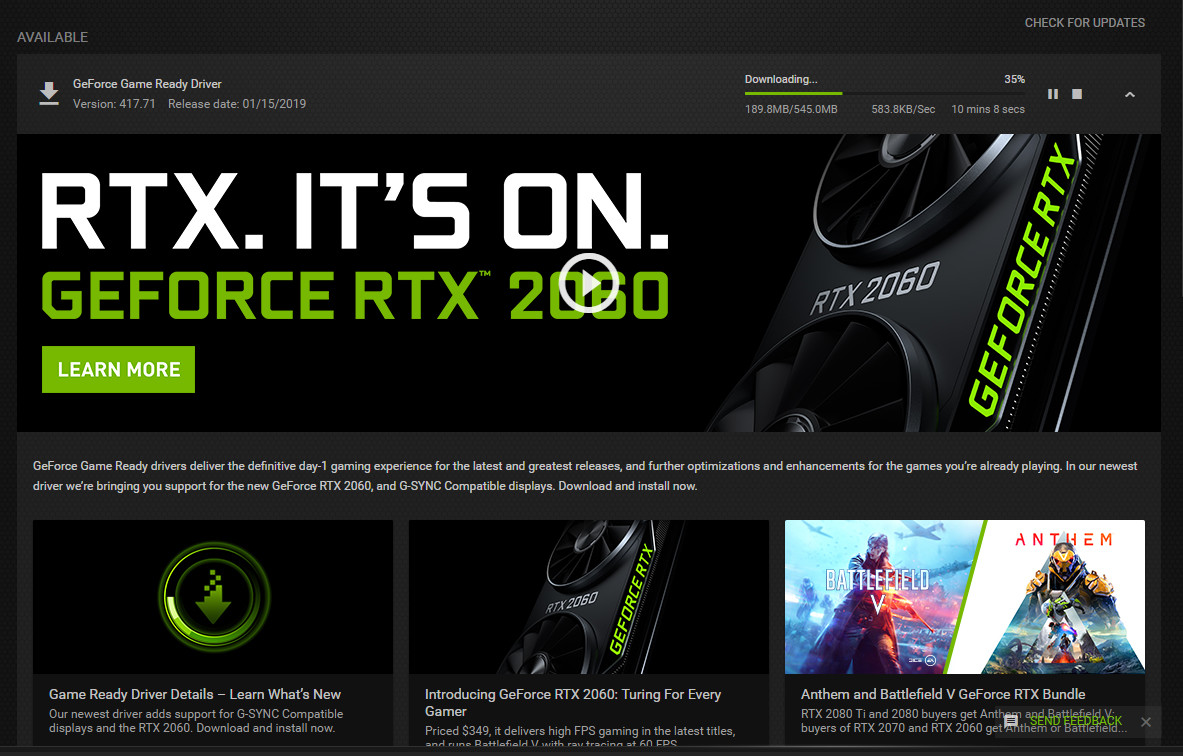
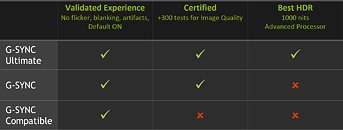 And so it did, by announcing and then introducing an Adaptive Sync-capable driver in the form of their NVIDIA GeForce Graphics Drivers 417.71 WHQL. Personally I'm an AMD RX 480-user turned to NVIDIA's 1070 graphics card (TPU's own, no less; I carry it as a badge of honor), I obviously wanted to check out how well this technology worked. Even if I loved the additional performance on my FreeSync-compatible LG 29UM68P (IPS, 2560x1080 ultrawide), living without FreeSync all over again meant I had to enable V-Sync for my games, losing out on input lag and, sometimes, jerks in the frame rate as the FPS were reduced from 60 all the way down to 30.
Enabling G-Sync was straightforward enough:
First, you'll have to make sure you own a FreeSync-compatible monitor which makes use of DisplayPort's 1.2a revision. Then, you'll have to make sure your monitor is connected to your graphics card via the DisplayPort adapter, since while AMD has enabled a FreeSync adaptation for HDMI, NVIDIA doesn't and likely won't support this feature in the future. After installing the NVIDIA GeForce Graphics Drivers 417.71 WHQL (whether via TPU's own download area or NVIDIA's GeForce Experience application), you'll have to navigate through a few menus. First, you'll want to hit your monitor's OSD (On-Screen Display) menu. This one varies greatly from manufacturer to manufacturer. Your objective here is to enable "FreeSync" or "Adaptive Sync", which should be a selectable option if you're connected via DisplayPort cable. If you do activate FreeSync, your monitor will perform a refresh as if you were changing resolution, and you'll hear Windows' notification sound for a new device being connected.
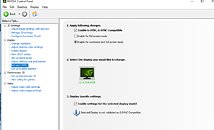
You'll then want to head to NVIDIA's Control Panel: "3D Settings", "Manage 3D Graphics Settings", and verify whether your monitor technology has been automatically changed to "G-SYNC Compatible". If so, congratulations, but we're not done yet. You now have to go to the "Display" dropdown, "Set up G-SYNC", and enable G-SYNC (I've been using the "Enable for windowed and fullscreen mode"; select your display which is being presented below, if everything has been thoroughly detected; and then on point three, "Display Specific Settings", tick the "Enable settings for the selected display model". If your monitor hasn't yet been validated, or has failed validation for some reason, you'll see a warning next to it, but you can still enable the technology. When you hit apply, your monitor will again refresh as if a resolution change had occurred. Barring some unexpected difficulties, you should now have a working NVIDIA+FreeSync monitor combo. Breathe deeply. This day has finally come.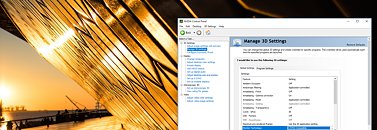 So, now we have VRR working on our NVIDIA graphics card and FreeSync monitor. You can now fire up some games to test it, or, and I recommend this, you can try out NVIDIA's own Pendulum demo, which was released way back when as a way for users to see the difference between V-Sync, no V-Sync, and G-SYNC. It's a simple download which puts two icons on your desktop. One allows you to configure the rendering resolution, and the other launches the Pendulum demo, where you can toggle settings and framerates at your pleasure.
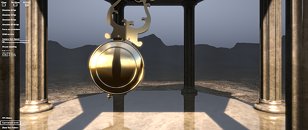 I recommend that you test across multiple framerate ranges, which the demo allows you to do, and remember to test your monitor within its supported FreeSync range (check with your monitor manufacturer for what exactly this range is). You can always use your choice of application (MSI's Afterburner ships with RTSS, for example) to limit your framerate towards the maximum end of your monitor's FreeSync refresh rate, which prevents frames from being delivered over the refresh capabilities of your monitor, thus breaking Active Sync.
I tested my monitor against Destiny 2, Halo SPV3, Prey, and Monster Hunter World, and never did I ever see anything out of the ordinary. Framerates were smooth and silky, much like a Dark Souls character would tell you. Happy gaming.


However, with momentum for Adaptive Display technologies swinging ever more in favor of the open-standards approach of VESA's Adaptive Sync and AMD's royalty-free FreeSync, the market developed in a ways that made NVIDIA lose control of the ecosystem. With HDMI 2.1's implementation of the Adaptive Display standard, and Microsoft's own push for VRR and AMD FreeSync support, it seemed as if only a matter of time until NVIDIA capitulated.

Enabling G-Sync was straightforward enough:
First, you'll have to make sure you own a FreeSync-compatible monitor which makes use of DisplayPort's 1.2a revision. Then, you'll have to make sure your monitor is connected to your graphics card via the DisplayPort adapter, since while AMD has enabled a FreeSync adaptation for HDMI, NVIDIA doesn't and likely won't support this feature in the future.
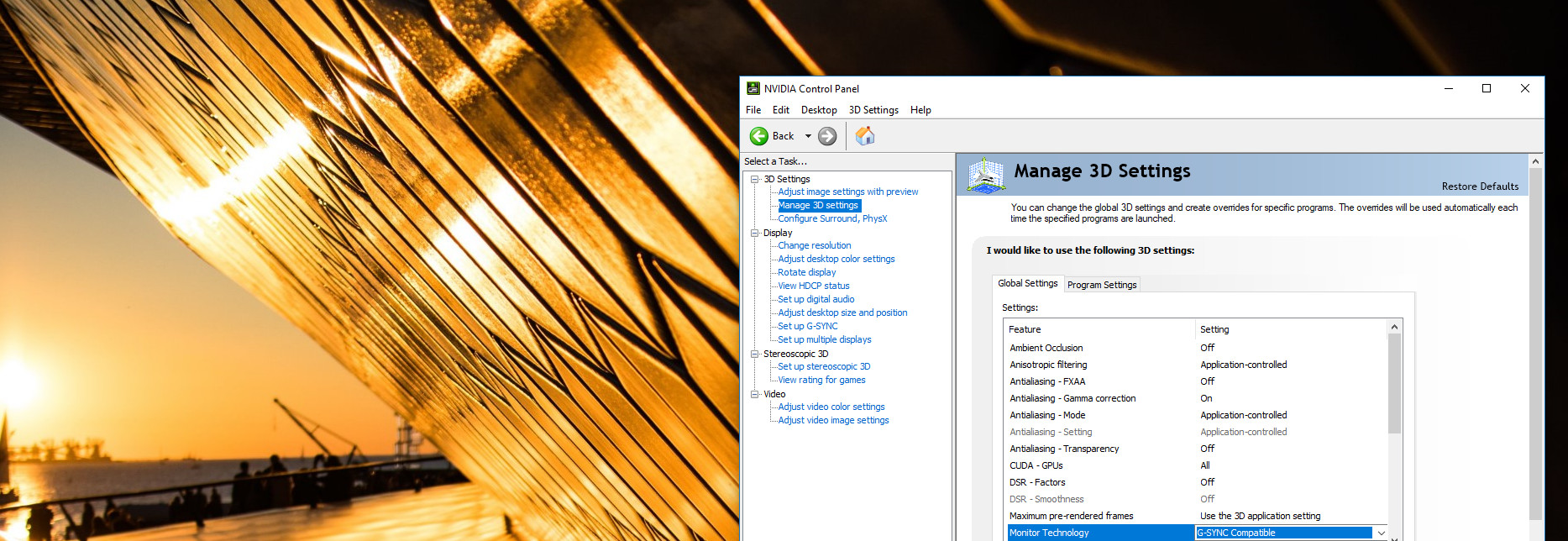
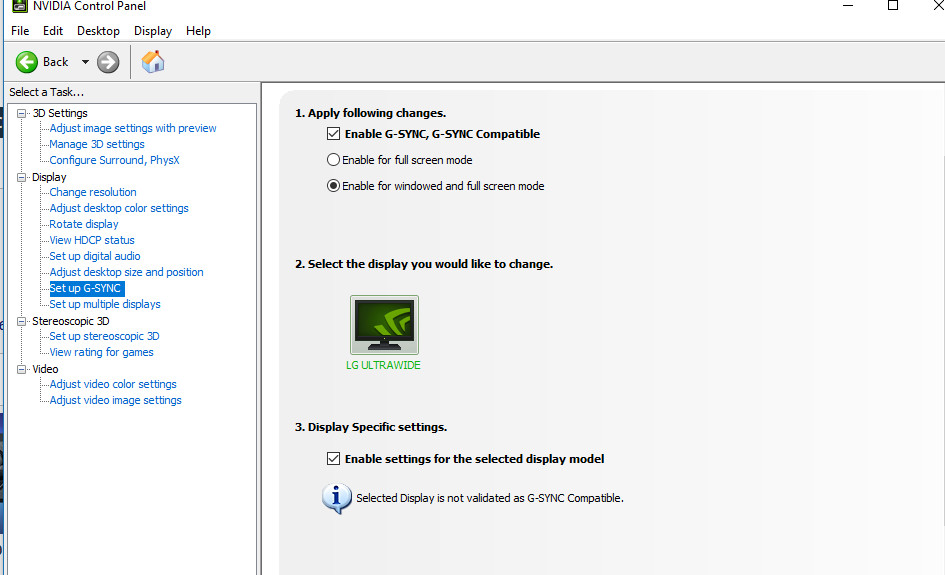
You'll then want to head to NVIDIA's Control Panel: "3D Settings", "Manage 3D Graphics Settings", and verify whether your monitor technology has been automatically changed to "G-SYNC Compatible". If so, congratulations, but we're not done yet. You now have to go to the "Display" dropdown, "Set up G-SYNC", and enable G-SYNC (I've been using the "Enable for windowed and fullscreen mode"; select your display which is being presented below, if everything has been thoroughly detected; and then on point three, "Display Specific Settings", tick the "Enable settings for the selected display model". If your monitor hasn't yet been validated, or has failed validation for some reason, you'll see a warning next to it, but you can still enable the technology. When you hit apply, your monitor will again refresh as if a resolution change had occurred. Barring some unexpected difficulties, you should now have a working NVIDIA+FreeSync monitor combo. Breathe deeply. This day has finally come.

I tested my monitor against Destiny 2, Halo SPV3, Prey, and Monster Hunter World, and never did I ever see anything out of the ordinary. Framerates were smooth and silky, much like a Dark Souls character would tell you. Happy gaming.


38 Comments on Living on the FreeSync Side of G-SYNC: Setup Guide, Testing & Evaluation
Plus, my screen has this disgusting 35-90Hz cap, which I couldn't hack even with CRU - monitor keeps informing freesync is disabled when I turn refresh rate higher than 90Hz in control panel.
So, I'd rather use 144Hz without freesync - much-much better than 90Hz+freesync.
You should not limit your fps to the max refresh rate of your monitor. You should cap 3 fps lower, so 144hz -> 141fps cap. However, as this software Gsync solution is more imprecise, you will still get tearing sometimes if you don´t activate Vsync aswell on Nvidia Control Panel.
If you want full no Tearing + no Input lag + Gsync experience, you need to cap refresh rate to 120fps on 144hz monitors, for example. That way you will never hit the Gsync Ceilling.
You can visist Blur Busters for more information and validation of what I just said.
www.blurbusters.com/gsync/gsync101-input-lag-tests-and-settings/4/I looked through the Blur Busters write up and am wondering about the 120FPS cap you are describing as the best solution. In their conclusion it seems for 144hz monitors you would want to cap at 141hz with Gsync + Vsync, as you mentioned previously. How will going down to 120hz benefit? Or are you saying it is because this is a software implementation it is less precise than a hardware one, so you drop it more to give a little more headroom? If that were the case, is there a reason to choose 120 over something higher, like 132hz?
Nvidia Control Panel Settings:
Set up G-SYNC > Enable G-SYNC > Enable G-SYNC for full screen mode.
Manage 3D settings > Vertical sync > On.
In-game Settings:
Use “Fullscreen” or “Exclusive Fullscreen” mode (some games do not offer this option, or label borderless windowed as fullscreen).
Disable all available “Vertical Sync,” “V-SYNC” and “Triple Buffering” options.
If an in-game or config file FPS limiter is available, and framerate exceeds refresh rate:
Set 3 FPS limit below display’s maximum refresh rate (57 FPS @60Hz, 97 FPS @100Hz, 117 FPS @120Hz, 141 FPS @144Hz, etc).
For example, 73 fps on a 48-75Hz monitor, 142 for 40-144Hz or 58 for 48-60Hz etc.
Either that or activate FastSync as a complementary measure if you exceede your upper limit like in MOBA games or CSGO, Quake and other easy to run games.
That is why some of you see no difference.
It works great on my MG279Q and AOC 3279VWFD8.
Its a nice to have, but we've always played games fine without it. Another option is he already played with (adaptive) Vsync or Fast Sync activated.
hopefully i have better luck when i do my ultimate PC desktop build. :/ as of now witcher 3 is unplayable at 1080p with a gtx 1070 on medium/high settings. pretty depressing. but thats the downside of overheating laptops. i thought gsync would make those hitches smoother to look at, but nope. its all useless really.