 13
Aorus 17 Alder Lake Gaming Laptop Review
(13 Comments) »Introduction

Our first look at Intel 12th Generation mobile CPUs comes from Gigabyte and their Aorus gaming brand. Aorus delivers a full series of products that range from components such as motherboards and graphics cards to peripherals such as mice and keyboards, all with a direct focus on gaming. With us today is the Aorus 17, a thin and light full-power laptop with a 360 Hz screen.

The Aorus 17 starts by squeezing a 17-inch screen into a 15-inch chassis height, resulting in minimal bezels and making the Aorus 17 13% smaller than a traditional 17-inch laptop, giving greater portability. The 3 mm bezel wraps around the 360 Hz screen mated with NVIDIA RTX 30-series graphics; combined with Intel 12th Generation mobile CPUs, this thin and light laptop is a powerhouse of specifications.
| Specifications | |
|---|---|
| Manufacturer: | Gigabyte |
| Model: | Aorus 17 (YE5) |
| Size: | 398 x 254 x 27 mm |
| Weight: | 2.7 kg |
| Processor: | Intel Core i7-12700H 2.30 GHz (4.70 GHz Turbo) |
| Chipset: | N/A |
| Display: | 17.3" screen 1920x1080, 360 Hz |
| Operating System: | Windows 11 Home |
| Integrated Graphics: | Intel Iris Xe |
| Dedicated Graphics: | NVIDIA GeForce RTX 3080 Ti 16 GB GDDR6 |
| Memory: | 32 GB (2x 16 GB) 4800 MHz DDR5 2x SO-DIMM slots (both are occupied) |
| Storage: | 1 TB PCIe 4.0 NVMe SSD |
| Optical Drive: | None |
| Connectivity: | 1x HDMI 2.1 1x mini-DP 1.4 1x Thunderbolt 4.0 2x USB 3.2 Gen 1 Type-A 1x RJ45 Ethernet jack 1x 3.5 mm headphone combo jack |
| Communications: | Intel Wi-Fi 6e AX211 Bluetooth 5.2 |
| Audio: | DTS:X Ultra |
| Input device: | Multi-touch trackpad Island-Style RGB Fusion keyboard HD Webcam w/Windows Hello |
| Power: | 1x 240 W AC adapter 99 Wh battery |
| Warranty: | One year |
| MSRP: | TBA |
Packaging and Contents
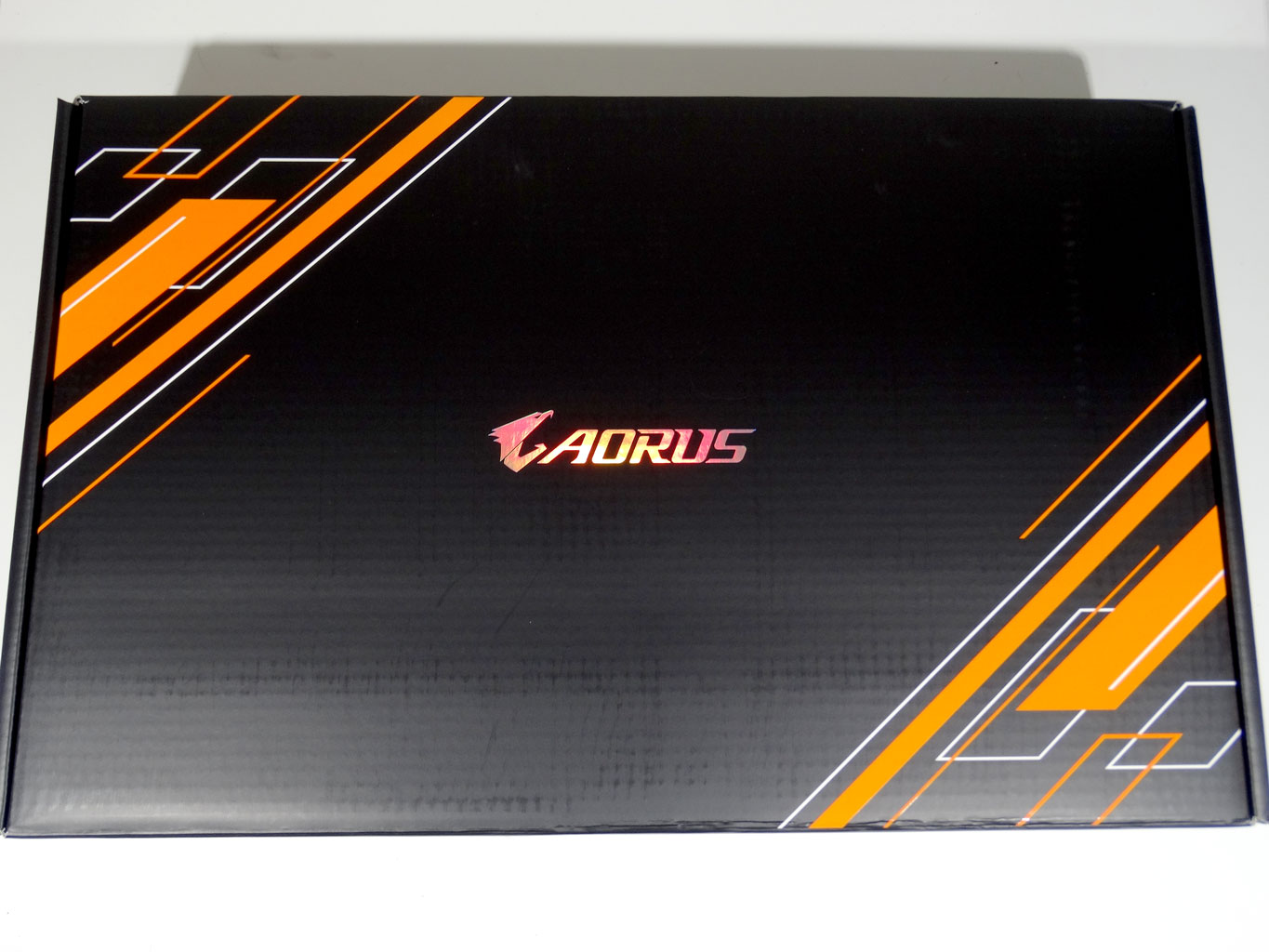
The Aorus 17 comes in a large black and orange box with the Aorus logo embossed in metallic lettering. Flipping open the top reveals a similar protective board, this time in shades of black.
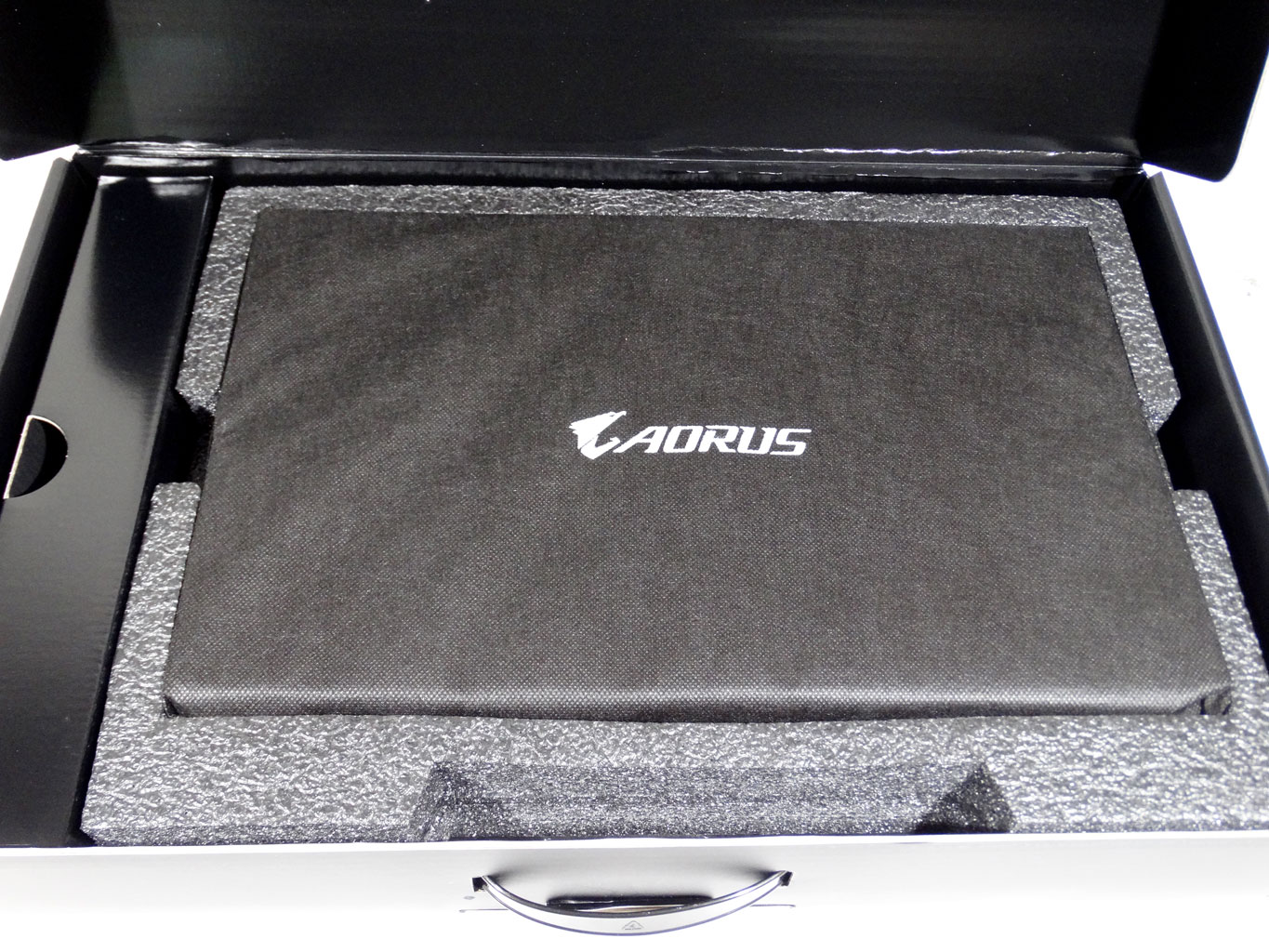
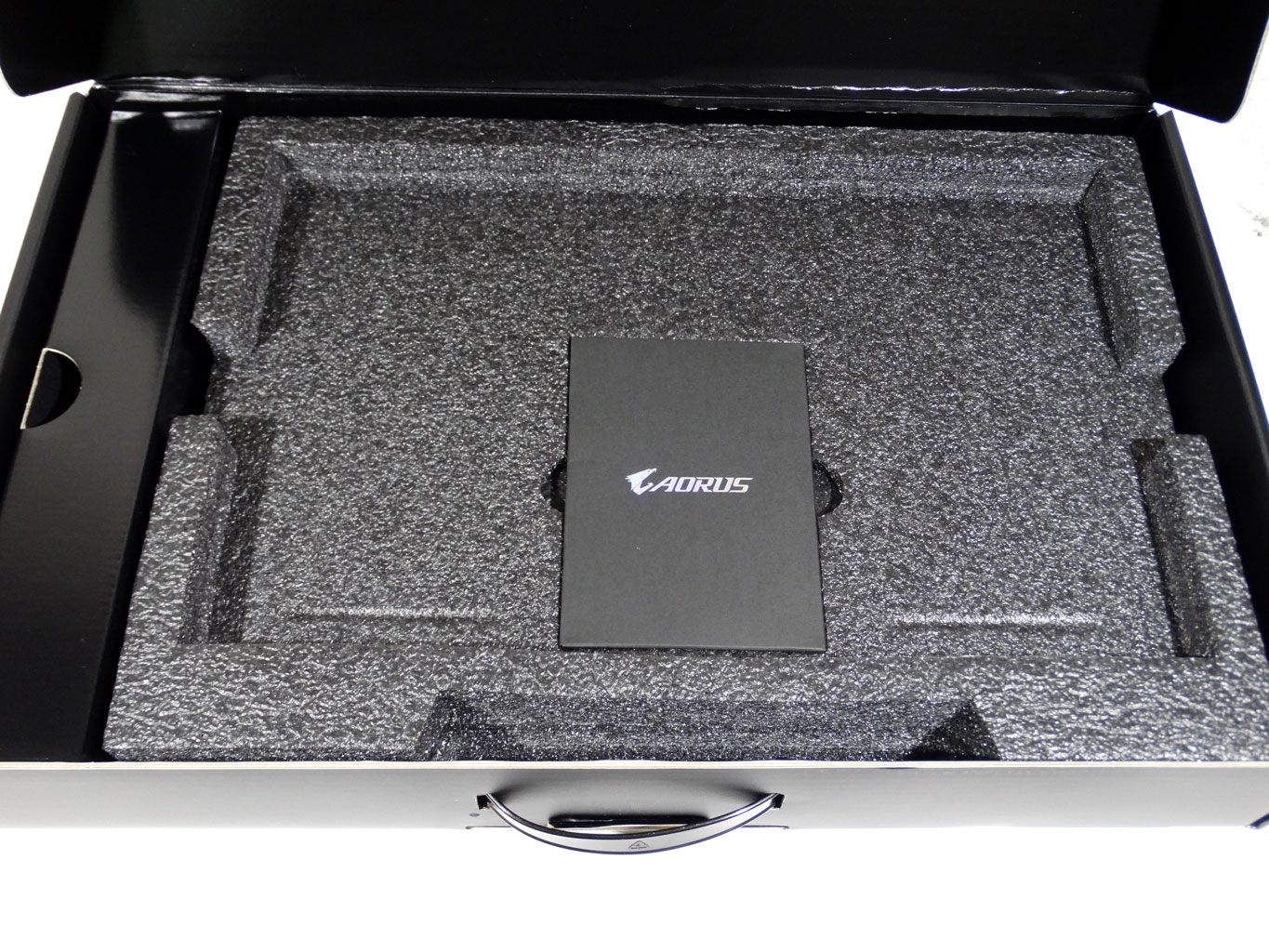
Beneath the protective board is the laptop itself, along with a box on one side that contains the power cord. I pulled out the Aorus 17 and found more below. The power adapter is actually under all the black protective foam.
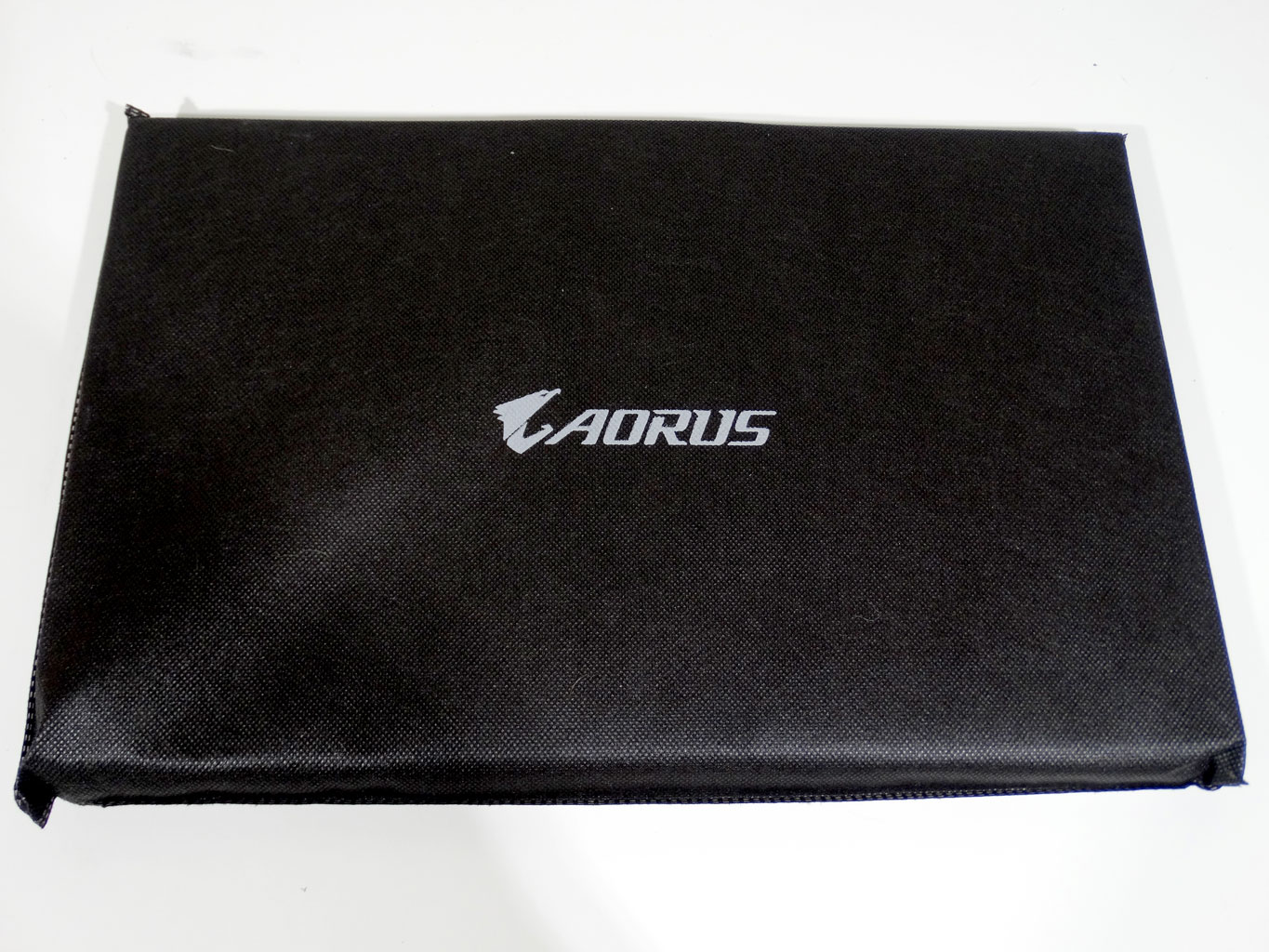

Here's a list of everything I found with my nicely wrapped Aorus 17:
- Laptop in cloth bag
- Warranty card and quick start guide
- Battery charger and cable
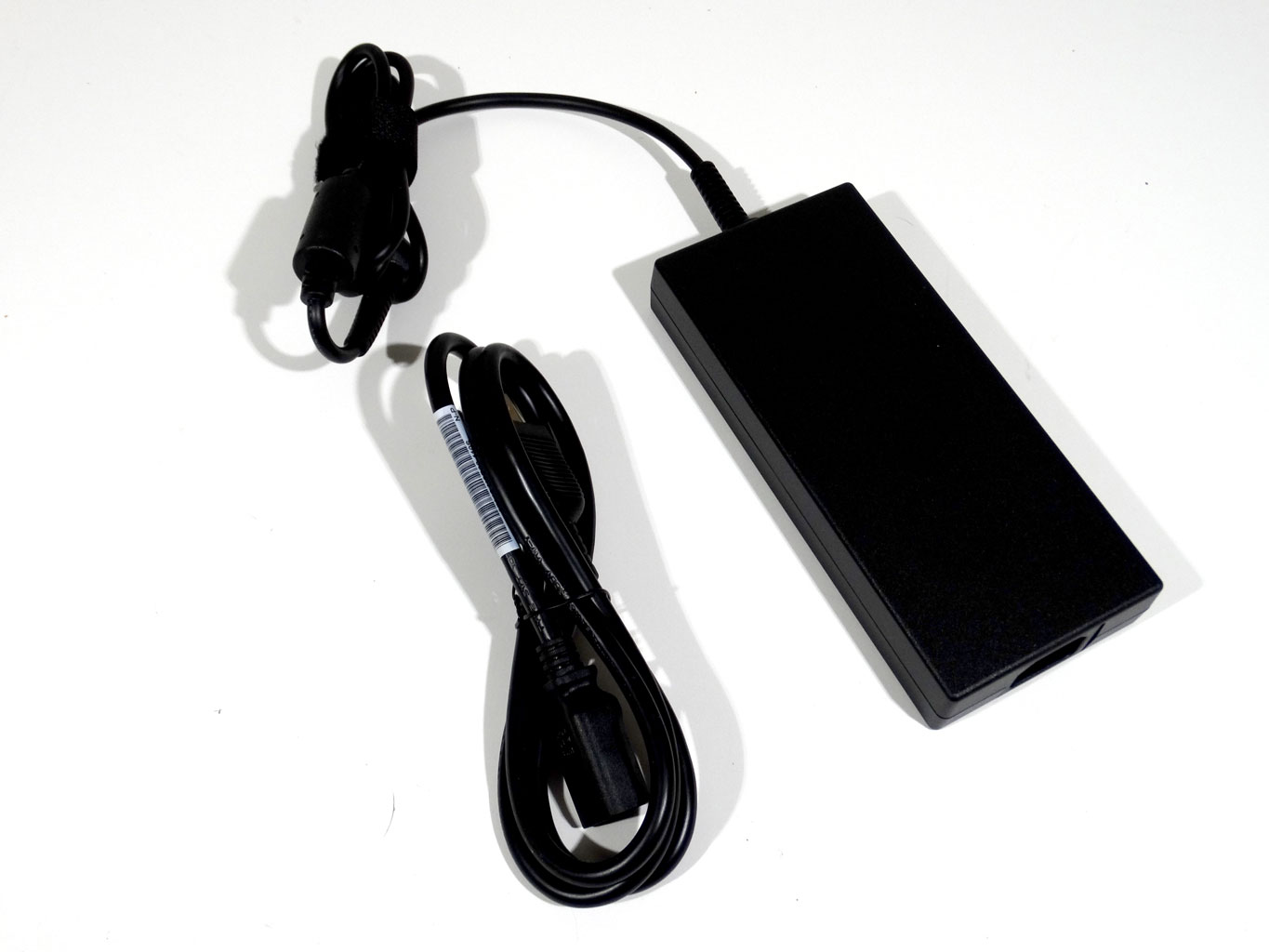
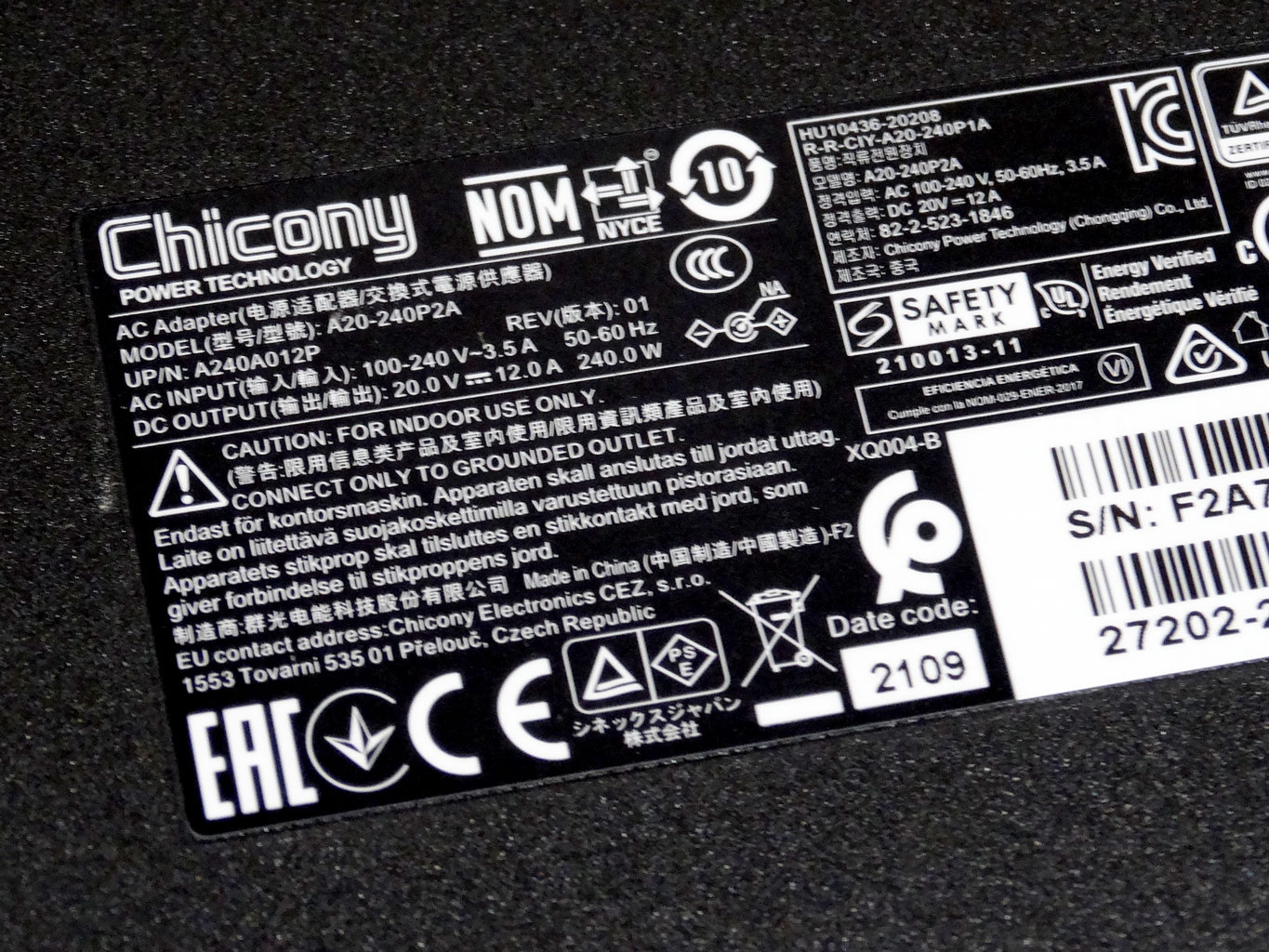
The included adapter is a 240 W Chicony unit. It features a shorter cable on the plug end than I expected, leaving it noticeably shorter than many cords I've had recently.
A Closer Look
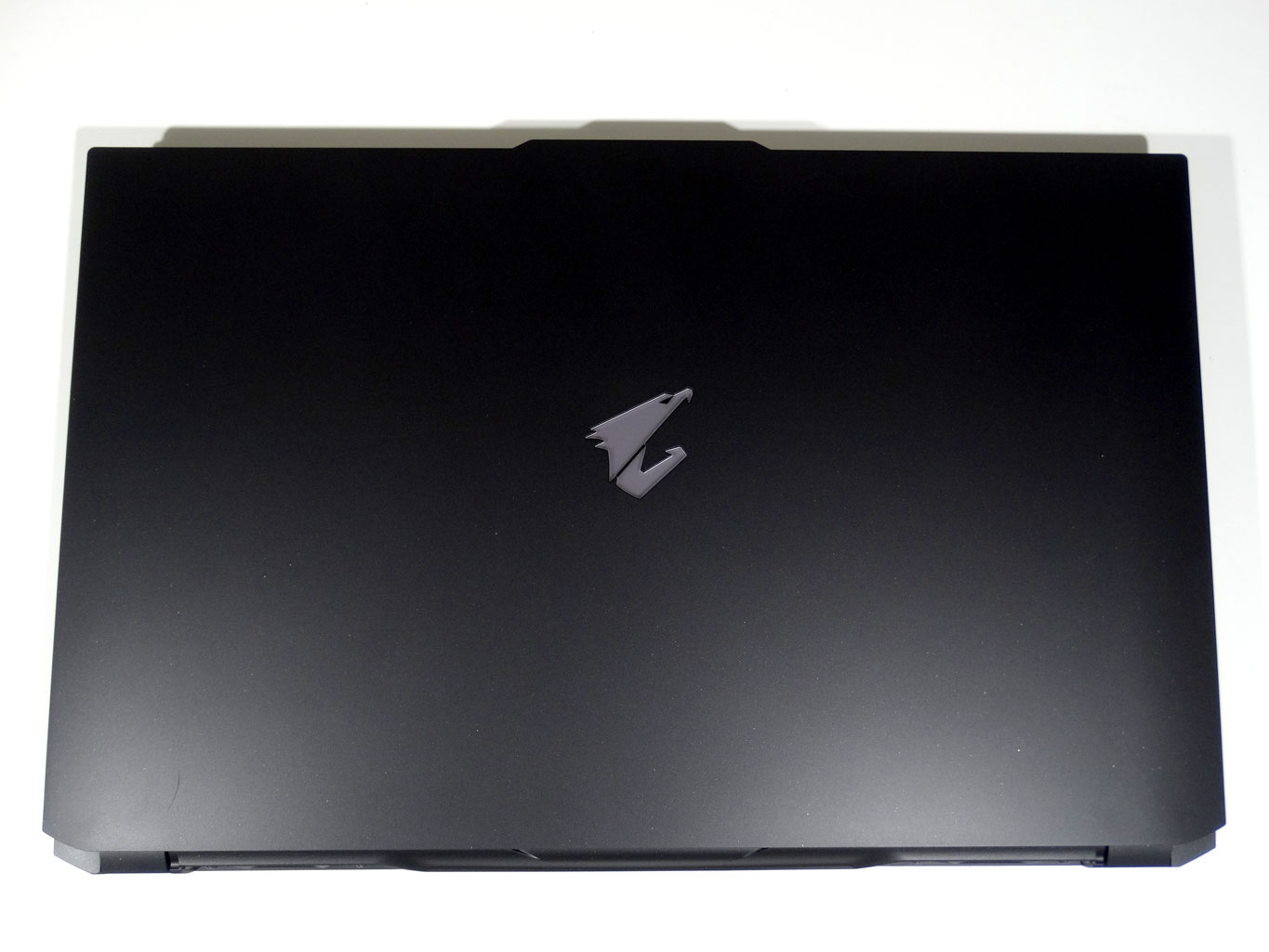
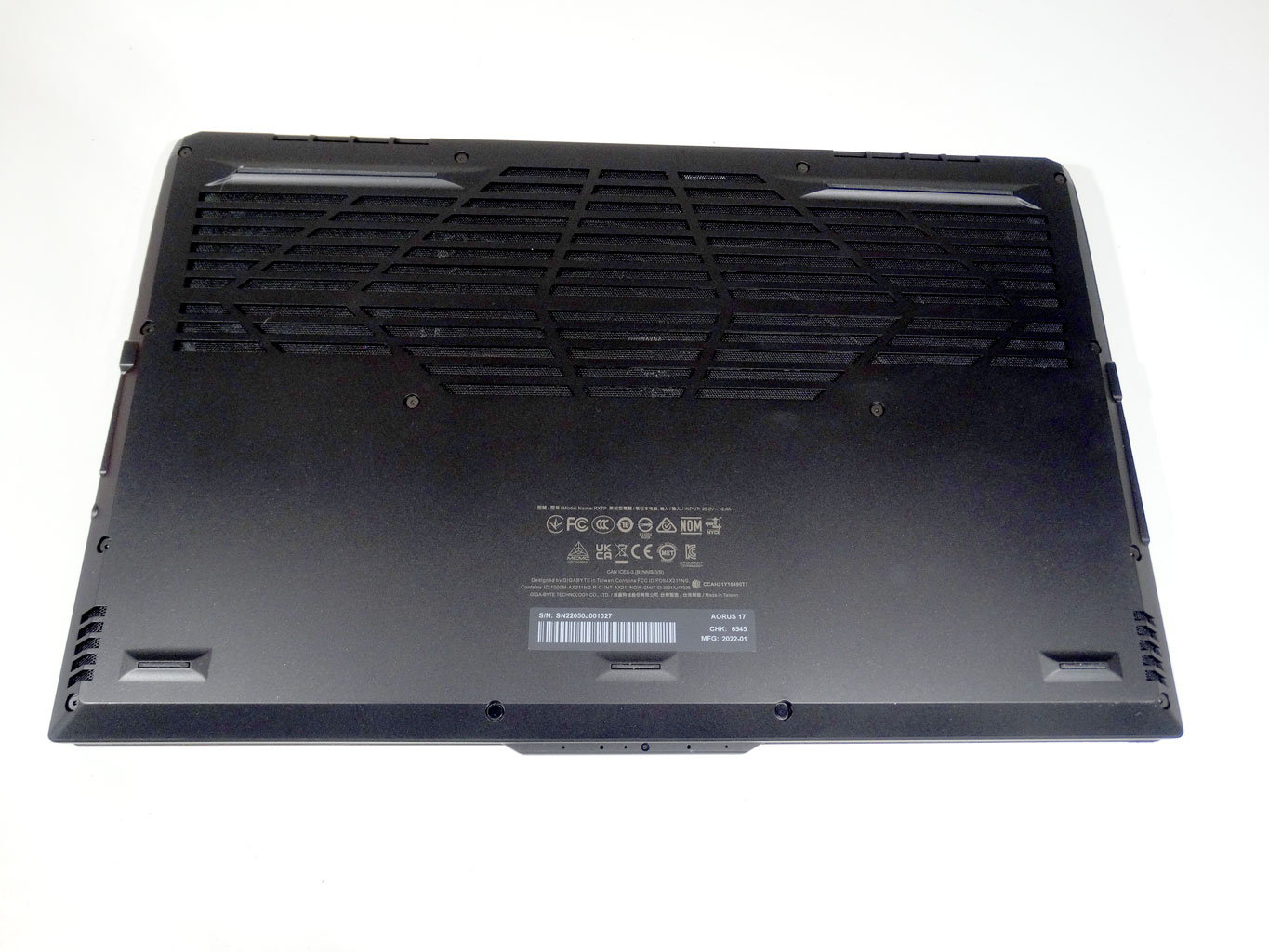
The Aorus 17 has a sleek, flat black top with the Aorus logo in the middle. The logo lights up in white when the system is in use. The underside of the Aorus 17 is mostly filled with vents and grilles on one half. You can see the bits inside fairly easily here, so there is more than ample airflow within this chassis for sure.
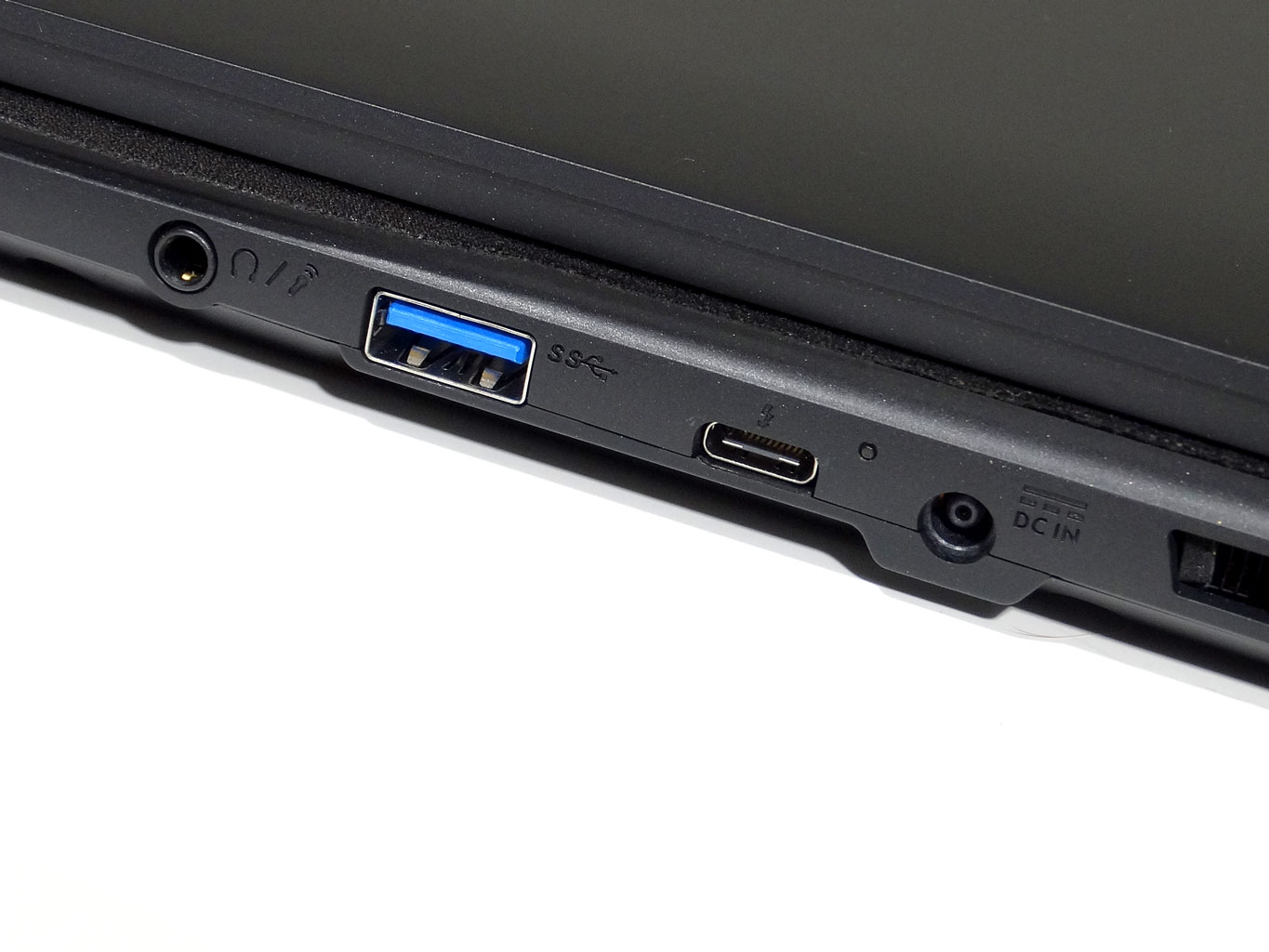
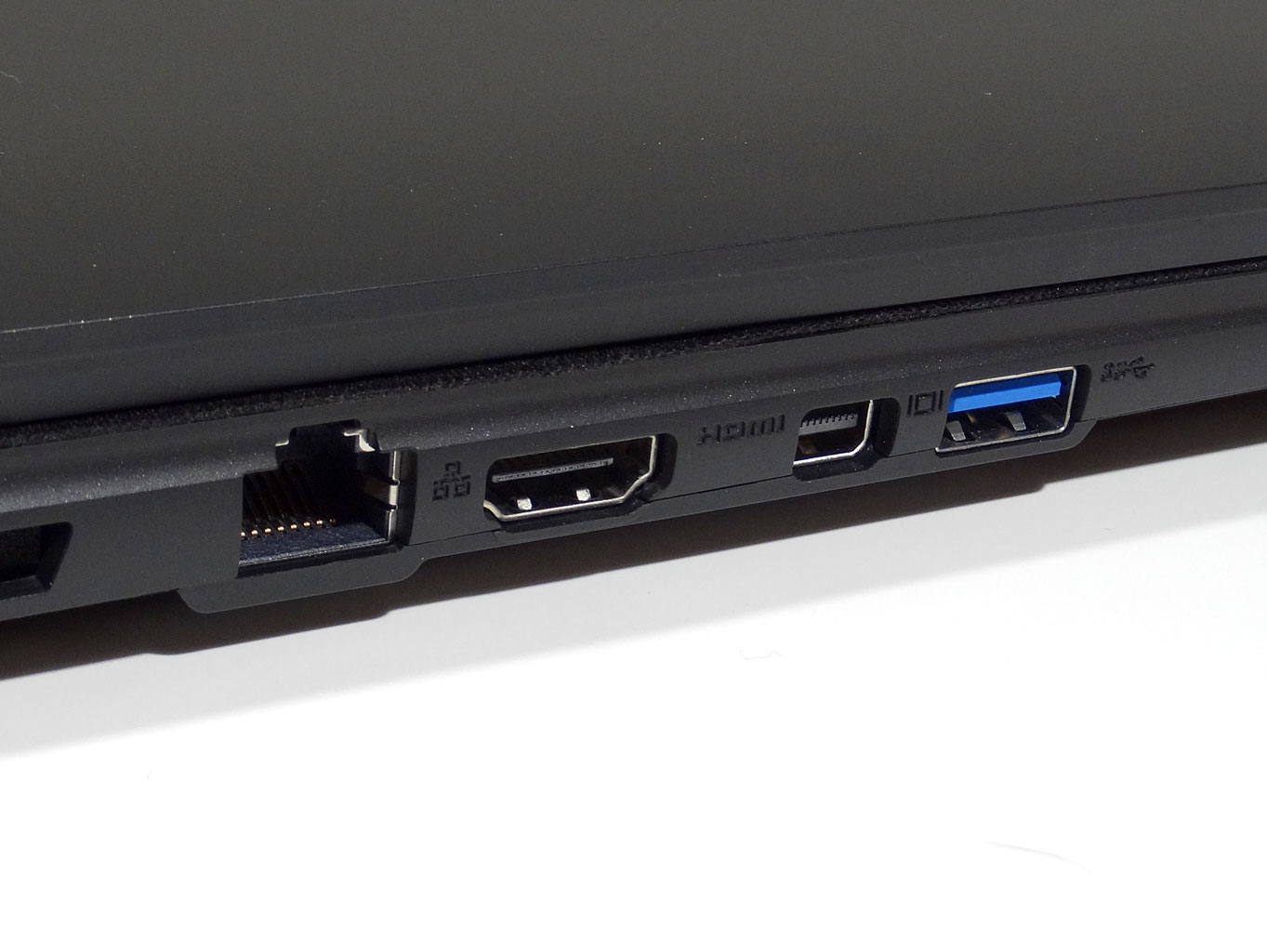
On the right side, we find the power plug, Thunderbolt connector, USB Type-C port, USB Type-A port, and headphone port. The opposite side sees an RJ45 plug, USB Type-A port, Mini DisplayPort, and HDMI 2.1. I'm not a big fan of where the power plug is located.
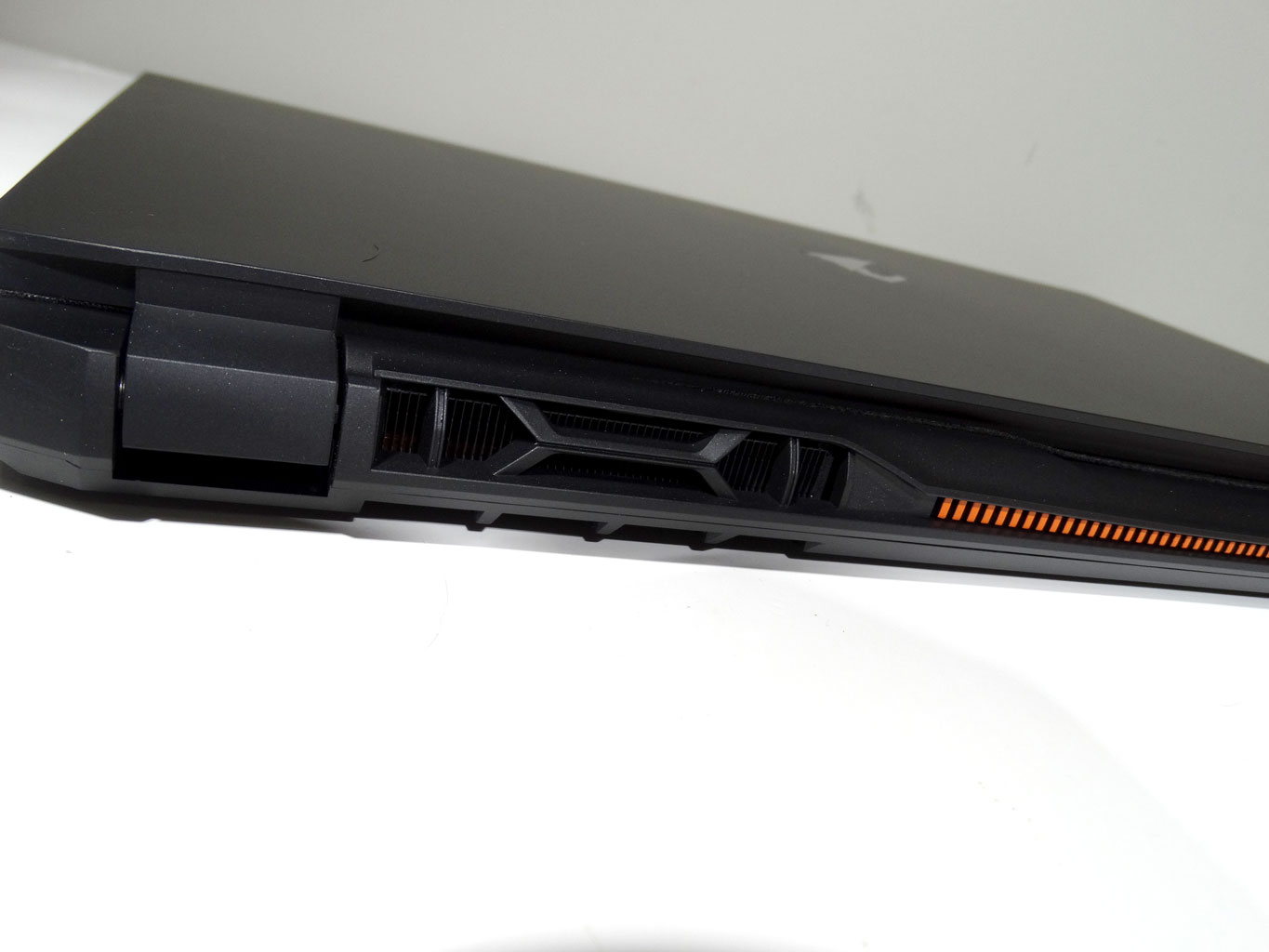
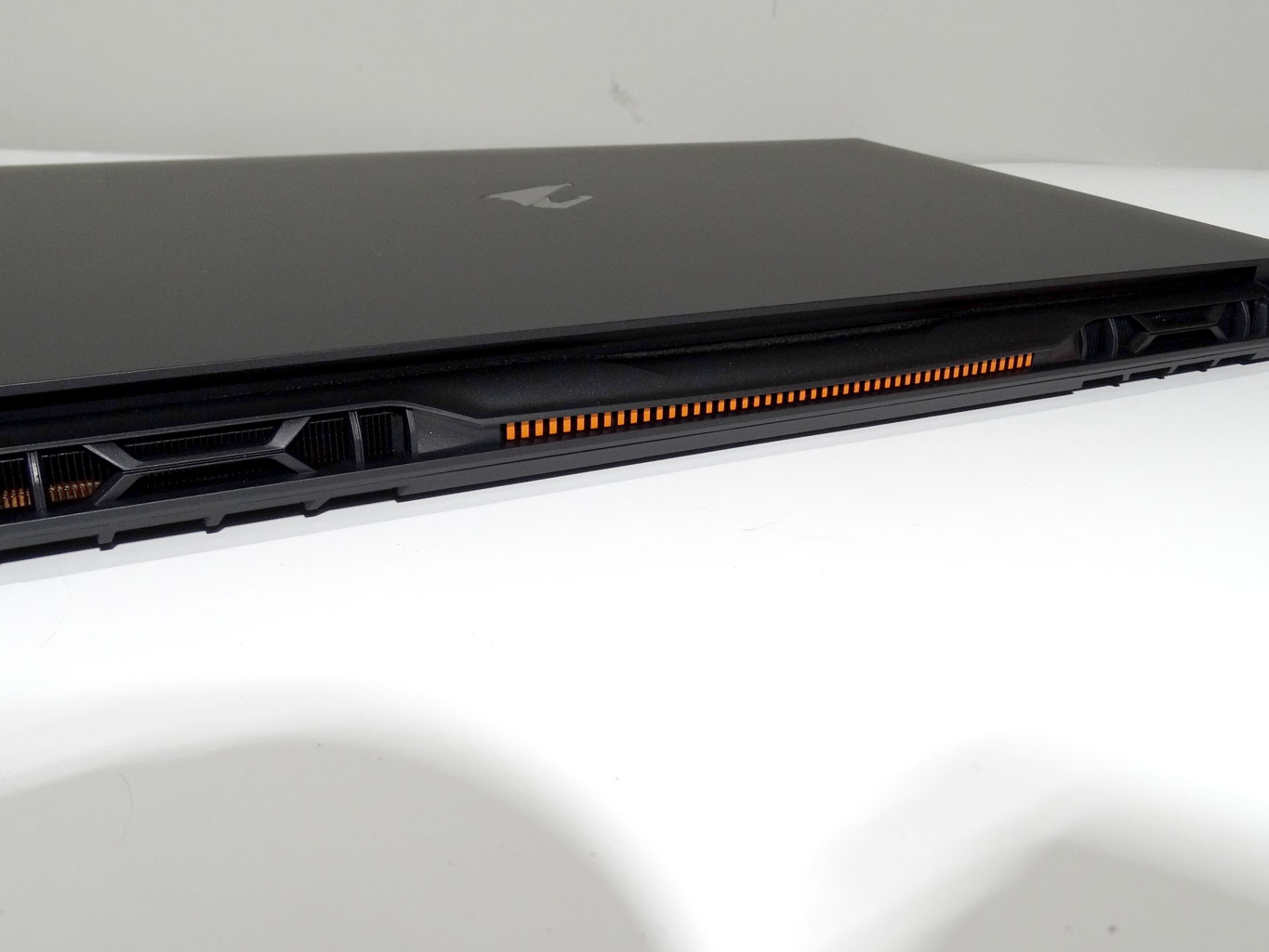
The back of the Aorus 17 has large vents; there really is a lot of space for airflow on this chassis even though the entire chassis is just slightly more than an inch thick. The orange highlight at the back is an interesting aesthetic choice that really sticks out. I actually like this little bit of flair a lot.
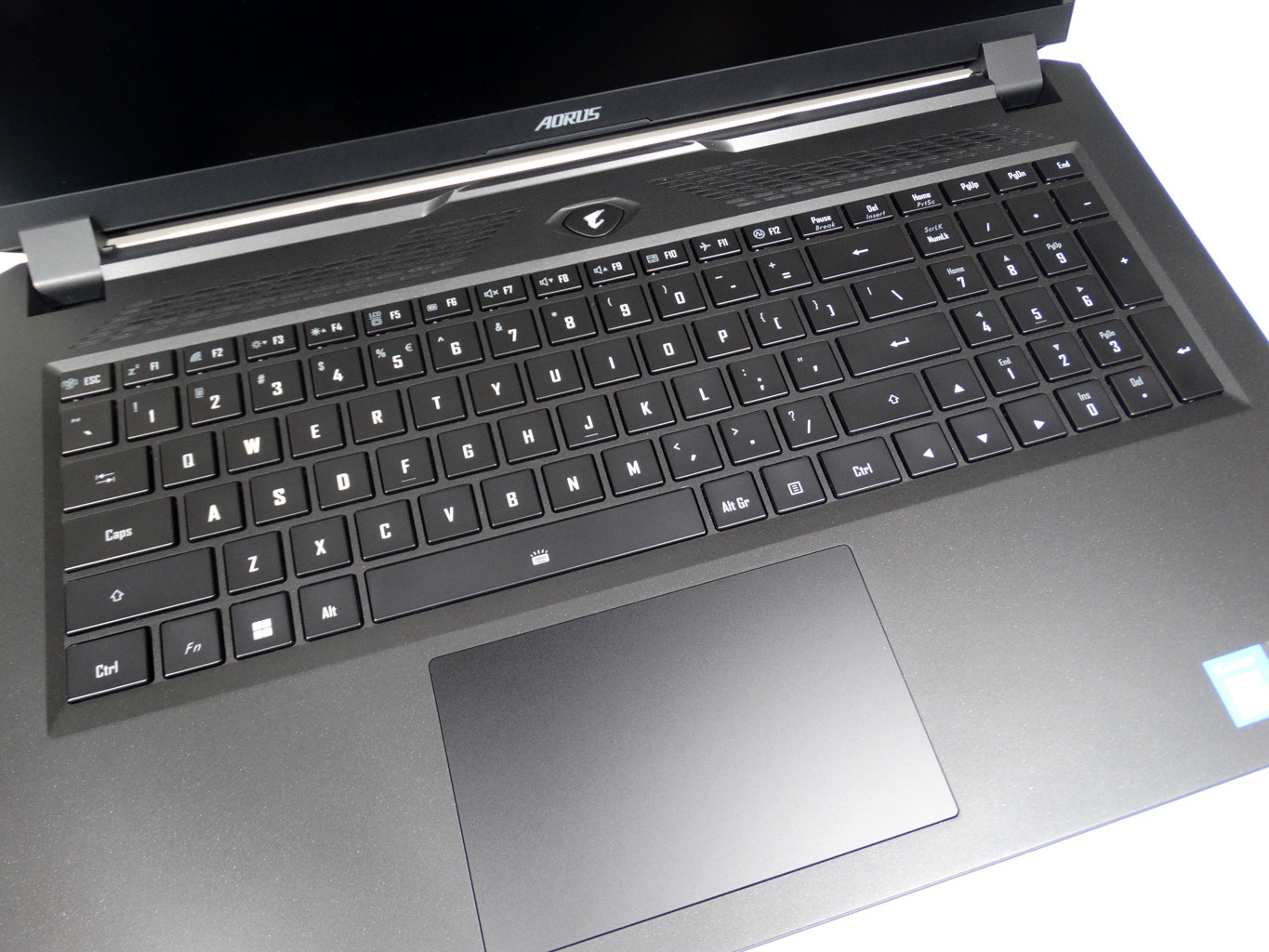
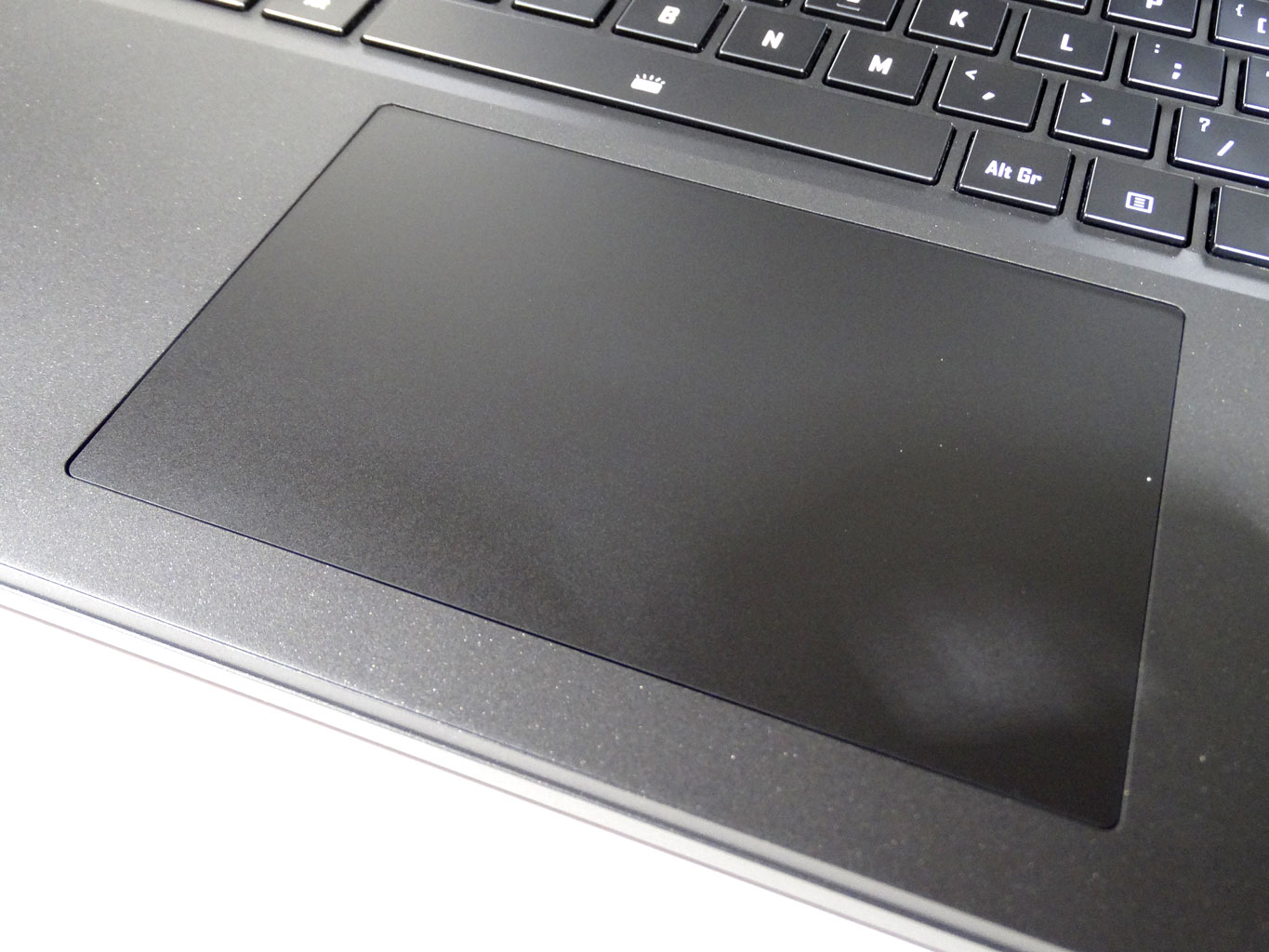
The Aorus 17 features a full-size keyboard that includes a numpad, and a decently sized trackpad sits in the middle of the deck below the keyboard. The trackpad feels good, and clicks at the bottom edge feel solid.
A look Inside
This is the bit of the review that always has me a bit nervous. Some laptops actually come with instructions on how to open them, while others see such an exercise as something that should never be done. In this instance, we definitely have to evaluate this task as the secondary PCIe 4.0 slot is advertised as being available.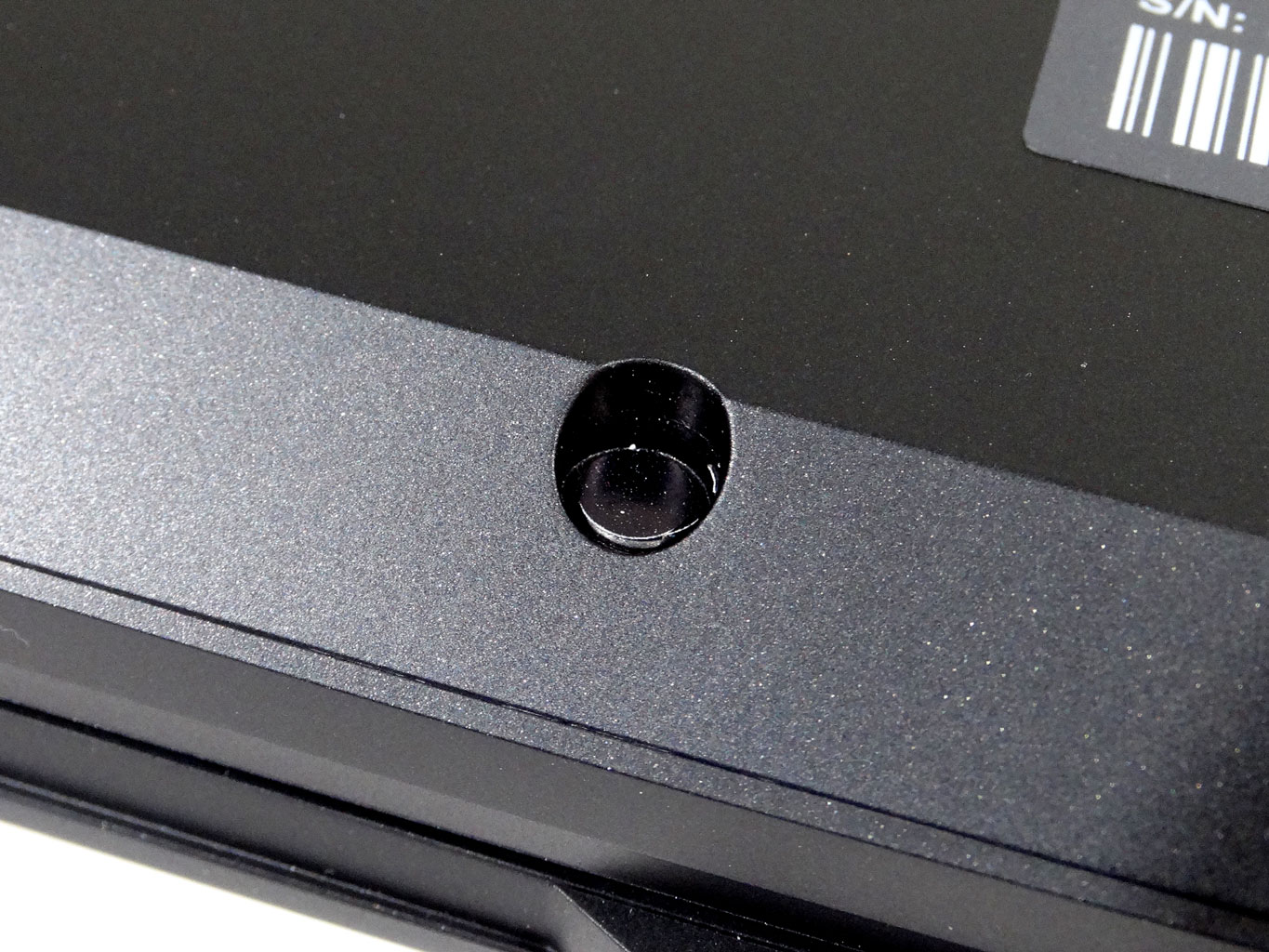
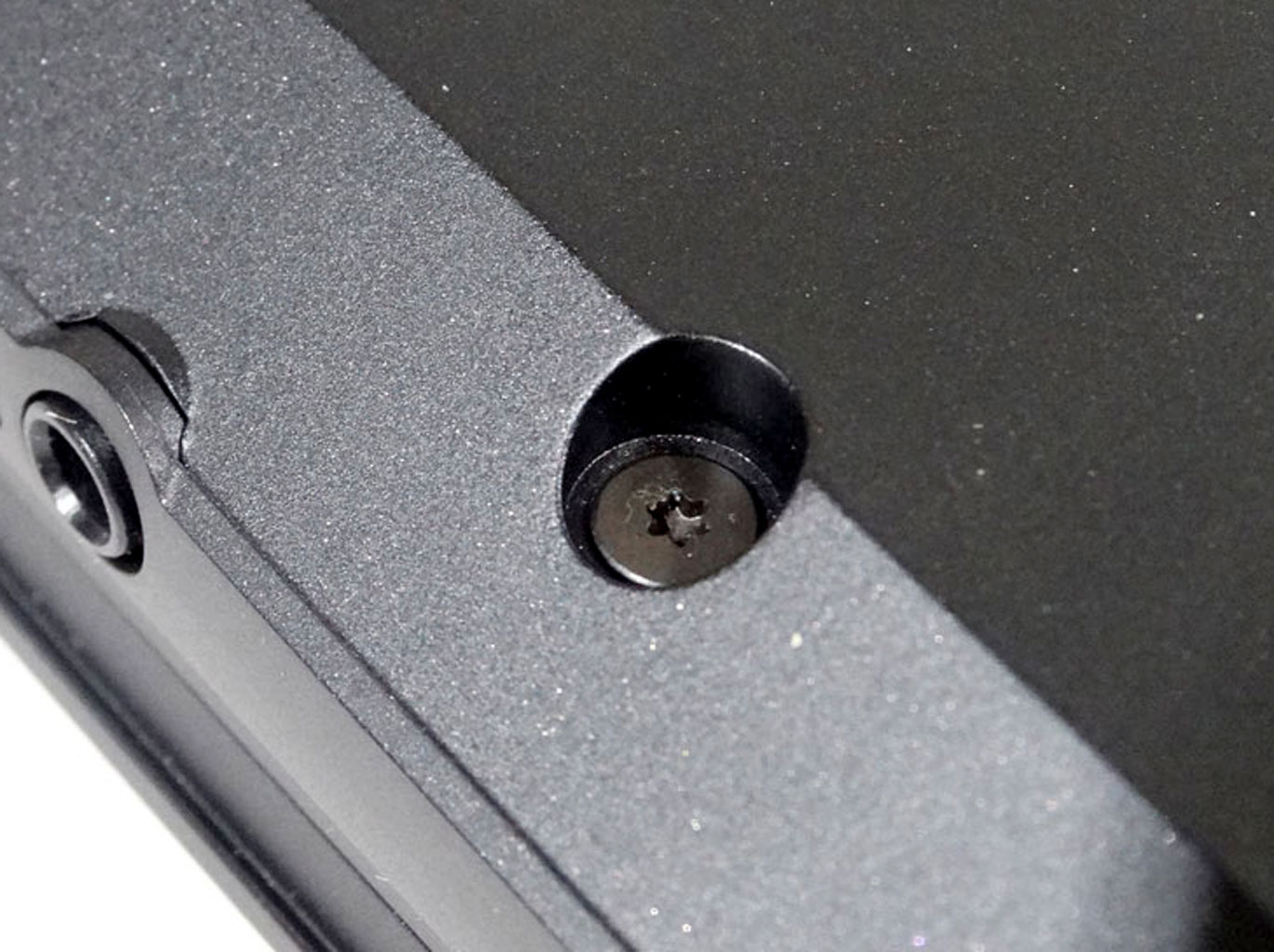
The first thing I noticed when looking at this part of the testing was that two of the screws had stickers over them. I also made a mental note of the screws having hex-type screw heads. Neat. Stickers are removable fortunately, and these screws are actually rather nice to see here. There are plenty of them spread all over the underside of the chassis.
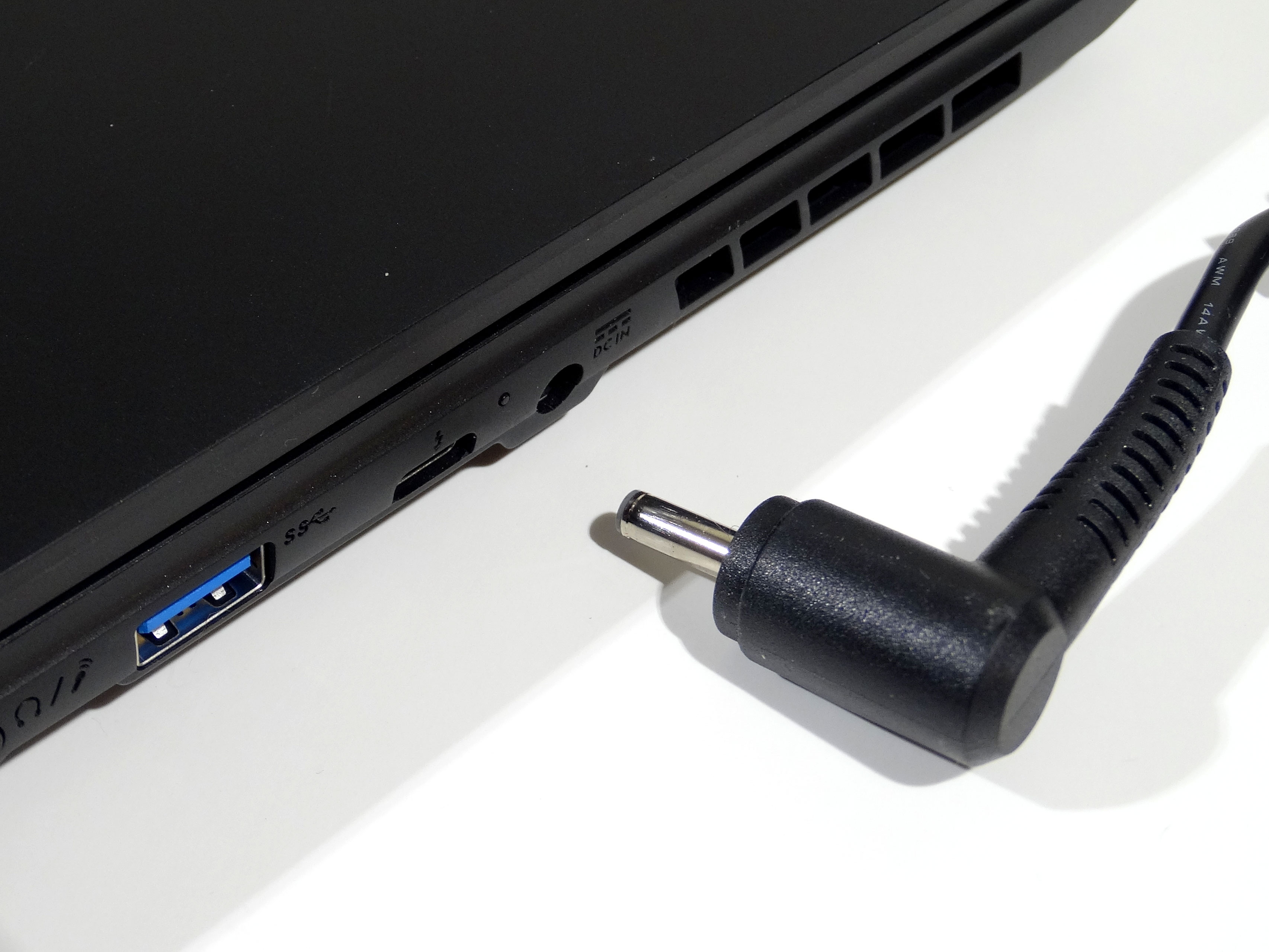
As this is a loaner unit and Gigabyte tried to get me to sign a form promising no damage to the unit (I ignored said form :P), I left the stickers alone and refrained from removing the underside to peer into the Aorus 17. It is worth pointing out that although there is a second PCIe 4.0 NVMe slot available, it seems Gigabyte has taken some steps to make adding additional storage a bit more difficult compared to other brands like XPG, who gives you directions on how to add storage right in the manual.
Our Patreon Silver Supporters can read articles in single-page format.
Nov 16th, 2026 09:17 CST
change timezone
Latest GPU Drivers
New Forum Posts
- Warning for Windows 10 and 11 users running newer AMD GPU drivers (60)
- How much does an RTX 5090 cost in your area? (64)
- need an ide to sata adapter that lets me burn cds on an ide cdrw drive (that doesn't power down while burning or copying) (55)
- Windows 11 General Discussion (7729)
- Honestly, do you care about GTA VI? (62)
- Meeting point of those who broke their GPUs. Please share what GPUs you've burned, shattered, ionized or melted accidentally. (36)
- What storage medium you lost the most data thus far from failure? HDD/SSD Flash, etc (53)
- Samsung MZ-HPU256T/004 (12)
- Recommendations Wanted - Affordable Enterprise SSD for Boot (10)
- Samsung 860 Evo MZ-76E2TO 2tb. 2018-10 (1)
Popular Reviews
- ASUS ROG Strix B850-I Gaming Wi-Fi7 W Review
- Corsair HX1000i Shift Crystal Review
- AMD Zen 6 Technical Deep Dive
- Upcoming Hardware Launches 2027 (Updated Nov 2026)
- Montech King 95 3D PRO Review
- NZXT C1200 Platinum Review
- Phantom Blade Zero Performance Benchmark Review - 35 GPUs Tested
- AMD Ryzen 7 9800X3D Review - The Best Gaming Processor
- Acemagic Retro X3 Review
- NZXT H7 RGB+ Review
TPU on YouTube
Controversial News Posts
- NVIDIA Co-Founder and CEO Jensen Huang Officially Resigns (431)
- Open Letter Asking NVIDIA to Reinstate Jensen Huang Passes 115,000 Signatures (184)
- OpenAI CEO Argues Home PCs Waste the World's Limited DRAM Supply (152)
- NVIDIA Launches Investigation Into Jensen Huang's Relationship With Suspected Chinese Spy (136)
- Intel "Raptor Lake Next" 16-Core and 20-Core CPUs Surface (130)
- Legendary Game Studio BioWare Shuts Down Following EA Layoffs (104)
- Dell CEO Says the Memory Shortage Will Get Worse in 2027 (95)
- NVIDIA GeForce RTX 50-Series Scheduled for up to $500 Price Hike This Week (89)