 30
ASUS ROG Strix OLED XG27ACDNG Review - Good Enough for Pro Gamers
Controls & OSD »Connectivity
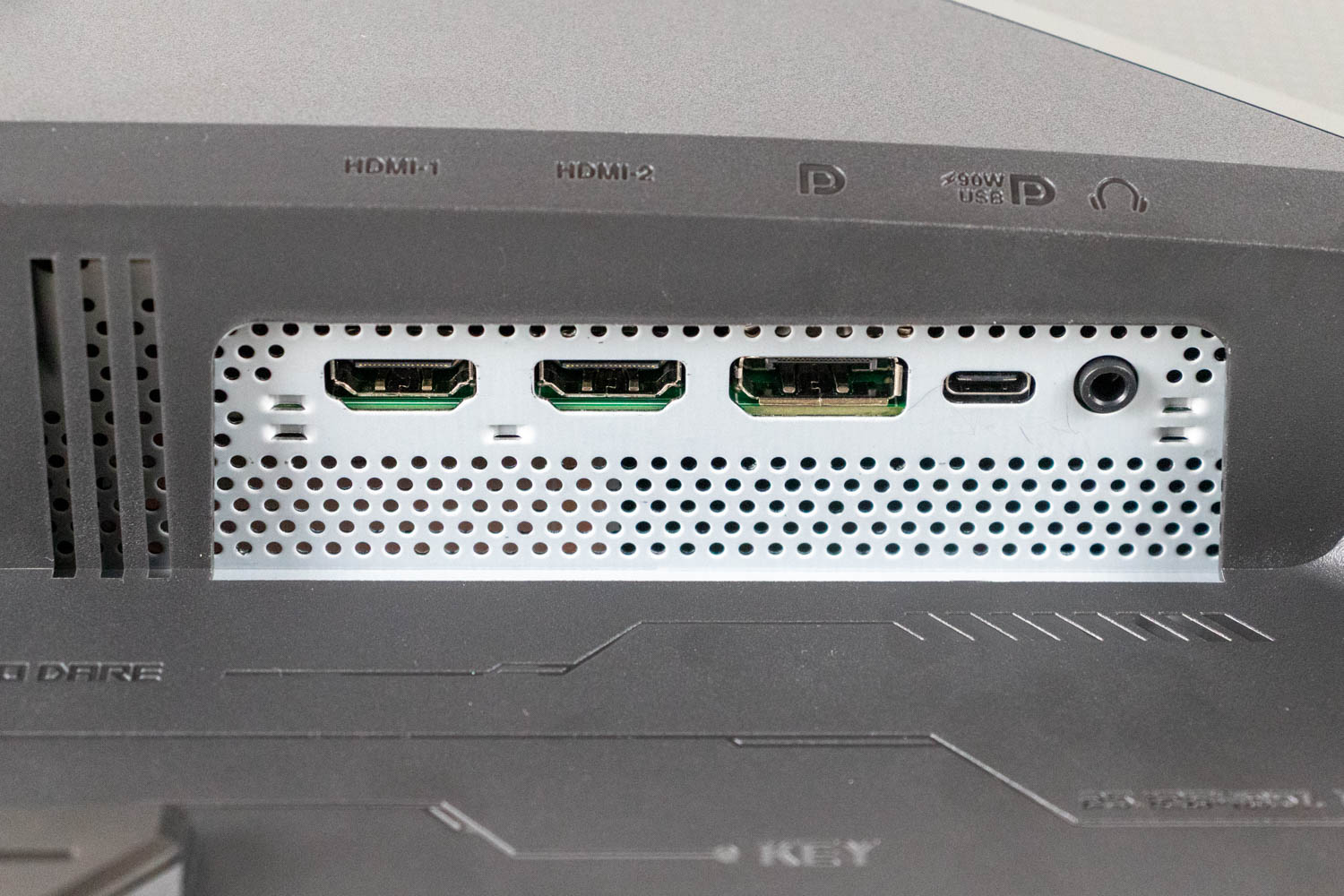
On the rear, the ASUS ROG Strix OLED XG27ACDNG features a DisplayPort 1.4 input, a pair of HDMI 2.1 inputs (48 Gbps), and a USB-C (DP Alt Mode) input with 90 W of charging power.
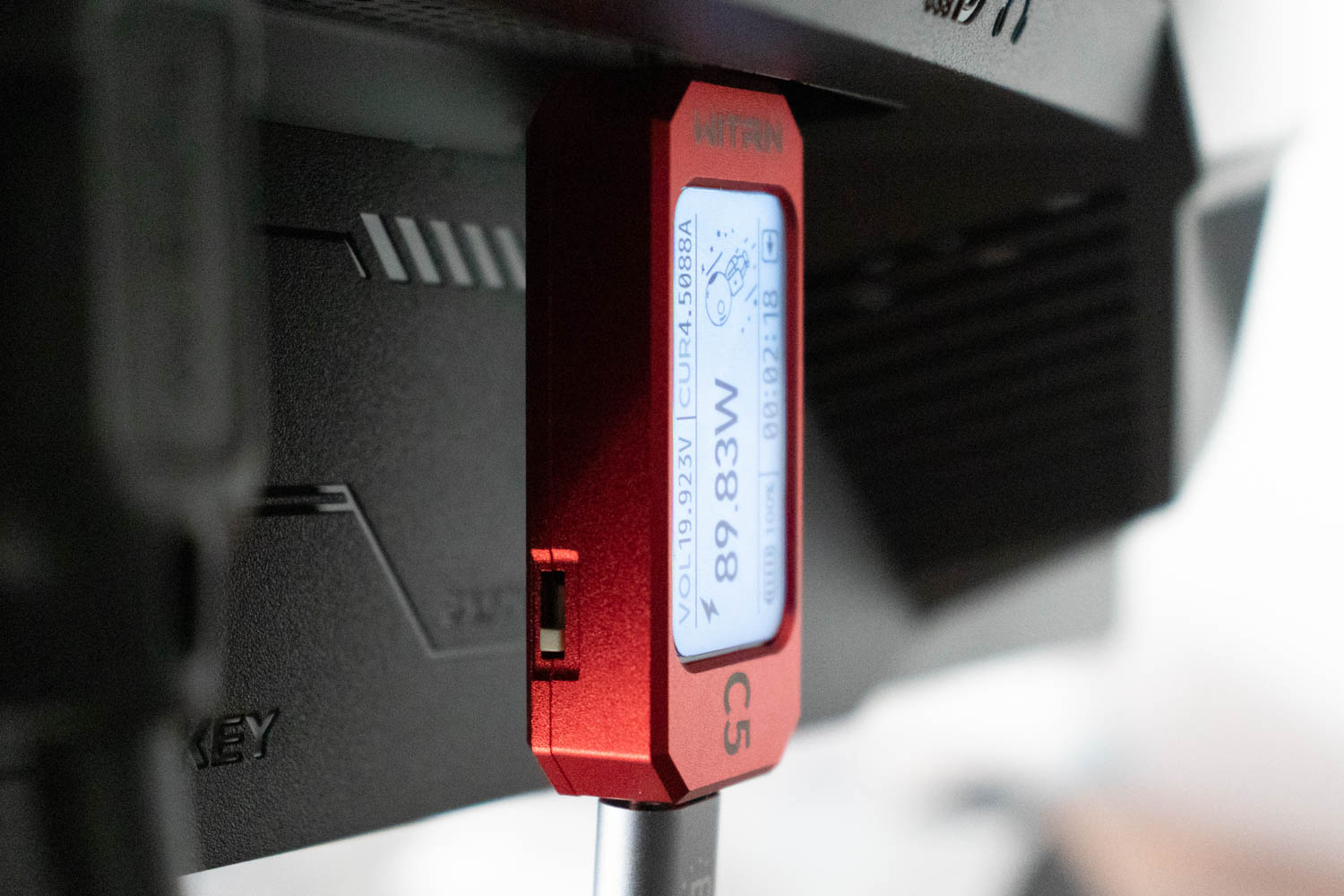
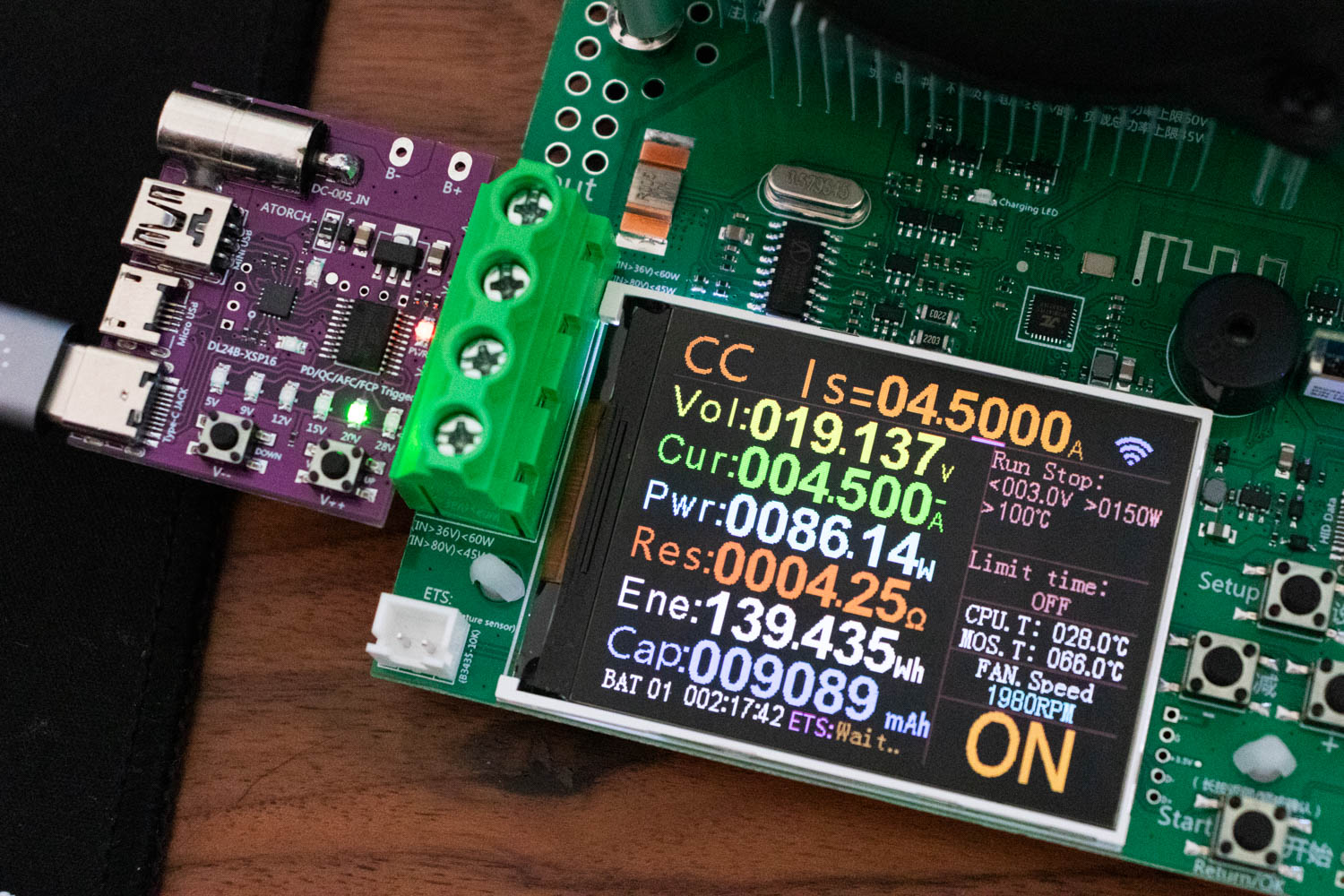
With a rated power delivery of 90 W, the USB-C port can theoretically provide that amount of power to a connected device, such as a smartphone or laptop. To test this, I used a combination of the WITRN C5 USB voltage/current meter—connected directly to the monitor's main USB-C port—and the ATORCH BW150 electronic load with a PD 3.1 trigger module. The two devices were linked using a high-quality Thunderbolt 4 (40 Gbps, 240 W) cable.
In my testing, the ASUS ROG Strix OLED XG27ACDNG was perfectly able to sustain a 20 V/4.5 A load, at which point it delivered 89.9 W of power through its USB-C interface. The ATORCH BW150 registered 86.11 W on the receiving end, with the difference likely due to cable losses. I was able to push the monitor above the specification, up to 20 V/4.8 A, where it delivered 96.04 W through the USB-C interface (91.72 W on the receiving end).

Next to the video inputs there's a single 3.5-mm audio output, which can be used for headphones or speakers. The monitor has no speakers of its own.

On the opposite side of the monitor's rear, you'll find four additional USB 3.2 Gen 1 (5 Gbps) ports—three USB Type-A and one USB Type-B upstream. These ports support peripherals, external drives, and other USB devices, all of which can be shared between two computers thanks to the monitor's integrated KVM switch. To use the KVM functionality, one device must be connected via the USB-C DP Alt Mode port, while the second should use the USB Type-B upstream port for data, along with either an HDMI or DisplayPort connection for video. The KVM switch is fully automated and behaves exactly as it should: selecting a video input in the OSD immediately switches the connected USB devices to the corresponding source—no manual toggling required. That's precisely how a KVM switch should work.
Power Consumption
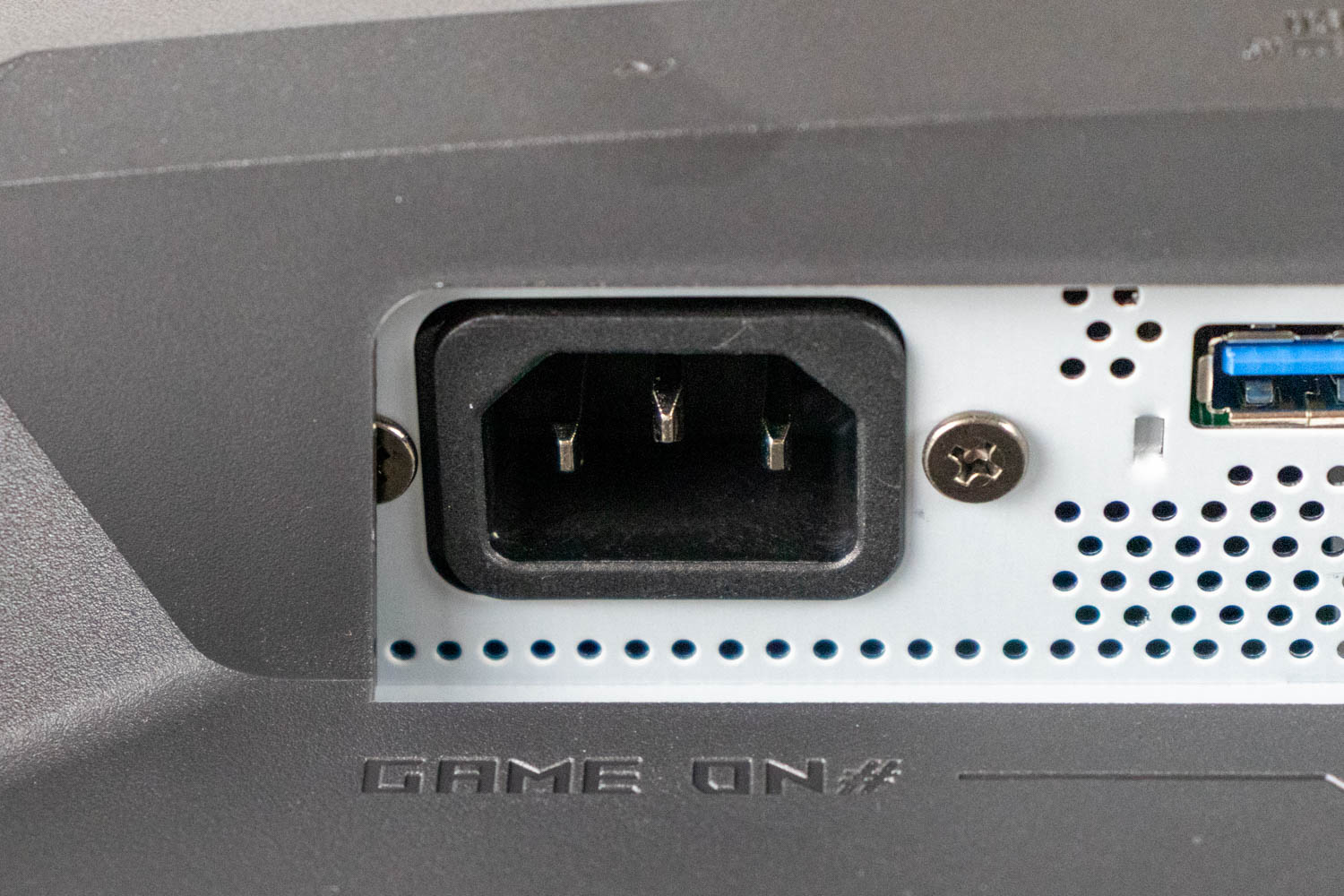
The ASUS ROG Strix OLED XG27ACDNG features an integrated power supply, meaning there's no bulky external power brick to deal with. That's a welcome design choice, though not entirely without issues. The power supply in my review unit emits a faint buzzing noise whenever the monitor is on. Fortunately, it's completely inaudible from a normal sitting distance, or even when your ear is just inches away from the screen. The only time I noticed it was while connecting USB devices, which required me to approach the monitor from behind. While it would be preferable for this issue not to exist at all, it has no impact on the monitor's functionality. There are some benefits to having an external power brick, since these power delivery components can eventually wear out and replacing an external brick has advantages, avoiding the difficulty associated with replacing an internal one. The power conversion circuitry also emits some heat, since no design is 100% efficient, which can add to internal monitor temperatures—something that might be relevant with temperature sensitive OLED panels.
To test power consumption, I used the Meross MSS315 Matter Smart Wi-Fi Plug and the accompanying app to measure draw at various brightness levels, as well as in Power Saving mode, which the monitor enters as soon as the PC goes to sleep. All measurements were taken after resetting the monitor to factory defaults, with a white full-screen background displayed. Before testing, I enabled the "Uniform Brightness" option (found in the Image menu), which disables the Automatic Brightness Limiter (ABL). This ensures the panel maintains constant brightness, regardless of the content on screen—an essential step for consistent and repeatable measurements. The Uniform Brightness setting automatically sets the brightness to 100.
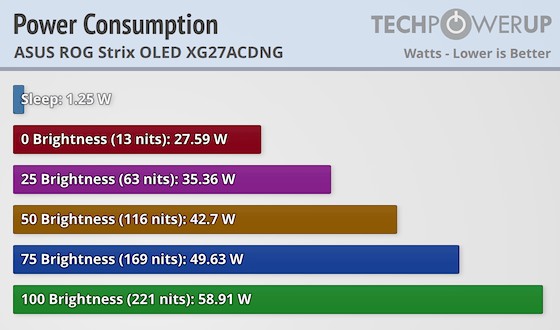
The measured power consumption of the ASUS ROG Strix OLED XG27ACDNG is within expectation for a 27-inch 1440p OLED display. Of course, if you're using the integrated USB hub and USB-C connection with a device that needs 90 W of power, the total power draw will go up significantly. If you don't intend to use USB ports at all, make sure to visit the System Setup > USB Setup menu in the OSD, and set the USB Hub option to "Off During Standby." If you leave it on, the monitor will use 5-6 W in standby even with nothing connected, just to keep its USB hub active.
Nov 25th, 2026 17:40 CST
change timezone
Latest GPU Drivers
New Forum Posts
- Sexy Hardware Close-Up Pic Clubhouse. (10345)
- AAF Optimus Modded Driver For Windows 10 & 11 - Only for HDAUDIO Chips [WINDOWS 11 RECOMMENDED] (1155)
- Which ryzen am5 cpu ? (219)
- {NA} 2026 Black November prices / deal (7)
- TPU's Nostalgic Hardware Club (22208)
- UPS what one to get? (74)
- More Nova Lake specs (5)
- Share your CPUZ Benchmarks! (2680)
- X79 and/or rampage IV OC'ing thread for those of us still left.... (2457)
- Asus Rog Maximus Z890 Extreme. (Various questions). (38)
Popular Reviews
- ASRock X870E Challenger Wi-Fi White Review
- Microsoft Surface Laptop Ultra Review - The Next-gen Arm Laptop
- VZMORE AX9 Max Review
- Upcoming Hardware Launches 2027 (Updated Nov 2026)
- AMD Ryzen 7 9800X3D Review - The Best Gaming Processor
- AMD Zen 6 Technical Deep Dive
- Corsair RM1200e (Second Generation) Review
- Phantom Blade Zero Performance Benchmark Review - 35 GPUs Tested
- Pulsar Office Tour & First Look at P1 Dual-Sensor Mouse
- Ocypus lota P1000 Review
TPU on YouTube
Controversial News Posts
- Jensen Huang Reinstated as CEO of NVIDIA (571)
- NVIDIA Co-Founder and CEO Jensen Huang Officially Resigns (492)
- Report: Jensen Huang Eyes NVIDIA Comeback (281)
- Open Letter Asking NVIDIA to Reinstate Jensen Huang Passes 115,000 Signatures (184)
- OpenAI CEO Argues Home PCs Waste the World's Limited DRAM Supply (152)
- NVIDIA Launches Investigation Into Jensen Huang's Relationship With Suspected Chinese Spy (136)
- Intel "Raptor Lake Next" 16-Core and 20-Core CPUs Surface (130)
- Intel Razor Lake Gets a 12 P-Core bLLC Chip With No E-Cores, Per Leak (94)