 5
ASUS ROG Strix Z890-I Gaming Wi-Fi Review
Board Software »BIOS Overview
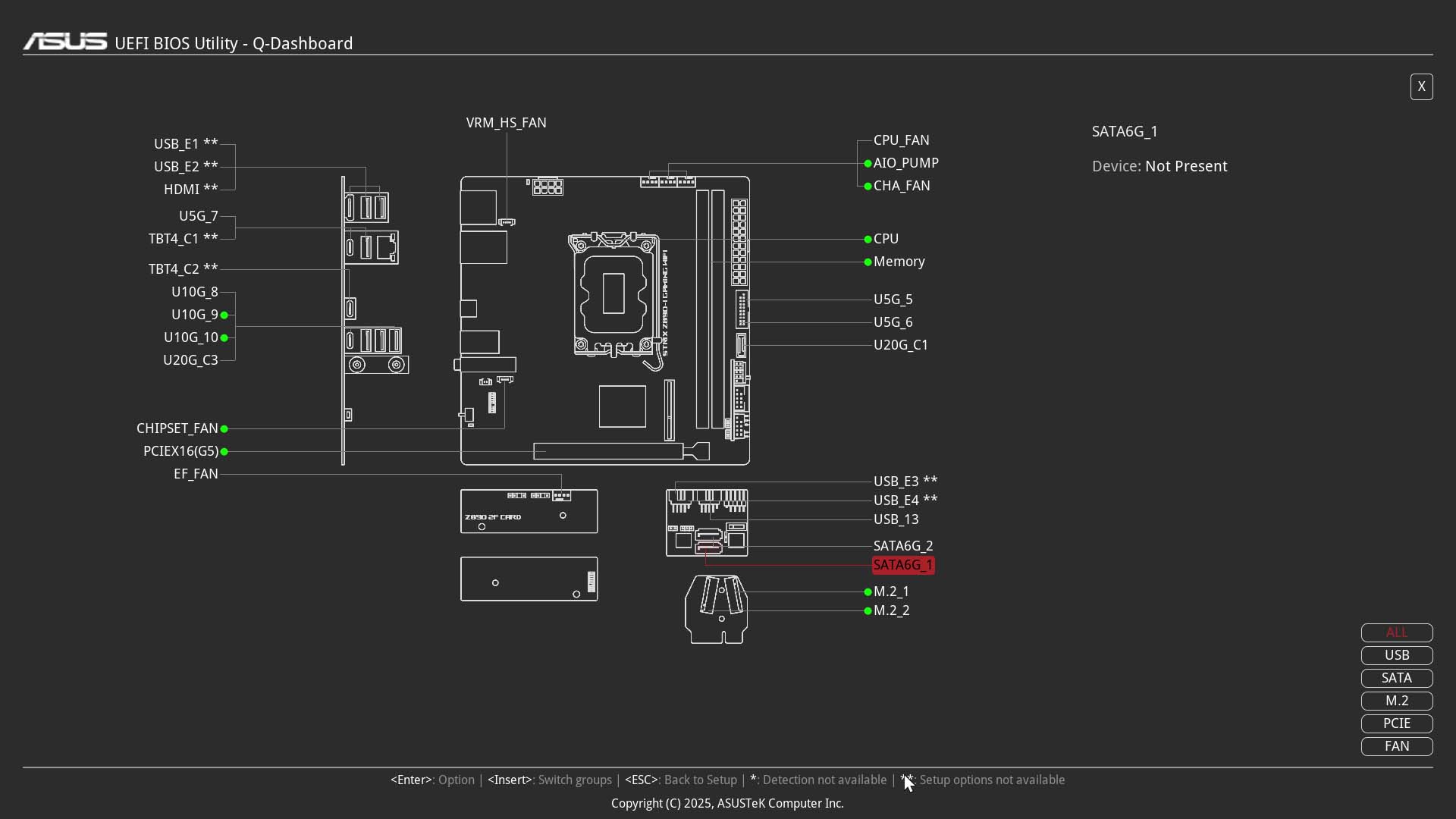
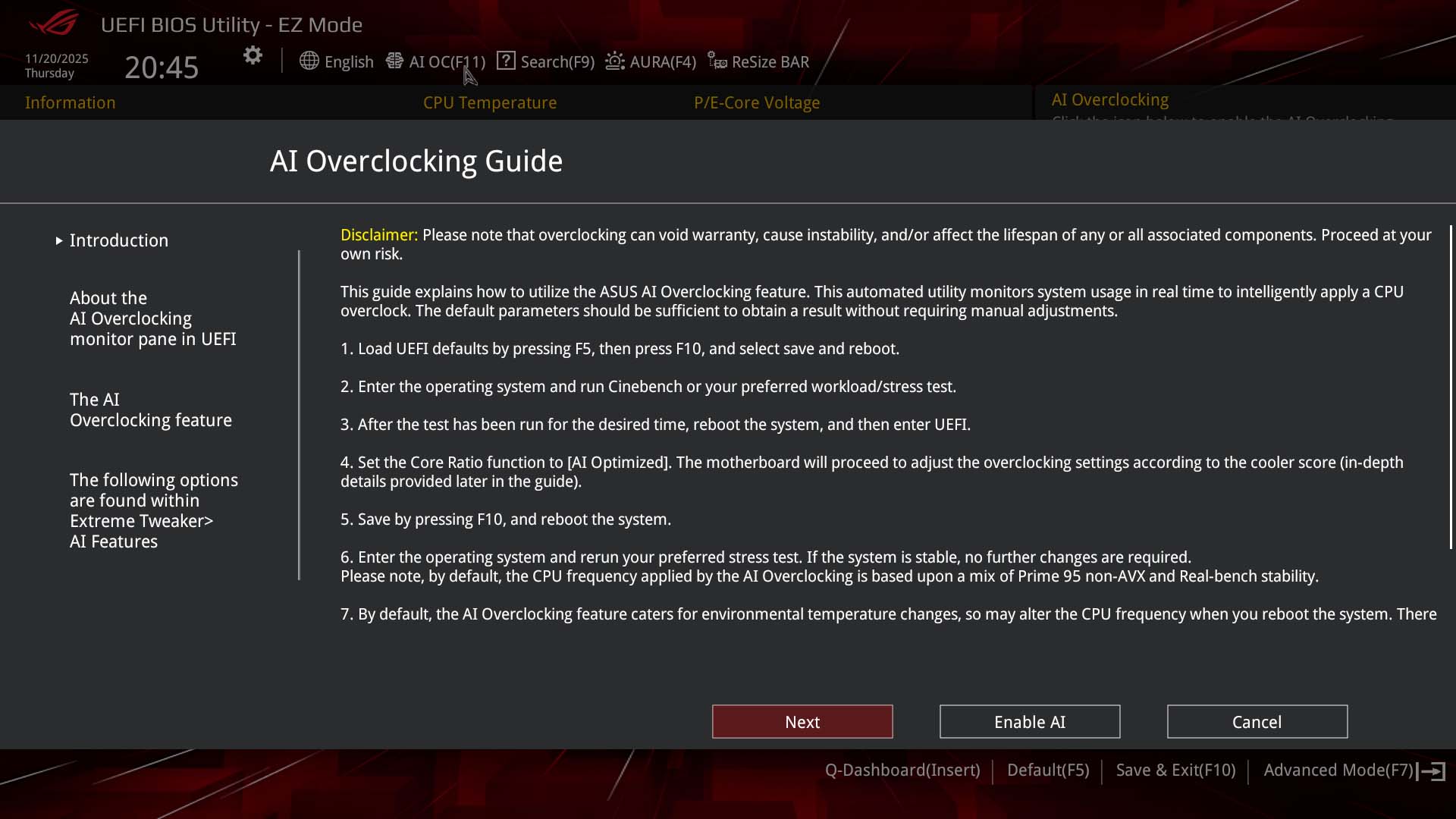
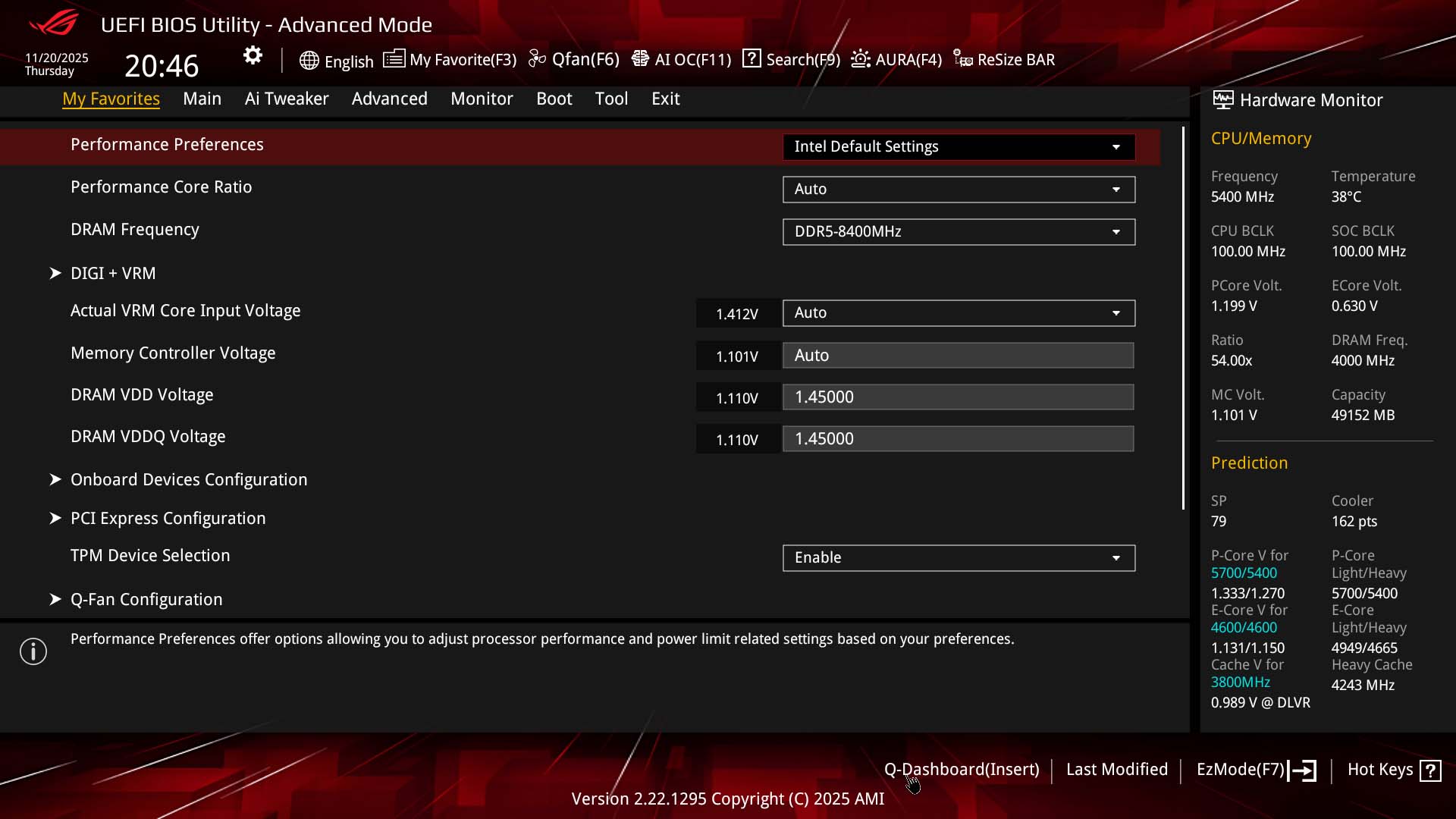
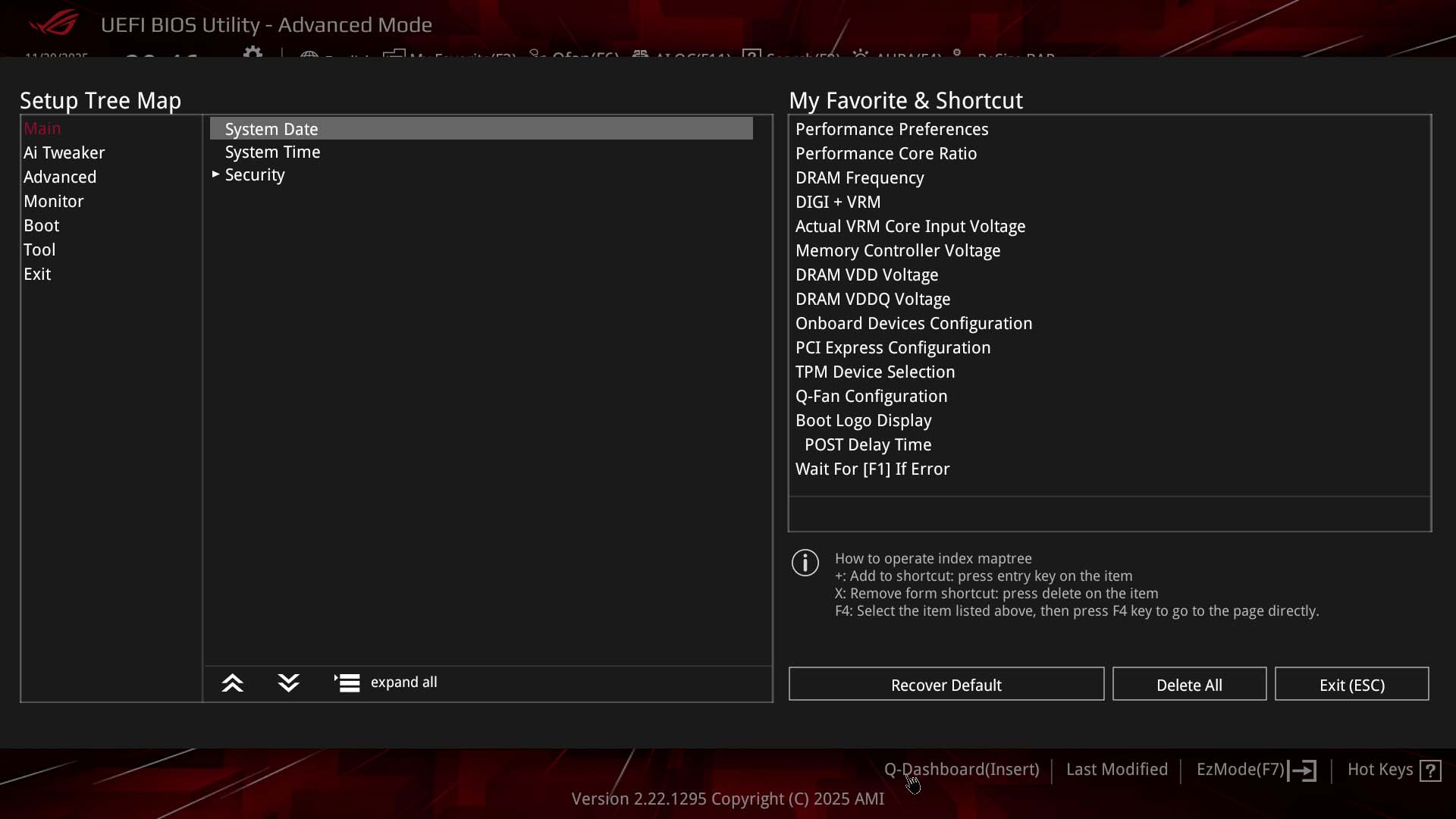
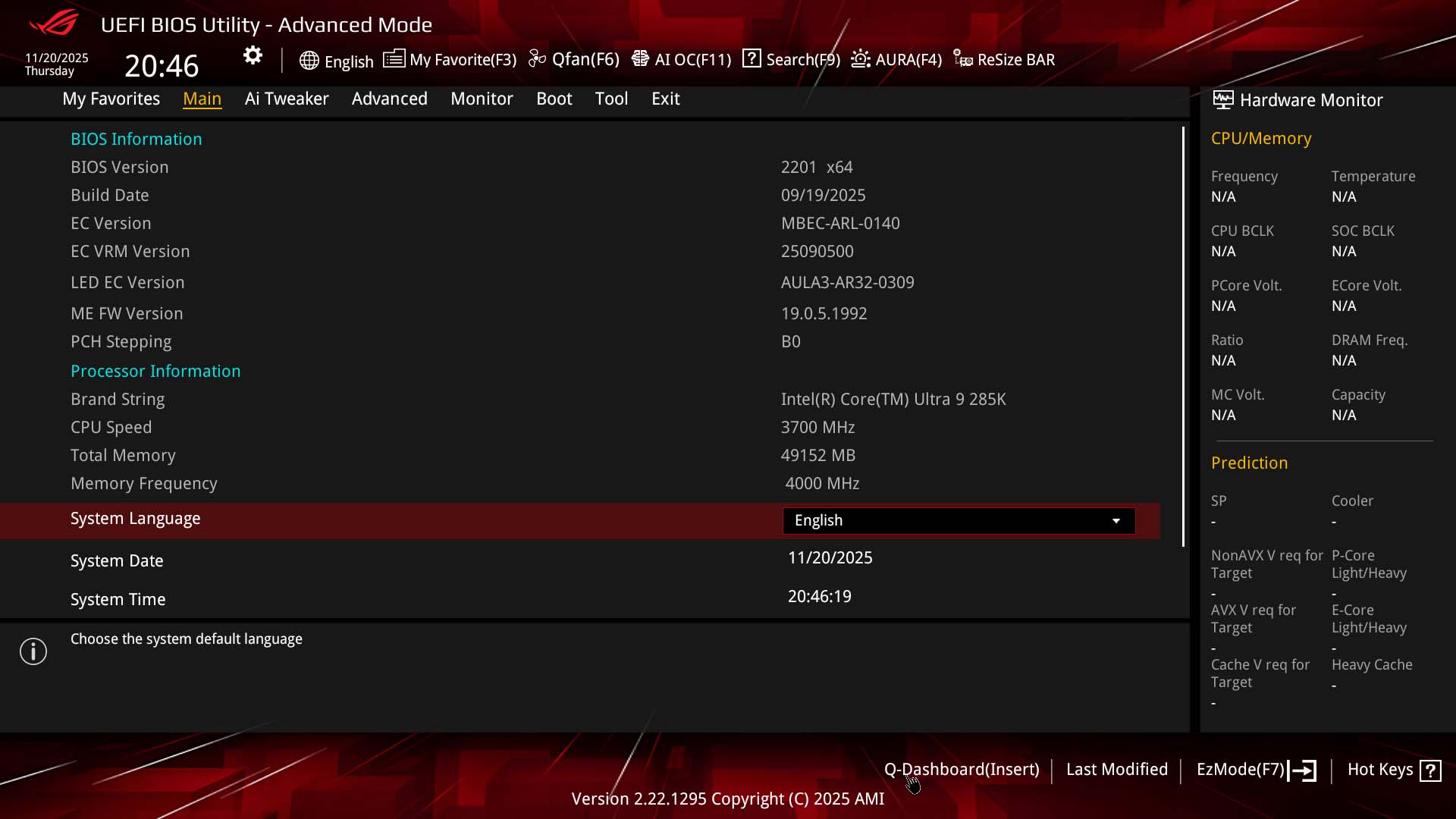
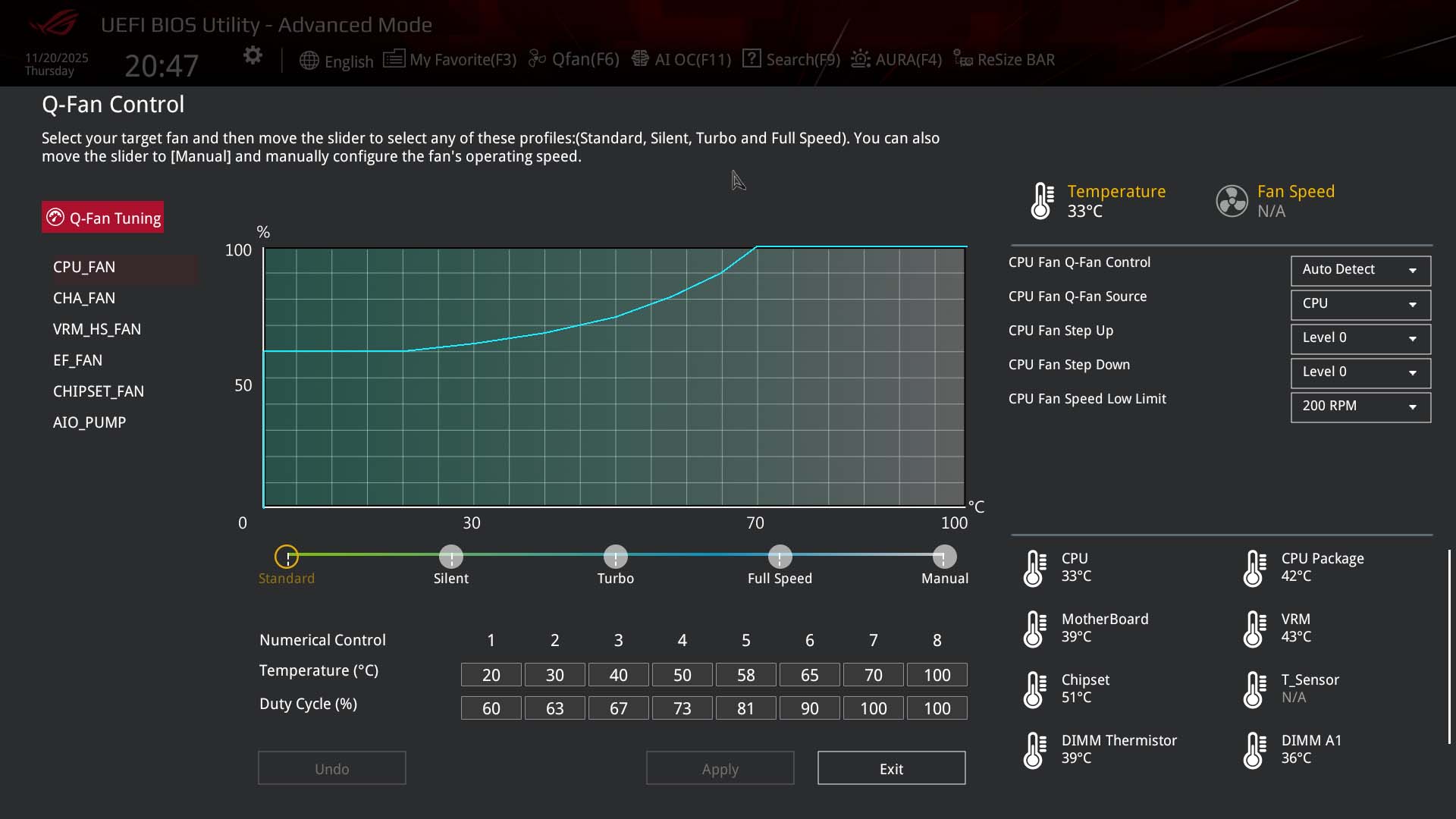
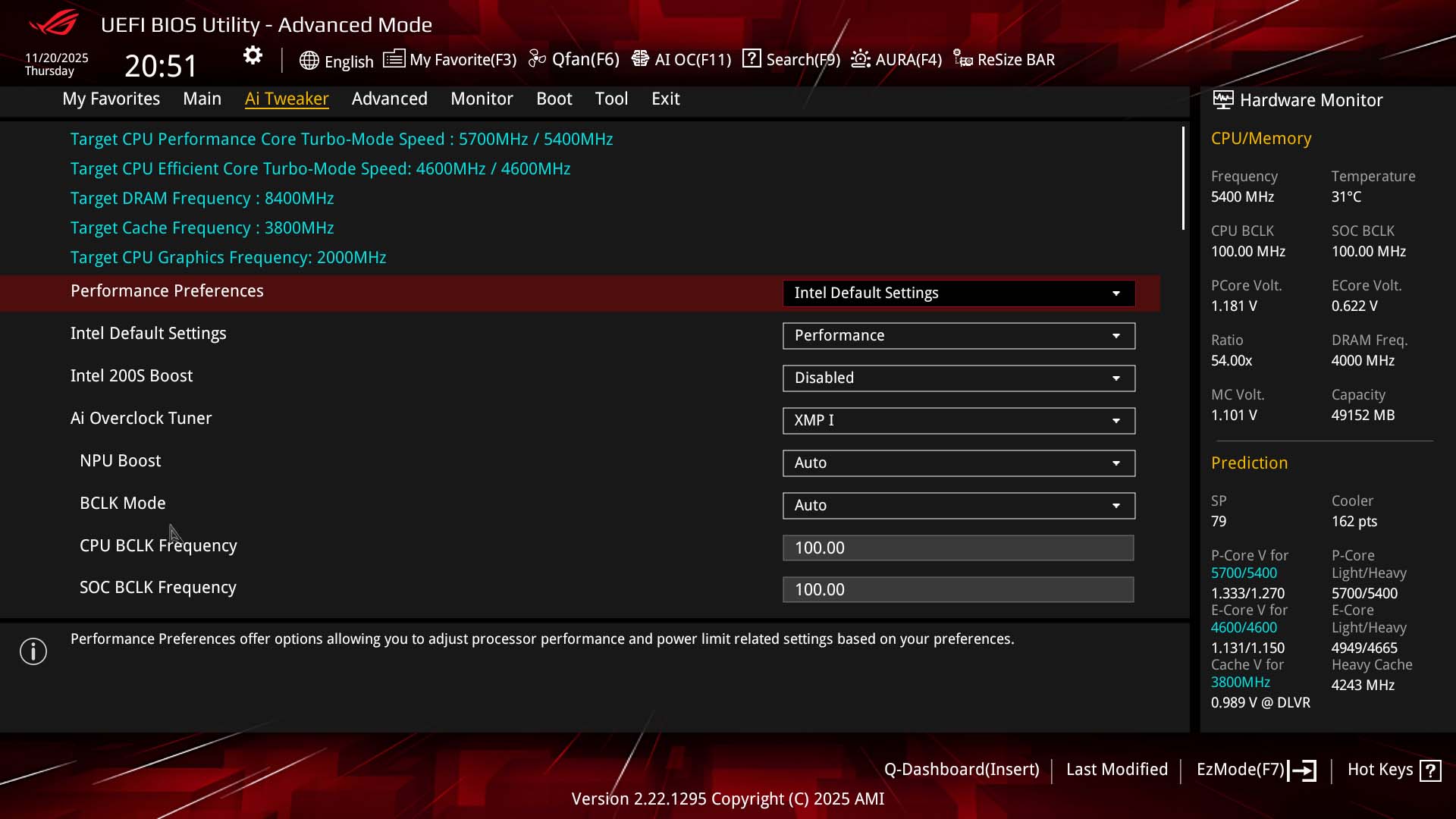
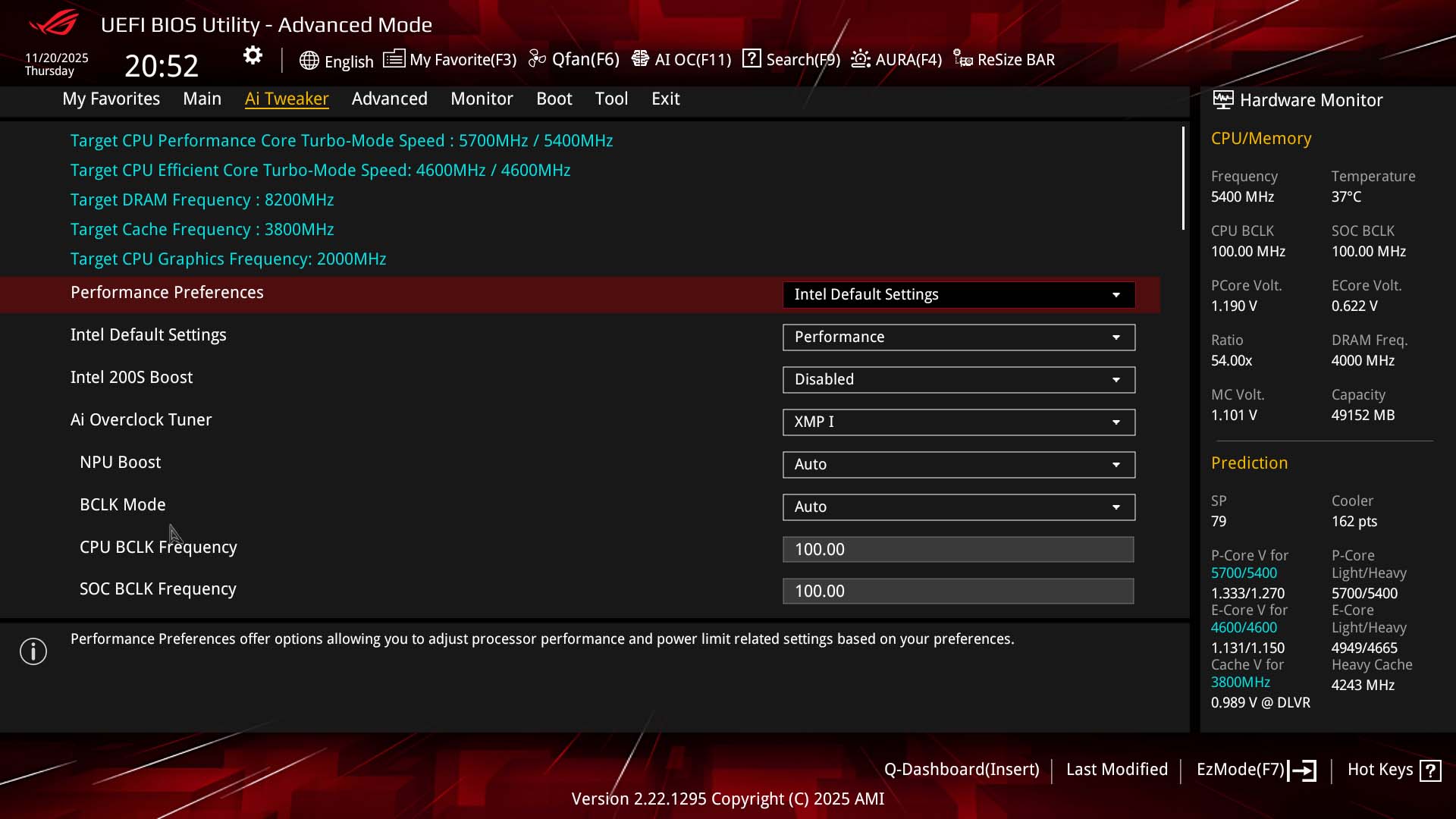
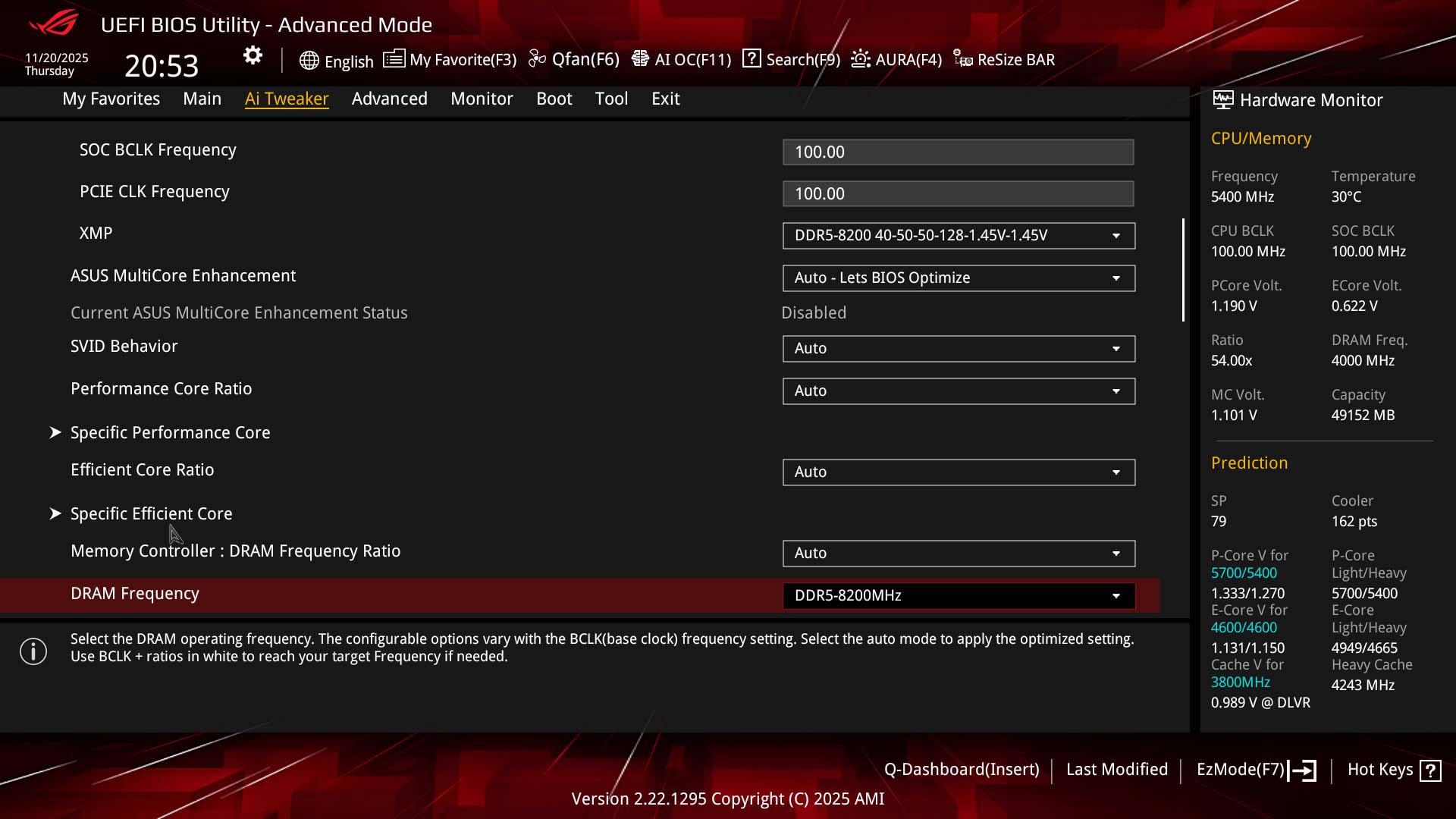
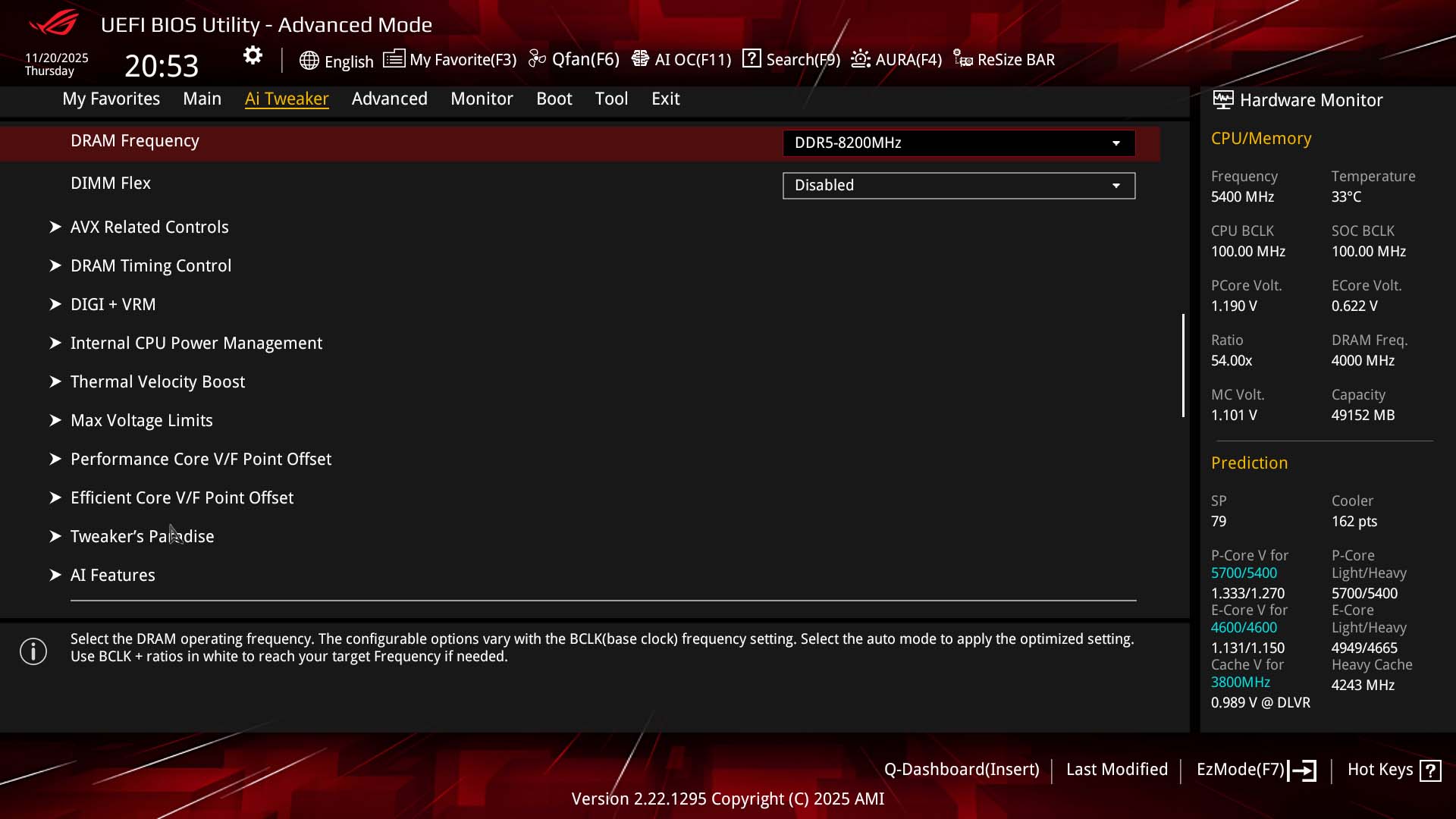
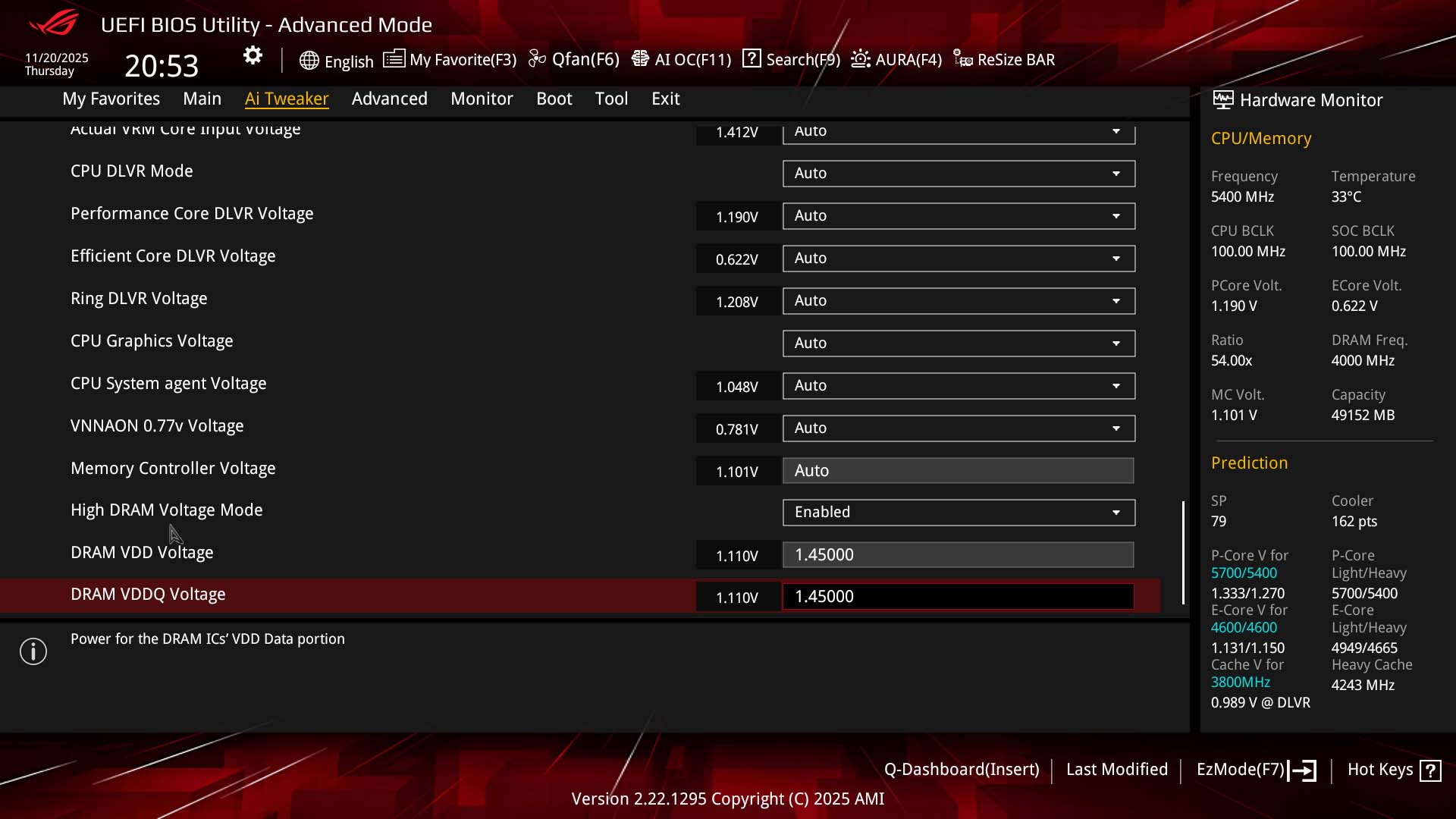
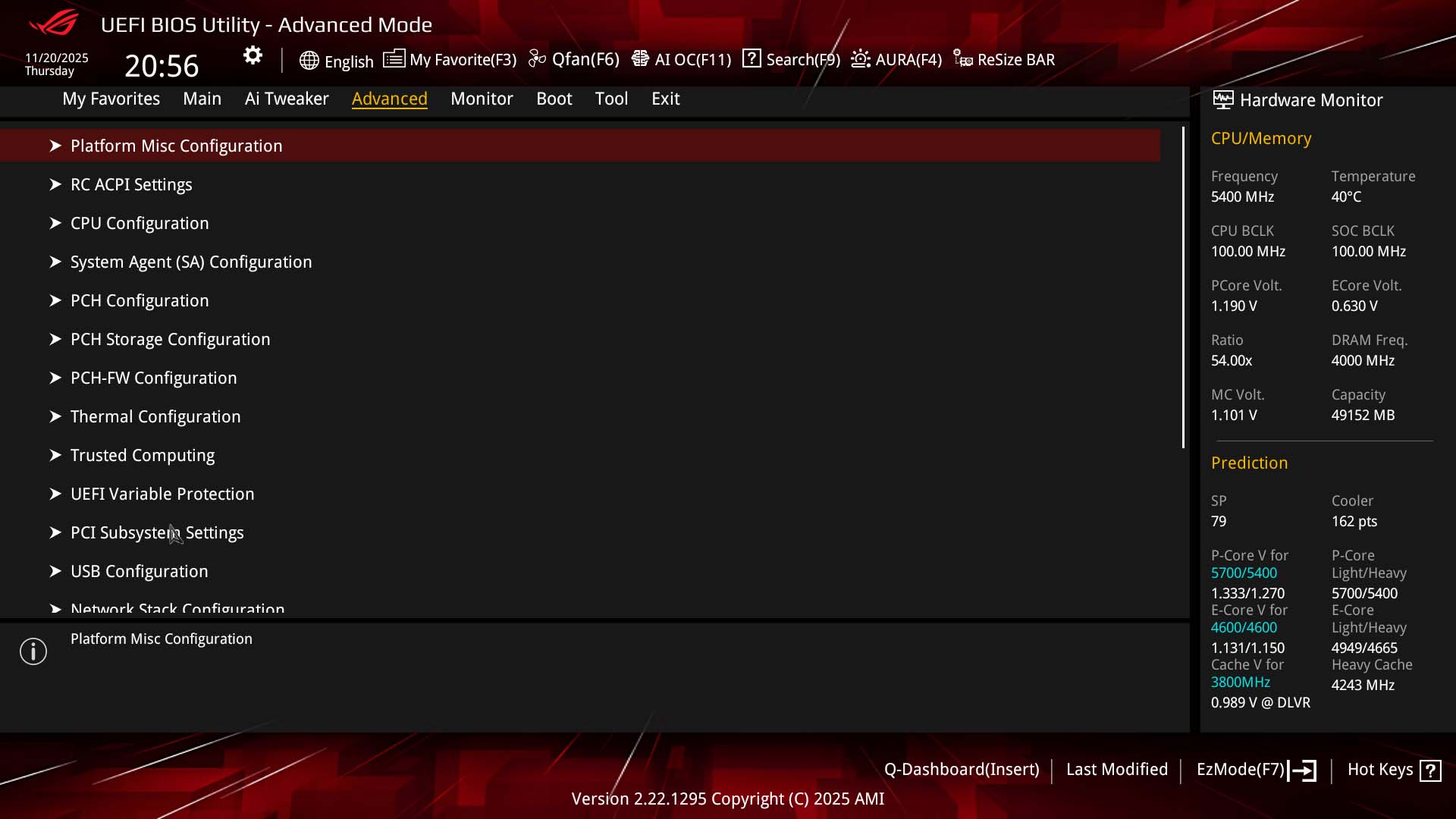
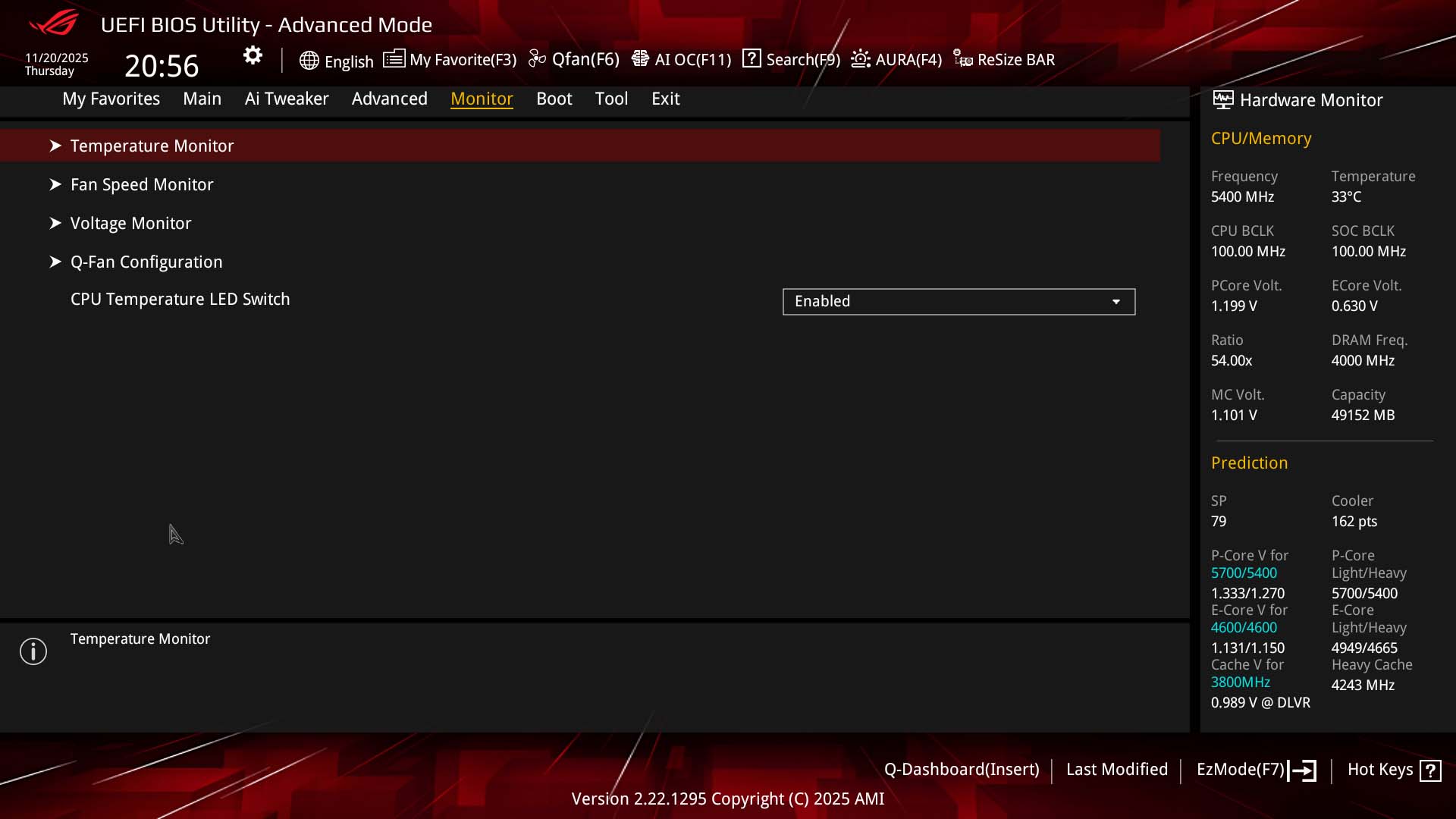
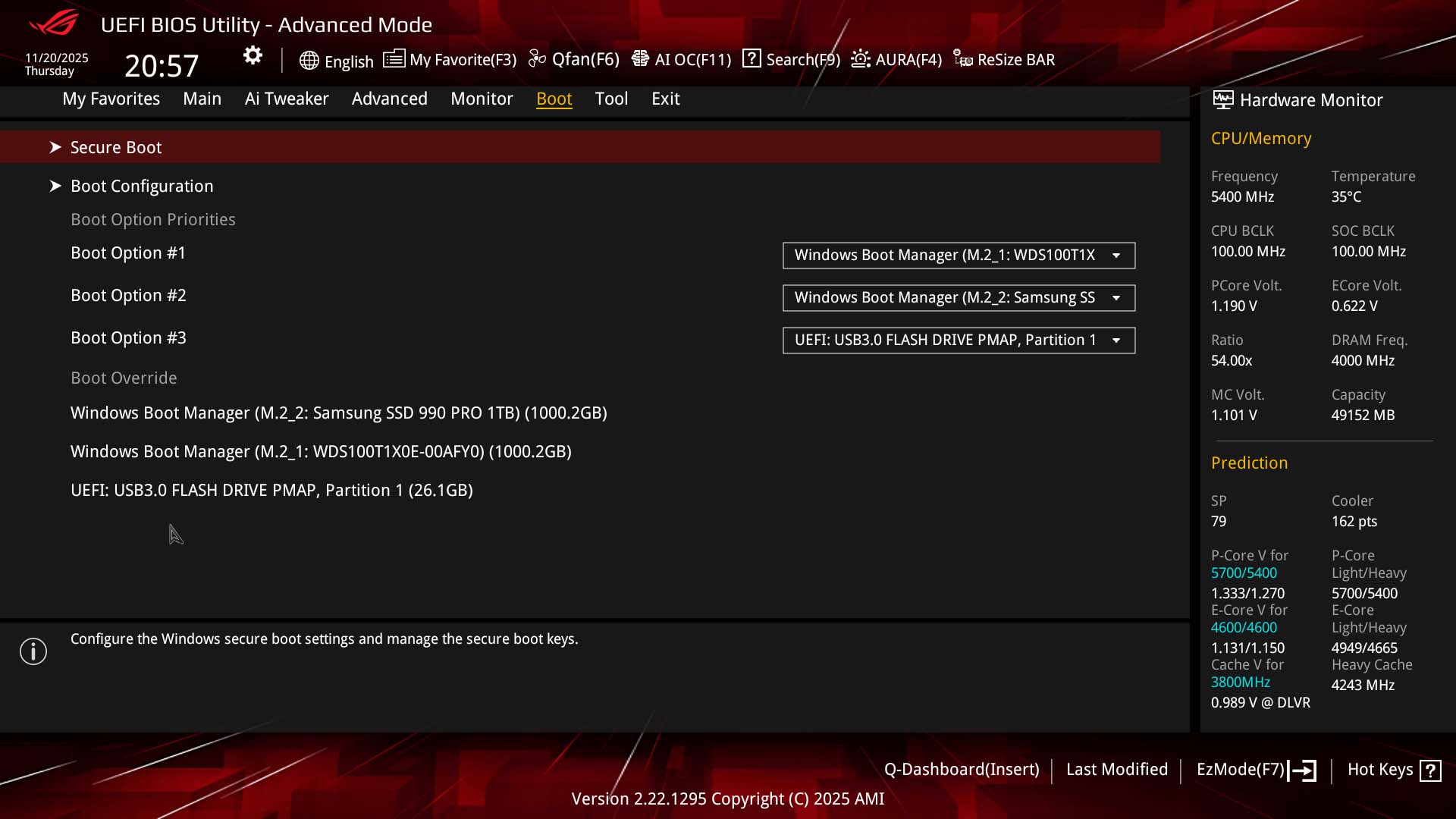
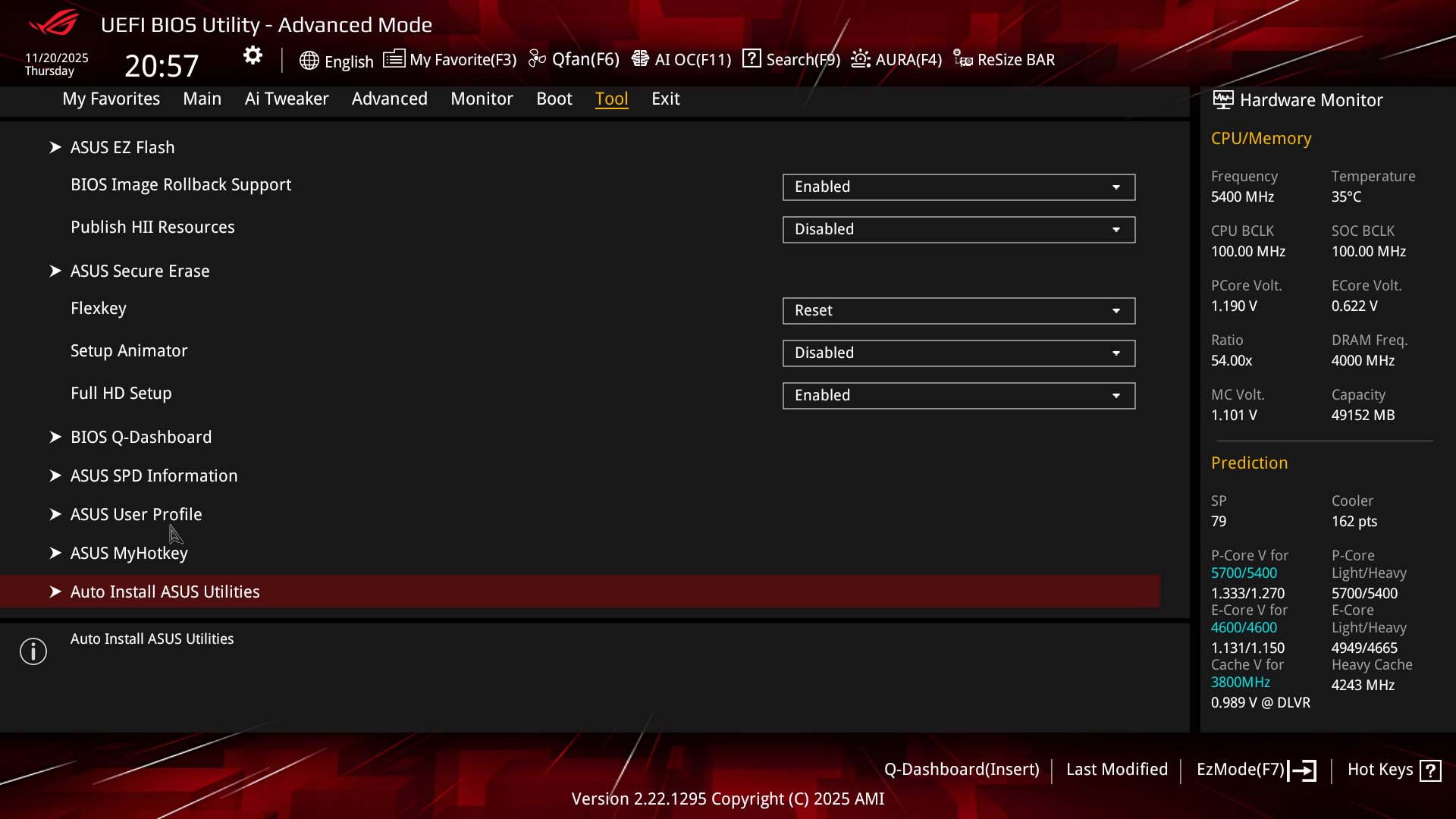
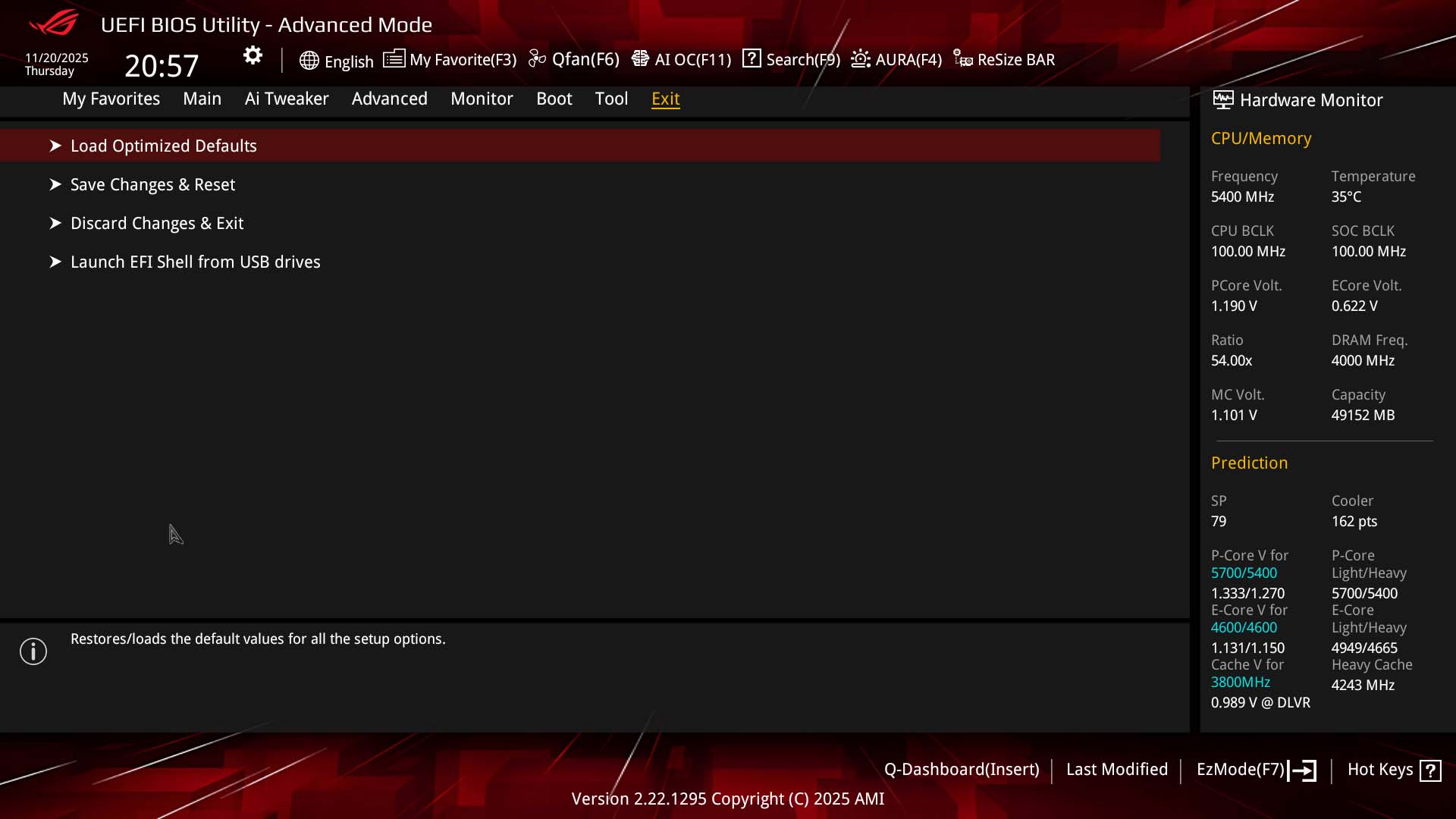
The ASUS EFI is generally excellent whether you're here as a newcomer or seasoned pro and features such as the EZ mode page give quick access to memory profiles, boot priority and fan control. There's a search function that not online finds specific settings, but you can change them within the window too. Another way of finding settings is Q-Dashboard, which is a live and interactive map of your motherboard showing connected hardware and clicking on items here takes you through to that items page in the EFI. AI Overclocking might not be everyone's cup of tea but at least ASUS provides a detailed guide on how to use it. There's also a pre-populated favorites section that is customizable with your most often-used settings.Fan control is hugely important on this board thanks to its two effective fans, and they're fully controllable here. As usual, you can pick from multiple temperature sources, combine them to respond to the highest temperature, adjust spin-up and spin-down times and switch between PWM and voltage control. The software does have additional control, though, although this extends only to reading SSD temperatures and adjusting the chipset fan based on those. That can only be done within Windows using Armoury Crate.
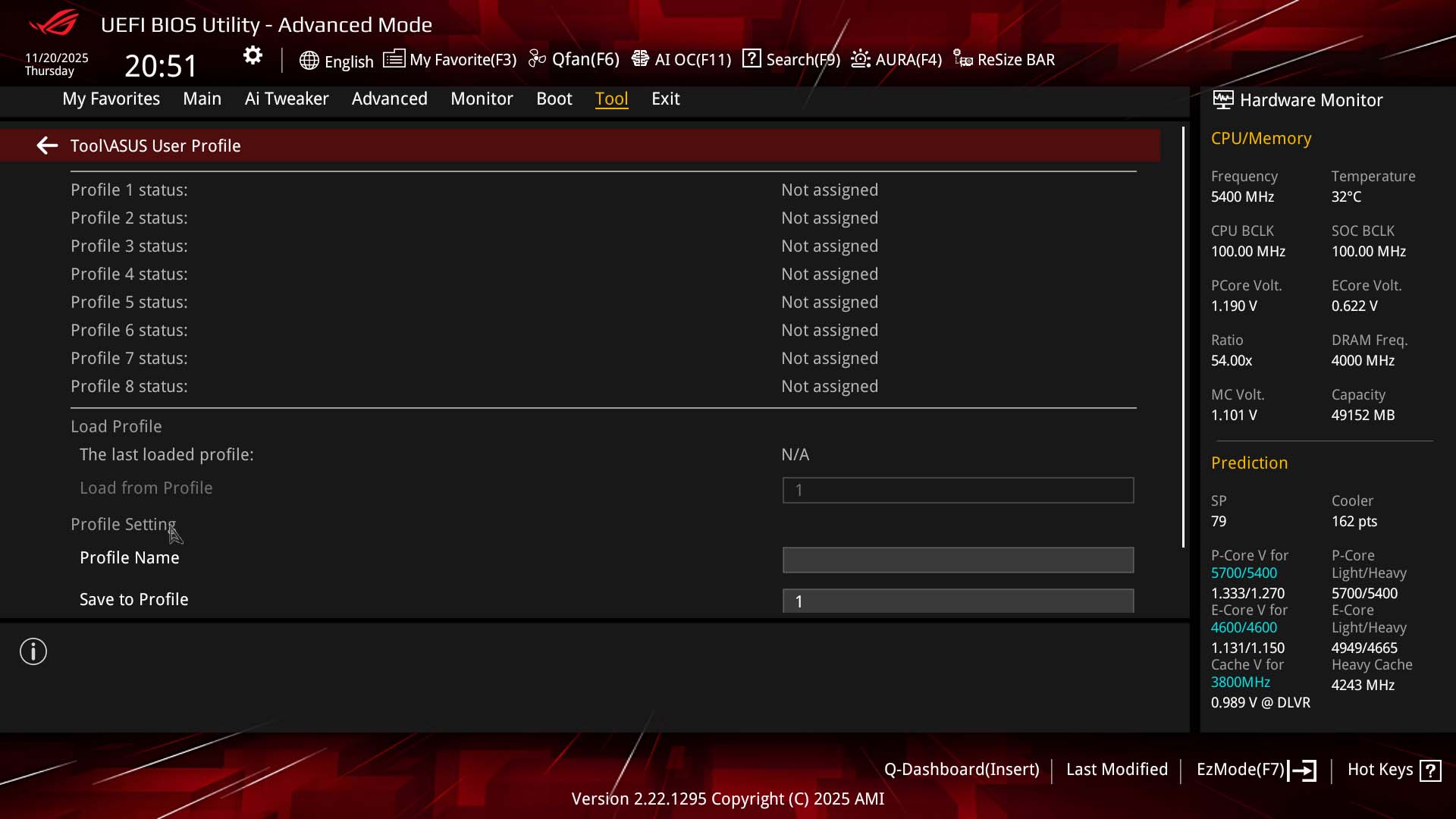
The Ai Tweaker section is where you'll find the overclocking controls and both it, and its various subsections have a mass of options, but thankfully the latter are put to good use to reduce its cluttered feel. It's worth pointing out additional tools too. Auto Install ASUS Utilities is an option under Tool, that allows you to toggle the pop-up on a fresh Windows installation to install ASUS software and drivers. There's also user profiles here too, where you can create images of the EFI and all your settings. Flexkey here can alter the function of the corresponding button on the ROG Strix Hive.



Nov 26th, 2026 10:20 CST
change timezone
Latest GPU Drivers
New Forum Posts
- What's your main Black Friday / Cyber Monday purchase? (18)
- Wireless Internet sharing between PC and router both-ways, is it possible? (24)
- Can you guess Which game it is? (366)
- Post your CrystalDiskMark speeds (658)
- Making a game in Godot engine (20)
- X79 and/or rampage IV OC'ing thread for those of us still left.... (2459)
- Exploring Local LLMs: Models, Hardware and Setup Experiences (4)
- Linpack Xtreme Released (513)
- Claude credits purchased on or after Dec. 7 now have an expiry date (20)
- Acer TravelMate P414-51 (i5-1135G7): CPU stuck at x4 / ~200 MHz effective under 100% load, no throttle flags. How to find who's clamping it? (1)
Popular Reviews
- ASRock X870E Challenger Wi-Fi White Review
- VZMORE AX9 Max Review
- Upcoming Hardware Launches 2027 (Updated Nov 2026)
- Microsoft Surface Laptop Ultra Review - The Next-gen Arm Laptop
- AMD Ryzen 7 9800X3D Review - The Best Gaming Processor
- AMD Zen 6 Technical Deep Dive
- Corsair RM1200e (Second Generation) Review
- Phantom Blade Zero Performance Benchmark Review - 35 GPUs Tested
- Montech CyberFlow ARGB 360 Review
- Pulsar Office Tour & First Look at P1 Dual-Sensor Mouse
TPU on YouTube
Controversial News Posts
- Jensen Huang Reinstated as CEO of NVIDIA (586)
- NVIDIA Co-Founder and CEO Jensen Huang Officially Resigns (492)
- Report: Jensen Huang Eyes NVIDIA Comeback (281)
- Open Letter Asking NVIDIA to Reinstate Jensen Huang Passes 115,000 Signatures (184)
- OpenAI CEO Argues Home PCs Waste the World's Limited DRAM Supply (152)
- NVIDIA Launches Investigation Into Jensen Huang's Relationship With Suspected Chinese Spy (136)
- Intel "Raptor Lake Next" 16-Core and 20-Core CPUs Surface (130)
- Intel Razor Lake Gets a 12 P-Core bLLC Chip With No E-Cores, Per Leak (94)