 5
ASUS ROG Strix Z890-I Gaming Wi-Fi Review
Performance »SSD Temperatures
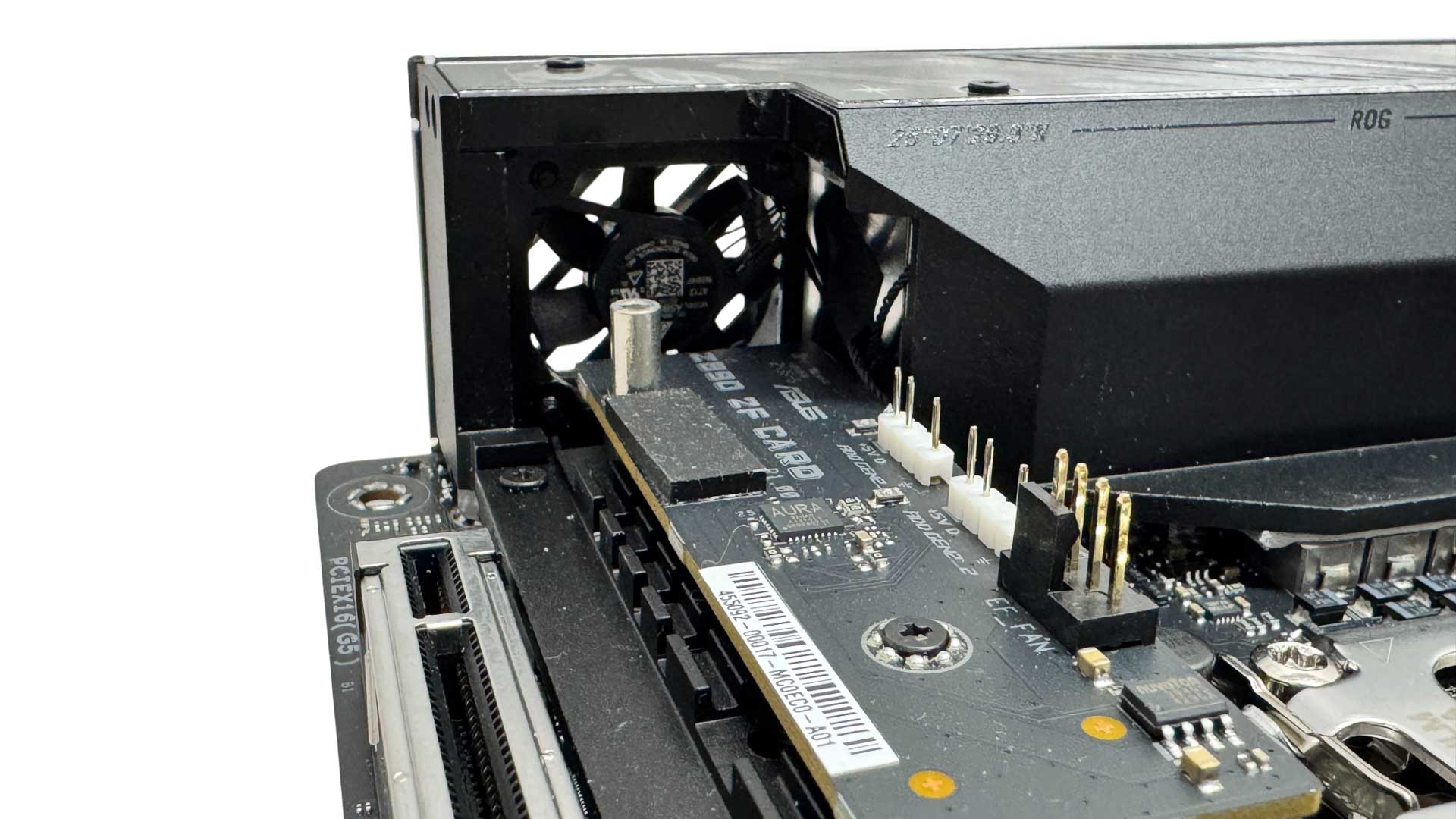
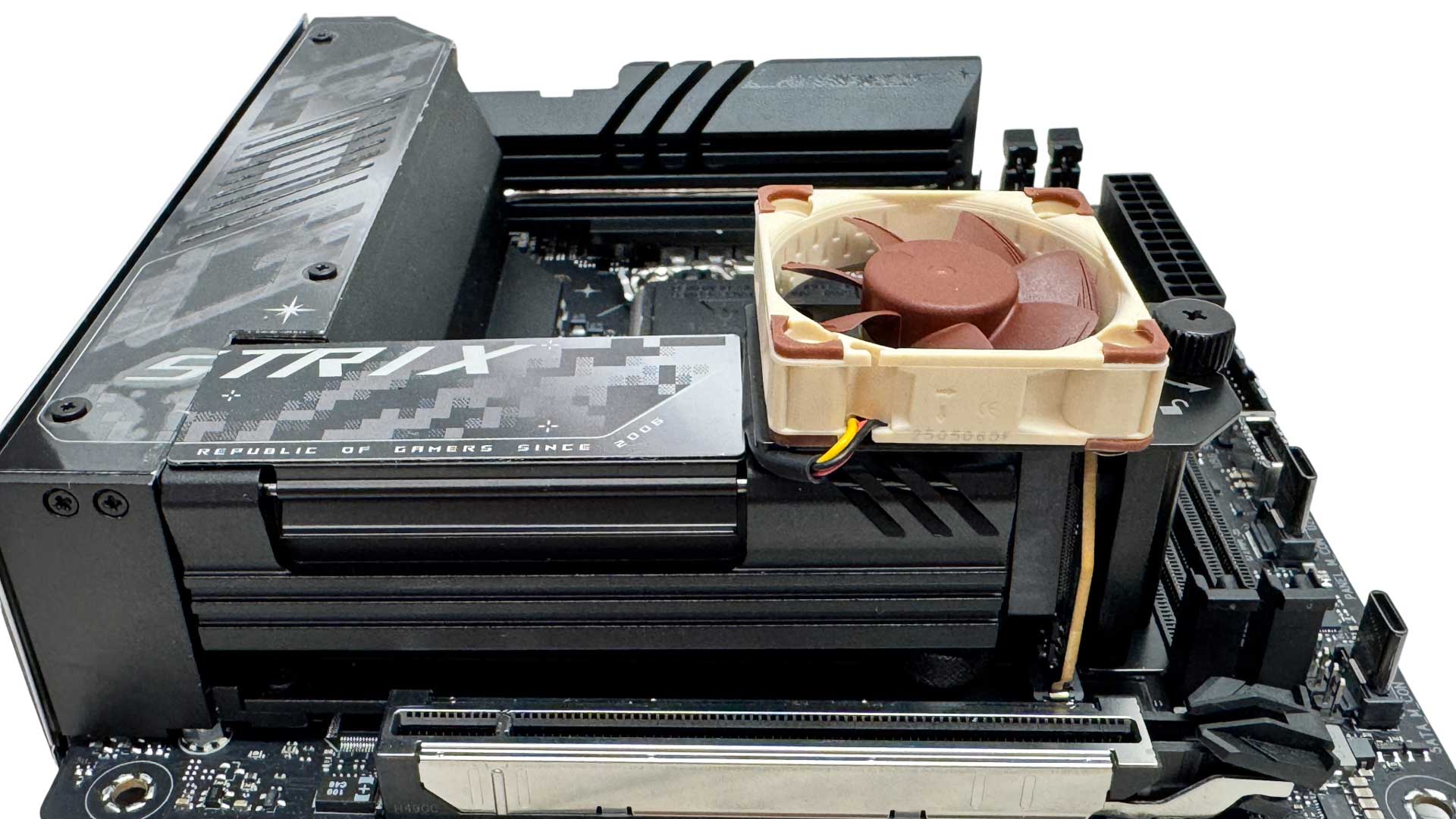
As mentioned previously in this review, ASUS has gone the extra mile with its onboard fans and given you full control over them. Not only this, but it has also included a mount for 30 mm and 40 mm fans that can sit over the M.2 heatsinks or your memory. We've tested this with a Noctua NF-A4-10 FLX fan to see if this is worth doing and also played around with the chipset fan too.
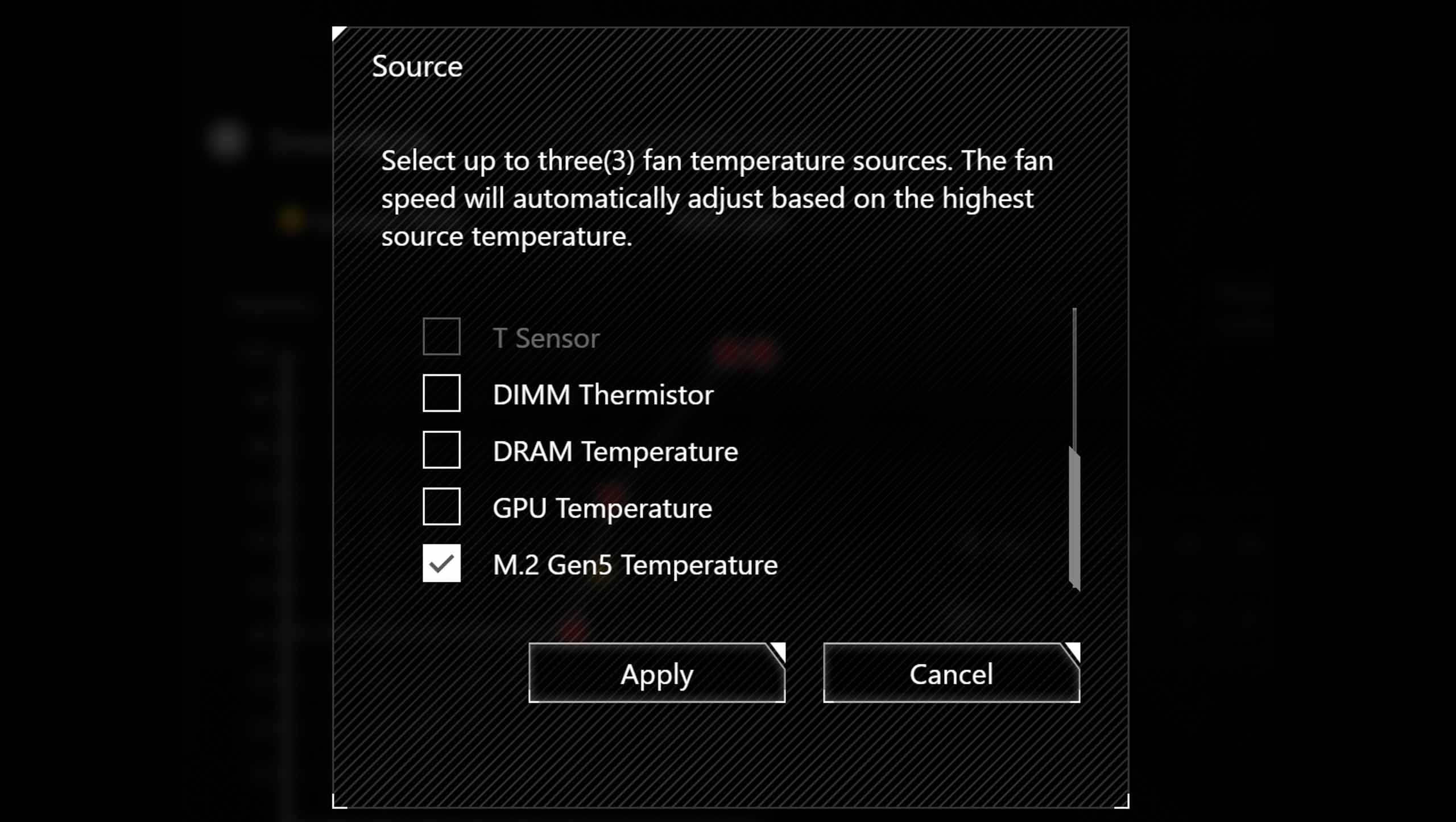
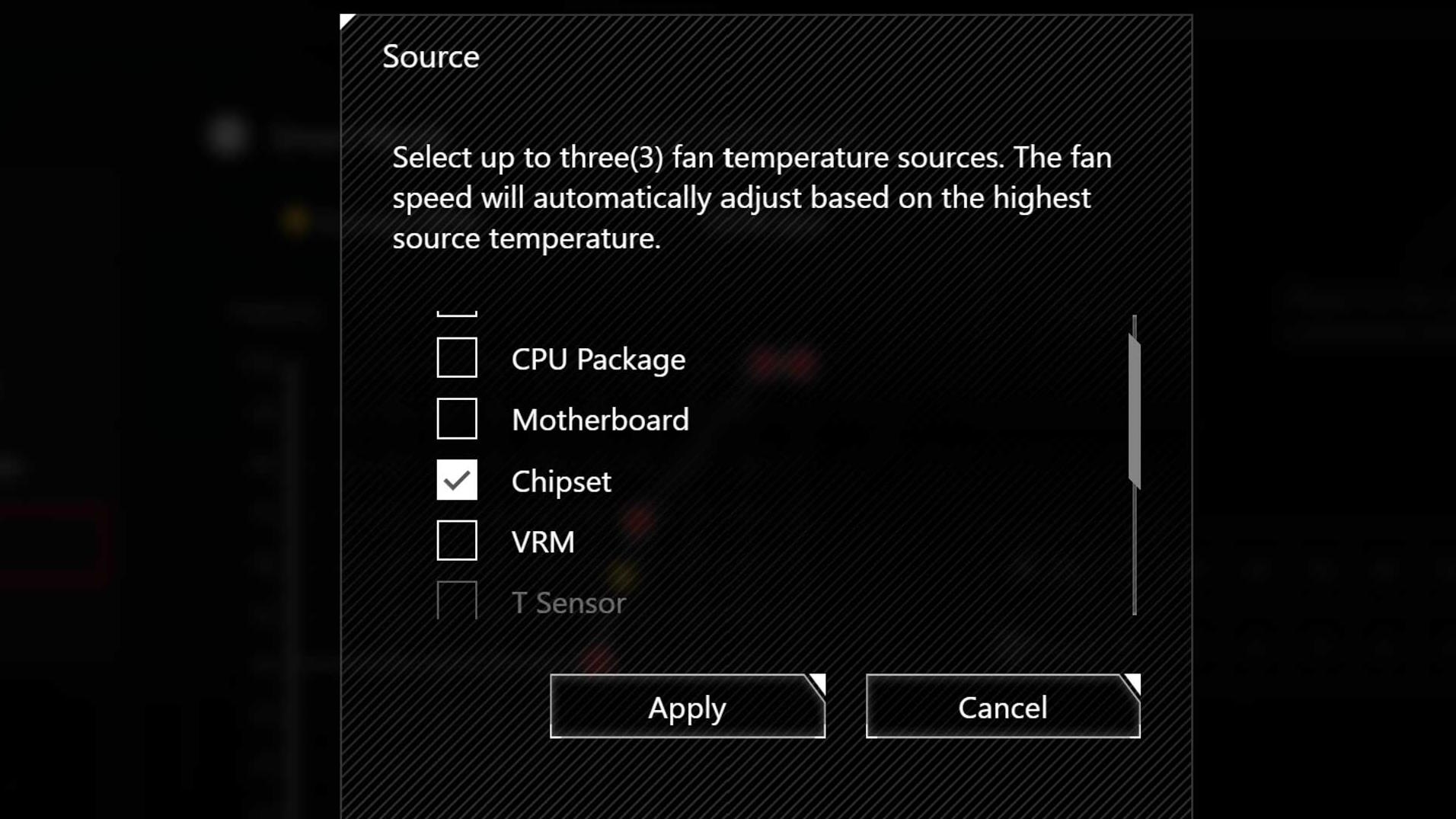
The real killer-feature here is the ability for the Fan Xpert 4 to pick up SSD temperatures. For example, here we have our PCIe Gen 5 SSD selected. This can then be tied to fan speeds. By default, the onboard fan doesn't start moving until the chipset reaches 45°C, but the problem is that the SSD is already rocketed up over 70°C by this point. What's needed, and we say this a lot, is to react to SSD temperature instead of or in addition to chipset temperature.
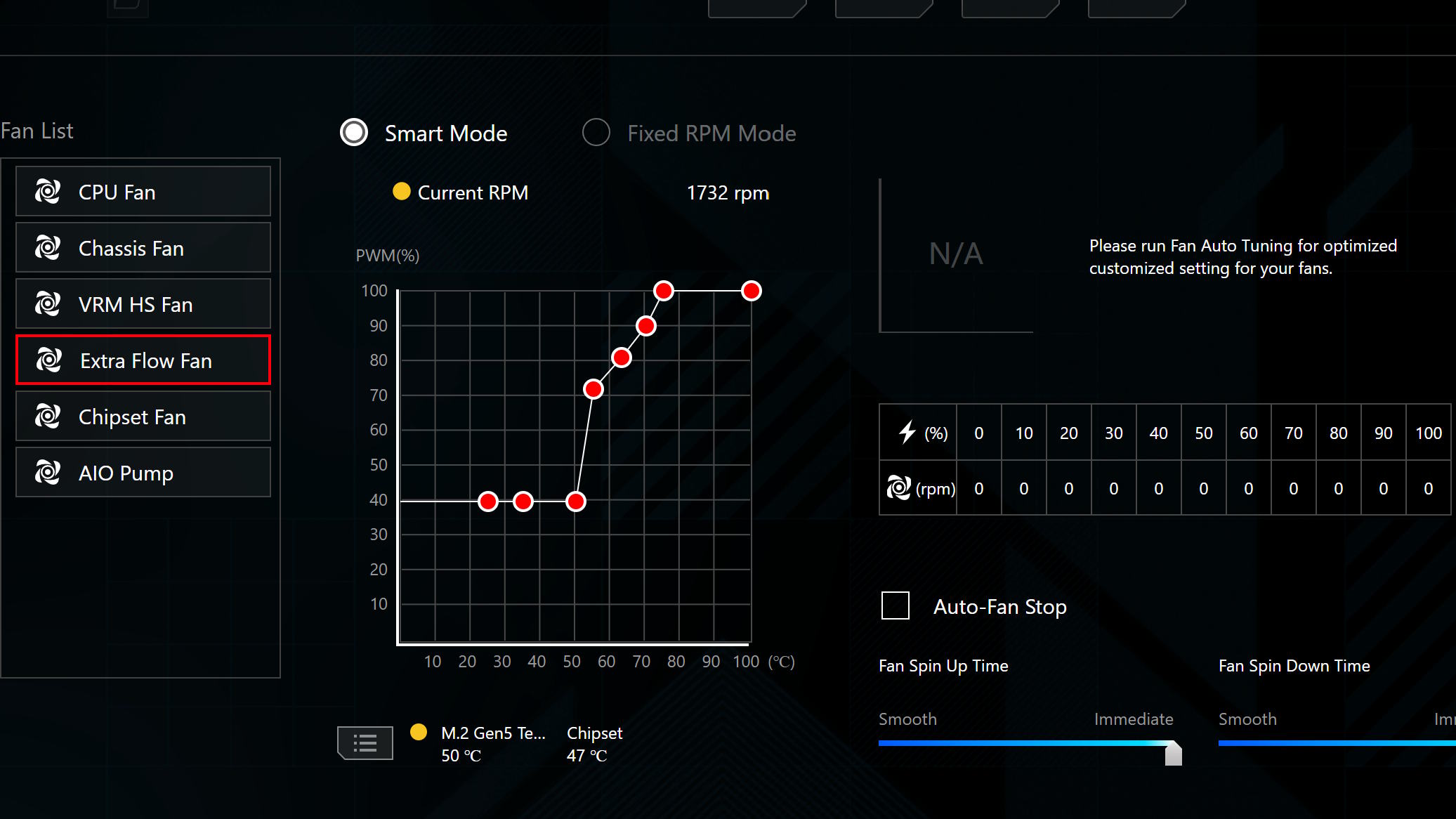
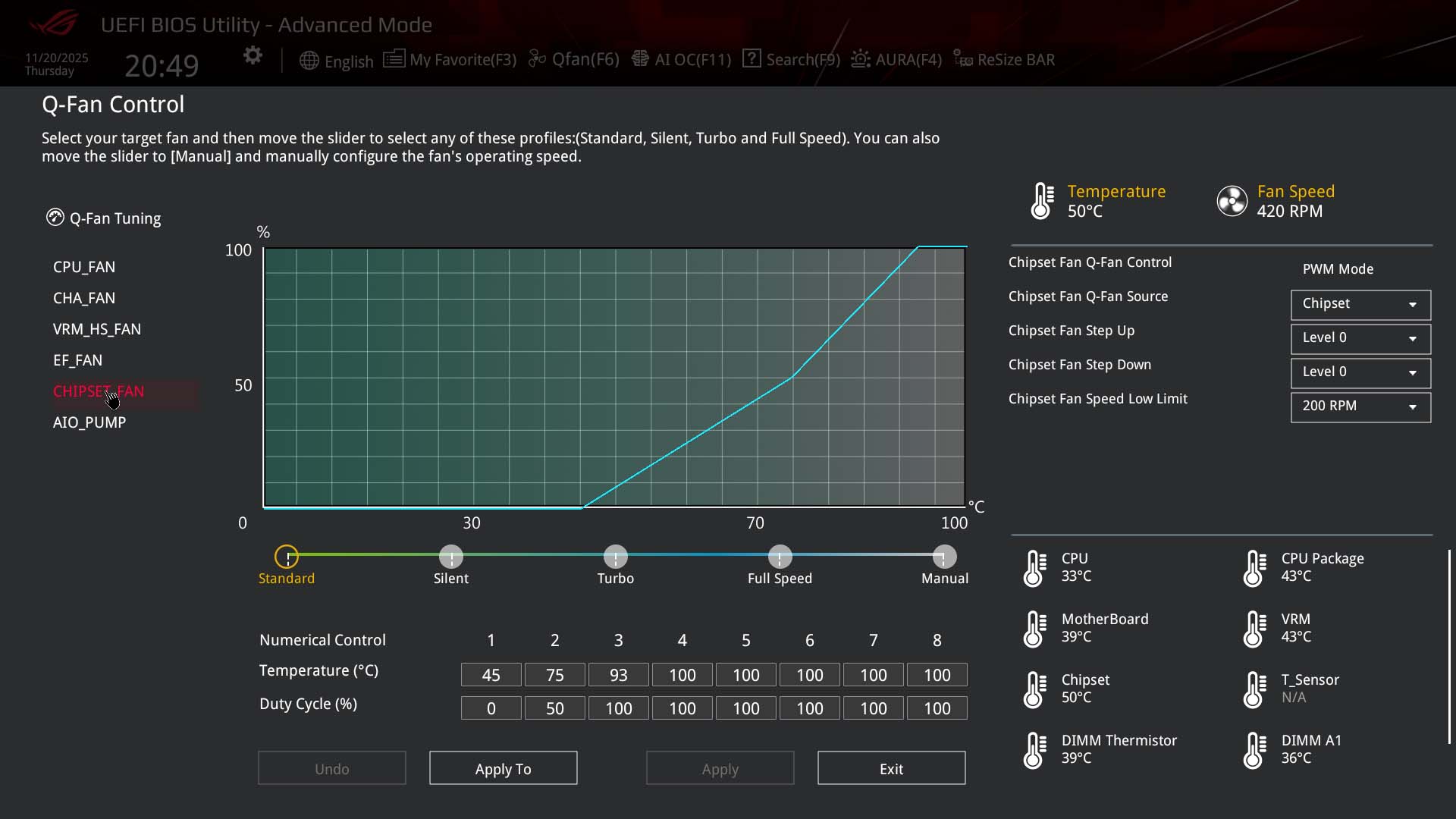
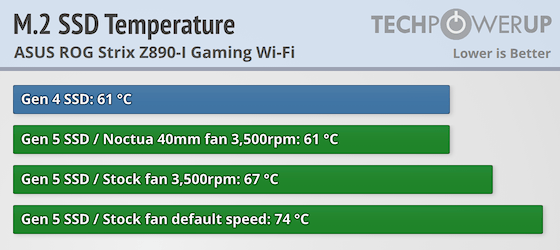
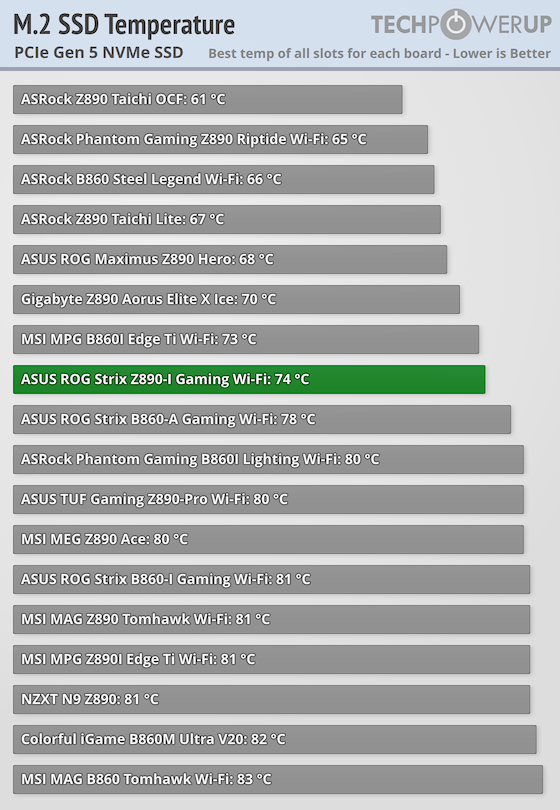
That's exactly what you can do here. At the bottom you can see M.2 Gen 5 temperature and chipset temperature being listed, and the fan will follow the manual curve we've set, but following whichever temperature is highest. The fan doesn't make noise till around 4,000 rpm, and it barely topped 1,500 rpm in our SSD stress test. Ironically, despite all the great kit at your disposal here, the board managed to tame our single PCIe Gen 5 SSD with a temperature of 74°C However, setting a maximum fan speed of a silent 3,500 rpm and allowing it to rise after the SSD or chipset topped 50°C saw this fall to just 67°C.
Stepping up to the Noctua fan, we backed the VRM fan off to 2,000 rpm and had the Noctua at 40 percent speed or 1,700 rpm where it too was silent and the temperature fell further to just 61°C. That matches the lowest PCIe Gen 5 temperature we've ever seen from an LGA1851 motherboard. Clearly, if you just want the onboard fan to be quiet and keep things in check, it can do this out of the box. But there are plenty of tools at your disposal to improve things, especially if you decide to go all-out and opt for dual PCIe Gen 5 SSDs.
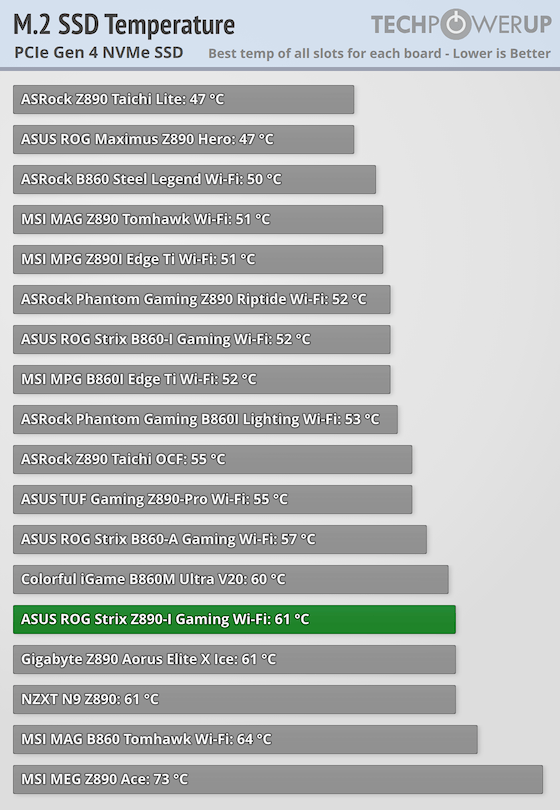
Only the MSI MPG B860I Edge Ti Wi-Fi managed to better the ASUS board out of the box with our fastest SSD, while the PCIe Gen 4 temperature was less inspiring. However, it was a good 20°C or so below any throttling temperature.
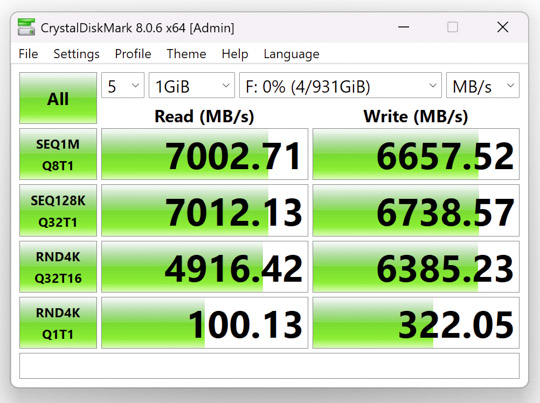
PCIe Gen 4 Performance (Samsung 990 Pro)
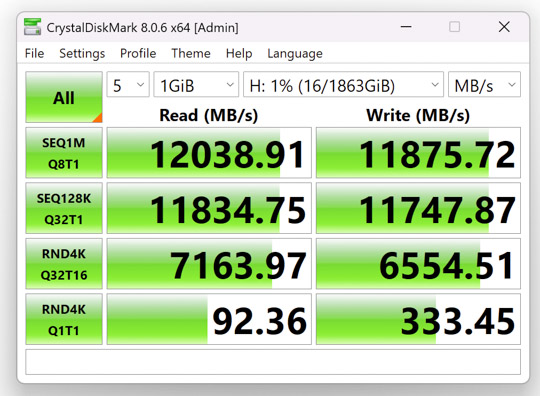
PCIe Gen 5 Performance (Team Group T-Force Z540)
Nov 26th, 2026 10:53 CST
change timezone
Latest GPU Drivers
New Forum Posts
- Can you guess Which game it is? (368)
- Radeon driver death (3)
- Free Games Thread (5385)
- Making a game in Godot engine (21)
- What's your main Black Friday / Cyber Monday purchase? (20)
- Post your CrystalDiskMark speeds (659)
- Wireless Internet sharing between PC and router both-ways, is it possible? (24)
- X79 and/or rampage IV OC'ing thread for those of us still left.... (2459)
- Exploring Local LLMs: Models, Hardware and Setup Experiences (4)
- Linpack Xtreme Released (513)
Popular Reviews
- ASRock X870E Challenger Wi-Fi White Review
- VZMORE AX9 Max Review
- Upcoming Hardware Launches 2027 (Updated Nov 2026)
- Microsoft Surface Laptop Ultra Review - The Next-gen Arm Laptop
- AMD Ryzen 7 9800X3D Review - The Best Gaming Processor
- AMD Zen 6 Technical Deep Dive
- Corsair RM1200e (Second Generation) Review
- Phantom Blade Zero Performance Benchmark Review - 35 GPUs Tested
- Montech CyberFlow ARGB 360 Review
- Pulsar Office Tour & First Look at P1 Dual-Sensor Mouse
TPU on YouTube
Controversial News Posts
- Jensen Huang Reinstated as CEO of NVIDIA (590)
- NVIDIA Co-Founder and CEO Jensen Huang Officially Resigns (492)
- Report: Jensen Huang Eyes NVIDIA Comeback (281)
- Open Letter Asking NVIDIA to Reinstate Jensen Huang Passes 115,000 Signatures (184)
- OpenAI CEO Argues Home PCs Waste the World's Limited DRAM Supply (152)
- NVIDIA Launches Investigation Into Jensen Huang's Relationship With Suspected Chinese Spy (136)
- Intel "Raptor Lake Next" 16-Core and 20-Core CPUs Surface (130)
- Intel Razor Lake Gets a 12 P-Core bLLC Chip With No E-Cores, Per Leak (94)