 9
AVerMedia CamStream 4K Review
Value & Conclusion »Software
The AVerMedia CamStream 4K is a UVC device and as such gets recognized by computers and mobile devices, with no special driver requirements. The entire experience is plug-and-play, although you do have to know your way around OBS or similar streaming/recording software to get the video card to successfully capture video.
To ensure a smooth connection with mobile devices, it's advisable to select "iPhone/iPad/Android" as the Video and Audio Source Device, and set HDCP Detection to "Off." The same tool is used to update the capture card's firmware and fine-tune HDMI compatibility; you can switch between HDMI 2.0 and HDMI 1.4, as well as add and remove resolutions and refresh rates you want the device to support.

The other piece of software available for the CamStream 4K is the AVerMedia Streaming Center, which I've already covered in the AVerMedia Versati Go microphone review (available here). It's AVerMedia's alternative to OBS, Streamlabs, and other popular streaming software solutions. The Streaming Center's main screen looks similar to that of OBS, so its users will find themselves in a familiar environment right from the start. The scenes are shown on the bottom, the video and audio sources are on the left, and the currently selected and live scenes are in the center.

It won't take you long to realize that the Streaming Center is basically a stripped-down alternative to OBS. For example, when adding a source, you're limited to the essentials: camera/capture card, window, image, and text. For comparison, OBS has 15 different entries in the source adding menu. The deeper you dive, the more apparent the differences become. You could argue that the lack of features could be advantageous for inexperienced users, who can be intimidated by everything OBS, Streamlabs or vMix have to offer, but even if you're a complete newbie in the world of streaming, I'd still strongly urge you to select OBS as your learning platform, as it will scale nicely as you get into more advanced stuff.

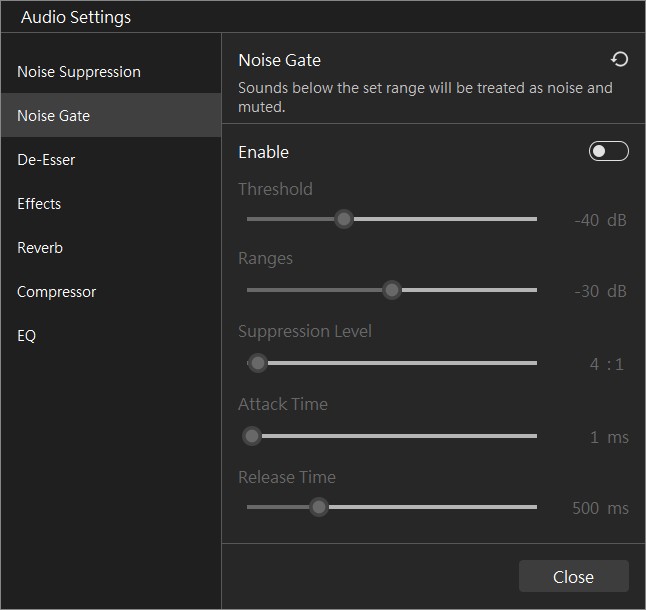
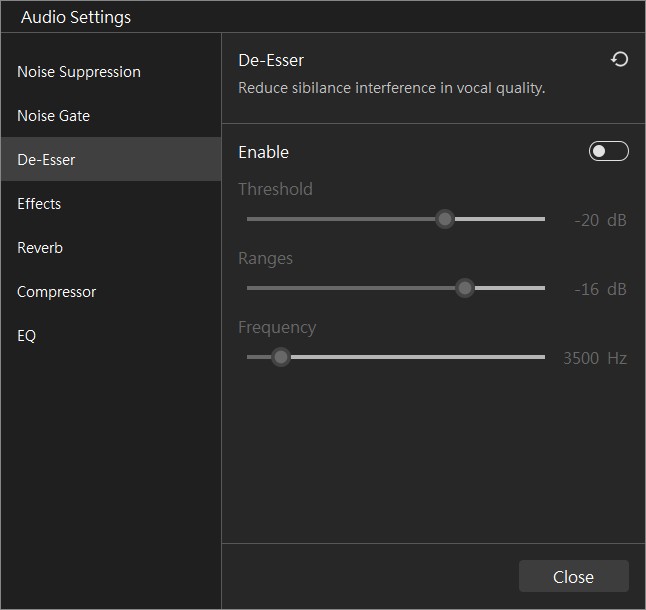
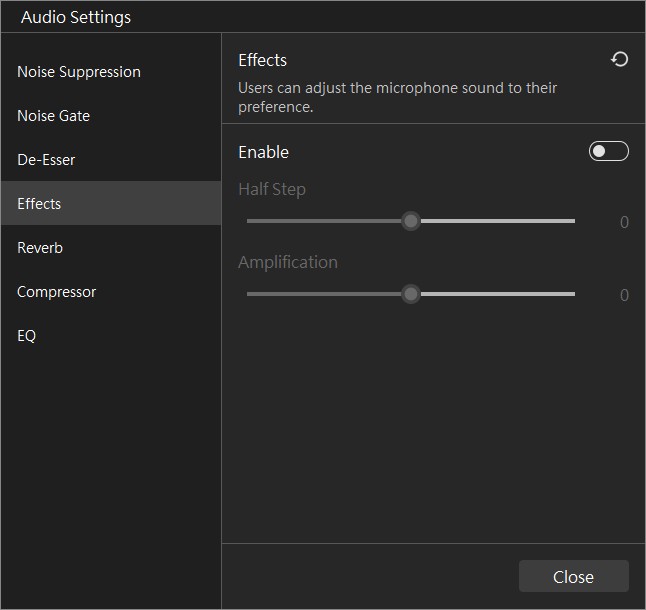
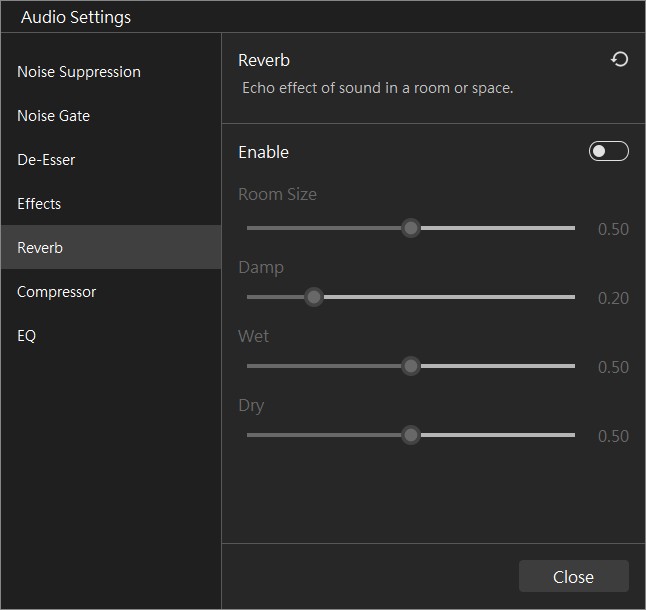
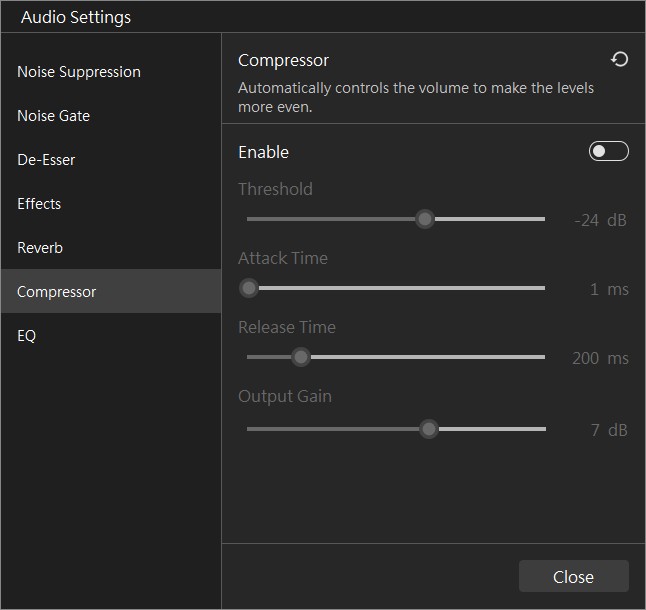

There are quite a lot of audio settings related to the CamStream 4K, with AI noise suppression, noise gate, compressor, and 10-band equalizer being the more interesting ones. Of course, they're all limited to the AVerMedia Streaming Center. In other words, if you want to apply EQ to the capture card's output, it will only be active when you're using Streaming Center to stream content.
OBS Setup

To configure the AVerMedia CamStream 4K in OBS after connecting it to the camera's HDMI output and to your device of choice, open OBS, create a scene and add a Video Capture Device as a source.

Select "Create new" and give it a name.

The capture card will be detected, so you only have to select it from the "Device" dropdown menu, and it will show a picture in the preview window.

If you see a "No Signal" message, it usually means that something wasn't connected properly, or, more commonly, that your camera hasn't been configured to output video. First, double-check your cable setup: the HDMI cable should run from your camera to the capture card, and the USB cable from the capture card to your PC. If everything is plugged in correctly, make sure your camera is switched to video recording mode, as many cameras won't output a live feed unless explicitly set to do so.

While you're welcome to leave the "Resolution/FPS Type" setting at Device Default and be on your way, by switching it to Custom you can adjust the settings such as resolution, framerate, and color format (NV12, YUY2, RGB24…) on your own, making them in line with your preferred streaming and recording settings. For example, if you're streaming at 4K60, here you can select the appropriate settings. After setting everything up as described, you should have your source's output visible in OBS. Now you can move on to add other sources, such as lower thirds, overlays, and everything else you might want to use for your stream or recording. The capture card will, of course, be visible in the Audio Mixer as well, so you can easily adjust its volume.

If you see your camera's on-screen display (OSD)—such as focus boxes, exposure info, or battery indicators—instead of a clean video feed, it likely means the camera is in preview mode, intended for its built-in display, rather than being configured for clean HDMI output. Disabling the OSD, if the camera allows it, is done through its settings menu. The exact option varies by manufacturer, but you're typically looking for something like "HDMI Info Display" or "Output Display Info," which needs to be turned off. Unfortunately, many entry- and mid-level cameras don't support clean HDMI output, including one of the two I used for testing, the now-aging Canon EOS 800D (Rebel T7i). Thankfully, the main camera I paired with the CamStream 4K—the Fujifilm X-E4—does support a clean HDMI feed, which allowed me to properly test the capture card without any distracting overlays.
Performance
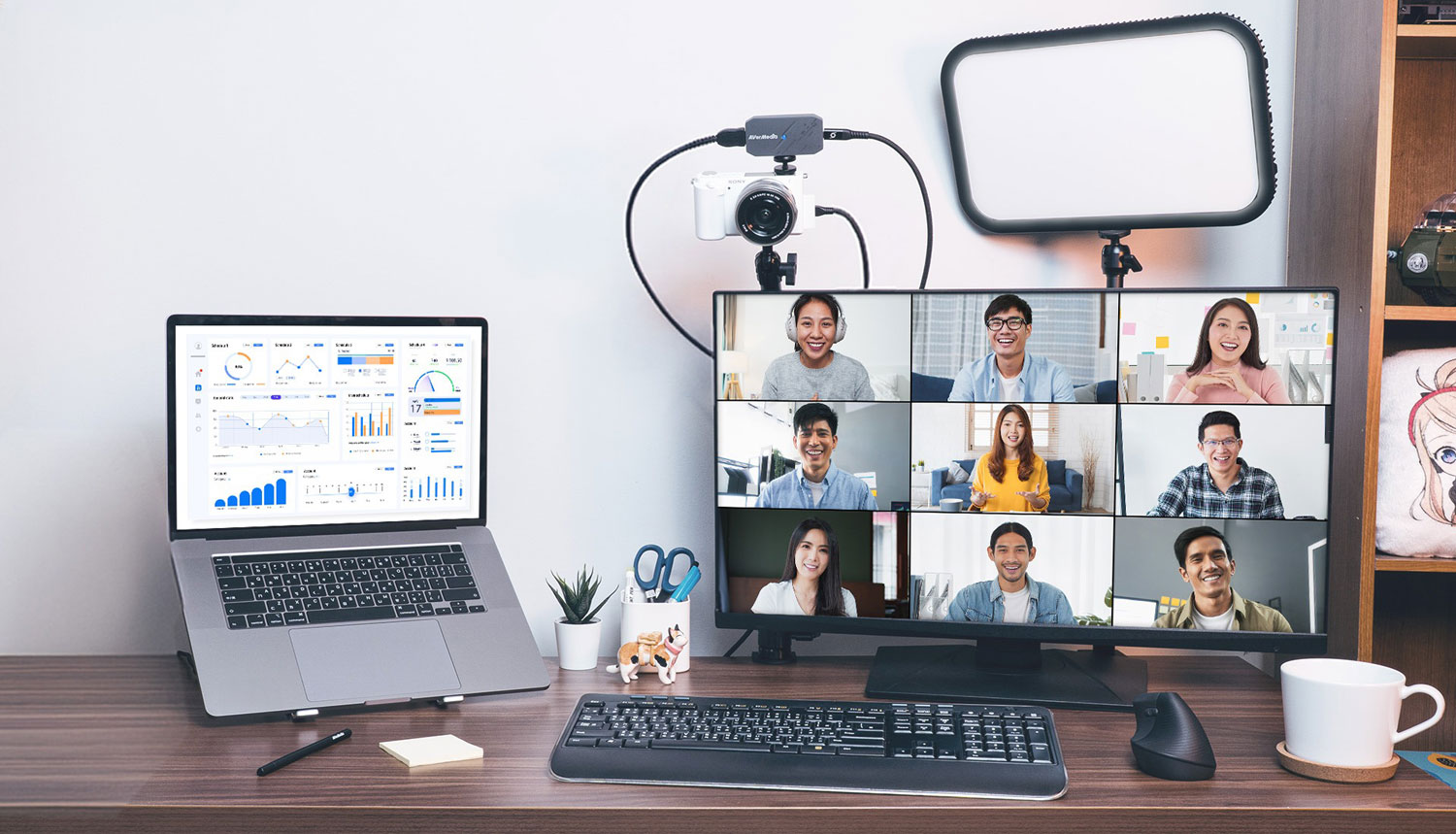
The general performance of the AVerMedia CamStream 4K within all supported resolutions and refresh rates is pretty much flawless. Once again AVerMedia delivers a product that does what it promises without notable issues.
To demonstrate the performance of the AVerMedia CamStream 4K capture card, I recorded a bit of video after connecting it to the Fujifilm X-E4 mirrorless camera, equipped with the Tamron 17-70 mm F/2.8 Di III-A VC RXD lens. Take a look at the following video samples. The first one is recorded in 4K30 using the NV12 color format, and the second one in Full HD at 60 FPS, using the uncompressed (4:4:4 chroma) RGB24 color format. Do keep in mind that YouTube butchers the quality of recorded footage to some extent.
To give you a better idea of the benefits of using a DSLR/mirrorless camera as a webcam, here's what a similar scene would look like when recorded with one of the best webcams on the market, the Logitech MX Brio, at automatic settings.
Examining video samples, especially those recorded on cameras and camcorders, isn't the best way to judge a video capture card, as they can only reveal major flaws such as lag, framerate drops, or compression artifacts. If none of those are present, you're essentially evaluating the performance of the connected camera. That said, the AVerMedia CamStream 4K performed flawlessly at all supported resolutions and frame rates I tested, and with all supported color formats, including uncompressed RGB24 at Full HD. There were no unexpected disconnects, slowdowns, or any other issues – the CamStream 4K just works.
Nov 26th, 2026 02:26 CST
change timezone
Latest GPU Drivers
New Forum Posts
- DTS DCH Driver for Realtek HDA [DTS:X APO4 + DTS Interactive] (2820)
- What's your main Black Friday / Cyber Monday purchase? (12)
- Claude credits purchased on or after Dec. 7 now have an expiry date (18)
- AI generated images... (239)
- TPU's Nostalgic Hardware Club (22209)
- Can you guess Which game it is? (365)
- Strange PC issues with Z690 setup (5)
- RTX 5080 problems, random troubleshooting "log" (8)
- Slow boot, can't launch monitoring software, general lag (38)
- Linpack Xtreme Released (512)
Popular Reviews
- ASRock X870E Challenger Wi-Fi White Review
- VZMORE AX9 Max Review
- Upcoming Hardware Launches 2027 (Updated Nov 2026)
- Microsoft Surface Laptop Ultra Review - The Next-gen Arm Laptop
- AMD Ryzen 7 9800X3D Review - The Best Gaming Processor
- AMD Zen 6 Technical Deep Dive
- Corsair RM1200e (Second Generation) Review
- Phantom Blade Zero Performance Benchmark Review - 35 GPUs Tested
- Pulsar Office Tour & First Look at P1 Dual-Sensor Mouse
- Ocypus lota P1000 Review
TPU on YouTube
Controversial News Posts
- Jensen Huang Reinstated as CEO of NVIDIA (574)
- NVIDIA Co-Founder and CEO Jensen Huang Officially Resigns (492)
- Report: Jensen Huang Eyes NVIDIA Comeback (281)
- Open Letter Asking NVIDIA to Reinstate Jensen Huang Passes 115,000 Signatures (184)
- OpenAI CEO Argues Home PCs Waste the World's Limited DRAM Supply (152)
- NVIDIA Launches Investigation Into Jensen Huang's Relationship With Suspected Chinese Spy (136)
- Intel "Raptor Lake Next" 16-Core and 20-Core CPUs Surface (130)
- Intel Razor Lake Gets a 12 P-Core bLLC Chip With No E-Cores, Per Leak (94)