 97
Battlefield 6 Performance Benchmark Review - 40+ GPUs Tested
(97 Comments) »Introduction
The famous Battlefield franchise returns with Battlefield 6, a first-person shooter developed by DICE and published by Electronic Arts. Set in a near-future global conflict, the game combines large-scale multiplayer warfare with a fully featured single-player campaign.The campaign reintroduces narrative storytelling to the series after its absence in previous installments. It follows multiple characters across global locations, blending cinematic set pieces with intense fighting in scripted battles.

Multiplayer remains the foundation of the experience, supporting up to 64 players (128 players was scrapped, but might return at a later time). Classic modes such as Conquest and Breakthrough return alongside new objective-based scenarios that emphasize squad tactics and environmental interactivity. Real-time weather effects, widespread destruction, and constantly changing battle conditions make every fight feel unpredictable and alive.
Battlefield 6 runs on the latest version of the Frostbite Engine, featuring enhanced lighting, destruction physics, and large-scale environmental simulation. There is no support for hardware ray tracing, a decision aimed at improving overall performance. The game includes support for NVIDIA DLSS, AMD FSR, Intel XeSS, and frame generation technologies from all three vendors as well, to help deliver smoother gameplay at higher framerates.
This review will evaluate the performance of Battlefield 6 across a wide range of contemporary graphics cards, compare image quality settings, and analyze the game's VRAM usage to provide insight into the hardware requirements needed for an optimal experience.
Screenshots
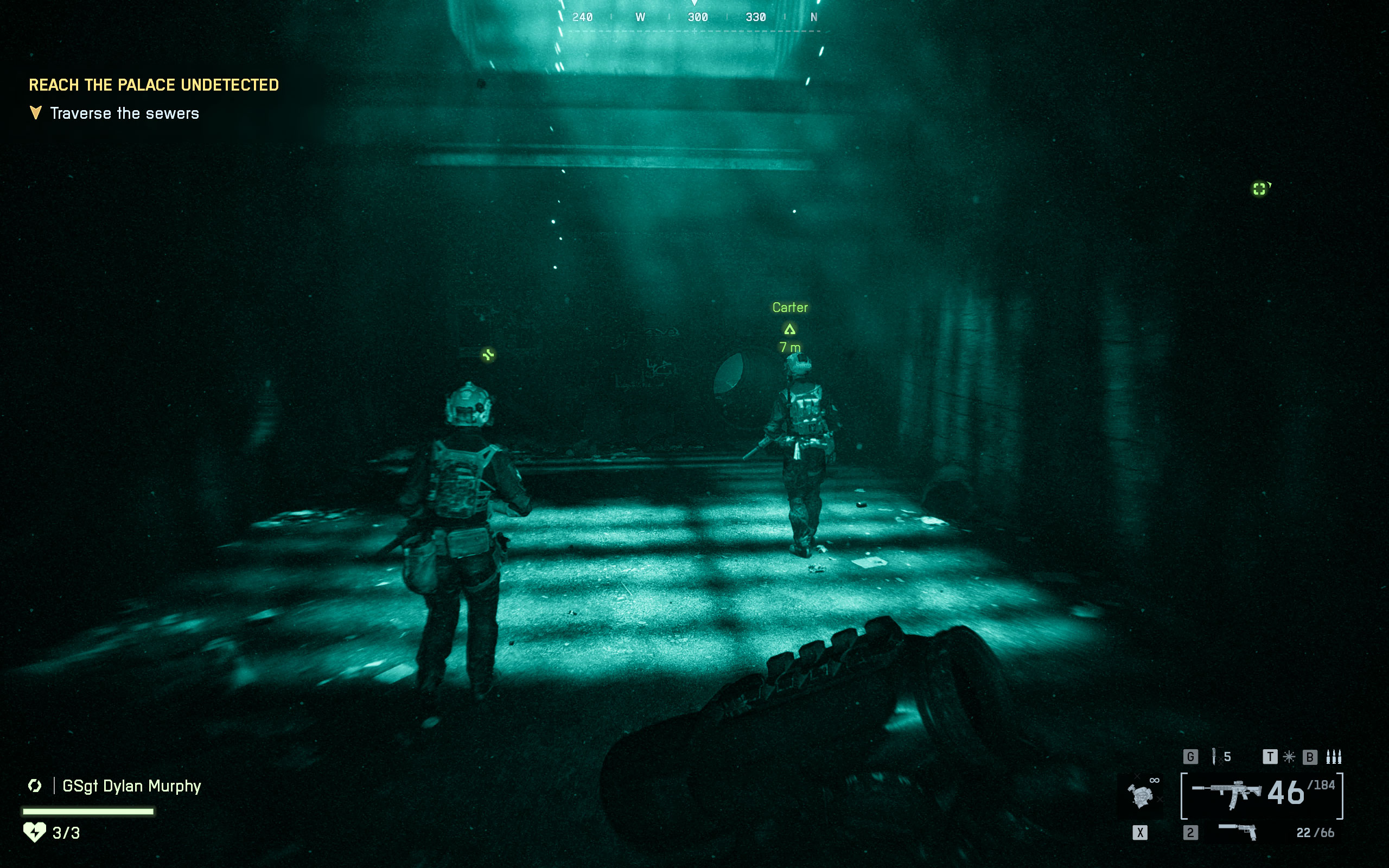
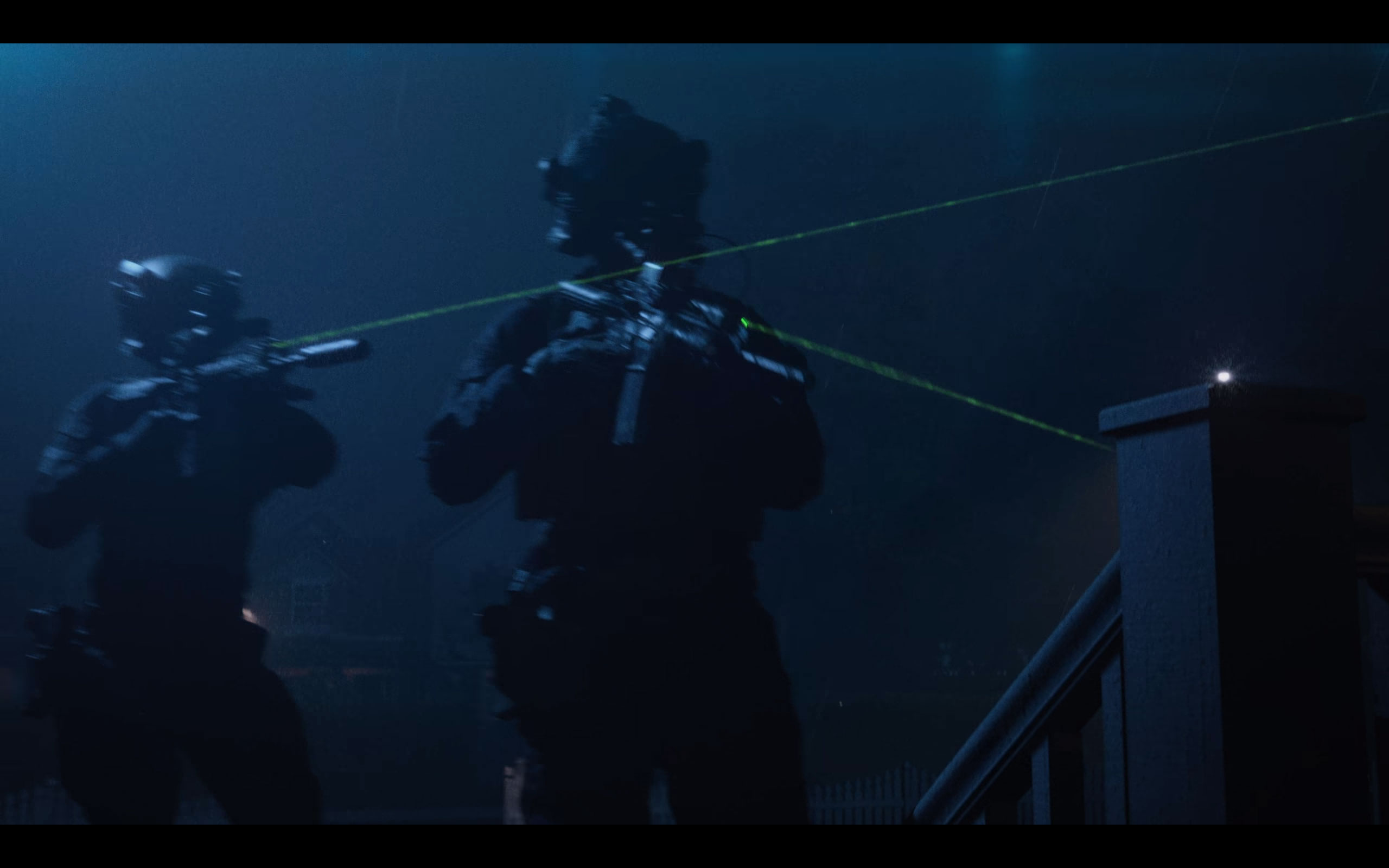
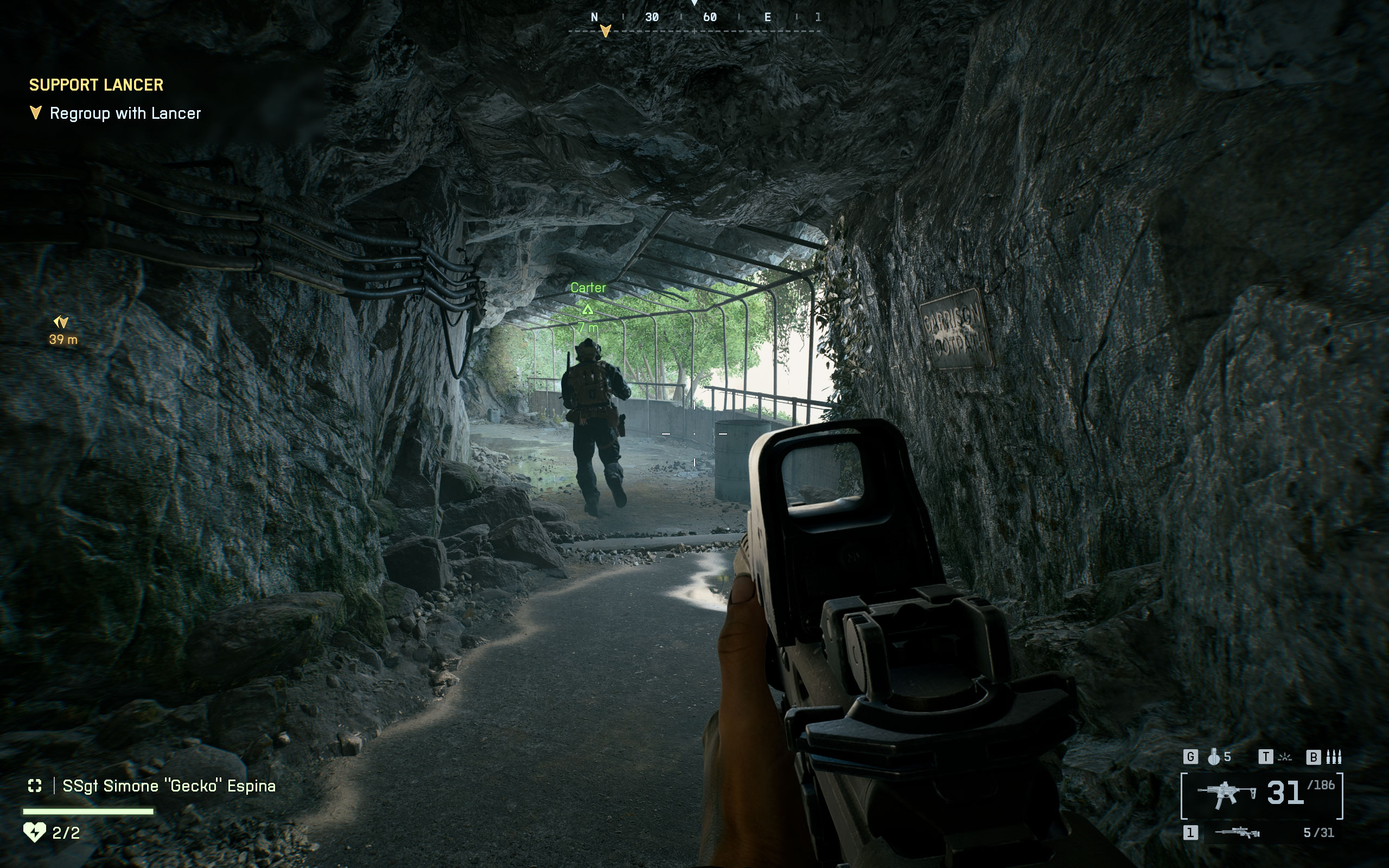
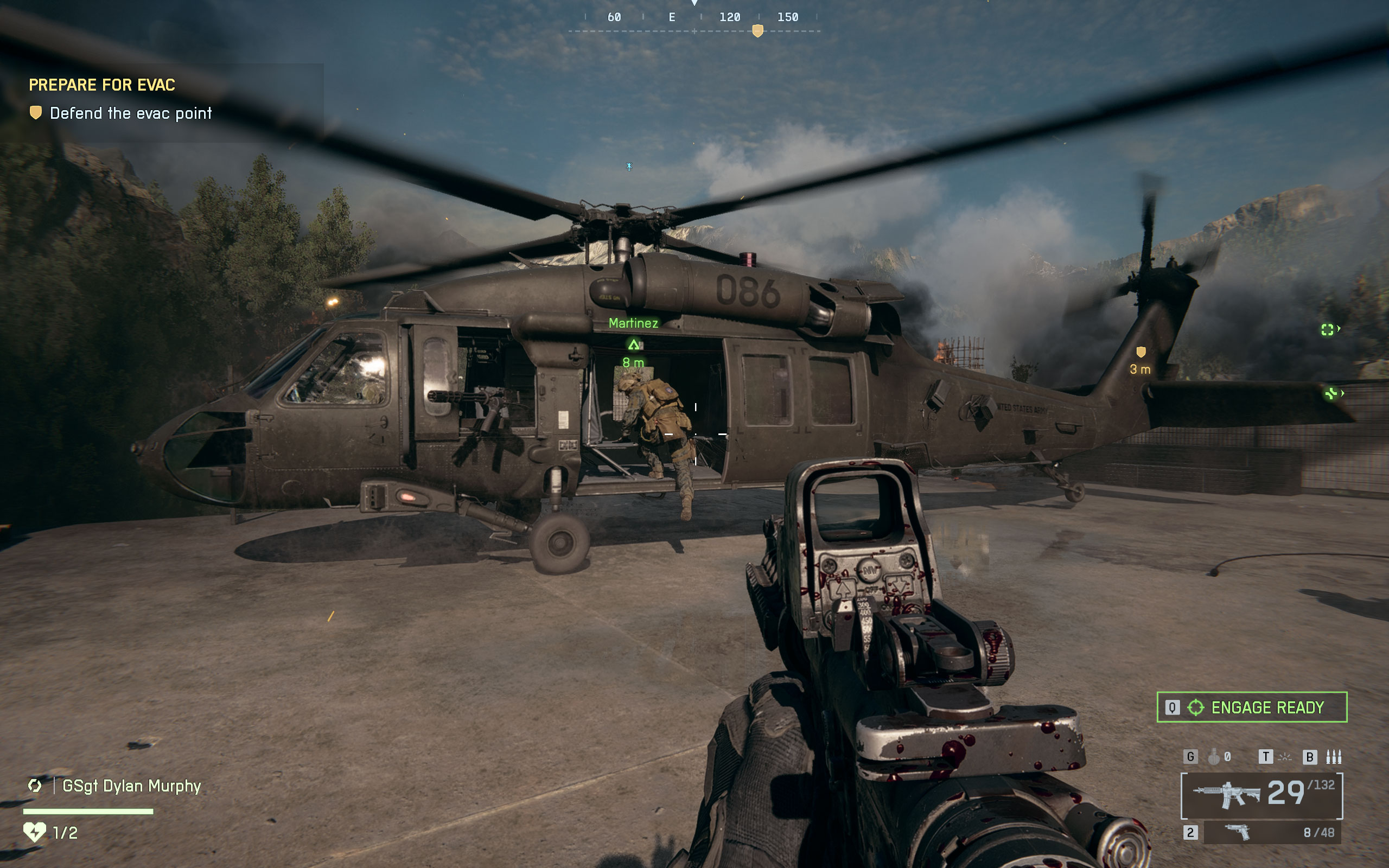
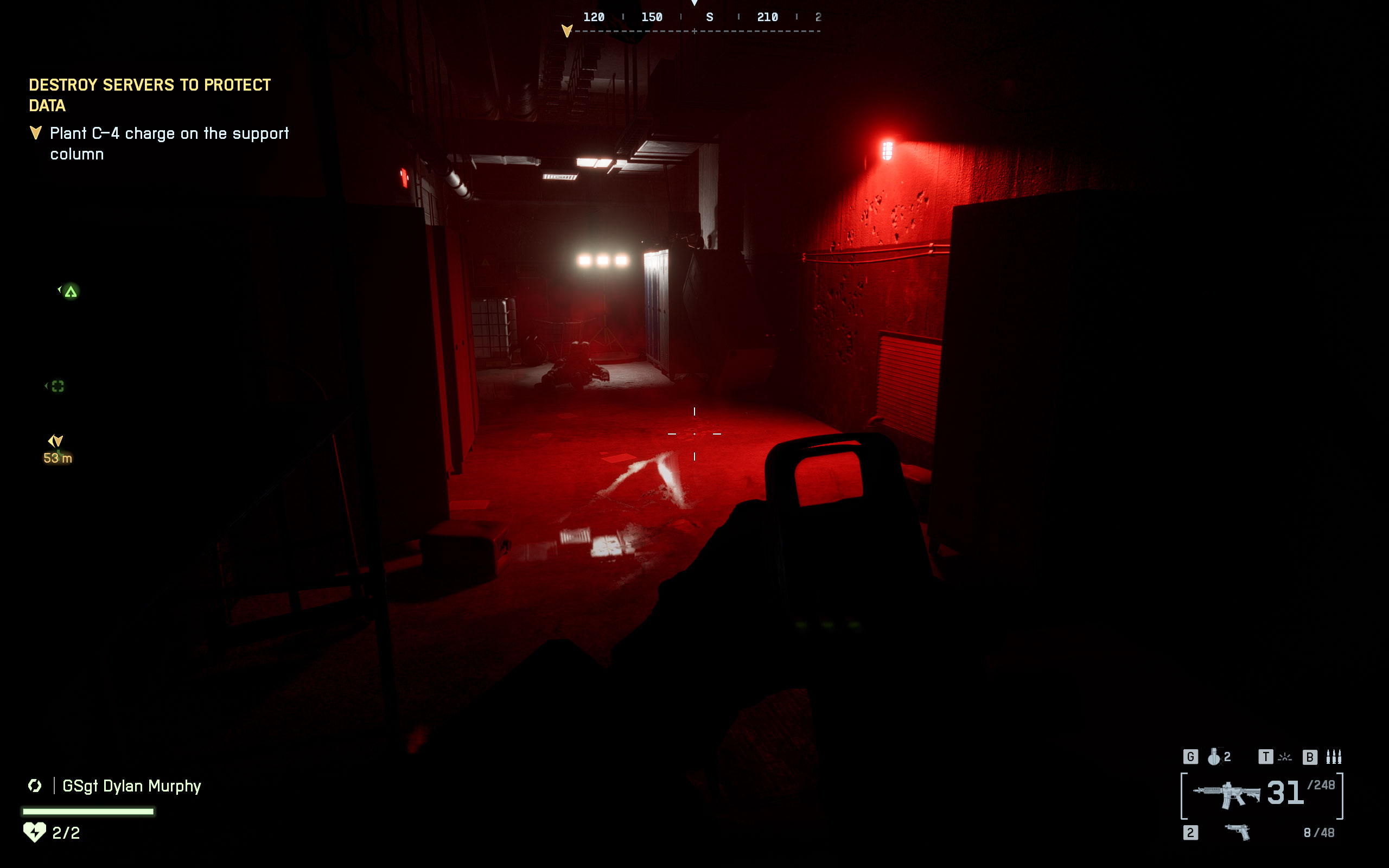
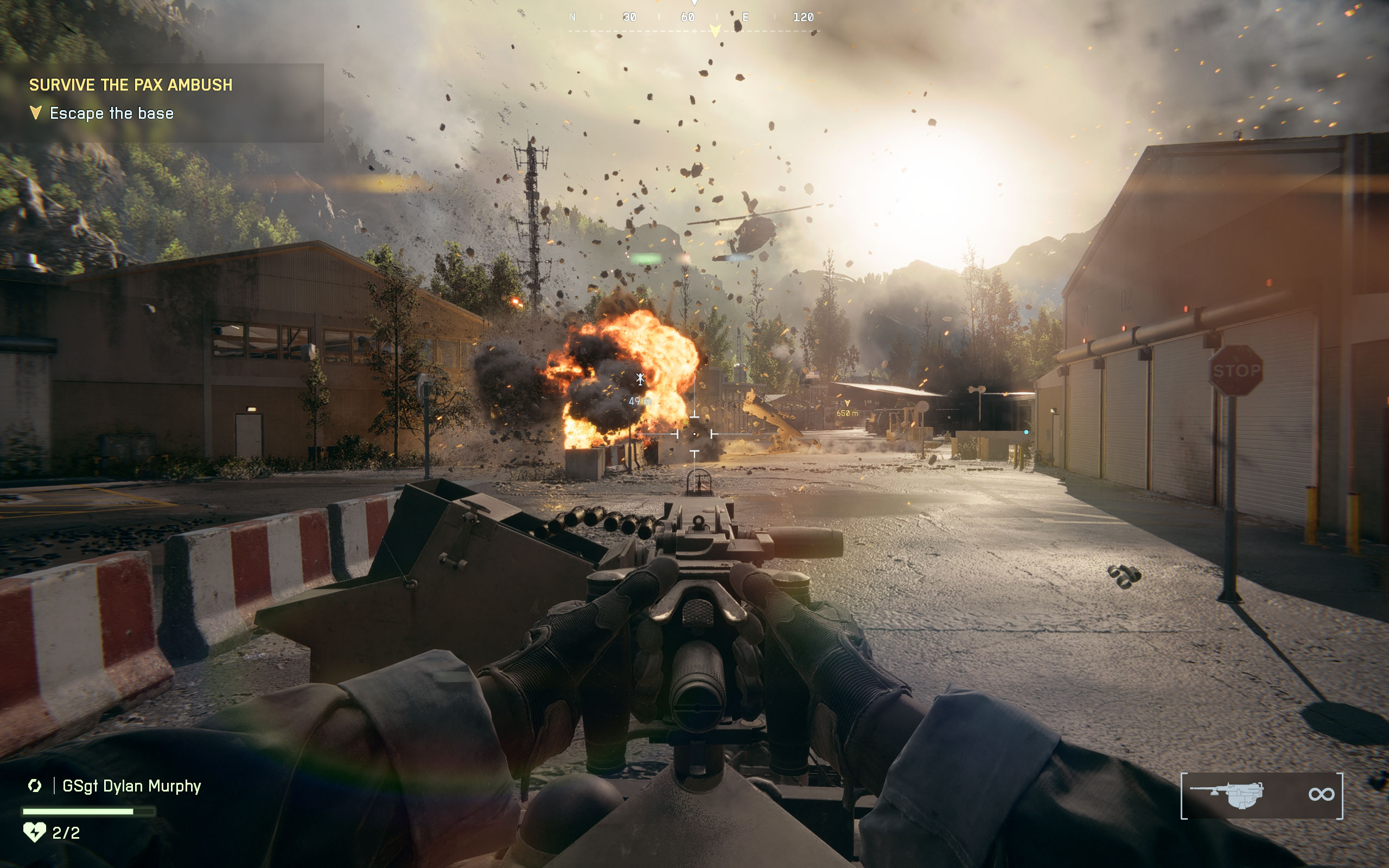
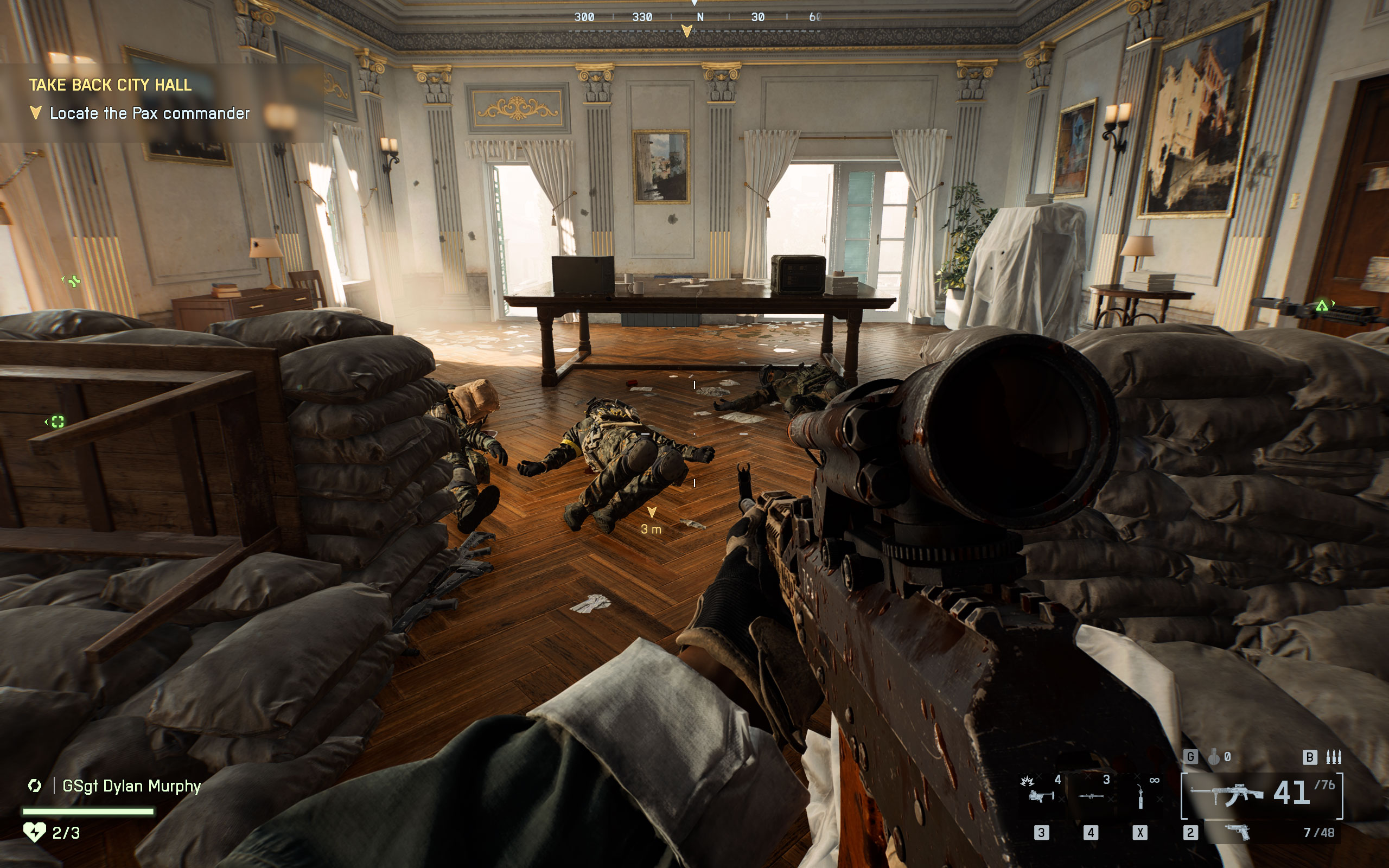
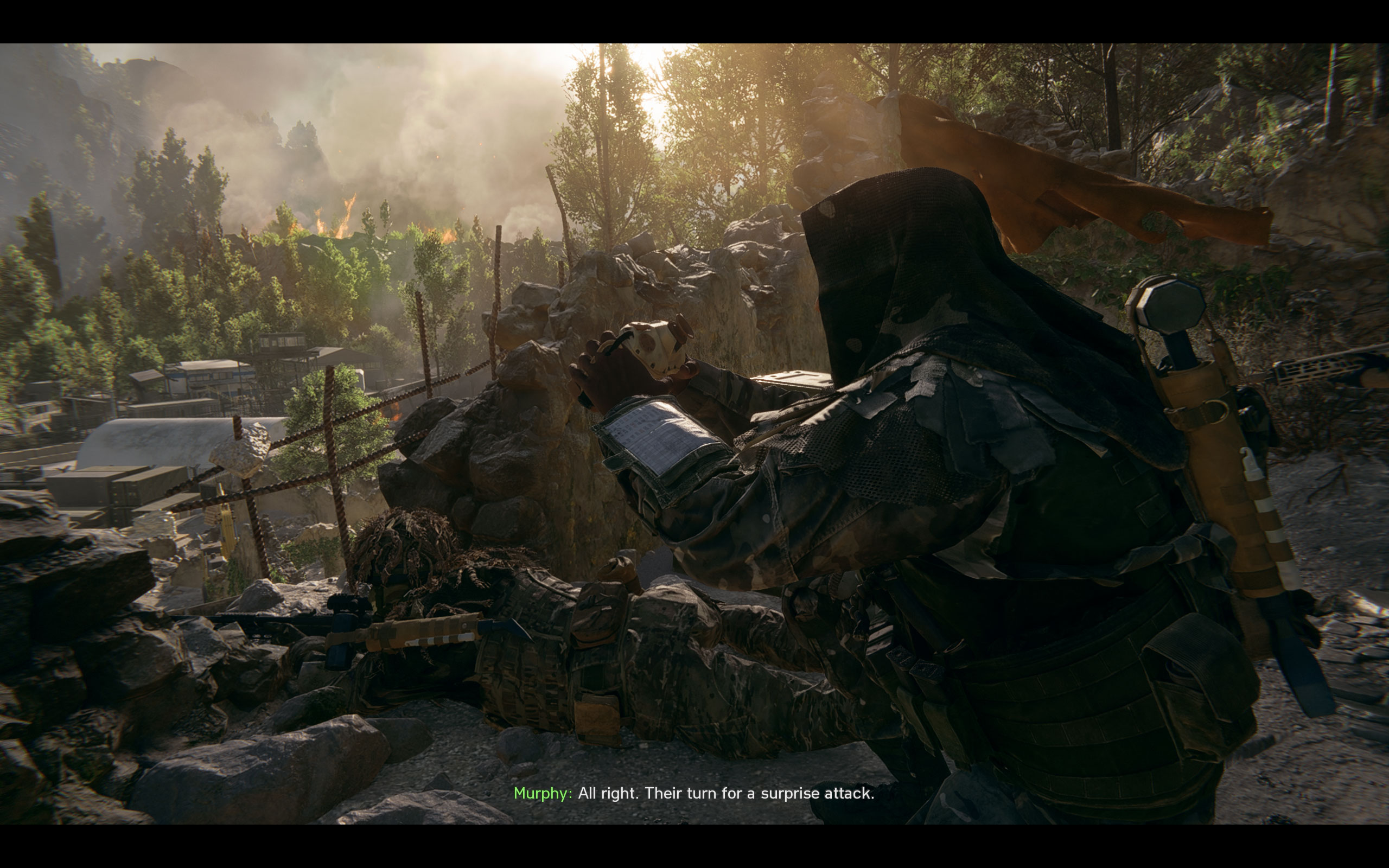
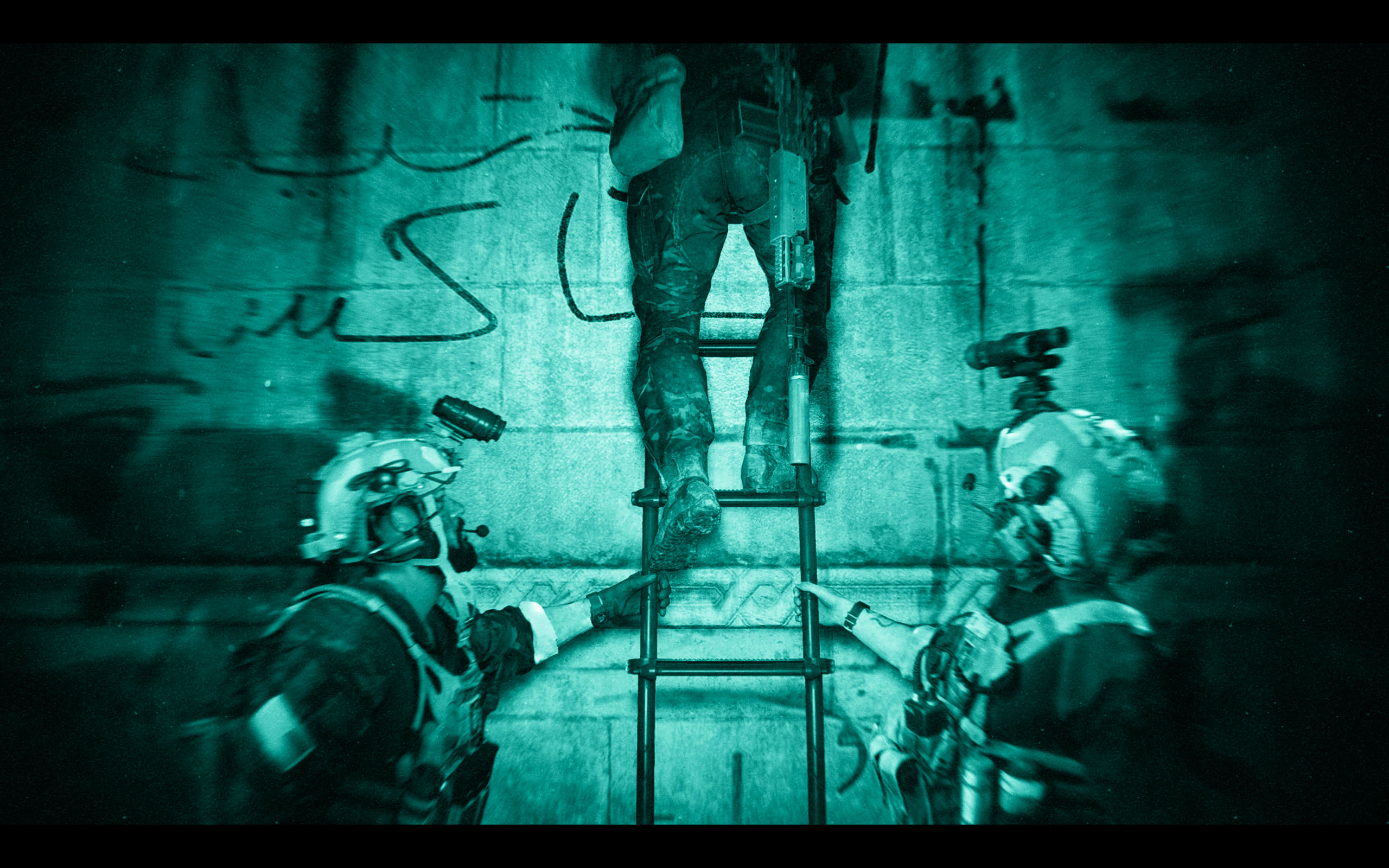
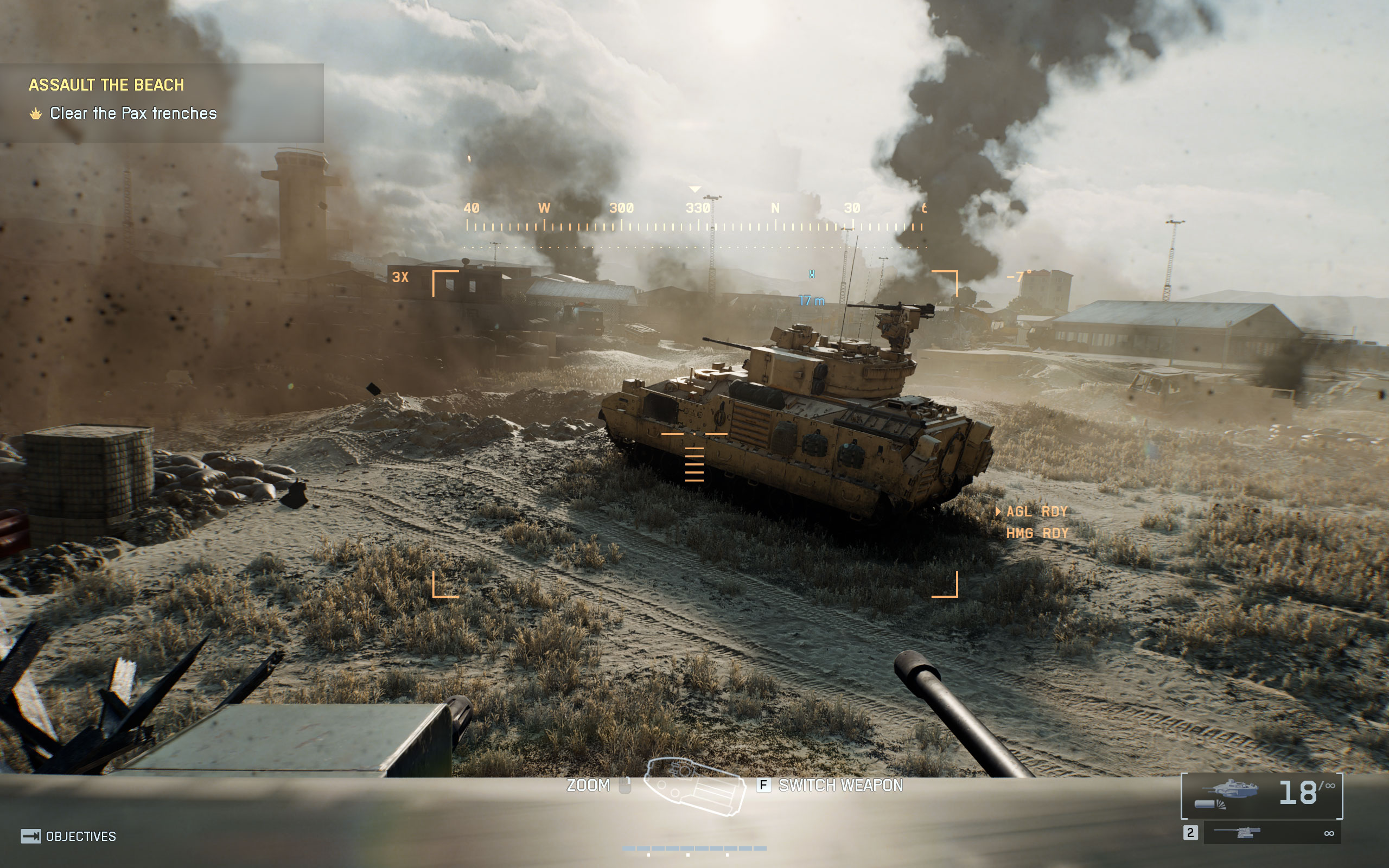
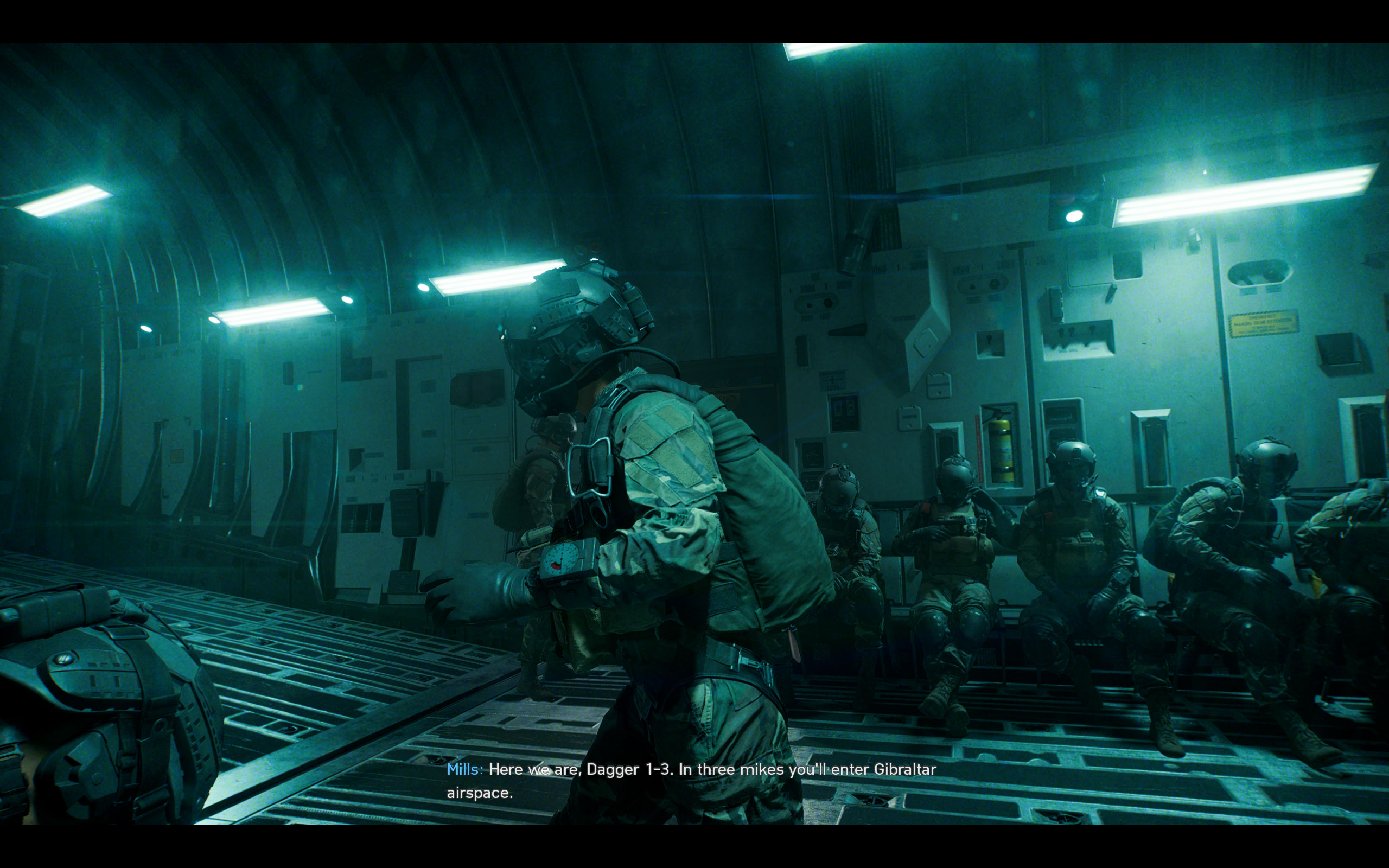
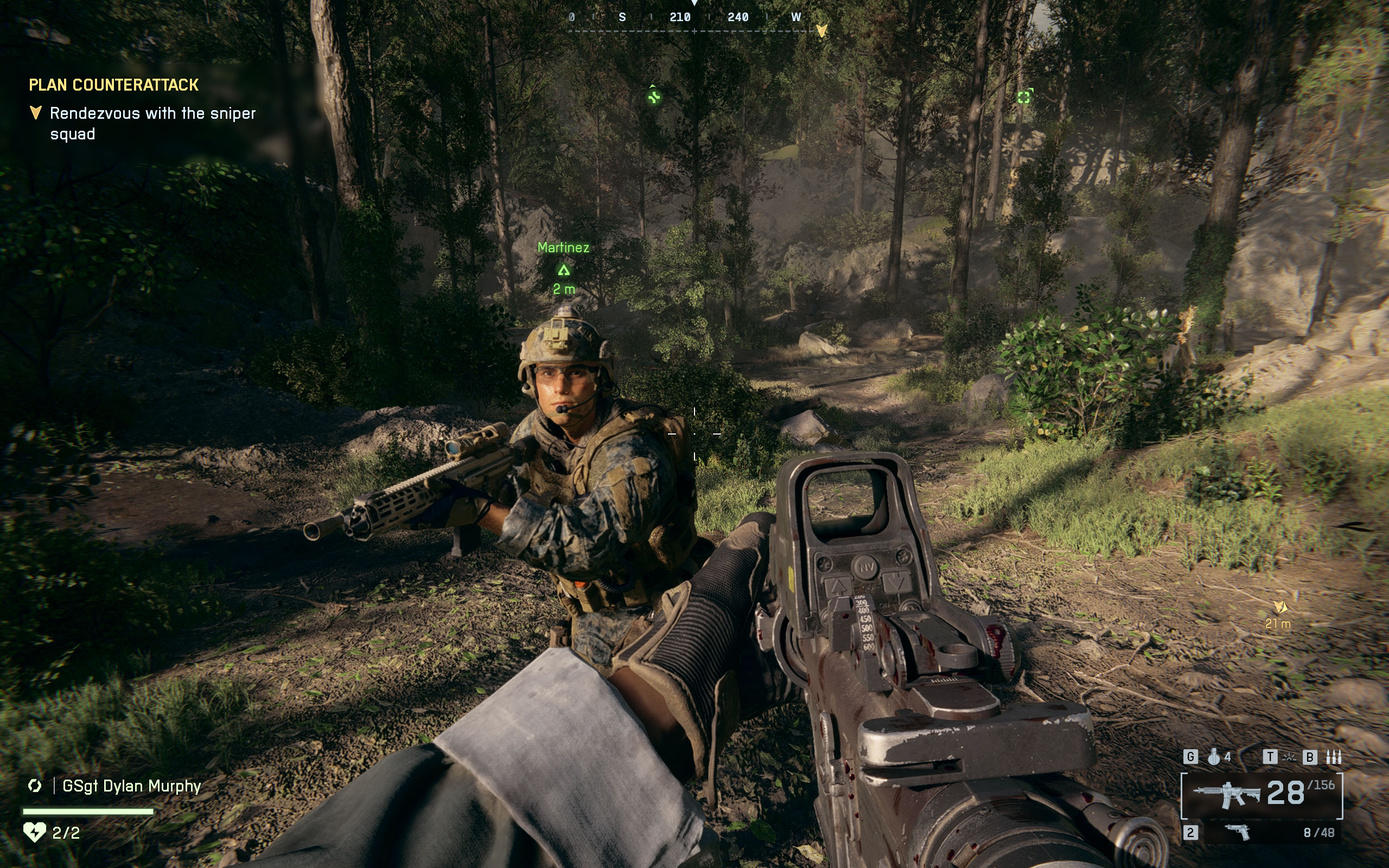
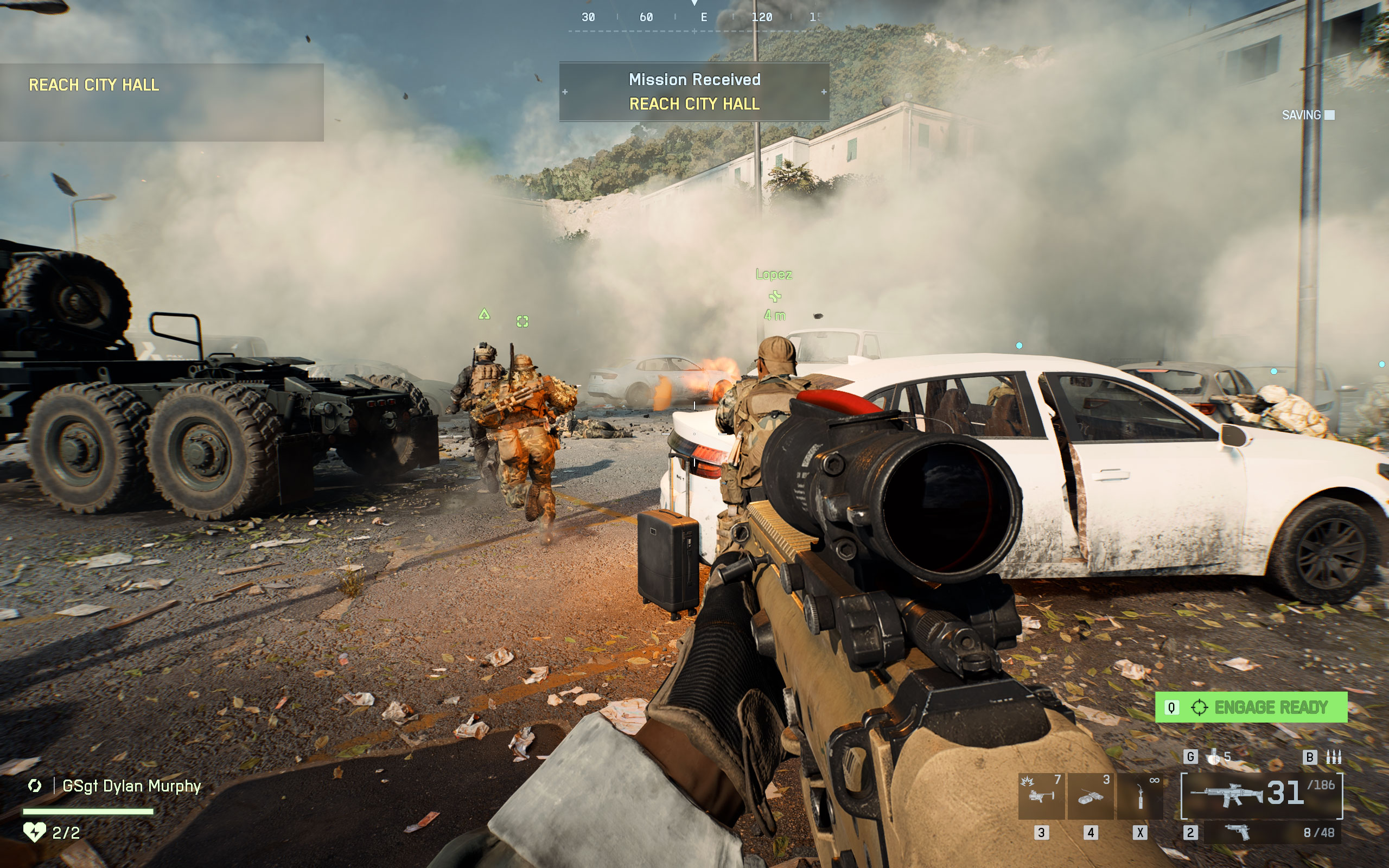
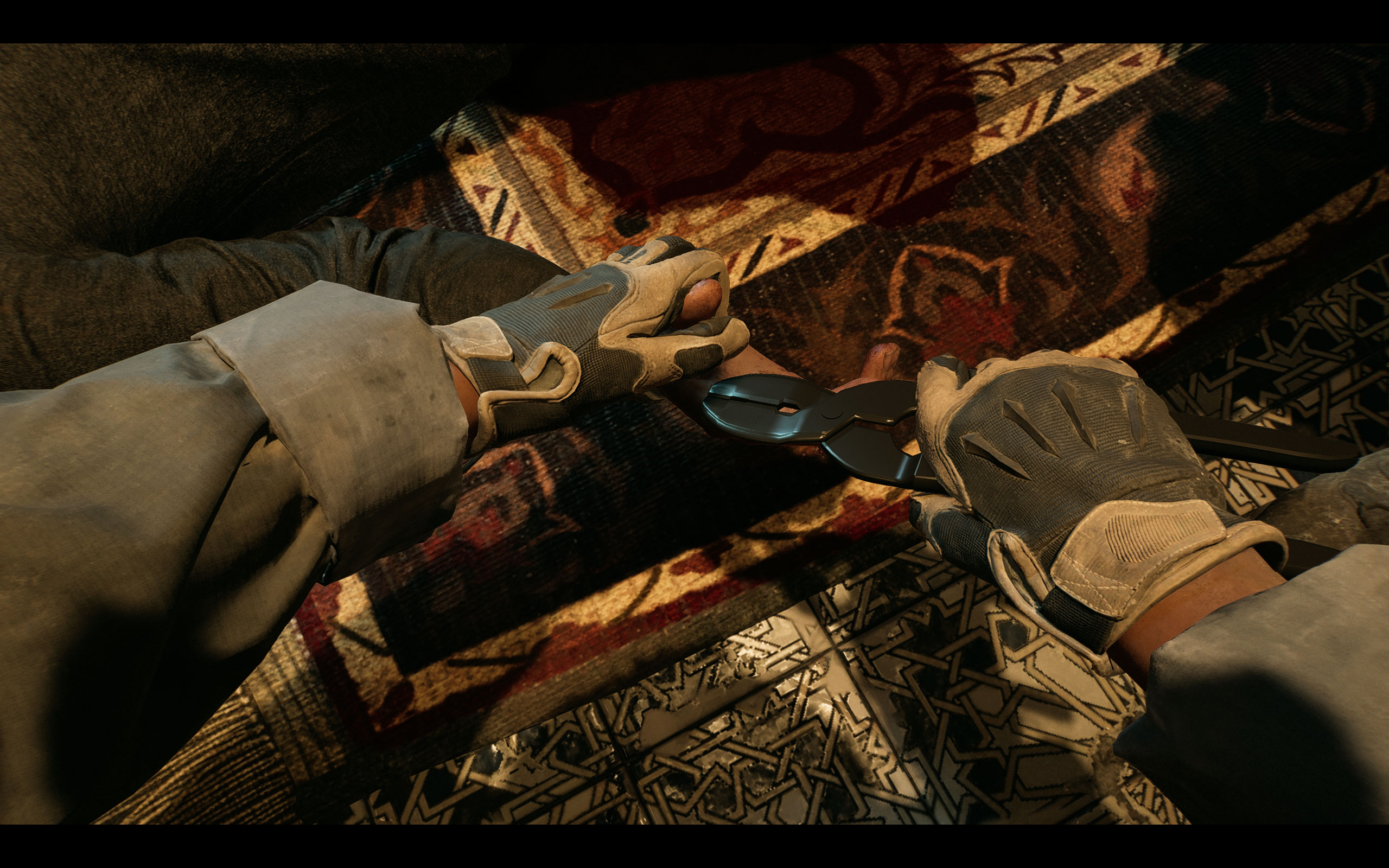
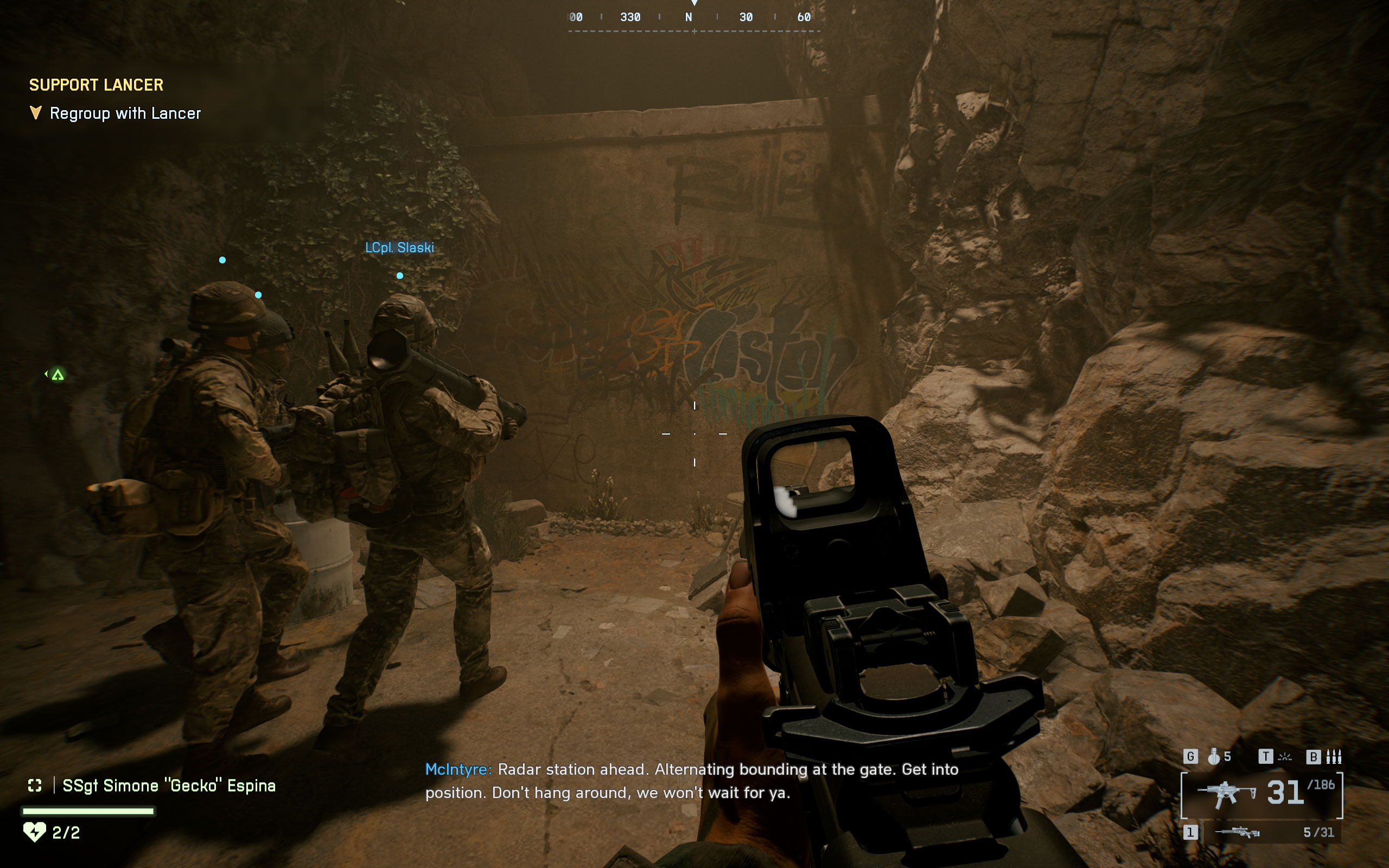
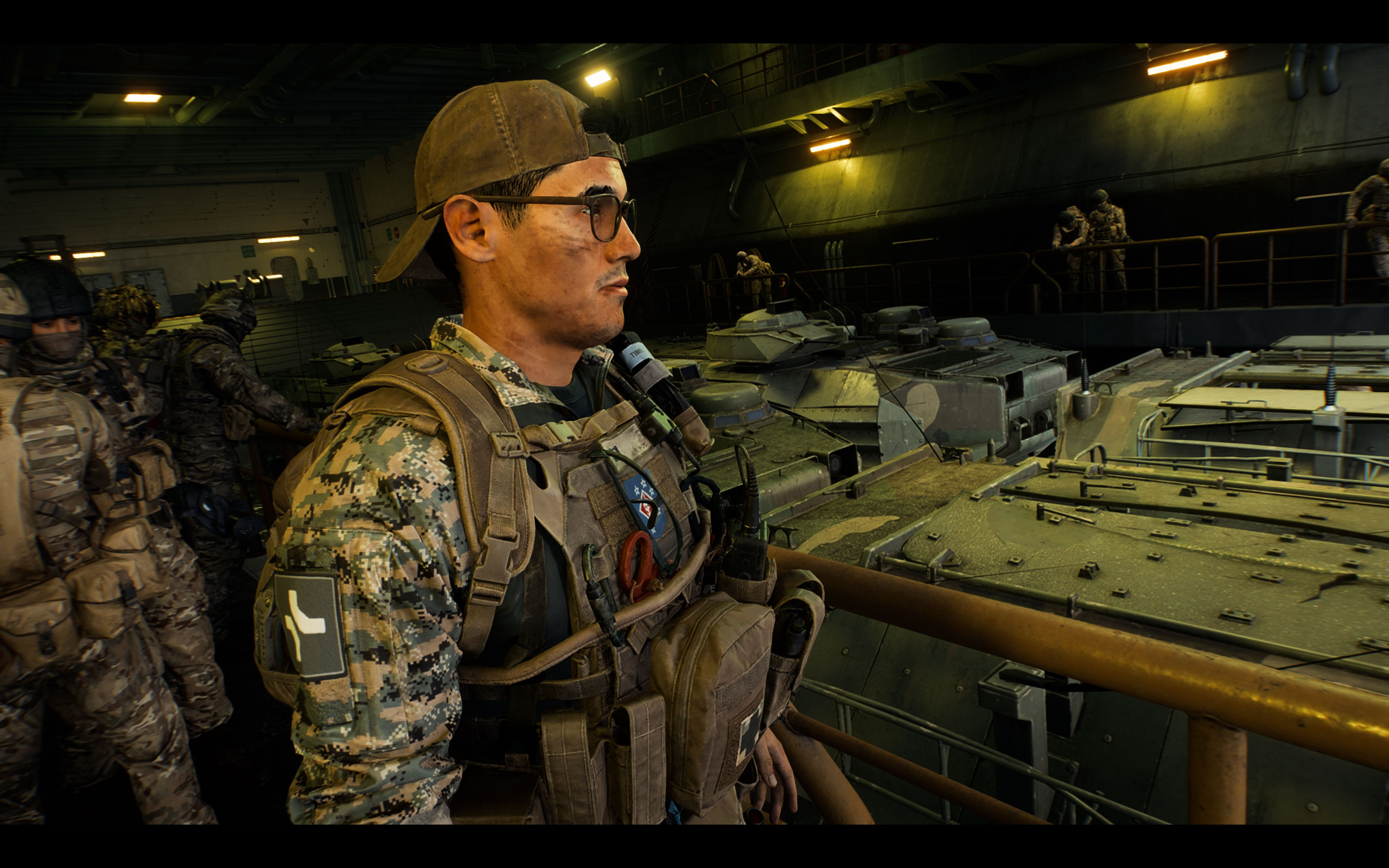
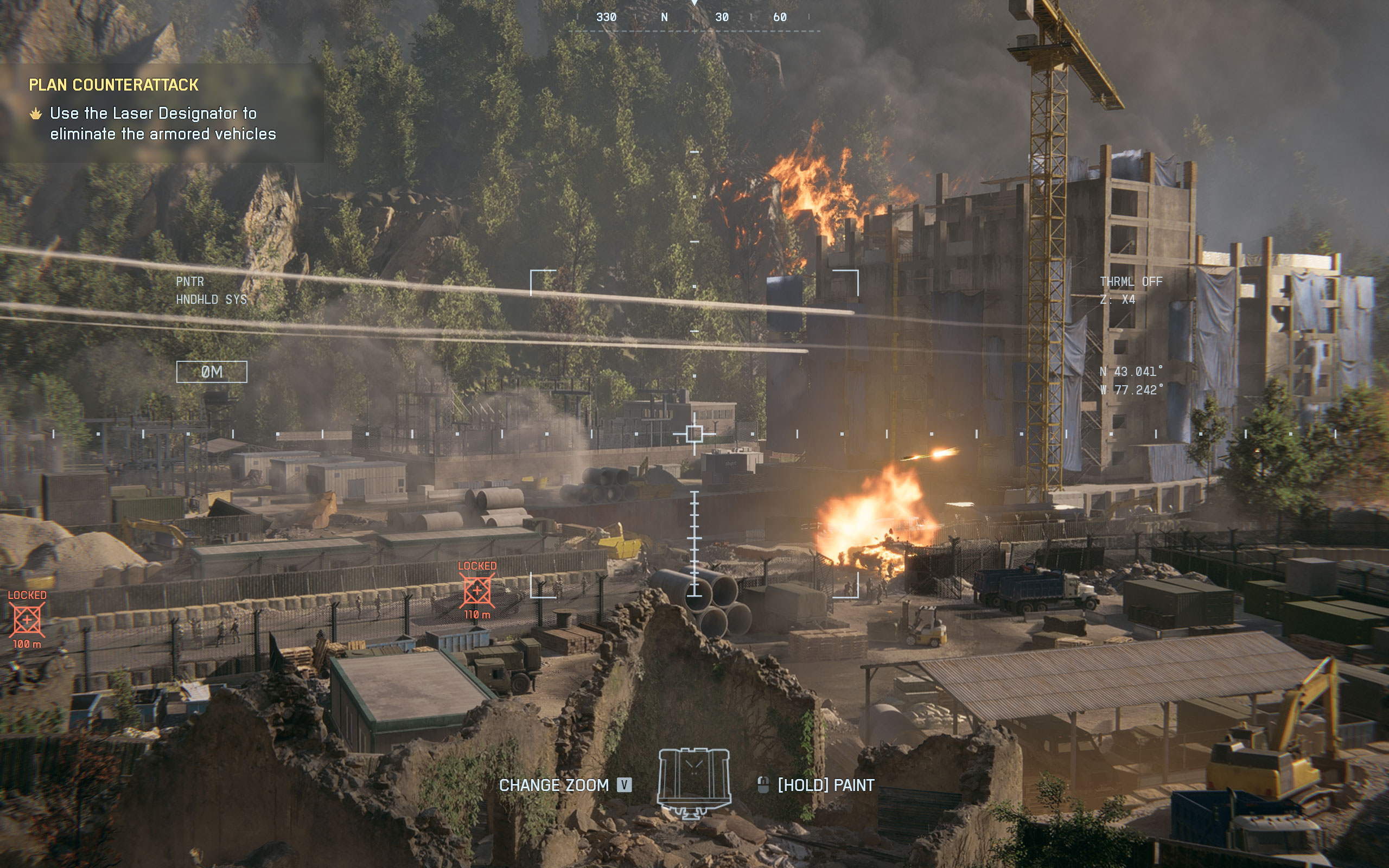
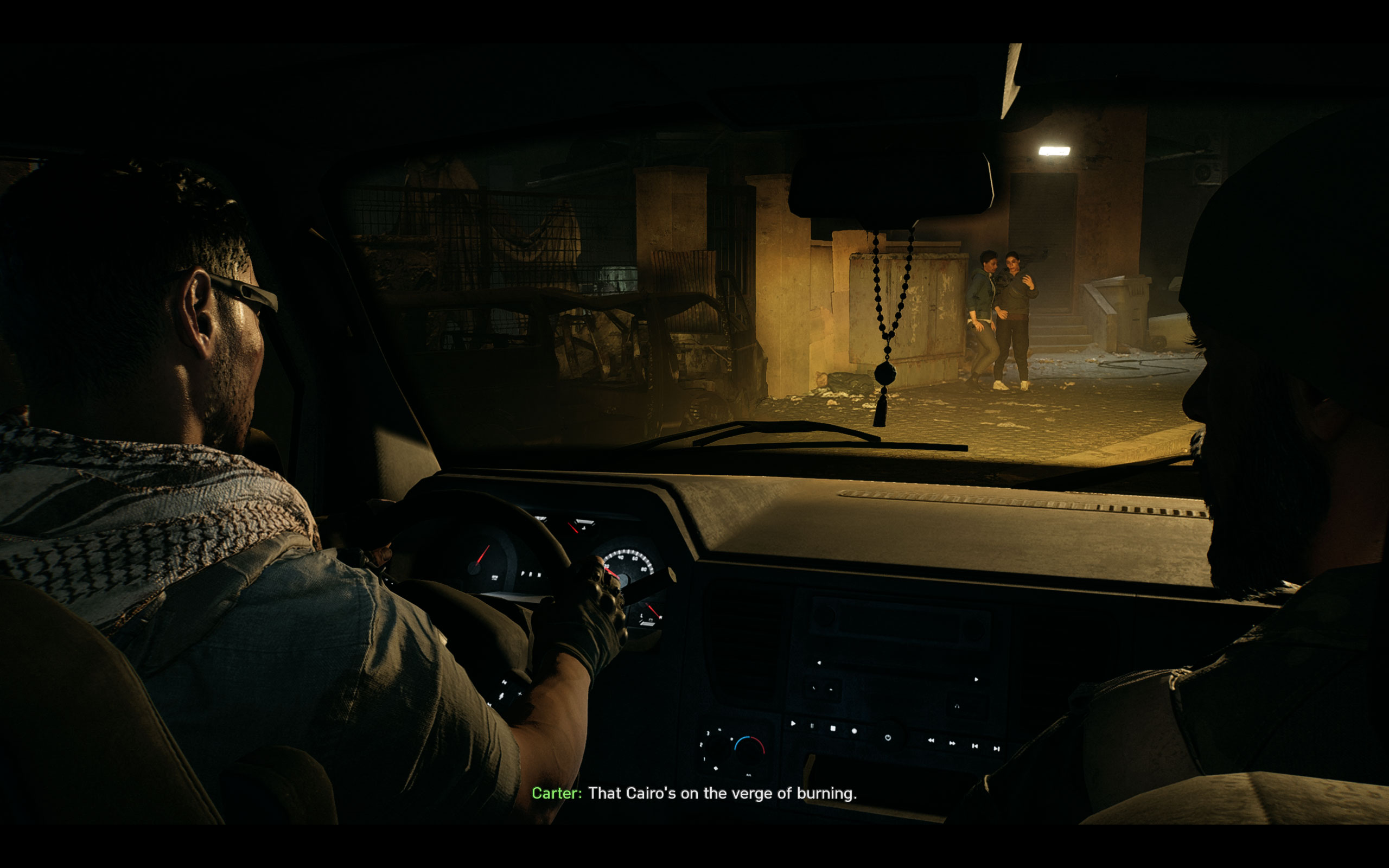
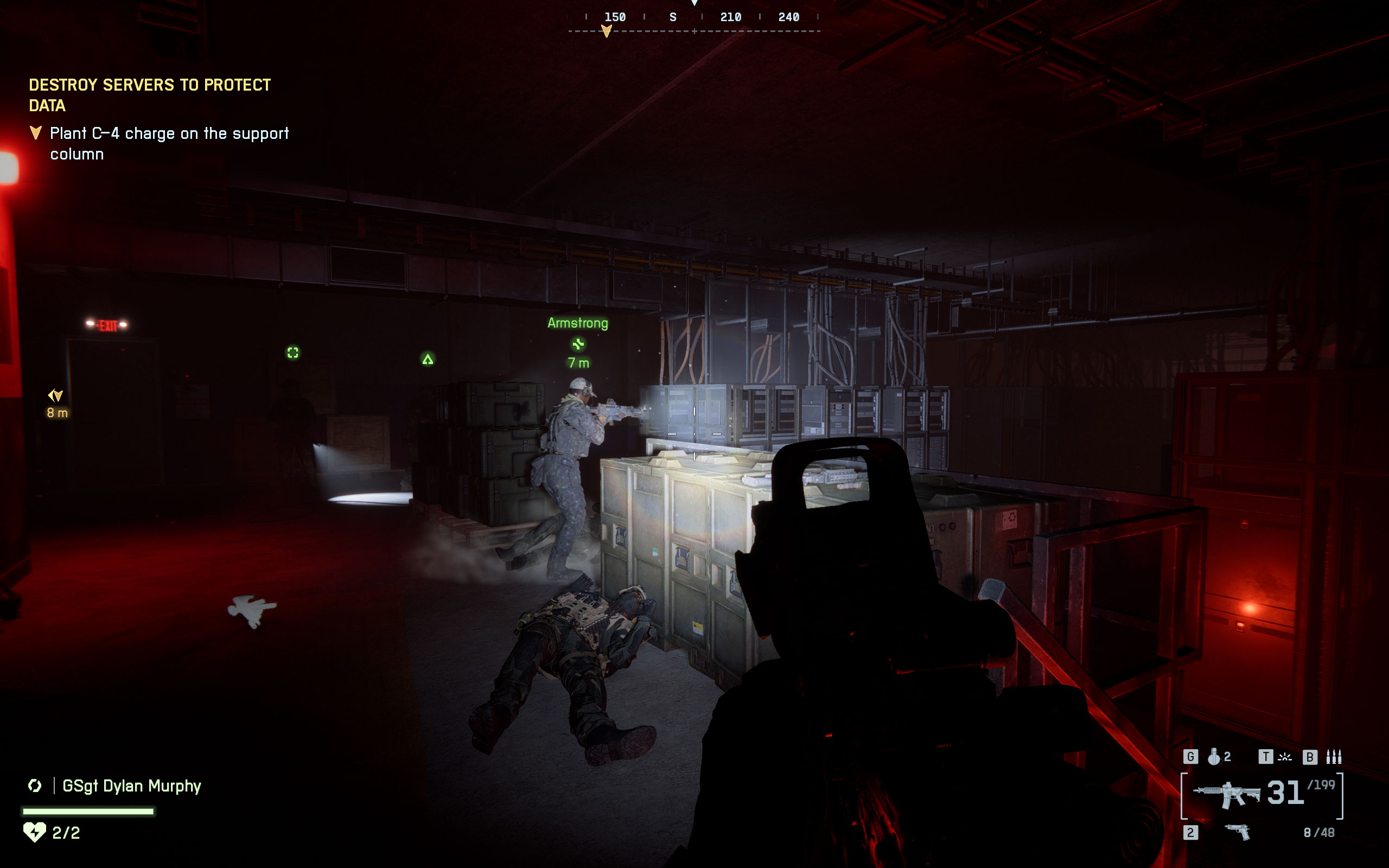
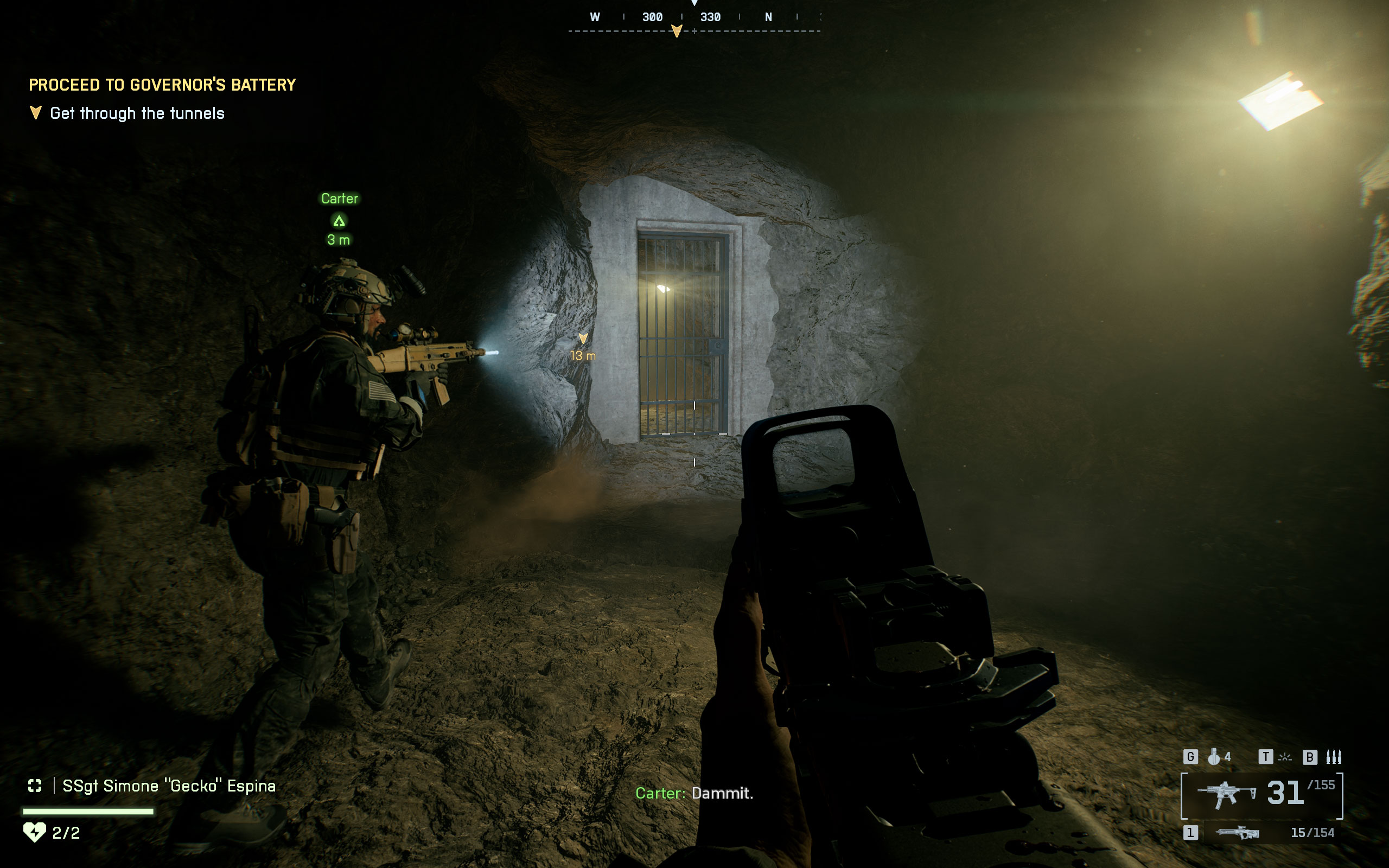
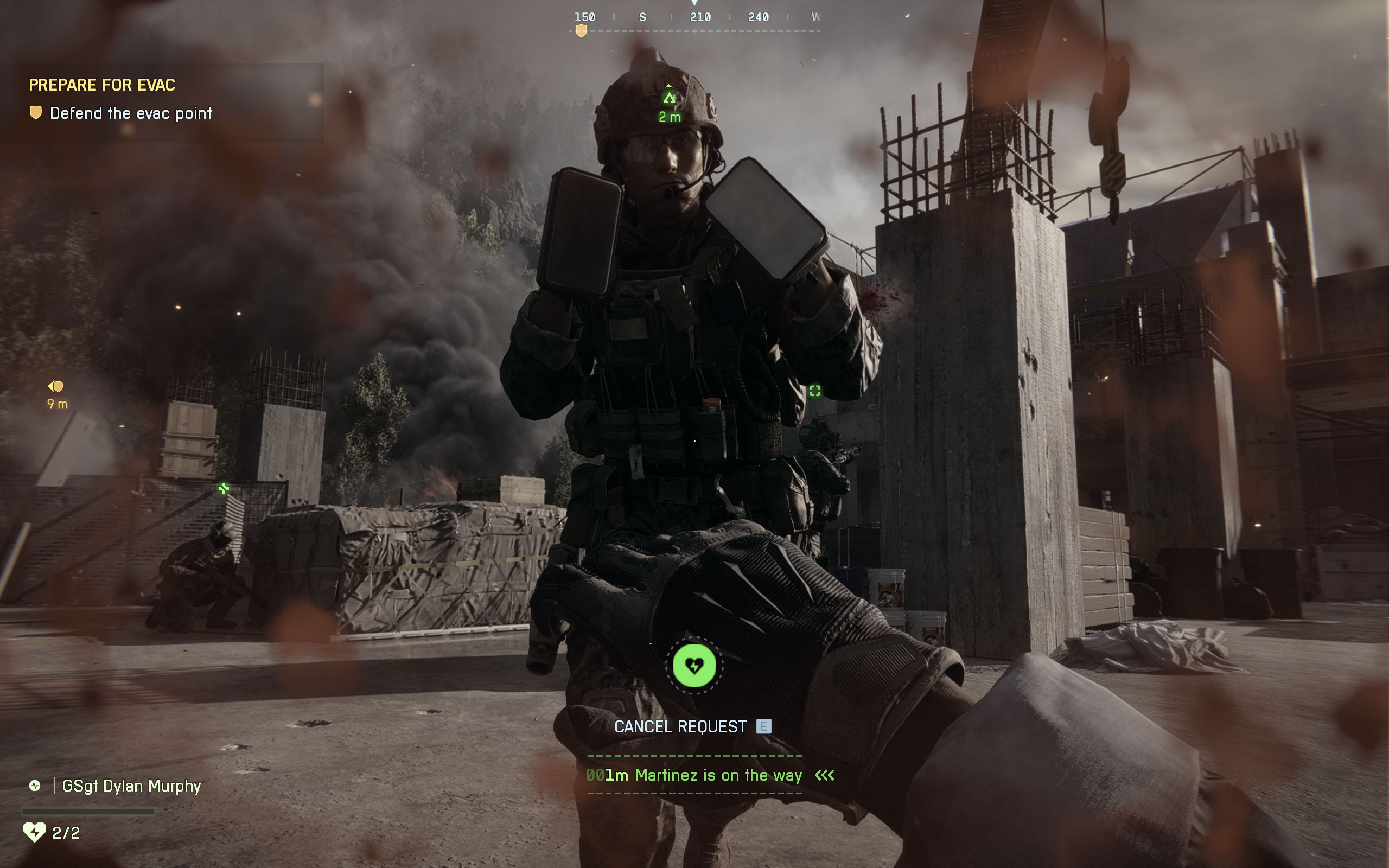
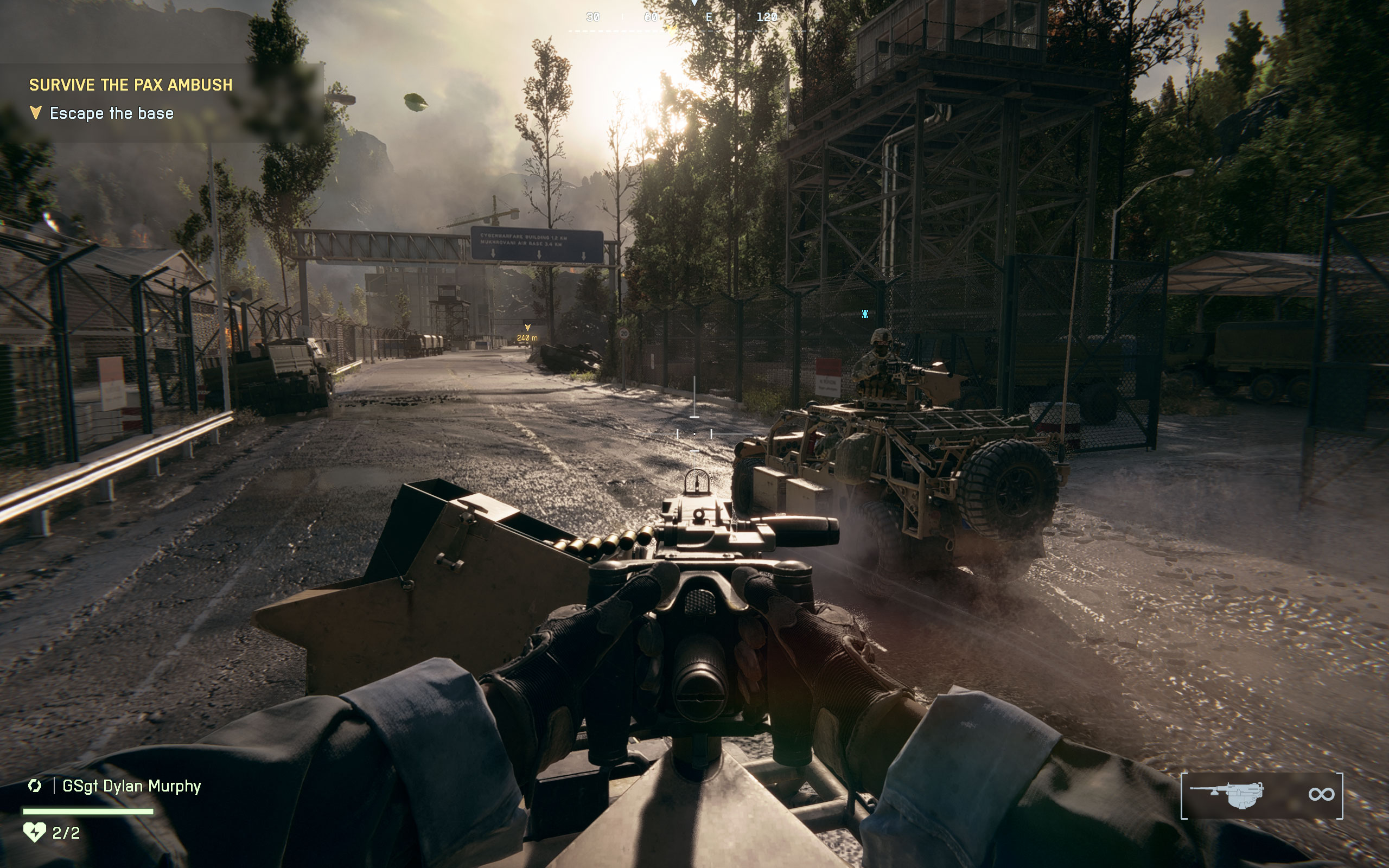
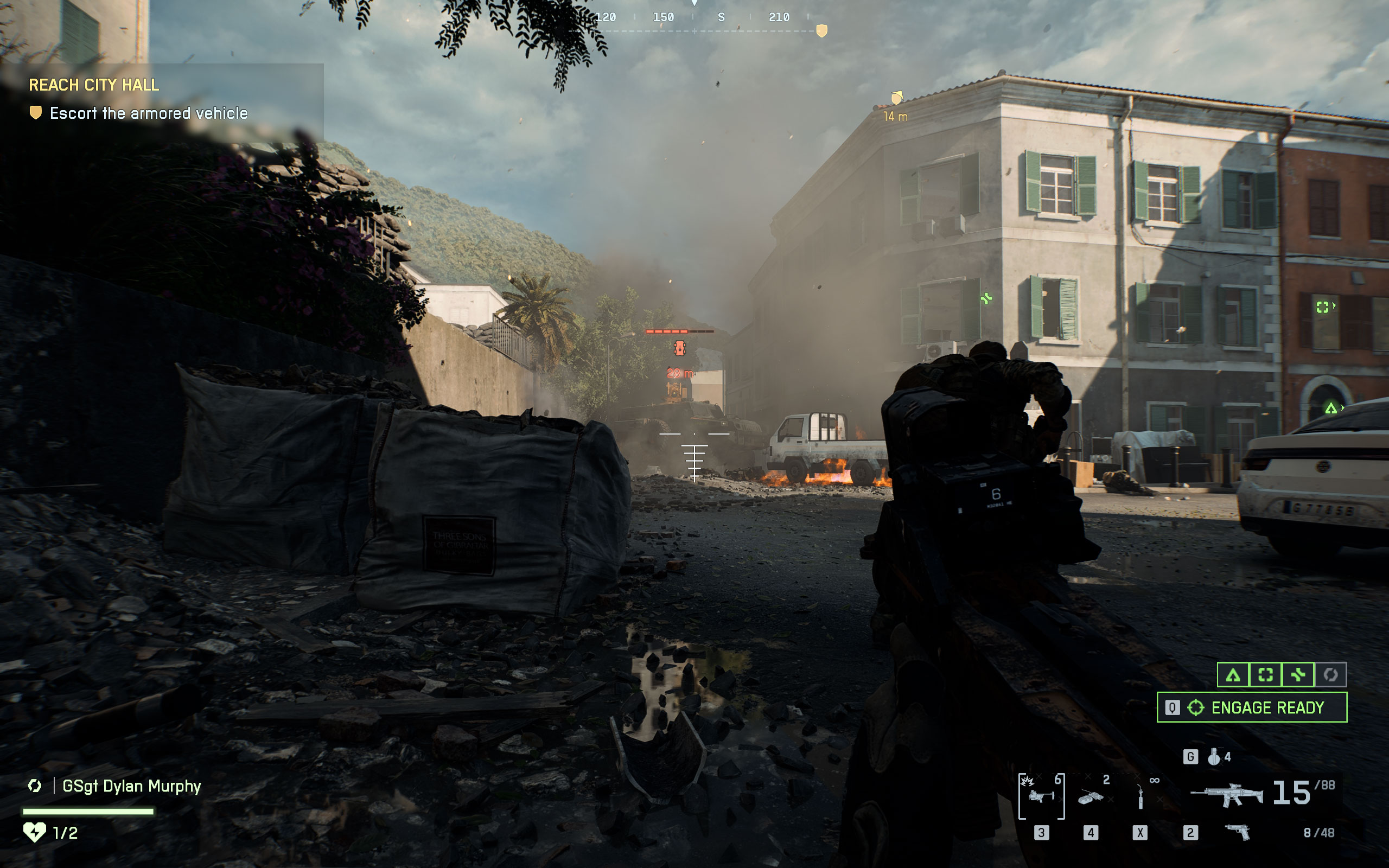
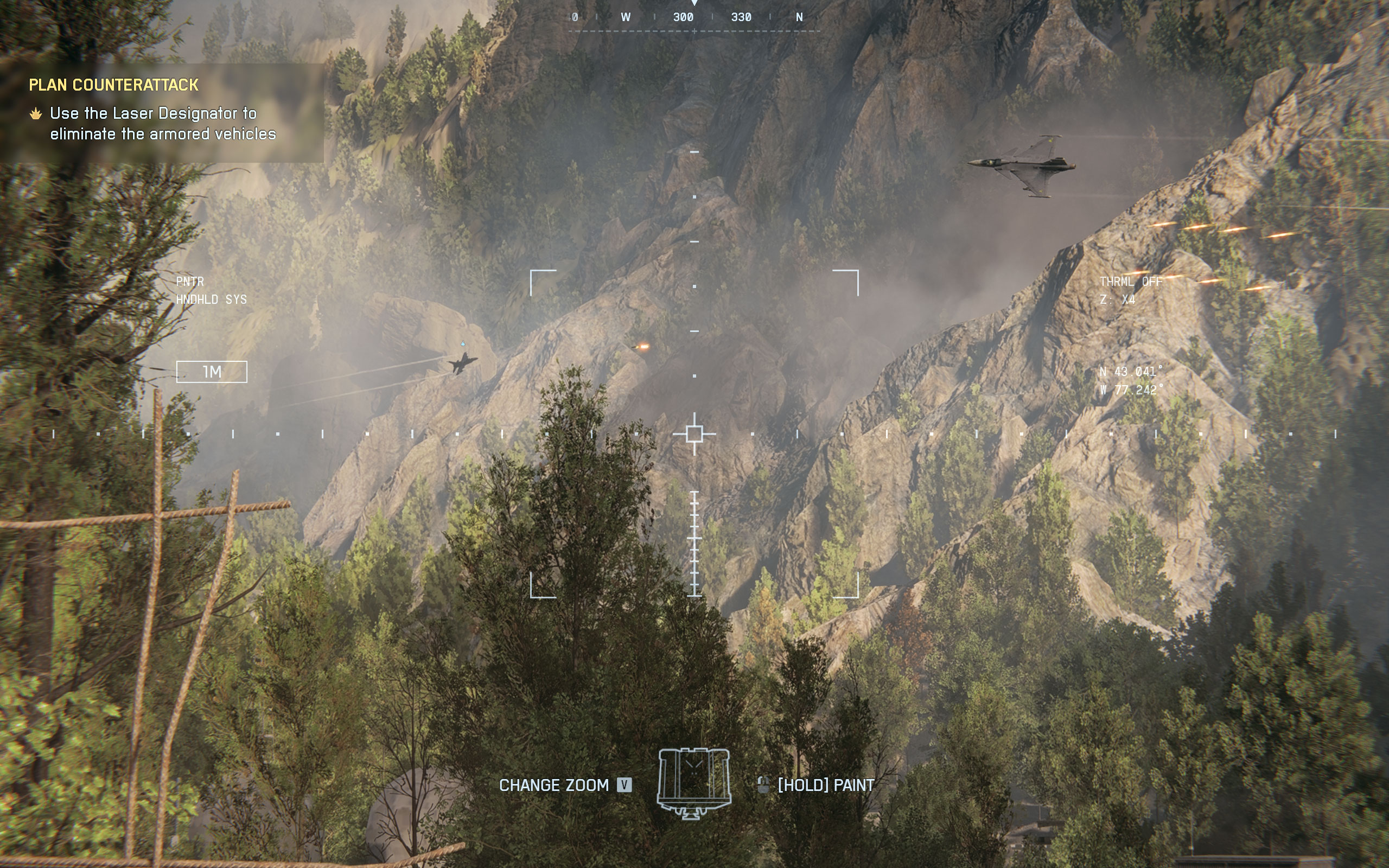
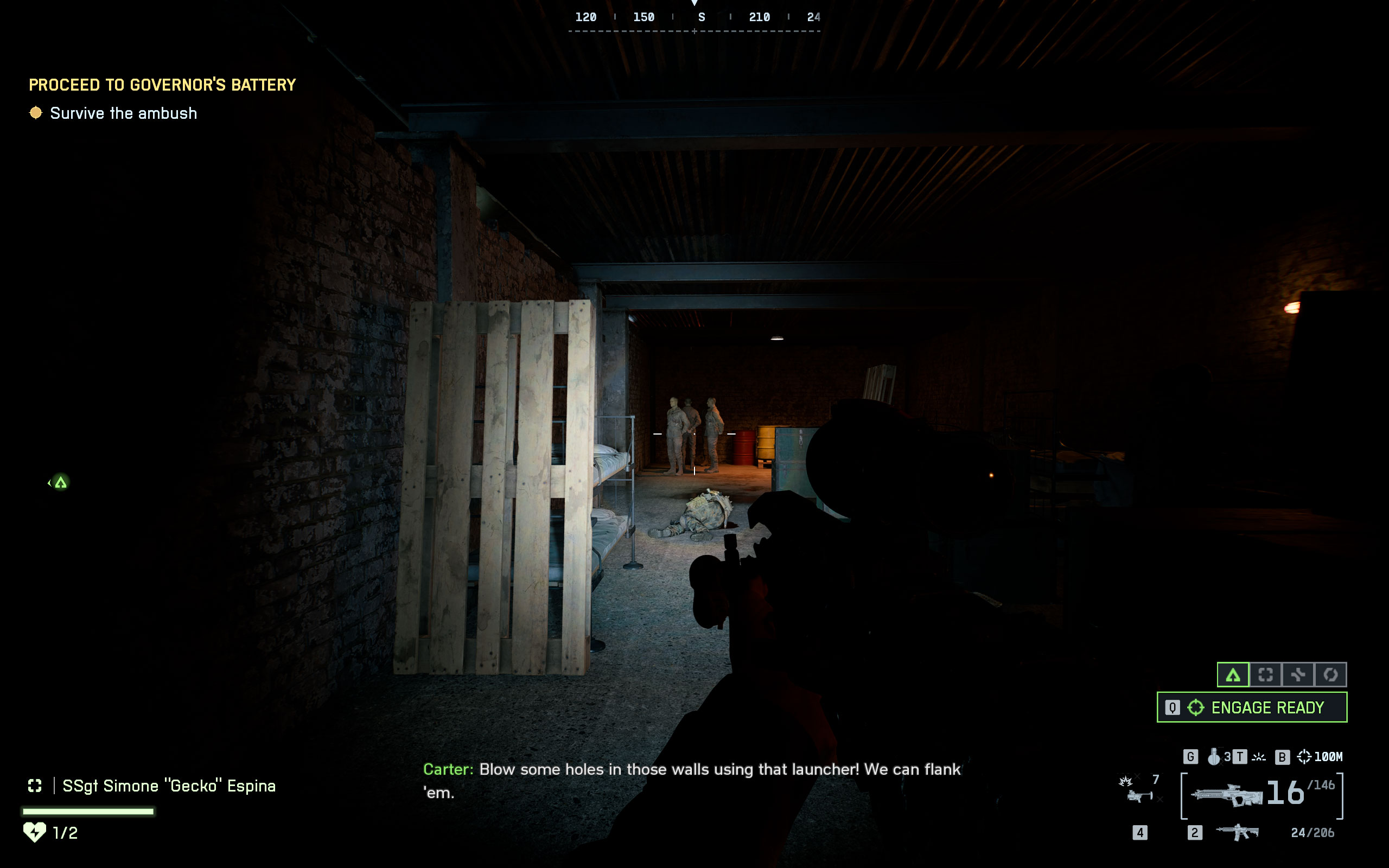
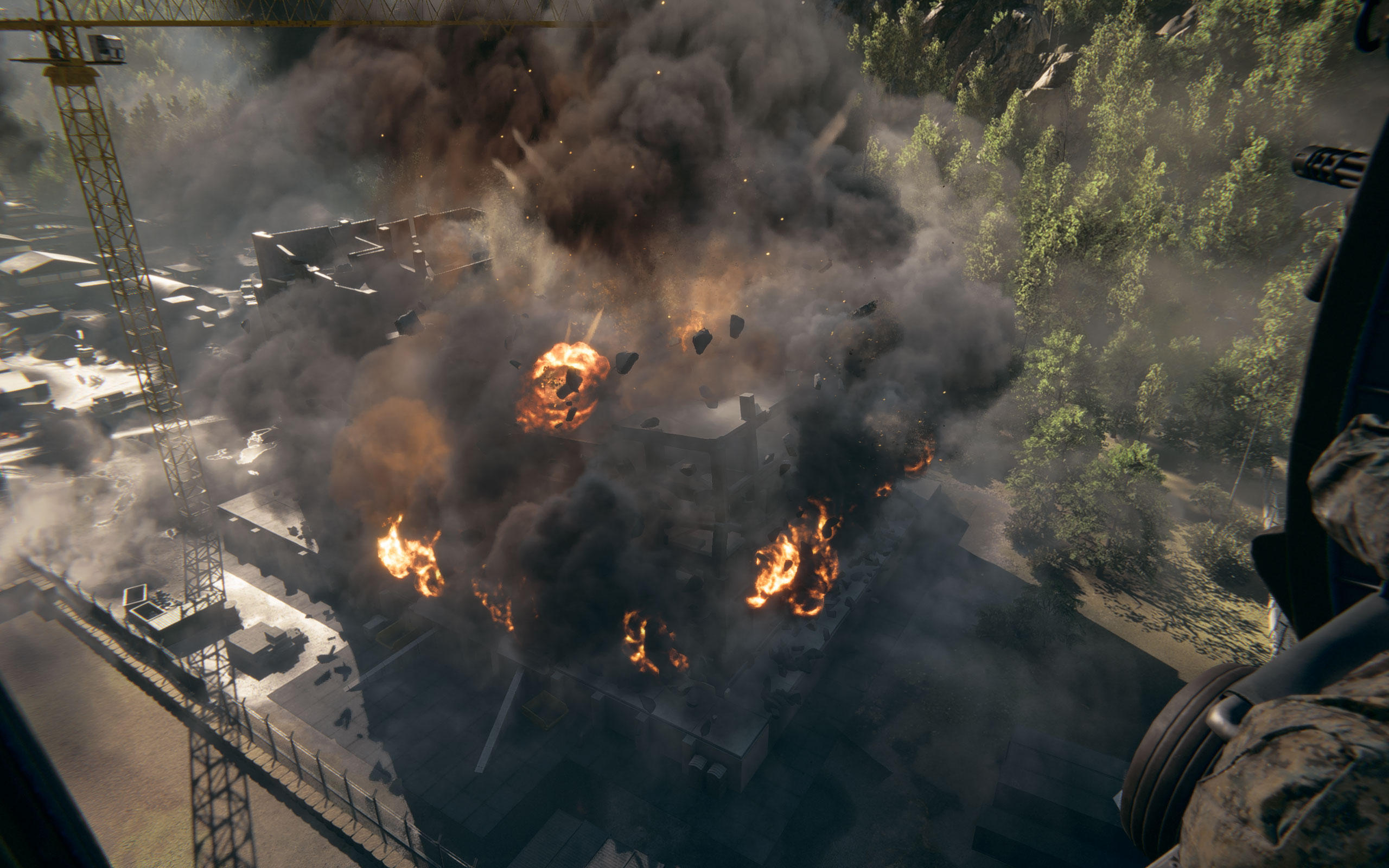
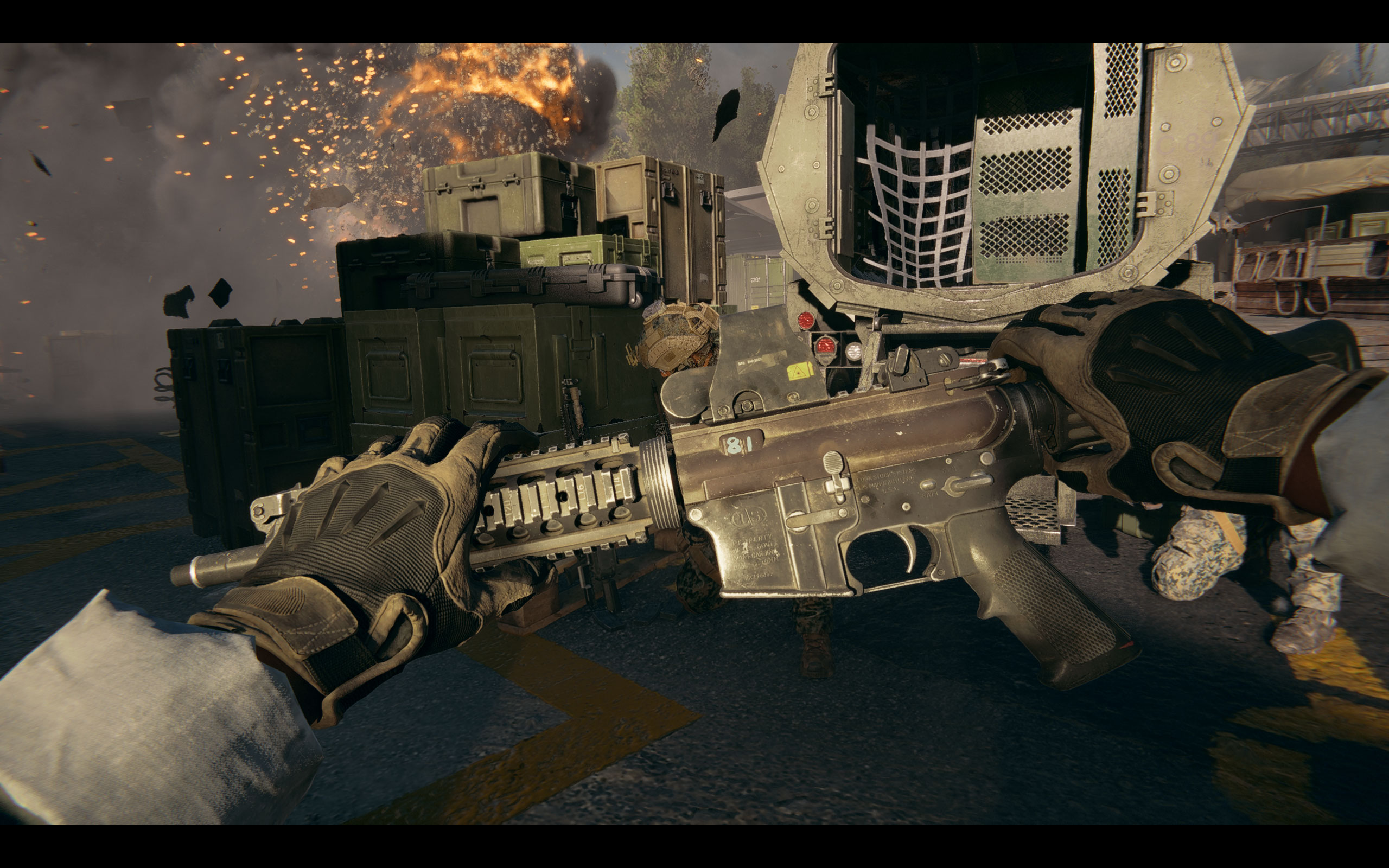
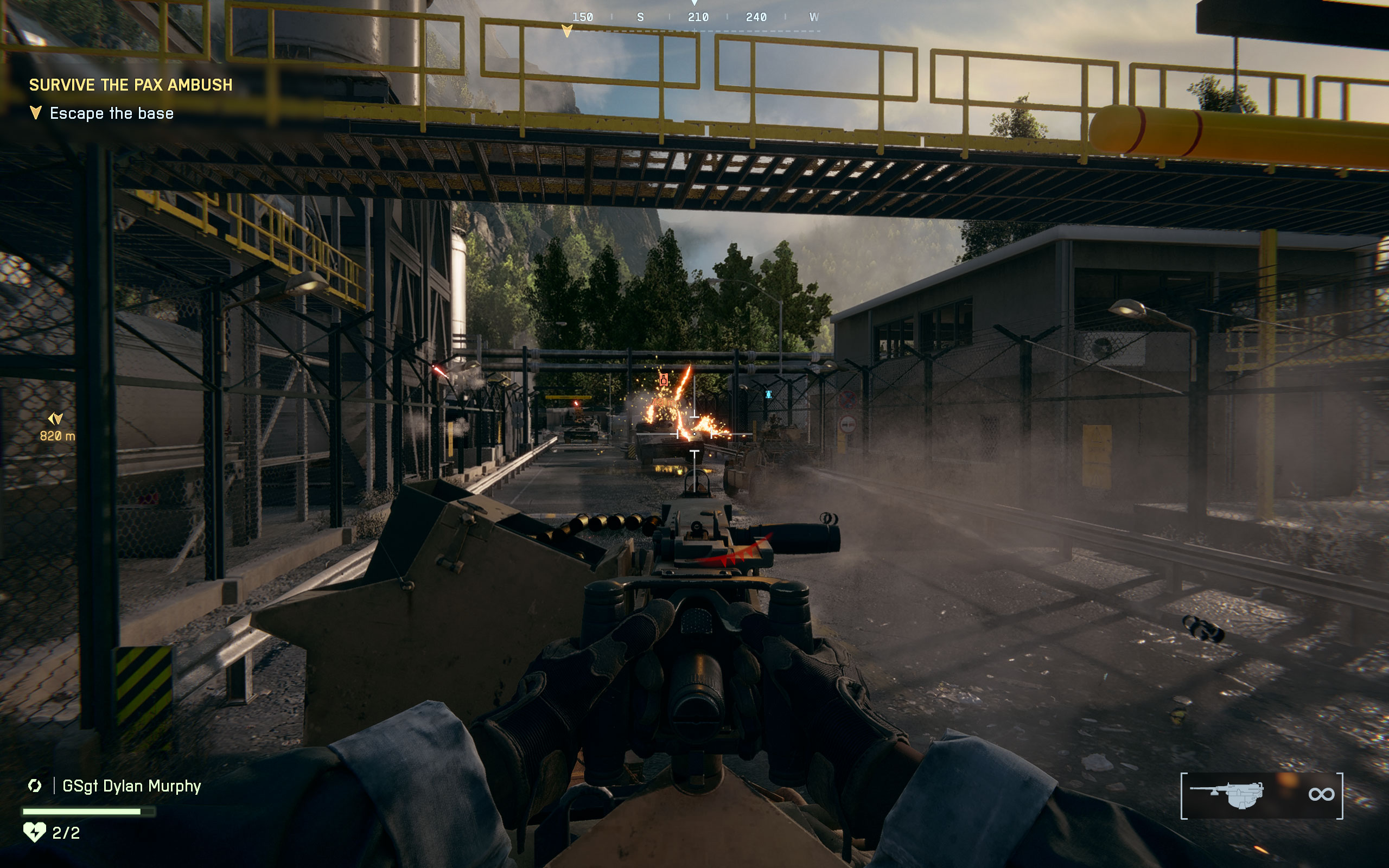
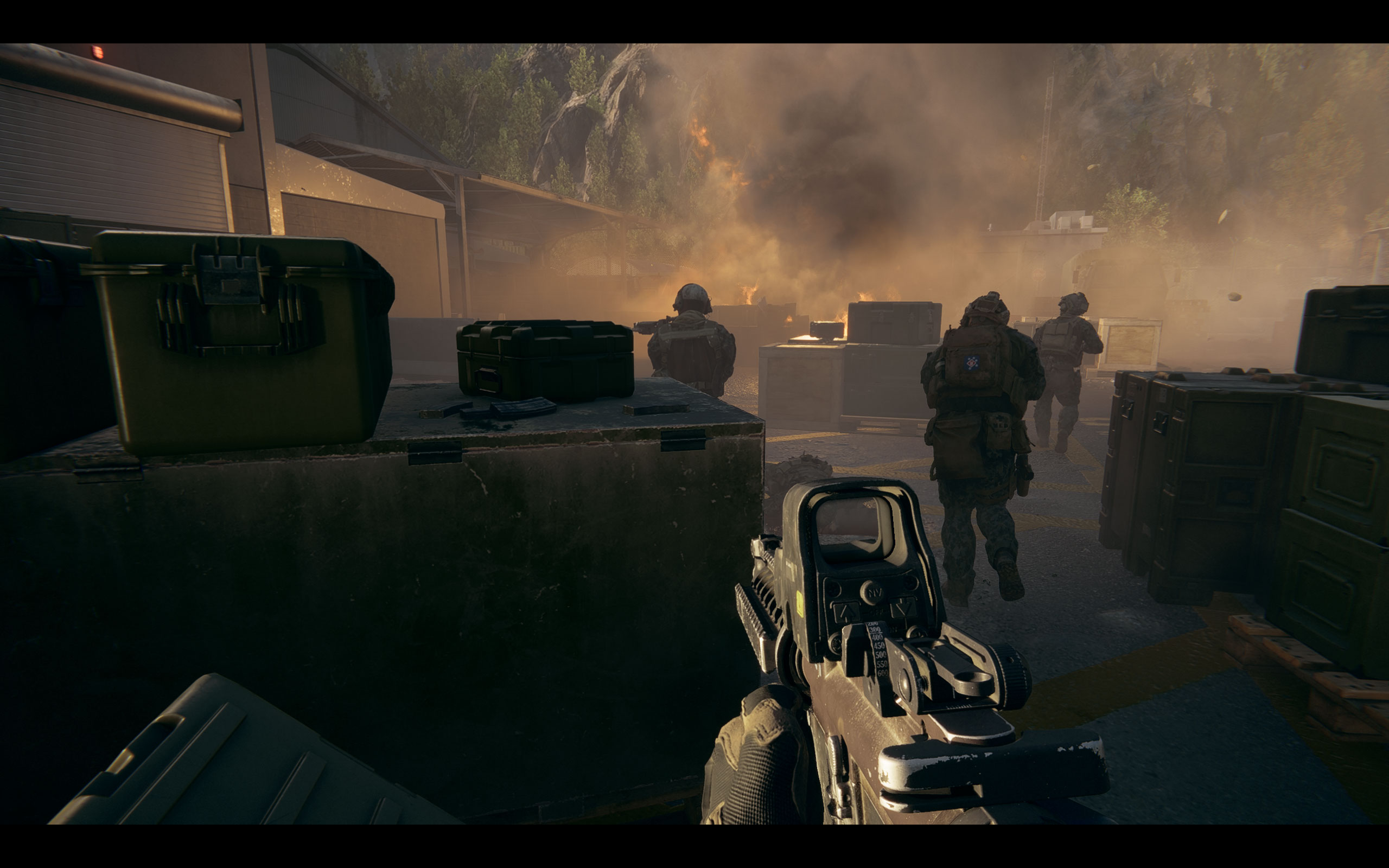
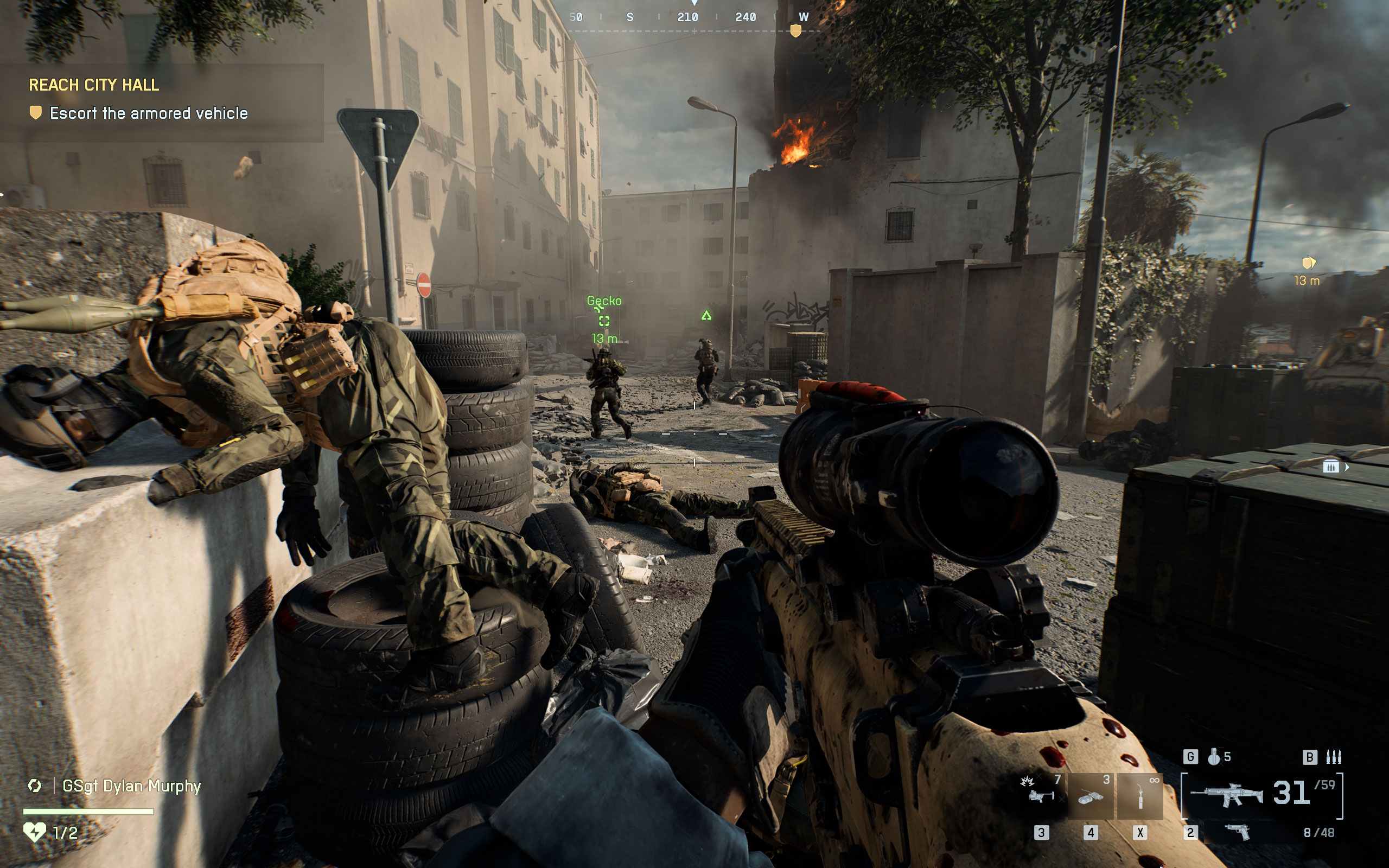
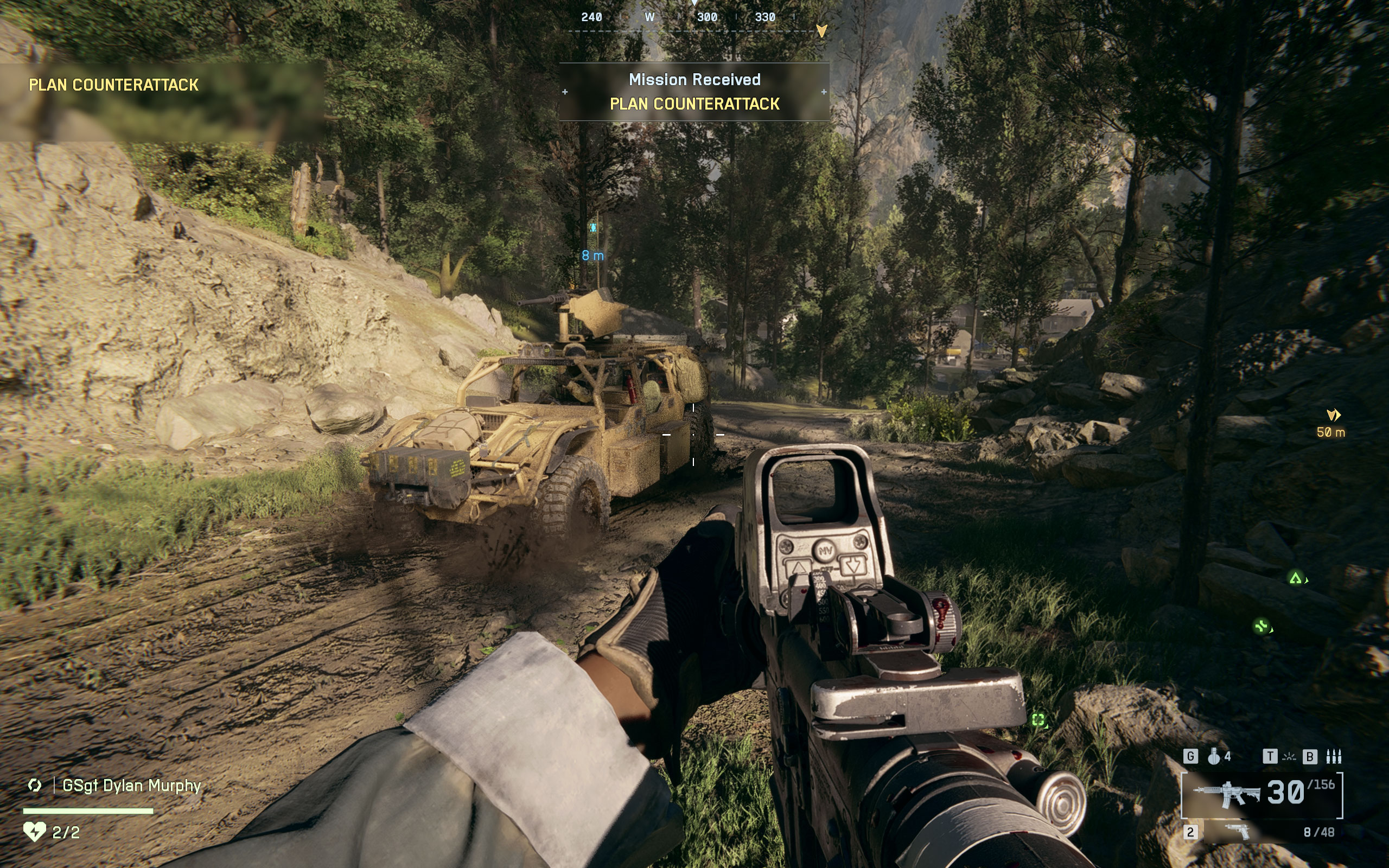
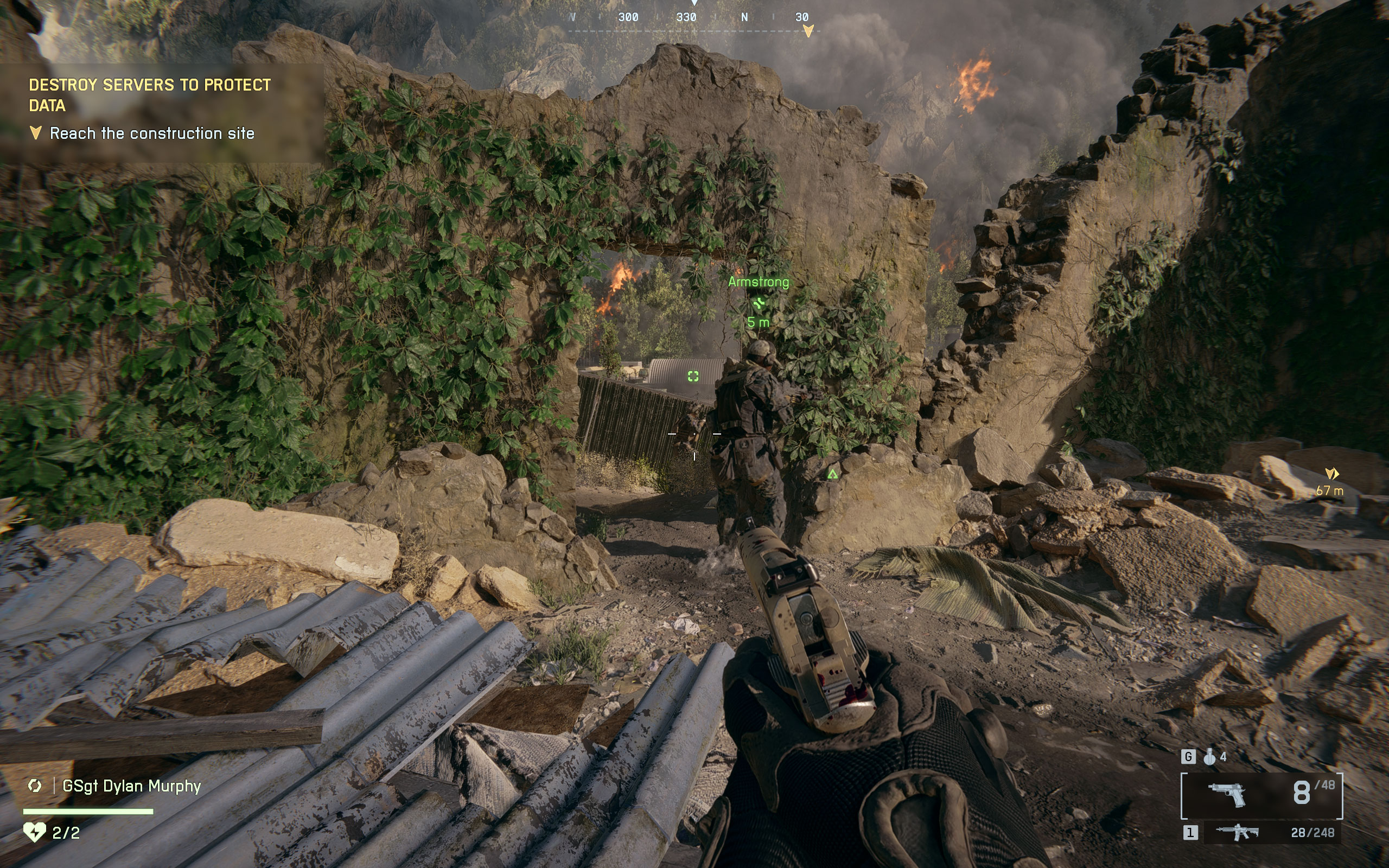
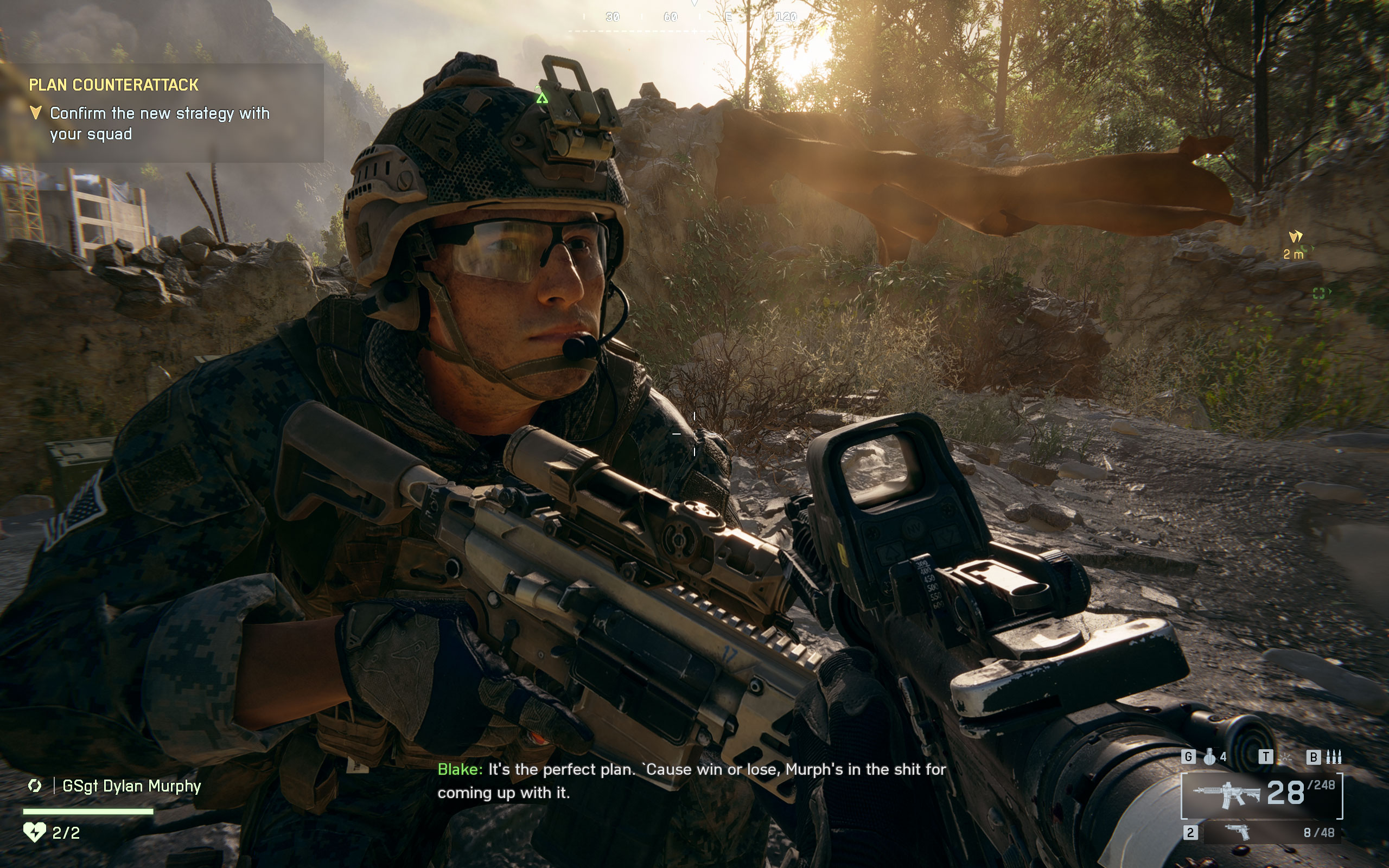
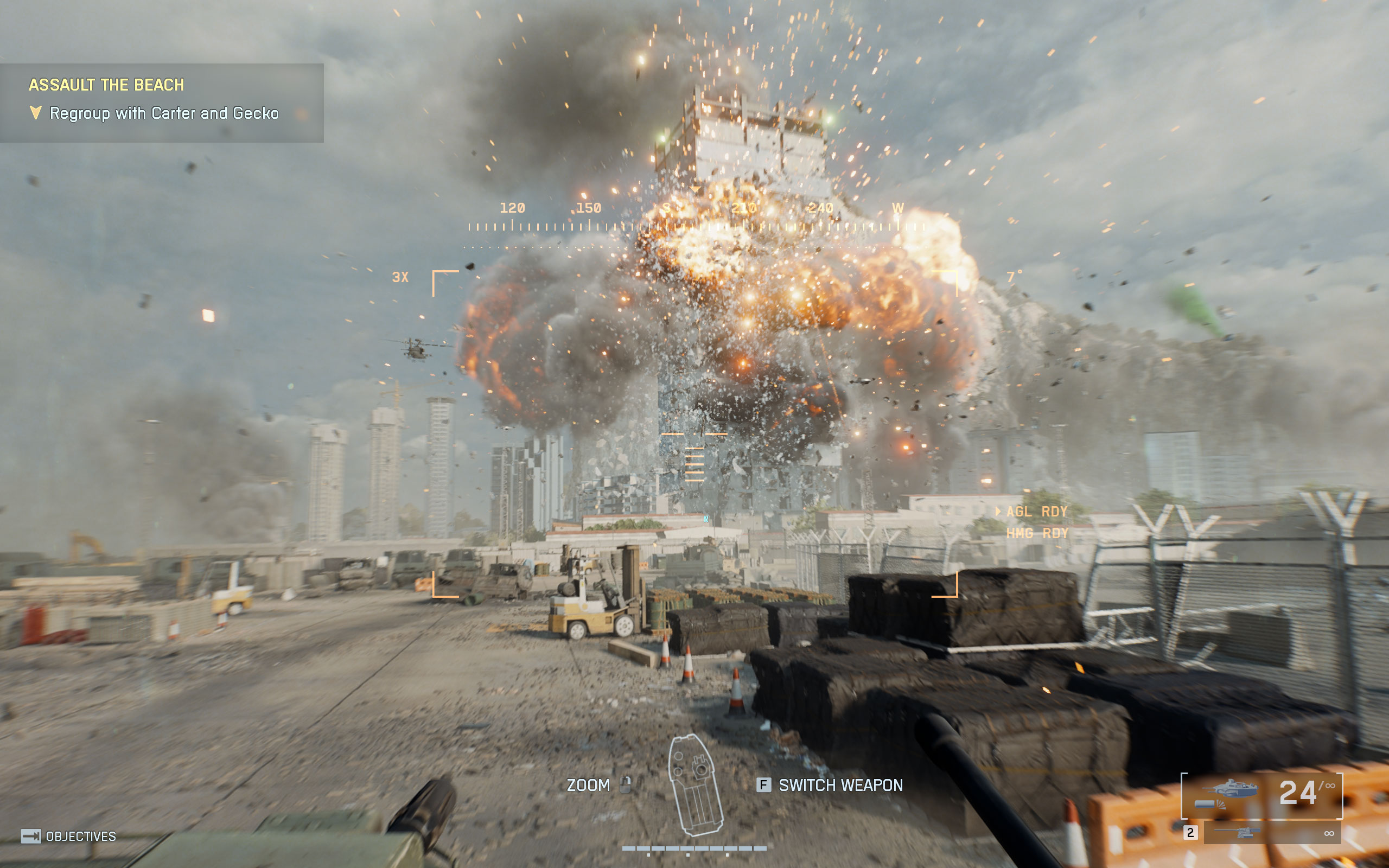
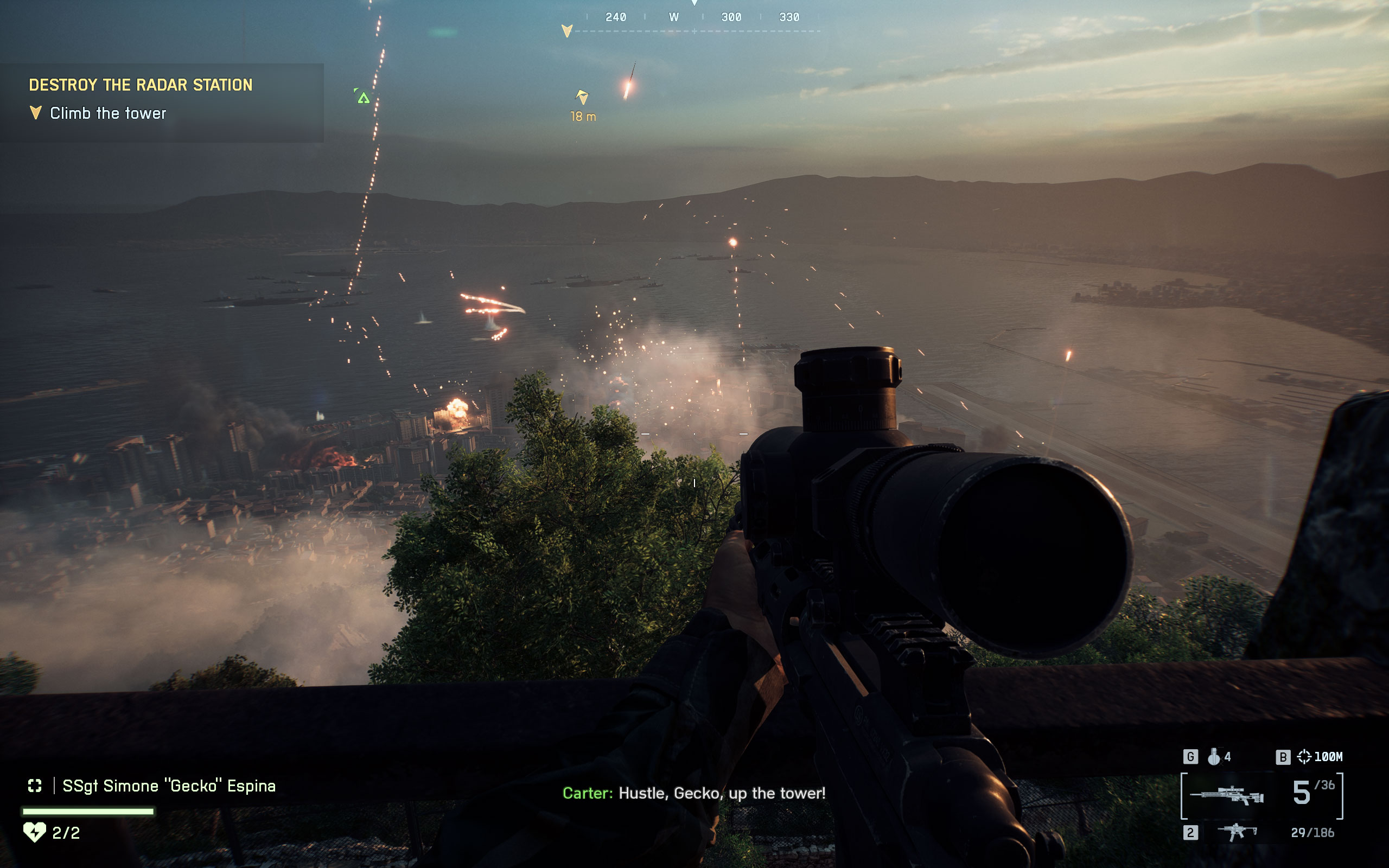
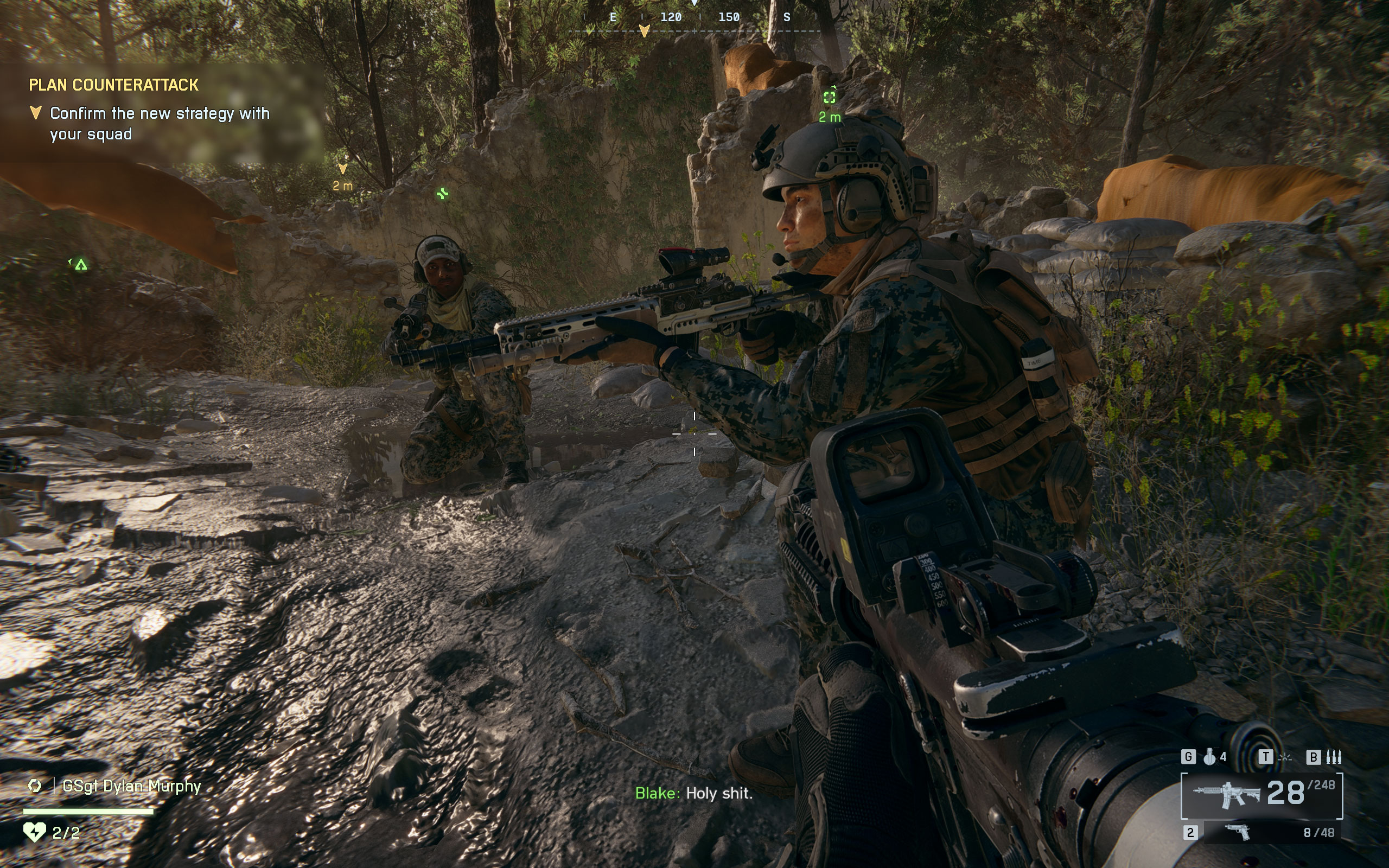
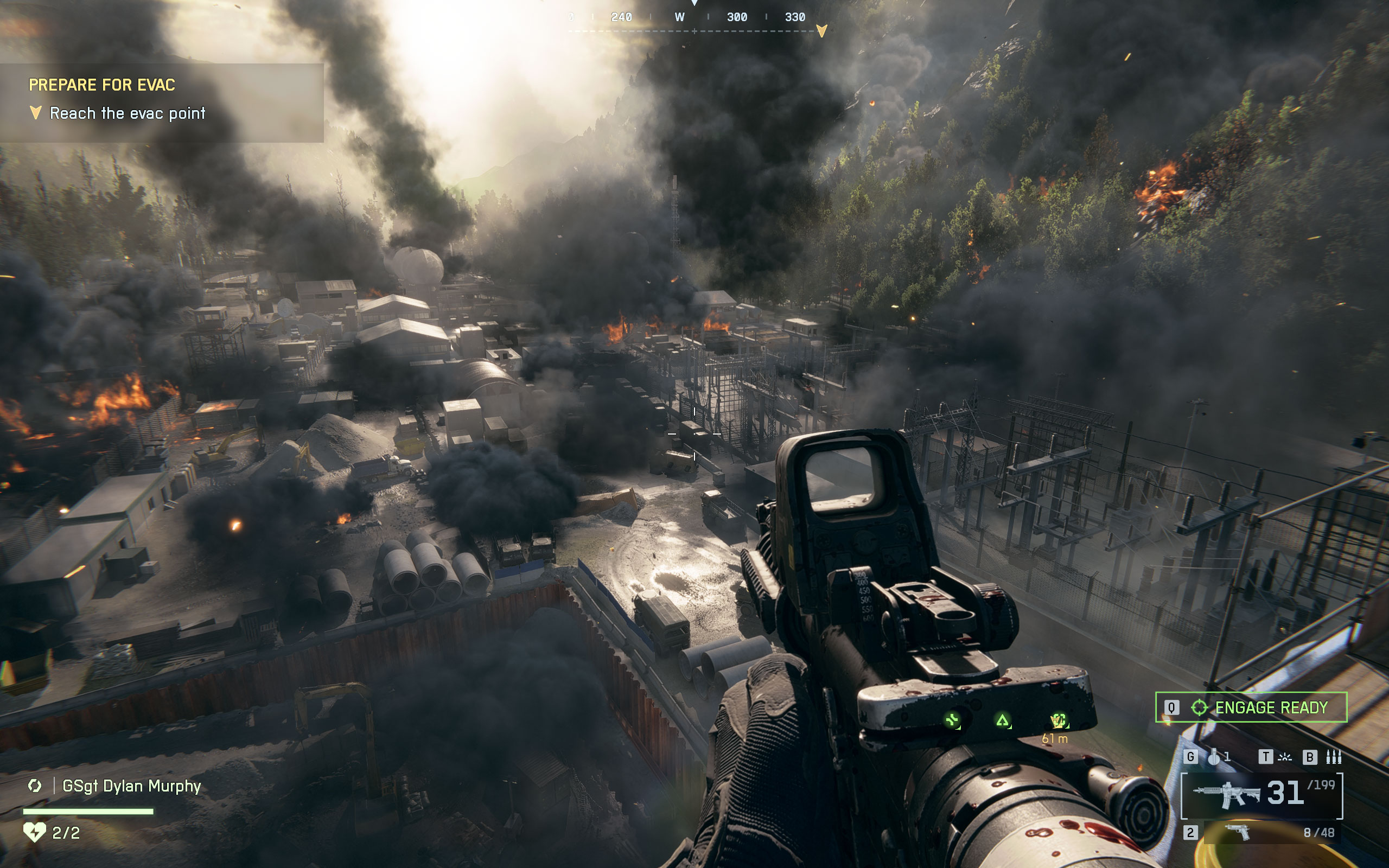
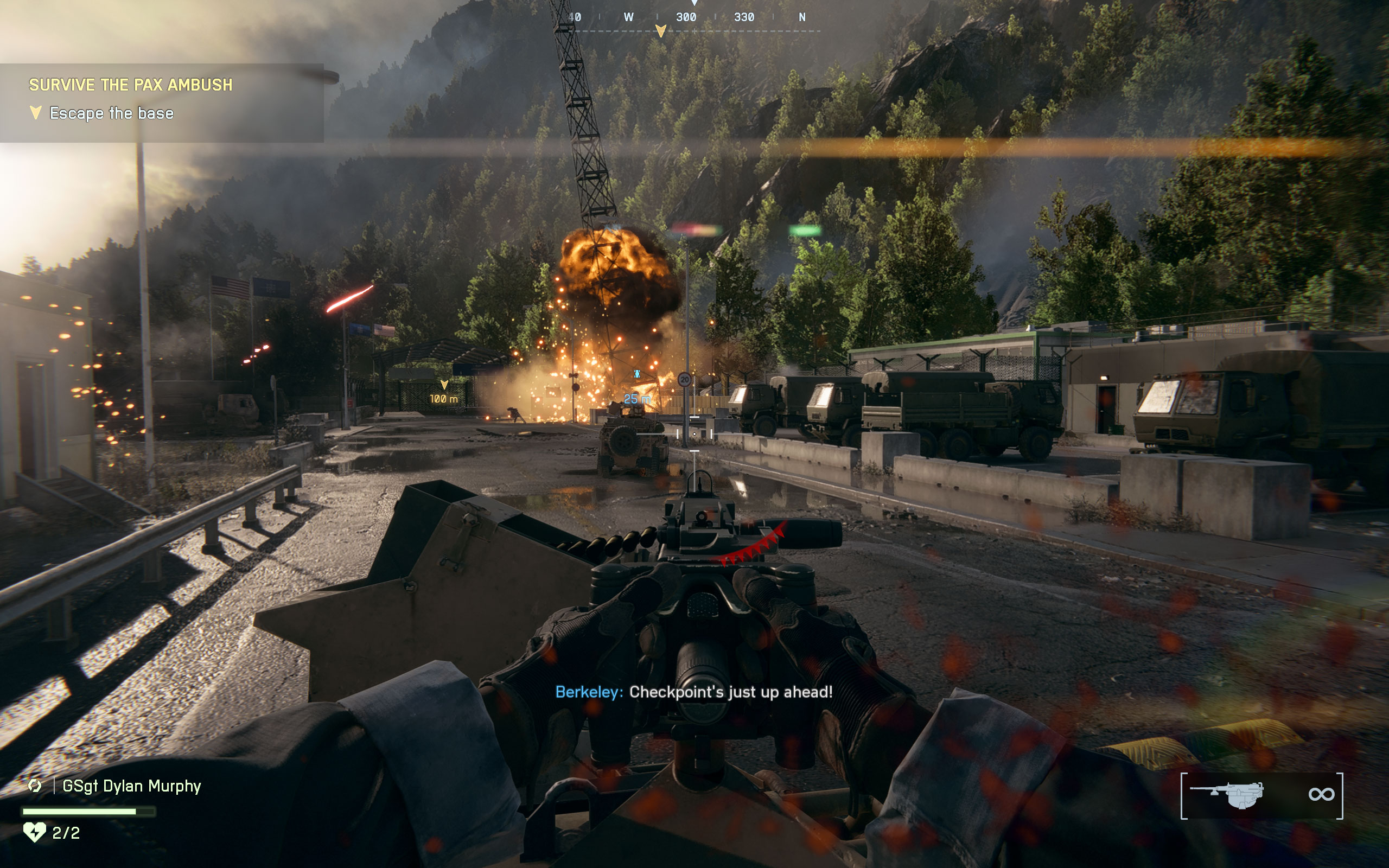
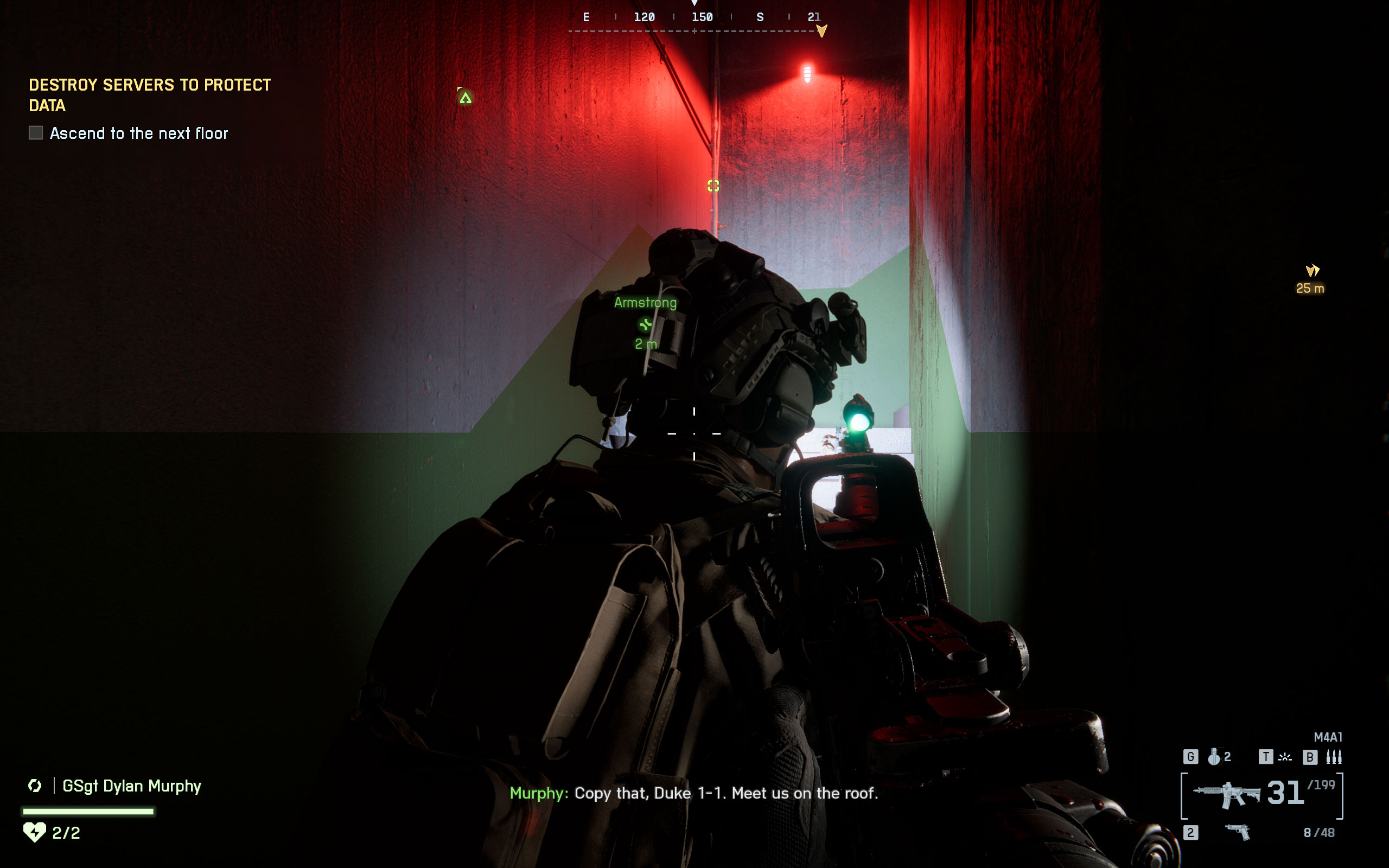
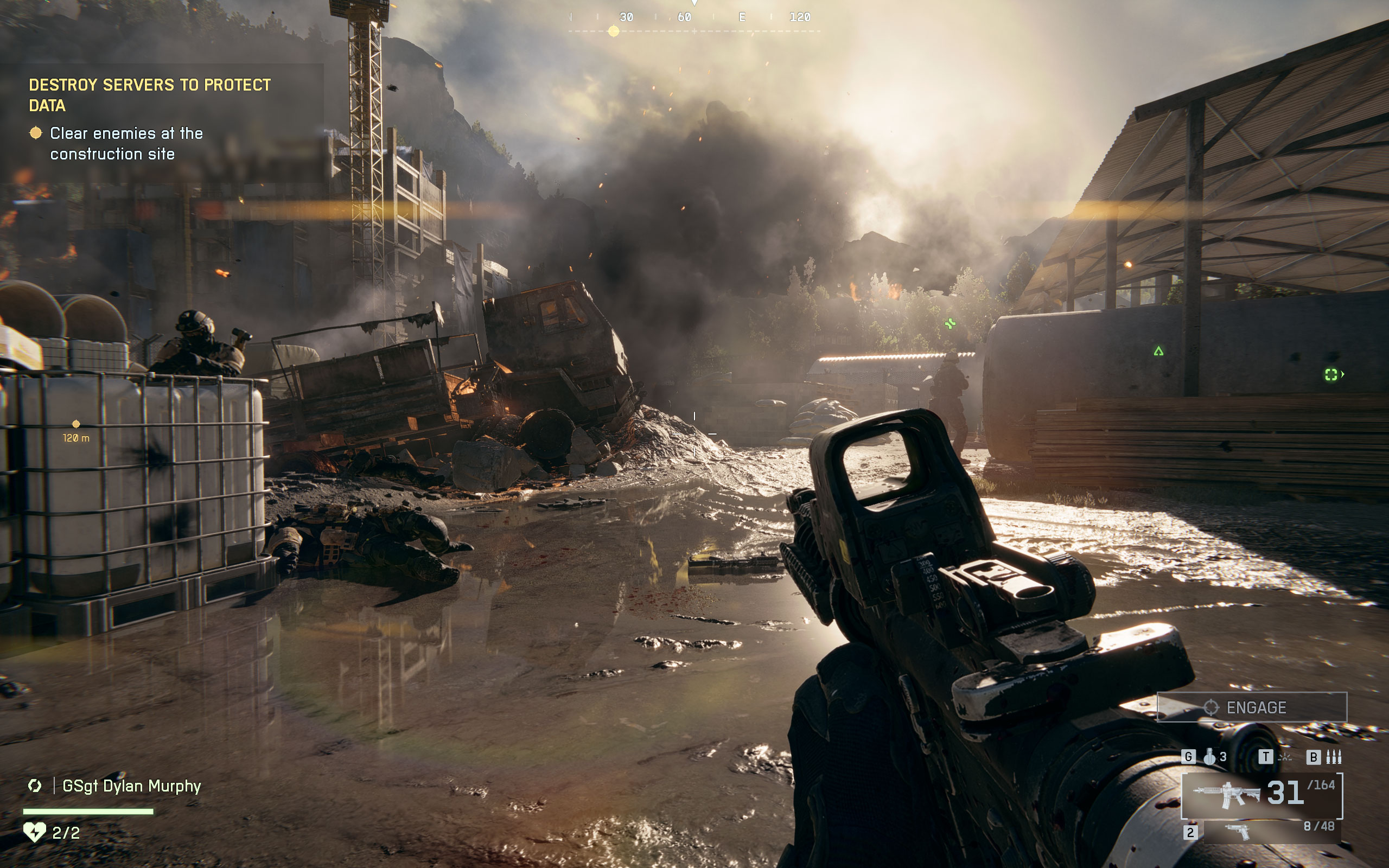
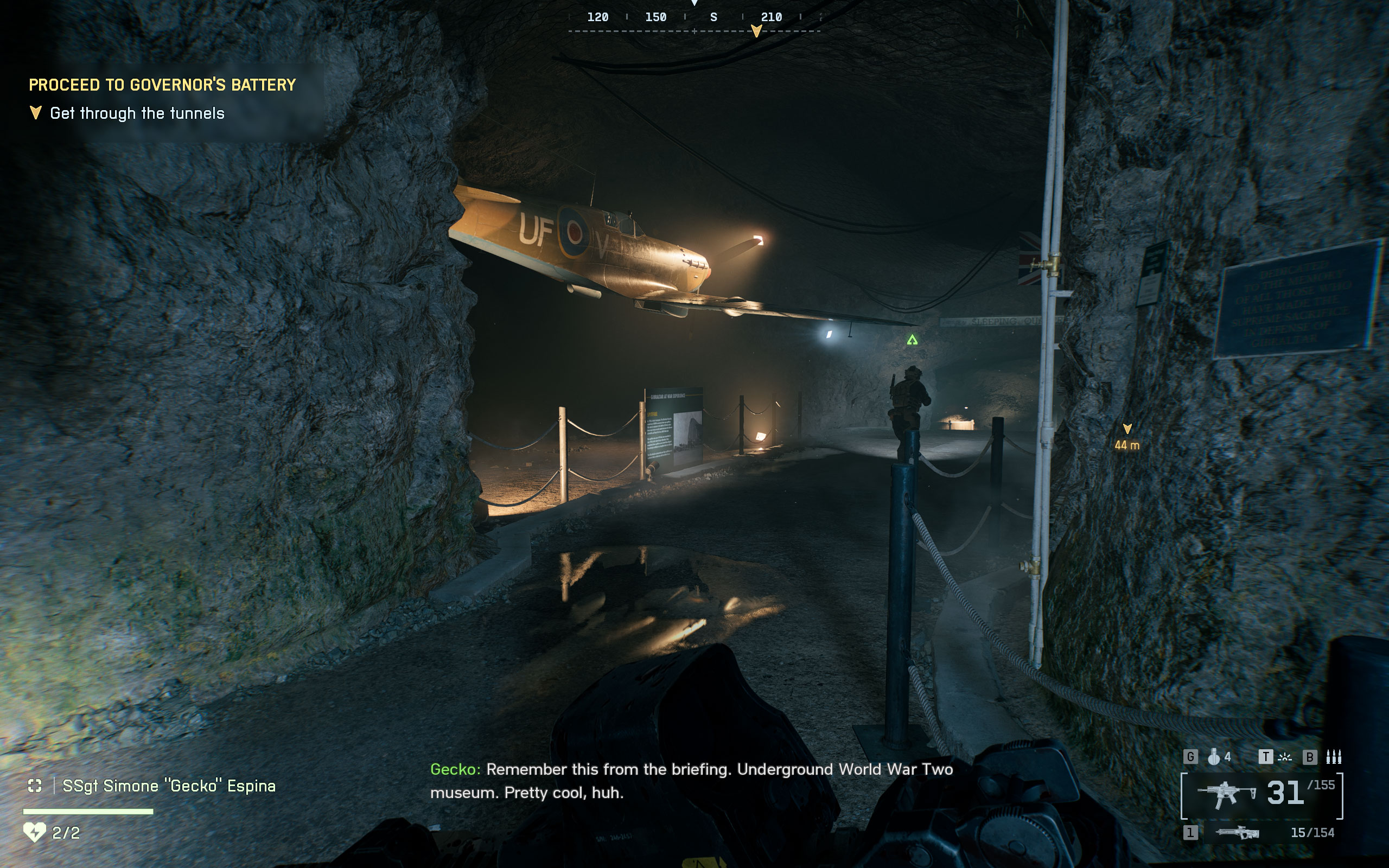
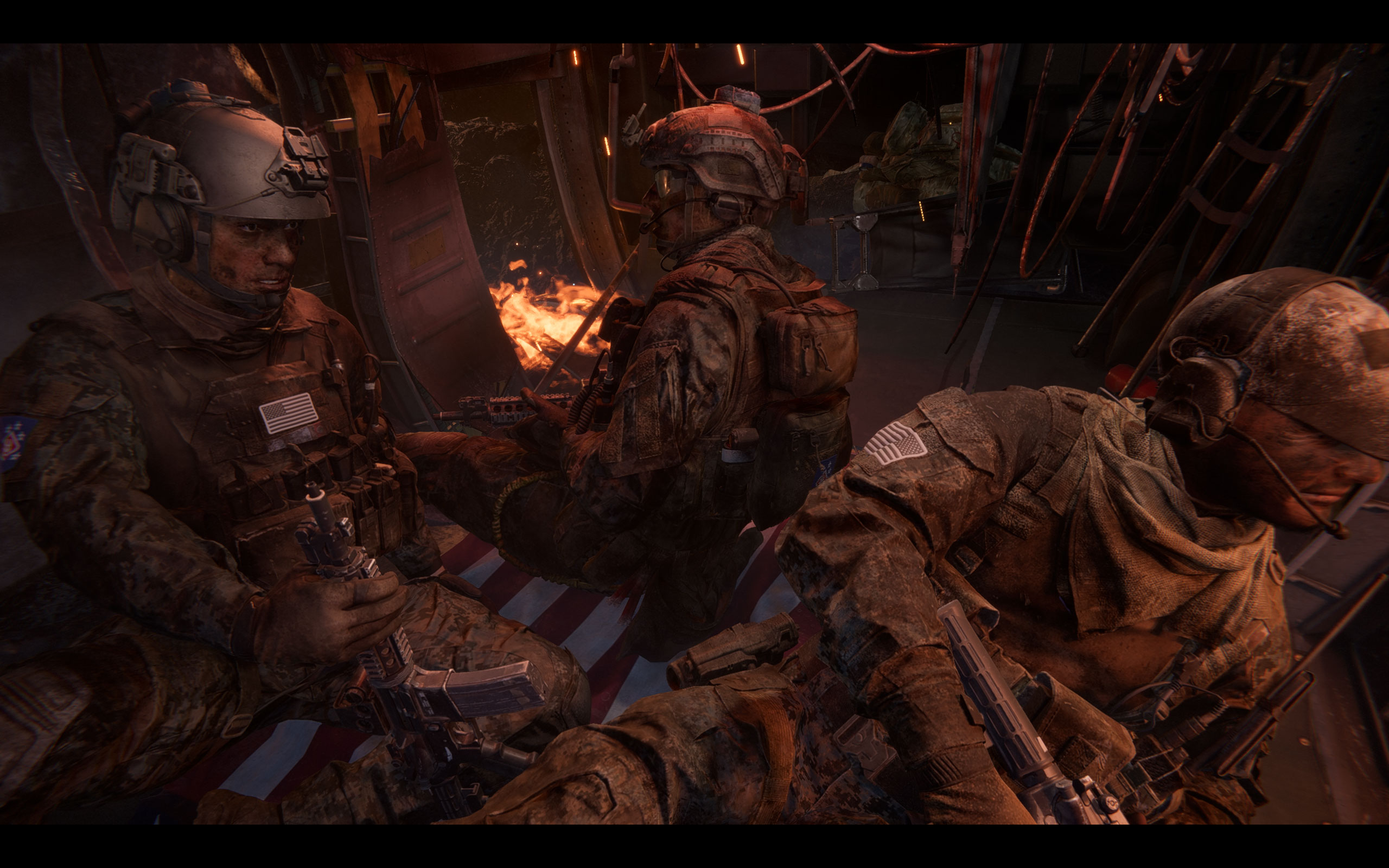
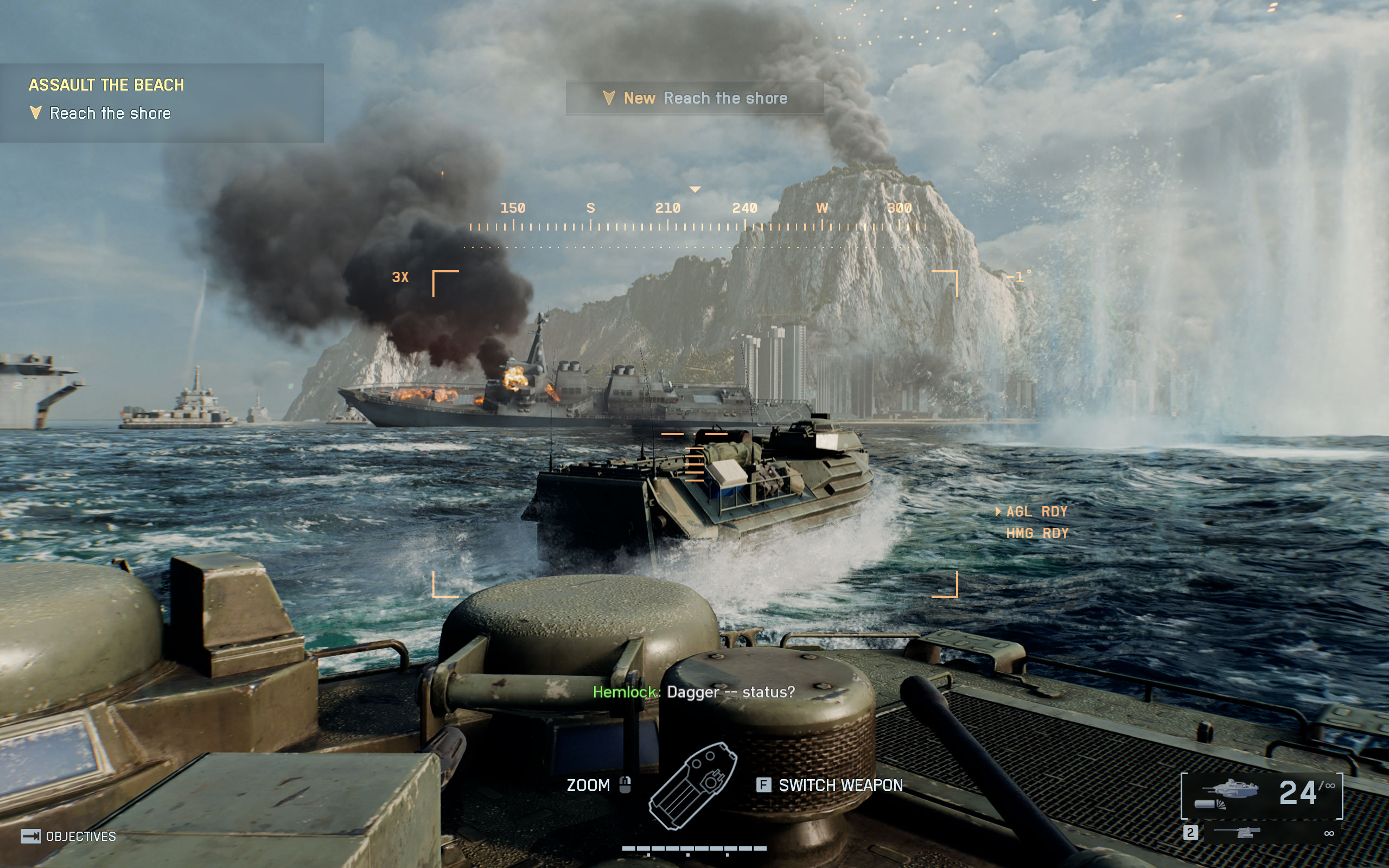
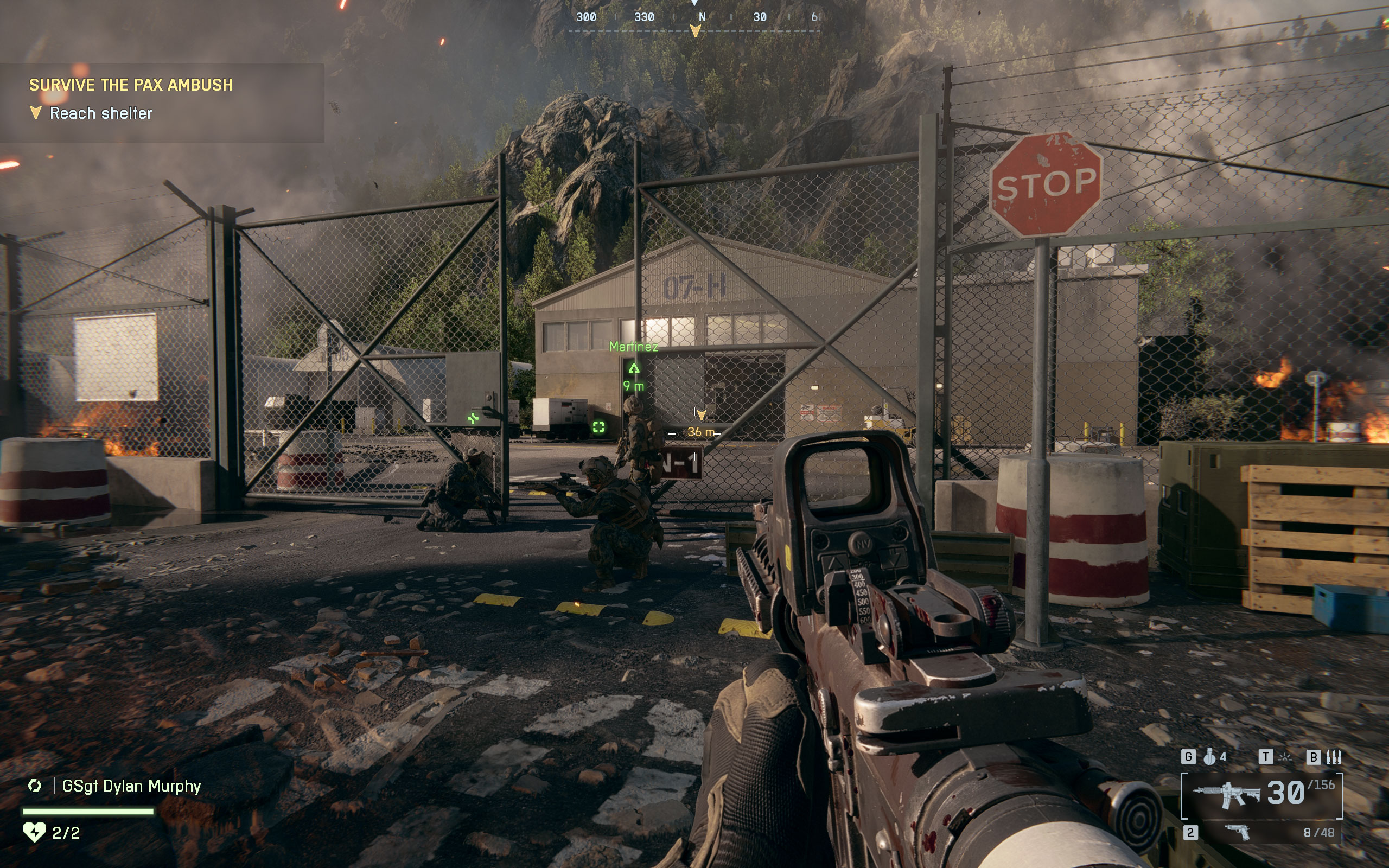
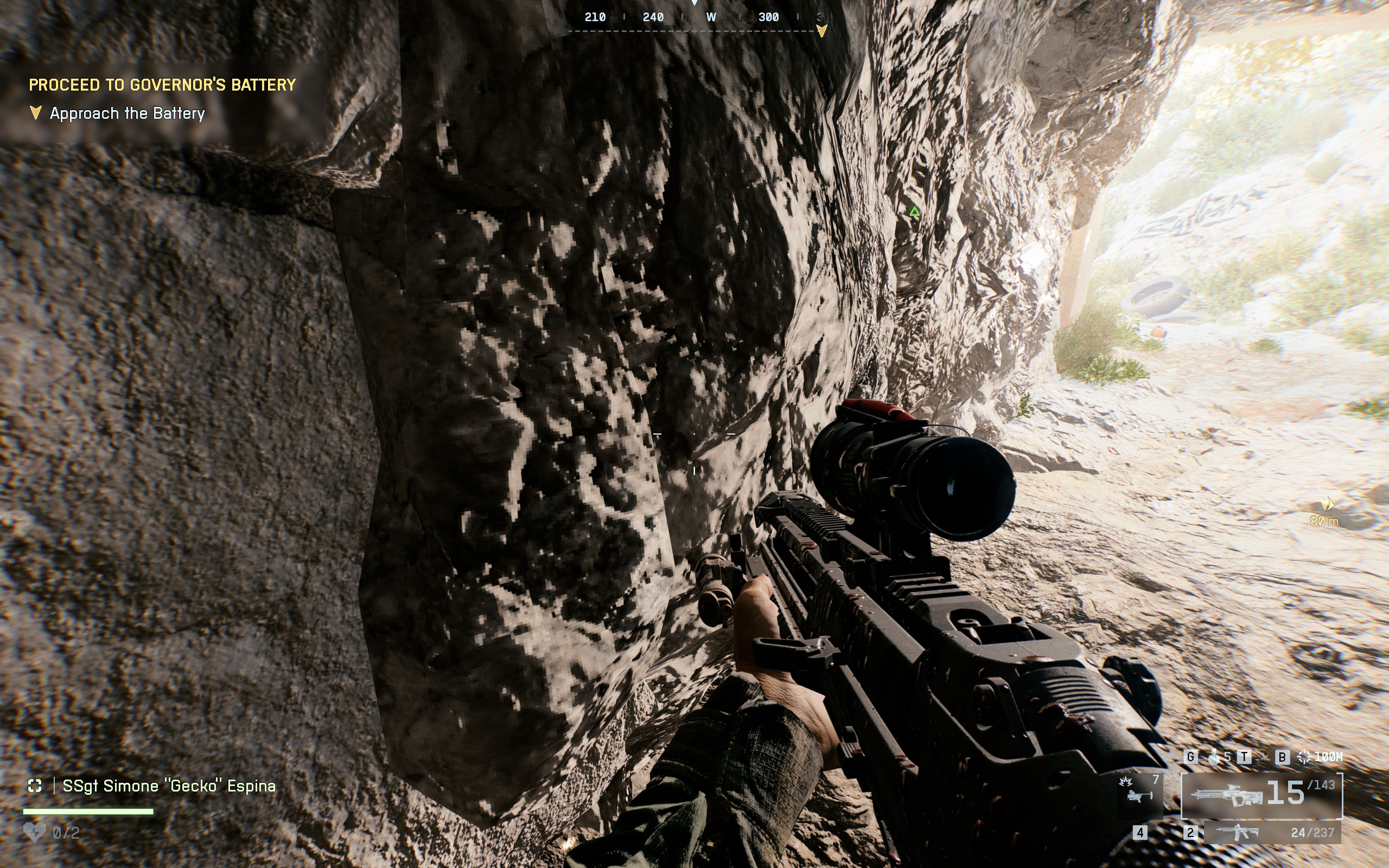
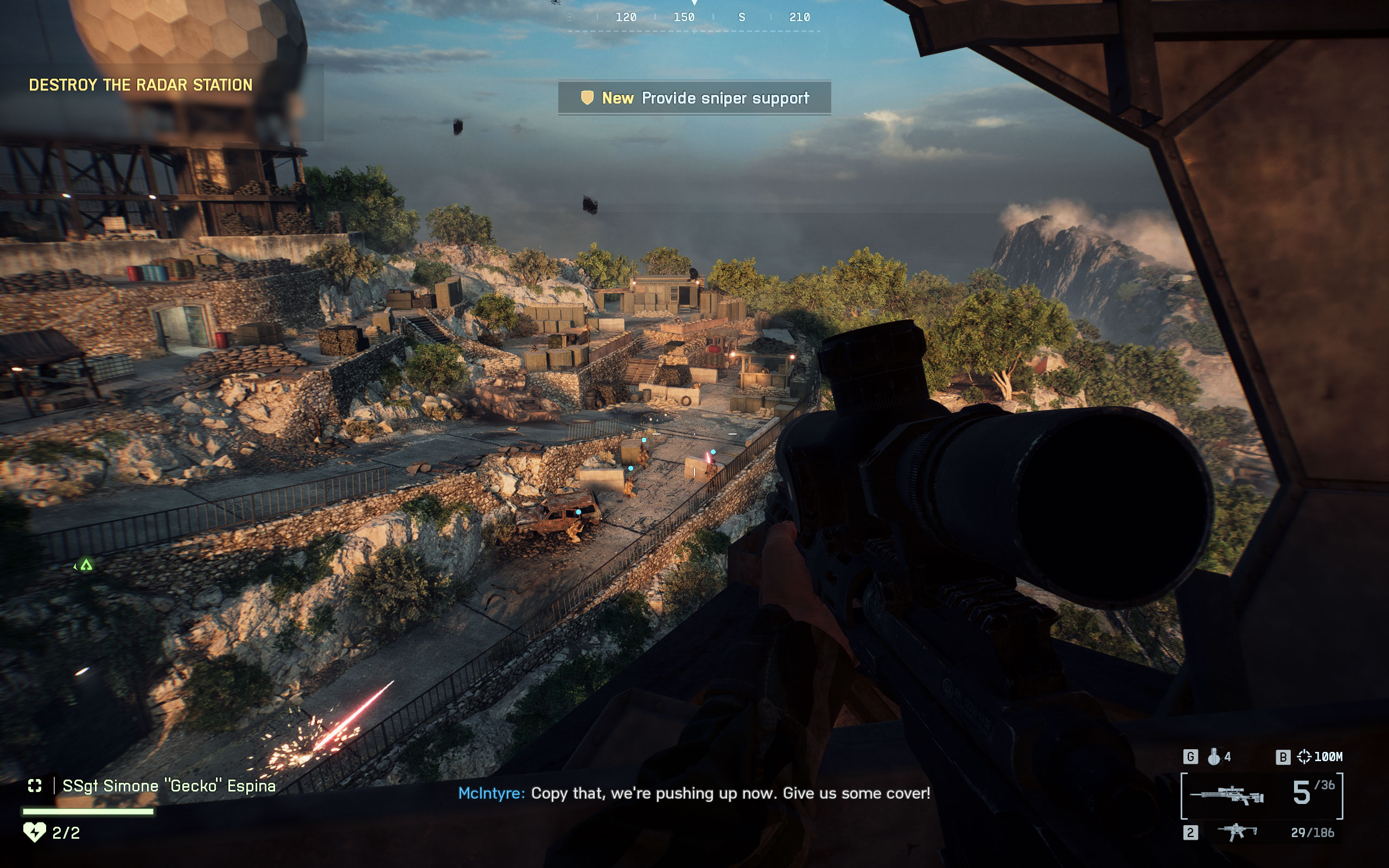
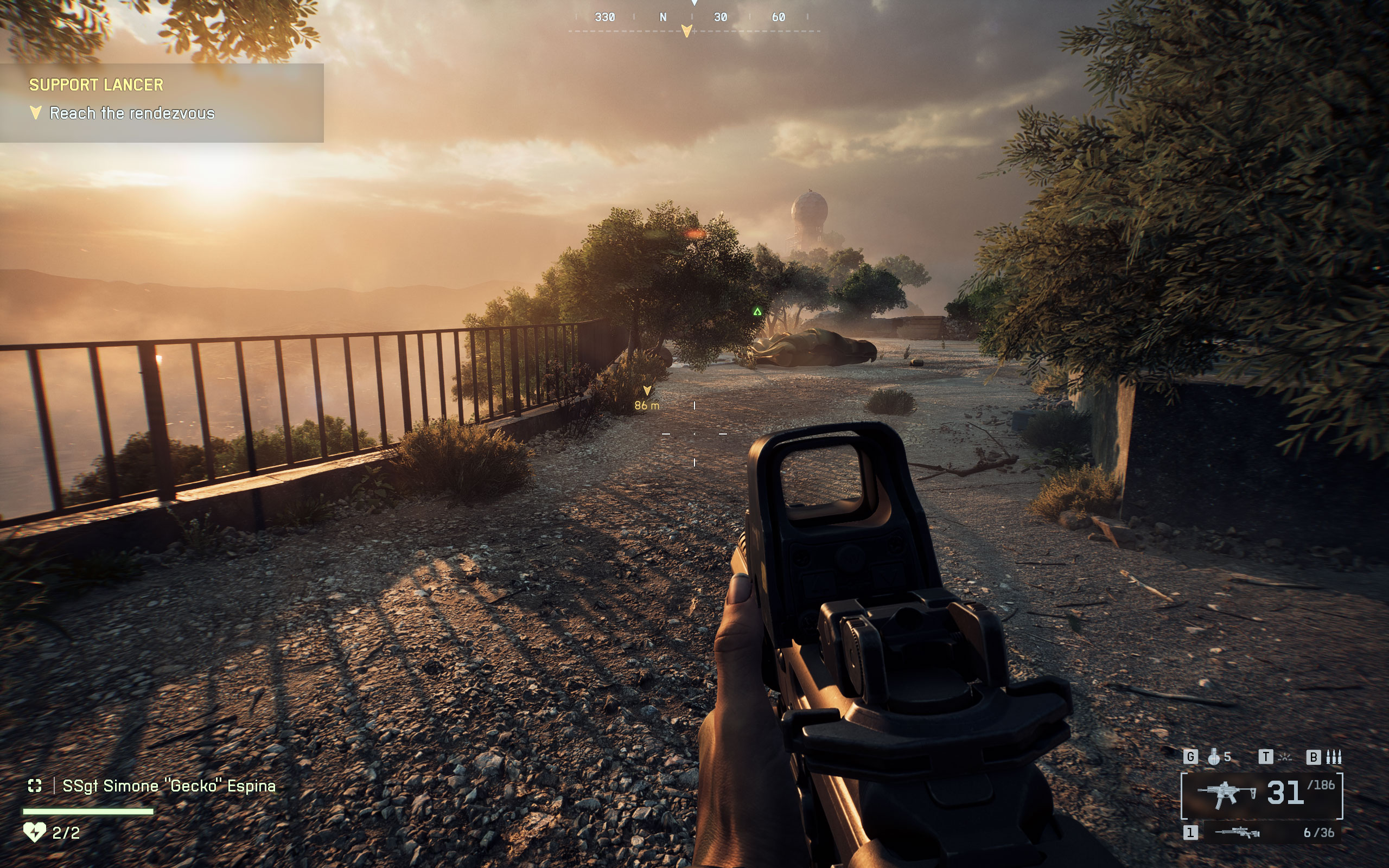
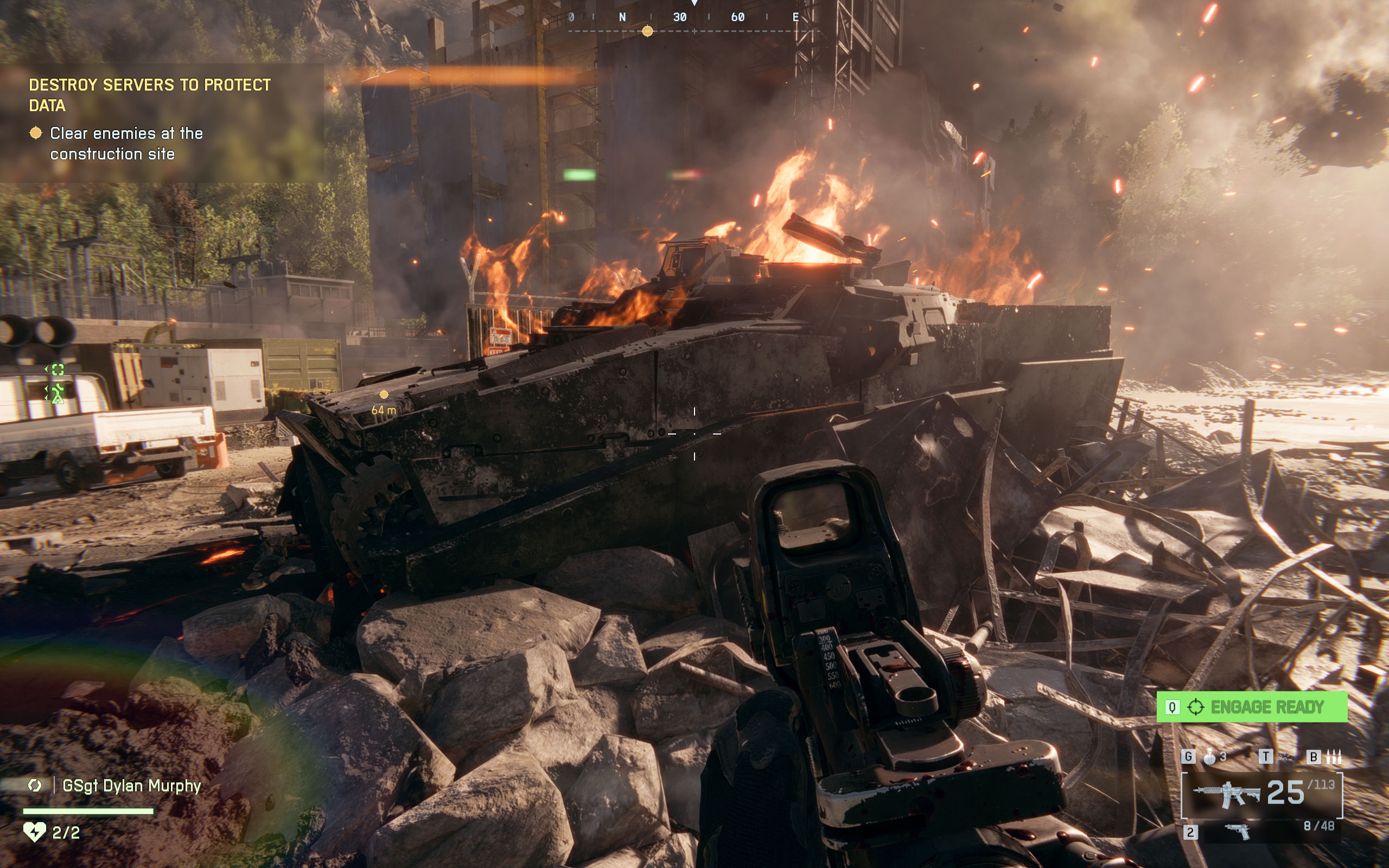
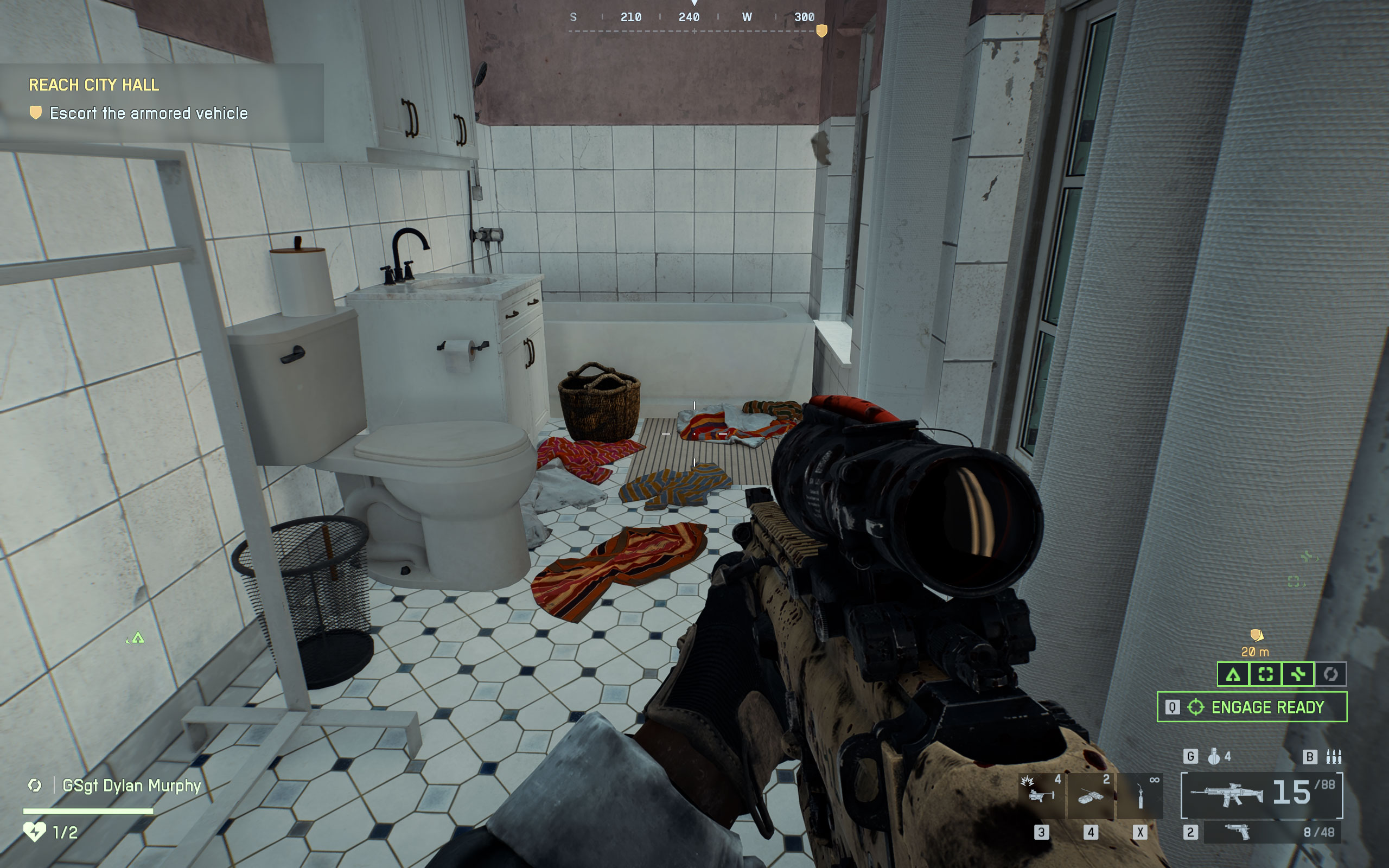
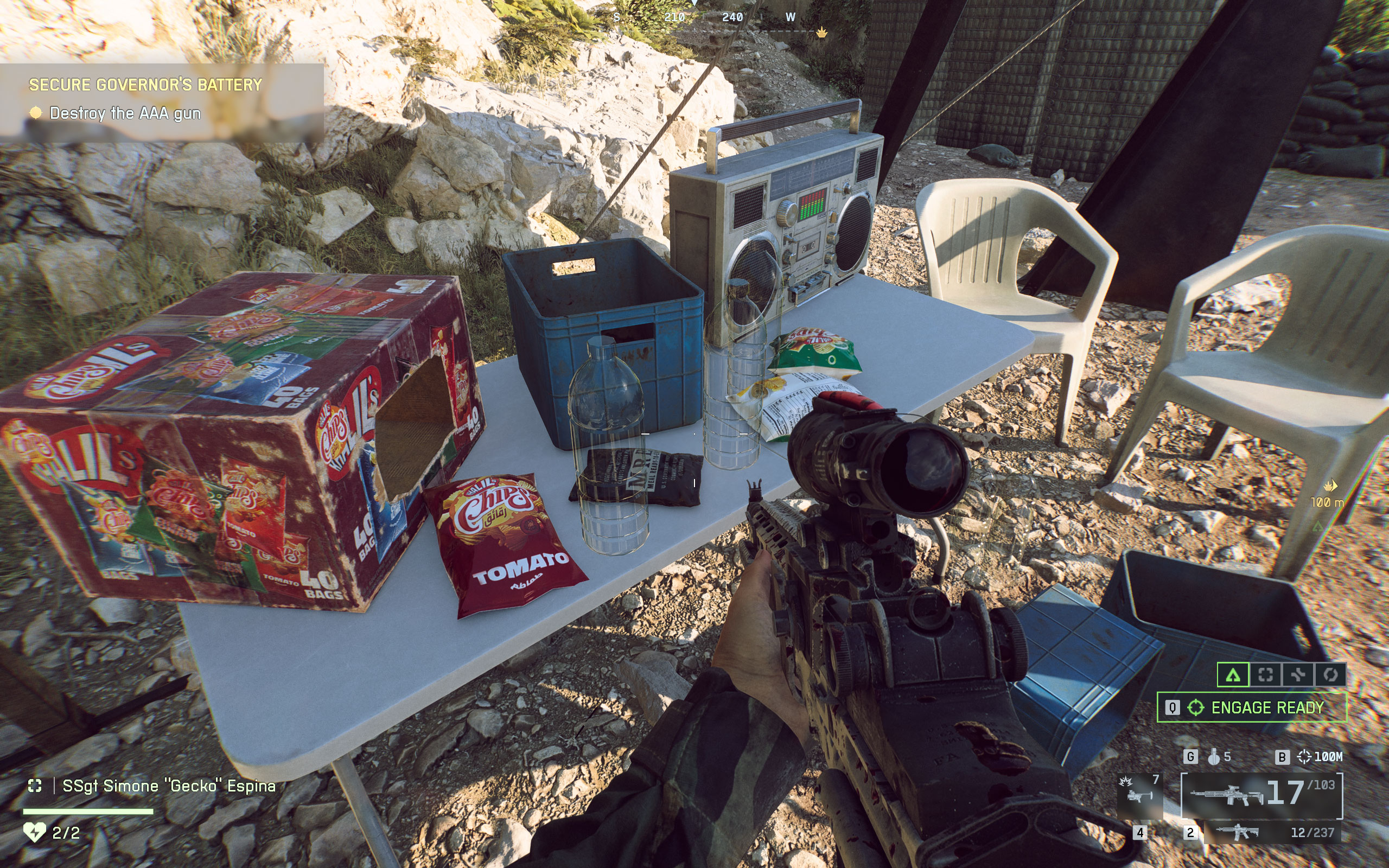
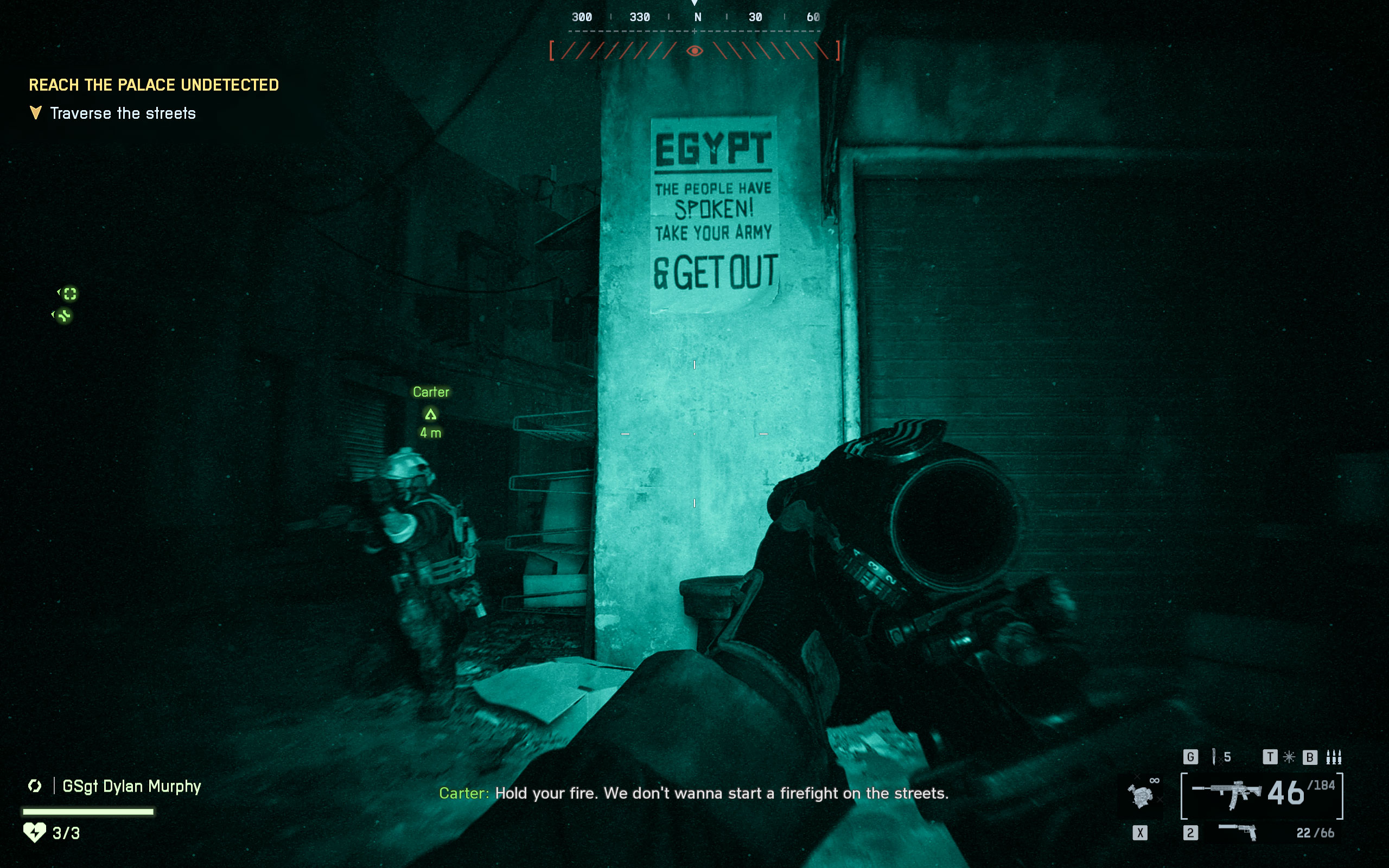
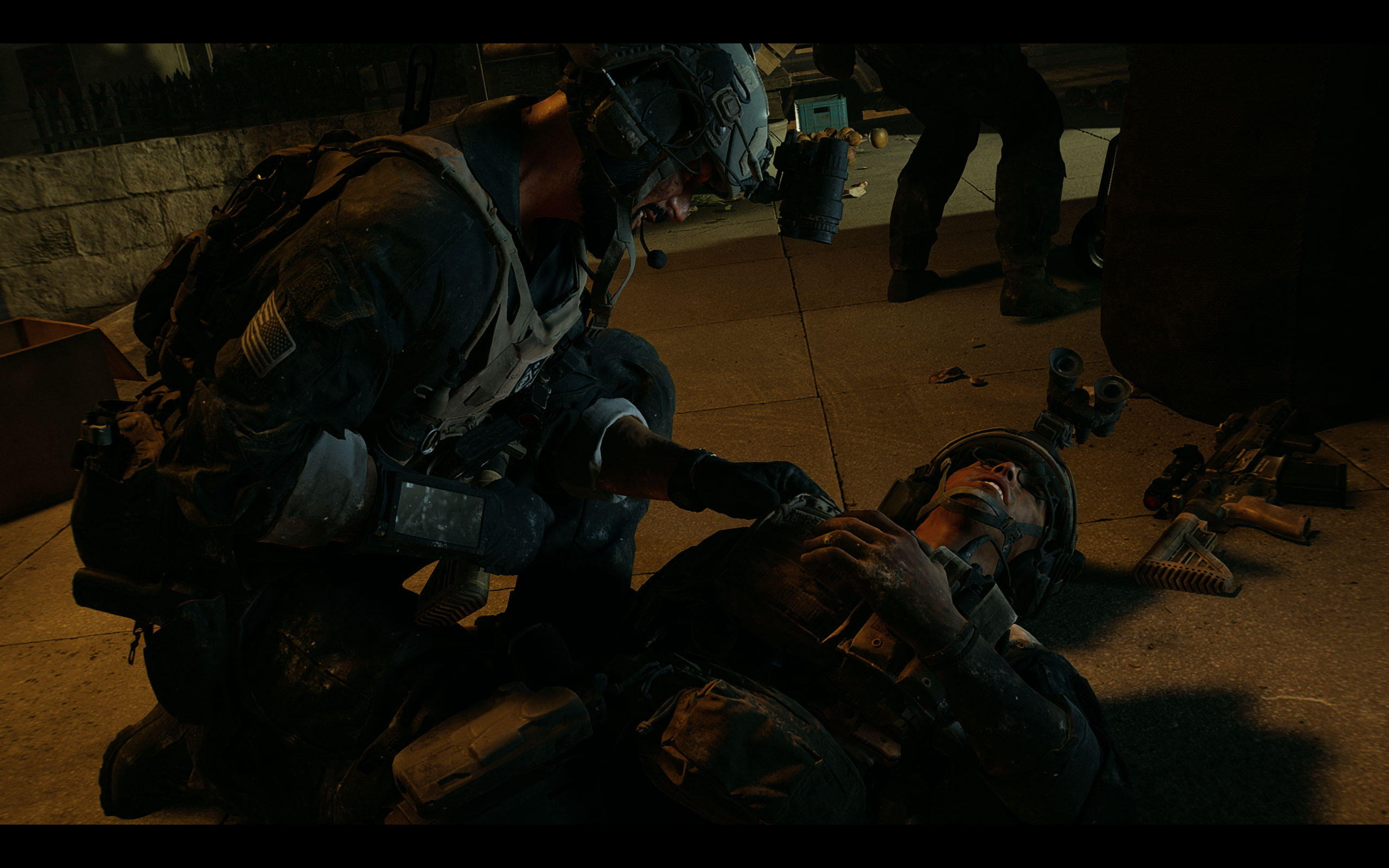
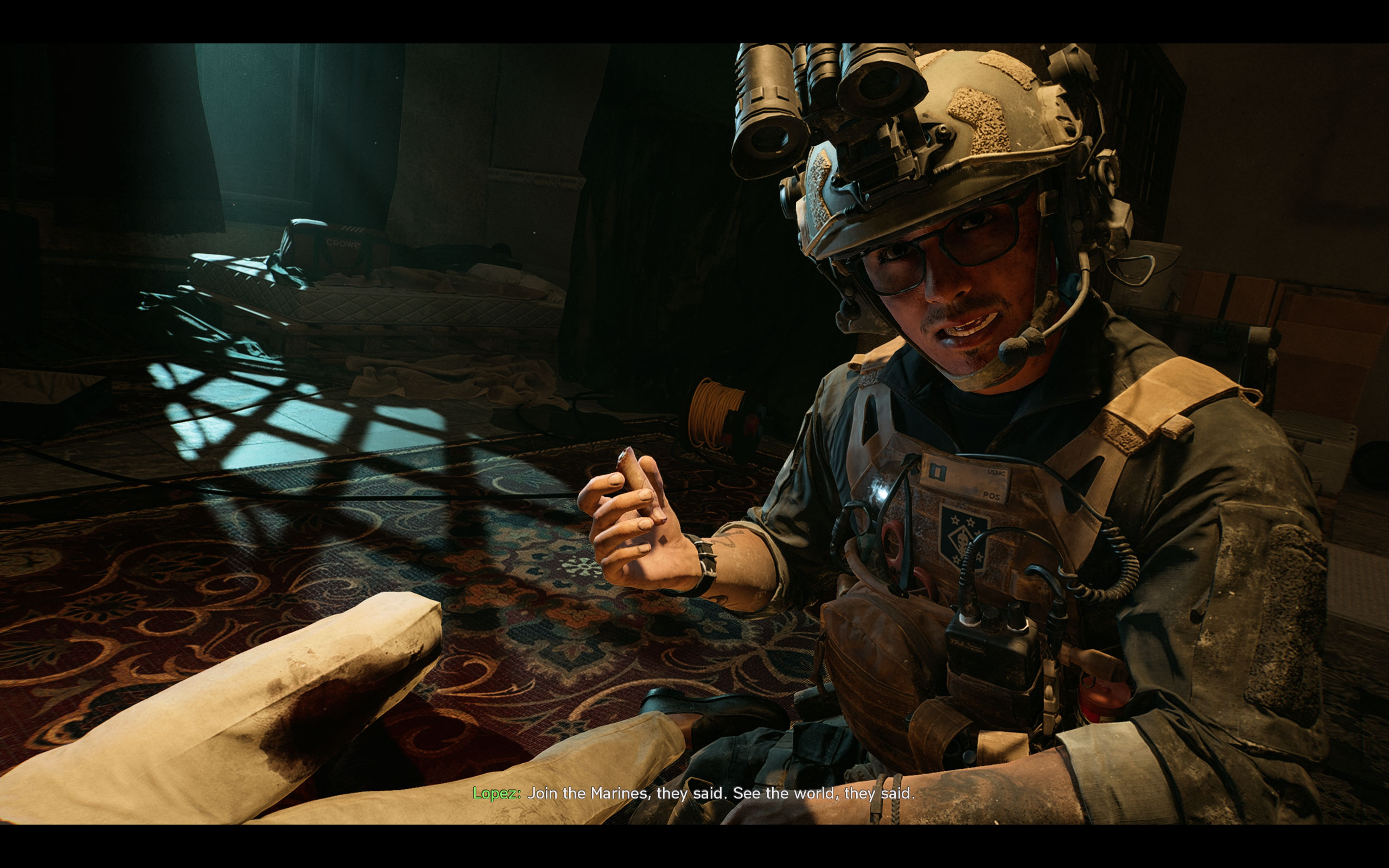
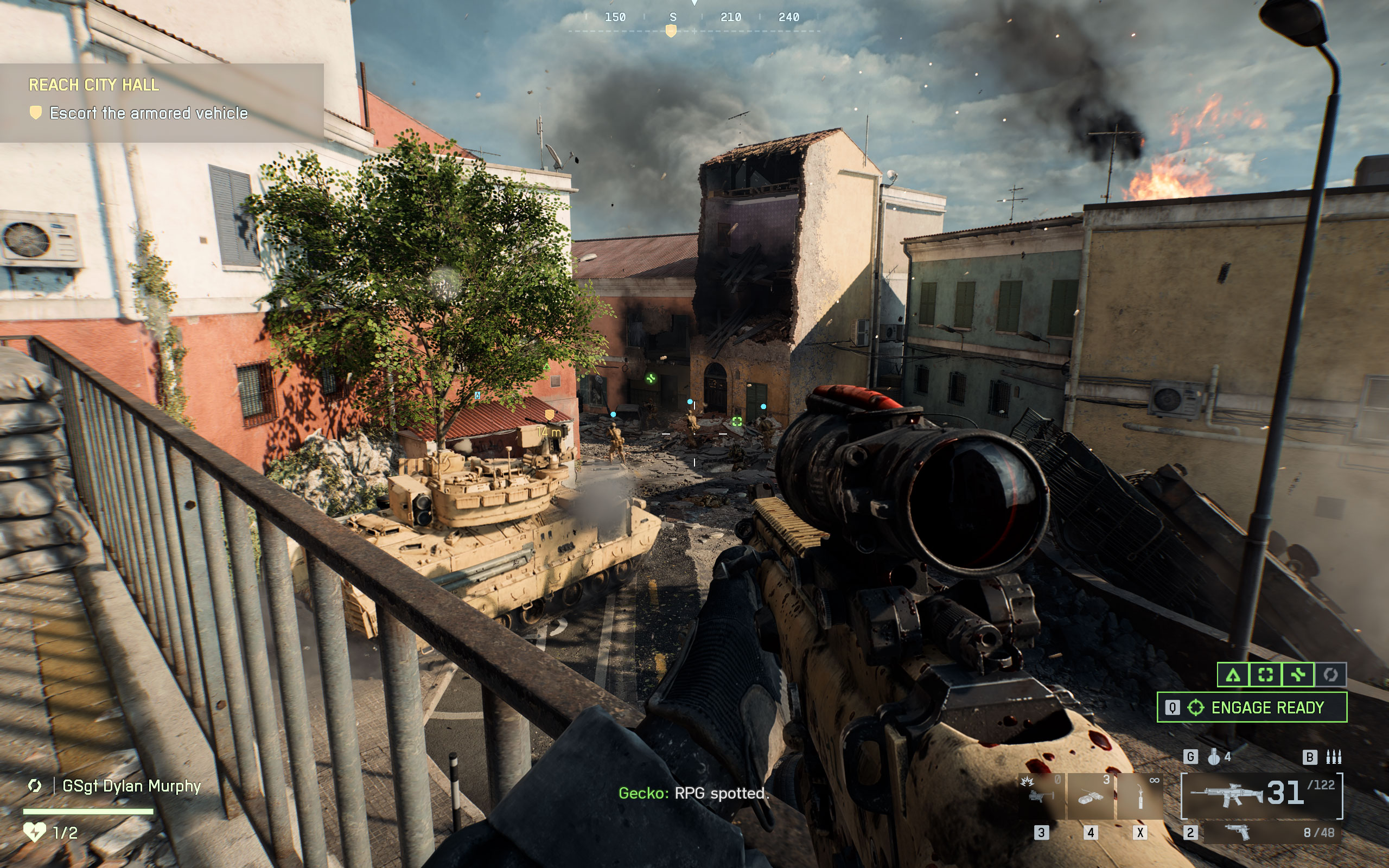
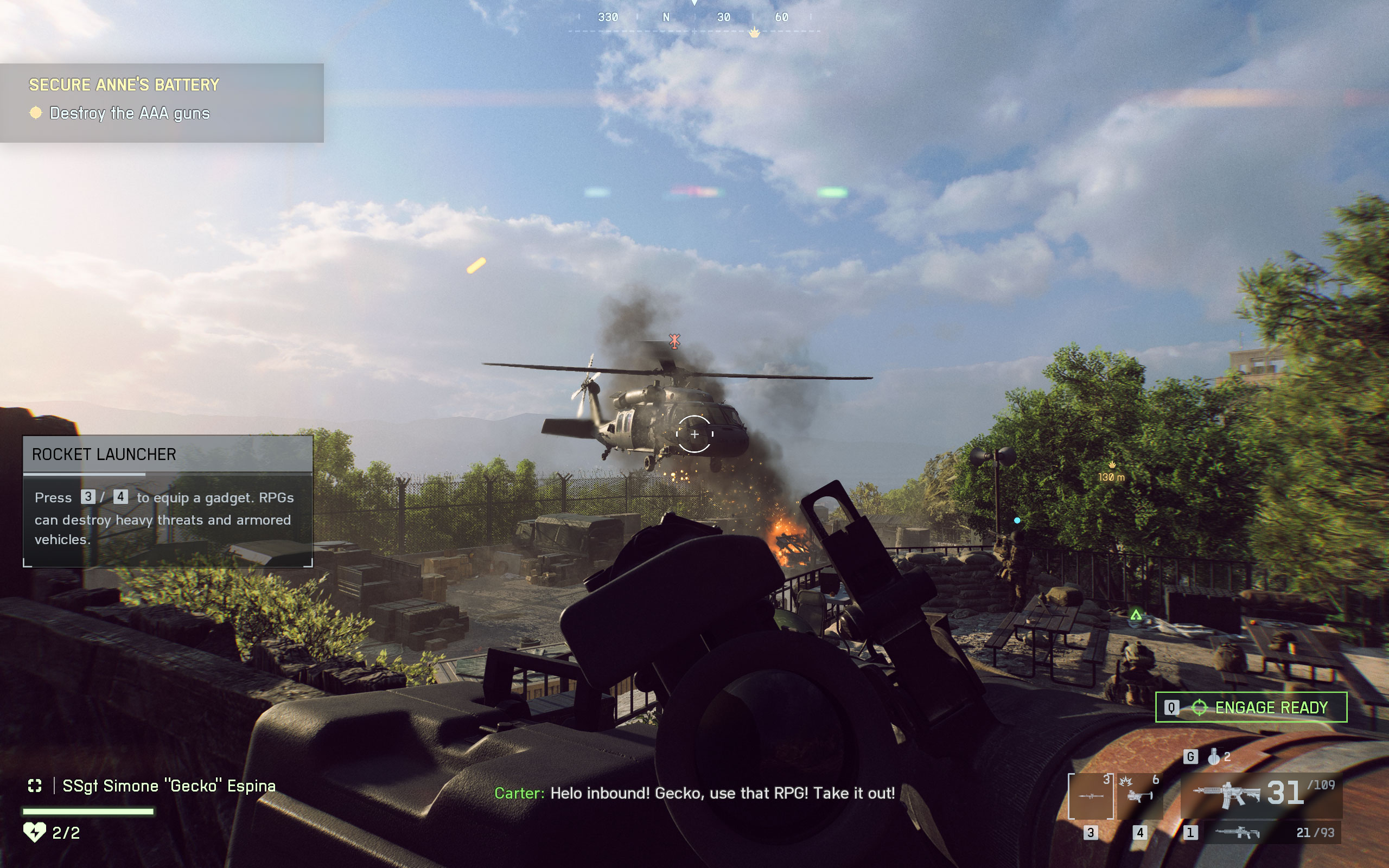
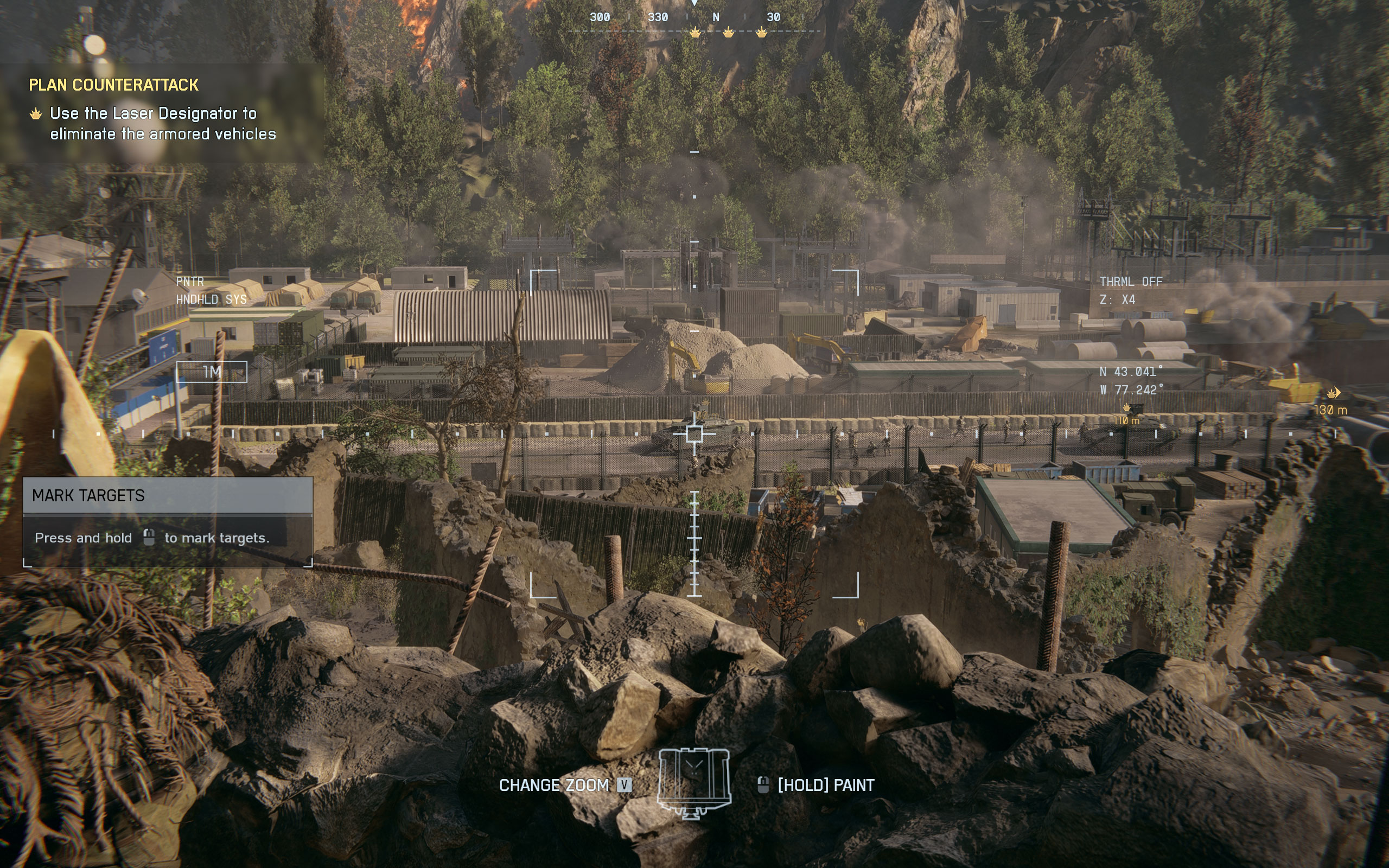
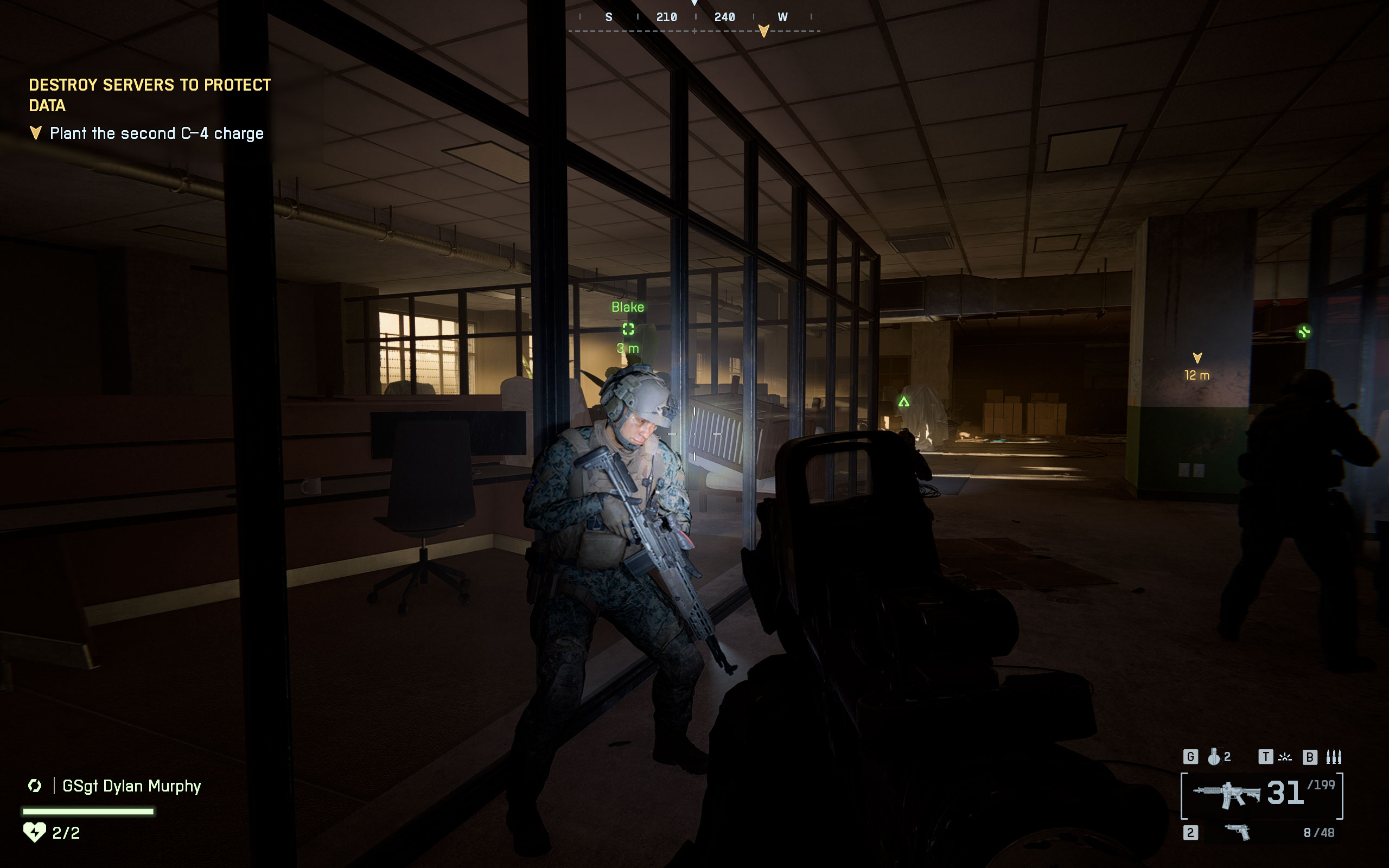
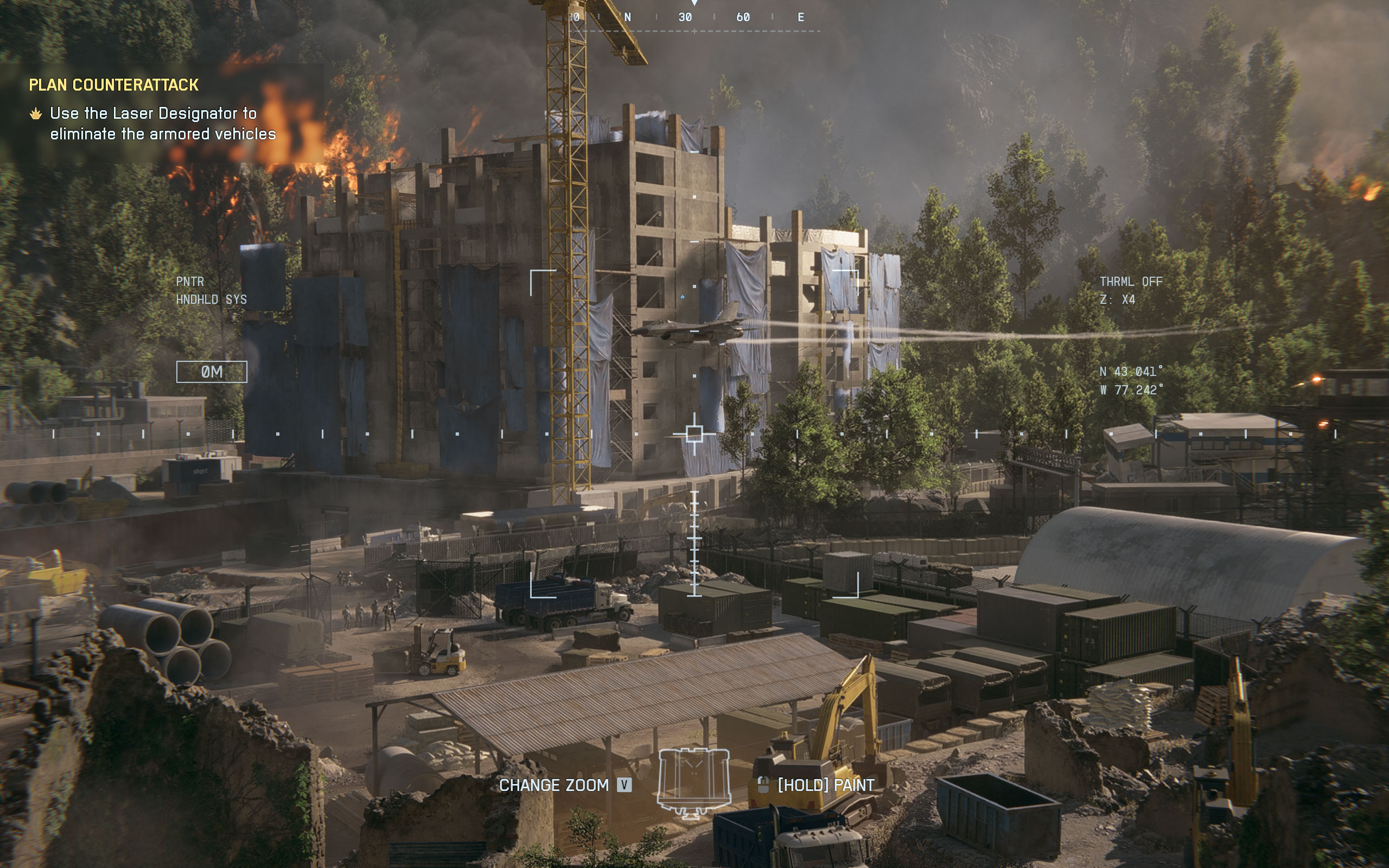
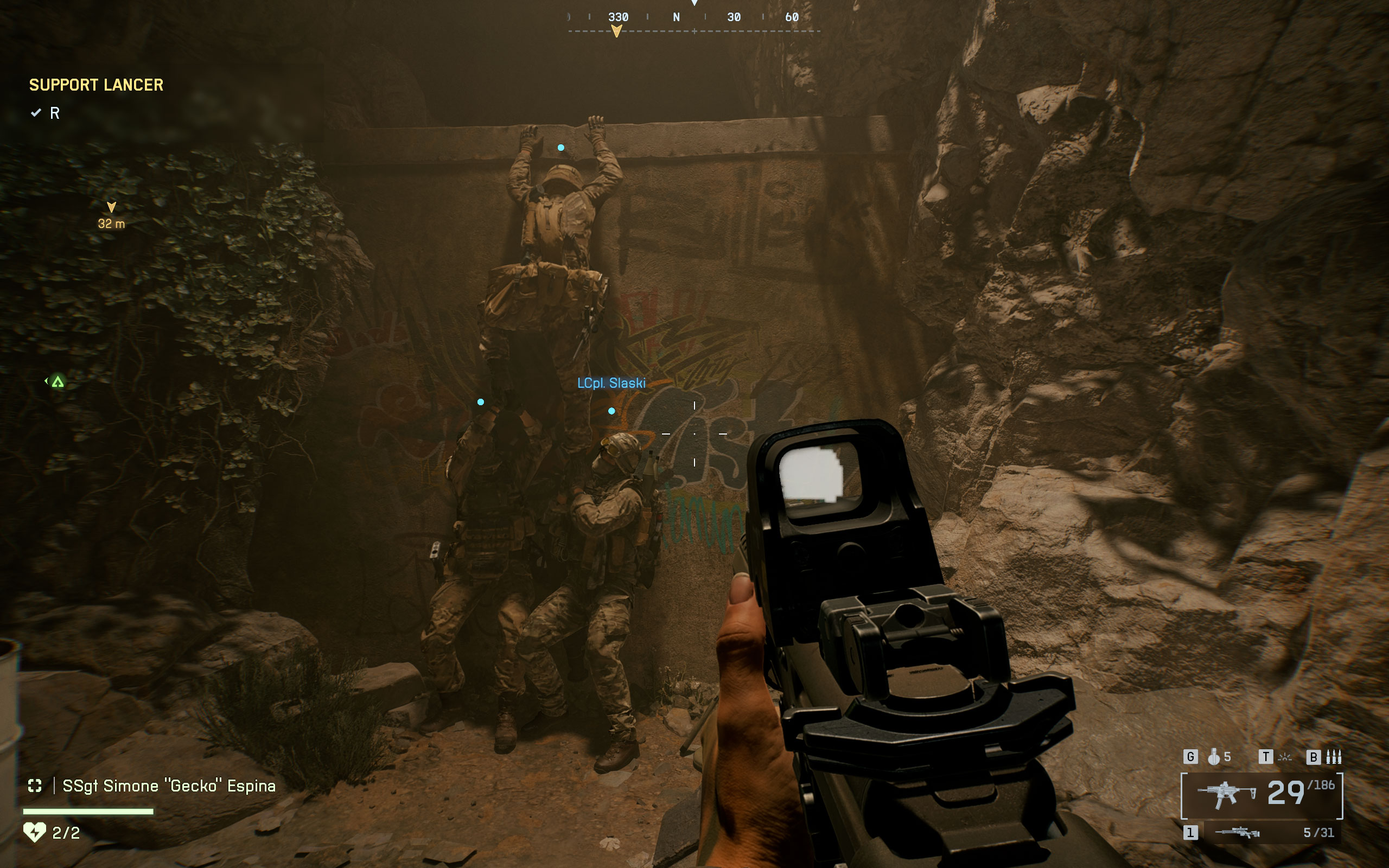
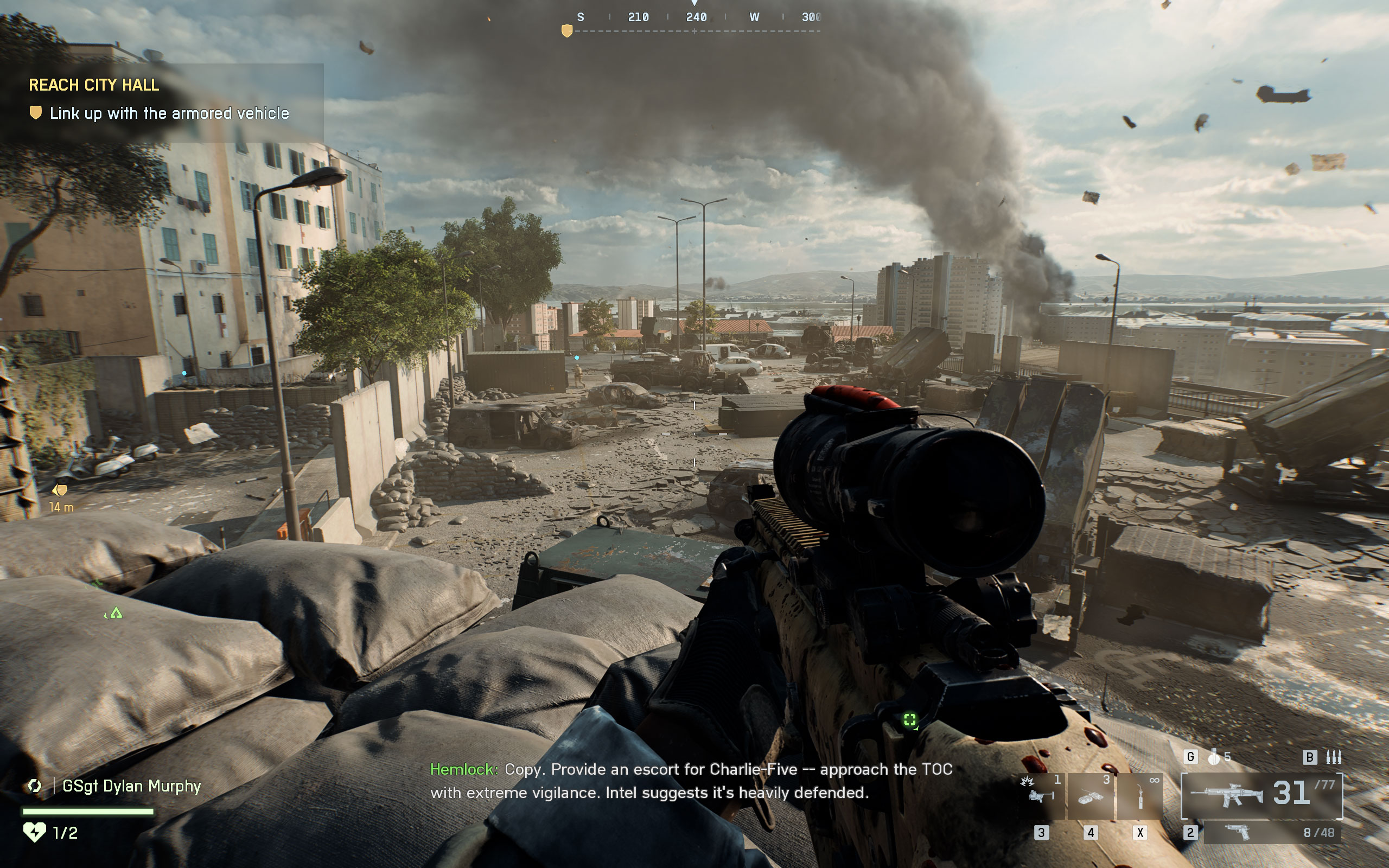
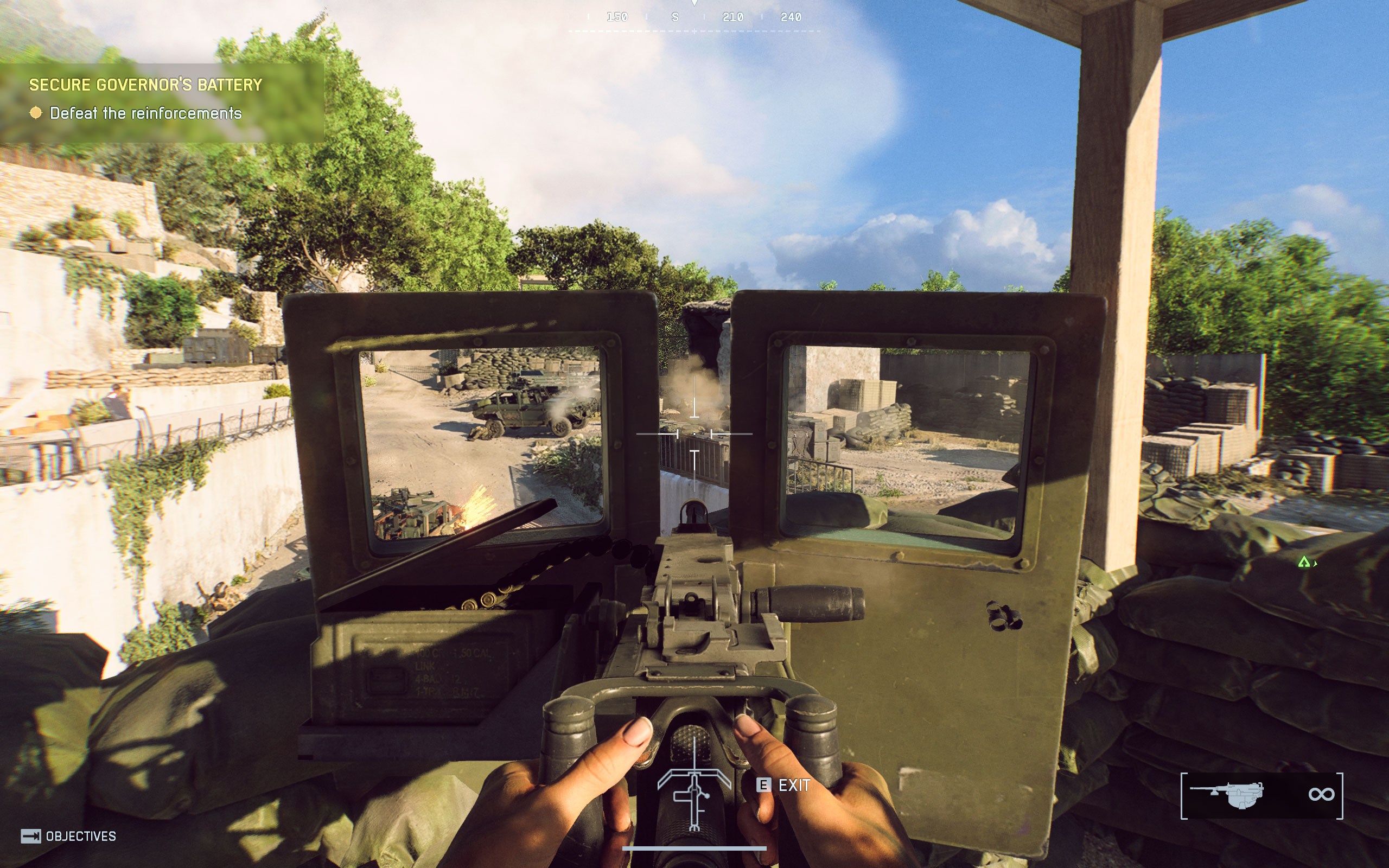
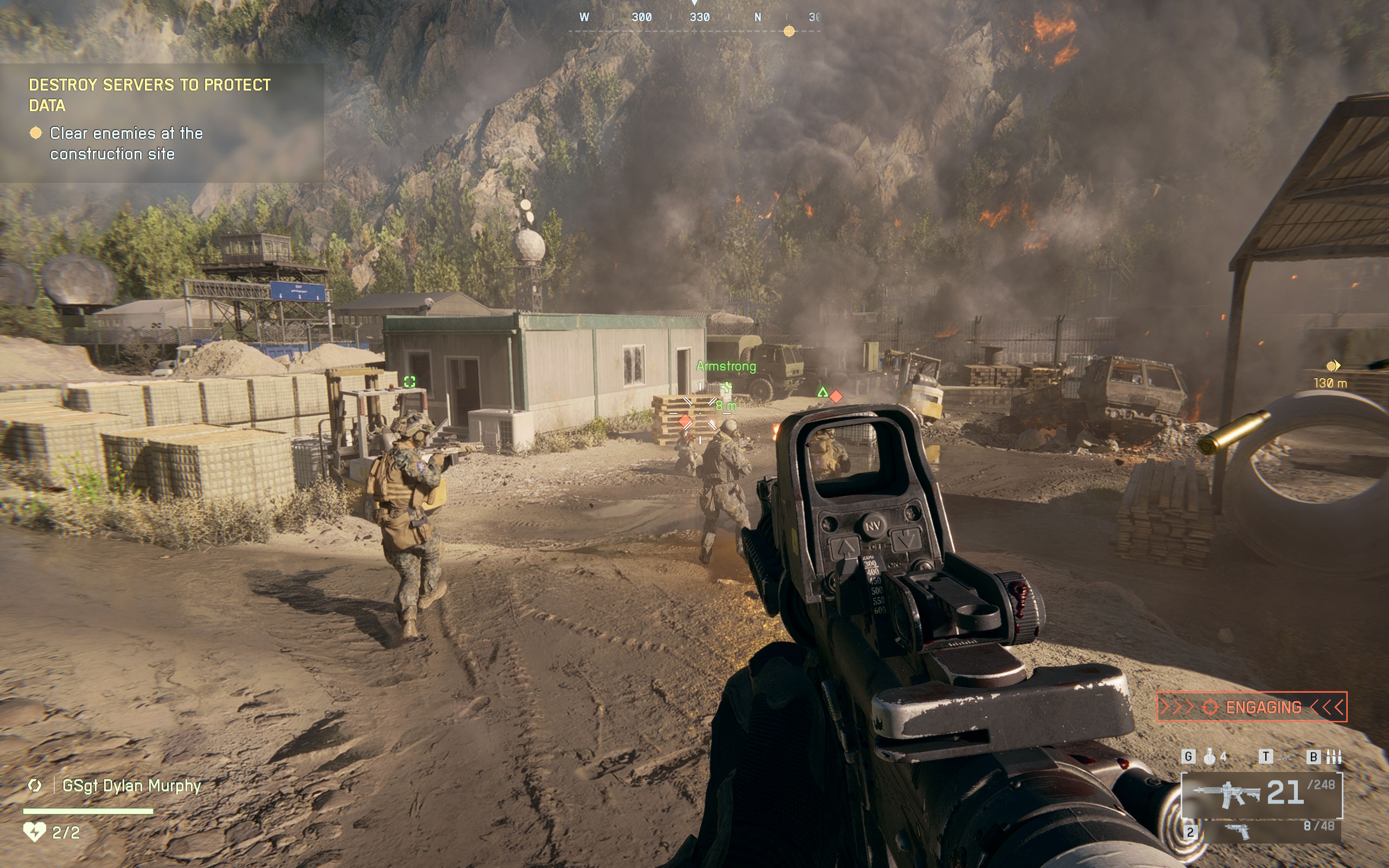
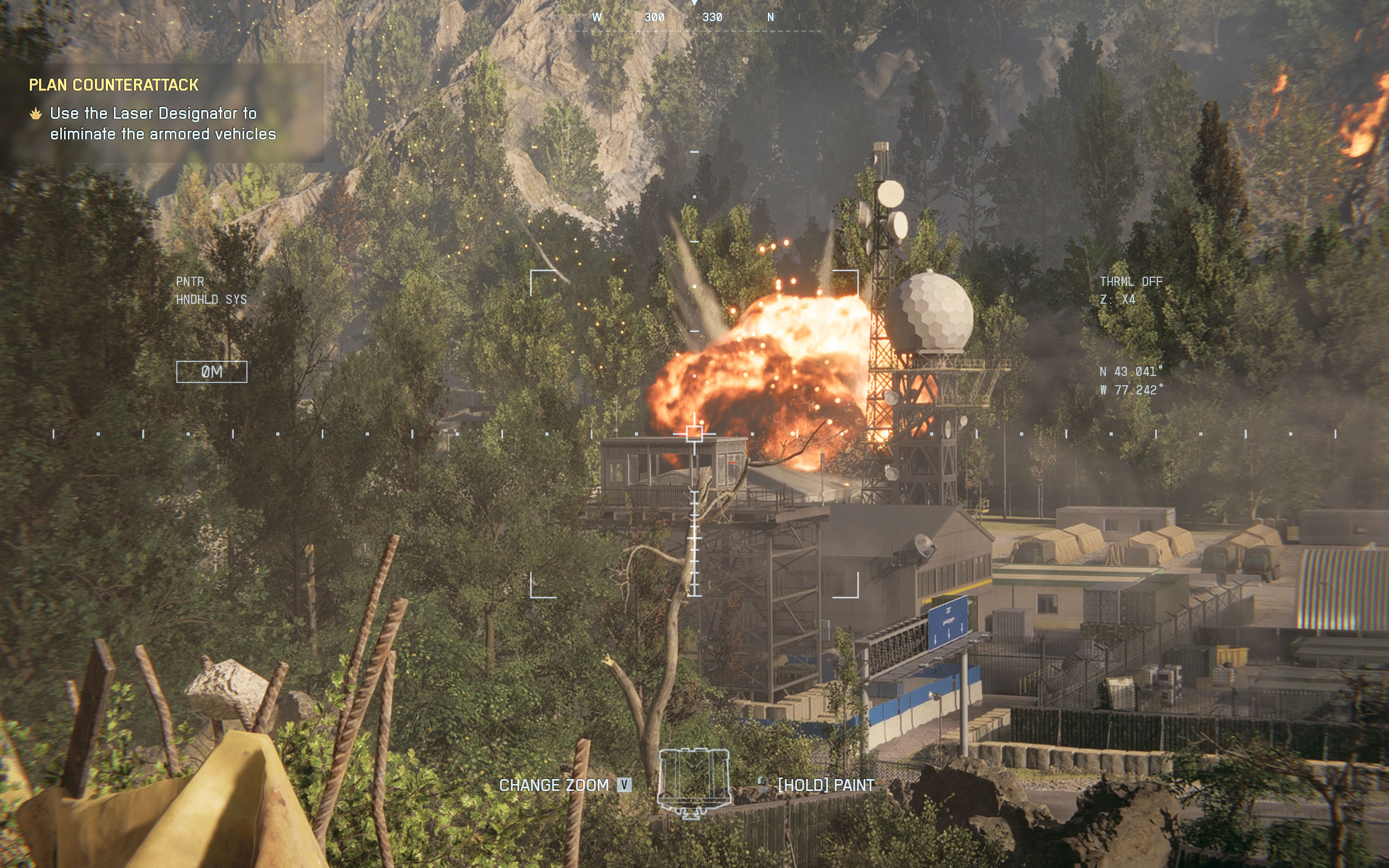
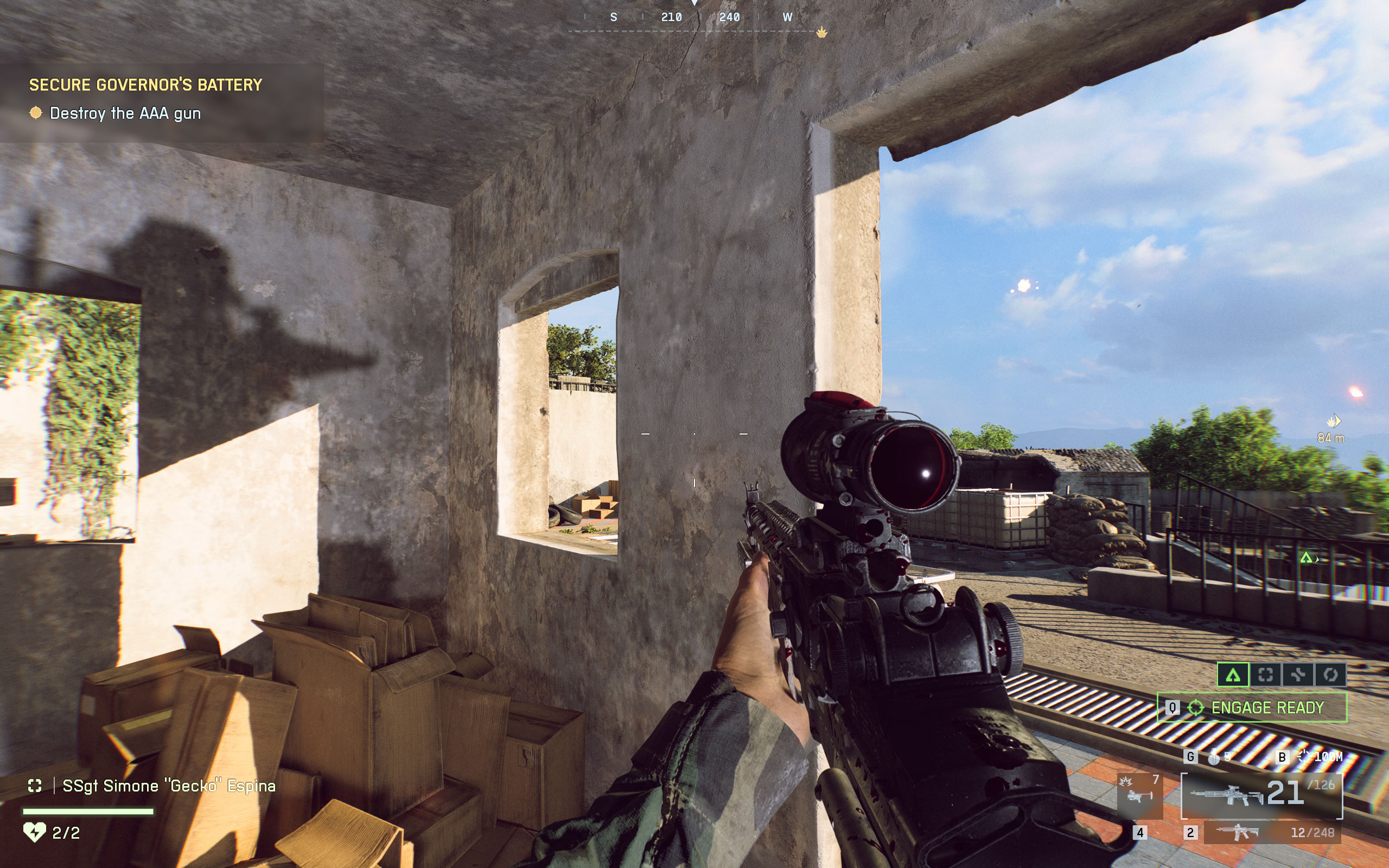
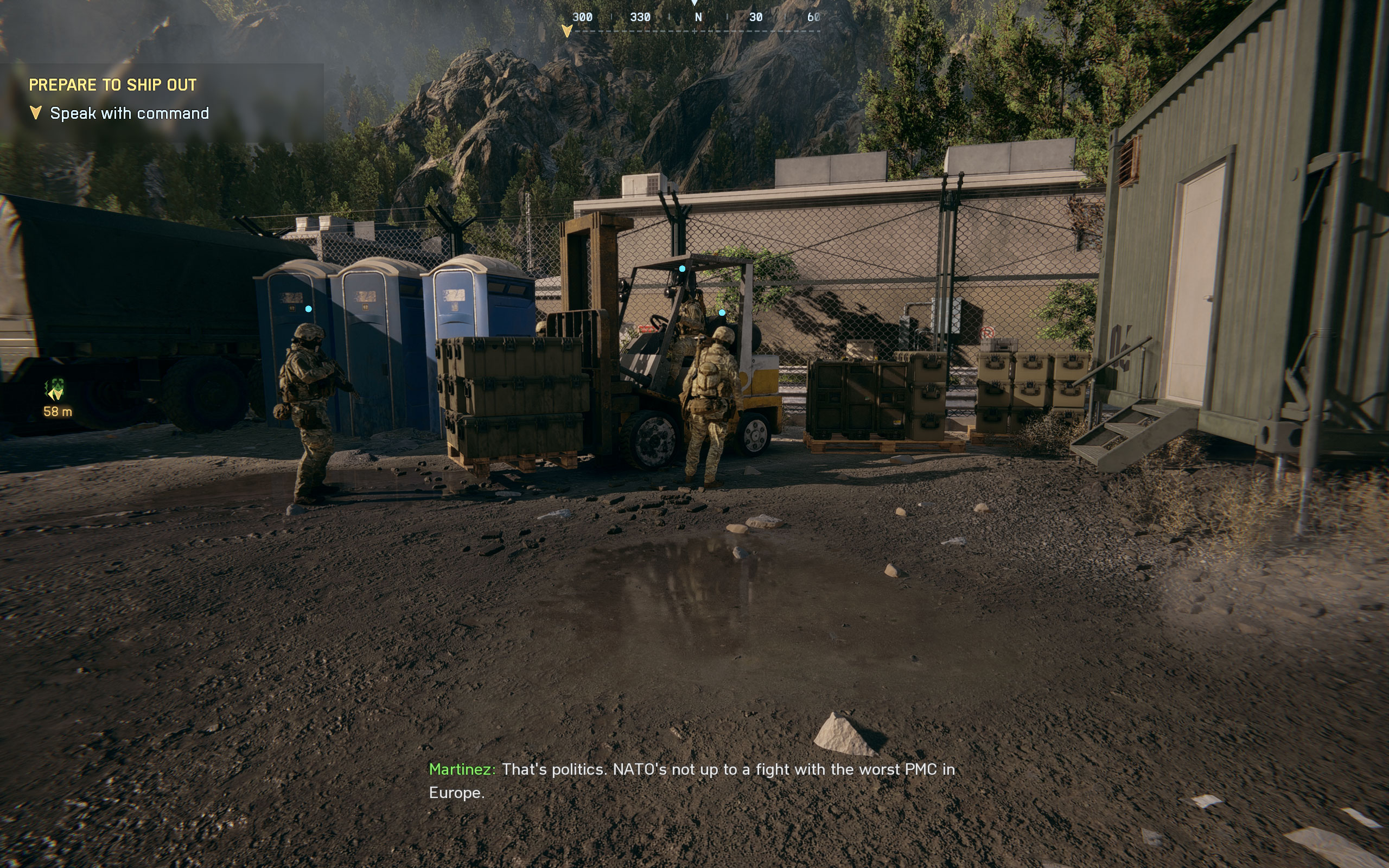
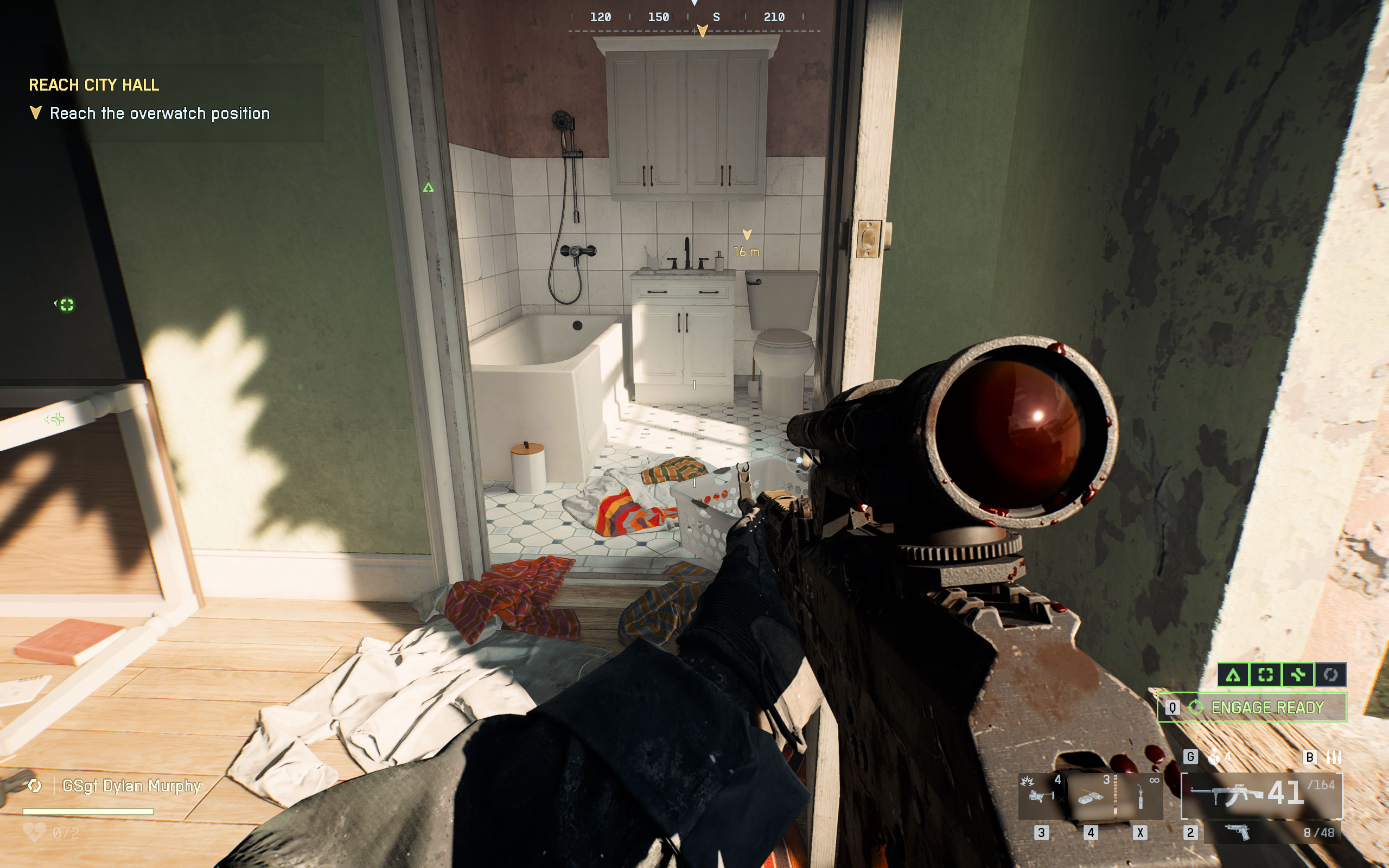
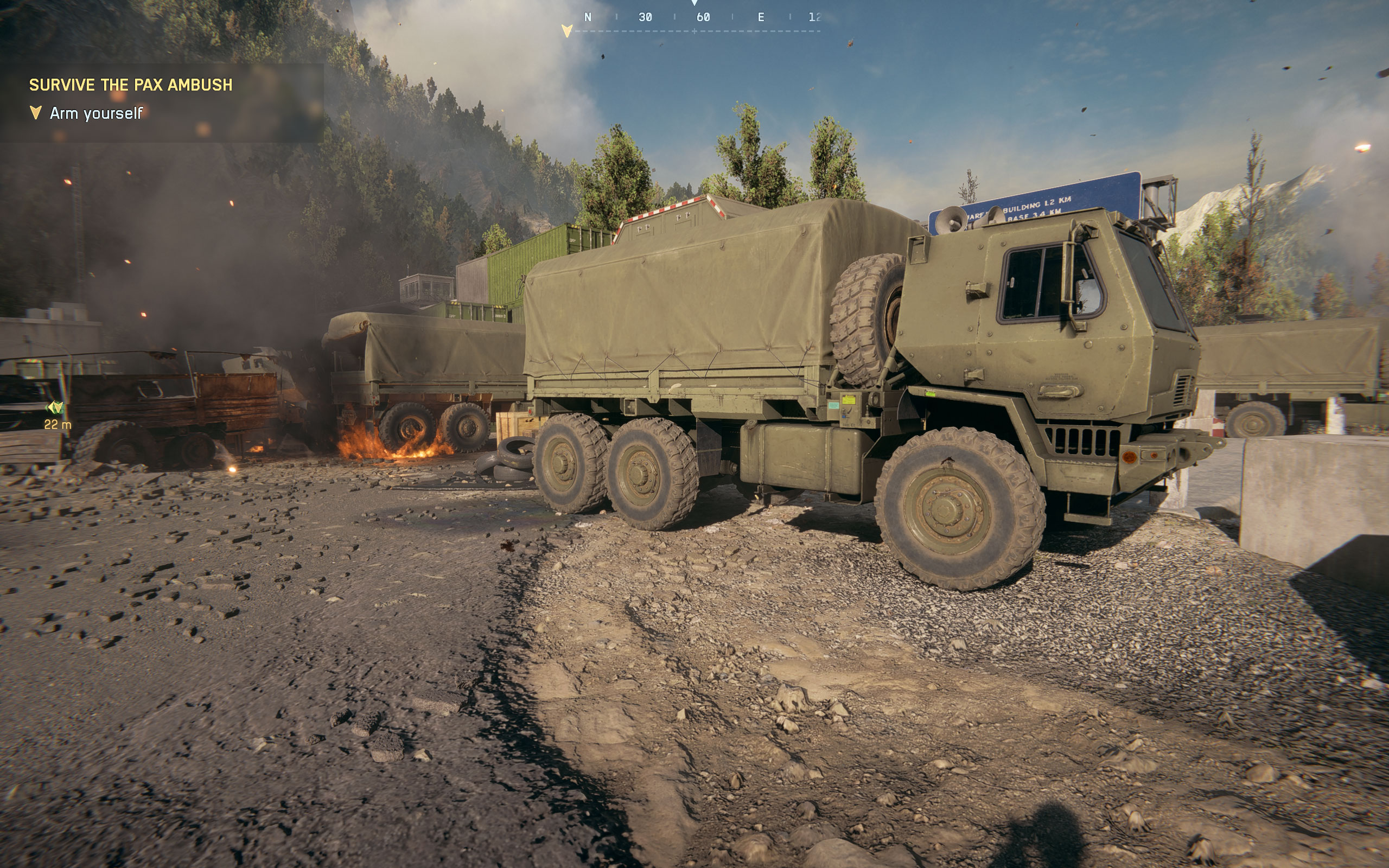
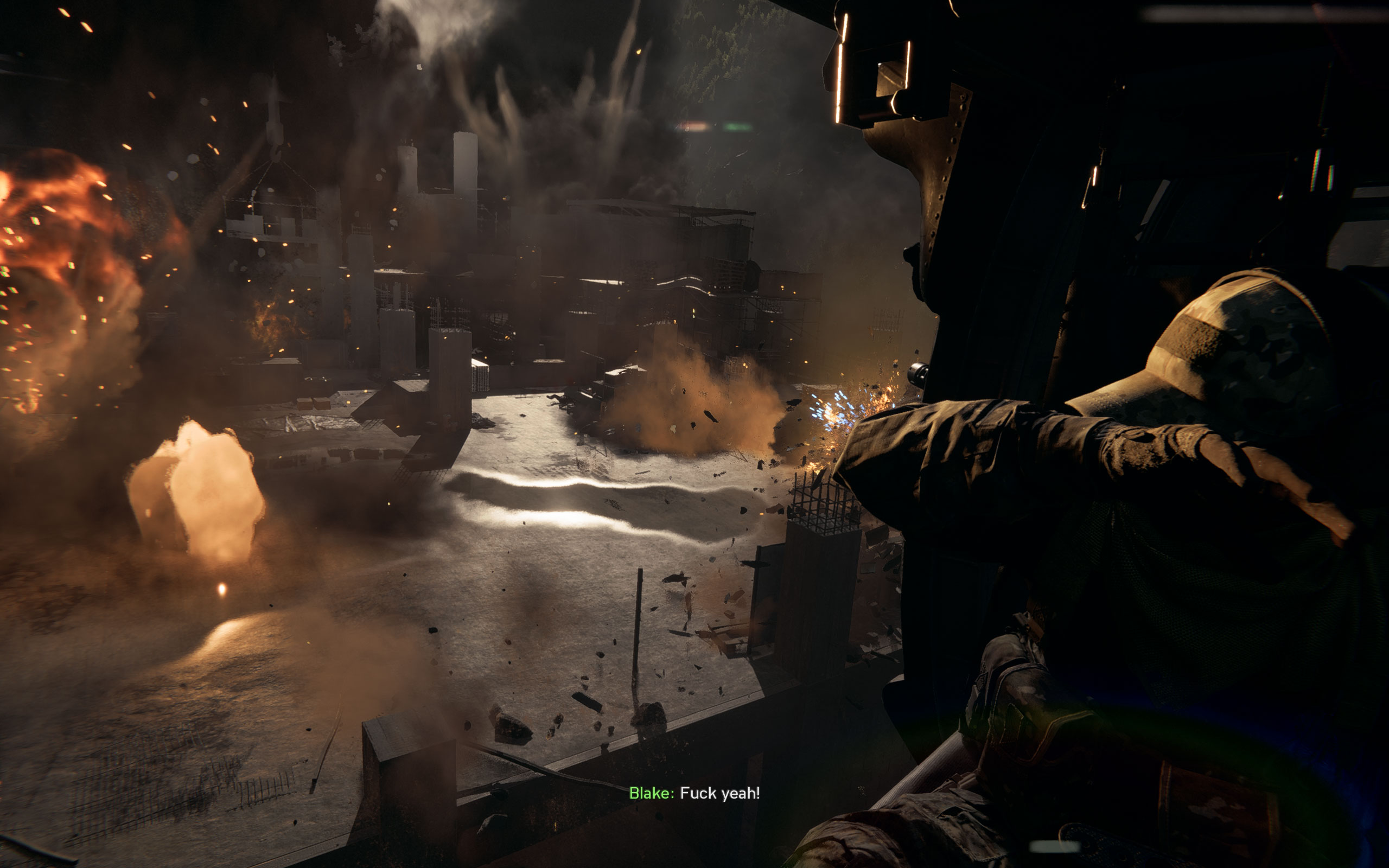
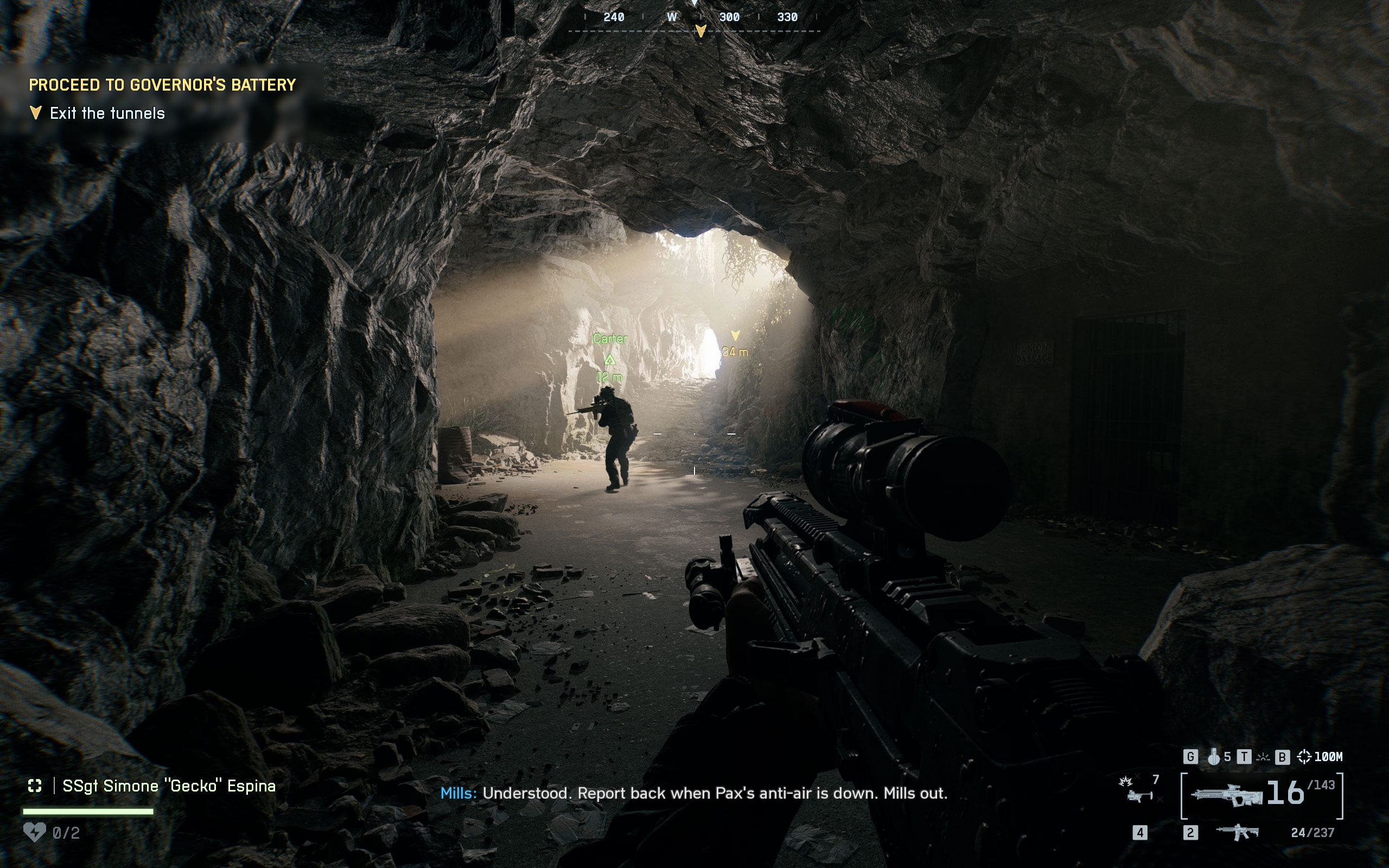
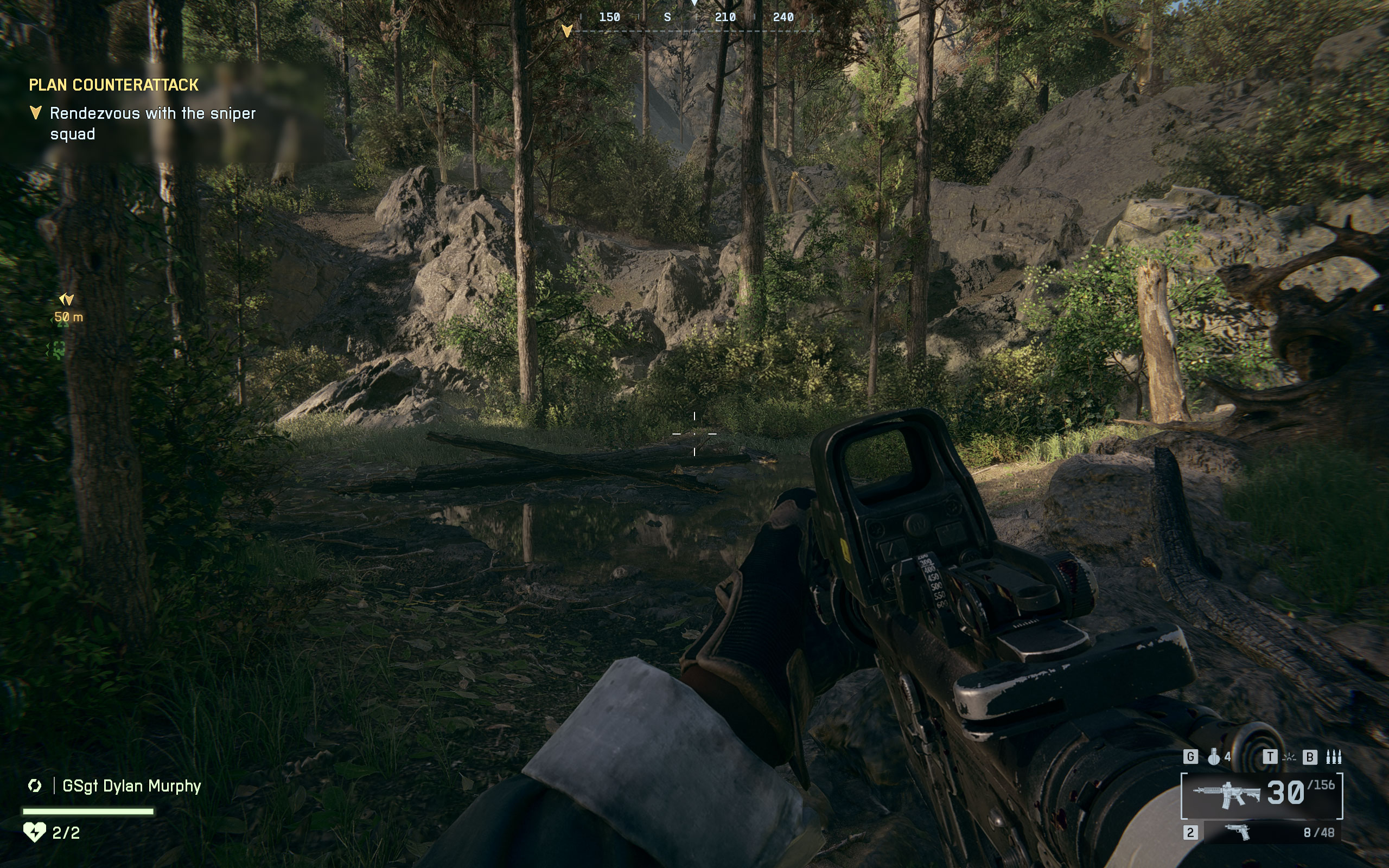
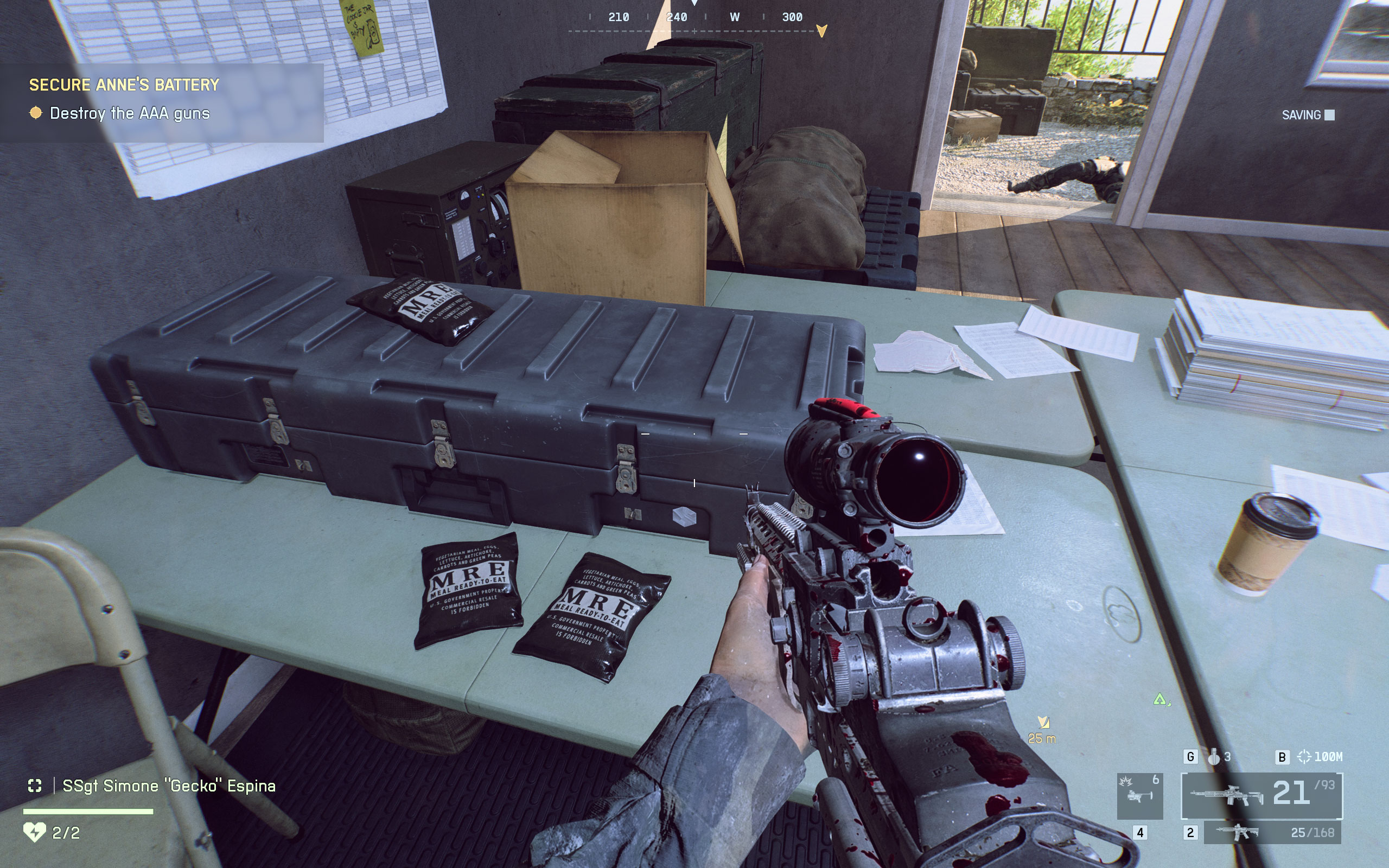
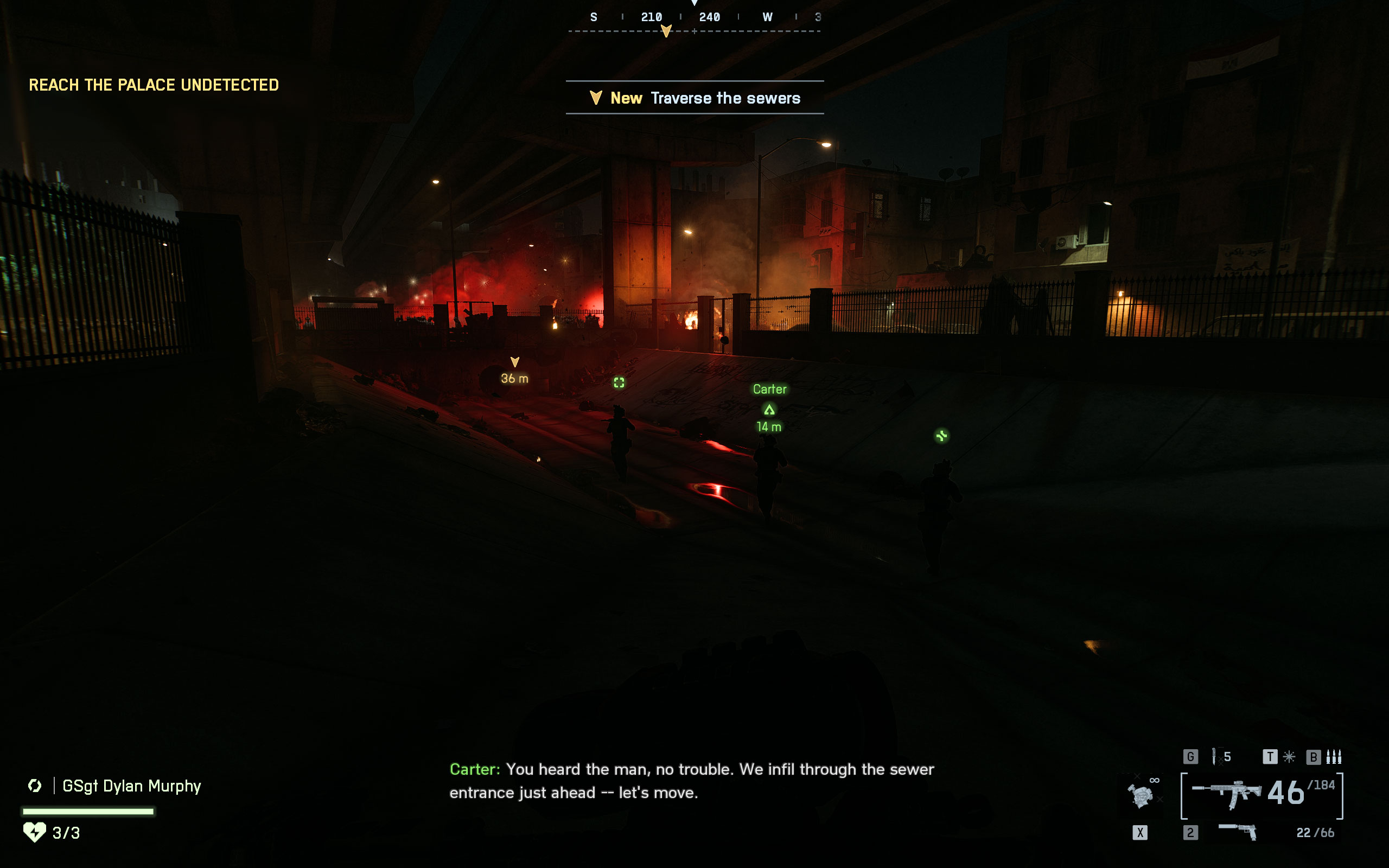
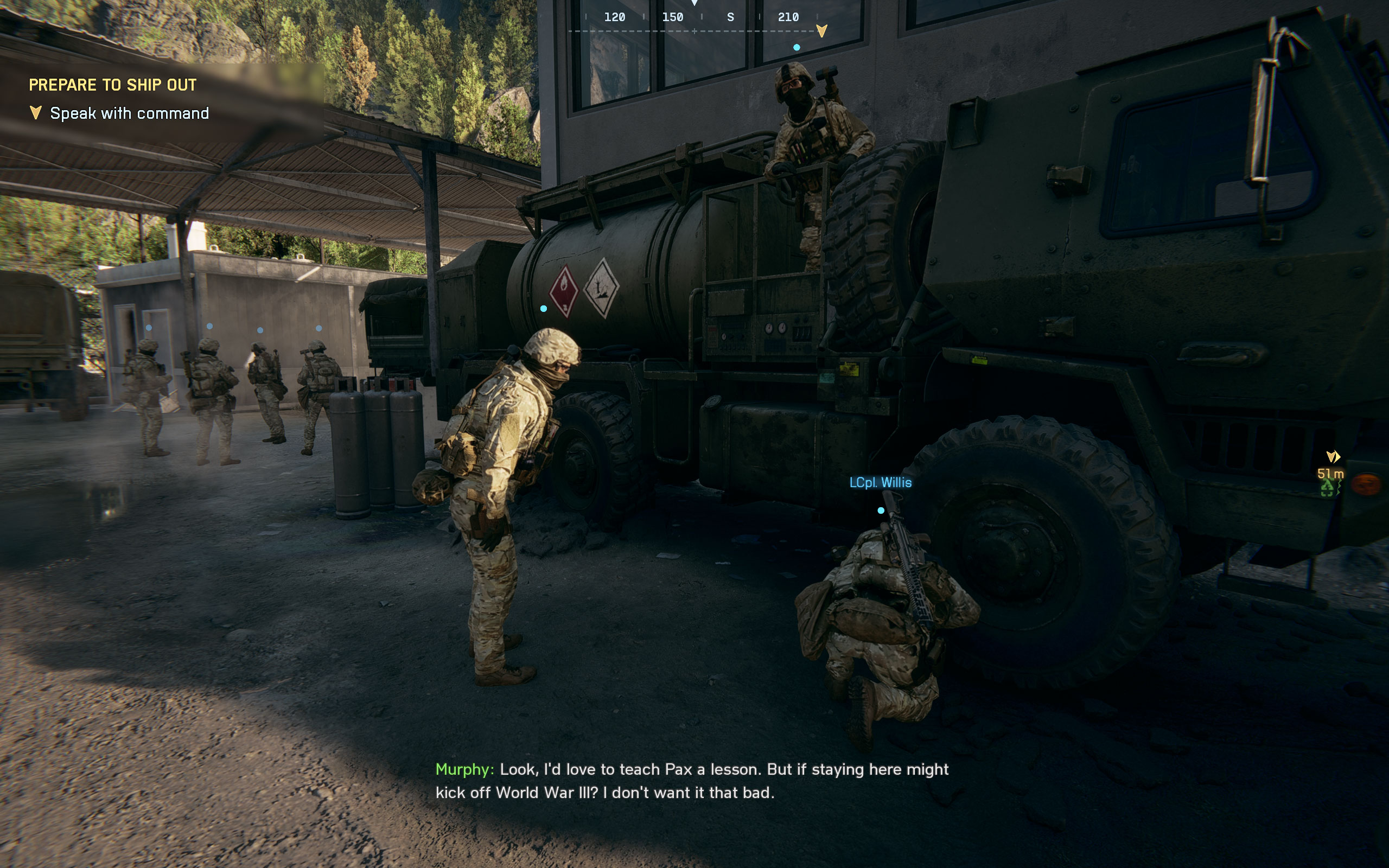
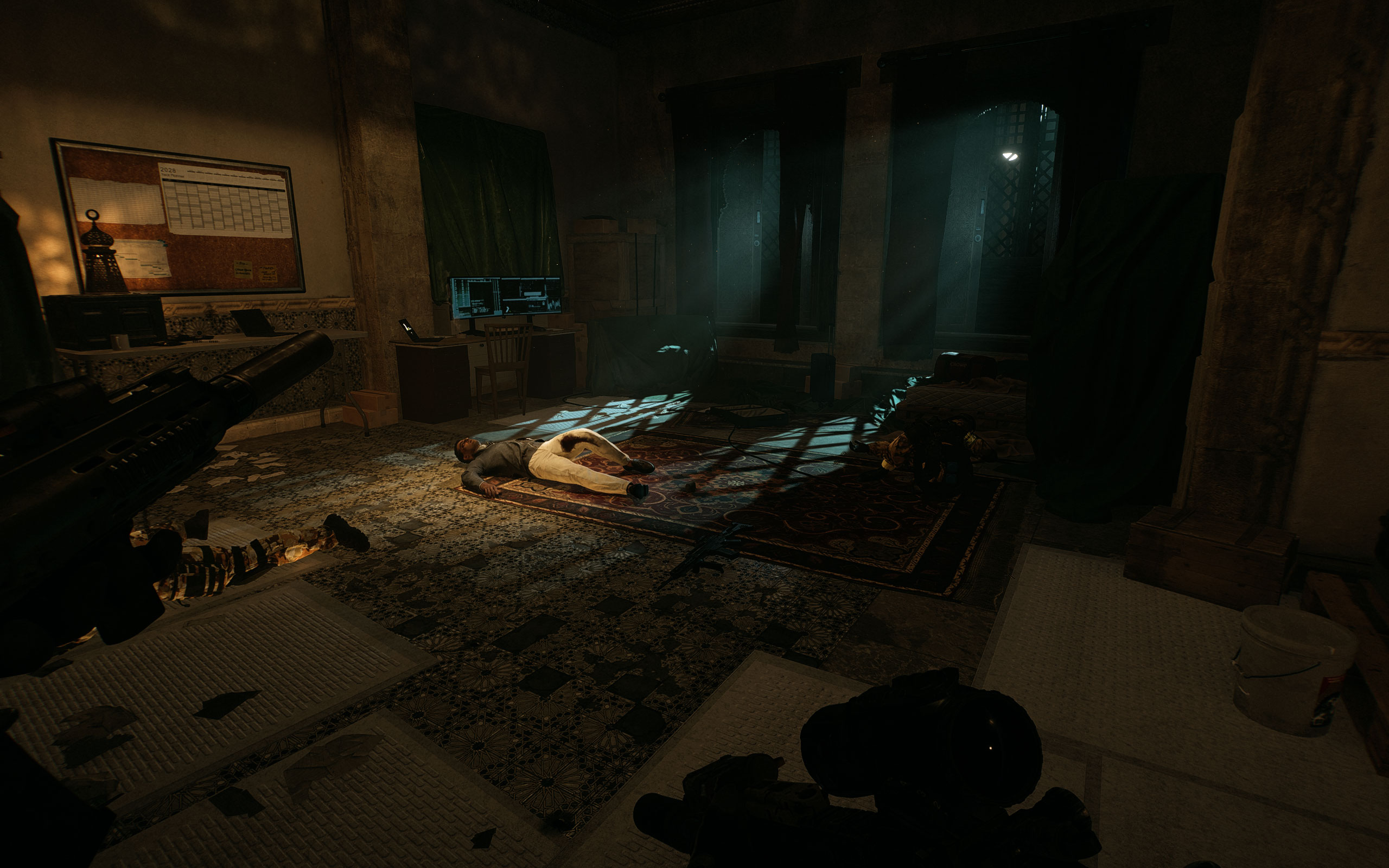
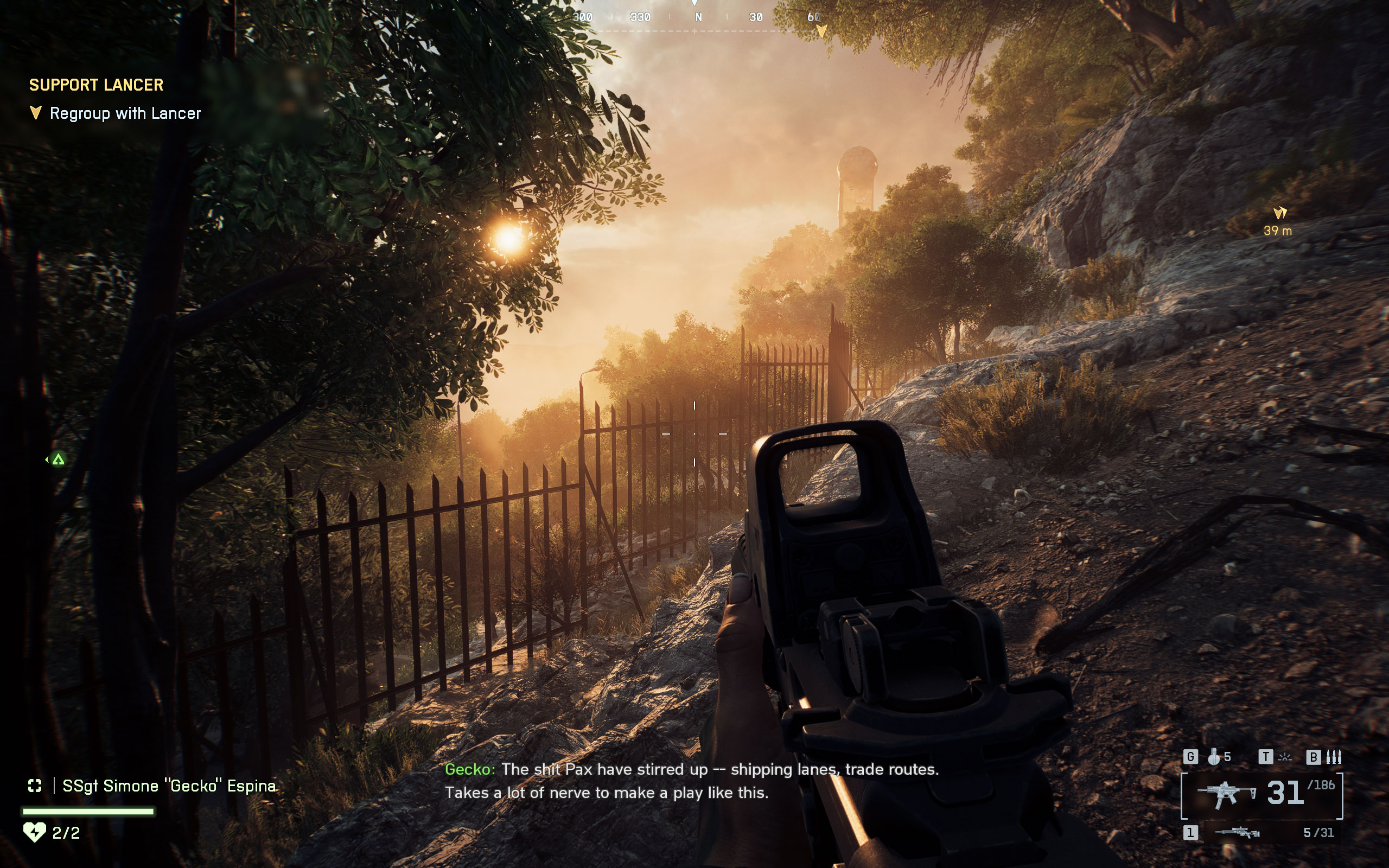
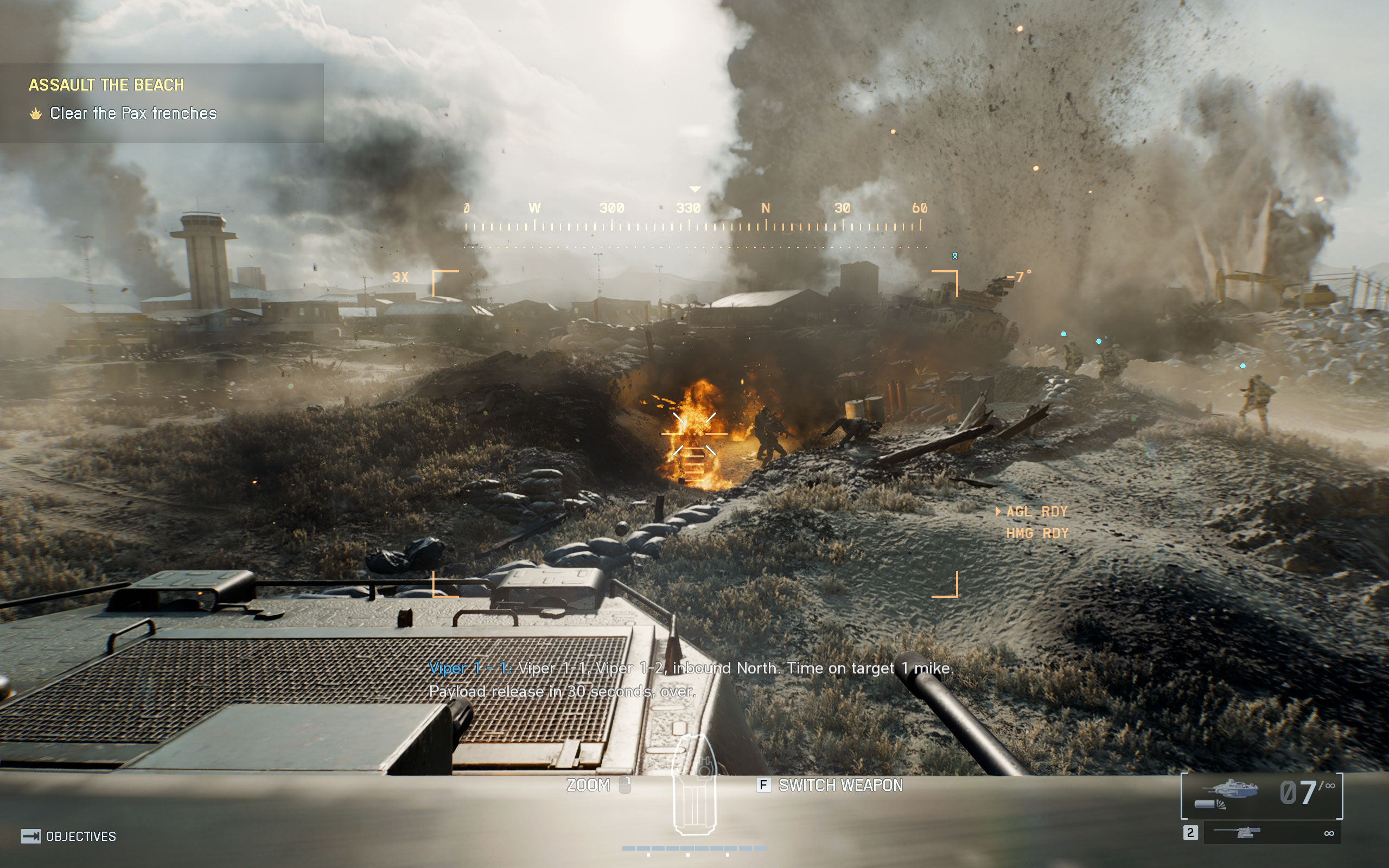
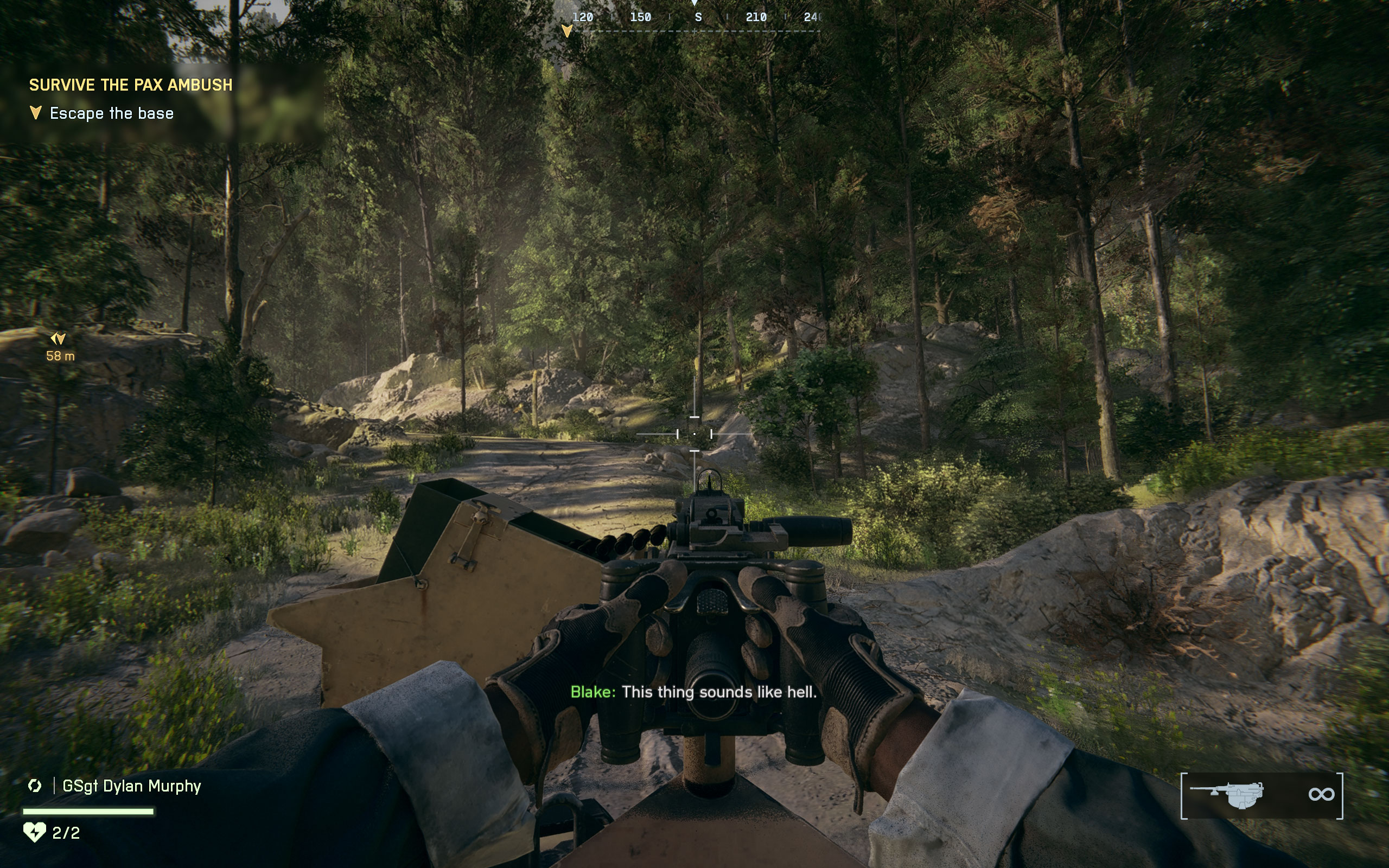
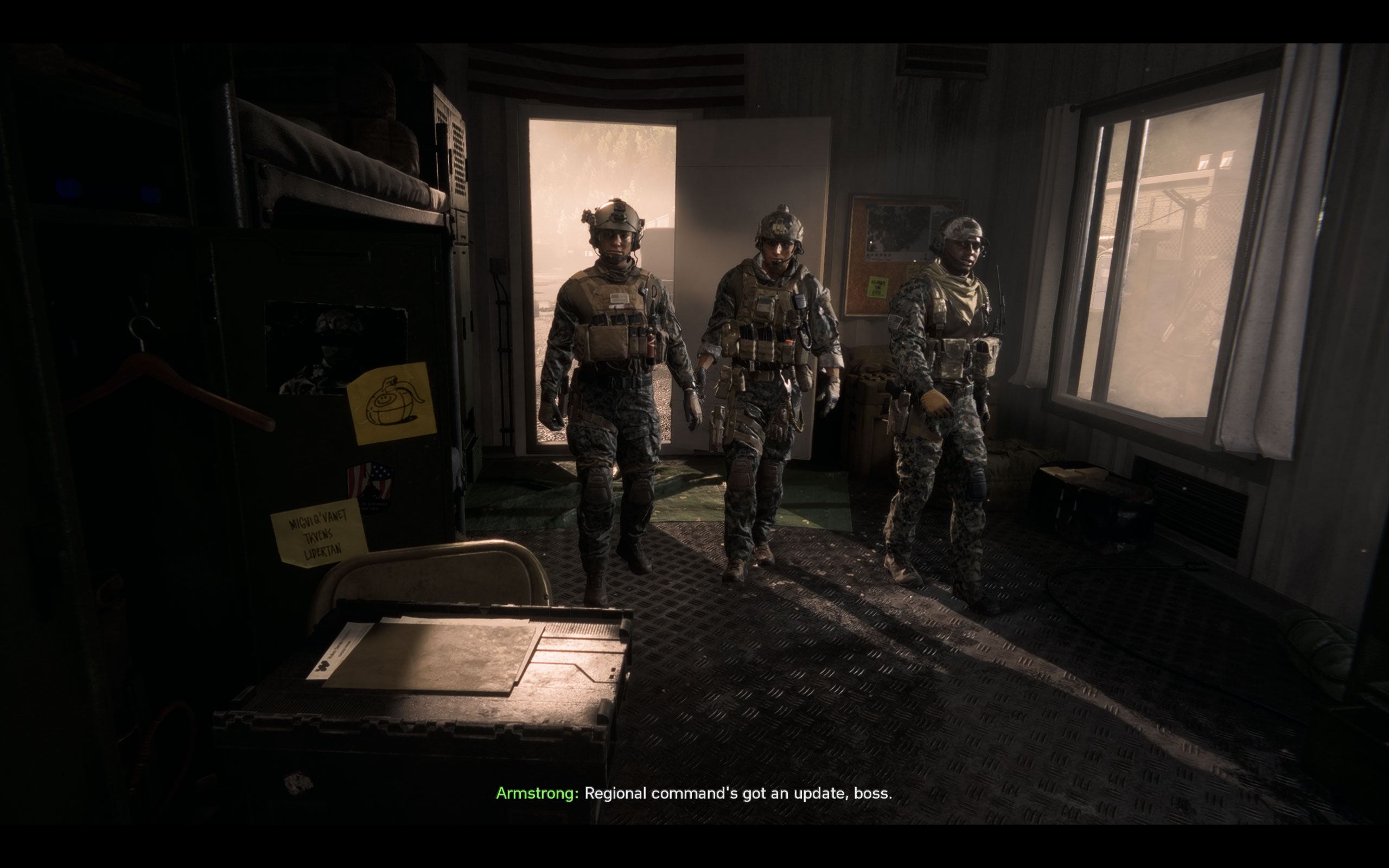
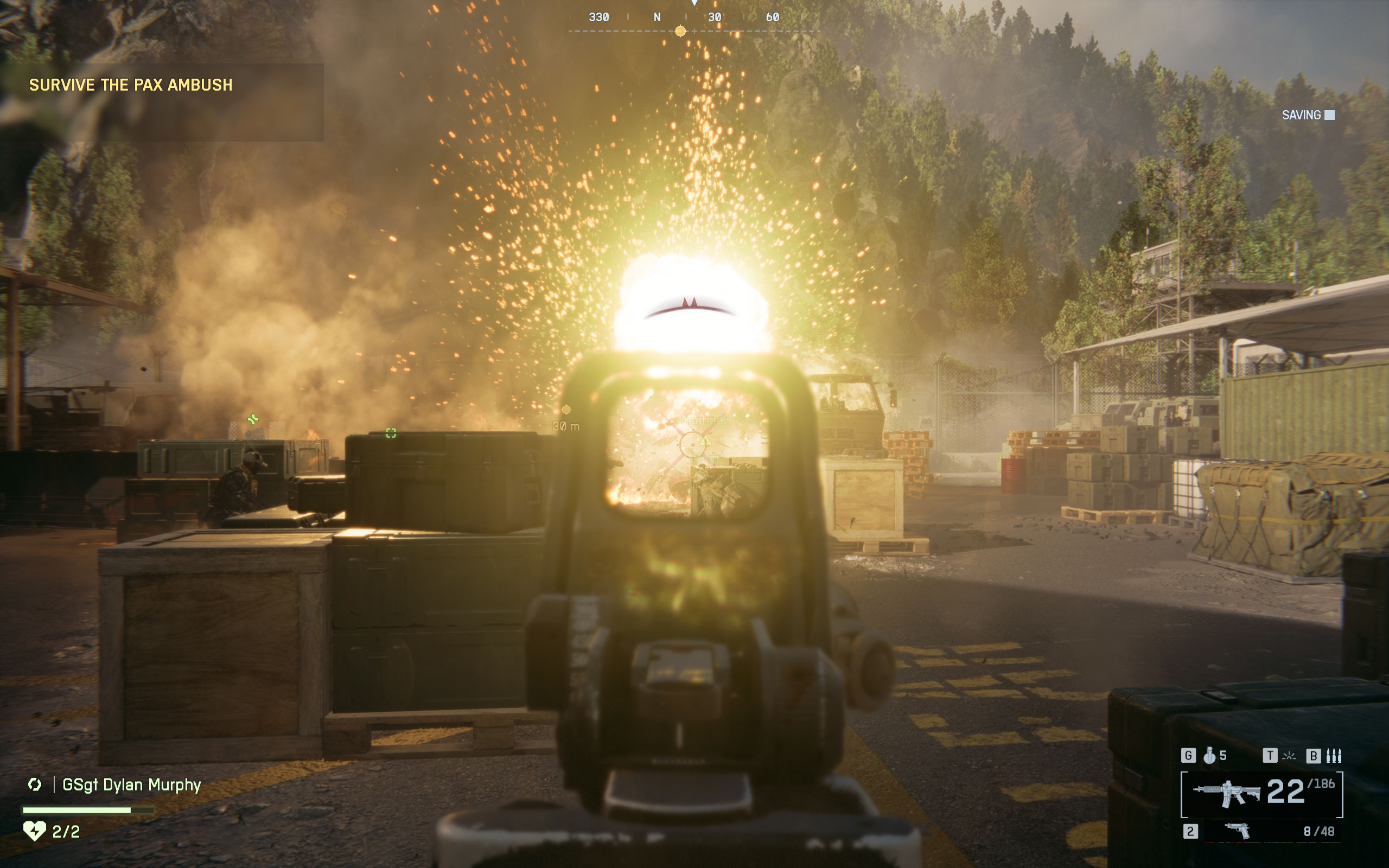
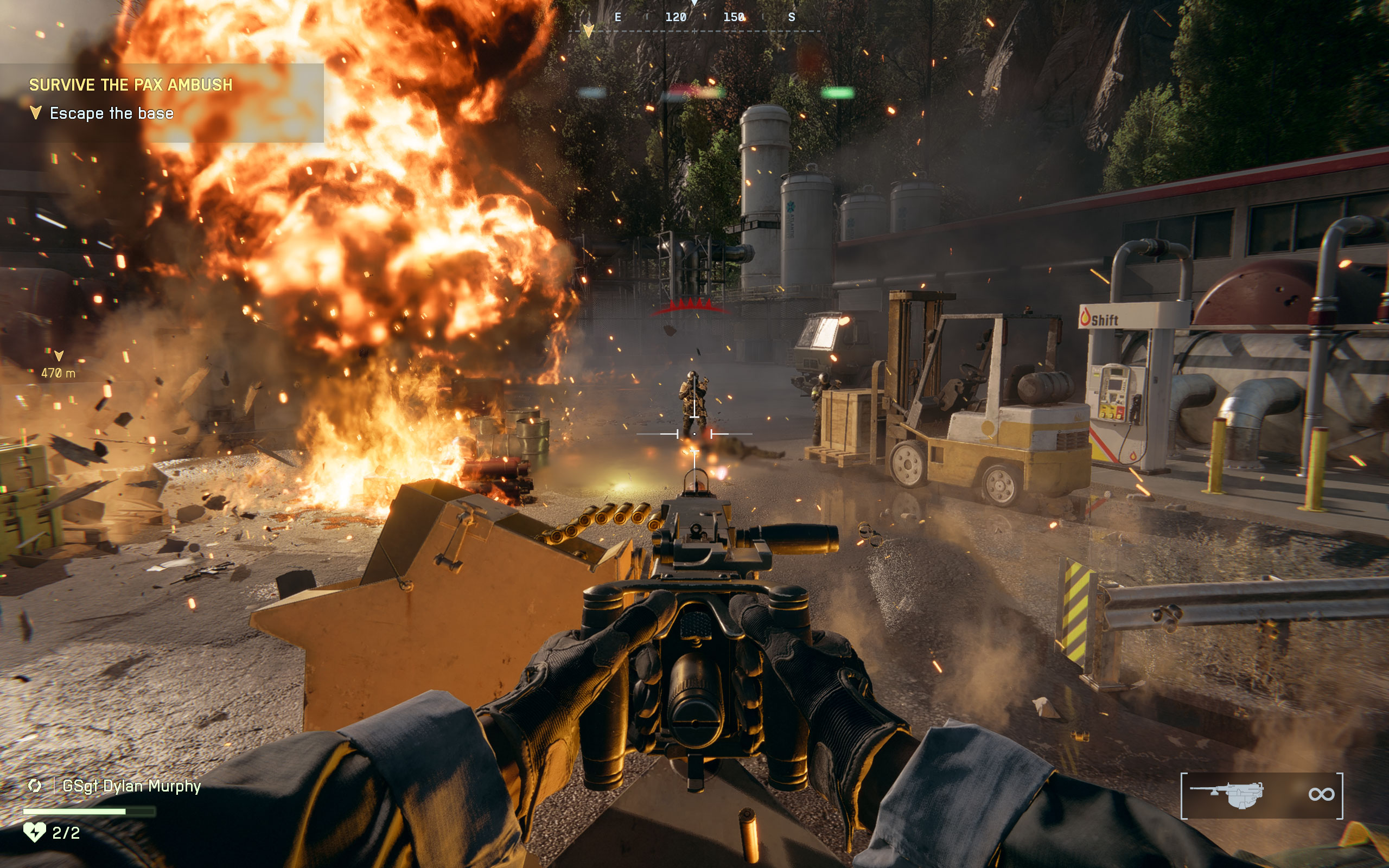
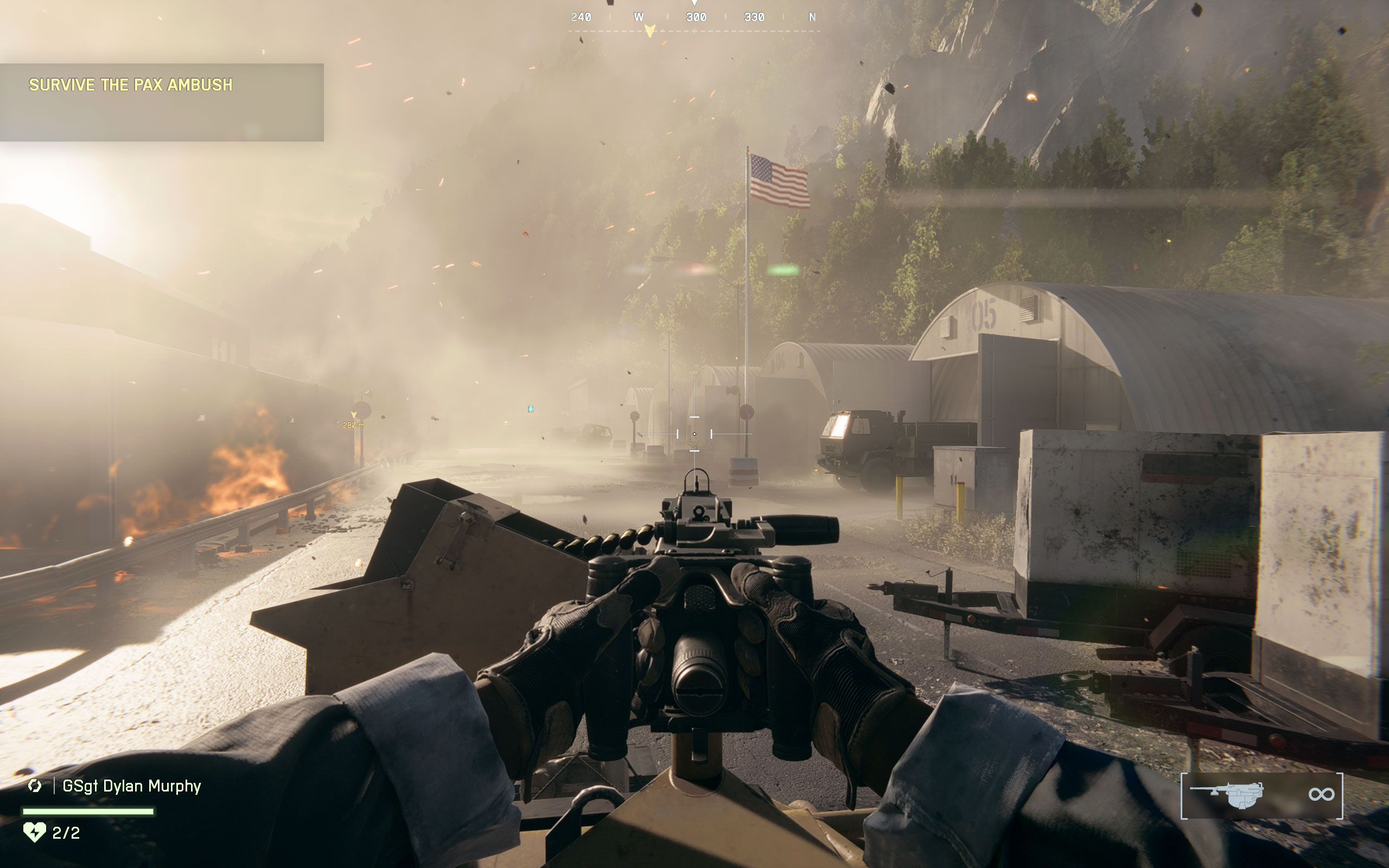
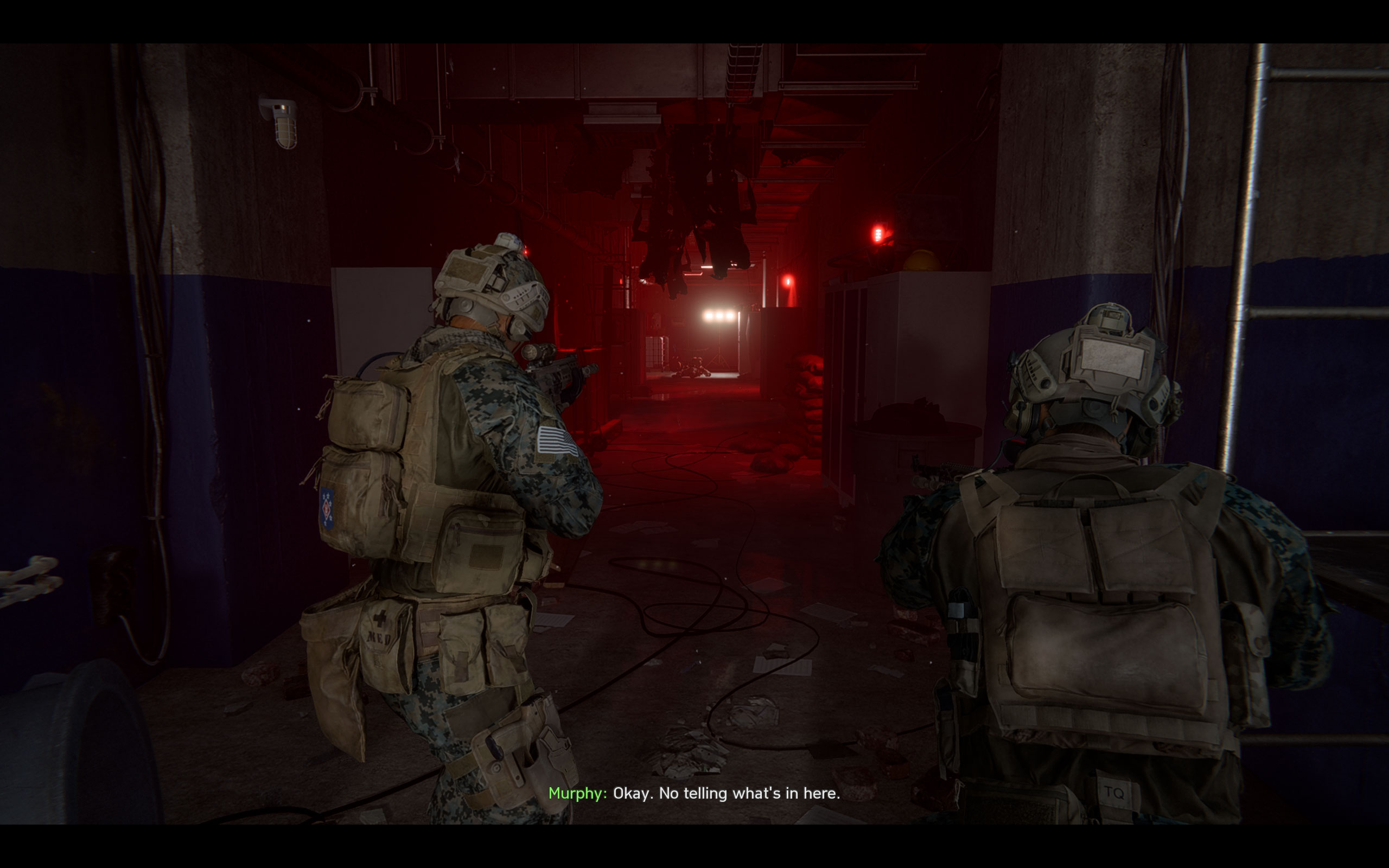
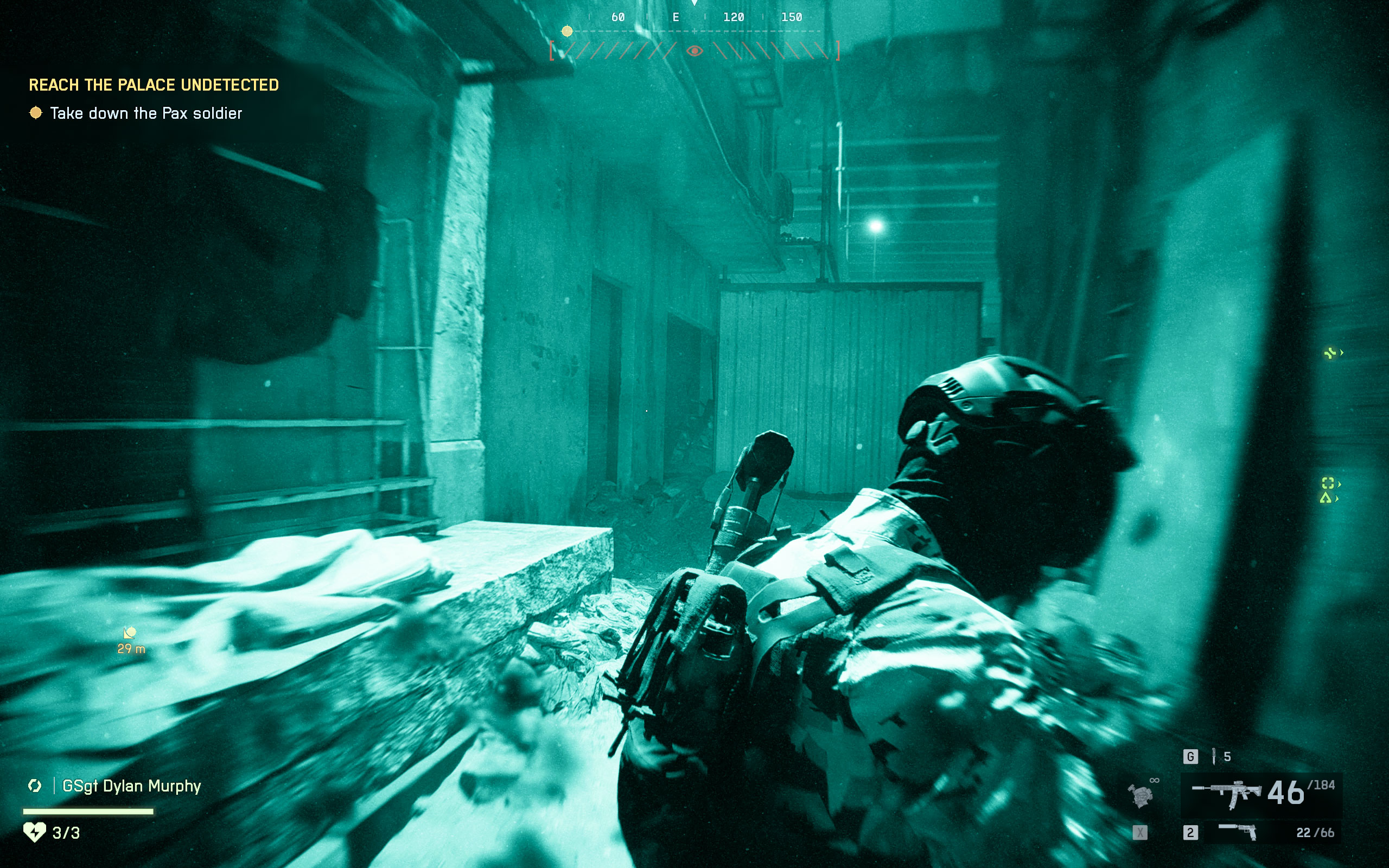
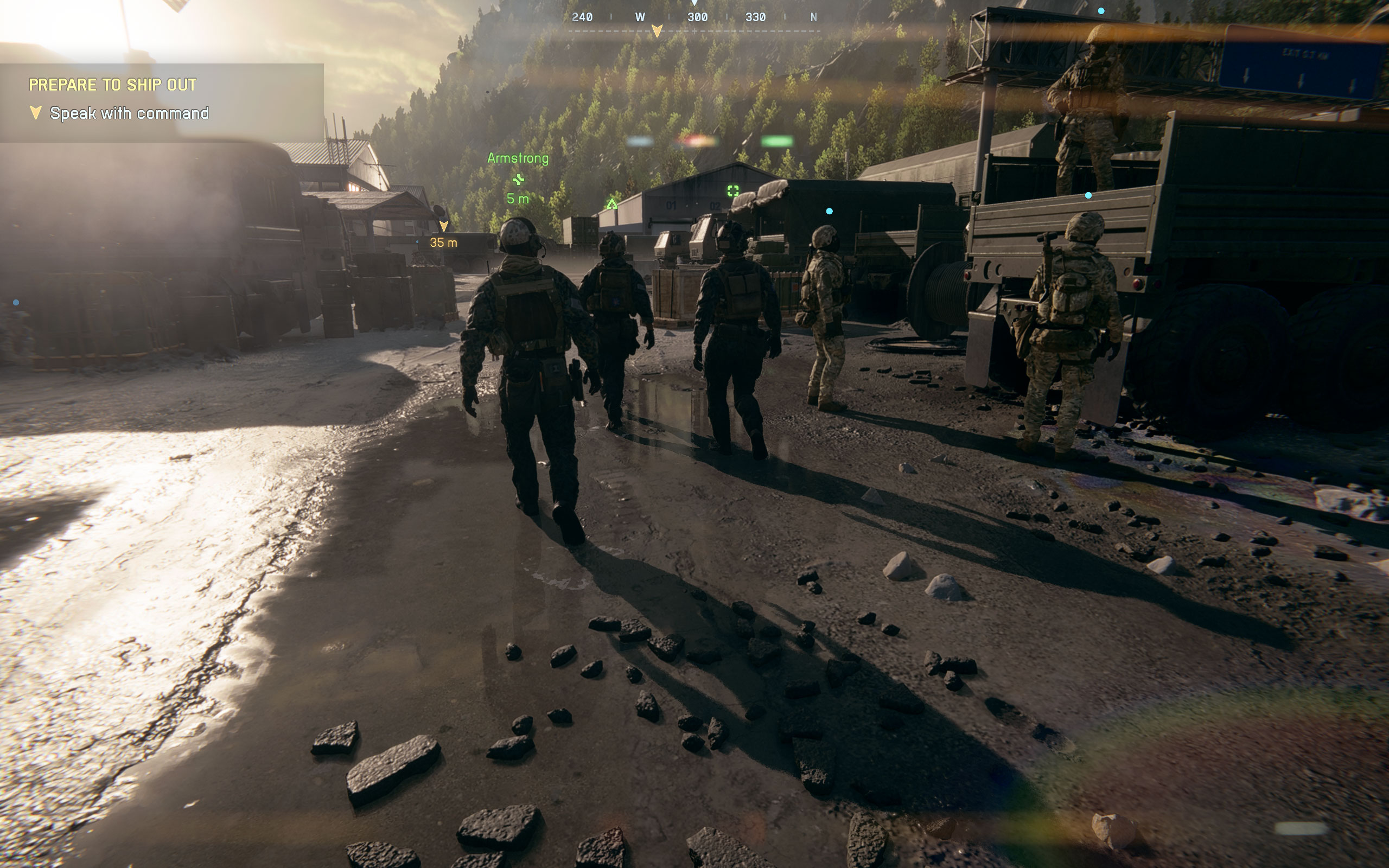
All screenshots were taken at the highest "Overkill" settings profile, upscaling was set to TAA at native resolution. The gallery can be navigated with the cursor keys.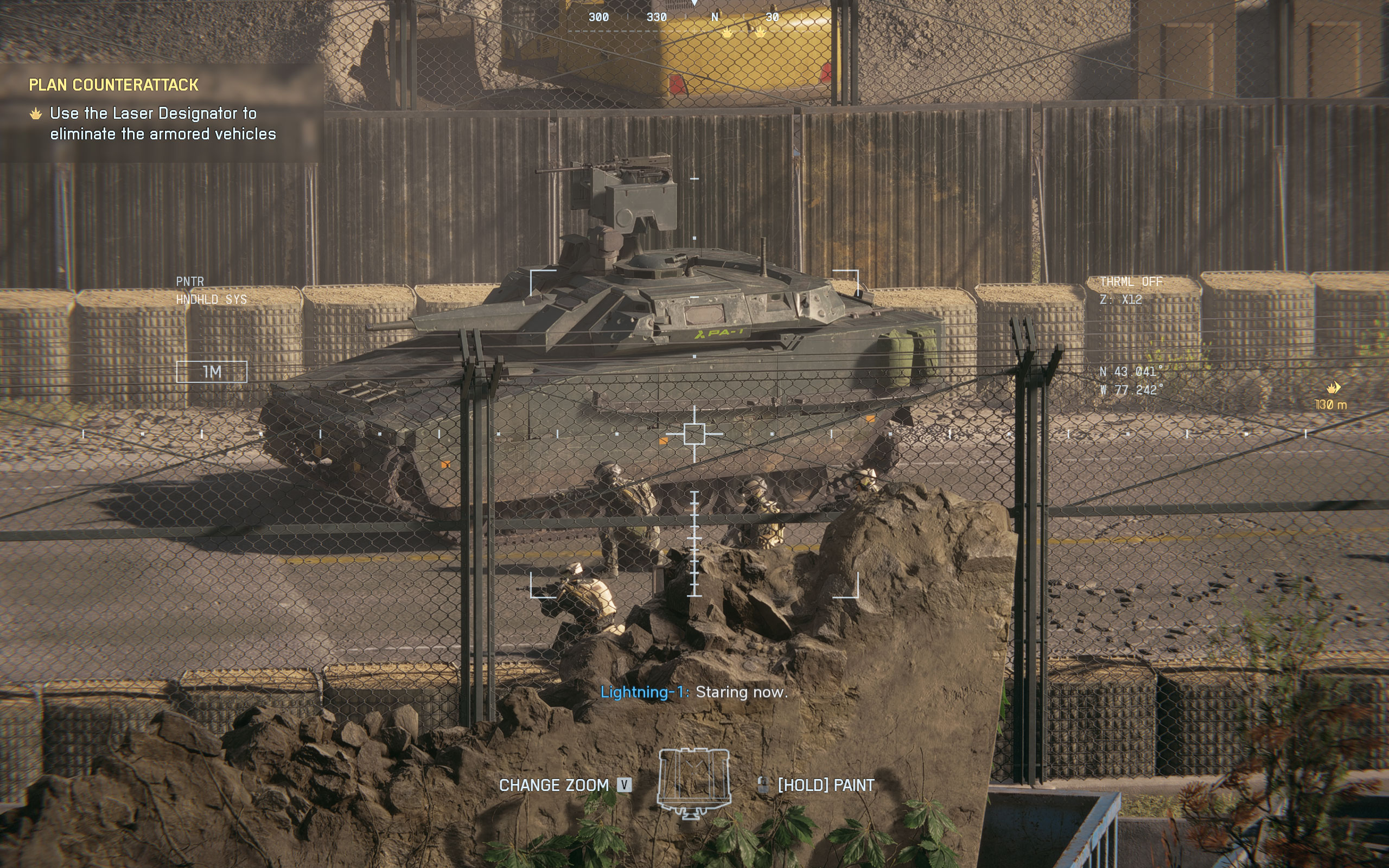









Graphics Settings

- The main graphics settings menu deals with the usual monitor settings, but it also has some user-interface settings, not sure why
- "Performance Preset" has two options "Auto (Balanced)" and "Auto (Performance)." All this does is change V-Sync between on and off, and it also overrides some existing settings values if you've changed them. For example, both profiles will both set quality: auto, NVIDIA low-latency + boost, future frame rendering: off, frame generation: off. This option is more confusing than useful in my opinion. When you make actual changes, it will just jump to "custom," so don't bother with it
- Graphics quality presets are: "low," "medium," "high," "ultra" and "overkill"
- Sharpness defaults to 50, which is alright I'd say, definitely not too oversharpened
- The field of view can be adjusted between 85 and 118
- Vehicle FOV can be set separately between 75 and 83
- Motion blur can be disabled completely, just like other distracting effects like chromatic aberration, vignette and film grain
- The fullscreen modes supported are "windowed," "borderless," and "fullscreen"
- V-Sync can be disabled completely, there is no hidden FPS cap
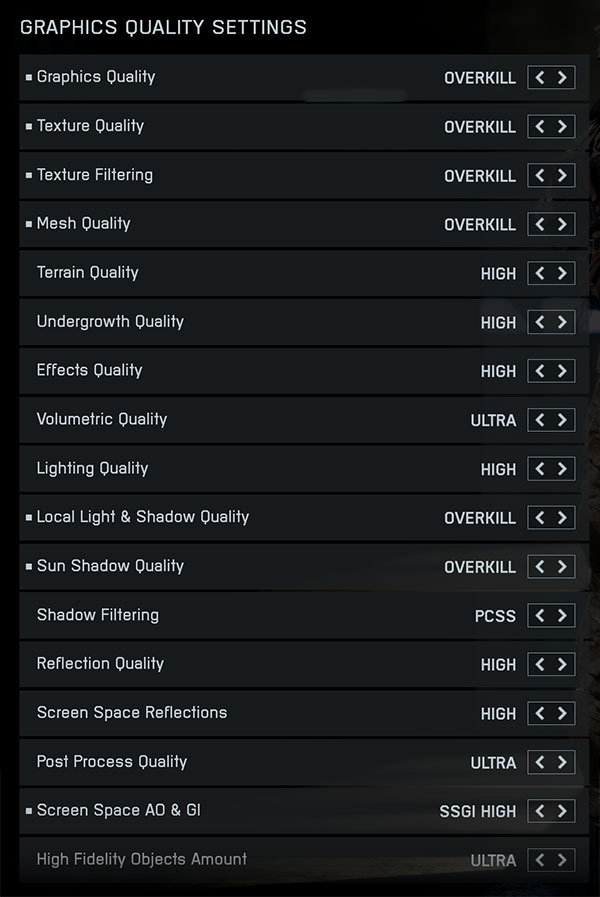
- The second graphics-related settings screen is available under the "Graphics Quality Settings" option button
- Here you see the list of presets again, same as on the main screen
- The options for shadow filtering are: PCF (percentage closer filtering) and PCSS (percentage closer soft shadows)
- Screenspace AO and GI can be set to: "off," "GTAO Low," "GTAO High," "SSGI Low," "SSGI High"

- There's even a third graphics settings screen, which can be found under the "Advanced" options button on the primary settings screen
- Here you can change the upscaling resolution, which defaults to 100%, and can be set from 50% to 200%
- The frame rate limiter can be set between 30 and 240 FPS
- Dynamic resolution scale lets you set a target FPS to reach, but you can also set a minimum resolution scale, to avoid too much upscaling
- NVIDIA Reflex gets activated by default, in the "enabled + boost" mode
- Anti-aliasing can be set to "Off," "TAA," "DLAA," "FSR Native AA" and "XeSS Native AA." When you enable upscaling in the next menu option, this menu gets disabled
- The upscaler menu has the following options: "Off," "DLSS," "FSR" and "XeSS"
- Frame generation can be enabled, too, but only for the GPU vendor you have. So on NVIDIA, the only option is "DLSS Frame Generation," on AMD it is "FSR" and on Intel it's "XeSS." This is bad news for owners of GeForce 30 graphics cards who would love to enable FSR frame generation, because DLSS framegen isn't available on their GPUs
- Last but not least, you can enable a performance overlay, which shows some rendering stats. I didn't find it that useful
Our Patreon Silver Supporters can read articles in single-page format.
Nov 11th, 2026 20:27 CST
change timezone
New Forum Posts
- Classic Blizzard games (WarCraft 1-2, Diablo 1-2, StarCraft 1) (3)
- TPU's Nostalgic Hardware Club (22144)
- When you could finally run Crysis maxed out? (45)
- Your PC ATM (36401)
- Gacha Games - Discussions, Pulls, Updates, etc. (1149)
- Steam Deck Owners Clubhouse (618)
- Ryzen 7 8700G OC (0)
- Case to fit 2X Alphacool NexXxoS UT60 Rads (5)
- AAF Optimus Modded Driver For Windows 10 & 11 - Only for HDAUDIO Chips [WINDOWS 11 RECOMMENDED] (1153)
- Samsung 870 EVO - Beware, certain batches prone to failure! (1487)
Popular Reviews
- AMD Zen 6 Technical Deep Dive
- Upcoming Hardware Launches 2027 (Updated Nov 2026)
- XPG NIMBUS PLUS Review - Mid-range Chair With Strong Competitors
- NZXT H7 RGB+ Review
- NZXT H5 Review
- NZXT C1200 Platinum Review
- Phantom Blade Zero Performance Benchmark Review - 35 GPUs Tested
- Montech King 95 3D PRO Review
- Gigabyte Z890I Aorus Ultra Review
- INNOCN 45C1R Review - Two QHD Screens, Zero Bezels
TPU on YouTube
Controversial News Posts
- OpenAI CEO Argues Home PCs Waste the World's Limited DRAM Supply (152)
- NVIDIA Launches Investigation Into Jensen Huang's Relationship With Suspected Chinese Spy (136)
- Intel "Raptor Lake Next" 16-Core and 20-Core CPUs Surface (130)
- Legendary Game Studio BioWare Shuts Down Following EA Layoffs (104)
- Dell CEO Says the Memory Shortage Will Get Worse in 2027 (95)
- NVIDIA GeForce RTX 50-Series Scheduled for up to $500 Price Hike This Week (89)
- AMD Radeon Owners Can Now Run Nearly Every DLSS Feature Through Fan-Made Mod (80)
- Modder Fits RTX 5090 With Four 8-Pin Connectors, Halving Current per Wire (80)