 270
Borderlands 4 Performance Benchmark Review - 30+ GPUs Tested
(270 Comments) »Introduction
Borderlands 4 is a first-person looter-shooter RPG developed by Gearbox Software and published by 2K Games. This next chapter in the legendary game series introduces new planets, enemy factions, and an expanded arsenal of procedurally generated weapons. Players can tackle the story alone or in co-op, with a mix of fast-paced combat, character progression, and loot-driven exploration that continues the core formula the series is known for.
Released six years after Borderlands 3 in 2019, this entry is built on Unreal Engine 5, bringing technical improvements while maintaining the game's typical cel-shaded art direction. With UE5 Lumen real-time global illumination, the game delivers dynamic lighting and reflections across various environments, even without hardware ray tracing support. Borderlands 4 supports NVIDIA DLSS, AMD FSR, and Intel XeSS for upscaling. Frame Generation is available for all three GPU vendors, too.
This review will evaluate the performance of Borderlands 4 across a wide range of contemporary graphics cards, compare image quality settings, and analyze the game's VRAM usage to provide insight into the hardware requirements needed for an optimal experience.
Screenshots
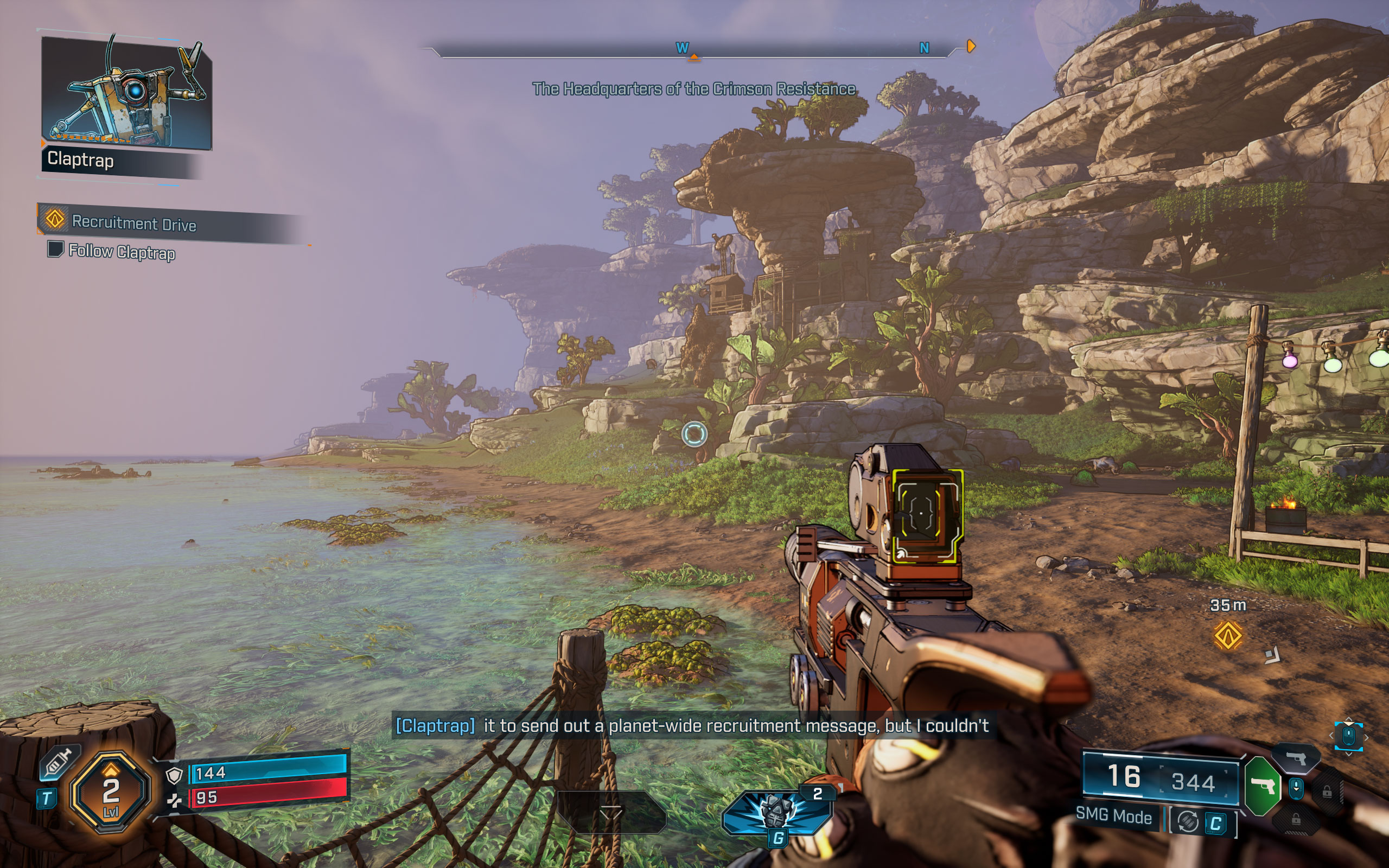
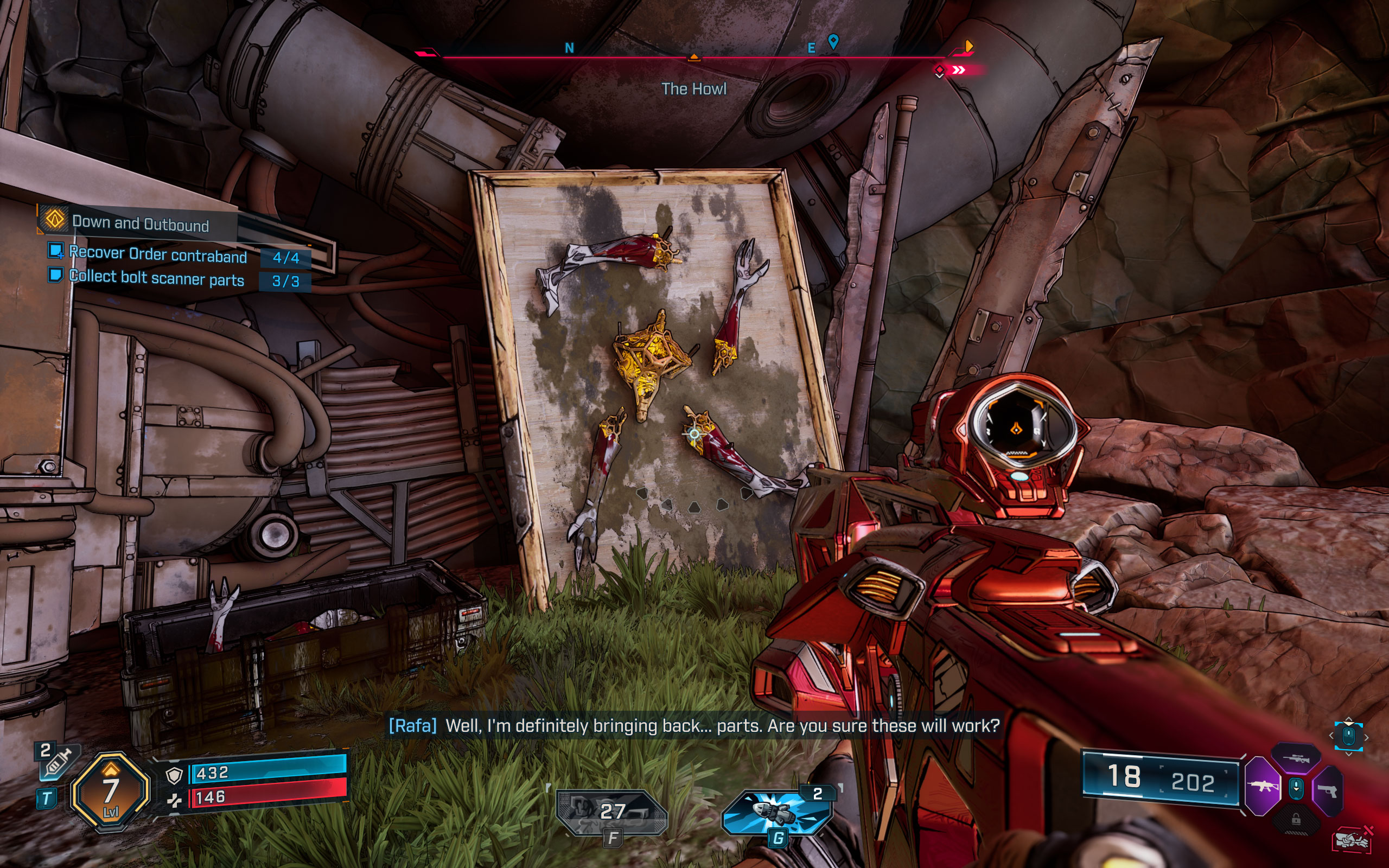
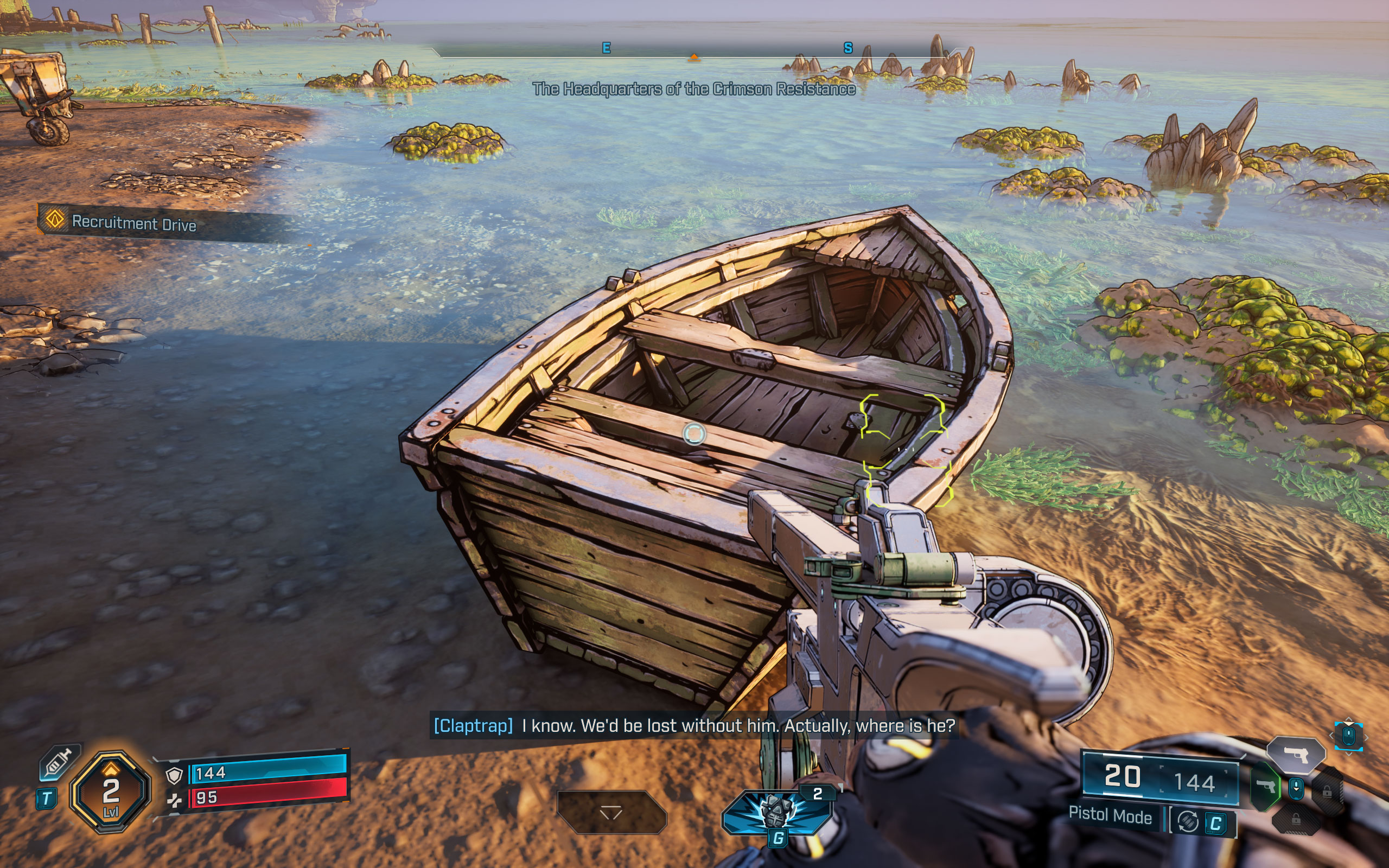
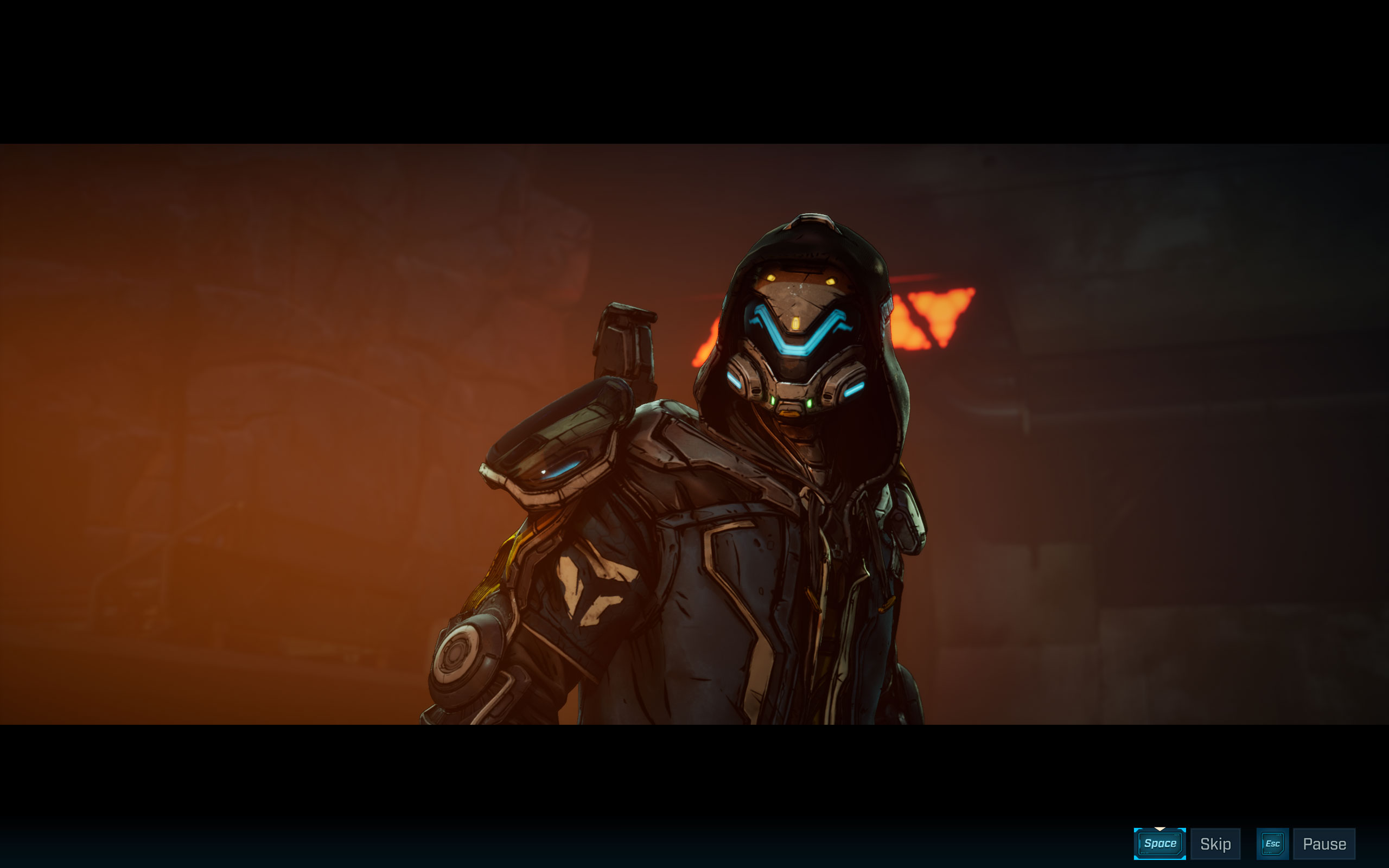
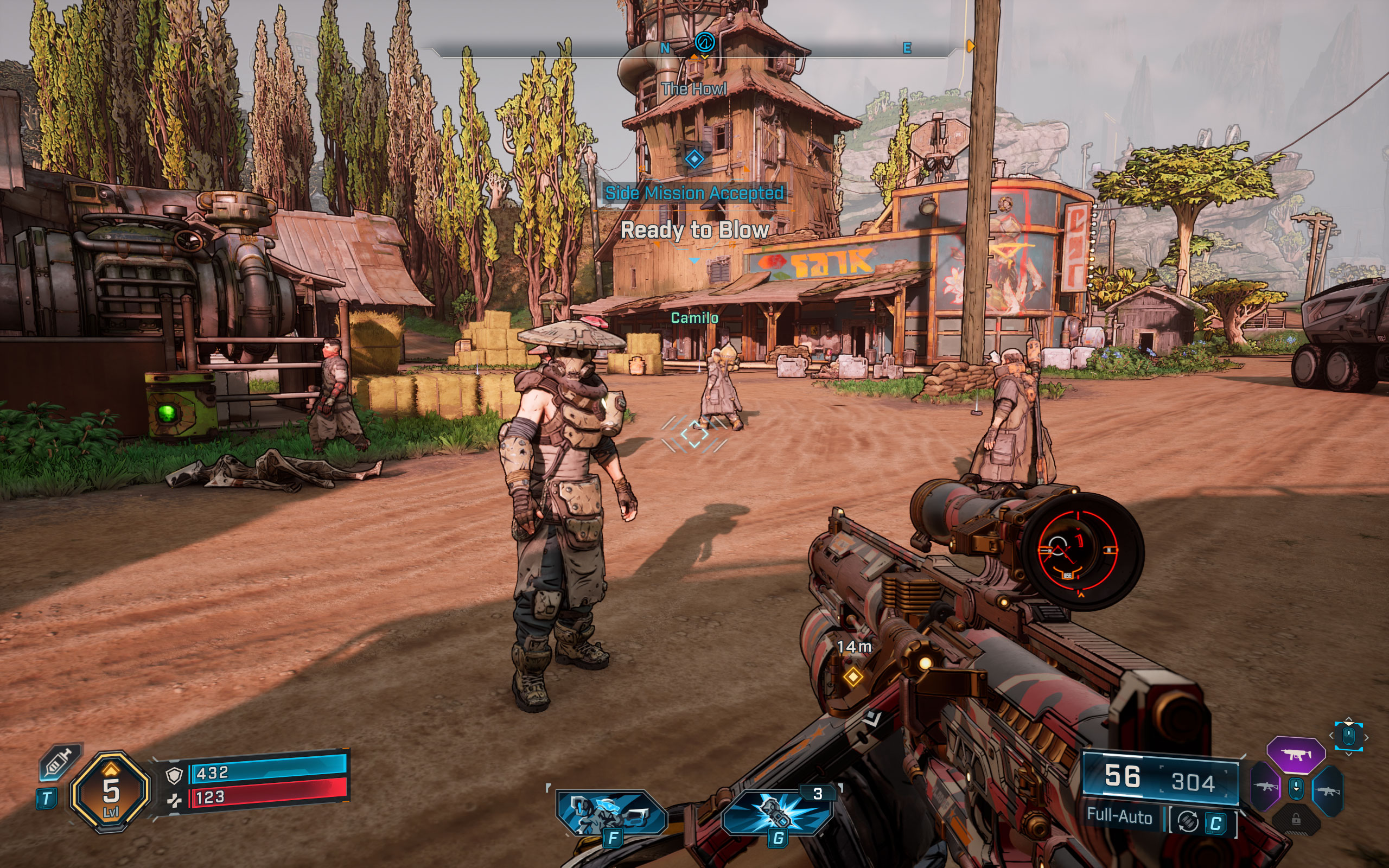
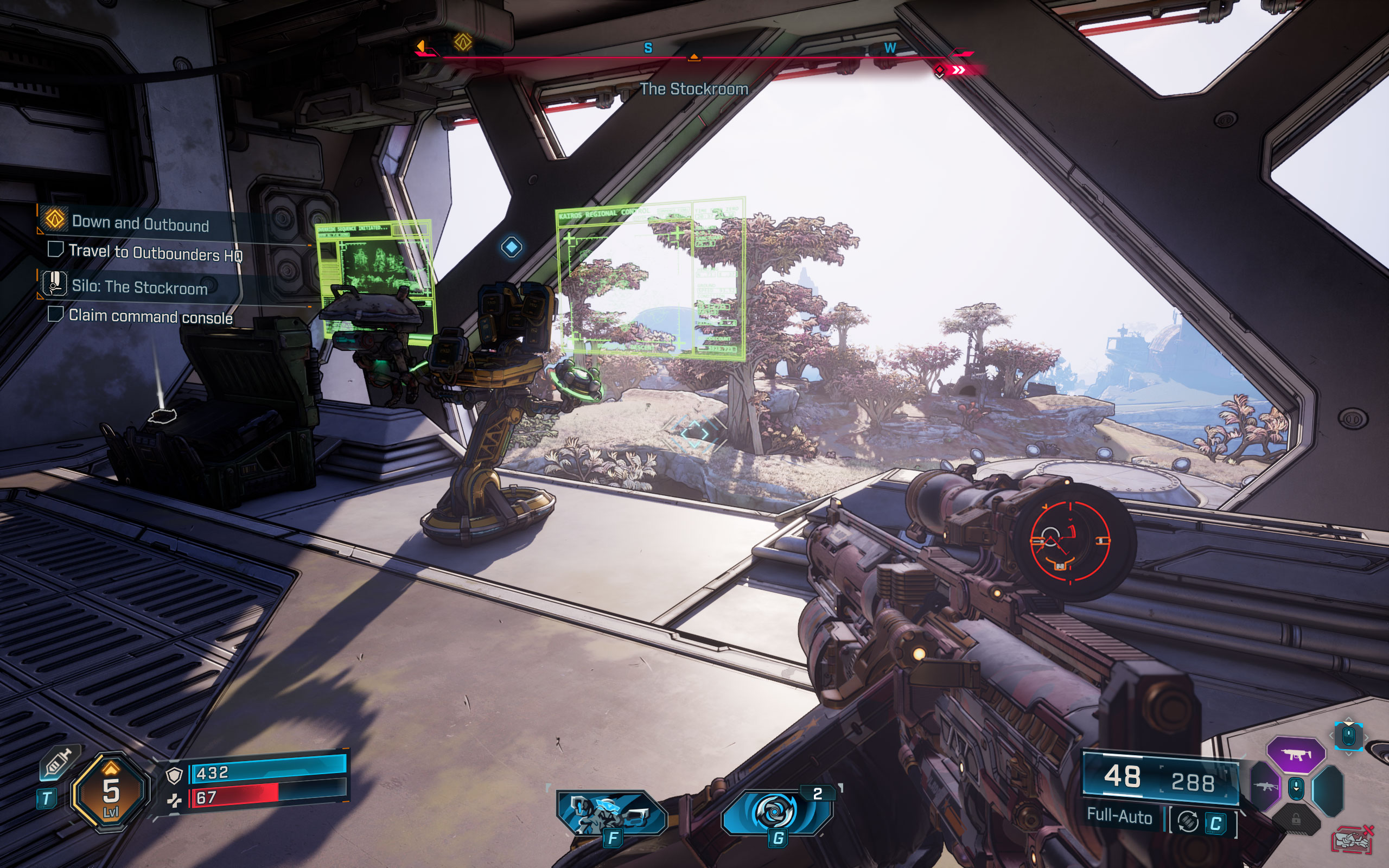
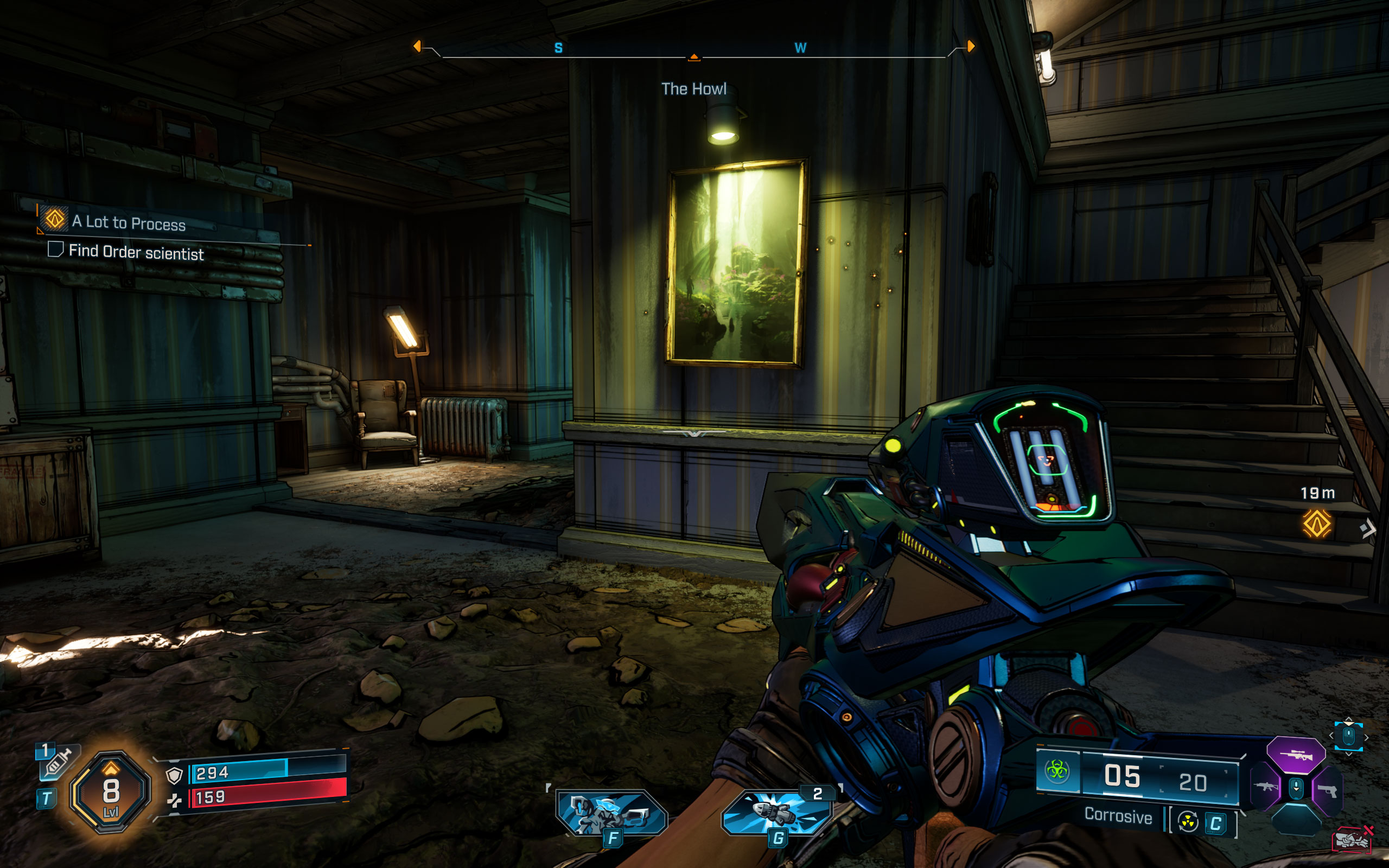
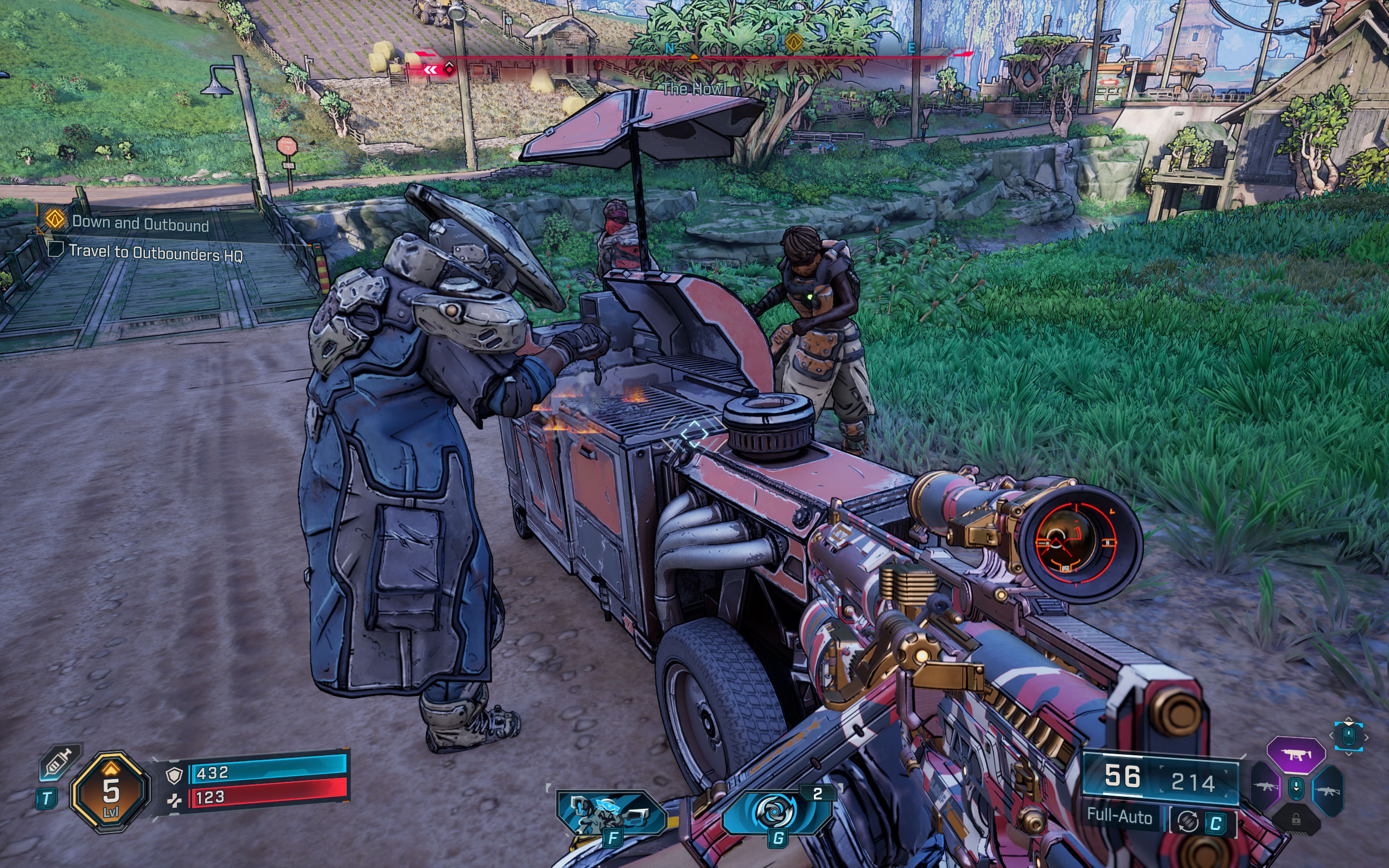
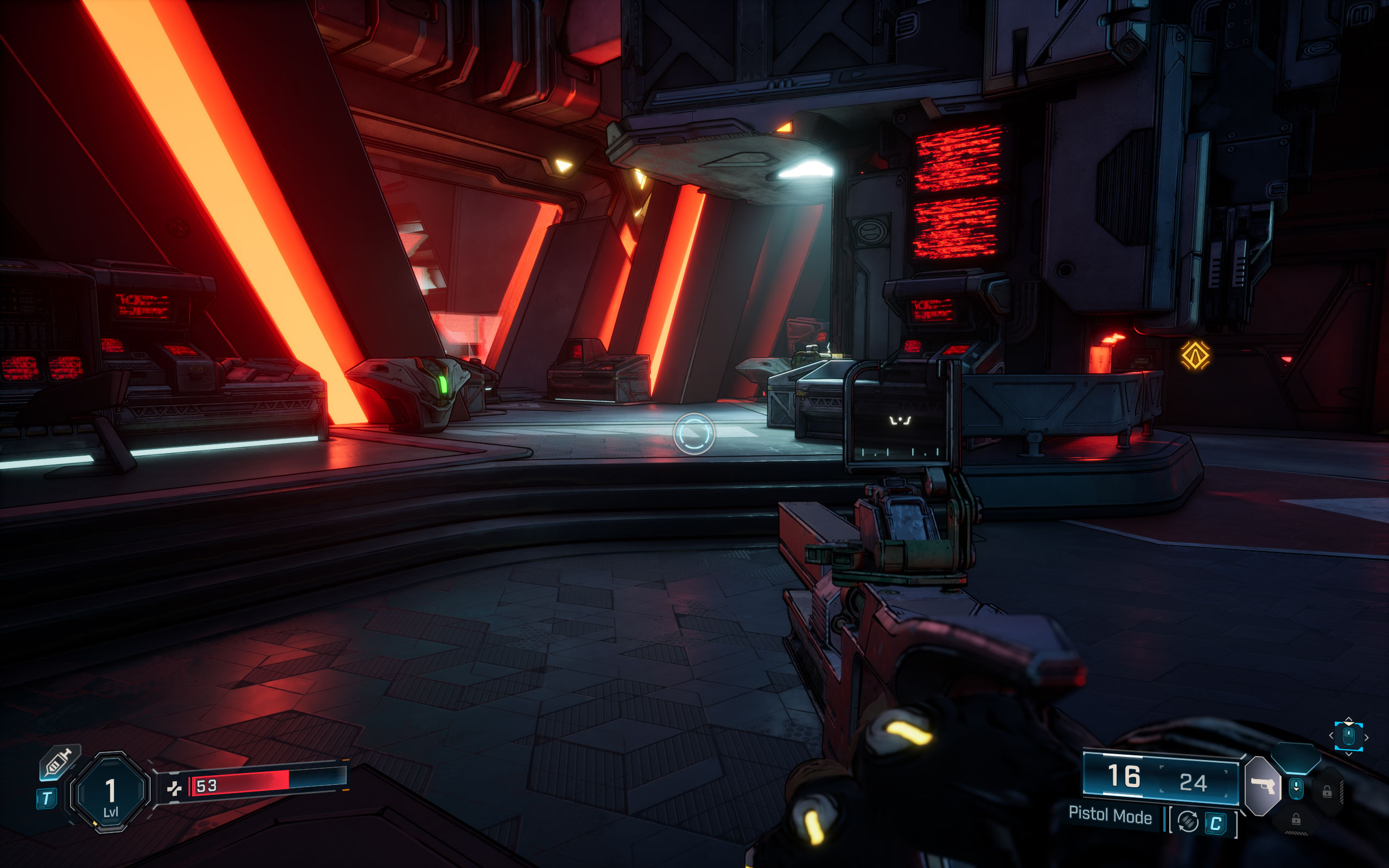
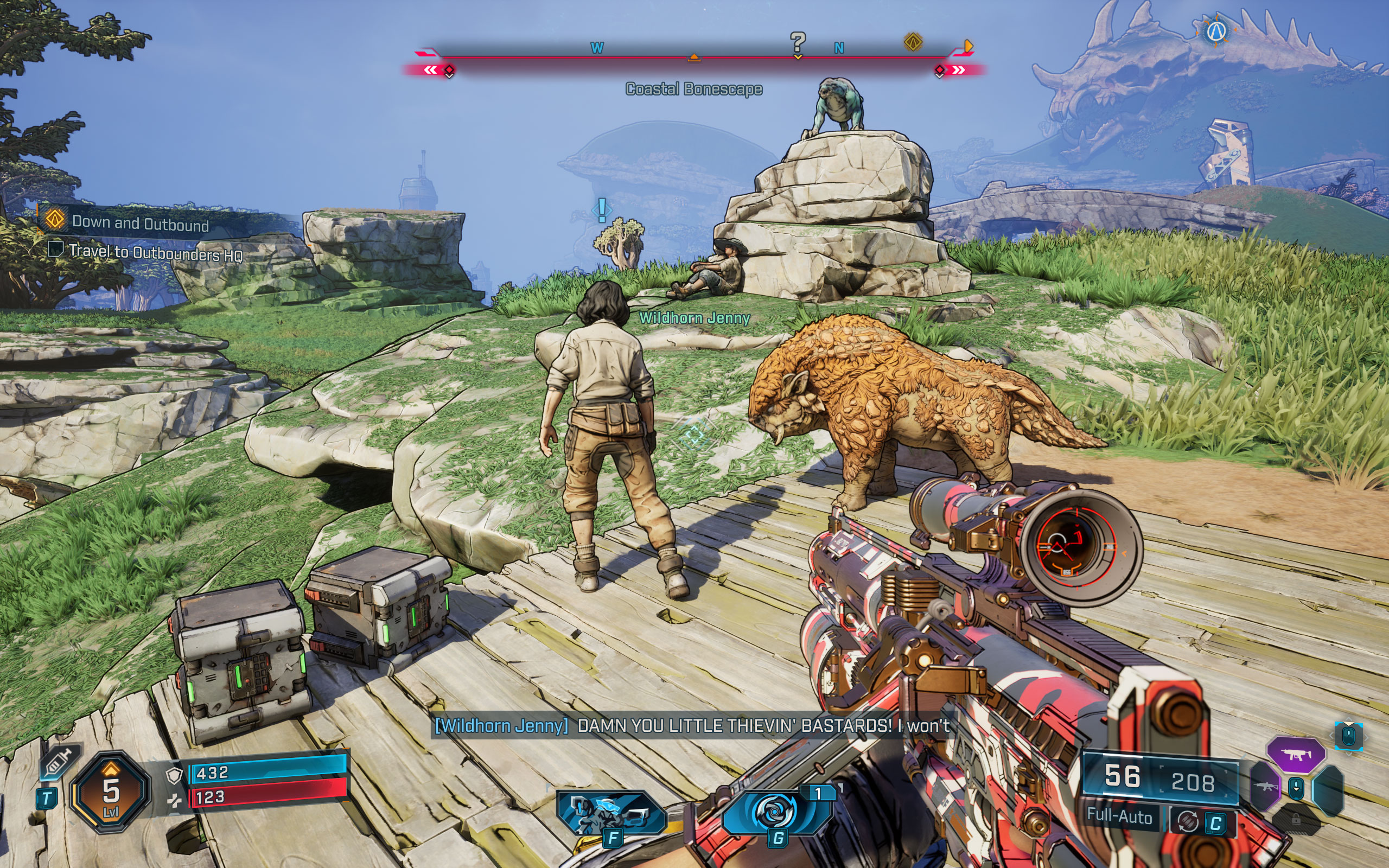
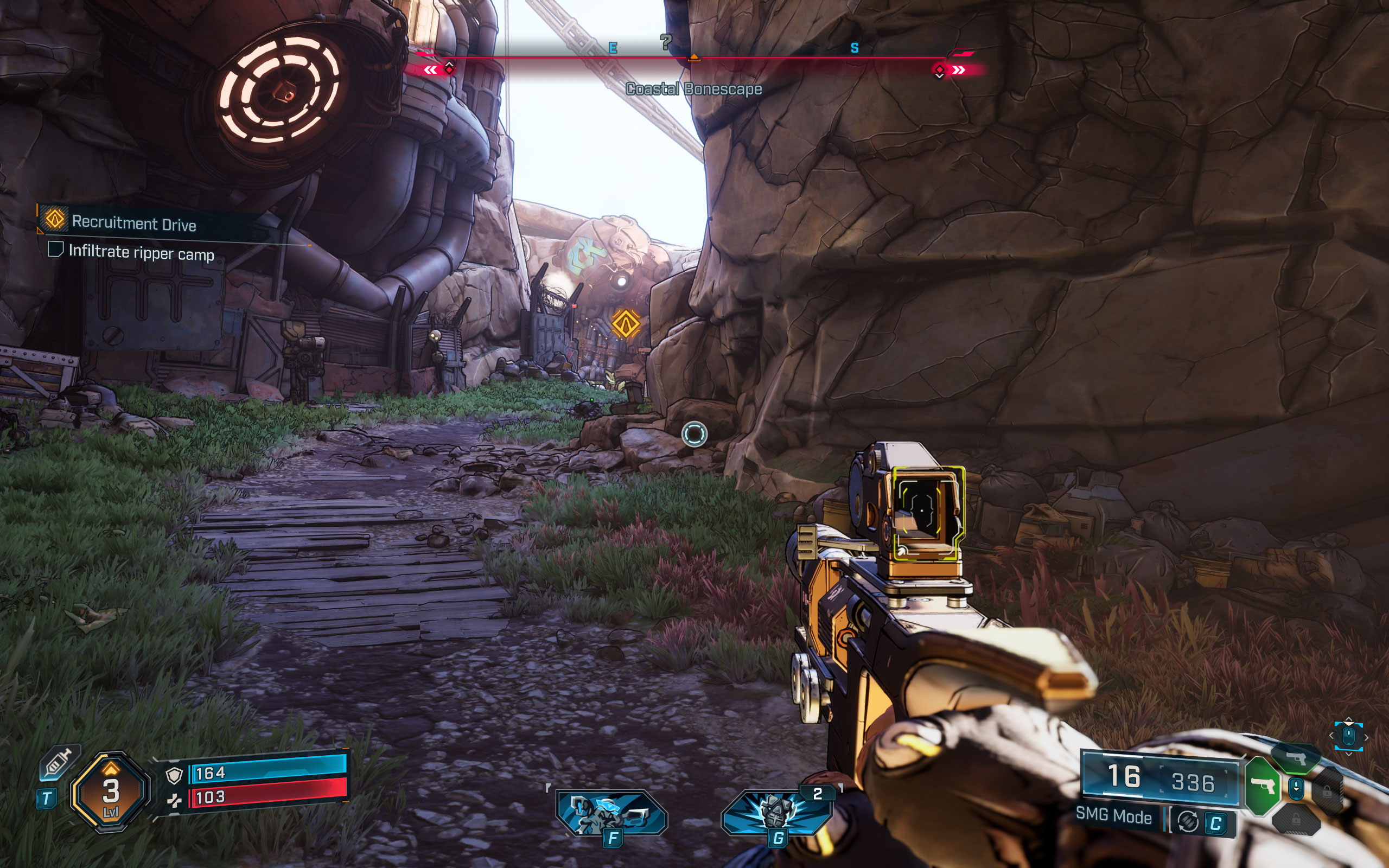
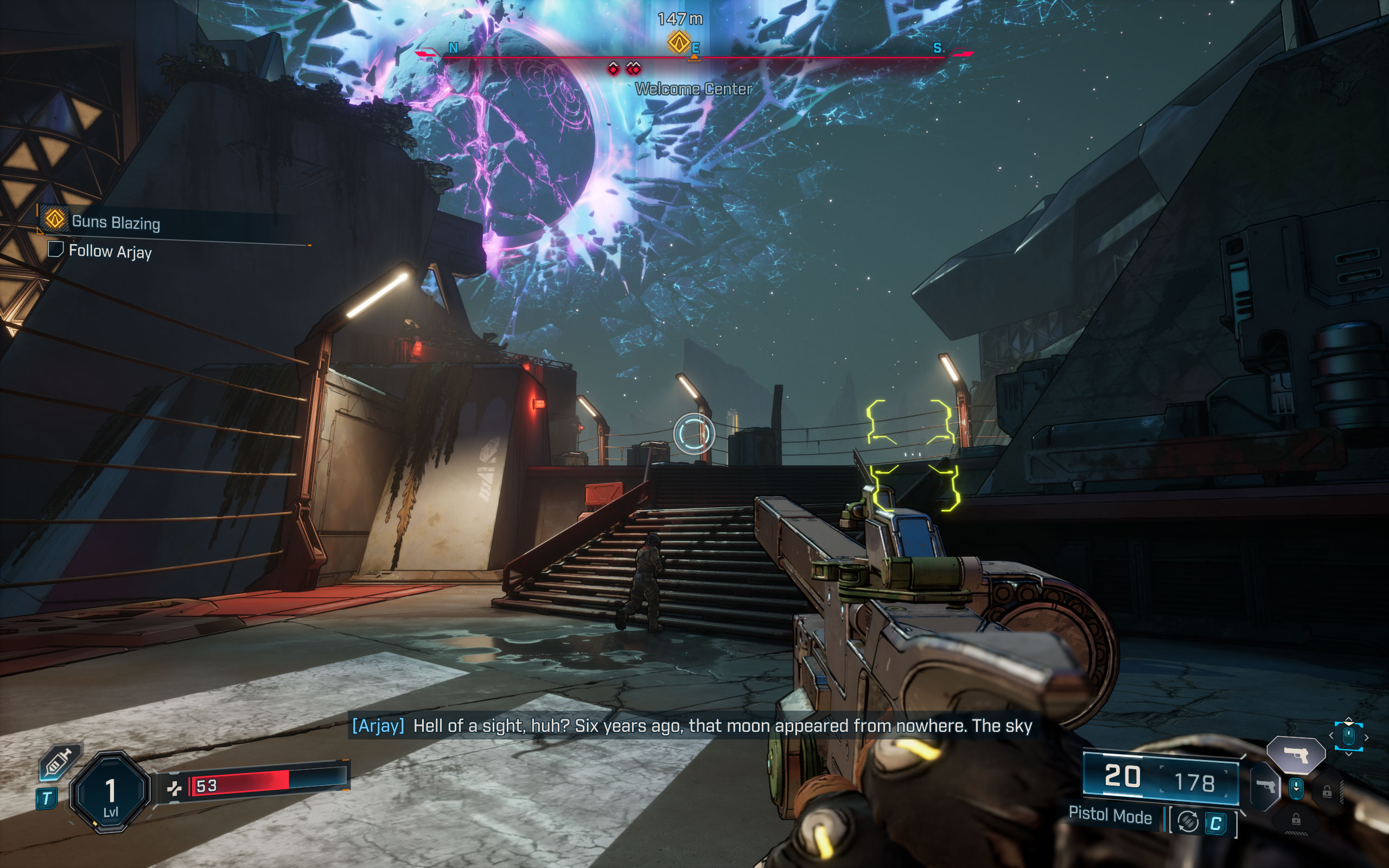
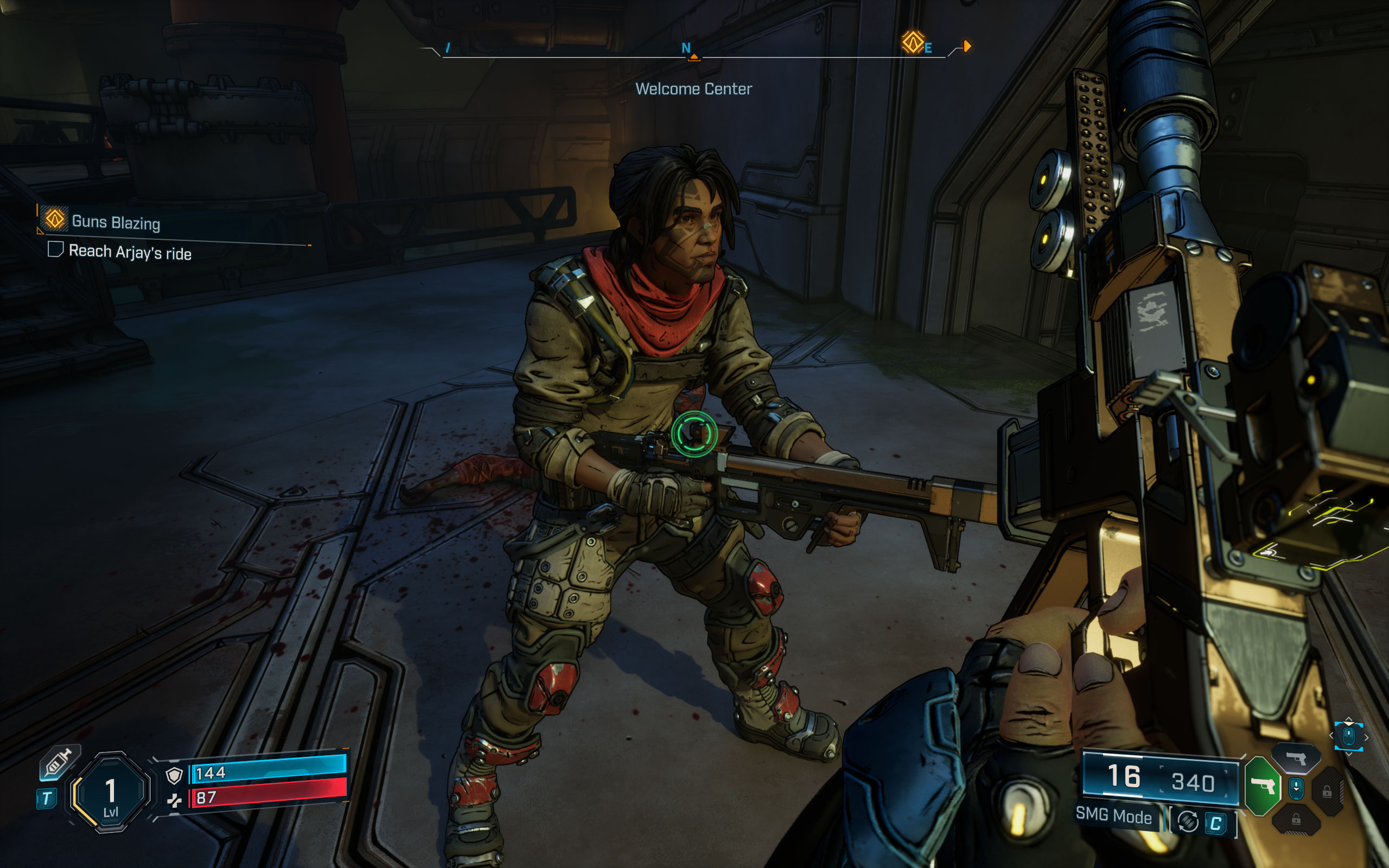
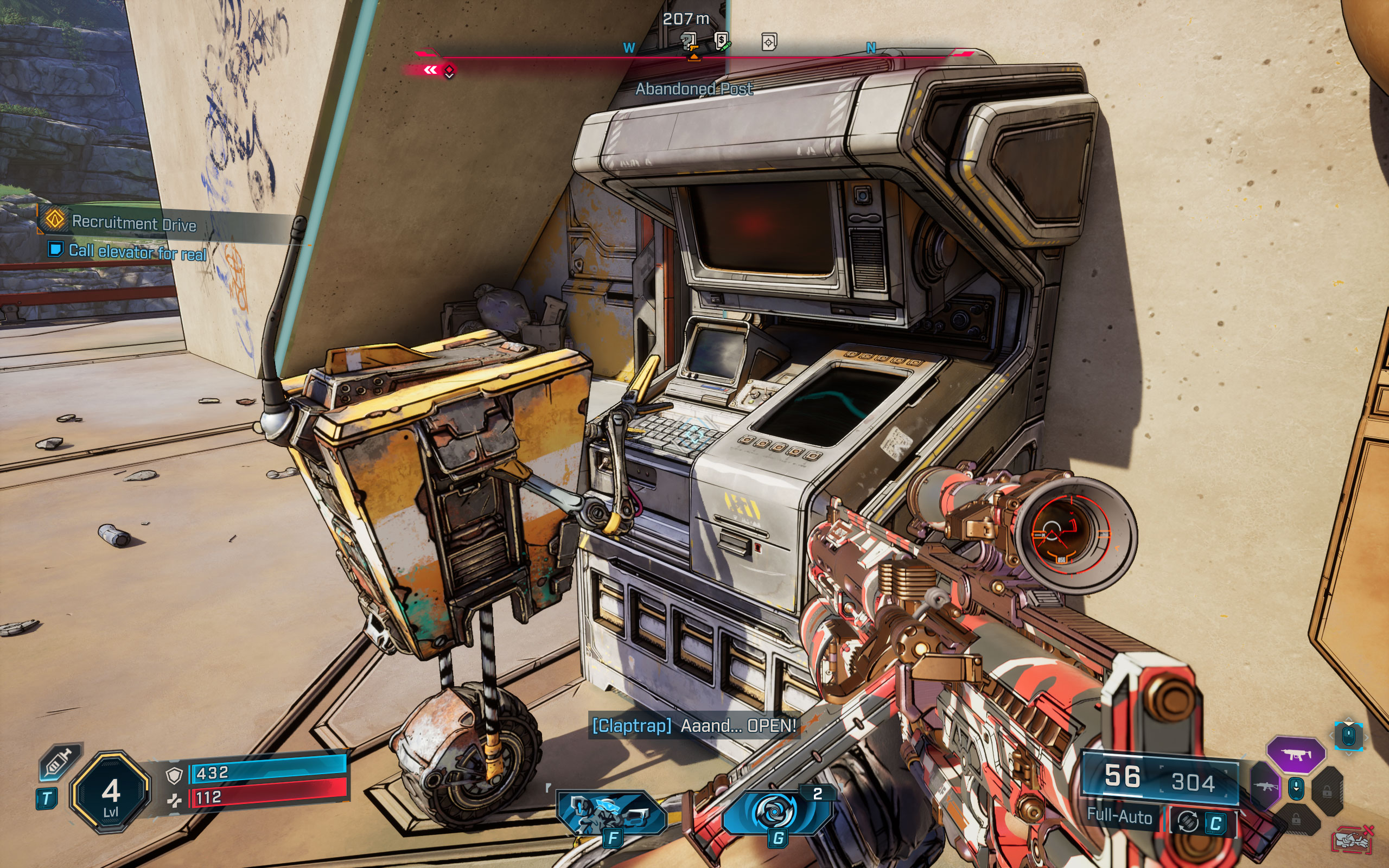
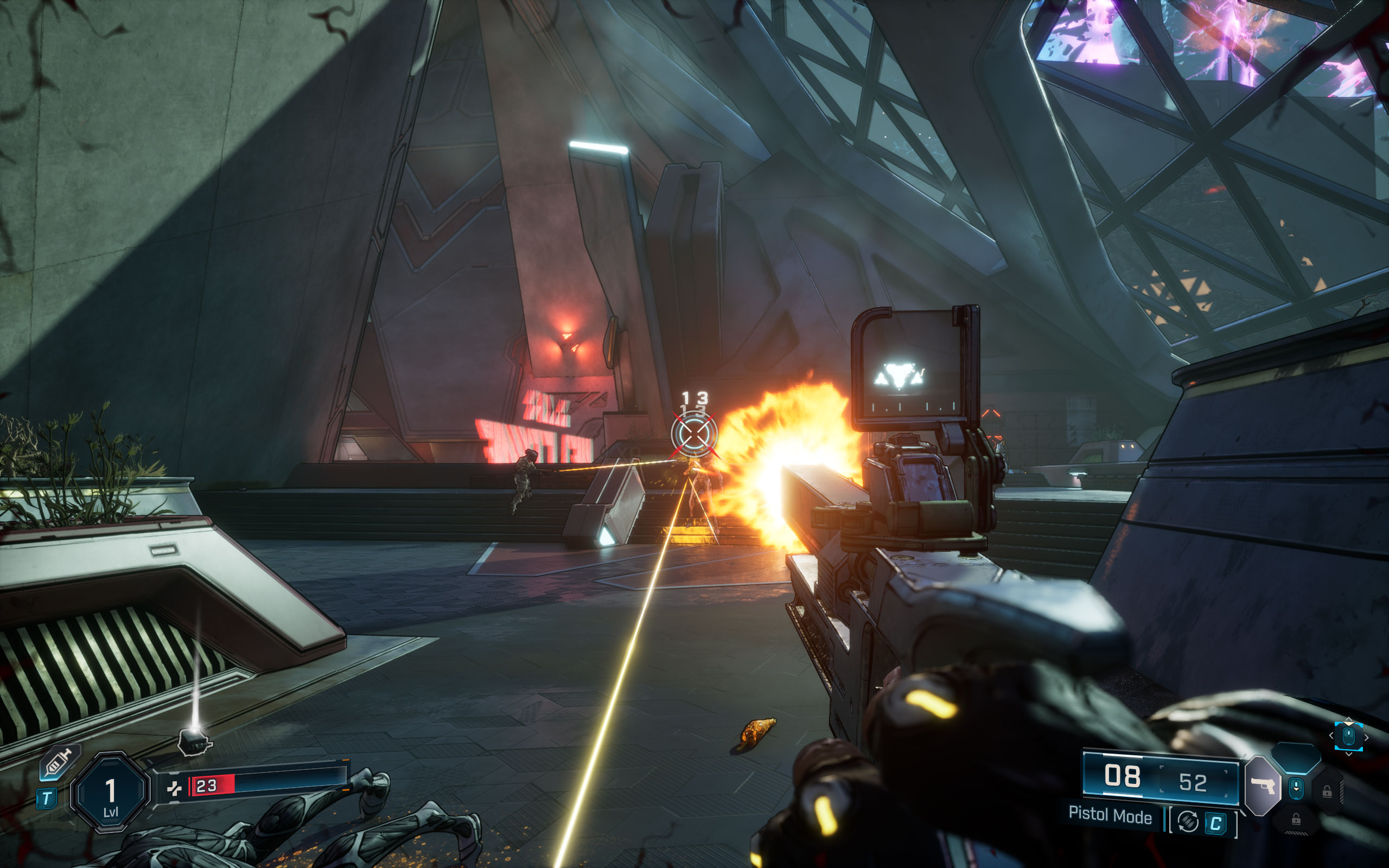
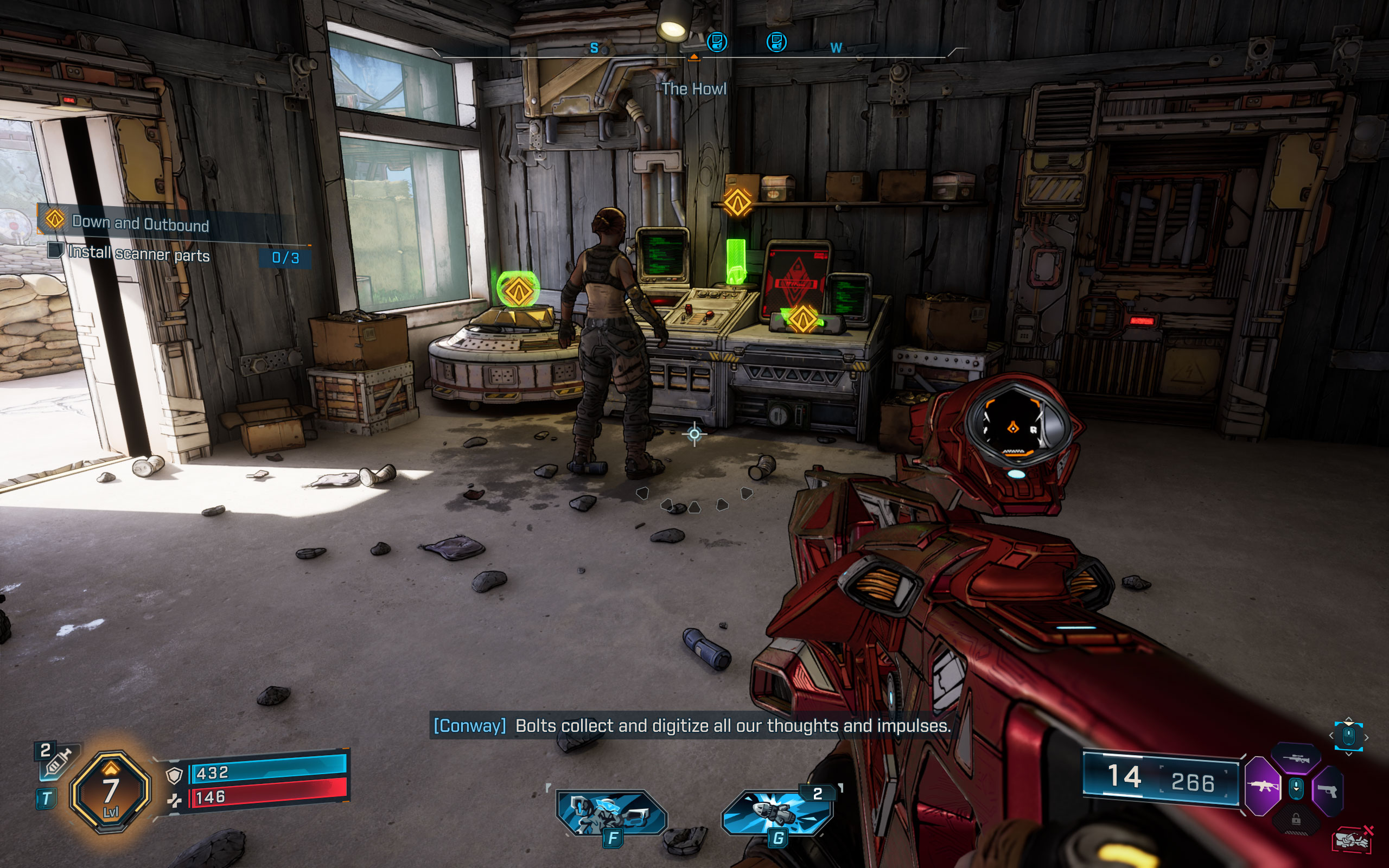
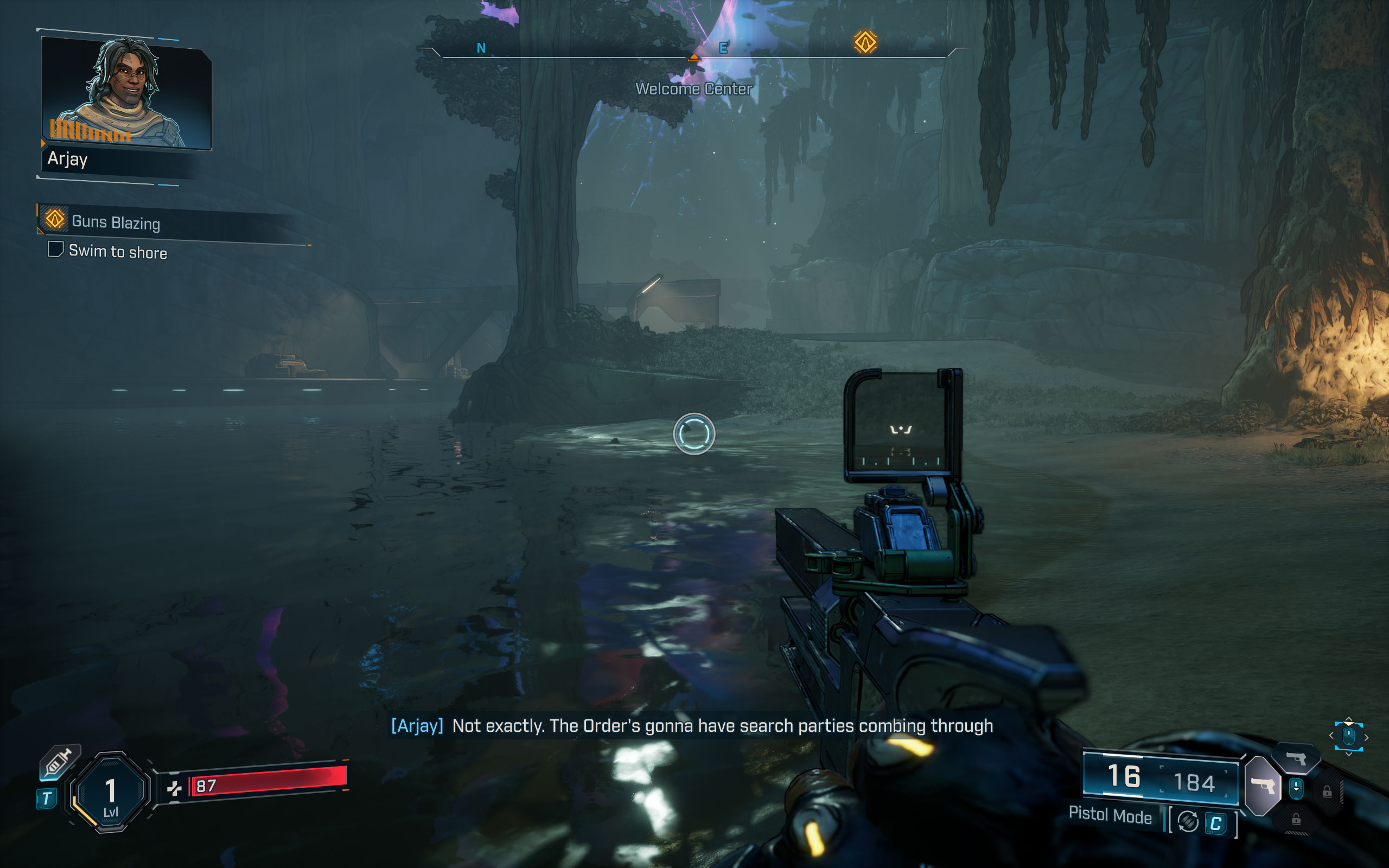
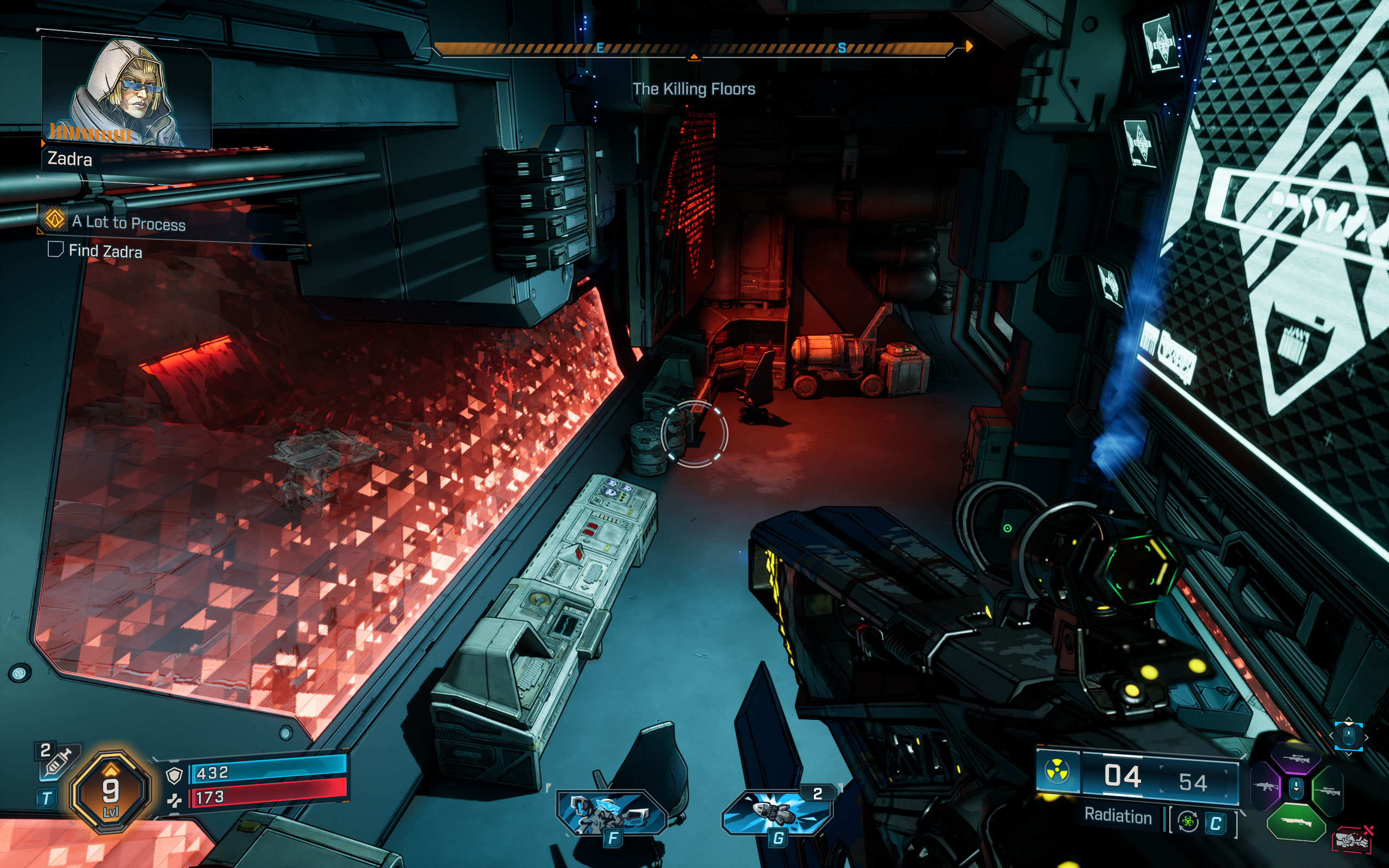
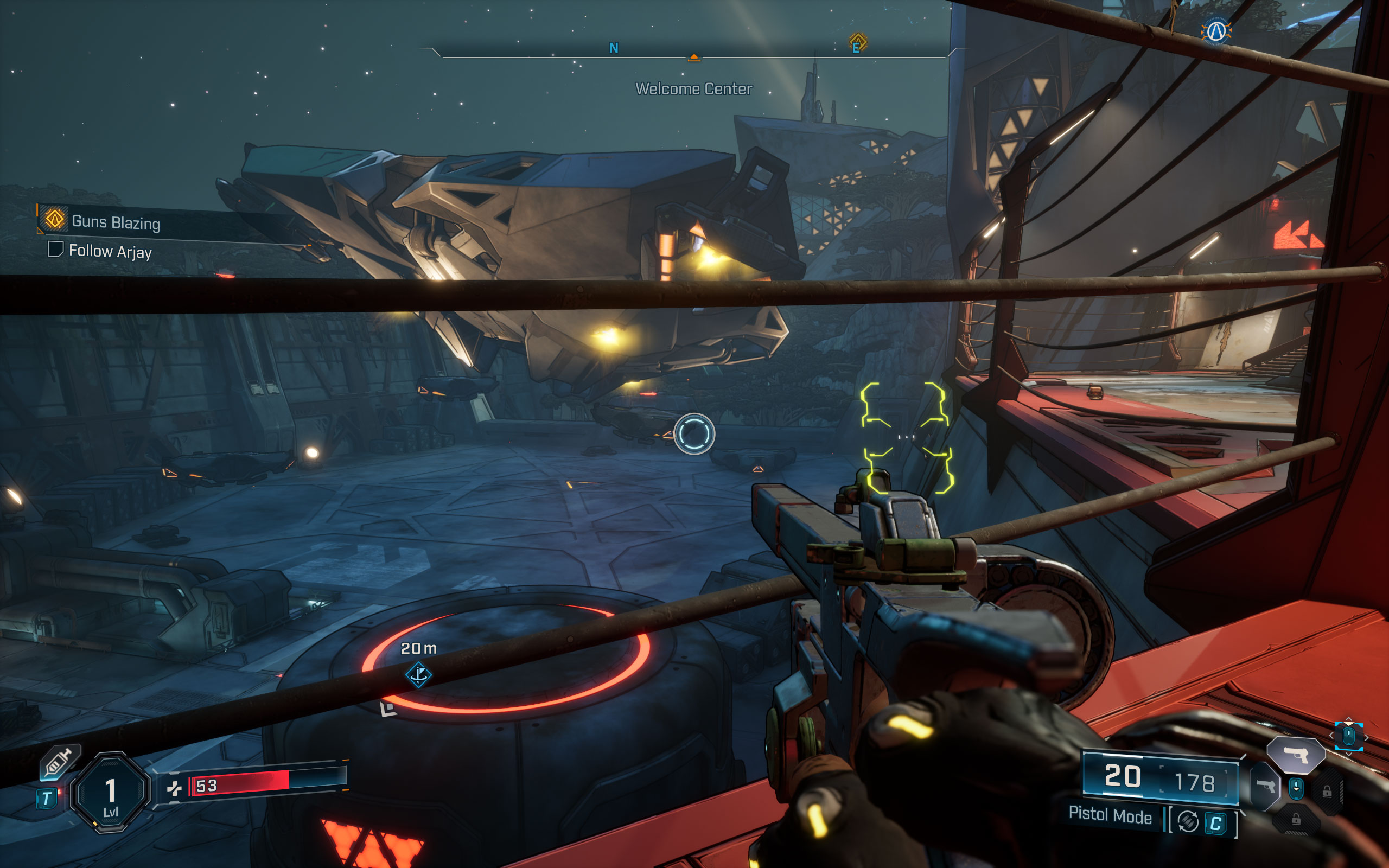
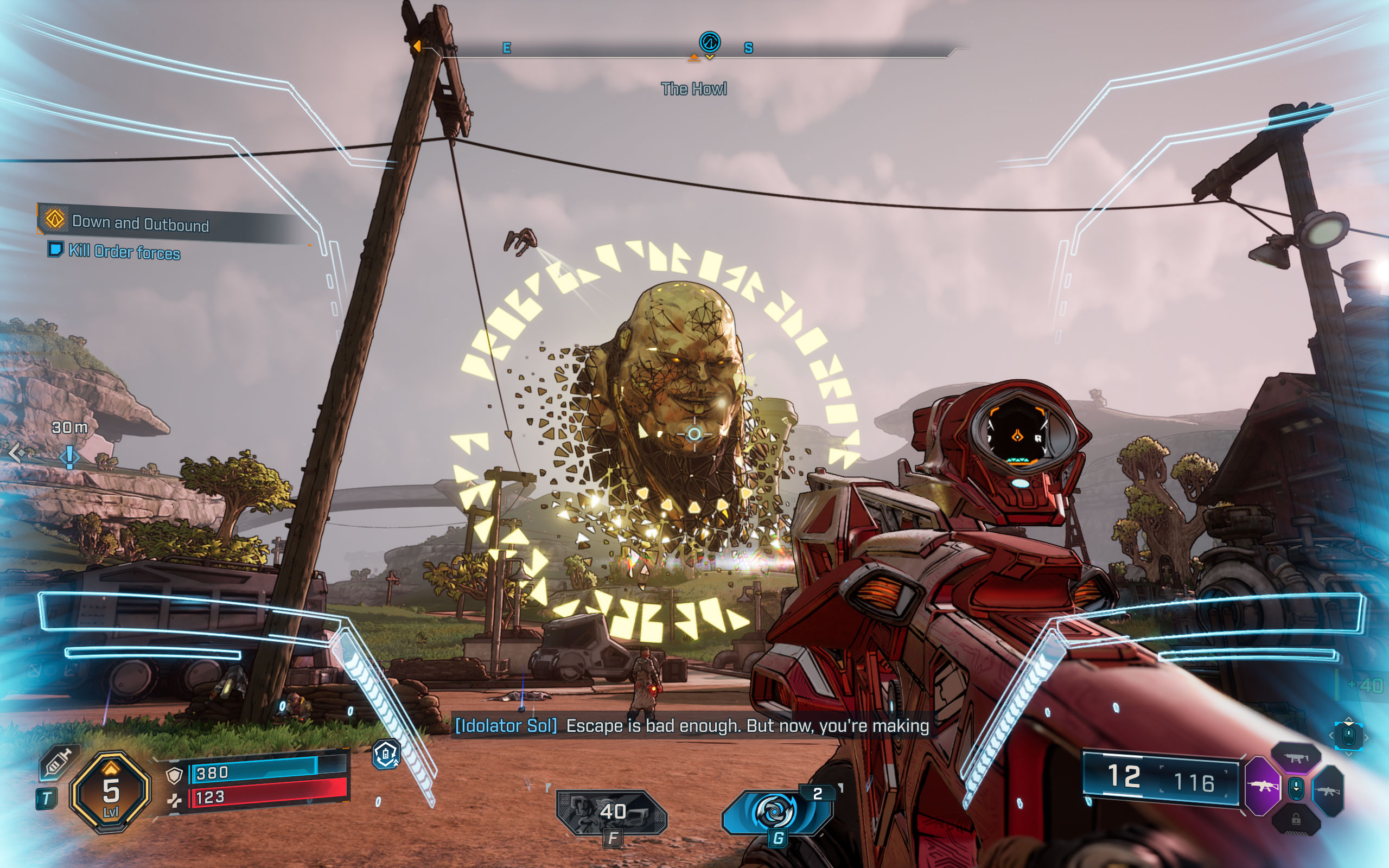
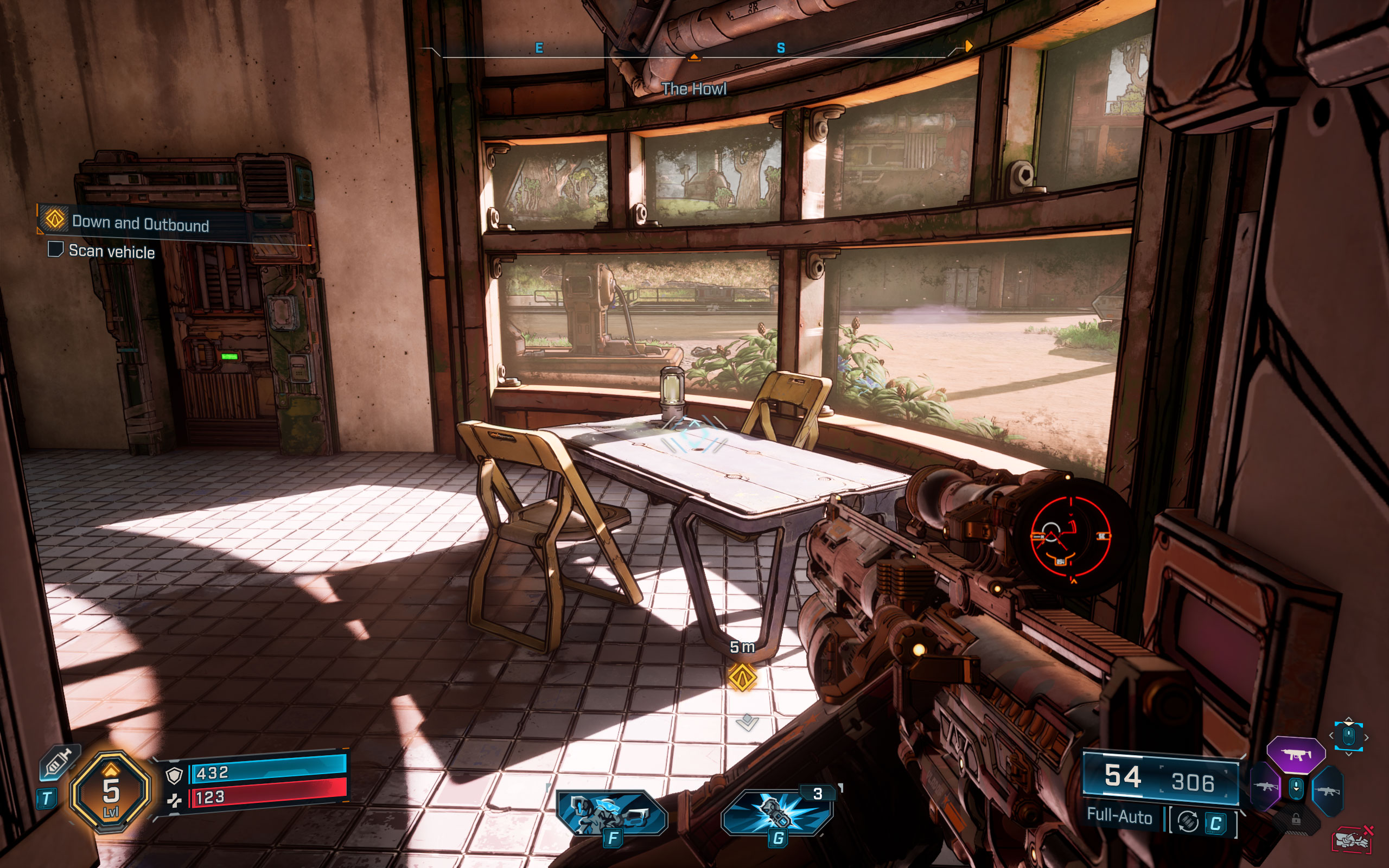
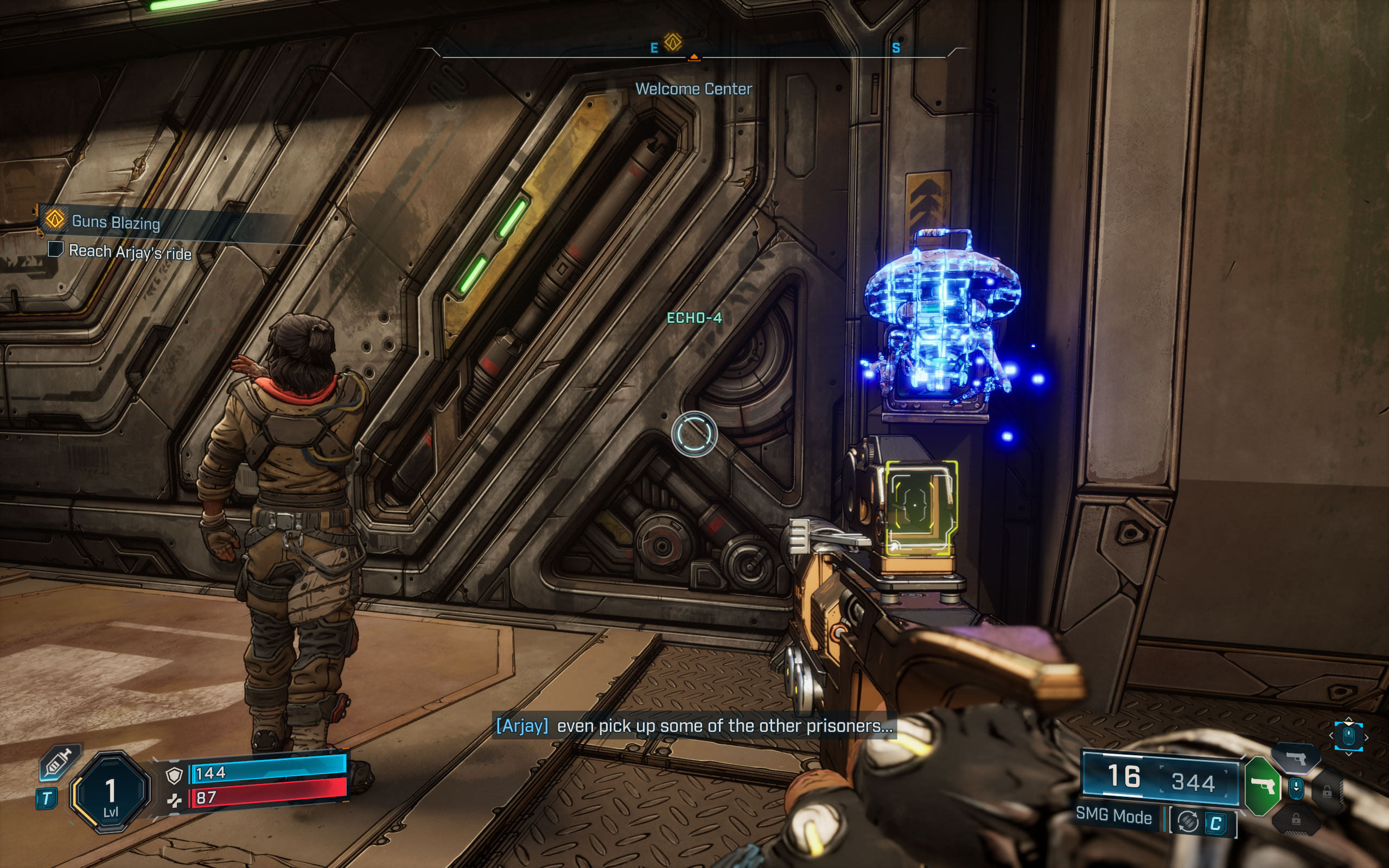
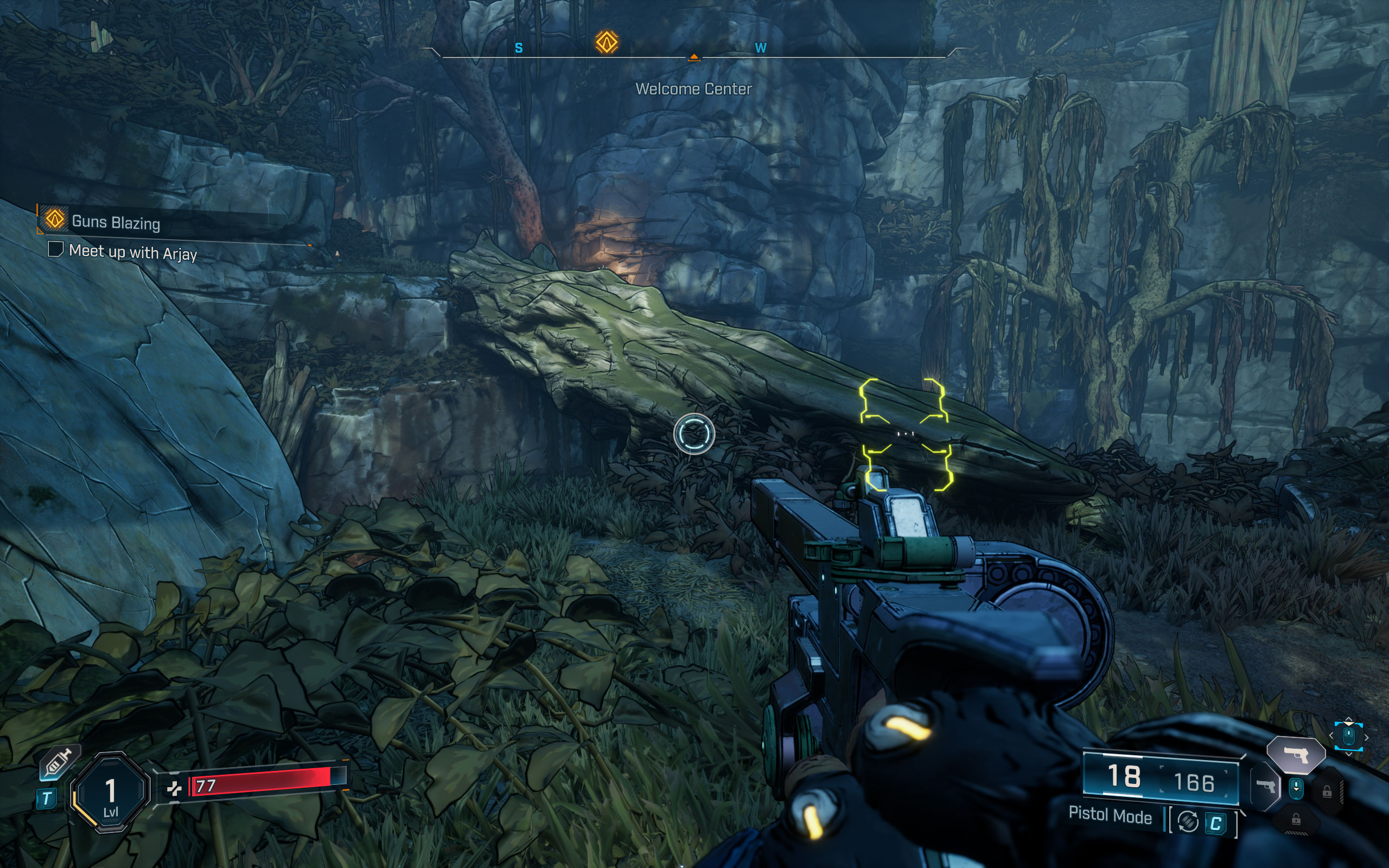
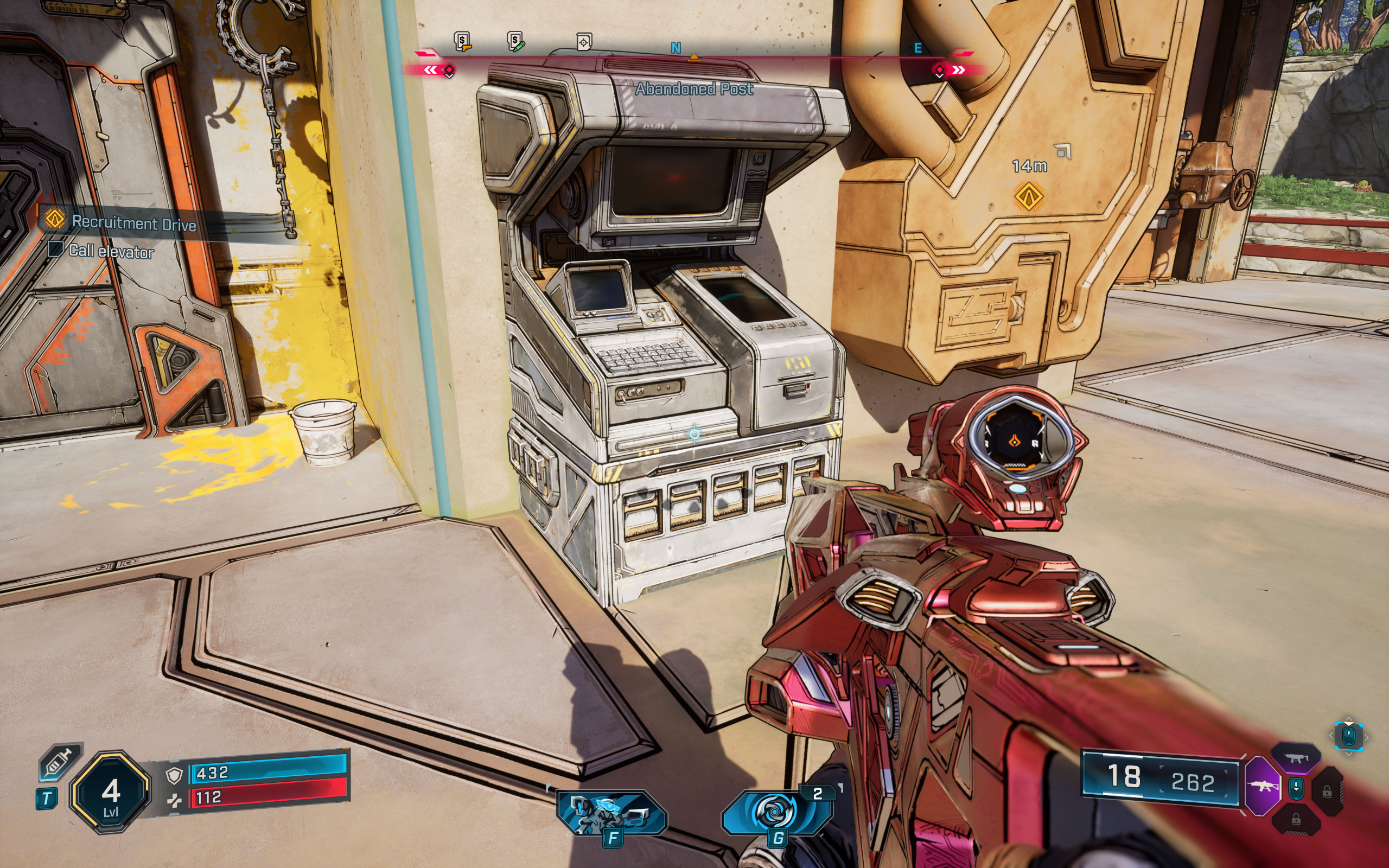
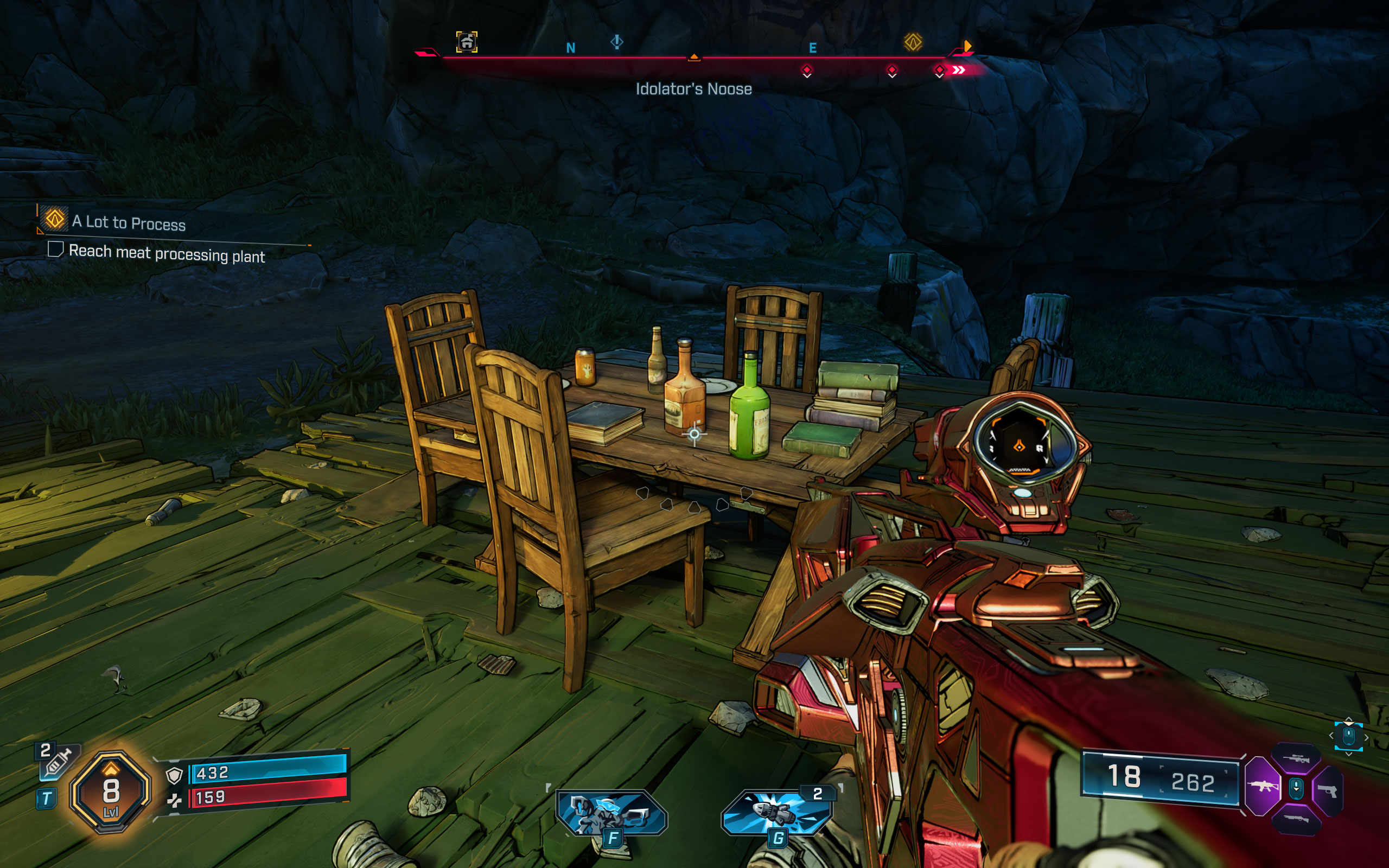
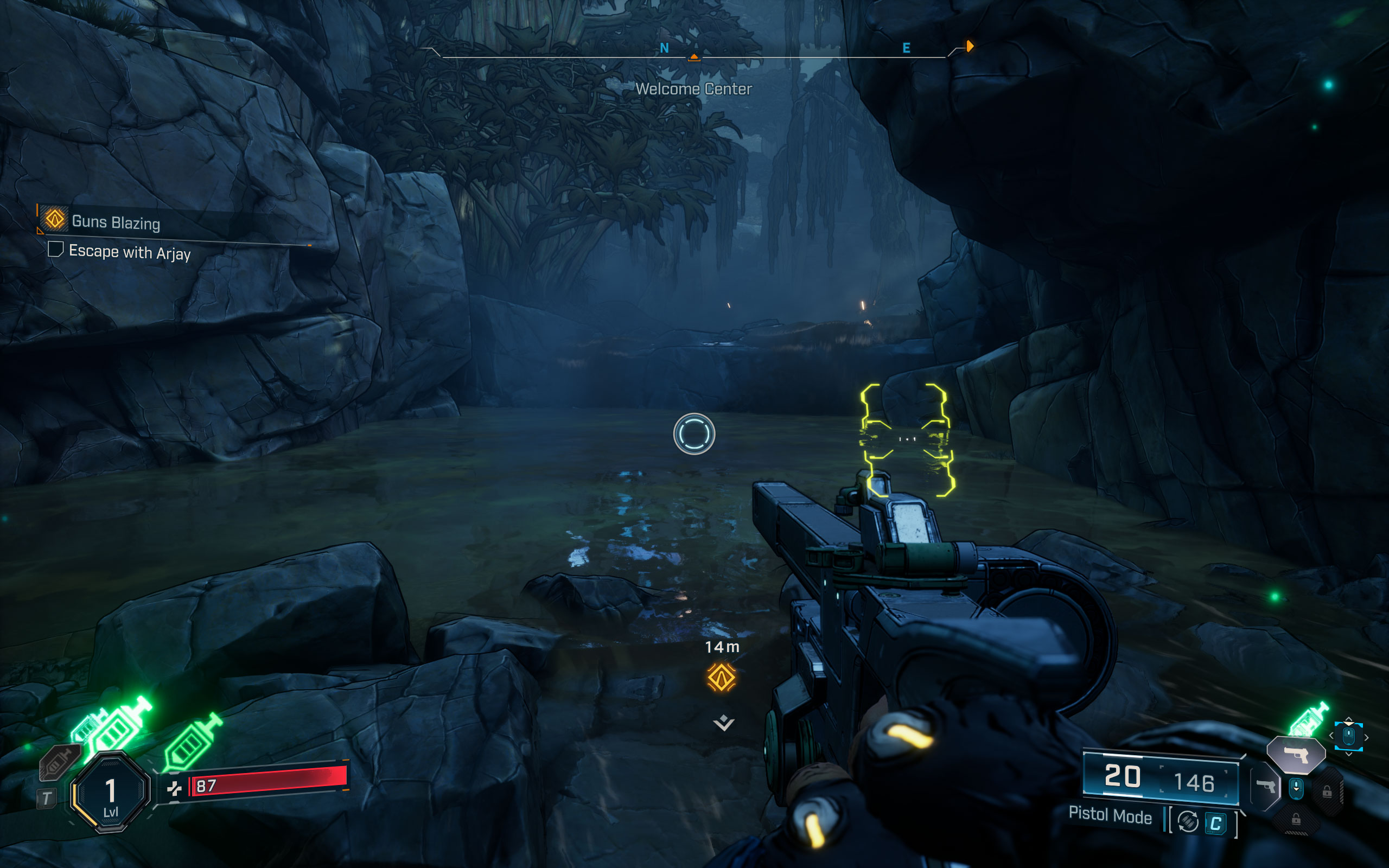
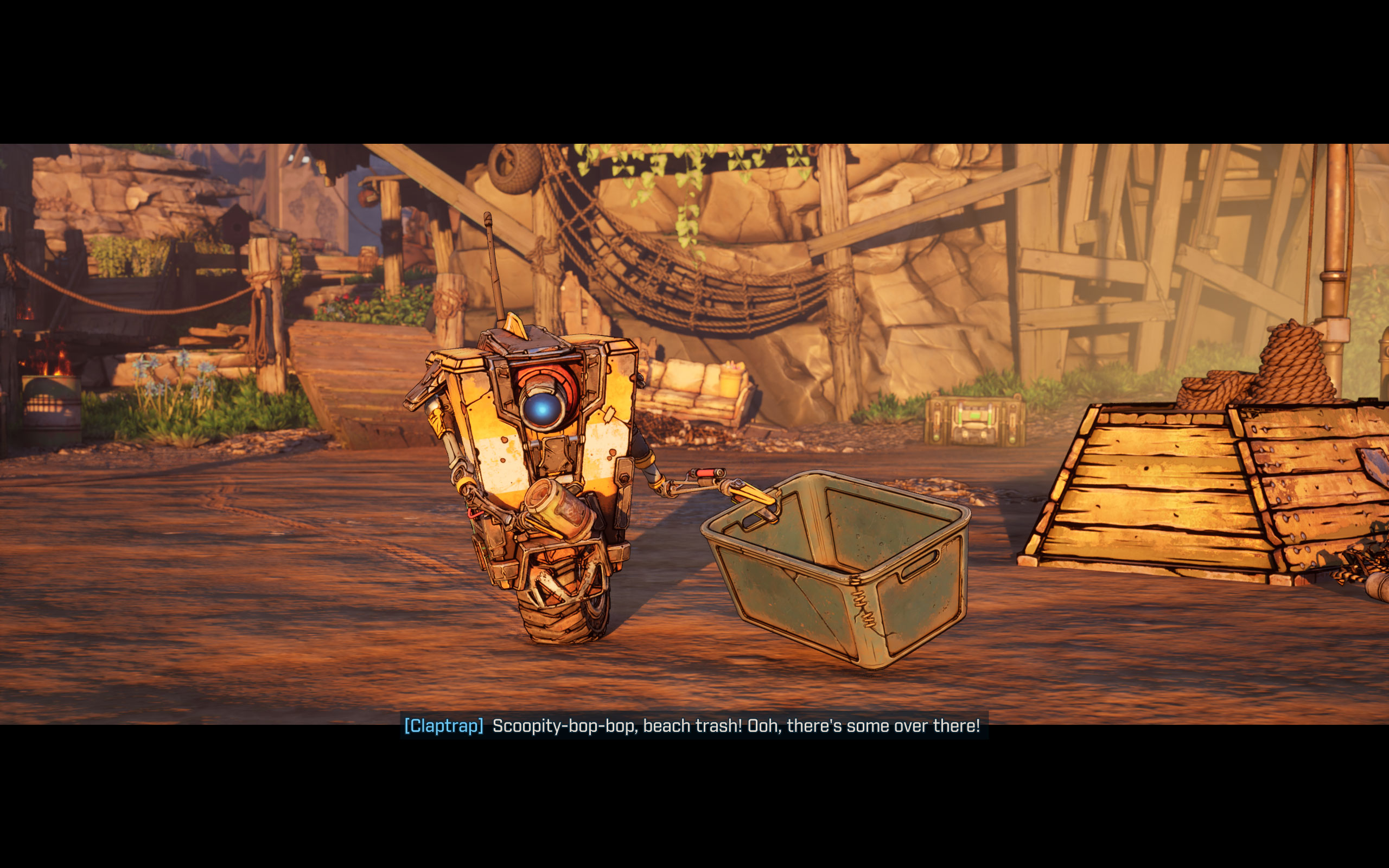
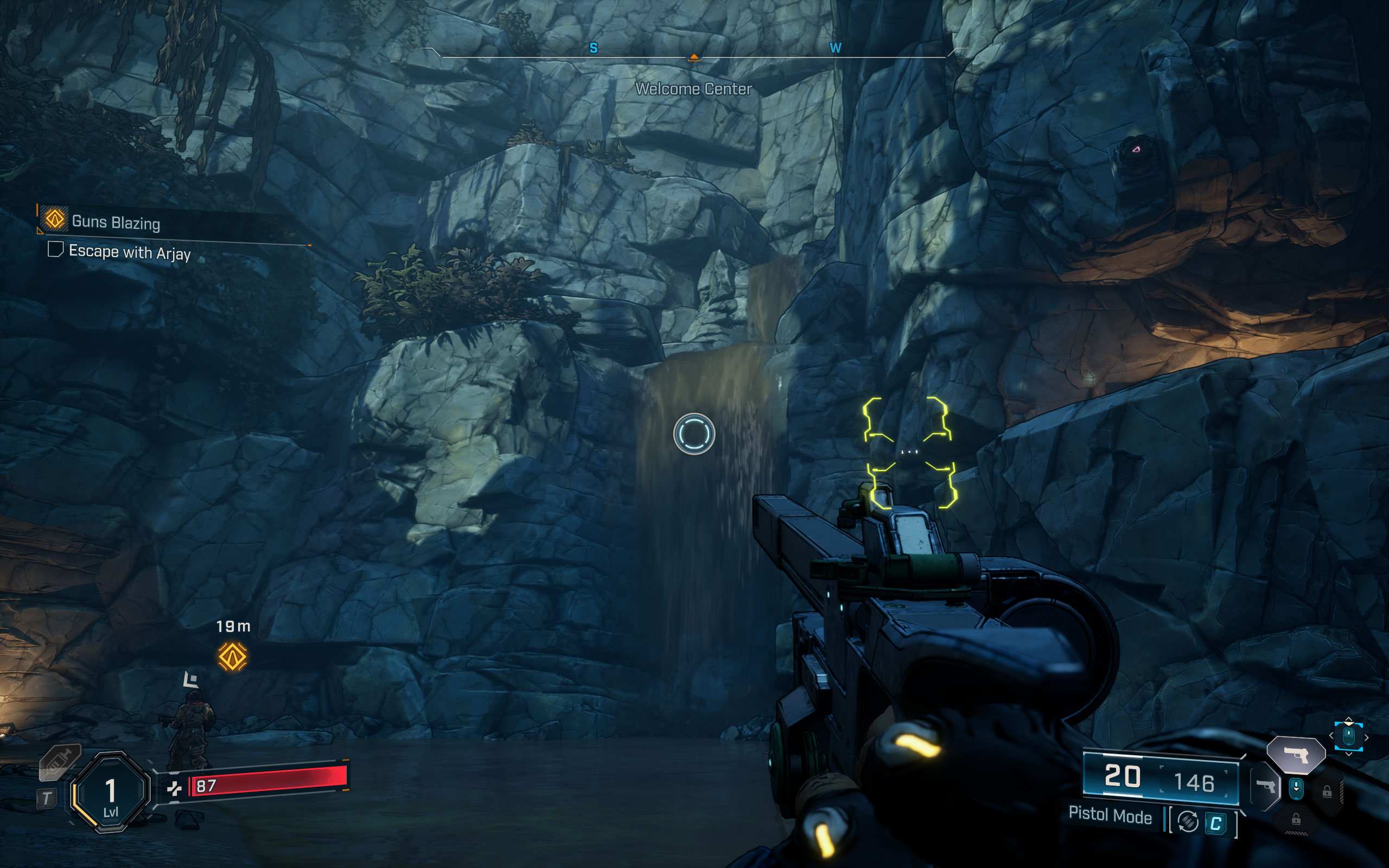
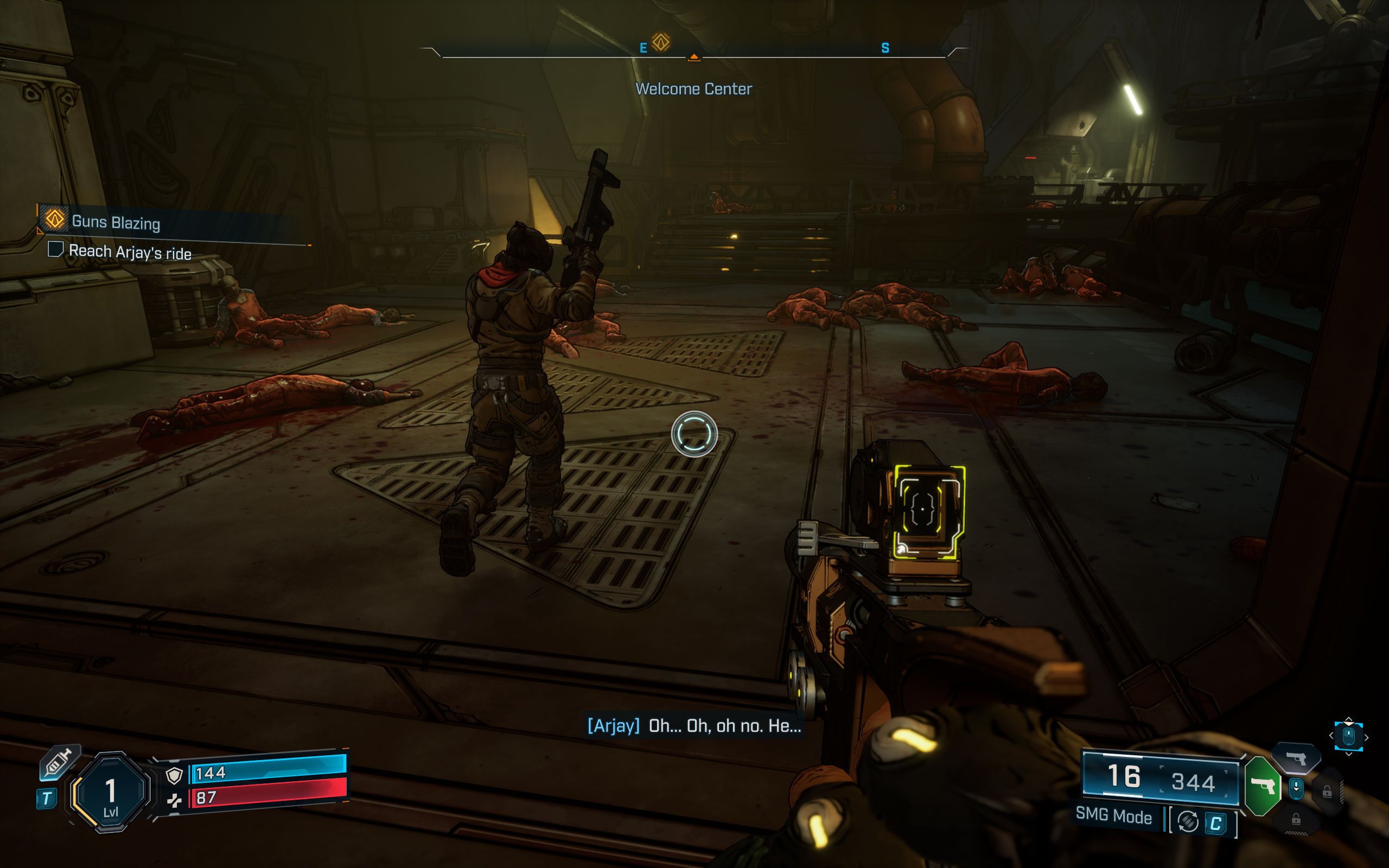
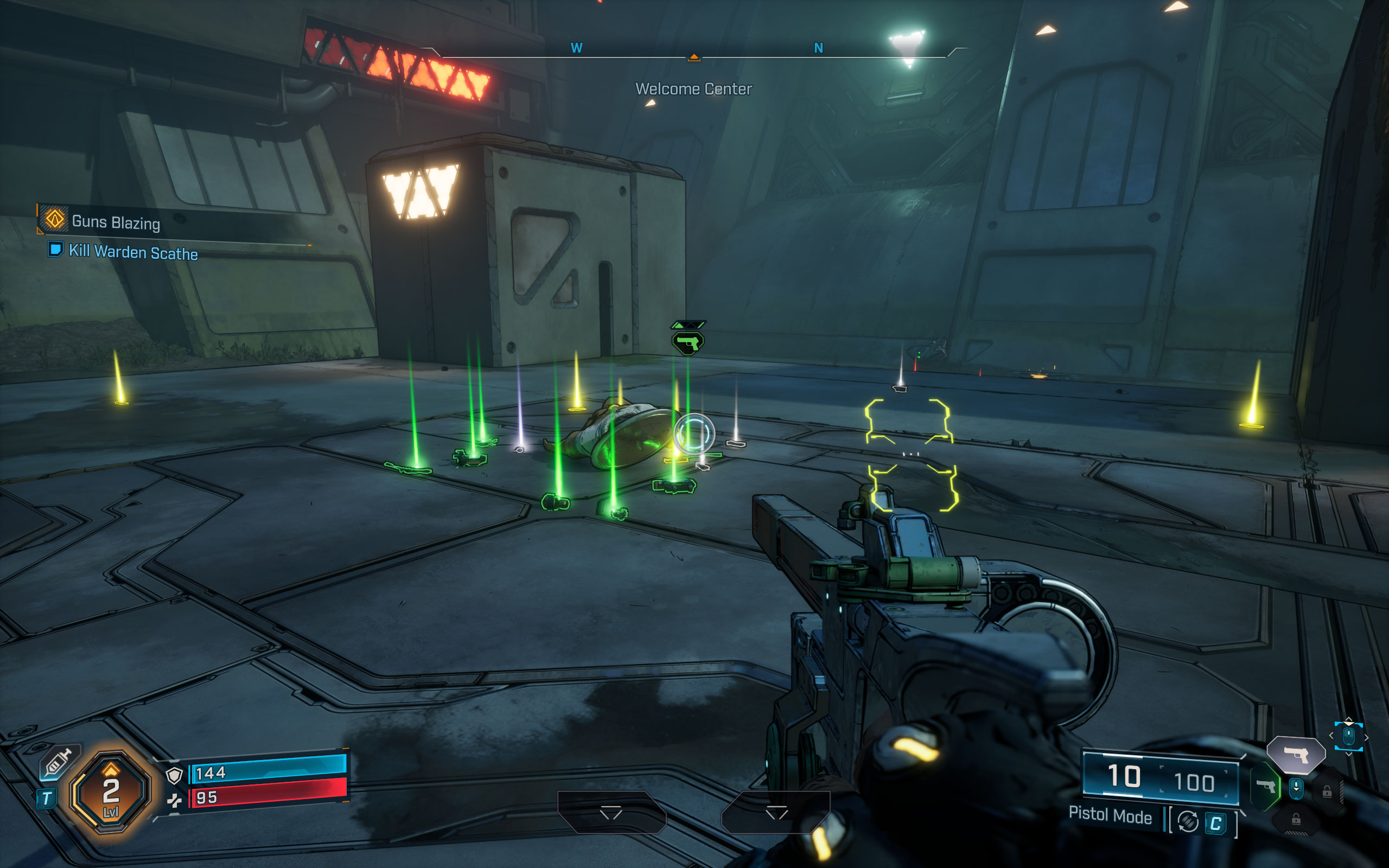
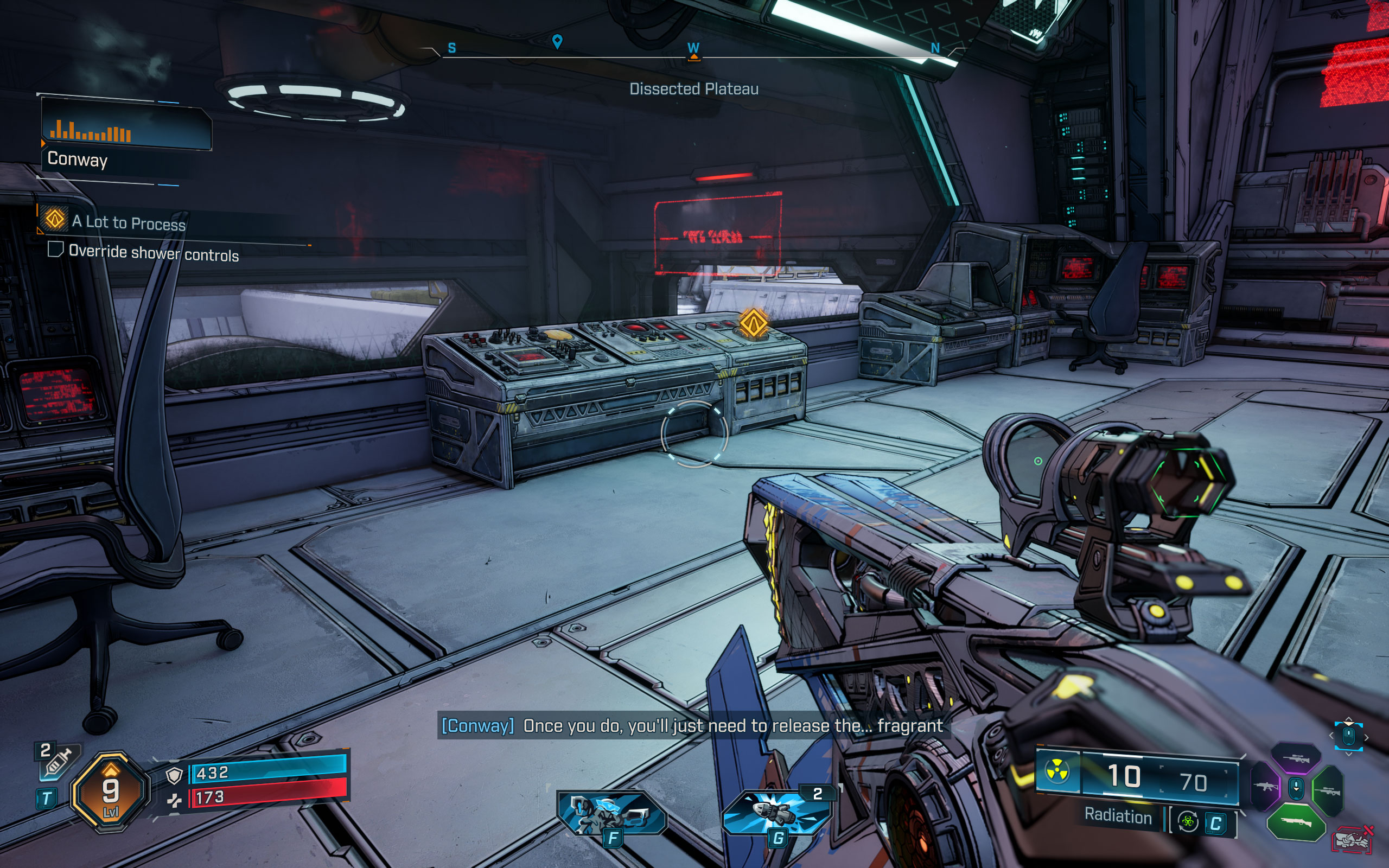
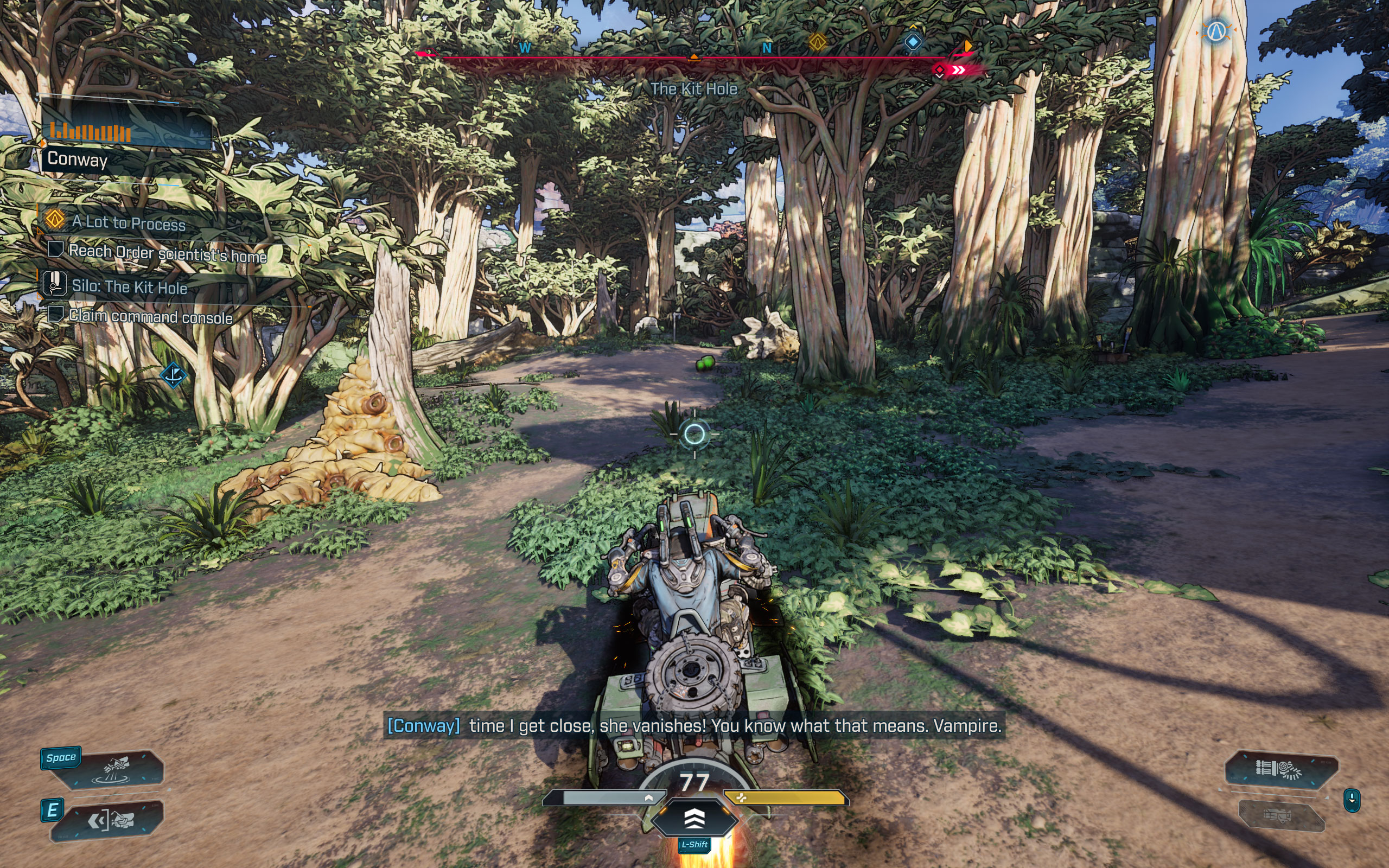
All screenshots were taken at the "Badass" settings profile with motion blur disabled, the upscaling was set to "TSR full resolution." The gallery can be navigated with the cursor keys.


































Graphics Settings
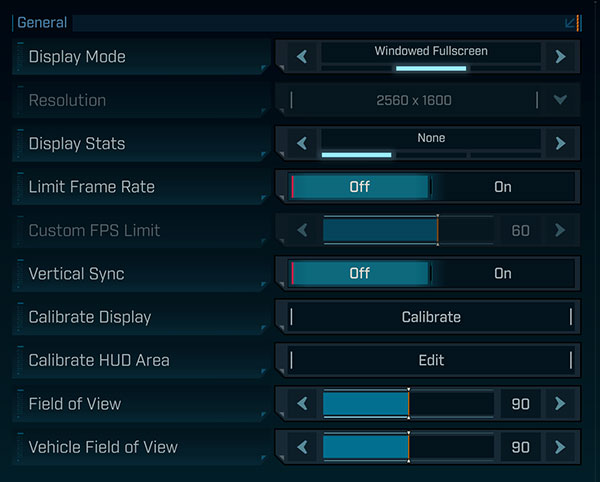
- The first settings screen has mostly monitor related options
- Window mode options are "windowed," "fullscreen" and "borderless"
- You may enable an FPS counter in-game, optionally with additional detail showing GPU frametime and ping latency
- The FPS cap can be set to either 30, 40, 50, 60, 70, 80 FPS
- V-Sync can be disabled completely
- The field of view range goes from 70 to 110 degrees, with the default at 90. I found 90 a bit too narrow and prefer 100

- The second screen called "Advanced" deal with more hardware related settings
- The graphics presets available are "Low," "Medium," "High," "Very High" and "Badass"
- Anti-Aliasing can be disabled when you select upscaler "Disabled"—it looks terrible
- Upscaling methods available are: "Disabled," "DLSS," "FSR," "TSR" and "XeSS"
- "Spatial Upscaling Quality" can only be enabled when FSR is used as upscaler, it offers a bit of additional performance at the loss of quality
- "Scene Capture Quality" controls how the in-game map and menus look like
- Frame generation can be enabled only when the appropriate GPU is installed. For NVIDIA this is expected, but AMD FSR and Intel XeSS works on all GPUs—not in Borderlands 4. I guess the developers weren't aware of that fact
- In addition to that, there's an excellent amount of additional options to fine-tune the performance
- You can disable motion blur completely
Our Patreon Silver Supporters can read articles in single-page format.
Nov 12th, 2026 07:36 PST
change timezone
New Forum Posts
- budget home NAS – X79, X99 or another platform? (141)
- GeekMagic Ultra Smart WiFi Weather Station (5)
- Youtube channel video downloader, not playlist. (1)
- Unallocated space in ssd , is it normal? (15)
- Can you guess Which game it is? (316)
- Your PC ATM (36406)
- Hey all my intro & love for retro computers (102)
- TPU's Nostalgic Hardware Club (22147)
- What are you playing? (26207)
- So I fixed the r36s “k36” variant and clone with an Onn 128gb sd card and the Onn sd card reader and it BOOTED..so real neat! Take a look. (2)
Popular Reviews
- AMD Zen 6 Technical Deep Dive
- Upcoming Hardware Launches 2027 (Updated Nov 2026)
- NZXT C1200 Platinum Review
- XPG NIMBUS PLUS Review - Mid-range Chair With Strong Competitors
- NZXT H7 RGB+ Review
- Montech King 95 3D PRO Review
- NZXT H5 Review
- Phantom Blade Zero Performance Benchmark Review - 35 GPUs Tested
- Gigabyte Z890I Aorus Ultra Review
- INNOCN 45C1R Review - Two QHD Screens, Zero Bezels
TPU on YouTube
Controversial News Posts
- OpenAI CEO Argues Home PCs Waste the World's Limited DRAM Supply (152)
- NVIDIA Launches Investigation Into Jensen Huang's Relationship With Suspected Chinese Spy (136)
- Intel "Raptor Lake Next" 16-Core and 20-Core CPUs Surface (130)
- Legendary Game Studio BioWare Shuts Down Following EA Layoffs (104)
- Dell CEO Says the Memory Shortage Will Get Worse in 2027 (95)
- NVIDIA GeForce RTX 50-Series Scheduled for up to $500 Price Hike This Week (89)
- Modder Fits RTX 5090 With Four 8-Pin Connectors, Halving Current per Wire (80)
- AMD Radeon Owners Can Now Run Nearly Every DLSS Feature Through Fan-Made Mod (80)