 154
Control Resonant Performance Benchmark Review - 35 GPUs Tested
(154 Comments) »Introduction
Control Resonant is Remedy Entertainment's sequel to Control, and this time you're not playing as Jesse Faden, but her brother Dylan is the hero. Since the events of Control, Jesse has become Director of the Federal Bureau of Control, and she has gone missing—finding her takes Dylan across an altered Manhattan. Combat has been revamped completely: the original's combat style is gone and melee has taken its place, with many options for tactics and customization. Remedy self-publishes this time, with Annapurna co-financing, and the game is on Steam and Epic alongside PS5 and Xbox.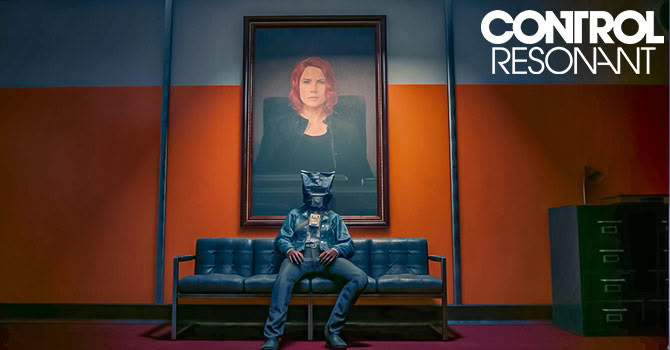
Under the hood, Control Resonant runs on Northlight, Remedy's in-house engine, and it uses the same technology as Alan Wake 2. DirectX 12 is the only rendering API. Just like in the studio's previous games, there is no native rendering option at all, you'll always have to use either DLSS or FSR (100% scaling is supported). Frame generation for NVIDIA and AMD is supported, too, and you also get support for DLSS 4.5 Ray Reconstruction. Intel XeSS is missing completely—there is no XeSS library in the game files and no XeSS entry in the settings menu, but FSR is an option for Intel GPUs. Ray tracing covers direct lighting, transparency and debris, path tracing handles indirect lighting, and HDR, ultra-wide and an uncapped frame rate are all supported.
This review will evaluate the performance of Control Resonant across a wide range of contemporary graphics cards, compare image quality settings, and analyze the game's VRAM usage to provide insight into the hardware requirements needed for an optimal experience.
Screenshots
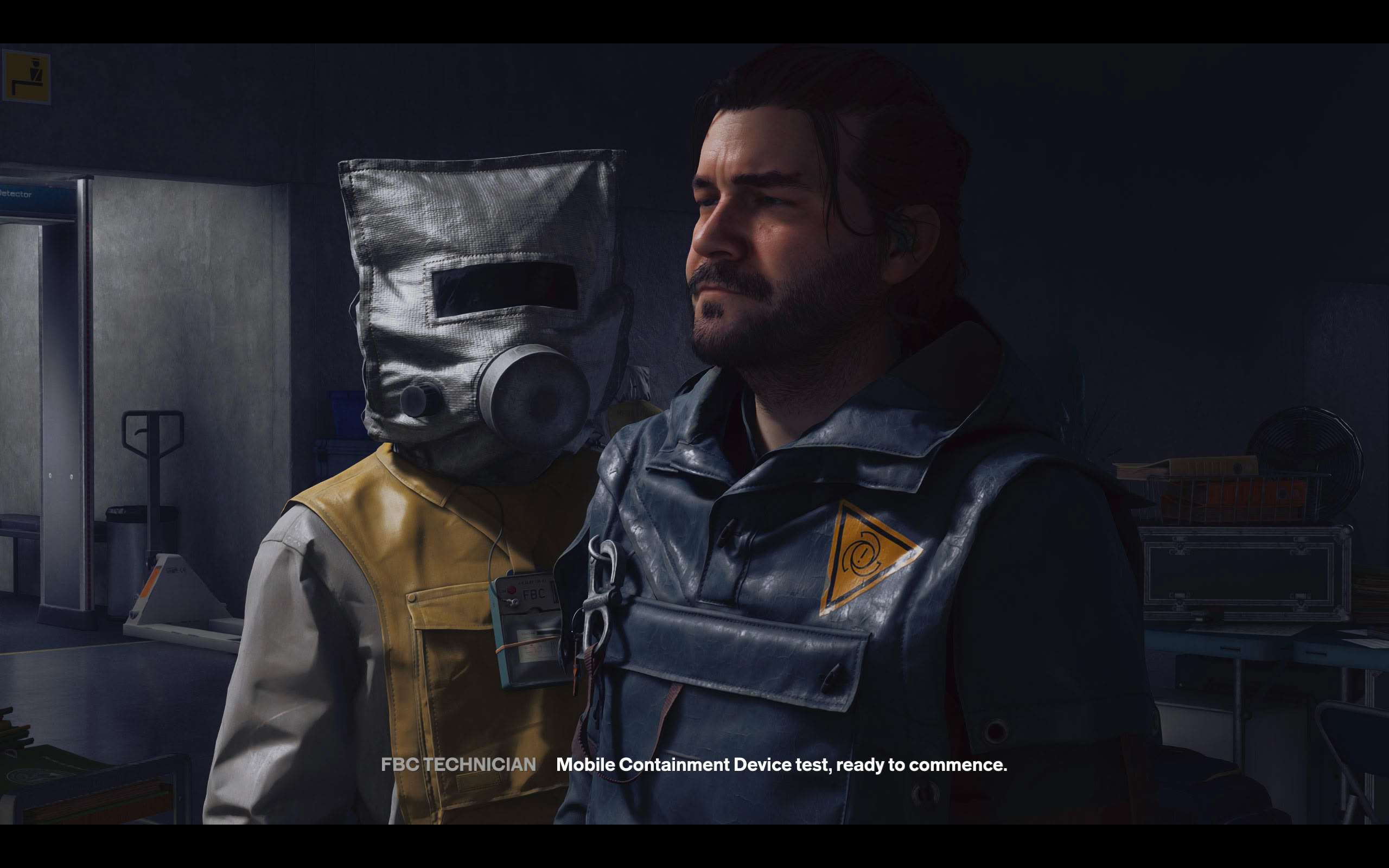
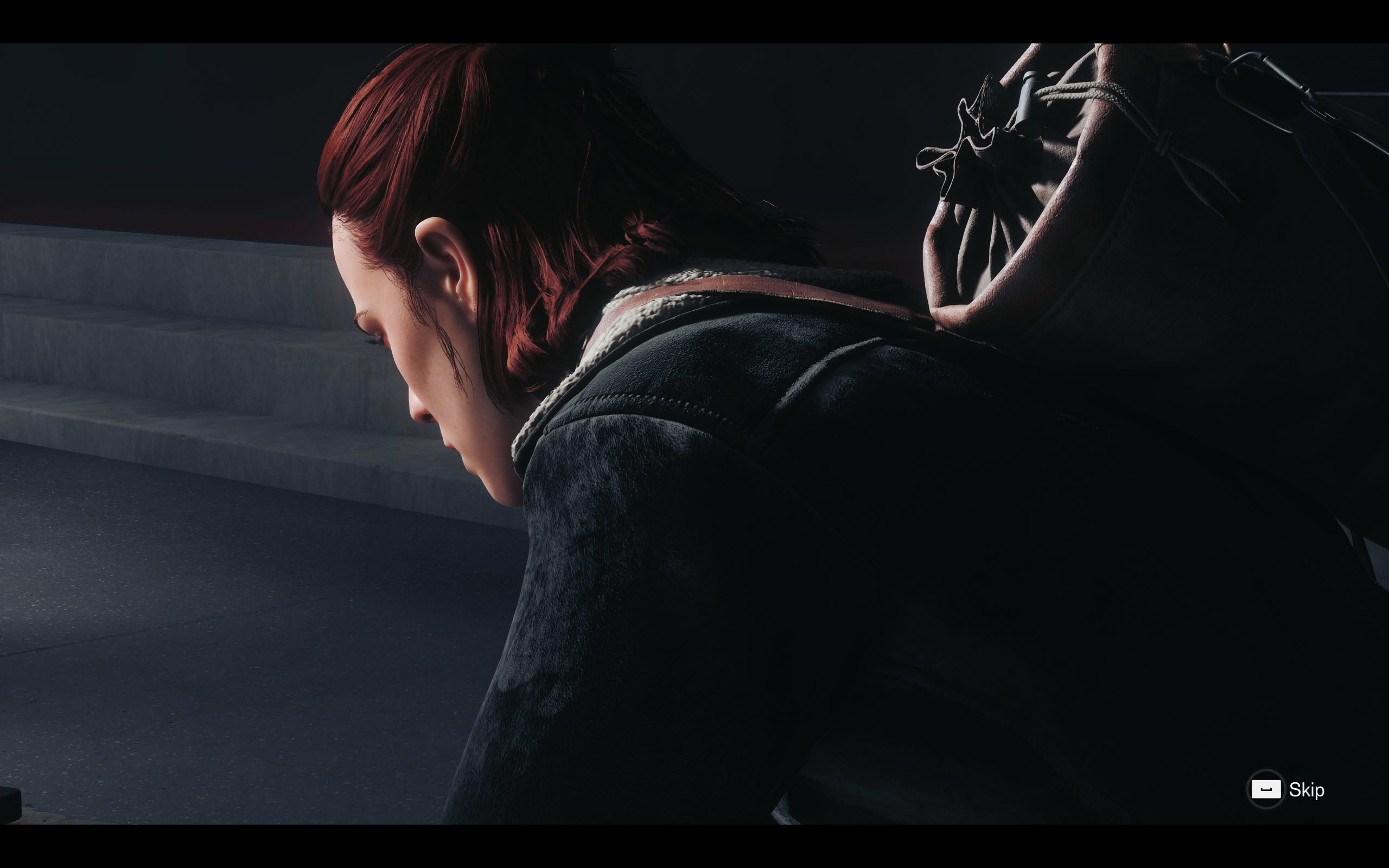
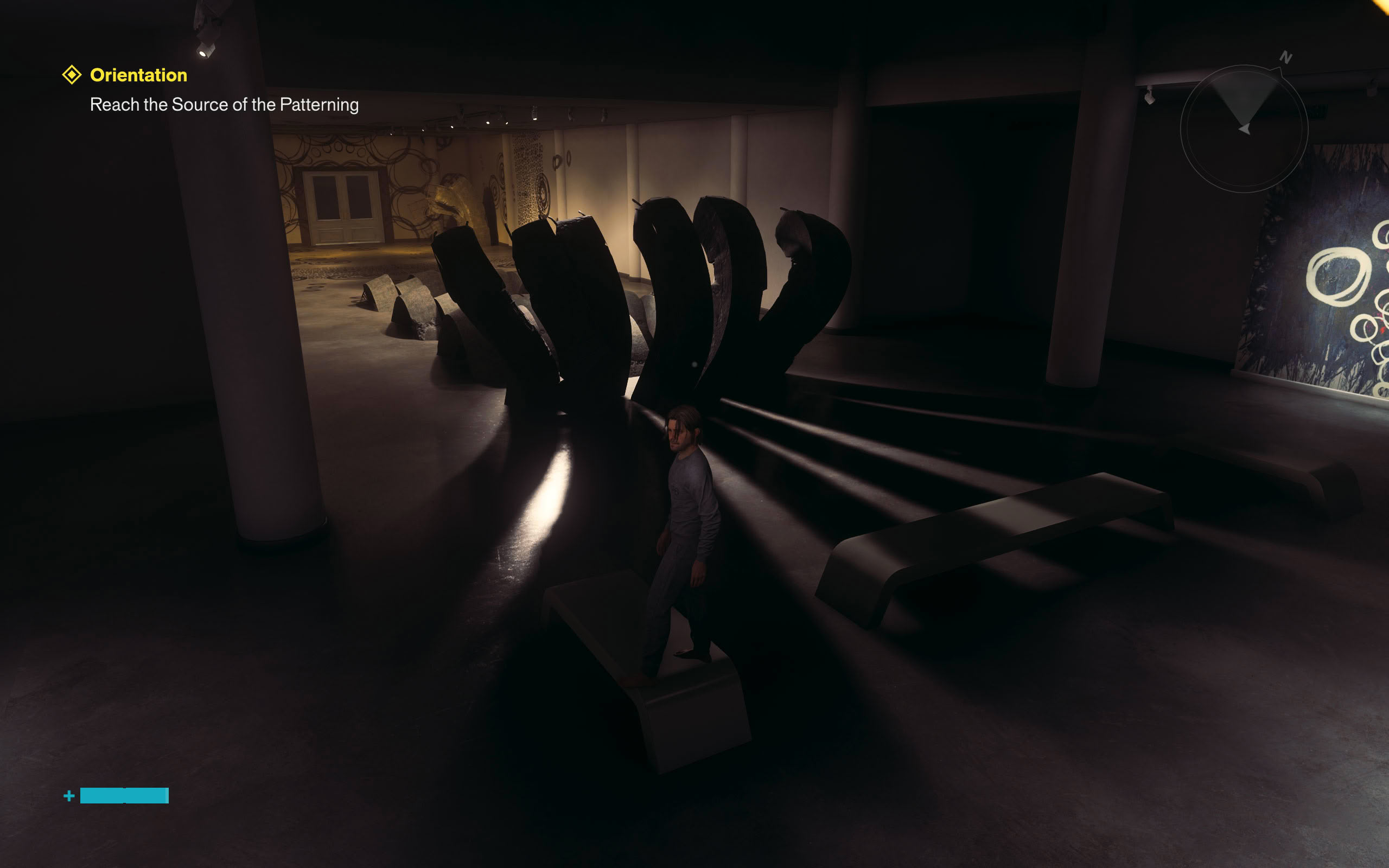
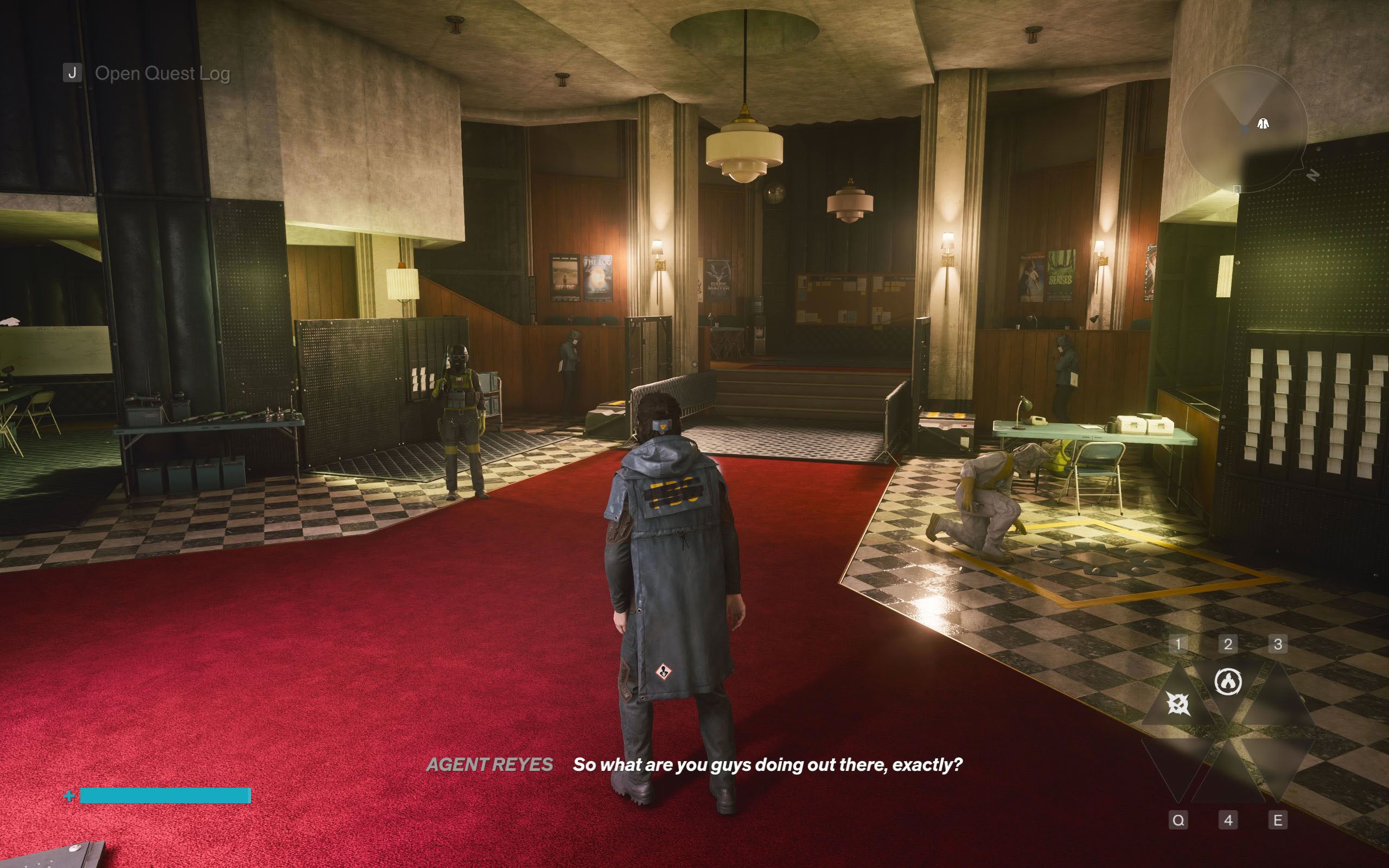
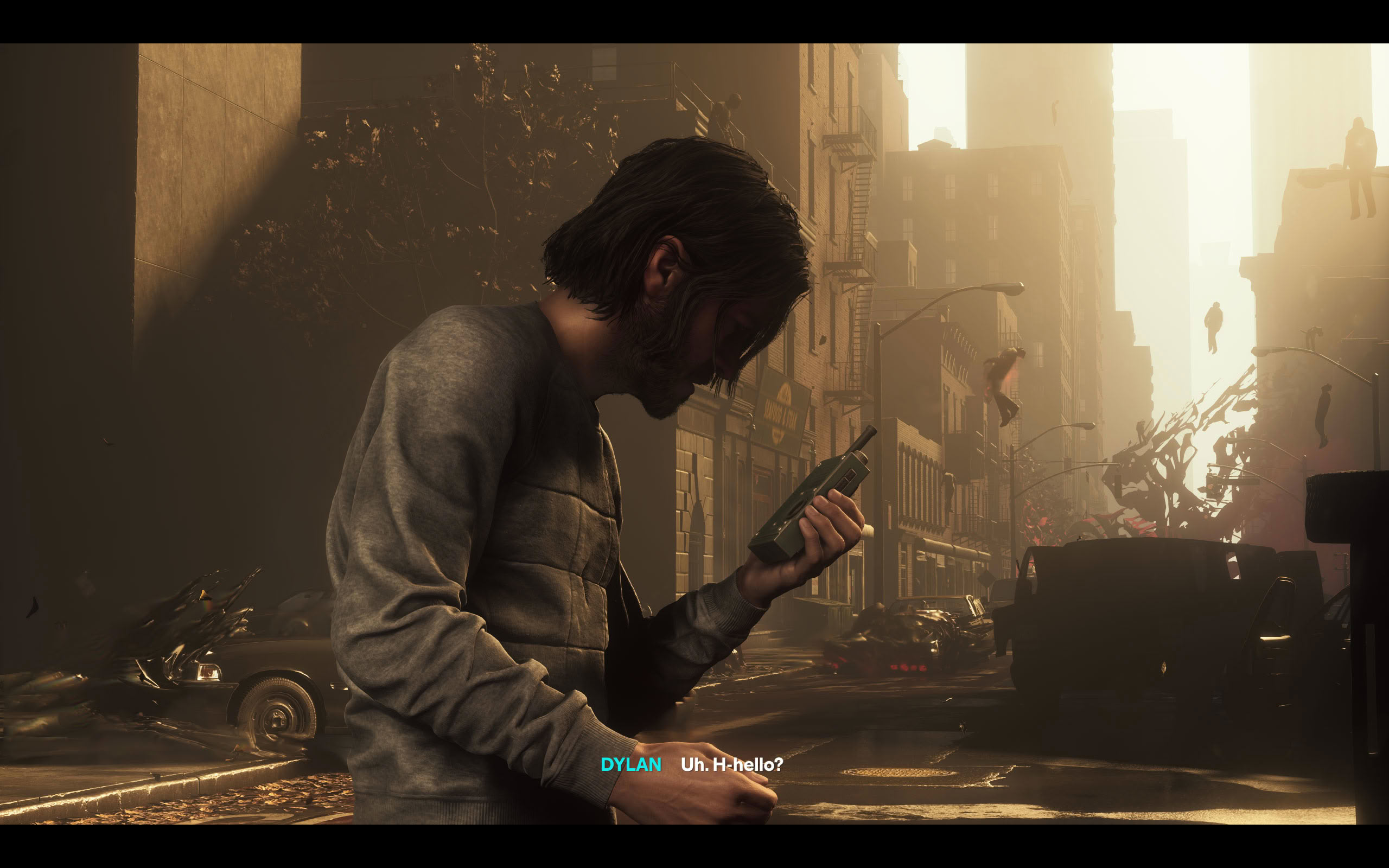
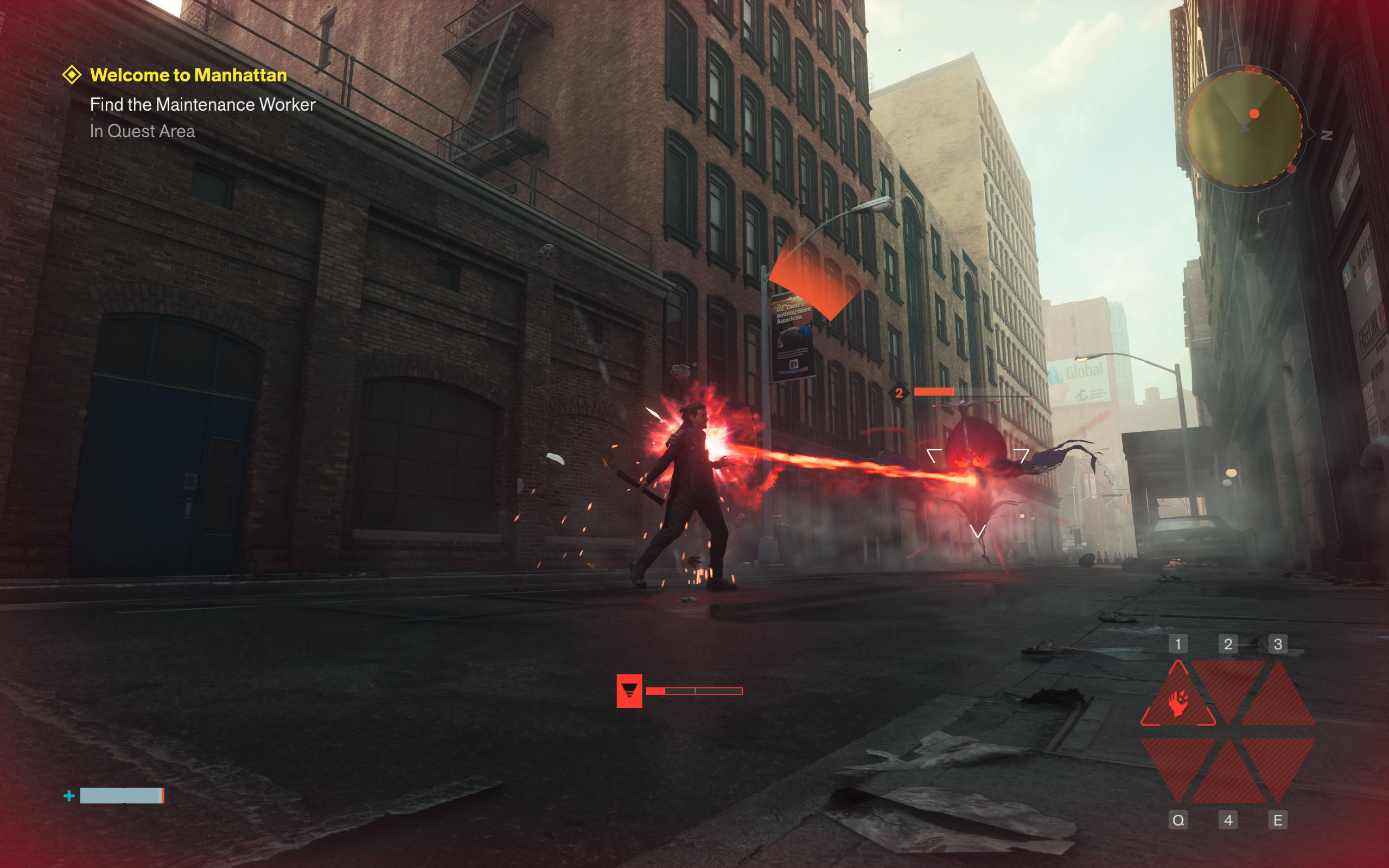
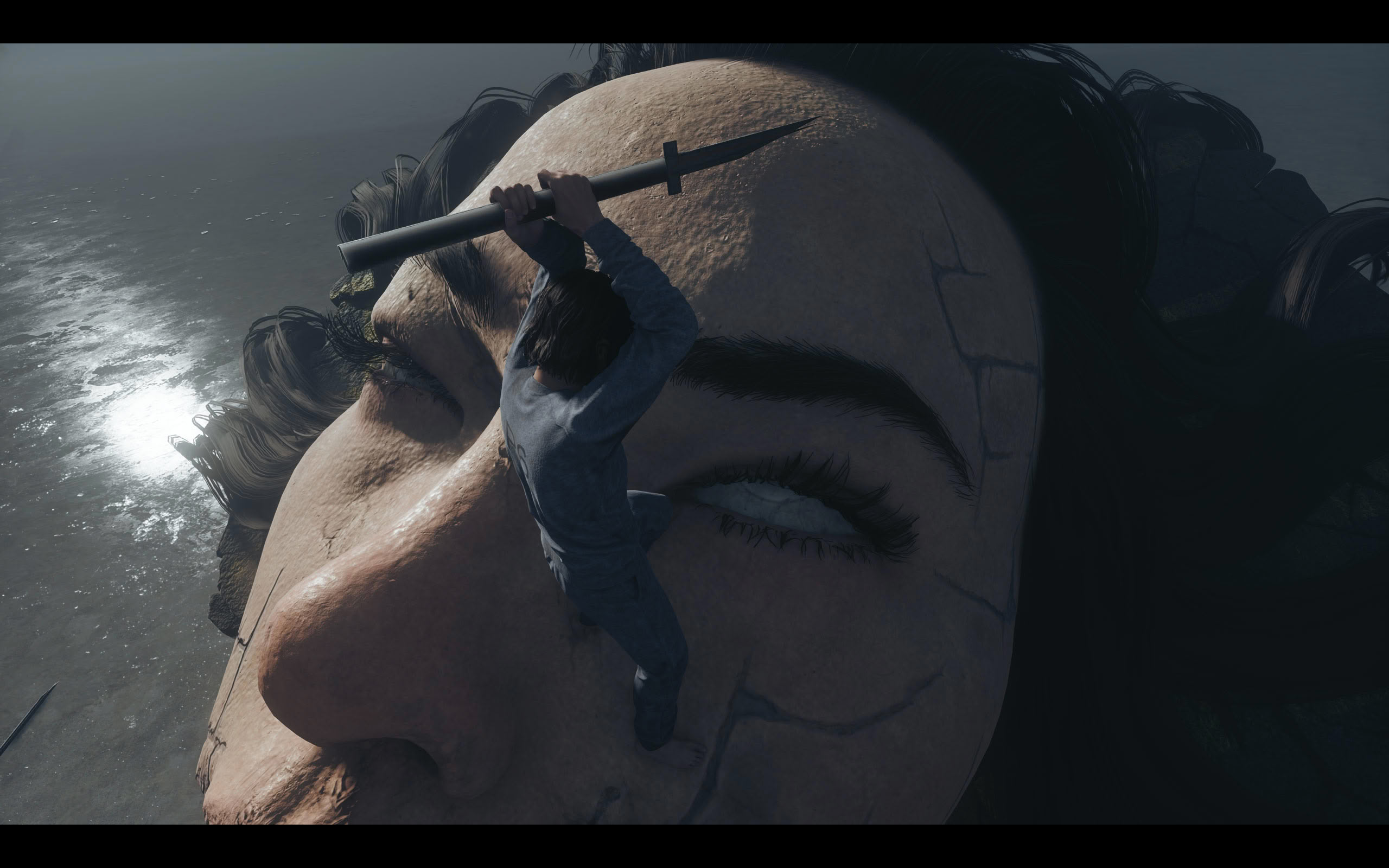
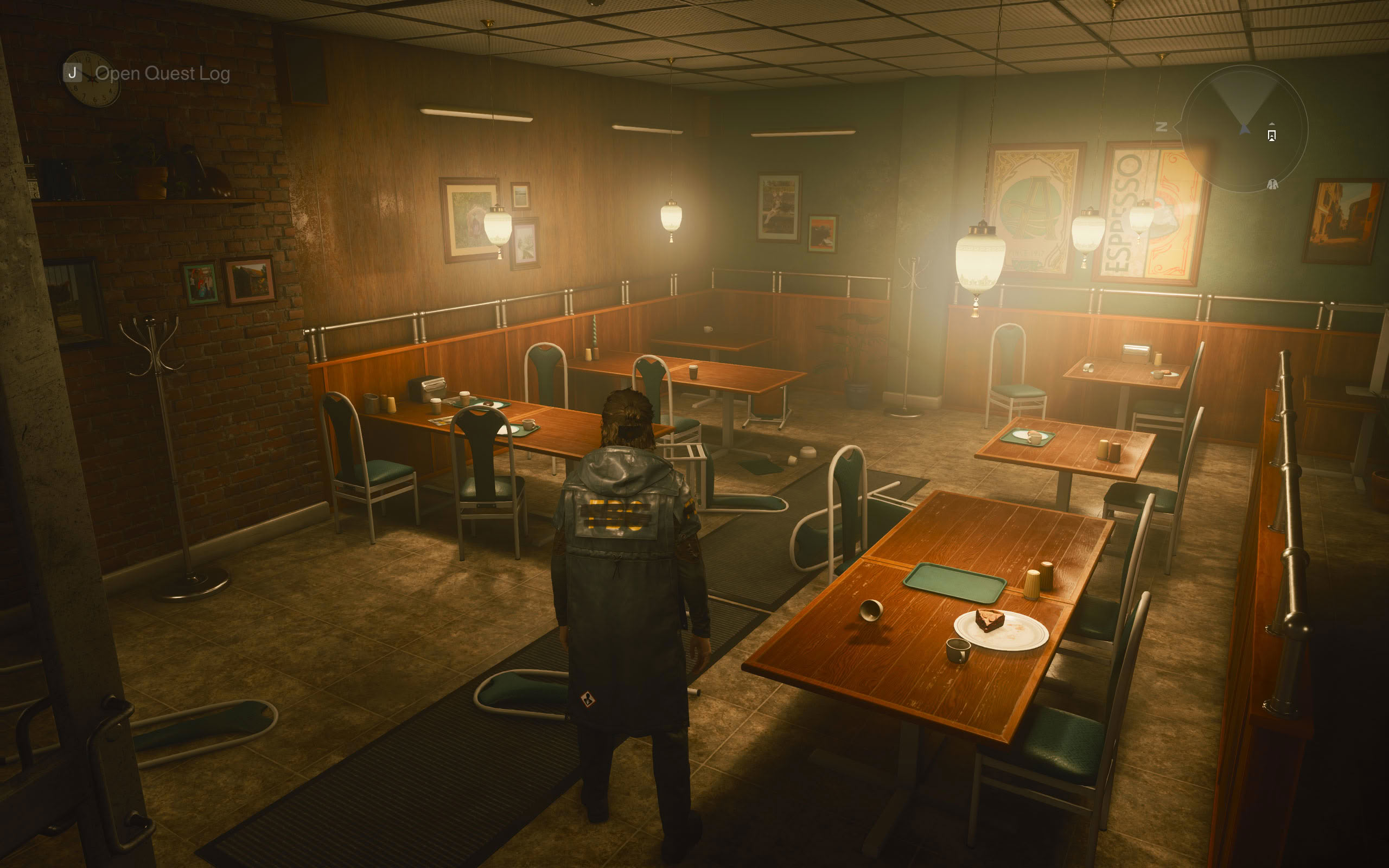
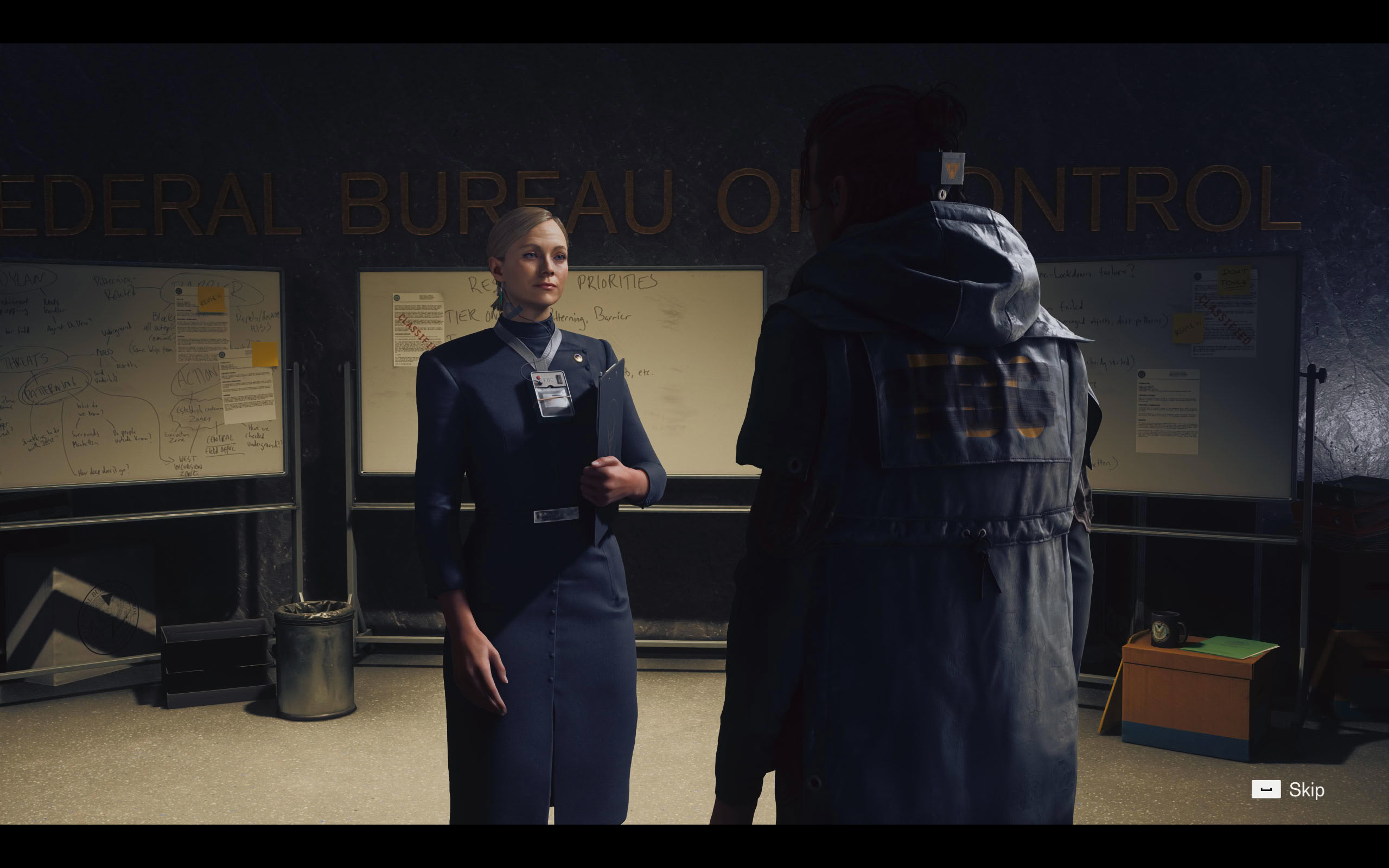
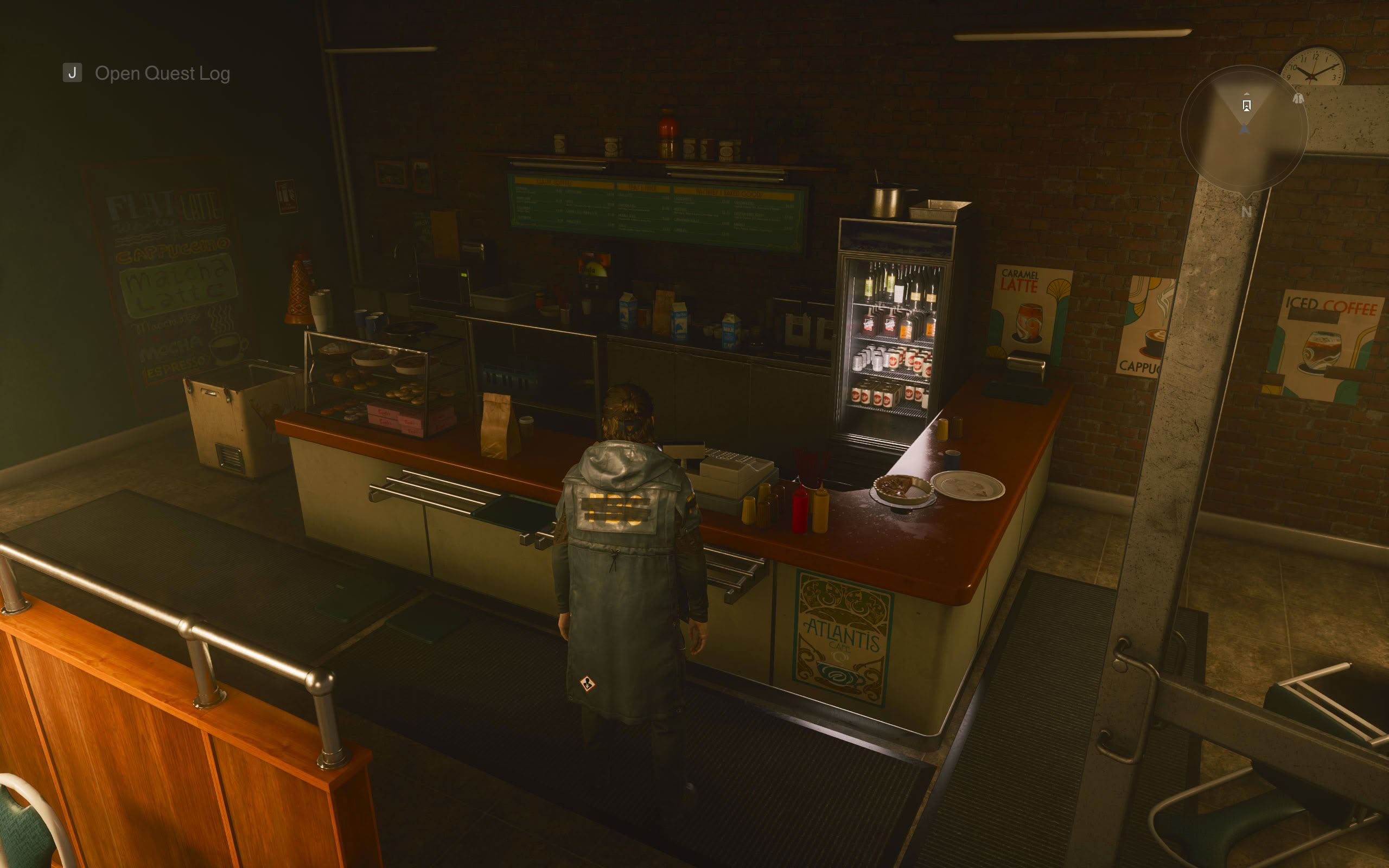
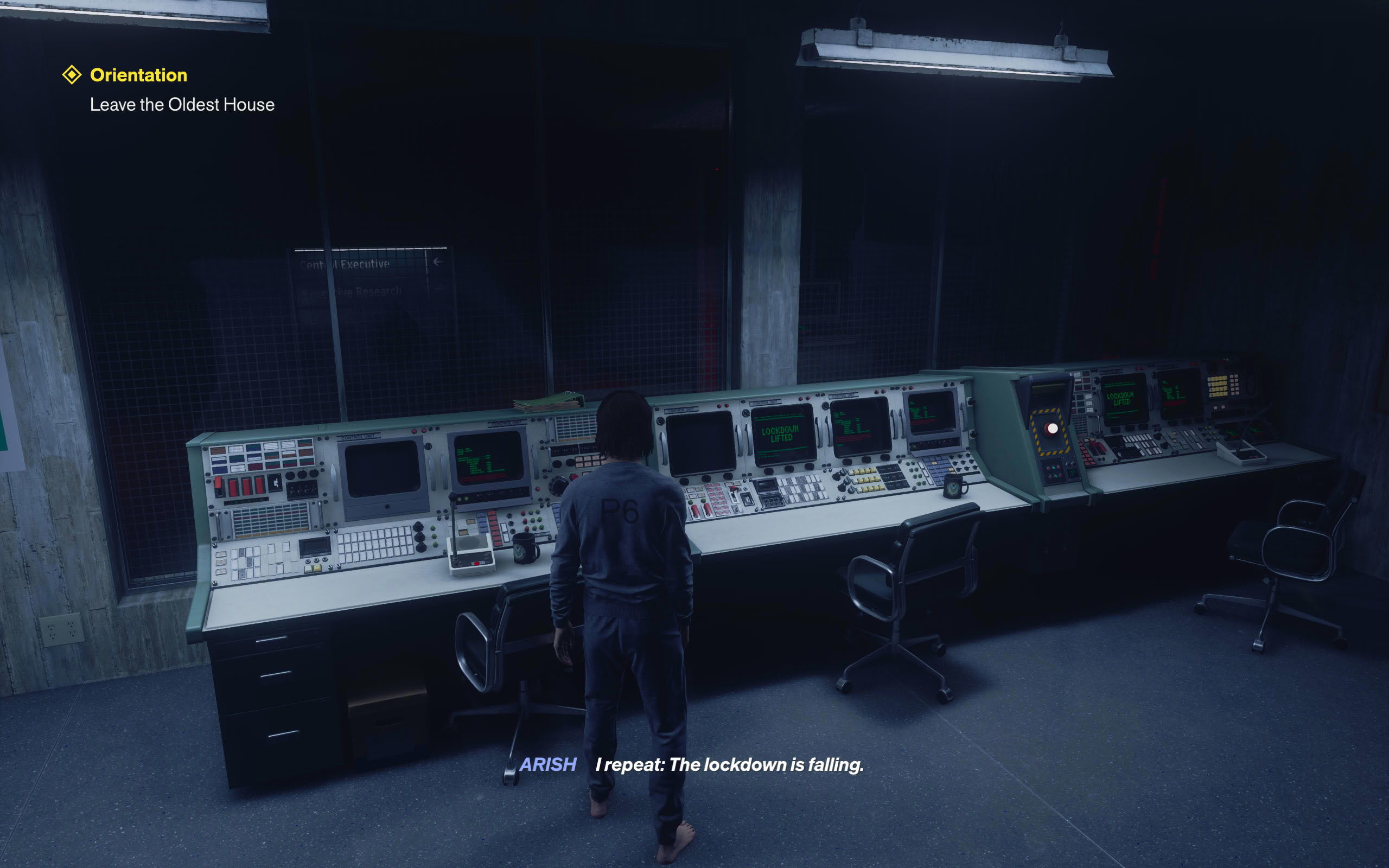
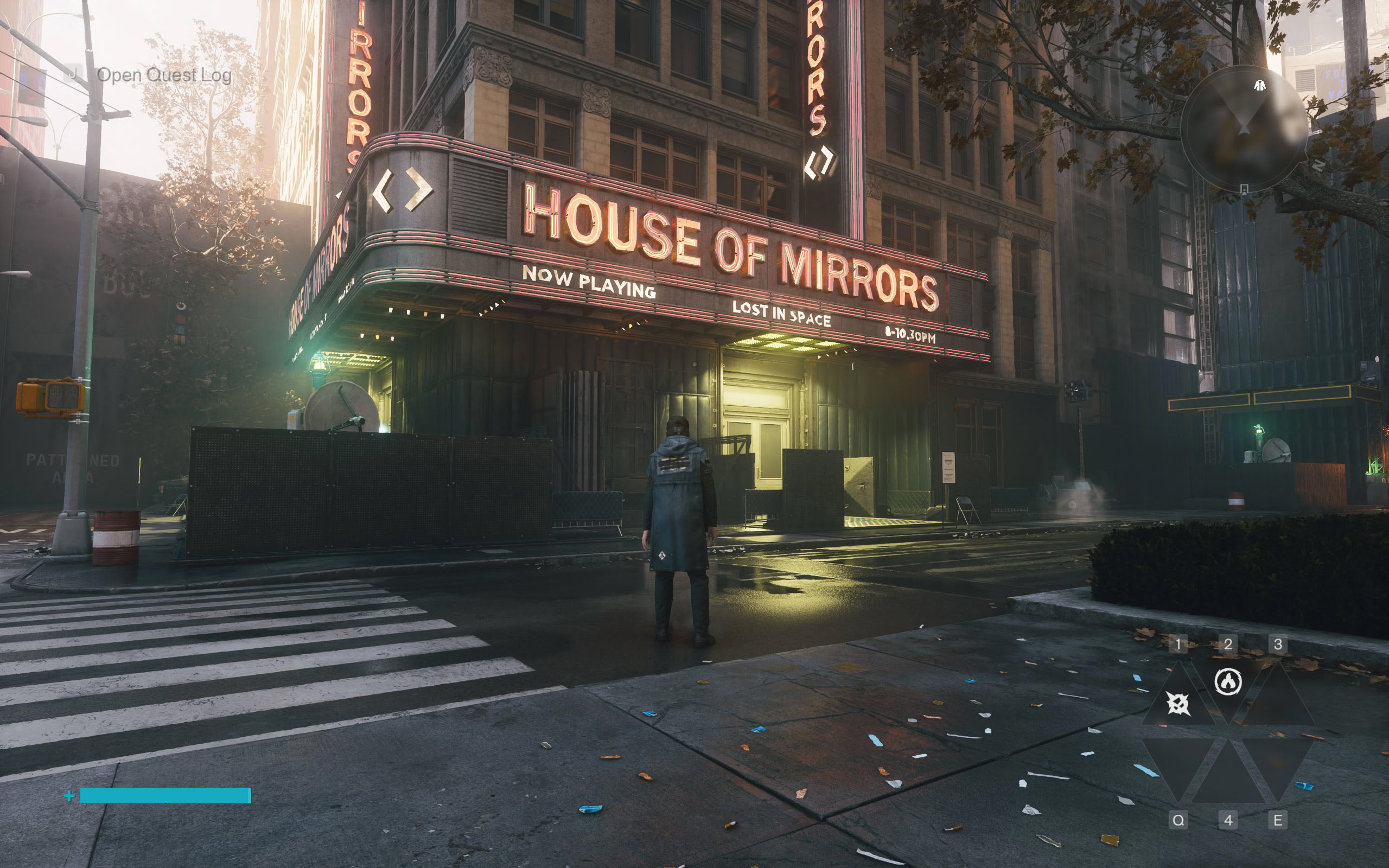
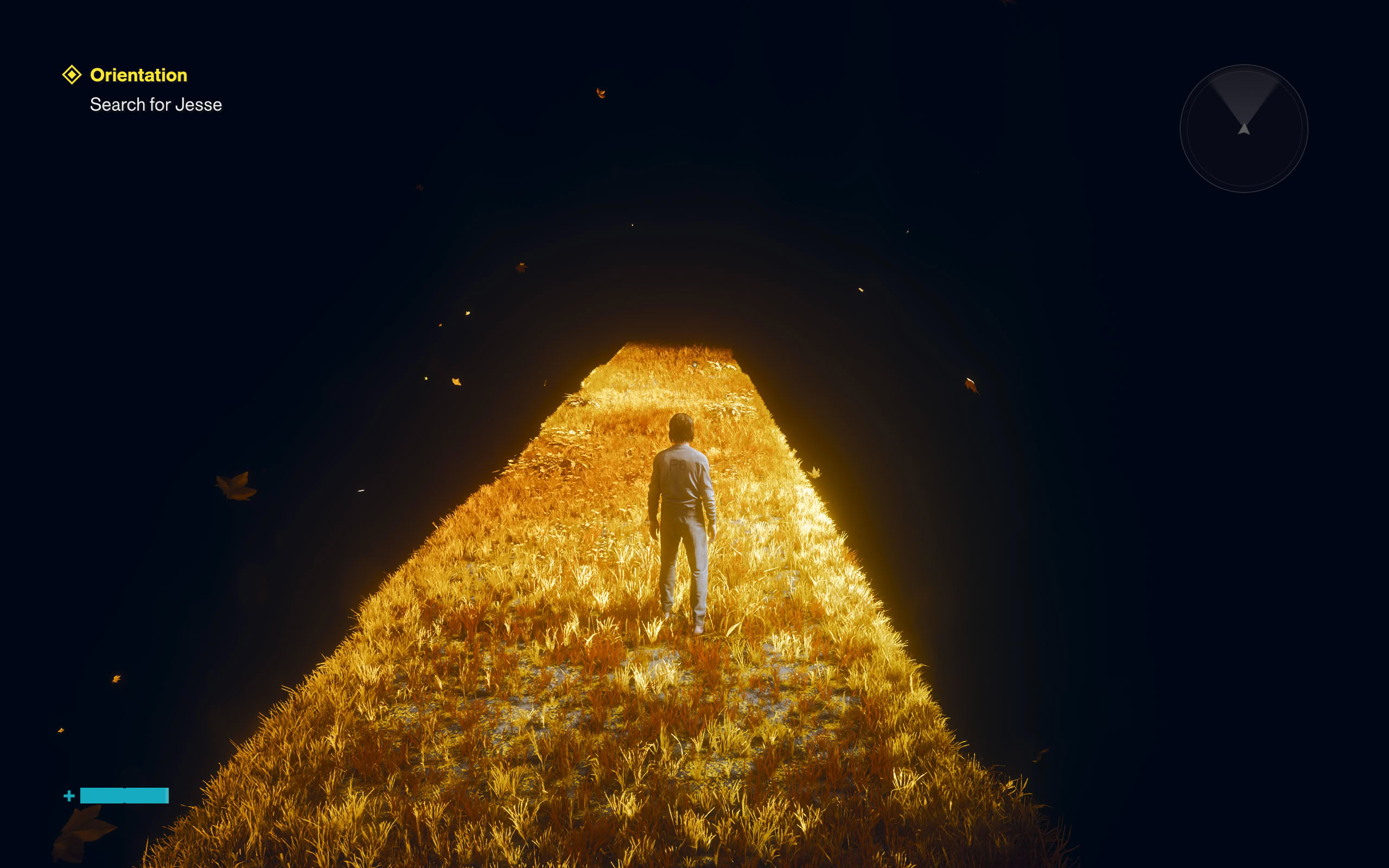
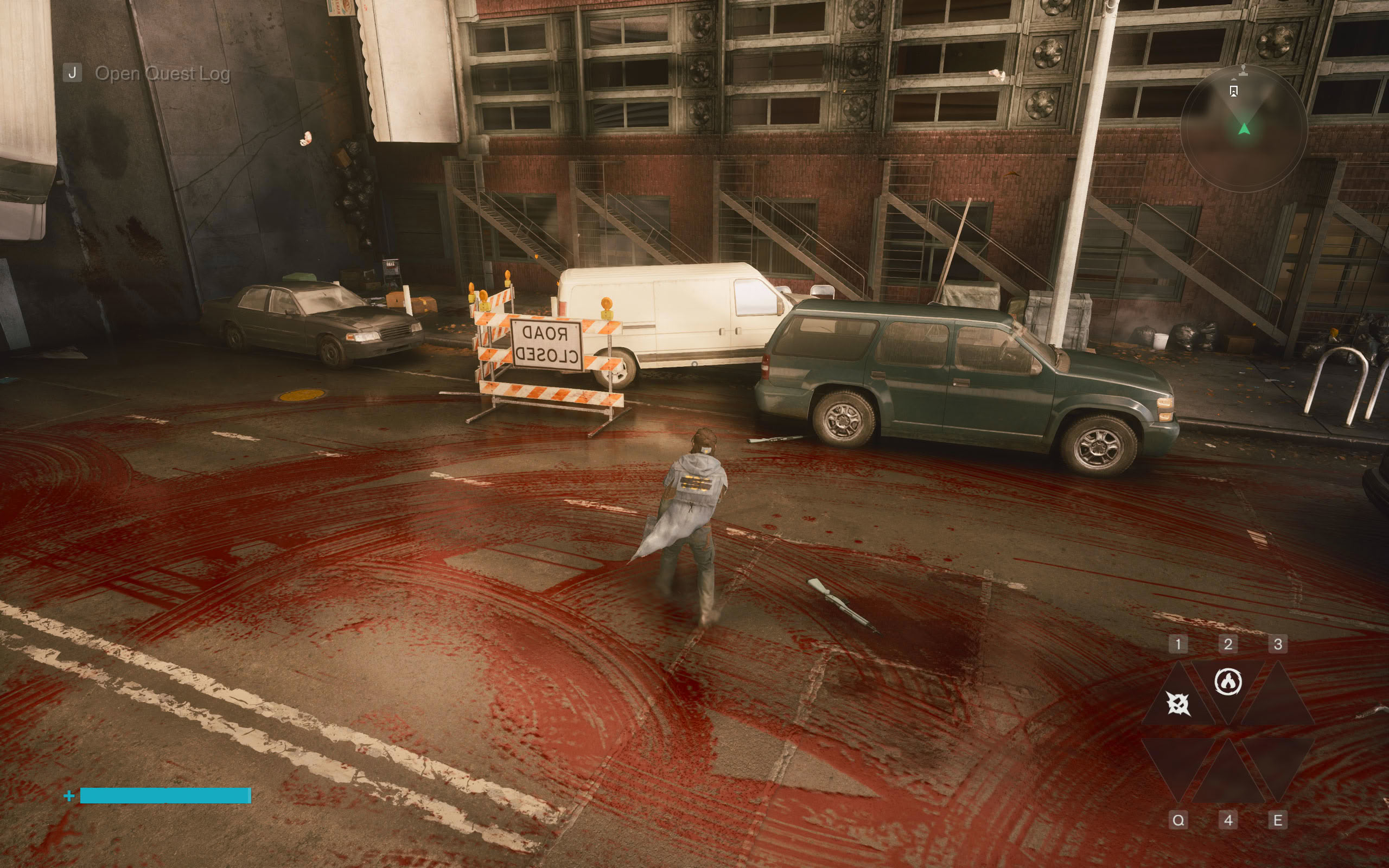
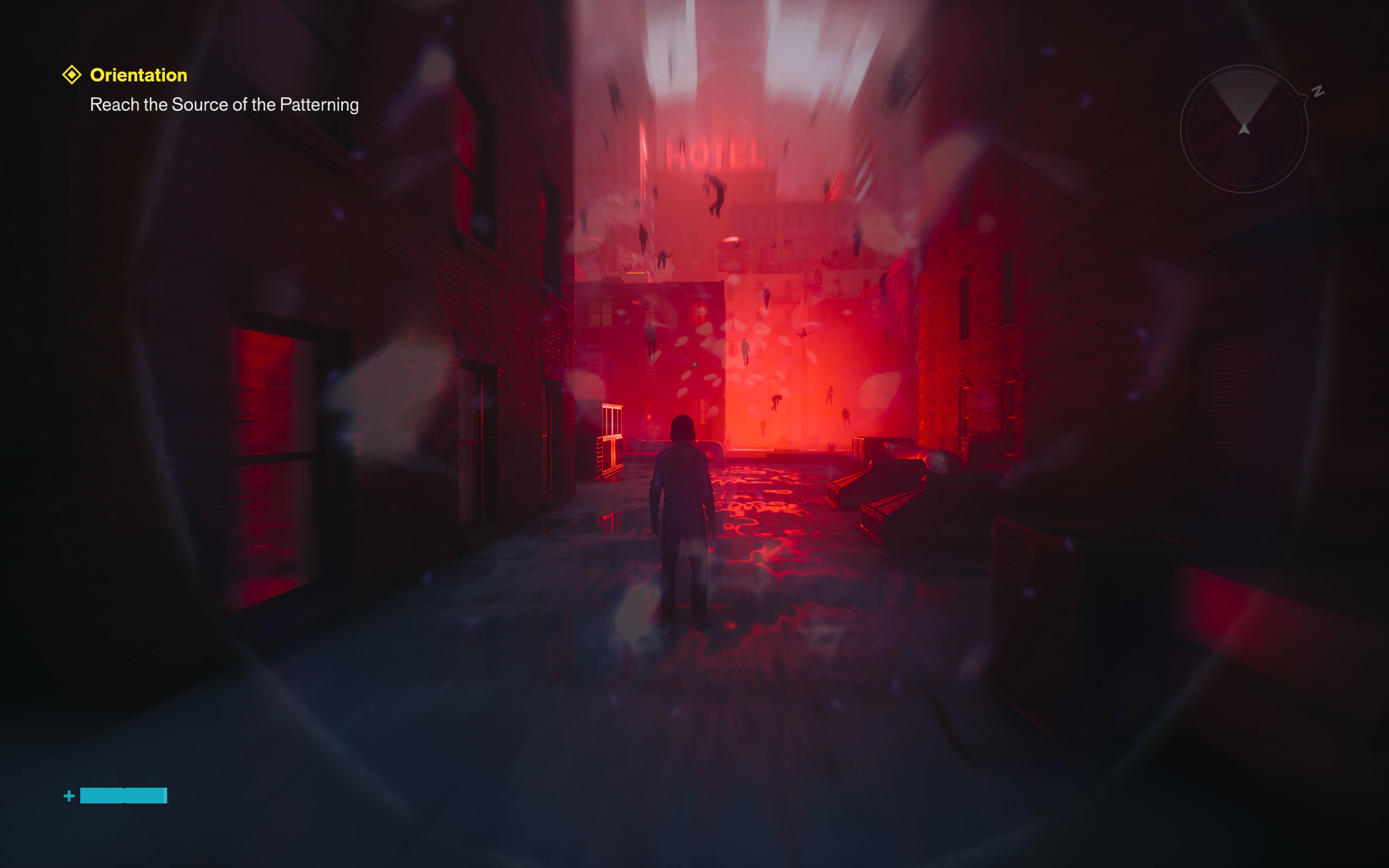
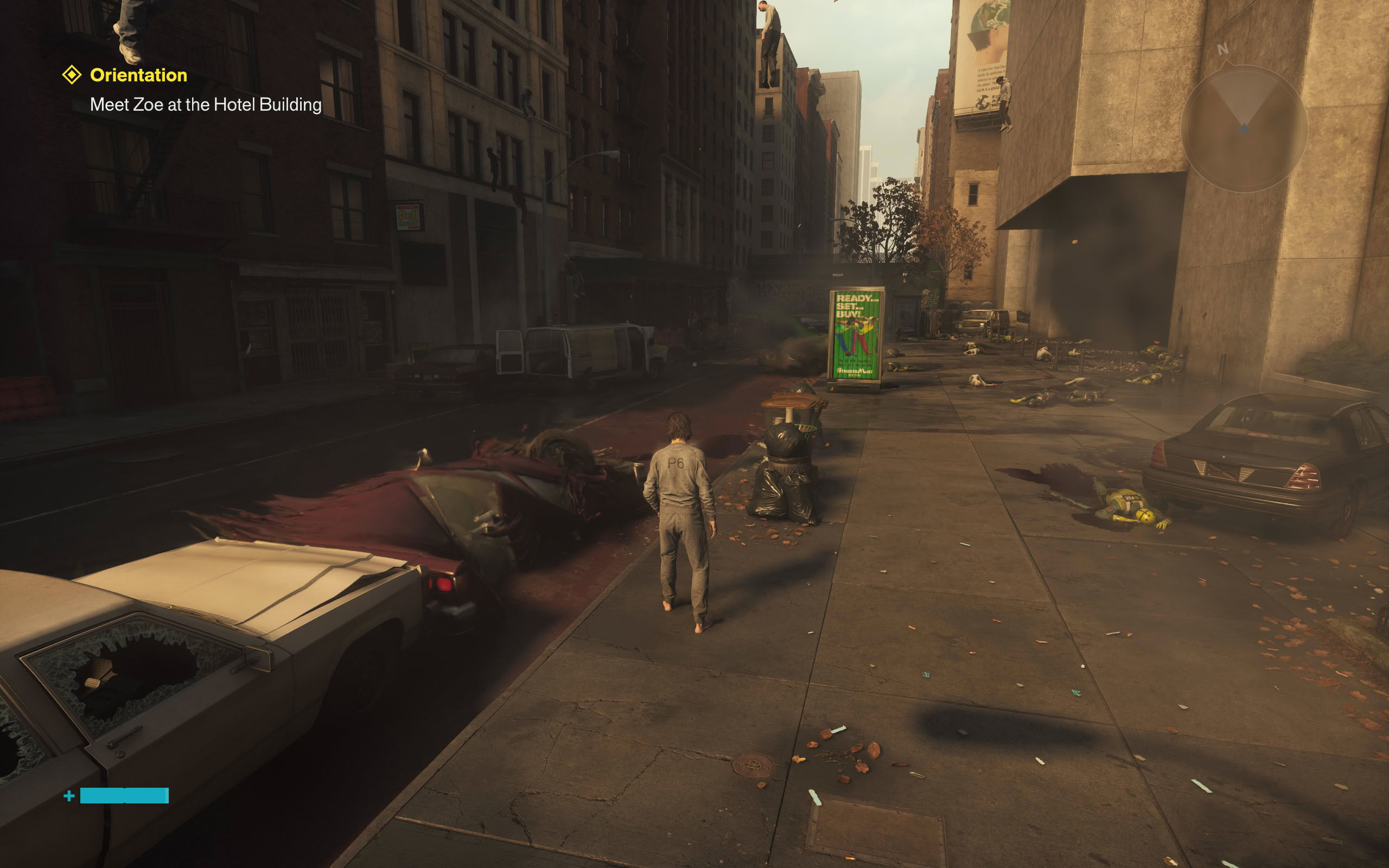
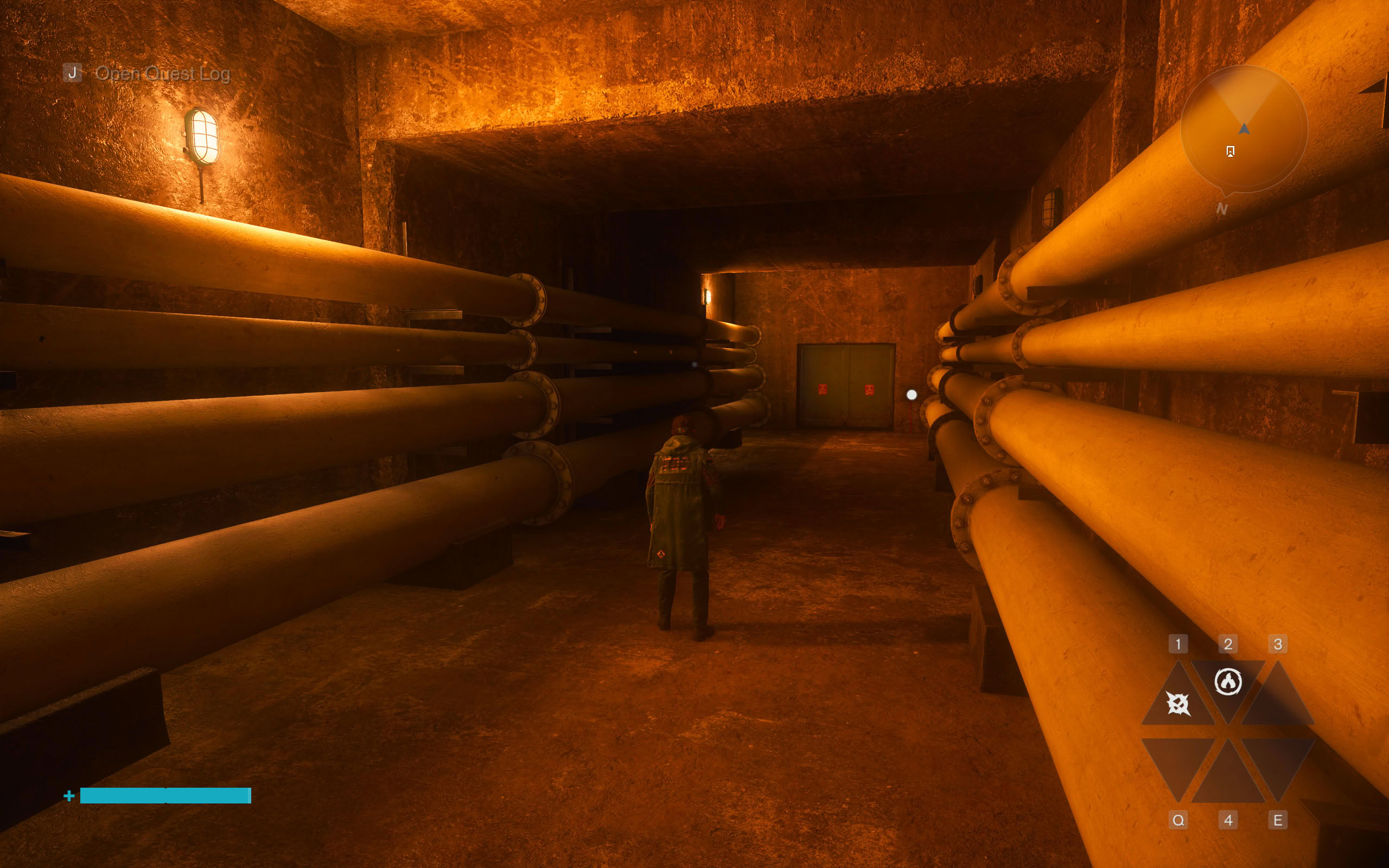
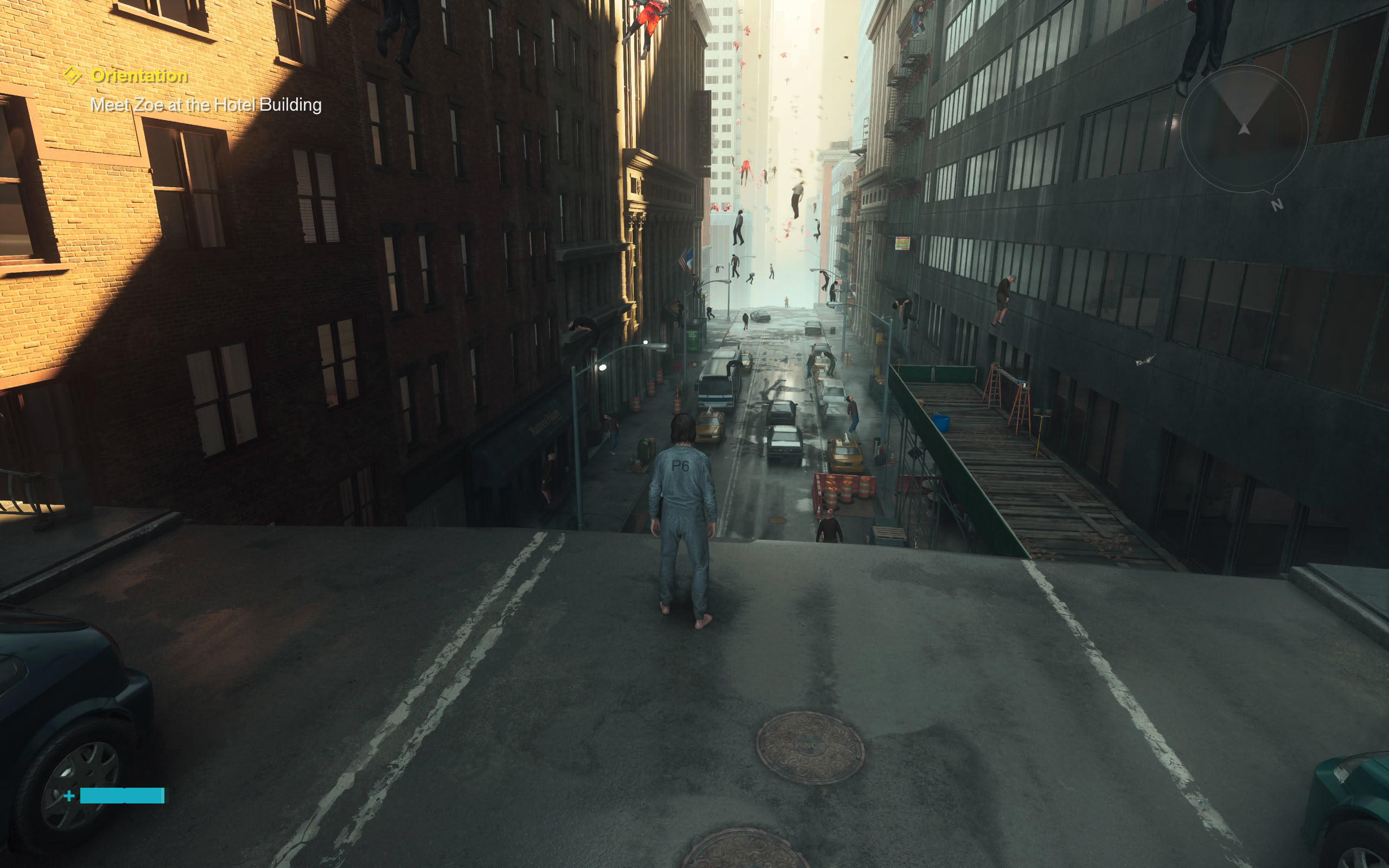
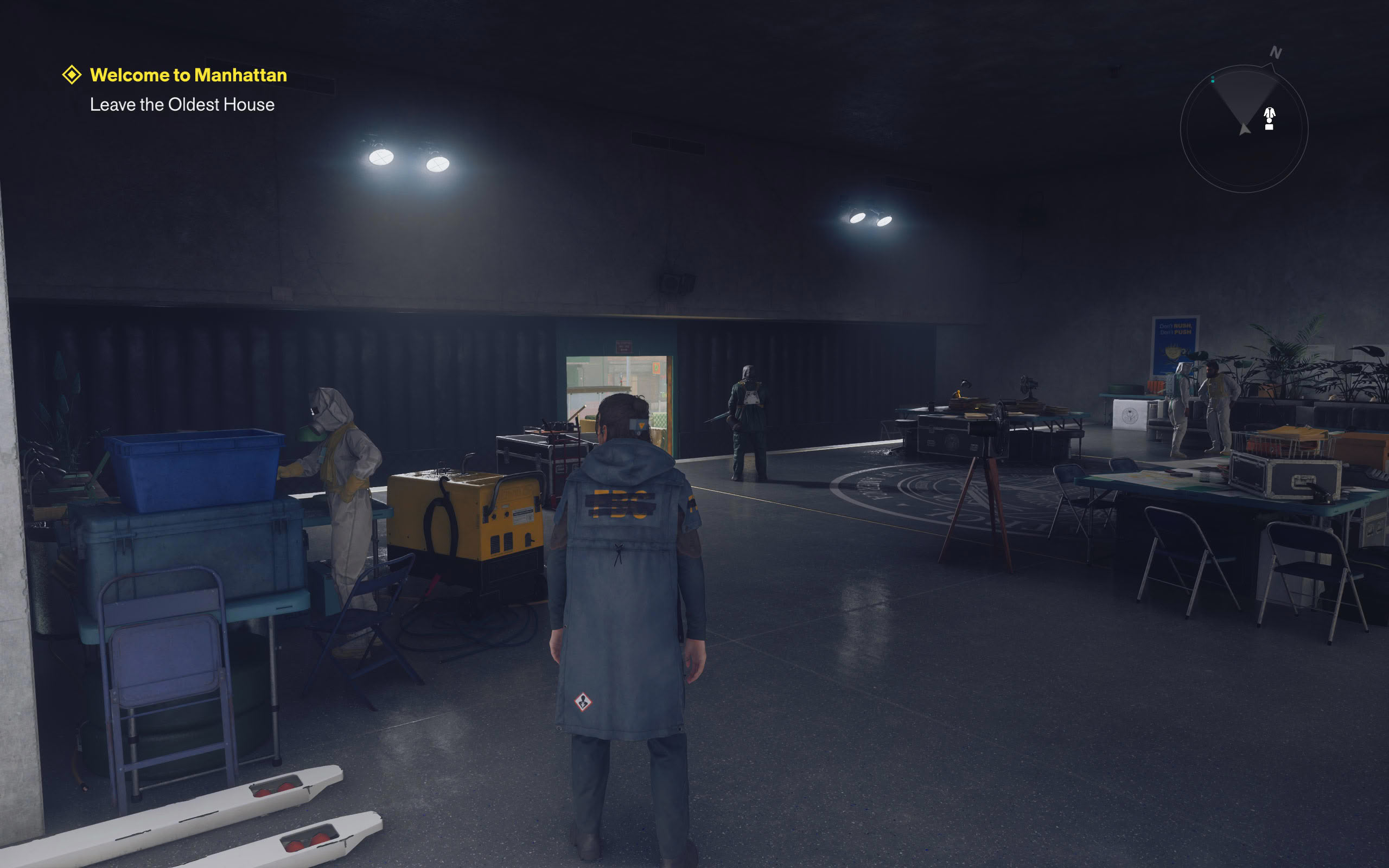
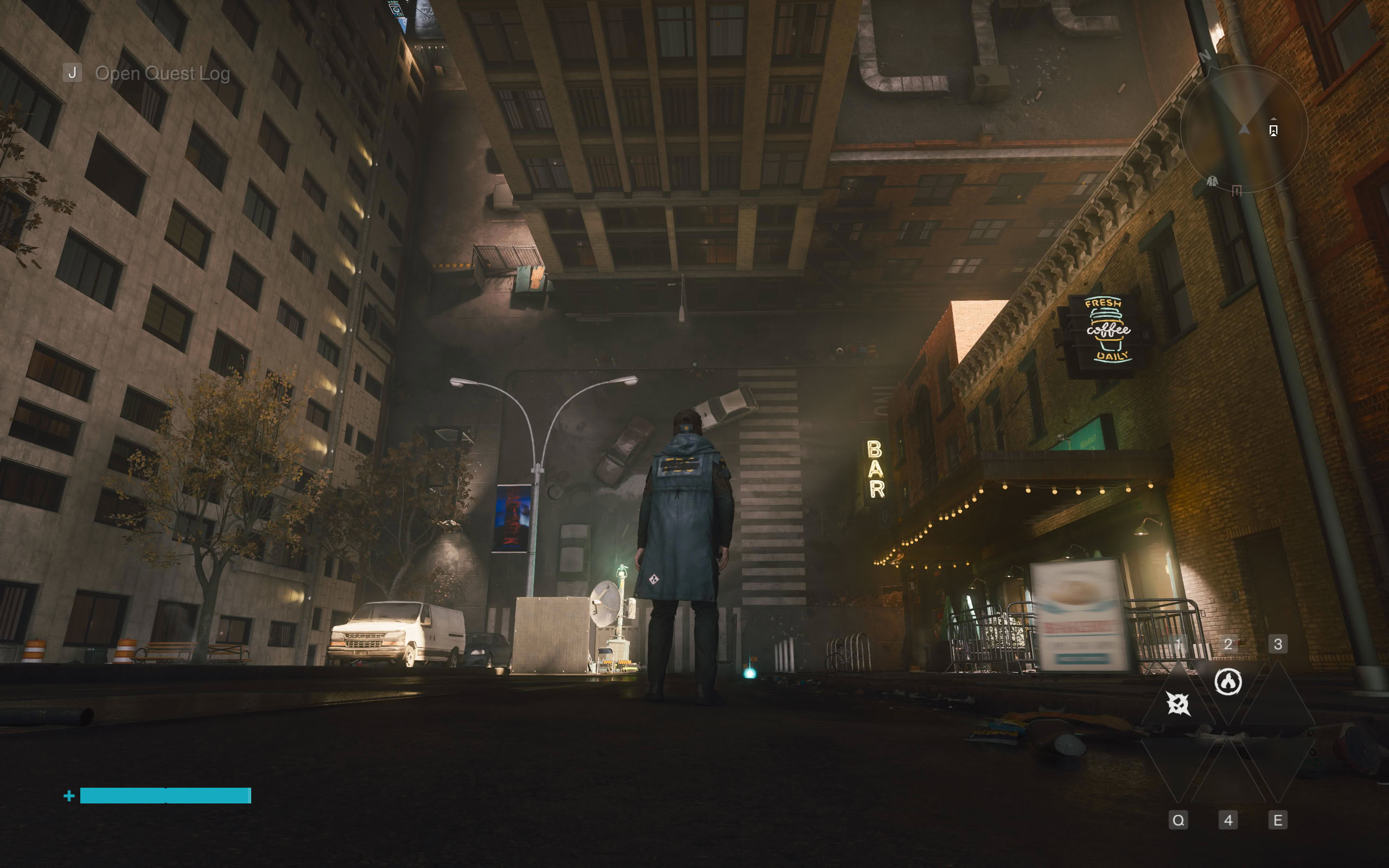
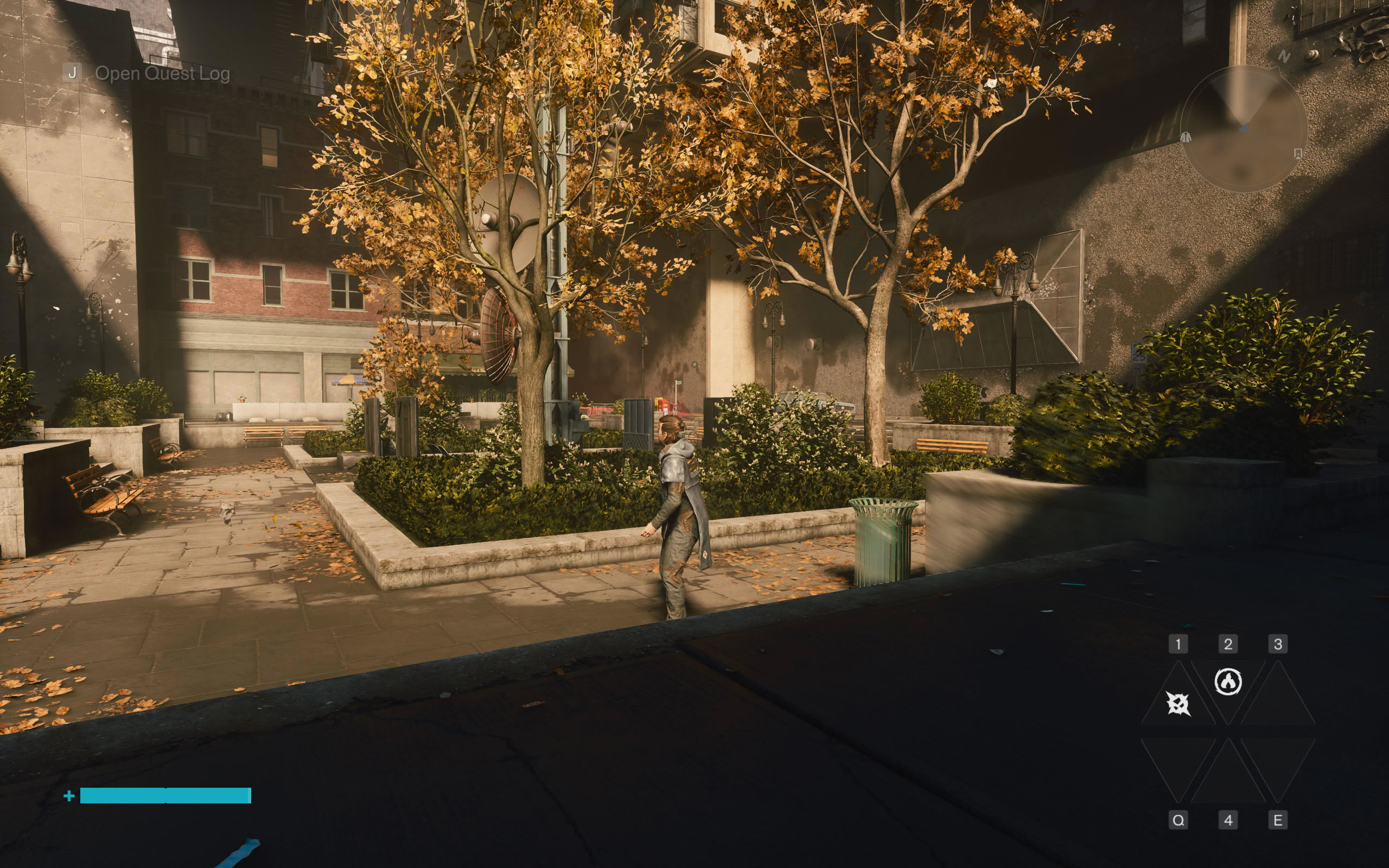
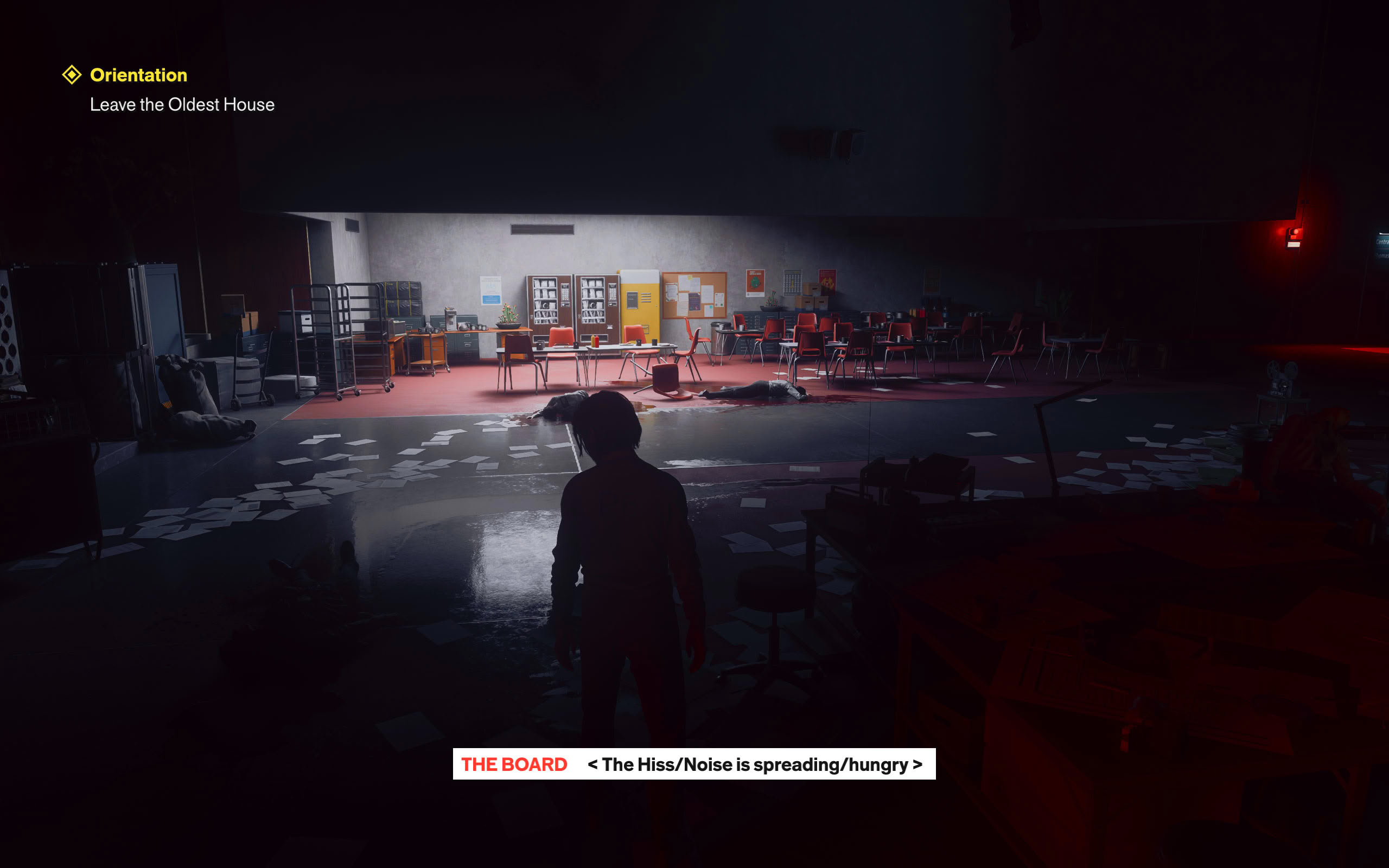
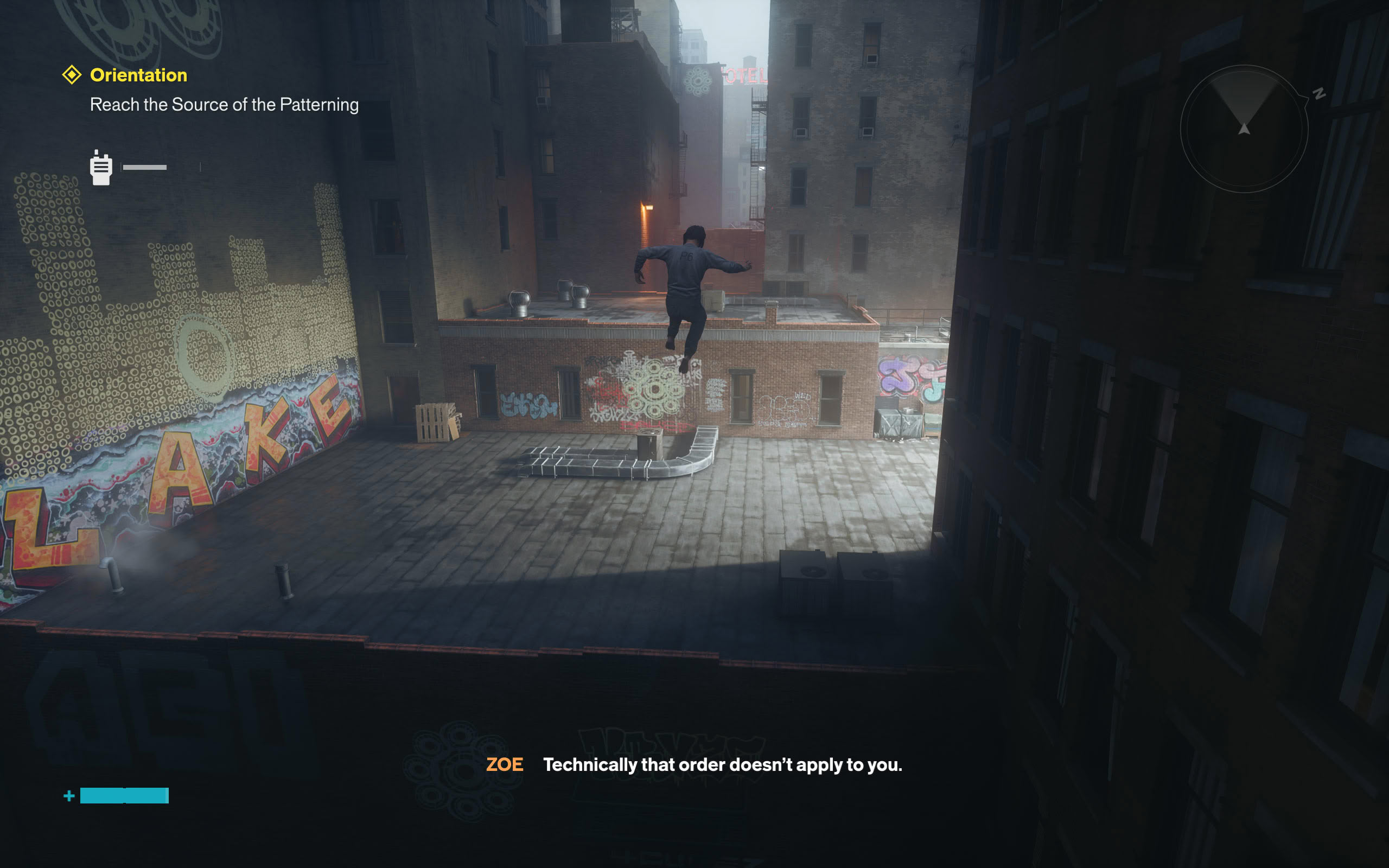
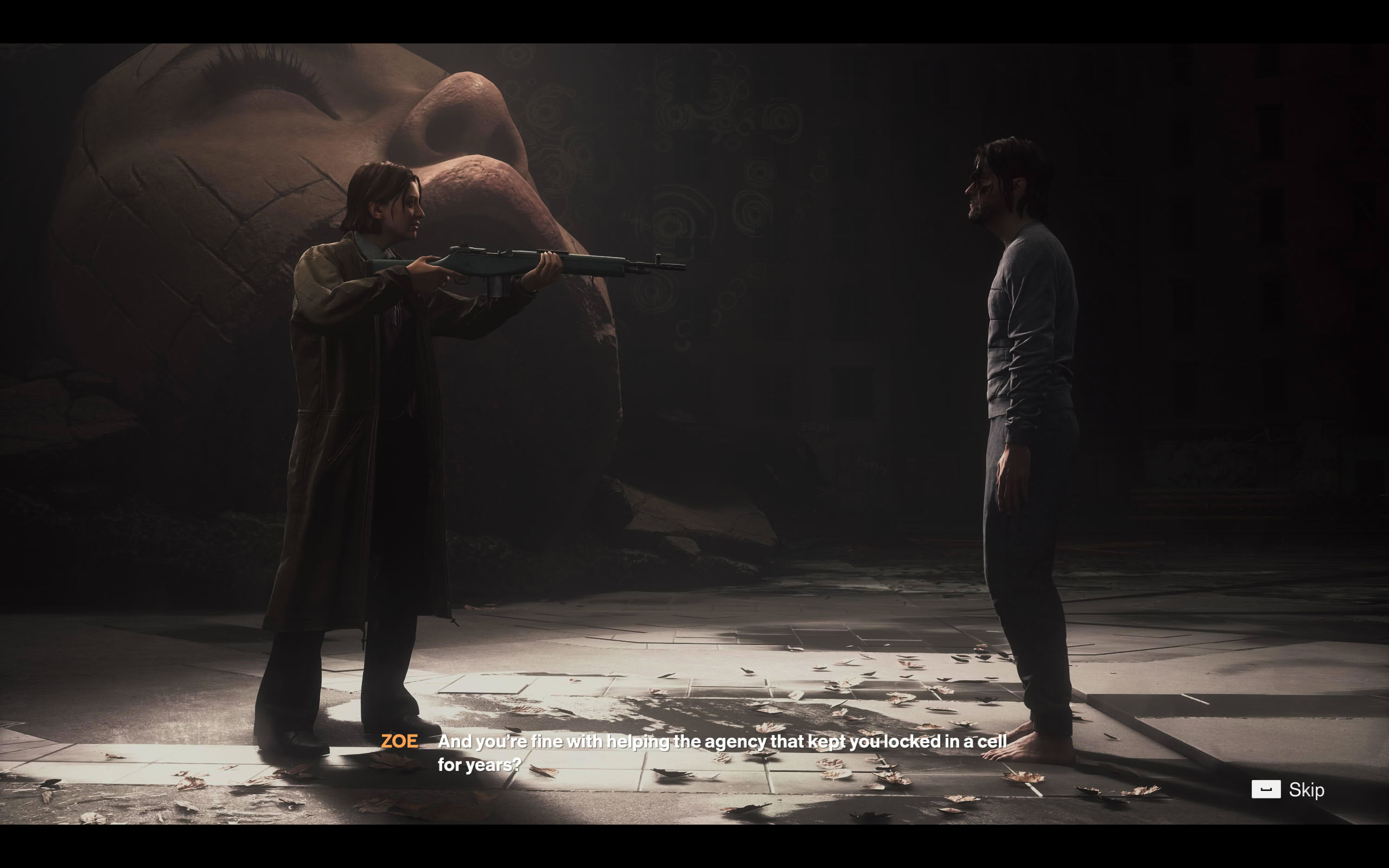
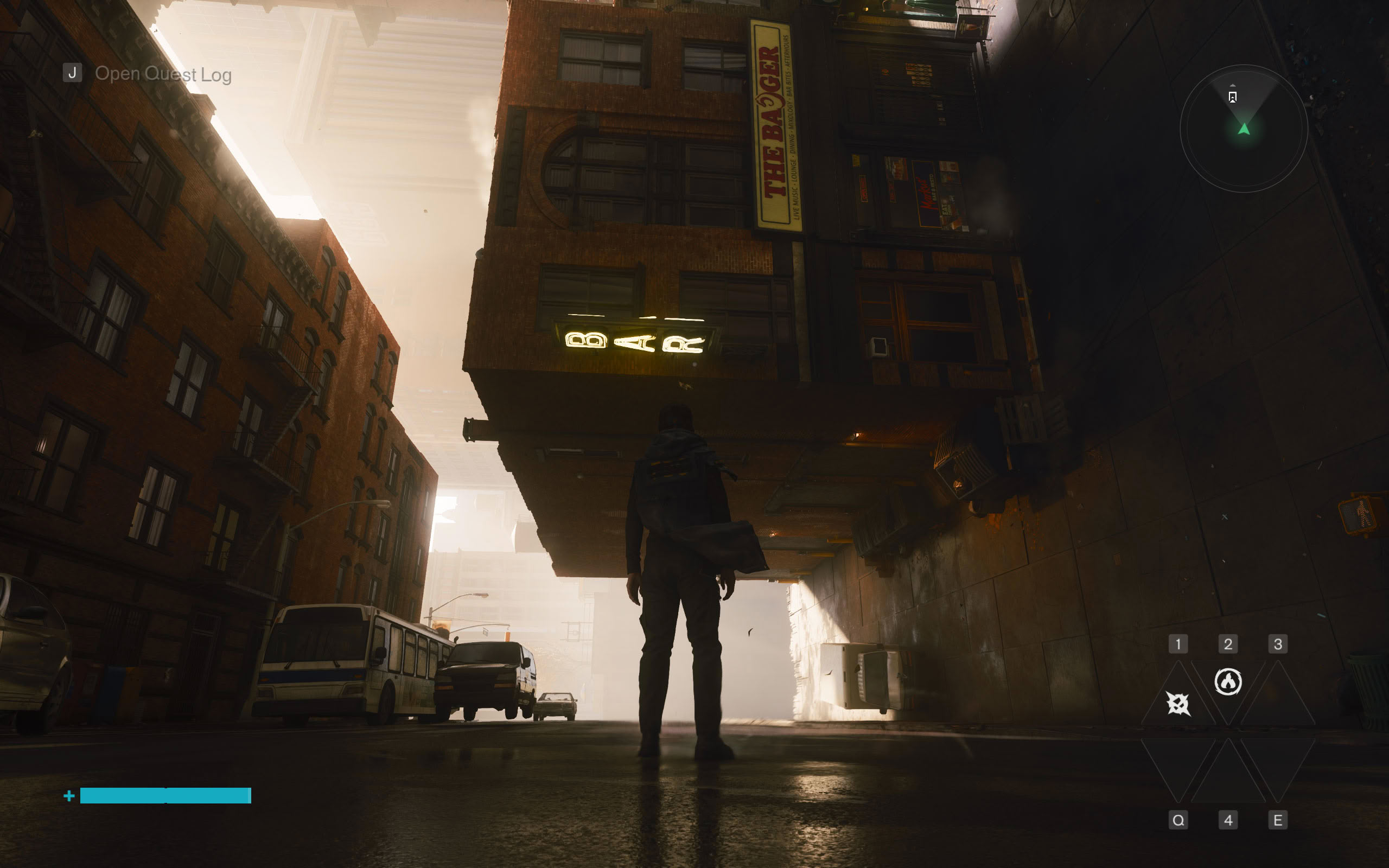
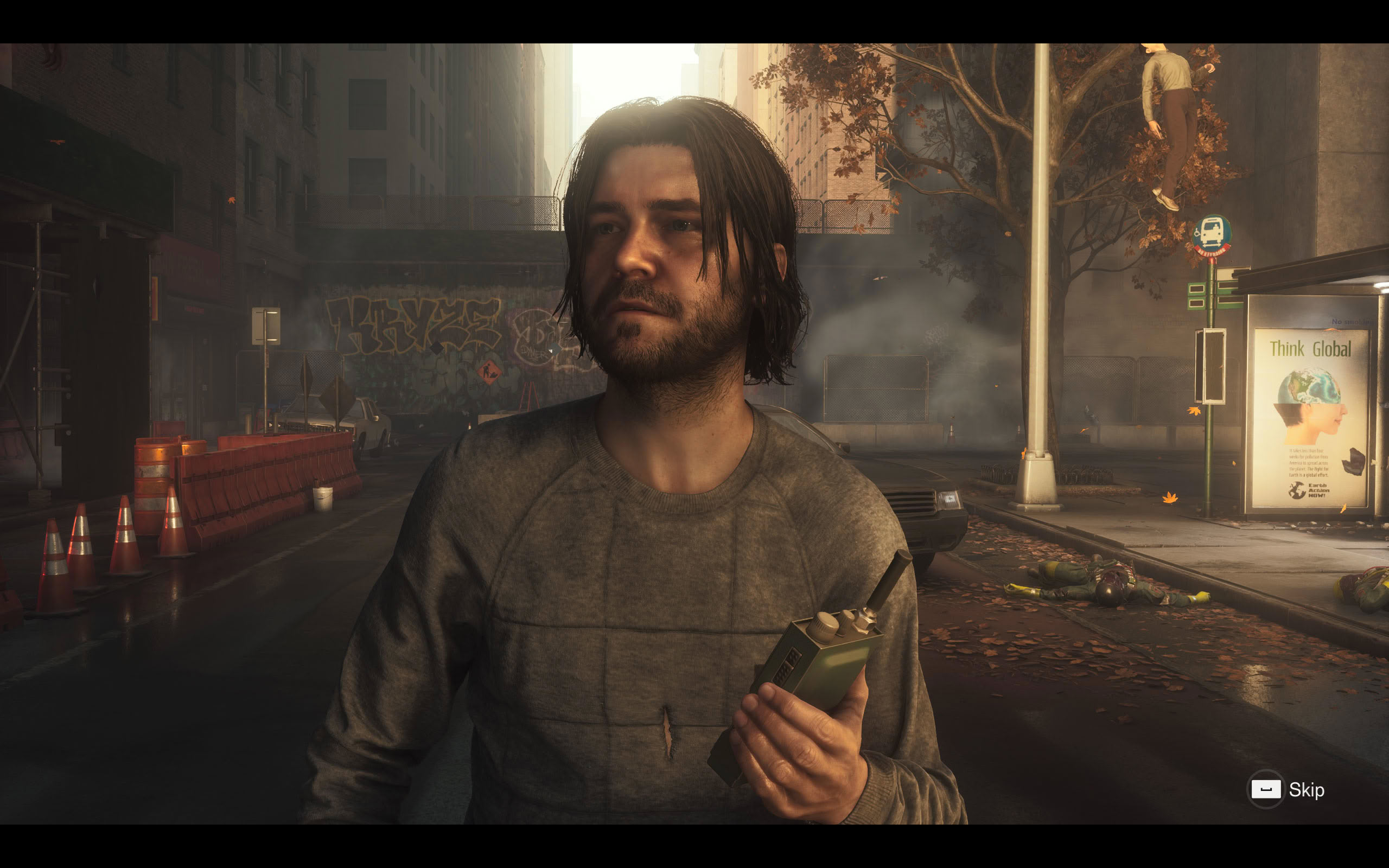
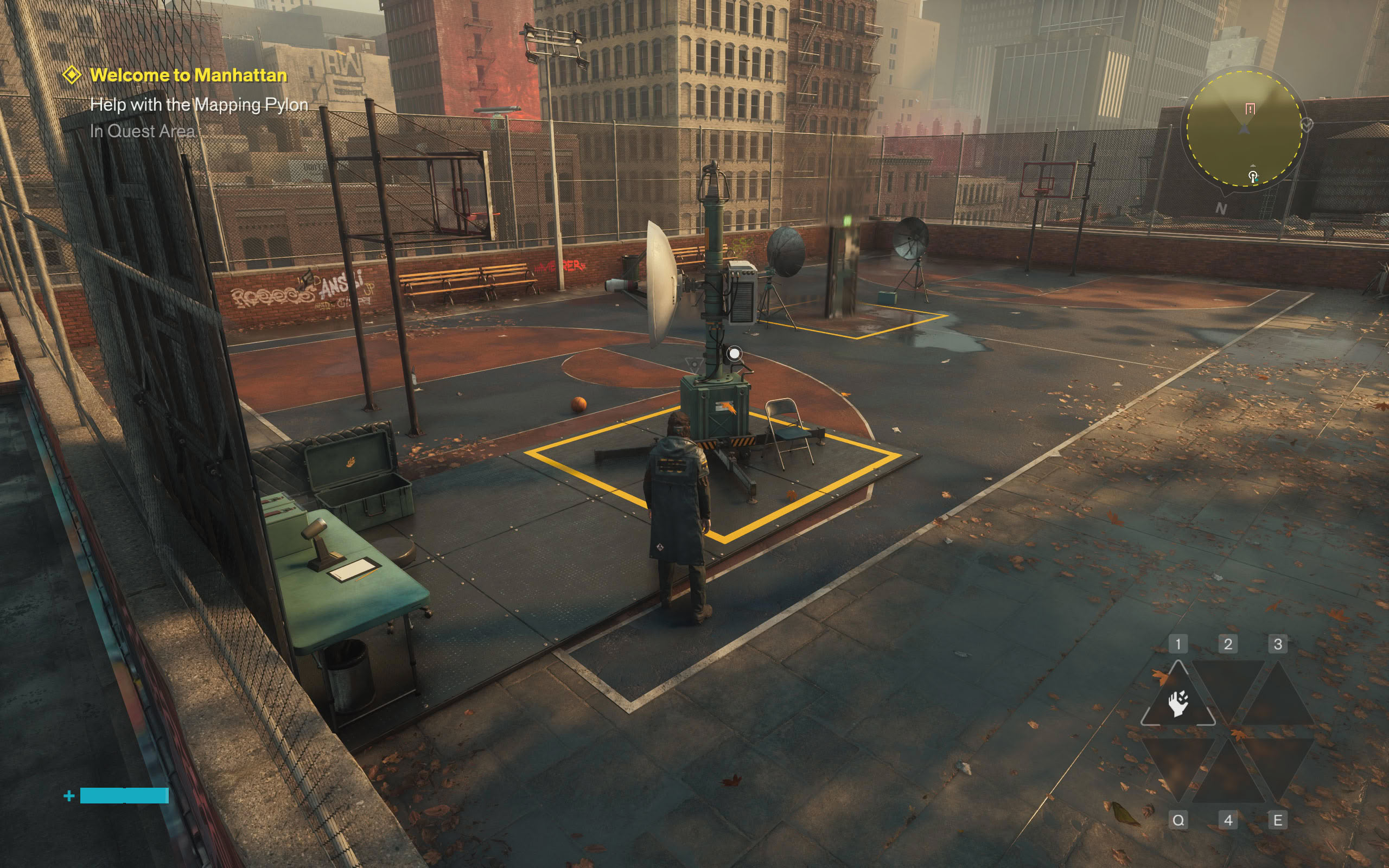
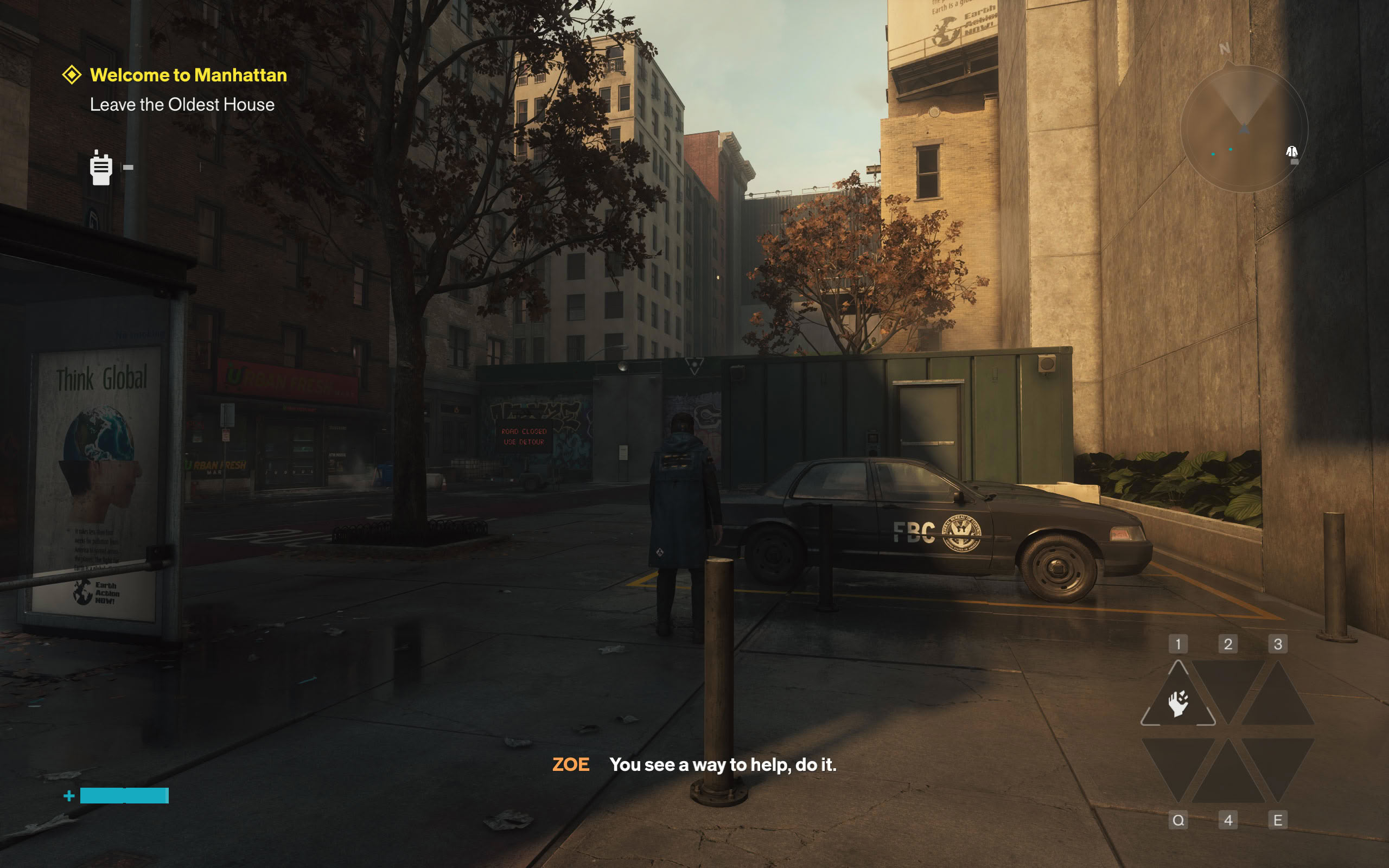
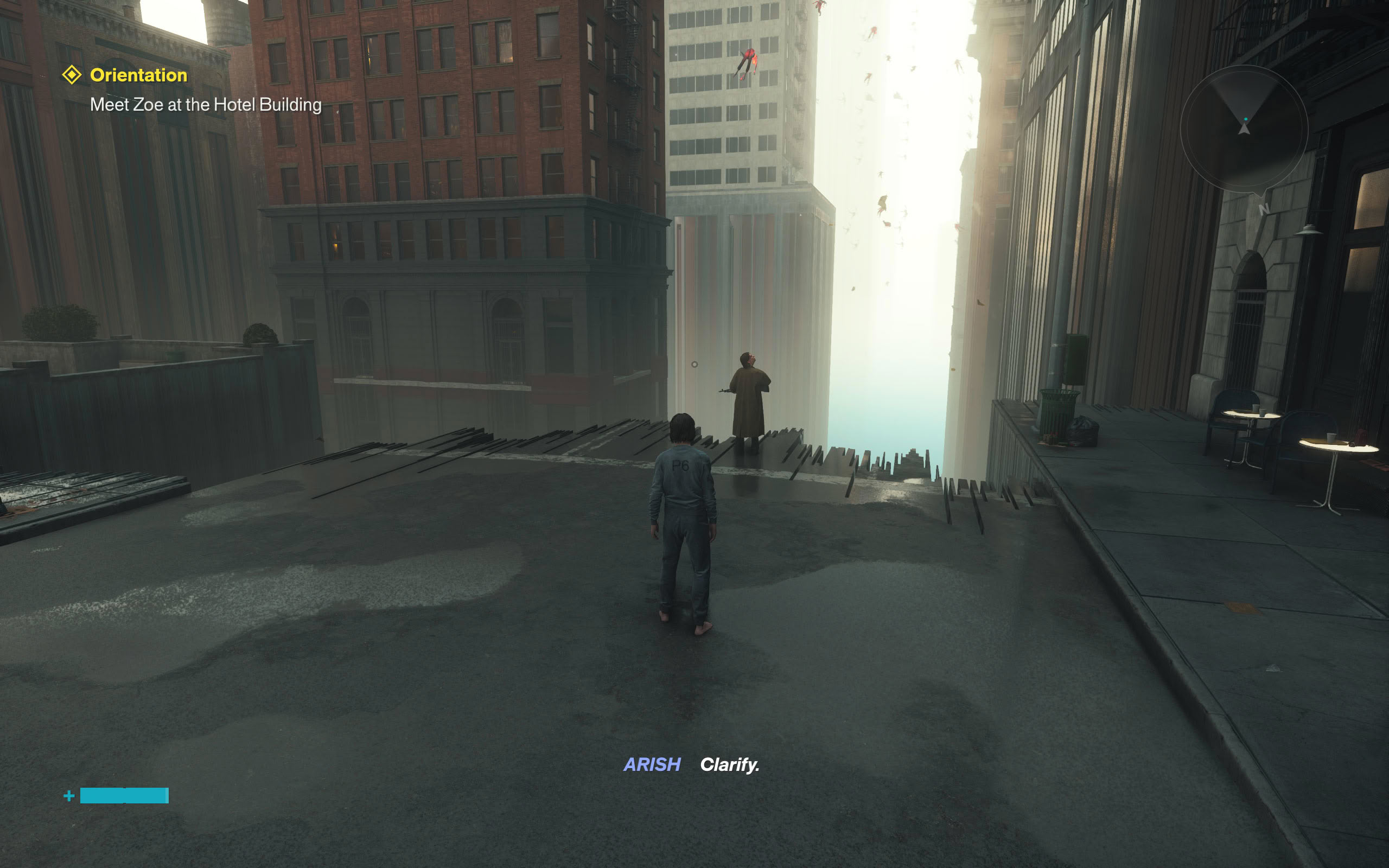
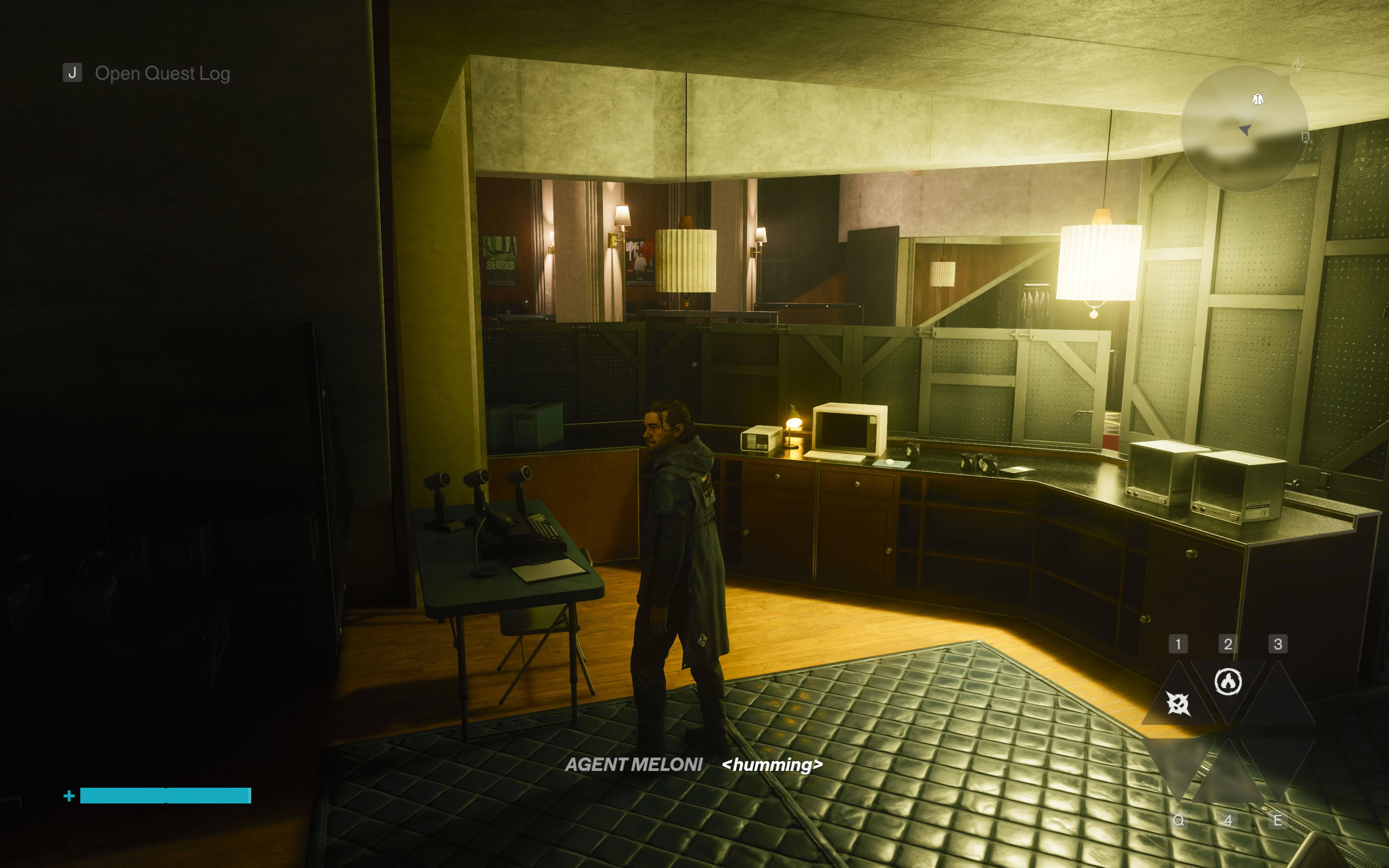
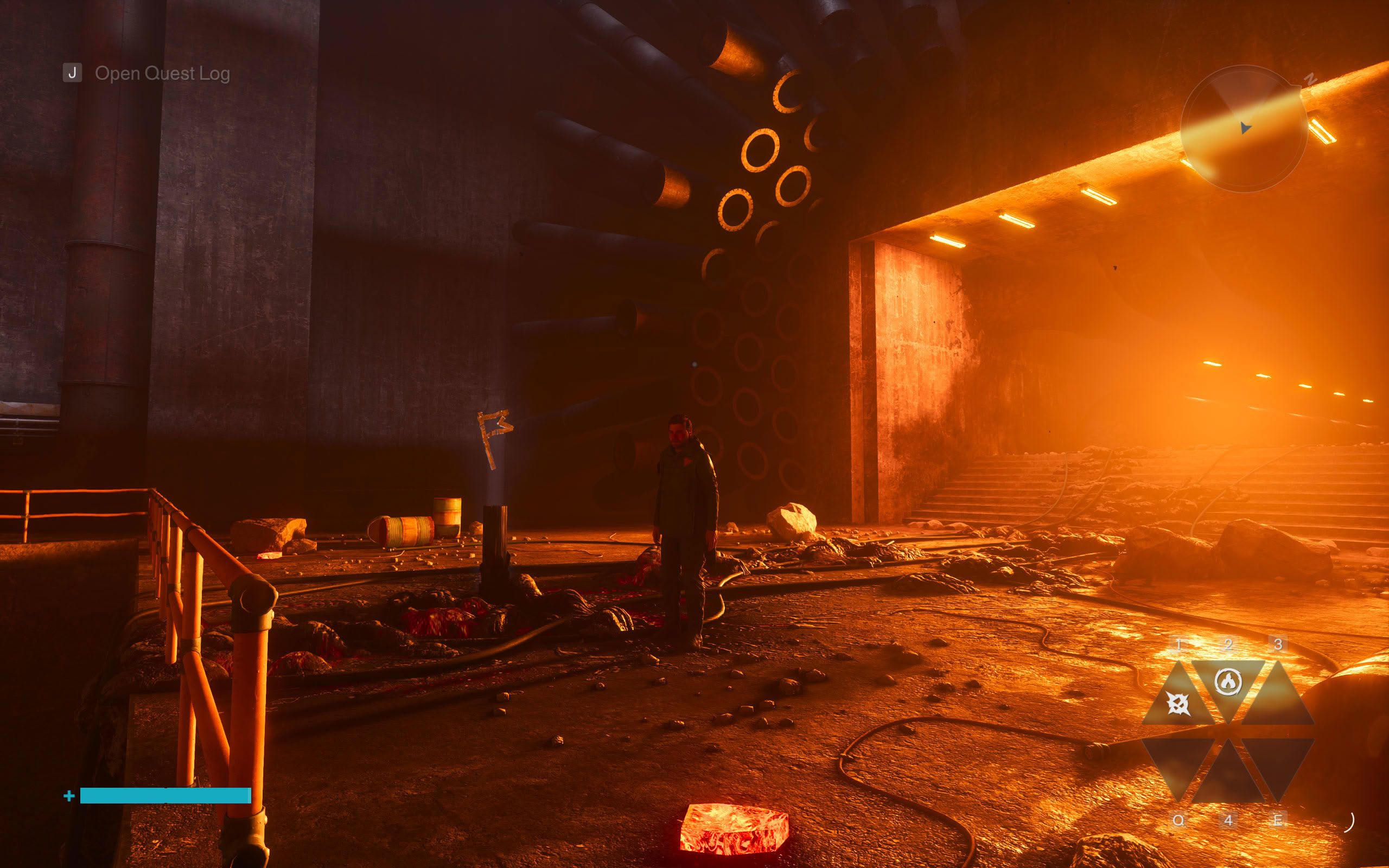
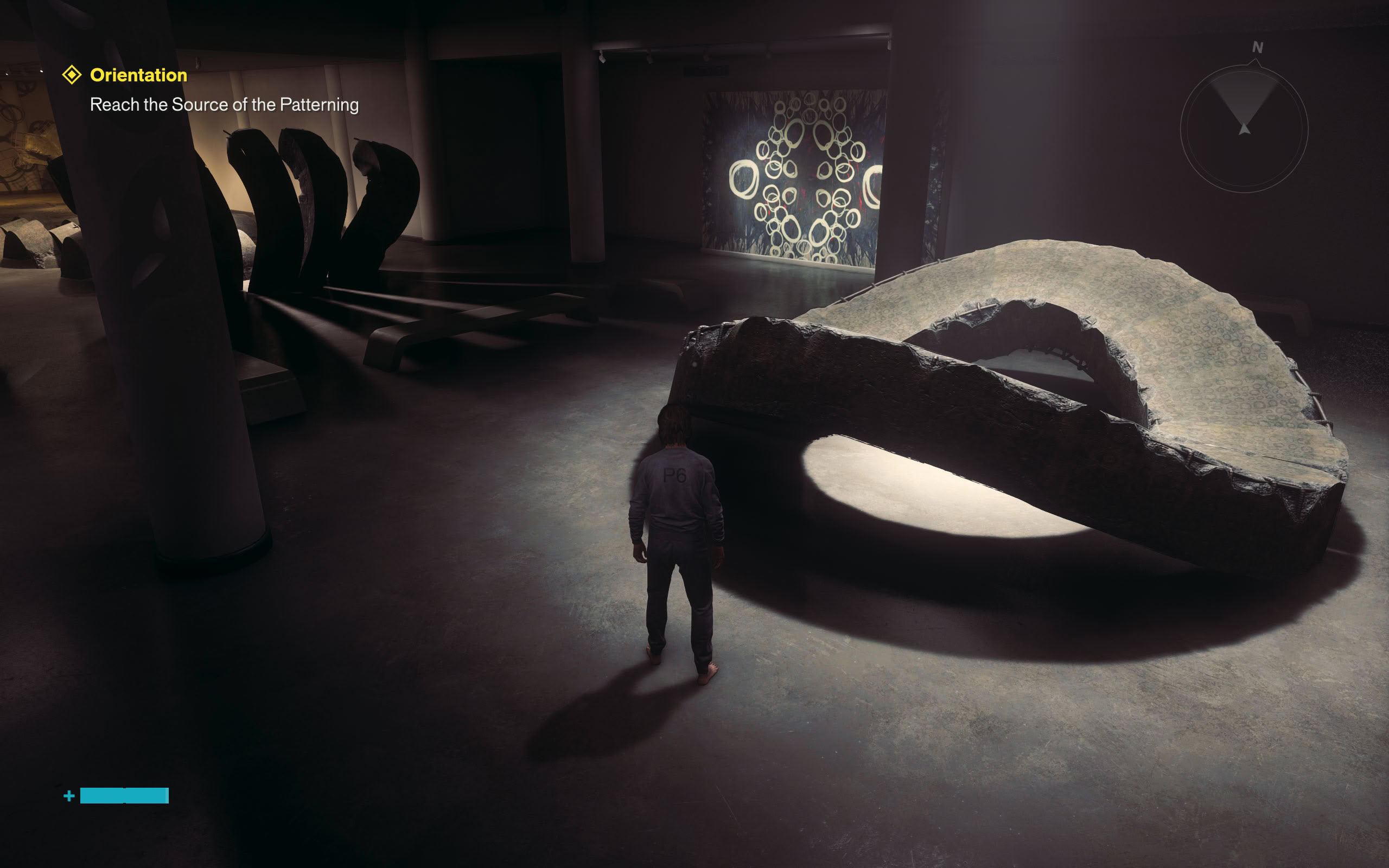
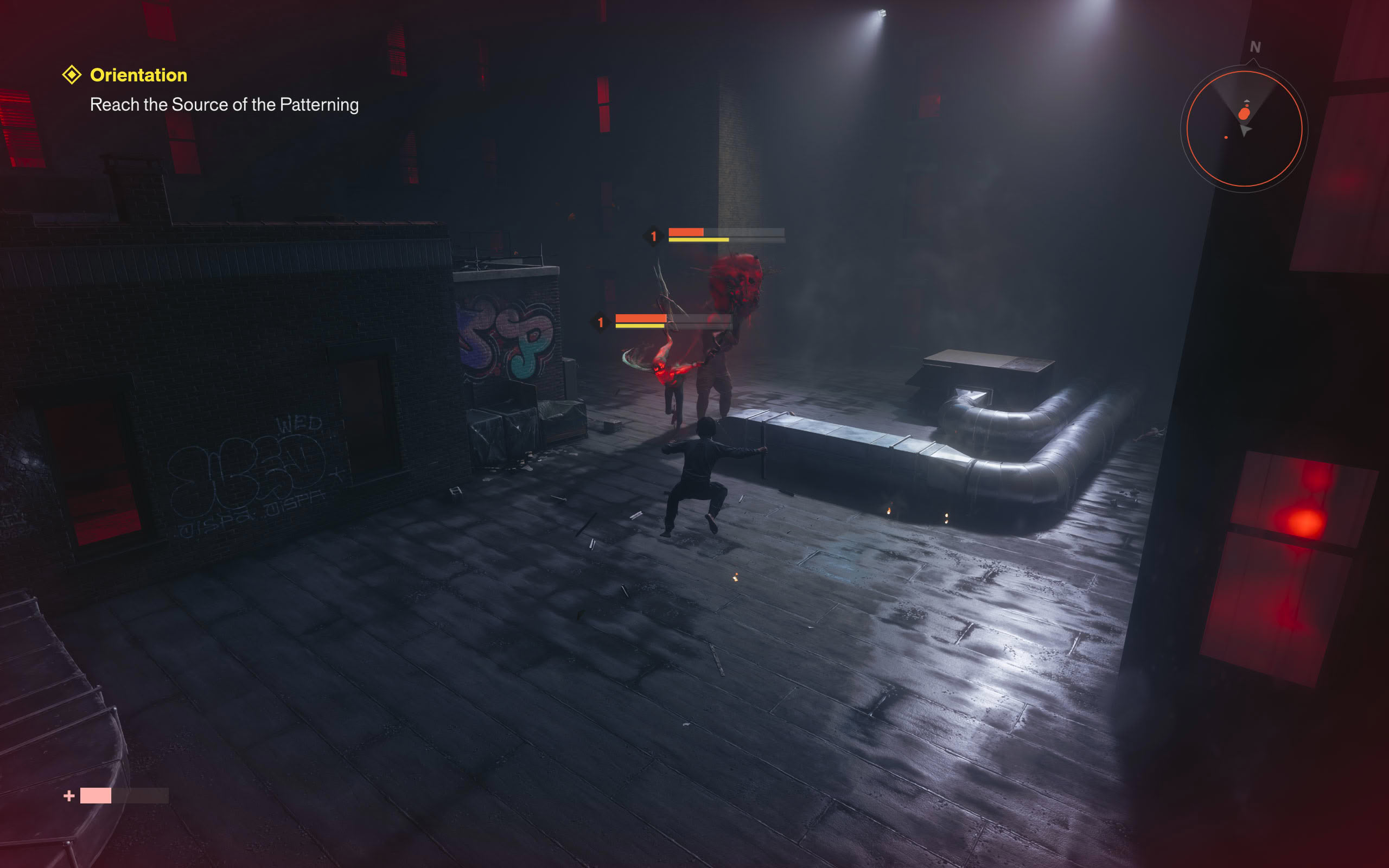
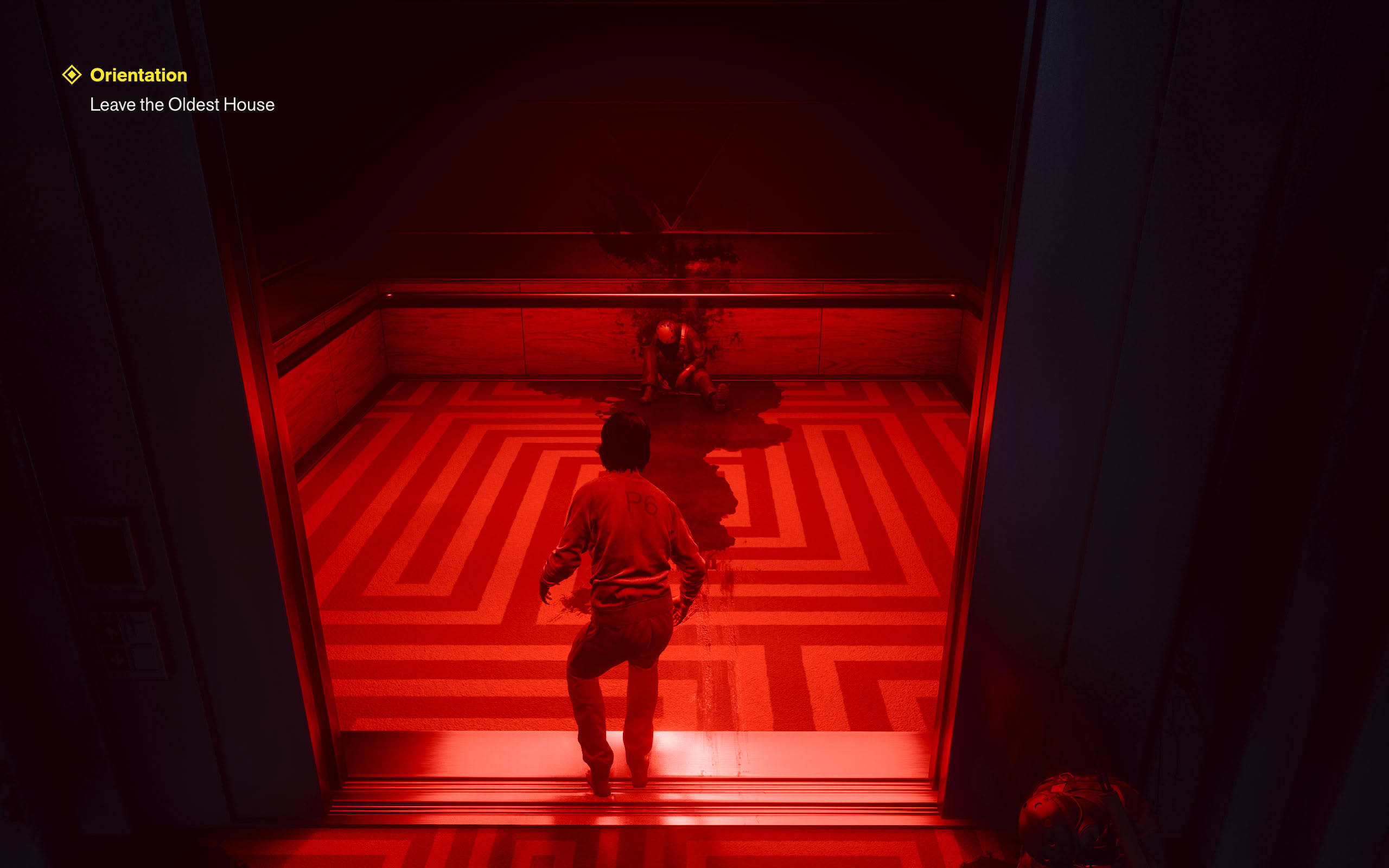
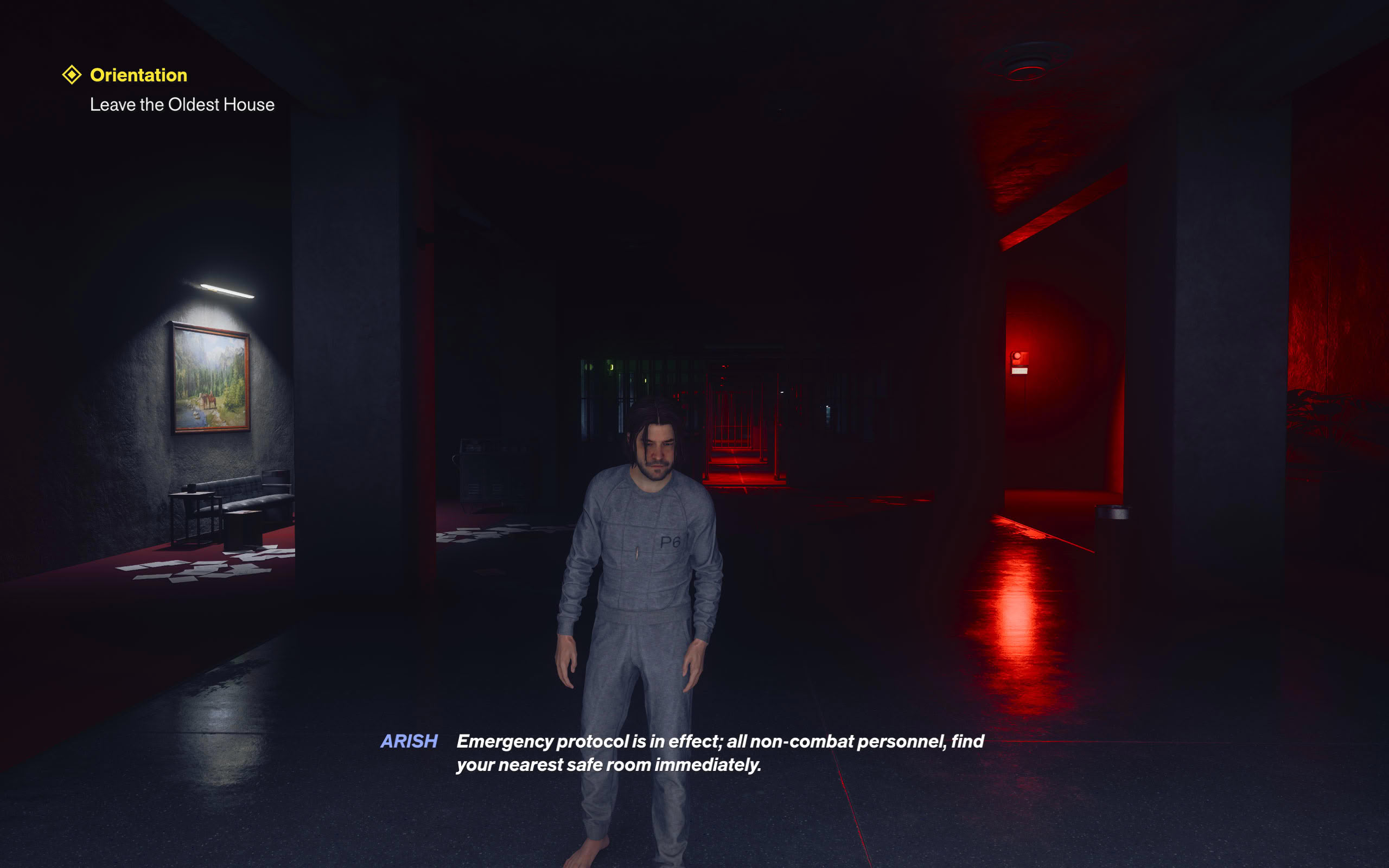
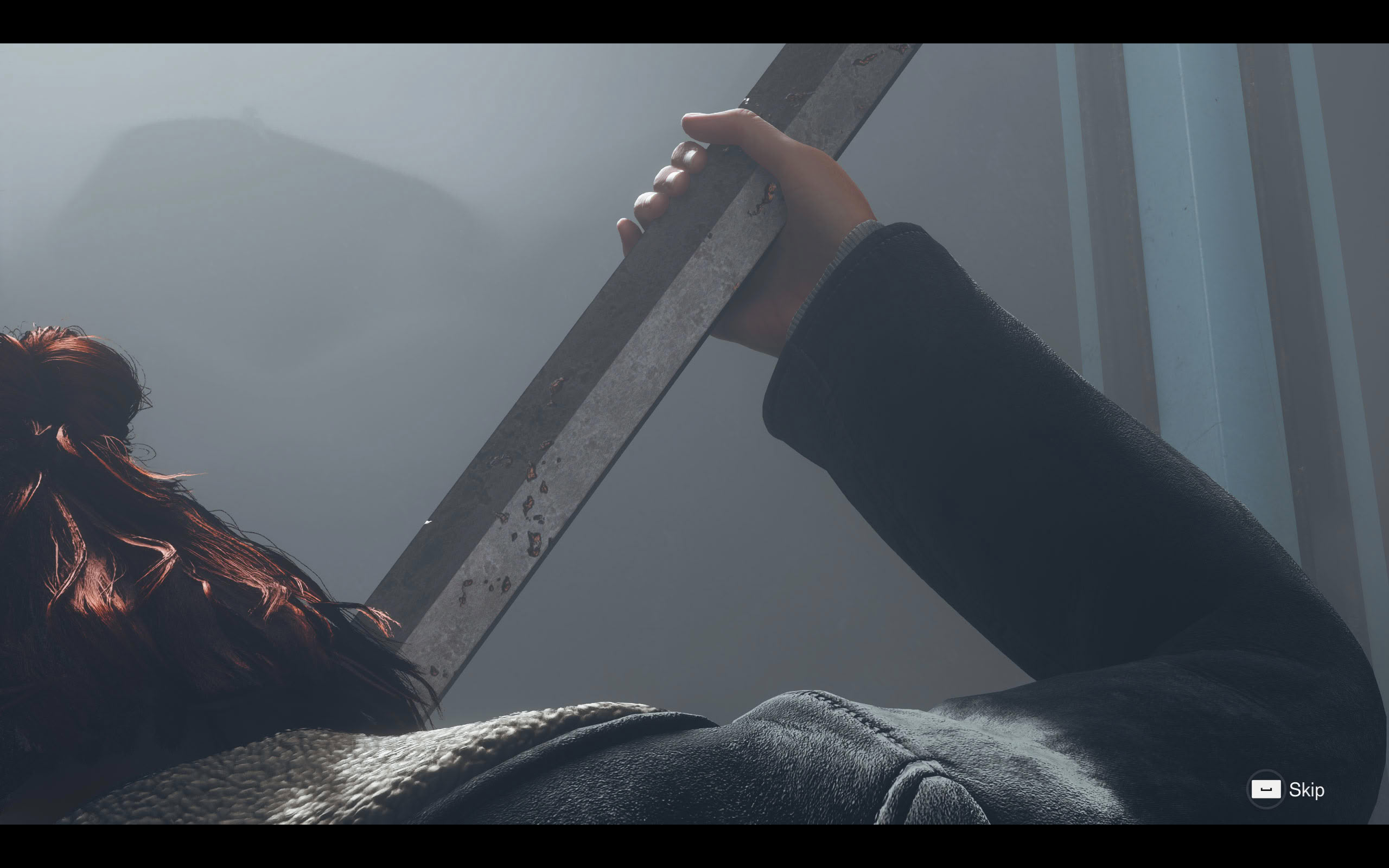
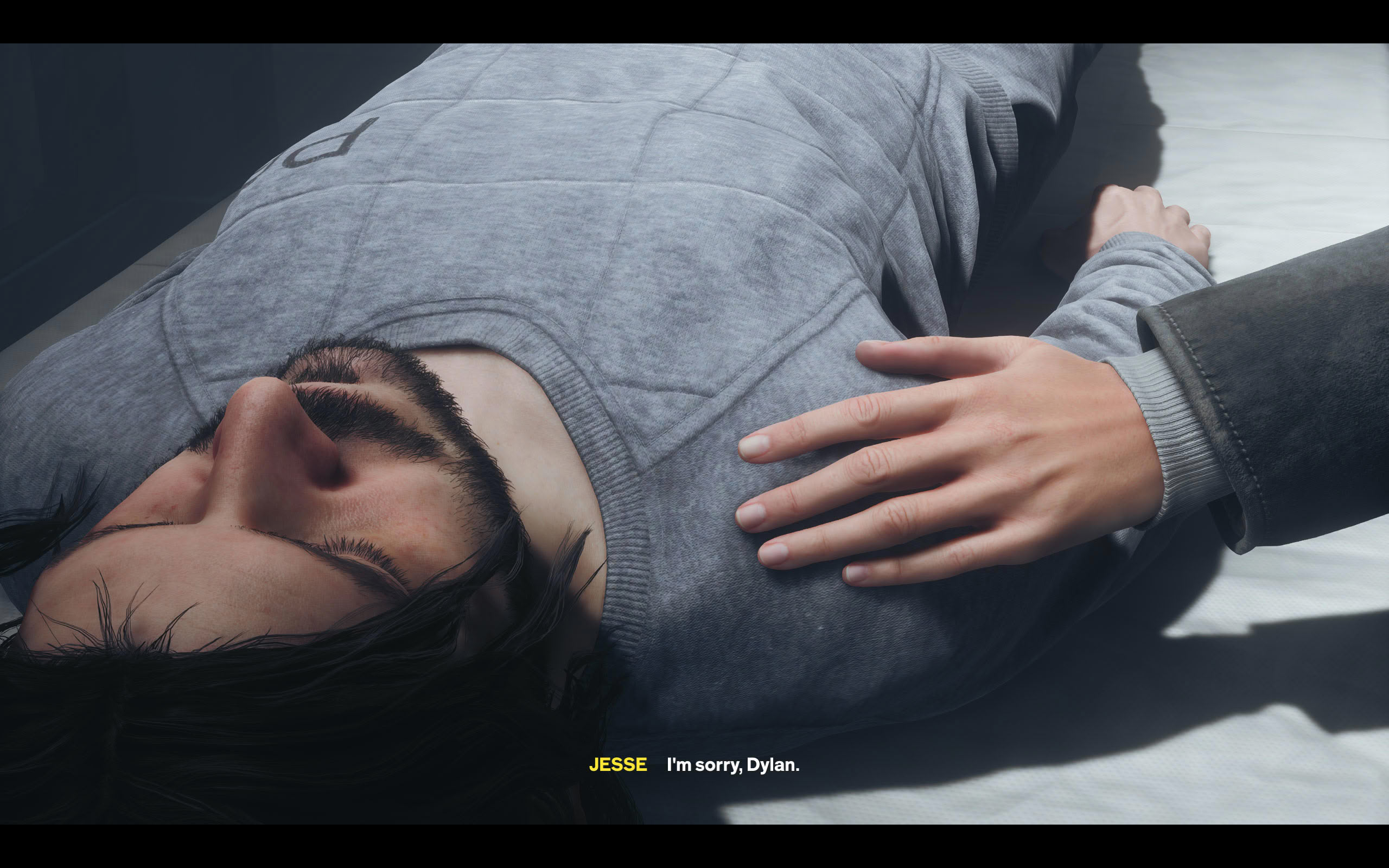
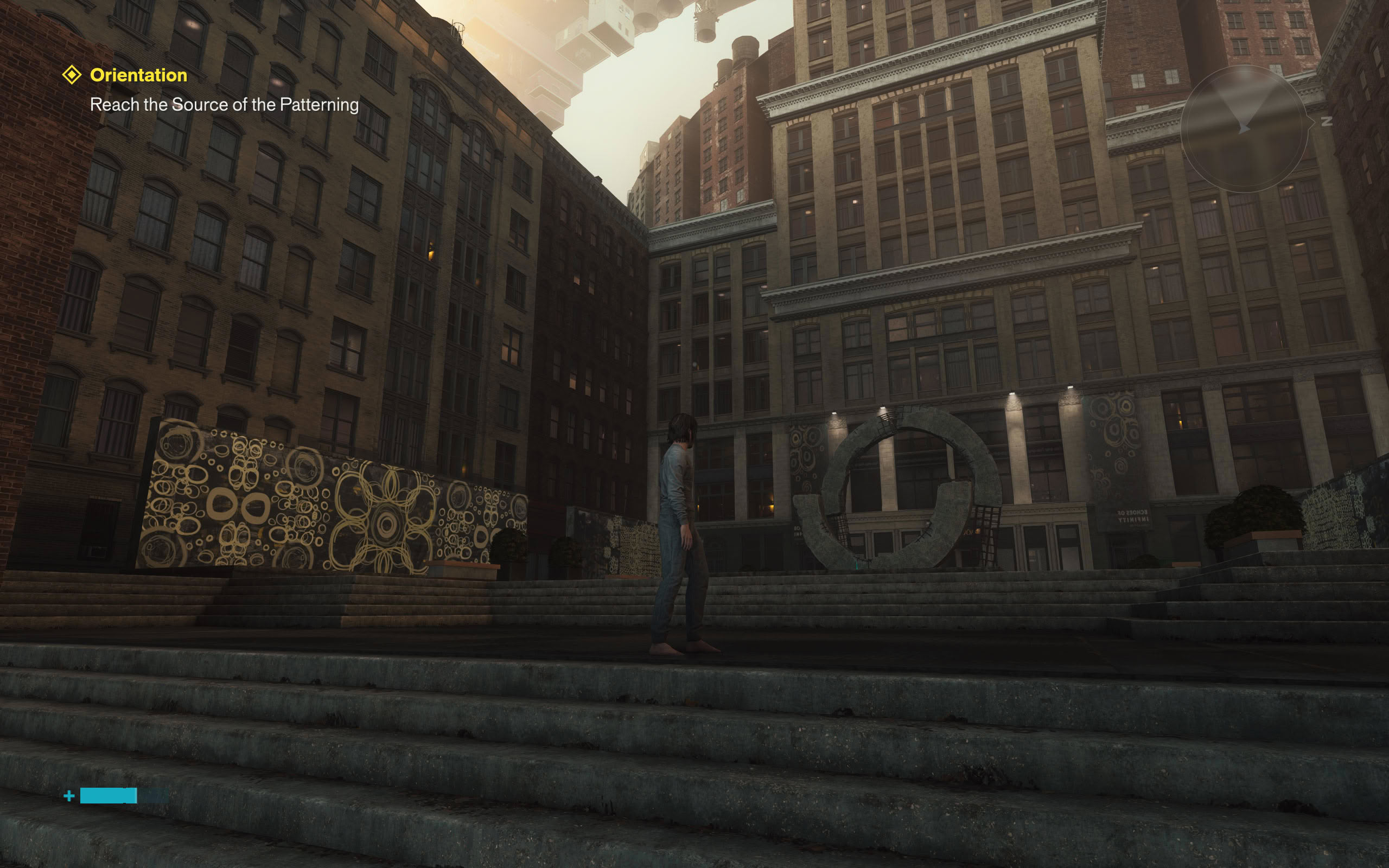
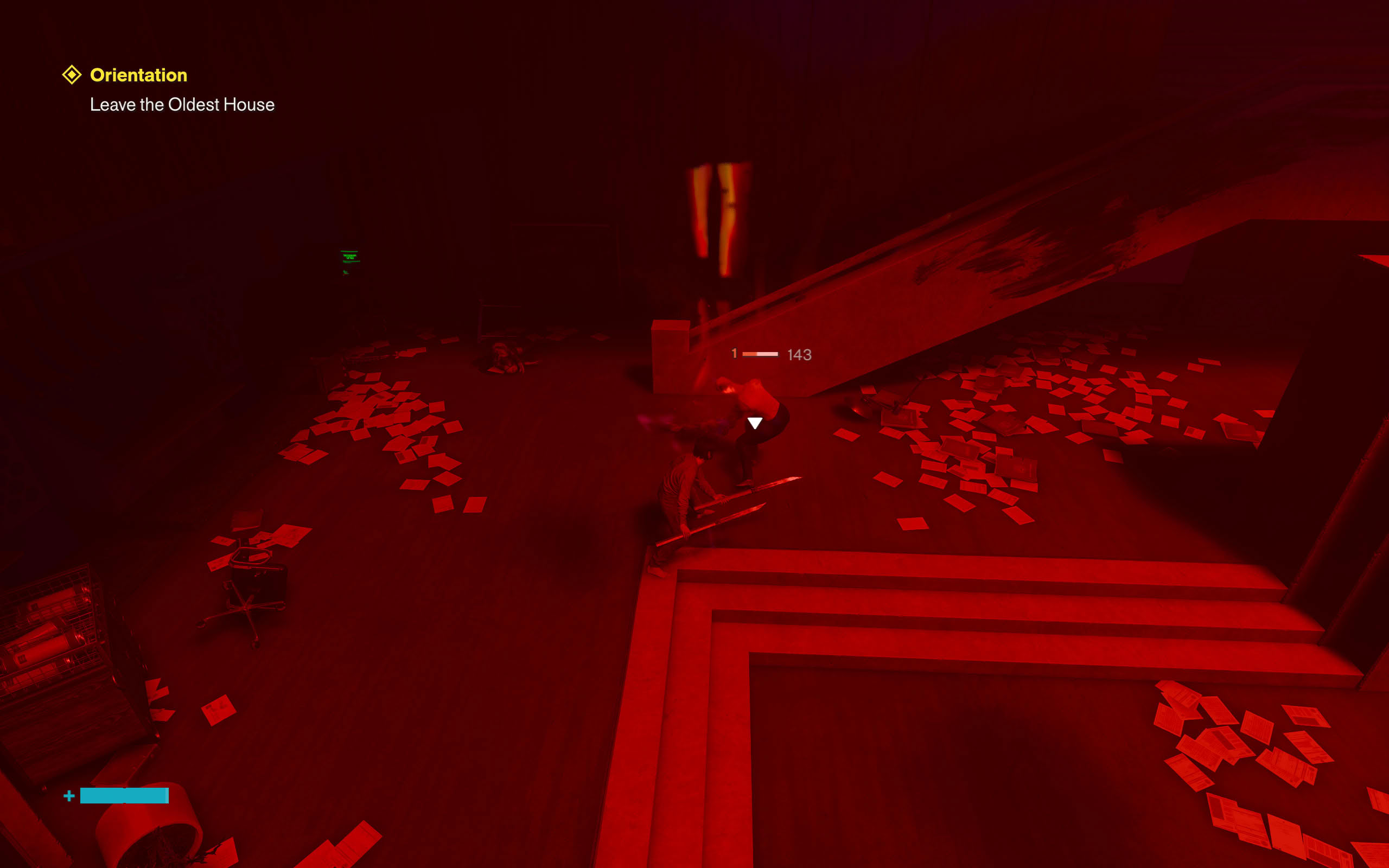
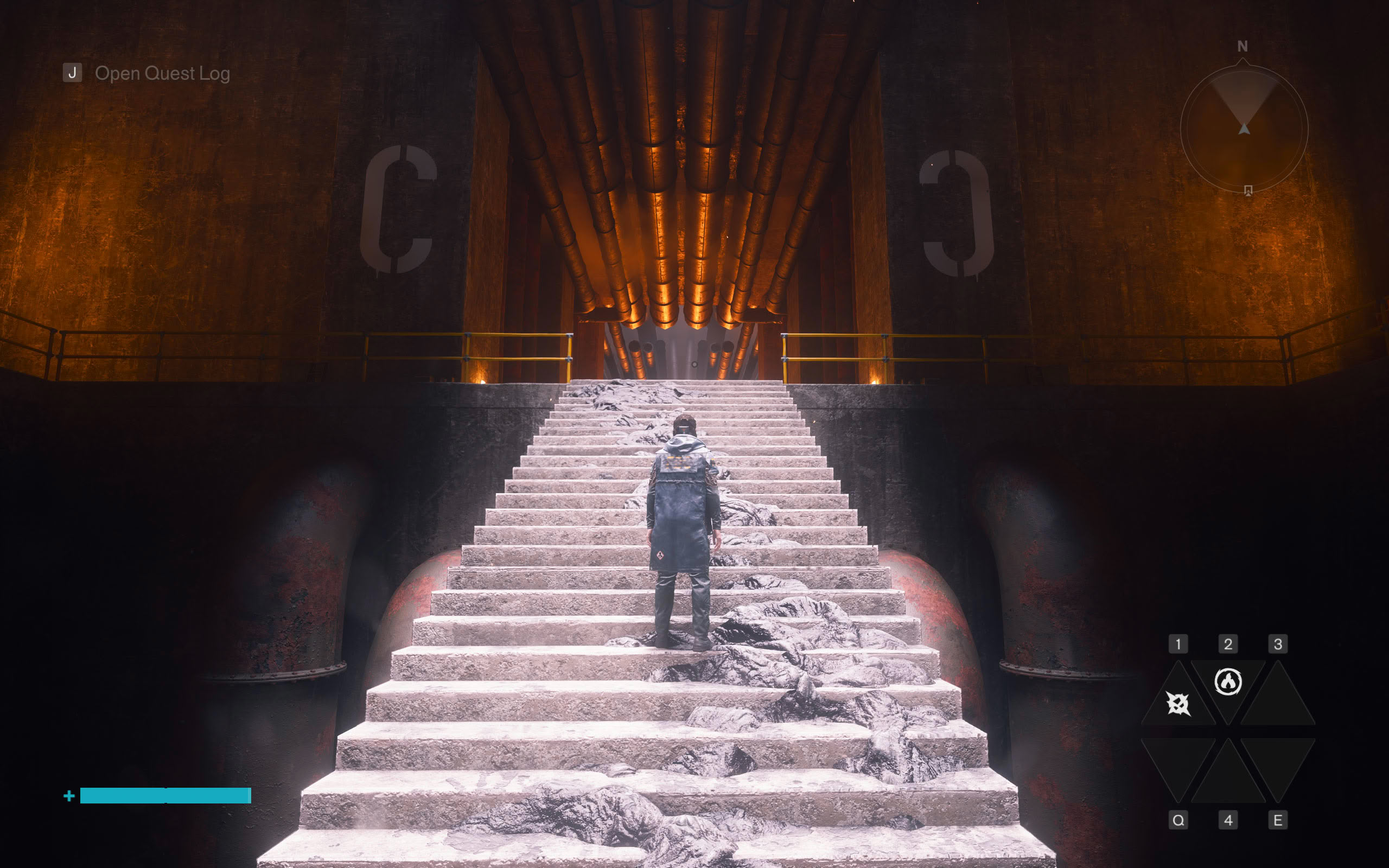
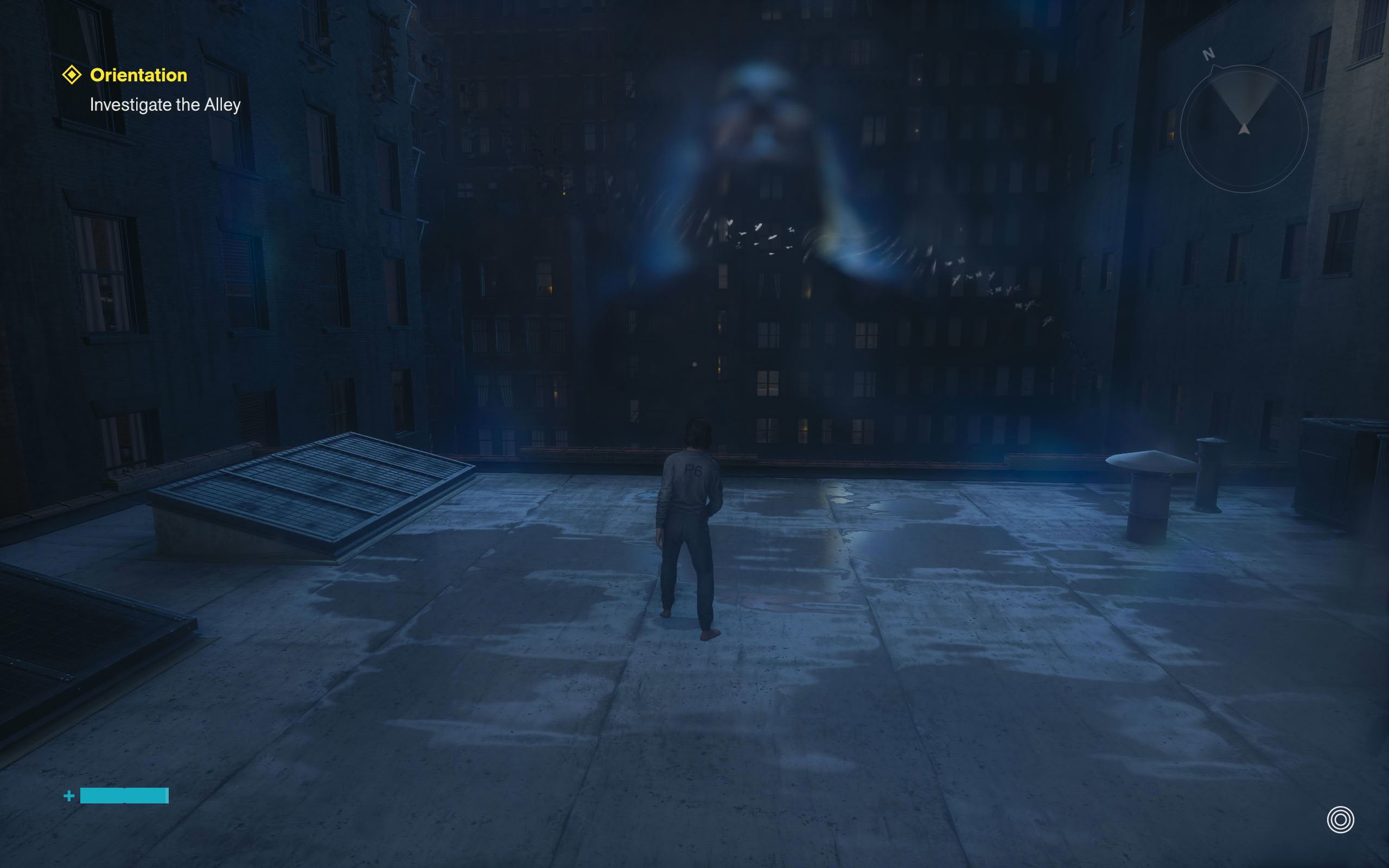
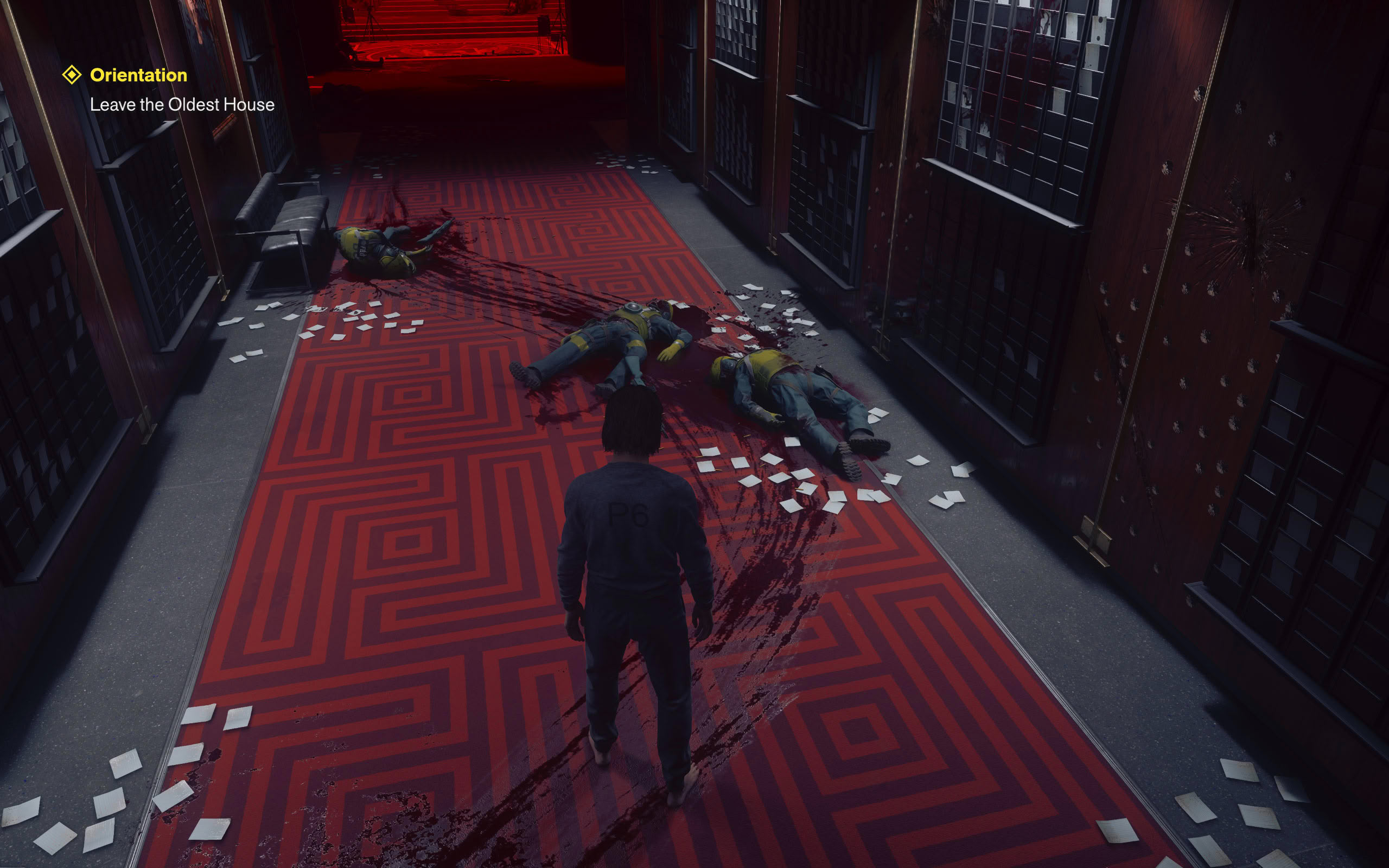
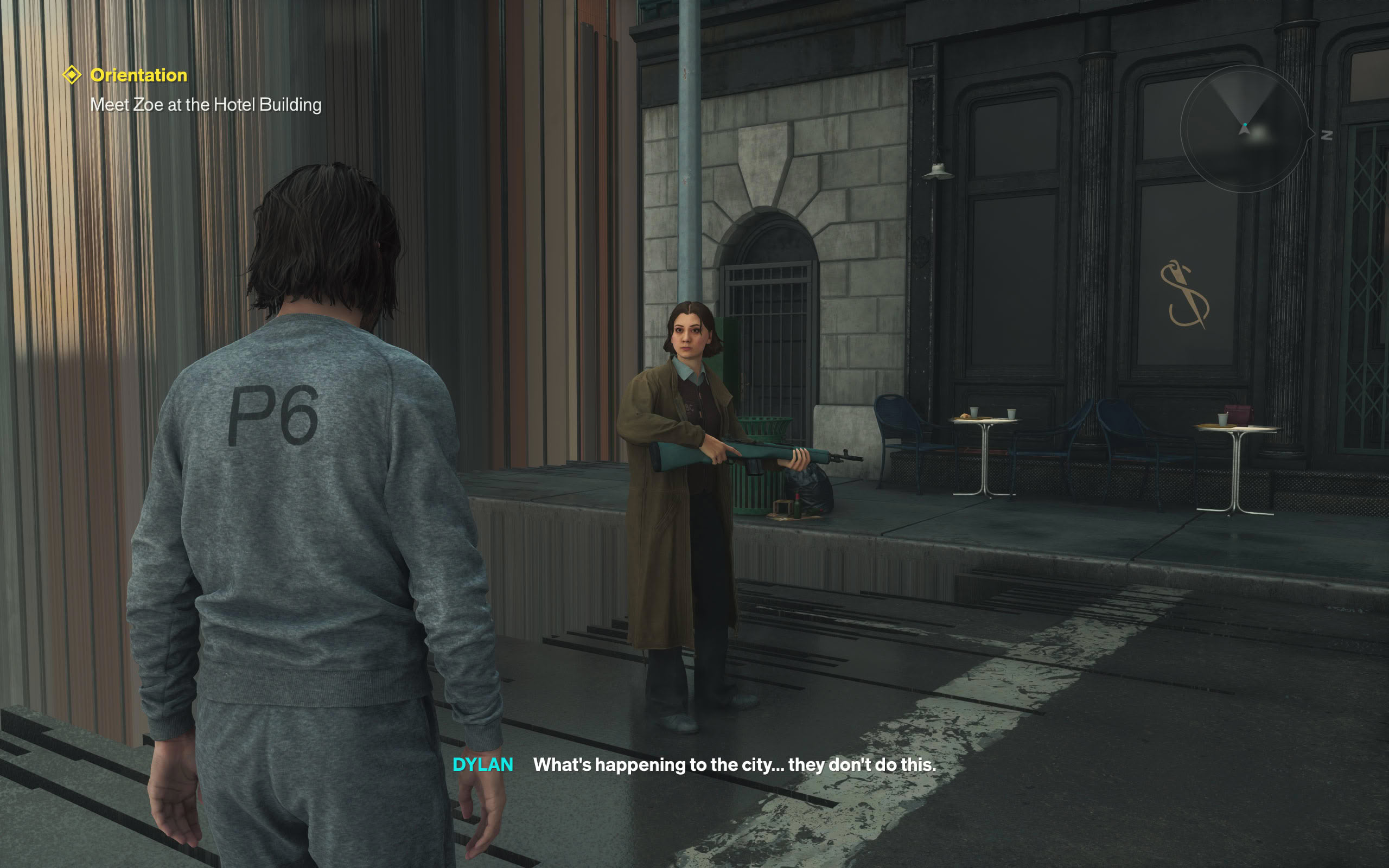
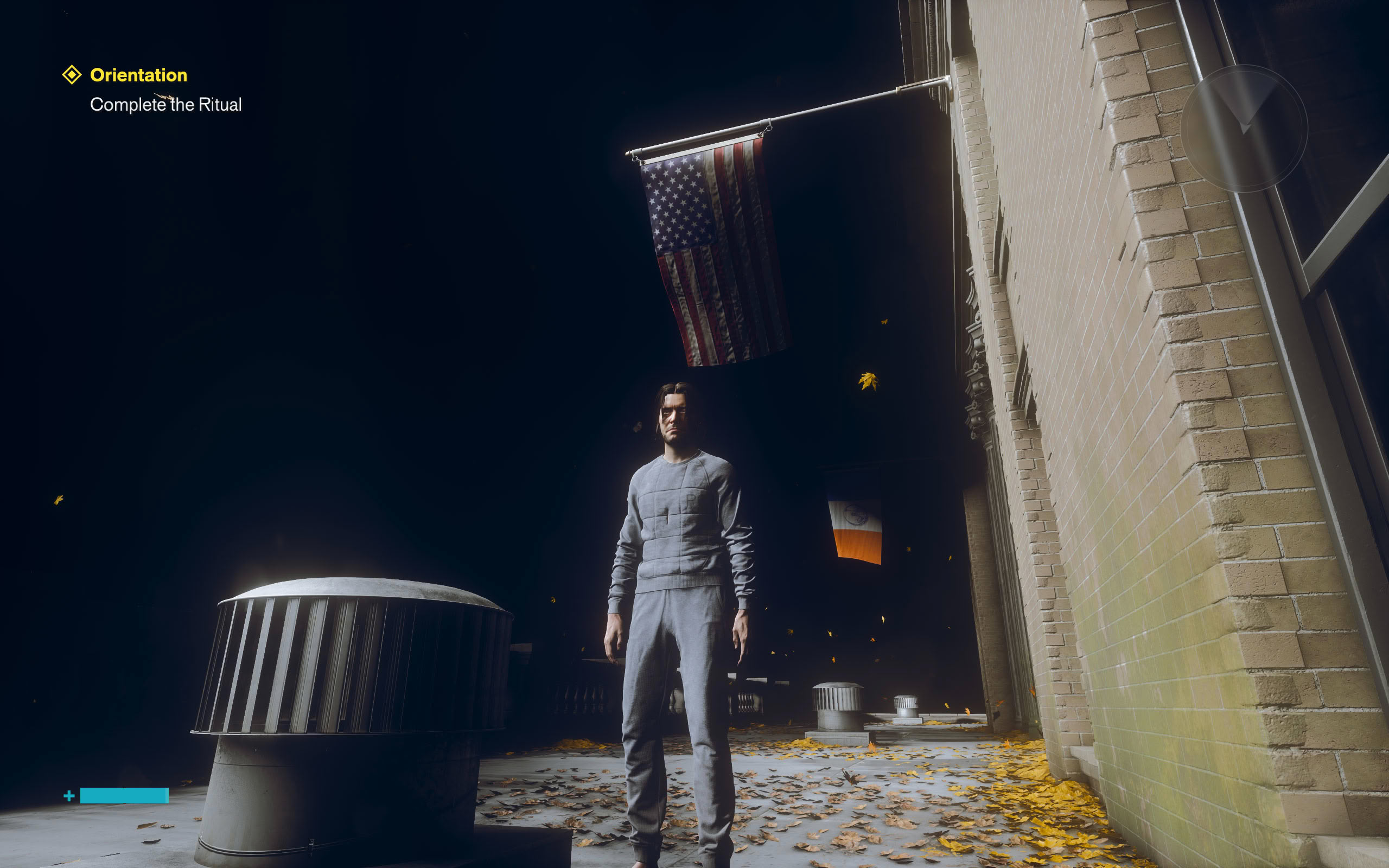
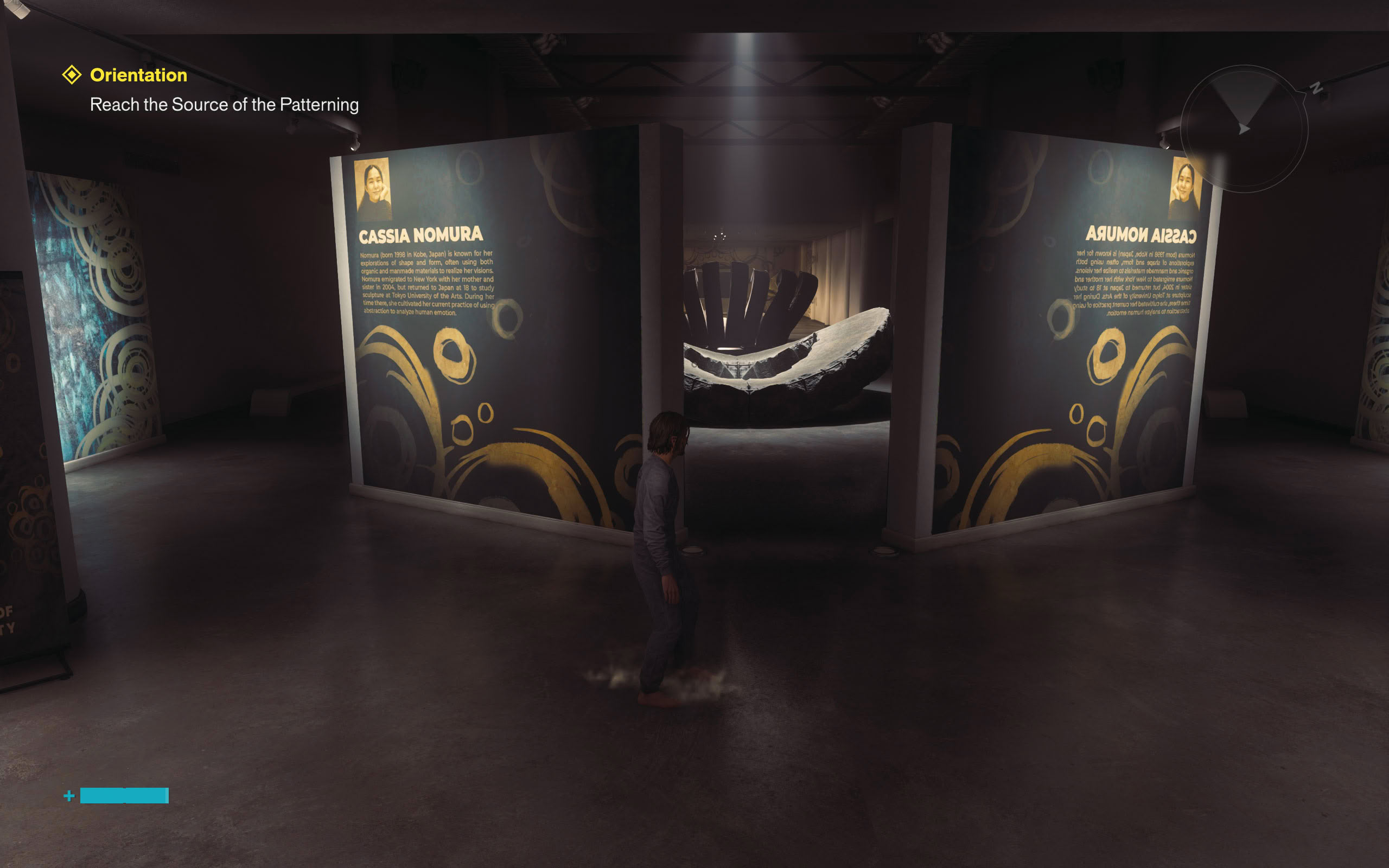
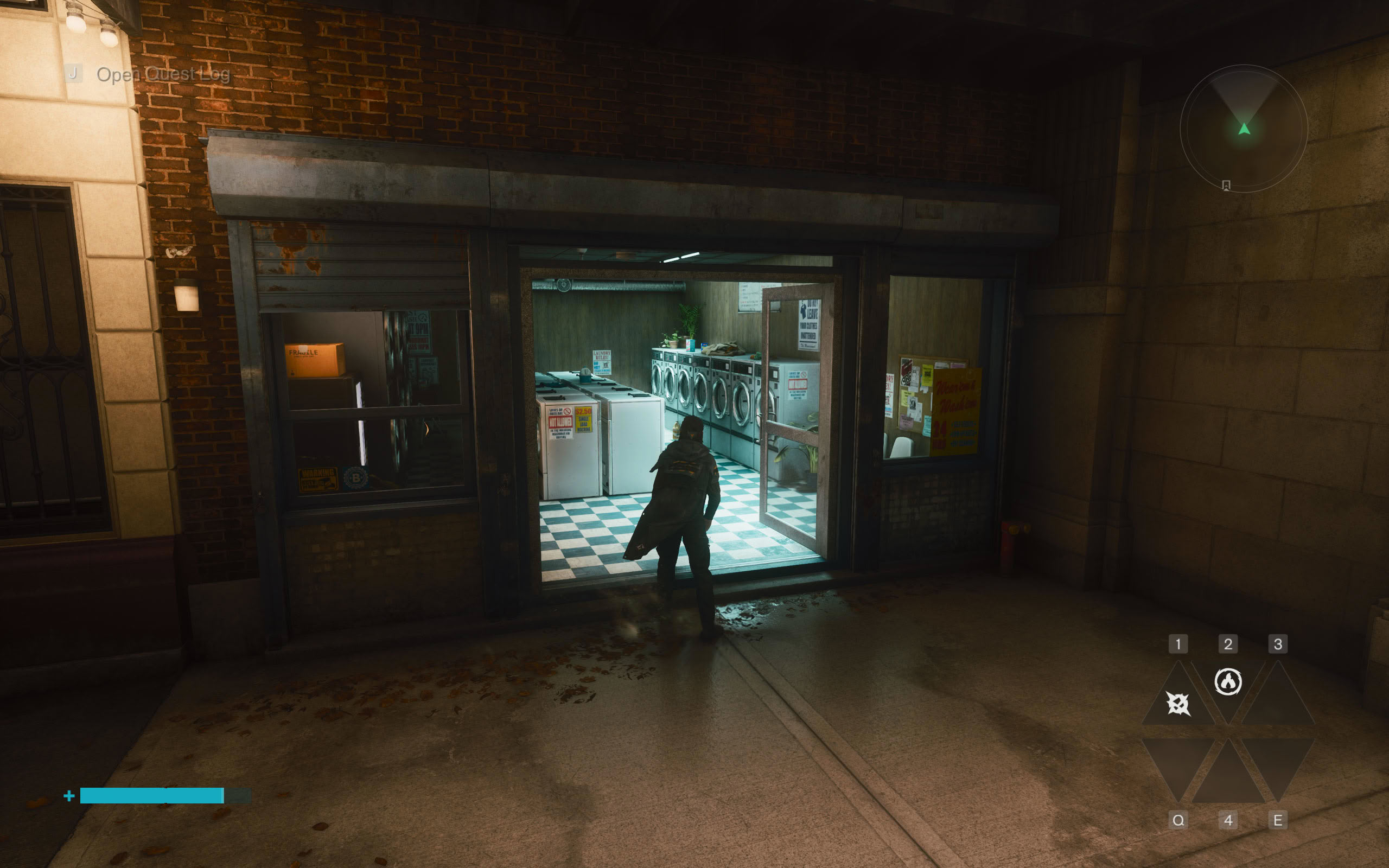
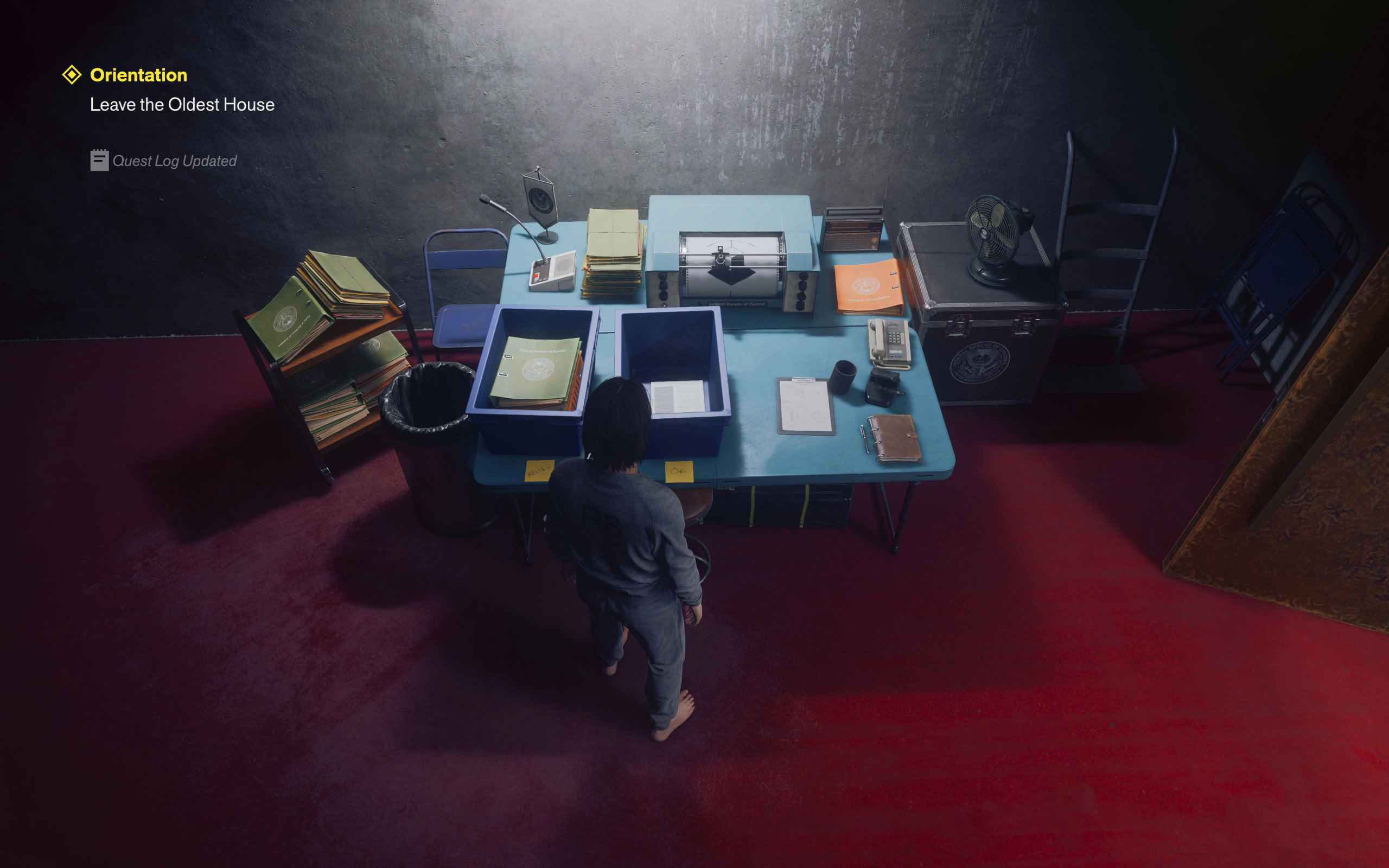
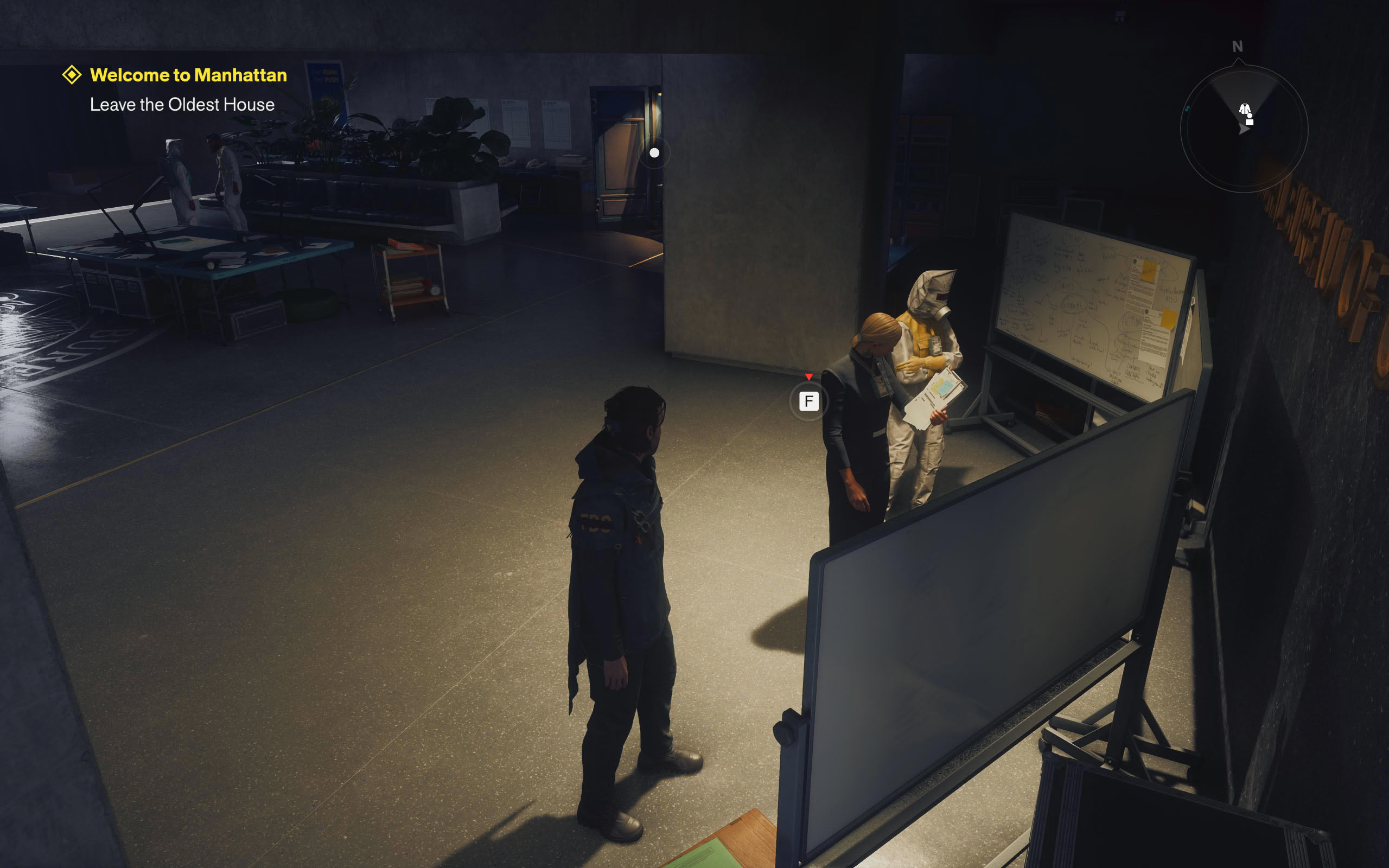
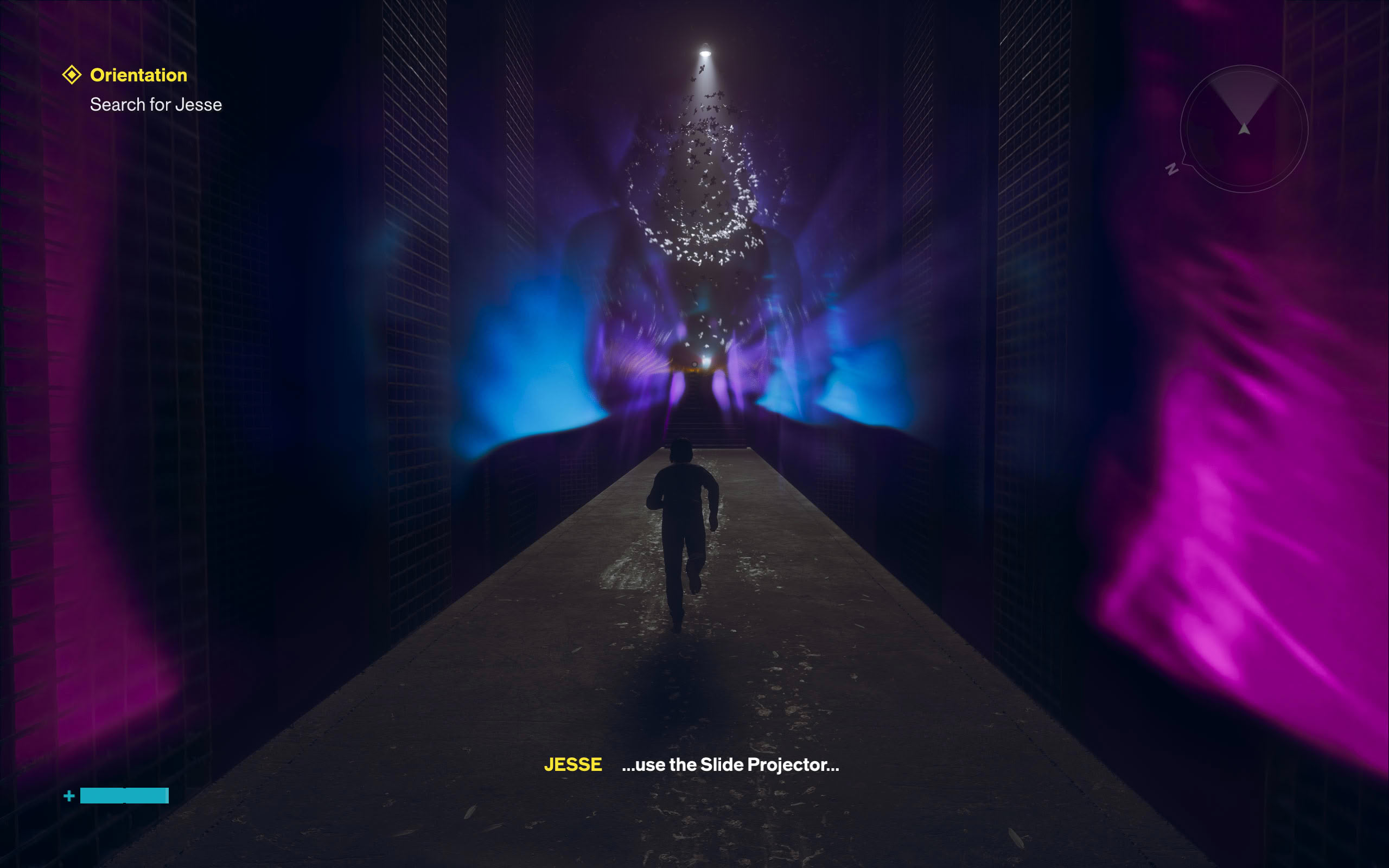
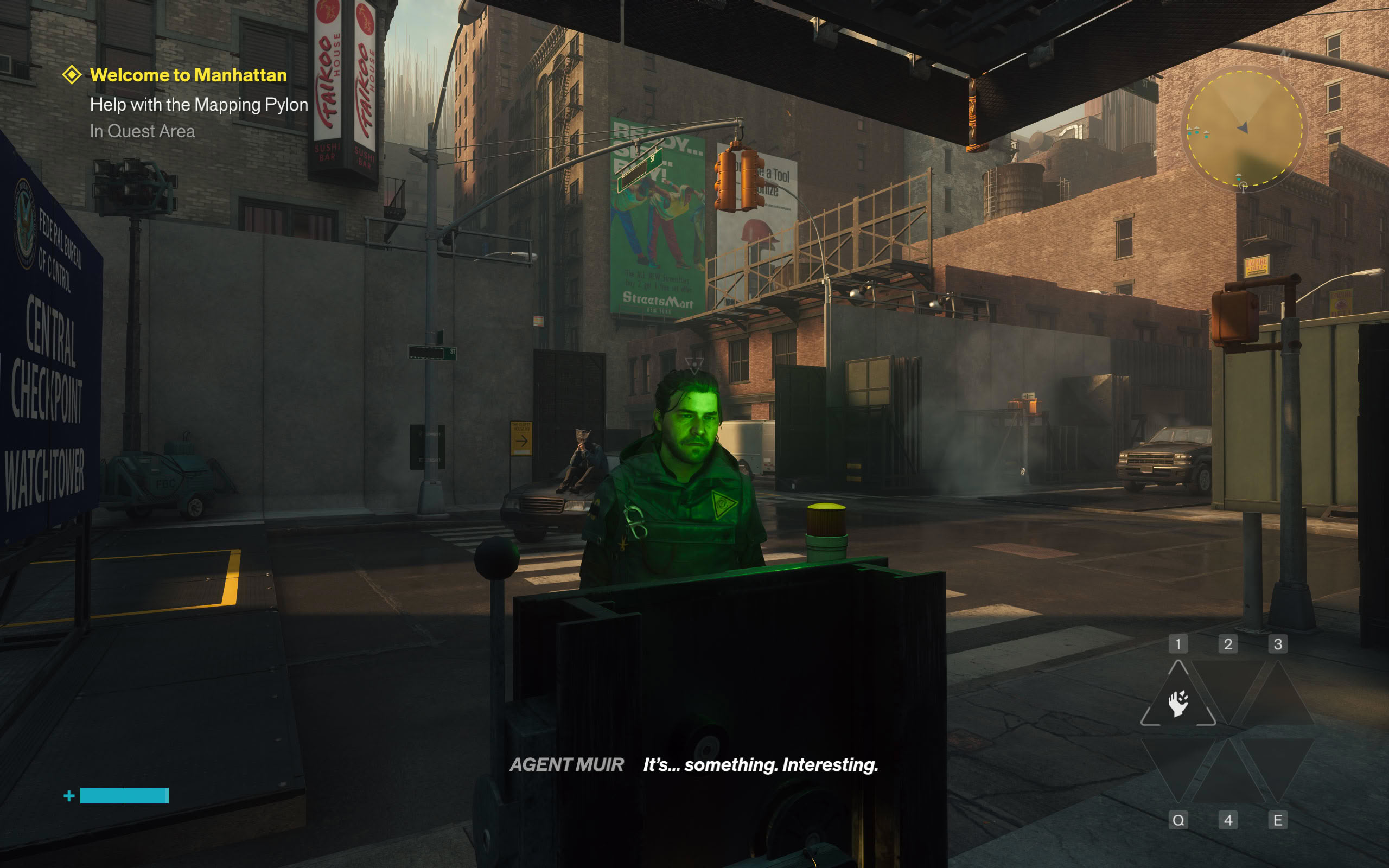
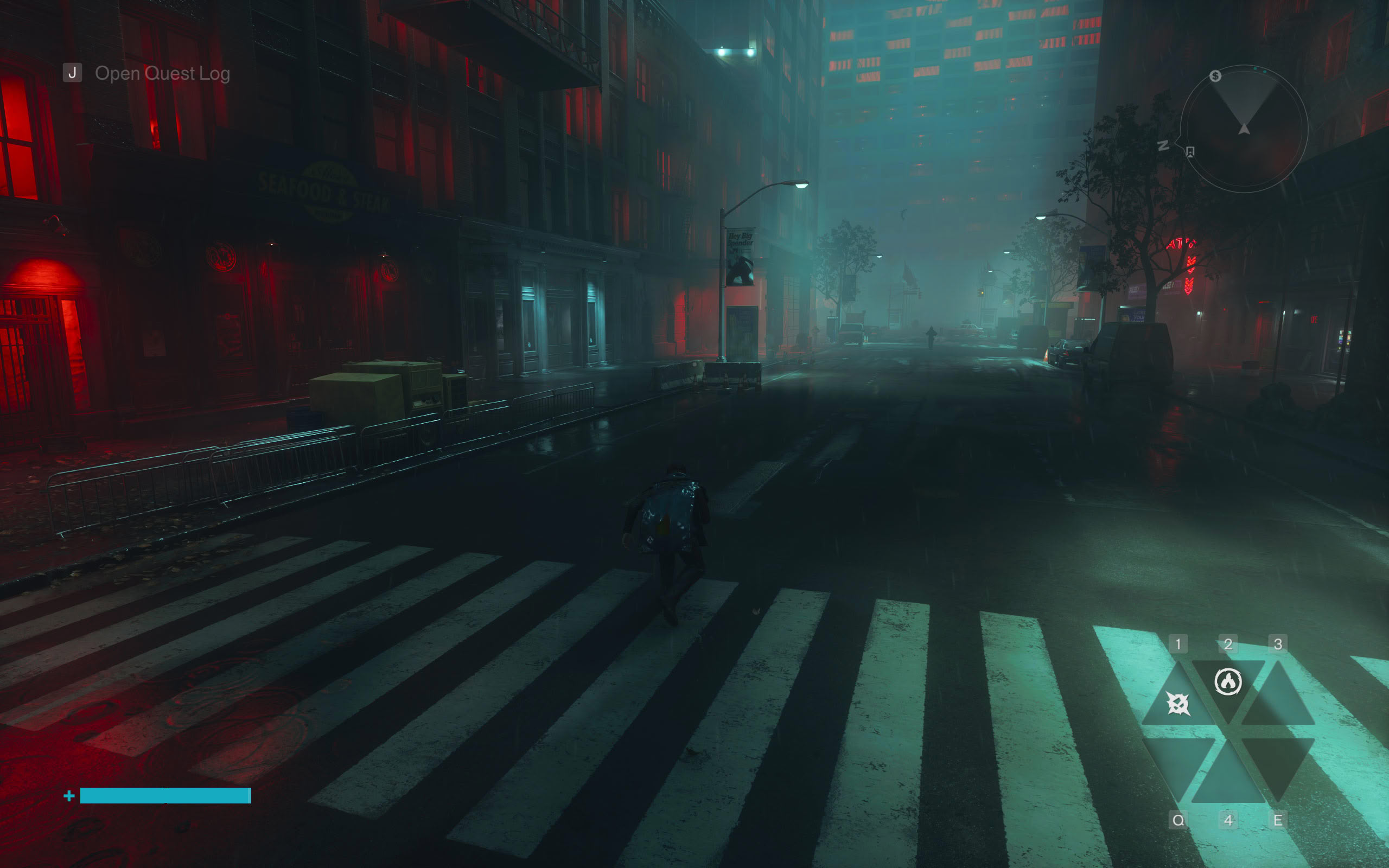
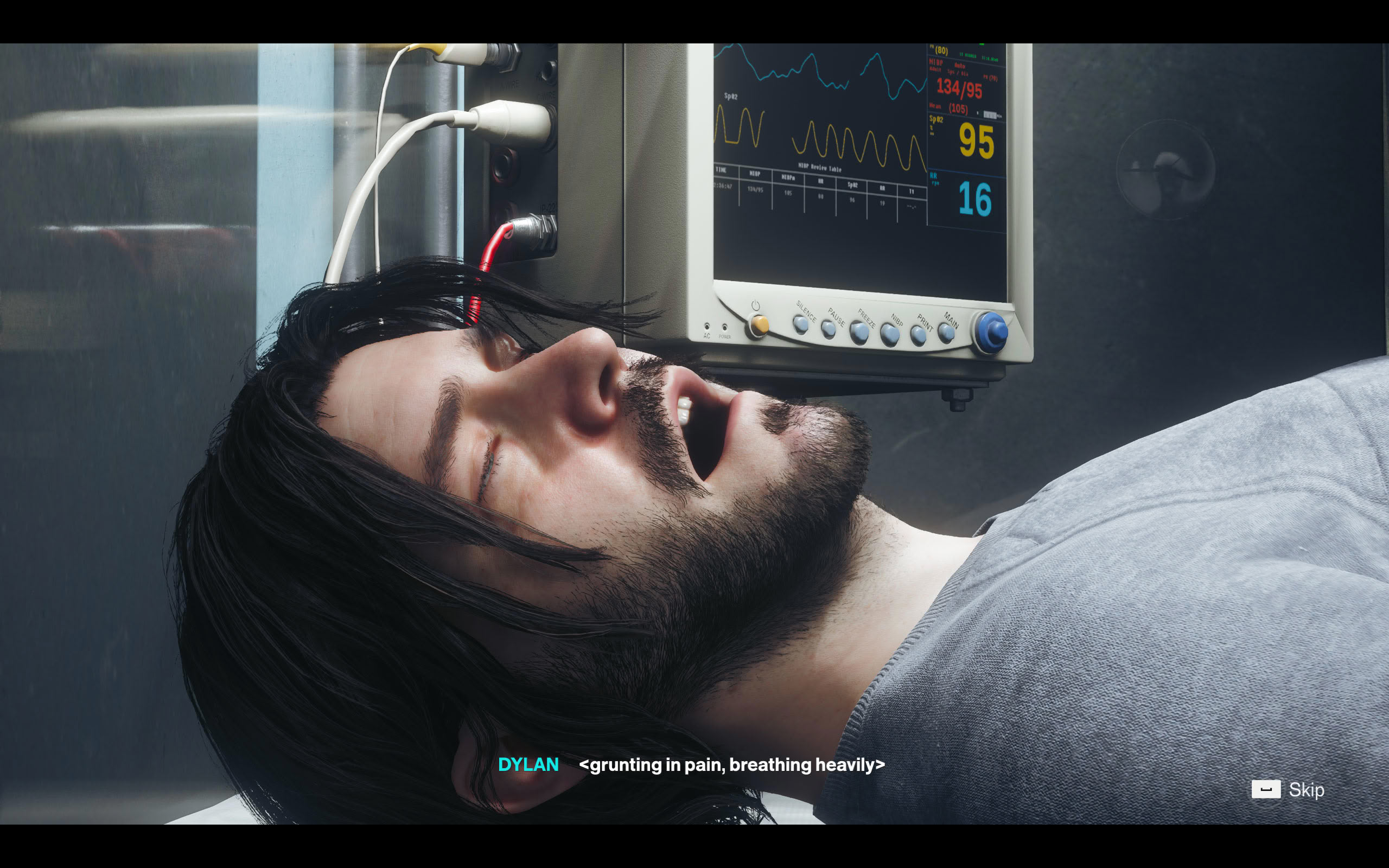
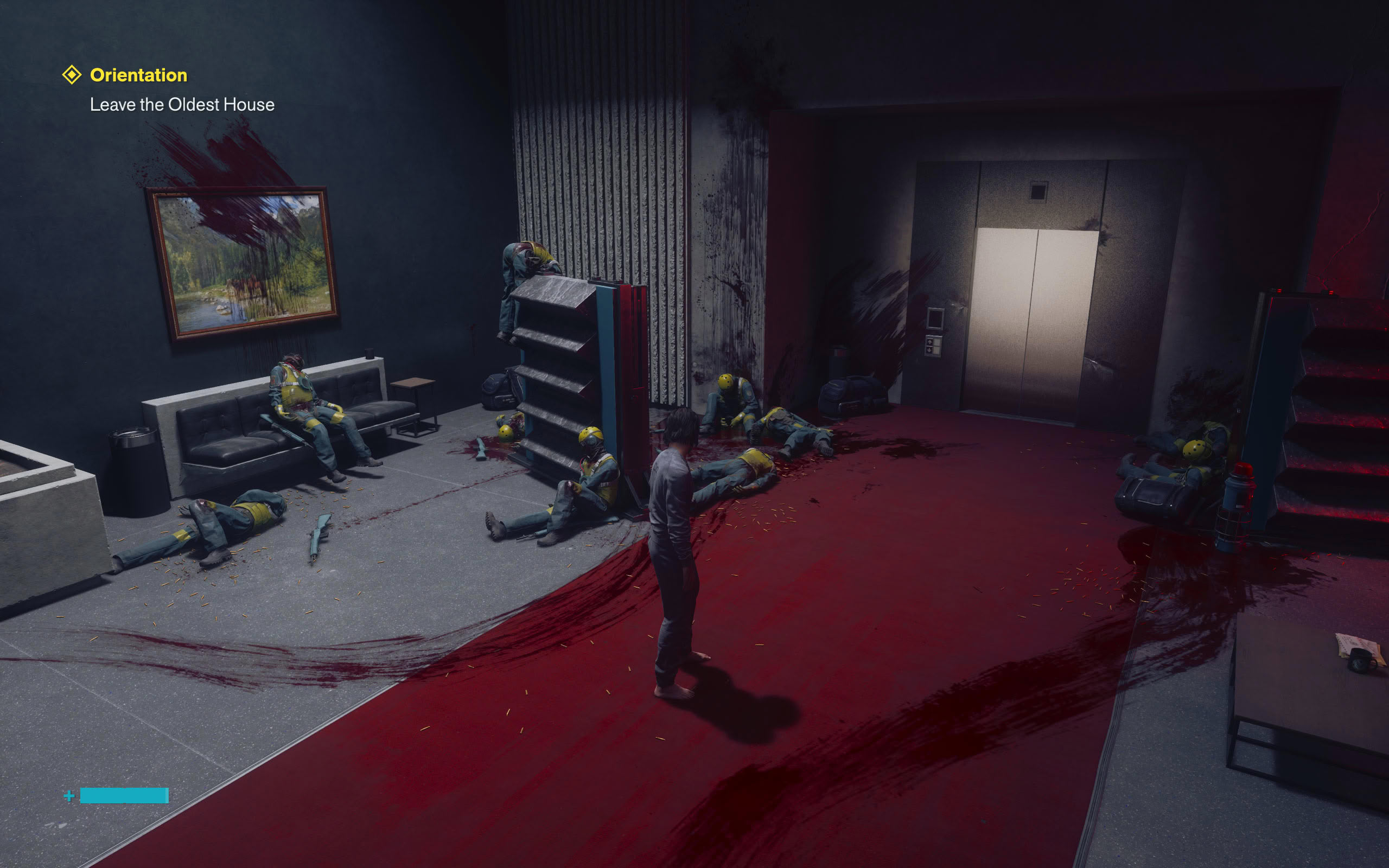
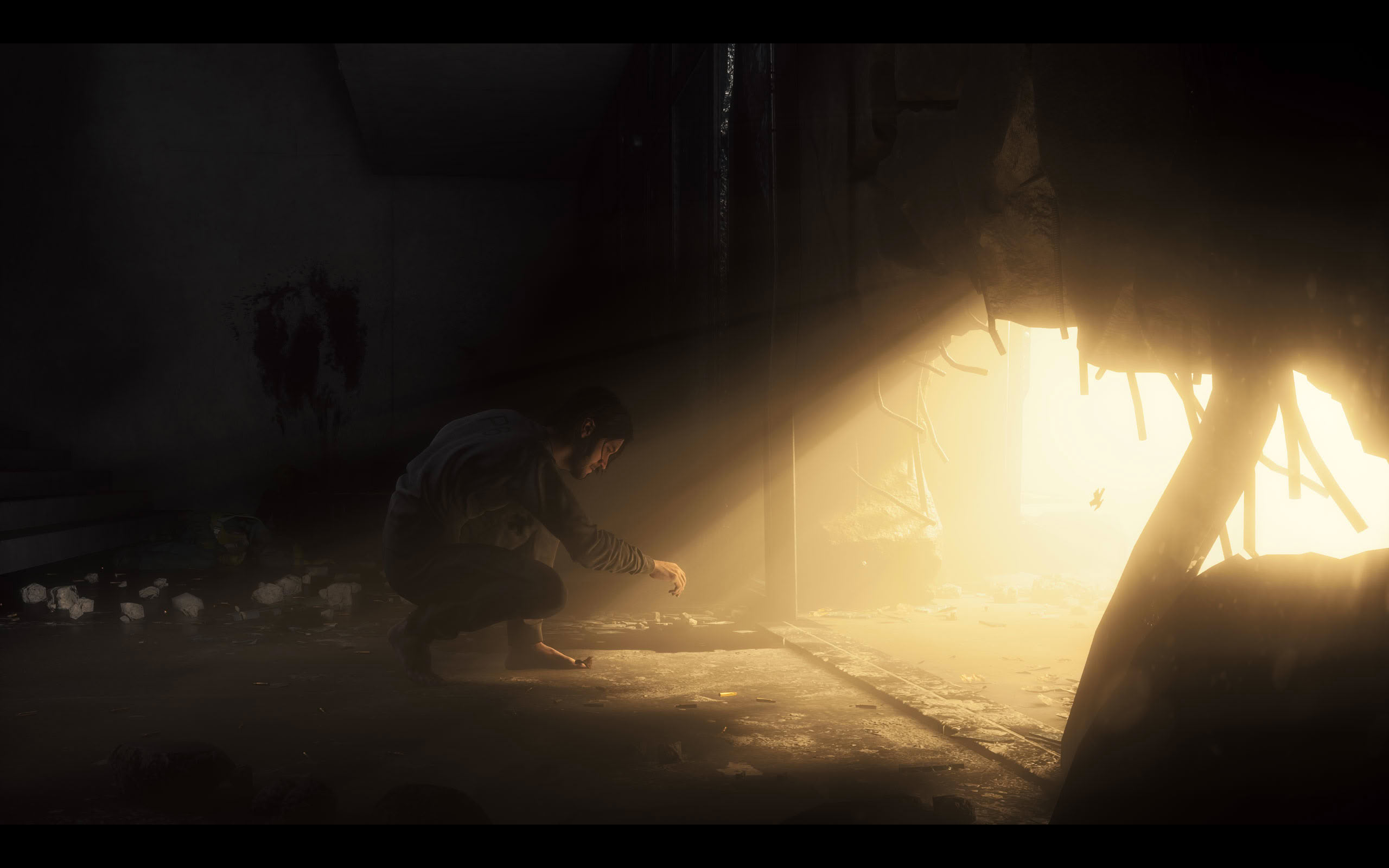
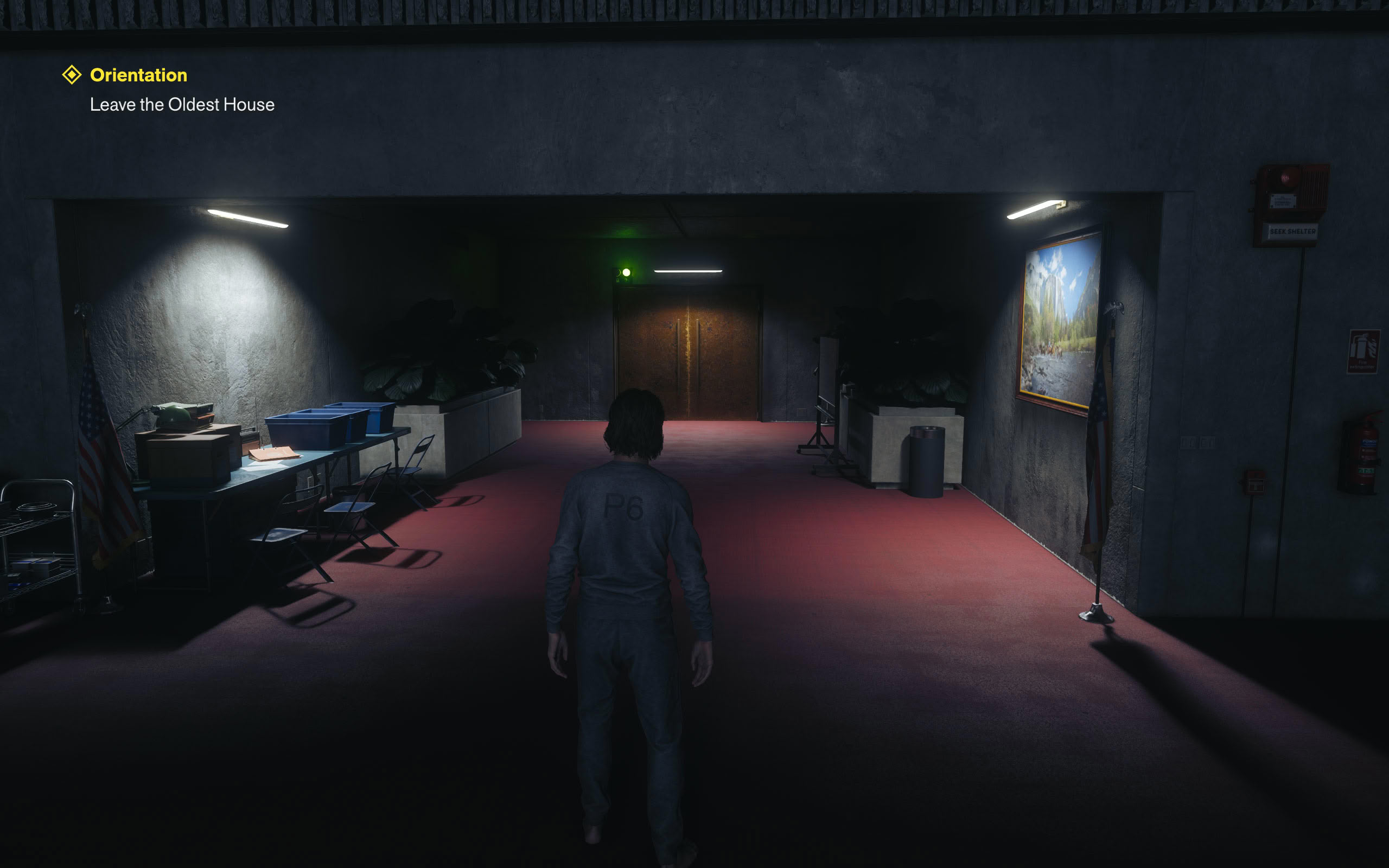
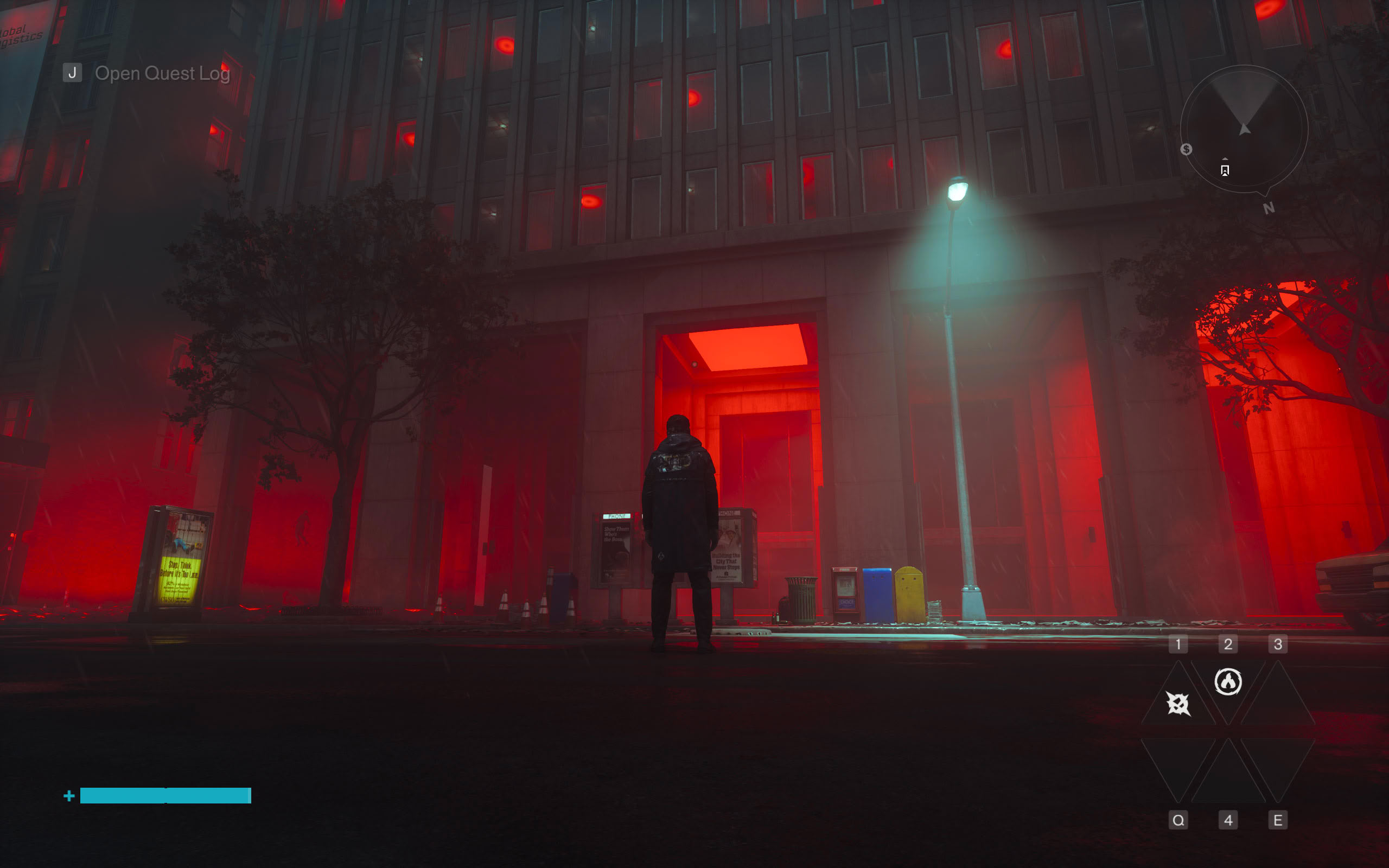
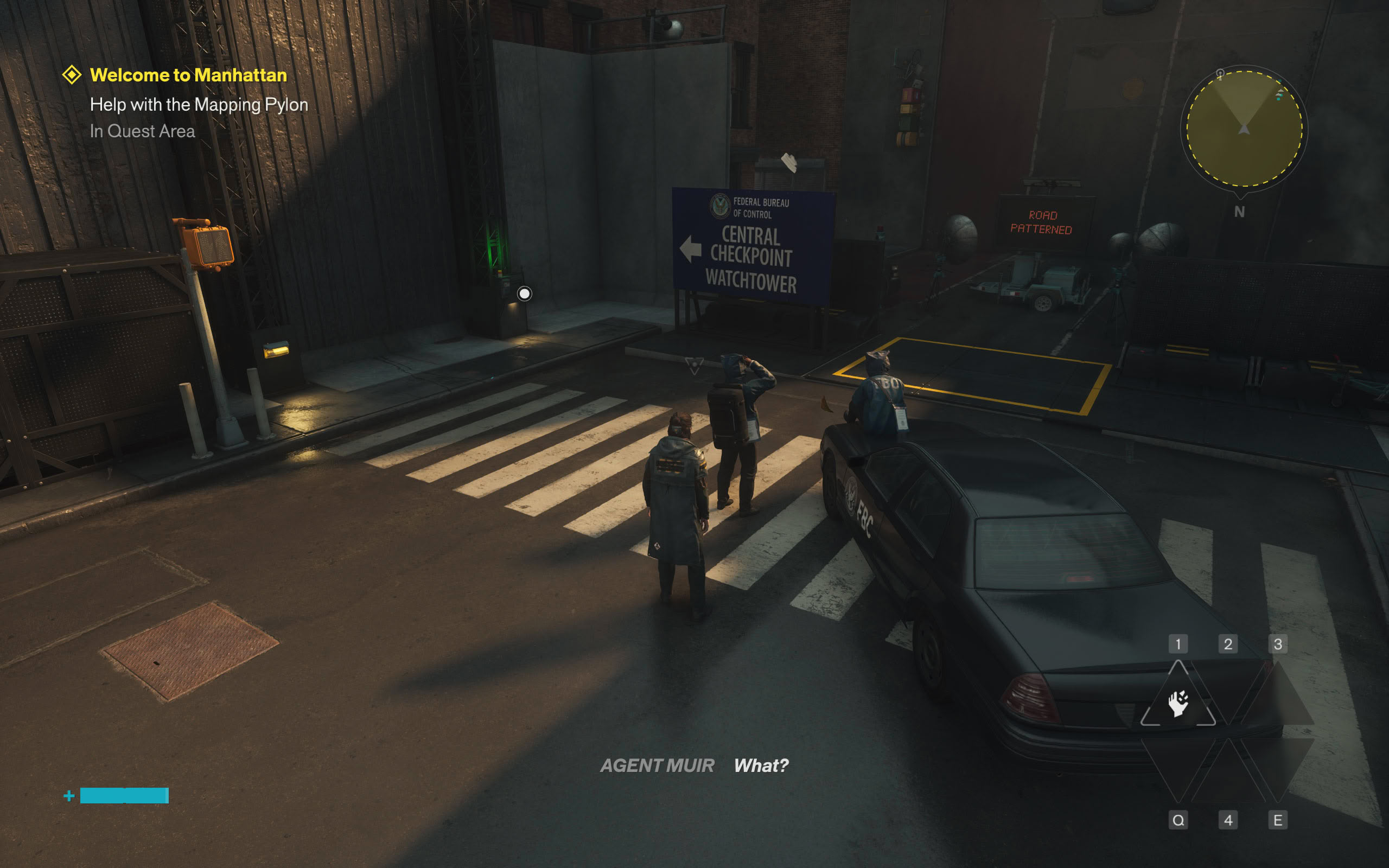
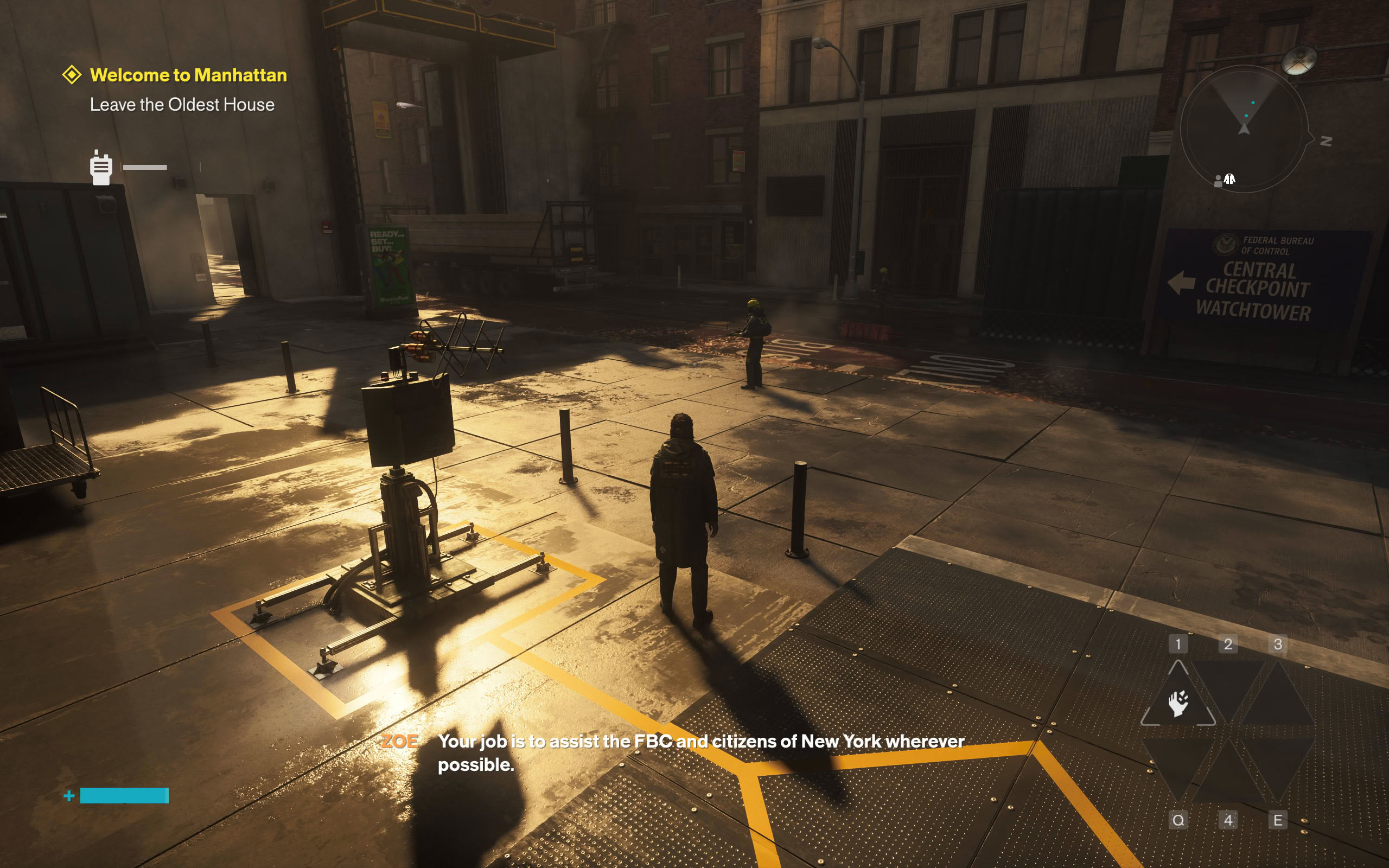
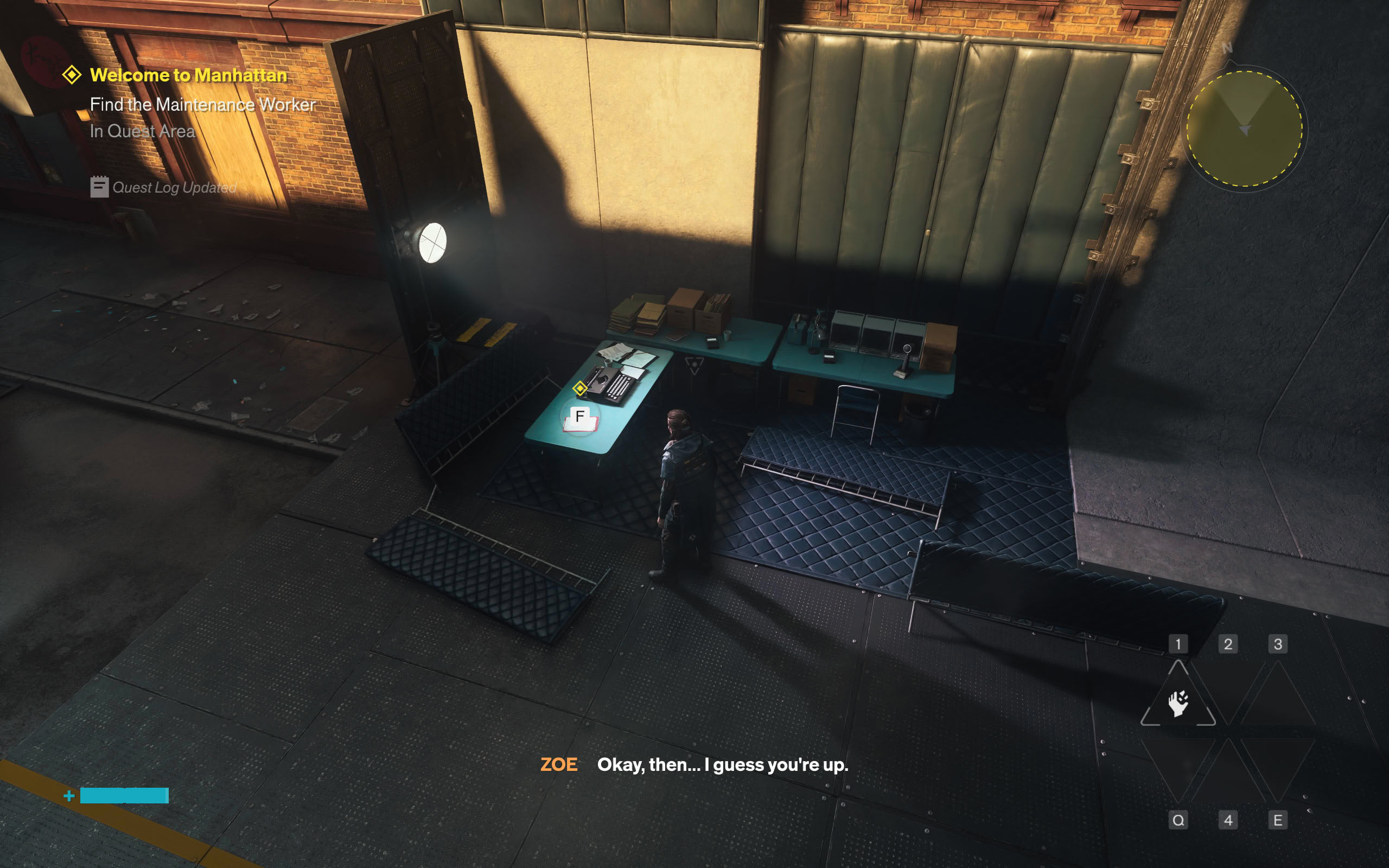
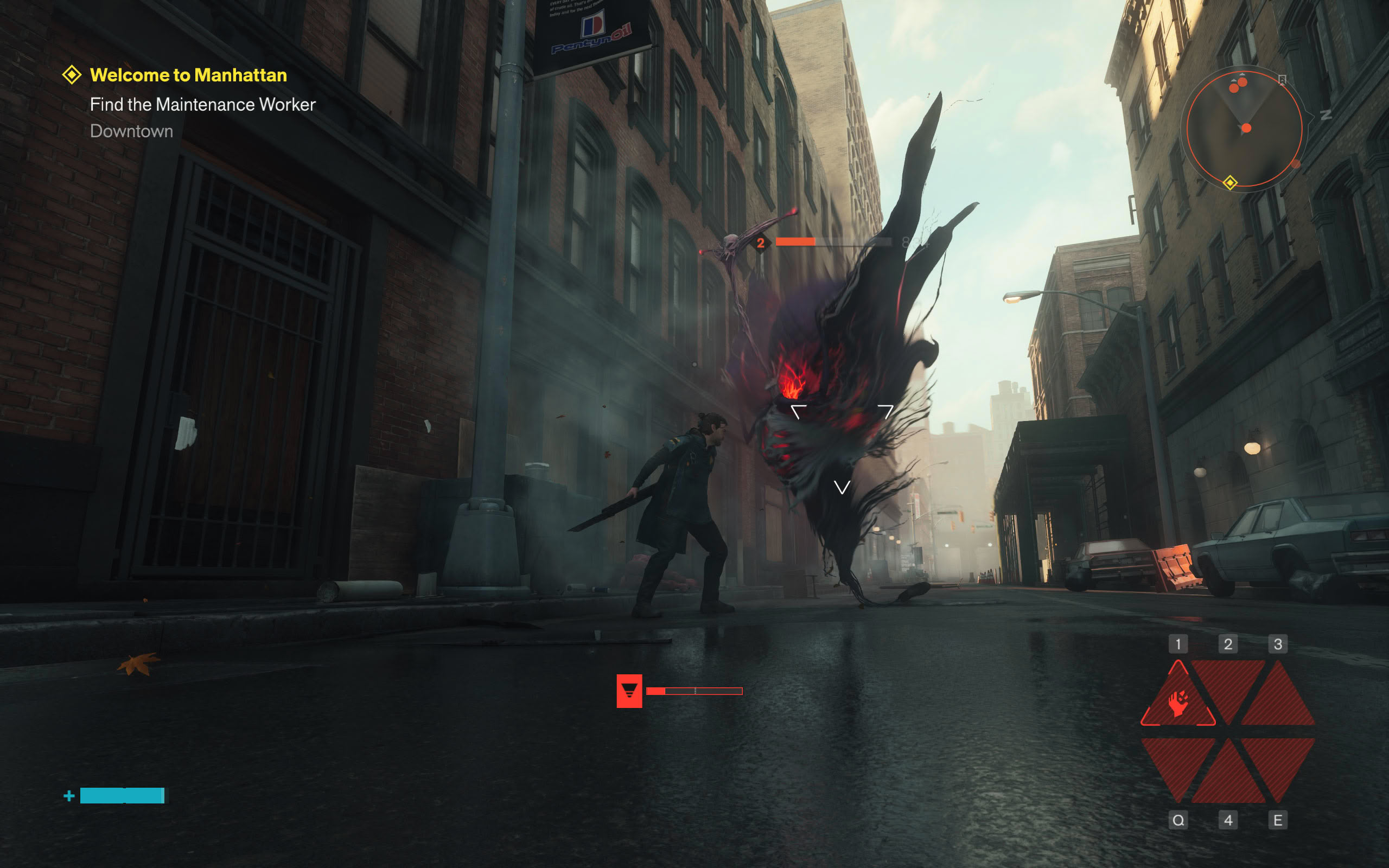
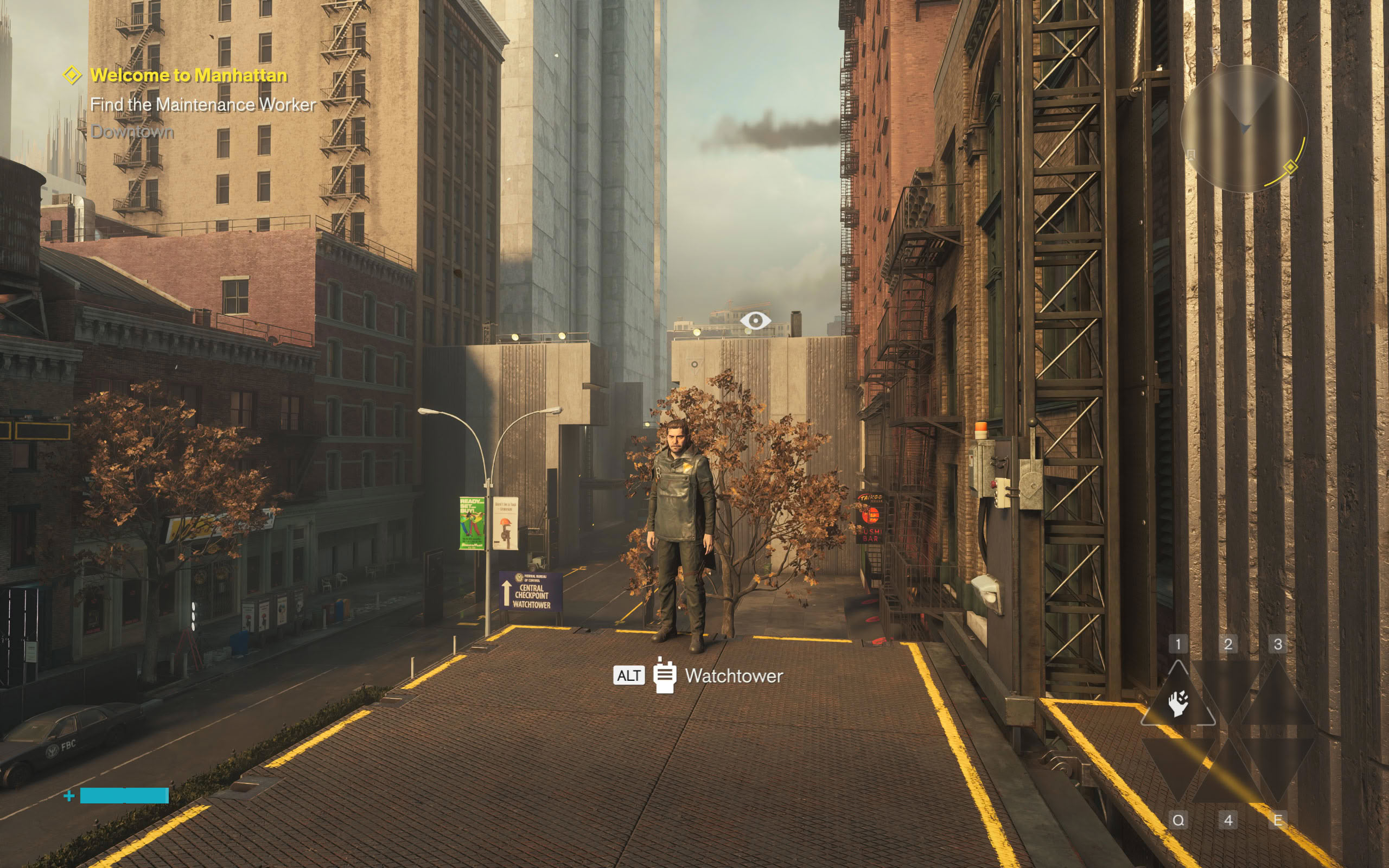
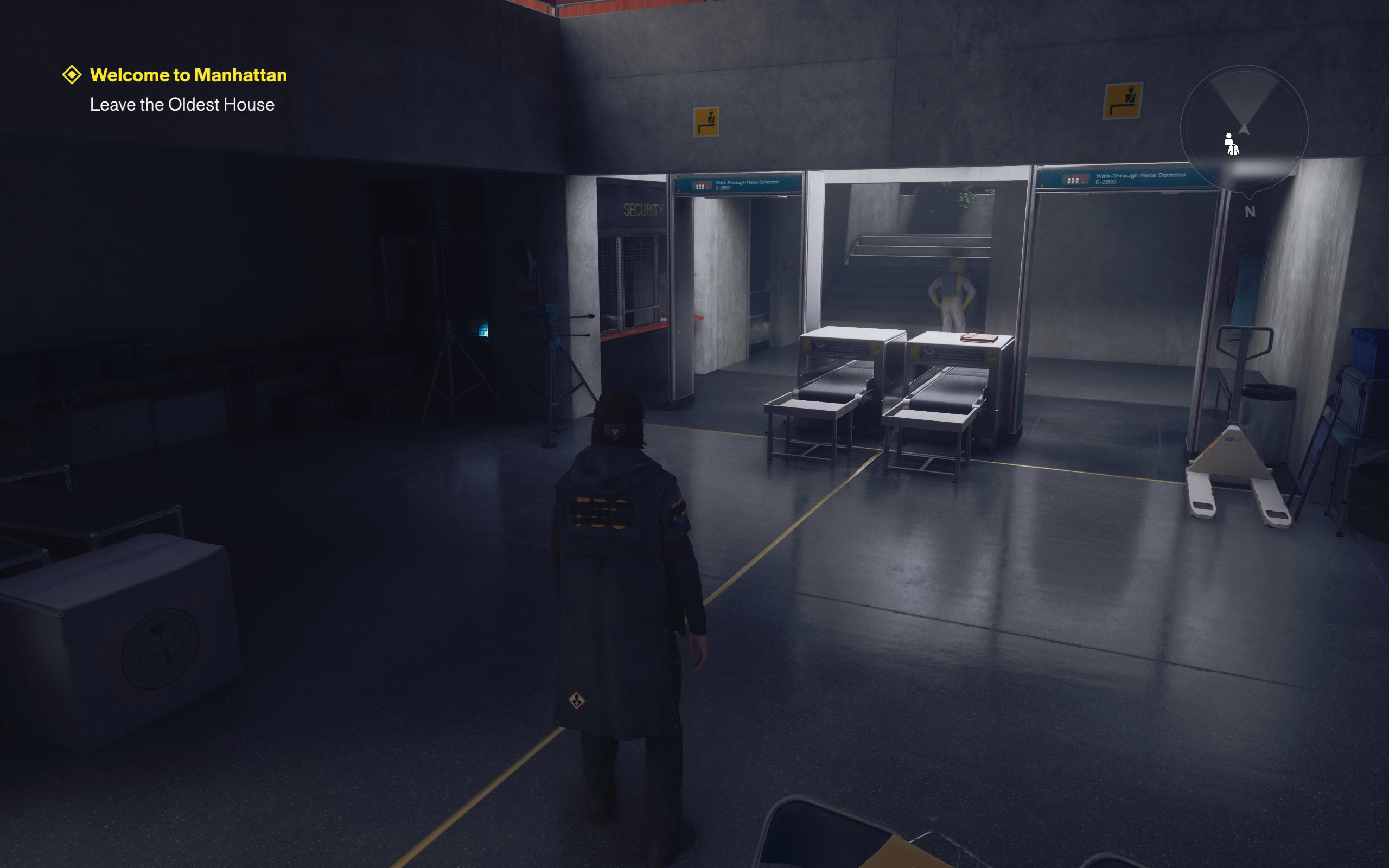
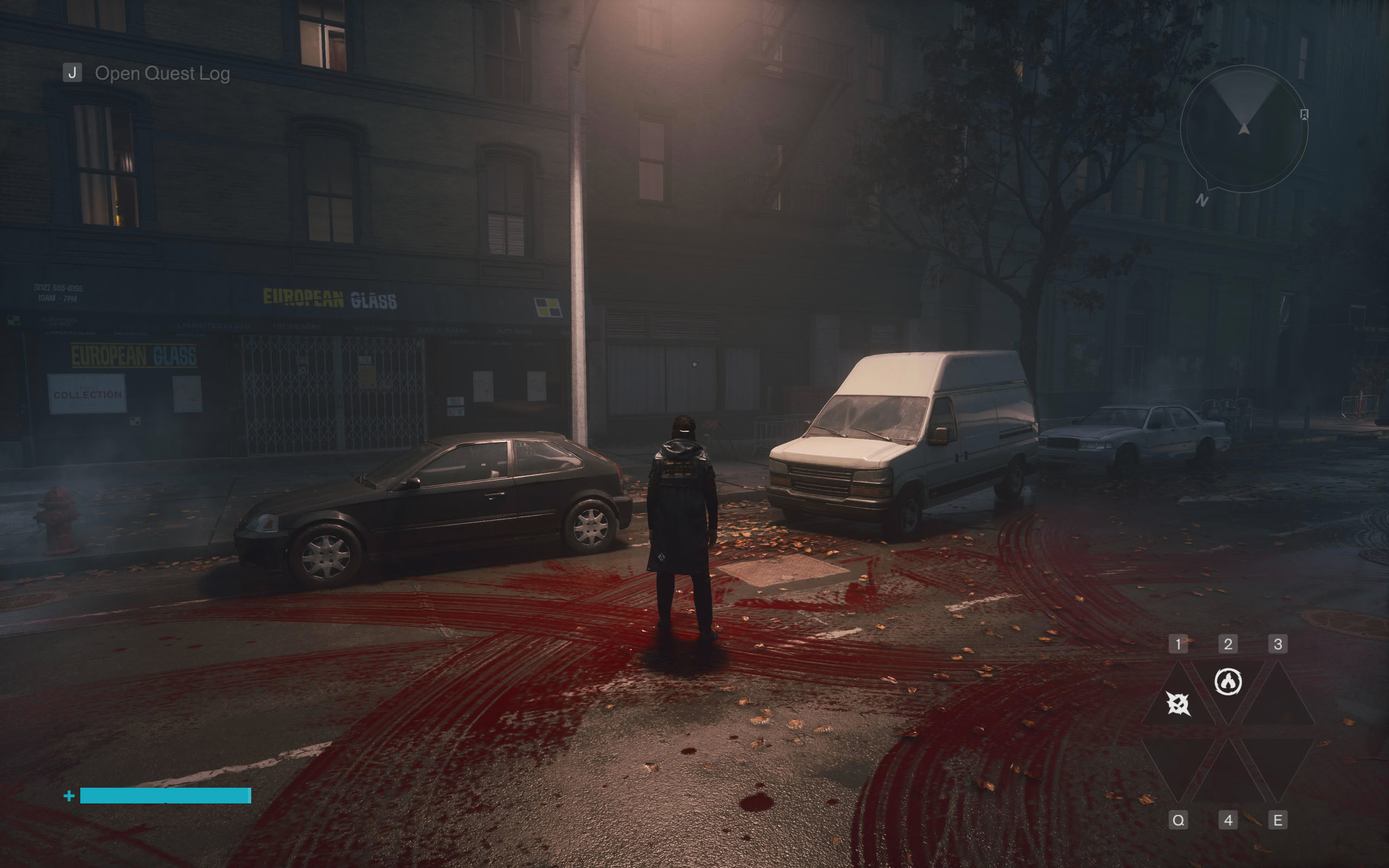
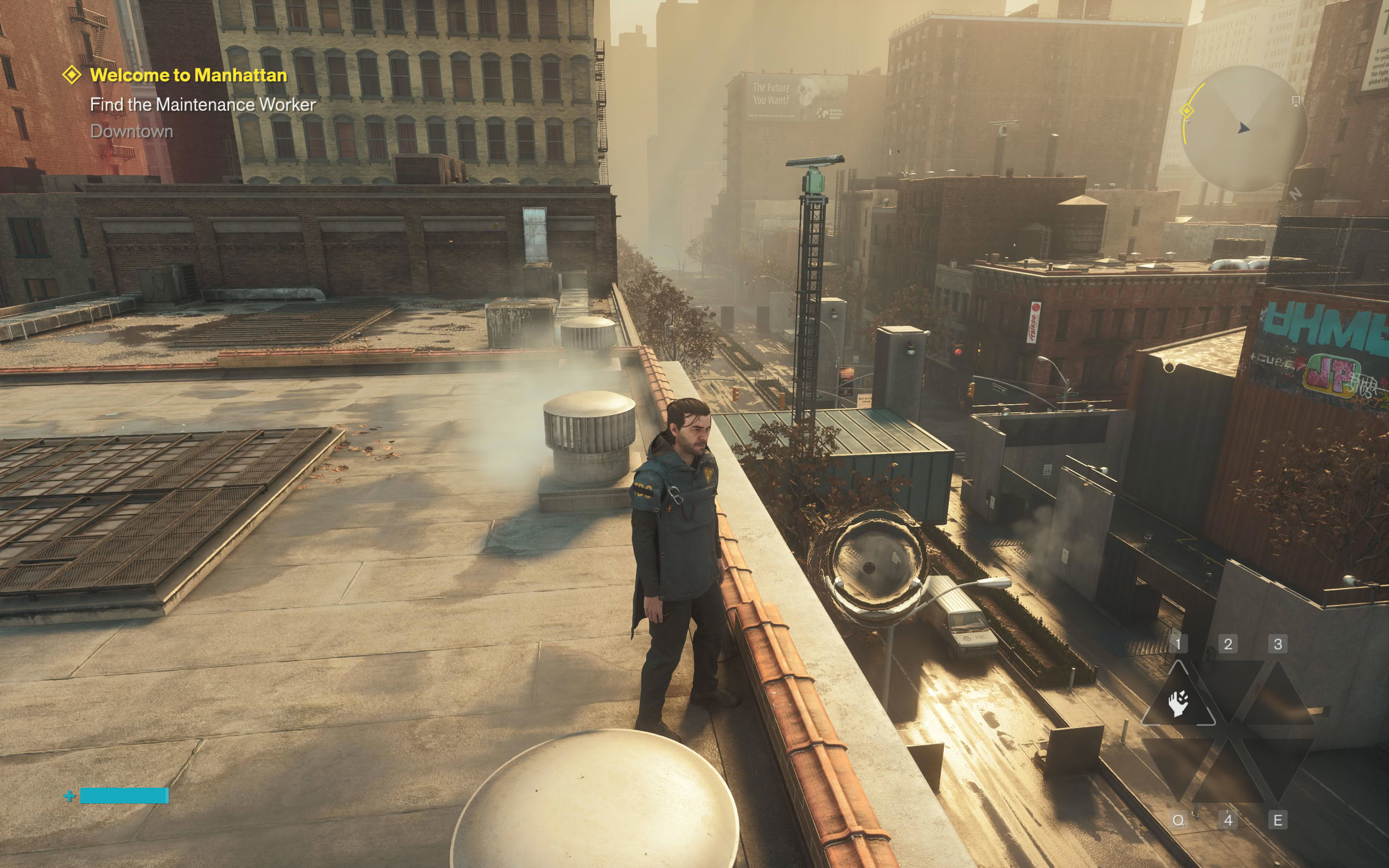
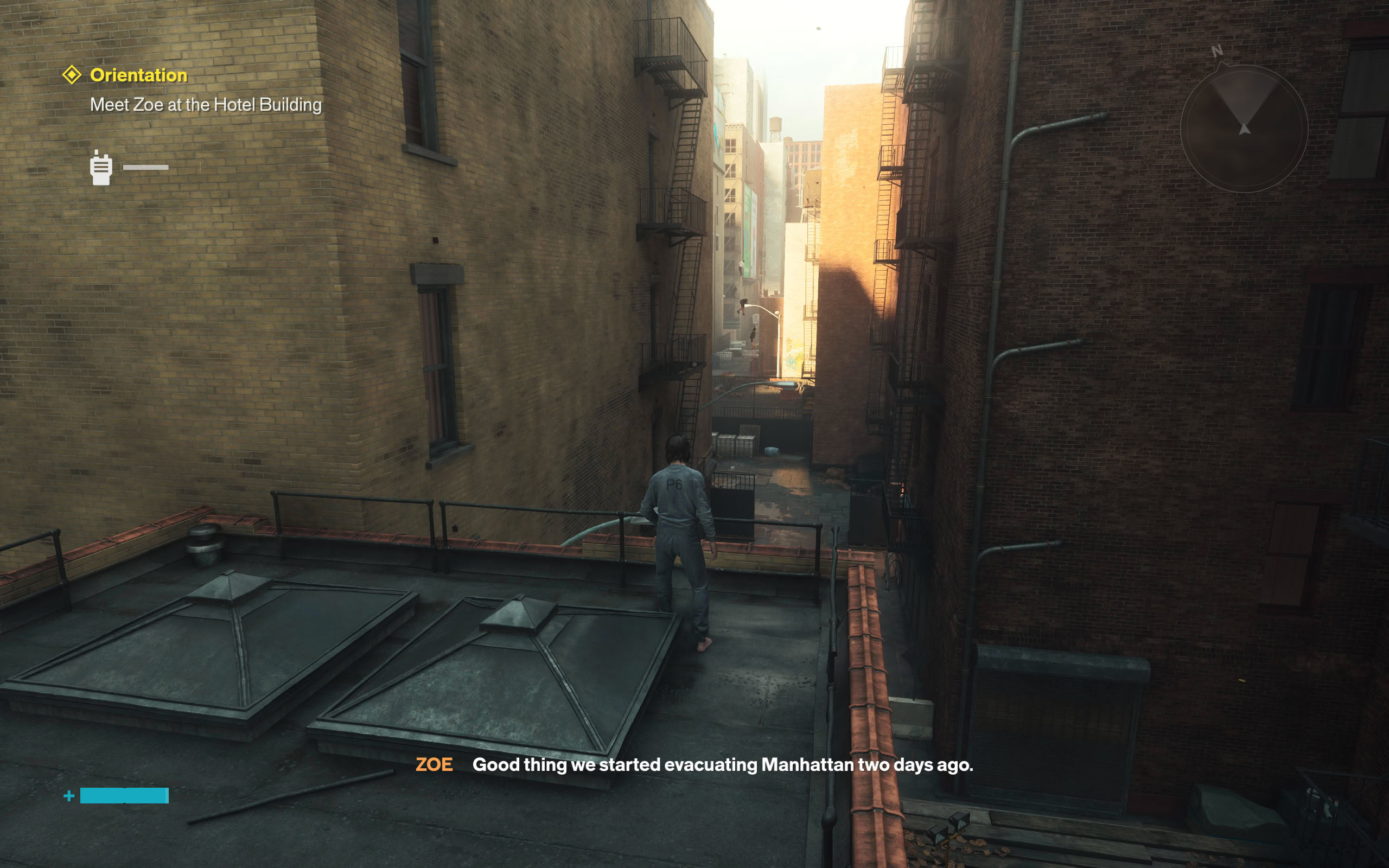
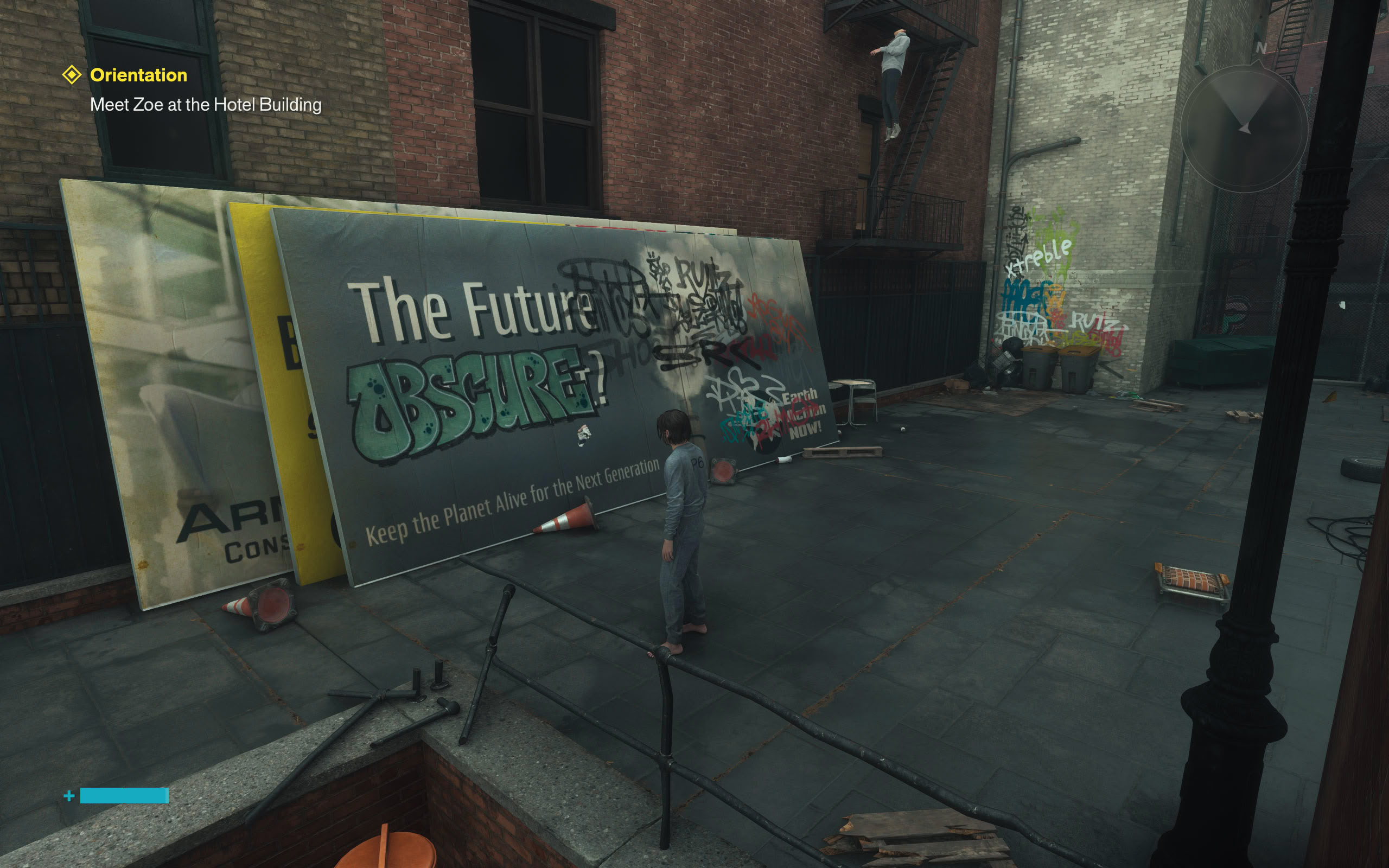
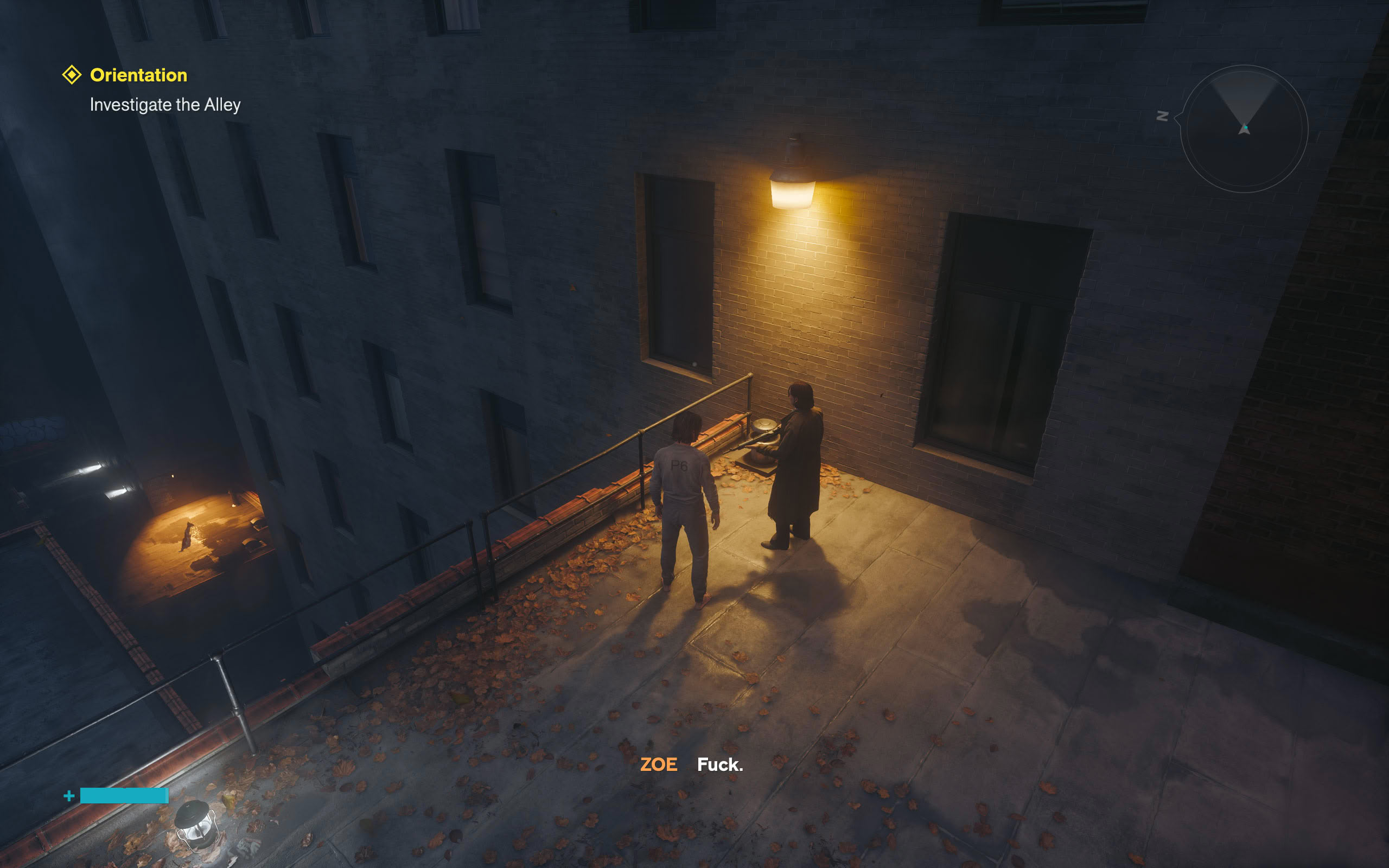
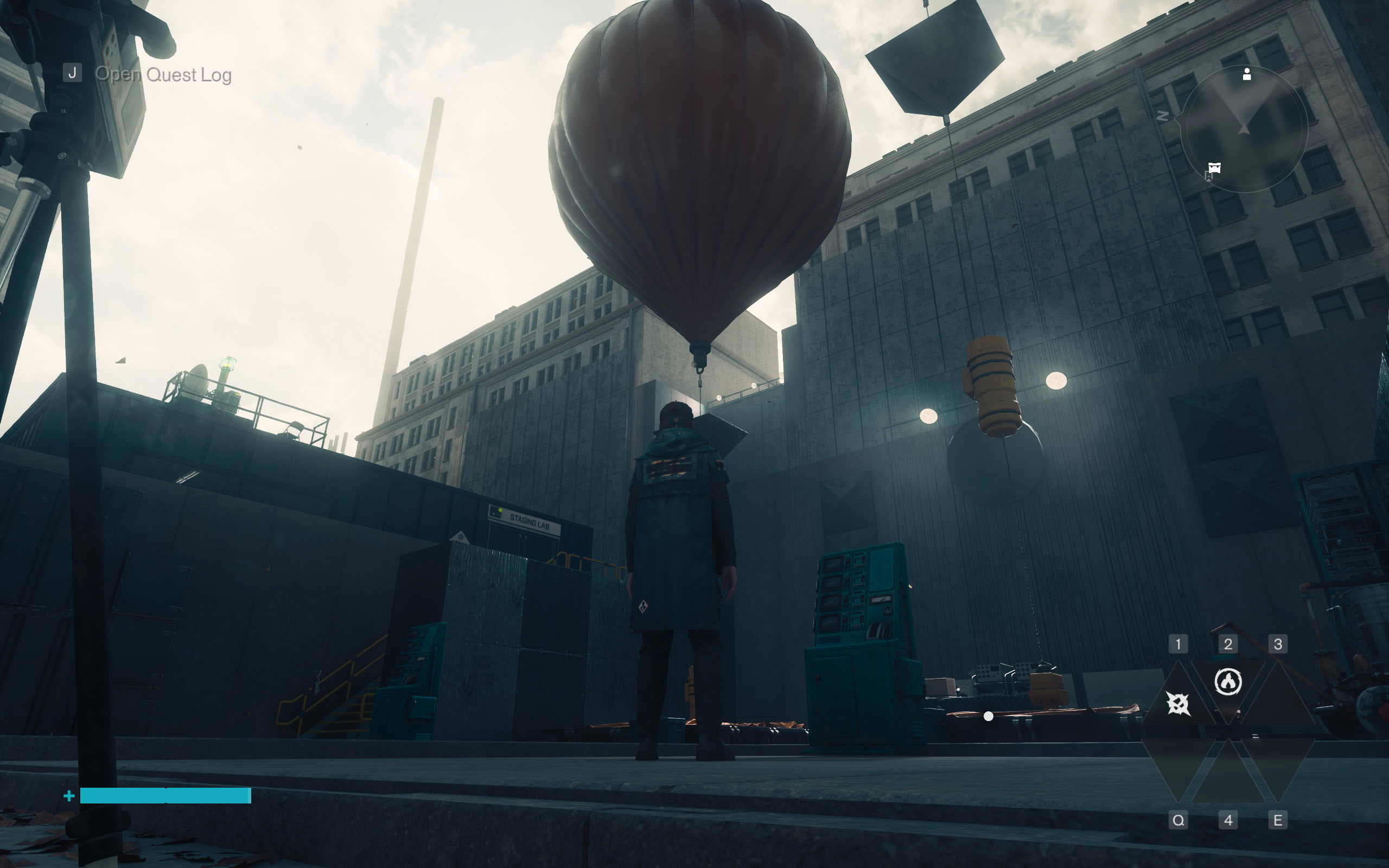
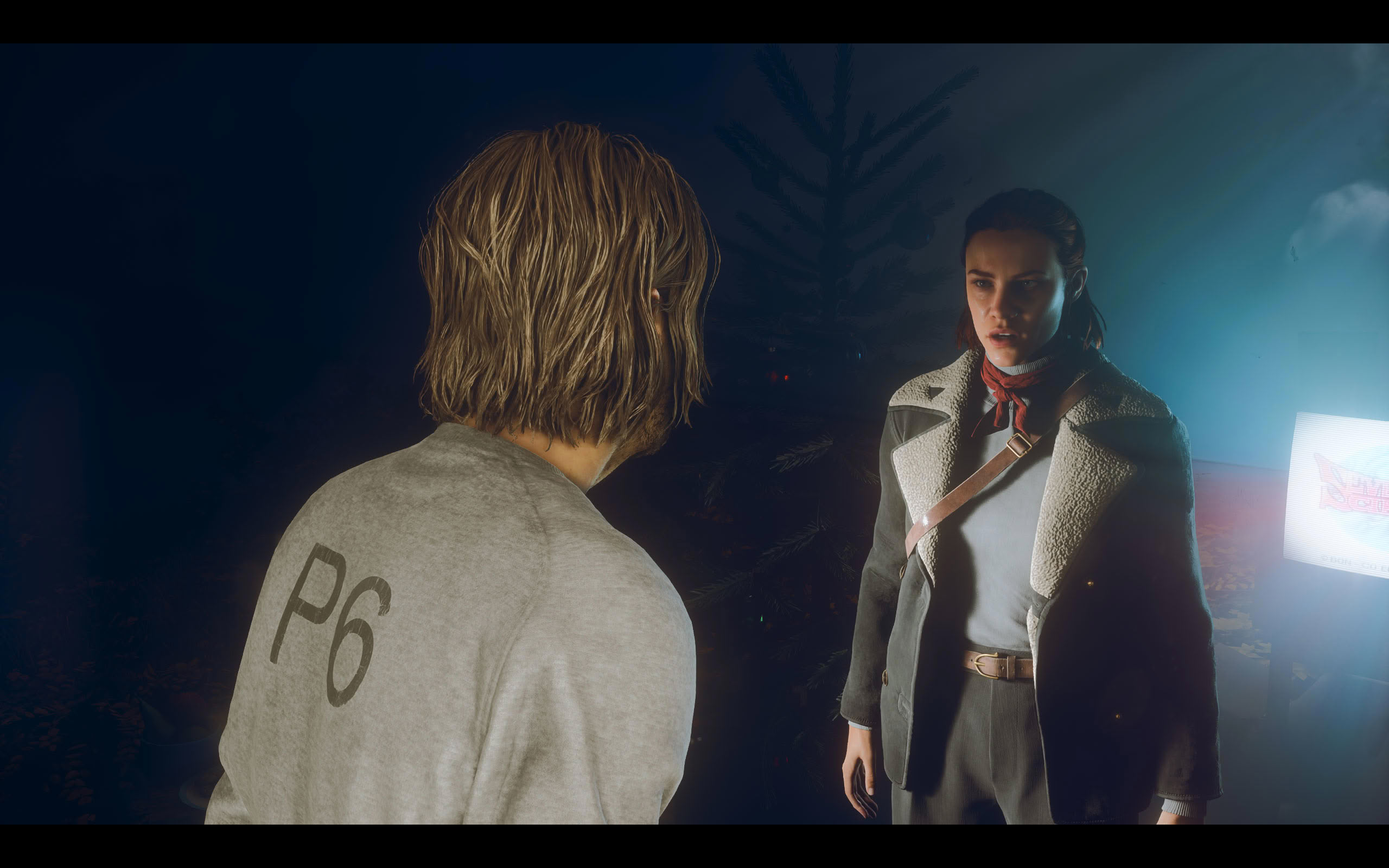
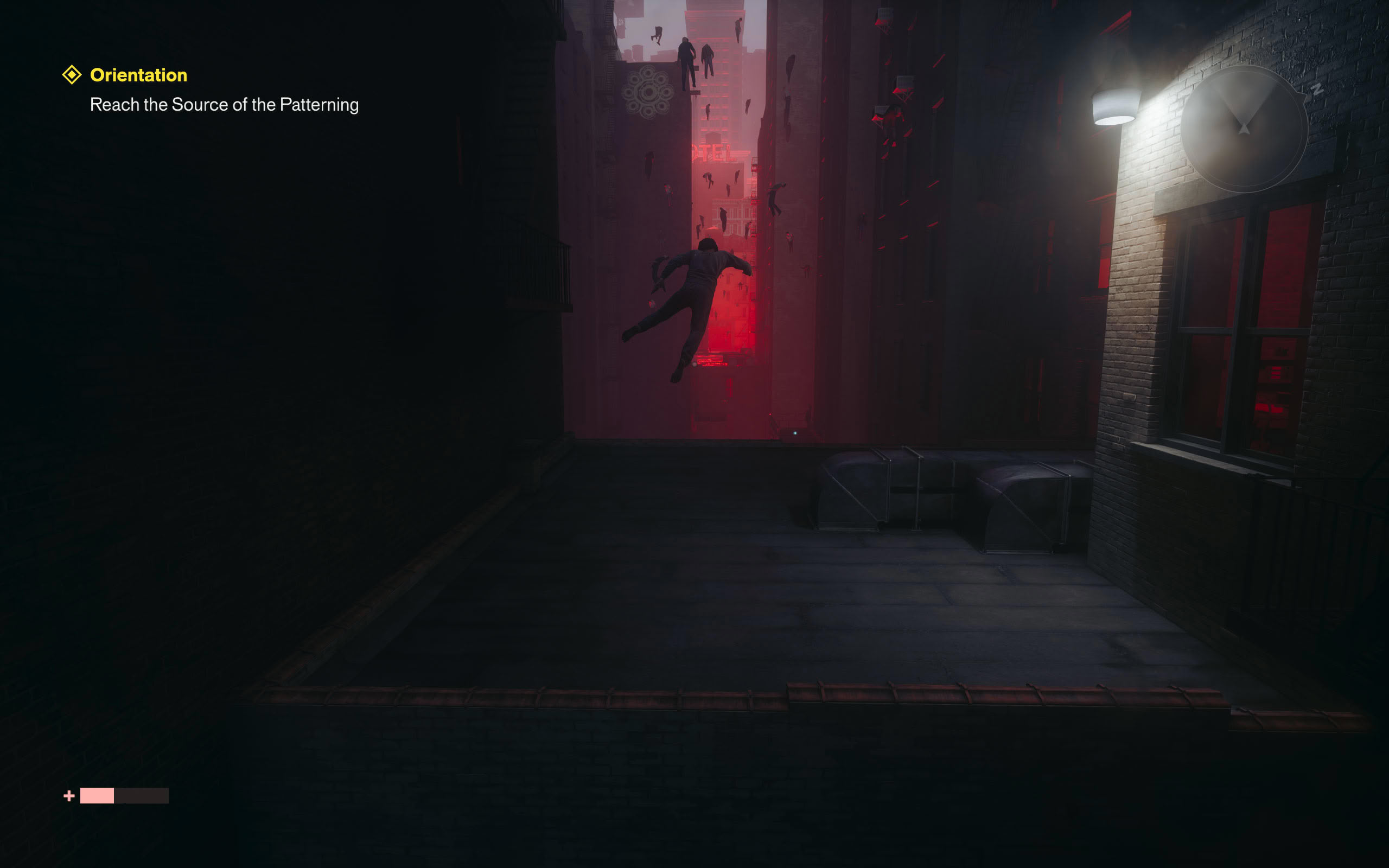
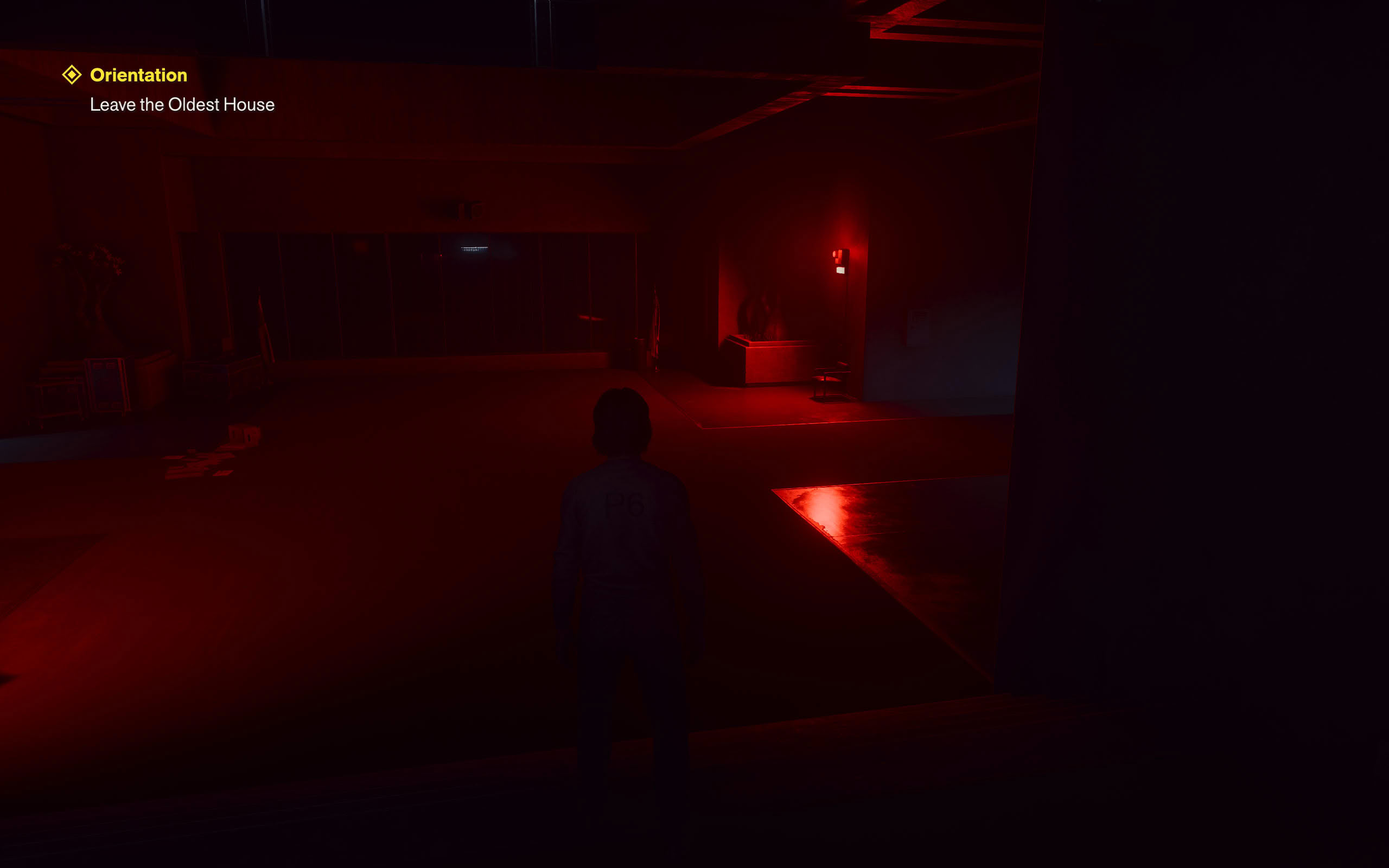
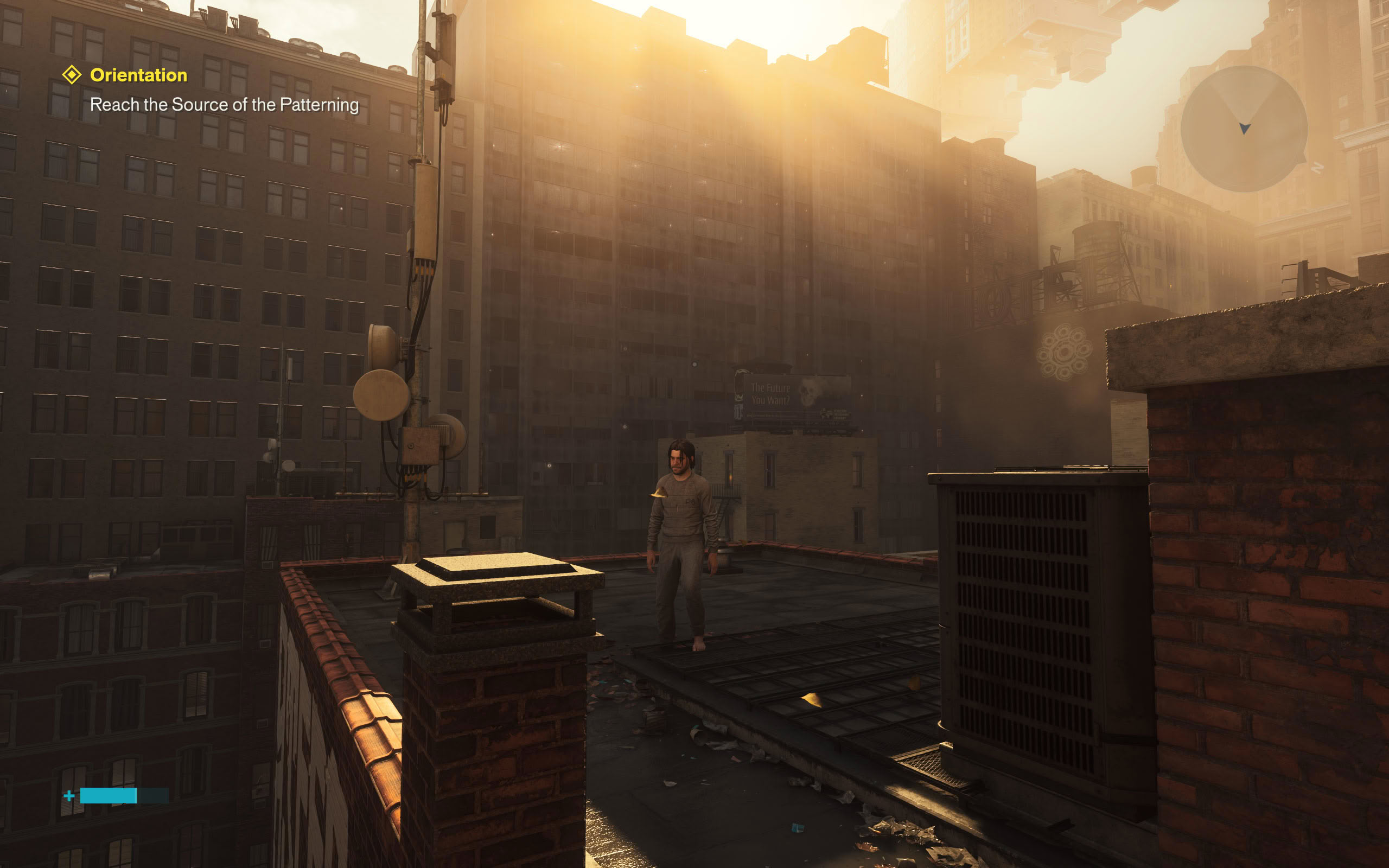
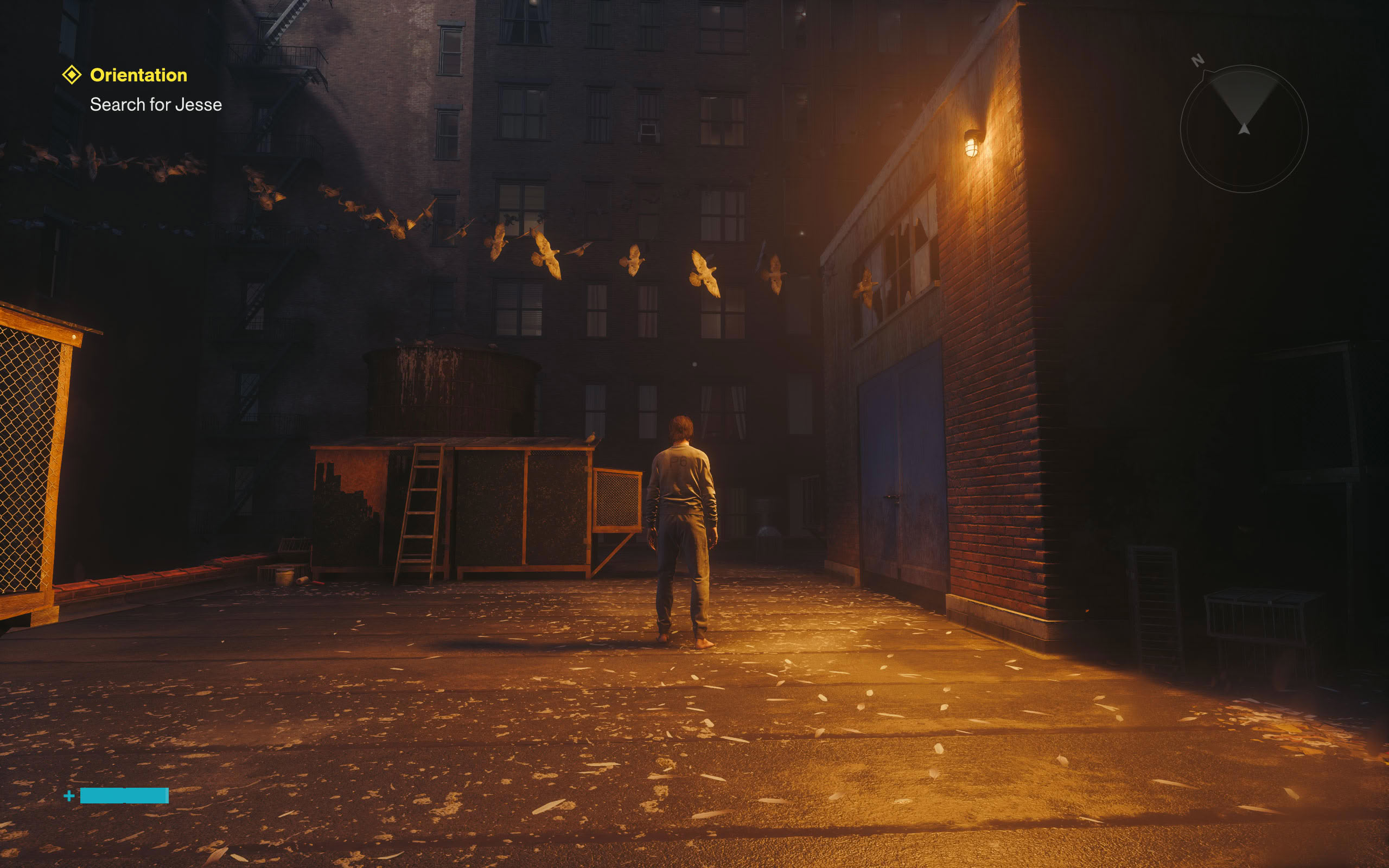
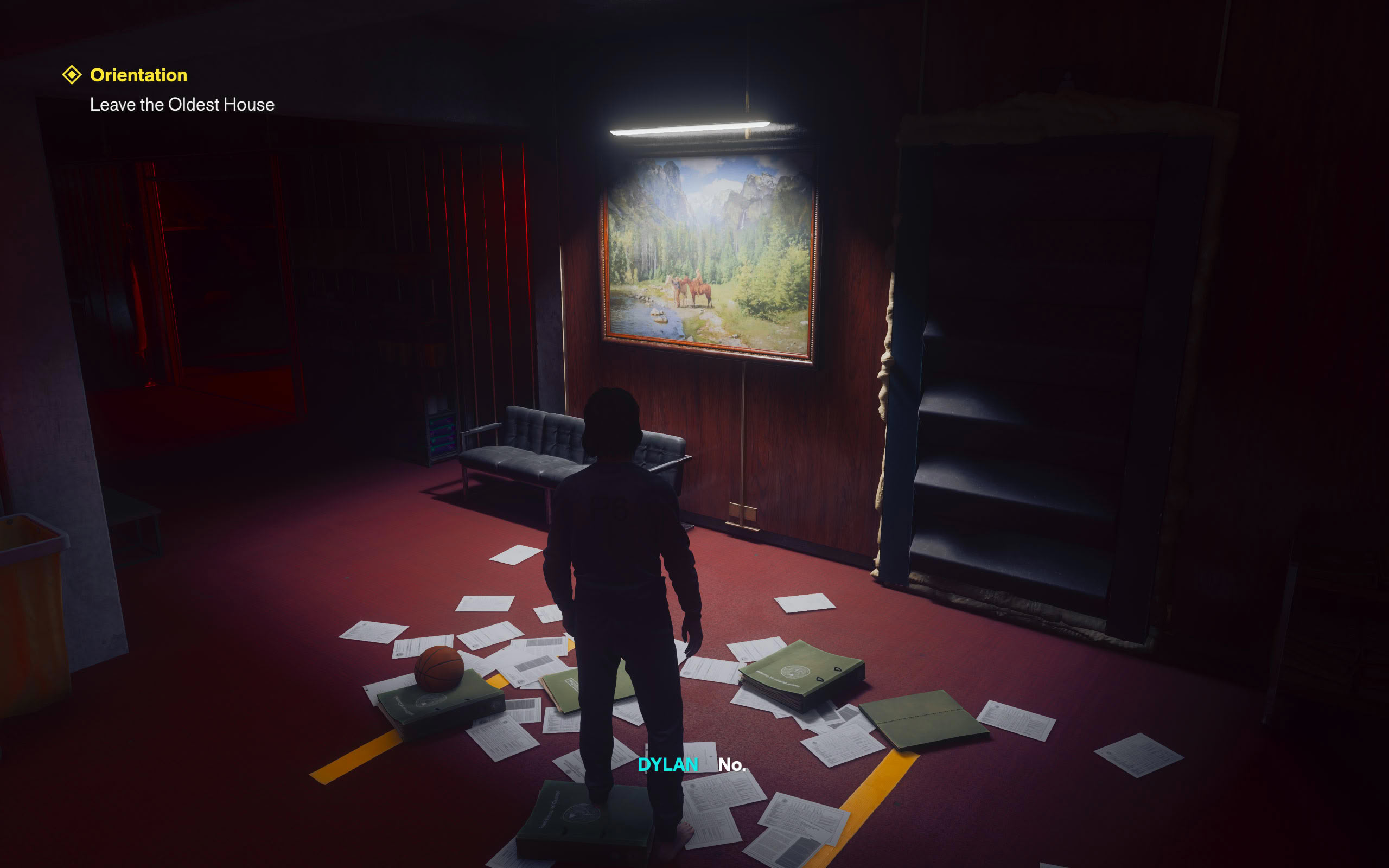
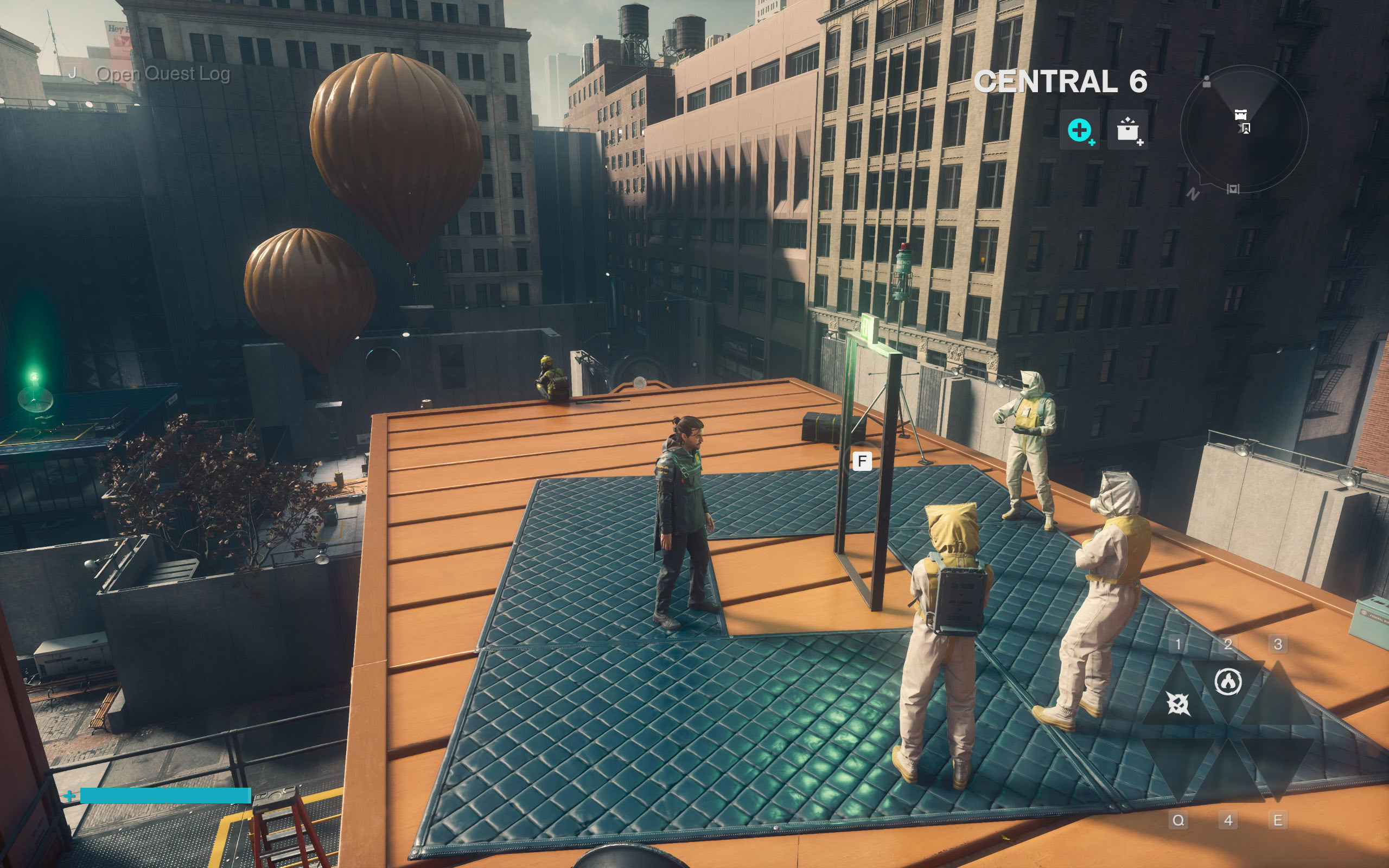
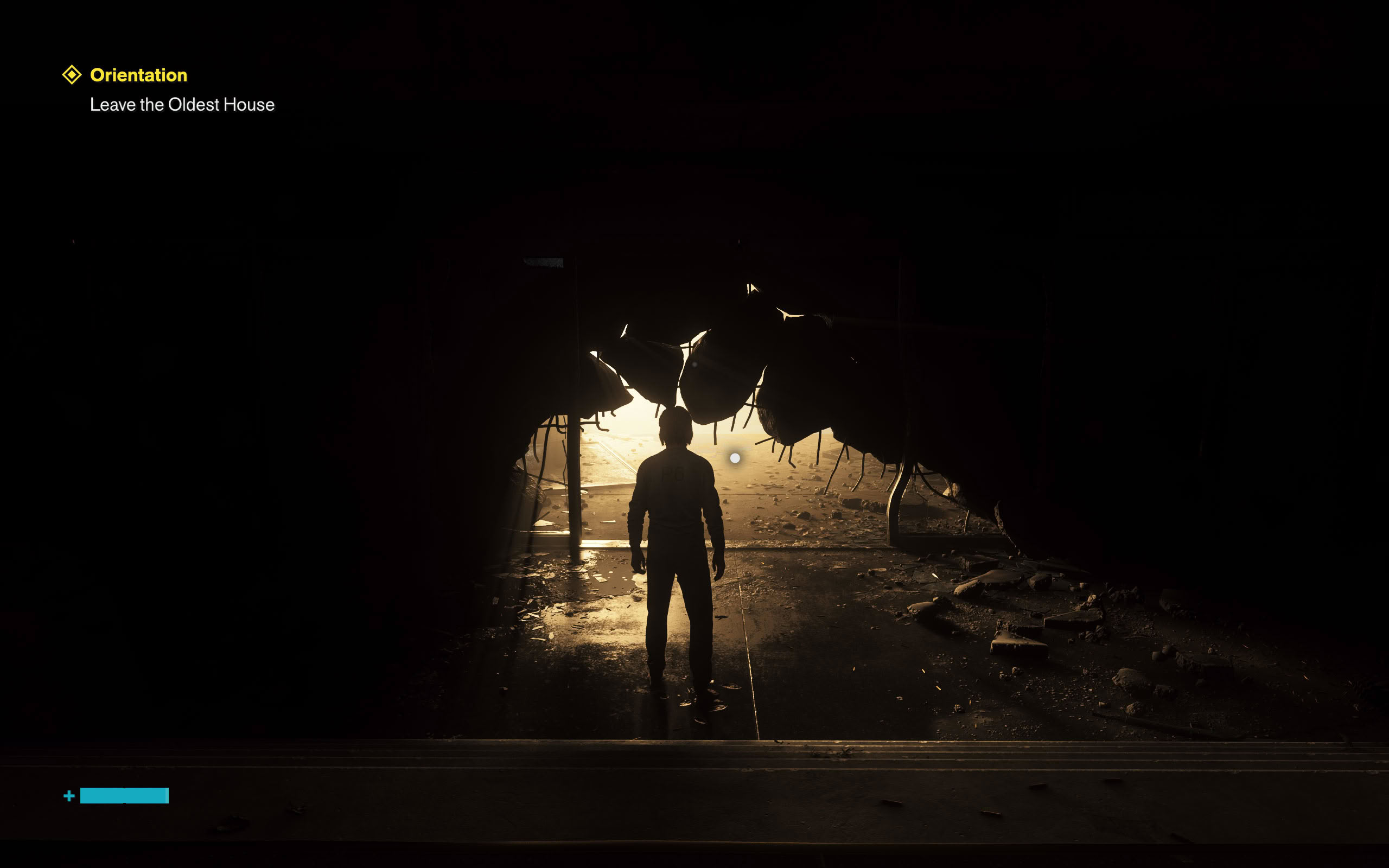
All screenshots were taken at the "Ultra" preset with native resolution rendering (DLAA). The gallery can be navigated with the cursor keys.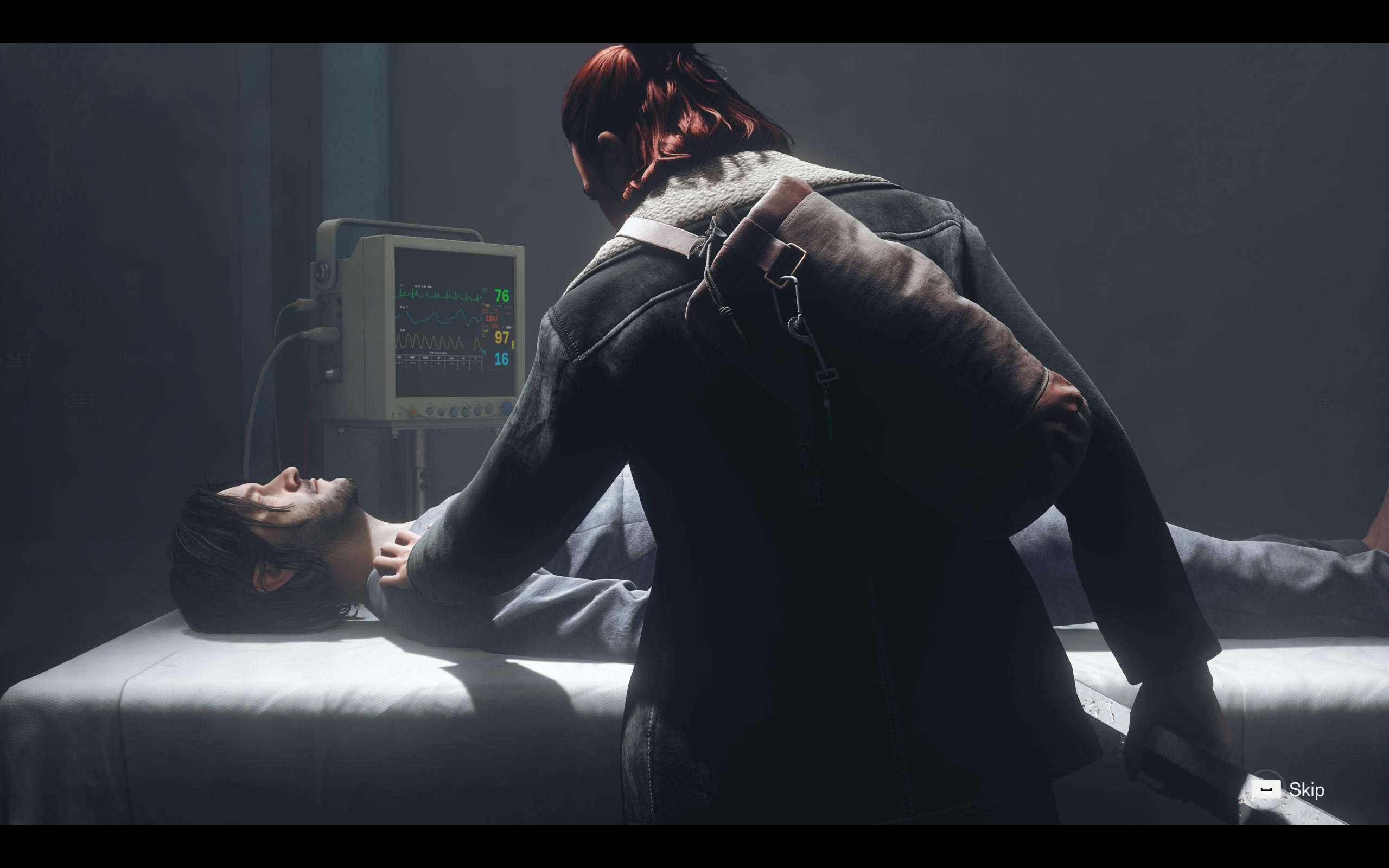





Graphics Settings
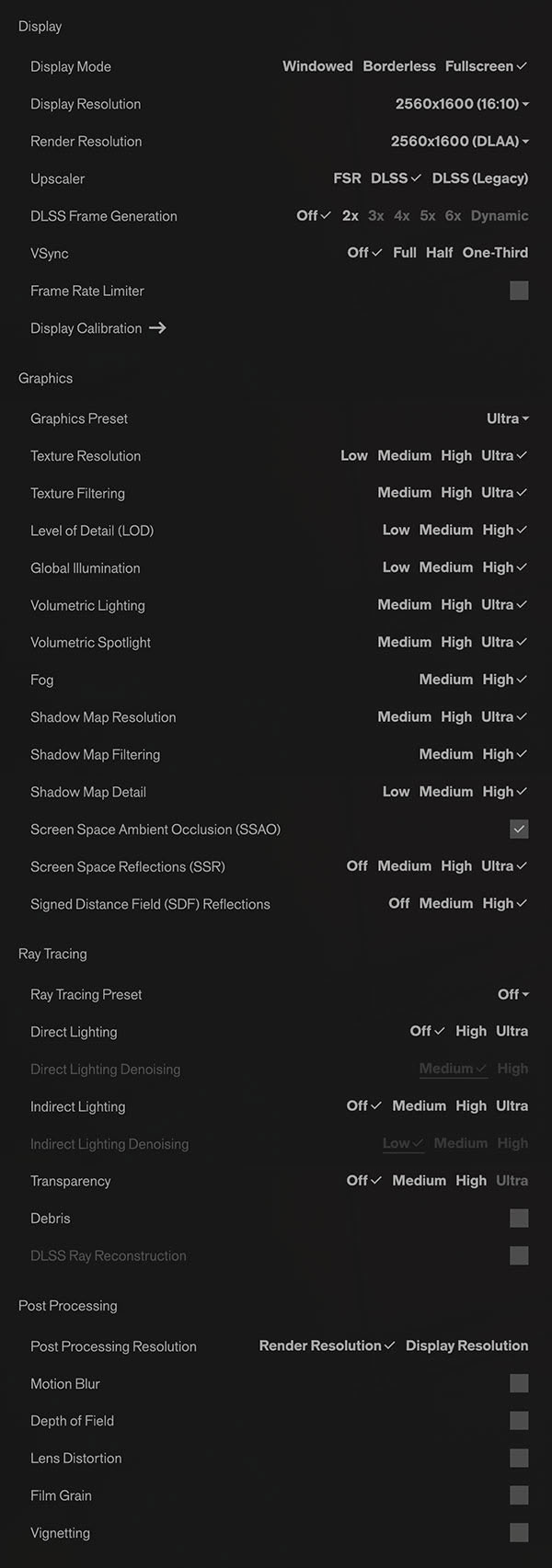
- You may run in windowed, borderless and dedicated fullscreen.
- There is no "native" rendering option. The "Render Resolution" dropdown always goes through an upscaler—at full resolution it reads "2560x1600 (DLAA)" on NVIDIA, which is the upscaler running as pure antialiasing. Unlike most games, the dropdown lists the actual render resolution in pixels rather than just a quality name, which is a nice touch.
- The upscaler choice is FSR, DLSS or DLSS (Legacy). Intel XeSS is not supported at all—there's no XeSS entry in the menu and no XeSS library in the game files.
- Frame generation runs all the way up to 6x, and there's a "Dynamic" mode on top of that, which varies the multiplier on the fly to hit a target frame rate instead of sticking to a fixed one. All of it requires a GeForce RTX 50 "Blackwell" card, though—on older GeForce GPUs everything above "2x" is greyed out along with Dynamic, so they're limited to doubling. AMD cards get FSR frame generation.
- V-Sync can be set to Off, Full, Half or One-Third refresh rate, and there's a separate frame rate limiter that can be set anywhere between 30 and 360 FPS. Left switched off, the frame rate is uncapped.
- There are five graphics presets rather than the usual four: "Handheld," "Low," "Medium," "High" and "Ultra."
- Some individual settings offer fewer steps than expected. Fog and Shadow Map Filtering are just "Medium" and "High," SSAO is a plain on/off checkbox, and Level of Detail stops at "High."
- Ray tracing lives under its own "Ray Tracing Preset" dropdown with Off, Low, Medium, High and Ultra, plus individual rows for Direct Lighting, Indirect Lighting, Transparency and Debris. "Indirect Lighting" is path tracing, but the game makes no mention of that.
- What's a bit unexpected is that even the first RT Profile "low" will activate indirect lighting = path tracing. Normally you'd expect that only Ultra RT has path tracing. The good news is that it runs fine on AMD cards and isn't gated behind "NVIDIA only."
- What is NVIDIA only is "Transparency" at "Ultra," which requires NVIDIA Mega Geometry (no idea why) and DLSS 4.5 Ray Reconstruction (no idea why either). Since the RT "Ultra" profile set Transparency to Ultra, the option is grayed out unless you have an NVIDIA card.
- "Post Processing Resolution" lets you run post-processing at either render resolution or display resolution
- Motion blur, depth of field, lens distortion, film grain and vignetting can all be disabled.
- FOV can be adjusted in another menu.
Our Patreon Silver Supporters can read articles in single-page format.
Nov 19th, 2026 11:58 CST
change timezone
Latest GPU Drivers
New Forum Posts
- How to prevent OLED burn damage due to PC freezes or power outtages? (11)
- GTA VI (4)
- Anthrophics IPO (3)
- Help with fixing Overclock (11)
- Why my RX 6800 XT read that it operate at x8 not x16 ? (47)
- Got the EOL 32GB TridentZ 6000 CL26 1.4V (10)
- Honestly, do you care about GTA VI? (162)
- Dual B70 or Dual R9700 Pro on Linux (9)
- Anime Nation (13187)
- Very unusual two gaming-pc scenarios. (20)
Popular Reviews
- Acemagic Retro X3 Review
- Ugreen NASync DXP4800 GT Review
- Upcoming Hardware Launches 2027 (Updated Nov 2026)
- Pulsar Office Tour & First Look at P1 Dual-Sensor Mouse
- AMD Zen 6 Technical Deep Dive
- Biwin Black Opal NV7400 2 TB Review
- Sapphire Radeon RX 7700 XT Pure Review
- Sapphire Radeon RX 7700 XT Pulse Review
- AMD Ryzen 7 9800X3D Review - The Best Gaming Processor
- Chieftec Iceberg PRO 360 DARK Review
TPU on YouTube
Controversial News Posts
- NVIDIA Co-Founder and CEO Jensen Huang Officially Resigns (484)
- Report: Jensen Huang Eyes NVIDIA Comeback (221)
- Open Letter Asking NVIDIA to Reinstate Jensen Huang Passes 115,000 Signatures (184)
- OpenAI CEO Argues Home PCs Waste the World's Limited DRAM Supply (152)
- NVIDIA Launches Investigation Into Jensen Huang's Relationship With Suspected Chinese Spy (136)
- Intel "Raptor Lake Next" 16-Core and 20-Core CPUs Surface (130)
- Legendary Game Studio BioWare Shuts Down Following EA Layoffs (104)
- Dell CEO Says the Memory Shortage Will Get Worse in 2027 (95)