 40
Dough Spectrum Black 32 Review
Response Time, Input Lag & Motion Blur »Picture Quality
The Dough Spectrum Black 32 features a 31.5-inch 10-bit WOLED MLA+ panel manufactured by LG Display, with a native resolution of 3840x2160. This gives it a dot pitch of 0.1816 mm and a pixel density of 139.87, resulting in excellent sharpness, to a point where fringing is completely invisible, even in worst-case scenarios, such as when displaying black letters on a white background. I've deliberately written this entire review with a light Office theme instead of a dark one, which I normally use, in an (unsuccessful) attempt to spot fringing-related issues.Like other OLED monitors, the Dough Spectrum Black 32 doesn't use a traditional LED backlight unit. Instead, individual pixels of the panel are self-emitting, which provides many benefits such as infinite contrast, perfect blacks, absence of haloing, and a superb response time. For added brightness, the panel is equipped with MLA+ (Micro Lens Array Plus) technology, which maximizes light emission through a layer of micrometer-sized convex lenses.
The review sample of the Dough Spectrum Black 32 uses a matte screen with a light anti-glare (AG) coating. The screen is quite resistant to reflecting its surroundings even when used in a room with a lot of natural or artificial light, and the picture isn't perceived as grainy or dirty from a normal sitting distance, which can be the case with heavier AG coatings. Dough offers the same monitor with a glossy Gorilla Glass 3 coating, but I didn't get a chance to test that variant, so I cannot comment on it.
To test the picture quality of the Dough Spectrum Black 32, I used a combination of the X-Rite i1Display Pro, DisplayCAL – a powerful software solution for display calibration and profiling that is completely free if you own a supported colorimeter – and Calman, the industry-standard display testing and calibration software suite.
The measurements shown below were made with Brightness control set to "Uniform." That completely disables the Auto Brightness Limiter (ABL) to prevent oscillations in picture brightness depending on the displayed content, but at the expense of overall brightness. My tests were based on the firmware version v1.0.14, which was released at the end of February, but I also ran a full suite of tests with the firmware version v1.0.7, so we have an opportunity to compare these two releases and evaluate the quality of improvements achieved by Dough through their flagship monitor's firmware updates.
Picture Quality at Factory Settings
I tested the picture quality of the Dough Spectrum Black 32 at its factory defaults right after plugging the monitor in and allowing the panel to warm up for about an hour.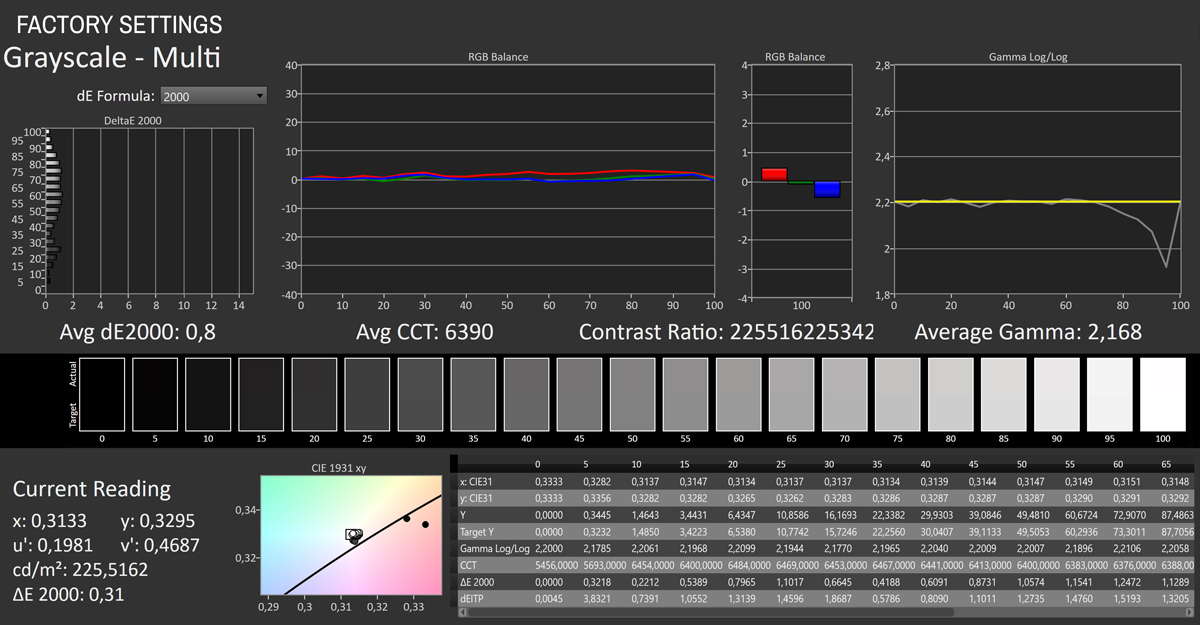
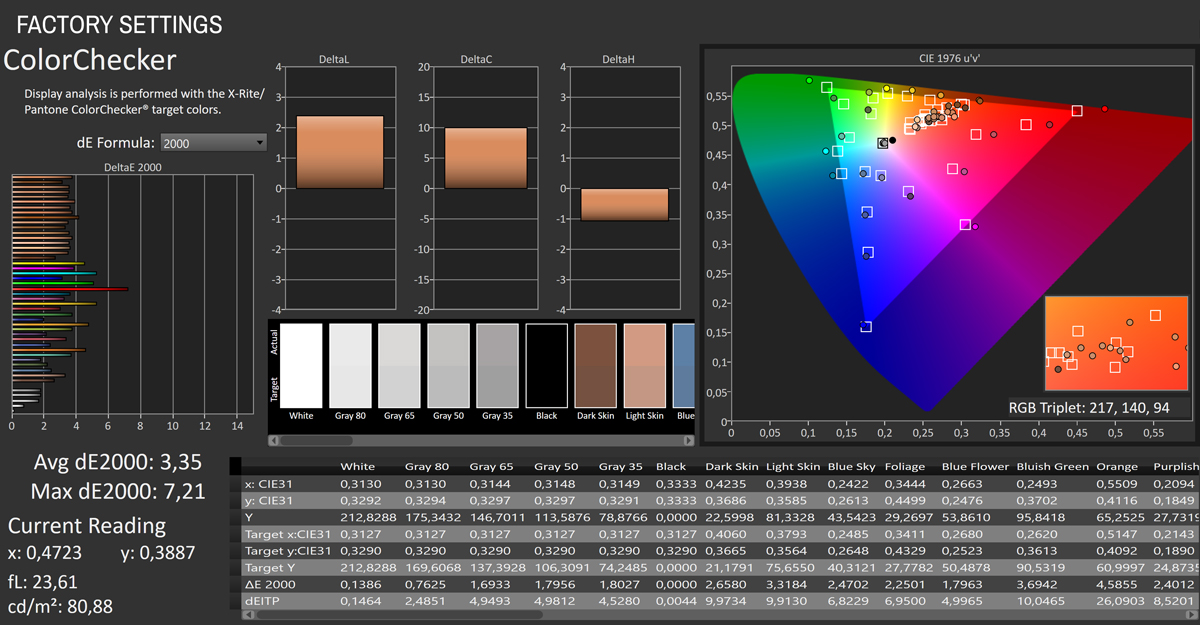
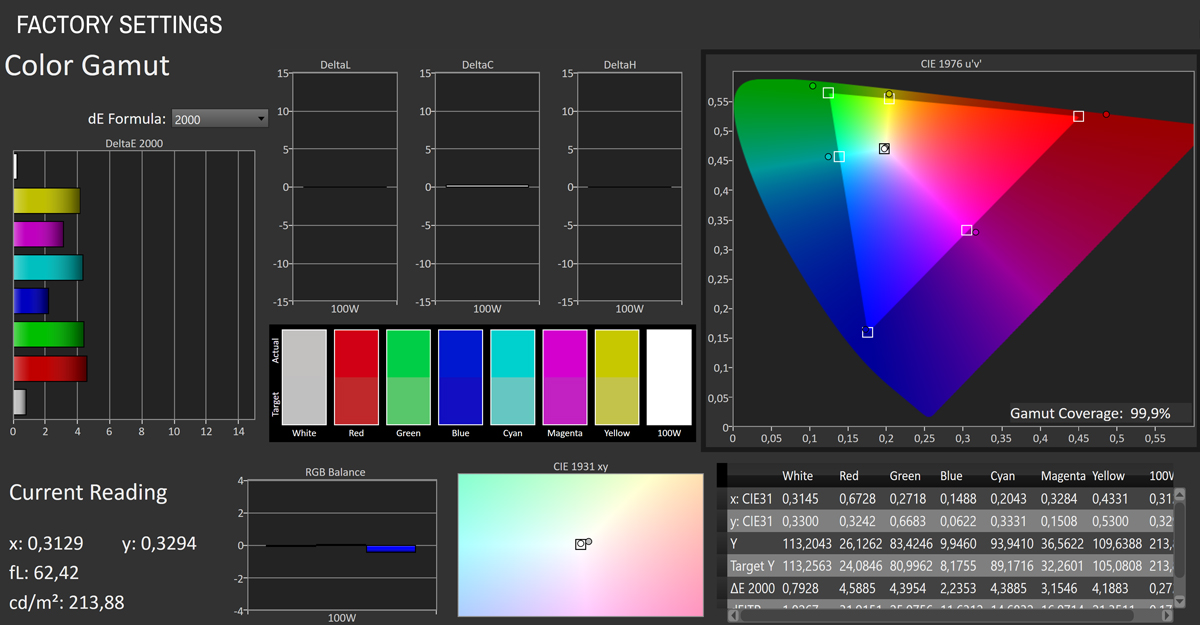
At default settings, the Dough Spectrum Black 32 impresses with grayscale accuracy and overall RGB channel balance. The color temperature is adjusted quite well, sitting at 6,390 K, and the gamma curve is almost ideal up to the 70% luminance level, where it starts to drop off before stabilizing at 100% level (full white). What that means is that the near-highlight tones are rendered too brightly, resulting in a slight loss of highlight detail - subtle shading and texture in highlights may appear a bit flat. This is, however, mostly annulled by the sheer vividness of the WOLED MLA+ panel and as such not worth losing sleep over. As expected, the contrast ratio is infinite, since the black level measures 0 cd/m² - the pixels turn off completely when they are not emitting light. In terms of color gamut, the monitor covers 99.9% of the sRGB spectrum, with an sRGB gamut volume of 130.8%. It also achieves 91.2% DCI-P3 coverage (92.6% volume) and 82.2% Adobe RGB coverage (90.1% volume). Measured color accuracy appears mediocre, with an average ∆E of 3.35 and a maximum ∆E of 7.21. However, these values are based on sRGB color space measurements, while the WOLED MLA+ panel has a wide gamut. This results in oversaturation across all three color channels, extending well beyond the sRGB reference scope.
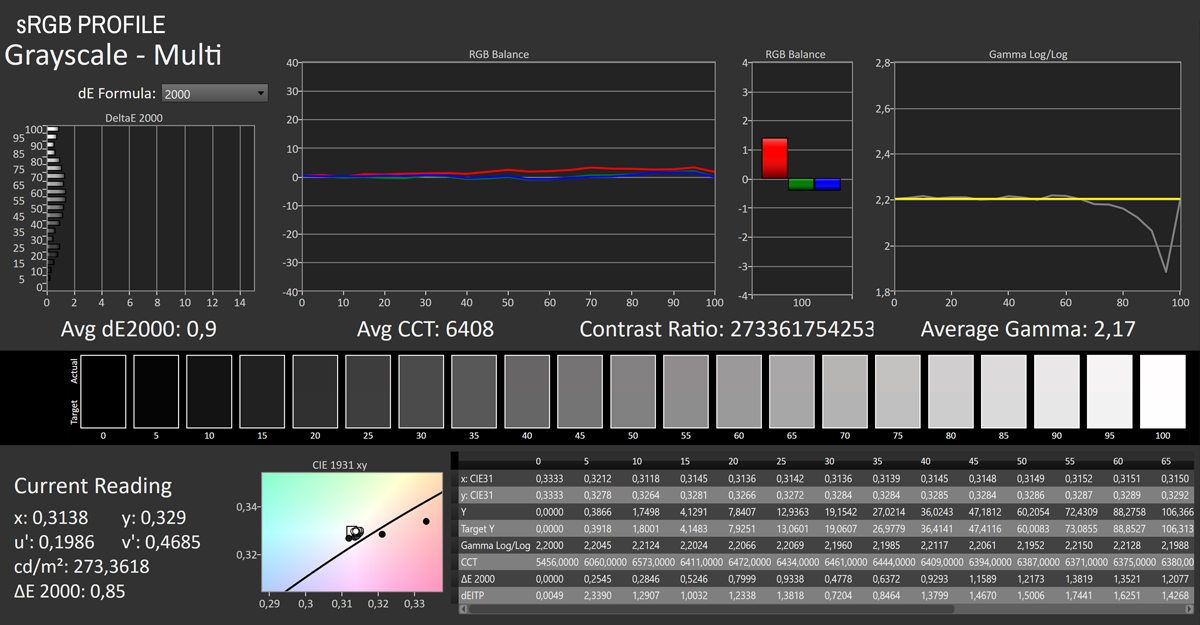
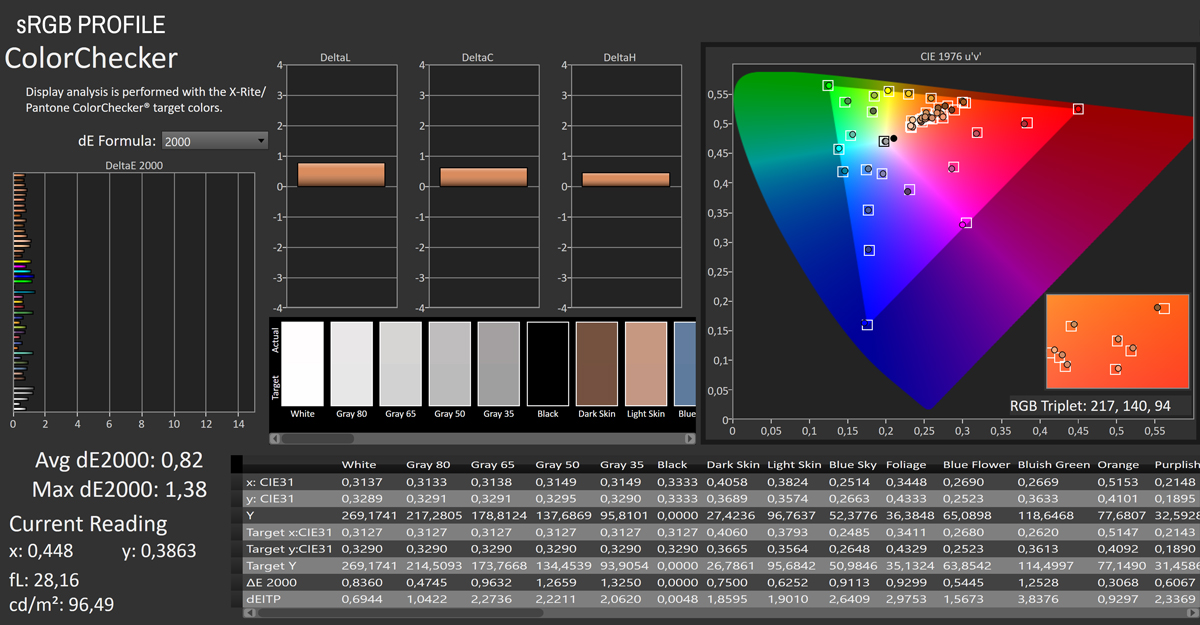
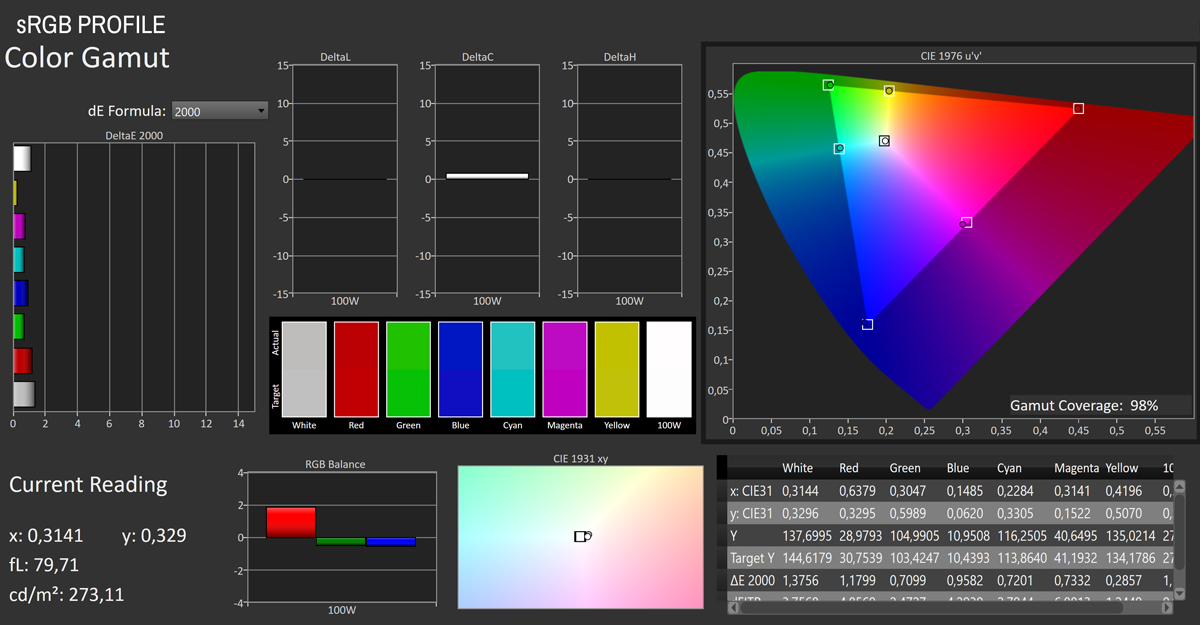
The monitor offers a sRGB mode, available within the Picture > Color preset menu. While the aforementioned dip in the gamma curve is still present, the sRGB mode is otherwise tuned exceptionally well, with impressive grayscale and color accuracy, as well as good RGB channel balance. If you're looking to clamp your monitor to the sRGB color space, the Dough Spectrum Black 32 should fully satisfy you with its sRGB mode implementation.
Using the default settings as a starting point, you can improve the picture quality of the Dough Spectrum Black 32 only slightly. If you don't feel comfortable fiddling with OSD controls, this is one of rare monitors which allow you to start enjoying them to the fullest as soon as you take them out of the box (and update their firmware). If you're into tweaking, first set the Brightness control to "Uniform" and raise the Brightness to 100. Then select "User defined" in the Color temperature submenu and open the Whitepoint Gain submenu. Here, reduce the red channel (R) to -3 and the green channel (G) to -10; leave the blue channel (B) at its default setting (0).
Let's compare the measurements before and after doing the aforementioned OSD tweaks.
| Factory vs Adjusted Settings | ||
|---|---|---|
| Factory Defaults | Adjusted Settings | |
| Measured Luminance | 225.52 cd/m² | 228.19 cd/m² |
| Measured Whitepoint | 6,390 K | 6,408 K |
| Measured Black Luminance | 0 cd/m² | 0 cd/m² |
| Contrast | Infinite:1 | Infinite:1 |
| Average Gamma | 2.168 | 2.089 |
| Average Color Accuracy (ΔE) | 3.35 | 3.07 |
| Maximum ΔE | 7.21 | 6.83 |
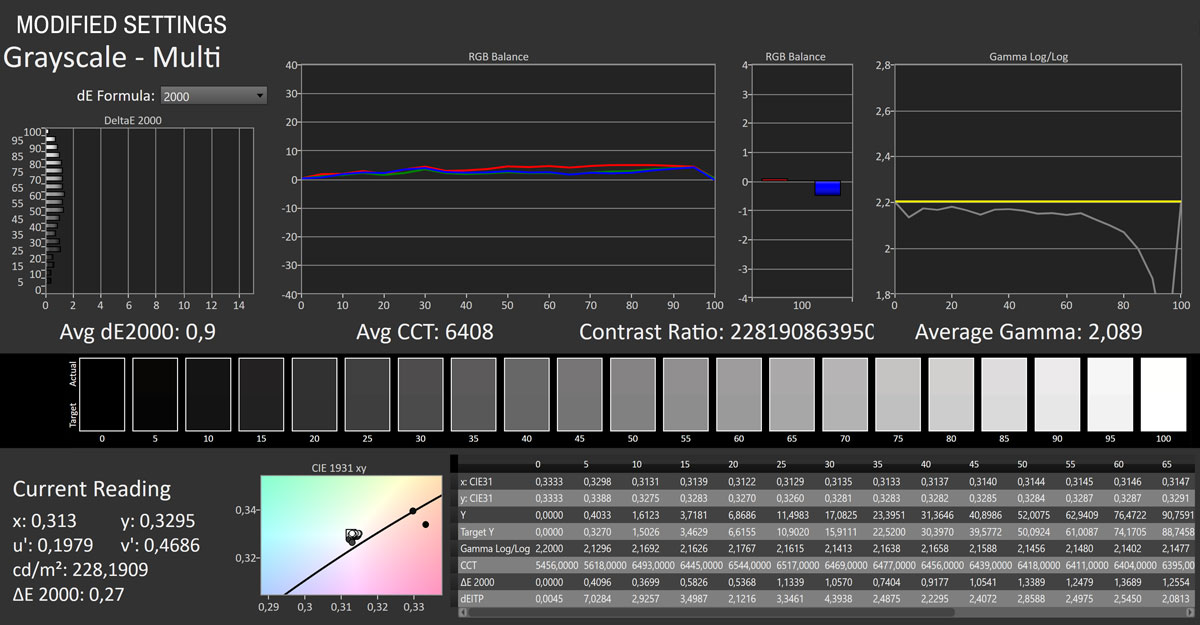
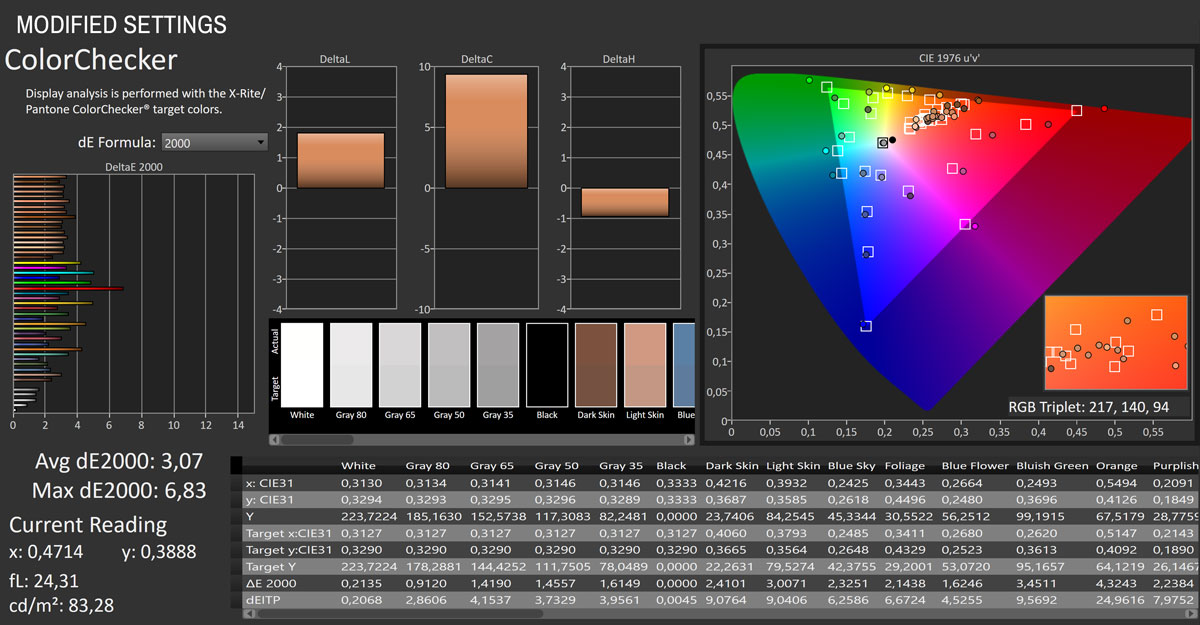
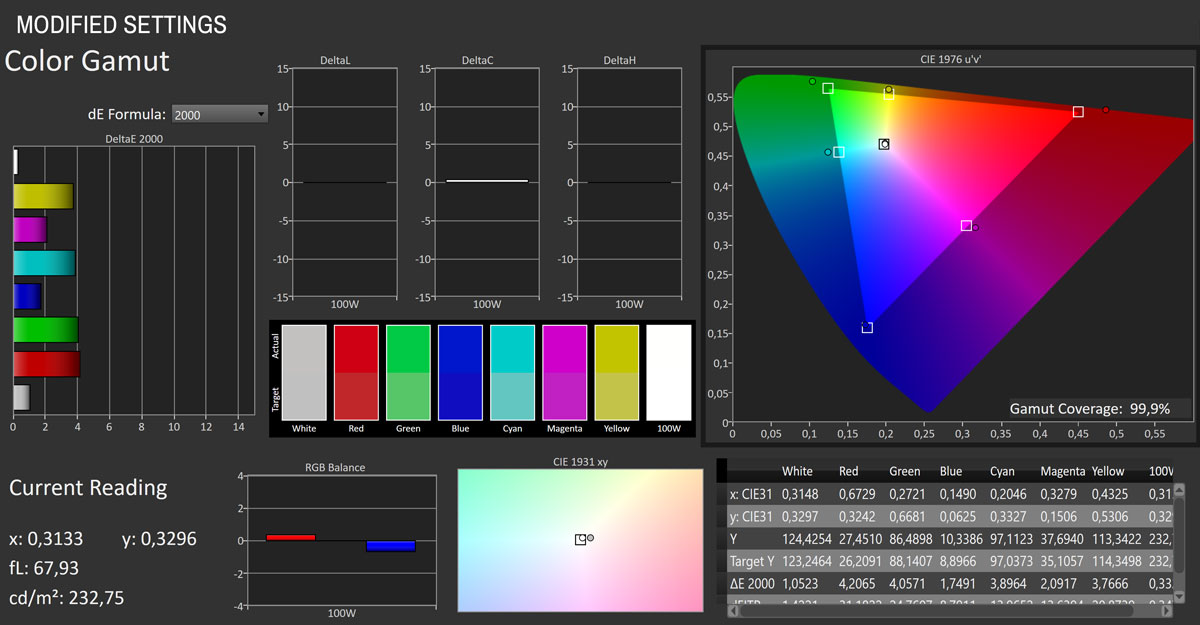
After adjusting the settings as described above, we see further improvements in grayscale and color accuracy, as well as white balance. The gamma tracking looks a bit worse though, so an argument could be made that the aforementioned tweaks simply aren't worth the hassle. Having said that, I still recommend setting the Brightness control to "Uniform" for SDR content consumption. That's the only adjustment that strikes me as obligatory. Overall, the Dough Spectrum Black 32 provides a picture that looks punchy, the colors are rich, and blacks are deep and inky, especially in darker rooms, where its static brightness—capped at around 220 cd/m²—isn't an issue. It should be noted that nowadays most OLED panels hit the more comfortable 250 cd/m² mark with ABL off; the Dough Spectrum Black 32 can't pull that off, unless we start messing with white balance and deliberately push it way past the 6,500 K mark.
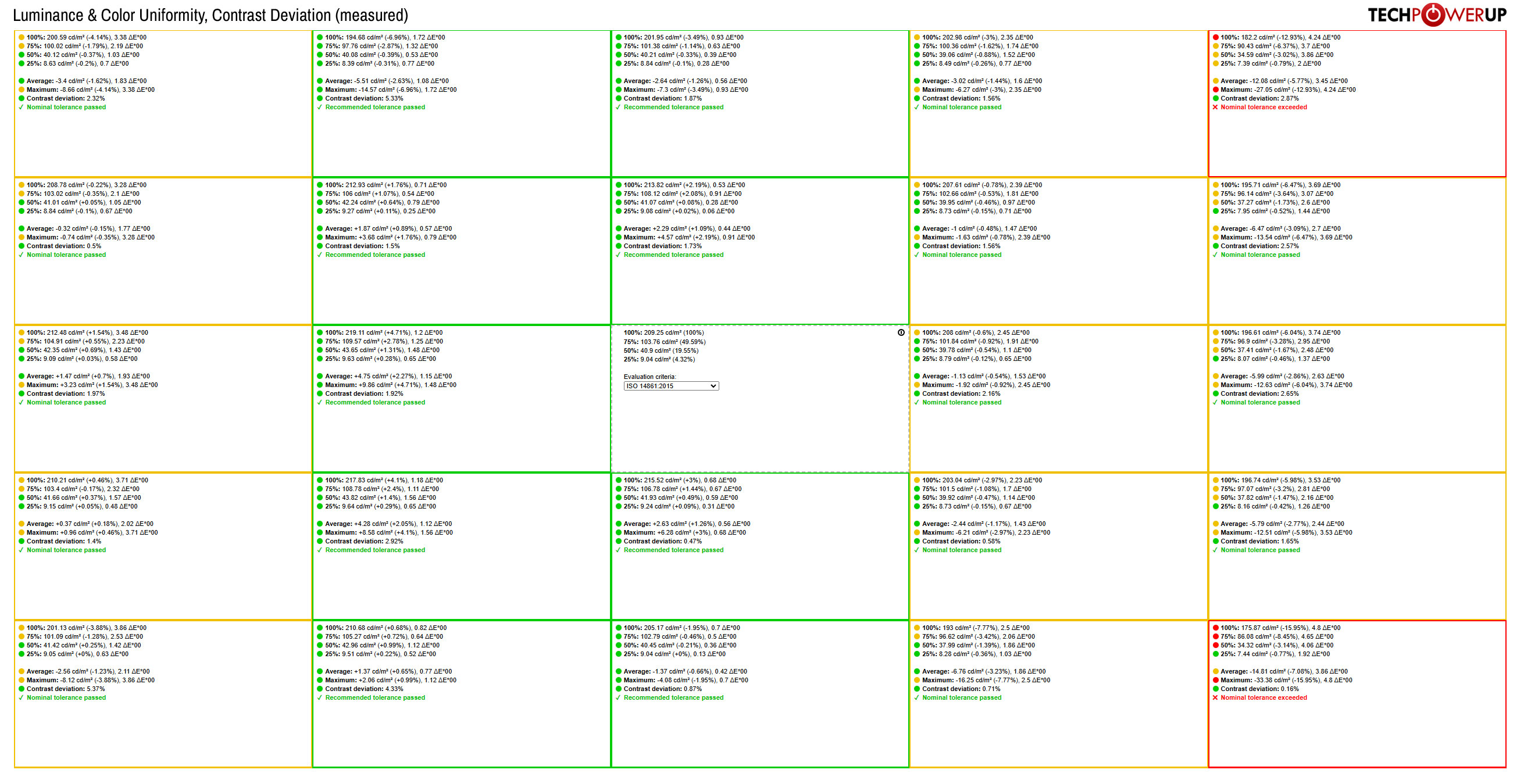
This is how the luminance and color uniformity of the Dough Spectrum Black 32 perform when measured at 25 different points across the panel. Click on the image to view it in high resolution and examine the data in greater detail. Naturally, there is no backlight bleed anywhere on the screen, as there is no traditional backlight to cause it. The brightness, color and contrast uniformity is for the most part very good, with the top and bottom right corners being obvious offenders, as that's where the colorimeter picked up a maximum 16% brightness drop compared to the center of the screen.
HDR Performance
Because of their technological characteristics, OLED monitors - including the Dough Spectrum Black 32 - are an excellent choice for HDR gaming and content consumption. When HDR is activated within Windows, the Dough Spectrum Black 32 locks the gamma to PQ-EOTF and offers two options (essentially HDR profiles), found in the Picture > PQ-EOTF menu: "Accurate brightness" and "Maximum brightness." I tested them both and noticed huge differences in terms of actual picture brightness for different window sizes. Although Dough recommends using the "Accurate brightness" HDR profile, in my tests it capped out at 350 cd/m² at 1% full white window sizes, which is simply too low for a proper HDR experience. In comparison, when set to the "Maximum brightness" profile, the monitor comfortably reached 931 cd/m² peaks for 1% window sizes. For that reason alone, I'd stick with the "Maximum brightness" profile when displaying HDR content.| HDR Profile Comparison (Peak Luminance) | ||
|---|---|---|
| HDR Profile: Accurate brightness | HDR Profile: Maximum brightness | |
| 1% Window | 350 cd/m² | 931 cd/m² |
| 4% Window | 343 cd/m² | 682 cd/m² |
| 9% Window | 349 cd/m² | 624 cd/m² |
| 25% Window | 294 cd/m² | 396 cd/m² |
| 50% Window | 244 cd/m² | 283 cd/m² |
| 100% Window | 218 cd/m² | 221 cd/m² |
The HDR is implemented well. When an HDR signal is detected, the monitor automatically switches to HDR mode, activating one of the two available HDR profiles. It also switches the Brightness control setting to "Standard", enabling the Auto Brightness Limiter and unlocking the full brightness potential of the OLED panel - depending on the selected HDR profile, of course. Then, once you return to SDR mode, the monitor automatically restores the previous settings and adjusts the Brightness control back to "Standard."
Viewing Angles
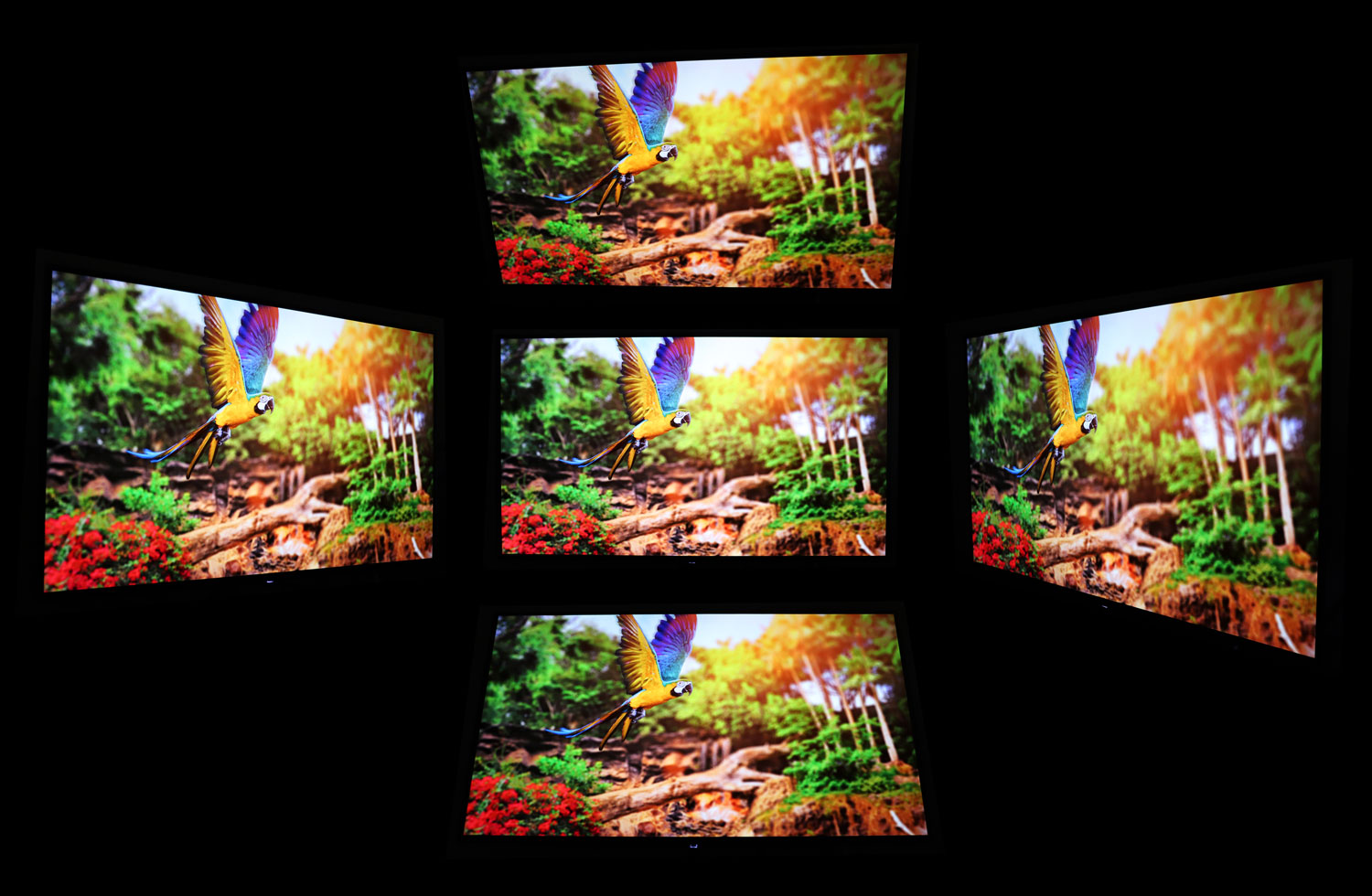
The viewing angles of the WOLED panel built into the Dough Spectrum Black 32 are excellent. There's no visible shift in colors from any sitting position or when changing positions.
OLED Burn-in Prevention Features
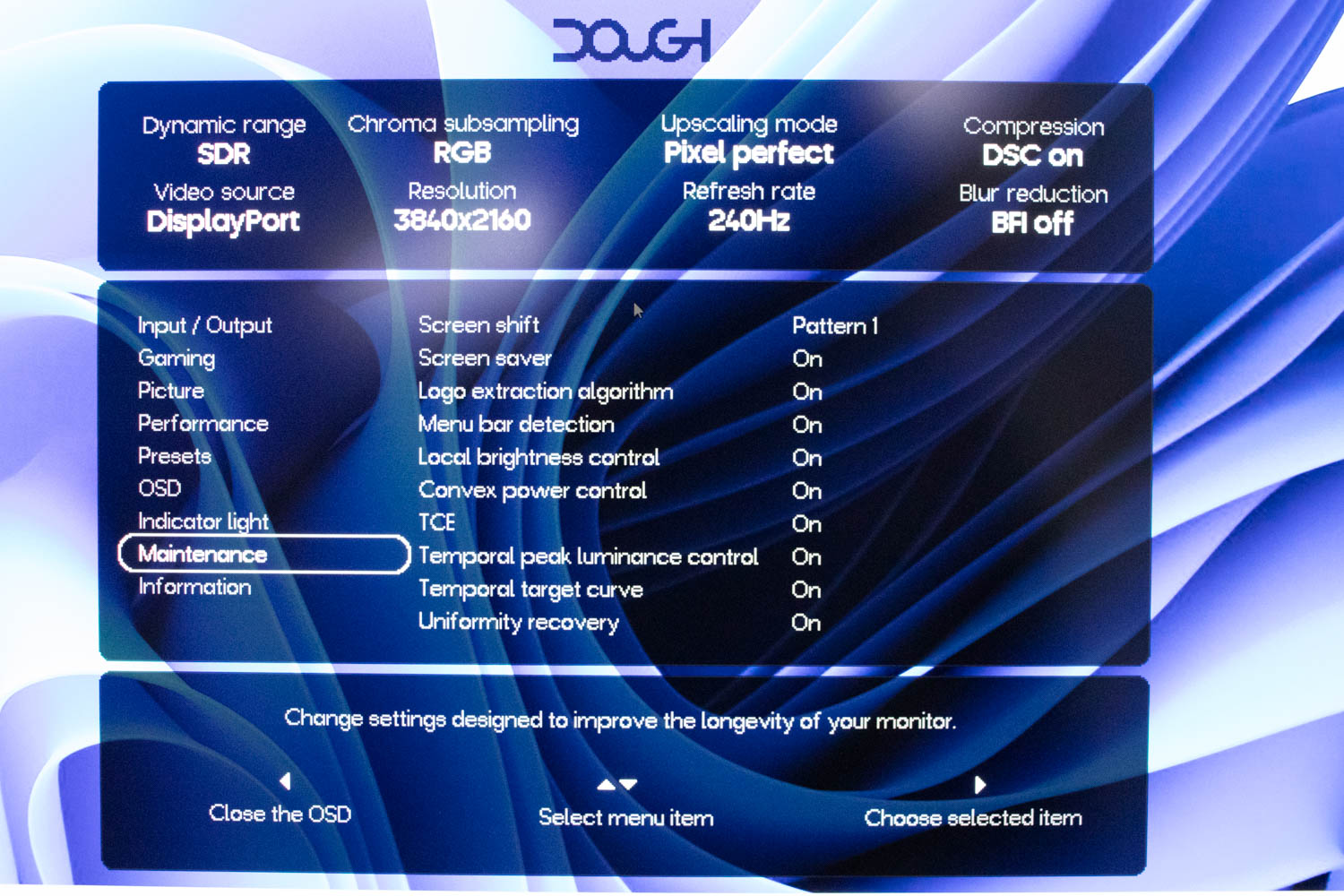
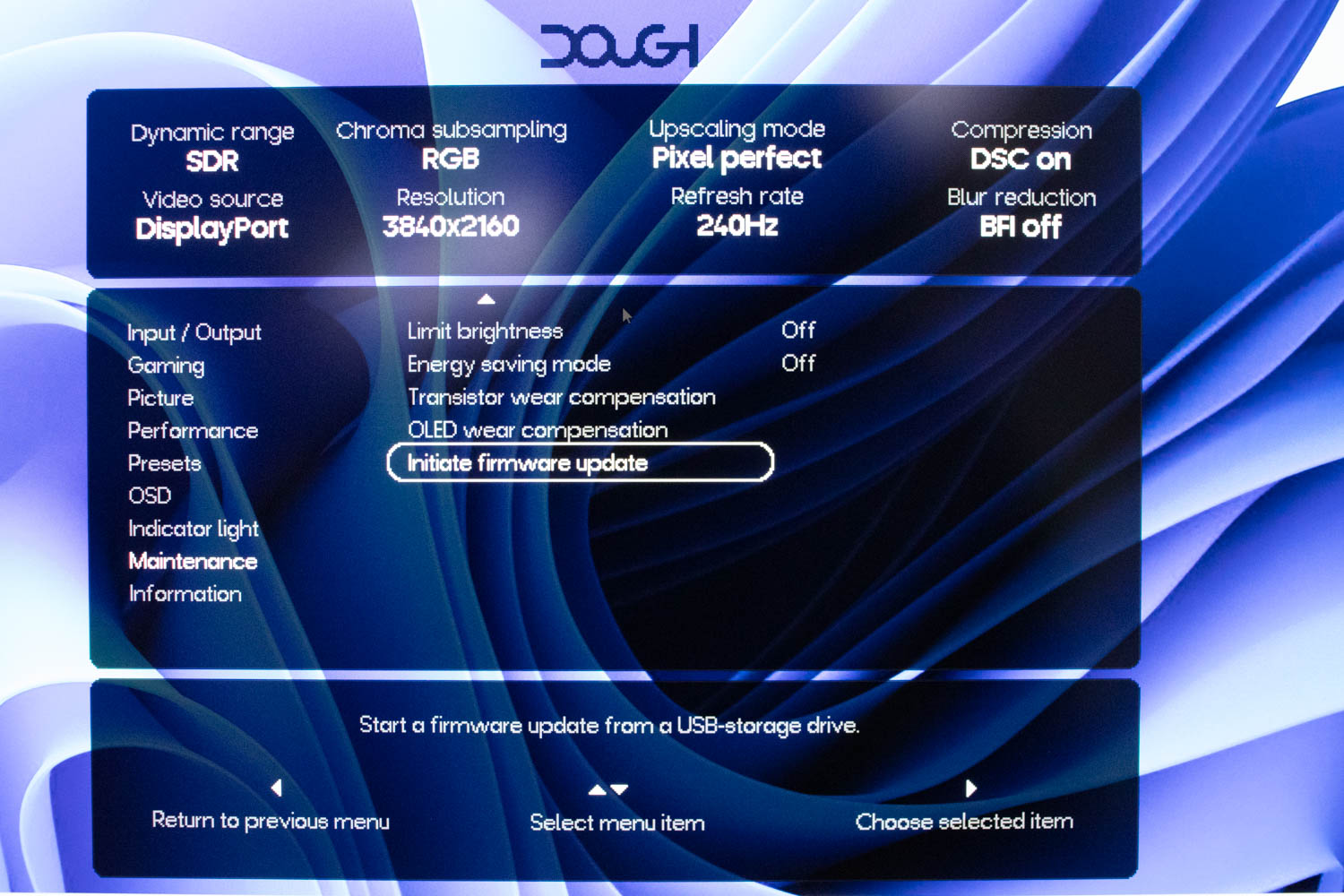
The Dough Spectrum Black 32 seems to offer every OLED burn-in prevention measure known to mankind. Aside from the usual screen shift feature, offered with three different shifting patterns, as well as a screen saver, which turns the screen off after a static image has been displayed for 10 minutes, we also get the following:
• Logo extraction algorithm - the monitor detects static, on-screen elements such as logos or HUD elements in games and reduces their luminance
• Local brightness control - a general reduction of peak brightness
• Convex Power Control - the monitor reduces luminance farther away from the center of the image
• TCE (Target Current Controlled Contrast Enhancement) - the monitor constantly adjusts the brightness curve based on the displayed image
• Temporal peak luminance control - the monitor detects stationary images that pose a high risk of retention and adjust the pixel luminance accordingly
• Temporal Target Curve - the monitor keeps track of usage time, reducing the image brightness after prolonged use
• Uniformity recovery - the monitor detects areas of the screen with uneven wear and adjusts brightness accordingly to even out the wear
• Limit brightness - adjusts the behavior of the monitor to favor either maximum brightness or power saving and longevity. When set to "Off," the display can reach up to 33% higher brightness in HDR mode and up to 50% higher brightness in SDR mode, but will use more power and may wear at an increased rate
• Transistor wear compensation - starts a calibration process that counteracts image retention that may occur after prolonged use due to wear in the display panel's transistor layer
• OLED wear compensation - starts a calibration process that counteracts image retention that may occur after prolonged use due to wear in the display's organic LEDs
On top of all that, the monitor includes a two-year burn-in warranty. It would appear that Dough took burn-in seriously and addressed it appropriately.
Performance Differences Between Firmware Versions
I tested the Dough Spectrum Black 32 with three different firmware versions, including the latest one, released at the end of February (v1.0.14). Of course, that's the one I'm focusing my review on. I'll use the opportunity to examine the performance differences between the aforementioned v1.0.14 firmware update, and the one that preceded it, v1.0.7.| Performance Measurements With Different Firmware Versions | ||
|---|---|---|
| v1.0.7 | v1.0.14 | |
| Average Grayscale Accuracy | ΔE 3.2 | ΔE 0.8 |
| Measured Whitepoint | 5,958 K | 6,390 K |
| Measured Black Luminance | 0 cd/m² | 0 cd/m² |
| Contrast | Infinite:1 | Infinite:1 |
| Average Gamma | 2.356 | 2.168 |
| Color Accuracy | ΔE 3.62 (average), ΔE 5.9 (maximum) | ΔE 3.35 (average), ΔE 7.21 (maximum) |
| sRGB Profile Grayscale Accuracy | ΔE 2.4 | ΔE 0.9 |
| sRGB Profile Measured Whitepoint | 6,303 K | 6,408 K |
| sRGB Profile Color Accuracy | ΔE 1.92 (average), ΔE 5.41 (maximum) | ΔE 0.82 (average), ΔE 1.38 (maximum) |
The table gives us a good understanding of just how much Dough improved the factory setup of the monitor. By completely overhauling the RGB channel balance, they managed to vastly improve grayscale accuracy, white balance, and gamma tracking. The greenish tint that was present at default settings on firmware version v1.0.7 has been eliminated. In fact, firmware version v1.0.14 brought the factory tuning of the Dough Spectrum Black 32 to a level where you no longer have to tweak anything to get close to the best picture quality this monitor is capable of delivering.
The sRGB profile also underwent substantial changes, transforming it from essentially unusable to exceptionally suitable for anyone looking to clamp the monitor to the sRGB color space. It's almost shocking to see how much these things can improve with a simple firmware update - this is why OLED users should keep an eye out for updates for their monitors.
Also worth mentioning is that the v1.0.14 firmware update fixed an insanely annoying bug where the custom white balance settings would reset every time the monitor power cycled - when you powered off, reset, or put your computer to sleep, switched inputs on the monitor, and so on. This was my biggest gripe with the Spectrum Black 32 in the original iteration of this review, and I'm thrilled that it's been fixed.
Last but not least, the v1.0.14 firmware update introduced a substantial improvement to the way HDR is implemented. When an HDR signal is detected, the monitor automatically switches to HDR mode, activating one of the two available HDR profiles ("Accurate brightness" or "Maximum brightness," found in the Picture > PQ-EOTF menu). It also switches the Brightness control setting to "Standard," enabling the Auto Brightness Limiter and unlocking the full brightness potential of the OLED panel - depending on the selected HDR profile, of course. Then, once you return to SDR mode, the monitor automatically restores the previous settings and adjusts the Brightness control back to "Standard." Previously, you had to do all of this manually every time you switched between SDR and HDR, which was just as frustrating as it sounds.
Nov 24th, 2026 05:40 CST
change timezone
Latest GPU Drivers
New Forum Posts
- Increasing Power Limit? (22)
- How to prevent OLED burn damage due to PC freezes or power outtages? (56)
- Which ryzen am5 cpu ? (201)
- Your PC ATM (36486)
- AI generated images... (234)
- Without Jensen, PC gaming will be (58)
- Strange case of Mini itx build with normal gpu, and atx psu (Build Log) (21)
- AMD ULL settings tinkering thread - post settings and Zen pics (87)
- Gacha Games - Discussions, Pulls, Updates, etc. (1163)
- The time has come to upgrade...my desktop (2)
Popular Reviews
- Microsoft Surface Laptop Ultra Review - The Next-gen Arm Laptop
- ASRock X870E Challenger Wi-Fi White Review
- Upcoming Hardware Launches 2027 (Updated Nov 2026)
- Corsair RM1200e (Second Generation) Review
- AMD Ryzen 7 9800X3D Review - The Best Gaming Processor
- AMD Zen 6 Technical Deep Dive
- AMD Ryzen 7 7700X3D Review
- Pulsar Office Tour & First Look at P1 Dual-Sensor Mouse
- Phantom Blade Zero Performance Benchmark Review - 35 GPUs Tested
- Ugreen NASync DXP4800 GT Review
TPU on YouTube
Controversial News Posts
- NVIDIA Co-Founder and CEO Jensen Huang Officially Resigns (492)
- Jensen Huang Reinstated as CEO of NVIDIA (428)
- Report: Jensen Huang Eyes NVIDIA Comeback (281)
- Open Letter Asking NVIDIA to Reinstate Jensen Huang Passes 115,000 Signatures (184)
- OpenAI CEO Argues Home PCs Waste the World's Limited DRAM Supply (152)
- NVIDIA Launches Investigation Into Jensen Huang's Relationship With Suspected Chinese Spy (136)
- Intel "Raptor Lake Next" 16-Core and 20-Core CPUs Surface (130)
- NVIDIA GeForce RTX 50-Series Scheduled for up to $500 Price Hike This Week (89)