 47
Dragon Age: The Veilguard Performance Benchmark Review
(47 Comments) »Introduction
"Dragon Age: The Veilguard" immerses players in the mystical world of Thedas, where an encroaching darkness threatens to tear down the magical barrier known as the Veil, endangering all realms by unleashing spirits and demons. Players take on the role of a member of the newly established Veilguard, a secretive order led by a seasoned mentor with a mission to protect the Veil at any cost. You get to uncover a hidden conspiracy to bring about the world's downfall and journey through eerie landscapes—from Fade-riddled ruins to cursed forests—where tactical combat and spellcraft are essential for survival.With a refined progression system, customizable abilities, and choices that impact alliances and shape the storyline, "Dragon Age: The Veilguard" offers a deeply immersive experience, blending the series' intense combat with rich lore and moral depth.

"Dragon Age: The Veilguard," developed by BioWare and published by Electronic Arts, utilizes the Frostbite engine that we've seen in the Battlefield Series before, for example. For this newest version of Dragon Age, the engine has been modernized with full DX12 support, support for ray tracing and more. Modern upscaling technologies like DLSS and FSR are included, too, and you may enable NVIDIA DLSS Frame Generation as well.
This review will evaluate the performance of Dragon Age: The Veilguard across a wide range of contemporary graphics cards, compare image quality settings, and analyze the game's VRAM usage to provide insight into the hardware requirements needed for an optimal experience.
Screenshots
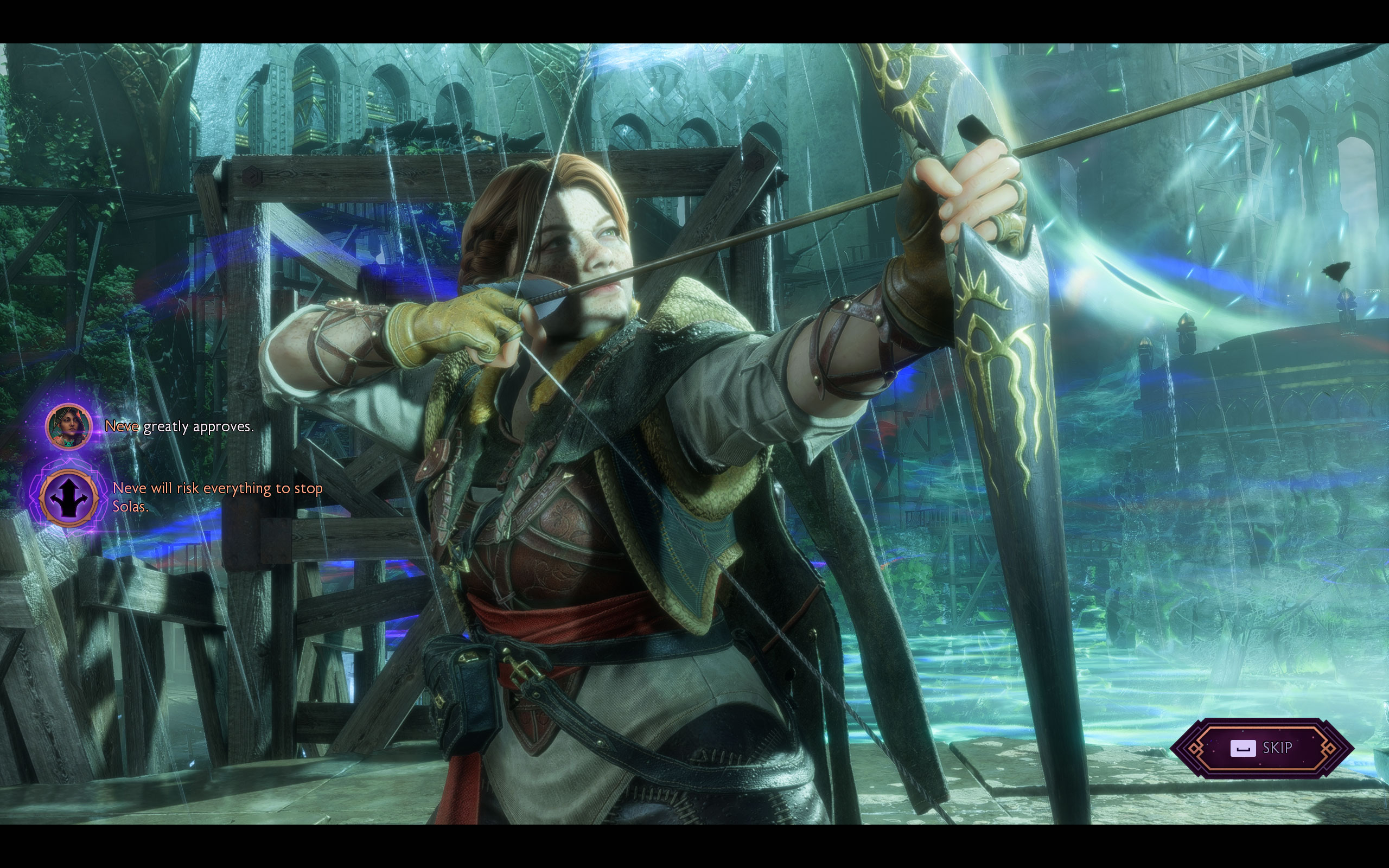
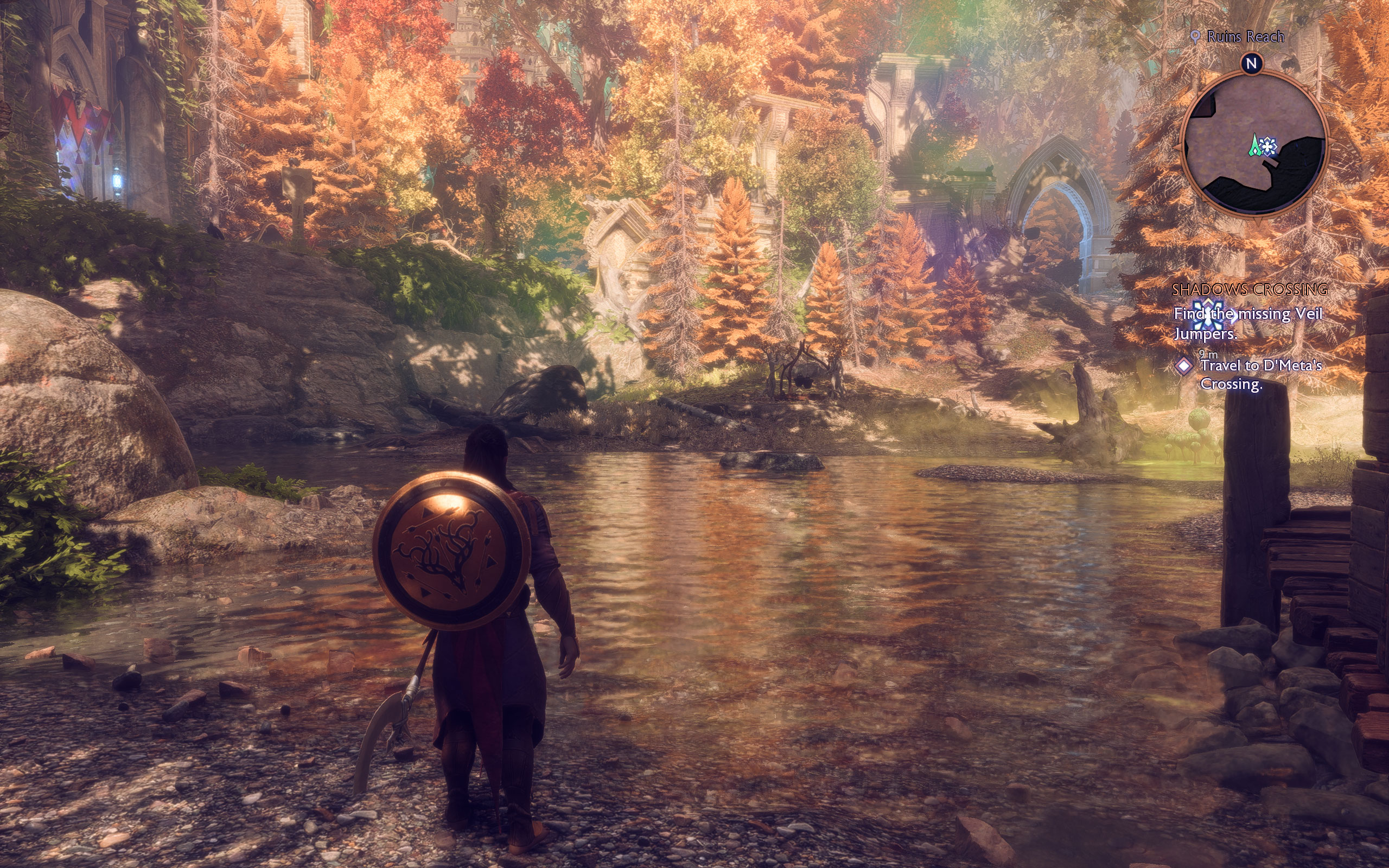
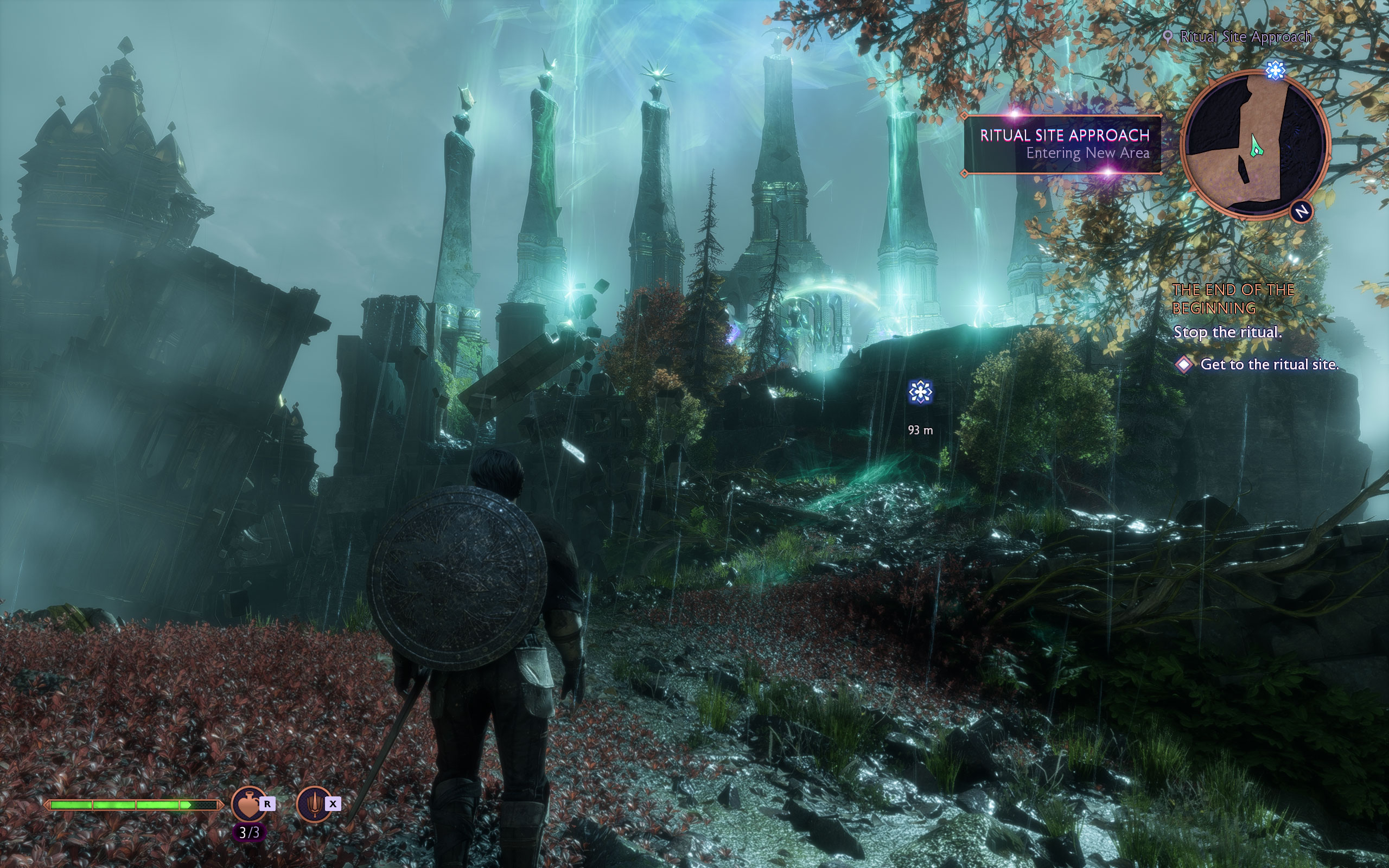
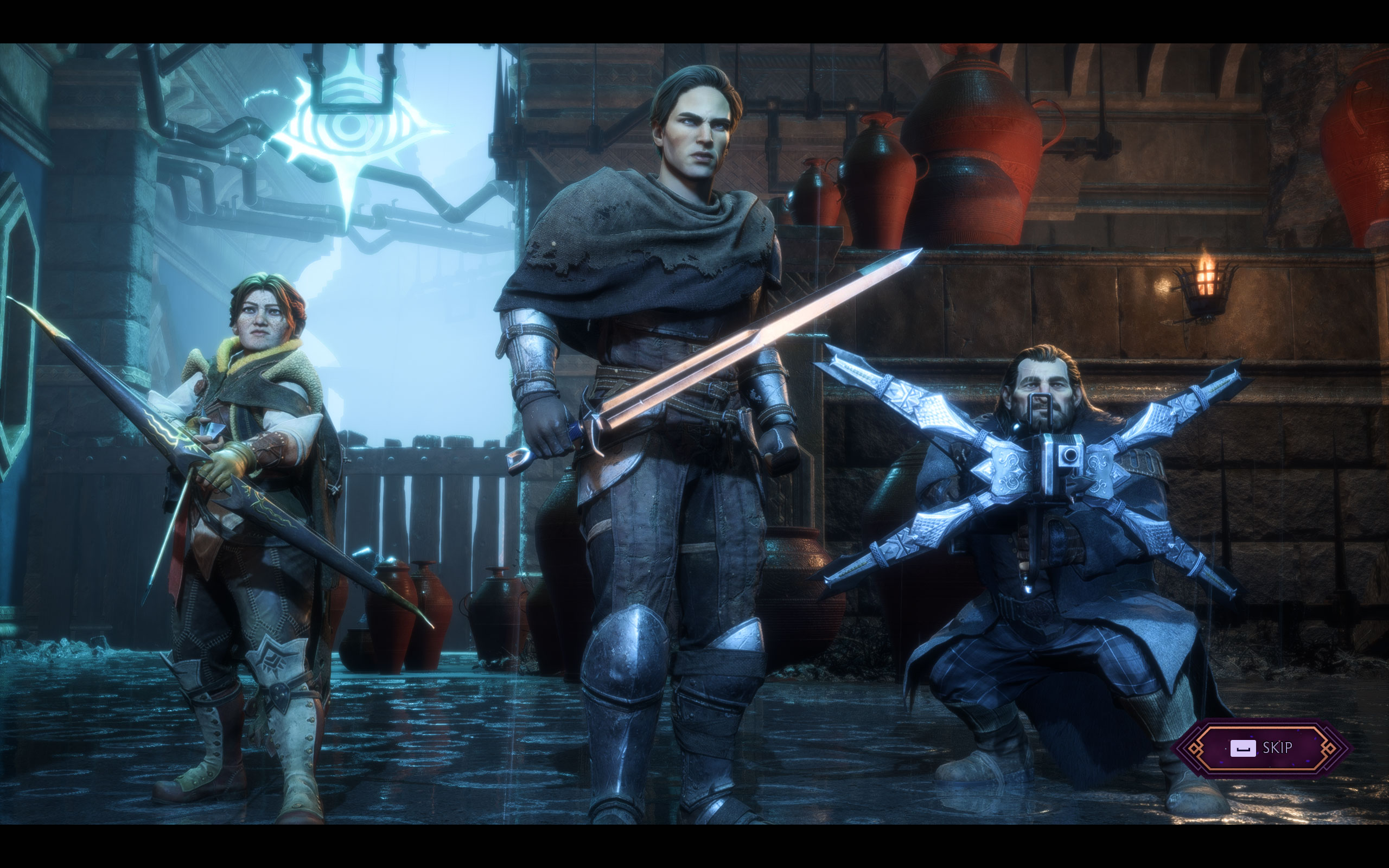
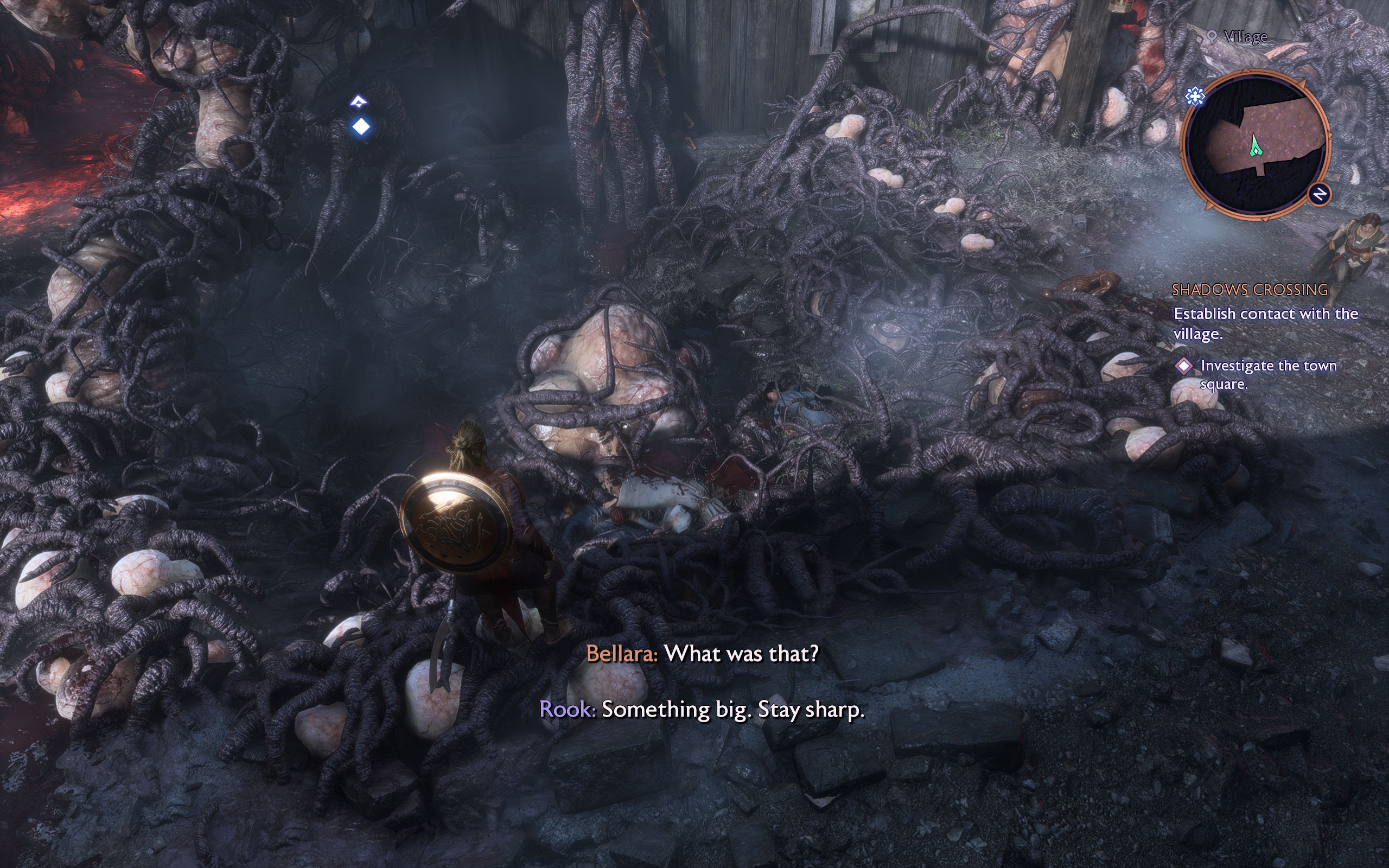
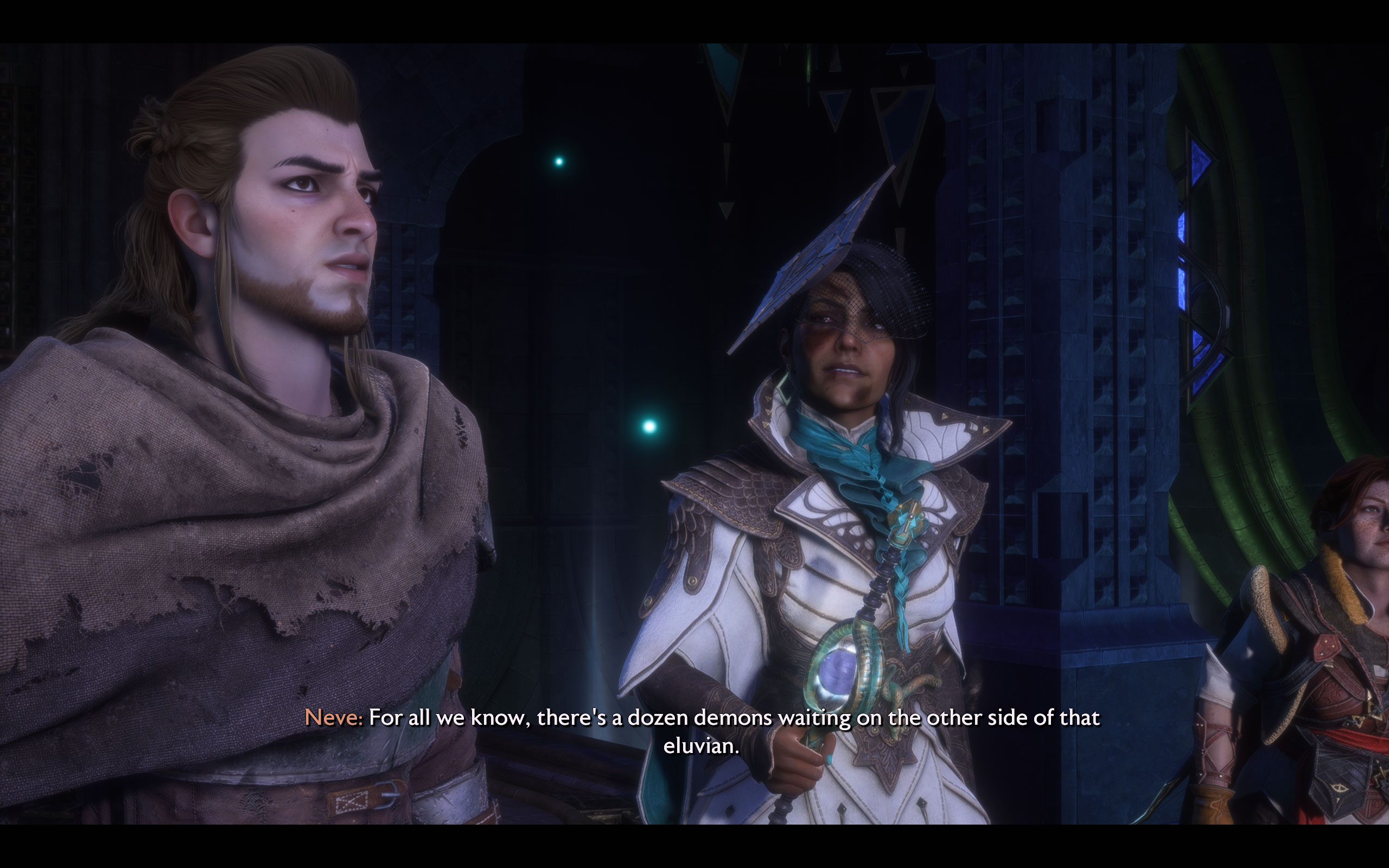
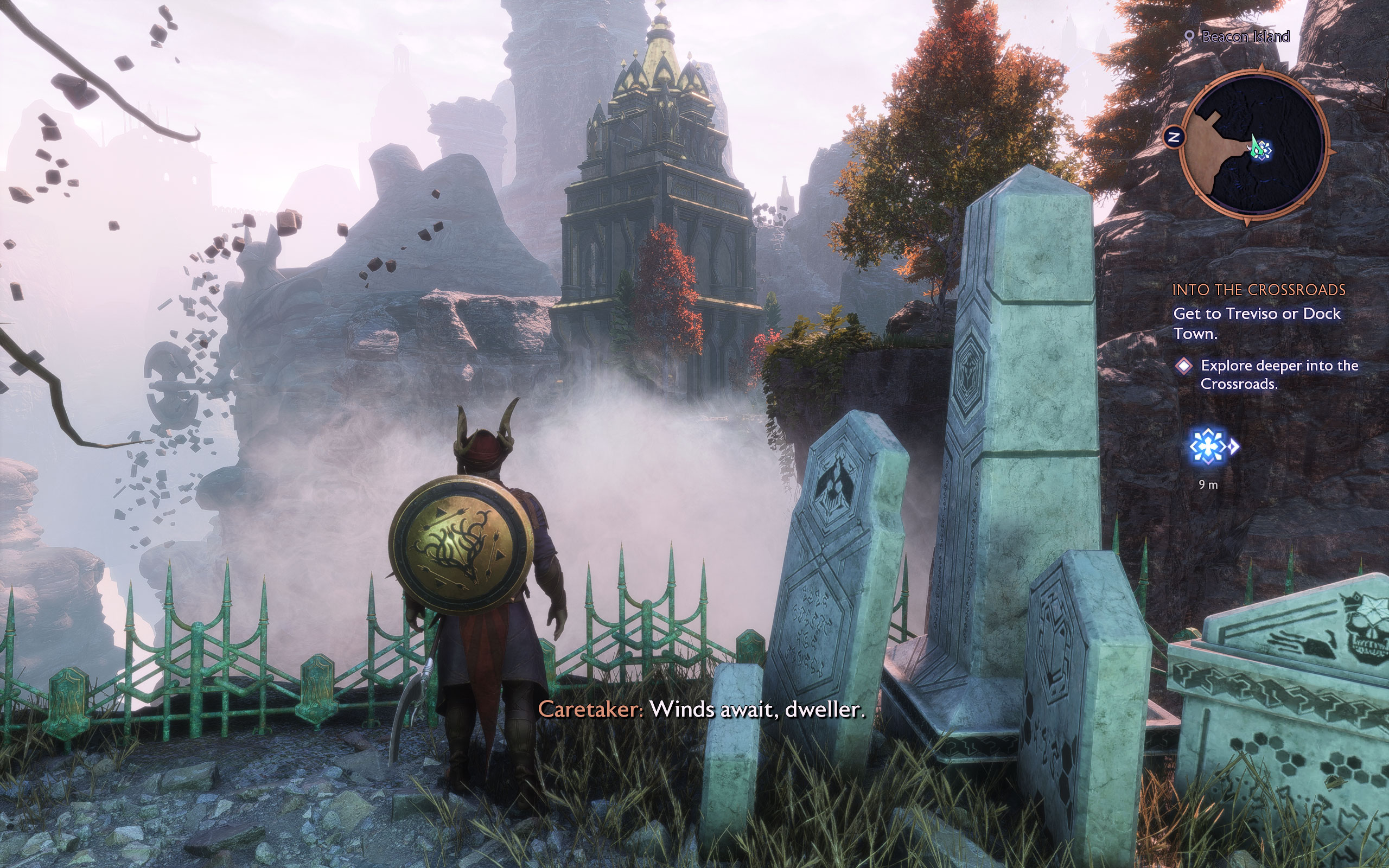
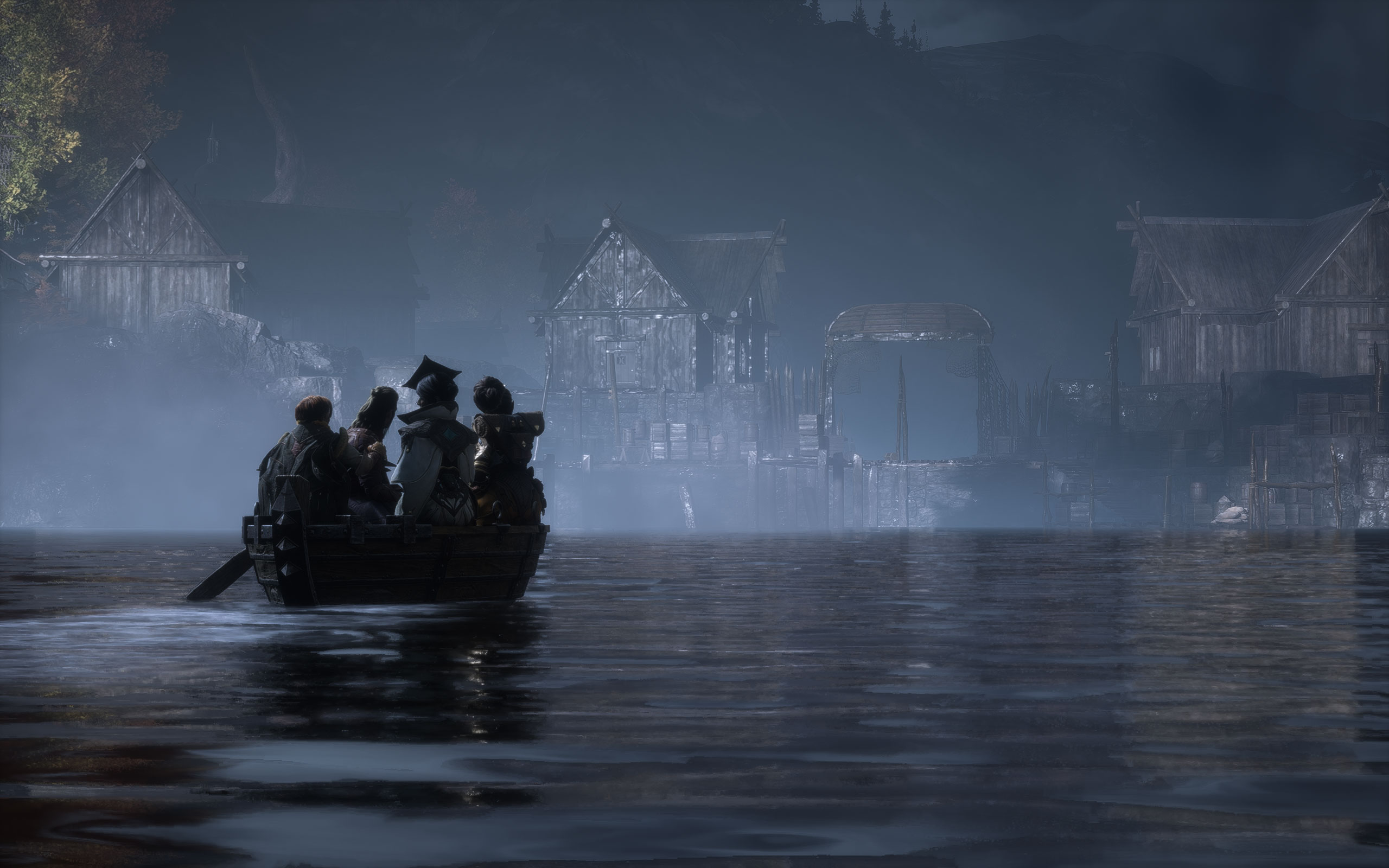
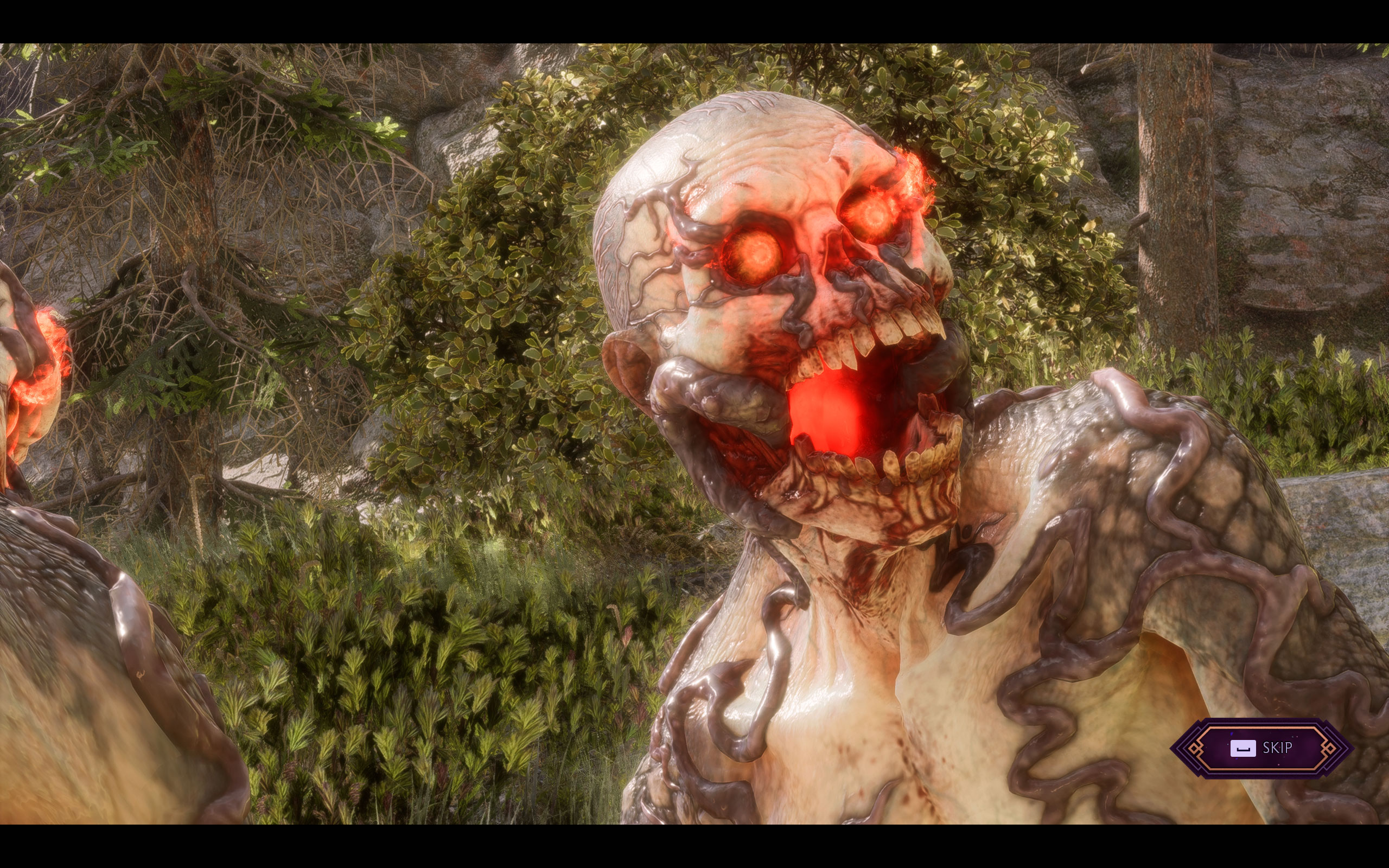
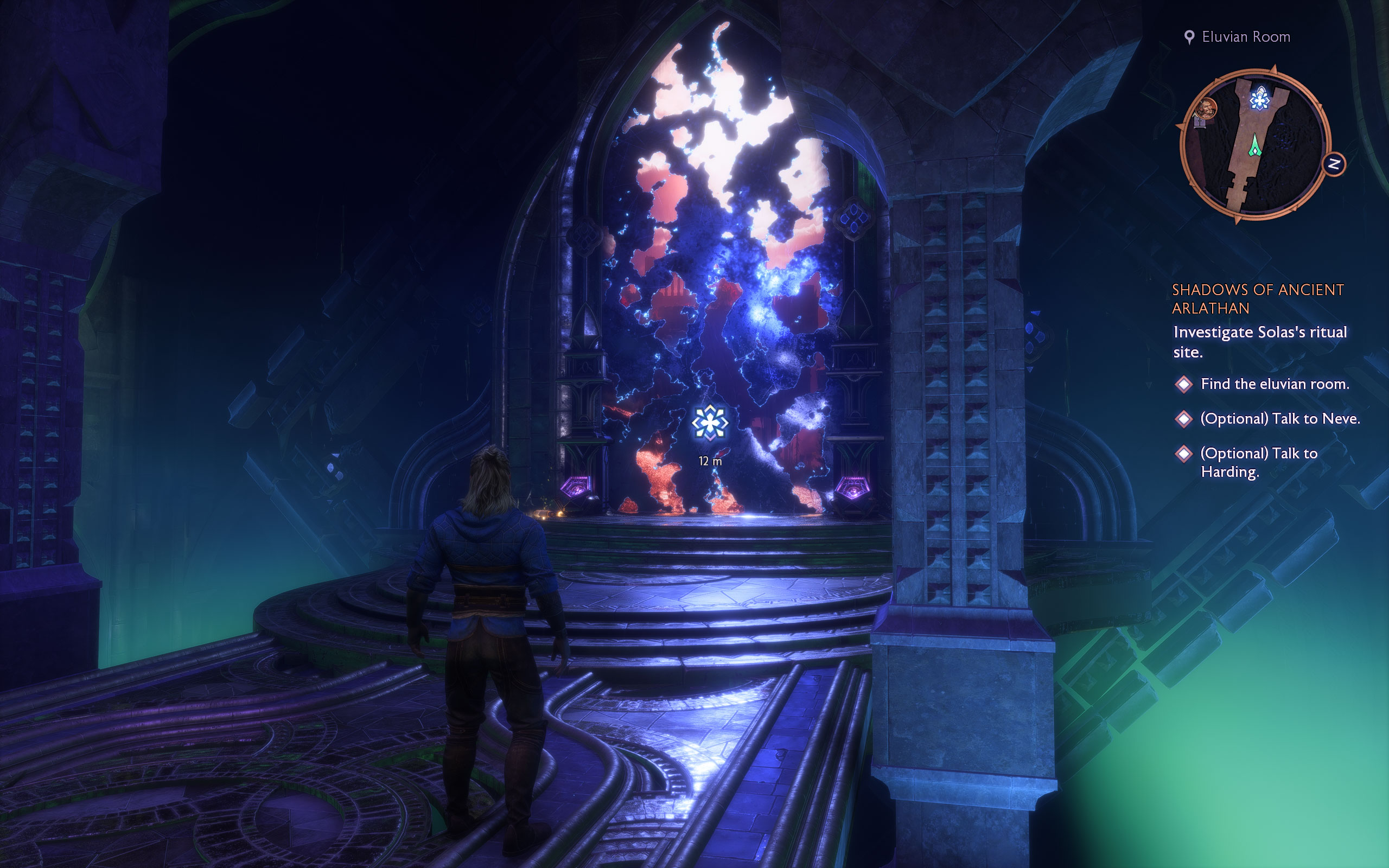
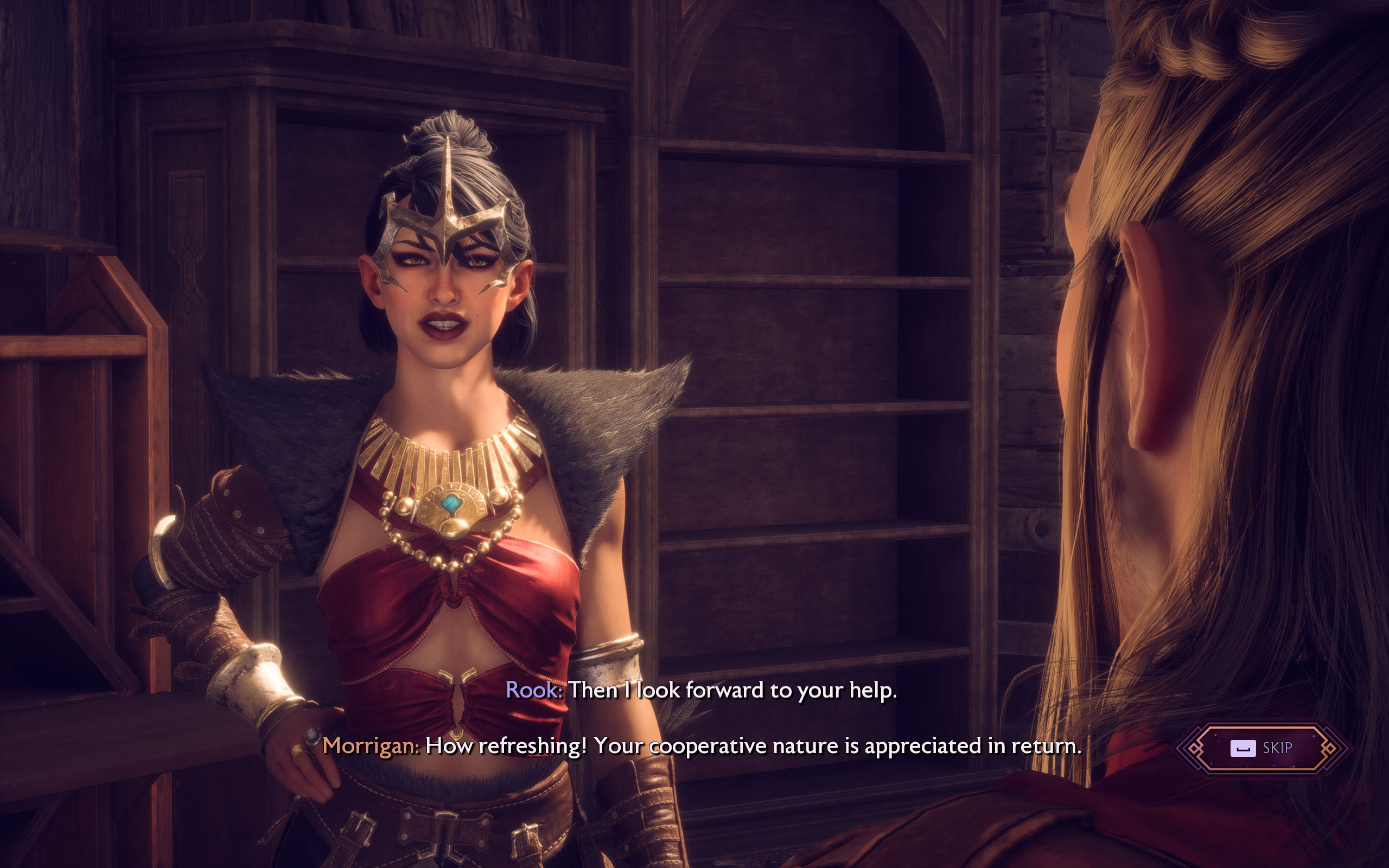
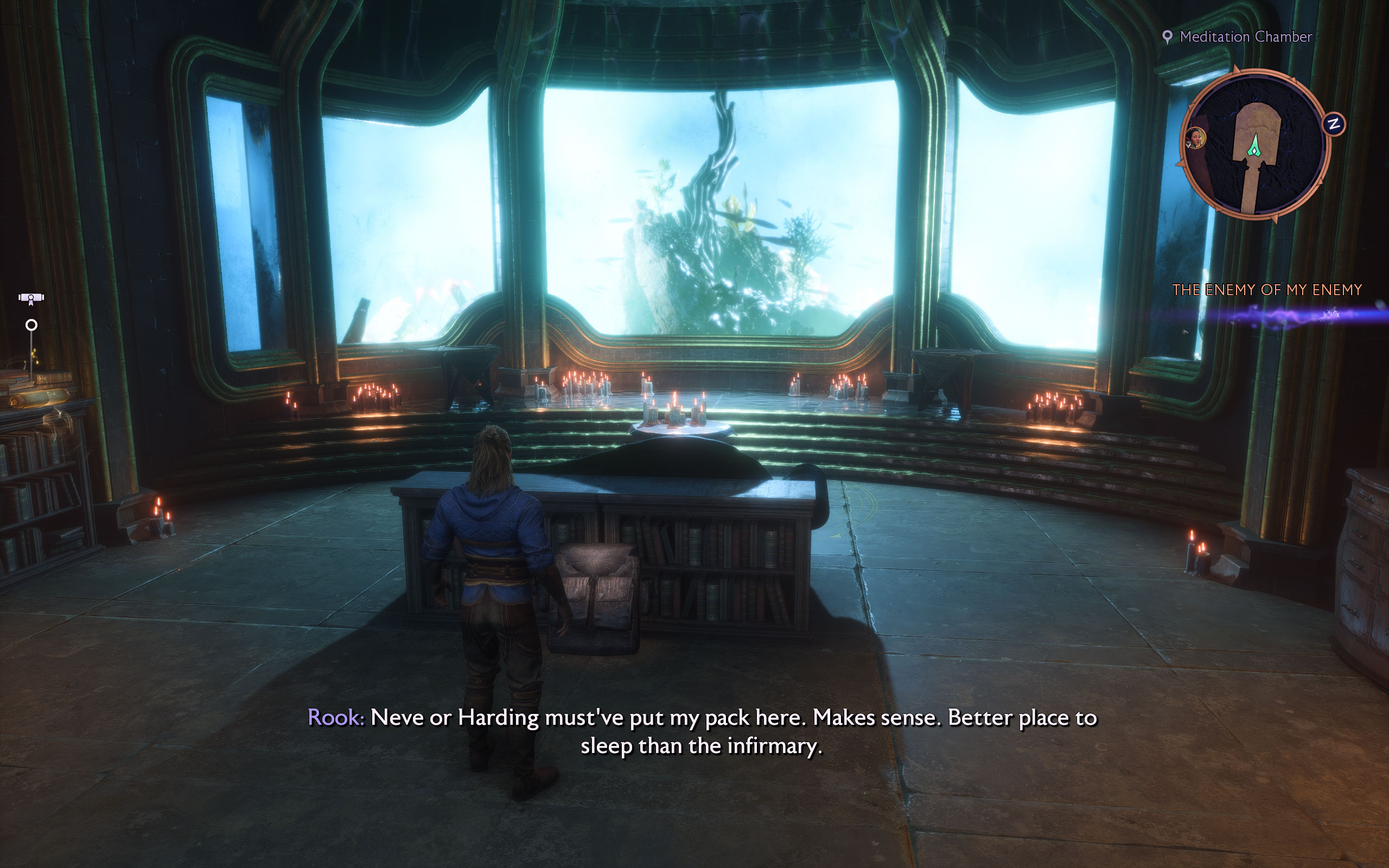
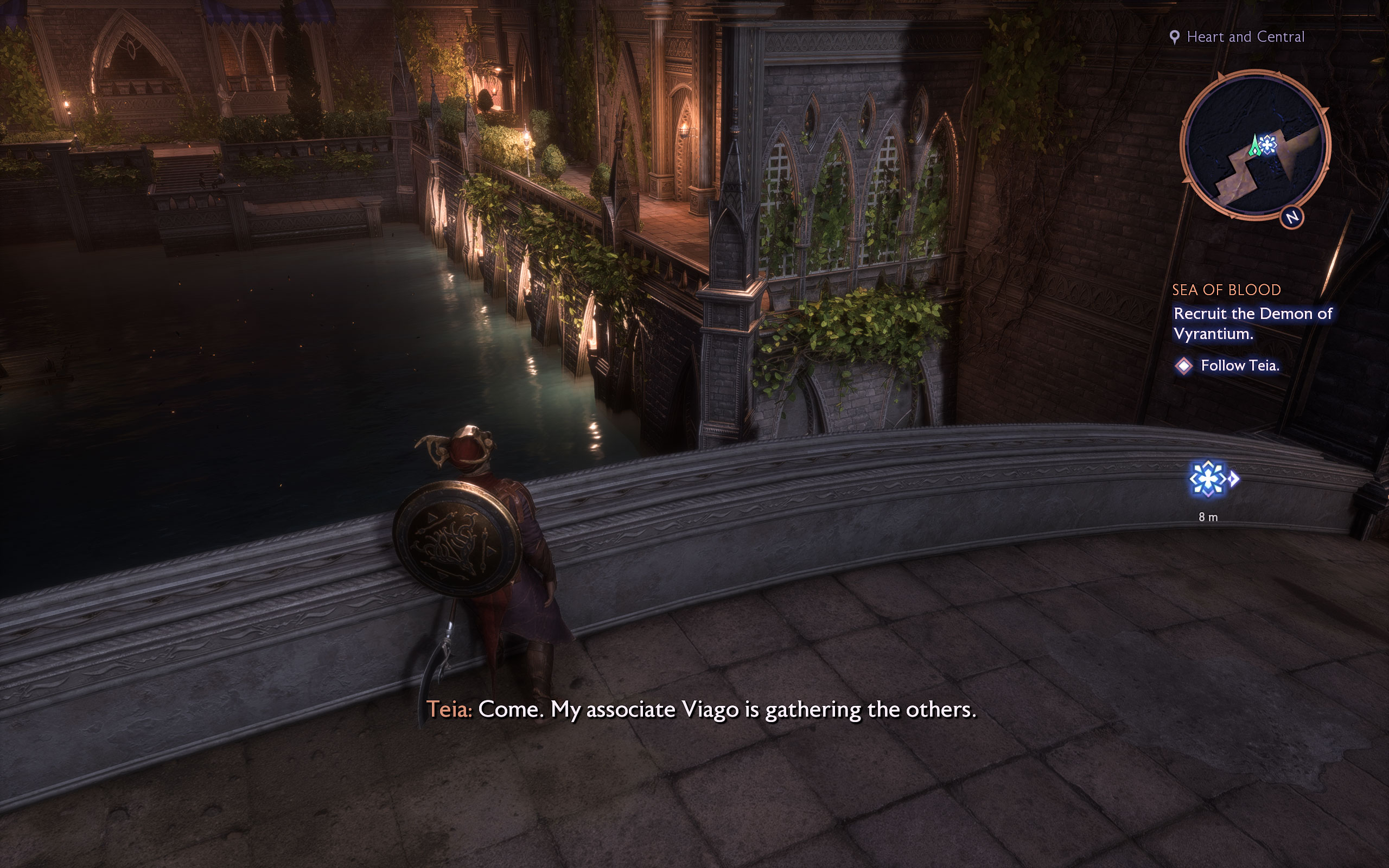
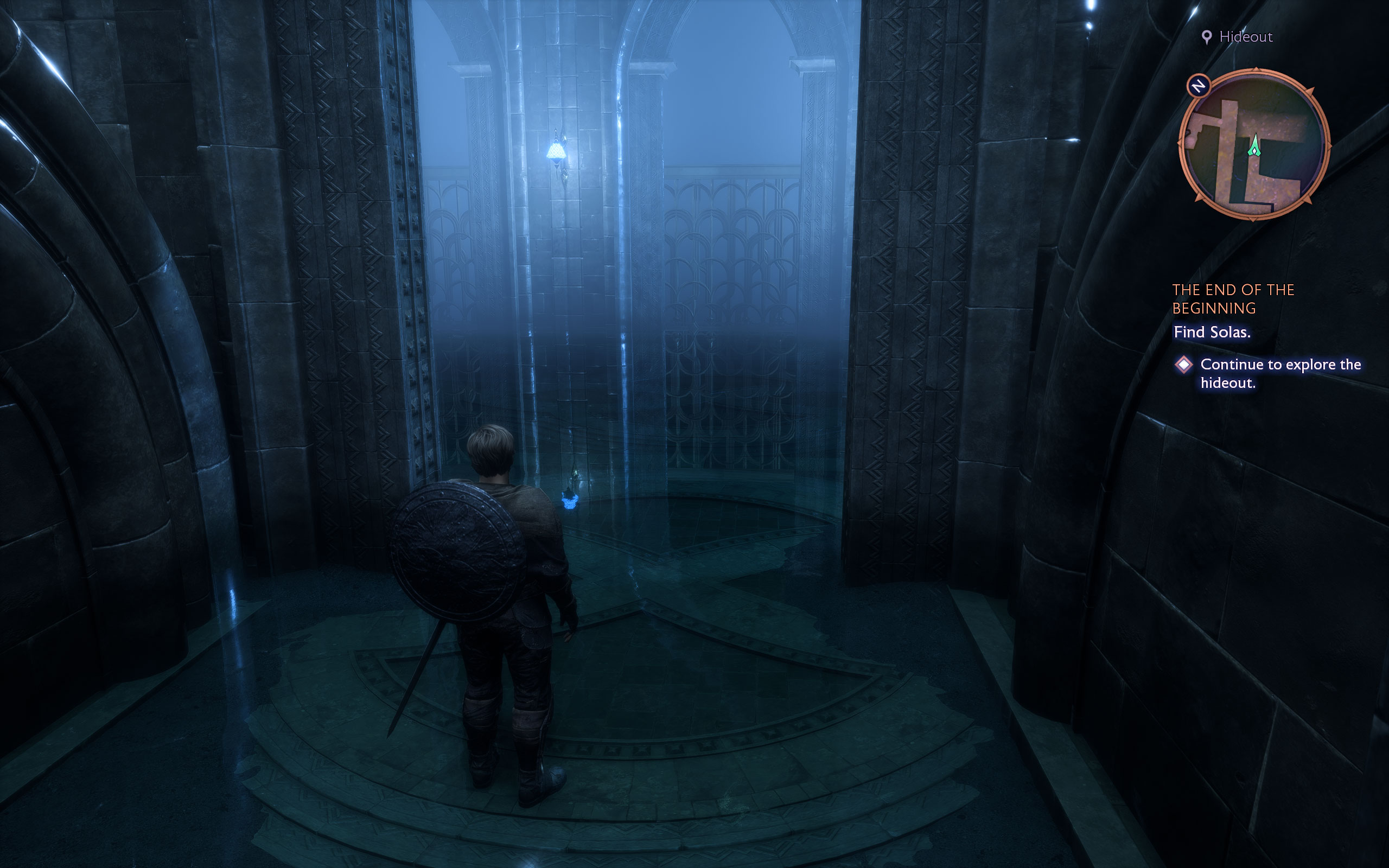
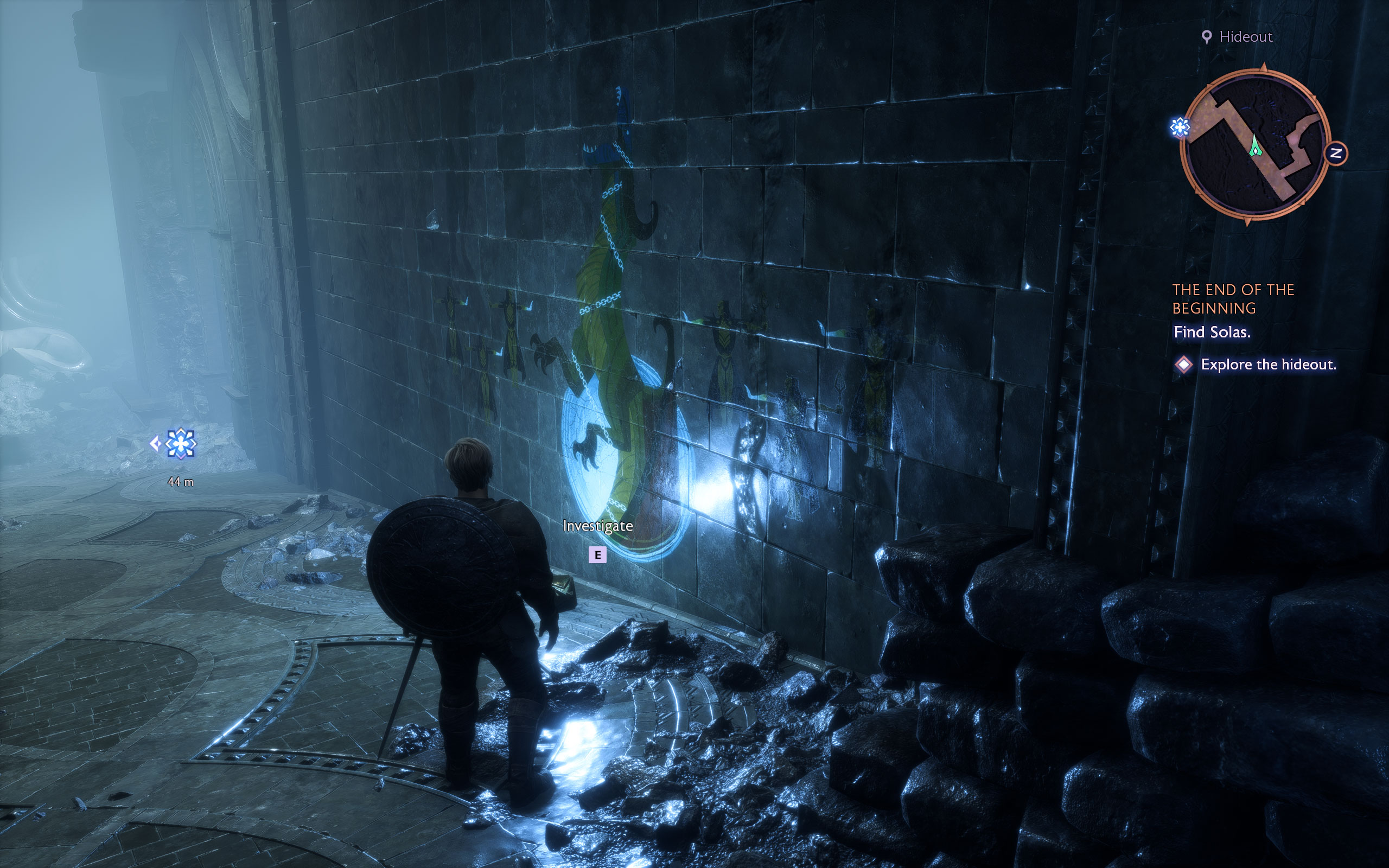
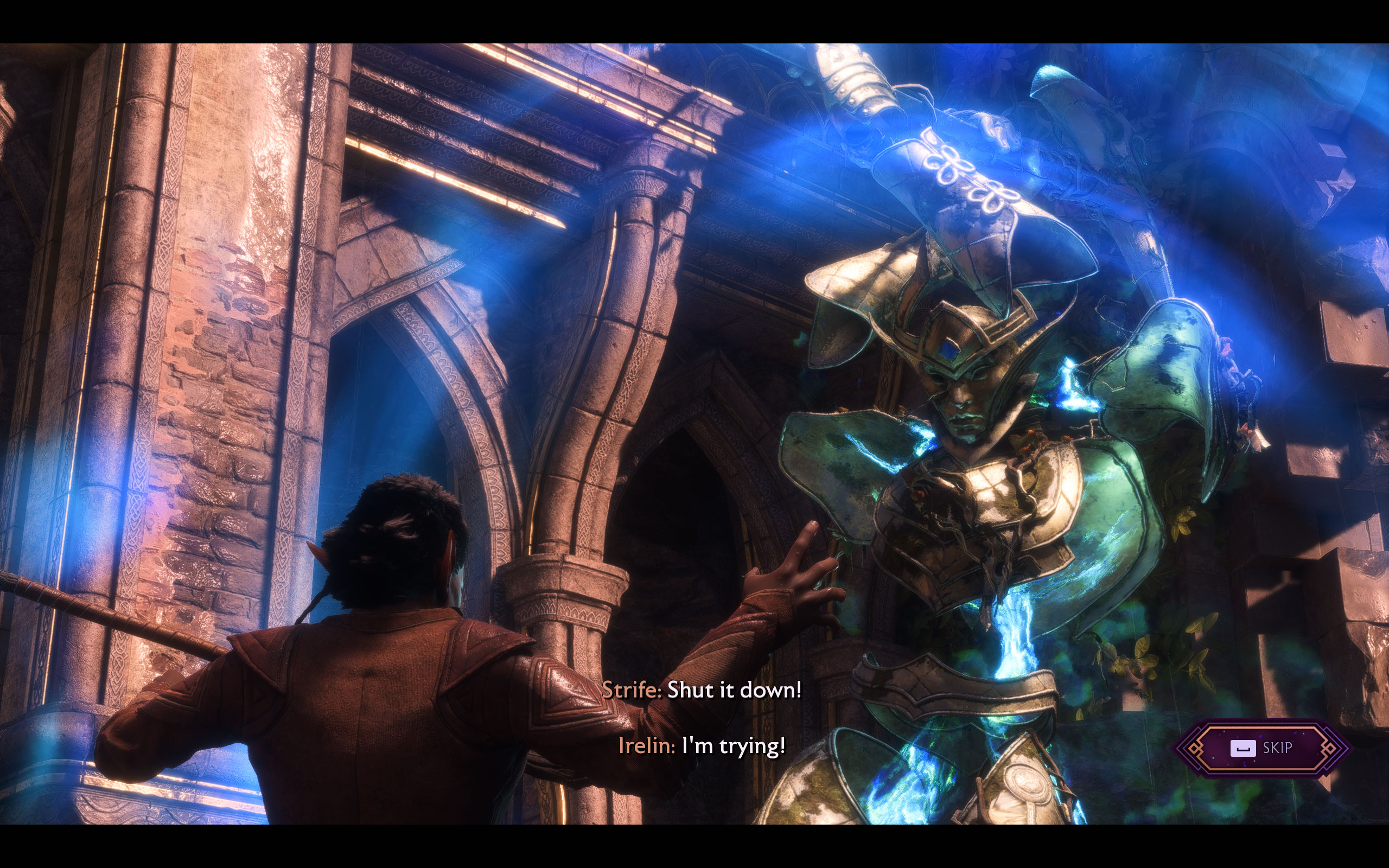
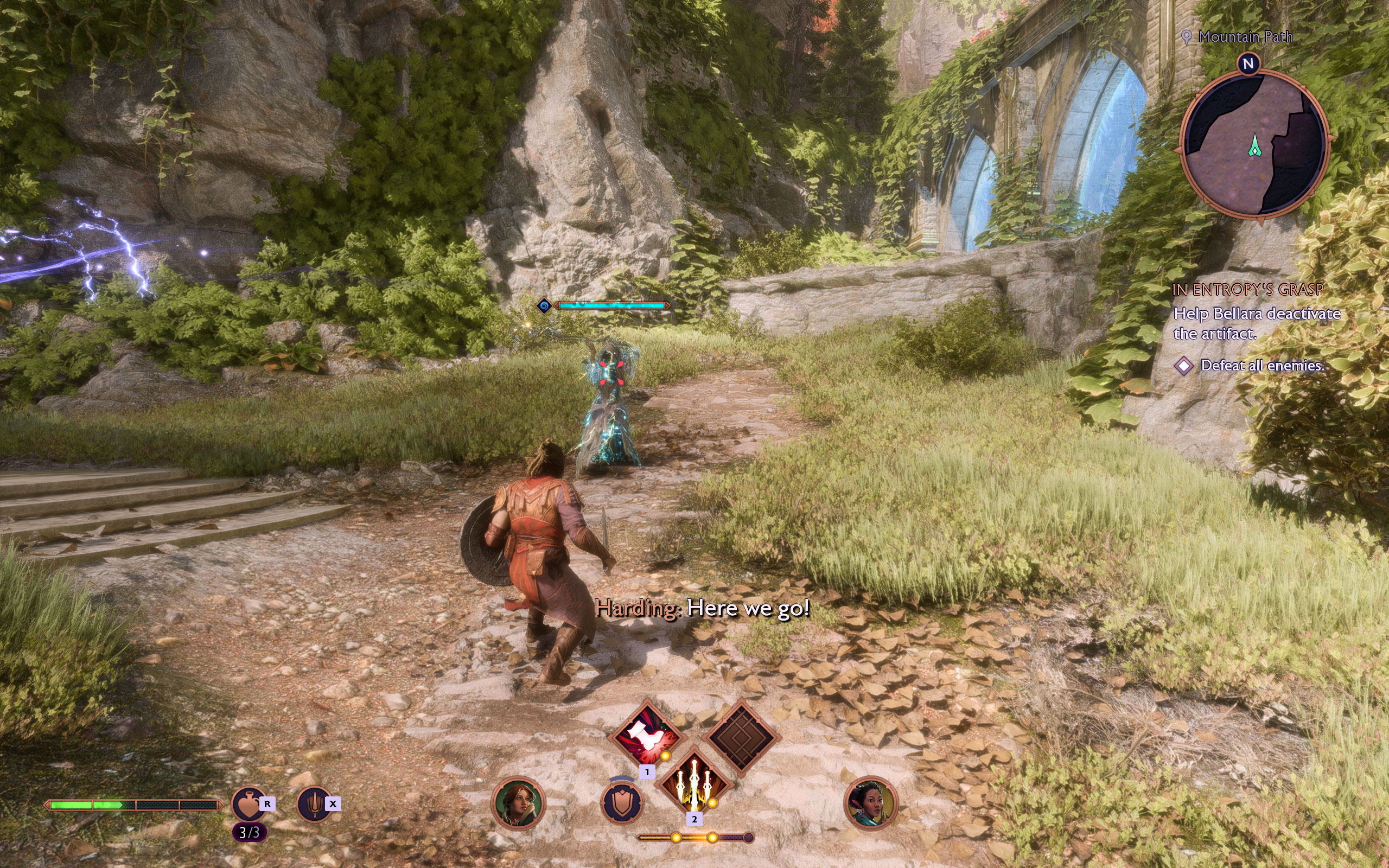
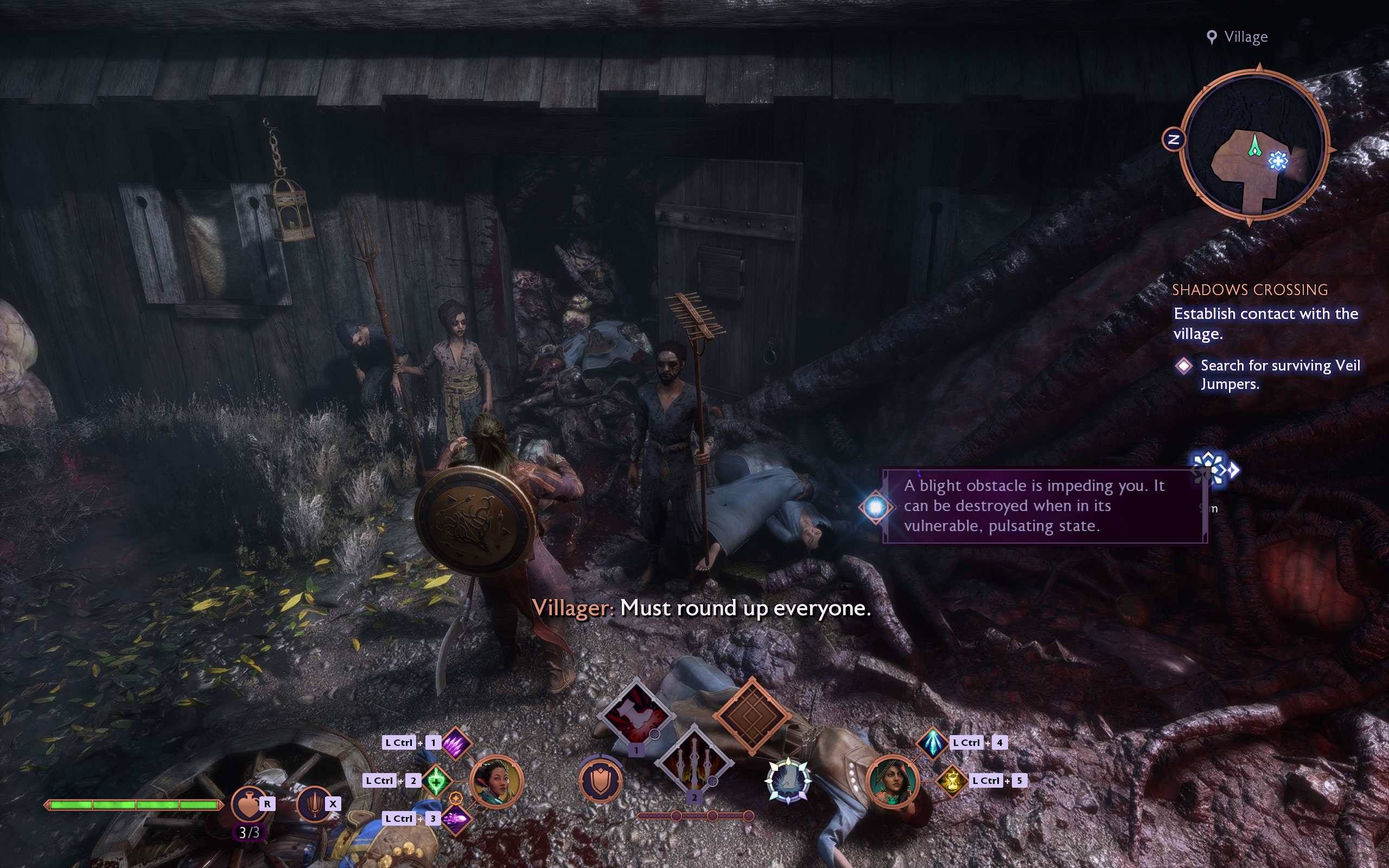
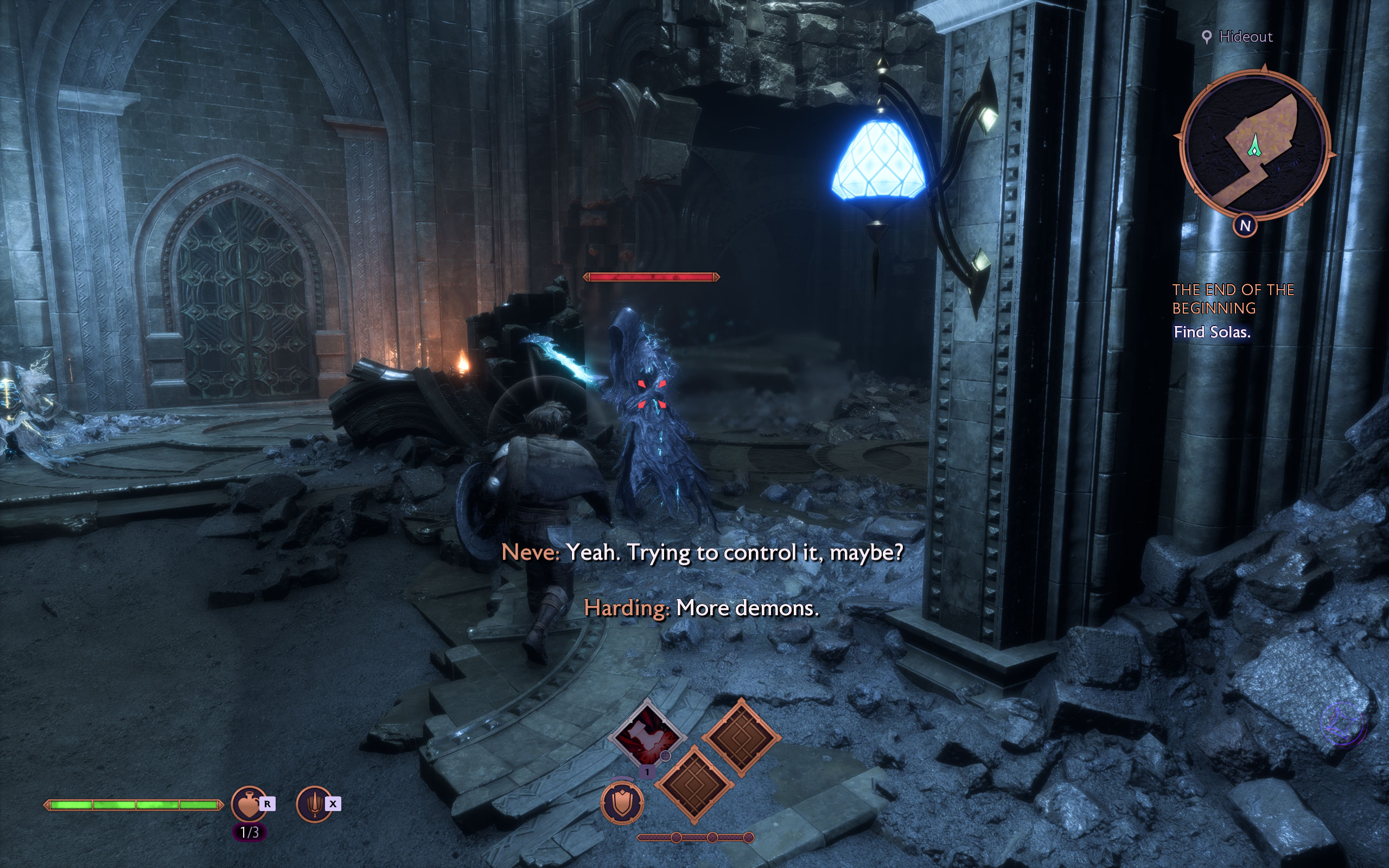
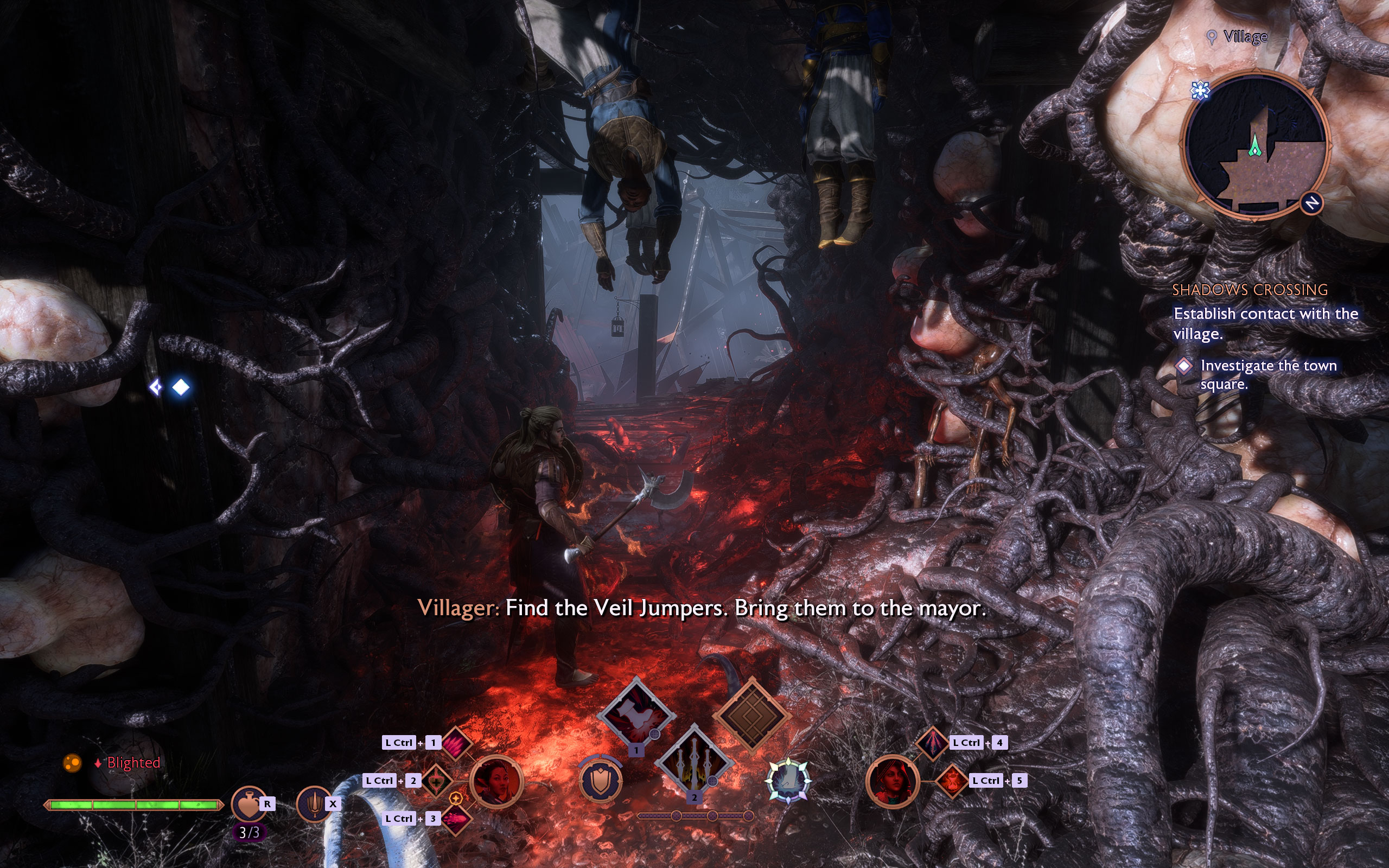
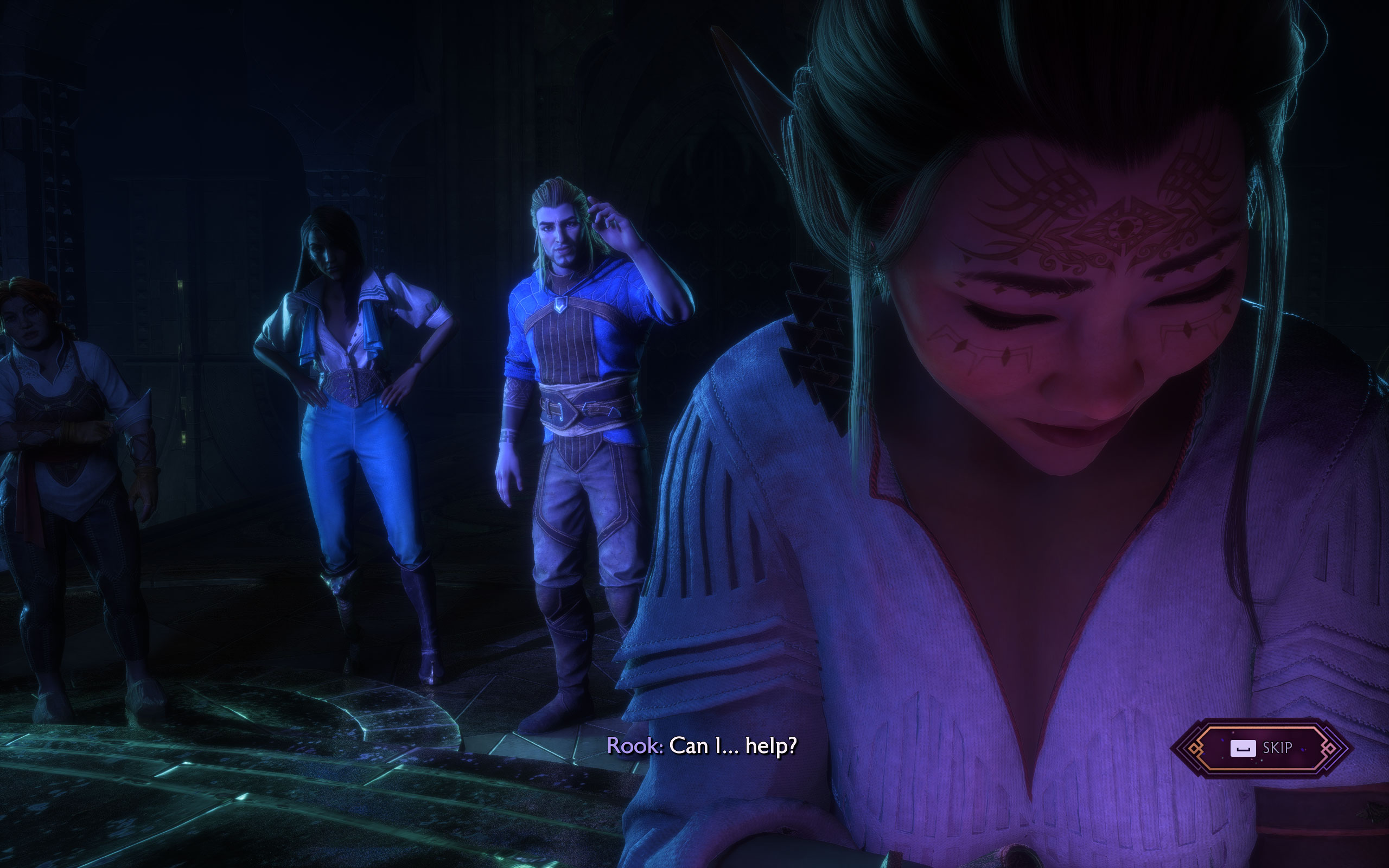
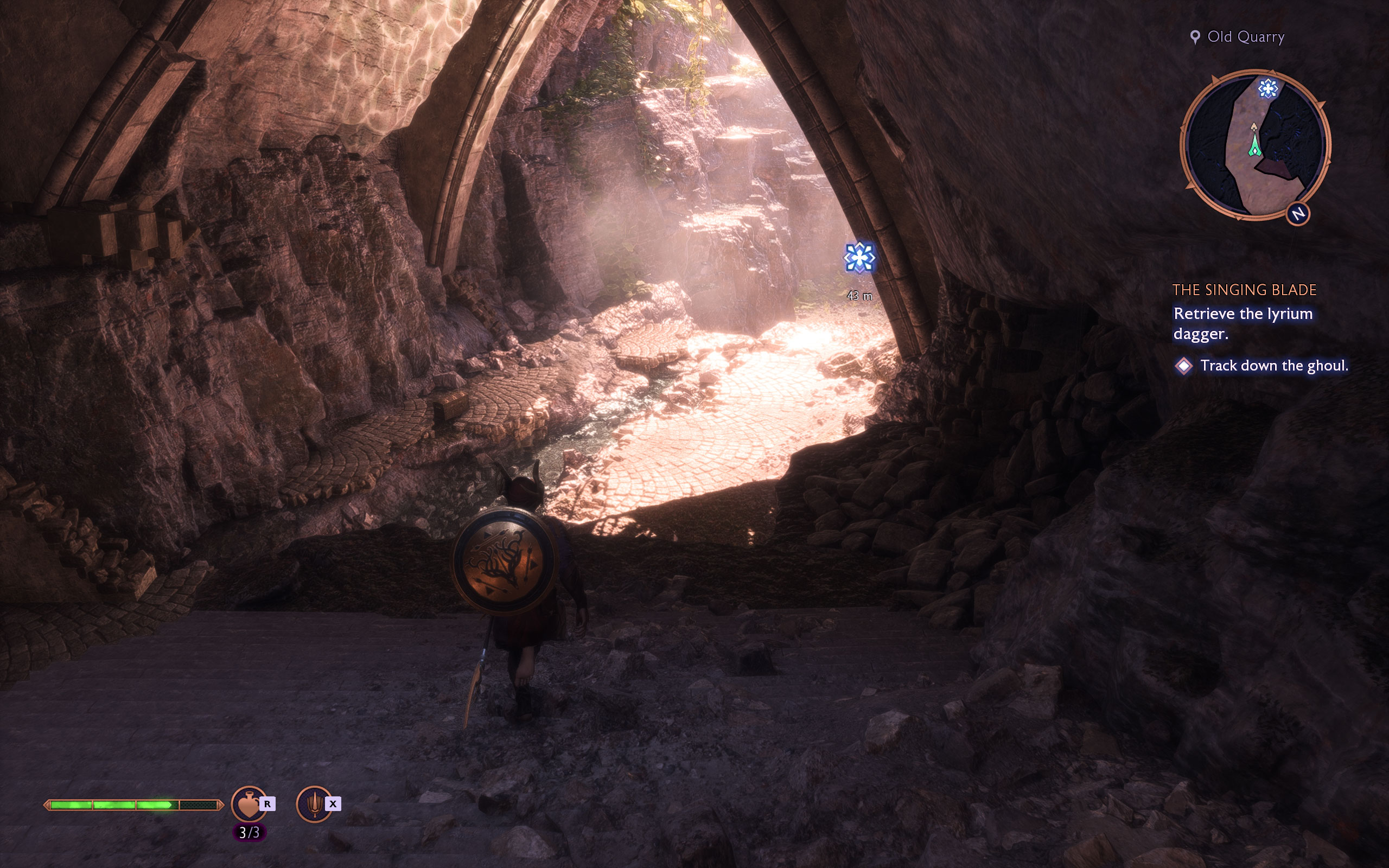
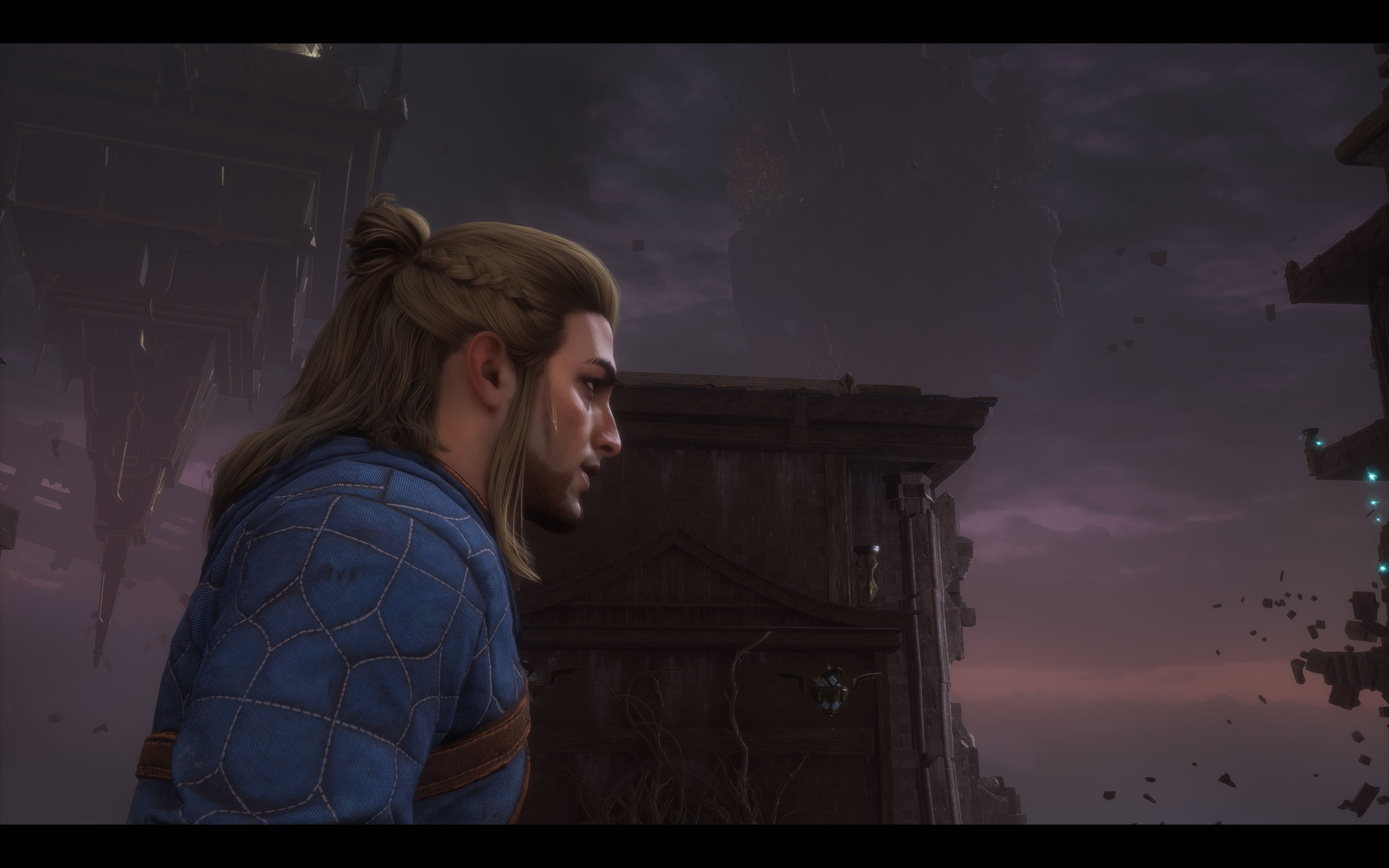
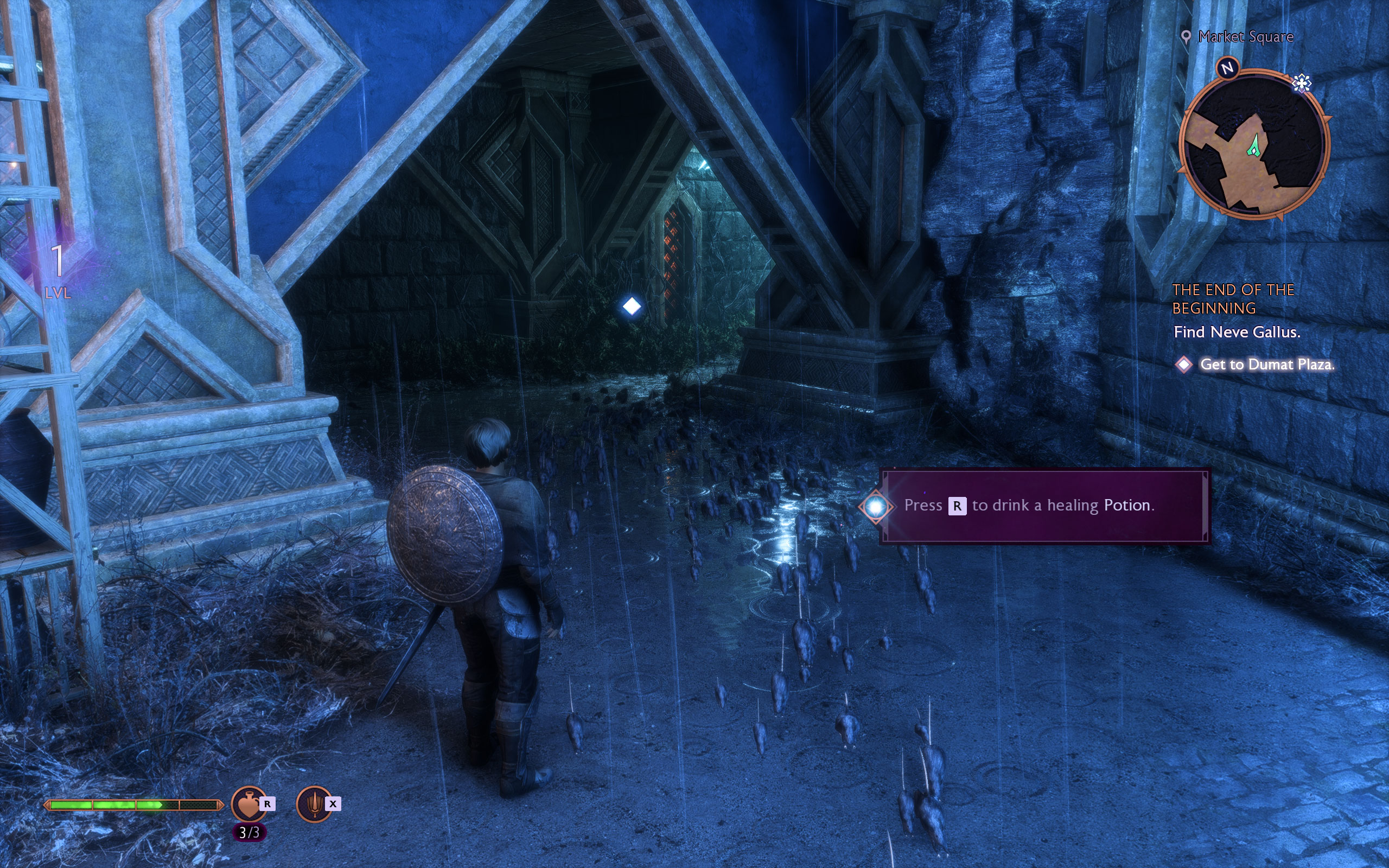
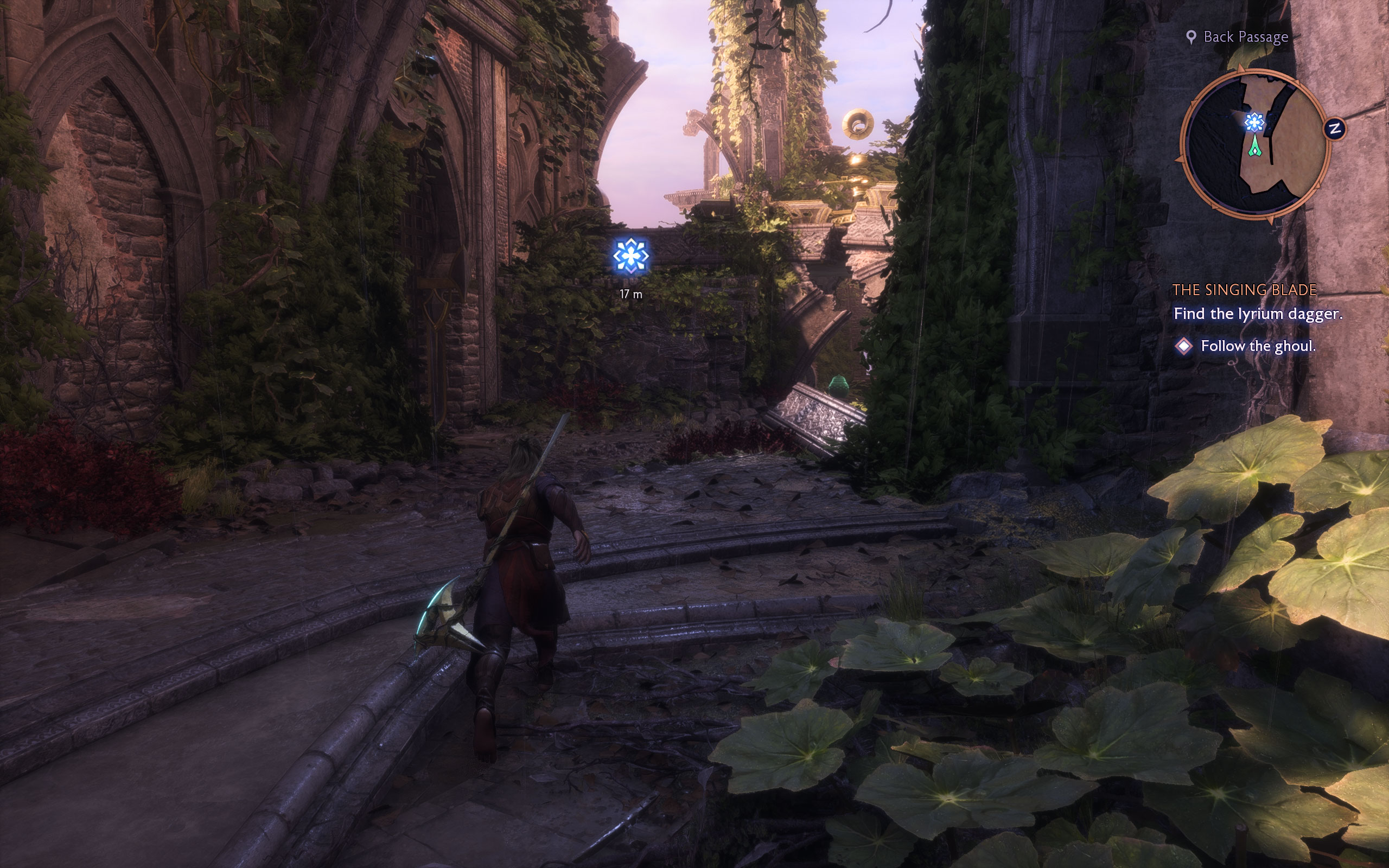
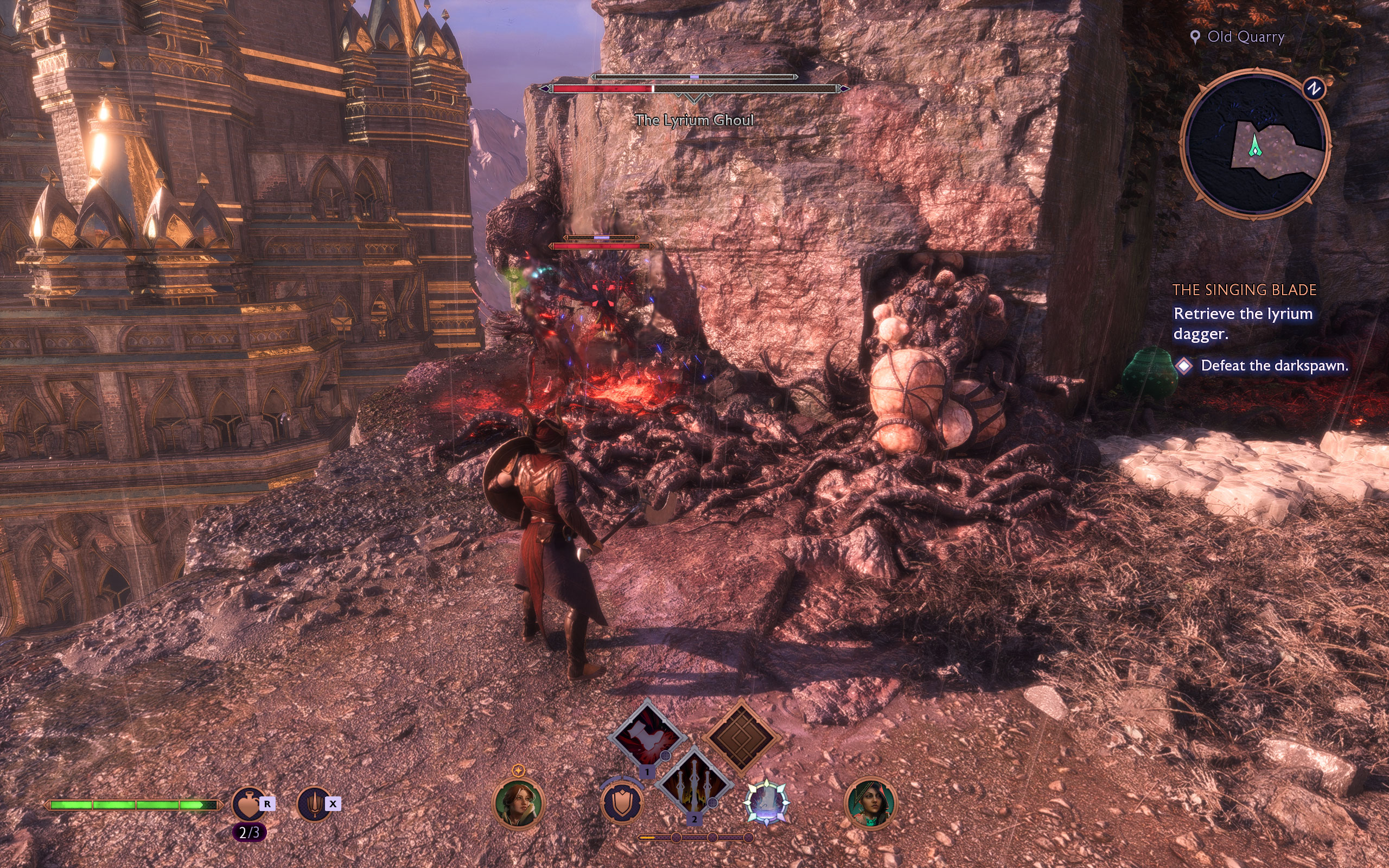
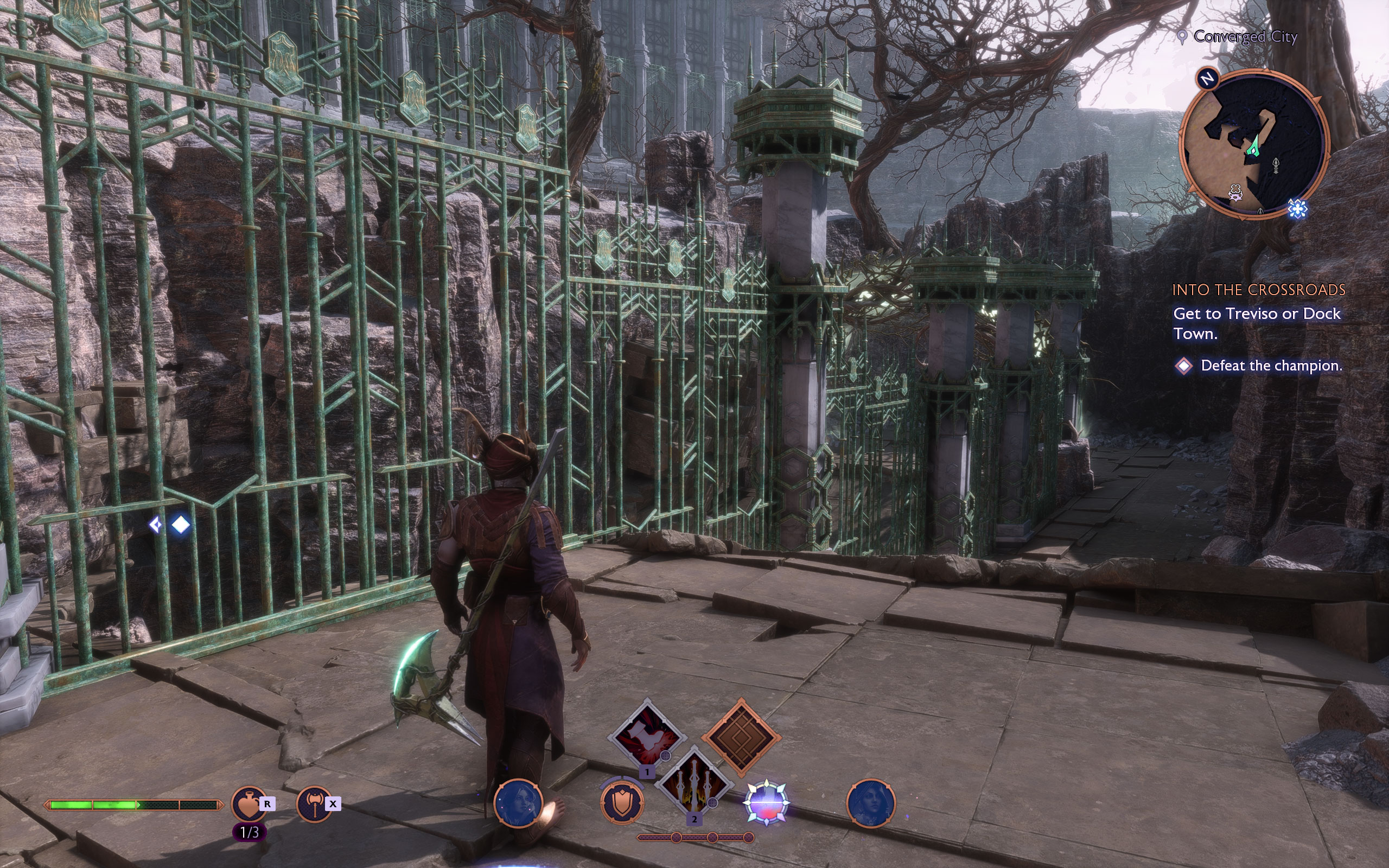
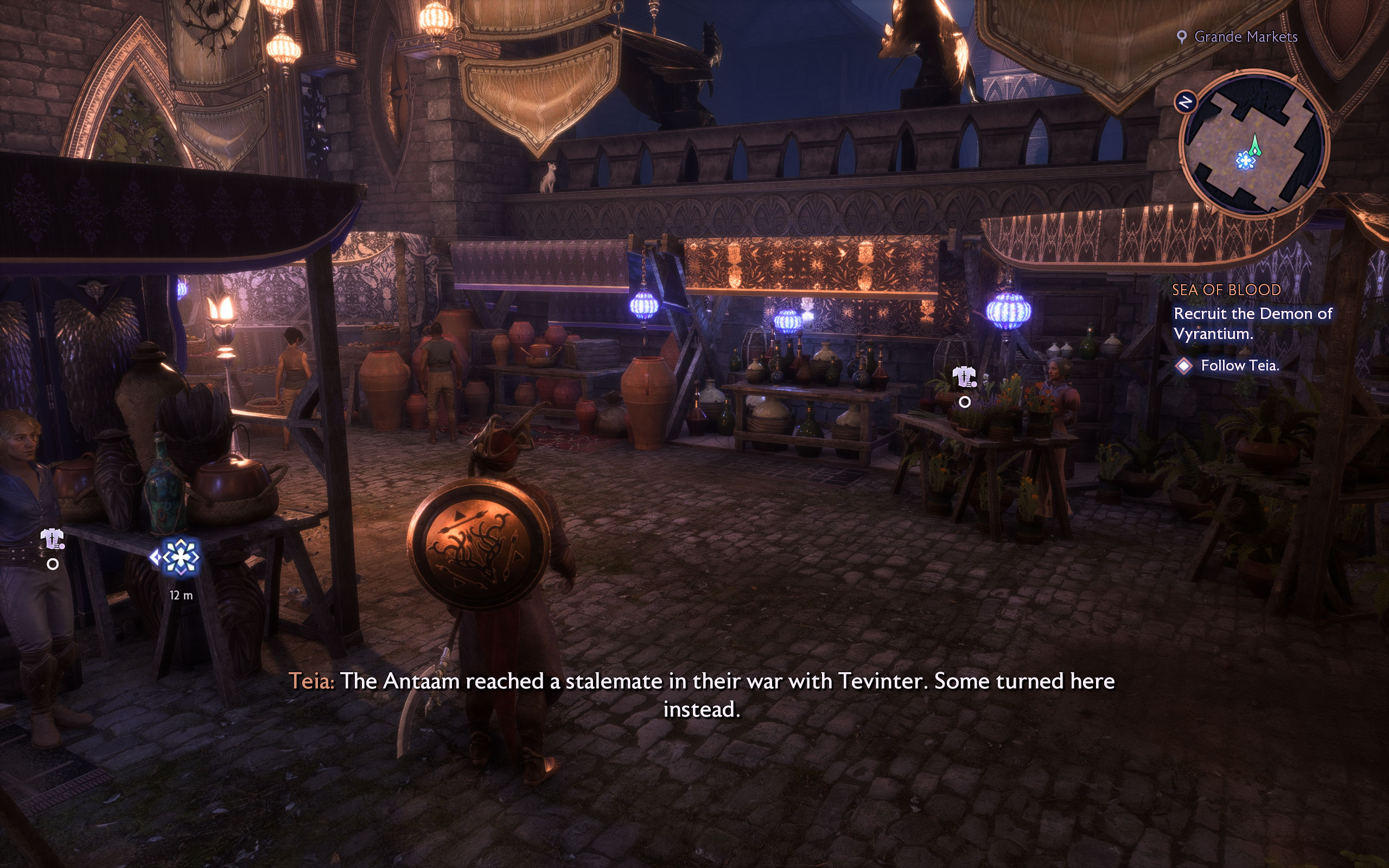
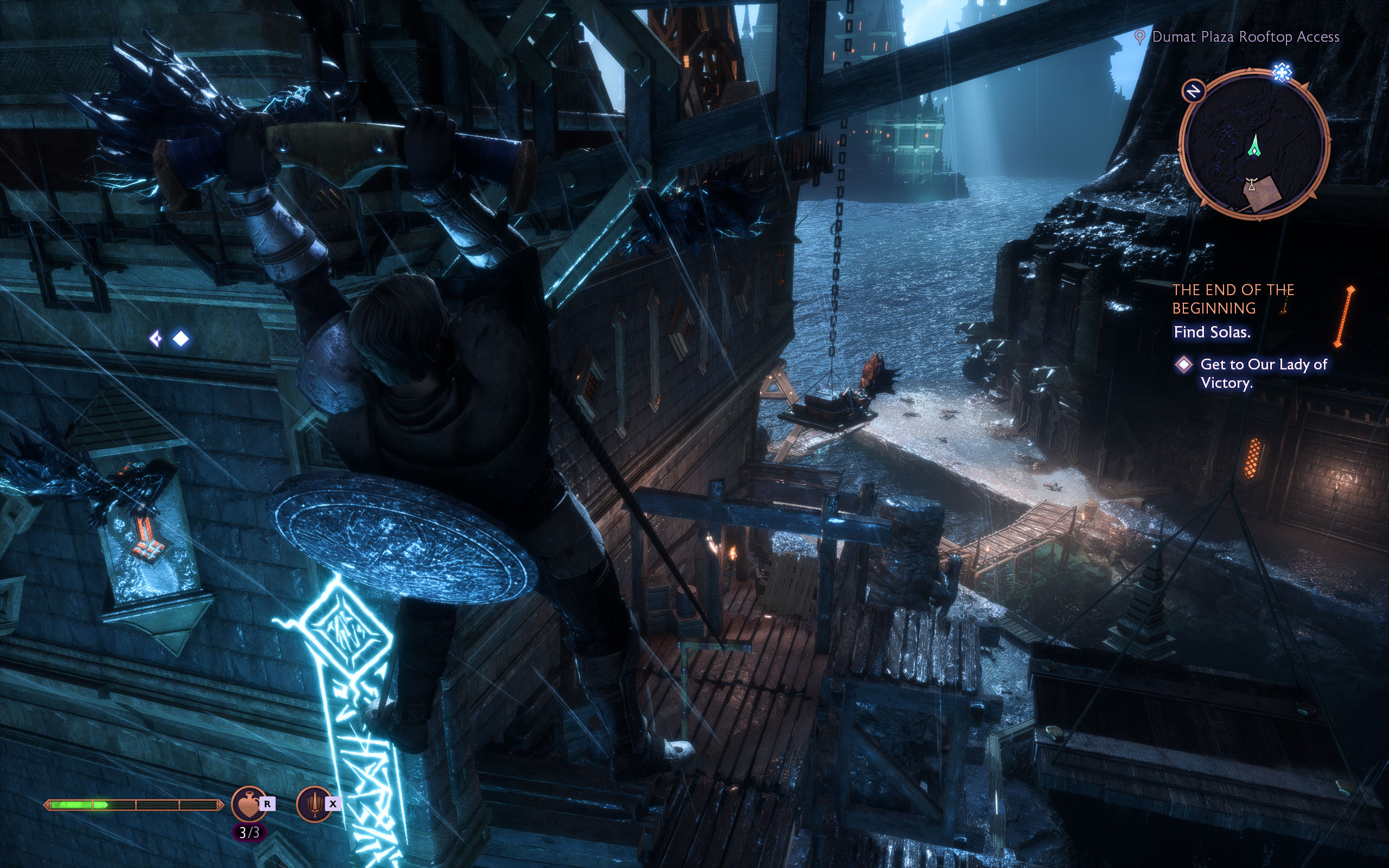
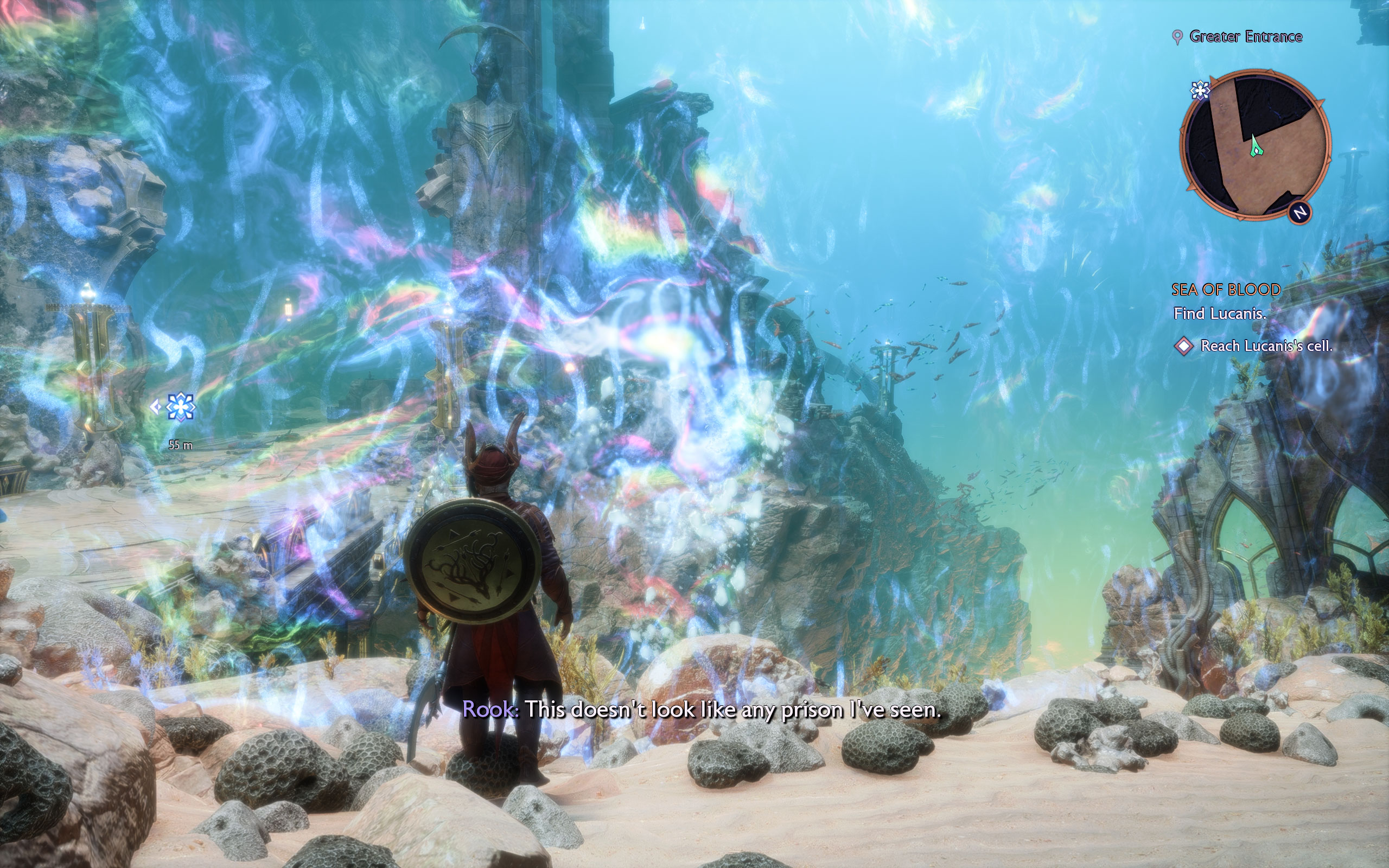
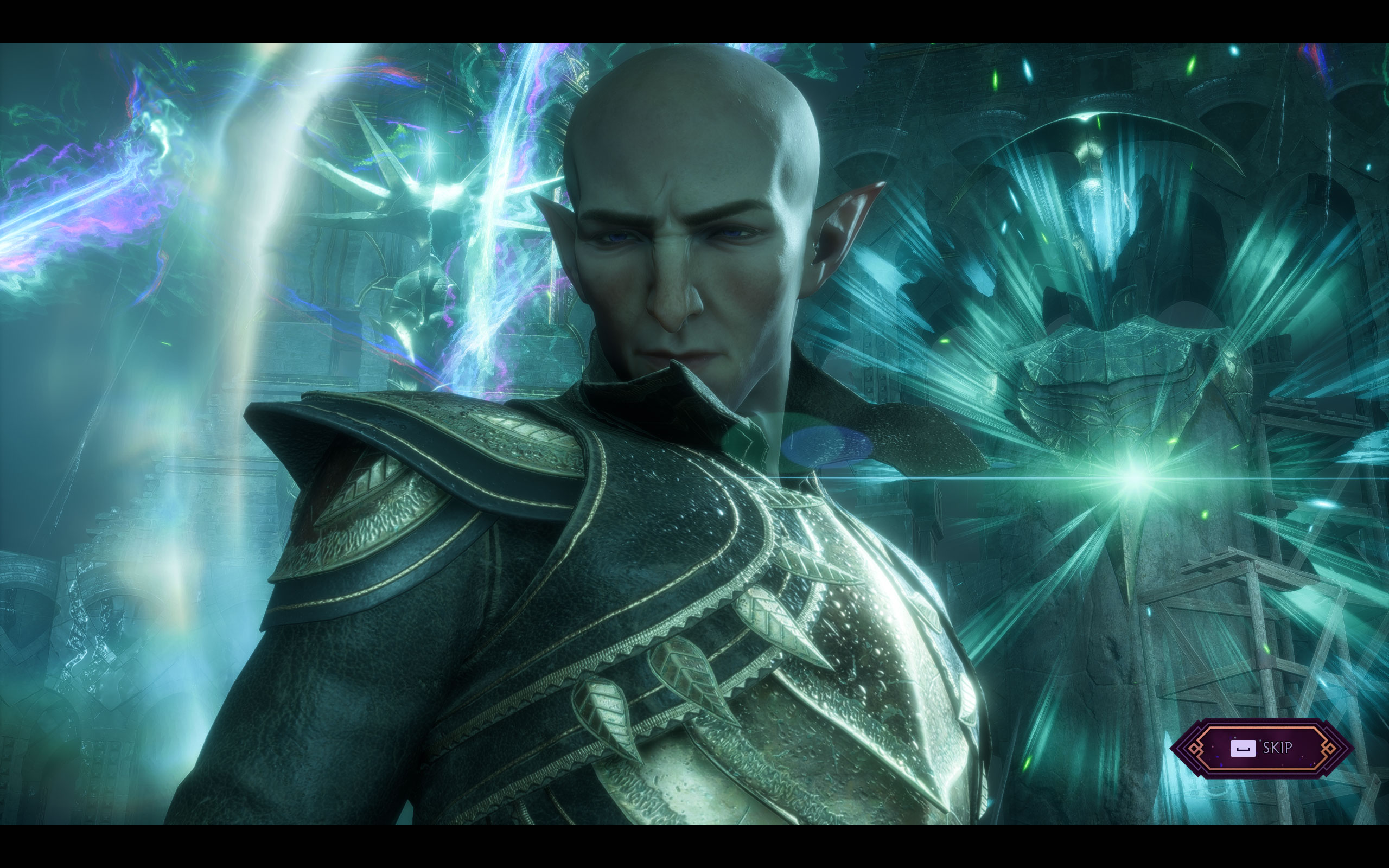
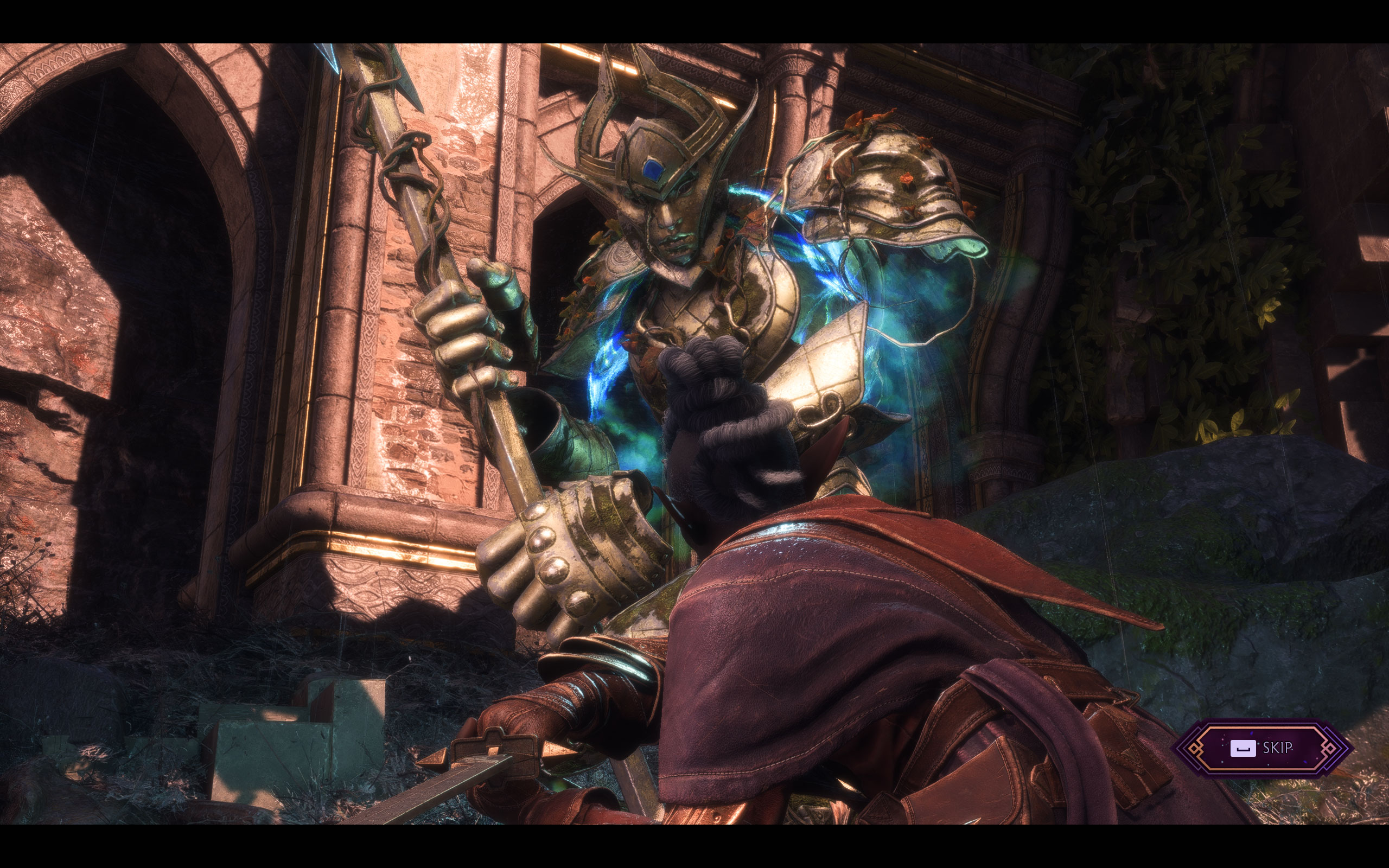
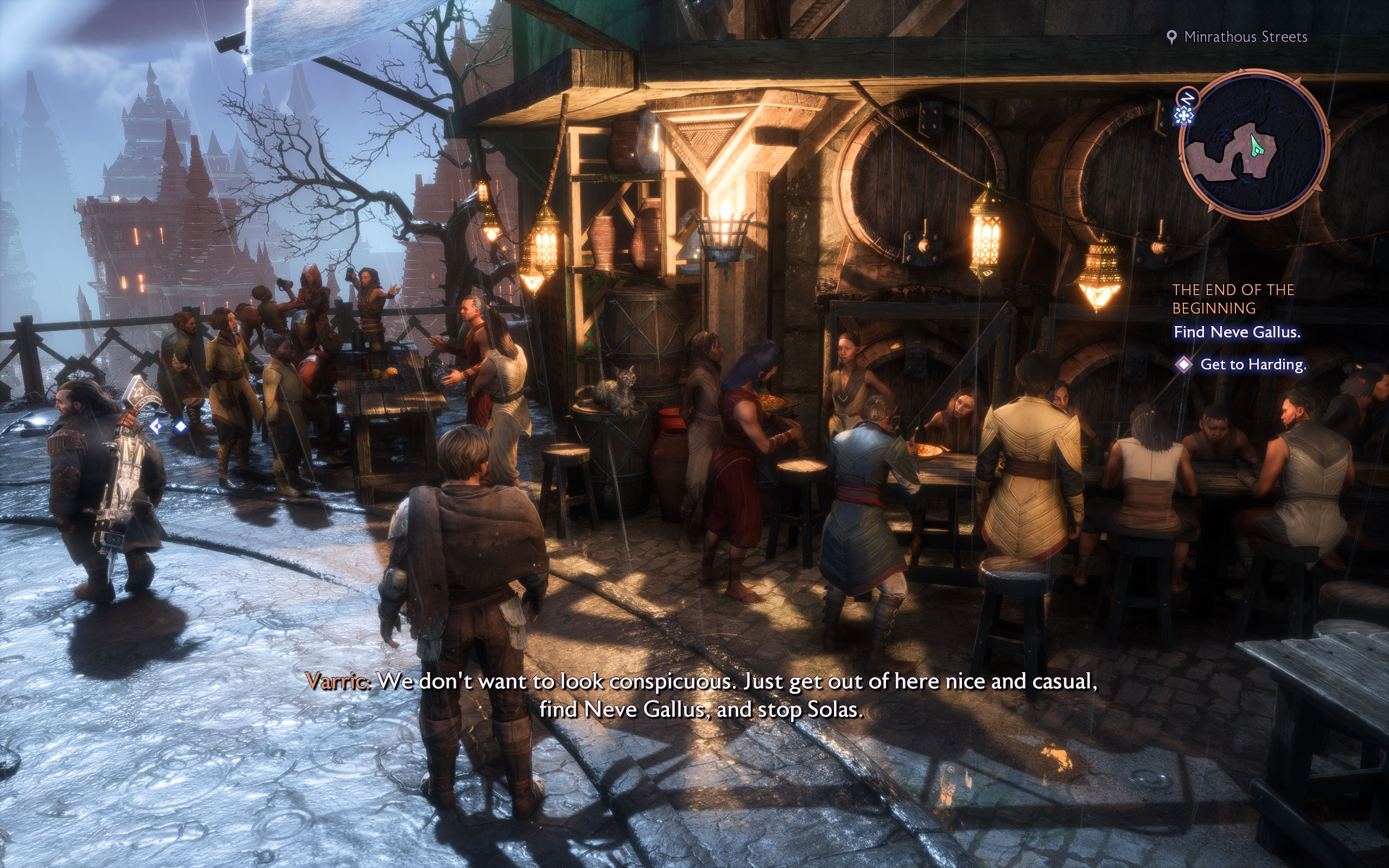
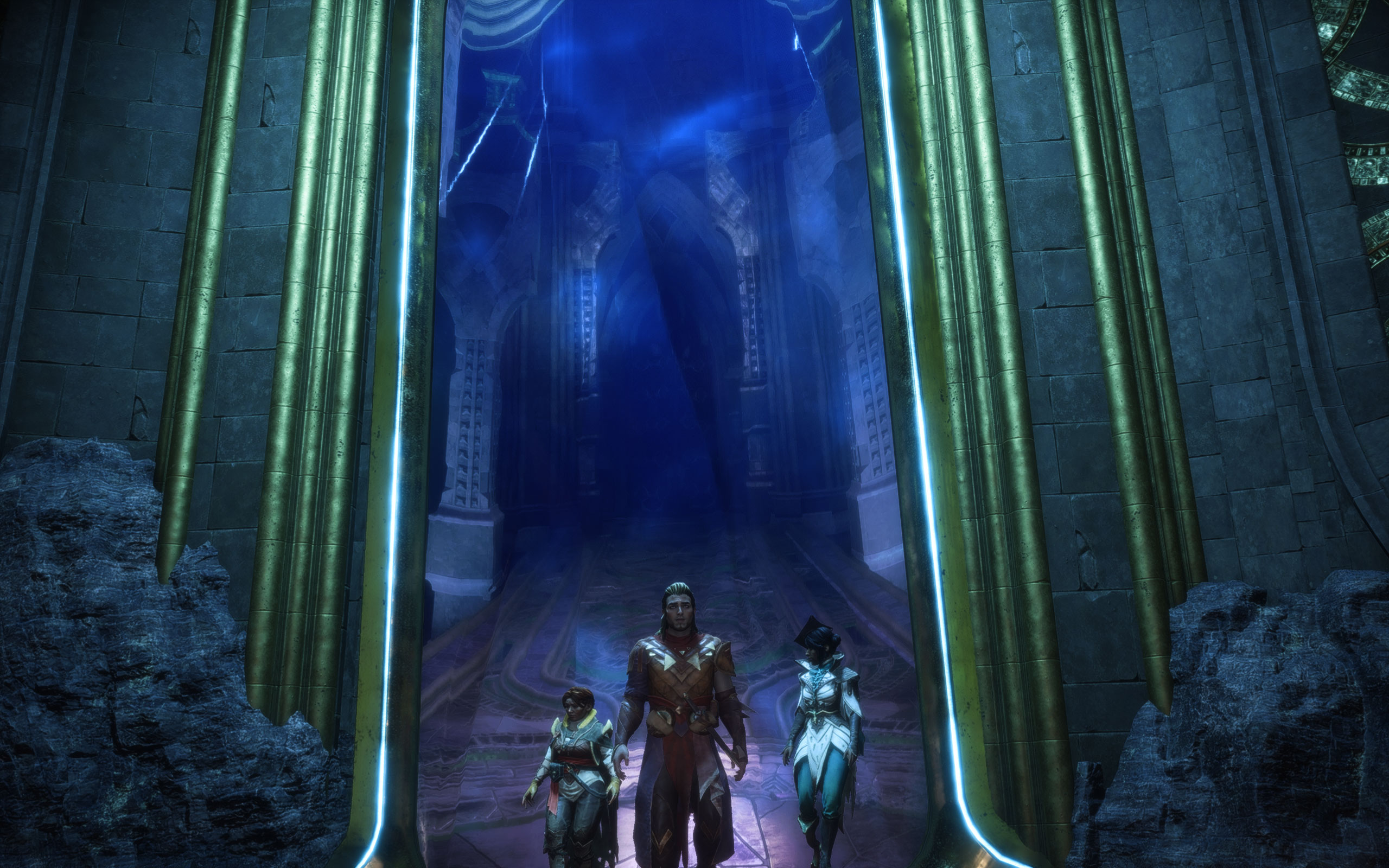
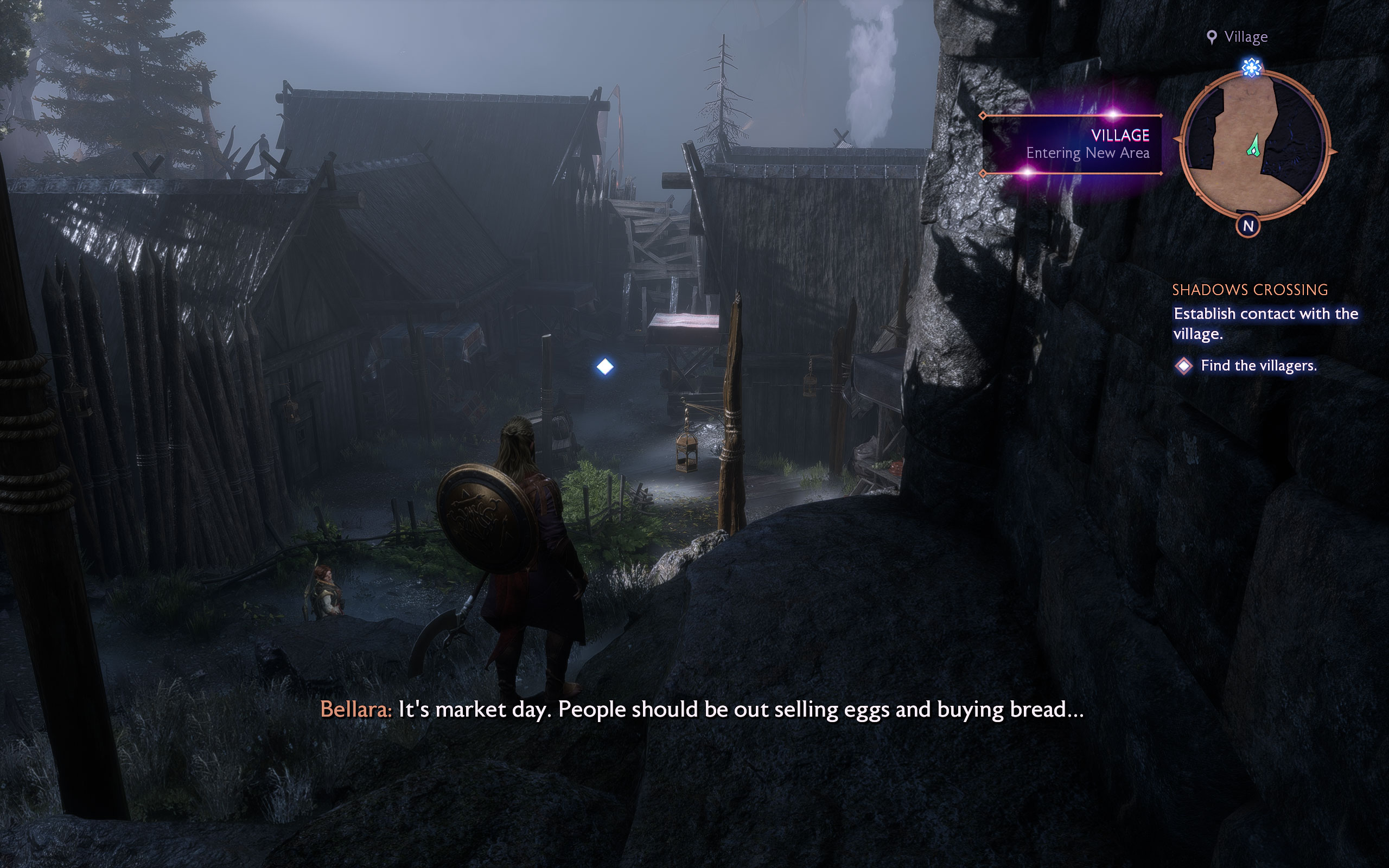
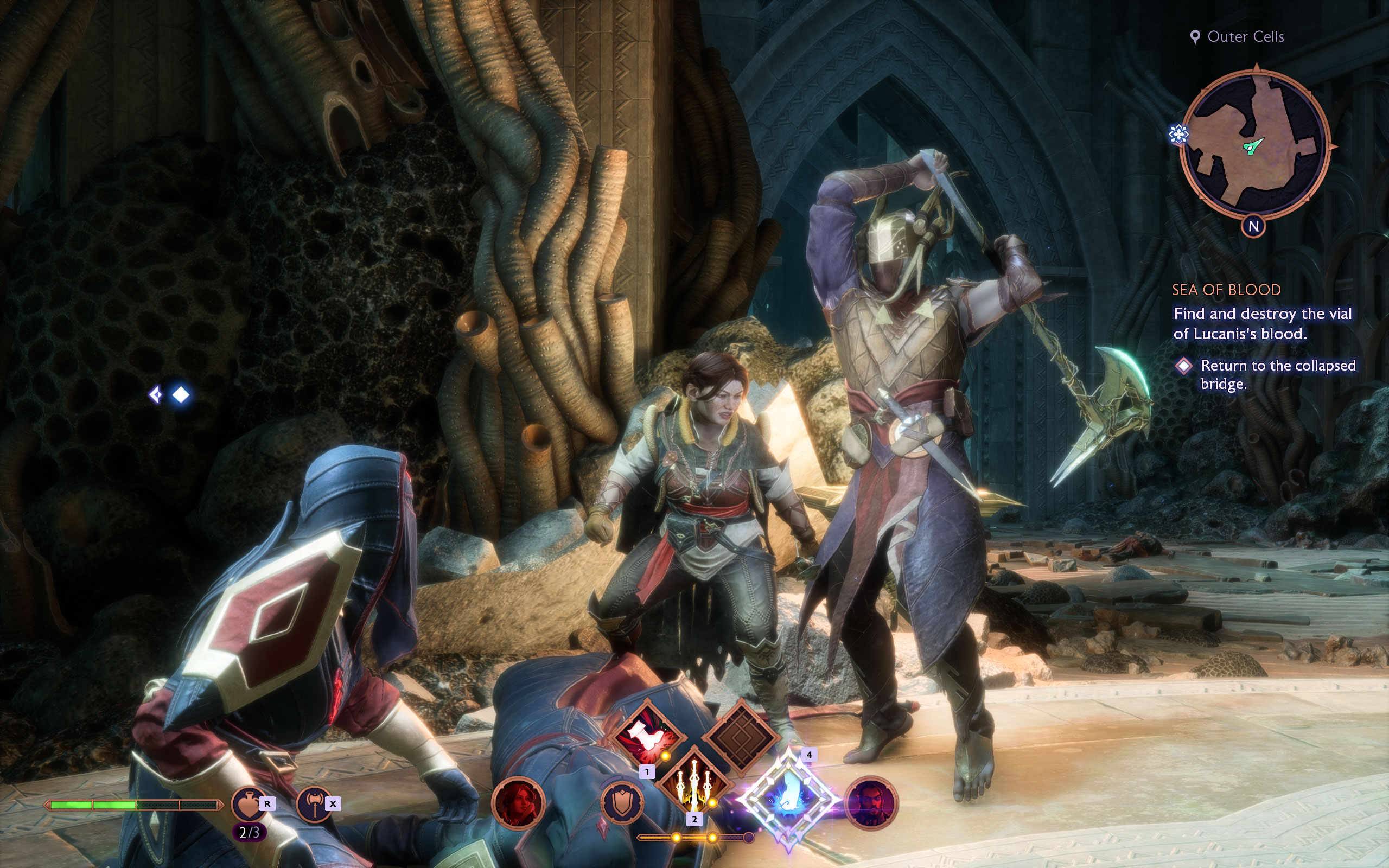
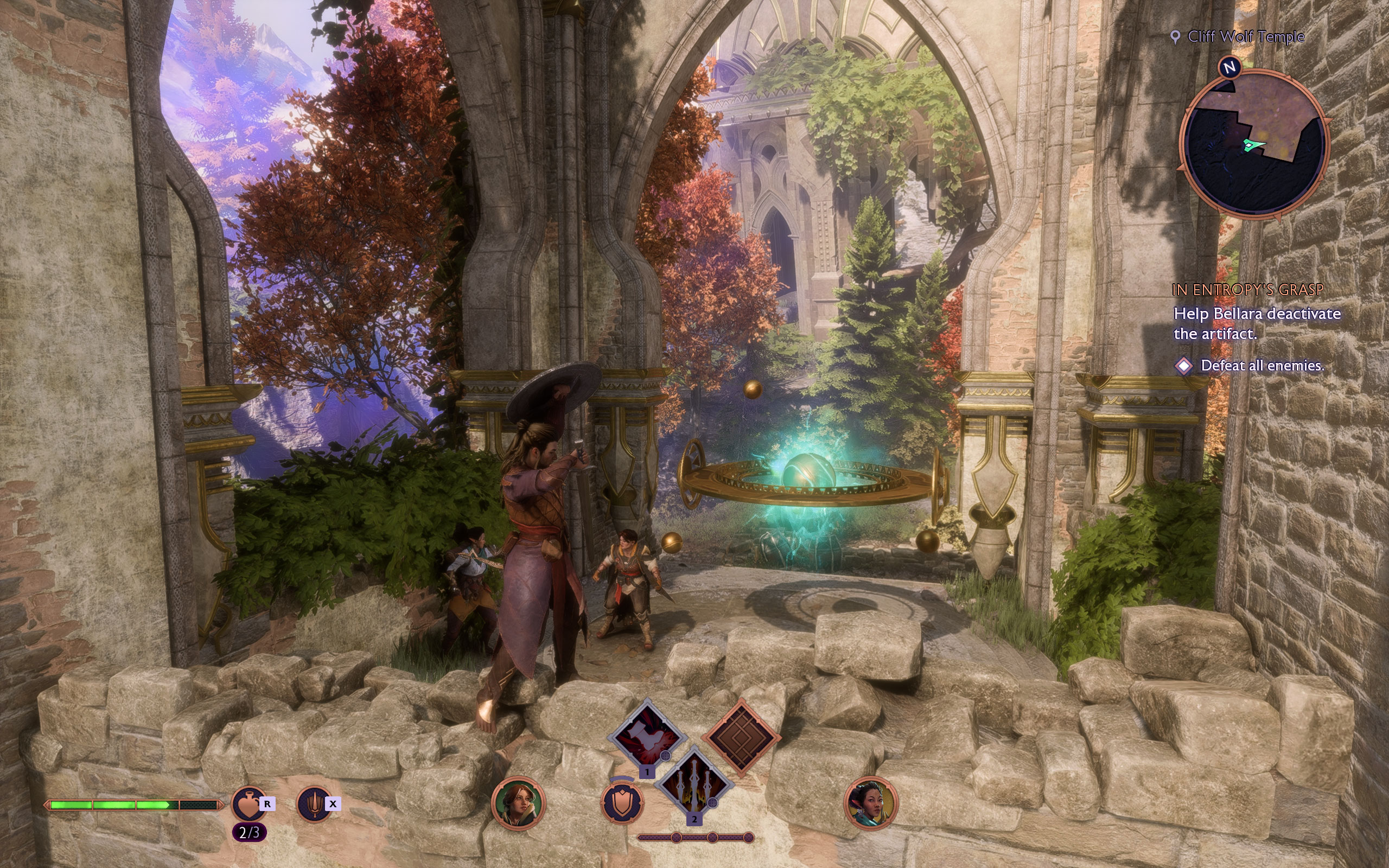
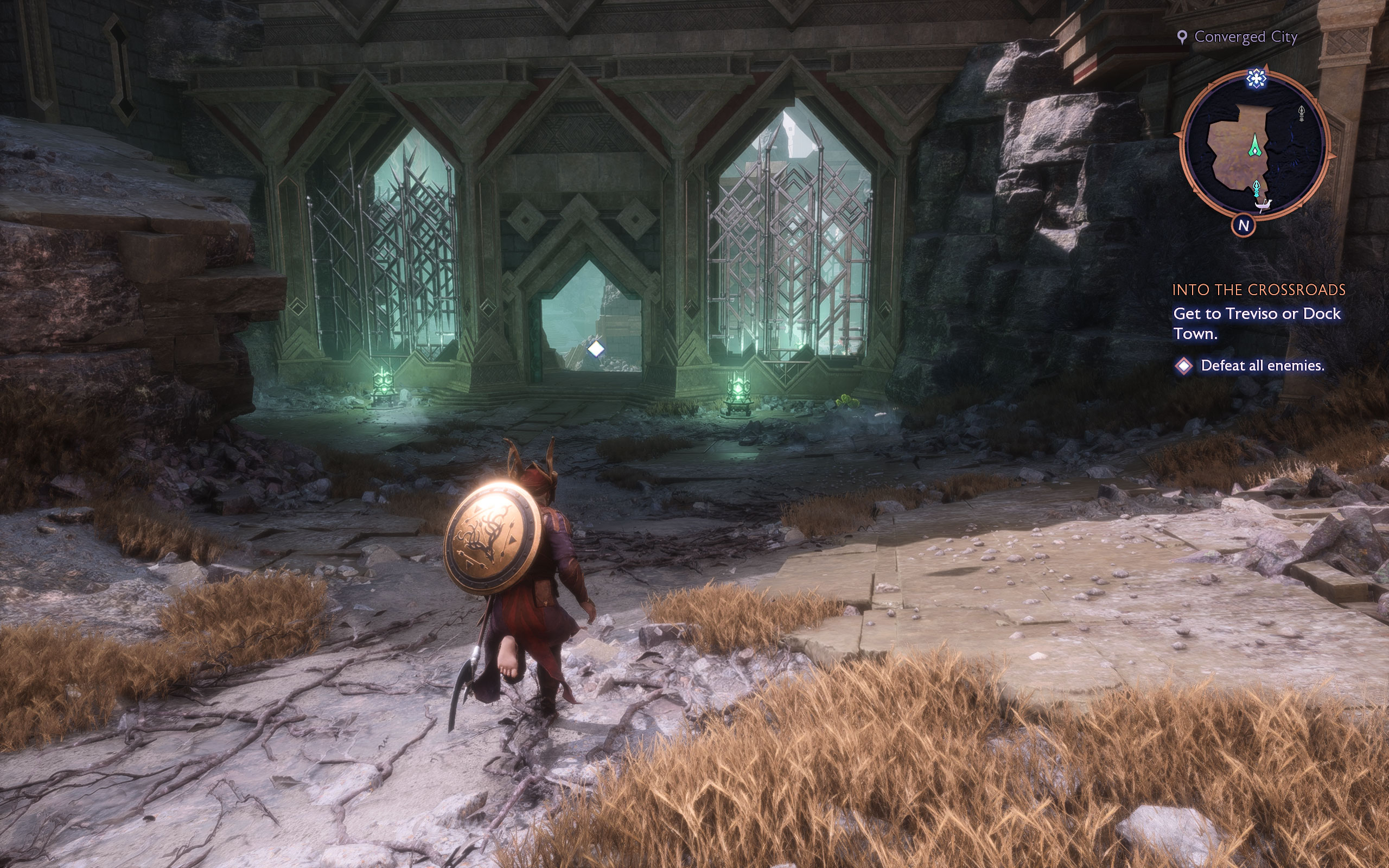
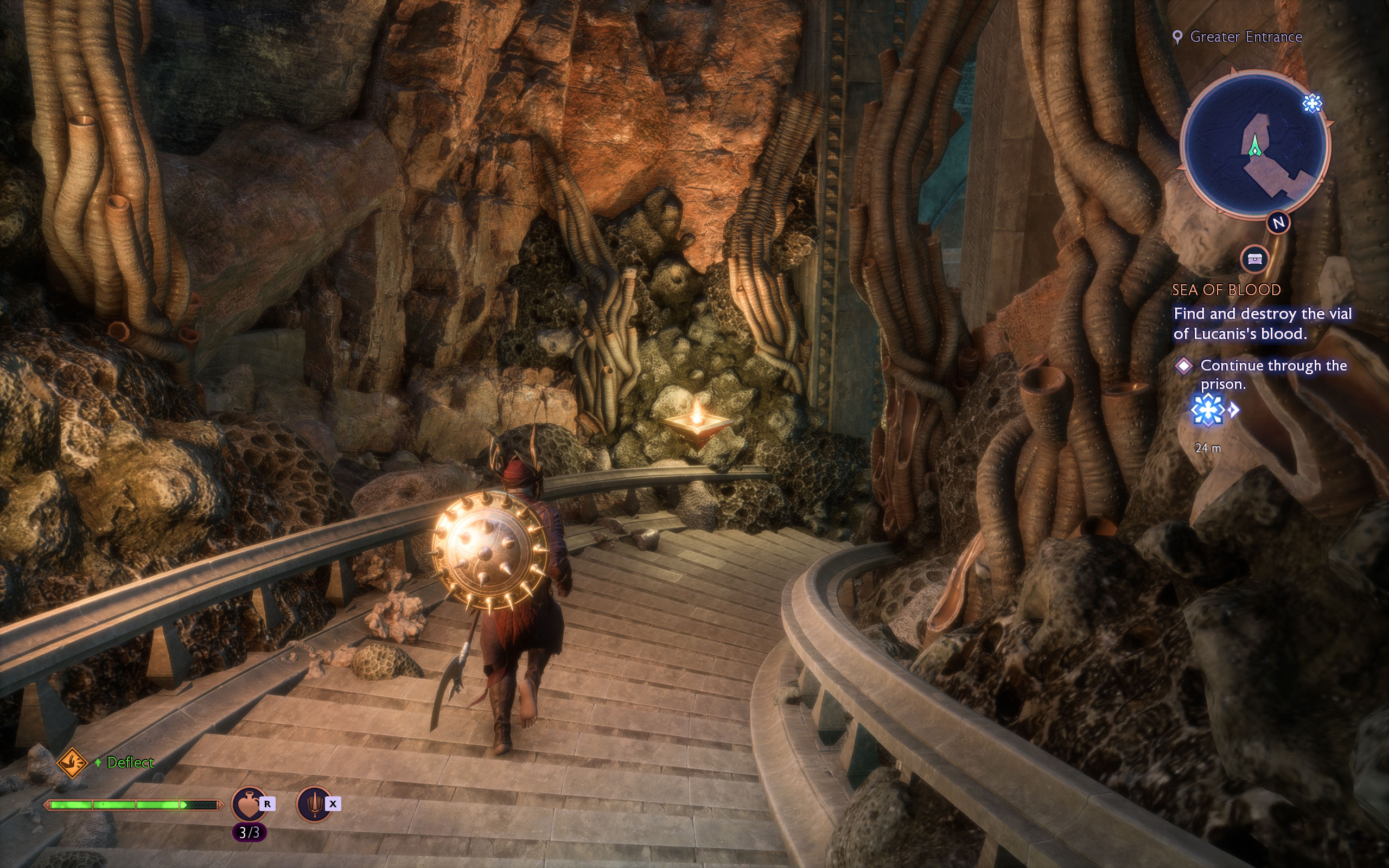
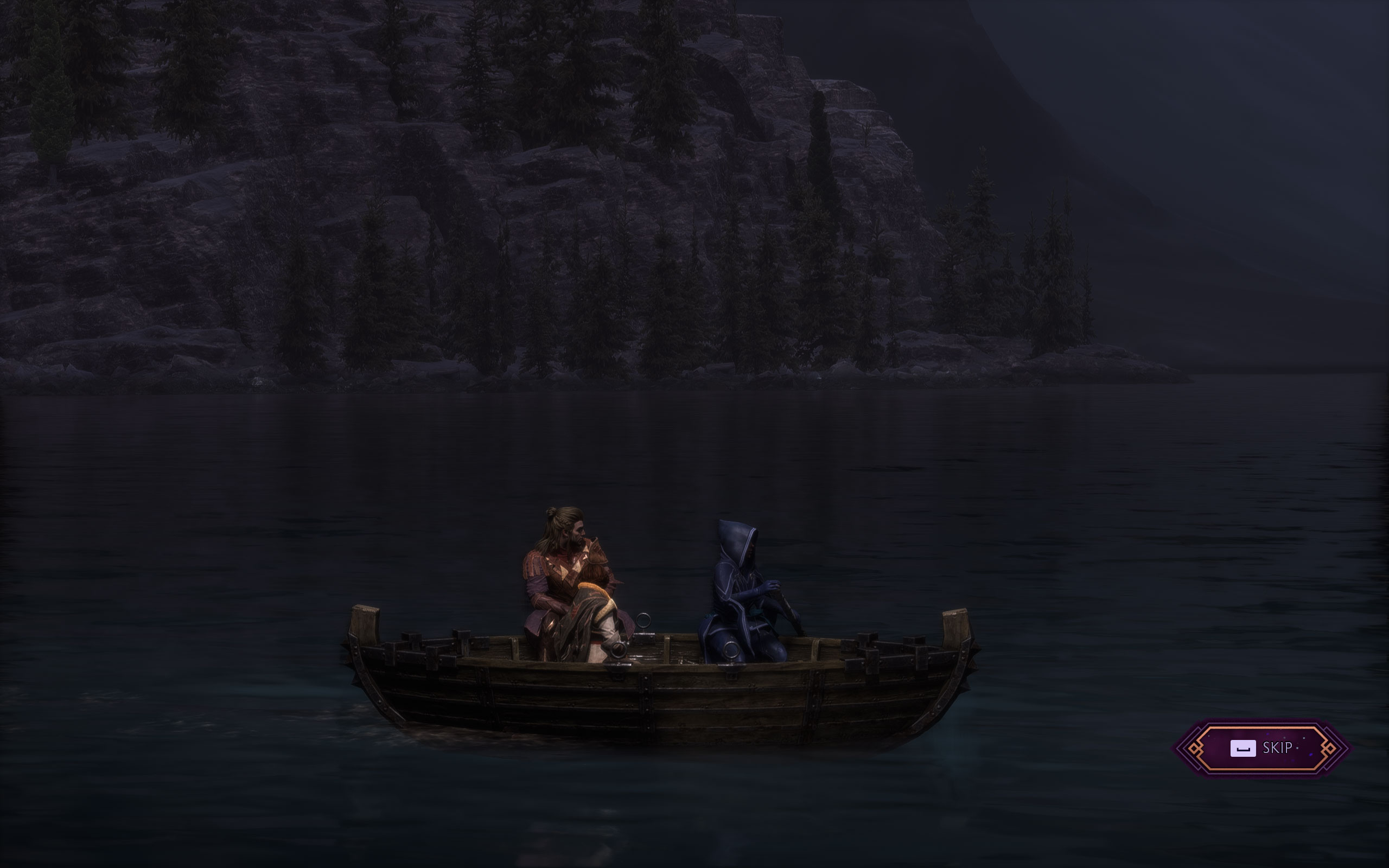
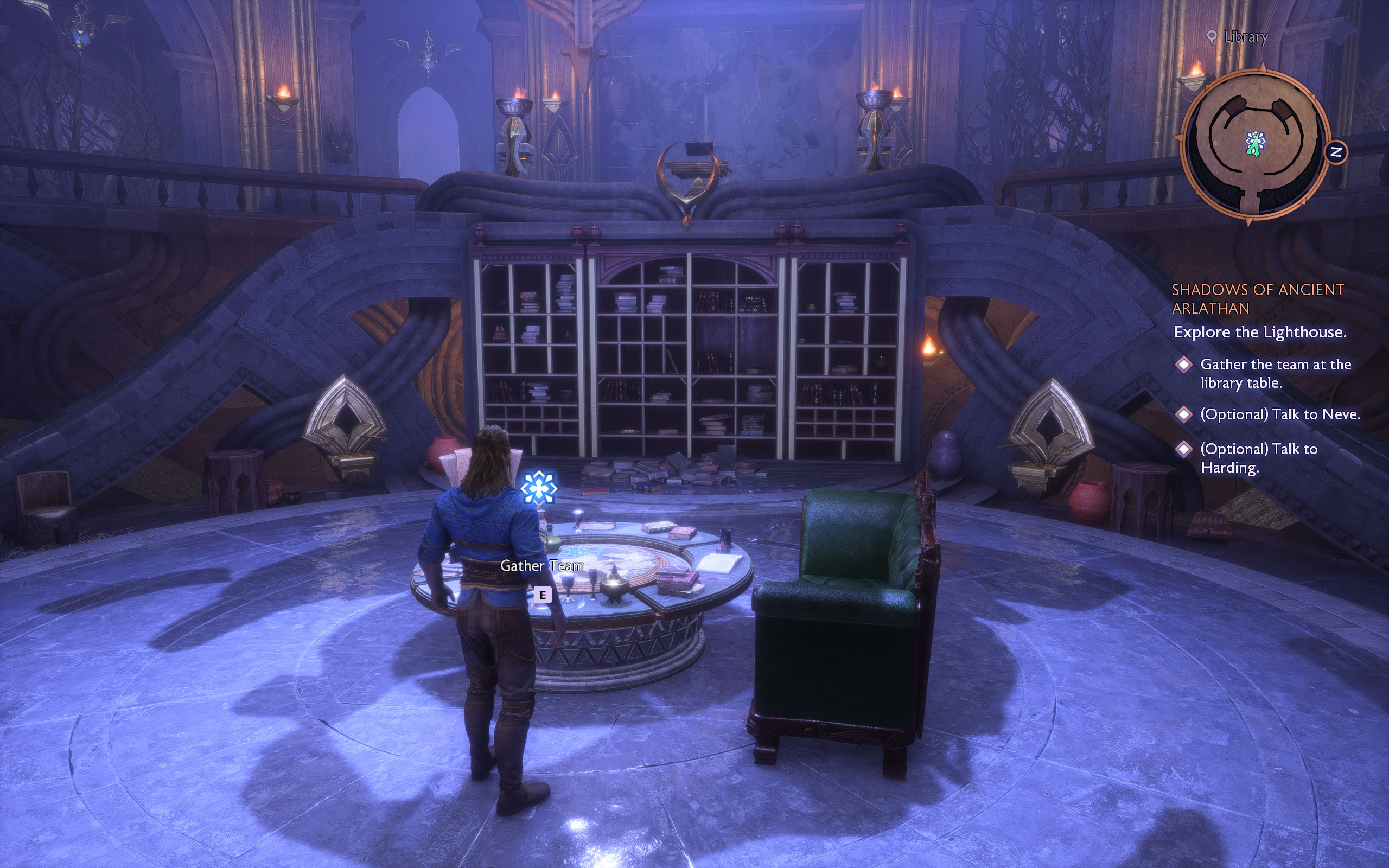
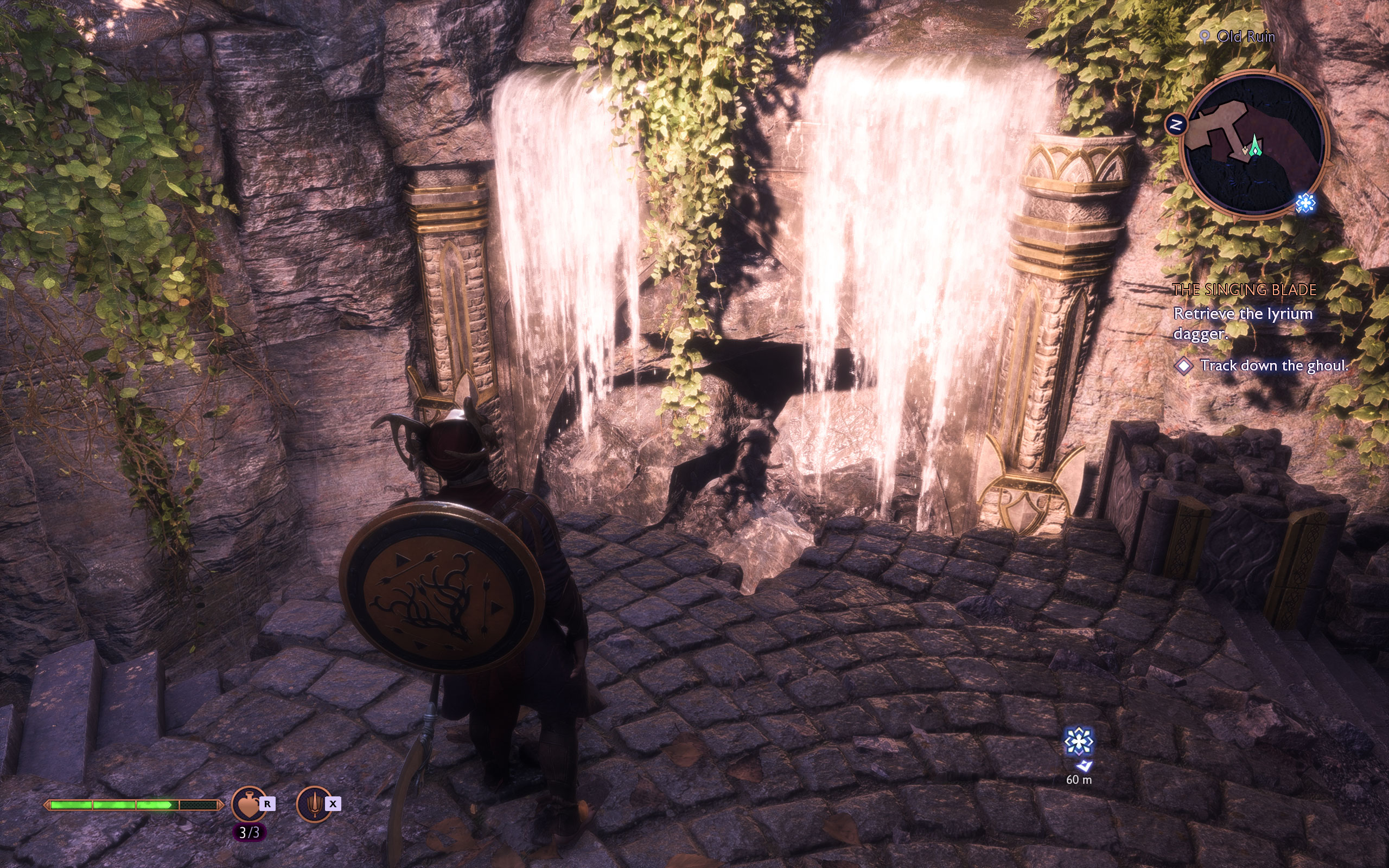
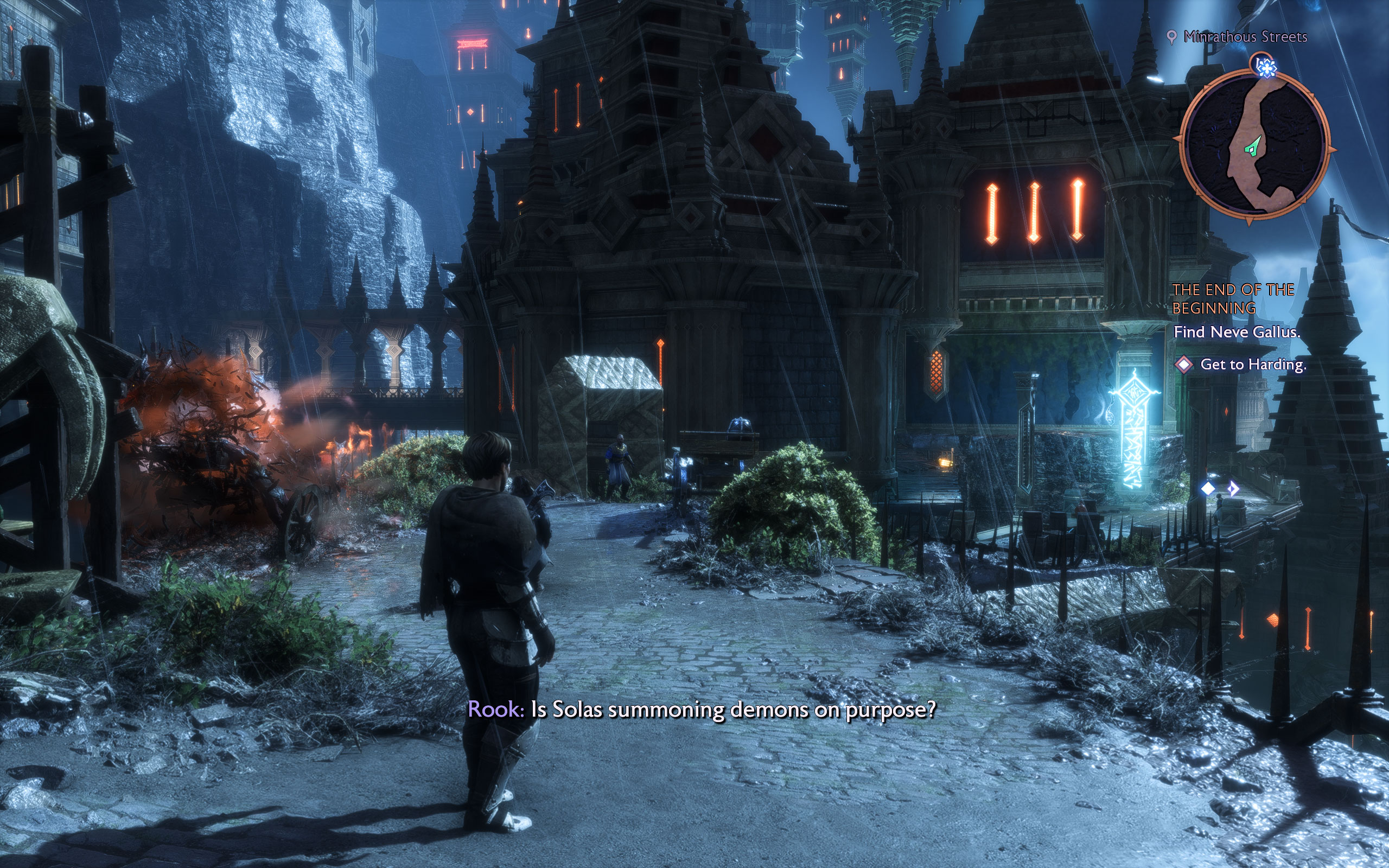
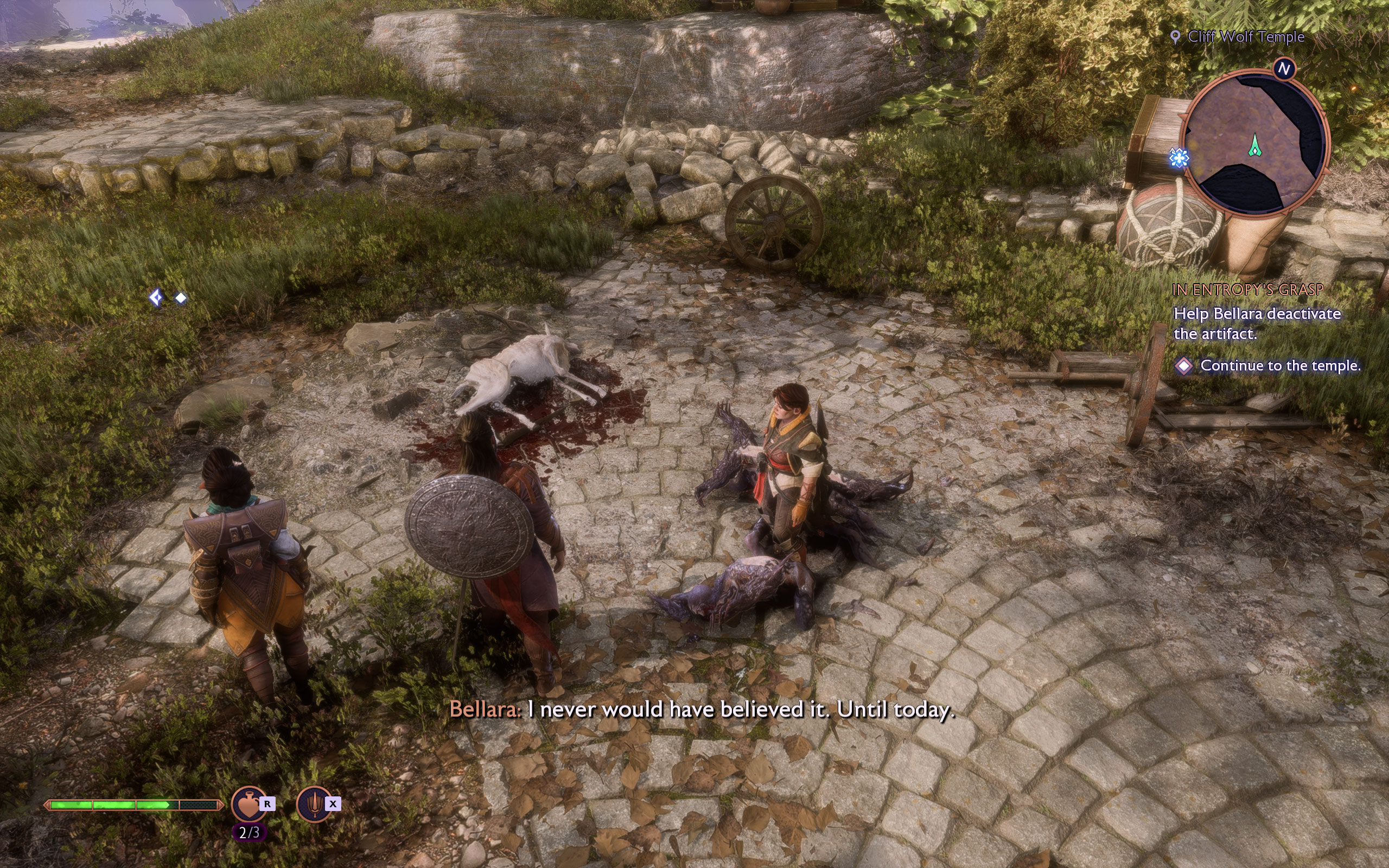
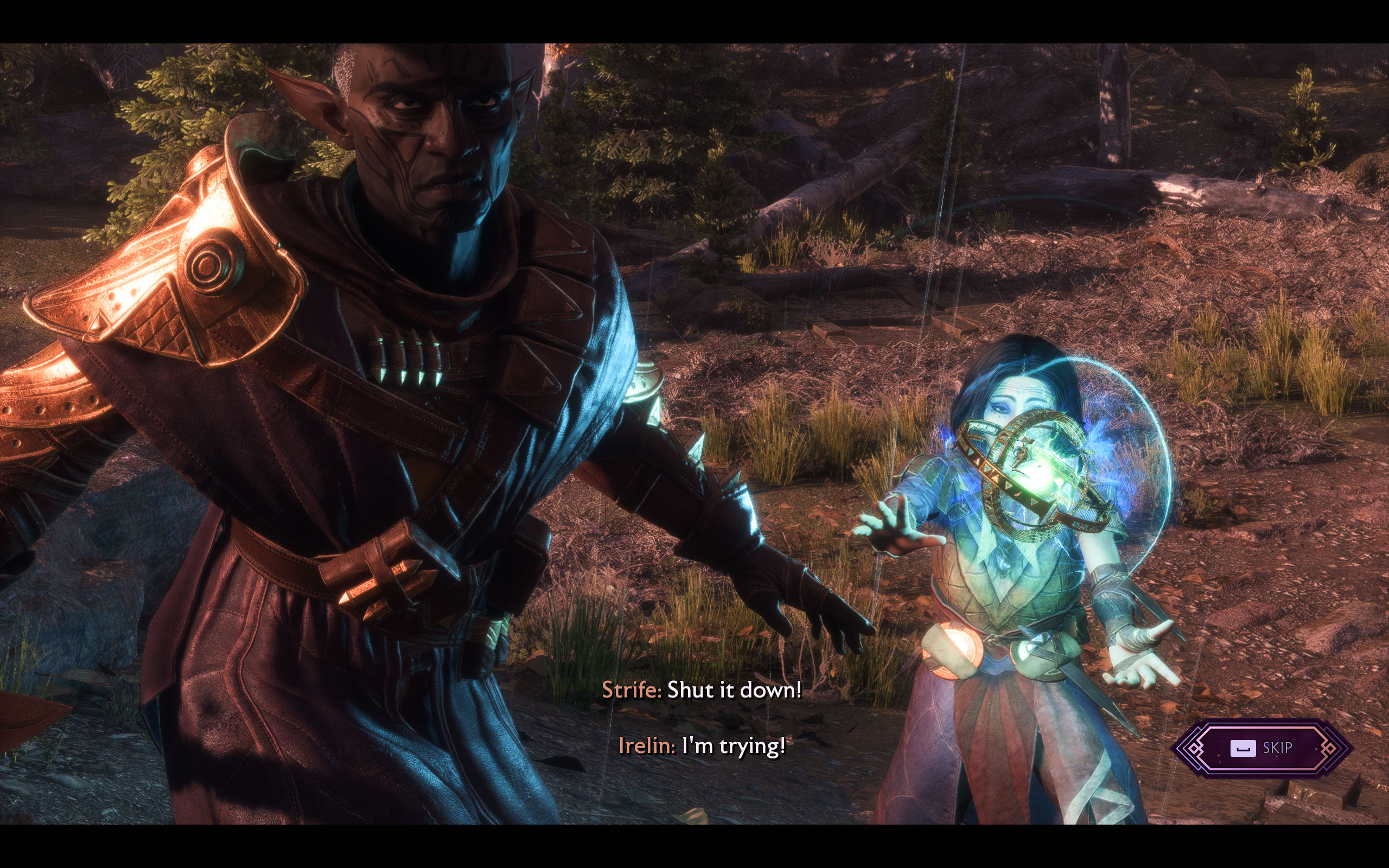
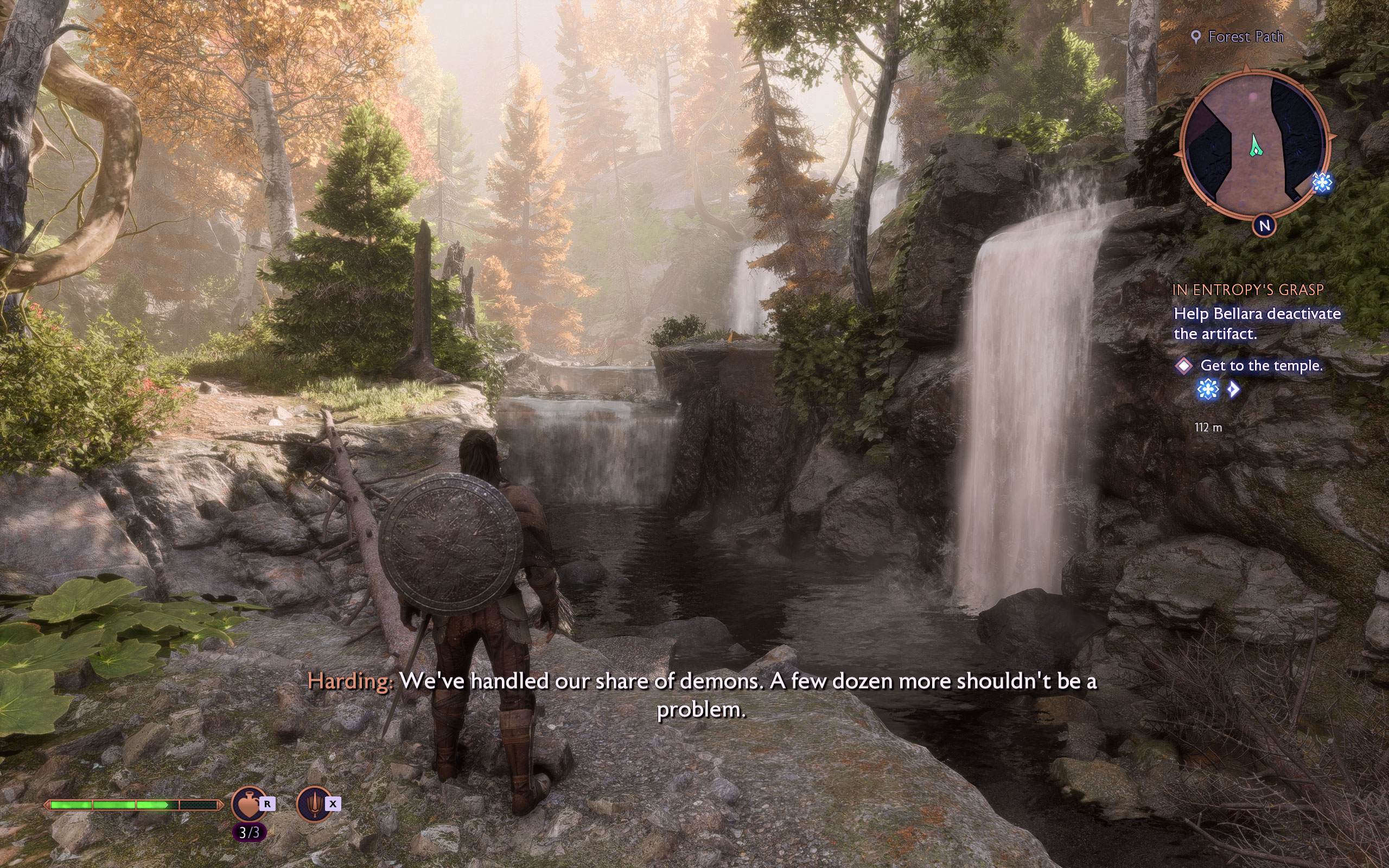
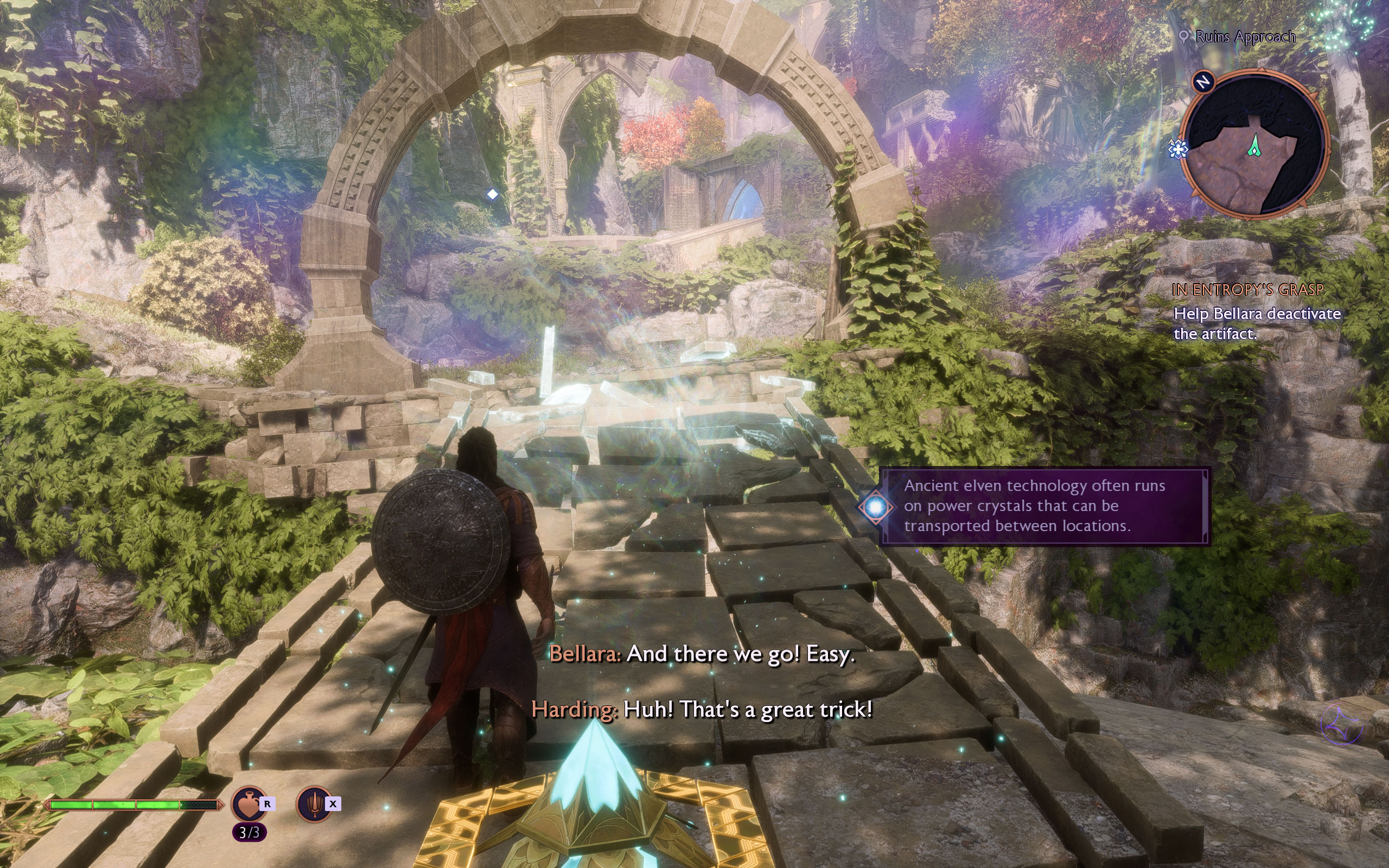
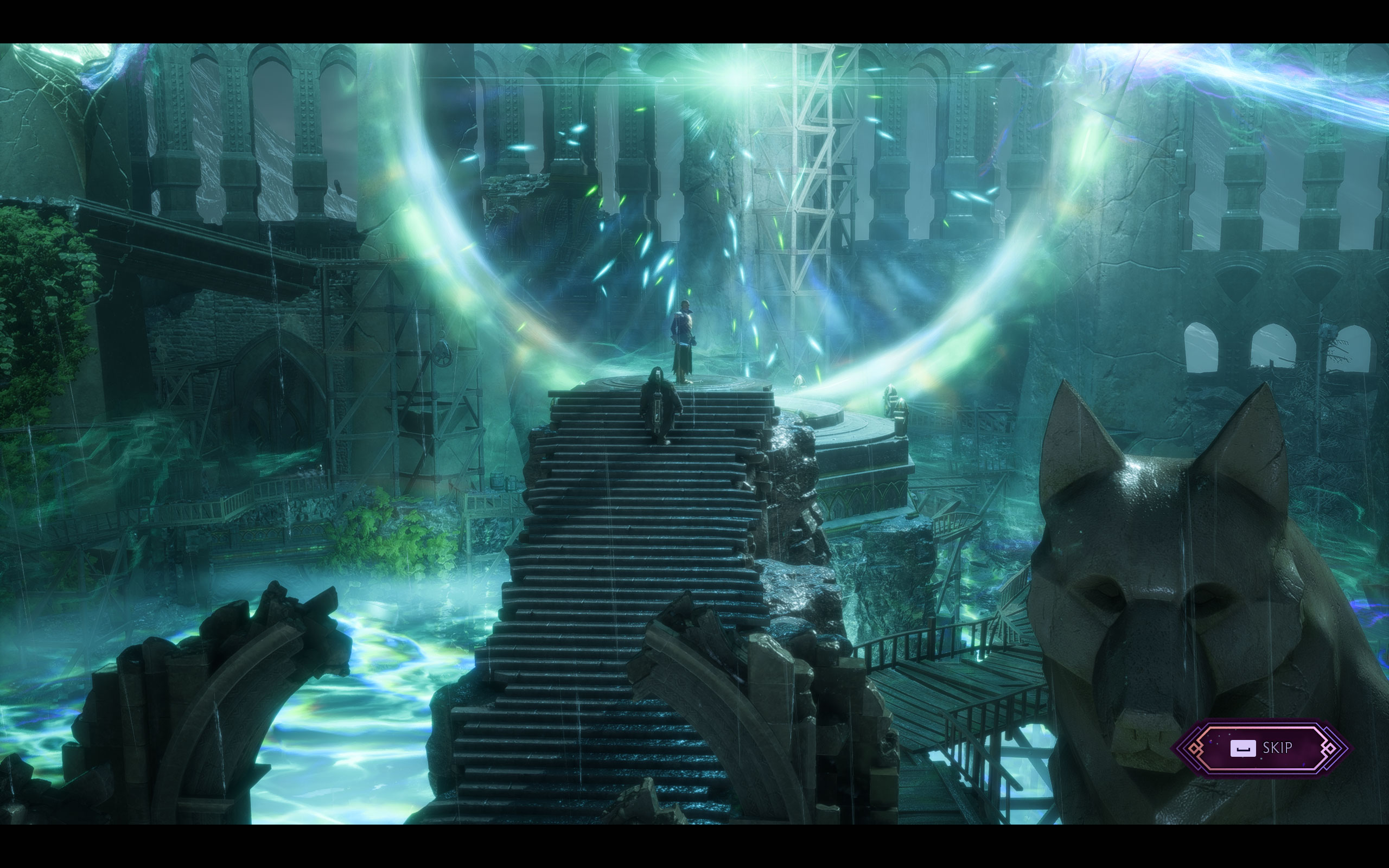
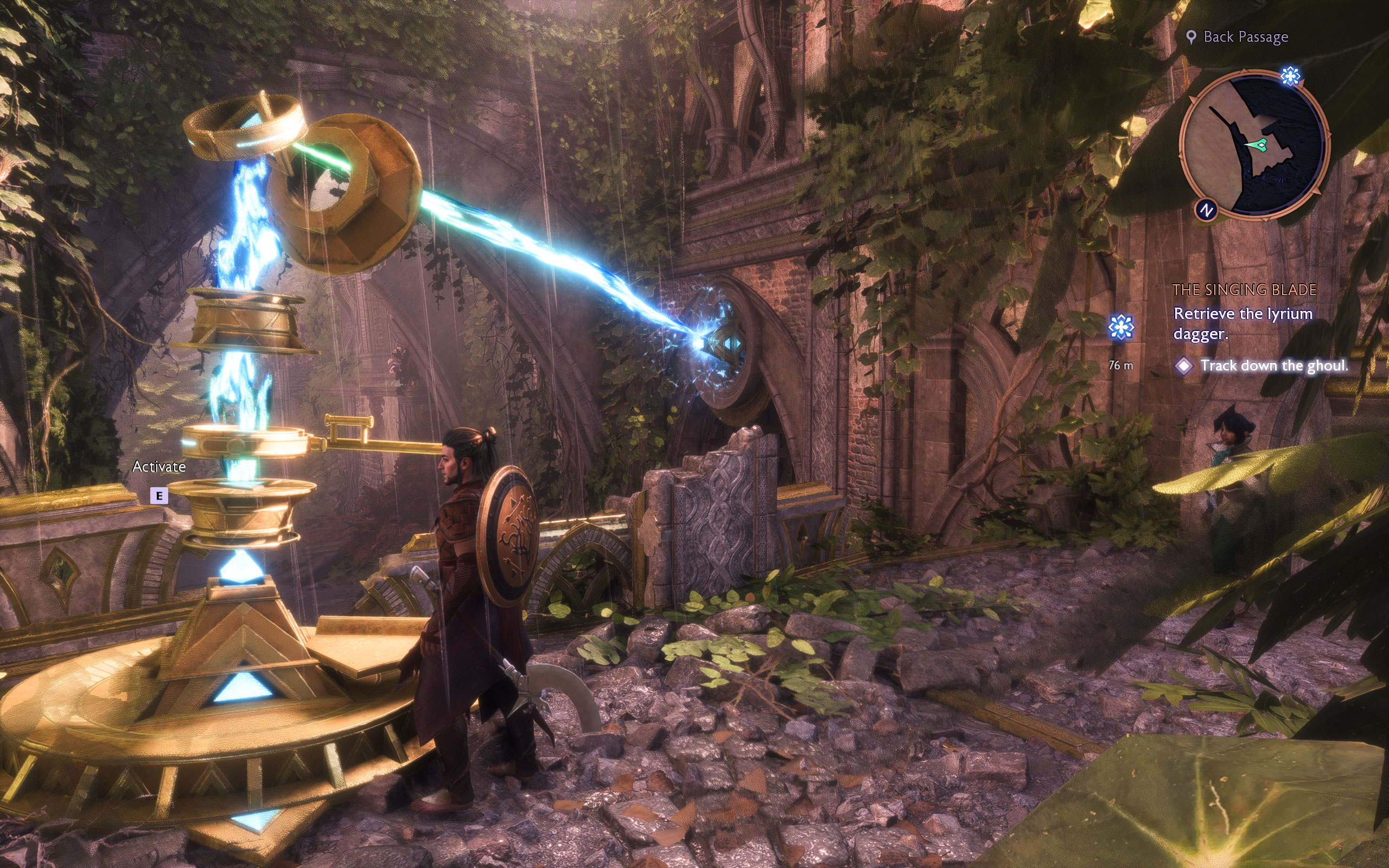
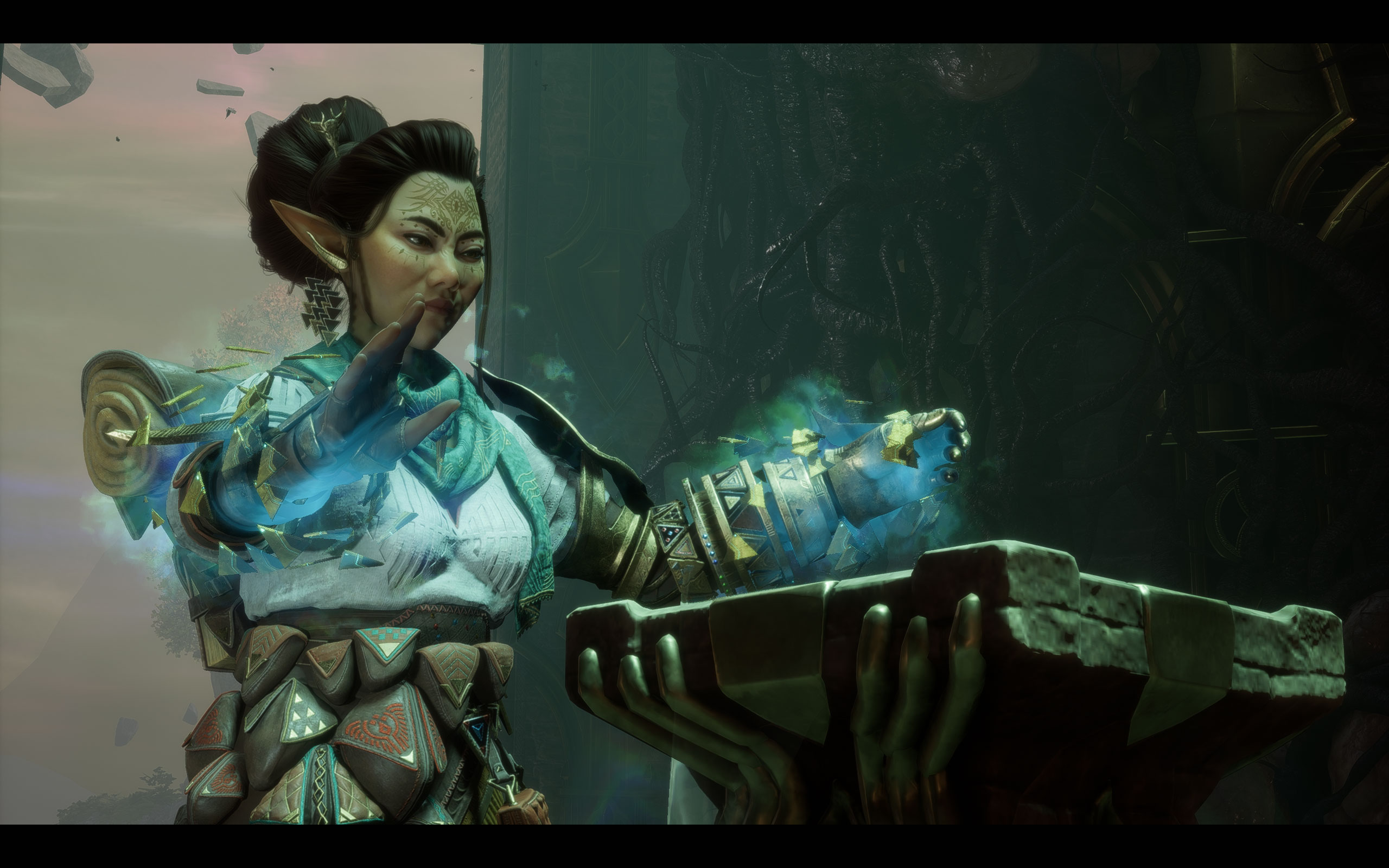
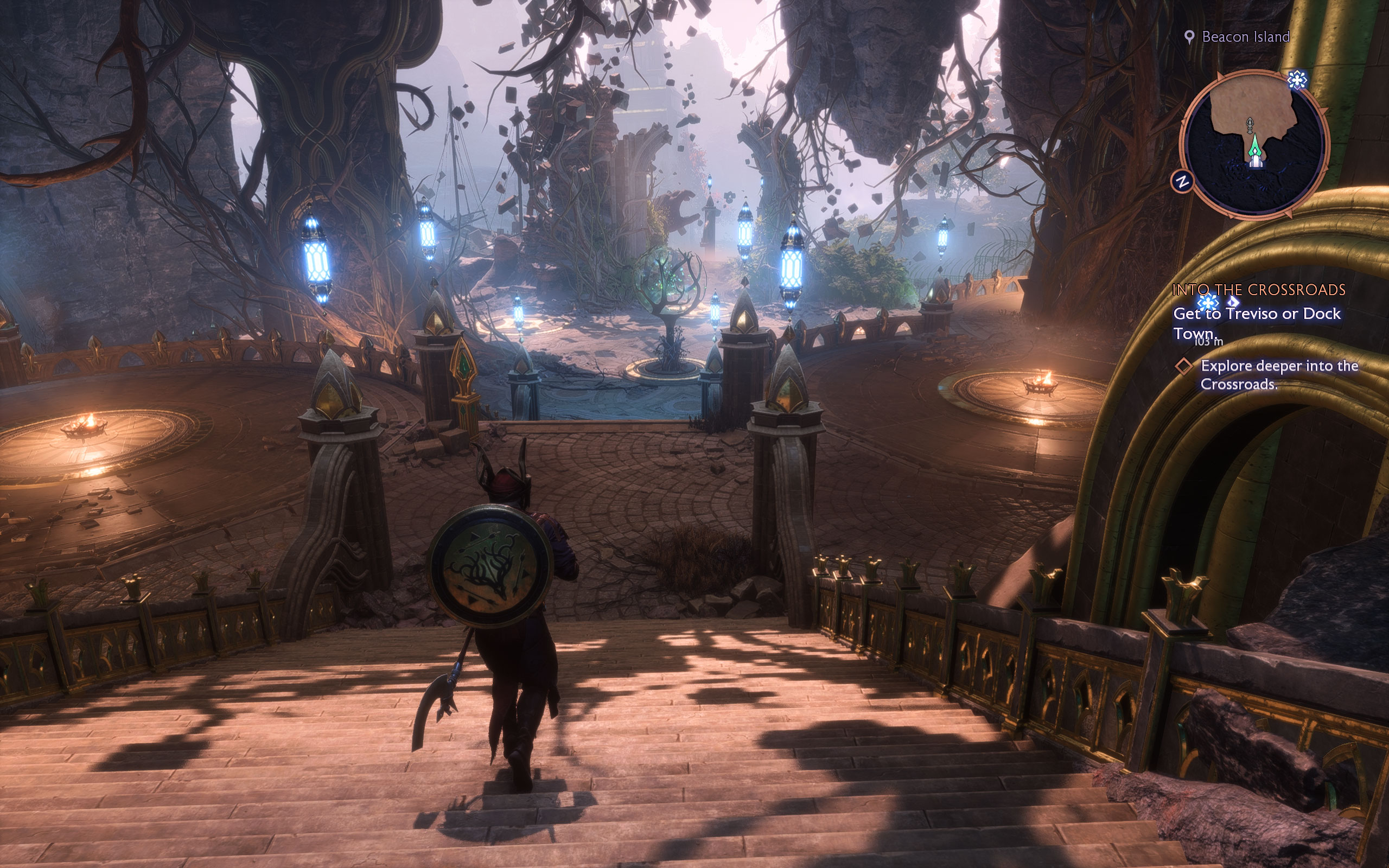
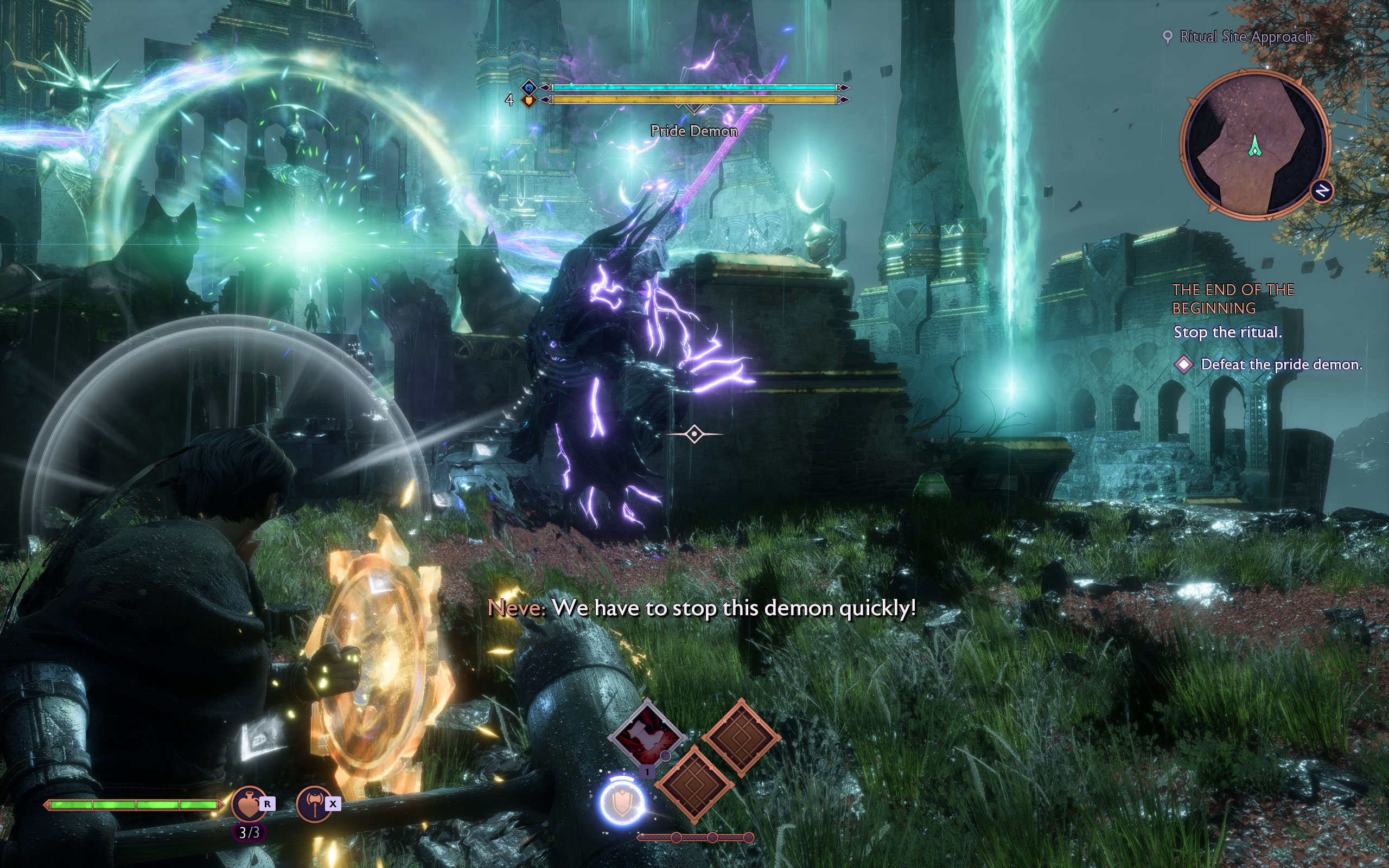
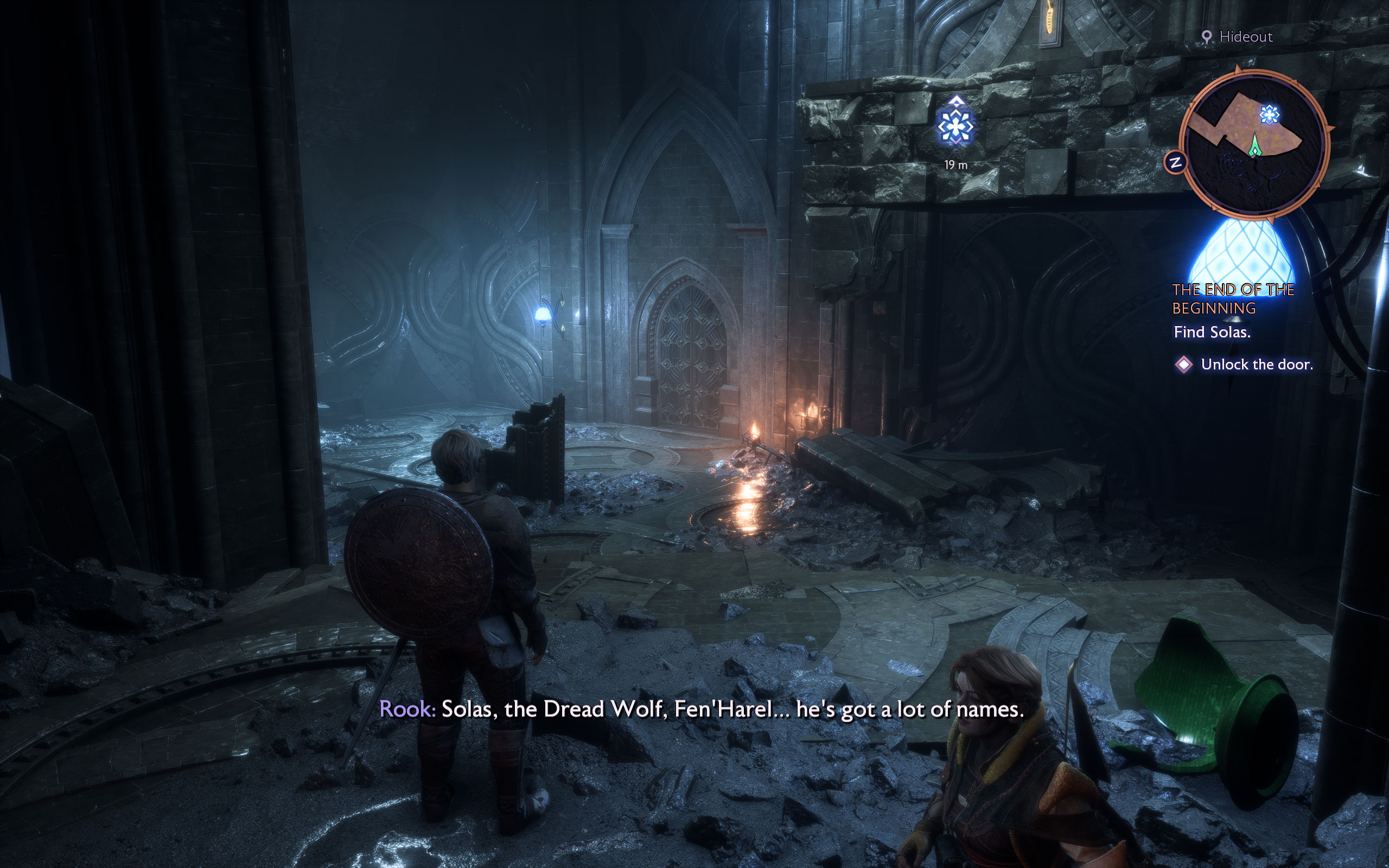
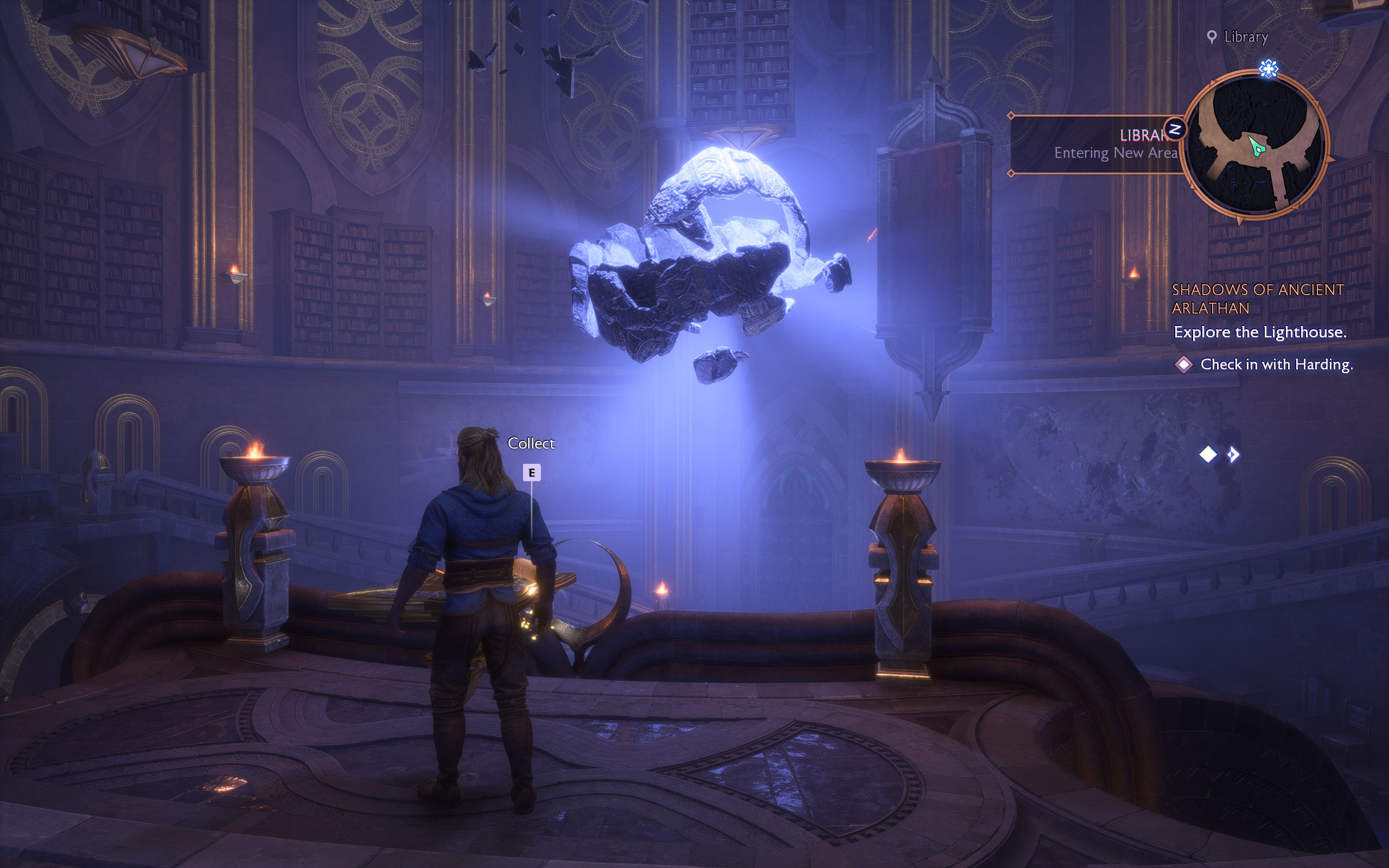
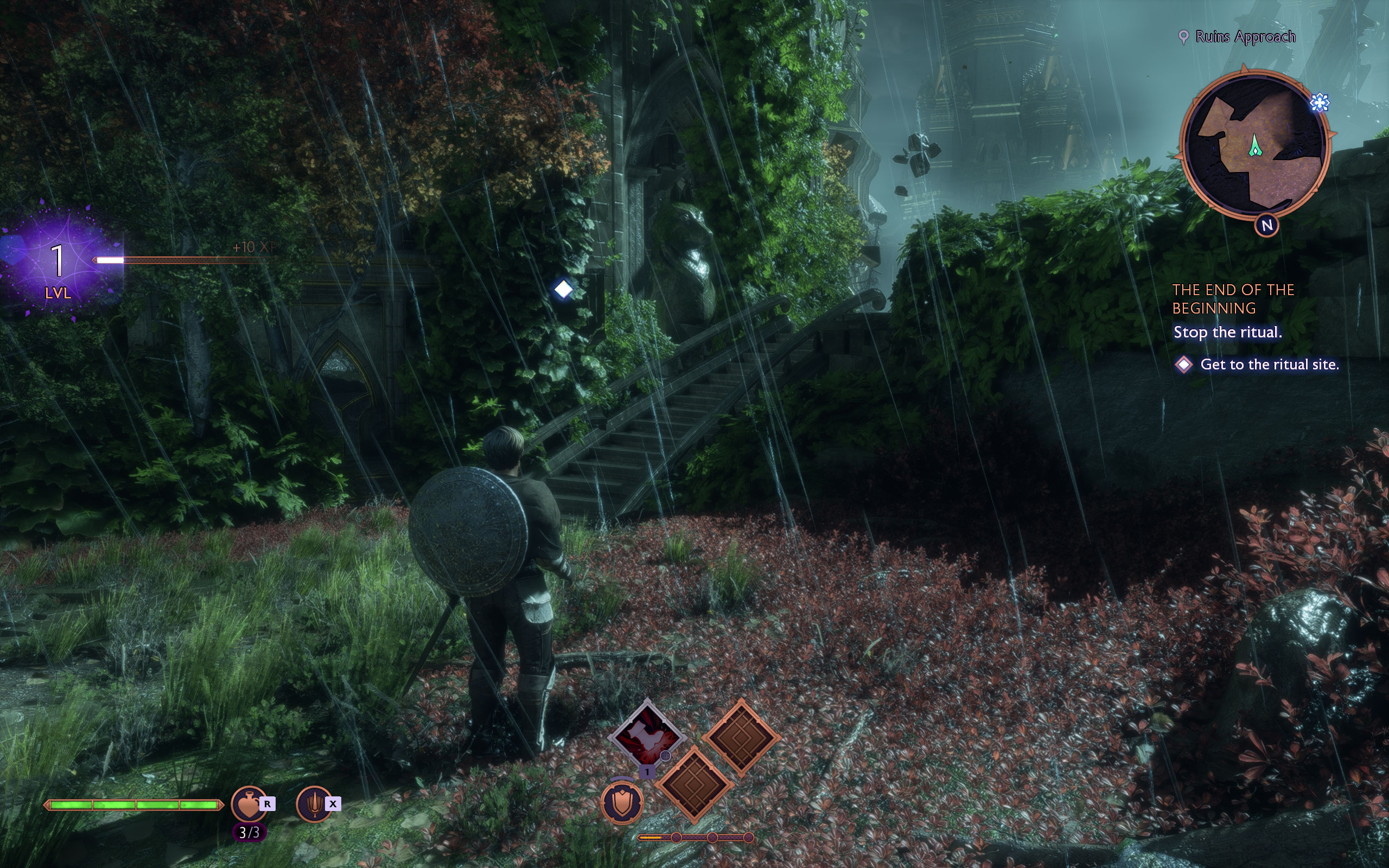
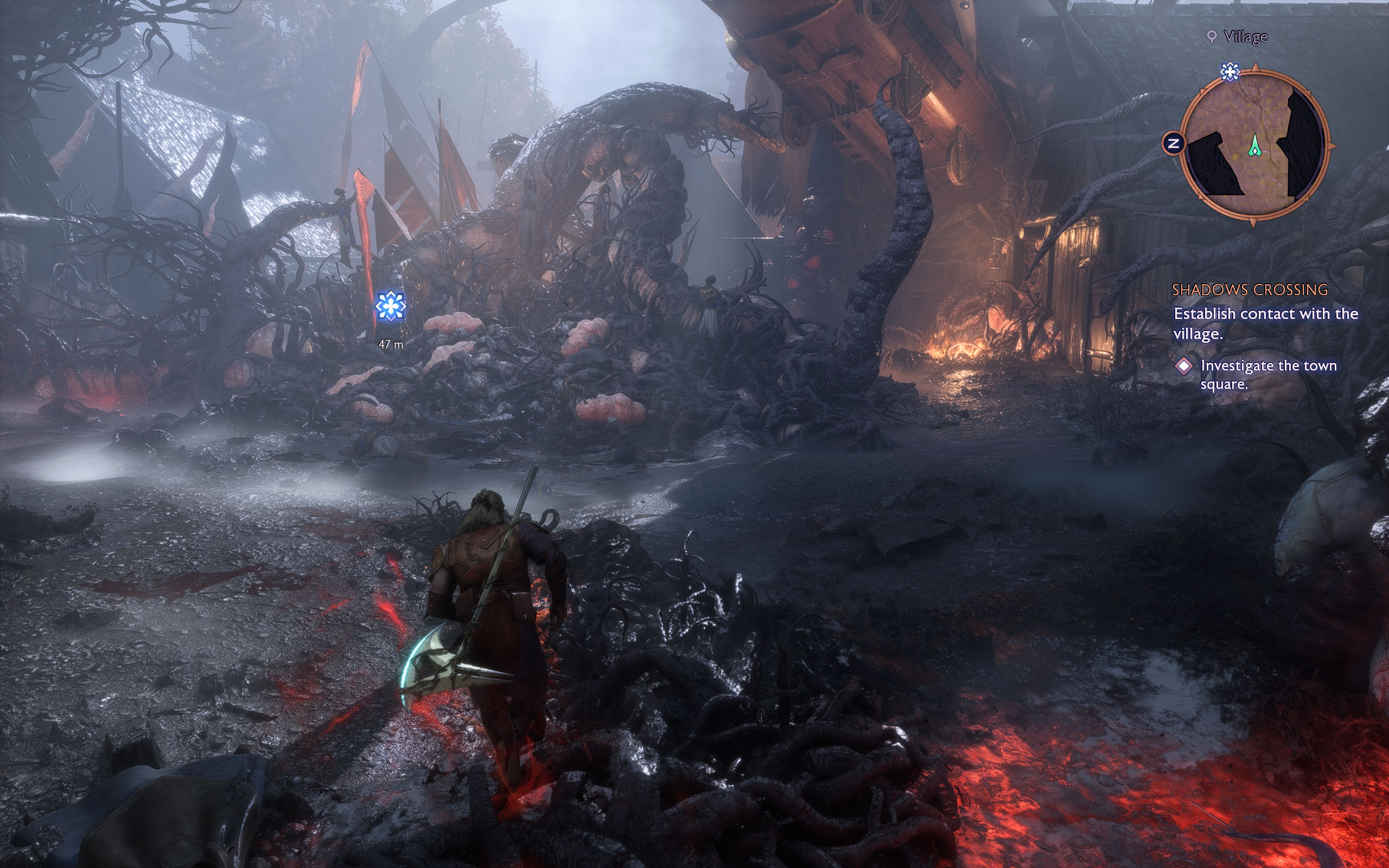
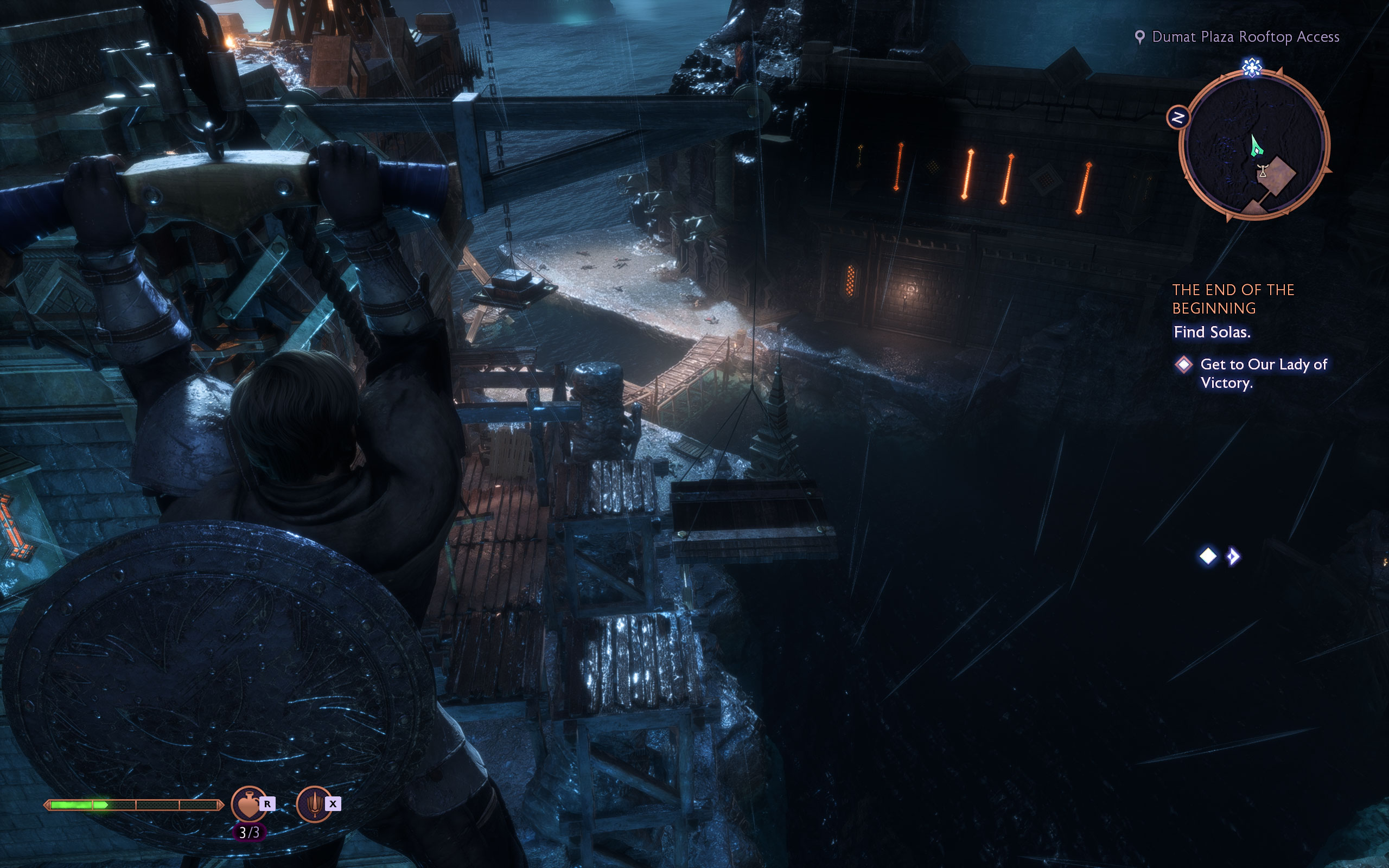
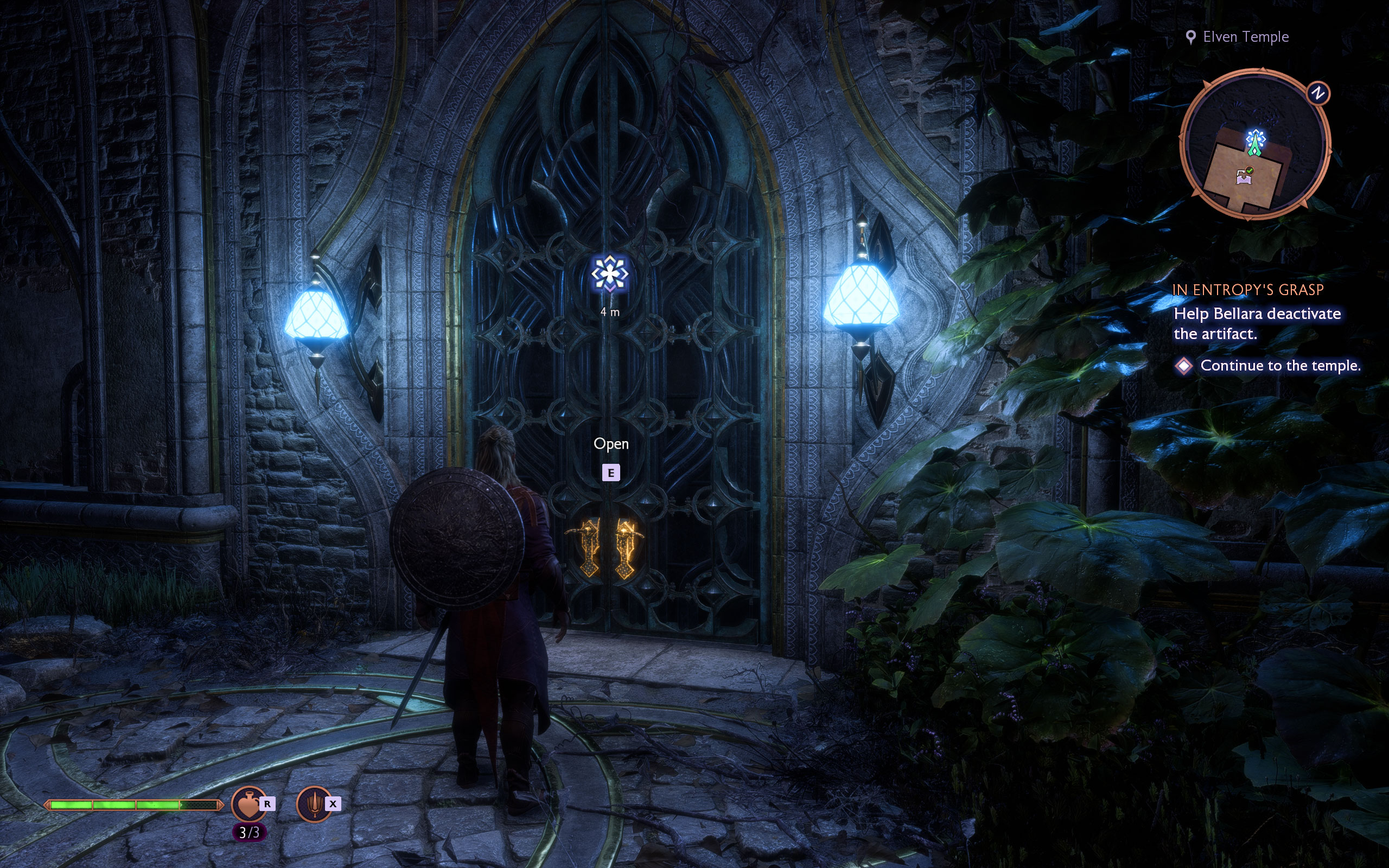
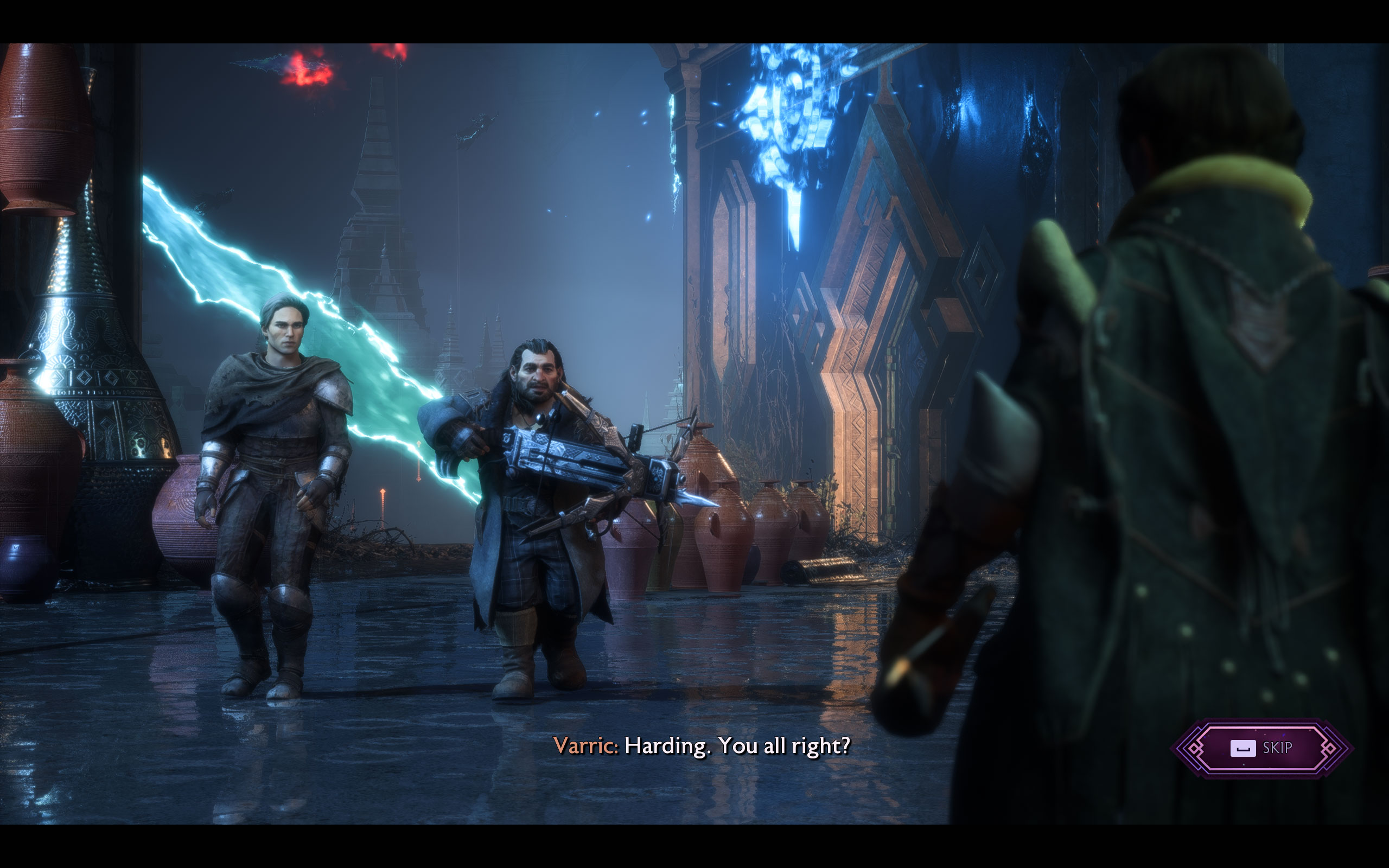
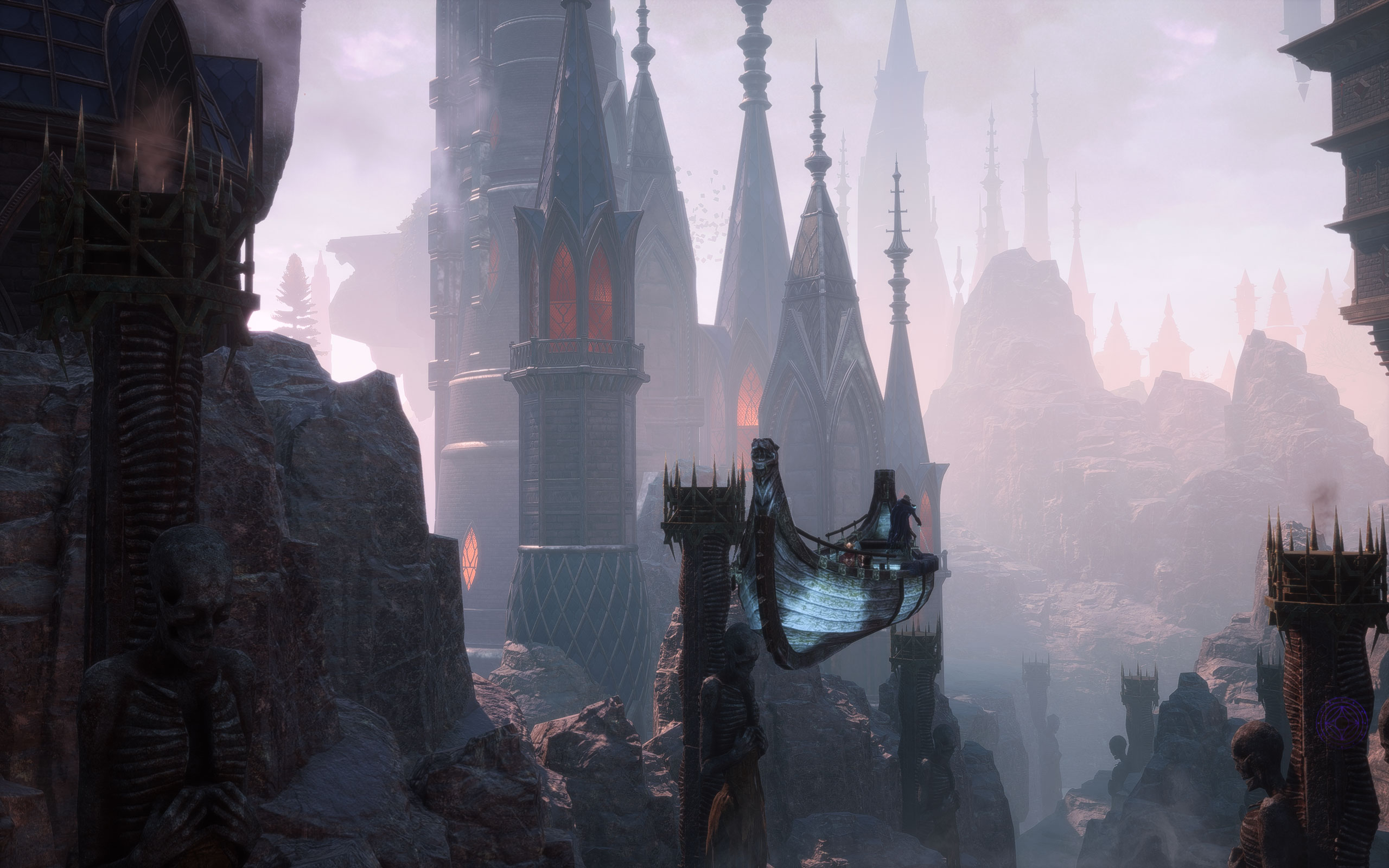
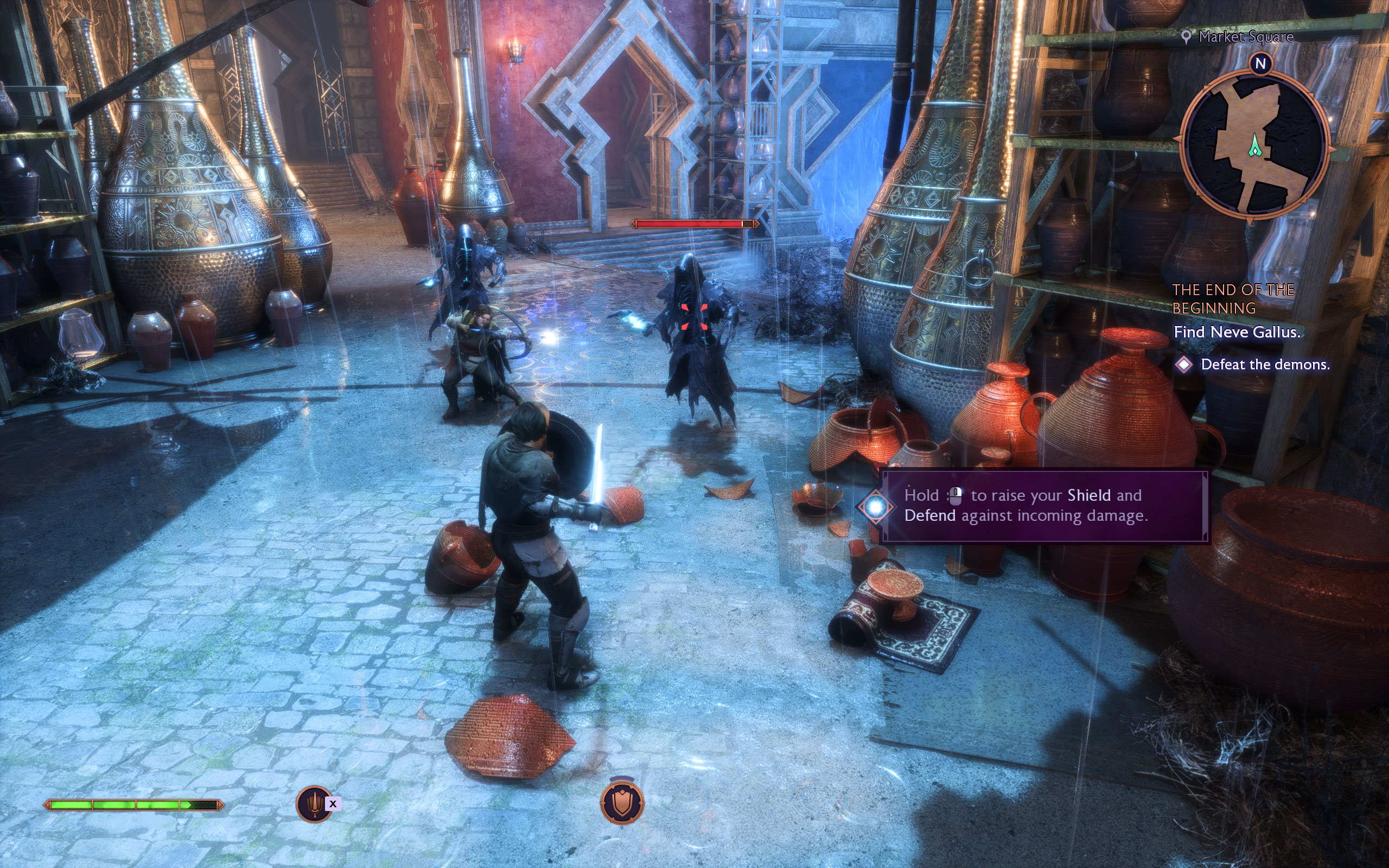
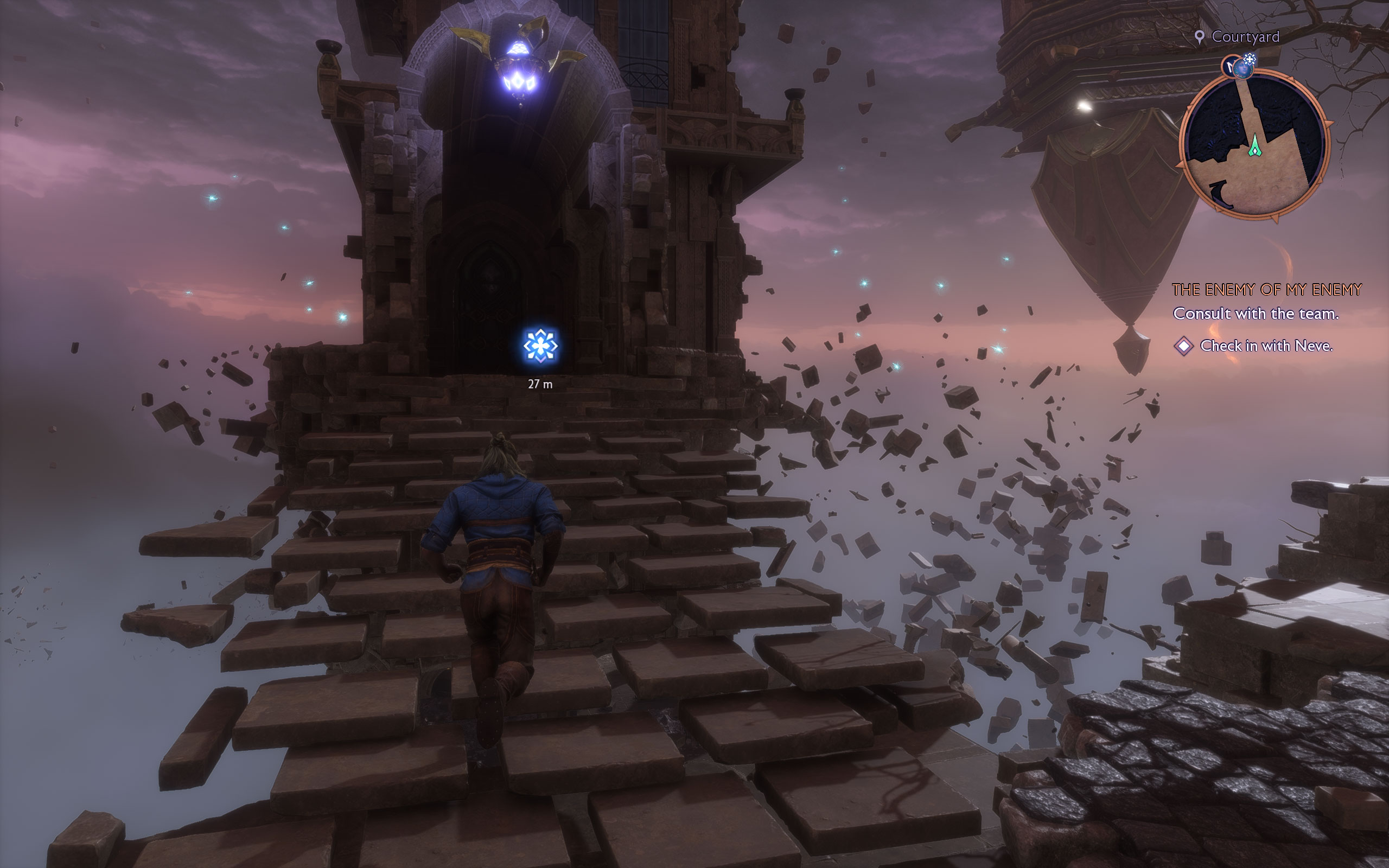
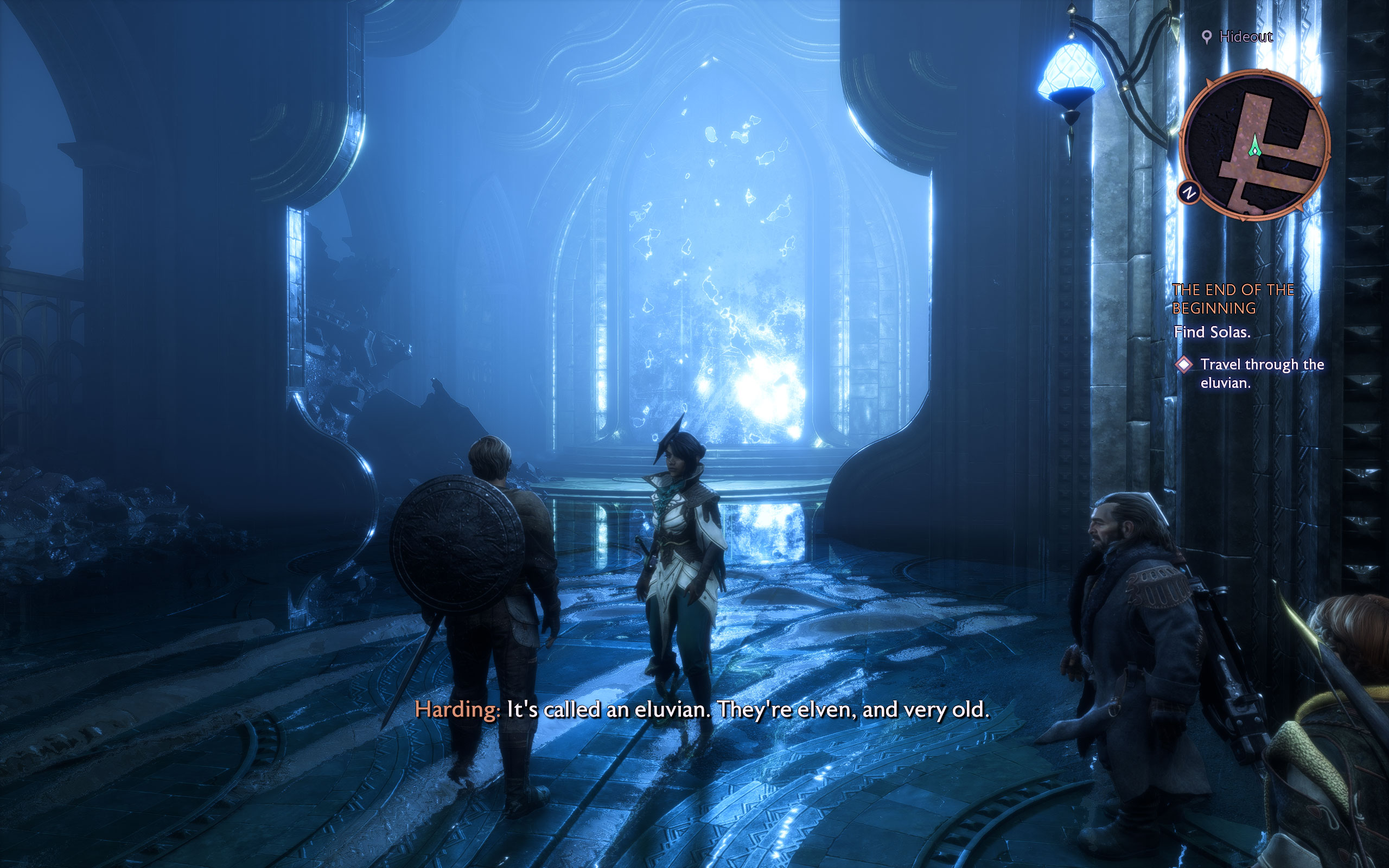
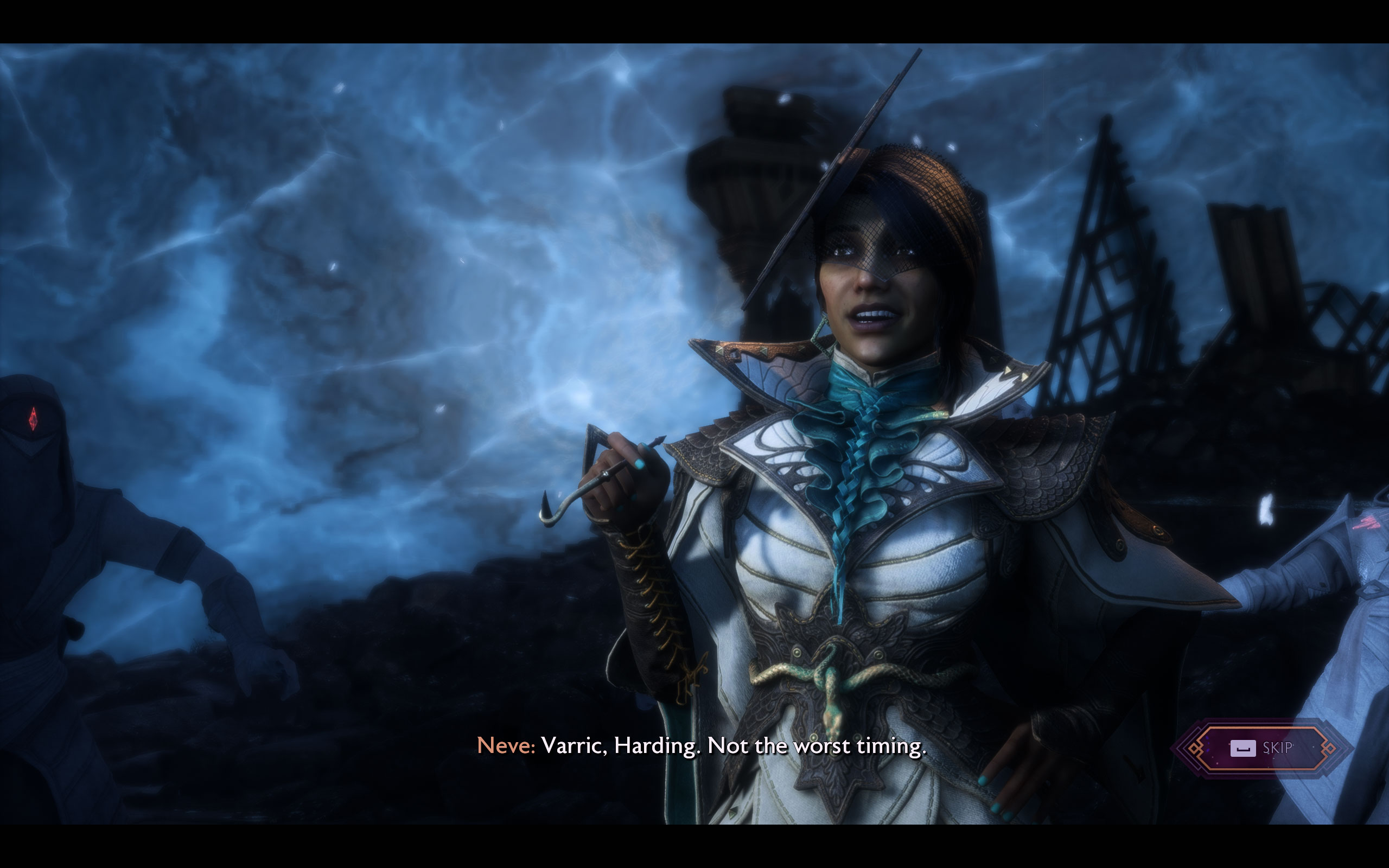
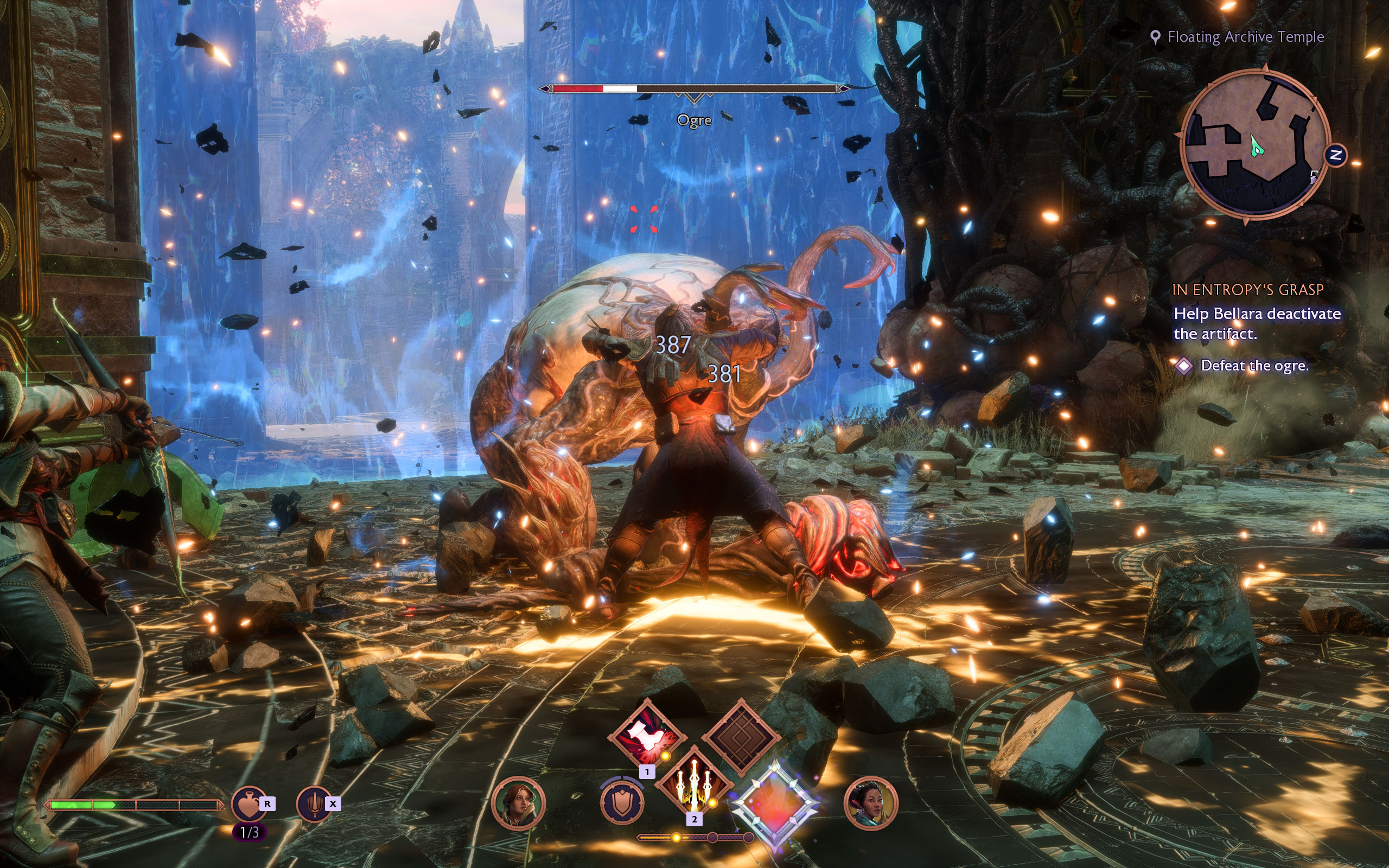
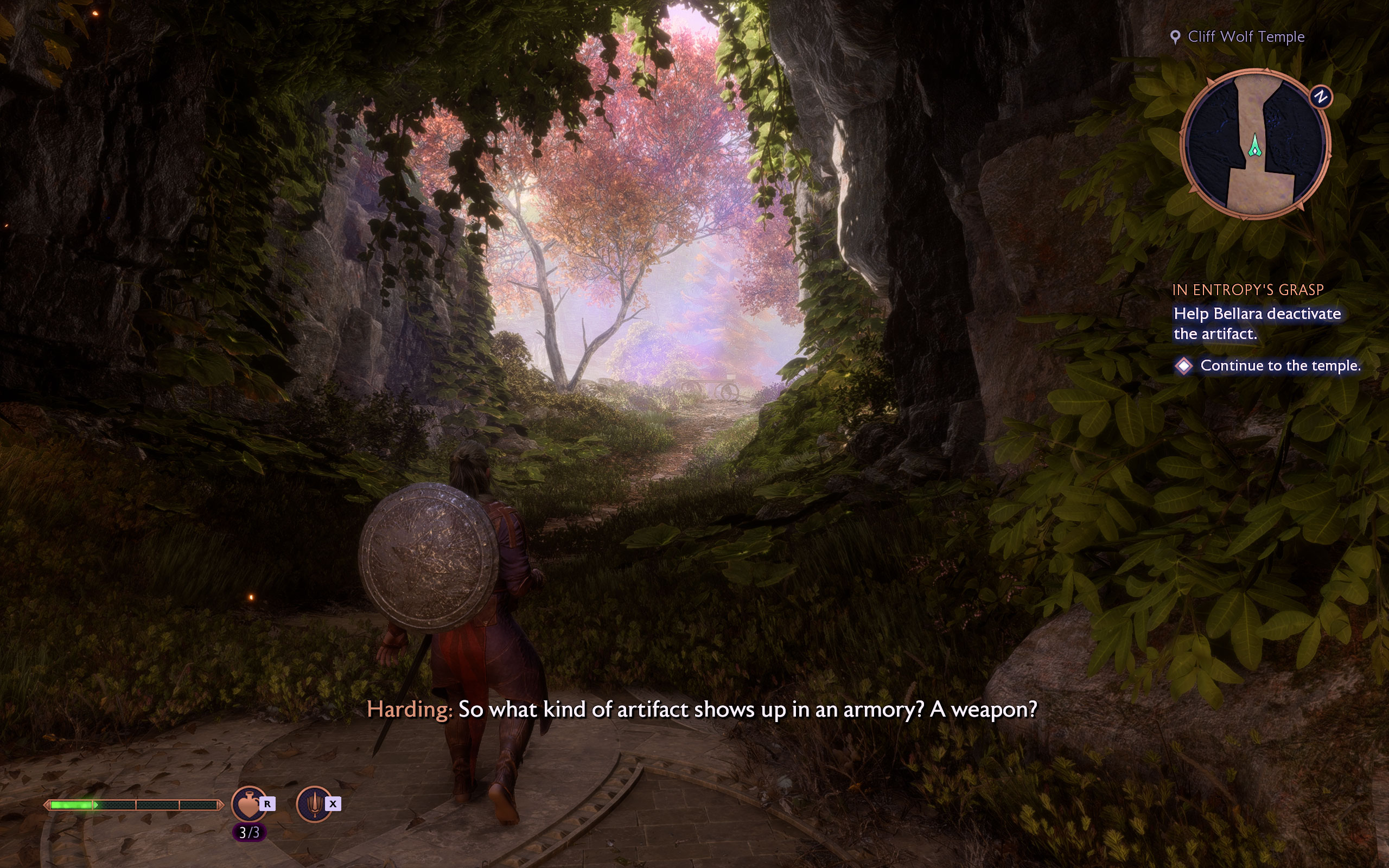
All screenshots were taken at the "Ultra" settings profile, with all upscalers disabled and ray tray tracing set to "full" (not "extreme"). The gallery can be navigated with the cursor keys.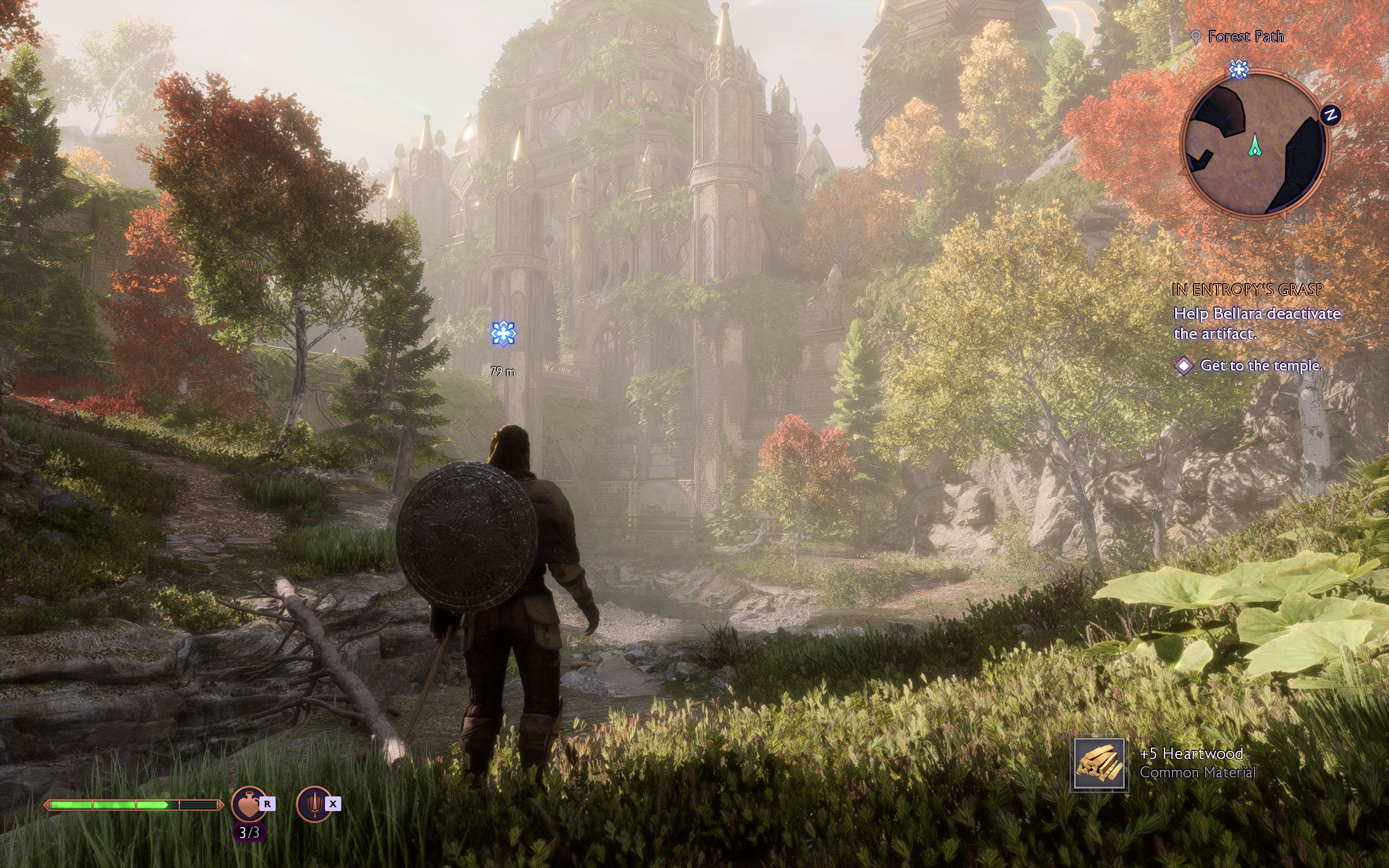


































Graphics Settings

- You can choose between "fullscreen," "borderless," or "windowed"
- V-Sync can be disabled completely, there is no hidden FPS cap
- Triple buffering improves frame rate consistency by keeping an additional rendered frame in-flight
- The upscalers available are "Off," "AMD FSR," "NVIDIA DLSS," and "Intel XeSS"
- DLAA isn't enabled by selecting it in the "Upsample Quality" menu, instead you have to pick it in "Anti-Aliasing." Here you can also find "TAA Low," "TAA High," "DLAA," and "FSR Native AA"
- DLSS Frame Generation is supported, AMD FSR Frame Gen is not supported
- "Render Scale" can be set between 50% and 150%
- "Dynamic Resolution Scaling" lets you define a target FPS setting, and it will automatically adjust render resolution accordingly
- Target FPS can be set between 30 and 240 FPS, and the resolution scale limit can be set between 20% and 100%

- The "Graphics" menu has the presets, which are "Low," "Medium," "High," and "Ultra"
- Ray Tracing quality can be selected between "Off," "Partial," and "Full," and there's also an "Ultra Ray Tracing" mode—quite confusing. "Selective" will enable RT only on some parts of the scene that are manually enabled for RT by the developers, whereas "Full" is what you'd expect from ray tracing. Not exactly sure what "Ultra Ray Tracing" does
- Do note that the "Ultra" settings profile does not enable "Ultra Ray Tracing," and it sets the RT options to just "Partial," not "Full"
- Distracting effects like motion blur, depth of field and vignette can be disabled
- The game still has an always-on, annoying, bloom filter. You can disable that by editing the config file manually: go to %USERPROFILE%\Documents\BioWare\Dragon Age The Veilguard\settings\, open ProfileOptions_profile with a text editor or Notepad, change "GstRender.UI_Bloom 1" to "GstRender.UI_Bloom 0" then save and start the game
- Additionally, there's a long list of settings that help you balance rendering performance with quality
- You may also adjust the field of view. The default of "100%" was a bit too narrow for me and I prefer to play at a FoV setting of 110%
Our Patreon Silver Supporters can read articles in single-page format.
Nov 23rd, 2026 18:40 CST
change timezone
Latest GPU Drivers
New Forum Posts
- RX 580 2048SP 8GB - SK Hynix - Ardiyes - BIOS Needed (4)
- UPS what one to get? (59)
- Your PC ATM (36480)
- WarpCoreBench scores! (94)
- 6502-based superscalar core (logisim) progress updates (1)
- GTA VI (27)
- Last game you purchased? (1419)
- Gacha Games - Discussions, Pulls, Updates, etc. (1161)
- Increasing Power Limit? (19)
- Can you guess Which game it is? (350)
Popular Reviews
- Microsoft Surface Laptop Ultra Review - The Next-gen Arm Laptop
- ASRock X870E Challenger Wi-Fi White Review
- Upcoming Hardware Launches 2027 (Updated Nov 2026)
- Corsair RM1200e (Second Generation) Review
- AMD Ryzen 7 9800X3D Review - The Best Gaming Processor
- AMD Zen 6 Technical Deep Dive
- AMD Ryzen 7 7700X3D Review
- Pulsar Office Tour & First Look at P1 Dual-Sensor Mouse
- Ugreen NASync DXP4800 GT Review
- Phantom Blade Zero Performance Benchmark Review - 35 GPUs Tested
TPU on YouTube
Controversial News Posts
- NVIDIA Co-Founder and CEO Jensen Huang Officially Resigns (492)
- Jensen Huang Reinstated as CEO of NVIDIA (375)
- Report: Jensen Huang Eyes NVIDIA Comeback (278)
- Open Letter Asking NVIDIA to Reinstate Jensen Huang Passes 115,000 Signatures (184)
- OpenAI CEO Argues Home PCs Waste the World's Limited DRAM Supply (152)
- NVIDIA Launches Investigation Into Jensen Huang's Relationship With Suspected Chinese Spy (136)
- Intel "Raptor Lake Next" 16-Core and 20-Core CPUs Surface (130)
- NVIDIA GeForce RTX 50-Series Scheduled for up to $500 Price Hike This Week (89)