 7
Dragon Age: The Veilguard Handheld Performance Review
Conclusion »ASUS ROG Ally Optimized Settings
On the ROG Ally, you've got a couple of optimized setting combos to choose from.Before we list them, we want to let you know that you should set your VRAM to 6 GB for the best experience no matter which optimized setting combo you end up using, because the game uses a ton of VRAM even with textures set to low. The default 4 GB option works well during short playing sessions, like when benchmarking the game, but during longer sessions, you might encounter stuttering stemming from the game having trouble with texture streaming.
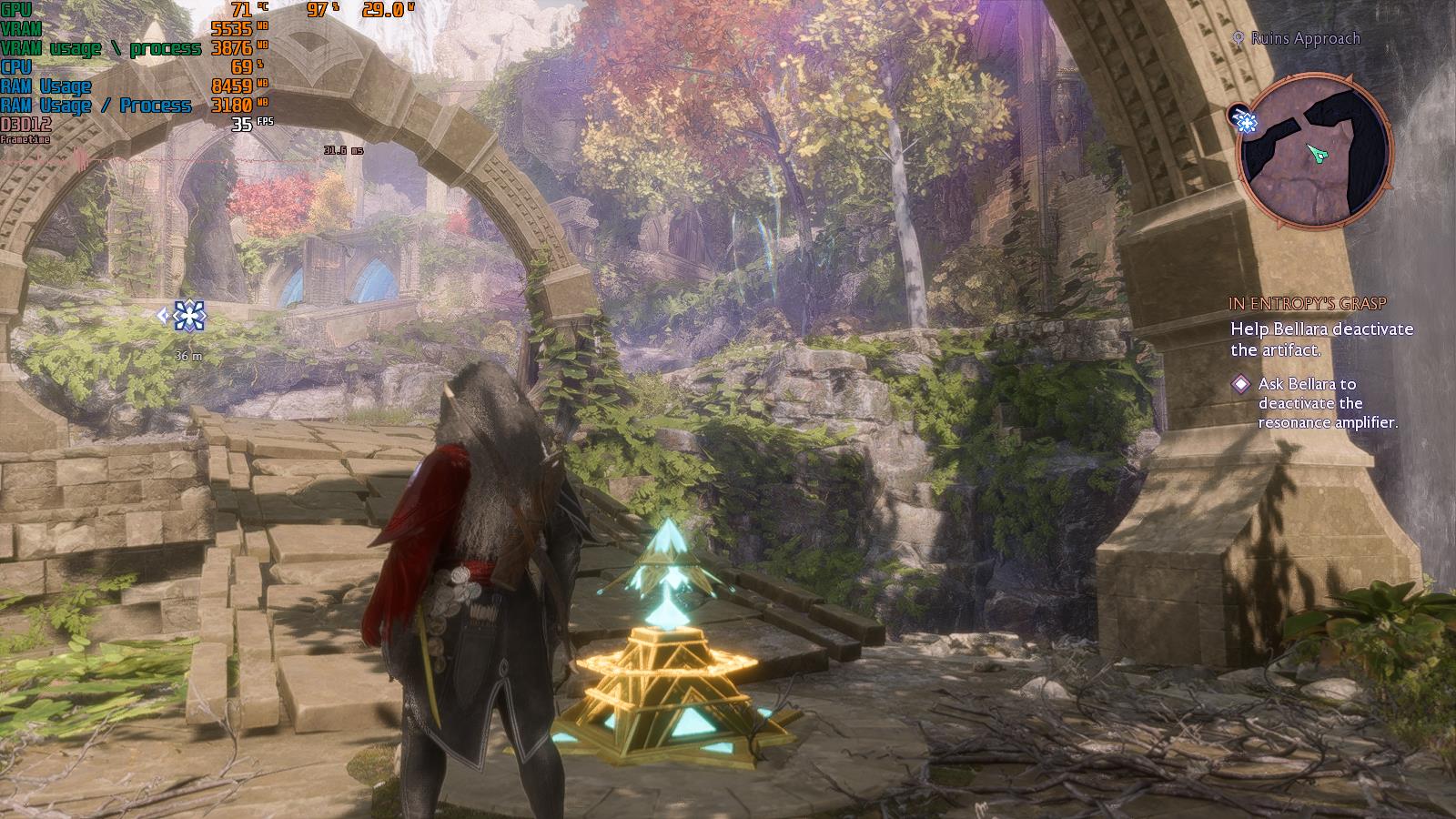
The first combo, which gives you the best performance, is made of 900p resolution, FSR set to Balanced, and the Low preset with Medium textures, High texture filtering, and screen space reflections. This combination of settings results in a very stable 30 FPS performance that can reach the high 50s in some areas, so make sure to lock the game to 30 FPS or 40 FPS if you don't want your frame rate to jump all over the place. Just don't use the in-game frame limiter since it isn't stable frame-time wise.
We played the game for about eight hours the past weekend with these settings and can say the game is definitely playable while looking great on the compact 7-inch screen. We encountered only a handful of very brief sub-30 FPS drops, mostly during boss battles and at a few random points while exploring.
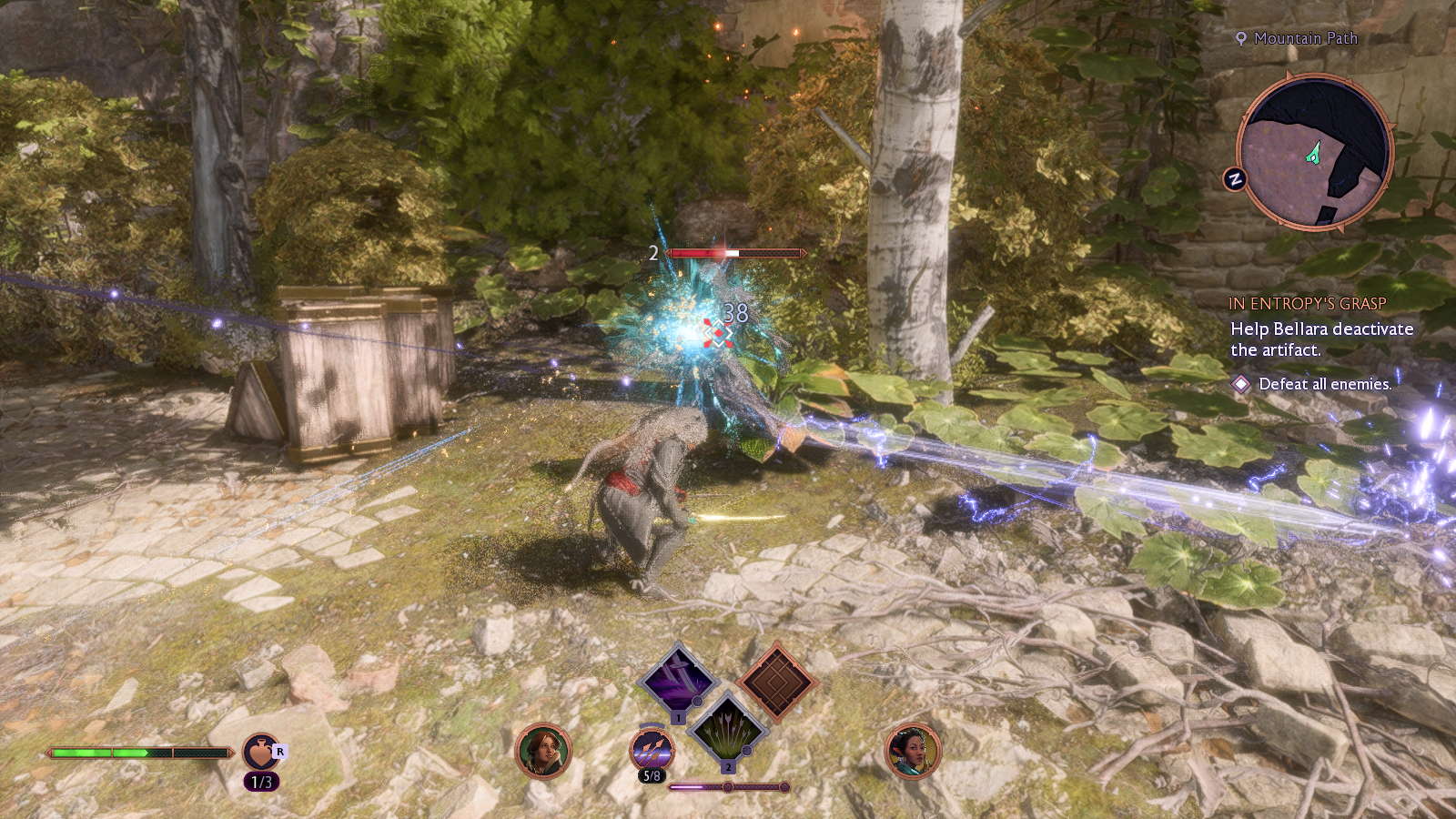
The image quality with this preset is much better than on Steam Deck, but you will notice the signature FSR look featuring lots of temporal artifacts, especially around your character while they're moving, which results in a fuzzy and quite sharp look. But even with the FSR fuzziness and low settings applied, Dragon Age: The Veilguard looks rather attractive on the ROG Ally's compact screen.

You can also opt for 720p coupled with the settings shown above along with TAA set to Low. This will give you a mostly stable 30 FPS experience even during intense set pieces. If you feel this combo results in too frequent drops below 30 FPS, lowering Level of Detail to Low should sort most of them out.
The aforementioned combos go hand in hand with either the 25 W or 30 W (when on charger) power profile, you should expect less than one hour of battery life when away from a charger. We recommend the latter because it improves the performance, if only for a couple of frames, which is very important to prevent the frame rate from dropping below 30 FPS.
The final combo is made for on-the-go gaming. It uses 18 W or 19 W of power, depending on whether you're OK with rare sub-30 FPS dips. Set the resolution to 720p, FSR to Balanced, and use the Low preset with Medium textures and High texture filtering. This combo gives you about an hour and a half of battery life.
Whichever optimized settings combo you end up using, make sure to either use TAA or some form of upscaling, because the game looks ugly as heck without antialiasing. It's grainier than white noise on a CRT TV.
Nov 27th, 2026 19:31 CST
change timezone
Latest GPU Drivers
New Forum Posts
- Anthrophics IPO (51)
- AAF Optimus Modded Driver For Windows 10 & 11 - Only for HDAUDIO Chips [WINDOWS 11 RECOMMENDED] (1156)
- -18C on GPU by moving it to the front of the case. (17)
- What's your main Black Friday / Cyber Monday purchase? (41)
- Exit Adobe - PDF reader, and PDF editor recommendations (10)
- The TPU UK Clubhouse (27308)
- Wireless Internet sharing between PC and router both-ways, is it possible? (34)
- Gigabyte RX 6800 XT Gaming OC and I would like to test the BIOS version 020.001.000.071.000000. (18)
- Mouse Pad advice - Shidenkai out of production? (21)
- Which Xfinity modem/router setup supports network printing/scanning between a wired PC and a Wi-Fi Brother MFC-L8900CDW printer? (0)
Popular Reviews
- Upcoming Hardware Launches 2027 (Updated Nov 2026)
- AMD Ryzen 7 9800X3D Review - The Best Gaming Processor
- VZMORE AX9 Max Review
- Montech CyberFlow ARGB 360 Review
- ASRock X870E Challenger Wi-Fi White Review
- Moaiplay Ora Pro G1 850 Review
- AMD Zen 6 Technical Deep Dive
- ORICO Obook15 AI Review
- Microsoft Surface Laptop Ultra Review - The Next-gen Arm Laptop
- Phantom Blade Zero Performance Benchmark Review - 35 GPUs Tested
TPU on YouTube
Controversial News Posts
- Jensen Huang Reinstated as CEO of NVIDIA (623)
- NVIDIA Co-Founder and CEO Jensen Huang Officially Resigns (492)
- Report: Jensen Huang Eyes NVIDIA Comeback (281)
- Open Letter Asking NVIDIA to Reinstate Jensen Huang Passes 115,000 Signatures (184)
- OpenAI CEO Argues Home PCs Waste the World's Limited DRAM Supply (152)
- NVIDIA Launches Investigation Into Jensen Huang's Relationship With Suspected Chinese Spy (136)
- Intel Razor Lake Gets a 12 P-Core bLLC Chip With No E-Cores, Per Leak (94)
- NVIDIA GeForce RTX 50-Series Scheduled for up to $500 Price Hike This Week (89)