 0
GAMDIAS Hermes P2 RGB Keyboard Review
Value & Conclusion »Performance
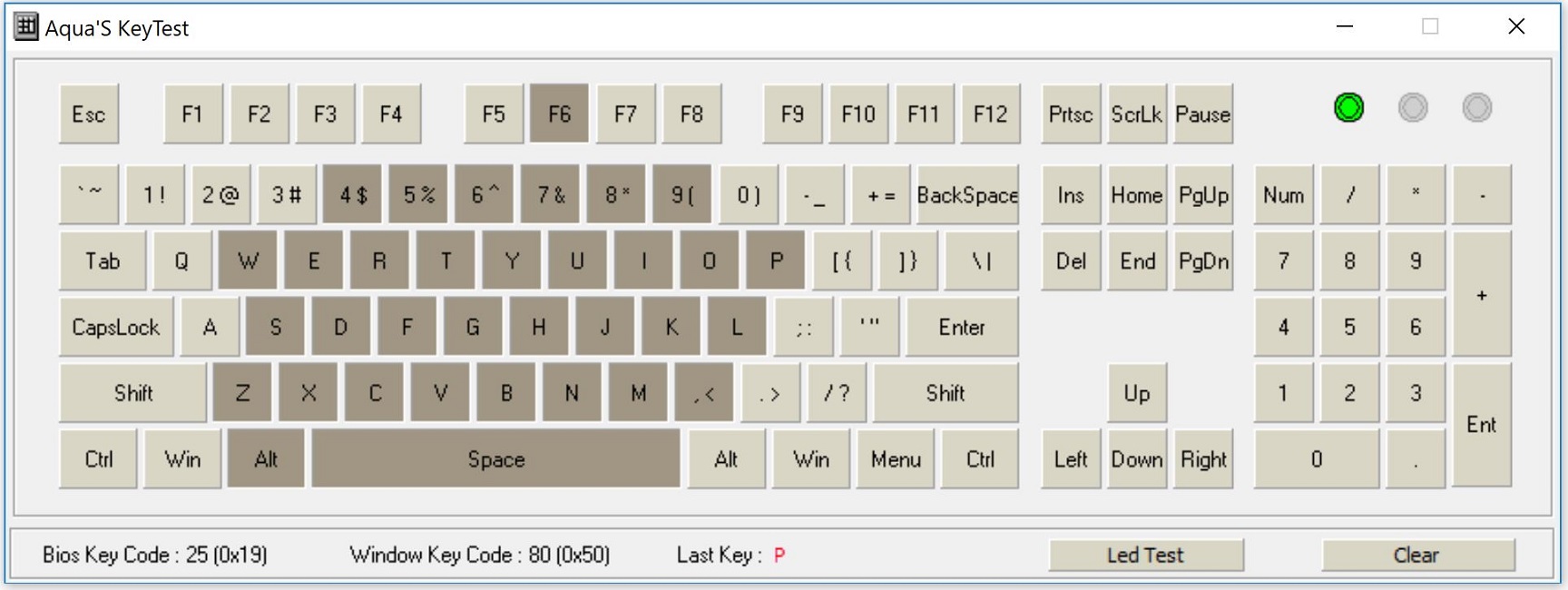

The GAMDIAS Hermes P2 RGB keyboard supports N-key rollover USB out of the box, which tested successfully using Aqua's test. Switch Hitter confirmed no chatter with these keys either.
When first connected, and even without the software driver installed or running, the keyboard lights up in the RGB wave effect. There are four lighting options that you have onboard control over, with Fn + Ins/Del/Home/End going through these (Wave, Rotation, Static Colors, and Off). Additional controls and effects need the driver to be used, and we went through this on the previous page. The brightness (in four steps of 0/30/60/100%) and direction of effect, if applicable, can also be controlled onboard by the combination of Fn and arrow keys.


You can toggle between specific colors for the static lighting (full keyboard) via the controls mentioned previously, including green, red, and blue. There was a color available that appeared to be white with some blue mixed in, so I used the software driver to set the keyboard to 255/255/255 to see how close to white the RGB LEDs with the diffuser element here are. It was slightly more true to color than the onboard option, but we can see a blue hue still, which is not unusual for RGB keyboards today. A second test was done with per-key lighting to test for light bleed, and the result wasn't too bad despite the floating keycaps with gaps on the bottom and sides alike because the matte finish on the top cover plate minimizes this off to the sides. Even here, given that the light is coming out the top of the switch, it is the other three sides that are more susceptible to light bleed, so in practice, you will not see the legends backlit in a mixture of colors.
Here are some more of the lighting effects demonstrated, and the light bleed effect did not come across as very distracting at full brightness and high speed for the various dynamic effects. It also helps that GAMDIAS has the dynamic effects going through colors for most of them, rather than having multiple colors active simultaneously. There is a mix of type-responsive effects in here too, for those who want it.
For those preferring to not use the software driver at all, GAMDIAS has provided more onboard functionality than just lighting control, and here too I will bring up the manual being useful; you can have any of the six profiles stored on the device be active with their specific set of per-key lighting schemes to suite game types, including FPS, MOBA, RPG, etc. There are multimedia controls assigned as secondary functions, and you can activate game mode to lock the Win key, swap between the WASD and arrow keys for primary functionality to suite your preference, and even have on-the-fly macro recording and assignment if you simply must do so without the driver. I do encourage using at least the portable version of the driver to access the higher degree of control available there for the changes one may be looking to implement.
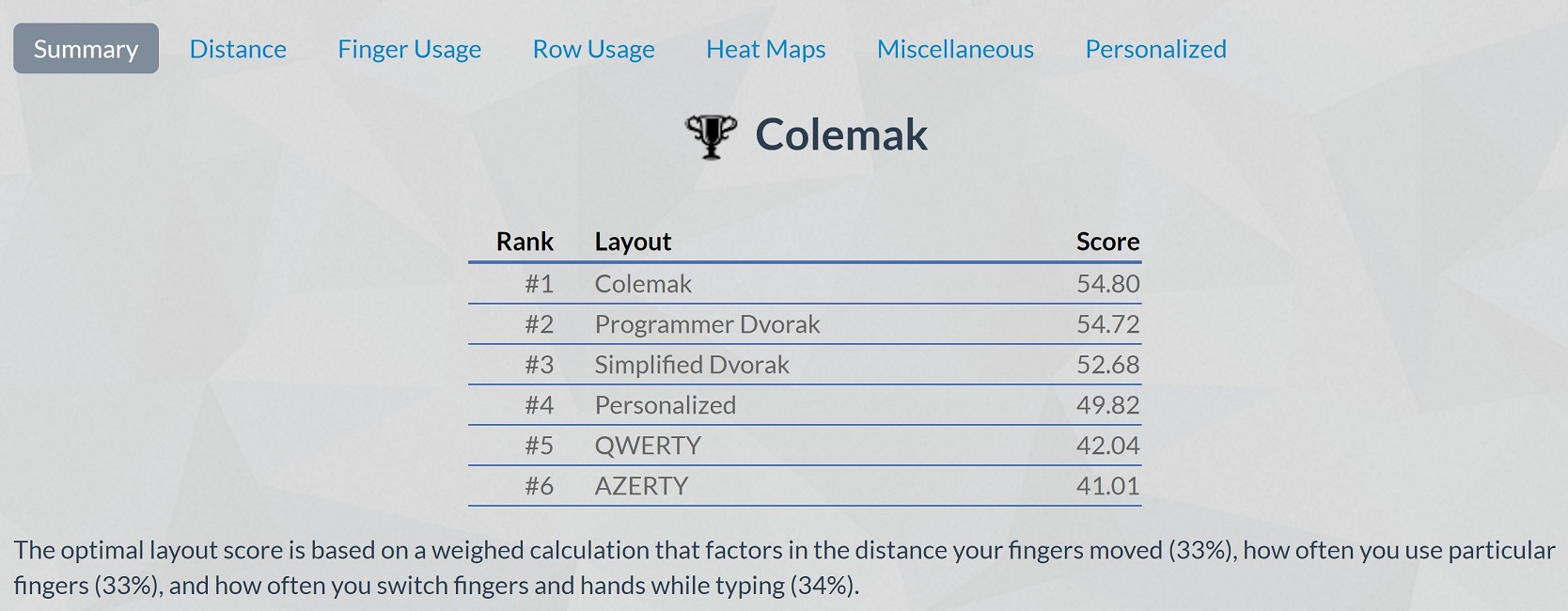
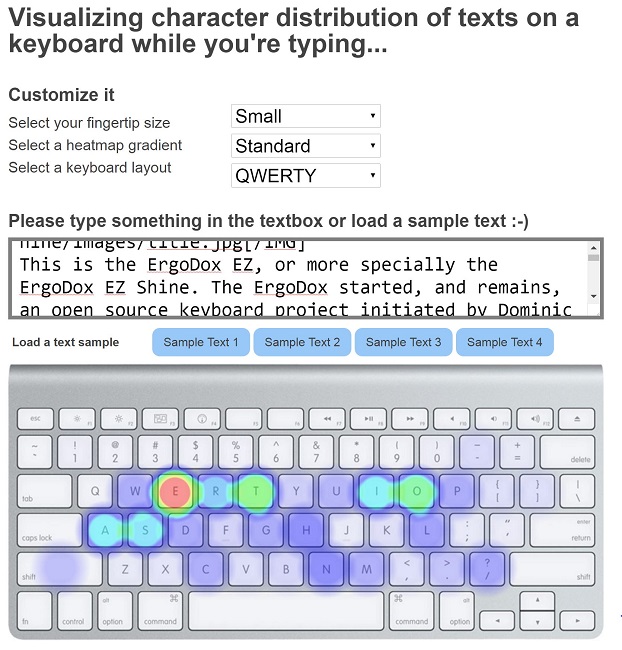
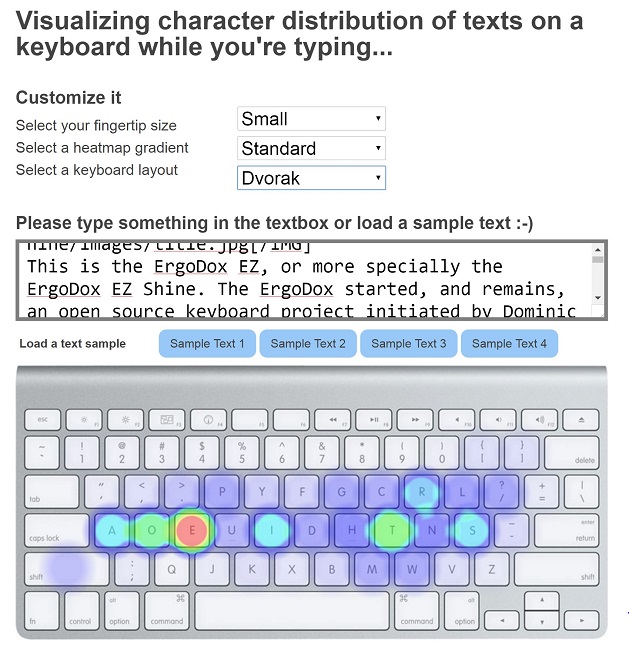
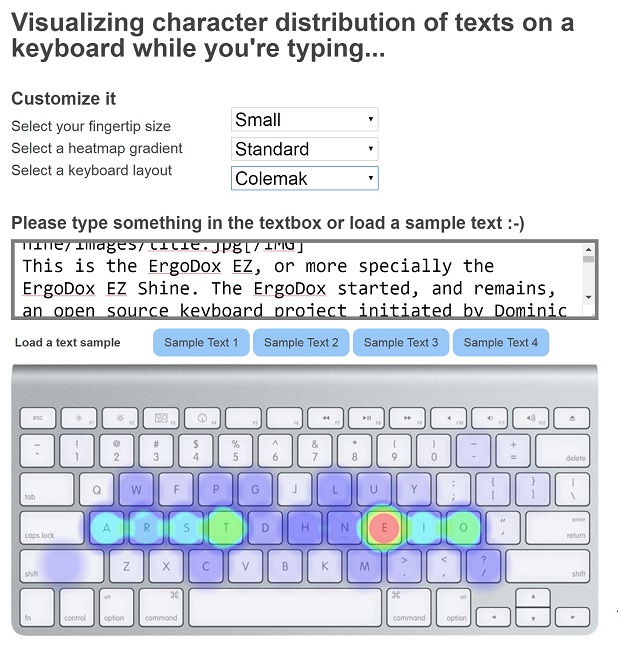
The key-assignment options in the software driver allow for users to also go with layouts other than QWERTY, and here, I used the source code from an older keyboard review in a layout tester (courtesy of Patrick Gillespiep). The results above indicate that QWERTY is not even close to the most efficient layout for me, and very likely you as well. If you are willing, try out Colemak or Dvorak as they will result in lower finger travel and fatigue overall. As such, the driver offers a significant functional tool if you are willing to devote some time to adopting either Colemak or Dvorak. Here is the link to the full results if you are interested, including a detailed analysis on key presses and distances moved.
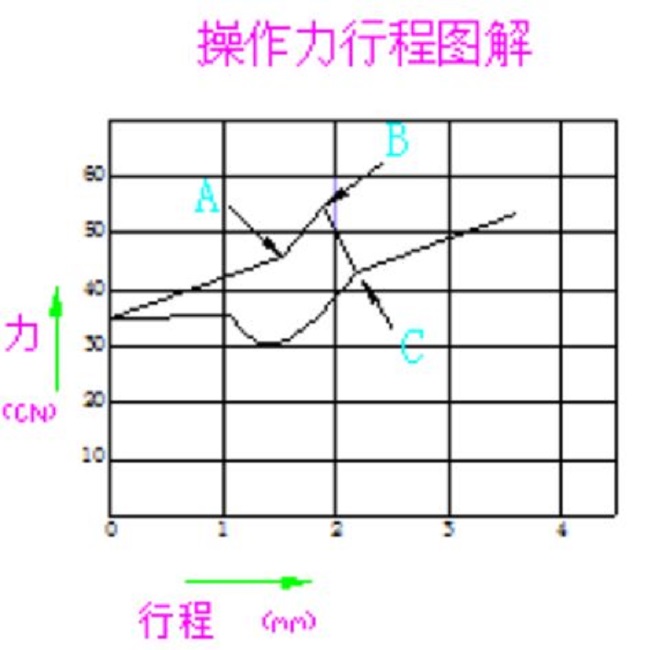
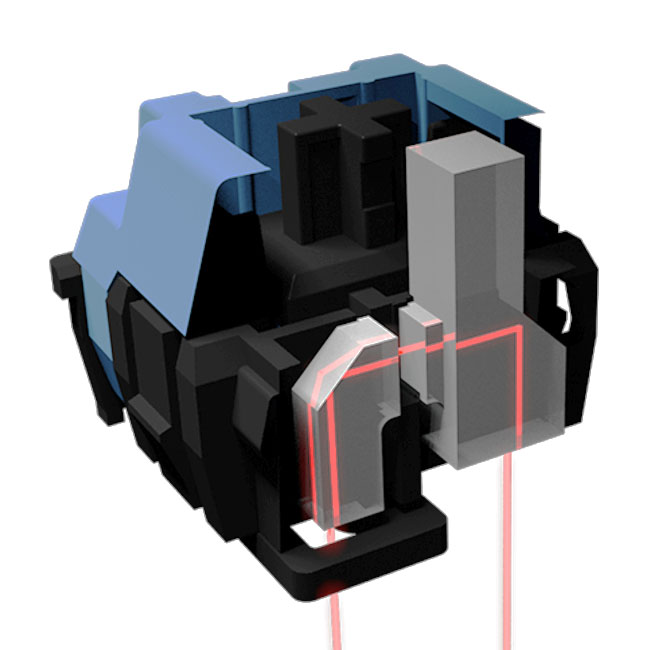
There is no publicly available information to be found about the nature of the GAMDIAS optical switches used, and this is something I would like to see changed as soon as possible. After I had told them so, they sent over a force-travel diagram, and from what can be interpreted, the GAMDIAS blue optical switch has a rated actuation distance of 1.8-2.0 mm, rated actuation force of 50 (+/- 5) cN, and peak force of 55 (+/- 5) cN. In addition, there are a few other things that can be gathered simply by knowing that this is an optical switch. An IR signal gets interrupted by the stem/slider traveling down towards the actuation point, and this triggers the keystroke's actuation. The near-instantaneous nature of actuation here means this particular step is usually rated at less than 1 ms as compared to the ~3-5 ms for most mechanical switches. The lack of metal parts that are in contact with each other for actuation also means a potentially longer lifetime for the switch, along with the convenience to decoupling feedback from actuation. The clickbar used here for the tactile and clicky feedback is an example, and you can, of course, also remove the switches and mod them more readily than mechanical switches that are soldered in place.
As always, the sound of a keyboard is based on more than just the switch type. So when comparing sound clips, consider the keyboard as a whole. In this case, I have provided above an example sound clip of me typing on the GAMDIAS Hermes P2 RGB sample at ~95 WPM as it comes out of the box. For context, you can find sound clips from other keyboards here, including those with tactile and clicky switches. I did bottom out here, which was not hard to do owing to the relatively light spring, and there was a light, but discernible ping added to the sound signature via contact with the metal cover plate.
Nov 27th, 2026 06:02 CST
change timezone
Latest GPU Drivers
New Forum Posts
- Mouse Pad advice - Shidenkai out of production? (12)
- What's your main Black Friday / Cyber Monday purchase? (28)
- Wireless Internet sharing between PC and router both-ways, is it possible? (31)
- Using sodimm+adapter instead of full size dimm DDR5? (103)
- SABRENT AIC's (no bifurcation) Black Friday deals (0)
- Found Out Why My FygoOS Transfers Were Stuck at 11 MB/s (0)
- X79 and/or rampage IV OC'ing thread for those of us still left.... (2461)
- Will zen 6 mobos have anything extra vs current ones? (63)
- Dell Dimension E510 Retro Gaming PC Upgrade & Modification (3)
- Gacha Games - Discussions, Pulls, Updates, etc. (1166)
Popular Reviews
- VZMORE AX9 Max Review
- Upcoming Hardware Launches 2027 (Updated Nov 2026)
- ASRock X870E Challenger Wi-Fi White Review
- AMD Ryzen 7 9800X3D Review - The Best Gaming Processor
- Microsoft Surface Laptop Ultra Review - The Next-gen Arm Laptop
- Montech CyberFlow ARGB 360 Review
- AMD Zen 6 Technical Deep Dive
- Phantom Blade Zero Performance Benchmark Review - 35 GPUs Tested
- Corsair RM1200e (Second Generation) Review
- ORICO Obook15 AI Review
TPU on YouTube
Controversial News Posts
- Jensen Huang Reinstated as CEO of NVIDIA (619)
- NVIDIA Co-Founder and CEO Jensen Huang Officially Resigns (492)
- Report: Jensen Huang Eyes NVIDIA Comeback (281)
- Open Letter Asking NVIDIA to Reinstate Jensen Huang Passes 115,000 Signatures (184)
- OpenAI CEO Argues Home PCs Waste the World's Limited DRAM Supply (152)
- NVIDIA Launches Investigation Into Jensen Huang's Relationship With Suspected Chinese Spy (136)
- Intel Razor Lake Gets a 12 P-Core bLLC Chip With No E-Cores, Per Leak (94)
- NVIDIA GeForce RTX 50-Series Scheduled for up to $500 Price Hike This Week (89)