 55
Halo: Campaign Evolved Performance Benchmark Review - 35 GPUs Tested
Preset Performance & Image Quality »Graphics Settings
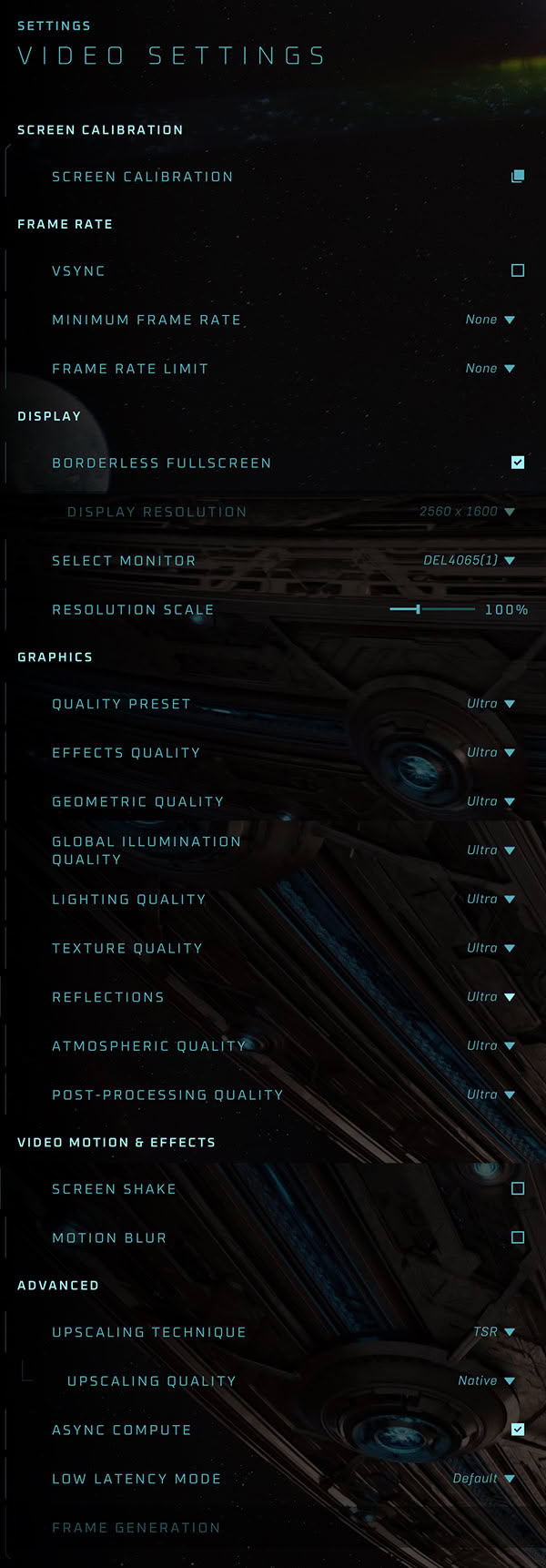
- V-Sync can be disabled completely, there is no hidden FPS lock. Cutscenes are locked to 30 FPS though, which makes them look quite choppy.
- There's only borderless and windowed—no real "fullscreen" option, which means to target a specific resolution, your desktop need to be set to run at that resolution.
- Resolution scale lets you go higher than 100%.
- Quality Preset offers Low, Medium, High and Ultra on desktop. A lower "Very Low" exists but is locked to handhelds (ROG Xbox Ally, Steam Deck), no idea why.
- Motion blur can be turned off, but stays active in cutscenes.
- Eight settings groups can be tuned individually: Effects, Geometric, Global Illumination, Lighting, Texture, Reflections, Atmospheric and Post-processing.
- Lighting uses UE5 Lumen (with Nanite geometry) and is always on—there's no hardware RT toggle.
- Upscaling: DLSS, FSR, XeSS are all supported, plus TSR for native rendering.
- Upscaling Quality uses generic names: Ultra/High/Medium/Low, which map to Quality/Balanced/Performance/Ultra Performance (67/59/50/33% render), Native = 100%. This is very confusing for PC players who expect to see the usual settings options, not what the game devs think they should be called.
- Frame generation is supported for all three vendor, but it needs the matching upscaler activated first, and there is no option to set multi-frame generation. DLSS runs at 2x, Intel runs at 4x though.
- Ultra-wide 21:9 is supported.
- Microsoft/Xbox account sign-in and account linking is required, even on Steam—despite a recently linked account (from Forza) it demanded re-linking.
- The FOV slider is under Gameplay; the default is a bit too narrow for me—I raised it to 95.
Test System
| Test System - GPU 2025.2 | |
|---|---|
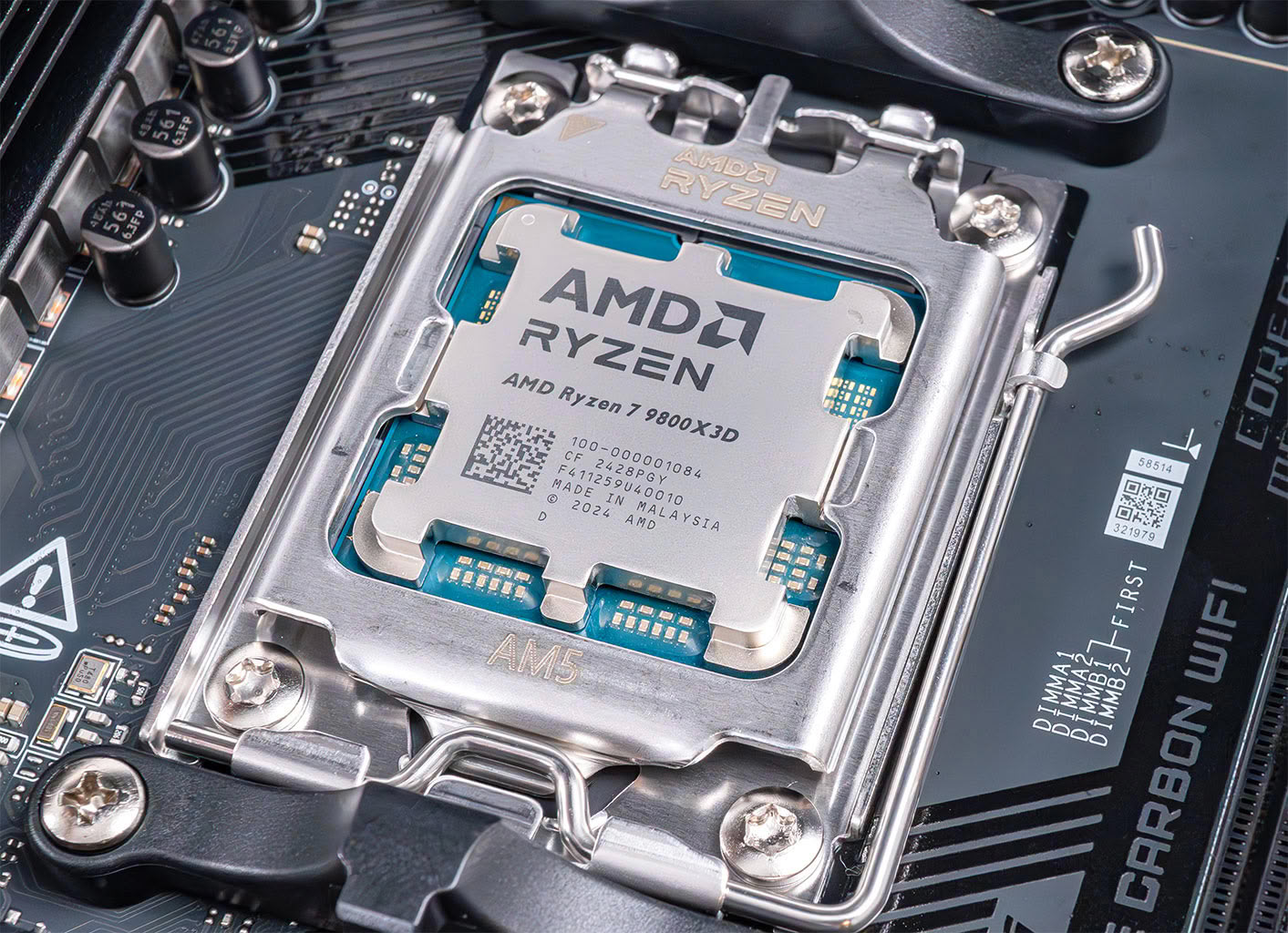
| Processor: | AMD Ryzen 7 9800X3D Zen 5, 5.2 GHz, 8 cores/16 threads |
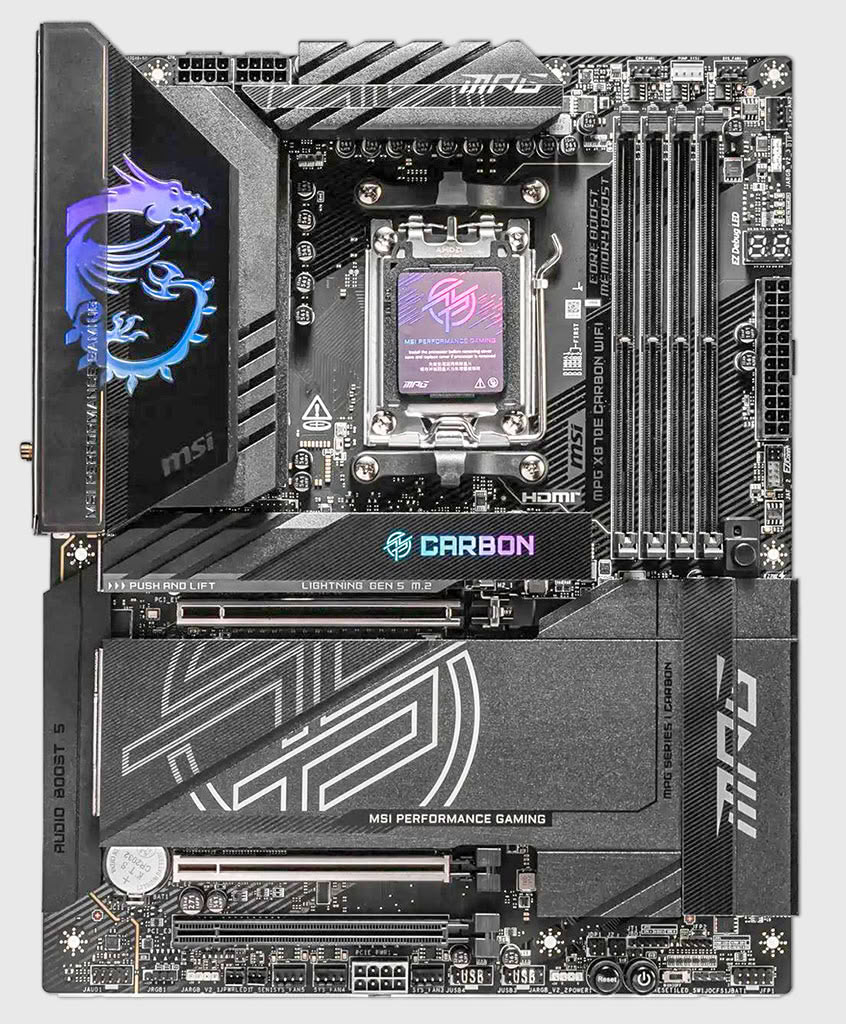
| Motherboard: | MSI X870E Carbon Wi-Fi BIOS 7E49v1A3 |
| Resizable BAR: | Enabled on all supported cards (NVIDIA, AMD & Intel) |
| Memory: | Thermaltake TOUGHRAM XG 2× 16 GB DDR5 6200 MT 28-36-36-76 UCLK 1:1 |
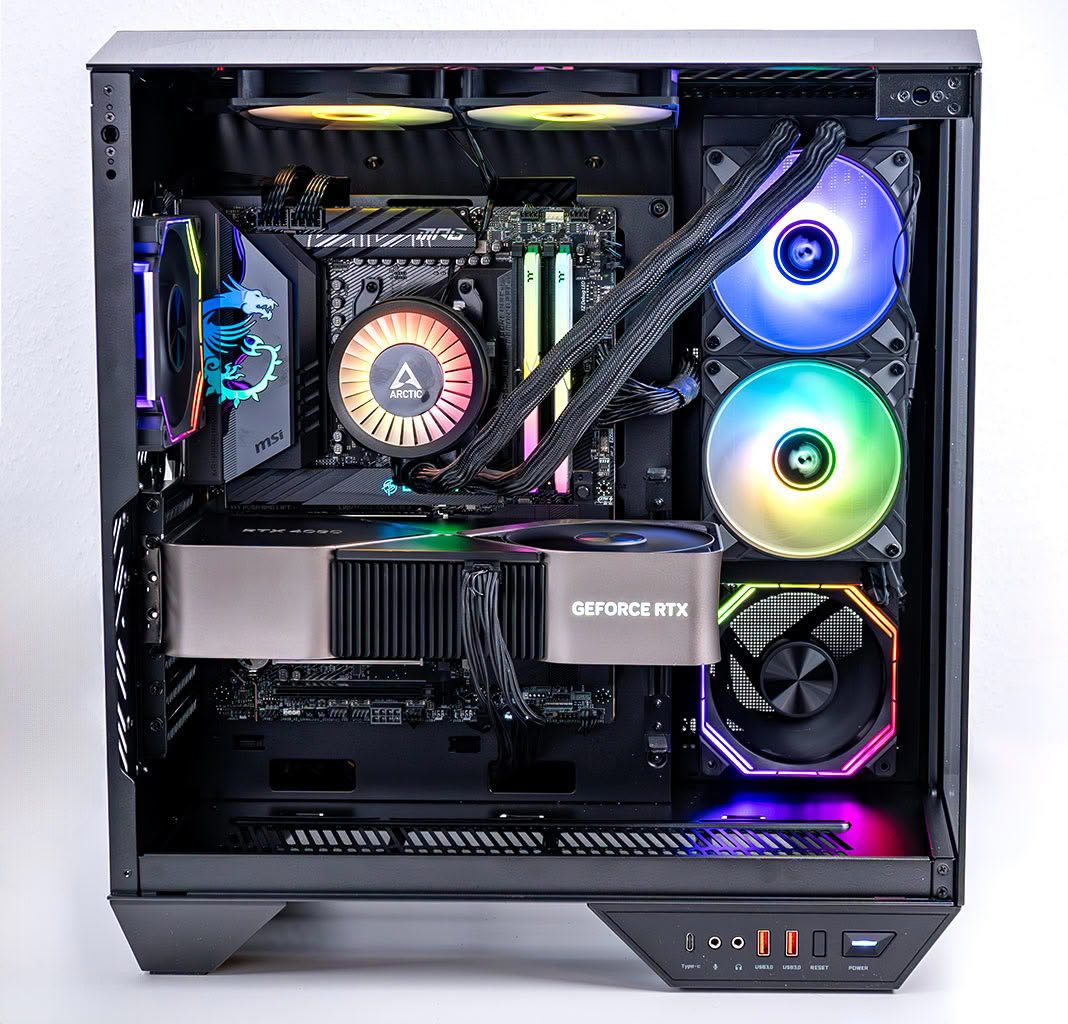
| Cooling: | Arctic Liquid Freezer III 280 mm AIO |
| Thermal Paste: | Arctic MX-6 |
| Storage: | 4 TB M.2 NVMe SSD |
| Power Supply: | Seasonic Focus GX 1000 W ATX 3.0 / 16-pin 12VHPWR |
| Case: | darkFlash DY470 |
| Operating System: | Windows 11 Professional 64-bit 25H2 VBS enabled (Windows 11 default) |
| Drivers: | NVIDIA: 610.74 WHQL AMD: 26.6.4 WHQL Intel: 101.8864 Beta |
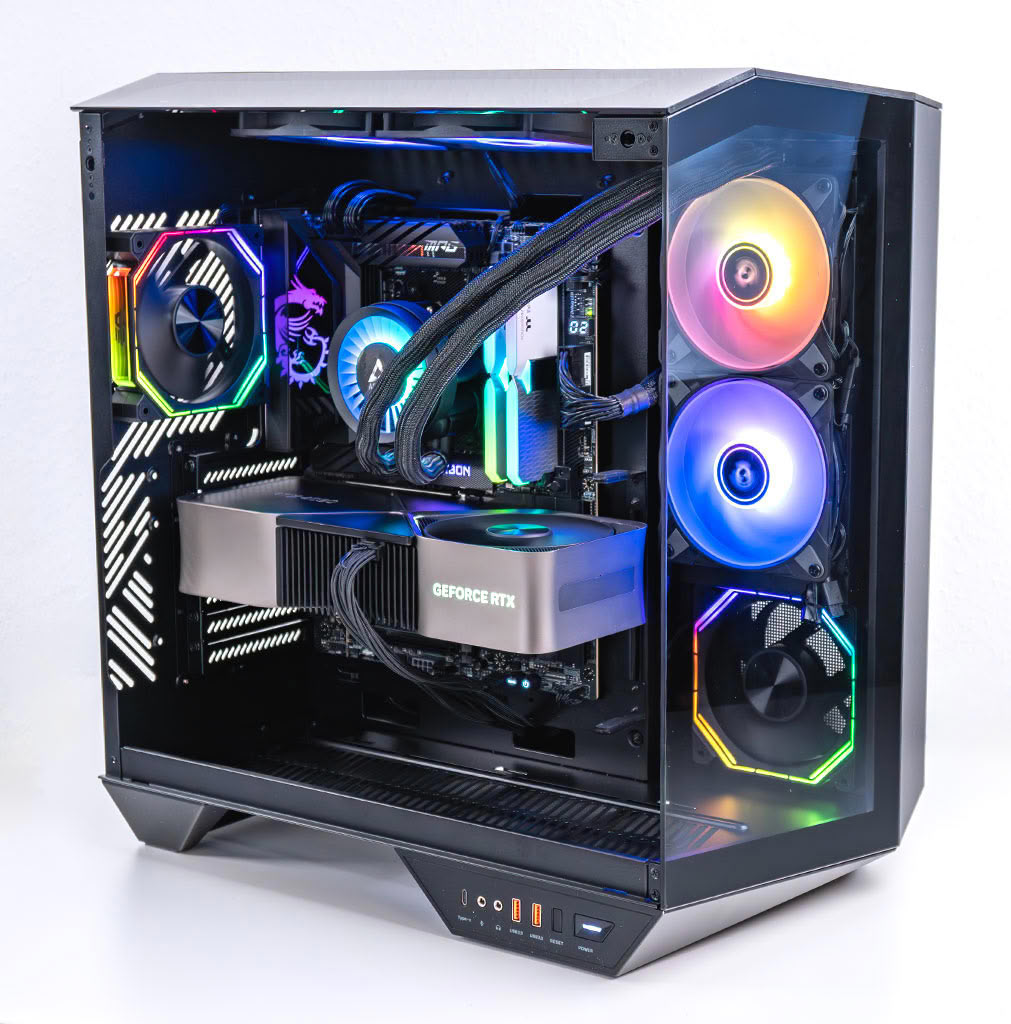
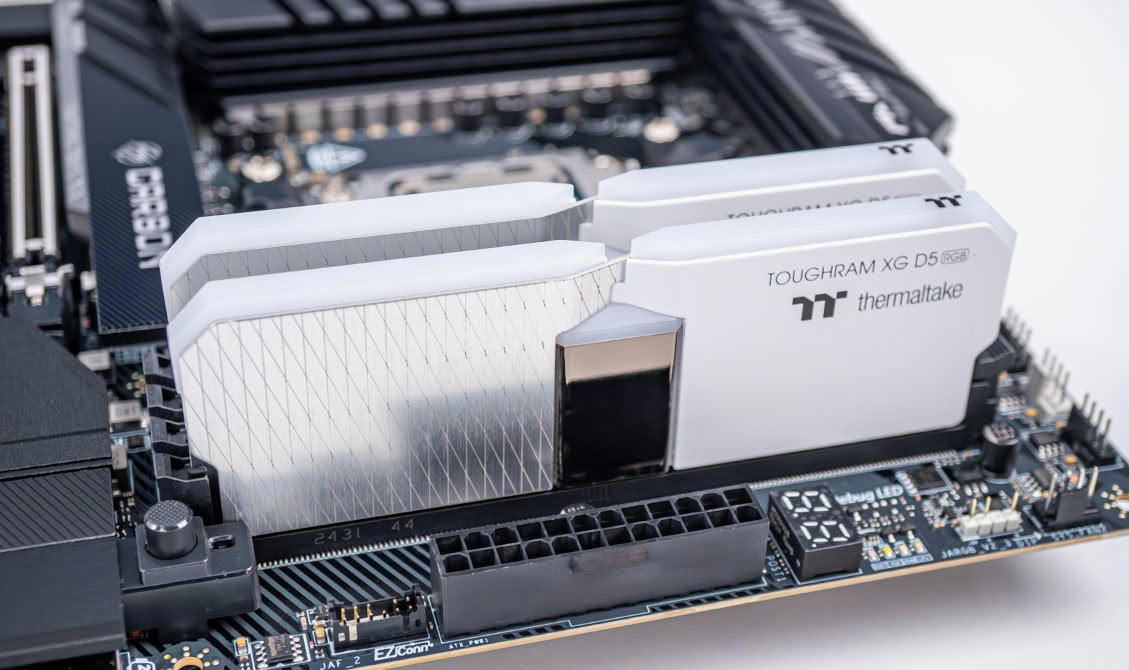
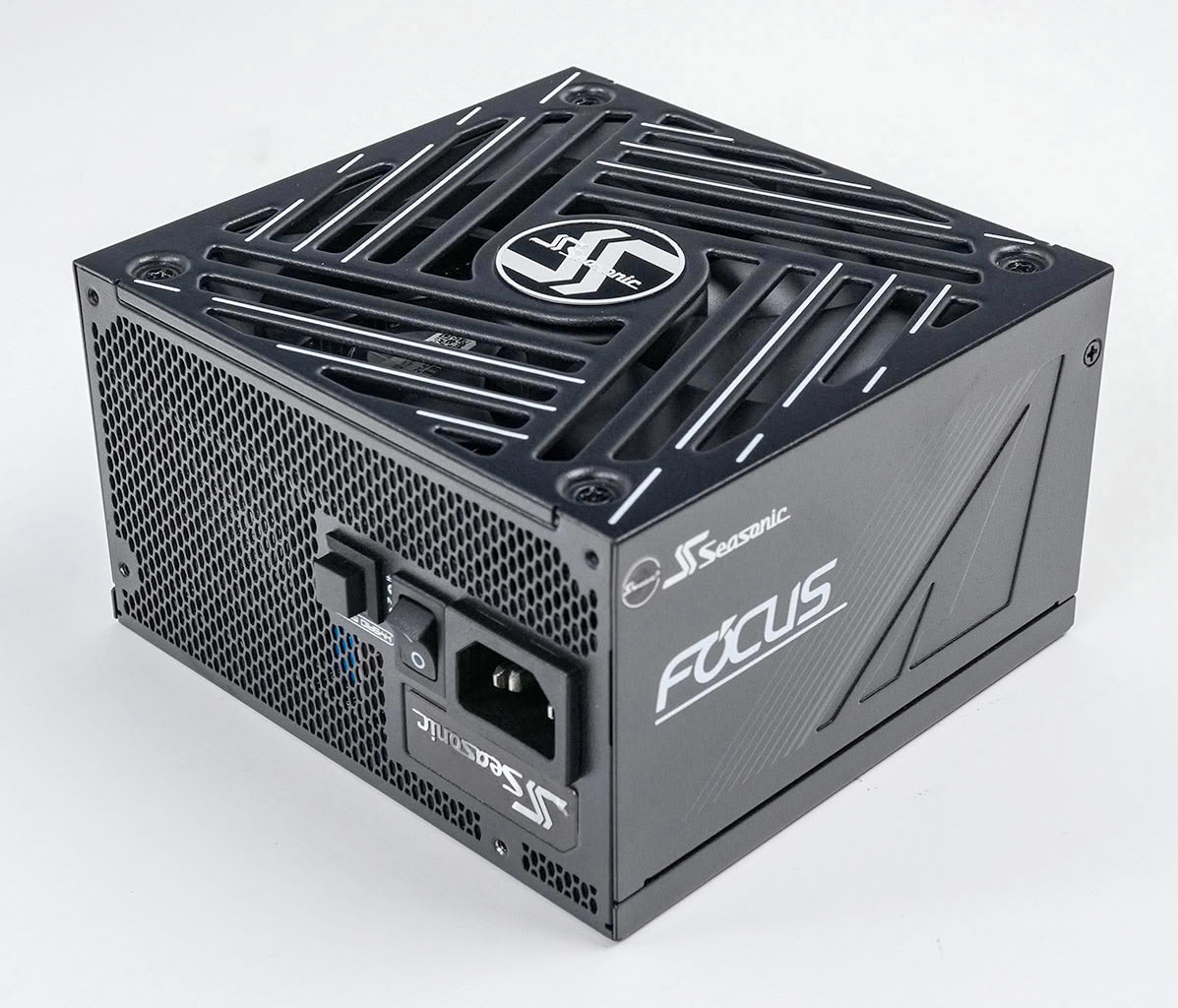
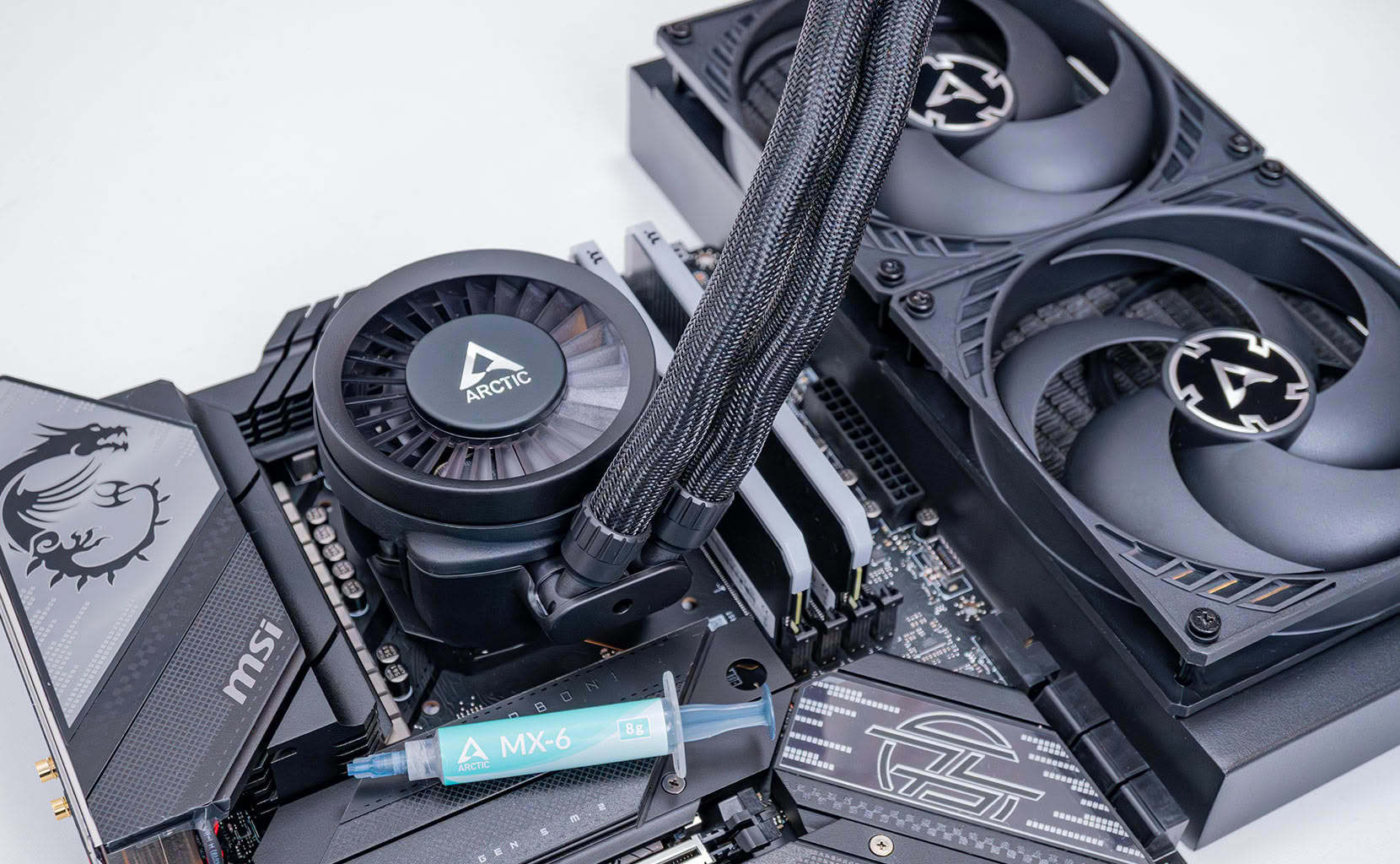
- All cards used for comparison are Founders Edition/reference design. If a reference card does not exist, we use the closest model to ensure default clocks and power limit.
- We tested the public five-day early access version from Steam (not a press pre-release build)
- We used a typical open-world location from the campaign for our testing, to reflect real-world gameplay performance.
Tweaks and Fixes
Below are a bunch of fixes that I found while testing the game.Remove Post-processing
Halo: Campaign Evolved applies some always-on post-processing—film grain and chromatic aberration—that can't be fully switched off from the in-game menu. Both can be removed with a quick Engine.ini tweak (credit to Ikarostv on r/halo for the values), which results in a noticeably crisper, cleaner image with less fuzziness and color fringing. Create a file named Engine.ini in the following folder:%LOCALAPPDATA%\Meteorite\Saved\Config\Windows
add the lines below, save the file, then set it to read-only:
[SystemSettings]
; Film grain
r.FilmGrain=0
r.Tonemapper.GrainQuantization=0
; Chromatic aberration
r.SceneColorFringeQuality=0
; Extra cleanup
r.Tonemapper.Quality=0
; Mild Lumen denoising help
r.Lumen.ScreenProbeGather.Temporal.MaxFramesAccumulated=12
r.Lumen.DiffuseIndirect.Temporal.MaxFramesAccumulated=12
Game keeps launching into artbook
If the game refuses to launch, remove the artbook from the DLC tab for the game in your Steam library—it's a known issue that blocks startup.Copy Savegames
Normally, on any other UE5 game you'd just copy this folder to the other machine:%LOCALAPPDATA%\Meteorite\Saved\SaveGames
This won't work on Halo though, you also have to copy
%LOCALAPPDATA%\Meteorite\Saved\BlamData
%LOCALAPPDATA%\Meteorite\Saved\UnrealBlamSavedFilms
Nov 19th, 2026 15:48 CST
change timezone
Latest GPU Drivers
New Forum Posts
- Honestly, do you care about GTA VI? (163)
- Windows 11 General Discussion (7736)
- Current Sales, Bundles, Giveaways (10448)
- Last game you purchased? (1409)
- WarpCoreBench scores! (76)
- Got the EOL 32GB TridentZ 6000 CL26 1.4V (12)
- Dell Workstation Owners Club (3516)
- Making a game in Godot engine (4)
- DTS DCH Driver for Realtek HDA [DTS:X APO4 + DTS Interactive] (2815)
- Security Apps (2)
Popular Reviews
- Acemagic Retro X3 Review
- Ugreen NASync DXP4800 GT Review
- Upcoming Hardware Launches 2027 (Updated Nov 2026)
- Pulsar Office Tour & First Look at P1 Dual-Sensor Mouse
- AMD Zen 6 Technical Deep Dive
- Biwin Black Opal NV7400 2 TB Review
- Sapphire Radeon RX 7700 XT Pure Review
- Sapphire Radeon RX 7700 XT Pulse Review
- AMD Ryzen 7 9800X3D Review - The Best Gaming Processor
- Chieftec Iceberg PRO 360 DARK Review
TPU on YouTube
Controversial News Posts
- NVIDIA Co-Founder and CEO Jensen Huang Officially Resigns (488)
- Report: Jensen Huang Eyes NVIDIA Comeback (223)
- Open Letter Asking NVIDIA to Reinstate Jensen Huang Passes 115,000 Signatures (184)
- OpenAI CEO Argues Home PCs Waste the World's Limited DRAM Supply (152)
- NVIDIA Launches Investigation Into Jensen Huang's Relationship With Suspected Chinese Spy (136)
- Intel "Raptor Lake Next" 16-Core and 20-Core CPUs Surface (130)
- Legendary Game Studio BioWare Shuts Down Following EA Layoffs (104)
- Dell CEO Says the Memory Shortage Will Get Worse in 2027 (95)