 88
Mafia: The Old Country Performance Benchmark Review - 30+ GPUs Tested
(88 Comments) »Introduction
Mafia: The Old Country is a third-person narrative-driven action game developed by Hangar 13 and published by 2K Games. Set in a richly detailed depiction of early 20th-century Sicily, the game serves as a prequel to the events of the original Mafia (2002), chronicling the rise of the first generation of organized crime families. Players navigate a world of loyalty, betrayal, and ambition, engage in shootouts, fight it out with knives and complete car chases through cobblestone streets. The game blends cinematic storytelling with open-world exploration, offering a more personal, grounded perspective on the origins of the criminal underworld.
Hangar 13, known for its work on Mafia III and the acclaimed Mafia: Definitive Edition, has put more focus on historical authenticity and narrative depth for The Old Country. Built on Unreal Engine 5, the game leverages Nanite for high-detail environments, Lumen for real-time global illumination, and Epic's MetaHuman technology to deliver lifelike facial animation and nuanced character performances. You also get support for upscaling with NVIDIA DLSS, AMD FSR, and Intel XeSS, and there's AMD and NVIDIA frame generation support, too.
This review will evaluate the performance of Mafia: The Old Country across a wide range of contemporary graphics cards, compare image quality settings, and analyze the game's VRAM usage to provide insight into the hardware requirements needed for an optimal experience.
Screenshots
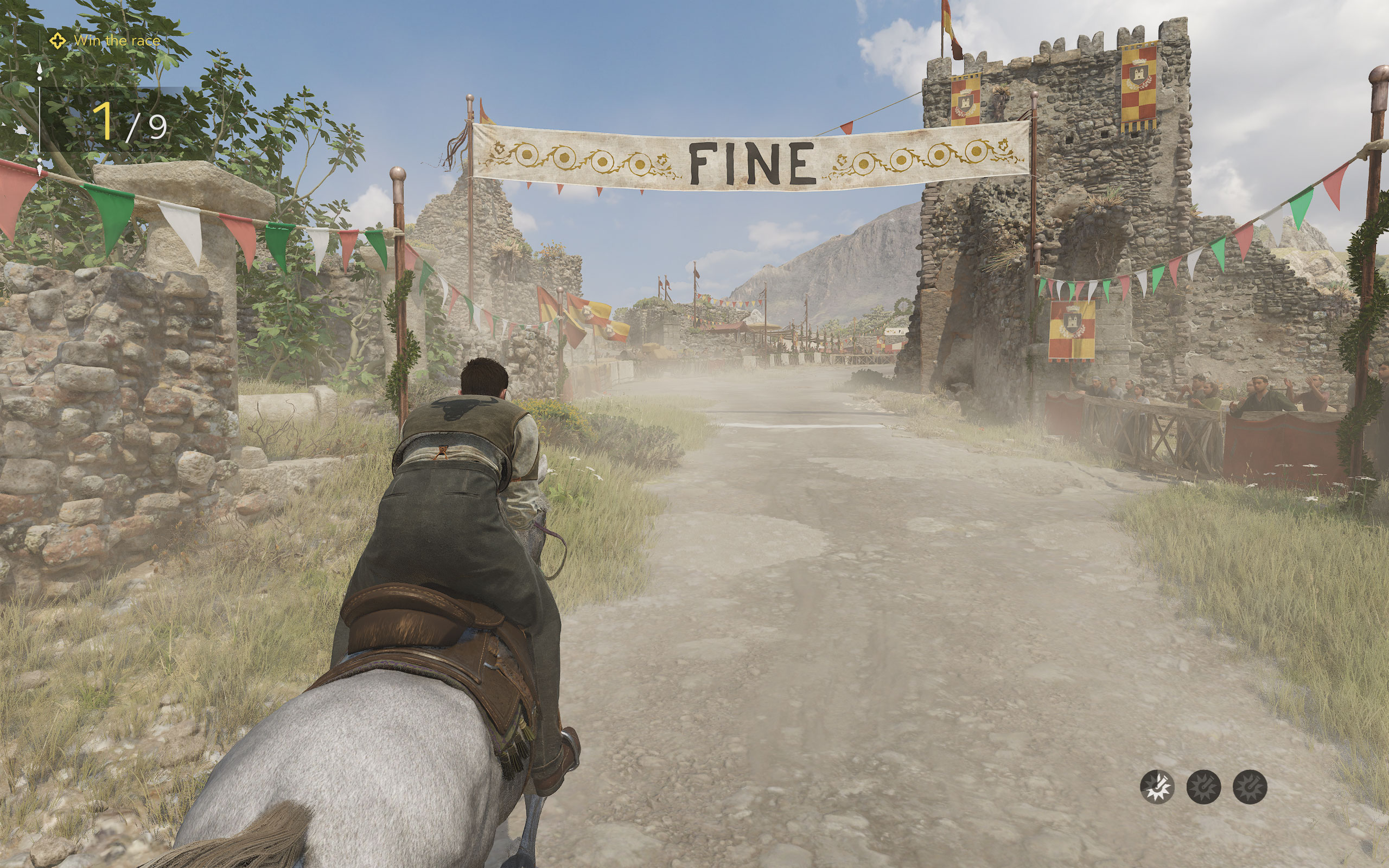
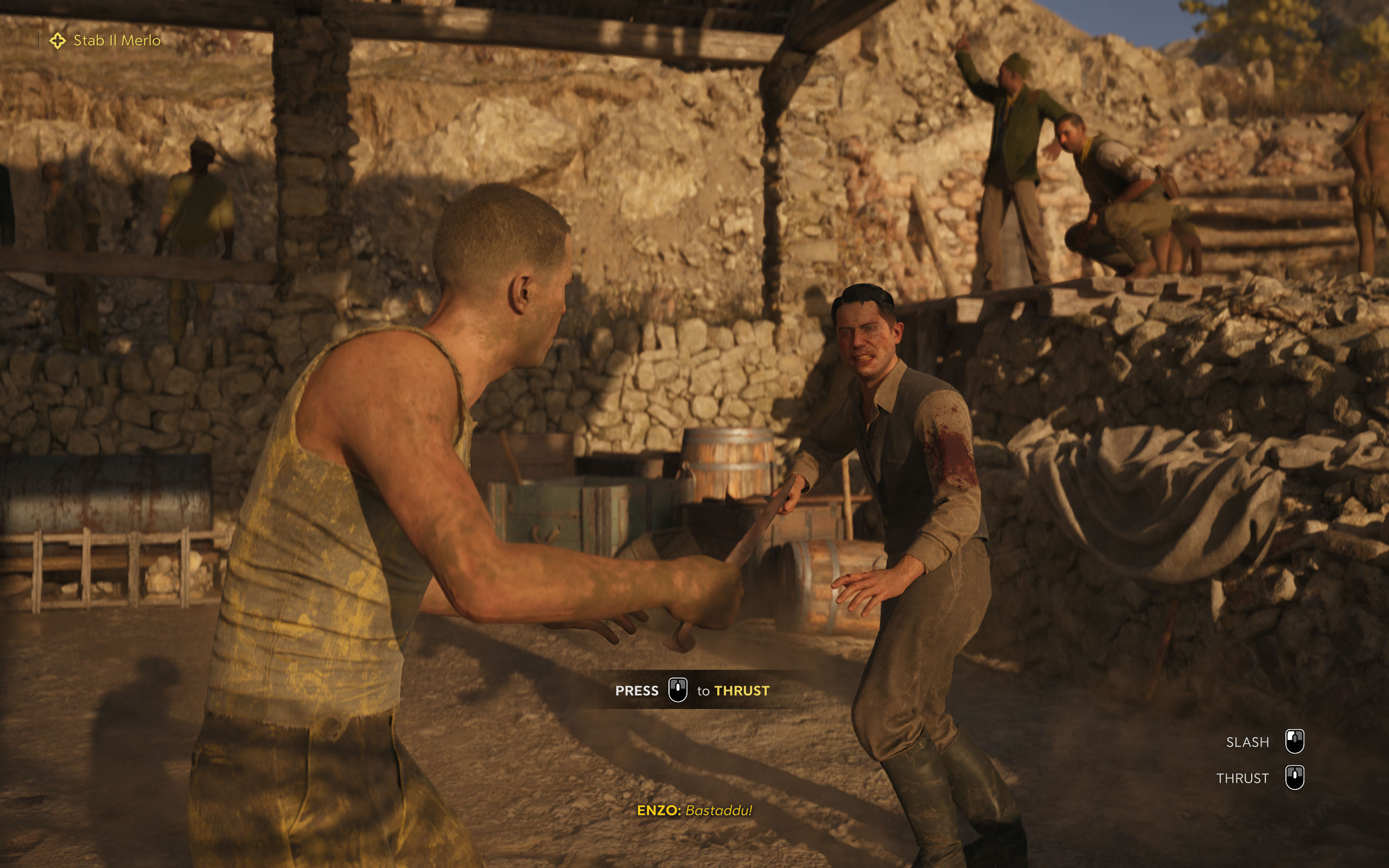
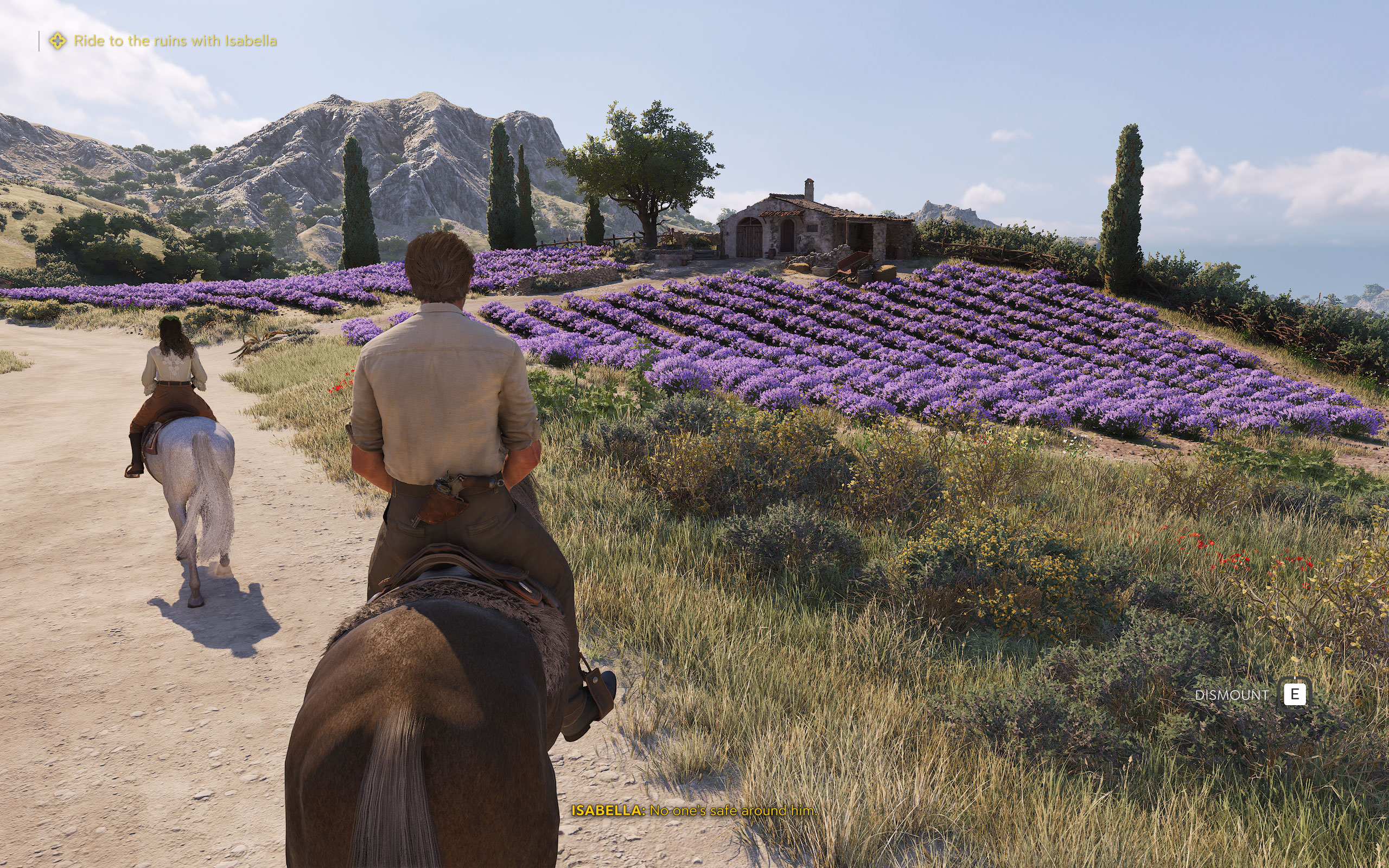
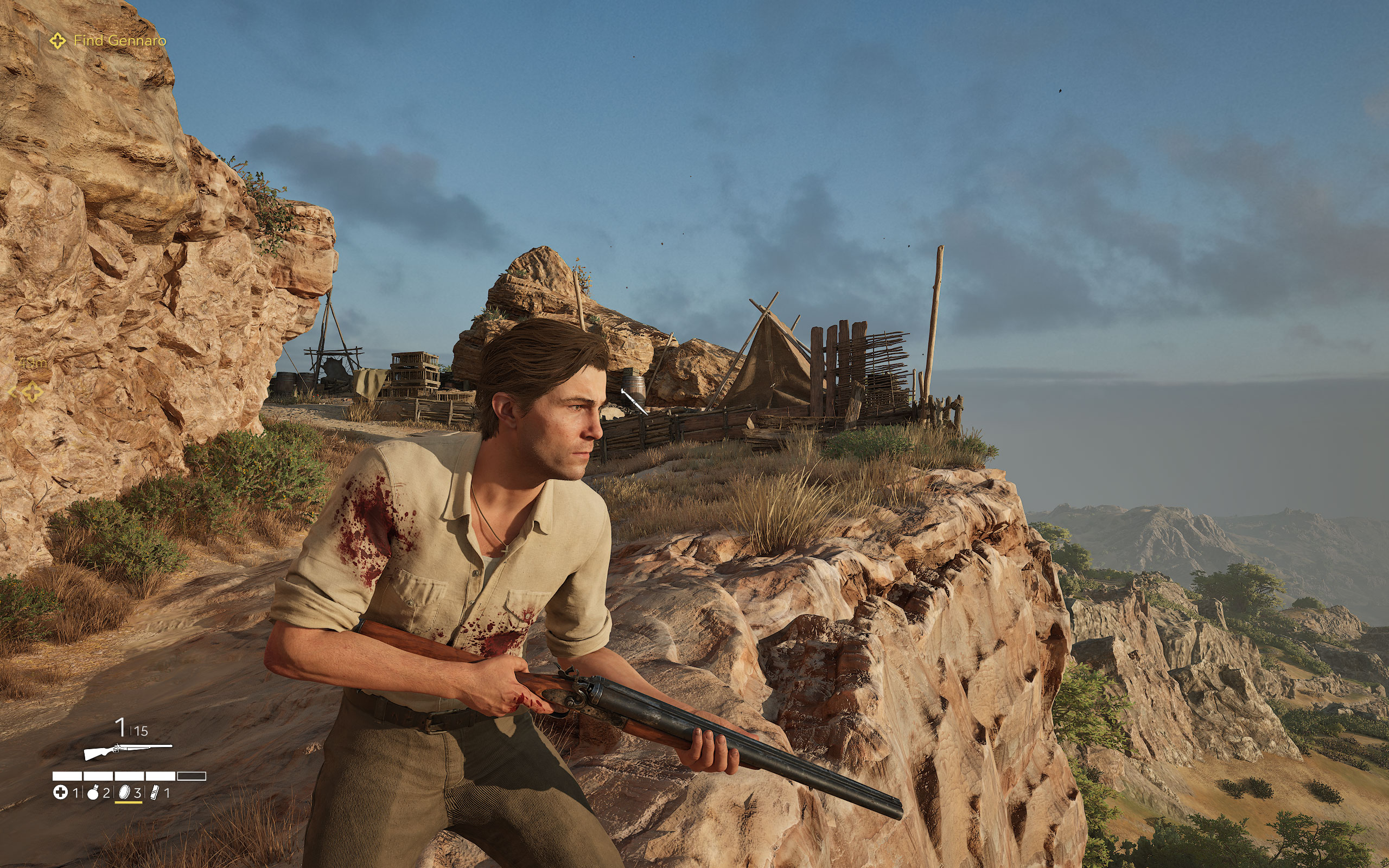
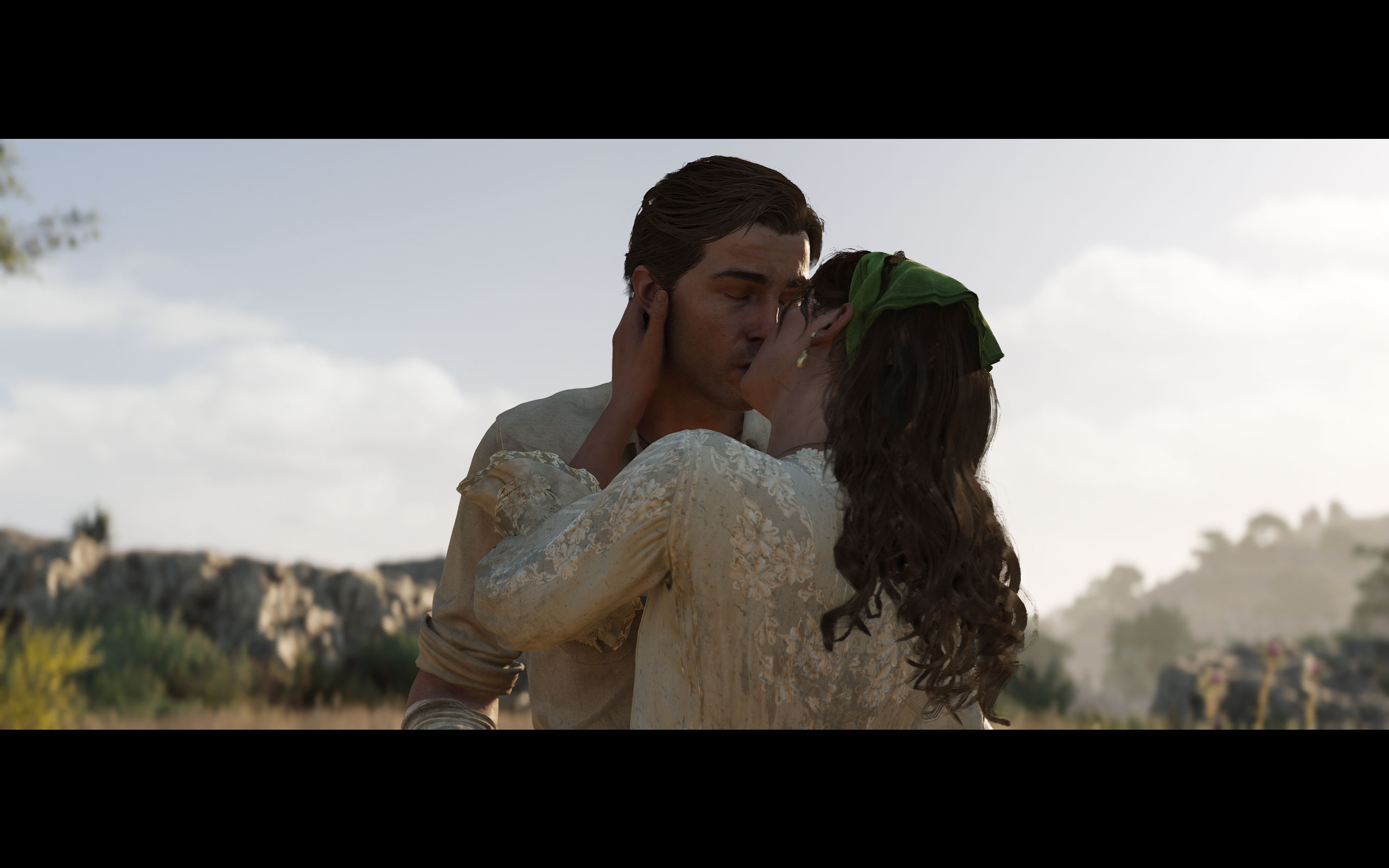
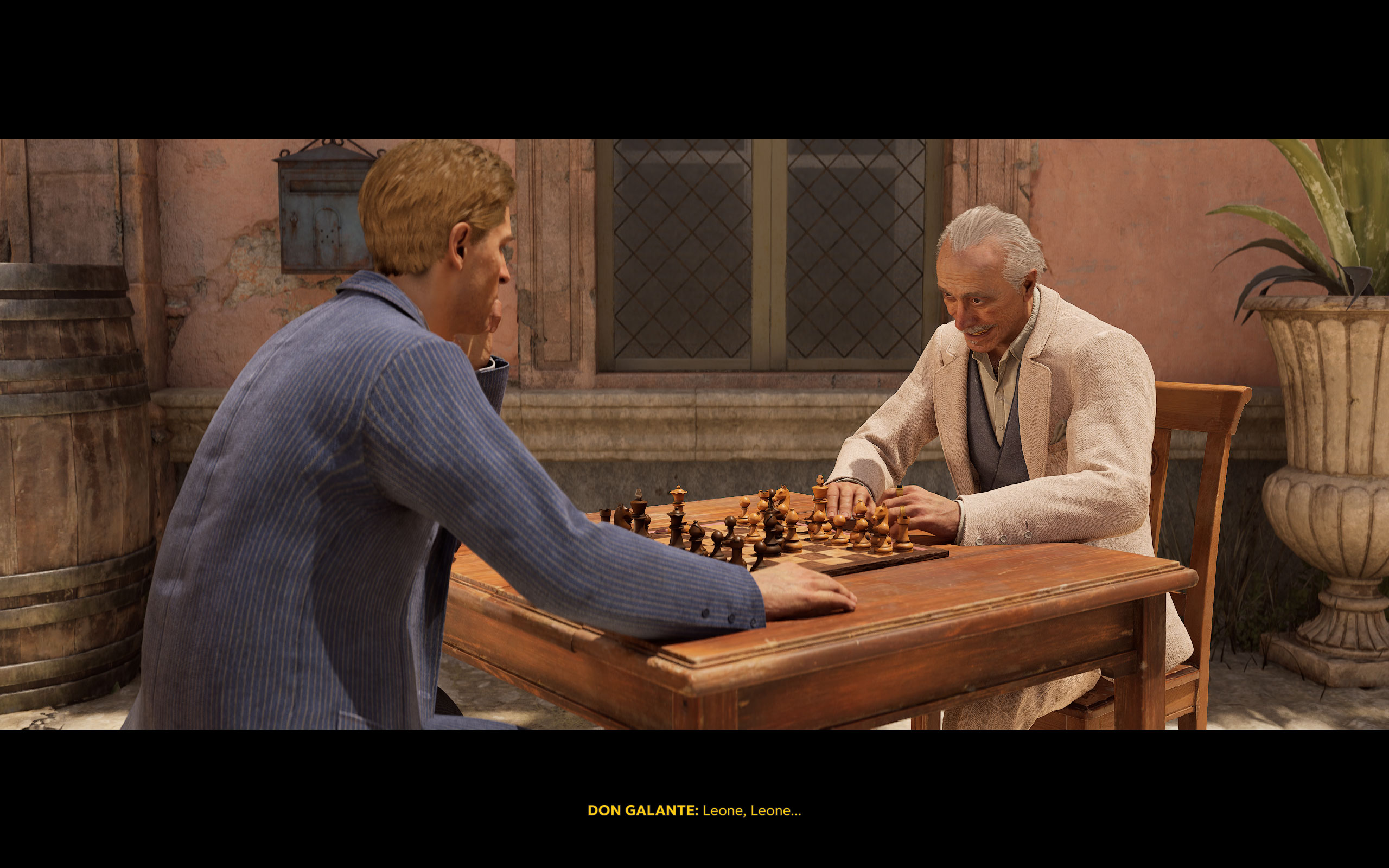
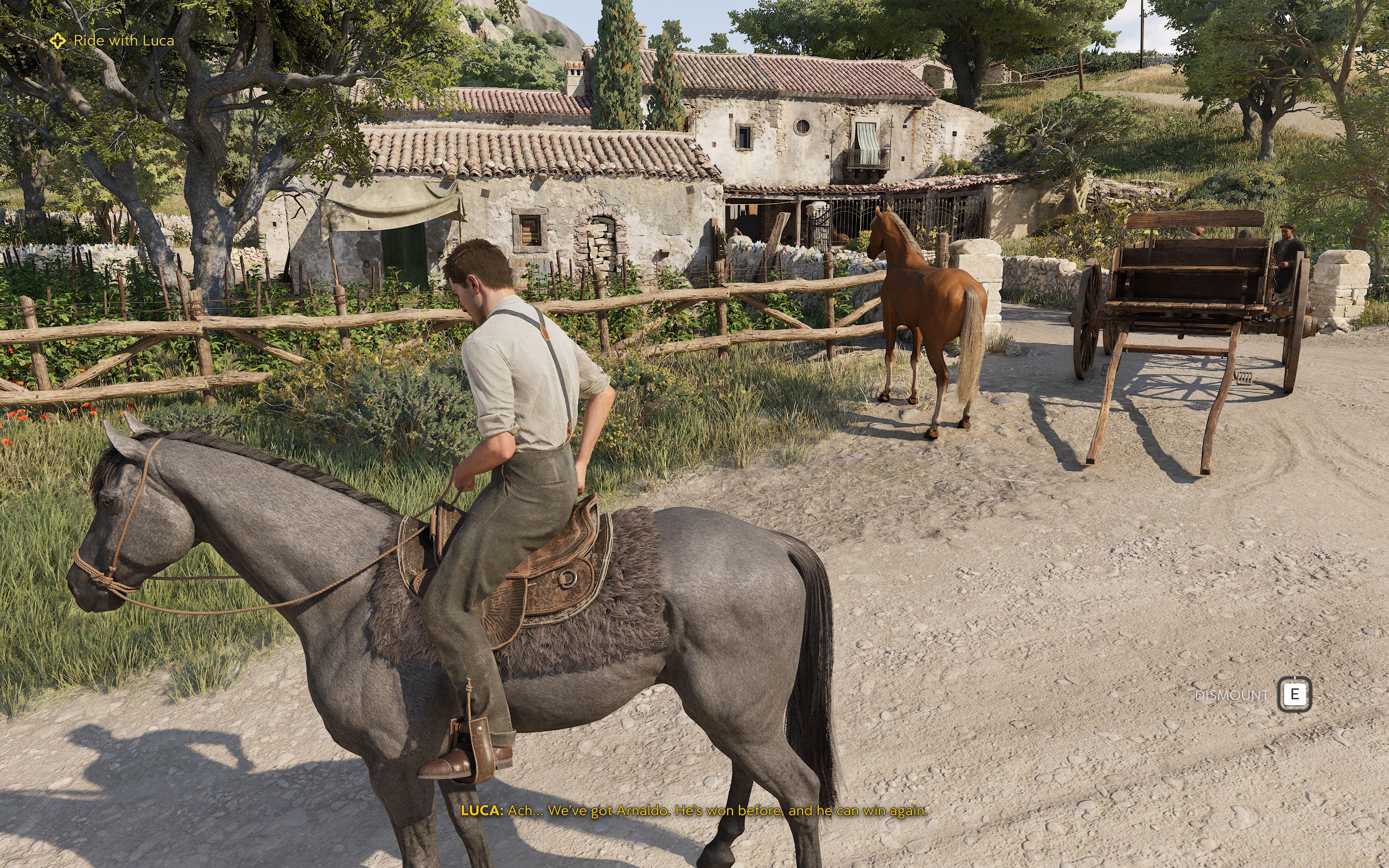
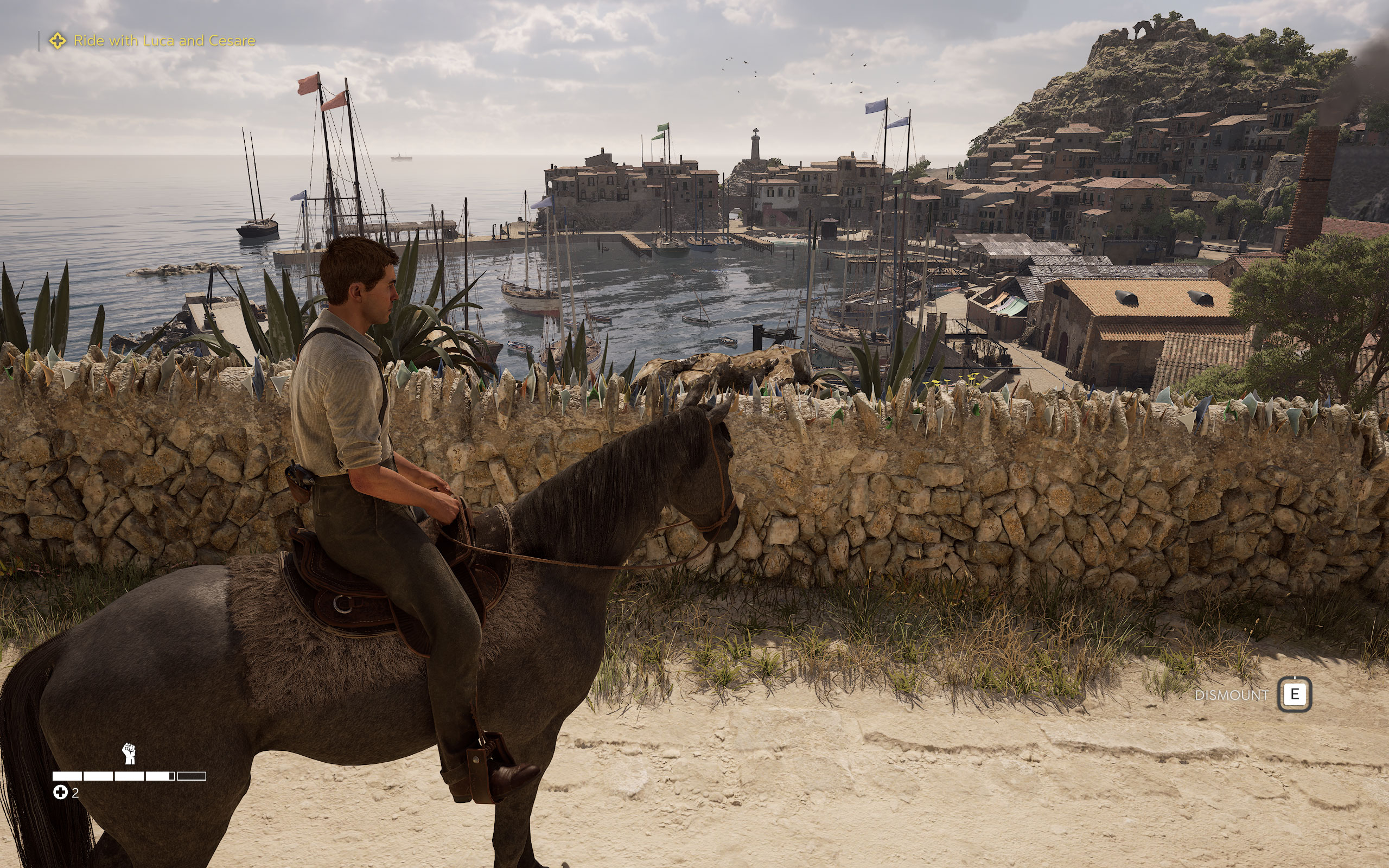
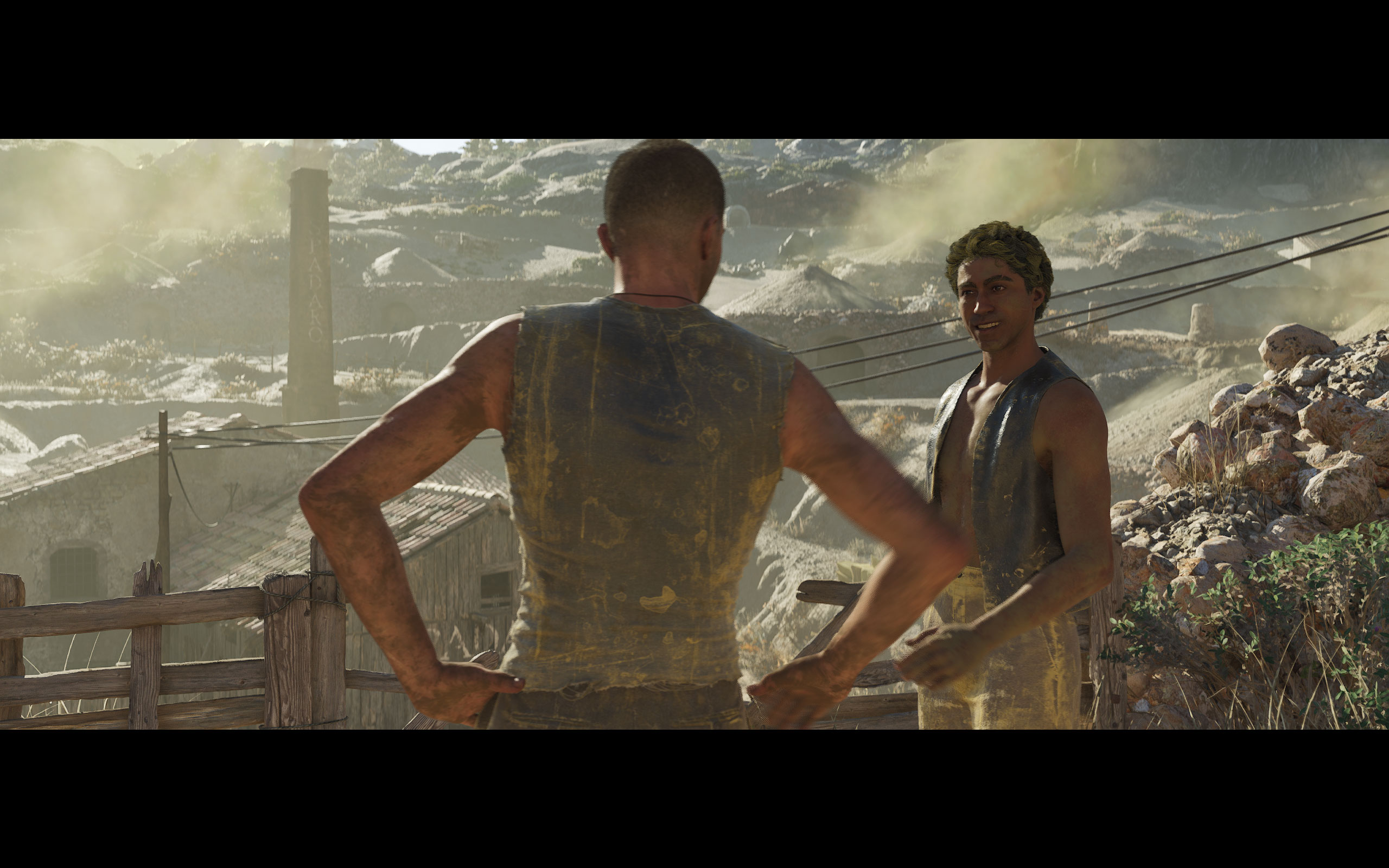
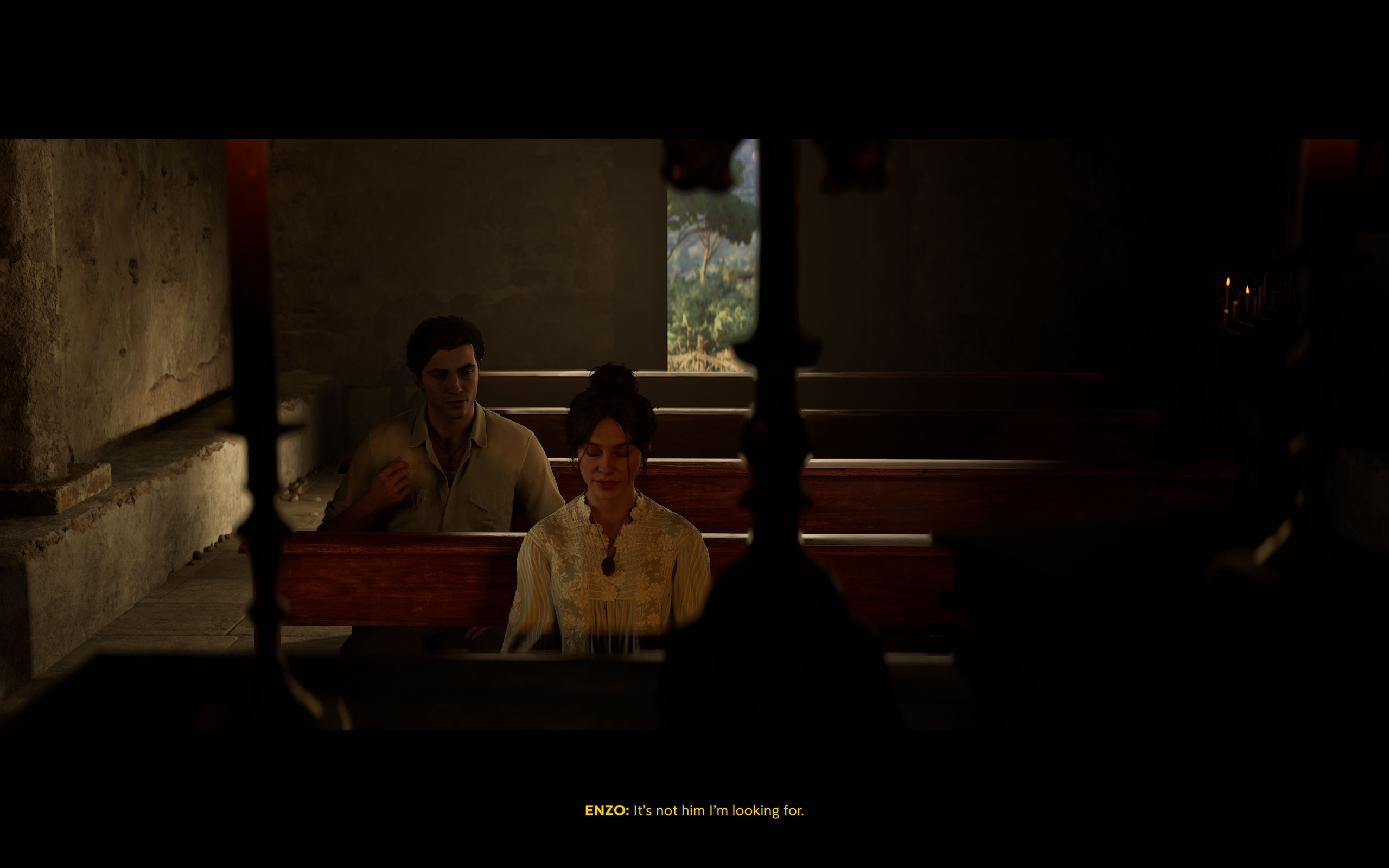
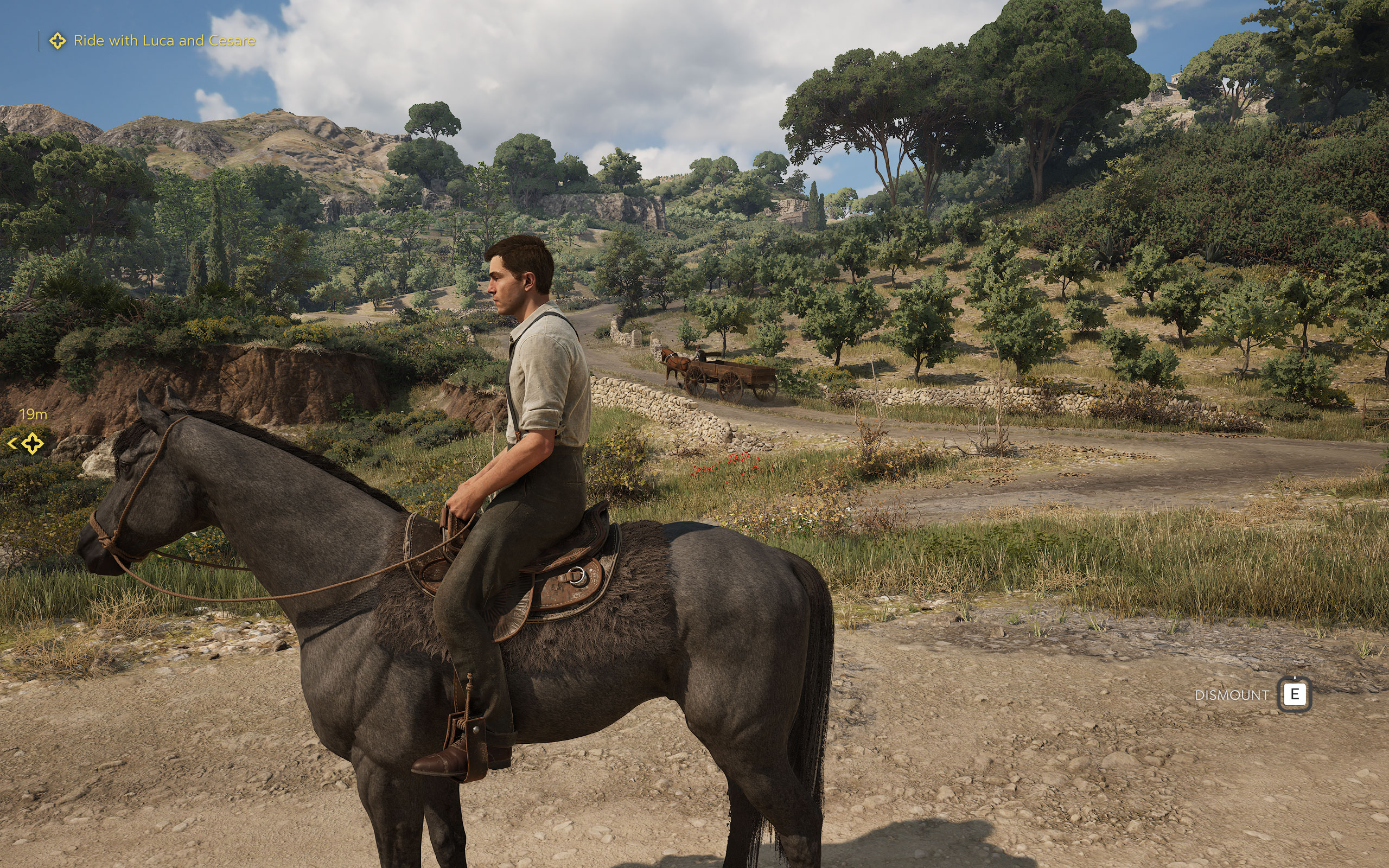
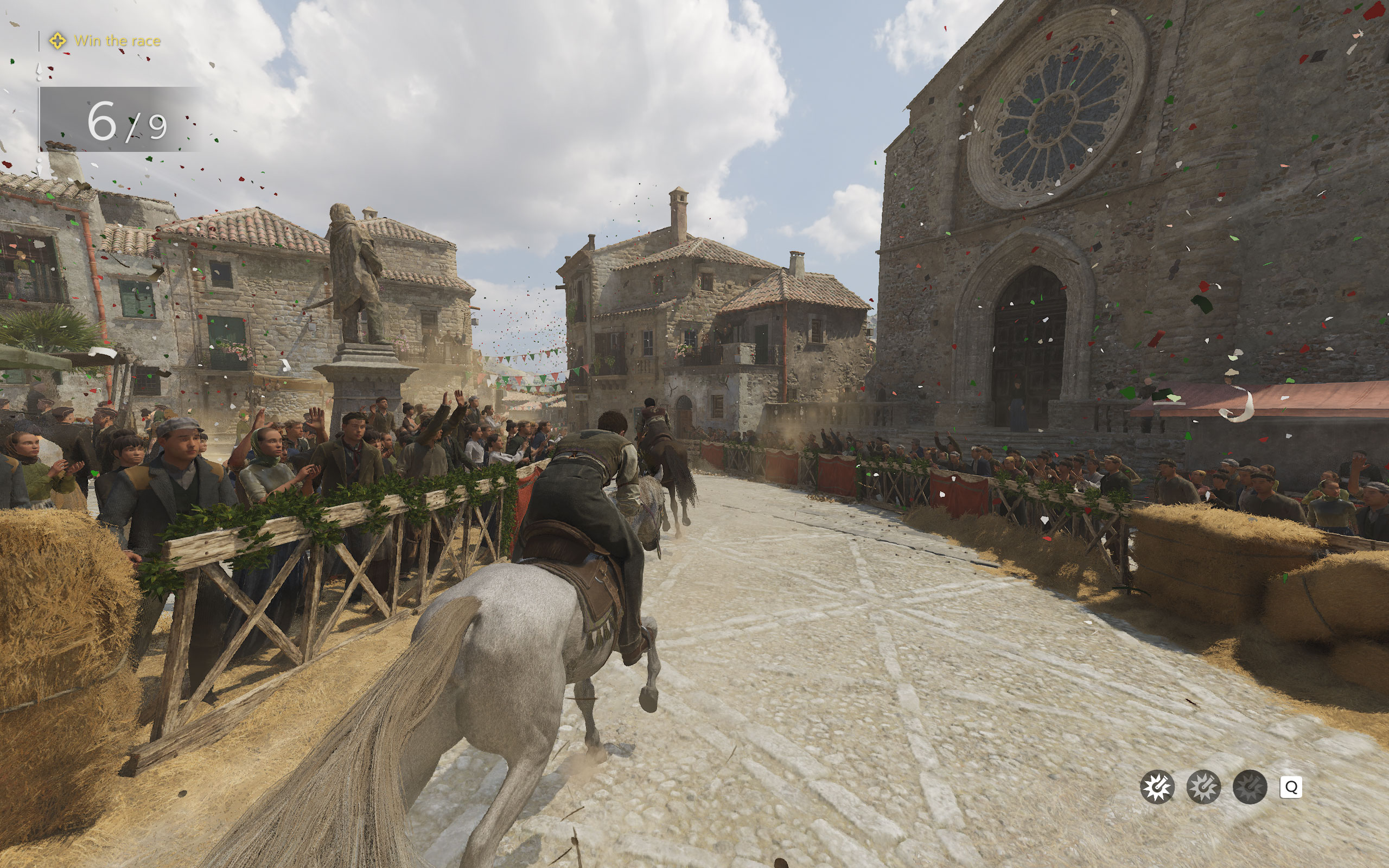
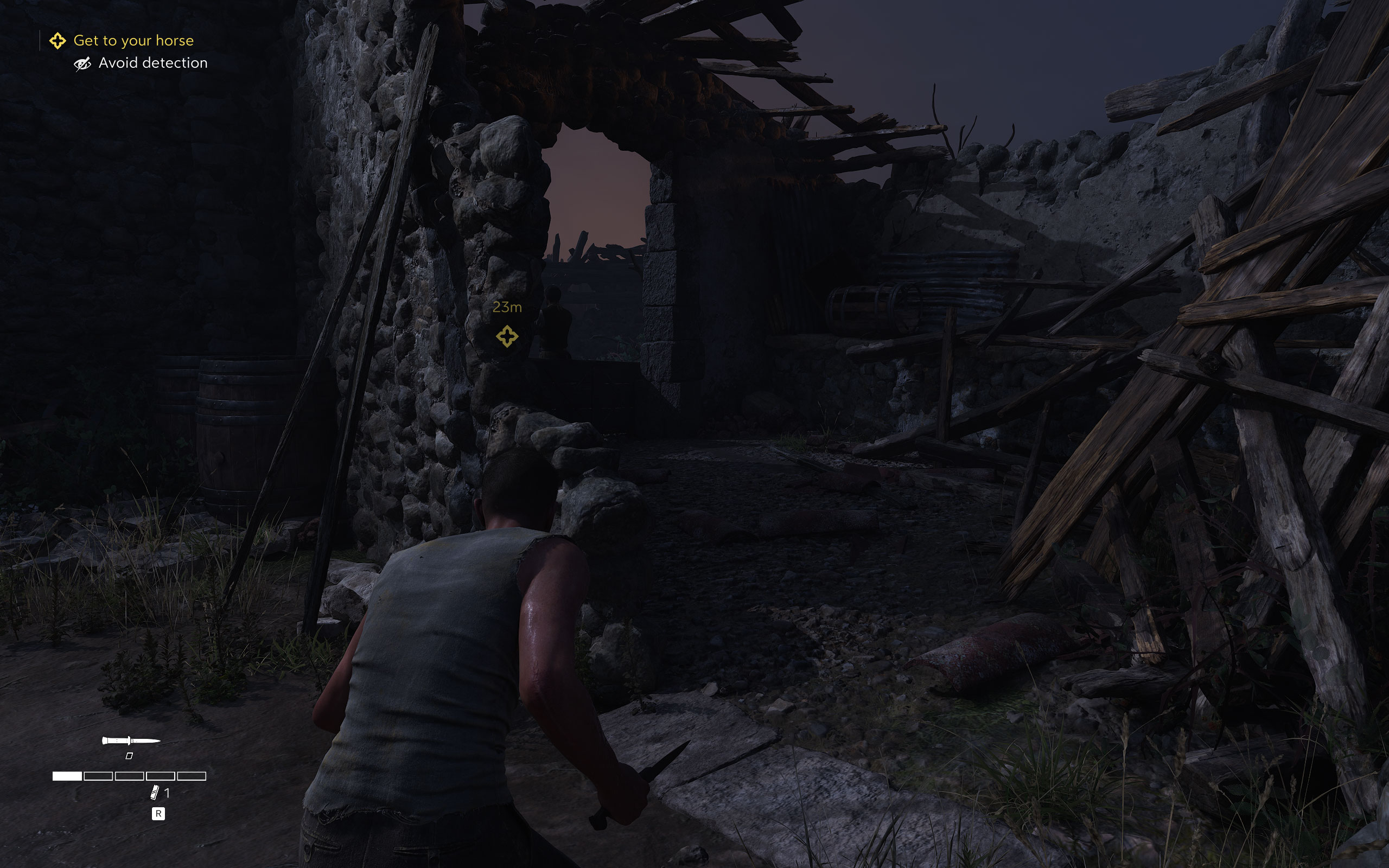
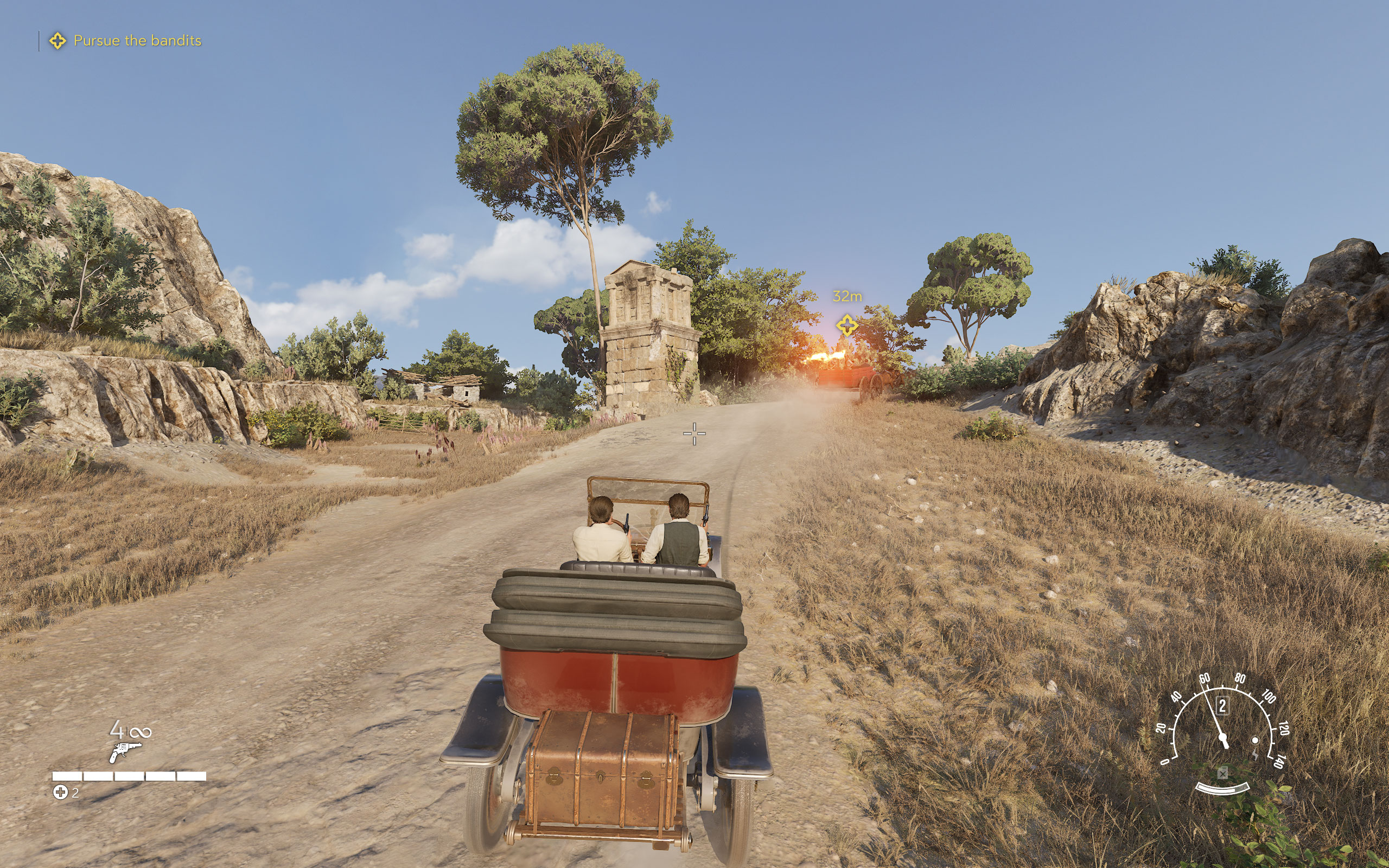
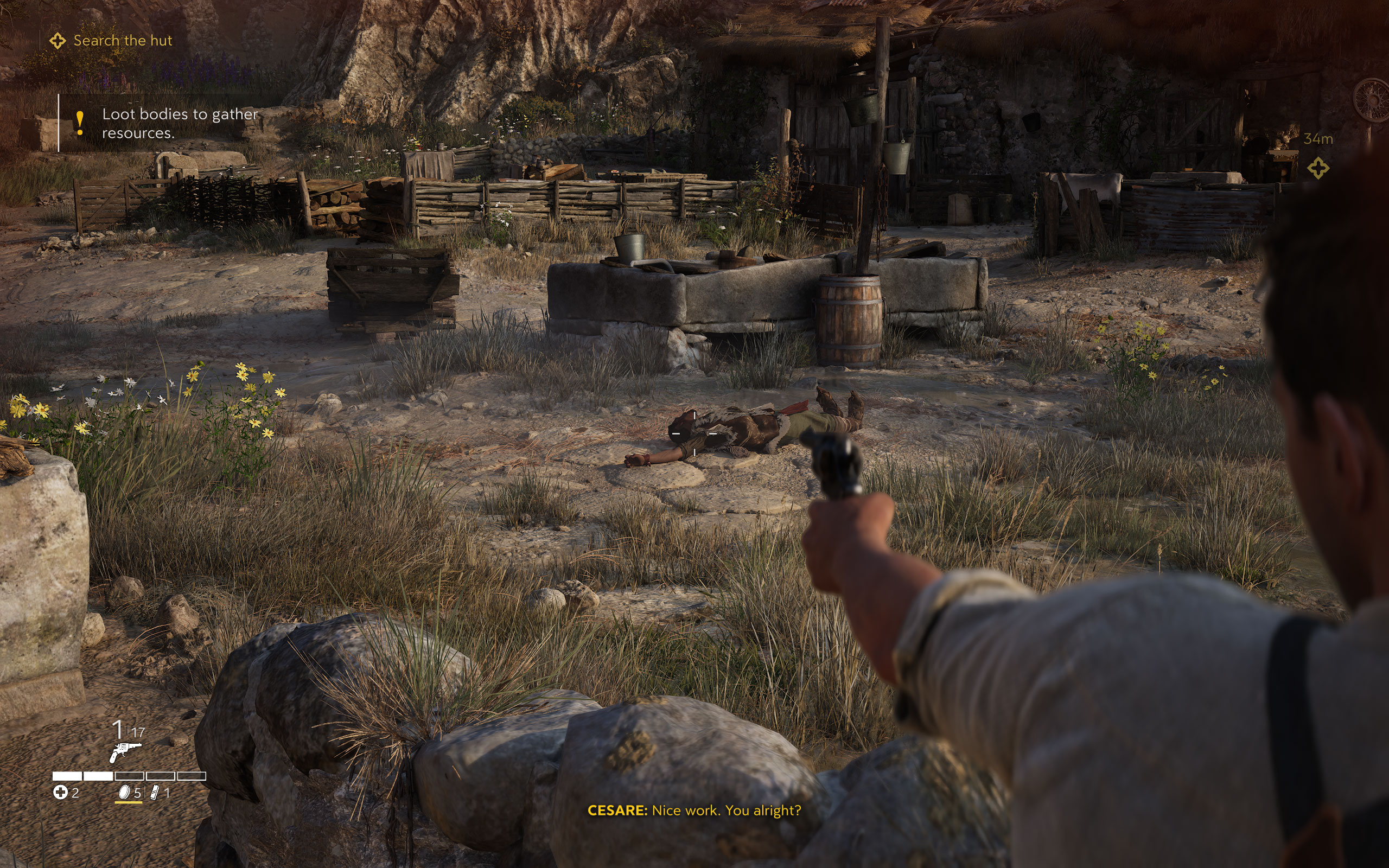
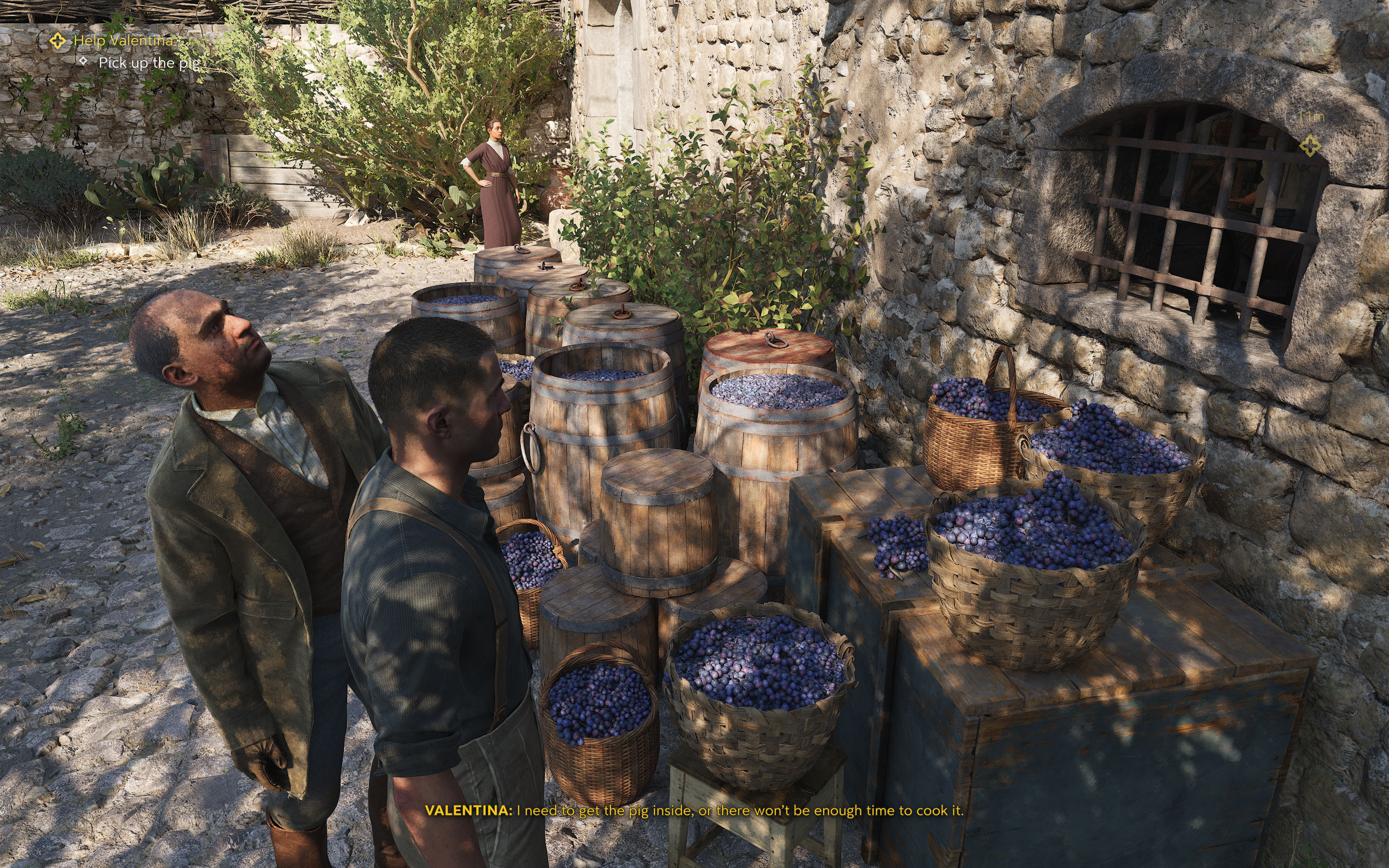
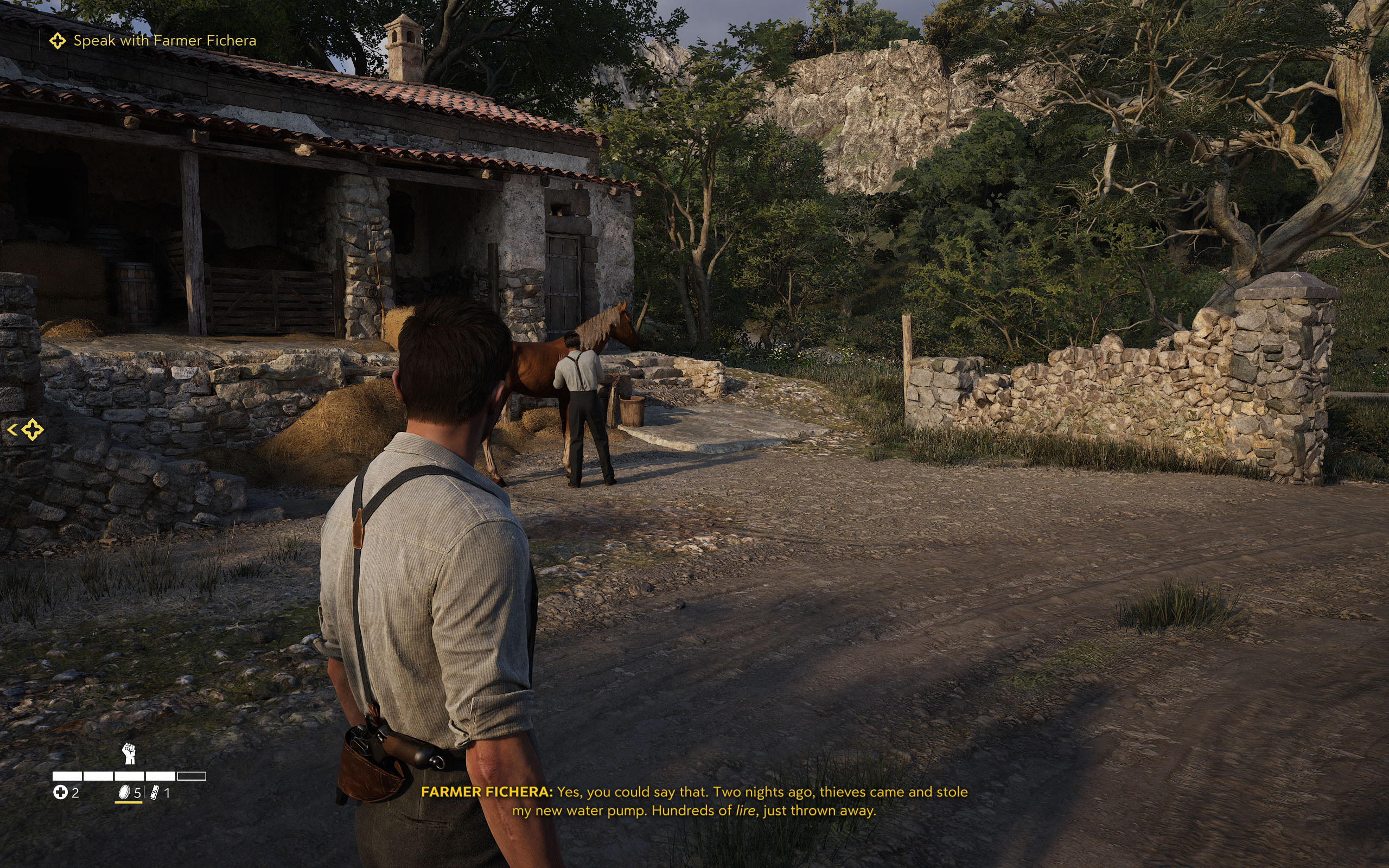
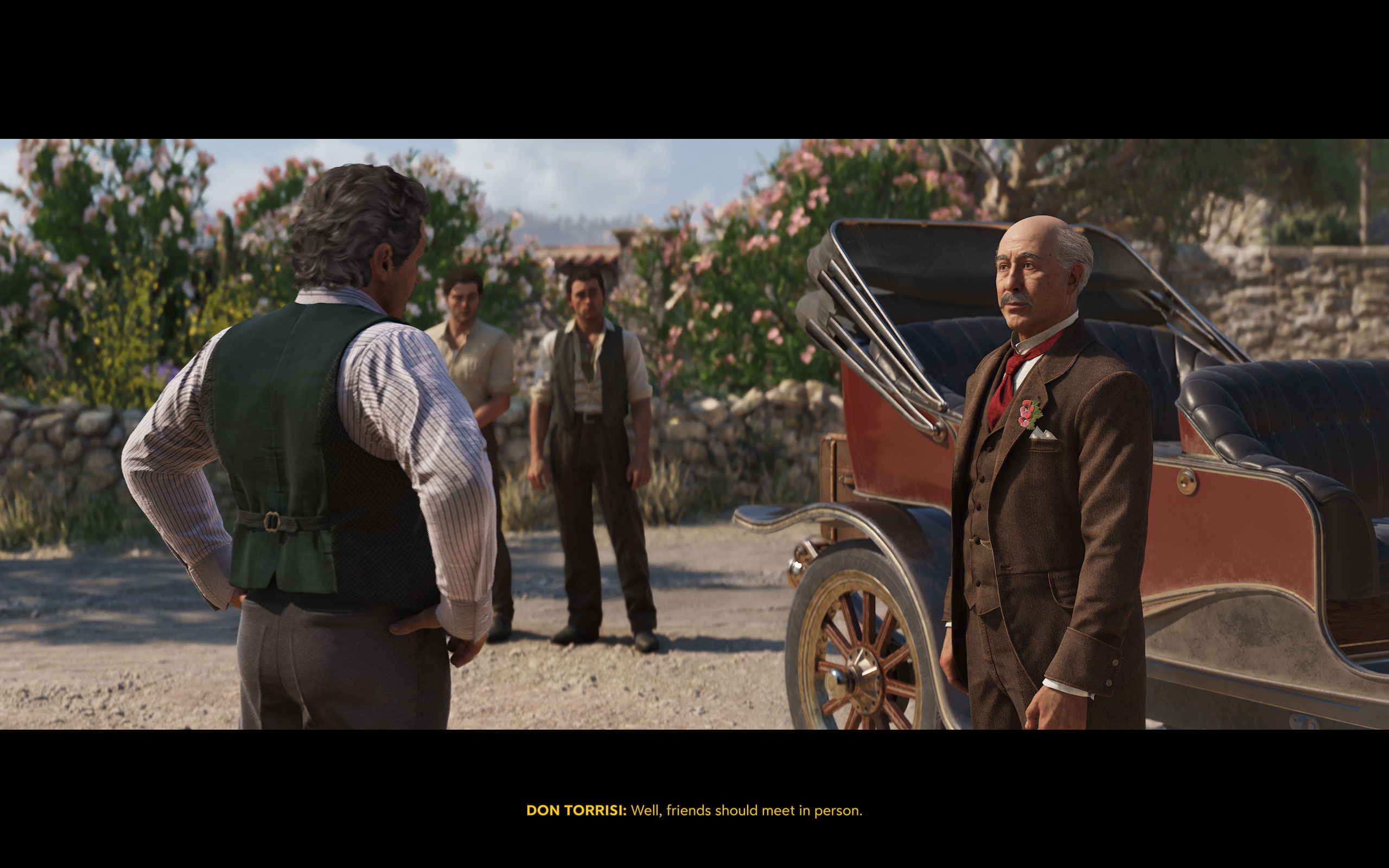
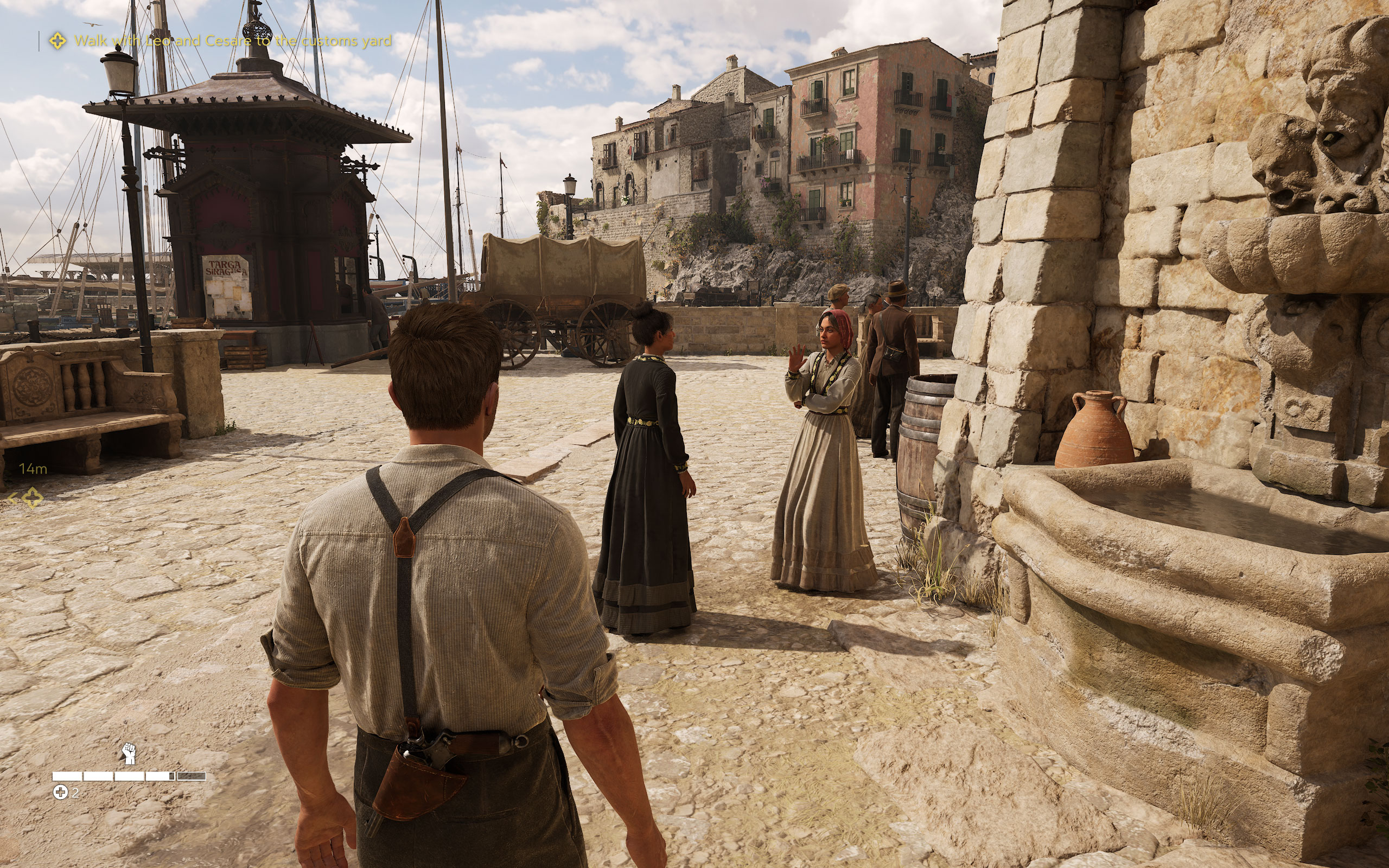
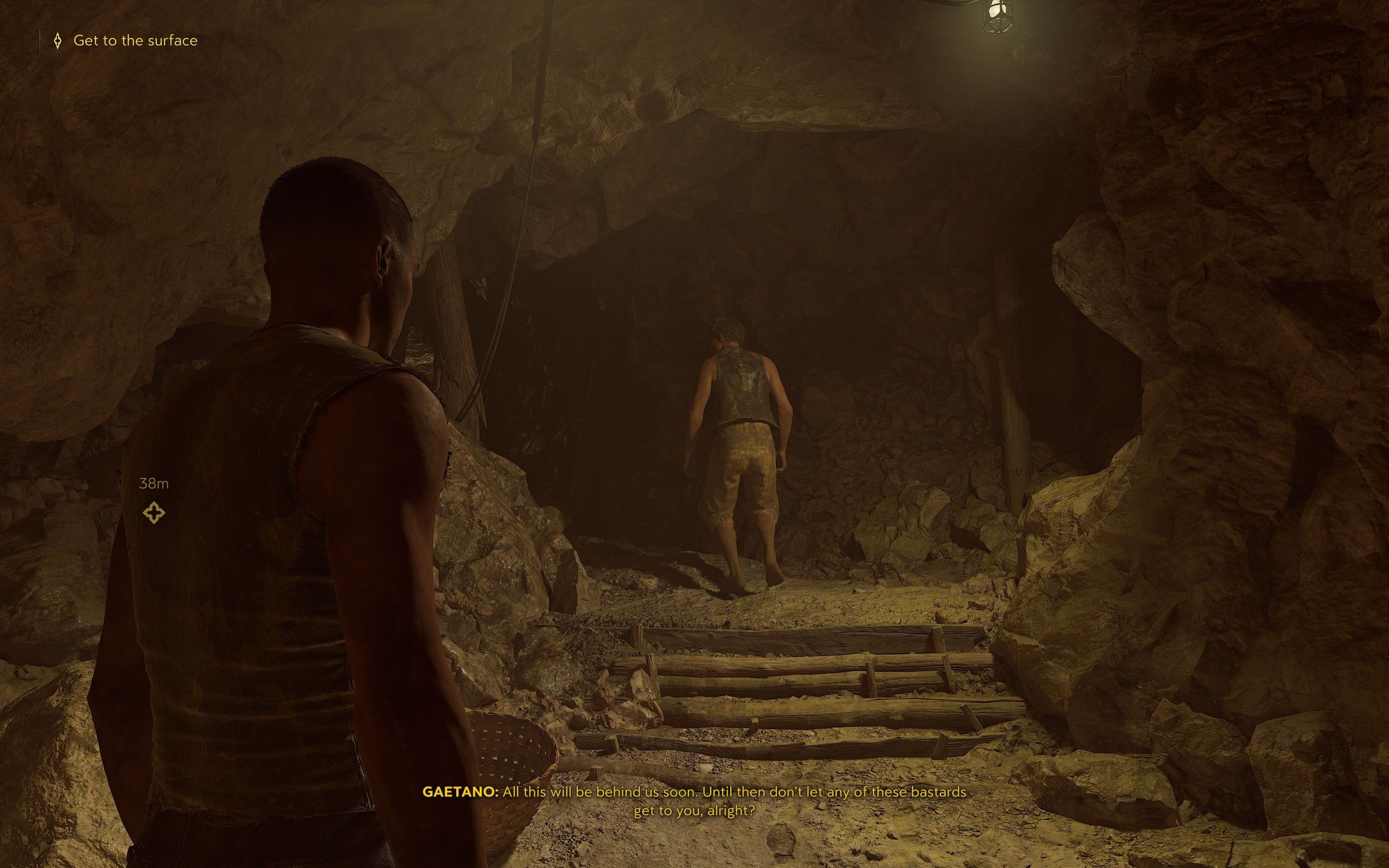
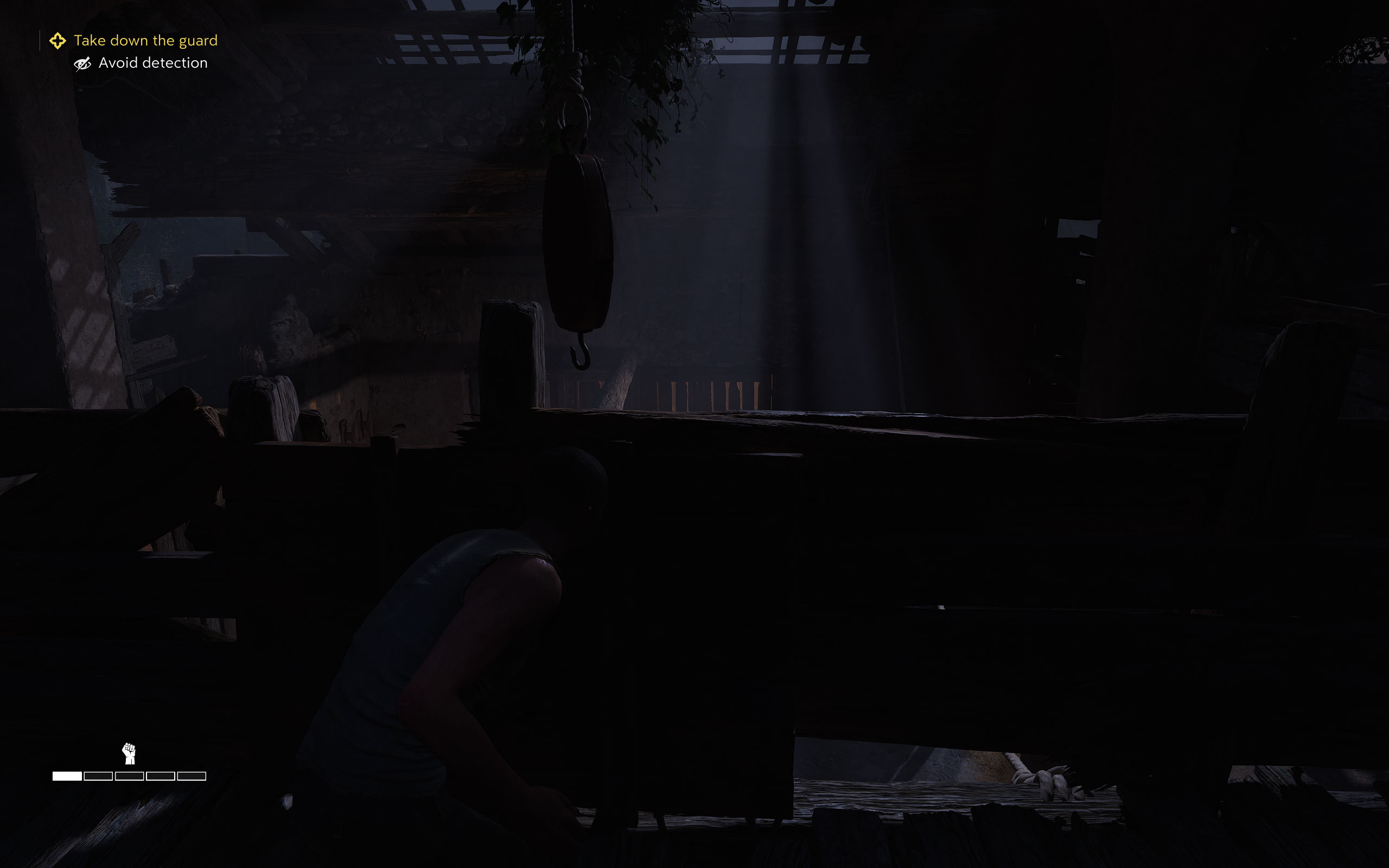
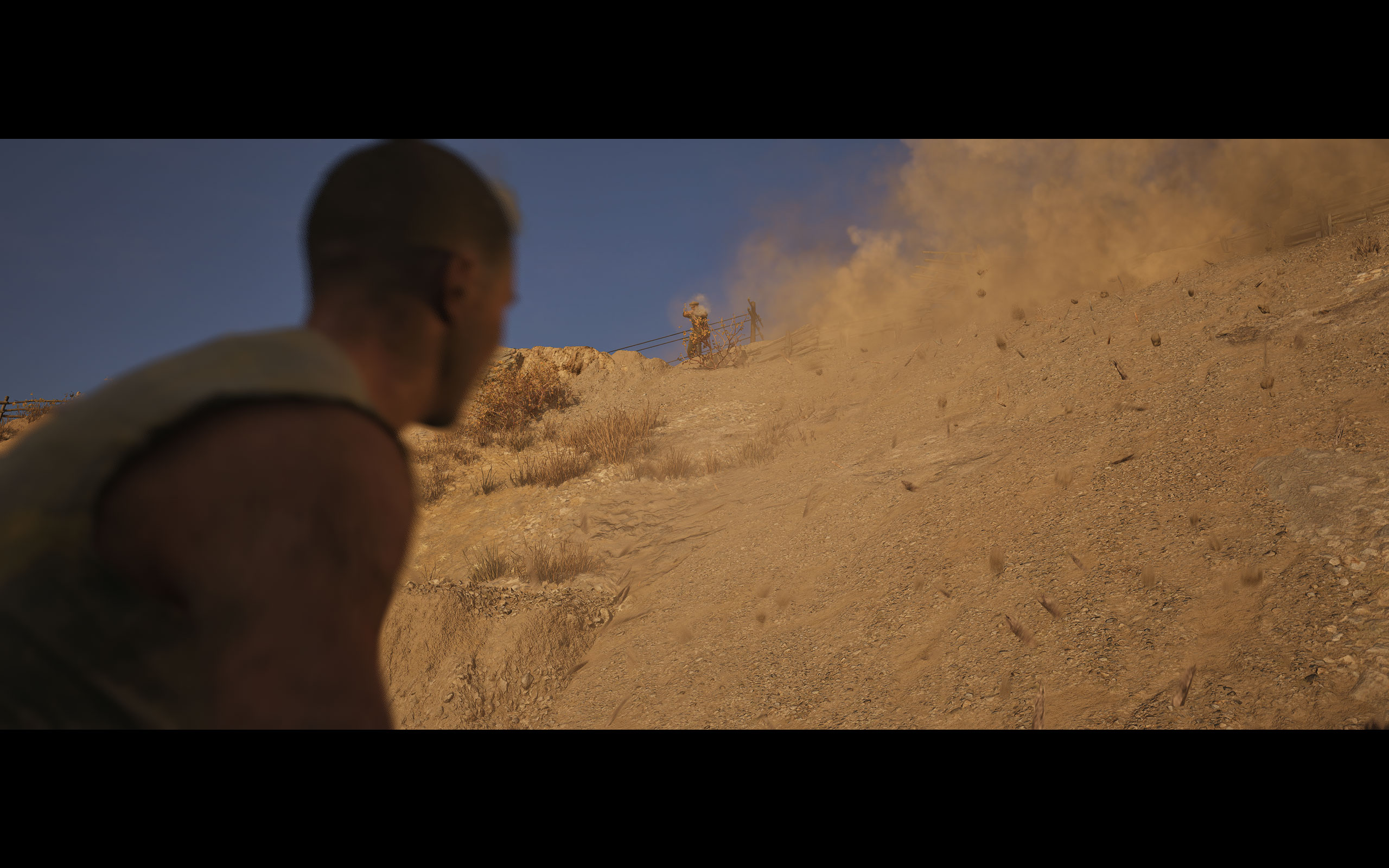
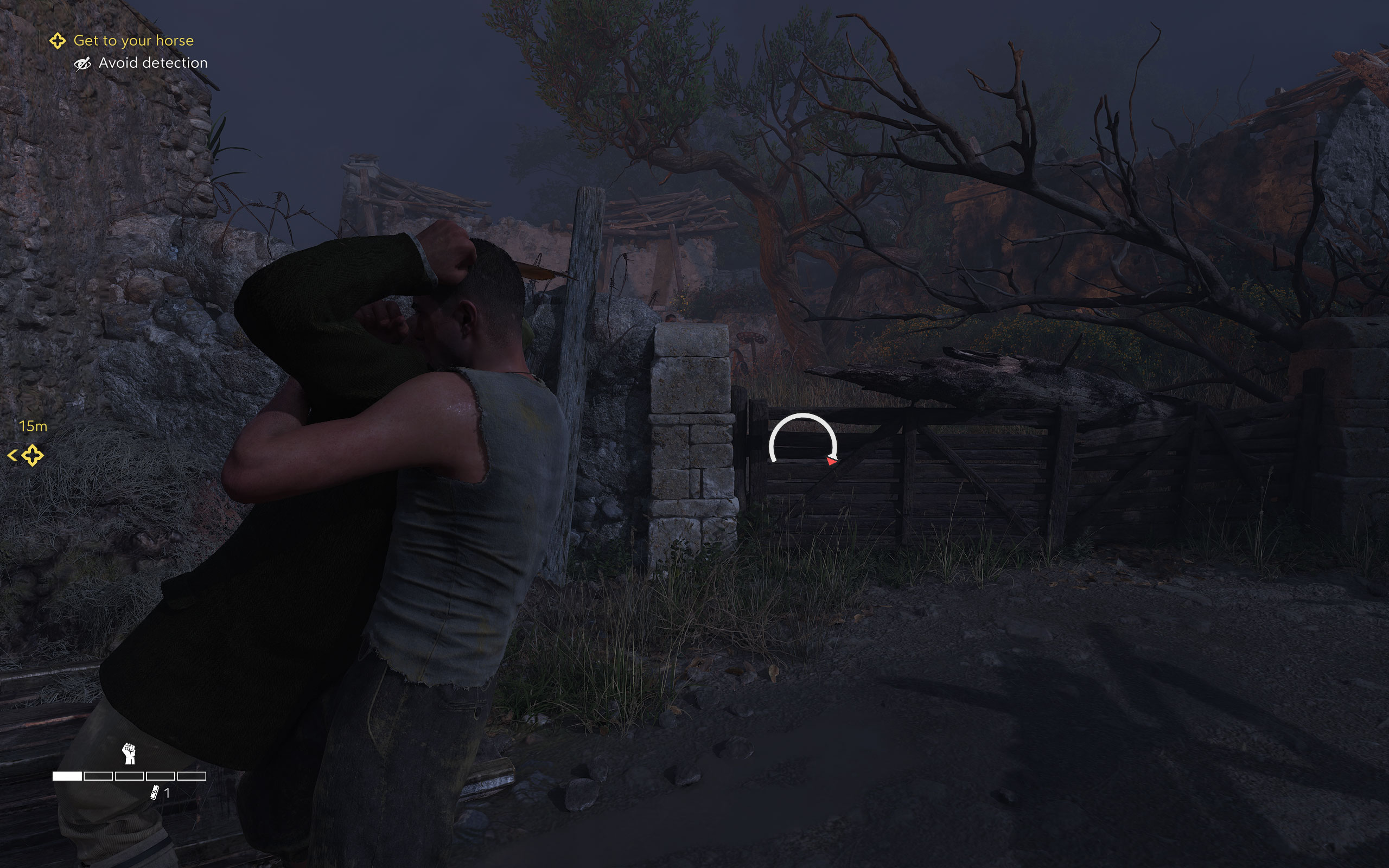
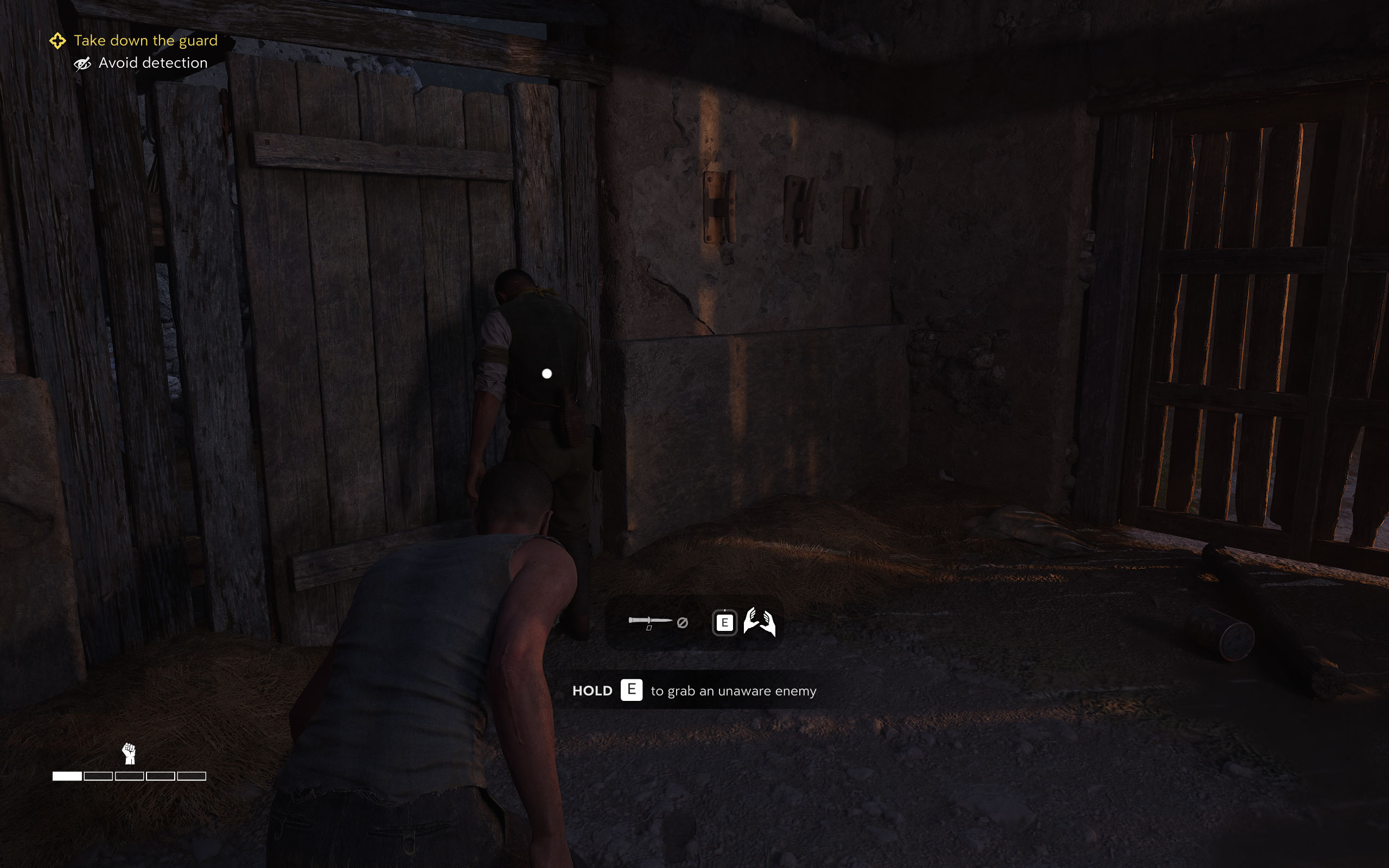
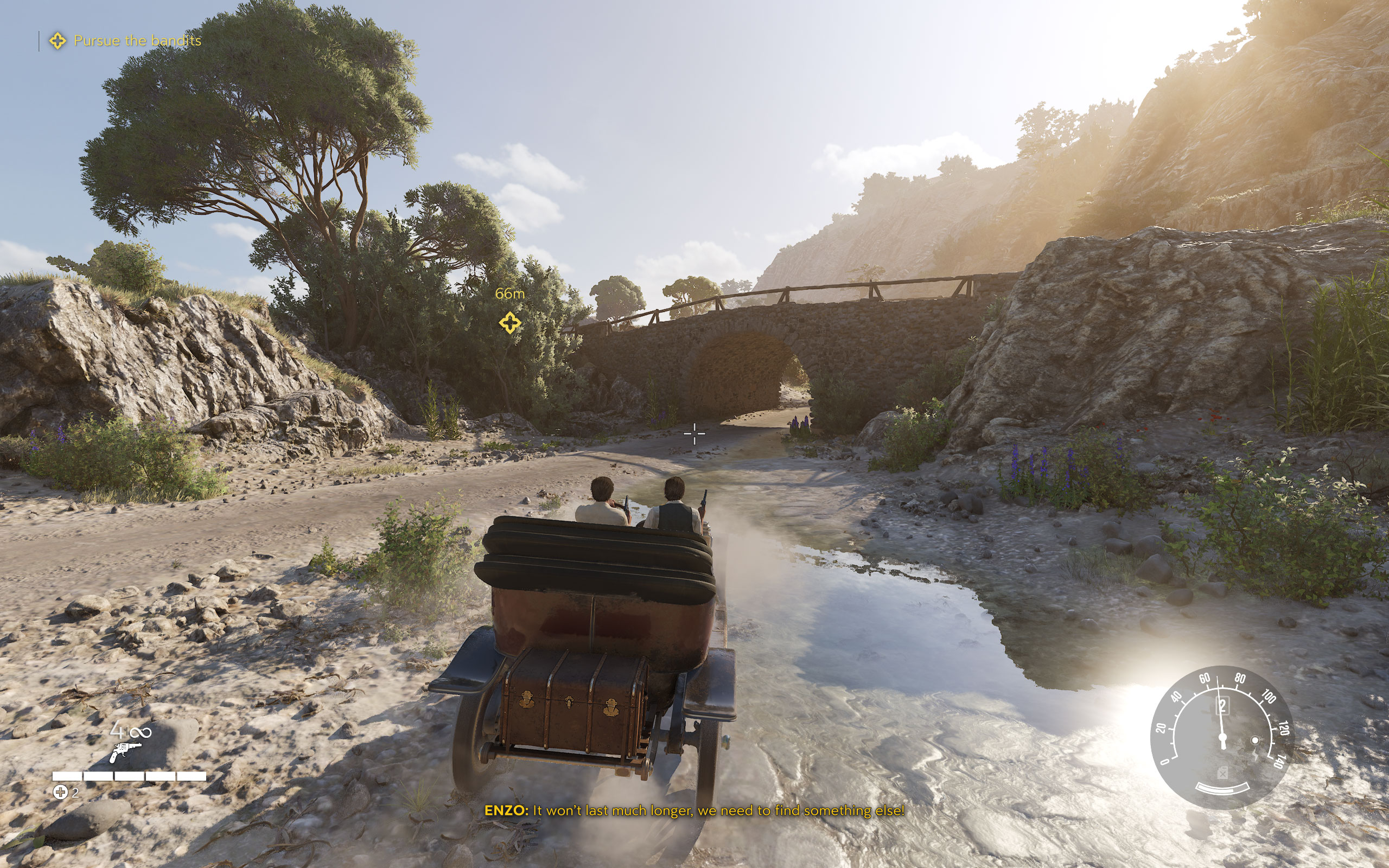
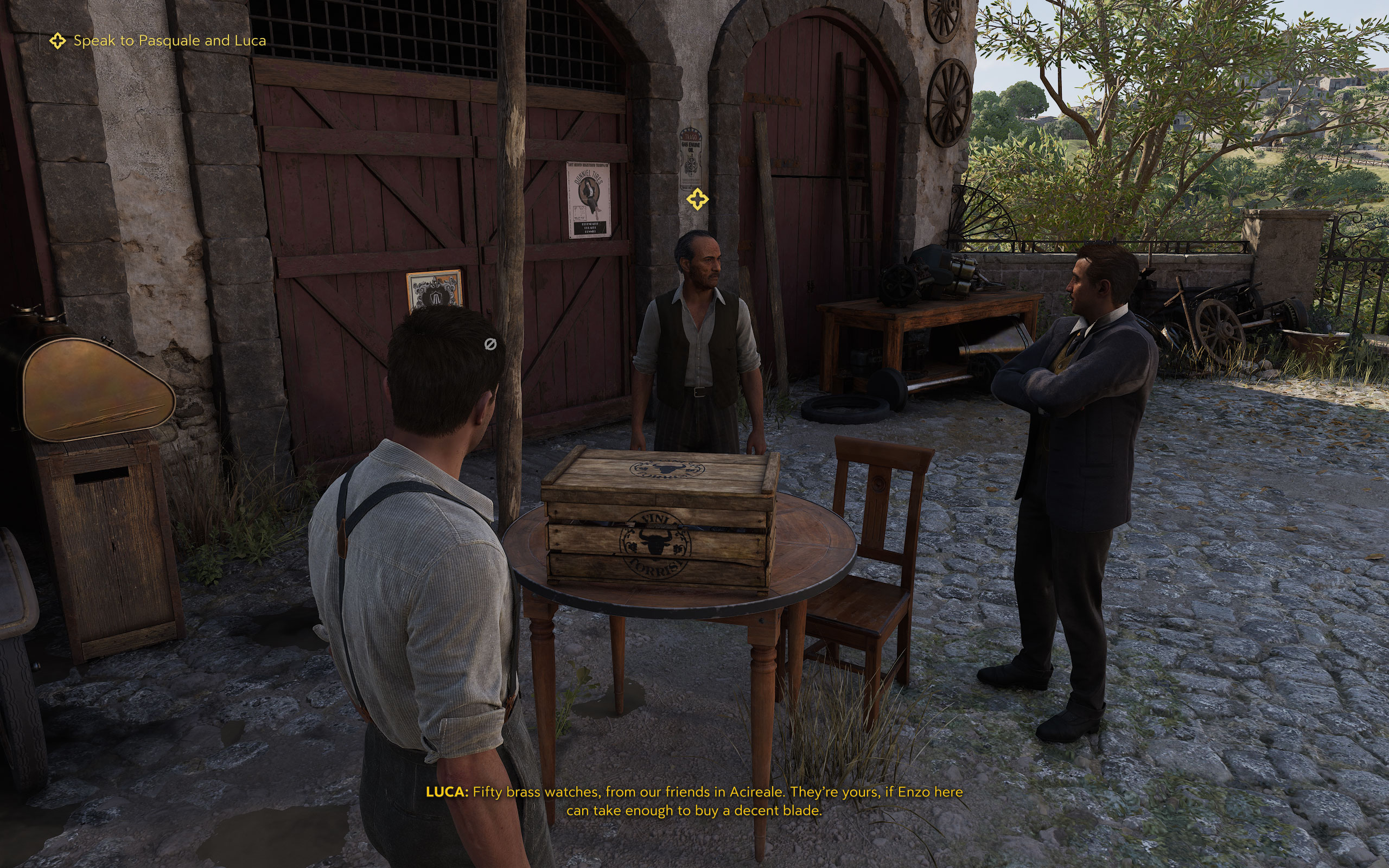
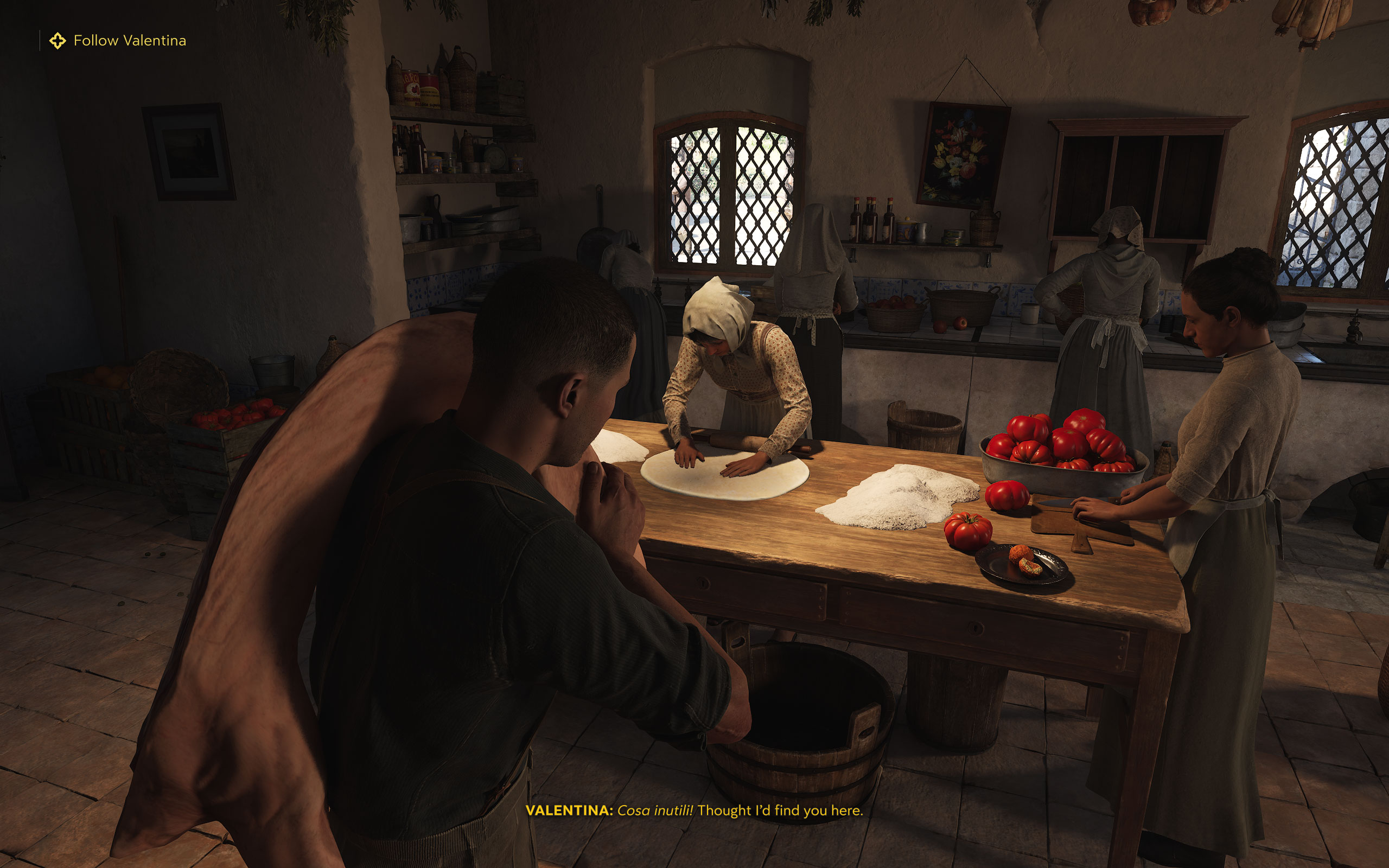
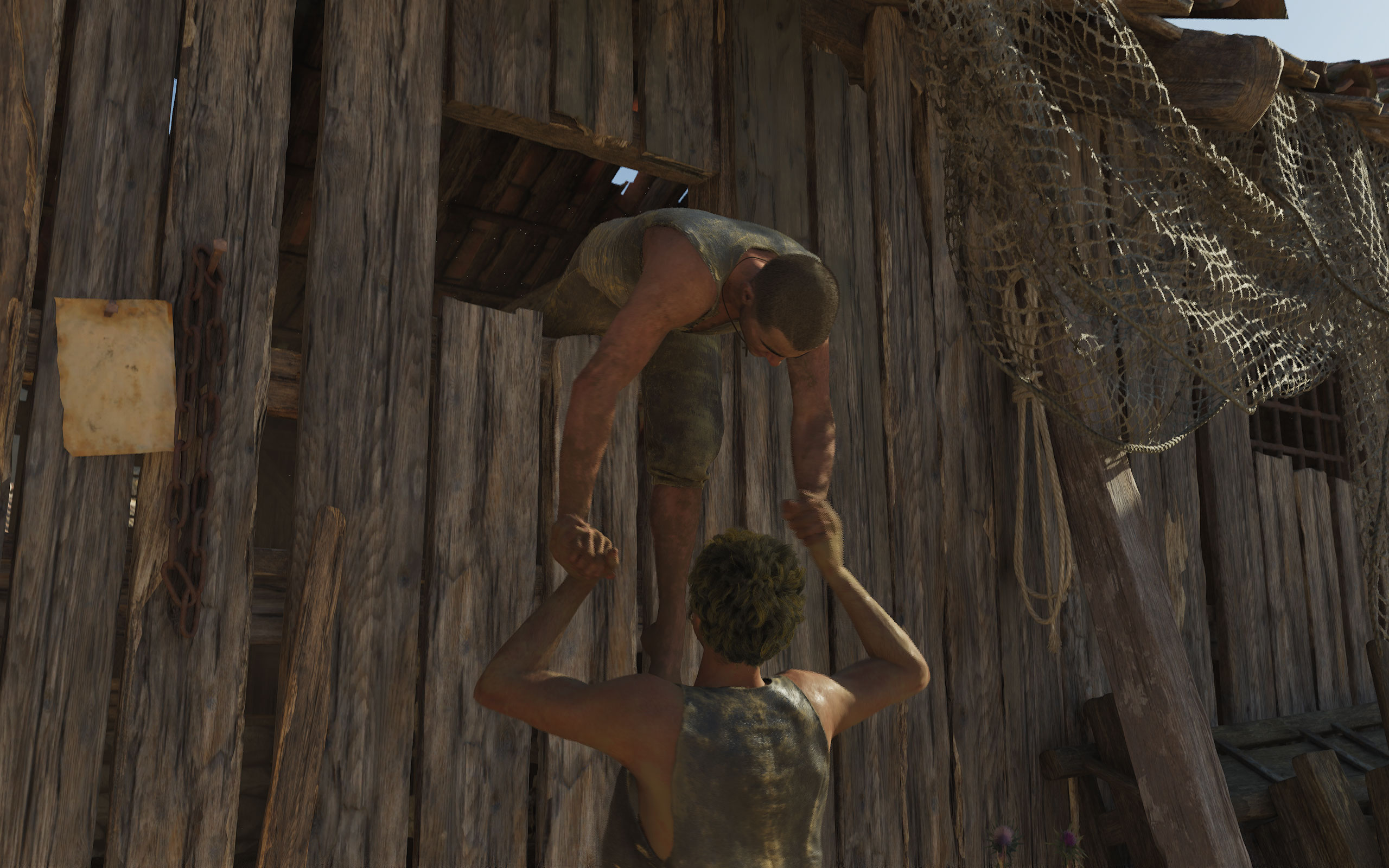
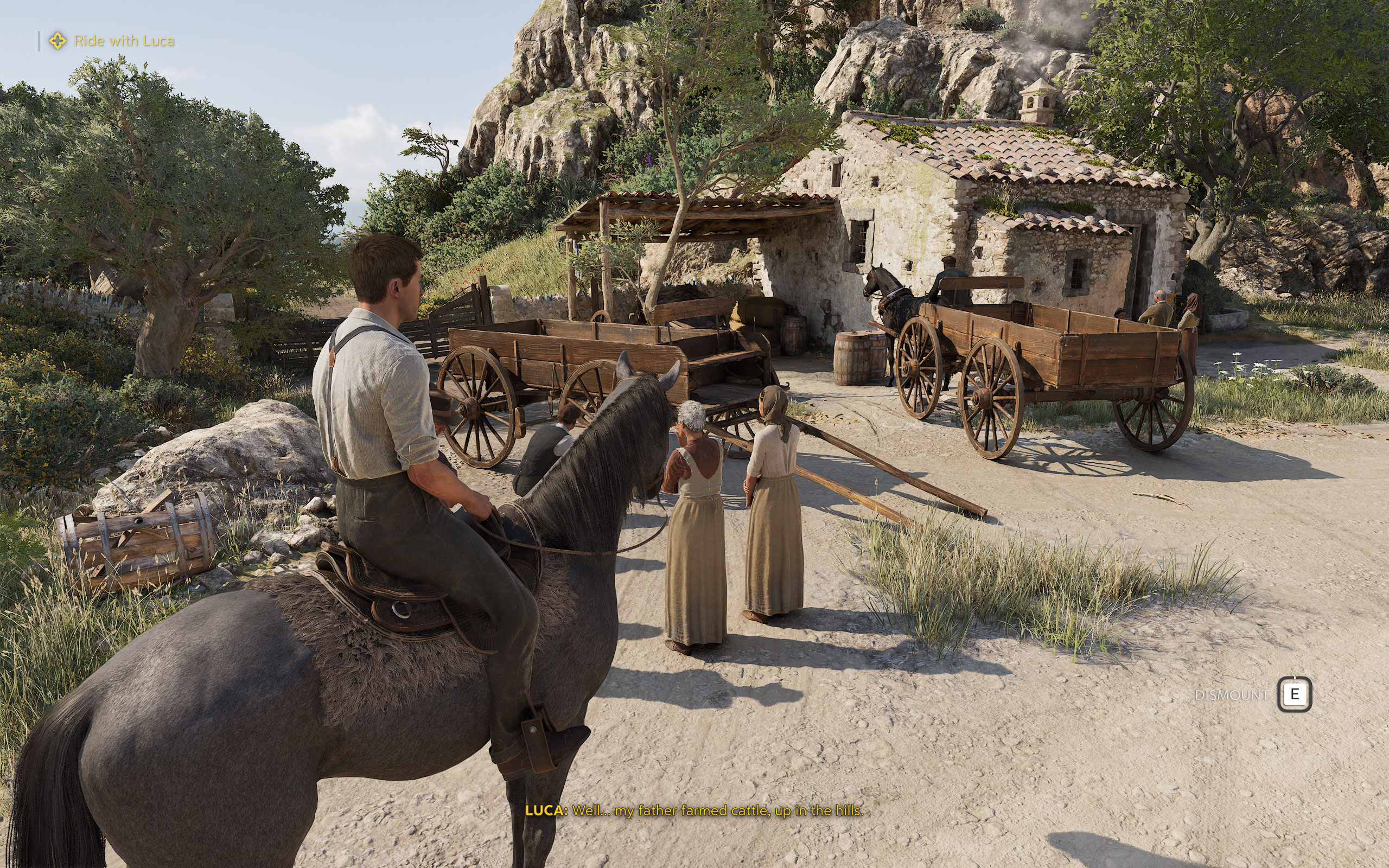
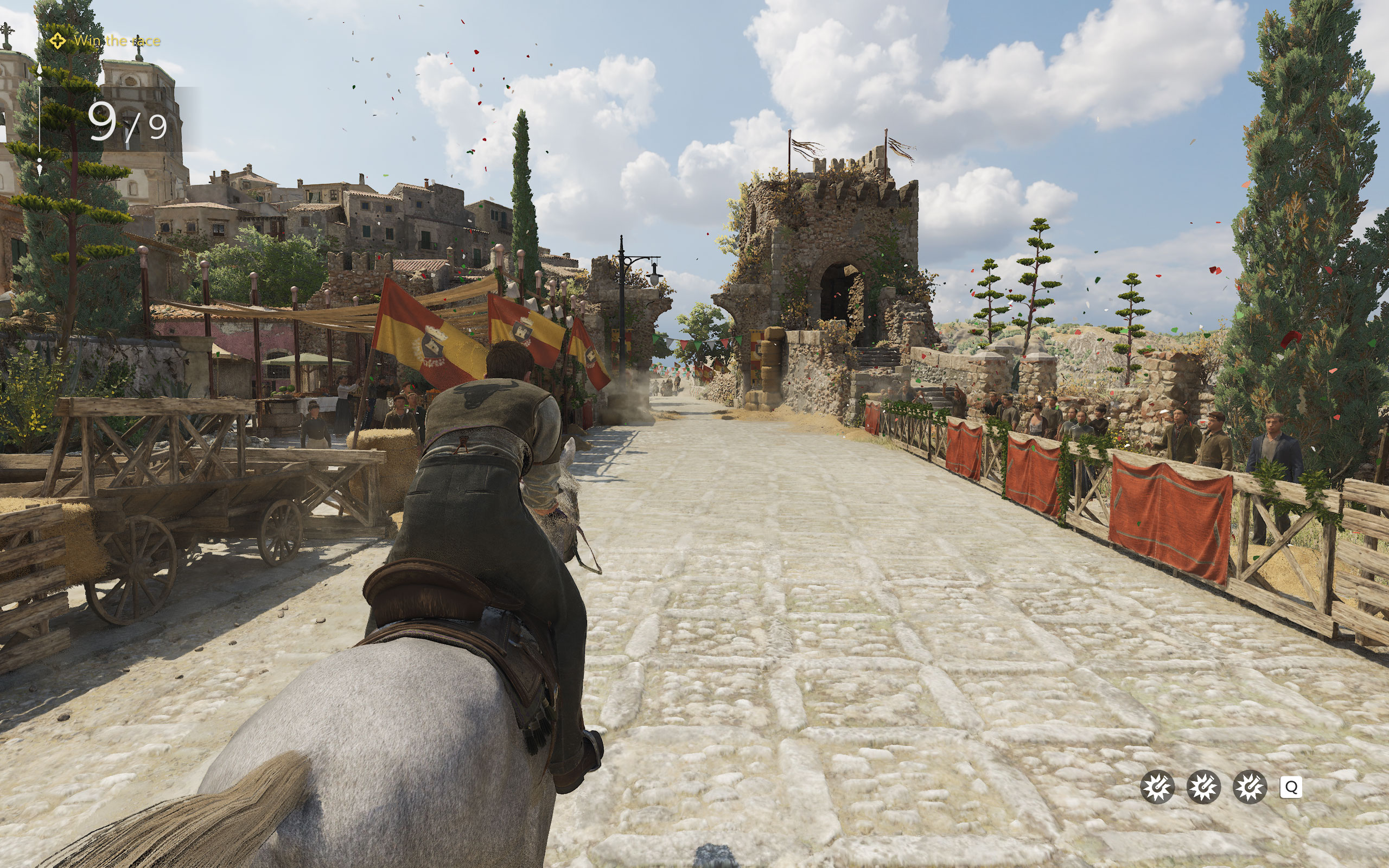
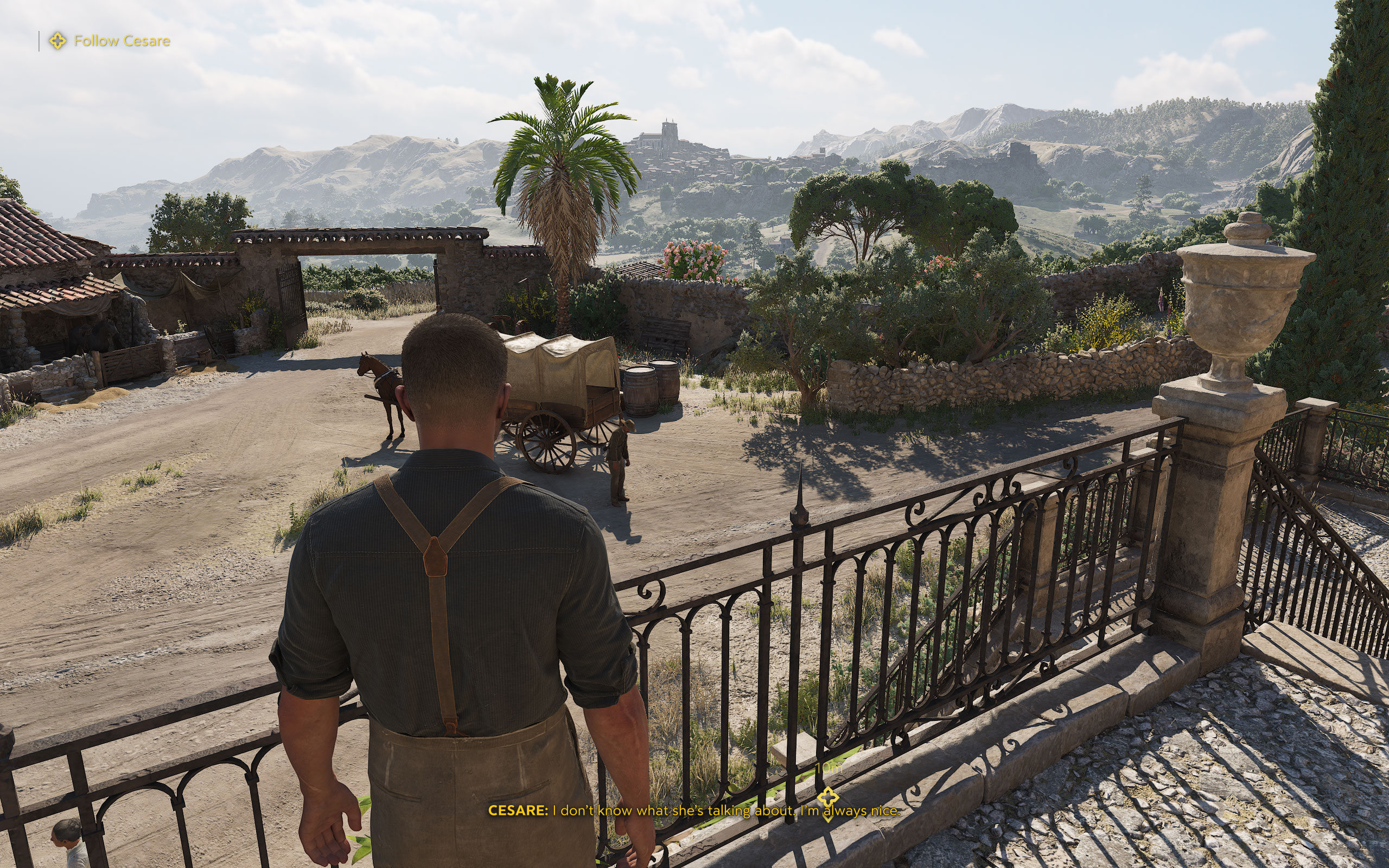
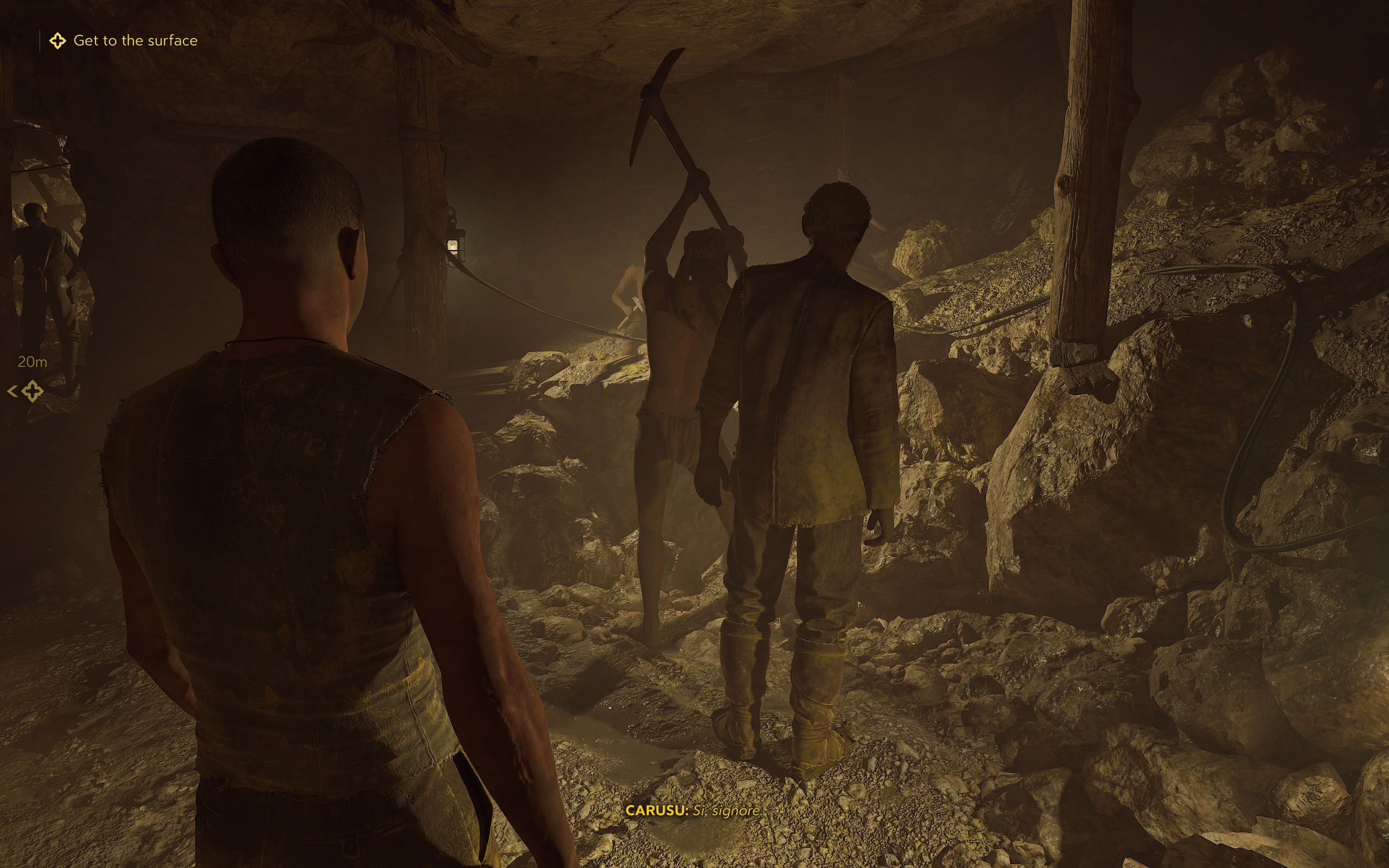
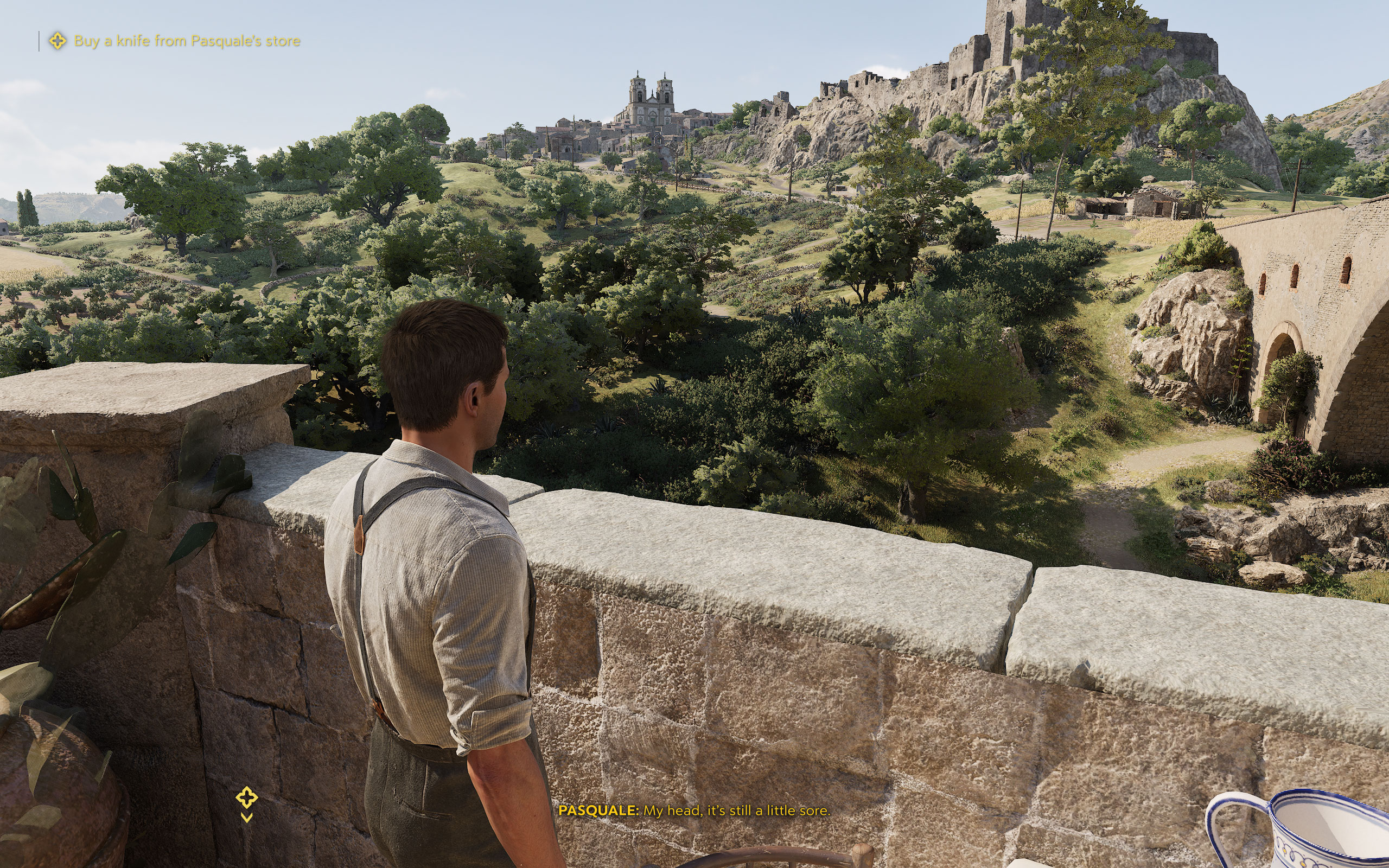
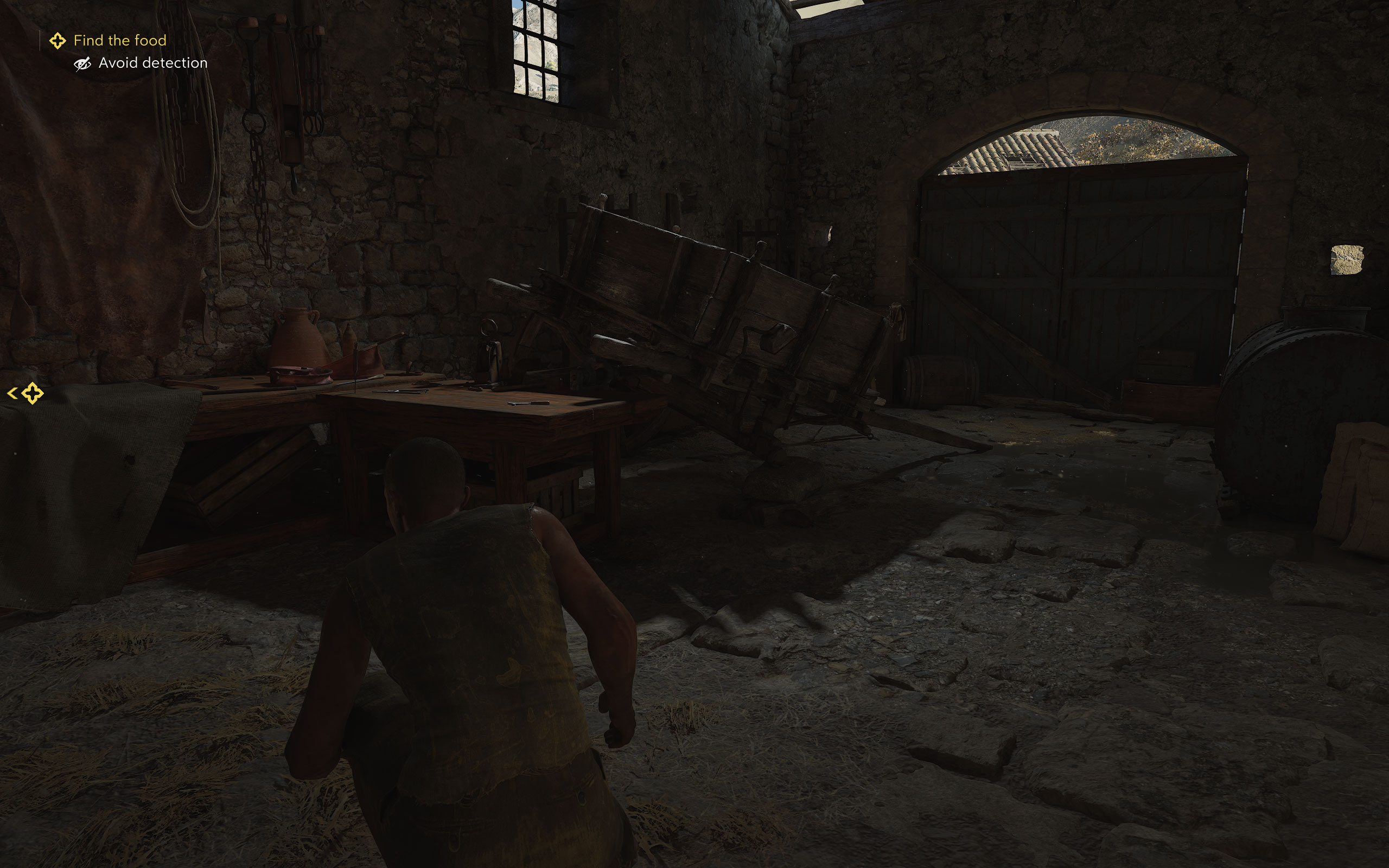
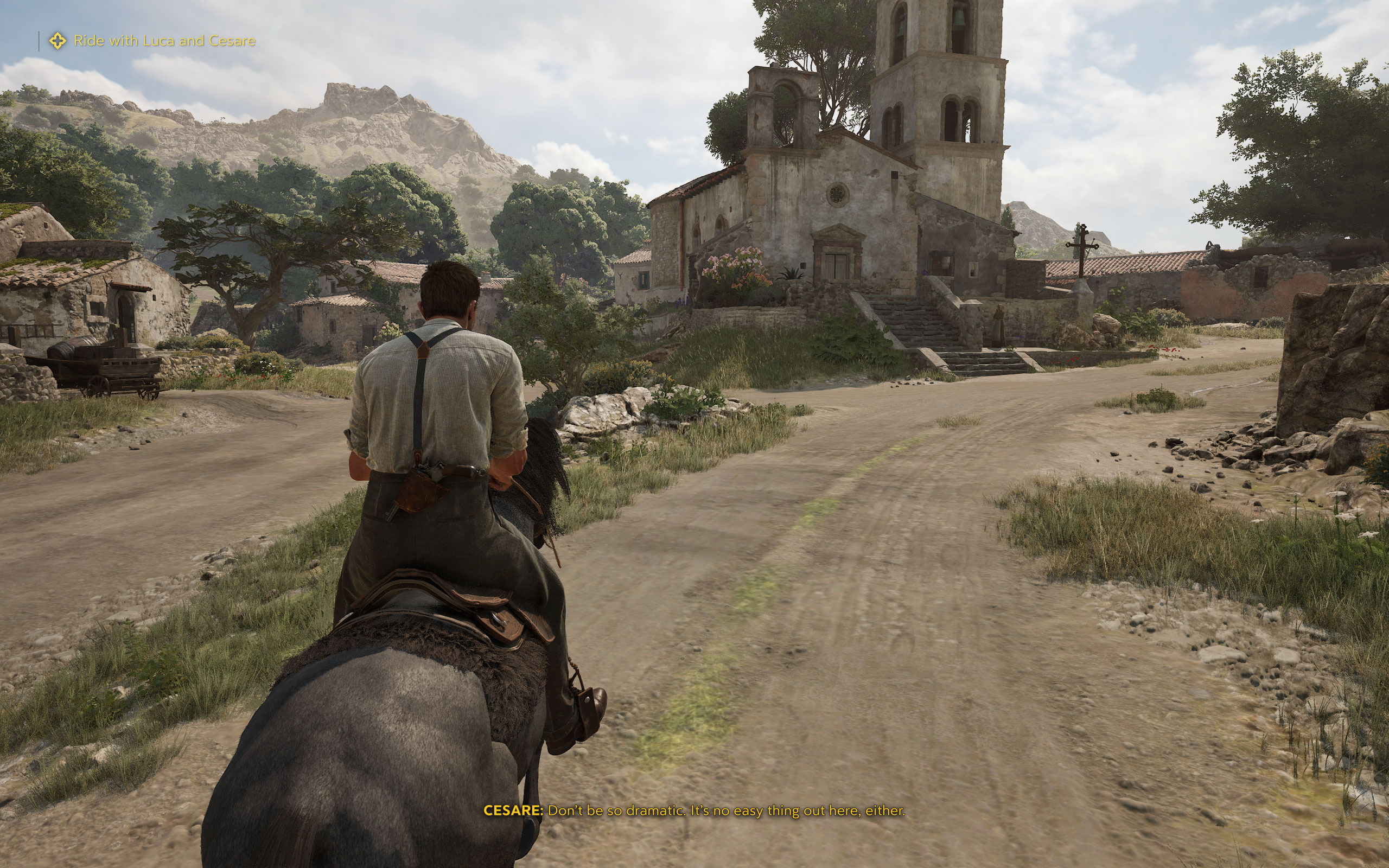
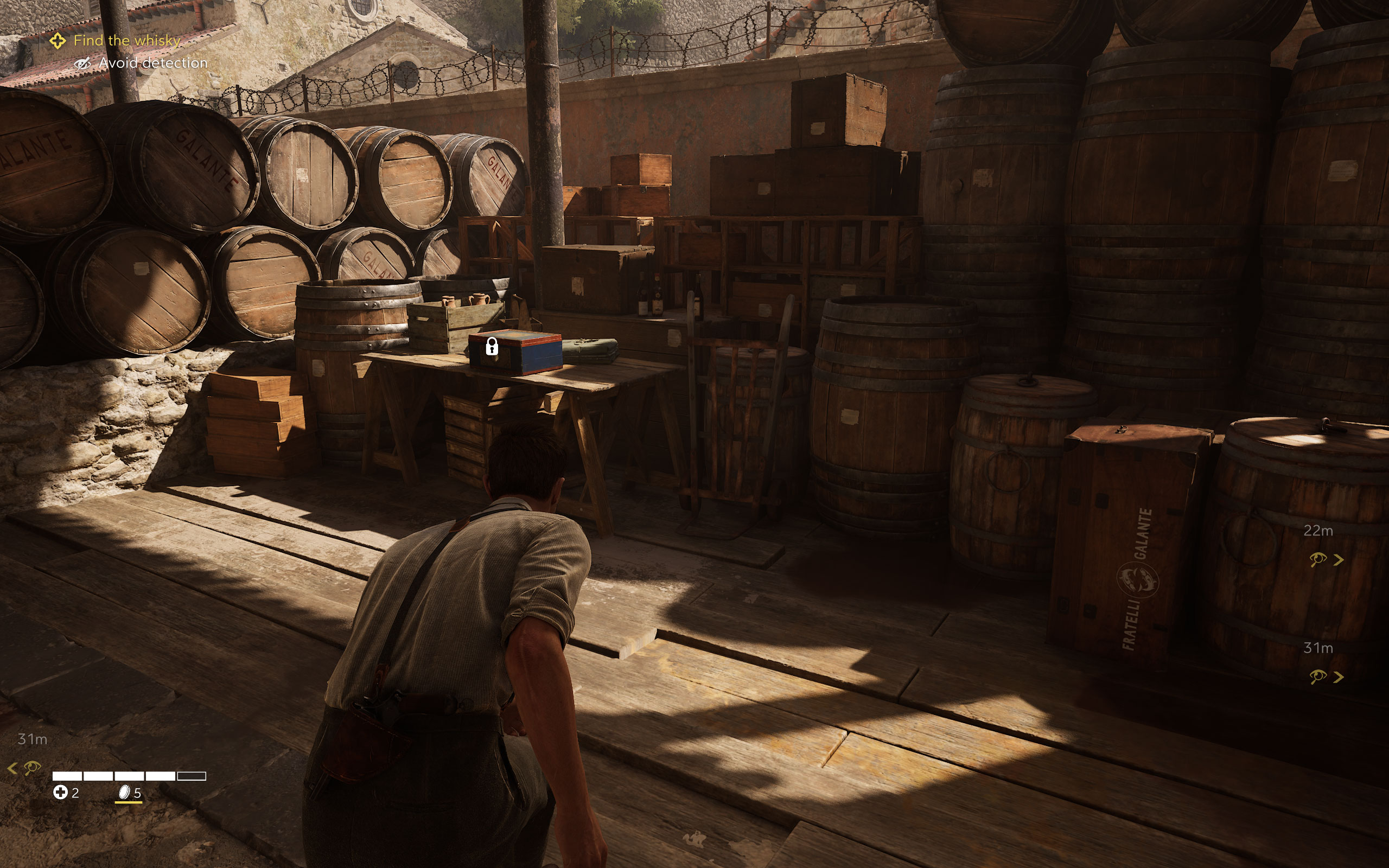
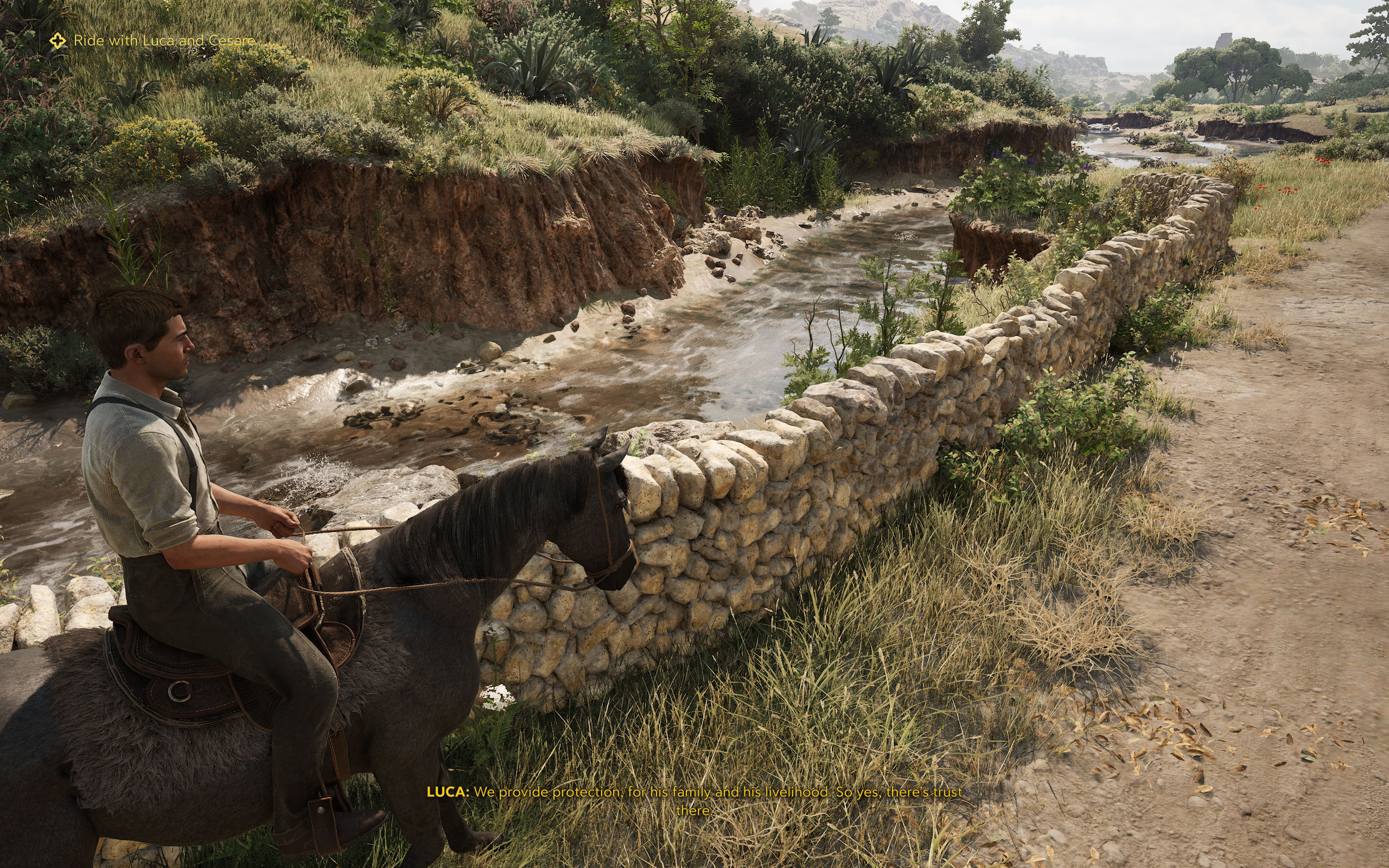
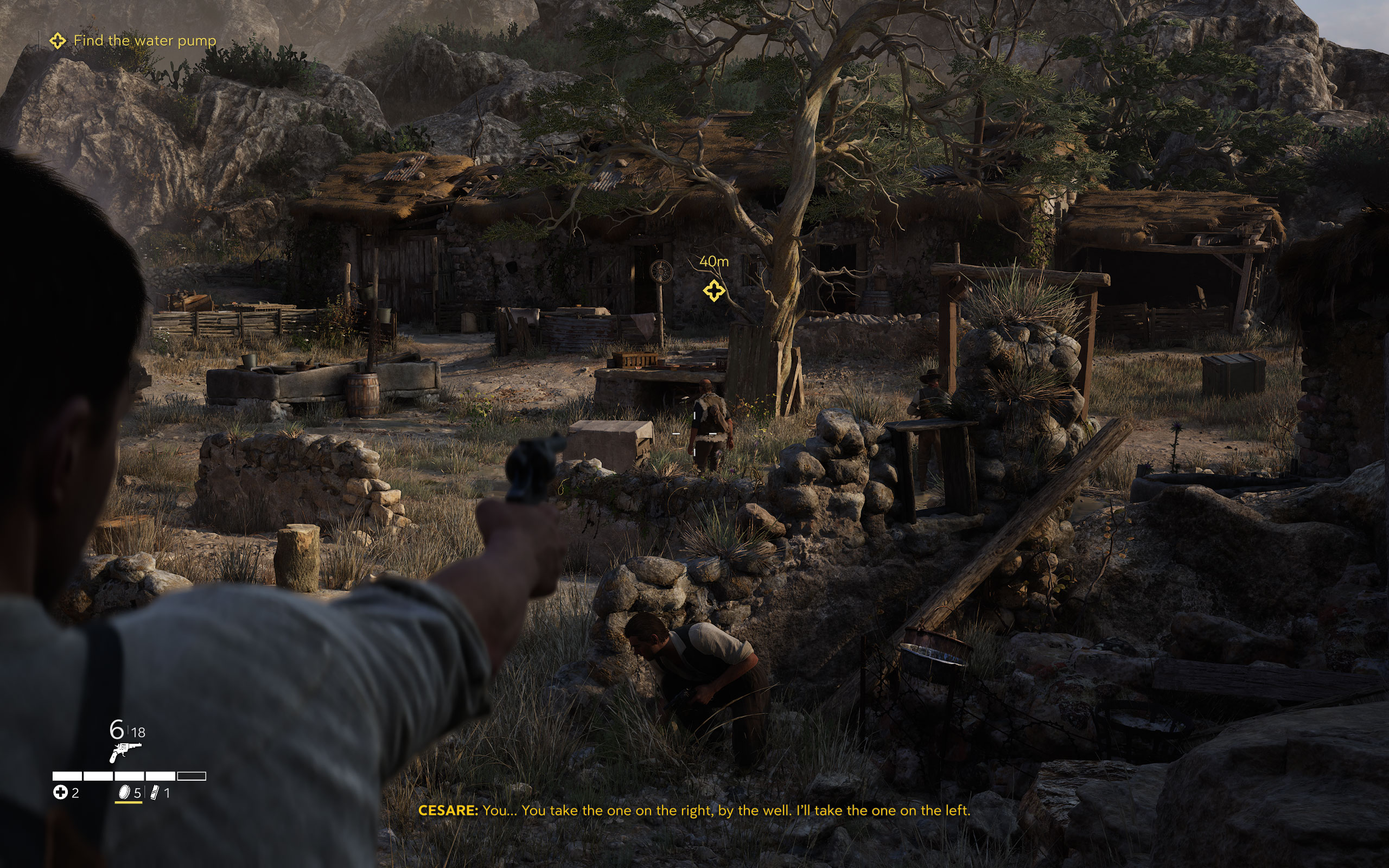
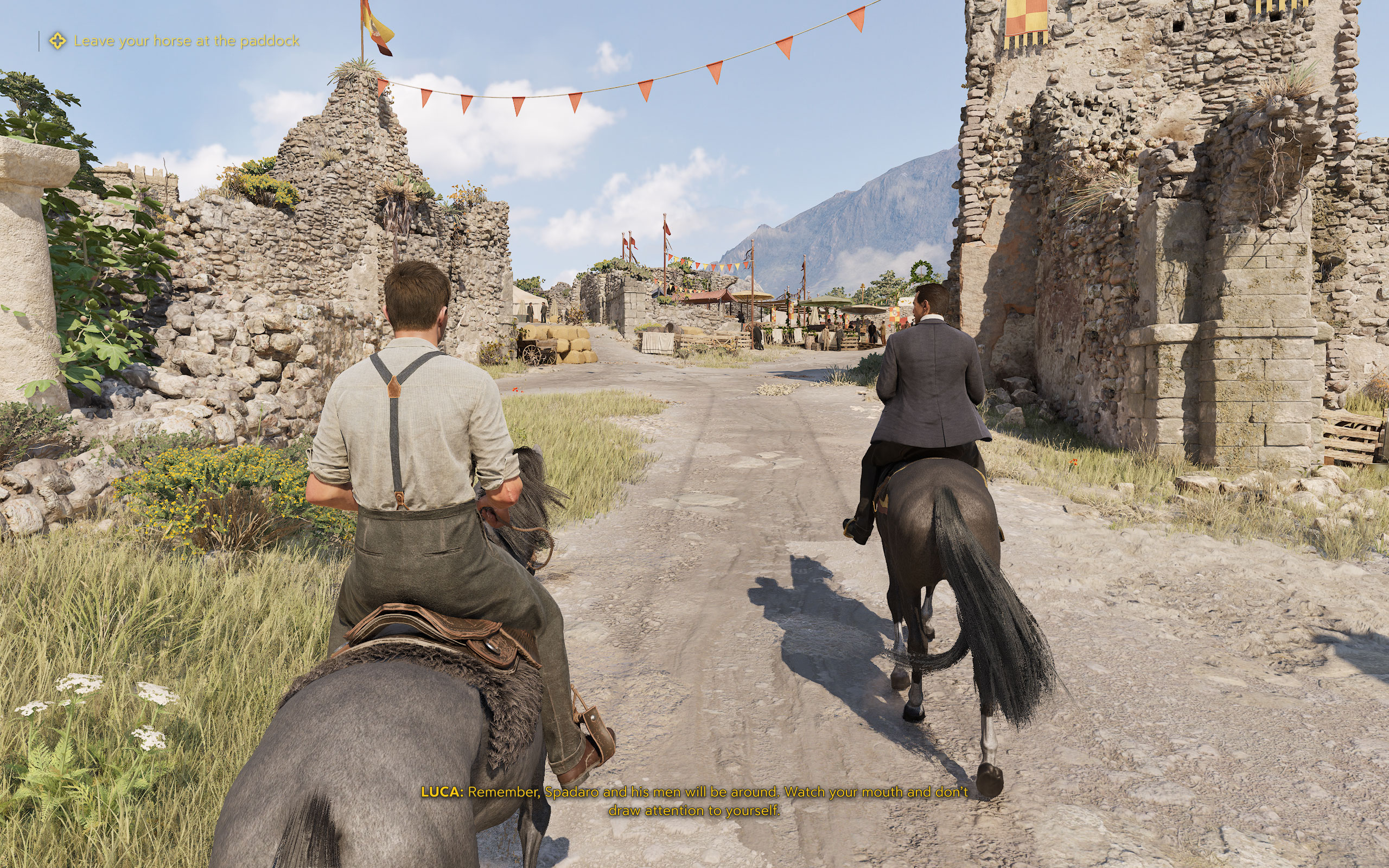
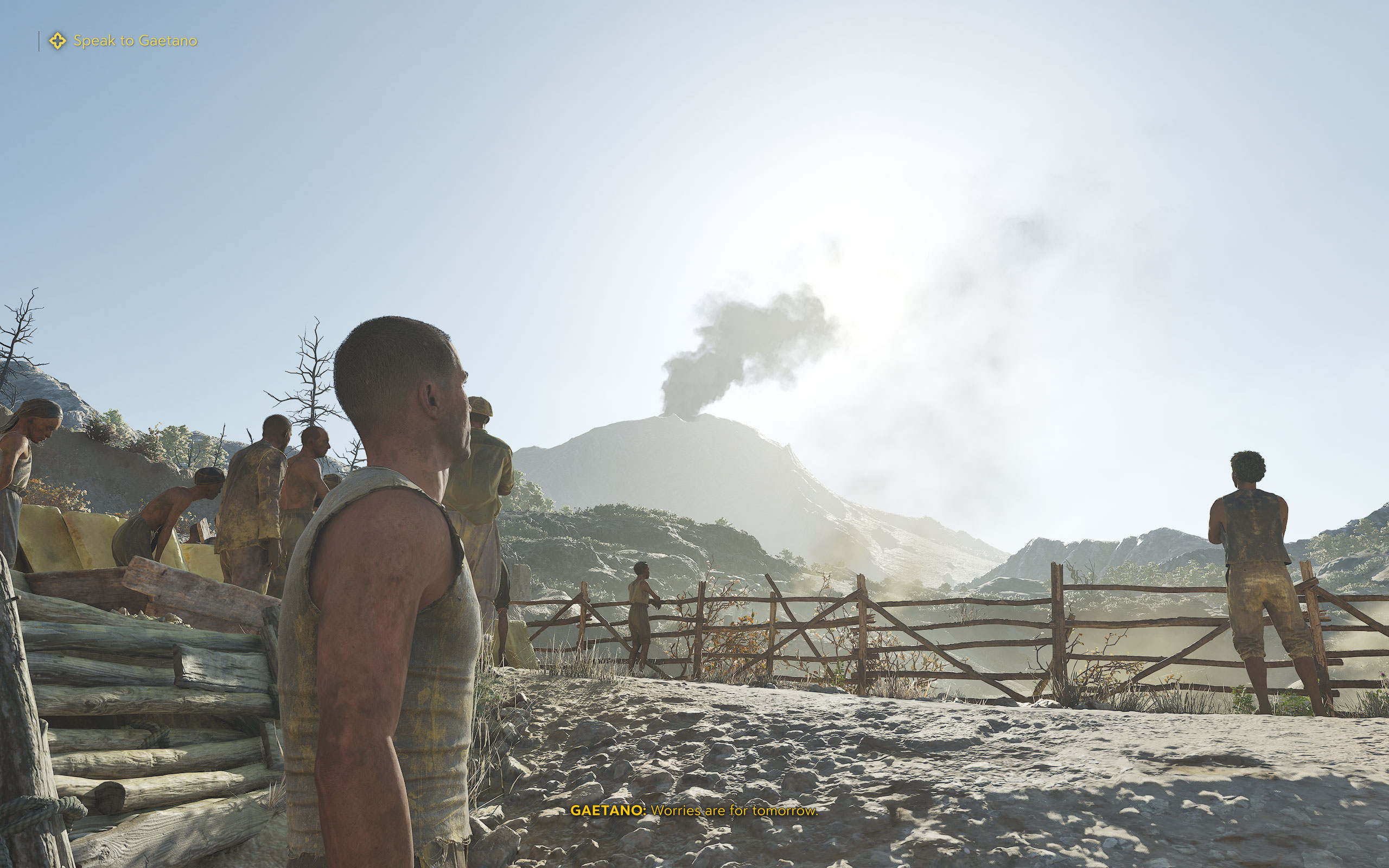
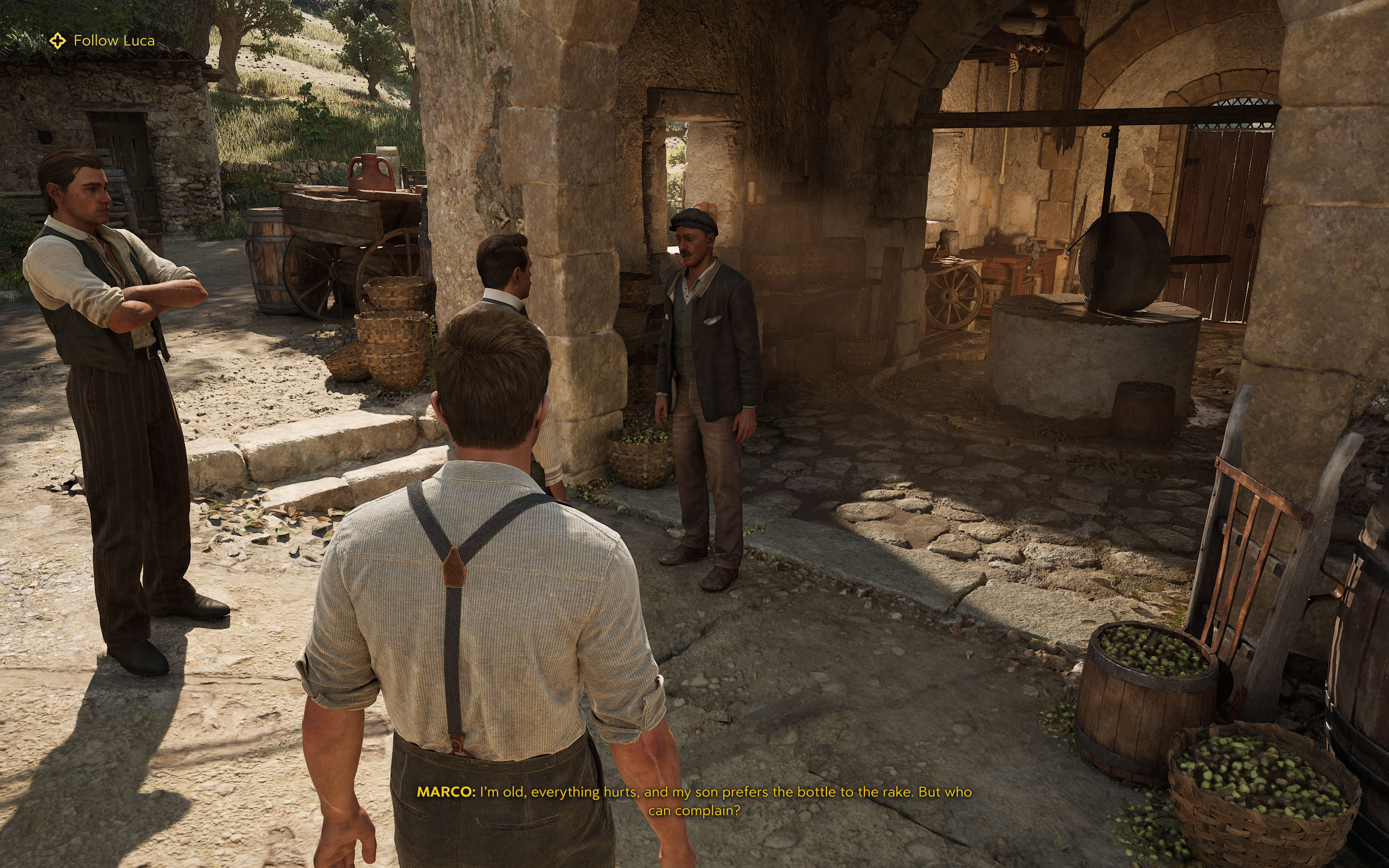
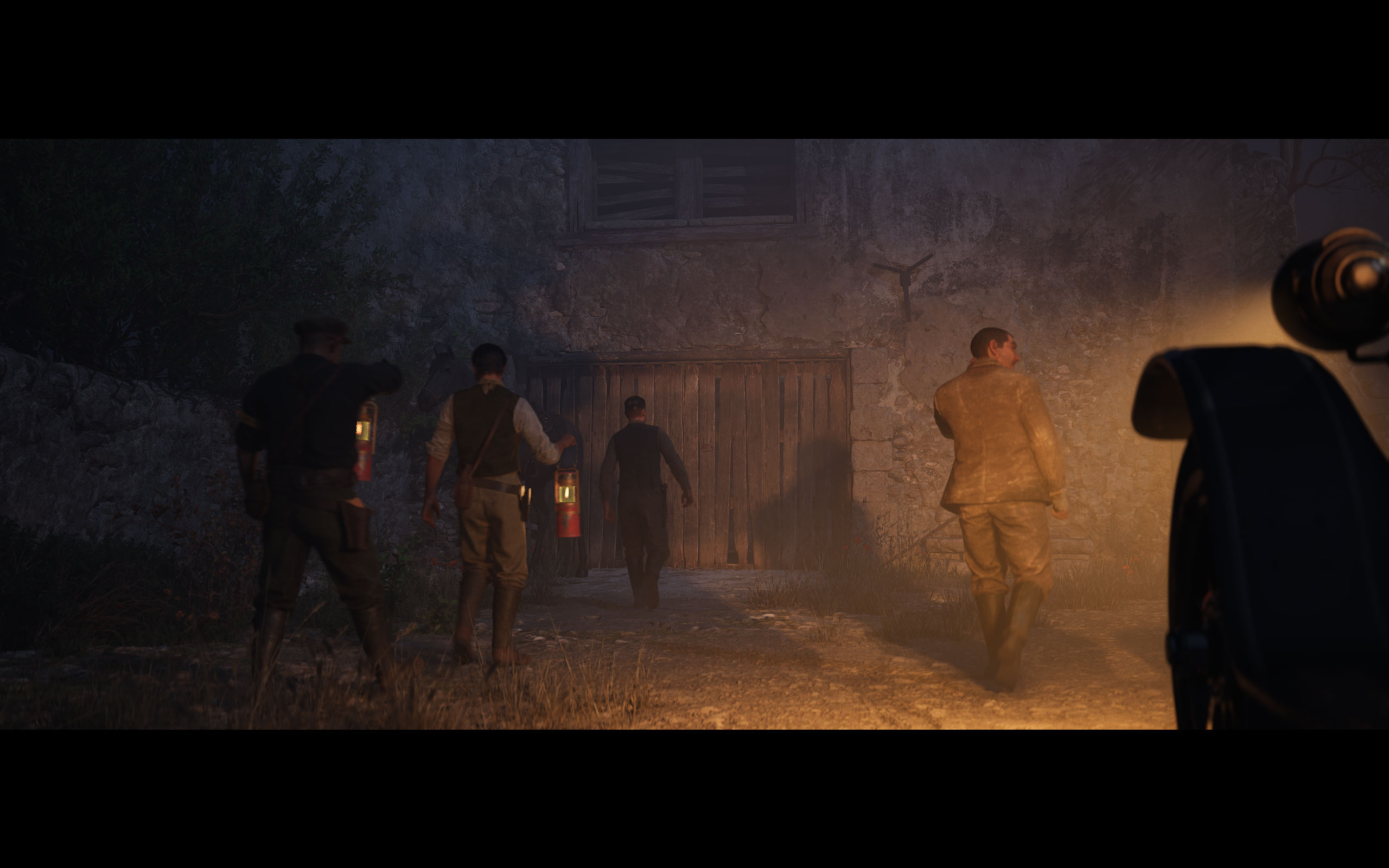
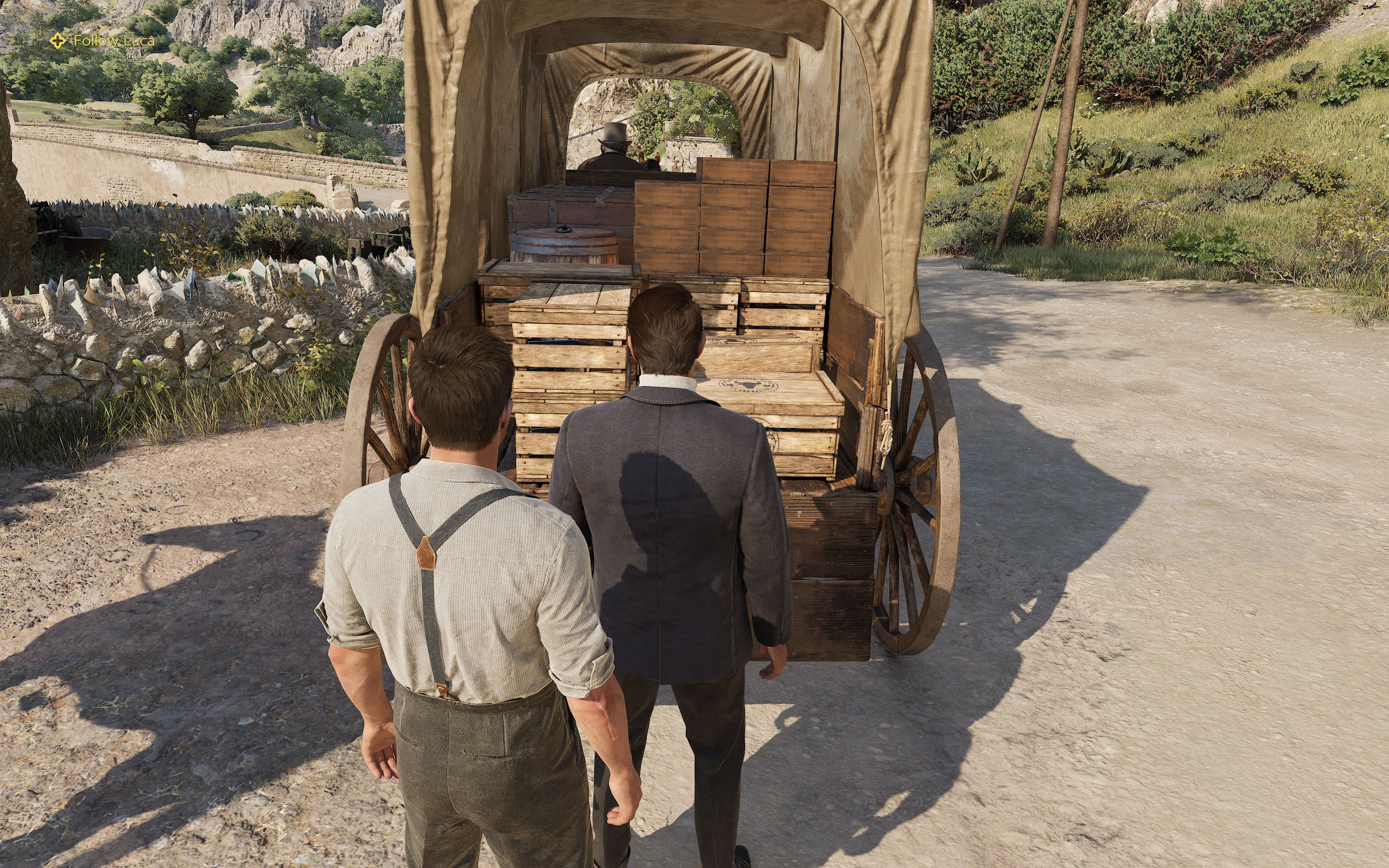
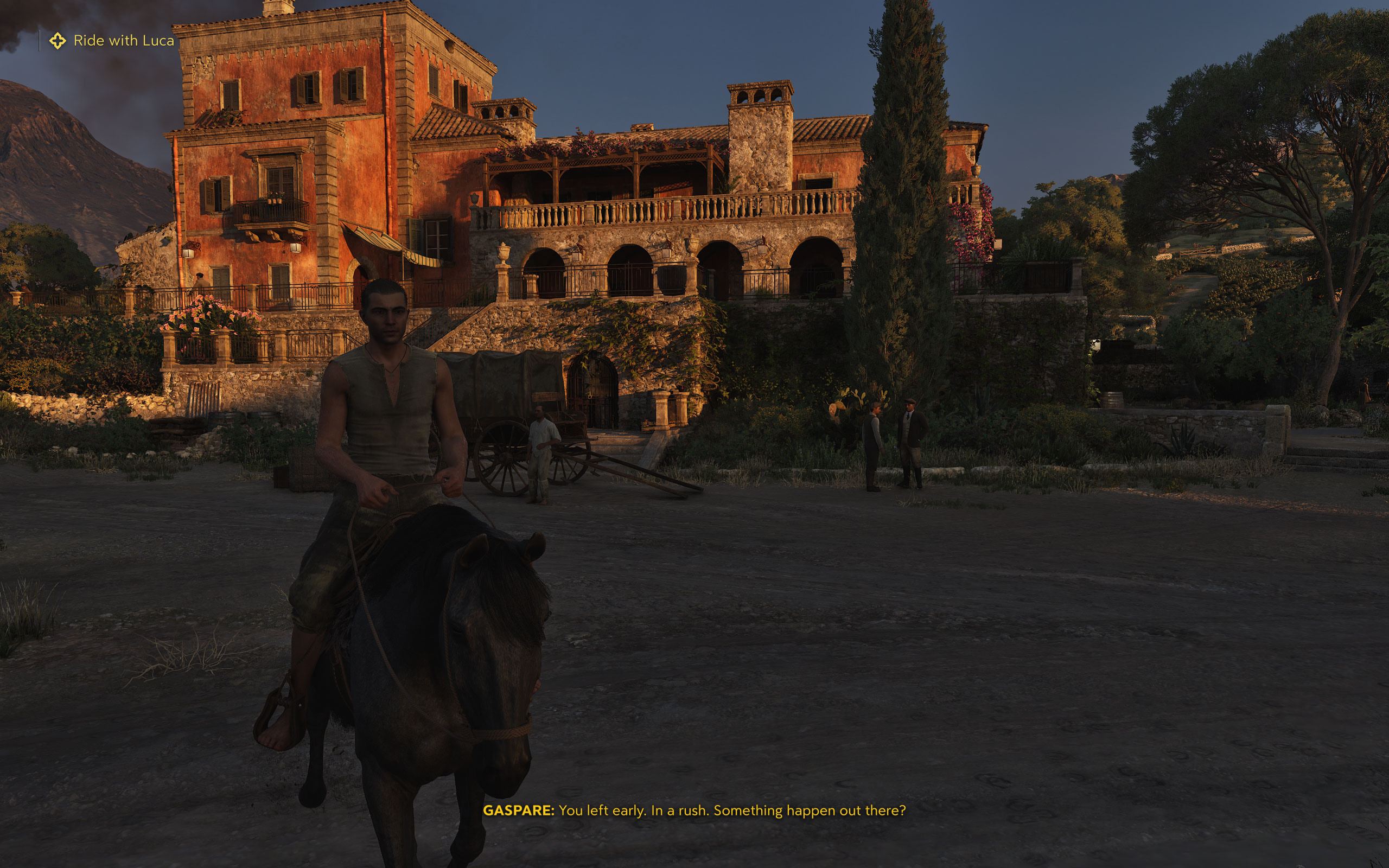
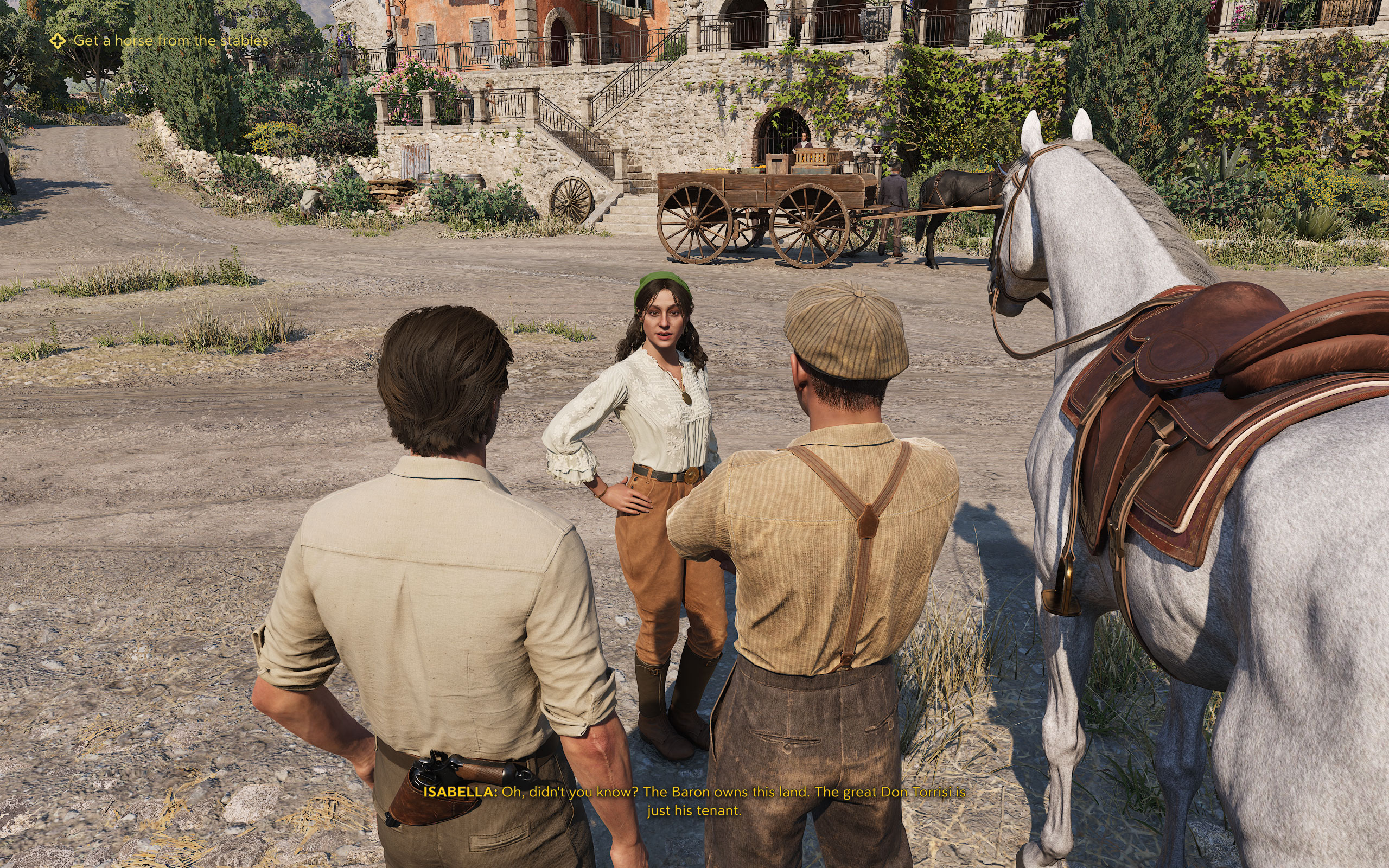
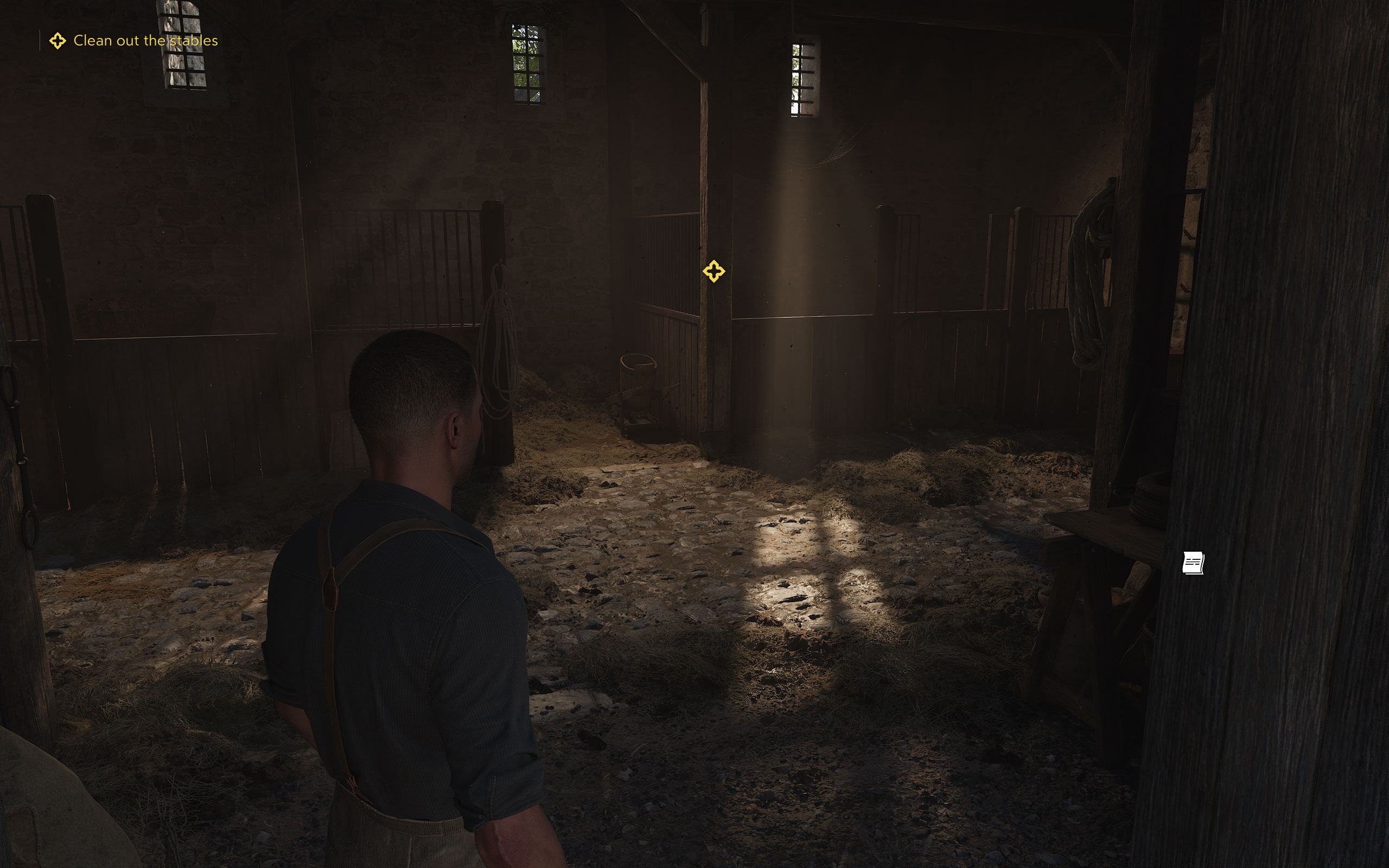
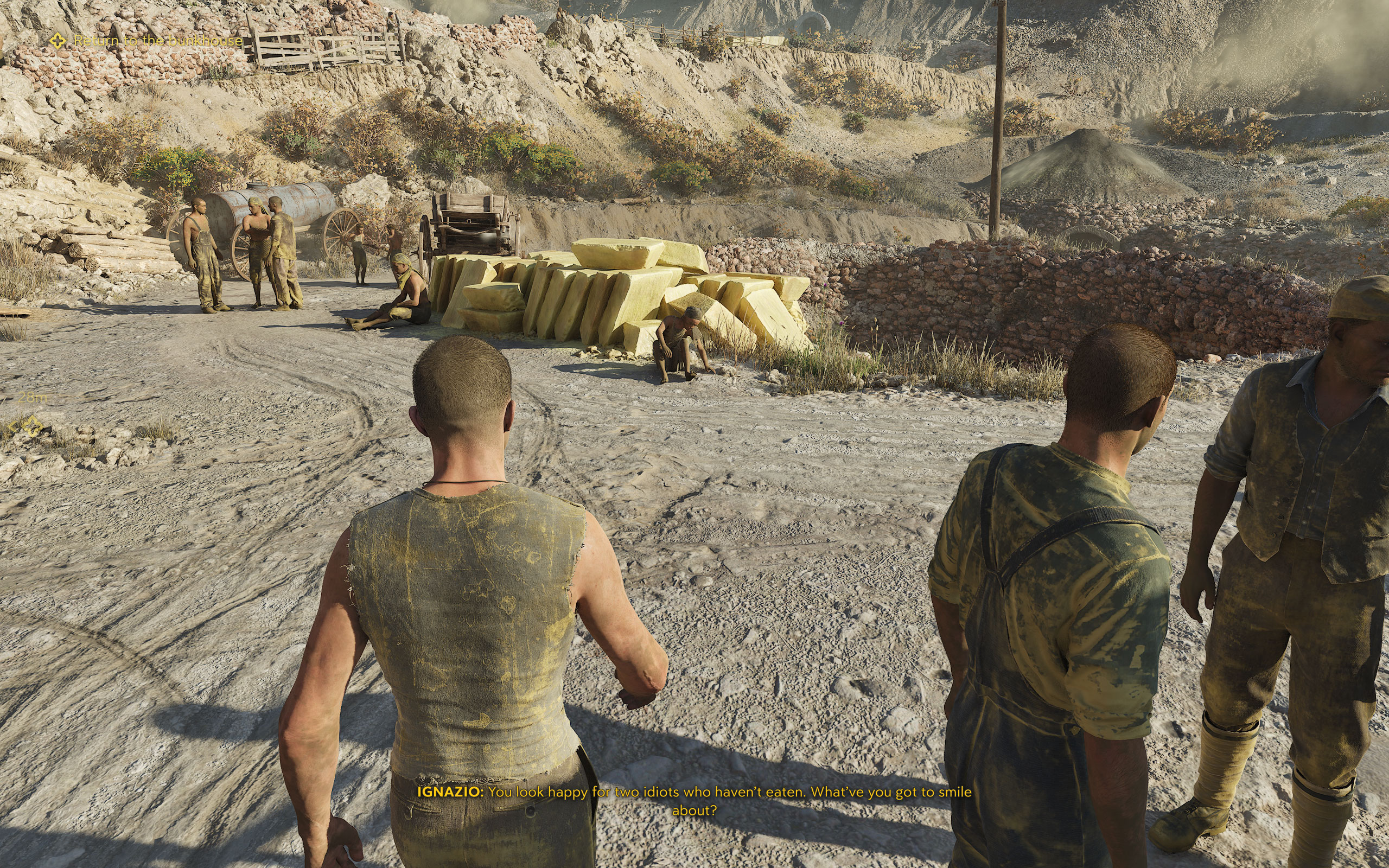
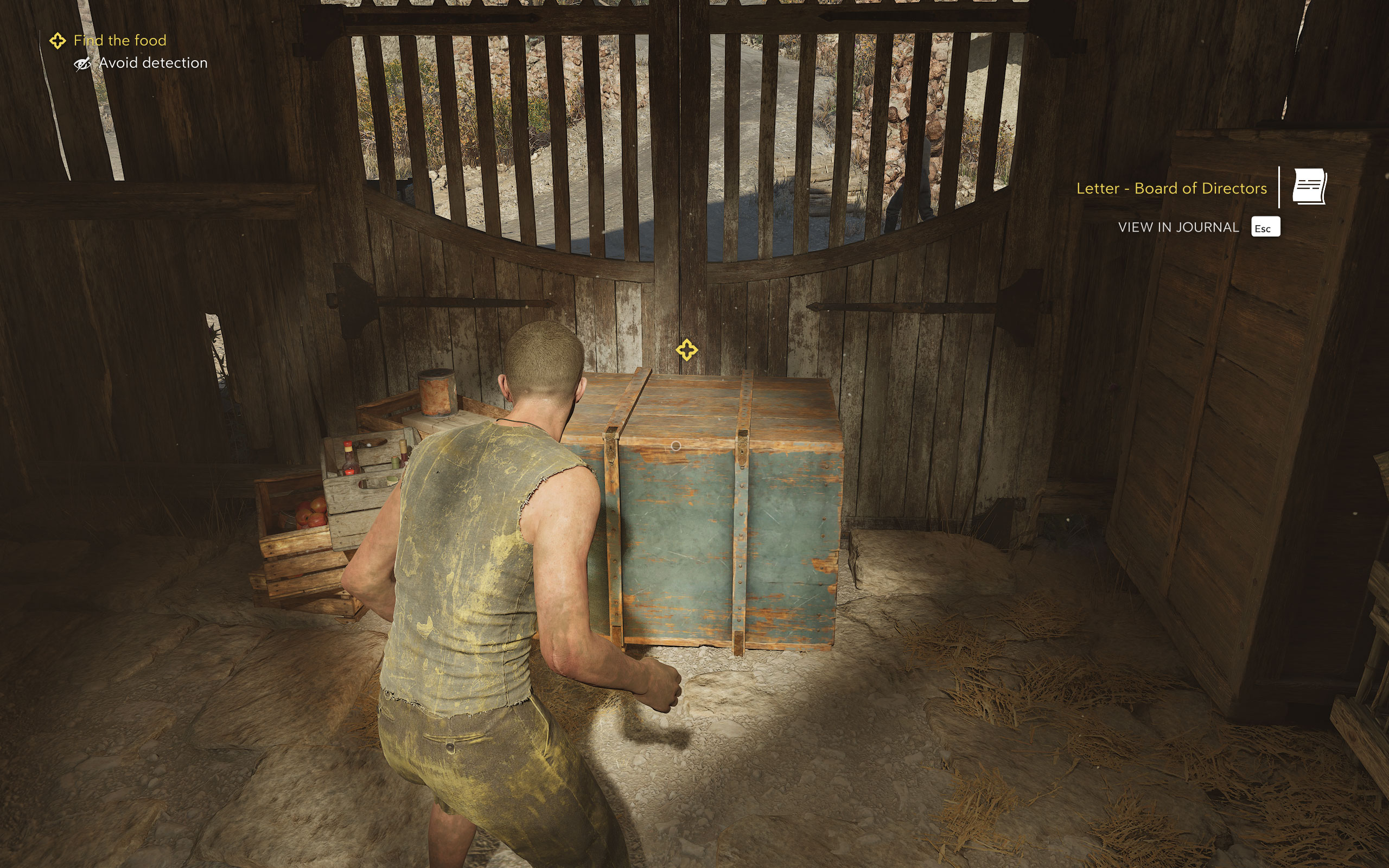
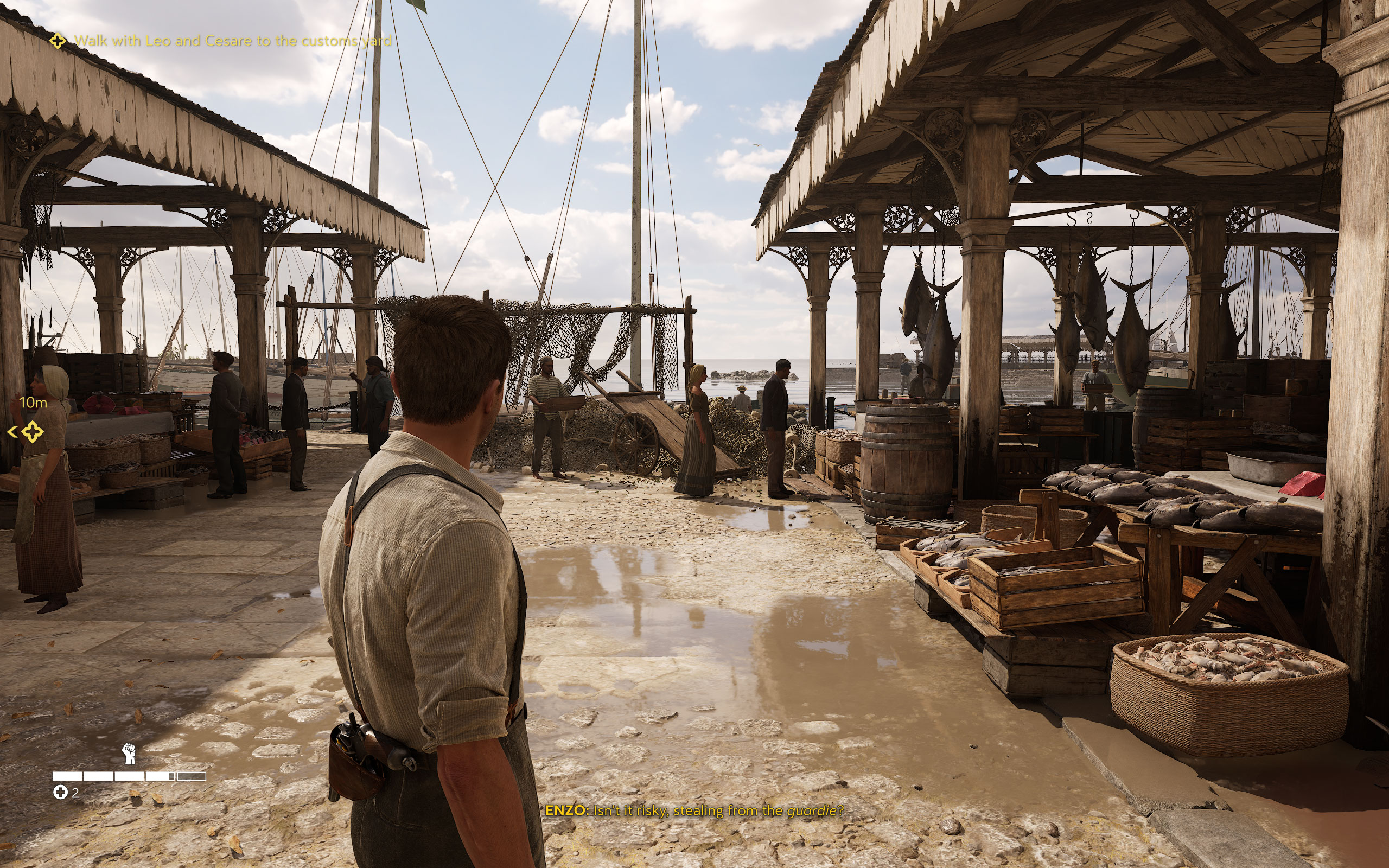
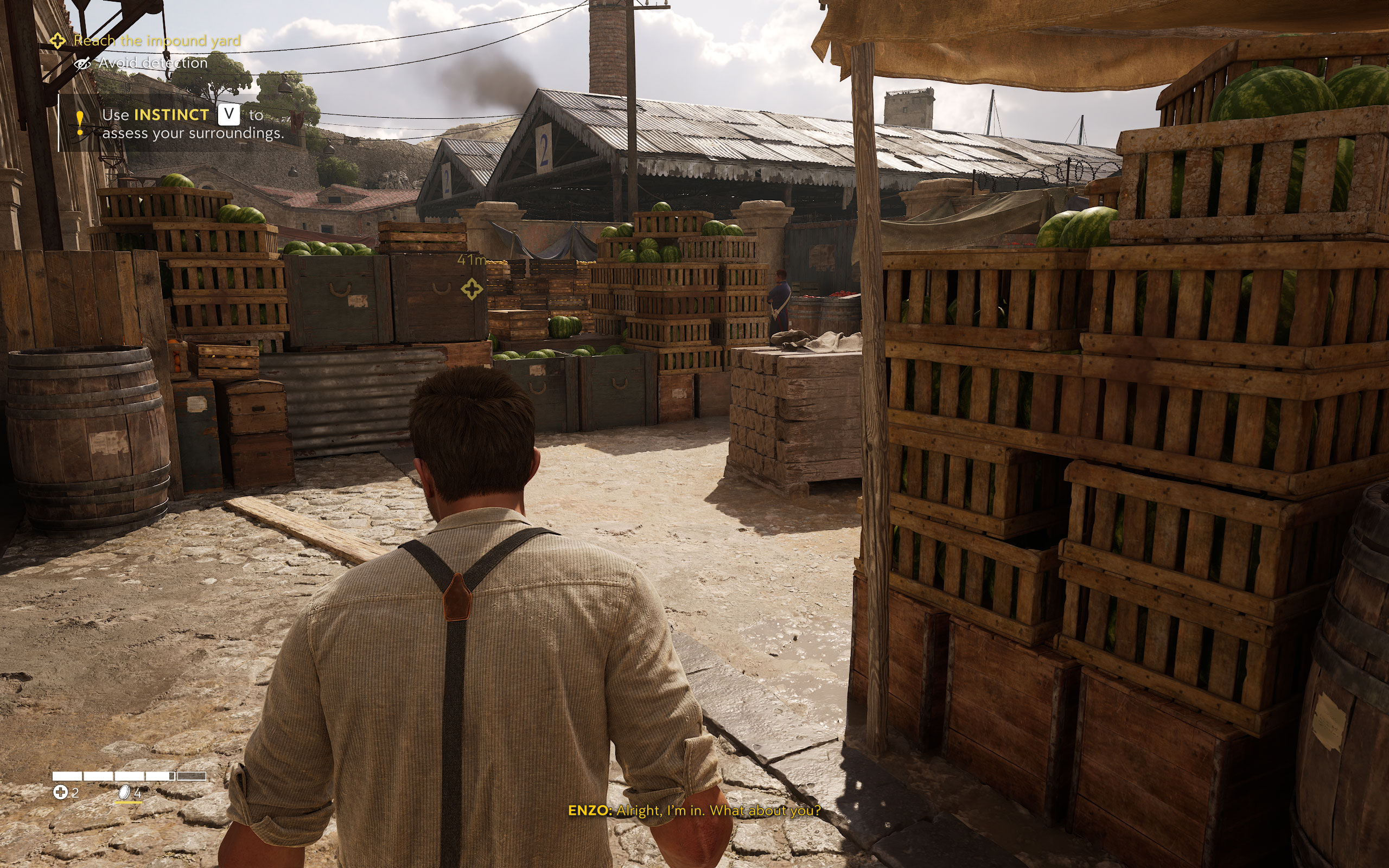
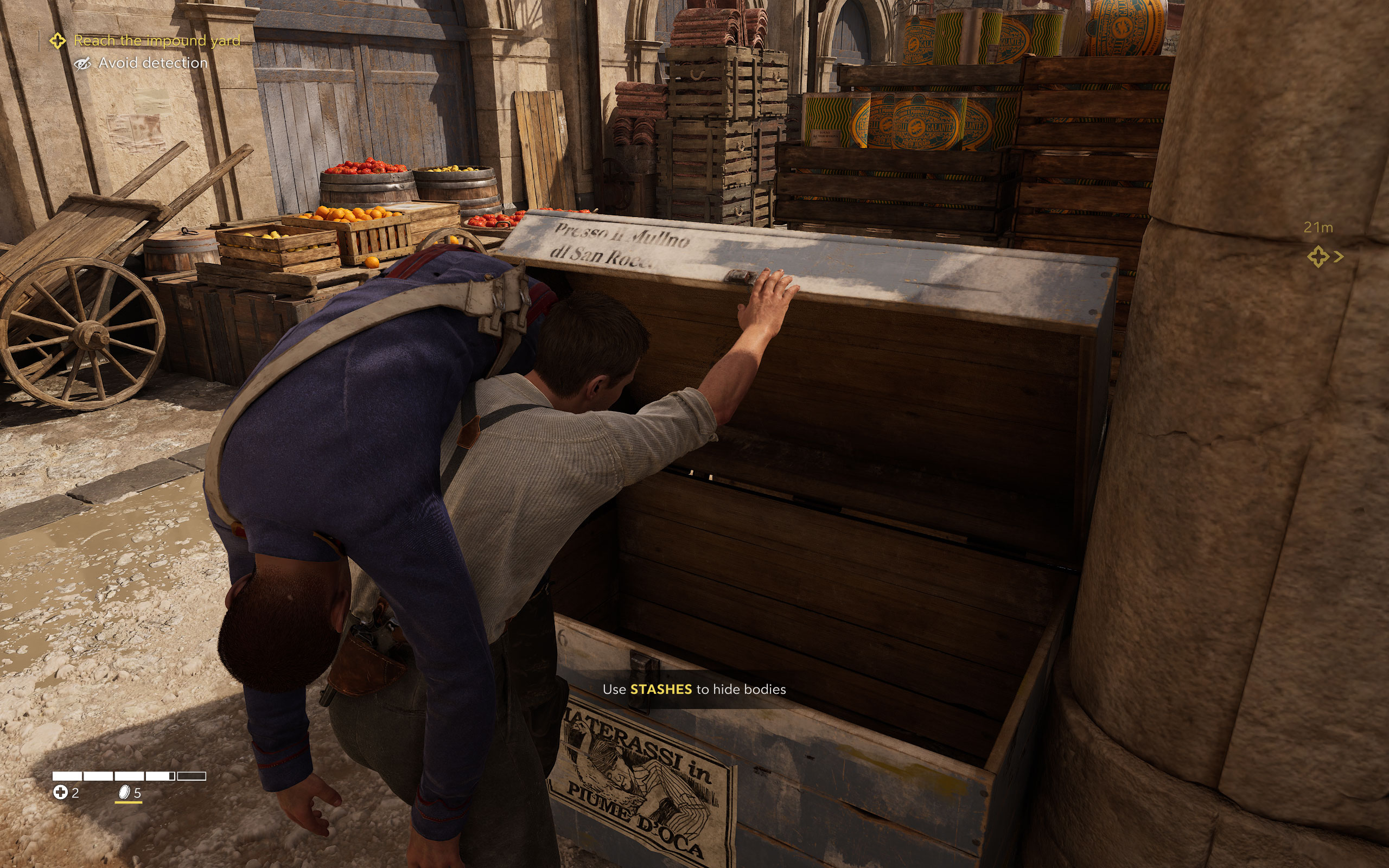
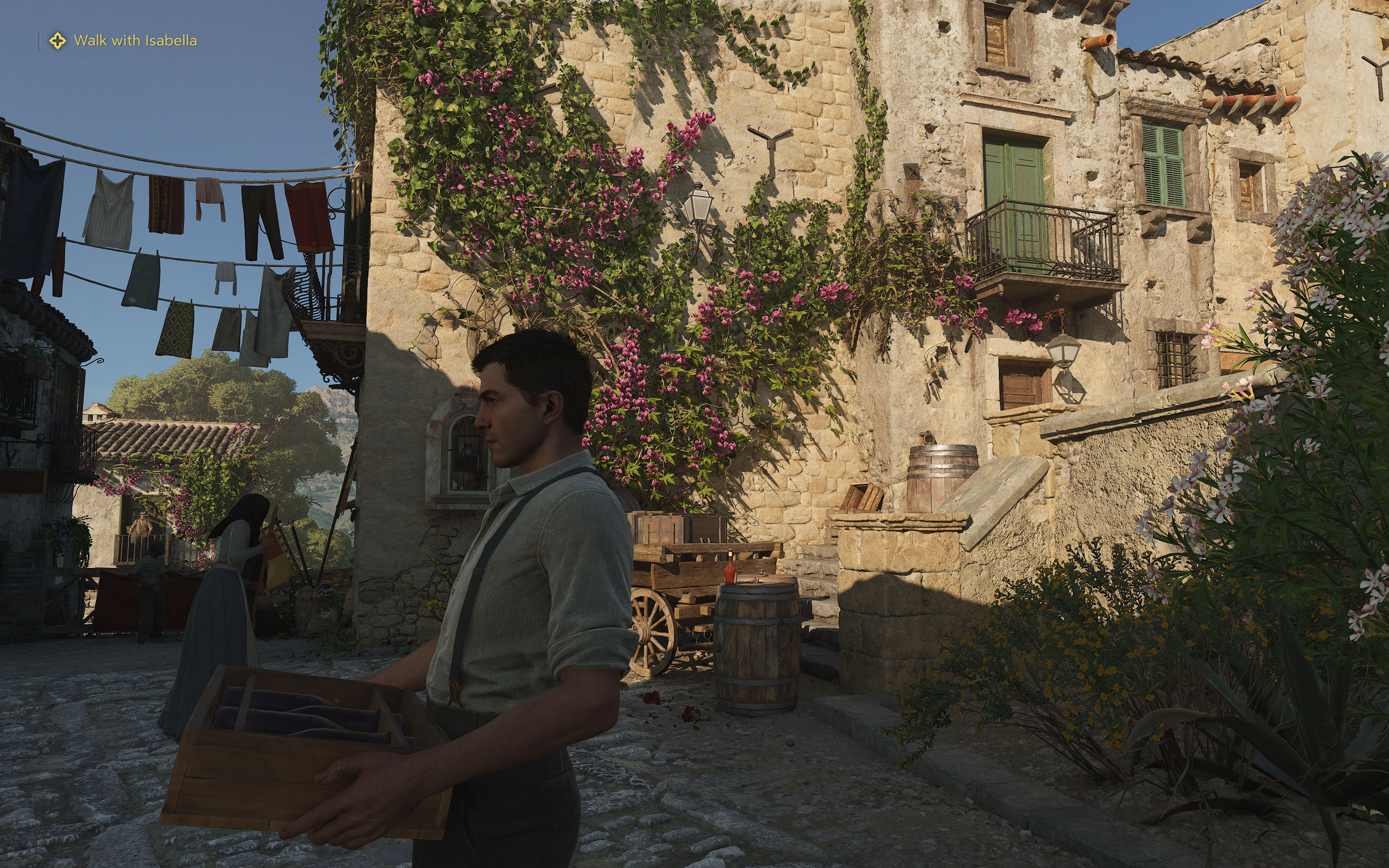
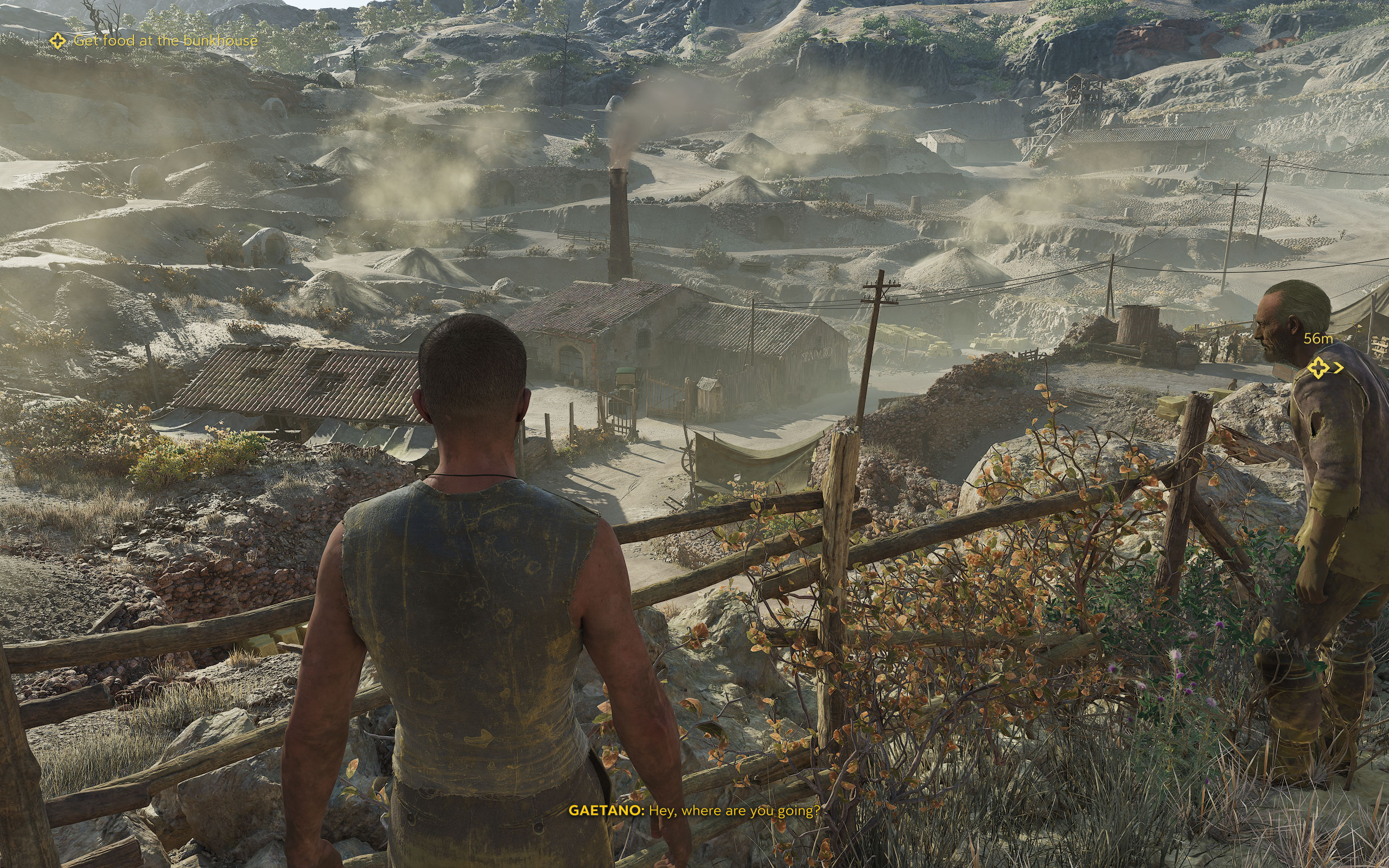
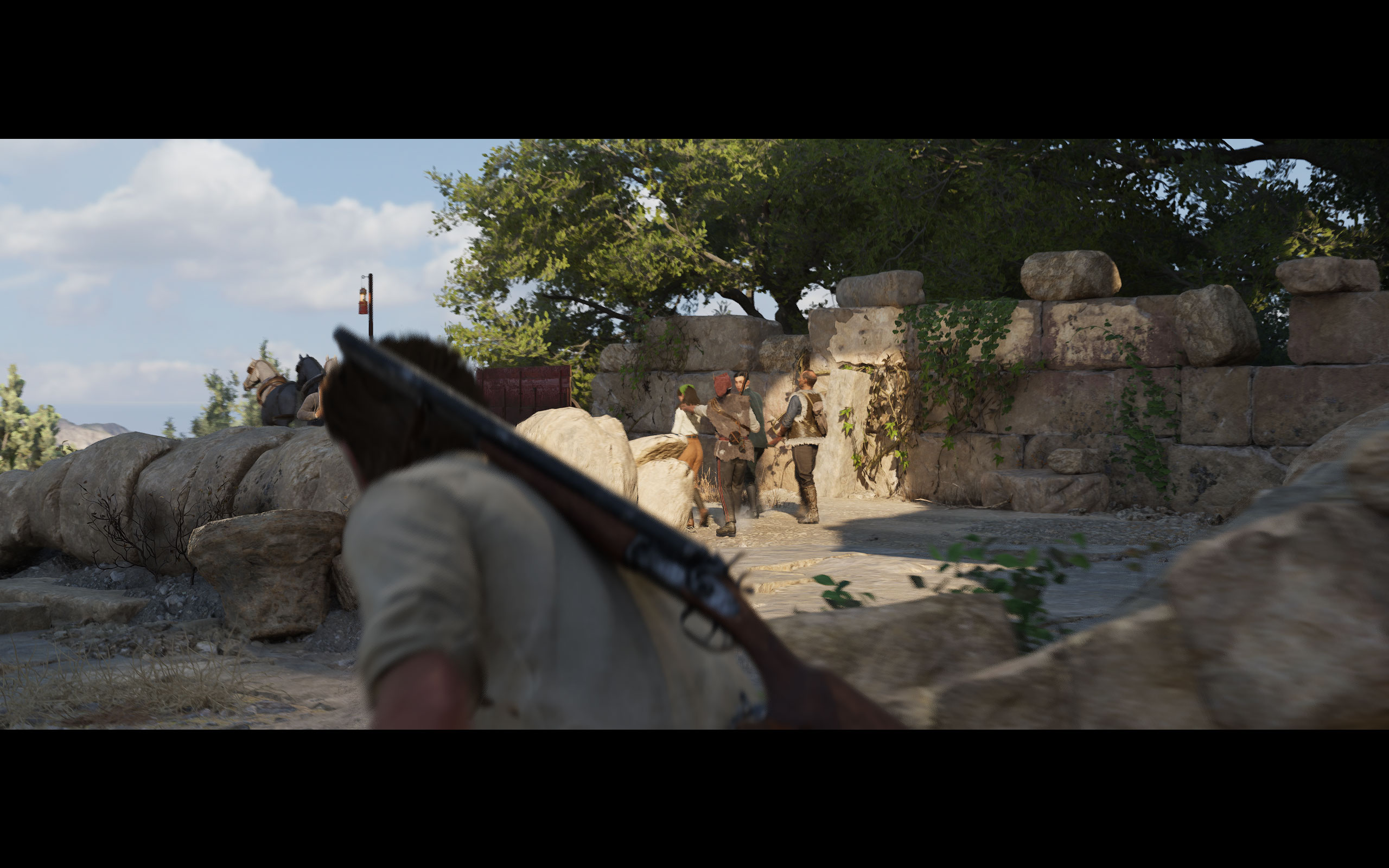
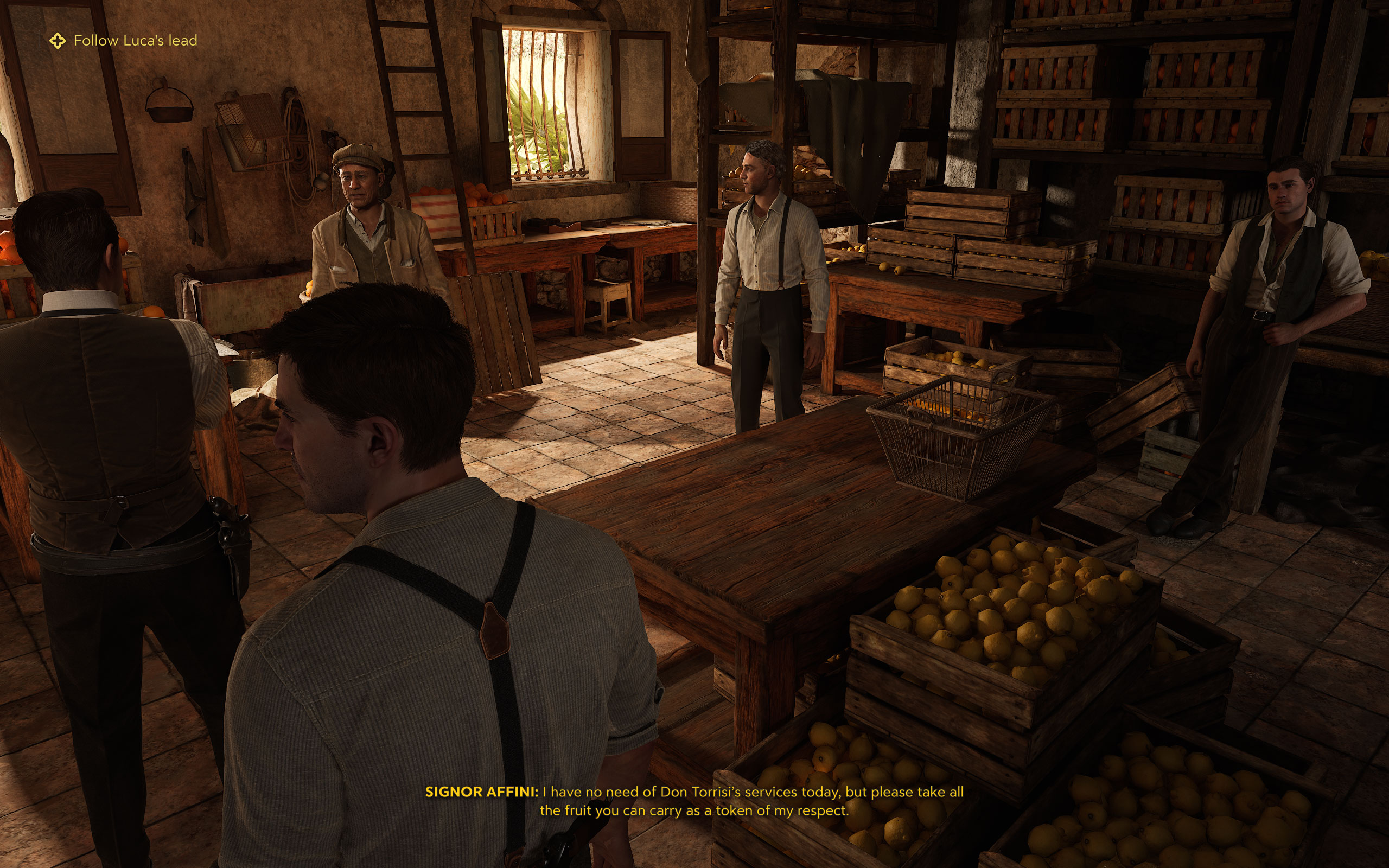
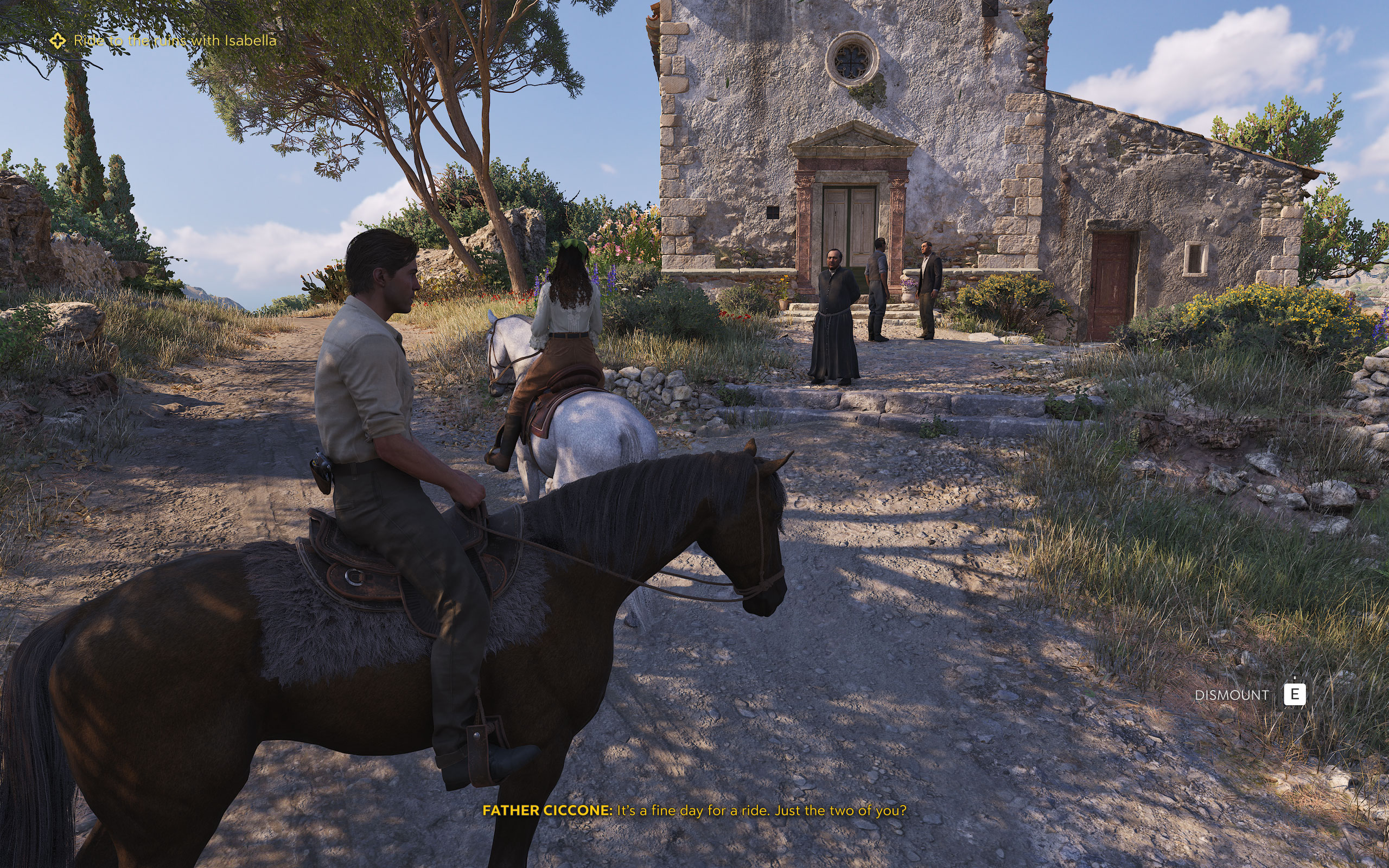
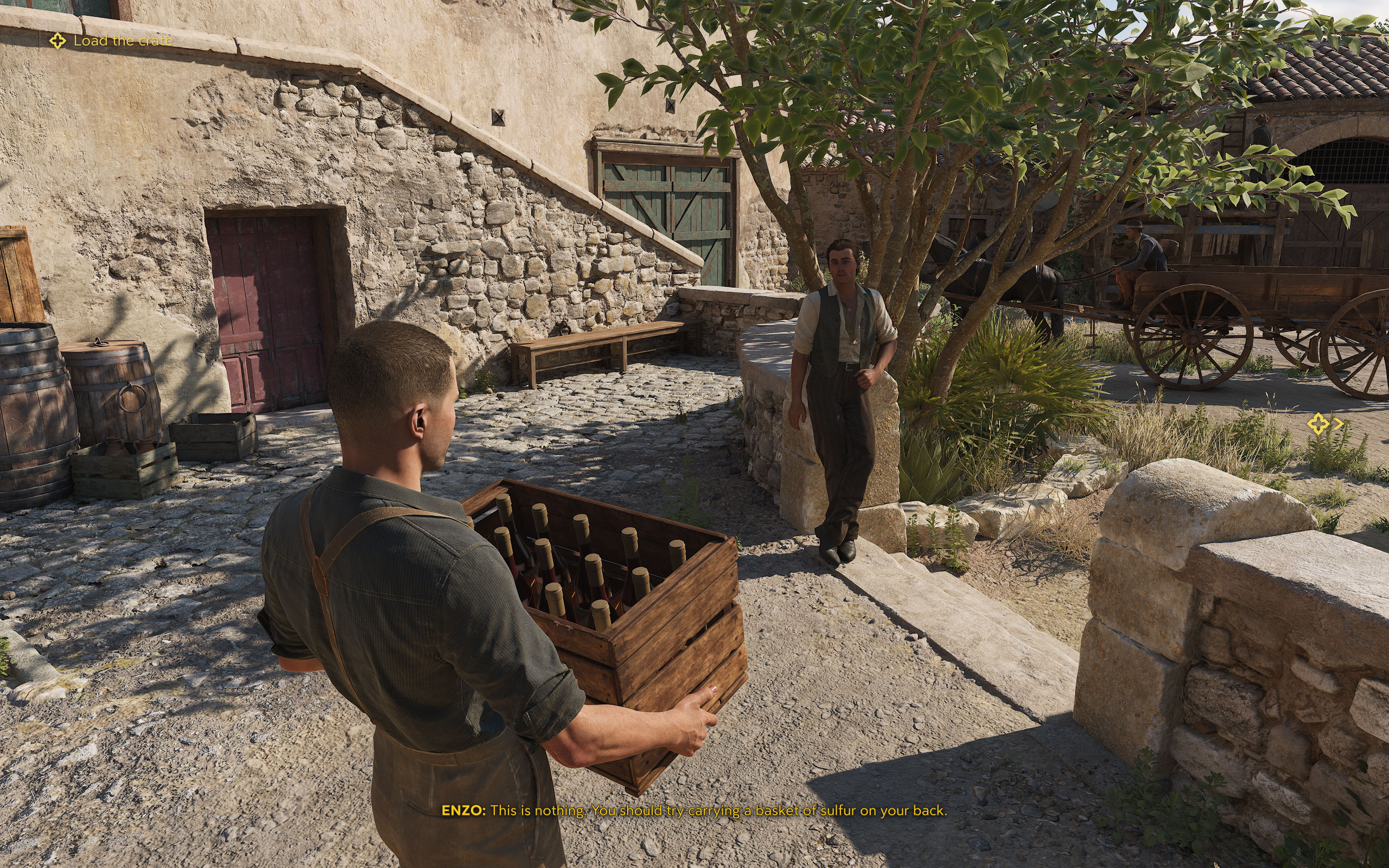
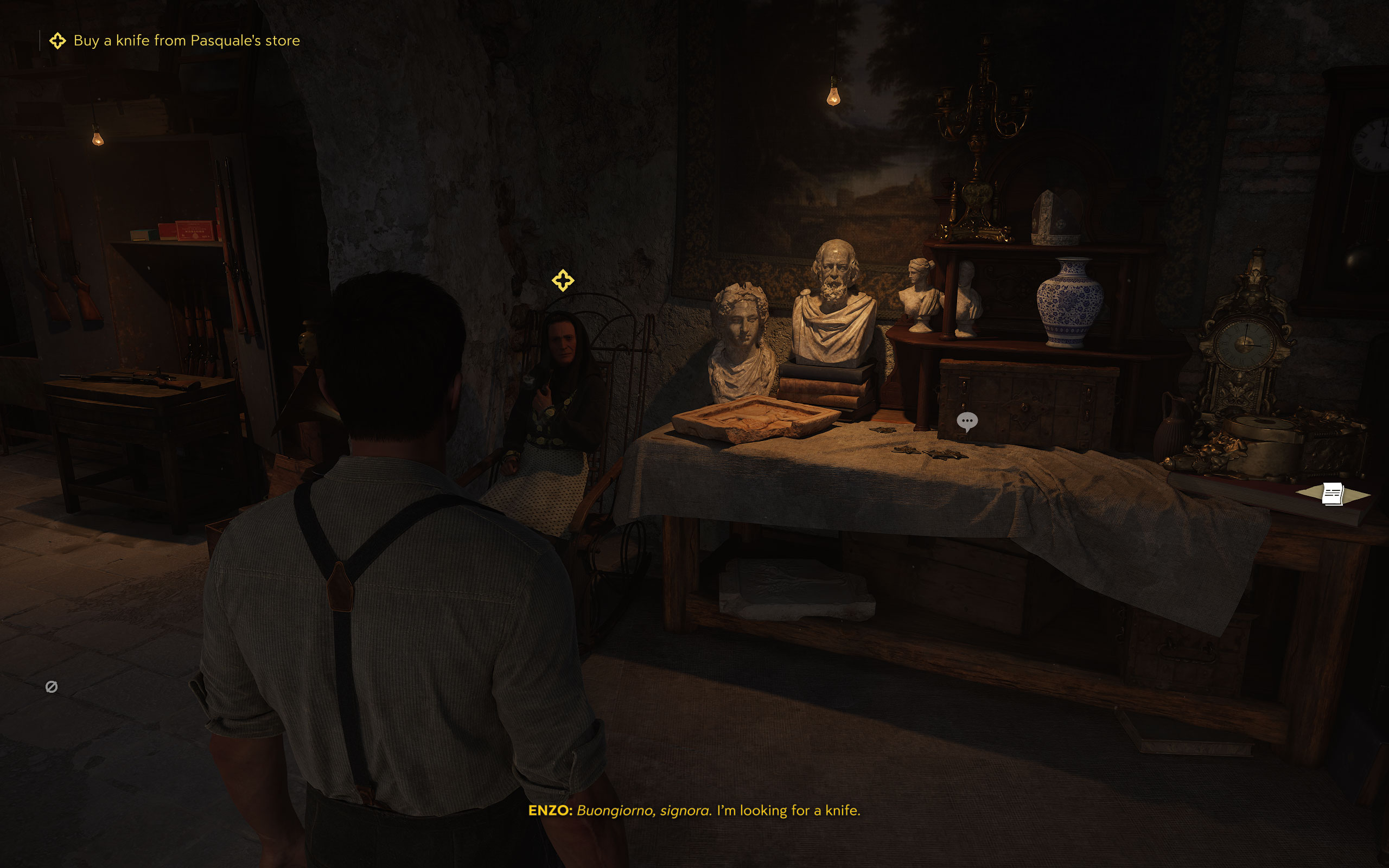
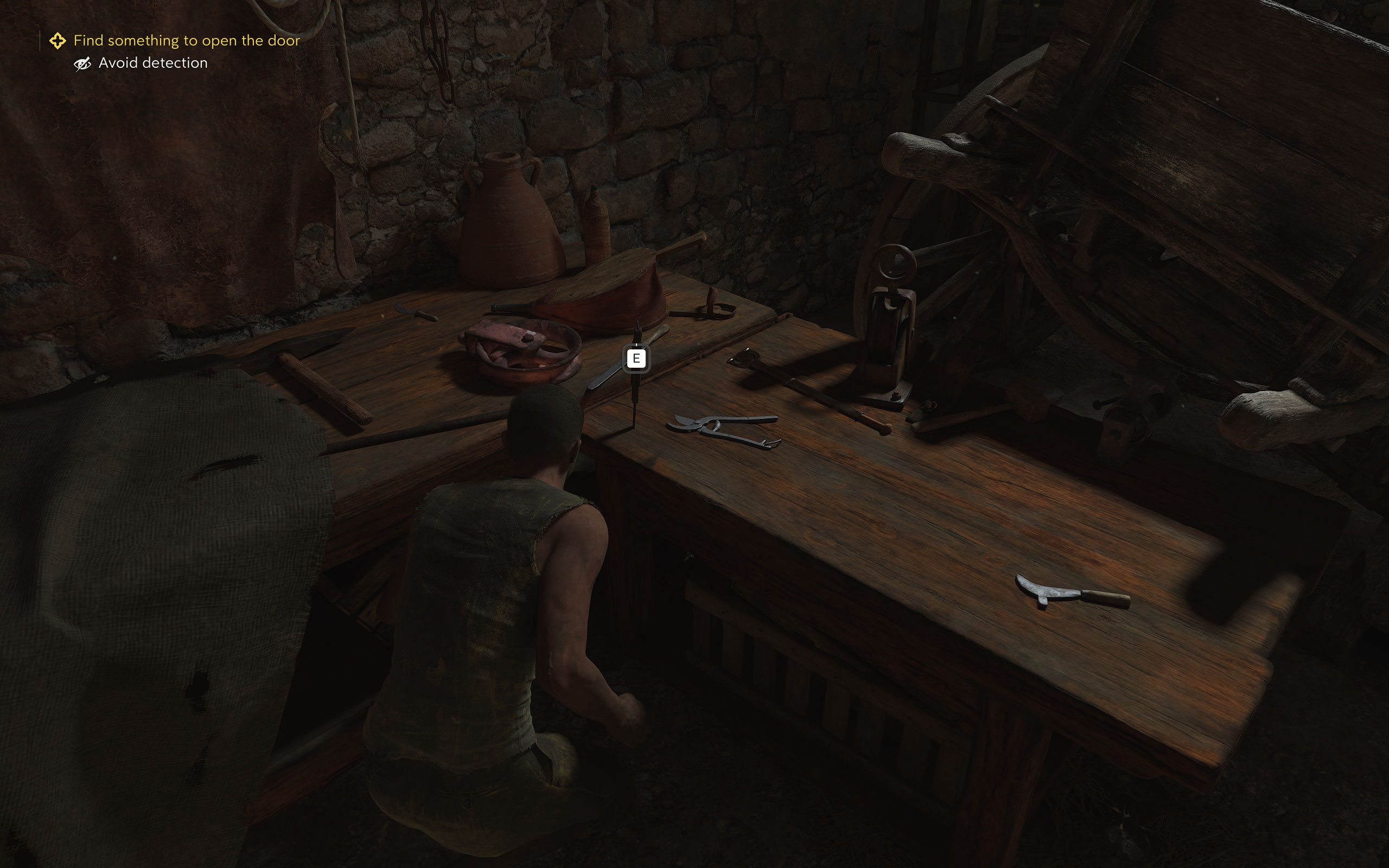
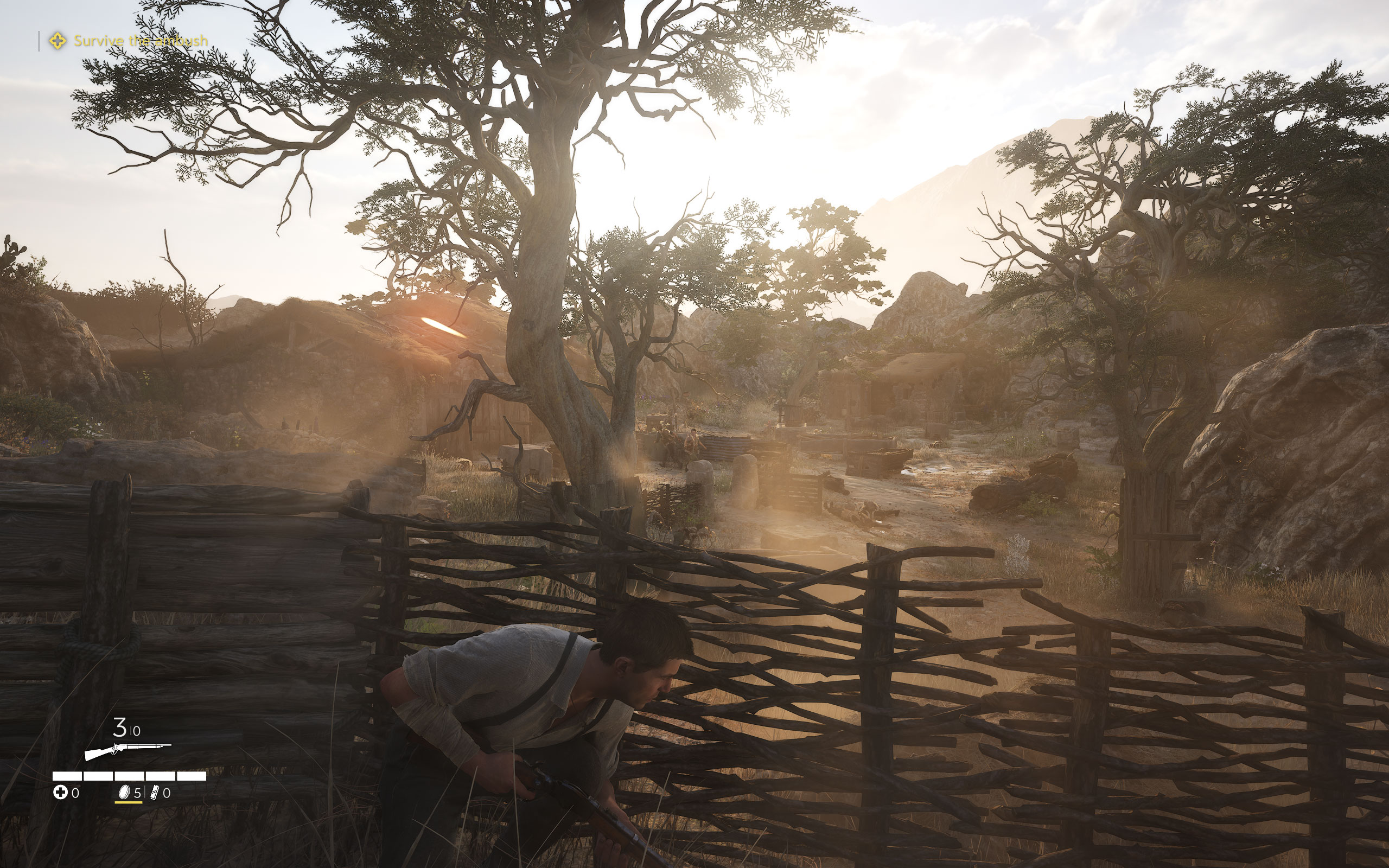
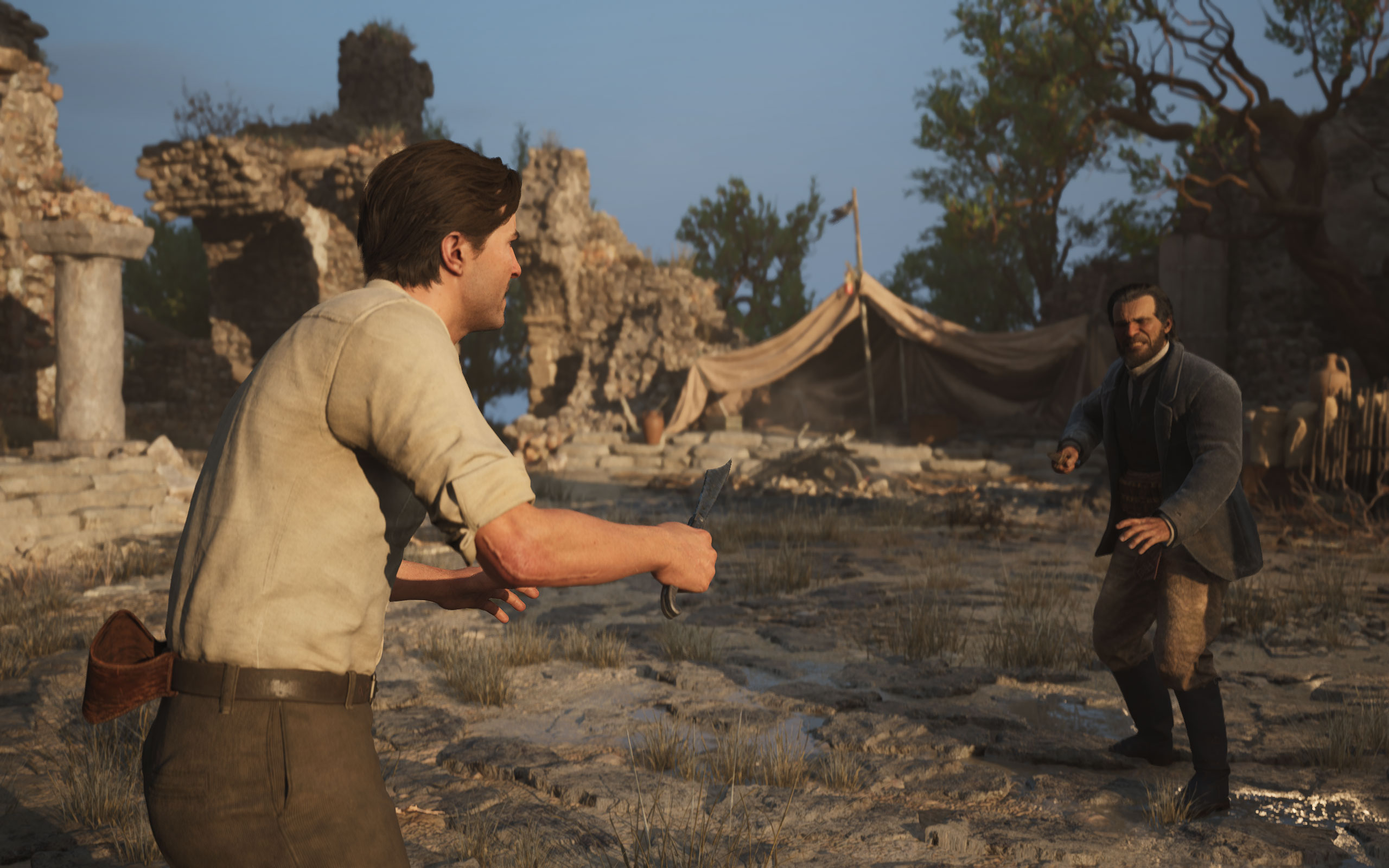
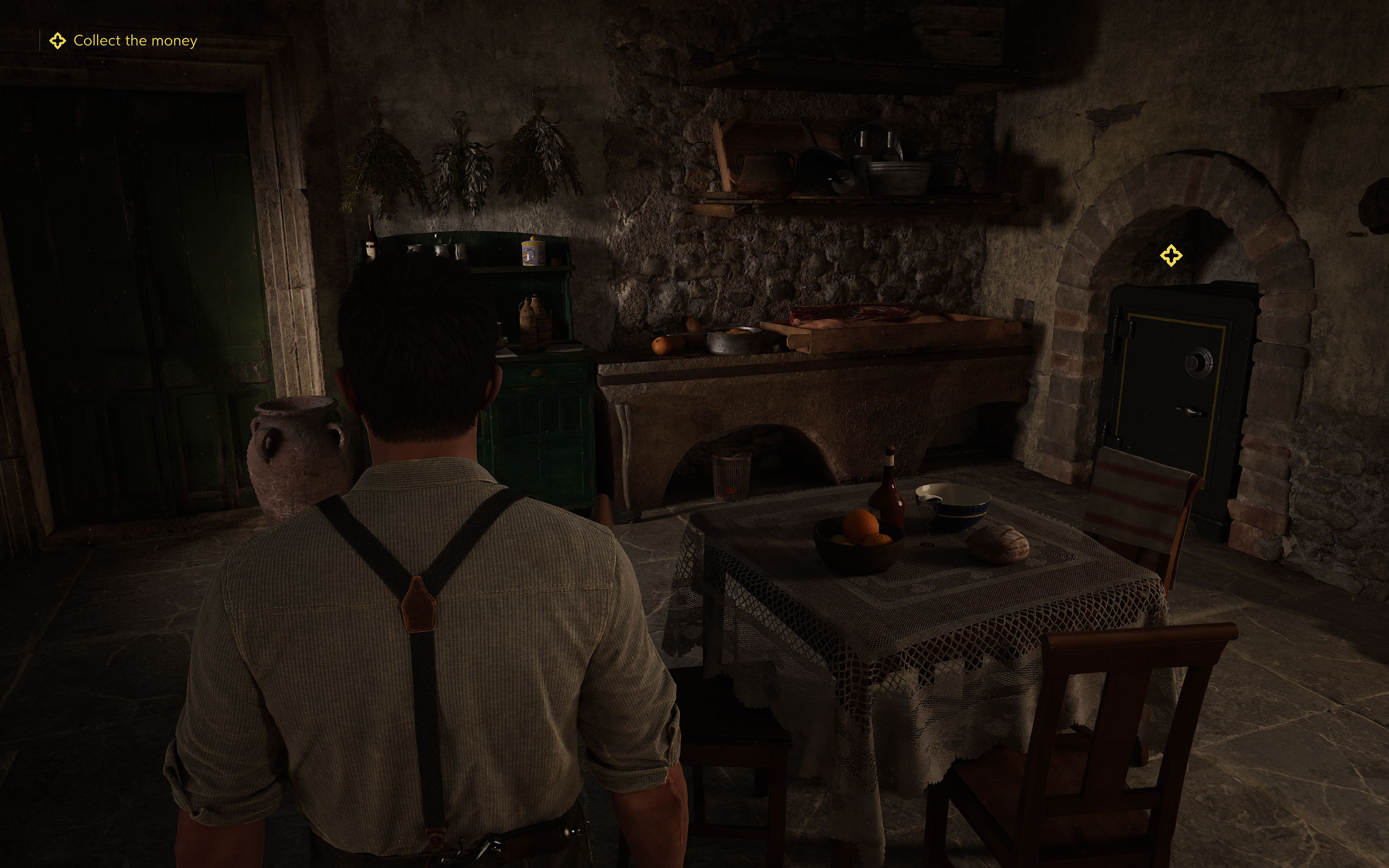
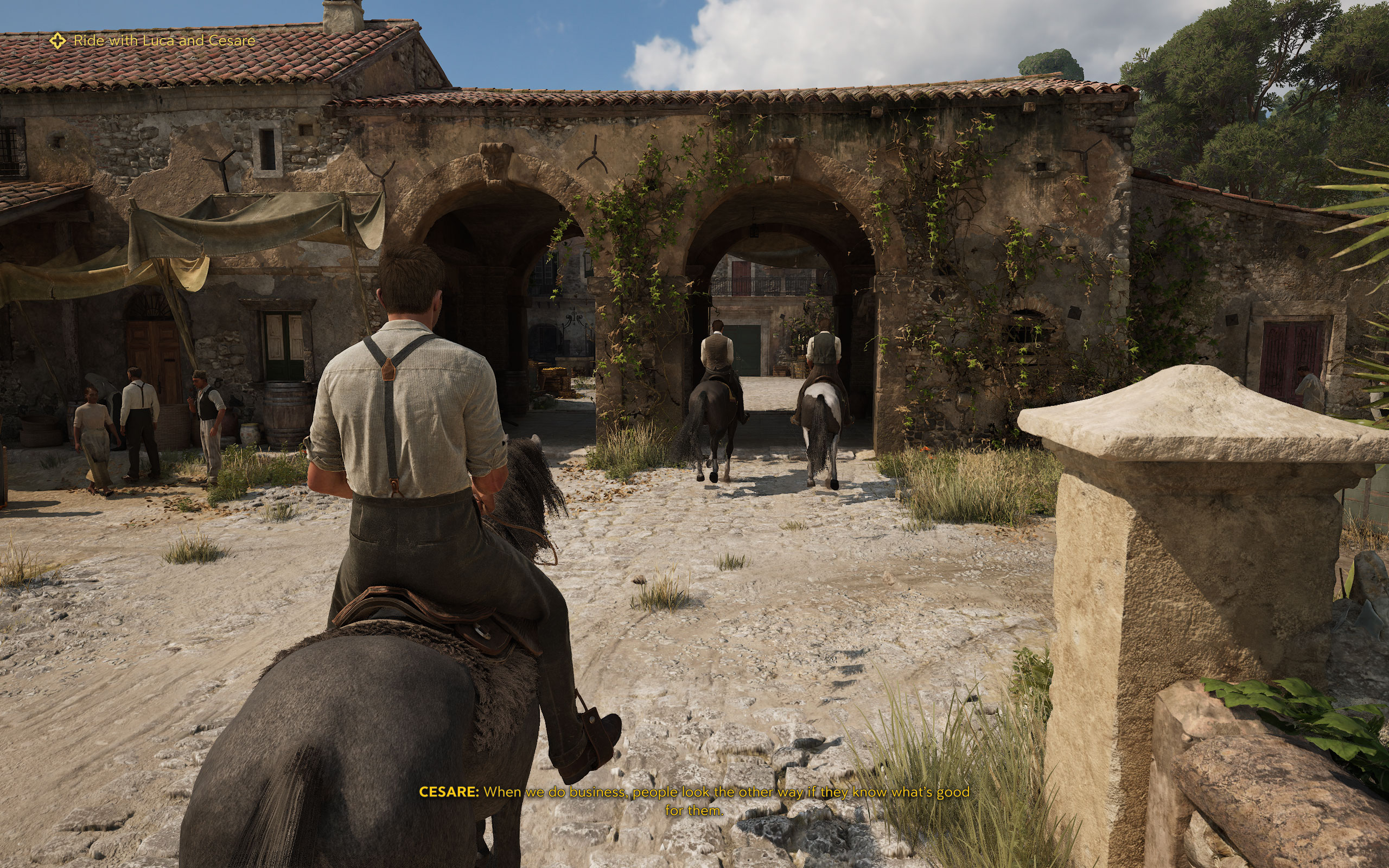
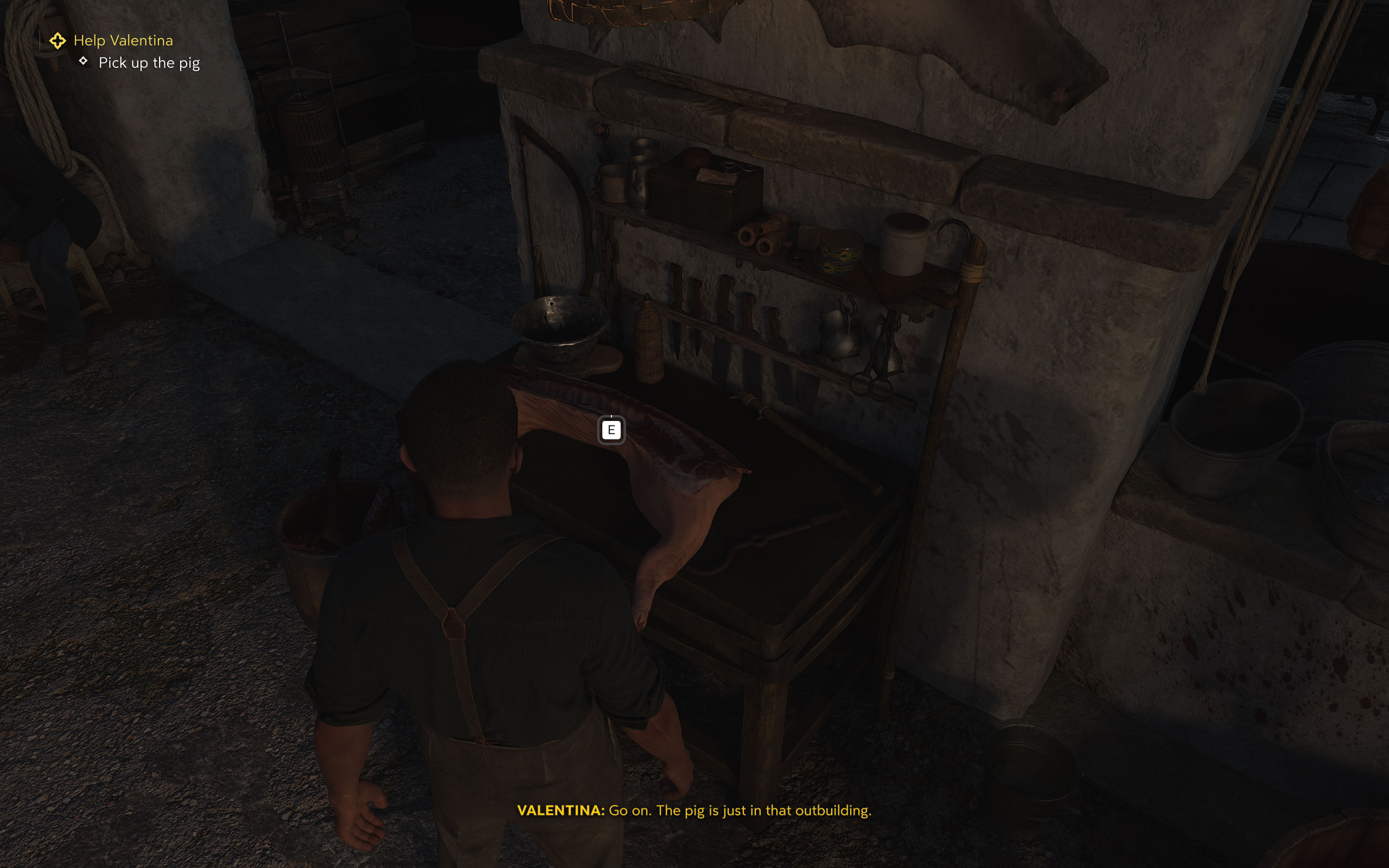
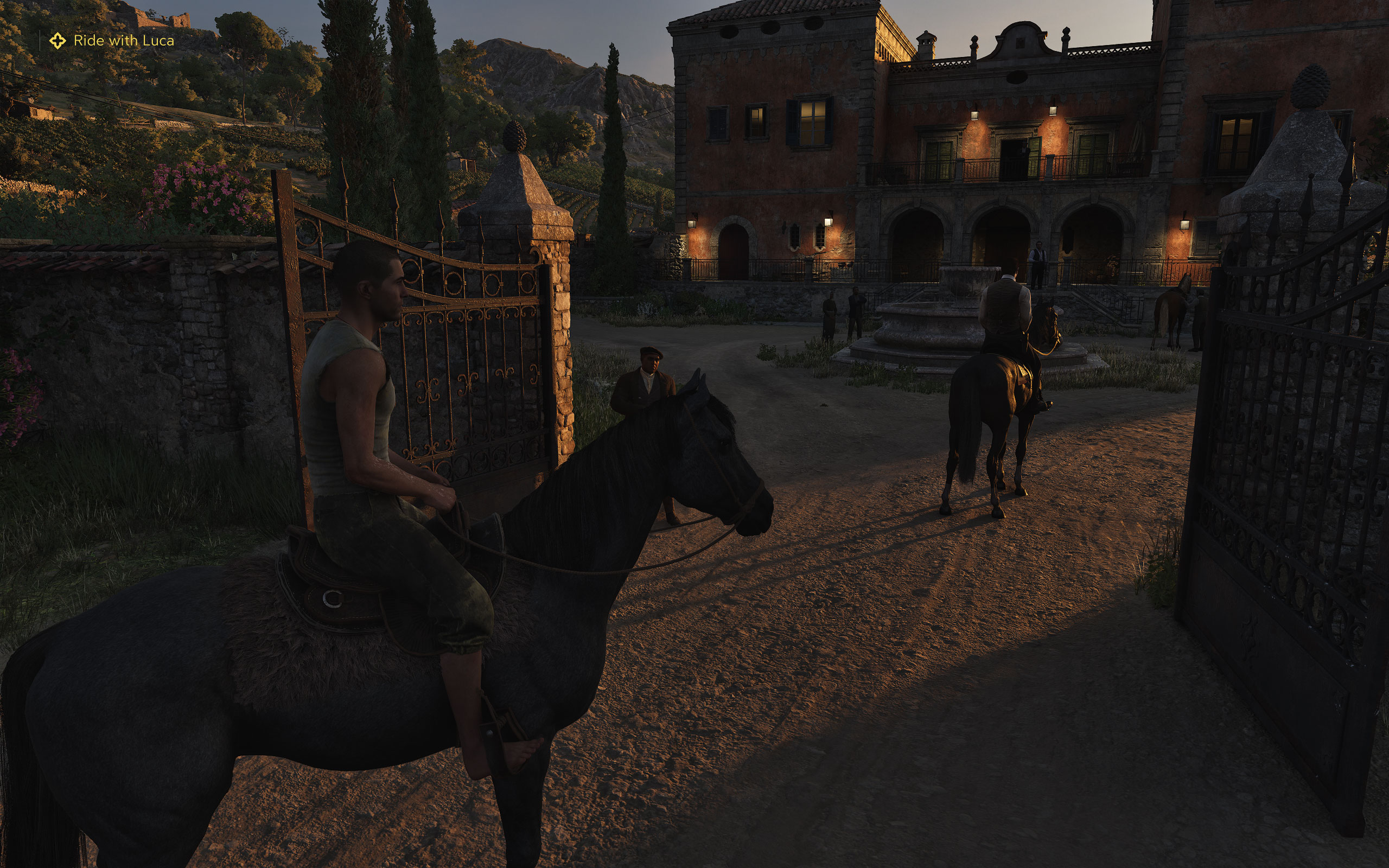
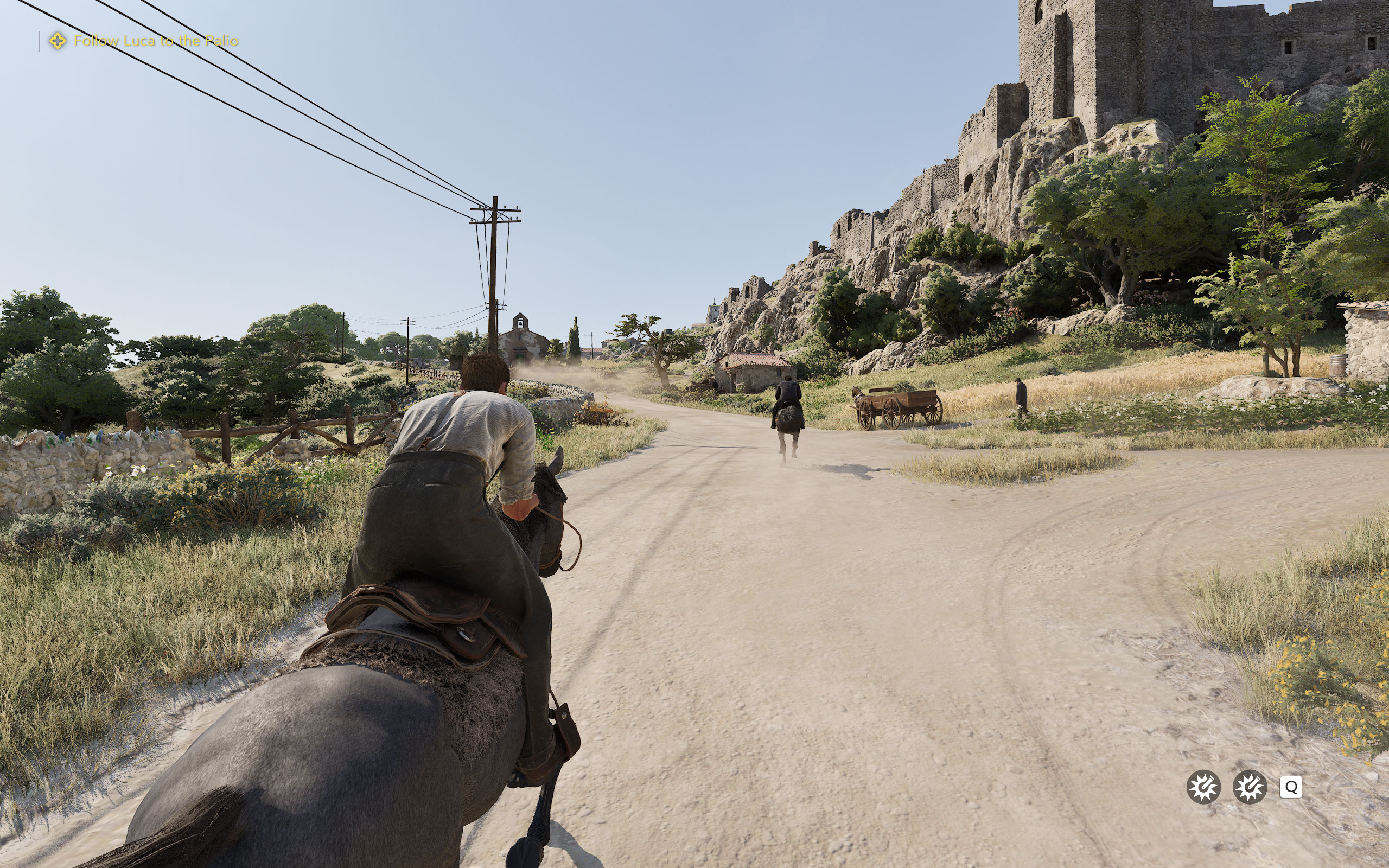
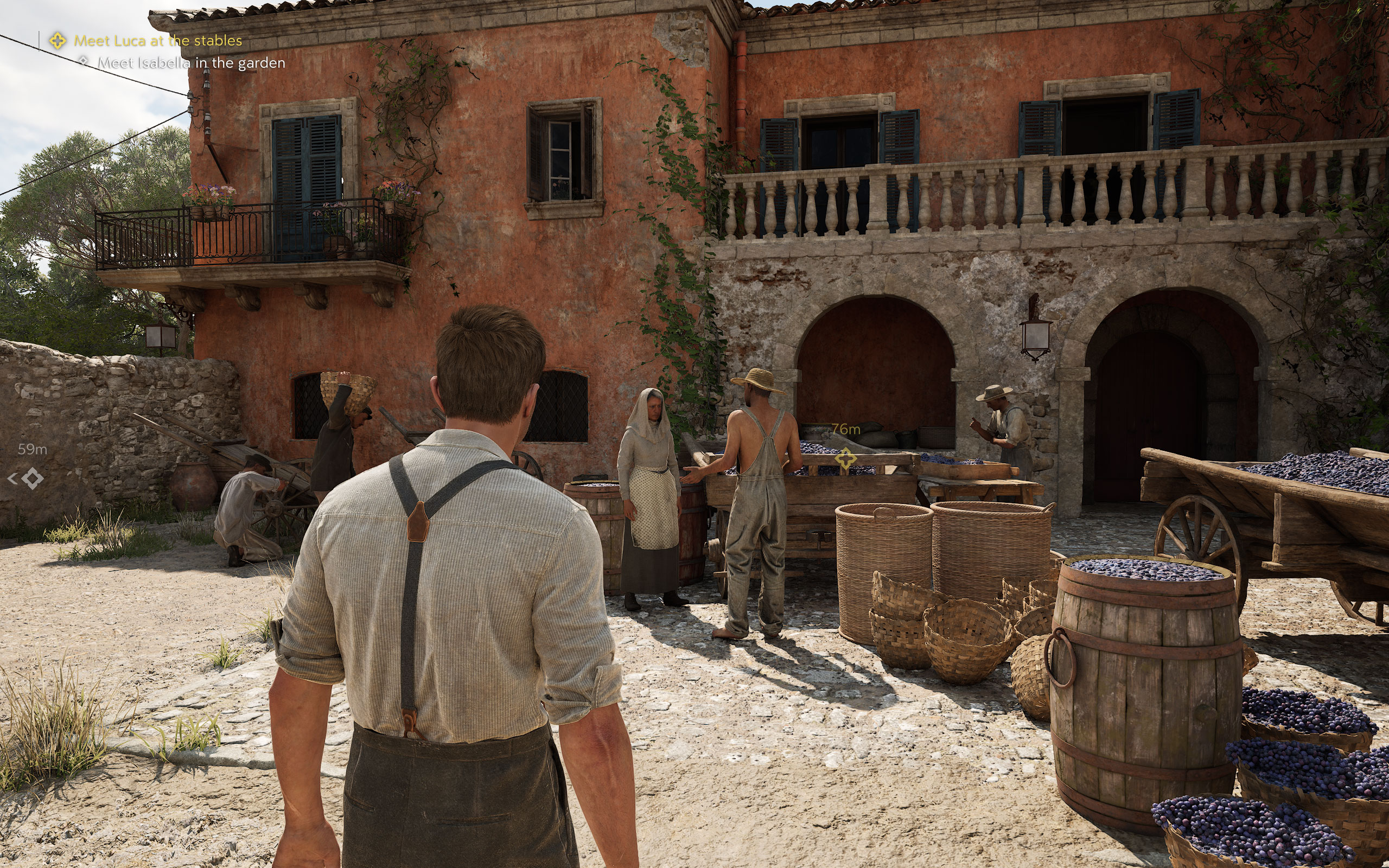
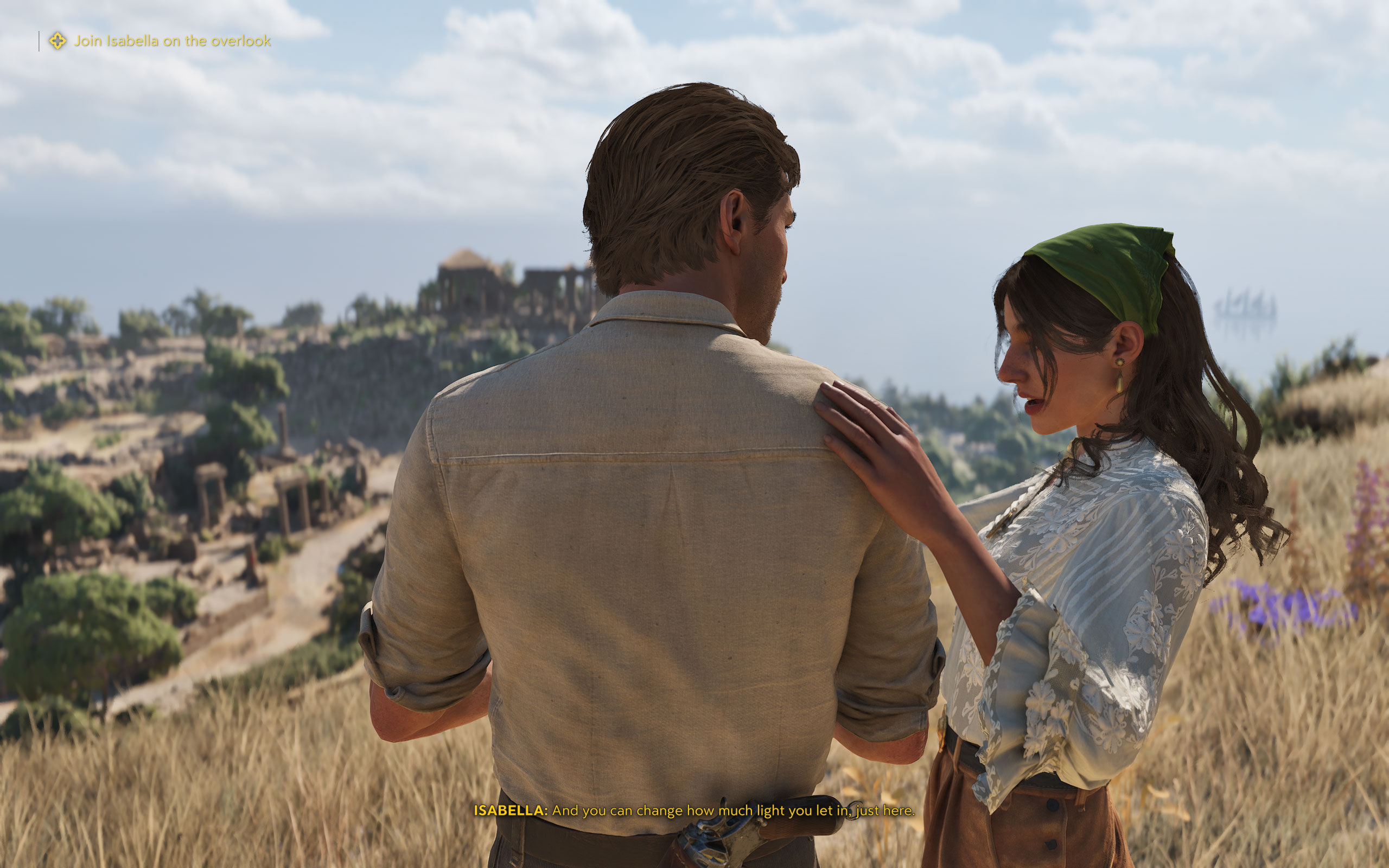
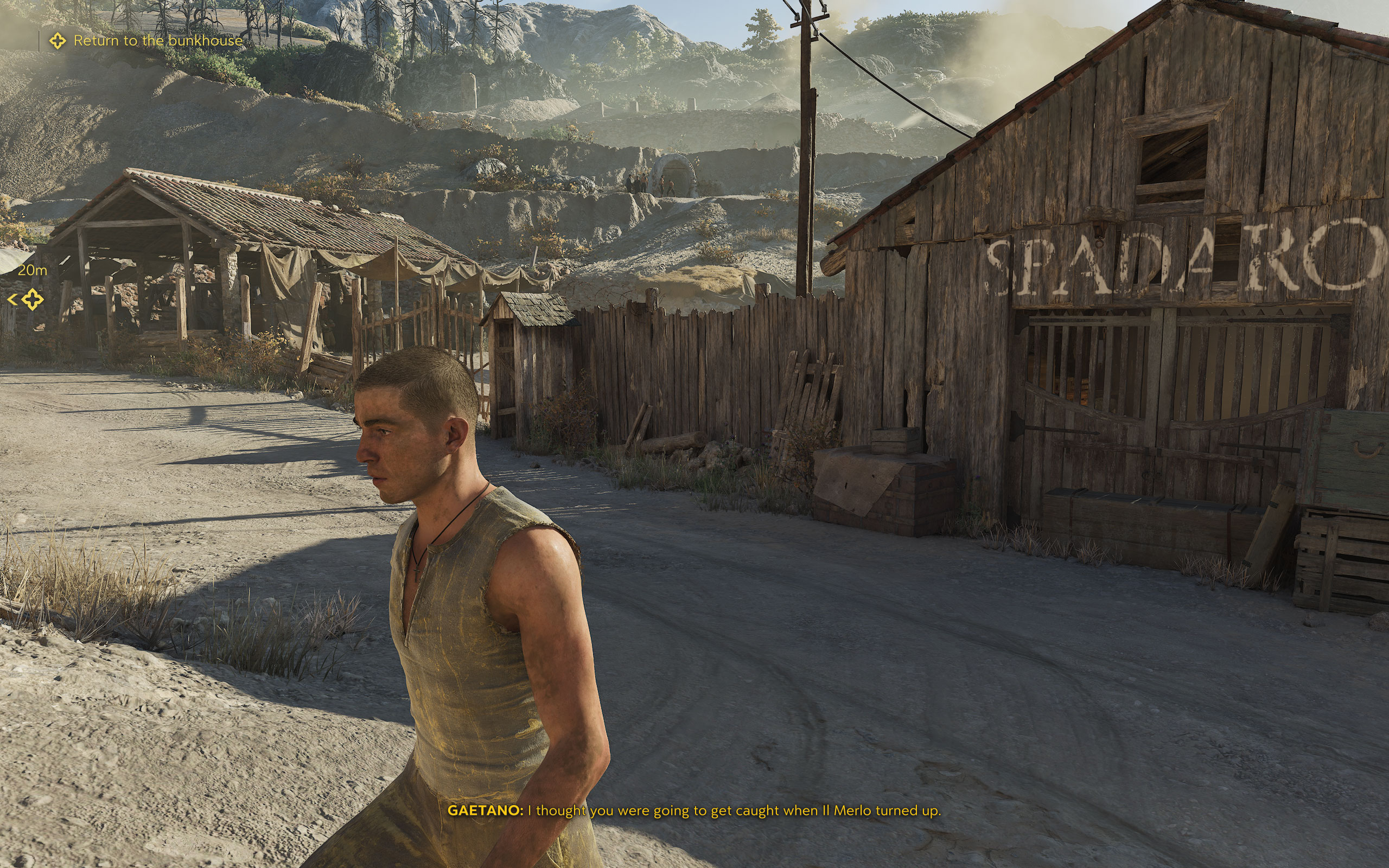
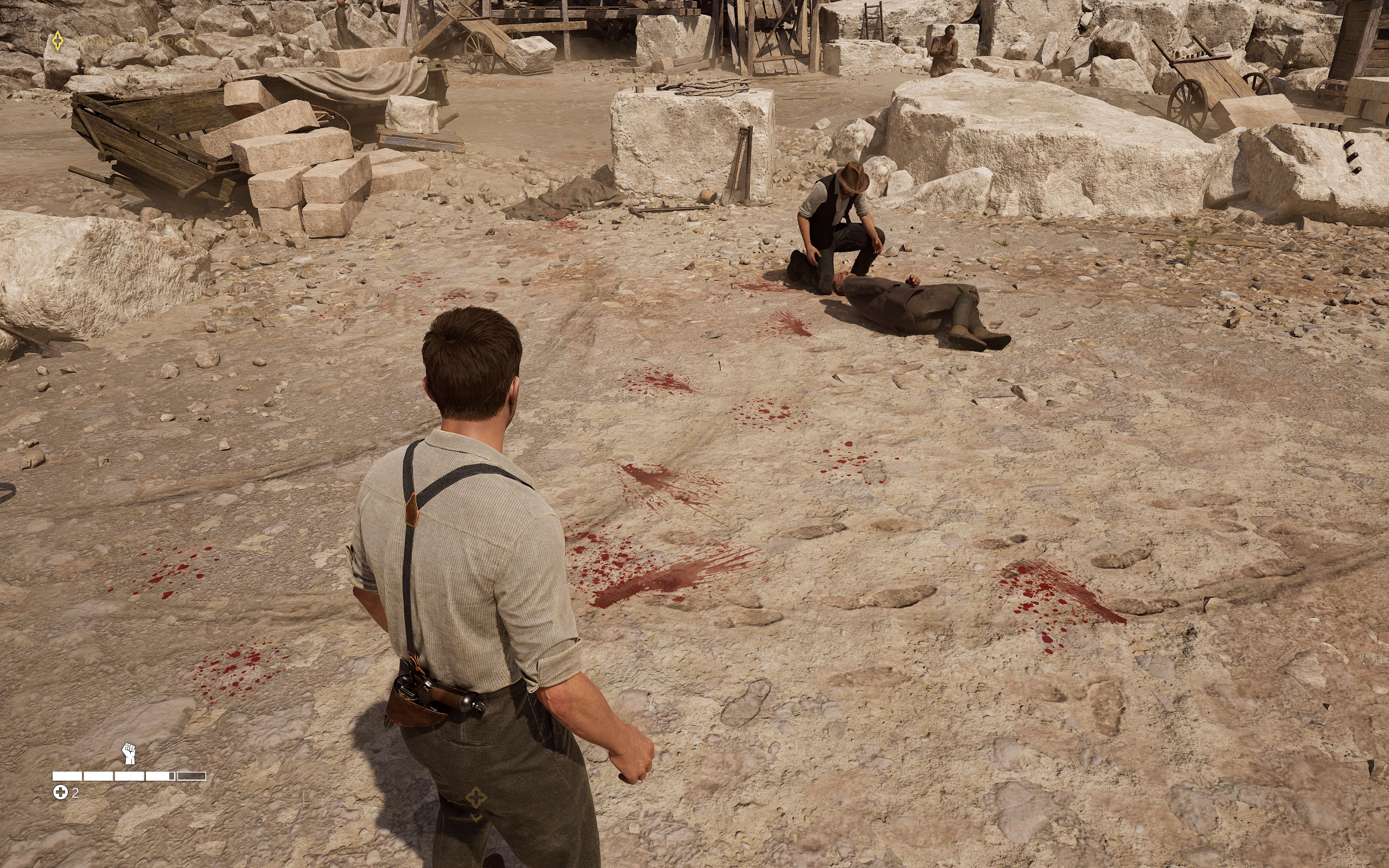
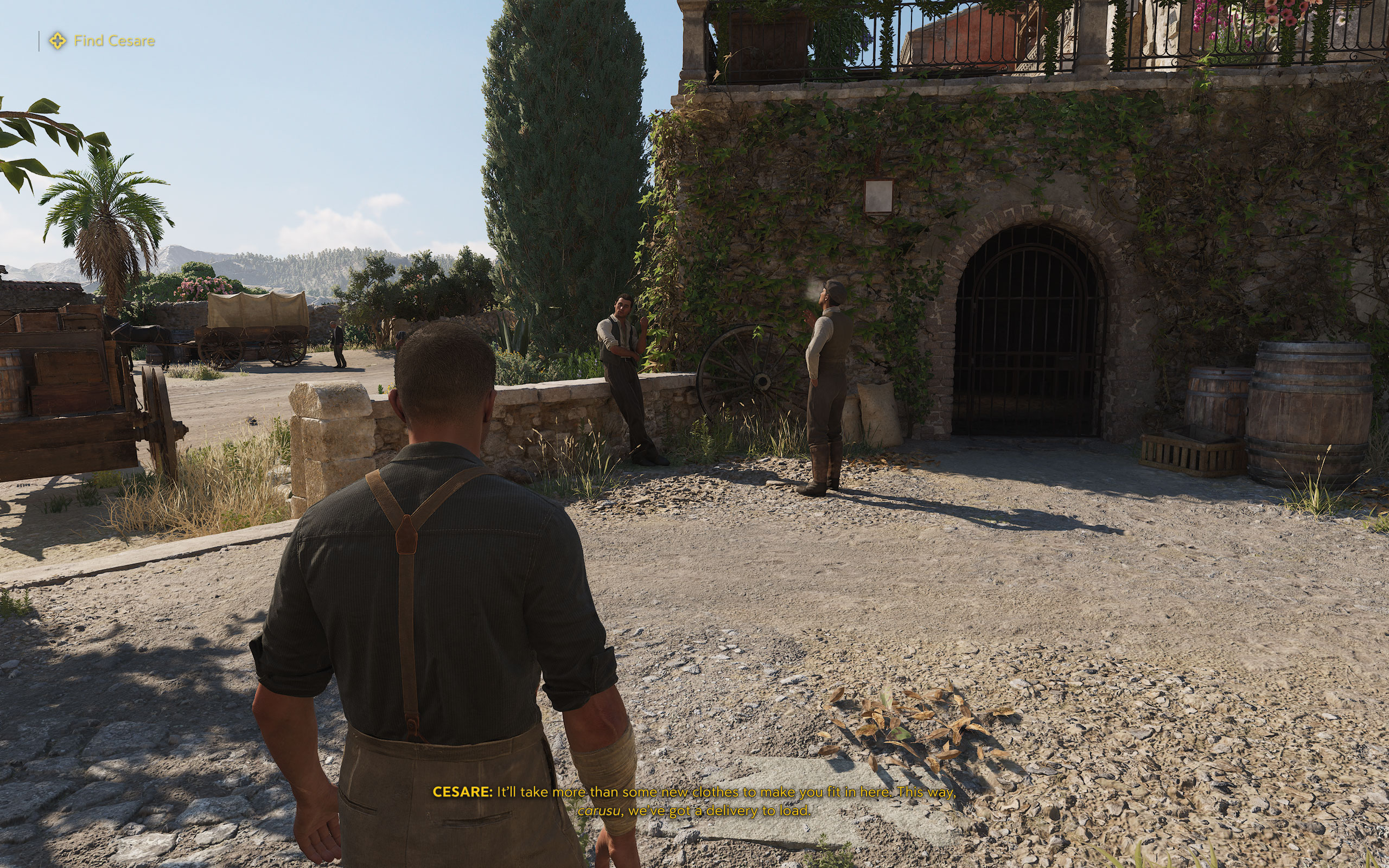
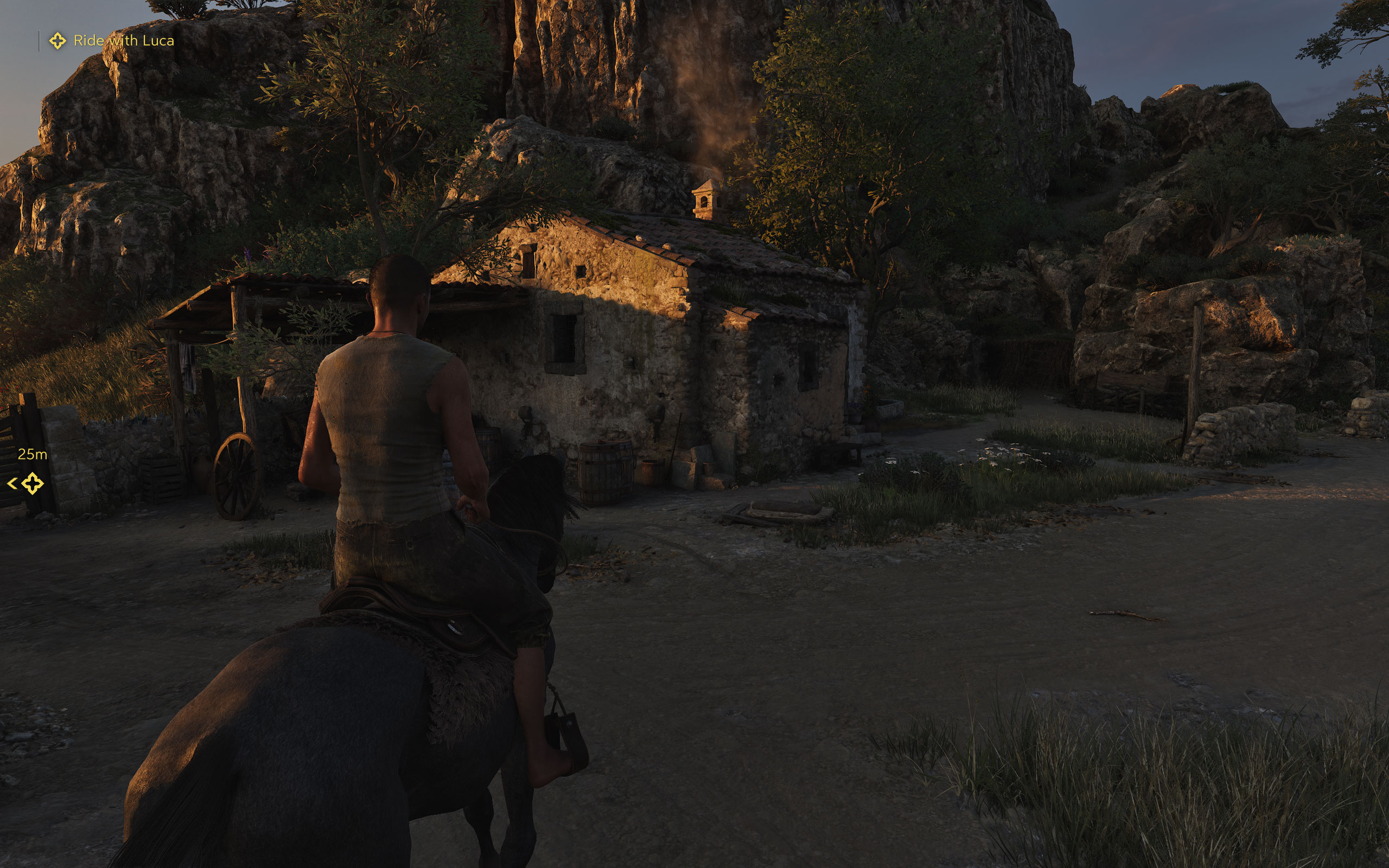
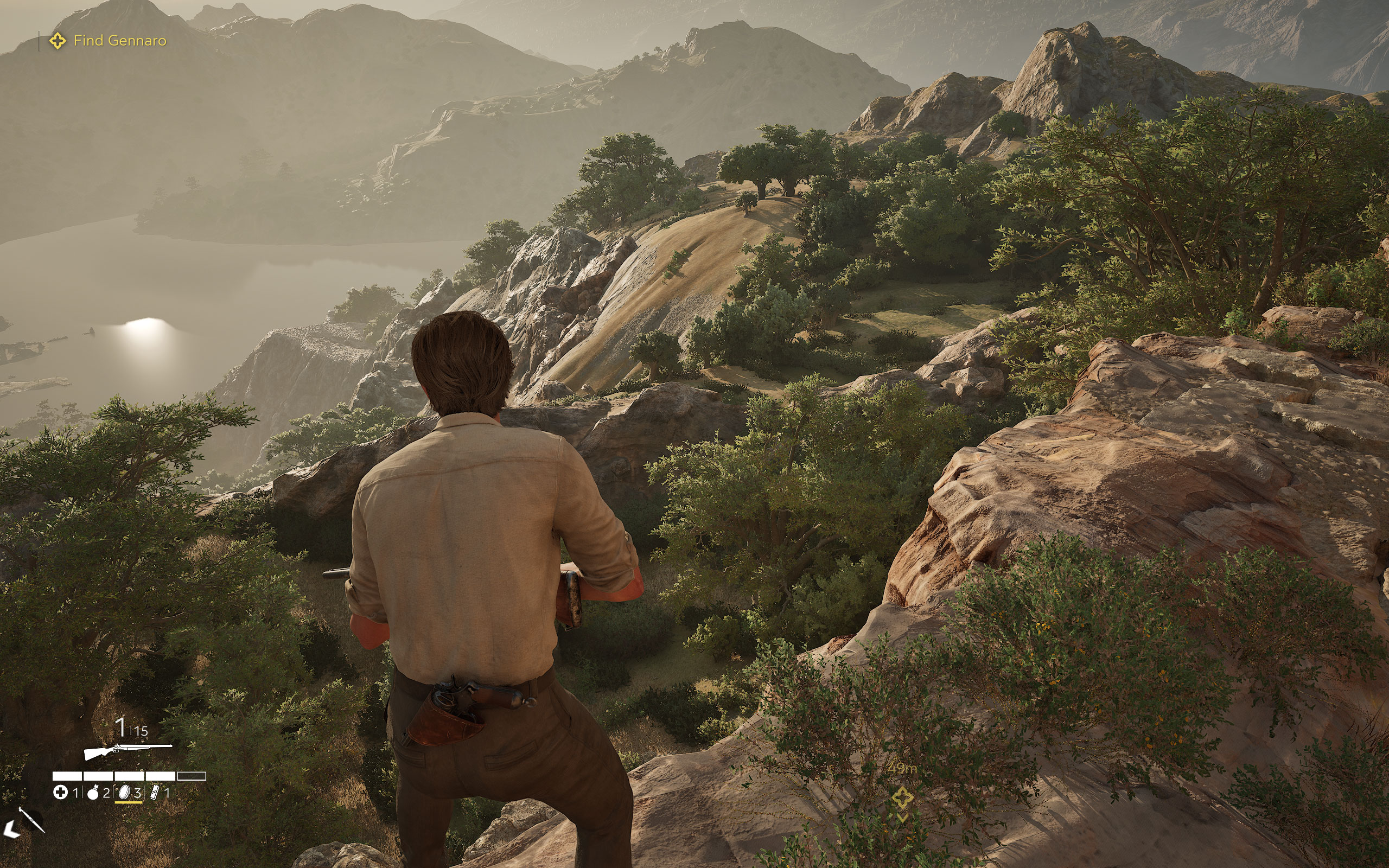
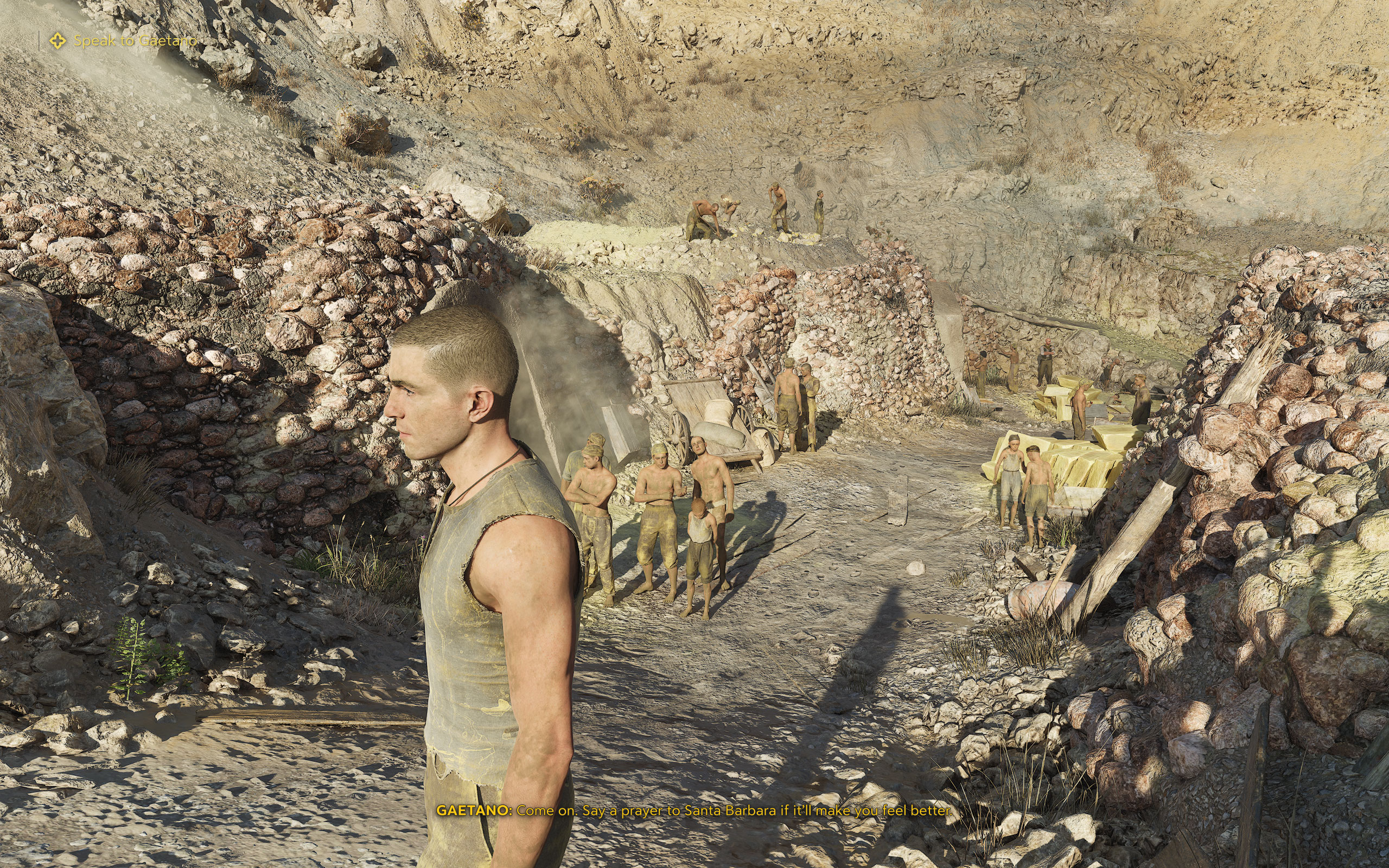
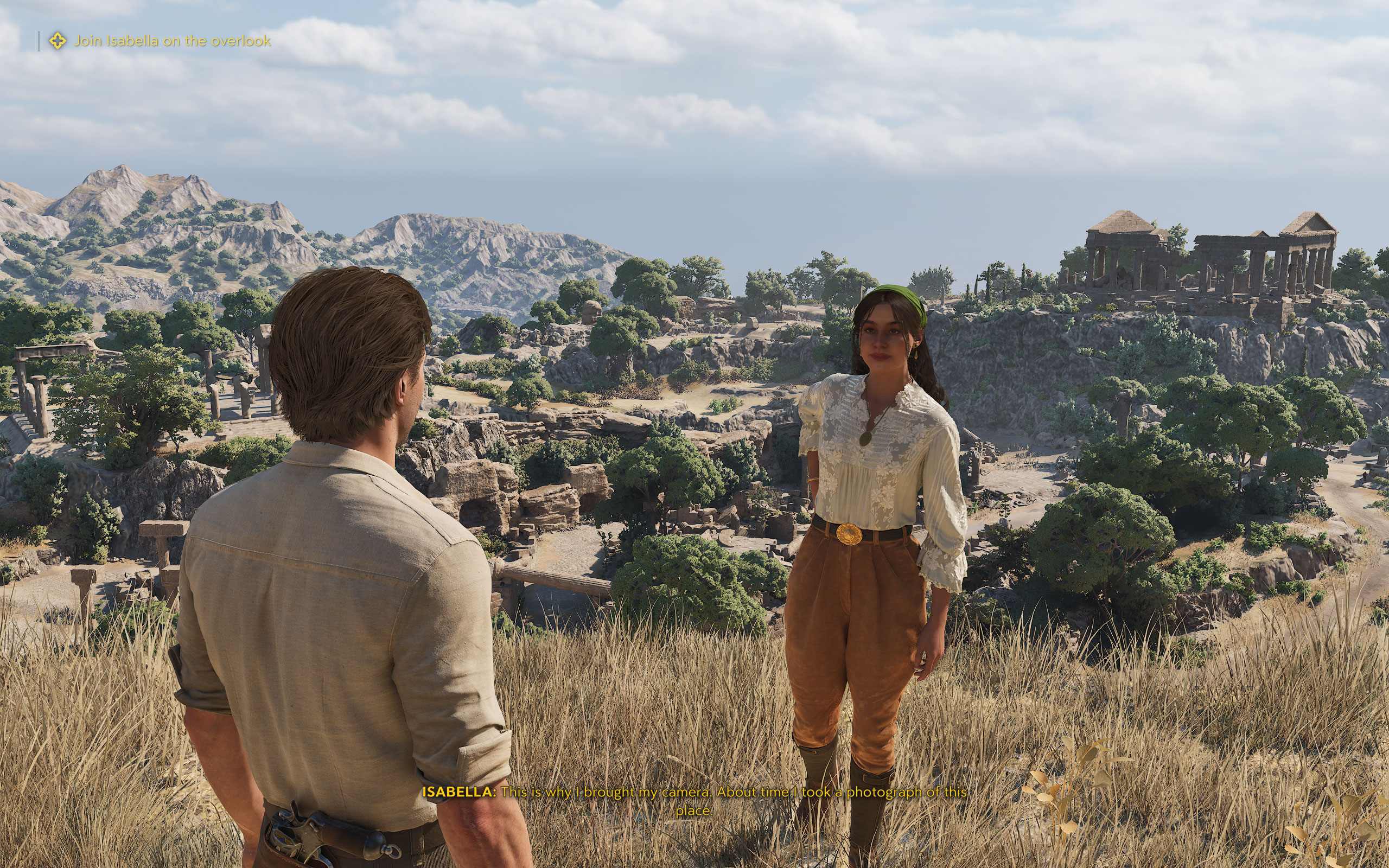
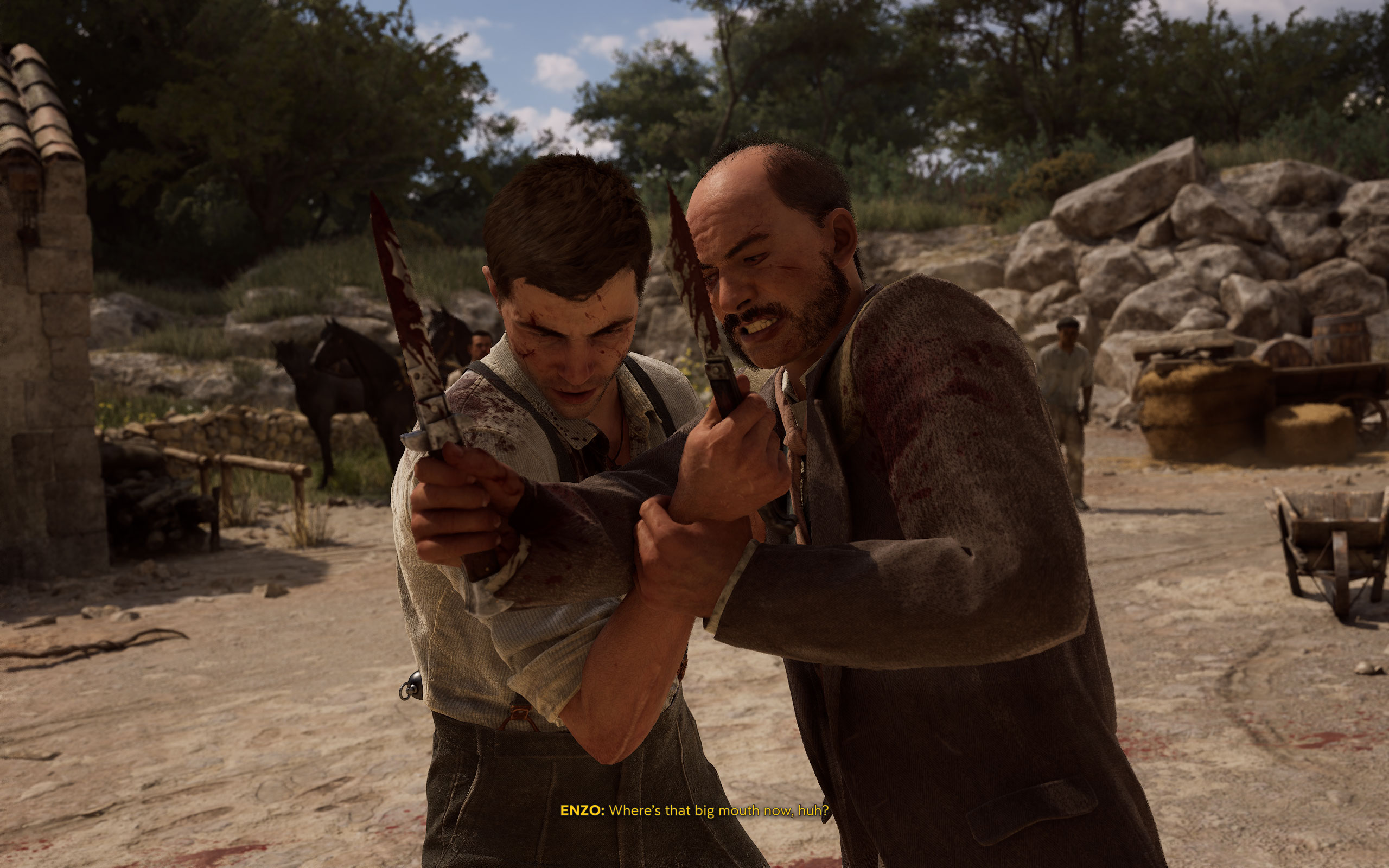
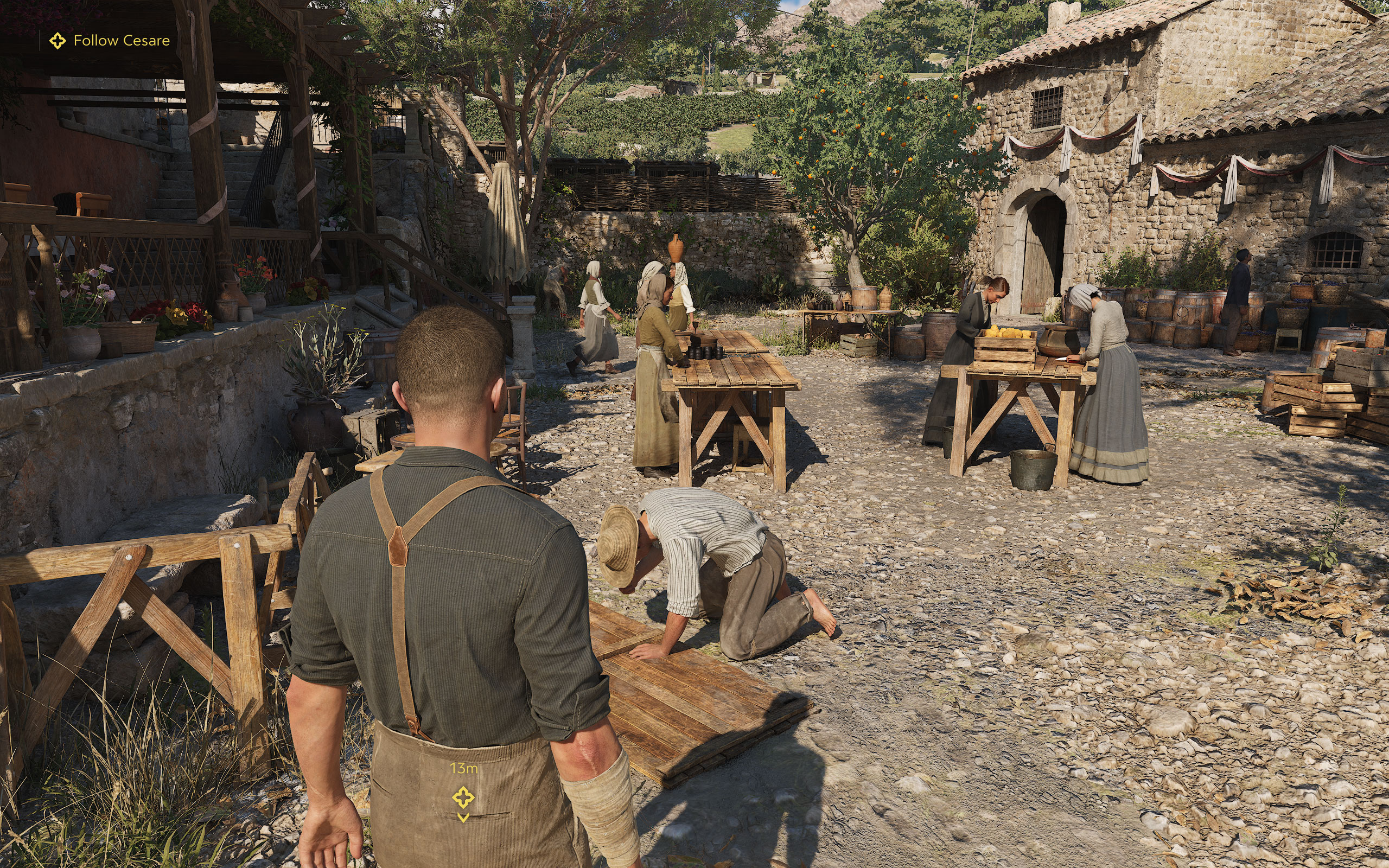
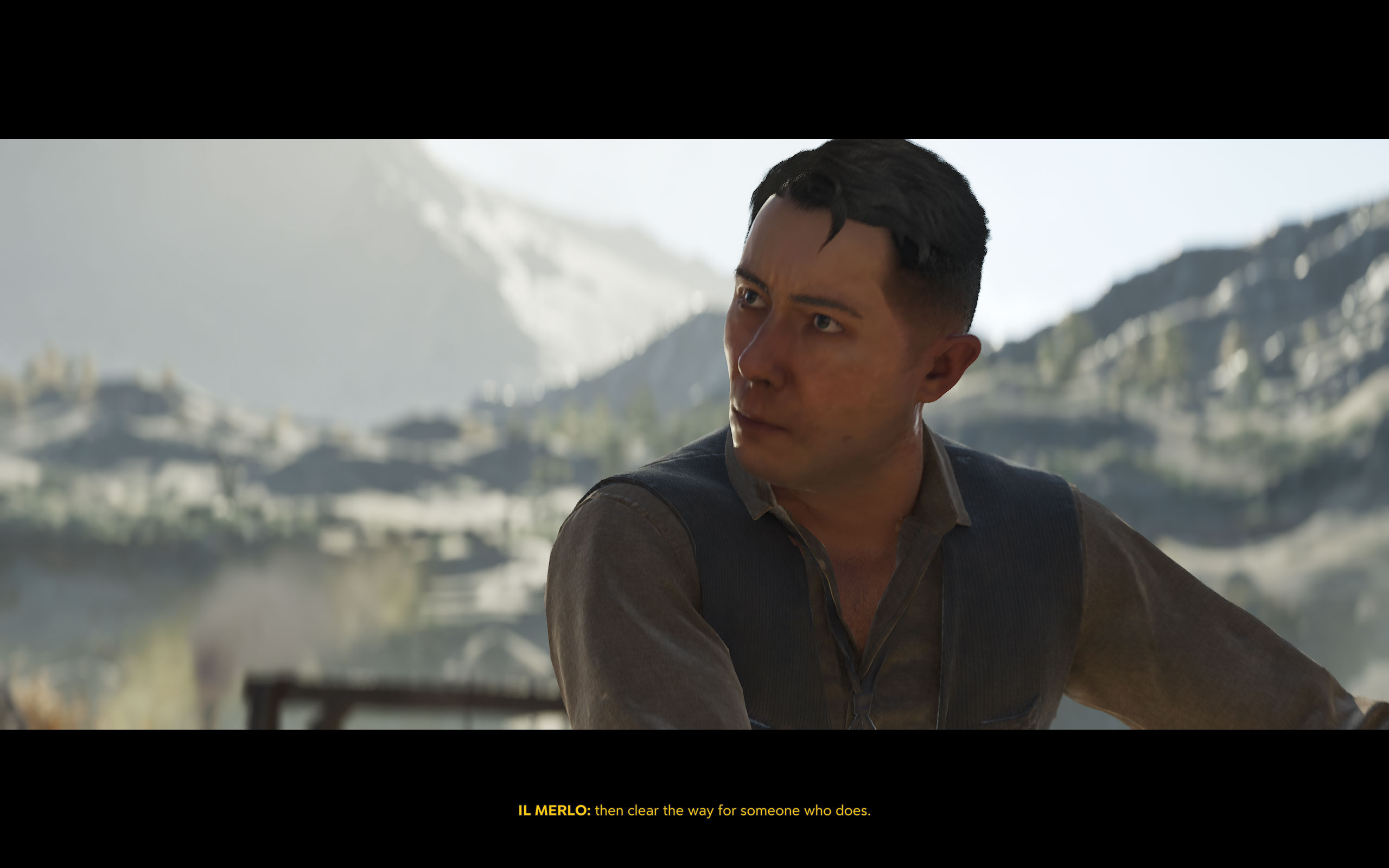
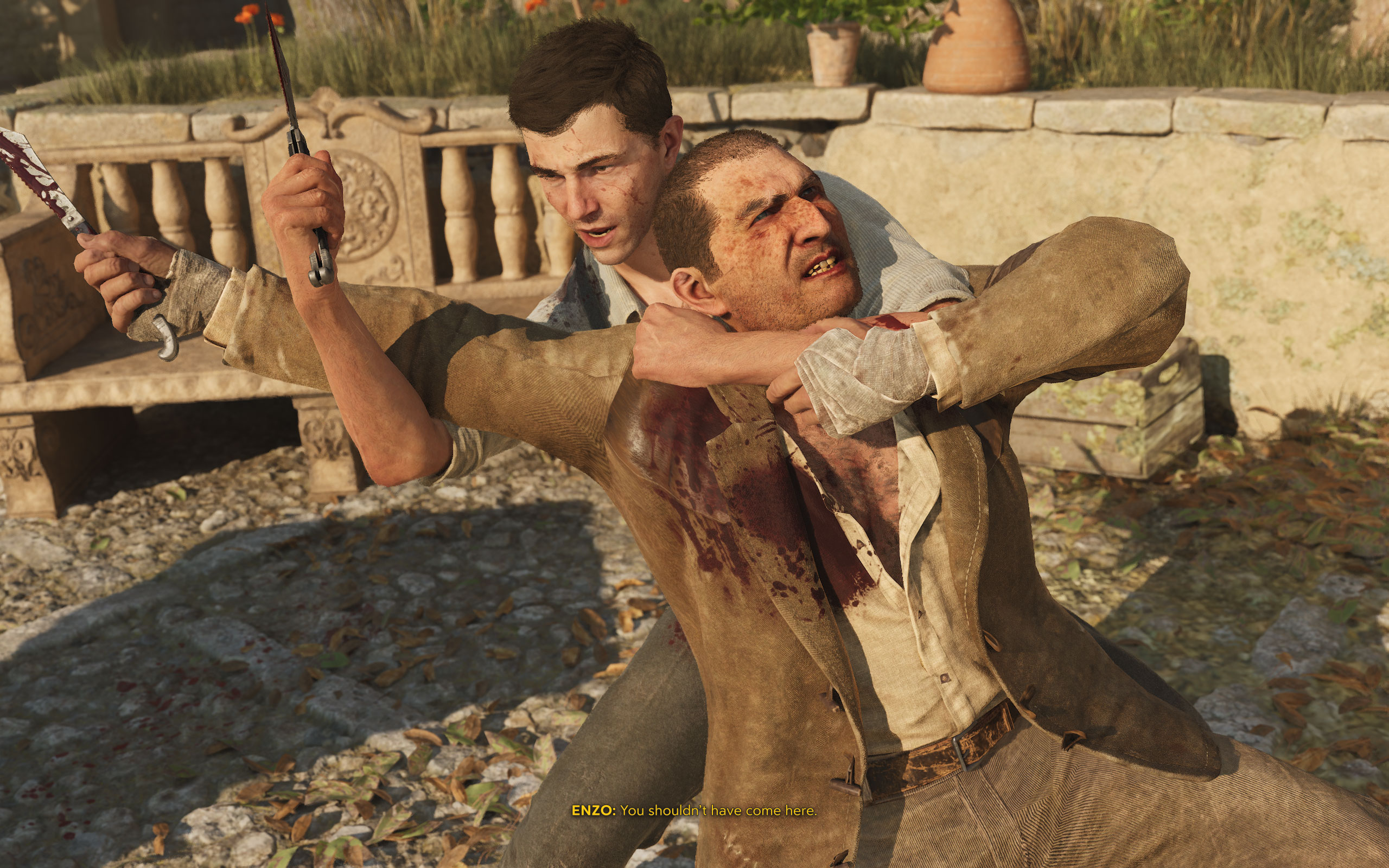
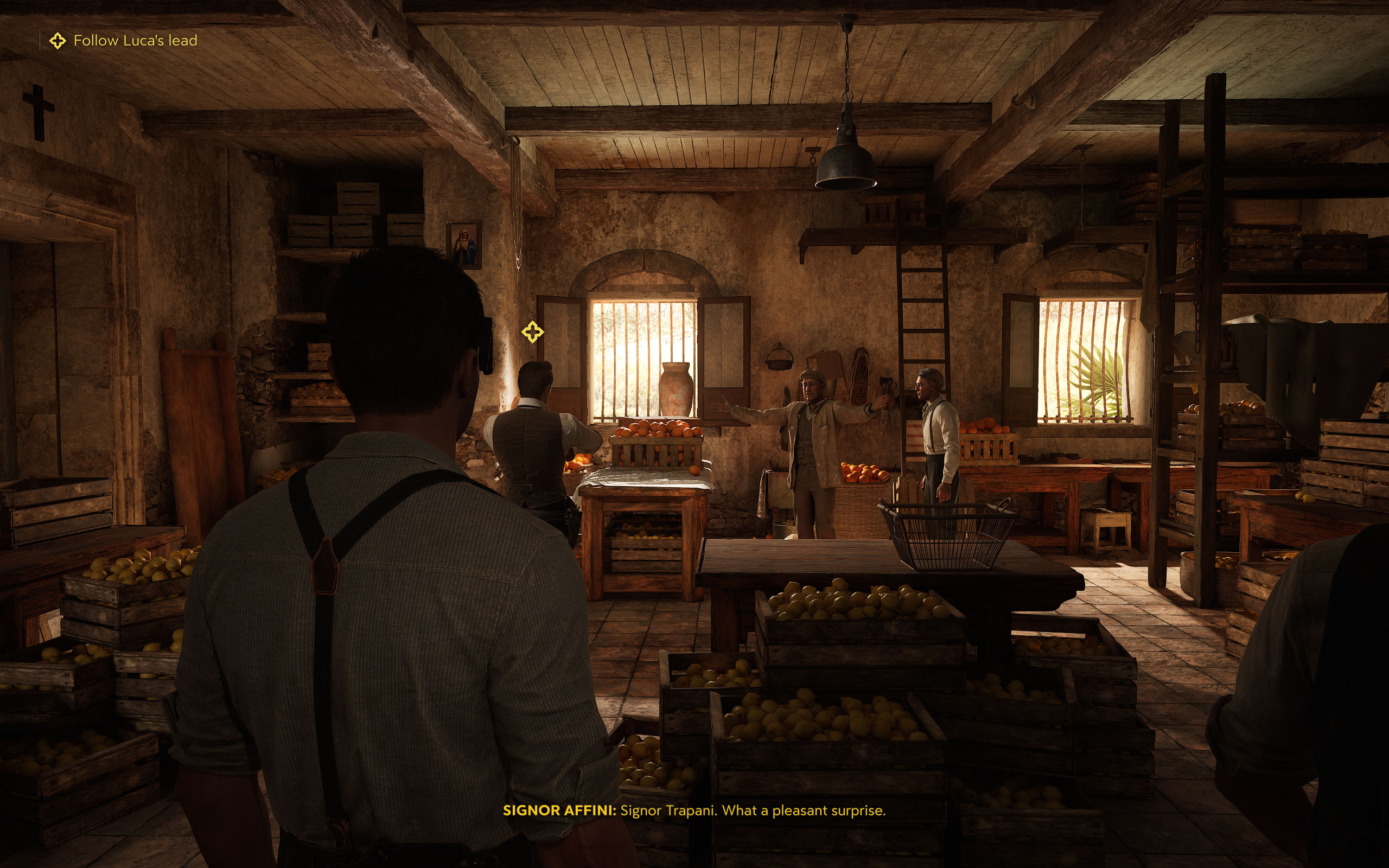
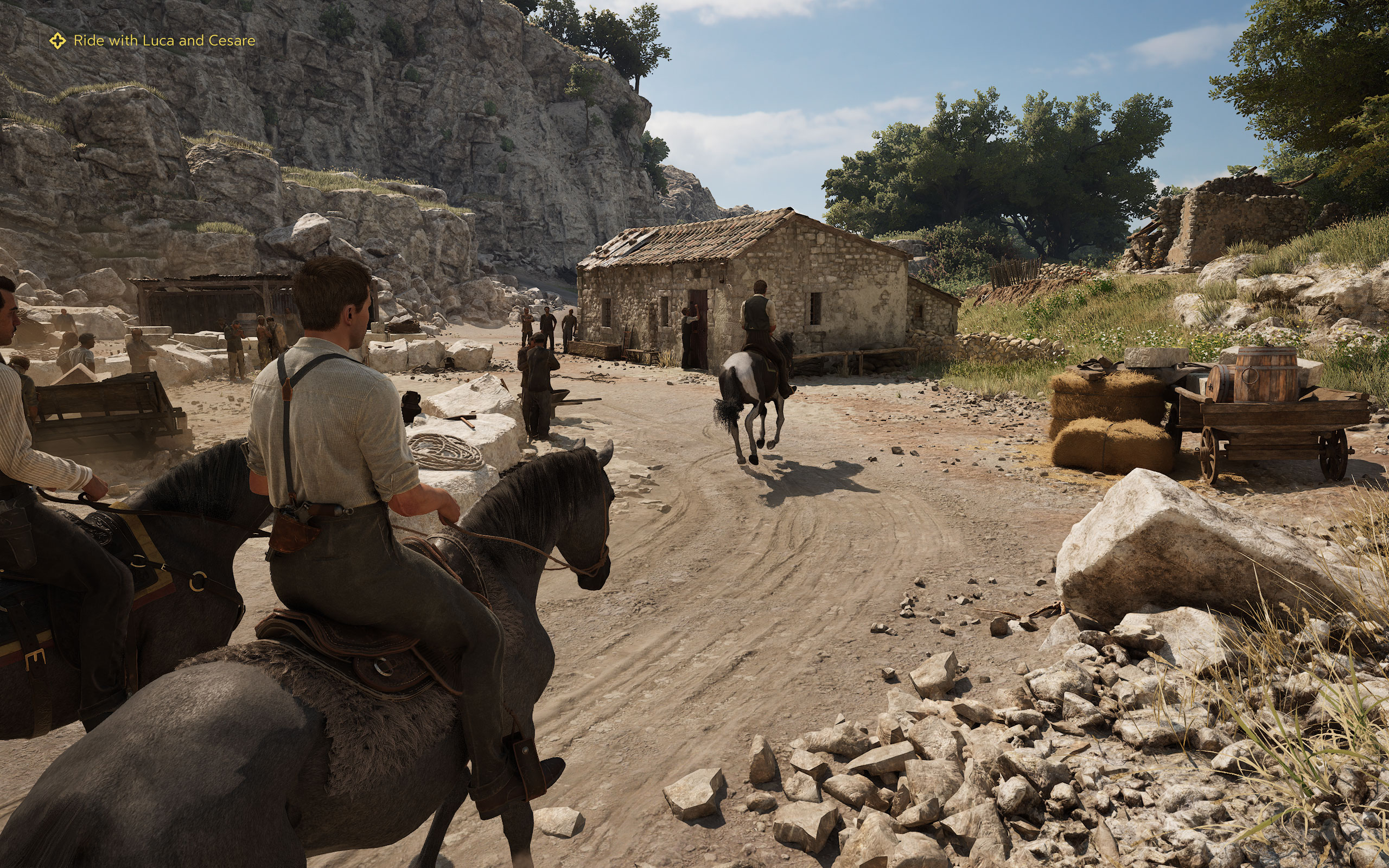
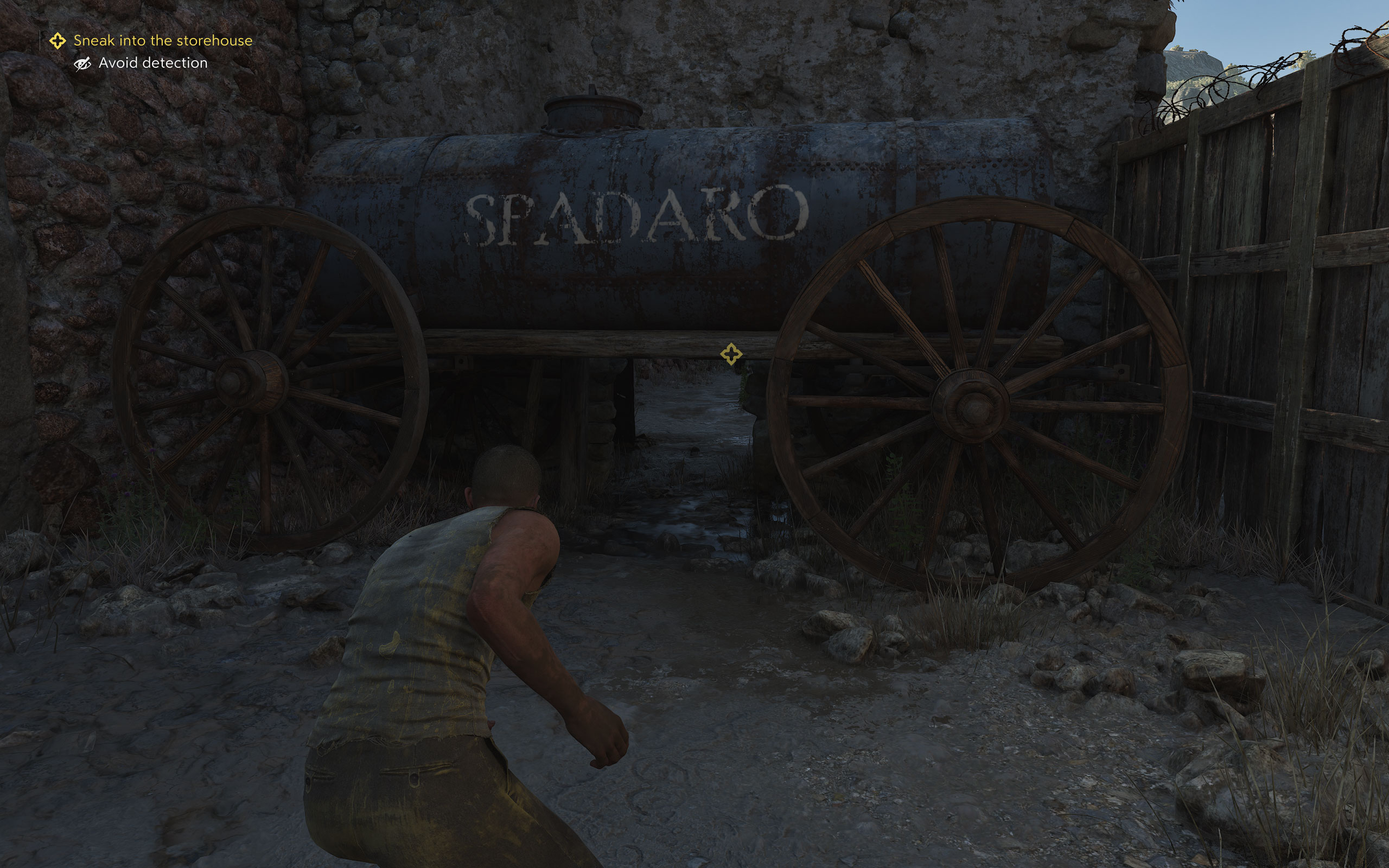
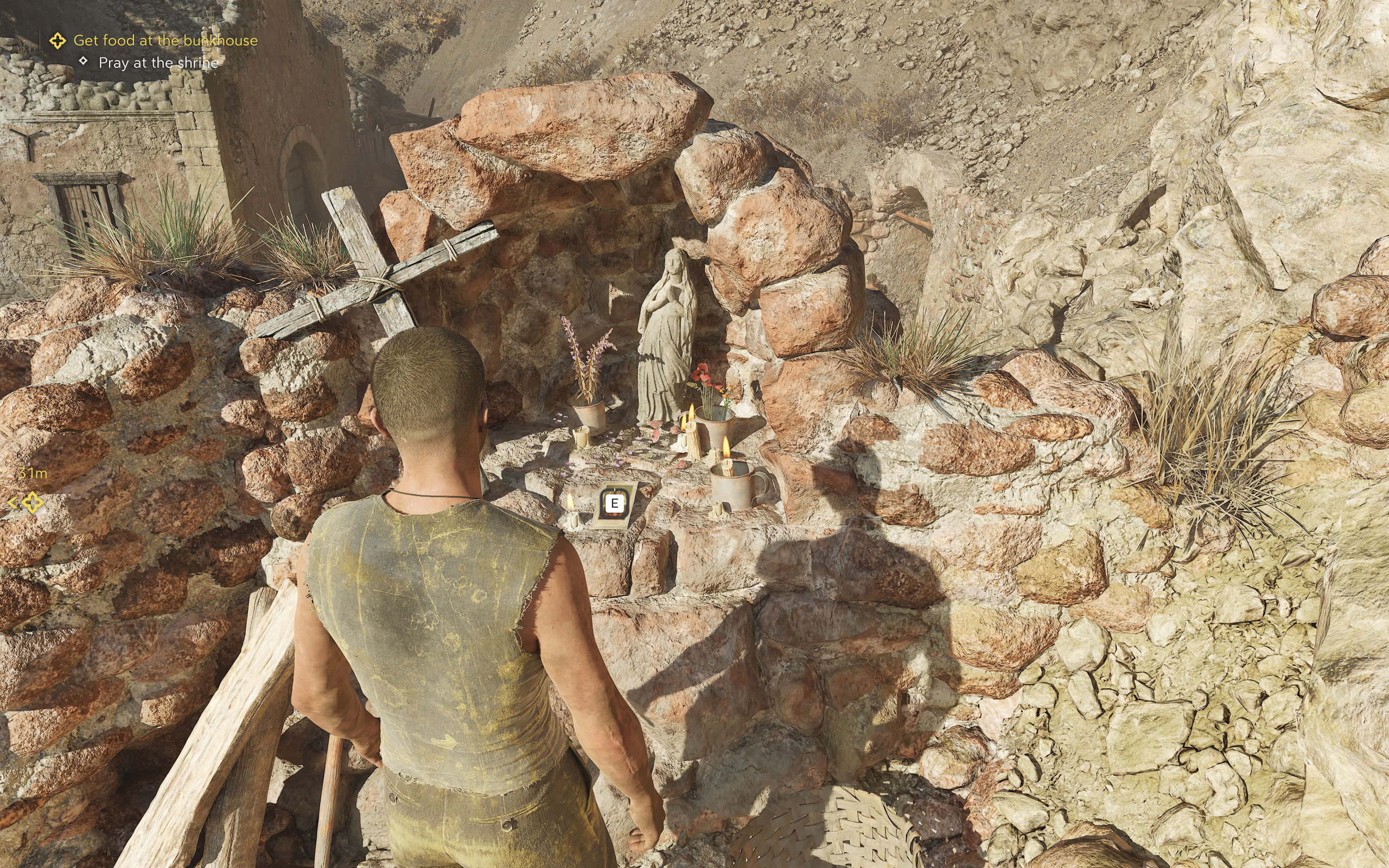
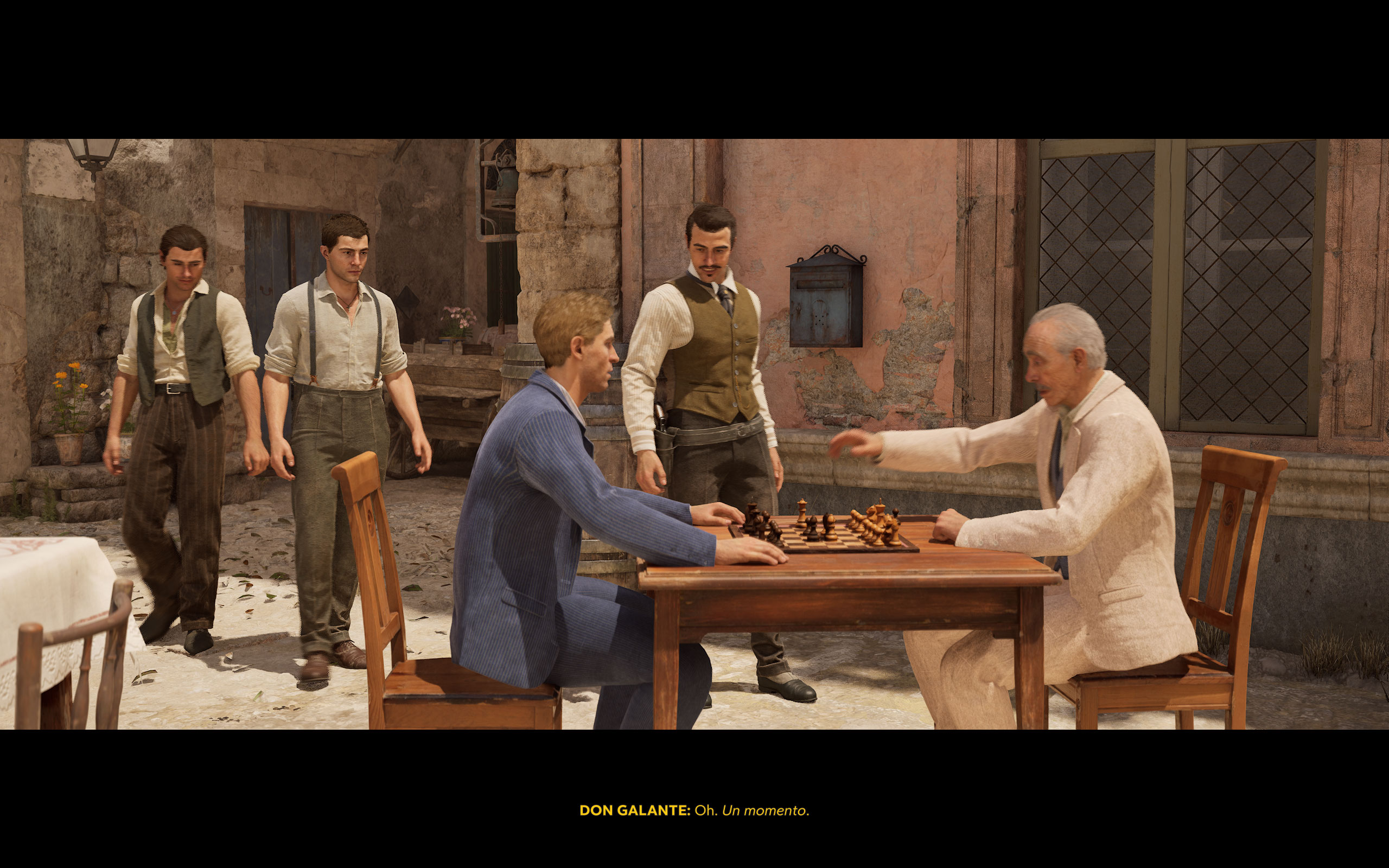
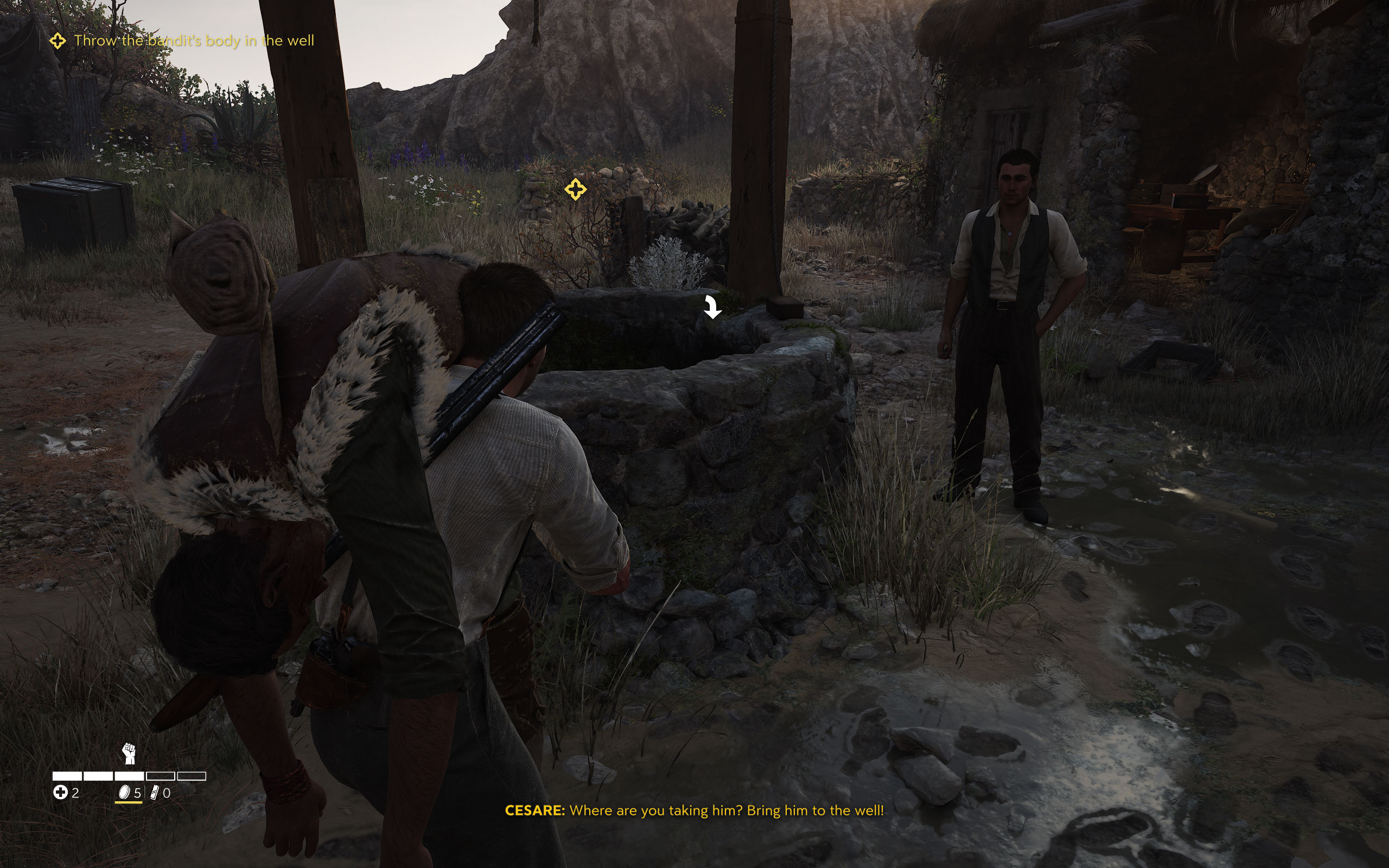
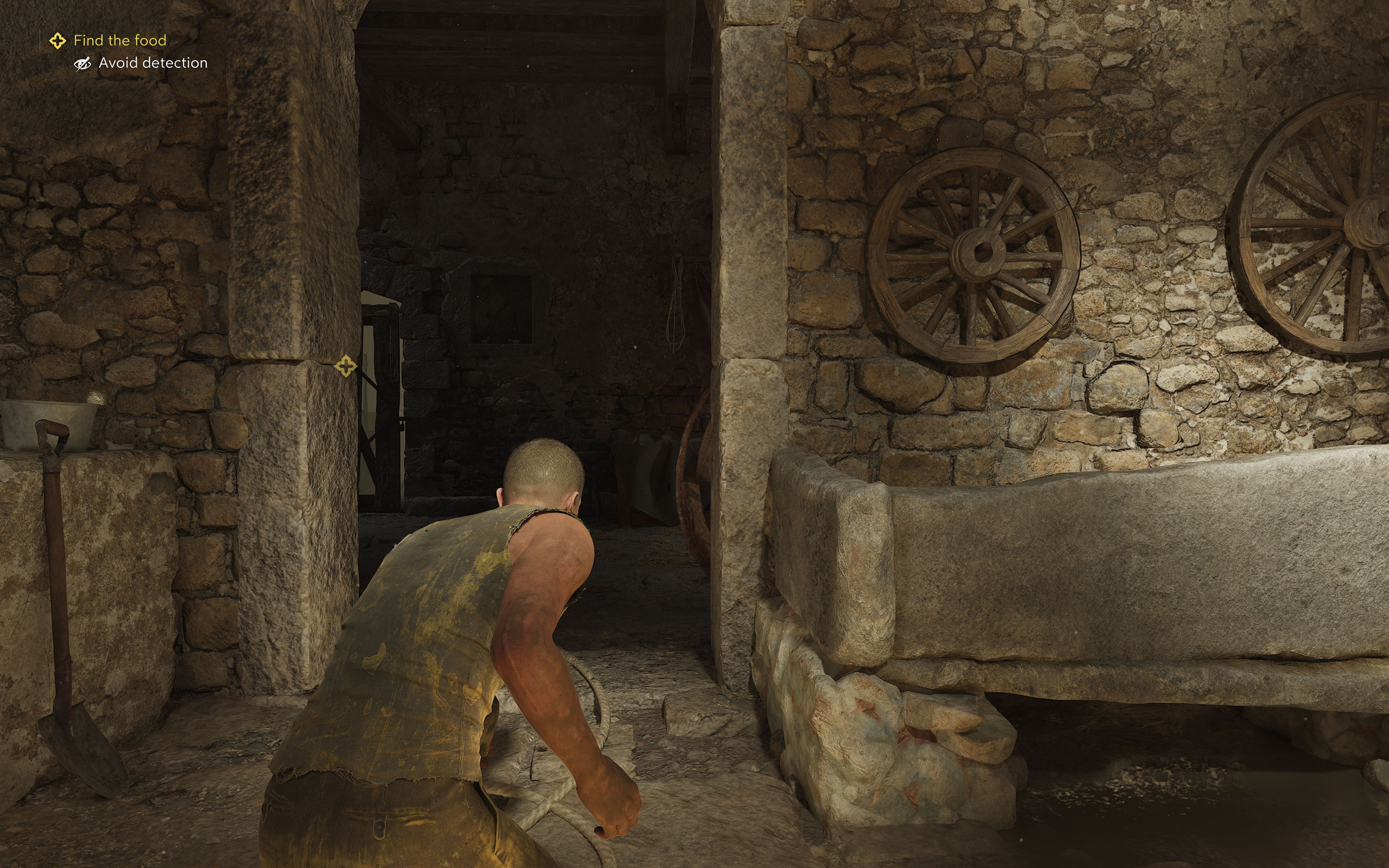
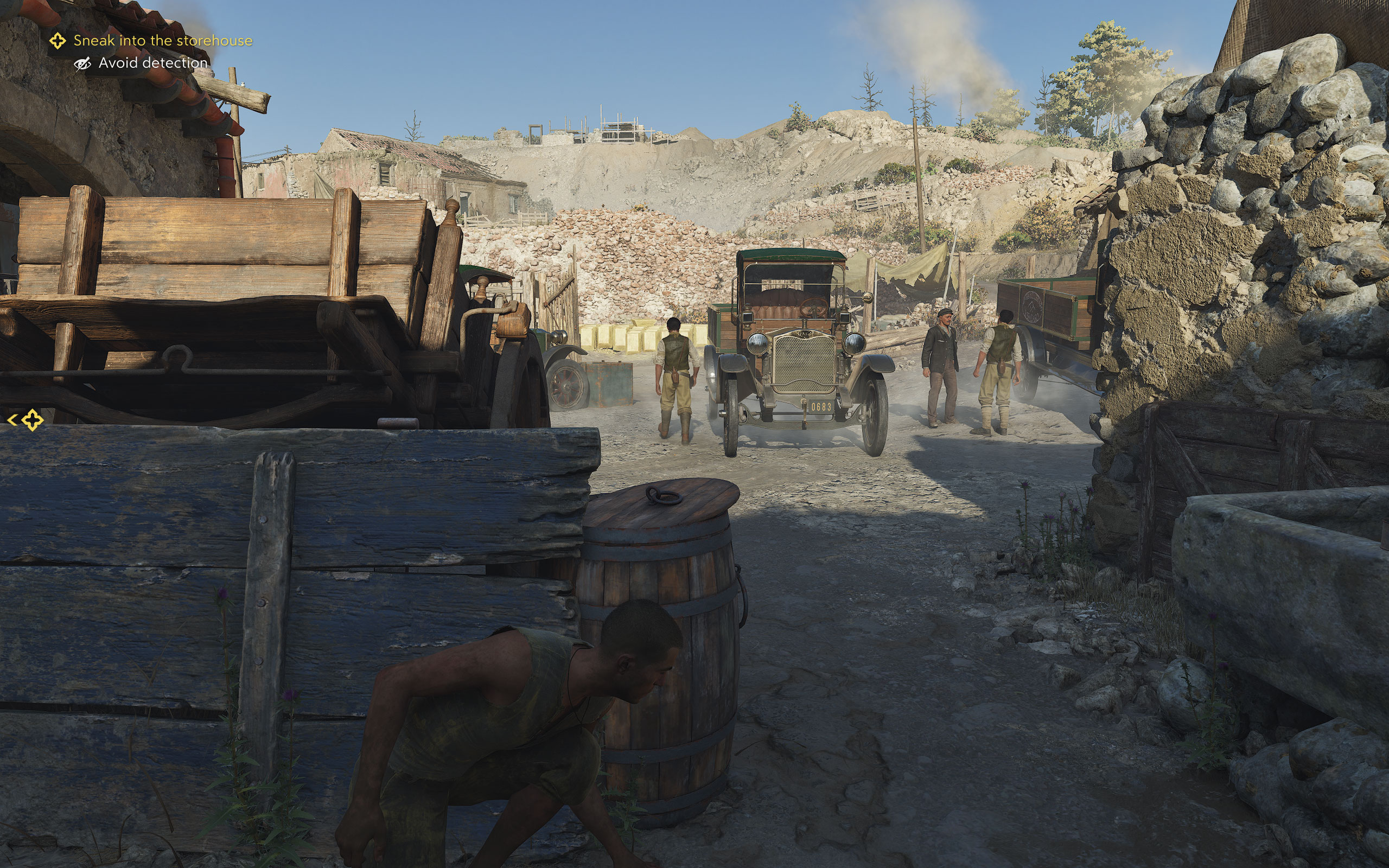
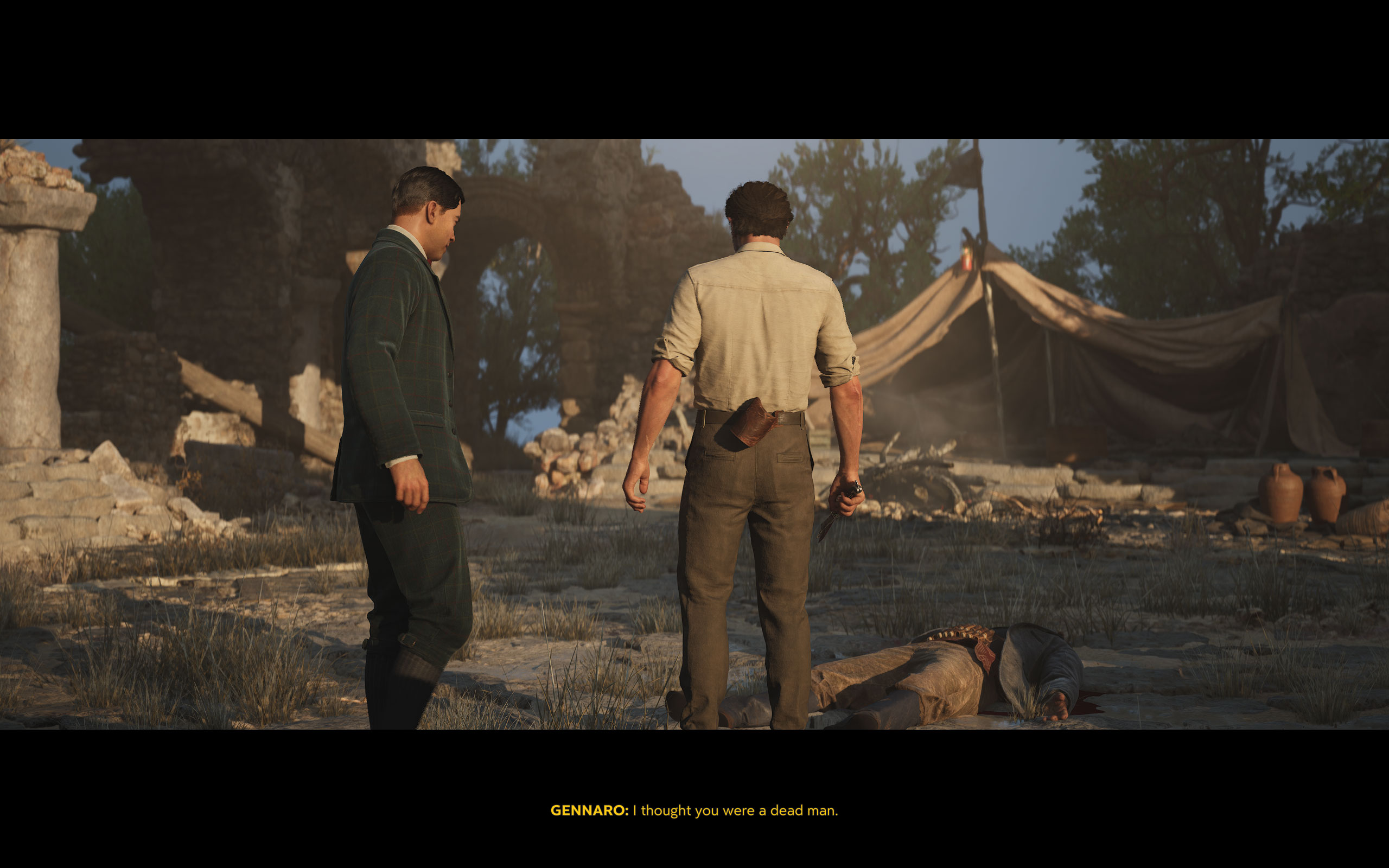
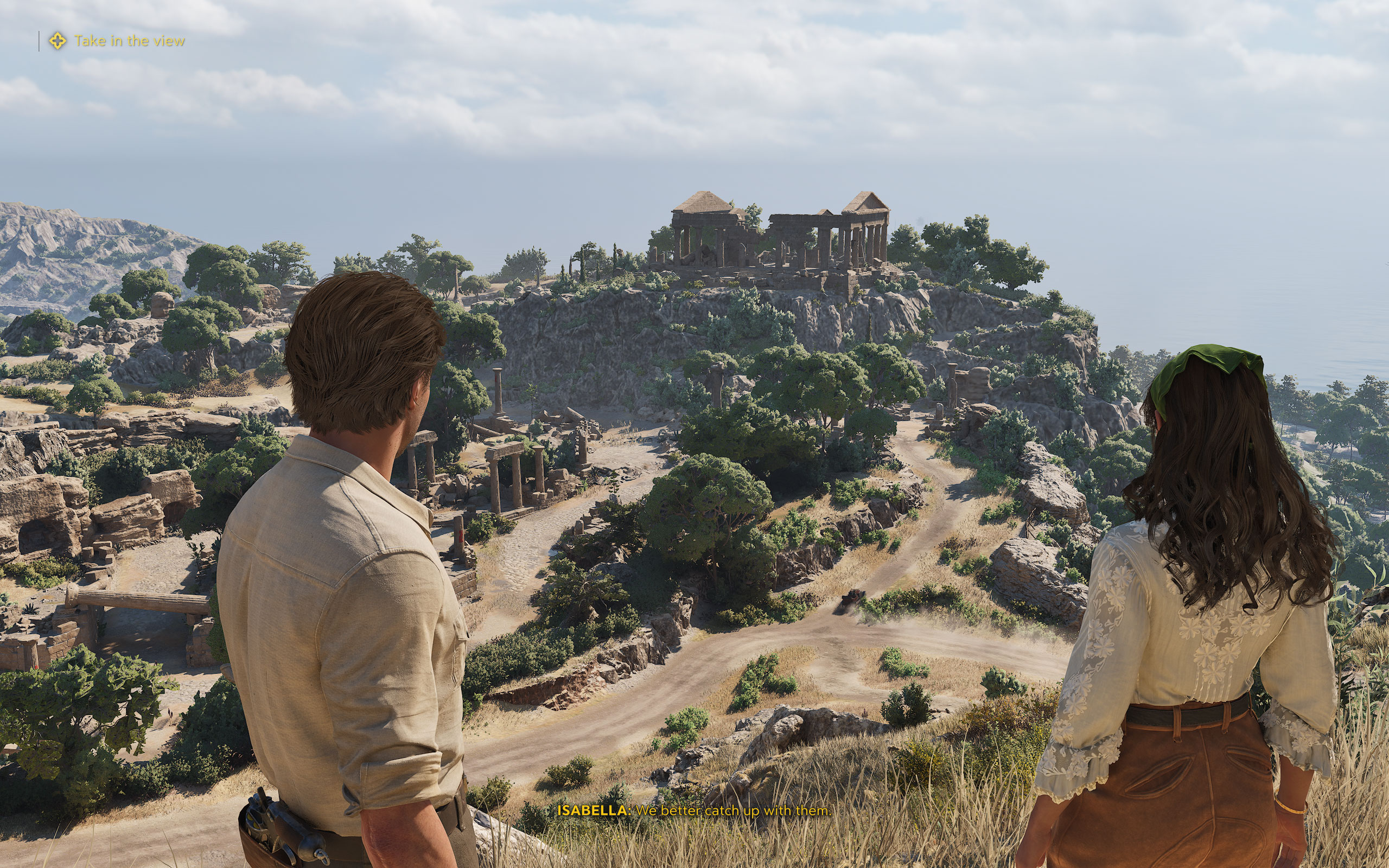
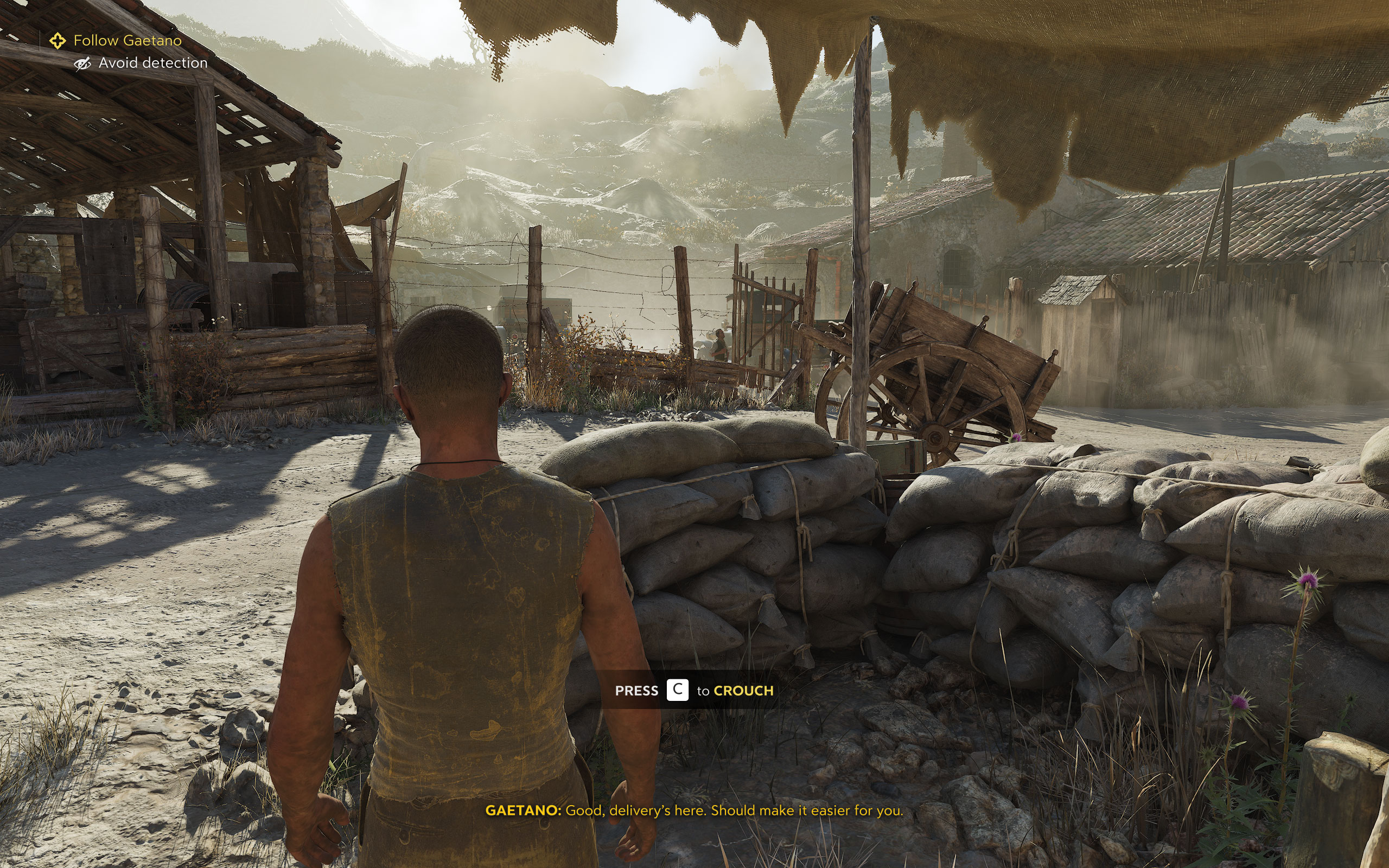
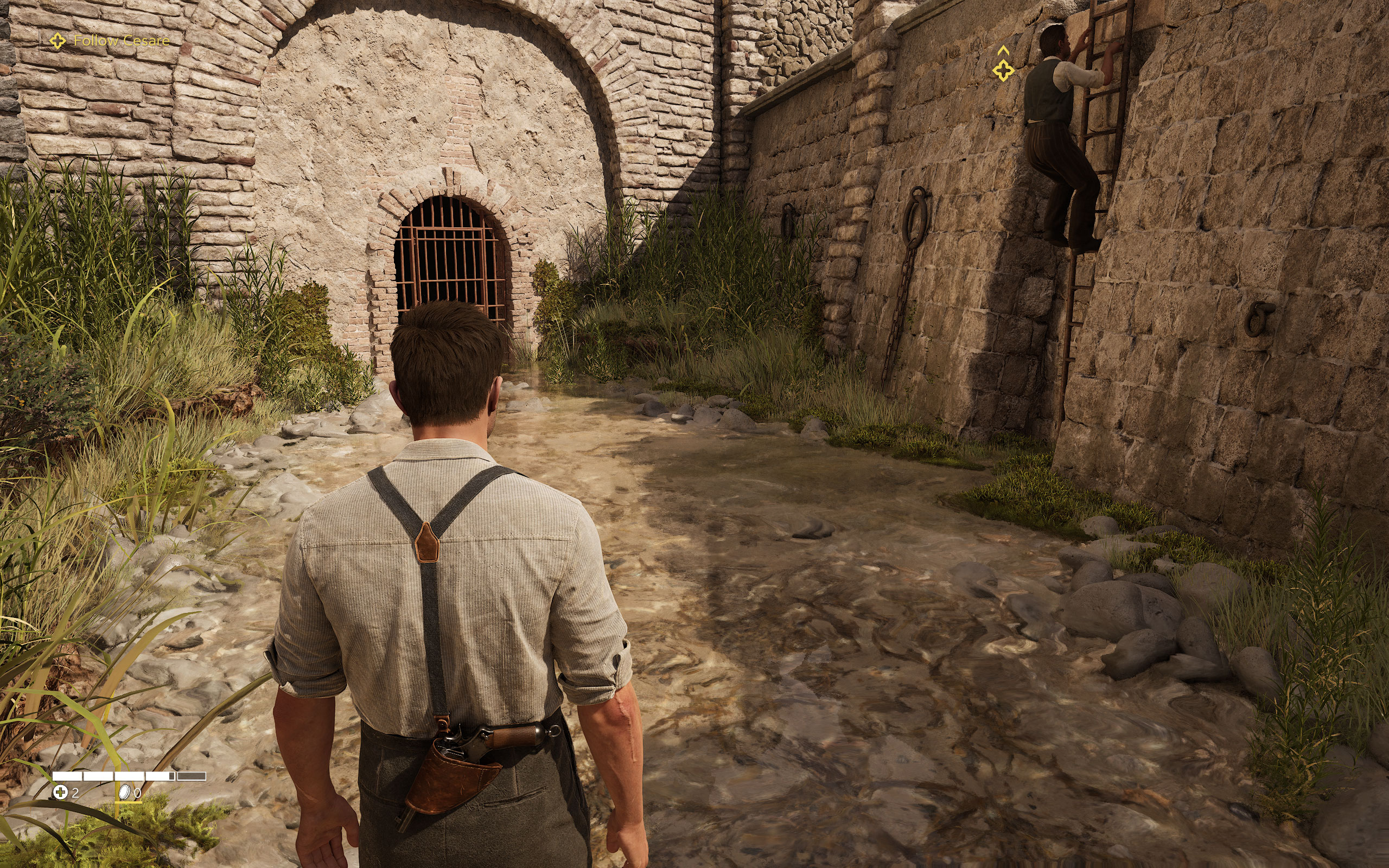
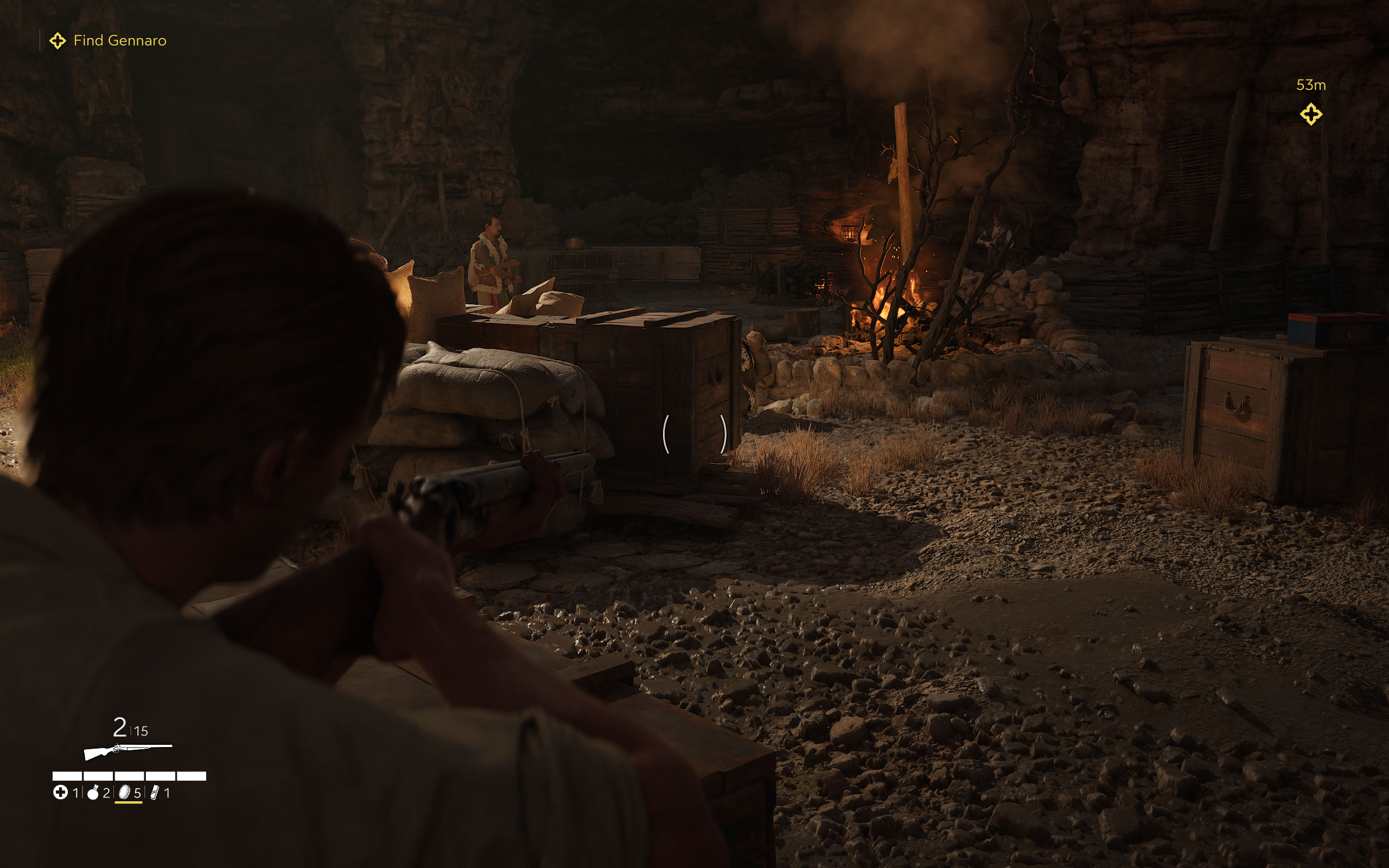
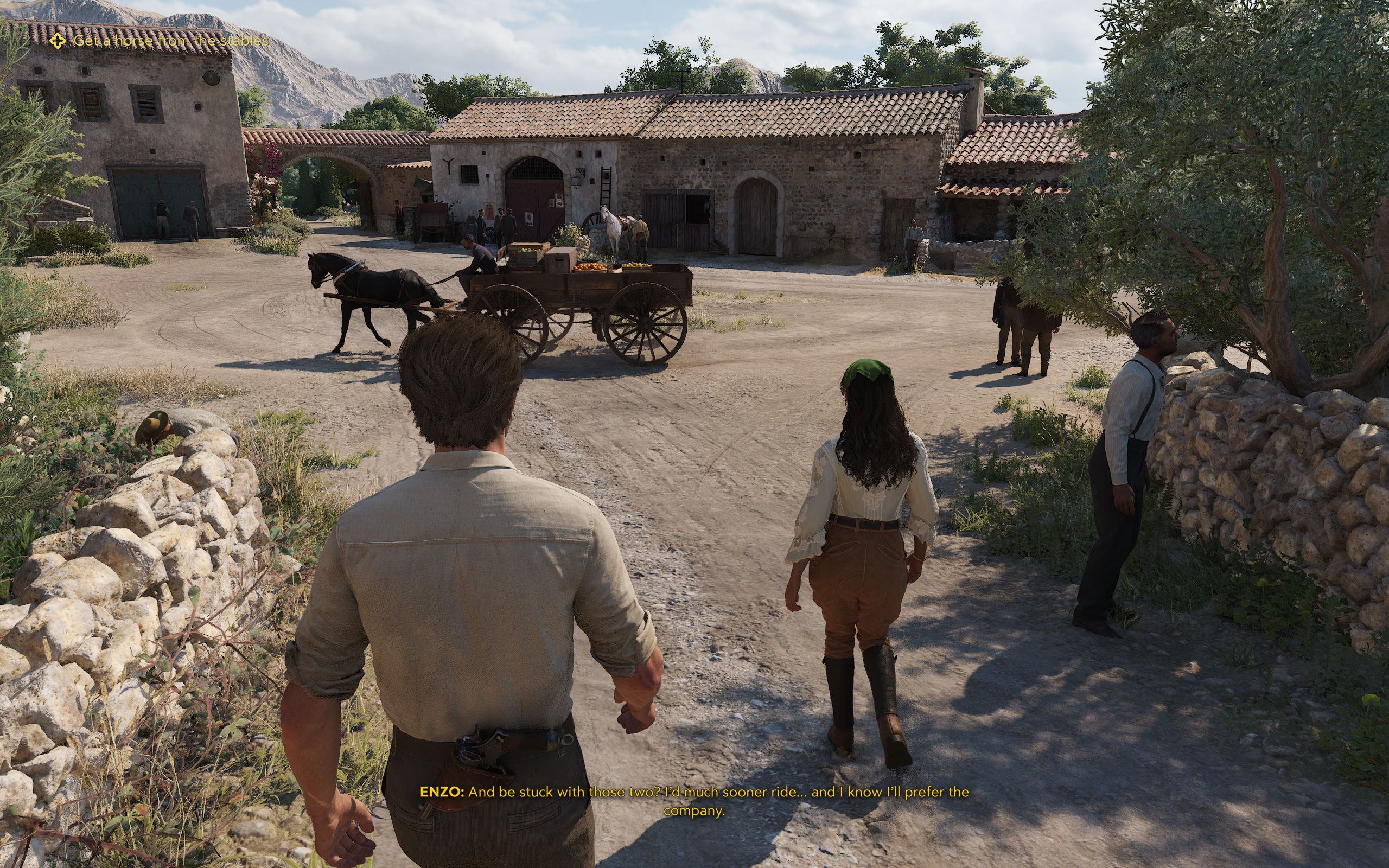
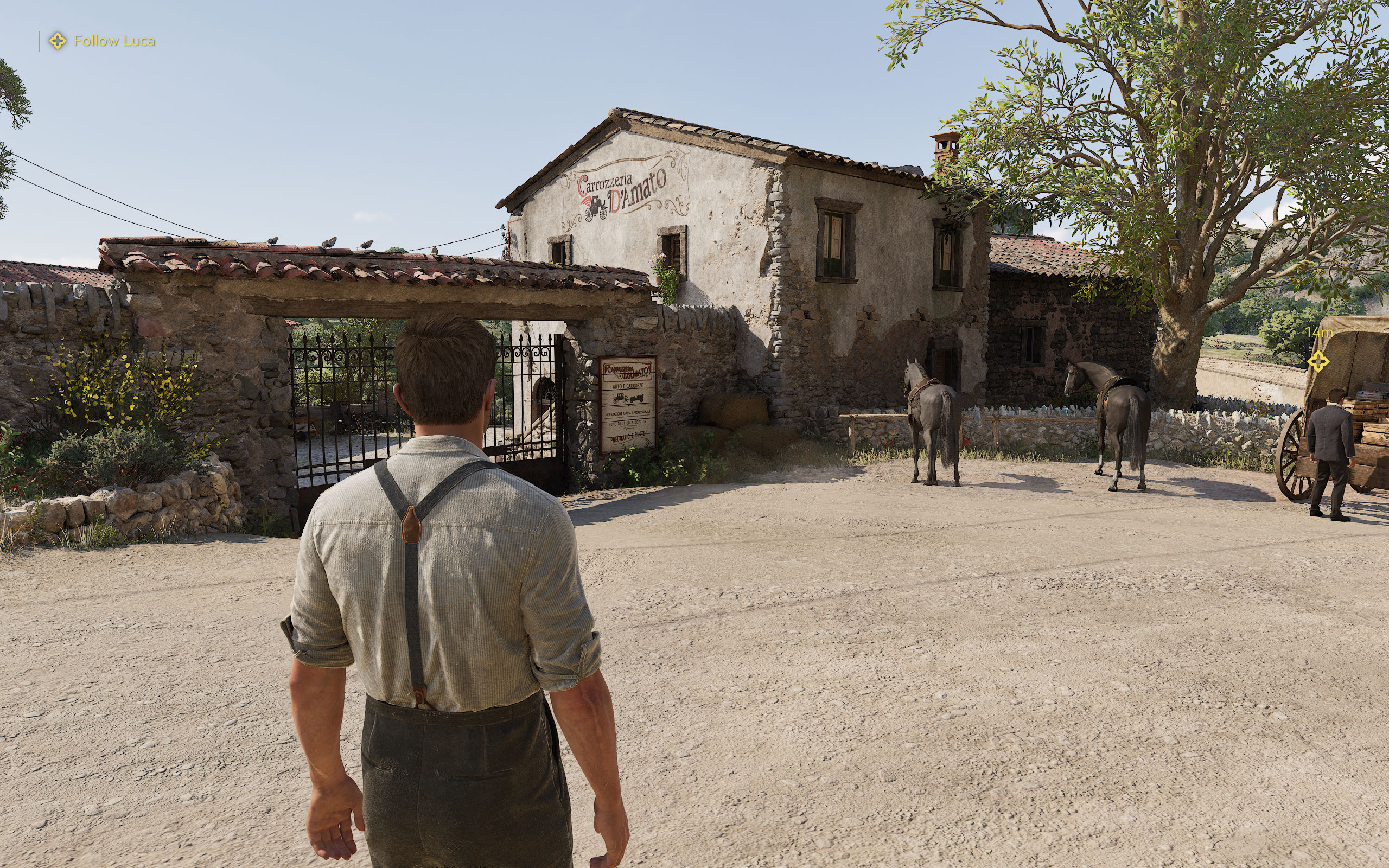
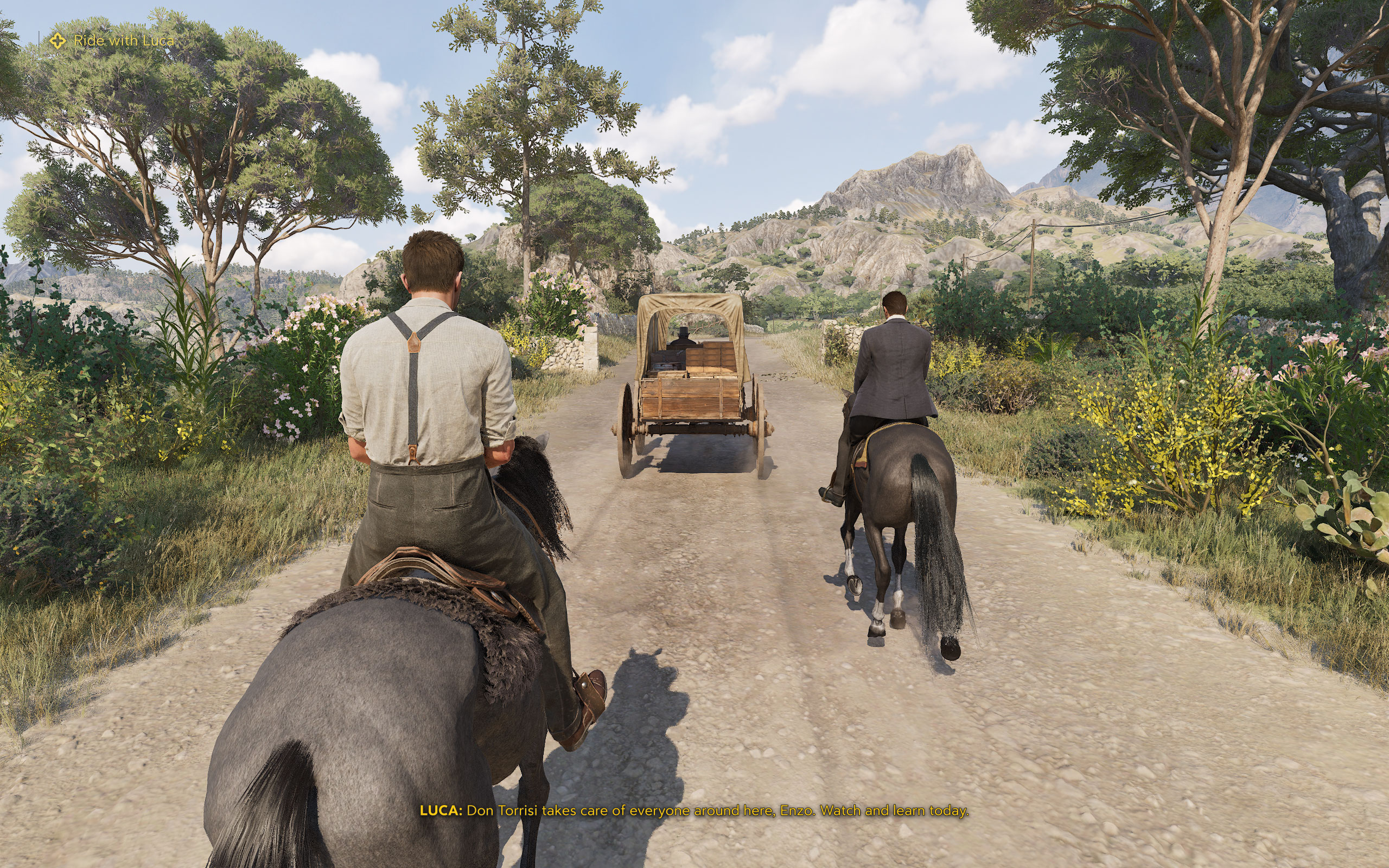
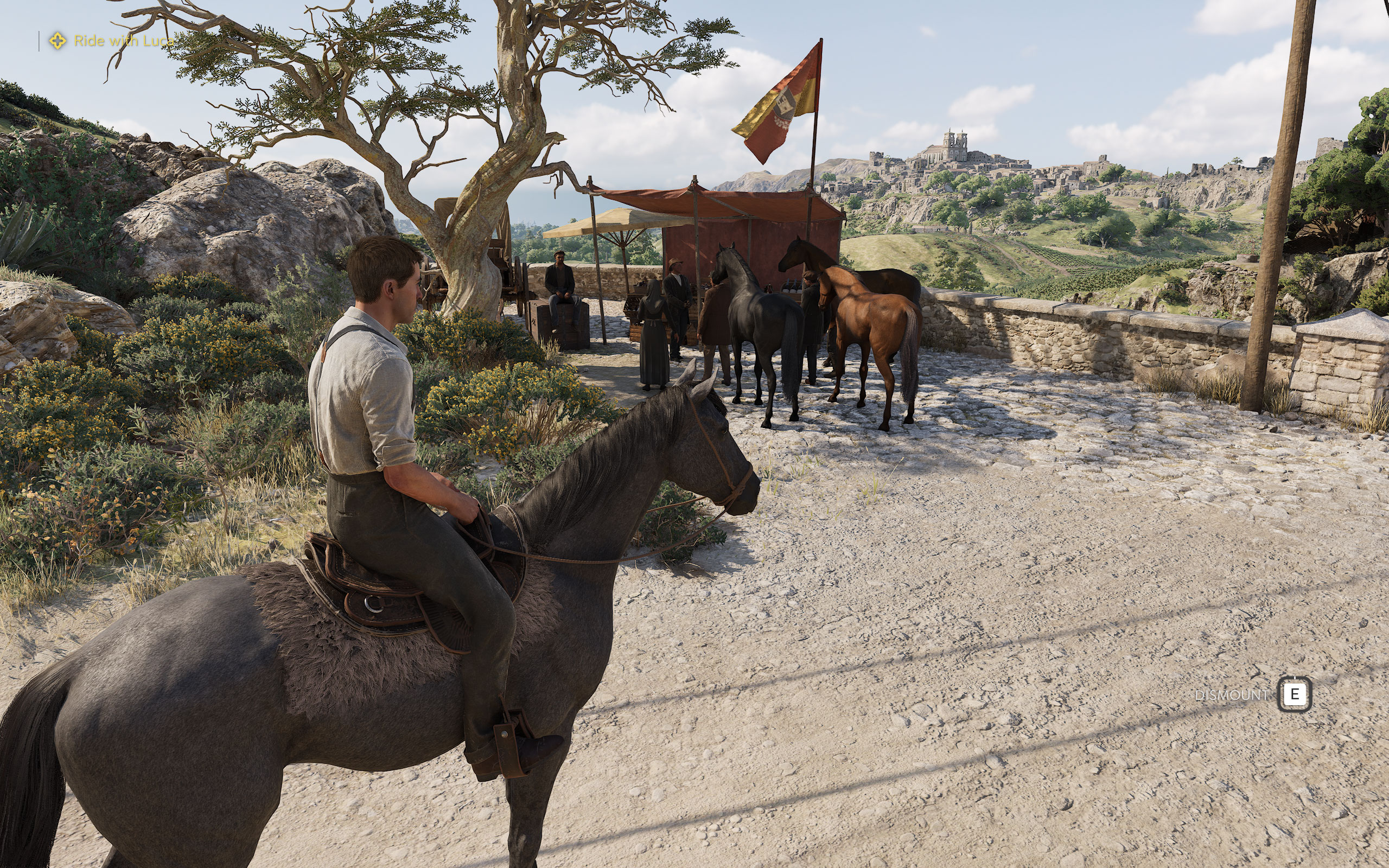
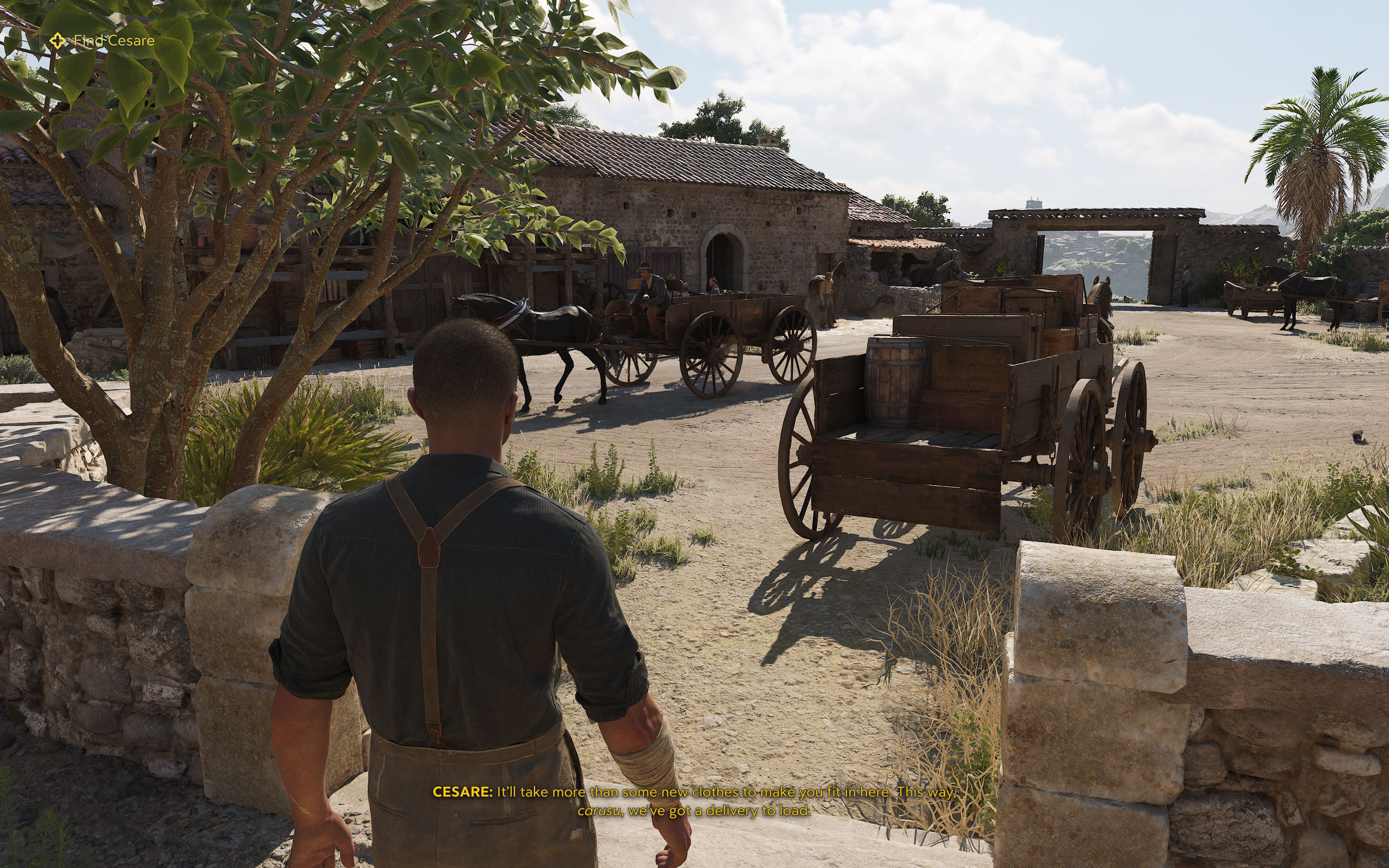
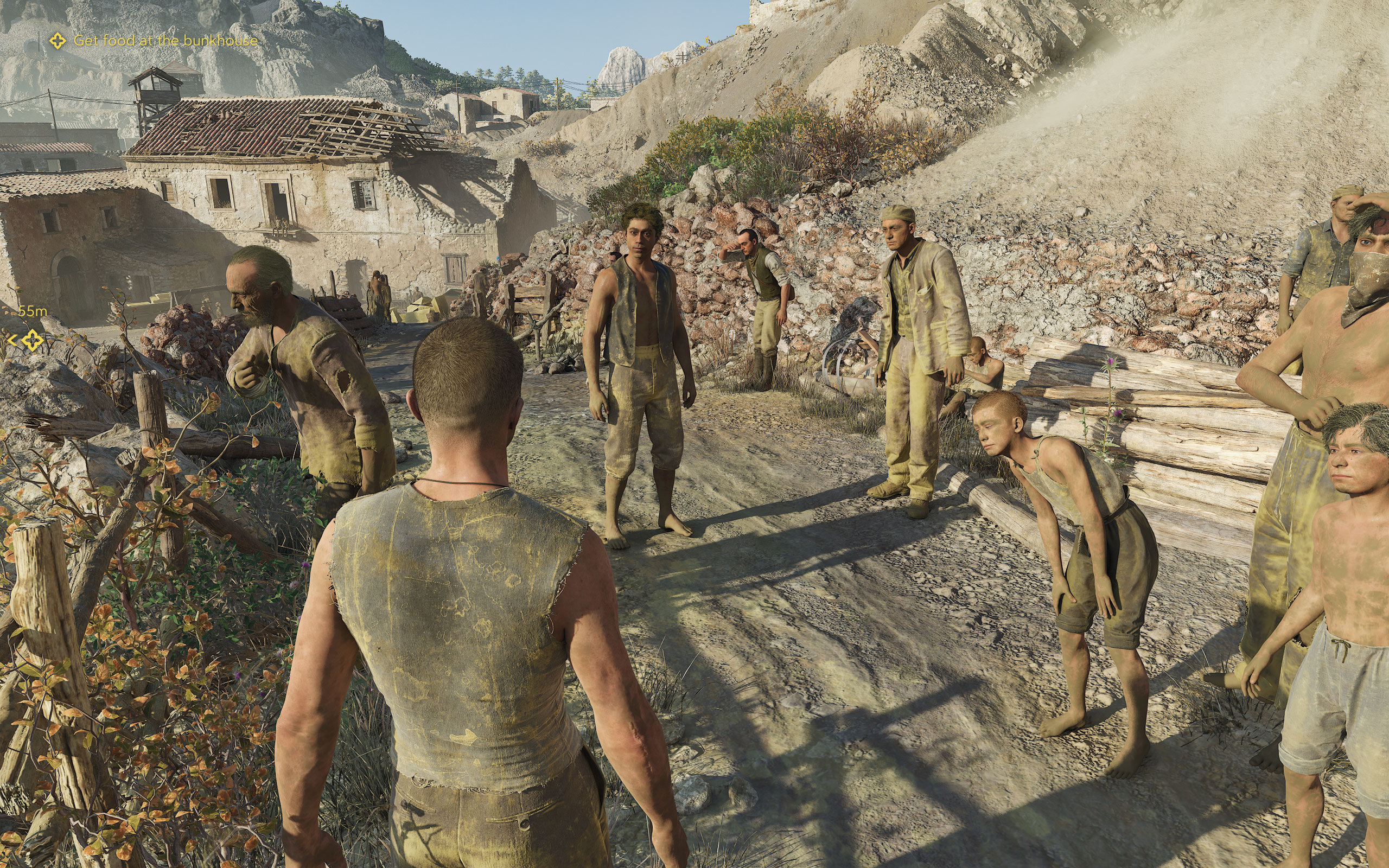
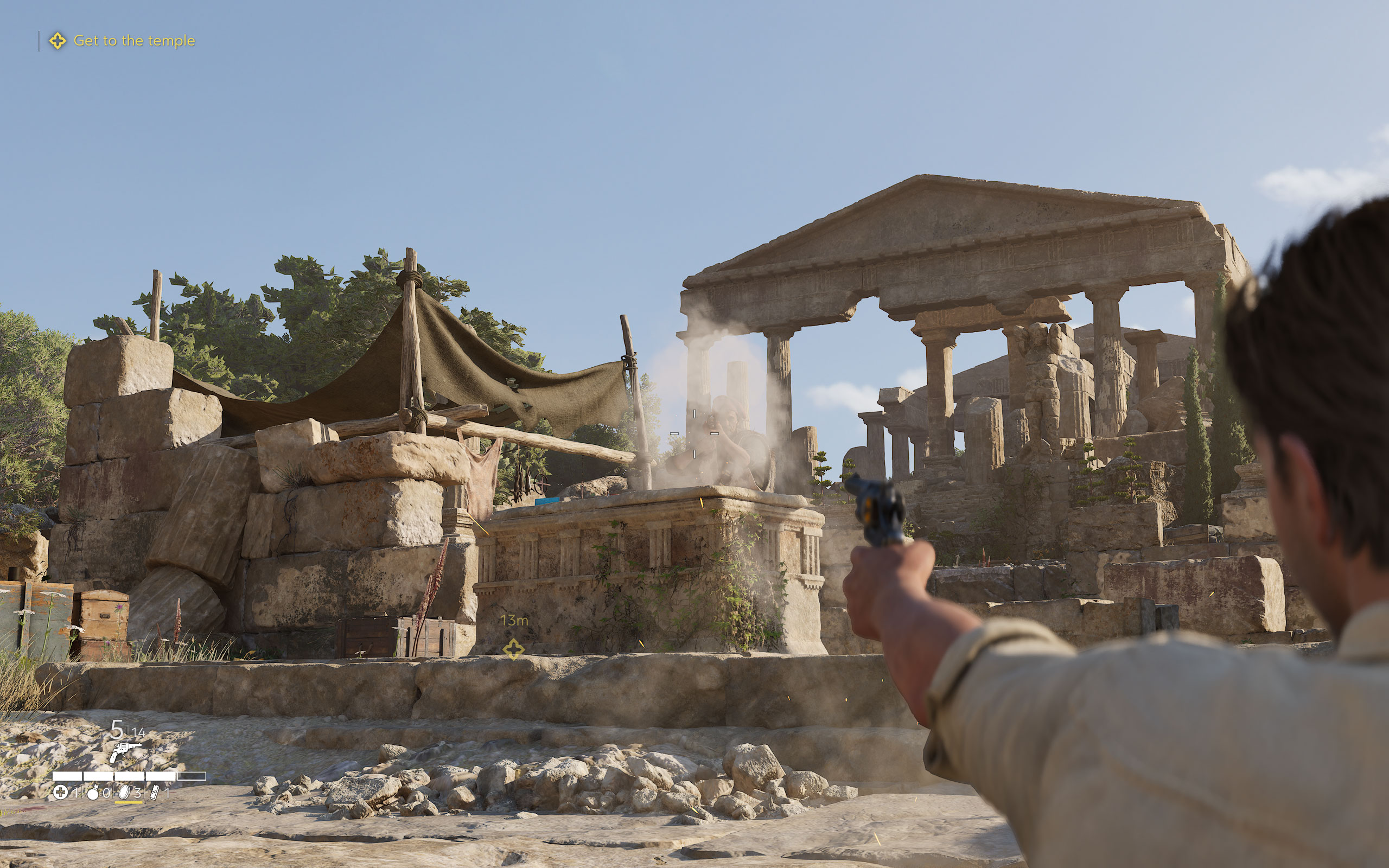
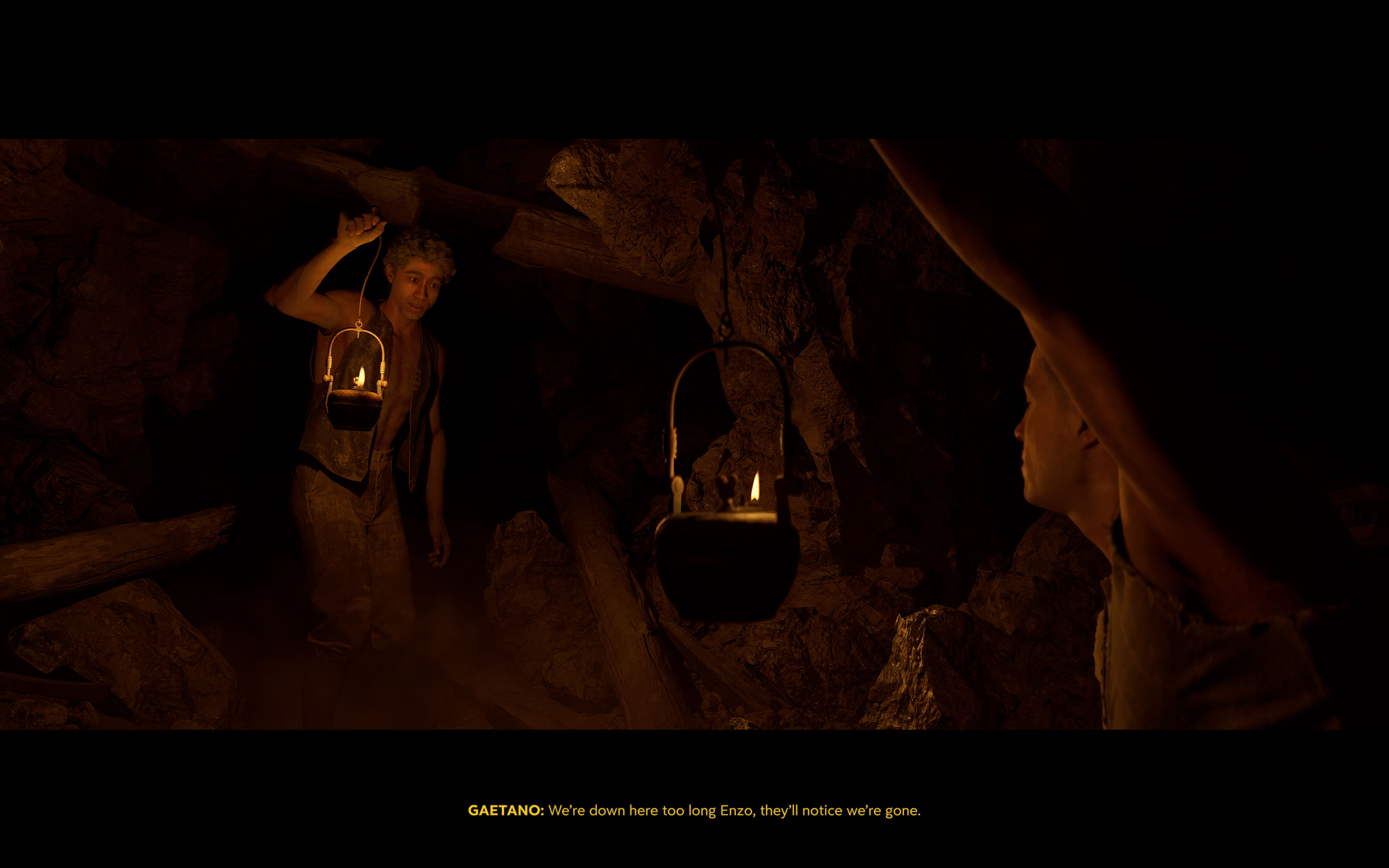
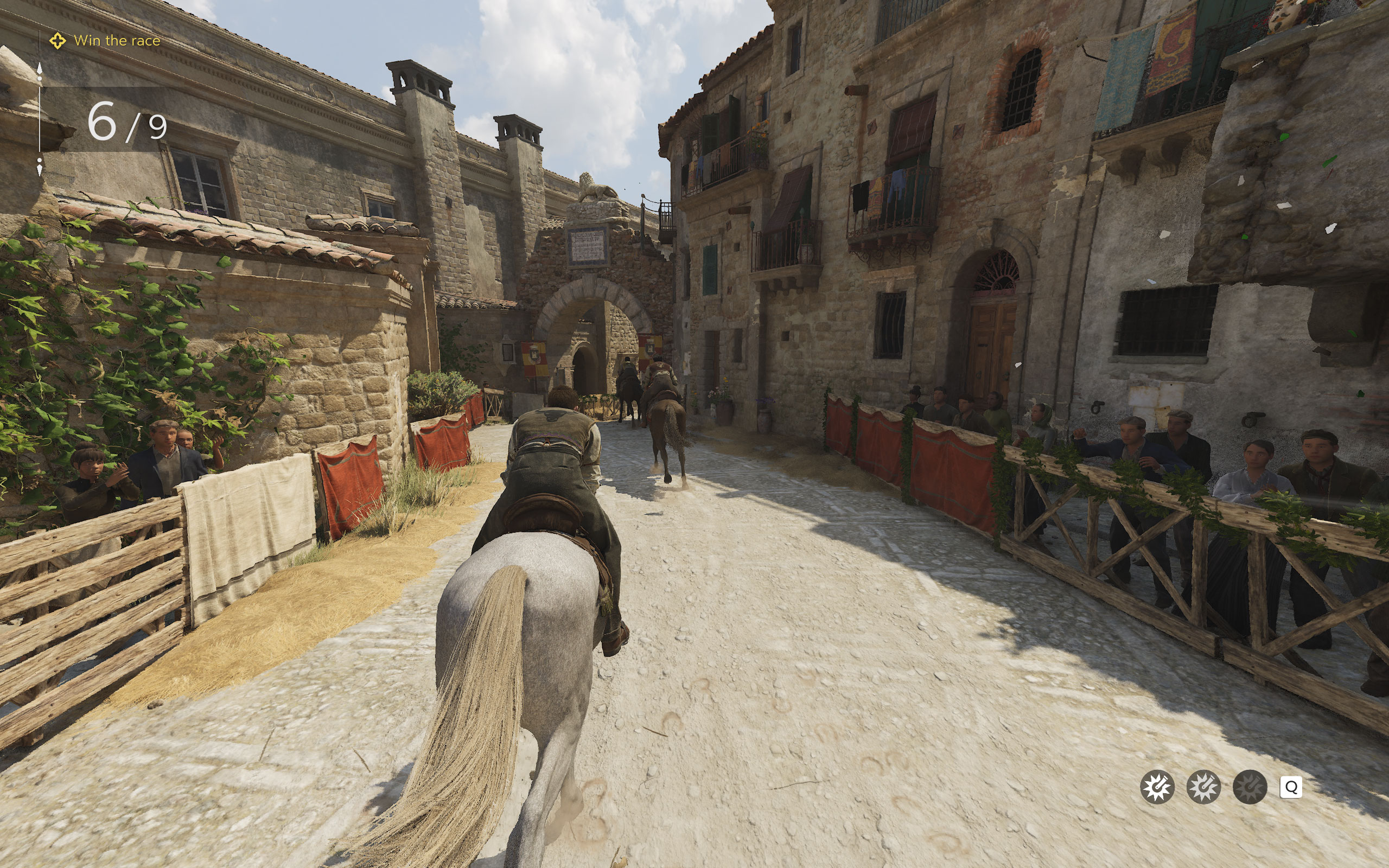
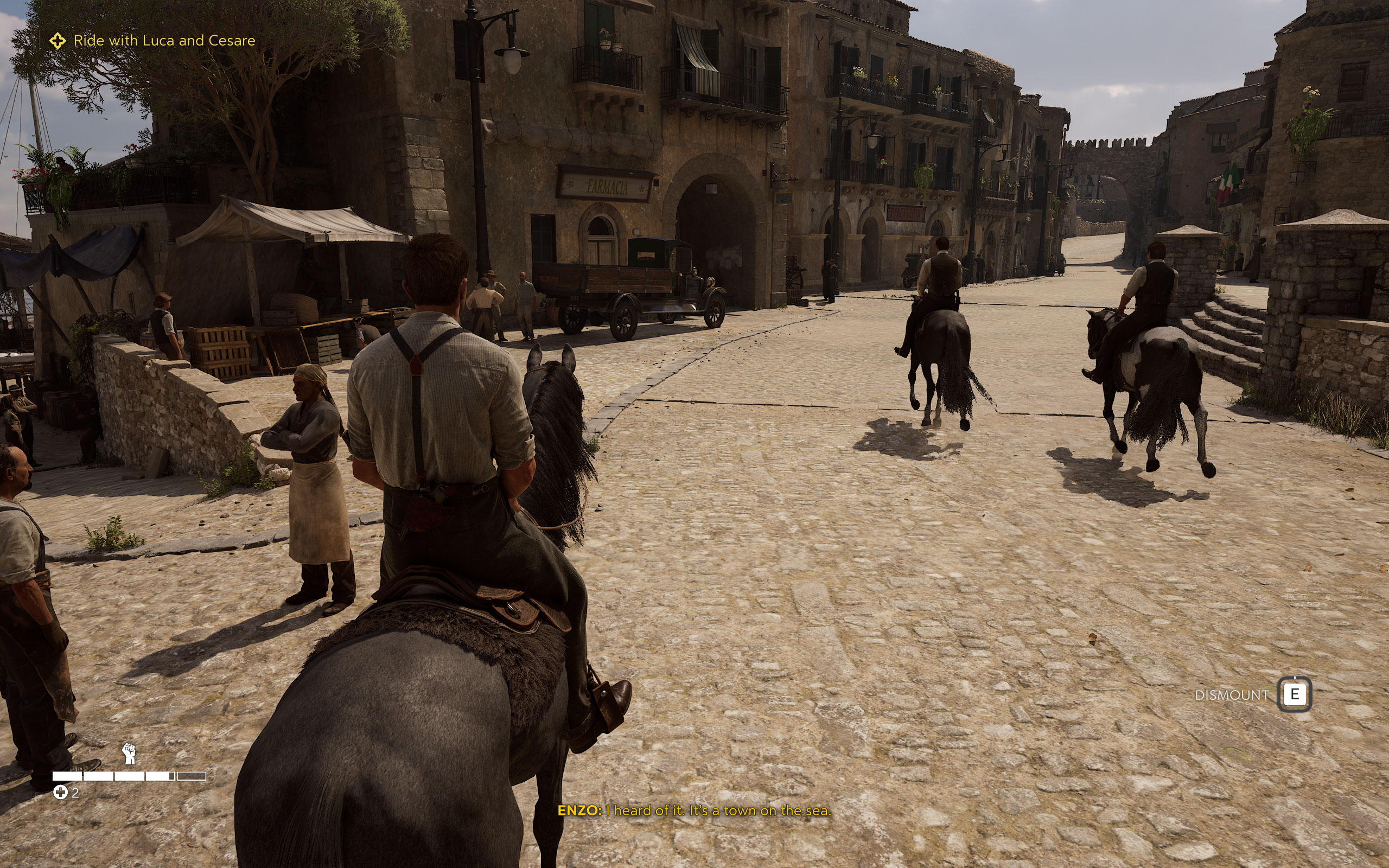
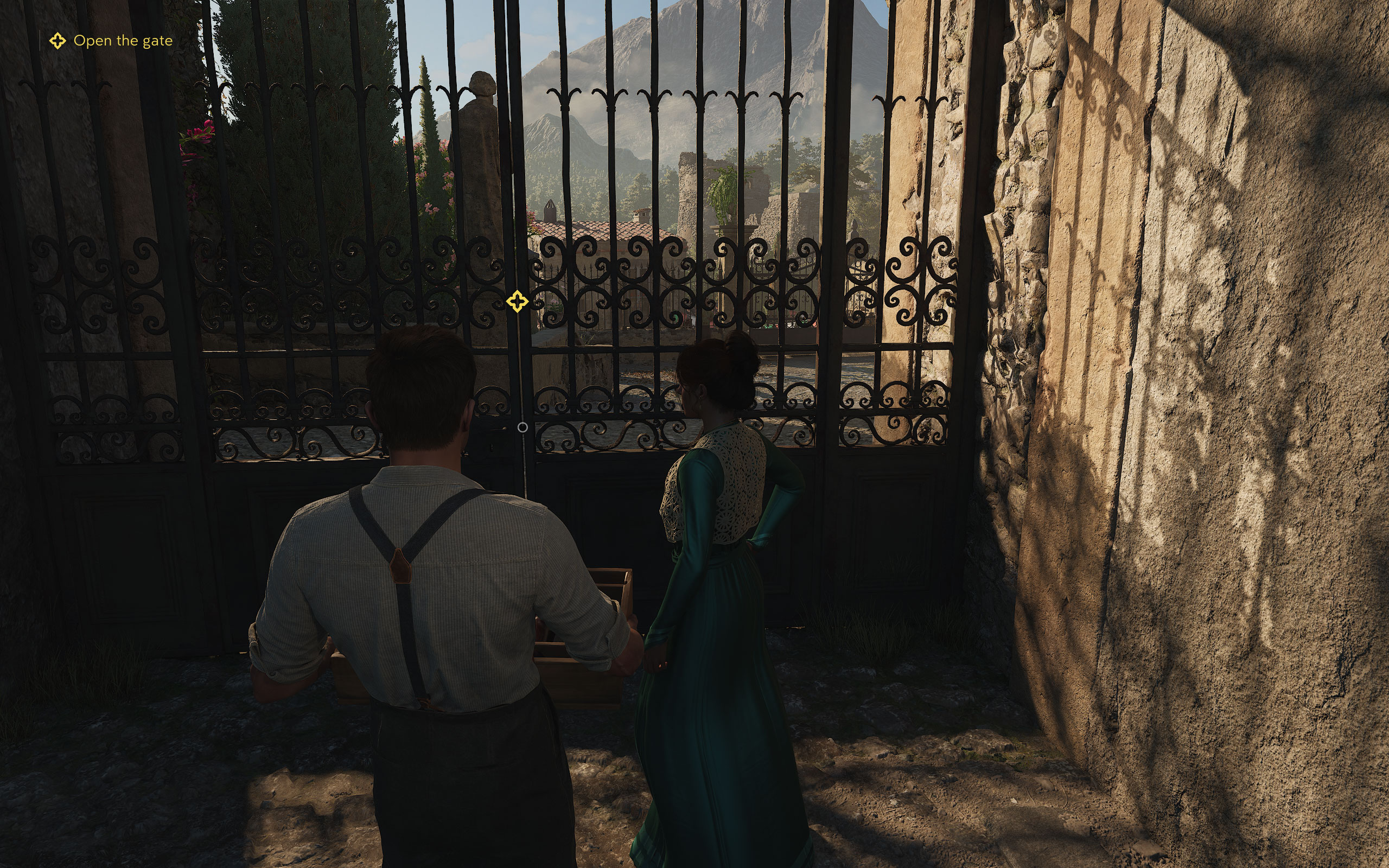
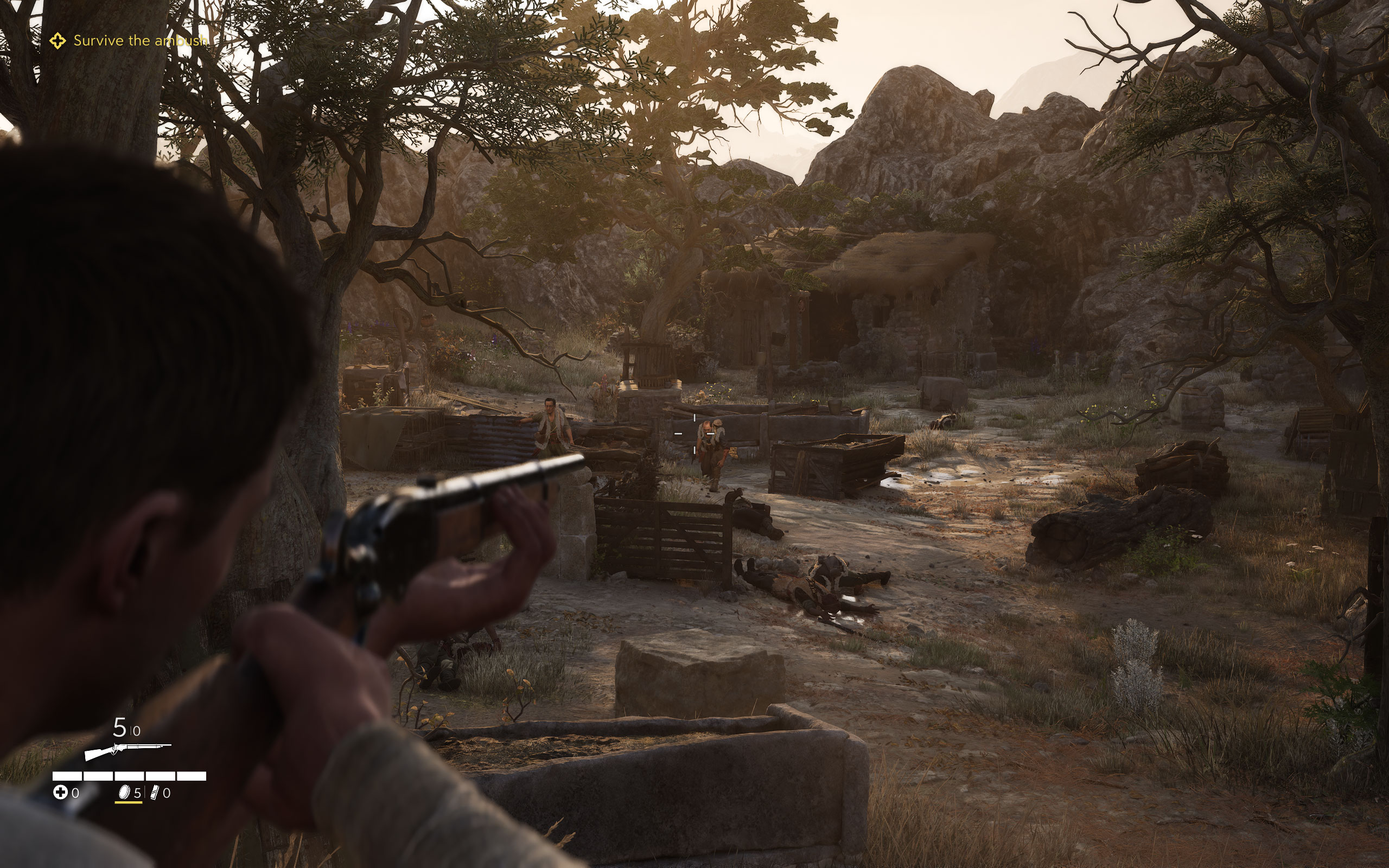
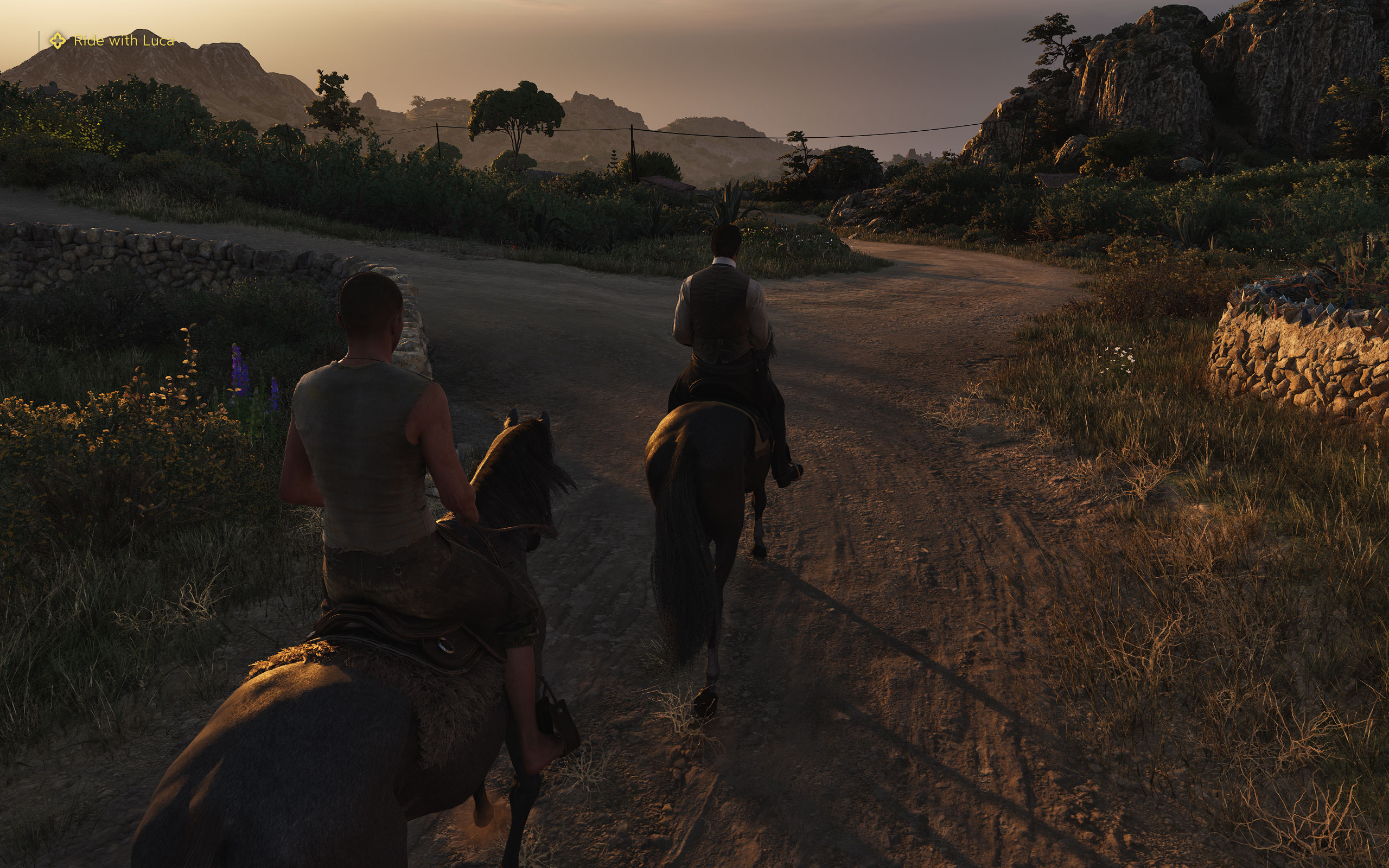
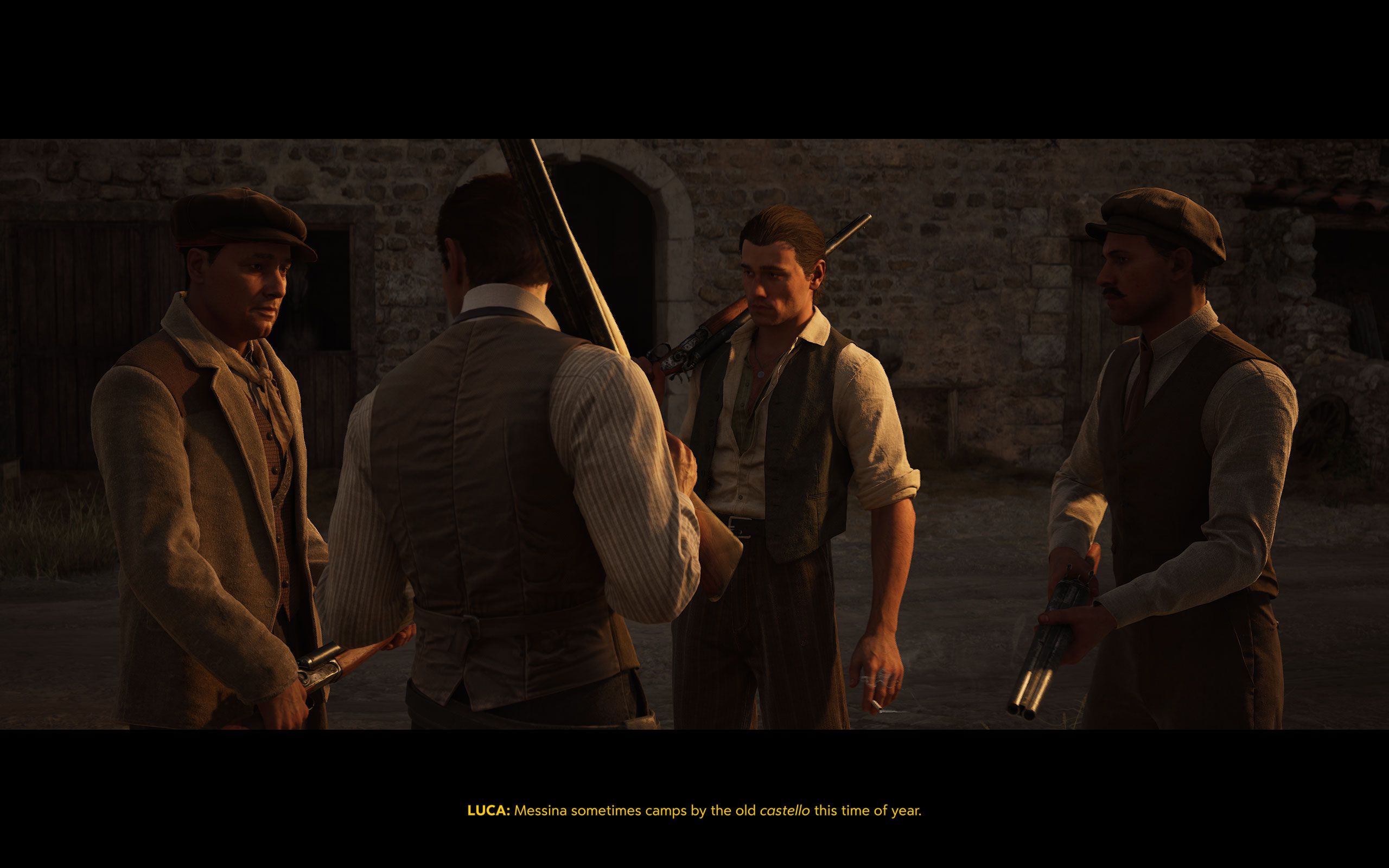
All screenshots were taken at the "Epic" settings profile with motion blur disabled, the upscaling was set to "Epic TSR native." The gallery can be navigated with the cursor keys.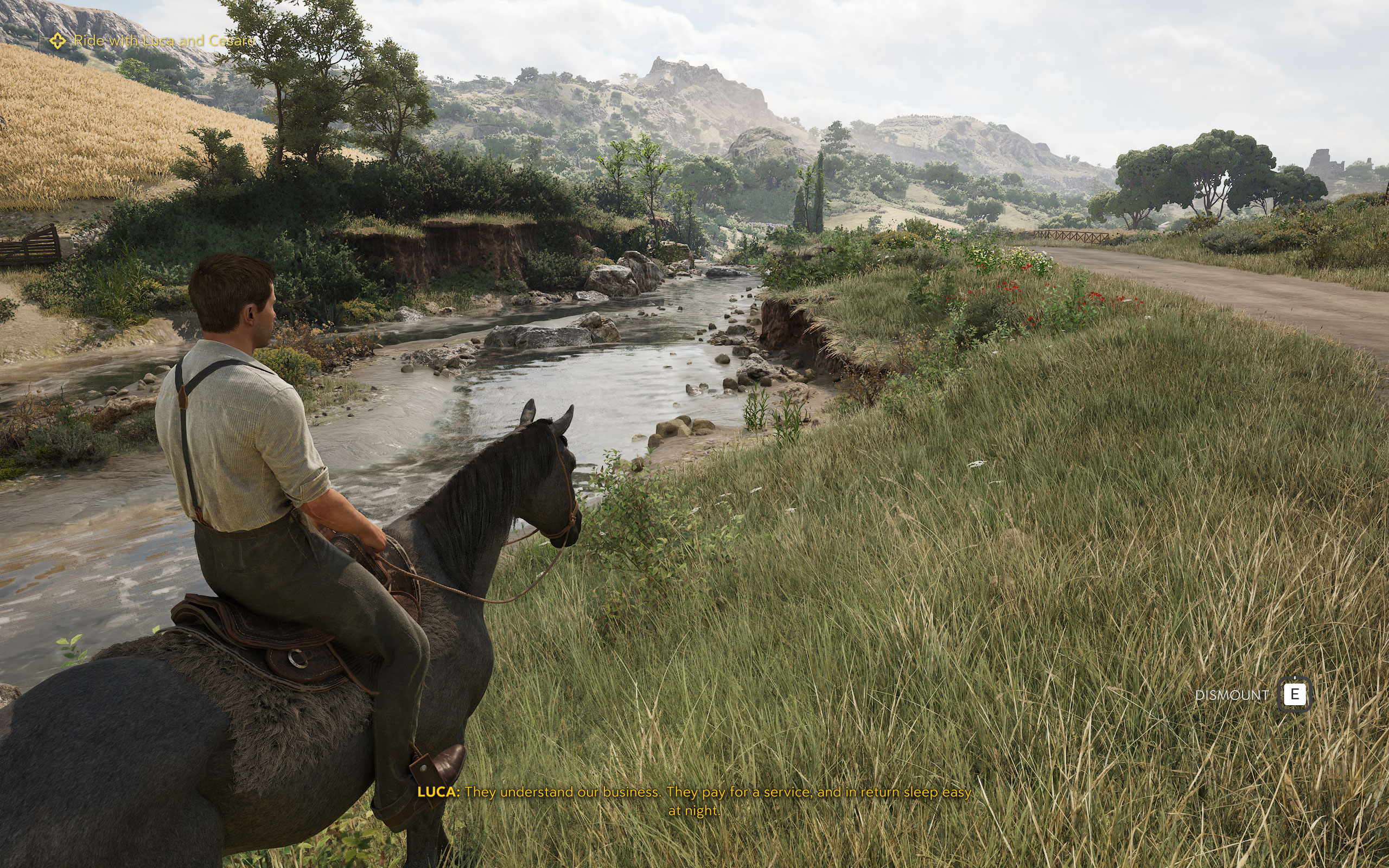
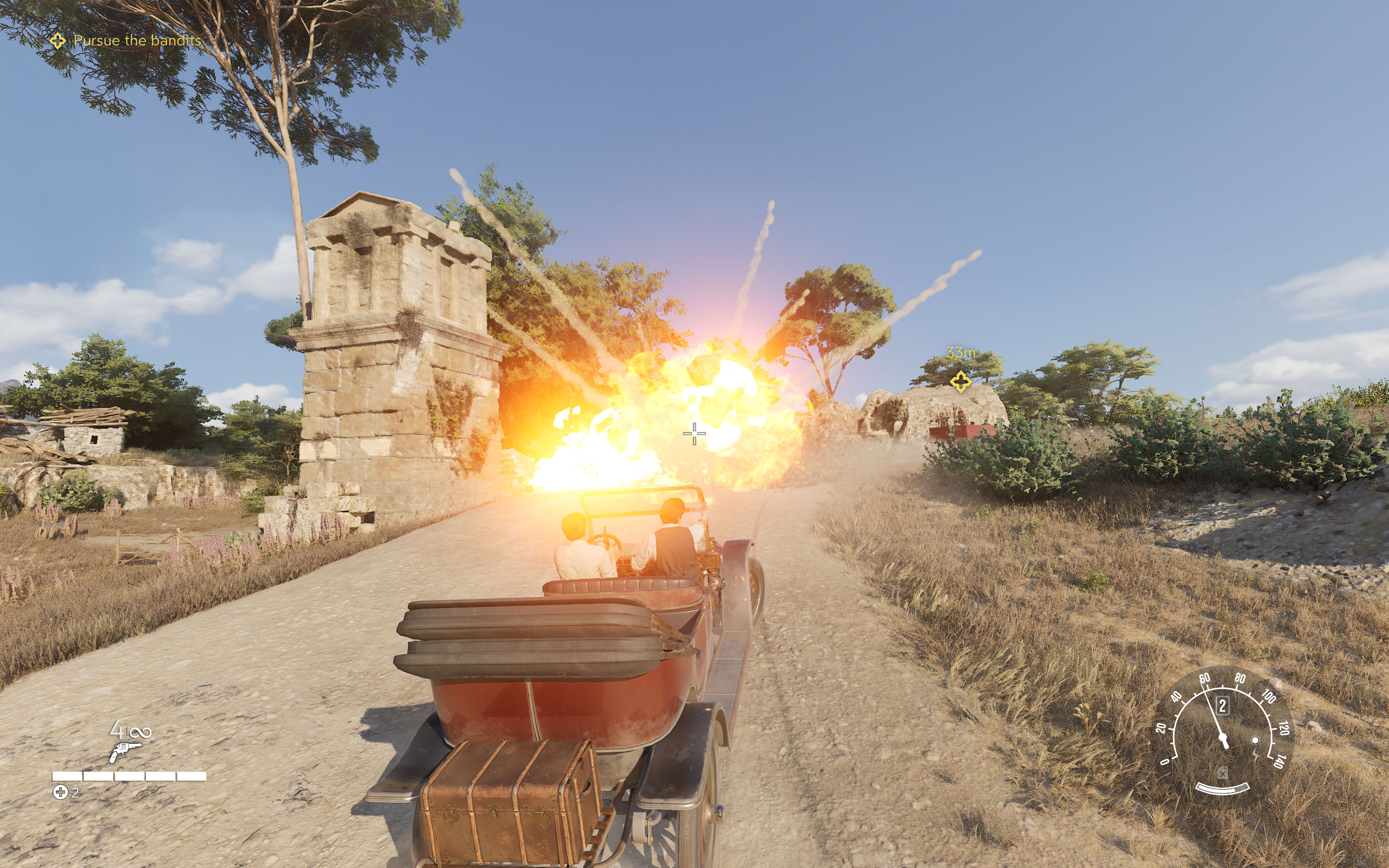
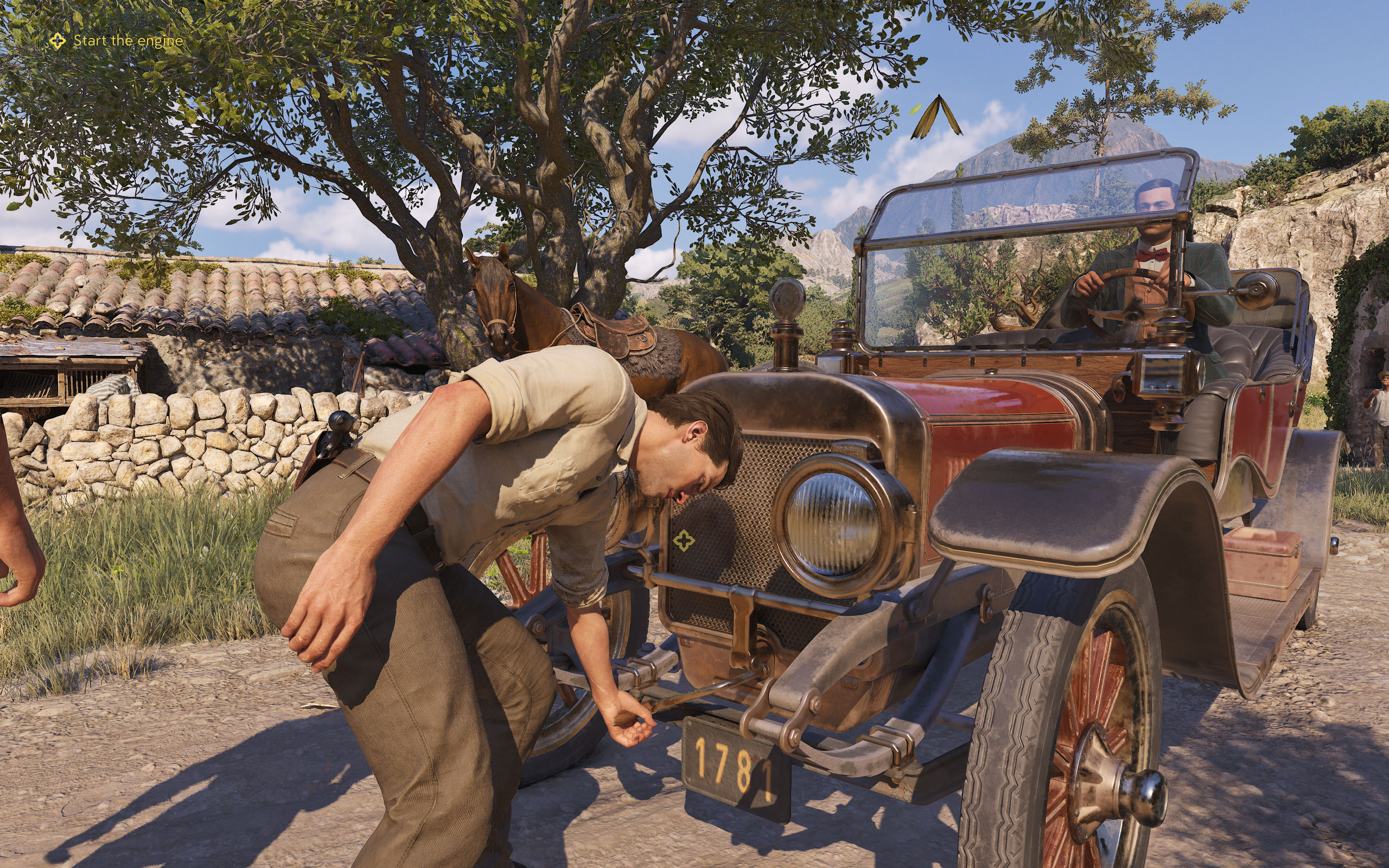

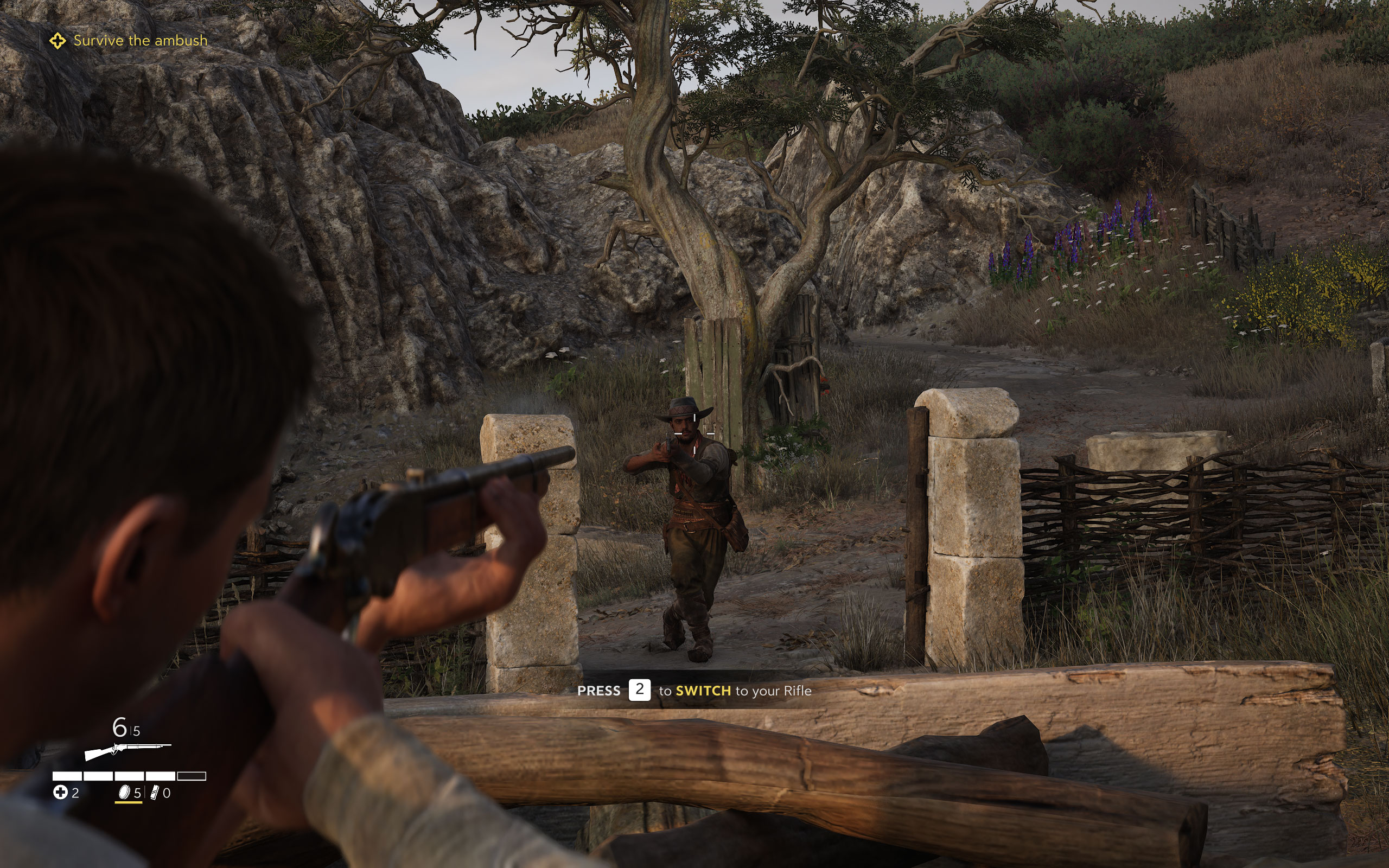






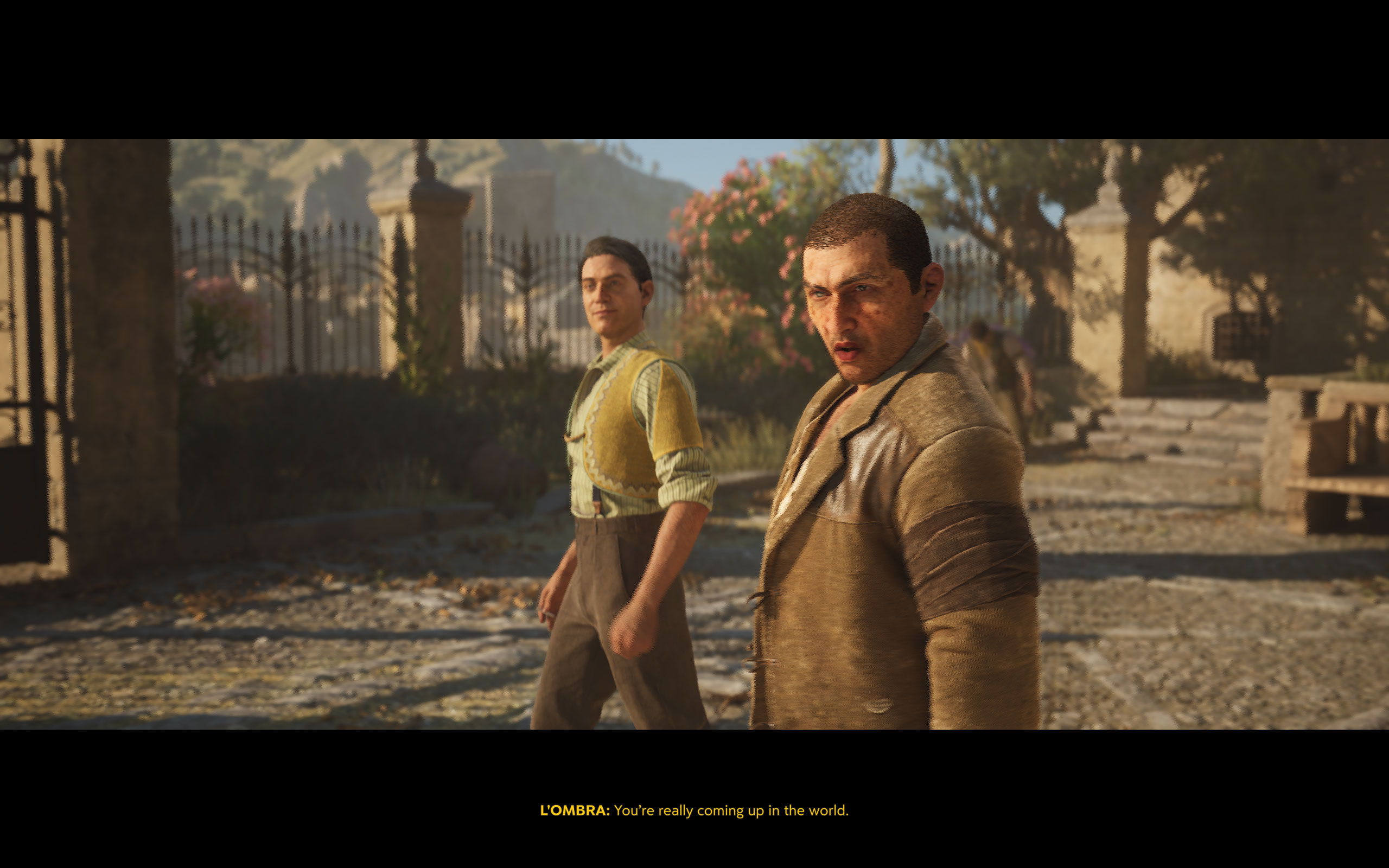
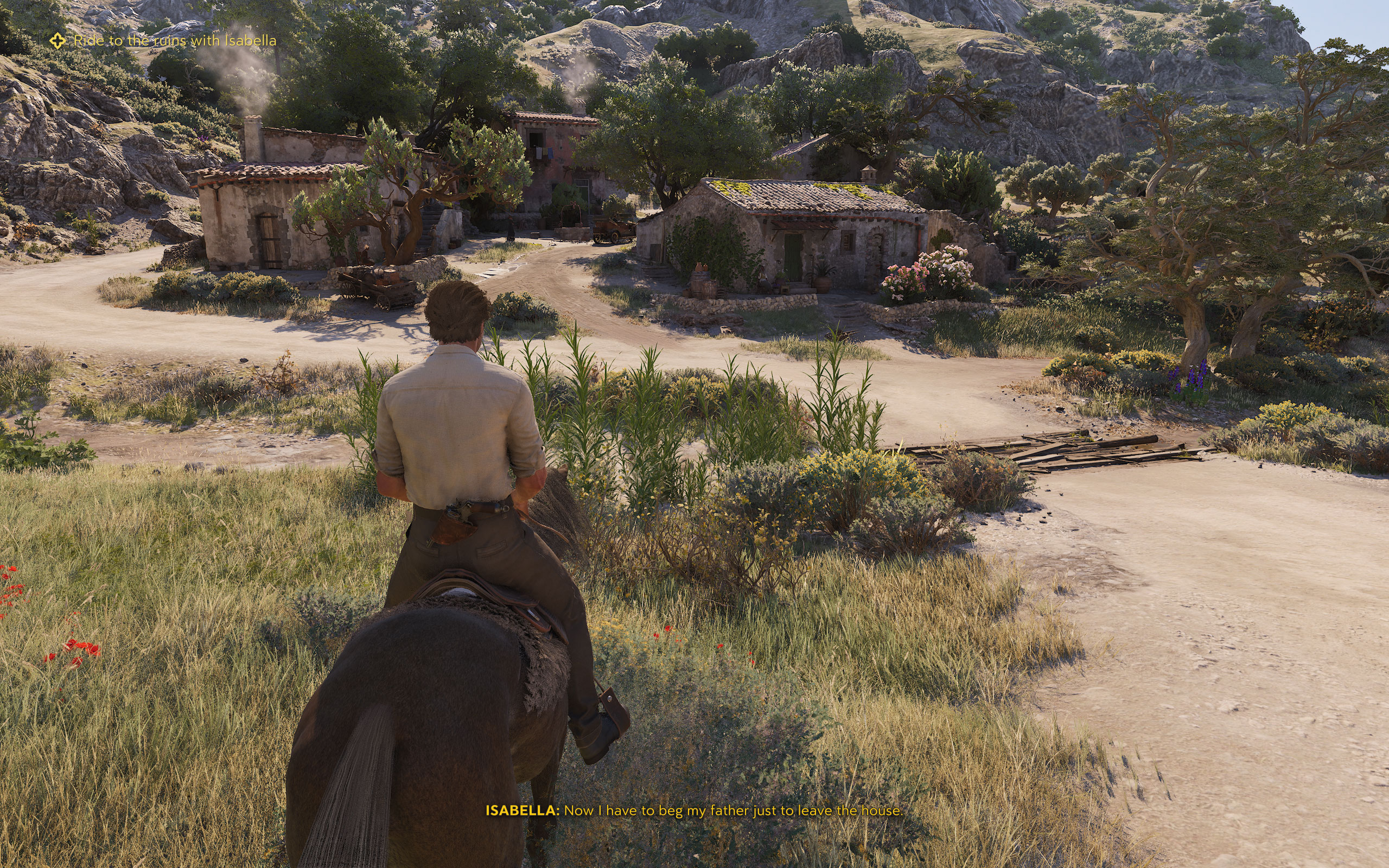
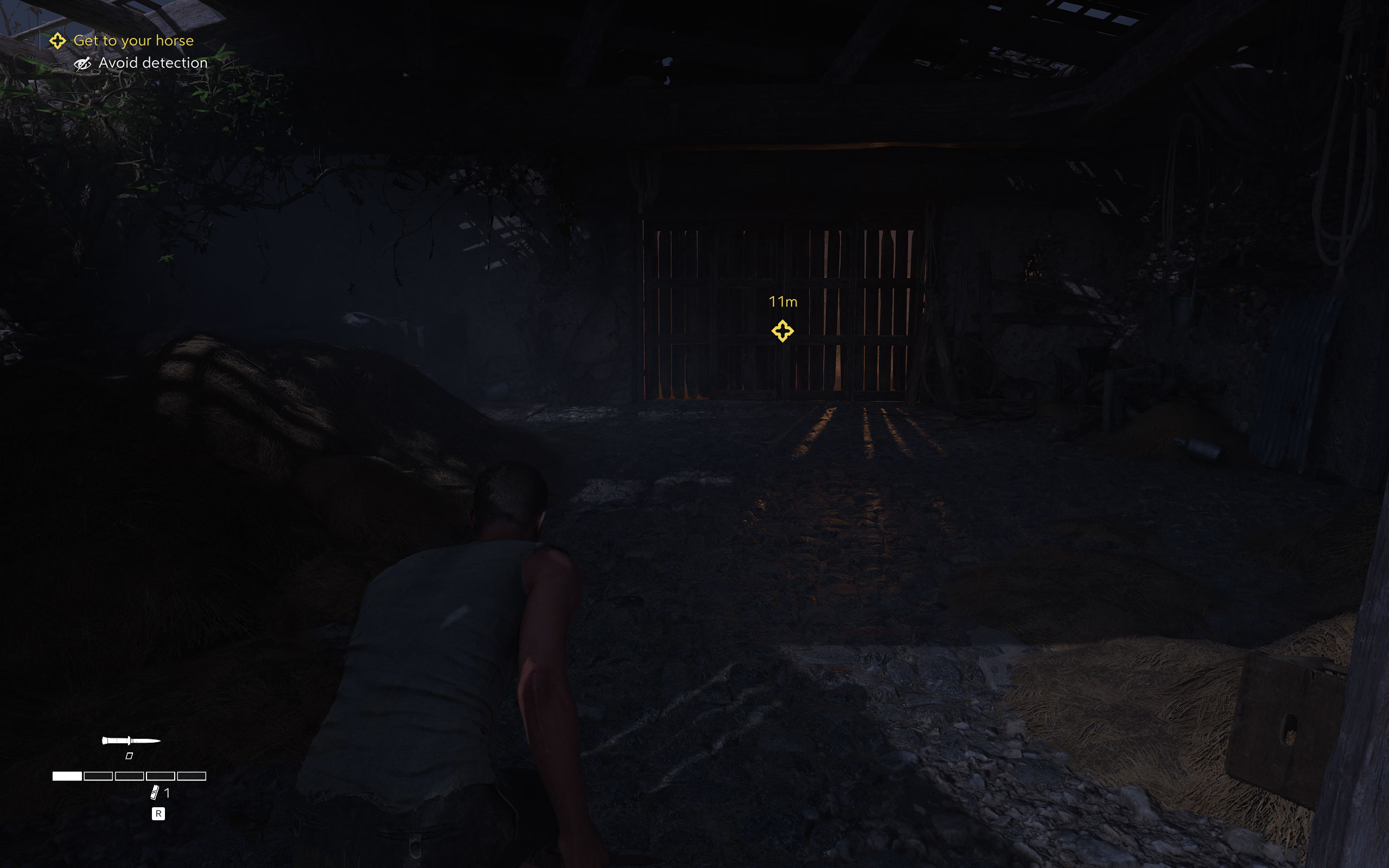
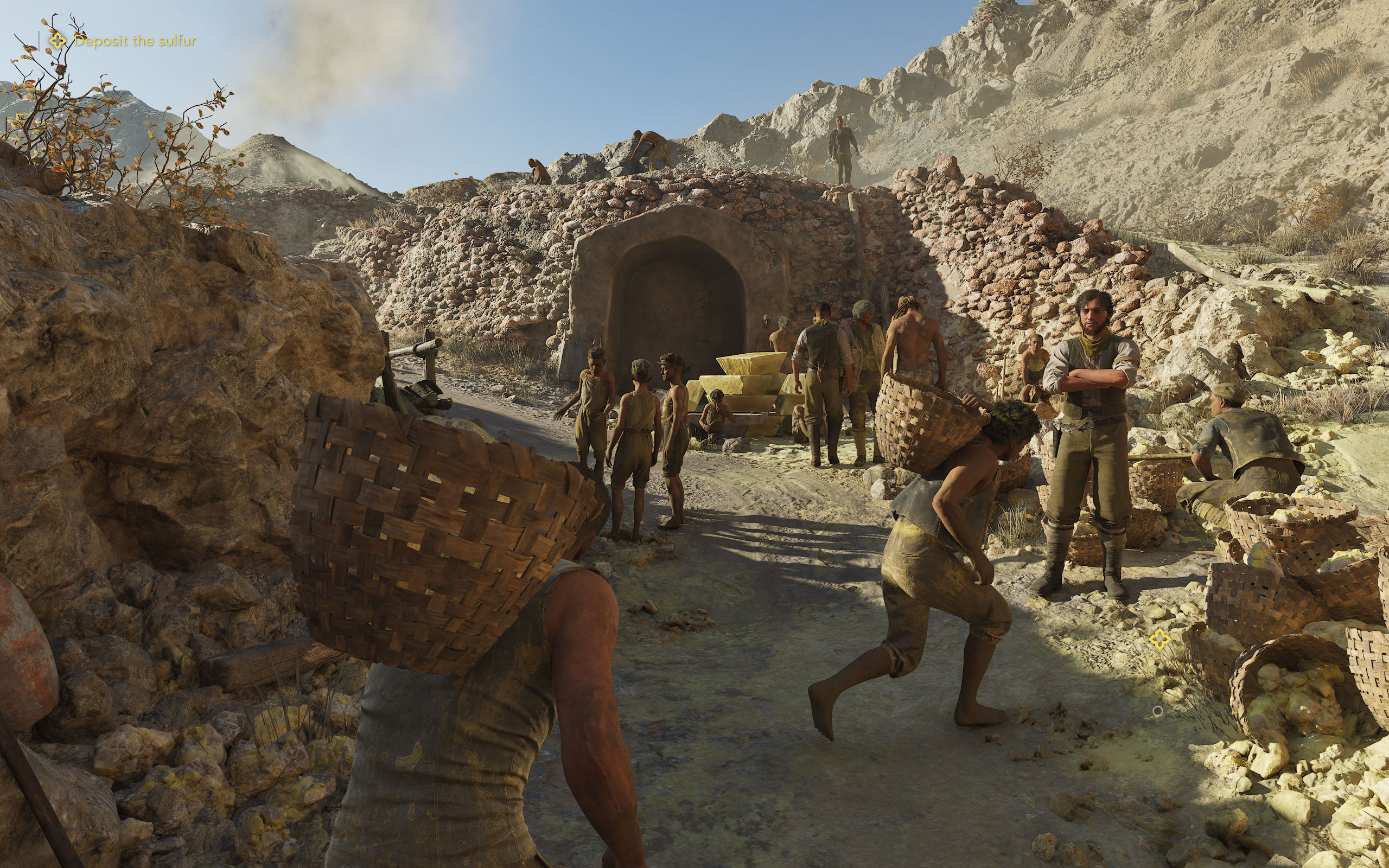
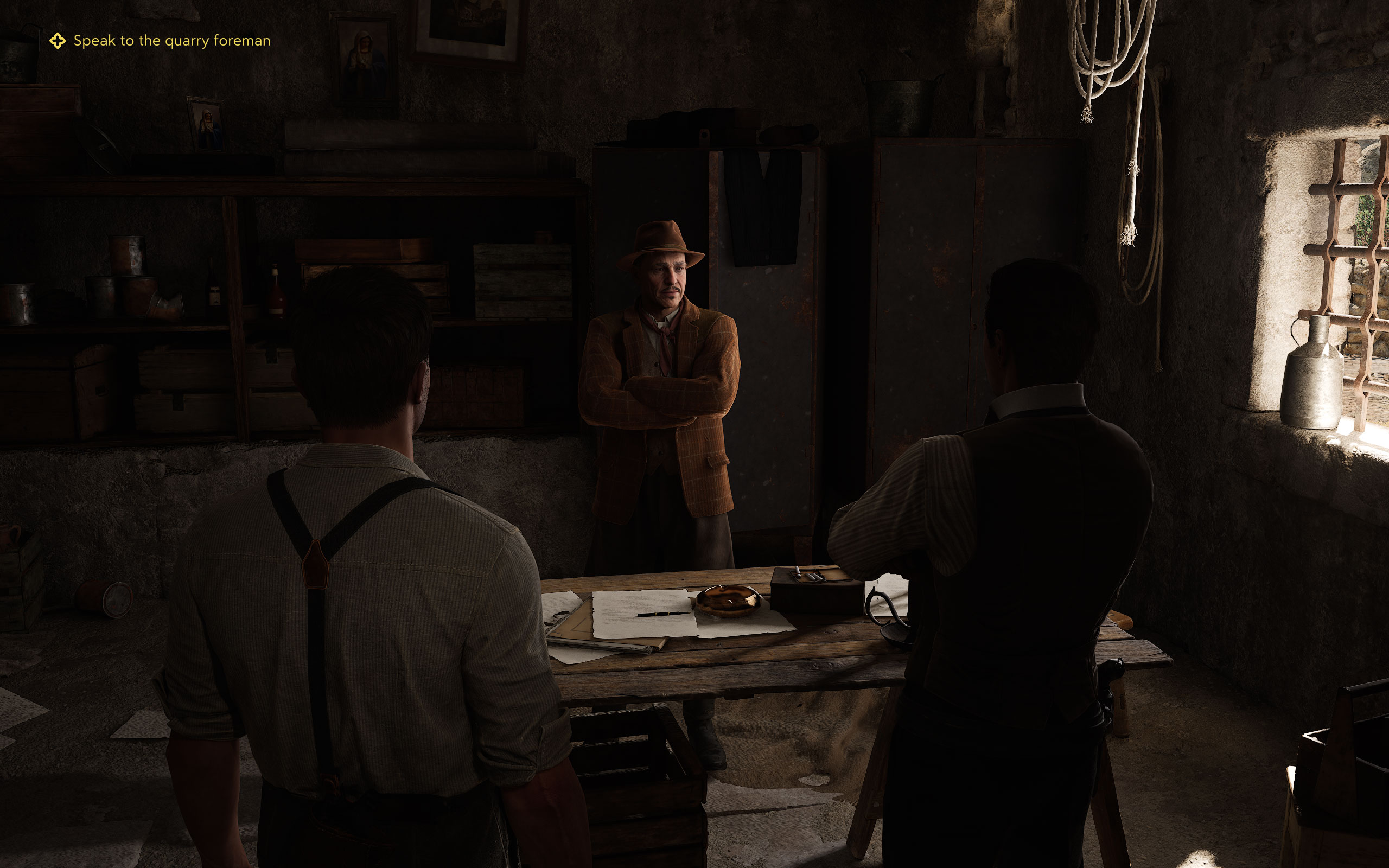
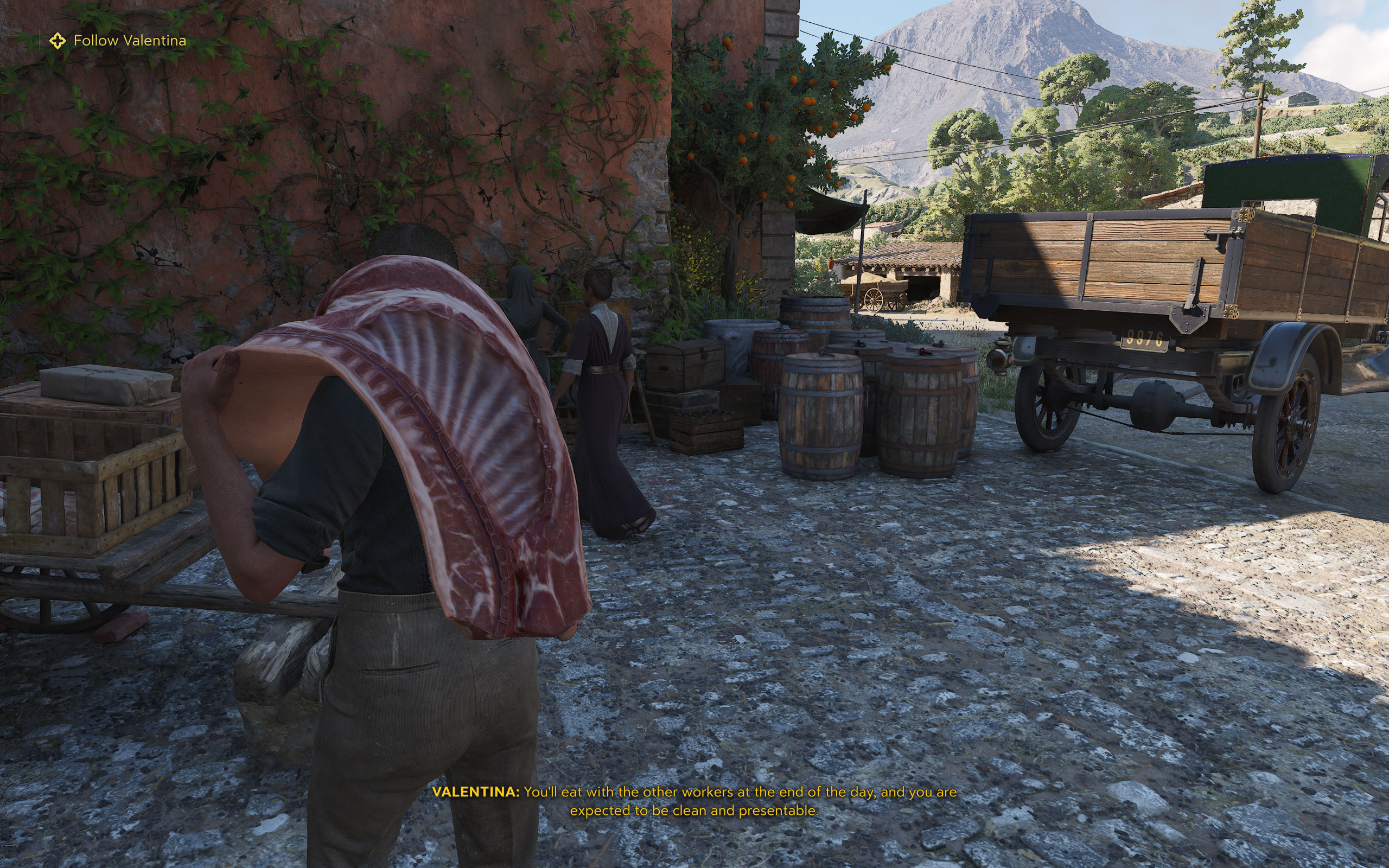
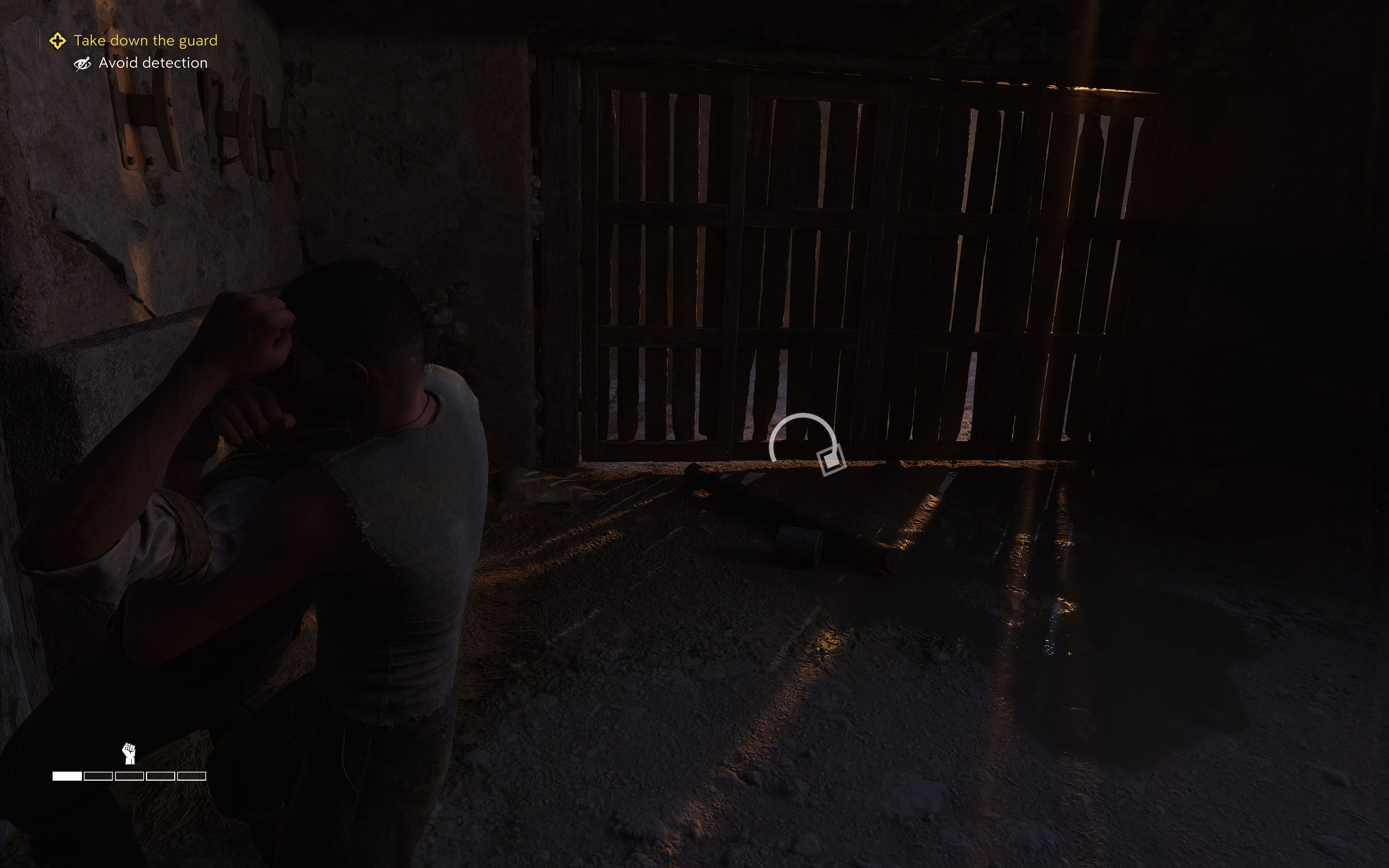
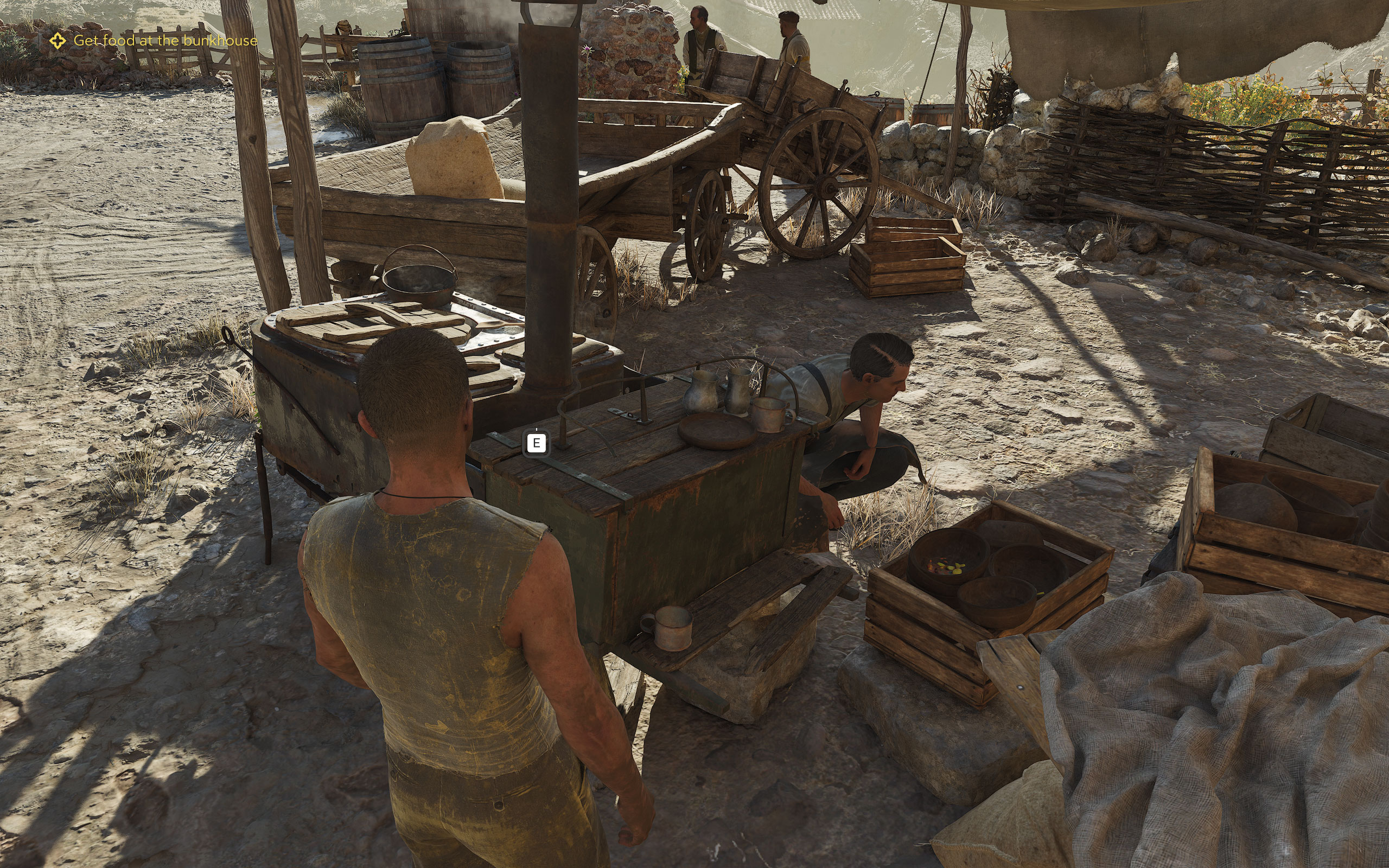
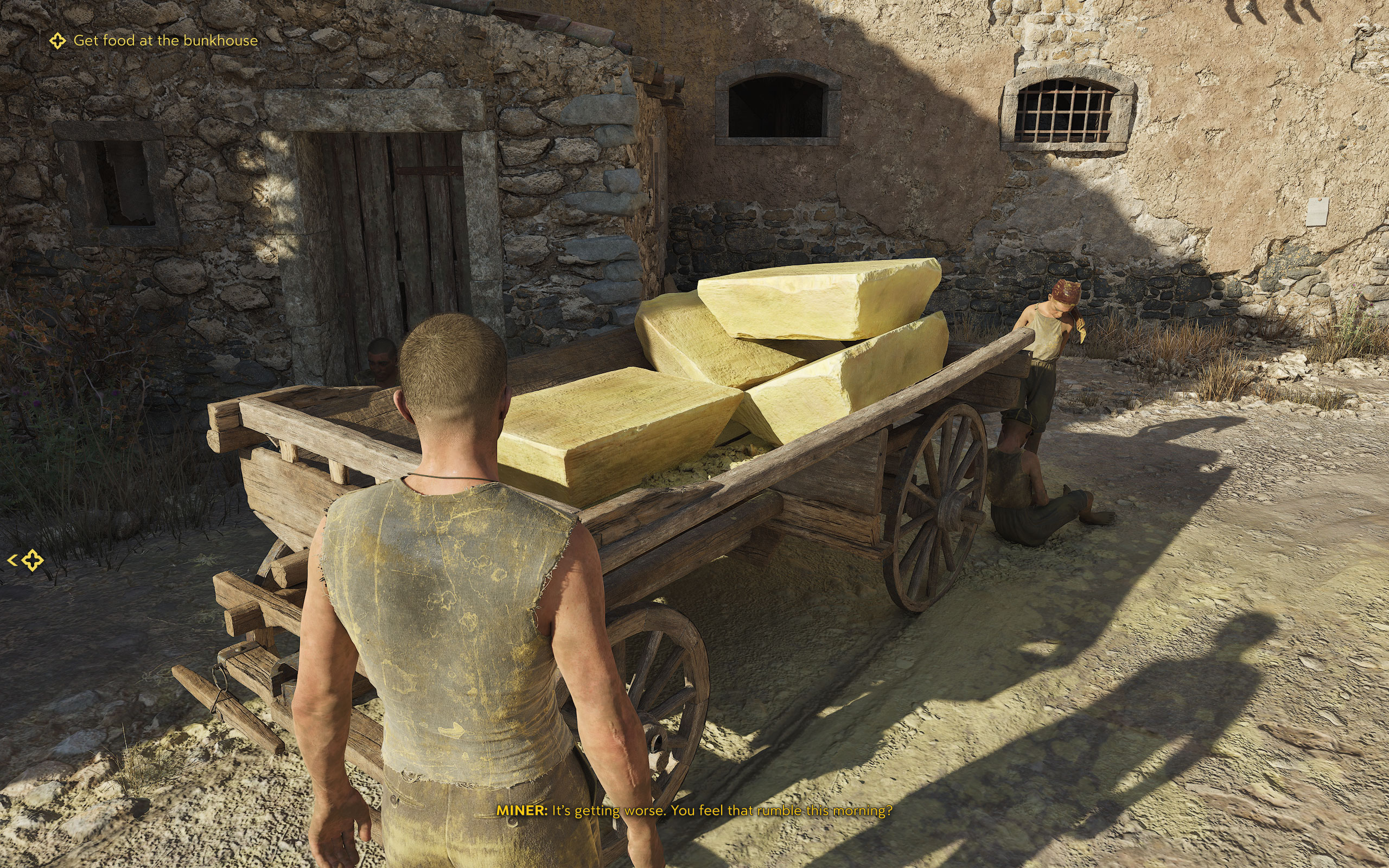
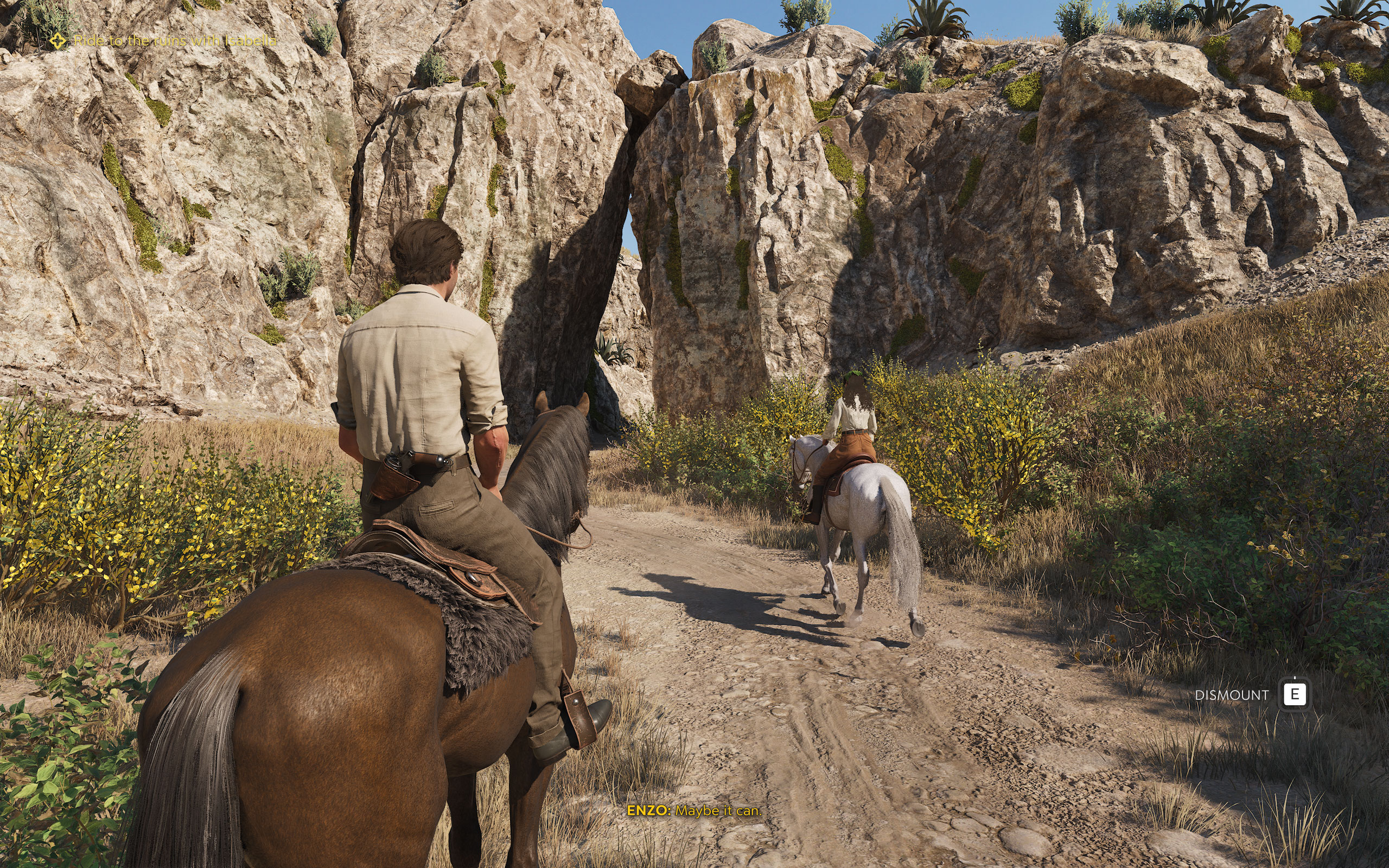
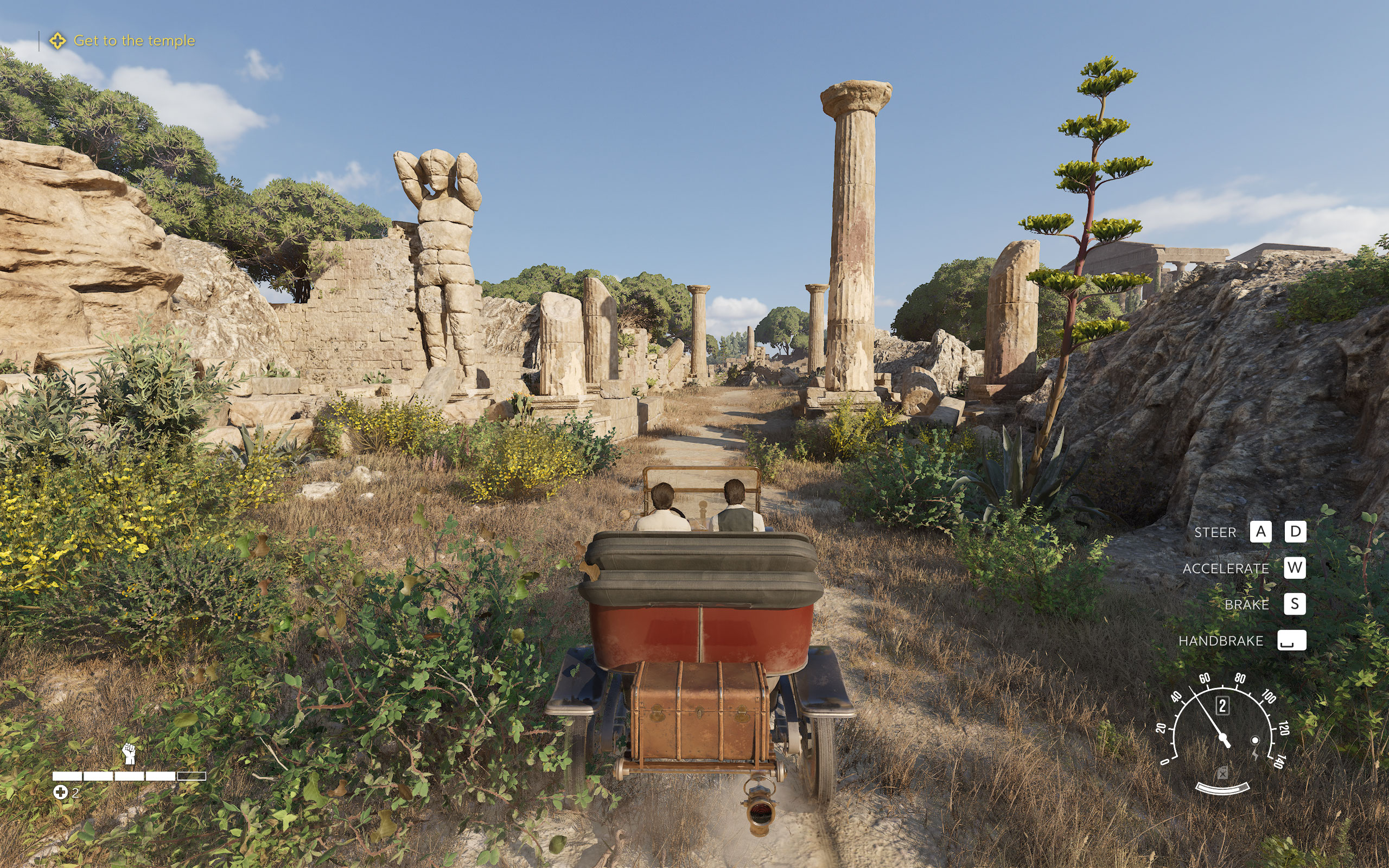
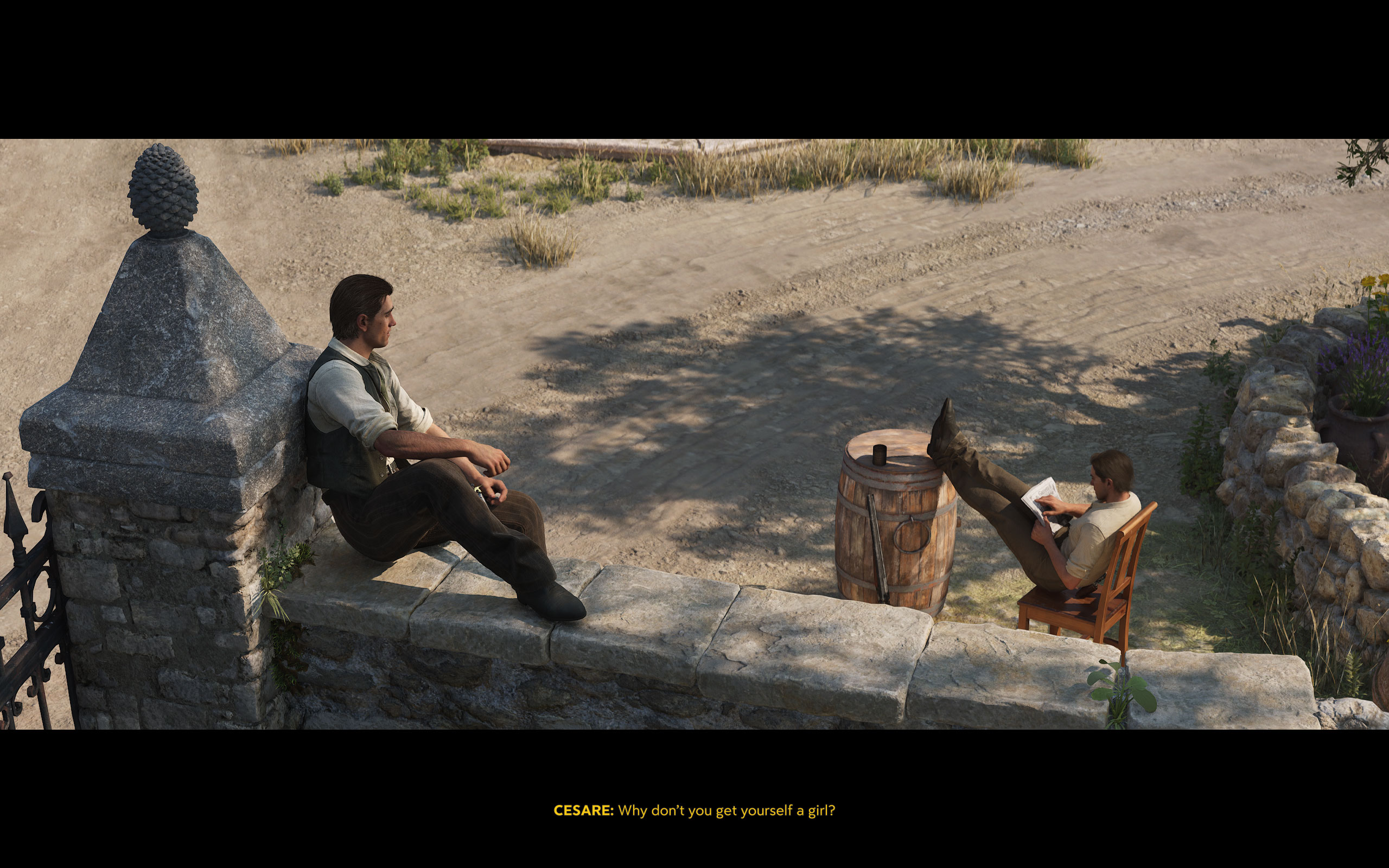
Graphics Settings
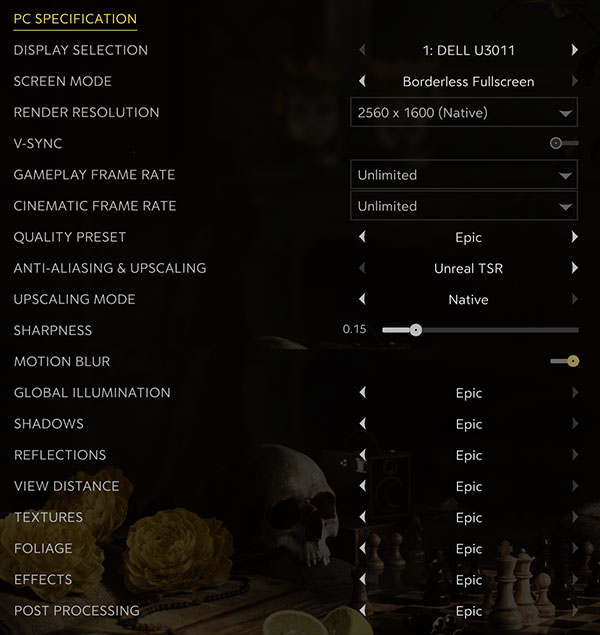
- The Window mode options are "windowed" and "borderless," there is no dedicated fullscreen
- The "Render Resolution" dropdown is a bit misleading, it reports the resolution, relative to your desktop resolution and shows a percentage, that looks a bit like you're doing some sort of upscaling. Picking a render resolution here, and setting "Upscaling Mode: Native" further down, will render at the picked resolution, without upscaling
- V-Sync can be disabled completely
- The FPS cap can be set between 30 and 144 FPS, and "unlimited"
- The framerate for cutscenes can be set to 30 FPS, 60 FPS and "unlimited"
- You can choose from the following quality presets: "Epic," "High," "Medium" and "Low." For some reason changing these also changes the upscaling mode accordingly, which can be confusing, because some FPS gains will come from the changed details, and some will come from the lower render resolution
- Anti-aliasing and upscaling has the following options: "Unreal TSR," "NVIDIA DLSS," "AMD FSR" and "Intel XeSS." Note the lack of classic TAA, but TSR is close enough
- The "Upscaling Mode" has the usual options, native, quality, performance, balanced etc. DLAA and native FSR is supported
- Sharpness defaults to 0.15 and can be adjusted between 0 and 1
- Motion blur can be disabled, but it seems to me that this only works for gameplay, cutscenes always have motion blur
- In addition to that, there's a good amount of additional options to fine-tune the performance.
Our Patreon Silver Supporters can read articles in single-page format.
Nov 29th, 2026 07:58 CST
change timezone
Latest GPU Drivers
New Forum Posts
- What are you playing? (26262)
- -18C on GPU by moving it to the front of the case. (37)
- Can i play GTA 6 now? (Joke) (16)
- Last game you purchased? (1424)
- Windows 11 General Discussion (7752)
- Asus XG27AQWMG-R none of the oled care features work except for the proximity sensor but nonexistent grey banding to my eyes. (0)
- purchased Tesla V100 PCIE 32GB card, came flashed with SXM Vbios, Need help flashing back to PCIE VBIOS (5)
- Which new games will you be buying? (370)
- What's your main Black Friday / Cyber Monday purchase? (52)
- AI generated images... (240)
Popular Reviews
- Upcoming Hardware Launches 2027 (Updated Nov 2026)
- Moaiplay Ora Pro G1 850 Review
- Montech CyberFlow ARGB 360 Review
- AMD Ryzen 7 9800X3D Review - The Best Gaming Processor
- ORICO Obook15 AI Review
- AMD Zen 6 Technical Deep Dive
- VZMORE AX9 Max Review
- Acemagic Retro X3 Review
- Phantom Blade Zero Performance Benchmark Review - 35 GPUs Tested
- Microsoft Surface Laptop Ultra Review - The Next-gen Arm Laptop
TPU on YouTube
Controversial News Posts
- Jensen Huang Reinstated as CEO of NVIDIA (632)
- NVIDIA Co-Founder and CEO Jensen Huang Officially Resigns (492)
- Report: Jensen Huang Eyes NVIDIA Comeback (281)
- Open Letter Asking NVIDIA to Reinstate Jensen Huang Passes 115,000 Signatures (184)
- OpenAI CEO Argues Home PCs Waste the World's Limited DRAM Supply (154)
- NVIDIA Launches Investigation Into Jensen Huang's Relationship With Suspected Chinese Spy (136)
- Intel Razor Lake Gets a 12 P-Core bLLC Chip With No E-Cores, Per Leak (94)
- NVIDIA GeForce RTX 50-Series Scheduled for up to $500 Price Hike This Week (89)