 12
MINISFORUM M1 Pro Review
(12 Comments) »Introduction

The MINISFORUM M1 Pro is a compact desktop PC built to deliver full desktop performance in a small, quiet form factor. It's designed for users who want a capable workstation without the classic tower footprint, or a mess of cables. Despite its size, the M1 Pro performs like a full desktop, handling work, creative, and entertainment tasks smoothly. In our testing, it ranks beside the GEEKOM A9 Max as one of the most capable Mini-PCs for its class available right now, though the M1 Pro's connectivity options give it a clear edge in flexibility and expandability.

At the center of our M1 Pro is Intel's Core Ultra 9 285H processor, part of Intel's latest generation that uses a tile-based design to split compute, graphics, and low-power functions into separate sections. This architecture balances speed and efficiency by intelligently distributing workloads across the different sections of the chip. The result is steady performance across mixed workloads like creative software and light gaming, without running into thermal slowdowns. The integrated Arc 140T graphics also deliver a big leap from Intel's older Iris Xe lineup (a GPU we've seen in other recently reviewed Mini-PCs), adding modern display support, better media handling, and enough power for gaming or creative apps. The built-in NPU (Neural Processing Unit) takes care of light AI tasks, so the CPU and GPU can focus on the heavy lifting.
The M1 Pro is available in two configurations, giving buyers some flexibility depending on their needs. The higher-end M1 Pro-285H (the model used for this review) runs on Intel's Core Ultra 9 285H, a 16-core, 16-thread Arrow Lake processor that boosts up to 5.4 GHz. This model sells for about $1,259 with 32 GB of DDR5 memory and a 1 TB SSD, or roughly $1,000 for the barebones version. The more affordable M1 Pro-125H uses Intel's Core Ultra 5 125H, a 14-core, 18-thread Meteor Lake chip with a maximum turbo of 4.5 GHz, priced around $780 fully equipped, or $550 barebones. Both configurations include the same connectivity, dual USB4 ports, OCuLink support, and overall design. The main difference comes down to how much CPU performance you want for heavier workloads like rendering, video editing, or virtualization.
Around that platform, the M1 Pro uses standard DDR5 SODIMM memory with support for up to 128 GB, which makes upgrading easy and affordable. Storage runs on PCIe 4.0 with two M.2 slots, so adding a second drive for extra capacity or project separation is easy. Connectivity is wide-ranging for its size, including USB4 for high-speed devices and docks, a 2.5 GbE network port, HDMI, and DisplayPort outputs for multi-display setups, plus Wi-Fi 7 and Bluetooth 5.4 for wireless gear. It's a complete platform that works well right out of the box and avoids many of the compromises seen in smaller systems.
Ultimately, the M1 Pro is built to adapt to almost any setup, but what truly sets it apart is its OCuLink port; a feature rarely found on mini PCs of this class. This high-speed PCIe Gen 4 x4 connection allows a direct link to an external GPU enclosure, letting users add desktop-class graphics power later without replacing the system. That's a real advantage for creators and professionals who want the flexibility to add dedicated graphics later on.
Like always, we'll take a look inside, assess the build quality and connectivity, and then move on to benchmarks to find out how well the MINISFORUM M1 Pro holds up under a range of different workloads.
| Specifications | |
|---|---|
| CPU | M1 Pro-285H: Intel Core Ultra 9 285H, 16C/16T, up to 5.40 GHz M1 Pro-125H: Intel Core Ultra 5 Processor 125H, 14C/18T, up to 4.5Ghz |
| Video Engine / Graphics | Integrated Intel Arc 140T Graphics (AV1/HEVC/H.264 encode/decode) |
| Memory | Dual-channel DDR5 SODIMM, up to 128 GB (official support to 6400 MT; most units ship with 5600 MT) |
| Audio | 3.5 mm combo audio jack (headphone/mic) |
| Storage | 2x M.2 2280 PCIe Gen 4 x4 NVMe slots, up to 4 TB each; RAID0/RAID1 supported |
| I/O Ports | 2x USB 3.2 Gen 2 Type-A 1x USB 2.0 Type-A 2x USB4 Type-C (40 Gbps, DP Alt Mode, PD) 1x HDMI 2.1 TMDS 1x DisplayPort 1.4 1x 3.5 mm combo audio jack 1x 2.5GbE LAN (RJ45) 1x OCuLink (external GPU support) 1x DC-in 1x Power button 1x Reset hole |
| Ethernet | Intel i226-V 10/100/1000/2500 Mb/s RJ45 |
| Wireless | Wi-Fi 7, Bluetooth 5.4 |
| Cooling System | Phase-change thermal interface, dual pure-copper heat pipes, dual large-diameter fans |
| Kensington Lock | Not specified by vendor |
| Power Adapter | 19 V, 6.32 A (120 W) AC adapter |
| Operating System | Windows 11 Pro |
| Additional Features | VESA mount support, USB4 multi-display support, RAID 0/1 |
| Pricing | M1 Pro (Core Ultra 9 285H, 32 GB RAM/1 TB SSD): $1,250 USD M1 Pro (Core Ultra 7 125H, 32 GB RAM/1 TB SSD): $770 USD * Prices listed are those at the time of this review. |
Packaging and Contents
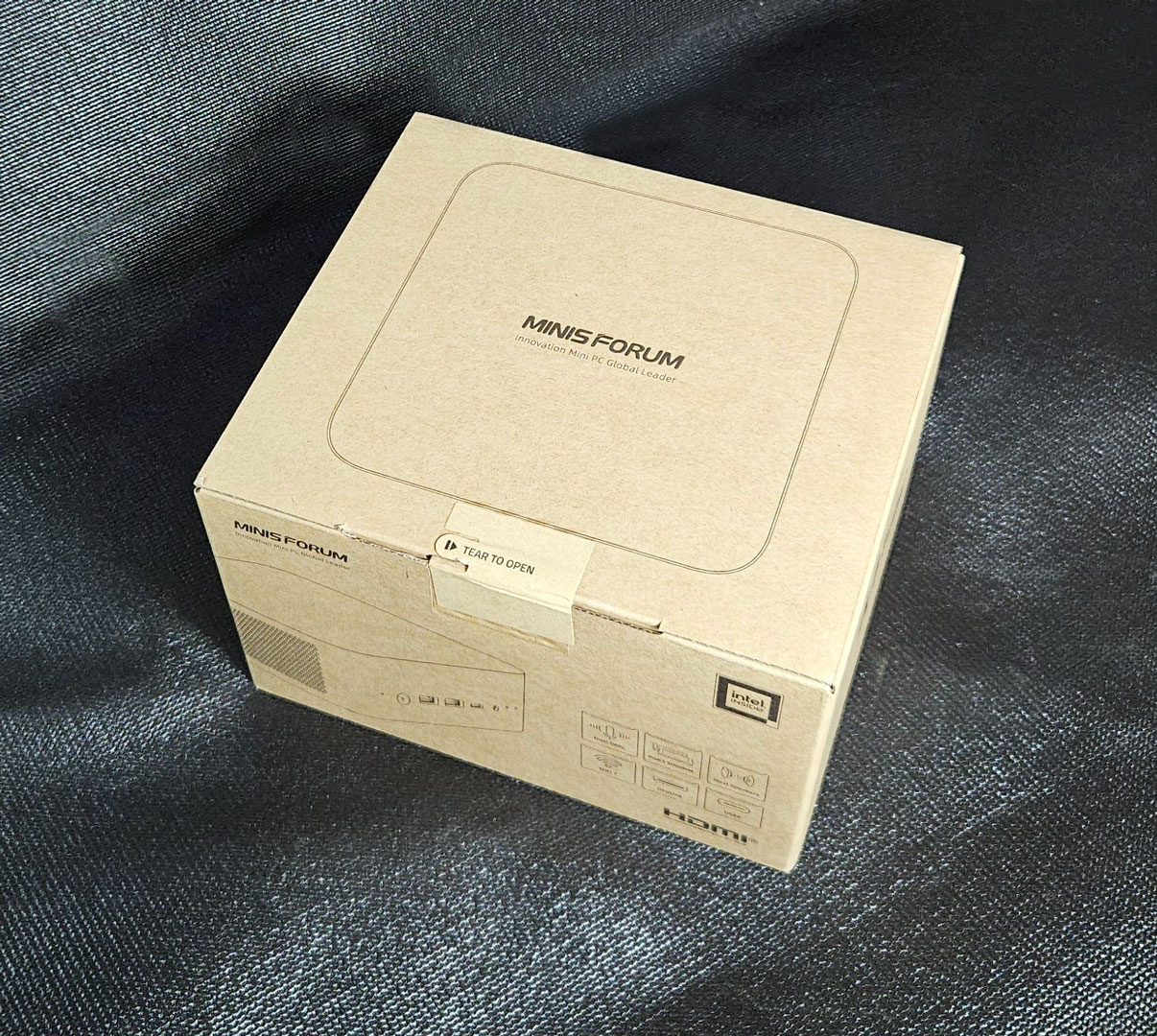
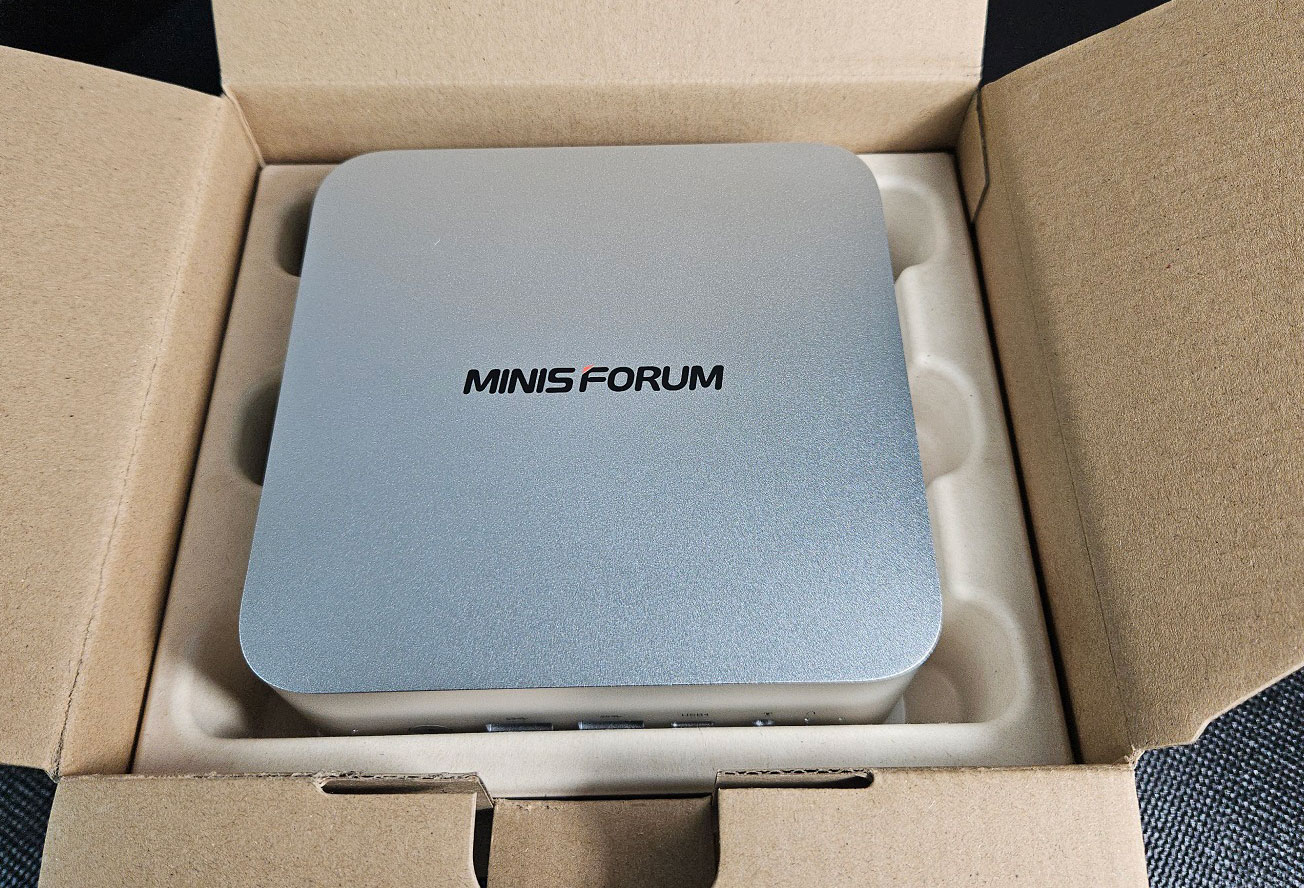
The M1 Pro ships in a plain brown cardboard box with a simple line drawing of the Mini-PC and a list of key specs printed along the side. While minimal in presentation, the packaging feels solid and functional. Opening the lid reveals the unit nicely fitted into a molded cardboard insert that holds it securely in place during transport. The PC itself comes wrapped in a protective plastic film to prevent scratches and scuffs.
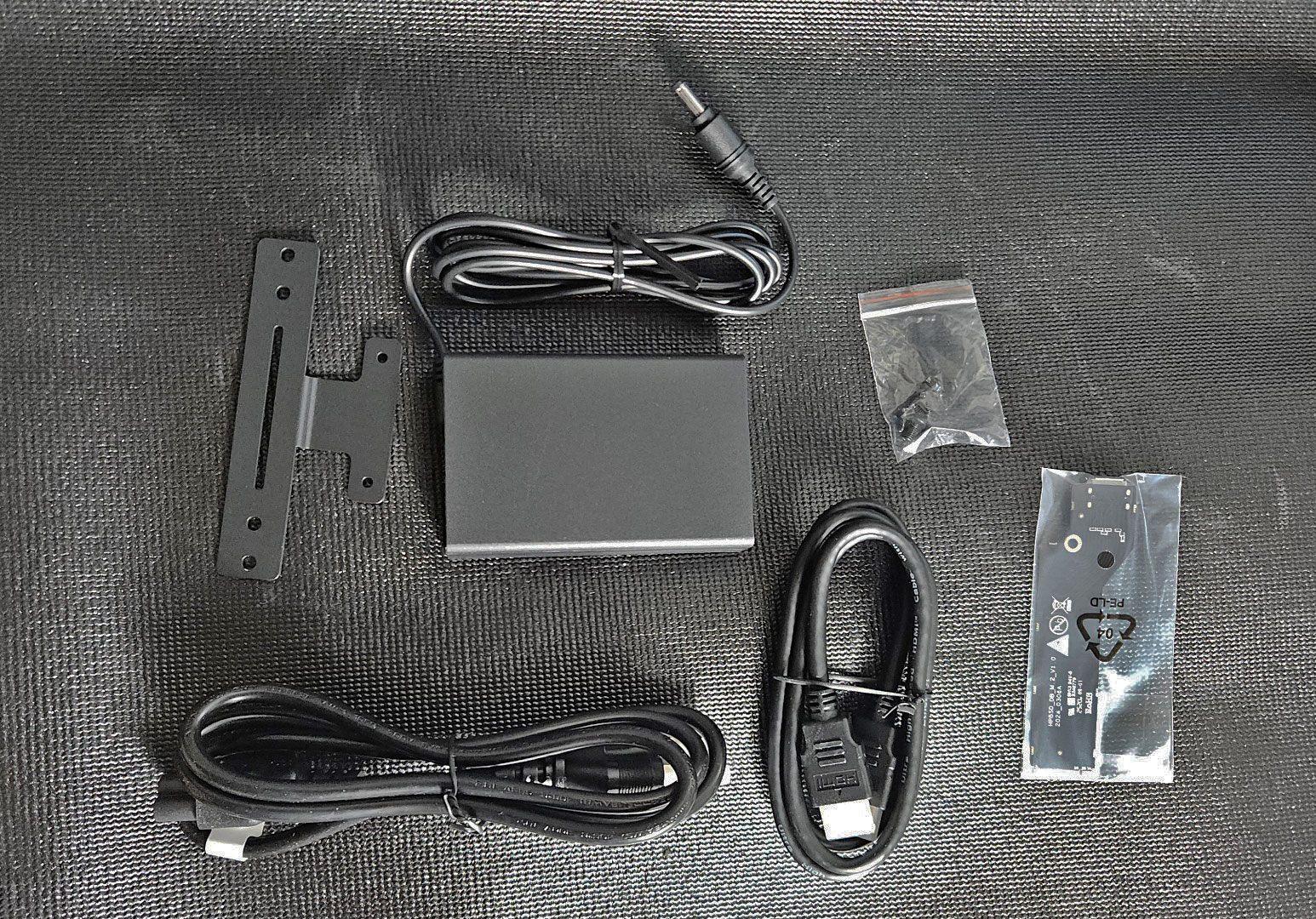
Below the main compartment are the accessories, neatly organized in separate pouches. Inside our box was a 19 V power adapter with AC cord, a full-length HDMI cable, a VESA mounting bracket with screws, a small bag of additional mounting hardware, and an extra thermal pad and bracket for a secondary SSD. Everything is clearly labeled and easy to sort. The packaging may not have the fanciness of other Mini-PCs, but it's environmentally friendly, protective, and easy to unpack.
Design and Build
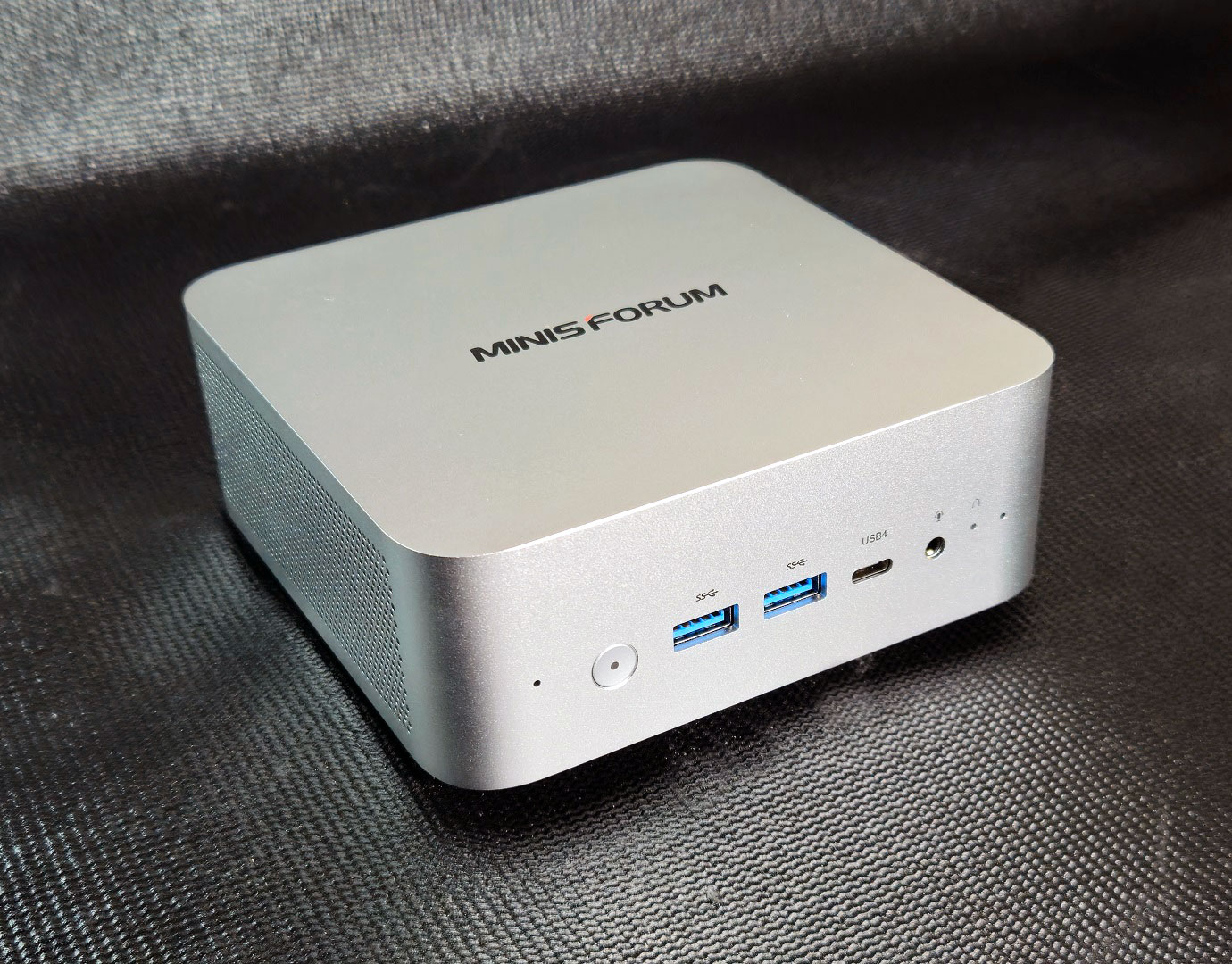

The MINISFORUM M1 Pro has a clean, functional design that fits well in both work and home setups. The aluminium shell feels sturdy and solid. It's not flashy, but is clearly built for durability. The matte silver finish resists fingerprints and looks tidy on a desk, while the darker front and back panels give it some visual contrast. Side vents help move air efficiently without making the system look busy, overall the build feels solid and thoughtfully assembled for the size.


On the front, the M1 Pro includes a power button, two 10 Gbps USB 3.2 Gen 2 Type-A ports, a 40 Gbps USB4 port, and a 3.5 mm headphone jack. Around back, you'll find another 10 Gbps USB 3.2 Gen 2 Type-A, one HDMI port, one DisplayPort, one 2.5 GbE LAN ports, DC-in, and a USB 2.0 port. The layout covers just about everything most users will need for daily work or multi-monitor setups, though spacing can get tight if you use thicker cables or adapters. As we indicated earlier, there is also the OCuLink port, which lets users attach an external GPU enclosure for added graphics performance, something few Mini-PCs of this size offer.
The M1 Pro feels sturdy and well put together, with a design that fits comfortably in both office and home environments. Its metal chassis and compact shape give it a slick, professional look, while the port layout shows that usability was clearly a priority for MINISFORUM.
A Look Inside
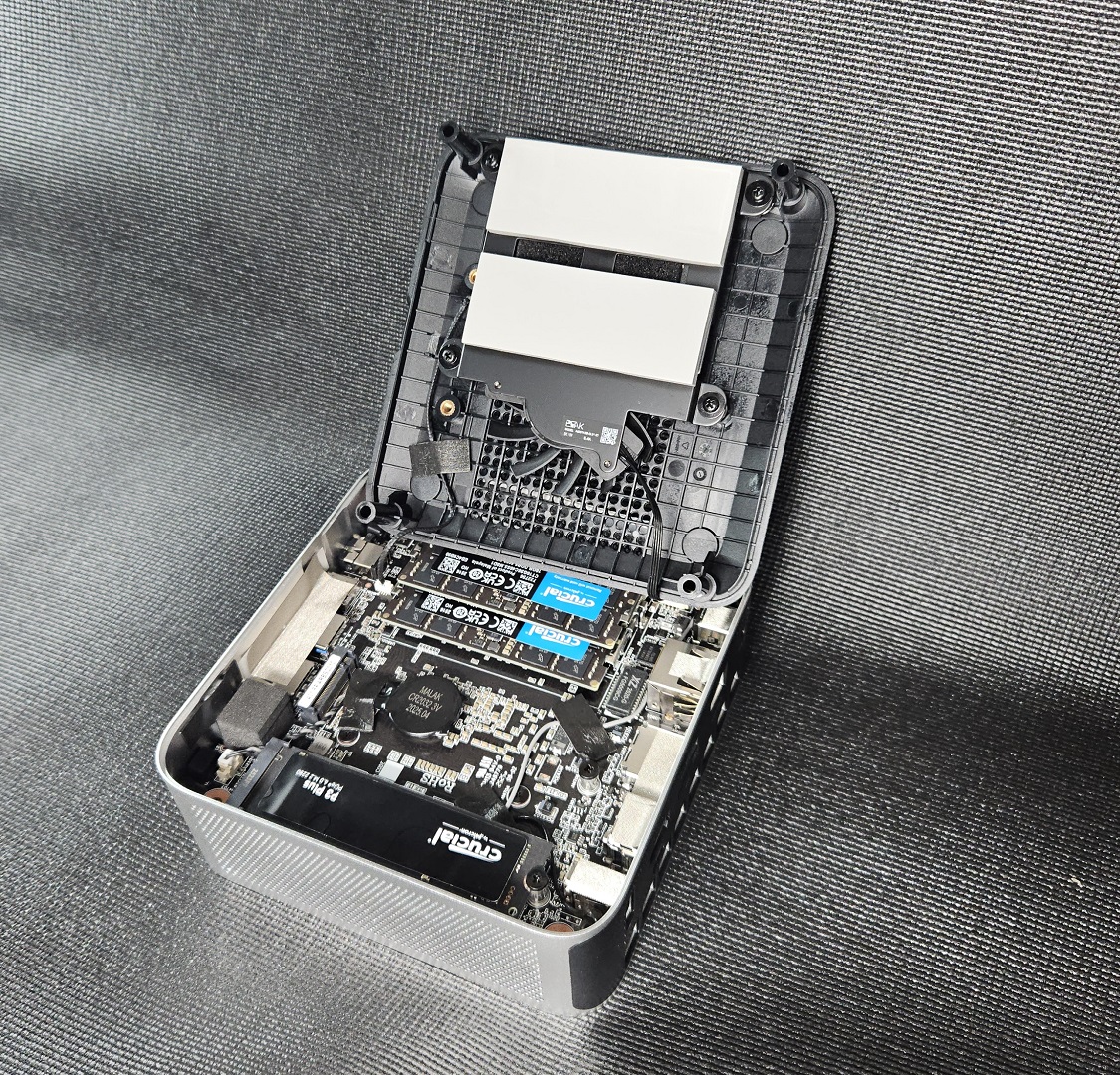
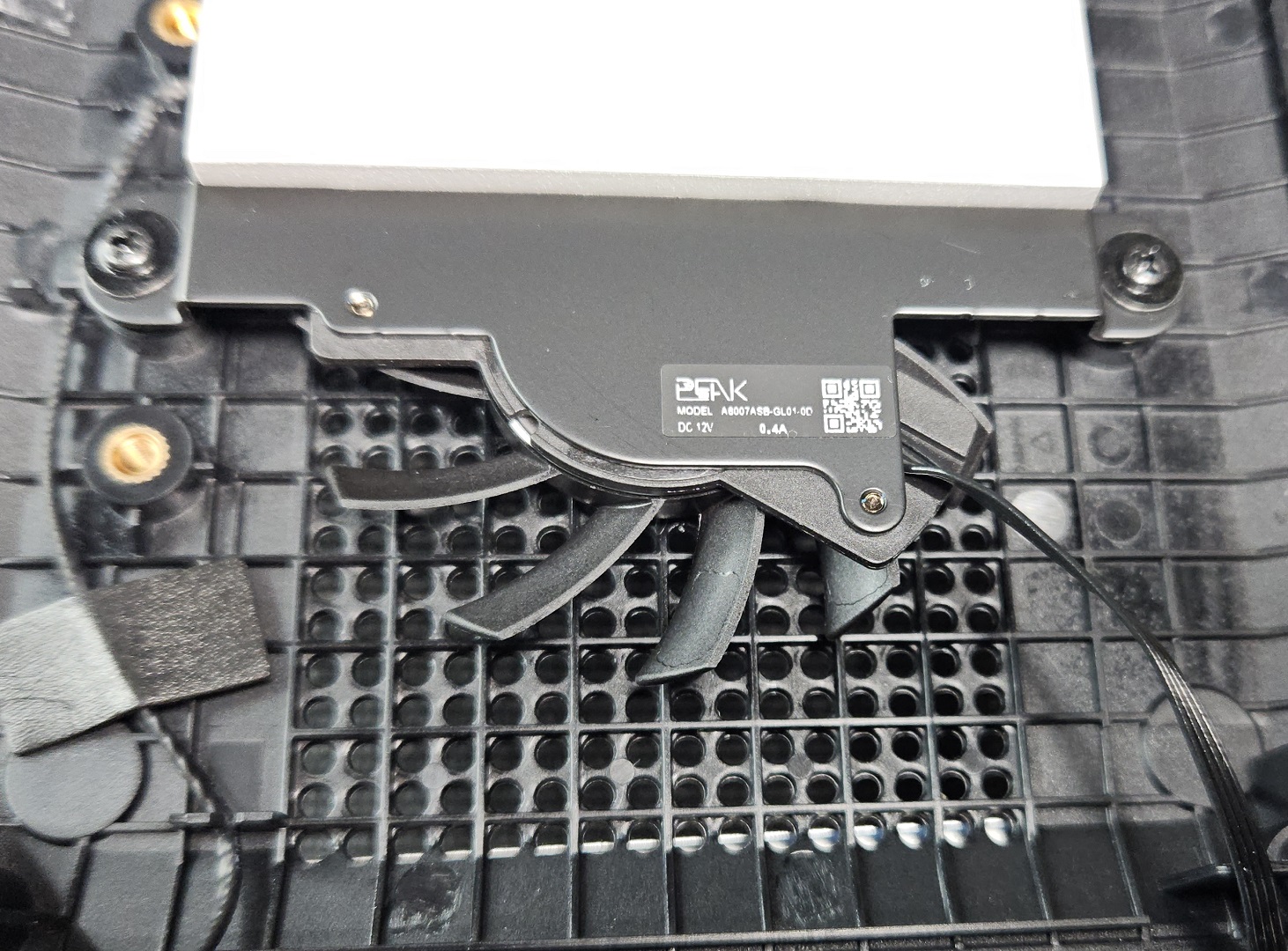
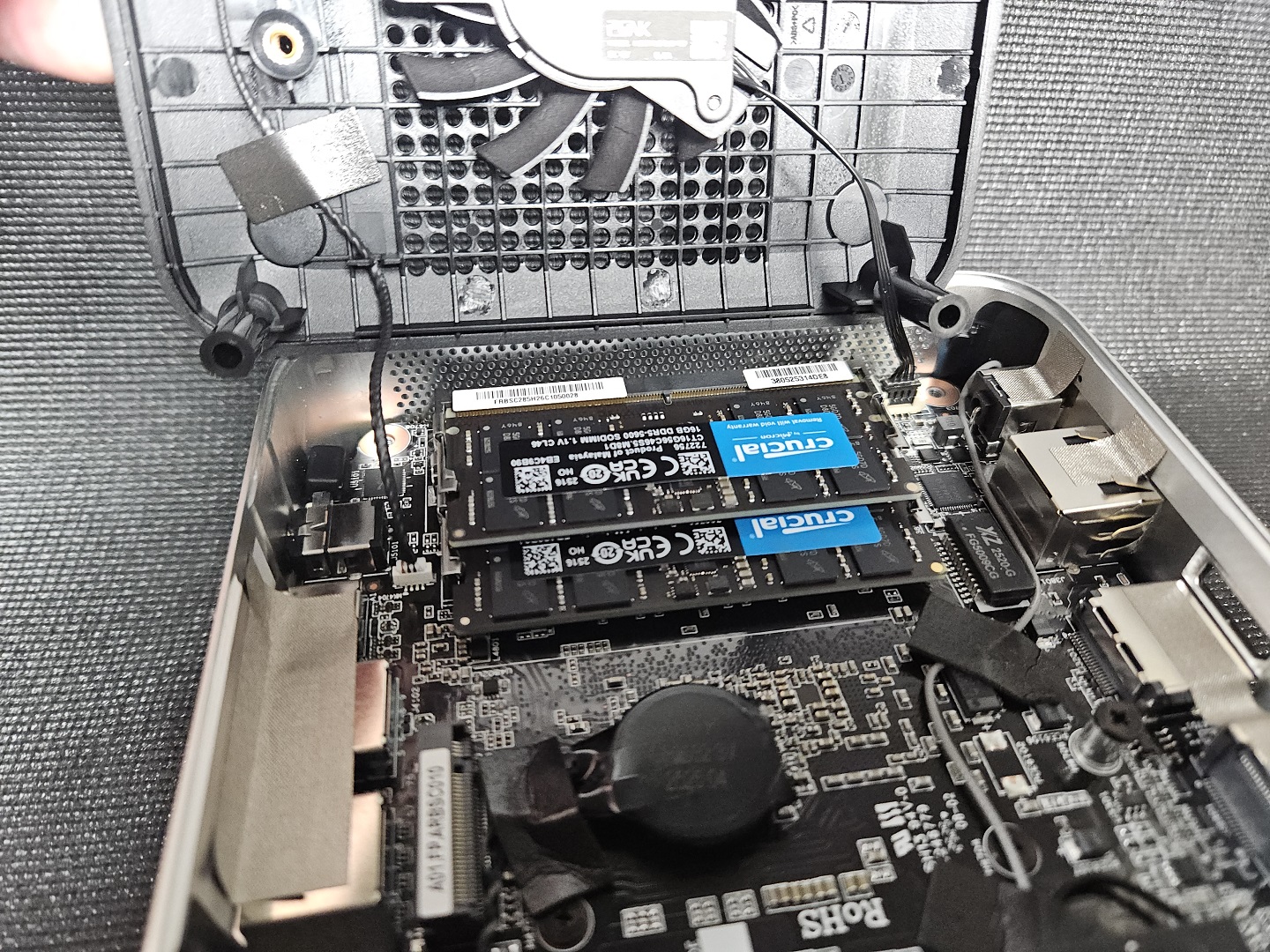
Accessing the M1 Pro is pretty easy. Removing four screws on the underside lets you easily lift the top cover, which is attached to the cooling fan and heat pipes. The fan connects via a short cable, so it's best to support the lid as you open it rather than pulling it away. Inside, the layout is tidy and easy to service.
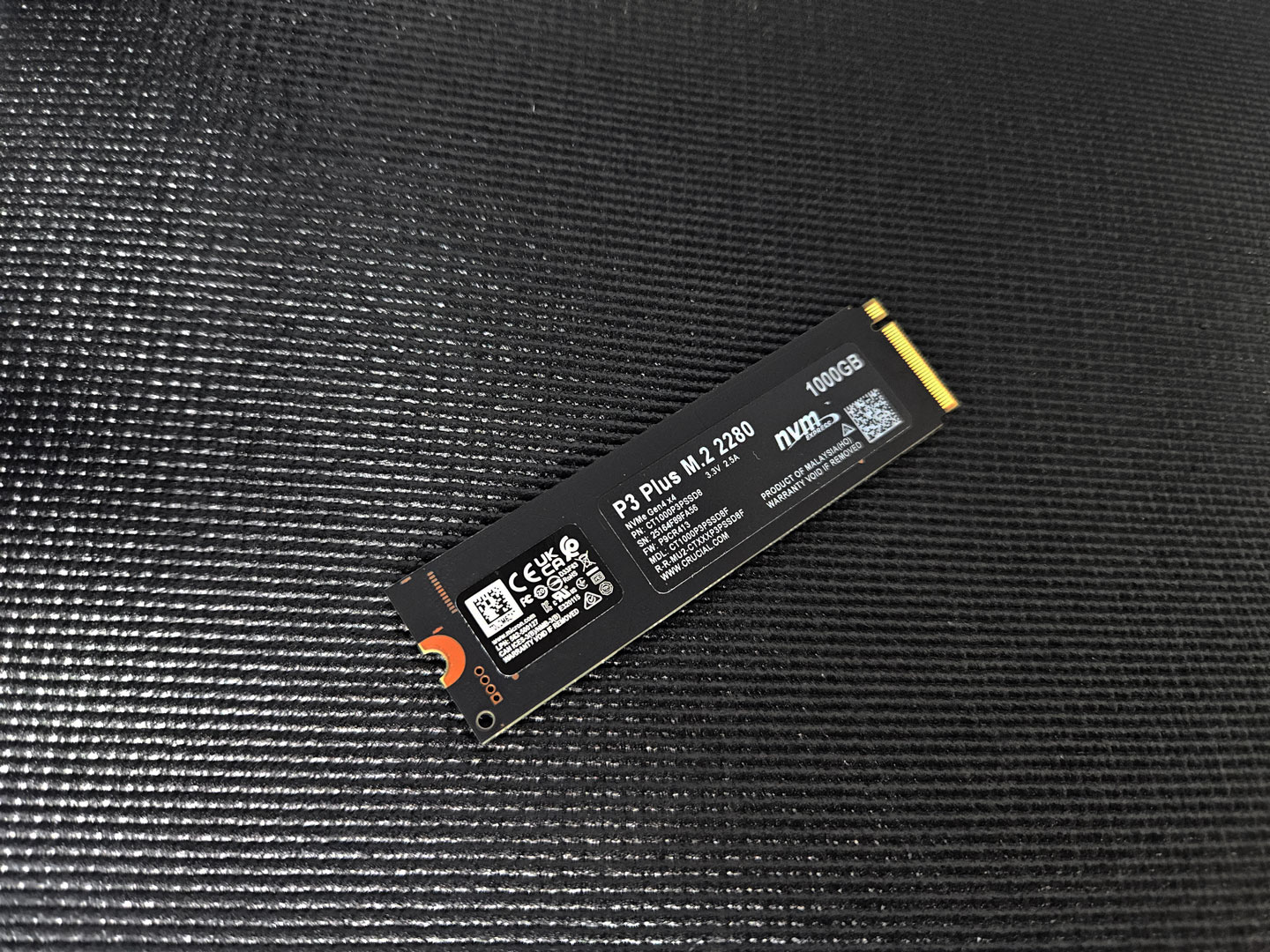
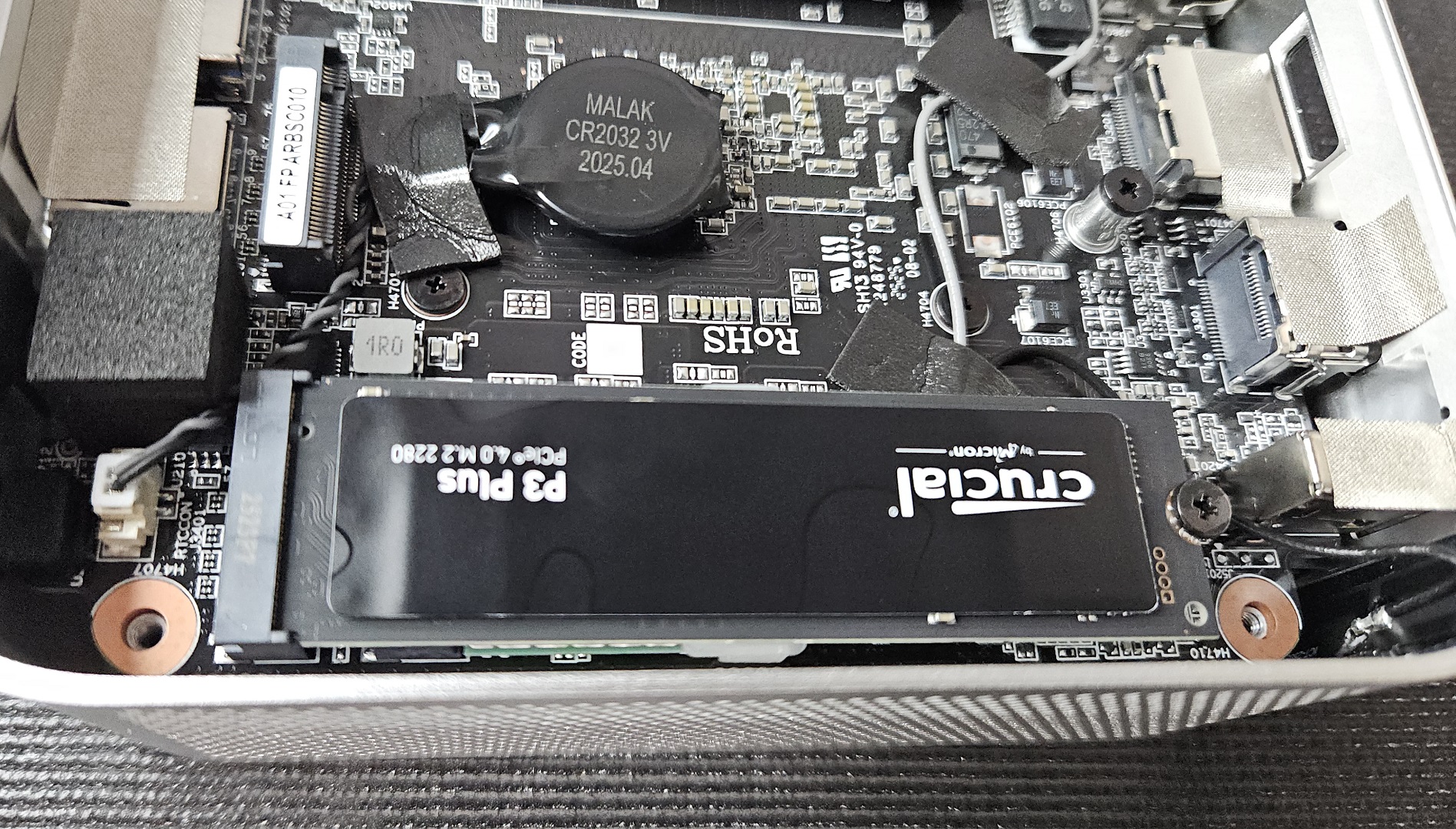
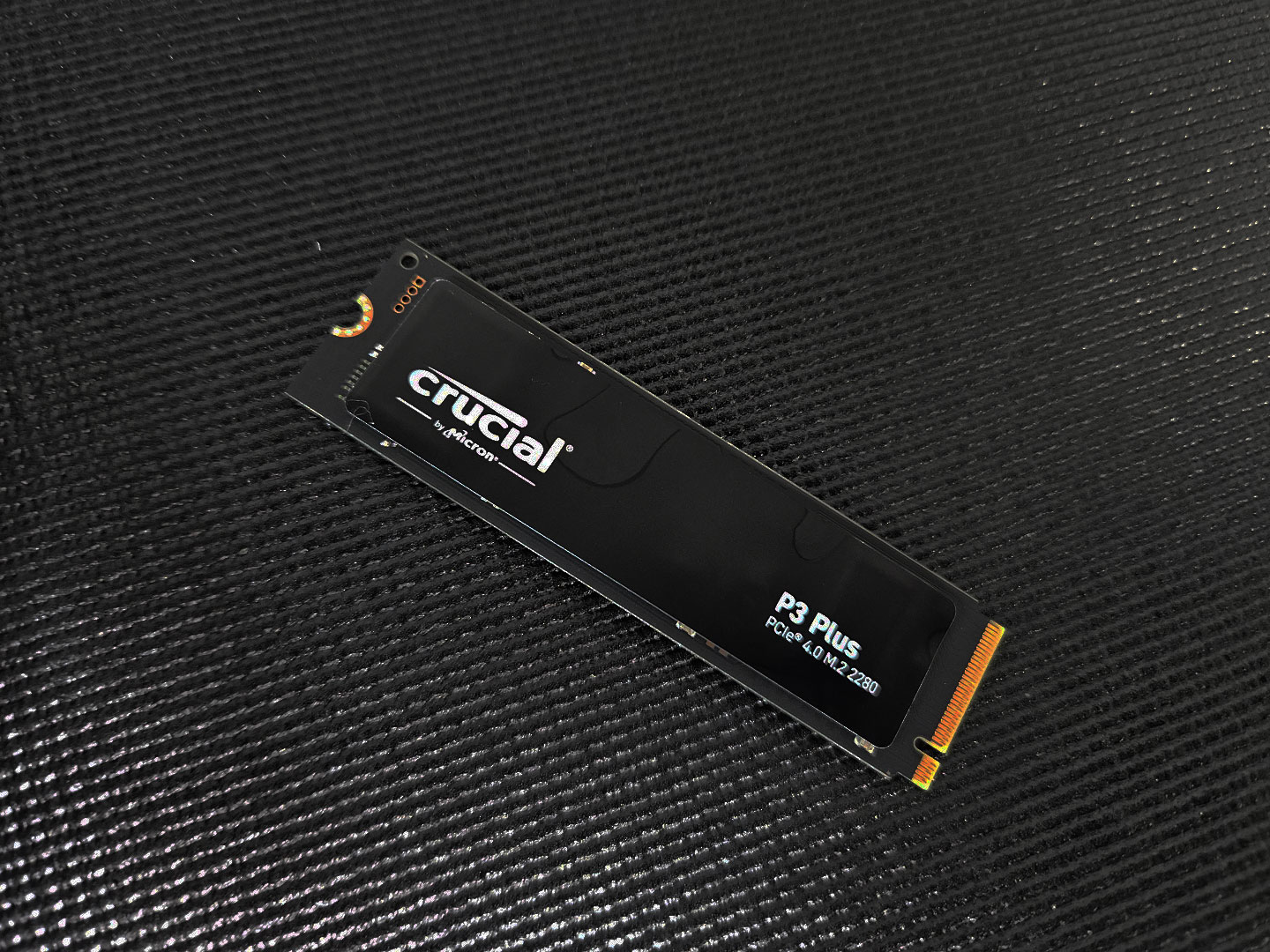
Our configuration included two Crucial DDR5-5600 SODIMM sticks installed in dual channel and a Crucial P3 Plus PCIe 4.0 NVMe SSD in the main M.2 slot. A secondary M.2 slot is available for expansion. Wireless connectivity comes from an Intel AX Wi-Fi module with the antenna leads routed neatly around the chassis edges.
Our Patreon Silver Supporters can read articles in single-page format.
Nov 22nd, 2026 03:23 PST
change timezone
Latest GPU Drivers
New Forum Posts
- UPS what one to get? (27)
- Your PC ATM (36448)
- The TPU UK Clubhouse (27288)
- Zen 3 IF/IMC degradation (244)
- Local LLM General Discussion (696)
- TPU's Nostalgic Hardware Club (22193)
- How to prevent OLED burn damage due to PC freezes or power outtages? (54)
- Honestly, do you care about GTA VI? (242)
- Ryzen or Intel system (17)
- RX 580 2048SP 8GB - SK Hynix - Ardiyes - BIOS Needed (3)
Popular Reviews
- Microsoft Surface Laptop Ultra Review - The Next-gen Arm Laptop
- Corsair RM1200e (Second Generation) Review
- Pulsar Office Tour & First Look at P1 Dual-Sensor Mouse
- Upcoming Hardware Launches 2027 (Updated Nov 2026)
- Ugreen NASync DXP4800 GT Review
- AMD Ryzen 7 9800X3D Review - The Best Gaming Processor
- Biwin Black Opal NV7400 2 TB Review
- AMD Zen 6 Technical Deep Dive
- Phantom Blade Zero Performance Benchmark Review - 35 GPUs Tested
- AMD Ryzen 7 5800X3D 10th Anniversary Review
TPU on YouTube
Controversial News Posts
- NVIDIA Co-Founder and CEO Jensen Huang Officially Resigns (492)
- Report: Jensen Huang Eyes NVIDIA Comeback (262)
- Open Letter Asking NVIDIA to Reinstate Jensen Huang Passes 115,000 Signatures (184)
- OpenAI CEO Argues Home PCs Waste the World's Limited DRAM Supply (152)
- NVIDIA Launches Investigation Into Jensen Huang's Relationship With Suspected Chinese Spy (136)
- Intel "Raptor Lake Next" 16-Core and 20-Core CPUs Surface (130)
- NVIDIA GeForce RTX 50-Series Scheduled for up to $500 Price Hike This Week (89)
- Intel Razor Lake Gets a 12 P-Core bLLC Chip With No E-Cores, Per Leak (86)