 9
NZXT H2 Mini PC Review
(9 Comments) »Introduction

NZXT is known far more for its cases, cooling, and power supplies than for boutique, limited-run prebuilts like this. The H2 Mini-PC tries to change that by combining the company's own 20.7-liter H2 Flow chassis, a Kraken Elite 240 liquid cooler, and an 850 W PSU with true desktop hardware such as a Core Ultra 9 285K or Ryzen 7 9800X3D alongside an RTX 5080. It is essentially a high-end tower configuration condensed into a compact vertical enclosure and sold as a fully validated, ready-to-run system.
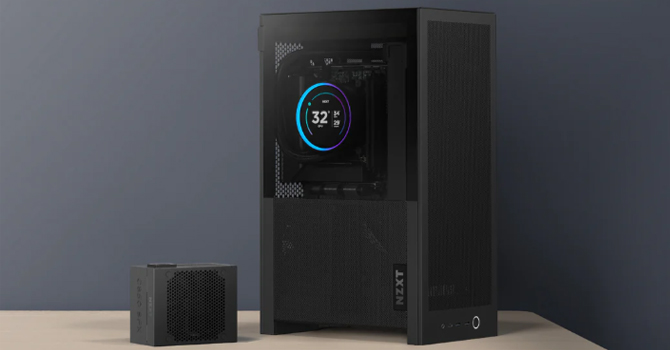
The H2 Mini-PC is offered with two desktop CPU options: Intel's Core Ultra 9-285K or AMD's Ryzen 7 9800X3D. My review unit arrived with the Core Ultra 9-285K, Intel's unlocked desktop flagship. This is a high-frequency, high-core-count part designed to handle both heavy gaming workloads and demanding productivity tasks. If you're building this mostly for gaming, the 9800X3D makes a lot of sense. The 285K leans more into mixed workloads, and it's the better pick if your day looks like gaming plus heavier multitasking or creator work.
Inside, NZXT stuck with standard Mini-ITX hardware, including Gigabyte's Z890I AORUS Ultra motherboard paired with a 240 mm Kraken Elite liquid cooler. The H2 Flow chassis supports up to a 280 mm radiator, so it is fair to ask why NZXT did not opt for the larger option here, especially at this price level. In practice, the 240 mm unit keeps the 285K under control even during sustained workloads, but it is a missed opportunity to use the full cooling capacity. Given that this is NZXT showcasing its own case, it would have been nice to see them fully populate that cooling capacity. For memory, it comes with 32 GB of DDR5. While it can be expanded to up to 128 GB at additional cost by the user, it would have been nice for it to ship with 64 GB. That said, RAM is ridiculously expensive these days, and 32 GB is enough to support modern games alongside background applications or streaming software.
Beyond the CPU, the highlight inside the NZXT H2 is, of course, the NVIDIA GeForce RTX 5080. This is the first system in my comparison pool equipped with a discrete GPU, and the performance jump versus integrated solutions such as the Radeon 780M or 890M will be substantial to say the least. The RTX 5080 has already been covered in depth on TechPowerUp, so there is no need to revisit its architectural details here. What makes it interesting in this context is its placement inside a 20.7-liter enclosure. Housing this class of GPU in a compact vertical chassis brings a different kind of versatility. It allows the H2 to function as a true high-end gaming machine, a serious content creation box, or even a small workstation. The big question is how closely sustained performance tracks what the same GPU would achieve inside a larger mid-tower environment.
I don't get many machines like this in for review, so I went heavy on testing to see if it holds up like a proper desktop. NZXT also says this is a limited-run system rather than a permanent addition to the lineup. This is not something they roll out every day, so if this is a system that checks all your boxes, you'll need to get on it sooner than later.
With this in mind, let's first take a look at its design and build and then head into the benchmarking.
| Specifications | |
|---|---|
| CPU | AMD Ryzen 7 9800X3D, 8C/16T, up to 5.2 GHz, 104 MB L3 Cache or Intel Core Ultra 9-285K |
| Motherboard | Gigabyte Z890I AORUS Ultra |
| Video Engine/Graphics | Gigabyte RTX 5080 |
| Memory | Ships with 32 GB DDR5 |
| Audio | Front: 3.5 mm combo audio jack (headphone/mic) Rear: Separate 3.5 mm mic-in and line-out jacks + optical S/PDIF |
| Storage | 2 TB M.2 NVMe SSD |
| I/O Ports | Front: 2× USB 3.2 Gen 1 Type-A 1× USB 3.2 Gen 2x2 Type-C Rear: 3× USB 3.2 Gen 2 Type-A 2× USB 3.2 Gen 1 Type-A |
| Ethernet | 2.5 Gigabit Ethernet port |
| Wireless | Wi-Fi 7 and Bluetooth 5.4 |
| Cooling System | NZXT Kraken Elite 240 RGB liquid cooling |
| Power Supply | Lian Li SP 850 W |
| Operating System | Windows 11 Home (pre-installed) |
| Case | NZXT H2 Flow (20.7 L volume) |
| Pricing and availability | $3,499 - Limited-time availability (US only) |
| Product page | NZXT H2 Mini PC |
Packaging and Contents
The H2 ships in a standard brown outer box with dense foam inserts holding the chassis in place. There is no elaborate presentation or layered packaging like you see with many ultra-compact mini PCs I've previously reviewed. The system is simply wrapped in protective plastic, and once it is lifted out of the box, it is ready to plug in and power on.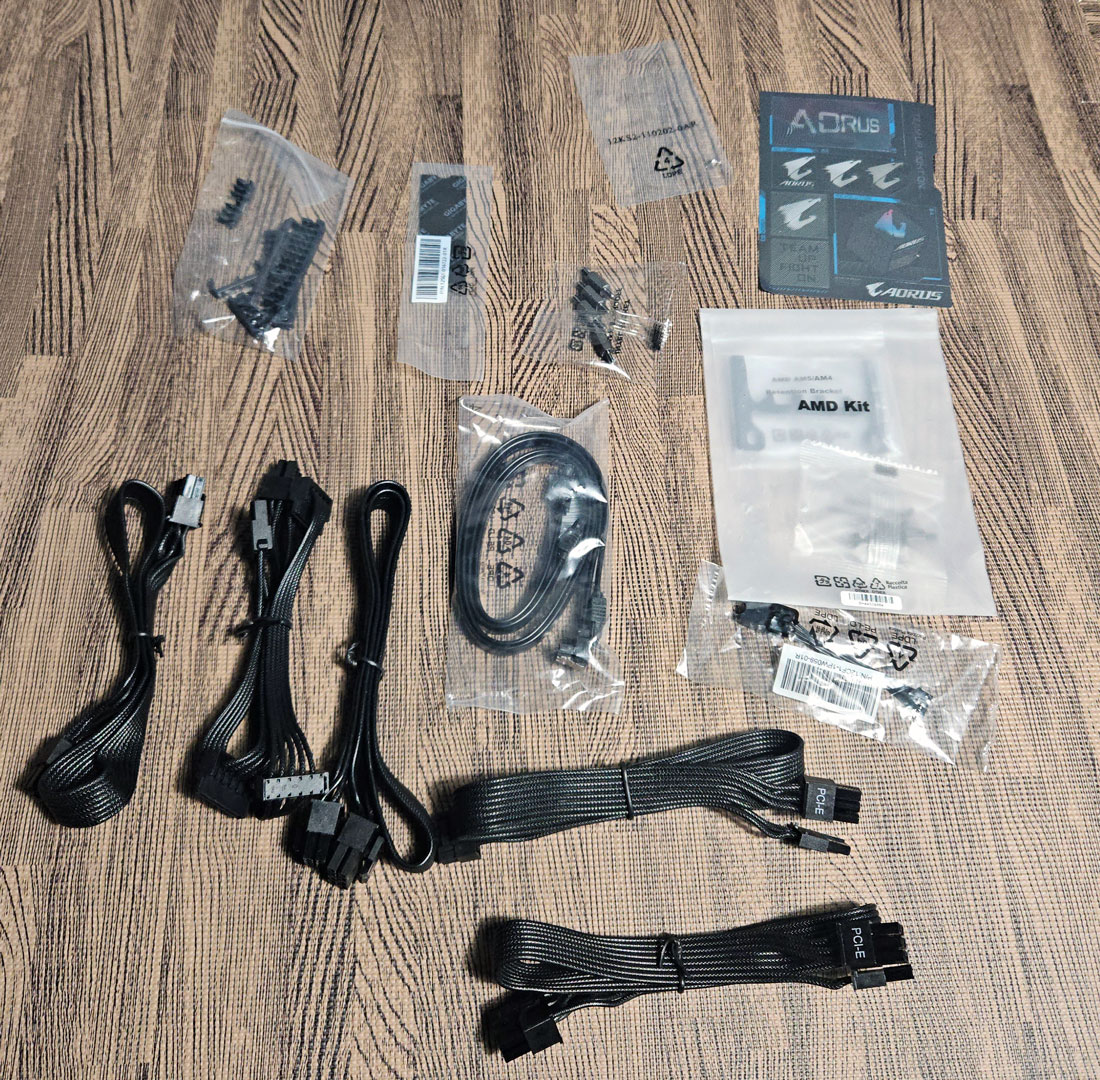
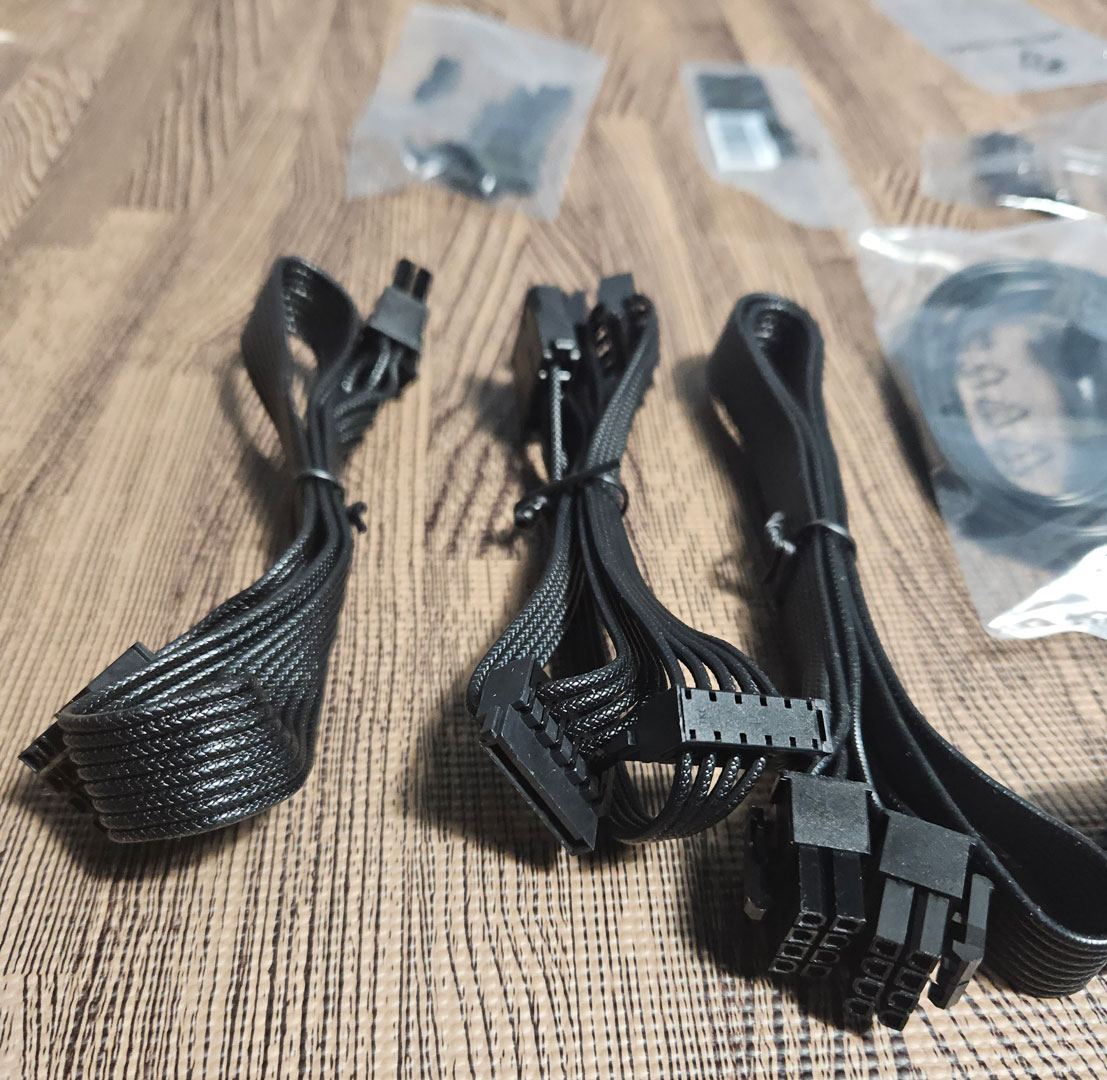
NZXT includes the modular PSU cables for the Lian Li 850 W unit, a PCIe power cable, motherboard accessories from Gigabyte such as SATA cables and mounting hardware, an AMD mounting bracket kit for the cooler (for the Ryzen configuration, not Intel), and the external Wi-Fi antenna.
A Closer Look
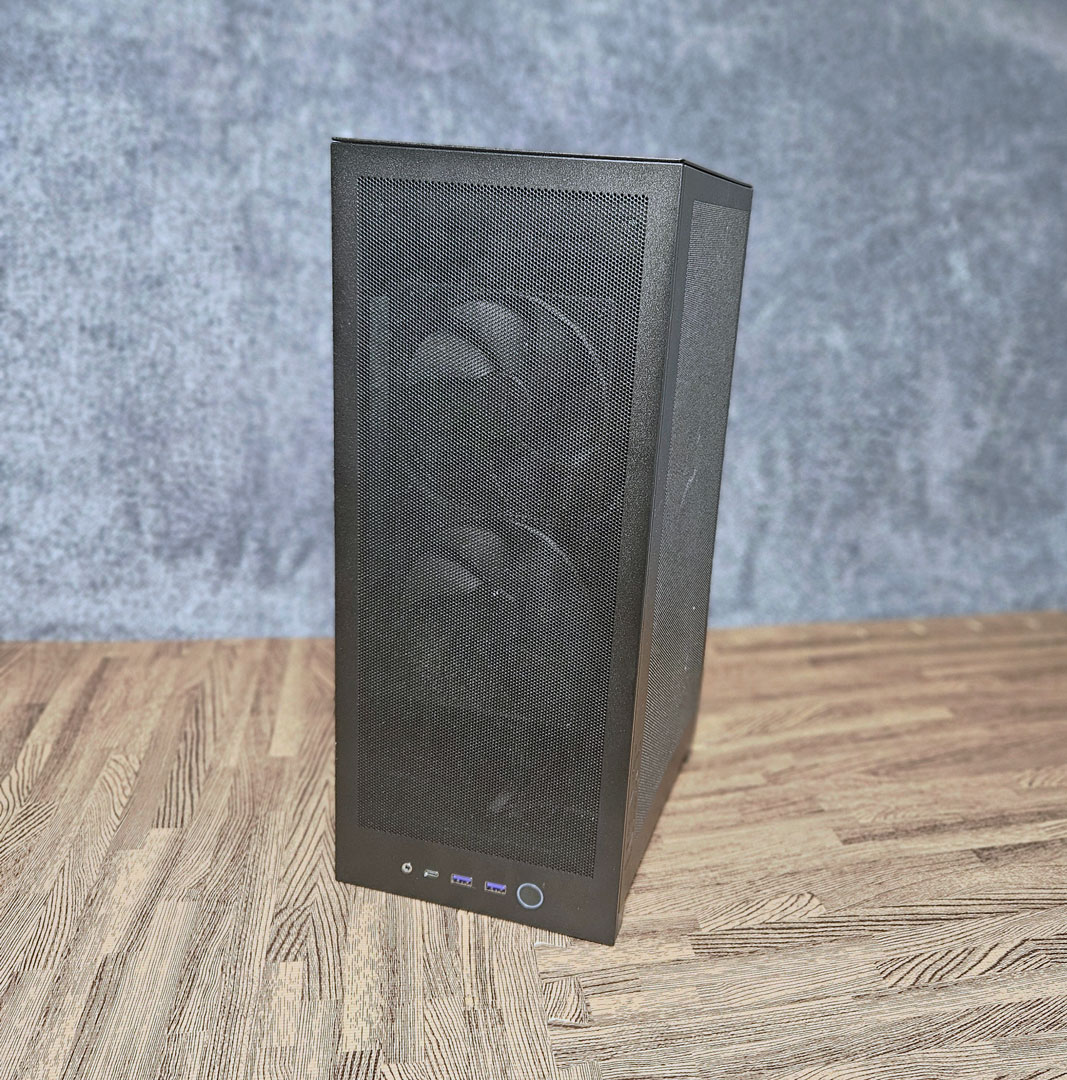

The H2 uses NZXT's 20.7-liter H2 Flow Mini-ITX chassis, with support for a 280 mm radiator and GPUs up to 331 mm. It's compact, but it's still built around standard desktop parts.
The left side is split into two removable sections. The upper half is tempered glass, which gives a clear view of the internals, while the lower half is a ventilated panel. Through the glass, the most visible component is the NZXT Kraken Elite 240 liquid cooler.
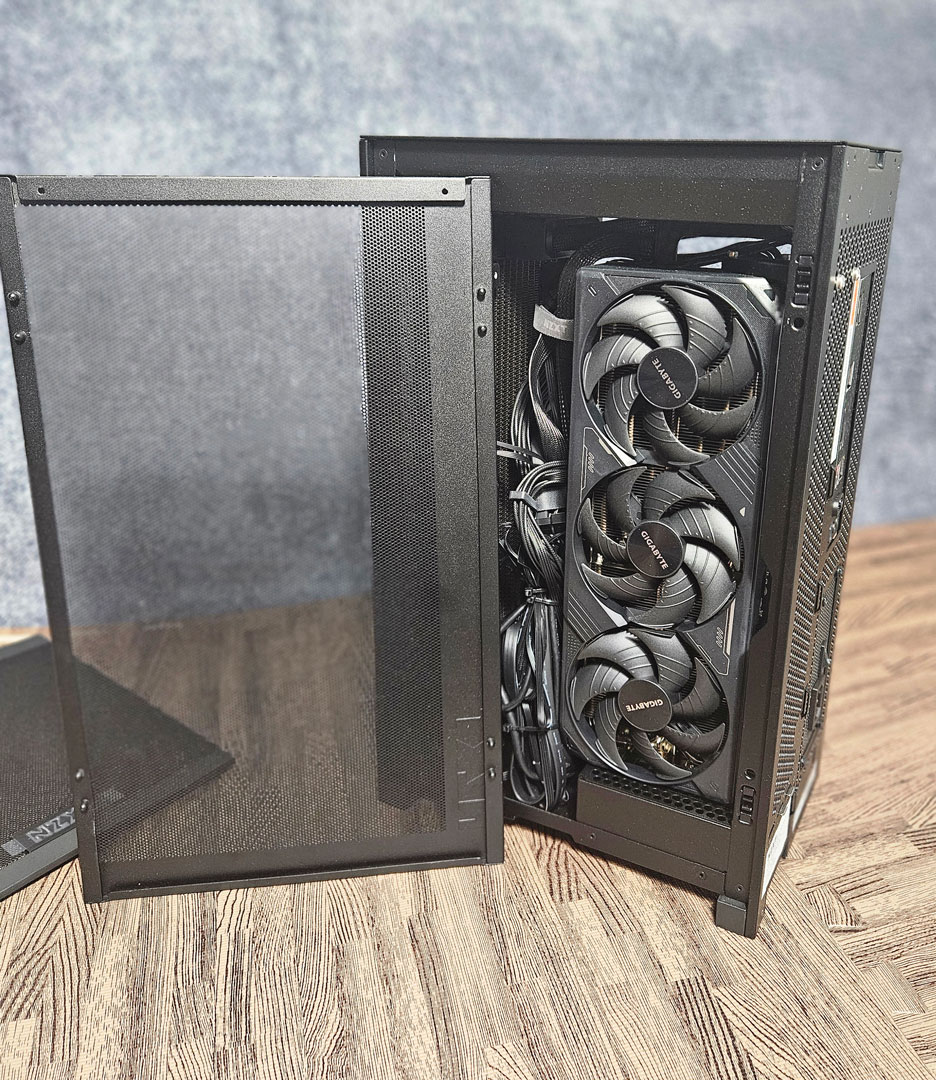
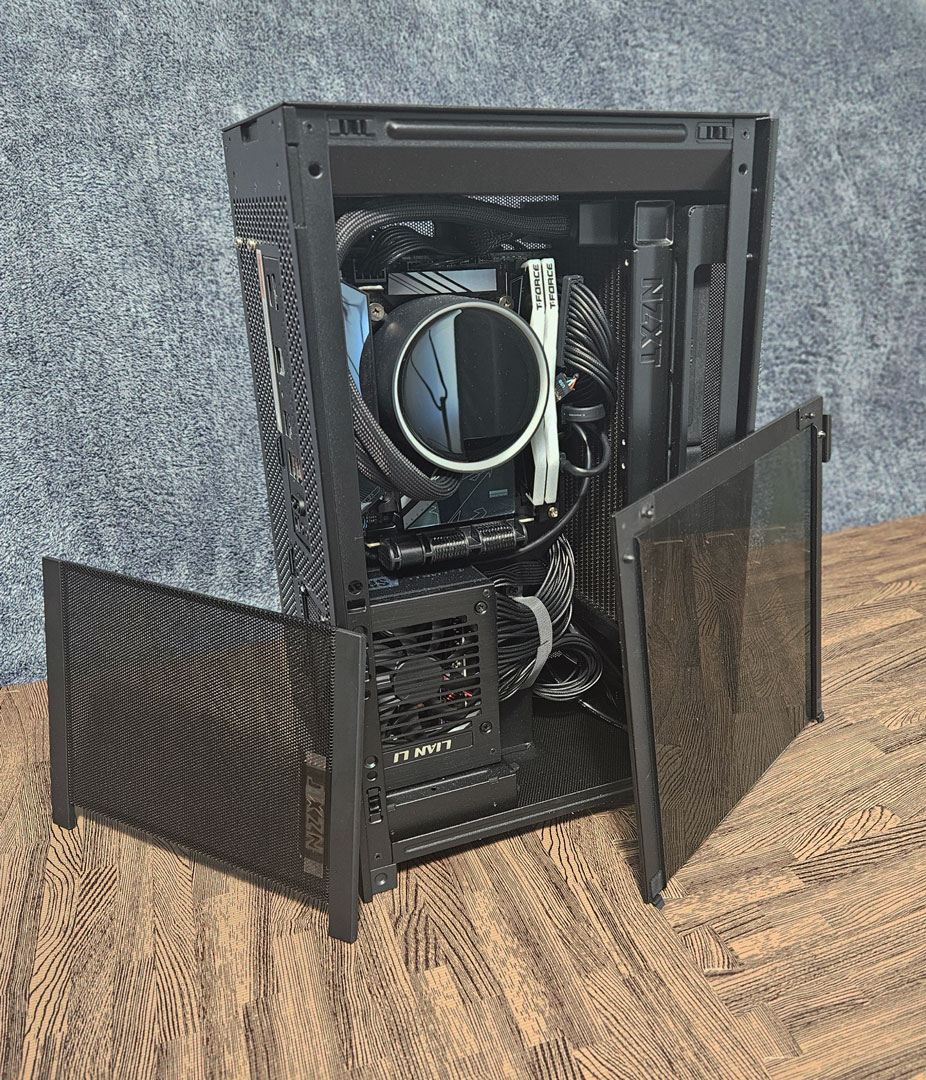
The side panels attach using a kind of hook-and-latch design. A firm pull releases them, and they slide back into place without any need for tools. The glass panel feels secure once mounted. The lower ventilated section comes off the same way, which makes it easier to reach storage and cabling.
Removing the full left panel exposes the Gigabyte RTX 5080, and space inside is tight. There is very little unused volume in a 20.7-liter enclosure, and the GPU sits snugly within the frame, surrounded by neatly routed cables.
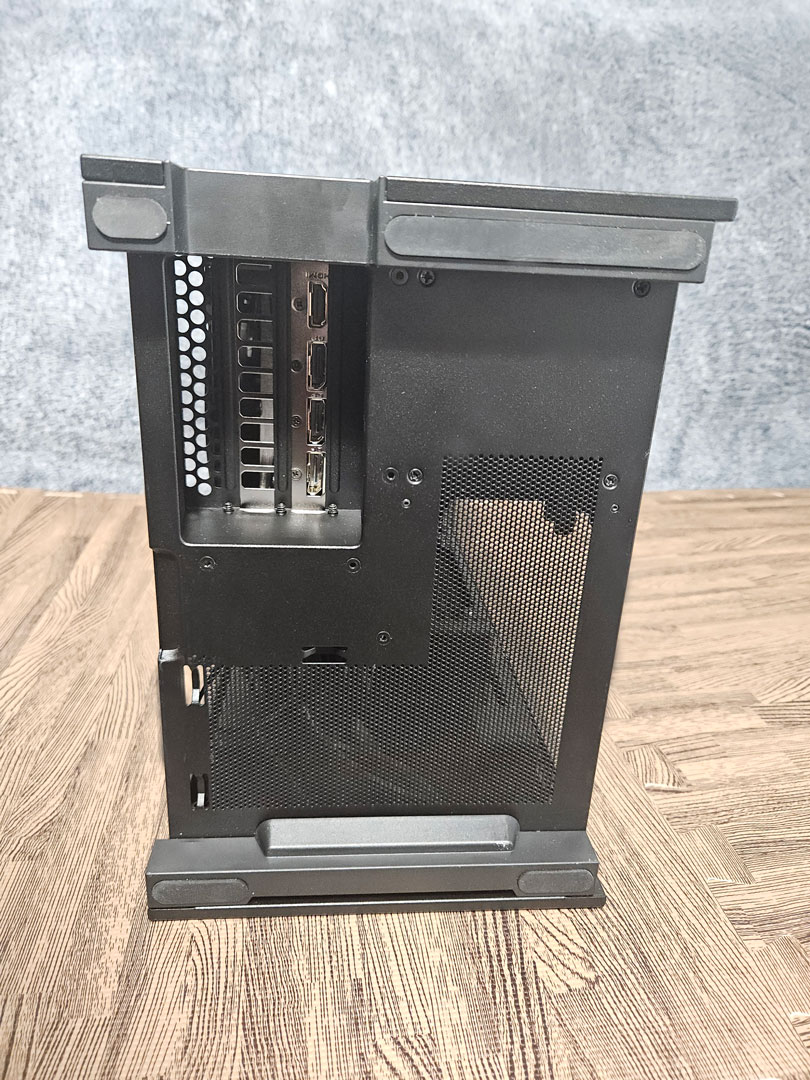
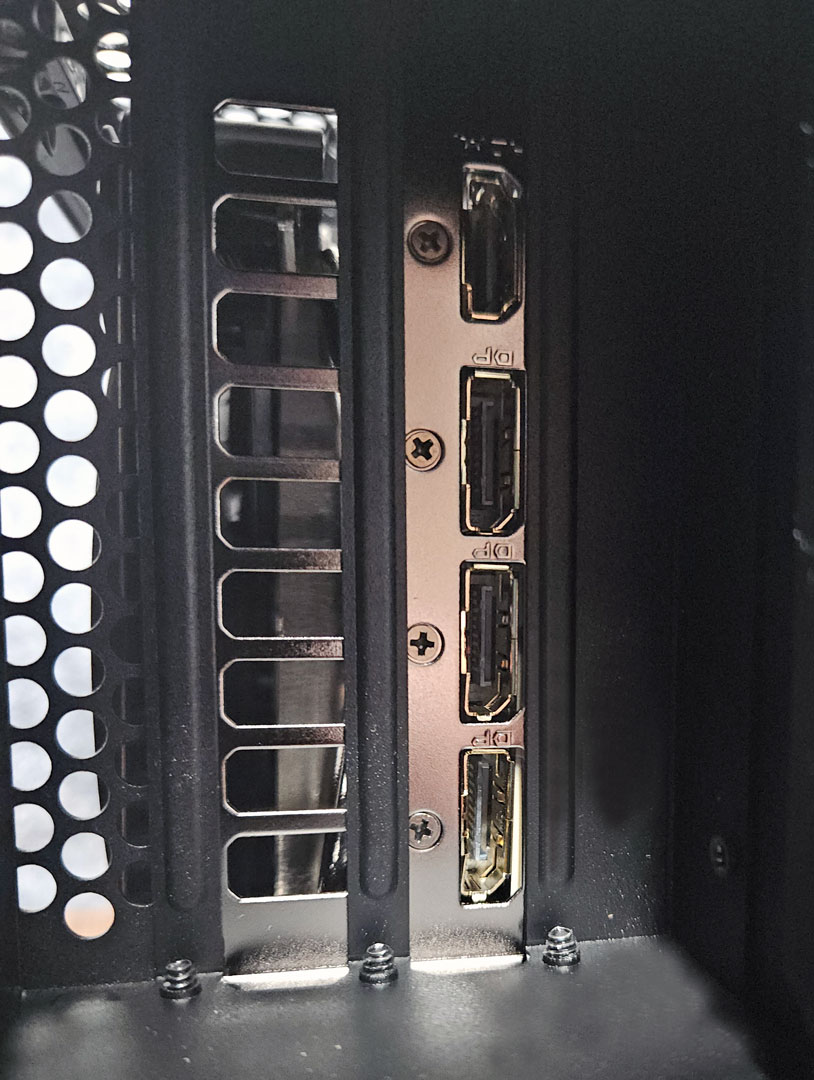
Instead of accessing the GPU ports in the traditional rear-facing position like a mid-tower, all monitor connections are made through the bottom of the chassis. The GPU I/O is oriented downward, and cables plug in from underneath the system. This design keeps the rear panel visually cleaner, but it does take a moment to understand if you are connecting your monitor to this type of system for the first time.
So, when you flip it on its side, you'll see that the bottom of the case includes an opening that exposes the GPU's four DisplayPort outputs and one HDMI port. Cables route through that opening and then exit toward the back, guided under the padded foot, which provides enough clearance for them to pass without pinching (just make sure you don't use a cord that has a bulky end piece). Depending on your desk layout, you may also need slightly longer cables than usual to account for the downward routing.
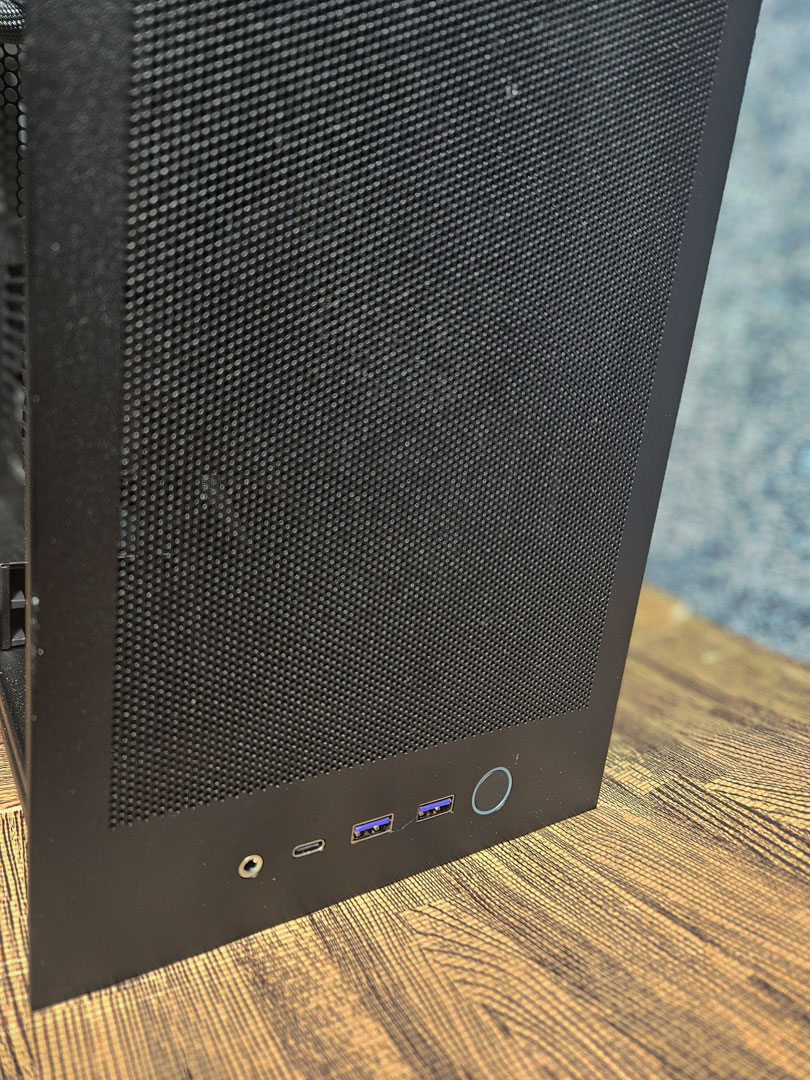
The front I/O is located along the bottom edge of the chassis and includes two USB 3.2 Type-A ports, a USB 3.2 Gen 2x2 Type-C port, and a combined headset jack. Having a front-facing Gen 2x2 Type-C connection is especially useful for high-speed external SSDs if you place the H2 directly on your desk, making large file transfers convenient without reaching around the back of the system. Because the ports are positioned along the lower front edge, they are easy to reach if the H2 is sitting on a desk beside you, keeping them within natural hand level instead of forcing you to reach over the top or fumble around the back. I will admit that with taller cases I have more than once left a USB hub dangling over the top panel simply because the front ports were positioned too high.
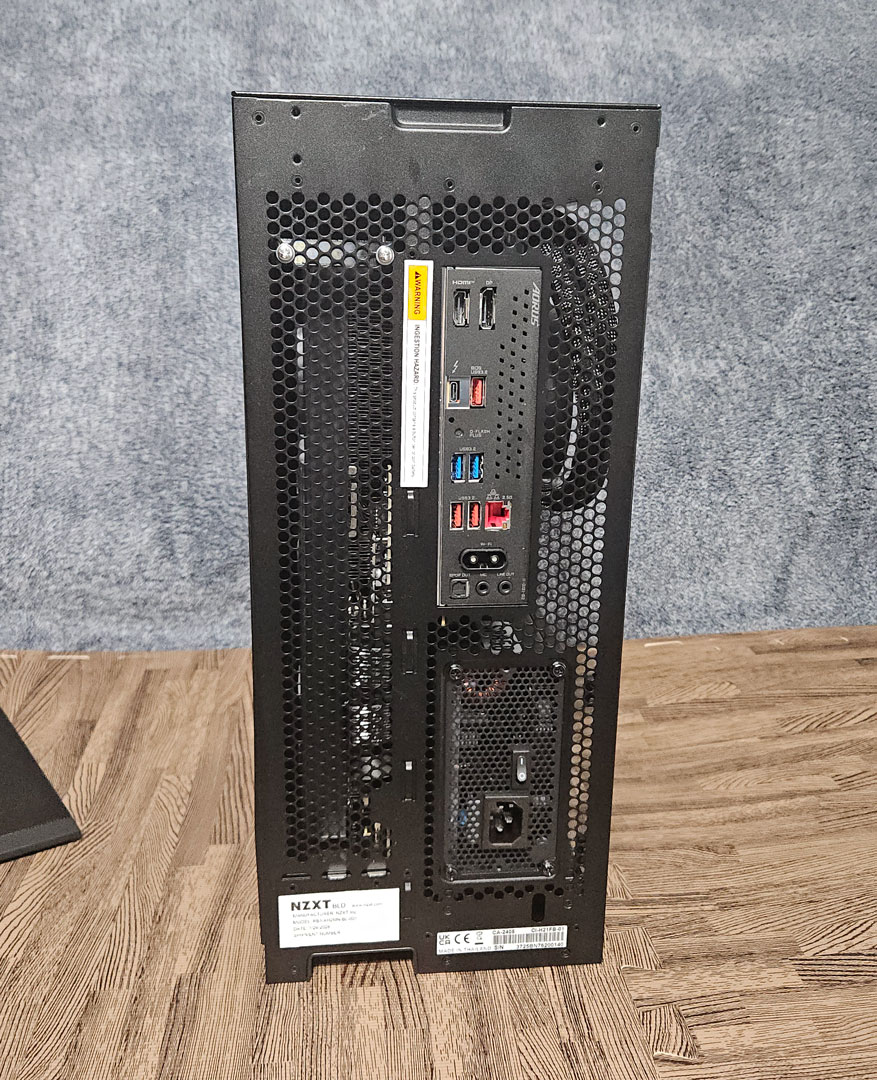
Around the back, the motherboard I/O includes one HDMI port and one DisplayPort, though in this configuration most users will rely on the RTX 5080's outputs below for their displays. For USB, there is a single rear USB-C port, three USB 3.2 Gen 2 Type-A ports, and two USB 3.2 Gen 1 Type-A ports, which gives you a total of six rear USB connections. That is enough for a keyboard, mouse, and a handful of external devices, but it is not generous if you tend to keep multiple peripherals permanently connected.
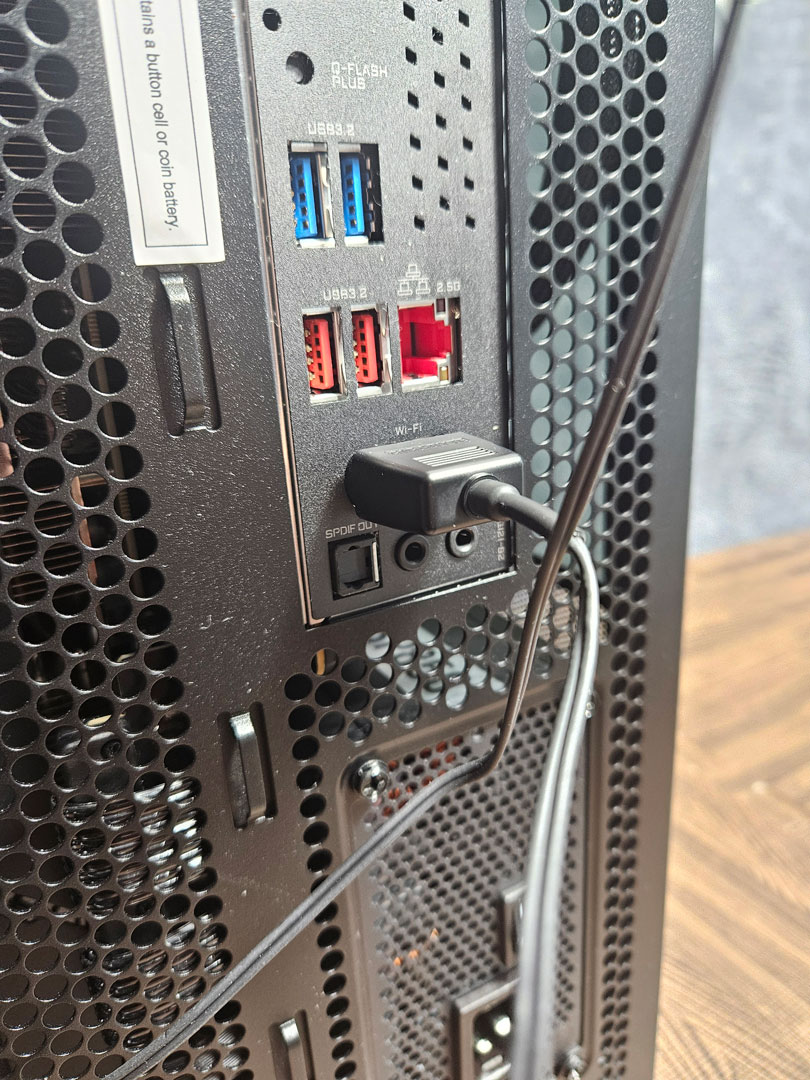
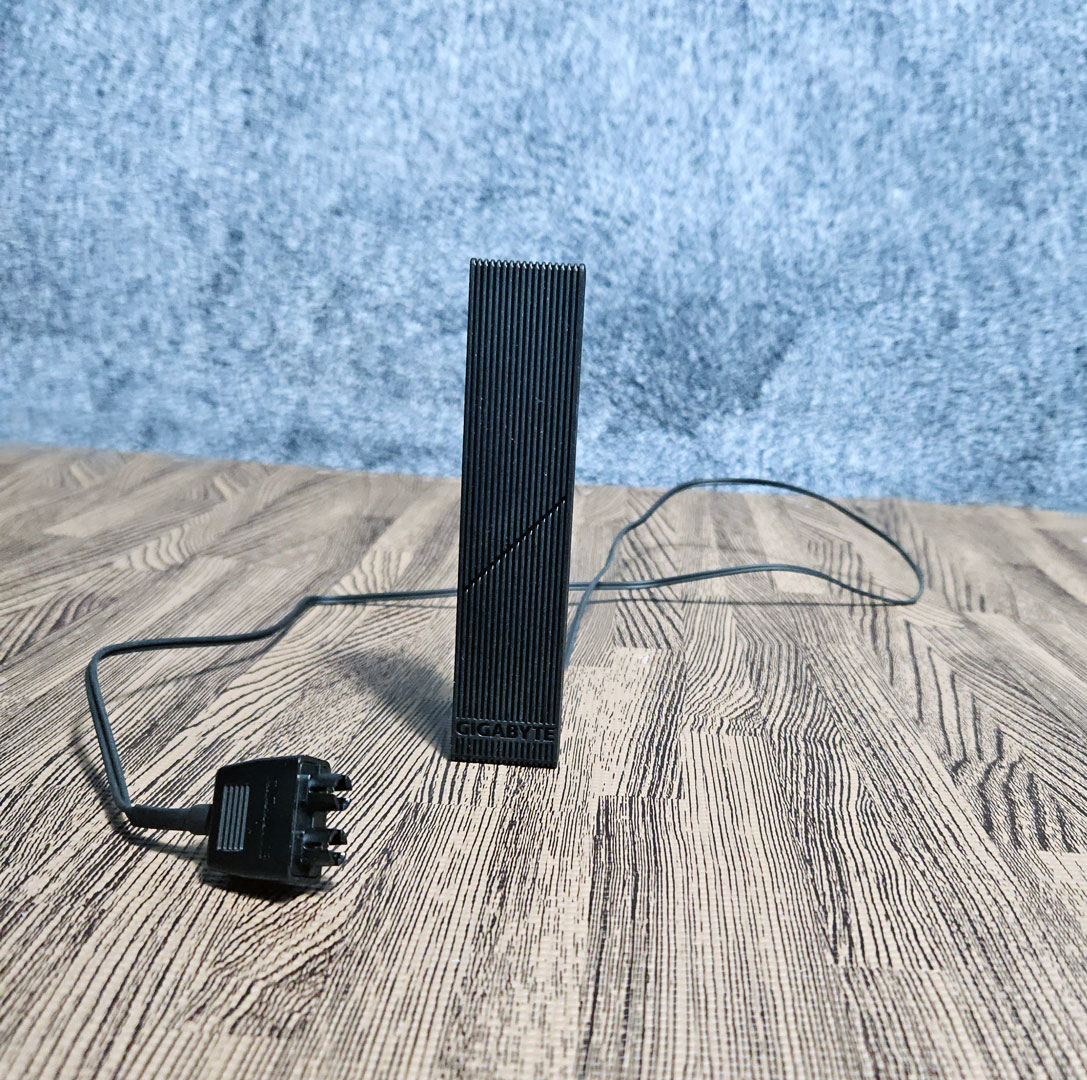
For networking, there is a single 2.5 Gigabit Ethernet port, and a dual-threaded Wi-Fi antenna connectors for the bundled external antennas, which I strongly recommend installing. Without them attached, Bluetooth performance was noticeably unstable and choppy and Wi-Fi signal strength dropped significantly in my testing. With the antennas attached, the connection was stable and Bluetooth stopped cutting out. Audio consists of separate 3.5 mm mic-in and line-out jacks along with a full-size optical S/PDIF output. Nothing critical is missing, but this is a compact I/O layout rather than an expansive one.
Our Patreon Silver Supporters can read articles in single-page format.
Nov 22nd, 2026 23:56 CST
change timezone
Latest GPU Drivers
New Forum Posts
- Last game you purchased? (1416)
- Honestly, do you care about GTA VI? (267)
- Anker SOLIX C2000 Gen 2 + PS400 Solarpanel (1)
- What are you playing? (26241)
- Increasing Power Limit? (9)
- DTS DCH Driver for Realtek HDA [DTS:X APO4 + DTS Interactive] (2818)
- UPS what one to get? (48)
- Your PC ATM (36458)
- Gacha Games - Discussions, Pulls, Updates, etc. (1157)
- Making a game in Godot engine (19)
Popular Reviews
- Microsoft Surface Laptop Ultra Review - The Next-gen Arm Laptop
- Corsair RM1200e (Second Generation) Review
- Upcoming Hardware Launches 2027 (Updated Nov 2026)
- Pulsar Office Tour & First Look at P1 Dual-Sensor Mouse
- Ugreen NASync DXP4800 GT Review
- AMD Ryzen 7 9800X3D Review - The Best Gaming Processor
- AMD Zen 6 Technical Deep Dive
- AMD Ryzen 7 5800X3D 10th Anniversary Review
- Phantom Blade Zero Performance Benchmark Review - 35 GPUs Tested
- Biwin Black Opal NV7400 2 TB Review
TPU on YouTube
Controversial News Posts
- NVIDIA Co-Founder and CEO Jensen Huang Officially Resigns (492)
- Report: Jensen Huang Eyes NVIDIA Comeback (266)
- Open Letter Asking NVIDIA to Reinstate Jensen Huang Passes 115,000 Signatures (184)
- OpenAI CEO Argues Home PCs Waste the World's Limited DRAM Supply (152)
- NVIDIA Launches Investigation Into Jensen Huang's Relationship With Suspected Chinese Spy (136)
- Intel "Raptor Lake Next" 16-Core and 20-Core CPUs Surface (130)
- NVIDIA GeForce RTX 50-Series Scheduled for up to $500 Price Hike This Week (89)
- Intel Razor Lake Gets a 12 P-Core bLLC Chip With No E-Cores, Per Leak (86)