 12
ORICO Obook15 AI Review
Measured Temperatures & Clocks »Battery Life Test Methodology
How we test battery life:- The screen is set to 180 nits of brightness.
- If the device has an iGPU-only mode, this is activated.
- If not, the test will be executed with the standard NVIDIA Optimus/Advanced Optimus/Auto mode settings.
- All battery-saving features that don't decrease visual quality are applied.
- This includes:
- Best Power Efficiency mode and Energy Saver mode in the Windows Power & Battery Menu.
- Variable Refresh Rate (if present, that's a display/laptop dependent extra).
- Panel Self Refresh (if present, that's a display/laptop-dependent extra).
- The most energy-efficient mode is selected by the manufacturer's own software that controls the notebook's power.
Settings Used
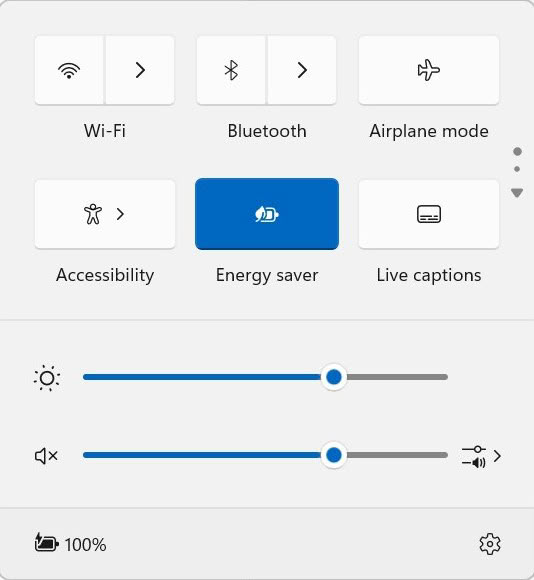
This is an iGPU-only machine, so configuring it for the best possible battery life is a straightforward process:
- Best power efficiency + Energy Saver Mode in the Windows Battery menu.
- Screen is set to 180 nits.
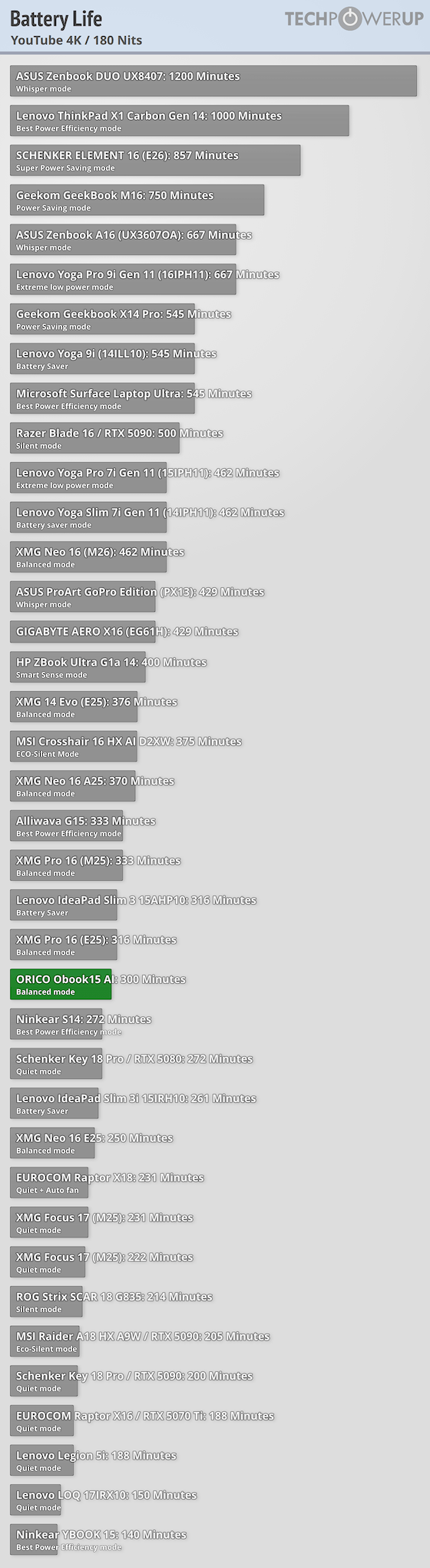
The Obook15 AI lasted five hours in our 4K YouTube test. Nothing to write home about, but with a 54 Wh battery and a four-year-old processor, it's a decent result. The Lenovo IdeaPad Slim 3 (15AHP10) with the much newer Ryzen 7 8840HS lasted about the same (five hours and 16 minutes), and the Alliwava G15 managed five hours and 33 minutes. Modern office laptops with bigger batteries are in a different league, though. The SCHENKER ELEMENT 16 (E26) ran for over 14 hours, and the Lenovo ThinkPad X1 Carbon Gen 14 went past 16.
So, expect to get through a few lectures or half a day of work before you go looking for a socket. Need more? Pack the charger, or grab a 100 W USB-C power bank, since both Type-C ports can charge the laptop.
Nov 26th, 2026 19:51 CST
change timezone
Latest GPU Drivers
New Forum Posts
- WarpCoreBench scores! (116)
- Dell Dimension E510 Retro Gaming PC Upgrade & Modification (0)
- Can you guess Which game it is? (371)
- ASUS Prime 5060 ti 16gb x4 instead of x8 PCIe (12)
- Kerbal Space Program Retooled (0)
- Exploring Local LLMs: Models, Hardware and Setup Experiences (6)
- Post your CrystalDiskMark speeds (663)
- 26.11.2 Adrenalin Edition is out (1)
- Acer TravelMate P414-51 (i5-1135G7): CPU stuck at x4 / ~200 MHz effective under 100% load, no throttle flags. How to find who's clamping it? (3)
- [Community Benchmark] MrH OpenCL Benchmark 2.0f (Windows Only – CPU & GPU) (5)
Popular Reviews
- VZMORE AX9 Max Review
- Upcoming Hardware Launches 2027 (Updated Nov 2026)
- ASRock X870E Challenger Wi-Fi White Review
- AMD Ryzen 7 9800X3D Review - The Best Gaming Processor
- Microsoft Surface Laptop Ultra Review - The Next-gen Arm Laptop
- AMD Zen 6 Technical Deep Dive
- Montech CyberFlow ARGB 360 Review
- Phantom Blade Zero Performance Benchmark Review - 35 GPUs Tested
- Corsair RM1200e (Second Generation) Review
- Pulsar Office Tour & First Look at P1 Dual-Sensor Mouse
TPU on YouTube
Controversial News Posts
- Jensen Huang Reinstated as CEO of NVIDIA (612)
- NVIDIA Co-Founder and CEO Jensen Huang Officially Resigns (492)
- Report: Jensen Huang Eyes NVIDIA Comeback (281)
- Open Letter Asking NVIDIA to Reinstate Jensen Huang Passes 115,000 Signatures (184)
- OpenAI CEO Argues Home PCs Waste the World's Limited DRAM Supply (152)
- NVIDIA Launches Investigation Into Jensen Huang's Relationship With Suspected Chinese Spy (136)
- Intel Razor Lake Gets a 12 P-Core bLLC Chip With No E-Cores, Per Leak (94)
- NVIDIA GeForce RTX 50-Series Scheduled for up to $500 Price Hike This Week (89)