 7
Phantom Blade Zero Handheld Performance Review
Out-of-Box Experience »Graphics Settings
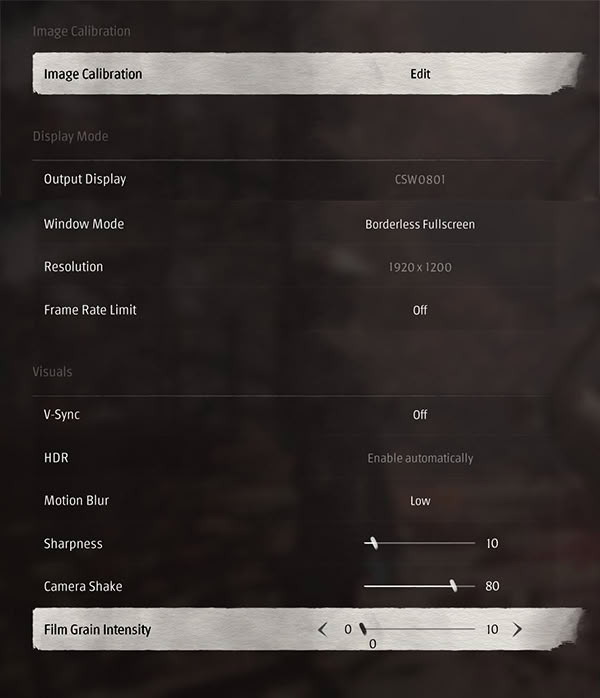
- The game has two settings menus: the Display menu covers display-related options such as Resolution and Window Mode, while the Graphics menu houses visual quality settings as well as upscaling and frame generation options.
- The game supports dedicated Fullscreen, Windowed Fullscreen, and Windowed modes.
- On 16:10 devices, we could only select 16:10 resolutions in game, so we had to switch the Windows resolution to 1080p from 1200p on the two Intel handhelds when benchmarking them, in order to provide standardized results.
- The game features a Frame Rate slider that goes from 30 all the way up to 360 FPS in 1 FPS increments.
- In our experience, there's no hidden FPS lock.
- The game supports HDR and ultrawide monitors.
- You cannot adjust FOV.
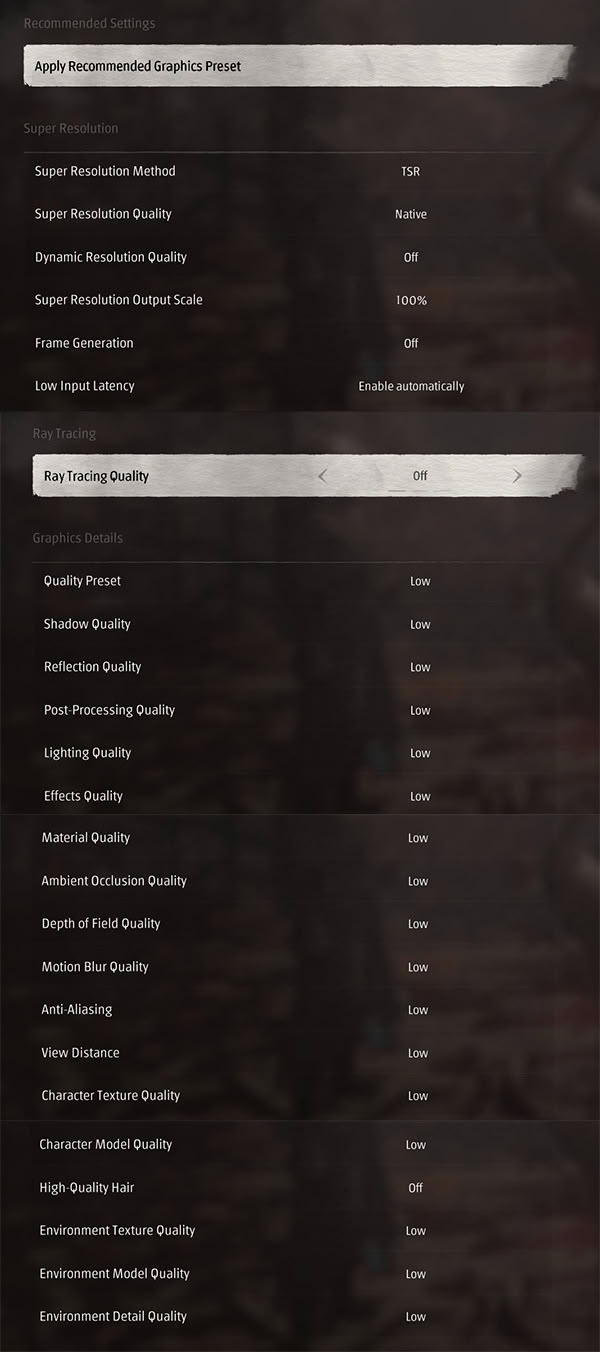
- The Graphics menu includes five graphics presets: Low, Medium, High, Very High, and Ultra.
- You can't adjust ray tracing quality; you can only switch between the Off, Ray Tracing, and Path Tracing options.
- The game supports DLSS, XeSS, FSR, and TSR upscaling, as well as every major frame gen tech. That said, the game forces your GPU vendor's solution, with no way to select a specific frame gen solution.
- You can disable Motion Blur, Depth of Field, and Film Grain, but the game doesn't include a Chromatic Aberration toggle.
- The Super Resolution Quality menu is mislabeled in the current public Steam build of the game as of this review. While the Native preset is labeled correctly, the next preset is labeled Ultra Performance but is actually Quality, so the Quality preset is actually Balanced, Balanced is Performance, and Performance is Ultra Performance.
- Aside from the upscaling menu, you also have access to an option dubbed "Super Resolution Output Scale." It governs the upscaler's output resolution, so if you set it to 90%, for instance, the upscaler will output the image at 90% of your display's resolution, which the game then scales up to native. This unnecessarily complicates things, and the game keeps the option at Auto (75%) by default, but we switched it to 100% for our testing. Our optimized settings also keep it at 100%.
- You can't manually enable Low Input Latency; the option kicks in only when you enable V-Sync.
Test Devices
We tested the public Steam build of Phantom Blade Zero.- The Steam Deck LCD was running SteamOS version 3.9.5, build 20261023.100.
- Our ROG Xbox Ally X had Armoury Crate 3.1.5.0 installed along with BIOS 319.
- The ROG Ally X had the latest Armoury Crate version installed at the time of testing (3.1.5.0), along with BIOS 313.
- The MSI Claw 8 AI+ A2VM had MSI Center M 3.0.2610.0701 installed along with BIOS E1T52IMS.114.
- The MSI Claw 8 EX AI+ CG3EM had MSI Center M 3.0.2610.0701 installed along with BIOS E1T91IMS.10E.
| Gaming Handhelds Used for Testing | |
|---|---|
| Steam Deck LCD | SteamOS version 3.9.5 build 20261023.100 |
| ASUS ROG Xbox Ally X | Armoury Crate 3.1.5.0 BIOS 319 GPU driver version: 32.0.32015.7029 Windows 11 Home 25H2 VBS disabled |
| ASUS ROG Ally X | Armoury Crate 3.1.5.0 BIOS 313 GPU driver version: 32.0.31007.6002 Windows 11 Home 25H2 VBS disabled |
| Claw 8 AI+ A2VM | MSI Center M 3.0.2610.0701 BIOS E1T52IMS.114 GPU driver version: 32.0.101.9150 Windows 11 Home 25H2 VBS disabled |
| Claw 8 AI+ EX CG3EM | MSI Center M 3.0.2610.0701 BIOS E1T91IMS.10E GPU driver version: 32.0.101.9150 Windows 11 Home 25H2 VBS disabled |
Nov 23rd, 2026 08:30 CST
change timezone
Latest GPU Drivers
New Forum Posts
- Nvidia re-acquires Jensen as CEO!! (3)
- What are you playing? (26243)
- RAM overclock cause worse feeling than JEDEC (5)
- Nvidia re-acquires Jensen as CEO!! (3)
- Gigabyte AORUS RTX 5080 MASTER – Up to 30°C GPU Hotspot Delta! Is This Normal, a Cooling Defect, or Should I RMA? (15)
- Without Jensen, PC gaming will be (54)
- UPS what one to get? (51)
- repair an NVIDIA Quadro M4000 (4)
- Increasing Power Limit? (11)
- Battlefield 6 (964)
Popular Reviews
- Microsoft Surface Laptop Ultra Review - The Next-gen Arm Laptop
- Corsair RM1200e (Second Generation) Review
- Upcoming Hardware Launches 2027 (Updated Nov 2026)
- Pulsar Office Tour & First Look at P1 Dual-Sensor Mouse
- Ugreen NASync DXP4800 GT Review
- AMD Ryzen 7 9800X3D Review - The Best Gaming Processor
- AMD Zen 6 Technical Deep Dive
- Phantom Blade Zero Performance Benchmark Review - 35 GPUs Tested
- AMD Ryzen 7 5800X3D 10th Anniversary Review
- Biwin Black Opal NV7400 2 TB Review
TPU on YouTube
Controversial News Posts
- NVIDIA Co-Founder and CEO Jensen Huang Officially Resigns (492)
- Report: Jensen Huang Eyes NVIDIA Comeback (271)
- Open Letter Asking NVIDIA to Reinstate Jensen Huang Passes 115,000 Signatures (184)
- OpenAI CEO Argues Home PCs Waste the World's Limited DRAM Supply (152)
- NVIDIA Launches Investigation Into Jensen Huang's Relationship With Suspected Chinese Spy (136)
- Intel "Raptor Lake Next" 16-Core and 20-Core CPUs Surface (130)
- NVIDIA GeForce RTX 50-Series Scheduled for up to $500 Price Hike This Week (89)
- Intel Razor Lake Gets a 12 P-Core bLLC Chip With No E-Cores, Per Leak (86)