 37
QNAP TS-470 Review
The XBMC Interface »HD Station
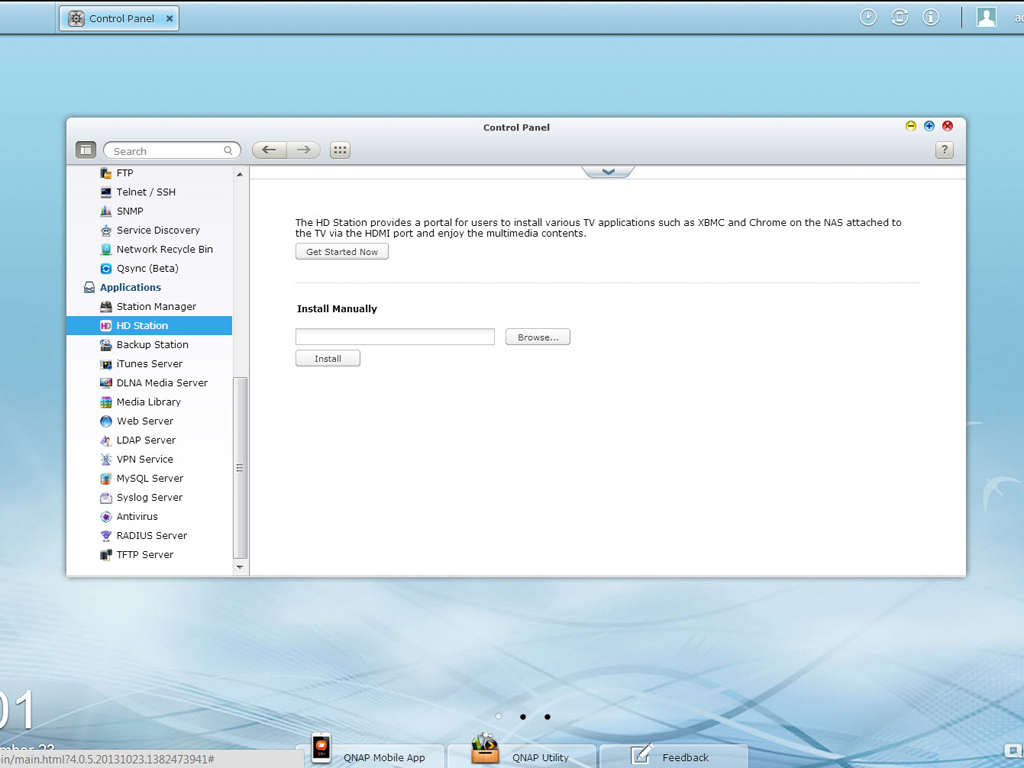
The inclusion of HDMI ports on the new NAS servers, including the TS-470, transforms them into fully capable multimedia players. However, you need the appropriate software to fully exploit their multimedia capabilities, and QNAP provides the HD Station for this particular purpose; HD Station allows you to watch all multimedia content stored on the NAS, or browse the net.
In general and according to QNAP, HD Station is a platform whereupon the famous XBMC application and/or the Chrome browser along with some other tools can be installed, which would allow users to directly playback all NAS multimedia content, or browse Internet websites on the TV screen through the HDMI interface. Home users buying the TS-470 will probably find this feature incredibly interesting since it would make multimedia players and HTPC redundant. That said, HD Station can still be very useful in business environments since it makes direct/local access to the NAS administration interface without the need of a client possible.
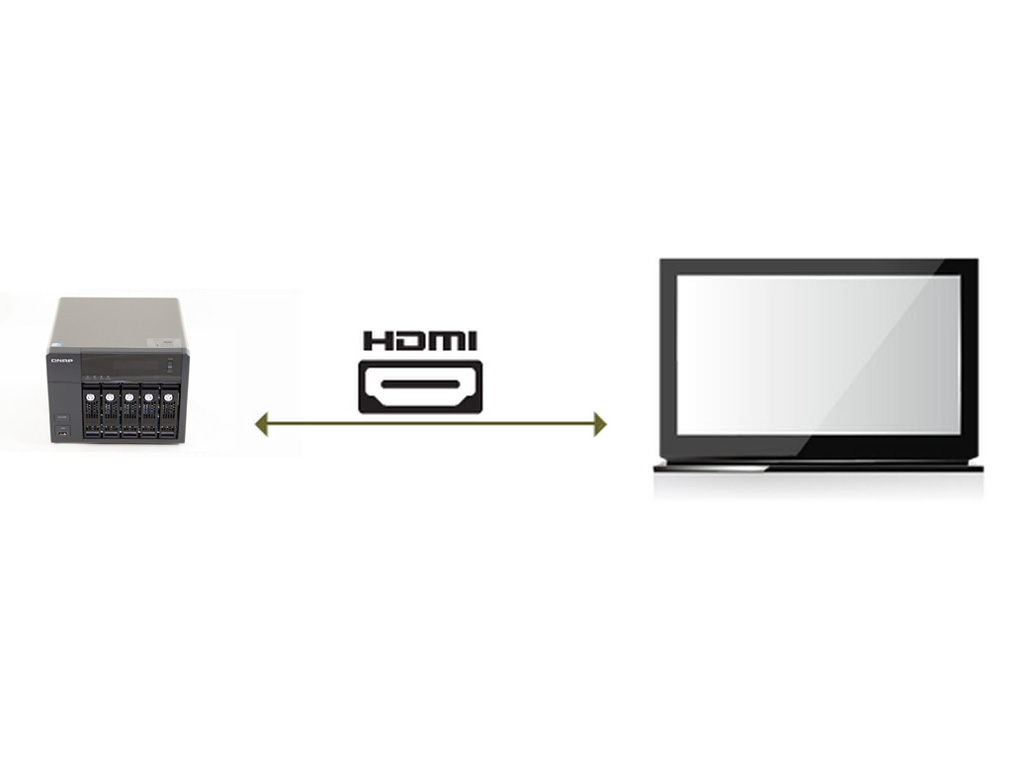
Before you install HD Station, you should connect the NAS to a TV that has an HDMI port. QNAP states that there are four different ways to control the HD Station:
- Through the official QNAP remote controller which, however, only works on the TS-x69 models and not newer TS-x70 ones
- Through an MCE remote controller
- Through a USB keyboard and/or mouse
- Through Qremote: A QNAP remote app exclusively designed for HD Station. This is possibly the best option, especially if you have an Android or iOS device.
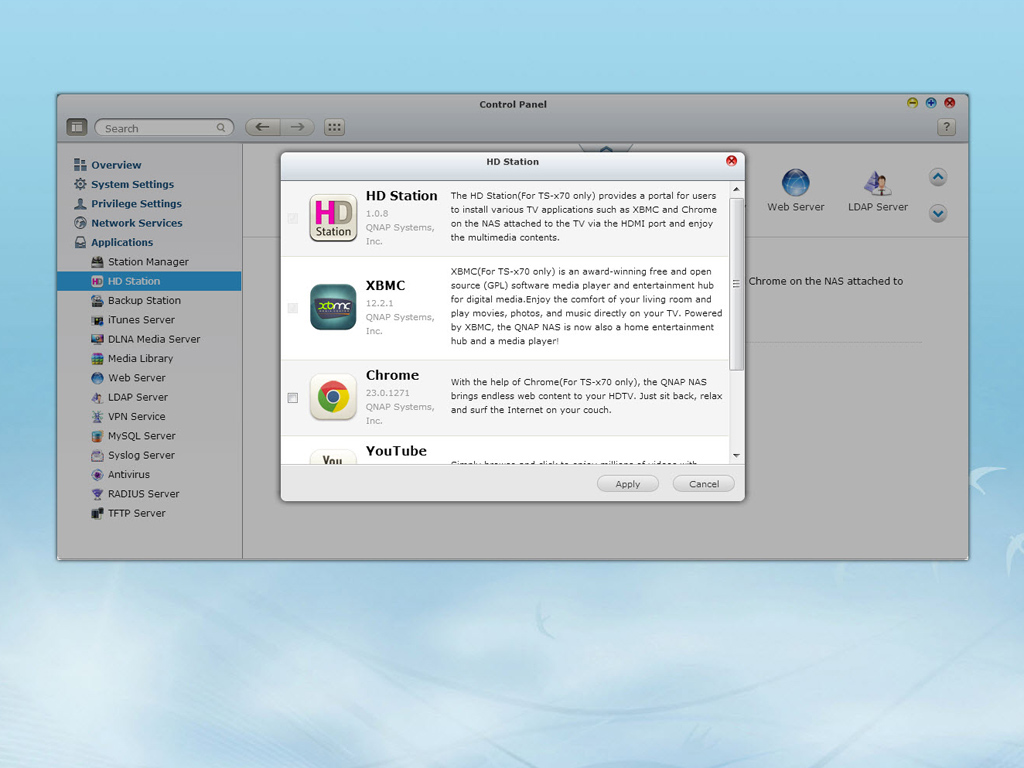
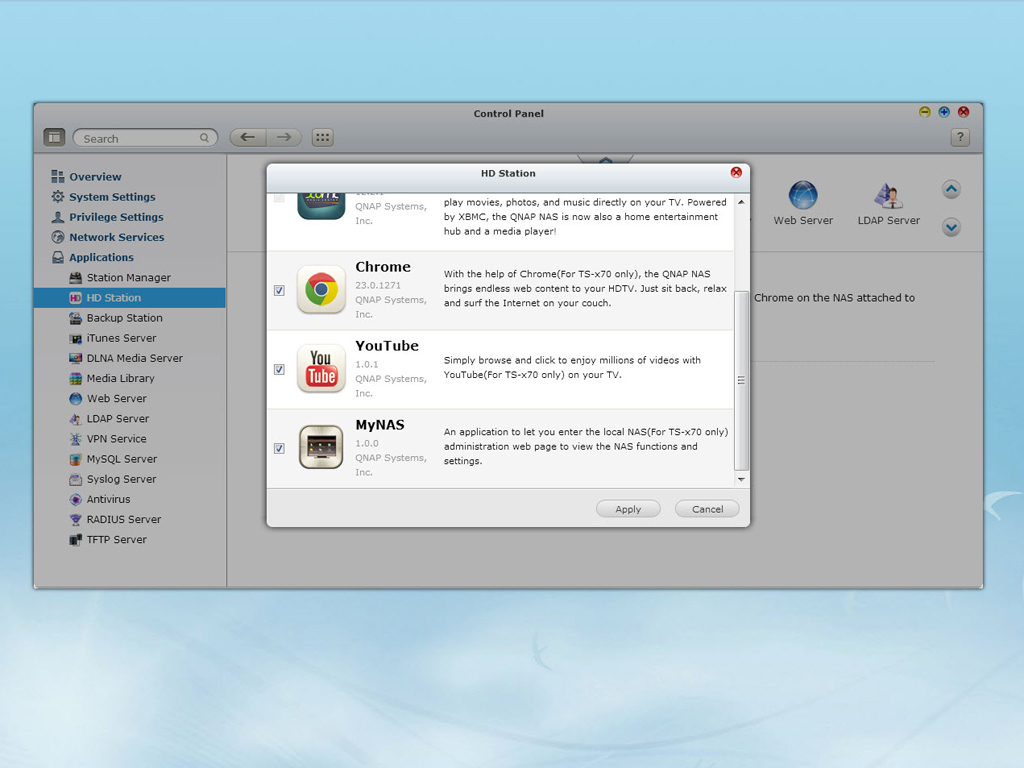
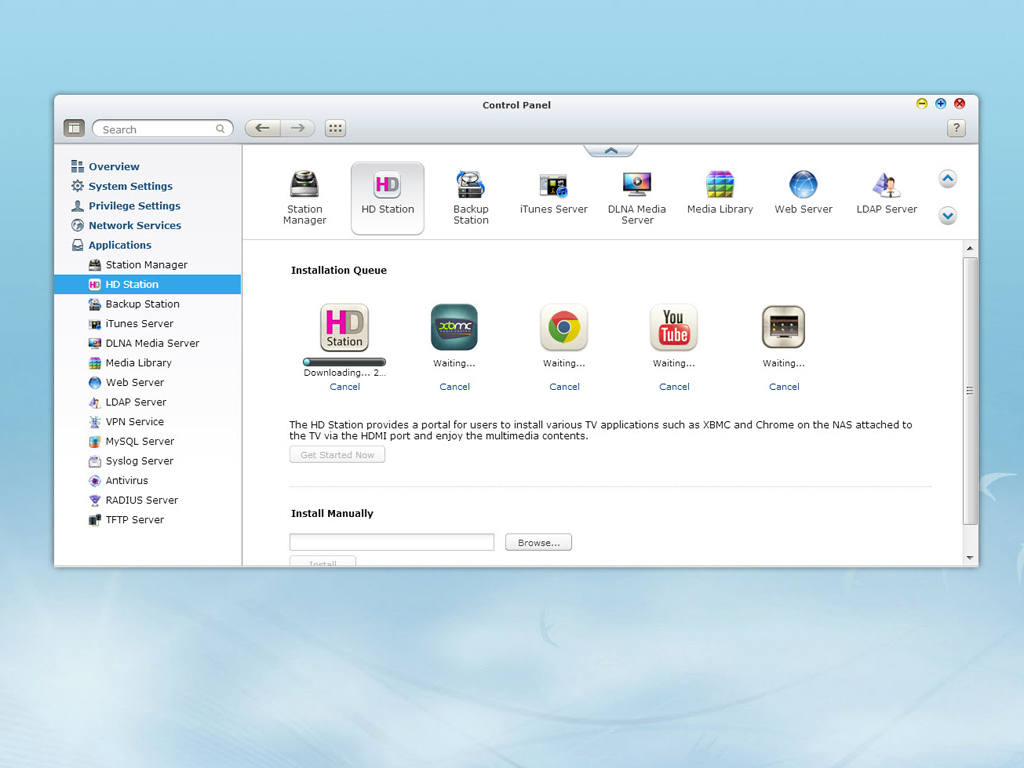
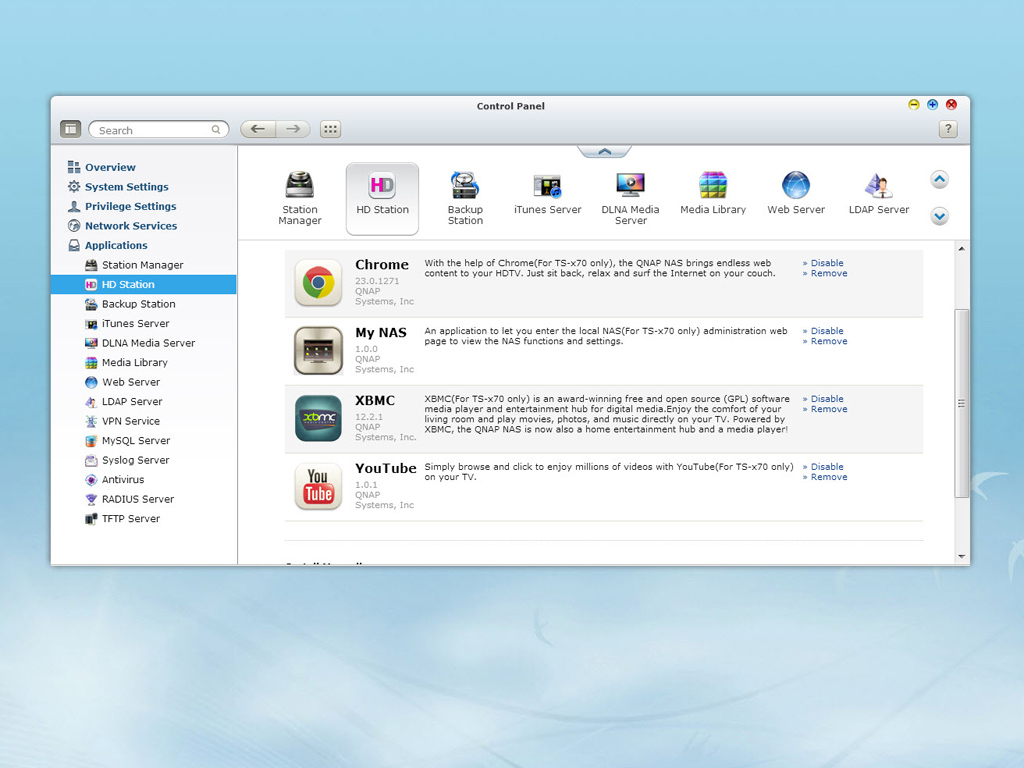
The next step is to install HD Station to the NAS: Go to "Applications" > "HD Station" and click the "Get Started Now" button. The system will now install HD Station automatically. You should also pick which applications you want to install: XBMC, Chrome, YouTube, and MyNAS are available. We installed all of them.
We should, before proceeding, go over several points QNAP mentions in their HD Station tutorial.
- Running XBMC, Chrome, or other applications continuously could affect the hard drive's hibernation. Make sure to always exit the application and return to the HD Station portal.
- Press the power button on the remote control for 6 seconds at any time to exit an application (if you have a TS-x69 NAS since QNAP's official remote control doesn't work in TS-x70 models).
- Press the one-touch-copy button on the NAS for 6 seconds to restart the HD Station.
- For the best HD Station experience, QNAP recommends upgrading your Turbo NAS memory to 2 GB or more (The TS-470already comes with 2 GB RAM).
- To use the AirPlay function provided by XBMC, also upgrade your Turbo NAS memory to 2 GB or more.
- List with all XBMC supported formats
A Look at the HD Station Portal
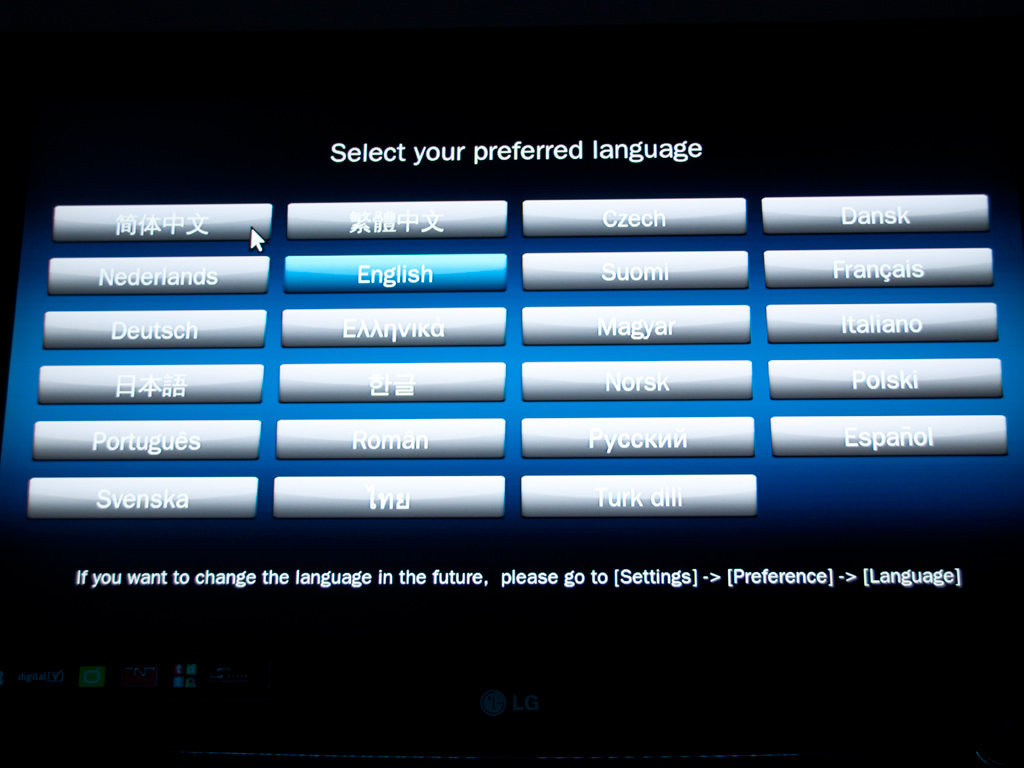
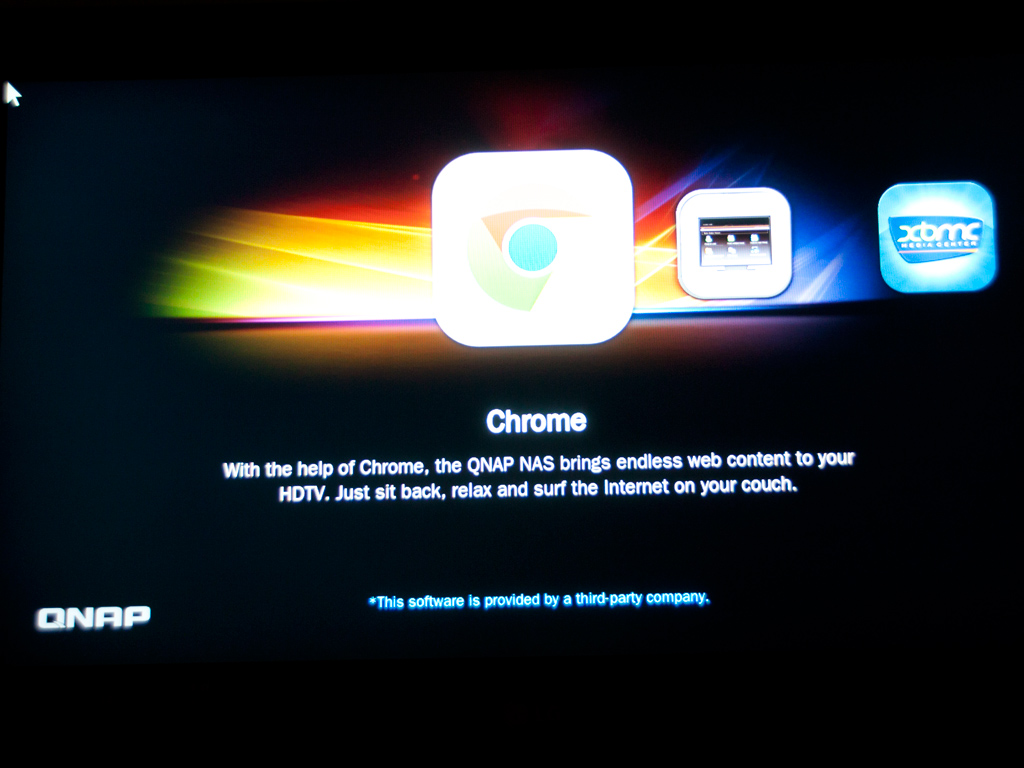
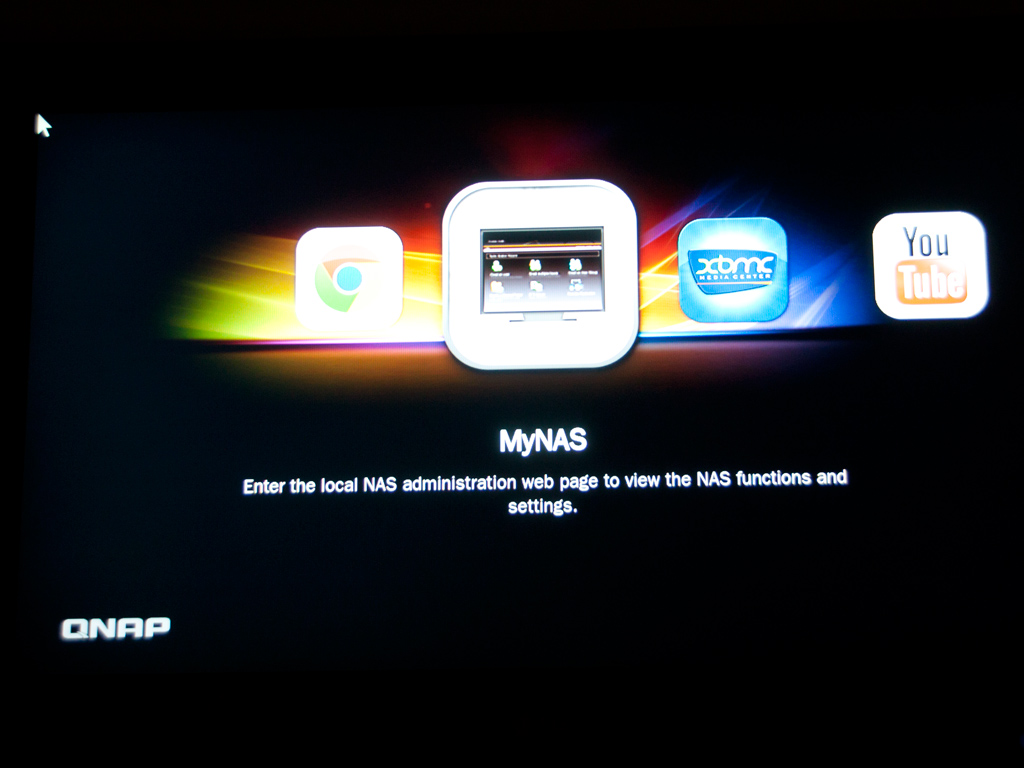
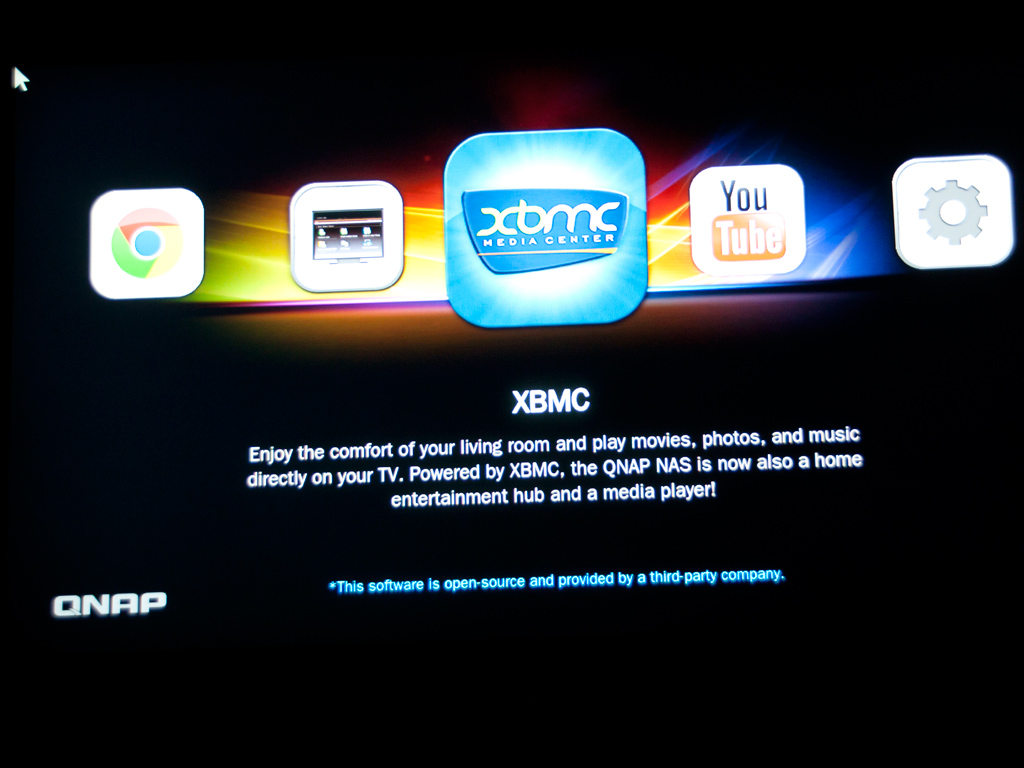
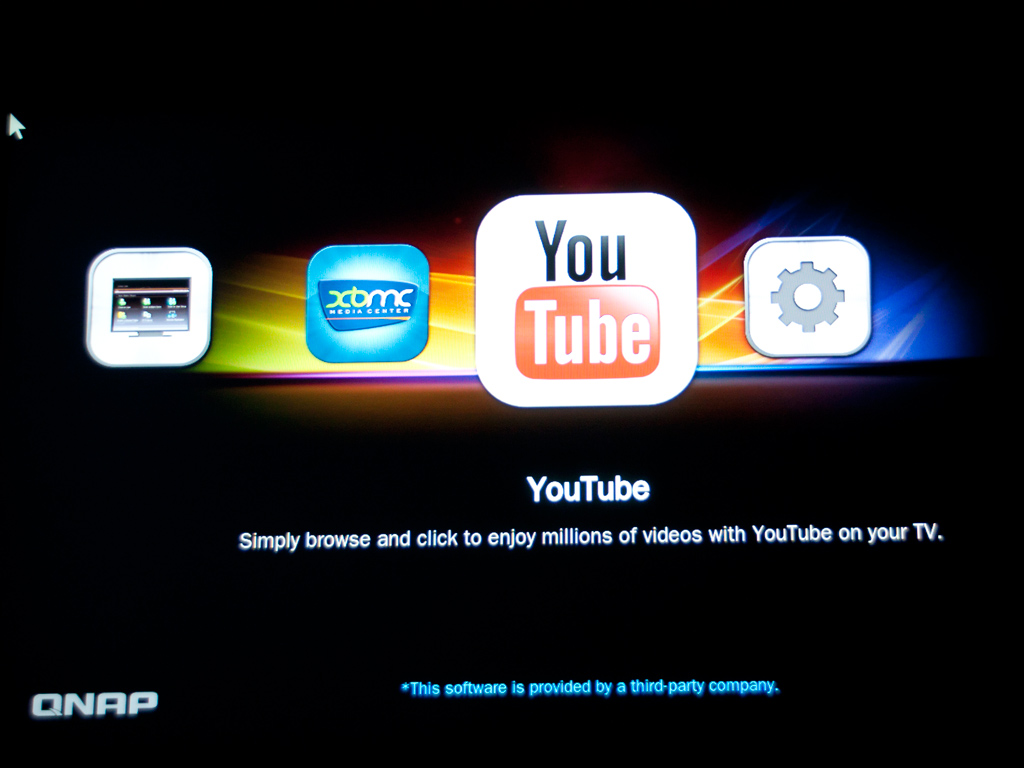
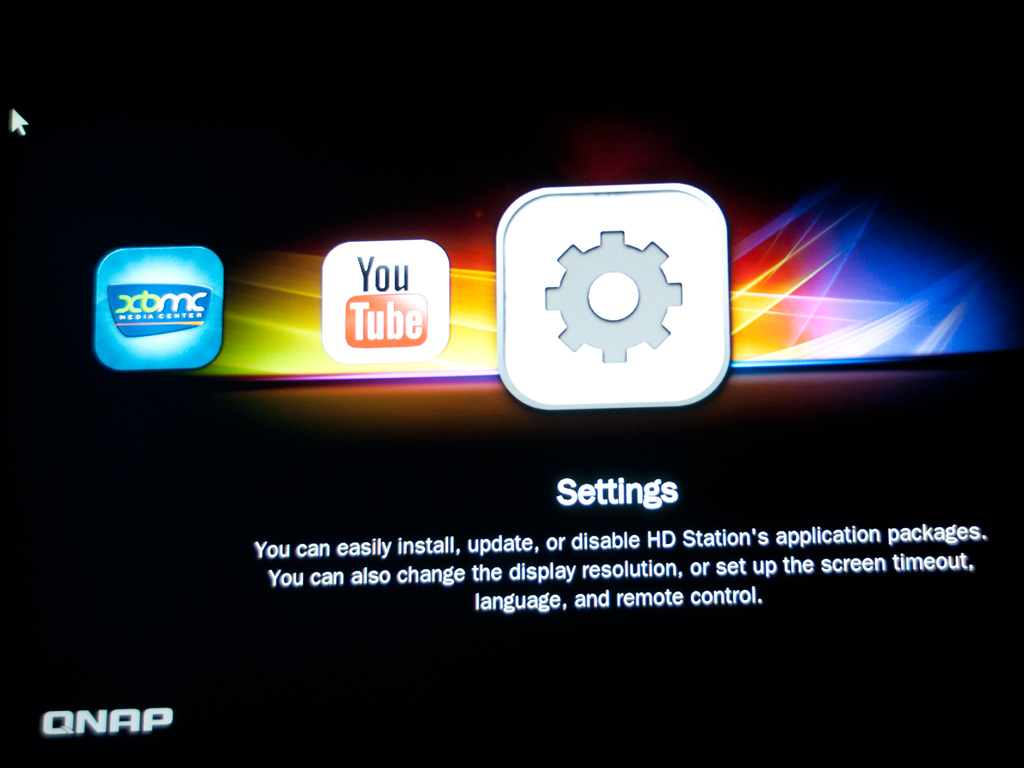
Pick the language and you will be taken to the HD Station portal, where you can select the application you want to use.
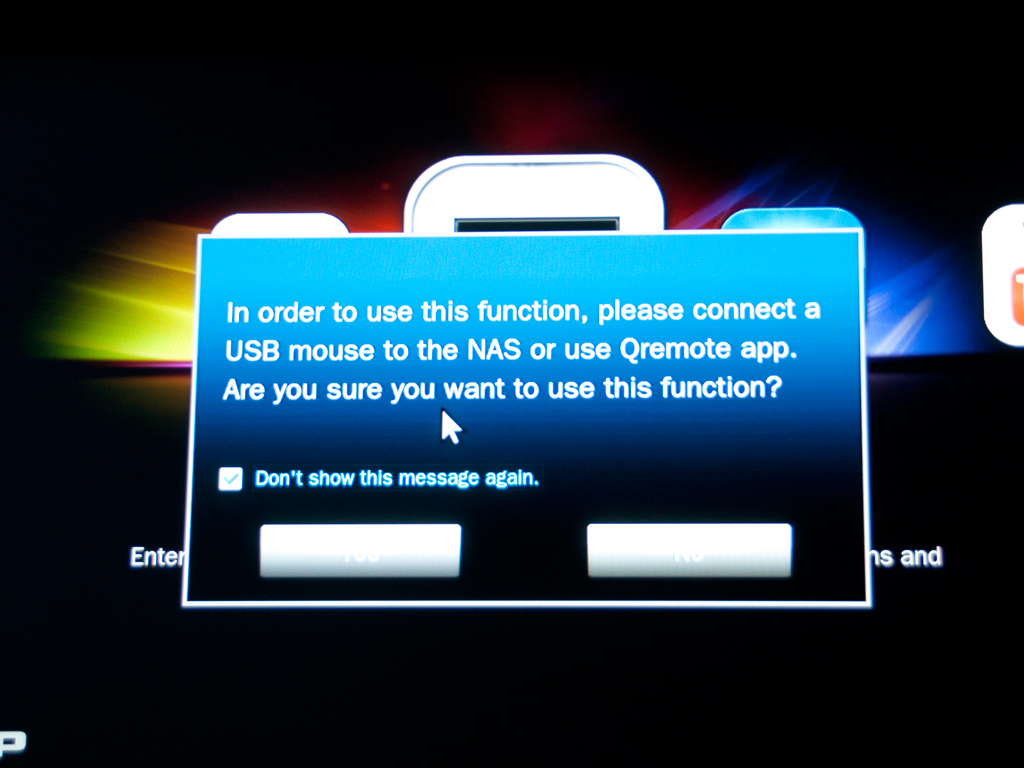
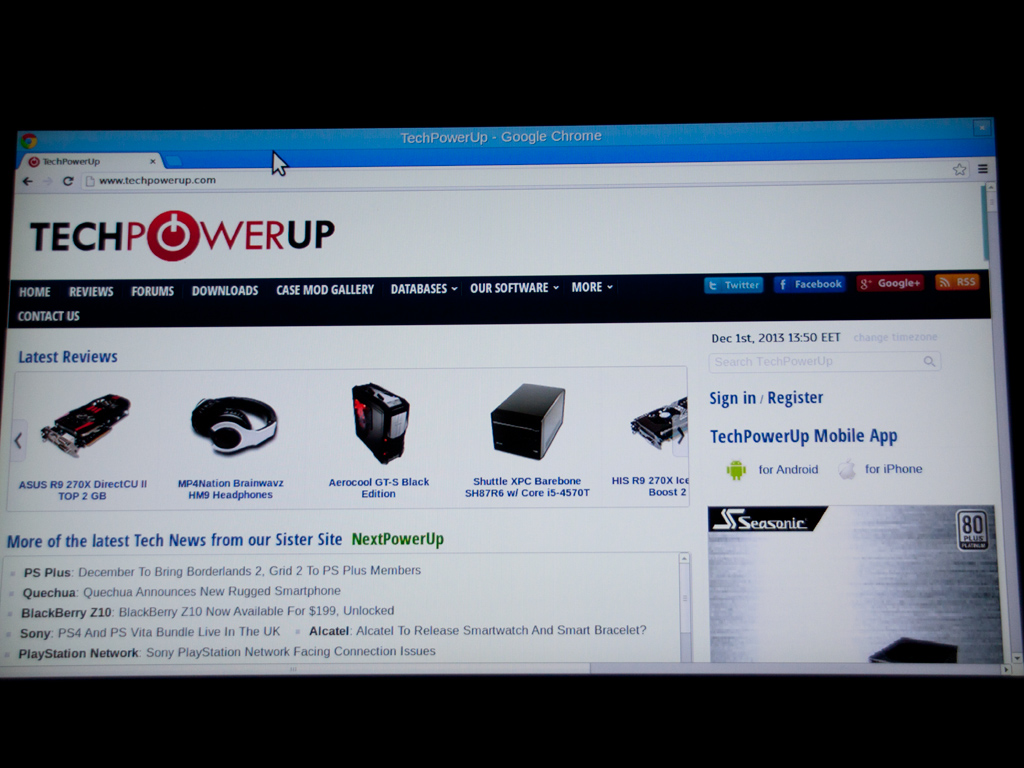
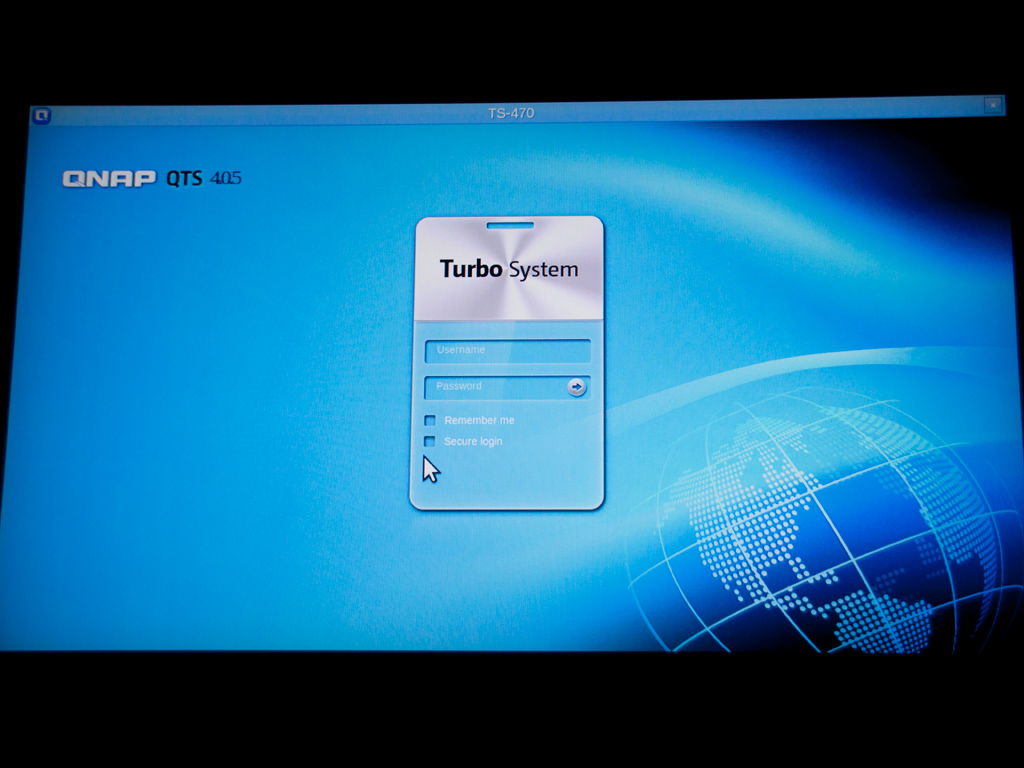
Before you select Chrome or the MyNAS application, you need to connect a USB mouse to the NAS or use the Qremote app. MyNAS allows you to enter the local NAS administration web page for a look at NAS functions and settings.
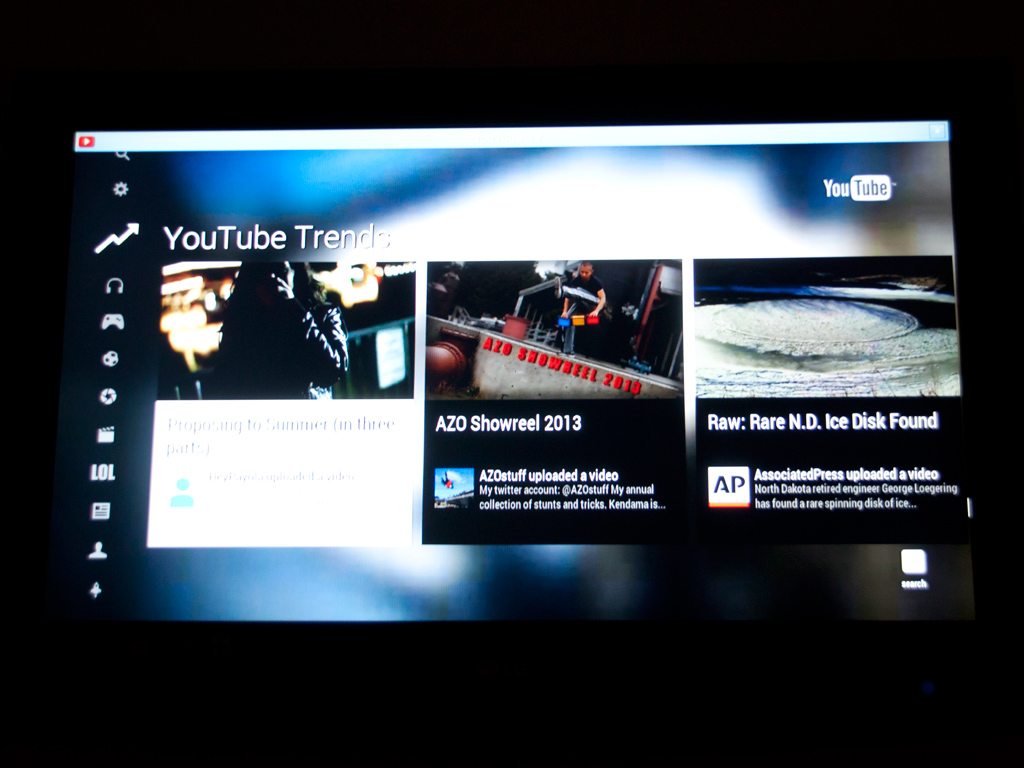
A screenshot of the Youtube application.
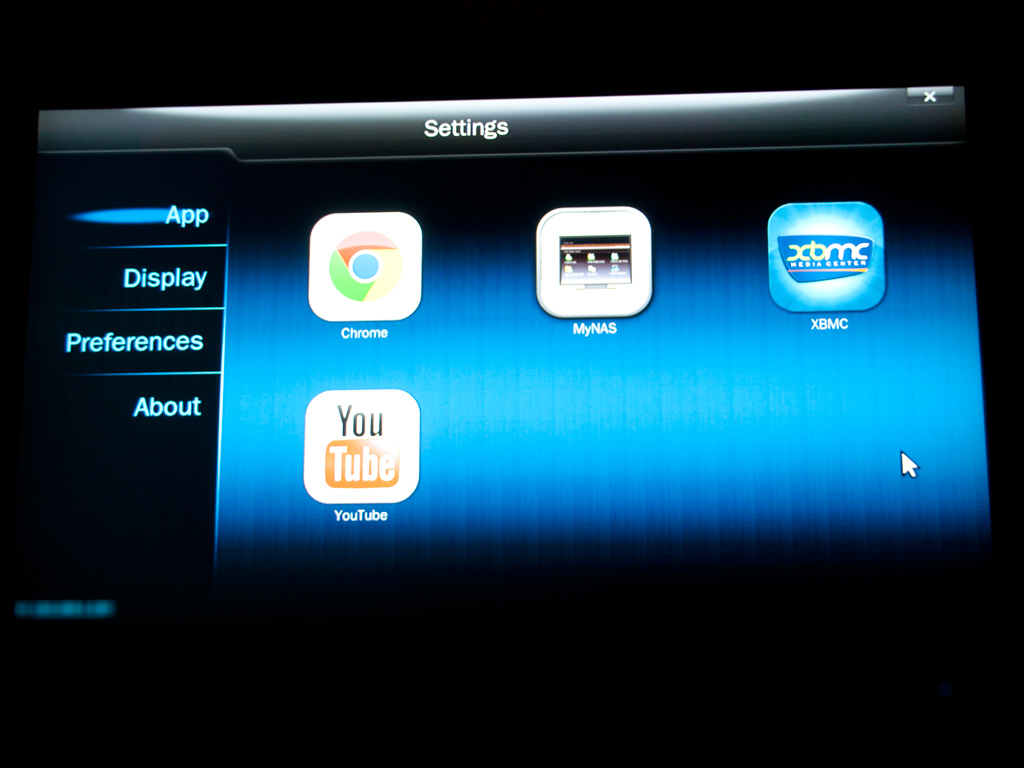
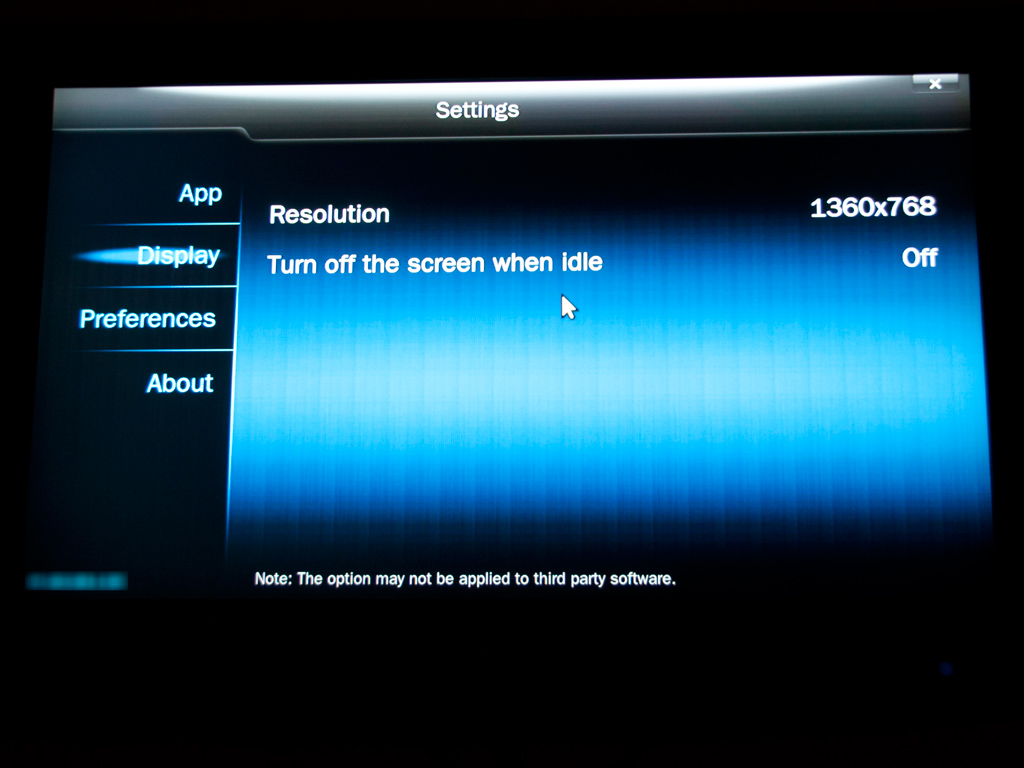
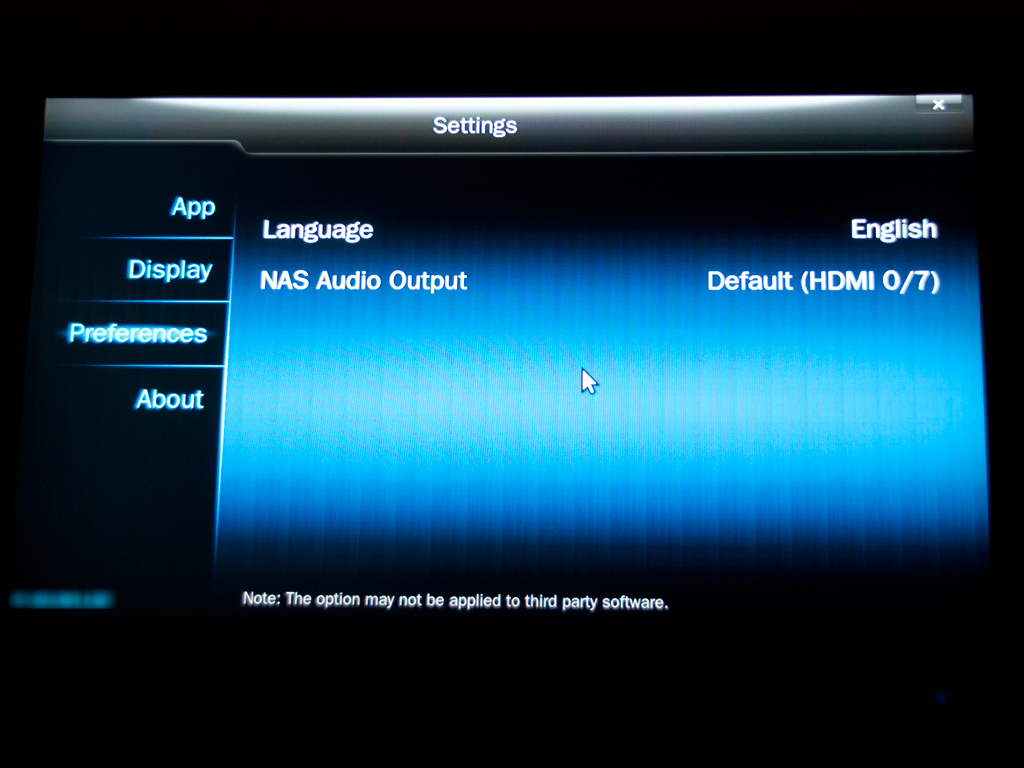
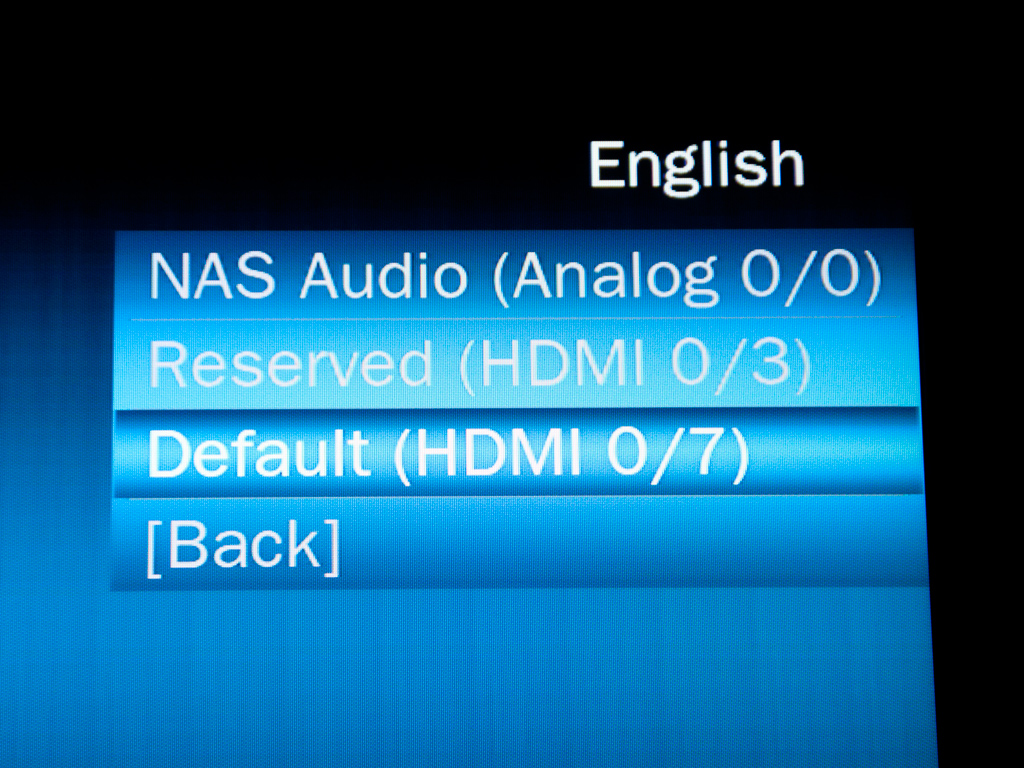
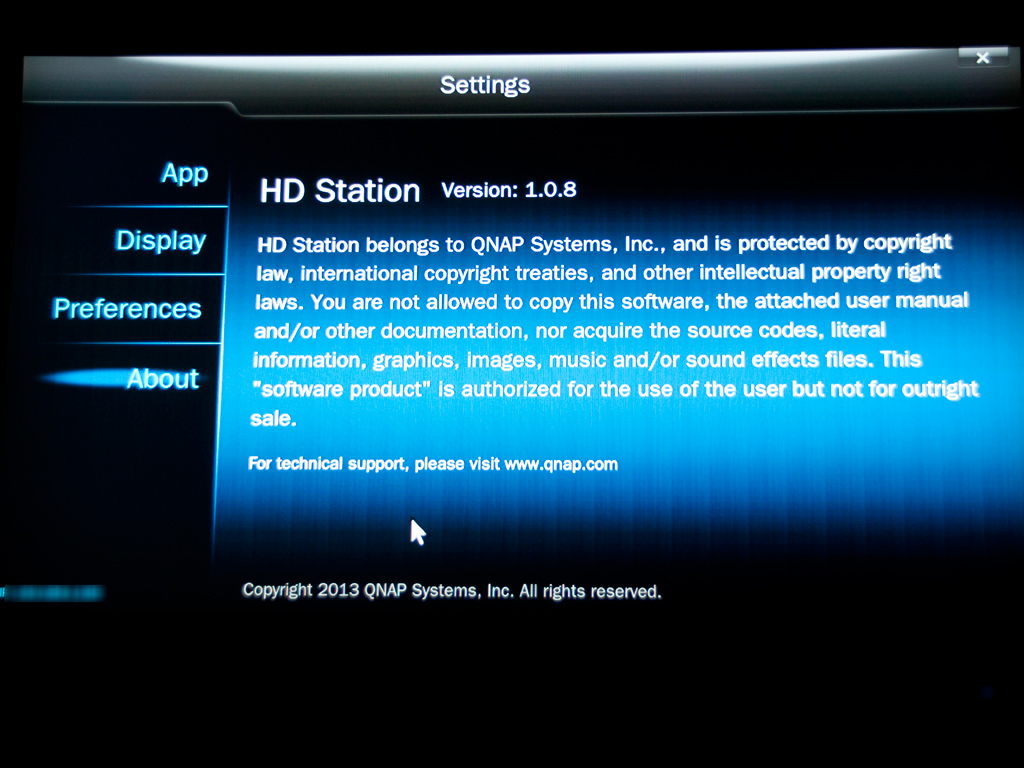
This selection allows you to configure the settings of HD Station. You can enable or disable applications, and the Display group allows you to change the screen's resolution and set the screen to turn off after a certain amount of time in idle. Preferences also allows you to change the language or type of remote control used.
Nov 19th, 2026 09:36 PST
change timezone
Latest GPU Drivers
New Forum Posts
- How to prevent OLED burn damage due to PC freezes or power outtages? (6)
- Anthrophics IPO (2)
- Got the EOL 32GB TridentZ 6000 CL26 1.4V (10)
- GTA VI (3)
- Honestly, do you care about GTA VI? (162)
- Dual B70 or Dual R9700 Pro on Linux (9)
- Anime Nation (13187)
- Very unusual two gaming-pc scenarios. (20)
- Free Games Thread (5383)
- Gacha Games - Discussions, Pulls, Updates, etc. (1156)
Popular Reviews
- Acemagic Retro X3 Review
- Ugreen NASync DXP4800 GT Review
- Upcoming Hardware Launches 2027 (Updated Nov 2026)
- Pulsar Office Tour & First Look at P1 Dual-Sensor Mouse
- AMD Zen 6 Technical Deep Dive
- Biwin Black Opal NV7400 2 TB Review
- Sapphire Radeon RX 7700 XT Pure Review
- Sapphire Radeon RX 7700 XT Pulse Review
- AMD Ryzen 7 9800X3D Review - The Best Gaming Processor
- Chieftec Iceberg PRO 360 DARK Review
TPU on YouTube
Controversial News Posts
- NVIDIA Co-Founder and CEO Jensen Huang Officially Resigns (484)
- Report: Jensen Huang Eyes NVIDIA Comeback (221)
- Open Letter Asking NVIDIA to Reinstate Jensen Huang Passes 115,000 Signatures (184)
- OpenAI CEO Argues Home PCs Waste the World's Limited DRAM Supply (152)
- NVIDIA Launches Investigation Into Jensen Huang's Relationship With Suspected Chinese Spy (136)
- Intel "Raptor Lake Next" 16-Core and 20-Core CPUs Surface (130)
- Legendary Game Studio BioWare Shuts Down Following EA Layoffs (104)
- Dell CEO Says the Memory Shortage Will Get Worse in 2027 (95)