 53
RAGE 2 Benchmark Test & Performance Analysis
(53 Comments) »Introduction
RAGE 2 by Avalanche Studios is set in a post-apocalyptic future in which, unsurprisingly, things don't look good for humans. Evil mutants have taken over the world, and you're one of the last rangers out there who can stop the demise of humanity. On game start, your home base "Vineland" is under attack, so you're immediately thrown into action. The plot unfolds from there, starting with you picking up the armor of a fallen ranger. As it turns out, it will let you gain superhuman abilities if you can find the upgrade machines, which are scattered throughout the wastelands.The open world is big, so your ability to use vehicles is useful, also because of mounted guns that tear through enemies quickly. As you drive around, you'll encounter various points of interest, including "Arks"—it is these that hide the important upgrades for your character.

While the original RAGE was developed by id Software, this version is created by Avalanche studios and uses the company's own Apex Engine (not id's id Tech 5 which powered the first RAGE game). The game uses Vulkan exclusively, which should bring in some performance improvements due to the low-level nature of the API.
We put the game through a selection of 18 graphics cards from both AMD and NVIDIA, at three resolutions, including 4K Ultra HD.
Screenshots


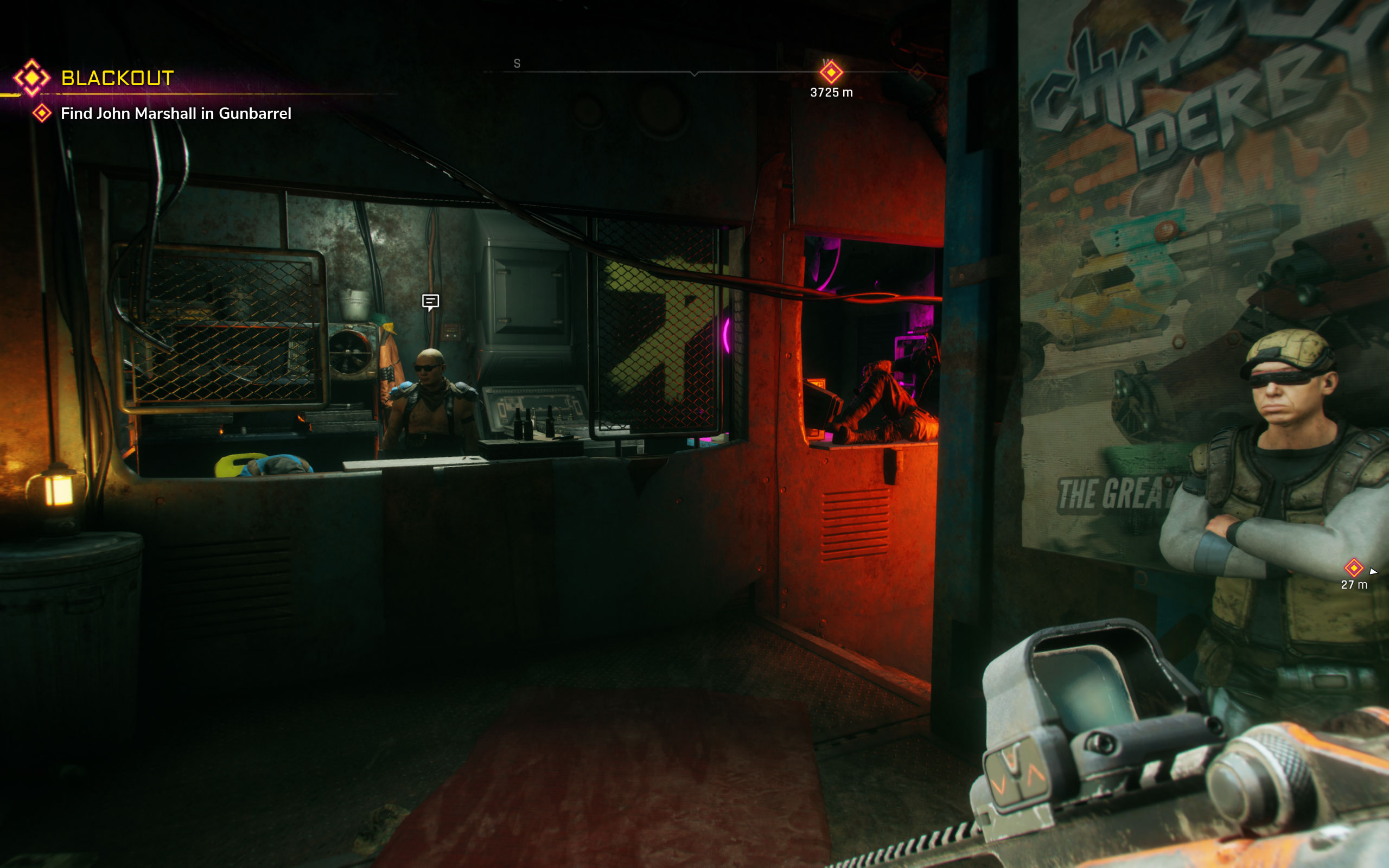


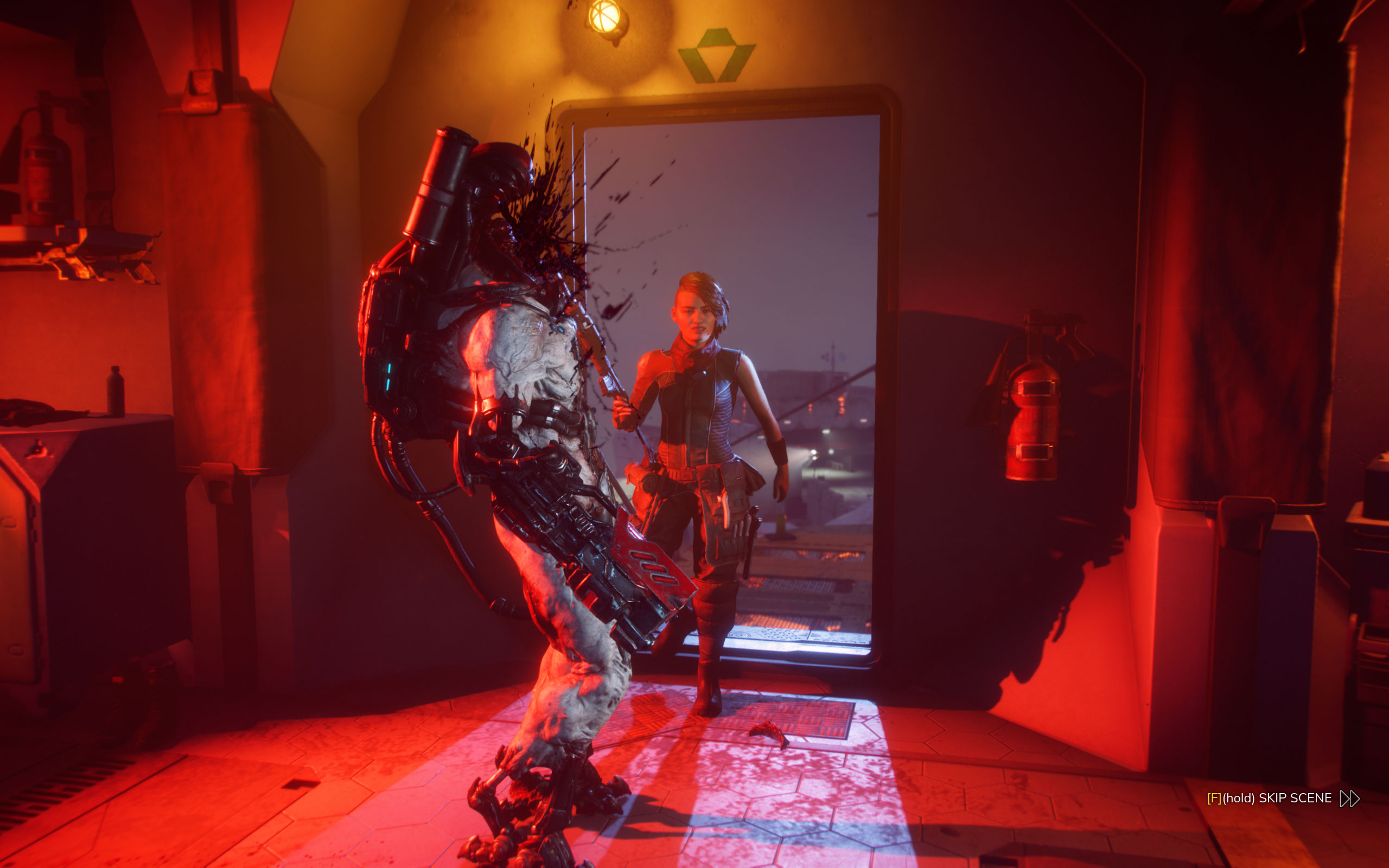
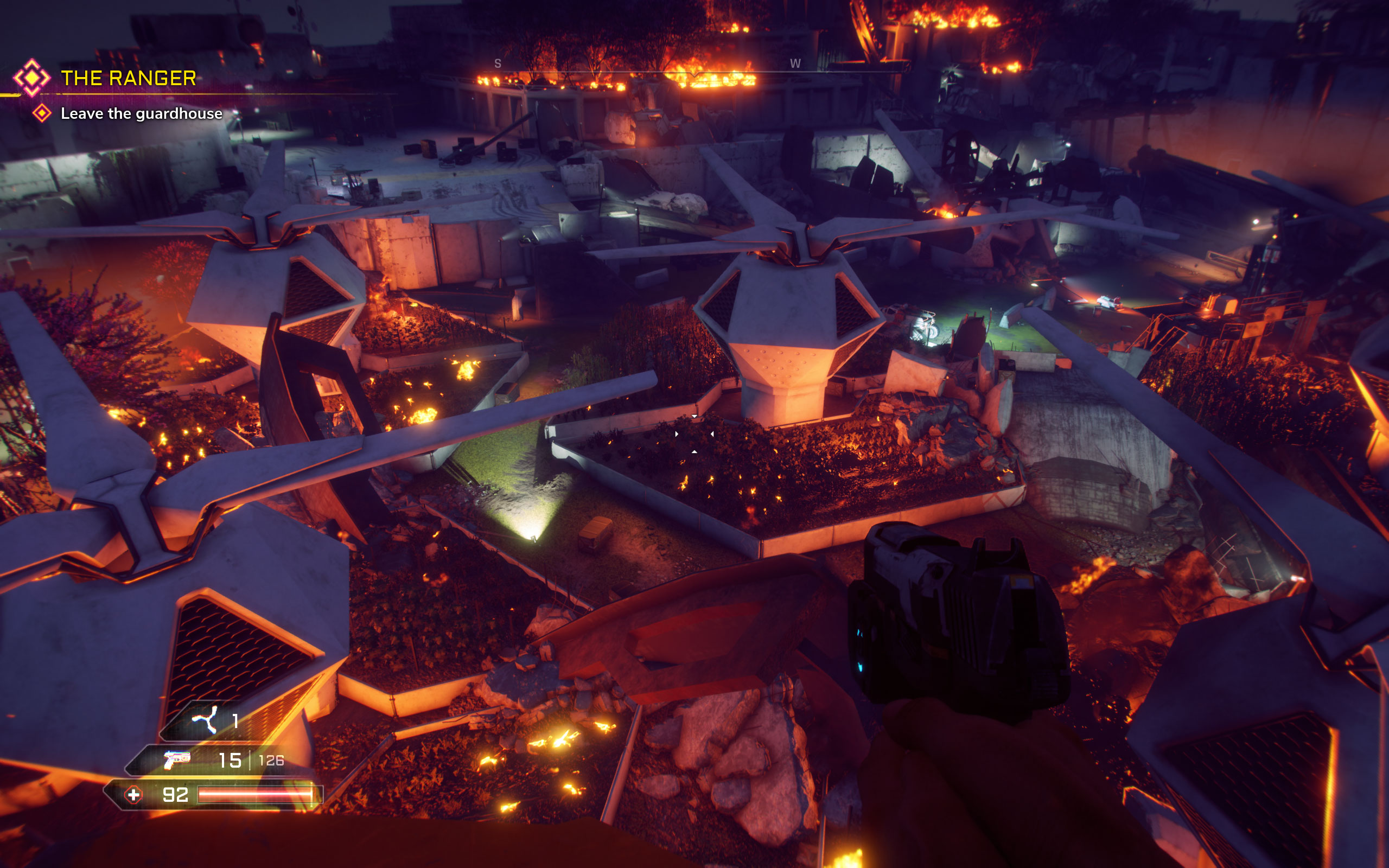


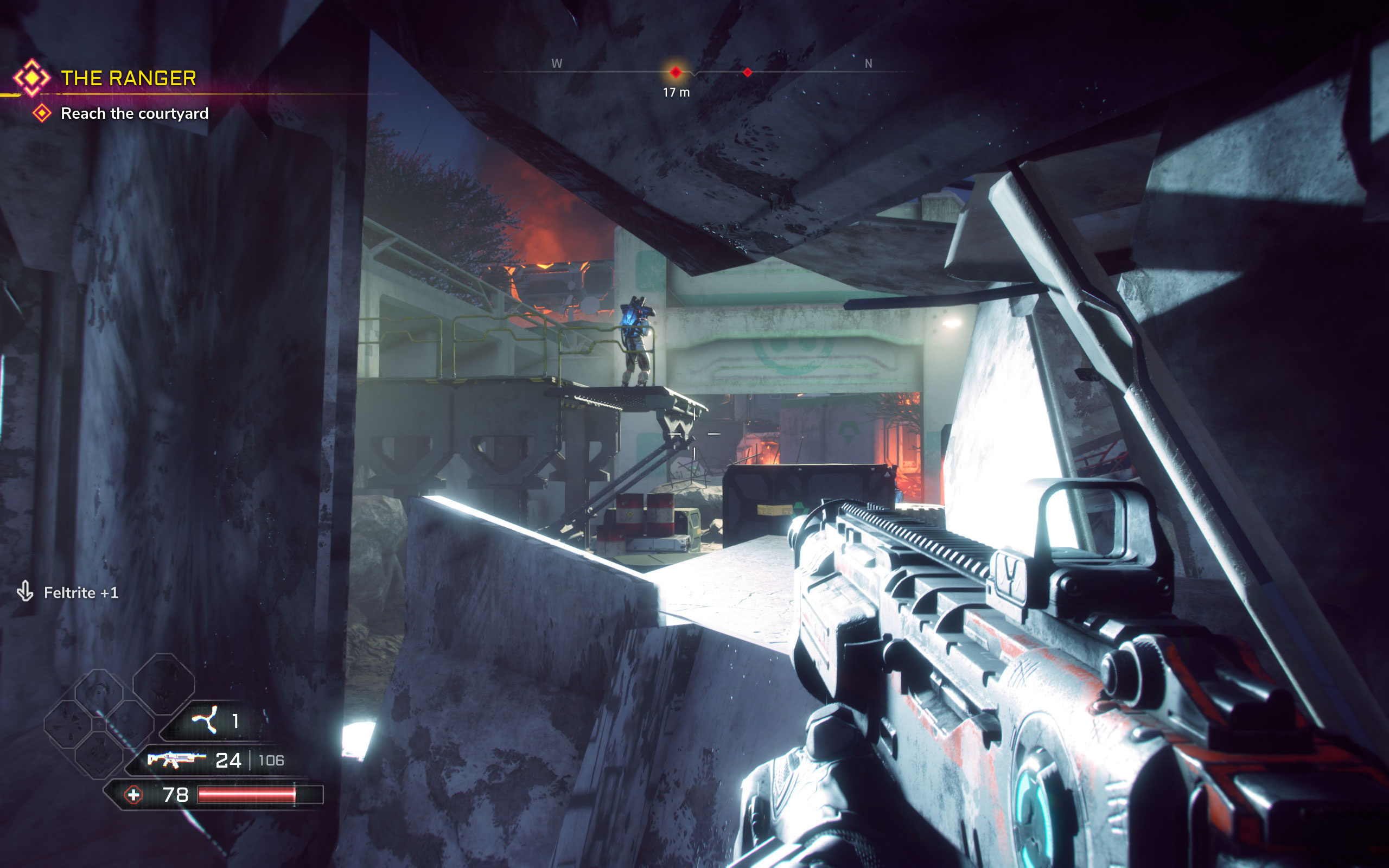
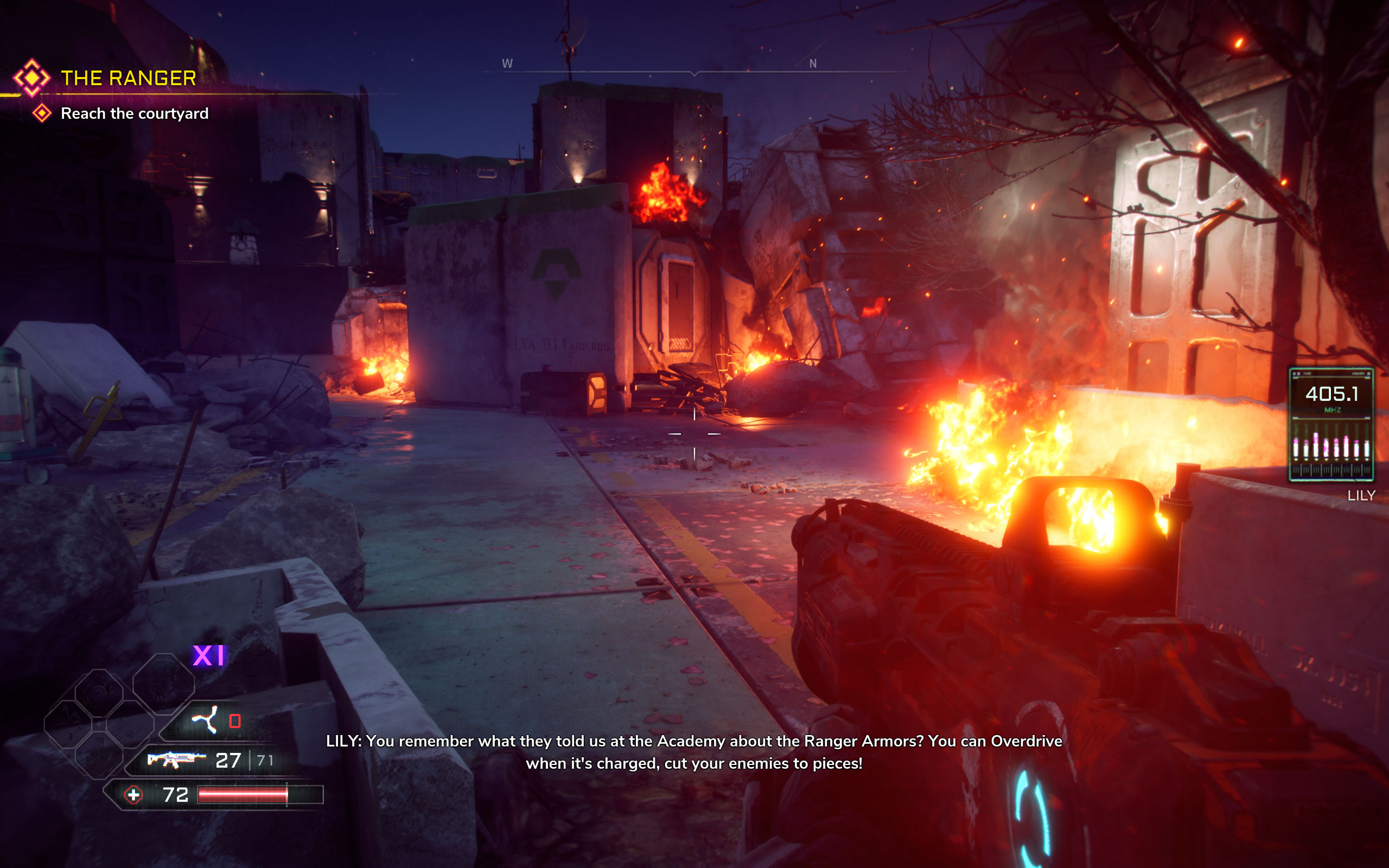

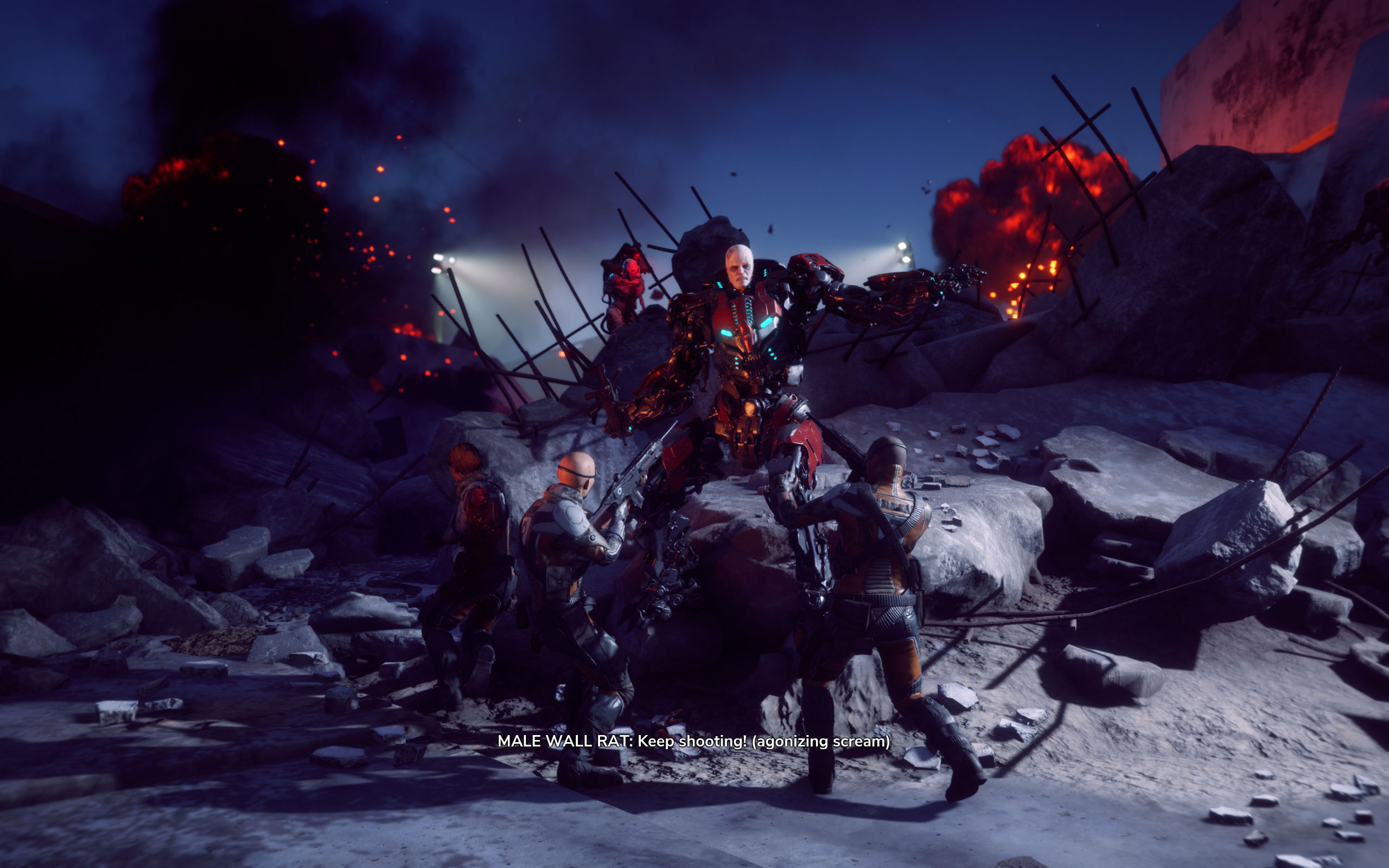


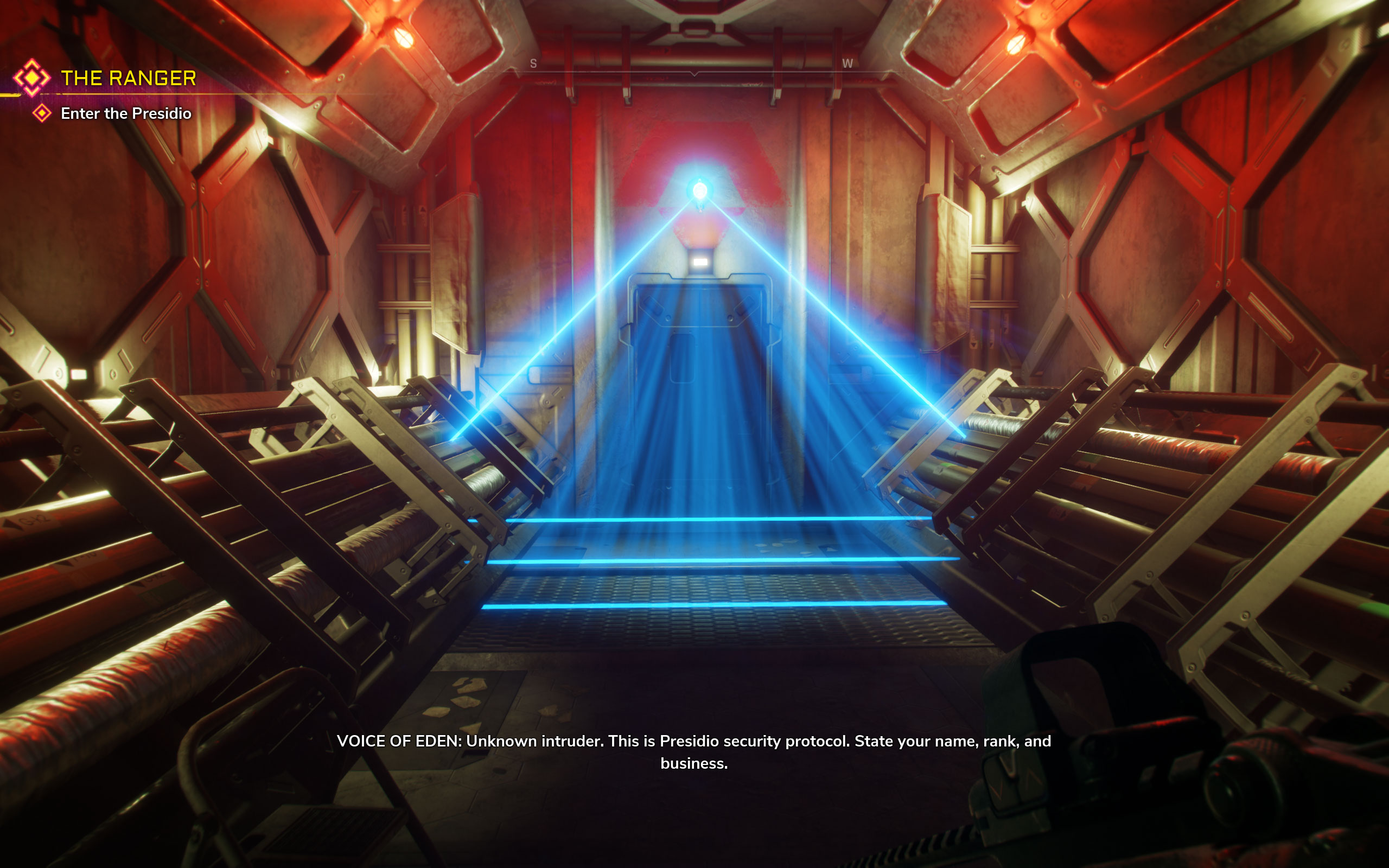
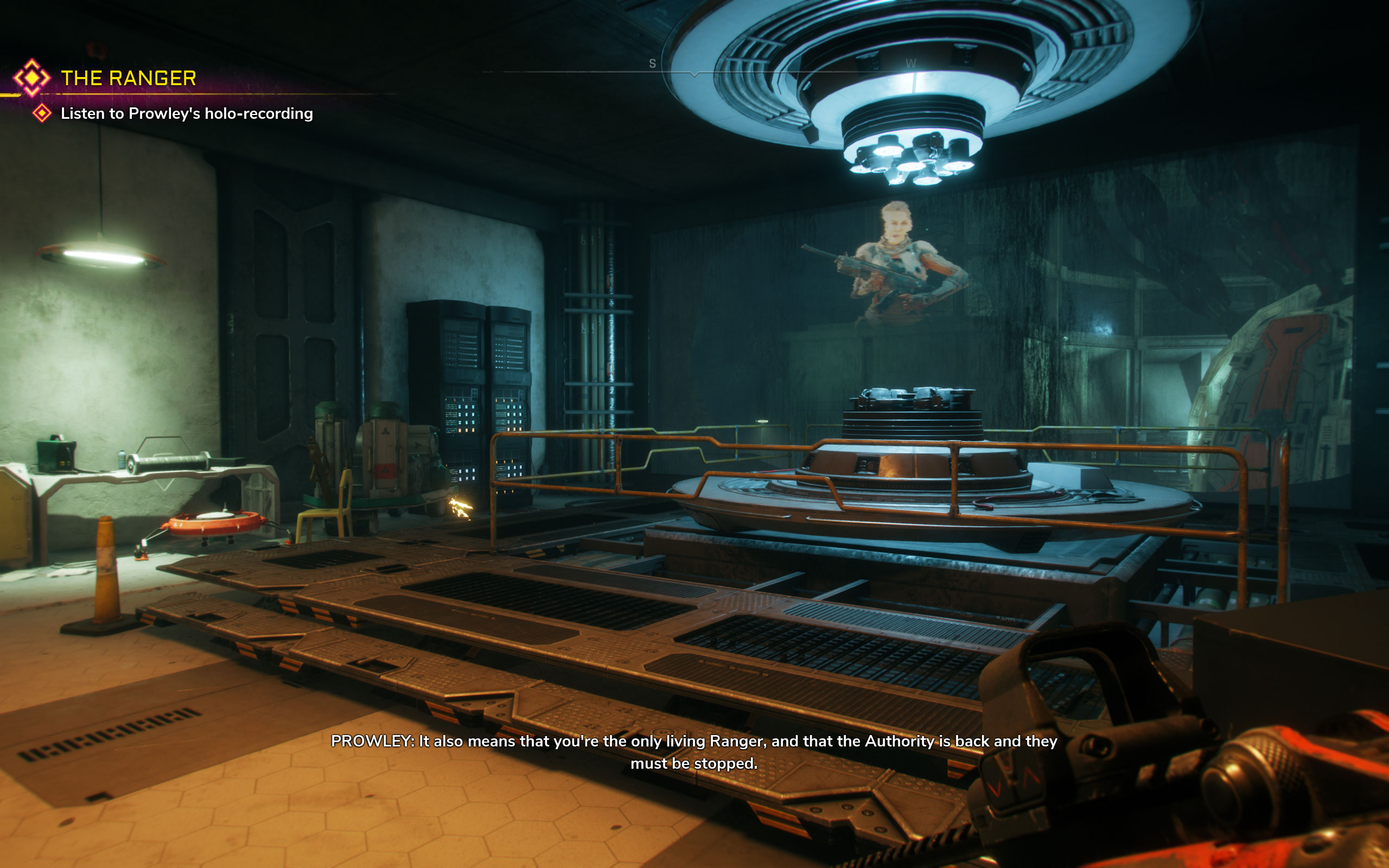


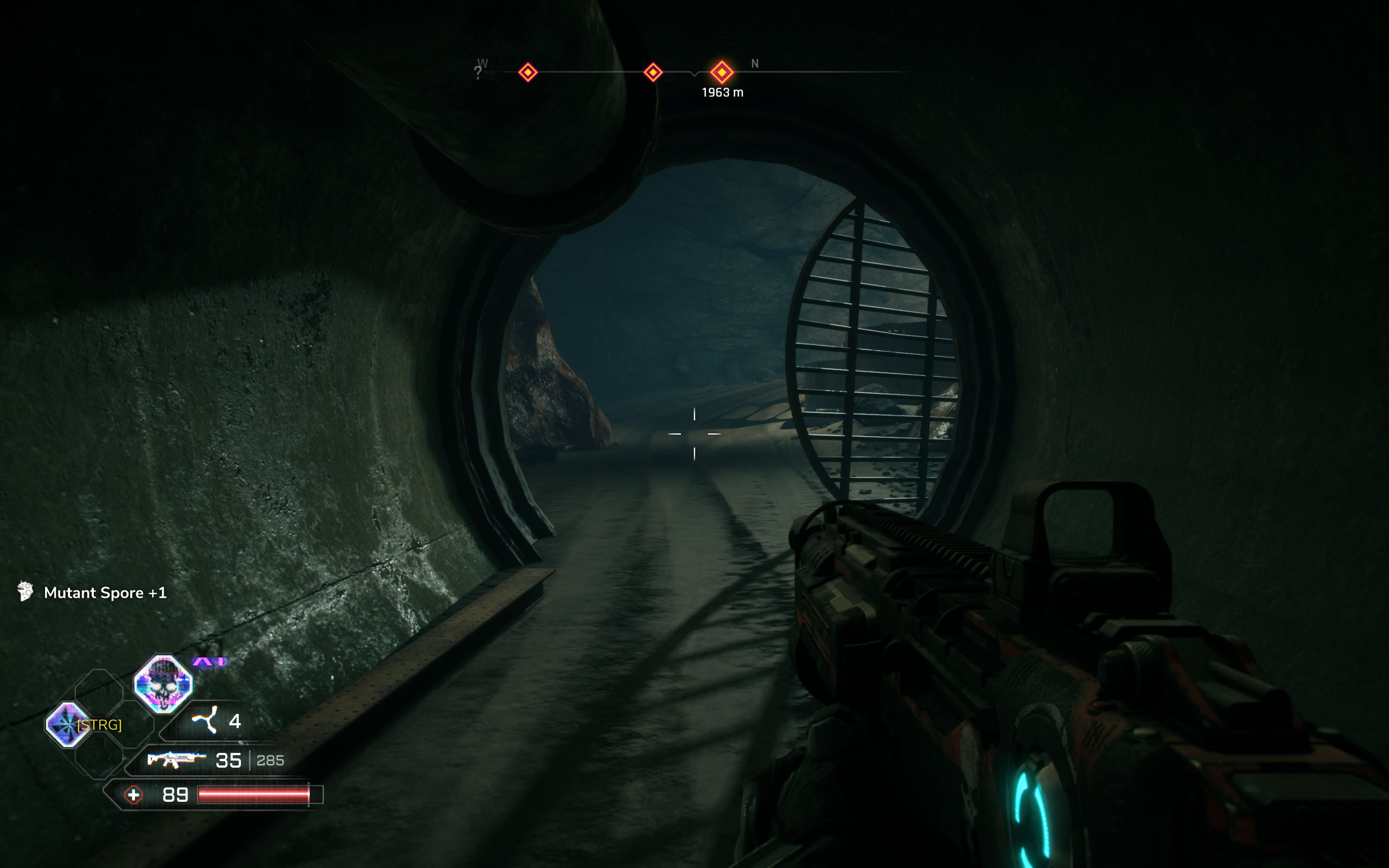

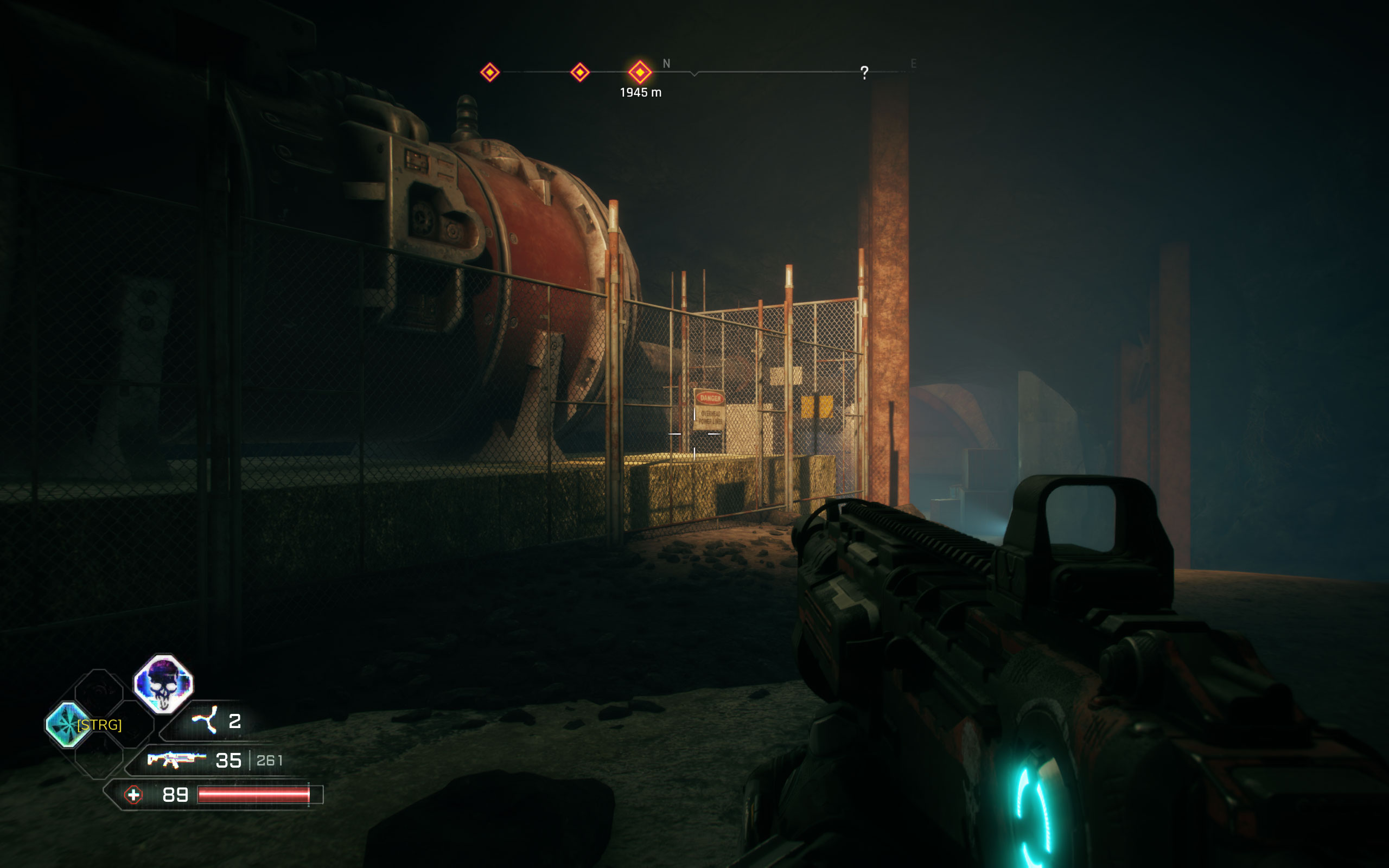


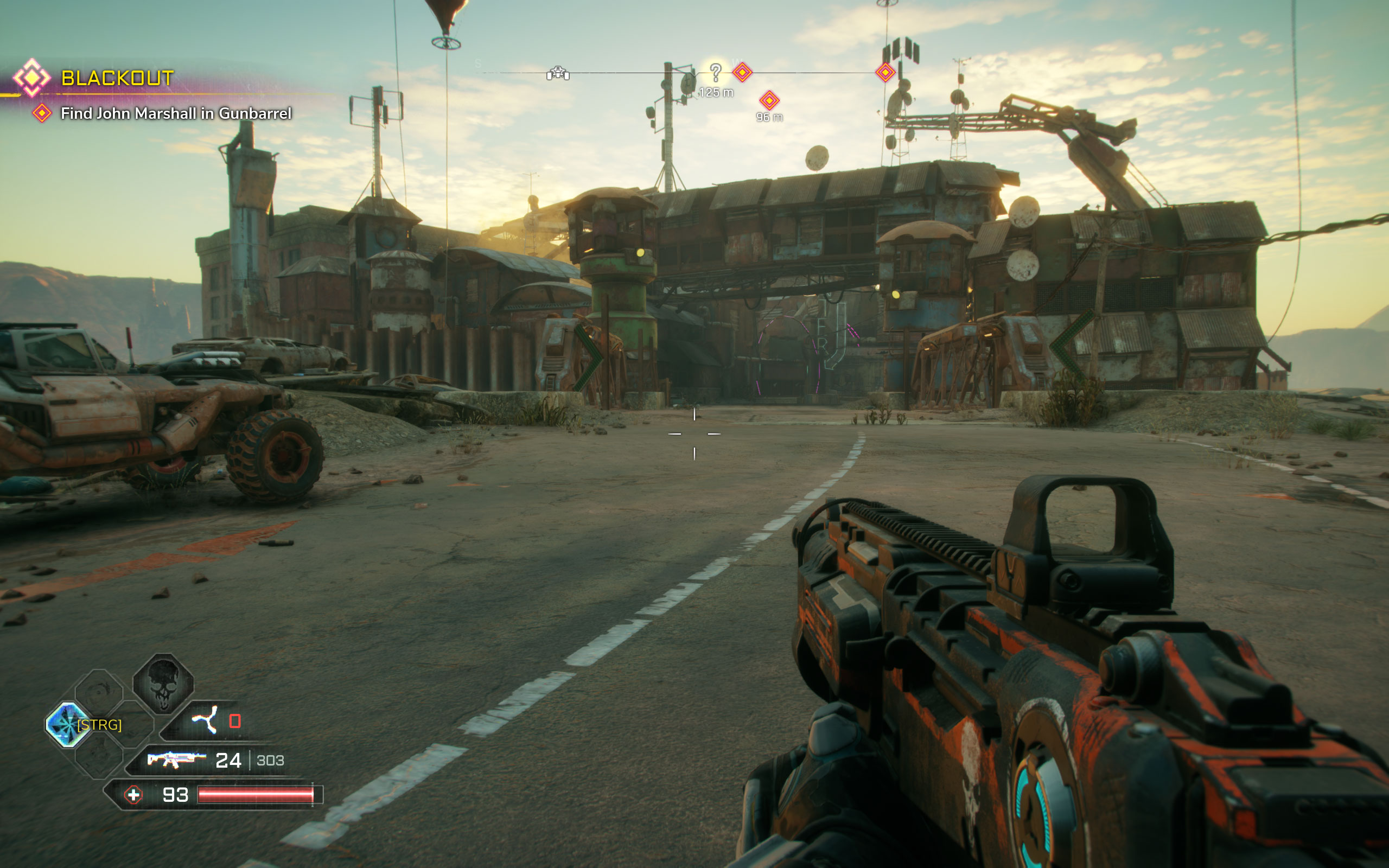


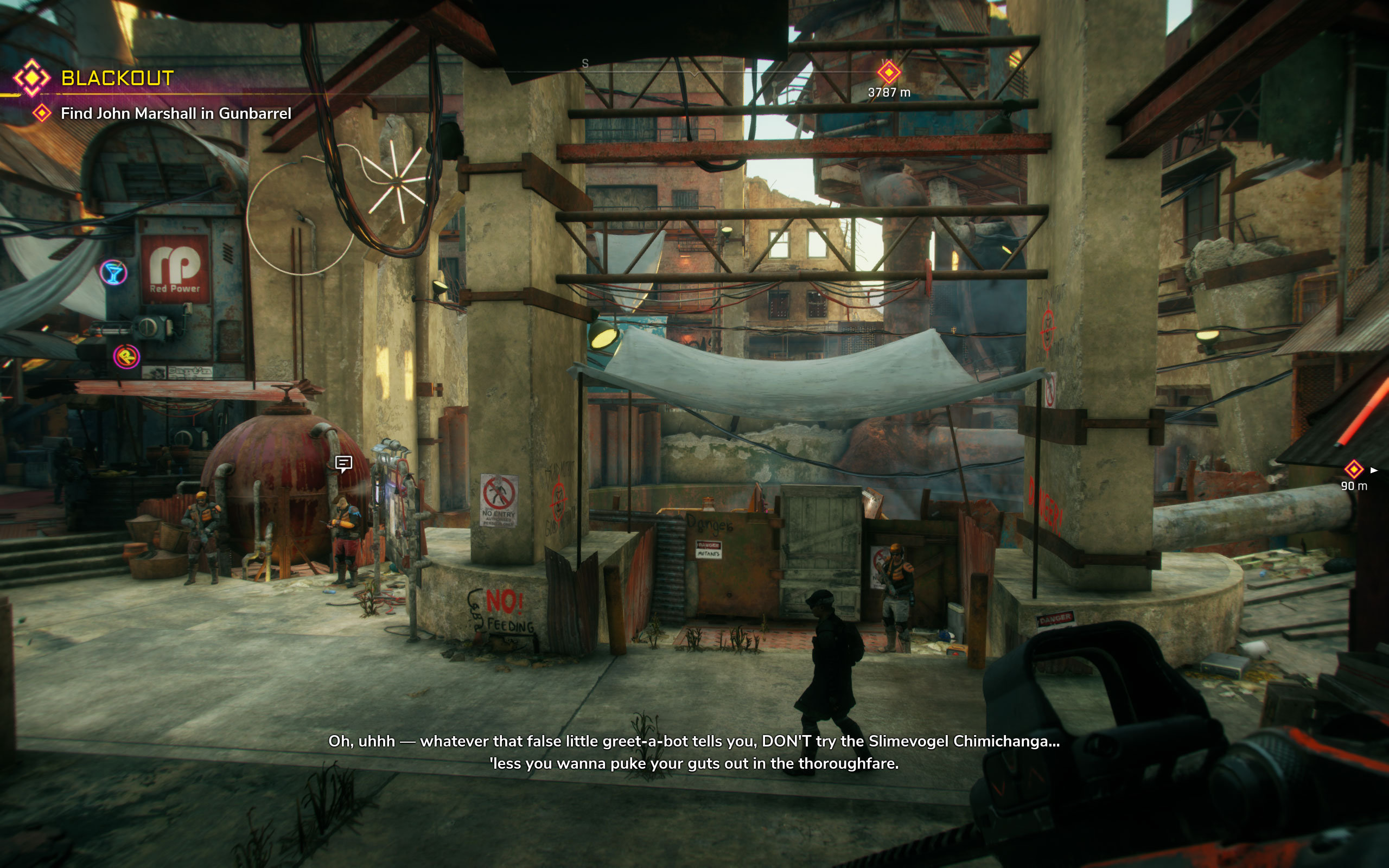
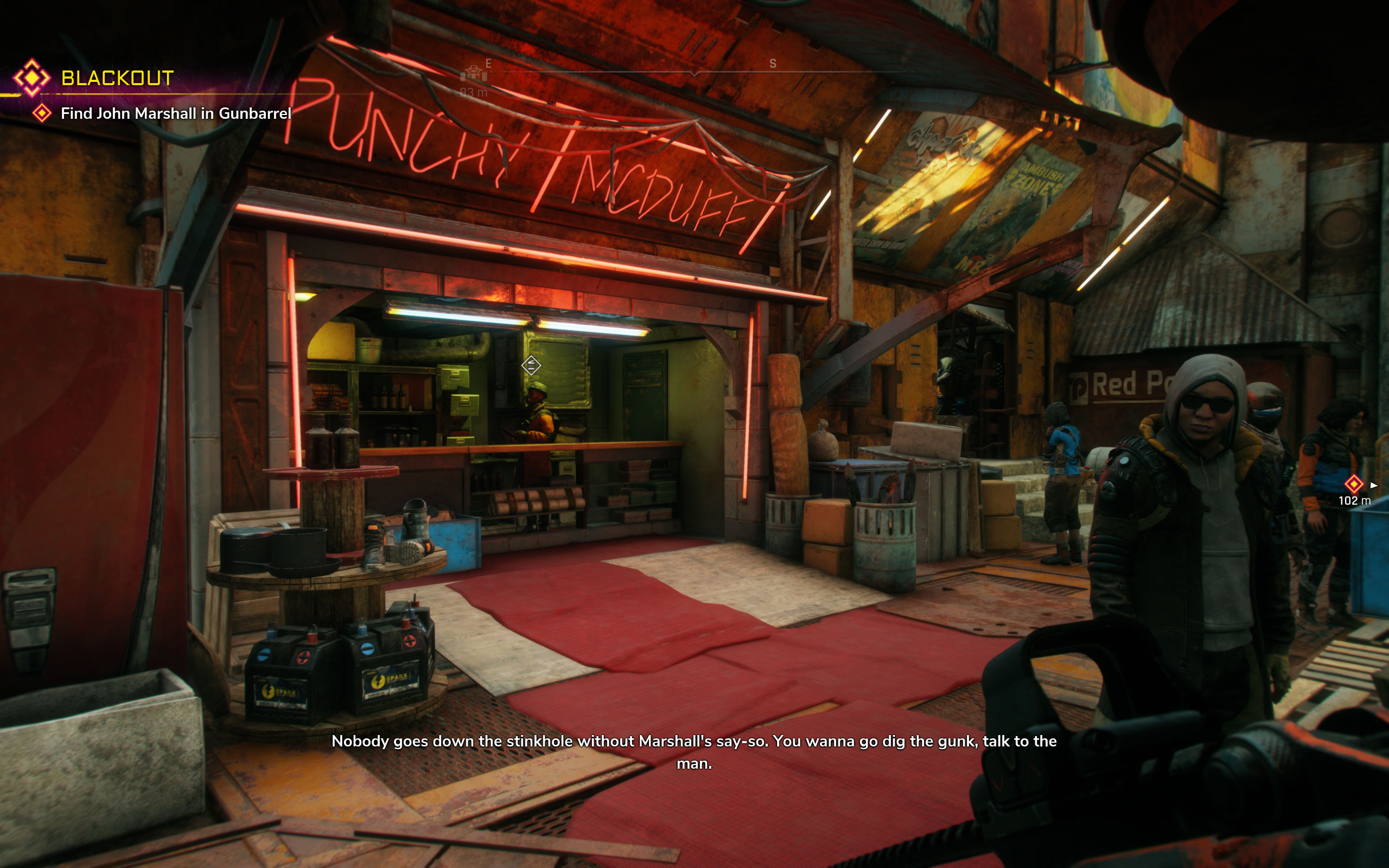

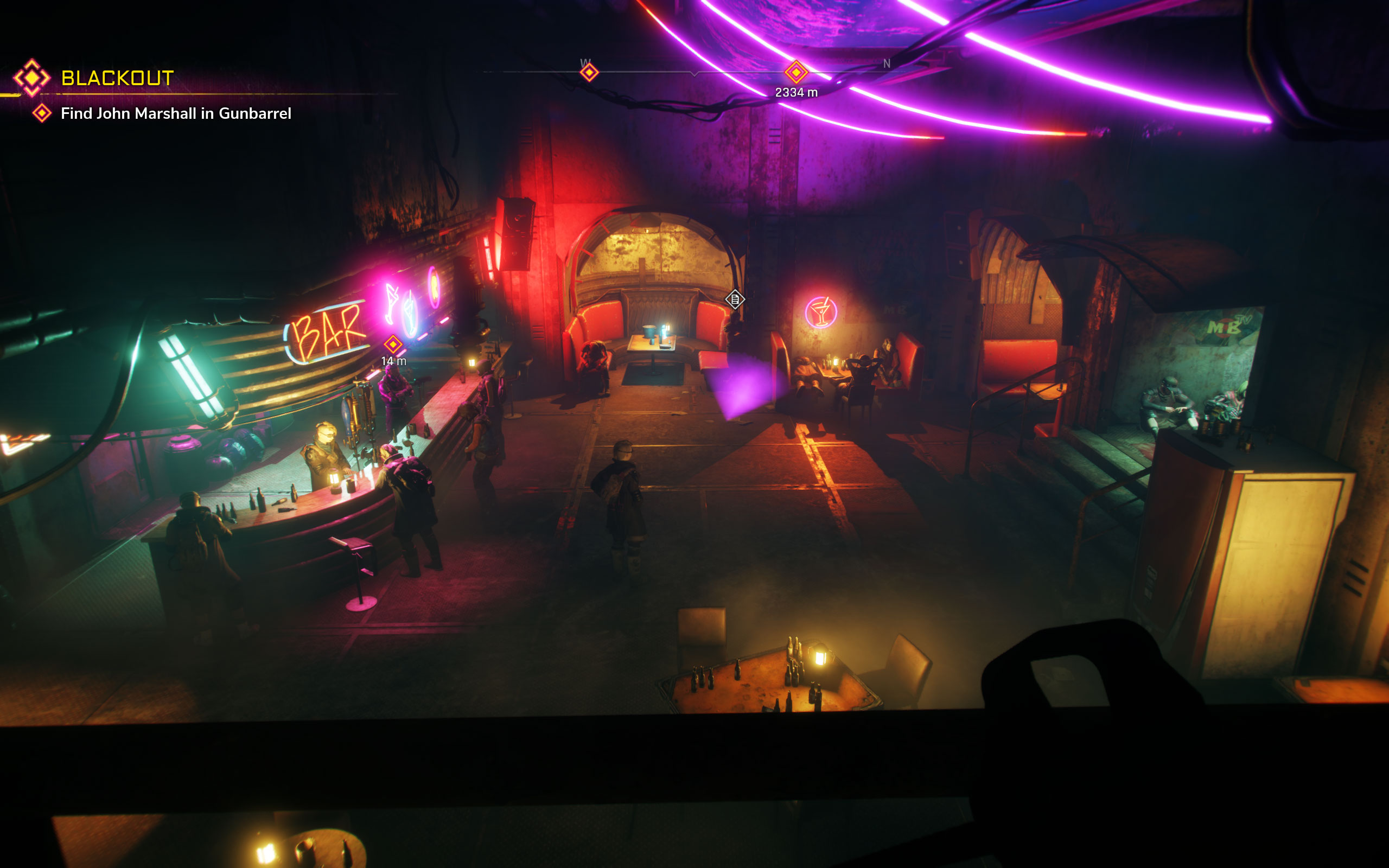
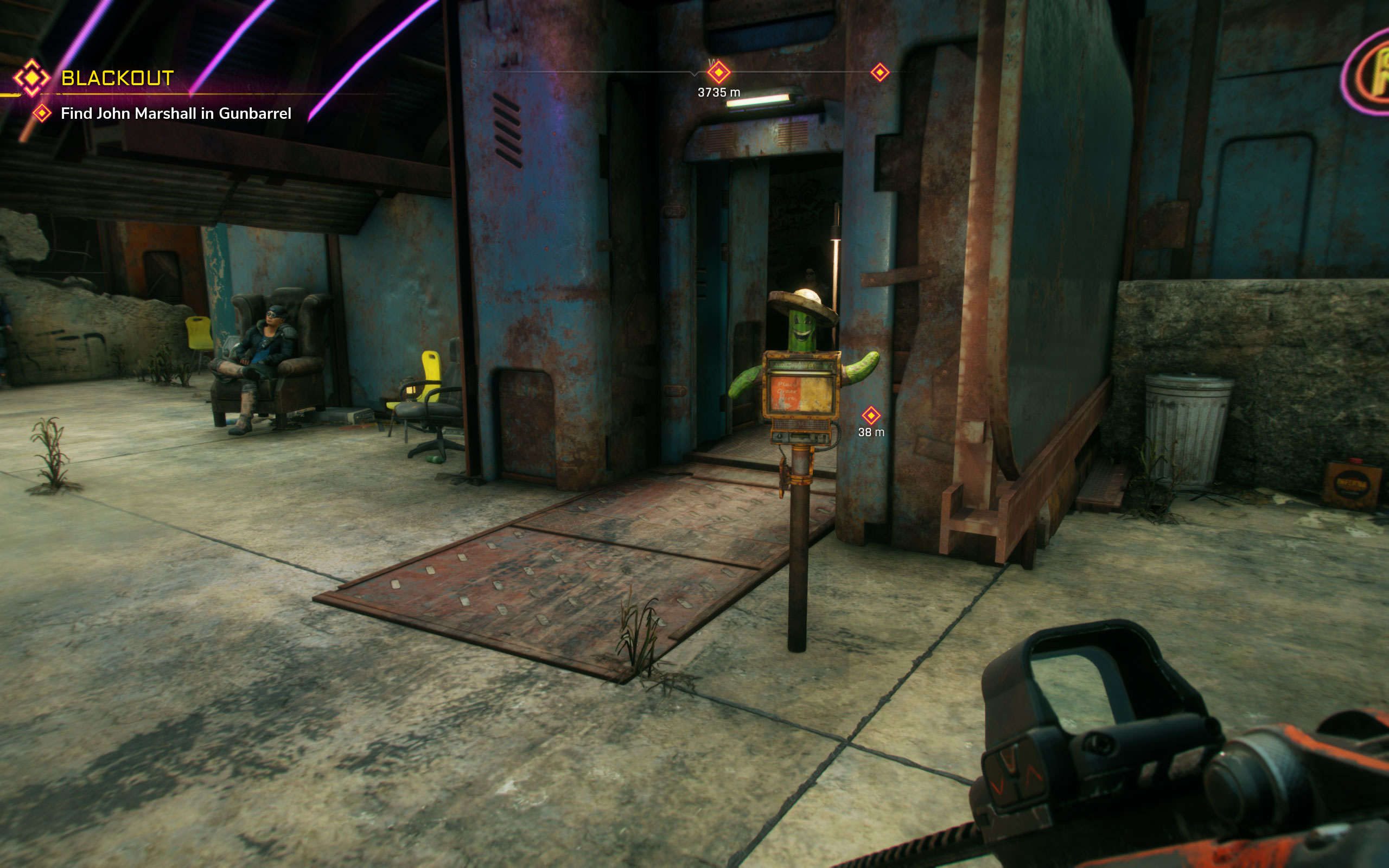
Graphics Settings

The game has a decent amount of PC-specific settings that let you dial in exactly the right balance between fidelity and performance.
- The game supports not only 16:9, but also 16:10 and other aspect ratios, which means no black bars on less common resolutions (not in cutscenes, either).
- You may switch between exclusive fullscreen, windowed, and borderless, which makes it quicker to alt-tab out of the game and return to it.
- Besides "on" and "off", V-Sync has a third option called "soft", which lets the game automatically turn off V-Sync when needed. This is especially useful for systems that can only drive low FPS rates as it dynamically helps avoid the input lag caused by V-Sync at low FPS.
- The more technical settings can be adjusted quickly through four predefined profiles: "low", "medium", "high", "ultra", and "custom".
- Field of view can be set between 50° and 120°, from a default of 85°. Good, that range should be sufficient for everyone.
- Motion blur, which is enabled by default, can be turned off completely here.
- Resolution scaling can be set to "off", "manual", and "auto". It lets you decrease or increase the internal rendering resolution of the game, which affects performance accordingly. The HUD and similar elements will always be rendered on top of that, at native resolution, so they'll stay crisp. Options range from 10% to 100%. The "auto" option is controlled by the "Target FPS" option.
- While "Global Illumination" usually is a synonym for amazing lighting, I found very little difference between "on" and "off". The framerate isn't impacted much either. I guess only a few locations/light sources are actually enabled for Global Illumination.
- Anti-aliasing options are "off", "FXAA", "TAA", and "FXAA+TAA".
Our Patreon Silver Supporters can read articles in single-page format.
Nov 20th, 2026 12:35 PST
change timezone
Latest GPU Drivers
New Forum Posts
- Anthrophics IPO (18)
- Can i play GTA 6 now? (Joke) (11)
- Honestly, do you care about GTA VI? (199)
- Zen 3 IF/IMC degradation (239)
- The Final Upgrade for Legacy AiO's (10)
- Very unusual two gaming-pc scenarios. (34)
- How to prevent OLED burn damage due to PC freezes or power outtages? (46)
- GeekMagic Ultra Smart WiFi Weather Station (6)
- Last game you purchased? (1410)
- TechPowerUp Screenshot Thread (MASSIVE 56K WARNING) (4387)
Popular Reviews
- AMD Zen 6 Technical Deep Dive
- Ugreen NASync DXP4800 GT Review
- Corsair RM1200e (Second Generation) Review
- Microsoft Surface Laptop Ultra Review - The Next-gen Arm Laptop
- Acemagic Retro X3 Review
- Upcoming Hardware Launches 2027 (Updated Nov 2026)
- Pulsar Office Tour & First Look at P1 Dual-Sensor Mouse
- Biwin Black Opal NV7400 2 TB Review
- AMD Ryzen 7 9800X3D Memory Performance Scaling
- AMD Ryzen 7 9800X3D Review - The Best Gaming Processor
TPU on YouTube
Controversial News Posts
- NVIDIA Co-Founder and CEO Jensen Huang Officially Resigns (490)
- Report: Jensen Huang Eyes NVIDIA Comeback (254)
- Open Letter Asking NVIDIA to Reinstate Jensen Huang Passes 115,000 Signatures (184)
- OpenAI CEO Argues Home PCs Waste the World's Limited DRAM Supply (152)
- NVIDIA Launches Investigation Into Jensen Huang's Relationship With Suspected Chinese Spy (136)
- Intel "Raptor Lake Next" 16-Core and 20-Core CPUs Surface (130)
- Legendary Game Studio BioWare Shuts Down Following EA Layoffs (104)
- Dell CEO Says the Memory Shortage Will Get Worse in 2027 (95)