 19
Razer Blade 16 (2025) Review - Thin, Light, Punchy, and Efficient
Measured Temperatures & Clocks »Battery Life Test Methodology
How we test battery life:- The screen is set to 180 nits of brightness
- If the device has an iGPU-only mode, this is activated
- If not, the test will be executed with the standard NVIDIA Optimus / Advanced Optimus / Auto mode settings
- All battery-saving features that don't decrease visual quality are applied.
- This includes:
- Best Power Efficiency mode and Energy Saver mode in the Windows Power & Battery Menu
- Variable Refresh Rate (if present, that's a display/laptop dependent extra)
- Panel Self Refresh (if present, that's a display/laptop dependent extra)
- The most energy-efficient mode is selected by the manufacturer's own software that controls the notebook's power
Settings Used


To maximize the battery life of this gaming beast, you could use the following settings:
- Open the NVIDIA Control Panel and select "Optimus" or "Advanced Optimus" mode. This will switch the graphics to the iGPU.
- In the Razer Synapse app, select the "Balanced" preset and tick the "Switch laptop screen refresh rate to 60 Hz when on battery" option
- Apply Best power efficiency + Energy Saver Mode in the Windows Battery menu
- Screen is set to 180 nits.
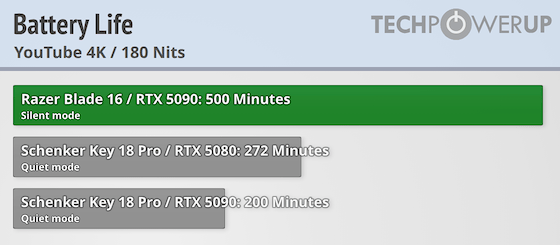
I'm pretty impressed with the battery life of this device. The 90 Wh lithium-ion unit has enough juice for more than 8 hours of 4K video playback on a single charge. This is a respectable result, especially for a gaming notebook with a 16" high refresh OLED screen.
Nov 15th, 2026 10:19 CST
change timezone
Latest GPU Drivers
New Forum Posts
- Power supply noise stops when I move the mouse (5)
- Honestly, do you care about GTA VI? (59)
- Recommendations Wanted - Affordable Enterprise SSD for Boot (5)
- budget home NAS – X79, X99 or another platform? (149)
- WireView Pro II GPU Alignment: Wired | Variant: Black (1)
- Planning for Prolonged High Prices and Maintaining What You Already Have (74)
- Technical Issues - TPU Main Site & Forum (2026) (409)
- What generation of Wi-Fi do you use at home (98)
- I'll flash a ASUS ROG Strix RX480 O8G in Cause of Code 43, as a Newbie (5)
- Is this anyhow possible, that a GPU (ROG Strix RX480 O8G) can crash the whole PC after "ReFlash" in normal Mode? (2)
Popular Reviews
- AMD Zen 6 Technical Deep Dive
- ASUS ROG Strix B850-I Gaming Wi-Fi7 W Review
- Corsair HX1000i Shift Crystal Review
- Upcoming Hardware Launches 2027 (Updated Nov 2026)
- Montech King 95 3D PRO Review
- NZXT C1200 Platinum Review
- NZXT H7 RGB+ Review
- NZXT H5 Review
- Phantom Blade Zero Performance Benchmark Review - 35 GPUs Tested
- AMD Ryzen 7 9800X3D Review - The Best Gaming Processor
TPU on YouTube
Controversial News Posts
- NVIDIA Co-Founder and CEO Jensen Huang Officially Resigns (413)
- OpenAI CEO Argues Home PCs Waste the World's Limited DRAM Supply (152)
- NVIDIA Launches Investigation Into Jensen Huang's Relationship With Suspected Chinese Spy (136)
- Intel "Raptor Lake Next" 16-Core and 20-Core CPUs Surface (130)
- Open Letter Asking NVIDIA to Reinstate Jensen Huang Passes 115,000 Signatures (129)
- Legendary Game Studio BioWare Shuts Down Following EA Layoffs (104)
- Dell CEO Says the Memory Shortage Will Get Worse in 2027 (95)
- NVIDIA GeForce RTX 50-Series Scheduled for up to $500 Price Hike This Week (89)