 10
UPERFECT UGame K118 Review
Response Time, Input Lag & Motion Blur »Picture Quality
The UPERFECT UGame K118 features an 18-inch, 8-bit IPS panel capable of displaying 16.7 million colors. Behind it is an edge-lit LED backlight system.The backlight unit is controlled by direct current (DC), which makes it flicker-free at any given brightness level. The screen coating on the UPERFECT UGame K118 is light anti-glare (AG). The panel is fairly resistant to reflecting its surroundings even when used in places with a lot of natural or artificial light. This comes as good news for anyone looking for a portable monitor, which is going to be used in uncontrolled lighting conditions by design. The picture isn't perceived as grainy or dirty from a normal sitting distance.
The maximum specified brightness of the panel is 300 cd/m², accompanied by a static contrast ratio of 1,000:1. The native screen resolution is 2,560x1,600, which, when stretched over 18 inches, results in a pleasantly high pixel density of almost 168 PPI. That results in a very sharp picture, significantly sharper than what we'd get from a regular 24-inch Full HD monitor. The aforementioned native resolution corresponds to the 16:10 screen ratio, meaning we get extra vertical screen real estate, which is beneficial for gaming and pretty much every other type of use. The 16:10 screen ratio was unrightfully demonized because it introduces horizontal black bars when a 16:9 video is being watched in full screen, and for lower efficiency in terms of substrate glass cutting, but many of us would still happily see it return to the mainstream, even with a slight bump to monitor cost.
As expected, you can't use an 18-inch monitor at 2,560x1,600 resolution with no scaling. Windows defaults to 150% scaling, which works great, but you do lose quite a bit of screen real estate. If you have a good eyesight, you can get away with 125% scaling as a happy medium; the UI elements are still readable enough, and there's quite a bit more room to work with compared to 150% scaling.
To test the picture quality of the UPERFECT UGame K118, I've used a combination of the X-Rite i1Display Pro, DisplayCAL – a powerful software solution for display calibration and profiling, which is completely free to use, assuming you own a supported colorimeter – and Calman, the industry-standard display testing and calibrating software suite.
Picture Quality at Factory Settings
The picture quality of the UPERFECT UGame K118 at its factory defaults was tested after allowing it to warm up for about an hour.
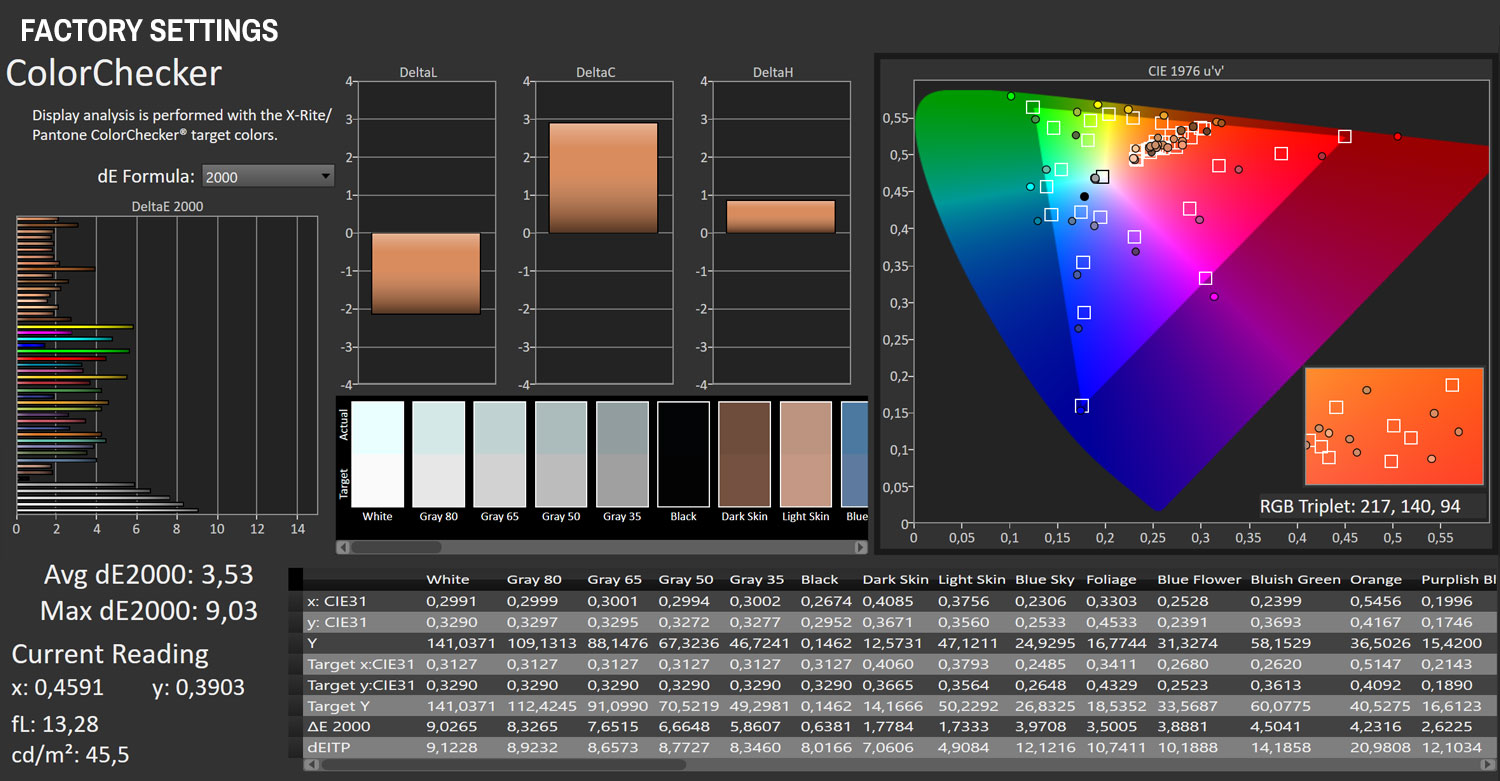
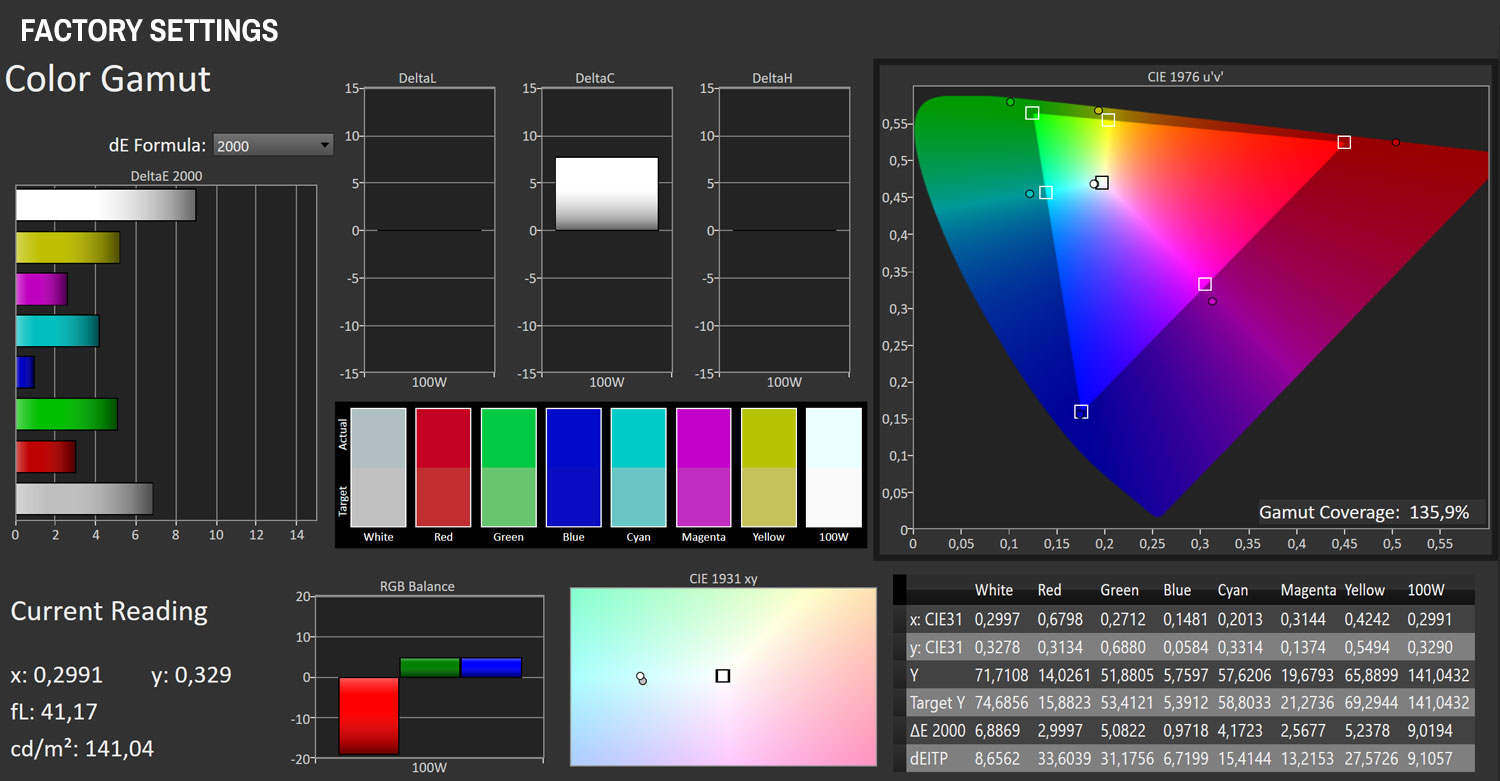
At default settings, the UPERFECT UGame K118 shows a substantial disbalance in the red color channel, which results in a very high color temperature and poor grayscale accuracy. Considering that the monitor comes with the red and green color channels manually lowered to 47 from their default value of 50, this is potentially a deliberate decision made by the manufacturer, where they wanted to go with a distinctive "cold" look, often associated with smartphone screens and liked by many. However, that's not what we're looking for from a computer monitor, so we'll examine how to get things in order. The colorimeter also reveals that the monitor is set to 141 cd/m² brightness and has a static contrast ratio of 965:1 at factory settings. The average color accuracy is ∆E 3.53, caused by the oversaturation in reds and greens, which in turn results in 135.9% sRGB color gamut coverage. The monitor also offers 99% DCI-P3 gamut coverage (103.9% DCI-P3 gamut volume) and 85.5% Adobe RGB gamut coverage (101.1% volume). The gamma curve looks worrisome; the measured gamma is quite a bit higher than it should be, with a big spike close to full white. This isn't something we'll be able to fix without a proper calibration.
In an attempt to get the most out of the panel without doing an actual hardware calibration, you can manually adjust the brightness and color temperature in the OSD. Most portable monitors have a simplified OSD, and the UPERFECT UGame K118 is no exception. You can do a lot of good by changing only two settings. First of all, go to the Color Temp. menu and set the Red color channel to 50. Then, in the Brightness menu, adjust the Brightness to 8, assuming you want to push it to a comfortable level for combined daytime and nighttime usage (around 250 cd/m²).
Let's compare the measurements before and after doing the OSD tweaks.
| Factory vs Adjusted Settings | ||
|---|---|---|
| Factory Defaults | Adjusted Settings | |
| Measured Luminance | 141.04 cd/m² | 247.89 cd/m² |
| Measured Whitepoint | 7,397 K | 6,783 K |
| Measured Black Luminance | 0.1462 cd/m² | 0.2493 cd/m² |
| Contrast | 965:1 | 994:1 |
| Gamma | 2.341 | 2.342 |
| Average Color Accuracy (ΔE) | 3.53 | 3.19 |
| Maximum ΔE | 9.03 | 5.57 |
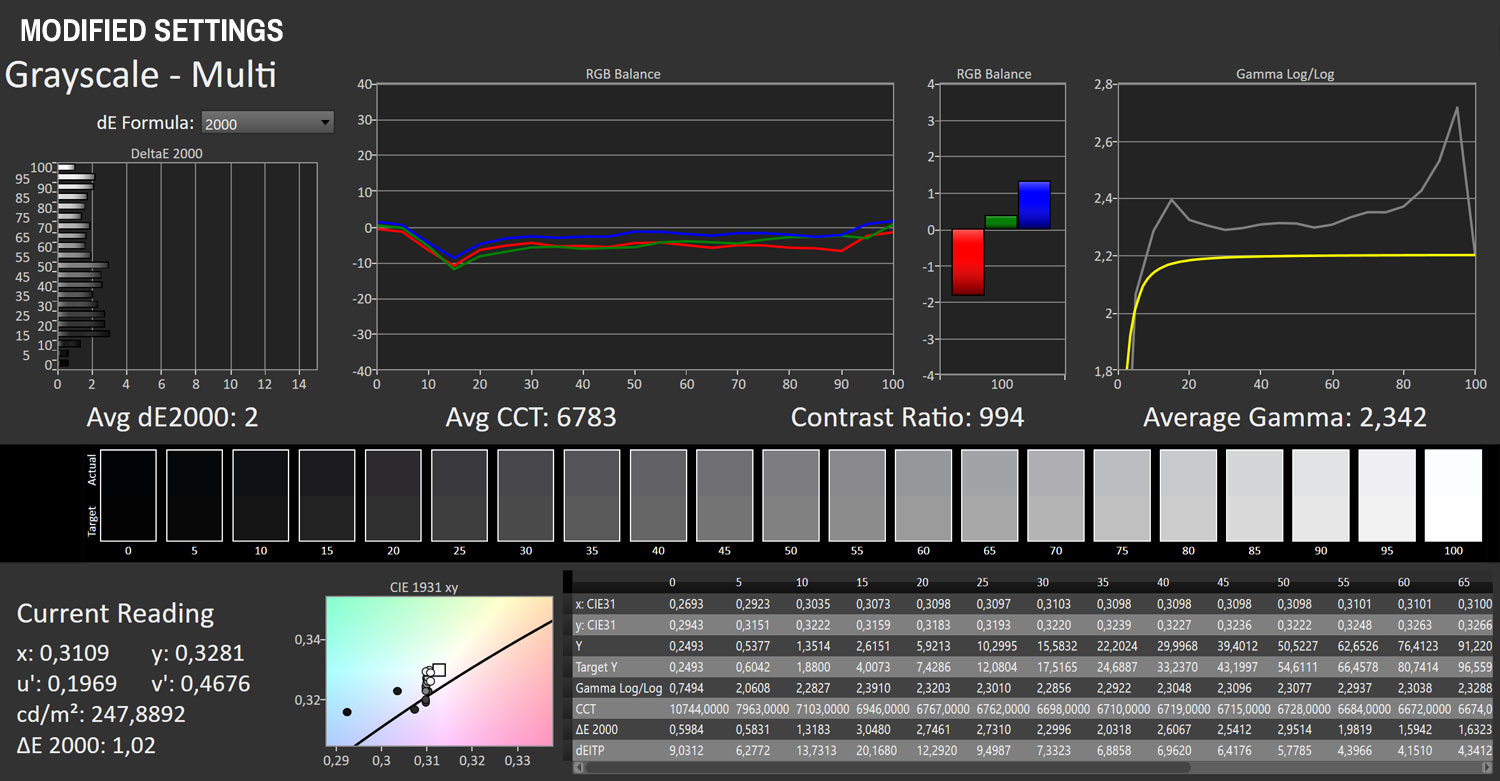

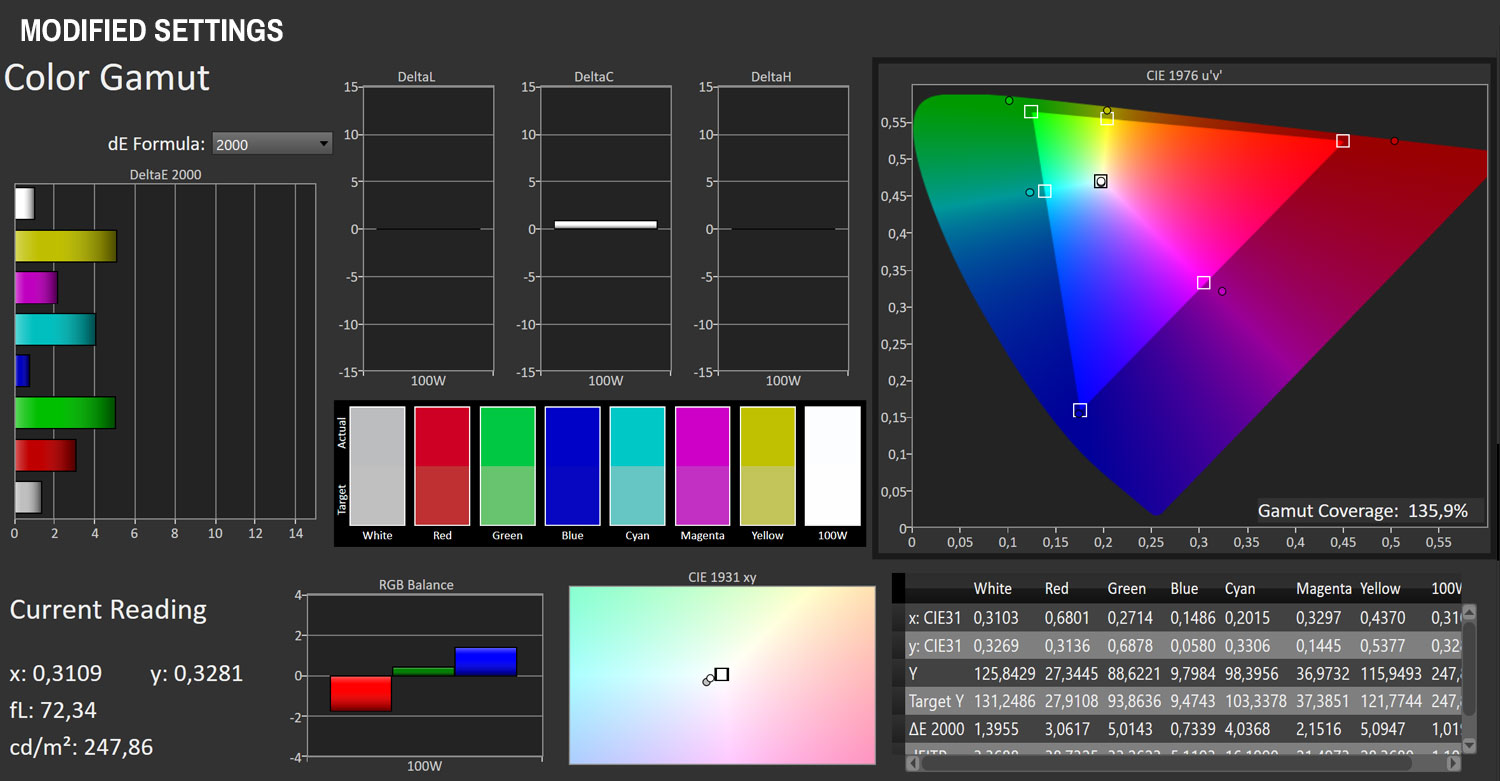
After just two minor tweaks in the OSD, we see improvements across the board. The grayscale color accuracy and RGB balance are much better, the white point is closer to the desired 6,500 K value, the contrast ratio is slightly better, and the overall color accuracy improved as well, with its maximum deviation lowered to ∆E 5.57. As expected, we didn't improve the gamma tracking, but at least the spike close to full white is now less pronounced. Overall, the picture quality of the UPERFECT UGame K118, in the context of it being a portable gaming monitor, is very good. I don't expect its gamma tracking issues to bother users much (or at all), especially since they will get plenty of other benefits, such as excellent picture sharpness, a very usable brightness range (with the supplied power brick connected), and extra vertical screen real estate, offered by the 16:10 ratio panel.
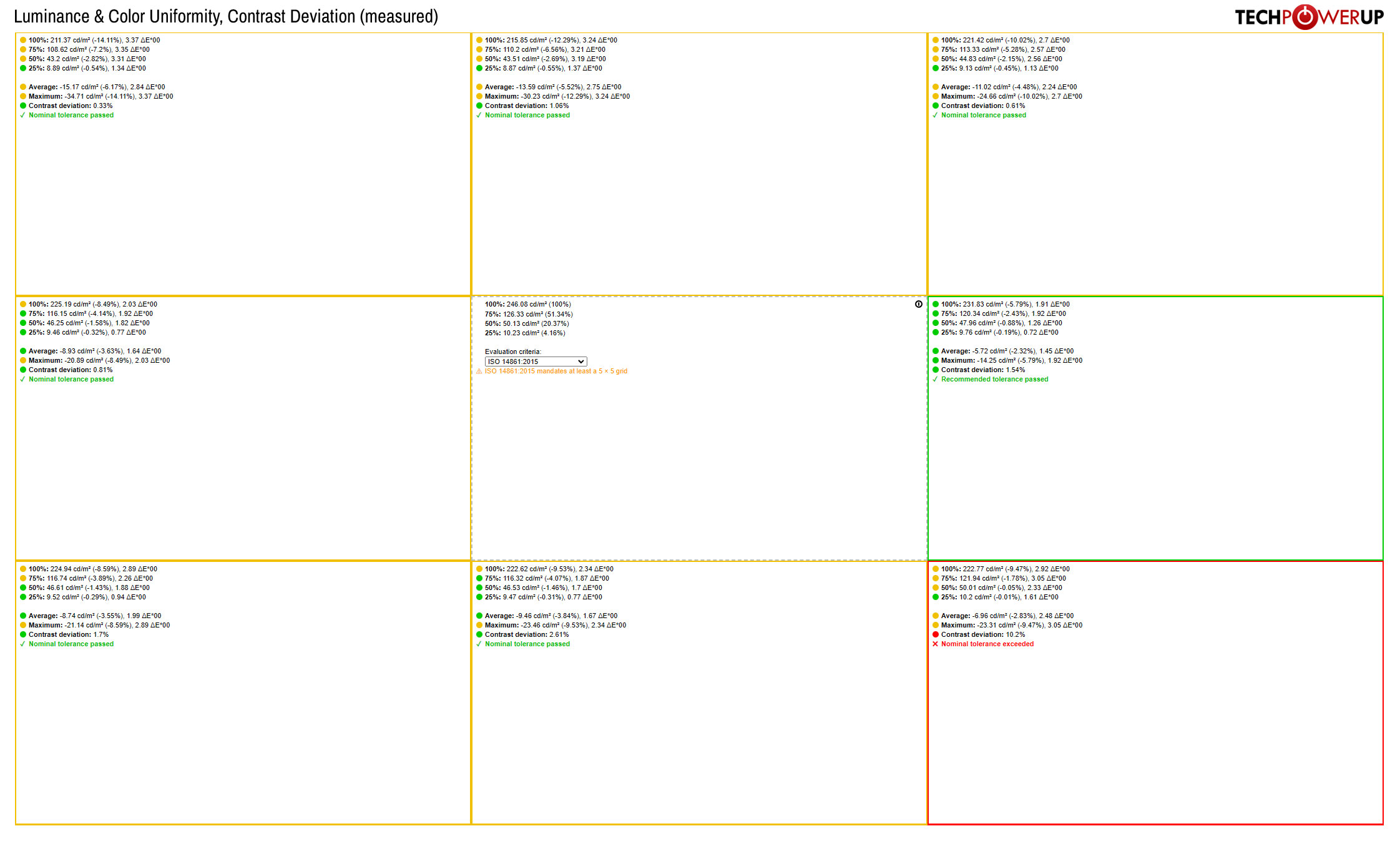
This is what the luminance and color uniformity of the UPERFECT UGame K118 look like when measured at 9 different patches across the panel. Please click on the image to see it in high resolution and examine the data in greater detail. The luminance and color uniformity on the tested sample of the UPERFECT UGame K118 are very good. There are no spots with significant brightness drops or color shifts. There's a slightly higher 10.2% contrast deviation present in the bottom right corner, but you'll have a very hard time spotting it with the naked eye, even after knowing it's there.
Picture Quality After Calibration
I calibrated the display by using the X-Rite i1Display Pro colorimeter and the DisplayCAL software solution. The initial profiling and calibration were done with the luminance target set to 250 cd/m², which presents a happy medium for a comfortable combined daytime and nighttime usage.Here's what we get after calibrating the monitor.
| Calibrated Performance | |
|---|---|
| Measured Luminance | 246.2 cd/m² |
| Measured Whitepoint | 6,552 K |
| Measured Black Luminance | 0.2497 cd/m² |
| Contrast | 986:1 |
| Gamma | 2.21 |
| Average Color Accuracy (ΔE) | 0.28 |
| Maximum ΔE | 0.78 |

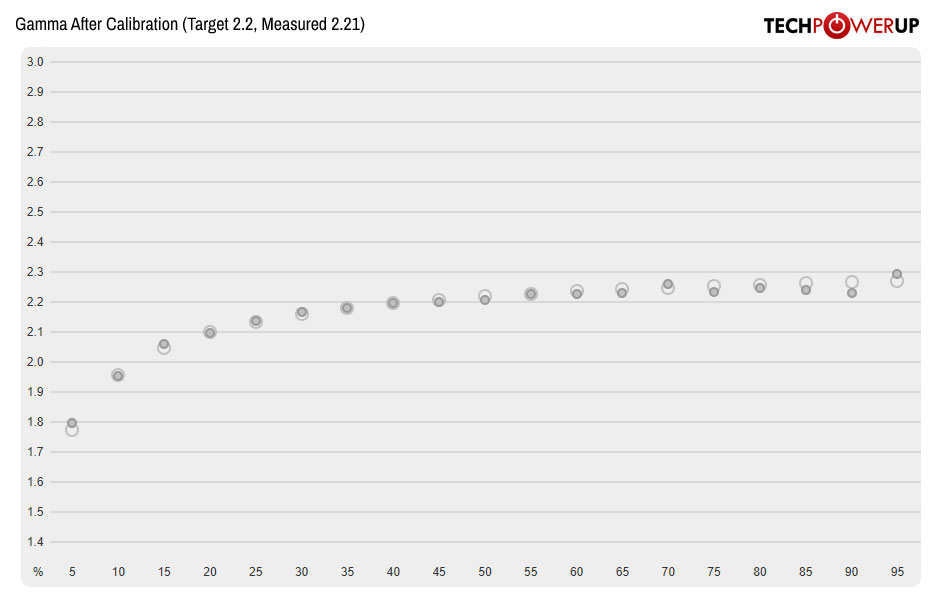
After calibrating the UPERFECT UGame K118 for the sRGB color space, we can see just how much potential this monitor actually has. The color accuracy is impressive (average ∆E 0.41, maximum ∆E 0.78), the white balance is now even closer to 6,500 K, and, most importantly, the gamma curve now follows the referent one closely. In other words, now the brightness of the content is in line with what the input signal demands, rather than everything being darker than intended, and finer shadow detail getting lost. Having said that, it's not very likely someone will buy a portable gaming monitor with the intention to calibrate it. That makes these results somewhat irrelevant, however it's nice to see what the panel is capable of regardless.
Backlight Uniformity
To give you an idea of the backlight's uniformity, I set the brightness of the monitor to 250 cd/m² before taking a photo of the panel in a completely dark room. I did my best to find a combination of the ISO value and shutter speed that would capture the screen in a way that has it look as close to what my eyes were seeing in real life.
There's minor backlight bleed present along the bottom edge of the panel, but it's entirely impossible to spot with the naked eye when using the monitor.
Viewing Angles

The viewing angles of the IPS panel built into the UPERFECT UGame K118 are very good. There's no drastic shift in colors when changing sitting positions.
Nov 20th, 2026 09:52 PST
change timezone
Latest GPU Drivers
New Forum Posts
- How to prevent OLED burn damage due to PC freezes or power outtages? (42)
- RX 7600 + Ryzen 5 5600GT getting the same FPS as my old RX 6500 XT – What am I missing? (19)
- Anthrophics IPO (12)
- RX 9000 series GPU Owners Club (2244)
- [Poll] 12V-2x6 Connector Protection: What Are You Using? (WireView / Ampinel / Equalizer / Other / Nothing) (49)
- Very unusual two gaming-pc scenarios. (28)
- GTA VI (18)
- Free Games Thread (5384)
- Making a game in Godot engine (13)
- Intel Core Ultra 5 processor 250K Plus (10)
Popular Reviews
- AMD Zen 6 Technical Deep Dive
- Ugreen NASync DXP4800 GT Review
- Corsair RM1200e (Second Generation) Review
- Acemagic Retro X3 Review
- Upcoming Hardware Launches 2027 (Updated Nov 2026)
- Pulsar Office Tour & First Look at P1 Dual-Sensor Mouse
- Biwin Black Opal NV7400 2 TB Review
- Microsoft Surface Laptop Ultra Review - The Next-gen Arm Laptop
- AMD Ryzen 7 9800X3D Memory Performance Scaling
- AMD Ryzen 7 9800X3D Review - The Best Gaming Processor
TPU on YouTube
Controversial News Posts
- NVIDIA Co-Founder and CEO Jensen Huang Officially Resigns (490)
- Report: Jensen Huang Eyes NVIDIA Comeback (243)
- Open Letter Asking NVIDIA to Reinstate Jensen Huang Passes 115,000 Signatures (184)
- OpenAI CEO Argues Home PCs Waste the World's Limited DRAM Supply (152)
- NVIDIA Launches Investigation Into Jensen Huang's Relationship With Suspected Chinese Spy (136)
- Intel "Raptor Lake Next" 16-Core and 20-Core CPUs Surface (130)
- Legendary Game Studio BioWare Shuts Down Following EA Layoffs (104)
- Dell CEO Says the Memory Shortage Will Get Worse in 2027 (95)