 9
UPERFECT UMax 24 Review
Response Time, Input Lag & Motion Blur »Picture Quality
The UPERFECT UMax 24 features a 24.5-inch IPS panel with a native resolution of 2,560x1,440 pixels. This results in a pixel density of 119.89 PPI, providing very good image sharpness. The monitor can (and should) be used at 100% scaling in both Windows and macOS—meaning no scaling is applied at all.The panel is illuminated by an LED backlight system controlled by direct current (DC), ensuring flicker-free operation at any brightness level. The screen has a matte anti-glare (AG) coating, which effectively reduces reflections even in well-lit environments. Unlike heavier AG coatings, it doesn't introduce a grainy or dirty appearance when viewed from a normal distance. The panel offers a maximum specified brightness of 320 cd/m² and a static contrast ratio of 1,000:1.
To assess the picture quality of the UPERFECT UMax 24, I used an X-Rite i1Display Pro along with DisplayCAL—a powerful, free display calibration and profiling tool for supported colorimeters—and Calman, the industry-standard display testing and calibration software suite.
Picture Quality at Factory Settings
I tested the picture quality of the UPERFECT UMax 24 at factory defaults, after plugging the monitor in and allowing it to warm up for about an hour. I used the supplied power brick, as that's the only way to unlock the monitor's full potential.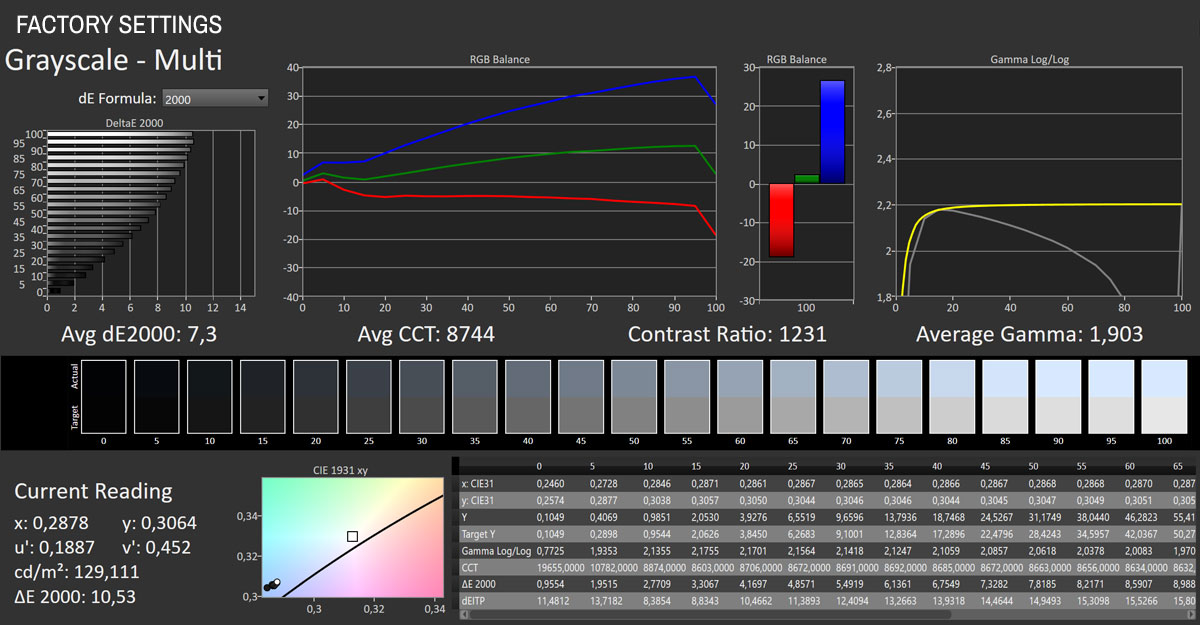
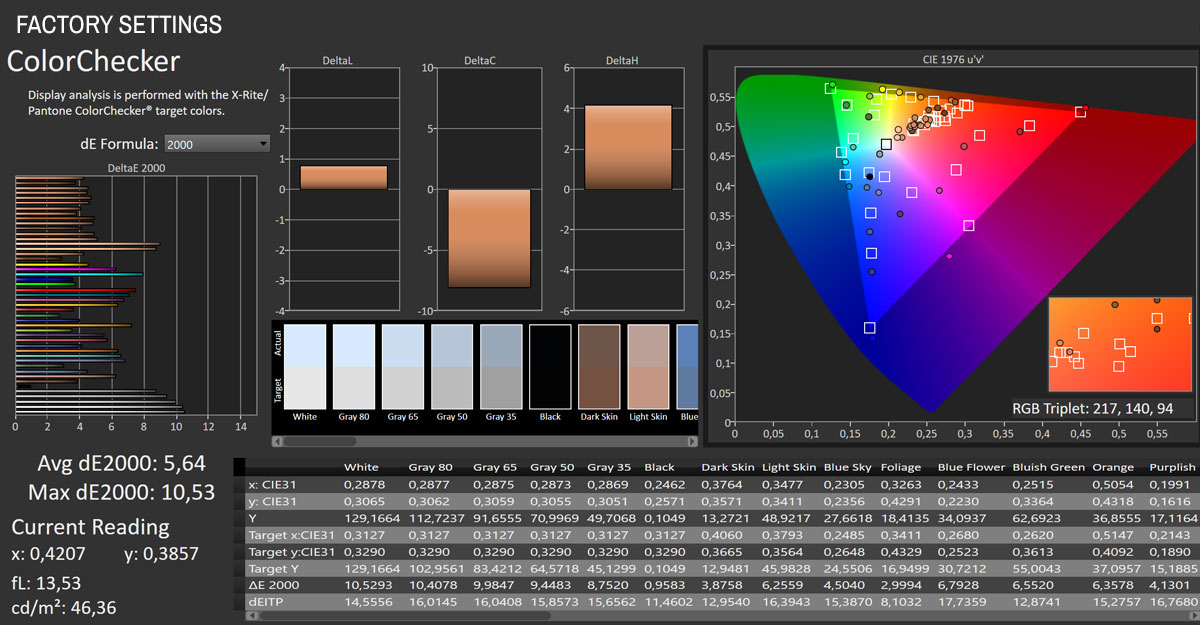

The measurements clearly show that the factory tuning of the 8-bit IPS panel is quite poor. The color temperature completely misses the mark by sitting at 8,744 K, which results in bad gamma tracking, inaccurate grays and underwhelming color accuracy. The RGB balance graph highlights the root of the problem: a strong blue dominance across the entire grayscale, with red suppression especially evident above 30% stimulus. This imbalance skews the overall white point toward a visibly cold, bluish cast—almost like you're looking at the panel through a filter. The luminance, chroma and hue charts show substantial errors in chroma and hue in particular, with ΔC values pushing -6 and ΔH reaching +5, confirming that color inaccuracies are not just a matter of overall brightness mismatches. The deviations are most pronounced in saturated tones and near-skin tones, which is problematic for multimedia viewing and photo/video editing alike.
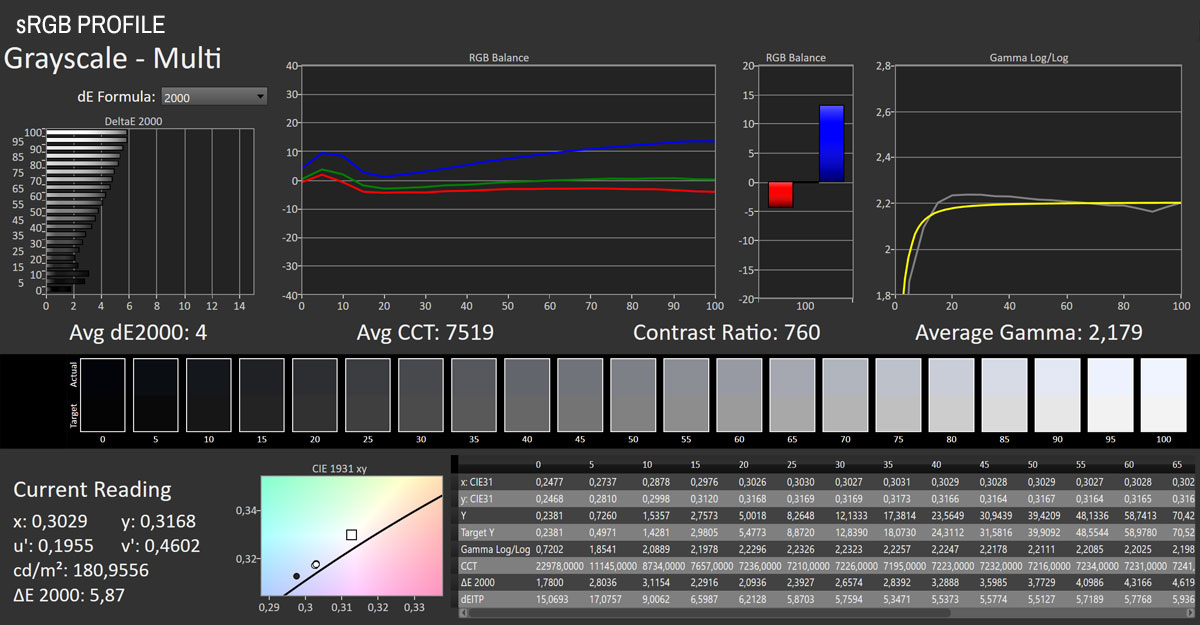
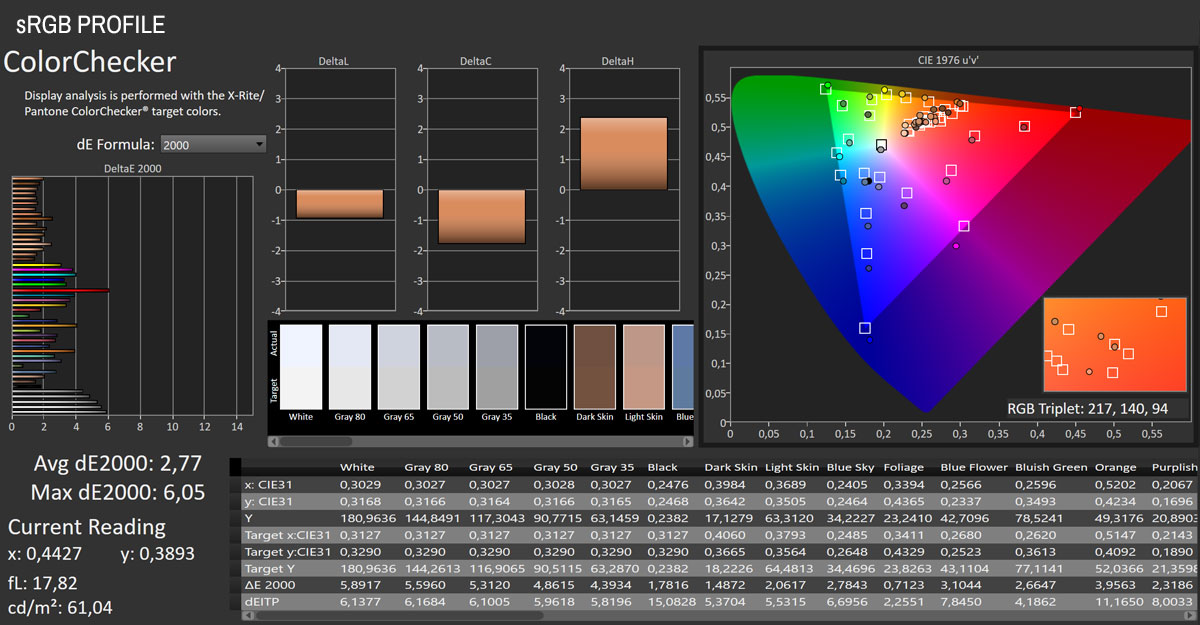
Things do look better in sRGB mode, which is activated by selecting "sRGB" in the Temperature menu, but the blue color channel is still too boosted, giving us a higher color temperature than what we're looking for—although not offensively so. The overall color temperature now averages 7,519K. Crucially, the gamma tracking improves as well, with the average gamma reaching 2.179, very close to the sRGB standard of 2.2. The gamma curve aligns fairly closely with the reference curve from 10% to 100% stimulus, indicating accurate tonal gradation and no major midtone compression or highlight clipping. This leads to a more natural-looking image with proper depth.
Does that mean that sRGB mode is the way to go? Not necessarily. In an attempt to get the most out of the panel without performing an actual hardware calibration, you can manually adjust the brightness and color temperature in the OSD. Most portable monitors have a simplified OSD, and the UPERFECT UMax 24 is no exception. You can adjust two settings to improve overall performance: color temperature (found in the Temperature menu) and brightness (found in the Picture menu). Here are the settings that worked best on my sample of the UPERFECT UMax 24 and resulted in drastic improvements to picture quality. I aimed for a 6,500 K color temperature and 250 cd/m² brightness. I do have to point out that it took me ages of testing and retesting to find a combination of settings that works—I can't recall the last time adjusting a monitor gave me so much of a headache.
| Modified OSD Settings | |
|---|---|
| Color Temperature (Temperature > User) | Red 44 / Green 40 / Blue 36 |
| Brightness (Picture > Brightness) | 100 |
Let's compare the measurements before and after doing the OSD tweaks.
| Factory vs Adjusted Settings | ||
|---|---|---|
| Factory Defaults | Adjusted Settings | |
| Measured Luminance | 129.11 cd/m² | 210.9 cd/m² |
| Measured Whitepoint | 8,744 K | 6,705 K |
| Measured Black Luminance | 0.1049 cd/m² | 0.259 cd/m² |
| Contrast | 1,231:1 | 814:1 |
| Gamma | 1.903 | 2.185 |
| Average Color Accuracy (ΔE) | 5.64 | 1.9 |
| Maximum ΔE | 10.53 | 5.94 |
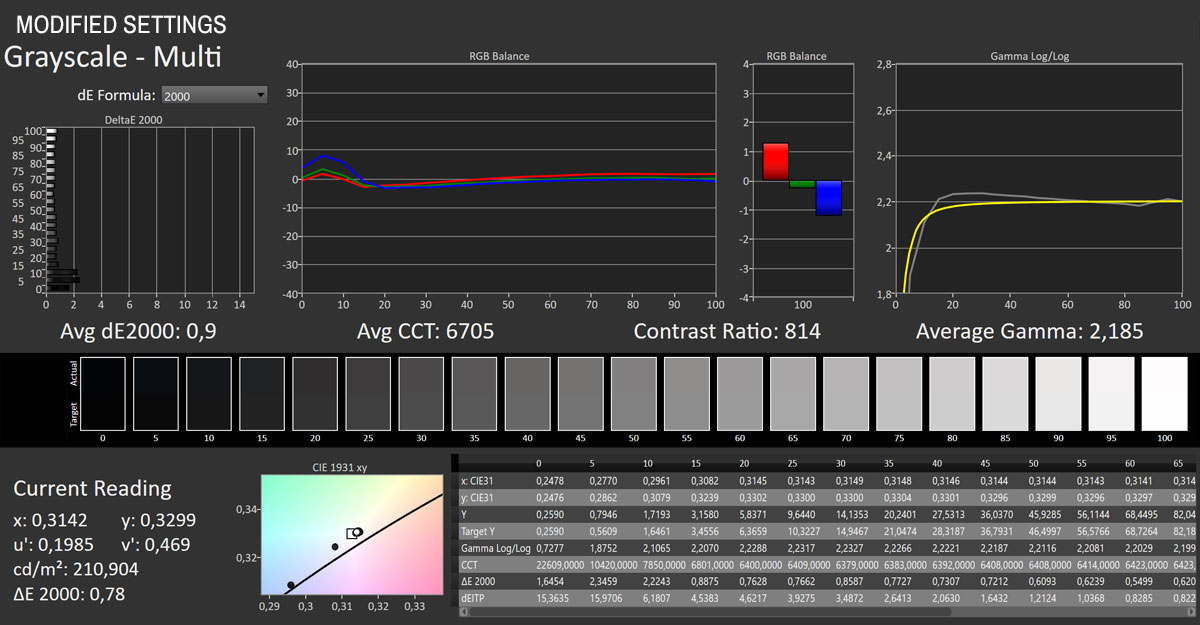
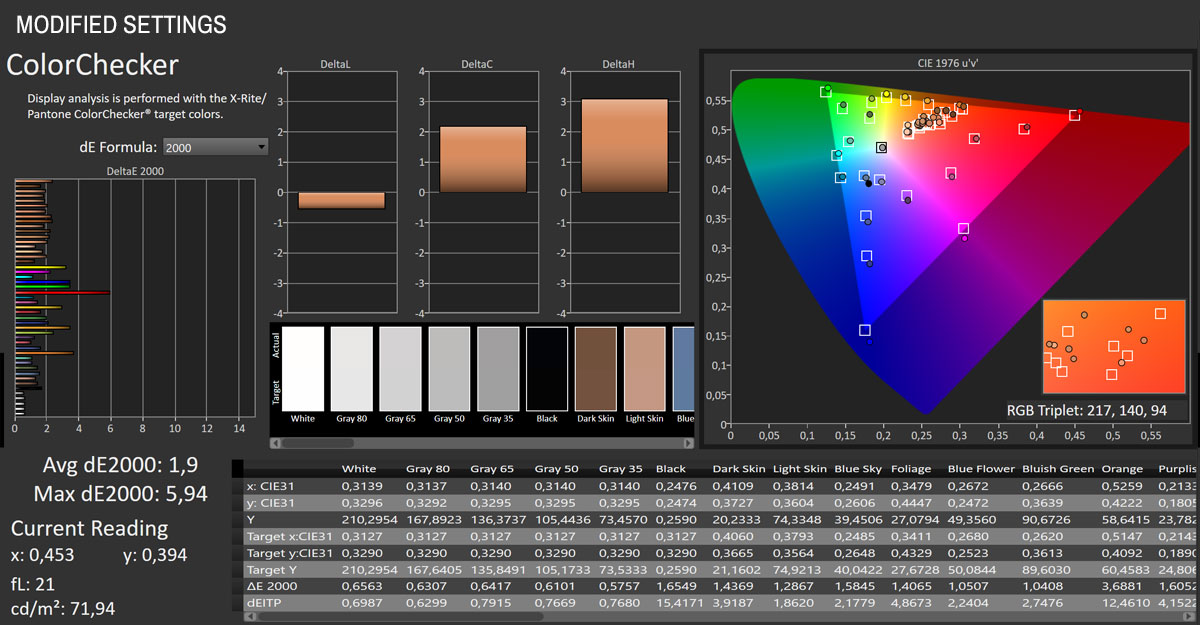
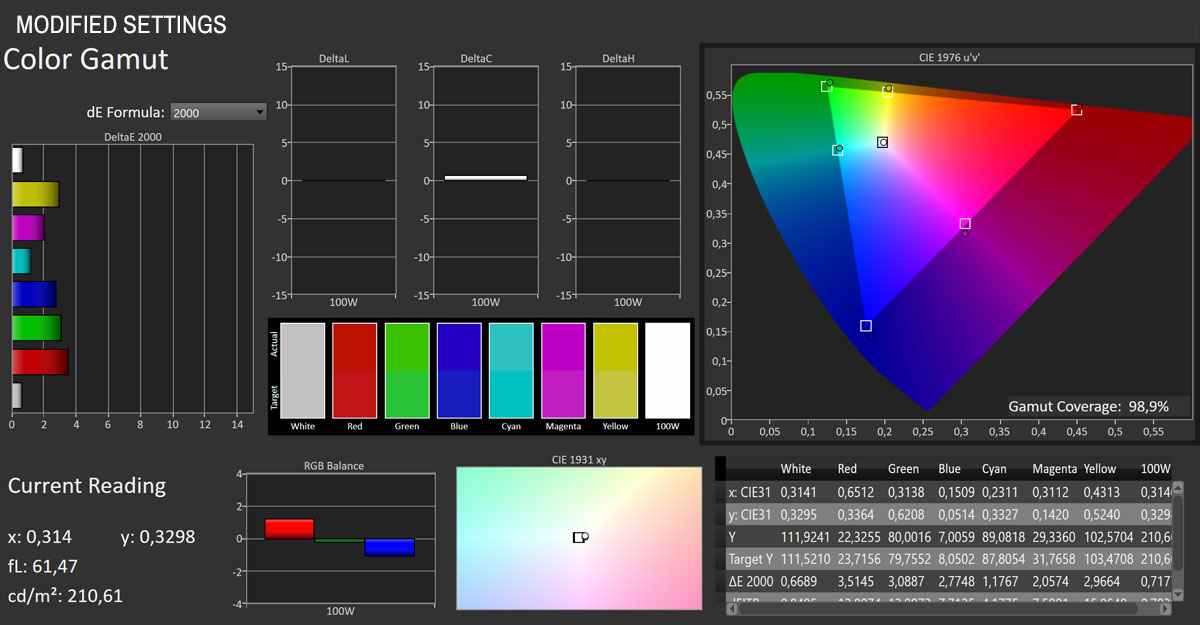
The manual calibration of the UPERFECT UMax 24, guided by real-time colorimeter feedback, resulted in a massive improvement in color fidelity, grayscale neutrality, and overall tonal behavior. The display now performs much better in every possible regard. The RGB balance is now extremely flat from around 20% to 100% stimulus, with only minimal fluctuation at the dark end. This level of channel neutrality shows that we've successfully corrected the blue dominance and brought the white point extremely close to the D65 reference (6,500 K). Gamma tracking is almost perfectly aligned with the reference curve, especially from 20% onward, leading to accurate luminance perception and tonal consistency across shadows, midtones, and highlights. The biggest improvements were in color accuracy, with the average ∆E dropping to 1.9, from 5.64. This level of tuning pretty much maximizes what the UPERFECT UMax 24 is capable of. For content consumption, photo viewing, and even some home-enthusiast editing within the sRGB color space, the display is now operating at a fairly high level—especially for a portable monitor. It wasn't easy finding a combination of settings that brought it to that point, but this serves as a good demonstration of the amount of improvement (sometimes) possible when you know your way around the OSD. One more detail worth noting is that I was unable to reach the desired 250 cd/m² brightness with these modified settings. That's because the panel "artificially" boosts the brightness by lifting the blue channel—as soon as we brought it in balance with red and green channels, the actual brightness went down to 211 cd/m² even after I've set it to 100 in the OSD. At that brightness, the monitor is completely usable indoors, even during daytime.
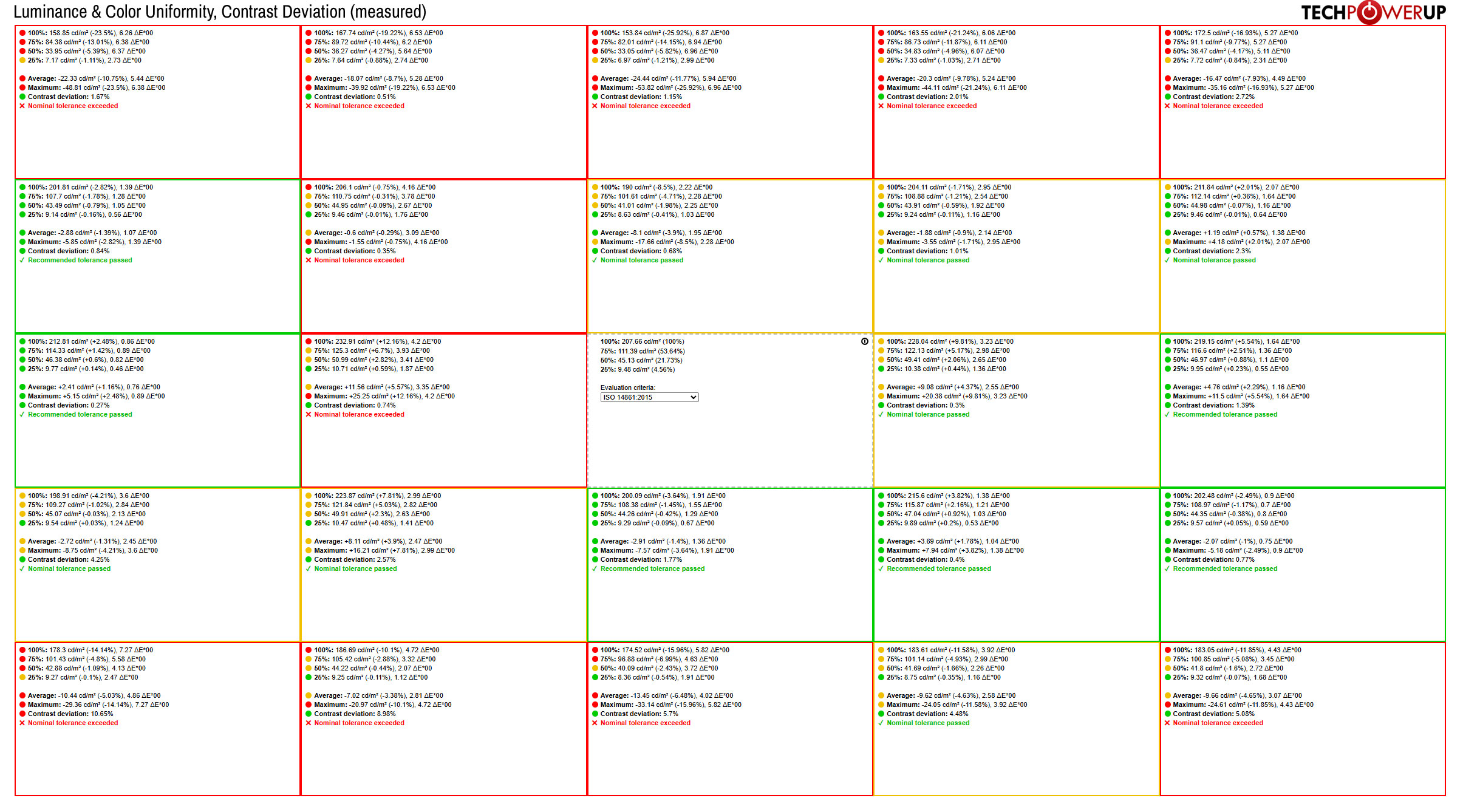
This is what the luminance and color uniformity of the UPERFECT UMax 24 looks like when measured at 25 different points across the panel. Click on the image to view it in high resolution and examine the data in greater detail. We see a considerable brightness variation, particularly in the top-left quadrant where luminance drops by over 30% relative to the center. Several zones in that area also exhibit color errors reaching almost ΔE 6, resulting in visible color and luminance shifts. While the central 3×3 region performs very well, performance degrades notably toward the edges and corners. This isn't unusual for thin, edge-lit IPS panels, especially in portable form factors, but it does limit the monitor's usefulness for tasks requiring consistent color and brightness across the entire screen.
Backlight Uniformity
To give you an idea of the backlight's uniformity, I set the brightness of both monitors to 250 cd/m² before taking a photo of the panel in a completely dark room. I carefully adjusted the ISO value and shutter speed to capture the screen as accurately as possible, ensuring it appears as close as possible to what I saw in real life.
Significant backlight bleed is visible in the bottom corners of the panel. While you won't be able to spot it when viewing anything remotely bright, it could pose a distraction when watching movies with black horizontal bars or playing games with a lot of shadow content.
Viewing Angles

The viewing angles of the IPS panels in the UPERFECT UMax 24 are in line with what you'd expect from a IPS panel—very good. There's no drastic shift in colors when changing sitting positions.
Nov 26th, 2026 06:58 CST
change timezone
Latest GPU Drivers
New Forum Posts
- Wireless Internet sharing between PC and router both-ways, is it possible? (20)
- GTA VI (51)
- Current Sales, Bundles, Giveaways (10451)
- Without Jensen, PC gaming will be (61)
- WarpCoreBench scores! (105)
- Which ryzen am5 cpu ? (220)
- Exploring Local LLMs: Models, Hardware and Setup Experiences (2)
- Radeon driver death (2)
- Claude credits purchased on or after Dec. 7 now have an expiry date (19)
- Smokin Hot Lappy (14)
Popular Reviews
- ASRock X870E Challenger Wi-Fi White Review
- VZMORE AX9 Max Review
- Upcoming Hardware Launches 2027 (Updated Nov 2026)
- Microsoft Surface Laptop Ultra Review - The Next-gen Arm Laptop
- AMD Ryzen 7 9800X3D Review - The Best Gaming Processor
- AMD Zen 6 Technical Deep Dive
- Corsair RM1200e (Second Generation) Review
- Phantom Blade Zero Performance Benchmark Review - 35 GPUs Tested
- Pulsar Office Tour & First Look at P1 Dual-Sensor Mouse
- Montech CyberFlow ARGB 360 Review
TPU on YouTube
Controversial News Posts
- Jensen Huang Reinstated as CEO of NVIDIA (582)
- NVIDIA Co-Founder and CEO Jensen Huang Officially Resigns (492)
- Report: Jensen Huang Eyes NVIDIA Comeback (281)
- Open Letter Asking NVIDIA to Reinstate Jensen Huang Passes 115,000 Signatures (184)
- OpenAI CEO Argues Home PCs Waste the World's Limited DRAM Supply (152)
- NVIDIA Launches Investigation Into Jensen Huang's Relationship With Suspected Chinese Spy (136)
- Intel "Raptor Lake Next" 16-Core and 20-Core CPUs Surface (130)
- Intel Razor Lake Gets a 12 P-Core bLLC Chip With No E-Cores, Per Leak (94)