
Microsoft Updates ROG Xbox Ally X with Auto Super Resolution and Docked Mode Enhancements
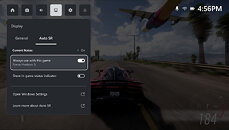
Microsoft has just announced a new set of features coming to the ASUS ROG Xbox Ally handheld gaming PCs, addressing game quality, docked mode quality-of-life, Game Bar improvements, and more. The most notable improvement coming to the ROG Xbox Ally is Auto Super Resolution, or Auto SR, which is now in Preview in the Xbox Game Bar. Auto SR, as the name suggests, is a similar to AMD and NVIDIA's FSR and DLSS, allowing game upscaling to increase frame rates without losing image quality. On the ASUS ROG Xbox Ally X, Auto SR is only available in docked mode for now, where it will automatically upscale the game's image to deliver a sharper image, fit for a bigger screen, when docked to something like a TV. This should effectively make for a smoother transition between gaming on the TV and in handheld mode, since you won't have to change resolution or upscaling settings when plugging the ROG Xbox Ally in. Microsoft has an in-depth blog explaining Auto SR in more detail.
[Editor's note: Our in-depth review of the ASUS ROG Xbox Ally X is now live]
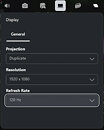
Aside from Auto SR, the ROG Xbox Ally also gets the gamepad cursor we previously covered, streamlined controller pairing for docked play, a display widget in Game Bar, where you can quickly adjust display settings, and a handful of automatic enhancements for smart TVs. For starters, when players connect to an external display or TV, the ROG Xbox Ally will now turn off the built-in screen and default to the TV for output. If the connected TV happens to be a smart TV from Samsung, LG, or Vizio, the ROG Xbox Ally will automatically enable certain features on the TV, like Auto Low Latency Mode, Auto Game Mode, or Game/PC Mode. The library consolidation features we previously covered have also officially been added to the Xbox PC App, allowing you to use the ASUS ROG Xbox Ally in handheld mode exclusively if you would like to.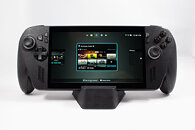

[Editor's note: Our in-depth review of the ASUS ROG Xbox Ally X is now live]
Aside from Auto SR, the ROG Xbox Ally also gets the gamepad cursor we previously covered, streamlined controller pairing for docked play, a display widget in Game Bar, where you can quickly adjust display settings, and a handful of automatic enhancements for smart TVs. For starters, when players connect to an external display or TV, the ROG Xbox Ally will now turn off the built-in screen and default to the TV for output. If the connected TV happens to be a smart TV from Samsung, LG, or Vizio, the ROG Xbox Ally will automatically enable certain features on the TV, like Auto Low Latency Mode, Auto Game Mode, or Game/PC Mode. The library consolidation features we previously covered have also officially been added to the Xbox PC App, allowing you to use the ASUS ROG Xbox Ally in handheld mode exclusively if you would like to.