 47
ASUS ROG Swift OLED PG27UCDM Review - 4K OLED Brilliance
Controls & OSD »Connectivity
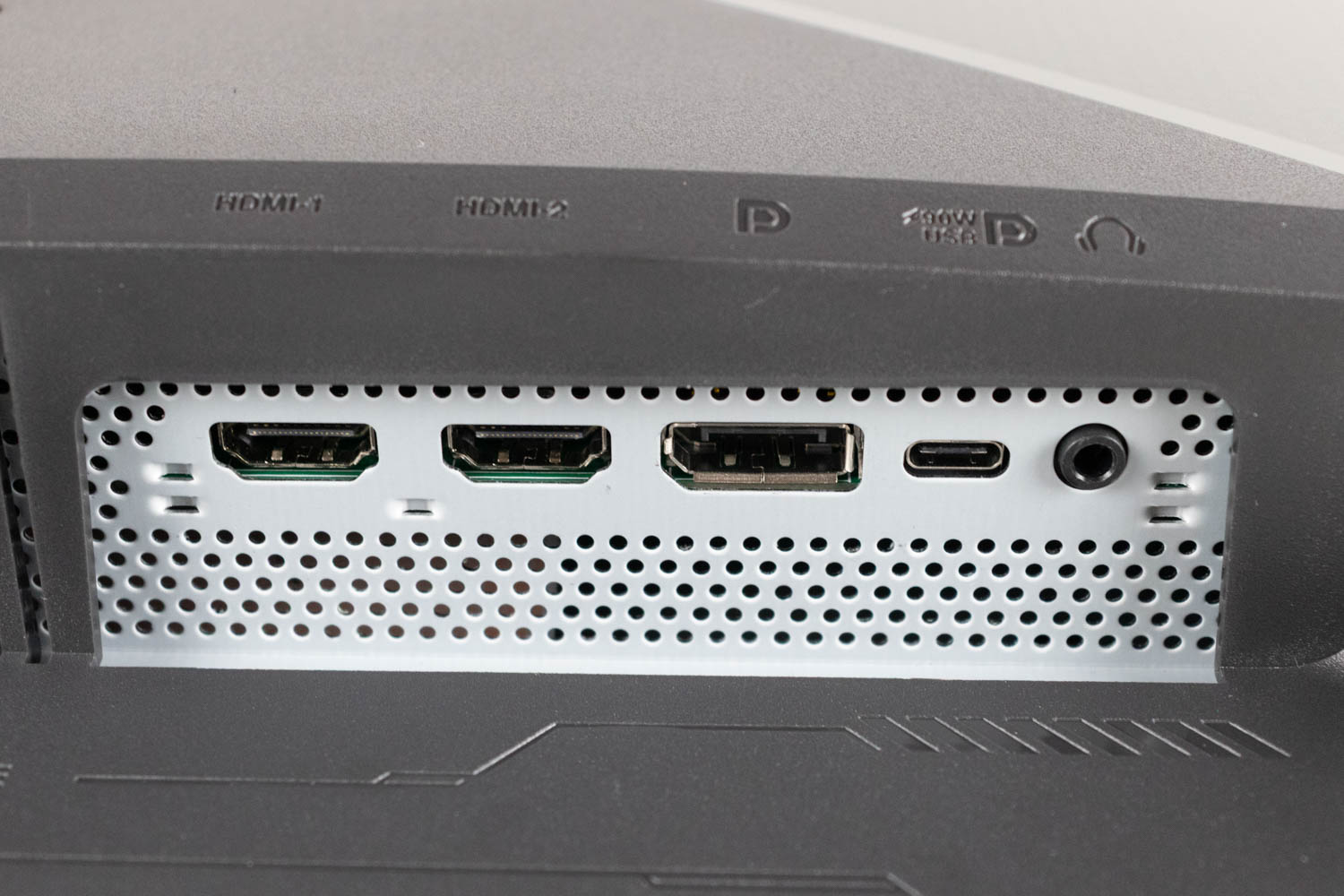
On the rear, the ASUS ROG Swift OLED PG27UCDM features a fully-featured DisplayPort 2.1 UHBR20 (80 Gbps) input, two HDMI 2.1 (40 Gbps) input, and a USB-C (DP Alt Mode) input with 90 W of charging power.

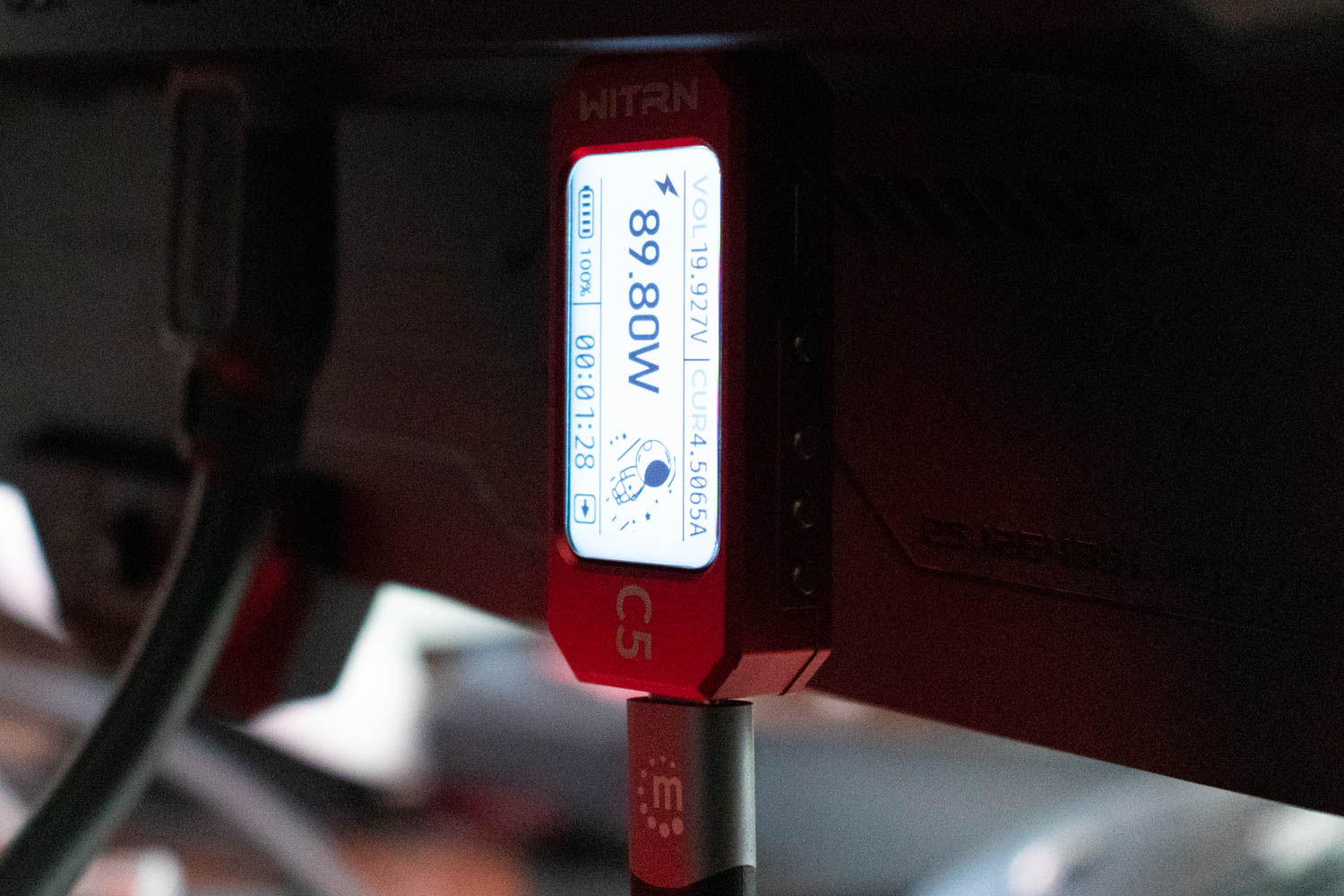
With a rated power delivery of 90 W, the aforementioned USB-C port can theoretically provide that amount of power to a connected device, such as a smartphone or laptop. To test this, I used a combination of the WITRN C5 USB voltage/current meter—connected directly to the monitor's main USB-C port—and the ATORCH BW150 electronic load with a PD 3.1 trigger module. The two devices were linked using a high-quality Thunderbolt 4 (40 Gbps, 240 W) cable.
In my testing, the ASUS ROG Swift OLED PG27UCDM was able to sustain a 20 V/4.8 A load, at which point it delivered 96 W of power through its USB-C interface. The ATORCH BW150 registered 91.72 W on the receiving end, with the difference likely due to cable losses. With that in mind, the monitor's power delivery exceeds the official specification.

Next to the video inputs there's a single 3.5-mm audio output, which can be used for headphones or speakers. The monitor has no speakers of its own.

On the opposite side of the monitor's rear, you'll find four additional USB 3.2 Gen 1 (5 Gbps) ports—three USB Type-A and one USB Type-B upstream. These ports support peripherals, external drives, and other USB devices, all of which can be shared between two computers thanks to the monitor's integrated KVM switch. To use the KVM functionality, one device must be connected via the USB-C DP Alt Mode port, while the second should use the USB Type-B upstream port for data, along with either an HDMI or DisplayPort connection for video. The KVM switch is fully automated and behaves exactly as it should: selecting a video input in the OSD immediately switches the connected USB devices to the corresponding source—no manual toggling required.
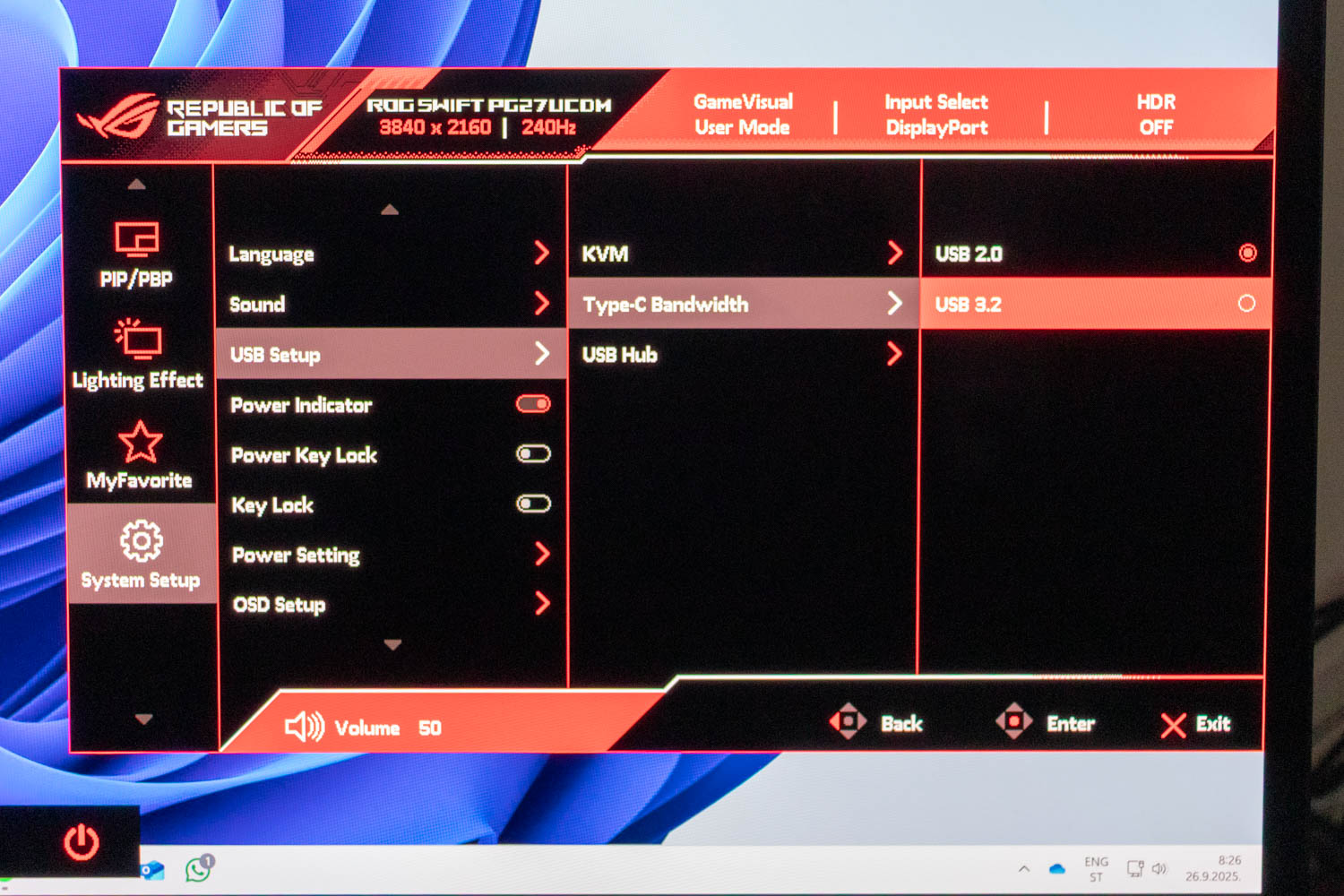
In the OSD, there's a USB-C bandwidth toggle (System Setup > USB Setup > Type-C Bandwidth). If you select "USB 3.2" and use USB-C as video output at the same time, you'll be limited to 60 Hz refresh rate at native 4K resolution. Only after switching it to "USB 2.0" can you access the full 240 Hz refresh rate. This is down to how DisplayPort Alt Mode over USB-C allocates its high-speed data lanes. A USB-C connection provides four such lanes, which can be divided between video and USB data depending on the configuration. When the monitor is set to "USB 3.2," two of those lanes are reserved for SuperSpeed USB data transfer, leaving only two available for DisplayPort video output, which are insufficient to drive the native 4K resolution beyond 60 Hz. By selecting "USB 2.0," you essentially give up high-speed USB data and relegate it to the legacy low-speed D+/D– lines, thereby freeing all four lanes for DisplayPort traffic. This full-lane allocation provides enough bandwidth, especially when combined with Display Stream Compression (DSC), to deliver 4K at up to 240 Hz. In other words, the toggle represents a trade-off between USB data performance and video bandwidth, and achieving the highest refresh rate requires prioritizing the latter.
Power Consumption
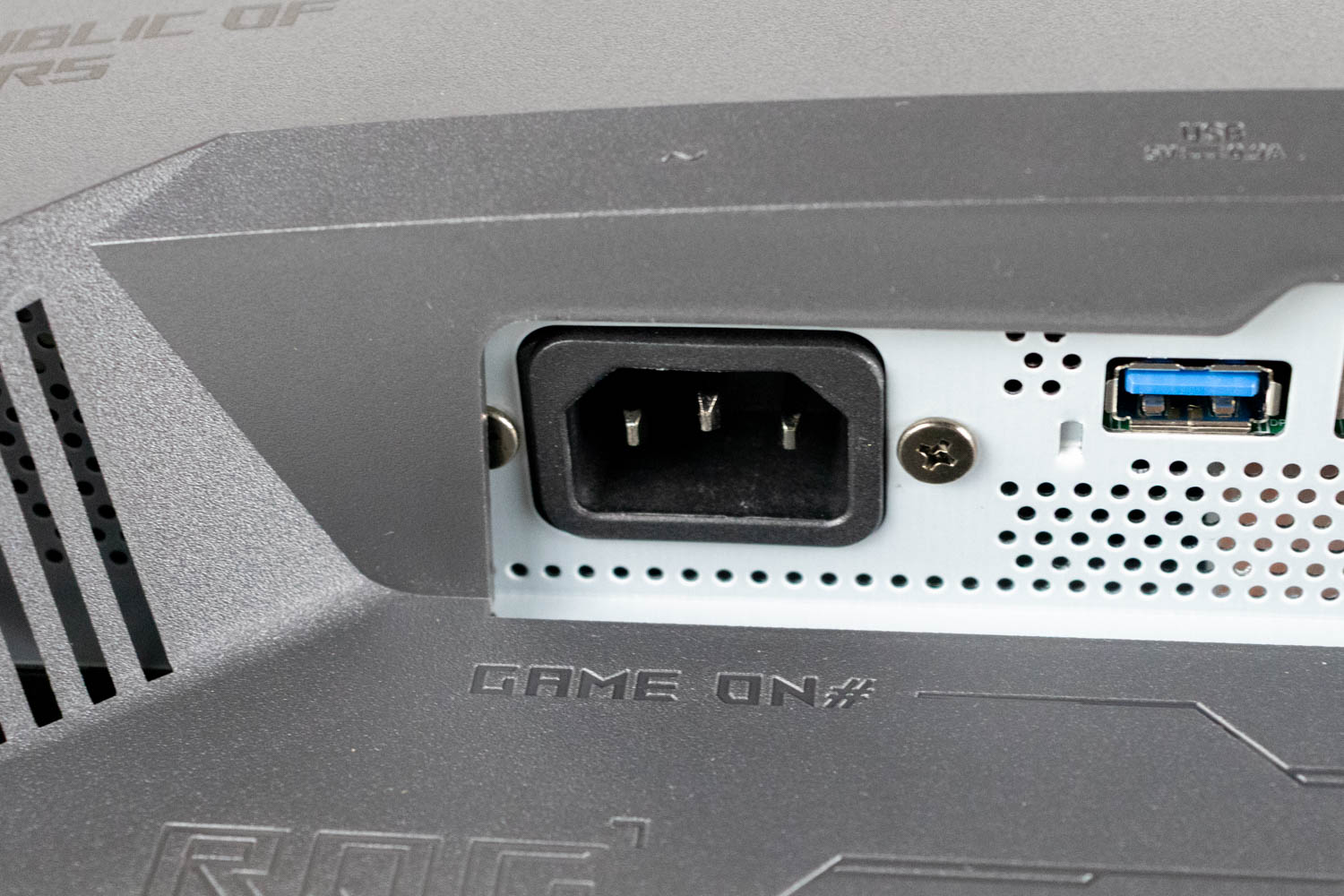
The ASUS ROG Swift OLED PG27UCDM features an integrated power supply, meaning there's no bulky external power brick to deal with, which is a welcome design choice for aesthetics, but means a faulty power supply can't be easily replaced. I'd also like to point out that the integrated power supply is dead silent, which wasn't the case on my sample of the ROG Strix OLED XG27ACDNG.
To test power consumption, I used the Meross MSS315 Matter Smart Wi-Fi Plug and the accompanying app to measure draw at various brightness levels, as well as in Power Saving mode, which the monitor enters as soon as the PC goes to sleep. All measurements were taken after resetting the monitor to factory defaults, with a white full-screen background displayed. Before testing, I enabled the "Uniform Brightness" option (found in the Image menu), which disables the Automatic Brightness Limiter (ABL). This ensures the panel maintains constant brightness, regardless of the content on screen—an essential step for consistent and repeatable measurements. The Uniform Brightness setting automatically sets the brightness to 100.
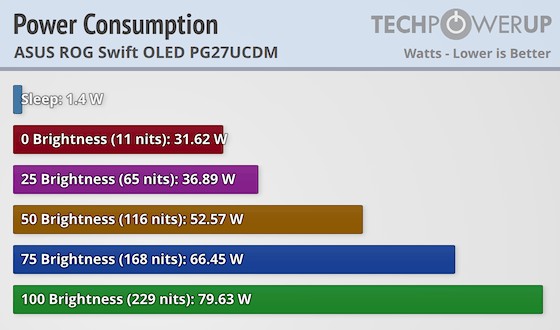
The measured power consumption of the ASUS ROG Swift OLED PG27UCDM is on the higher side, hardly surprising for a 4K 240 Hz OLED display. Naturally, using the integrated USB hub or the USB-C connection to power a device at up to 90 W will push the total draw up considerably. It's also worth noting that if you leave the rear-mounted Aura RGB lighting system enabled at all times, the monitor will continue to consume around 3.5 W even in standby.
Nov 17th, 2026 18:05 CST
change timezone
Latest GPU Drivers
New Forum Posts
- Honestly, do you care about GTA VI? (133)
- Local LLM General Discussion (693)
- ProArt X870E-CREATOR WIFI - Bifurcation~Complication (14)
- Asus ProArt P14 (RTX Spark) linux so far (4)
- Without Jensen, PC gaming will be (34)
- 9070 GRE 3.9ghz validation reached. (18)
- [testers wanted] Qsurfer My own QNAP Nas explorer/Search tool (6)
- Help with fixing Overclock (7)
- [Poll] 12V-2x6 Connector Protection: What Are You Using? (WireView / Ampinel / Equalizer / Other / Nothing) (27)
- What is the latest game you finished or 100% (204)
Popular Reviews
- Acemagic Retro X3 Review
- Corsair HX1000i Shift Crystal Review
- Upcoming Hardware Launches 2027 (Updated Nov 2026)
- AMD Zen 6 Technical Deep Dive
- ASUS ROG Strix B850-I Gaming Wi-Fi7 W Review
- Phantom Blade Zero Performance Benchmark Review - 35 GPUs Tested
- AMD Ryzen 7 9800X3D Review - The Best Gaming Processor
- Chieftec Iceberg PRO 360 DARK Review
- Montech King 95 3D PRO Review
- NZXT C1200 Platinum Review
TPU on YouTube
Controversial News Posts
- NVIDIA Co-Founder and CEO Jensen Huang Officially Resigns (458)
- Open Letter Asking NVIDIA to Reinstate Jensen Huang Passes 115,000 Signatures (184)
- OpenAI CEO Argues Home PCs Waste the World's Limited DRAM Supply (152)
- NVIDIA Launches Investigation Into Jensen Huang's Relationship With Suspected Chinese Spy (136)
- Report: Jensen Huang Eyes NVIDIA Comeback (135)
- Intel "Raptor Lake Next" 16-Core and 20-Core CPUs Surface (130)
- Legendary Game Studio BioWare Shuts Down Following EA Layoffs (104)
- Dell CEO Says the Memory Shortage Will Get Worse in 2027 (95)