 9
Asustor Drivestor 2 Gen2 AS1202T Review
Test Setup & Methodology »PQC Ready
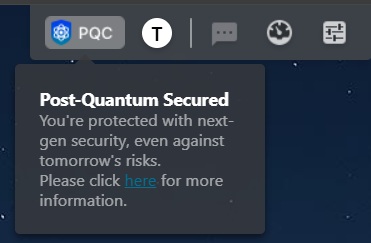
The major new feature of ADM 5.1 is what Asustor calls PQC Ready—where PQC stands for post-quantum cryptography—technology, something we've seen several NAS makers implement a variant of this past year. PQC requires TLS 1.3 to be enabled and adopts what Asustor refers to as the "Kyber algorithm, X25519+ML-KEM 768" and it's apparently approved by NIST in the US. As you can see from the screenshot above, you get a little notification in ADM 5.1 when PQC supposedly is enabled, but in this instance, a secure connection wasn't used according to the web browser, even though the NAS was accessed with HTTPS. This was due to the AS1202T being accessed via its IP address, something that web browsers don't seem to like when it comes to private network addresses, which is becoming an increasing issue as there's a move away from HTTP to HTTPS to make sure connections are secure, even on the local network.
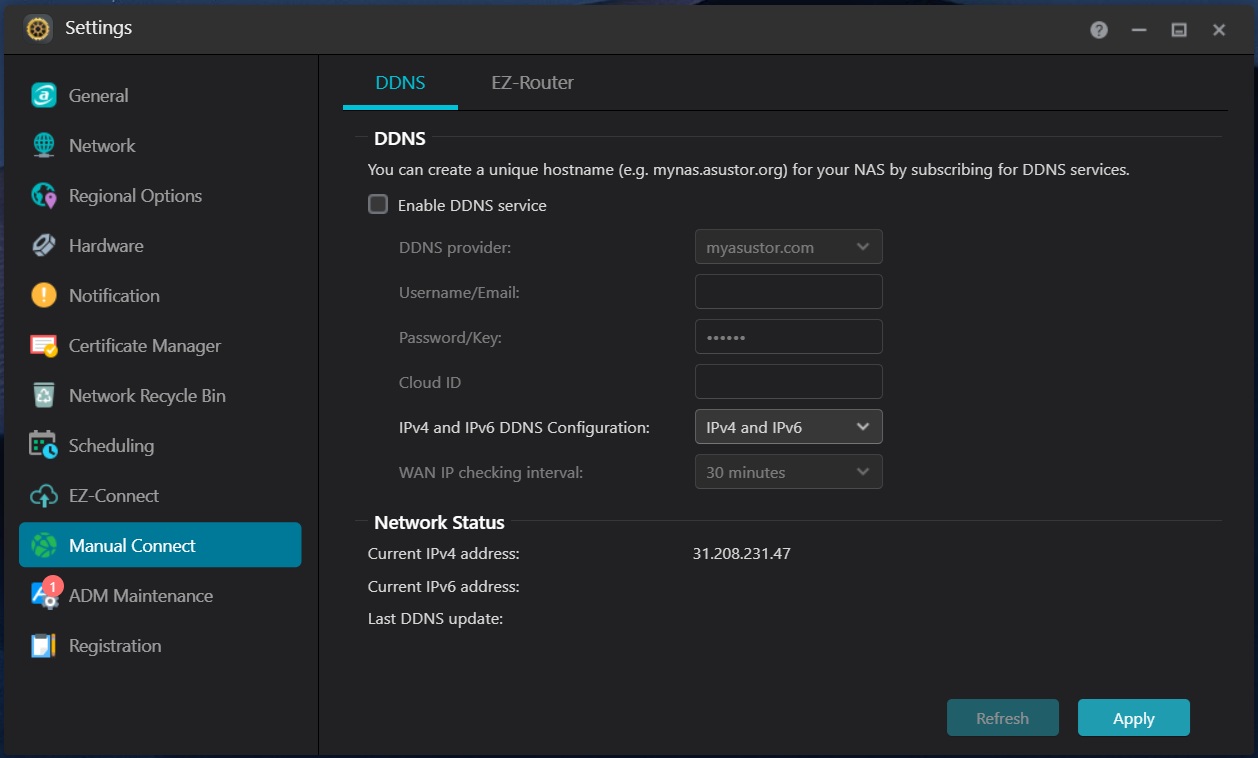
To solve the above problem, Asustor does offer a DDNS service, but several other DDNS services are also supported. To use the DDNS service you also need to sign up for an Asustor ID, which makes it a bit of a hassle to secure your NAS, but it might be worth it in the long term. Both QNAP and Synology have been targeted by various attacks in the past and there's no reason other NAS brands will not be targeted in the future. That said, just because you enable security features like this, there's no guarantee that someone can't gain access to your NAS, but at least you've done what you can to prevent it from happening.
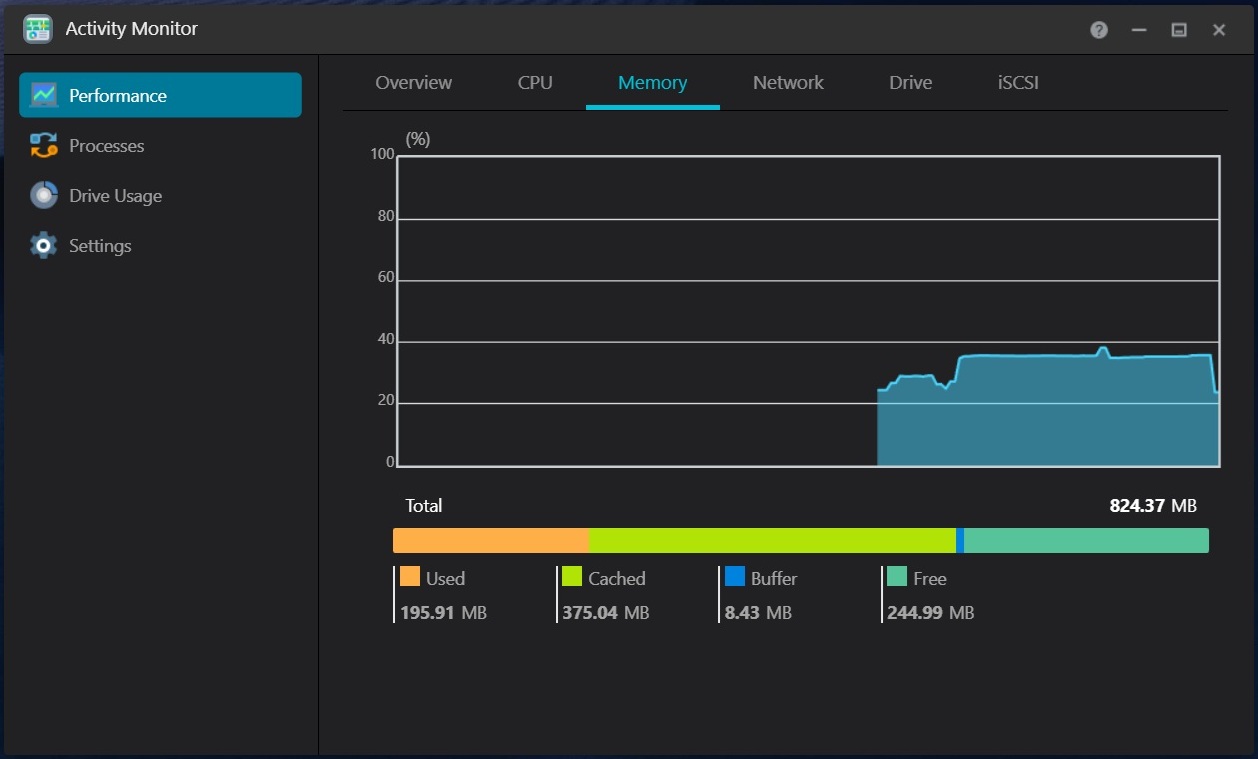
One thing we wanted to mention was that ADM 5.1 felt a lot smoother in use on the AS1202T, compared to ADM 5.0 on the AS5404T. Whatever Asustor improved, it made everything feel a bit snappier to use, but it's possible that some performance differences might be due to fewer features being implemented on the Arm based hardware platform. Do note that the RTD1619B offers hardware video transcoding up to 4K, but this time there's no HDMI output, so there's no means of connecting the AS1202T directly to a TV. Unlike Ugreen, Asustor doesn't seem to think the basic hardware should limit what its users can or can't install and as such, Docker is supported, alongside some other resource heavy apps like Plex, Emby and Jellyfin. With nothing but the OS running, the AS1202T was using about half of the available RAM, although a third of that was used as cache. What this means is that you might have to toggle on and off containers if you use Docker, so you don't run out of memory, or limit the usage to a couple of things that run all the time, such as a media server or whatever other service you want running on your NAS.
Storage Pool and Volumes
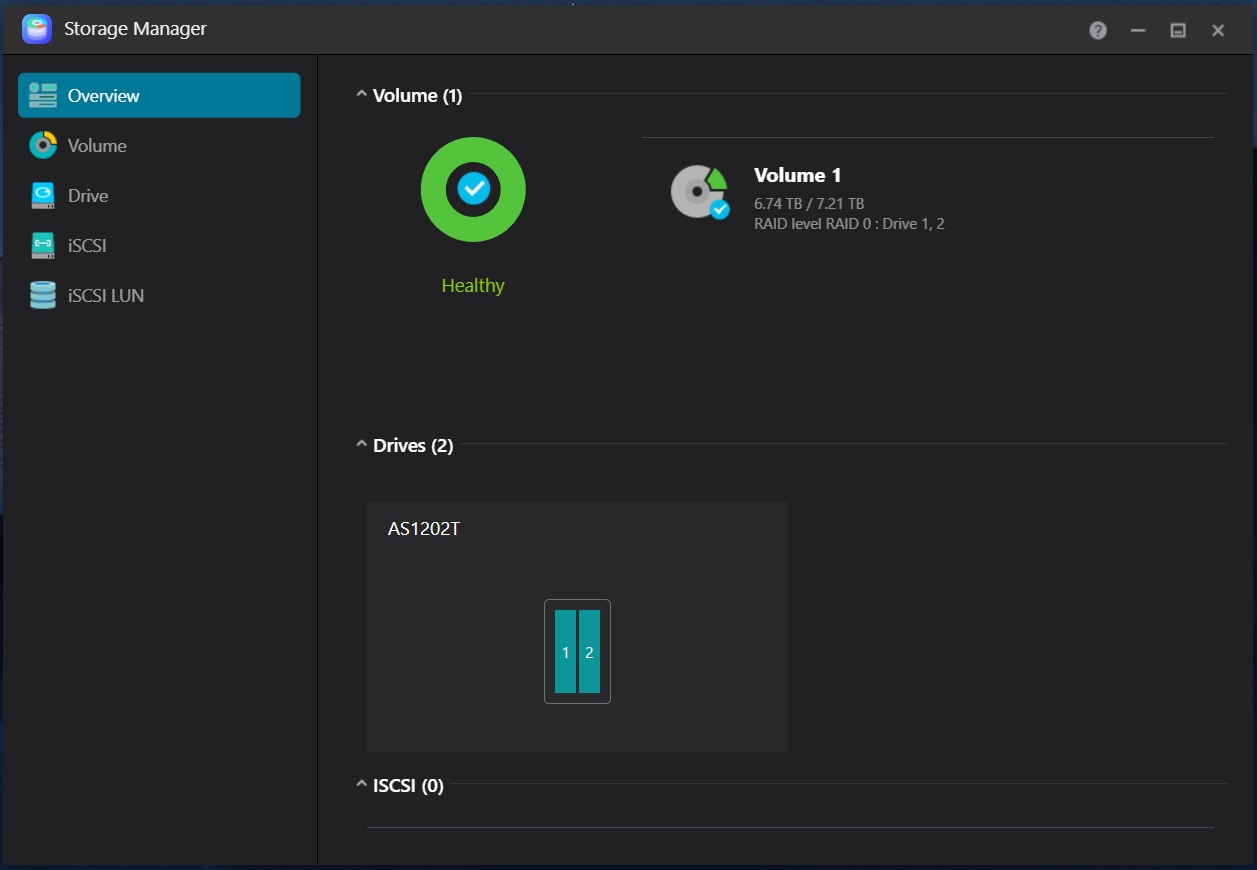
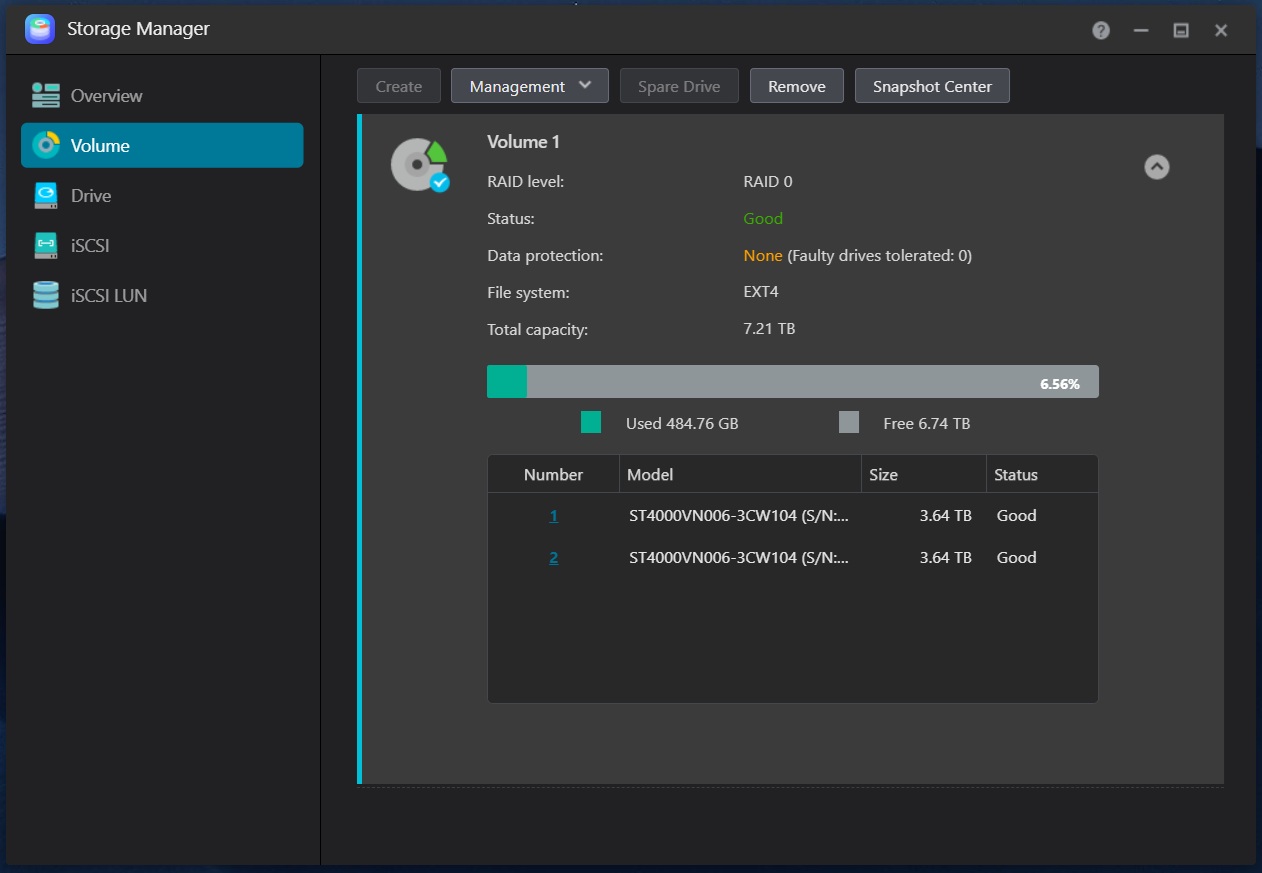
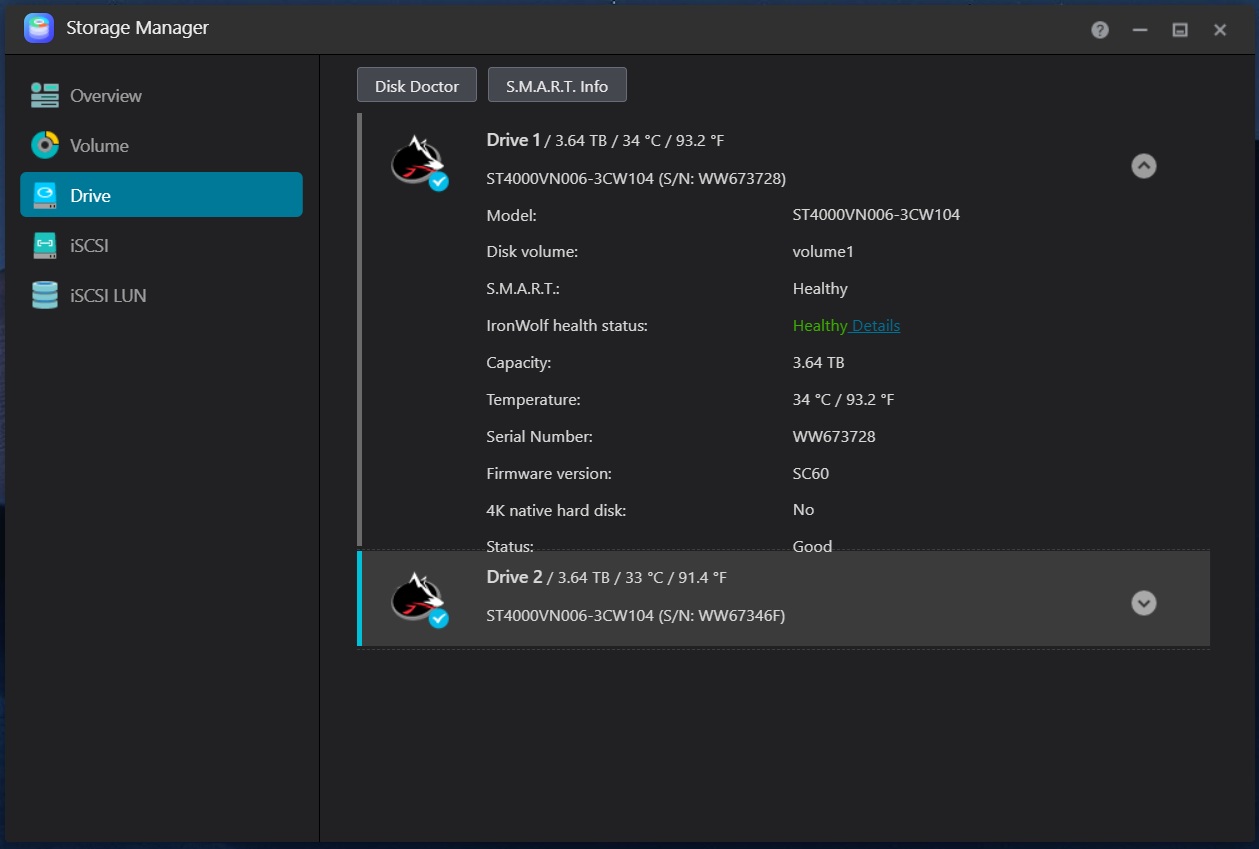
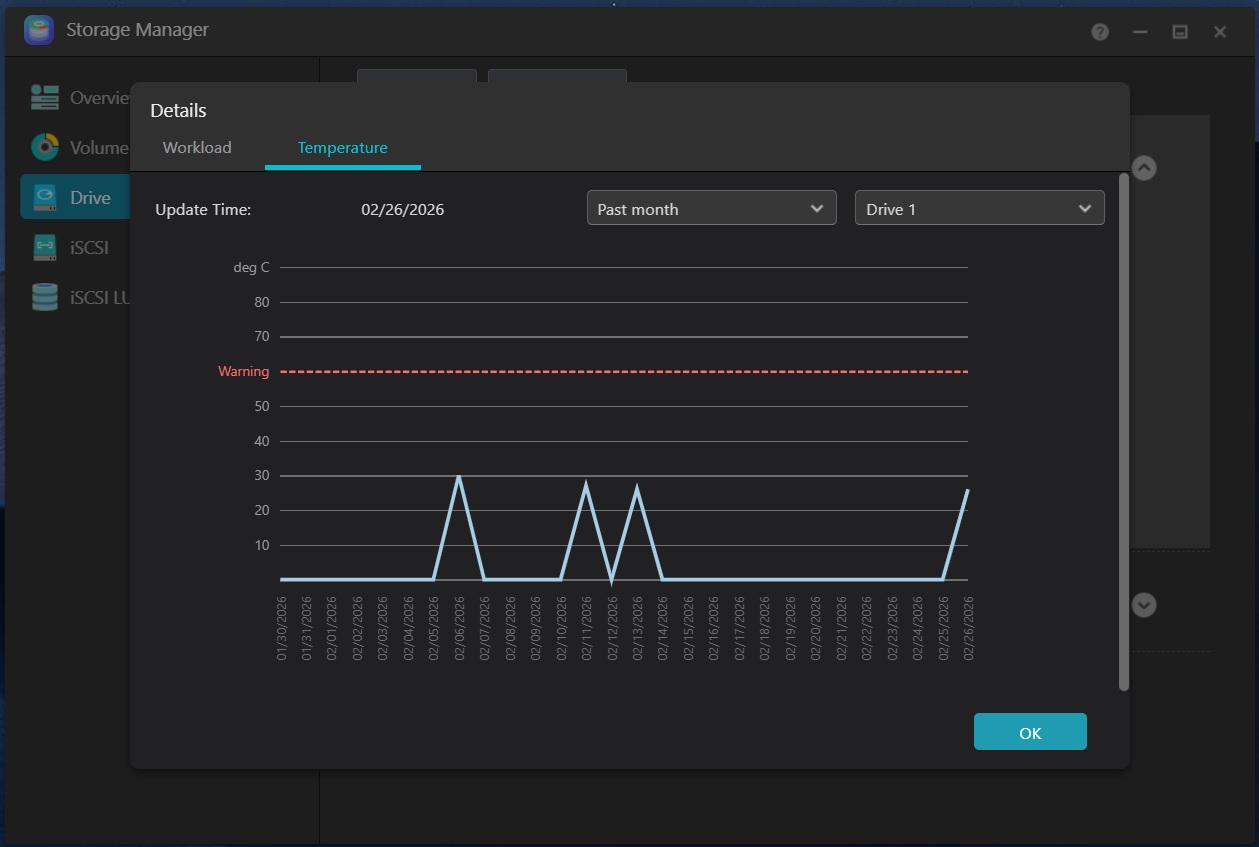
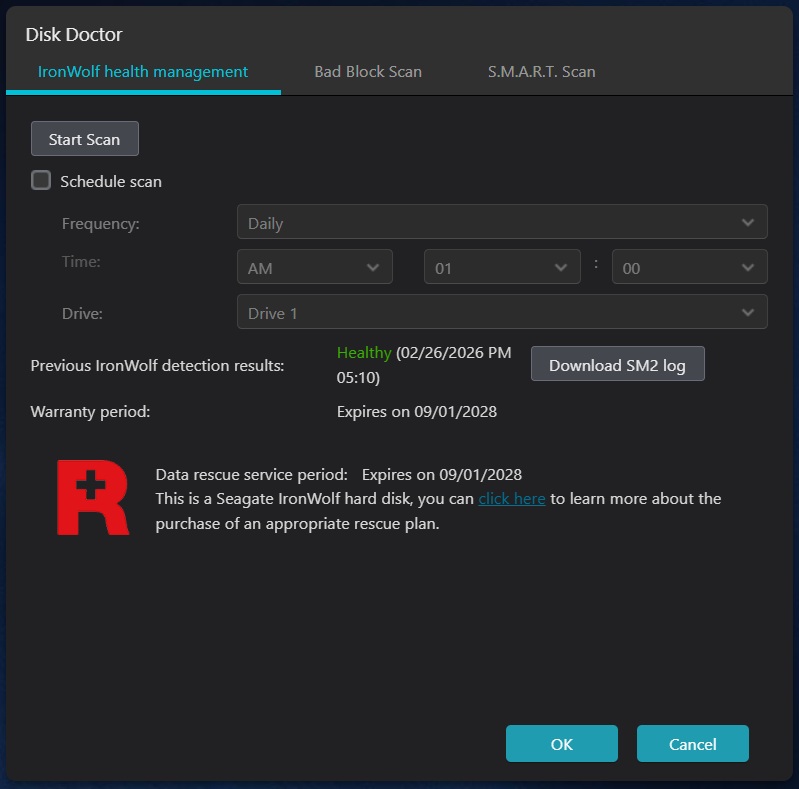
Although we took an extensive look at the storage manager in the AS5404T review, we wanted to highlight one feature this time around, since we tested with a pair of Seagate IronWolf hard drives. Asustor has a special IronWolf health management utility that integrates with the storage manager and shows some additional drive data and logs things like temperature over time. It also adds an advanced health management interface, where Seagate snuck in an option to extend the drive data rescue service. The bad block scan and SMART scan are standard features that work with all drives.
Disk Configuration
Below is the output from the fdisk -l command on Linux, which shows the disk configuration. Note that the /dev/md0 is the eMMC. We're not sure why fdisk is throwing up a bunch of errors, but it was the same with the AS5404T.fdisk: device has more than 2^32 sectors, can't use all of them
Disk /dev/sda: 2048 GB, 2199023255040 bytes, 4294967295 sectors
267349 cylinders, 255 heads, 63 sectors/track
Units: sectors of 1 * 512 = 512 bytes
Device Boot StartCHS EndCHS StartLBA EndLBA Sectors Size Id Type
/dev/sda1 0,32,33 32,162,2 2048 524287 522240 255M 83 Linux
/dev/sda4 0,0,2 0,32,32 1 2047 2047 1023K ee EFI GPT
Partition table entries are not in disk order
fdisk: device has more than 2^32 sectors, can't use all of them
Disk /dev/sdb: 2048 GB, 2199023255040 bytes, 4294967295 sectors
267349 cylinders, 255 heads, 63 sectors/track
Units: sectors of 1 * 512 = 512 bytes
Device Boot StartCHS EndCHS StartLBA EndLBA Sectors Size Id Type
/dev/sdb1 0,32,33 32,162,2 2048 524287 522240 255M 83 Linux
/dev/sdb4 0,0,2 0,32,32 1 2047 2047 1023K ee EFI GPT
Partition table entries are not in disk order
Disk /dev/md0: 2045 MB, 2144337920 bytes, 4188160 sectors
523520 cylinders, 2 heads, 4 sectors/track
Units: sectors of 1 * 512 = 512 bytes
Disk /dev/md0 doesn't contain a valid partition table
Disk /dev/md126: 2045 MB, 2144337920 bytes, 4188160 sectors
523520 cylinders, 2 heads, 4 sectors/track
Units: sectors of 1 * 512 = 512 bytes
Disk /dev/md126 doesn't contain a valid partition table
fdisk: device has more than 2^32 sectors, can't use all of them
Disk /dev/md1: 2048 GB, 2199023255040 bytes, 4294967295 sectors
536870911 cylinders, 2 heads, 4 sectors/track
Units: sectors of 1 * 512 = 512 bytes
Disk /dev/md1 doesn't contain a valid partition table
Nov 14th, 2026 22:25 CST
change timezone
Latest GPU Drivers
New Forum Posts
- Honestly, do you care about GTA VI? (22)
- WarpCoreBench scores! (40)
- What can the FX 8320 do today? Here is the answer. (47)
- Tell me about your favourite graphics card (82)
- Recommendations Wanted - Affordable Enterprise SSD for Boot (3)
- Planning for Prolonged High Prices and Maintaining What You Already Have (71)
- [INTEL]-How To Update Your Microcode for Intel HX 13/14th Gen. CPUs Laptops/Mobile Easily. (260)
- [Intel AX1xx/AX2xx/AX4xx/AX16xx/BE2xx/BE17xx] Intel Modded Wi-Fi Driver with Intel® Killer™ Features (632)
- Optical Disc Drive owners club (208)
- Game Soundtracks You Love (1287)
Popular Reviews
- AMD Zen 6 Technical Deep Dive
- ASUS ROG Strix B850-I Gaming Wi-Fi7 W Review
- Corsair HX1000i Shift Crystal Review
- Upcoming Hardware Launches 2027 (Updated Nov 2026)
- Montech King 95 3D PRO Review
- NZXT C1200 Platinum Review
- NZXT H7 RGB+ Review
- NZXT H5 Review
- Phantom Blade Zero Performance Benchmark Review - 35 GPUs Tested
- AMD Ryzen 7 9800X3D Review - The Best Gaming Processor
TPU on YouTube
Controversial News Posts
- NVIDIA Co-Founder and CEO Jensen Huang Officially Resigns (408)
- OpenAI CEO Argues Home PCs Waste the World's Limited DRAM Supply (152)
- NVIDIA Launches Investigation Into Jensen Huang's Relationship With Suspected Chinese Spy (136)
- Intel "Raptor Lake Next" 16-Core and 20-Core CPUs Surface (130)
- Legendary Game Studio BioWare Shuts Down Following EA Layoffs (104)
- Dell CEO Says the Memory Shortage Will Get Worse in 2027 (95)
- NVIDIA GeForce RTX 50-Series Scheduled for up to $500 Price Hike This Week (89)
- Modder Fits RTX 5090 With Four 8-Pin Connectors, Halving Current per Wire (80)