 3
AVerMedia DualCam (PW313D) Review - Seeing Double
Video & Audio Performance »AVerMedia Streaming Center (Windows, macOS)
The AVerMedia DualCam is supported by AVerMedia's software suite, which handles camera configuration and adds several features the hardware alone can't provide. AVerMedia has been gradually transitioning its webcam software from the older CamEngine 4 to the newer Streaming Center, and the DualCam is supported in both. The core functionality covers picture adjustments (brightness, contrast, hue, saturation, and sharpness), manual and automatic focus control, noise filtering, and automatic exposure and white balance, all of which is exactly what you'd want from an app like this. It also throws in a handful of augmented reality effects, which are essentially Snapchat filters, only much worse, and which I can't imagine anyone using more than once.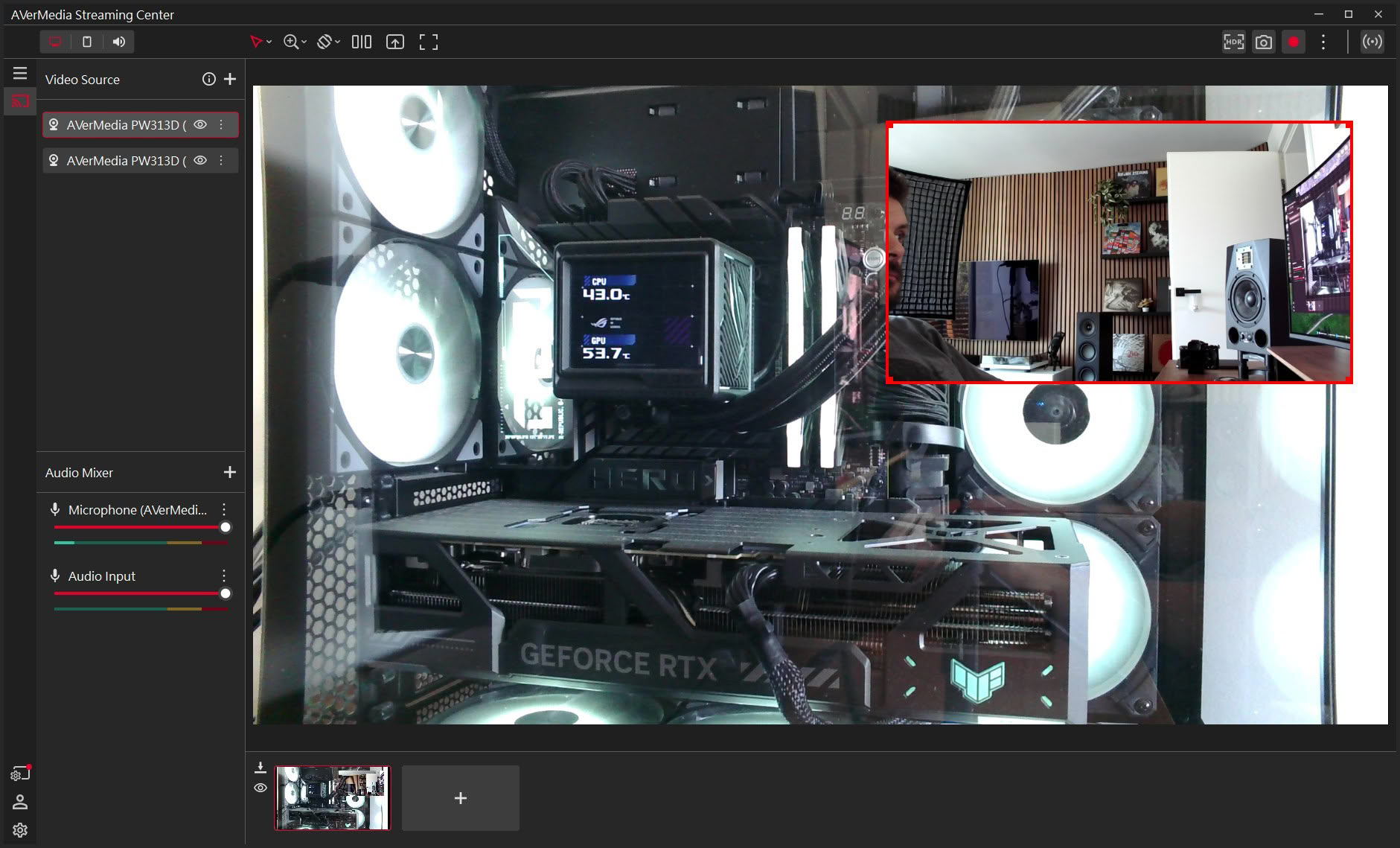
The most important software feature for this particular product is Picture-in-Picture, which combines the feeds from both cameras into a single video signal. In practice, this means you can show your face in a small window while the document camera feed takes up the rest of the frame, or vice versa. This is the feature that transforms the DualCam from "two webcams on one mount" into an actual presentation tool, as most videoconferencing platforms only accept one camera feed per participant.
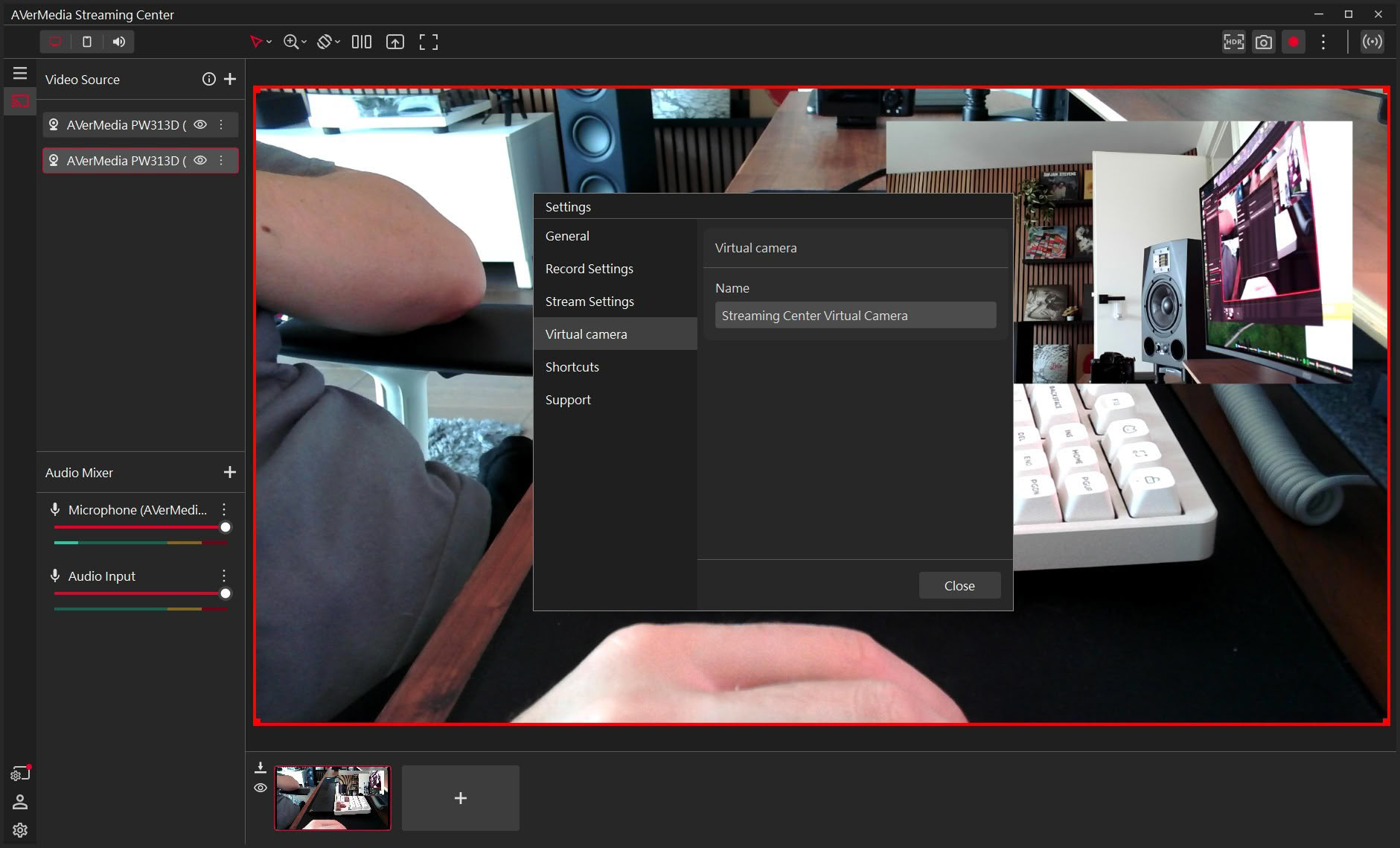
The way it works is worth explaining, as it isn't immediately obvious. Both cameras are added as separate video sources inside Streaming Center, where you arrange them into the layout you want. Streaming Center then exposes that composed image as a virtual camera, so in Teams, Zoom, or whatever else you're using, you don't select either of the DualCam's cameras directly; you select "Streaming Center Virtual Camera" instead. The same applies to audio, where you'll want to pick "Virtual Microphone (AVerMedia Streaming Center)" rather than the camera's microphones. It takes a minute to set up the first time, but once configured, everything stays in place and switching between layouts mid-call is trivial.
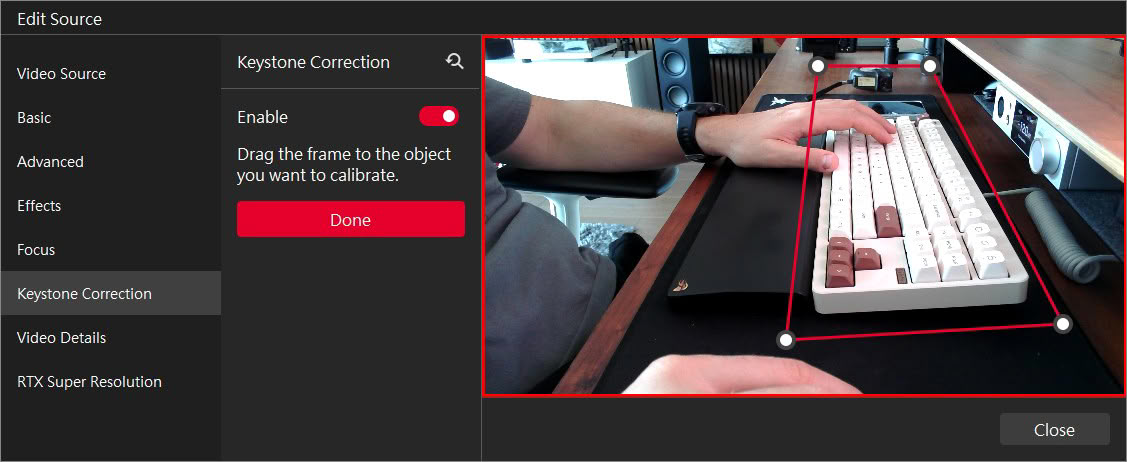
The second headline feature is keystone correction, available only for the right camera. When the camera looks down at a document from an angle, the resulting image is naturally distorted into a trapezoid. Keystone correction straightens it out, making it look as if the camera were positioned directly above the document. The feature works as advertised, although you'll want to keep the document within the suggested shooting area for best results.
Nov 17th, 2026 20:09 CST
change timezone
Latest GPU Drivers
New Forum Posts
- Lenovo Legion Pro 5 Audio Nightmare: Fan Noise, Harsh Voice & Massive DPC Latency (Help!) (2)
- Help with fixing Overclock (8)
- Will zen 6 mobos have anything extra vs current ones? (51)
- WarpCoreBench scores! (56)
- Slow SSD read speeds - help! (15)
- Ryzen 7 8700G OC (9)
- Without Jensen, PC gaming will be (35)
- Honestly, do you care about GTA VI? (134)
- [testers wanted] Qsurfer My own QNAP Nas explorer/Search tool (7)
- Local LLM General Discussion (693)
Popular Reviews
- Acemagic Retro X3 Review
- Upcoming Hardware Launches 2027 (Updated Nov 2026)
- AMD Zen 6 Technical Deep Dive
- ASUS ROG Strix B850-I Gaming Wi-Fi7 W Review
- Corsair HX1000i Shift Crystal Review
- Chieftec Iceberg PRO 360 DARK Review
- AMD Ryzen 7 9800X3D Review - The Best Gaming Processor
- Phantom Blade Zero Performance Benchmark Review - 35 GPUs Tested
- Montech King 95 3D PRO Review
- NZXT C1200 Platinum Review
TPU on YouTube
Controversial News Posts
- NVIDIA Co-Founder and CEO Jensen Huang Officially Resigns (463)
- Open Letter Asking NVIDIA to Reinstate Jensen Huang Passes 115,000 Signatures (184)
- OpenAI CEO Argues Home PCs Waste the World's Limited DRAM Supply (152)
- Report: Jensen Huang Eyes NVIDIA Comeback (137)
- NVIDIA Launches Investigation Into Jensen Huang's Relationship With Suspected Chinese Spy (136)
- Intel "Raptor Lake Next" 16-Core and 20-Core CPUs Surface (130)
- Legendary Game Studio BioWare Shuts Down Following EA Layoffs (104)
- Dell CEO Says the Memory Shortage Will Get Worse in 2027 (95)