 52
Call of Duty: Black Ops 6 Performance Benchmark Review - AMD FTW
(52 Comments) »Introduction
Call of Duty: Black Ops 6 takes players back into the heart of covert warfare, delivering an intense and immersive experience set in a near-future world fraught with chaos. The story centers around a new elite task force, led by a seasoned operative who uncovers a global conspiracy threatening world stability. As players traverse diverse locations and historic time eras—from war-torn cities to high-tech military installations—they engage in gripping missions that demand strategic thinking and teamwork.The game enhances its predecessor's legacy with a more diverse mission structure and increased focus on stealth gameplay mechanics. You also have more gadgets at your disposal and there are some elements of character development and progression.

Developed by Treyarch, Call of Duty: Black Ops 6 continues the use of the IW Engine (Infinity Ward Engine), which has been significantly upgraded over the years, incorporating advanced features for graphics, physics, and AI to enhance the overall gaming experience. While there is no support for ray tracing, you get to pick from a big list of upscalers: DLSS with DLAA support, FSR 1, FSR 3, NVIDIA Image Scaling, FidelityFX CAS and Intel XeSS—all the options are present. Frame generation is supported too, both FSR 3 and DLSS 3.
This review will evaluate the performance of Call of Duty Black Ops 6 across a wide range of contemporary graphics cards, compare image quality settings, and analyze the game's VRAM usage to provide insight into the hardware requirements needed for an optimal experience.
Screenshots
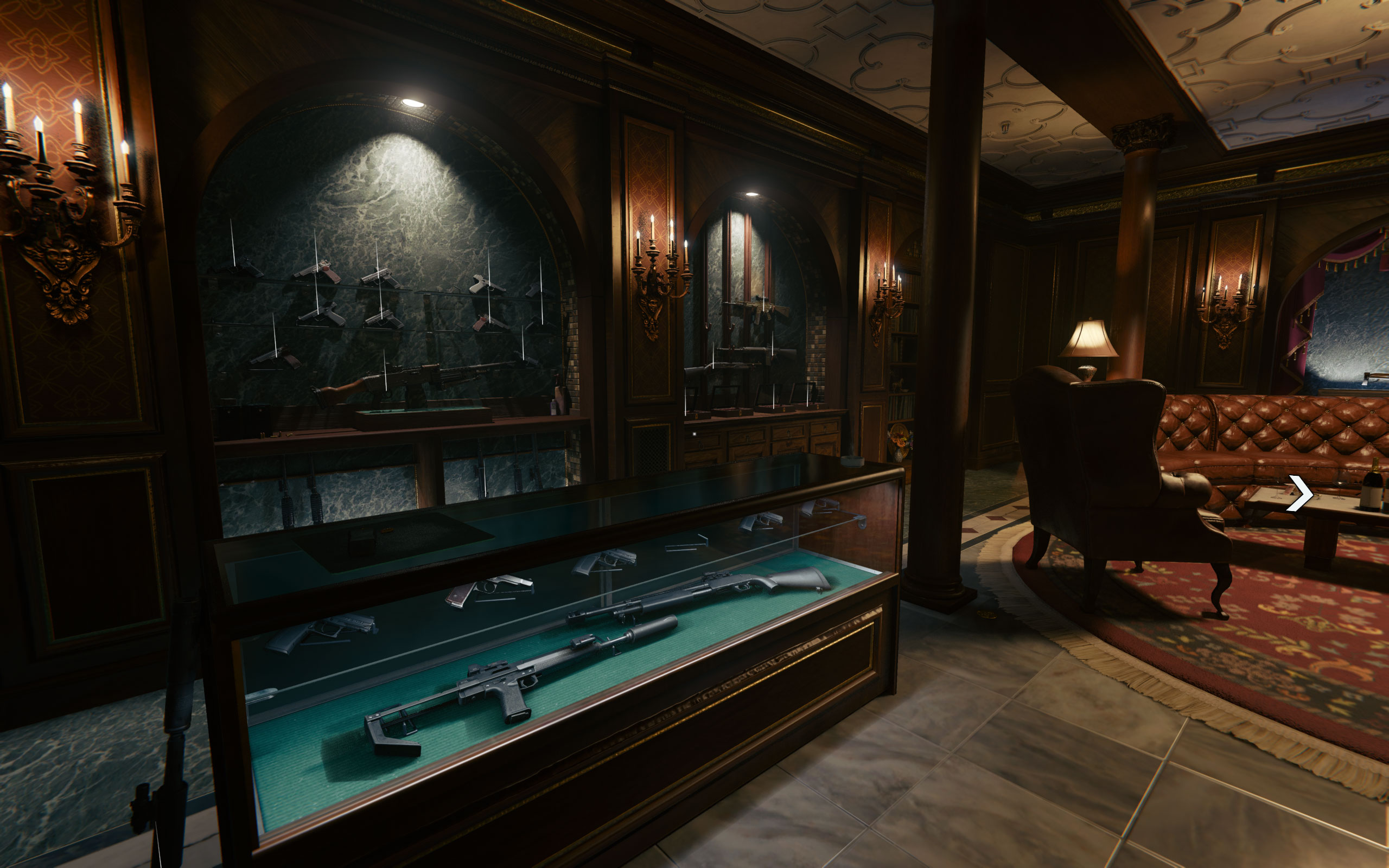
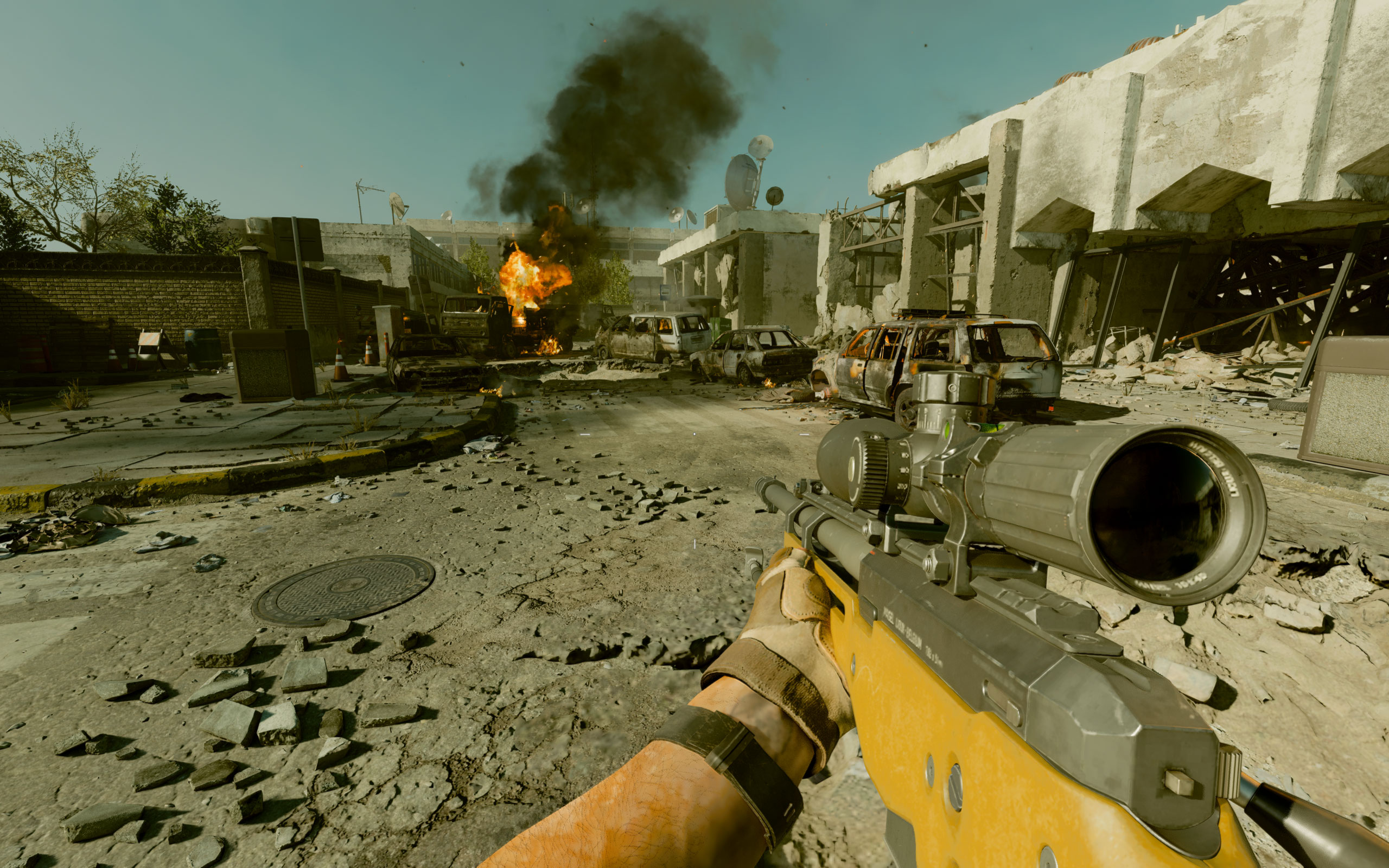
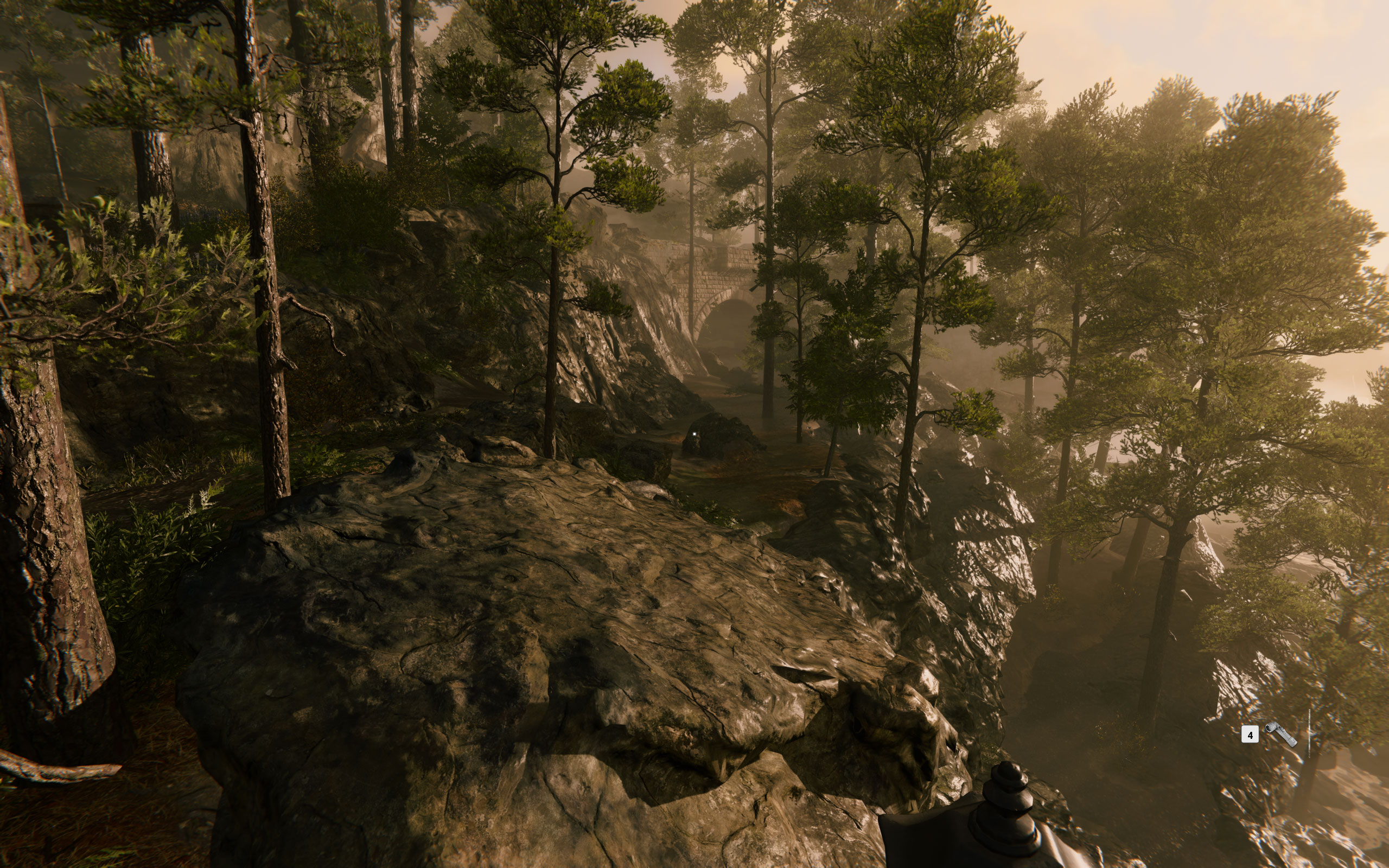
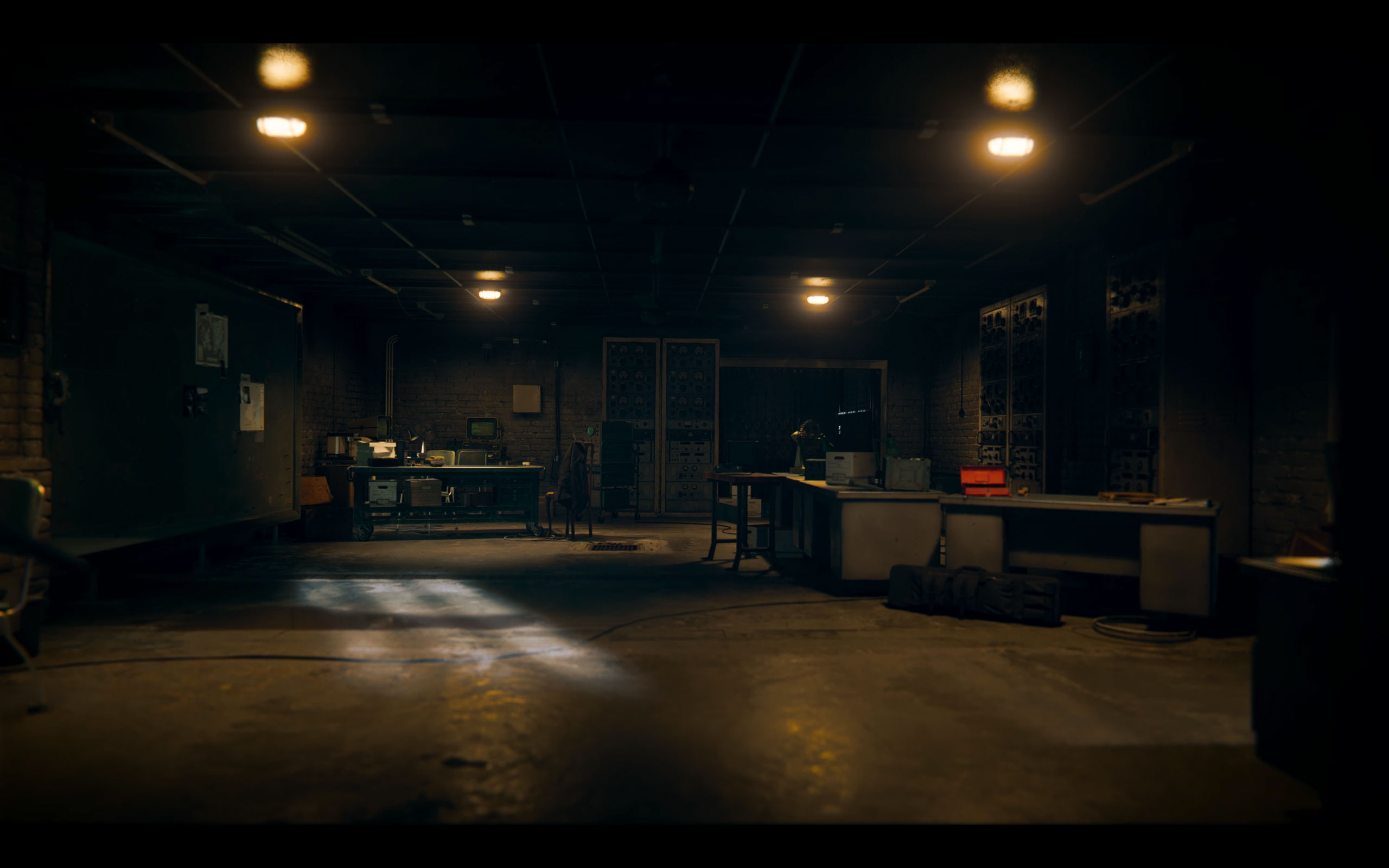
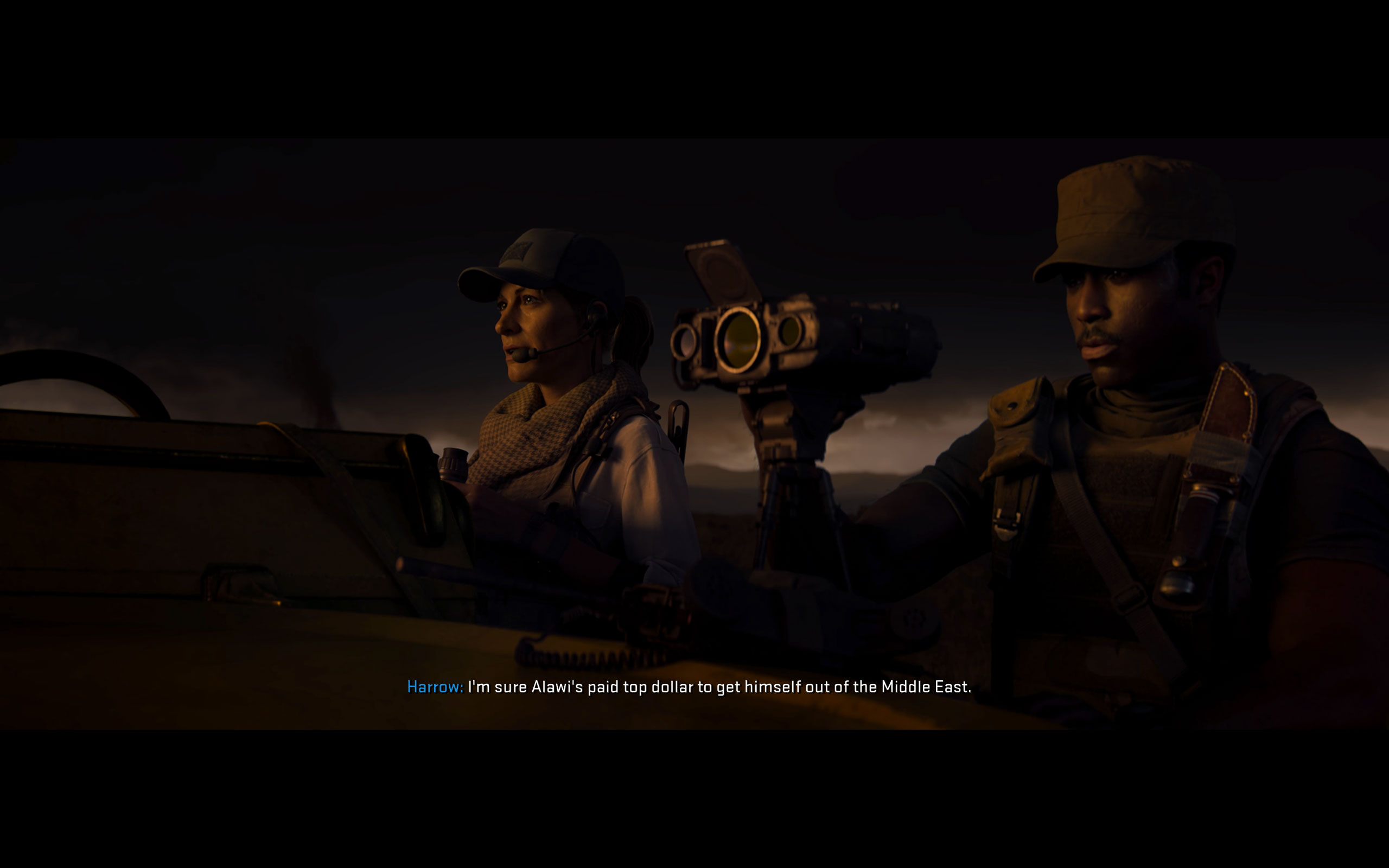
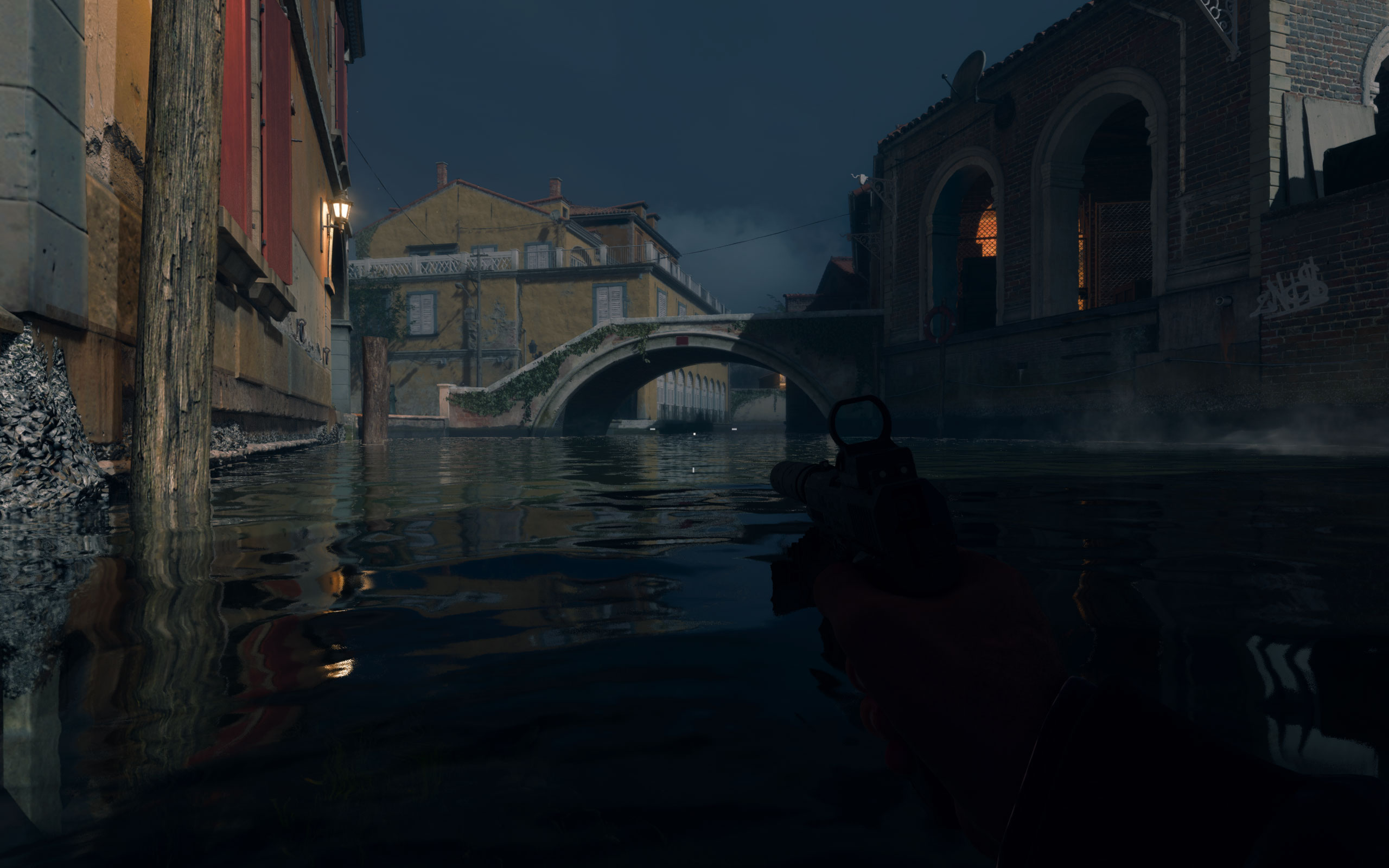
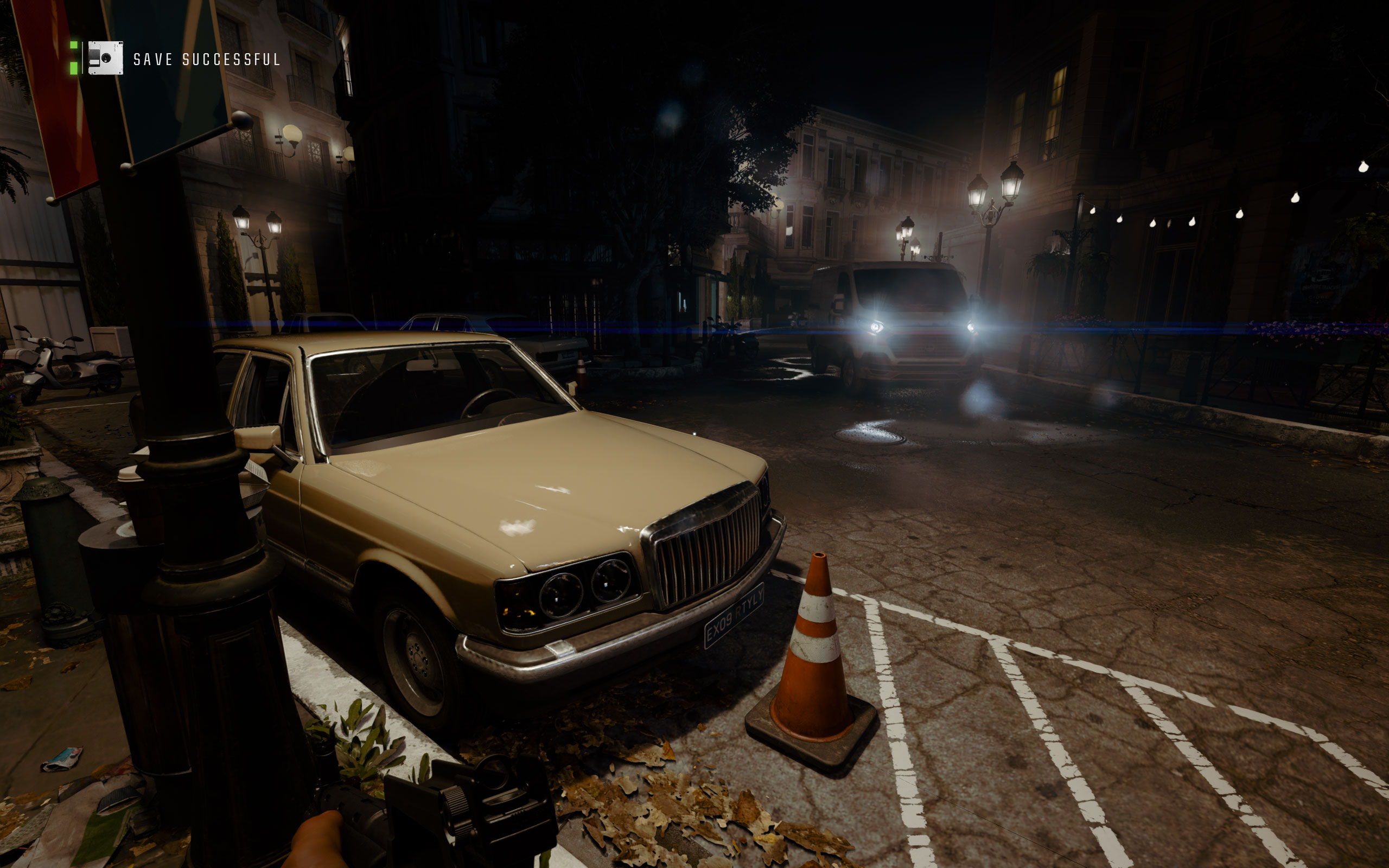
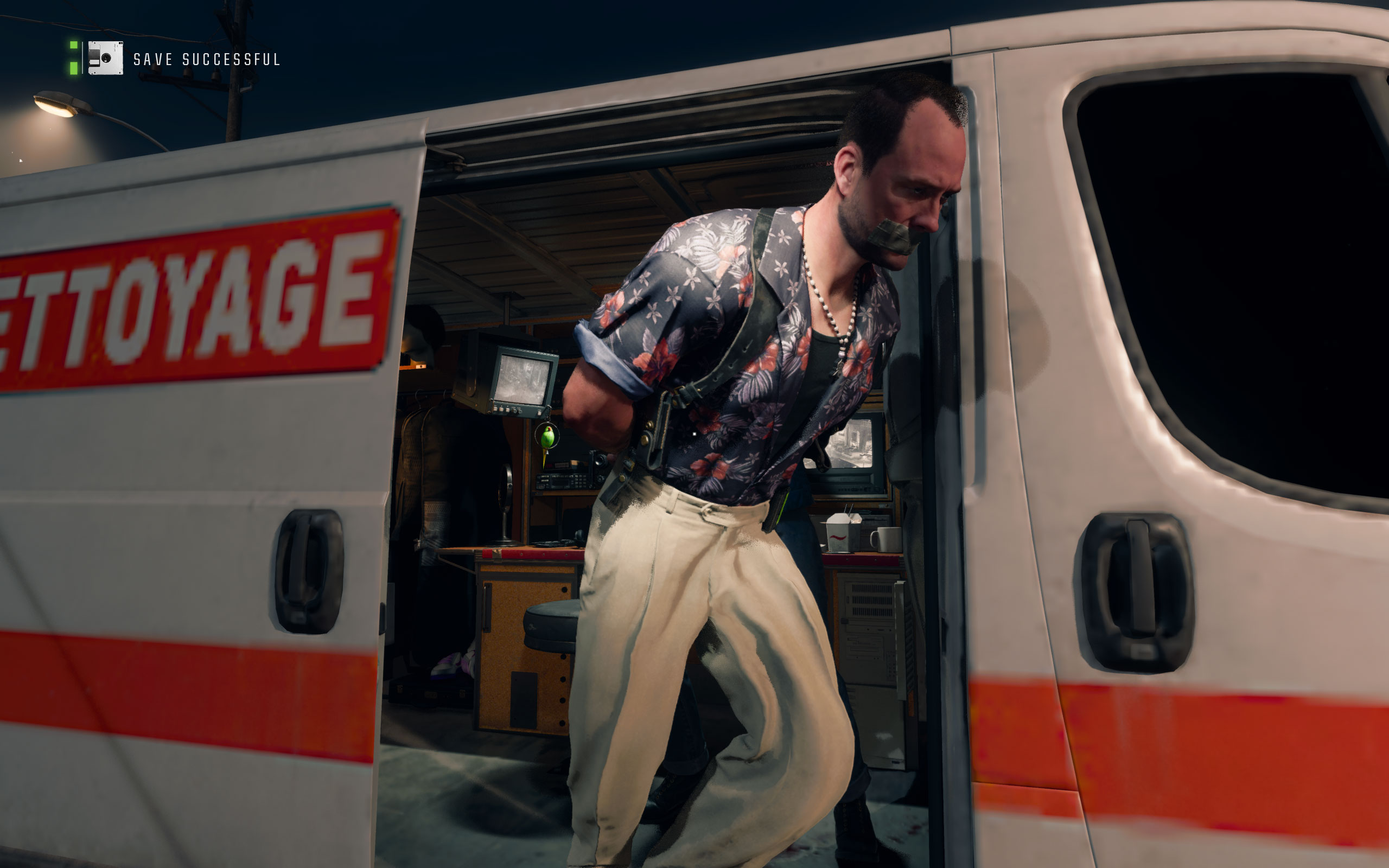
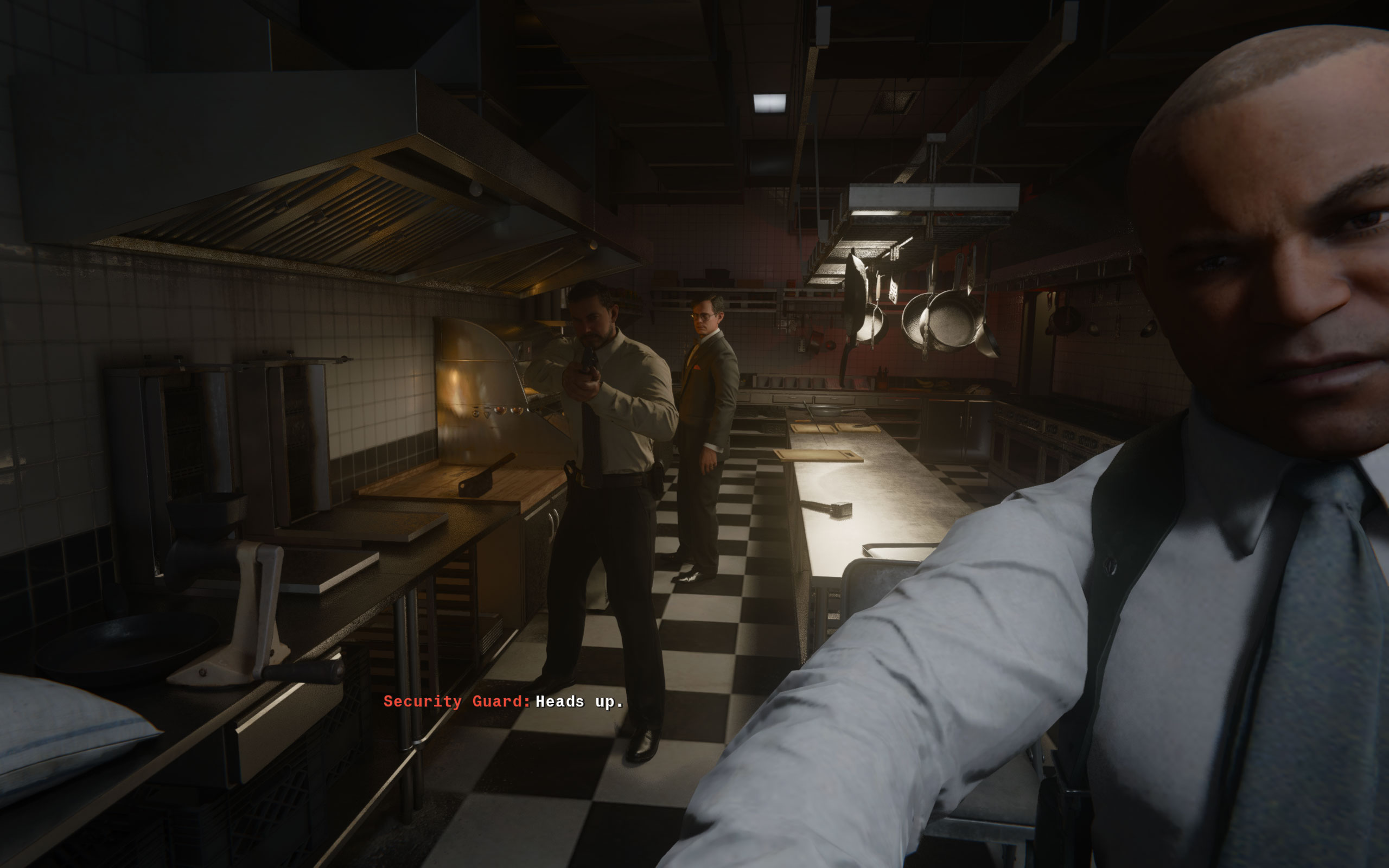
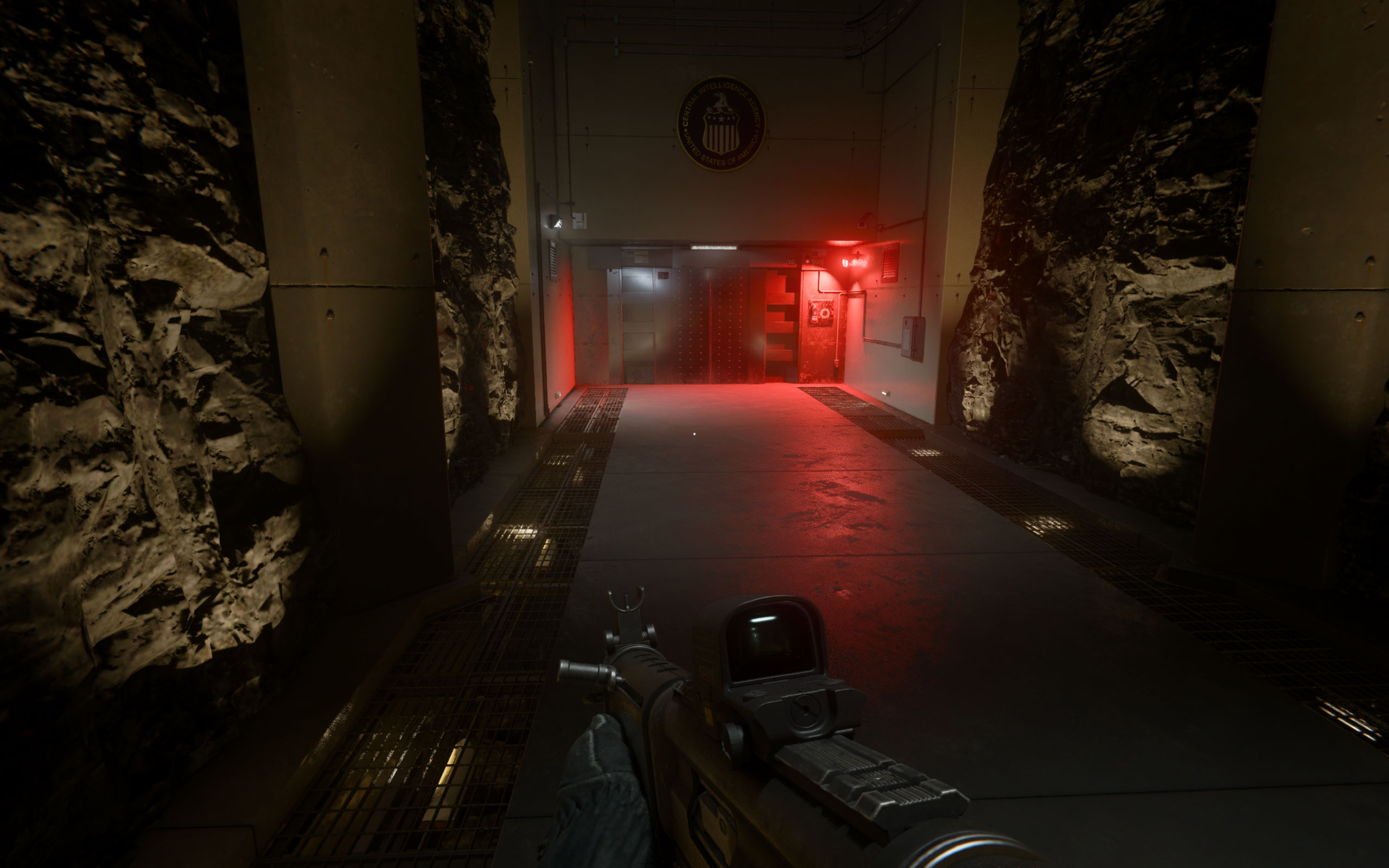
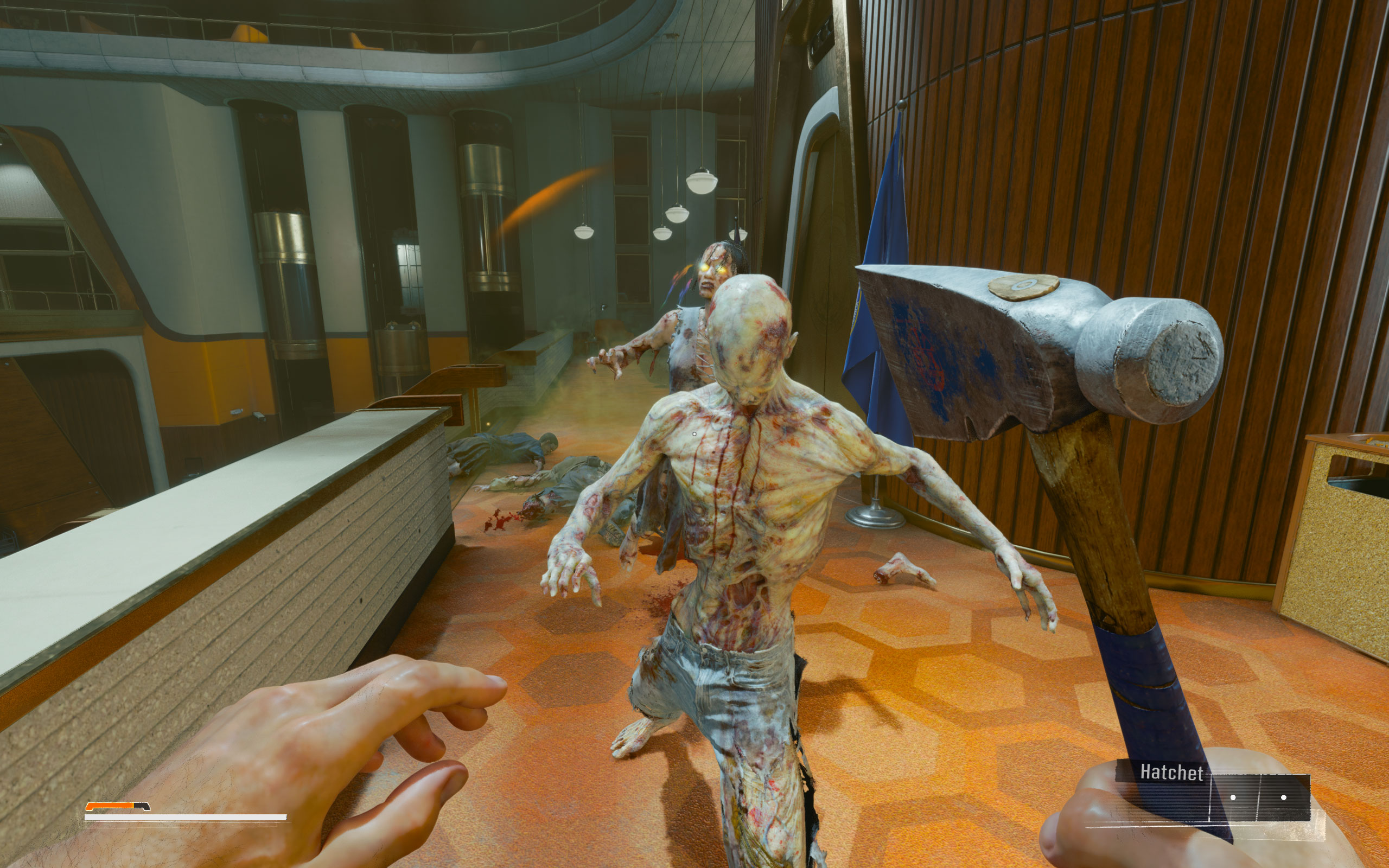
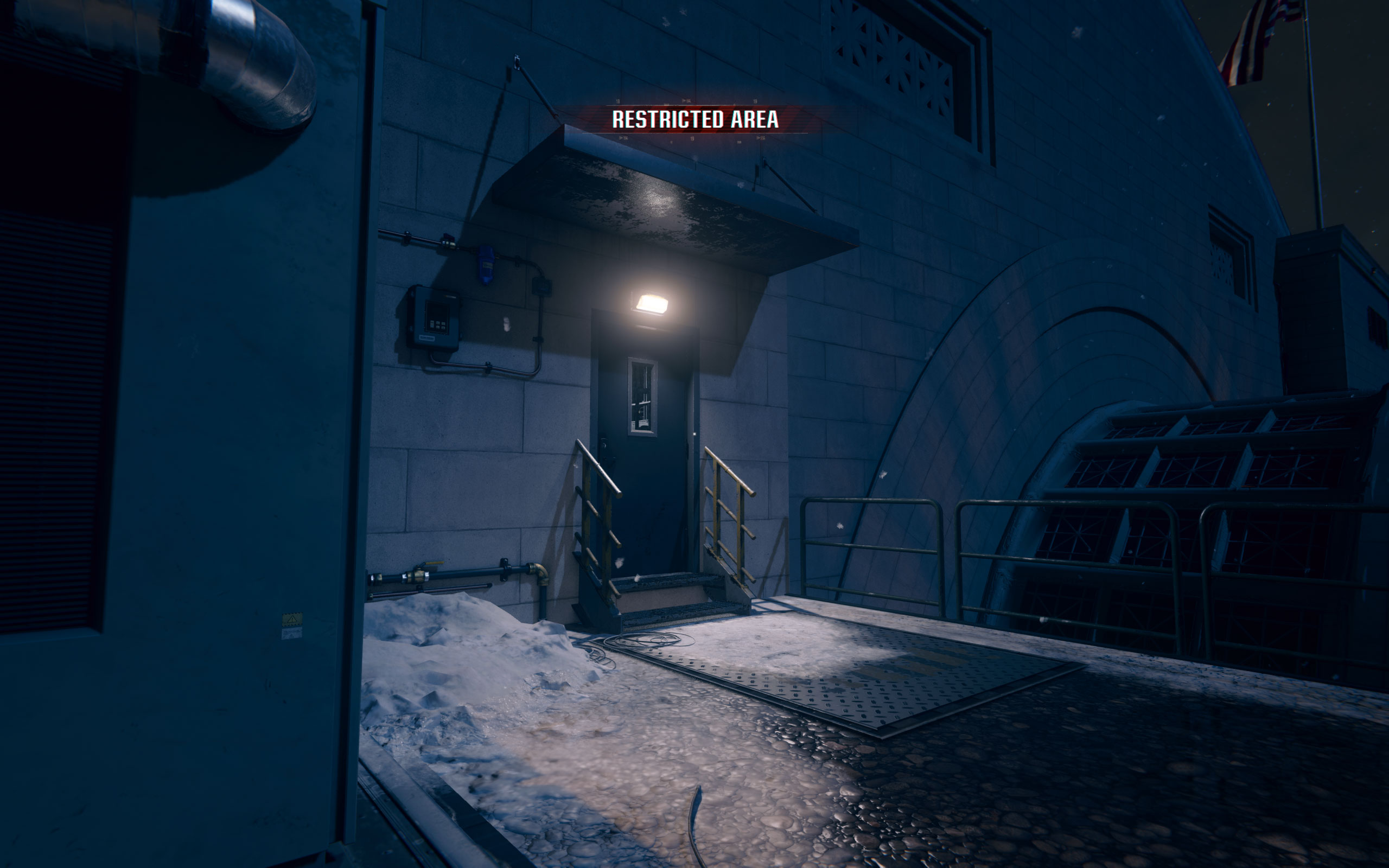
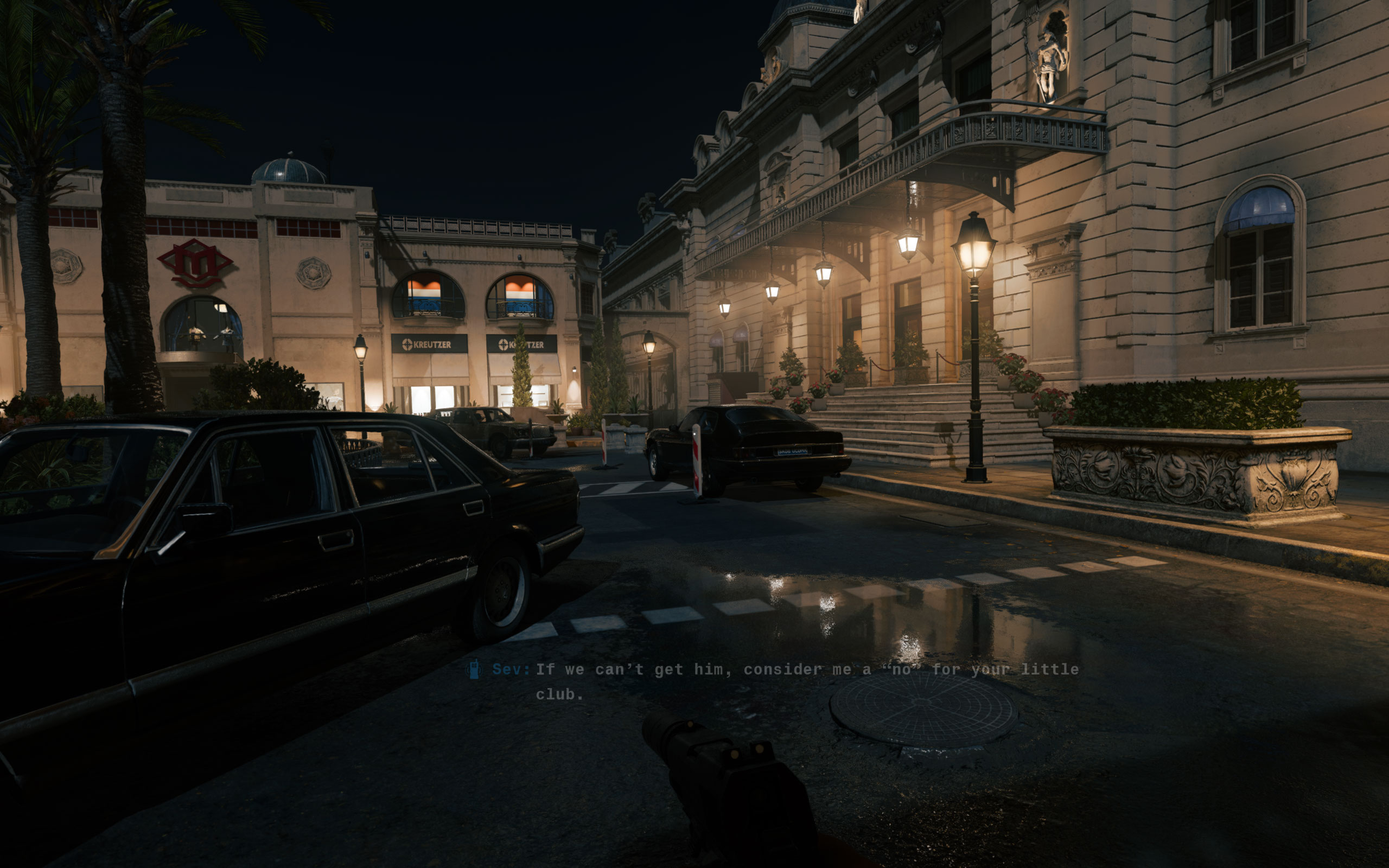
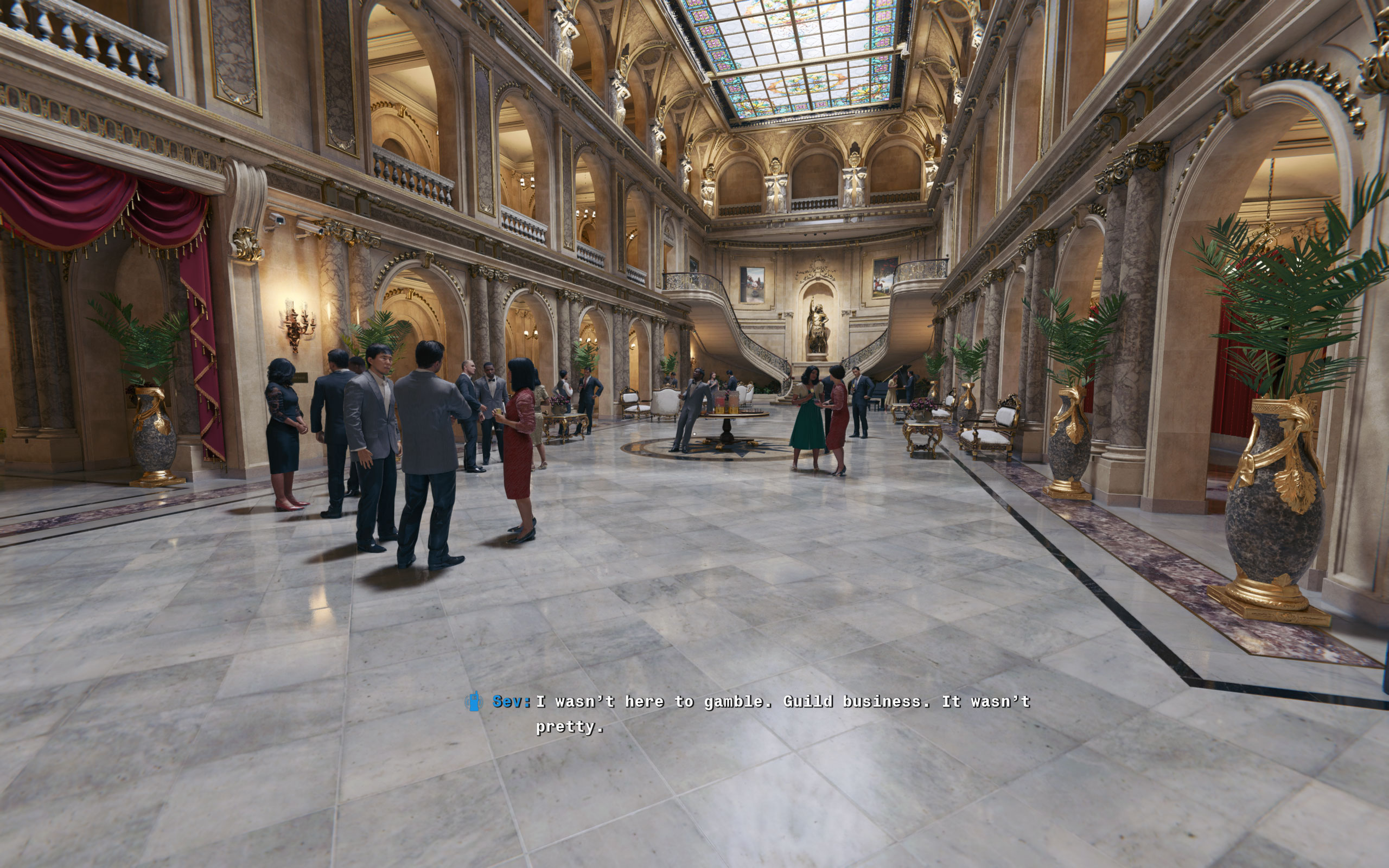
All screenshots were taken at the Extreme settings profile, with all upscalers disabled. The gallery can be navigated with the cursor keys.






























Graphics Settings

- You can choose between "fullscreen," "borderless," "windowed" and "fullscreen extended window," which uses all the area of a multi-monitor system
- The "sustainability" section lets you adjust an FPS limiter and V-Sync, for in-game and in-menu separately
- V-Sync can be disabled completely, there is no hidden FPS cap

- The presets available are "Extreme," "Ultra," "Balanced," "Basic," and "Minimum." Minimum sets render resolution to 50%, all the others keep it at 100%.
- Dynamic Resolution can be enabled to dynamically adjust the rendering resolution, with a target range for 30 to 300 FPS
- The upscalers available are "Off," "FSR 1.0," "FSR 3.0," "DLSS," "DLAA," "NVIDIA Image Scaling," "FidelityFX CAS," and "XeSS"
- While you can adjust sharpening for NVIDIA upscalers, there's no such option for FSR
- Frame Generation can be enabled independent of upscaling, so you can use DLSS upscaling with FSR frame generation on pre-GeForce 40 cards
- "VRAM Scale Target" lets you set a predefined amount of memory that's the maximum that CoD can use, based on the graphics card's total memory. This can come in handy when you have other applications using GPU memory while gaming.
- "On-Demand Texture Streaming" downloads textures from the Internet. There is no option to turn it off, the only choice is "Minimal"
- Additionally, there's a long list of settings that help you balance rendering performance with quality

- The third settings screen lets you adjust the Field of View. The default of 90° was a bit too narrow for me and I changed it to 105°
- Motion blur can be disabled completely
- You may also adjust how much the camera moves while you walk/stand still—great to avoid motion sickness
Our Patreon Silver Supporters can read articles in single-page format.
Nov 14th, 2026 22:53 CST
change timezone
Latest GPU Drivers
New Forum Posts
- Honestly, do you care about GTA VI? (23)
- WarpCoreBench scores! (43)
- "Legacy Control Panel" won't install (0)
- Planning for Prolonged High Prices and Maintaining What You Already Have (72)
- Tell me about your favourite graphics card (83)
- What can the FX 8320 do today? Here is the answer. (47)
- Recommendations Wanted - Affordable Enterprise SSD for Boot (3)
- [INTEL]-How To Update Your Microcode for Intel HX 13/14th Gen. CPUs Laptops/Mobile Easily. (260)
- [Intel AX1xx/AX2xx/AX4xx/AX16xx/BE2xx/BE17xx] Intel Modded Wi-Fi Driver with Intel® Killer™ Features (632)
- Optical Disc Drive owners club (208)
Popular Reviews
- AMD Zen 6 Technical Deep Dive
- ASUS ROG Strix B850-I Gaming Wi-Fi7 W Review
- Corsair HX1000i Shift Crystal Review
- Upcoming Hardware Launches 2027 (Updated Nov 2026)
- Montech King 95 3D PRO Review
- NZXT C1200 Platinum Review
- NZXT H7 RGB+ Review
- NZXT H5 Review
- Phantom Blade Zero Performance Benchmark Review - 35 GPUs Tested
- AMD Ryzen 7 9800X3D Review - The Best Gaming Processor
TPU on YouTube
Controversial News Posts
- NVIDIA Co-Founder and CEO Jensen Huang Officially Resigns (408)
- OpenAI CEO Argues Home PCs Waste the World's Limited DRAM Supply (152)
- NVIDIA Launches Investigation Into Jensen Huang's Relationship With Suspected Chinese Spy (136)
- Intel "Raptor Lake Next" 16-Core and 20-Core CPUs Surface (130)
- Legendary Game Studio BioWare Shuts Down Following EA Layoffs (104)
- Dell CEO Says the Memory Shortage Will Get Worse in 2027 (95)
- NVIDIA GeForce RTX 50-Series Scheduled for up to $500 Price Hike This Week (89)
- Modder Fits RTX 5090 With Four 8-Pin Connectors, Halving Current per Wire (80)