 6
Corsair One i200 Compact Gaming PC (i9-10900K + 2080 Ti) Review - Exceptional Performance With a Unique Design
(6 Comments) »Introduction

A big thank you goes out to Corsair for providing the review sample.
Corsair is known far and wide, and while it goes without saying, it is highly likely that if you've been building your very own PCs for a while, you have probably used one of their products. While they don't offer their own graphics cards or motherboards, they offer just about everything else. This includes system memory, SSDs, power supplies, cases, fans, coolers, and more; they have even managed to entrench themselves in the pre-built PC market. Overall, Corsair remains one of the most prominent players in the global DIY PC market, which is quite impressive considering its modest start in 1994.

As Corsair continues to grow its gaming PC market share, it stands to reason we would see a refresh for the hottest hardware rather quickly. In today's review, I take a look at the One i200 Compact Gaming PC. It comes equipped with an Intel i9-10900K, NVIDIA GeForce RTX 2080 Ti, two sticks of 16 GB DDR4-3200 MHz RAM, a 960 GB M.2 NVMe SSD, and a 2 TB 5400RPM HDD, all of which is crammed into a small custom form factor chassis. Compared to the previously reviewed i160, the biggest changes are the upgraded SSD, which now has double the capacity, and the swap to Intel's latest Z490 platform and their flagship mainstream processor in the Core i9-10900K. These specifications, the unique chassis, and innovative cooling will set you back a hefty $3599.99.
| Specifications | |
|---|---|
| Manufacturer: | Corsair |
| Model: | ONE i160 |
| Chassis: | Custom Chassis 7.87 x 6.79 x 14.96 inches 200 x 172.5 x 380 mm 1x Power switch 2x USB 3.1 Gen 1 1x HDMI 2.0a (front) 1x Combo headphone/microphone jack |
| Processor: | Intel Core i9-10900K 3.6 GHz Base (5.0 GHz Boost) |
| CPU Cooling: | Custom All-in-one liquid cooler |
| Motherboard: | Intel Z490 chipset MSI Z490I CORSAIR (MS-7C77) |
| Operating System: | Windows 10 Pro 64-bit |
| Integrated Graphics: | Intel UHD Graphics 630 |
| Dedicated Graphics: | NVIDIA GeForce RTX 2080 Ti, liquid-cooled 11 GB GDDR6 3x DisplayPort 1x HDMI |
| Memory: | 32 GB (2x 16 GB) Corsair Vengeance LPX CL 18-22-22-42 @ 3200 MHz DDR4 2x DIMM slots (2x occupied) |
| Storage: | 960 GB Samsung PM981 NVMe SSD 2 TB Seagate BarraCuda 5400 RPM 2.5" HDD 1x 2.5" HDD bay (occupied) 1x M.2 PCIe slot (occupied) |
| Optical Drive: | Not included |
| Rear I/O: | 1x Set HD Audio 1x Optical S/PDIF OUT 2x USB 3.1 Gen 2 Type-A port 1x USB 3.2 Gen 2 Type-A port 1x Thunderbolt port 2x USB 2.0 ports 1x PS/2 Keyboard/mouse combo port 1x Clear CMOS button 2x Wi-Fi antenna ports 1x RJ45 Ethernet port |
| Networking/Communication: | 1x Realtek RTL8125 Gaming 2.5 GbE 1x Intel Wi-Fi 6 AX201 |
| Audio: | Realtek ALC S1220A |
| Input device: | Not included |
| Power: | Corsair SF750 750 W 80 Plus Gold |
| Warranty: | Two years |
| MSRP: | $3599.99 |
Packaging and Contents


The Corsair One i200 came in a nice box that shows off the system from various angles, including the RGB lighting. it shows off the system and its RGB LED implementation along with the slogan "Battle, Create, Explore." Turning to the left side, you will find the various specifications in the bottom right.


The other sides are pretty much the same. Like the One i160 we reviewed previously, the i200 uses the same box.


The i200 system is placed inside foam blocks for protection, with an adequate amount of space to protect from the usual dents or dings that might otherwise come about during shipping. As for the contents, you get the One i200 system, a power cable, a couple of Wi-Fi antennas, and some warranty and user guides. No other extras have been included.
- Corsair ONE i200 system
- Power cable
- 2x Wireless antenna
- Miscellaneous literature
A Closer Look

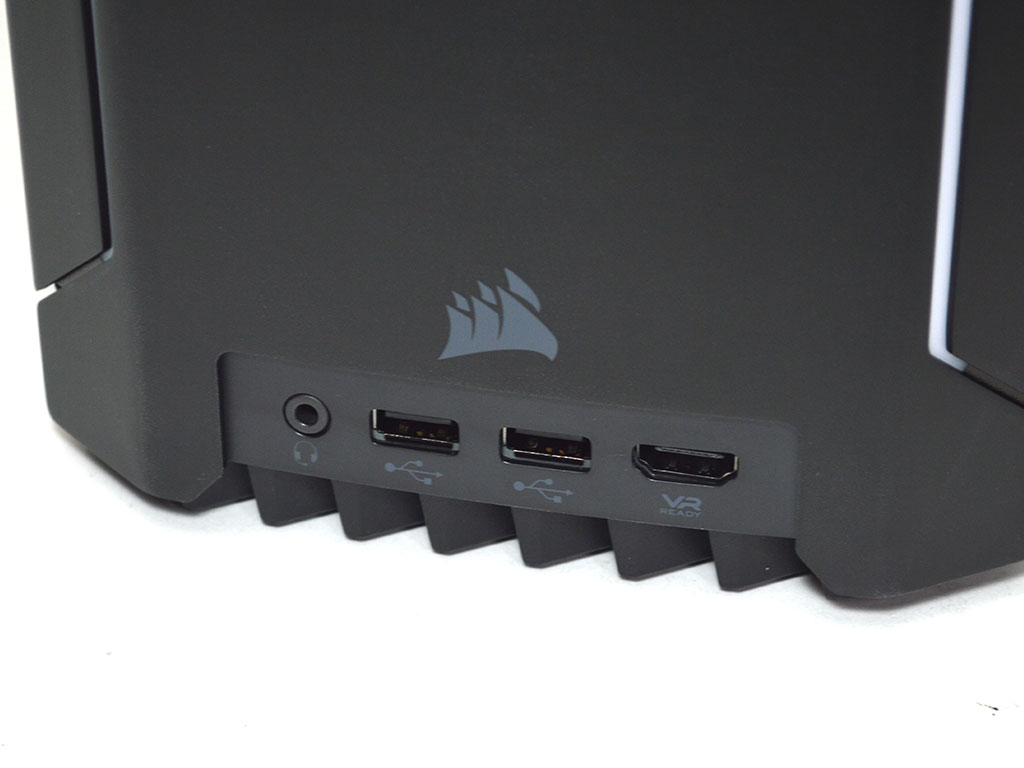
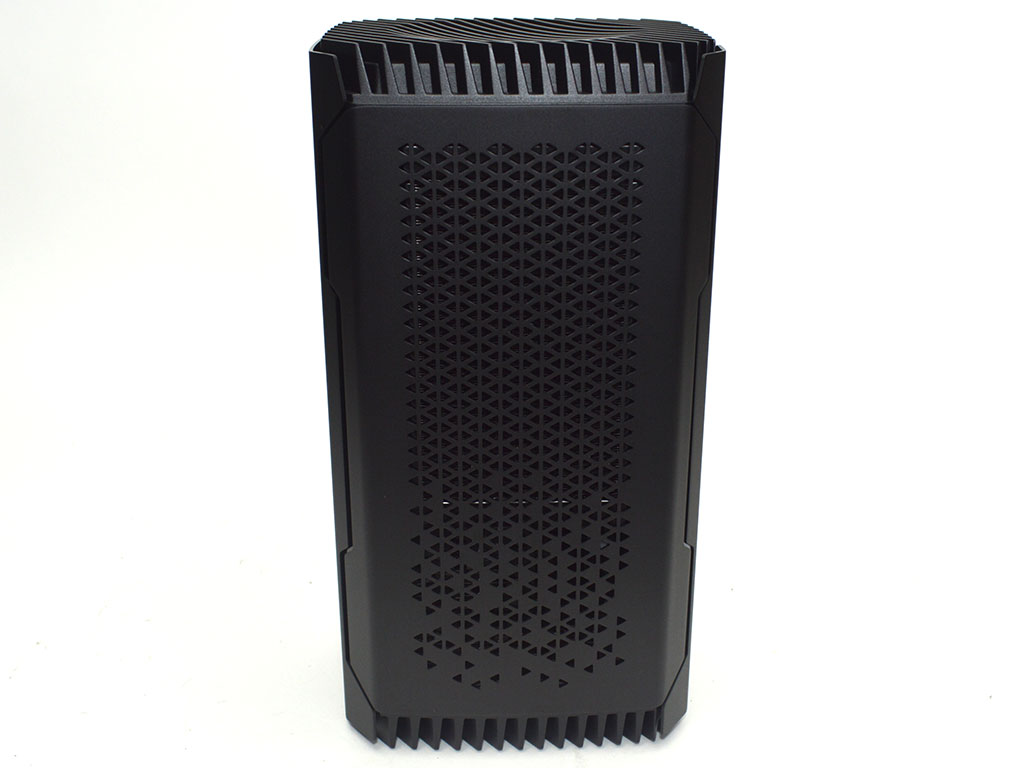
Corsair continues to use its unique chassis that remains specific to the One series of systems. The front has the power button positioned near the top and centered with the headphone/microphone jack, two USB 3.0 ports, and an HDMI port at the bottom. Taking a look at the left side, Corsair has stuck with a similar triangular vented panel design for improved cooling; it is also slightly different from what was seen on the One i160.

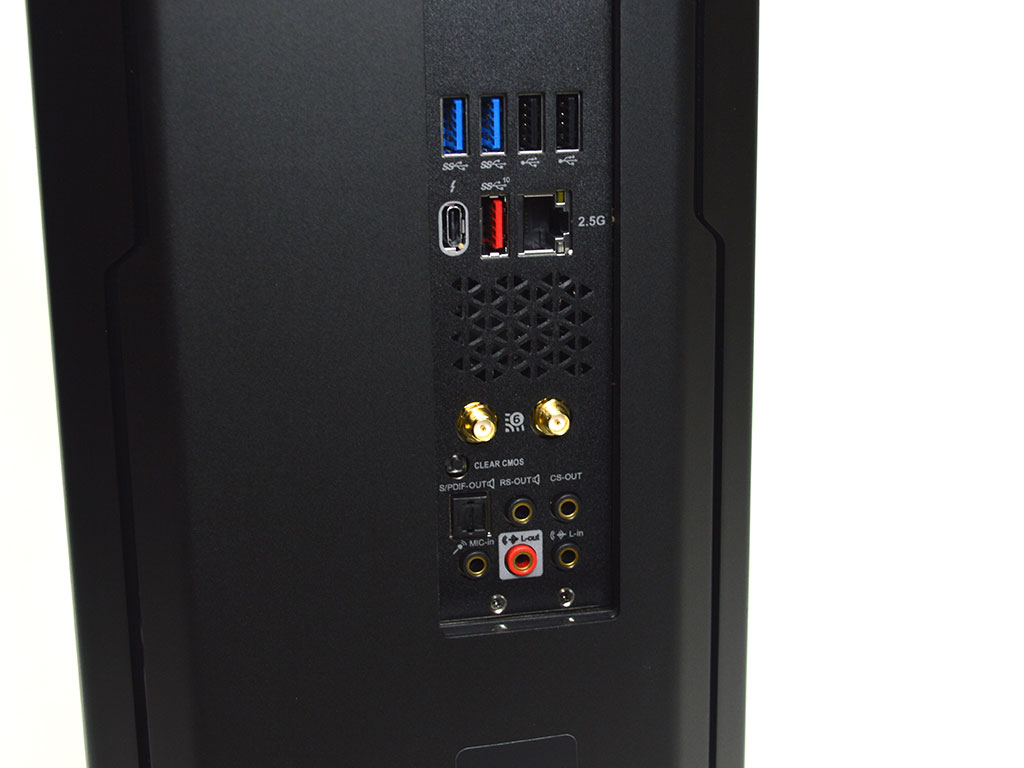
Checking out the back, we can see the motherboard has enough I/O to be useful, although still fairly limited compared to more prototypical motherboards one can buy separately. As for the I/O itself you get 1x Set HD Audio ports, 1x Optical S/PDIF out, 2x USB 3.1 Gen 2 Type-A ports, 1x USB 3.2 Gen 2 Type-A port, 1x Thunderbolt port, 2x USB 2.0 ports, 1x PS/2 Keyboard/ mouse combo port, 1x Clear CMOS button, 2x Wi-Fi antenna ports, and 1x RJ45 Ethernet port. Surprisingly, there is no HDMI or other similar port for any sort of usage of the Intel IGP. Just for troubleshooting purposes, I would have liked the ability to utilize the onboard IGP along with a couple more USB ports, just to be safe. Keep in mind that if you have a plethora of USB devices, you may run out of ports and likely need a hub instead since more ports can't be added via a simple add-in card.
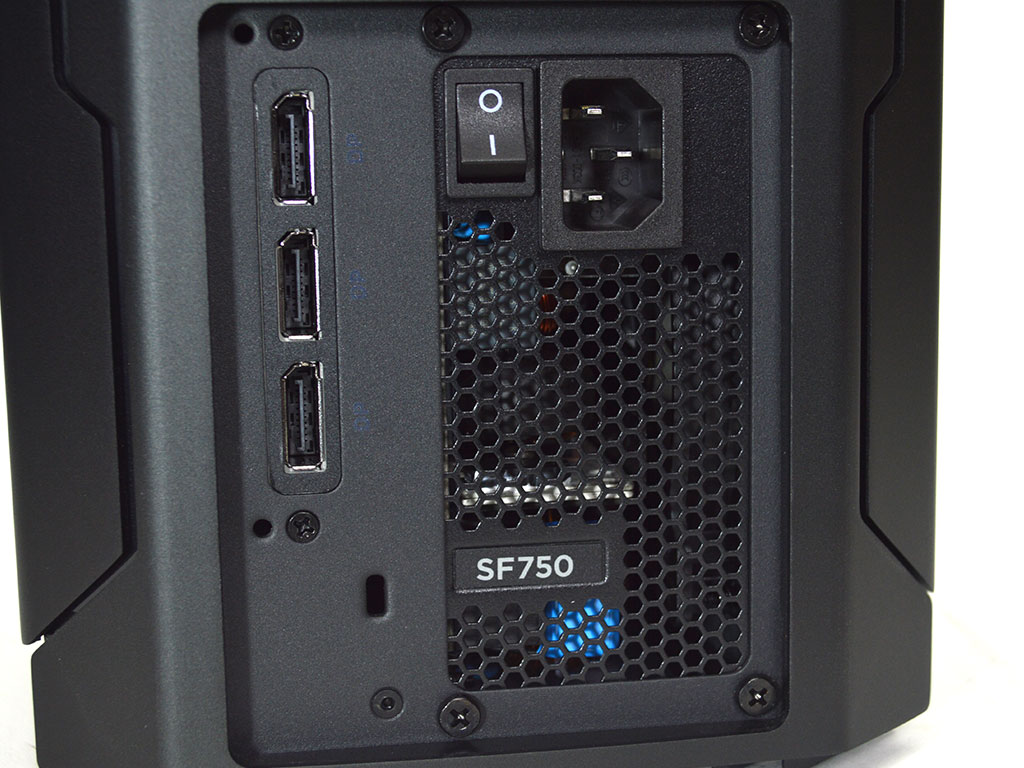
Meanwhile, at the bottom, users will find the Corsair SF750 80 Plus Gold power supply and three DisplayPort outputs. After all this time, I still find it odd that they chose to put the HDMI port on the front of the system. Considering there are three DisplayPort outputs, I would think it would make more sense to move one of those to the front and keep the HDMI at the rear for cleaner cabling in a living-room setting.
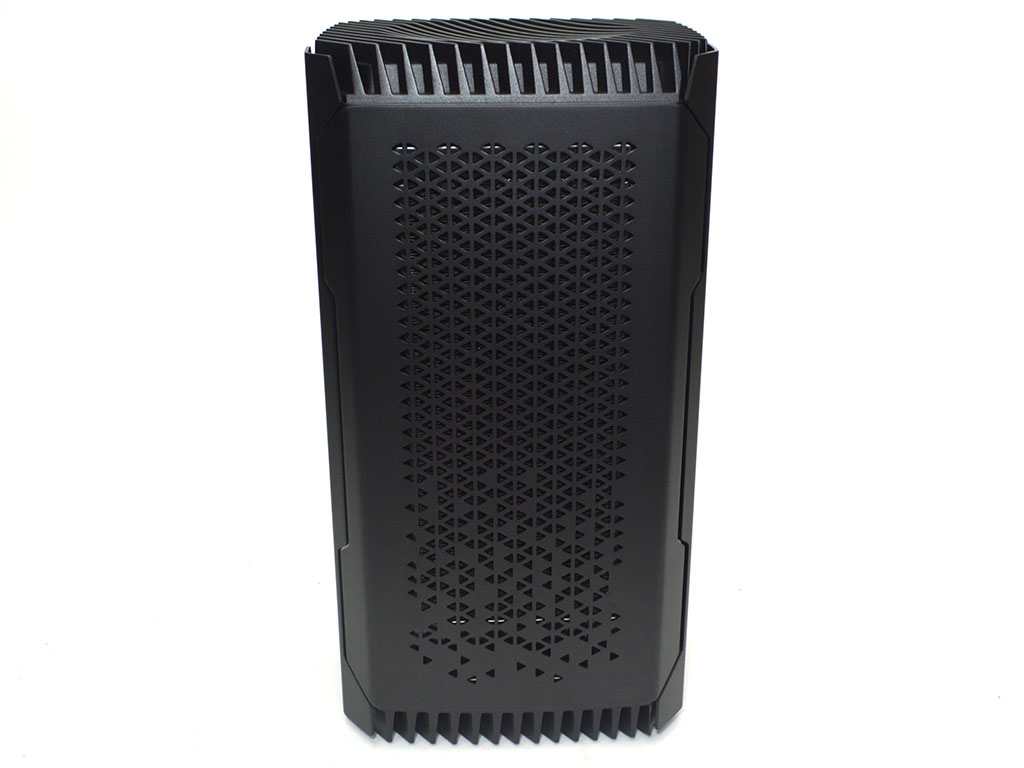
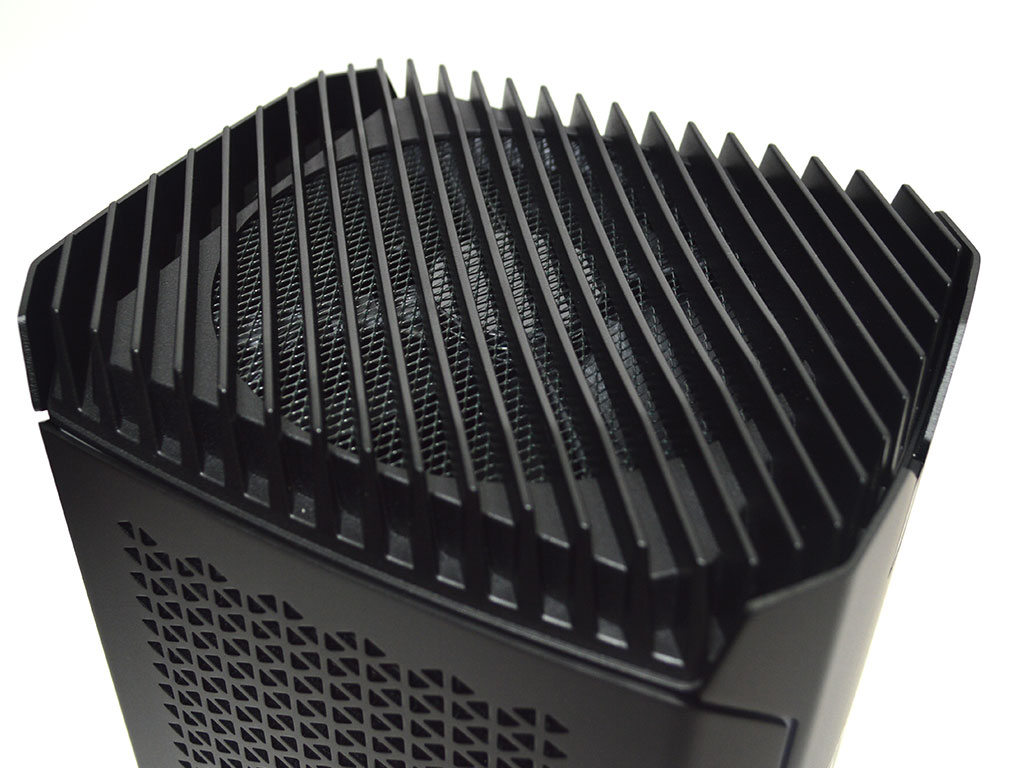
Finally, the side panel here, much like the other, has a large vented surface through which air is pulled via the 140 mm fan placed at the top of the system. This convection-assisted cooling setup performed quite well previously; however, it will be interesting to see how it handles the more power-hungry Intel Core i9-10900K.
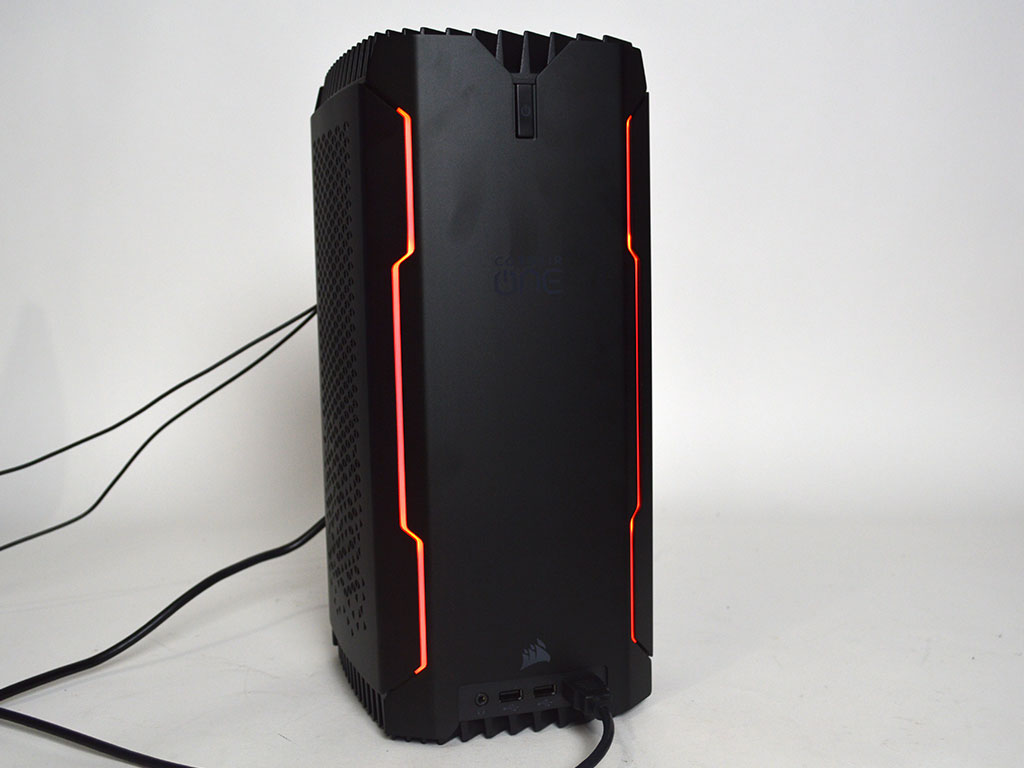
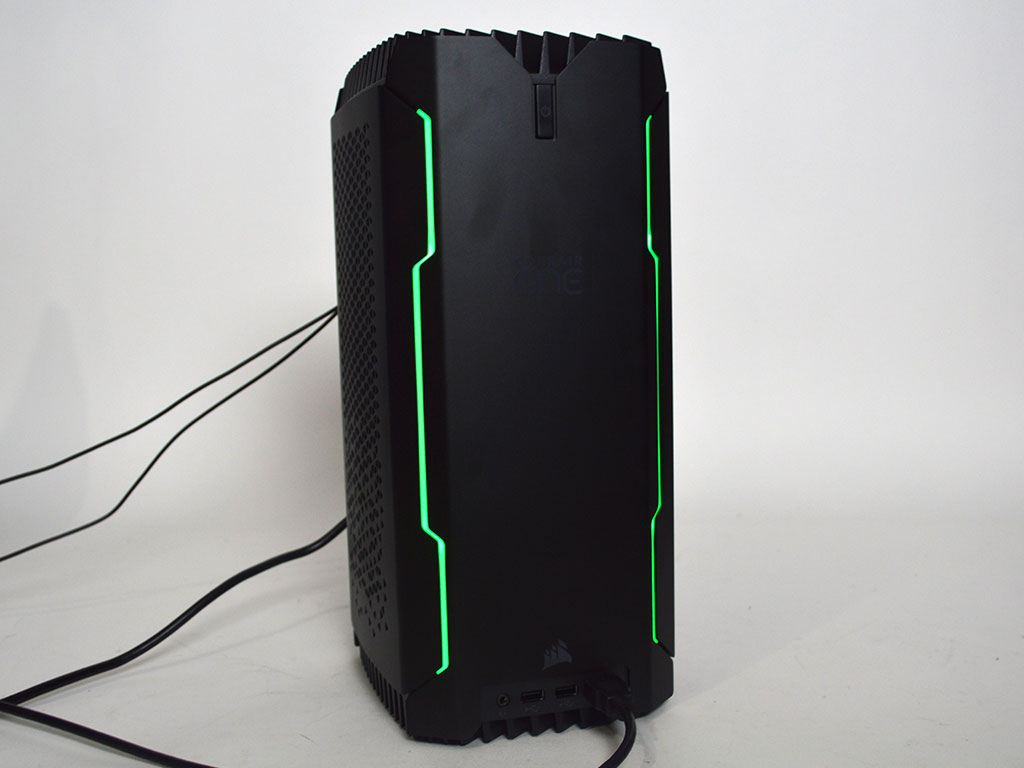
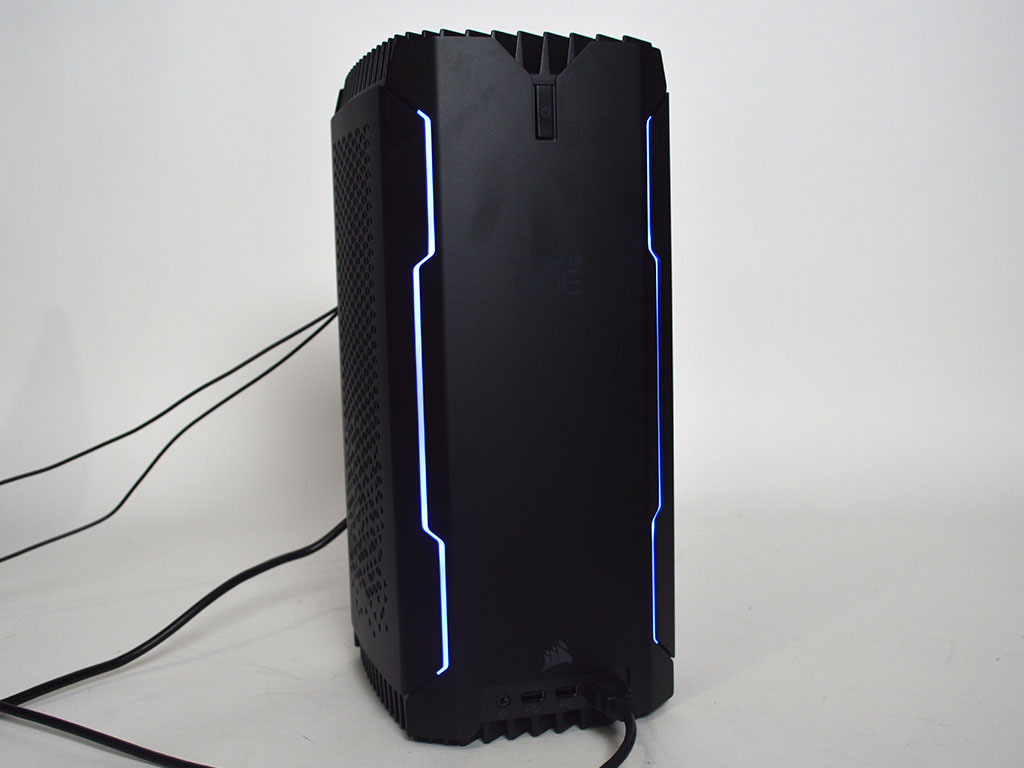
Obviously, thanks to Corsair's iCUE software, you can change the RGB LEDs to any color you wish, with multiple modes available as well. Shown here are just a few of the possible color options.
A Look Inside


Opening the system up is easy enough, but upgrading some components, such as the graphics card, may prove problematic. That said, Corsair does offer a repair service should something go wrong. Regardless, the first step is to push the button just above the motherboard I/O, which will allow you to lift off the top plate and fan. Once the fan has been released, gently lift up and then unplug the fan. With that taken care of, you can remove the four black screws which hold the side panels in place. Once done, you will have access to the majority of the system.
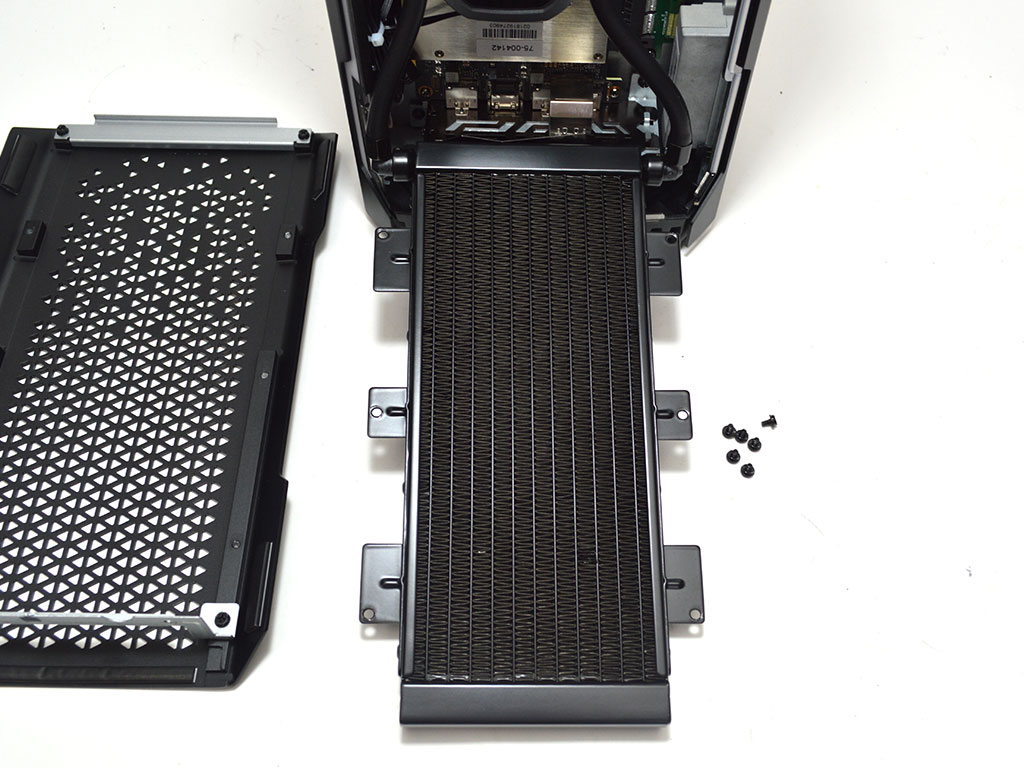


If you need to remove the graphics card or simply want to add another M.2 SSD on the back of the motherboard, you will want to detach the radiator from the side panel for more room. Next, you will need to cut a single zip tie that secures the liquid cooler's wiring to the rest of the cabling. This is so you can unplug the pump. Next, you will need to unplug the PCIe power cables and the display cables from the graphics card. Finally, you will need to remove eight screws, of which four directly hold the graphics card to the chassis, two hold the I/O bracket to the chassis, and the last two hold the PCIe extension cable in place. With those screws removed, you can gently lift the GPU and slide it out of the PCIe extension cable. With the GPU out of the way, the secondary M.2 slot is just beneath the folded-up PCIe extension cable on the back of the motherboard. It should also be noted that this is your only real internal storage expansion option.

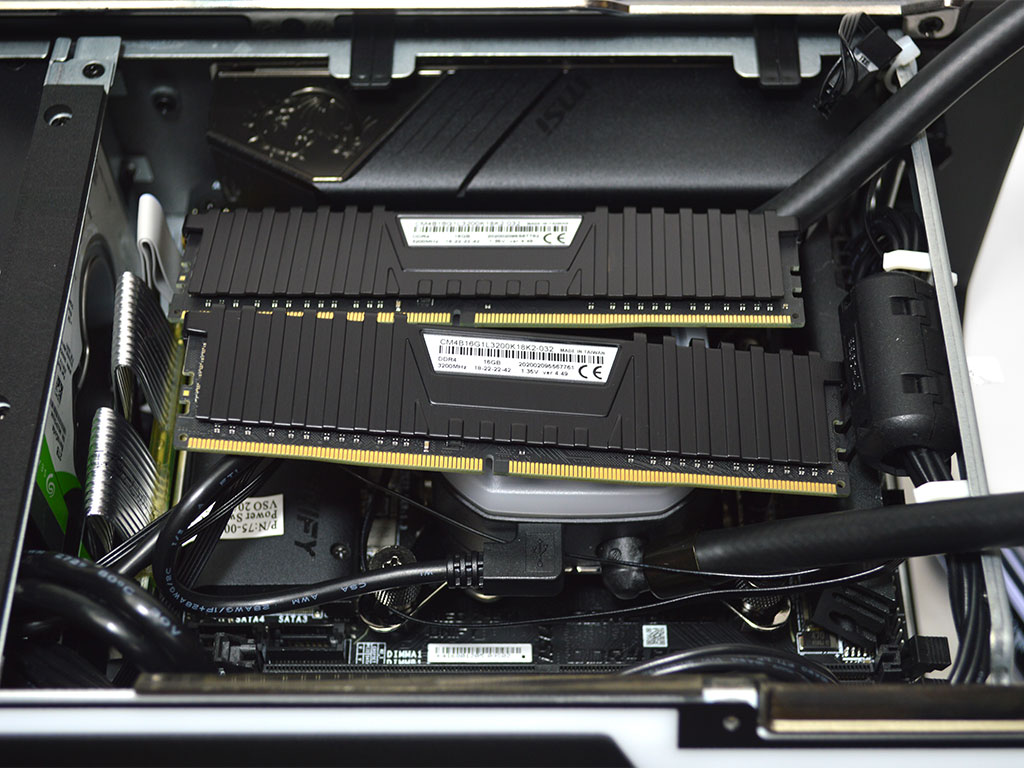
On the other side, access to the system is quite a bit easier. While not necessary, you can remove the radiator from the side panel for a better look. It will make things a bit easier if you are looking to clean the system. When it comes to swapping RAM or replacing the HDD, it is a simple procedure. The system memory is easily removable with nothing in the way to complicate matters. With it removed, it's clear the memory is from Corsair's Vengeance LPX lineup with timings of 18-22-22-42 at 3200 MHz.
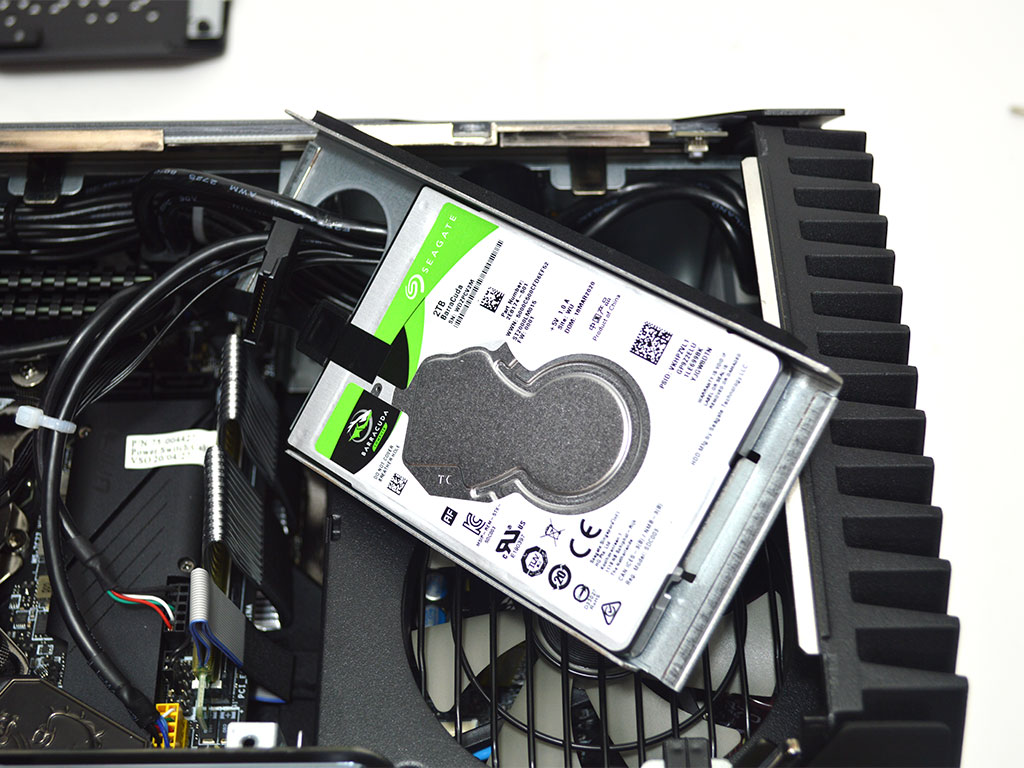
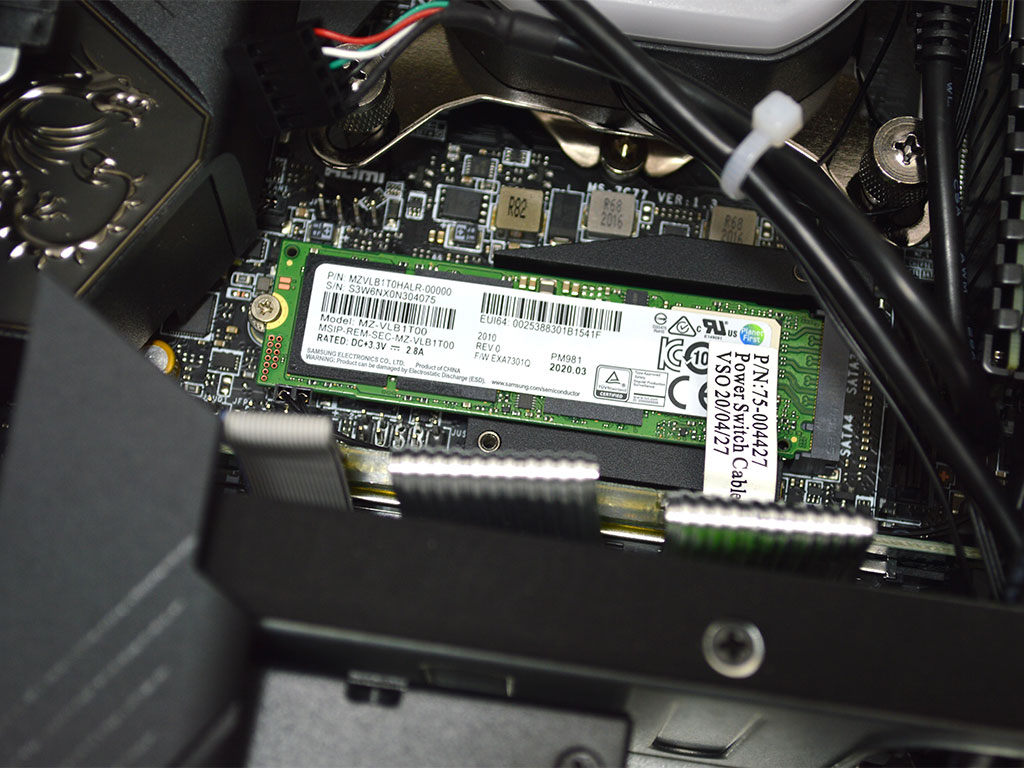
Removal of the secondary storage drive isn't difficult, just a bit annoying. Due to the densely packed cables, you will want to unplug the SATA power cable and then remove the screws securing the HDD tray in place. You can pull the HDD and tray straight out, but be mindful of the cabling all the same. Finally, the SSD is secured under the heatsink just below the CPU block. Remove two screws and you will have access to it should you wish to upgrade it. That said, the HDD is a Seagate BarraCuda 2 TB 5400 RPM model, and the SSD is a Samsung PM981. Honestly, considering Corsair's lineup of M.2 SSDs, I was a bit surprised they didn't opt for their own branded models here.

The cooling of the system is handled via a single Corsair ML series 140 mm fan, and considering the hardware packed into this thing, it's an amazing feat that this alone is enough to do the job.
Test Systems
General Disclaimer: As previously reviewed systems are returned, retesting is not always possible. Considering older drivers and Windows versions will impact performance and create some level of disparity, the results for previously reviewed systems shown in the benchmarks below are for reference only.| Test System "Corsair One i200" | |
|---|---|
| Processor: | Intel Core i9-10900K |
| System Memory: | 32 GB (2x 16 GB) Corsair Vengeance LPX 3200 MHz |
| Motherboard: | MSI Z490I Unify (Custom for i200) |
| Graphics card: | NVIDIA GeForce RTX 2080 Ti 11 GB |
| Power Supply: | Corsair SF750 80 Plus Gold |
| SSD: | 960 GB Samsung PM981 M.2 NVMe |
| HDD: | 2 TB Seagate BarraCuda 5400 RPM |
| Test System "Comino Otto Master" | |
|---|---|
| Processor: | Intel Core i9-9900K |
| System Memory: | 32 GB (2x 16 GB) G.Skill Trident Z 4000 MHz |
| Motherboard: | ASUS Z390I STRIX |
| Graphics card: | ASUS GeForce RTX 2080 Ti STRIX 11 GB |
| Power Supply: | CMNO 750W SFX Platinum |
| SSD: | 1 TB PNY CS3030 M.2 NVMe |
| HDD: | 2 TB Toshiba HDWL120 5400 RPM |
| Test System "MSI Trident X 9th" | |
|---|---|
| Processor: | Intel Core i7-9700 |
| System Memory: | 32 GB (2x 16 GB) Samsung 2666 MHz |
| Motherboard: | MSI Z370I GAMING PRO CARBON AC |
| Graphics card: | MSI GeForce RTX 2080 Ventus 8 GB |
| Power Supply: | Thermaltake Smart 650 W 80 Plus Gold |
| SSD: | 512 GB Samsung PM981 M.2 NVMe |
| HDD: | 2 TB Seagate BarraCuda 5400 RPM |
| Test System "iBUYPOWER L20IRG201" | |
|---|---|
| Processor: | AMD Ryzen 9 3900X |
| System Memory: | 16 GB (2x 8 GB) ADATA XPG SPECTRIX 3200 MHz |
| Motherboard: | ASUS TUF GAMING X570-PLUS |
| Graphics card: | MSI GeForce RTX 2070 Super Ventus OC 8 GB |
| Power Supply: | High Power 650 W 80 Plus Gold |
| SSD: | 1 TB Intel 660P M.2 NVMe |
| HDD: | None |
Our Patreon Silver Supporters can read articles in single-page format.
Nov 21st, 2026 14:26 PST
change timezone
Latest GPU Drivers
New Forum Posts
- Ryzen or Intel system (2)
- Honestly, do you care about GTA VI? (226)
- UPS what one to get? (23)
- Local LLM General Discussion (694)
- Can you guess Which game it is? (345)
- GeekMagic Ultra Smart WiFi Weather Station (10)
- RX 580 2048SP 8GB - SK Hynix - Ardiyes - BIOS Needed (1)
- Zen 3 IF/IMC degradation (243)
- State of the HPC-AI Market 2026: Processing Elements (0)
- 1 - 5 person file storage server equivalent accasible from anywhere + general VM server. (3)
Popular Reviews
- Microsoft Surface Laptop Ultra Review - The Next-gen Arm Laptop
- Ugreen NASync DXP4800 GT Review
- Corsair RM1200e (Second Generation) Review
- Pulsar Office Tour & First Look at P1 Dual-Sensor Mouse
- Upcoming Hardware Launches 2027 (Updated Nov 2026)
- Acemagic Retro X3 Review
- Biwin Black Opal NV7400 2 TB Review
- AMD Ryzen 7 9800X3D Review - The Best Gaming Processor
- AMD Zen 6 Technical Deep Dive
- Chieftec Iceberg PRO 360 DARK Review
TPU on YouTube
Controversial News Posts
- NVIDIA Co-Founder and CEO Jensen Huang Officially Resigns (492)
- Report: Jensen Huang Eyes NVIDIA Comeback (261)
- Open Letter Asking NVIDIA to Reinstate Jensen Huang Passes 115,000 Signatures (184)
- OpenAI CEO Argues Home PCs Waste the World's Limited DRAM Supply (152)
- NVIDIA Launches Investigation Into Jensen Huang's Relationship With Suspected Chinese Spy (136)
- Intel "Raptor Lake Next" 16-Core and 20-Core CPUs Surface (130)
- NVIDIA GeForce RTX 50-Series Scheduled for up to $500 Price Hike This Week (89)
- Intel Razor Lake Gets a 12 P-Core bLLC Chip With No E-Cores, Per Leak (86)