 6
Corsair VANGUARD AIR 99 WIRELESS Keyboard Review
Value & Conclusion »Lighting and Performance
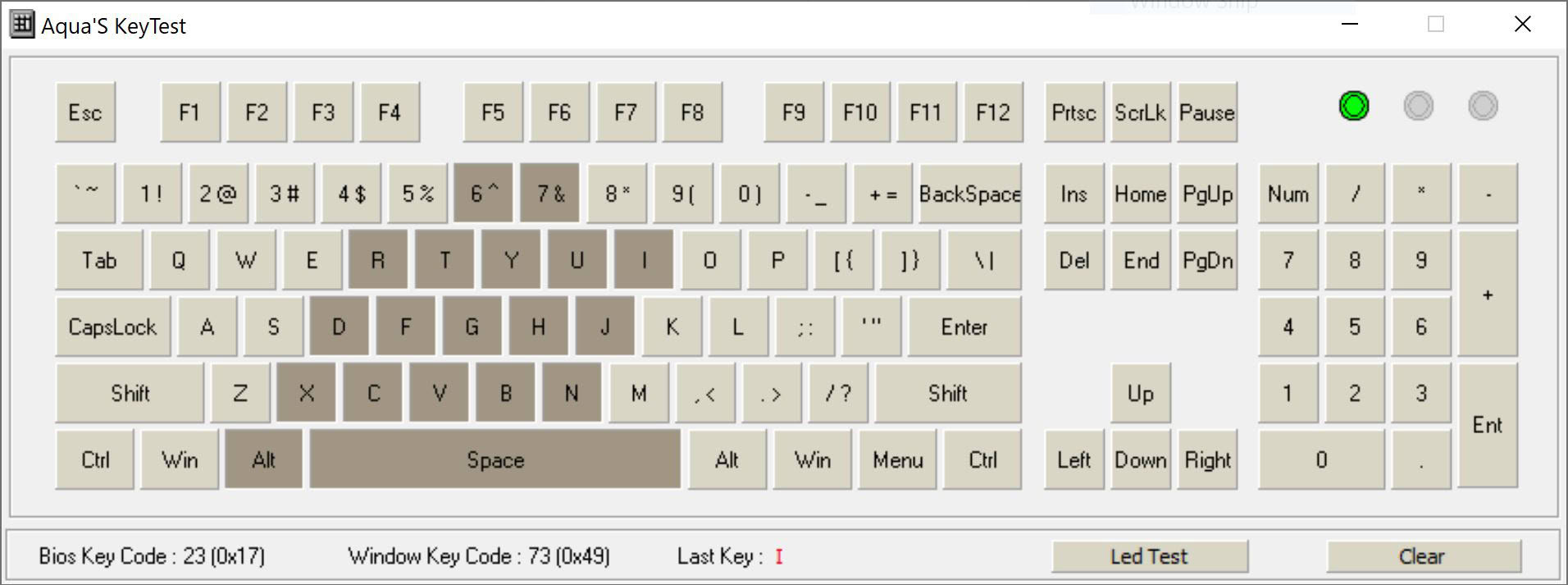
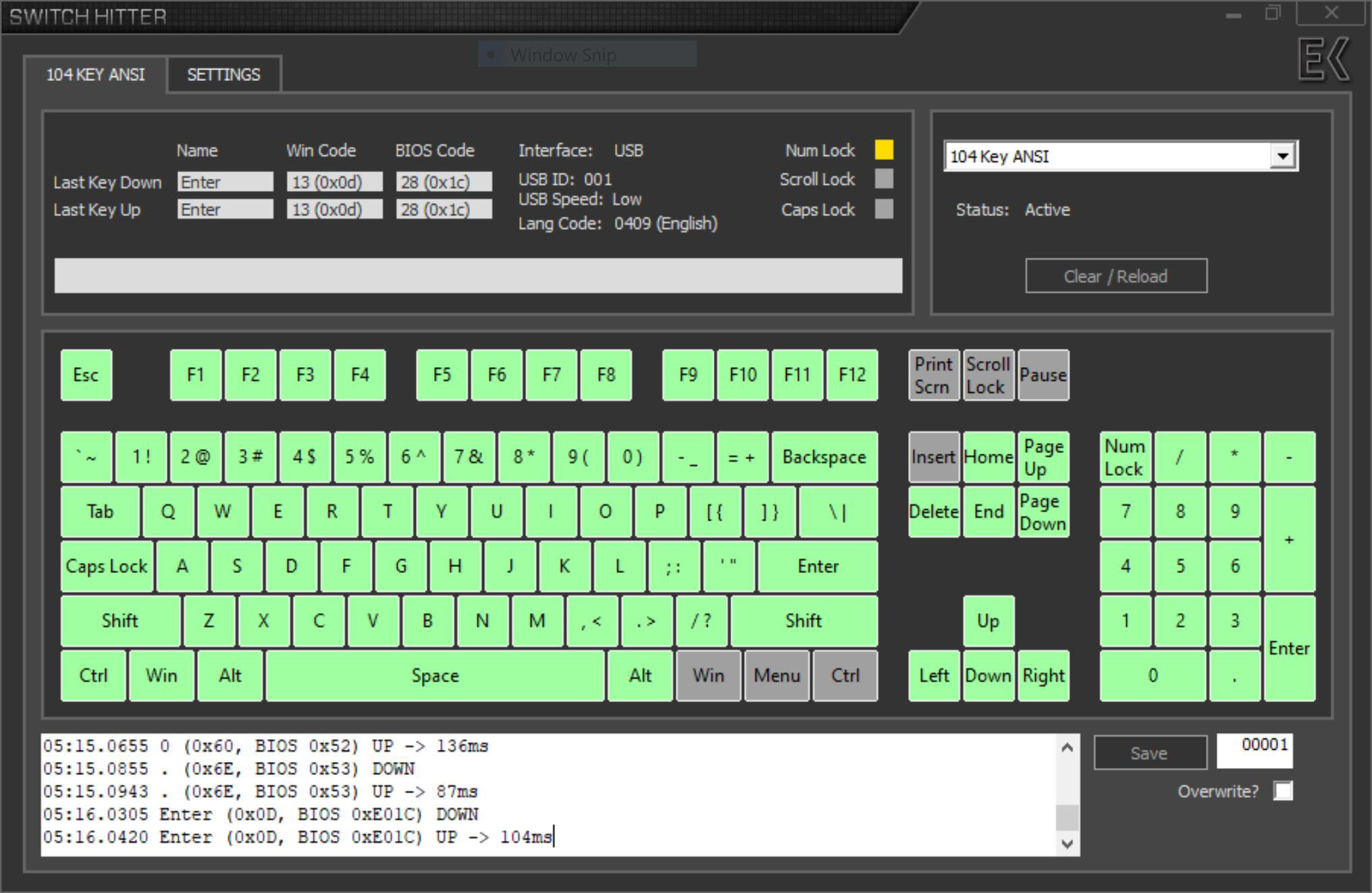
The Corsair Vanguard Air 99 Wireless supports N-key rollover USB and SlipStream 2.4 GHz wireless connectivity, which tested successfully using Aqua's test. Switch Hitter confirmed no chatter with these keys either, and seen above are all the functions with dedicated keys on the base layer, although there is a tiny caveat concerning the Fn row. This keyboard adopts a modified US ANSI layout and has fewer than the usual 104 keys you expect, yet has a few extra keys that aren't shown above since they aren't part of the standard layout.
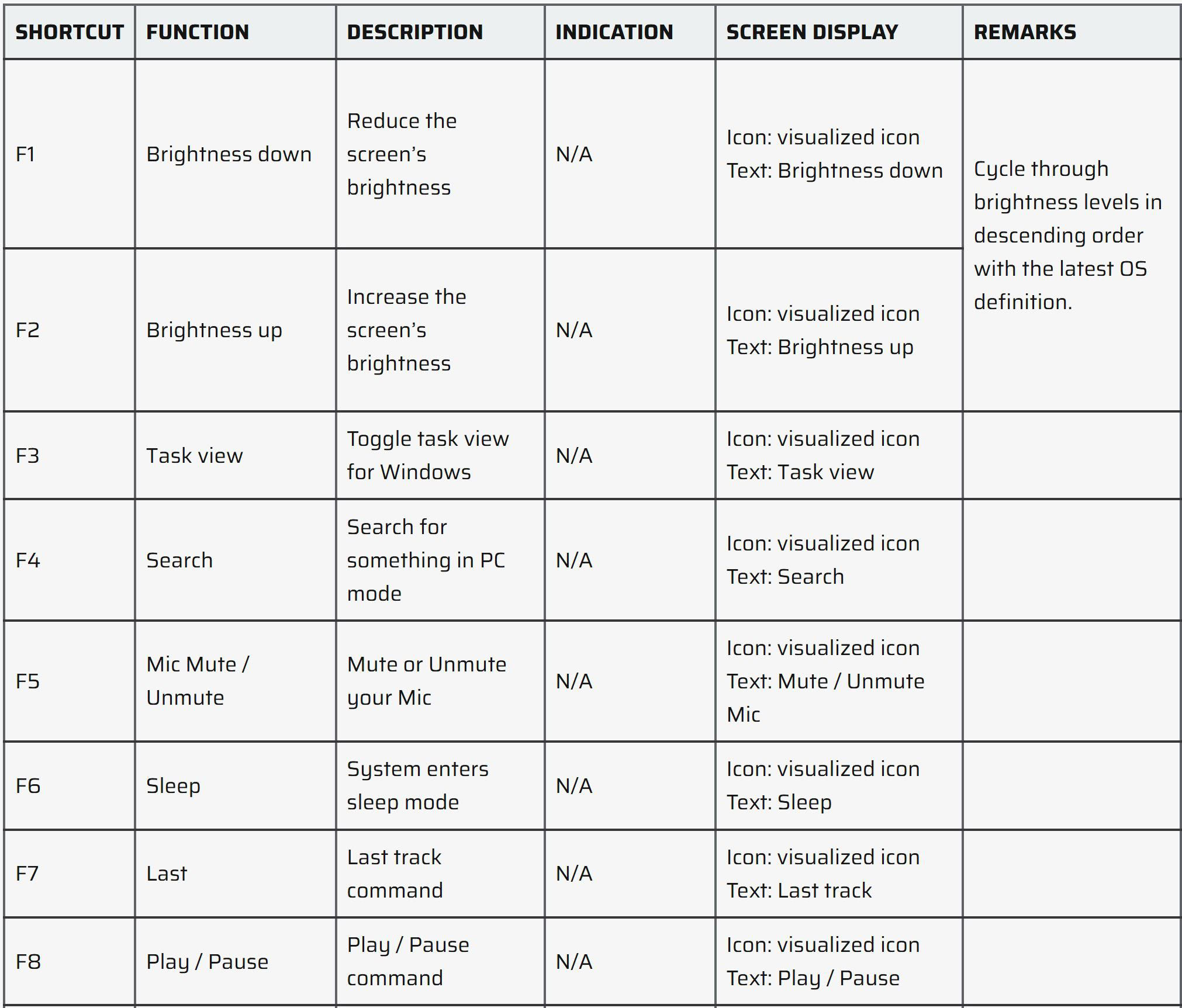
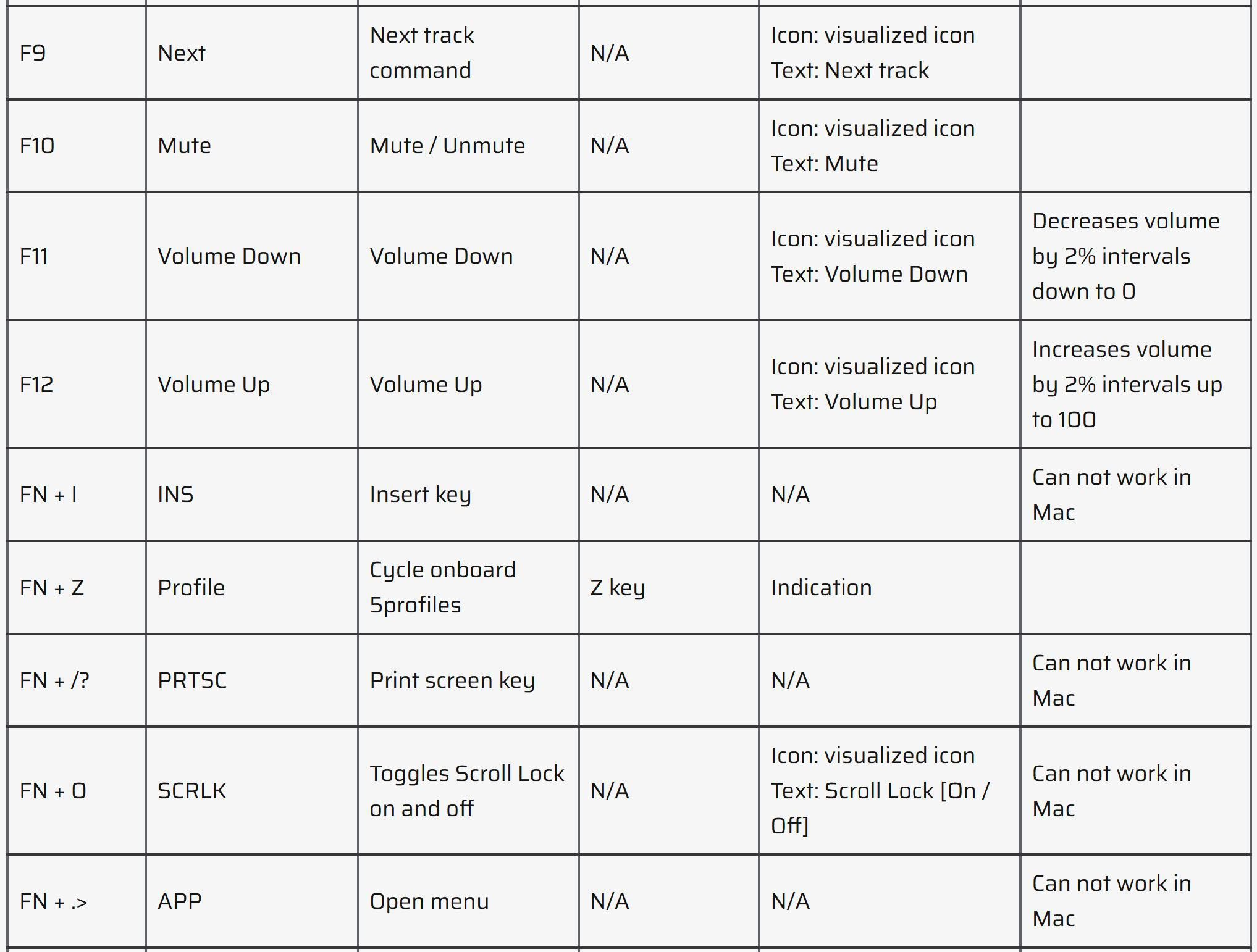
The Fn layer is extensive here, to the point where the usual shortcuts you associate on the base Fn layer are actually default actions here. You might have noticed the keycaps showing these pre-programmed functions on the top, with the F1-F12 legends on the front instead. This means you don't have to press and hold Fn to access these by default, and the screen also acts as a visual confirmation of what is going on. You can toggle back to the standard Fn row functionality with the F-row lock (Fn + Esc). There are other Fn shortcuts too as seen above, so not only does this give you some quality of life improvements but Corsair also gives you back the missing functions from a traditional full-size keyboard such as Print Screen, Scroll Lock, Pause/Break, Menu etc. You can also turn on/off Win lock this way, as well as activate SOCD and toggle through any screen widgets as mentioned in the detailed user guide, which I highly recommend going through. There are equivalent functions programmed for macOS as well, and this guide also walks you through how to connect the keyboard wirelessly should you need it. The onboard controls are extensive even before we get to the screen, since there is a dedicated button to pull up on-the-fly macro recording, launch the virtual Stream Deck, and even turn on game mode with its specific settings we saw on the previous page.
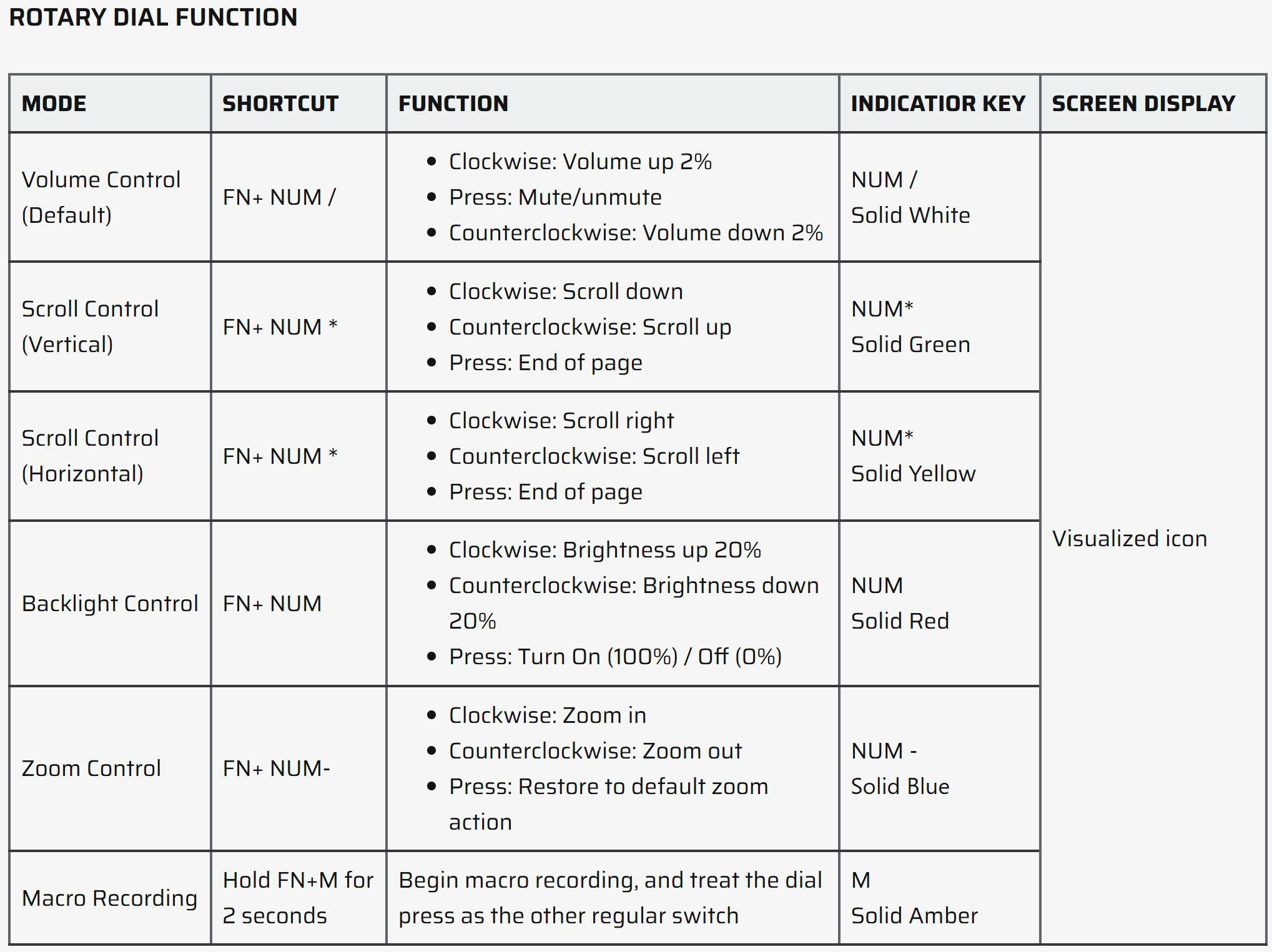
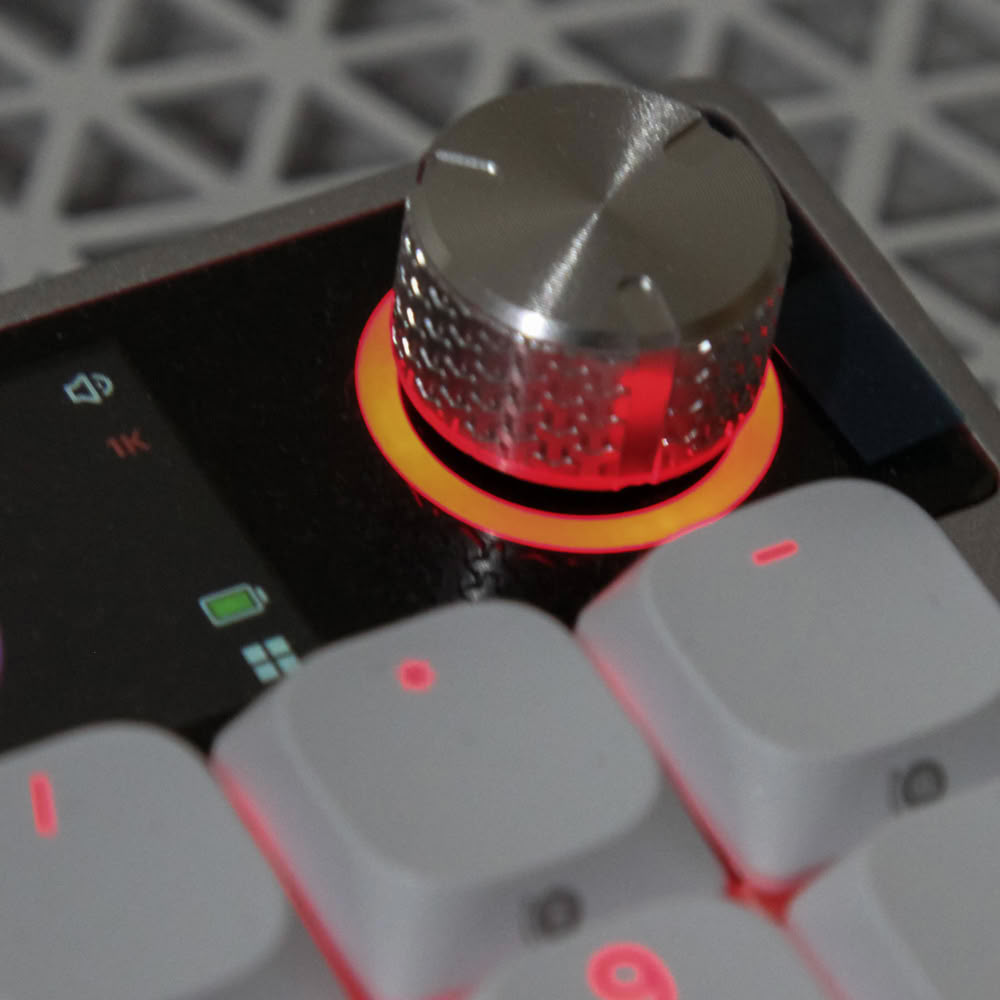
A rotary dial is nothing new on a premium keyboard these days, yet so many brands do poorly when it comes to knob feel and the options available. It's simple to make it a volume knob, some brands have taken the extra step of making it a Windows smart wheel, yet only few take the time to integrate it with proper software and hardware customization. Here we see the dial has several functions to choose between, with one selected at a time. It was here that I had an inkling of who the keyboard factory Corsair was working with was, but it doesn't really matter to the end user.
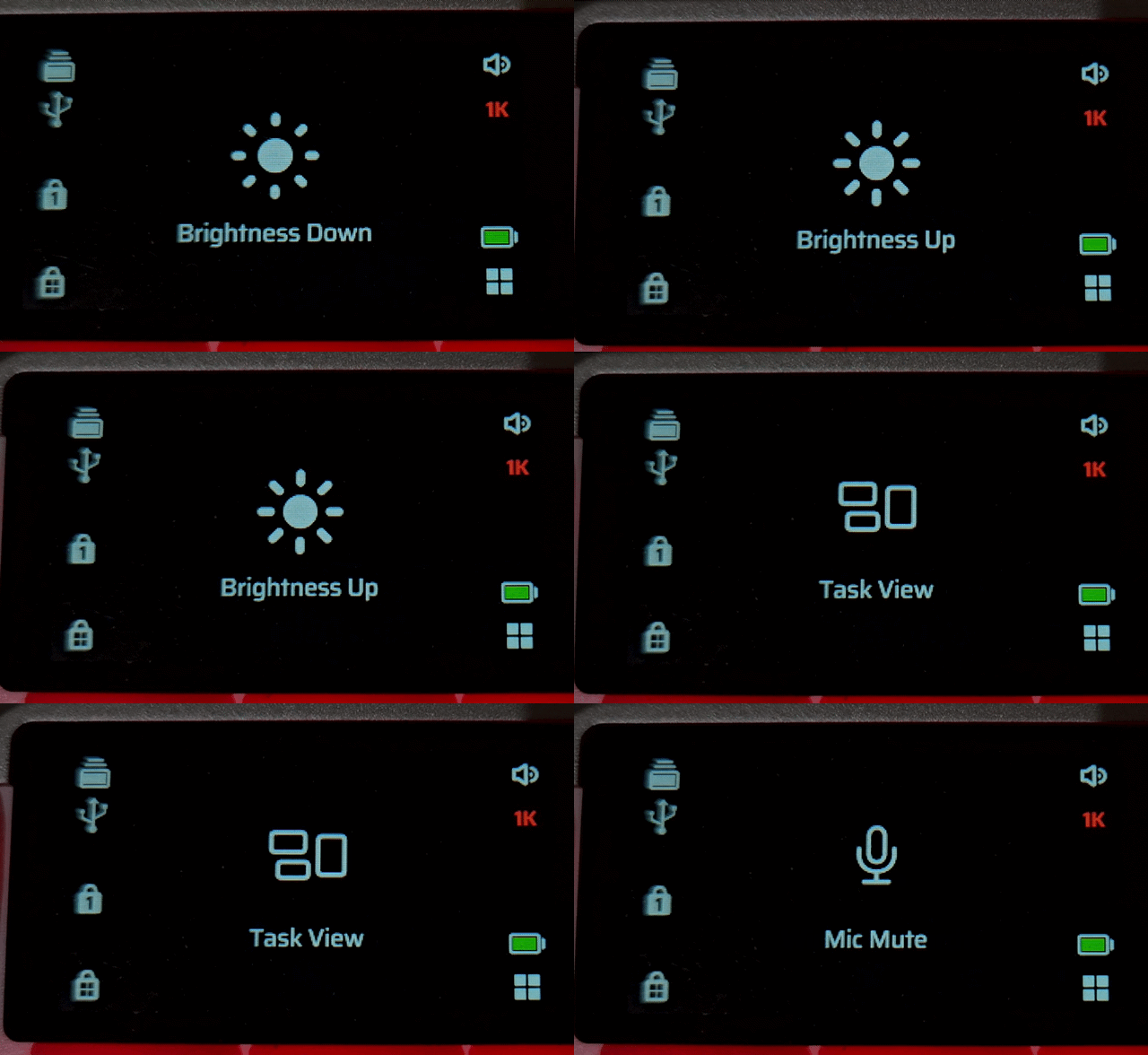
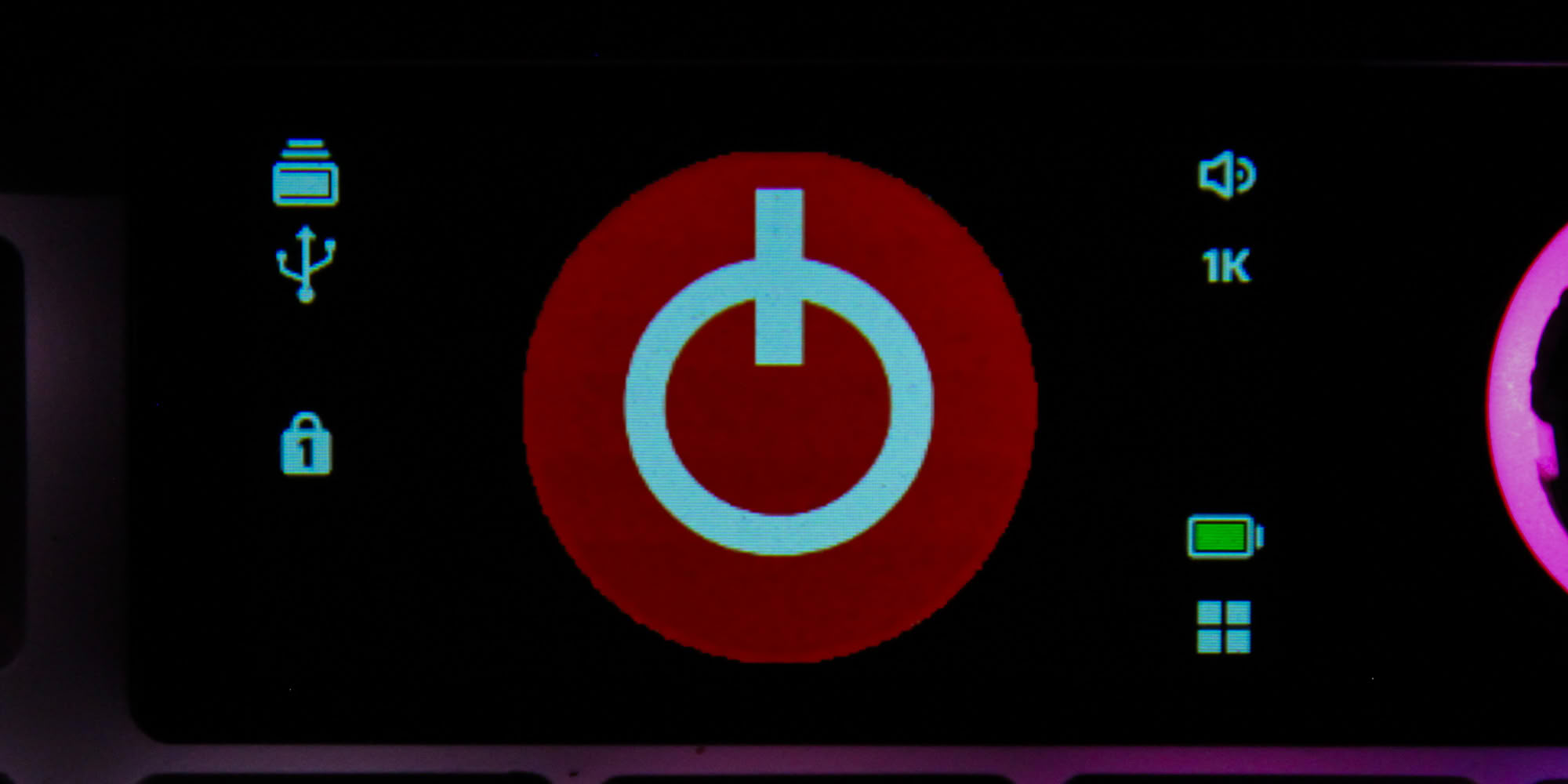
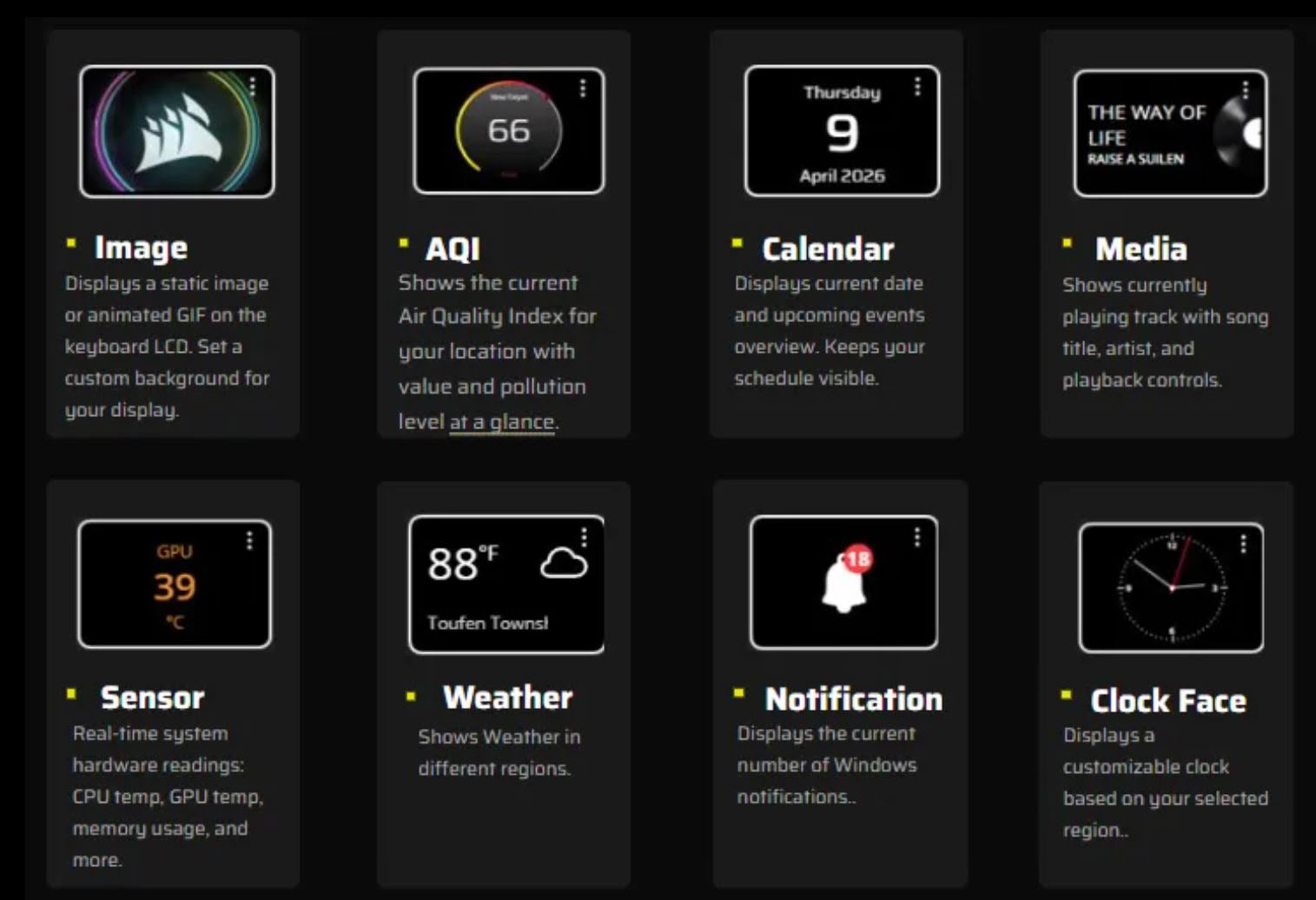
Likewise, an integrated display is not new either, yet there are several levels of execution here on keyboards ranging from small, low frame rate screens to large, even separate touchscreens. On the Vanguard Air 99 Wireless, we get a 1.9" color IPS LCD screen that serves as a visual indicator of various onboard controls and customization options. For example, the pre-programmed shortcuts show up here lest you not be sure what they do. The rotary dial functions are also indicated here, and the battery status as well as connectivity mode are also shown here. You can upload a photo (248x170 pixels, 2 MB max size) with the Web Hub app as seen above with the TechPowerUp logo, but more interesting is the use of iCUE widgets that give you even more to play with. A static image is no longer your restriction with full GIFs that can be displayed, or you can choose to be more productive by having hardware sensors, a calendar, a clock, Windows notifications, or even the current air quality index for your location. There are also Elgato widgets you can display here, with support for the Elgato marketplace for content created by others and the brand. If you have used the Corsair Xeneon Edge then this will be familiar. This software support is where I feel the same screen hardware used in other keyboards offers much more here.
Using the keyboard in wired, Bluetooth, or SlipStream 2.4 GHz wireless modes is trivial, especially with the pre-paired SlipStream v2 dongle you get here. You can use the same dongle to connect multiple compatible SlipStream devices to the same computer with iCUE, so a keyboard/mouse/headset combo will work off a single USB port thanks to the dedicated bandwidth on offer. The screen shows the connectivity and battery level, with the battery icon going from green to yellow to red based on the battery percent. Corsair rates a battery life of up to 55 hours, albeit this is with the backlighting off, screen at 20% brightness, and in SlipStream mode. It goes down to ~30 hours with the backlighting on at the same ~20% brightness, which isn't great if I say so myself. A larger battery capacity would certainly have helped given the various power hungry items here. Charging the battery takes ~5 hours—fairly decent, but only because the battery capacity is on the lower side to begin with. I will also mention FlashTap, which is Corsair's implementation of SOCD (Simultaneous Opposing Cardinal Directions) for gaming movement control. As seen on the previous page, the Vanguard Air 99 Wireless prioritizes SOCD for A and D keys, which typically would be used for left and right motion in games, respectively. By having it built into the keyboard and with a few different options, this allows more control regardless of the game you are playing. Whether this will be relevant to you, or even allowed in certain use cases, is a different thing altogether.
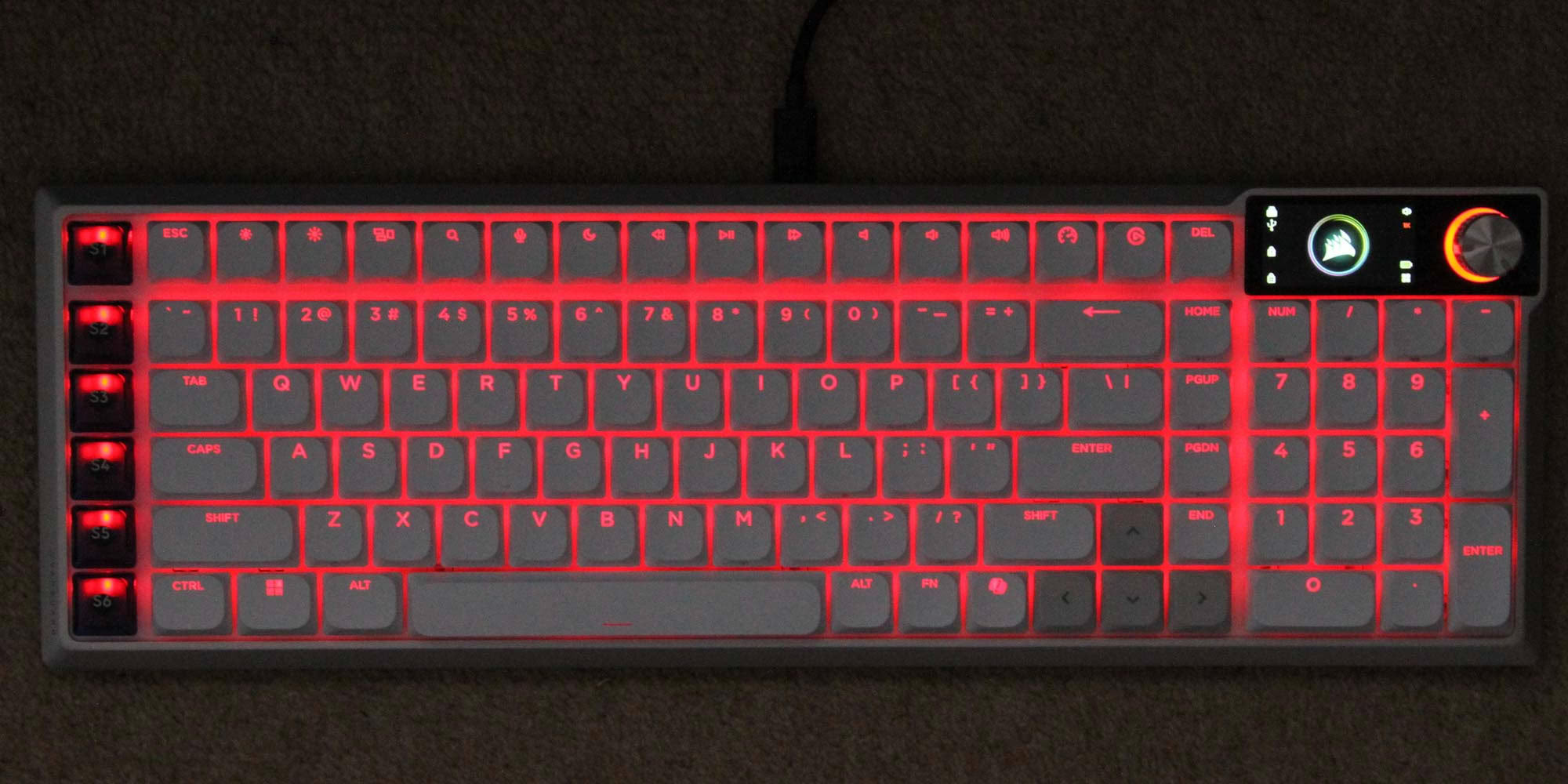
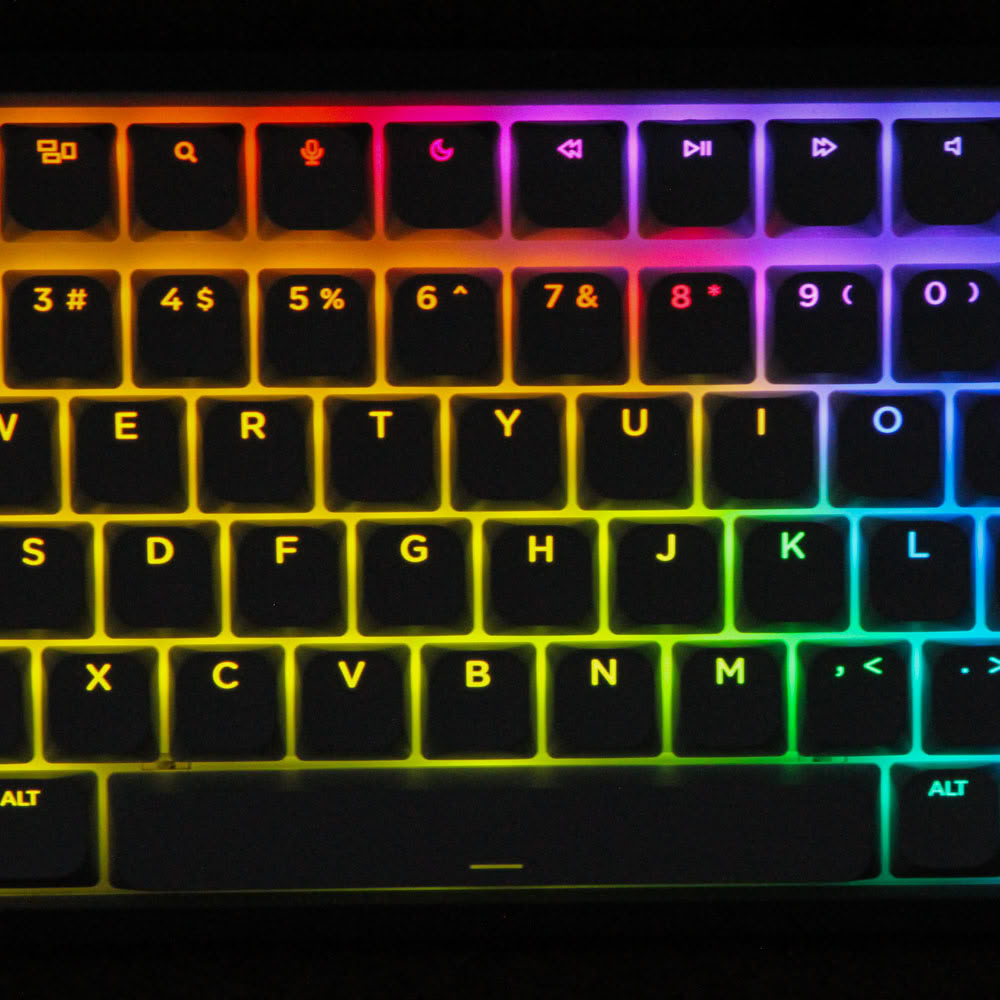
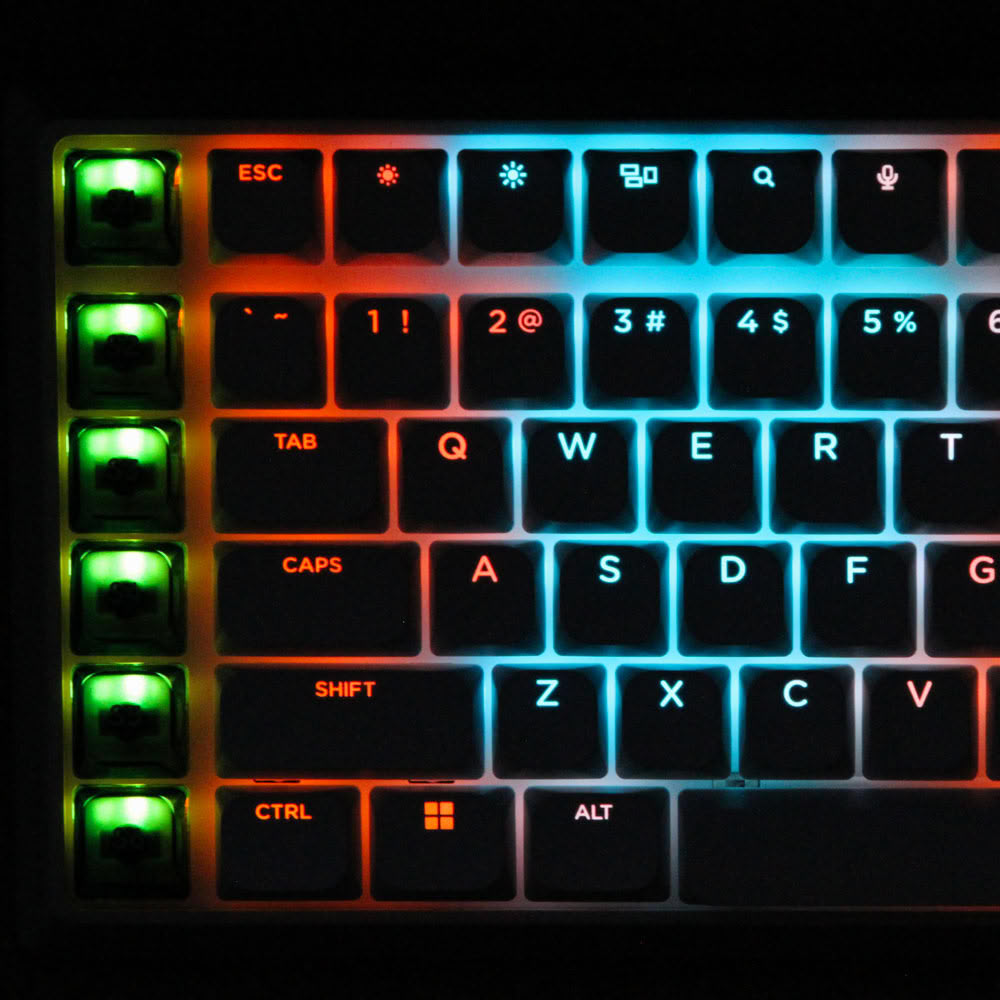
Speaking of backlighting, Corsair provides plenty of lighting effects regardless of whether you use iCUE or the Web Hub, or simply the hardware controls to toggle through the saved lighting effects in hardware mode. While I have no complaints about the complex lighting layers, the accurate colors, and the brightness of the keys when backlit, do note how the SD keys on the left shine a different color than the rest of the keyboard. The translucent keycaps used there play a role, but I also feel this is deliberate so the end user can easily identify these keys from the others. The front facing legends are not backlit as we saw before, but that is not really a dealbreaker. I also expect the white color version to be brighter and more vivid in person compared to the black color one.
As always, the sound of a keyboard is based on more than just the switch type. So when comparing sound clips, consider the keyboard as a whole. In this case, I have provided above an example sound clip of me typing on the Corsair Vanguard Air 99 Wireless keyboard sample at ~105 WPM. For context, you can find sound clips from other keyboards here. The Vanguard Air 99 Wireless uses Corsair's new OPX Low-Profile optical switches, which are linear in feedback mechanism and have no moving parts involved in actuation. This makes for one of the smoother feeling switches placed in a keyboard with an aluminium top cover, gasket mount, and decent sound dampening throughout with foam sheets. However, the plastic case panel on the bottom has some empty space on either side of the central section that houses the battery. It makes for some reverberations and a slightly pingier sound when the switches bottom out, which is pretty much guaranteed to happen here since these are relatively light switches at 45 gf actuation at 1.5 mm travel. Since these are low profile switches, you will notice the actuation distance is shorter than the usual 2 mm, and the total travel distance is also shorter at 2.5 mm compared to the more standard 4 mm. It can work well for gaming, especially with the near-instant actuation time from the keyboard itself. I do wish the switches had more guide pins, but the low profile nature does minimize wobble in use. Corsair rates these switches for 80 million key presses, which should bode well for longevity.
Nov 18th, 2026 13:24 PST
change timezone
Latest GPU Drivers
New Forum Posts
- Can i play GTA 6 now? (Joke) (5)
- Very unusual two gaming-pc scenarios. (11)
- Dell Workstation Owners Club (3513)
- Any other old-timers here planning to play WoW Forever? (151)
- Time to upgrade CPU and MOBO (33)
- The Filthy, Rotten, Nasty, Helpdesk-Nightmare picture clubhouse (2876)
- WarpCoreBench scores! (67)
- Honestly, do you care about GTA VI? (144)
- Acer Predator BiFrost Radeon RX 9070 OC (9)
- DTS DCH Driver for Realtek HDA [DTS:X APO4 + DTS Interactive] (2814)
Popular Reviews
- Acemagic Retro X3 Review
- Upcoming Hardware Launches 2027 (Updated Nov 2026)
- AMD Zen 6 Technical Deep Dive
- ASUS ROG Strix B850-I Gaming Wi-Fi7 W Review
- Corsair HX1000i Shift Crystal Review
- Biwin Black Opal NV7400 2 TB Review
- Chieftec Iceberg PRO 360 DARK Review
- AMD Ryzen 7 9800X3D Review - The Best Gaming Processor
- Phantom Blade Zero Performance Benchmark Review - 35 GPUs Tested
- Pulsar Office Tour & First Look at P1 Dual-Sensor Mouse
TPU on YouTube
Controversial News Posts
- NVIDIA Co-Founder and CEO Jensen Huang Officially Resigns (478)
- Report: Jensen Huang Eyes NVIDIA Comeback (187)
- Open Letter Asking NVIDIA to Reinstate Jensen Huang Passes 115,000 Signatures (184)
- OpenAI CEO Argues Home PCs Waste the World's Limited DRAM Supply (152)
- NVIDIA Launches Investigation Into Jensen Huang's Relationship With Suspected Chinese Spy (136)
- Intel "Raptor Lake Next" 16-Core and 20-Core CPUs Surface (130)
- Legendary Game Studio BioWare Shuts Down Following EA Layoffs (104)
- Dell CEO Says the Memory Shortage Will Get Worse in 2027 (95)