 2
Corsair Void Wireless v2 Review - Reborn and Better Than Ever
Sound Quality »Software
The Corsair Void Wireless v2 is controlled through the iCUE software driver. The sheer number of options still makes iCUE one of the more challenging peripheral software drivers to use, but it at least appears to eat up fewer system resources than before; it was staying below 200 MB on the memory front during my testing.
On the Home screen, you'll see two items related to the Void Wireless v2: the headset itself, and the wireless receiver. To quickly access their settings, simply hover the mouse over their icons and wait for a moment until the configuration menus appear.
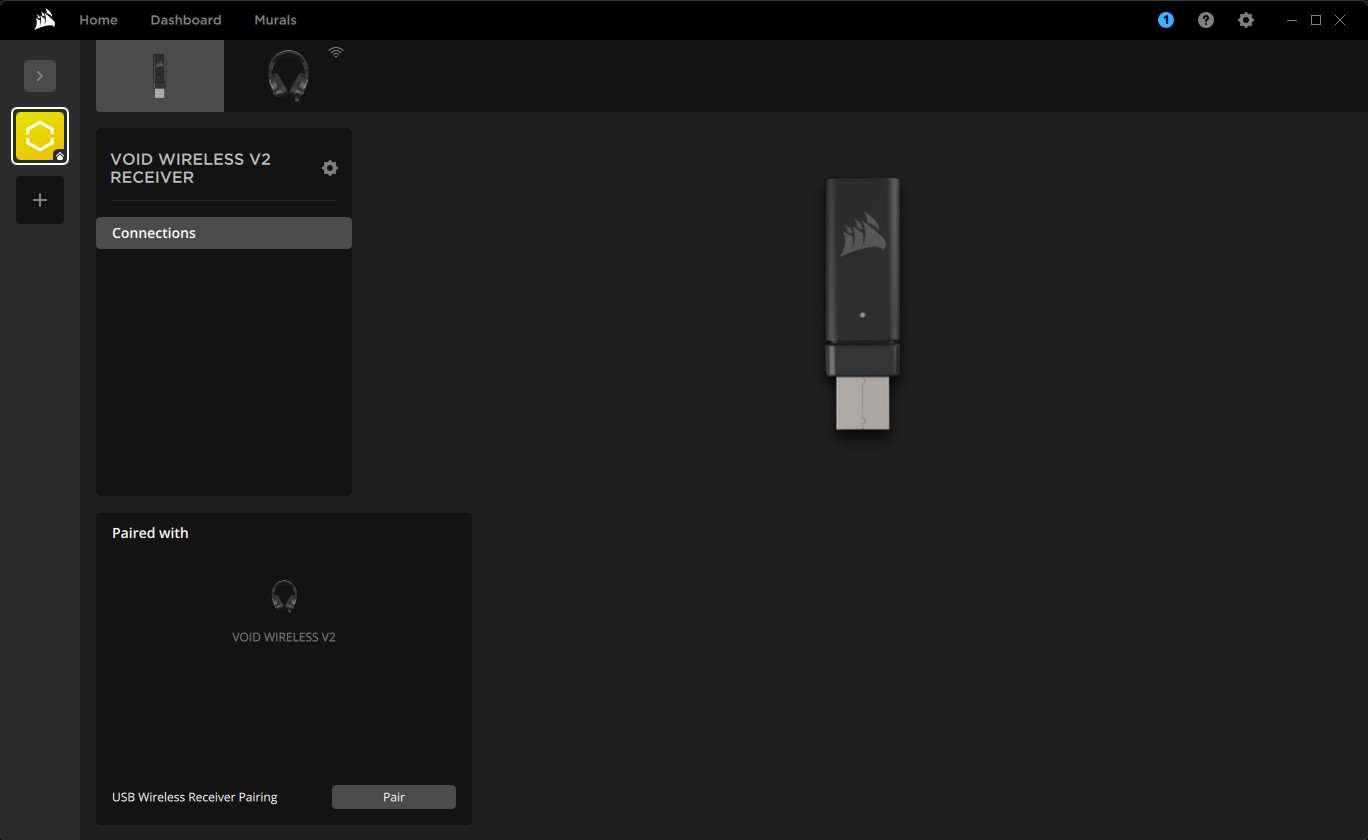
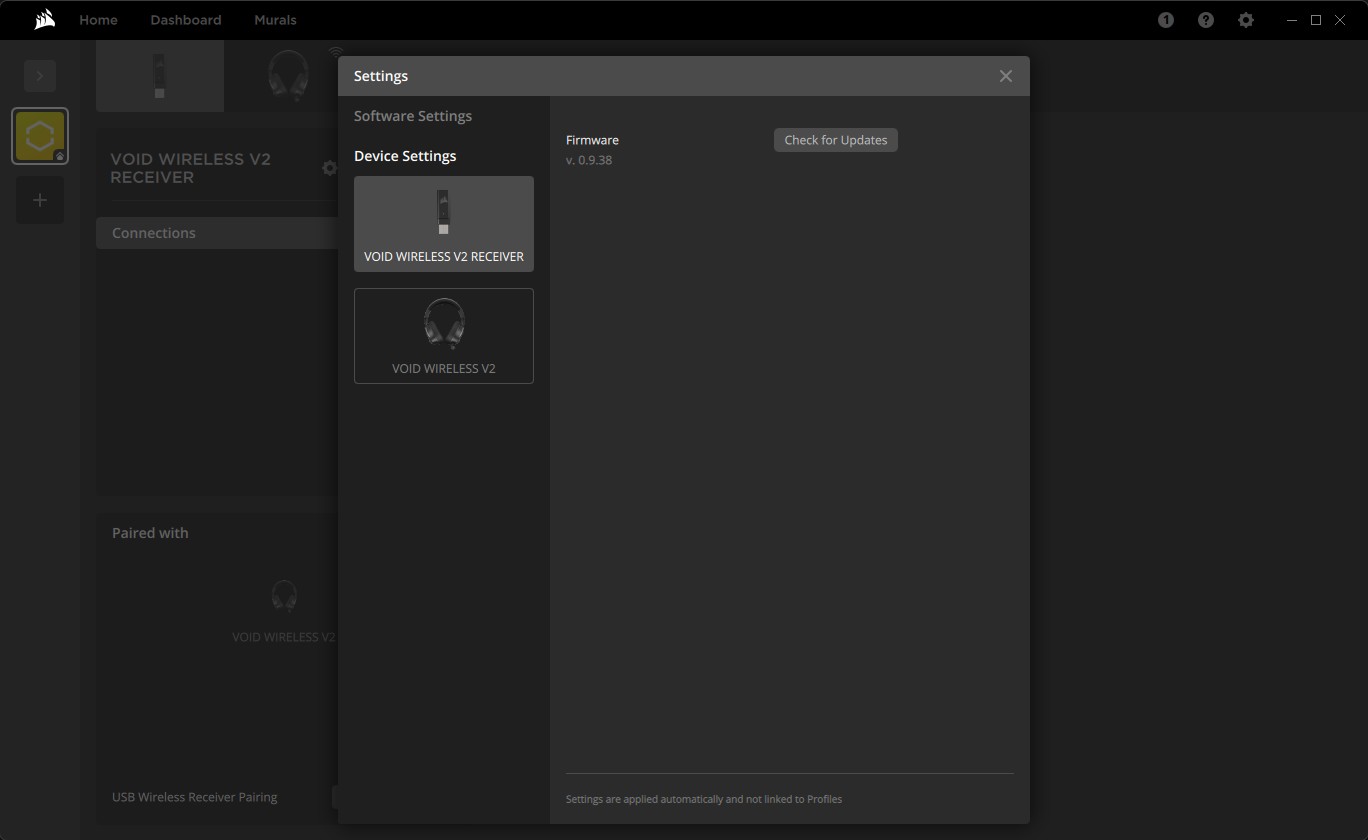
Clicking on the receiver takes you to a page where you can reinitiate pairing with the provided Wi-Fi dongle. If you click the cogwheel icon above it, you'll access the firmware update menu. However, manual checks aren't necessary, as you'll receive automatic firmware update notifications.
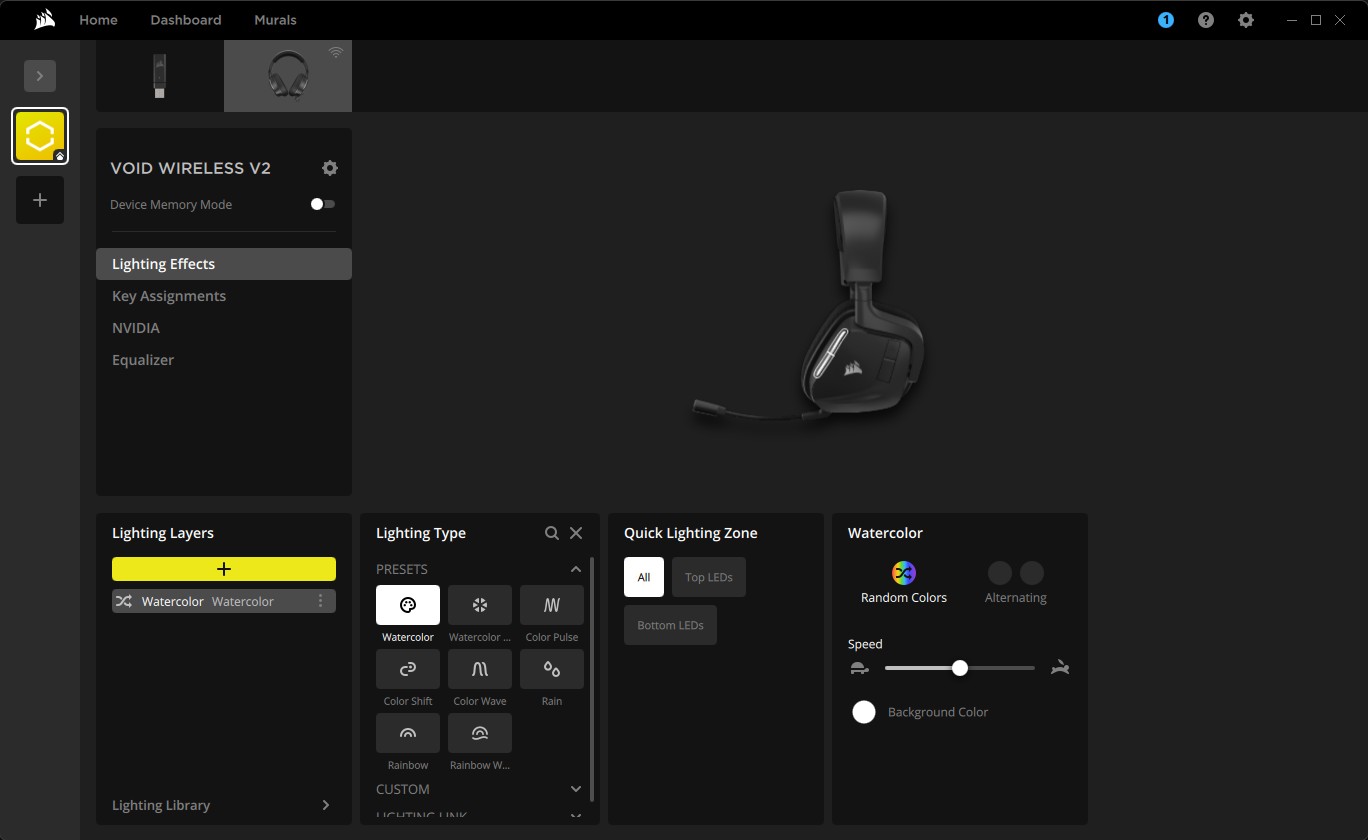
After selecting the headset, you'll first land in the Lighting Effects menu, where you can customize its RGB colors and effects. The glowing rings on both ear cups are divided into three individually controllable zones. There are several preset lighting profiles to choose from, including Watercolor, Watercolor Spectrum, Color Pulse, Color Shift, Color Wave, Rain, Rainbow, Rainbow Wave, and Spiral Rainbow. Additionally, a few custom profiles such as Static Color, Solid, and Gradient are available, along with various Lighting Link profiles that synchronize RGB effects across Corsair gaming peripherals. To turn off the RGB effects, you'll need to navigate to the Device Settings menu and lower the LED brightness to zero.

The Key Assignments menu allows you to map various device-related or system functions to the customizable button on the right ear cup. Custom macros are also supported, offering virtually limitless functionality to suit your needs. Personally, I assigned it to toggle between EQ profiles - specifically switching between the Pure Direct and FPS Competition profiles, depending on the game I was playing. Interestingly, Corsair also offers a paid Voicemod integration, an AI-powered voice changer, for those interested in experimenting with their voice - provided they're willing to pay for it.
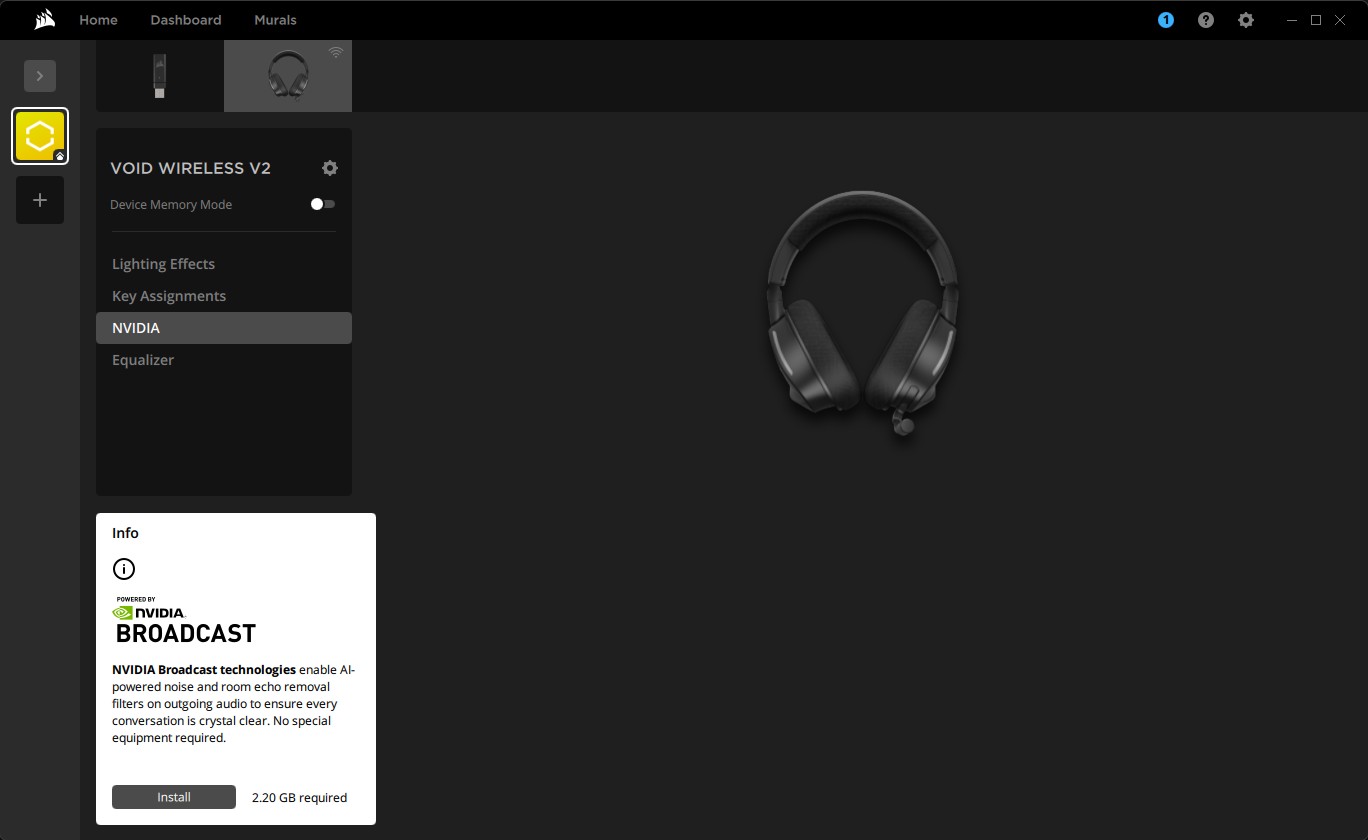
The NVIDIA menu offers NVIDIA Broadcast integration. It's an AI-powered noise and room echo filtering technology, which is applied to outgoing audio. It can only be used if your system is equipped with an NVIDIA RTX-series graphics card.

The Equalizer menu provides access to microphone controls, including gain and sidetone, as well as various system-wide EQ presets and the option to create custom ones. The equalizer features a 10-band adjustment range with a ±12 dB scale, and it includes an option to link neighboring sliders for smoother frequency response adjustments.
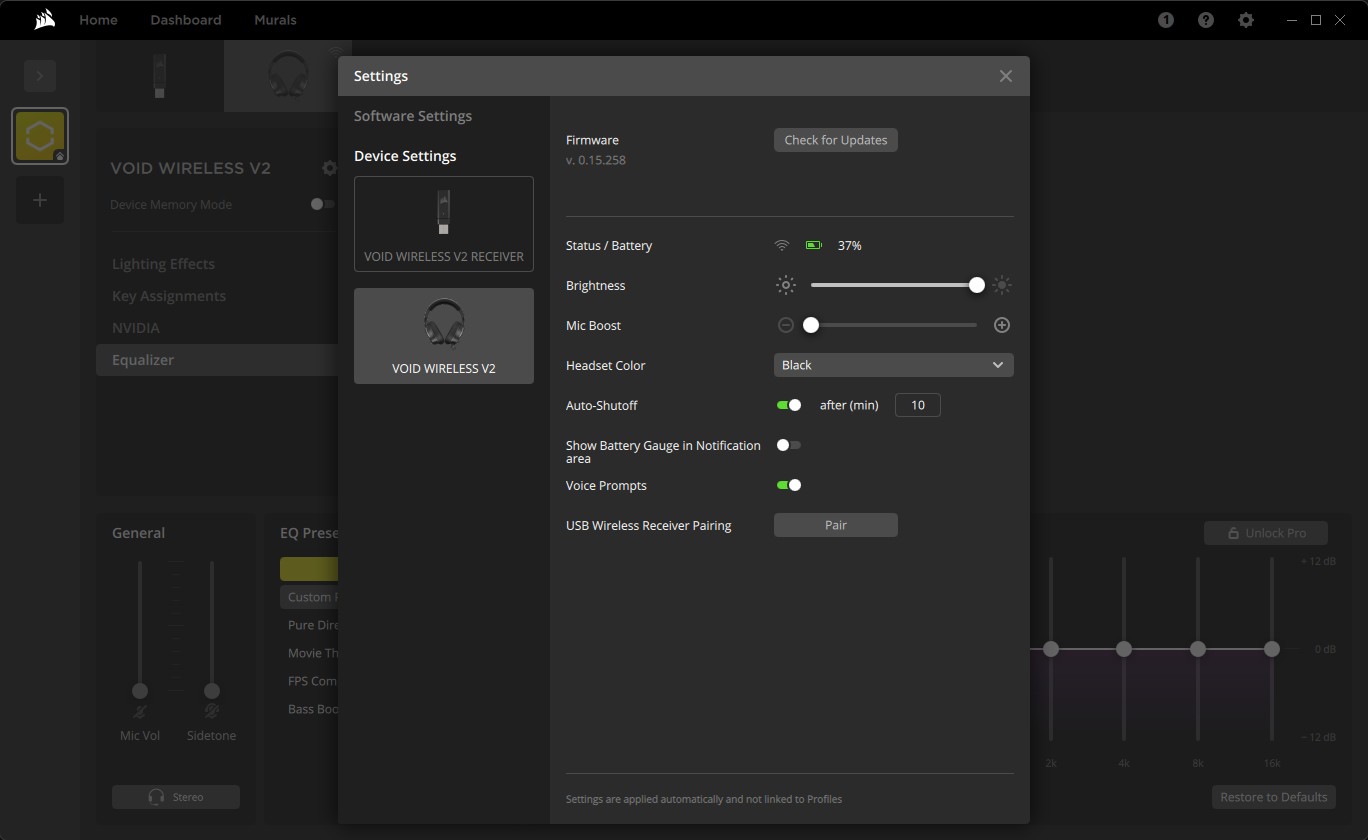
The Device Settings menu provides access to various headset options. Here, you can check for firmware updates, adjust the auto-shutoff timer, toggle voice prompts on or off, boost the microphone, and control the brightness of the RGB lighting system. Why this last option isn't included in the Lighting Effects menu remains a mystery.
Nov 28th, 2026 01:06 CST
change timezone
Latest GPU Drivers
New Forum Posts
- Wireless Internet sharing between PC and router both-ways, is it possible? (35)
- -18C on GPU by moving it to the front of the case. (22)
- Rare GPUs / Unreleased GPUs (2273)
- Mouse Pad advice - Shidenkai out of production? (22)
- Unigine Superposition GPU Benchmark (1080P Extreme) (463)
- What's your main Black Friday / Cyber Monday purchase? (43)
- Unigine Superposition on Linux (21)
- CPU Database (305)
- Exit Adobe - PDF reader, and PDF editor recommendations (11)
- TPU's WCG/BOINC Team (34815)
Popular Reviews
- Upcoming Hardware Launches 2027 (Updated Nov 2026)
- AMD Ryzen 7 9800X3D Review - The Best Gaming Processor
- VZMORE AX9 Max Review
- Moaiplay Ora Pro G1 850 Review
- Montech CyberFlow ARGB 360 Review
- ASRock X870E Challenger Wi-Fi White Review
- AMD Zen 6 Technical Deep Dive
- ORICO Obook15 AI Review
- Microsoft Surface Laptop Ultra Review - The Next-gen Arm Laptop
- Phantom Blade Zero Performance Benchmark Review - 35 GPUs Tested
TPU on YouTube
Controversial News Posts
- Jensen Huang Reinstated as CEO of NVIDIA (627)
- NVIDIA Co-Founder and CEO Jensen Huang Officially Resigns (492)
- Report: Jensen Huang Eyes NVIDIA Comeback (281)
- Open Letter Asking NVIDIA to Reinstate Jensen Huang Passes 115,000 Signatures (184)
- OpenAI CEO Argues Home PCs Waste the World's Limited DRAM Supply (152)
- NVIDIA Launches Investigation Into Jensen Huang's Relationship With Suspected Chinese Spy (136)
- Intel Razor Lake Gets a 12 P-Core bLLC Chip With No E-Cores, Per Leak (94)
- NVIDIA GeForce RTX 50-Series Scheduled for up to $500 Price Hike This Week (89)