 17
Creative Pebble Nova Review
Performance »Software
The Pebble Nova can be configured through the Creative App, available for desktop computers (Windows, macOS) and mobile platforms (Android, iOS).Creative App (Windows/macOS/Android/iOS)
Unfortunately, I wasn't able to test the desktop Creative App with the Pebble Nova. Despite having the speakers connected via USB-C, updated to the latest firmware and fully operational, the Windows application simply did not detect them. The speakers worked perfectly fine as a USB audio device in Windows itself – they just weren't visible to the Creative App. Given that the firmware update notes specifically mention resolving USB detection issues on certain PC models, this may not be a universal problem, but it's one I ran into and couldn't resolve during the review period.
The Android variant of the Creative App connects to the Pebble Nova over Bluetooth and, surprisingly, proved to be the more reliable option in my case. The main Device screen shows the speakers at the top, with two primary modules below: Equalizer and Lighting, each with an on/off toggle. There's also an Edit button that lets you rearrange them.
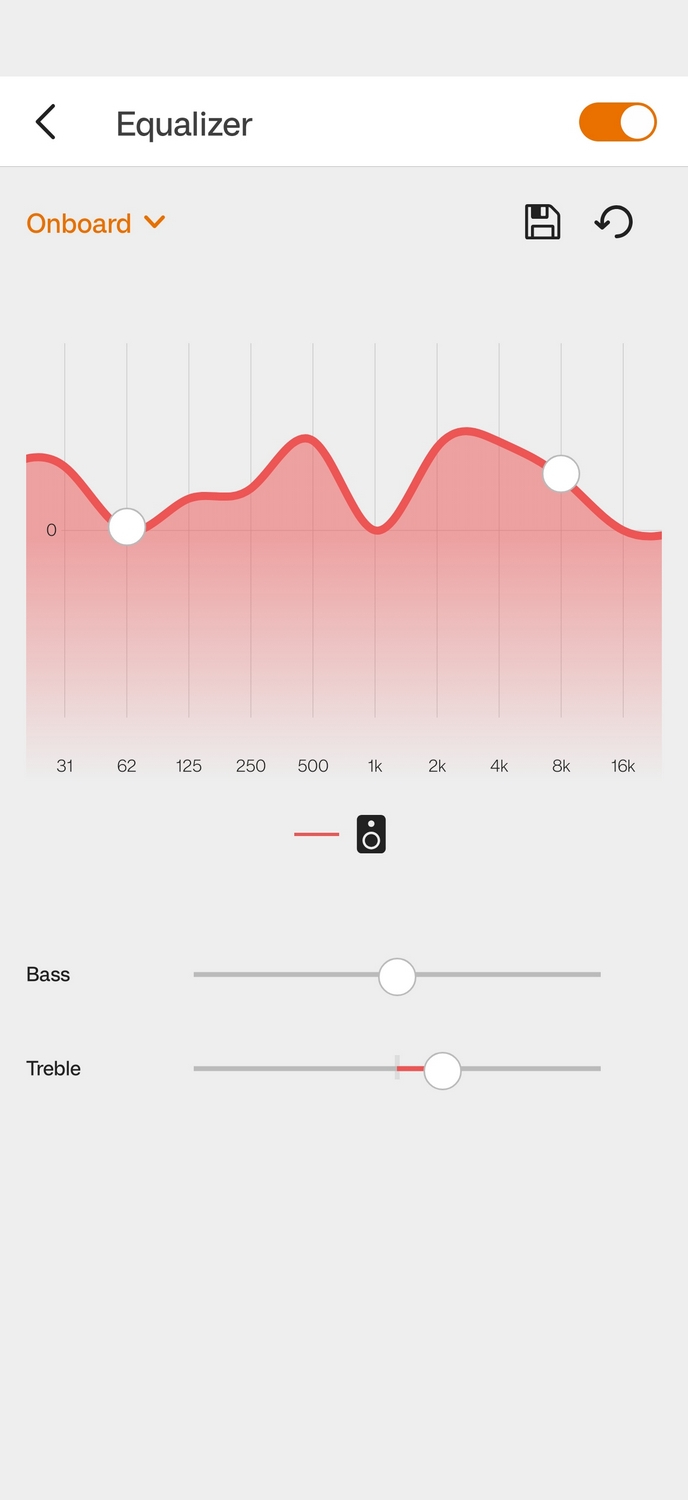
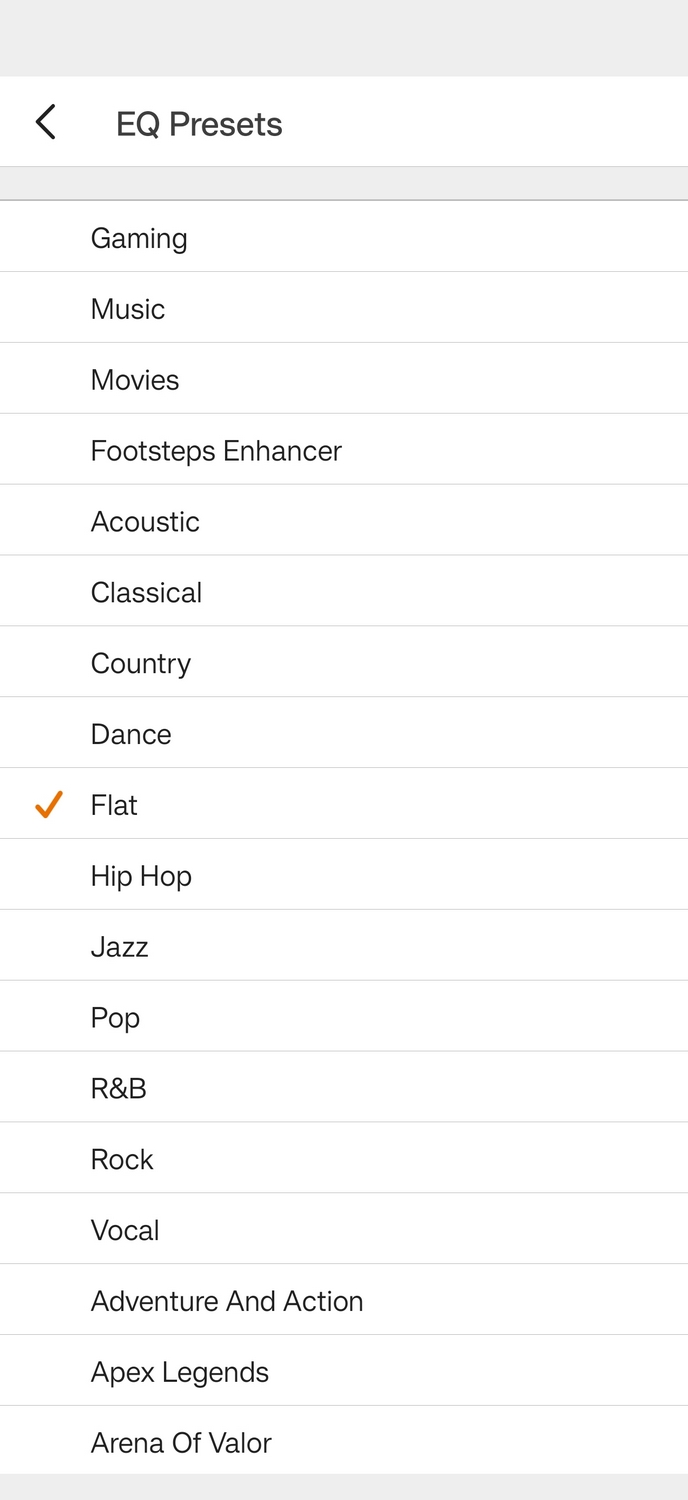
The Equalizer section is more capable than you might expect from a mobile app. It gives you a full 10-band graphic equalizer spanning 31 Hz to 16 kHz, with additional Bass and Treble sliders below the frequency graph. Any custom EQ settings are labeled as "Onboard," meaning the settings are saved directly to the speakers, which is a nice touch – your EQ profile persists regardless of the source device. There's also a save button for storing custom profiles and a reset option. The list of EQ presets is extensive: you get the usual genre-based ones (Music, Movies, Classical, Jazz, Pop, Rock, Hip Hop, R&B, Country, Dance, Vocal, Acoustic), but also gaming-specific presets. The default preset is Gaming, which I suggest changing to Flat for improved sound performance. Having this many presets available on the mobile app is genuinely useful and can make a noticeable difference to the sound signature of the Pebble Nova.
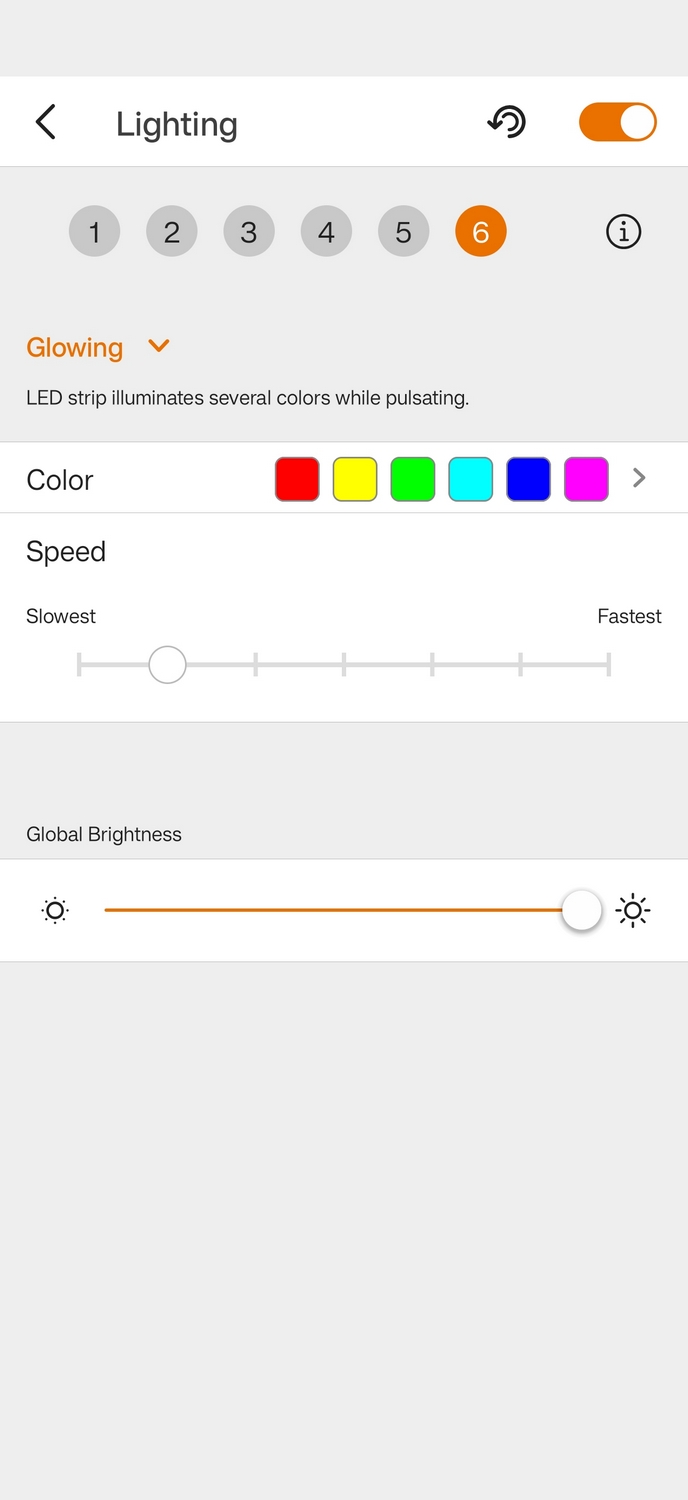
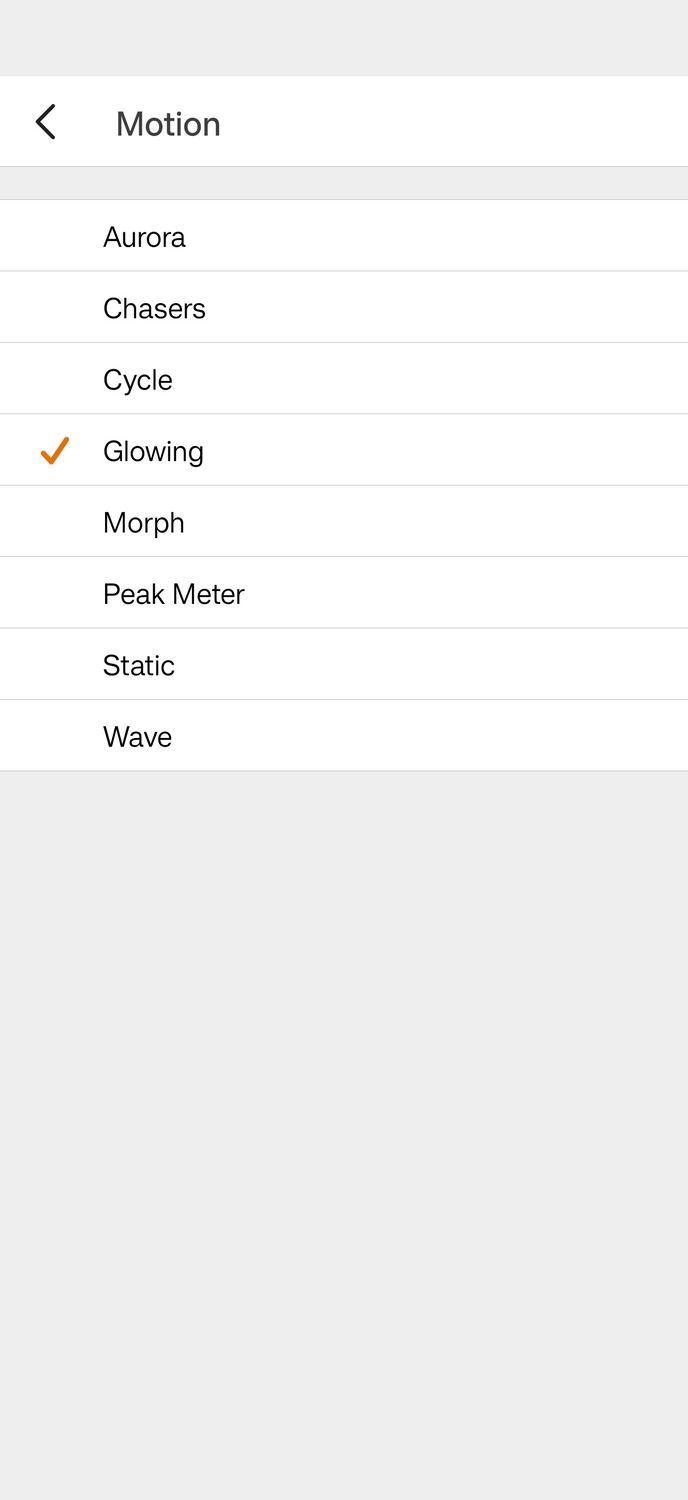
The Lighting section lets you control the RGB effects across six memory slots, which you can then cycle through using the lighting button on the speaker itself. The available lighting effects (Aurora, Chasers, Cycle, Glowing, Morph, Peak Meter, Static, Wave) are the same ones found on the Pebble X Plus. For each effect, you can pick the colors from a full-spectrum palette, adjust the animation speed, and set the global brightness.
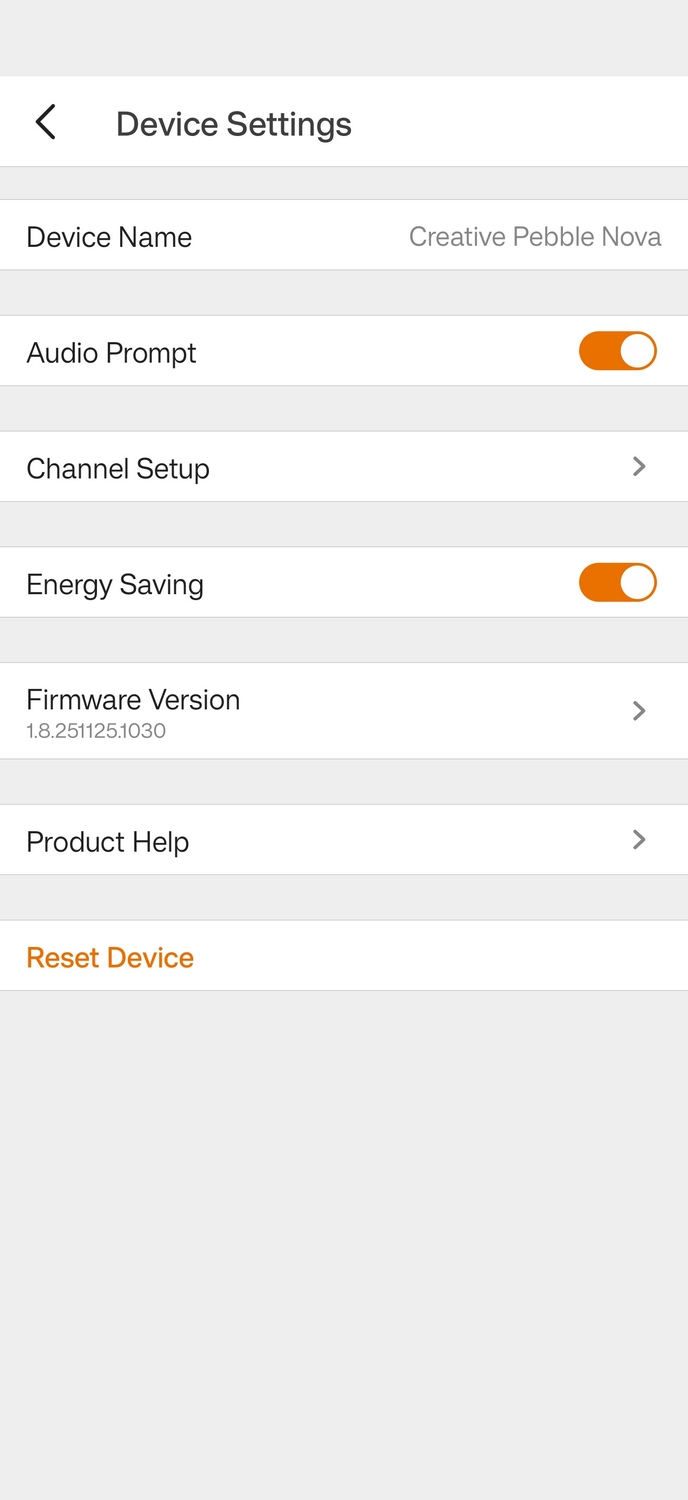
In the Device Settings menu, accessed via the gear icon, you'll find options for toggling audio prompts (the voice announcements when switching inputs), Channel Setup (which lets you swap the left and right channels – a handy feature if your desk layout doesn't allow for conventional speaker placement), an Energy Saving toggle, and firmware version information.
Nov 20th, 2026 14:33 PST
change timezone
Latest GPU Drivers
New Forum Posts
- Logitech Headsets Modded Driver — Unlock Dolby in G HUB (23)
- 1 - 5 person file storage server equivalent accasible from anywhere + general VM server. (1)
- WarpCoreBench scores! (81)
- How to prevent OLED burn damage due to PC freezes or power outtages? (48)
- RX 9000 series GPU Owners Club (2247)
- Honestly, do you care about GTA VI? (208)
- When you could finally run Crysis maxed out? (63)
- GTA VI (20)
- Anthrophics IPO (25)
- GeekMagic Ultra Smart WiFi Weather Station (8)
Popular Reviews
- AMD Zen 6 Technical Deep Dive
- Microsoft Surface Laptop Ultra Review - The Next-gen Arm Laptop
- Ugreen NASync DXP4800 GT Review
- Corsair RM1200e (Second Generation) Review
- Acemagic Retro X3 Review
- Upcoming Hardware Launches 2027 (Updated Nov 2026)
- Pulsar Office Tour & First Look at P1 Dual-Sensor Mouse
- Biwin Black Opal NV7400 2 TB Review
- AMD Ryzen 7 9800X3D Memory Performance Scaling
- AMD Ryzen 7 9800X3D Review - The Best Gaming Processor
TPU on YouTube
Controversial News Posts
- NVIDIA Co-Founder and CEO Jensen Huang Officially Resigns (490)
- Report: Jensen Huang Eyes NVIDIA Comeback (256)
- Open Letter Asking NVIDIA to Reinstate Jensen Huang Passes 115,000 Signatures (184)
- OpenAI CEO Argues Home PCs Waste the World's Limited DRAM Supply (152)
- NVIDIA Launches Investigation Into Jensen Huang's Relationship With Suspected Chinese Spy (136)
- Intel "Raptor Lake Next" 16-Core and 20-Core CPUs Surface (130)
- Legendary Game Studio BioWare Shuts Down Following EA Layoffs (104)
- Dell CEO Says the Memory Shortage Will Get Worse in 2027 (95)