 24
Dragon Quest XI Benchmark Performance Analysis
(24 Comments) »Introduction

Dragon Quest is one of the longest-running RPG video game series around. It all started with Dragon Quest on the Nintendo Entertainment system in 1986, which inspired the whole RPG game industry, and numerous titles have followed for pretty much every platform in existence. In recent times, Dragon Quest has been published by Square Enix, who also publish the Final Fantasy Series. While not hugely well known in the West, everyone in Japan has heard of Dragon Quest, where it is more popular than Final Fantasy and similar role-playing games.
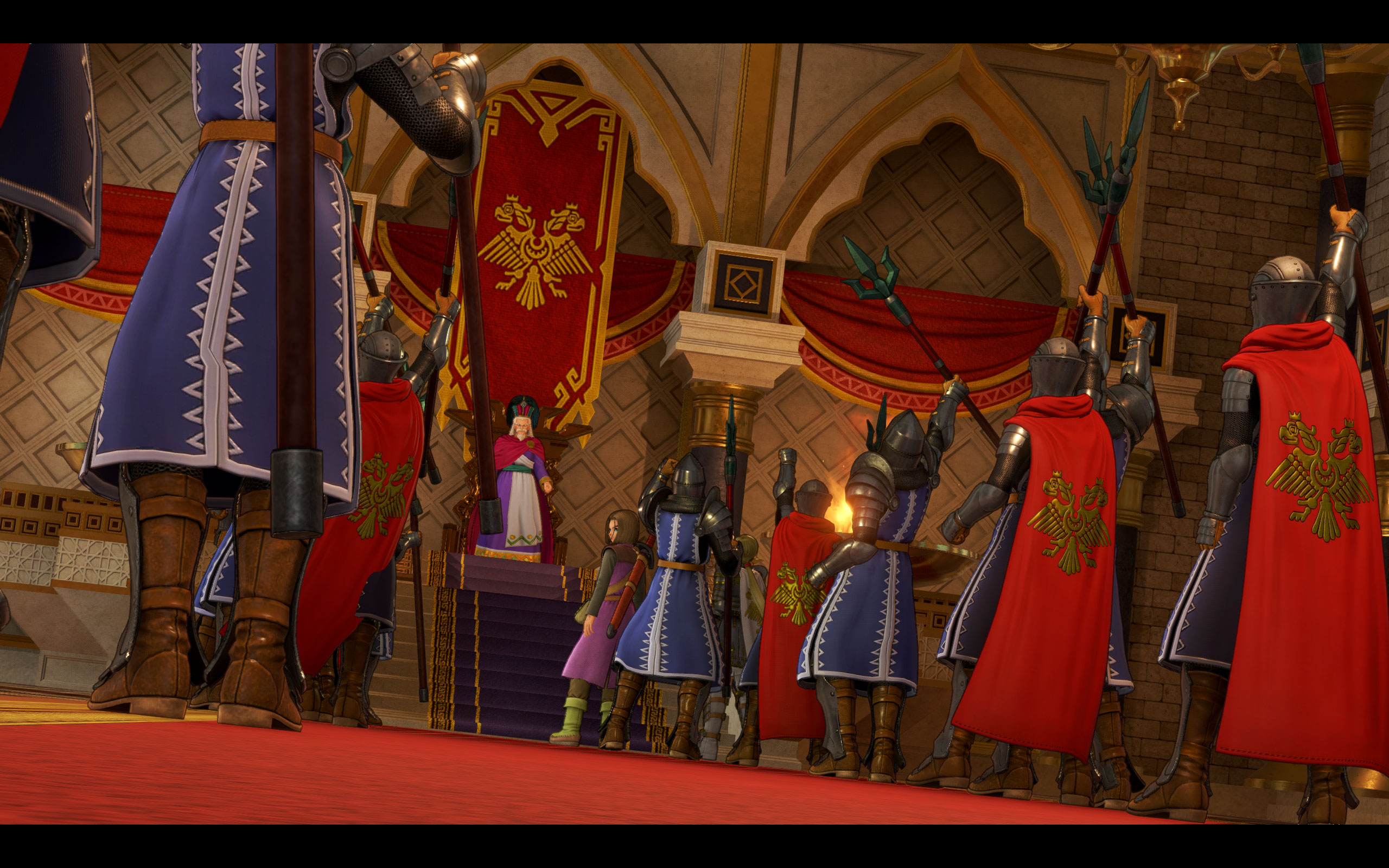
You play as the Luminary, a boy who's destined to save the world from the "Dark One" because he's the reincarnation of the hero who saved the world before. Obviously, you have to fight the evil forces that don't want you to save the world, so you'll team up with several other characters to achieve your mission. Right at the start, you even make enemies with a whole kingdom that follows the twisted logic that your appearance (to save the world) could be the start of the beginning of the end (if you fail), so they try to hunt you down.
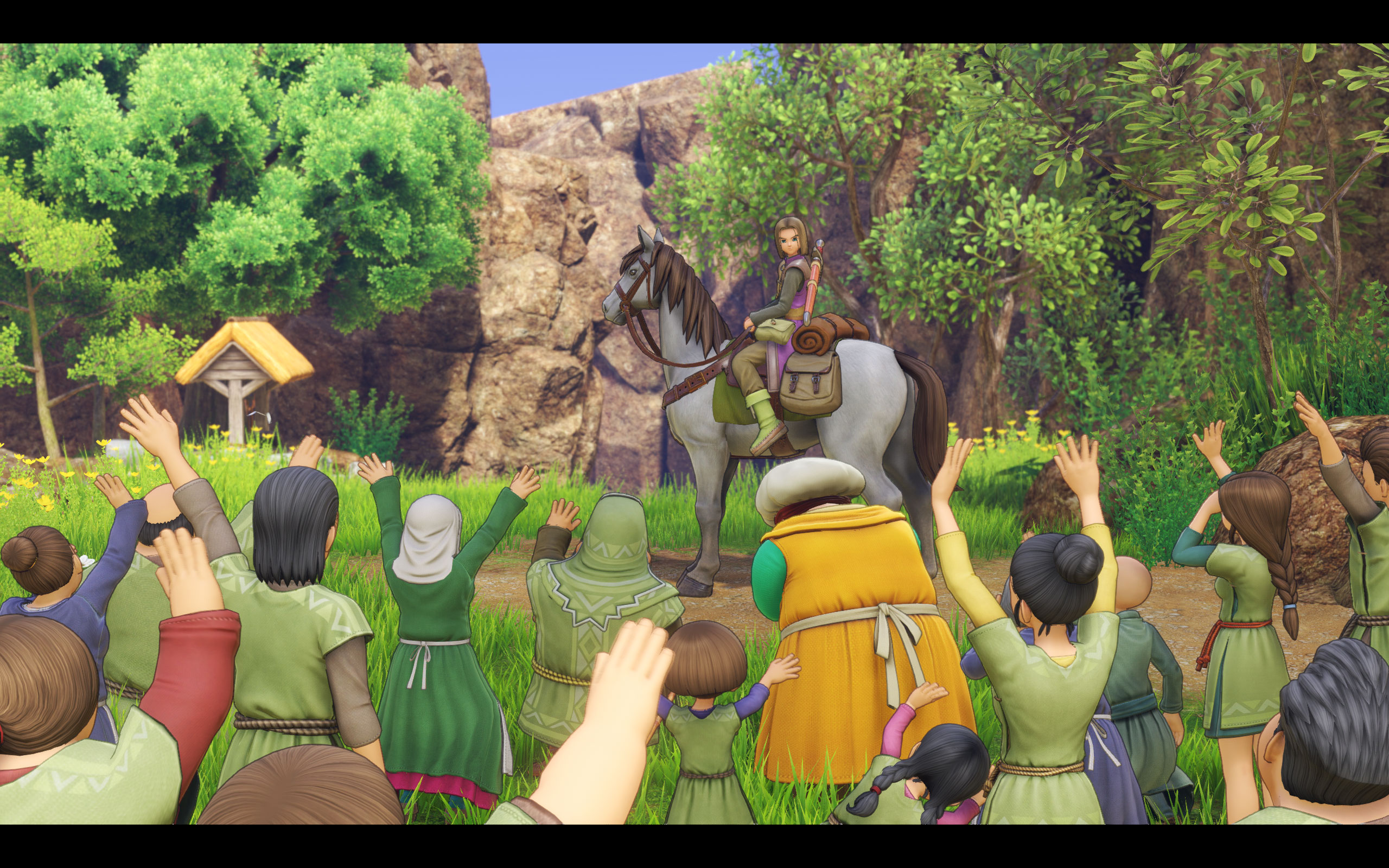
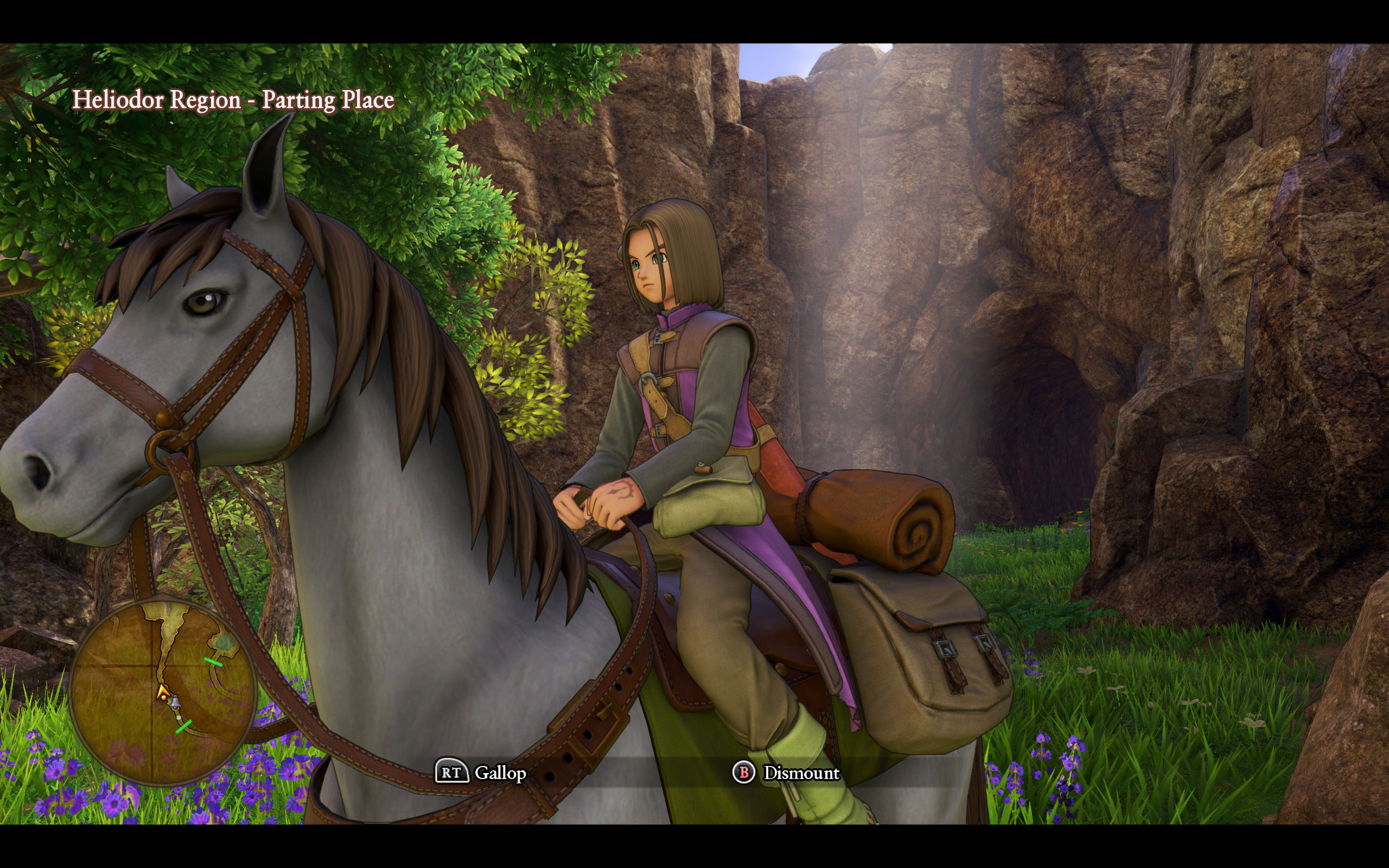
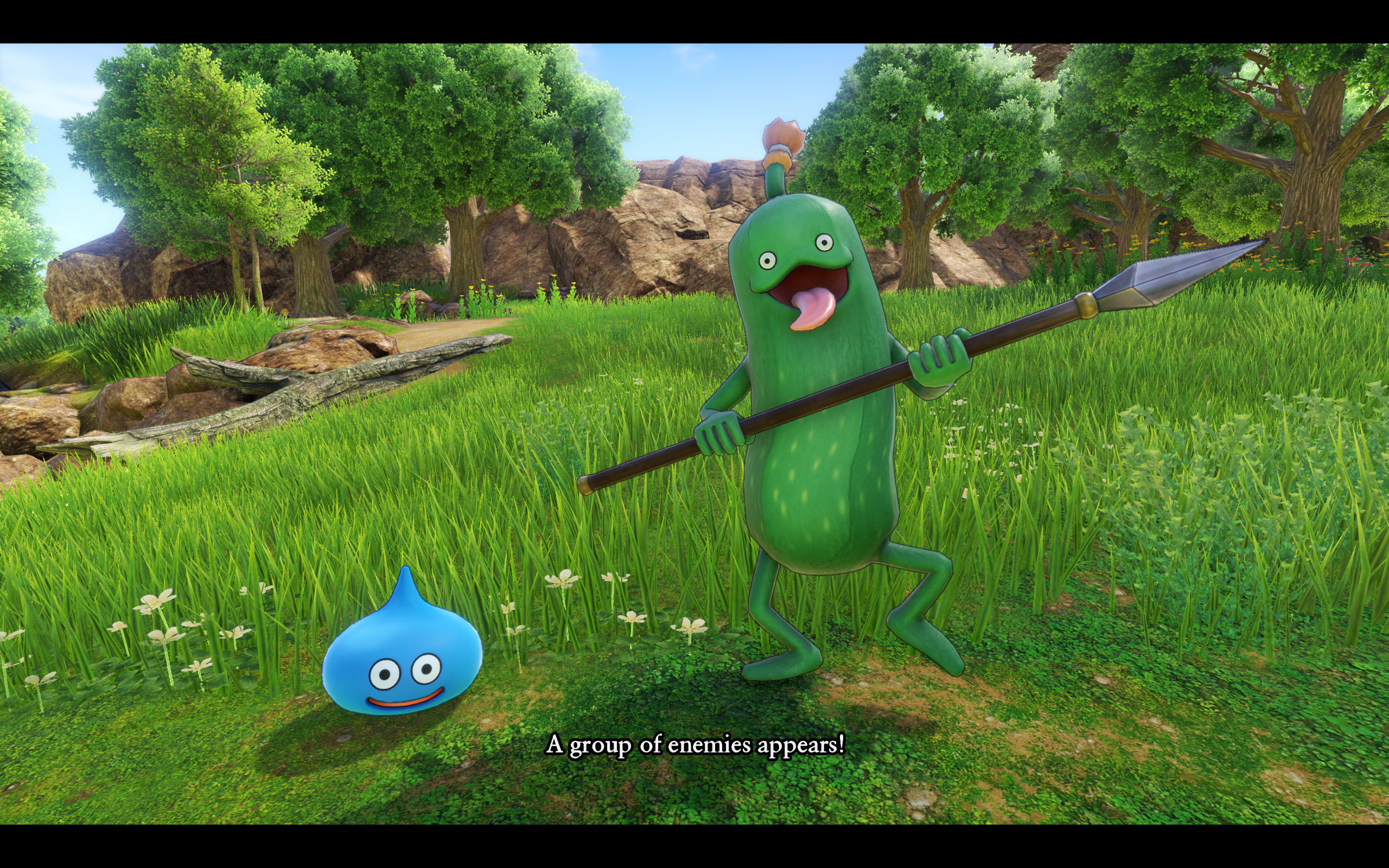
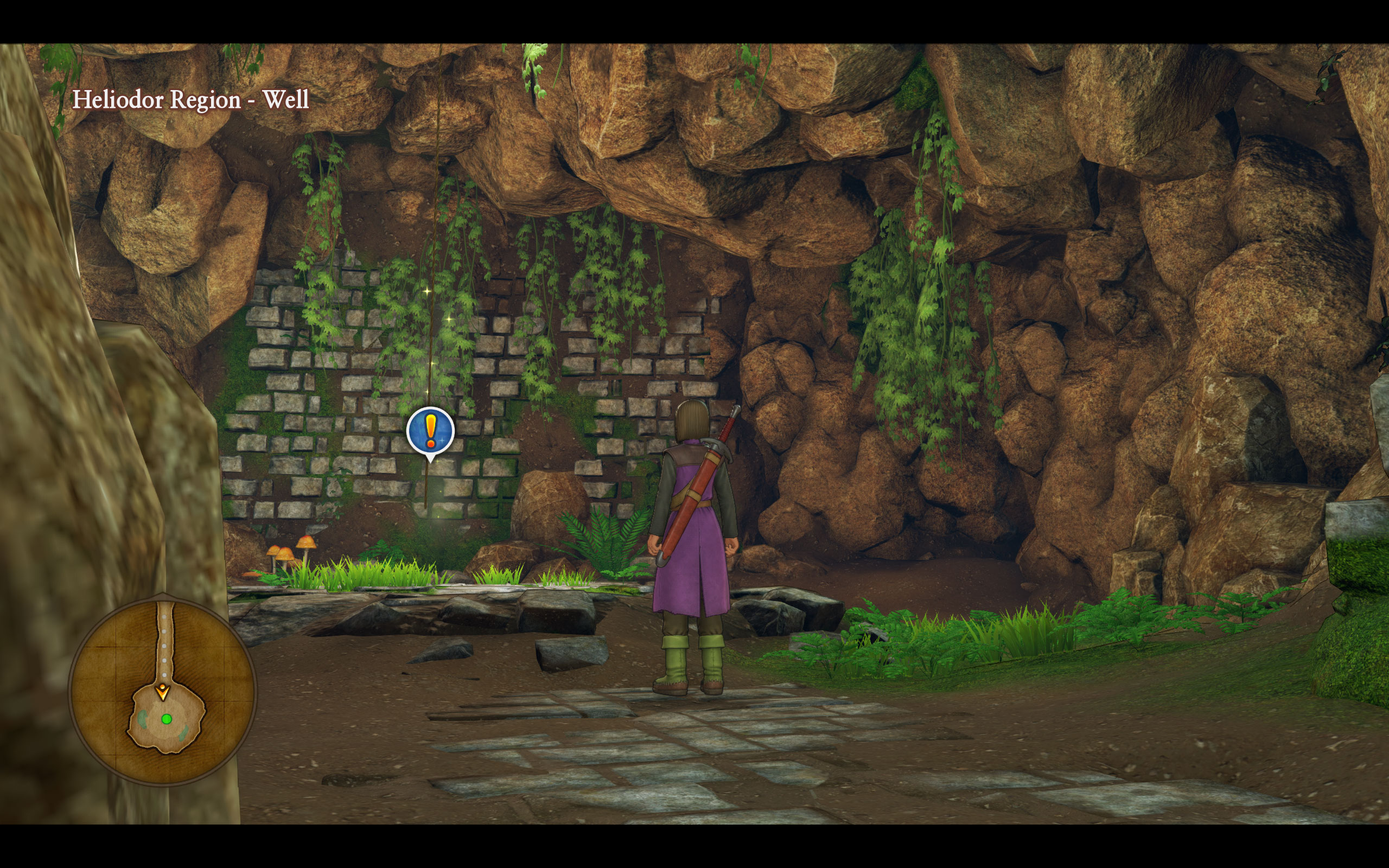
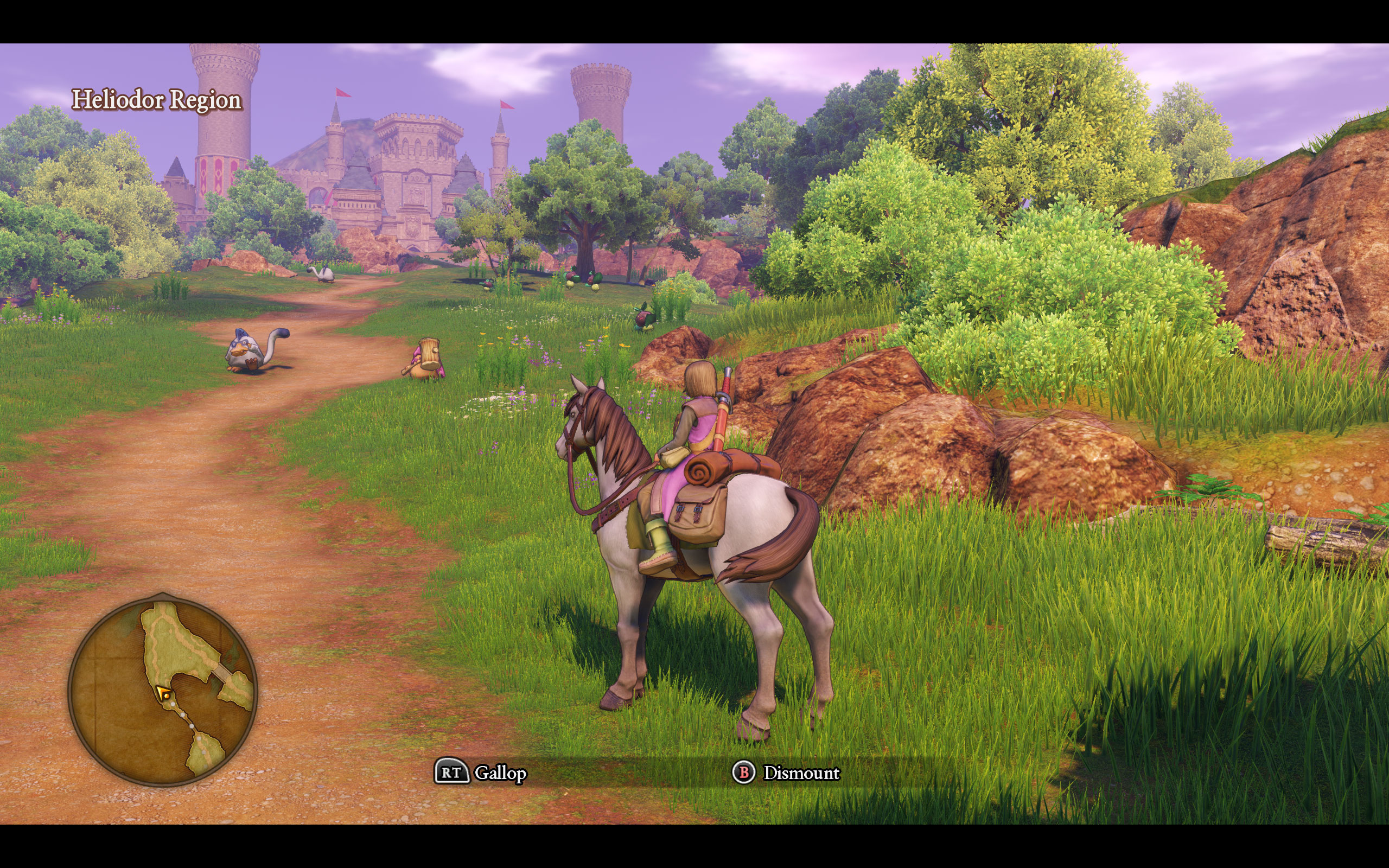
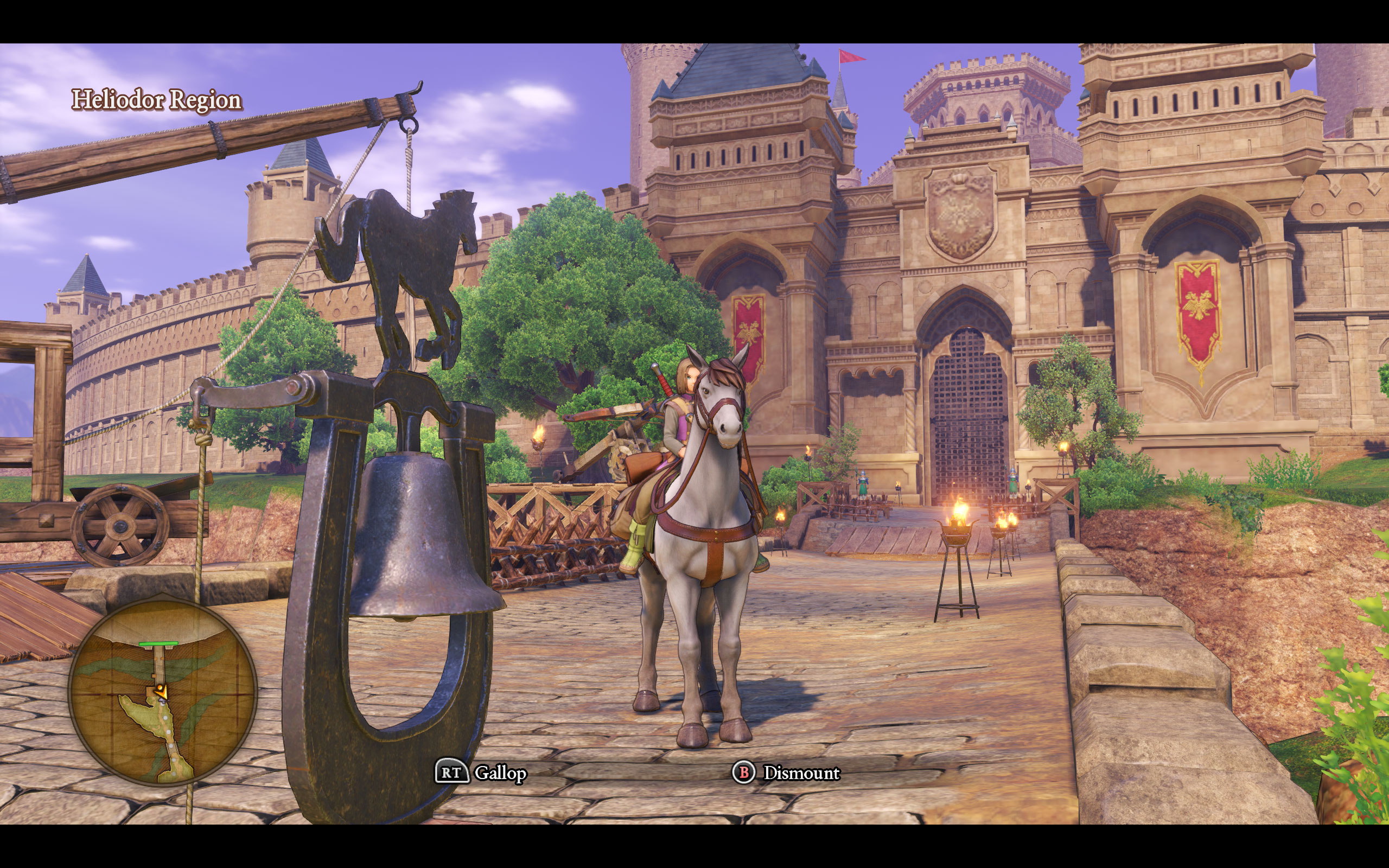
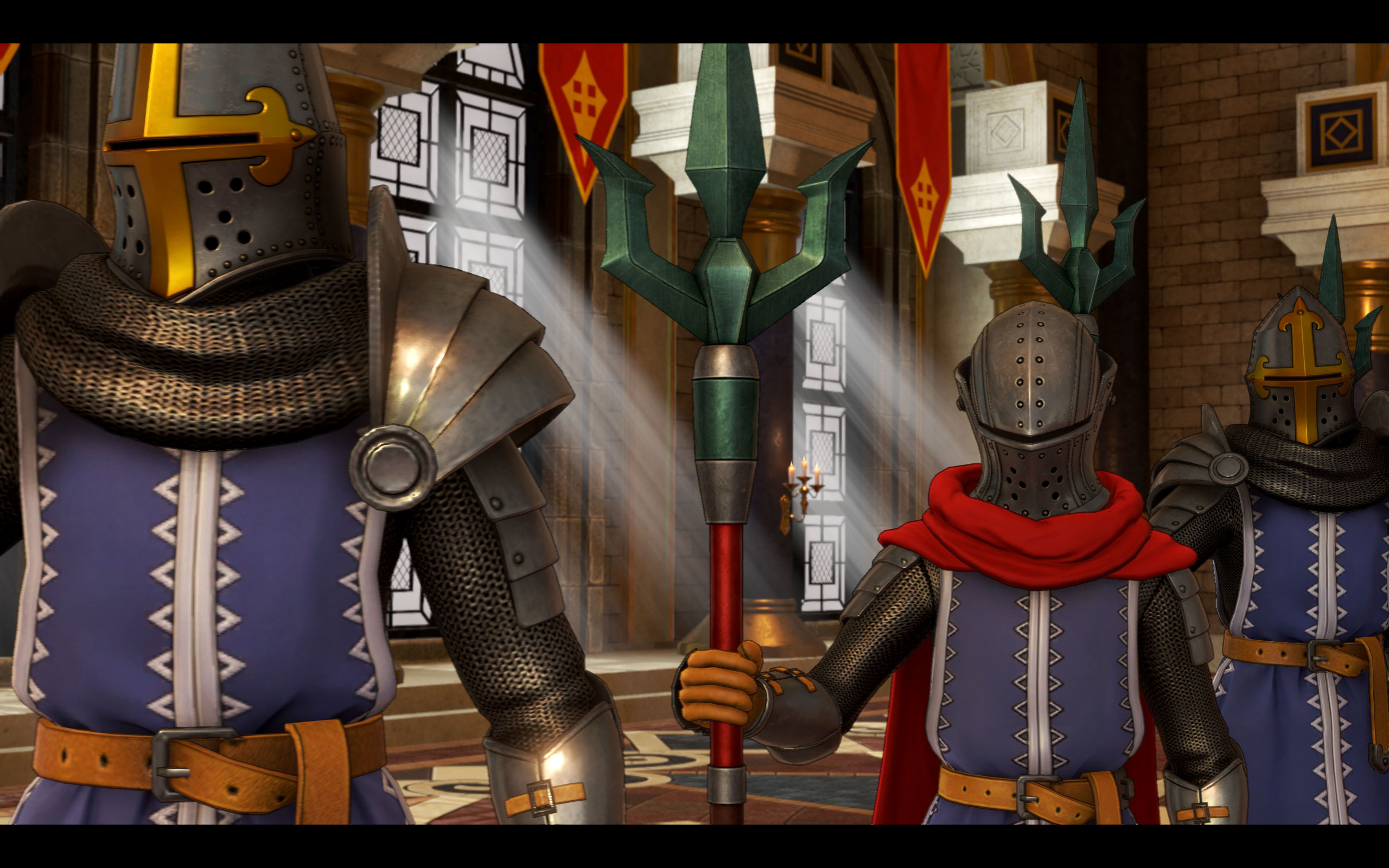
Square Enix has chosen to use Unreal Engine 4 for Dragon Quest XI, probably because the engine supports all major gaming platforms, which makes the porting process much easier. The PC version uses DirectX 11. While the PS4 and 3DS versions have been on the market for about a month, the PC version was just released on Steam. Given the multi-platform nature of this game, we probably can't expect AAA PC graphics, which follows its own art style that is not unsimilar to what we've seen from Zelda on Switch.
In this performance review, we put Dragon Quest XI through our selection of graphics cards using the latest drivers from both AMD and NVIDIA. We measure the game's performance across various screen resolutions, investigate VRAM usage, and even test the game's multi-core CPU performance scaling.
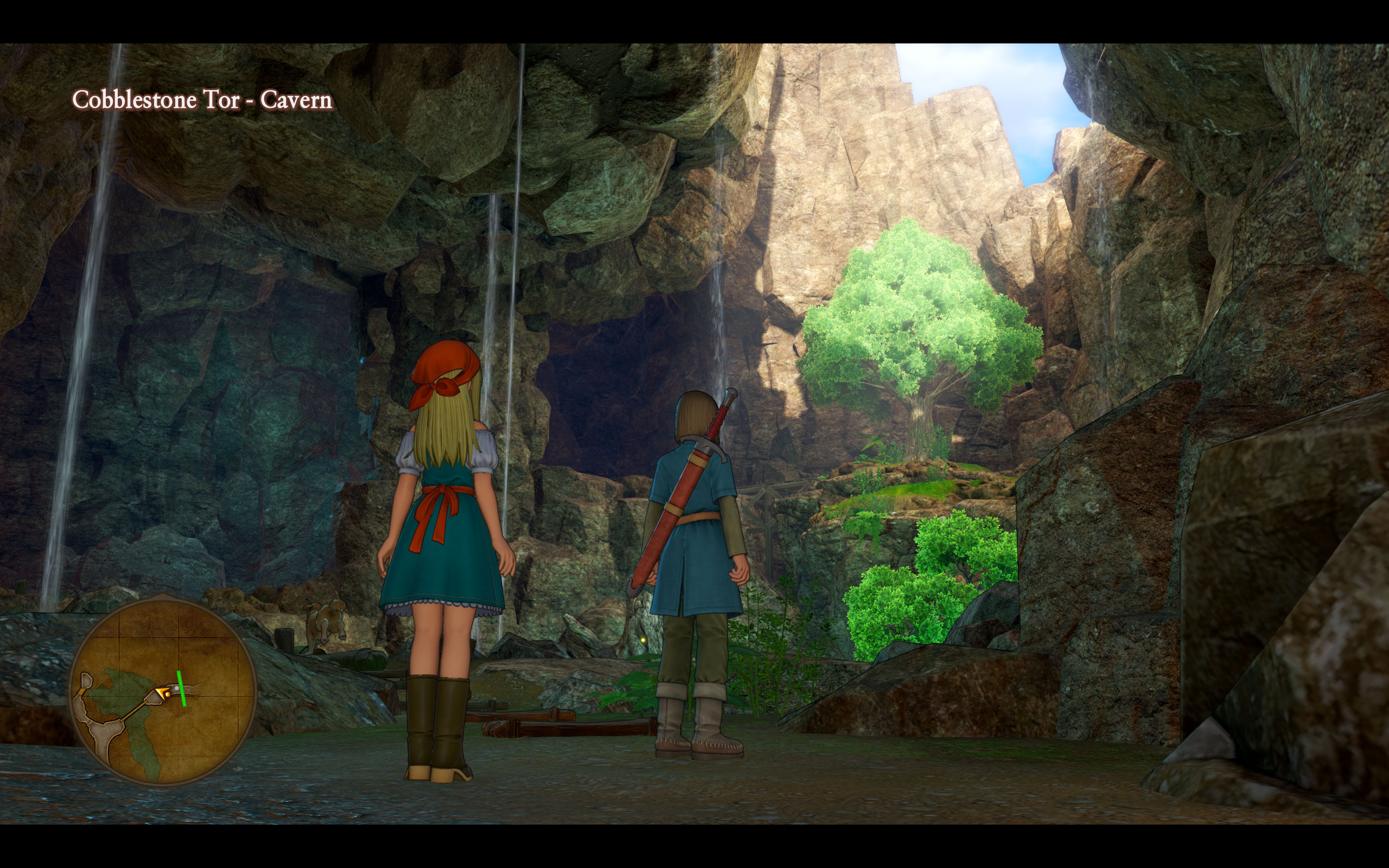
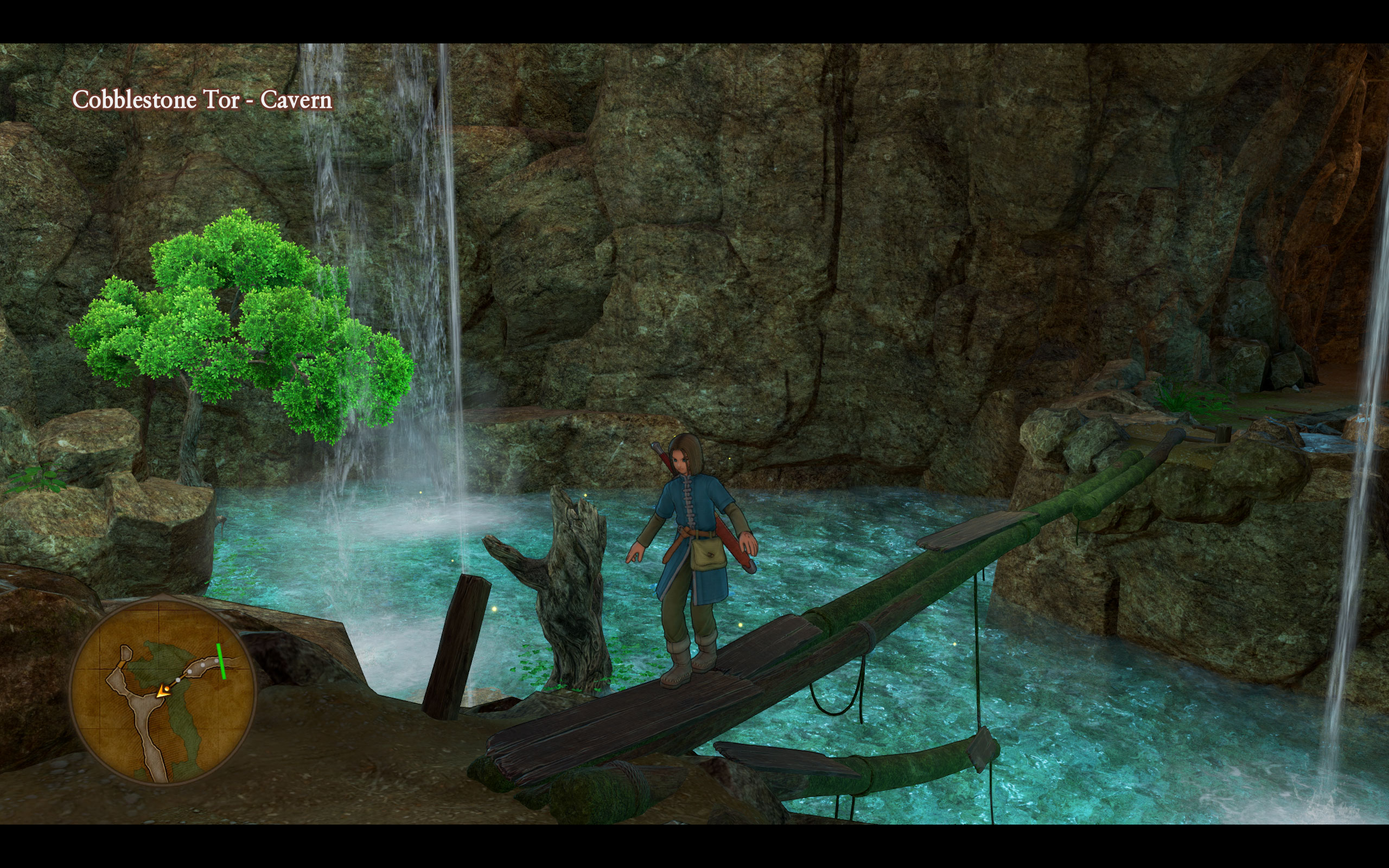
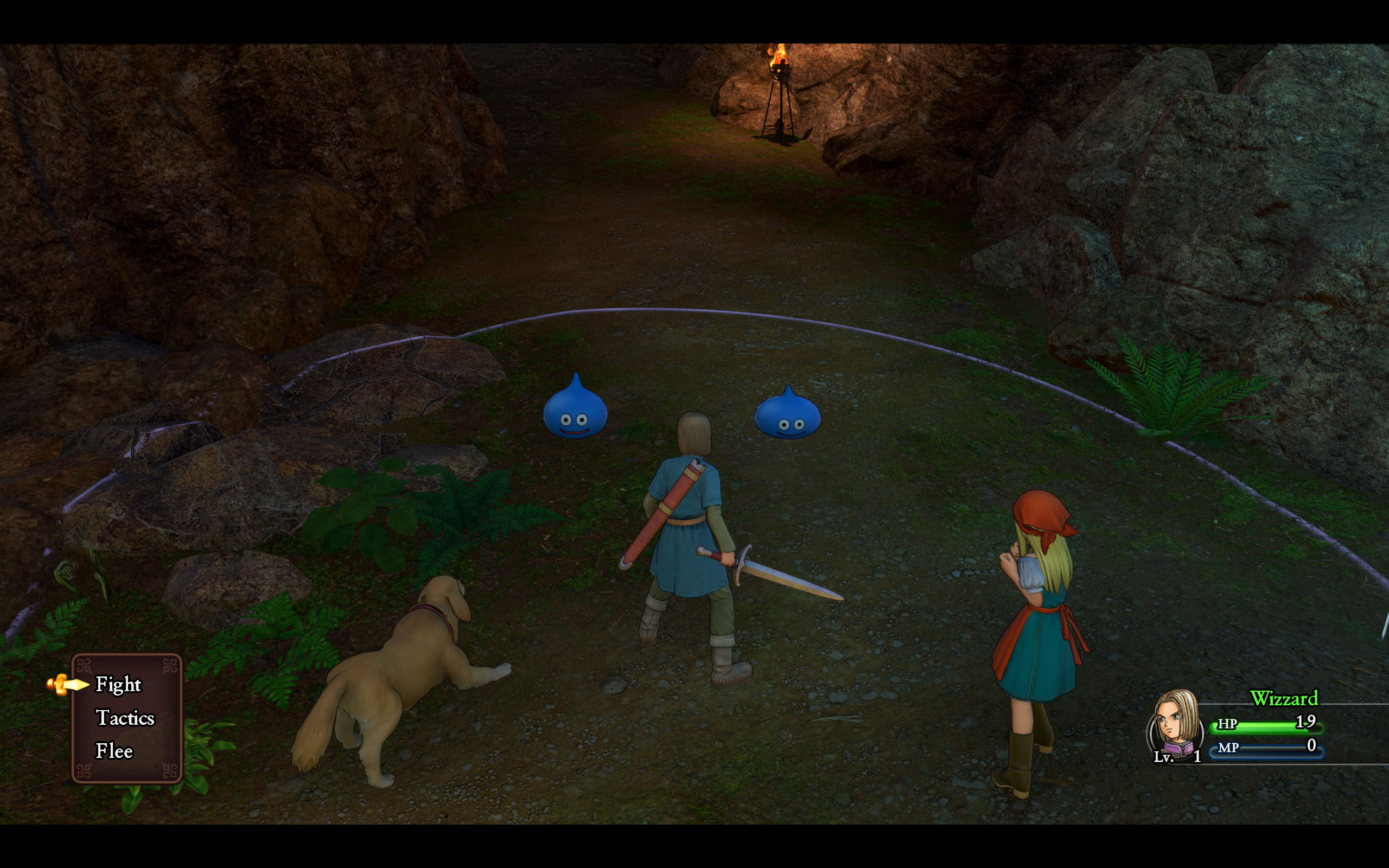
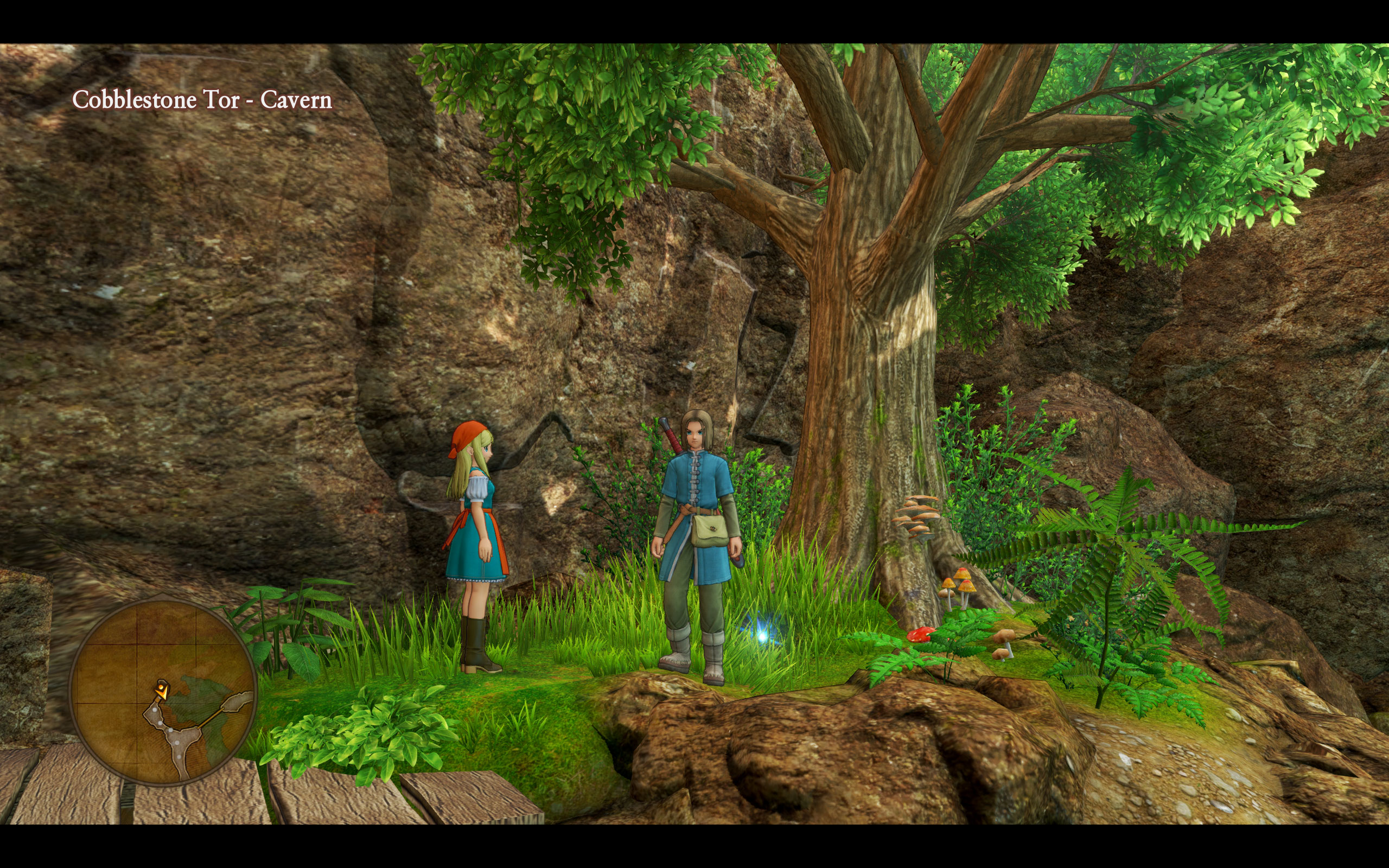
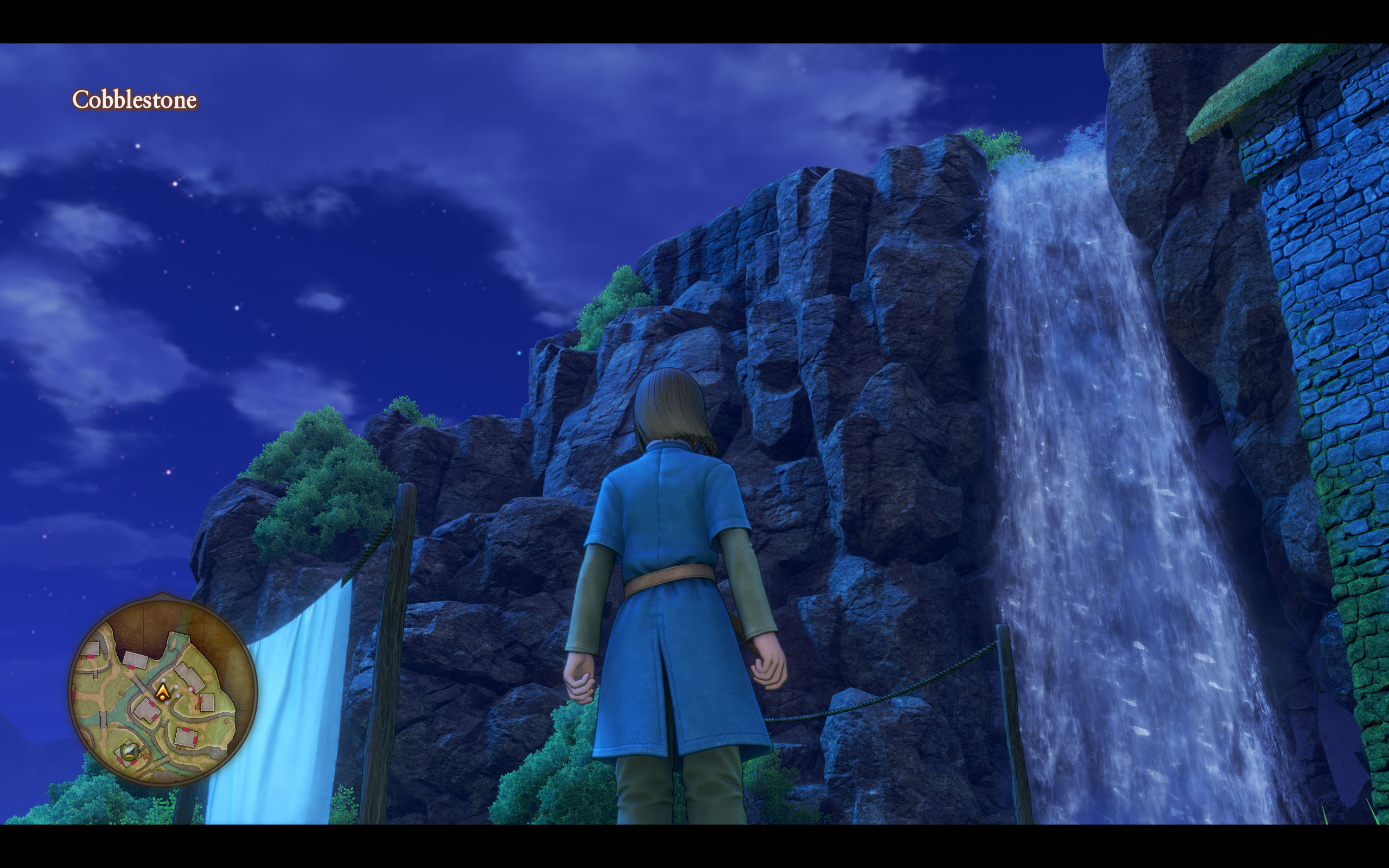
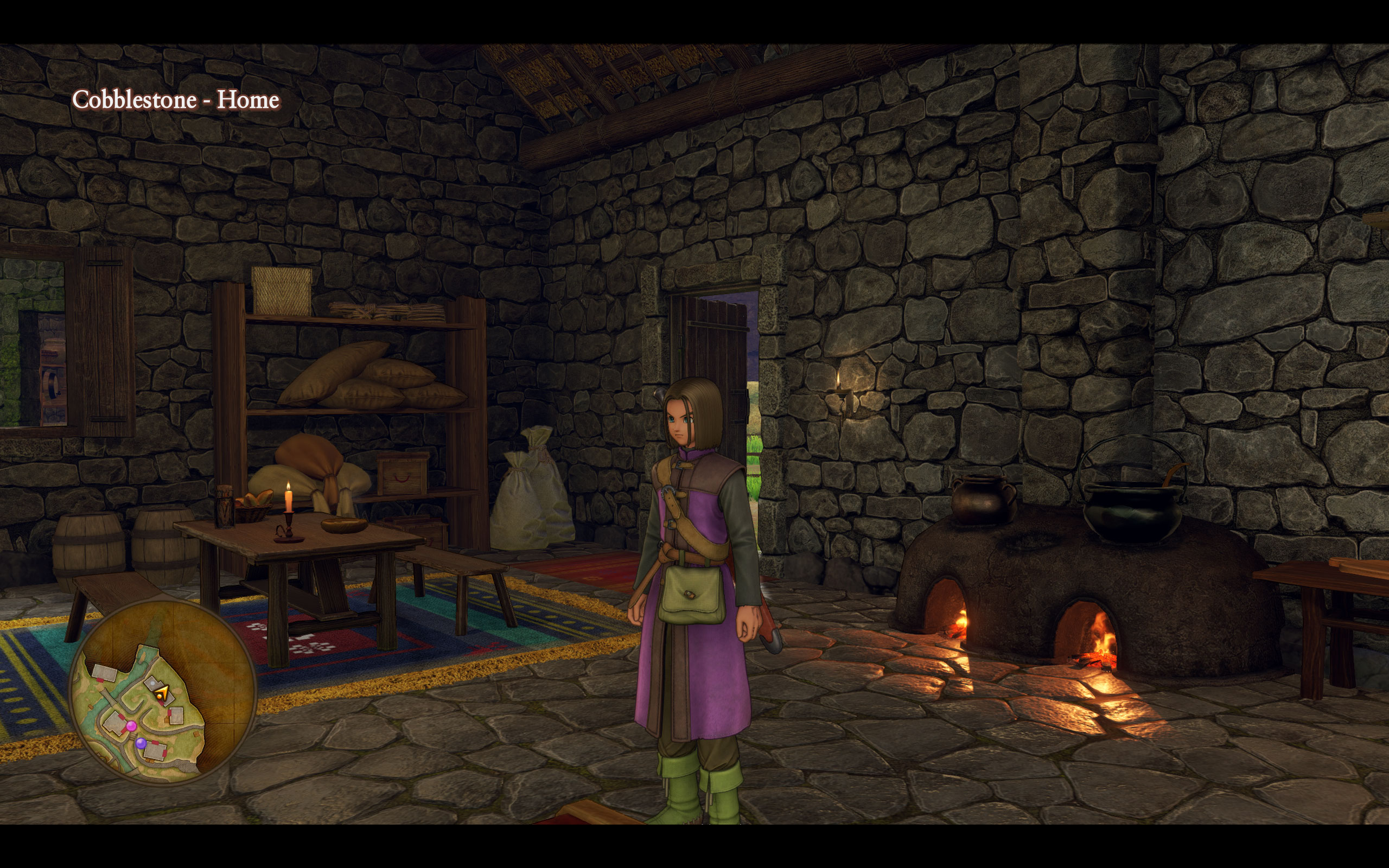
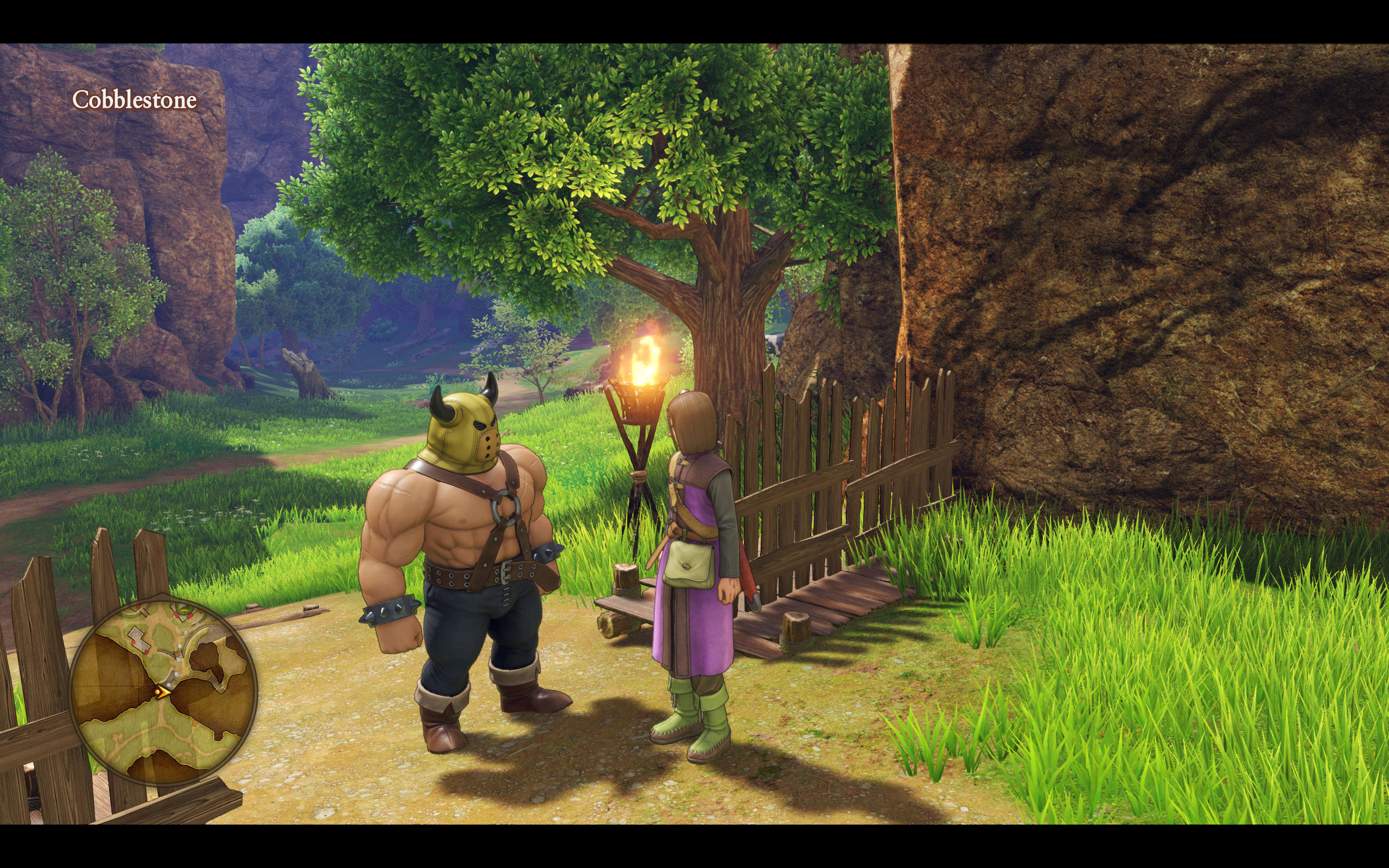
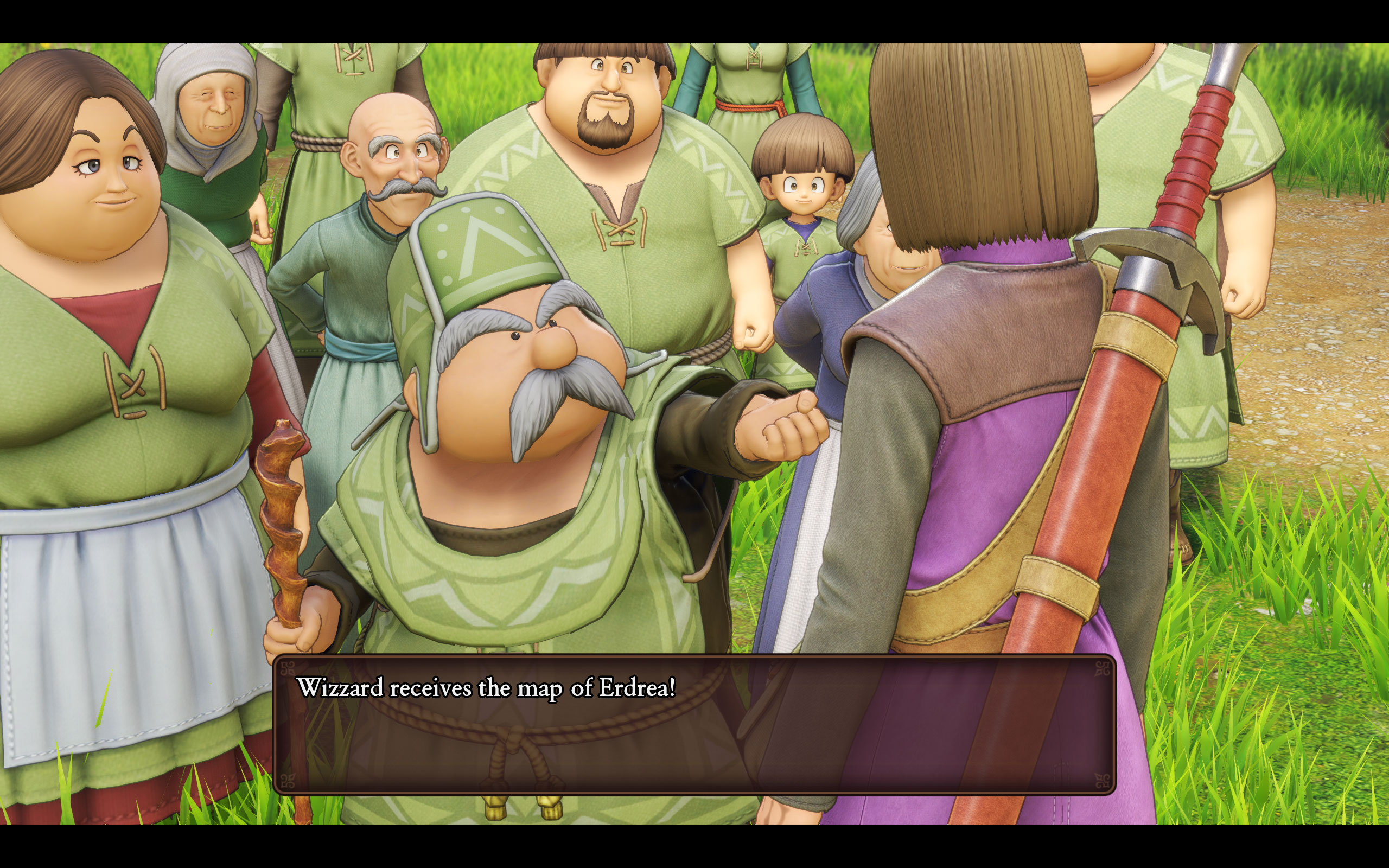
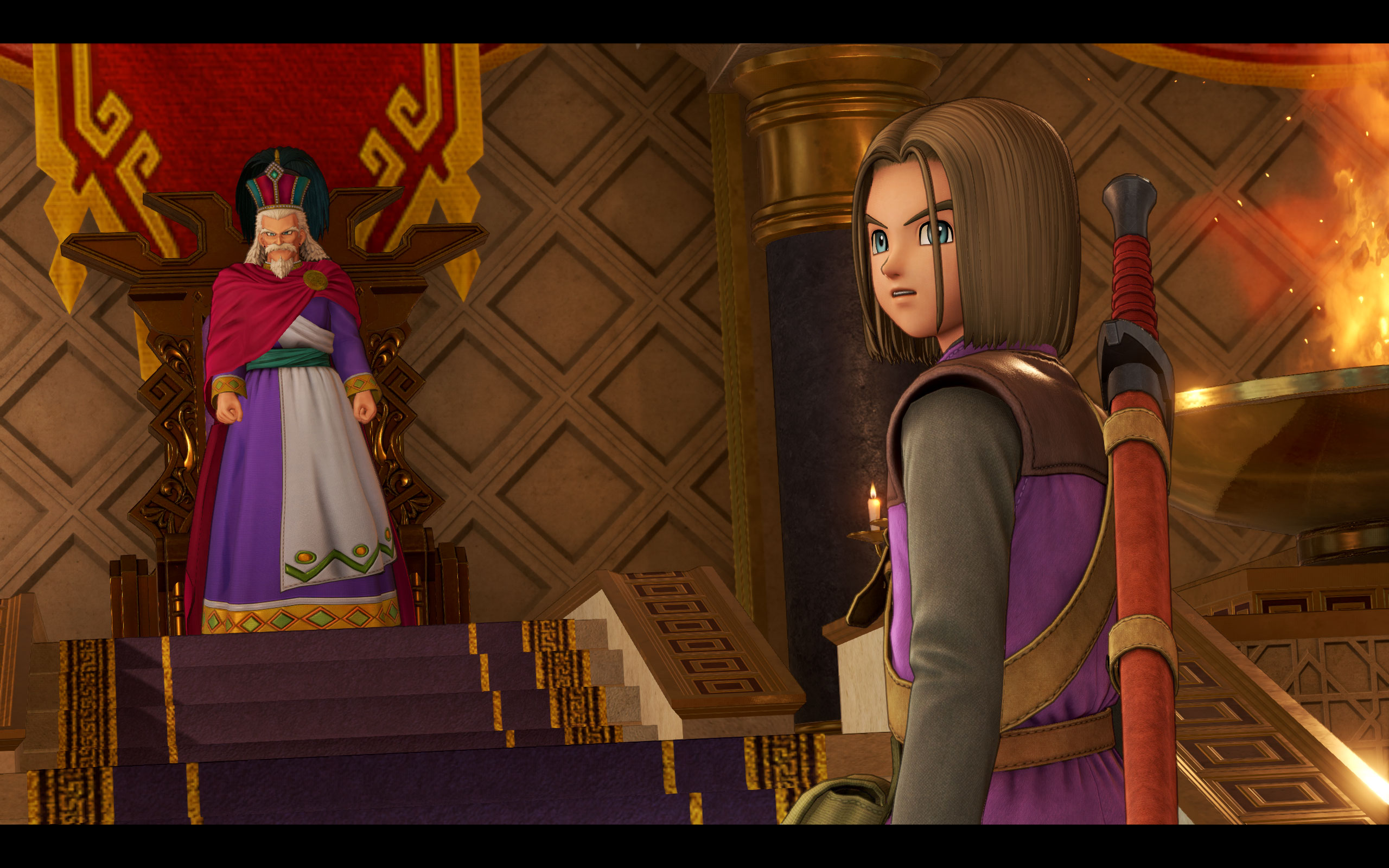
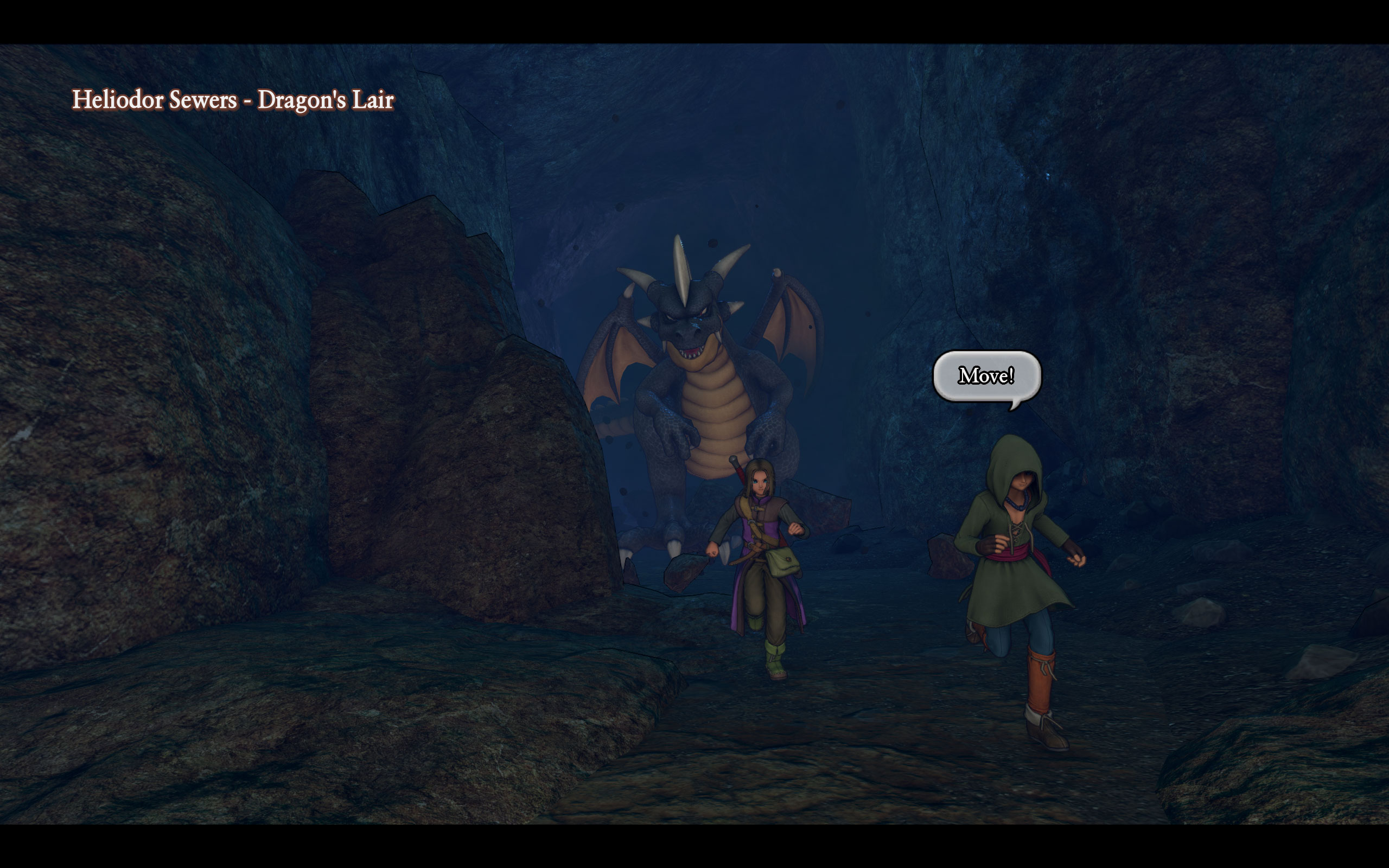
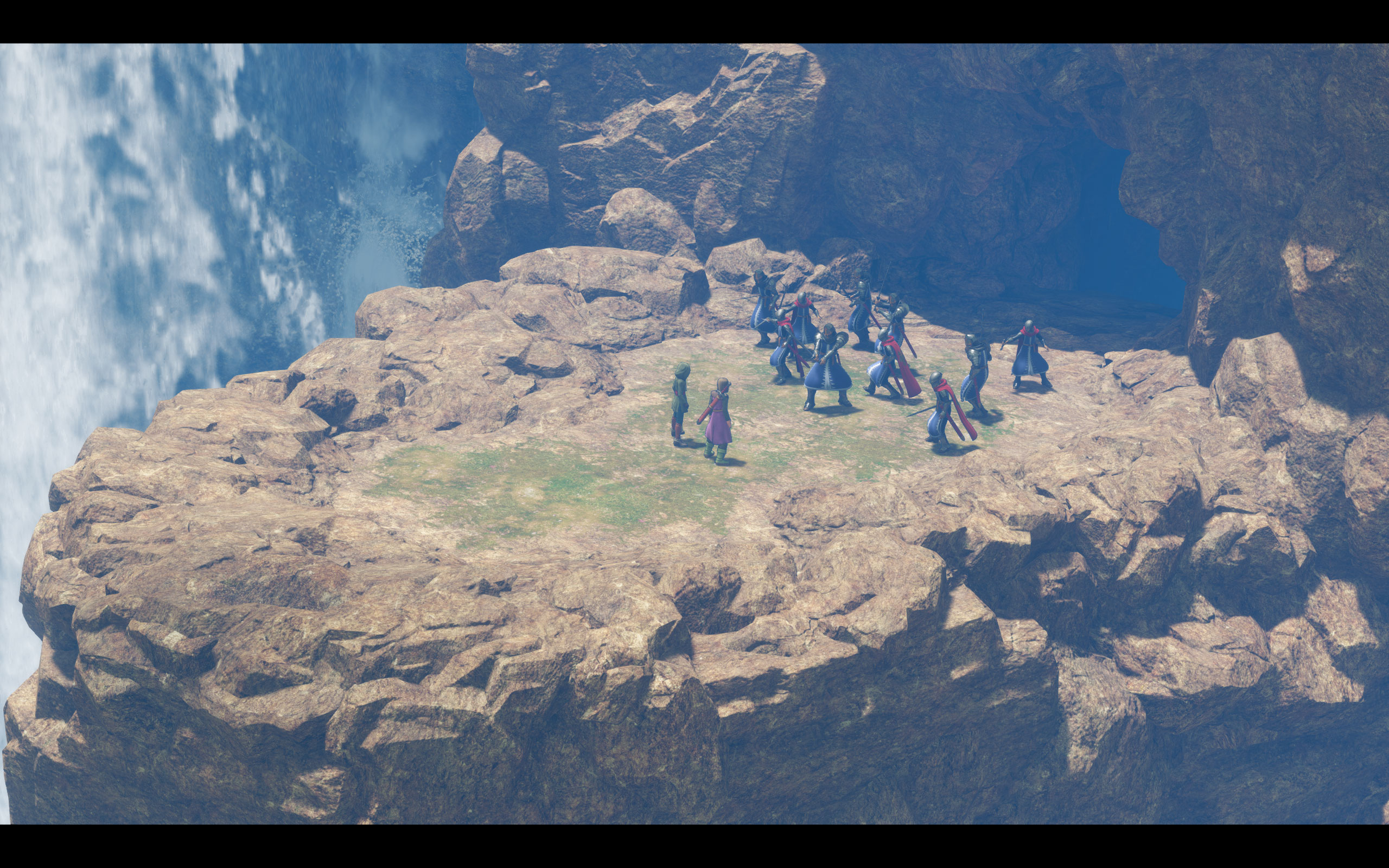
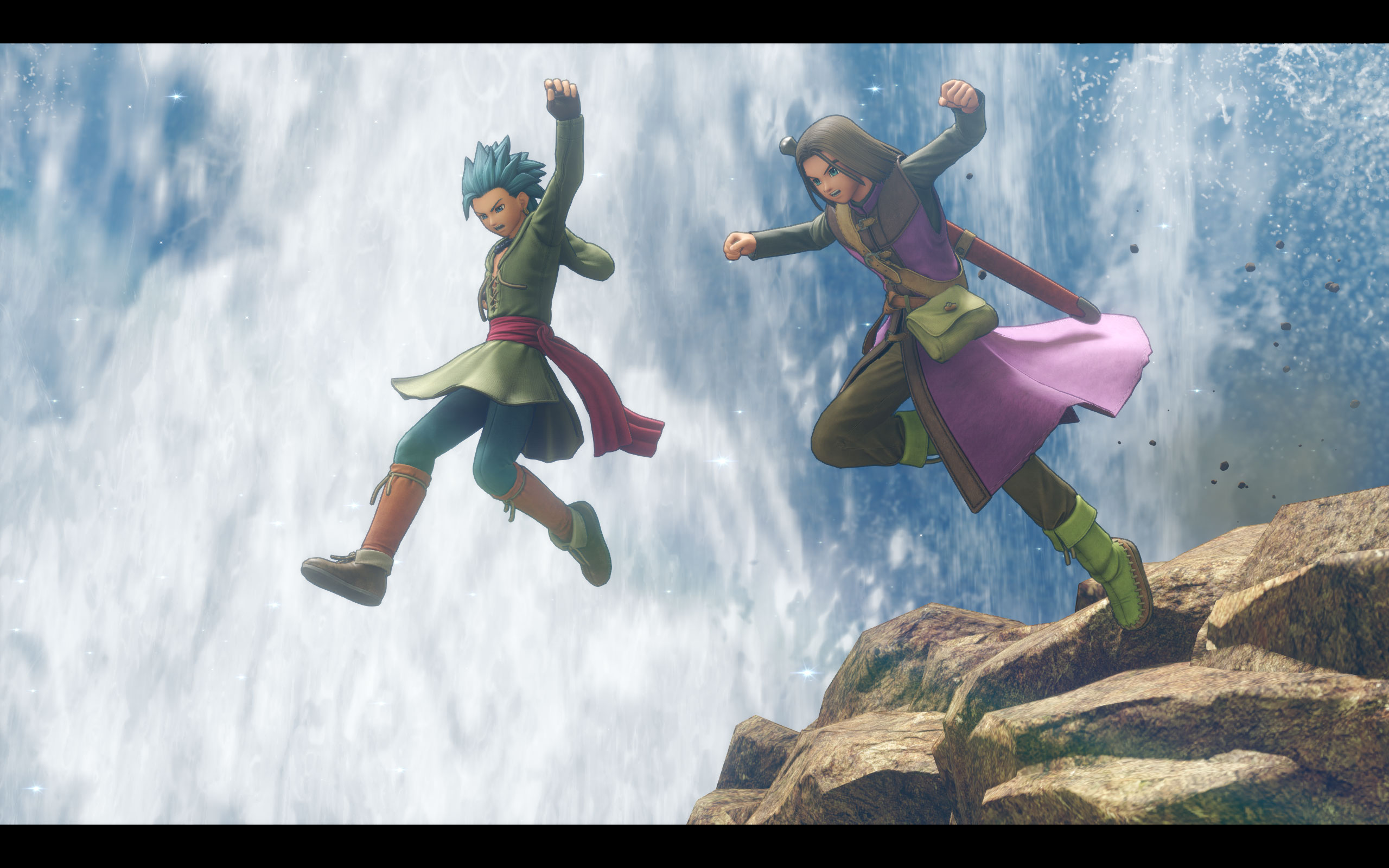
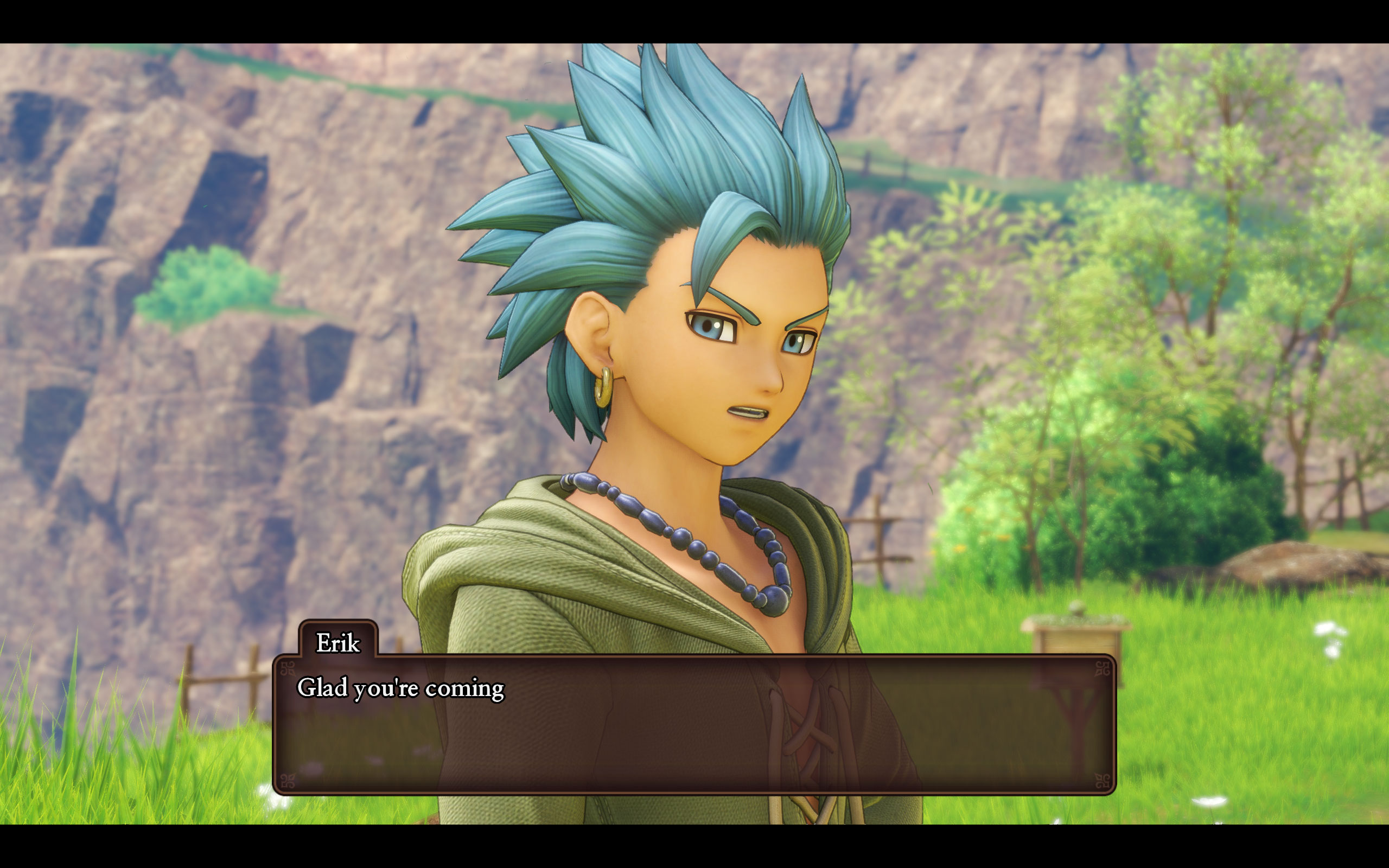
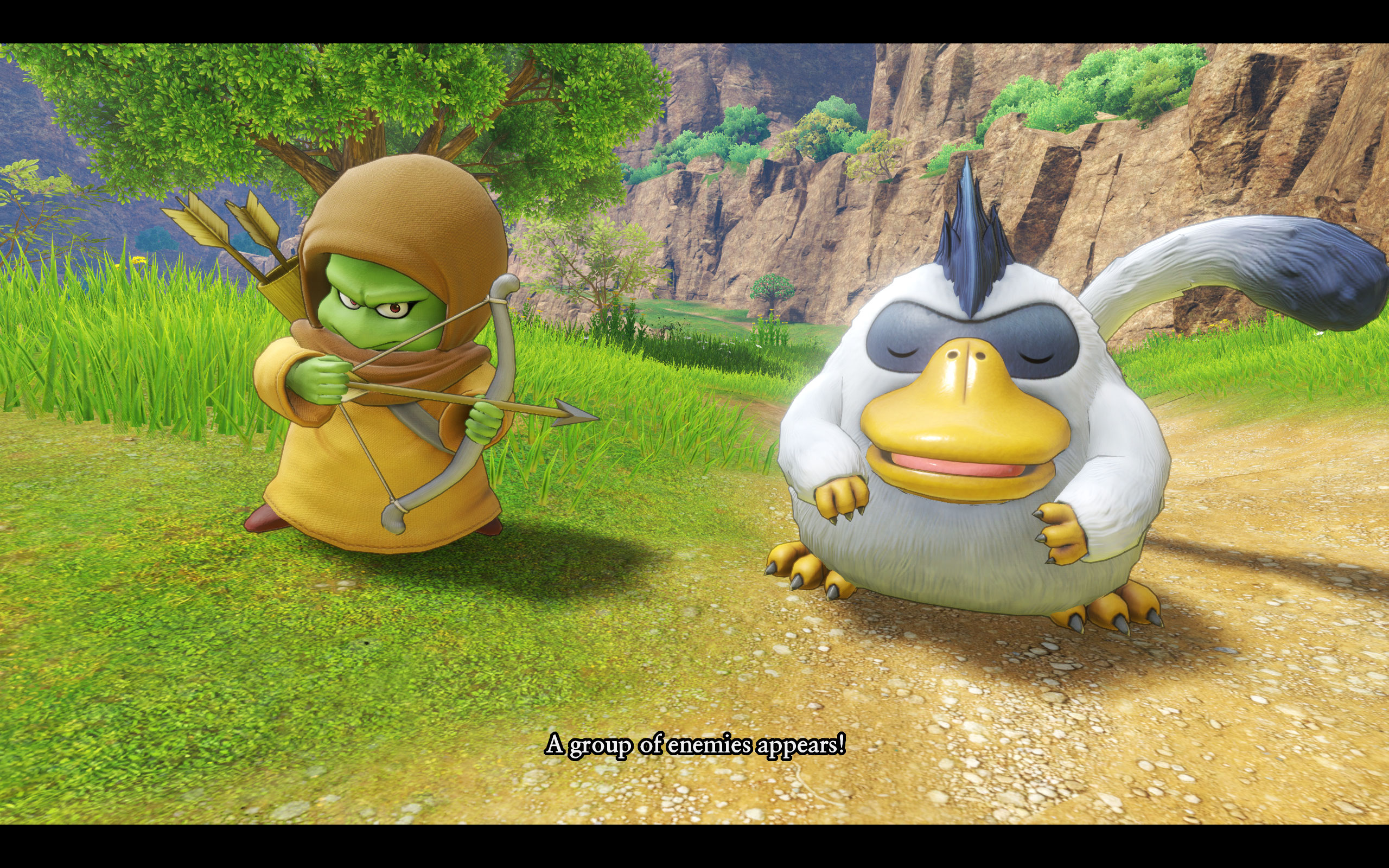
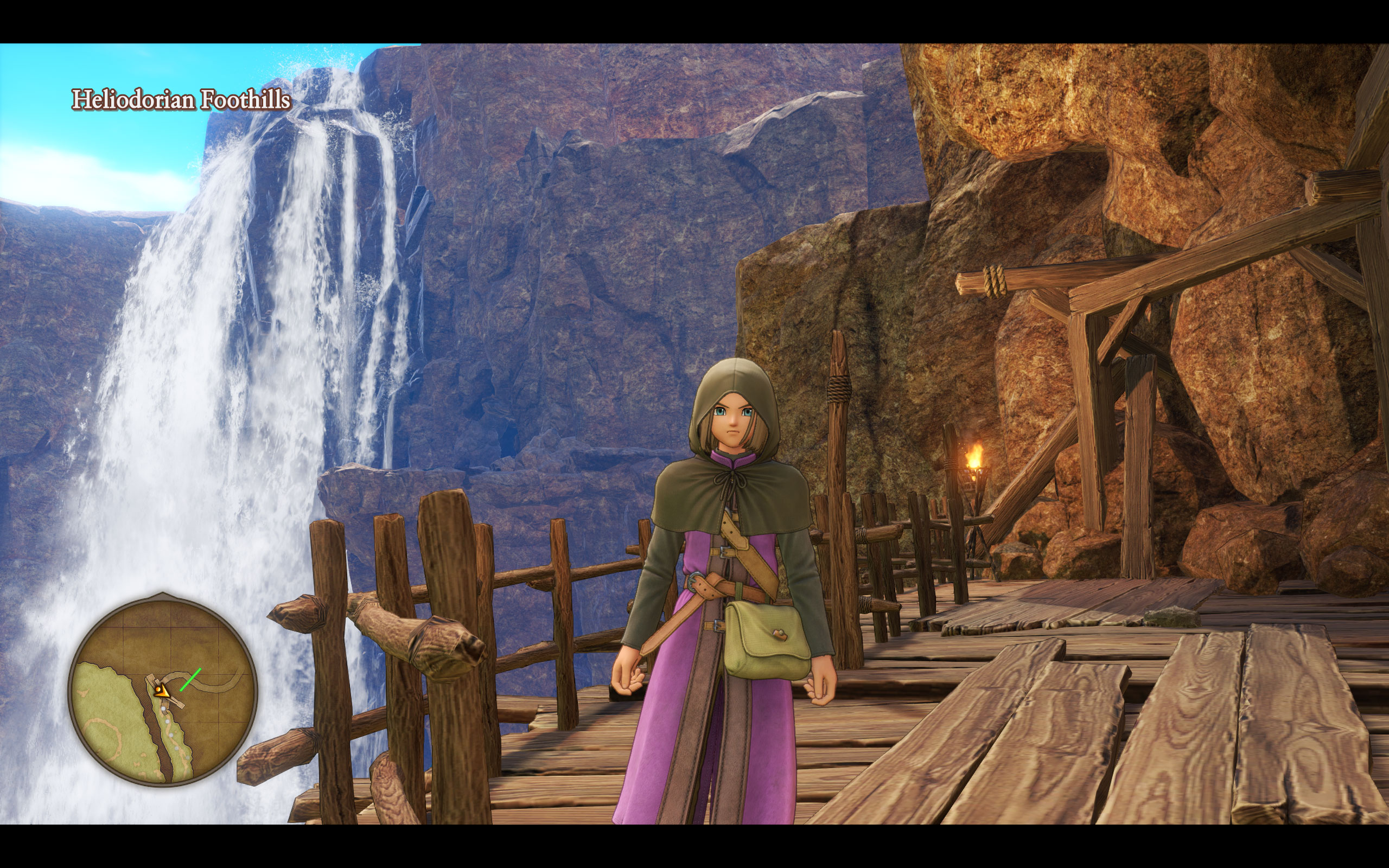
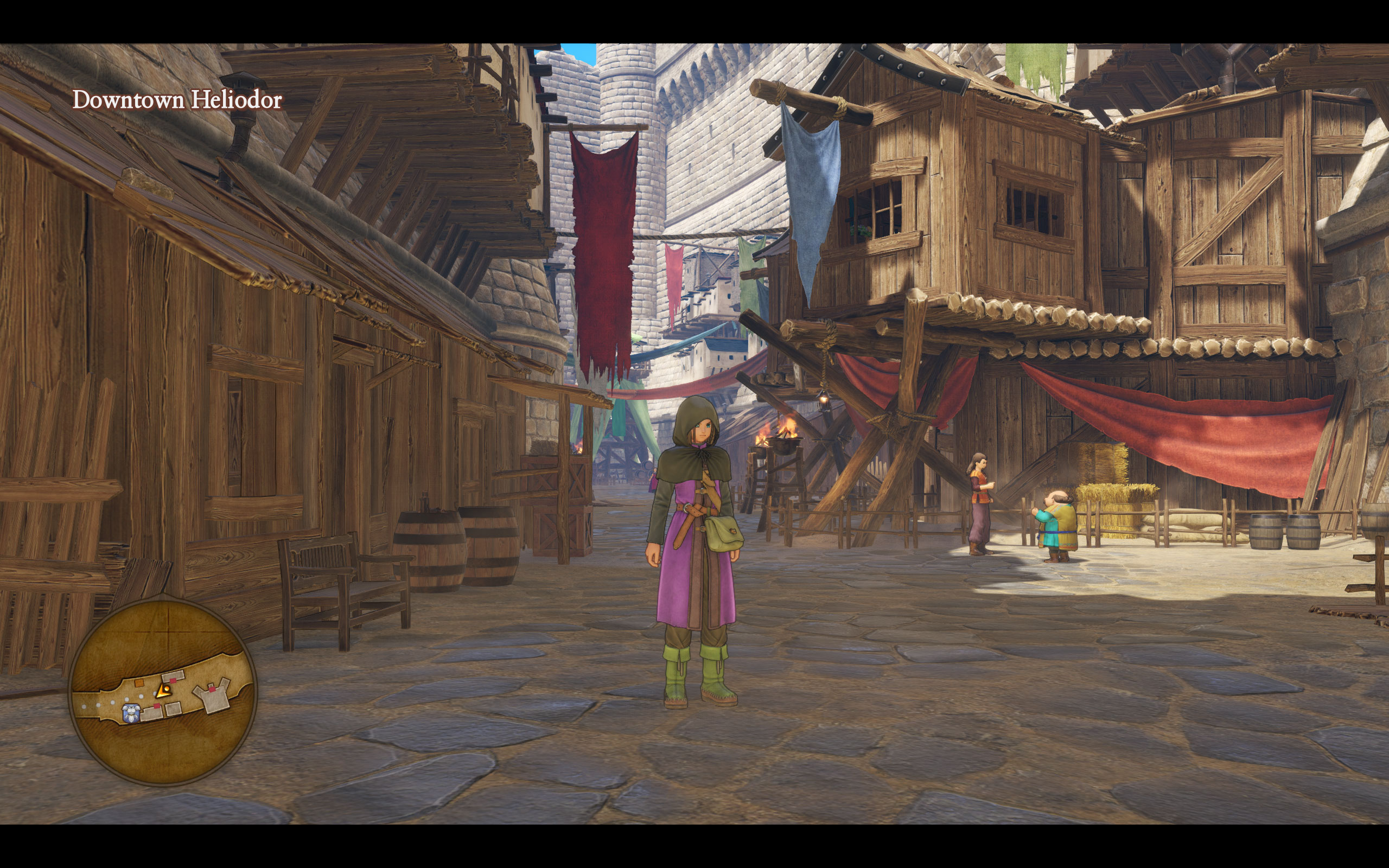
Screenshots
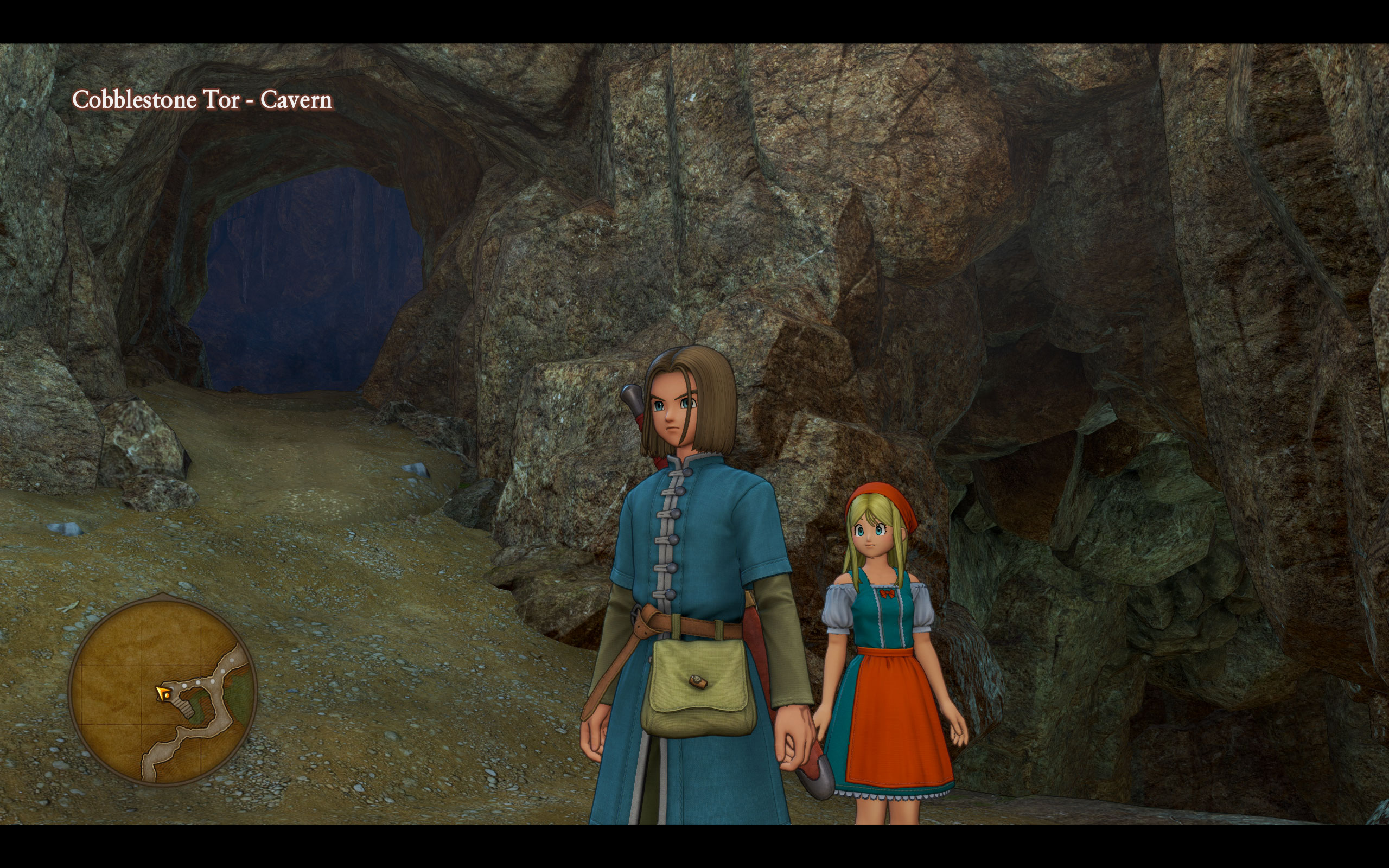

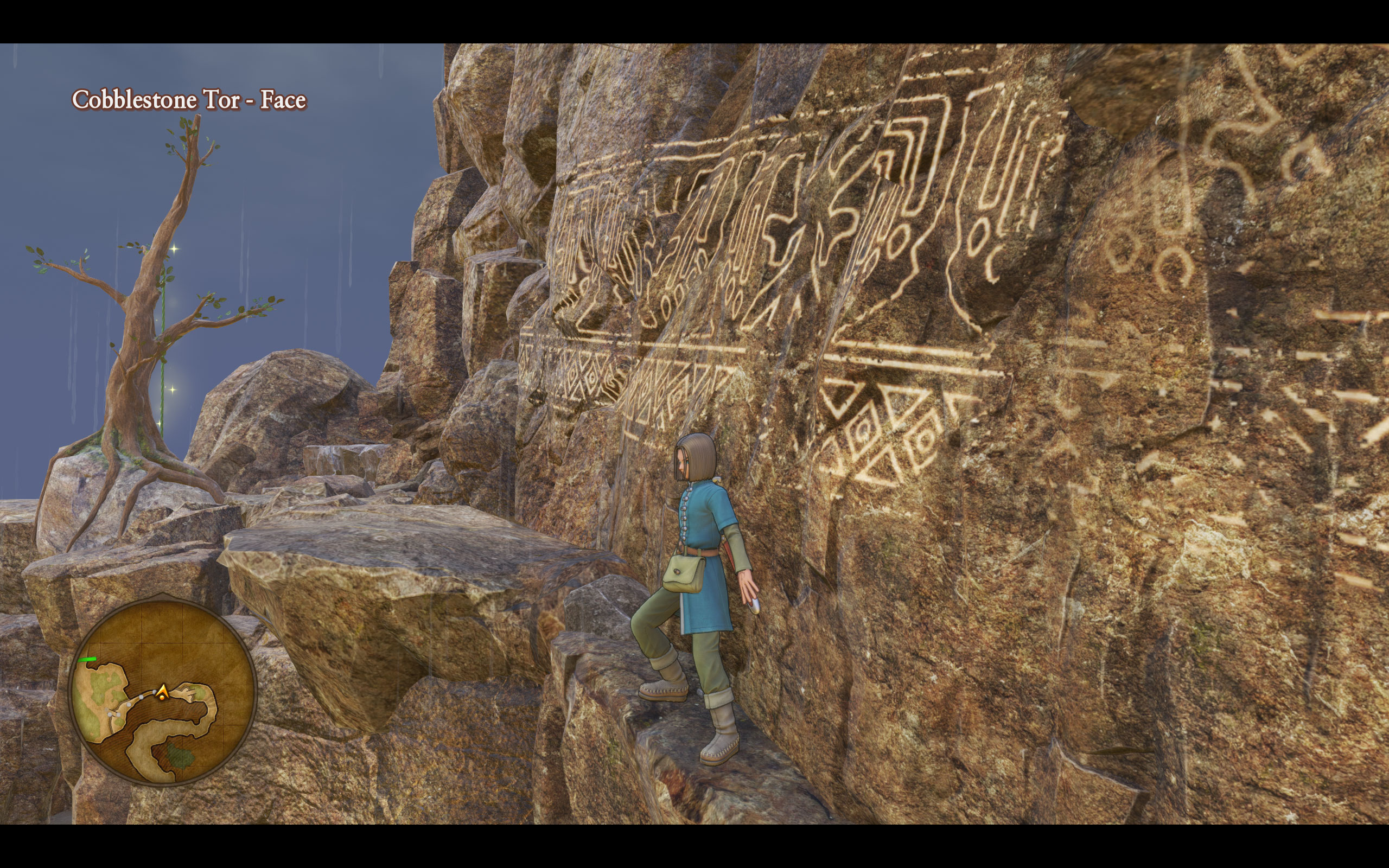
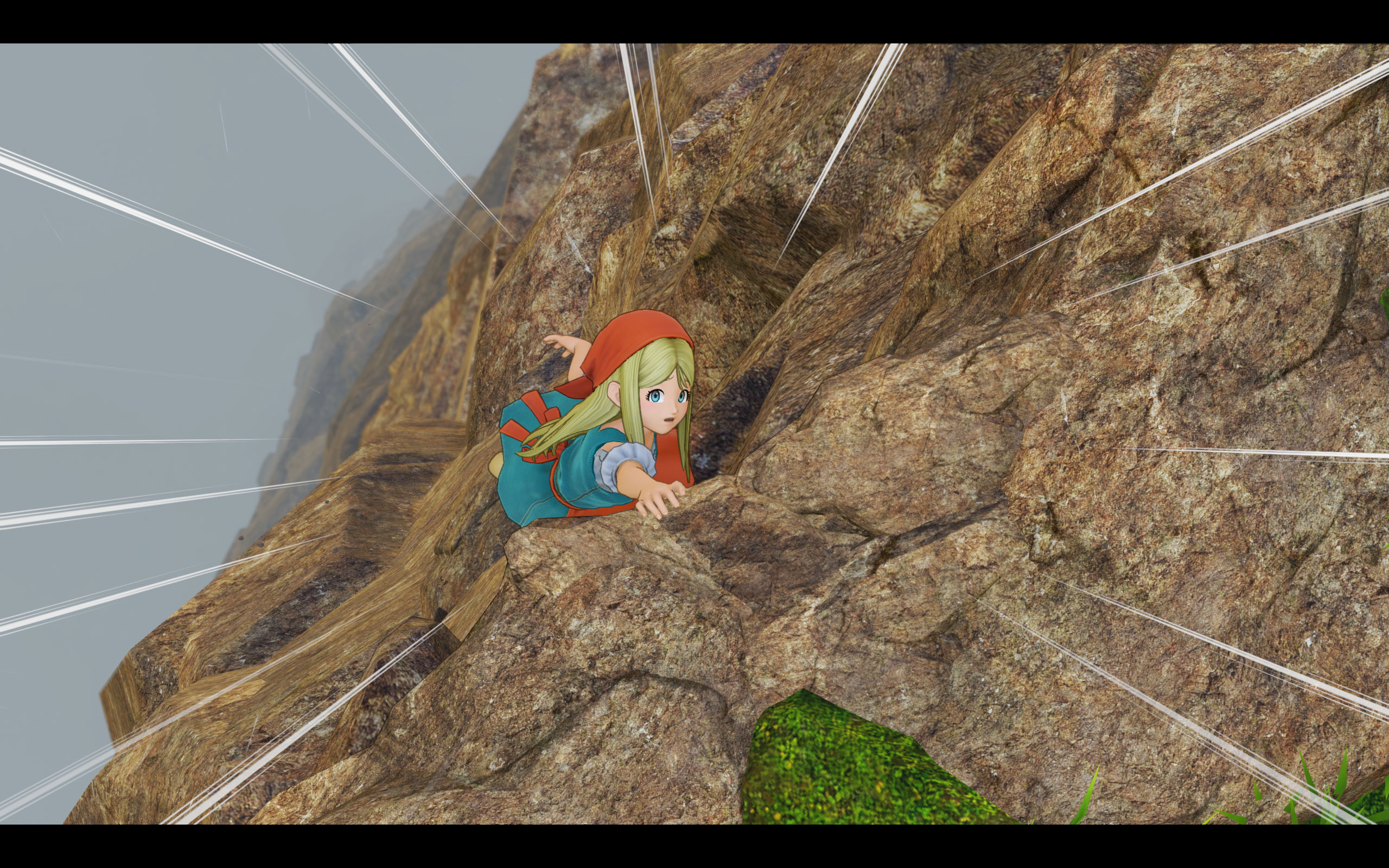
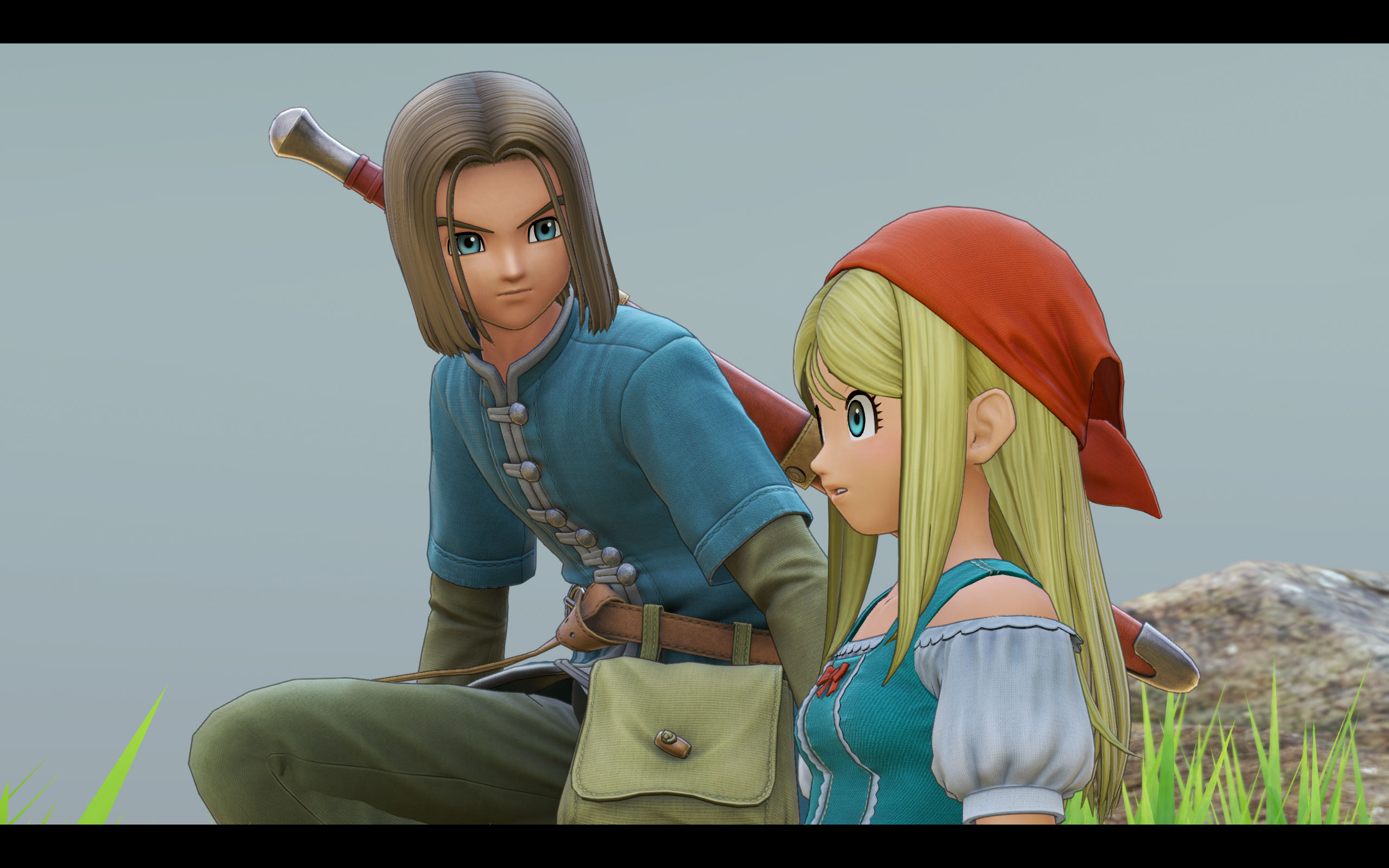
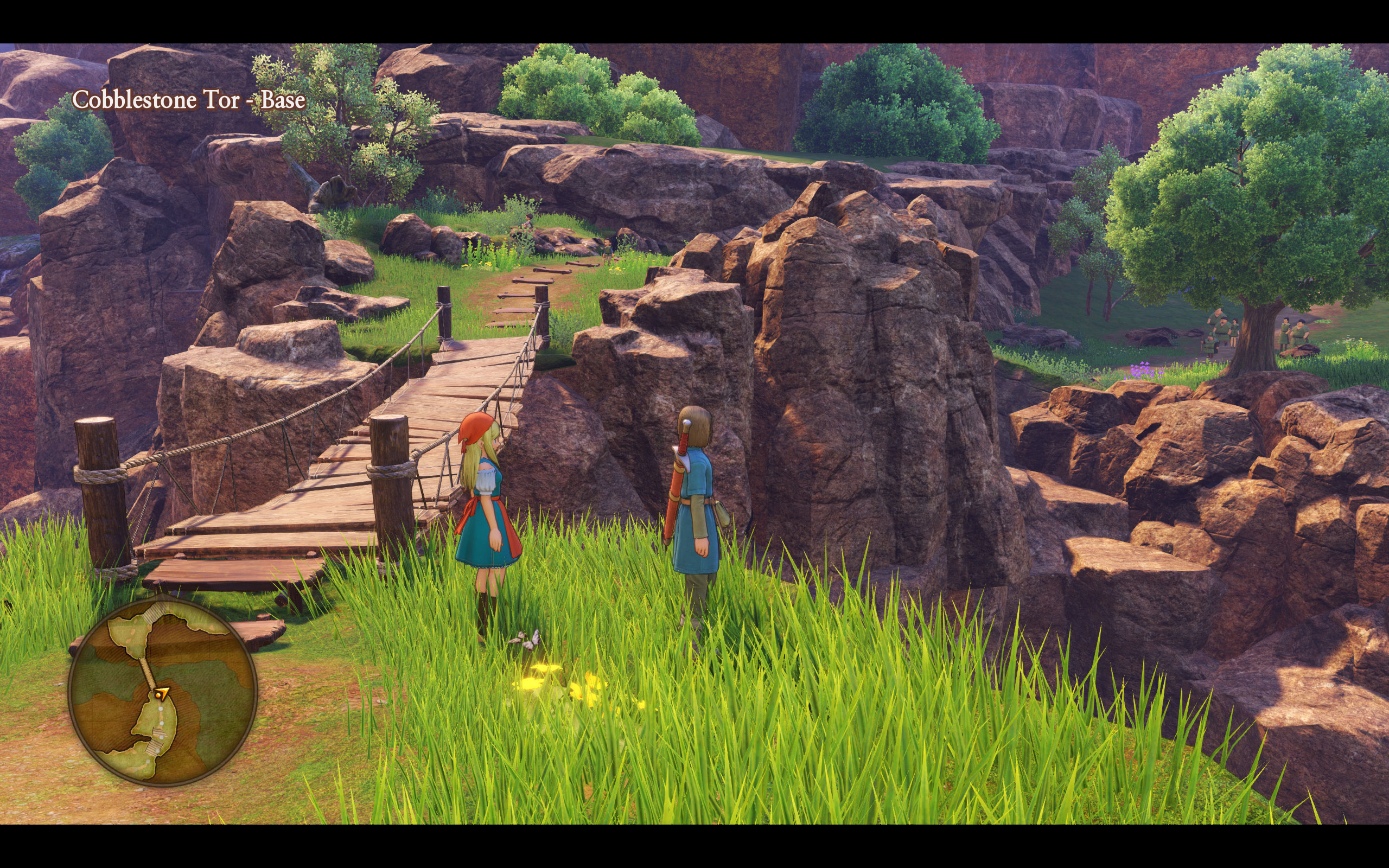

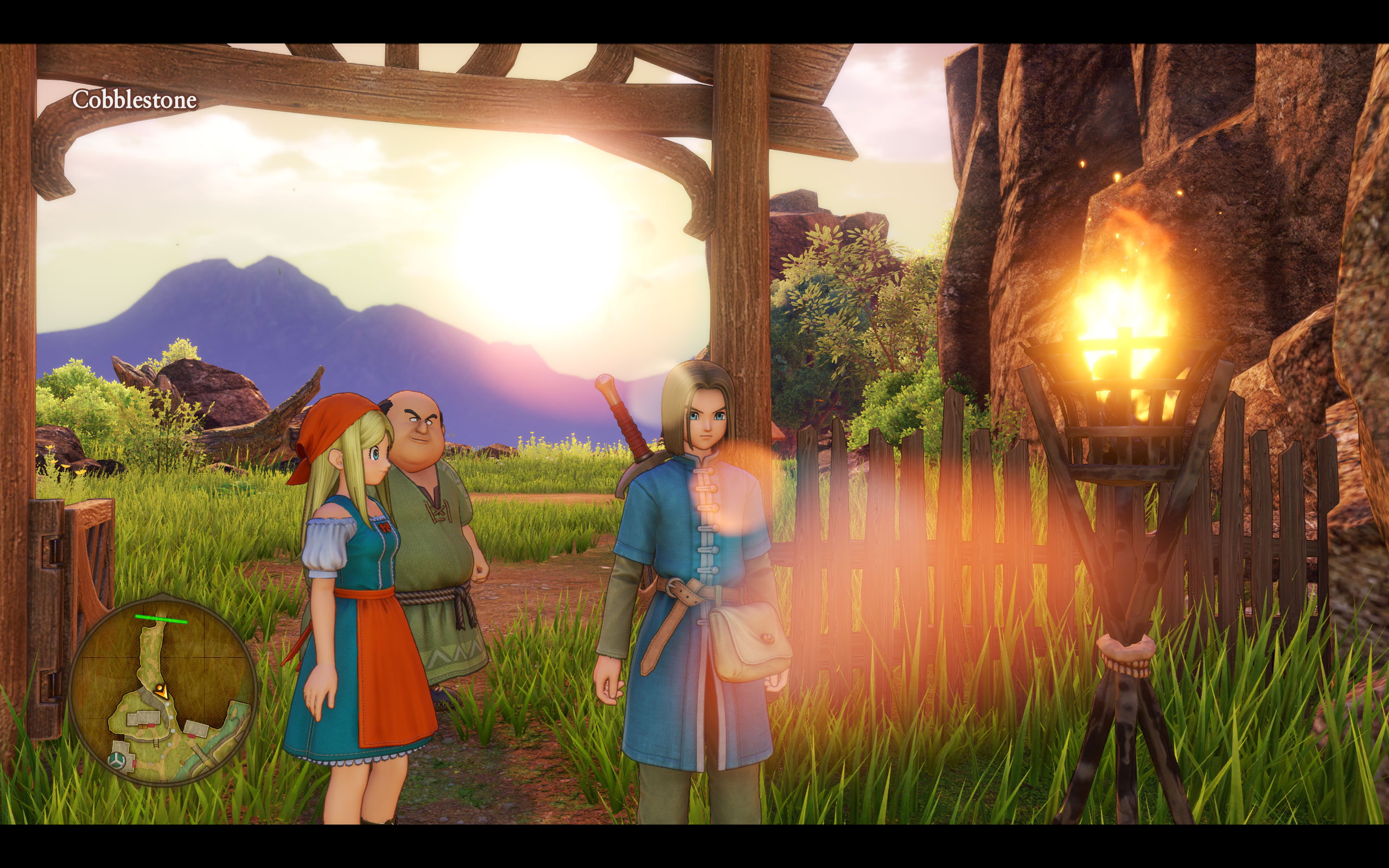
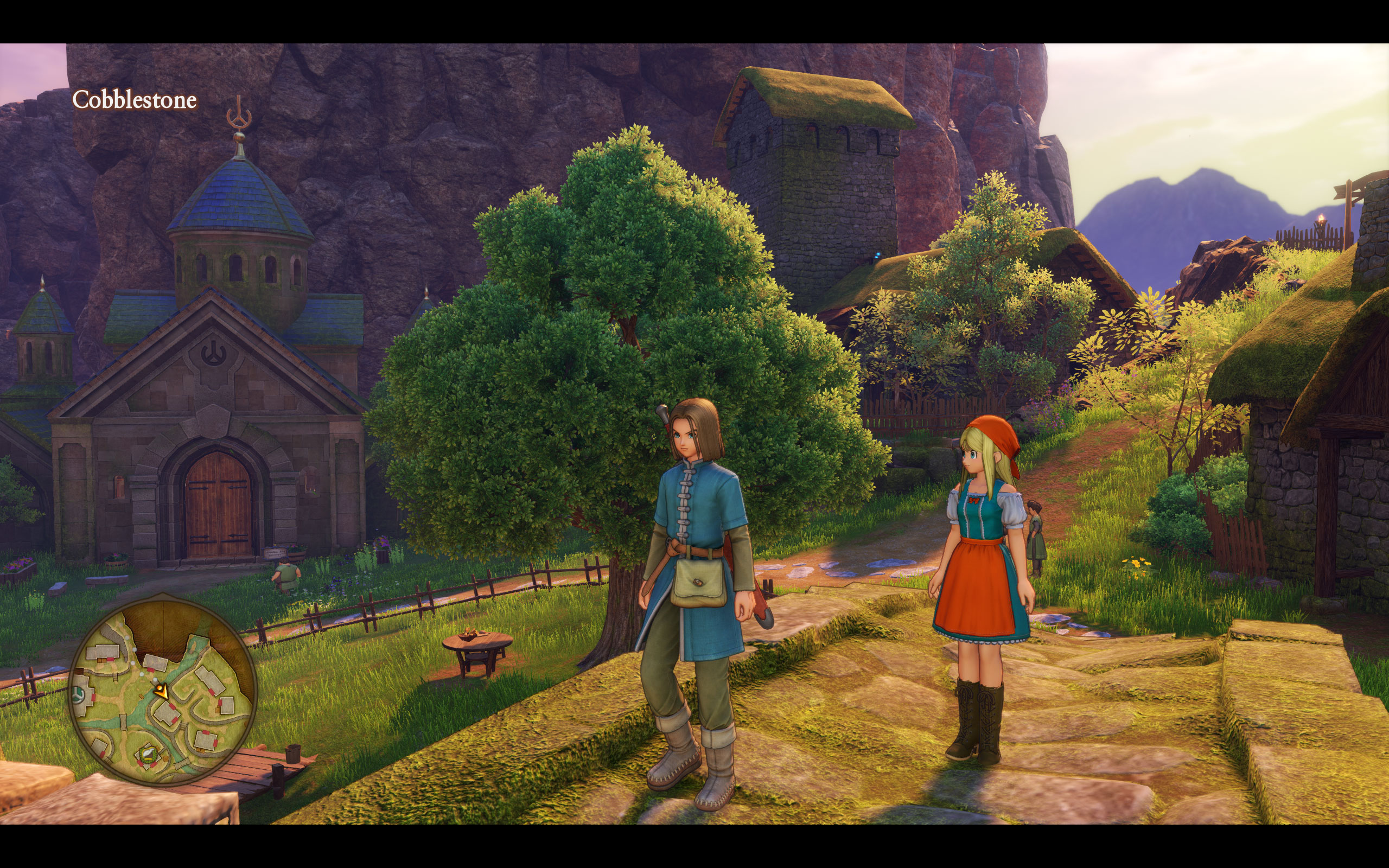
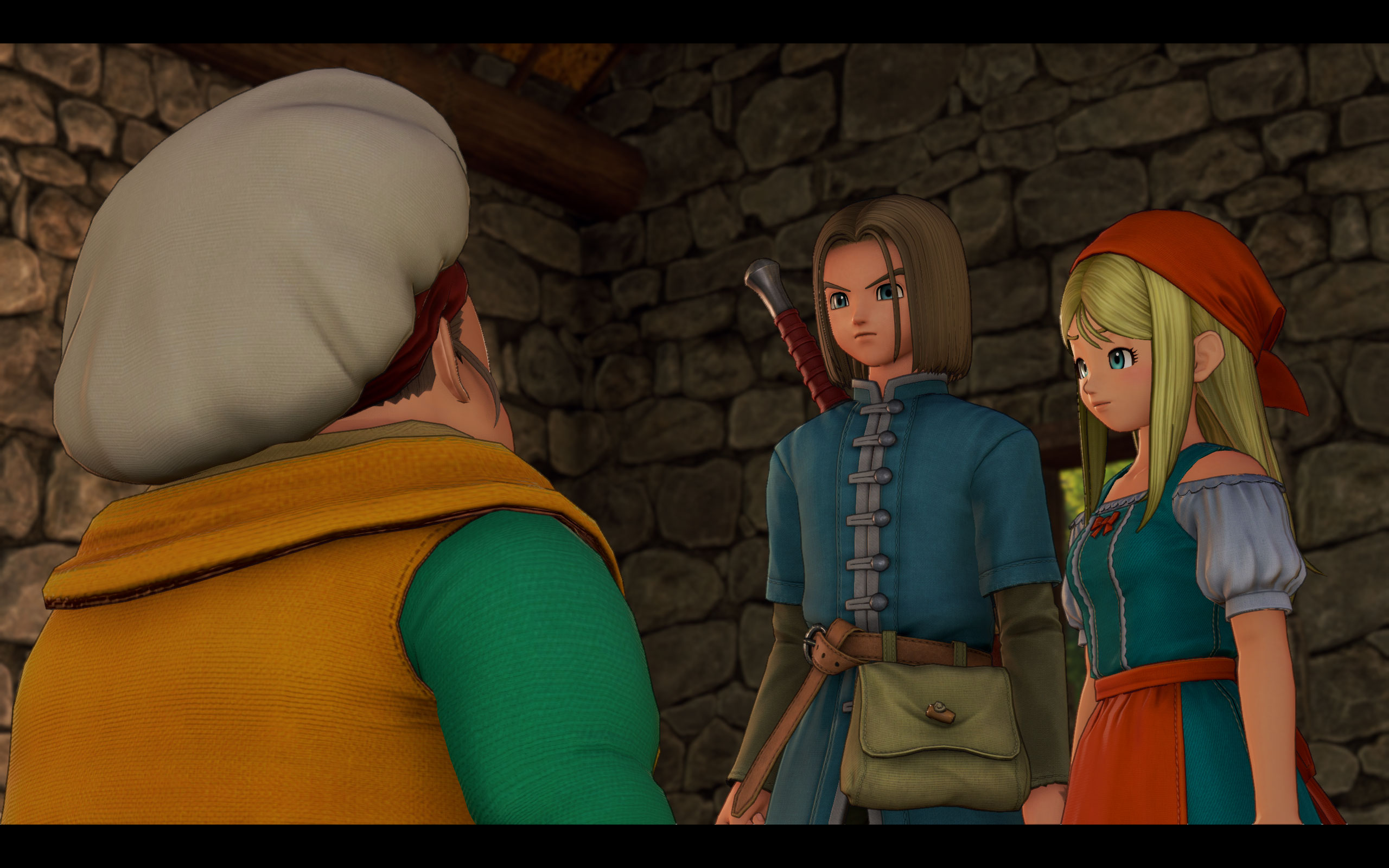

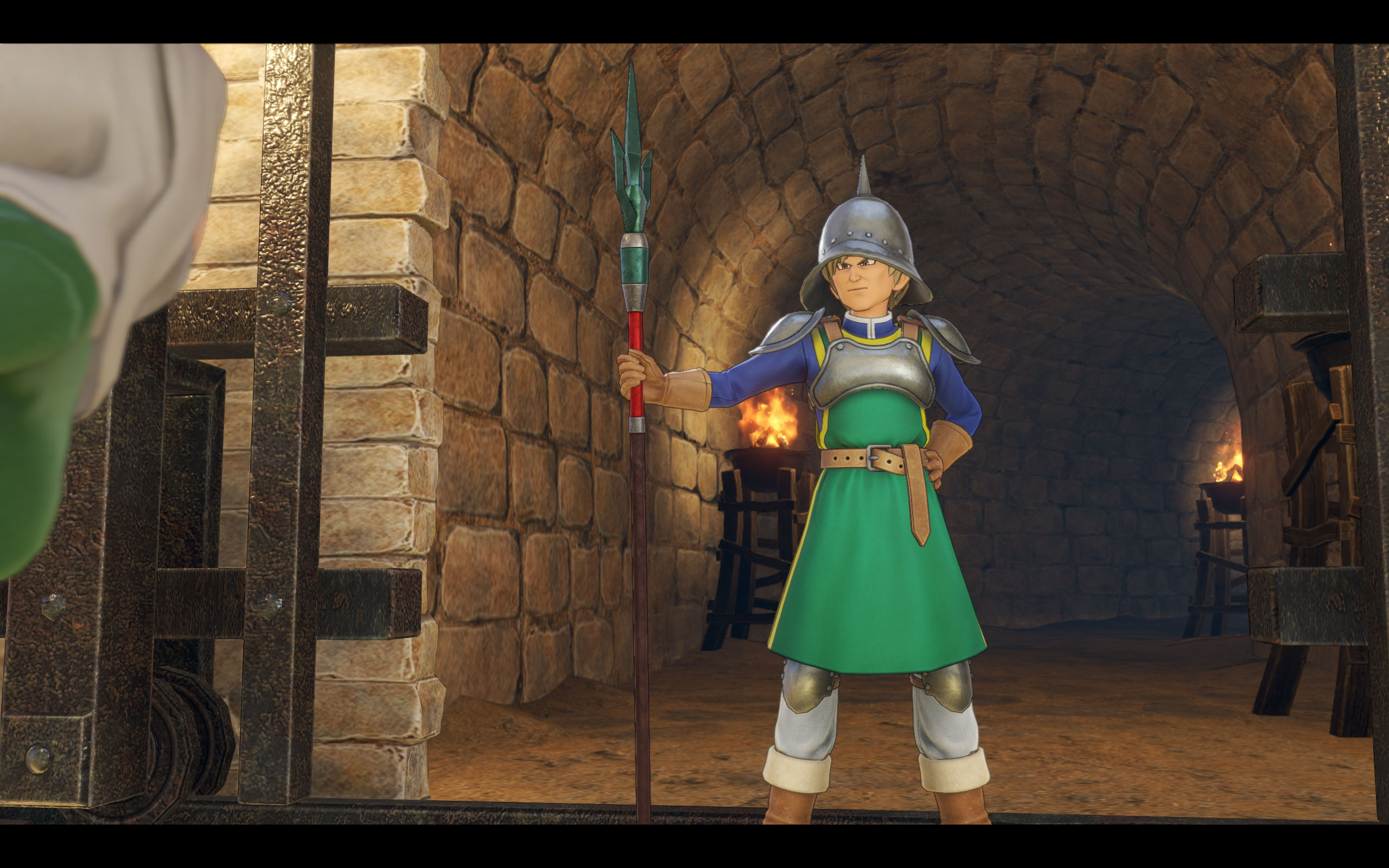
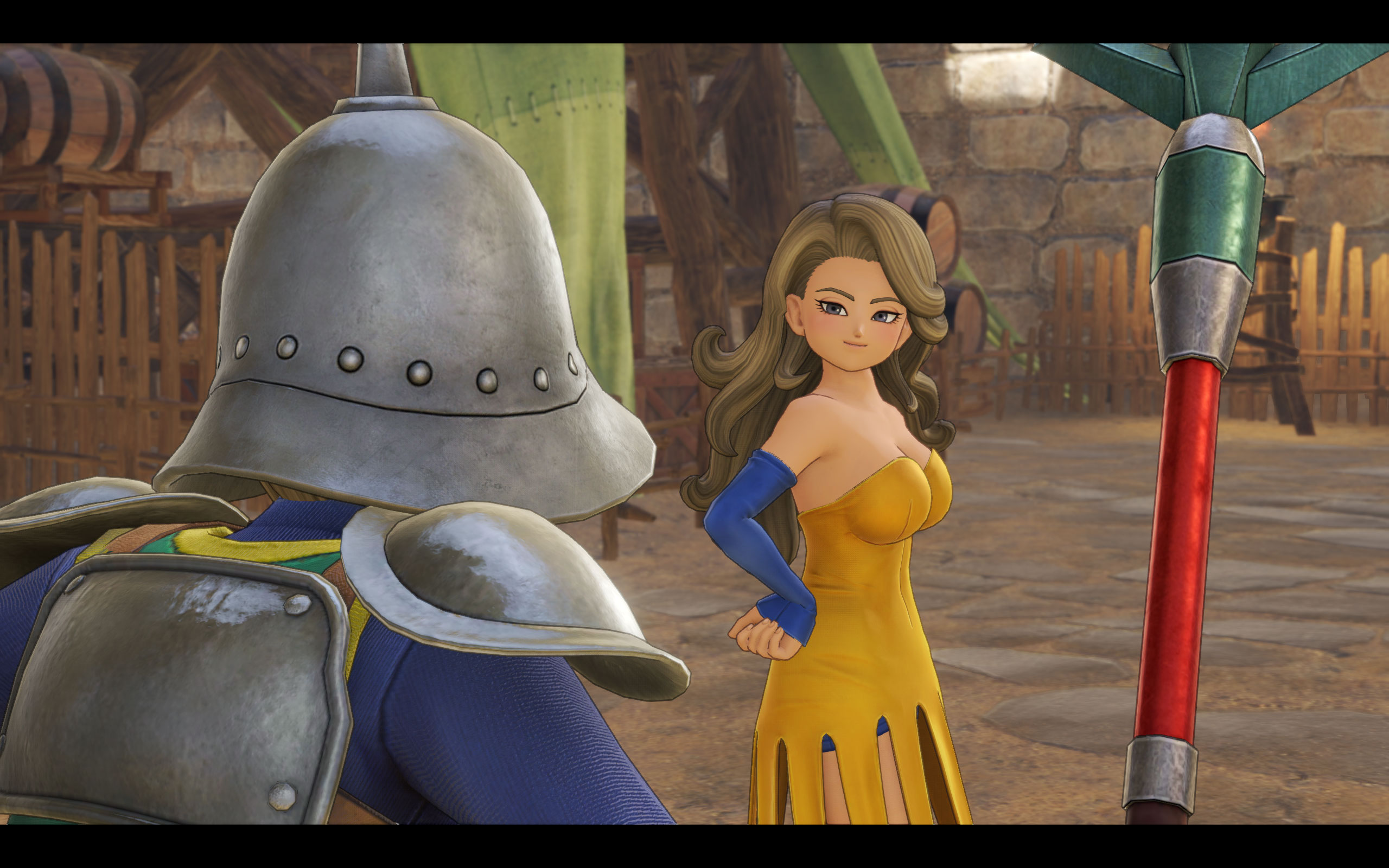
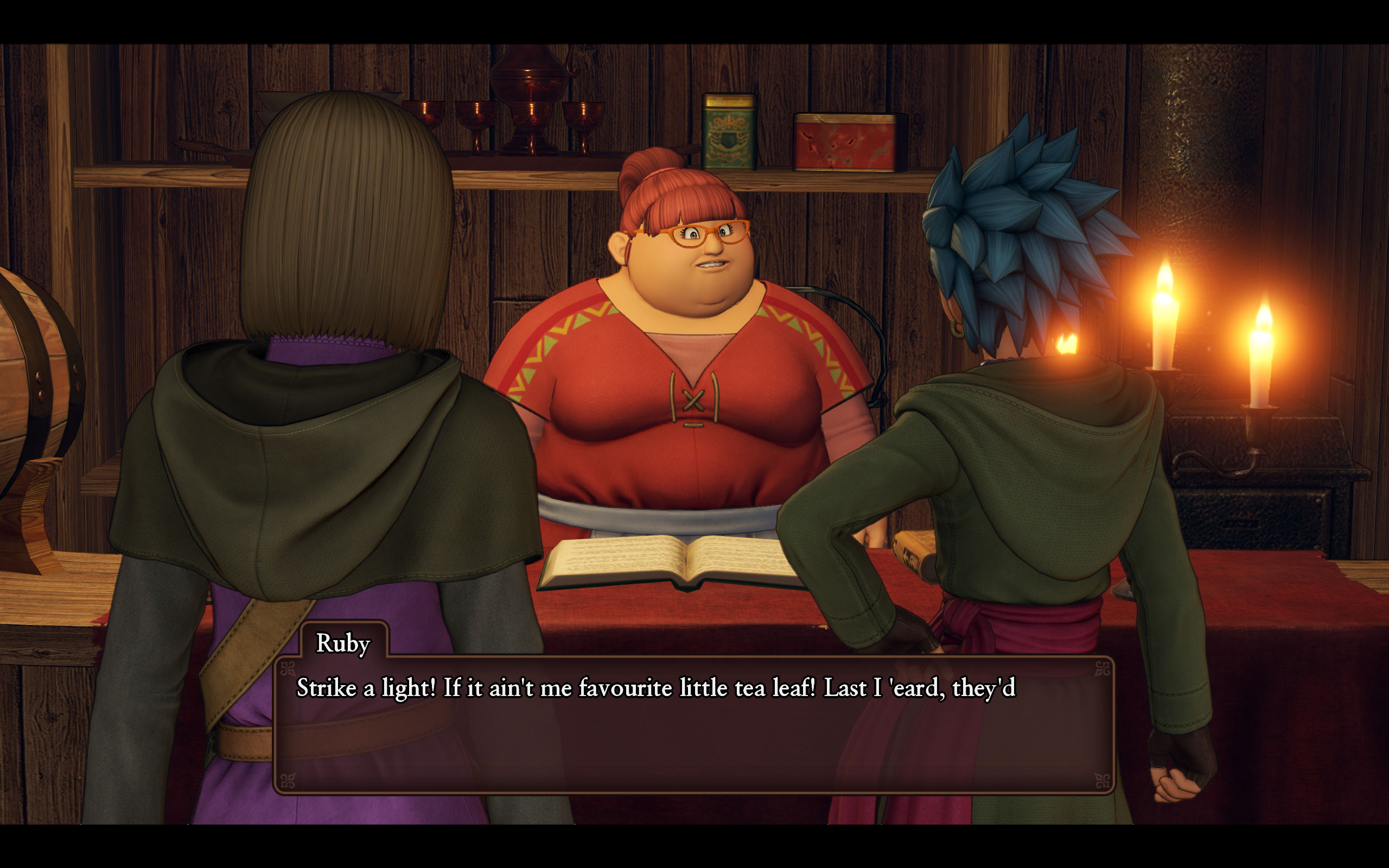
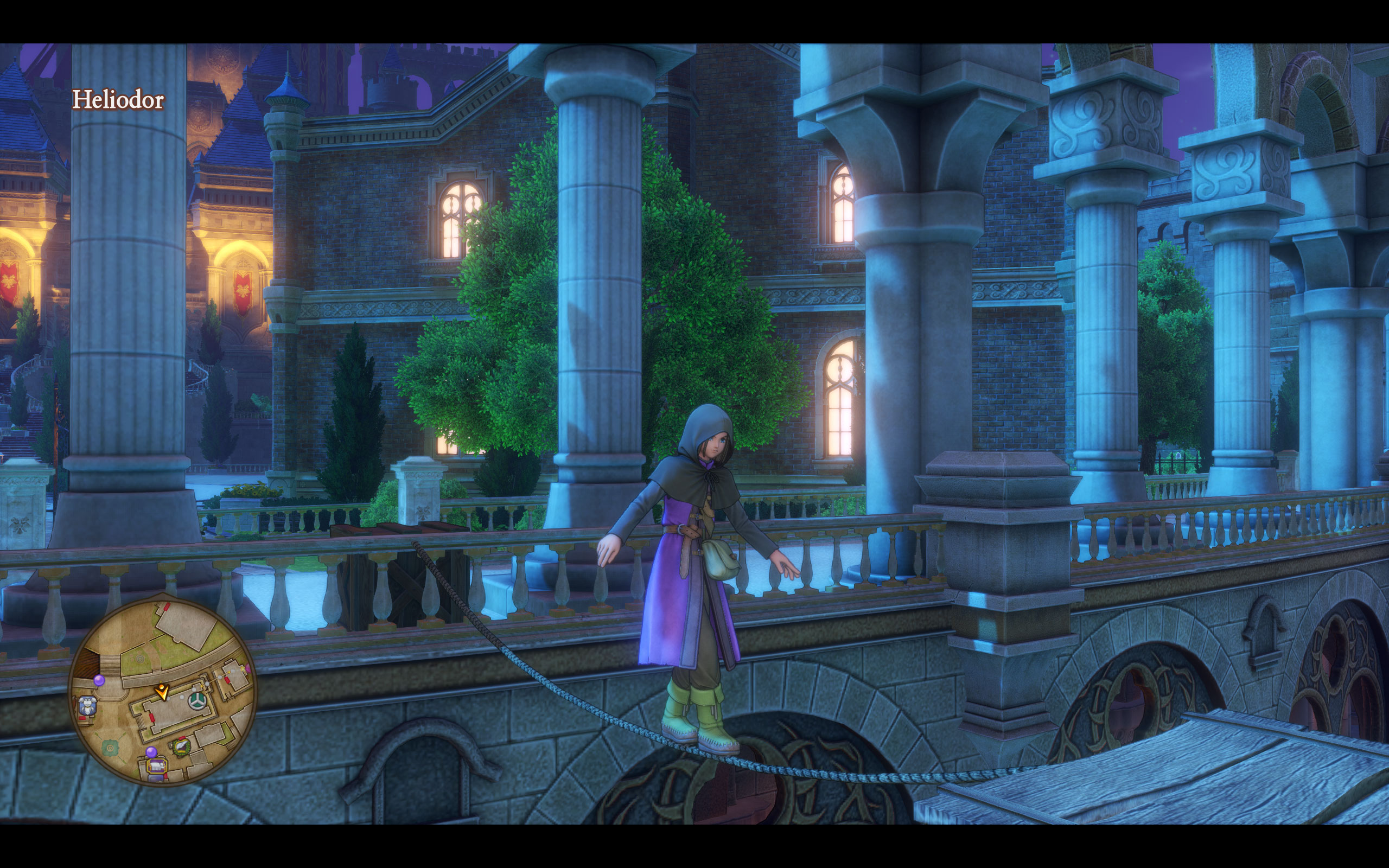

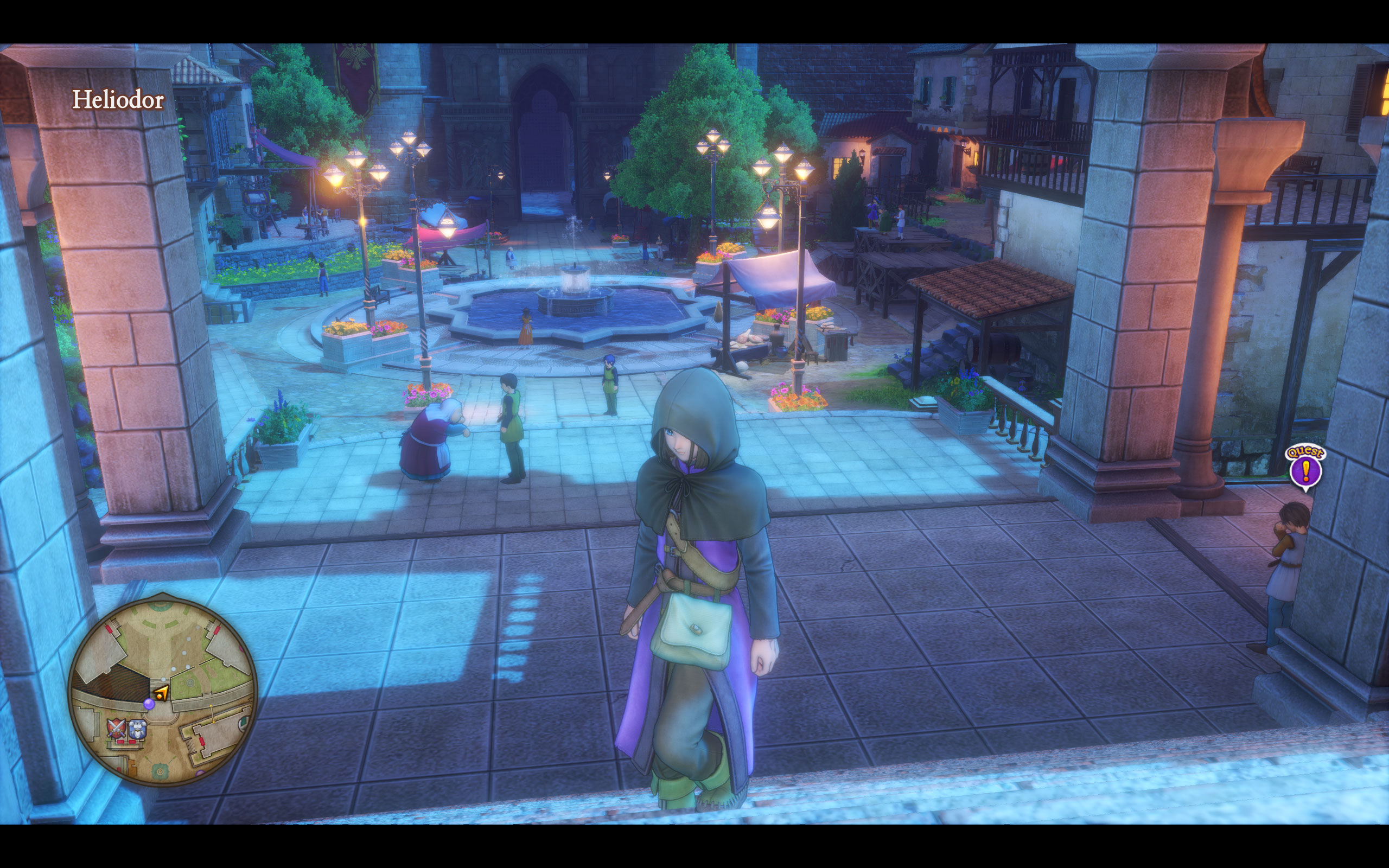
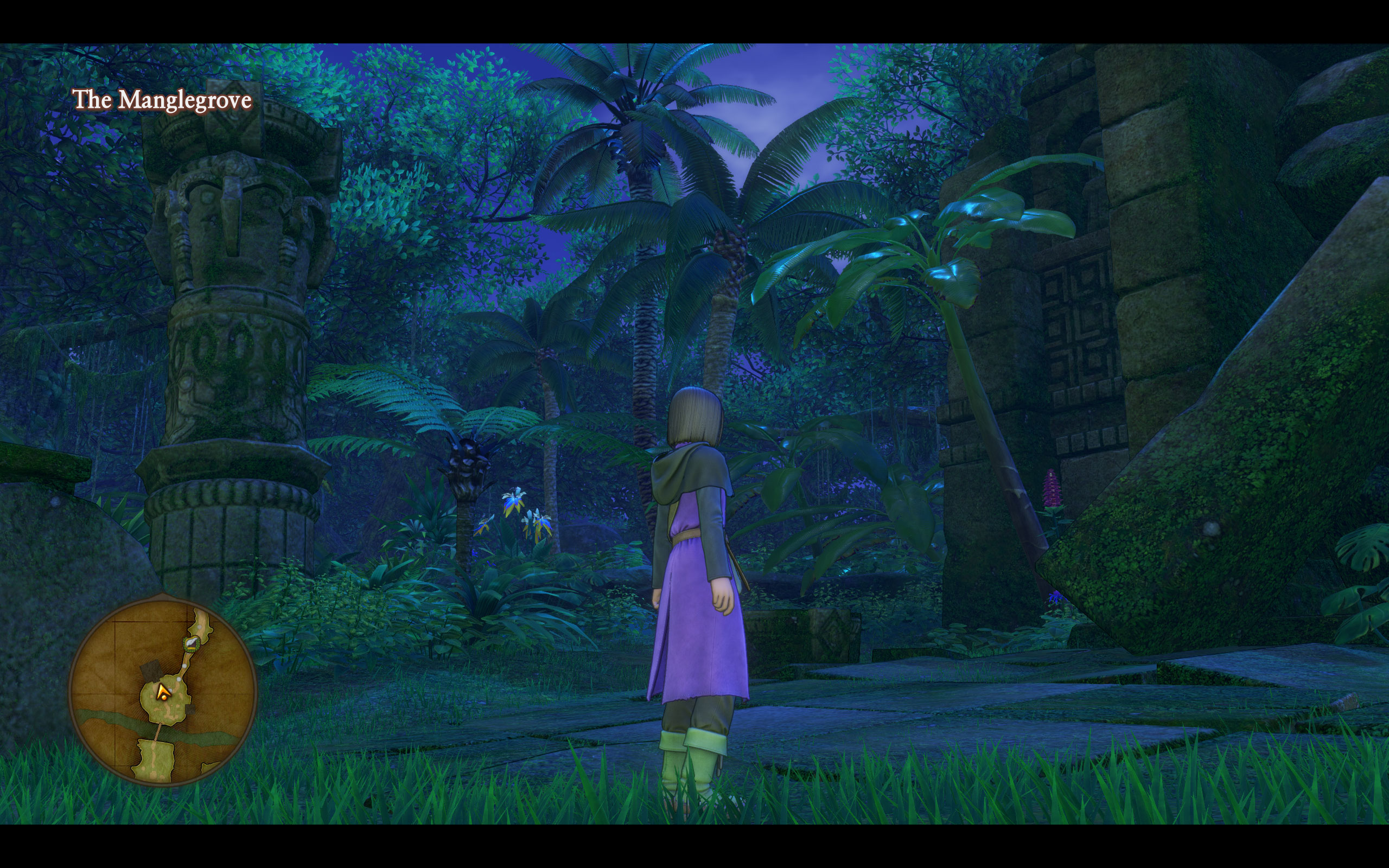
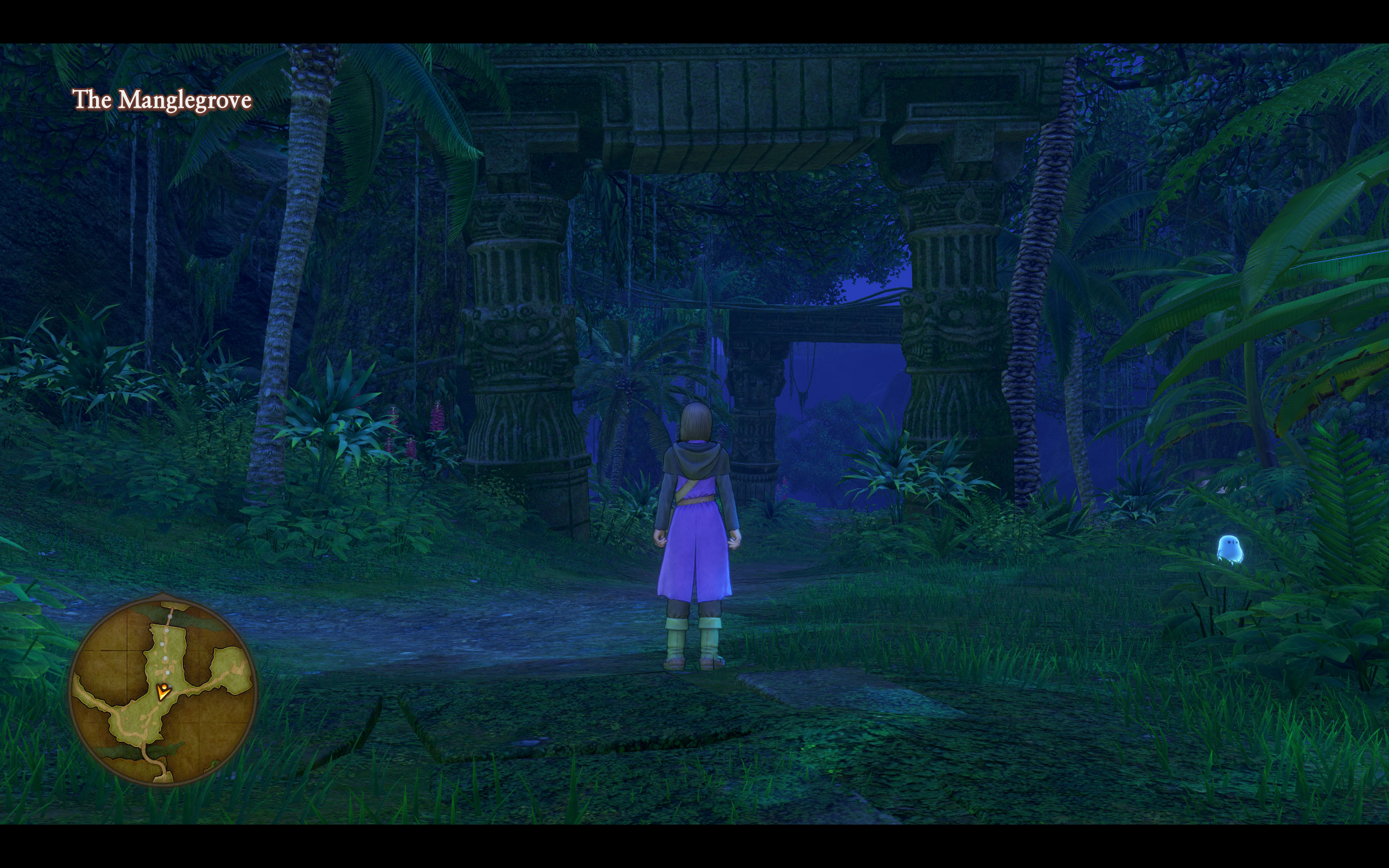
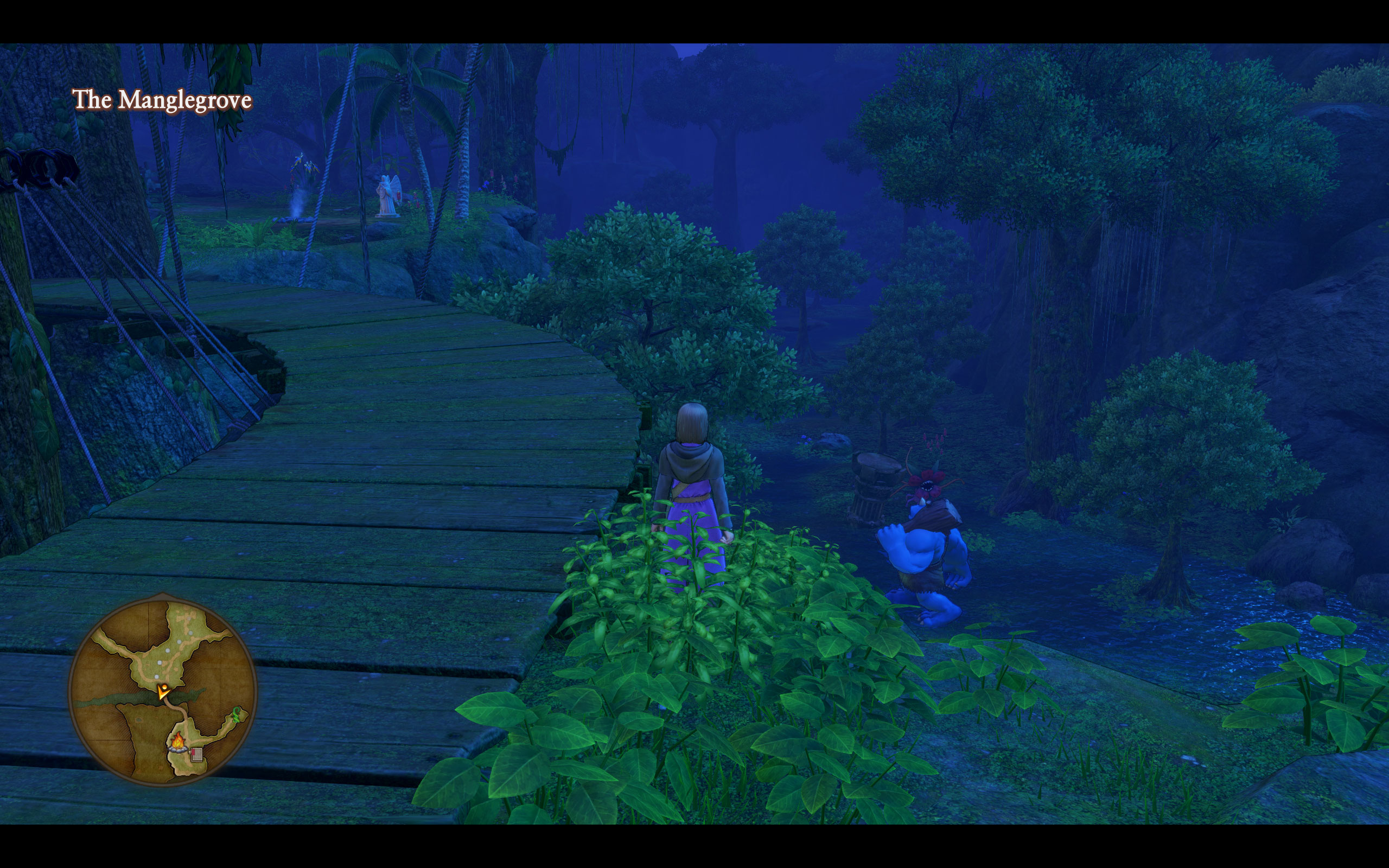
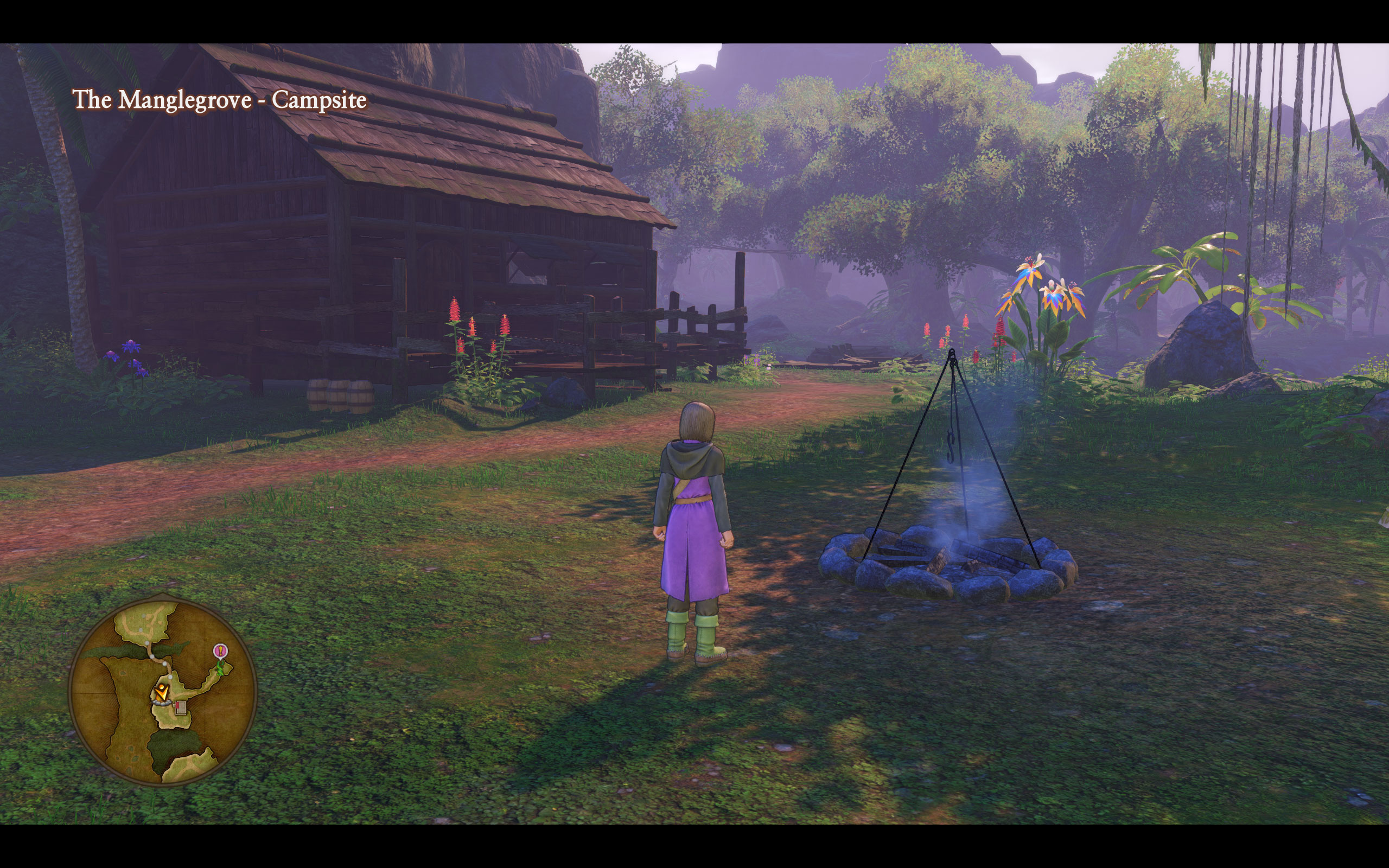
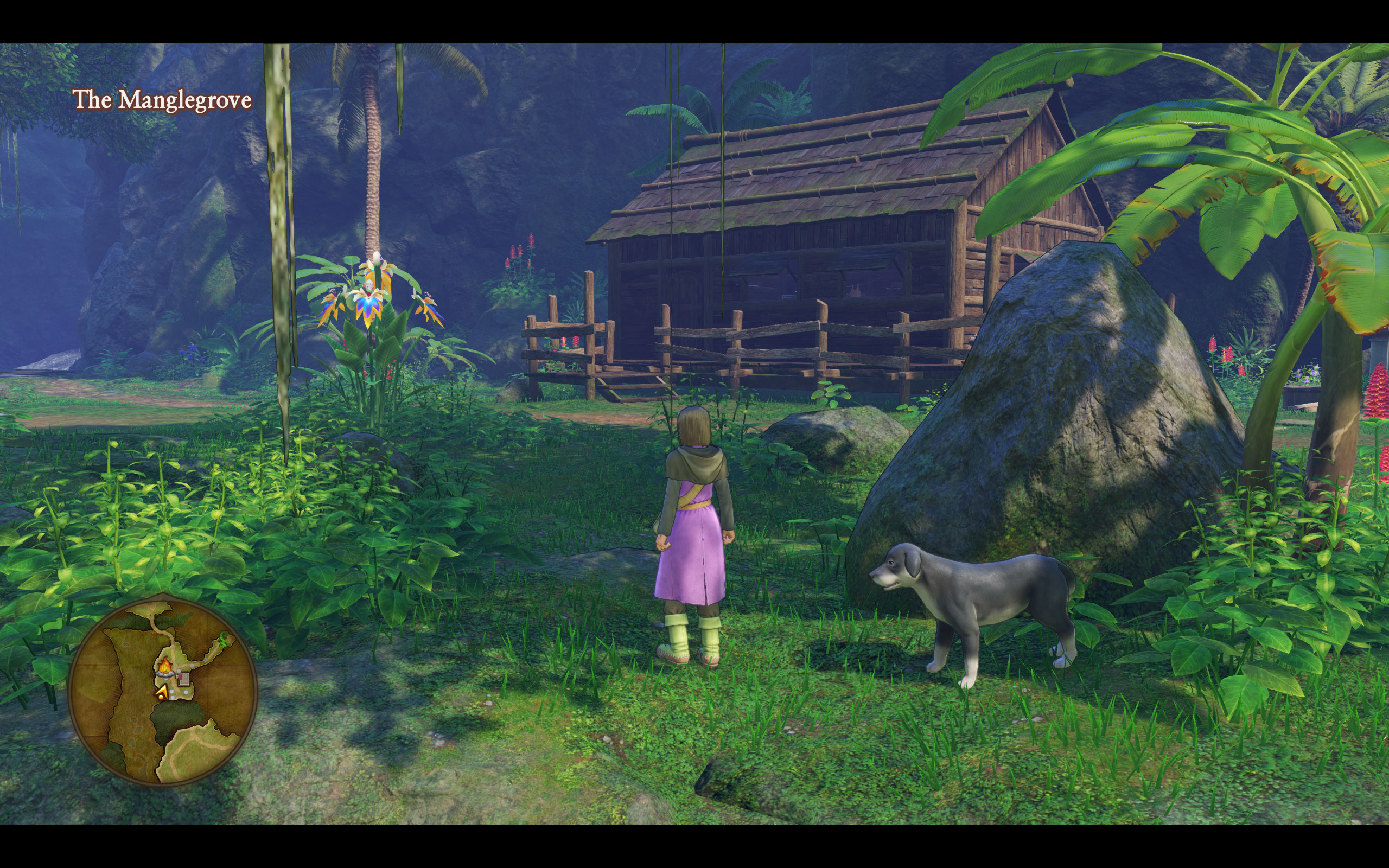
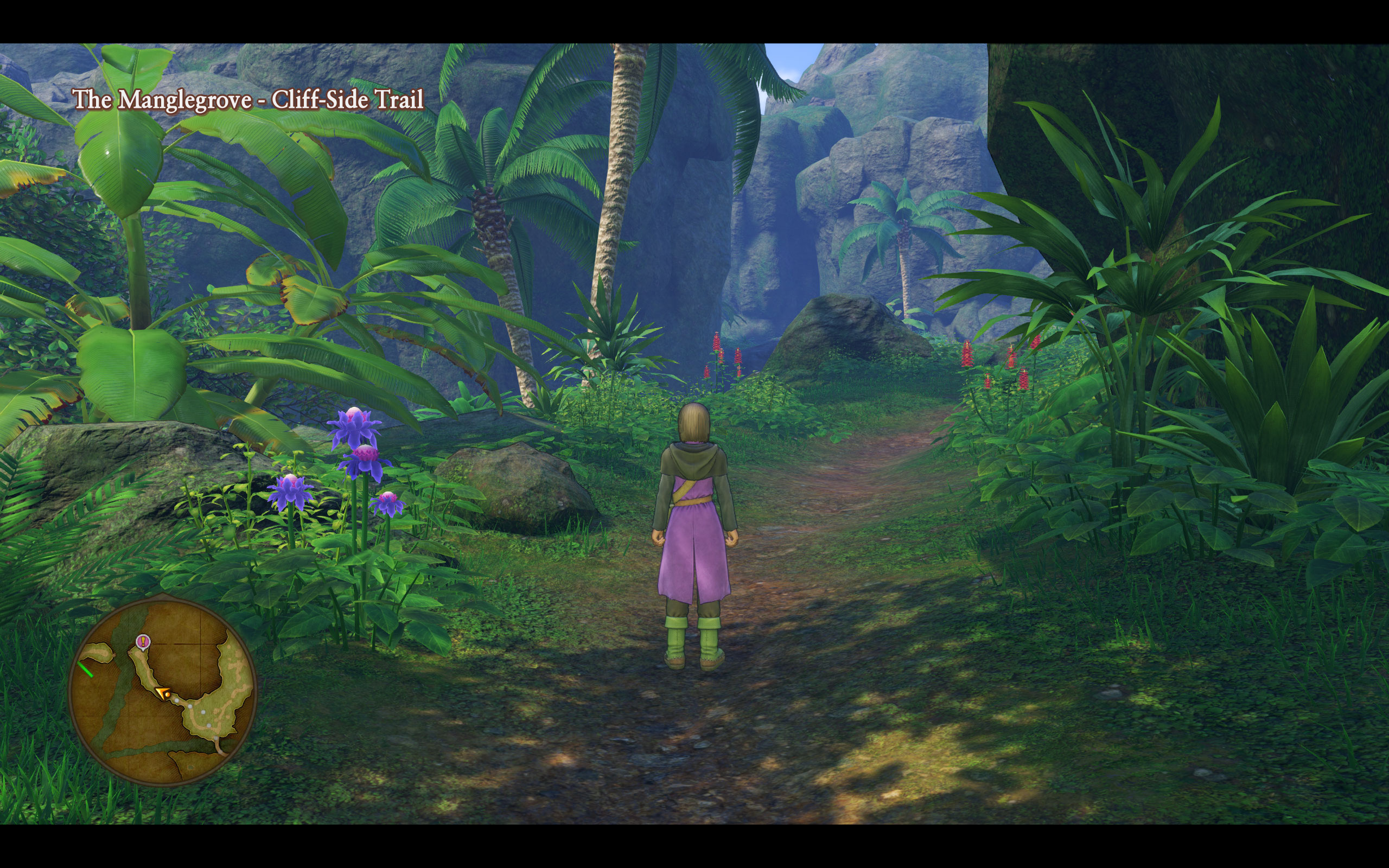
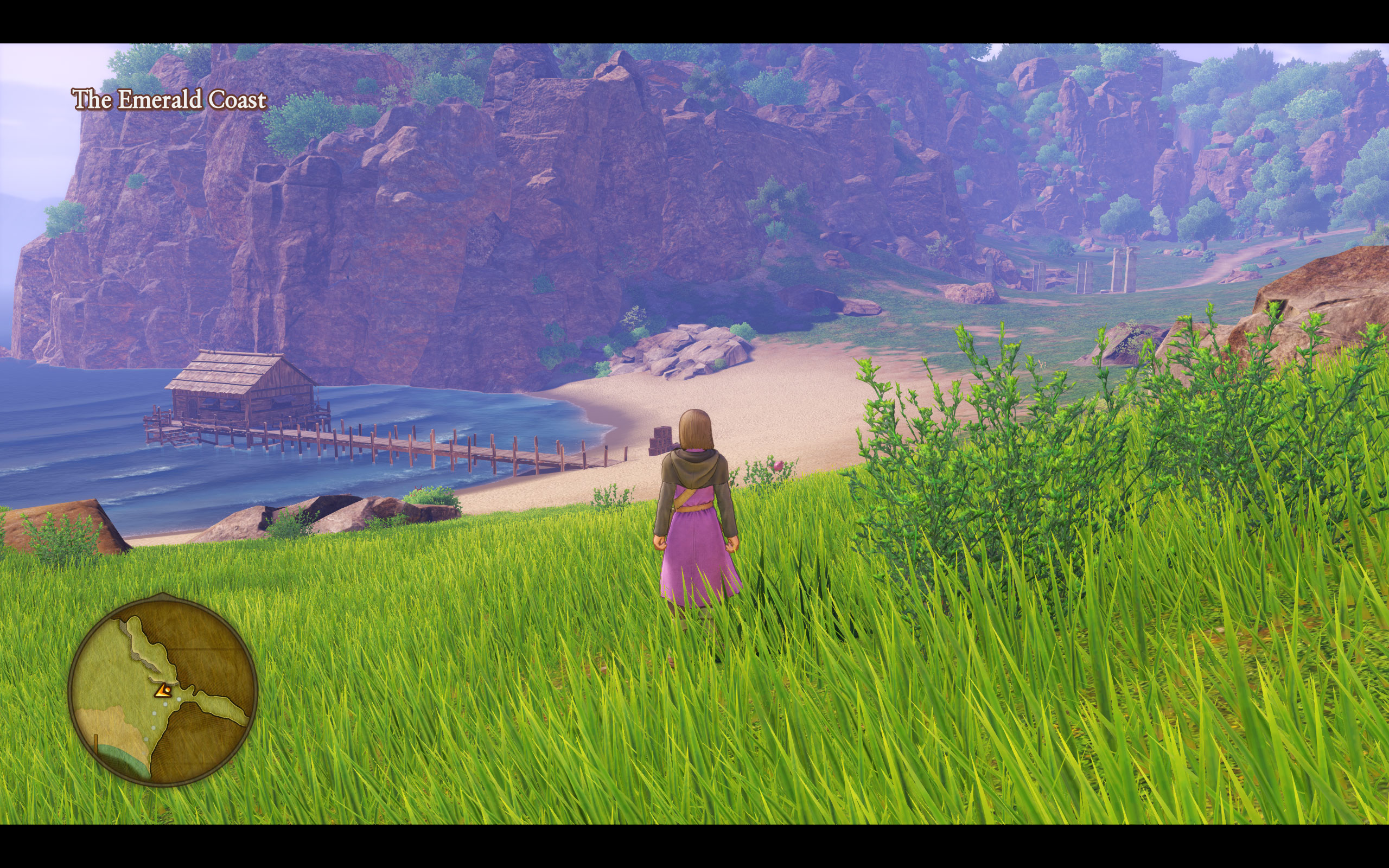
Graphics Settings
I merged the multiple settings screens into two to cut down on the number of screenshots.
- The first screens deal with the usual monitor and resolution options. If you just installed the game and are unable to change the resolution to 4K because it is grayed out, switch fullscreen mode away from the default of "windowed" to "fullscreen" to enable the 4K option.
- The game only supports 16:9, which means 16:10 (2560x1600) comes with black bars. The same will happen when a 21:9 monitor is used.

- The remaining options are few and can't match what we are used to from PC gaming.
- The options for AA, Post-processing, and shadows are nondescript, and just represented as numbers. A more detailed explanation would have been nice; it's not like there isn't any screen space available for that.
- The FPS cap can be toggled between 30 and 60 frames per second. Again, not good enough! Especially considering that a V-Sync disabled option exists.
- Thanks to the use of Unreal Engine 4, you can unlock the FPS by manually editing GameUserSettings.ini located in My Documents\My Games\DRAGON QUEST XI\Saved\Config\WindowsNoEditor. Here, you change the value of FrameRateLimit=60.000000 (use a high number like 1000, not 0 as that doesn't work).
I've played most of the game with FPS set to 1000 and didn't encounter any weird issues with gameplay, animations, or physics. - You may also use super-sampling (rendering at higher resolution) if you have FPS headroom by playing with the "ScreenPercentage" value in the same config file.
- Engine.ini in the same folder can be edited manually, too, to increase the draw distance, LOD distance, and shadow quality as outlined in this post.
- More info on possible INI Tweaks can be found in the Unreal Engine Developer Documentation.
Our Patreon Silver Supporters can read articles in single-page format.
Nov 14th, 2026 09:43 CST
change timezone
Latest GPU Drivers
New Forum Posts
- No screen and keyboard with mouse not being powered on (8)
- What can the FX 8320 do today? Here is the answer. (6)
- What are you playing? (26220)
- Windows new update 26H2 - Throttlestop (11)
- Tell me about your favourite graphics card (49)
- Gacha Games - Discussions, Pulls, Updates, etc. (1154)
- 3D Printer Club (851)
- Folding Pie and Milestones!! (10202)
- a note from zachary85's son (9)
- Have you got pie today? (17083)
Popular Reviews
- AMD Zen 6 Technical Deep Dive
- Corsair HX1000i Shift Crystal Review
- ASUS ROG Strix B850-I Gaming Wi-Fi7 W Review
- NZXT C1200 Platinum Review
- Upcoming Hardware Launches 2027 (Updated Nov 2026)
- Montech King 95 3D PRO Review
- NZXT H7 RGB+ Review
- NZXT H5 Review
- Phantom Blade Zero Performance Benchmark Review - 35 GPUs Tested
- XPG NIMBUS PLUS Review - Mid-range Chair With Strong Competitors
TPU on YouTube
Controversial News Posts
- NVIDIA Co-Founder and CEO Jensen Huang Officially Resigns (387)
- OpenAI CEO Argues Home PCs Waste the World's Limited DRAM Supply (152)
- NVIDIA Launches Investigation Into Jensen Huang's Relationship With Suspected Chinese Spy (136)
- Intel "Raptor Lake Next" 16-Core and 20-Core CPUs Surface (130)
- Legendary Game Studio BioWare Shuts Down Following EA Layoffs (104)
- Dell CEO Says the Memory Shortage Will Get Worse in 2027 (95)
- NVIDIA GeForce RTX 50-Series Scheduled for up to $500 Price Hike This Week (89)
- Modder Fits RTX 5090 With Four 8-Pin Connectors, Halving Current per Wire (80)