 0
GAMDIAS Hermes P2 RGB Keyboard Review
Performance »Driver

The driver for the GAMDIAS Hermes P2 RGB keyboard is called Hera, which is in line with the company using names of Greek gods throughout. It can be downloaded from their downloads page, and be sure to select the keyboard from the drop-down menu to also access the manual. Version 2.8.1 is the latest public release as of the time of testing, and we made a point of using it for this review. Note that unlike every other such occasion, GAMDIAS provides the option of not only an installer but a portable version to download and use immediately. The installer is 129 MB in size, and as seen above, its installation is fairly straightforward. The final package takes up approximately 272 MB once installed and operational for this keyboard, and you will probably notice the size discrepancy to the portable version since it is all of 117 MB only.
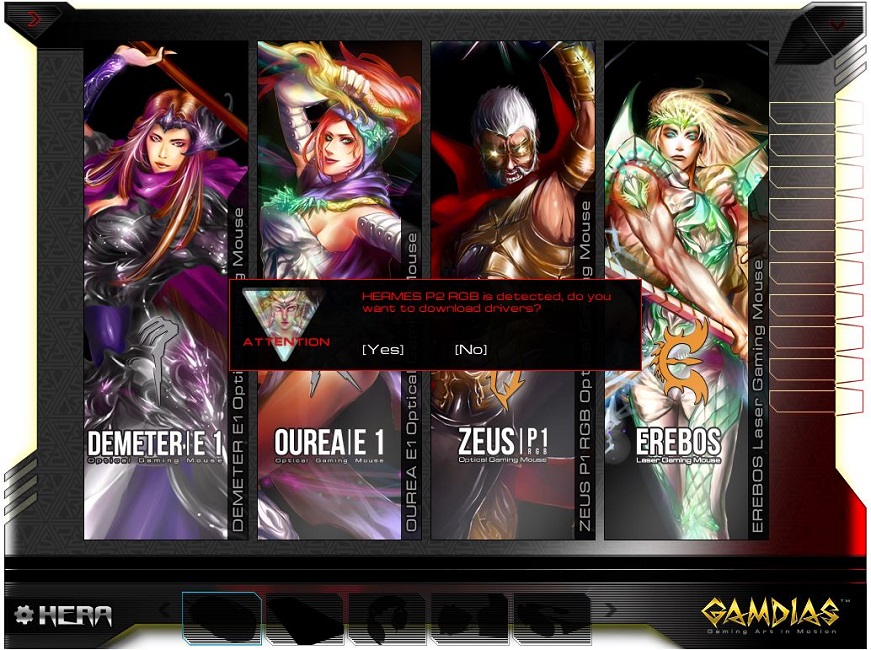
With the driver installed and the keyboard connected, running the program shows this to be a multi-device driver, and you will be prompted to download the files specifically for the Hermes P2 RGB. The portable version only has the files for the specific product, and this is why it takes up less space. So if you see yourself only getting one of their products, the portable version is the way to go. I do appreciate the choice provided by GAMDIAS here. What I do not appreciate, however, is the poor scaling with high DPI displays. Indeed, I had to turn up OS scaling and even go from 4K to 1440p before I was able to see all the options clearly with a driver window large enough to use comfortably. There is no excuse for this in 2018, and unfortunately, this is the second straight optical keyboard with this issue, although from different manufacturers. If you operate at 1080p or less, you will have no issues at standard 100% scaling on any recent Windows OS, so keep that in mind.
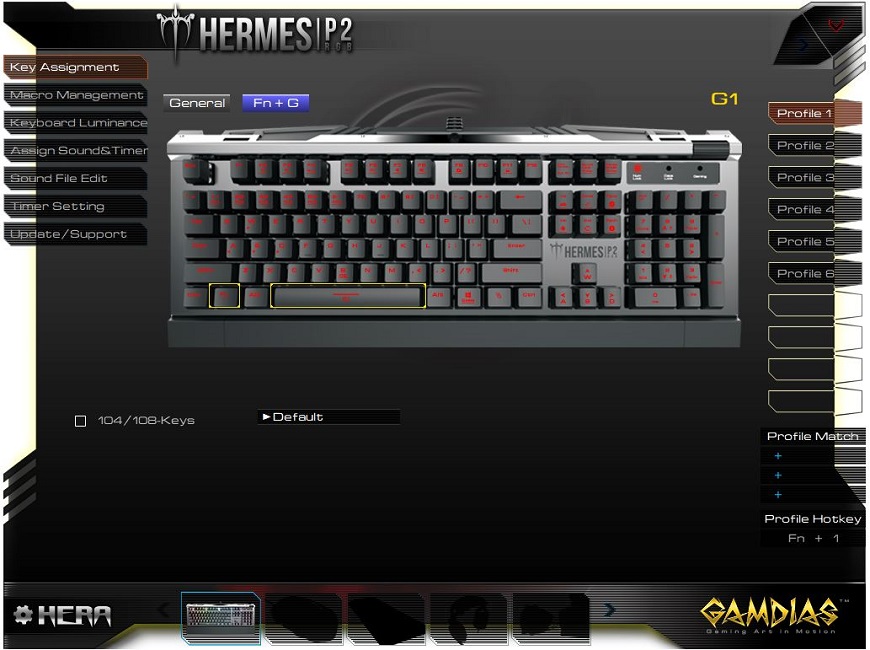
I tested both the installed driver and the portable driver, and both were functionally identical as it pertained to the keyboard. Given the installed version has more to see, and potentially get confused by, I am going to be discussing it alone in this section. Hera, in its installed form, has tabs in the bottom to go through the various GAMDIAS peripherals it supports, and presumably, a dedicated tab will open up for each device as with the keyboard here. There is a link to a video guide, and GAMDIAS has a YouTube playlist that goes through the main features for those interested. Going back to the tab for the keyboard, we see it support six profiles that you can edit individually, and the hotkeys to these are displayed on the driver as well as printed on the associated keycaps. There are seven menus worth of controls for the keyboard, with the final one for specific Hermes P2 RGB settings, including firmware update and driver update.
The default menu is for key assignment, and here too are two subsets depending on whether you are in game mode or not. In general mode, you can assign/re-assign the entire set of 104 keys, as compared to the two in game mode. Either way, options are plentiful, although navigating to a specific choice can take time as a result of having to go through even more sets of options. All that empty space below is just screaming for a revamp of the driver because the driver's user experience alone is just as important a factor as any today when it comes to making a purchasing decision. I do appreciate that the options all have a short description shown in the bottom-left corner, which is useful with some options, such as Blueprint.
The second menu is for macro management, and it is well fleshed out once you take a few minutes to go over the various options available. There are plenty of them too, to where I would say this is functionally on par with or even better than most higher-end keyboard drivers. You can create macros, edit or delete them as desired, which includes adding in mouse commands and specific step delays, organize them in folders, and also assign macros to a key over the previous menu once set up.
Given the RGB backlighting available here, it was no surprise that the software driver had a dedicated menu for keyboard lighting, and that is exactly what we see in the third menu. GAMDIAS shows their love for nested option sets here too, with there being three lighting sets instead of a single one, which the primary menu could have handled. Again, poor use of space and the lack of scaling only made it worse. The first option is full keyboard static lighting, and here, you have individual R/G/B channel brightness control in 256 steps for a total of 16.8 M colors. There are sliders to quickly adjust the color hue, some preset colors to choose from as well as another slider for the brightness of the keyboard in six steps. The second option set is for per-key lighting control, and the six profiles have associated color schemes to go along with them as well. You can freely edit any of these by selecting the color and simply clicking on the key on the virtual keyboard in the driver. The final option set contains the various dynamic lighting effects with subsequent options that are effect-specific, including the transition/animation speed and direction of movement. There is inconsistency here in how some of the effects are displayed on the virtual keyboard and others are not.
The three other menus left are all interesting in that they could have been integrated under the key assignment menu or combined all together, but this is the least of my complaints as far as the user interface goes. GAMDIAS allows you to select, record, edit, and assign sound clips, and even set timers to keys, which they have separated from general key assignments by even giving it a different color scheme when assigned. Think of this as being a software timer that notifies you of a task via an on-screen display notification and even triggers an audio alarm if need be. Some of these have also been provided by others, but not necessarily in such a detailed manner. If you are one to make use of such features, then this is definitely a plus point for the keyboard.
Nov 27th, 2026 05:48 CST
change timezone
Latest GPU Drivers
New Forum Posts
- Mouse Pad advice - Shidenkai out of production? (12)
- What's your main Black Friday / Cyber Monday purchase? (28)
- Wireless Internet sharing between PC and router both-ways, is it possible? (31)
- Using sodimm+adapter instead of full size dimm DDR5? (103)
- SABRENT AIC's (no bifurcation) Black Friday deals (0)
- Found Out Why My FygoOS Transfers Were Stuck at 11 MB/s (0)
- X79 and/or rampage IV OC'ing thread for those of us still left.... (2461)
- Will zen 6 mobos have anything extra vs current ones? (63)
- Dell Dimension E510 Retro Gaming PC Upgrade & Modification (3)
- Gacha Games - Discussions, Pulls, Updates, etc. (1166)
Popular Reviews
- VZMORE AX9 Max Review
- Upcoming Hardware Launches 2027 (Updated Nov 2026)
- ASRock X870E Challenger Wi-Fi White Review
- AMD Ryzen 7 9800X3D Review - The Best Gaming Processor
- Microsoft Surface Laptop Ultra Review - The Next-gen Arm Laptop
- AMD Zen 6 Technical Deep Dive
- Montech CyberFlow ARGB 360 Review
- Phantom Blade Zero Performance Benchmark Review - 35 GPUs Tested
- Corsair RM1200e (Second Generation) Review
- ORICO Obook15 AI Review
TPU on YouTube
Controversial News Posts
- Jensen Huang Reinstated as CEO of NVIDIA (618)
- NVIDIA Co-Founder and CEO Jensen Huang Officially Resigns (492)
- Report: Jensen Huang Eyes NVIDIA Comeback (281)
- Open Letter Asking NVIDIA to Reinstate Jensen Huang Passes 115,000 Signatures (184)
- OpenAI CEO Argues Home PCs Waste the World's Limited DRAM Supply (152)
- NVIDIA Launches Investigation Into Jensen Huang's Relationship With Suspected Chinese Spy (136)
- Intel Razor Lake Gets a 12 P-Core bLLC Chip With No E-Cores, Per Leak (94)
- NVIDIA GeForce RTX 50-Series Scheduled for up to $500 Price Hike This Week (89)