 32
Gigabyte GO27Q24G Review - Borderless by Design, Gaming by Nature
Picture Quality, Uniformity & Viewing Angles »Controls and OSD
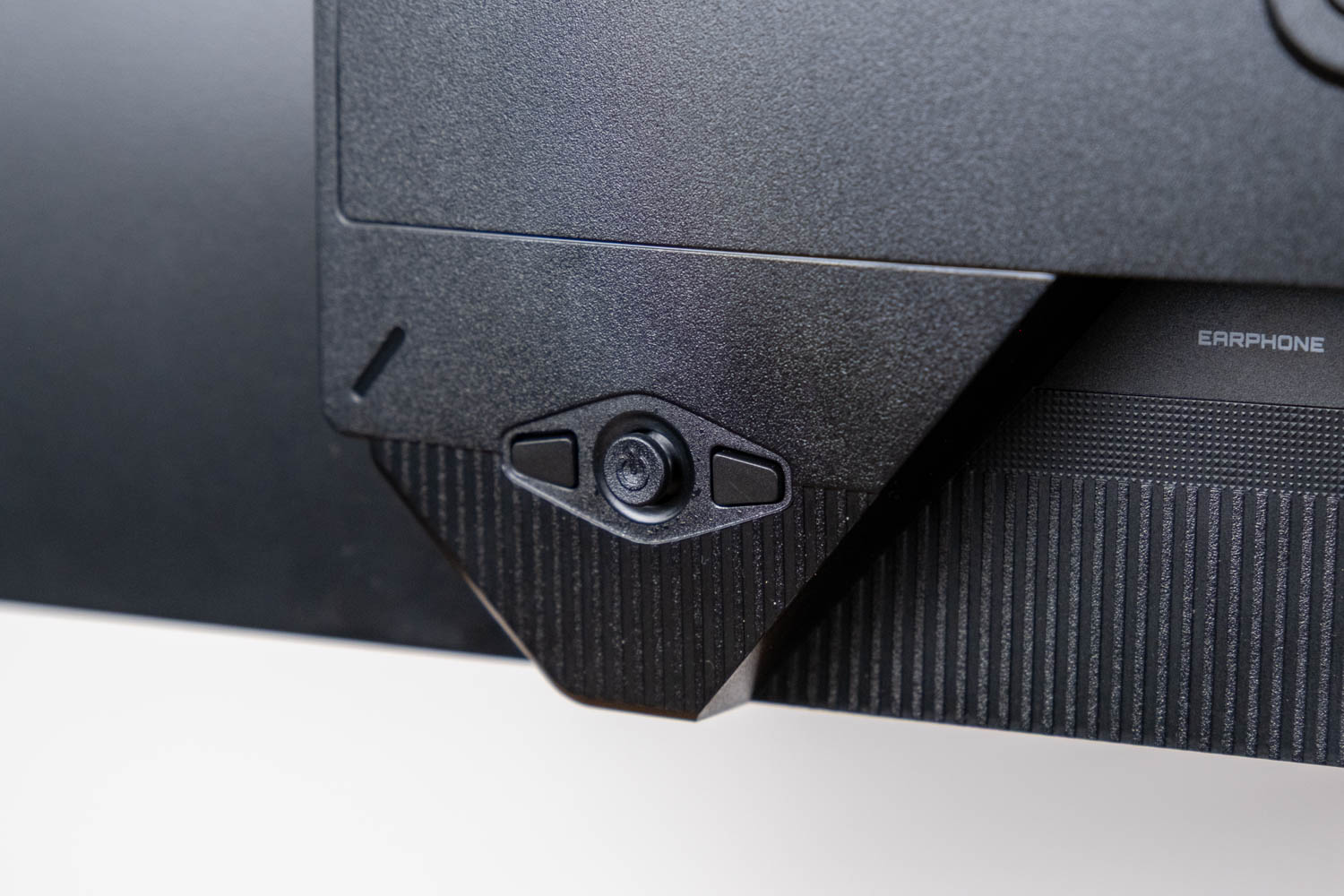
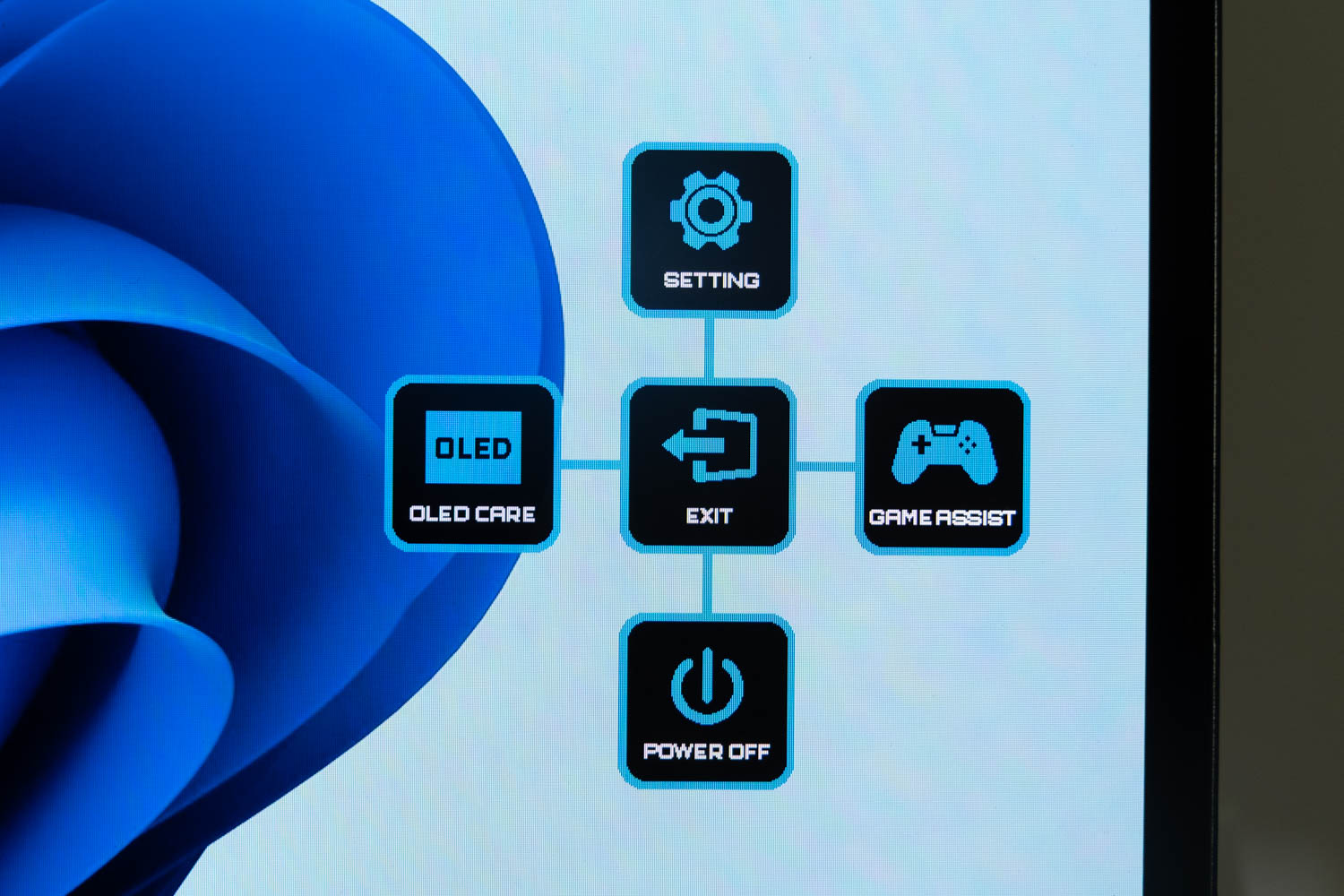
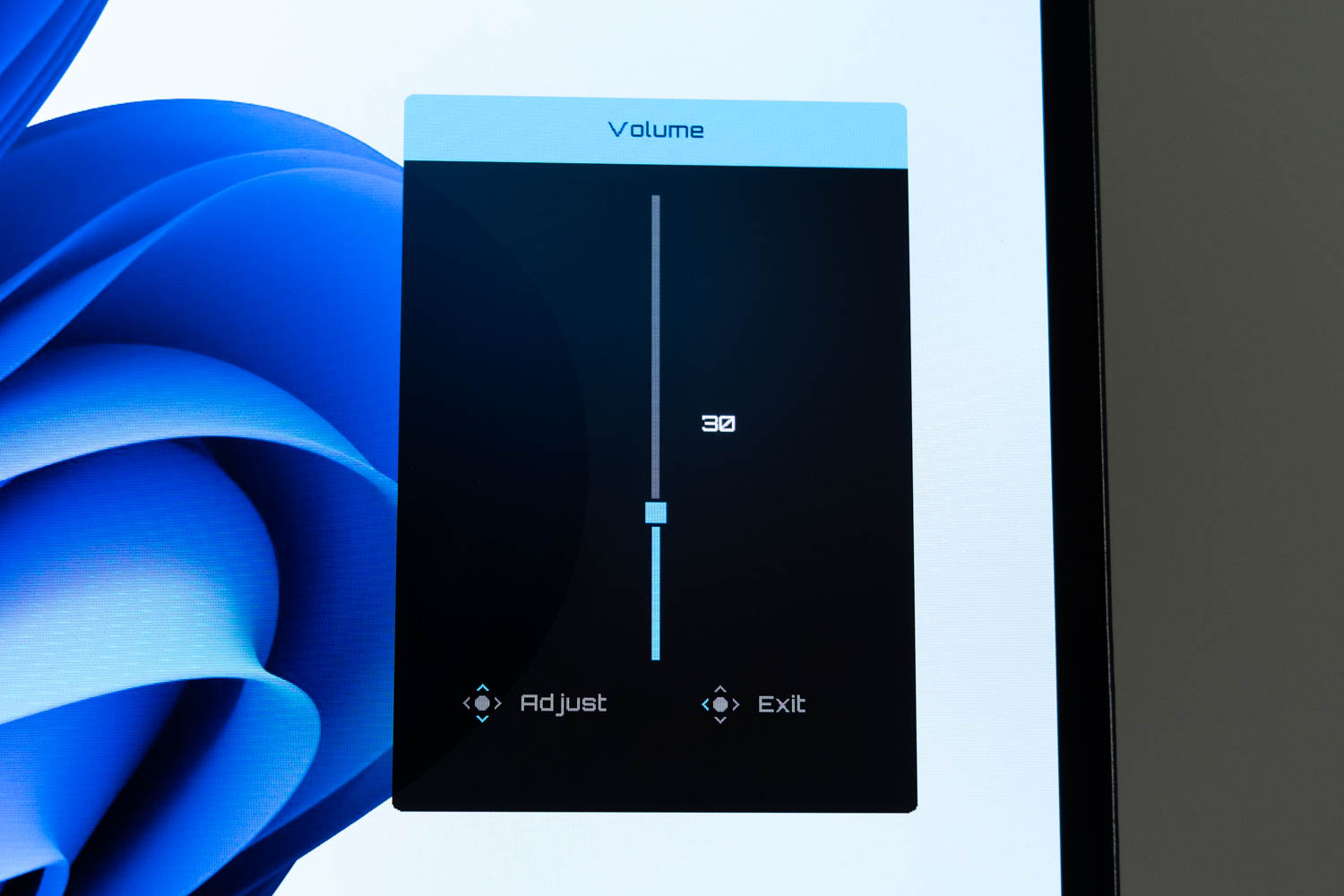
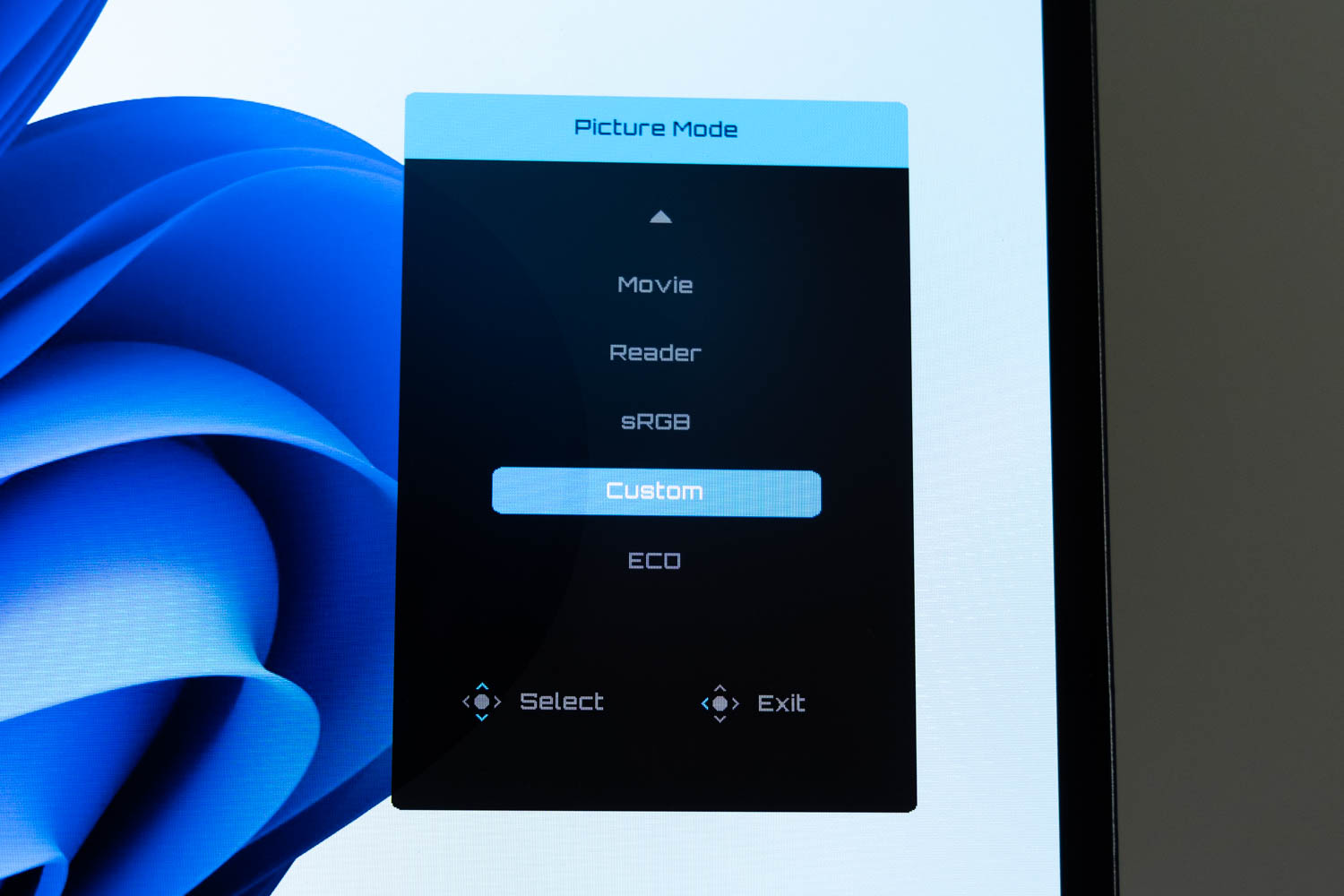
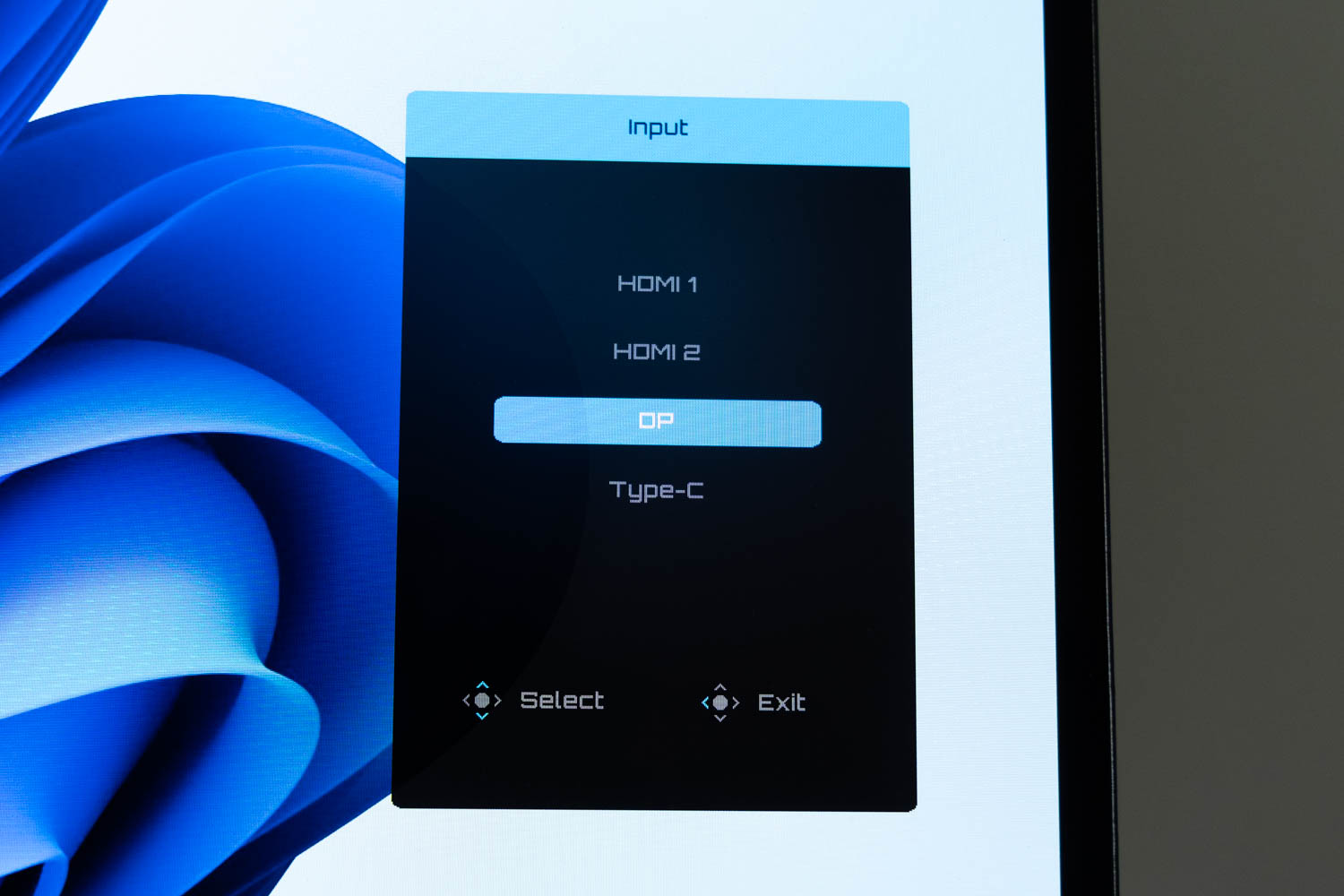
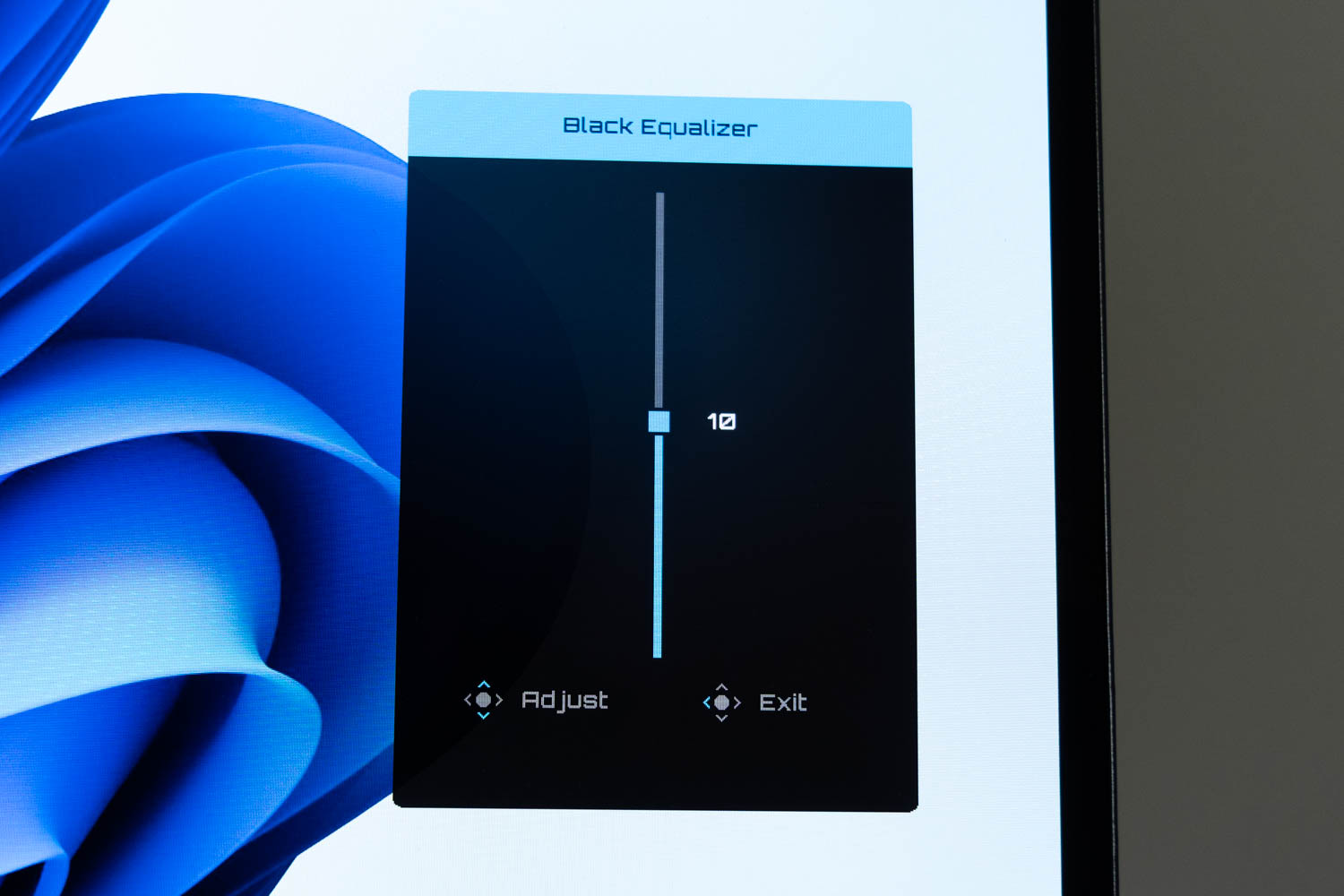
The OSD is navigated via a four-way joystick on the rear lower edge of the monitor. Tilting it in any of the four cardinal directions provides shortcut access to headphone volume, picture presets, black equalizer and input selection. Pressing it opens the quick menu selection where we can proceed to the full OSD menu structure or dive into the OLED Care and Game Assist parts of the OSD.
The main OSD is organized into Gaming, Picture, Display, PiP/PBP, System, and Language sections. The bottom bar always shows the current active settings at a glance—input, color range, picture mode, brightness, gamma, and color temperature—which is a useful touch. The status bar at the top confirms the connected resolution and refresh rate alongside the current VRR state.
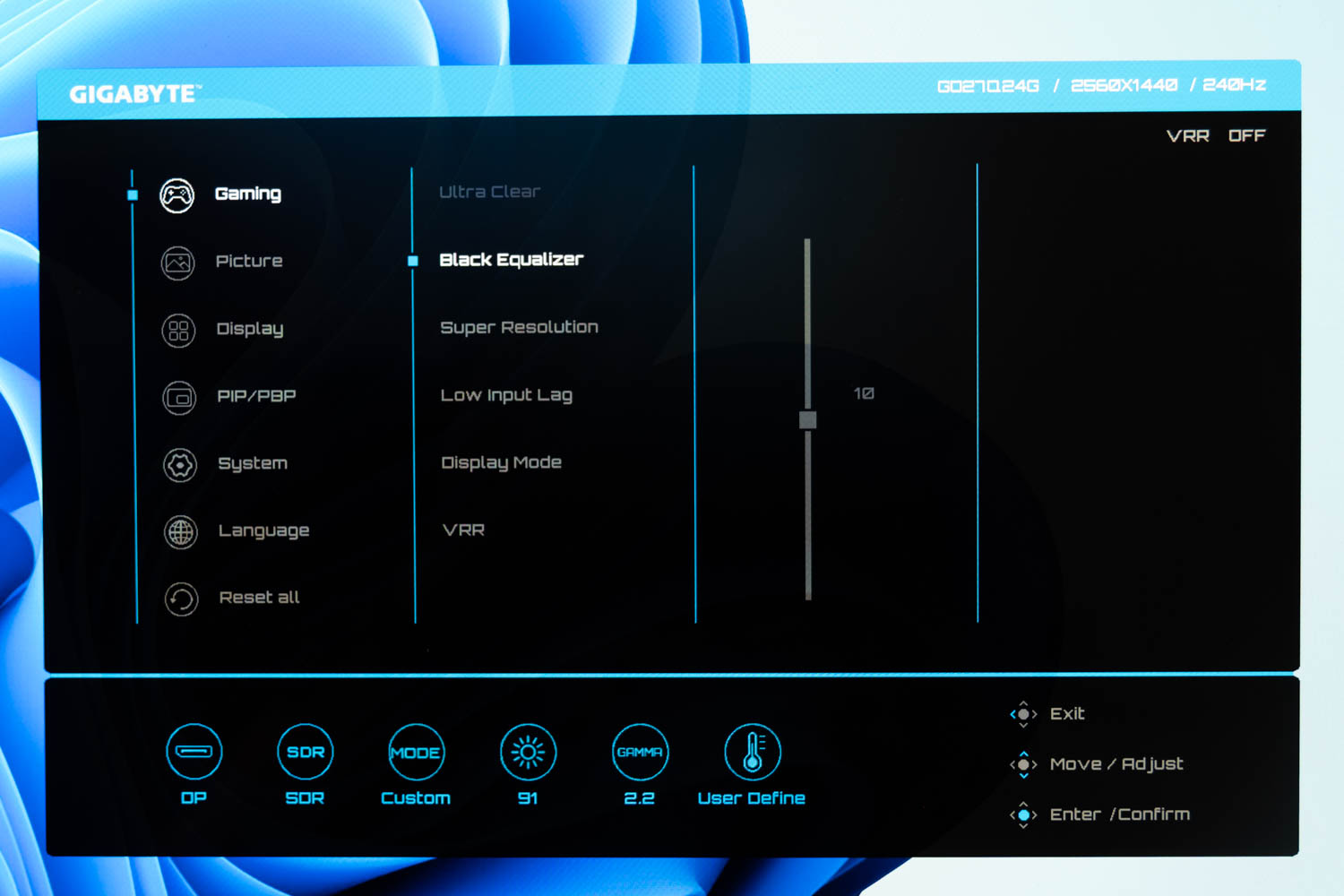
The Gaming section is where the majority of display-specific controls live, including Ultra Clear, Black Equalizer, Super Resolution, Low Input Lag, Display Mode, and VRR settings.
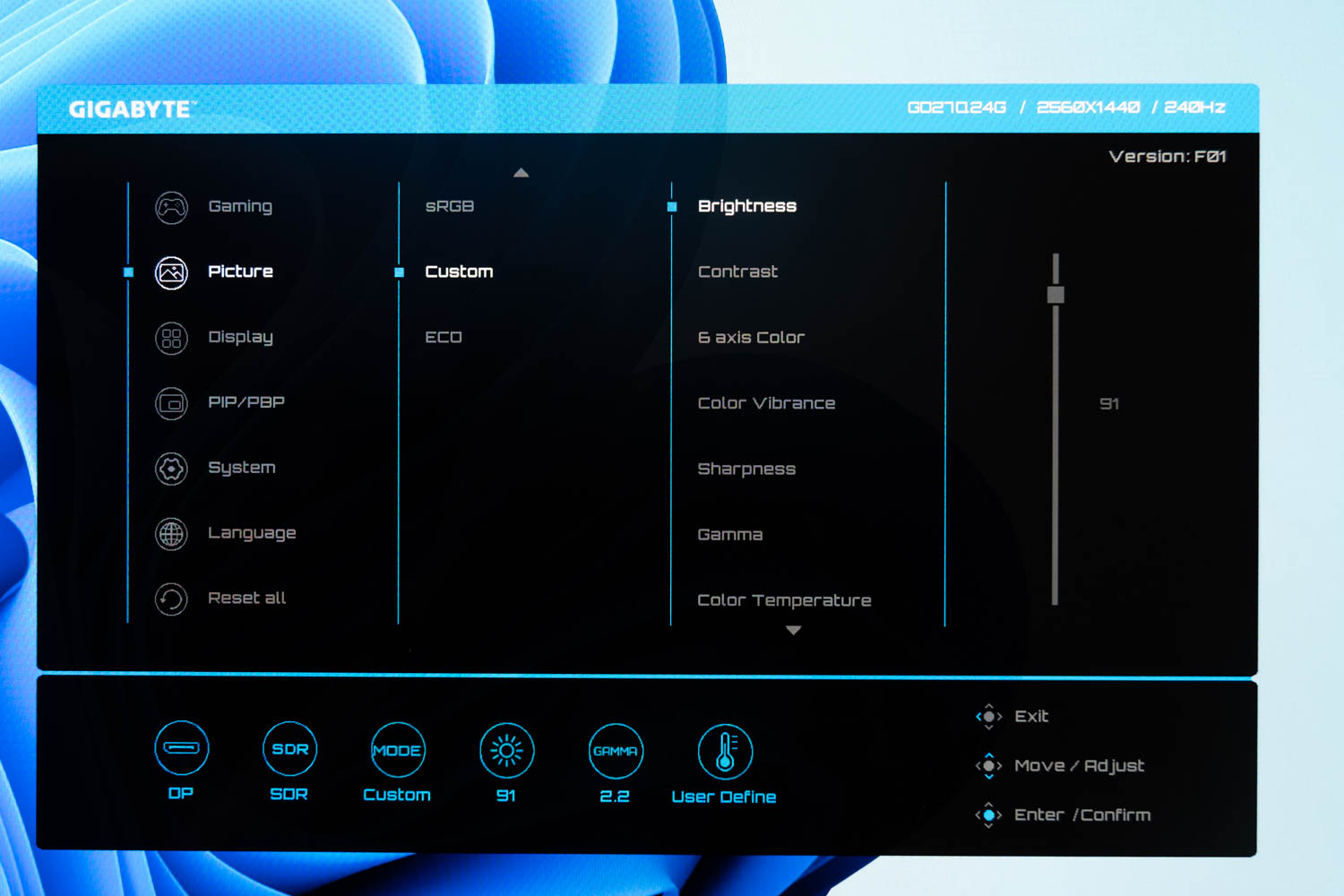
The Picture section provides various picture profiles, such as sRGB, Custom, ECO, Standard, FPS, MOBA, RPG, Racing, Movie, and Reader. Within each you can fine-tune brightness, contrast, sharpness, color temperature, gamma, 6-axis color, and color vibrance.
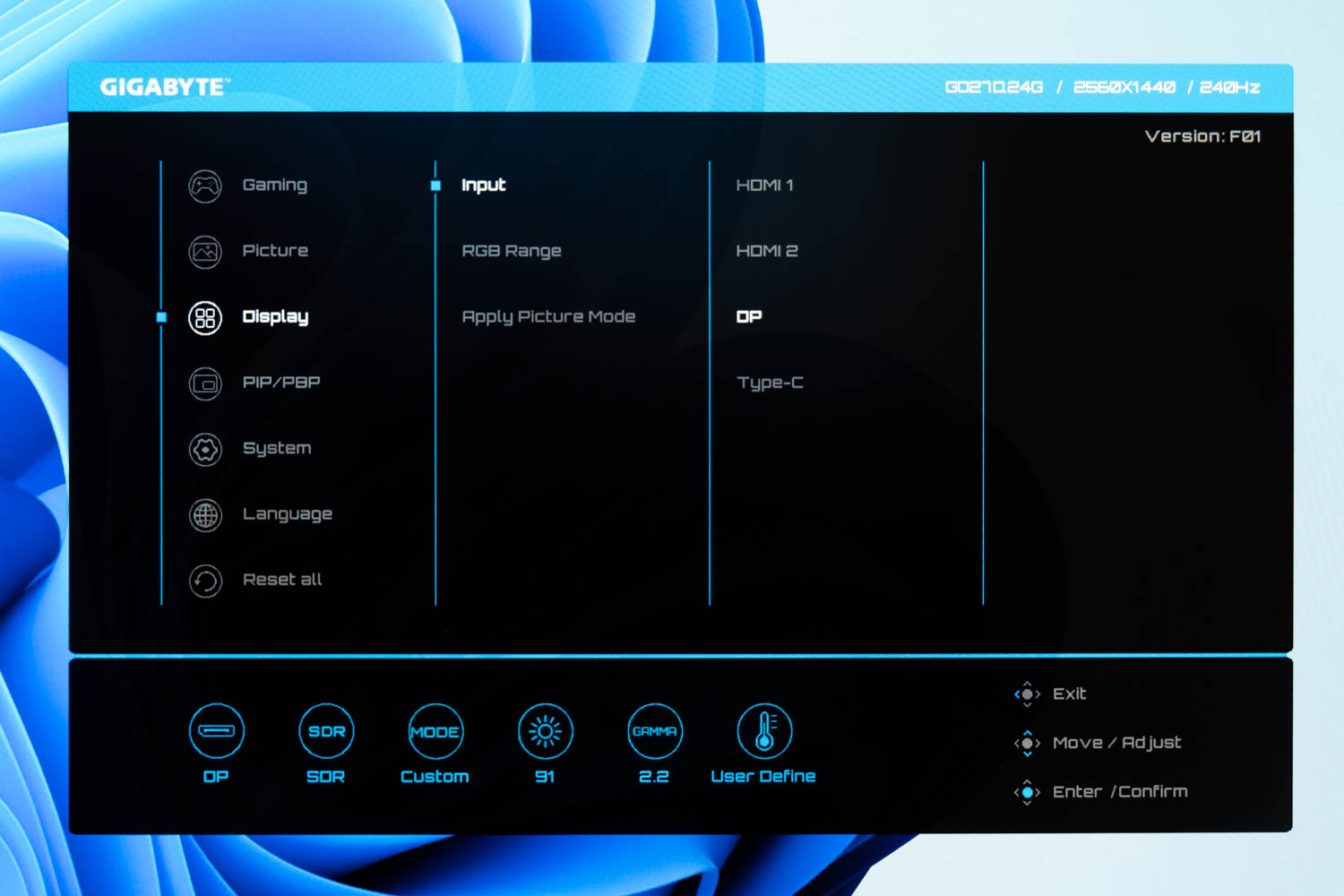
The Display submenu handles input selection, RGB range, and per-input picture mode assignment.
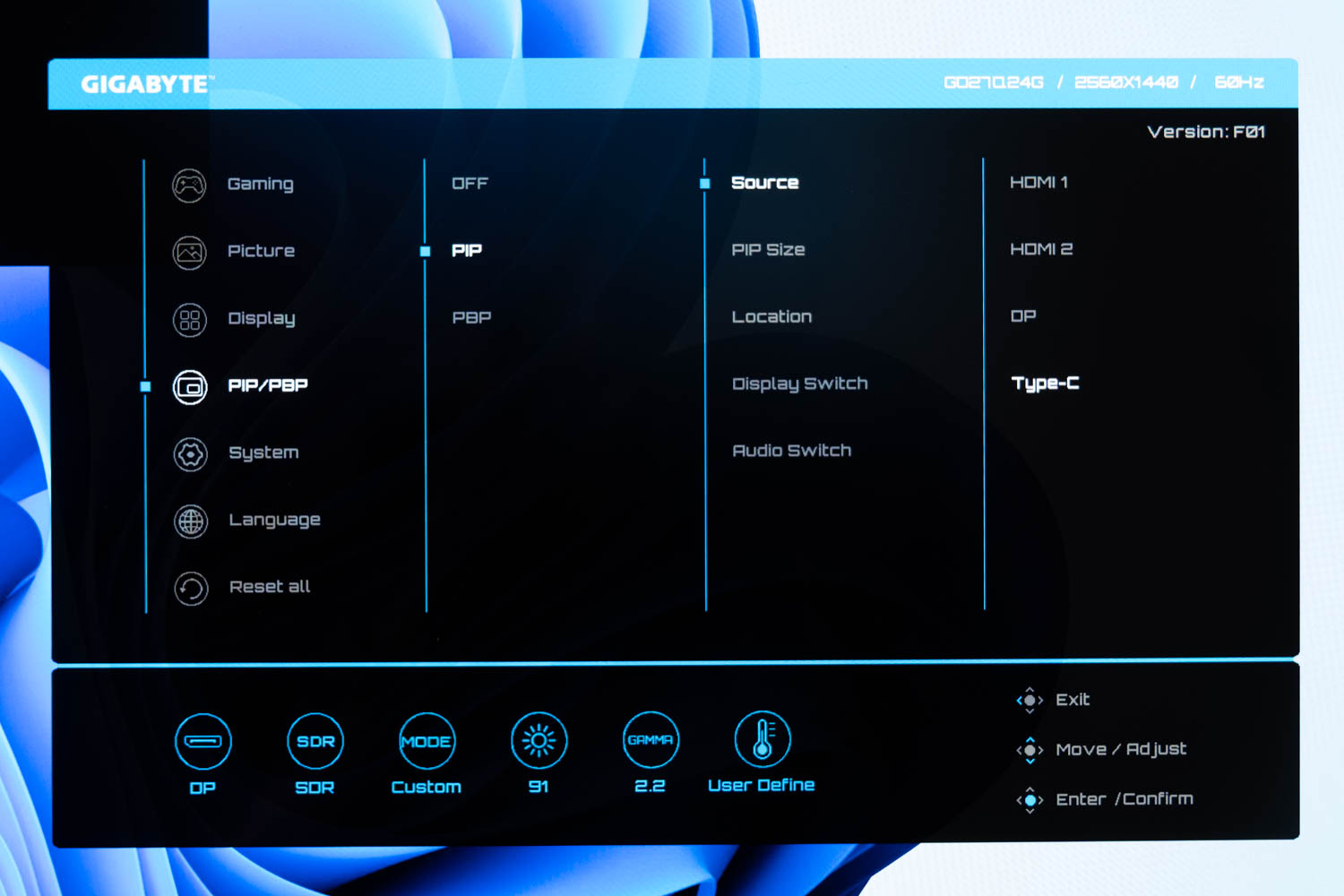
PiP/PBP lets you run two sources simultaneously in either picture-in-picture or side-by-side layouts.
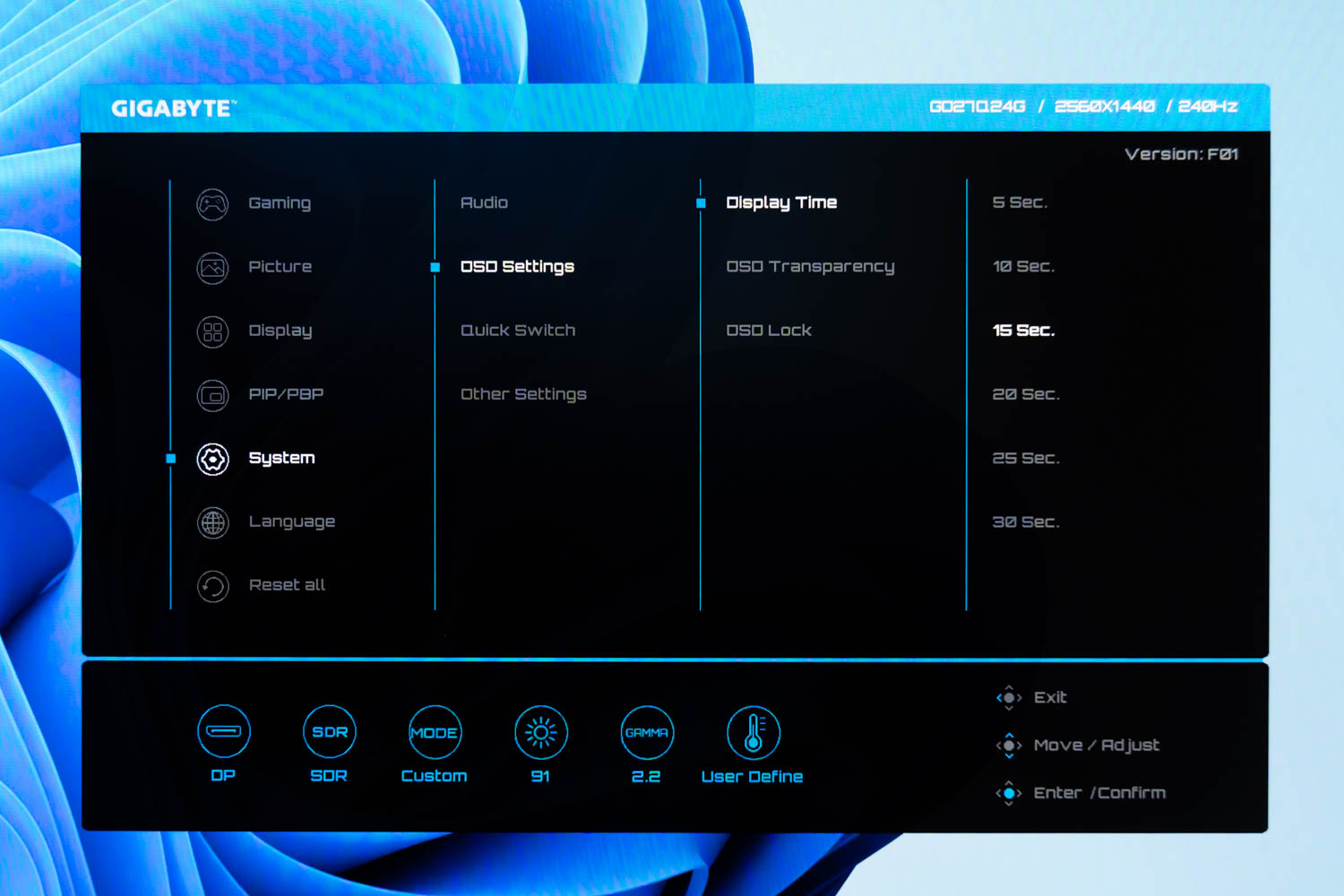
System covers audio output, OSD behavior, Quick Switch shortcuts, Input Auto Switch, Auto Power Off, LED indicator behavior, Type-C Compatibility, HDMI Version selection, and HDMI-CEC.
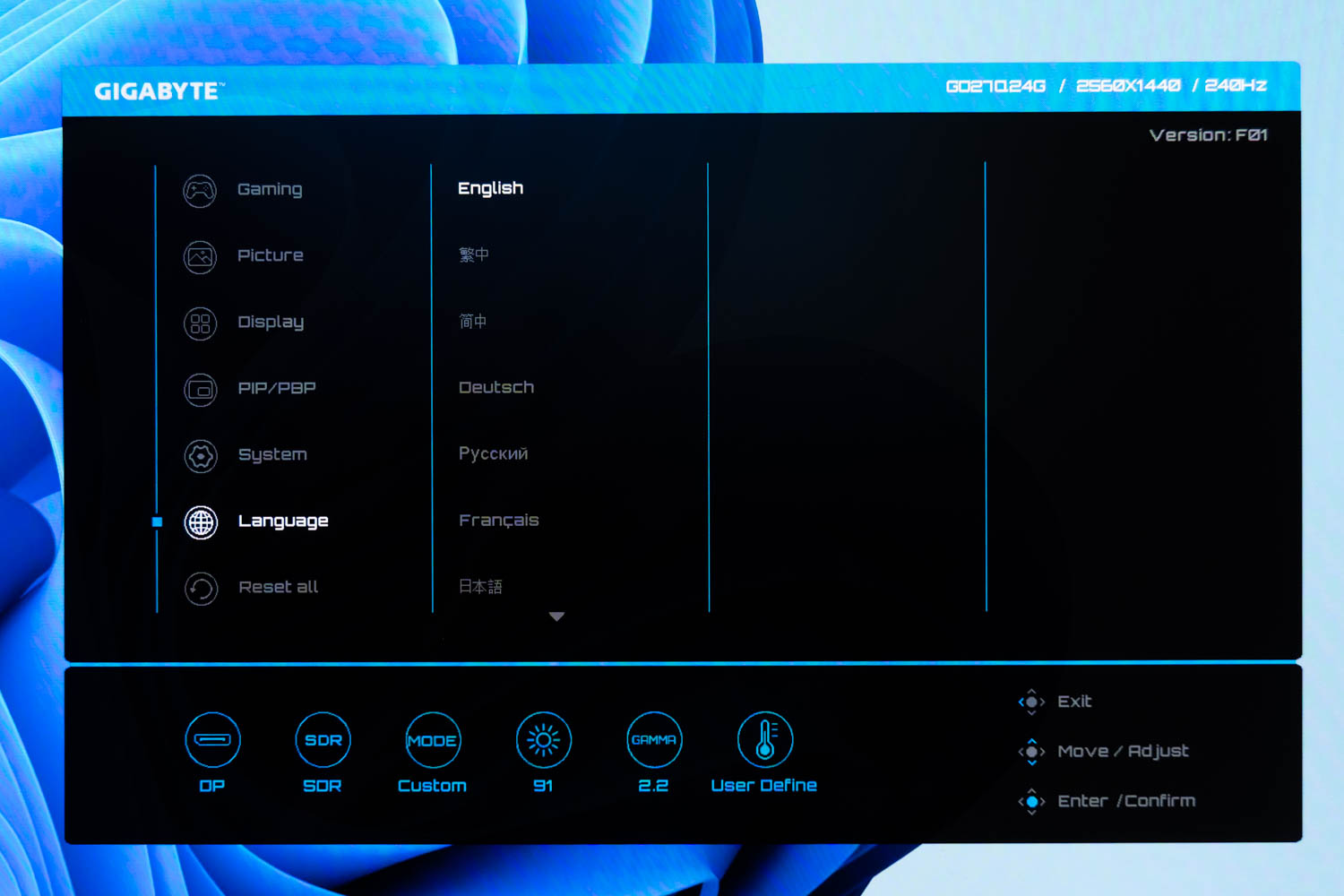
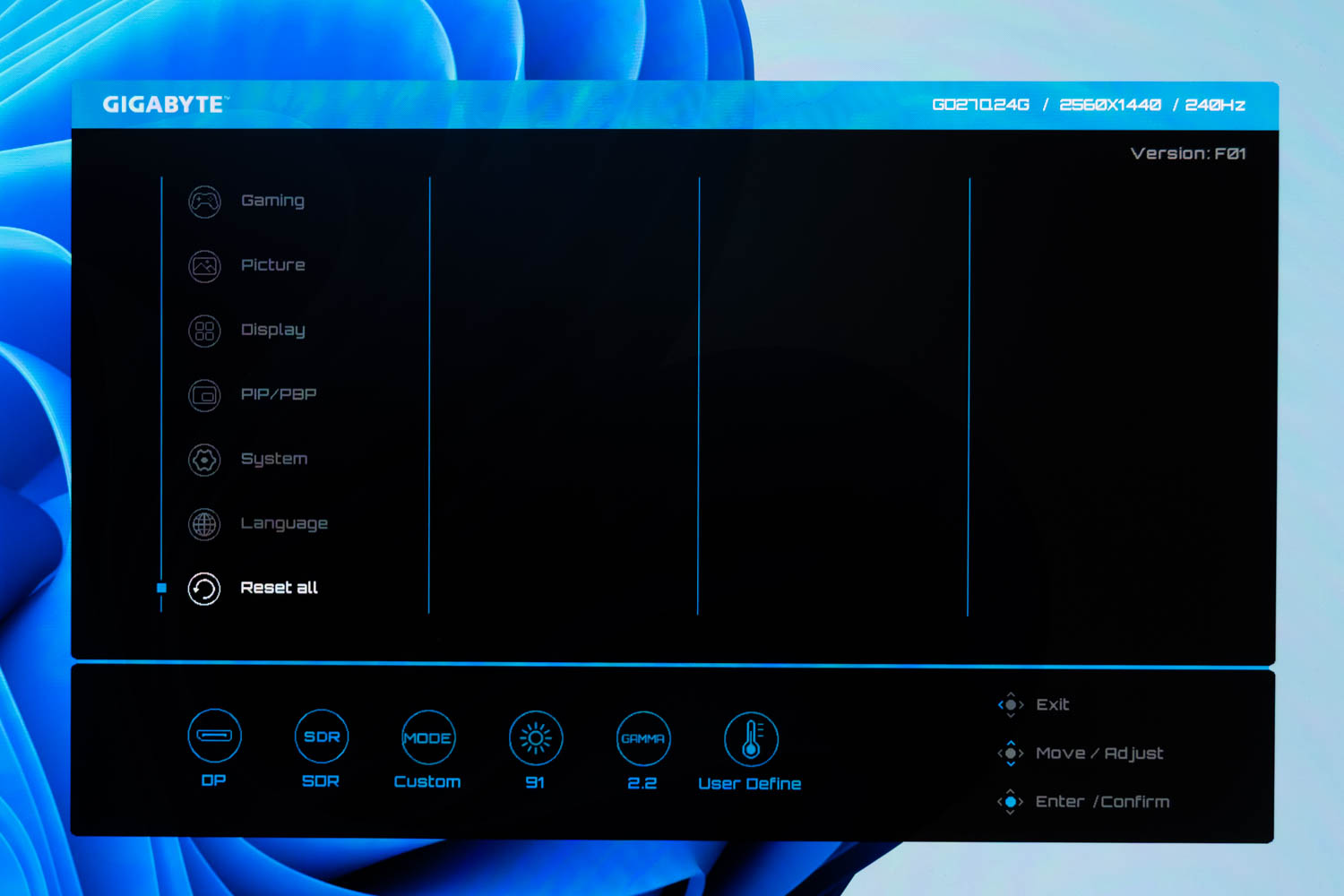
Language and Reset are self-explanatory and all round out the top-level structure.
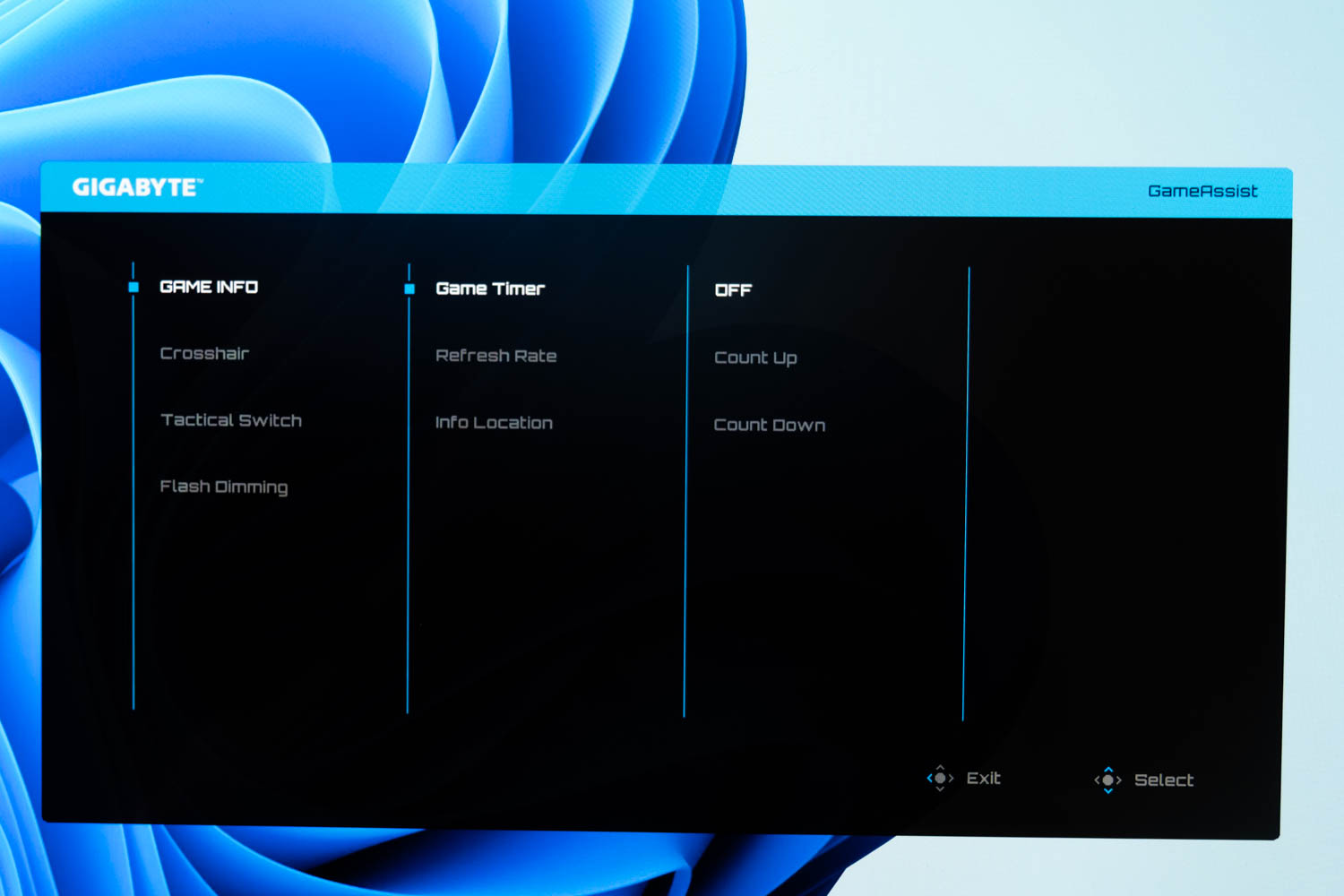
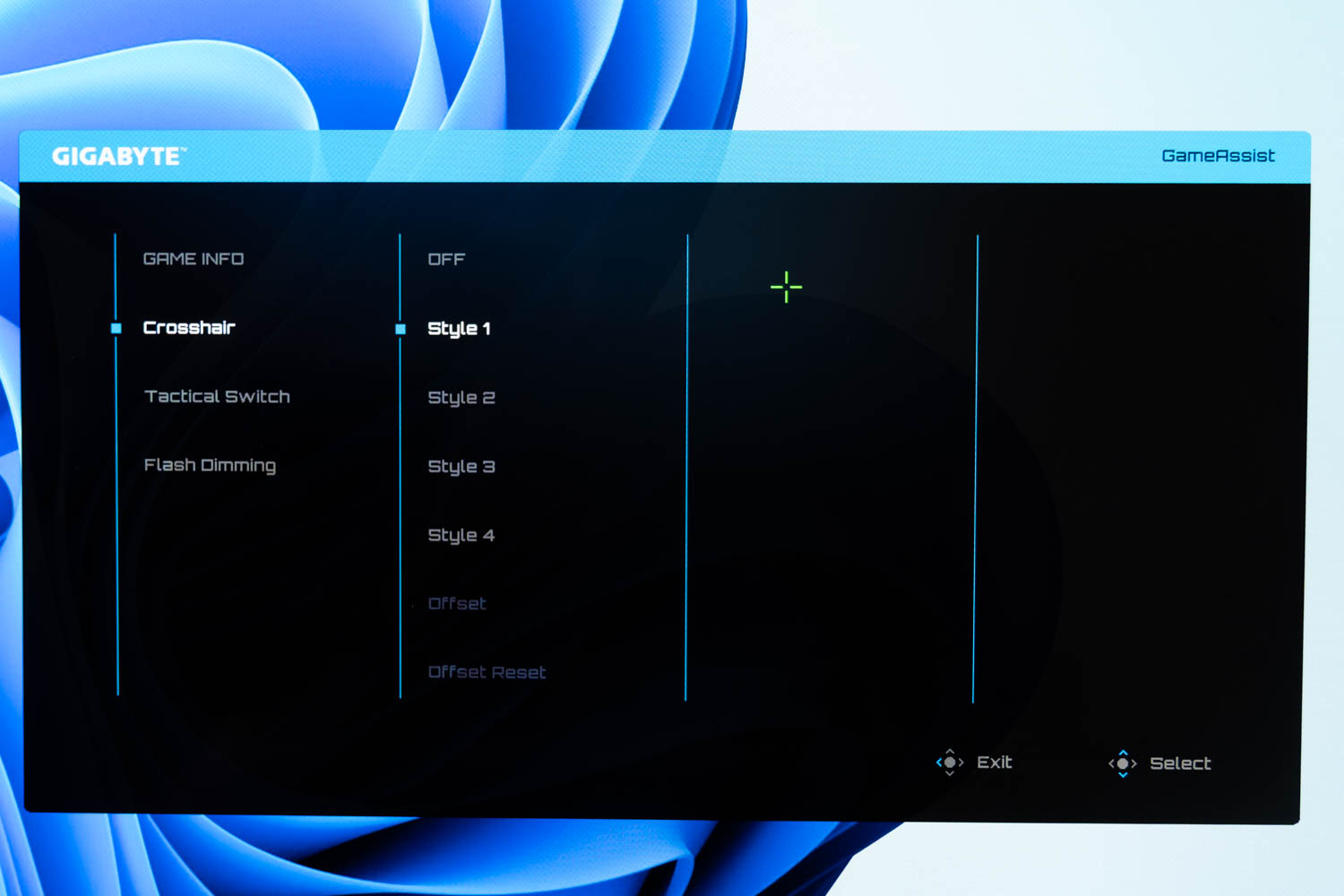
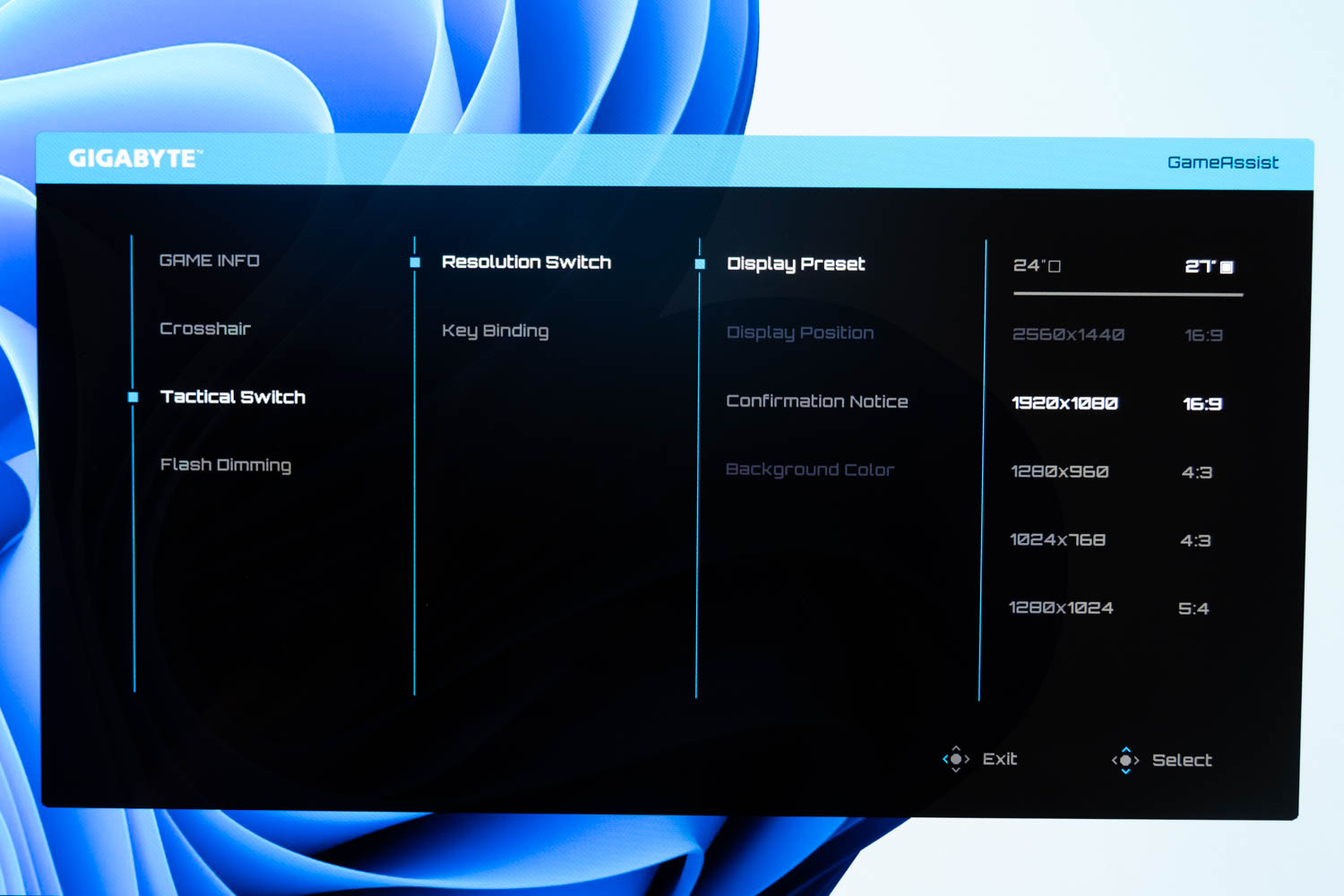
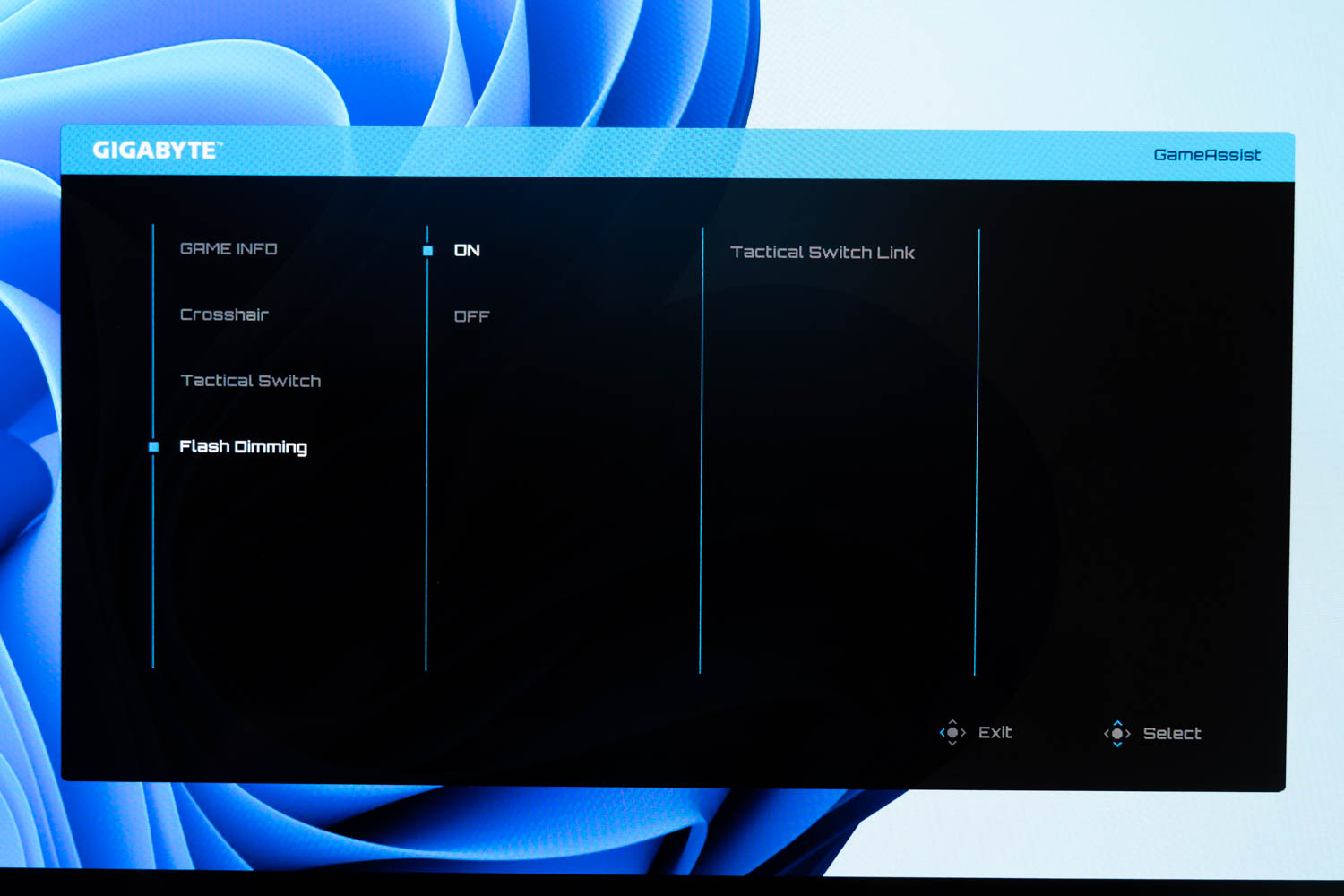
Game Assist is accessed directly from the quick menu rather than through the main OSD, and it contains four tools: Game Info, which puts a game timer, refresh rate display, or info location overlay on screen; Crosshair, with four style options plus offset adjustment; Tactical Switch, where you set up resolution switching and the key binding that triggers it; and Flash Dimming, which can be toggled on or off to reduce brightness during sudden bright events.
Nov 18th, 2026 09:11 CST
change timezone
Latest GPU Drivers
New Forum Posts
- WarpCoreBench scores! (61)
- X99 Club (188)
- Wireless Internet sharing between PC and router both-ways, is it possible? (16)
- Time to upgrade CPU and MOBO (22)
- Last game you purchased? (1403)
- Without Jensen, PC gaming will be (43)
- [Poll] 12V-2x6 Connector Protection: What Are You Using? (WireView / Ampinel / Equalizer / Other / Nothing) (35)
- Help with fixing Overclock (10)
- GIGABYTE - H55N-USB3 ITX Upgrade experience (4)
- Honestly, do you care about GTA VI? (137)
Popular Reviews
- Acemagic Retro X3 Review
- Upcoming Hardware Launches 2027 (Updated Nov 2026)
- AMD Zen 6 Technical Deep Dive
- ASUS ROG Strix B850-I Gaming Wi-Fi7 W Review
- Corsair HX1000i Shift Crystal Review
- Biwin Black Opal NV7400 2 TB Review
- Chieftec Iceberg PRO 360 DARK Review
- AMD Ryzen 7 9800X3D Review - The Best Gaming Processor
- Phantom Blade Zero Performance Benchmark Review - 35 GPUs Tested
- Montech King 95 3D PRO Review
TPU on YouTube
Controversial News Posts
- NVIDIA Co-Founder and CEO Jensen Huang Officially Resigns (472)
- Open Letter Asking NVIDIA to Reinstate Jensen Huang Passes 115,000 Signatures (184)
- Report: Jensen Huang Eyes NVIDIA Comeback (175)
- OpenAI CEO Argues Home PCs Waste the World's Limited DRAM Supply (152)
- NVIDIA Launches Investigation Into Jensen Huang's Relationship With Suspected Chinese Spy (136)
- Intel "Raptor Lake Next" 16-Core and 20-Core CPUs Surface (130)
- Legendary Game Studio BioWare Shuts Down Following EA Layoffs (104)
- Dell CEO Says the Memory Shortage Will Get Worse in 2027 (95)