 32
Gigabyte GO27Q24G Review - Borderless by Design, Gaming by Nature
Response Time, Input Lag & Motion Blur »Picture Quality
The Gigabyte GO27Q24G uses an LG WOLED panel with Micro Lens Array Plus (MLA+) technology. The 2560×1440 native resolution on a 27-inch screen yields a pixel density of approximately 111 PPI, which is comfortable for desktop use at normal viewing distances.The subpixel layout uses a RWBG-type arrangement rather than a clean RGB stripe. In practice, some color fringing is visible on high-contrast text and fine interface elements, particularly at the edges of characters with strong light-dark transitions. It is worth noting that competing 27-inch QD-OLED panels at this price also use non-stripe subpixel arrangements, so the fringing is a shared characteristic of the 27-inch OLED segment rather than a disadvantage unique to this panel. For gaming, media consumption, and mixed productivity use where text volume is moderate, it is manageable.
The RealBlack Glossy coating performs well in real-world lighting. Thanks to the WOLED panel's circular polarizer, blacks remain deep and neutral under ambient light without the purple tinting or contrast wash-out that characterizes QD-OLED panels in the same conditions. The RealBlack coating's contribution is on top of that—its low-reflectance optical layer reduces the brightness and spread of direct reflections from light sources in the room. Strong point sources still produce visible reflections, as they will on any glossy surface, but diffuse ambient light is handled cleanly and perceived contrast in typical use remains high.
As with all OLED monitors, each pixel controls its own light output, which means contrast is effectively infinite, blacks are true, and there is no backlight bleed or haloing around bright objects. These characteristics remain difficult to match with LCD technology regardless of backlight type or price.
To test picture quality, I used an X-Rite i1Display Pro colorimeter with both Calman Ultimate, the industry-standard suite for display testing and calibration, and DisplayCAL - a free, powerful display calibration and profiling tool. The tested unit ran firmware version F01, which was the latest available at the time of this review.
Picture Quality at Factory Settings
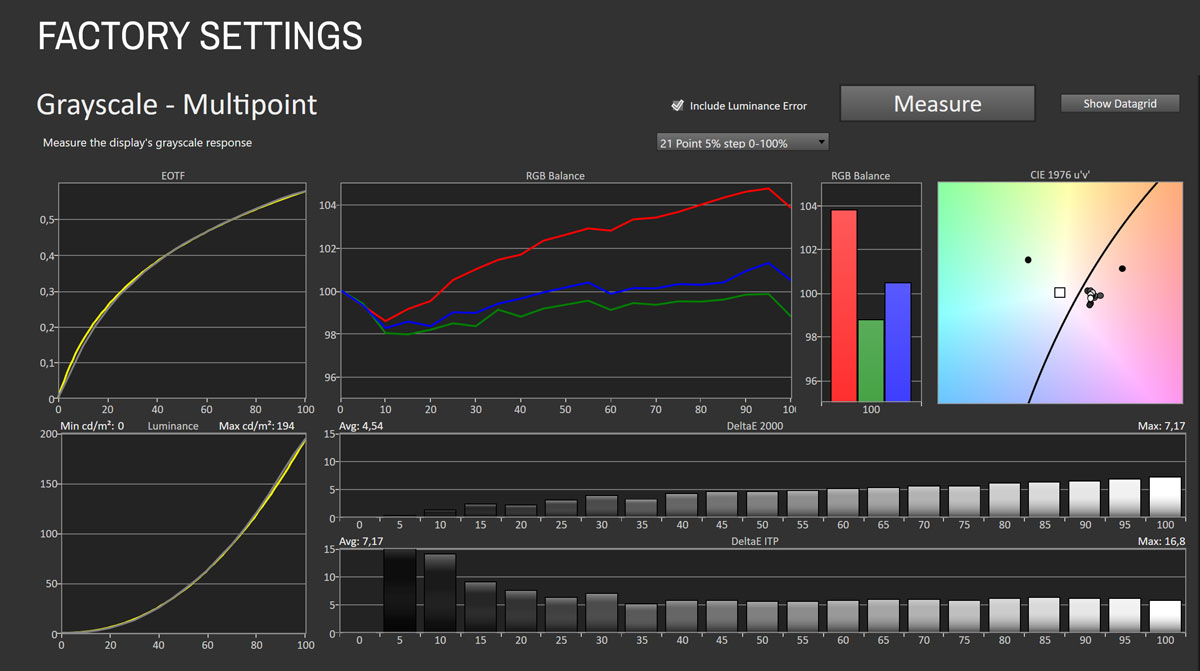
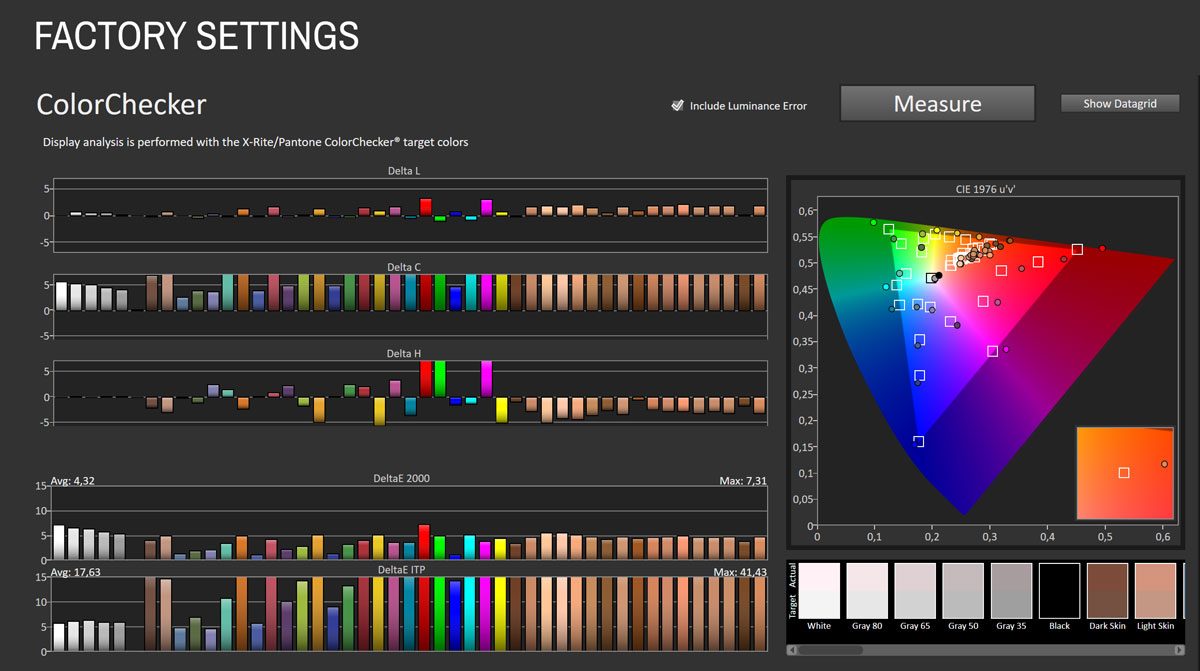
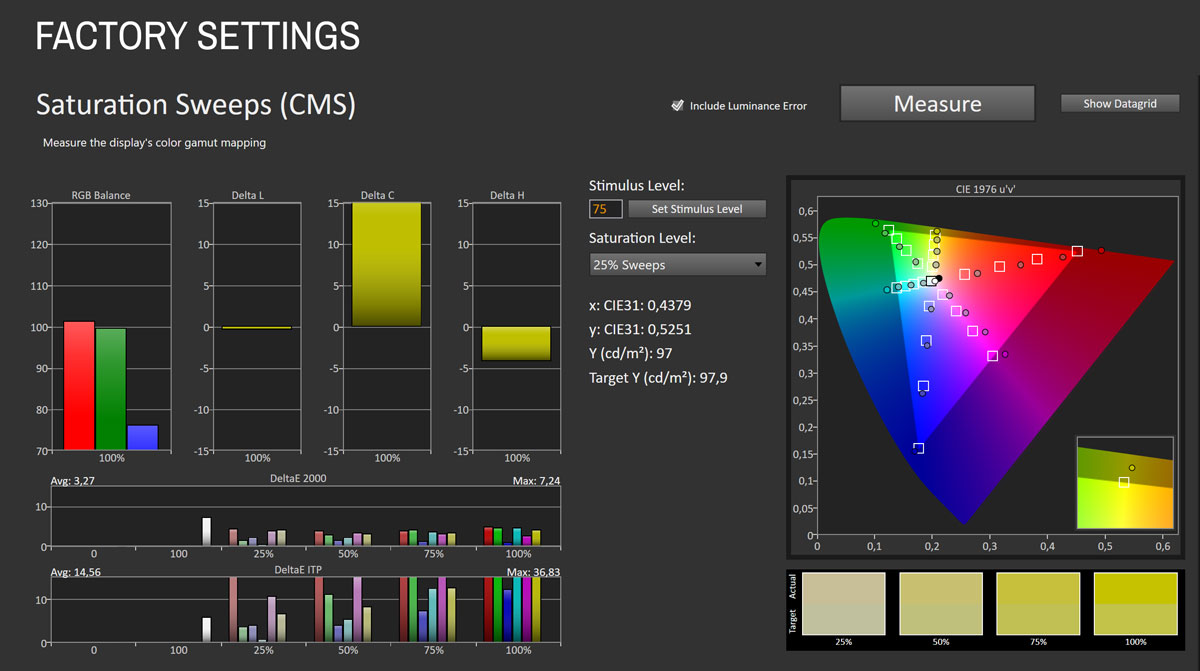
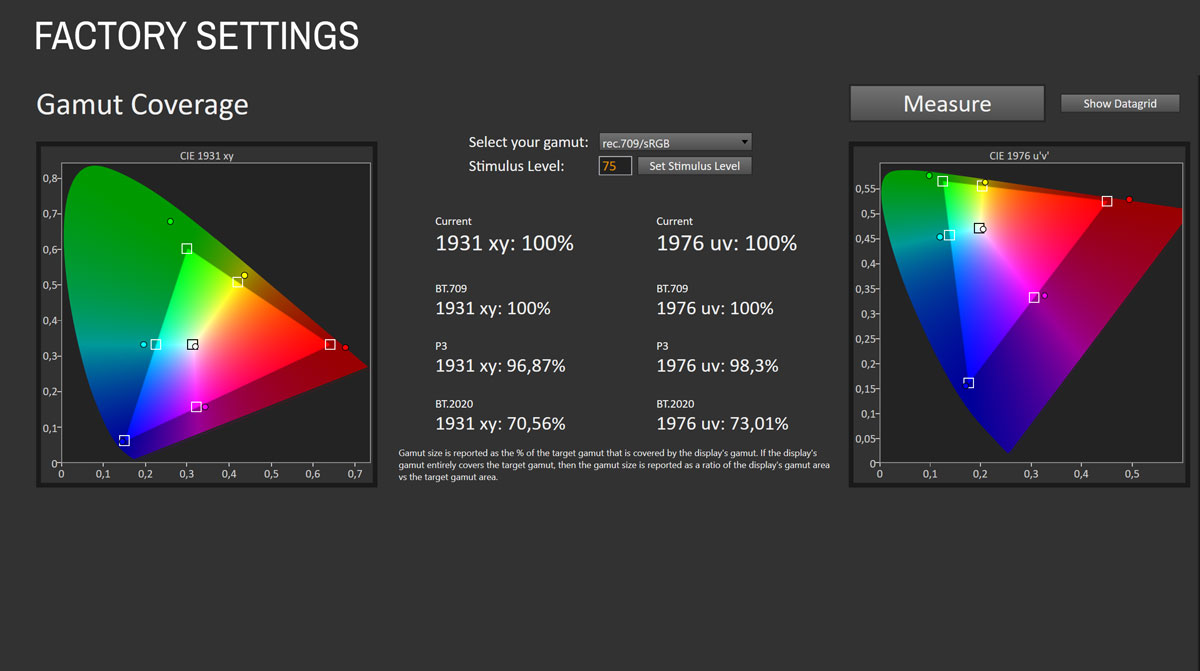
The GO27Q24G ships with the ECO picture profile active. In this mode the panel operates in its native wide color gamut without restriction. Measured coverage reaches 100% of sRGB, with strong extension into wider spaces: 96.87% of DCI-P3 and 70.56% of BT.2020. Saturation sweeps reflect the wide-gamut behavior, with average ∆E at 3.27 and a maximum of 7.24. Most of the error comes from oversaturation at higher chroma levels rather than hue inaccuracy, which is typical of native-gamut OLED operation. Grayscale performance in ECO is the weakest part of the factory experience. Average grayscale ∆E is 4.54 with a maximum of 7.17. The RGB balance graph shows red climbing steadily across the luminance range while green and blue trail below it, producing a warm tint that intensifies at higher brightness levels. Color accuracy is similarly affected. The test returns an average ∆E of 4.32 with a maximum of 7.31. Luminance in ECO mode is set to 194 cd/m² by default, which is on the conservative side but appropriate for a power-saving preset. For general gaming and media where saturated colors are often preferable to strict accuracy, ECO works fine. For desktop work or sRGB content where color fidelity matters, it is not the right starting point.
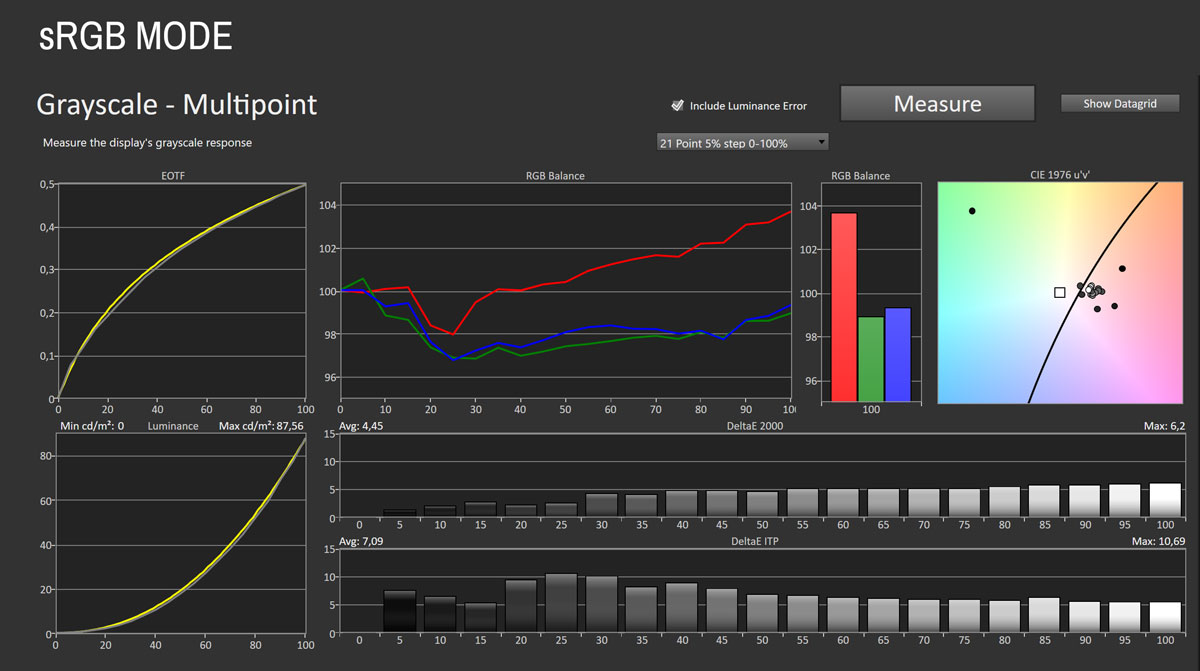
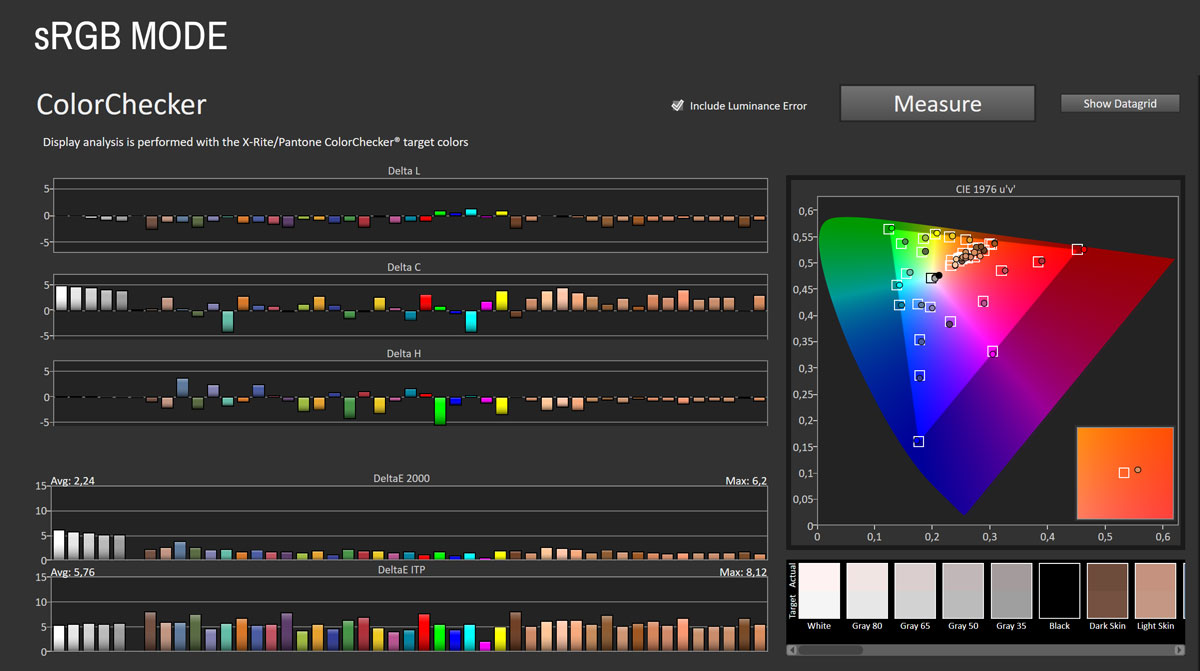
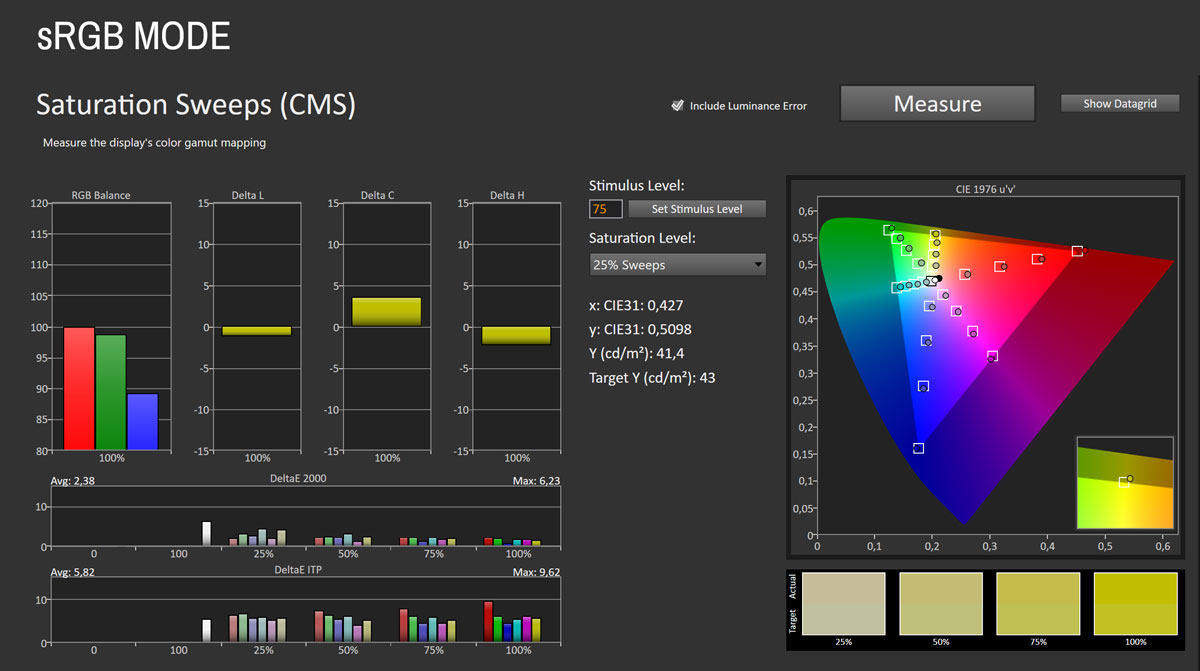
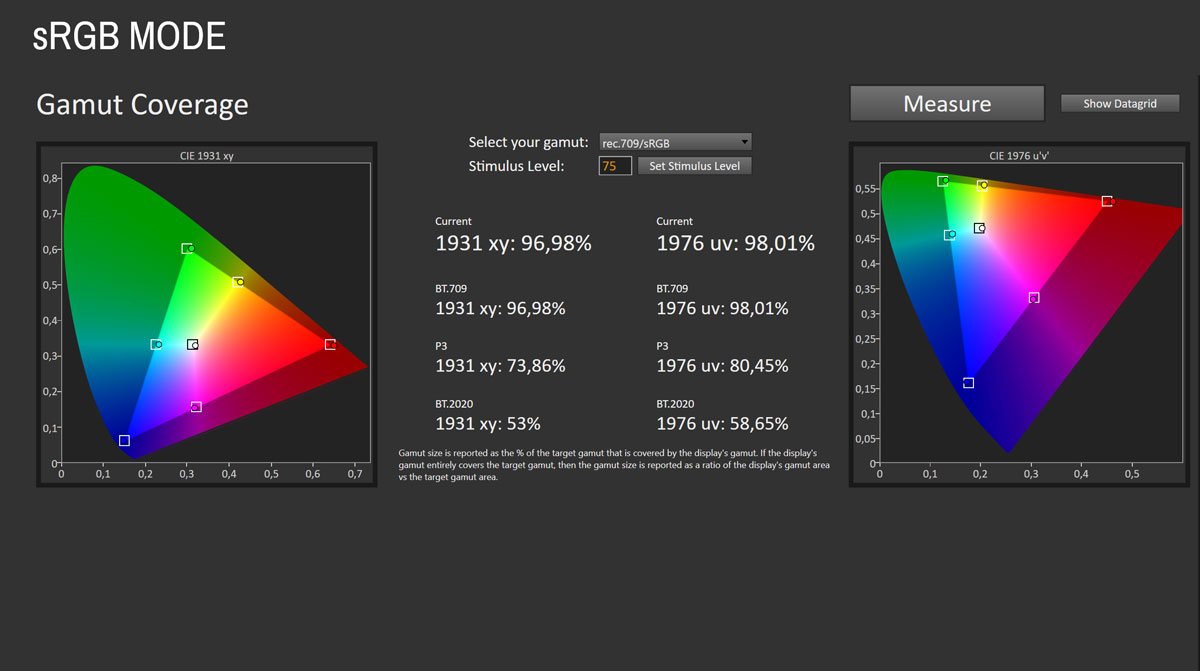
Enabling the sRGB picture mode restricts the native gamut to better match standard sRGB content. Measured gamut coverage drops to 96.98% of sRGB, confirming the clamp is active. P3 coverage falls to 73.86% and BT.2020 to 53%, consistent with a functional sRGB restriction. Color accuracy improves in this mode. Average ∆E comes in at 2.24 with a maximum of 6.20, and saturation sweeps tighten to 2.38 average ∆E with a 6.23 maximum. The serious problem with sRGB mode is what happens to brightness and grayscale. Luminance in sRGB mode measures 87.56 cd/m², which is very dim for sustained everyday use, so you will definitely want to crank it up. Grayscale tracking does not improve as much as you would hope given the restricted gamut—average grayscale ∆E remains at 4.45 with a maximum of 6.20, and the RGB balance graph shows significant non-uniformity through the tone range. The sRGB mode is functional as a gamut reference, but the grayscale issues make it impractical as a daily driver.
Picture Quality with Modified Settings
To achieve the best overall image quality, I made the following adjustments in the OSD:Picture > Custom > Brightness > 91
Picture > Custom > Color Temperature > User Define > R 97 / G 100 / B 100
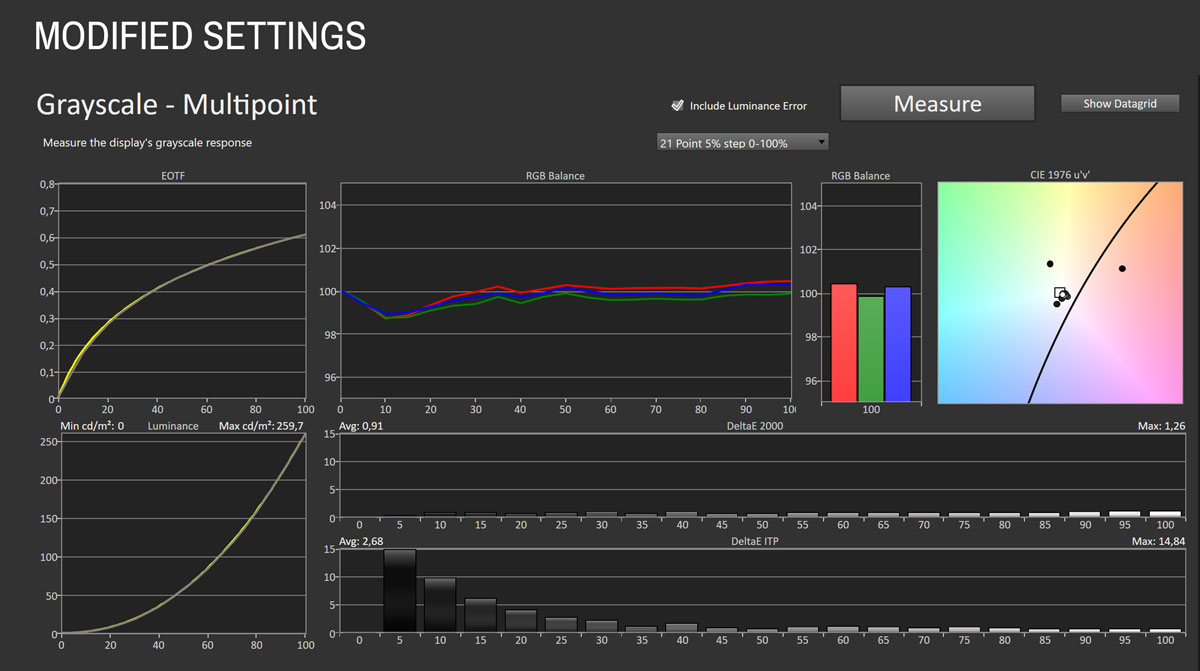
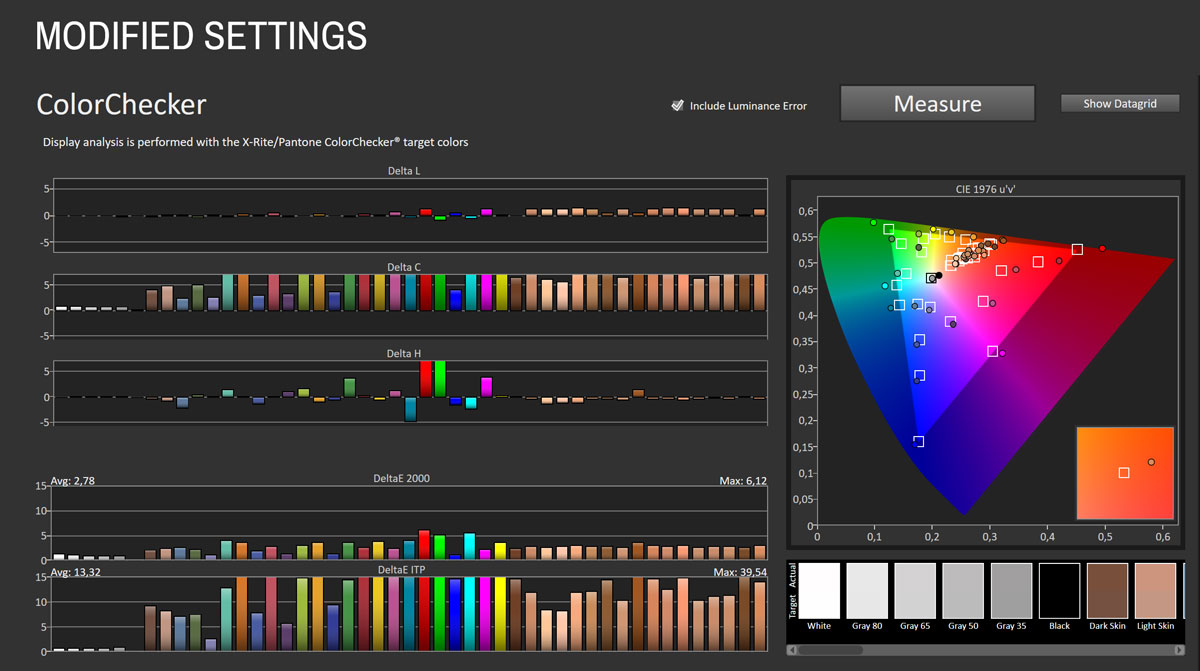
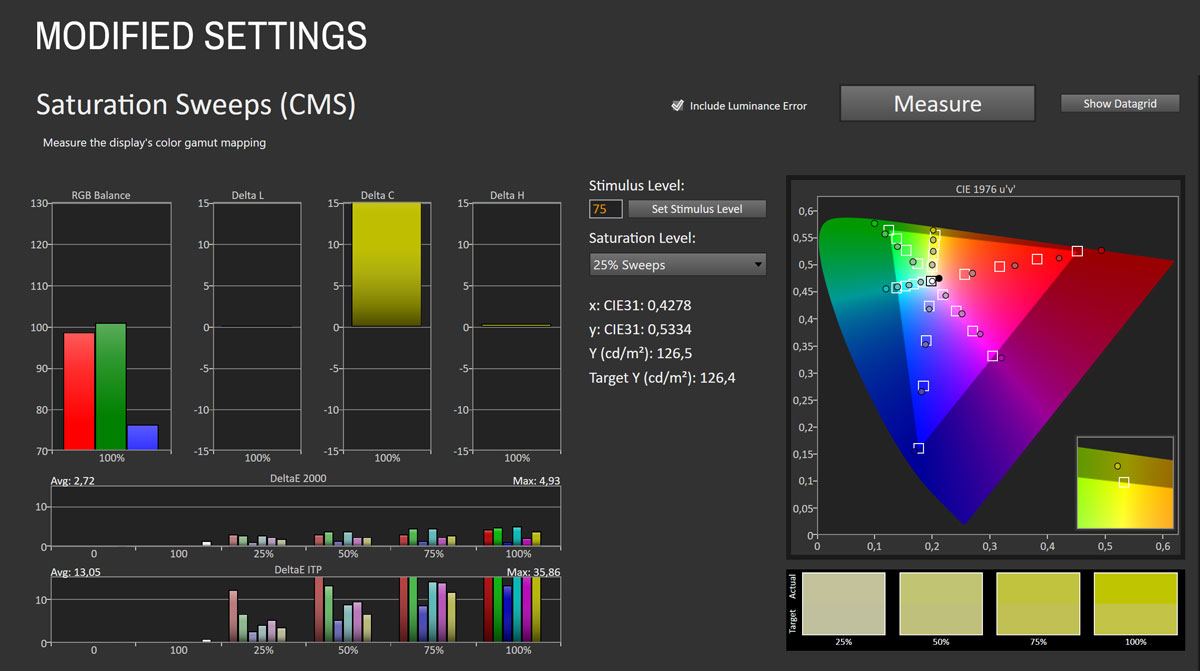
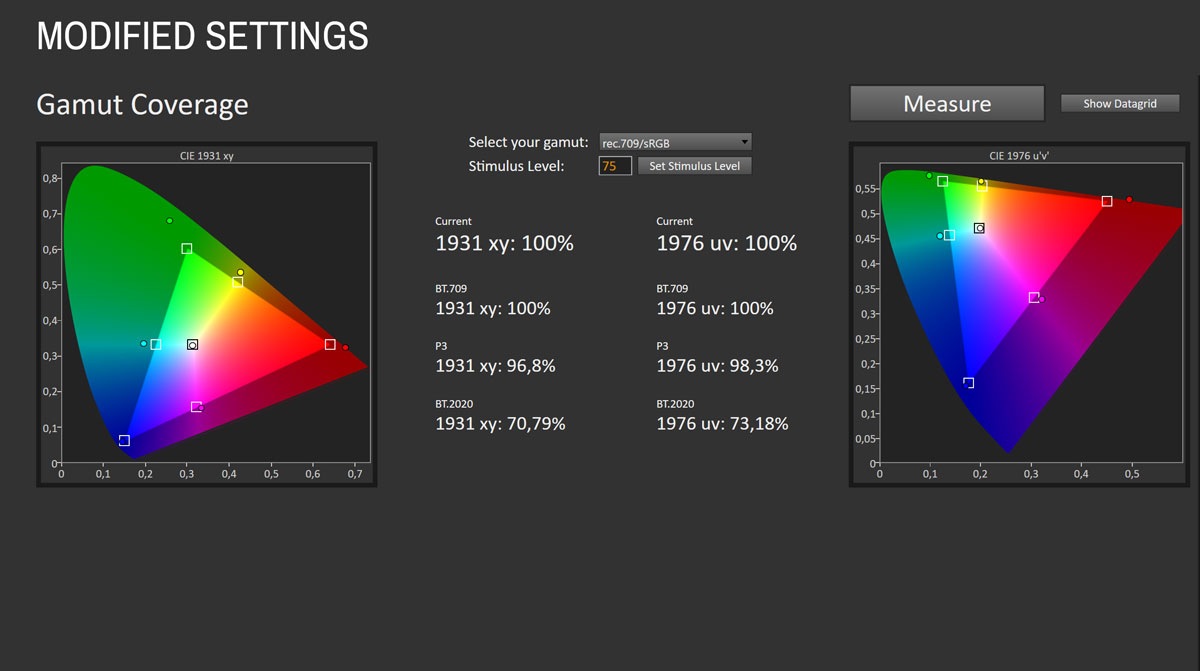
The improvement is substantial. Average grayscale ∆E drops to 0.91 with a maximum of 1.26, placing both figures comfortably below the threshold where errors become visible to most users. The RGB balance graph confirms that red, green, and blue now track together closely across the full luminance range. The warm shift present in ECO mode is corrected, and the white point lands near the 6,500 K reference. Gamma tracking is clean throughout. The Custom mode retains the full native wide gamut. Measured coverage reaches 100% of sRGB and 96.8% of DCI-P3, which means you get both accurate grayscale and the full color vibrancy the WOLED panel is capable of simultaneously. Color accuracy against sRGB targets naturally shows higher ∆E in this context, averaging 2.78 ∆E and a maximum of 6.12, and saturation sweeps averaging 2.72 ∆E with a maximum of 4.93. Those errors are driven by the wide gamut pushing saturated colors beyond sRGB targets rather than by genuine inaccuracy—patches within the sRGB gamut track well. Maximum luminance at brightness 91 reaches 259.7 cd/m², which is comfortable for most room lighting.
Luminance, Contrast and Color Uniformity
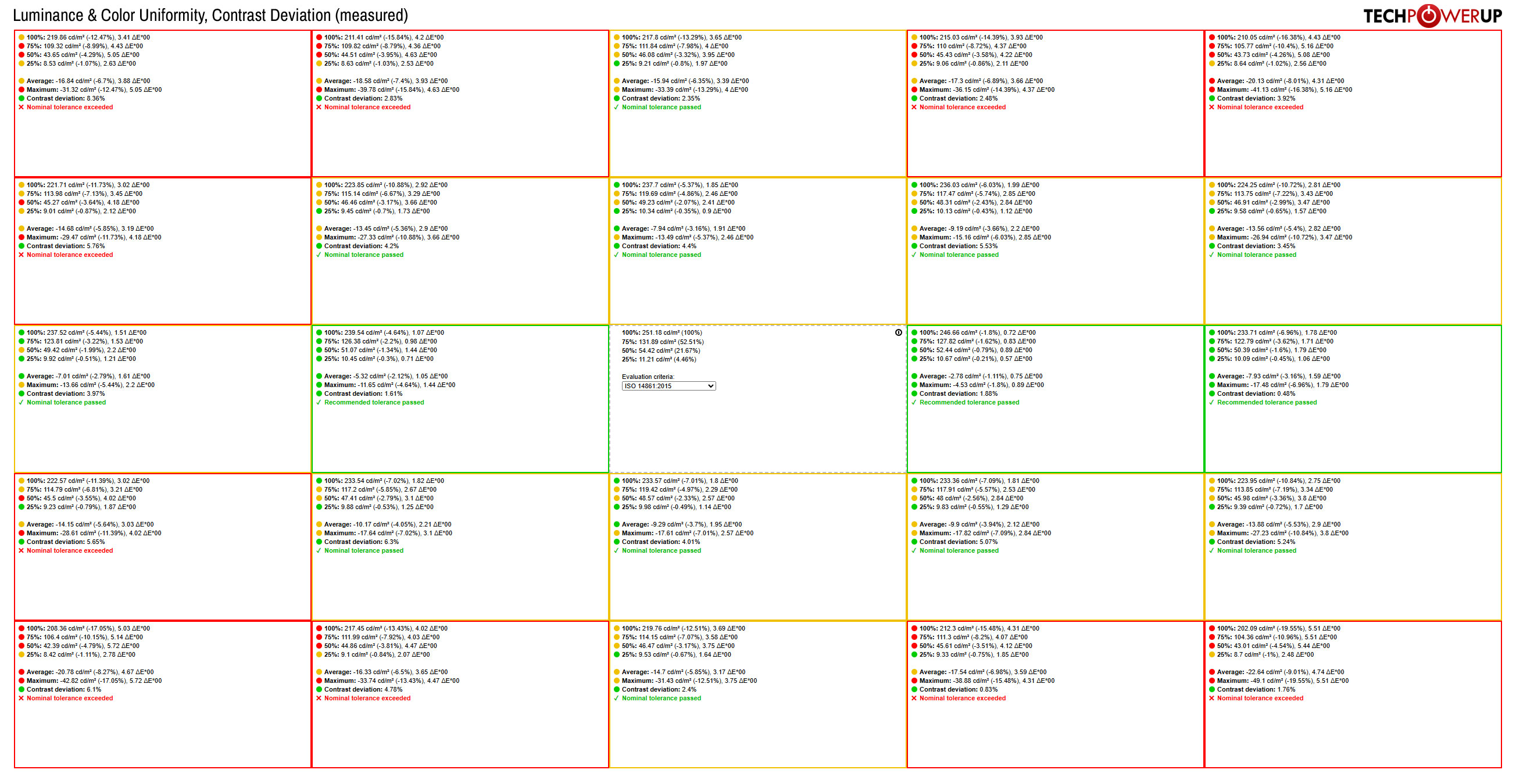
Panel uniformity on the GO27Q24G is acceptable but uneven. The center of the screen tracks well, and zones near the center deliver luminance within a few percent of the reference. Several areas toward the corners and edges exceed nominal ISO tolerance, with the worst-measured zones showing luminance deviations of up to roughly 20% from center. Color uniformity follows a similar pattern, with ∆E values in corner areas reaching 4 to 5 while center and near-center zones remain well controlled. Contrast deviation numbers are reasonable across the majority of the screen, as expected from a per-pixel emissive panel with no backlight non-uniformity. In real-world use with typical content, the peripheral deviations are not visible. On uniform flat-color test images, particularly mid-gray patterns, the differences in the corners can be noticed.
HDR Performance
The GO27Q24G supports HDR10 and carries a VESA DisplayHDR True Black 400 certification. Available HDR profiles include the standard HDR mode, HDR Peak 1300, HDR Game, HDR Movie, and HDR Vivid.In measurements with a 10% window, the standard HDR mode reached about 269 cd/m², while HDR Peak 1300 pushed that to roughly 496 cd/m², a substantial increase that translates into noticeably stronger specular highlights and greater HDR impact. Importantly, despite the much higher brightness, HDR Peak 1300 did not materially alter EOTF tracking relative to the standard mode, with both modes showing similar midtone behavior and a comparable highlight rolloff pattern. That suggests HDR Peak 1300 is not merely a heavily exaggerated torch mode, but a reasonably well-behaved higher-output alternative.
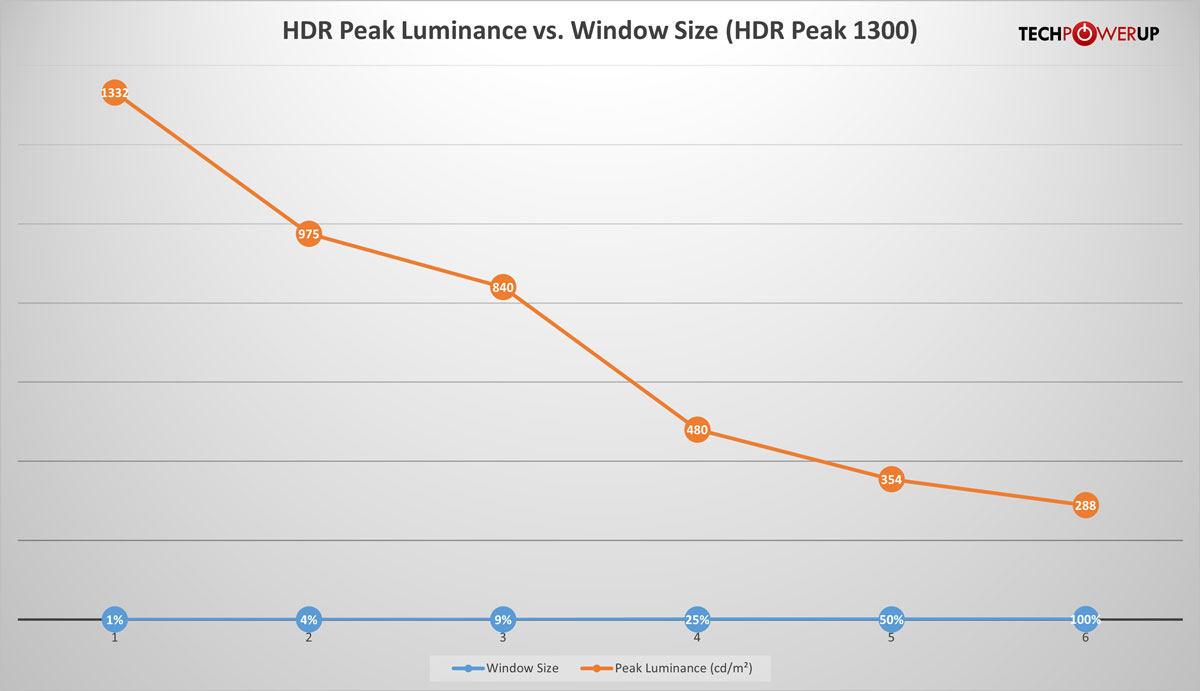
In Calman's HDR grayscale/EOTF workflow, the standard HDR mode reached about 269 cd/m², while HDR Peak 1300 allowed substantially higher output, topping out at roughly 496 cd/m² in that specific test sequence. This should not be read as the monitor's absolute 10% peak brightness, because the result is affected by Calman's HDR grayscale stimulus pattern and the way the monitor's ABL responds during that workflow. Dedicated window-size testing tells the more relevant brightness story: HDR Peak 1300 reaches 1,332 cd/m² on a 1% window, 975 cd/m² at 4%, 840 cd/m² at 9%, 480 cd/m² at 25%, 354 cd/m² at 50%, and 288 cd/m² full screen. EOTF tracking between the standard HDR and HDR Peak 1300 modes remains broadly similar, but HDR Peak 1300 gives the panel much more headroom for small highlights.
The HyperNits feature, available only when the HDR Peak 1300 profile is active, is intended to address the perceived dimness that OLED ABL can introduce in brighter HDR scenes. Gigabyte describes it as an EOTF adjustment that lifts mid-tone brightness while preserving highlight detail, and in practice it does make HDR Peak 1300 look more usable with typical HDR games and video than the default presentation alone. Since I did not separately measure HyperNits in each setting, I would treat it as a useful subjective enhancement rather than a fully quantified performance claim. Users who find HDR Peak 1300 too dim or restrained in regular HDR content should try HyperNits before dismissing the profile.
Viewing Angles
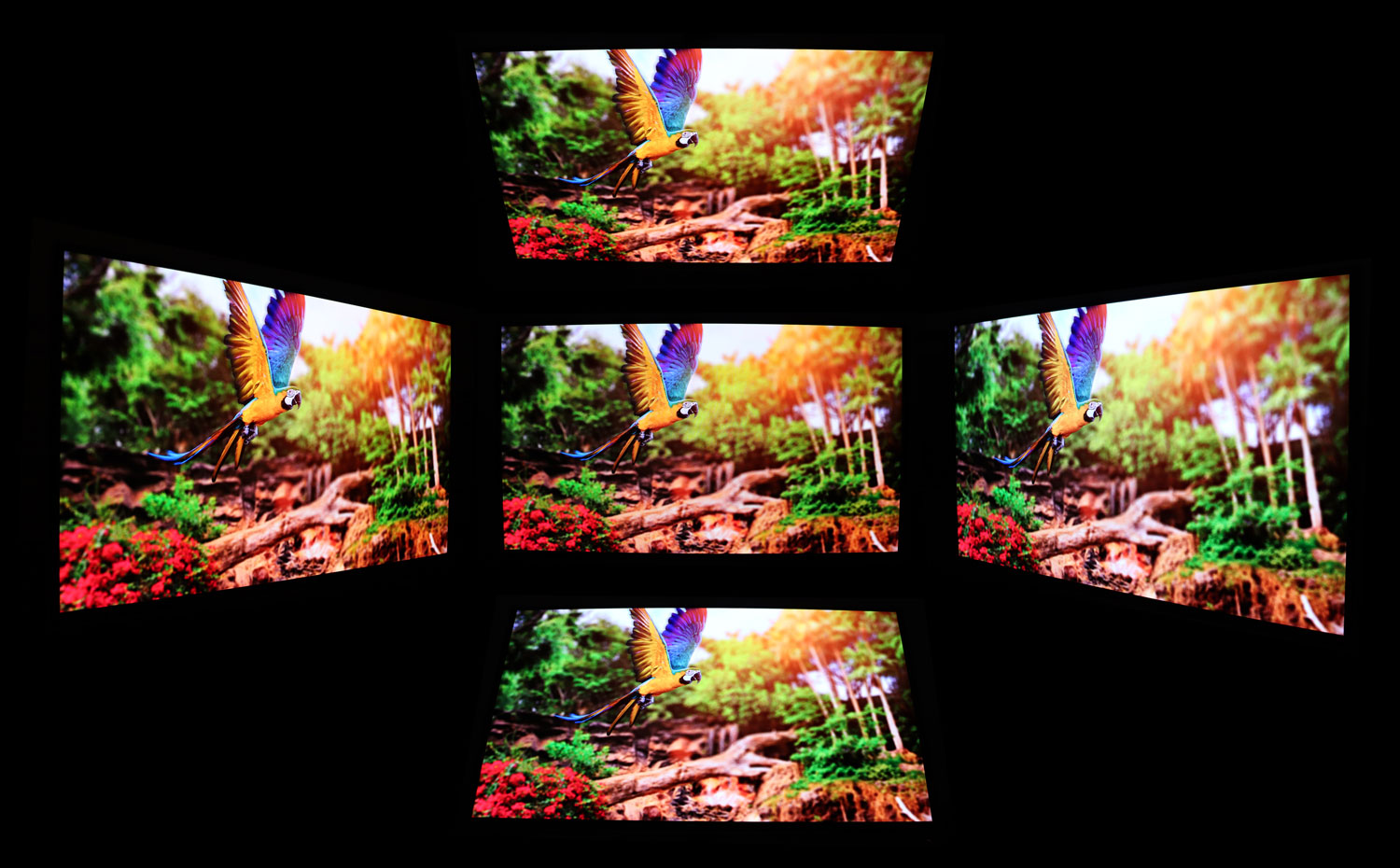
The viewing angles are excellent across the full panel, as expected from an OLED display. Color and contrast remain consistent from any normal seated position, with no visible shift when viewing from the sides.
OLED Burn-in Prevention
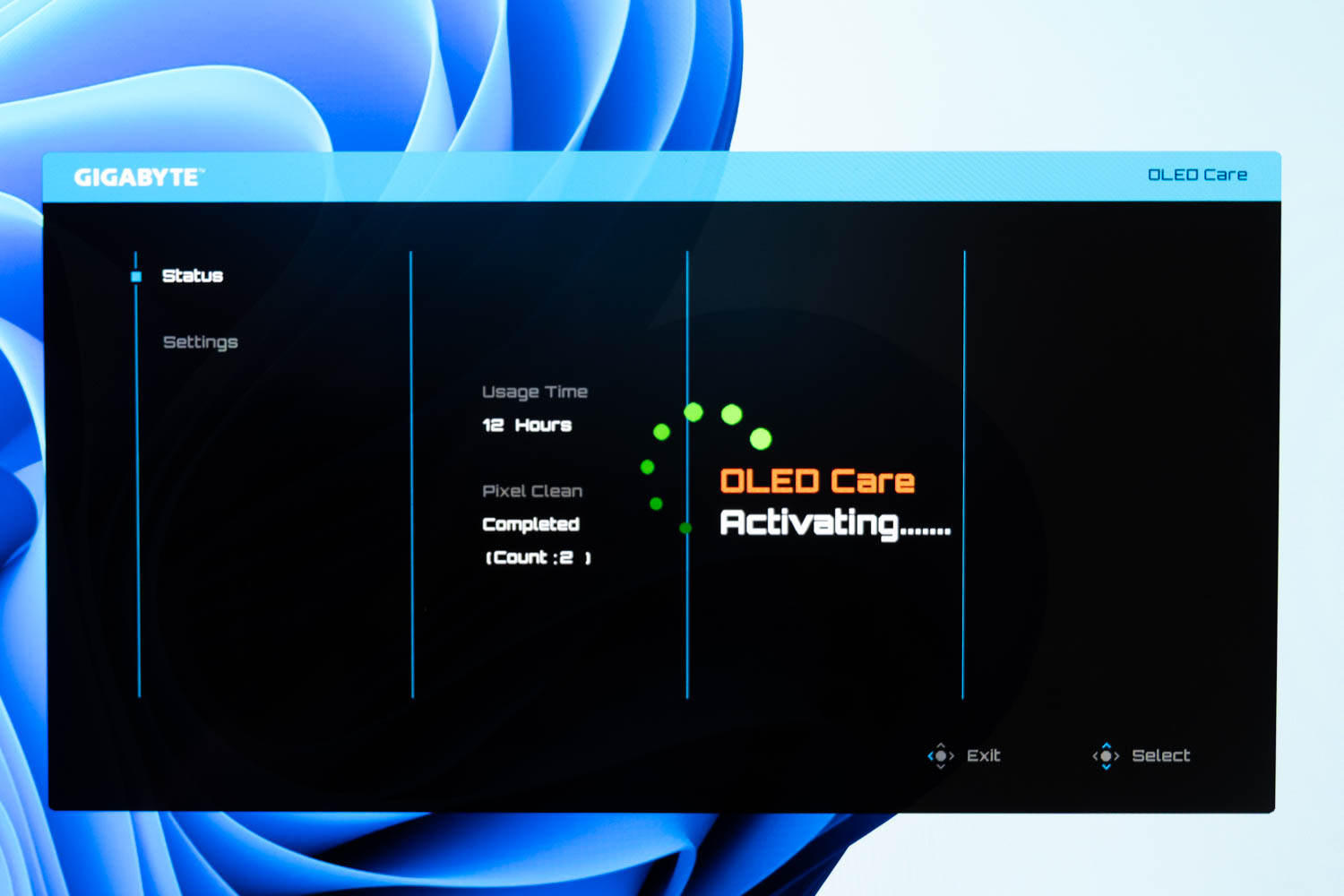
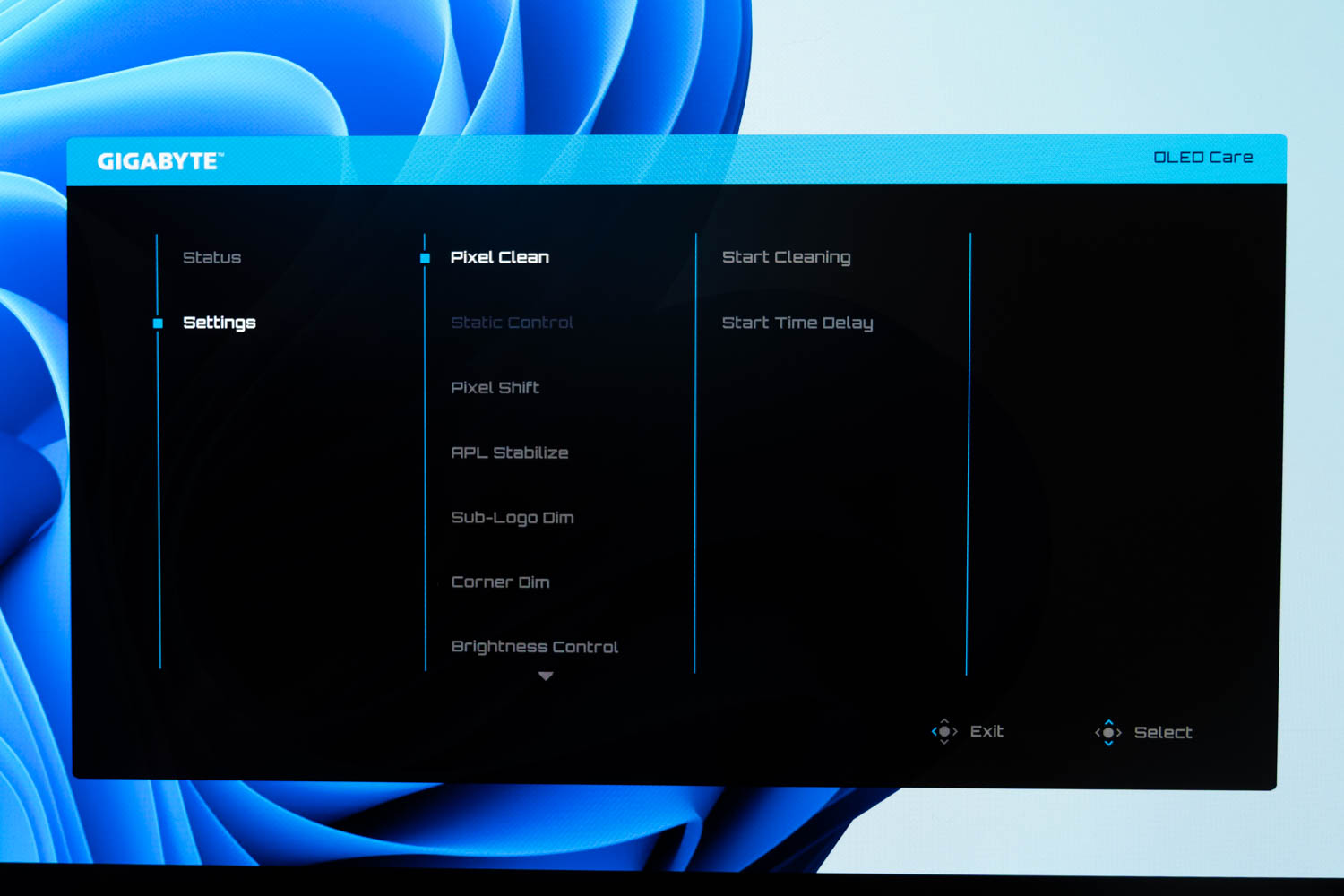
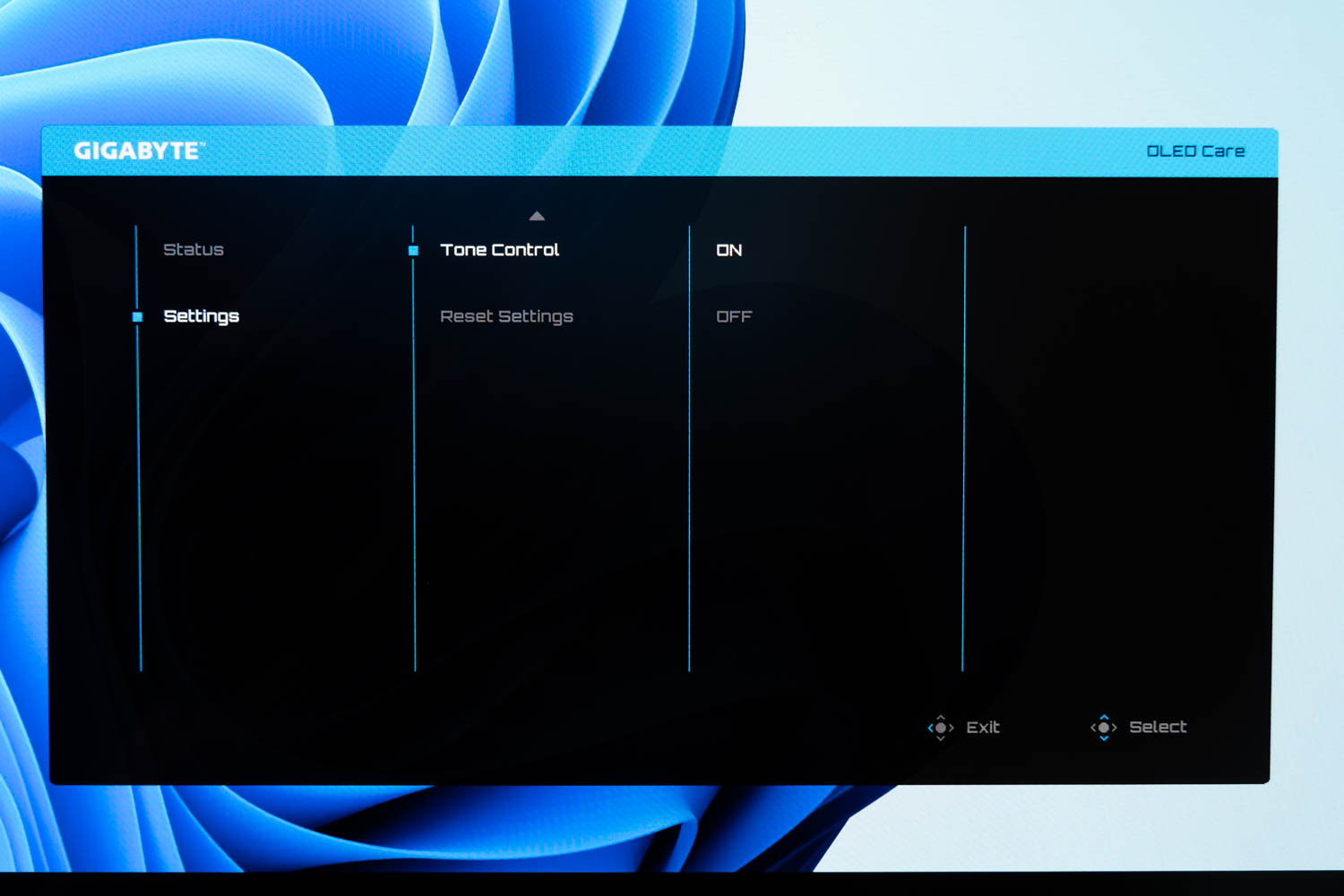
Gigabyte's OLED Care handles burn-in protection. The system uses multiple algorithms in real time and runs pixel compensation cycles when the monitor is idle or switched off, so the process never interrupts active use.
Pixel Clean - The manual pixel refresh routine. Accessible via Start Cleaning to trigger it immediately, or Start Time Delay to schedule it to run after a defined idle period rather than interrupting active use.
Static Control - Monitors the screen for static or near-static content and automatically reduces brightness in those regions to slow localized pixel wear.
Pixel Shift - Periodically shifts the entire image by a small amount so no pixel is displaying the exact same content over an extended period, distributing wear across a slightly wider area.
APL Stabilize - Manages brightness behavior in response to changes in Average Picture Level, reducing the sudden luminance shifts that can occur when screen content transitions between predominantly dark and predominantly bright states.
Sub-Logo Dim - Detects persistent static logos, HUD elements, or interface icons and selectively reduces their luminance to limit localized wear from repeatedly displayed graphics.
Corner Dim - Applies targeted brightness reduction to the corners of the panel, where wear patterns can develop unevenly due to the concentration of static interface elements in those areas on many desktop layouts.
Brightness Control - Automatically manages overall panel brightness based on usage patterns, lowering output during prolonged static or low-activity periods and restoring it when content activity resumes.
Tone Control - Adjusts the color tone balance to compensate for differential aging of the panel's organic materials over time, maintaining white point consistency as the panel accumulates hours.
Gigabyte backs the panel with a three-year warranty that includes burn-in coverage, which remains the appropriate assurance for an OLED display at this price.
Nov 18th, 2026 09:23 CST
change timezone
Latest GPU Drivers
New Forum Posts
- WarpCoreBench scores! (61)
- X99 Club (188)
- Wireless Internet sharing between PC and router both-ways, is it possible? (16)
- Time to upgrade CPU and MOBO (22)
- Last game you purchased? (1403)
- Without Jensen, PC gaming will be (43)
- [Poll] 12V-2x6 Connector Protection: What Are You Using? (WireView / Ampinel / Equalizer / Other / Nothing) (35)
- Help with fixing Overclock (10)
- GIGABYTE - H55N-USB3 ITX Upgrade experience (4)
- Honestly, do you care about GTA VI? (137)
Popular Reviews
- Acemagic Retro X3 Review
- Upcoming Hardware Launches 2027 (Updated Nov 2026)
- AMD Zen 6 Technical Deep Dive
- ASUS ROG Strix B850-I Gaming Wi-Fi7 W Review
- Corsair HX1000i Shift Crystal Review
- Biwin Black Opal NV7400 2 TB Review
- Chieftec Iceberg PRO 360 DARK Review
- AMD Ryzen 7 9800X3D Review - The Best Gaming Processor
- Phantom Blade Zero Performance Benchmark Review - 35 GPUs Tested
- Montech King 95 3D PRO Review
TPU on YouTube
Controversial News Posts
- NVIDIA Co-Founder and CEO Jensen Huang Officially Resigns (472)
- Open Letter Asking NVIDIA to Reinstate Jensen Huang Passes 115,000 Signatures (184)
- Report: Jensen Huang Eyes NVIDIA Comeback (176)
- OpenAI CEO Argues Home PCs Waste the World's Limited DRAM Supply (152)
- NVIDIA Launches Investigation Into Jensen Huang's Relationship With Suspected Chinese Spy (136)
- Intel "Raptor Lake Next" 16-Core and 20-Core CPUs Surface (130)
- Legendary Game Studio BioWare Shuts Down Following EA Layoffs (104)
- Dell CEO Says the Memory Shortage Will Get Worse in 2027 (95)