 4
Gigabyte MO27Q28GR Review - Gloss Without the Glare
Value & Conclusion »Gaming Performance
The MO27Q28GR runs its WOLED panel at 280 Hz with adaptive synchronization across a 48 to 280 Hz range, carrying both FreeSync Premium Pro and G-Sync Compatible certification.Response Time and Overdrive
I tested the response time with the Open Source Response Time Tool Pro (OSRTT Pro), developed by Andrew McDonald of TechTeamGB. It's a nifty tool that, combined with the OSRTT Launcher app, measures panel response times and presents them through detailed graphs and easy-to-read heatmaps. You can find everything you might want to know about the OSRTT in its technical documentation and on the official website, where you can order your unit, too. The OSRTT Launcher gives us three interesting heat maps to observe.Perceived Response Time tells us how much time the panel took to transition from one color to another. This measurement is expressed in milliseconds and includes overshoot. In other words, if the panel exceeded the target value, the perceived response time also includes the time it took for the transition to recover from overshoot and stabilize on the target value. I'm running my tests with recommended settings, so with a fixed RGB 5 tolerance level and with gamma-corrected RGB values.
RGB Overshoot tells us how much a specific transition missed the target value. For example, if the panel was transitioning from RGB 51 to RGB 204, and it initially landed on RGB 212, the overshoot RGB value is 8. Overshoot can be both positive and negative, and it commonly occurs at extreme overdrive settings when pixels are driven by high voltage. In practice, an overshoot manifests as an afterimage or a halo around a moving object. It can be easily spotted even when doing something as basic as scrolling through a webpage.
Visual Response Rating is the most abstract heatmap generated by the OSRTT Launcher; in essence, it's an ever-evolving scoring system. To quote OSRTT's technical documentation, it is a finite score rather than a direct measurement. The calculation is pretty simple; it's: "100 - (Initial Response Time + Perceived Response Time)." Since both metrics use the same tolerance level, if a display doesn't overshoot, both times will be identical. This essentially rewards displays that are fast with a small amount of overshoot over displays that aren't as fast even if they don't overshoot at all - while still overall preferring ultra-fast, accurate monitors.
Here's how the Gigabyte MO27Q28GR fares in the pixel response time test.
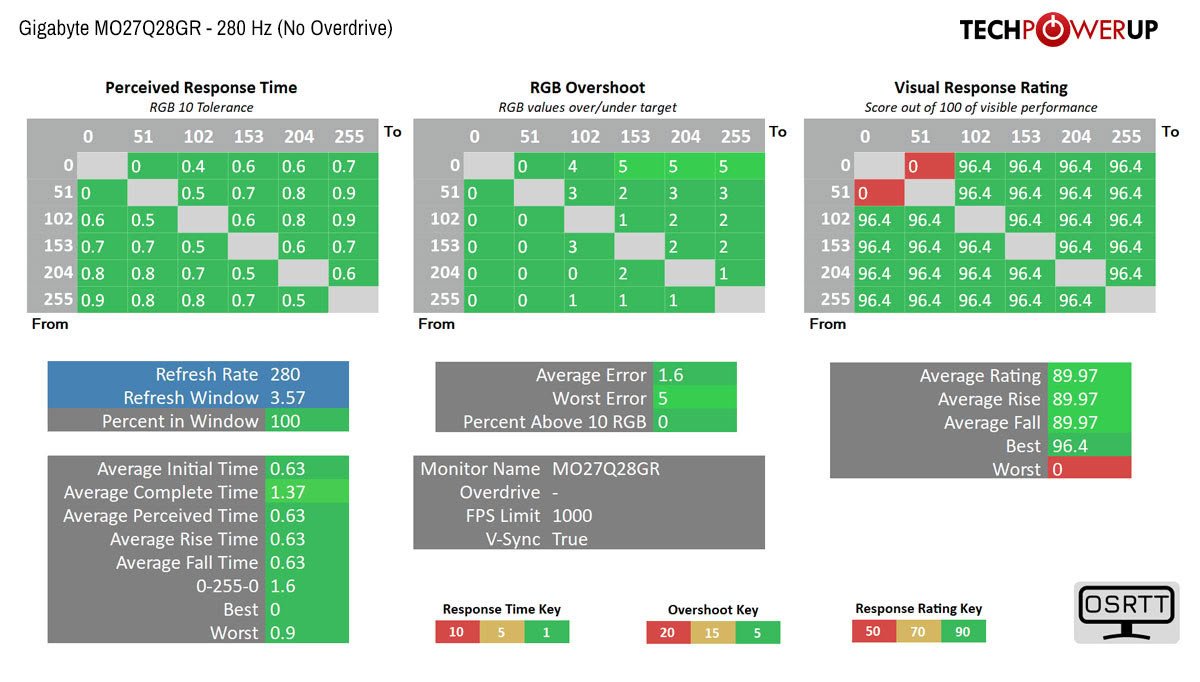
Average perceived response time comes in at 0.63 ms with average complete time at 1.37 ms. Rise and fall transitions are perfectly balanced, both averaging 0.63 ms, and the full 0 to 255 to 0 swing completes in 1.6 ms. The slowest single transition in the matrix measures 0.9 ms. Against a 3.57 ms refresh window at 280 Hz that puts 100% of transitions inside the frame time with a margin of nearly four to one, which means the panel has capacity to spare even at the highest refresh rate it supports.
There is no overdrive control in the OSD and none is needed, because OLED reaches these transition times through material properties rather than by driving pixels with excess voltage, which is why there is no inverse ghosting and no coronas trailing moving objects.
Gigabyte's Ultra Clear is a black frame insertion mode intended to cut sample-and-hold persistence further. It is present in the OSD and it works, but it disables adaptive synchronization and drops brightness far enough that the image is uncomfortable in anything short of a fully darkened room. Given that motion clarity at 280 Hz is already about as clean as current technology gets, that is not a trade anyone should accept.
Input Lag
To measure the input lag of a monitor, I switched from using the LDAT V2 (Latency Display Analysis Tool), which I've covered extensively in my NVIDIA Reflex review, to the OSRTT Pro Tool. The OSRTT Pro Tool and the accompanying software include a DirectX code developed by Andrew McDonald of TechTeamGB, which allows the OSRTT Launcher to track the events and capture the frame time, making it possible to isolate the monitor latency from other factors that come into play when using the click-to-photon testing methodology, namely the USB polling rate and game render time. For a deeper insight, I suggest you watch an excellent overview video made by Andy himself.Here's how the Gigabyte MO27Q28GR holds up in terms of input lag after doing 100 iterations of the input lag test.
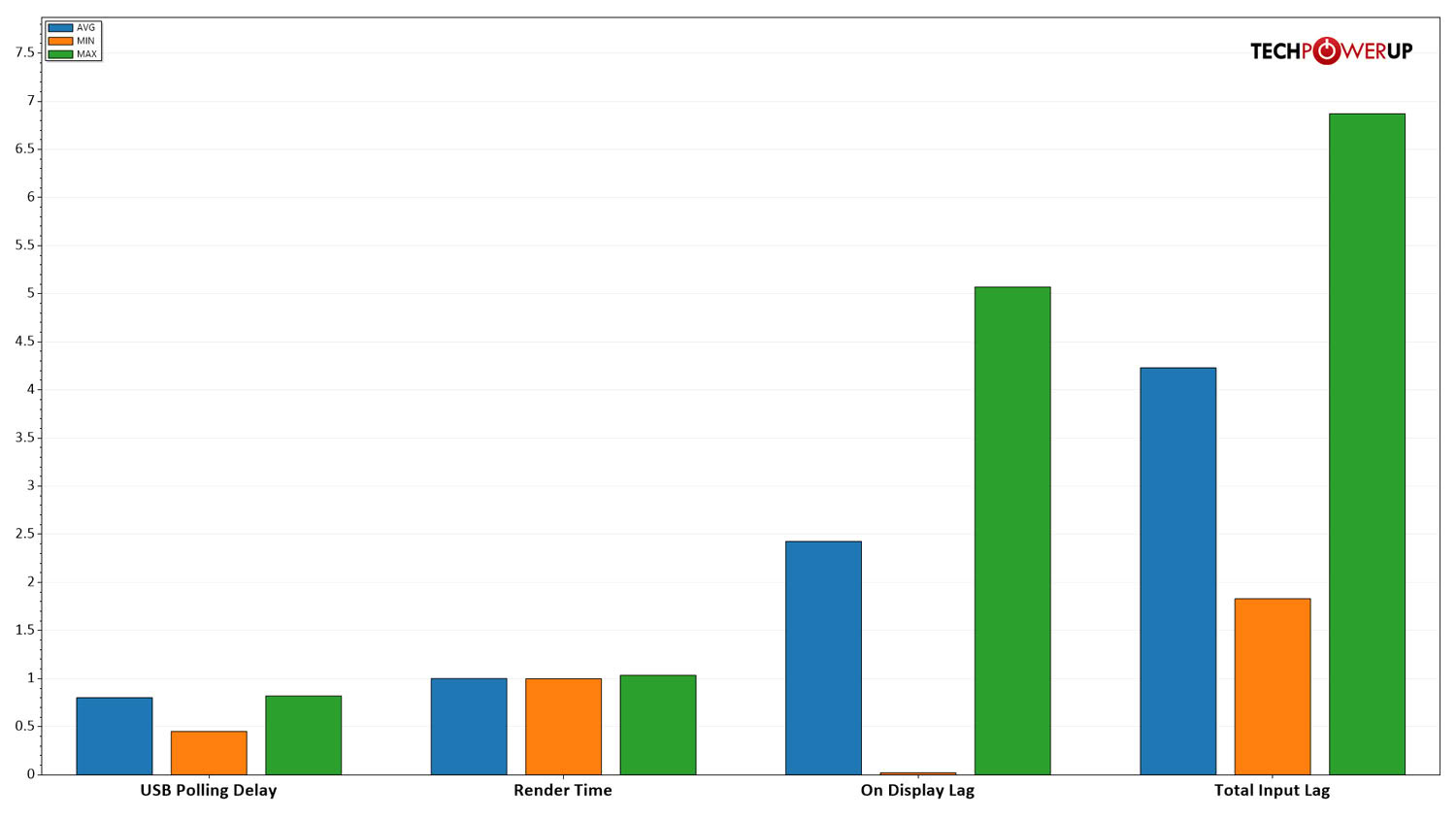
On-display lag averages 2.43 ms. At 280 Hz a single frame interval is 3.57 ms, so the monitor adds roughly two thirds of a frame of processing delay. This is the figure that describes the display itself, the time it needs to actually show a frame it has already been handed, with USB polling and render time excluded because those belong to the rest of the system rather than to the monitor. There is no scenario in which this display limits your reaction time, and aspiring esports players will find nothing here to complain about.
Other Notable Gaming Features
OLED VRR Anti-Flicker targets the brightness fluctuation OLED panels can exhibit during variable refresh operation, which is most apparent in darker scenes and when frame rates move around a lot. Gigabyte exposes it as a user setting rather than hiding it in firmware, which is the right call, because the mitigation works partly by constraining the effective VRR range and different people will weigh that trade differently. It will not rescue a game running badly enough to swing wildly, but it reduces both how often flicker appears and how obvious it is.Tactical Switch 2.0 is the physical button to the right of the joystick, and you assign what it does in the OSD. Options include triggering a crosshair or timer, or switching resolution to one of several lower options including 1920×1080, 1280×960, 1024×768 and 1280×1024. The non-16:9 entries exist for tactical shooter players, where a stretched image makes enemy models wider and easier to hit. Worth knowing that dropping resolution on this model does not unlock a higher refresh rate, and since 1440p is not a serious load for a modern GPU, most people will find one of the other assignments more useful.
Game Assist covers the usual overlay tools, including a crosshair and a timer, and PiP and PbP handle two sources at once.
Nov 19th, 2026 22:22 PST
change timezone
Latest GPU Drivers
New Forum Posts
- Honestly, do you care about GTA VI? (178)
- Anthrophics IPO (10)
- WarpCoreBench scores! (78)
- How to prevent OLED burn damage due to PC freezes or power outtages? (39)
- TPU's Nostalgic Hardware Club (22172)
- RX 7600 + Ryzen 5 5600GT getting the same FPS as my old RX 6500 XT – What am I missing? (5)
- GTA VI (11)
- GPU Temperatures Rise Very Quickly in FurMark – Is This Normal? (18)
- Time to upgrade CPU and MOBO (72)
- Dual B70 or Dual R9700 Pro on Linux (13)
Popular Reviews
- AMD Zen 6 Technical Deep Dive
- Ugreen NASync DXP4800 GT Review
- Acemagic Retro X3 Review
- Upcoming Hardware Launches 2027 (Updated Nov 2026)
- Pulsar Office Tour & First Look at P1 Dual-Sensor Mouse
- Corsair RM1200e (Second Generation) Review
- Biwin Black Opal NV7400 2 TB Review
- Chieftec Iceberg PRO 360 DARK Review
- AMD Ryzen 7 9800X3D Memory Performance Scaling
- AMD Ryzen 7 9800X3D Review - The Best Gaming Processor
TPU on YouTube
Controversial News Posts
- NVIDIA Co-Founder and CEO Jensen Huang Officially Resigns (490)
- Report: Jensen Huang Eyes NVIDIA Comeback (224)
- Open Letter Asking NVIDIA to Reinstate Jensen Huang Passes 115,000 Signatures (184)
- OpenAI CEO Argues Home PCs Waste the World's Limited DRAM Supply (152)
- NVIDIA Launches Investigation Into Jensen Huang's Relationship With Suspected Chinese Spy (136)
- Intel "Raptor Lake Next" 16-Core and 20-Core CPUs Surface (130)
- Legendary Game Studio BioWare Shuts Down Following EA Layoffs (104)
- Dell CEO Says the Memory Shortage Will Get Worse in 2027 (95)