 9
Logitech MX Keypad Review
Value & Conclusion »Working with the MX Keypad
Logitech Options+
At the center of the MX Keypad is Logitech Options+. Without the Options+ processes running in the background, the MX Keypad simply won't work, and configuration is exclusively done through Options+. On my system, Options+ has a RAM footprint of 344 MB when running, which goes down to 130 MB with only the necessary background processes running. While it is possible to use Options+ without a Logitech account, doing so restricts access to the Logi marketplace, through which plugins are distributed, which are integral to using the MX Keypad. Accordingly, meaningful use of the MX Keypad strictly requires creating a Logitech account.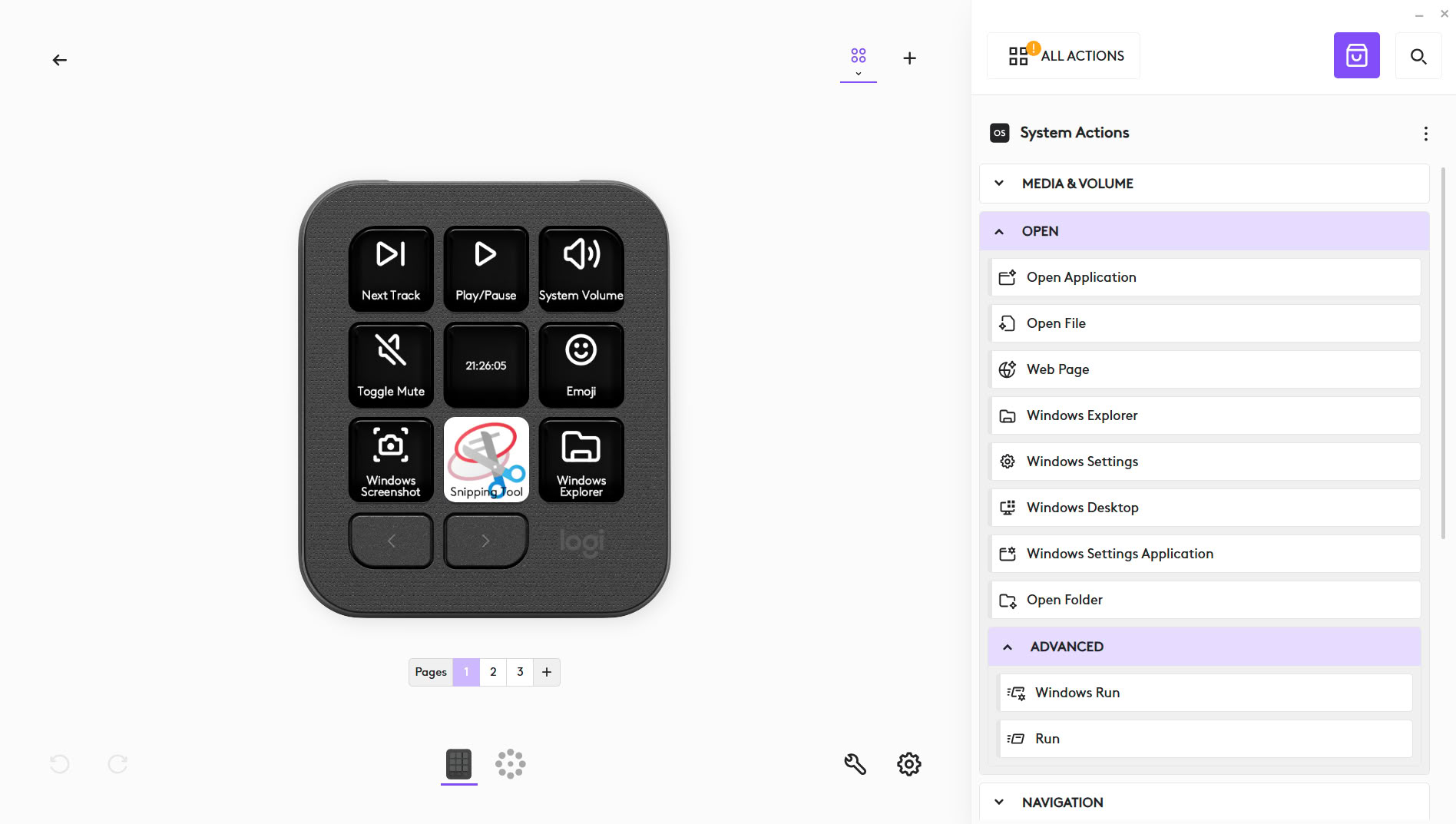
The UI is simple and straightforward. Actions are listed on the right and simply dragged and dropped onto the MX Keypad on the left. Once actions are dropped, they can also be moved around on the same page or to others by cutting and pasting. Actions can be grouped either across pages or profiles, and profiles can either be general or application-specific. By using application profiles, one can also utilize context-aware profile switching: for instance, when opening Claude Desktop, the MX Keypad will automatically switch to the associated profile, with all associated actions.
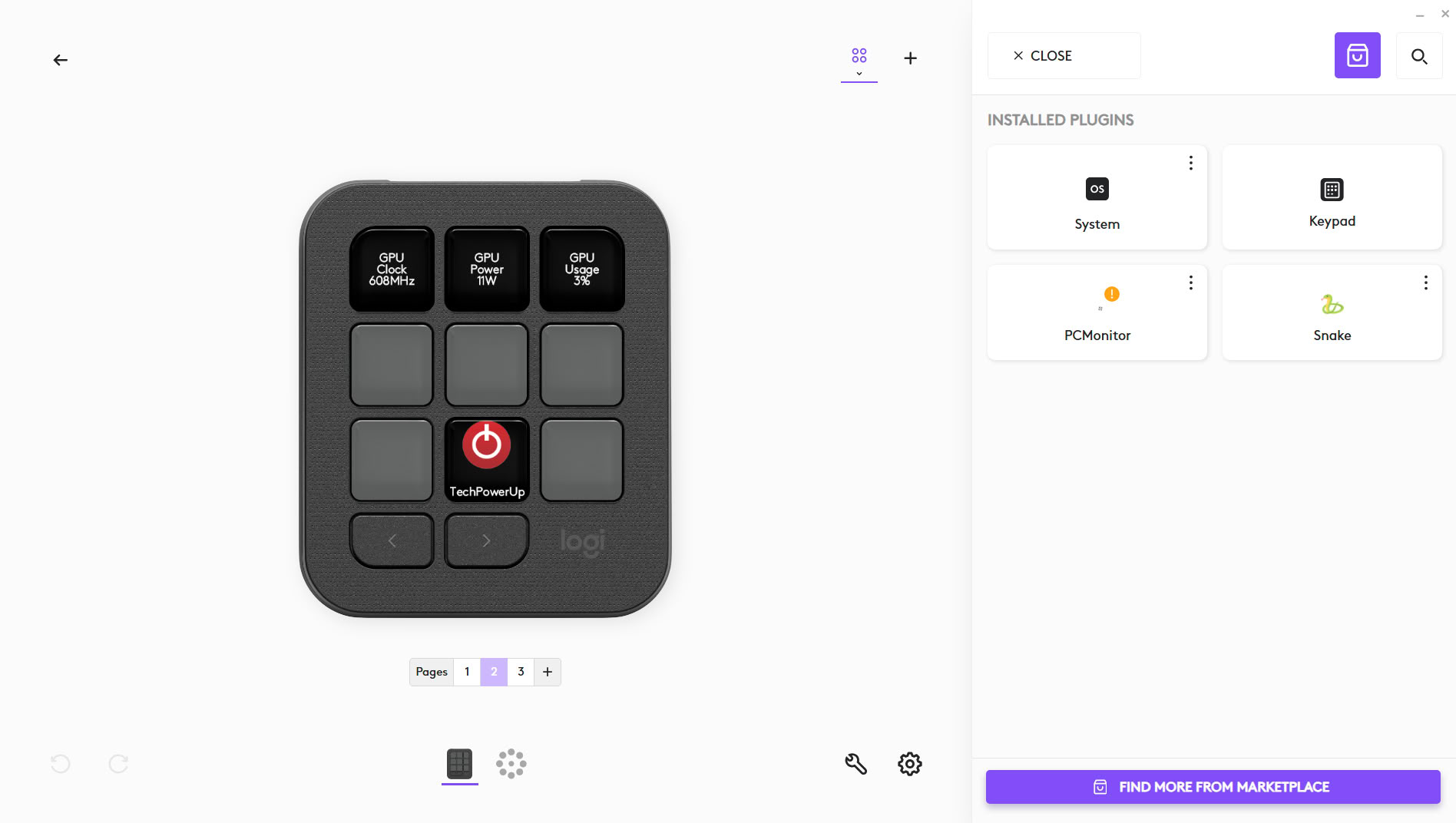
By default, actions are available as part of two lists: Keypad actions and system (OS) actions. Keypad actions refer to keypad-specific actions such as profile switching or brightness controls. System actions are more numerous, including media, run, navigation, utility, system, mouse, keyboard, control, or widget functions. For instance, one can set up macros, run batch files or scripts, open websites or applications, and so on. Further lists are usually provided as part of plugins.
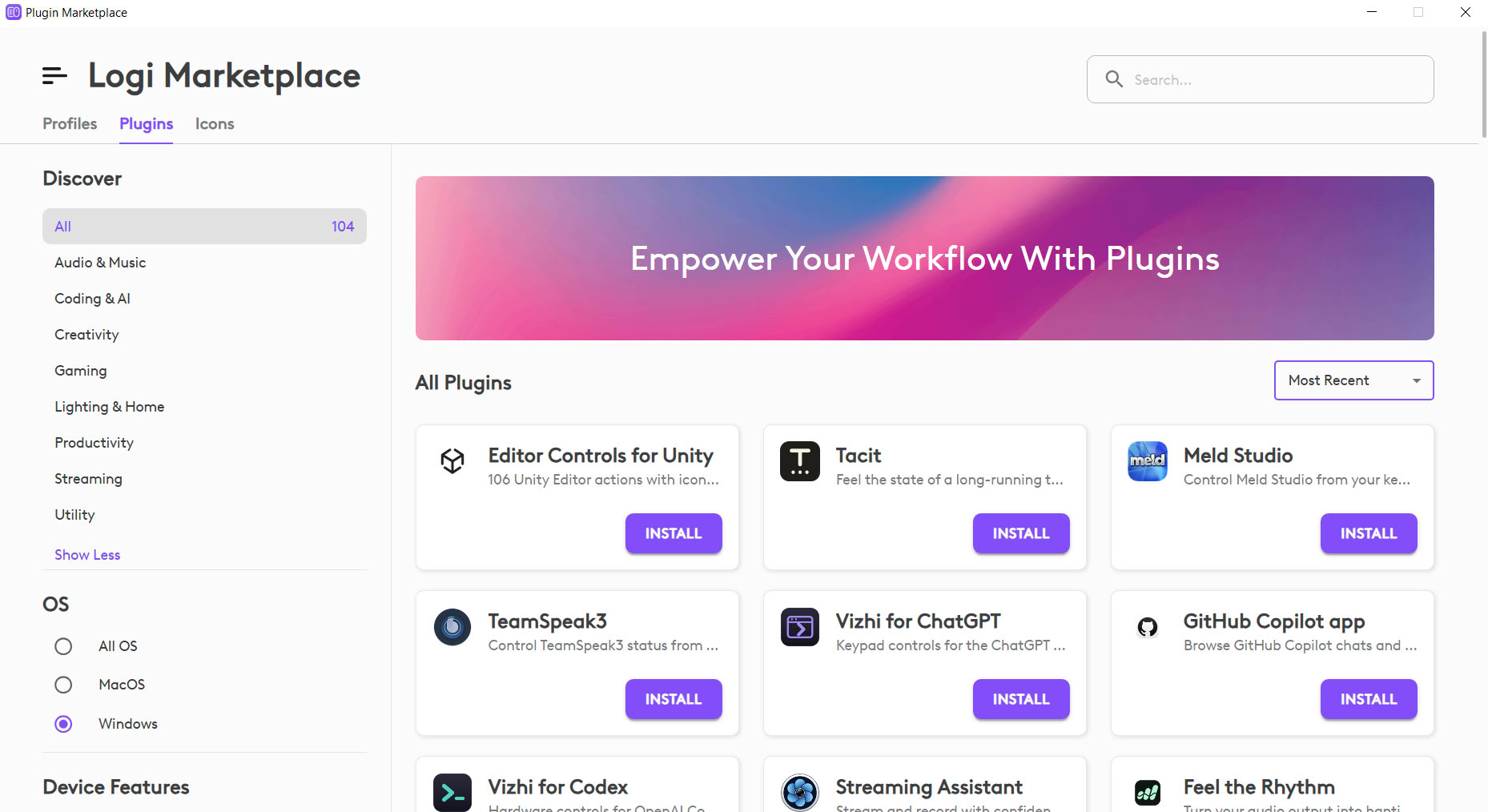
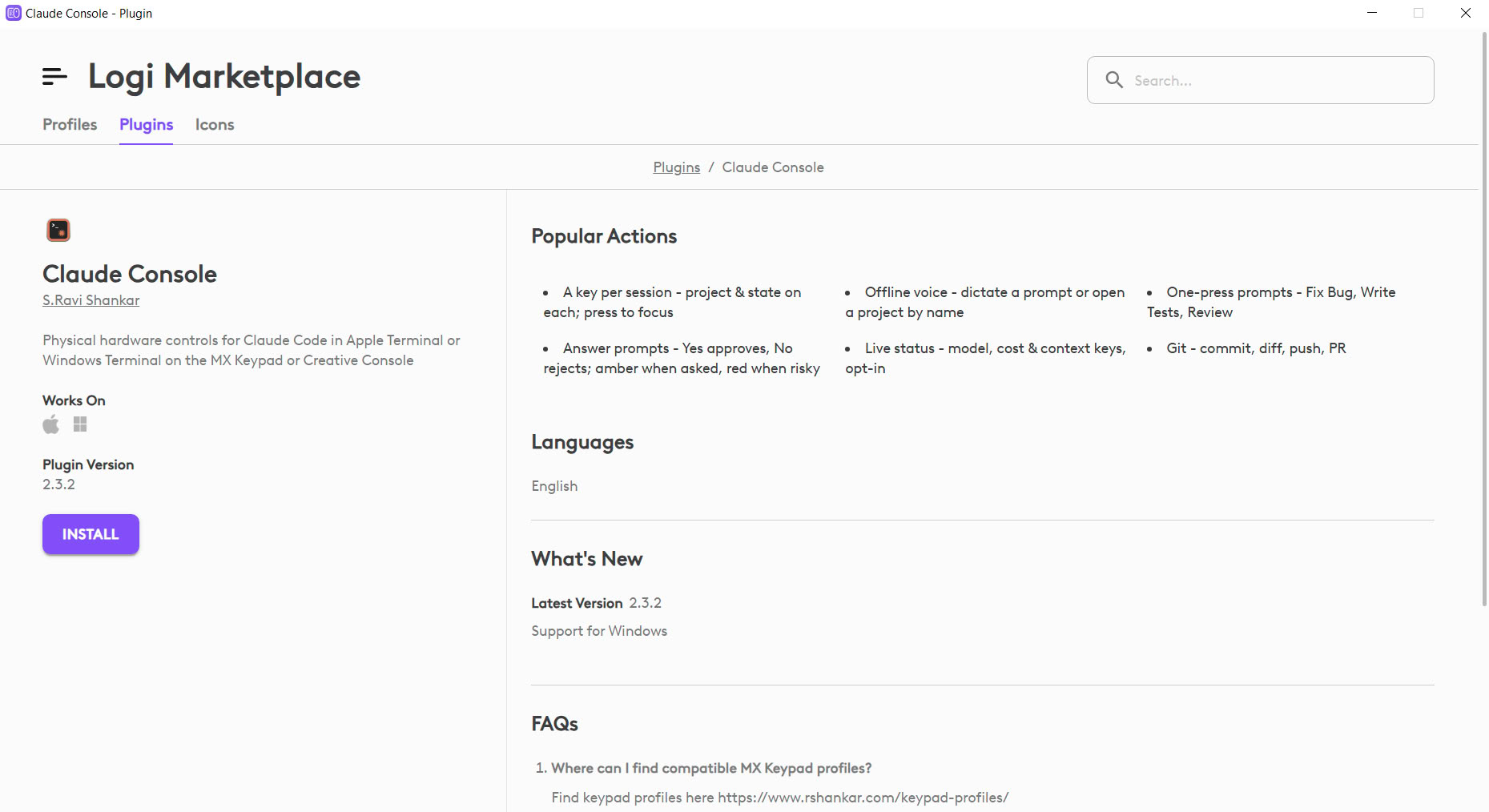
In order to interact usefully with applications, one has to resort to using the Options+ marketplace. The marketplace offers icons, profiles, and—most importantly—plugins. Plugins enable one to access application functions and usually come with profiles as well. For instance, when using the Claude Console plugin, one gets access to one-press prompts or GitHub actions. If an application offers hardware controls, then these hardware controls likewise can be accessed through MX Keypad. For instance, through the PCMonitor plugin, hardware monitors recorded through MSI Afterburner/RTSS can be displayed on the MX Keypad. Options+ is fundamentally structured around applications in that direct interaction with web content isn't really supported—there is a plugin for Google Chrome, but functionality is very limited. Accordingly, for Discord interaction, one needs to use the desktop application rather than the web client in conjunction with the MX Keypad. It should be noted that some plugins additionally need application extensions to work.
The marketplace is rather barebones. There are no user ratings for content, and one can only sort by release (most recent) and name (alphabetical order), yet not by most popular (number of installations), and there is no tag system, either. Another desirable feature would be the ability to report bugs or give feedback directly to the plugin author, which likewise currently is absent. That having been said, there is a good level of activity on the marketplace, with new plugins releasing every couple of days. At the time of writing, slightly over 100 plugins are available, the majority of which are compatible with both Windows and macOS. Of note is that the marketplace is an open platform in that Logitech provides the SDK documentation, allowing one to develop one's own plugins if so desired. The one lamentable limitation is that only C# and JavaScript are supported.
Nov 14th, 2026 08:21 CST
change timezone
Latest GPU Drivers
New Forum Posts
- Tell me about your favourite graphics card (48)
- What are you playing? (26219)
- 3D Printer Club (851)
- Folding Pie and Milestones!! (10202)
- a note from zachary85's son (9)
- Have you got pie today? (17083)
- No screen and keyboard with mouse not being powered on (4)
- Requesting original VBIOS for Gigabyte RX 5700 XT GAMING OC 8G Rev 2.0 (Micron) (3)
- Unallocated space in ssd , is it normal? (19)
- What can the FX 8320 do today? Here is the answer. (2)
Popular Reviews
- AMD Zen 6 Technical Deep Dive
- Corsair HX1000i Shift Crystal Review
- ASUS ROG Strix B850-I Gaming Wi-Fi7 W Review
- NZXT C1200 Platinum Review
- Upcoming Hardware Launches 2027 (Updated Nov 2026)
- Montech King 95 3D PRO Review
- NZXT H7 RGB+ Review
- NZXT H5 Review
- Phantom Blade Zero Performance Benchmark Review - 35 GPUs Tested
- XPG NIMBUS PLUS Review - Mid-range Chair With Strong Competitors
TPU on YouTube
Controversial News Posts
- NVIDIA Co-Founder and CEO Jensen Huang Officially Resigns (385)
- OpenAI CEO Argues Home PCs Waste the World's Limited DRAM Supply (152)
- NVIDIA Launches Investigation Into Jensen Huang's Relationship With Suspected Chinese Spy (136)
- Intel "Raptor Lake Next" 16-Core and 20-Core CPUs Surface (130)
- Legendary Game Studio BioWare Shuts Down Following EA Layoffs (104)
- Dell CEO Says the Memory Shortage Will Get Worse in 2027 (95)
- NVIDIA GeForce RTX 50-Series Scheduled for up to $500 Price Hike This Week (89)
- Modder Fits RTX 5090 With Four 8-Pin Connectors, Halving Current per Wire (80)