 27
MSI MEG X870E Godlike X Edition Review
Board Software »BIOS Overview
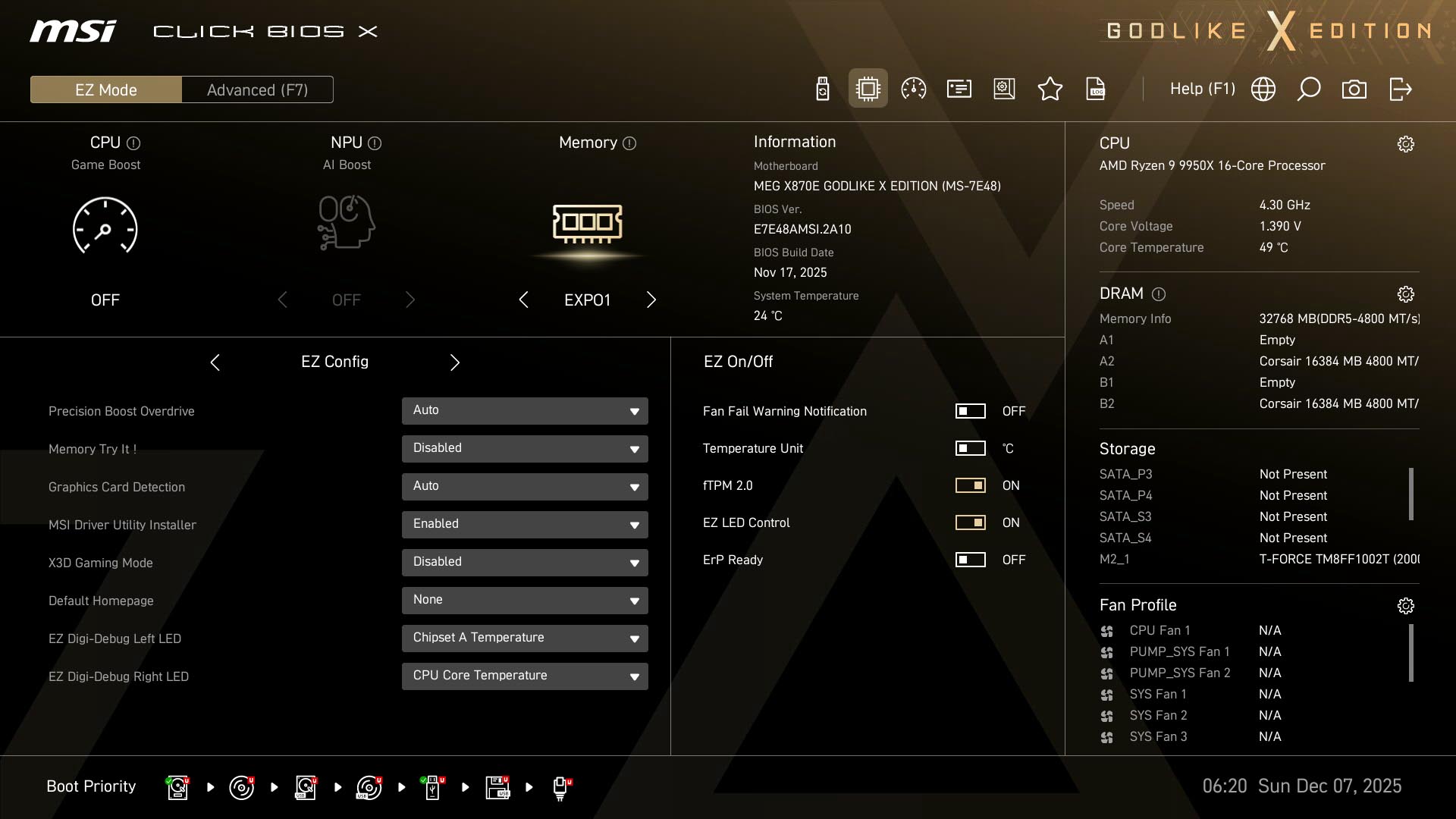
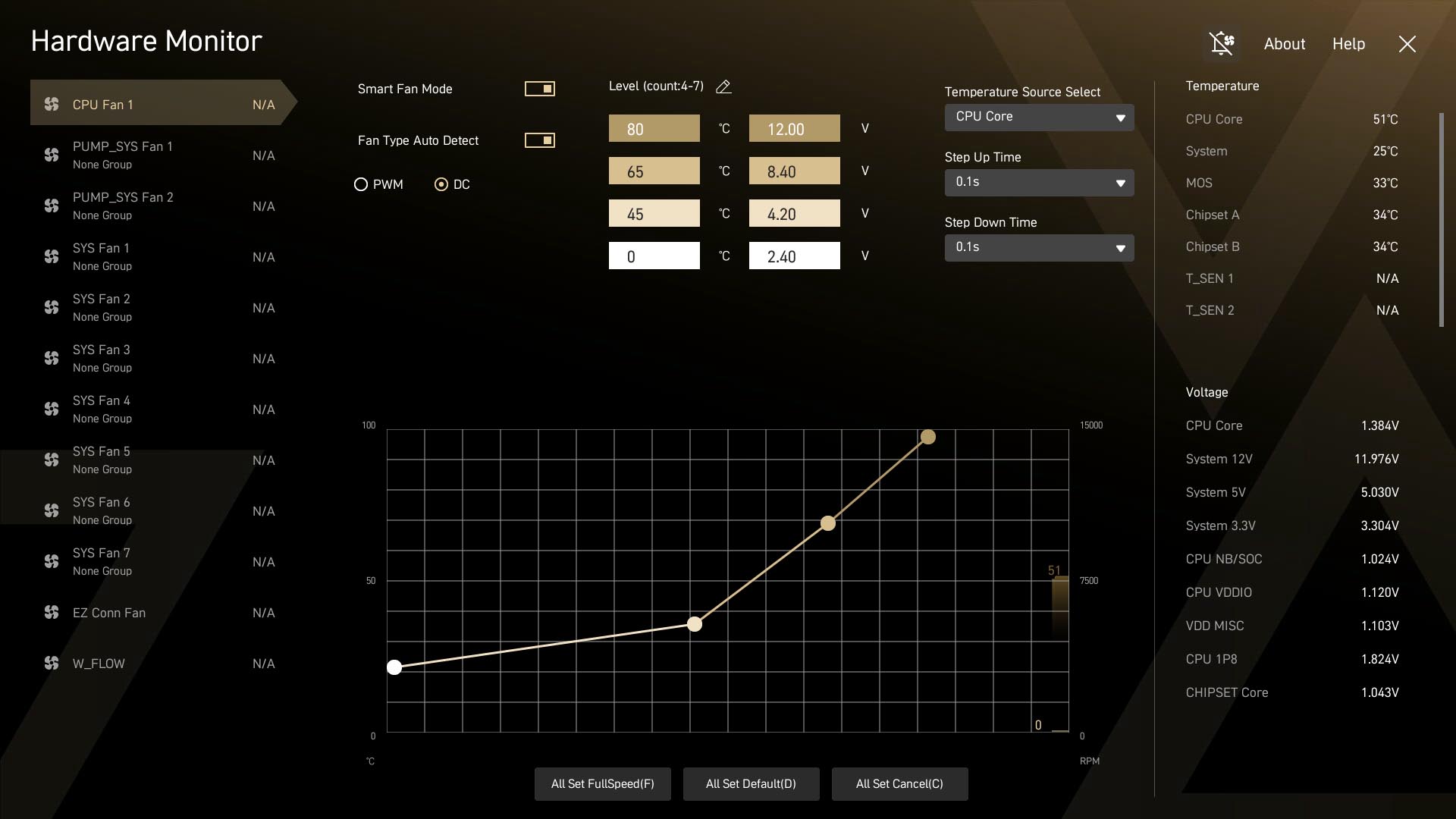
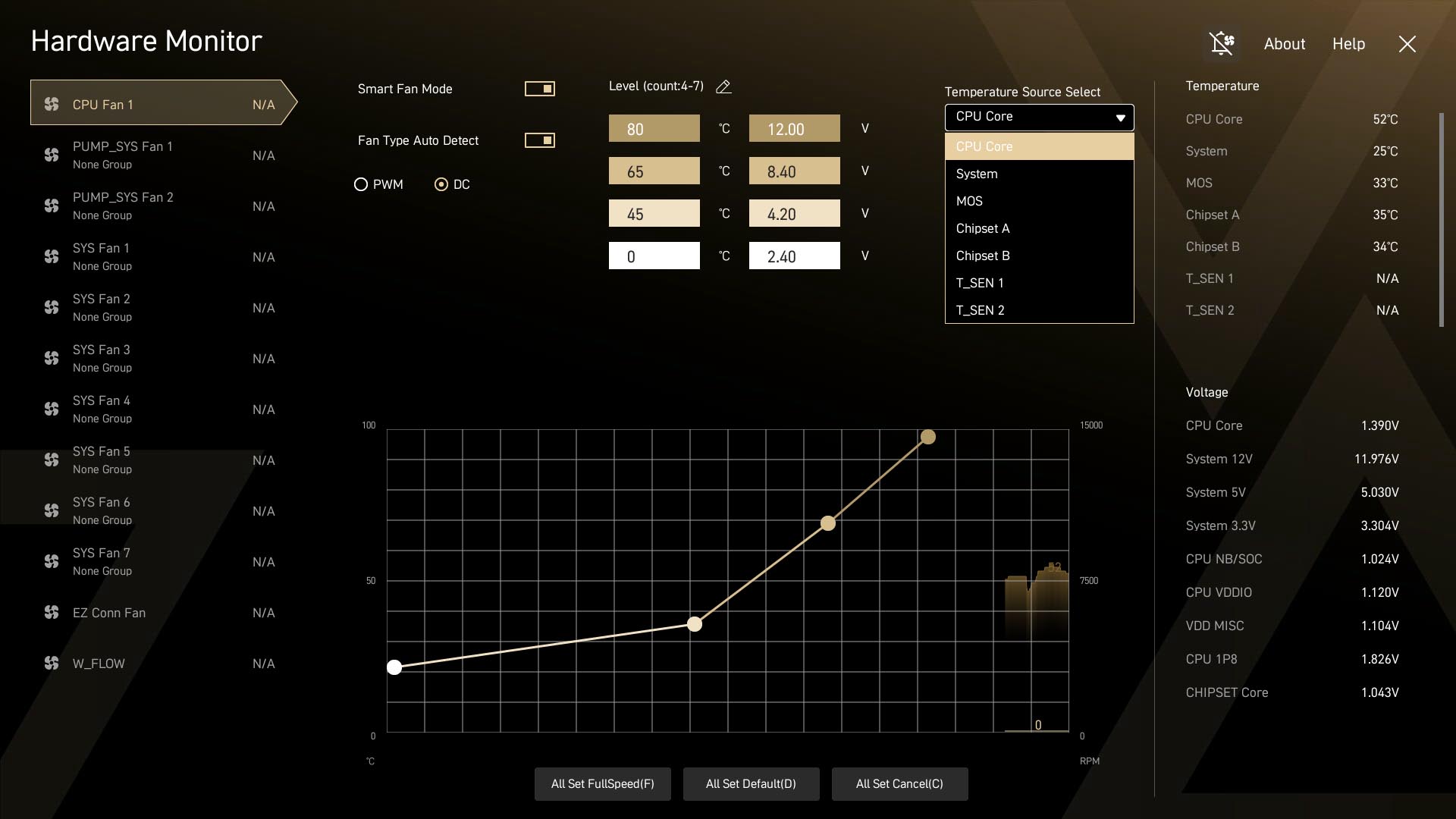
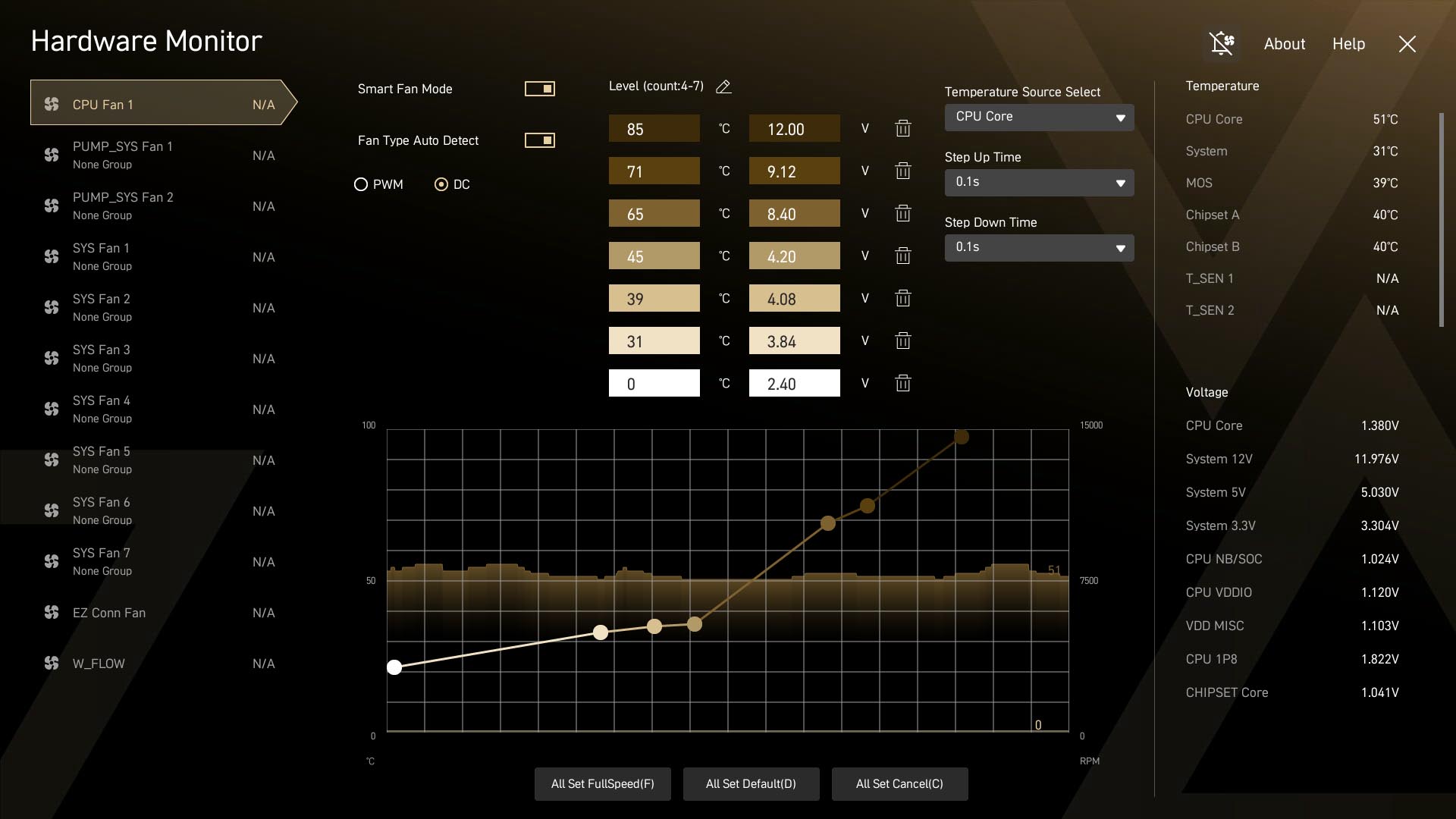
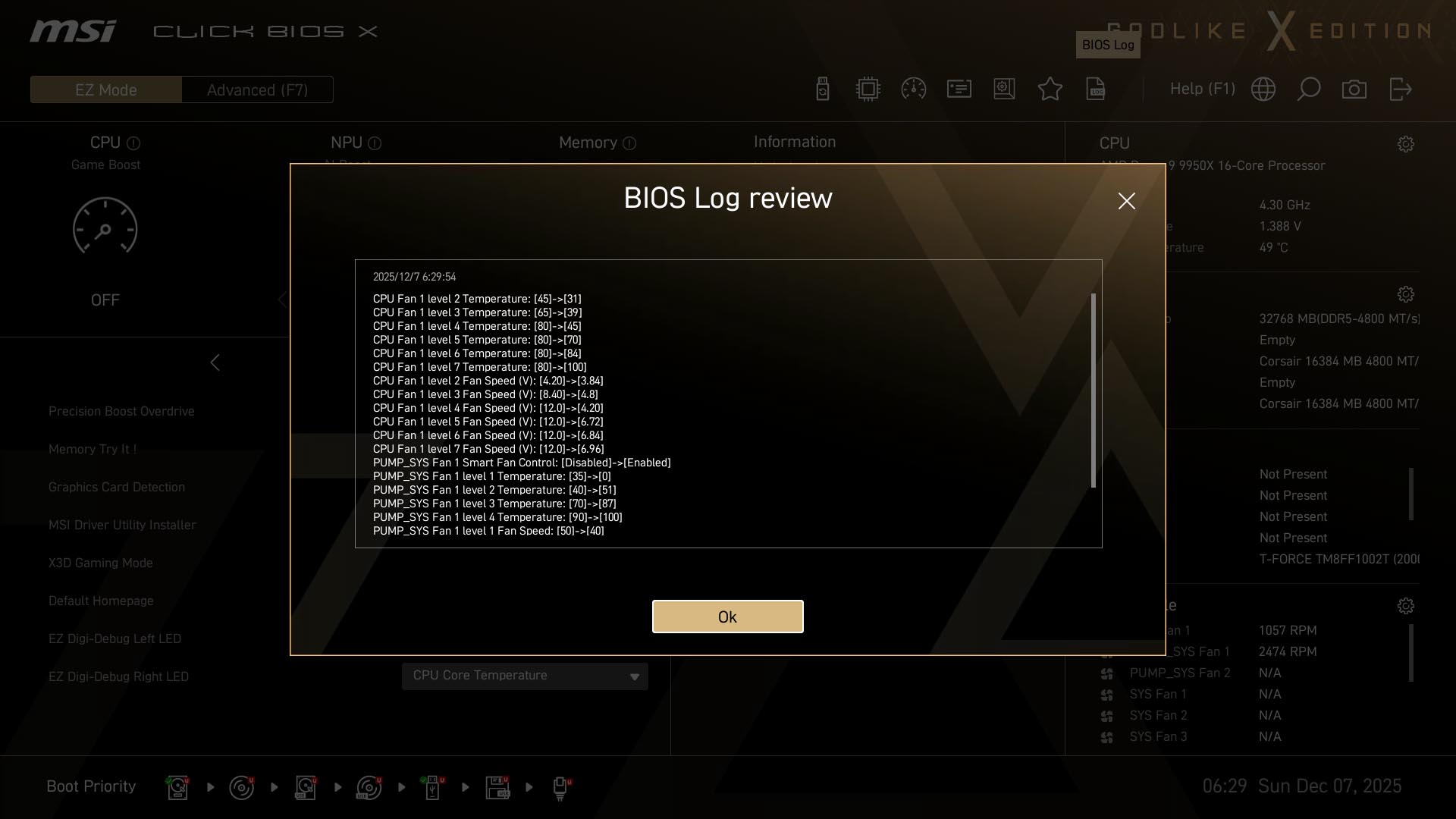
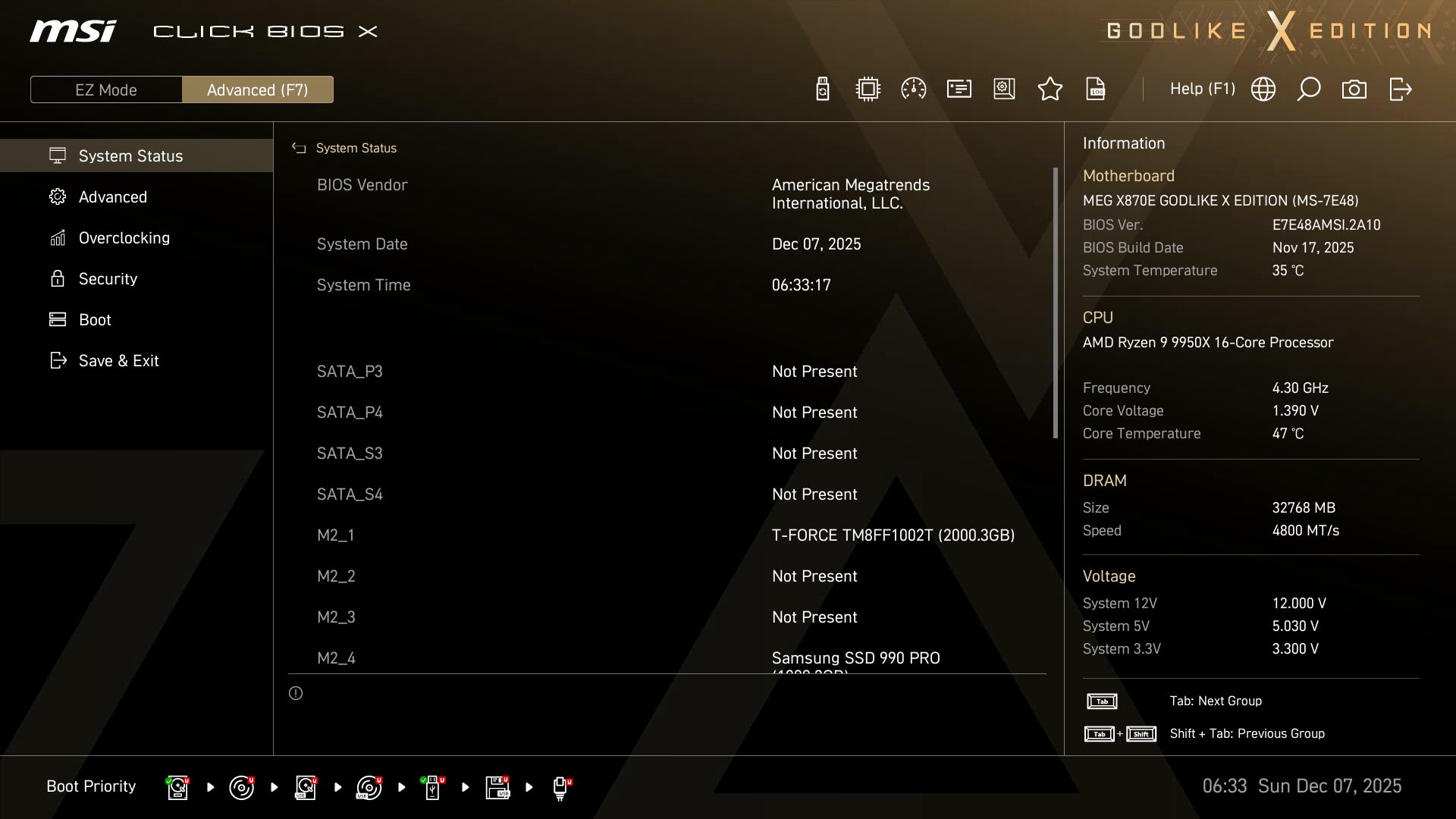
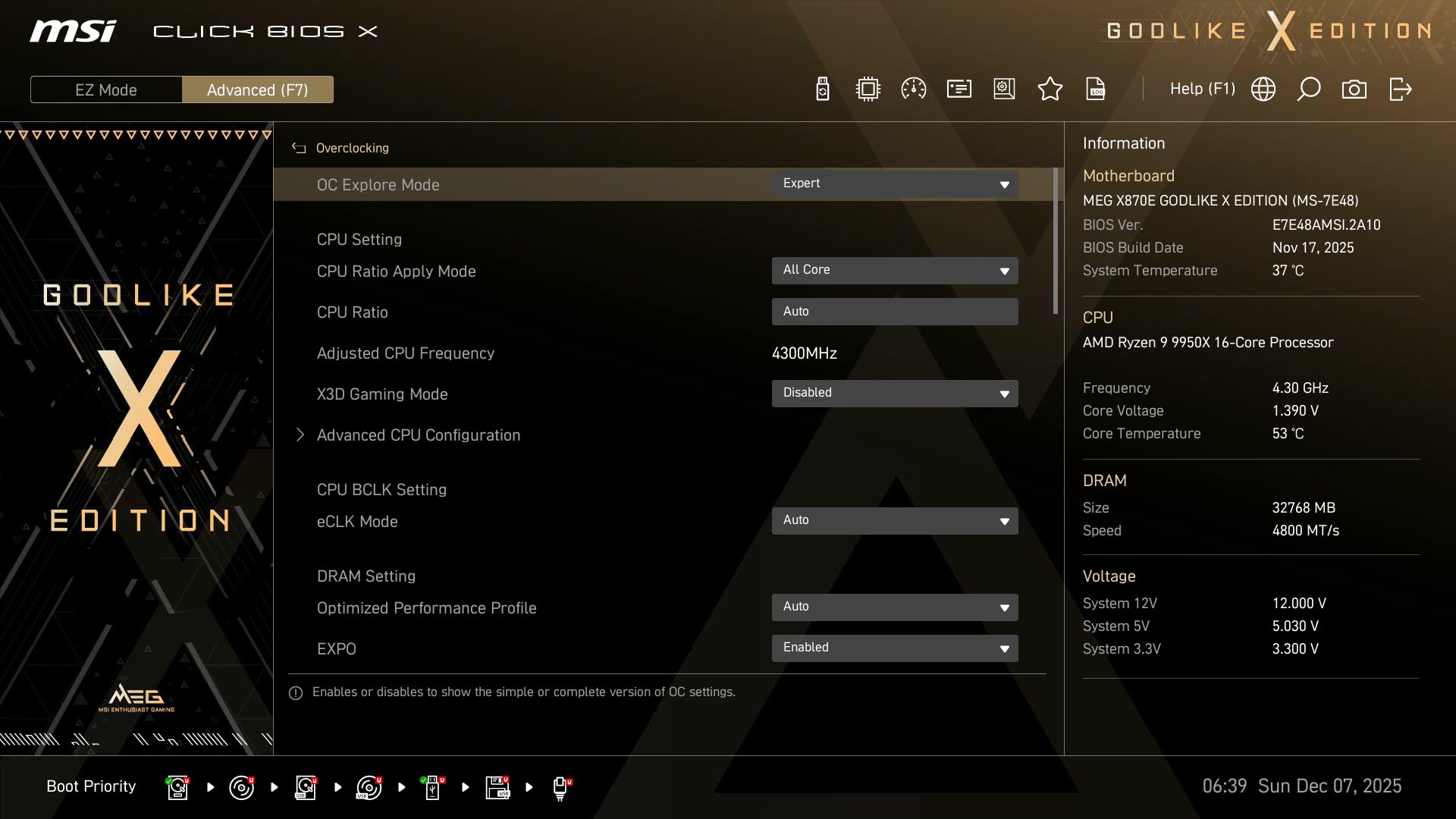
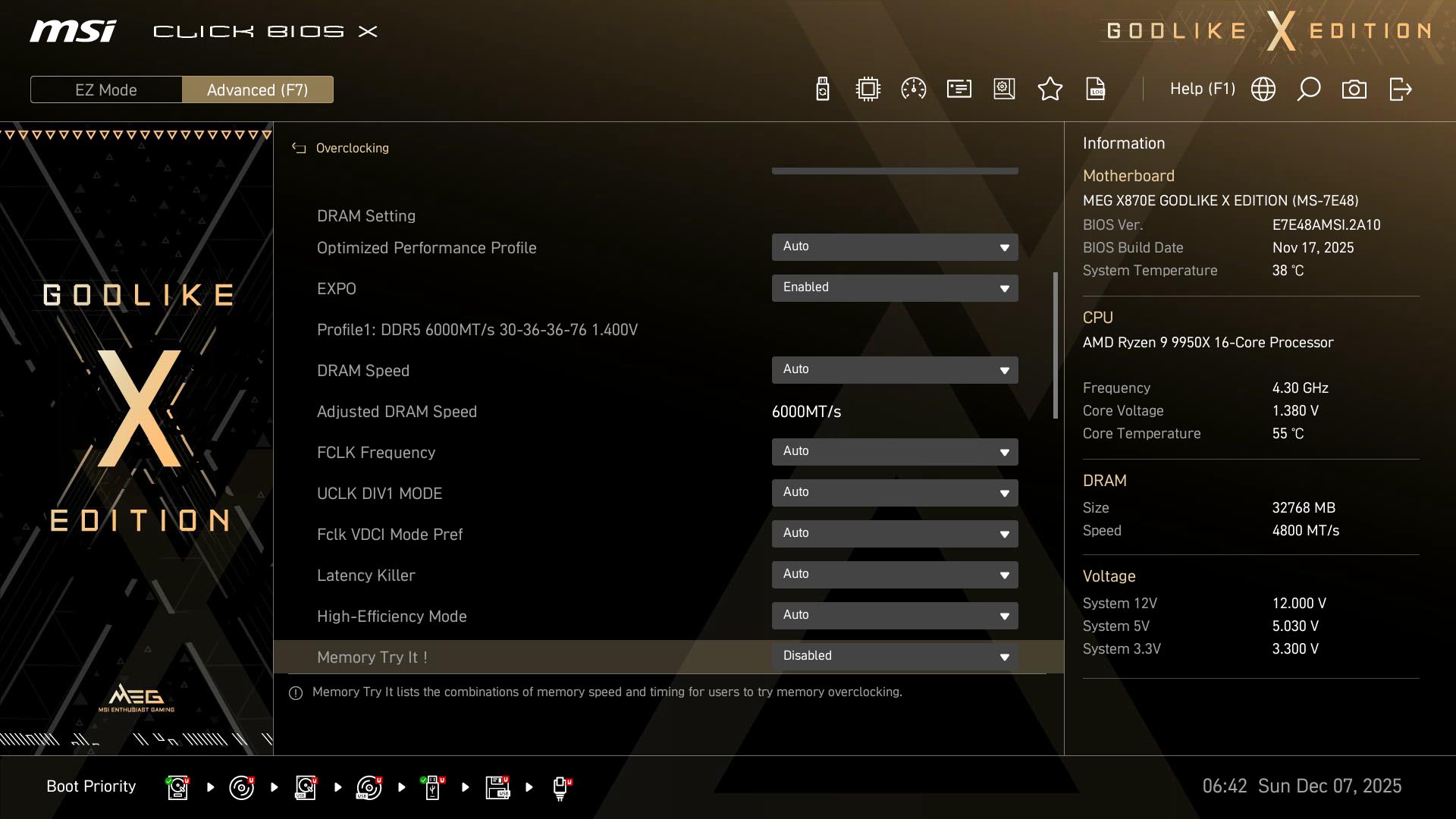
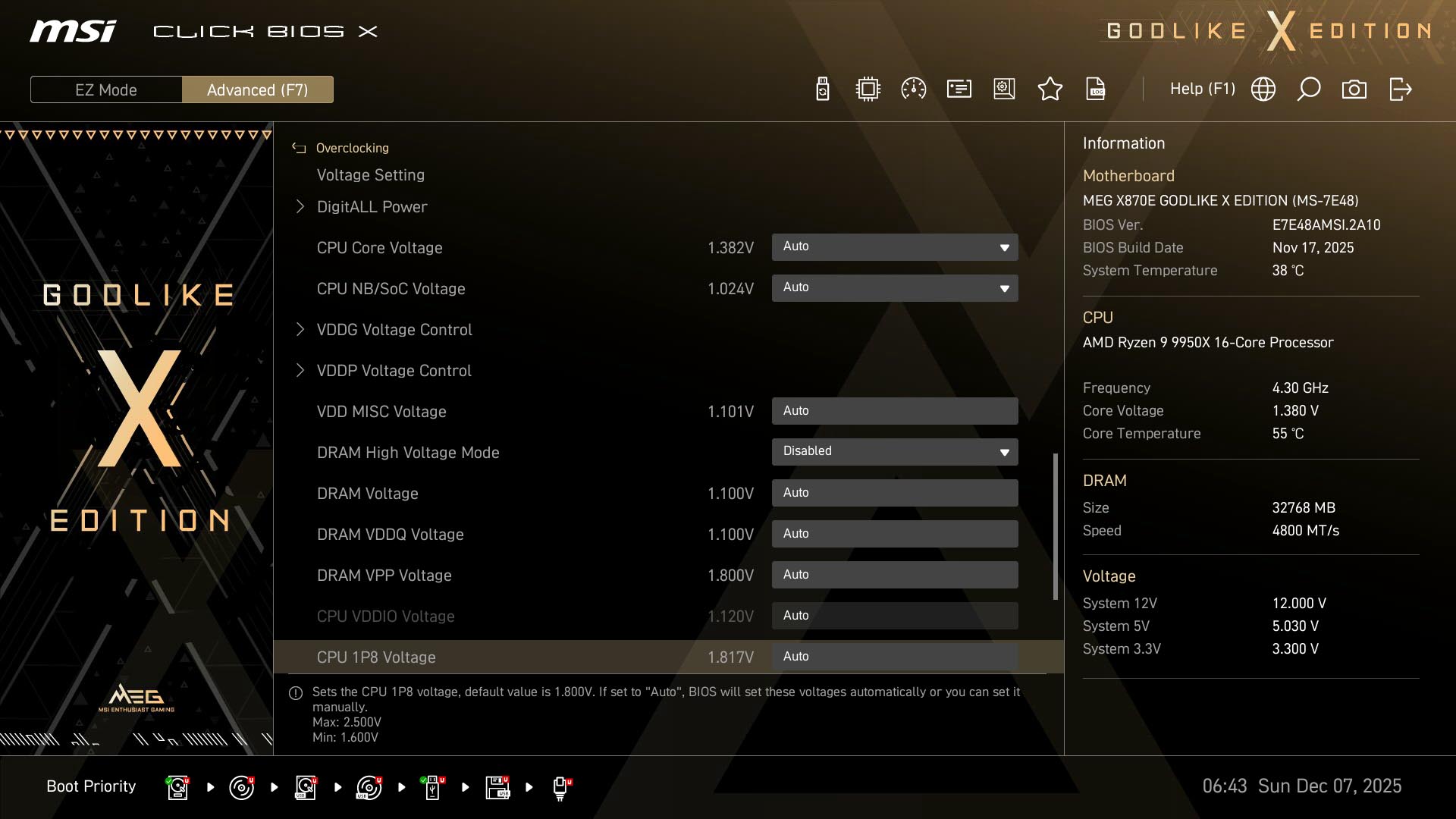
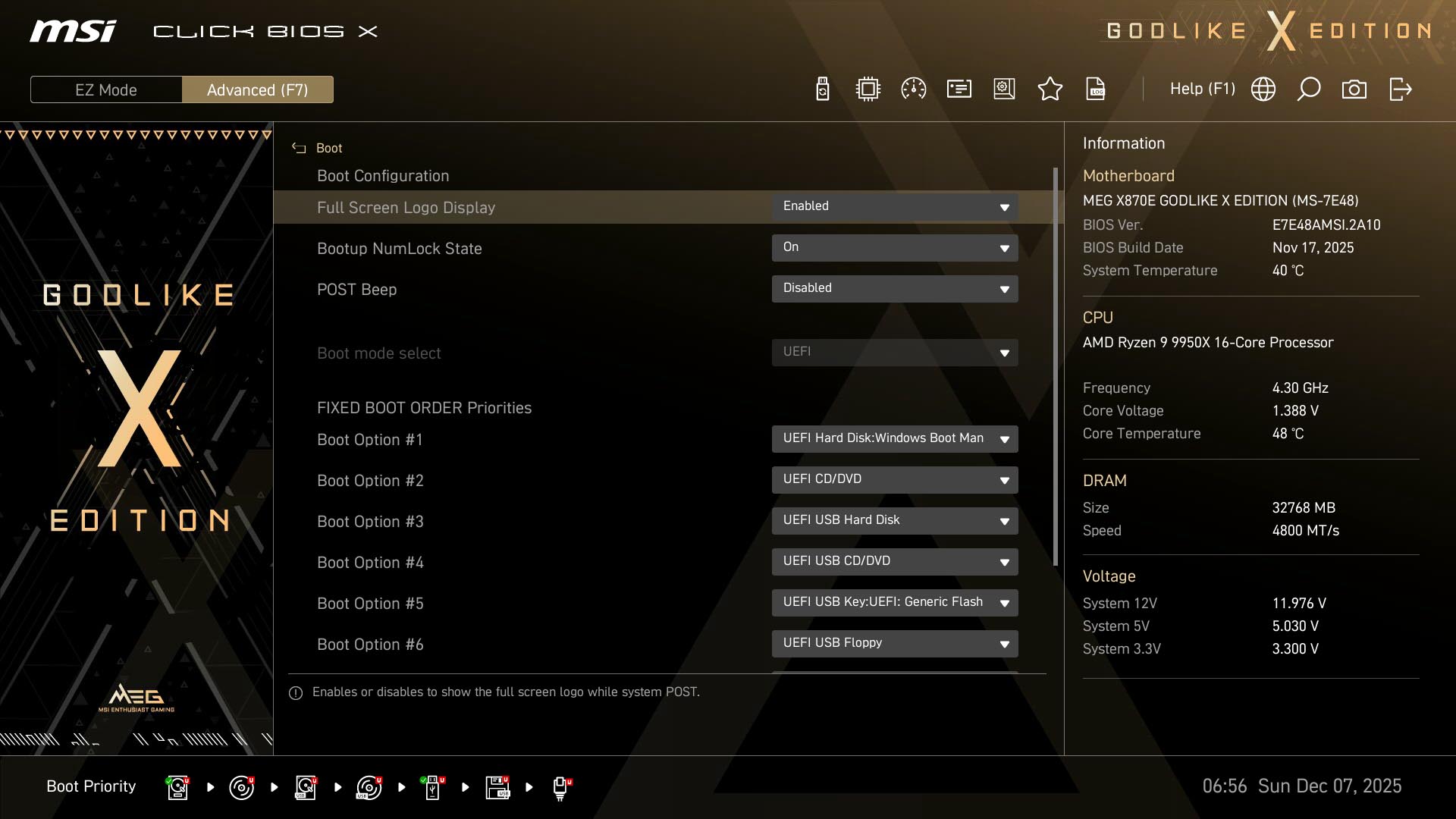
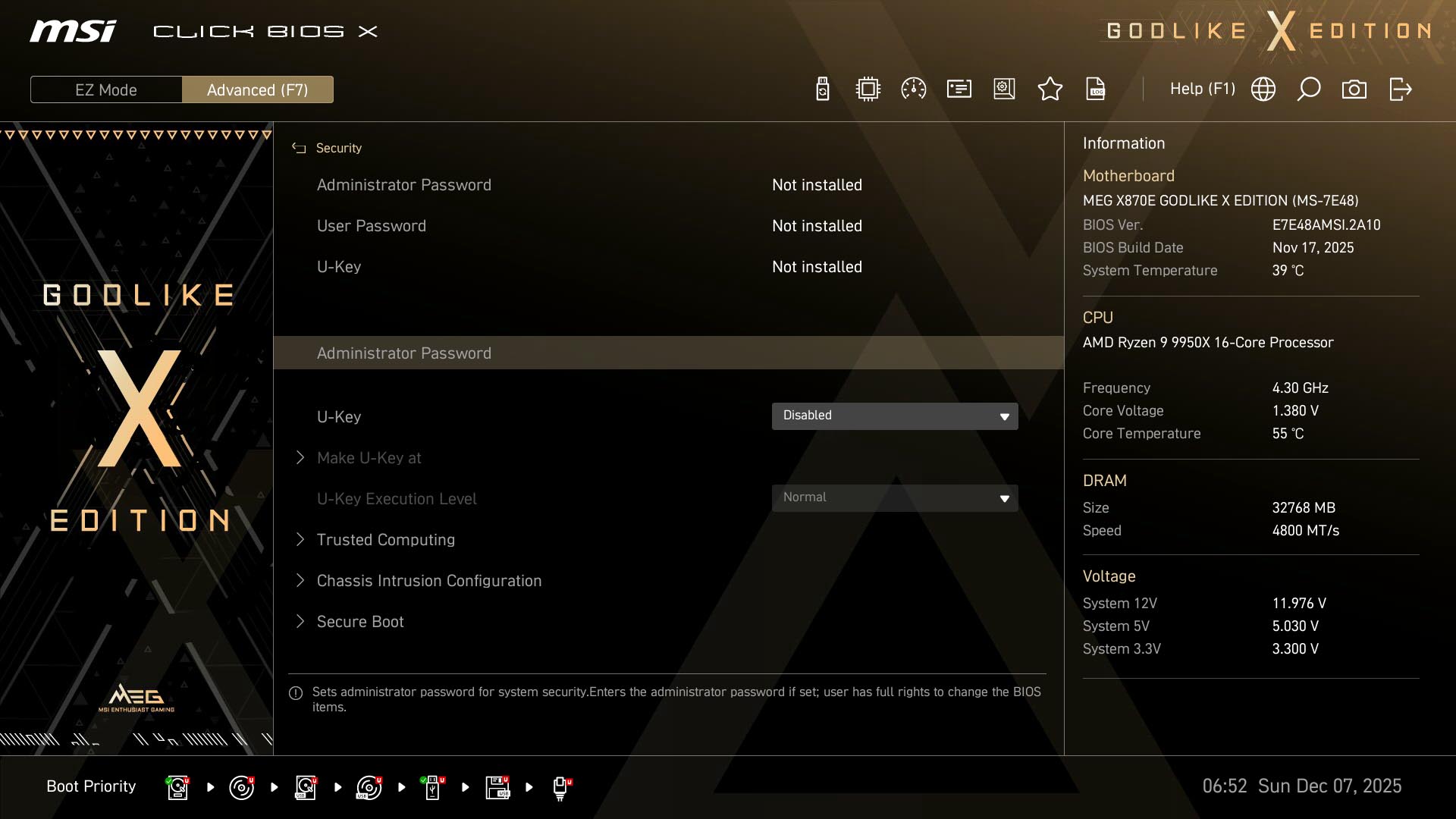
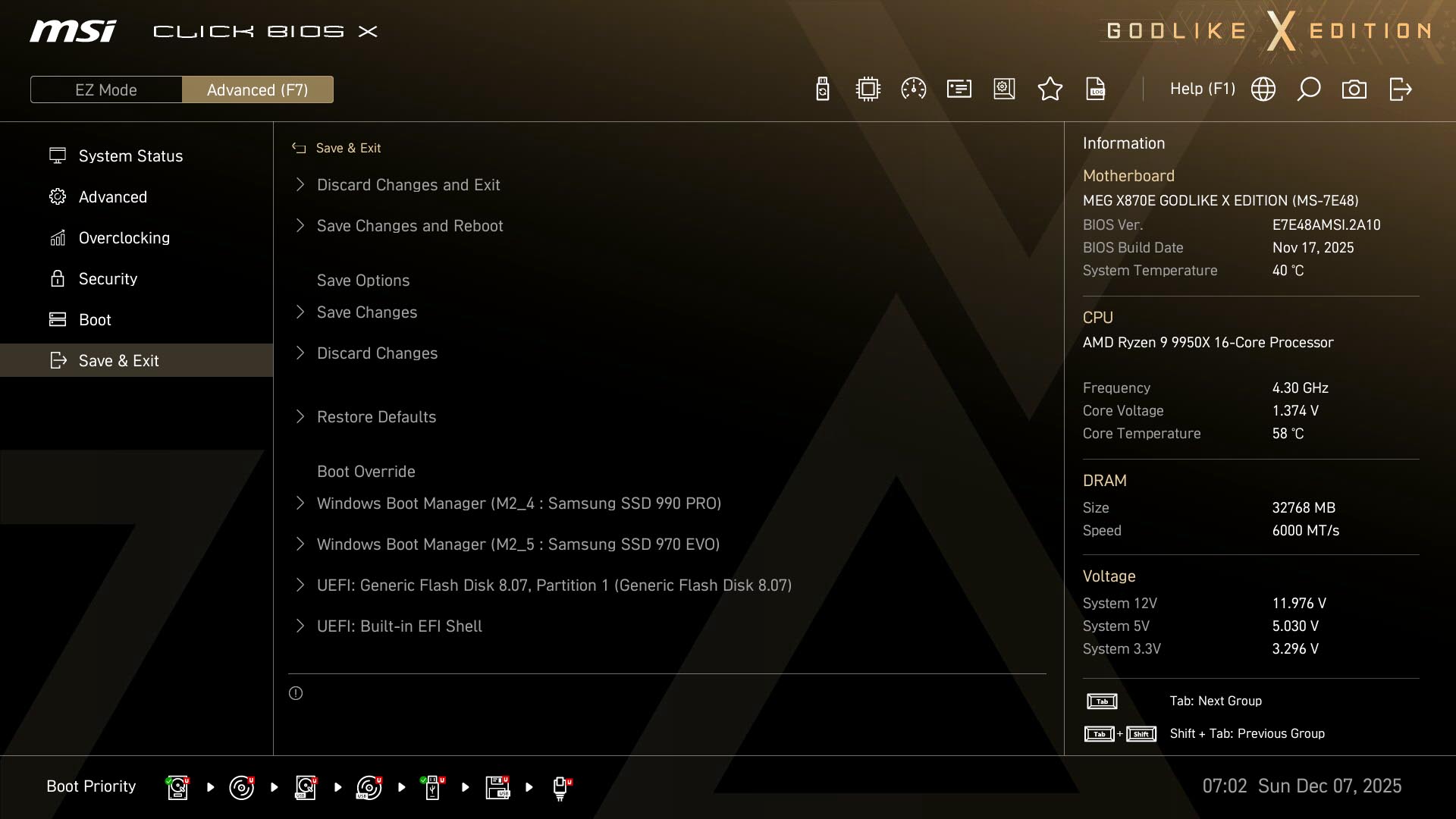
The Godlike X Edition branding makes its way to the EFI too, but the features here also make it a useful tool in setting up your PC too. The EZ Mode page allows you to do most things without having to delve into the deeper menus, such as setting memory profiles, enabling PBO, changing the boot order, or having quick access to fan control and BIOS flashing.The Hardware Monitor page is where you'll find fan control, which is mostly excellent. You have spin-up and spin-down times, the option to switch between temperature inputs including the two thermistor inputs, switching between PWM and voltage modes, even adding and removing fan curve adjustment points.
The latter is an exclusive feature too and a lot of these other features are not possible on ASRock boards from this interface, giving MSI extra points. We can see below the extra system fan headers provided by the included fan hub too. A feature we'd like to see added is the ability to drag the fan curve up or down as a whole with one adjustment point, which is something you can do on ASUS and Gigabyte boards.
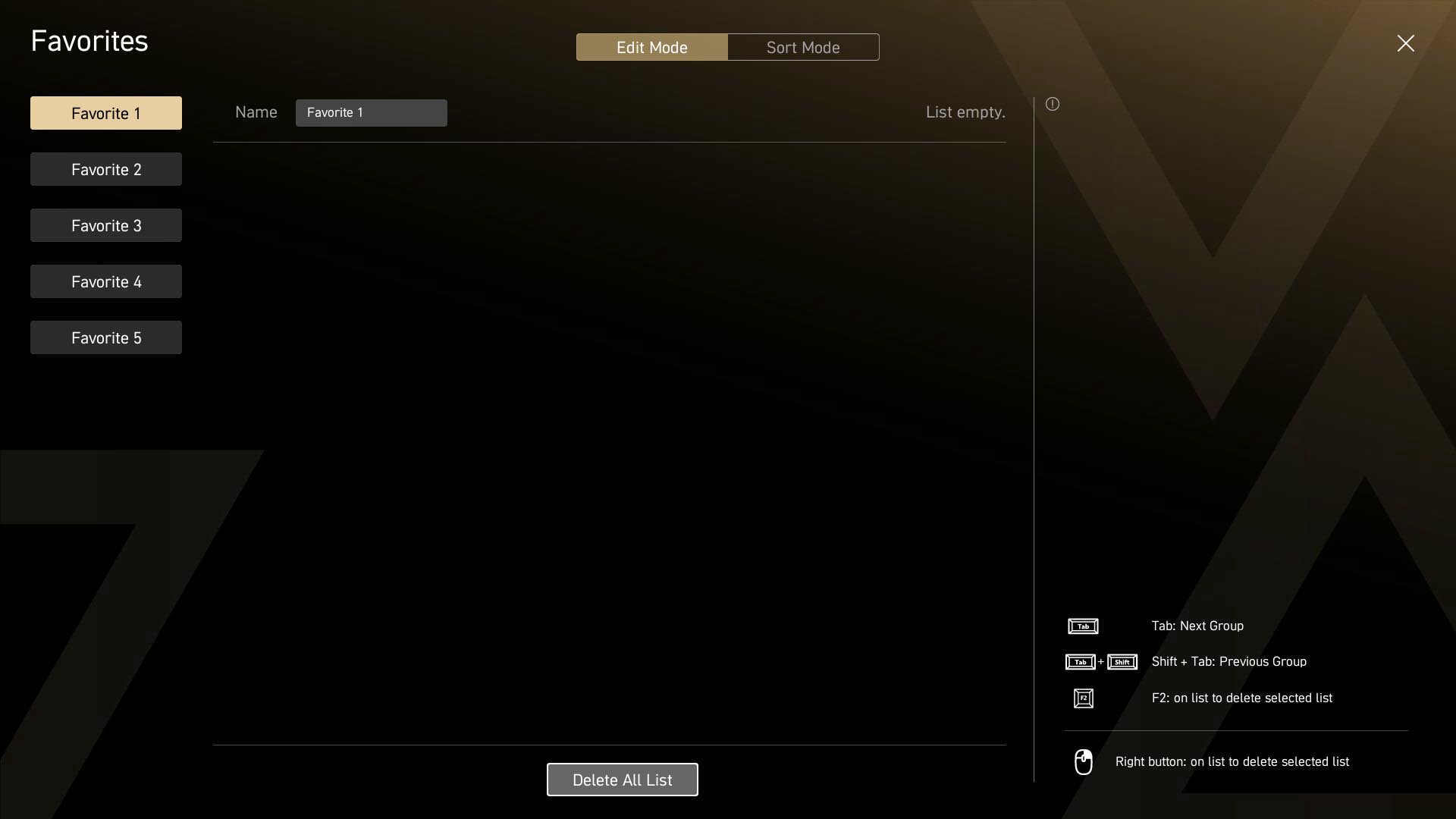
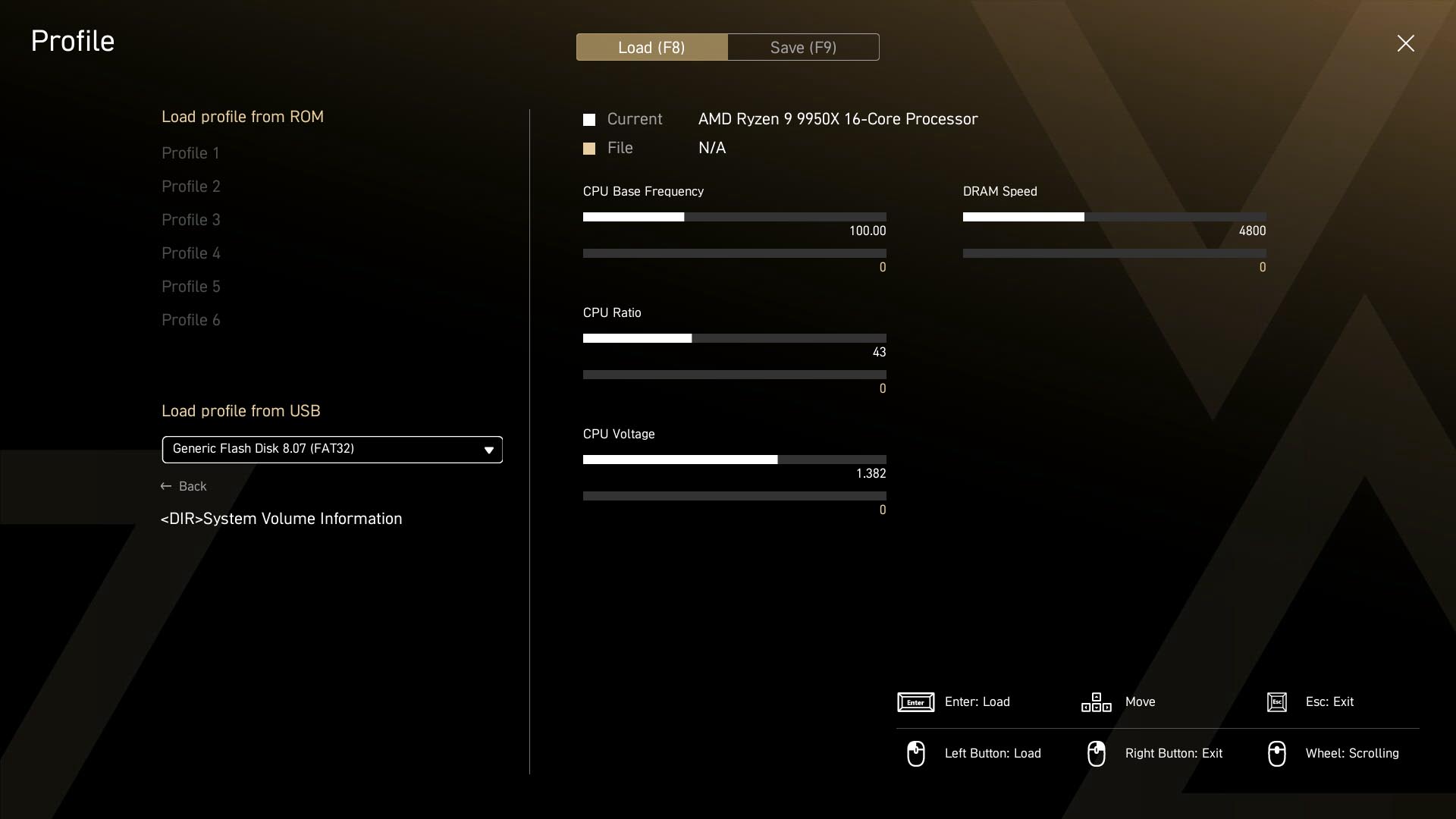
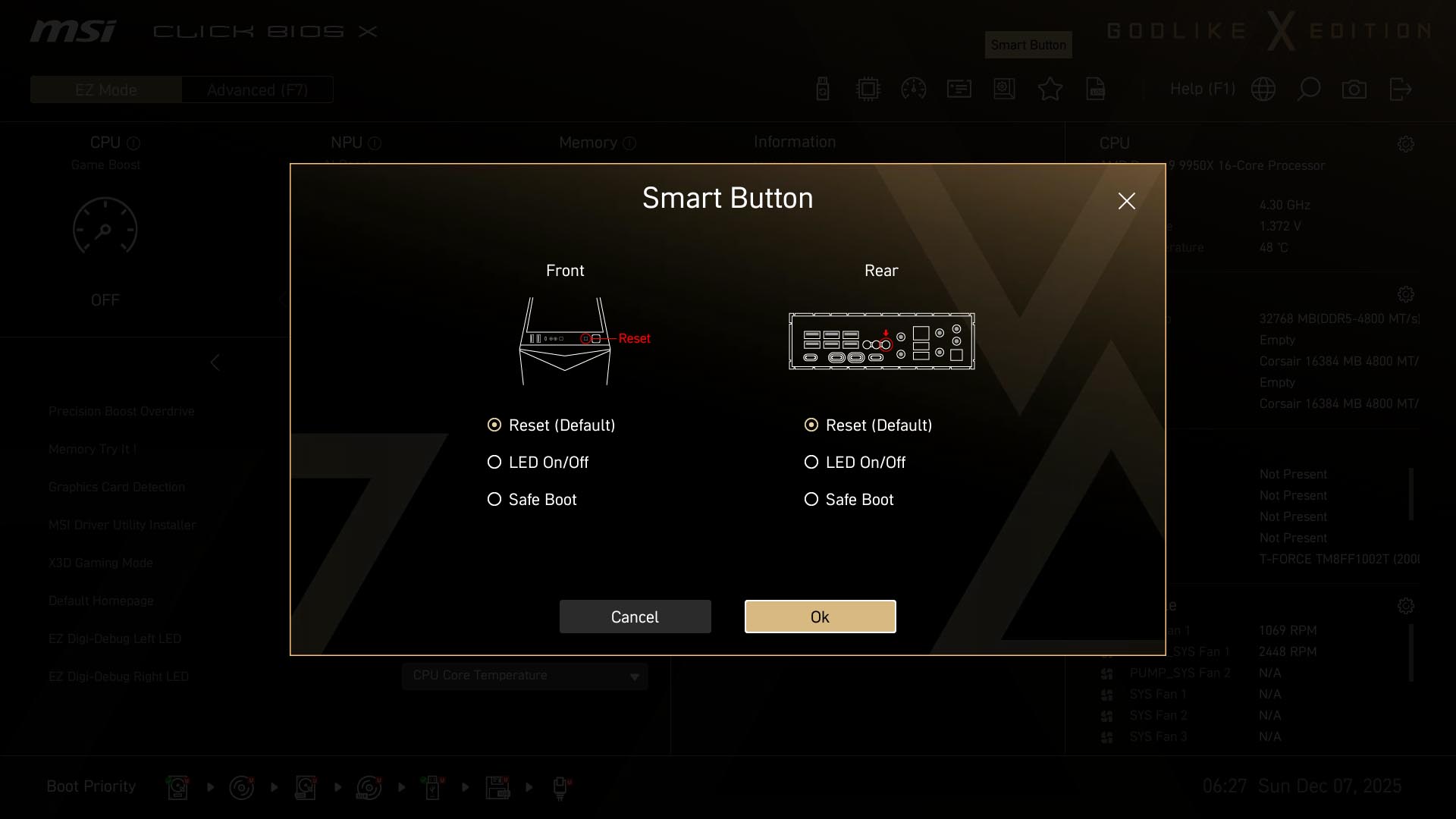
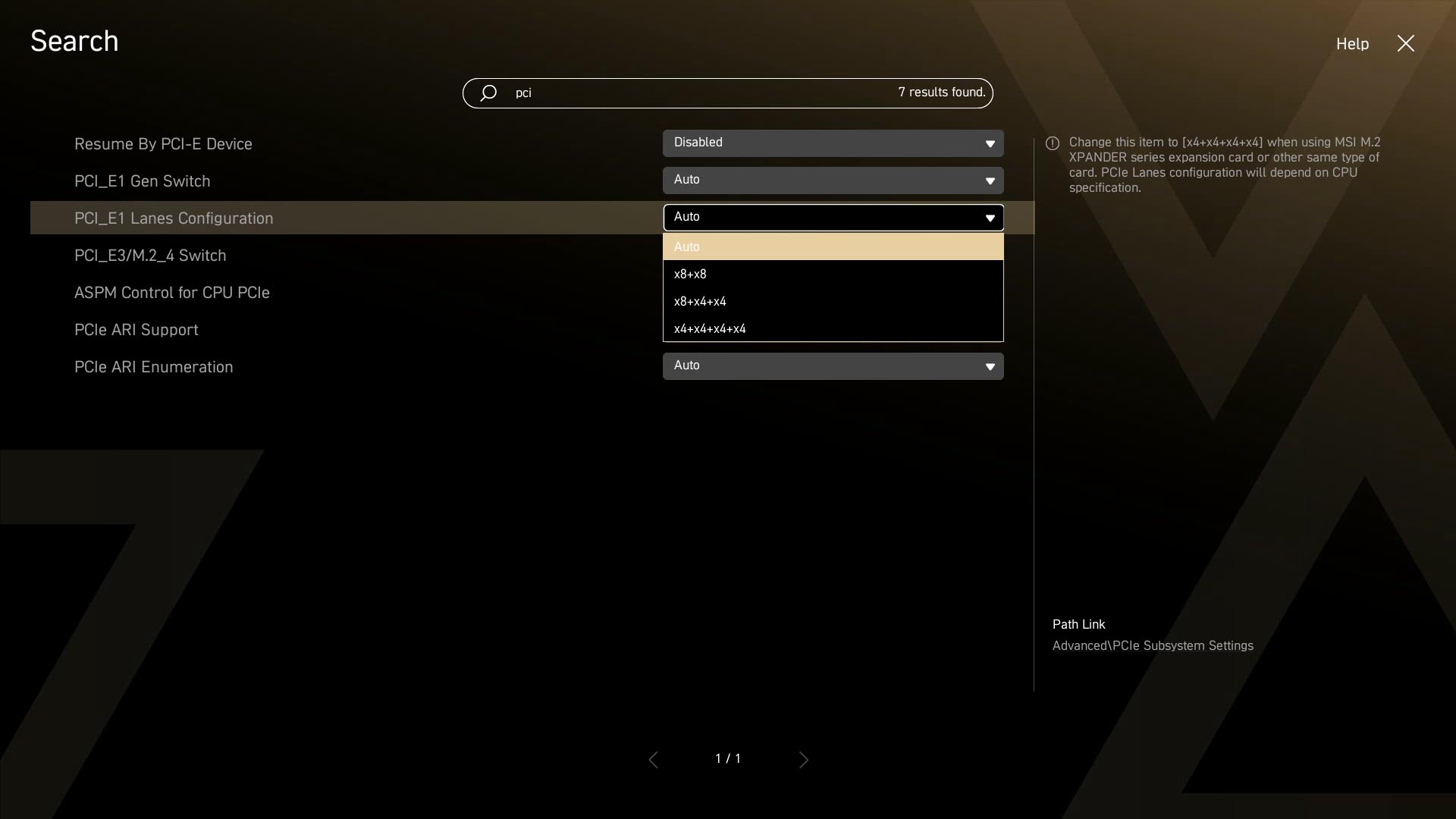
Other useful features here include a customizable favorites section, user profiles that save all settings, customization for the Smart Button, and a BIOS log review. A search function provides quick access to most features, which are then configurable within the search box, although most PBO options are excluded from this so you'll need to find them manually.
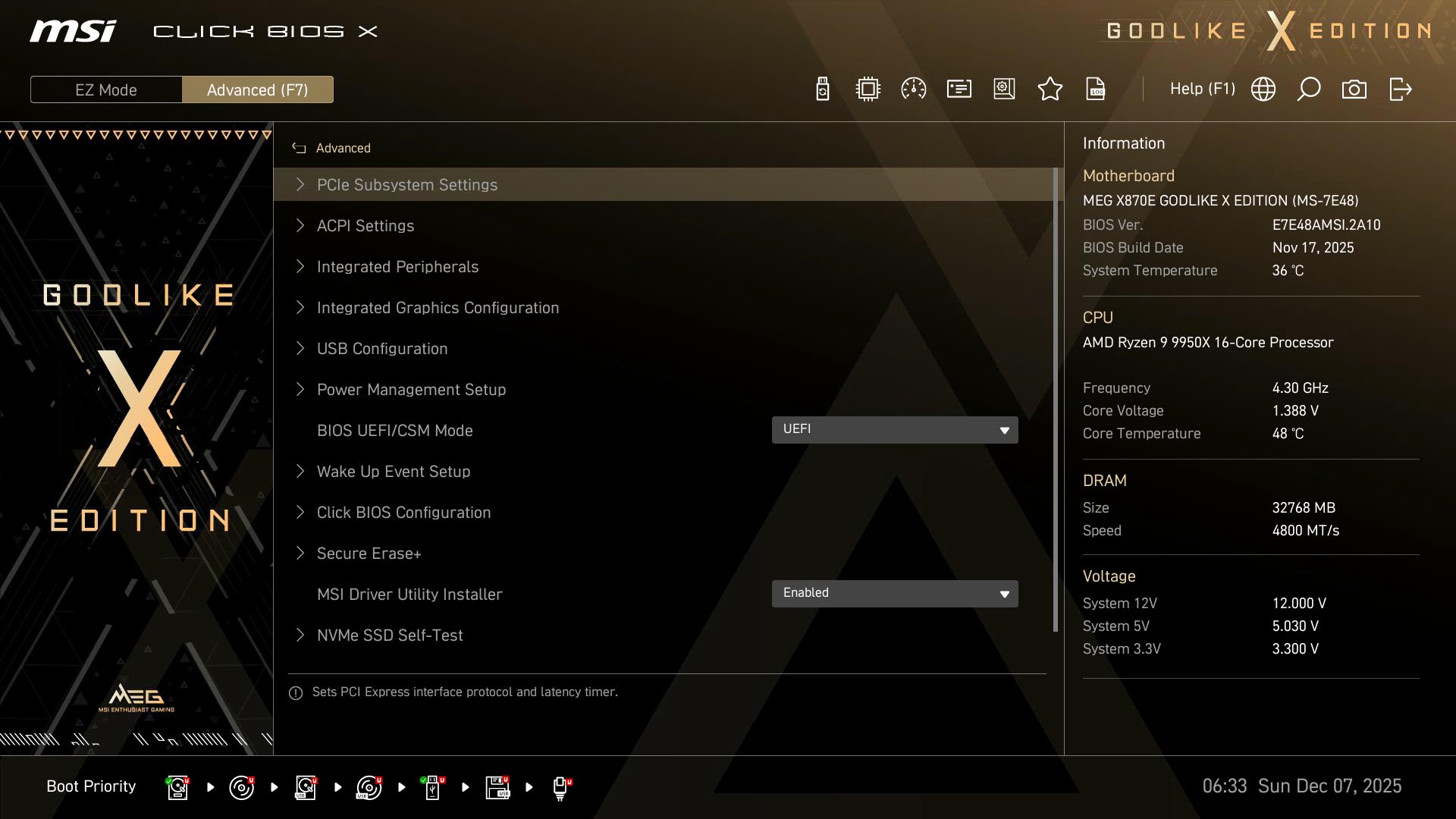
The menu system here is perhaps a little clumsy with a Godlike X Edition logo sitting over the actual menus, which then disappears to reveal them once your mouse hangs over it. We'd prefer if they were always visible for easier access. Overclocking is done mostly through the overclocking section under the advanced tab at the top, but there's the usual AMD Overclocking section for key PBO controls under Advanced CPU configuration too.

Nov 15th, 2026 08:19 CST
change timezone
Latest GPU Drivers
New Forum Posts
- What generation of Wi-Fi do you use at home (98)
- I'll flash a ASUS ROG Strix RX480 O8G in Cause of Code 43, as a Newbie (5)
- Honestly, do you care about GTA VI? (58)
- Recommendations Wanted - Affordable Enterprise SSD for Boot (4)
- Is this anyhow possible, that a GPU (ROG Strix RX480 O8G) can crash the whole PC after "ReFlash" in normal Mode? (2)
- WarpCoreBench scores! (47)
- So where’s y’all’s lowbie or noob finds? Do you think Amazon is to blame for spending 64 dollars on a 35 dollar R36S klone? Is it good or bad? (0)
- Optical Disc Drive owners club (216)
- Planning for Prolonged High Prices and Maintaining What You Already Have (73)
- What can the FX 8320 do today? Here is the answer. (55)
Popular Reviews
- AMD Zen 6 Technical Deep Dive
- ASUS ROG Strix B850-I Gaming Wi-Fi7 W Review
- Corsair HX1000i Shift Crystal Review
- Upcoming Hardware Launches 2027 (Updated Nov 2026)
- Montech King 95 3D PRO Review
- NZXT C1200 Platinum Review
- NZXT H7 RGB+ Review
- NZXT H5 Review
- Phantom Blade Zero Performance Benchmark Review - 35 GPUs Tested
- AMD Ryzen 7 9800X3D Review - The Best Gaming Processor
TPU on YouTube
Controversial News Posts
- NVIDIA Co-Founder and CEO Jensen Huang Officially Resigns (411)
- OpenAI CEO Argues Home PCs Waste the World's Limited DRAM Supply (152)
- NVIDIA Launches Investigation Into Jensen Huang's Relationship With Suspected Chinese Spy (136)
- Intel "Raptor Lake Next" 16-Core and 20-Core CPUs Surface (130)
- Legendary Game Studio BioWare Shuts Down Following EA Layoffs (104)
- Open Letter Asking NVIDIA to Reinstate Jensen Huang Passes 115,000 Signatures (98)
- Dell CEO Says the Memory Shortage Will Get Worse in 2027 (95)
- NVIDIA GeForce RTX 50-Series Scheduled for up to $500 Price Hike This Week (89)