 17
MSI MPG 322URX QD-OLED Review - Top-tier 4K Gaming
Software »Controls and OSD
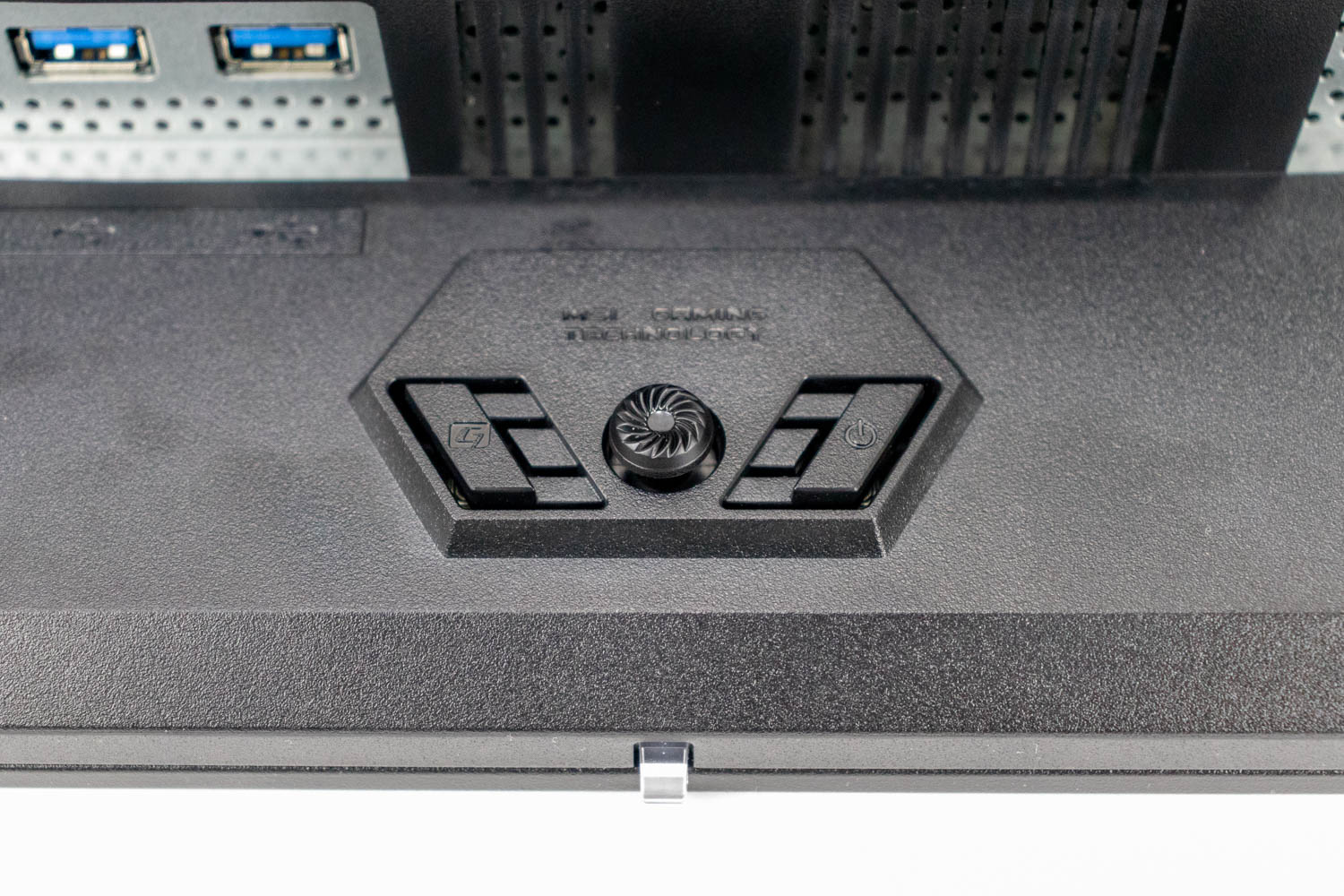
The OSD is operated via a four-way joystick located on the back of the monitor, aligned with the MSI logo at the bottom bezel. By default, moving the joystick in any direction provides quick access to input selection, KVM settings, image profiles, and virtual crosshairs. You can assign various other settings to any of the four quick actions. Pressing the joystick opens the full OSD menu. The OSD itself follows MSI's familiar layout, using a vertical category list on the left and a context panel on the right.

The G.I. menu is MSI's Gaming Intelligence hub, grouping system-level features rather than picture adjustments. From here you can control the KVM switch, the Smart Crosshair overlay and the Optix Scope zoom tool. These tools all operate independently of picture mode and can be enabled at any time.

The Gaming menu contains the typical set of gaming-oriented presets and features. It includes the Premium Color picture preset, genre presets such as FPS, Racing, RTS and RPG, as well as switches for Night Vision, AI Vision, refresh rate display, alarm clock and adaptive sync. Most of these features apply on top of the selected color mode. Night Vision and AI Vision are contrast and brightness manipulation tools that aim to increase visibility in dark games, while the refresh rate display overlays real-time refresh data. Here's where you'll also toggle DSC on and off; leave it on if your graphics card doesn't support DisplayPort 2.1 UHBR20 (80 Gbps) interface and/or you're not using the appropriate DP80-certified cable.
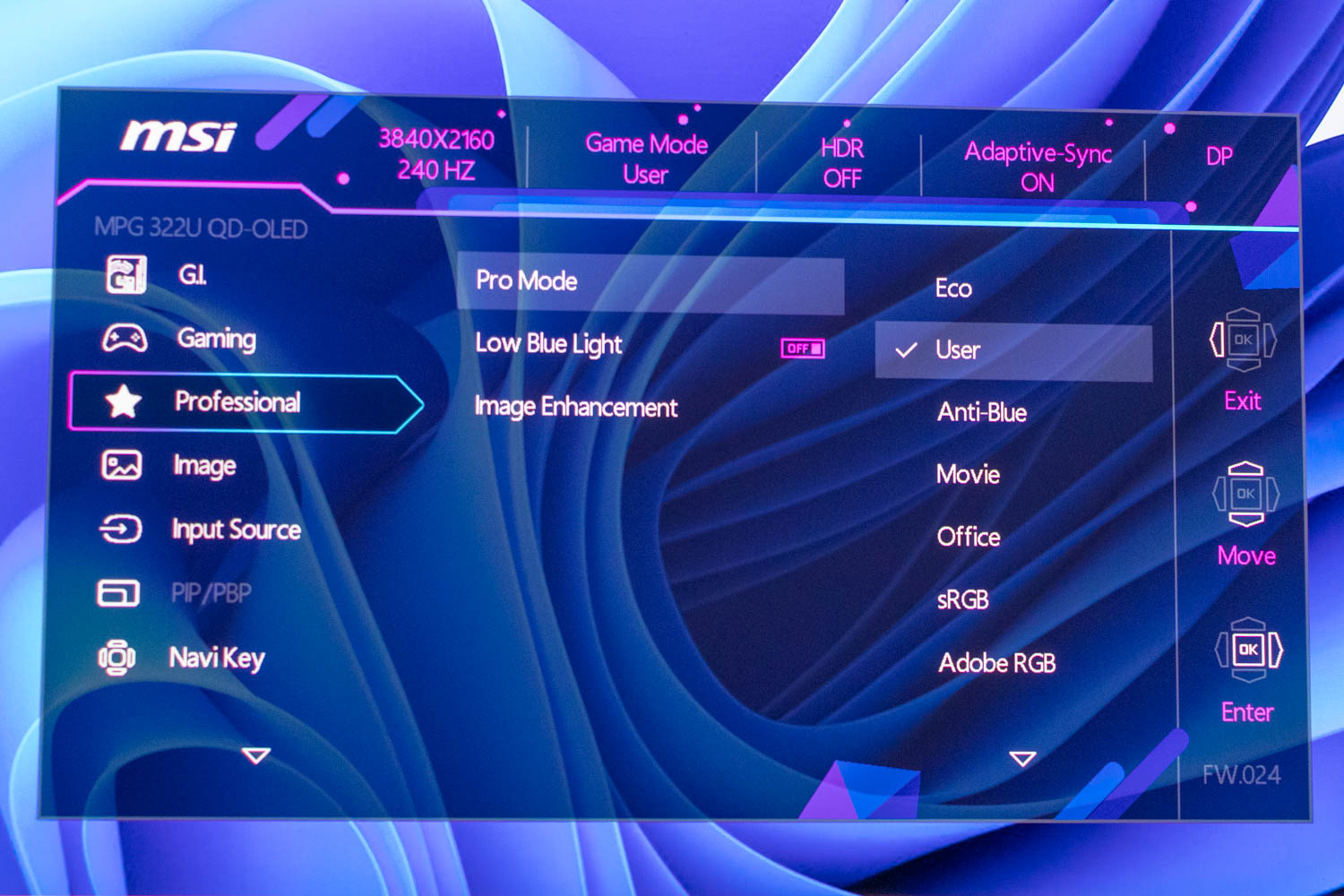
The Professional menu holds the productivity-focused picture presets. These include Eco, User, Anti-Blue, Movie, Office, sRGB, Adobe RGB and Display P3 modes. Each mode locks or exposes different picture controls depending on the target color space. This is the menu you would use when switching between wide-gamut and sRGB-restricted workflows.
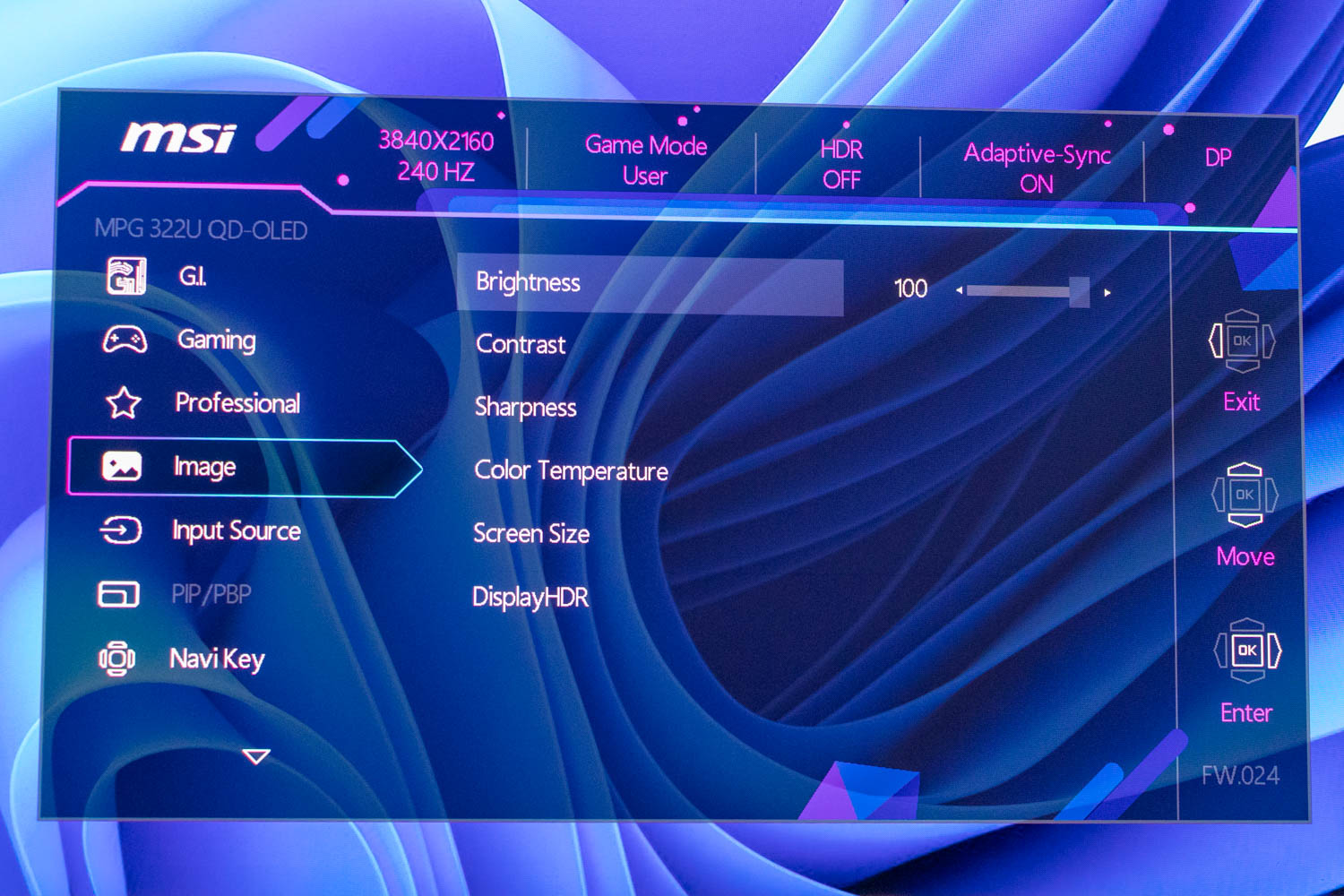
The Image menu contains all essential picture adjustments. Brightness, contrast, sharpness and color temperature are here, along with screen size controls and the DisplayHDR toggle. This is where you perform most of the tuning in SDR. HDR mode locks certain items, but brightness remains adjustable. The layout is identical to previous MSI OLED models, so users familiar with the brand will feel at home.
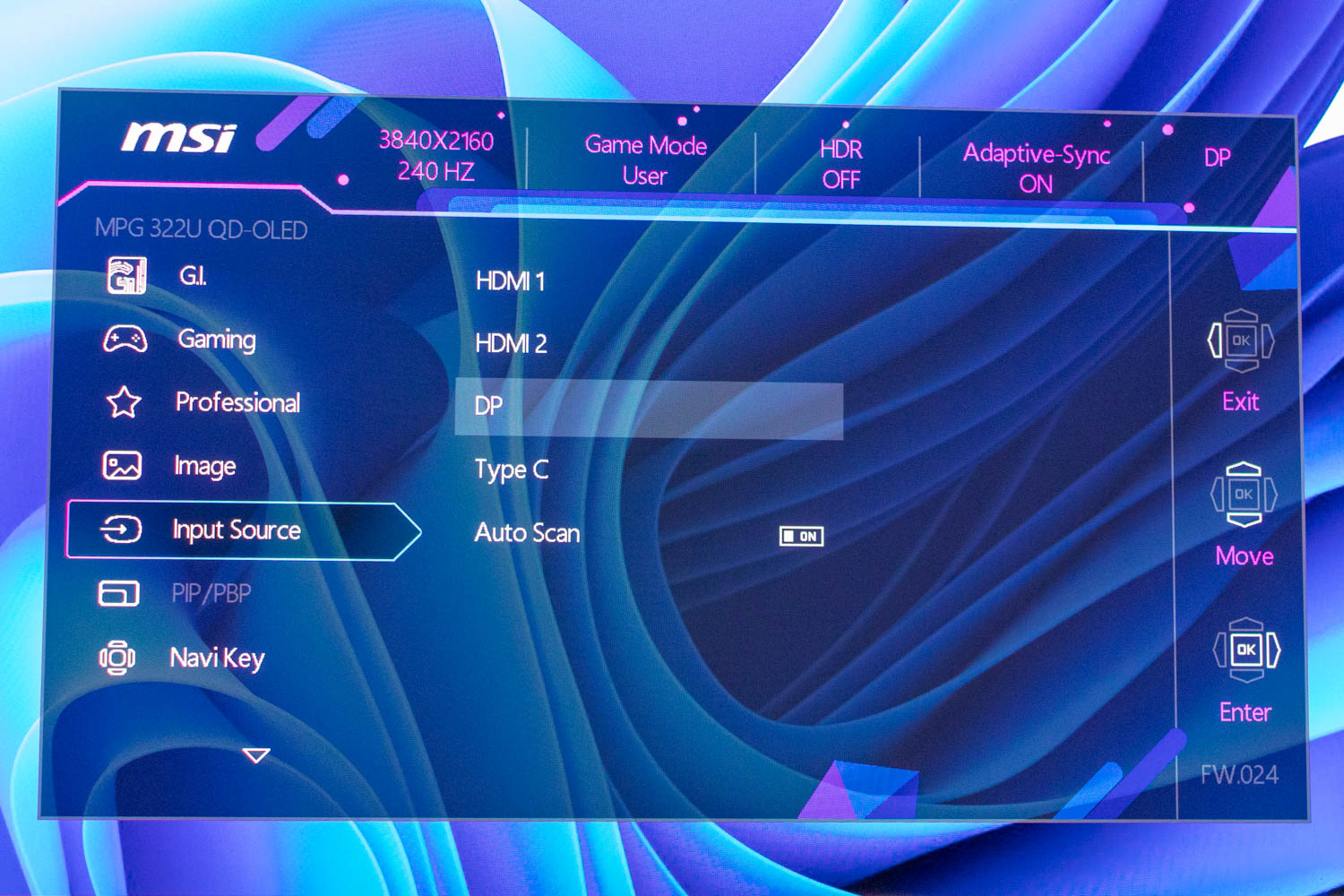
The Input Source menu is self-explanatory, listing HDMI 1, HDMI 2, DisplayPort and Type-C. Auto Scan can be enabled if you want the monitor to switch inputs automatically when it detects a signal. Input switching is fast and does not cause the panel to renegotiate for longer than a second or two. The PIP/PBP menu, found below it, provides access to picture-in-picture and picture-by-picture modes. You can choose the layout, control the sub-window position and assign any input to either window. It works cleanly thanks to the panel's native 4K resolution, which allows both windows to remain relatively sharp.
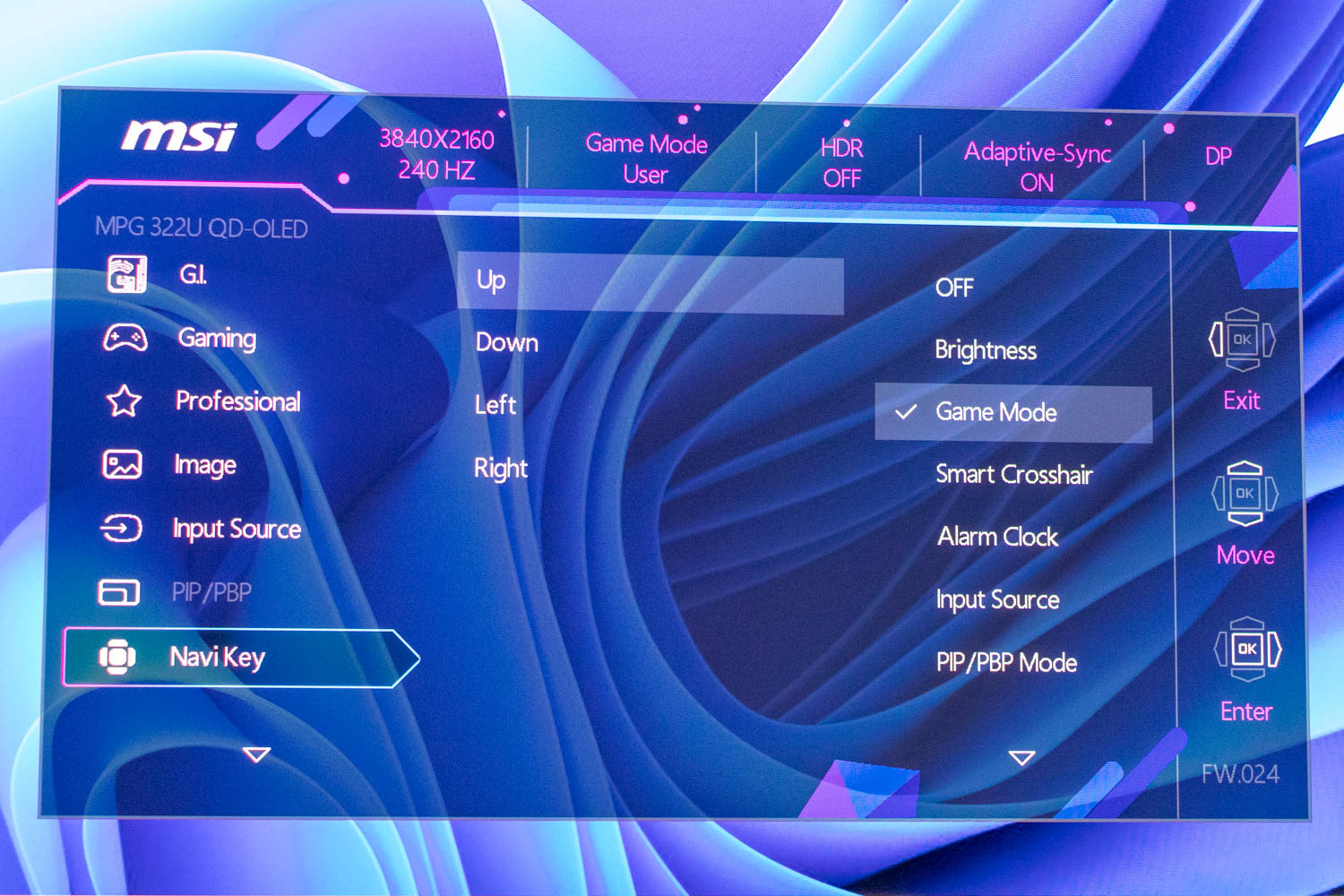
The Navi Key menu configures the joystick's four directional shortcuts. Each direction can be assigned a frequently used function, such as brightness, game mode, crosshair or input selection. This makes it easy to access common adjustments without digging into the full OSD.


The Settings menu holds all system-level controls. Here you set the OSD language, adjust menu transparency and define the OSD timeout. This menu also contains controls for the monitor's rear RGB lighting, options for how the power button behaves, and switches for HDMI CEC and USB-C Power Delivery. It is the general housekeeping section of the OSD and does not affect image quality directly.

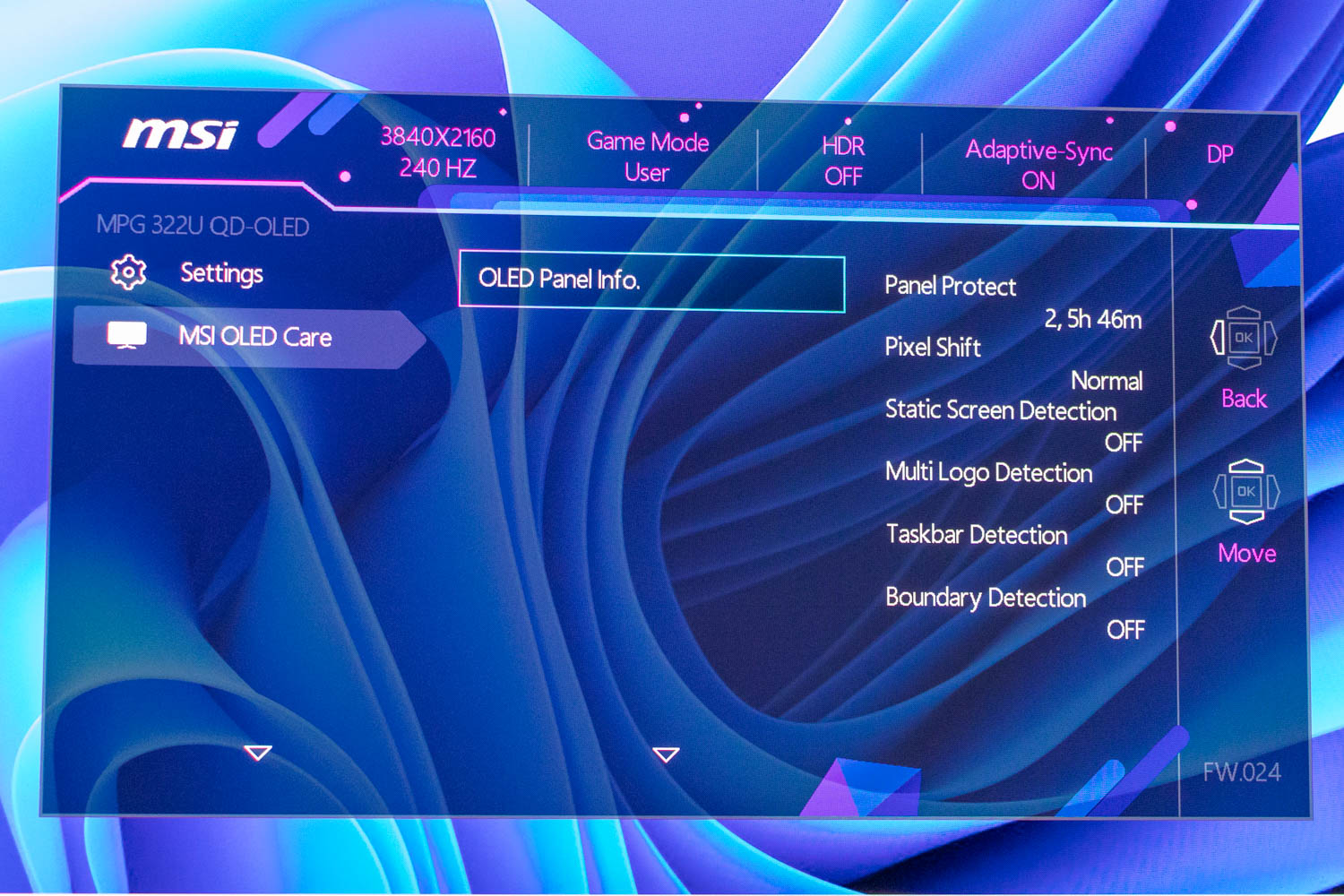
The MSI OLED Care menu contains all OLED-specific protection tools. Pixel Shift can be set to slow, normal or fast. Panel Protect triggers a manual pixel refresh cycle. Static Screen Detection, Multi Logo Detection and Taskbar Detection automatically dim high-risk UI elements to reduce burn-in risk. Boundary Detection handles bright, fixed-position edges such as windows and HUDs. MSI exposes all of these tools clearly, and most users will leave them at their default settings since they operate unobtrusively in the background.
Nov 25th, 2026 21:03 CST
change timezone
Latest GPU Drivers
New Forum Posts
- What's your main Black Friday / Cyber Monday purchase? (10)
- Smokin Hot Lappy (10)
- Gacha Games - Discussions, Pulls, Updates, etc. (1165)
- Linpack Xtreme Released (511)
- Sexy Hardware Close-Up Pic Clubhouse. (10345)
- AAF Optimus Modded Driver For Windows 10 & 11 - Only for HDAUDIO Chips [WINDOWS 11 RECOMMENDED] (1155)
- Which ryzen am5 cpu ? (219)
- {NA} 2026 Black November prices / deal (7)
- TPU's Nostalgic Hardware Club (22208)
- UPS what one to get? (74)
Popular Reviews
- ASRock X870E Challenger Wi-Fi White Review
- VZMORE AX9 Max Review
- Upcoming Hardware Launches 2027 (Updated Nov 2026)
- Microsoft Surface Laptop Ultra Review - The Next-gen Arm Laptop
- AMD Ryzen 7 9800X3D Review - The Best Gaming Processor
- AMD Zen 6 Technical Deep Dive
- Corsair RM1200e (Second Generation) Review
- Phantom Blade Zero Performance Benchmark Review - 35 GPUs Tested
- Pulsar Office Tour & First Look at P1 Dual-Sensor Mouse
- Ocypus lota P1000 Review
TPU on YouTube
Controversial News Posts
- Jensen Huang Reinstated as CEO of NVIDIA (573)
- NVIDIA Co-Founder and CEO Jensen Huang Officially Resigns (492)
- Report: Jensen Huang Eyes NVIDIA Comeback (281)
- Open Letter Asking NVIDIA to Reinstate Jensen Huang Passes 115,000 Signatures (184)
- OpenAI CEO Argues Home PCs Waste the World's Limited DRAM Supply (152)
- NVIDIA Launches Investigation Into Jensen Huang's Relationship With Suspected Chinese Spy (136)
- Intel "Raptor Lake Next" 16-Core and 20-Core CPUs Surface (130)
- Intel Razor Lake Gets a 12 P-Core bLLC Chip With No E-Cores, Per Leak (94)