 128
Pragmata Performance Benchmark Review - 30+ GPUs Tested
(128 Comments) »Introduction
Pragmata is a brand-new sci-fi action-adventure IP developed and published by Capcom. The game releases on April 17th, just four more days. First revealed at a PlayStation event in June 2020, the game spent over five years in development, with its release date pushed back several times. Set in the near future, Pragmata follows astronaut Hugh Williams and his android companion Diana—a little blonde girl—as they fight to escape a hostile lunar research station, governed by a rogue AI called IDUS. The station on the Moon is built using a special ore with amazing properties—it can be 3D printed and is capable of replicating anything, as long as the data of the original is available. When a catastrophic moonquake strikes the station, Hugh is separated from his crew, and Diana rescues him. Together, they must navigate the station's AI-controlled machines and find a way back to Earth. Gameplay blends third-person shooting with cooperative mechanics: Hugh handles firearms and jetpack-assisted movement, while Diana can hack into enemy robots and the station itself to expose weak points and open new paths.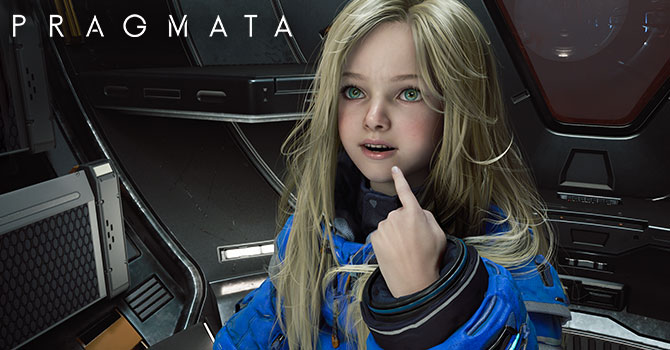
Pragmata is built on Capcom's proprietary RE Engine—the same technology behind recent Resident Evil titles and Monster Hunter Wilds—and uses DirectX 12. On the rendering front, the game supports running with and without ray tracing, and you may also enable full path tracing, which offers a step up from the ray-traced reflections and lighting seen in earlier RE Engine games. Upscaling support includes NVIDIA DLSS and AMD FSR—though notably no Intel XeSS. Frame generation is available as a separate toggle, supporting both NVIDIA and AMD. NVIDIA DLSS Ray Reconstruction is automatically enabled with path tracing. NVIDIA Reflex Low Latency is available as a separate option. The game also features RE Engine's strand-based hair rendering system for physics-based individual hair simulation.
This review will evaluate the performance of Pragmata across a wide range of contemporary graphics cards, compare image quality settings, and analyze the game's VRAM usage to provide insight into the hardware requirements needed for an optimal experience.
Screenshots
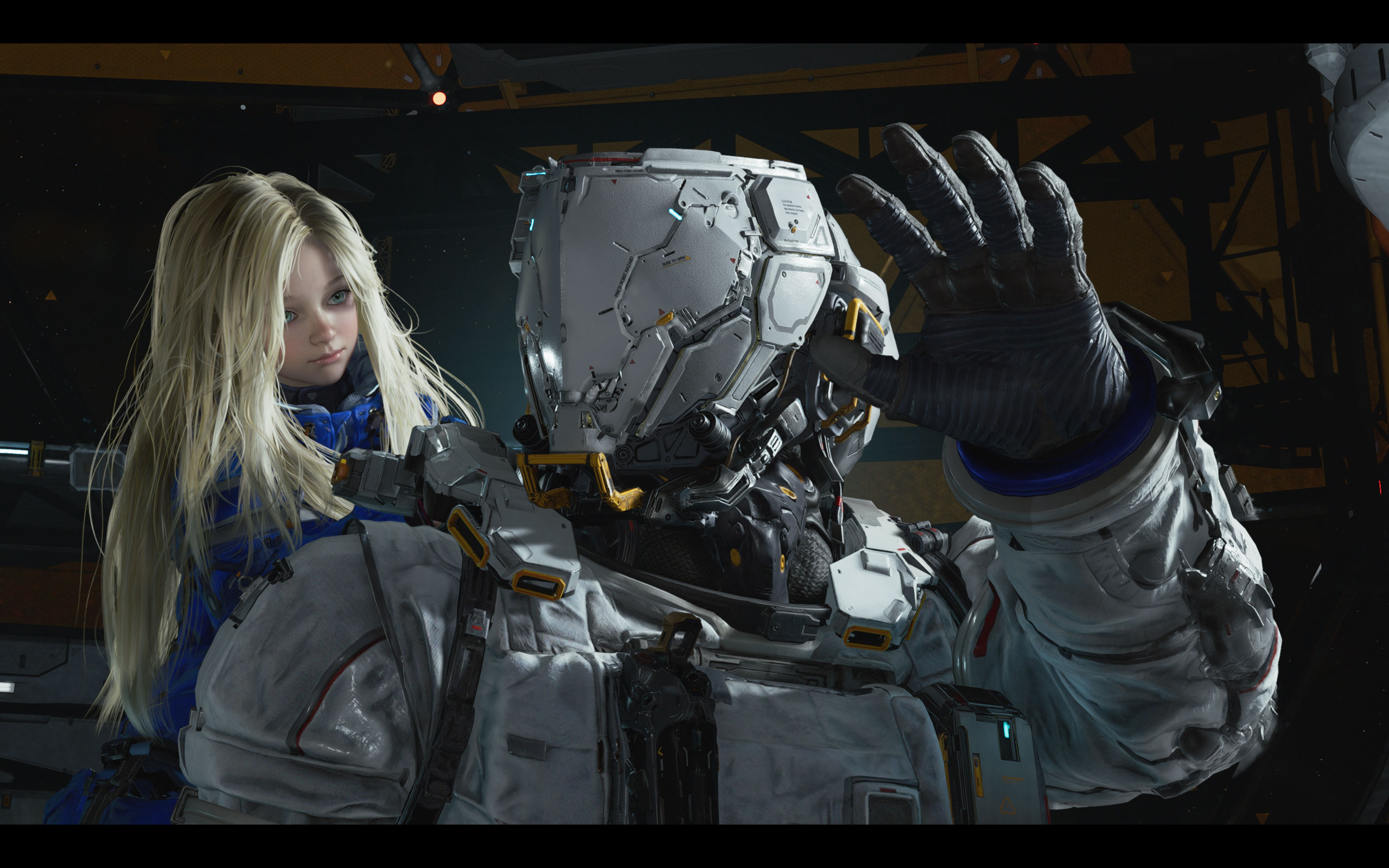
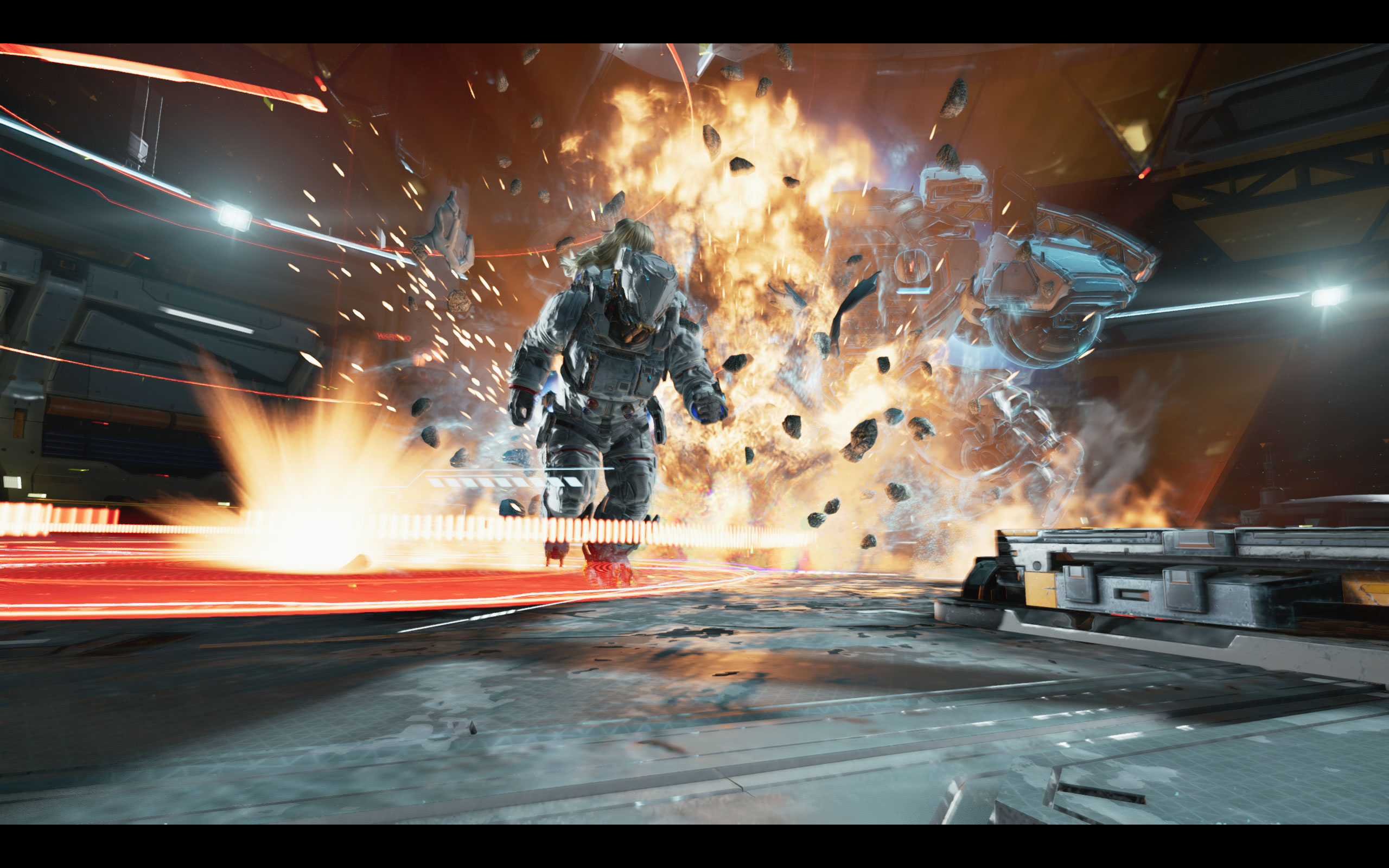
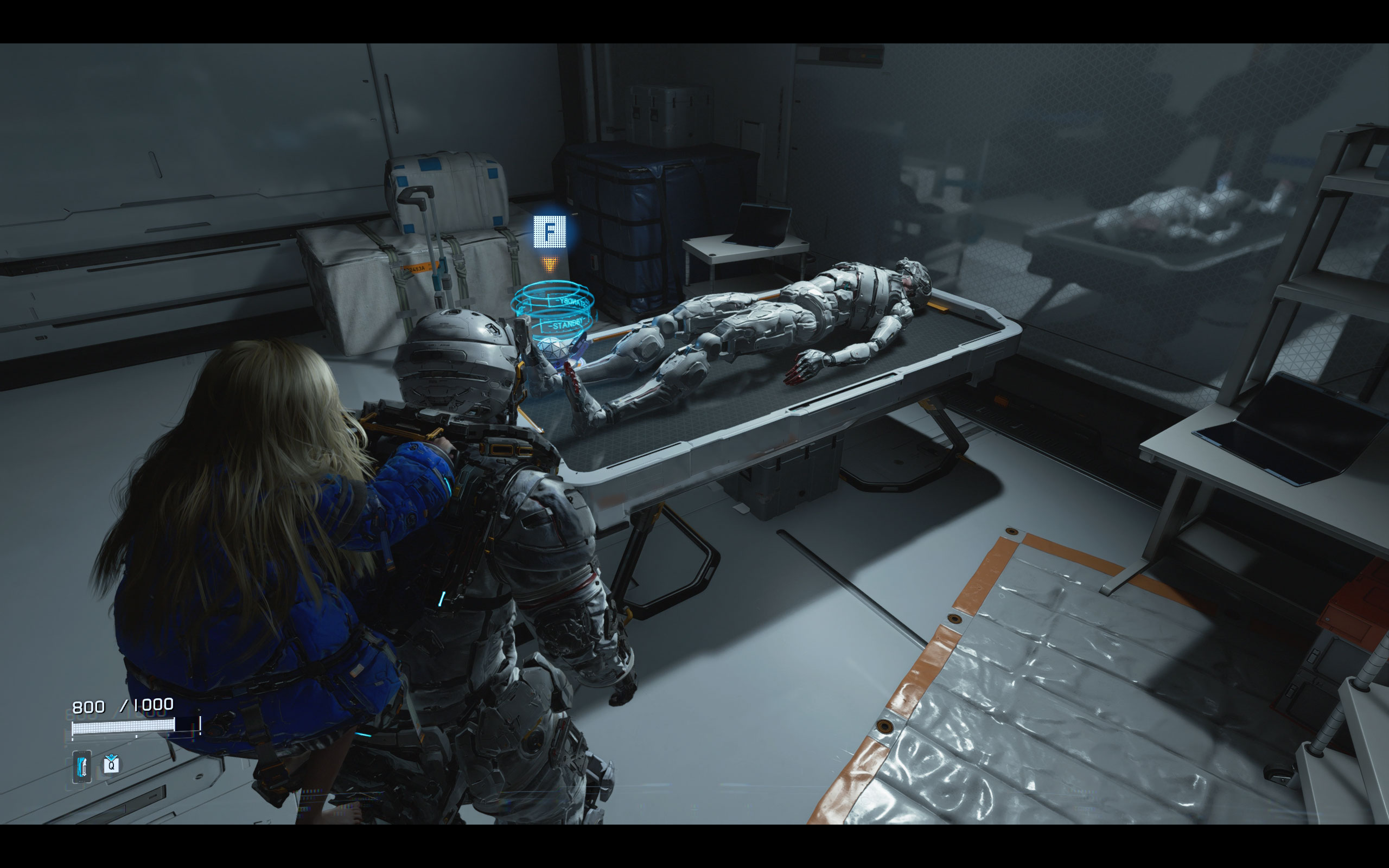
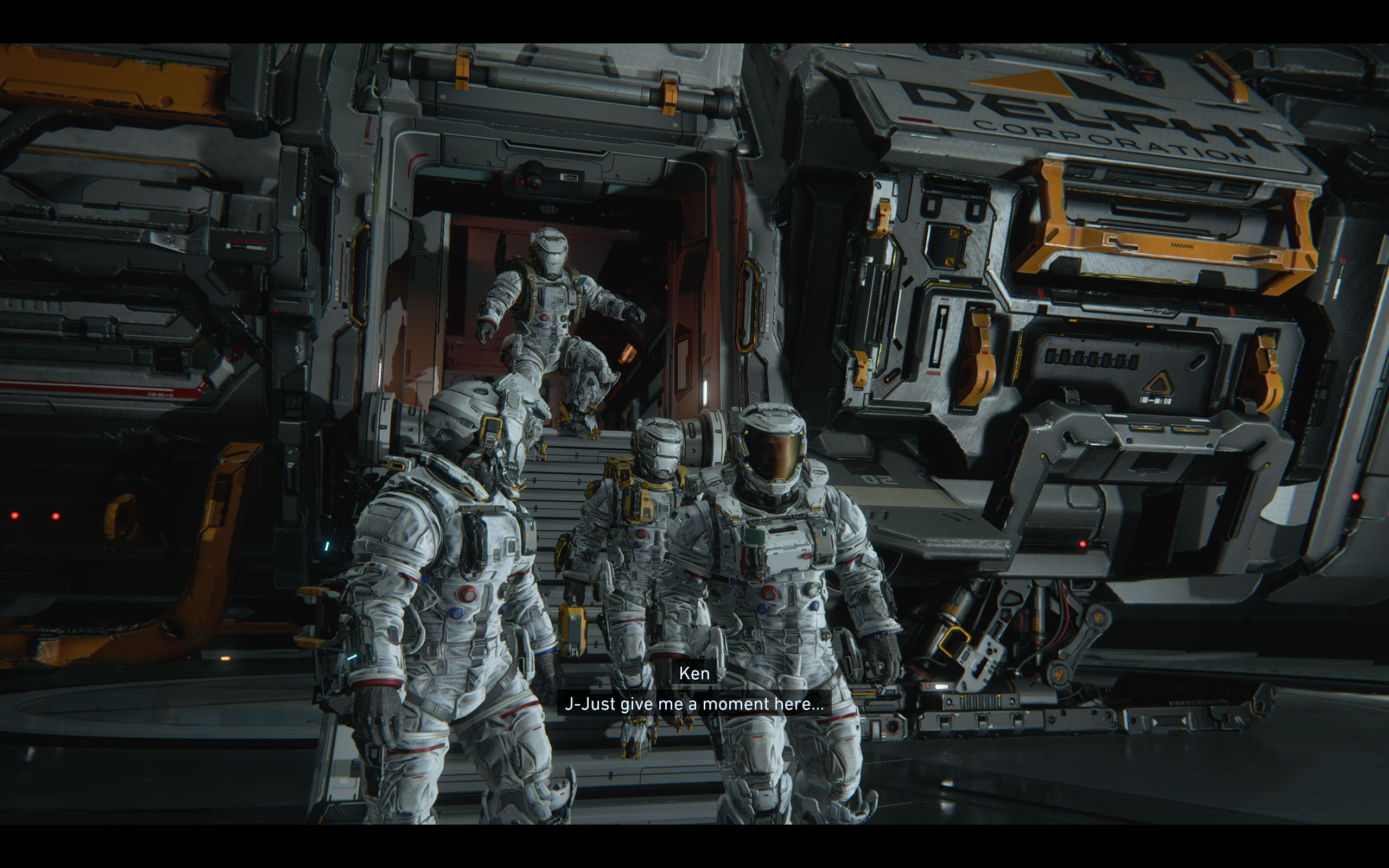
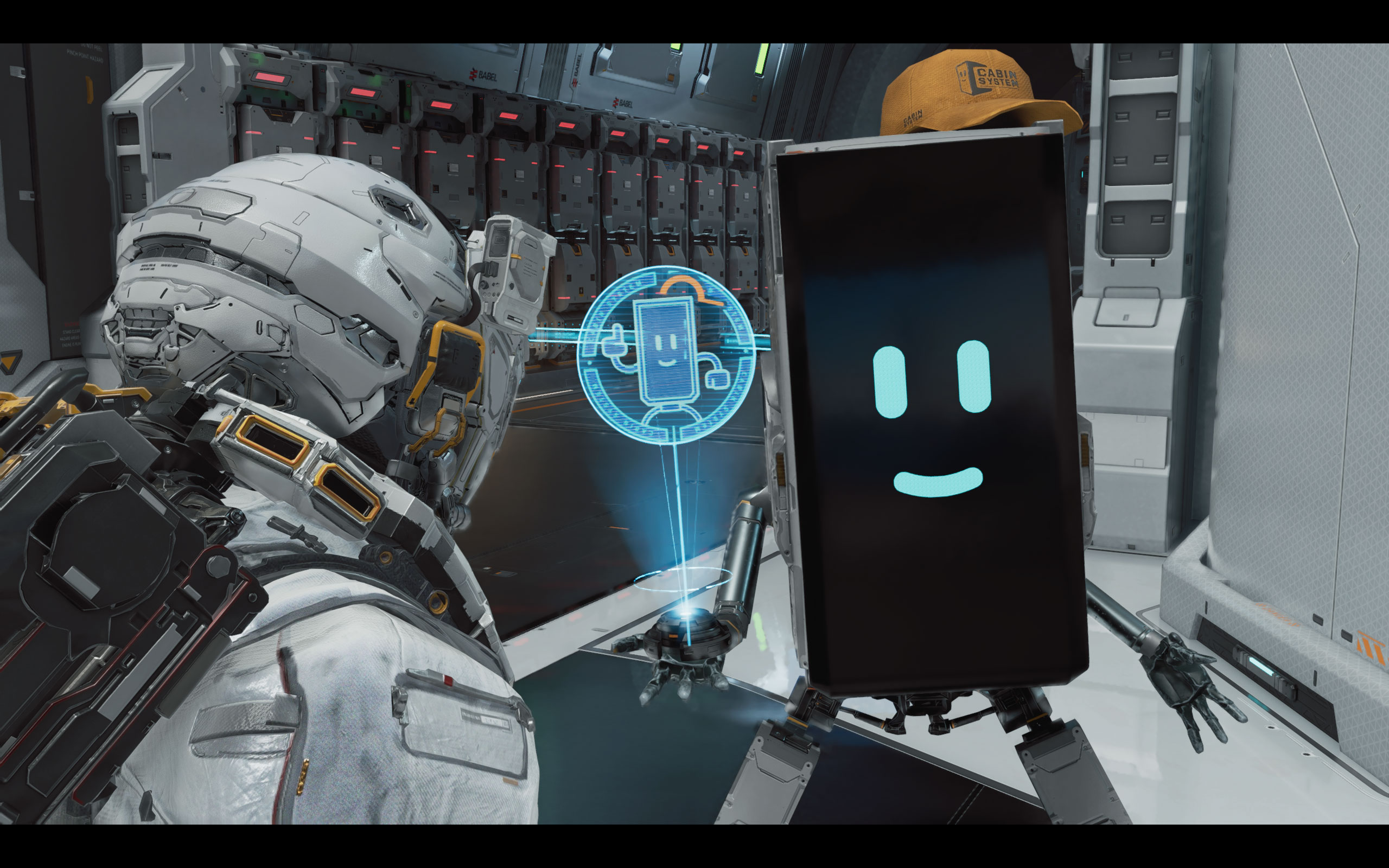
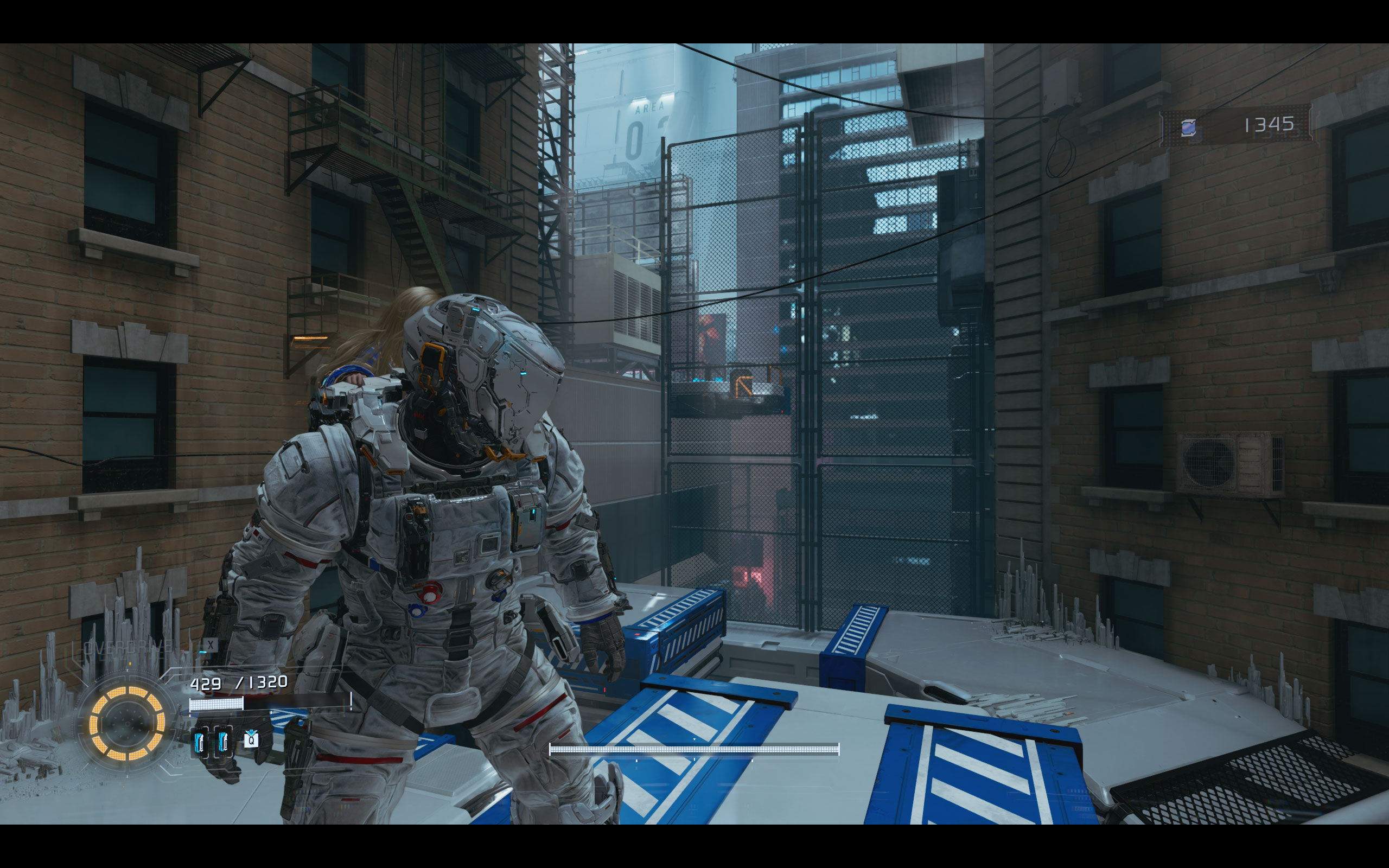
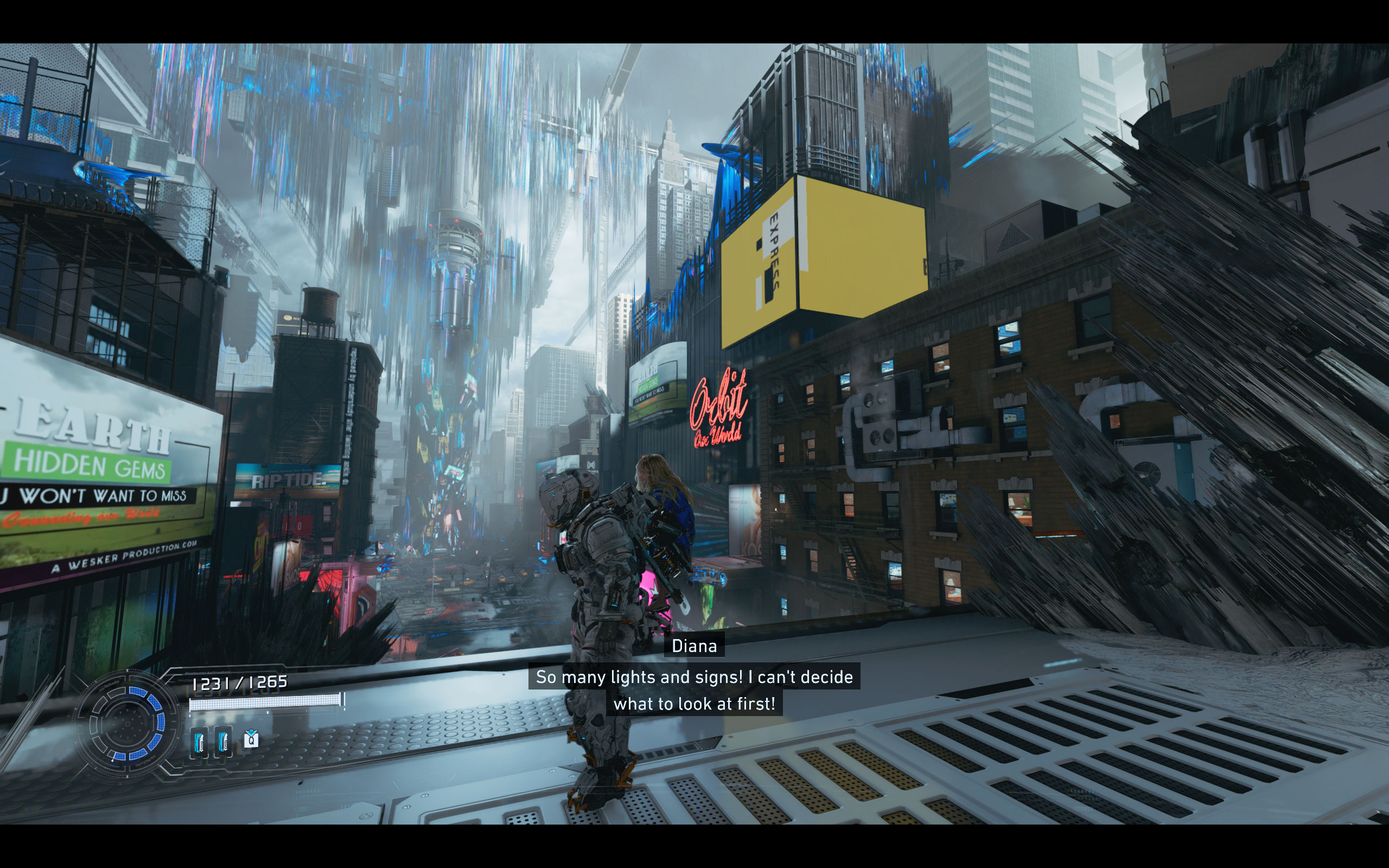
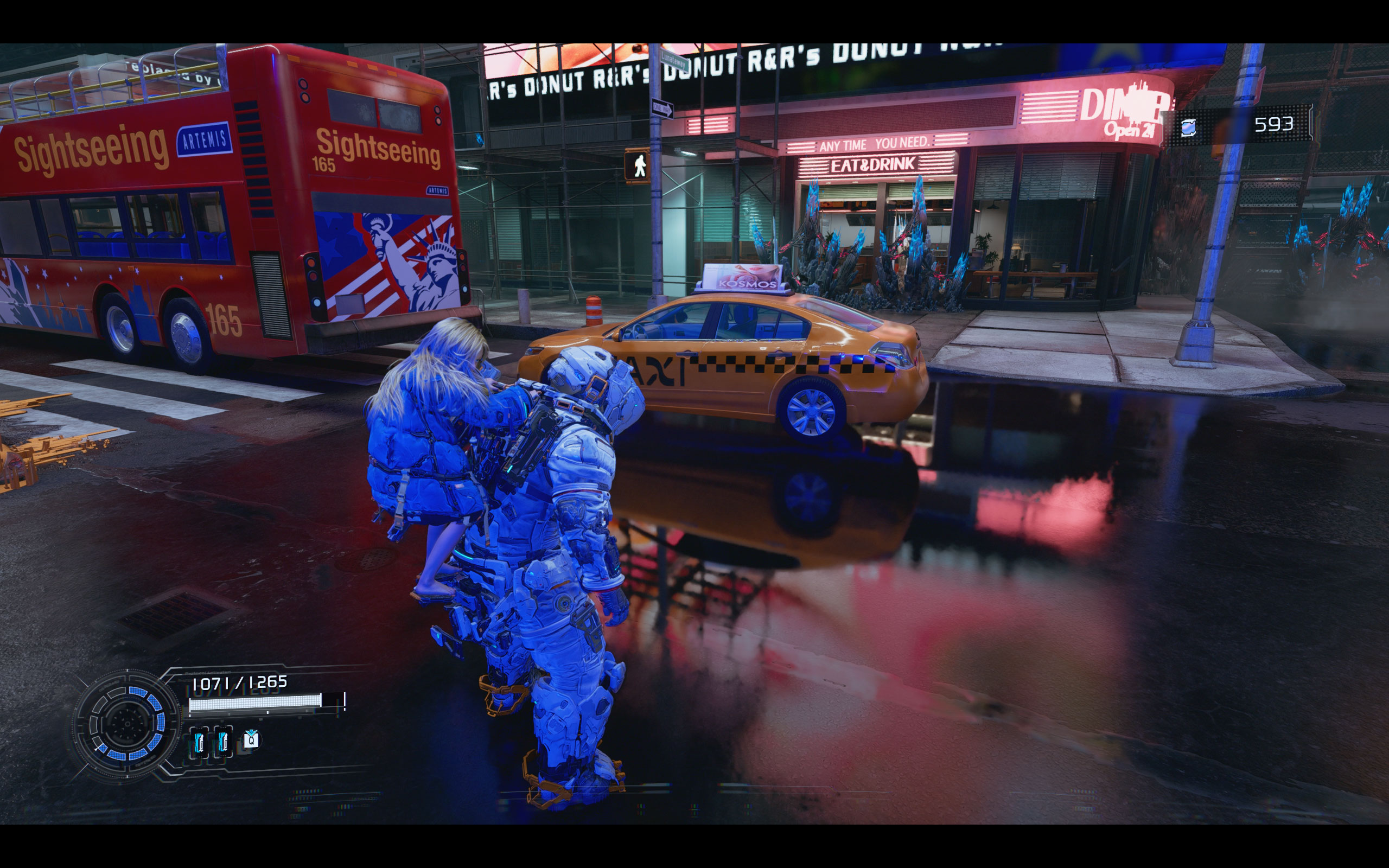
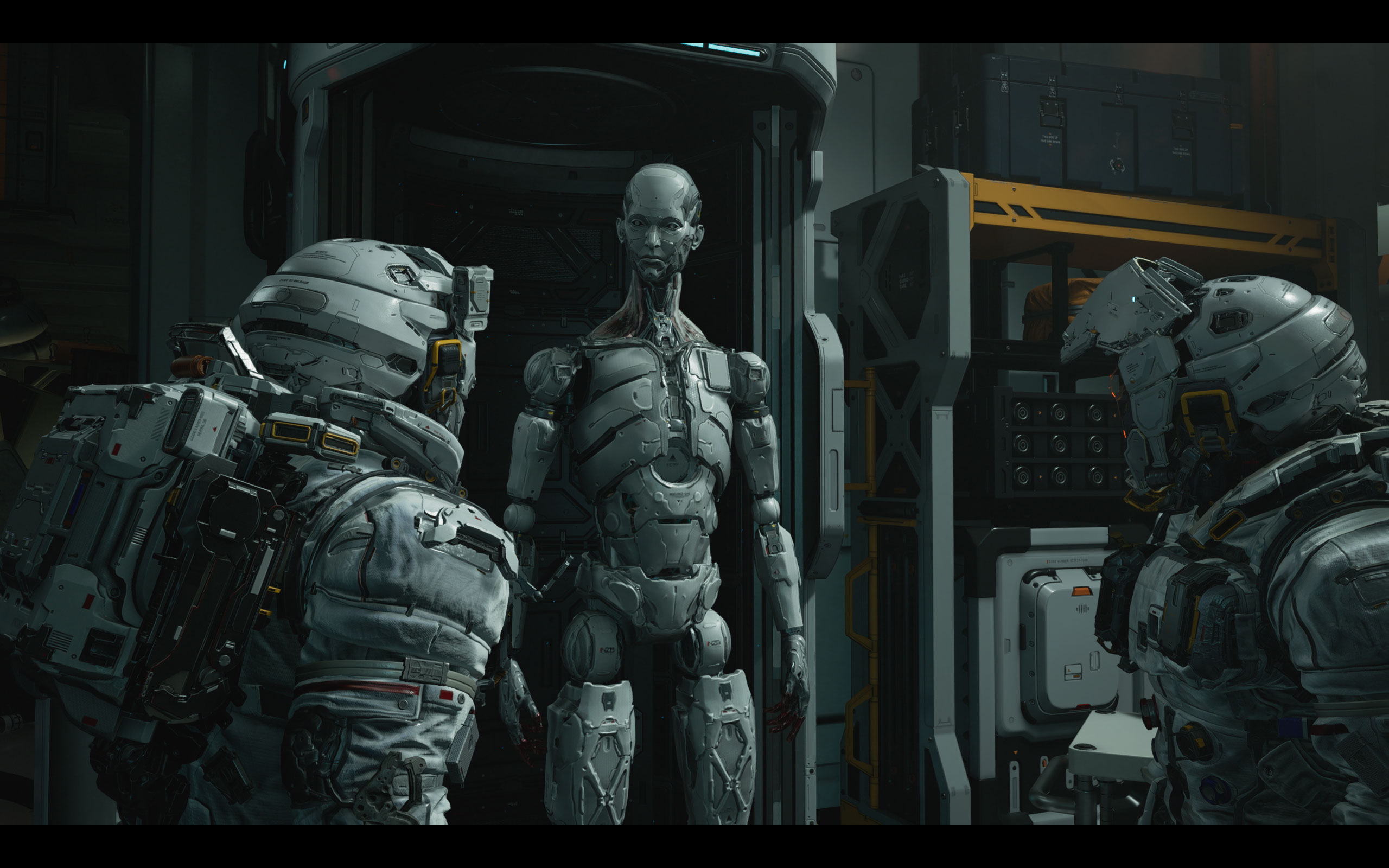
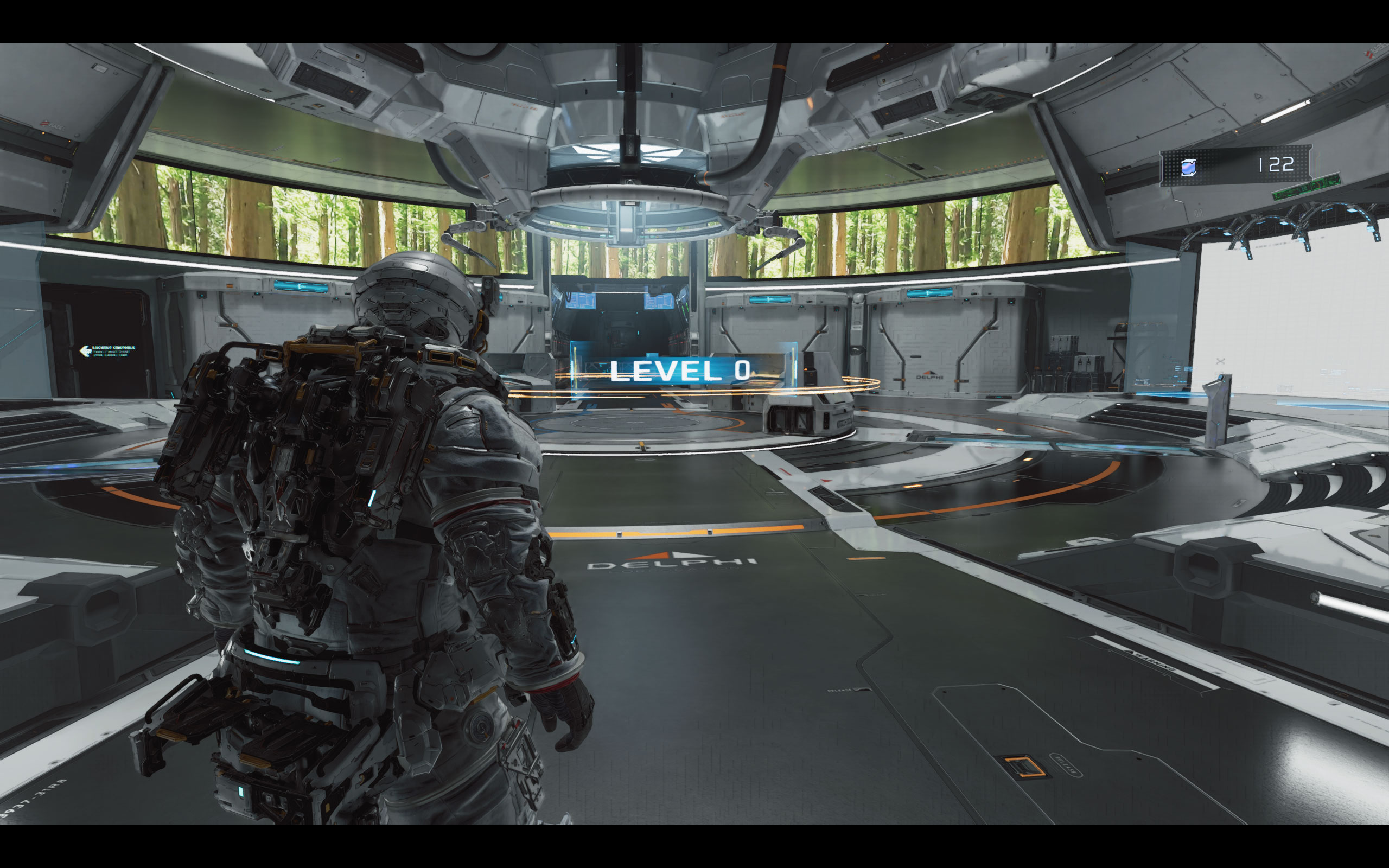
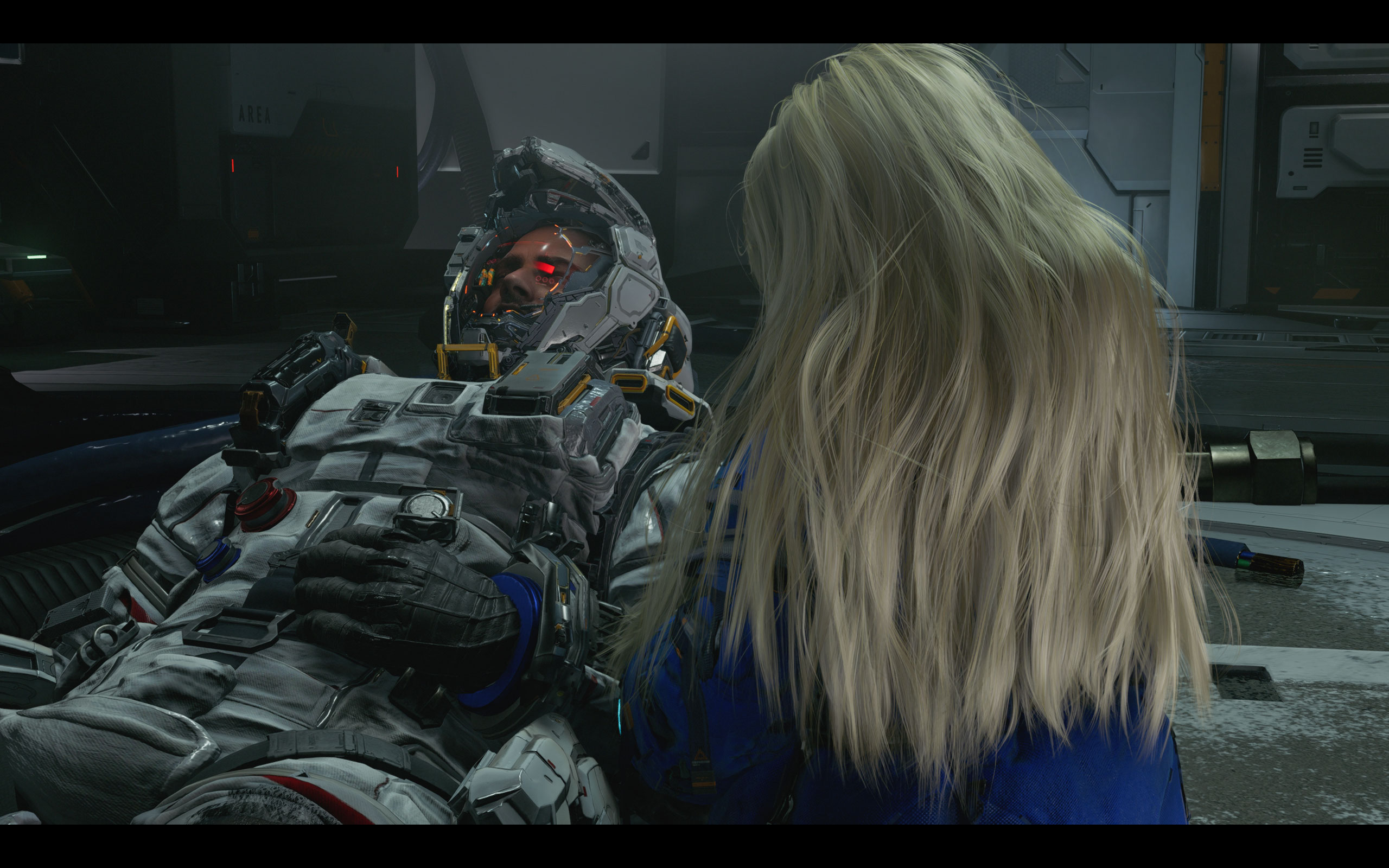
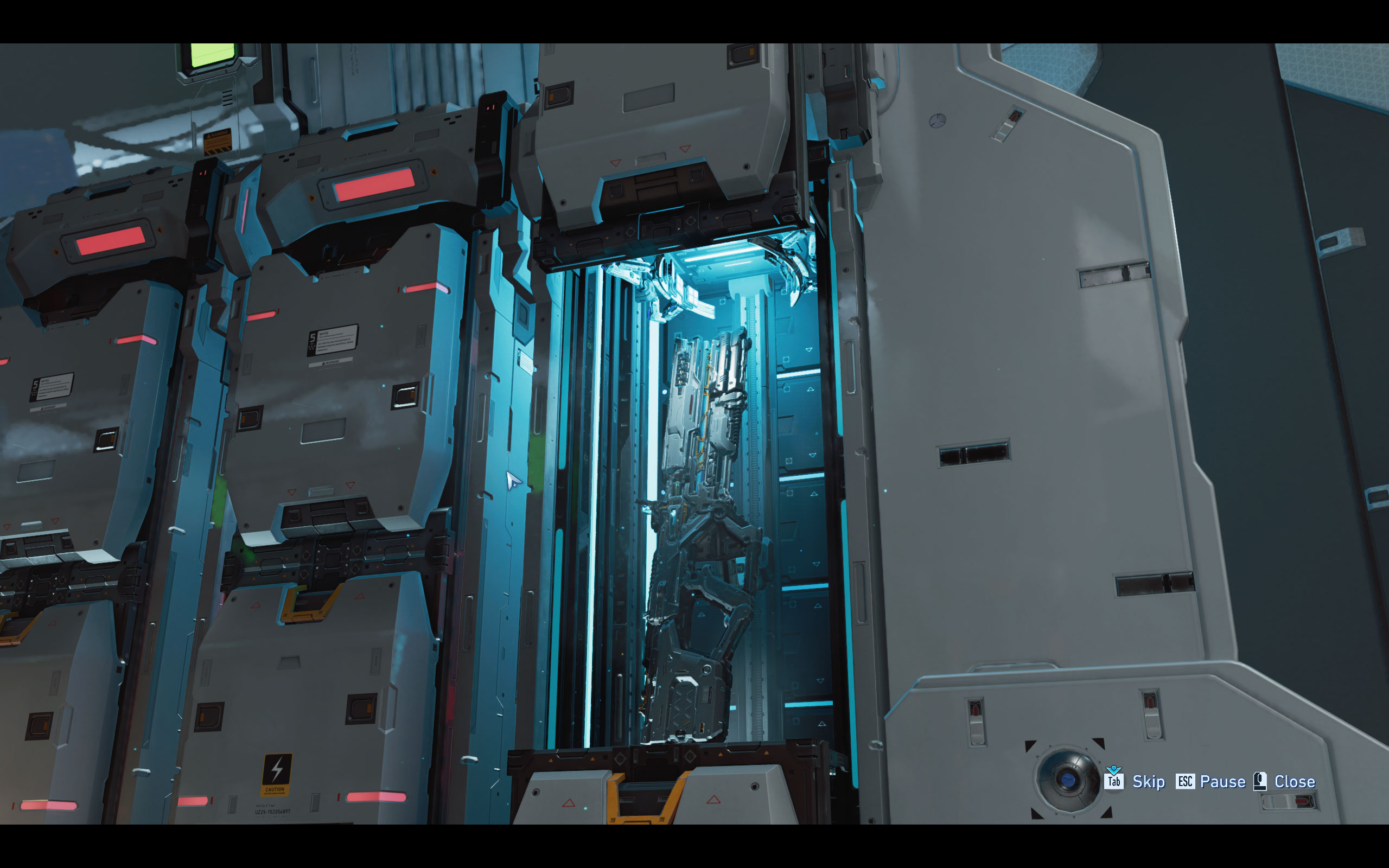
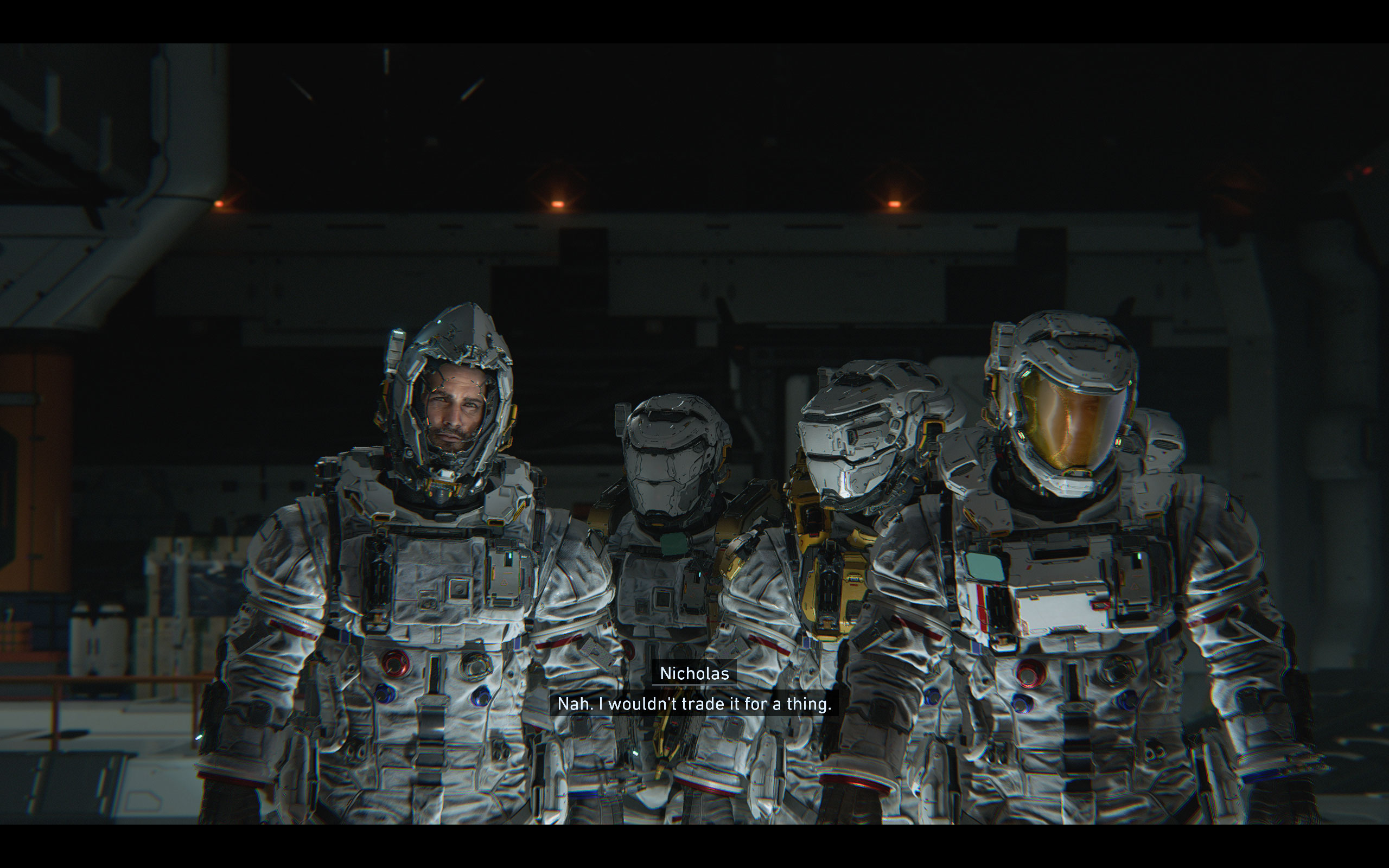
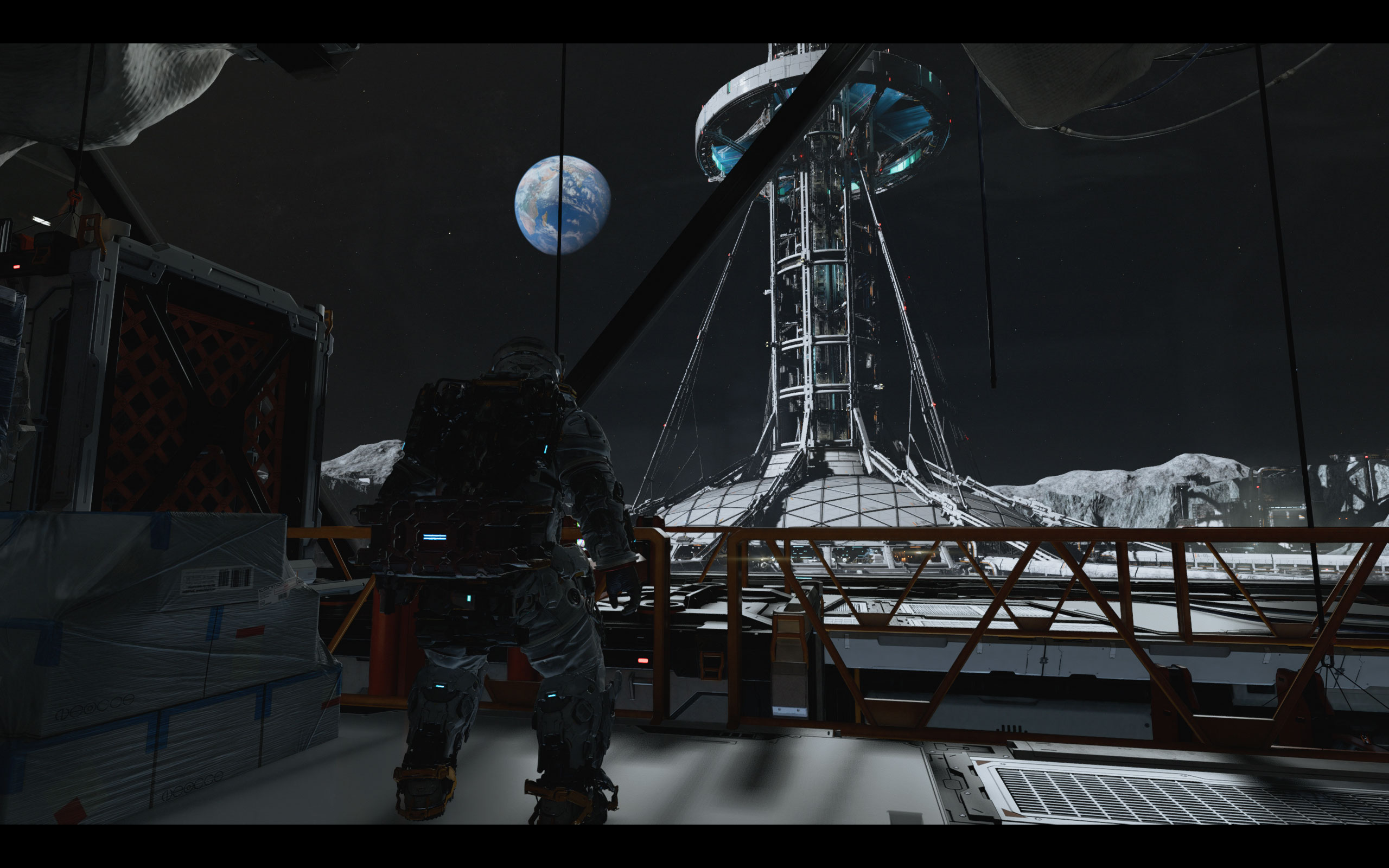
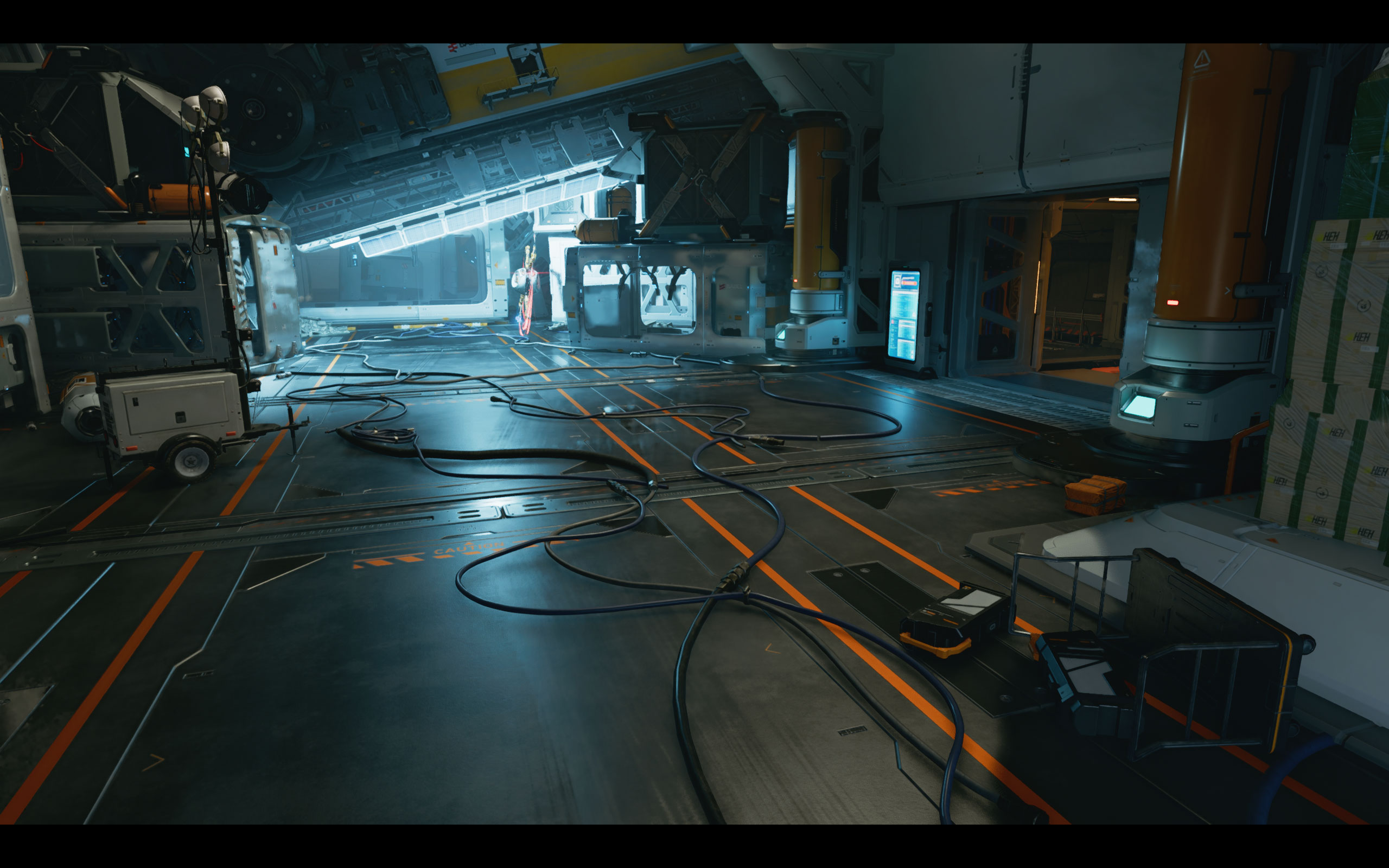
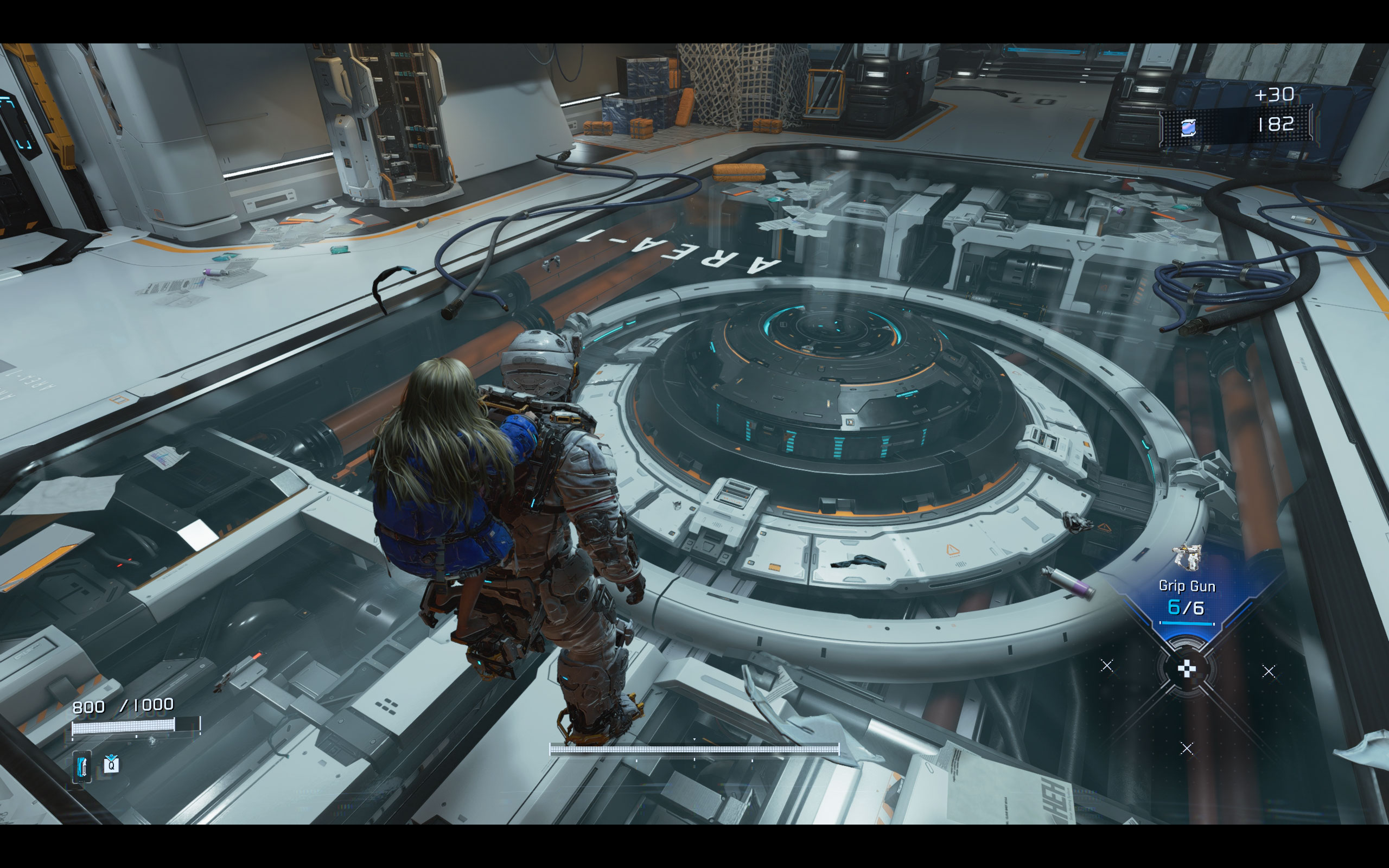
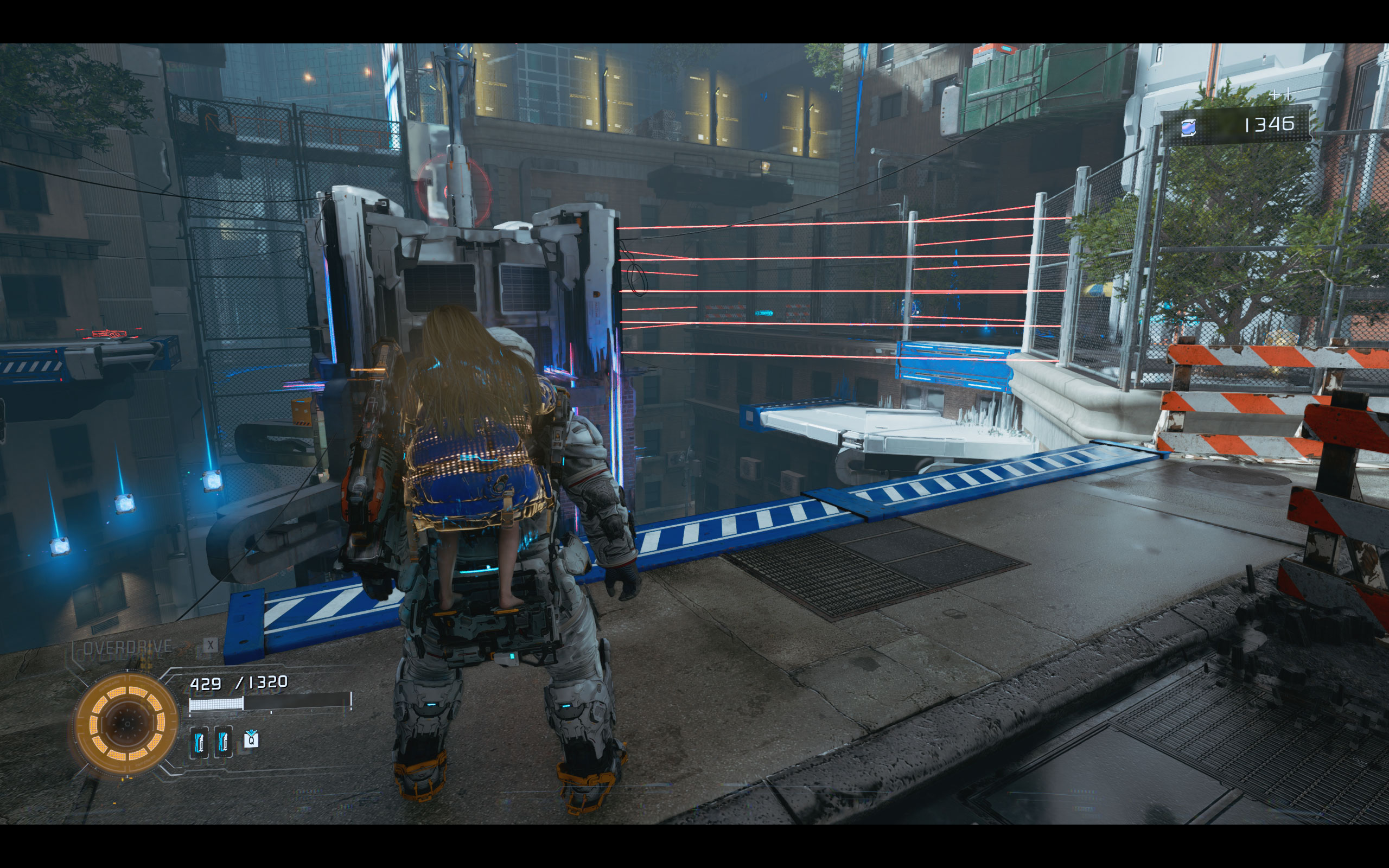
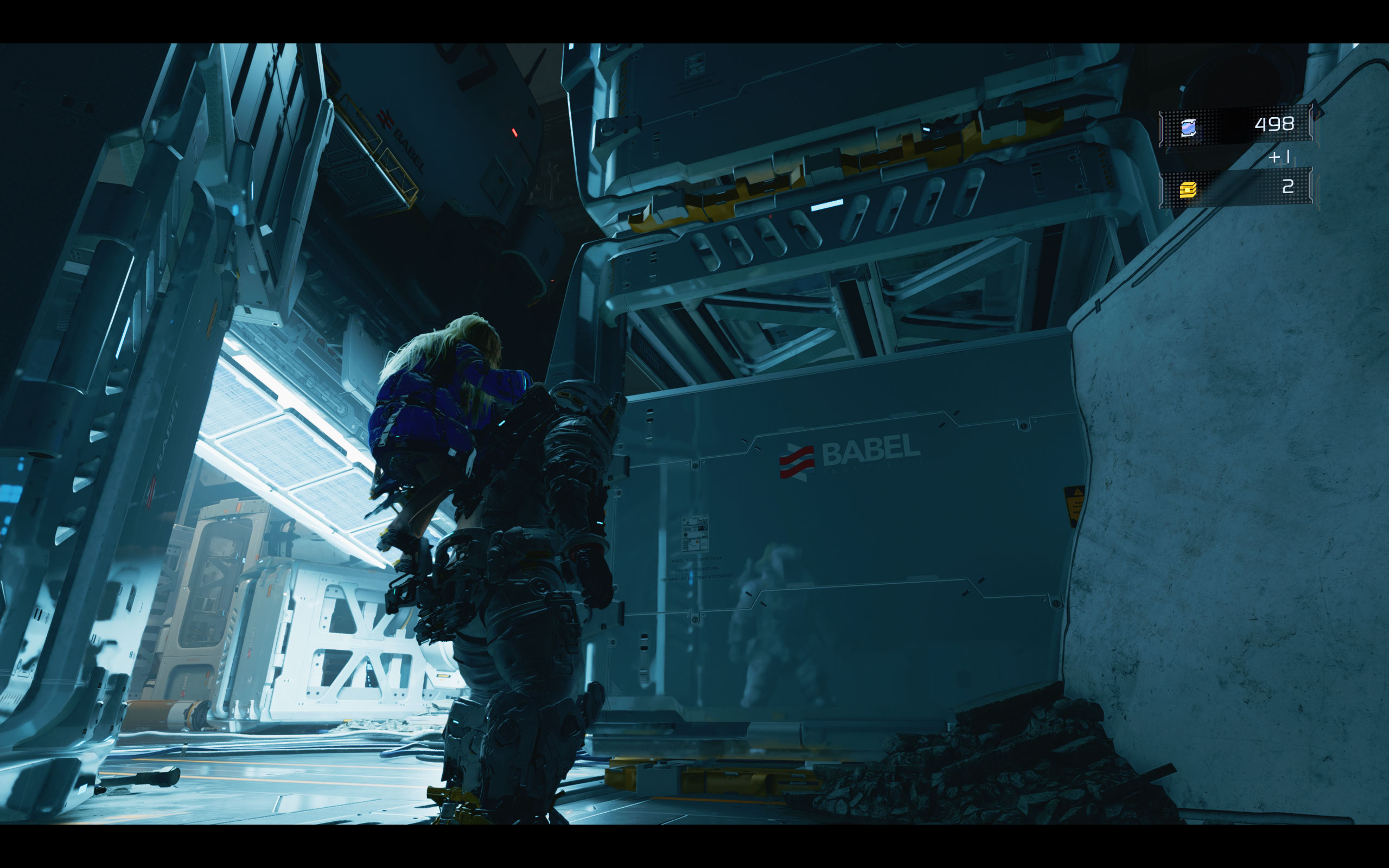
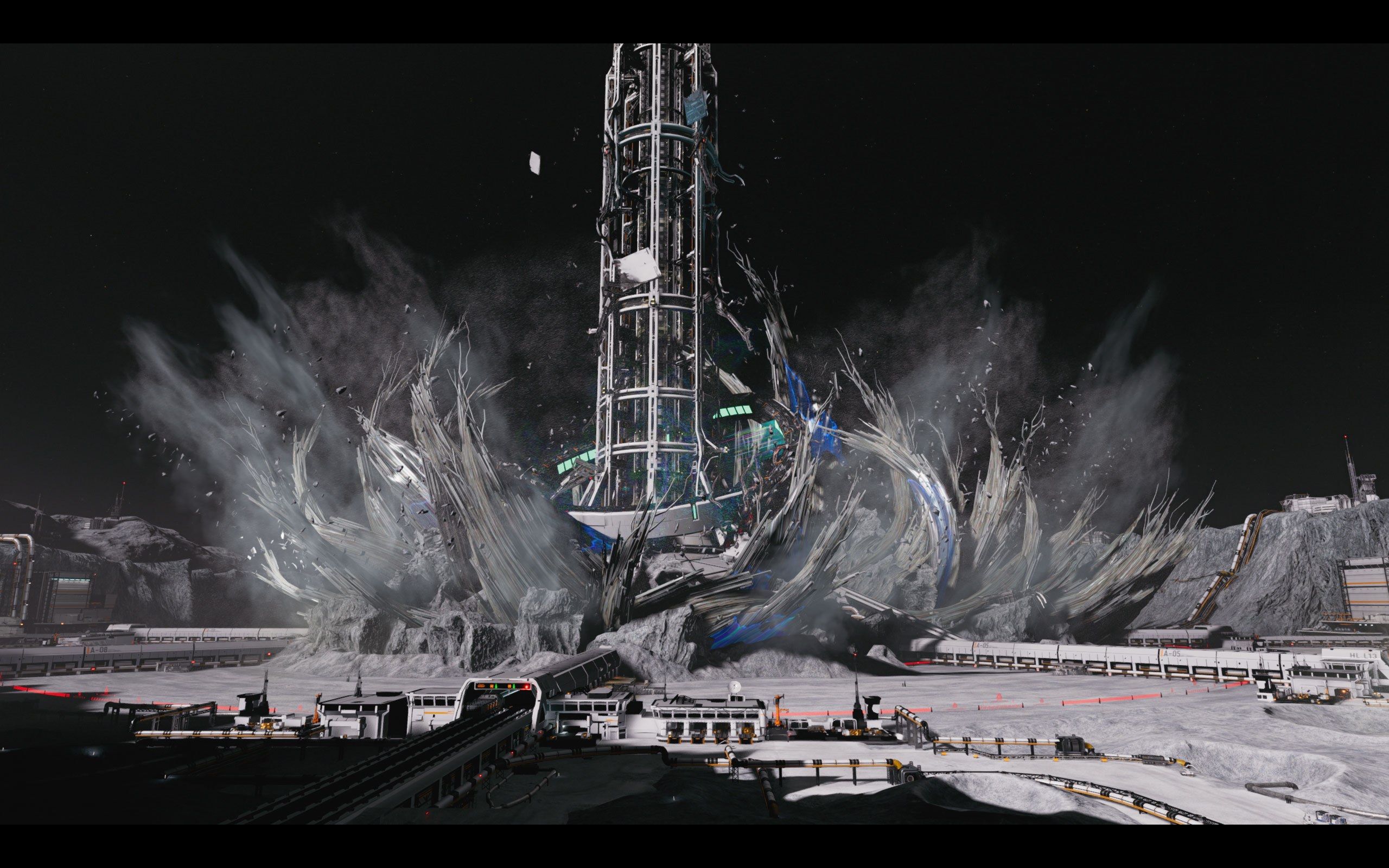
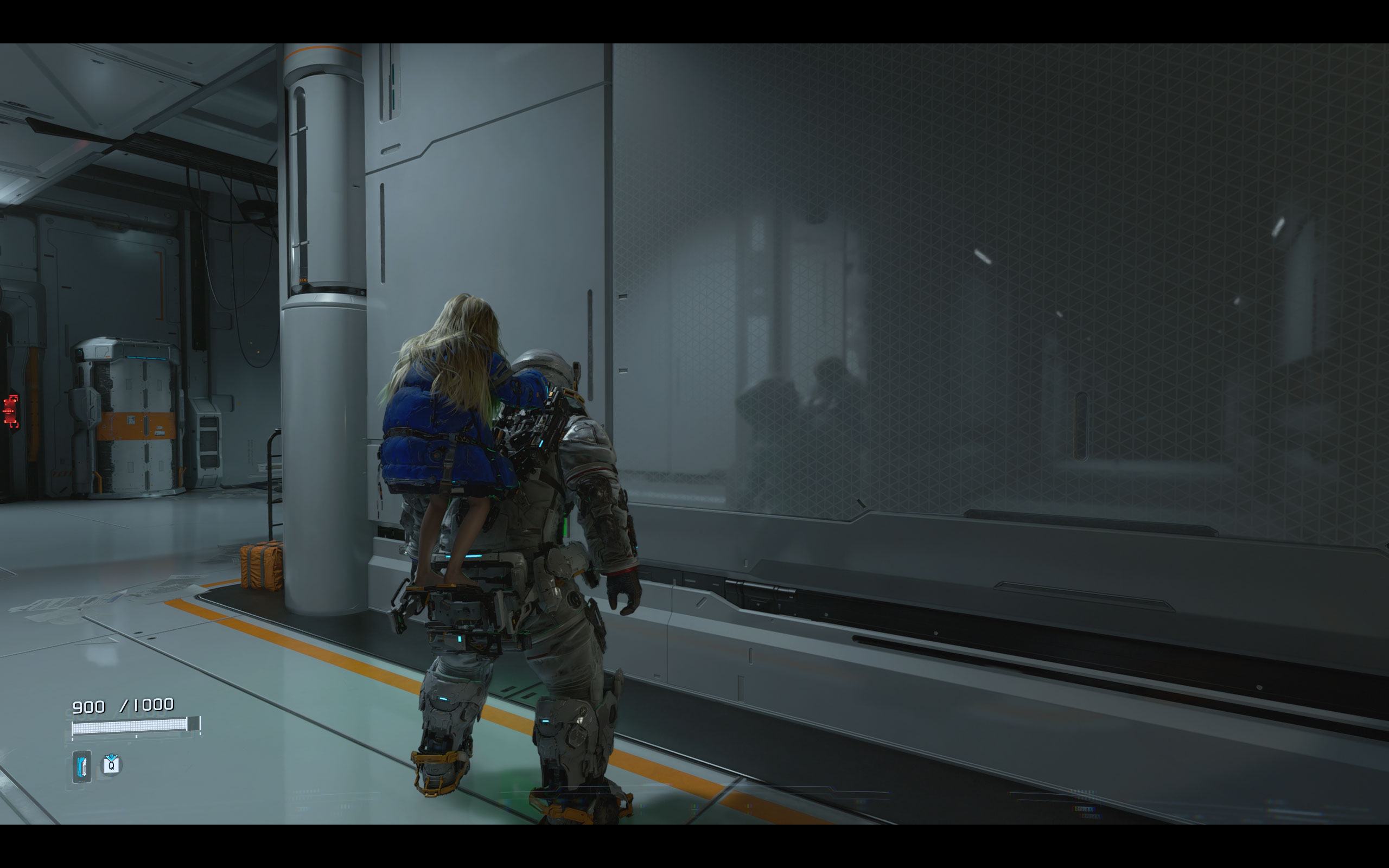
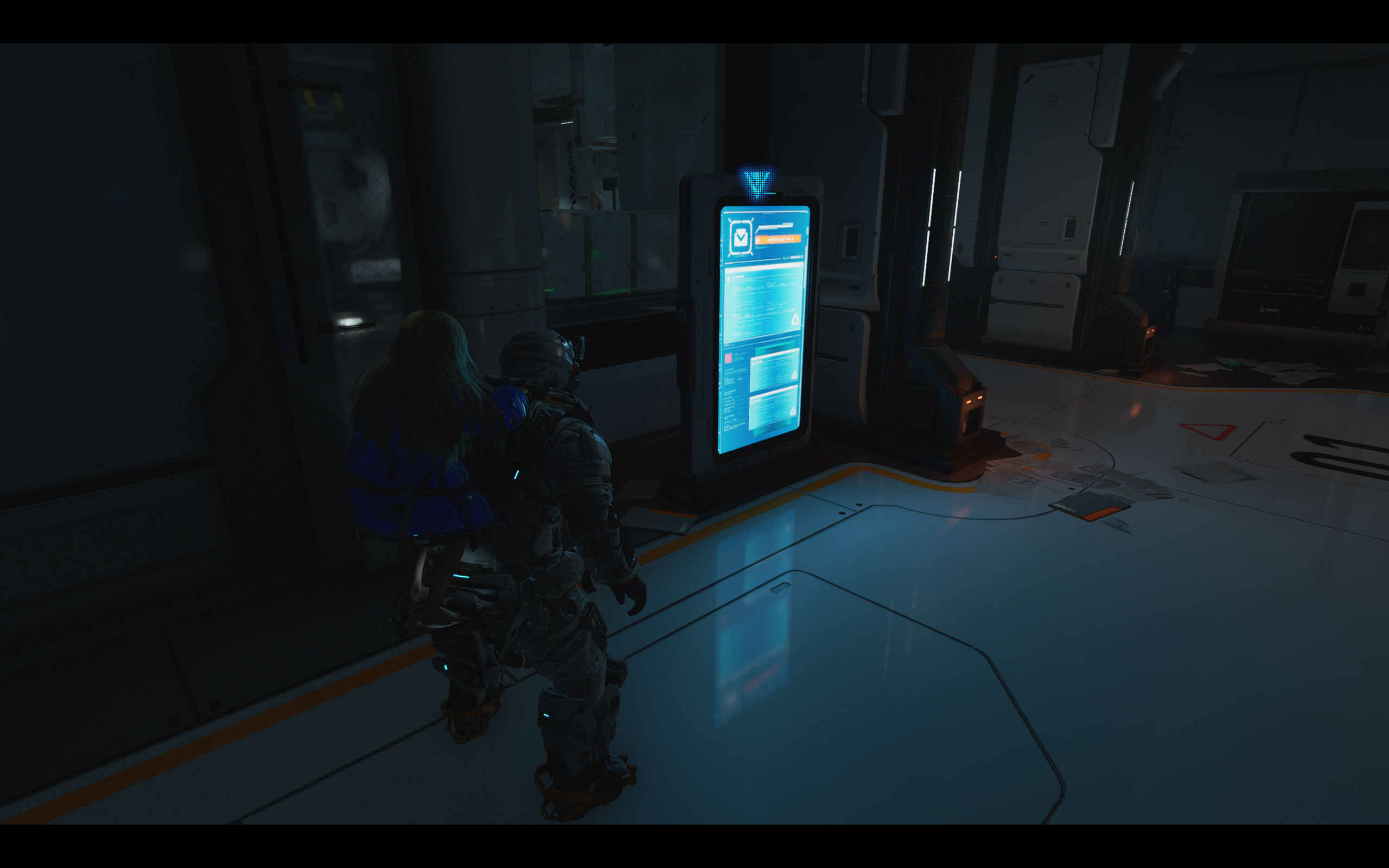
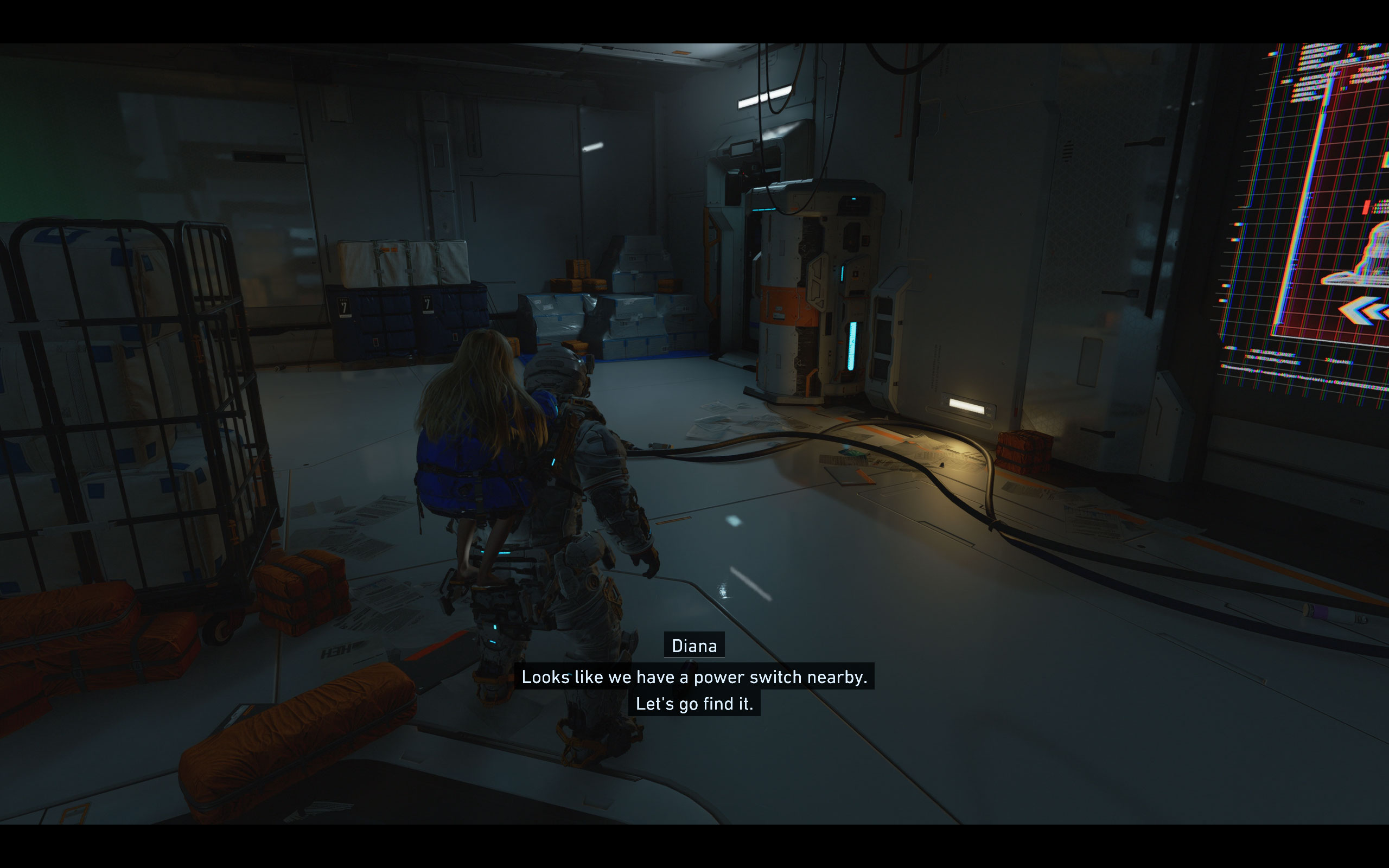
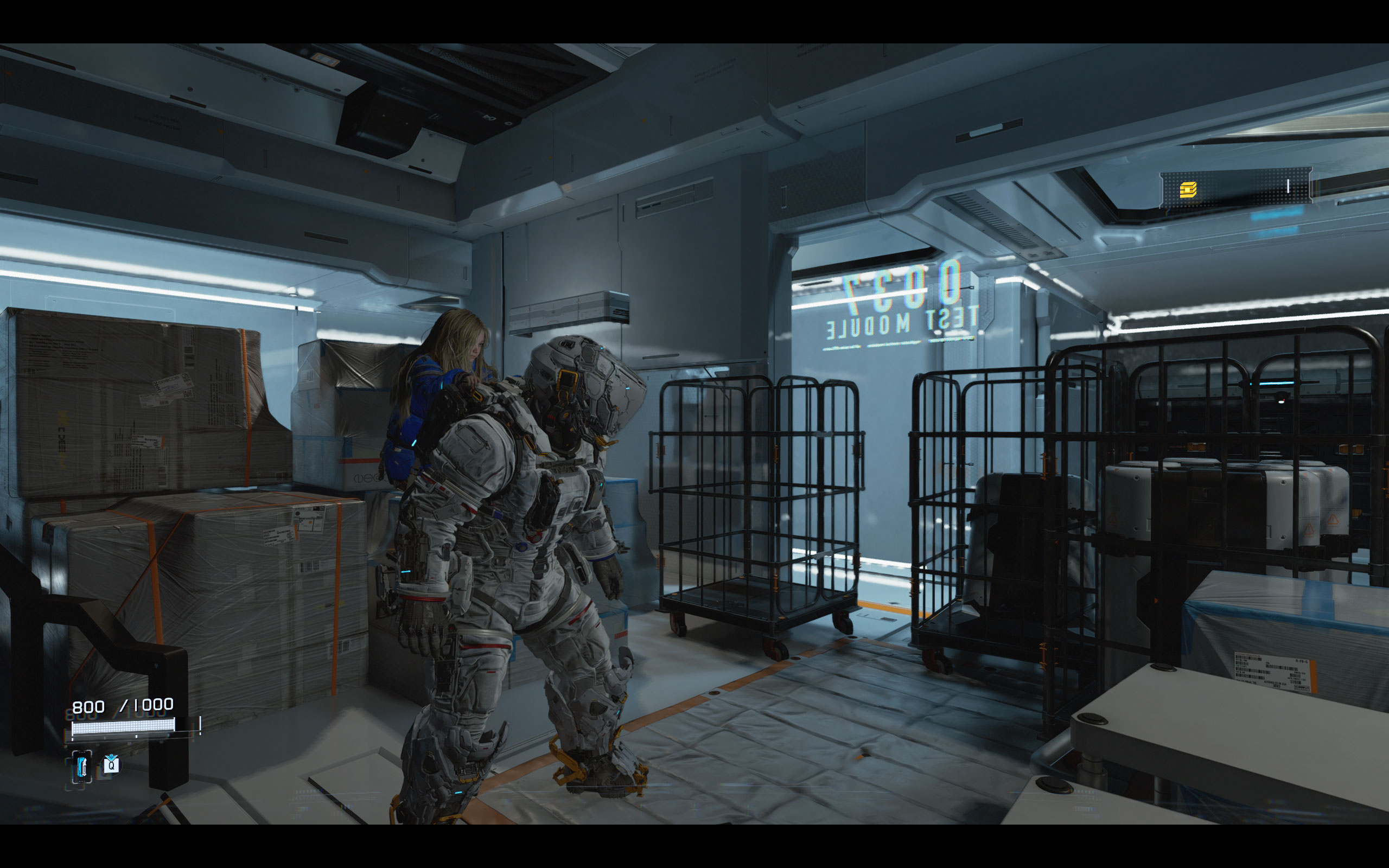
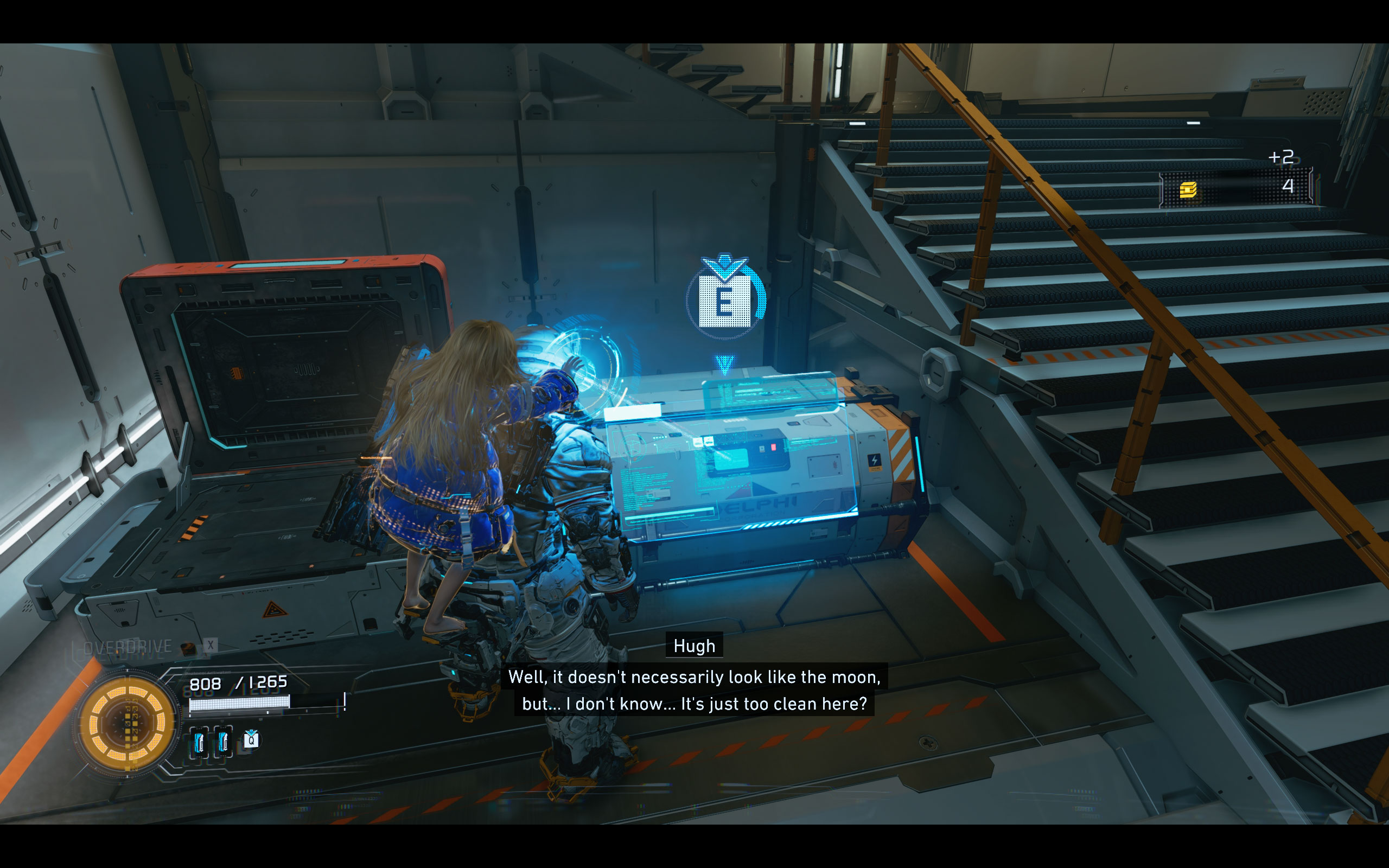
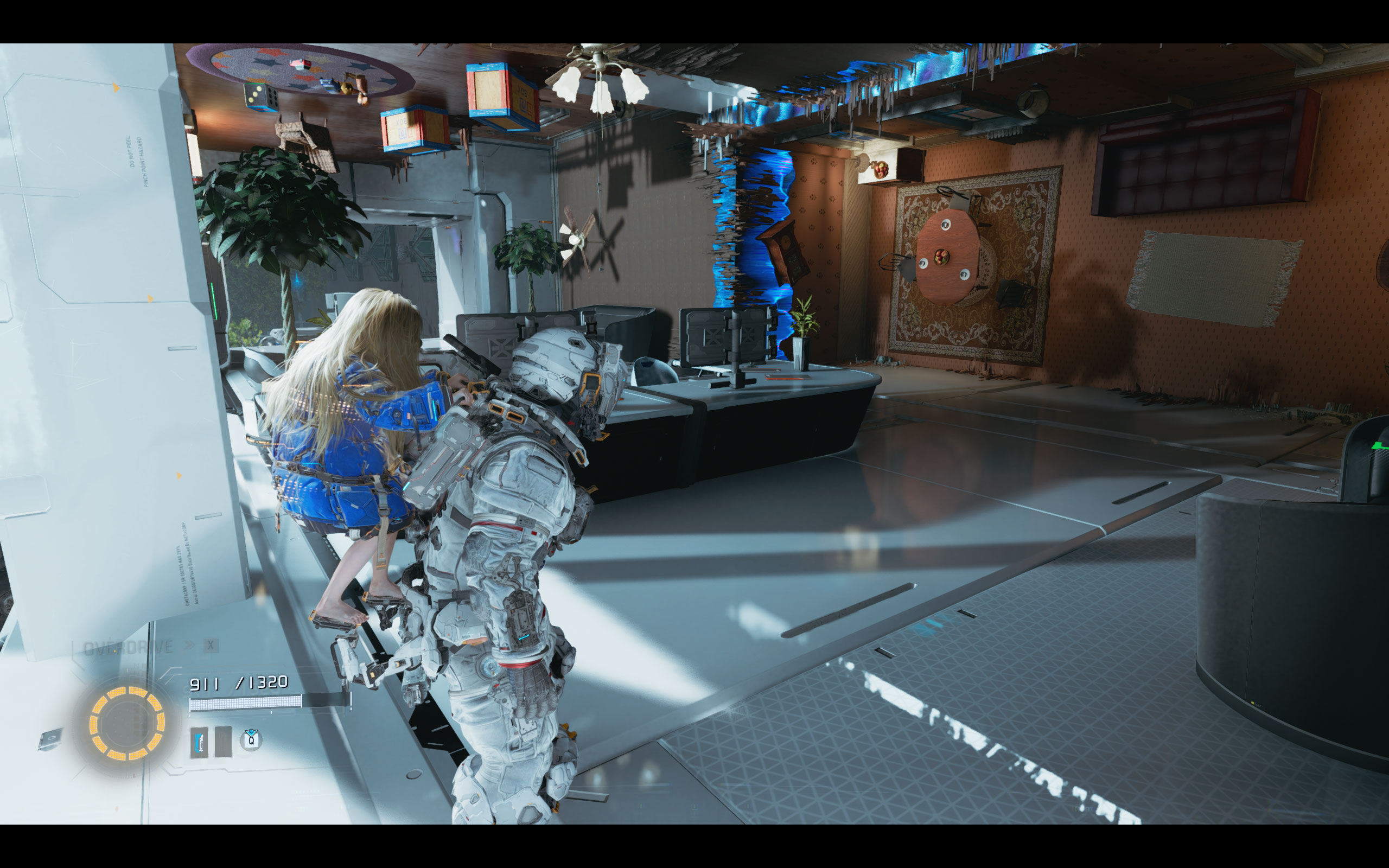
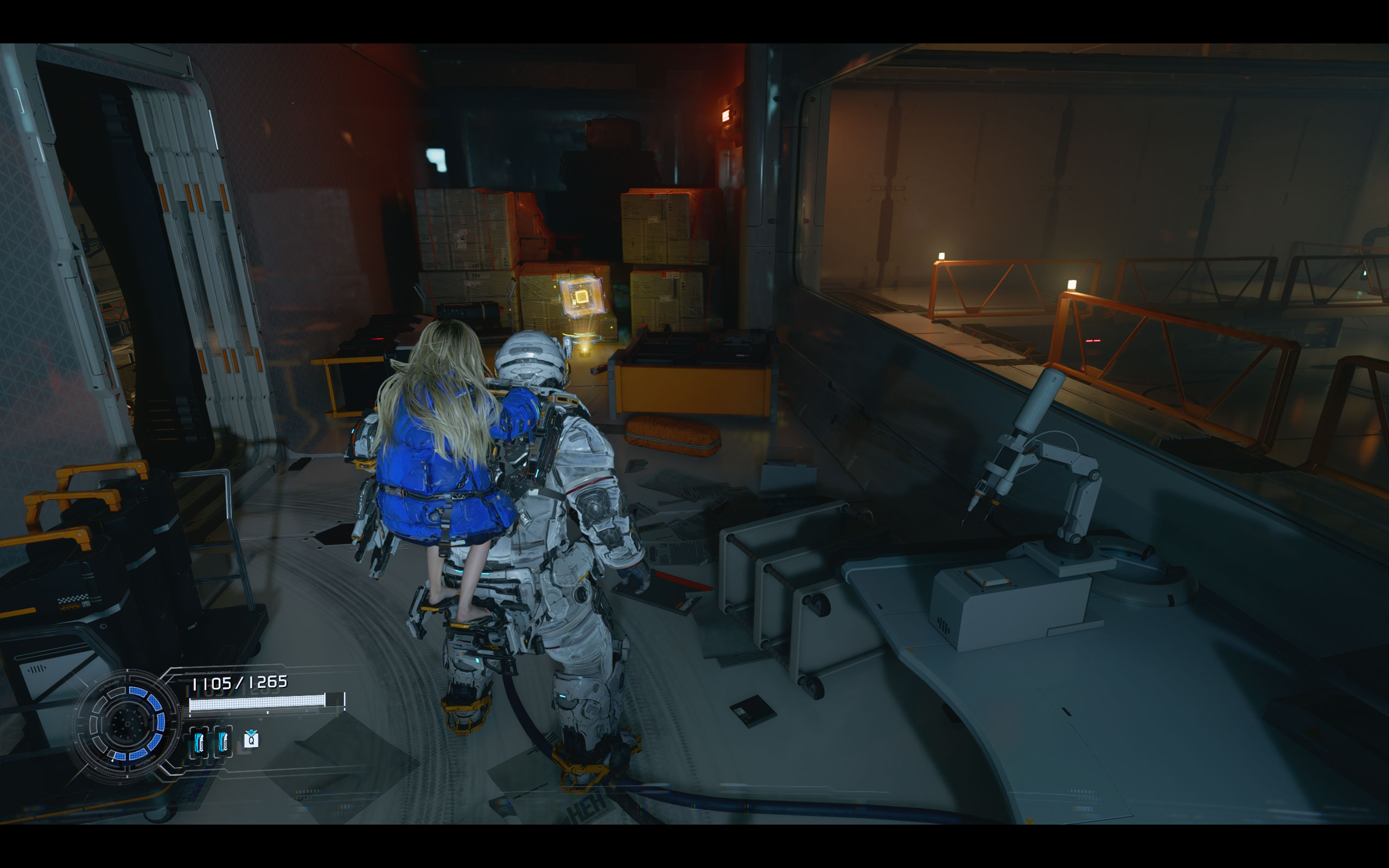
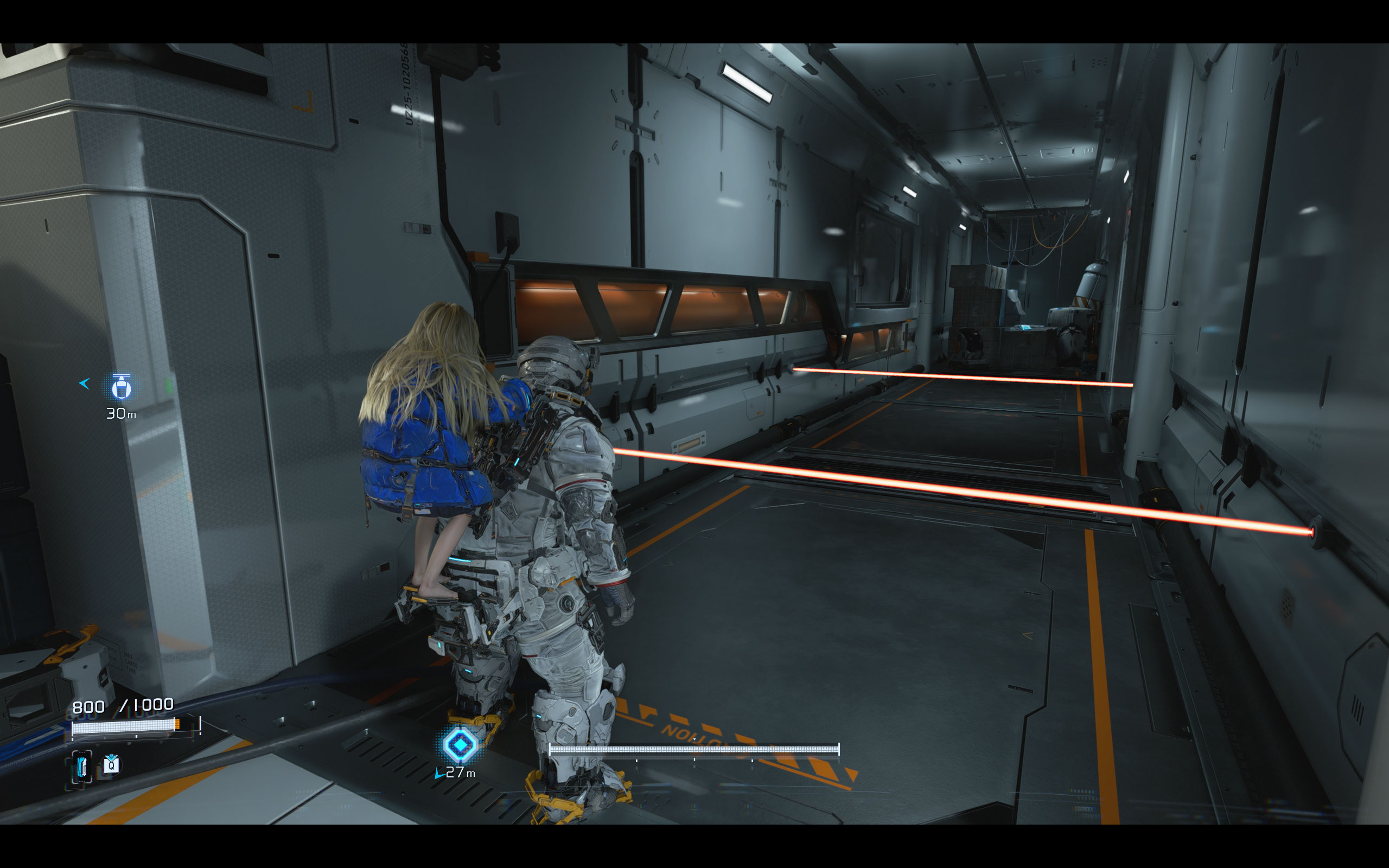
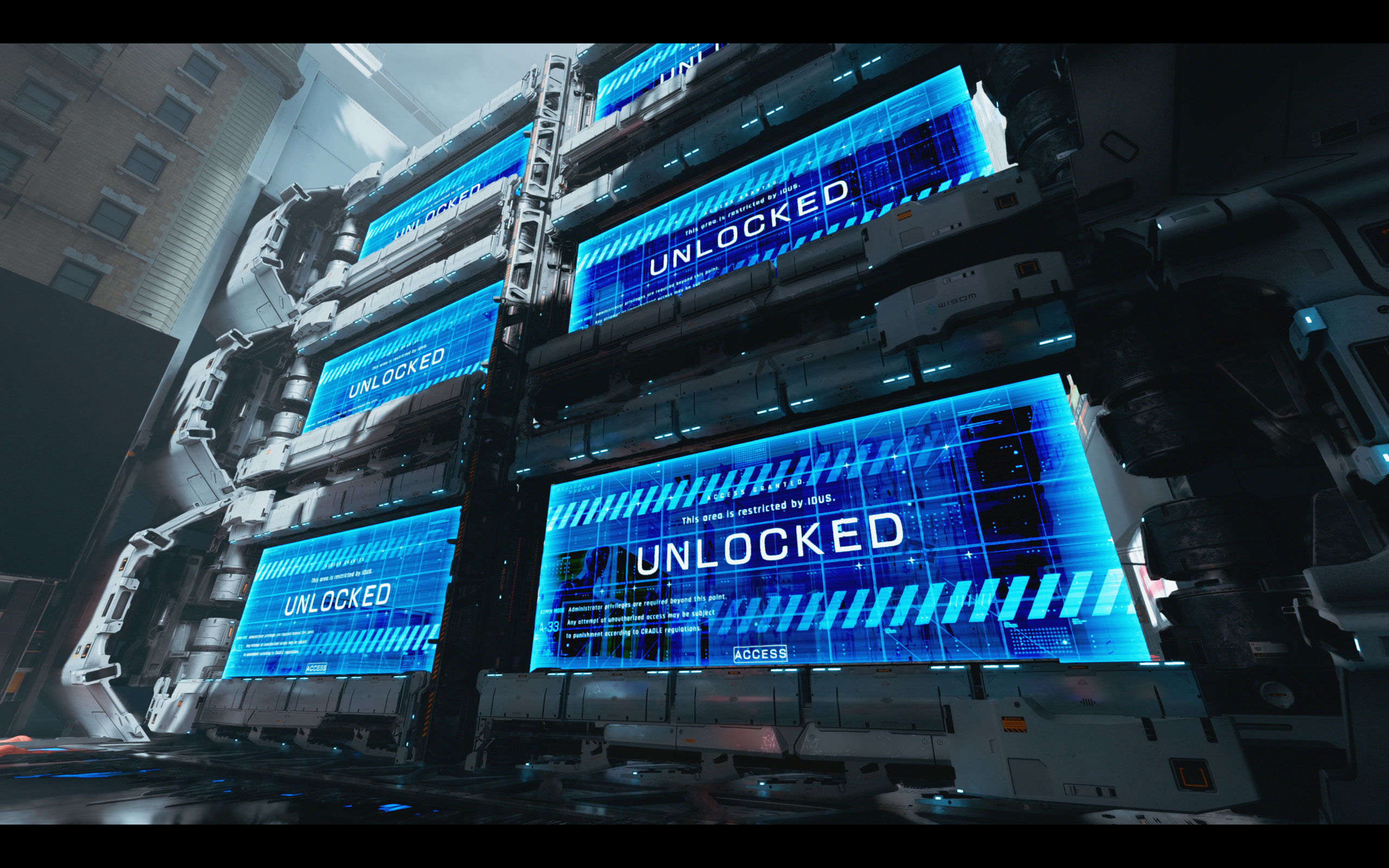
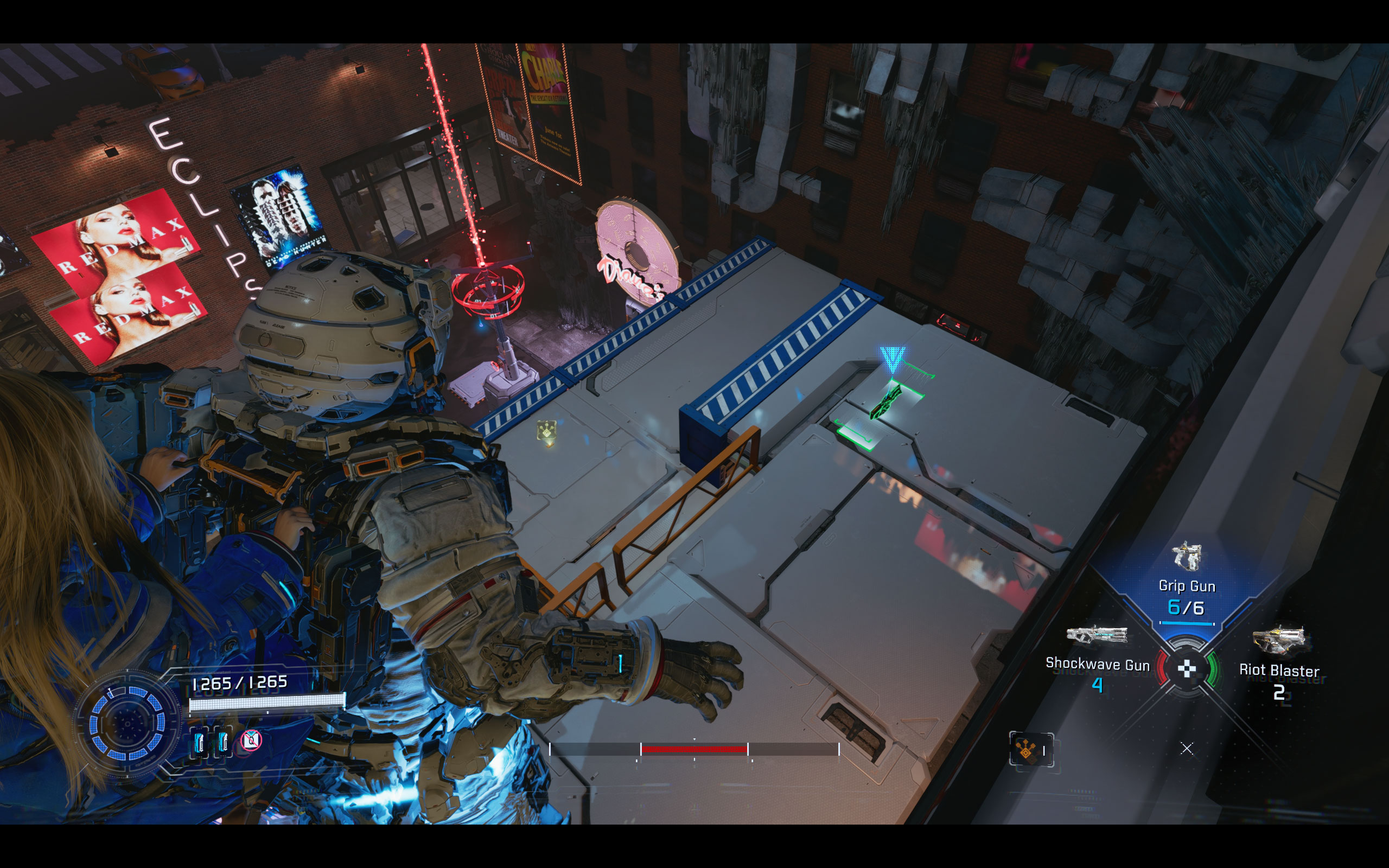
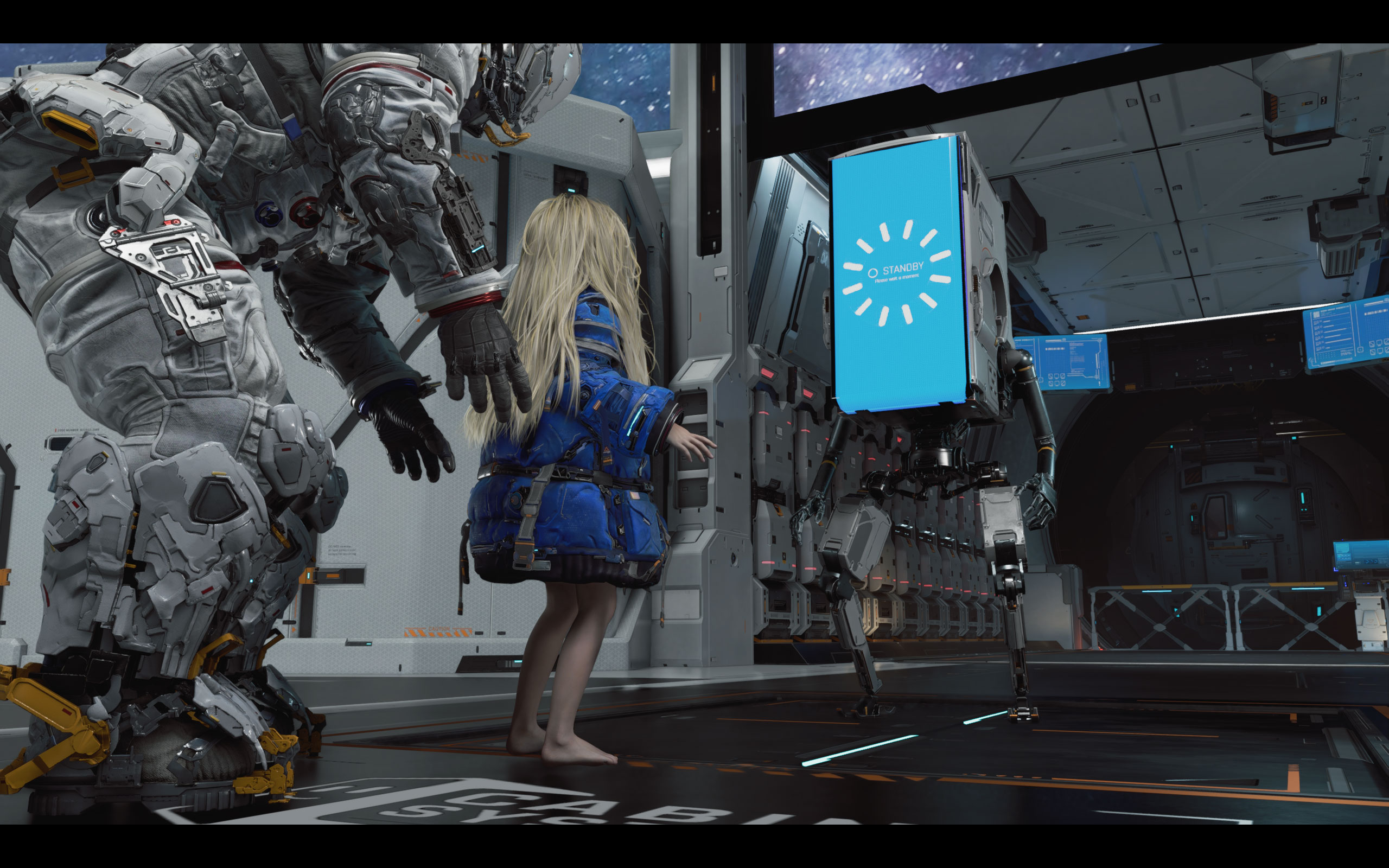
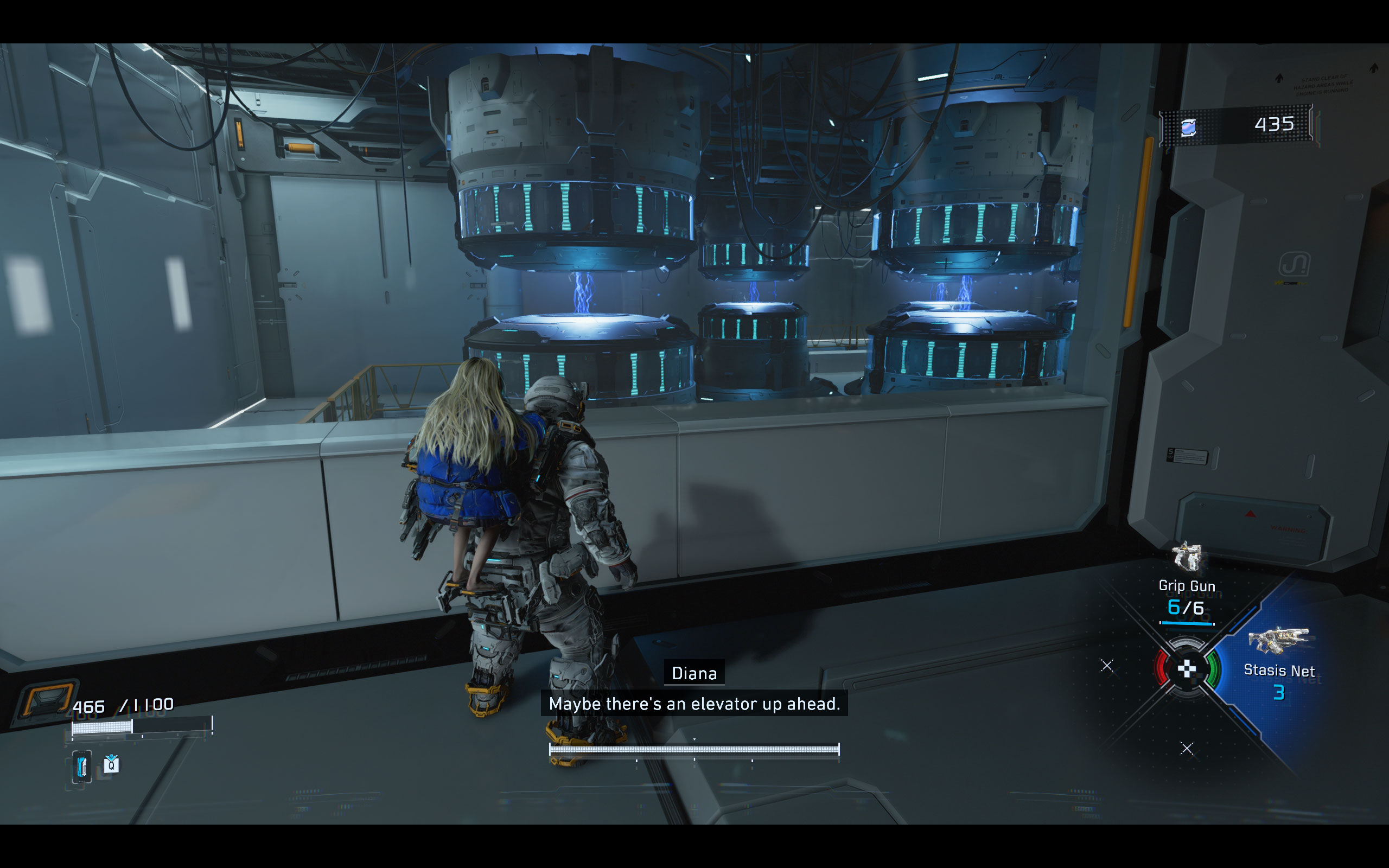
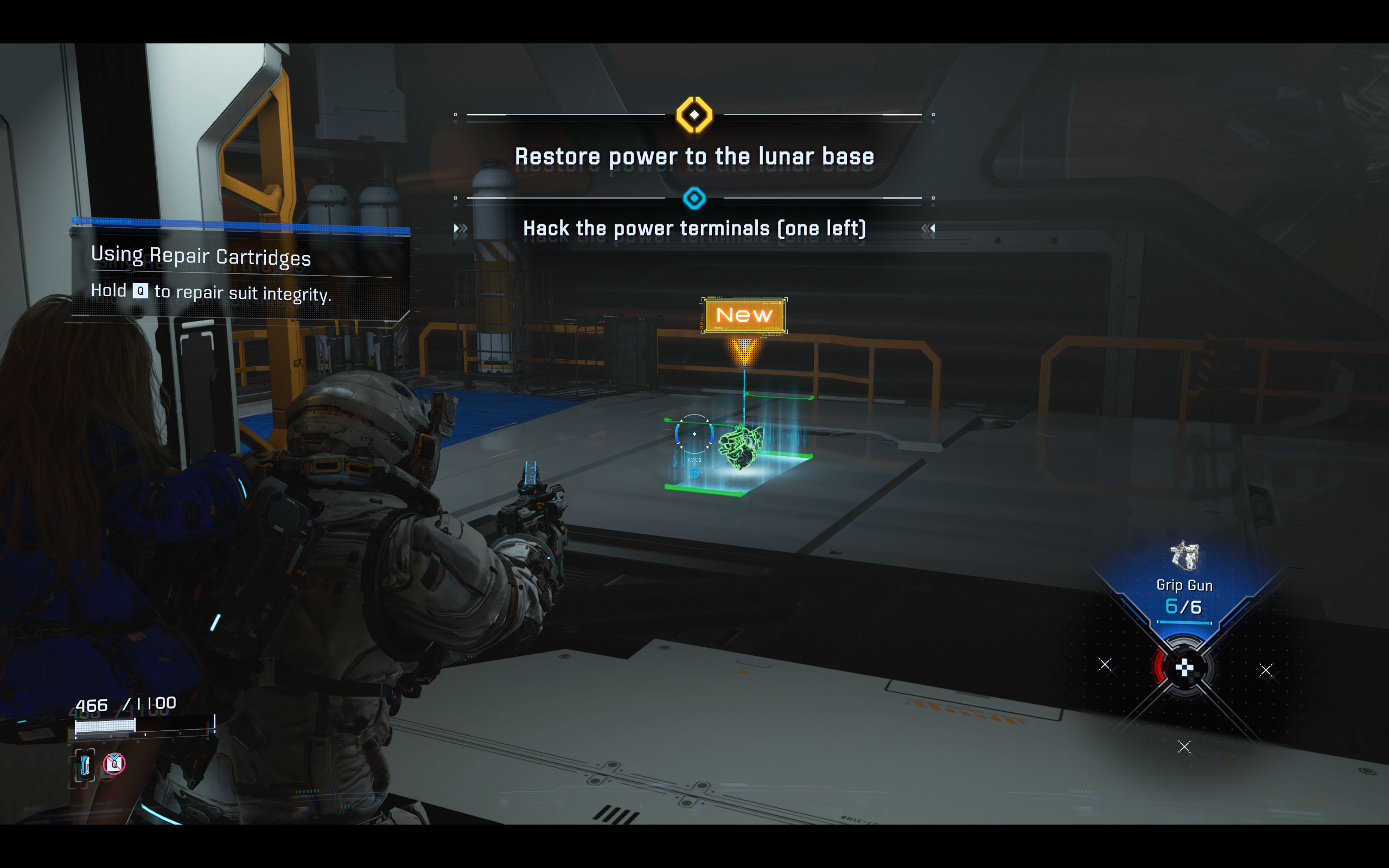
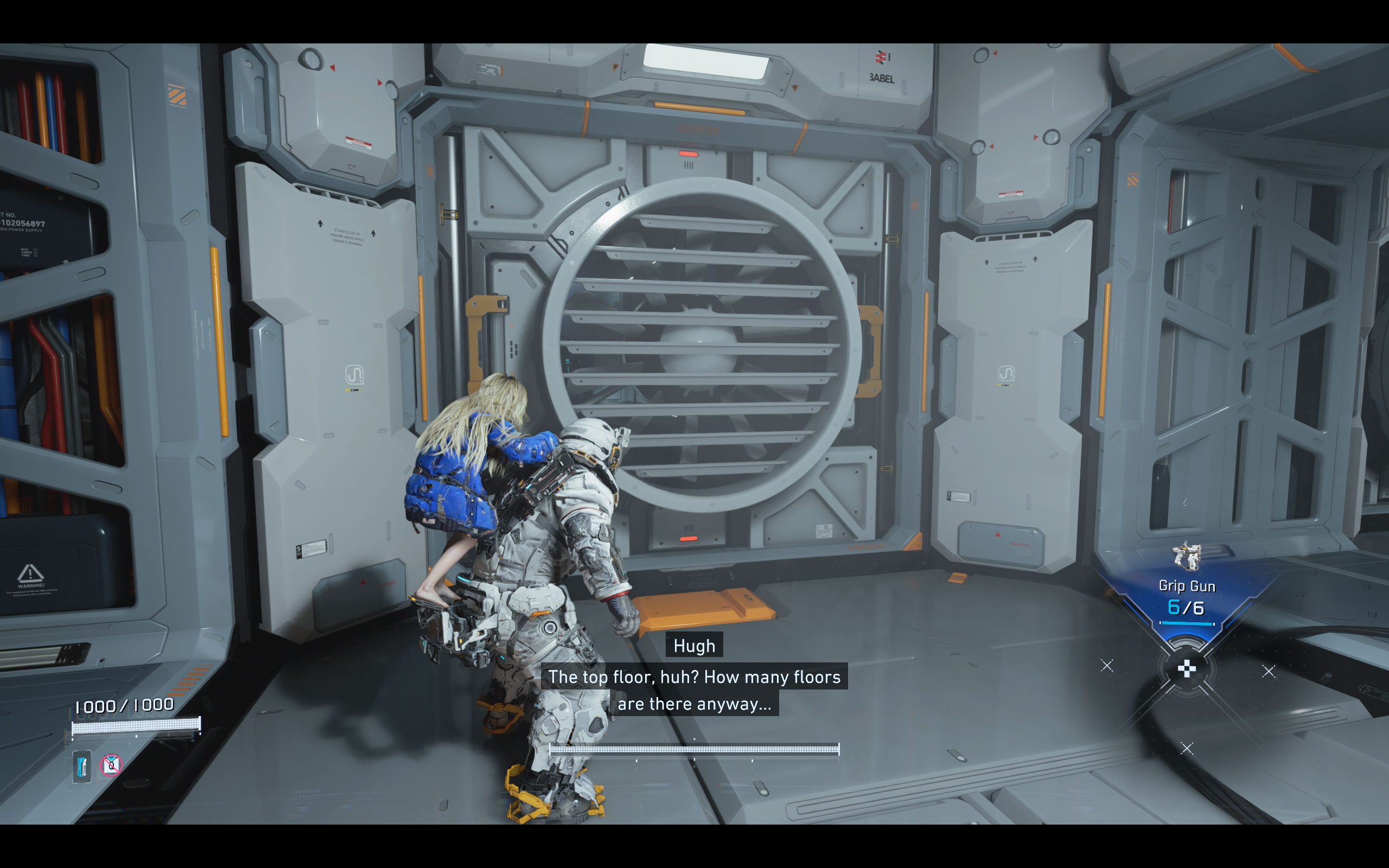
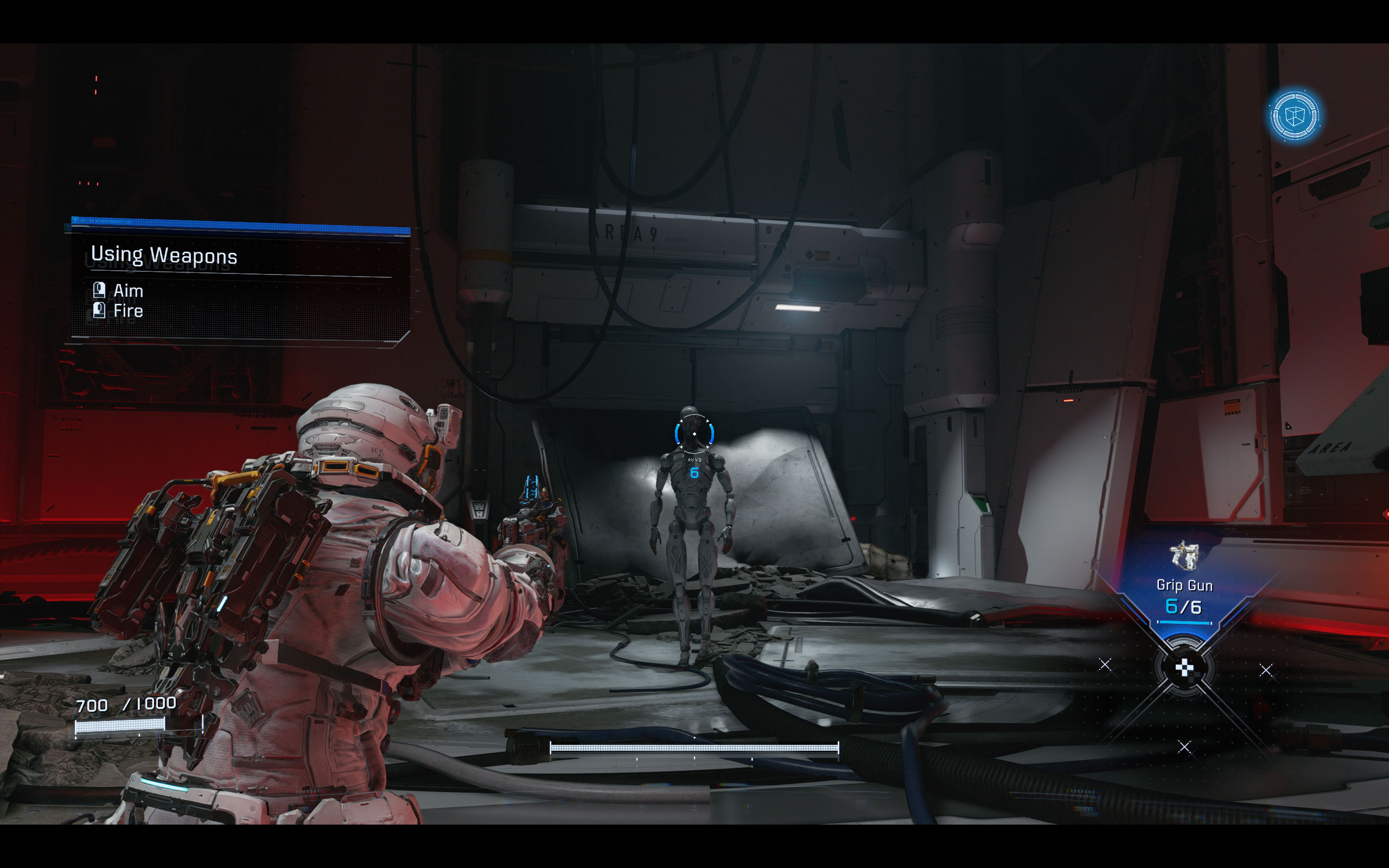
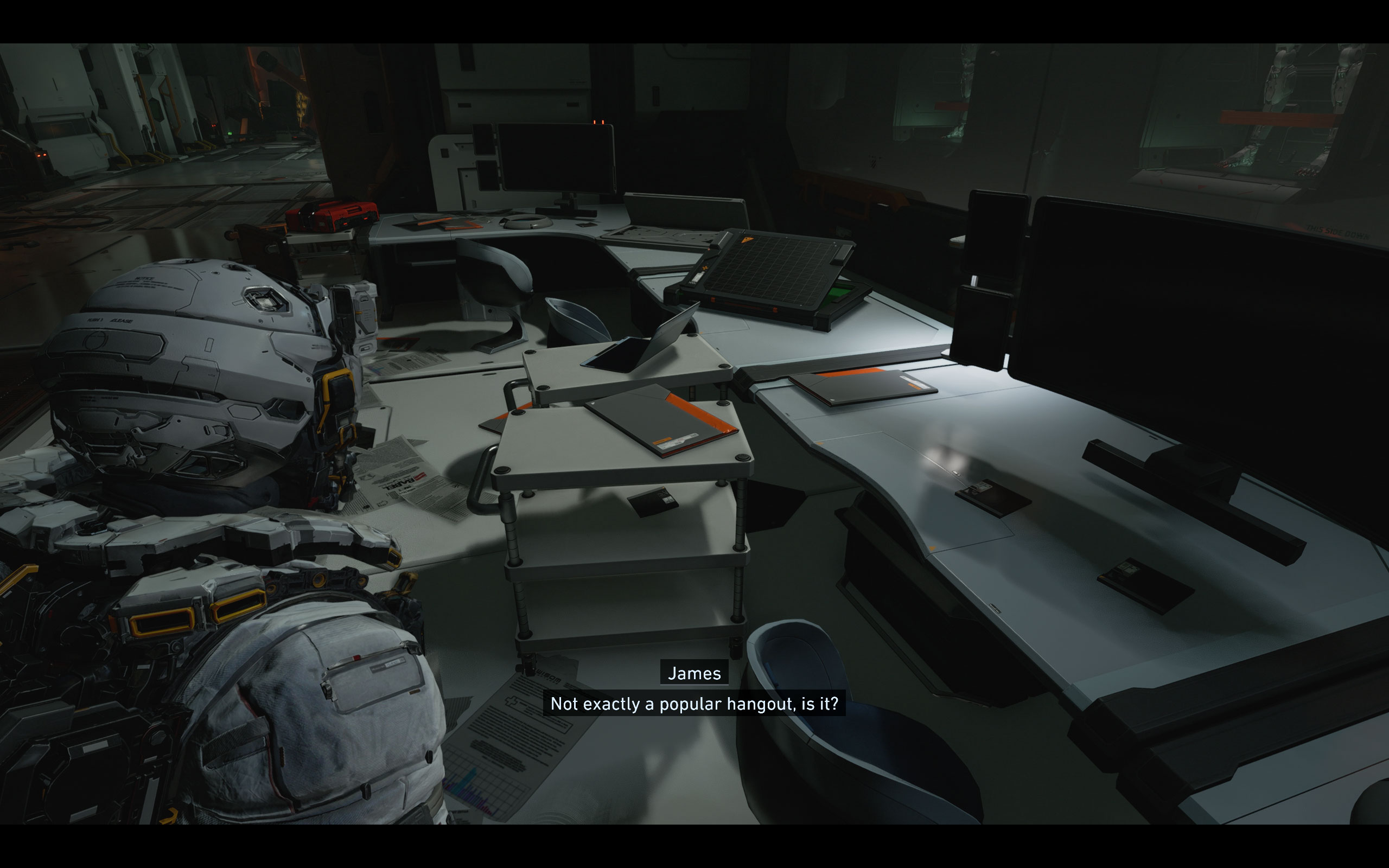
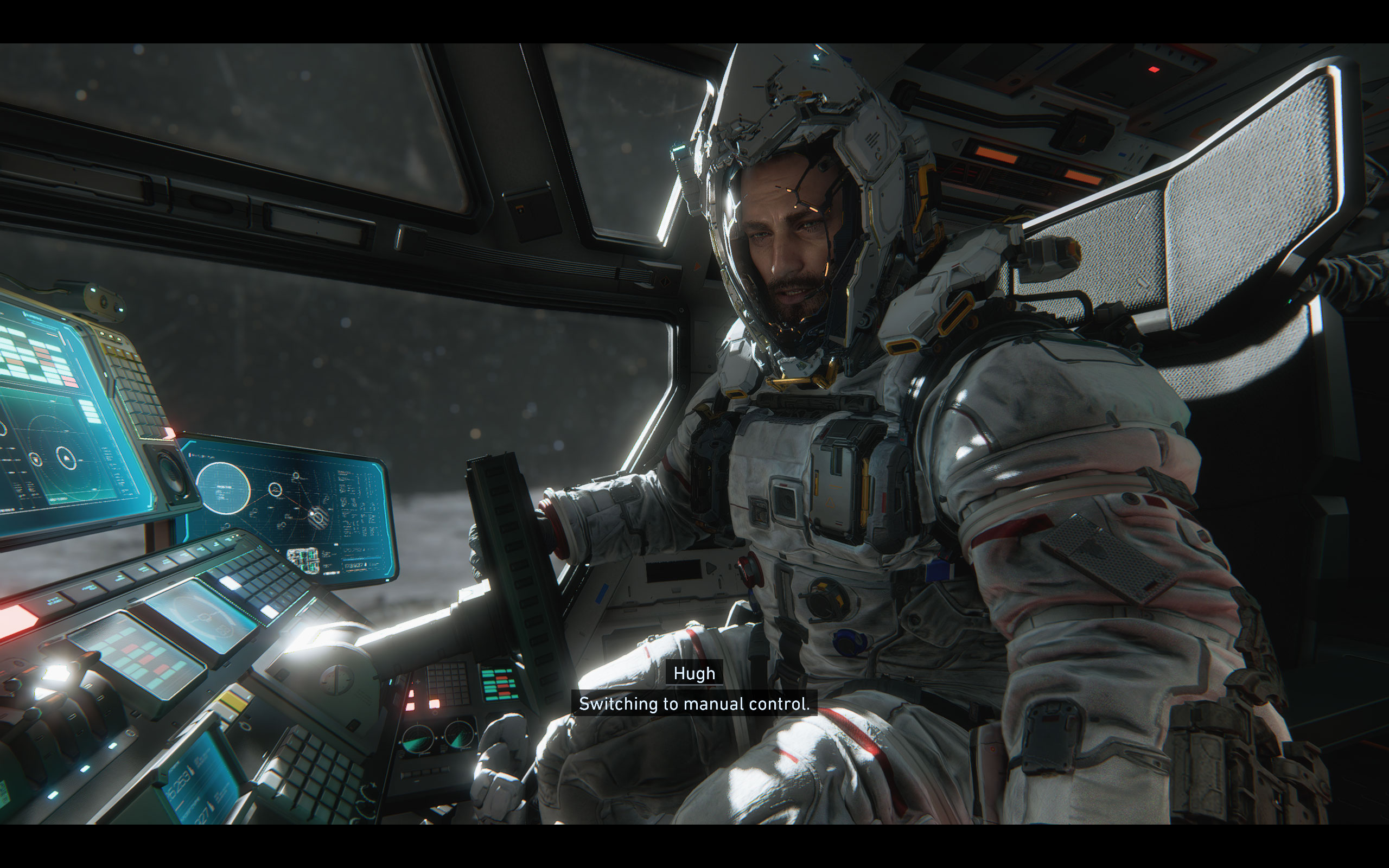
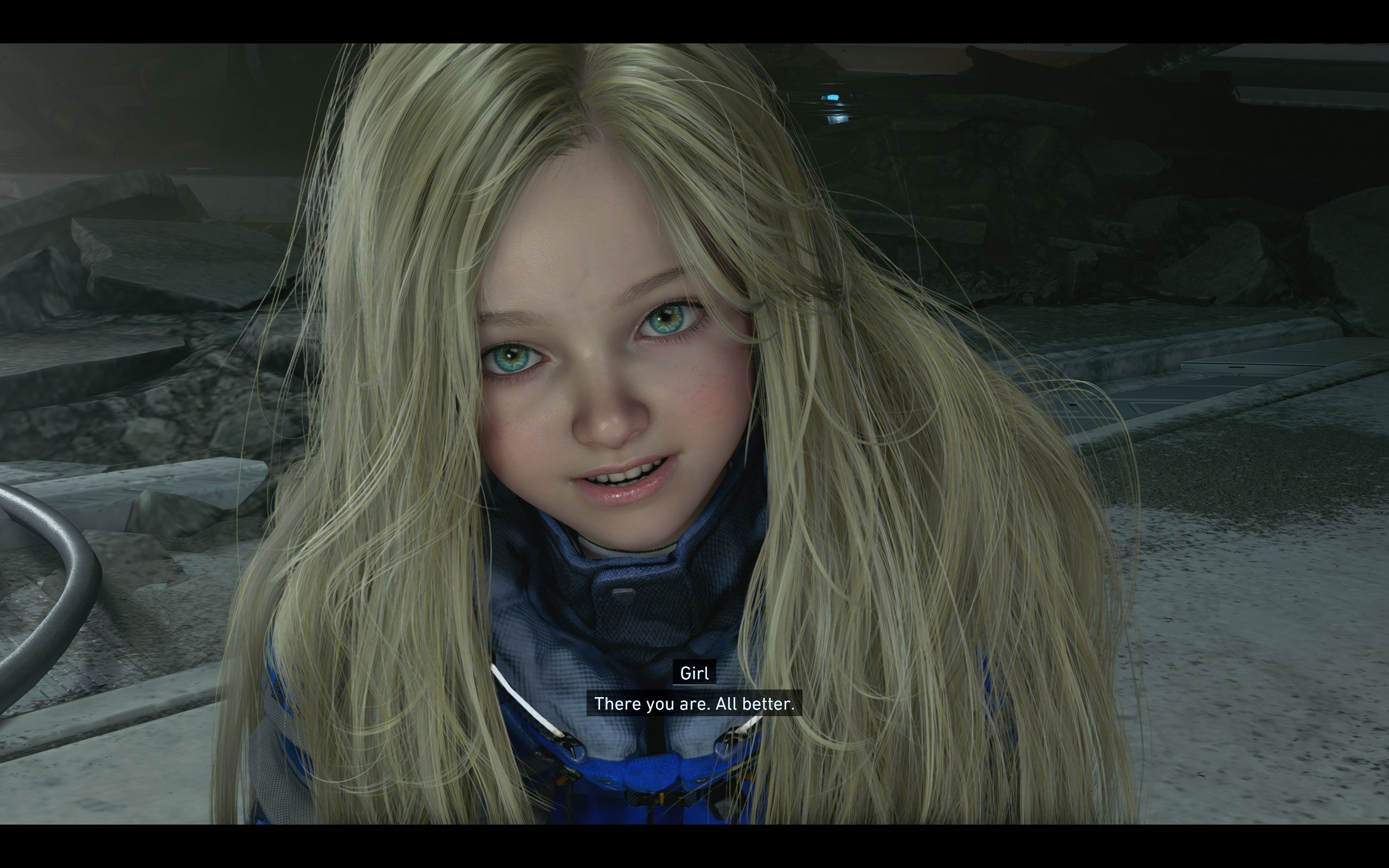
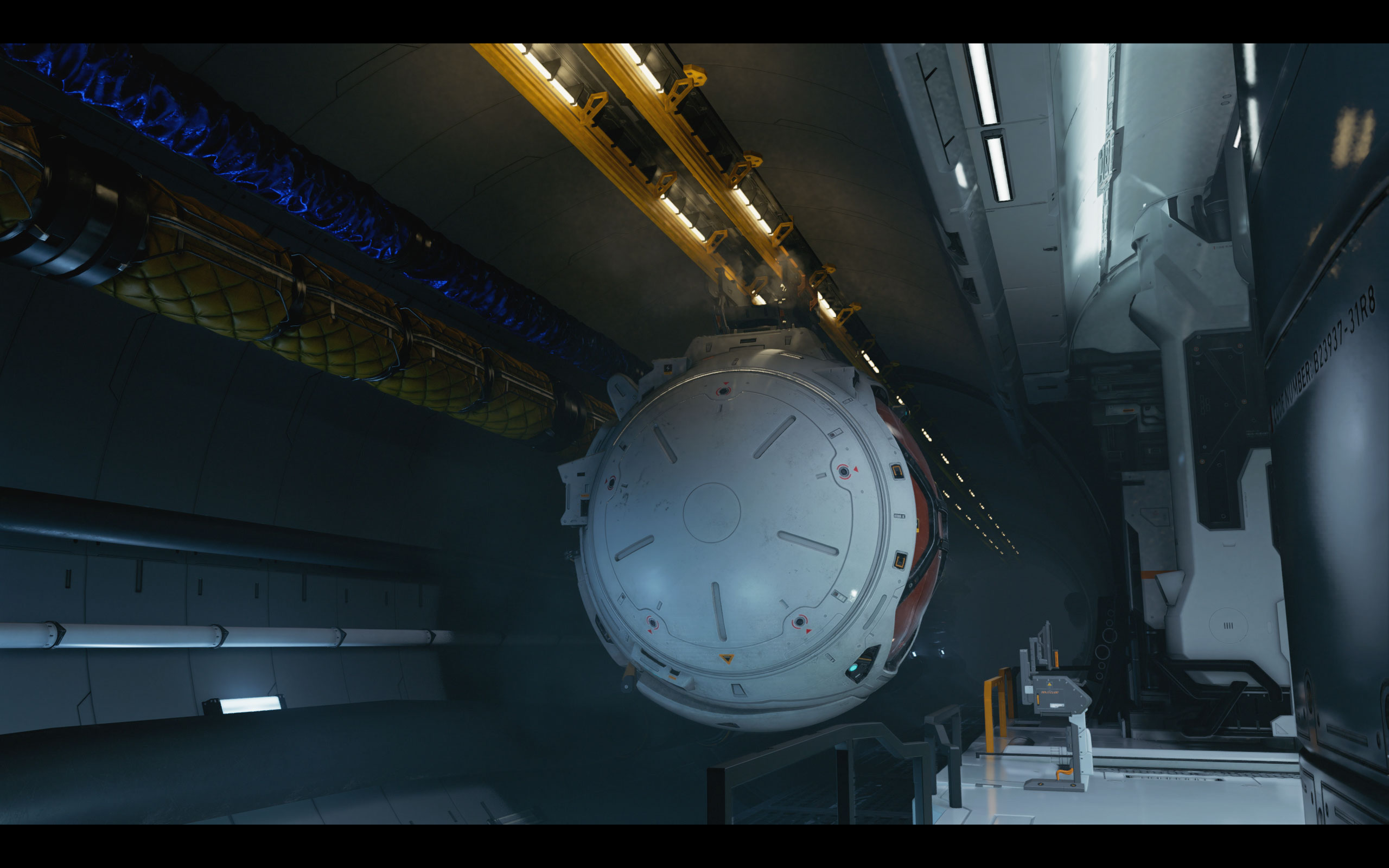
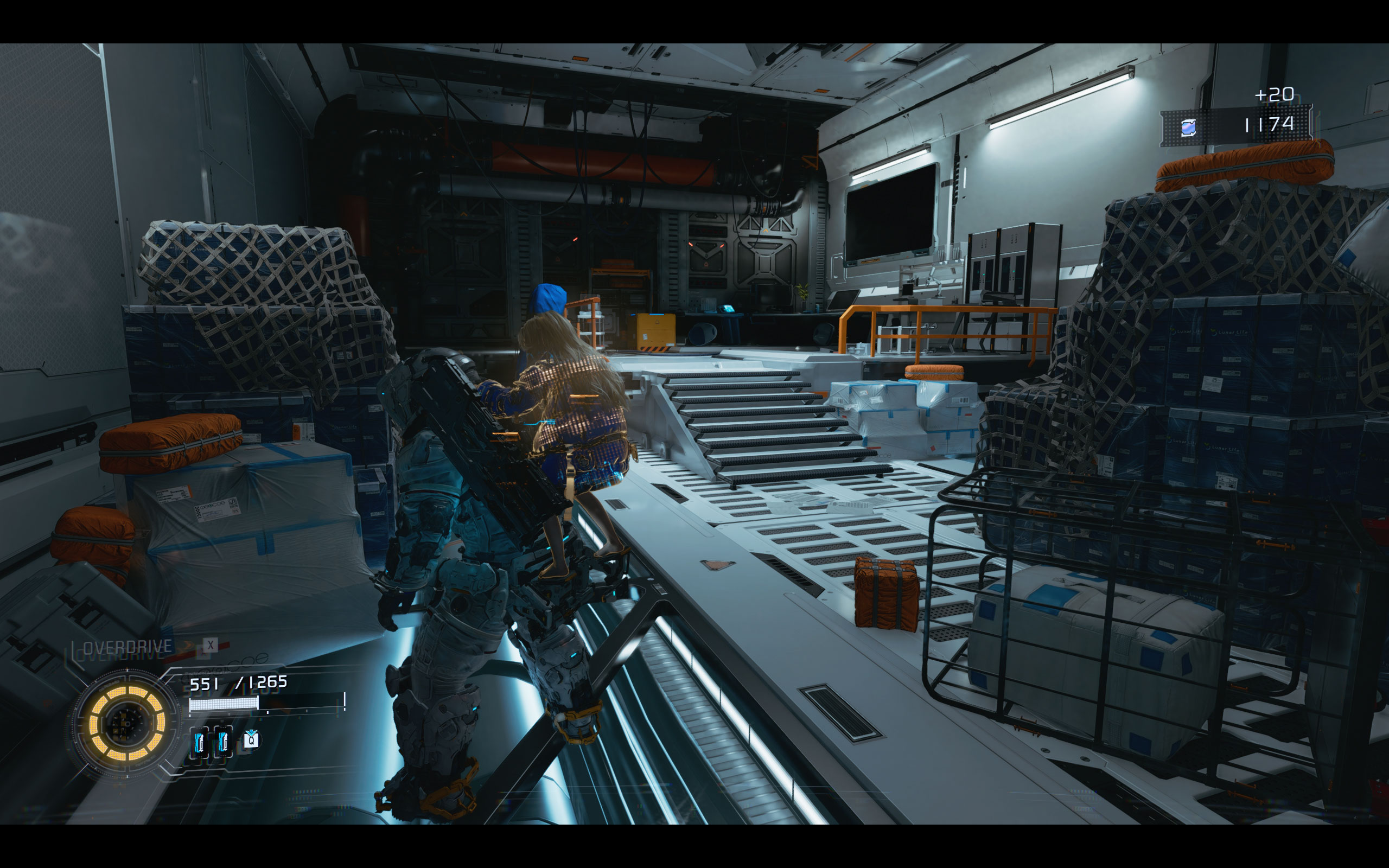
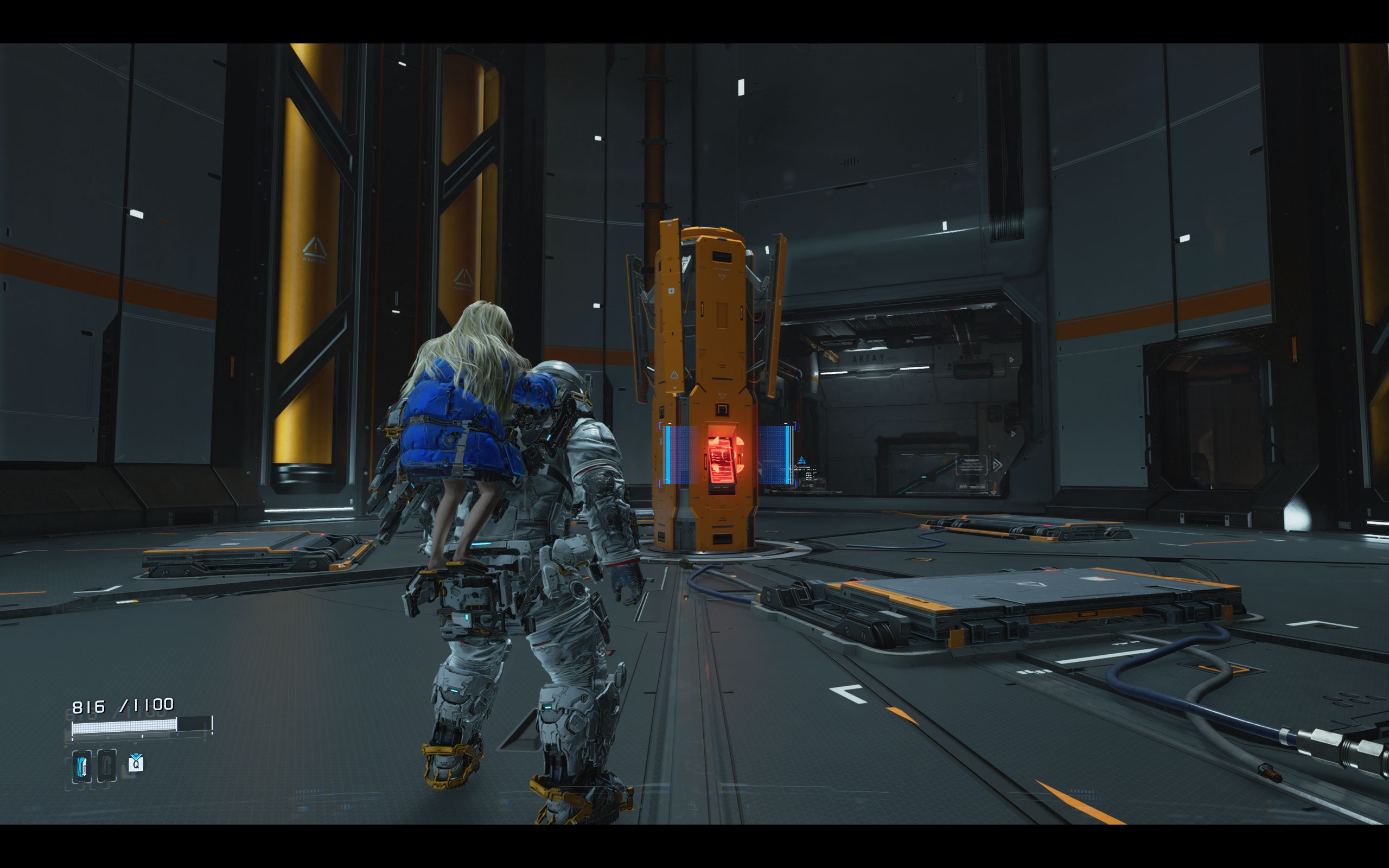
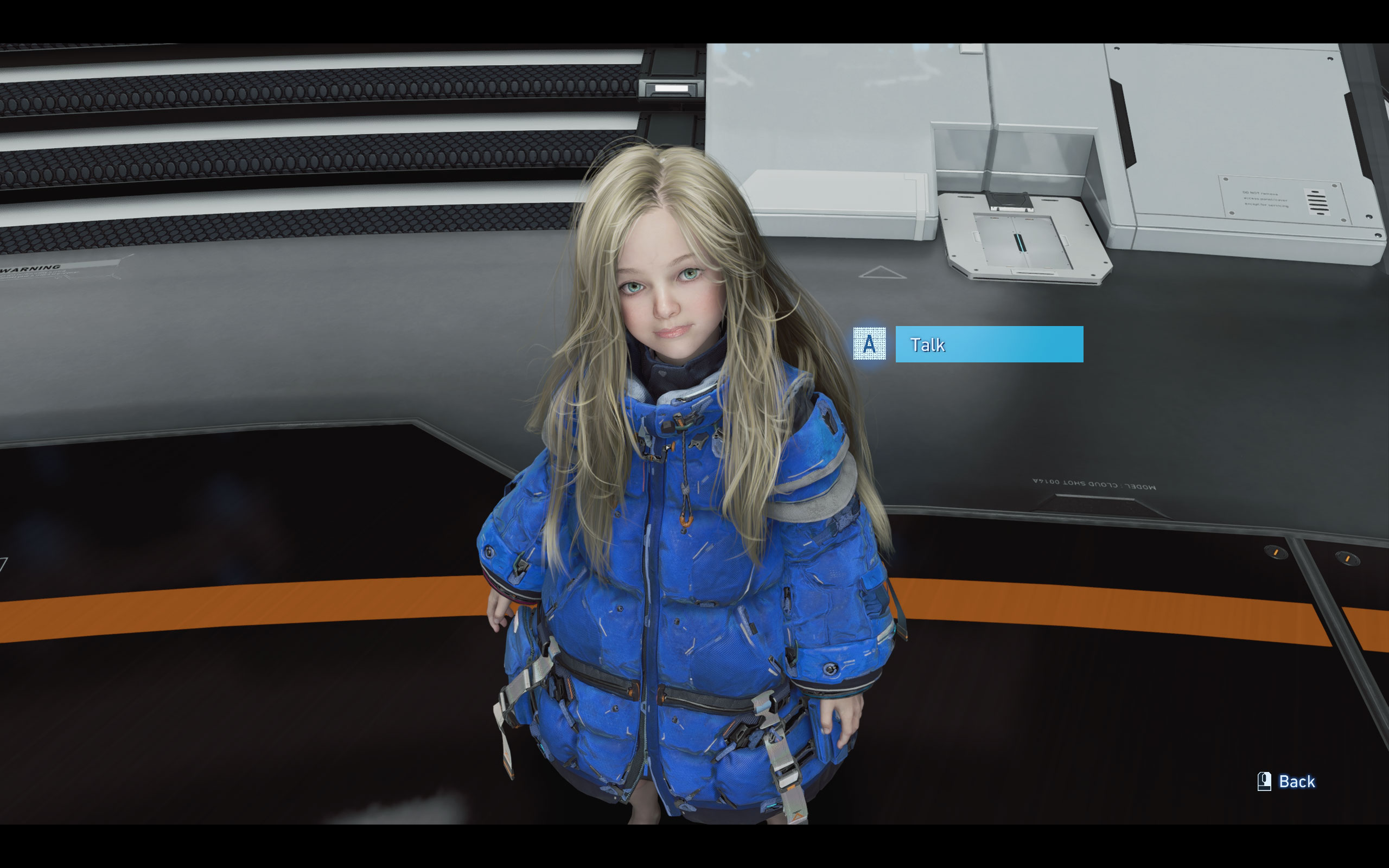
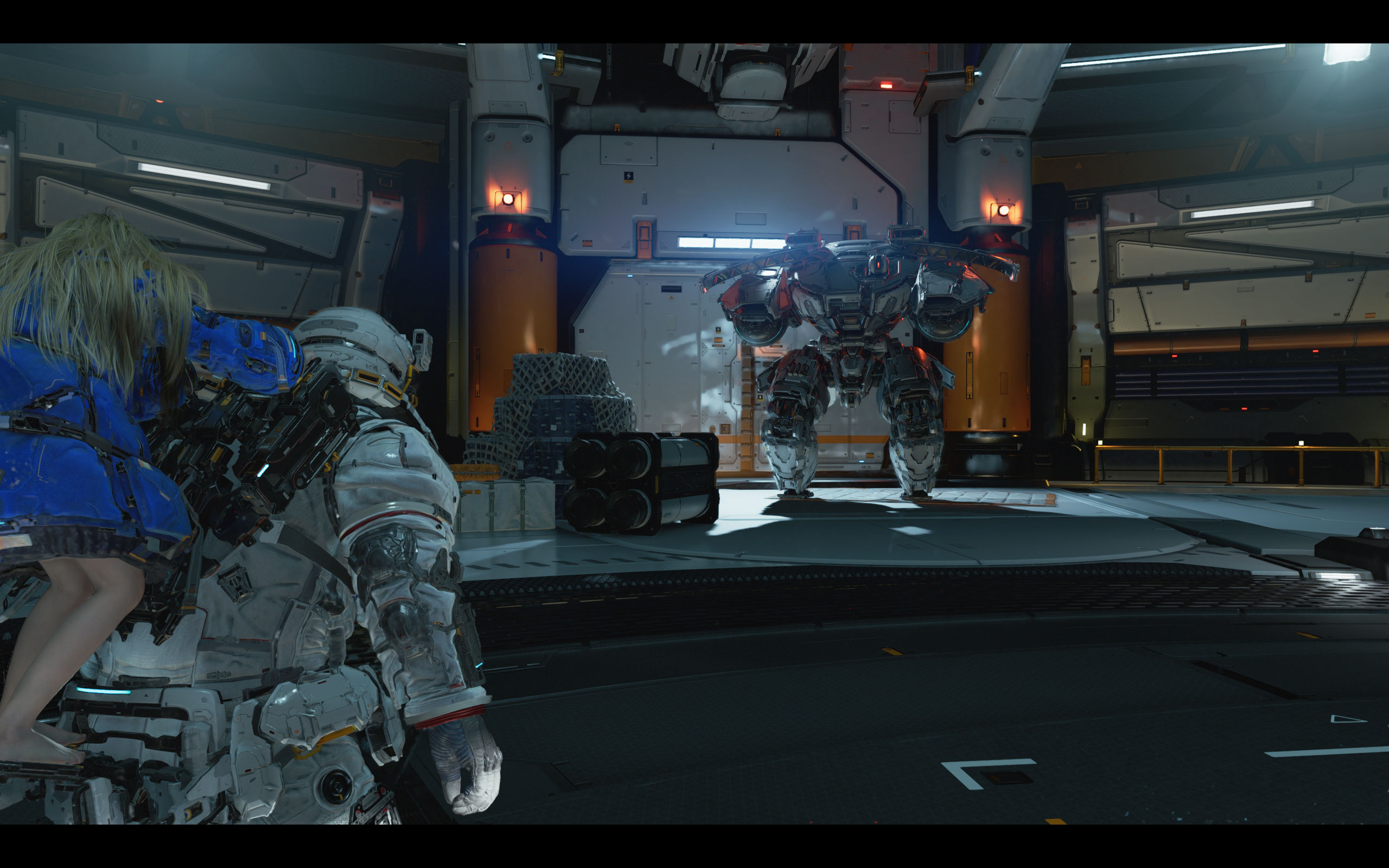
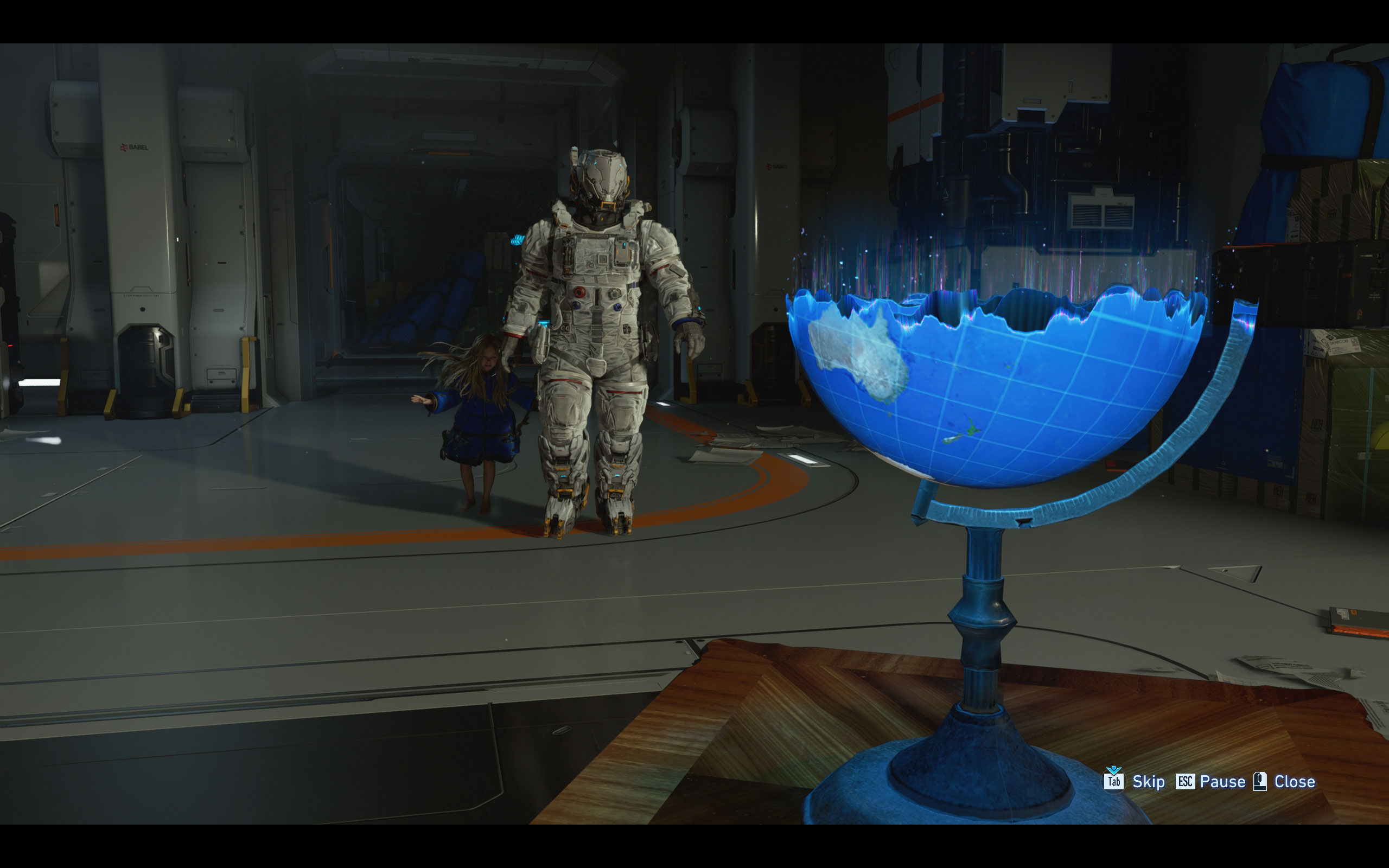
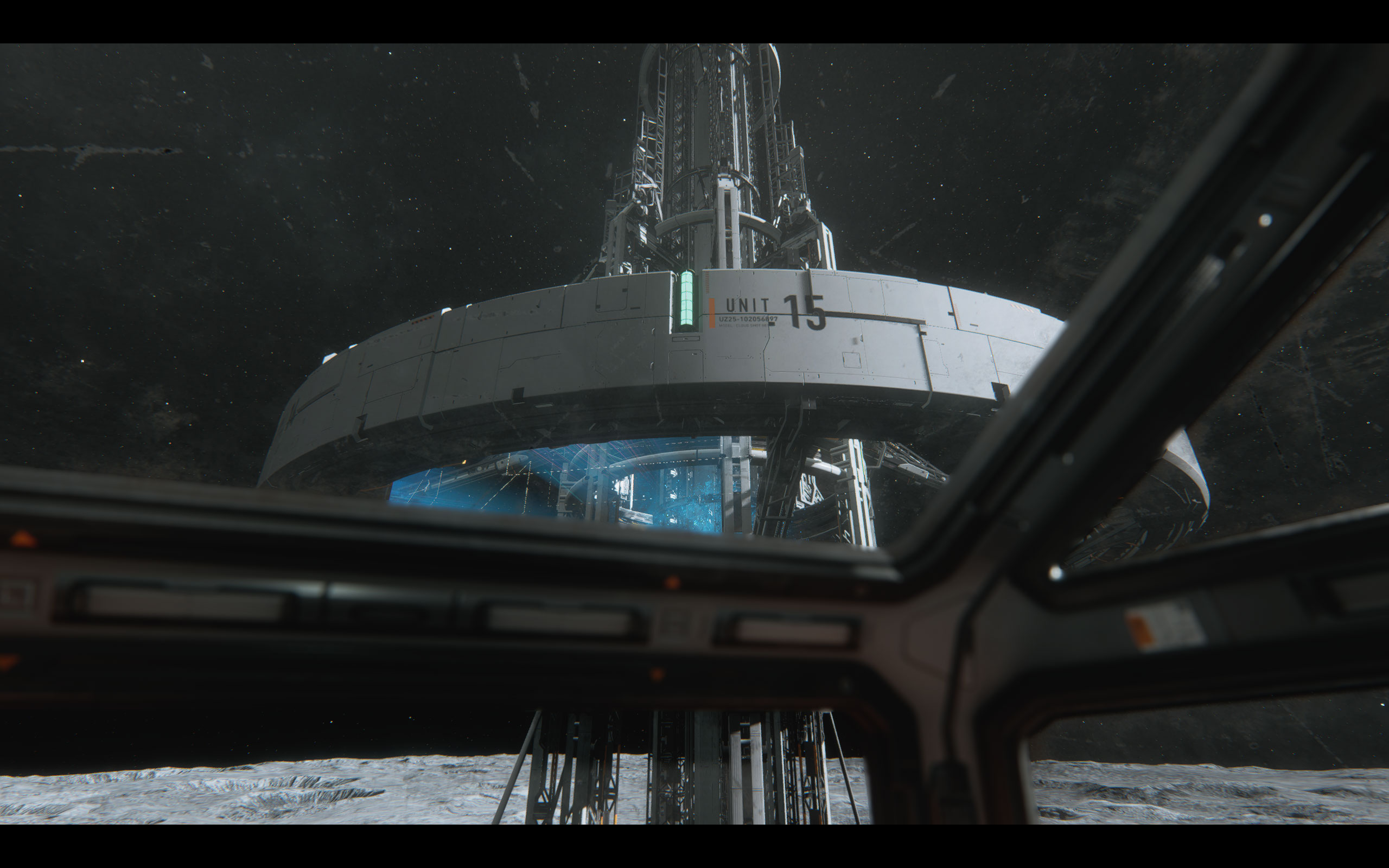
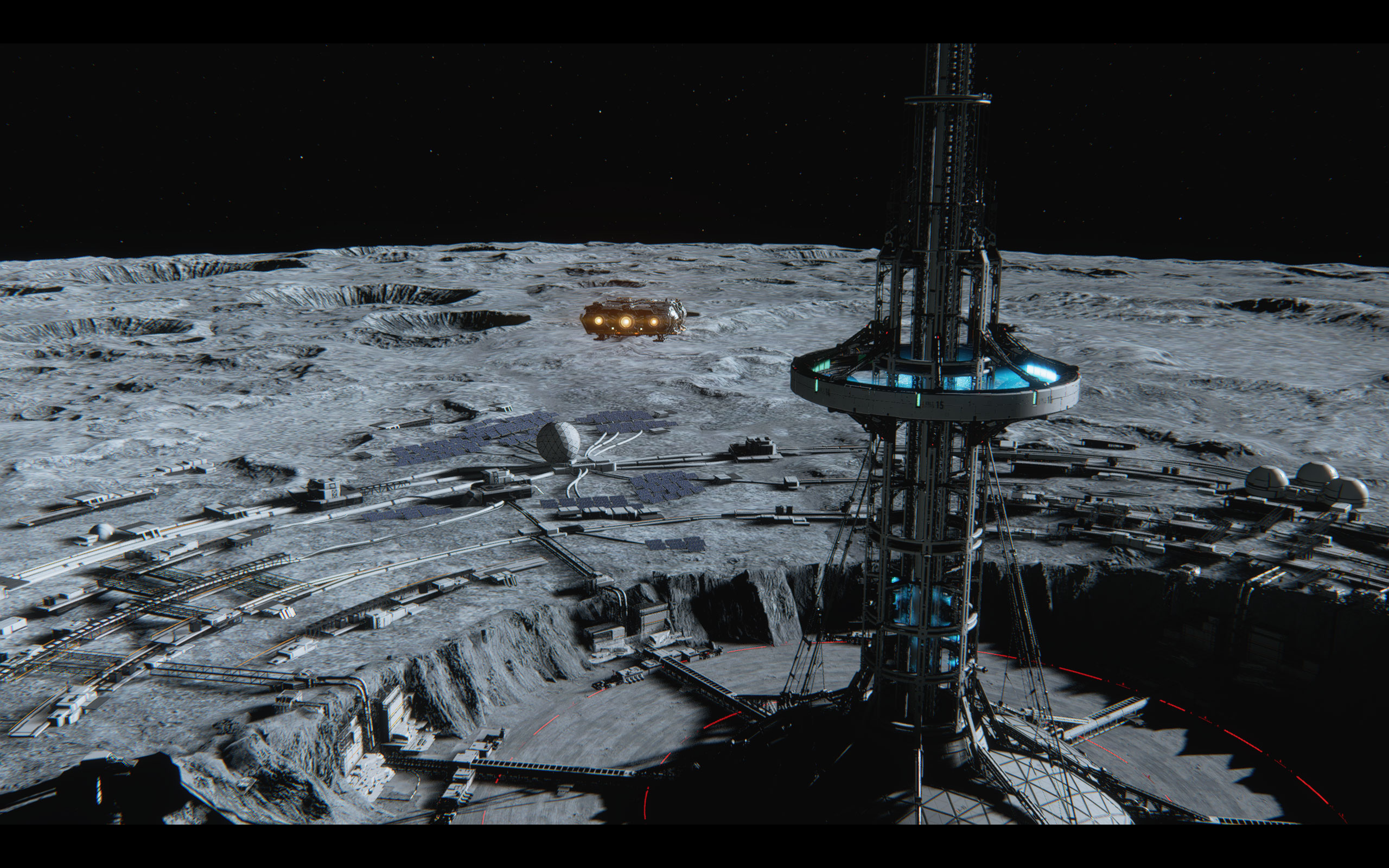
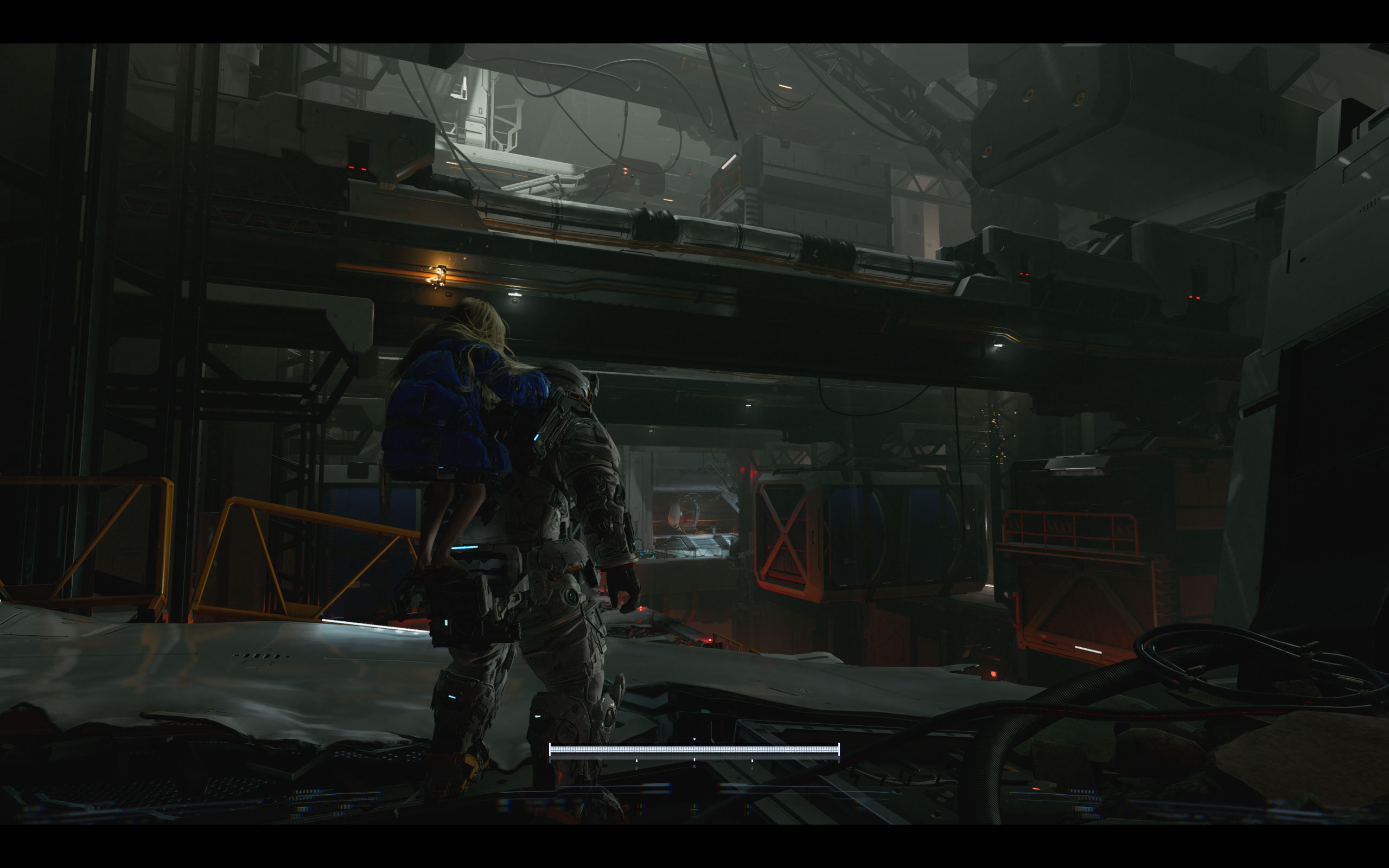
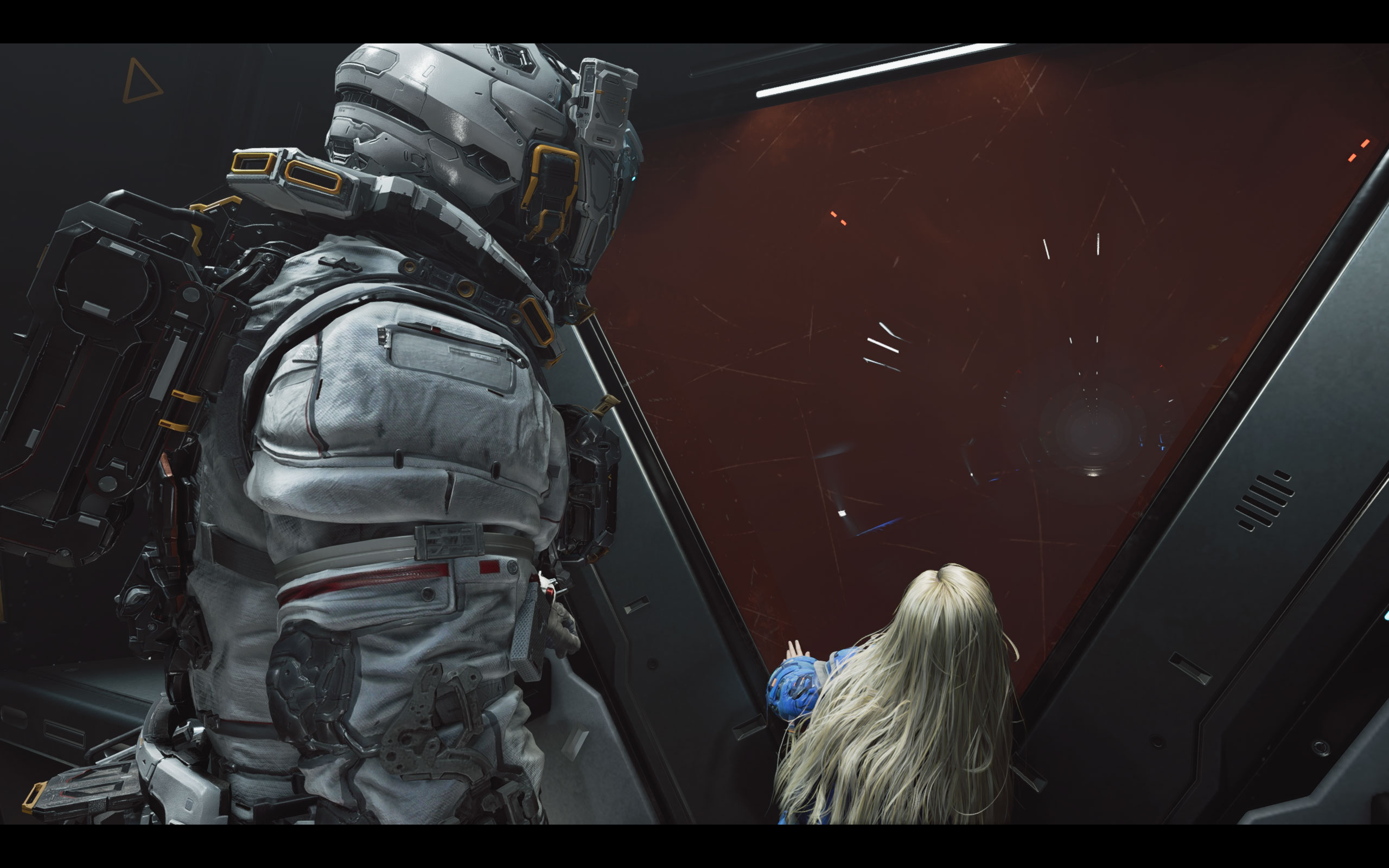
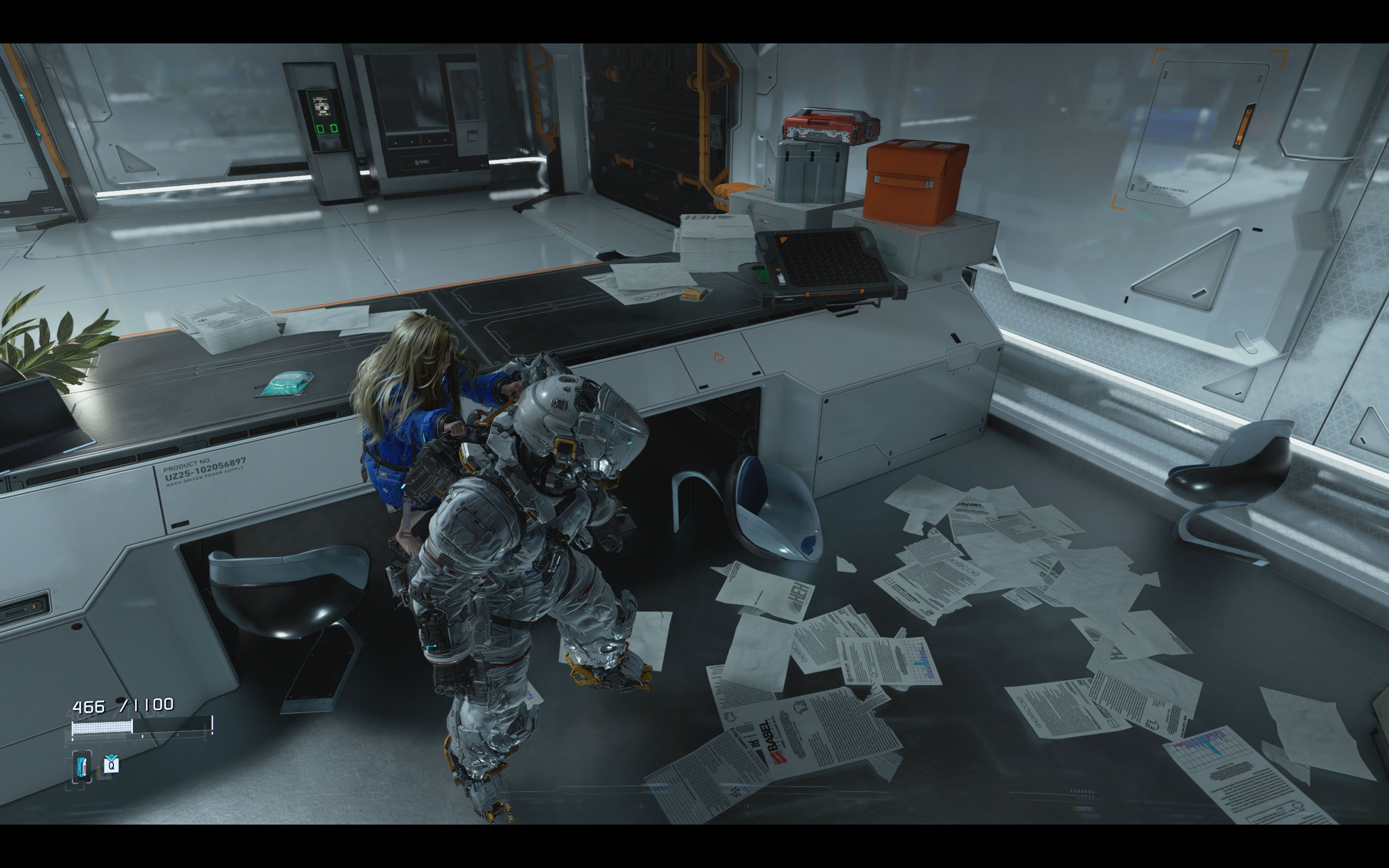
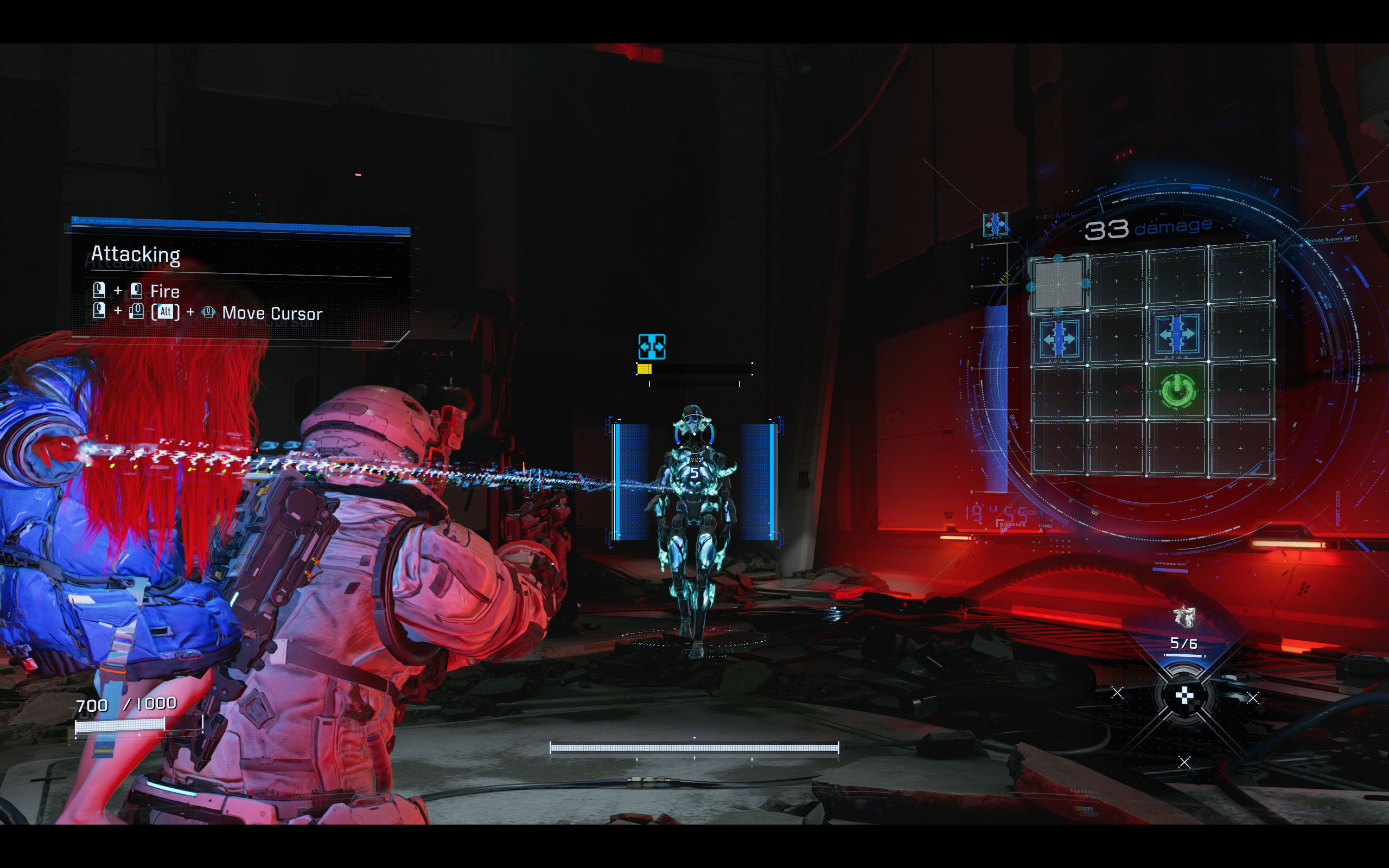
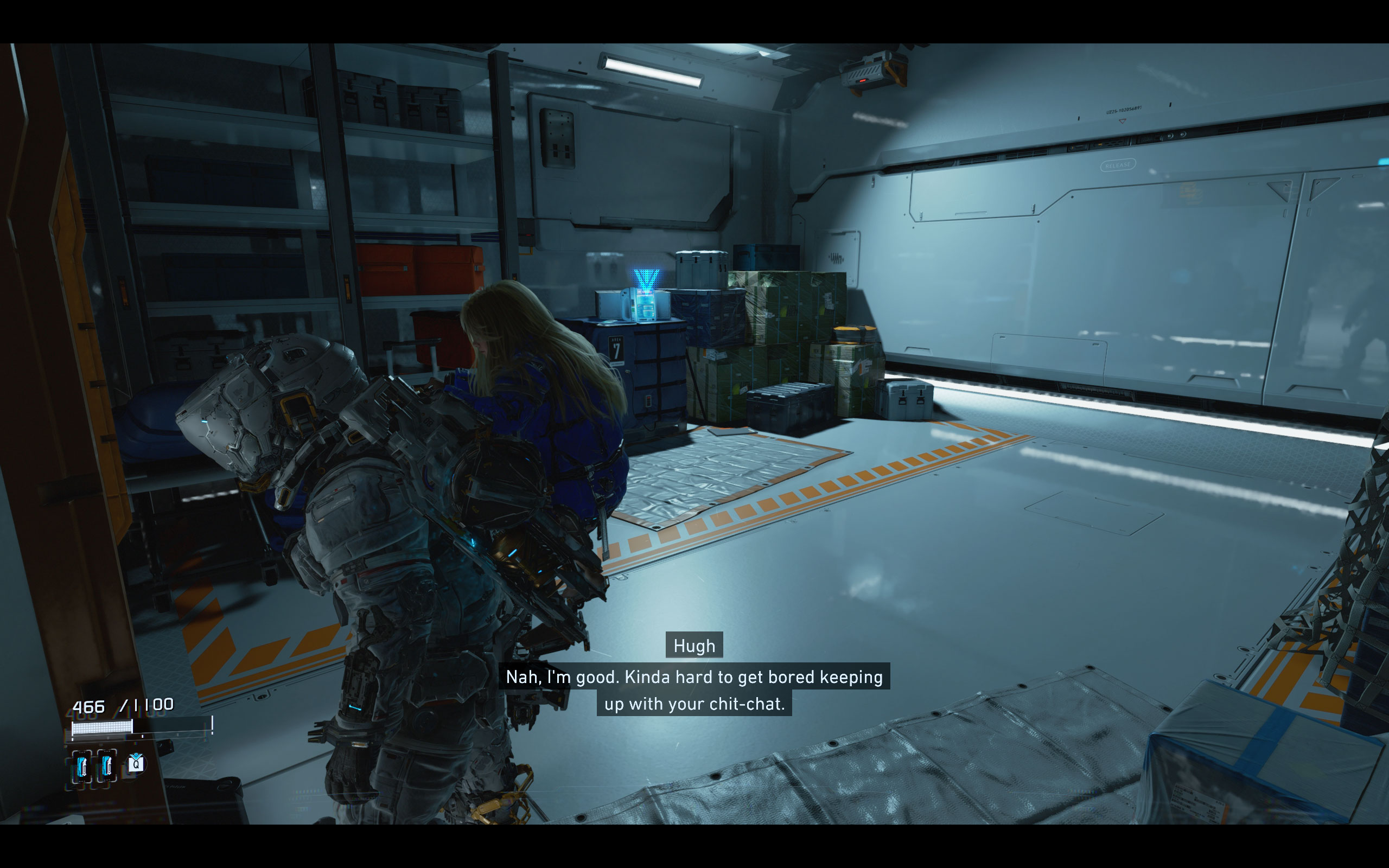
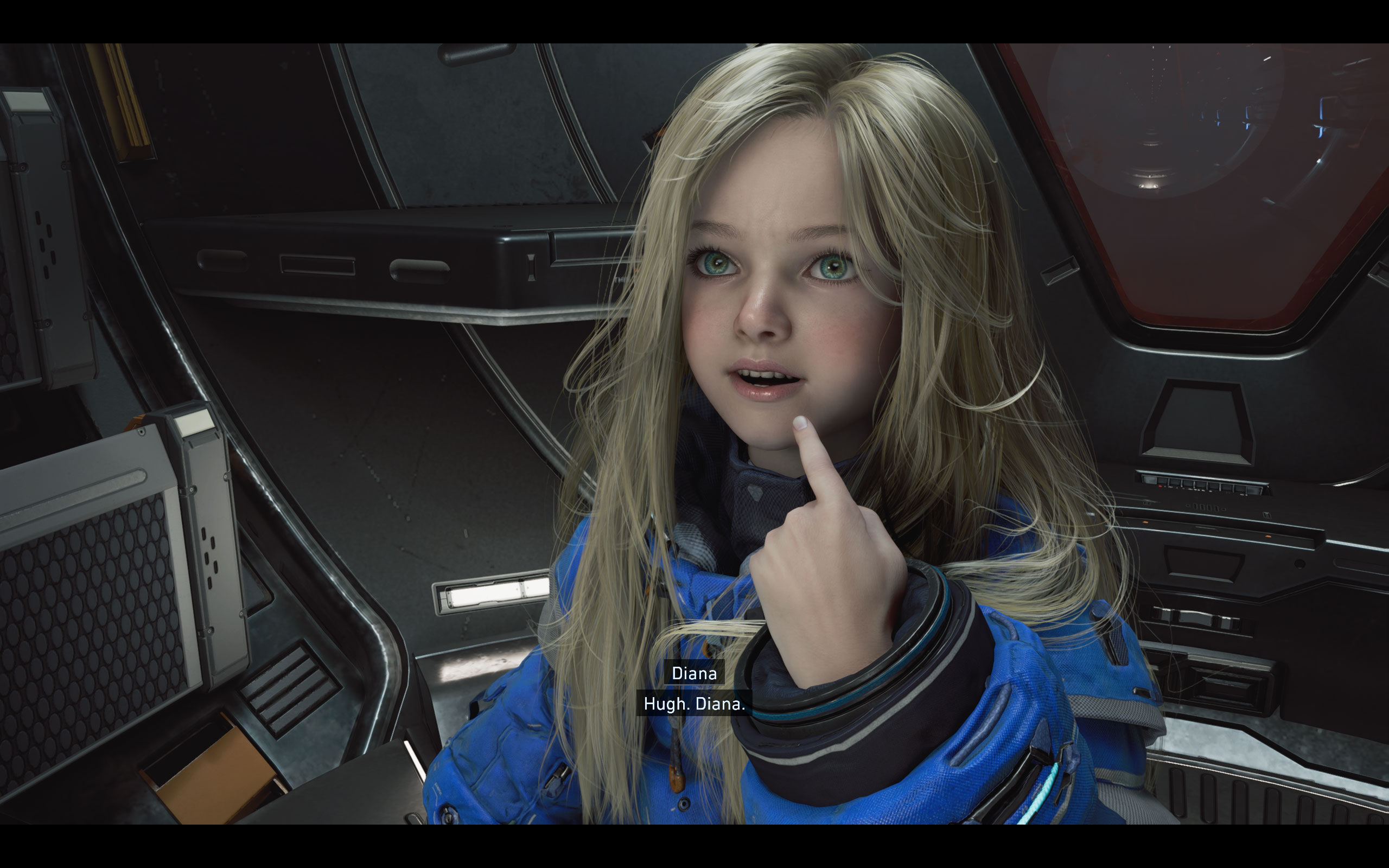
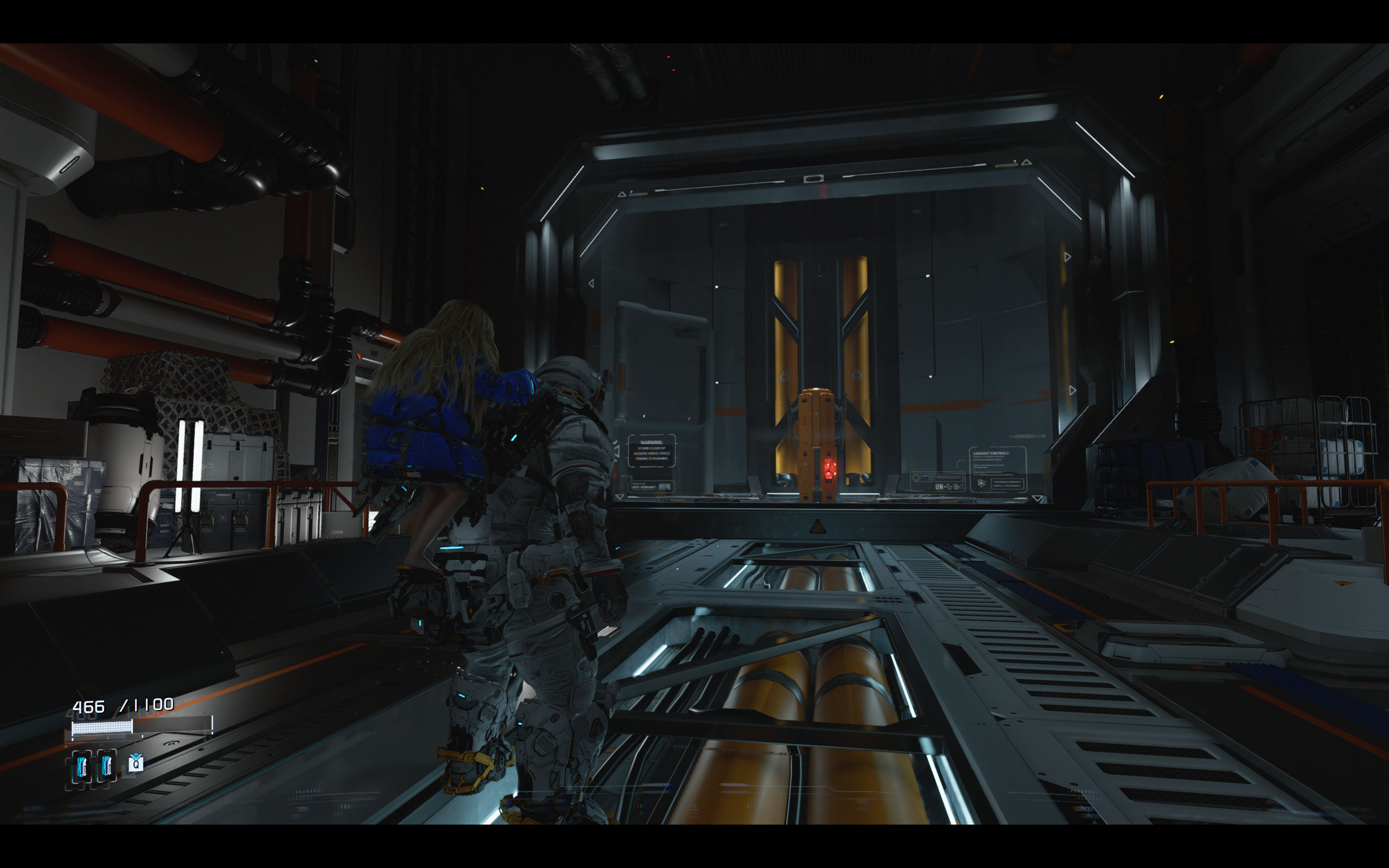
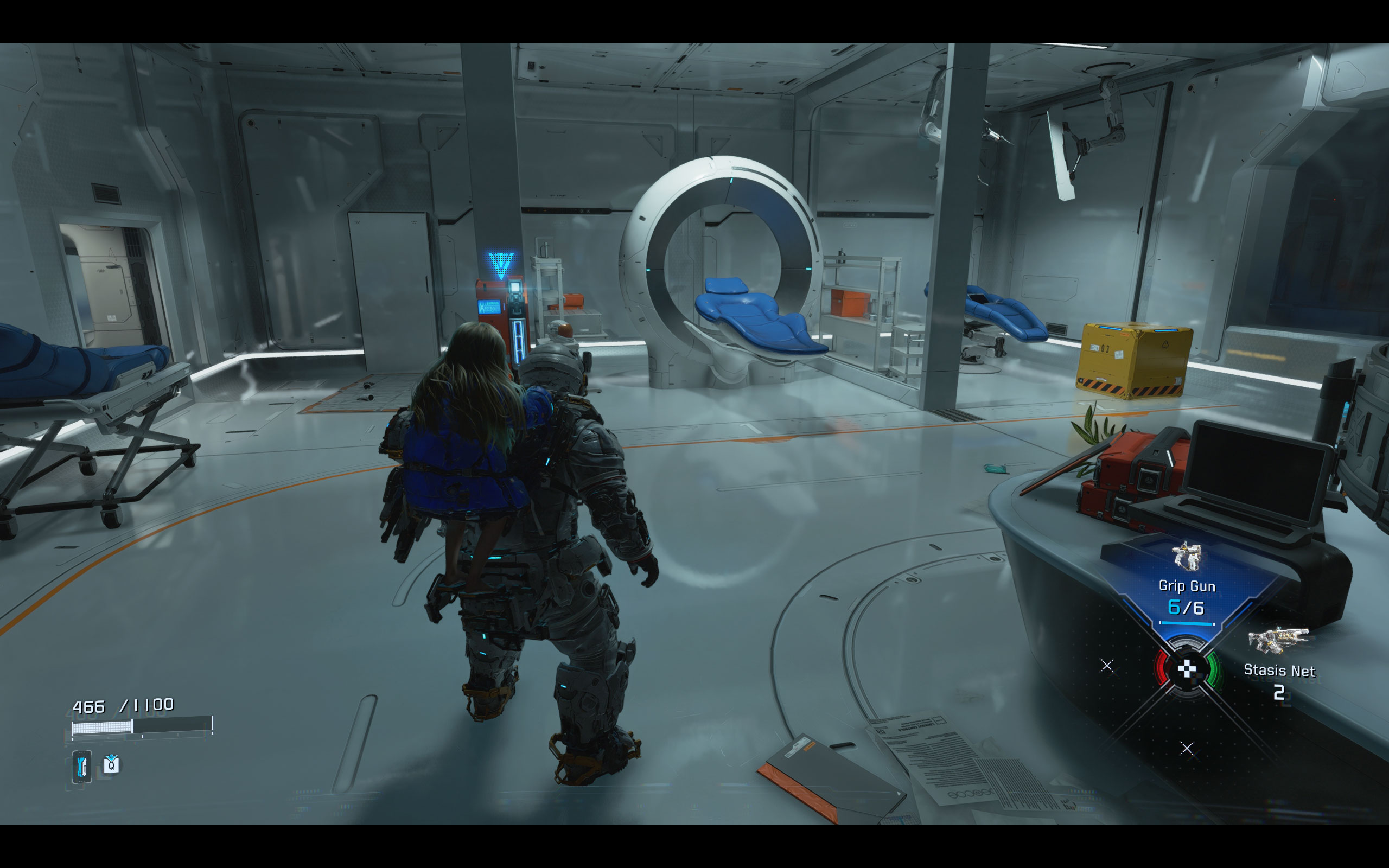
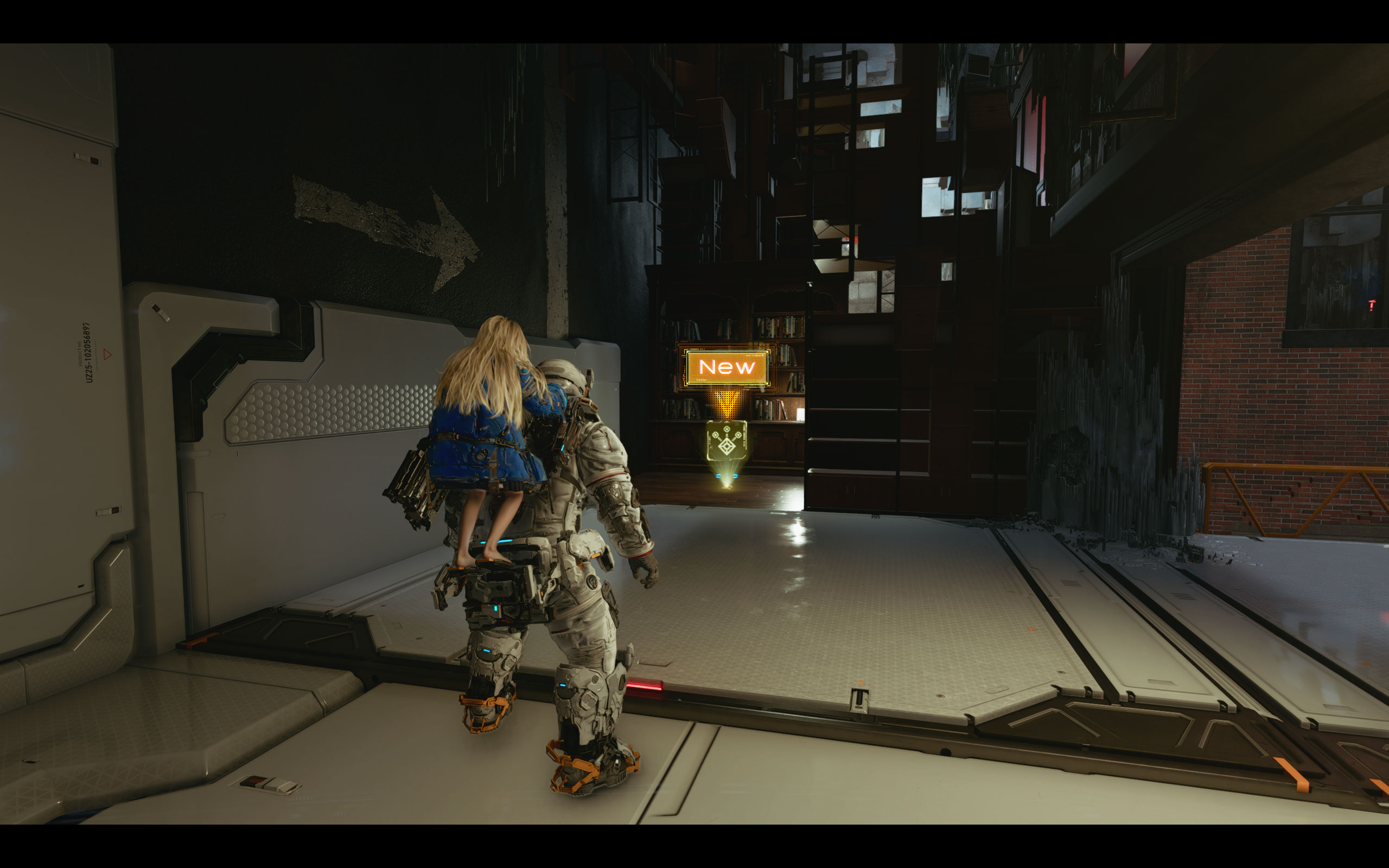
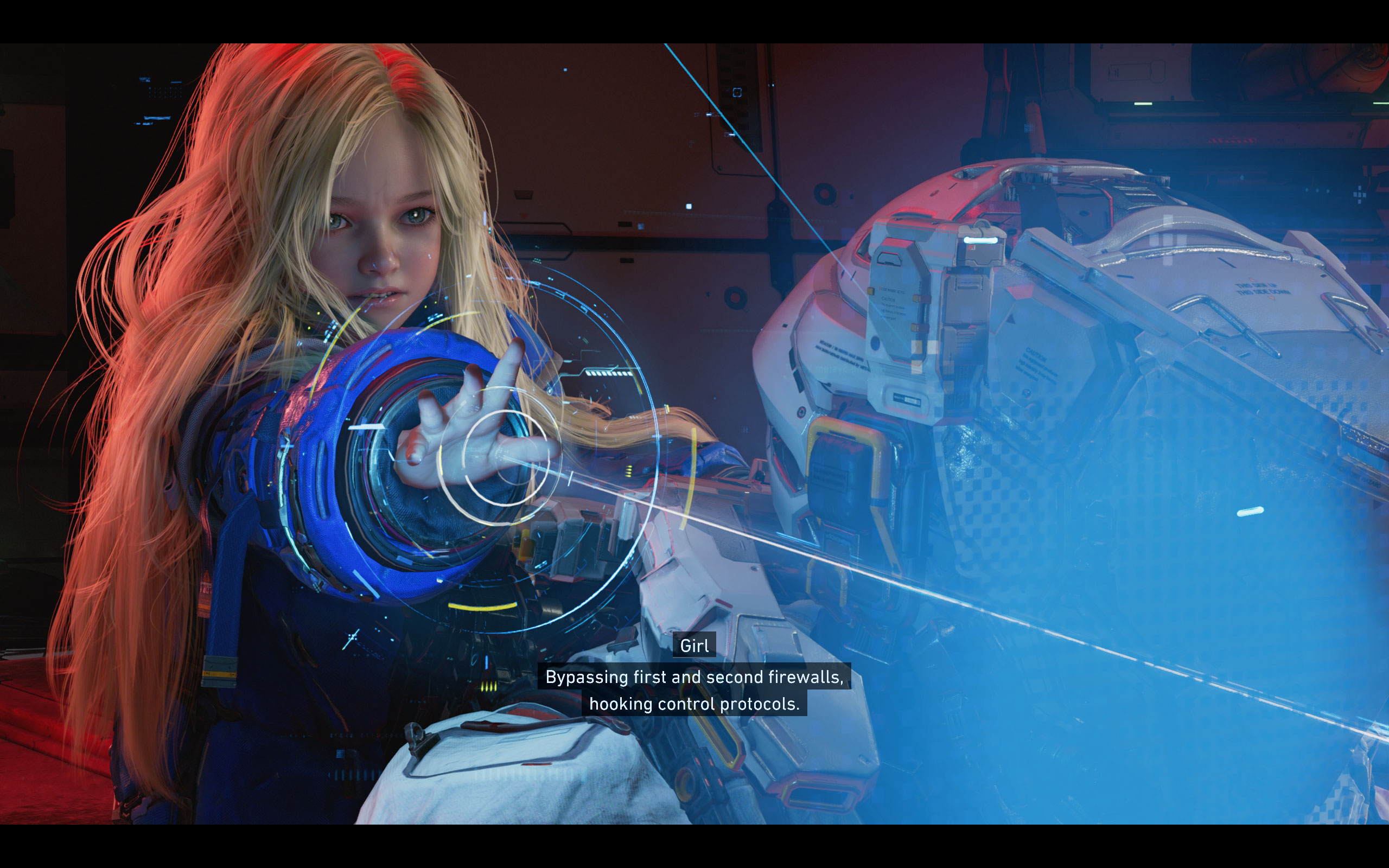
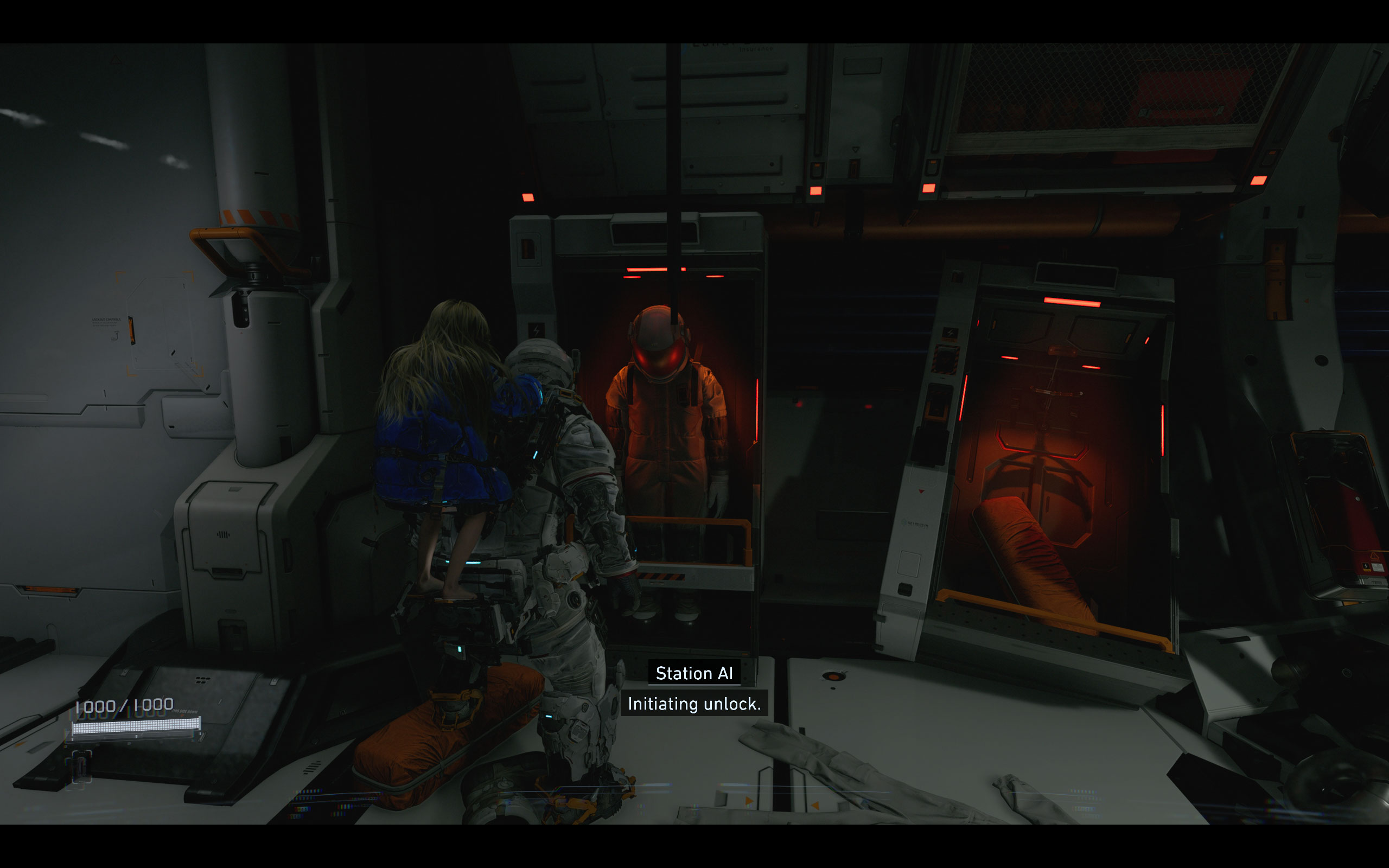
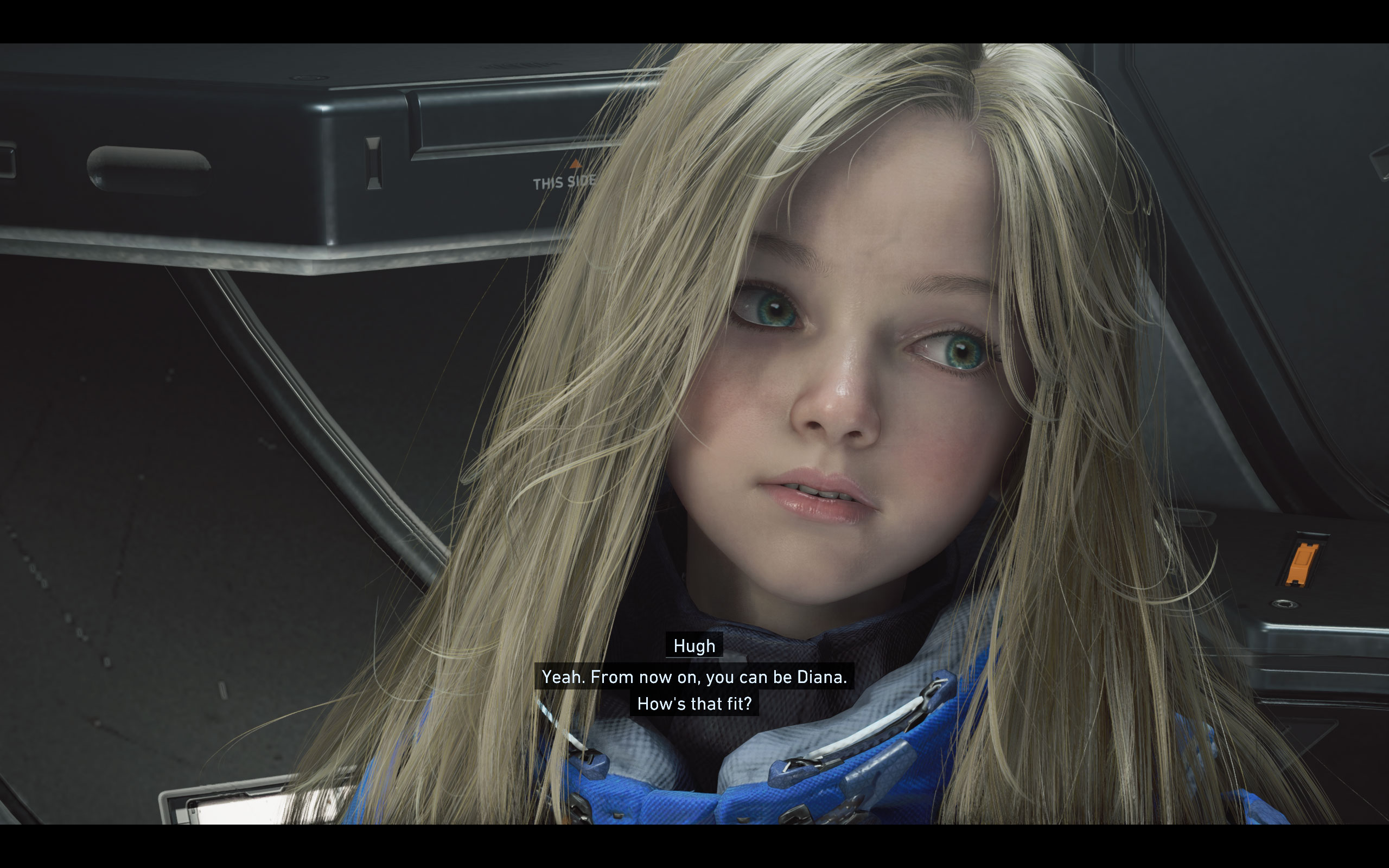
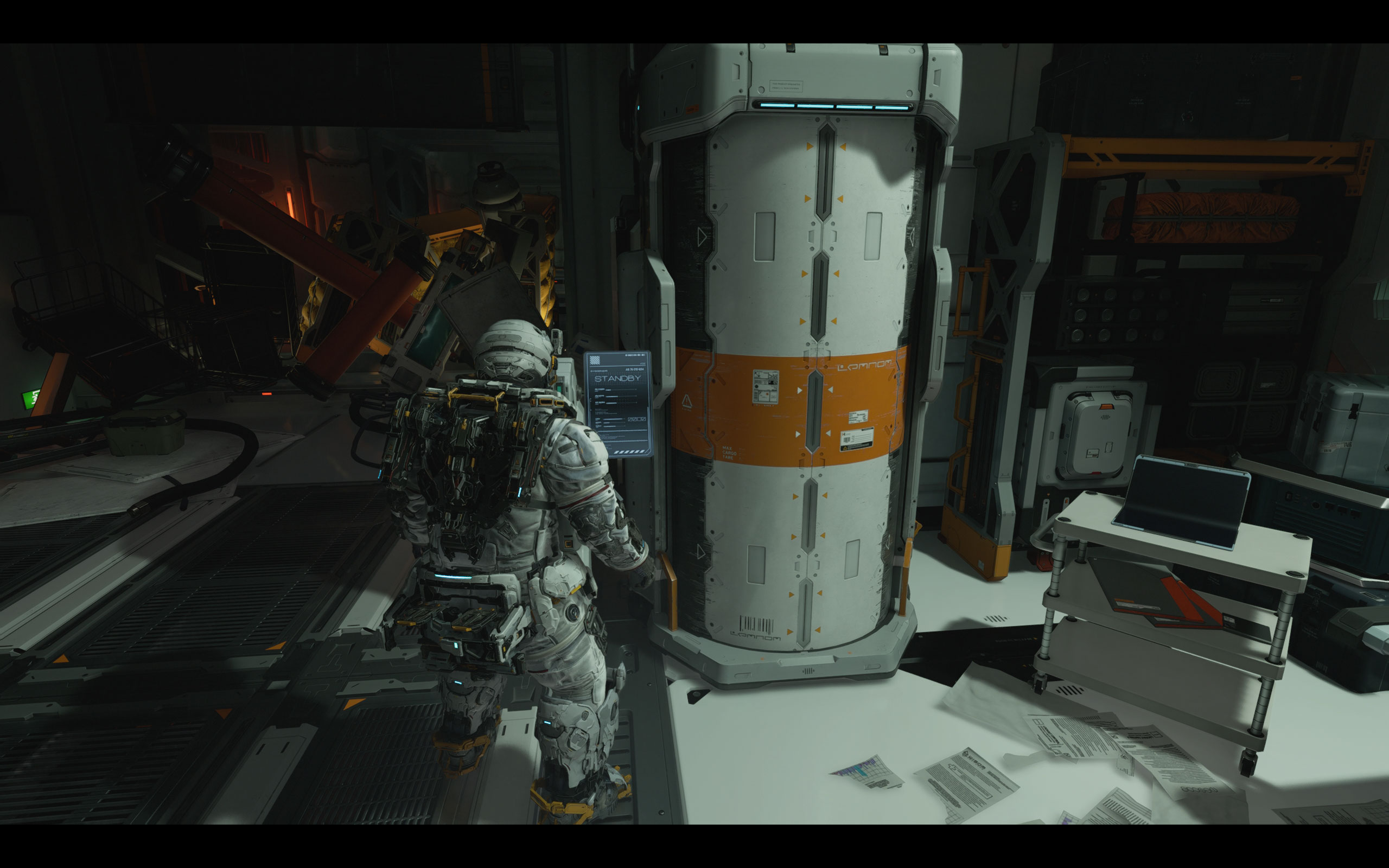
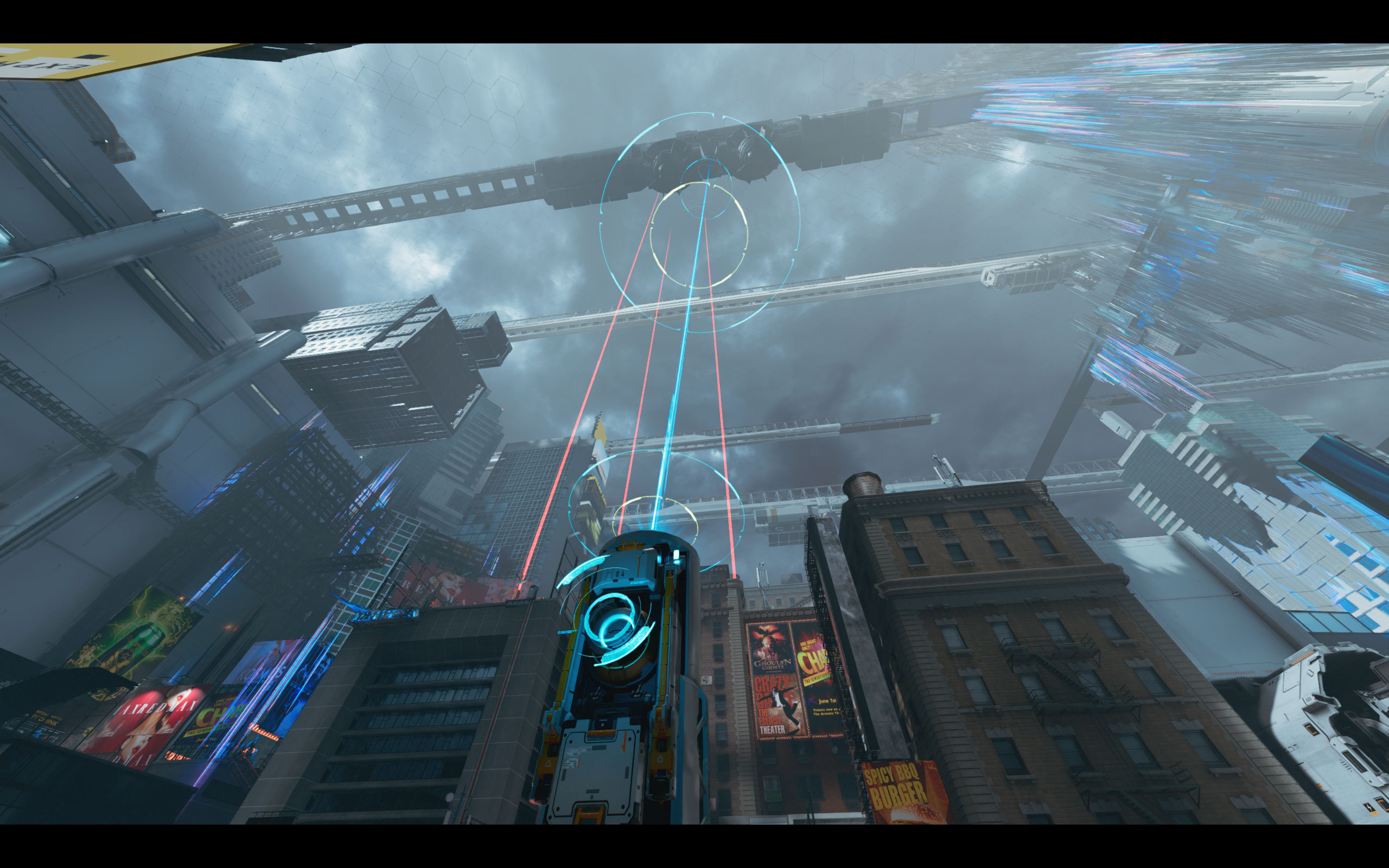
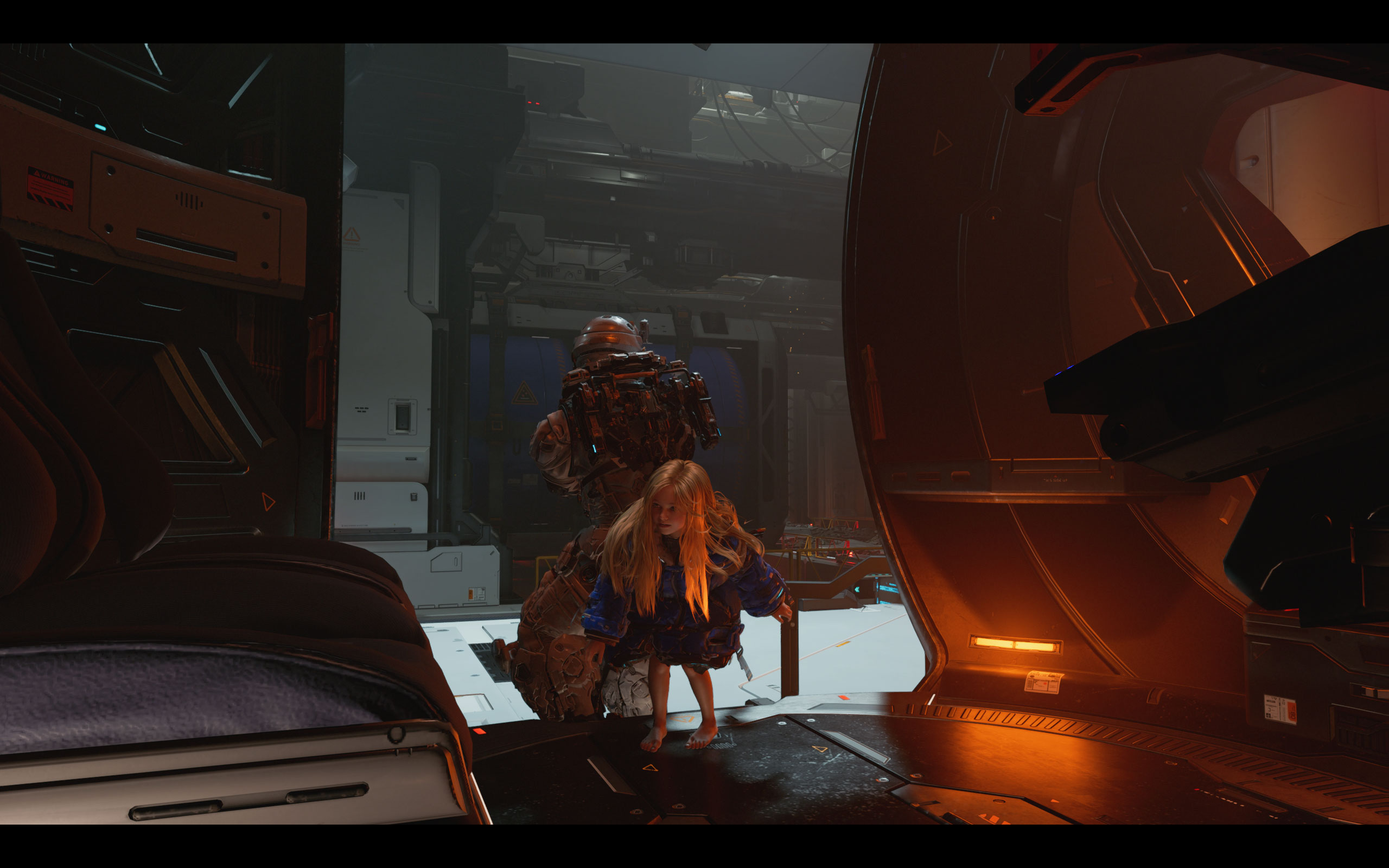
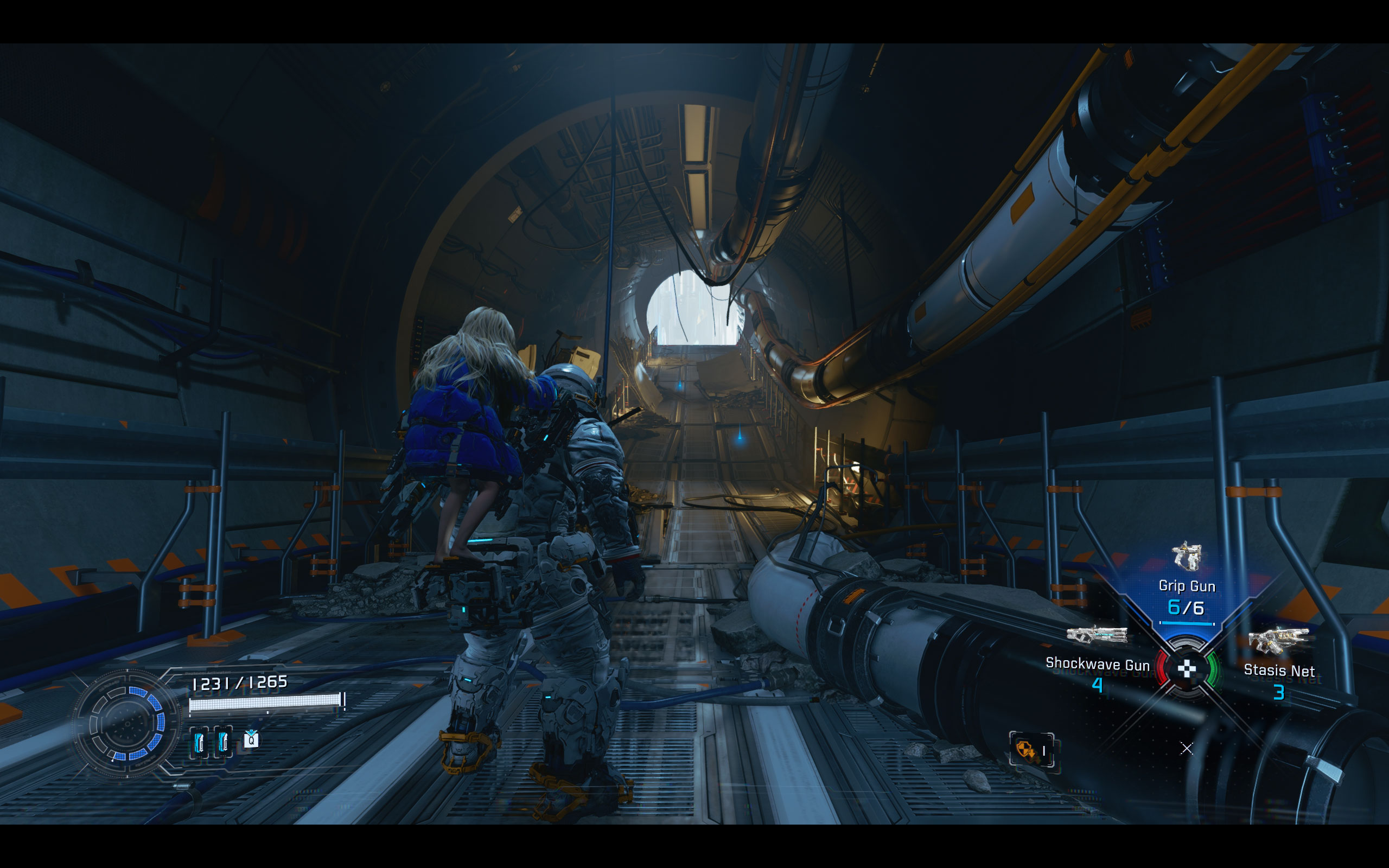
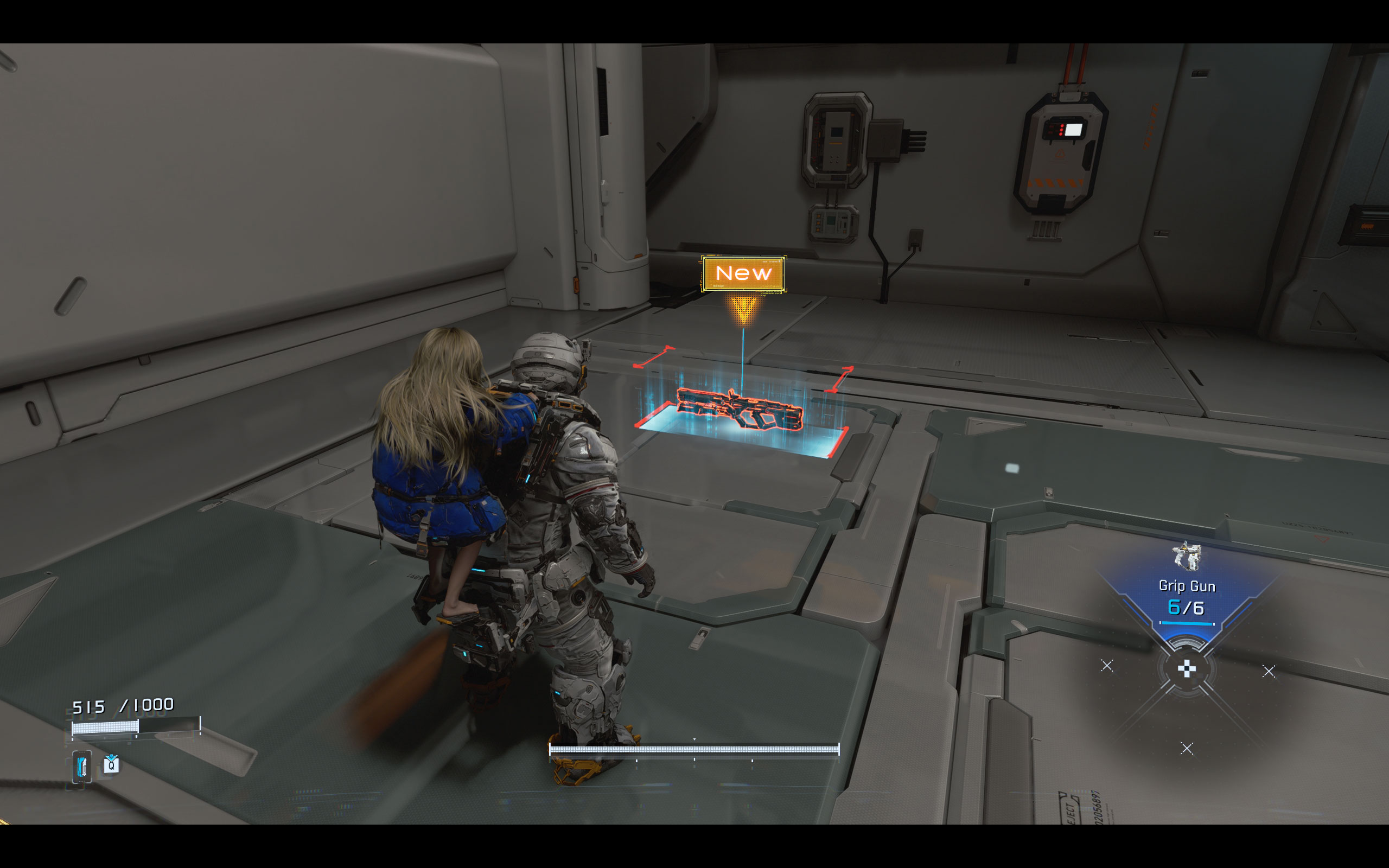
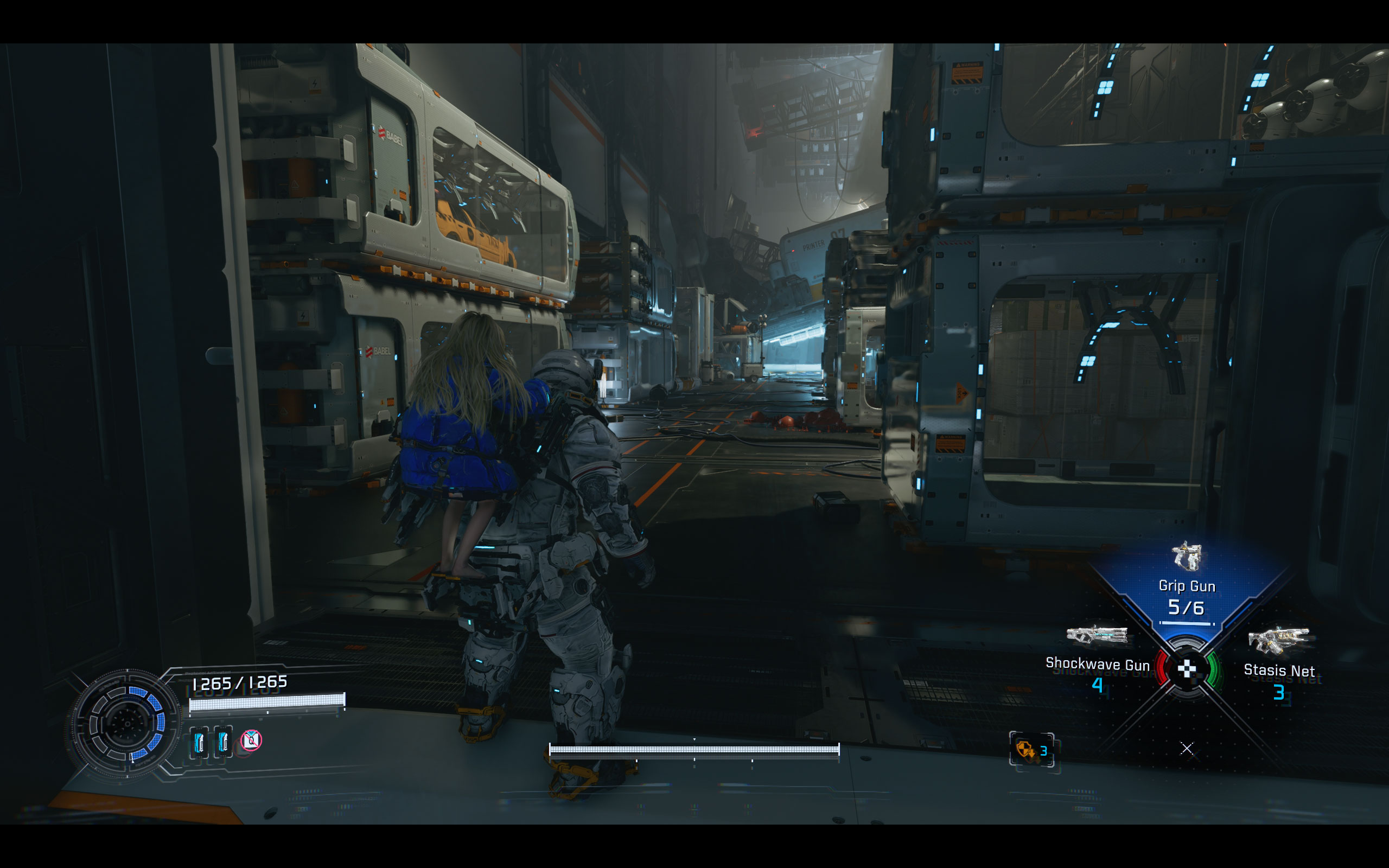
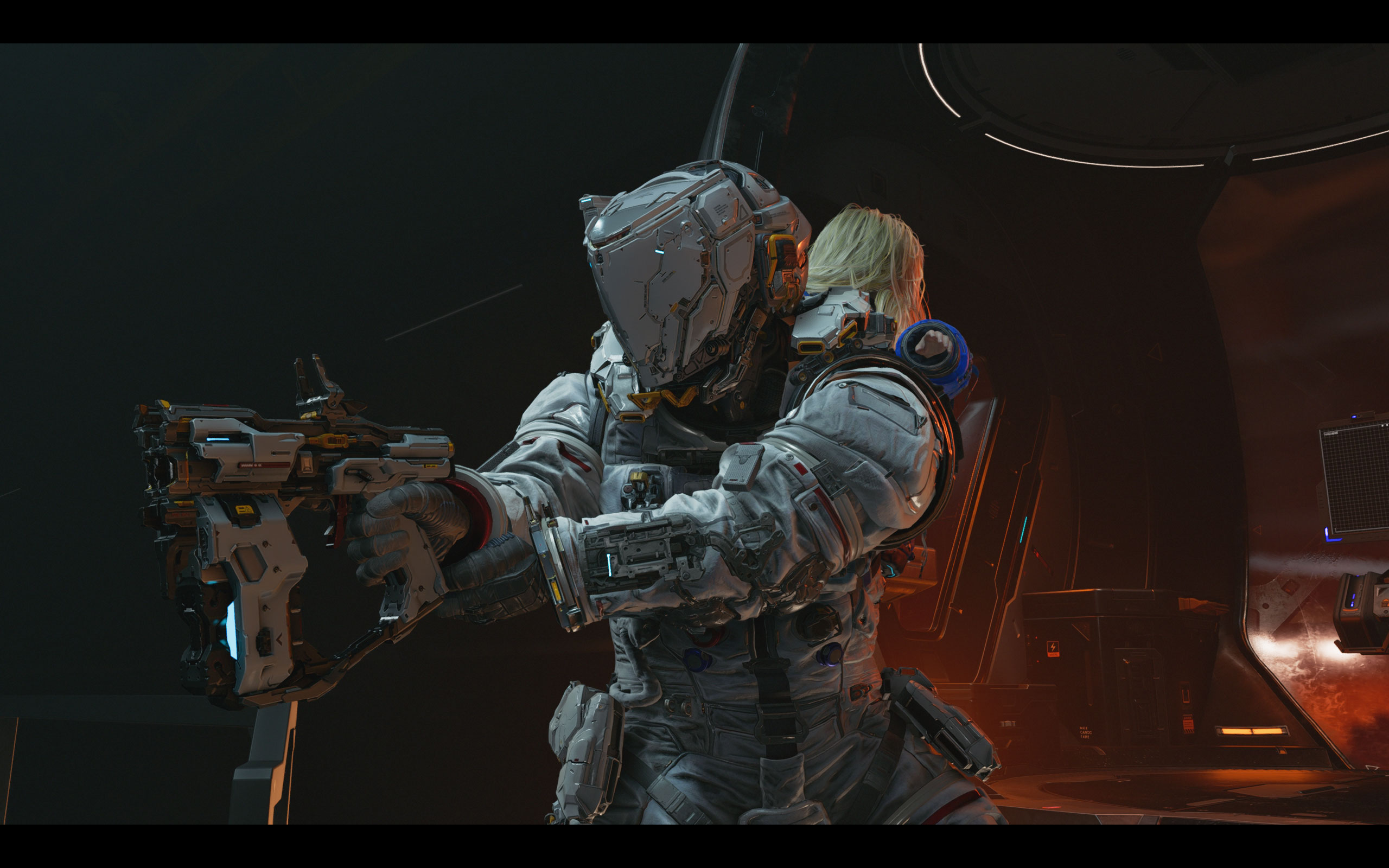
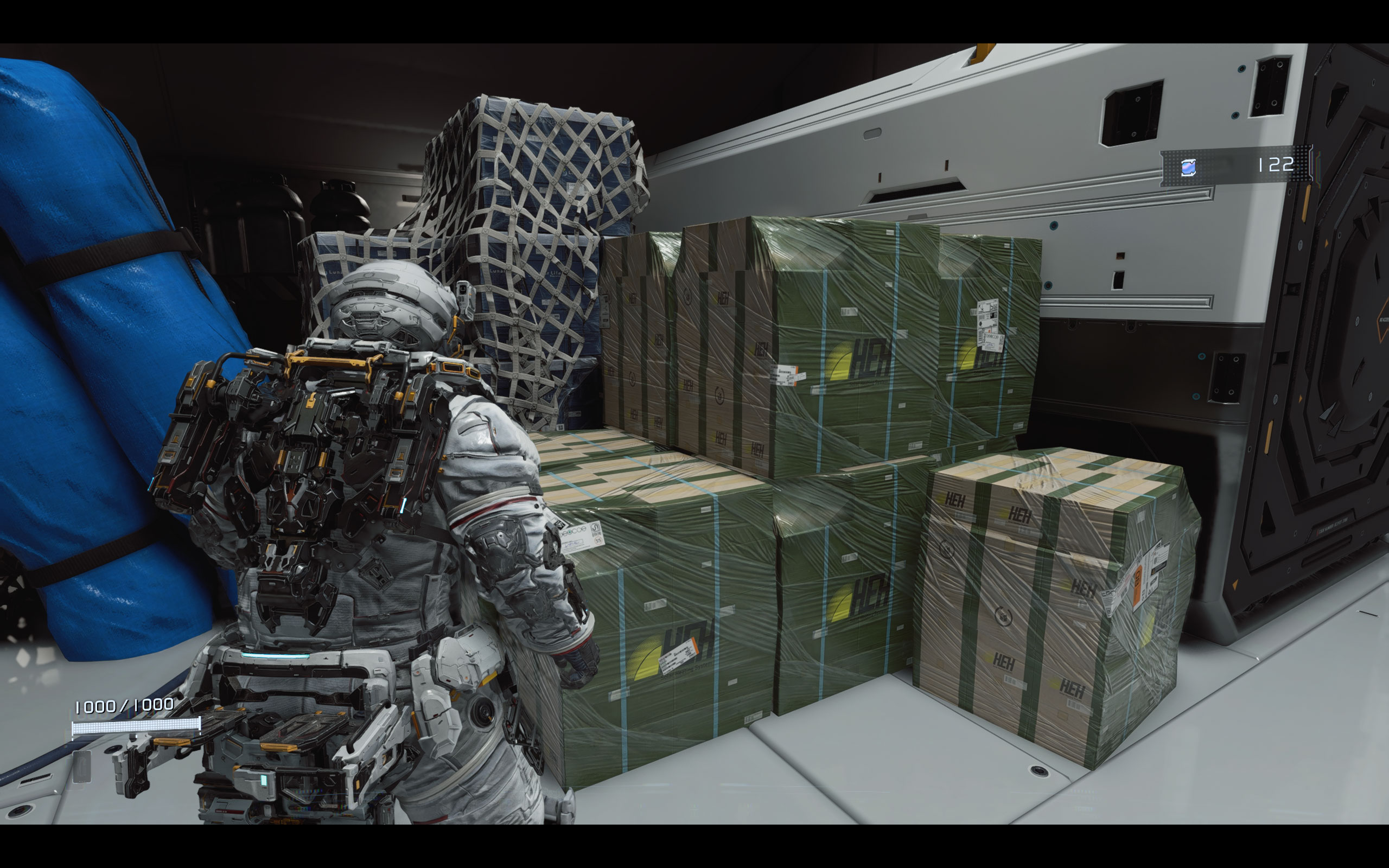
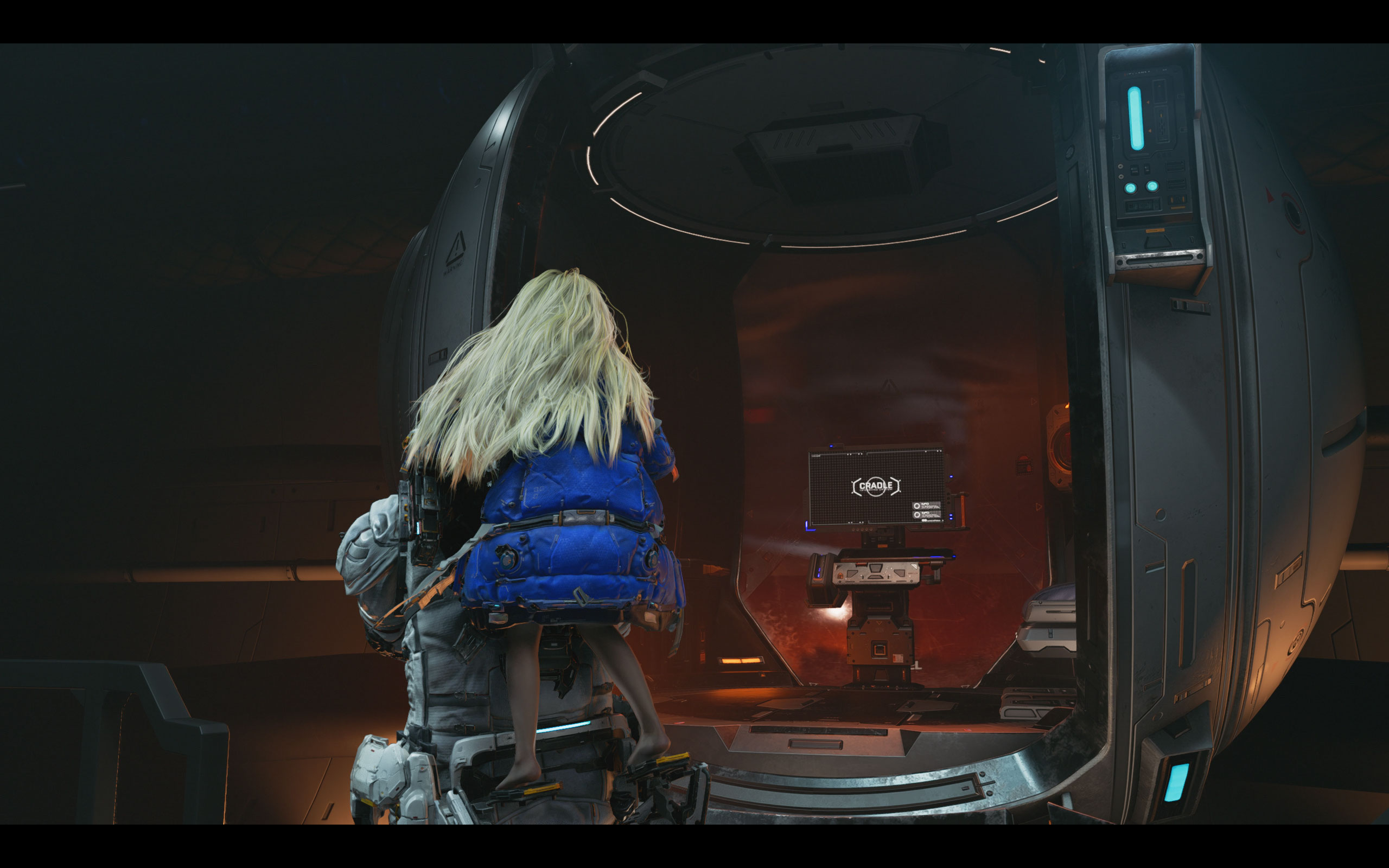
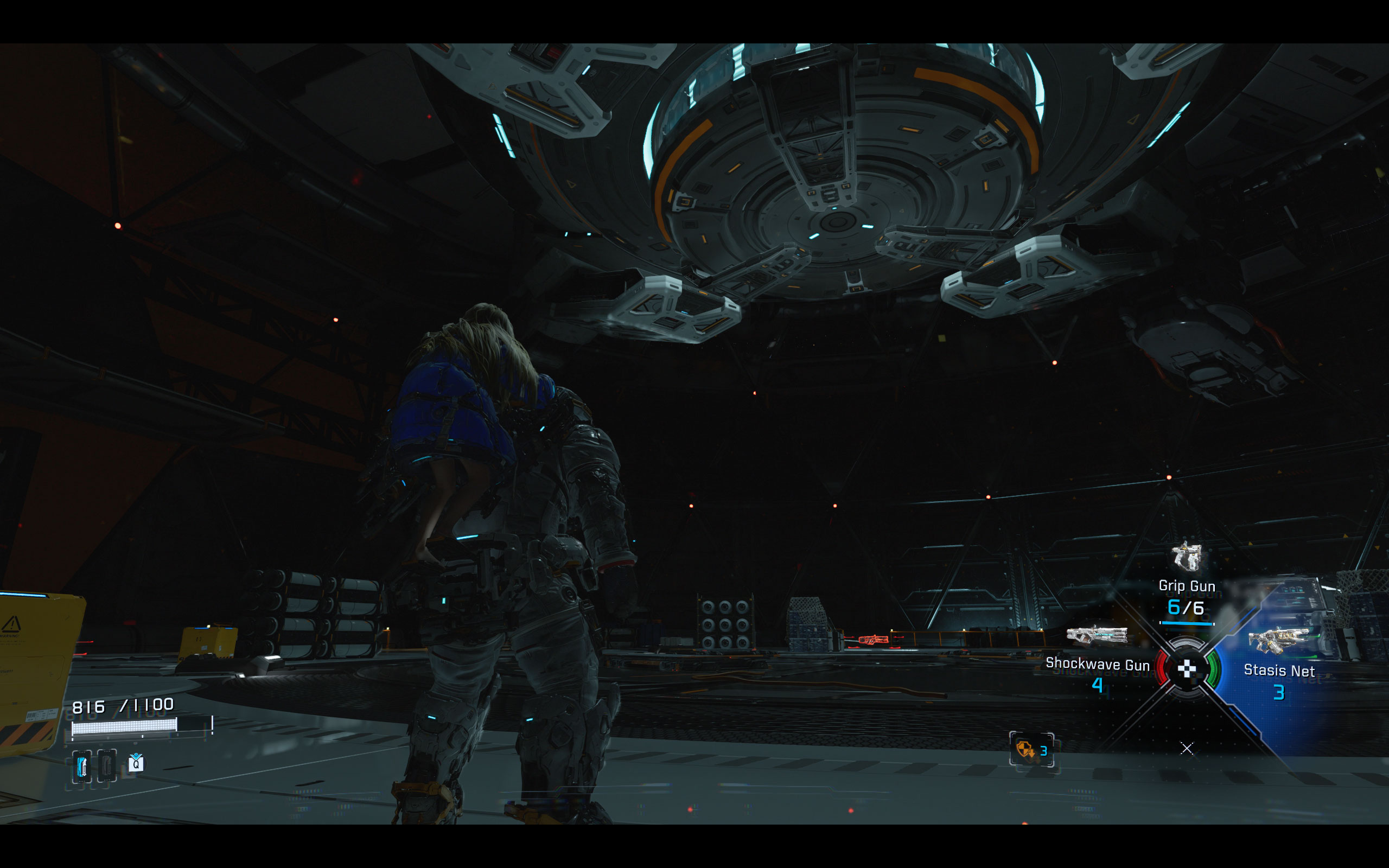
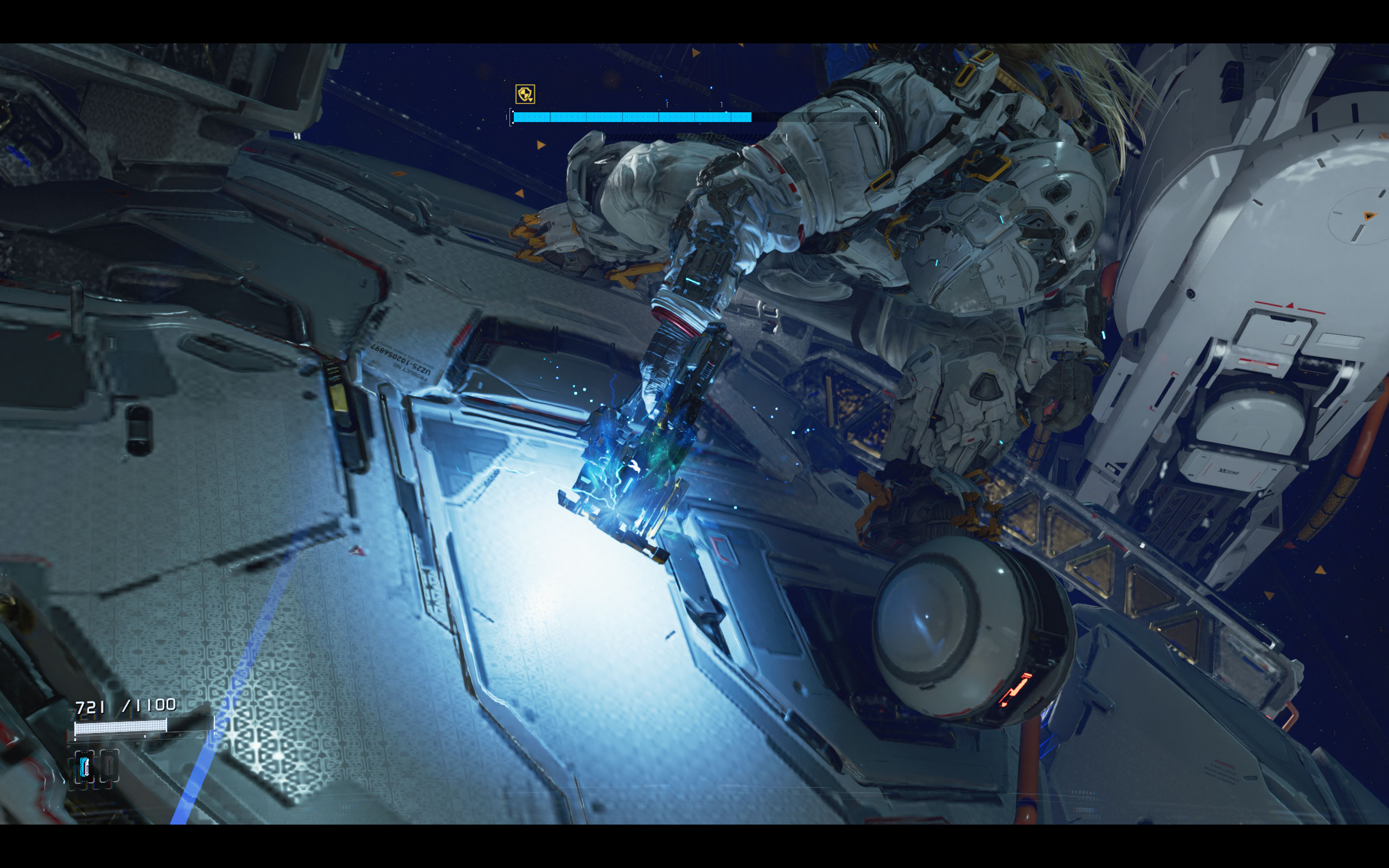
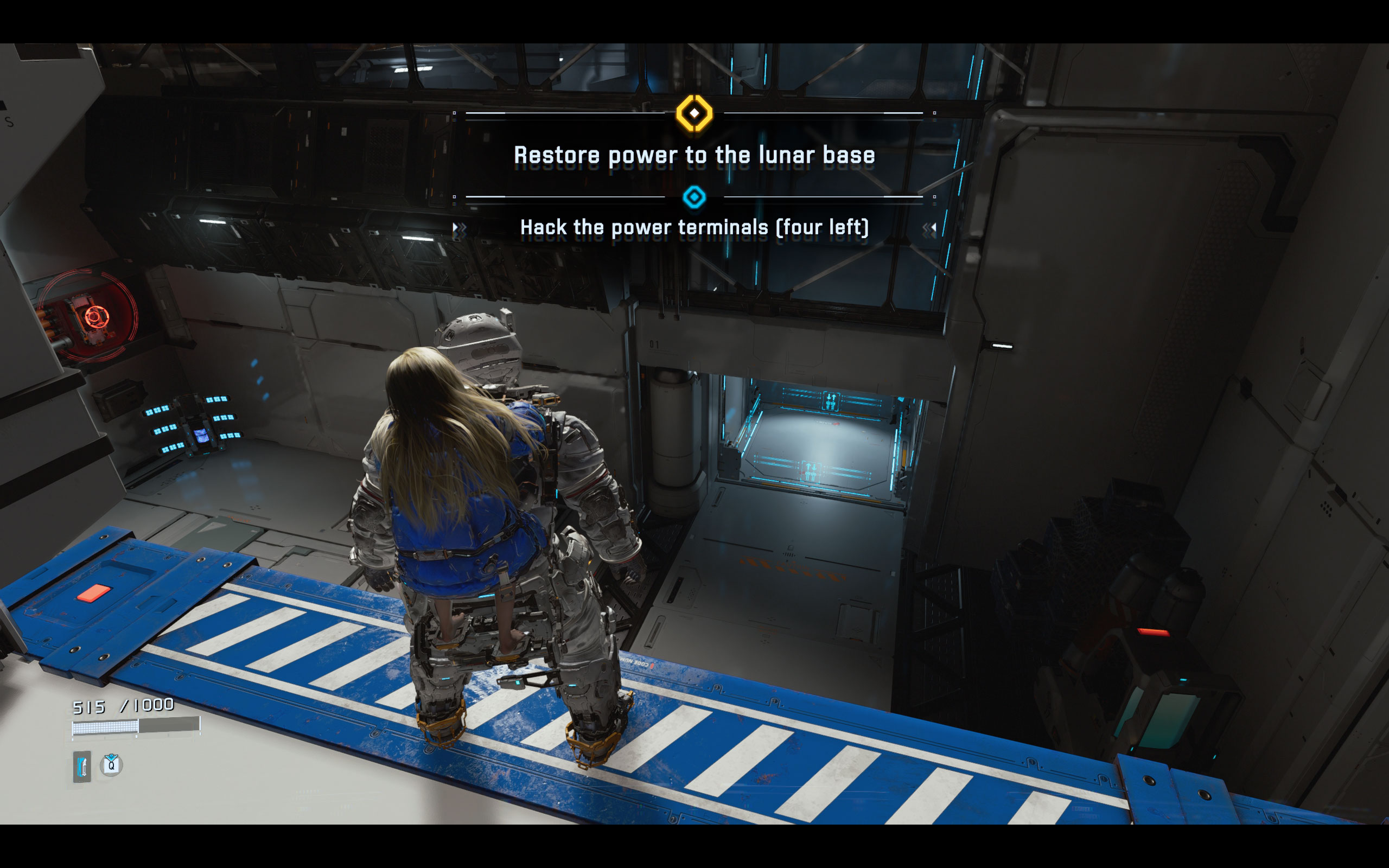
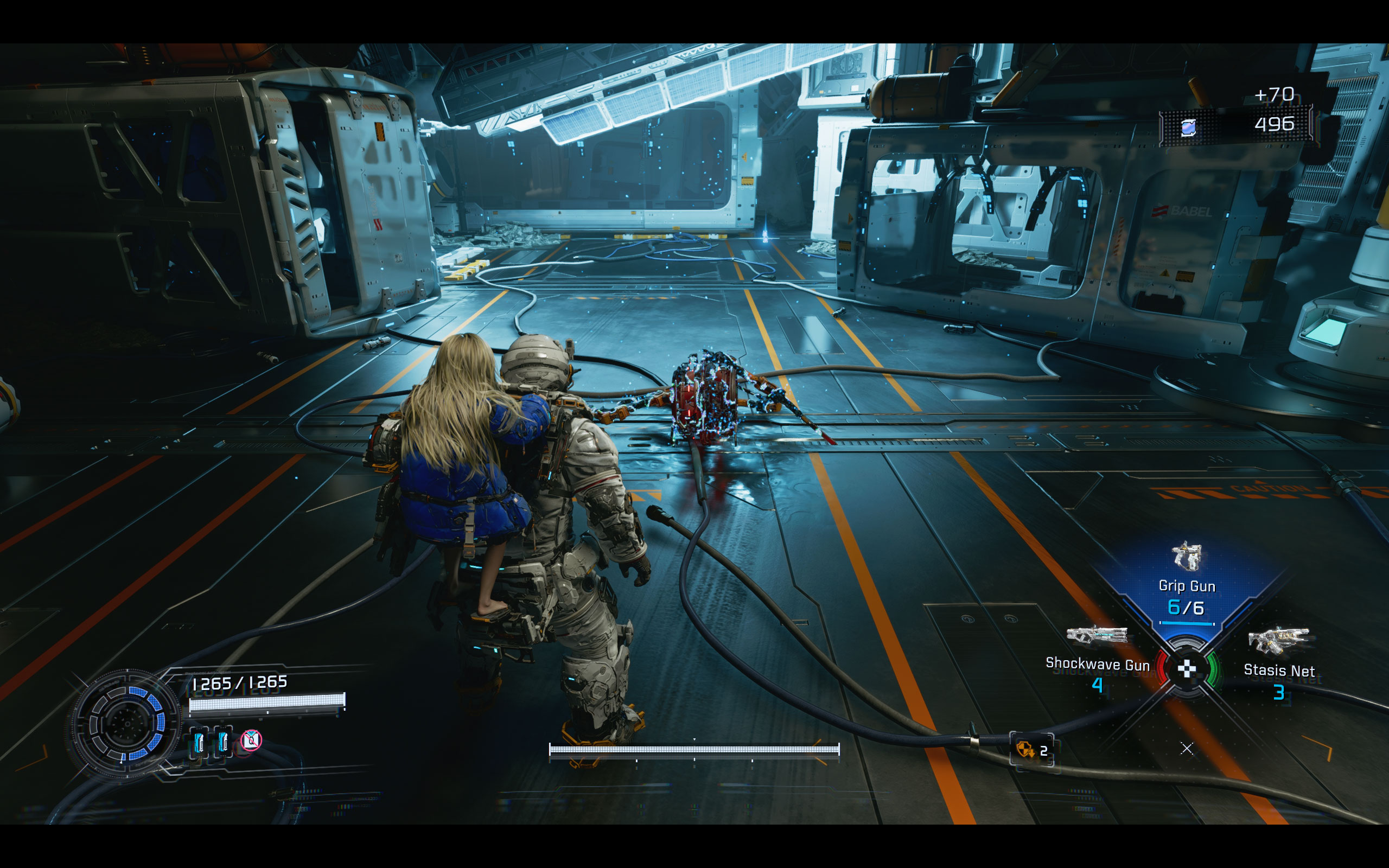
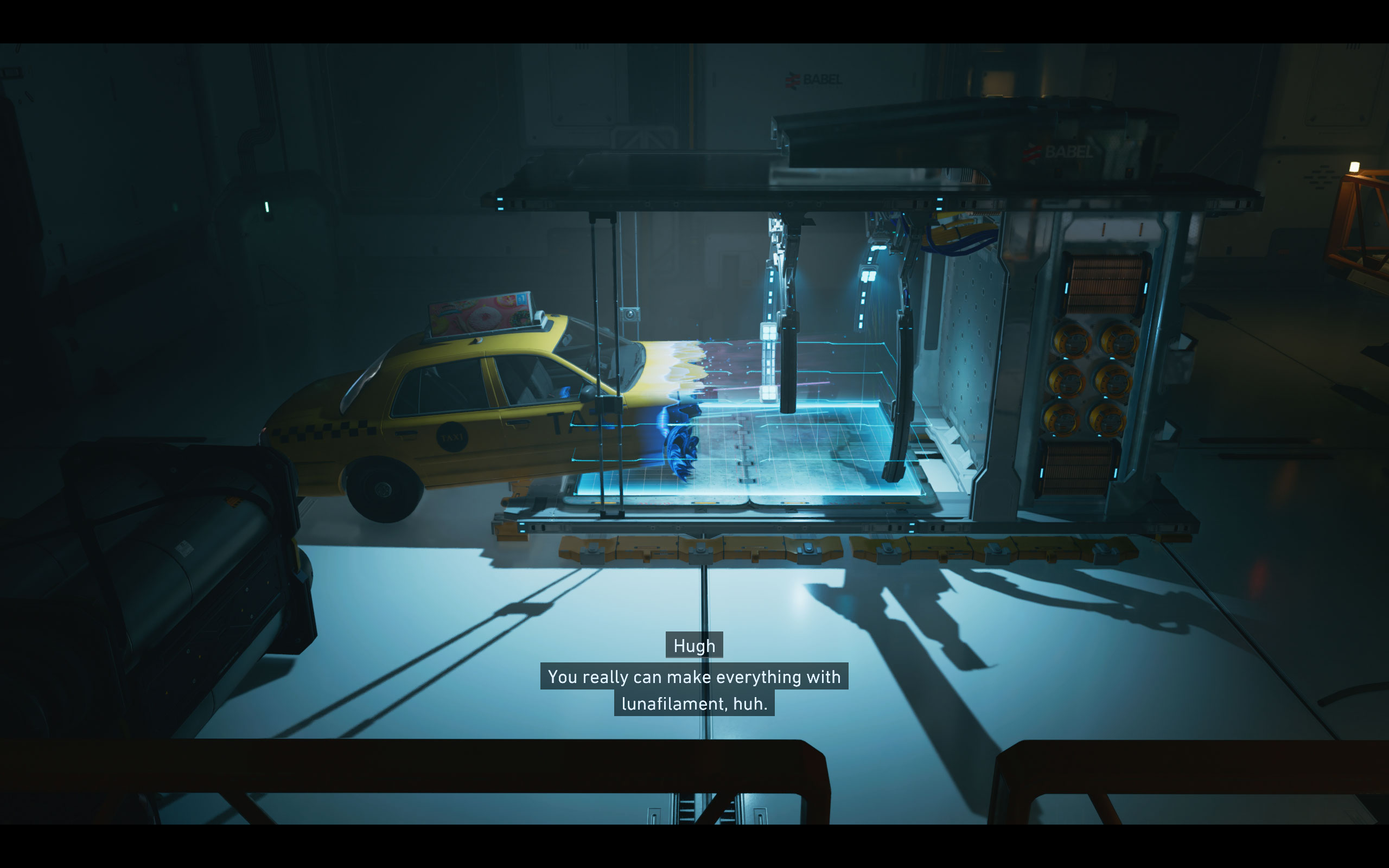
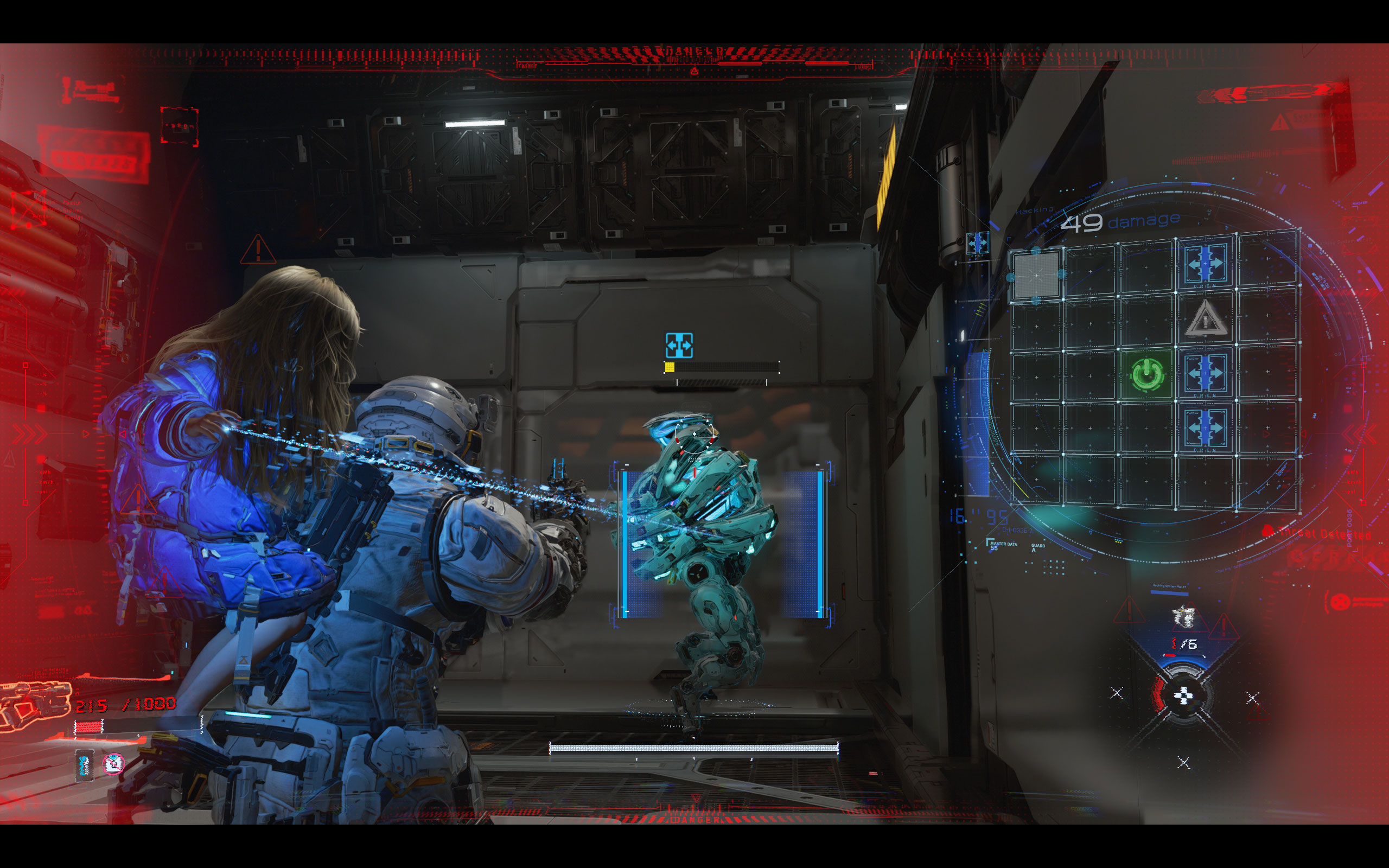
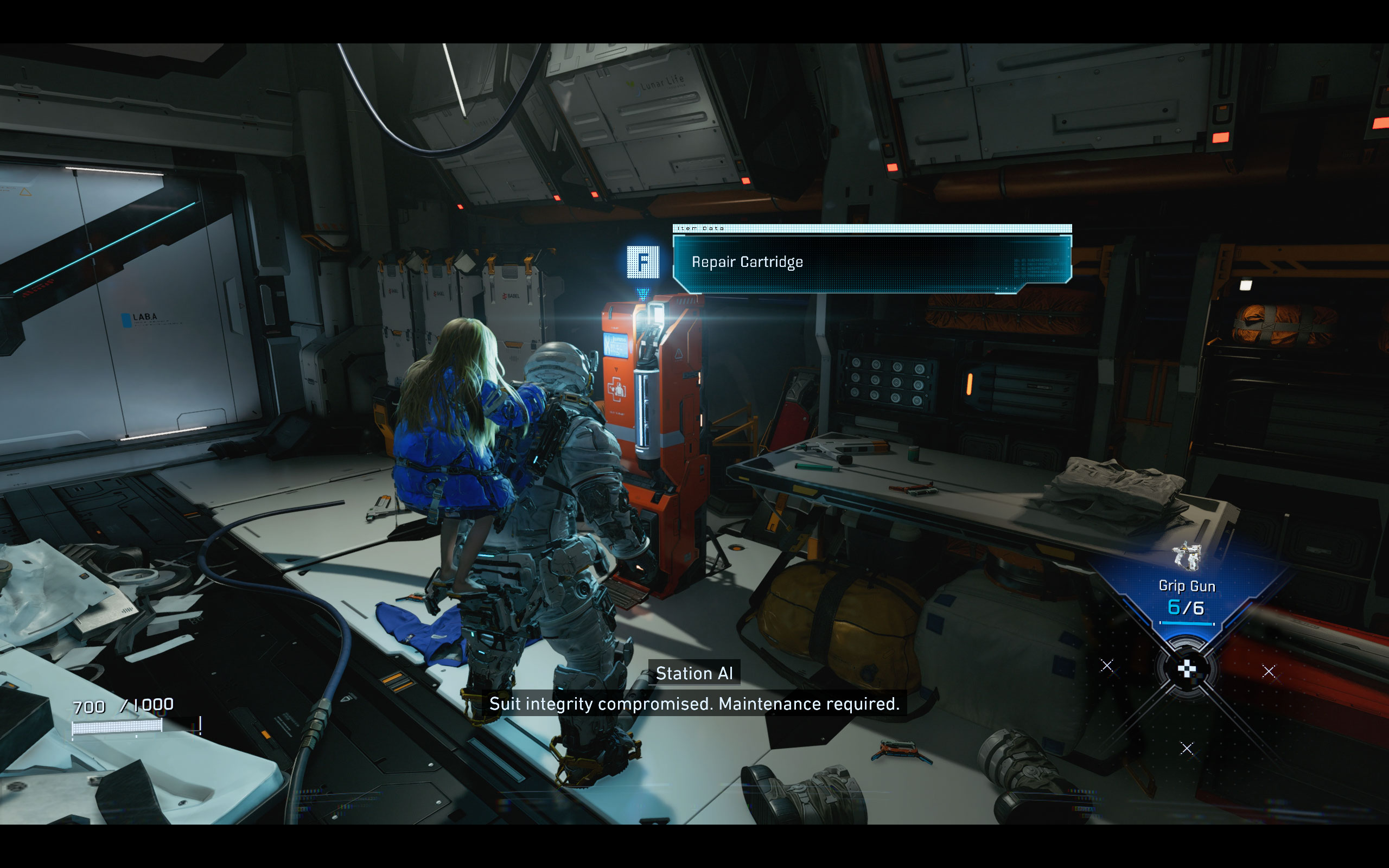
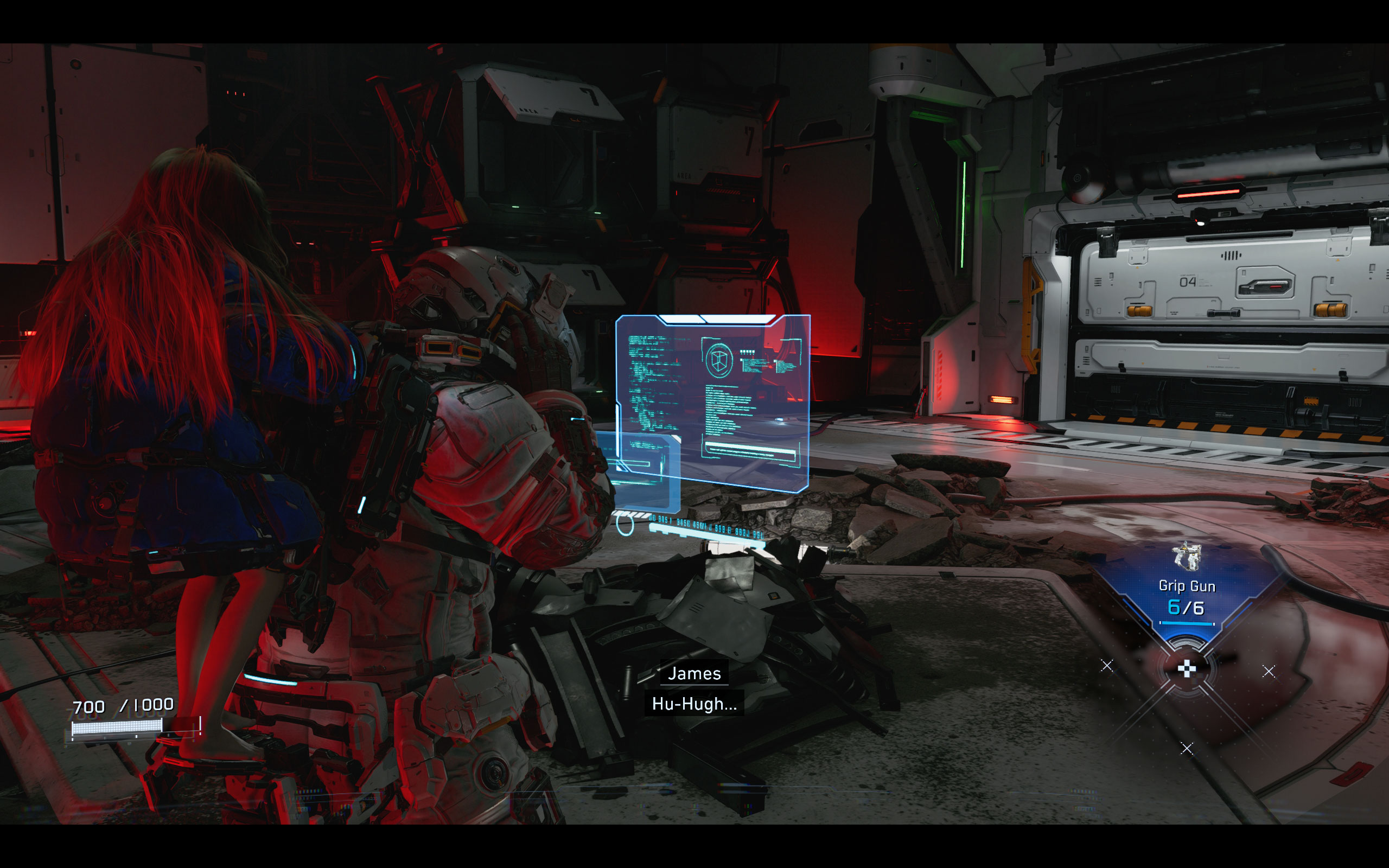
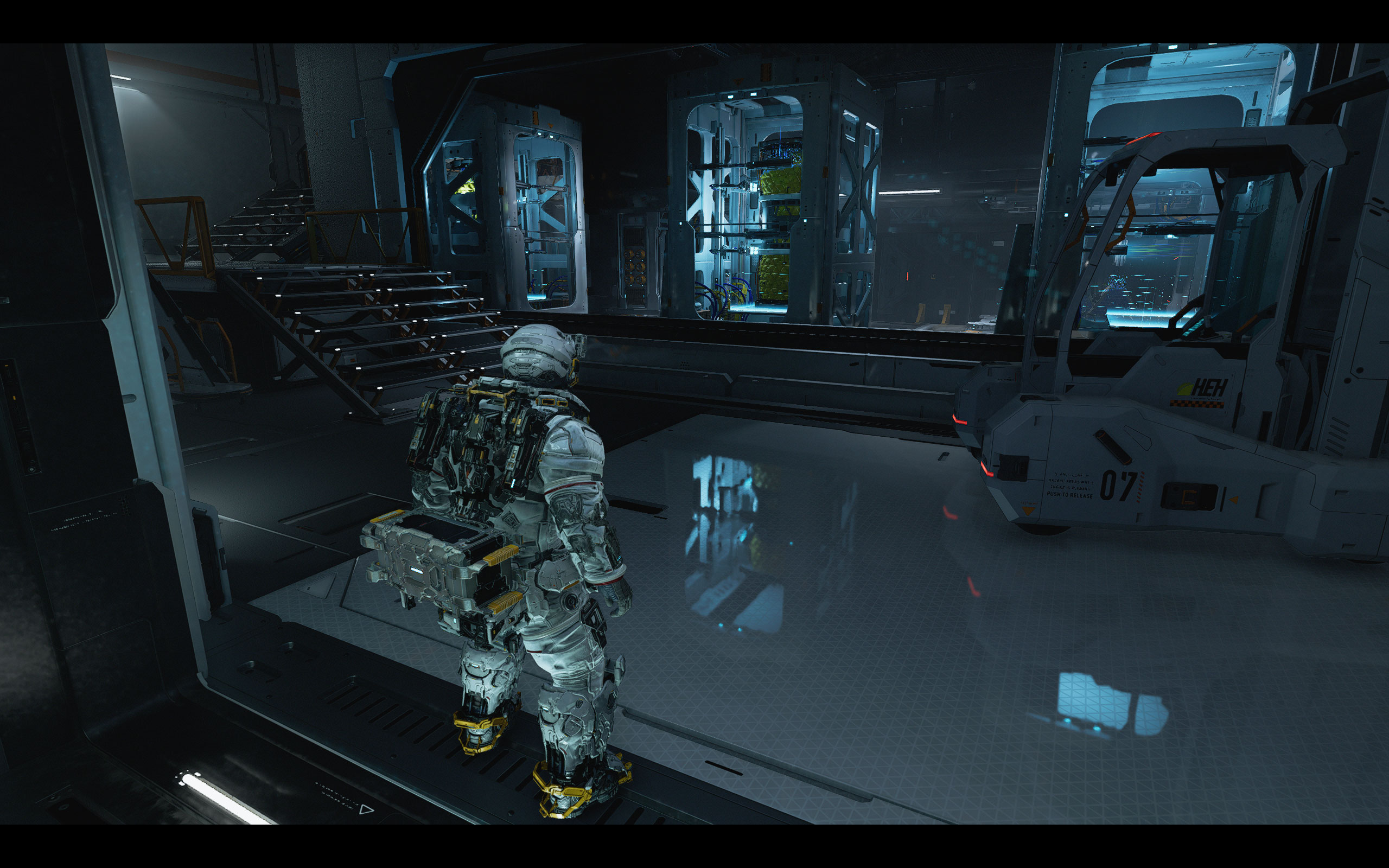
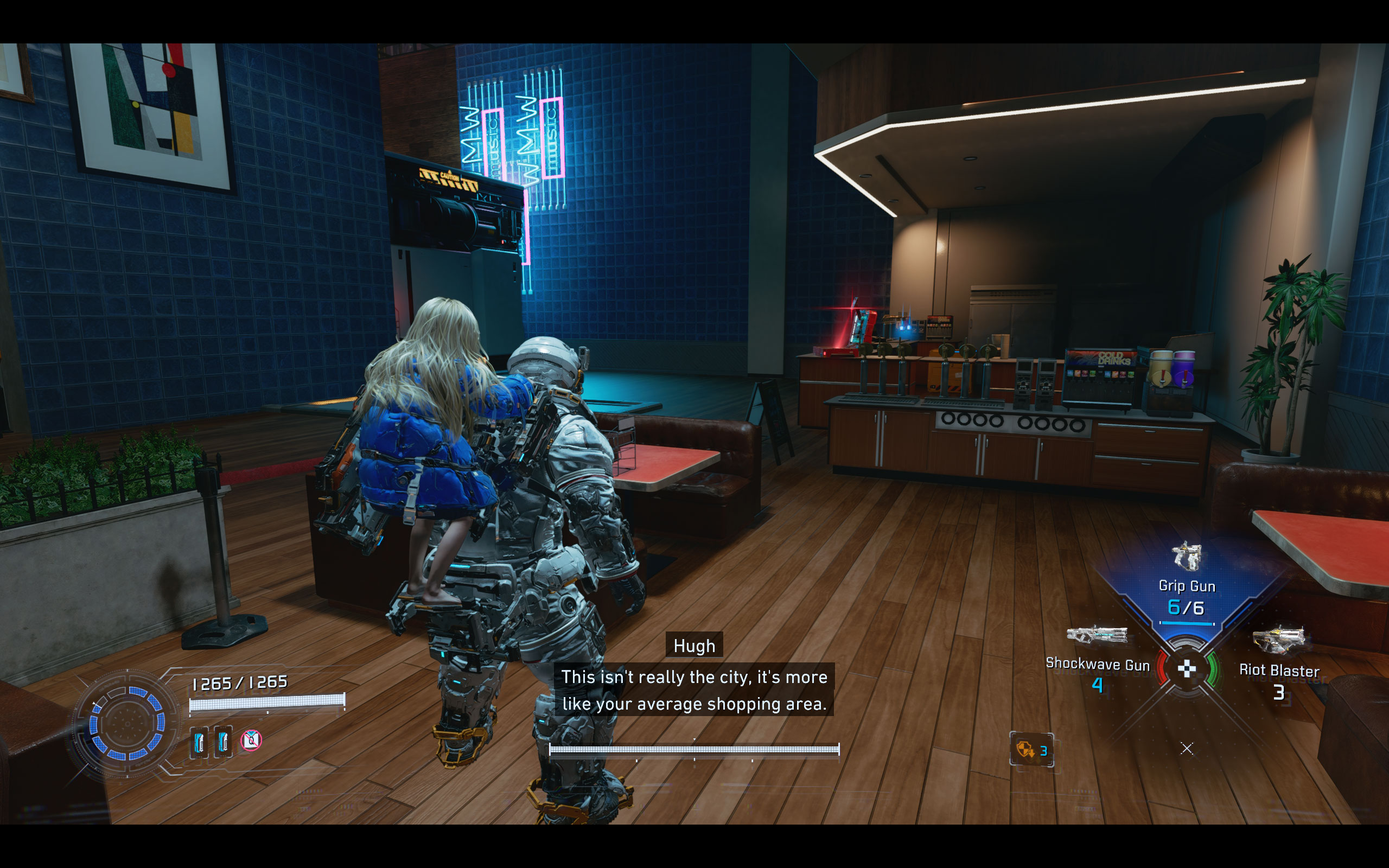
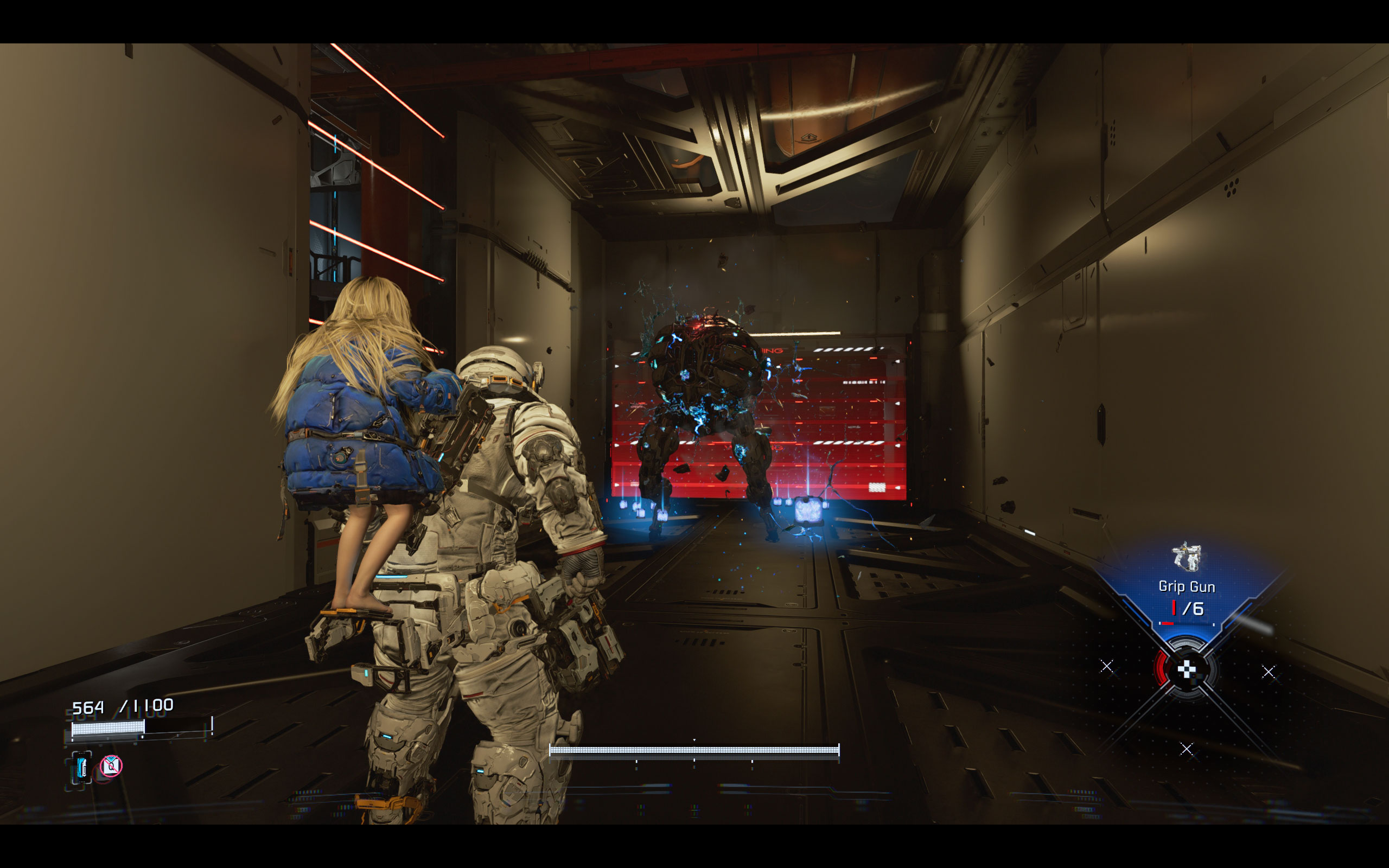
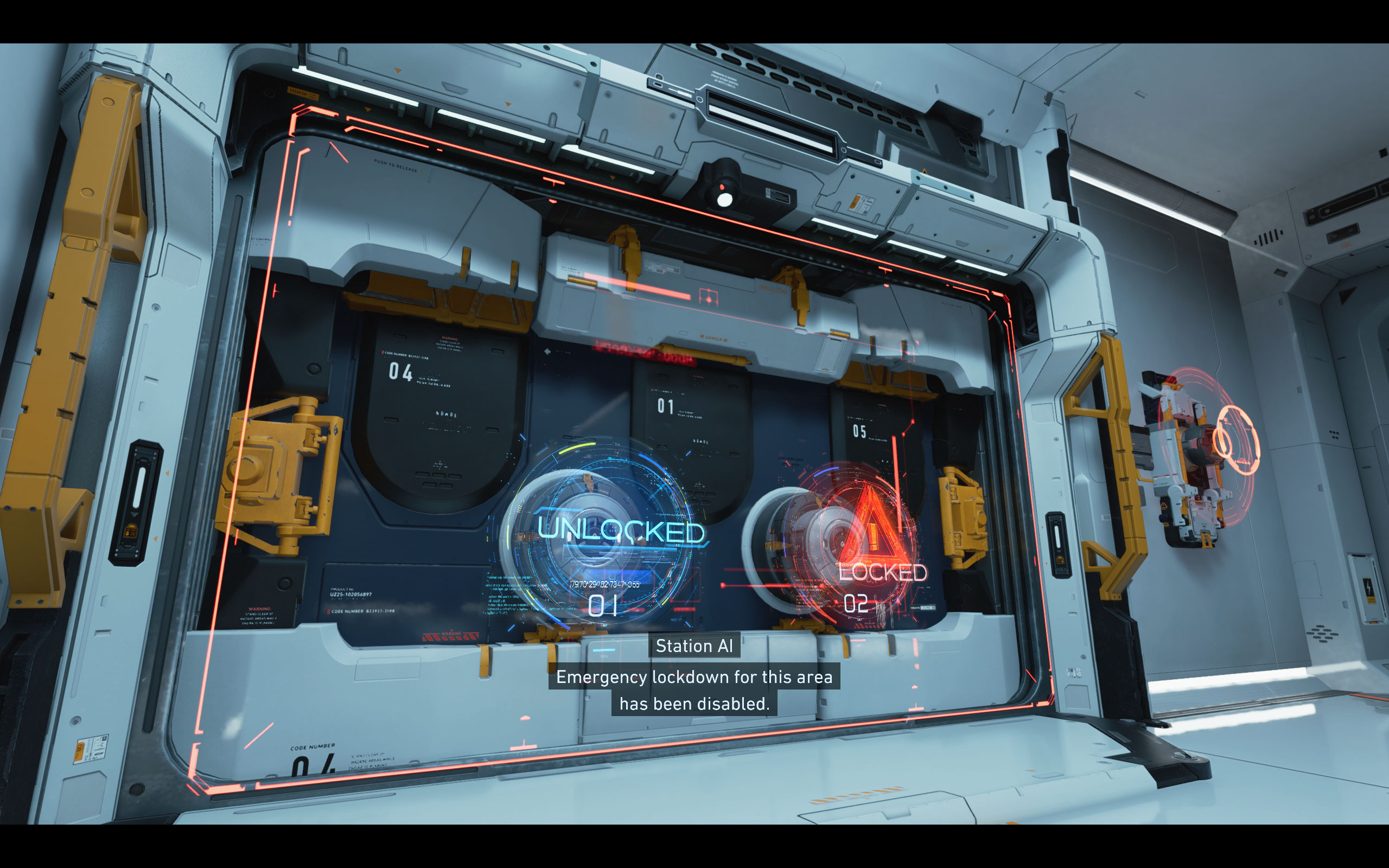
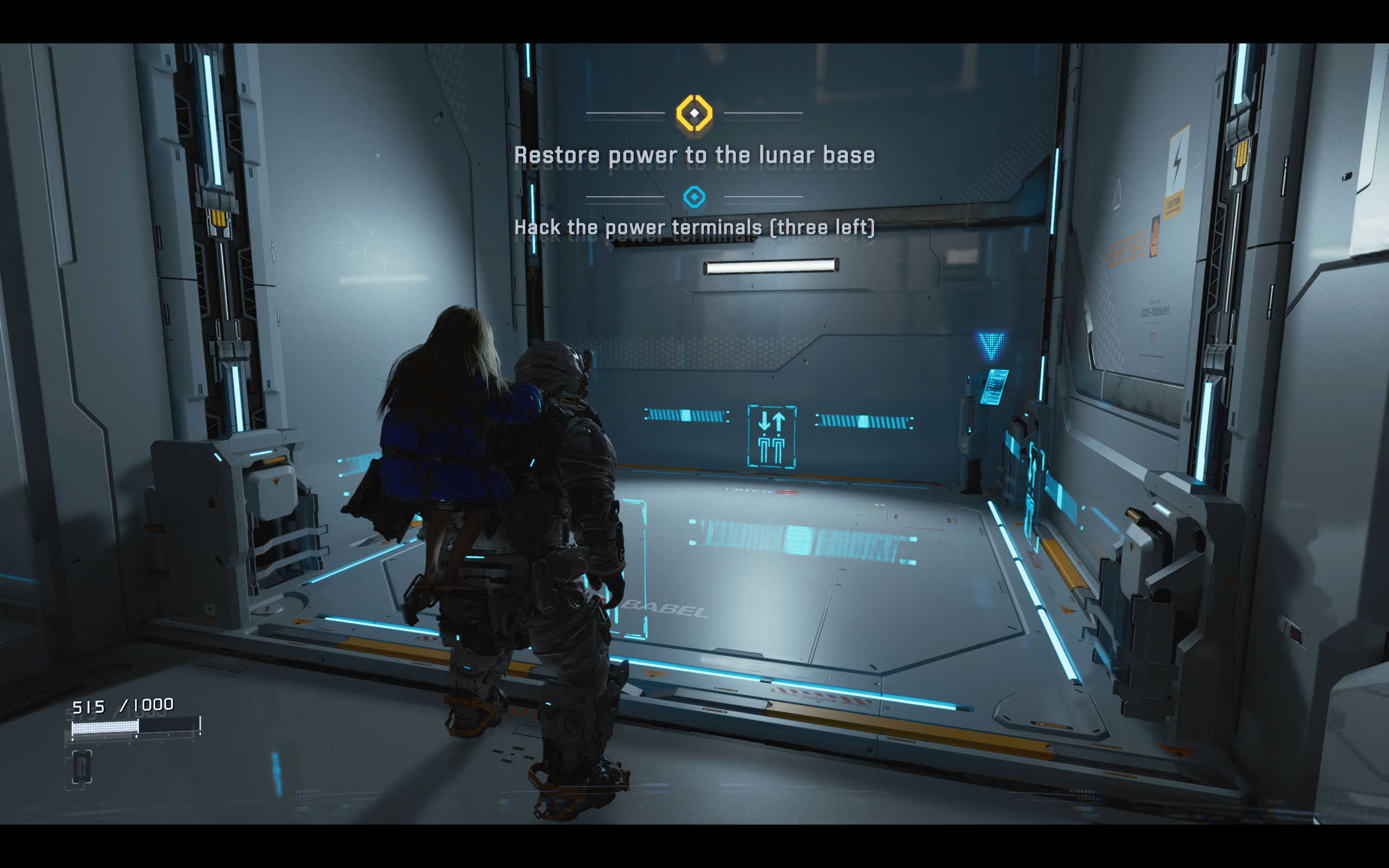
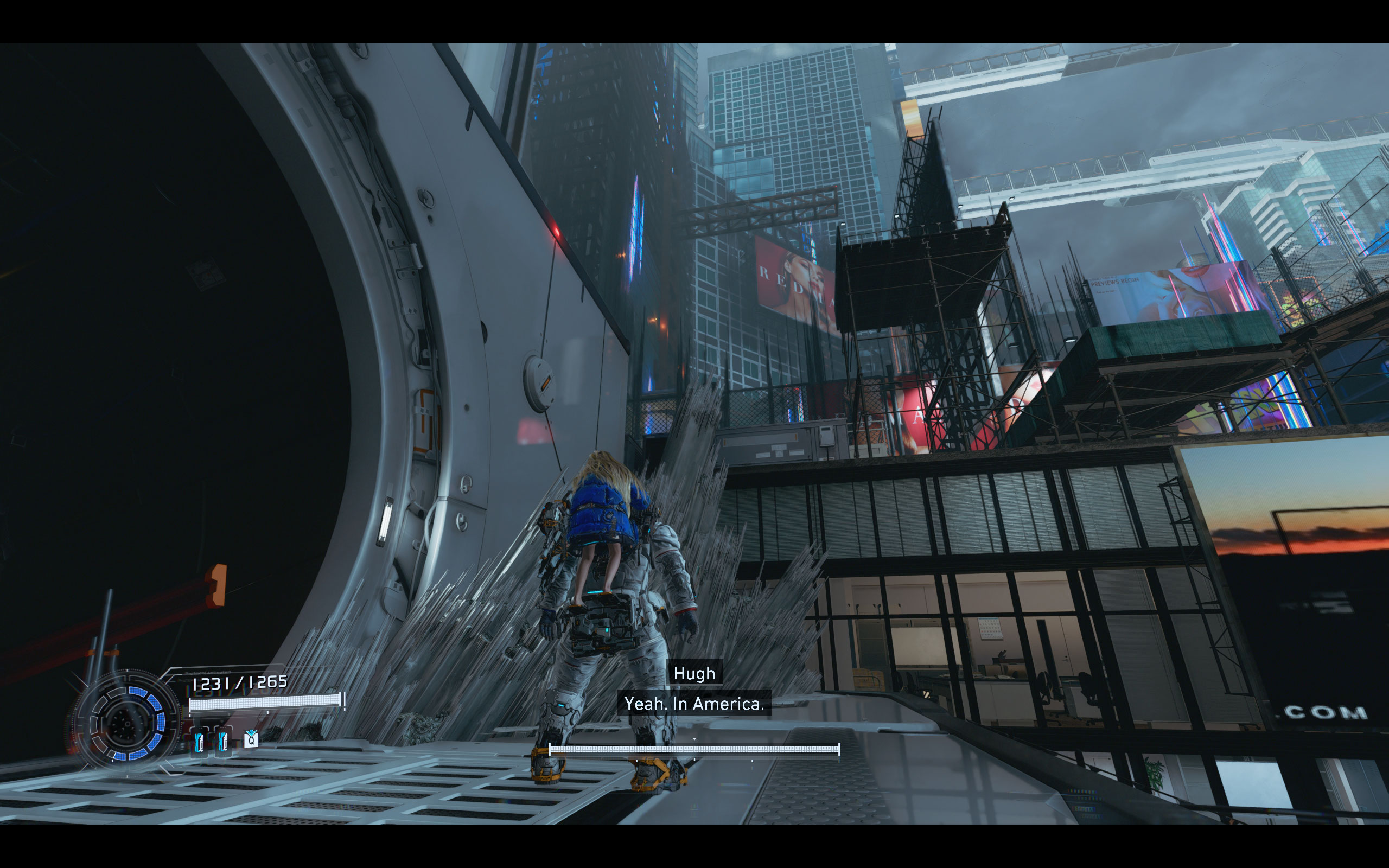
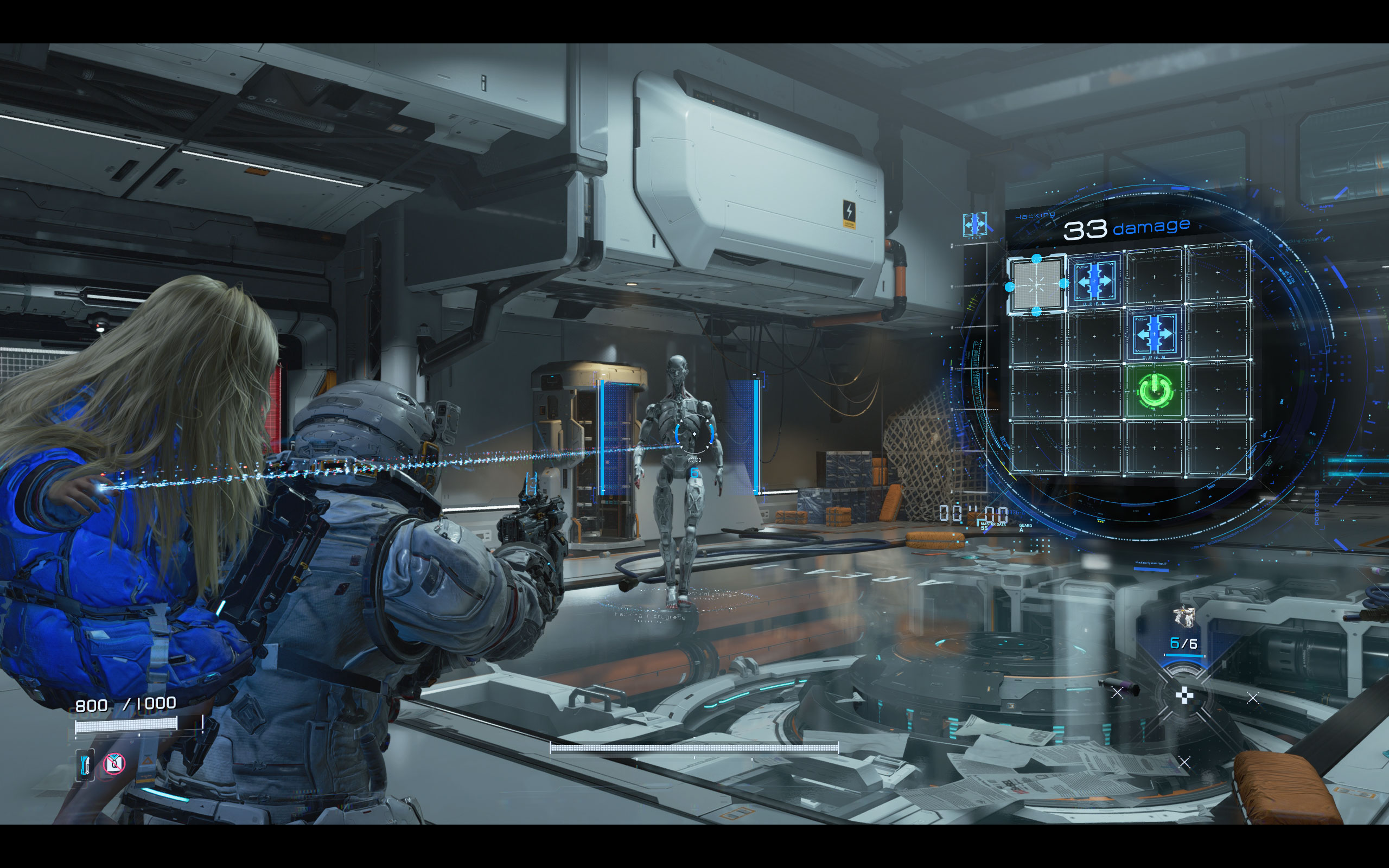
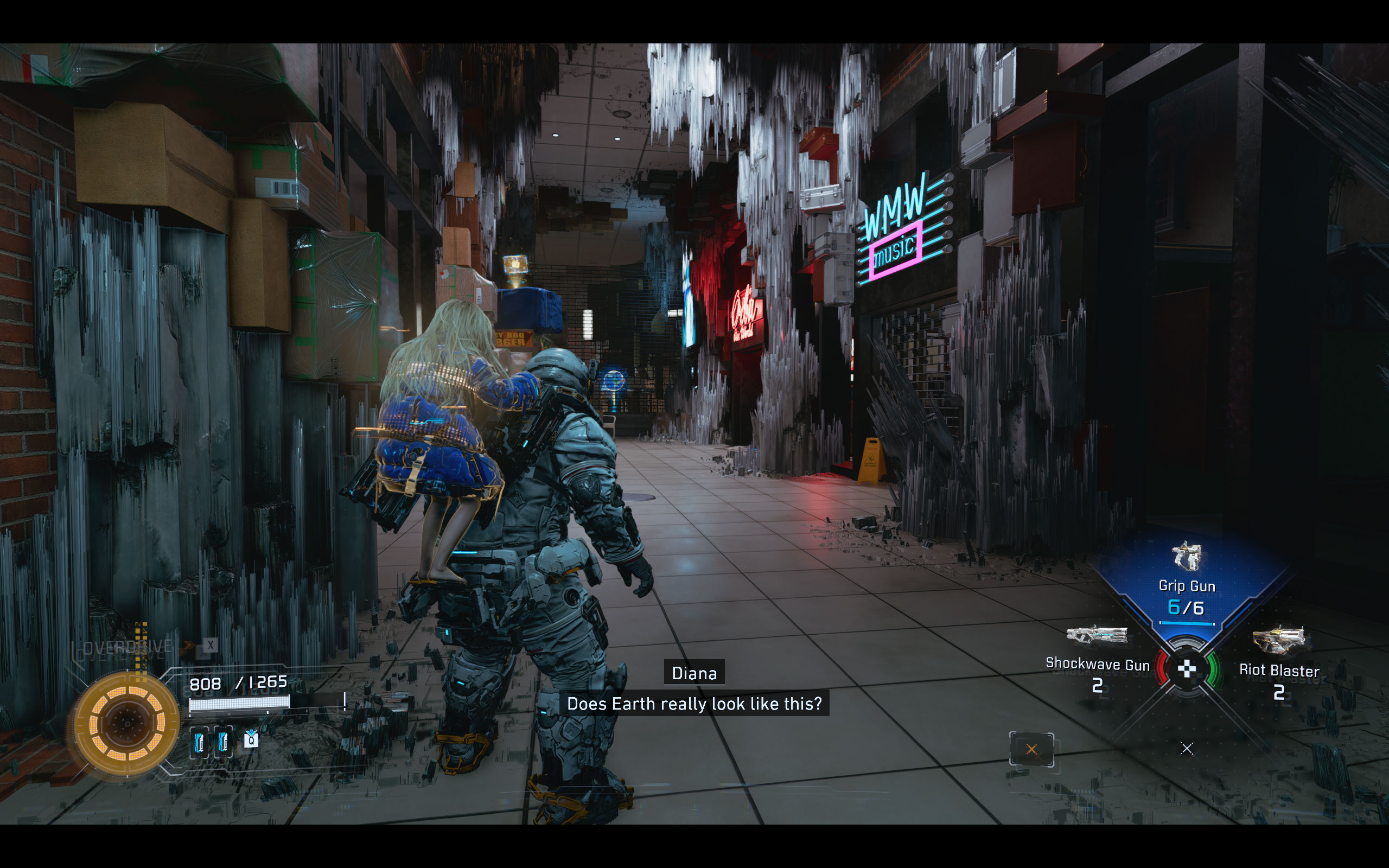
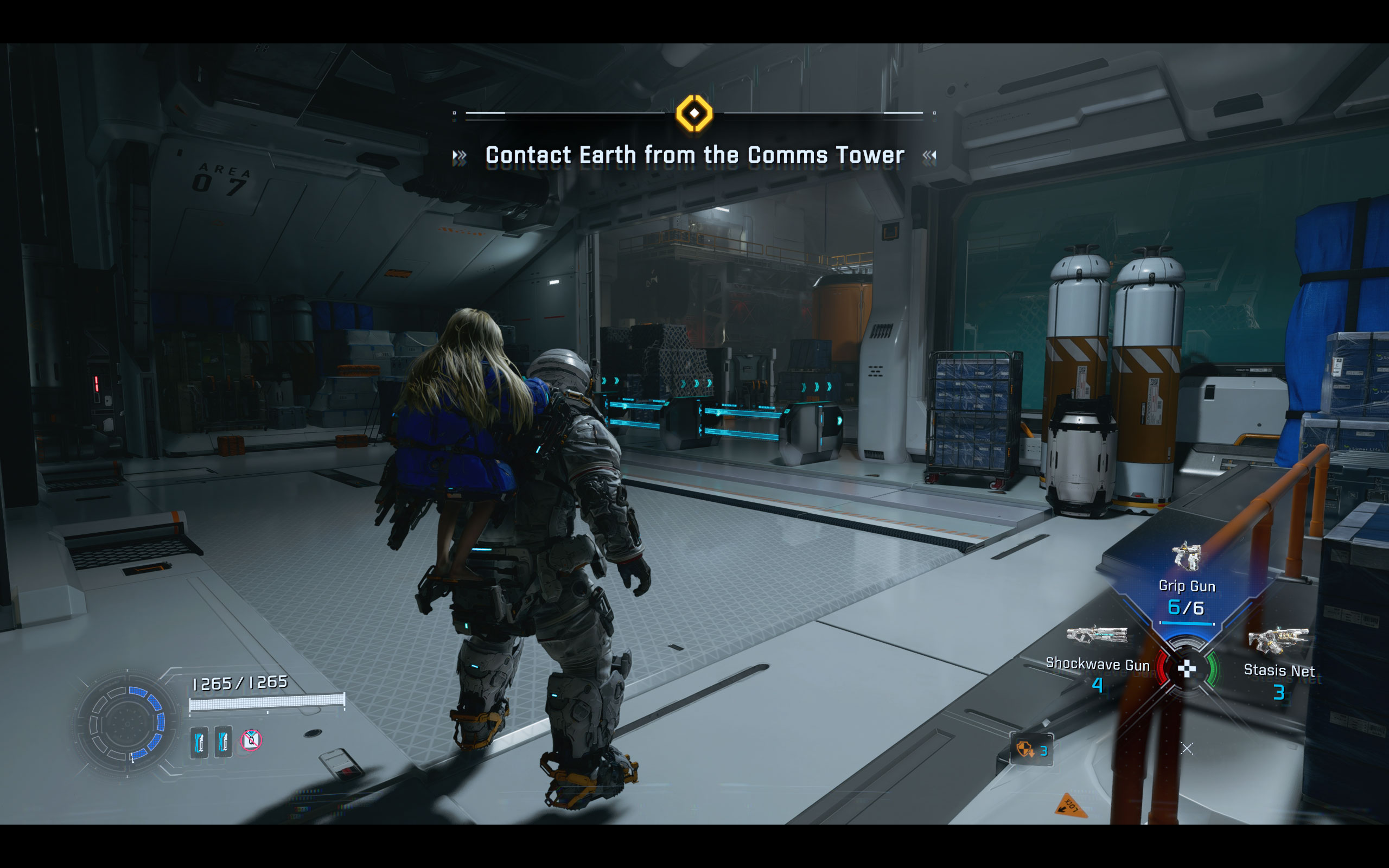
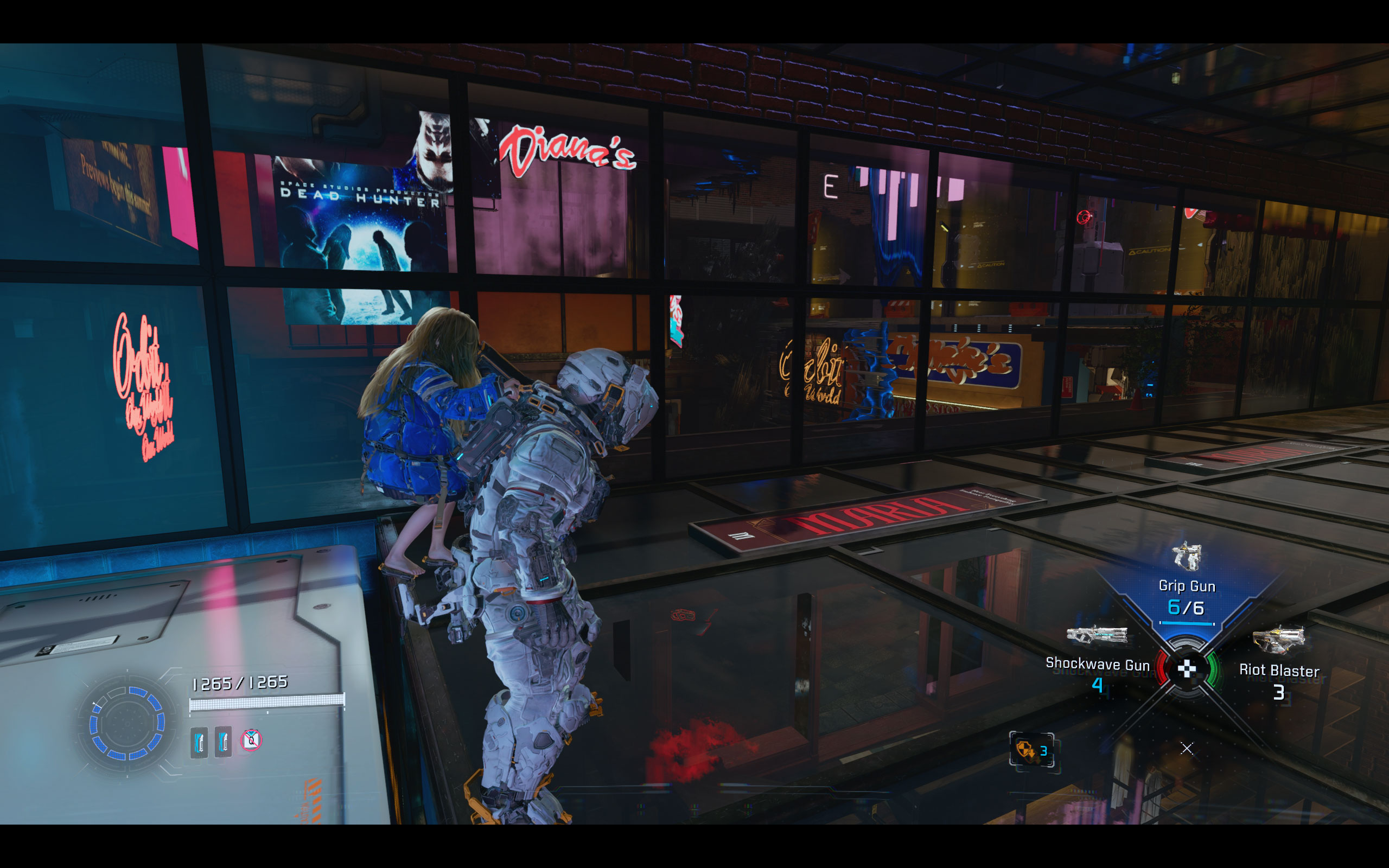
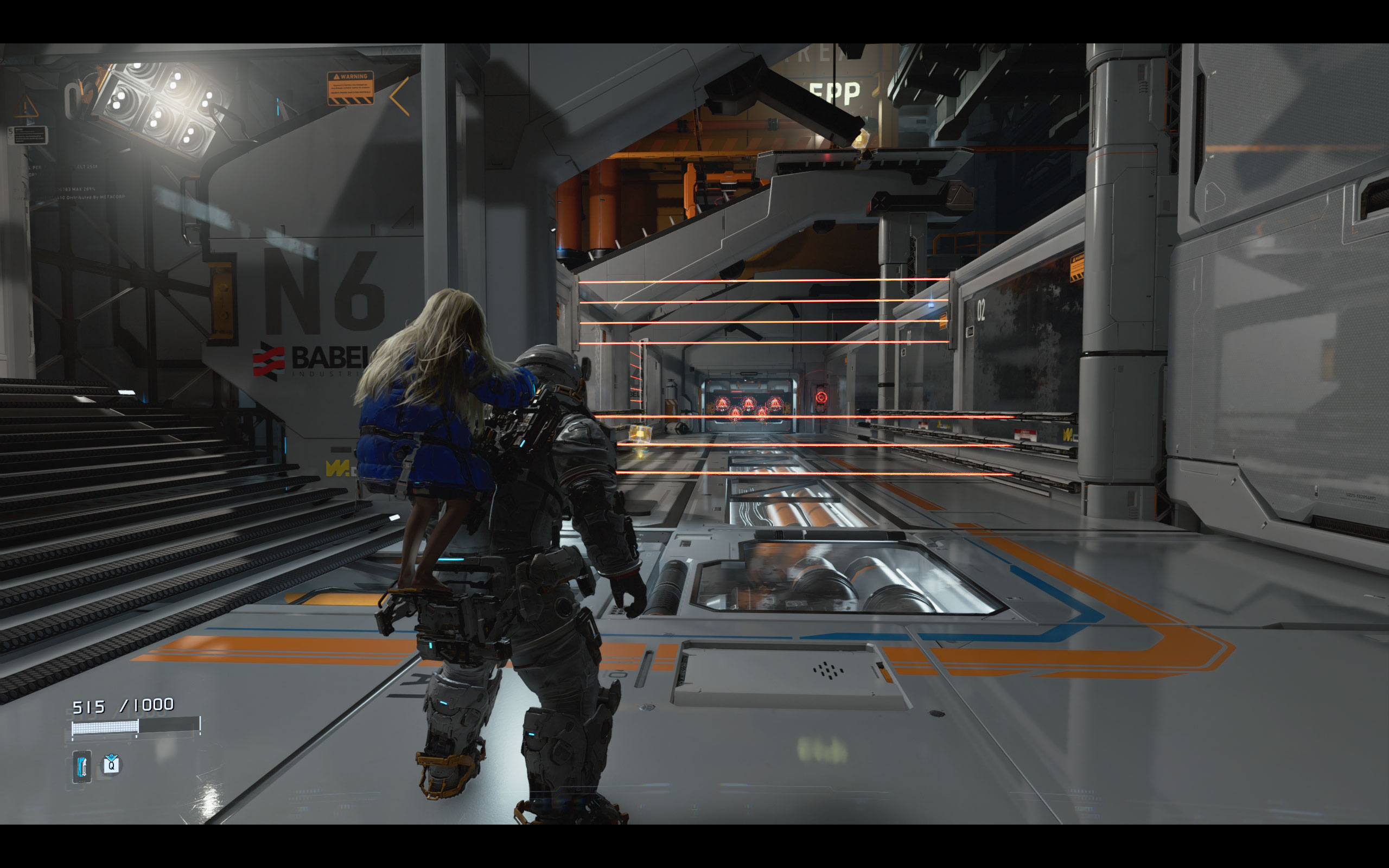
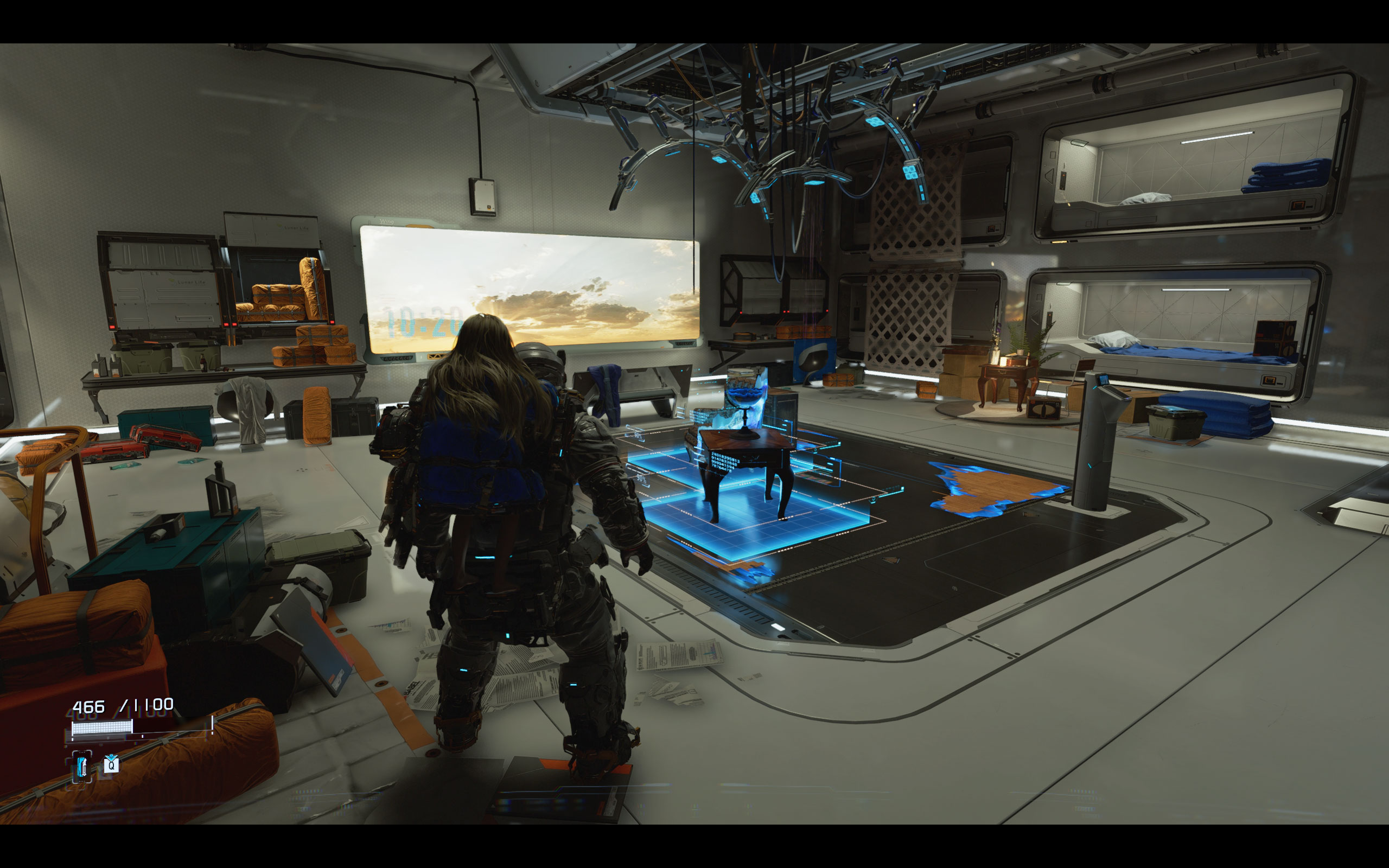
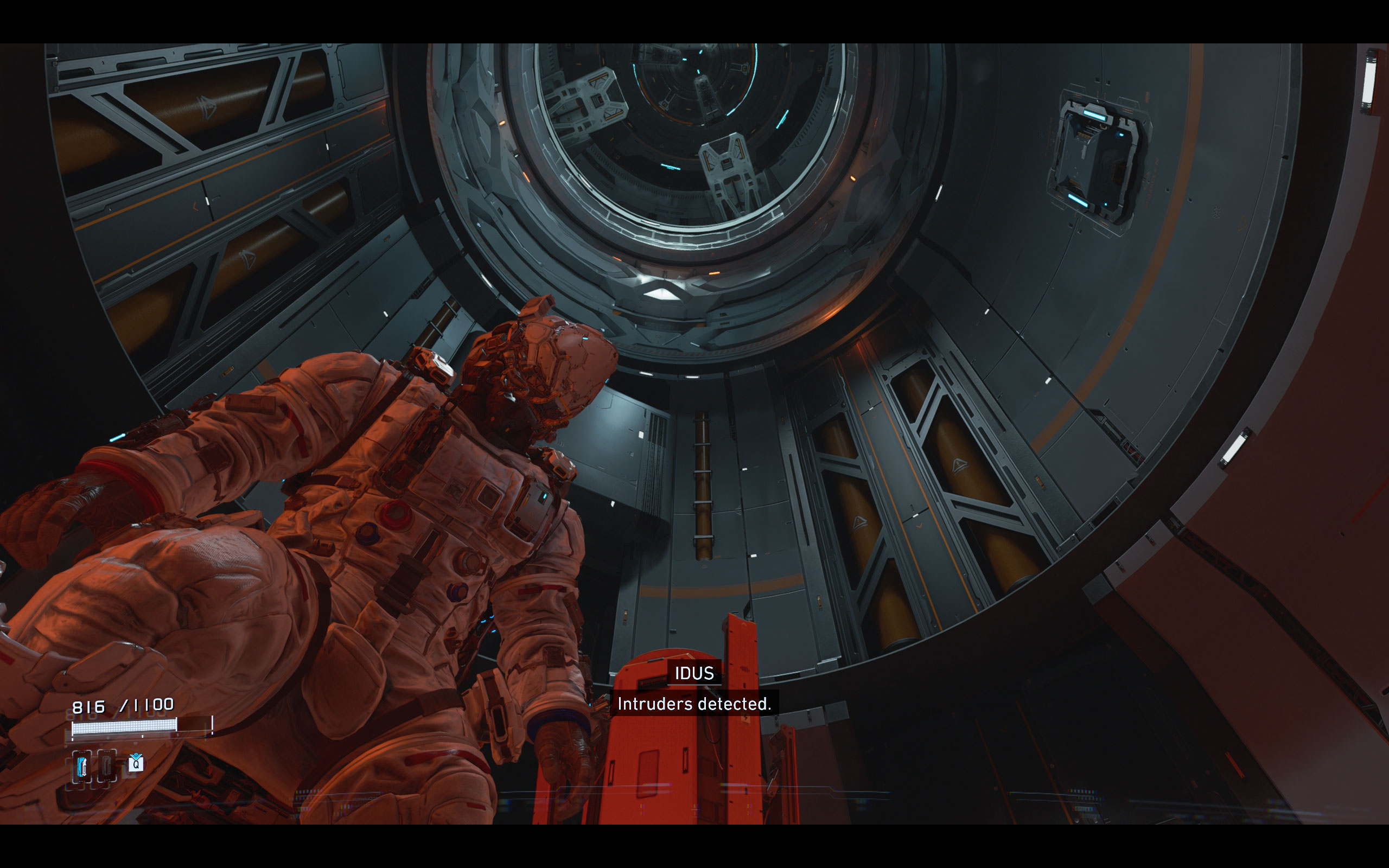
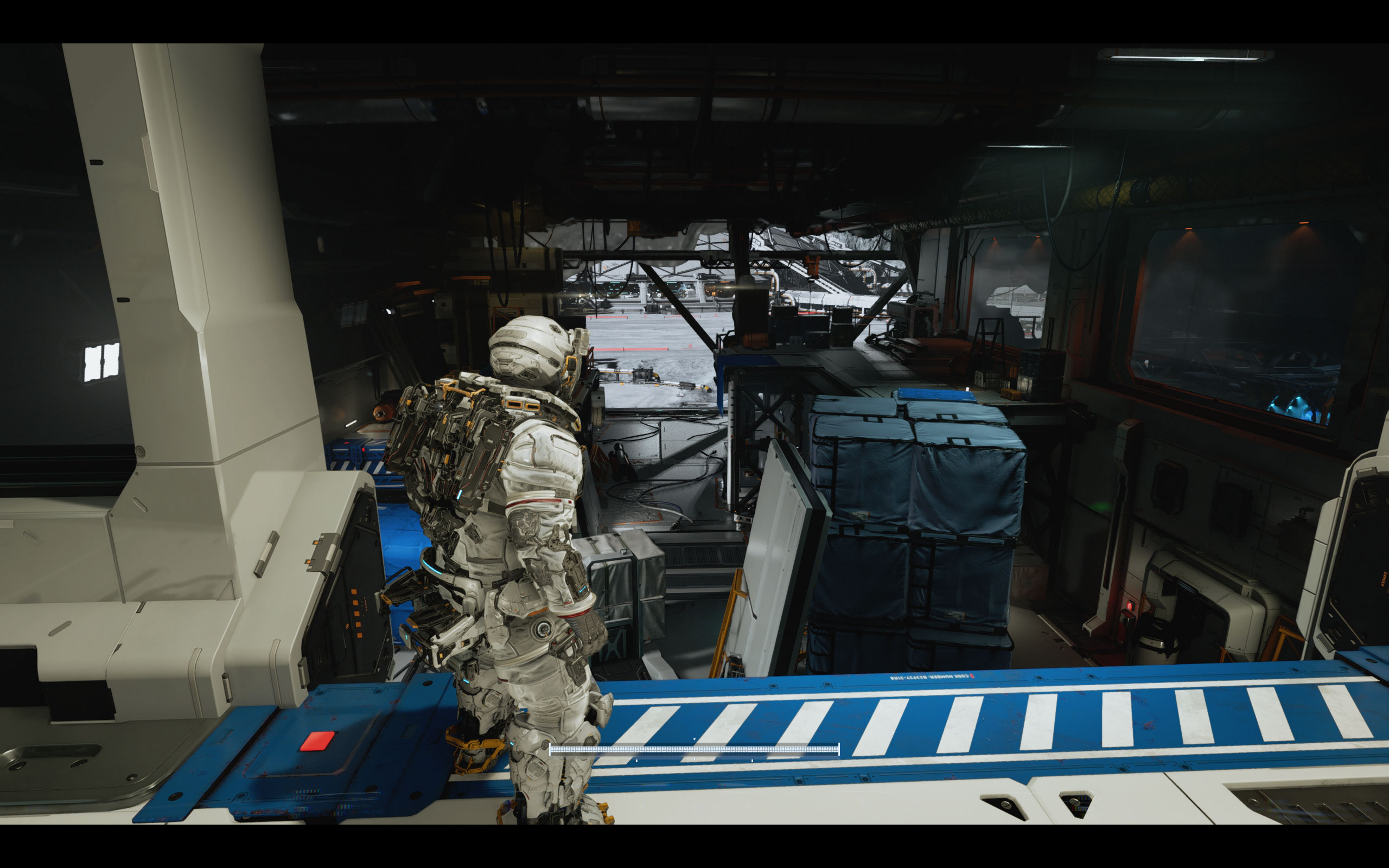
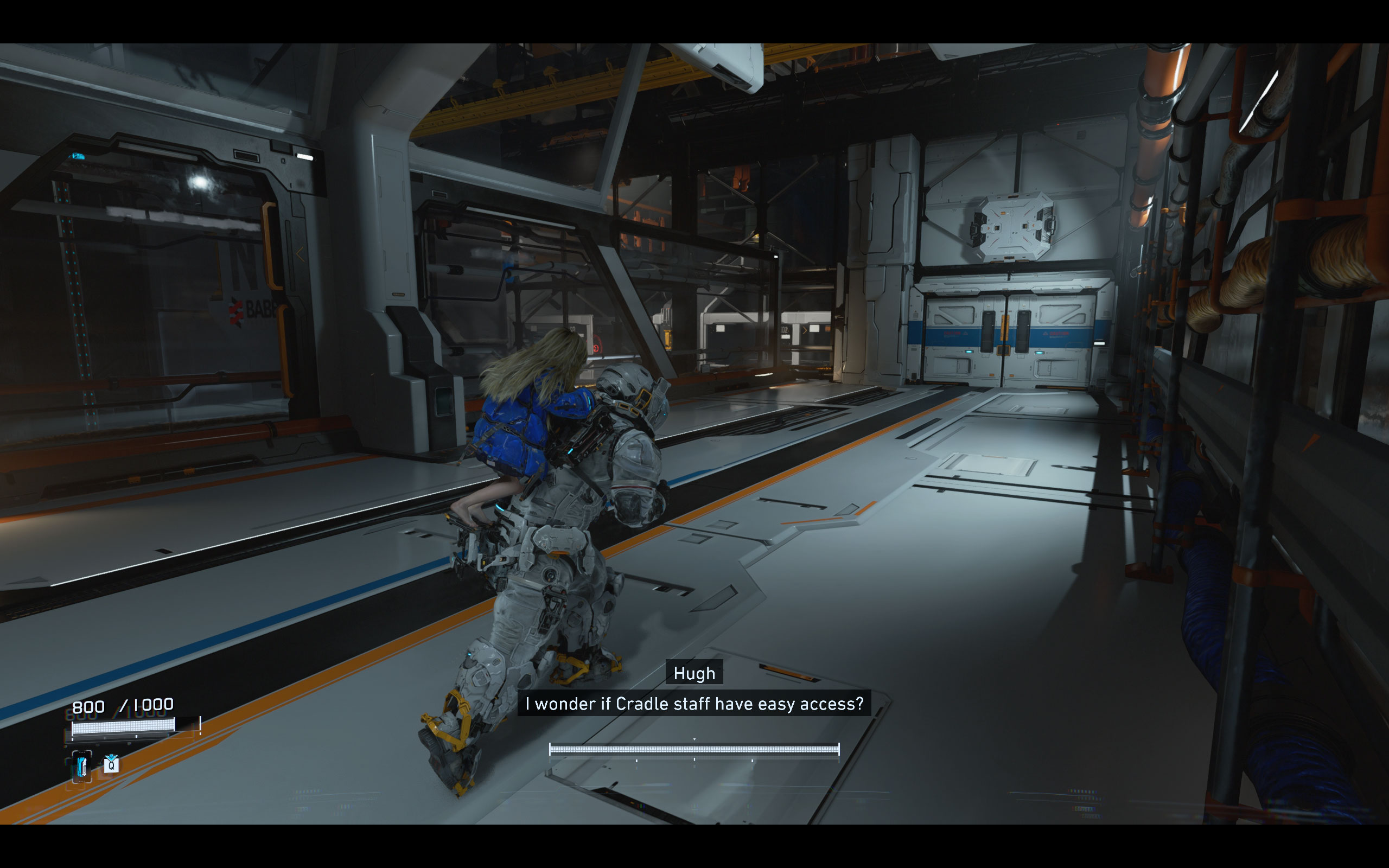
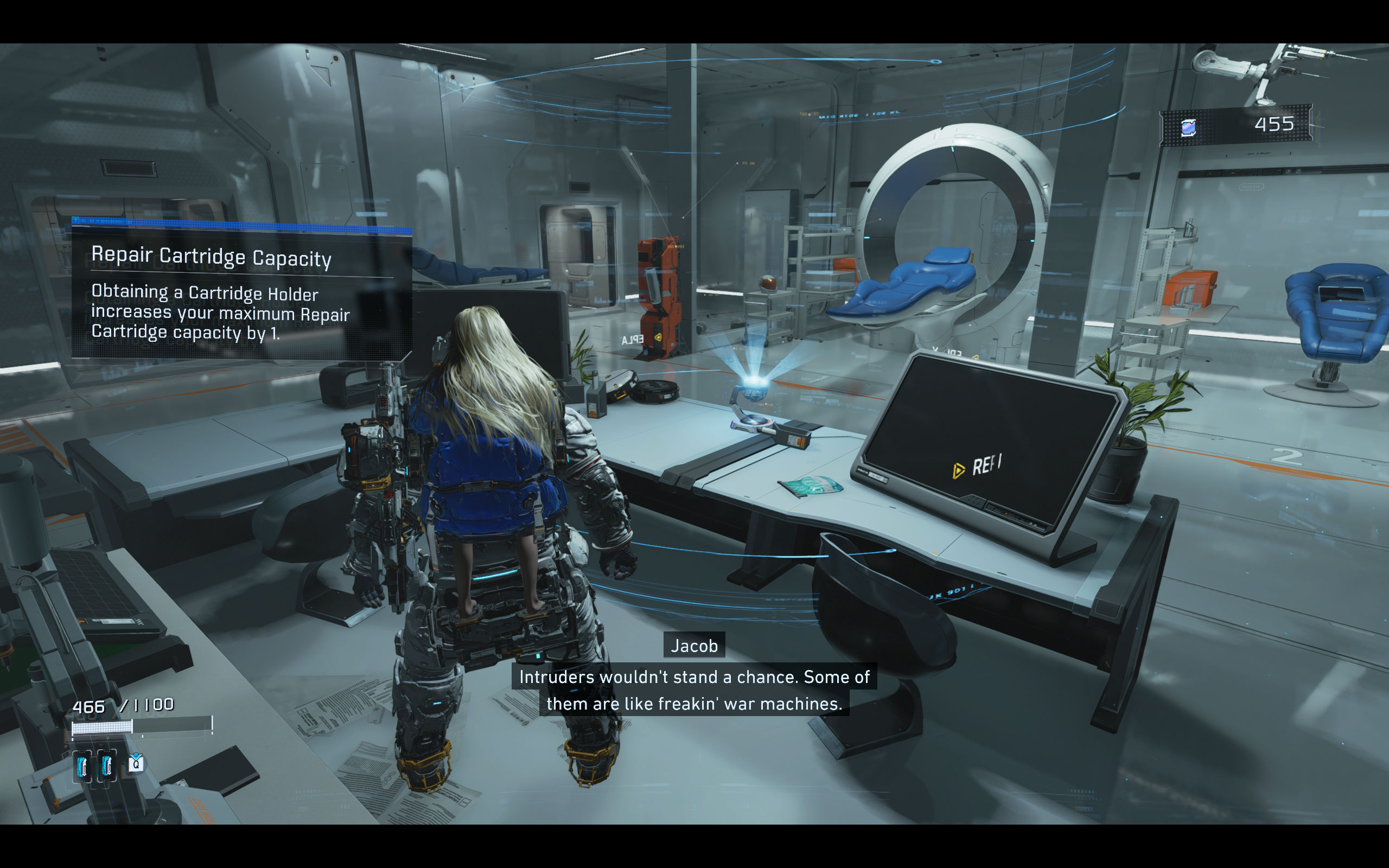
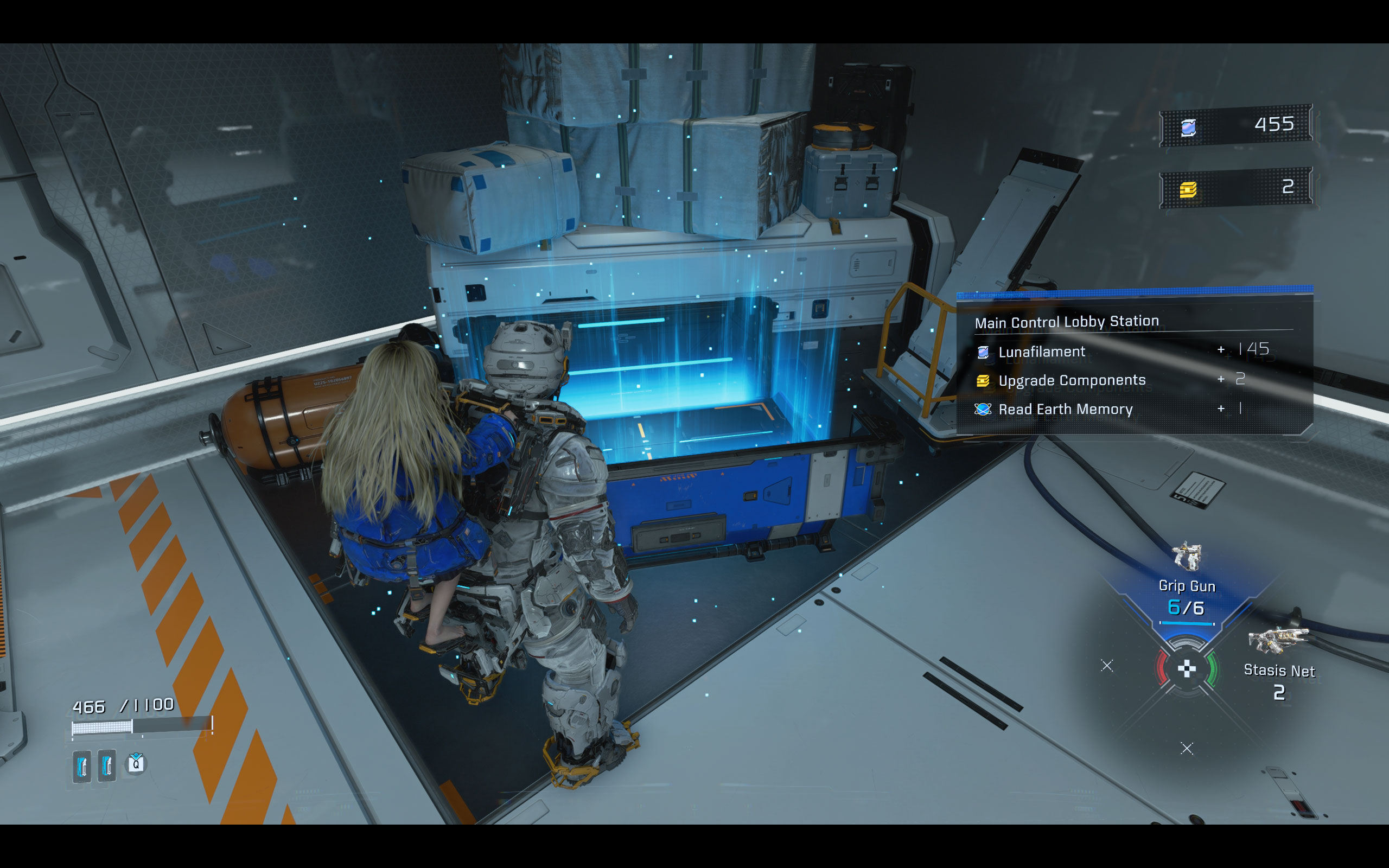
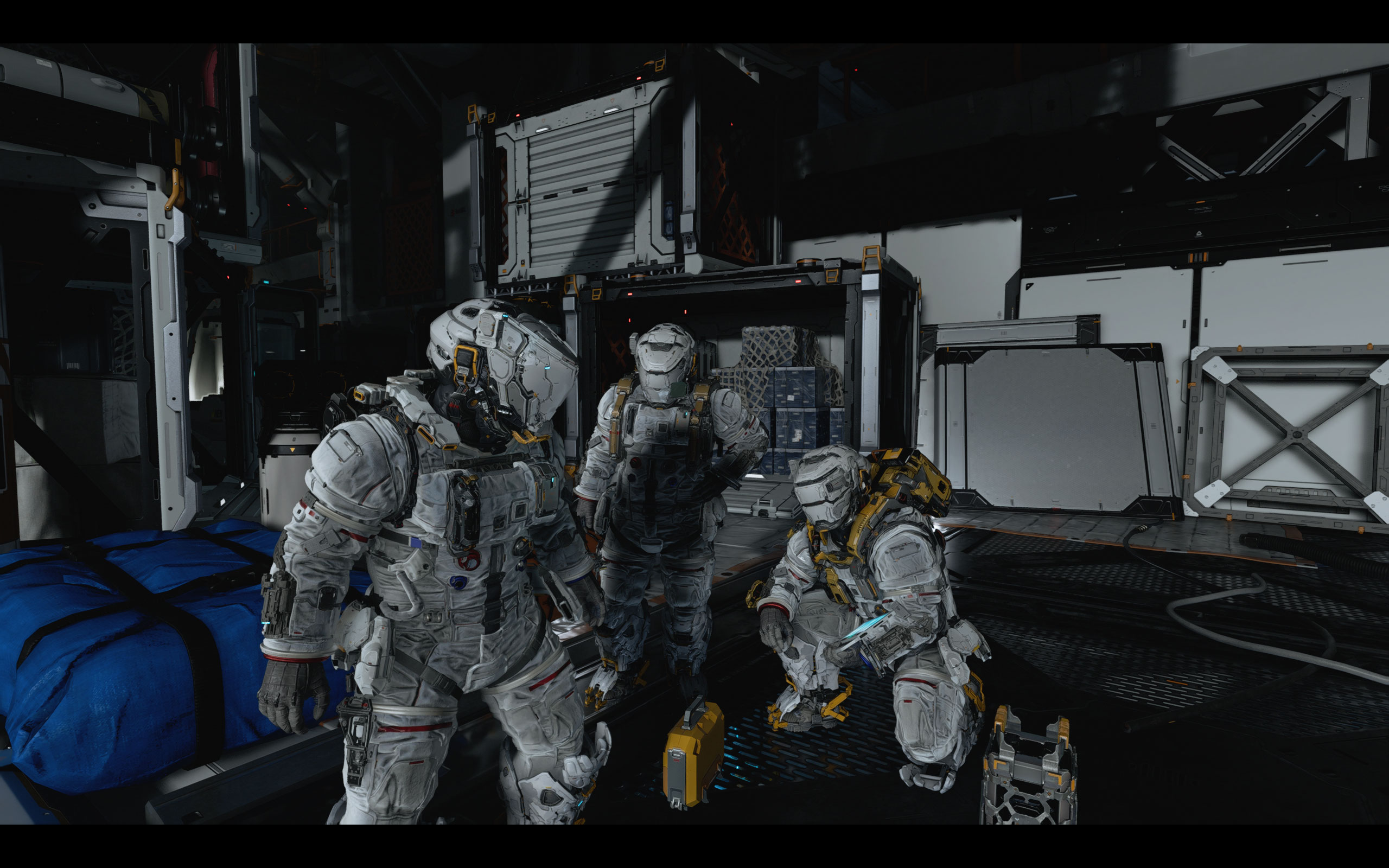
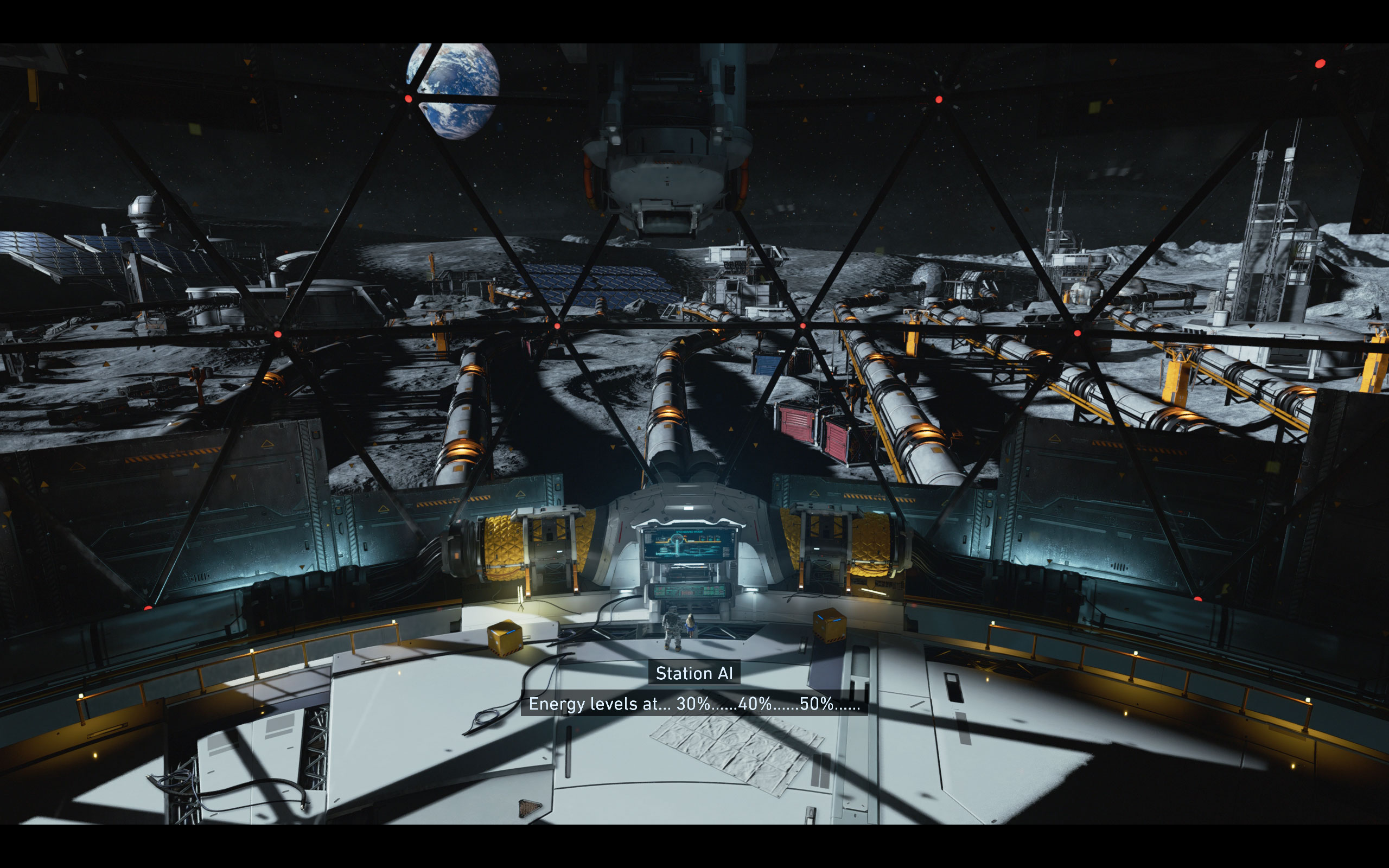
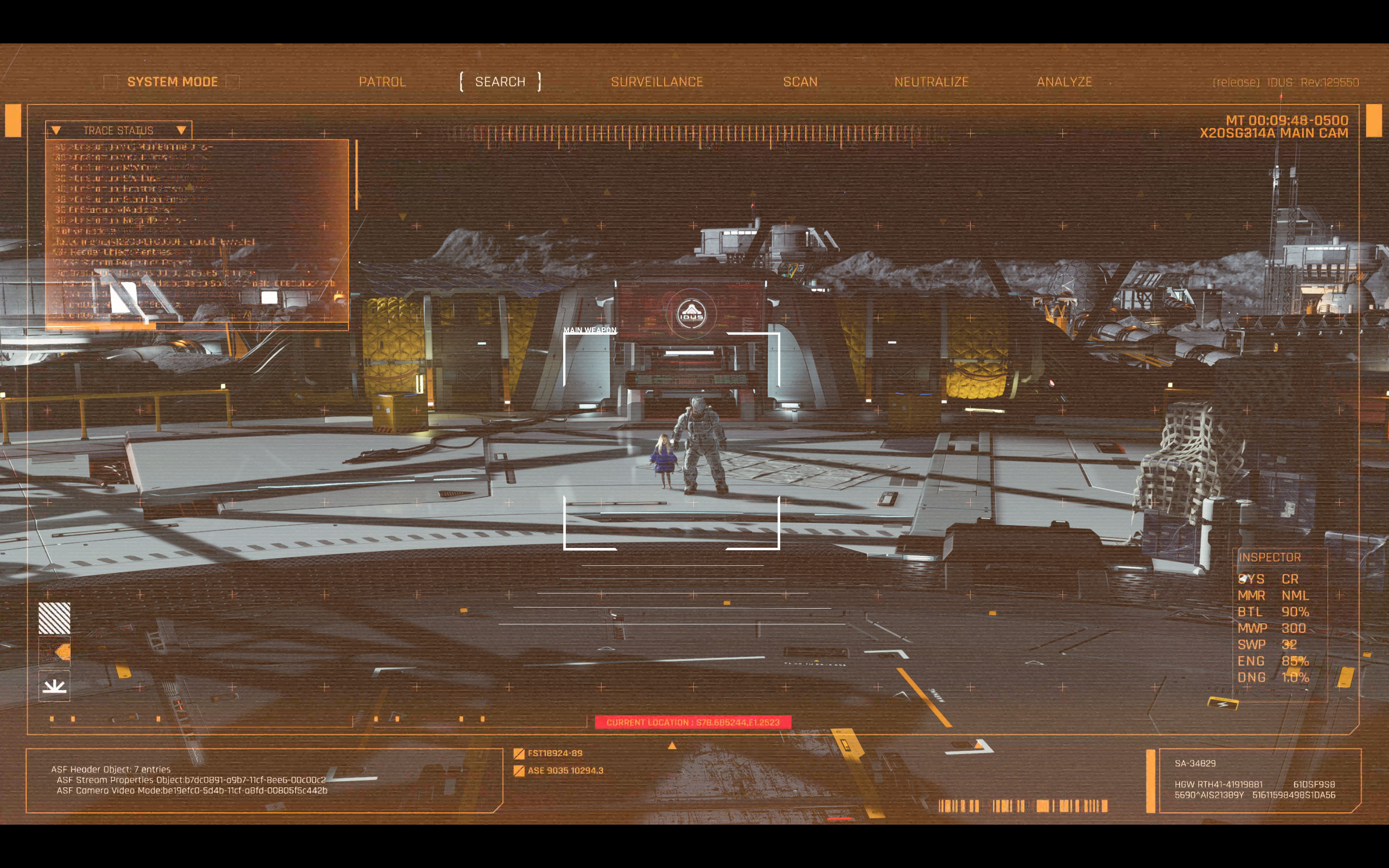
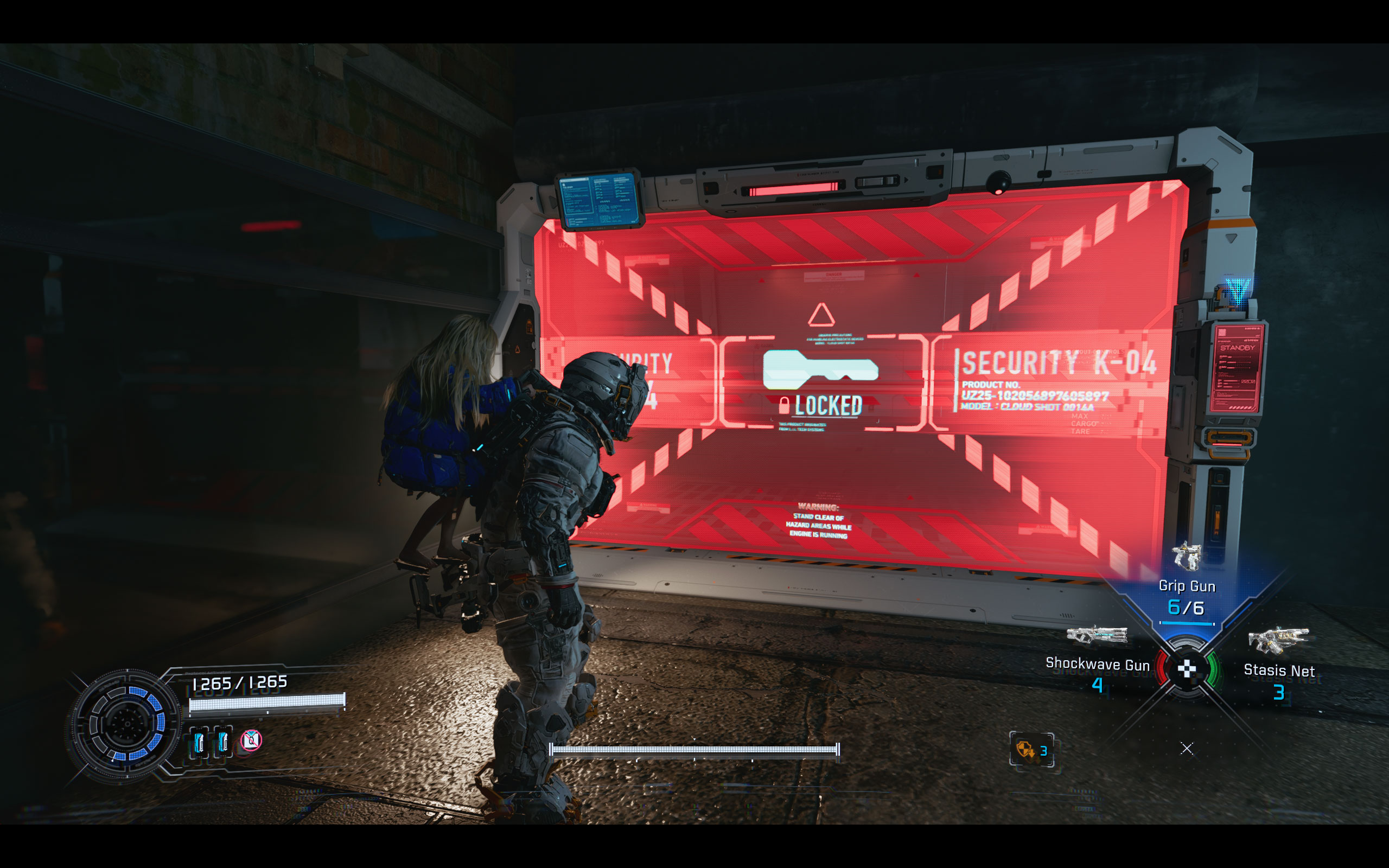
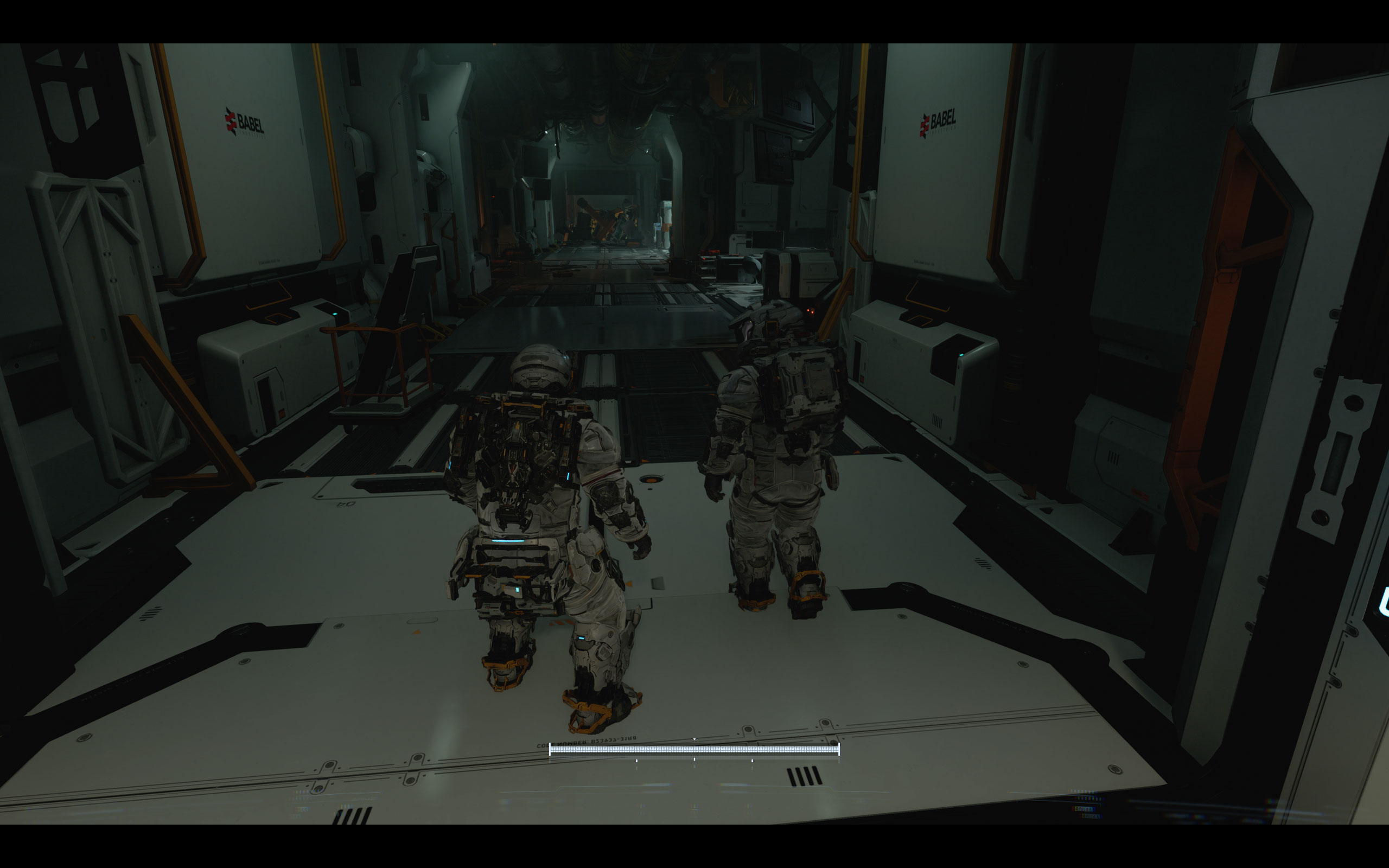
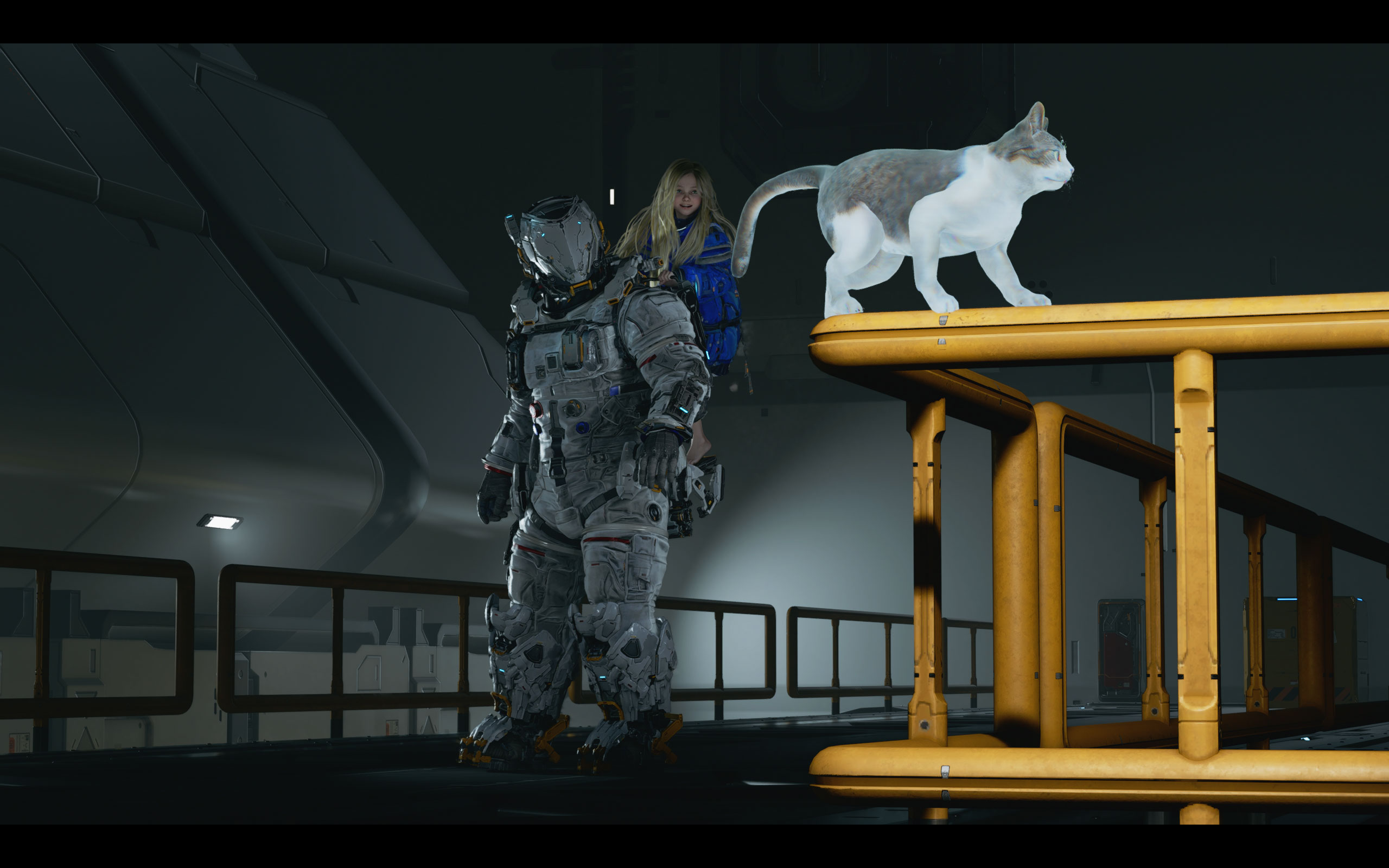
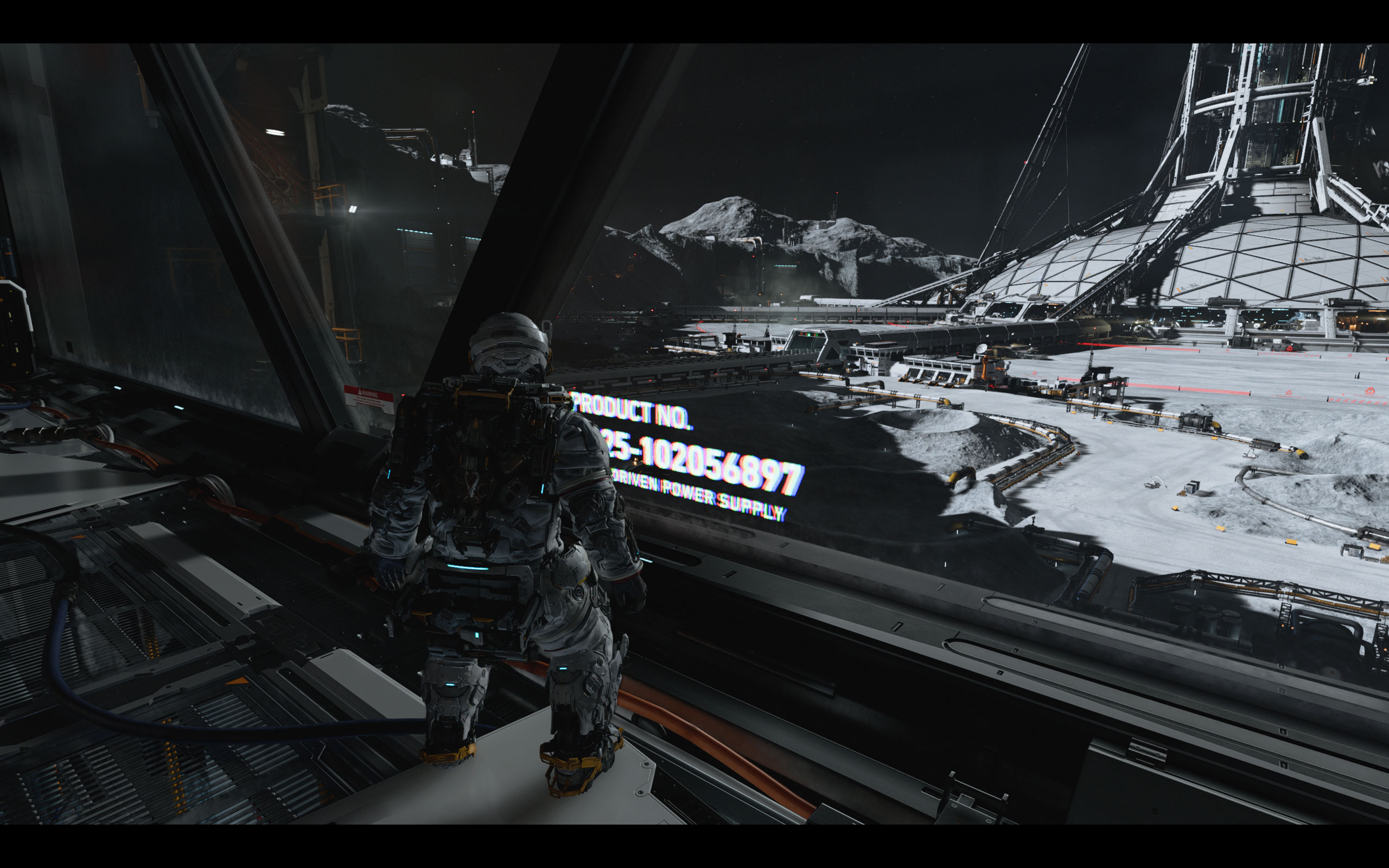
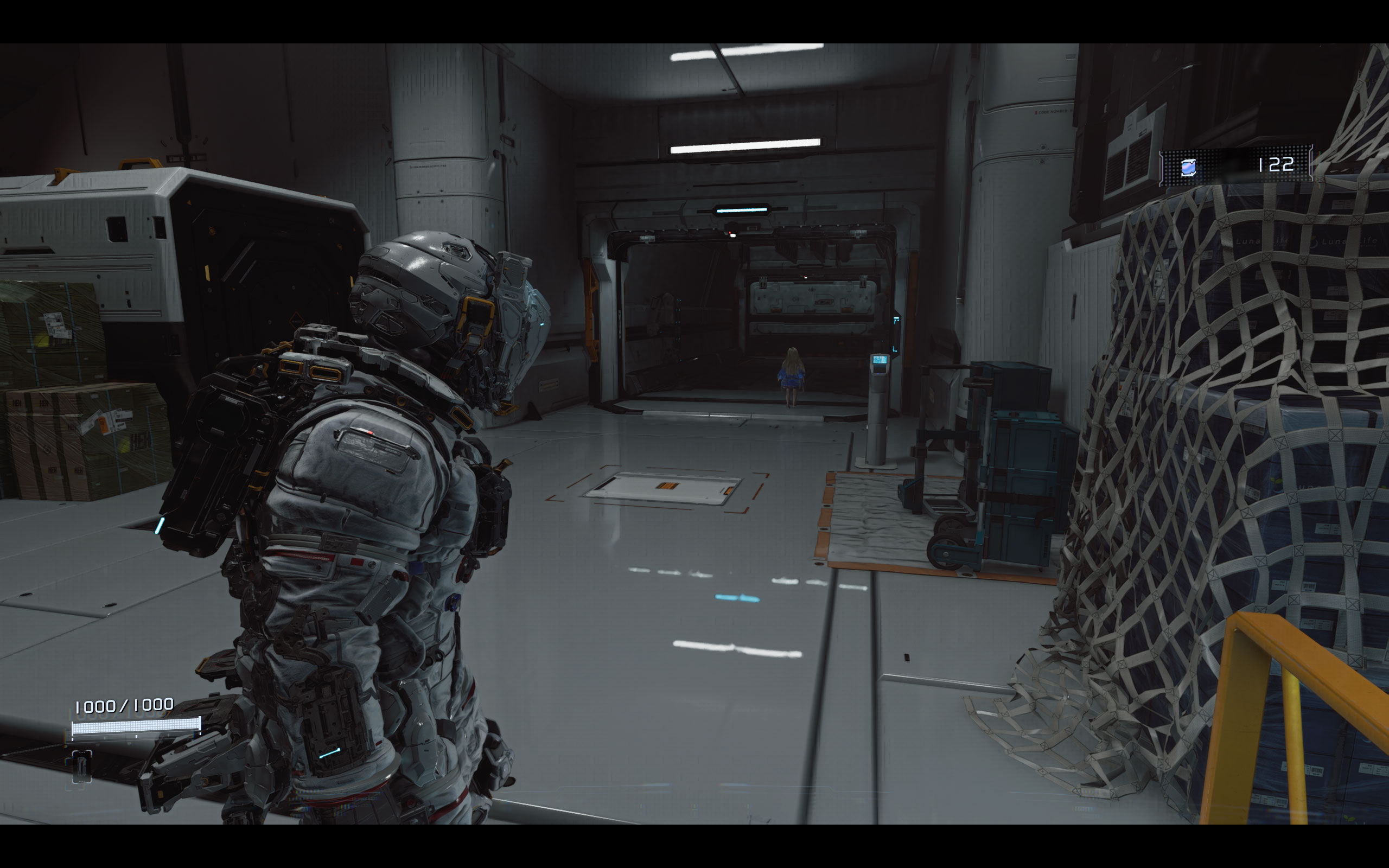
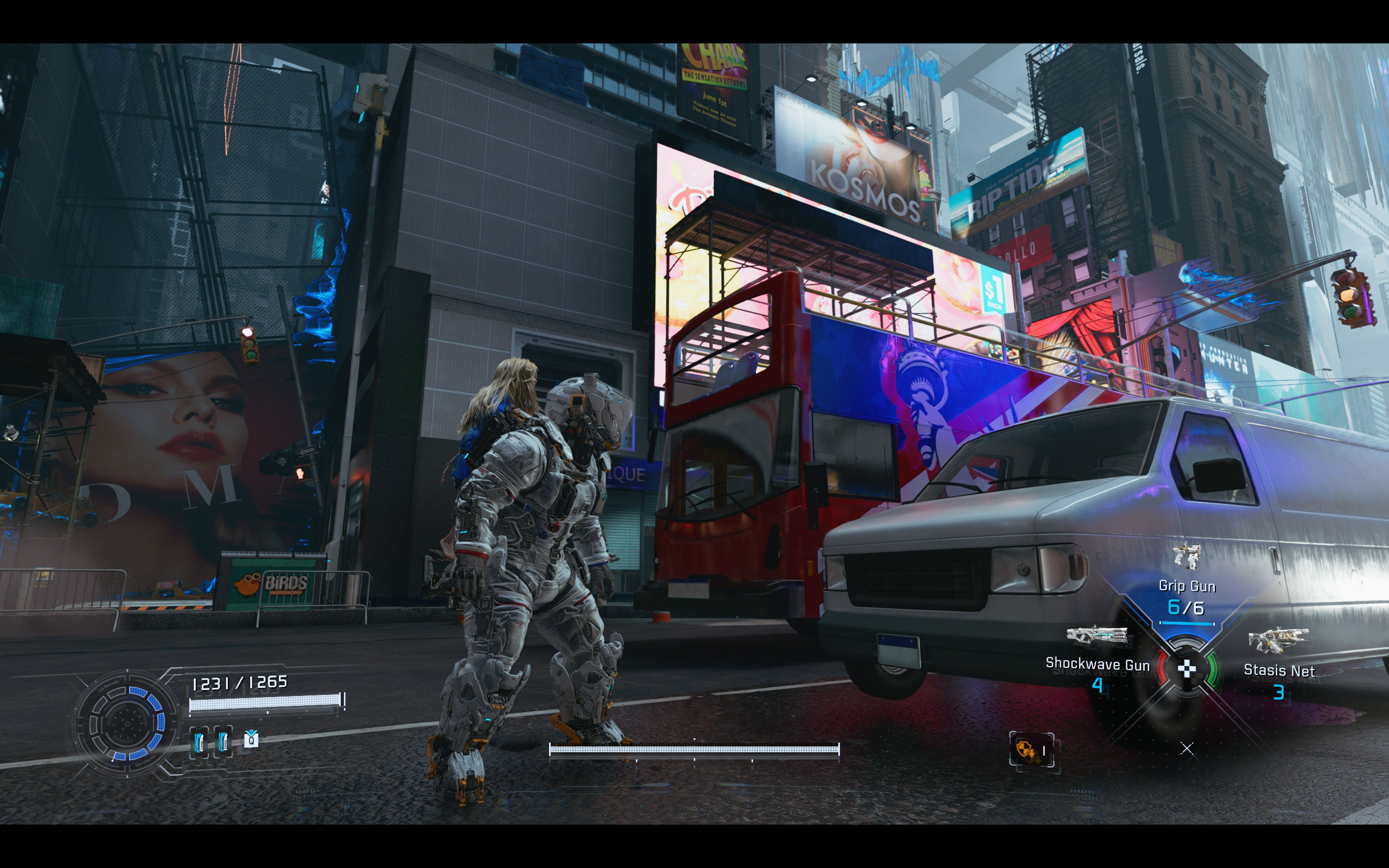
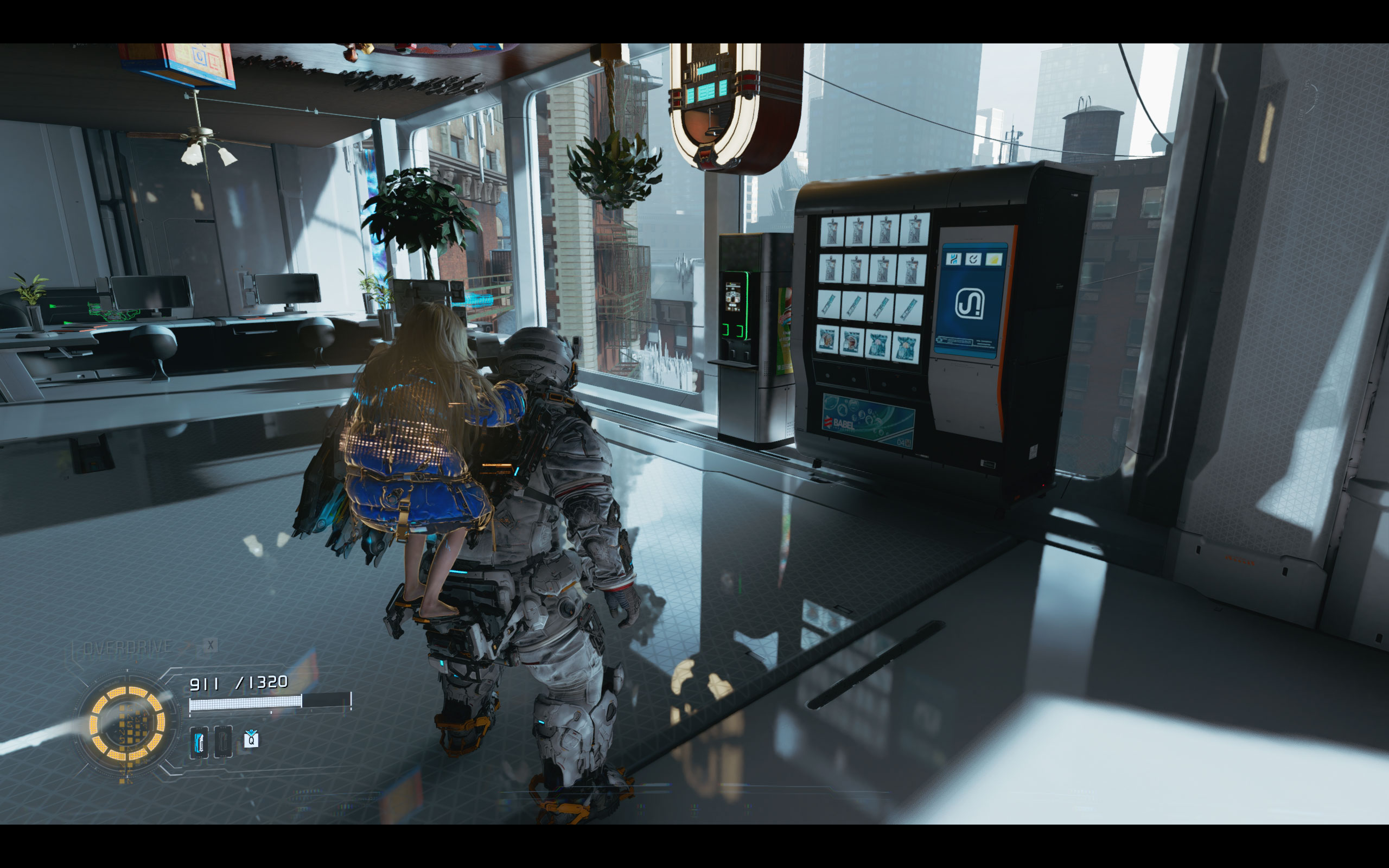
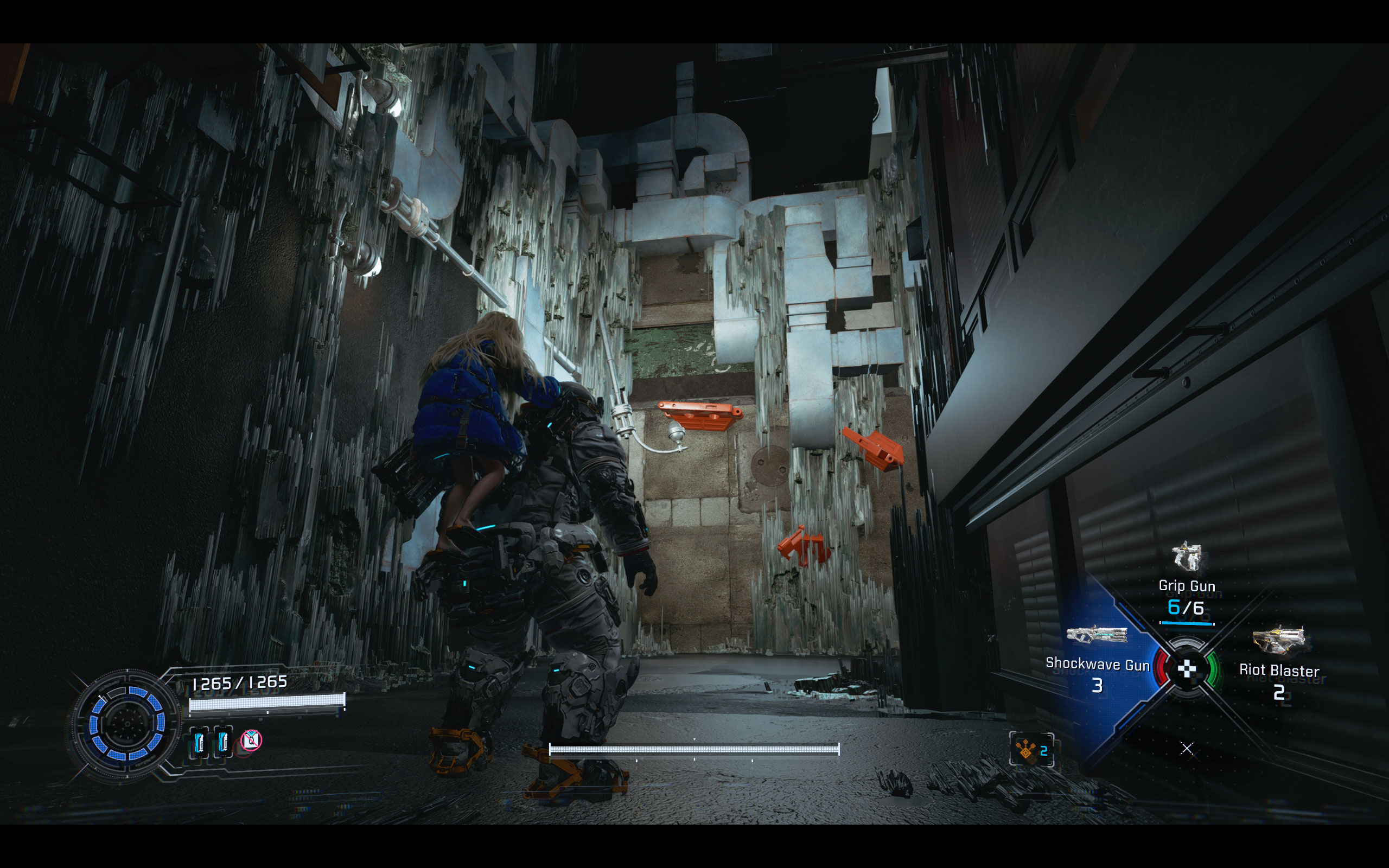
All screenshots were taken at the highest "Quality" preset, with options manually maximized to "Max," ray tracing enabled, and DLAA (because the native TAA is so bad). The gallery can be navigated with the cursor keys.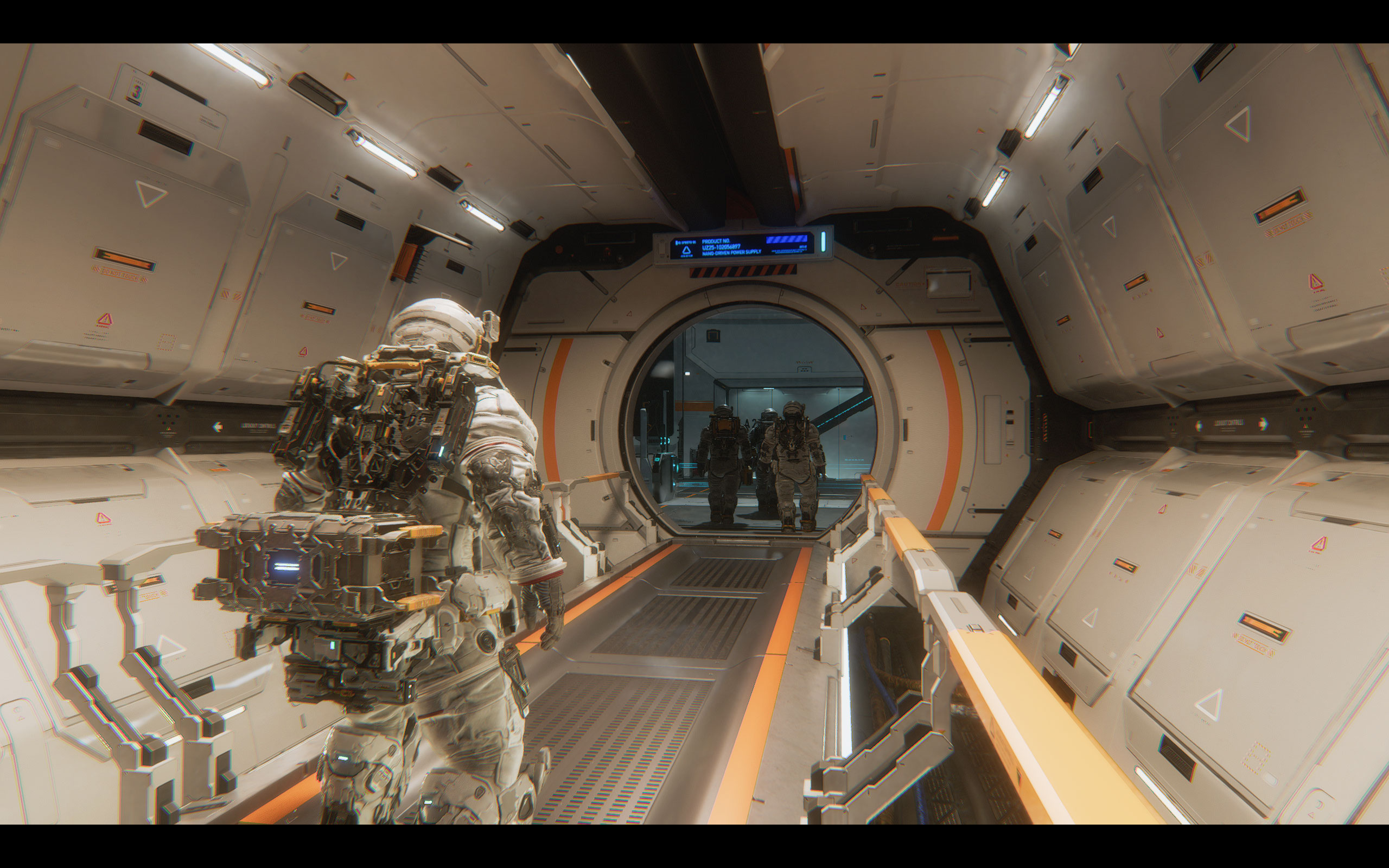
Graphics Settings
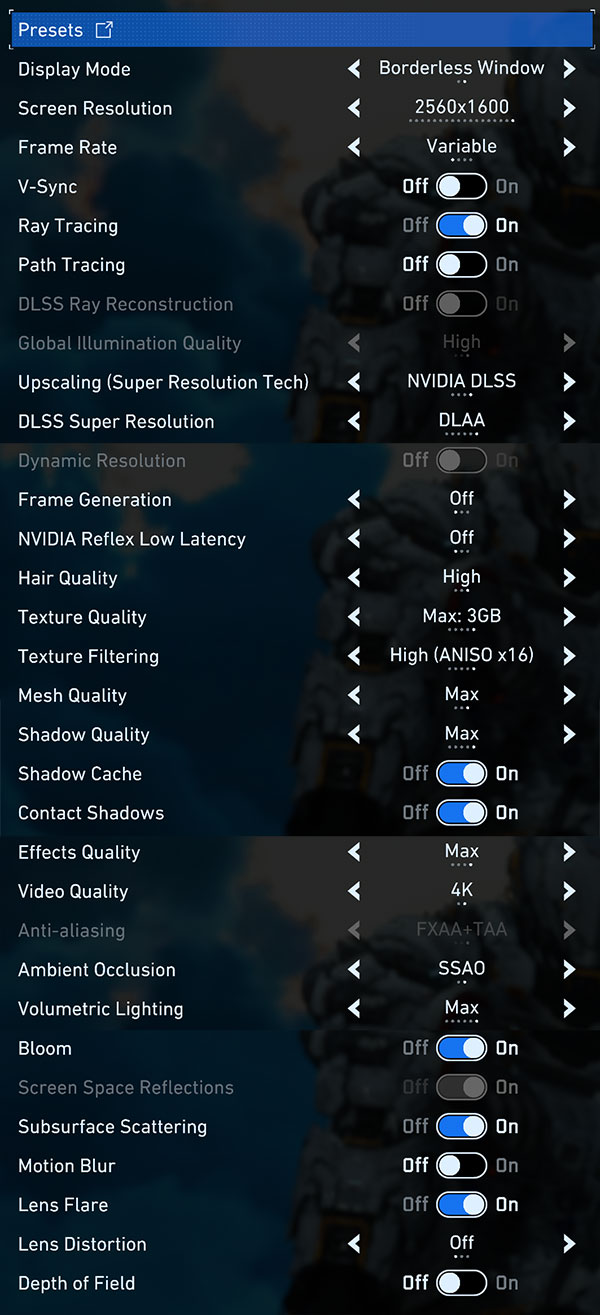
- All graphics settings are on a single scrollable page, with a Presets button at the top for quick configuration. Available presets are "Quality," "Balanced," "Performance," and "Minimum." The preset screen shows your GPU's available VRAM and recommends a minimum of 12 GB for Quality. Unusually, selecting a preset also changes the screen resolution—likely a leftover from the console port. Even the highest "Quality" preset does not max out all settings, though it does enable ray tracing.
- Display Mode supports "borderless window" and "windowed." There is no exclusive fullscreen option.
- Frame Rate can be set to 30, 60, or 120 FPS, or "Variable" for uncapped. V-Sync is a separate on/off toggle.
- Ray Tracing and Path Tracing are separate on/off toggles. Enabling path tracing automatically grays out Global Illumination Quality and Screen Space Reflections, as path tracing handles these natively. Enabling path tracing also force-enables DLSS upscaling and Frame Generation, but you can switch to DLAA and turn Frame Generation back off manually. Path tracing is grayed out on AMD GPUs entirely—tested with the RX 9070 XT—making it an NVIDIA-exclusive feature. AMD Ray Regeneration is not available either.
- DLSS Ray Reconstruction is automatically enabled when path tracing is active with NVIDIA DLSS upscaling. There is no way to enable Ray Reconstruction with standard ray tracing only—it's tied exclusively to path tracing.
- Upscaling offers NVIDIA DLSS, AMD FSR 3, and AMD FSR 1. When DLSS is selected, DLSS Super Resolution provides quality presets including DLAA for native-resolution antialiasing. Intel XeSS is not supported.
- Image Quality controls the render resolution, with options from 50% to 200%, so rendering above native resolution is possible. Dynamic Resolution is available as a toggle but is grayed out when an upscaling technology is active.
- Frame Generation is a separate option. NVIDIA Reflex Low Latency is available alongside it.
- Hair Quality controls the RE Engine's strand-based hair rendering system, with options up to at least "High."
- Texture Quality shows VRAM usage per level (e.g., "Max: 3 GB"). Texture Filtering goes up to "High (ANISO x16)."
- Mesh Quality and Shadow Quality each go up to "Max." Shadow Cache and Contact Shadows are additional on/off toggles for fine-tuning shadow rendering.
- Effects Quality goes up to "Max." Video Quality controls pre-rendered cutscene resolution, up to "4K."
- Anti-aliasing offers "Off," "TAA," and "FXAA+TAA." It is grayed out when upscaling is active, as the upscaler handles antialiasing. Unfortunately, the built-in TAA is very poor—even at native resolution, the image flickers noticeably even when standing still, especially on thin lines and high-contrast edges. Using DLSS with DLAA or Quality mode produces a much more stable and cleaner image. In fact, the native TAA is so bad that even FSR 3 at Balanced looks slightly better than the pixelated antialiasing failure at 100% native resolution—and you get a performance boost on top. This makes using an upscaler effectively mandatory for a good experience.
- Ambient Occlusion can be set to "Off" or "SSAO."
- Volumetric Lighting goes up to "Max." Bloom is a separate on/off toggle.
- Screen Space Reflections are automatically disabled when ray tracing or path tracing is active.
- Subsurface Scattering, Motion Blur, Lens Flare, and Depth of Field are individual on/off toggles. Motion Blur can be easily disabled.
- Lens Distortion has multiple settings beyond just on/off.
- There is no field of view slider here, but you can set camera distance in the camera settings: "near," "standard" (default) and "far" (which I prefer slightly over the default).
Our Patreon Silver Supporters can read articles in single-page format.
Nov 15th, 2026 01:04 CST
change timezone
Latest GPU Drivers
New Forum Posts
- WarpCoreBench scores! (46)
- Honestly, do you care about GTA VI? (27)
- Optical Disc Drive owners club (209)
- Bought MAX-P495 - Which model? (32)
- "Legacy Control Panel" won't install (1)
- Tell me about your favourite graphics card (84)
- Planning for Prolonged High Prices and Maintaining What You Already Have (72)
- What can the FX 8320 do today? Here is the answer. (47)
- Recommendations Wanted - Affordable Enterprise SSD for Boot (3)
- [INTEL]-How To Update Your Microcode for Intel HX 13/14th Gen. CPUs Laptops/Mobile Easily. (260)
Popular Reviews
- AMD Zen 6 Technical Deep Dive
- ASUS ROG Strix B850-I Gaming Wi-Fi7 W Review
- Corsair HX1000i Shift Crystal Review
- Upcoming Hardware Launches 2027 (Updated Nov 2026)
- Montech King 95 3D PRO Review
- NZXT C1200 Platinum Review
- NZXT H7 RGB+ Review
- NZXT H5 Review
- Phantom Blade Zero Performance Benchmark Review - 35 GPUs Tested
- AMD Ryzen 7 9800X3D Review - The Best Gaming Processor
TPU on YouTube
Controversial News Posts
- NVIDIA Co-Founder and CEO Jensen Huang Officially Resigns (408)
- OpenAI CEO Argues Home PCs Waste the World's Limited DRAM Supply (152)
- NVIDIA Launches Investigation Into Jensen Huang's Relationship With Suspected Chinese Spy (136)
- Intel "Raptor Lake Next" 16-Core and 20-Core CPUs Surface (130)
- Legendary Game Studio BioWare Shuts Down Following EA Layoffs (104)
- Dell CEO Says the Memory Shortage Will Get Worse in 2027 (95)
- NVIDIA GeForce RTX 50-Series Scheduled for up to $500 Price Hike This Week (89)
- Modder Fits RTX 5090 With Four 8-Pin Connectors, Halving Current per Wire (80)