 7
Pragmata Handheld Performance Review
Out-of-Box Experience »Graphics Settings
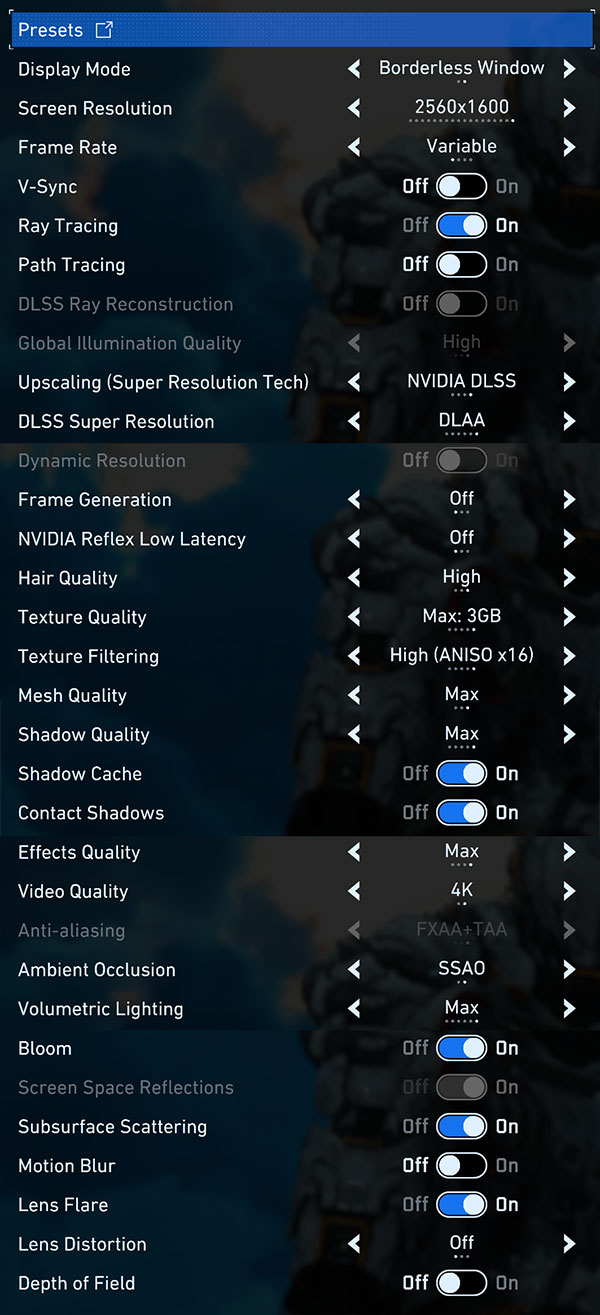
- All graphics settings are on a single scrollable page, with a Presets button at the top for quick configuration. Available presets are "Quality," "Balanced," "Performance," and "Minimum." The preset screen shows your GPU's available VRAM and recommends a minimum of 12 GB for Quality. Unusually, selecting a preset also changes the screen resolution—likely a leftover from the console port. Even the highest "Quality" preset does not max out all settings, though it does enable ray tracing.
- Display Mode supports "borderless window" and "windowed." There is no exclusive fullscreen option.
- Frame Rate can be set to 30, 60, or 120 FPS, or "Variable" for uncapped. V-Sync is a separate on/off toggle.
- Ray Tracing and Path Tracing are separate on/off toggles. Enabling path tracing automatically grays out Global Illumination Quality and Screen Space Reflections, as path tracing handles these natively. Enabling path tracing also force-enables DLSS upscaling and Frame Generation, but you can switch to DLAA and turn Frame Generation back off manually. Path tracing is grayed out on AMD GPUs entirely—tested with the RX 9070 XT—making it an NVIDIA-exclusive feature. AMD Ray Regeneration is not available either.
- DLSS Ray Reconstruction is automatically enabled when path tracing is active with NVIDIA DLSS upscaling. There is no way to enable Ray Reconstruction with standard ray tracing only—it's tied exclusively to path tracing.
- Upscaling offers NVIDIA DLSS, AMD FSR 3, and AMD FSR 1. When DLSS is selected, DLSS Super Resolution provides quality presets including DLAA for native-resolution antialiasing. Intel XeSS is not supported.
- Image Quality controls the render resolution, with options from 50% to 200%, so rendering above native resolution is possible. Dynamic Resolution is available as a toggle but is grayed out when an upscaling technology is active.
- Frame Generation is a separate option. NVIDIA Reflex Low Latency is available alongside it.
- Hair Quality controls the RE Engine's strand-based hair rendering system, with options up to at least "High."
- Texture Quality shows VRAM usage per level (e.g., "Max: 3 GB"). Texture Filtering goes up to "High (ANISO x16)."
- Mesh Quality and Shadow Quality each go up to "Max." Shadow Cache and Contact Shadows are additional on/off toggles for fine-tuning shadow rendering.
- Effects Quality goes up to "Max." Video Quality controls pre-rendered cutscene resolution, up to "4K."
- Antialiasing offers "Off," "TAA," and "FXAA+TAA." It is grayed out when upscaling is active, as the upscaler handles antialiasing. Unfortunately, the built-in TAA is very poor—even at native resolution, the image flickers noticeably even when standing still, especially on thin lines and high-contrast edges. Using DLSS with DLAA or Quality mode produces a much more stable and cleaner image. In fact, the native TAA is so bad that even FSR 3 at Balanced looks slightly better than the pixelated antialiasing failure at 100% native resolution—and you get a performance boost on top. This makes using an upscaler effectively mandatory for a good experience.
- At 900p and below, native image does look better than upscaled one (at least when using FSR) even though the game's TAA implementation is less than stellar.
- Ambient Occlusion can be set to "Off" or "SSAO."
- Volumetric Lighting goes up to "Max." Bloom is a separate on/off toggle.
- Screen Space Reflections is automatically disabled when ray tracing or path tracing is active.
- Subsurface Scattering, Motion Blur, Lens Flare, and Depth of Field are individual on/off toggles. Motion Blur can be easily disabled.
- Lens Distortion has multiple settings beyond just on/off.
- There is no field of view slider here, but you can set camera distance in the camera settings: "near," "standard" (default) and "far."
Test Devices
We tested the press review build of Pragmata.- The Steam Deck LCD was running SteamOS version 3.7.20, build 20260108.1.
- Our ROG Xbox Ally X had Armoury Crate 2.1.21.0 installed along with BIOS 316.
- The MSI Claw 8 AI+ A2VM had MSI Center M 2.0.2601.2301 installed along with BIOS E1T52IMS.112
- The ROG Ally X had the latest Armoury Crate version installed at the time of testing (2.1.21.0), along with BIOS 312.
- The ROG Ally with SteamOS was running SteamOS version 3.7.20, build 20260108.1.
| Gaming Handhelds Used for Testing | |
|---|---|
| Steam Deck LCD | SteamOS version 3.7.20 build 20260108.1 |
| ASUS ROG Xbox Ally X | Armoury Crate 2.1.21.0 BIOS 316 GPU driver version: 32.0.23027.4002 Windows 11 Home 25H2 VBS disabled |
| Claw 8 AI+ A2VM | MSI Center M 2.0.2601.2301 BIOS E1T52IMS.112 GPU driver version: 32.0.101.8629 Windows 11 Home 25H2 VBS disabled |
| ASUS ROG Ally X | Armoury Crate 2.1.21.0 BIOS 312 GPU driver version: 32.0.22029.13001 Windows 11 Home 25H2 VBS disabled |
| ASUS ROG Ally Z1E with SteamOS | SteamOS version 3.7.20 build 20260108.1 |
Nov 24th, 2026 16:38 CST
change timezone
Latest GPU Drivers
New Forum Posts
- {NA} 2026 Black November prices / deal (1)
- Help finding Xbox Series X manual fan controller. (0)
- WireView Pro II GPU Alignment: Wired | Variant: Black (7)
- AMD ULL settings tinkering thread - post settings and Zen pics (89)
- Which ryzen am5 cpu ? (206)
- Your PC ATM (36500)
- Linpack Xtreme Released (510)
- Asus ROG Strix XG27AQWMG compared to XG27AQWMG-R what changed? (0)
- The time has come to upgrade...my desktop (7)
- Anthrophics IPO (37)
Popular Reviews
- Microsoft Surface Laptop Ultra Review - The Next-gen Arm Laptop
- ASRock X870E Challenger Wi-Fi White Review
- Upcoming Hardware Launches 2027 (Updated Nov 2026)
- Corsair RM1200e (Second Generation) Review
- AMD Ryzen 7 9800X3D Review - The Best Gaming Processor
- AMD Zen 6 Technical Deep Dive
- VZMORE AX9 Max Review
- AMD Ryzen 7 7700X3D Review
- Pulsar Office Tour & First Look at P1 Dual-Sensor Mouse
- Phantom Blade Zero Performance Benchmark Review - 35 GPUs Tested
TPU on YouTube
Controversial News Posts
- Jensen Huang Reinstated as CEO of NVIDIA (520)
- NVIDIA Co-Founder and CEO Jensen Huang Officially Resigns (492)
- Report: Jensen Huang Eyes NVIDIA Comeback (281)
- Open Letter Asking NVIDIA to Reinstate Jensen Huang Passes 115,000 Signatures (184)
- OpenAI CEO Argues Home PCs Waste the World's Limited DRAM Supply (152)
- NVIDIA Launches Investigation Into Jensen Huang's Relationship With Suspected Chinese Spy (136)
- Intel "Raptor Lake Next" 16-Core and 20-Core CPUs Surface (130)
- Intel Razor Lake Gets a 12 P-Core bLLC Chip With No E-Cores, Per Leak (91)