 0
Quick Look: INNOCN Portable Monitor N2F
(0 Comments) »Introduction

INNOCN is a Shenzhen-based monitor brand under which the Century Joint Innovation Group is developing, manufacturing, and selling PC monitors and commercial displays. They're very competitively priced while doing their best to tick every box in terms of technical specifications for the user type they're aiming at. In this article, we'll take a quick look at the INNOCN Portable Monitor N2F. INNOCN was kind enough to provide a substantial discount to TechPowerUp readers, which knocks the monitor's price from $190 to $112. If you're looking for a portable monitor, do stick around until the end to find out how to get the discount.

The INNOCN Portable Monitor N2F is based on a 15.6-inch 1080p IPS panel. It offers 220 cd/m² brightness, 800:1 contrast ratio, 60 Hz refresh rate, 178° horizontal and vertical viewing angles, and some interesting extra features, such as USB-C and HDMI connectivity and a blue light filter. The monitor is supplied with a 2-in-1 smart case, which protects its front and back when carrying it around and serves as a stand for the monitor.
As for the intended use case of the INNOCN Portable Monitor N2F, and portable monitors in general, the options are numerous. For example, you can use it as a secondary screen for your desktop PC at home, or a travel screen for your smartphone or gaming console. You may need a secondary monitor for easier multitasking on your laptop when on the go, or an external viewfinder for your camera—a portable monitor is an obvious solution.
Packaging and Contents


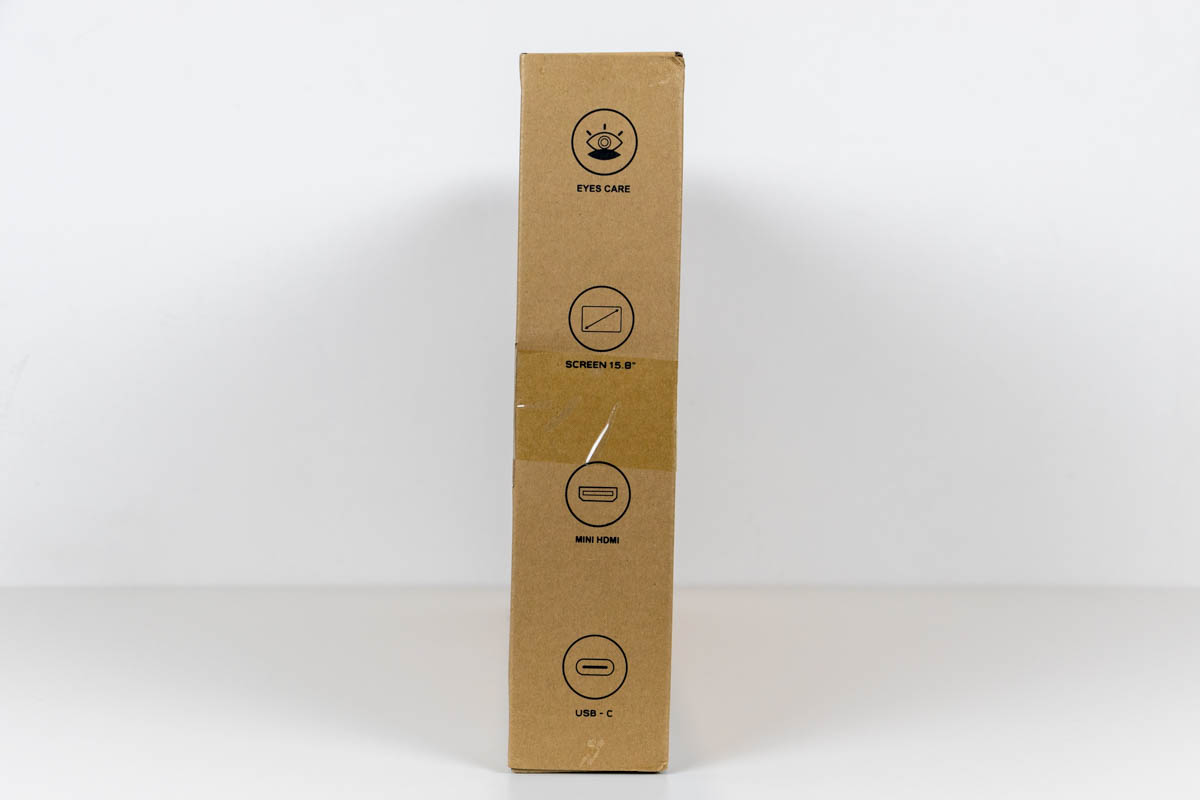
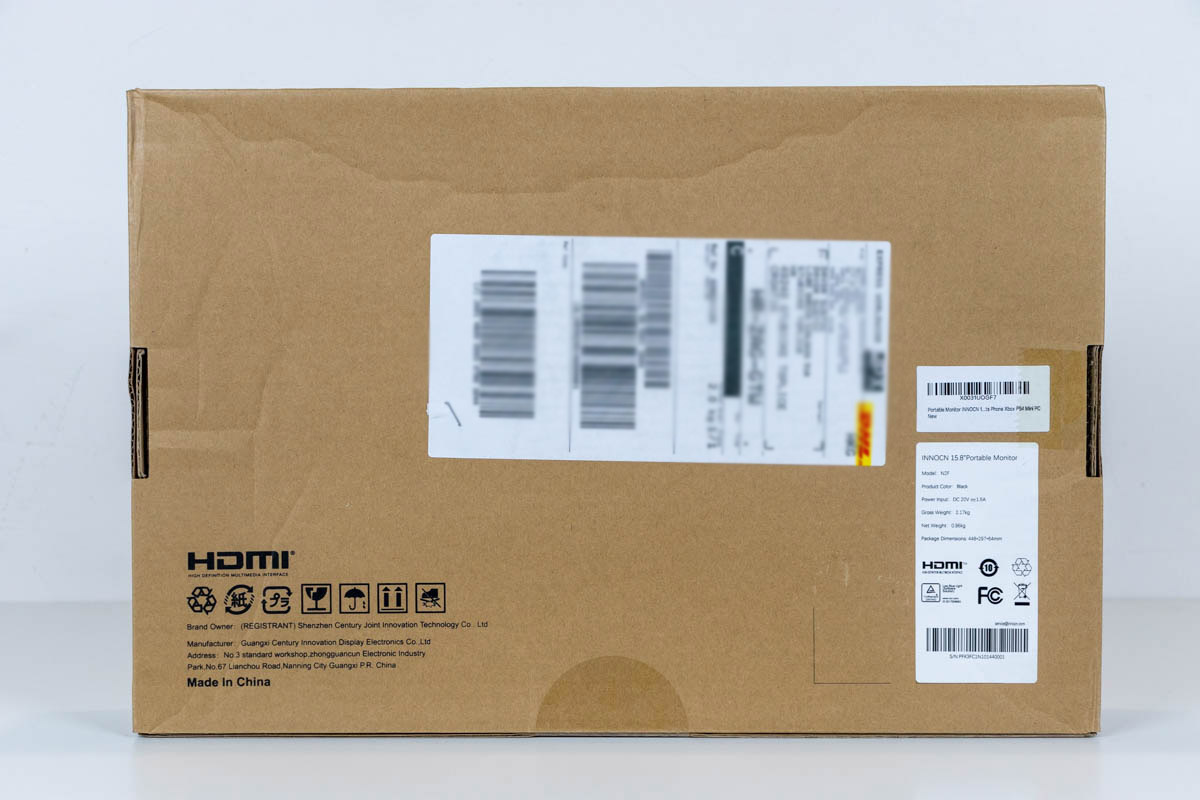
The INNOCN Portable Monitor N2F is packed in a simple cardboard box. It shows a silhouette sketch of the monitor on front and goes over its key features on the sides. This is where you'll find out that the monitor offers a 15.6-inch diagonal, as well as Mini HDMI and USB-C connectivity.


Inside the box, you'll find the monitor along with a 2-in-1 smart cover, 1-meter (3.3 ft) USB-C cable, and printed quick-start guide. A power adapter isn't supplied, so I resorted to using a generic Cellularline 25 W power brick I had laying around, which did the job of powering the monitor perfectly.
Closer Look


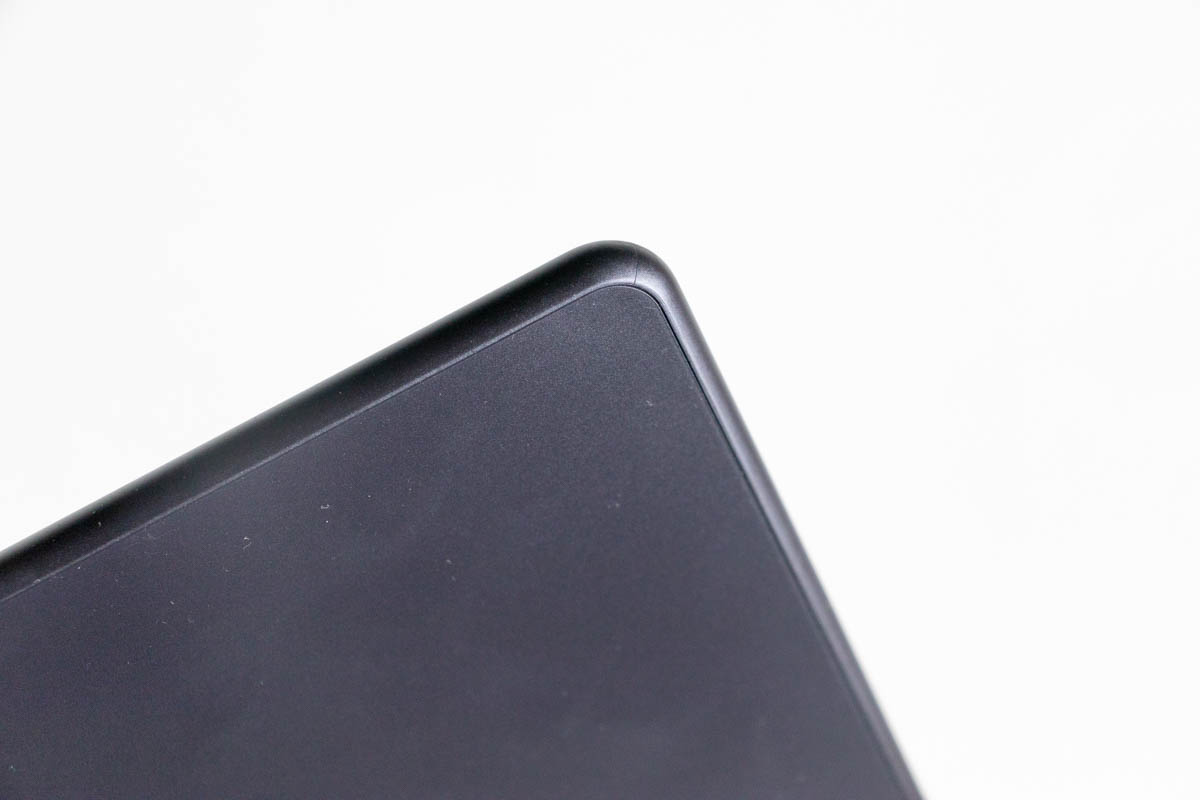
The INNOCN Portable Monitor N2F strongly resembles a large tablet. I mean that as a compliment since the monitor only weighs 990 grams (2.18 lb), and it's less than 1 centimeter (0.37 in) thick, so finding room for it in a backpack or travel suitcase is easy. The upper and side bezels are reasonably thin, with the bottom bezel thicker, as expected. The IPS panel is placed inside a plastic case with smooth, rounded edges. The whole contraption feels reasonably sturdy, more so after placing it inside the supplied smart cover, which is how you should use it anyway.


The supplied 2-in-1 smart cover made of PU leather looks and feels like a cheaper version of the Smart Folio cover Apple is offering for various iPads. When closed, it covers the monitor on both sides, protecting it from scratches and any other type of damage while being carried around. The "front" side of the cover is foldable, so it doubles as a monitor stand. INNOCN claims that the smart cover uses magnets to stay in place, but I have to admit I didn't feel any magnets in action when I used it to cover the screen or act as a stand. If there are any, they're very weak, magnitudes weaker than the magnets Apple is using on their iPad covers. With that in mind, if you turn the monitor upside down, the front flap of the smart cover will detach from the screen. This didn't cause me any issues while traveling with the INNOCN Portable Monitor N2F though, primarily because the flap doesn't open by itself in any other position. I should also point out I didn't have any issues using the smart cover as a stand; it always kept the monitor in an upright position and seemed very stable even when I rotated it to the left and right to better adjust it to my sitting position.

On the left side of the monitor, you'll find a pair of USB-C ports and a Mini HDMI video input. Either USB-C port can also be used as a video input, and the secondary one is there to power the monitor if your video source isn't utilizing its USB-C interface for power delivery. In other words, if your laptop's or smartphone's USB-C port supports Power Delivery (PD), you only need to connect it to the monitor with a single (supplied) USB-C cable. The monitor will receive power and data (video, audio, mouse, and keyboard inputs) through its USB-C interface. This is by far the most intuitive way to use the INNOCN Portable Monitor N2F, as using the monitor on the go comes down to having it and a single USB-C cable on hand. Of course, the amount of power provided by your device will determine the maximum achievable brightness of the INNOCN Portable Monitor N2F. For example, my OnePlus 7 Pro delivered enough power to the monitor to achieve a brightness of 75 cd/m², which corresponded to the brightness set to 32 in the OSD. Anything above that simply had the monitor turn off until I connected an external power brick to the secondary USB-C port. This is something you'll have to do if your video source has a USB-C port that only works as a video output and isn't capable of Power Delivery, too. Any extra power delivered to the monitor will be routed to charge the battery of the connected device (laptop or smartphone). As I already mentioned, I had no issues powering the monitor with a generic 25 W power brick, which I use to charge my phone when traveling. Of course, you also have to use the power brick if connecting the INNOCN monitor to your device via the Mini HDMI input. In this scenario, you'll also have to buy a Mini HDMI cable because one isn't supplied.
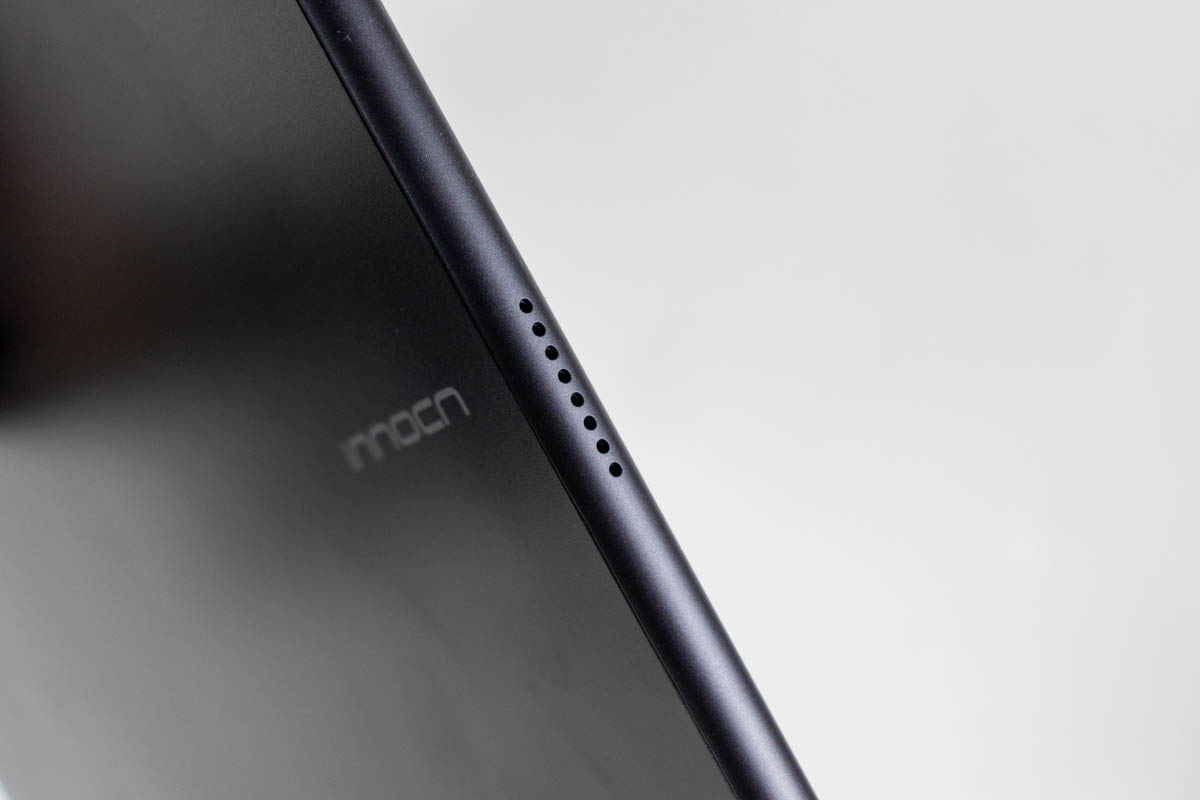

Both sides of the case have hole cutouts for the integrated 1-watt stereo speakers. In terms of sound quality and maximum volume, these speakers can't replace a pair of headphones for anything more demanding than a quick YouTube video, but for situations when you simply can't be bothered to connect anything else and are in a fairly quiet environment, they do come in handy.
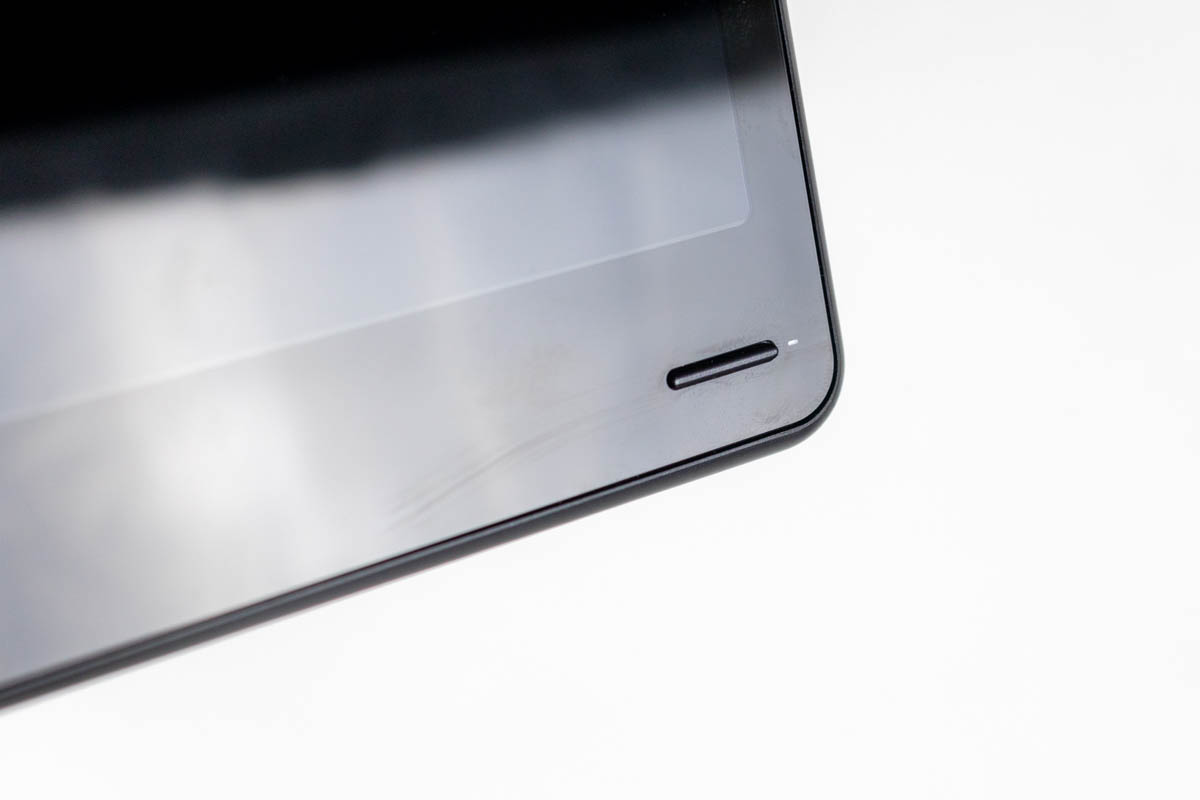
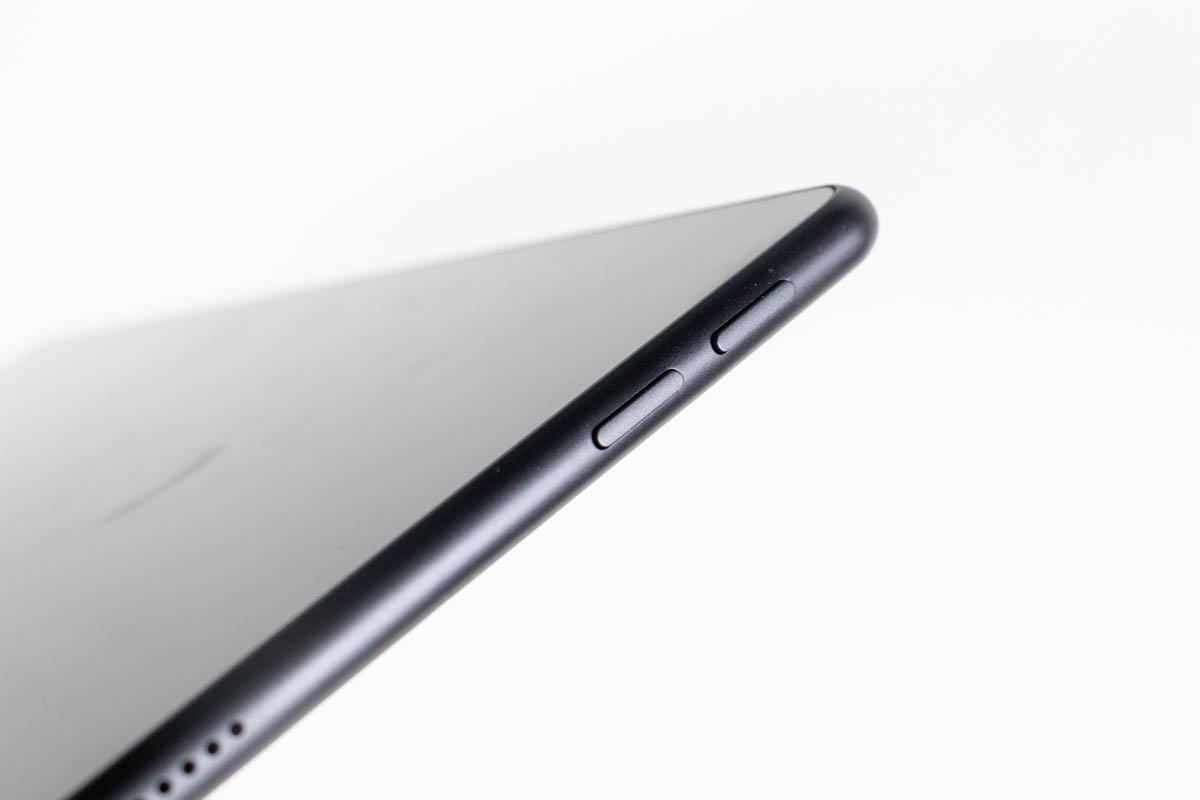
On the front, sitting below the display, is a multipurpose button. When pressed and held for 3 seconds, it behaves as a power button. A short press opens the OSD and confirms the current selection, while a different pair of buttons, found on the right side of the monitor, is used to navigate the OSD. This can be a bit clunky, and you need both hands to operate the OSD. When the OSD is closed, the side buttons adjust the speaker volume.
Our Patreon Silver Supporters can read articles in single-page format.
Nov 14th, 2026 07:57 CST
change timezone
Latest GPU Drivers
New Forum Posts
- Tell me about your favourite graphics card (47)
- 3D Printer Club (851)
- Folding Pie and Milestones!! (10202)
- a note from zachary85's son (9)
- Have you got pie today? (17083)
- No screen and keyboard with mouse not being powered on (4)
- Requesting original VBIOS for Gigabyte RX 5700 XT GAMING OC 8G Rev 2.0 (Micron) (3)
- Unallocated space in ssd , is it normal? (19)
- What can the FX 8320 do today? Here is the answer. (2)
- Planning for Prolonged High Prices and Maintaining What You Already Have (63)
Popular Reviews
- AMD Zen 6 Technical Deep Dive
- Corsair HX1000i Shift Crystal Review
- ASUS ROG Strix B850-I Gaming Wi-Fi7 W Review
- NZXT C1200 Platinum Review
- Upcoming Hardware Launches 2027 (Updated Nov 2026)
- Montech King 95 3D PRO Review
- NZXT H7 RGB+ Review
- NZXT H5 Review
- Phantom Blade Zero Performance Benchmark Review - 35 GPUs Tested
- XPG NIMBUS PLUS Review - Mid-range Chair With Strong Competitors
TPU on YouTube
Controversial News Posts
- NVIDIA Co-Founder and CEO Jensen Huang Officially Resigns (385)
- OpenAI CEO Argues Home PCs Waste the World's Limited DRAM Supply (152)
- NVIDIA Launches Investigation Into Jensen Huang's Relationship With Suspected Chinese Spy (136)
- Intel "Raptor Lake Next" 16-Core and 20-Core CPUs Surface (130)
- Legendary Game Studio BioWare Shuts Down Following EA Layoffs (104)
- Dell CEO Says the Memory Shortage Will Get Worse in 2027 (95)
- NVIDIA GeForce RTX 50-Series Scheduled for up to $500 Price Hike This Week (89)
- Modder Fits RTX 5090 With Four 8-Pin Connectors, Halving Current per Wire (80)