 18
Samsung Odyssey OLED G6 G60SD Review - A Matte Twist
Response Time, Input Lag & Motion Blur »Picture Quality
The Samsung Odyssey OLED G6 G60SD is built around a 26.5-inch, 10-bit QD-OLED panel developed by Samsung Display. More specifically, it's based on the third generation of QD-OLED technology, which introduces a new material stack for improved peak brightness, a refined subpixel layout with reduced color fringing, and lower risk of image retention. While fourth-generation QD-OLED panels are available, the differences between the two generations are minor, so there's no reason to struggle with FOMO if you opt for this monitor.The panel runs at a native resolution of 2560×1440, which results in a pixel density of 111 PPI and a dot pitch of 0.2292 mm. Overall image sharpness is very good. I didn't notice any fringing while gaming, browsing, working with text (such as this review), or using Photoshop and Lightroom. Subjectively, an IPS panel of the same size and resolution still appears a touch sharper, but the difference is marginal. The days when you could immediately spot the difference in sharpness between OLED and IPS panels are largely behind us.
Like other OLED monitors, the Odyssey OLED G6 G60SD doesn't rely on a traditional LED backlight. Instead, its self-emissive pixels offer all the expected benefits: infinite contrast, true blacks, zero haloing, and exceptional response times.
Somewhat unexpectedly, instead of using a glossy screen coating like its competitors, Samsung decided to stand out with a matte anti-reflection coating. While glossy QD-OLED panels are capable of producing slightly deeper-looking contrast and more saturated colors thanks to the way light passes through their surface, their mirror-like finish introduces a significant trade-off. Any source of ambient light—be it sunlight streaming through a window or overhead artificial lighting—will be reflected almost like a mirror, often making darker scenes difficult to see and washing out fine details. In a well-controlled environment, such as a dimly lit gaming room or a calibrated studio space, this finish can enhance image punch and perceived depth. However, once the display is placed in a bright or mixed-light setting, those advantages diminish rapidly. By comparison, matte-coated panels scatter incoming light, reducing reflections and maintaining legibility of the image under less-than-ideal conditions. This makes them a far more versatile and practical choice for everyday use, especially in spaces where lighting cannot always be optimized.
This brings us to a known limitation of QD-OLED technology, raised black levels in bright rooms. Unlike LG Display's WOLED panels, Samsung's QD-OLED panels do not use a polarizer, a component that helps suppress reflections and preserve deep black levels under ambient lighting. Without it, reflected light can brighten black areas, making them appear gray instead of truly black. To Samsung's credit, the anti-reflective coating and subpixel structure have improved compared to early QD-OLED implementations, with much of the purple tinting eliminated. However, the lack of a polarizer remains a hardware limitation.
That said, it's not a dealbreaker. In most real-world use cases, you won't be comparing two OLED monitors side by side, nor will you be focused on subtle black-level differences across technologies. More importantly, if you're regularly working or gaming in bright rooms, an OLED monitor likely isn't the right tool in the first place. For such setups, an IPS panel with a Mini-LED backlight will serve you better—offering higher SDR brightness and better handling of ambient light. In short, QD-OLED's raised black levels can be an issue, but only in environments where OLED monitors are already a poor fit. A dim room is all you need to enjoy perfect blacks from this panel, a pitch-black one isn't necessary.
To test picture quality, I used an X-Rite i1Display Pro colorimeter with both DisplayCAL—a free, powerful display calibration and profiling tool—and Calman Ultimate, the industry-standard suite for display testing and calibration.
Testing was done on firmware version M-D6027GGAA-1004.2, the latest available at the time of review.
Picture Quality at Factory Settings
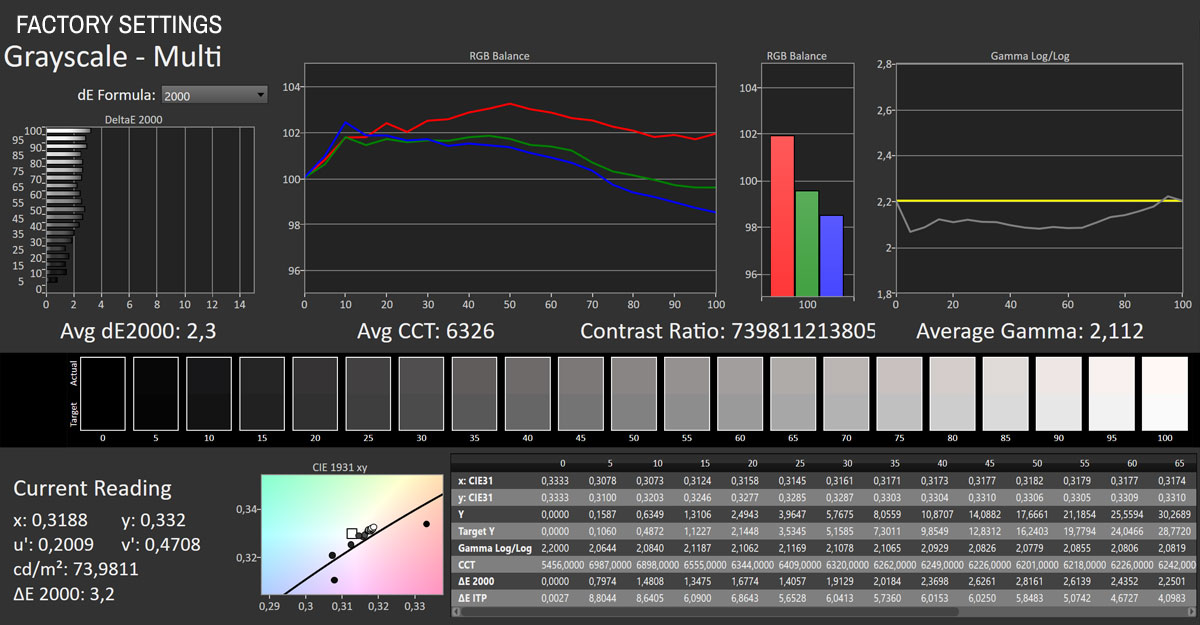
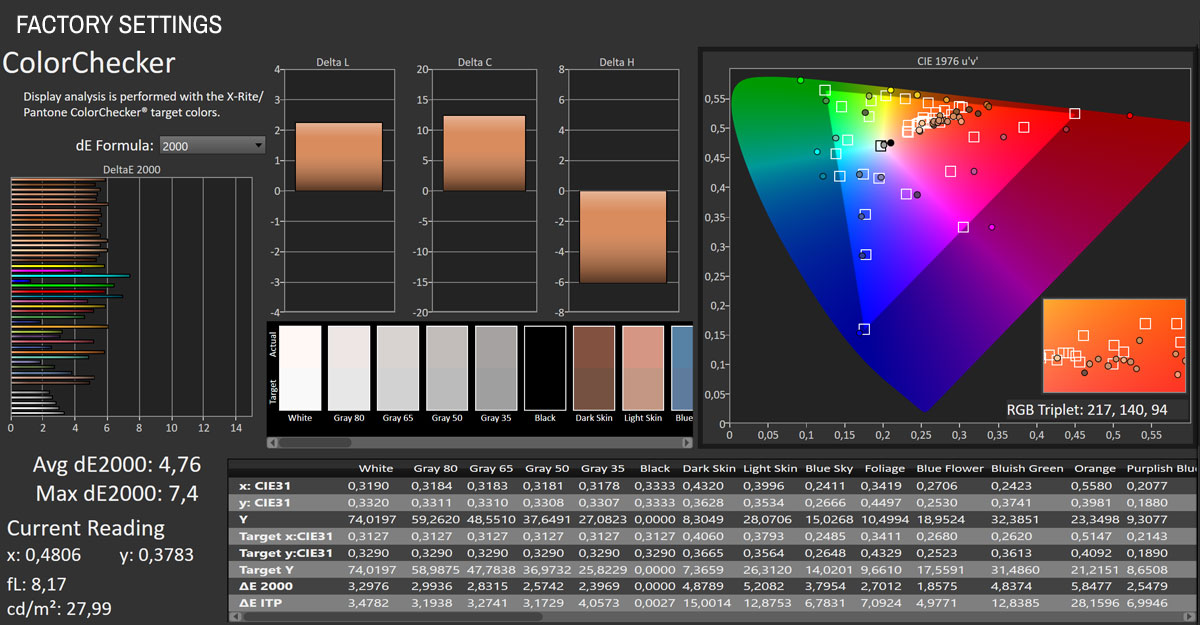
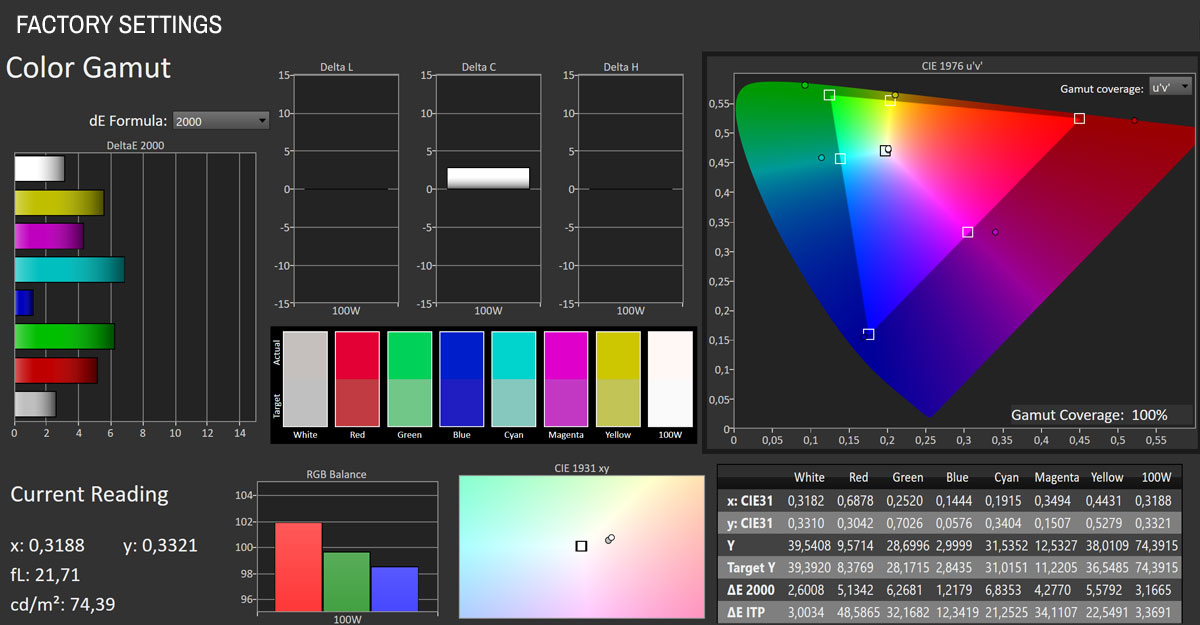
Out of the box, the Samsung Odyssey OLED G6 G60SD ships with the "Eco" picture preset active. In this mode, the panel delivers full DCI-P3 coverage, with measured gamut coverage at 100%. However, accuracy is inconsistent. The color accuracy test shows an average ∆E of 4.76, with maximum error reaching 7.4, which indicates visible deviations from reference across several test tones. Grayscale tracking is better, with an average ∆E of 2.3 and a correlated color temperature of 6,326 K, though the RGB balance reveals a consistent red channel dominance, while green and especially blue also sit above the ideal 100% line. Gamma averages 2.11, close to the 2.2 reference, but tends to flatten out toward mid-to-high brightness levels. Peak SDR luminance at default brightness is measured at 74 cd/m², which is low for everyday desktop use and will require adjustment for most users. Taken together, factory performance lacks the accuracy required for color-critical workloads, making manual tuning advisable—even mandatory.
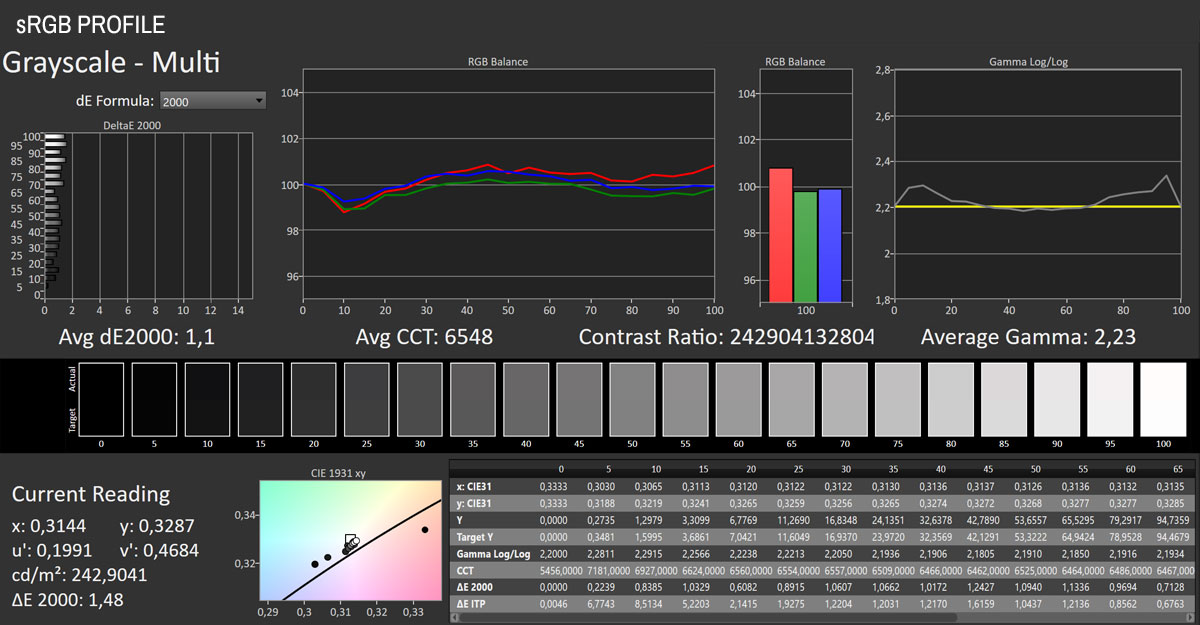
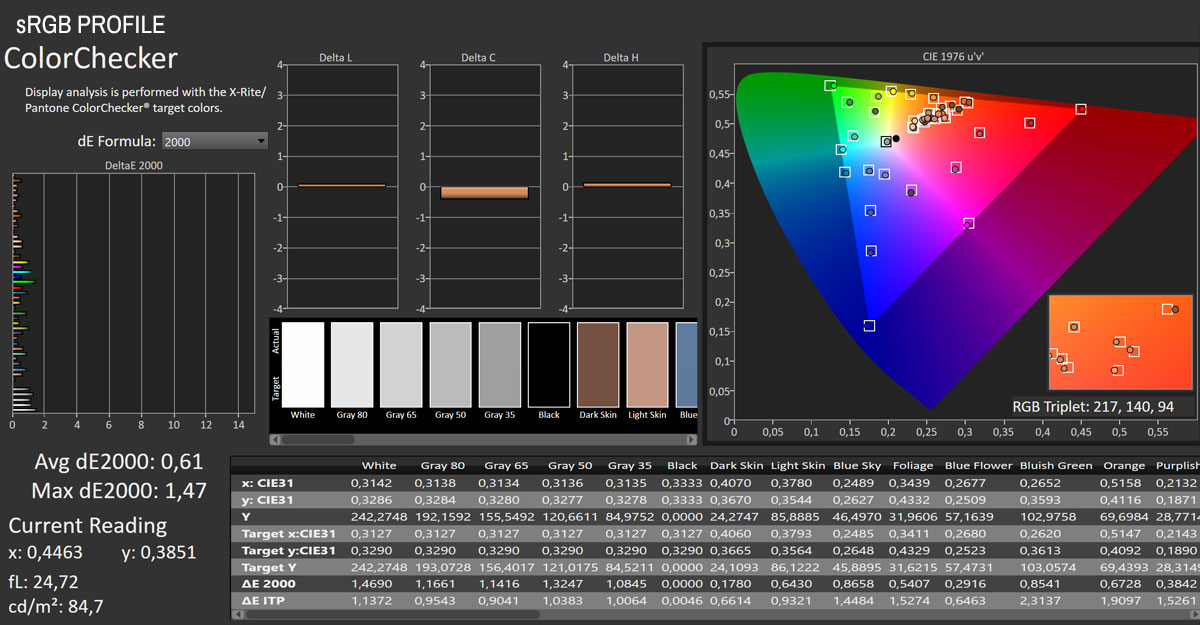

Although the Odyssey OLED G6 G60SD does not offer a clearly labeled sRGB mode, an effective sRGB clamp can be enabled in the OSD by selecting "Auto" under Picture > Color Space Settings > Color Space. With this option active, the monitor reduces its gamut coverage to 98.4% of the sRGB color space, eliminating the oversaturation seen in the default "Native" mode. This leads to a significant improvement in color accuracy, with color accuracy tests showing an average ∆E of just 0.61 and a maximum of 1.47—well within the threshold of professional-grade performance. Grayscale tracking is equally solid, with an average ∆E of 1.1 and a correlated color temperature of 6,548 K, nearly identical to the 6,500 K reference. Gamma averages 2.23, very close to the 2.2 target, and RGB balance remains consistent across the luminance range, with only minimal variation. Peak luminance in this mode was measured at 242 cd/m², sufficient for SDR content. In practice, enabling the sRGB clamp transforms the Odyssey OLED G6 G60SD into a highly accurate monitor for color-managed workflows and every day SDR use. The compromise is the loss of wide-gamut coverage, but for sRGB-based content this setting delivers near-reference results without the need for further calibration.
Picture Quality with Modified Settings
Most users will want to keep the panel's wide gamut active rather than enabling the sRGB clamp. To maximize performance in this mode, I made a few targeted adjustments in the OSD while cross-referencing measurements in real time:Picture > Picture Mode > Graphic
Picture > Brightness > 50
Picture > White Balance > Red -5/Green -1/Blue 5

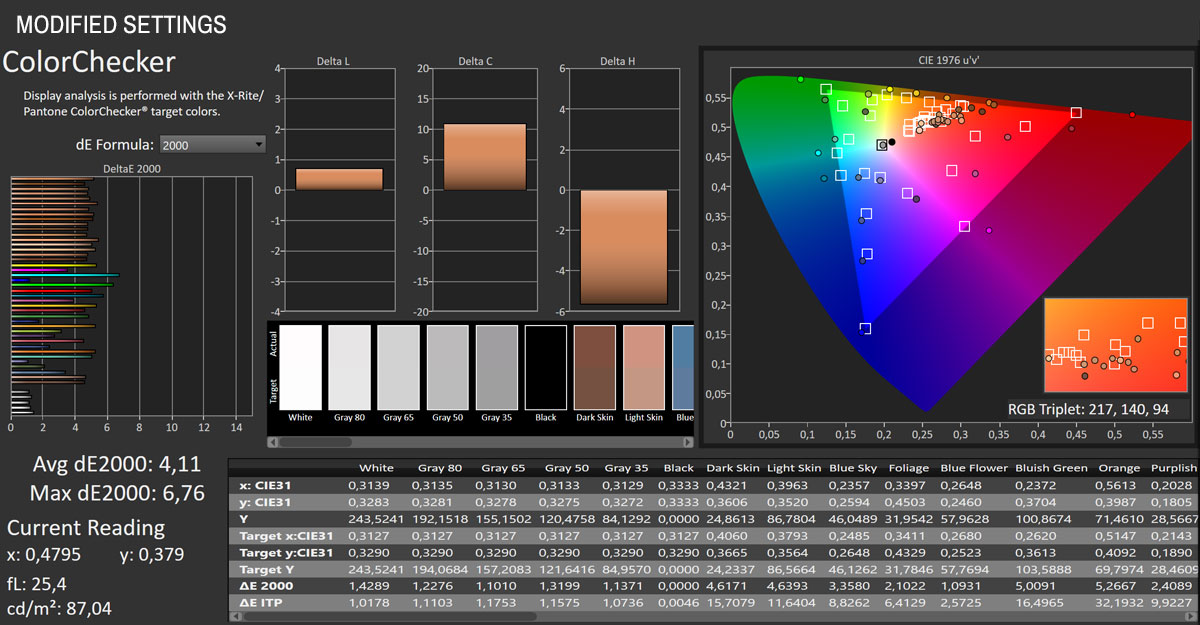
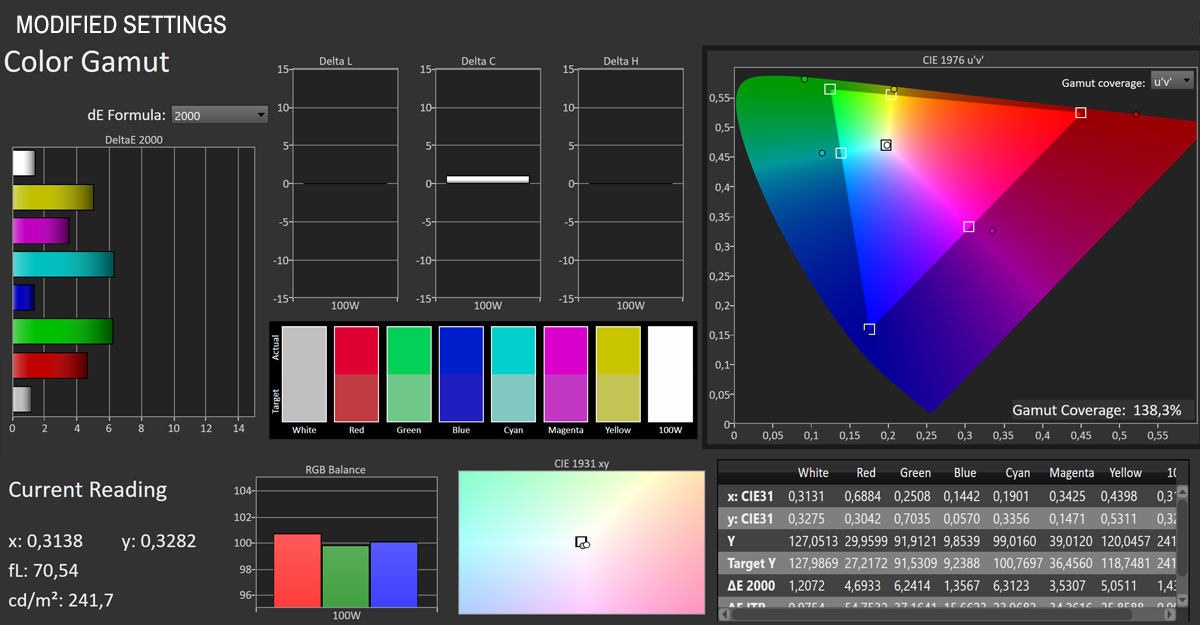
With the wide gamut active and the OSD adjusted, the Samsung Odyssey OLED G6 G60SD delivers much stronger overall performance compared to its out-of-the-box state. Gamut coverage remains extensive at 138.3% of sRGB, so saturation is still higher than reference, but the adjustments bring clear improvements to balance and consistency. Grayscale is very well handled, with an average ∆E of 1.1 and a correlated color temperature of 6,590 K, essentially spot on to the D65 standard. Gamma averages 2.21, aligning closely with the 2.2 target across the luminance sweep. The RGB balance graphs confirm that the red dominance seen at default has been corrected, leaving all three channels tightly grouped and stable across the range. Peak luminance at Brightness 50 reaches 242 cd/m², which is more than adequate for SDR usage without invoking noticeable ABL intervention.
Color accuracy is where wide-gamut operation shows its trade-offs. The color accuracy test reports an average ∆E of 4.11 and a maximum of 6.76, indicating that while neutrals and mid-tones are well-behaved, saturated hues—particularly in the warm and cyan ranges—remain visibly exaggerated. This is expected behavior when feeding sRGB content to a display left in its native gamut. For everyday gaming or general use, the result is a punchy, vibrant image that many will find appealing. For SDR workflows where reference accuracy is required, the sRGB clamp option should still be enabled, or proper ICC profiling used.
With these adjustments, the Odyssey OLED G6 G60SD has grayscale, gamma, and luminance tracking under tight control, while the wide gamut remains available for content that can take advantage of it. The monitor becomes not only visually impressive for gaming but also consistent enough to serve for casual content creation, provided the user is mindful of the wide-gamut oversaturation in unmanaged SDR applications.
Luminance, Contrast and Color Uniformity

Uniformity performance of the Odyssey OLED G6 G60SD is very good. Across the 5×5 measurement grid, brightness deviations remain within tight margins. The maximum recorded luminance difference relative to the center is +5.75% (top-left corner), while the lowest is around –4.15% (bottom-right quadrant). Average luminance deviation is only about 2–3% depending on the sector, which is excellent. Color accuracy across the screen is also well maintained. The ∆E values stay between 0.23 and 1.71, with an average in most quadrants below 1.0, and the worst-case result still under 1.8. This means that even in the least accurate region, color deviation from the center reference is below the perceptible threshold for most users. For practical use, including gaming and content creation, this level of uniformity ensures a stable and reliable image regardless of where content is positioned on the screen.
HDR Performance
The Samsung Odyssey OLED G6 G60SD supports both HDR10 and HDR10+. Its HDR implementation is excellent. When HDR is enabled, the monitor switches to a dedicated set of settings designed exclusively for high dynamic range content. In the Picture menu, you'll need to reselect the "Graphic" profile, and it's worth experimenting with the Peak Brightness option. Choosing "High" delivers peak brightness of around 1,000 cd/m², while "Medium" lowers it to about 535 cd/m² but produces a more natural image with less clipping in highlights and shadows. Once HDR is disabled, the monitor automatically returns to SDR settings without any need for manual adjustment in the OSD.One other noteworthy option, found in the Picture menu, is called "HDR Tone Mapping." You can set it to Static or Active. It determines how the Samsung Odyssey OLED G6 G60SD processes HDR brightness data and adapts it to the panel's real-world capabilities. When set to Static, the monitor applies a fixed tone curve derived from the HDR10 metadata embedded in the content, such as MaxCLL and MaxFALL values. This results in a consistent image that closely follows the mastering intent but may occasionally clip highlights or render mid-tones slightly dimmer if the content's dynamic range exceeds the display's own. Switching to Active enables dynamic tone mapping, where the monitor analyzes the image frame by frame and continuously adjusts the tone curve to preserve highlight and shadow detail while maximizing perceived brightness and contrast. This mode generally produces a more vivid, impactful image, though at the expense of strict HDR accuracy. If color fidelity is what you're after, Static is the preferable HDR Tone Mapping choice, while Active is better suited for gaming and every day HDR use, where visual punch takes priority.
Here's what the peak luminance measurements look like across various window sizes.
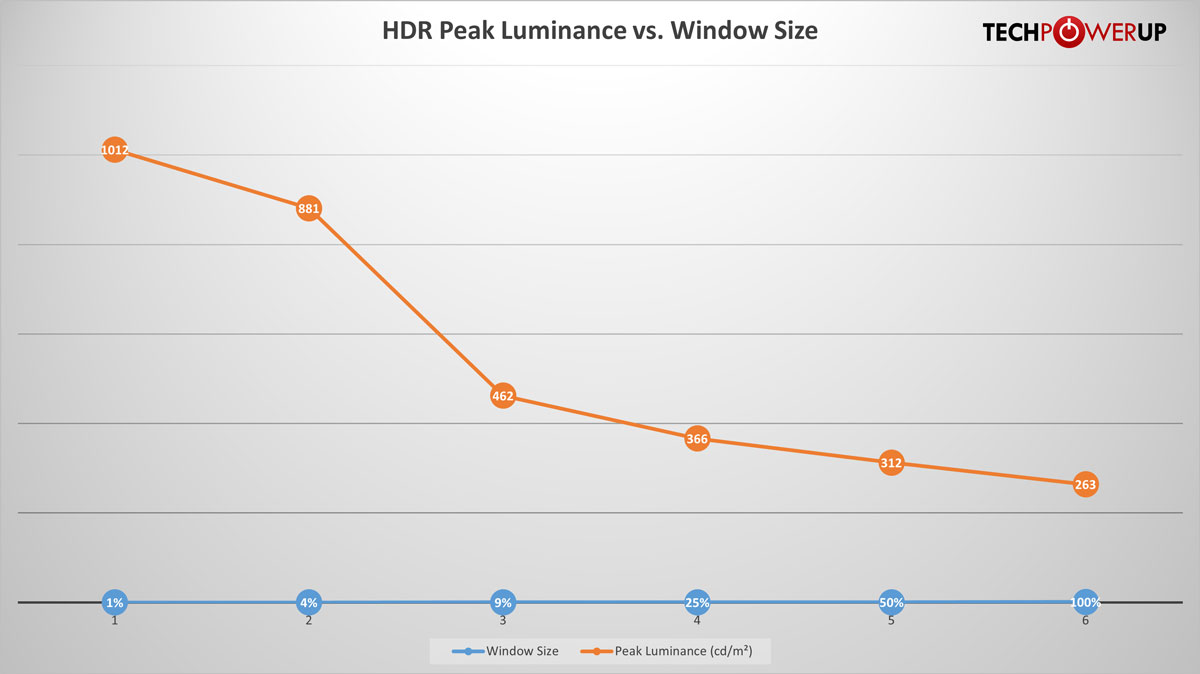
The Samsung Odyssey OLED G6 G60SD achieves a peak luminance of 1,012 cd/m² on a 1% window, which aligns with Samsung's technical specifications. As the size of the bright area increases, brightness gradually tapers off, measuring 881 cd/m² on a 4% window, 462 cd/m² at 9%, and 366 cd/m² at 25%. With half the screen white (50% window), peak luminance reaches 312 cd/m², while a full-field white pattern settles at 263 cd/m². This behavior is characteristic of OLED panels, where automatic brightness limiting (ABL) is used to control heat buildup and power consumption. Even so, the Odyssey OLED G6 G60SD maintains excellent HDR performance, delivering strong highlights without clipping and preserving deep, true blacks typical of emissive panels. HDR scenes with small to medium-sized bright elements retain excellent impact, while full-screen brightness remains adequate for comfortable mixed-content viewing.
Viewing Angles

The viewing angles of the QD-OLED panel built into the Samsung Odyssey OLED G6 G60SD are excellent. There's no visible shift in colors from any sitting position or when changing positions.
OLED Burn-in Prevention Features
The Samsung Odyssey OLED G6 G60SD offers two OLED burn-in prevention algorithms. They are found in the System > Panel Care menu within the OSD.Logo Brightness – the monitor detects static, on-screen elements such as logos, taskbar, and screen boundaries, and reduces their luminance. The luminance reduction can be controlled by setting it between Off, Low and High
Pixel Refresh – starts a pixel refresh process, which takes around 20 minutes
For additional peace of mind, Samsung includes burn-in protection under the product's three-year warranty.
Nov 18th, 2026 16:27 PST
change timezone
Latest GPU Drivers
New Forum Posts
- Got a new laptop! What should I do with it? (5)
- Honestly, do you care about GTA VI? (147)
- Dell Workstation Owners Club (3514)
- Making a game in Godot engine (2)
- [Poll] 12V-2x6 Connector Protection: What Are You Using? (WireView / Ampinel / Equalizer / Other / Nothing) (39)
- Last game you purchased? (1406)
- Time to upgrade CPU and MOBO (34)
- Can i play GTA 6 now? (Joke) (7)
- What are you playing? (26234)
- Very unusual two gaming-pc scenarios. (12)
Popular Reviews
- Acemagic Retro X3 Review
- Upcoming Hardware Launches 2027 (Updated Nov 2026)
- AMD Zen 6 Technical Deep Dive
- Ugreen NASync DXP4800 GT Review
- Pulsar Office Tour & First Look at P1 Dual-Sensor Mouse
- Biwin Black Opal NV7400 2 TB Review
- Chieftec Iceberg PRO 360 DARK Review
- Sapphire Radeon RX 7700 XT Pure Review
- ASUS ROG Strix B850-I Gaming Wi-Fi7 W Review
- Sapphire Radeon RX 7700 XT Pulse Review
TPU on YouTube
Controversial News Posts
- NVIDIA Co-Founder and CEO Jensen Huang Officially Resigns (478)
- Report: Jensen Huang Eyes NVIDIA Comeback (195)
- Open Letter Asking NVIDIA to Reinstate Jensen Huang Passes 115,000 Signatures (184)
- OpenAI CEO Argues Home PCs Waste the World's Limited DRAM Supply (152)
- NVIDIA Launches Investigation Into Jensen Huang's Relationship With Suspected Chinese Spy (136)
- Intel "Raptor Lake Next" 16-Core and 20-Core CPUs Surface (130)
- Legendary Game Studio BioWare Shuts Down Following EA Layoffs (104)
- Dell CEO Says the Memory Shortage Will Get Worse in 2027 (95)