 12
SCHENKER KEY 18 Pro (E25) Review - Top-Tier Contender
Value & Conclusion »Control Center 3.0 Software


The XMG Control Center is definitely useful. It's a great all-in-one tool to control the laptop's performance precisely. You get info regarding the fan RPM, CPU and GPU clock speeds, chip temperatures, and usage in %. At least for me, one of the best goodies is the power profiles that also provide access to different fan modes. For example, the "Performance" preset offers "Automatic," "Maximum," "Custom," and "Turbo" fan tuning. The custom one is for those users who prefer to fine-tune fan speed corresponding to the CPU and graphics chip thermals, or to bring the fans to their max speed of above 5500 RPM, in case the internals have to be cooled down fast.

An adjustable Blue light filter is also available, which causes a visible orange tint to the display if enabled. It's a great feature when you have to read a lot of text on a daily basis, but don't want to affect your circadian rhythm.

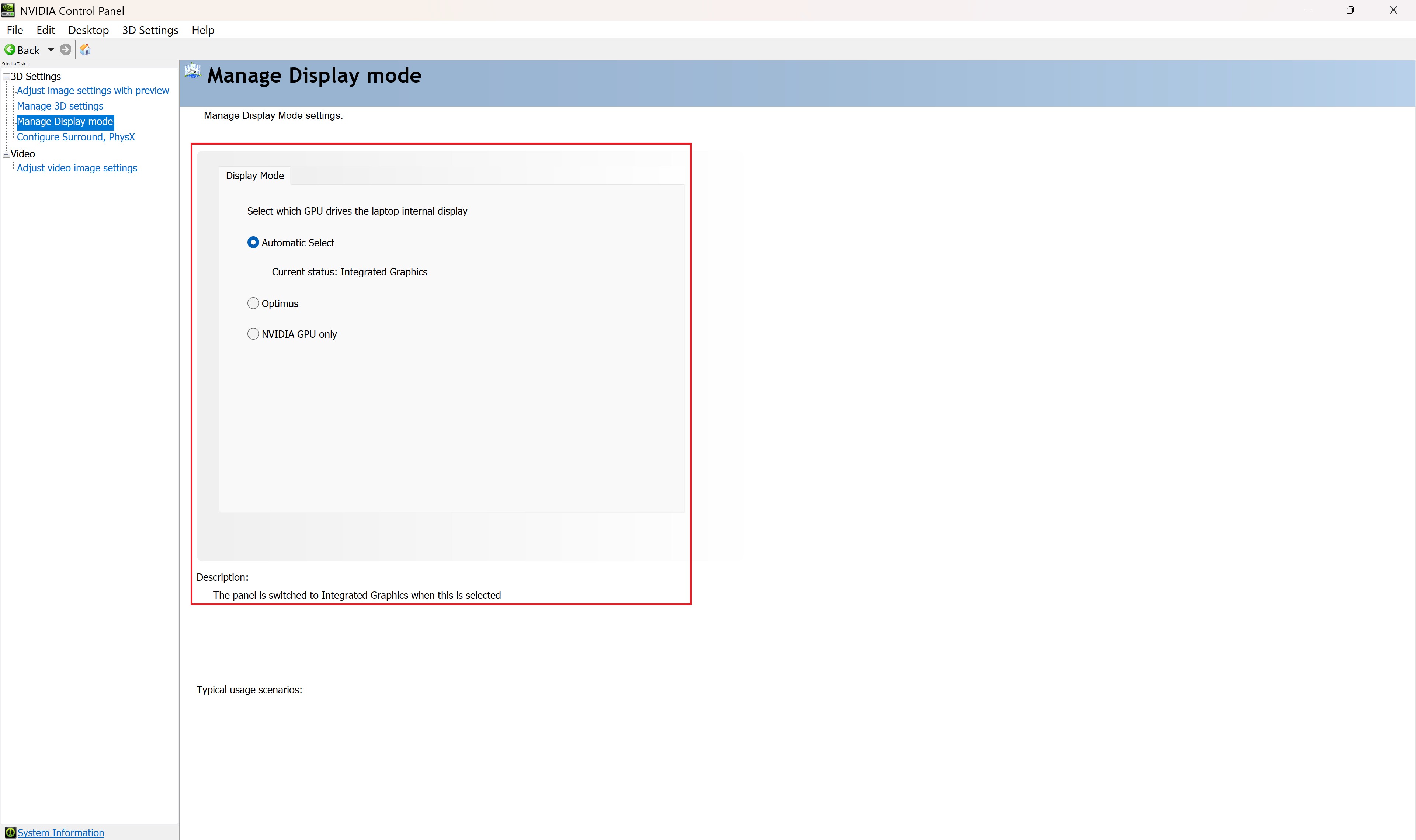
GPU switch is also present. The "Dynamic" option should be the way to go for most people. The "Discrete GPU-only" should be your best friend when you want to enjoy the full power of the dedicated graphics card, since the iGPU is fully out of the equation, which boosts FPS.
The iGPU-only mode is recommended for best battery life. All three modes require a restart before applying, which may be annoying for some. On the other hand, this notebook boasts NVIDIA Advanced Optimus to save you some time when cycling through the graphics modes. This is how it goes: Select "Dynamic mode" in the XMG Control Center. Open the NVIDIA Control Panel and select "NVIDIA GPU-only" if you want to play some games. After that, select the "Automatic Select" and the device will dynamically switch between the iGPU and the dGPU depending on the load, and you can still use G-SYNC and other advanced features.
Nov 19th, 2026 02:07 PST
change timezone
Latest GPU Drivers
New Forum Posts
- Without Jensen, PC gaming will be (48)
- Time to upgrade CPU and MOBO (43)
- 3DMARK "LEGENDARY" (475)
- [Poll] 12V-2x6 Connector Protection: What Are You Using? (WireView / Ampinel / Equalizer / Other / Nothing) (43)
- Windows HDR on = Tinted colors (5)
- WarpCoreBench scores! (68)
- Honestly, do you care about GTA VI? (155)
- Very unusual two gaming-pc scenarios. (13)
- TPU's Nostalgic Hardware Club (22168)
- Dual B70 or Dual R9700 Pro on Linux (7)
Popular Reviews
- Acemagic Retro X3 Review
- Ugreen NASync DXP4800 GT Review
- Upcoming Hardware Launches 2027 (Updated Nov 2026)
- AMD Zen 6 Technical Deep Dive
- Pulsar Office Tour & First Look at P1 Dual-Sensor Mouse
- Biwin Black Opal NV7400 2 TB Review
- Sapphire Radeon RX 7700 XT Pure Review
- Sapphire Radeon RX 7700 XT Pulse Review
- Chieftec Iceberg PRO 360 DARK Review
- AMD Ryzen 7 9800X3D Review - The Best Gaming Processor
TPU on YouTube
Controversial News Posts
- NVIDIA Co-Founder and CEO Jensen Huang Officially Resigns (483)
- Report: Jensen Huang Eyes NVIDIA Comeback (196)
- Open Letter Asking NVIDIA to Reinstate Jensen Huang Passes 115,000 Signatures (184)
- OpenAI CEO Argues Home PCs Waste the World's Limited DRAM Supply (152)
- NVIDIA Launches Investigation Into Jensen Huang's Relationship With Suspected Chinese Spy (136)
- Intel "Raptor Lake Next" 16-Core and 20-Core CPUs Surface (130)
- Legendary Game Studio BioWare Shuts Down Following EA Layoffs (104)
- Dell CEO Says the Memory Shortage Will Get Worse in 2027 (95)