 79
The Outer Worlds 2 Performance Benchmark Review - 30+ GPUs Tested
(79 Comments) »Introduction
The Outer Worlds 2 is a single-player, open-world action-RPG from Obsidian that take you to a new star system colony "Arcadia," but keeps the corporate-dystopia satire of the predecessor. Obsidian leans harder into political intrigue this time: your dialogue choices affect factions and the balance of power between them. Your companions are also affected. Combat promises to be both faster and smoother than before, with new weapons, gadgets, and abilities to suit more playstyles. Extra focus has been put on the quests and the companions you can find.
The Outer Worlds 2 is released six years after its predecessor. This new version is built on Epic's Unreal Engine 5 and utilizes Lumen, Nanite, Virtual Shadow Maps and more UE5 features. Unlike many other recent releases, there is actually support for hardware ray tracing. Also included is support for NVIDIA DLSS, AMD FSR and Intel XeSS. Frame generation is available for NVIDIA and Intel, but not for AMD—no idea why.
This review will evaluate the performance of The Outer Worlds 2 across a wide range of contemporary graphics cards, compare image quality settings, and analyze the game's VRAM usage to provide insight into the hardware requirements needed for an optimal experience.
Screenshots
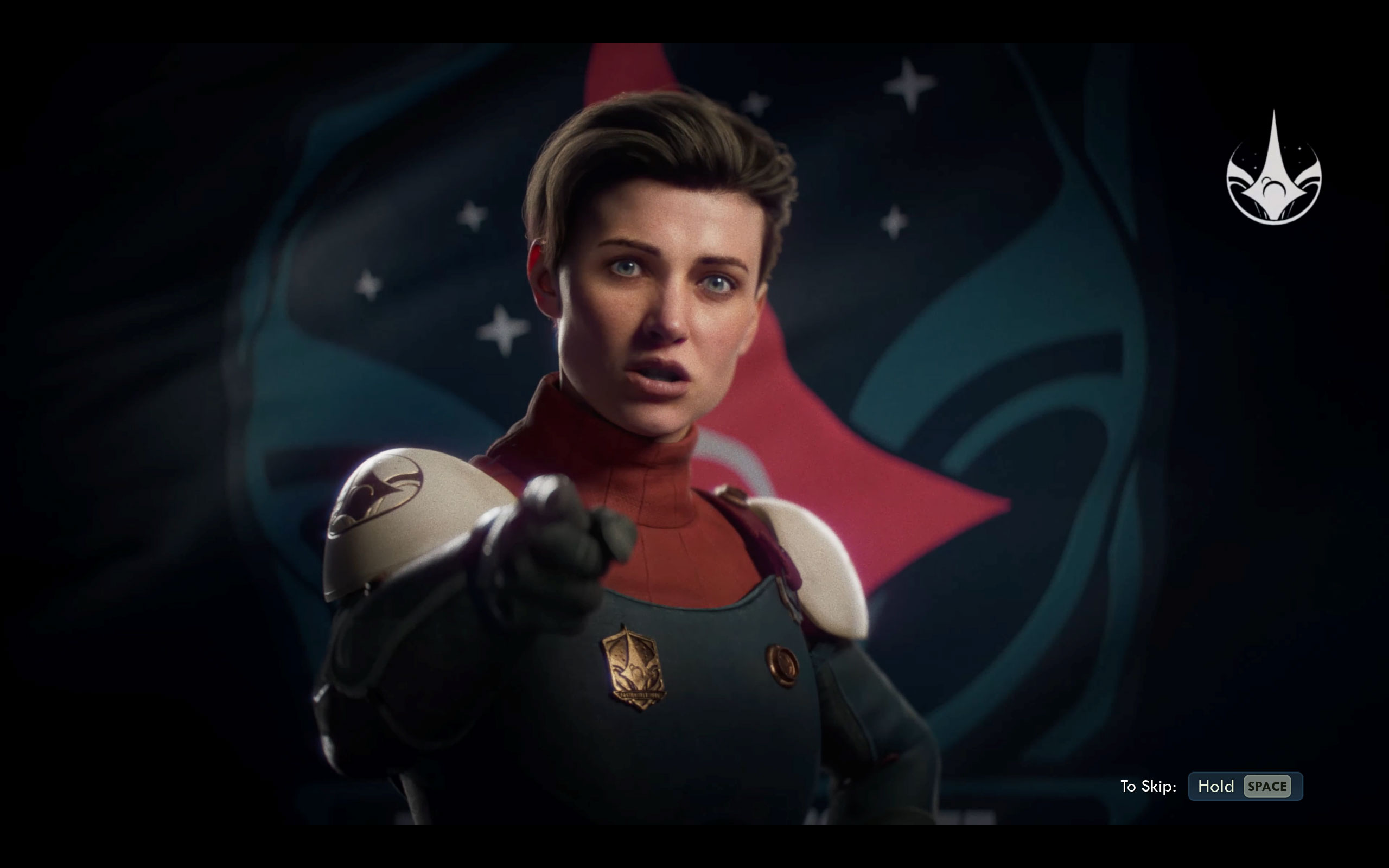
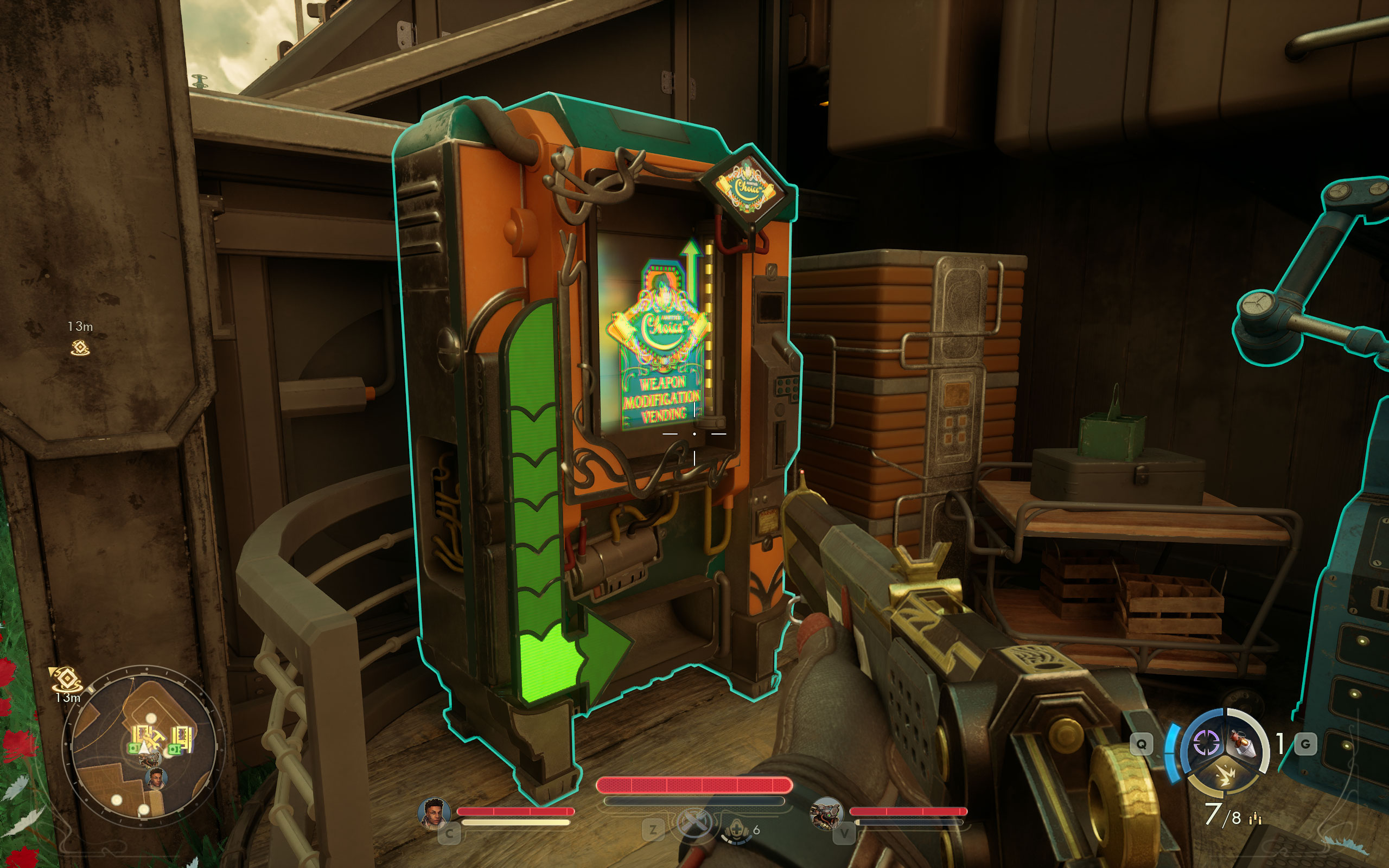
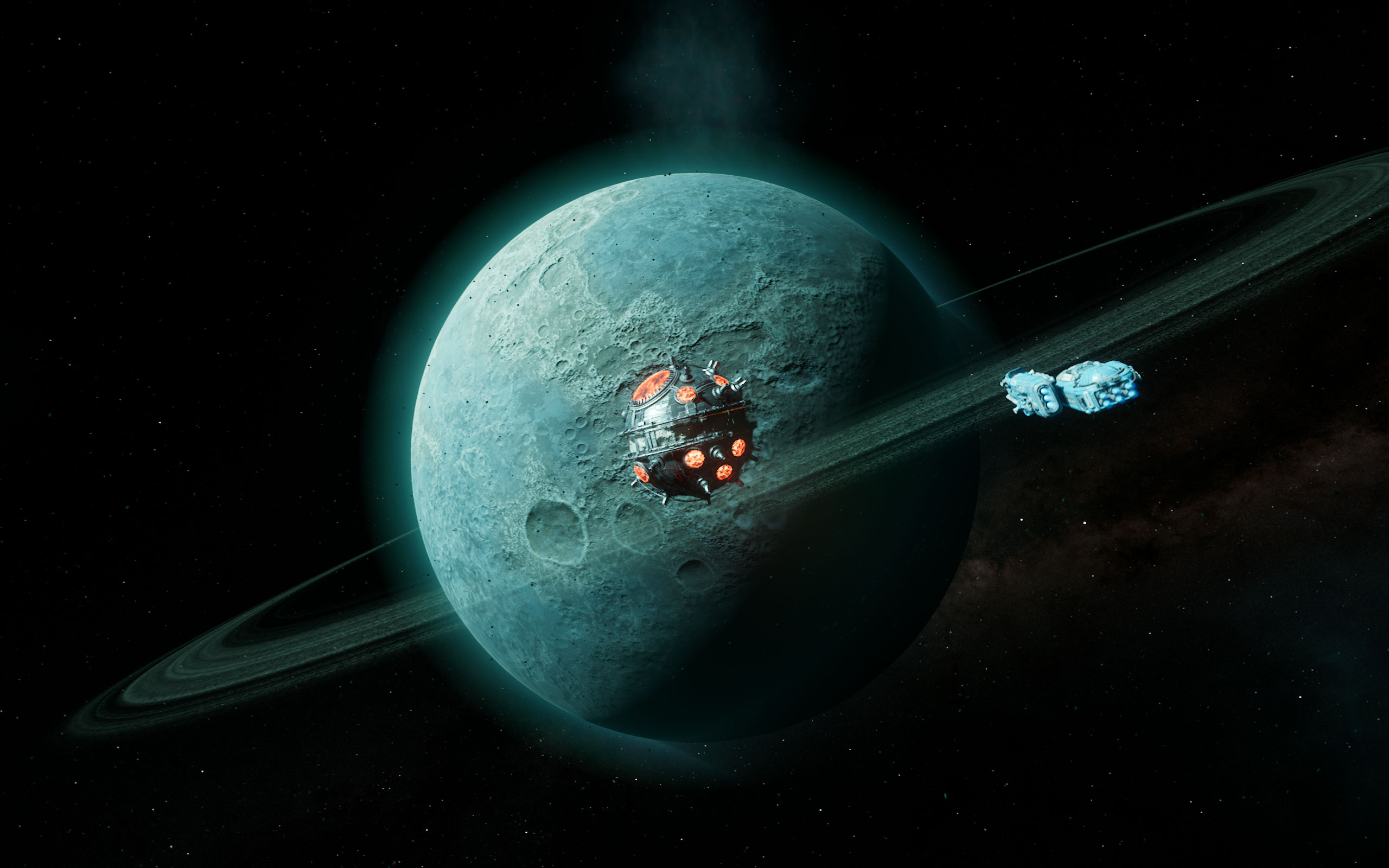
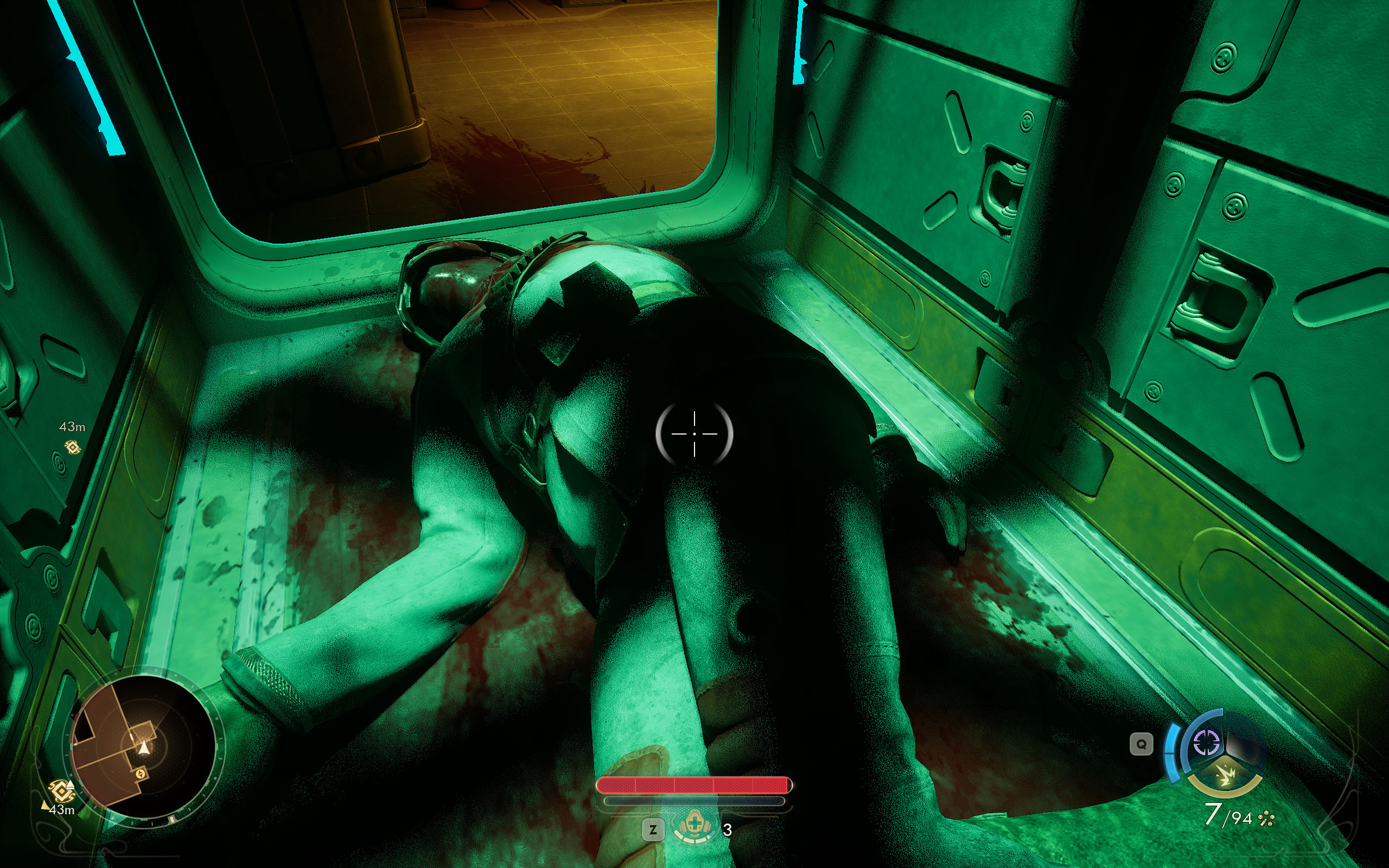
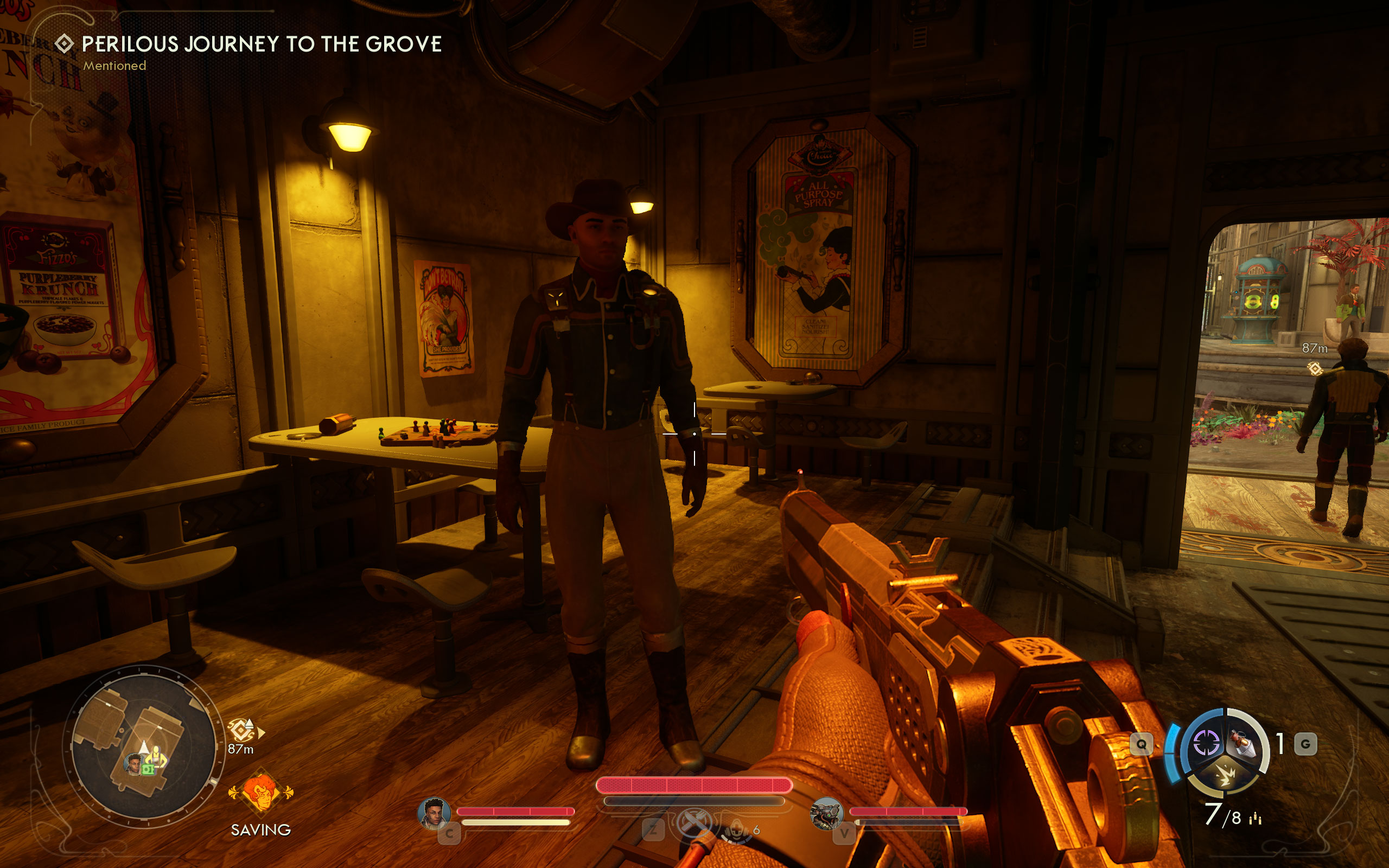
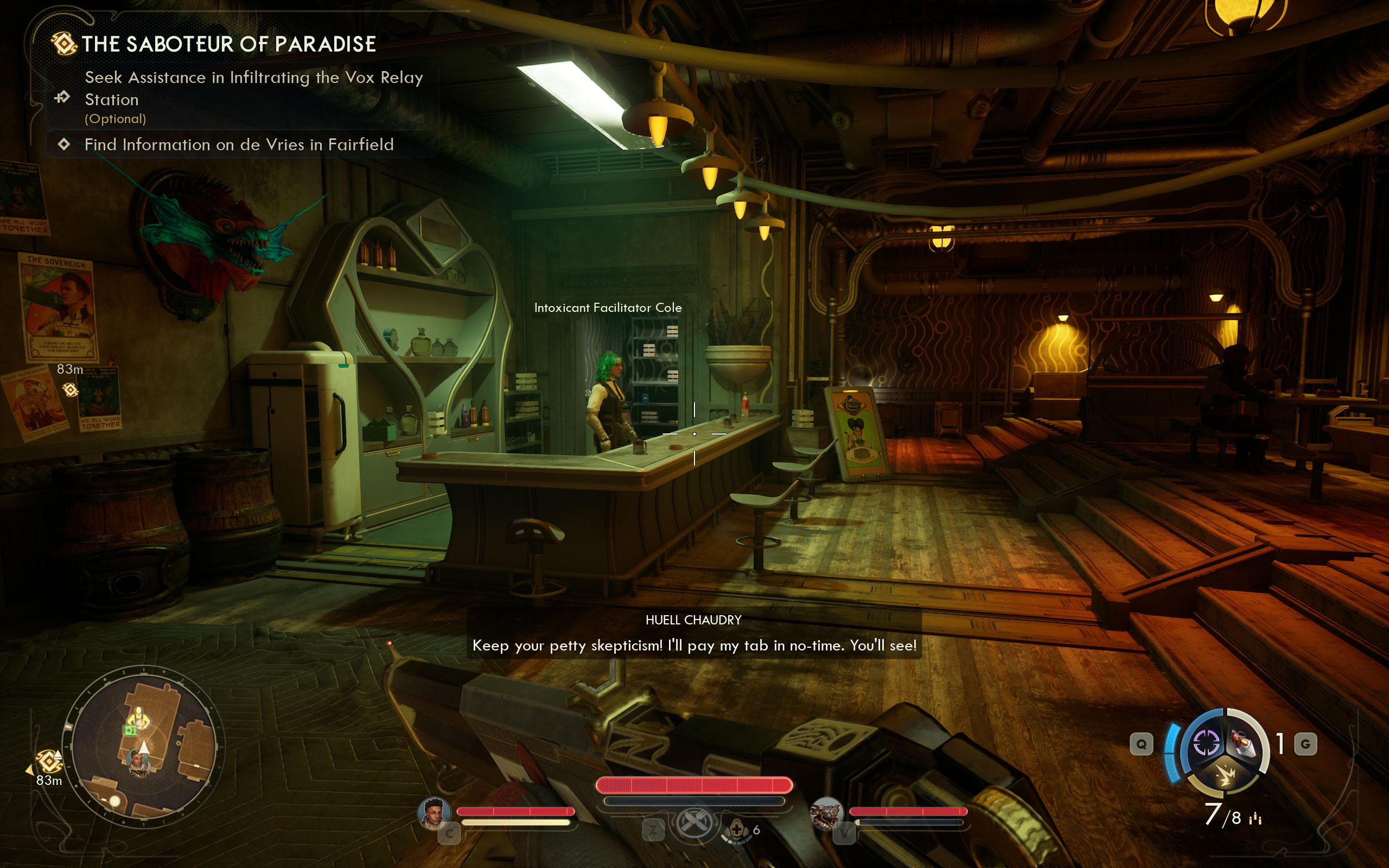
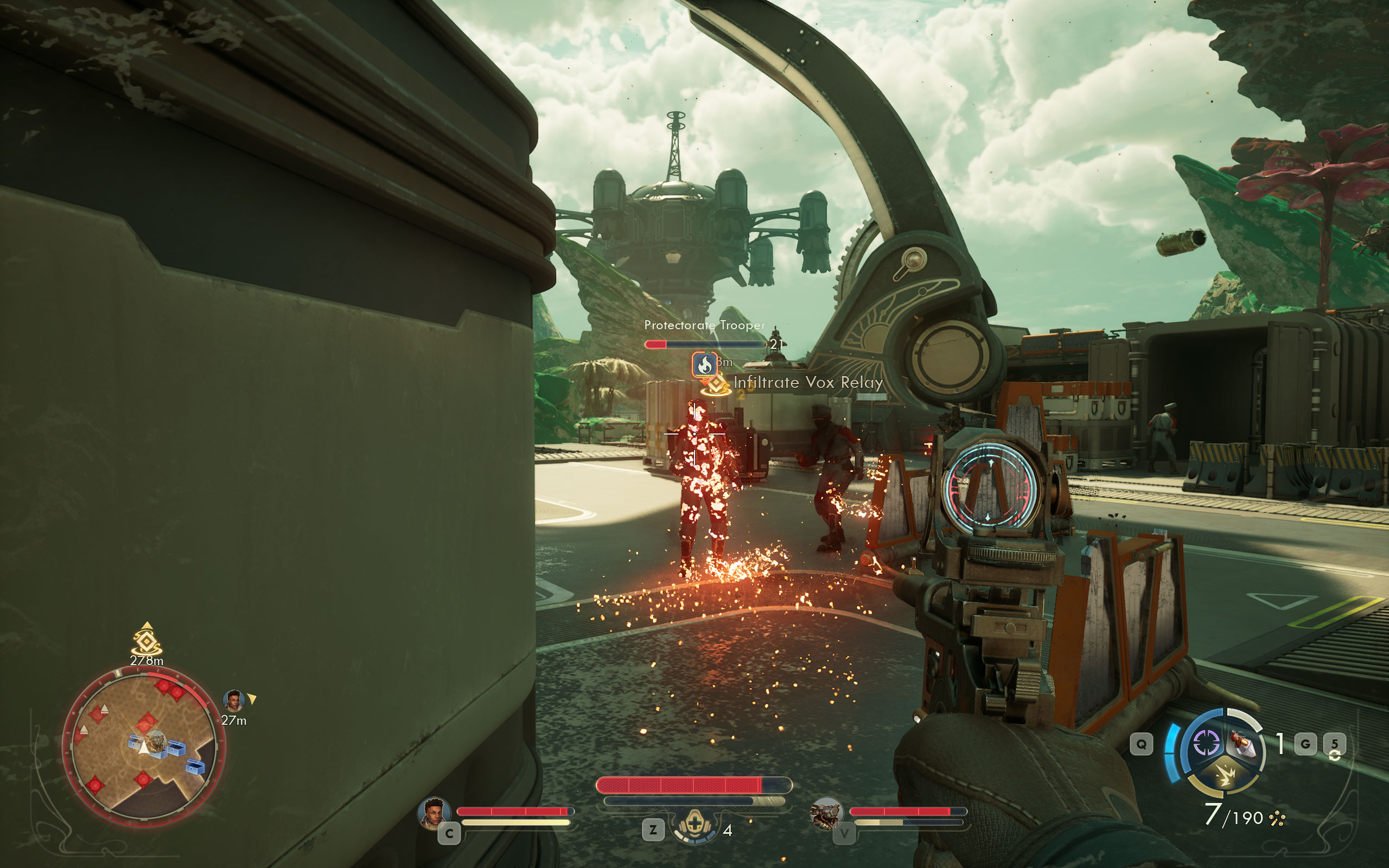
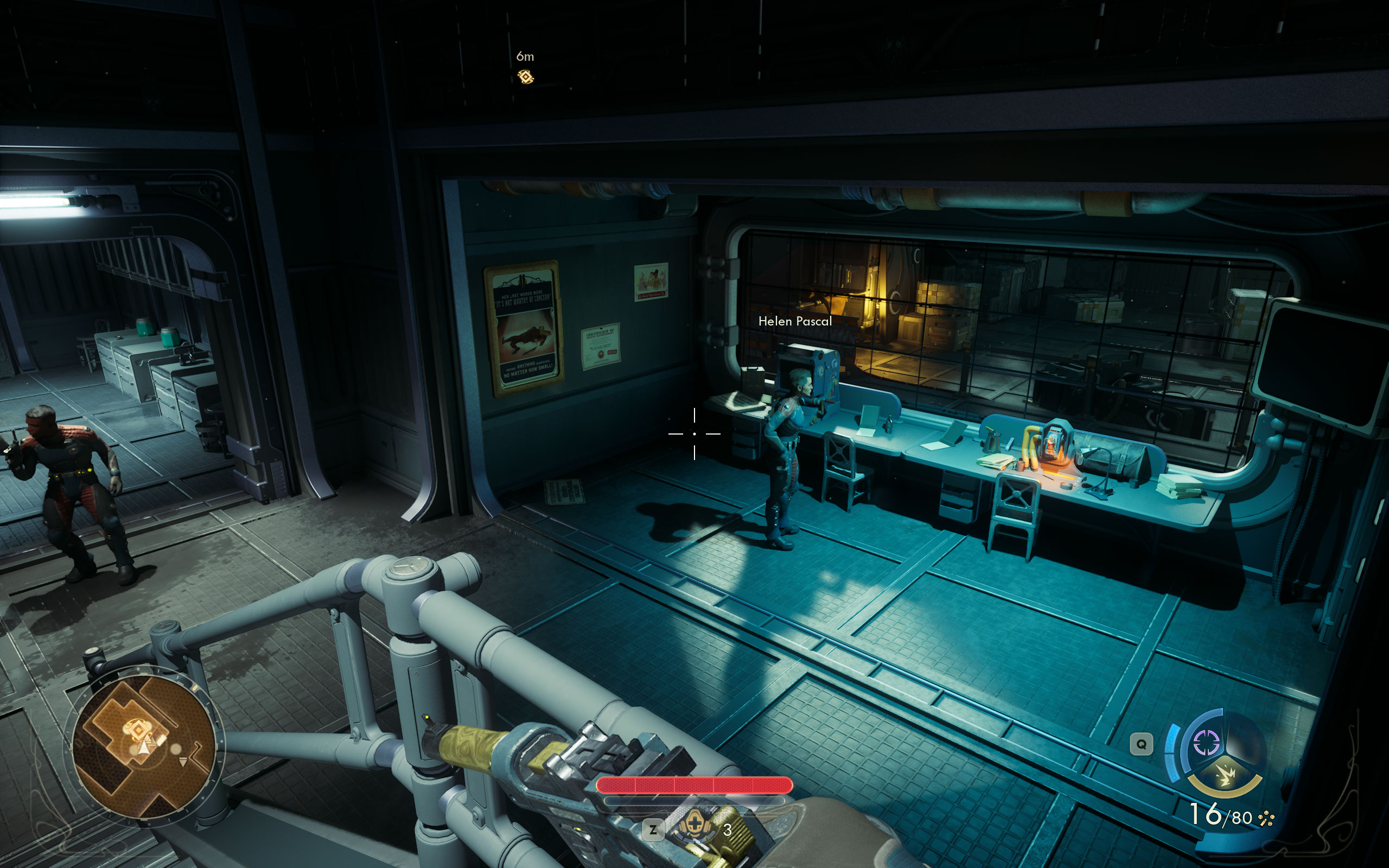
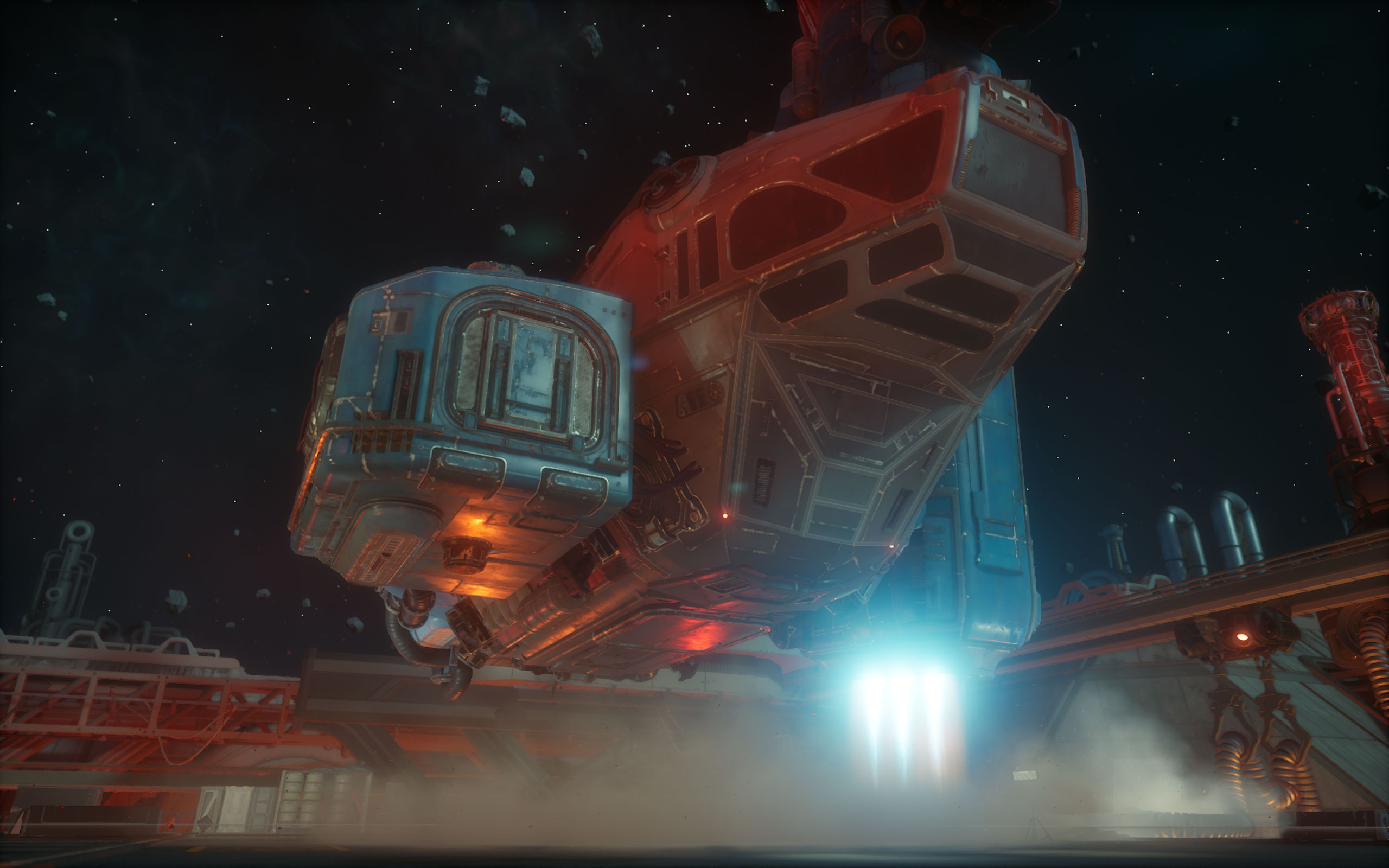
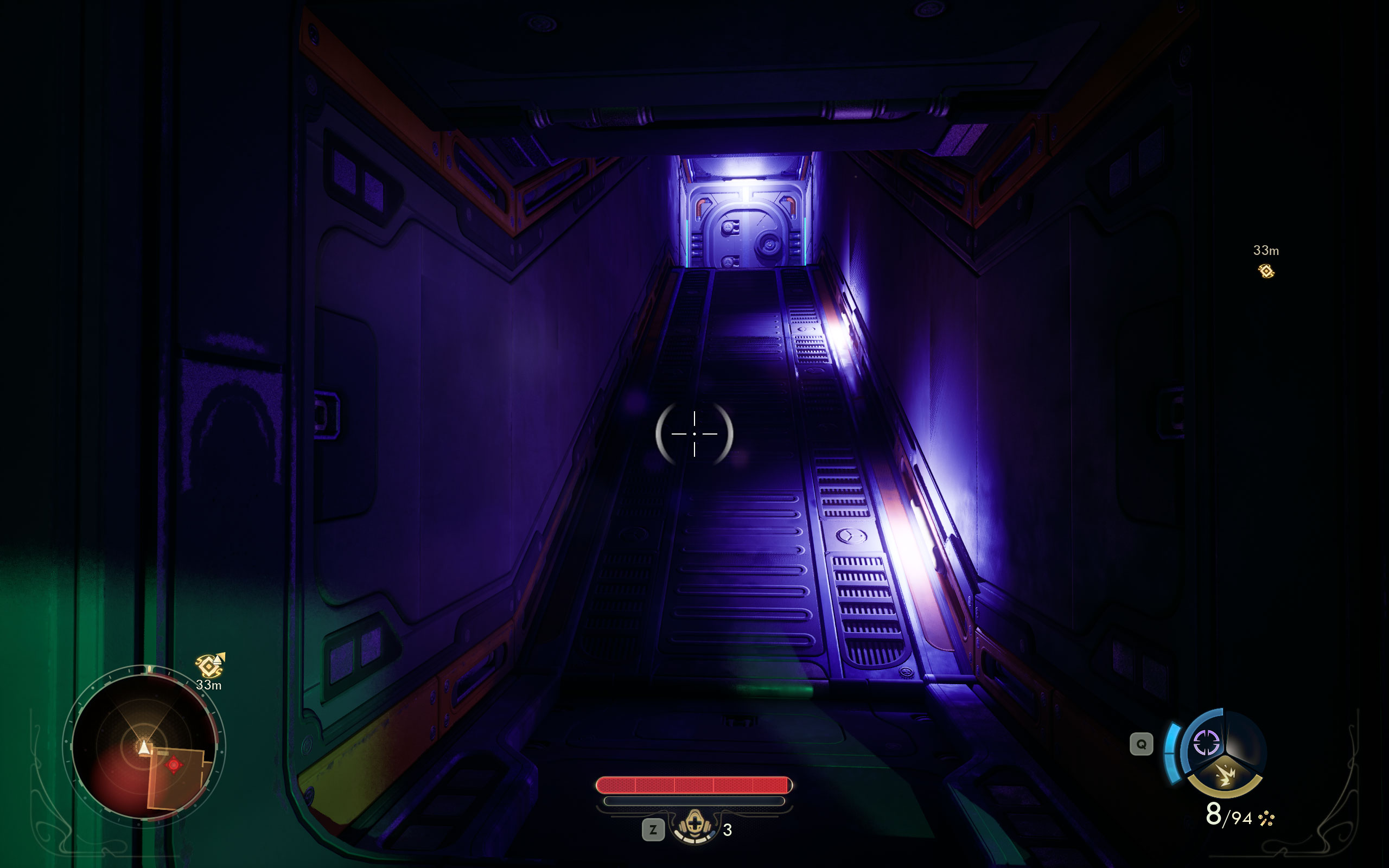
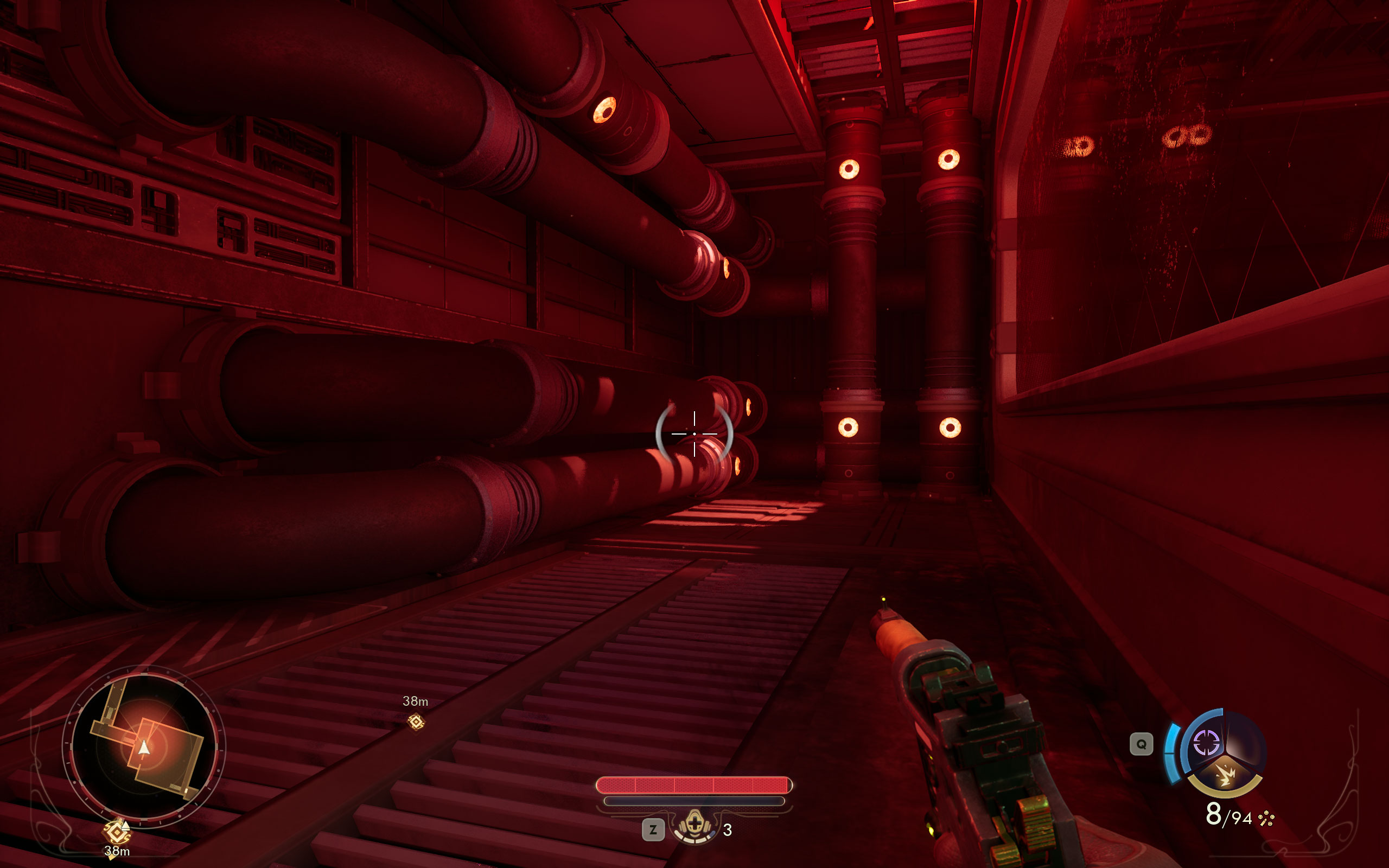
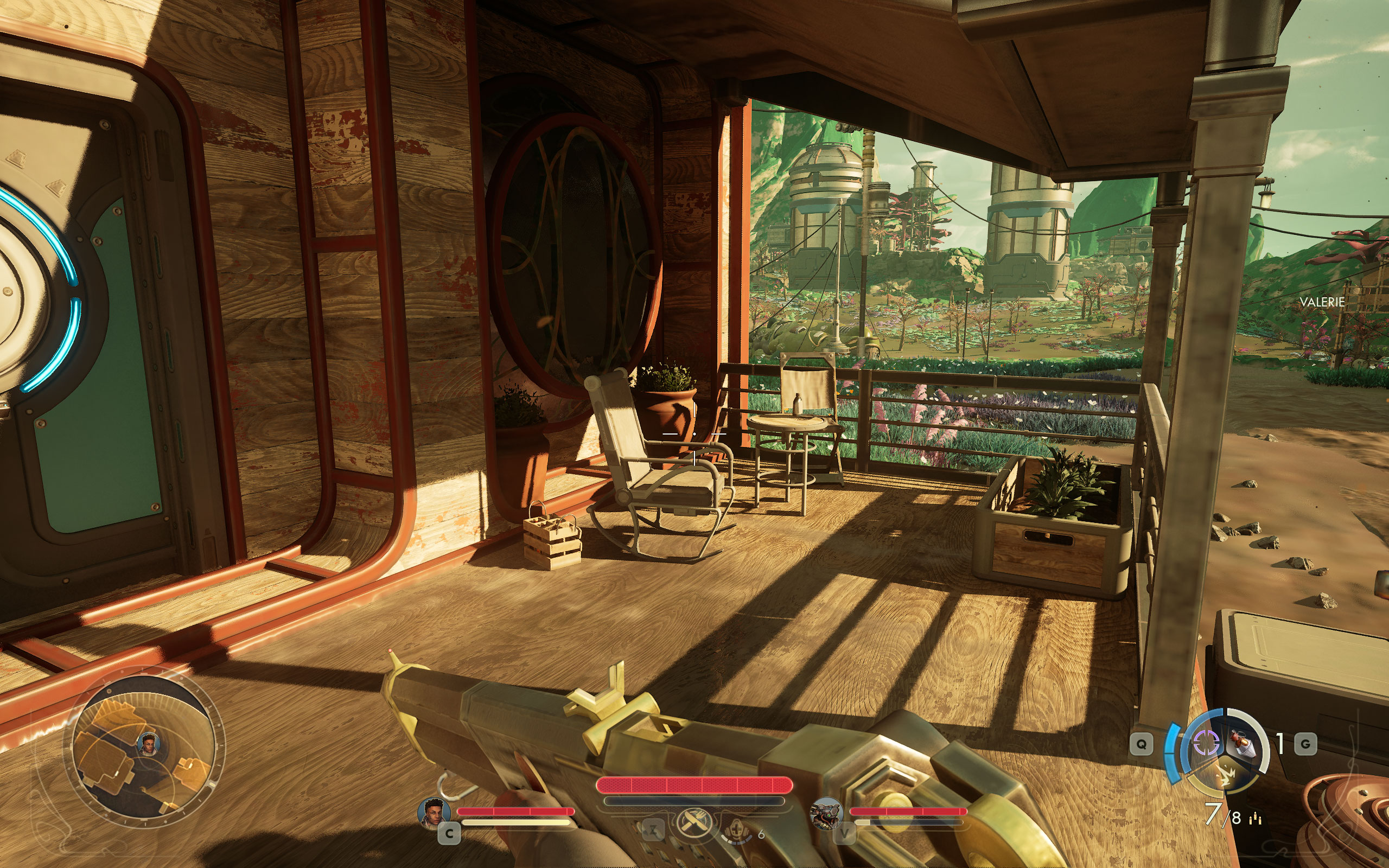
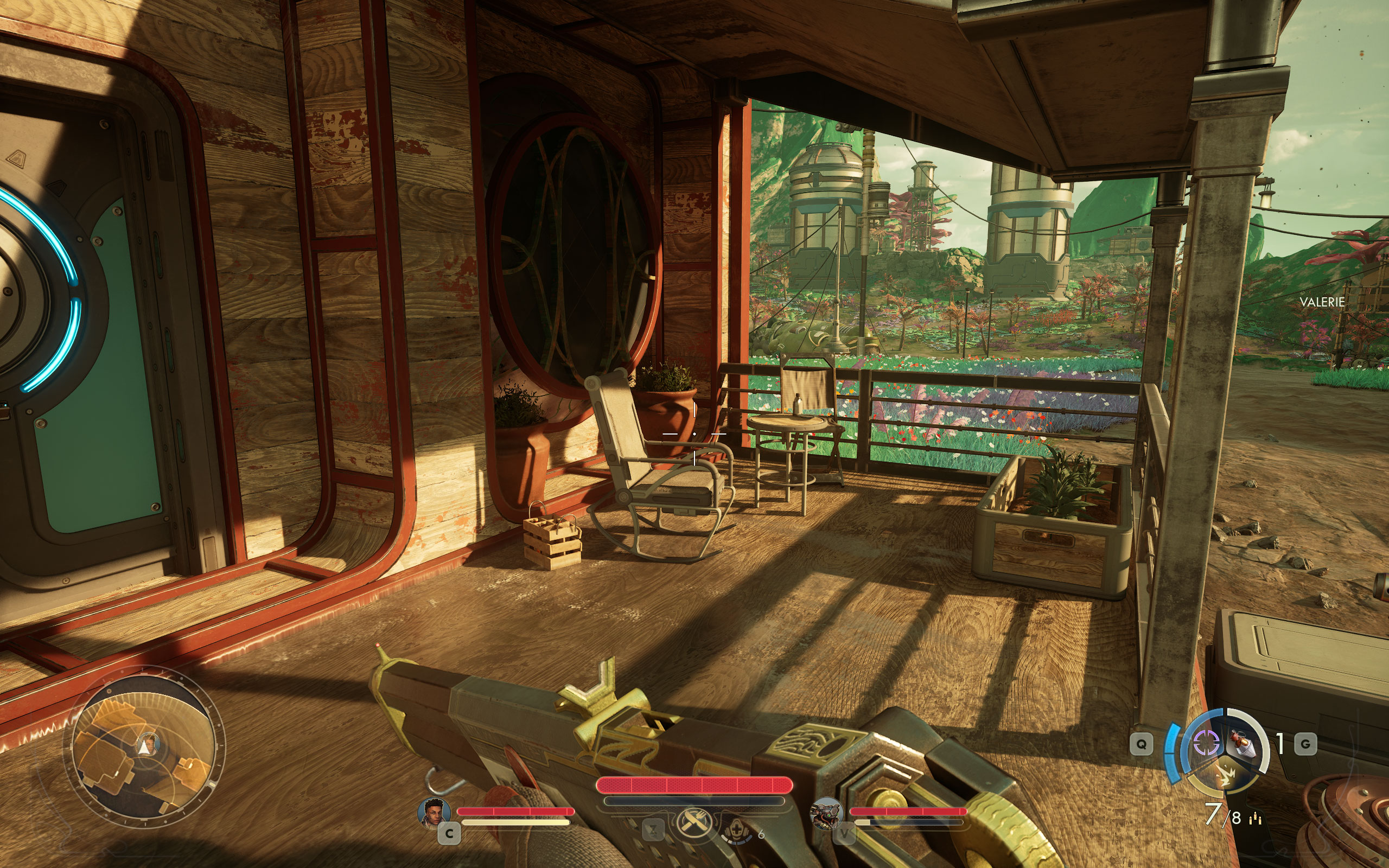
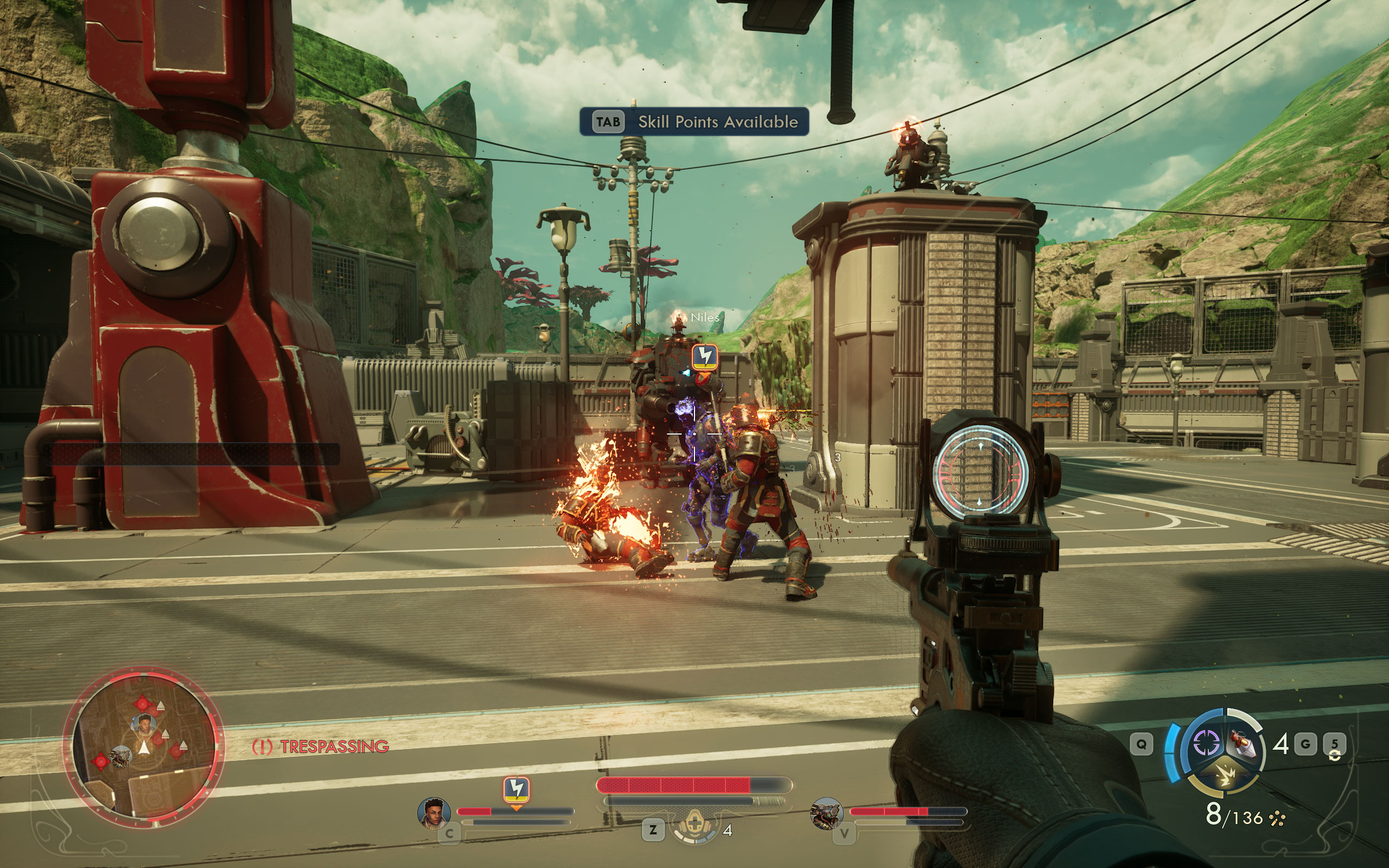
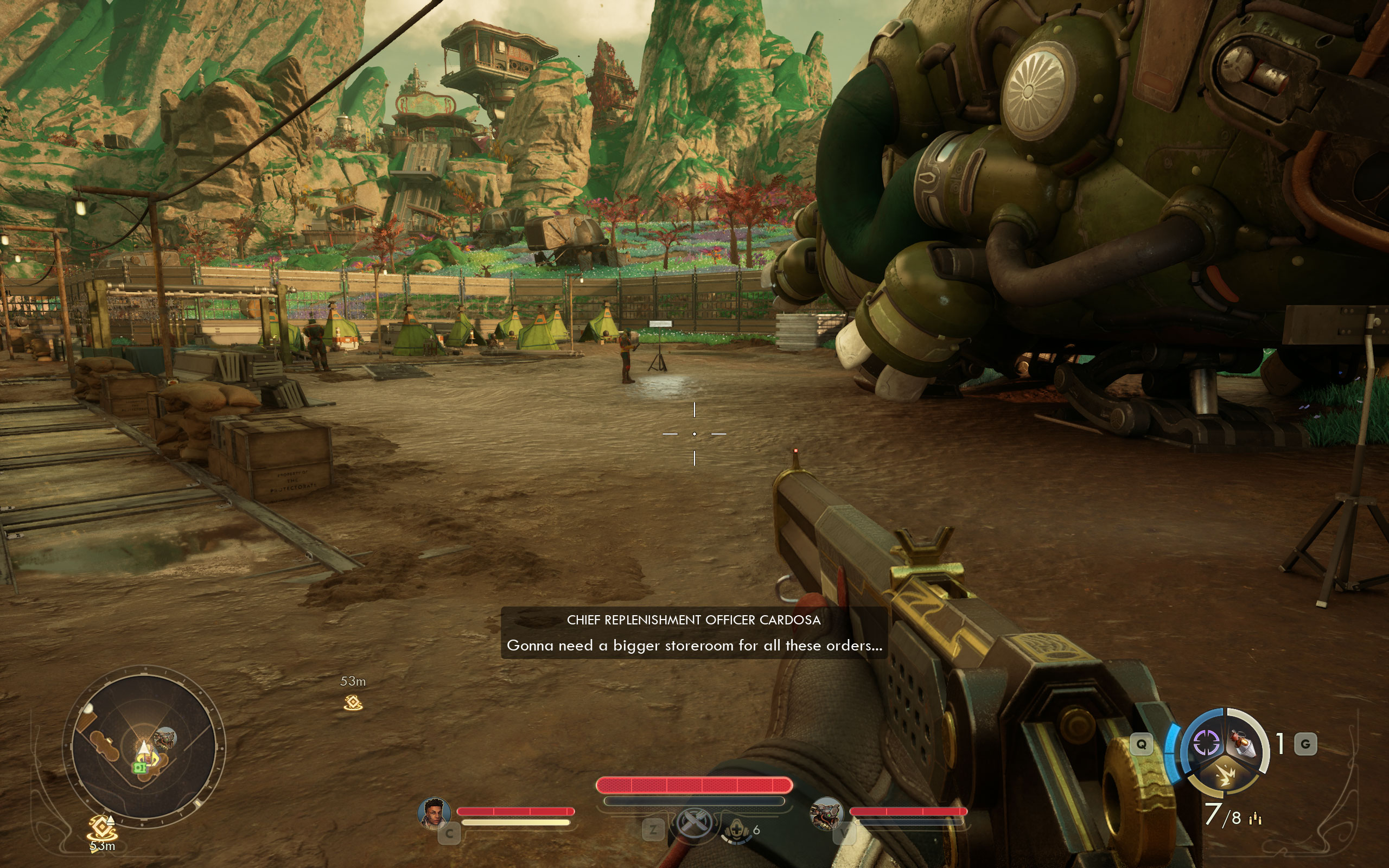
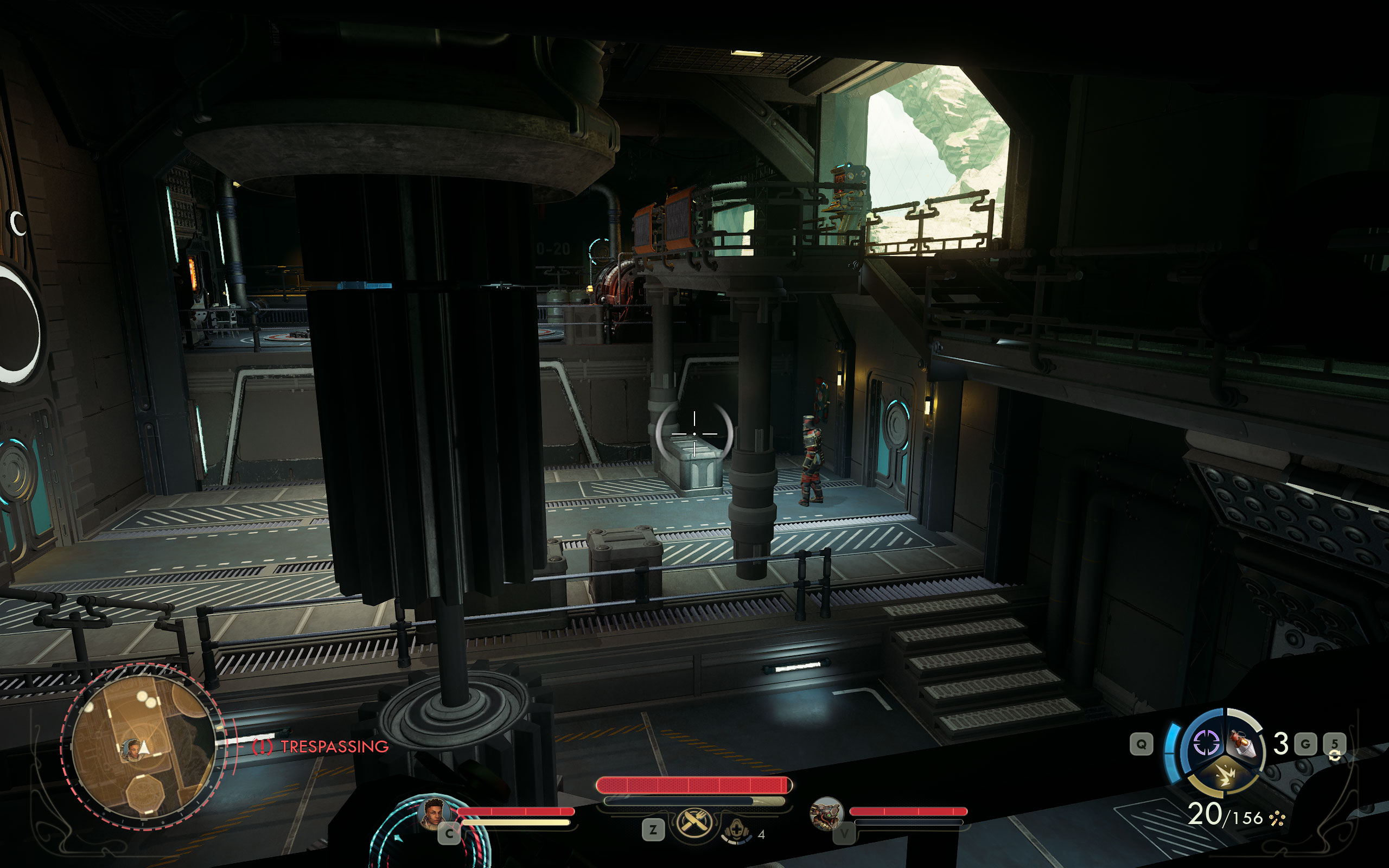
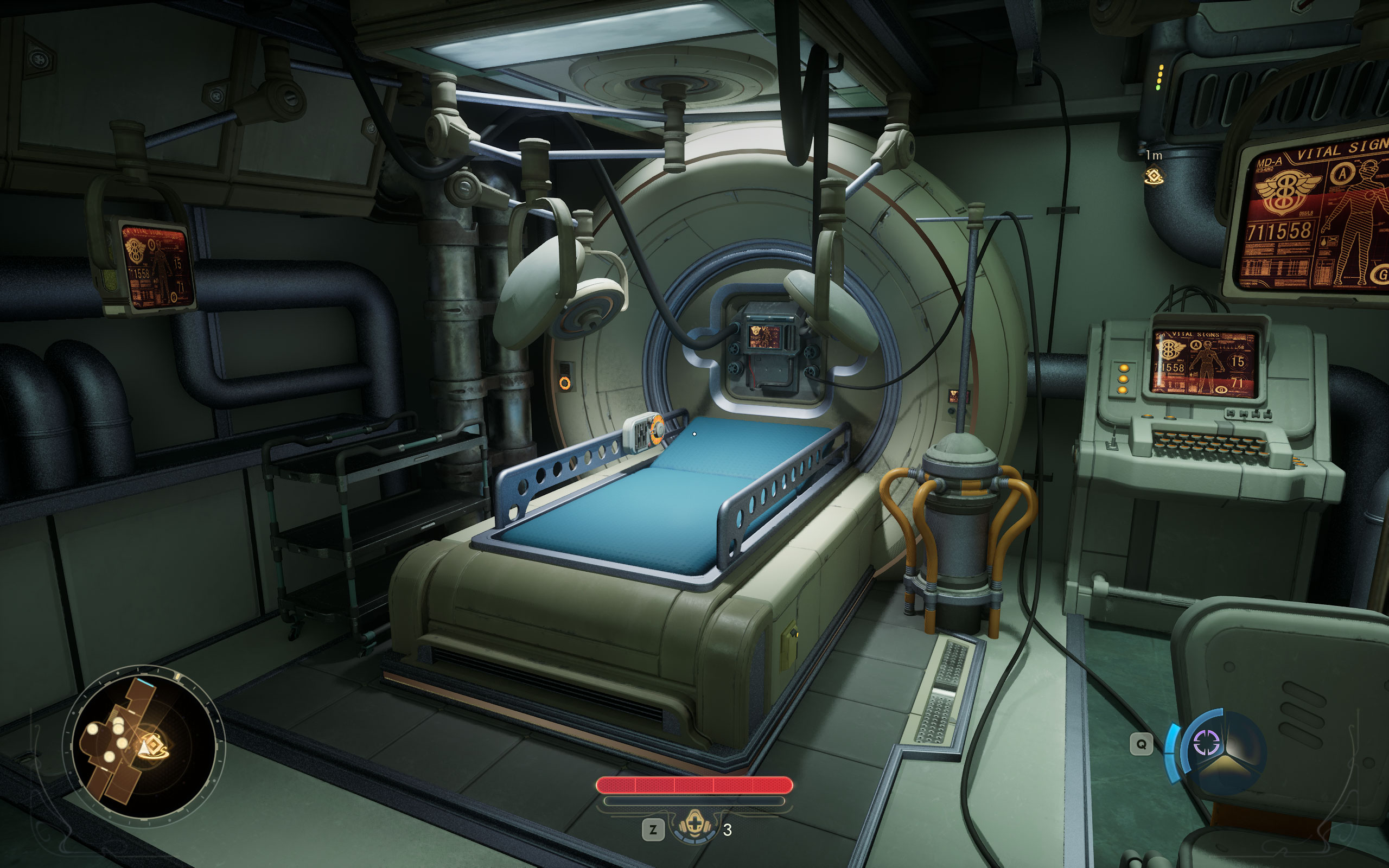
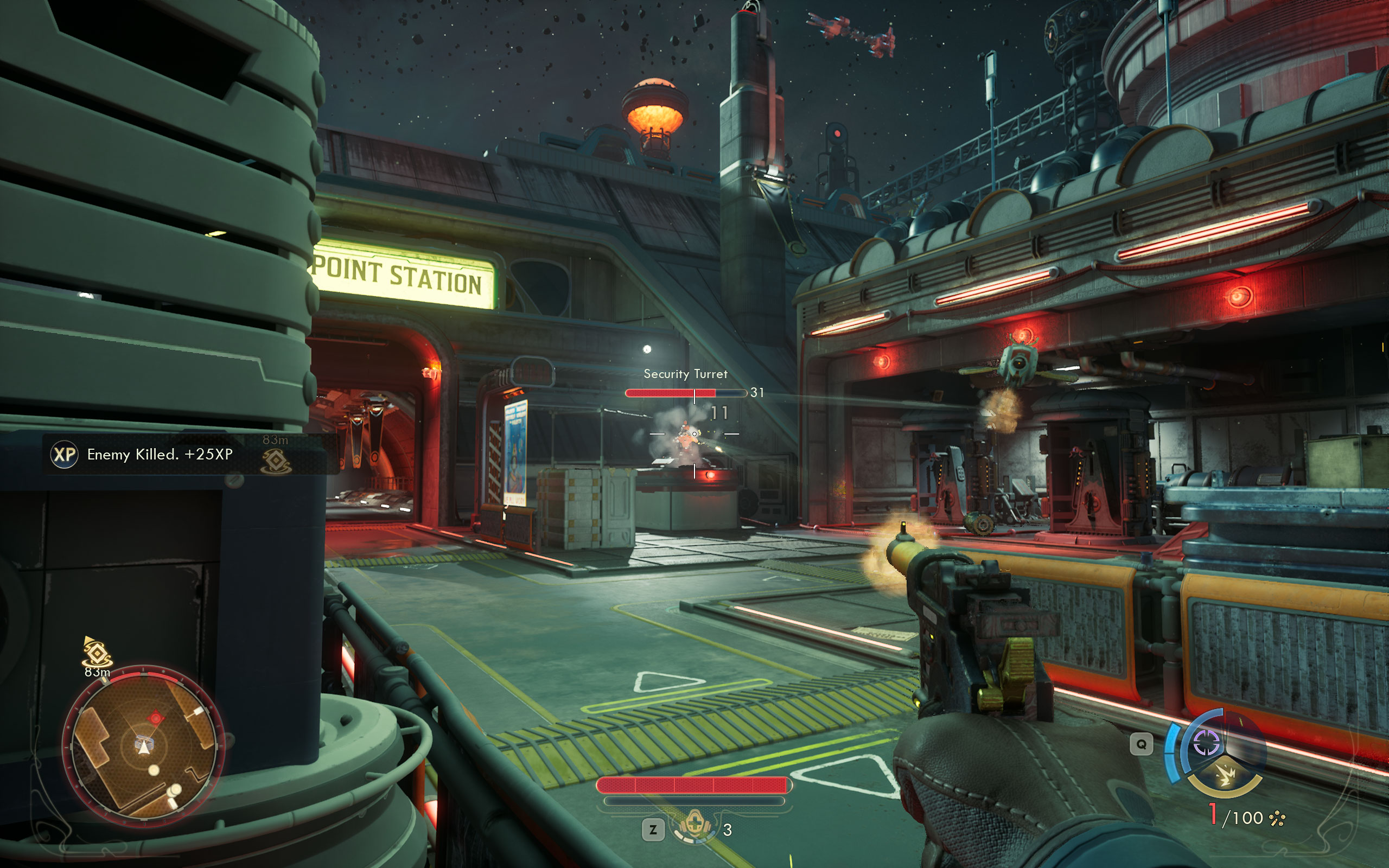
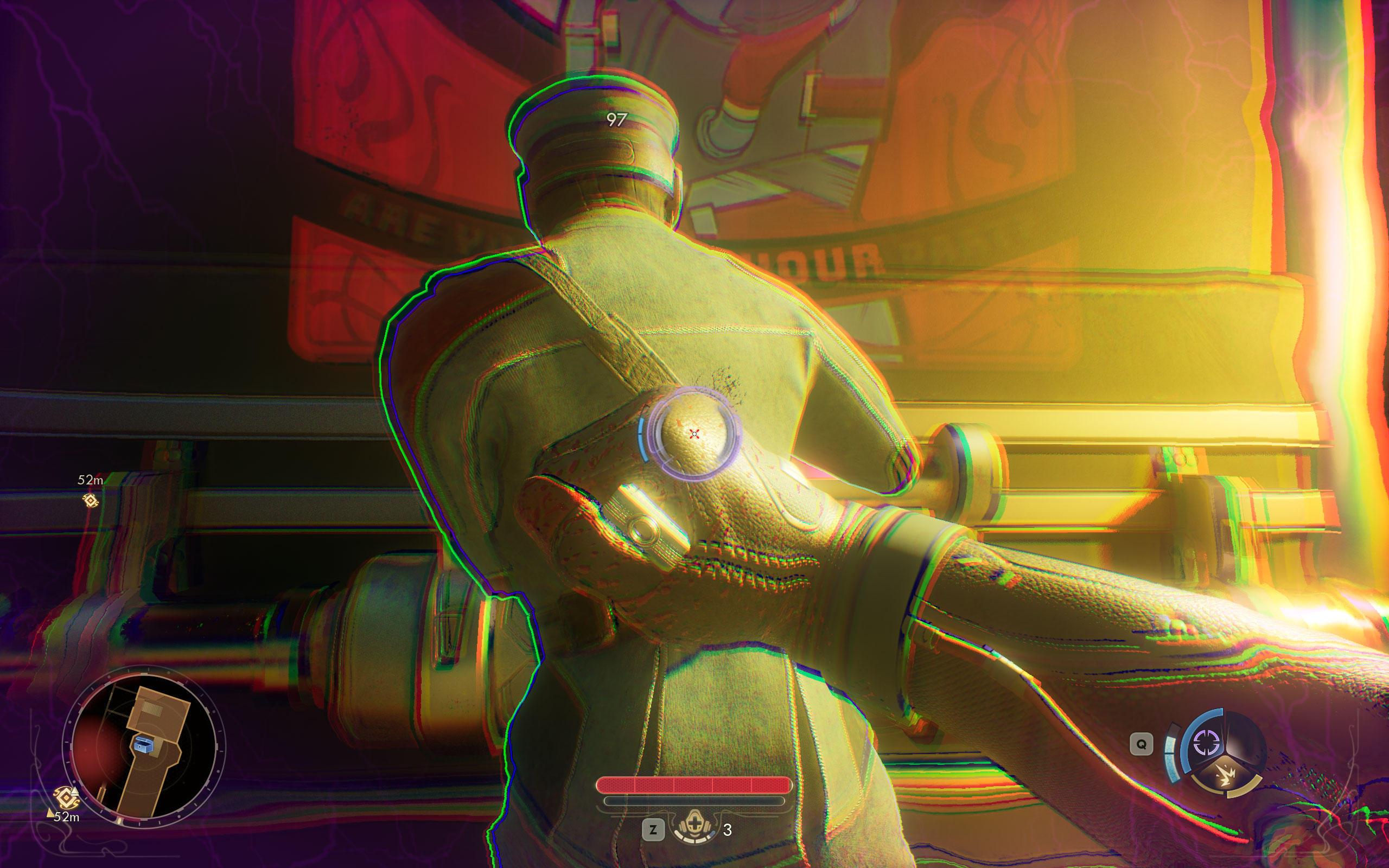
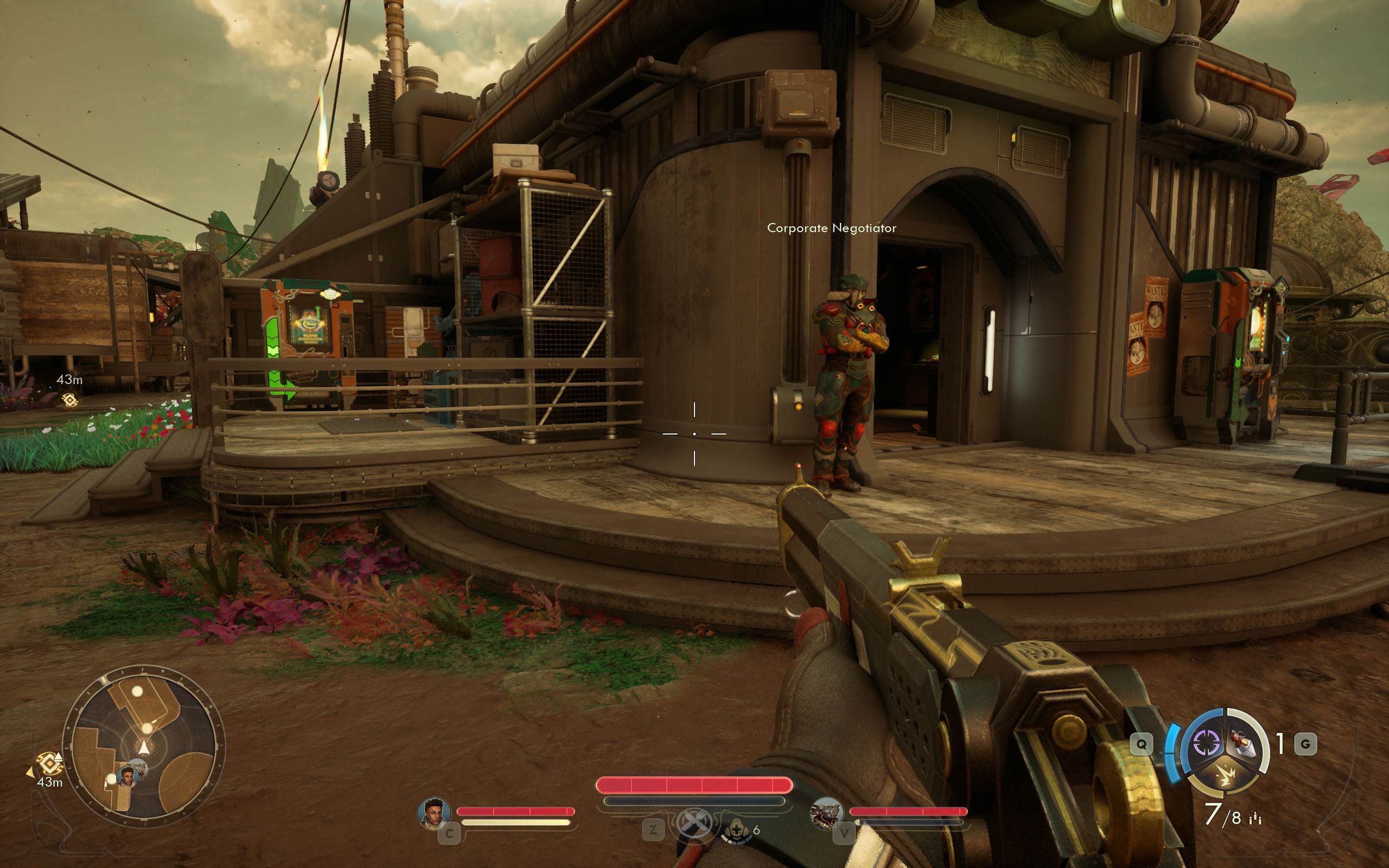
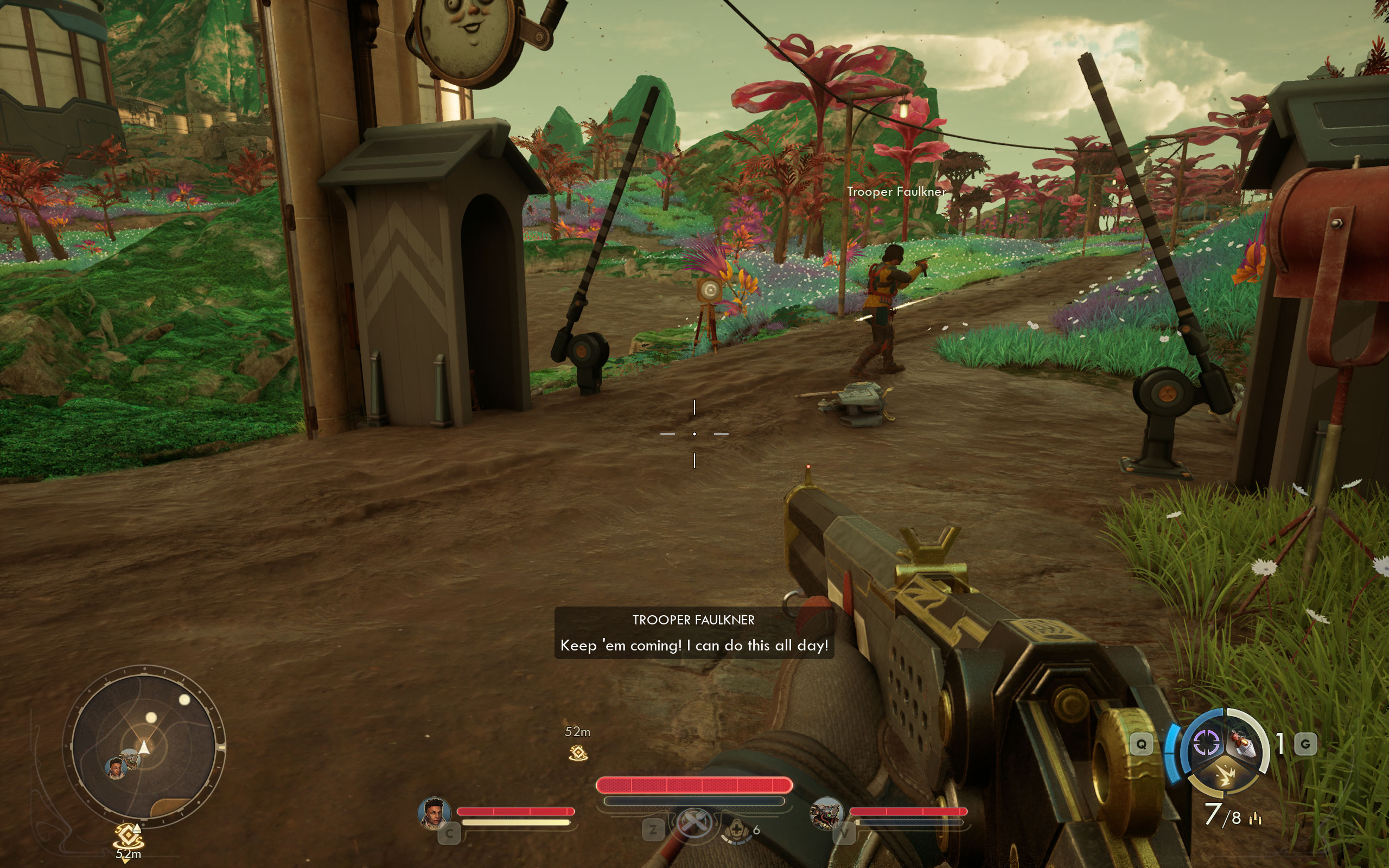
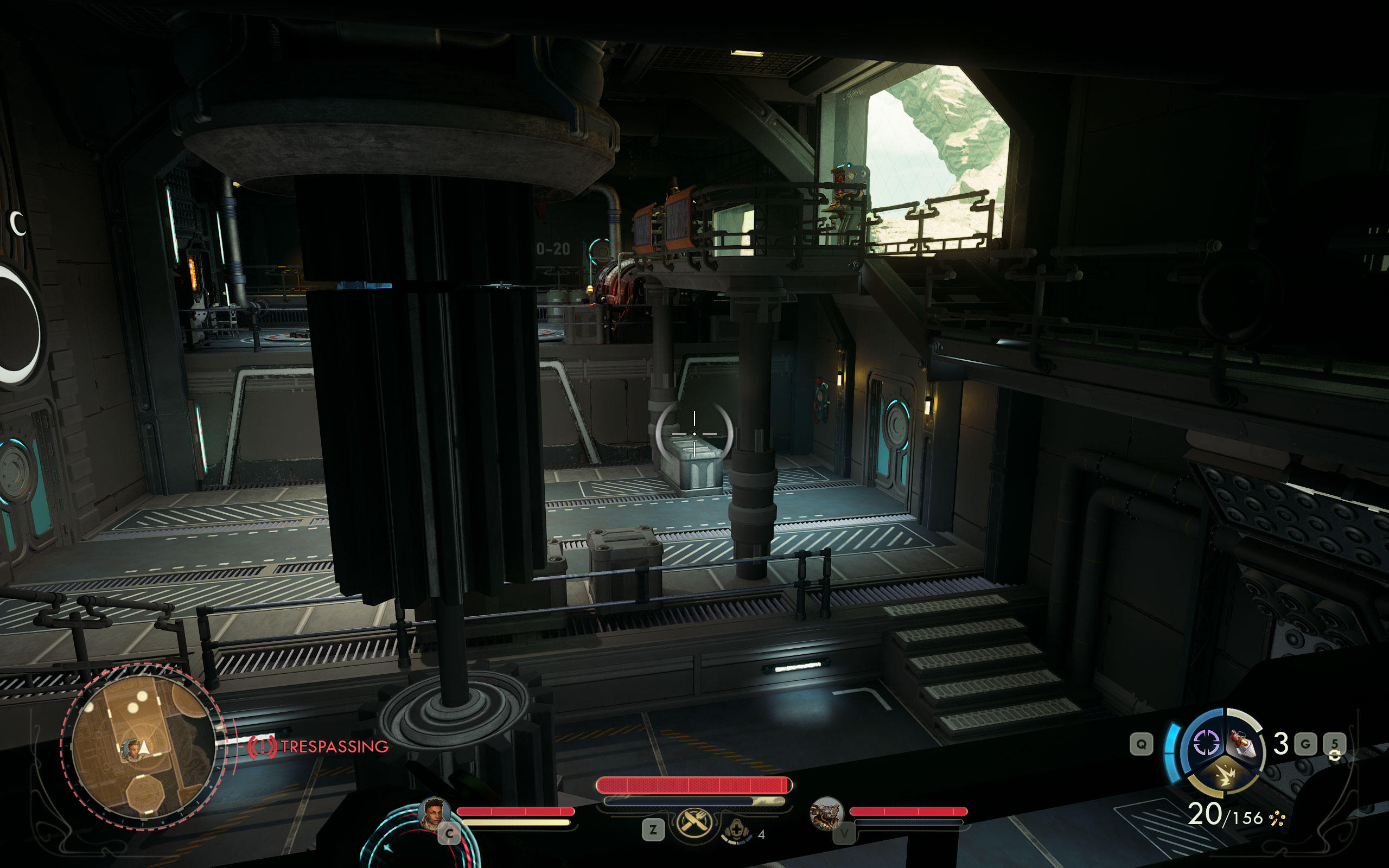
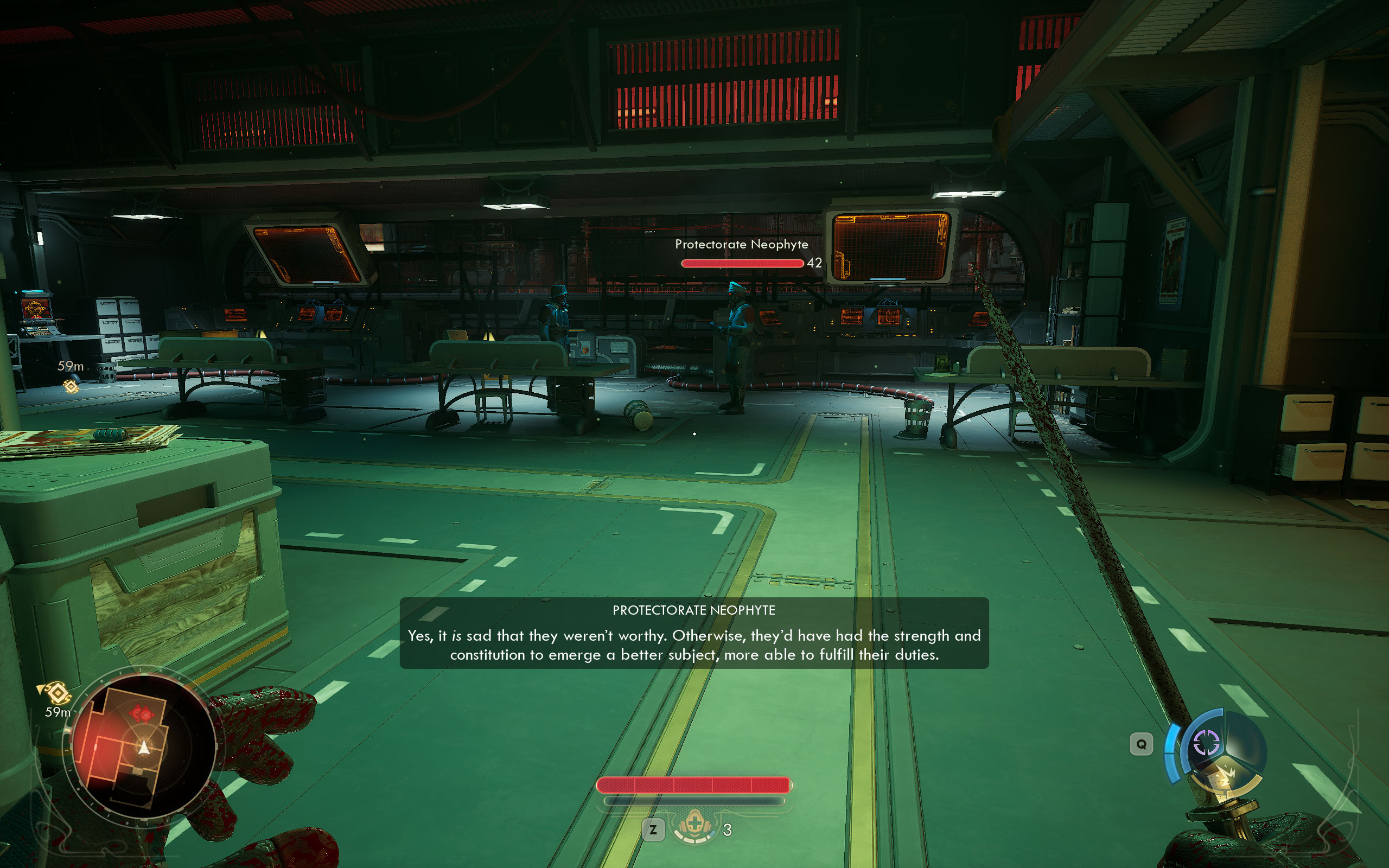
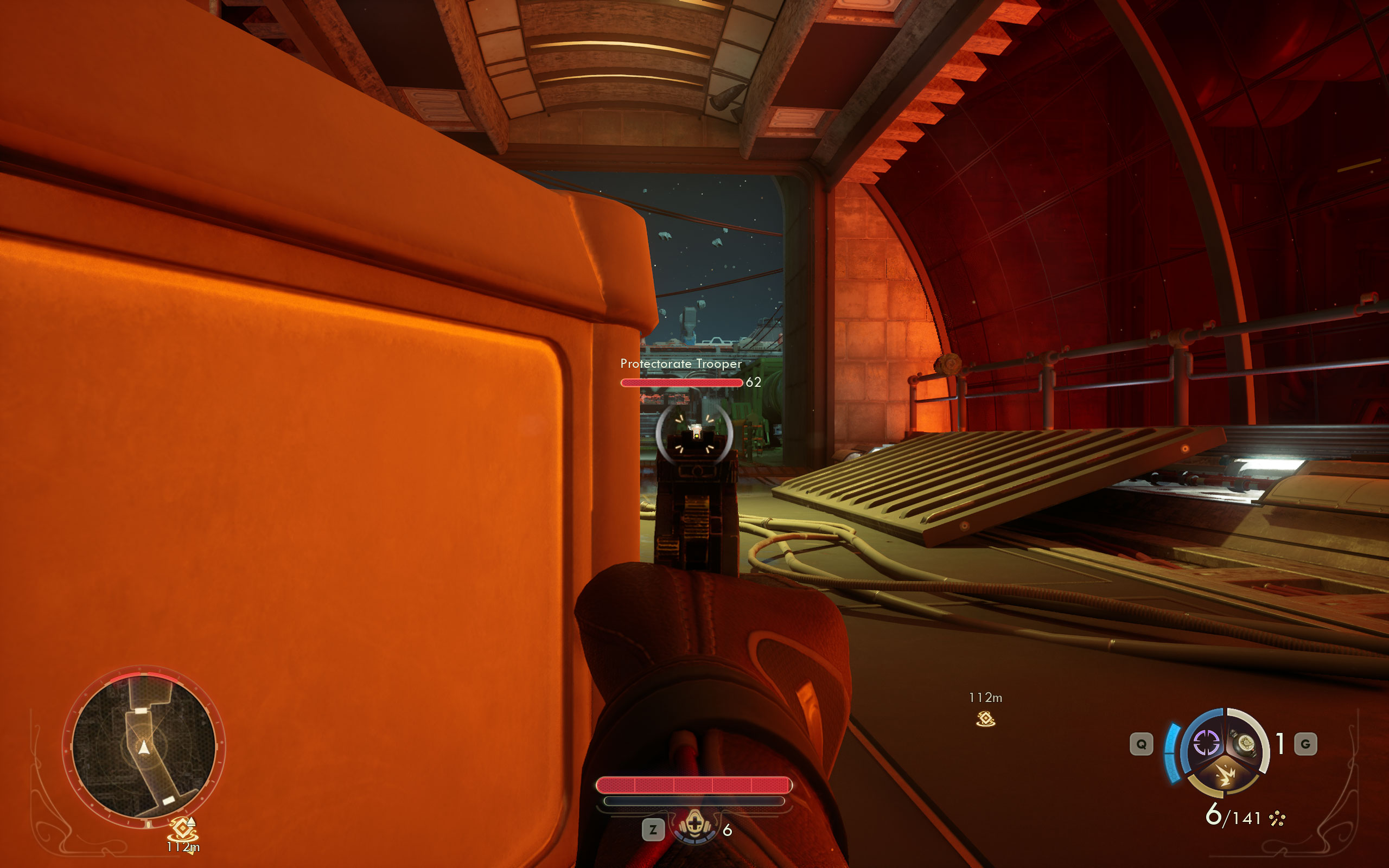
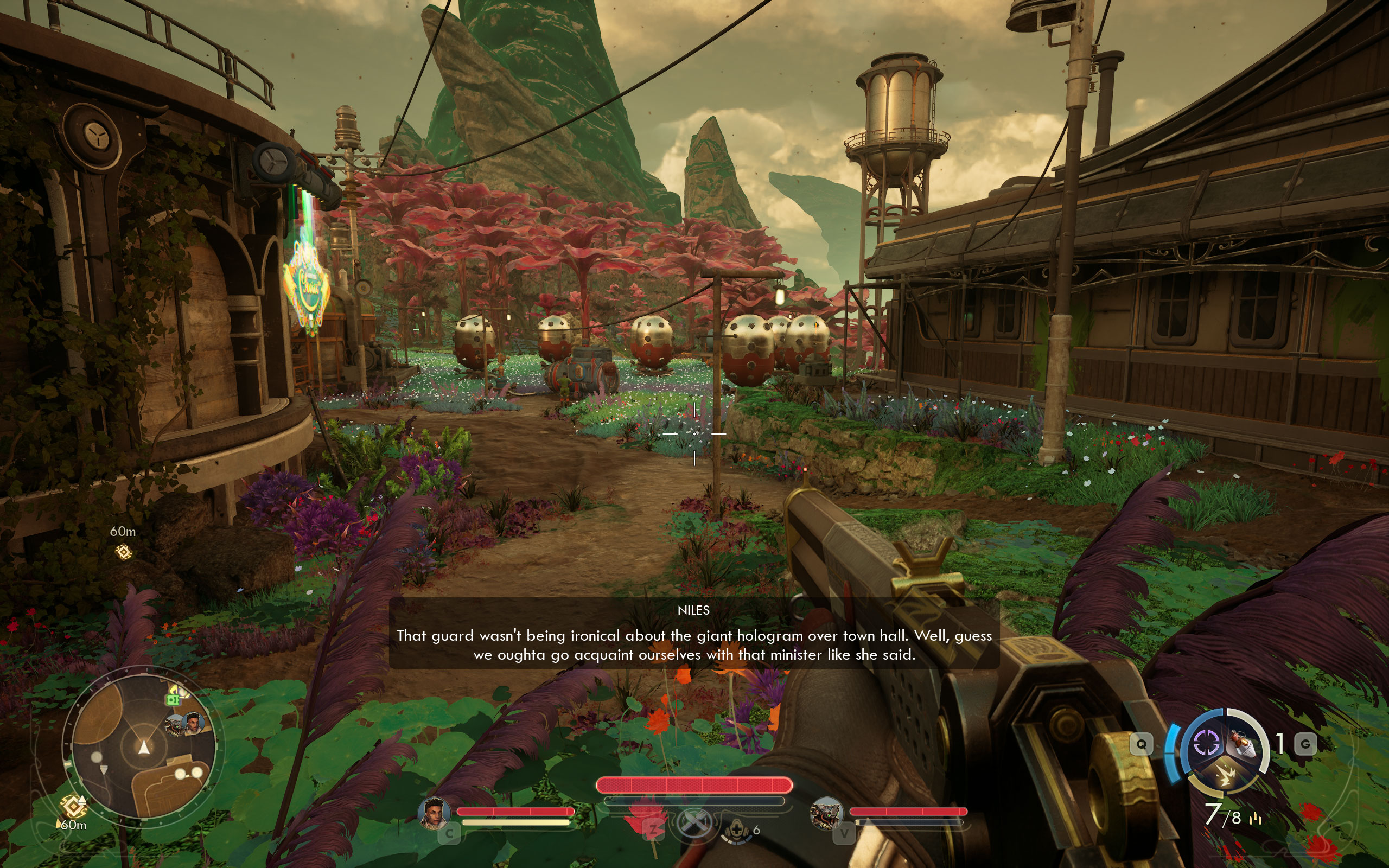
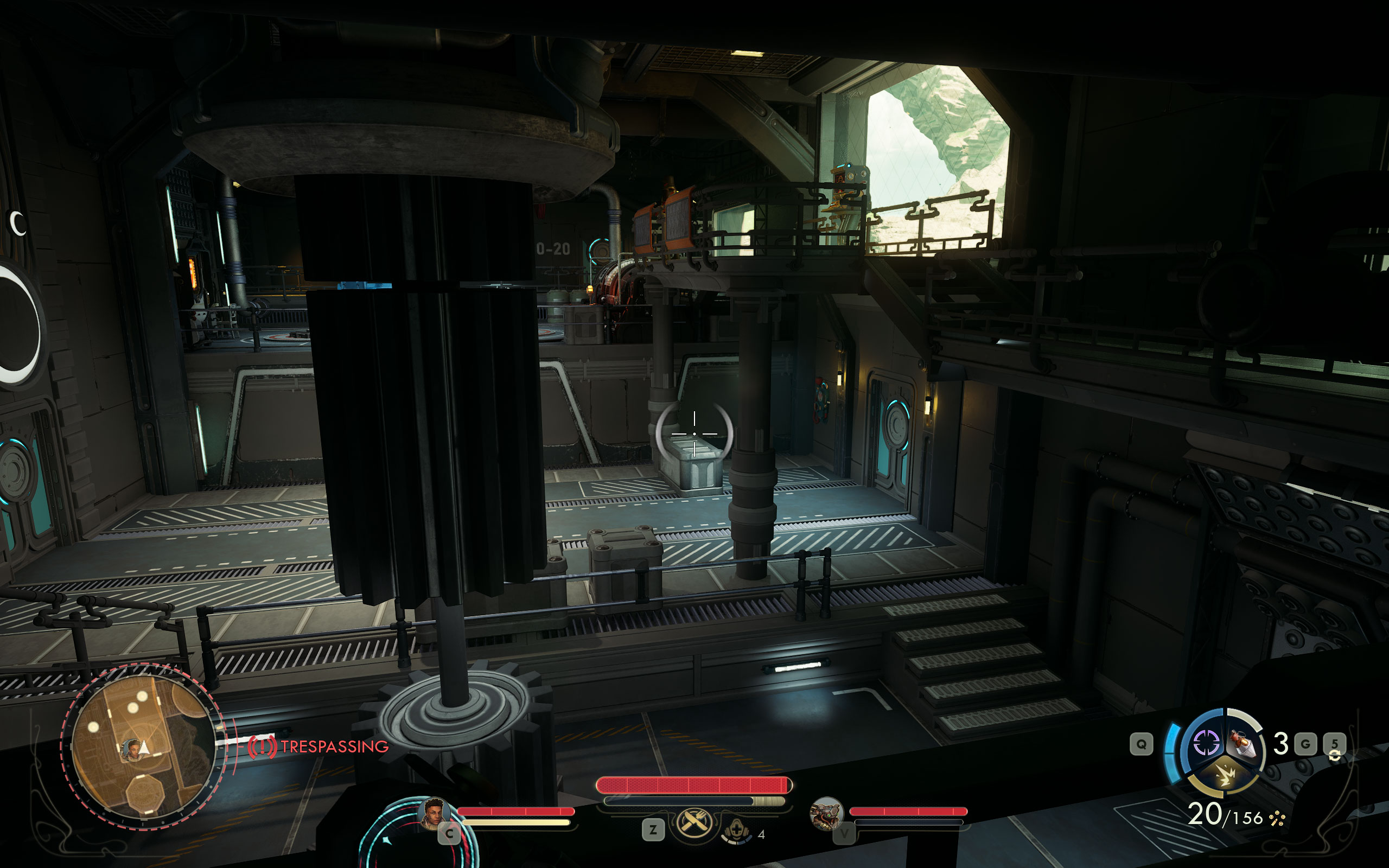
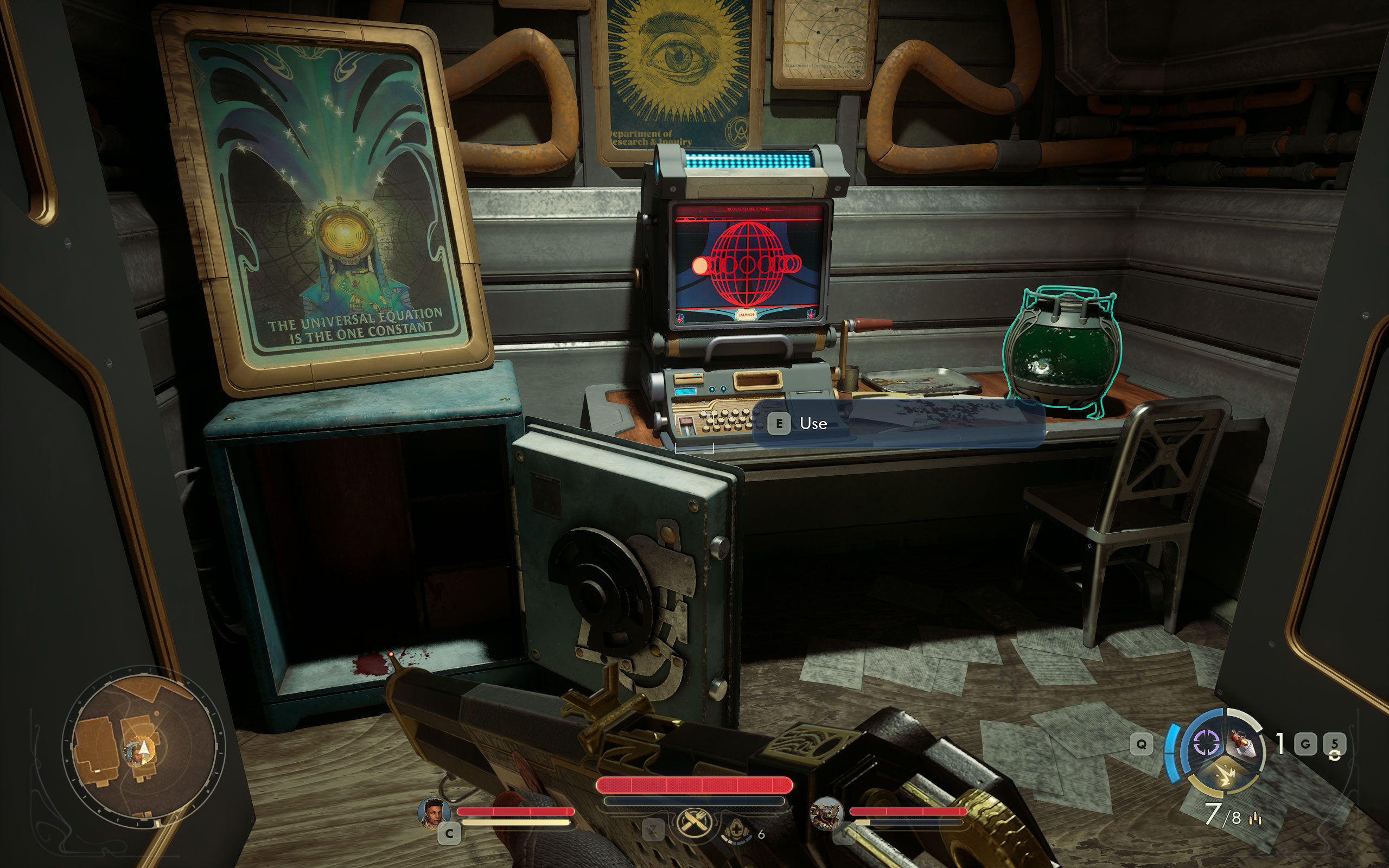
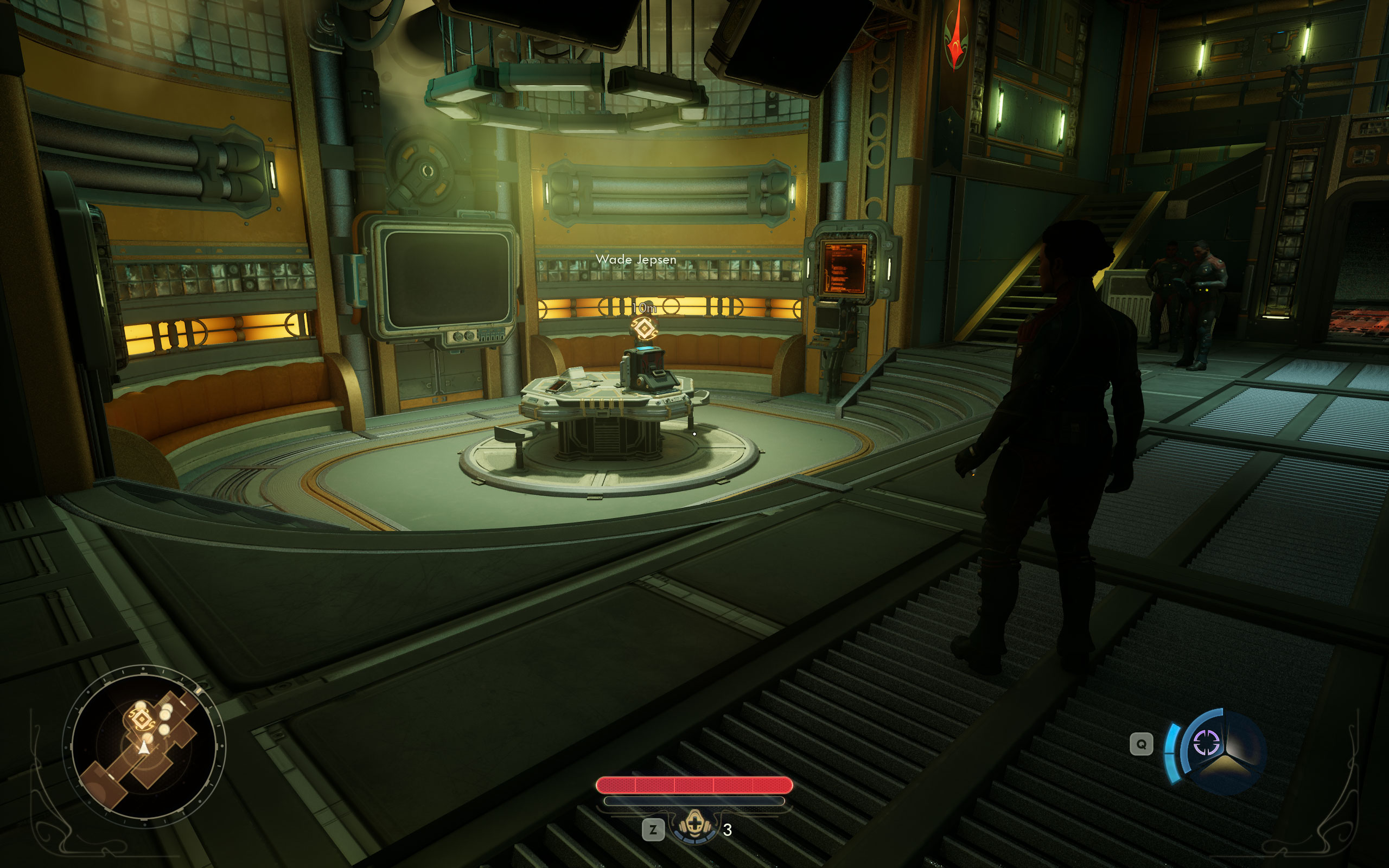
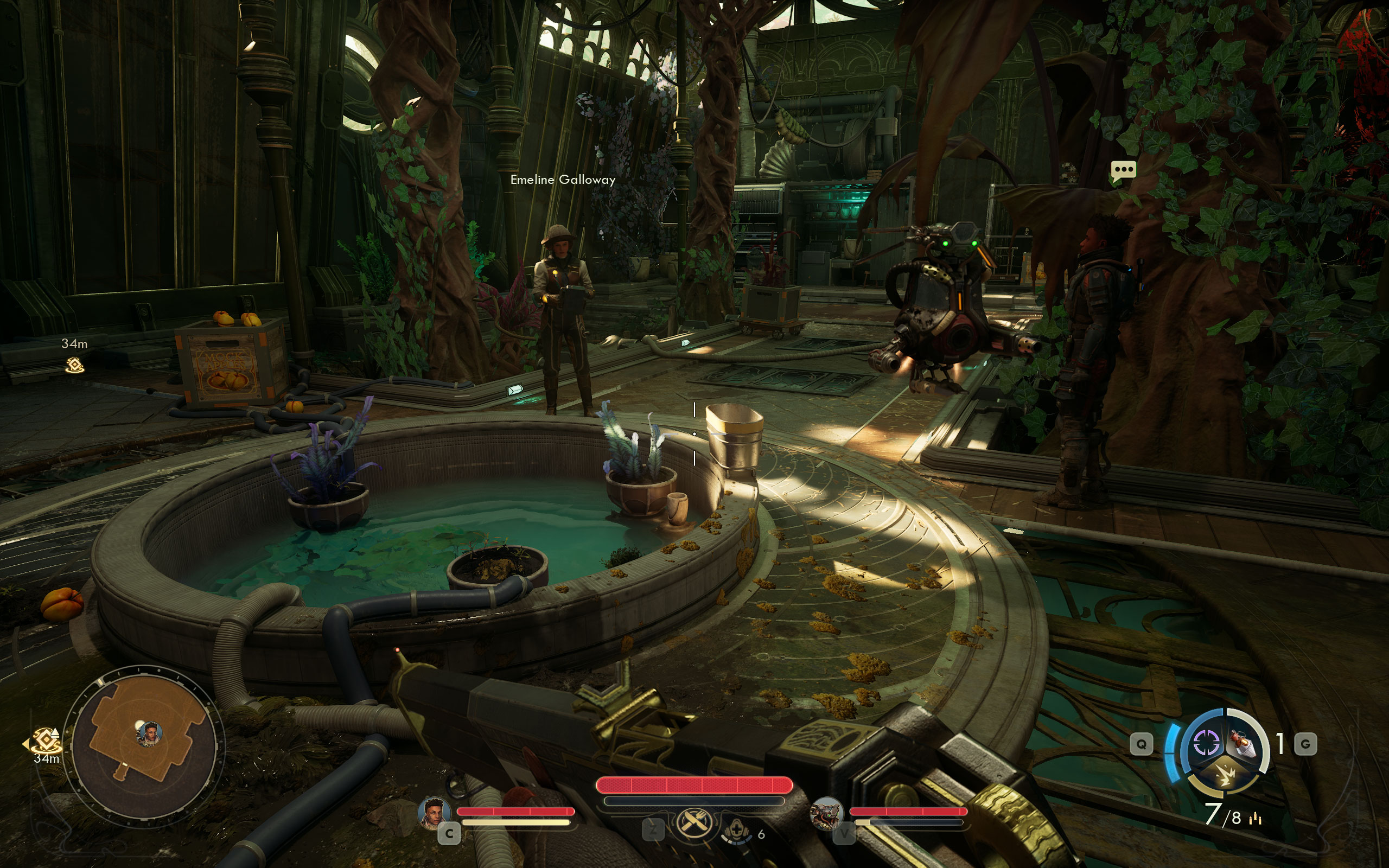
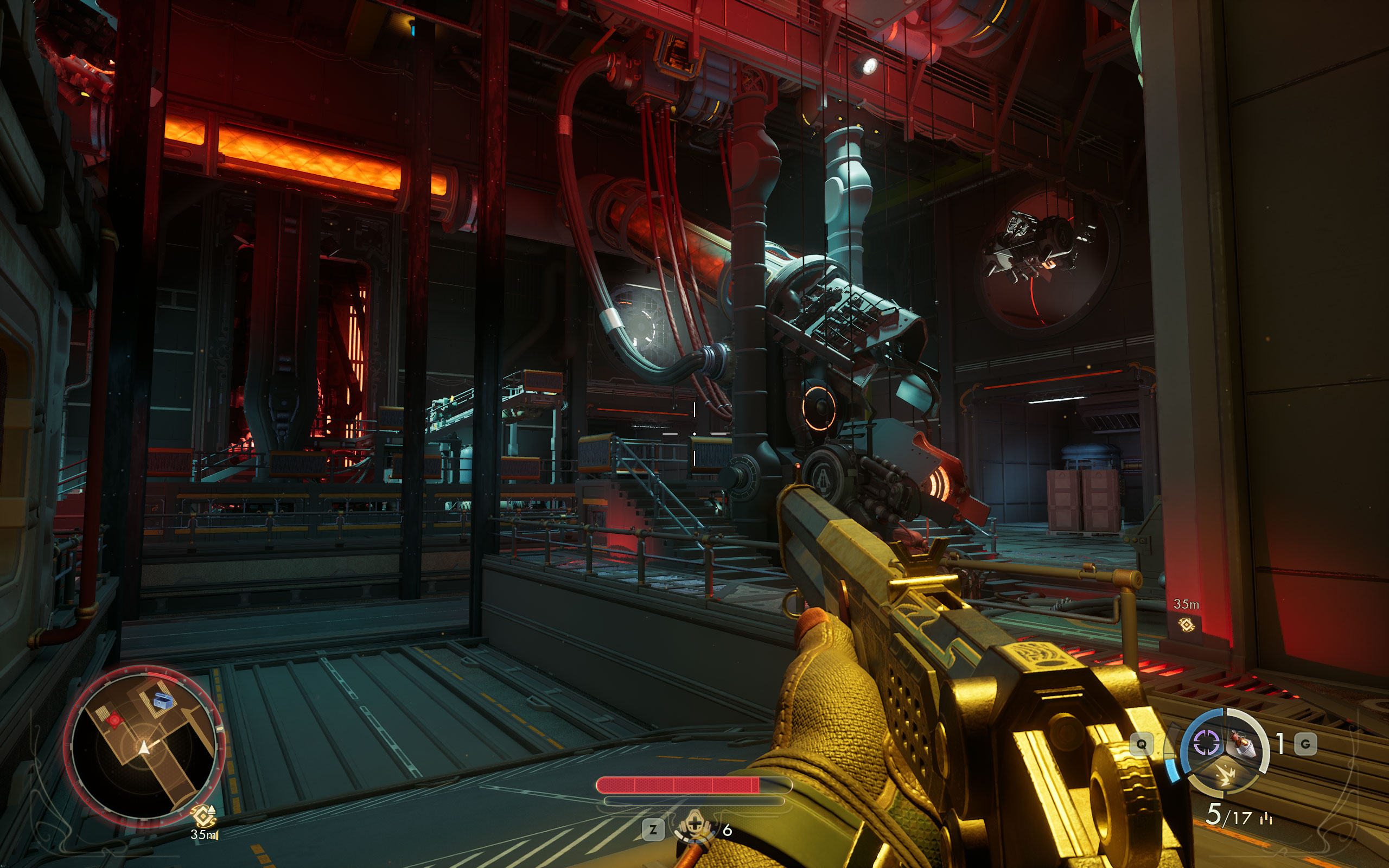
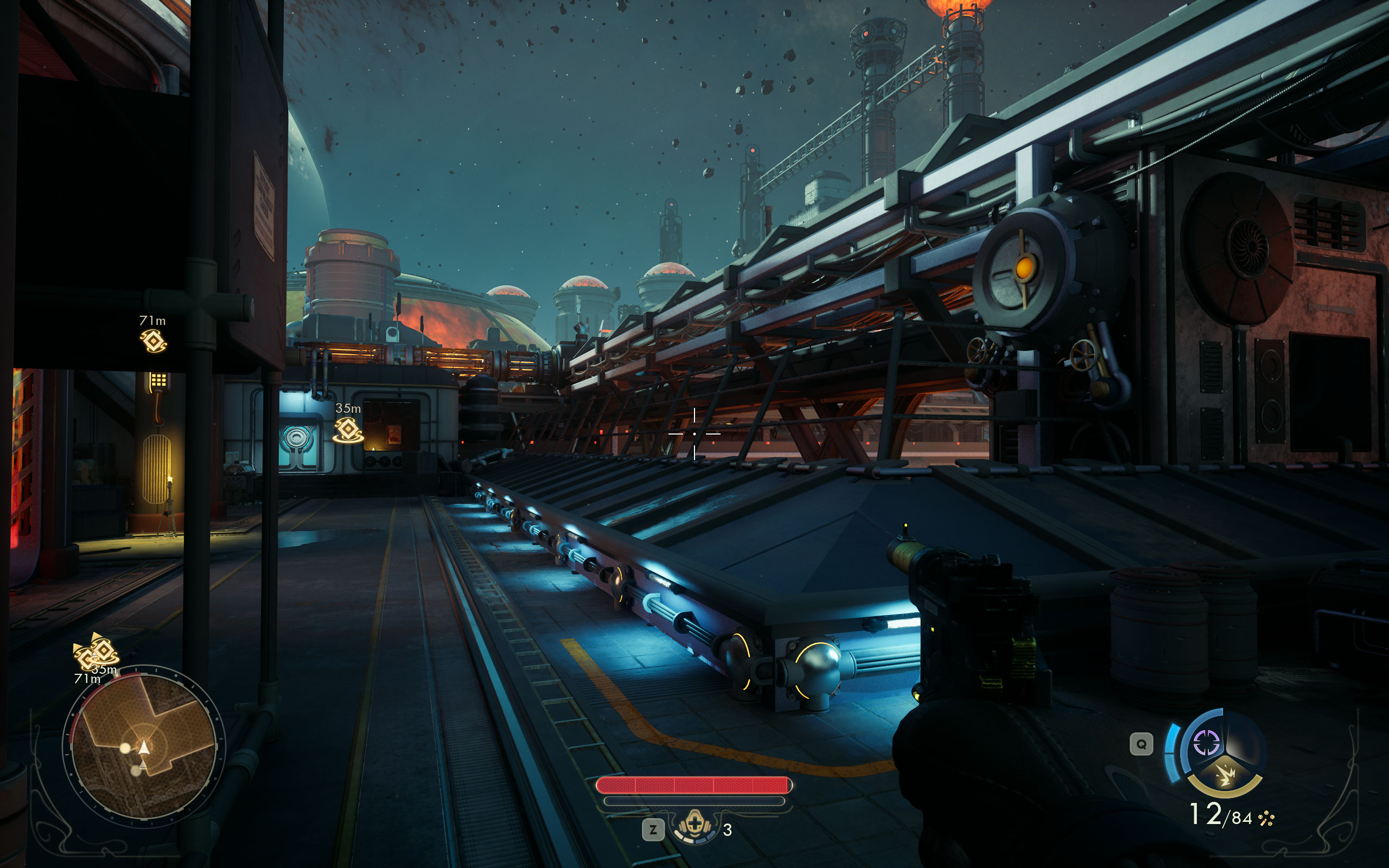
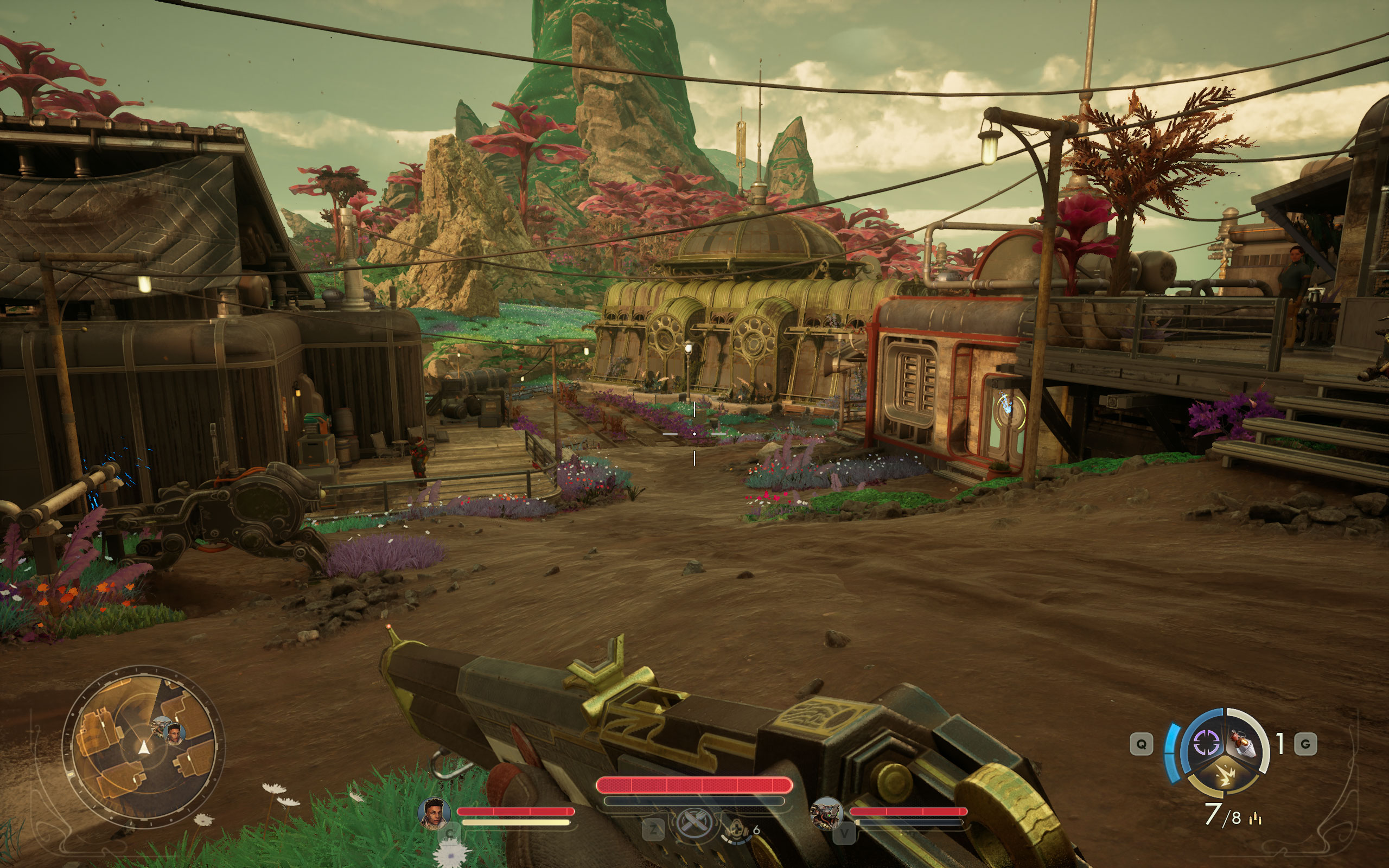
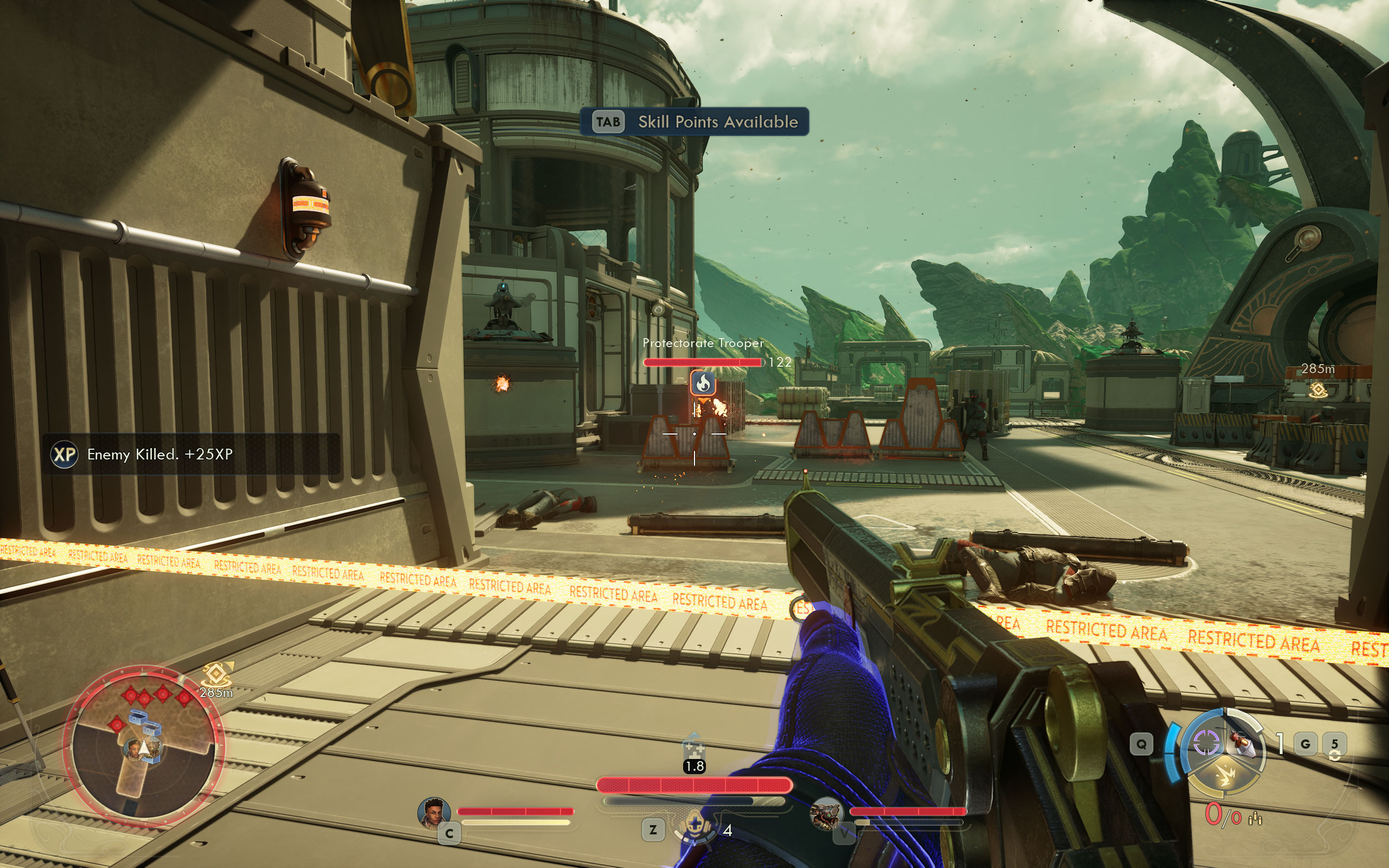
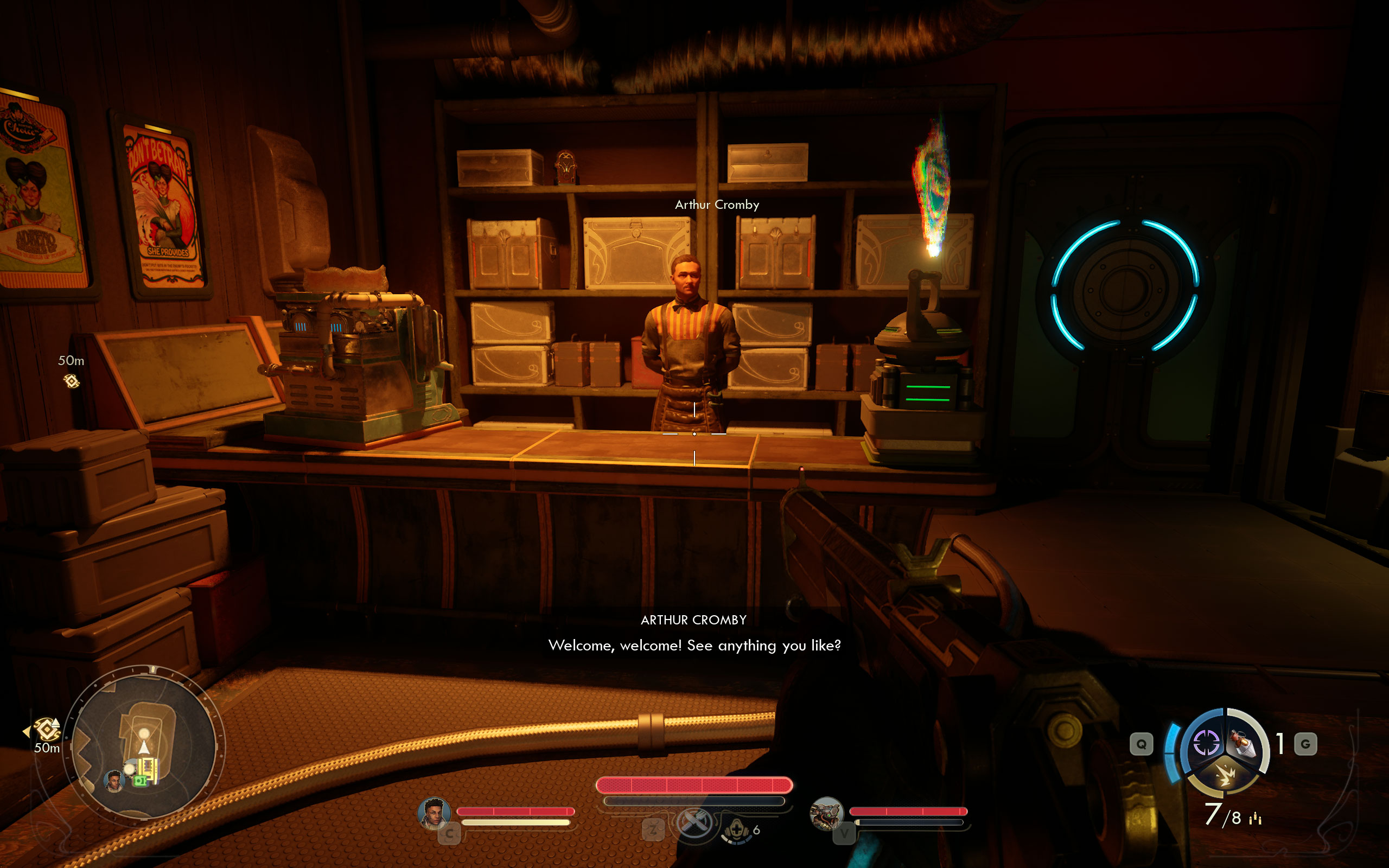
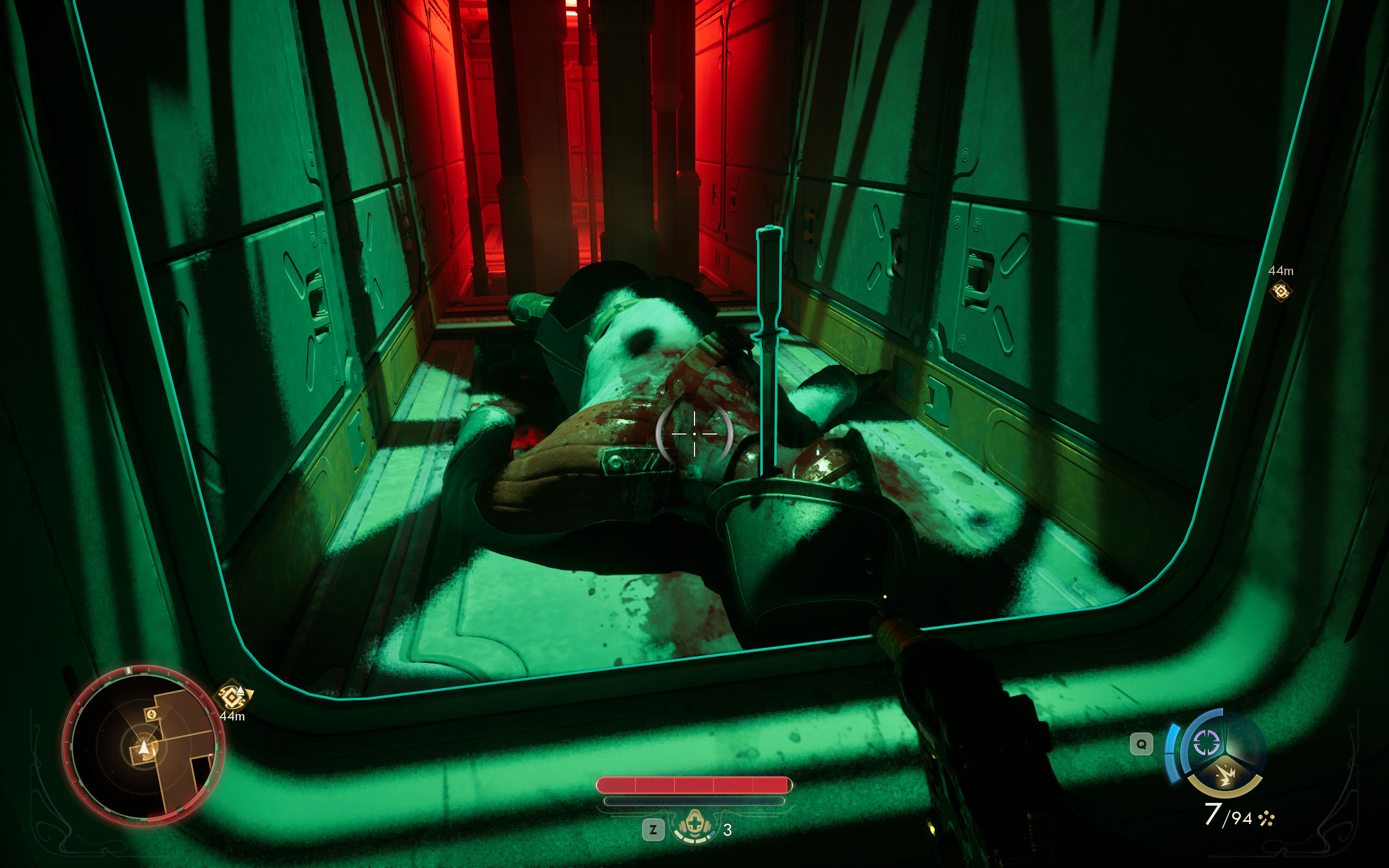
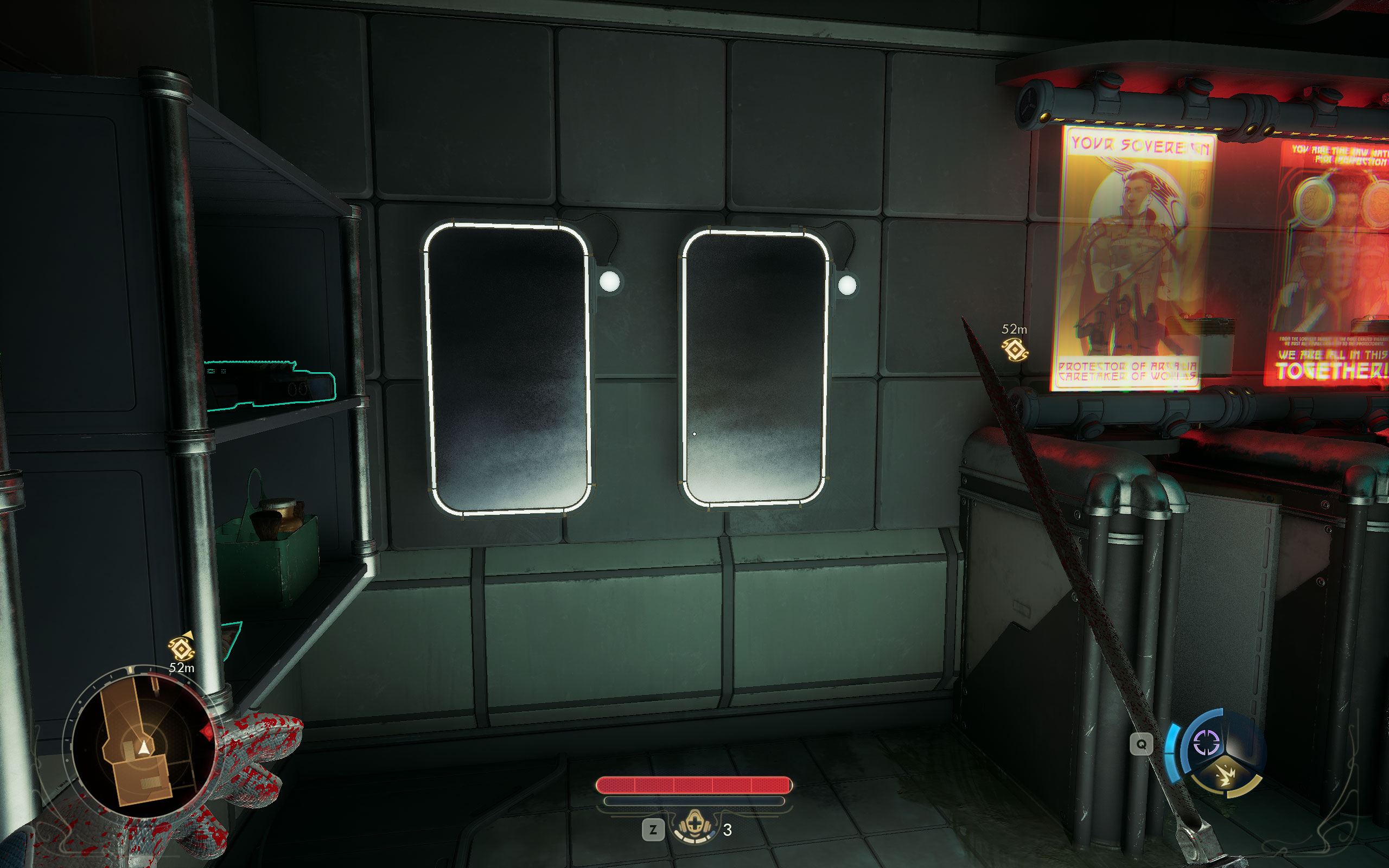
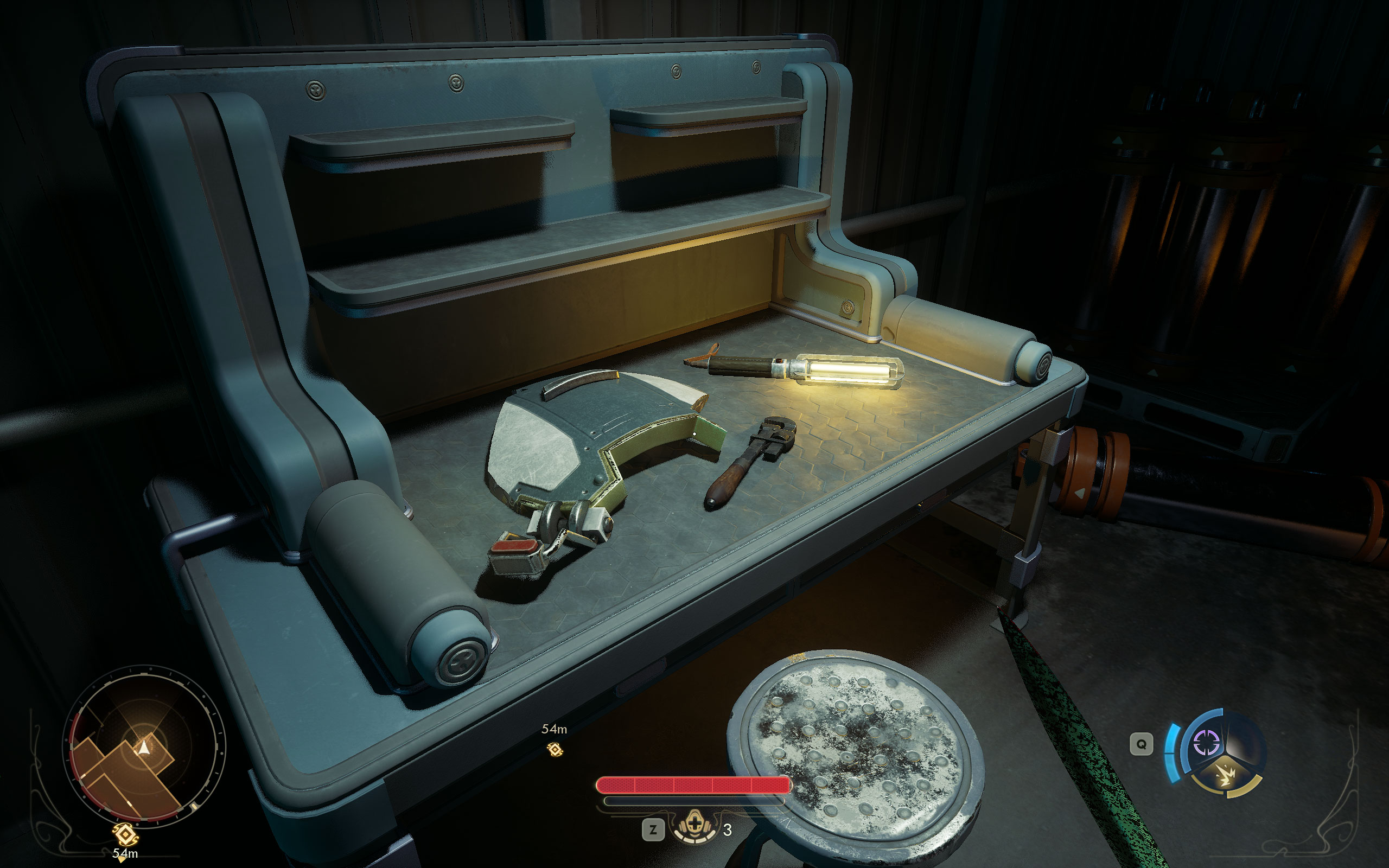
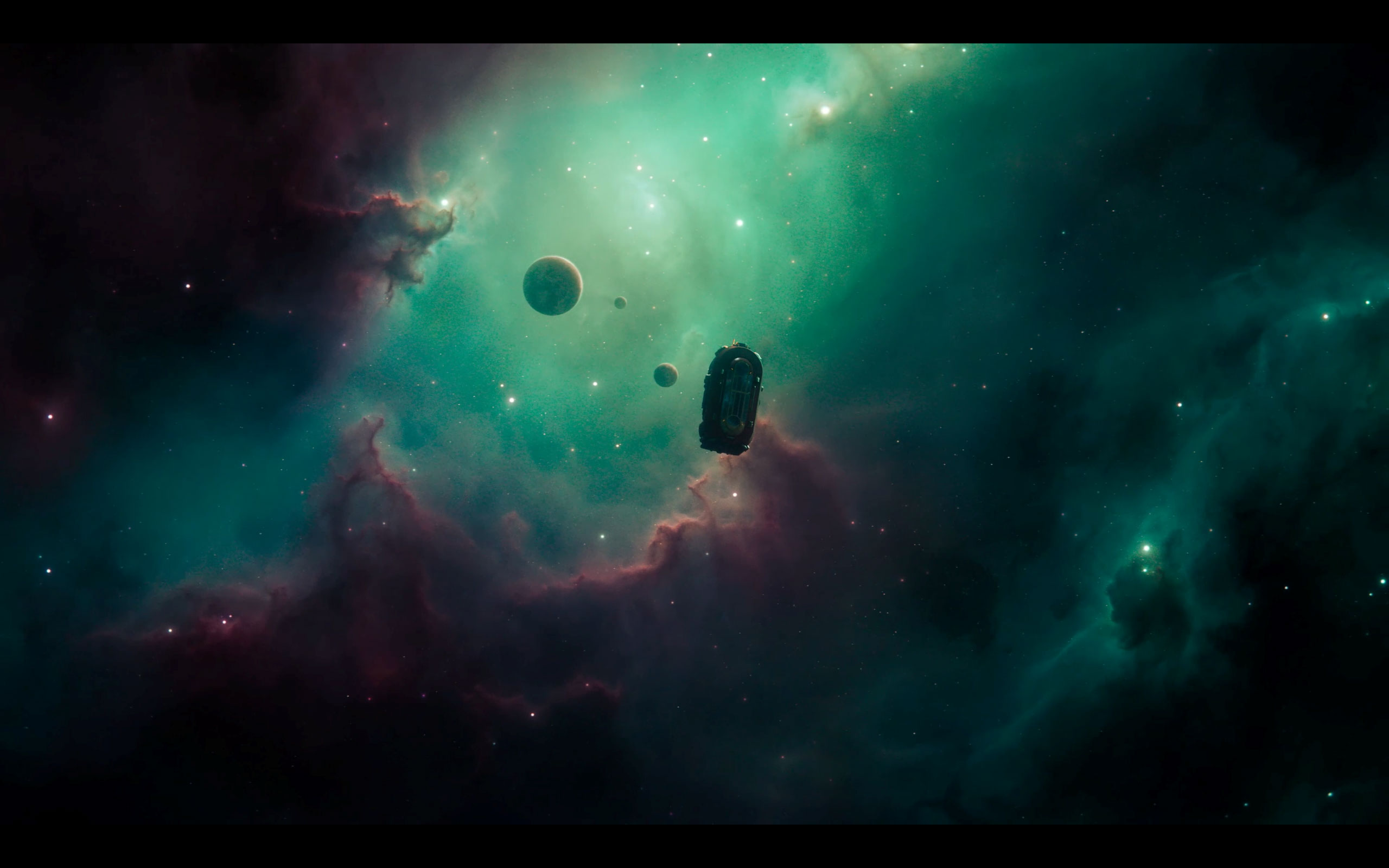
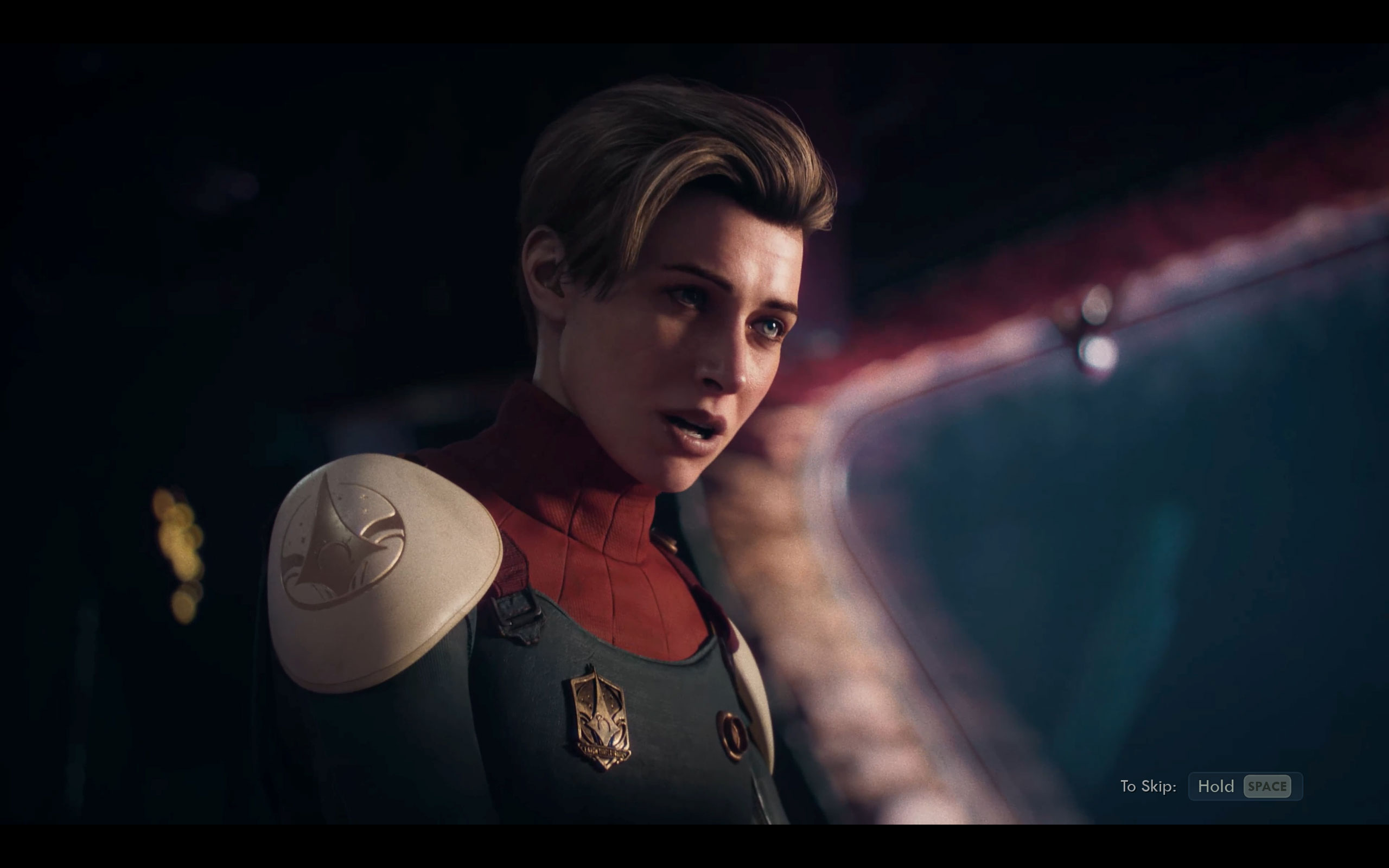
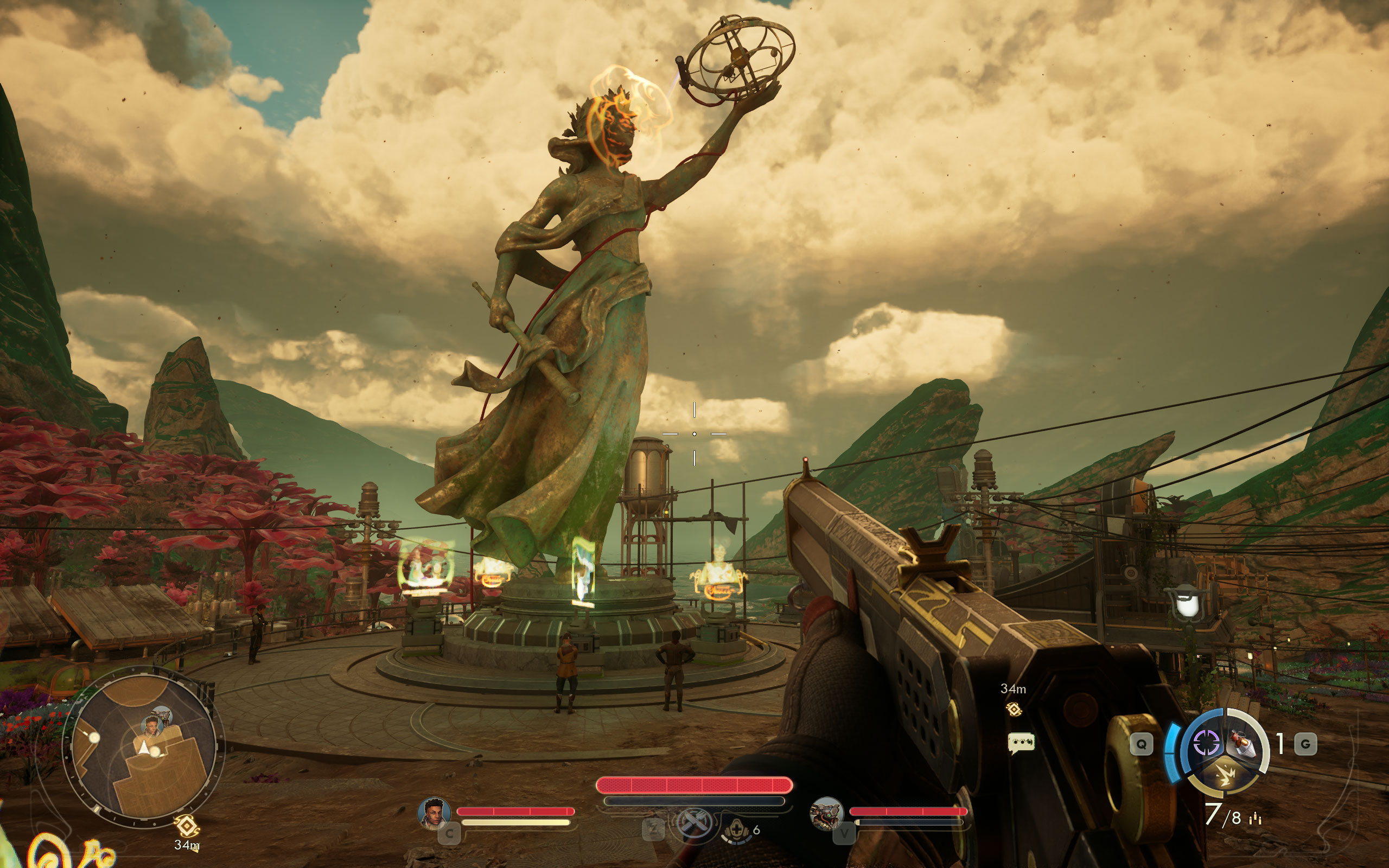
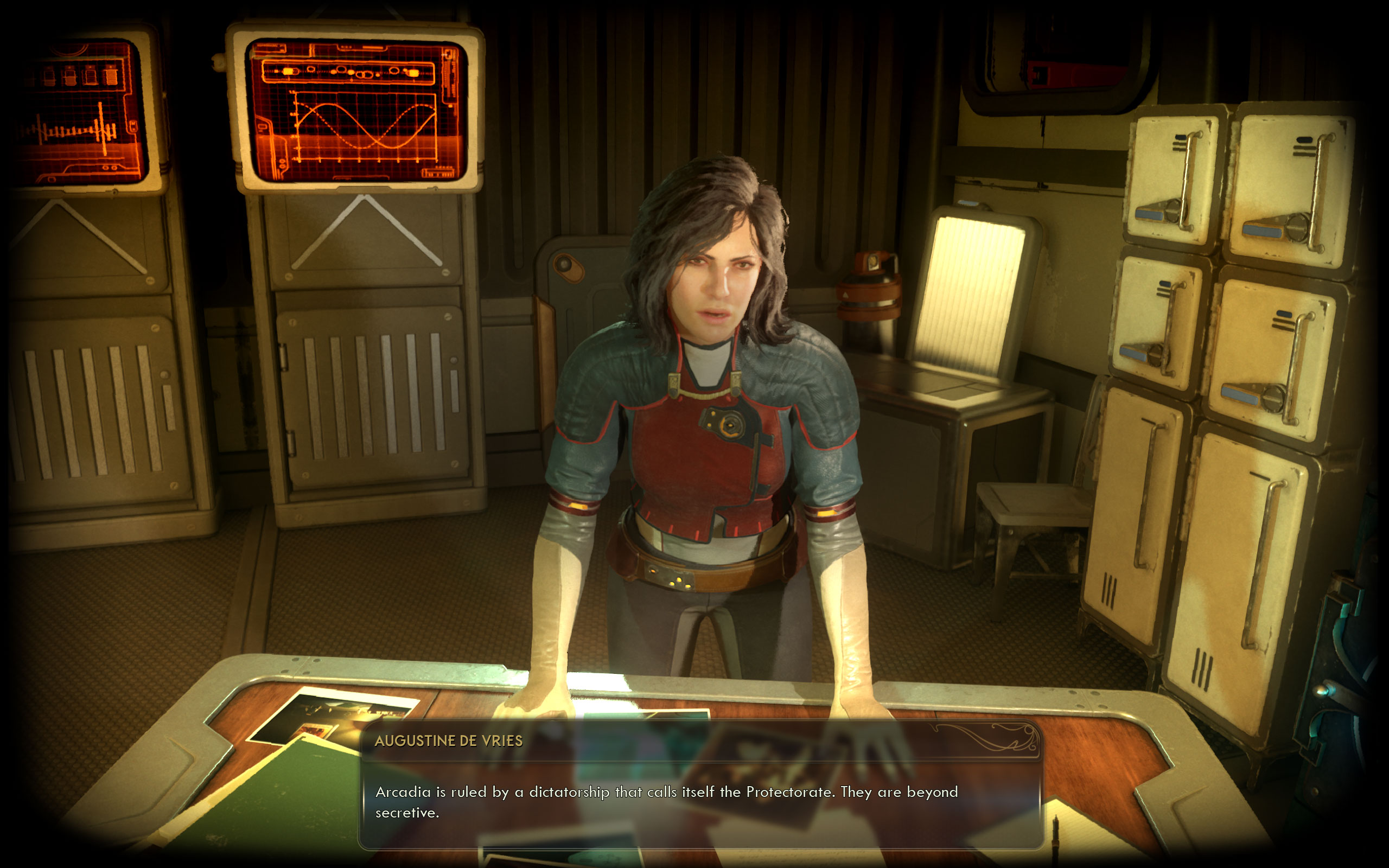
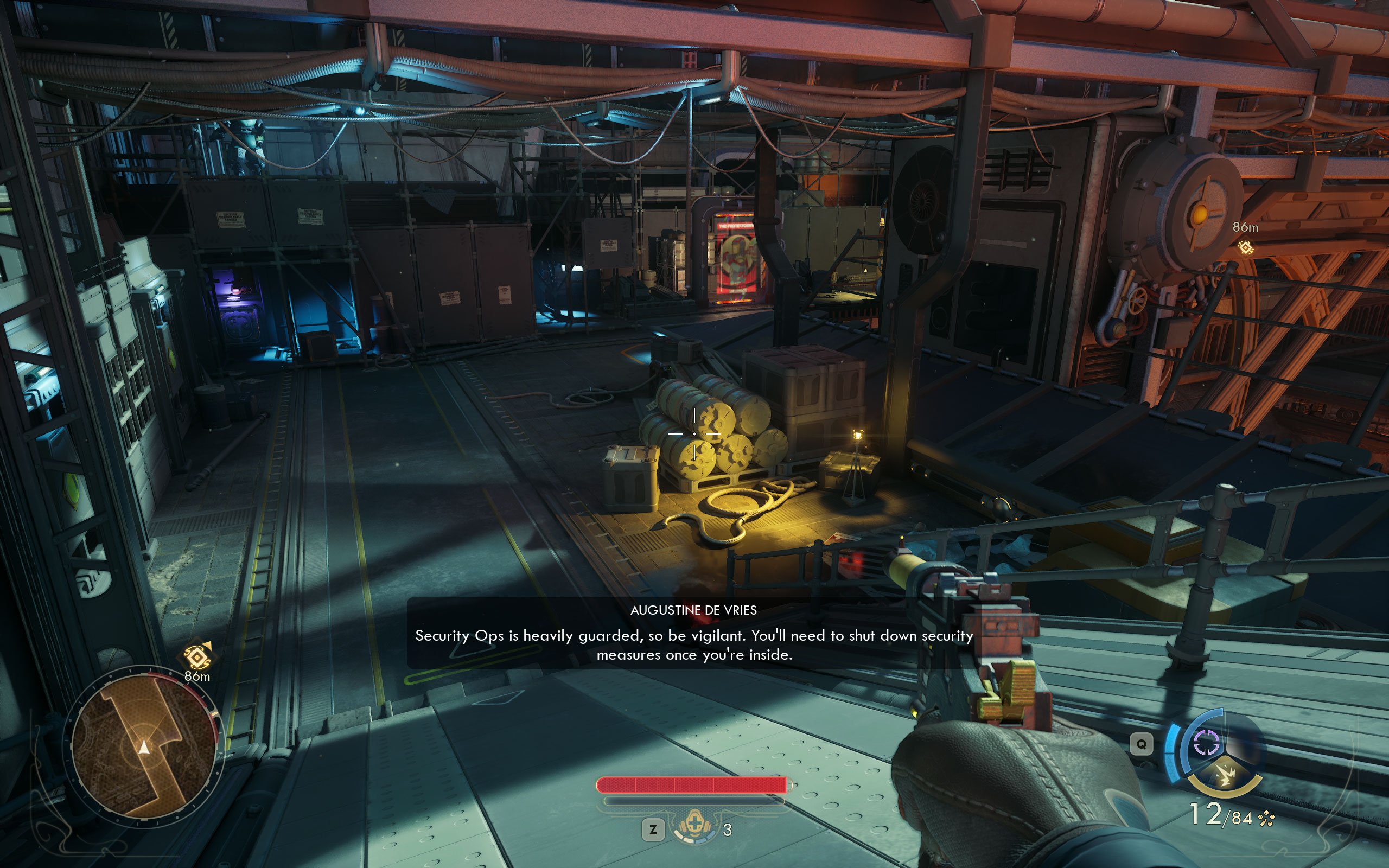
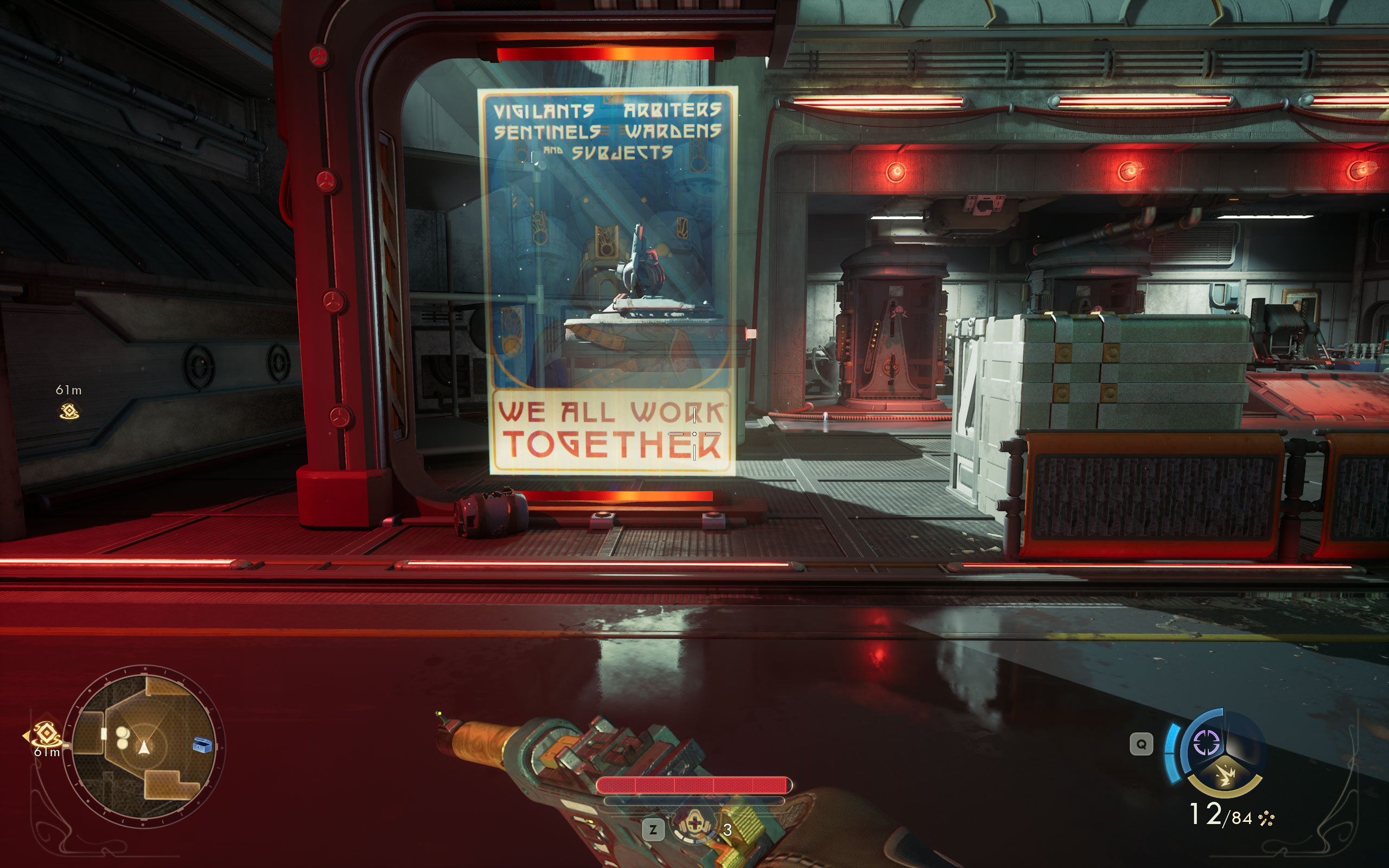
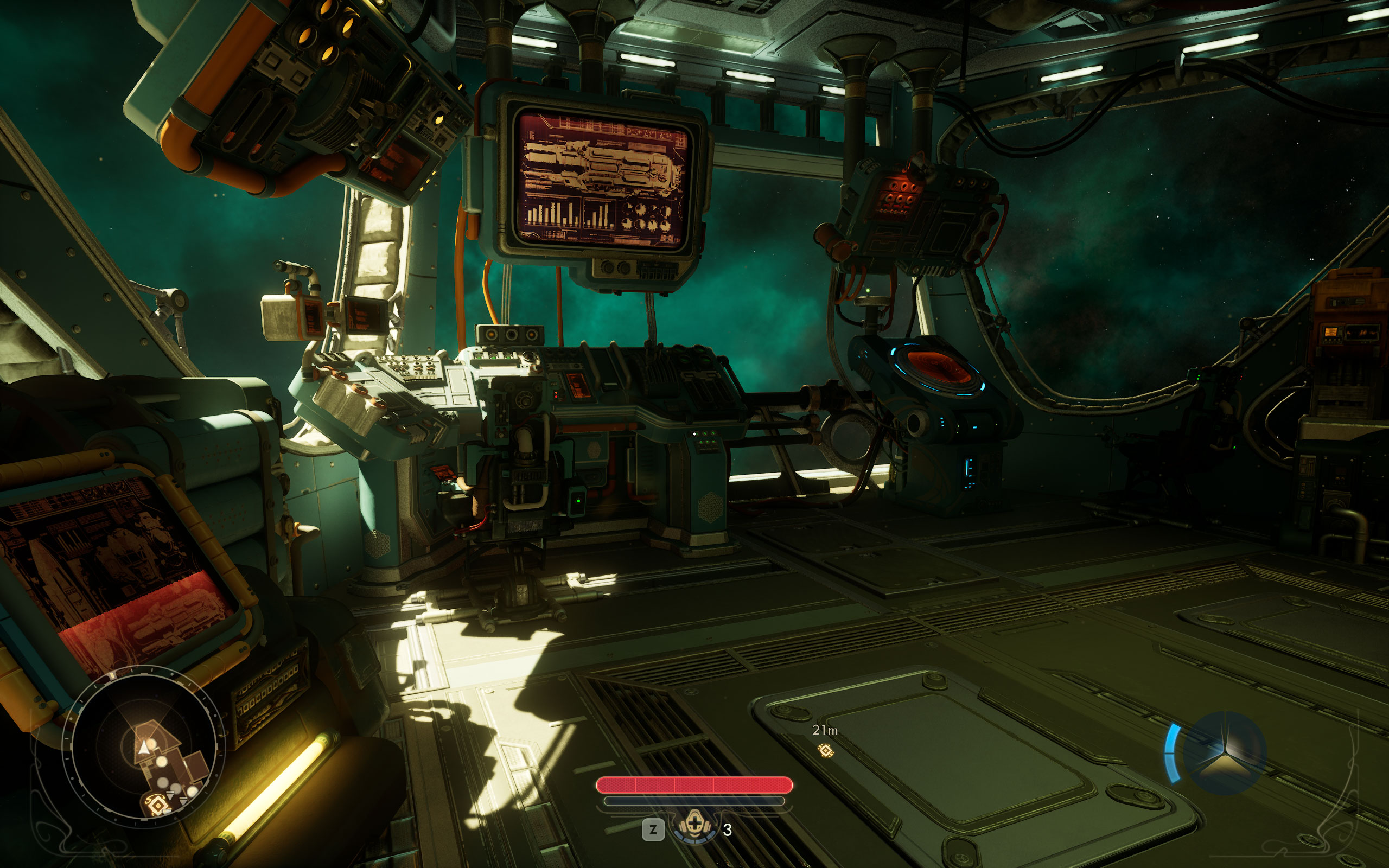
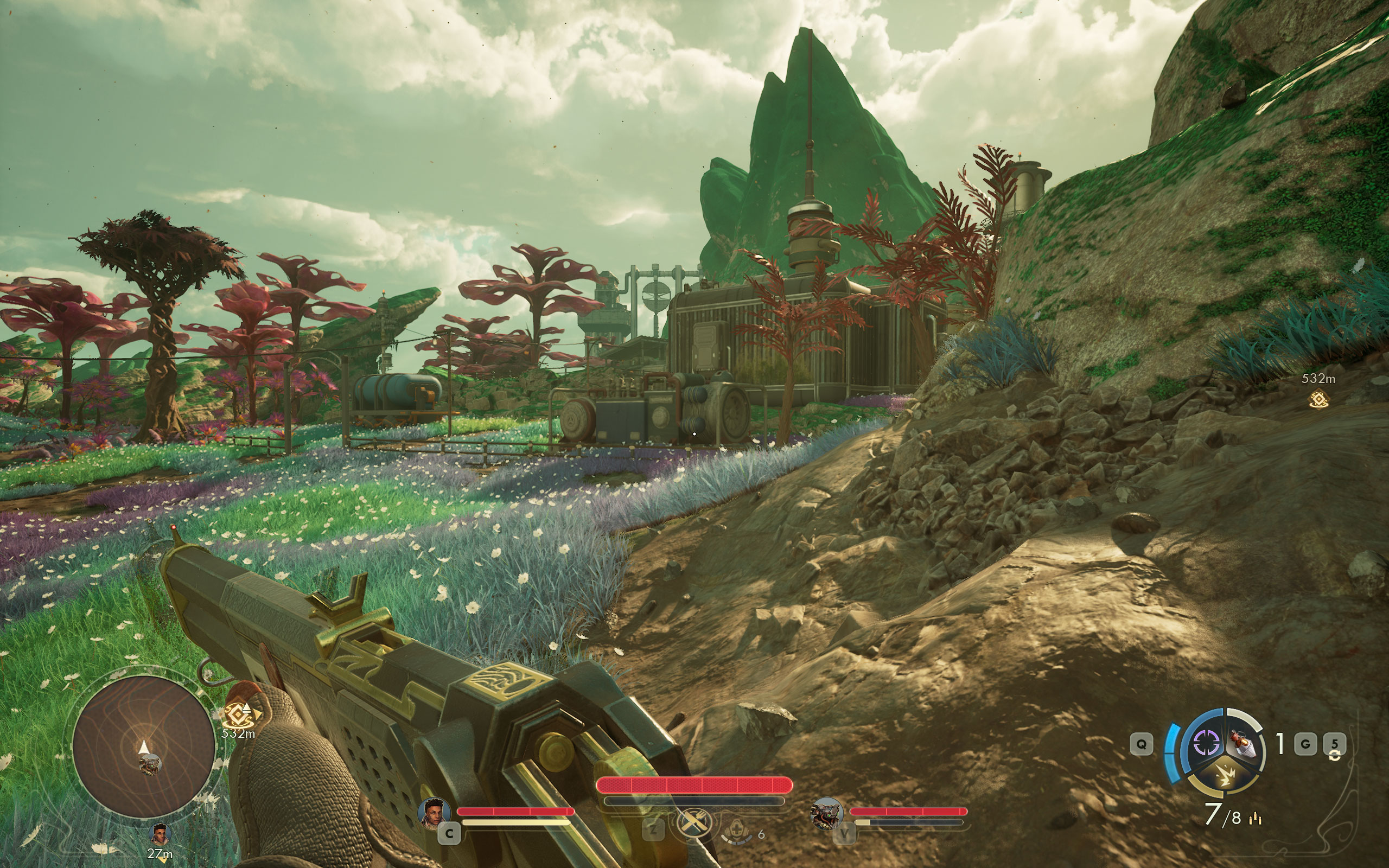
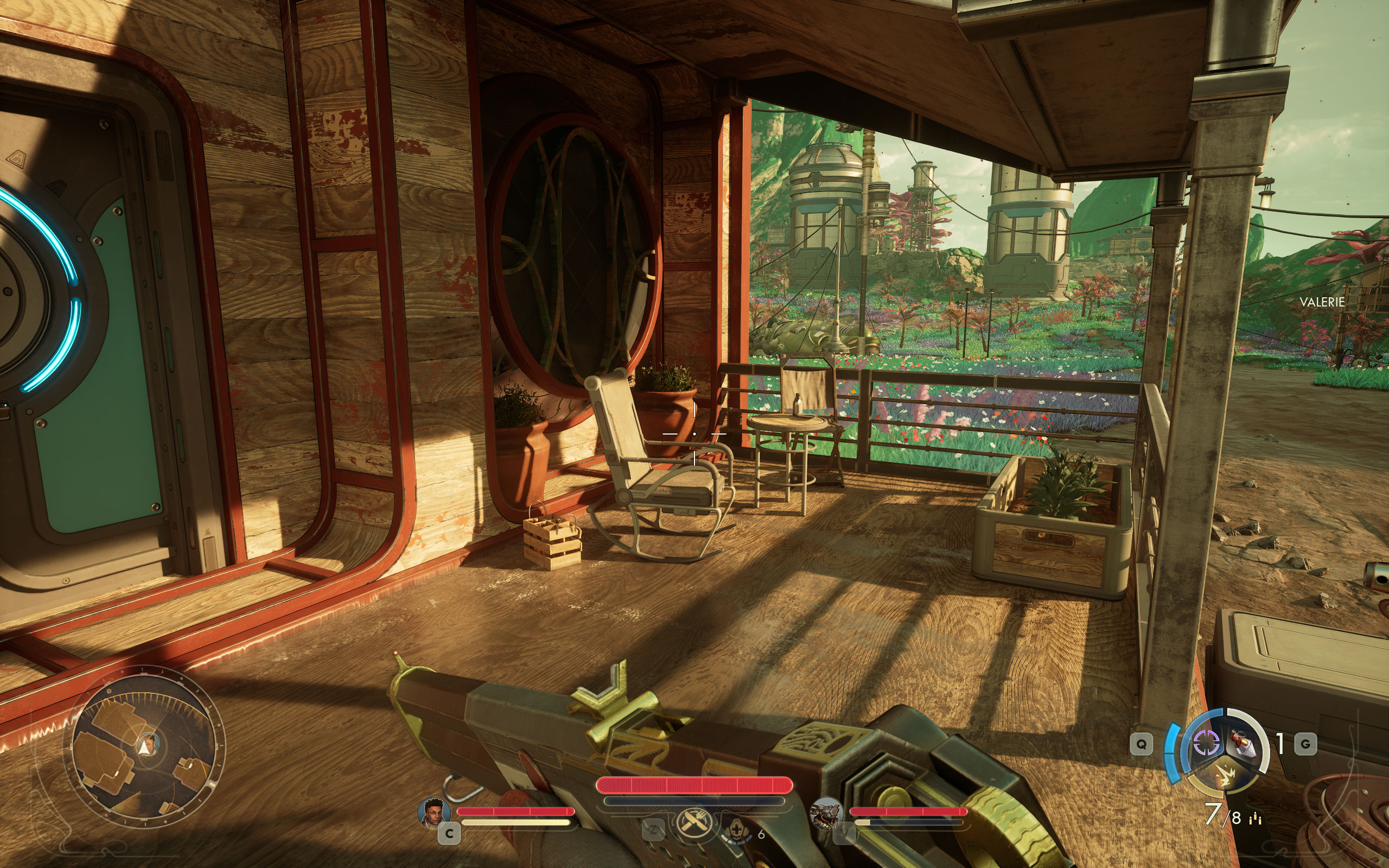
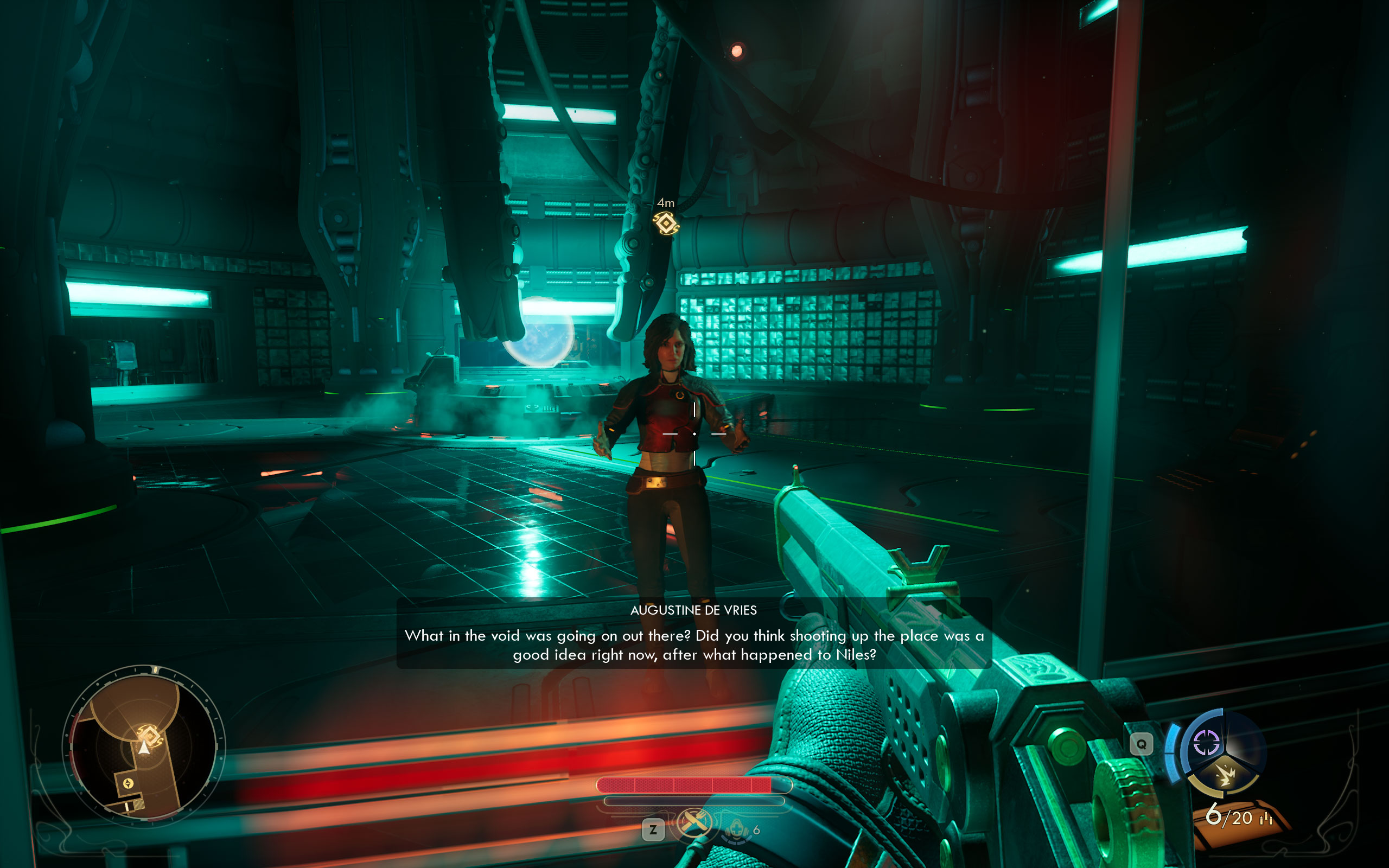
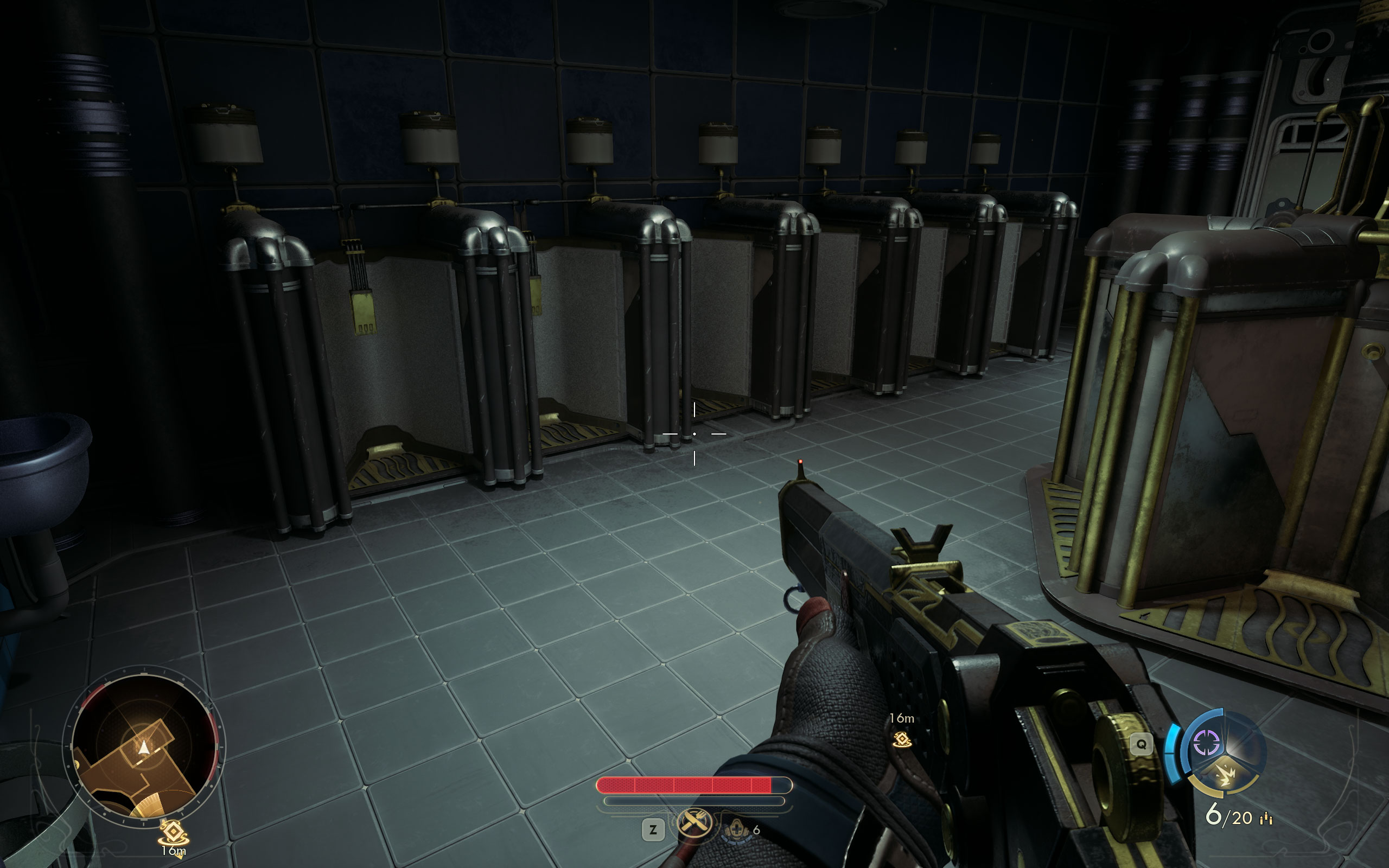
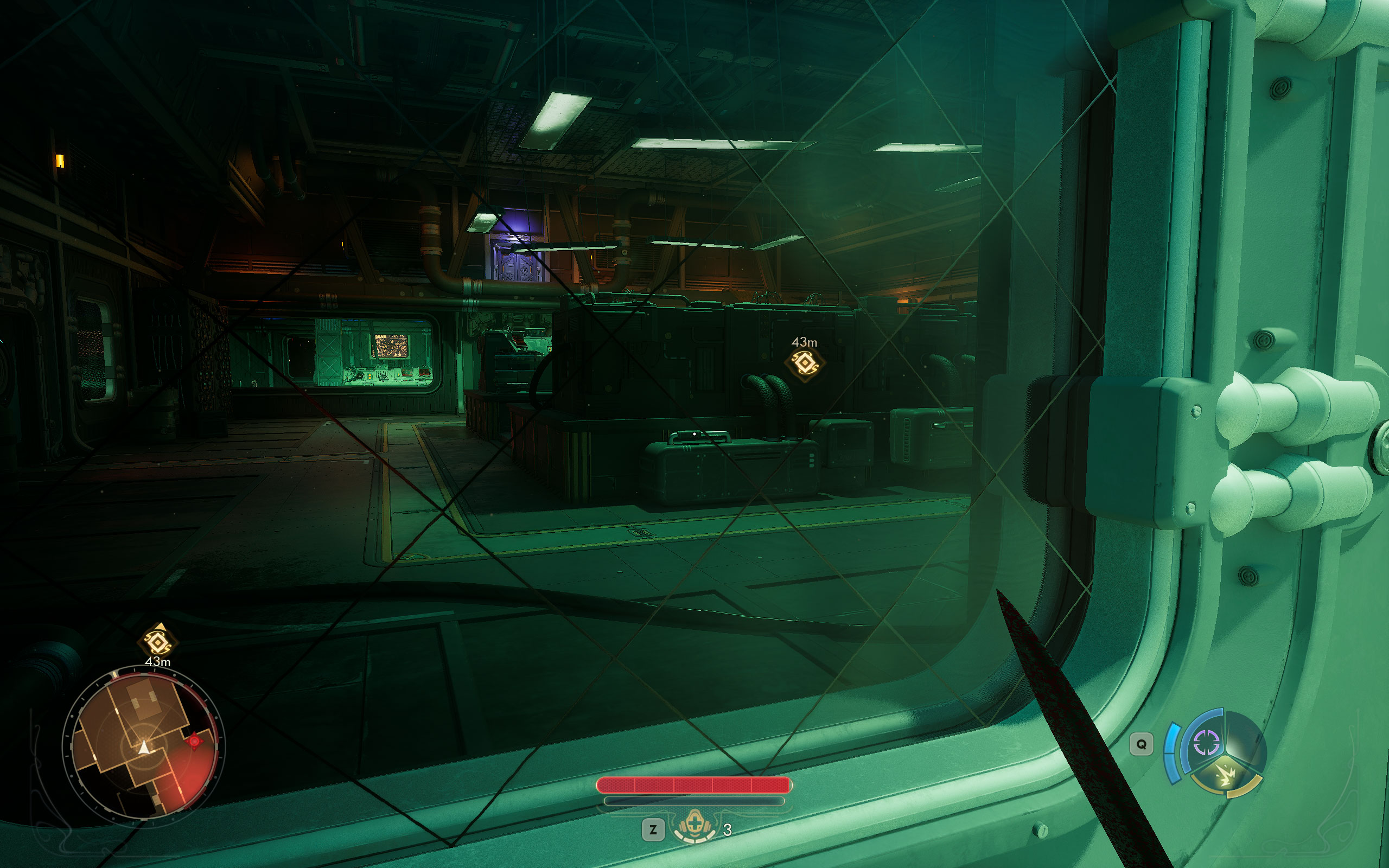
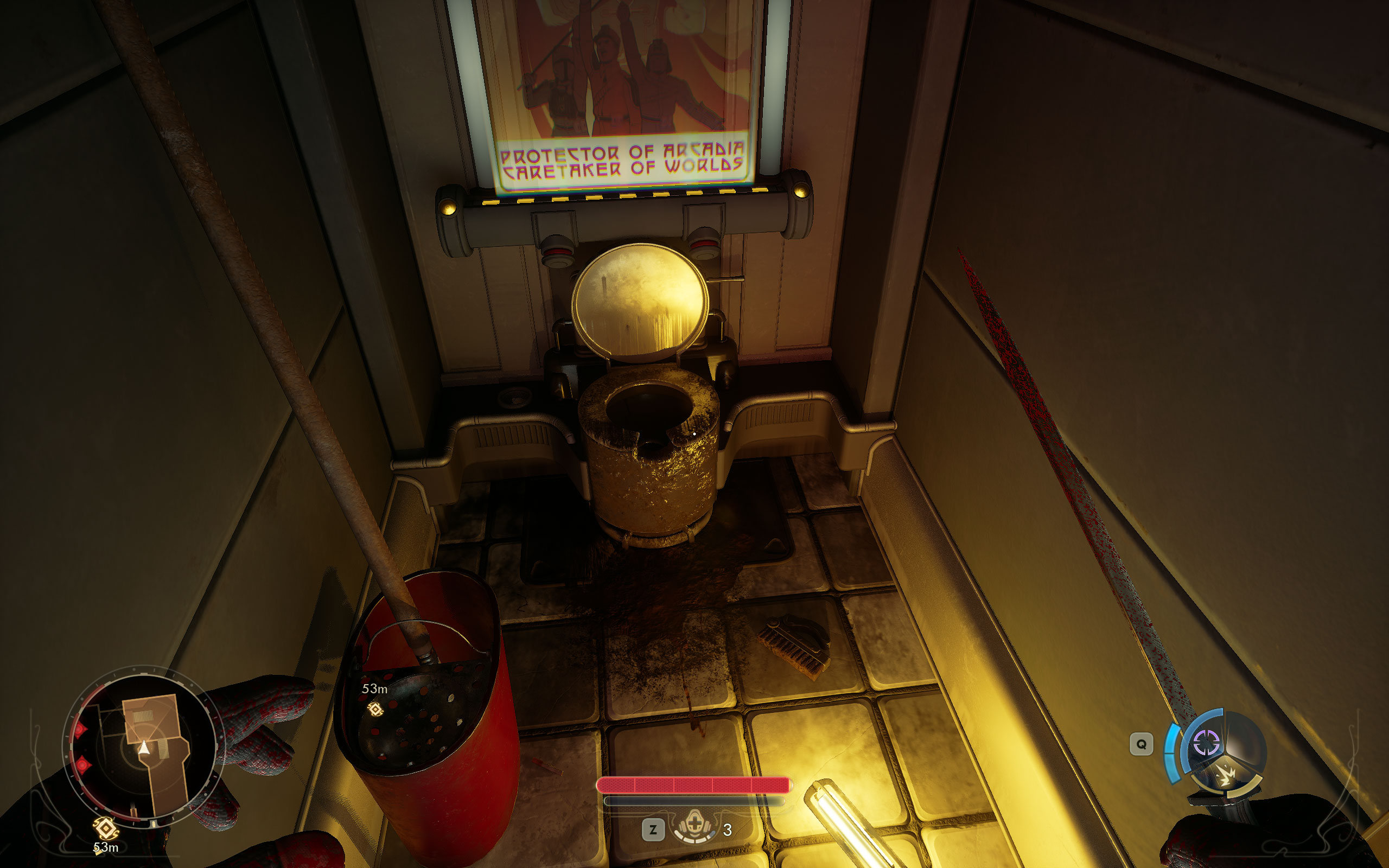
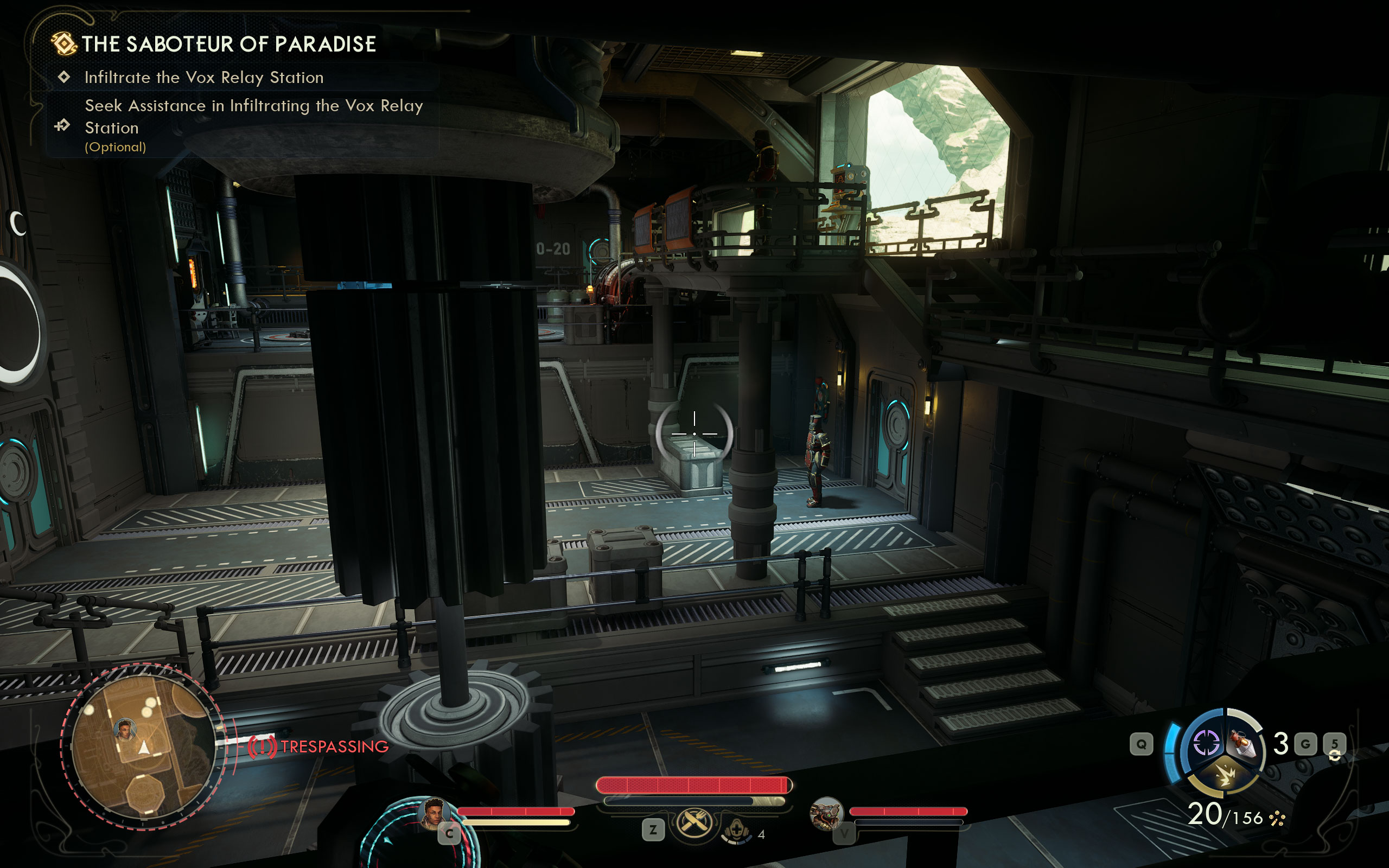
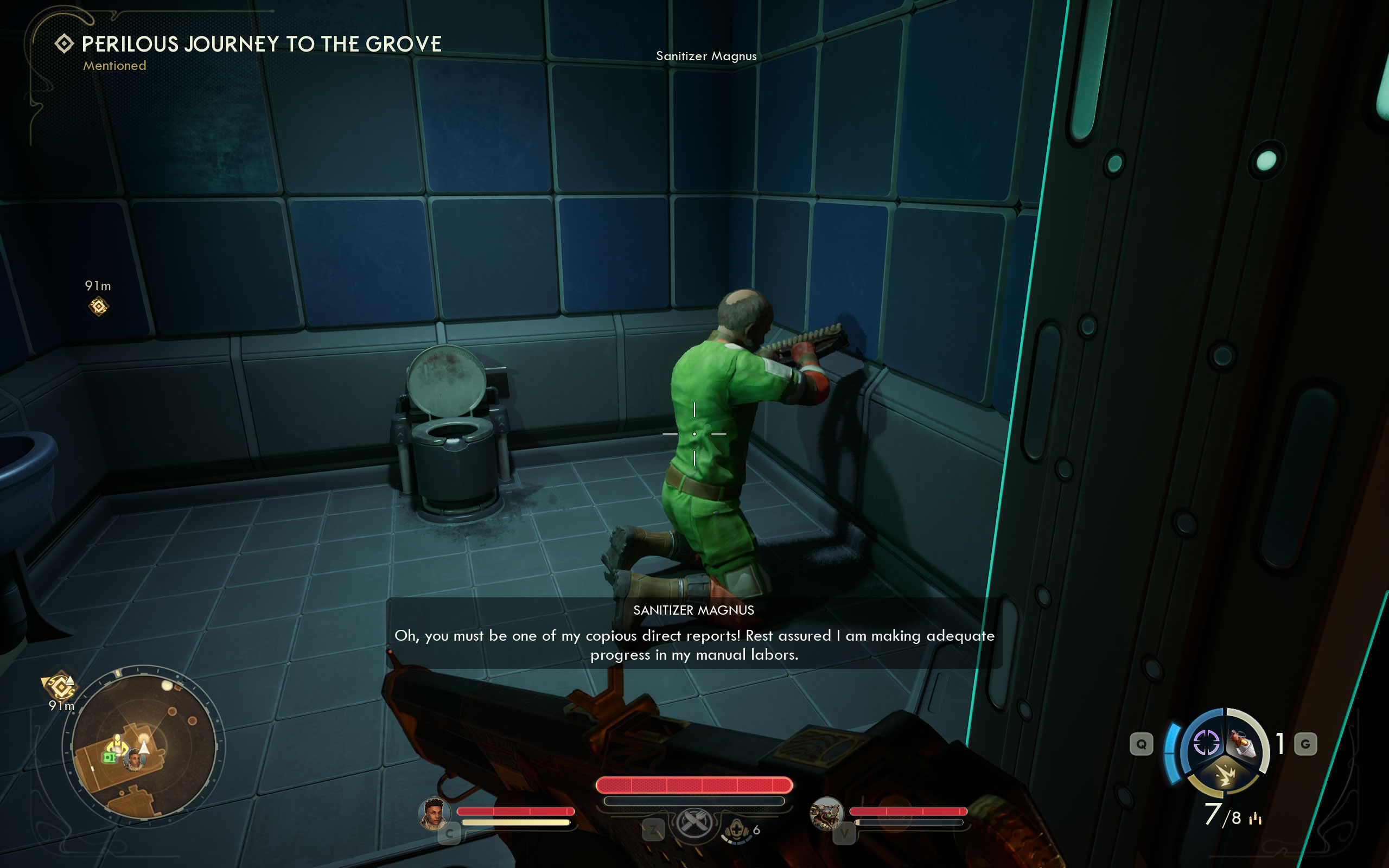
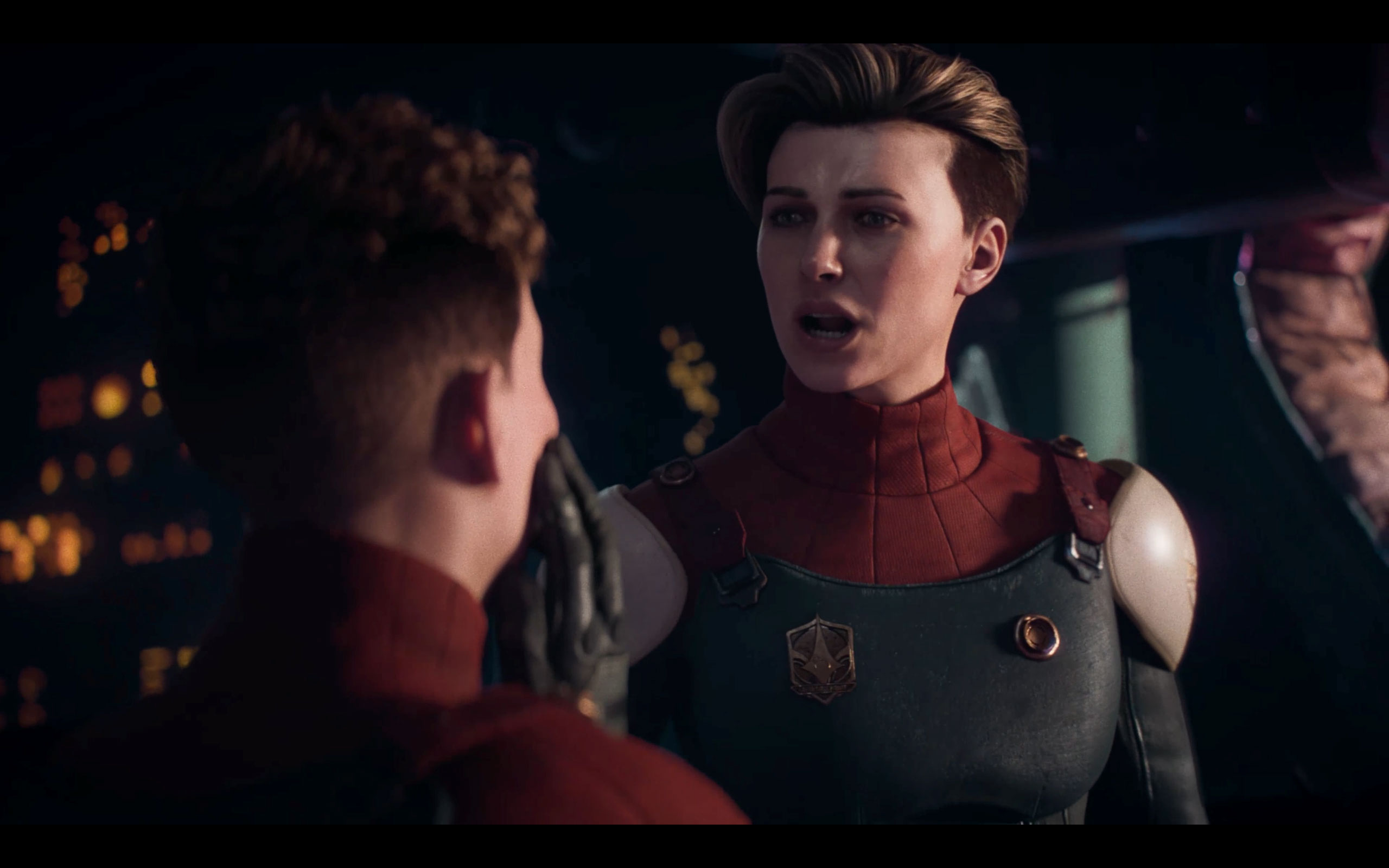
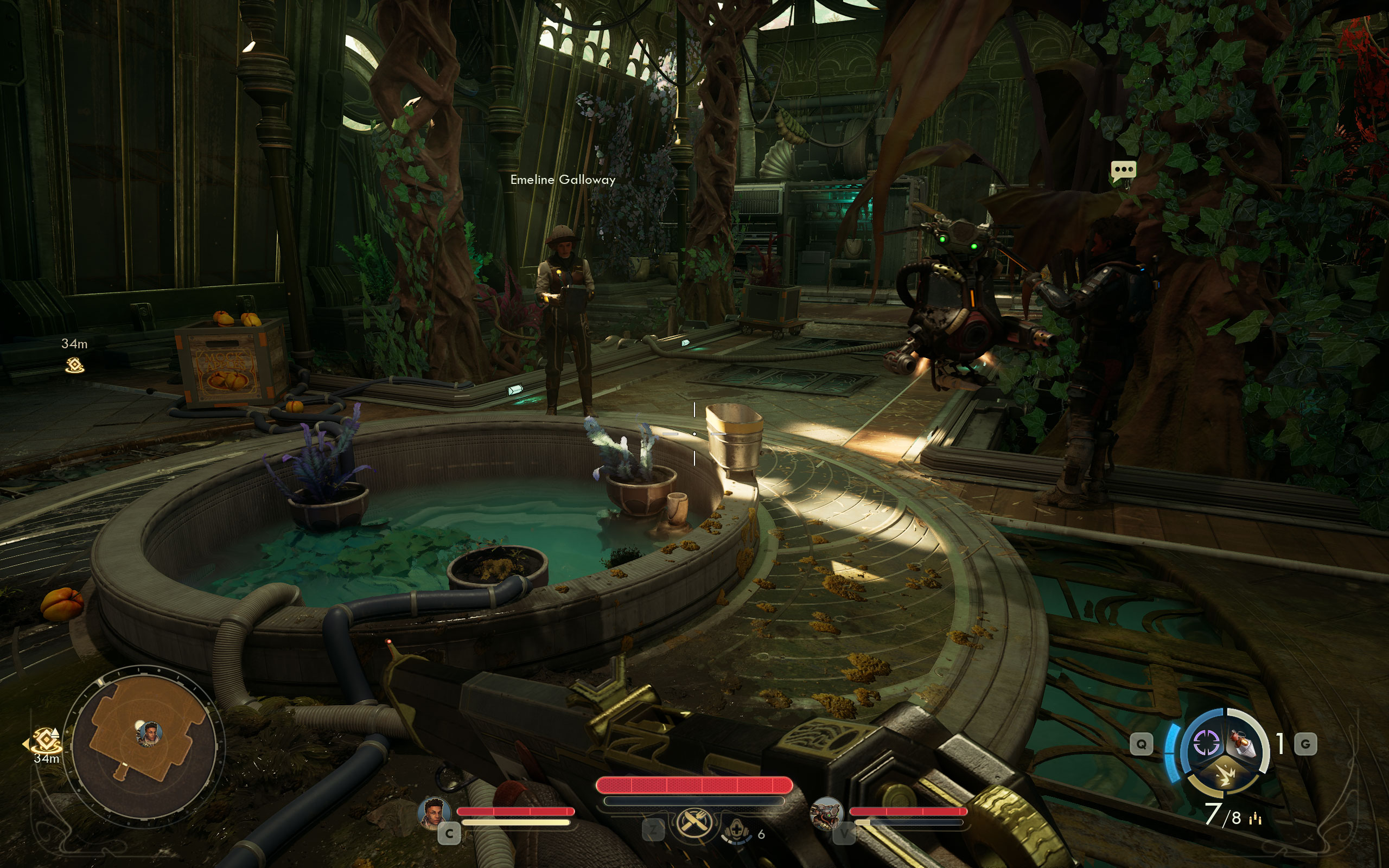
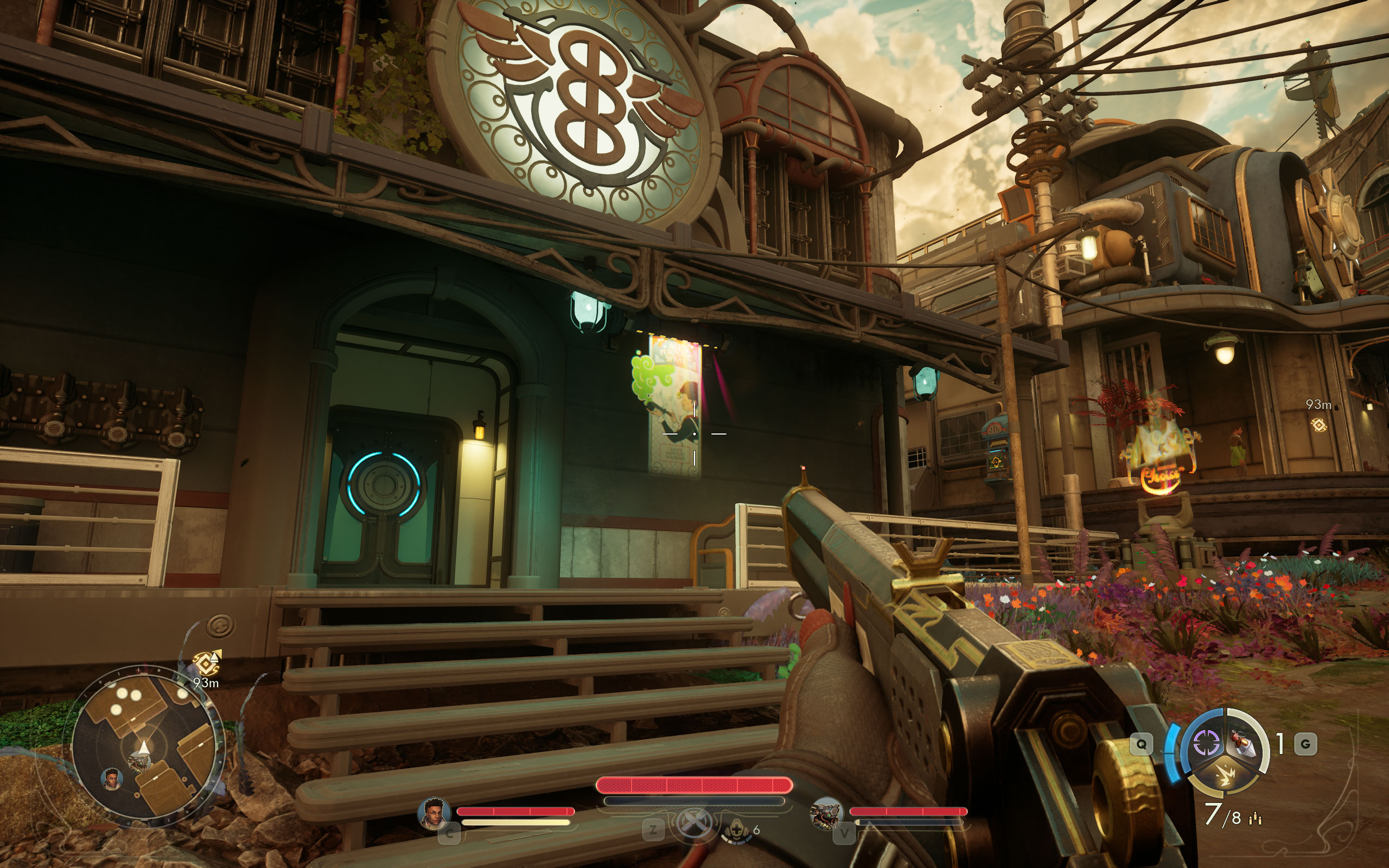
All screenshots were taken at the highest "Very High" settings profile, with hardware ray tracing enabled and upscaling disabled. The gallery can be navigated with the cursor keys.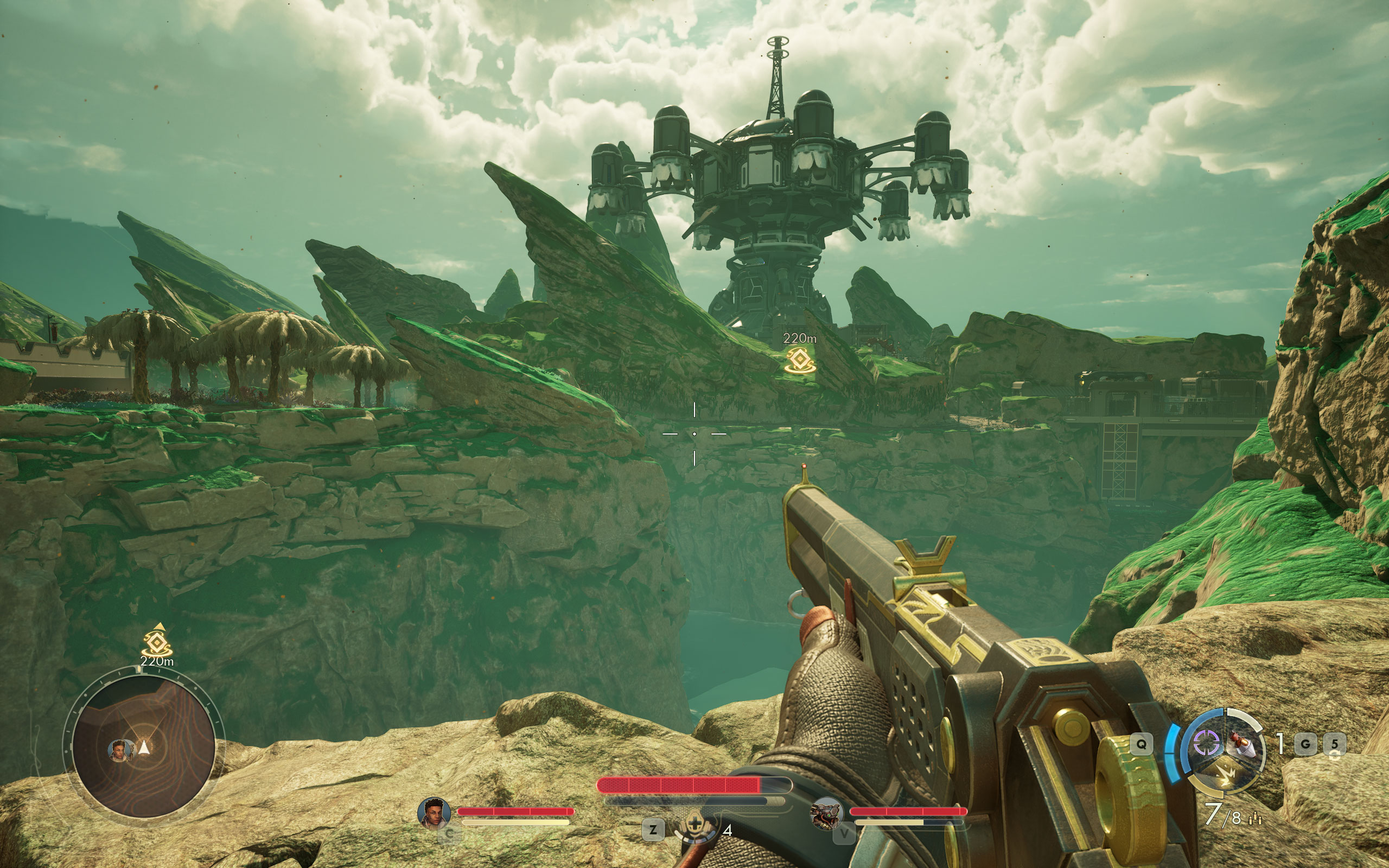













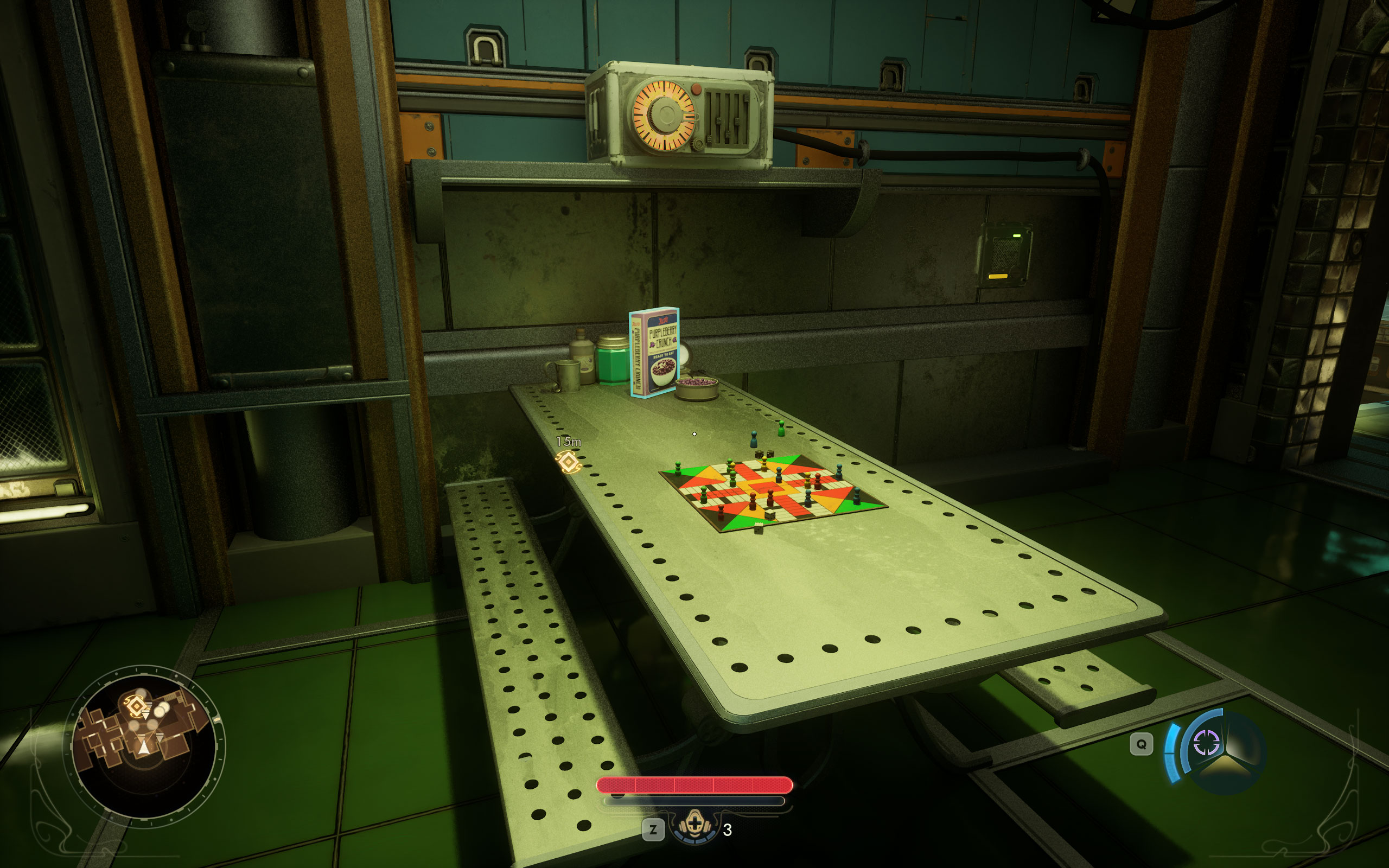
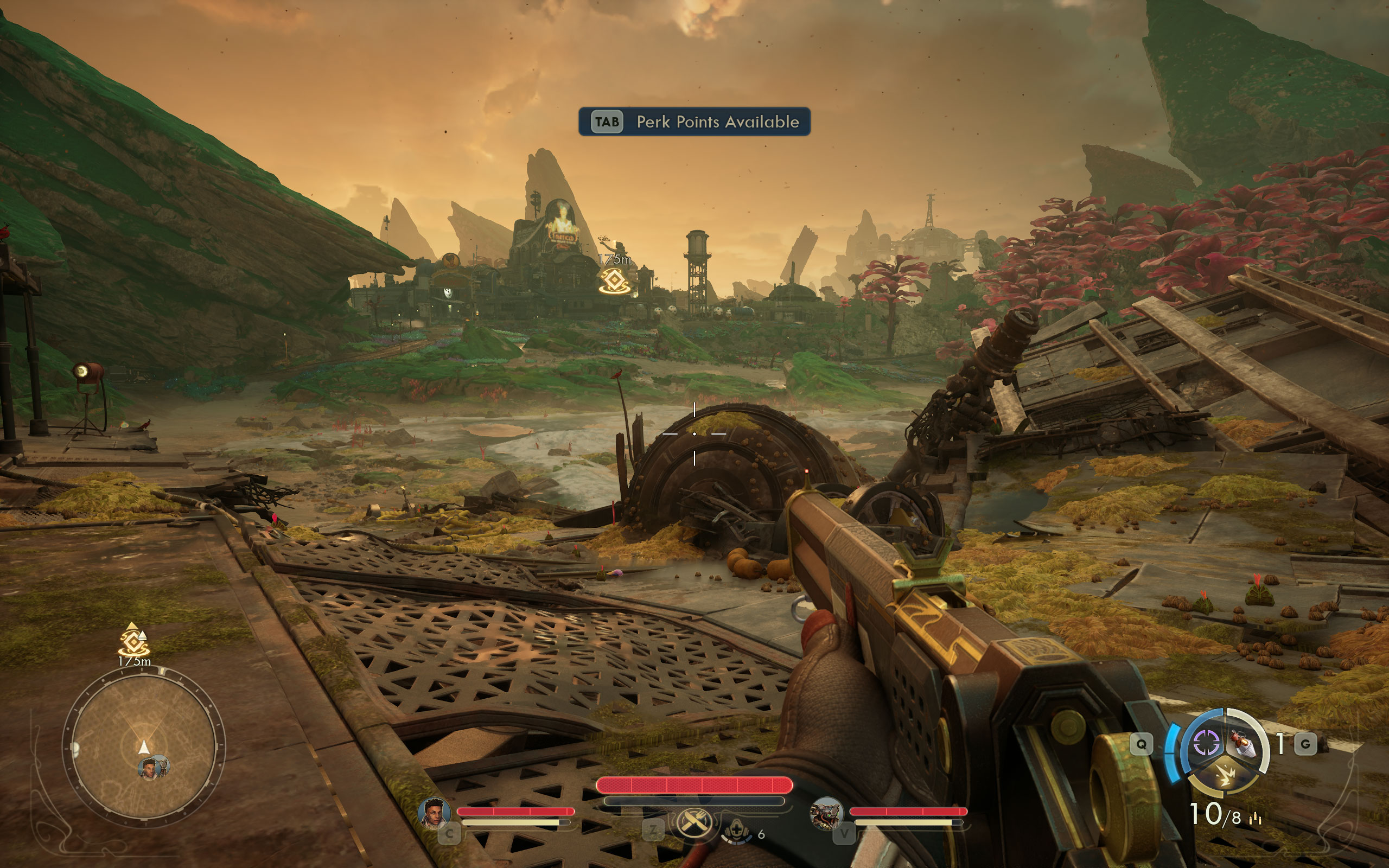
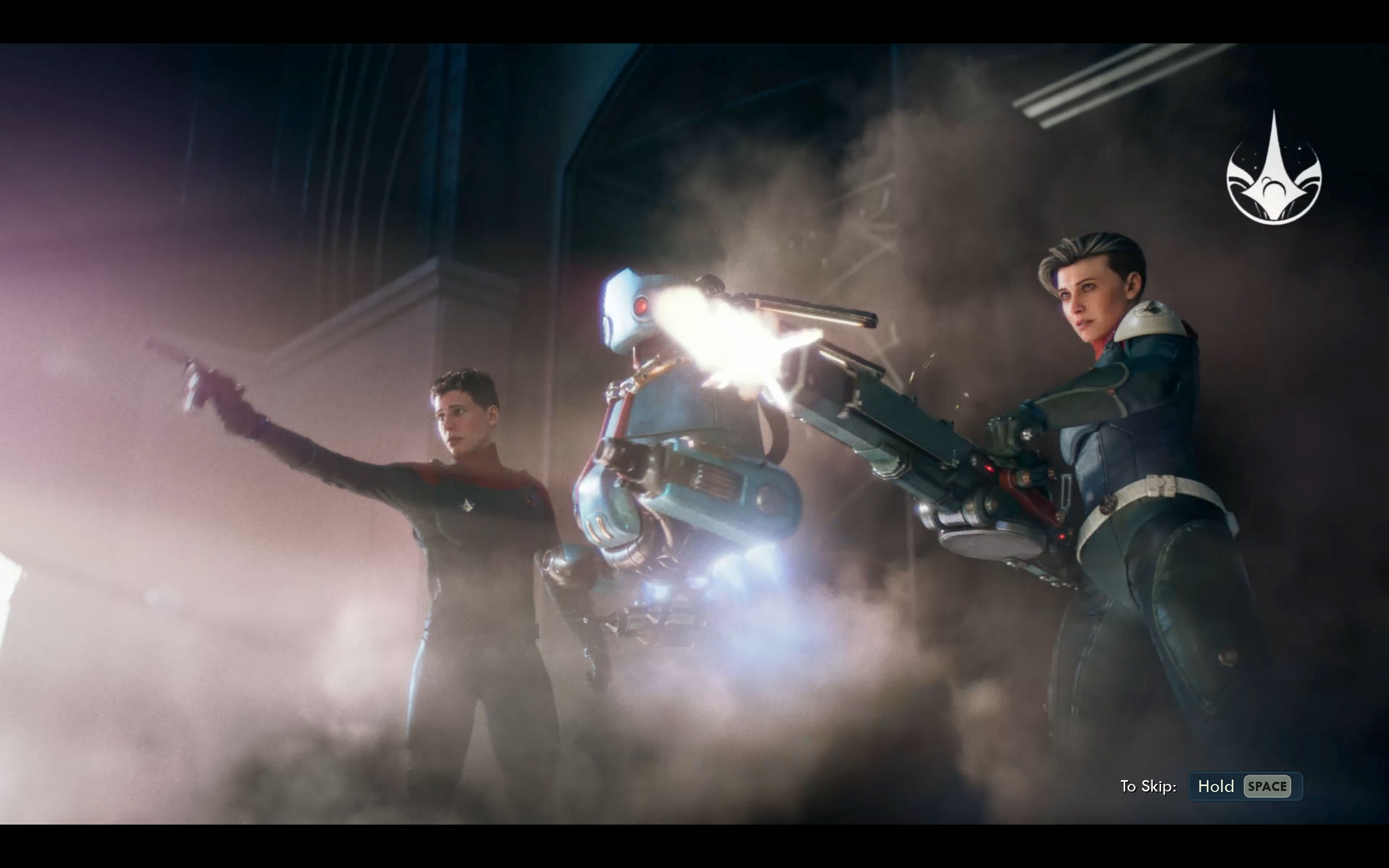
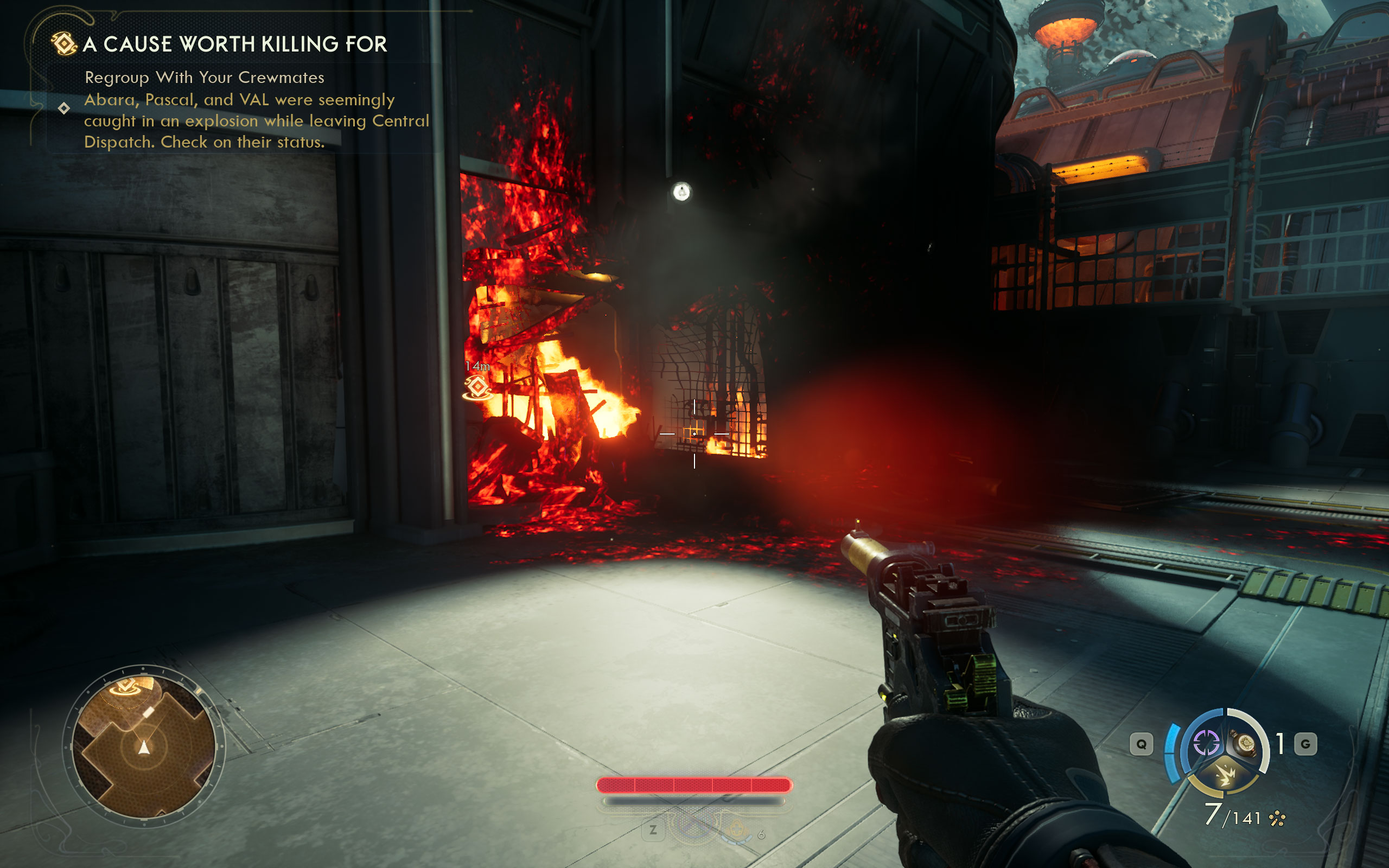
Graphics Settings

- There is just a single big graphics settings screen
- Here you can find the usual monitor settings, "fullscreen," "borderless" and "windowed" are all supported
- V-Sync can be disabled completely, there is no hidden FPS cap, the game is quite CPU limited though in some open areas, especially when hardware ray tracing is enabled
- You may also set an FPS limit between 30 and 240 FPS
- The upscalers available are: "Off," "TAA," "TSR," "FSR," "XeSS" and "DLSS"
- Please note: when using TAA, there is a bug, that hides the scaling factor UI right below the upscaler list, and it defaults to 66%! So if you want to use TAA, make sure to enable TSR first, set upscaling to 100% or what you prefer, then switch back to TAA, so the right upscaling is applied.
- Frame generation is available for NVIDIA and Intel but not for AMD, even though FSR 4 is supported for upscaling
- Motion blur can be disabled
- "Hardware Ray tracing" switches from the shader-based UE5 Lumen code to a hardware-accelerated approach. This is quite buggy though. For example, there will be lots of noise in the RT images as you can see on our screenshots, also the performance differences are quite small, but you are very heavily CPU limited in many areas, probably because of the BVH RT structure being rebuilt or updated too often
- Graphics quality presets are: "low," "medium," "high" and "very high"
- In addition to that there are the typical UE5 settings options
- At the bottom you can adjust the FOV, between 46 and 115 degrees
- Chromatic Aberration can be disabled as well
Our Patreon Silver Supporters can read articles in single-page format.
Nov 14th, 2026 19:29 CST
change timezone
Latest GPU Drivers
New Forum Posts
- 9070 GRE 3.9ghz validation reached. (11)
- Honestly, do you care about GTA VI? (20)
- AI generated images... (226)
- What is in your fleet, size and contents? (28)
- WarpCoreBench scores! (33)
- X79 and/or rampage IV OC'ing thread for those of us still left.... (2452)
- Can you guess Which game it is? (317)
- What can the FX 8320 do today? Here is the answer. (43)
- Ryzen 7 8700G OC (8)
- auto-closed by somethings by actions (2)
Popular Reviews
- AMD Zen 6 Technical Deep Dive
- ASUS ROG Strix B850-I Gaming Wi-Fi7 W Review
- Corsair HX1000i Shift Crystal Review
- Upcoming Hardware Launches 2027 (Updated Nov 2026)
- Montech King 95 3D PRO Review
- NZXT C1200 Platinum Review
- NZXT H7 RGB+ Review
- NZXT H5 Review
- Phantom Blade Zero Performance Benchmark Review - 35 GPUs Tested
- AMD Ryzen 7 9800X3D Review - The Best Gaming Processor
TPU on YouTube
Controversial News Posts
- NVIDIA Co-Founder and CEO Jensen Huang Officially Resigns (406)
- OpenAI CEO Argues Home PCs Waste the World's Limited DRAM Supply (152)
- NVIDIA Launches Investigation Into Jensen Huang's Relationship With Suspected Chinese Spy (136)
- Intel "Raptor Lake Next" 16-Core and 20-Core CPUs Surface (130)
- Legendary Game Studio BioWare Shuts Down Following EA Layoffs (104)
- Dell CEO Says the Memory Shortage Will Get Worse in 2027 (95)
- NVIDIA GeForce RTX 50-Series Scheduled for up to $500 Price Hike This Week (89)
- Modder Fits RTX 5090 With Four 8-Pin Connectors, Halving Current per Wire (80)