 6
The Outer Worlds 2 Handheld Performance Review
Performance »Out-of-Box Experience
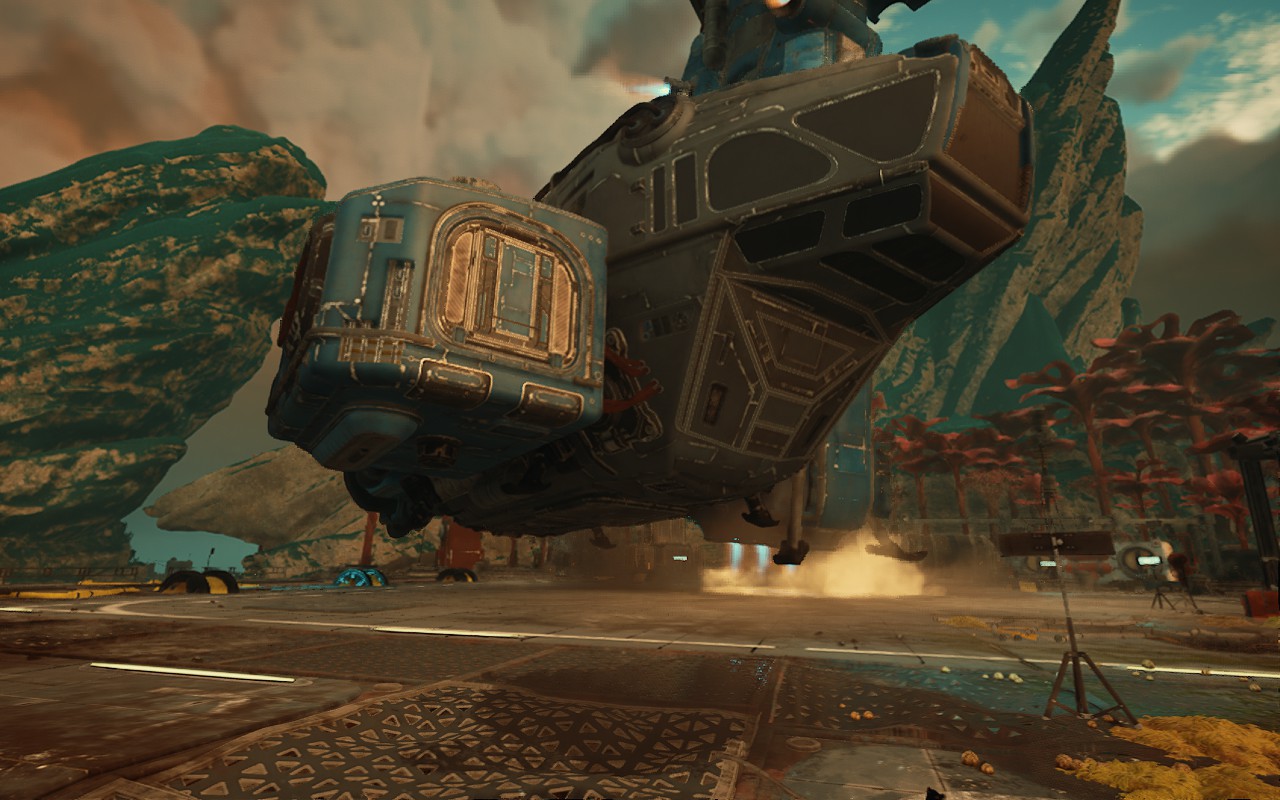
On SteamOS, Steam will download a shader cache along with the game, like it does in most cases. Once you launch the game for the first time, you'll have to sit through a shader compilation screen that takes about five minutes to complete, and then it's off to the races. Note that the game compiles shaders every time you launch it, which takes about 30 seconds to complete on subsequent launches. The same stands for the ROG Ally.

While The Outer Worlds 2 runs quite well on the Steam Deck on smaller maps, as soon as you reach the first semi-open world level, the game will struggle to keep the frame rate at 30 frames per second, with occasional drops to below 20 FPS. This is with all options set to "Low" and TSR set to "Balanced" (TSR subjectively looks better than both FSR and XeSS in this game, so we opted for it as our upscaler of choice). When exploring areas outside settlements, performance is a tad better, but you still have to deal with drops to the low 20s.
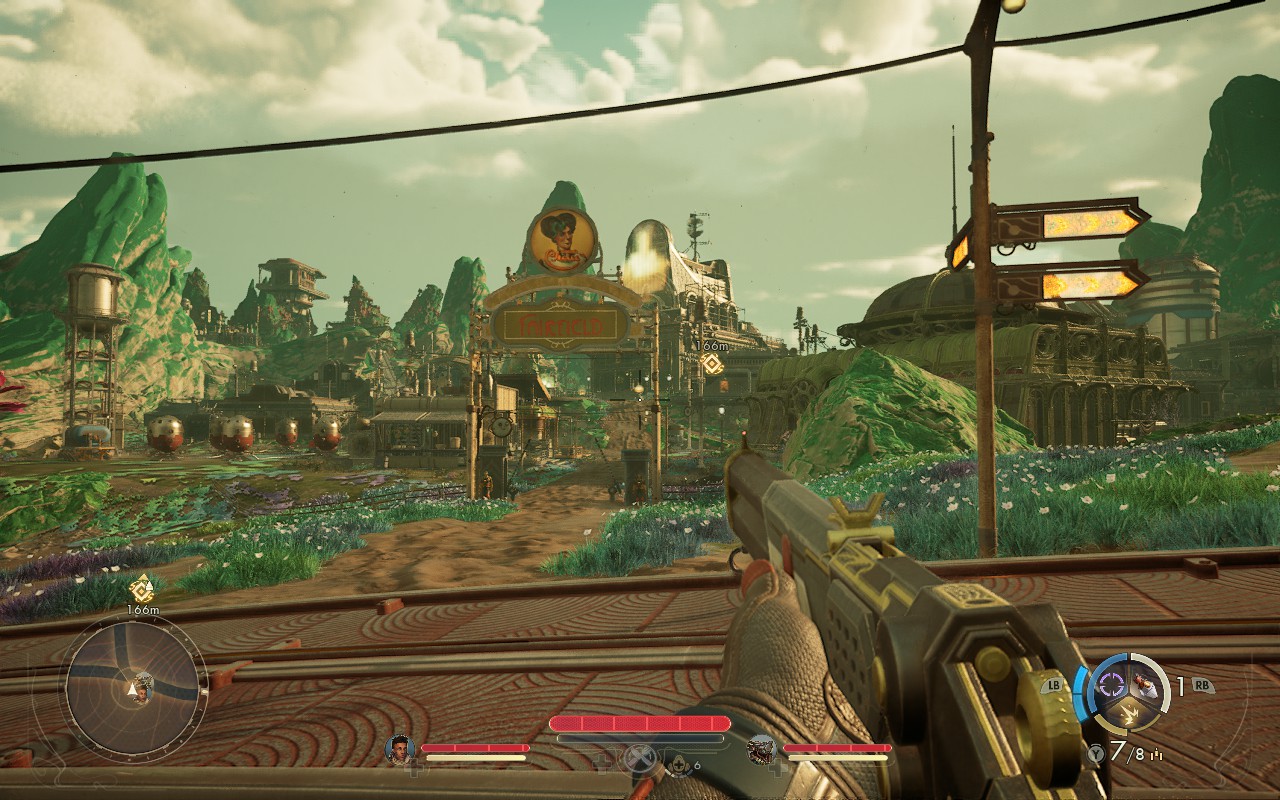
Now, these drops don't feel as jarring as in some other UE5 titles, and some players might find this level of performance playable. Personally, I find the game unplayable. The average performance cannot reach 30 FPS, with the game struggling to even stay in the high 20s in larger settlements. To top it off, the image quality isn't great. There are noticeable "boiling" artifacts across virtually every surface because Lumen is running at its lowest quality setting.
On the ASUS ROG Ally, things are much better, as long as you up the VRAM to 5 GB and don't go too crazy on the visual options.
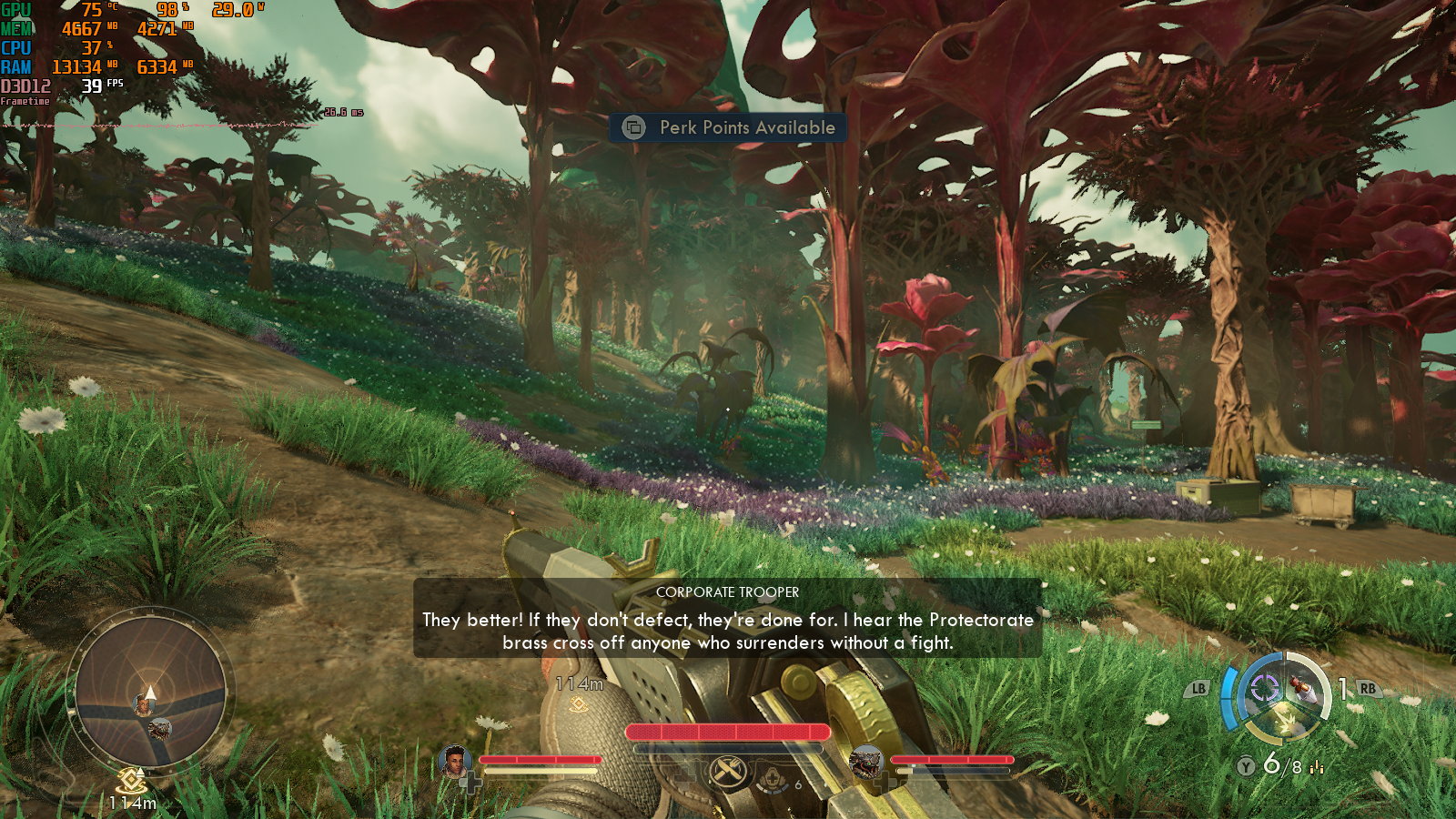
On Windows, the game launches without issues. During the initial launch, you'll have to wait for the shaders to compile, which takes a few minutes. The shader compilation window is present on subsequent launches, too, but only for about half a minute or so.
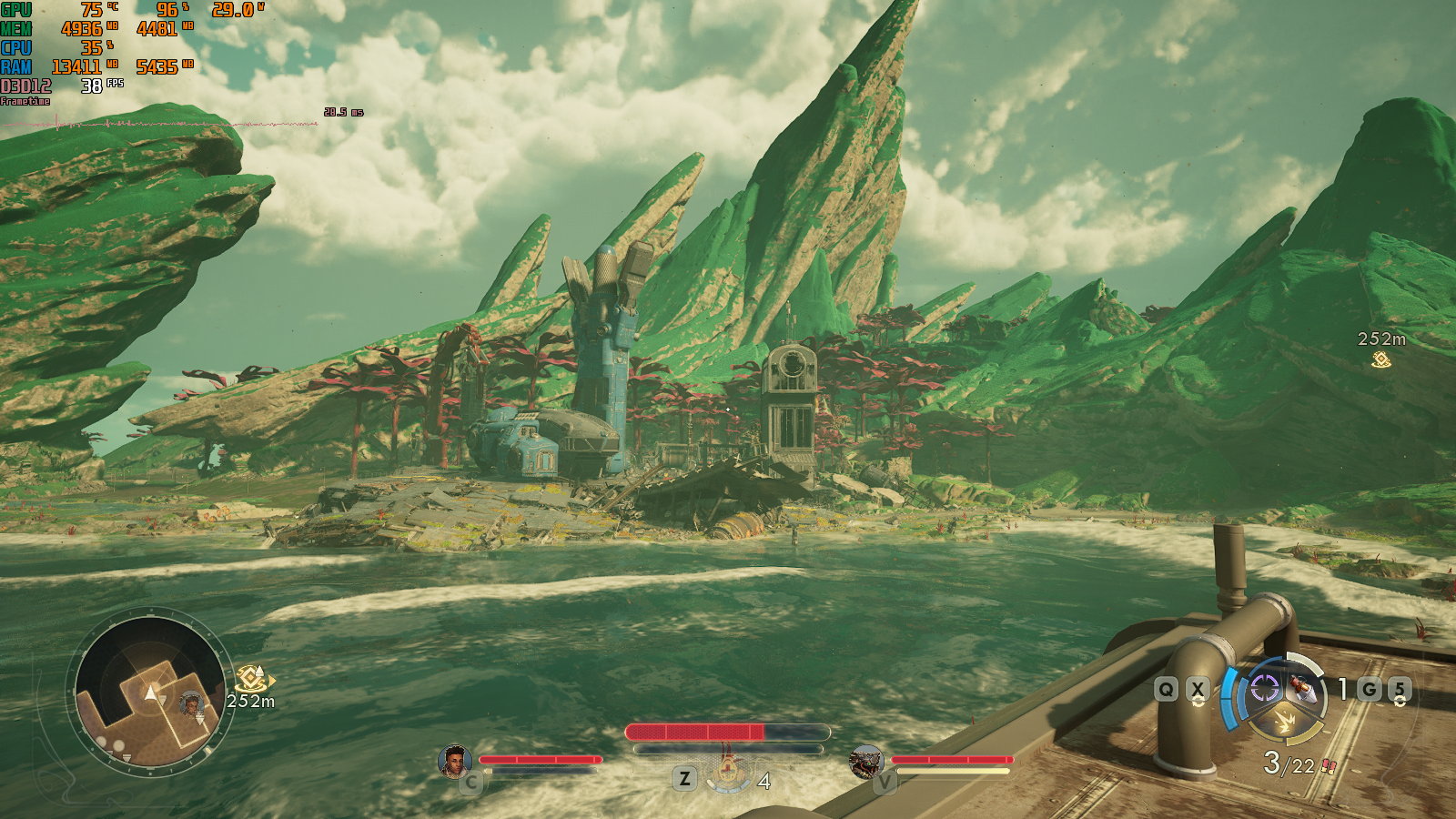
The game suffers from one weird bug on Windows machines, though. When you play it with a controller and then press a keyboard or mouse button (or press a controller button mapped to a keyboard or mouse button), the button prompts on the HUD switch to keyboard- and controller-style icons and stay that way, which can be annoying until you memorize the controls.
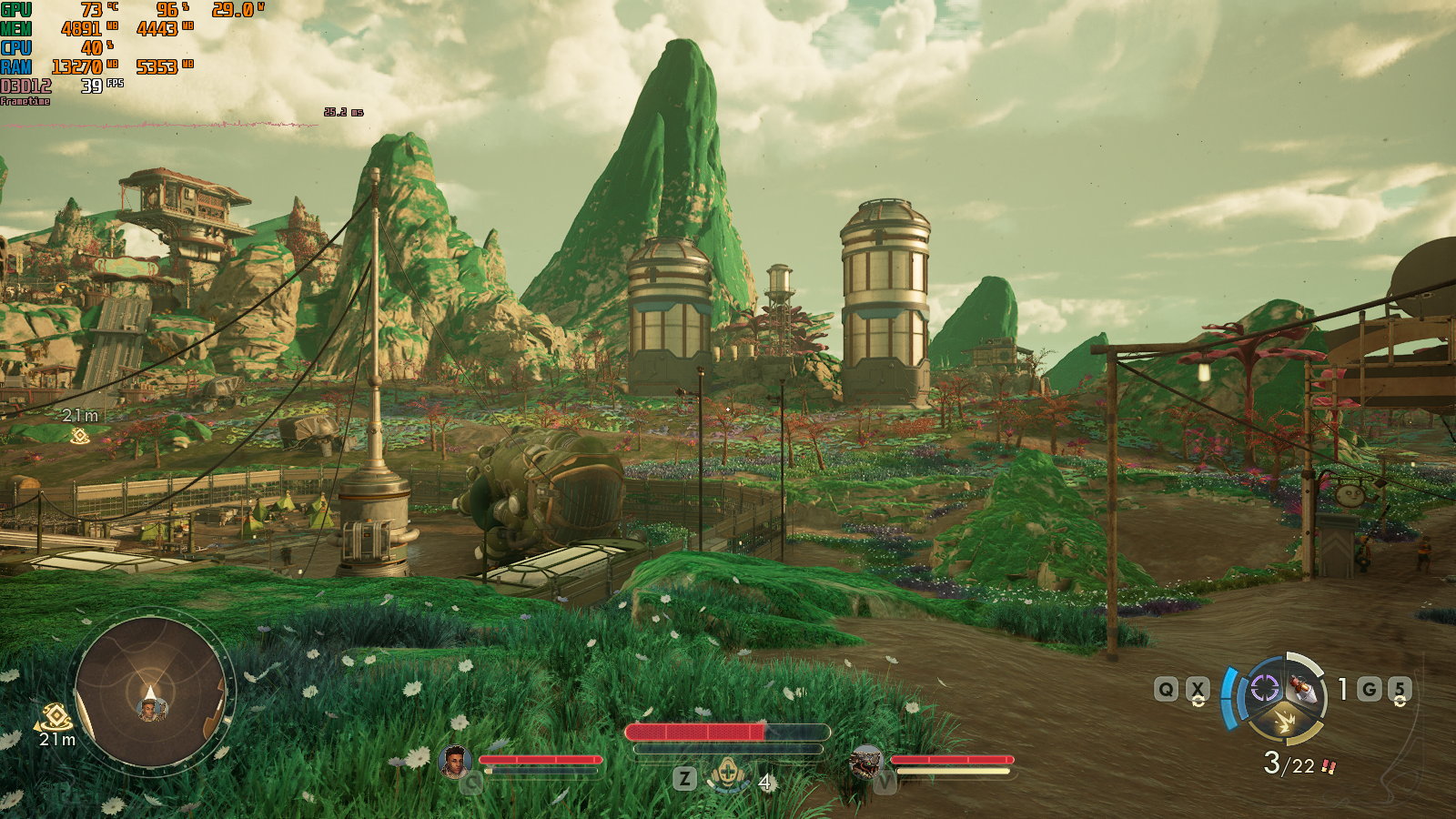
Since we mapped the "Windows+Print Screen" screenshot combo to one of the controller buttons' secondary function on the ROG Xbox Ally X, all our screenshots show keyboard and mouse button prompts. At least the game doesn't suffer from the bug that breaks Lumen on devices with iGPUs, unlike many other UE5 games.
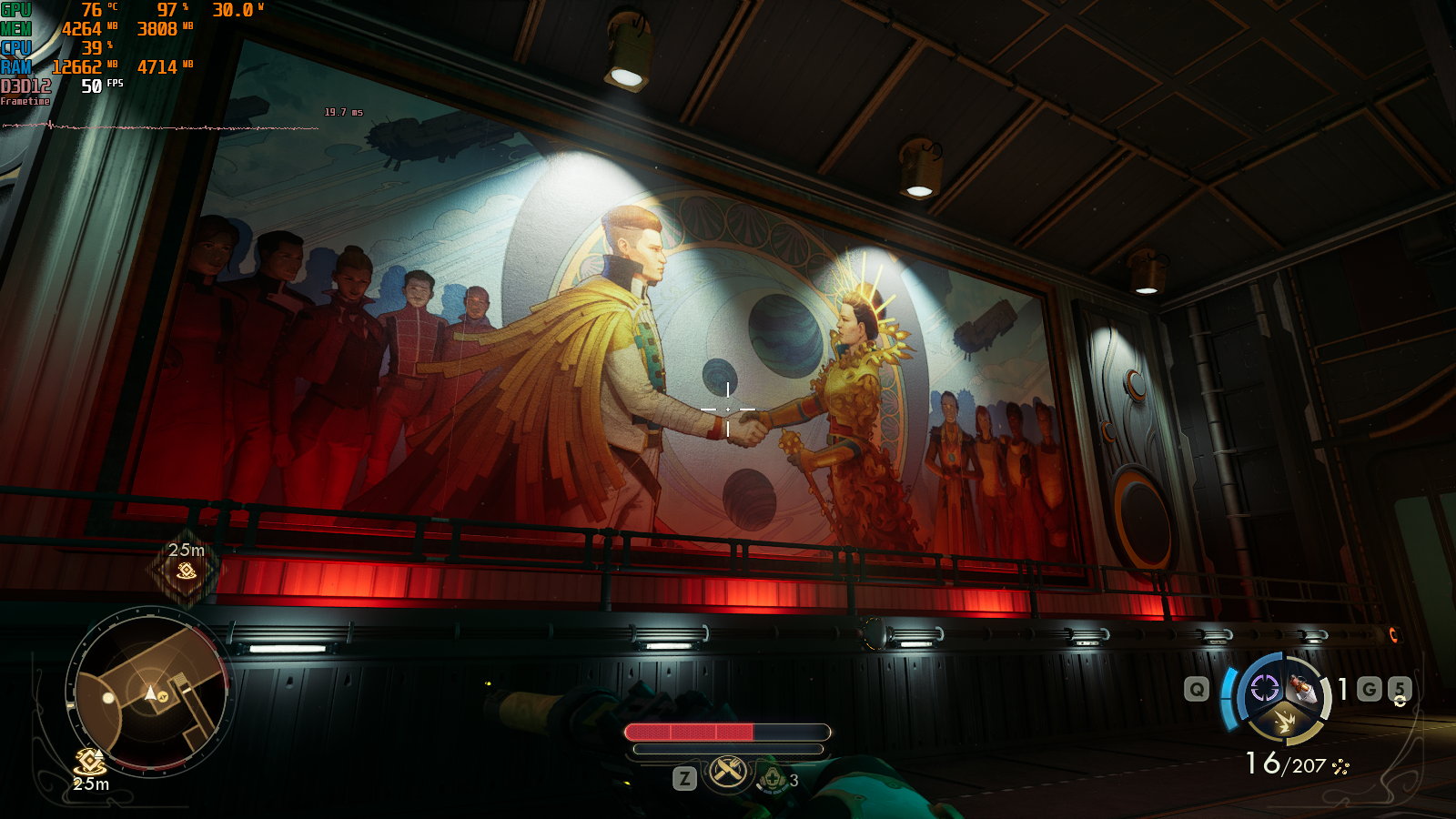
The Outer Worlds 2 performs pretty darn well on the ASUS ROG Xbox Ally X. You can enjoy rather smooth performance with zero drops to below 30 FPS, even with the "Medium" preset applied, at 900p with TSR set to 85% of the native resolution (the "Quality" TSR preset is set at 75% of native resolution).
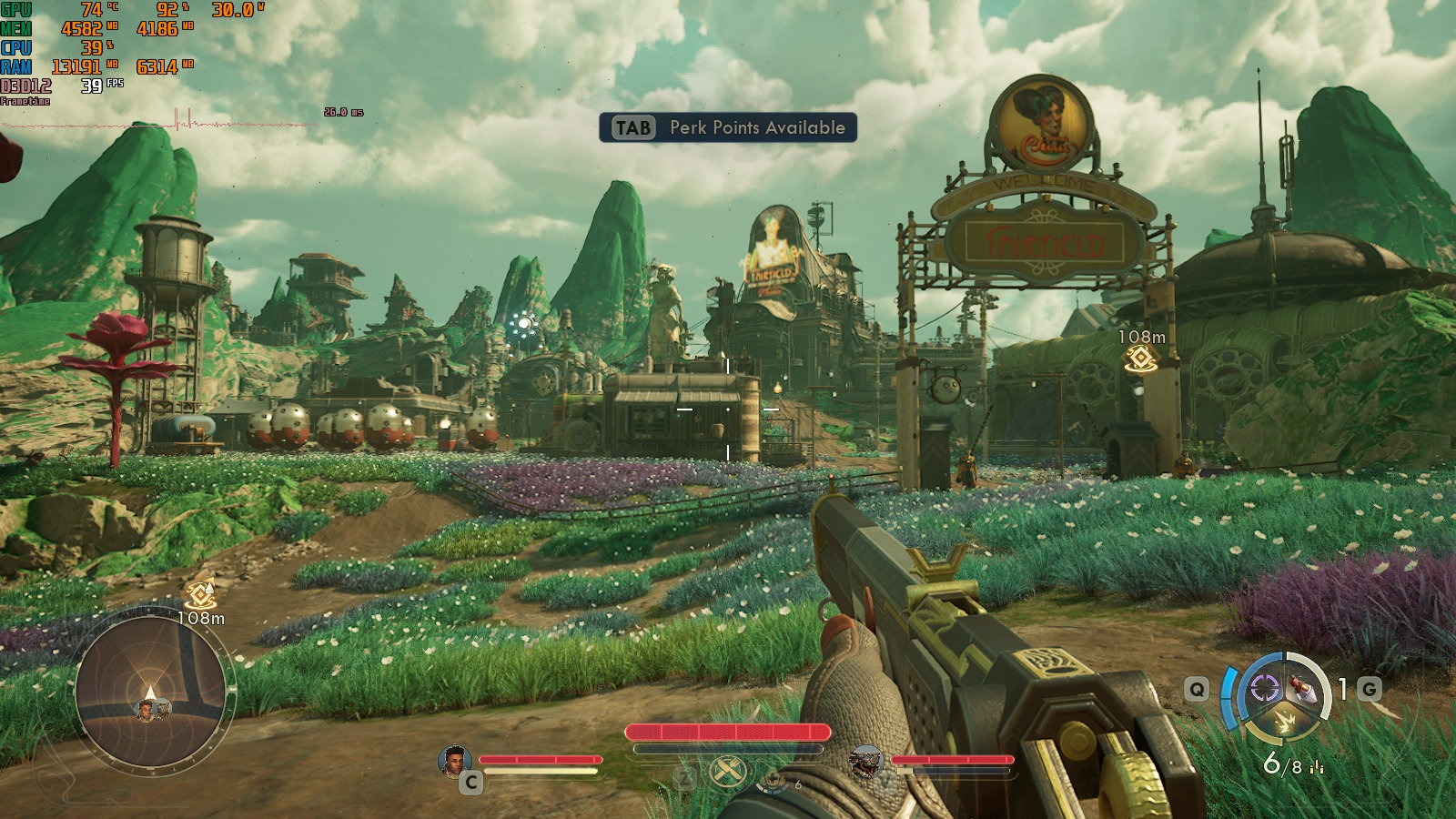
The ROG Ally X isn't much slower than its Xbox-branded successor, but is slow enough to prevent you from enjoying the game with all options set to "Medium." But more on that later.
When it comes to controller support, The Outer Worlds 2 plays great with a gamepad. Navigating around various menus is fast, and it's easy to get used to the default control layout. The game includes four types of aim assist, with adjustable intensity for each. You can also altogether disable aim assist if you want. This lets players make aiming with a controller as easy or as challenging as they wish.
Nov 14th, 2026 19:29 CST
change timezone
Latest GPU Drivers
New Forum Posts
- 9070 GRE 3.9ghz validation reached. (11)
- Honestly, do you care about GTA VI? (20)
- AI generated images... (226)
- What is in your fleet, size and contents? (28)
- WarpCoreBench scores! (33)
- X79 and/or rampage IV OC'ing thread for those of us still left.... (2452)
- Can you guess Which game it is? (317)
- What can the FX 8320 do today? Here is the answer. (43)
- Ryzen 7 8700G OC (8)
- auto-closed by somethings by actions (2)
Popular Reviews
- AMD Zen 6 Technical Deep Dive
- ASUS ROG Strix B850-I Gaming Wi-Fi7 W Review
- Corsair HX1000i Shift Crystal Review
- Upcoming Hardware Launches 2027 (Updated Nov 2026)
- Montech King 95 3D PRO Review
- NZXT C1200 Platinum Review
- NZXT H7 RGB+ Review
- NZXT H5 Review
- Phantom Blade Zero Performance Benchmark Review - 35 GPUs Tested
- AMD Ryzen 7 9800X3D Review - The Best Gaming Processor
TPU on YouTube
Controversial News Posts
- NVIDIA Co-Founder and CEO Jensen Huang Officially Resigns (406)
- OpenAI CEO Argues Home PCs Waste the World's Limited DRAM Supply (152)
- NVIDIA Launches Investigation Into Jensen Huang's Relationship With Suspected Chinese Spy (136)
- Intel "Raptor Lake Next" 16-Core and 20-Core CPUs Surface (130)
- Legendary Game Studio BioWare Shuts Down Following EA Layoffs (104)
- Dell CEO Says the Memory Shortage Will Get Worse in 2027 (95)
- NVIDIA GeForce RTX 50-Series Scheduled for up to $500 Price Hike This Week (89)
- Modder Fits RTX 5090 With Four 8-Pin Connectors, Halving Current per Wire (80)