 2
UPERFECT BE22BQ Review - A Bigger Kind of Portable
Response Time, Input Lag & Motion Blur »Picture Quality
The UPERFECT BE22BQ is built around a 21.5-inch IPS panel at 2560×1440, which works out to roughly 137 PPI. That density, combined with the size, makes the monitor genuinely comfortable for desktop work, with clean fonts and sharp interface elements, something you cannot say about the 1080p panels that dominate the portable segment. As an IPS display it has a conventional backlight, so blacks are gray rather than truly black and contrast measures around 1,100:1, but for productivity, browsing, and video in normal lighting it looks perfectly pleasant.The glass front is glossy, which gives colors a bit more pop but also throws back reflections from windows and lamps, so a controlled lighting environment suits it best. This is inherent to the touch layer and is worth keeping in mind if you plan to work near a bright window.
To test picture quality, I used an X-Rite i1Display Pro colorimeter with both Calman Ultimate, the industry-standard suite for display testing and calibration, and DisplayCAL - a free, powerful display calibration and profiling tool. The BE22BQ exposes no user-facing firmware version, and all measurements were taken at the native 2560×1440 60 Hz.
Picture Quality at Factory Settings
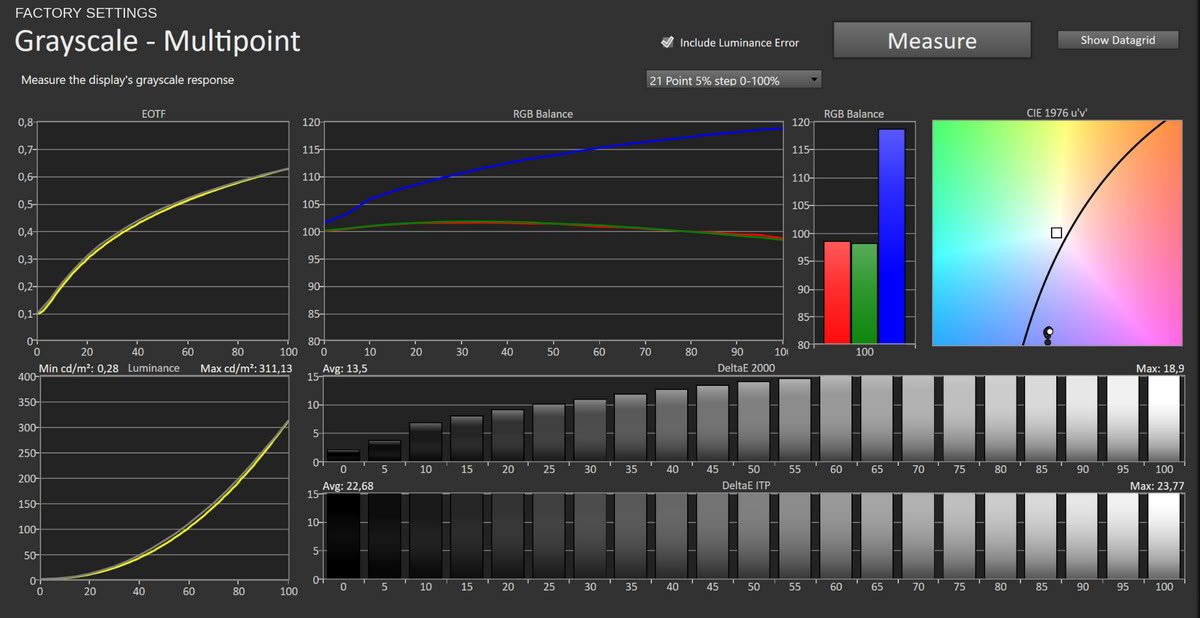
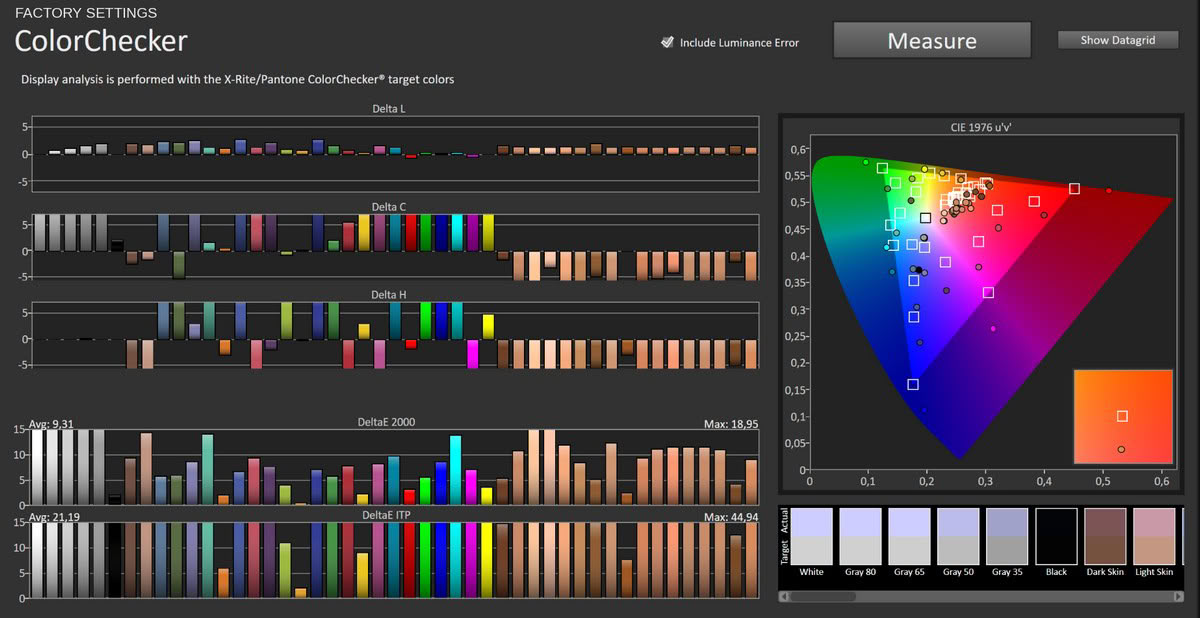
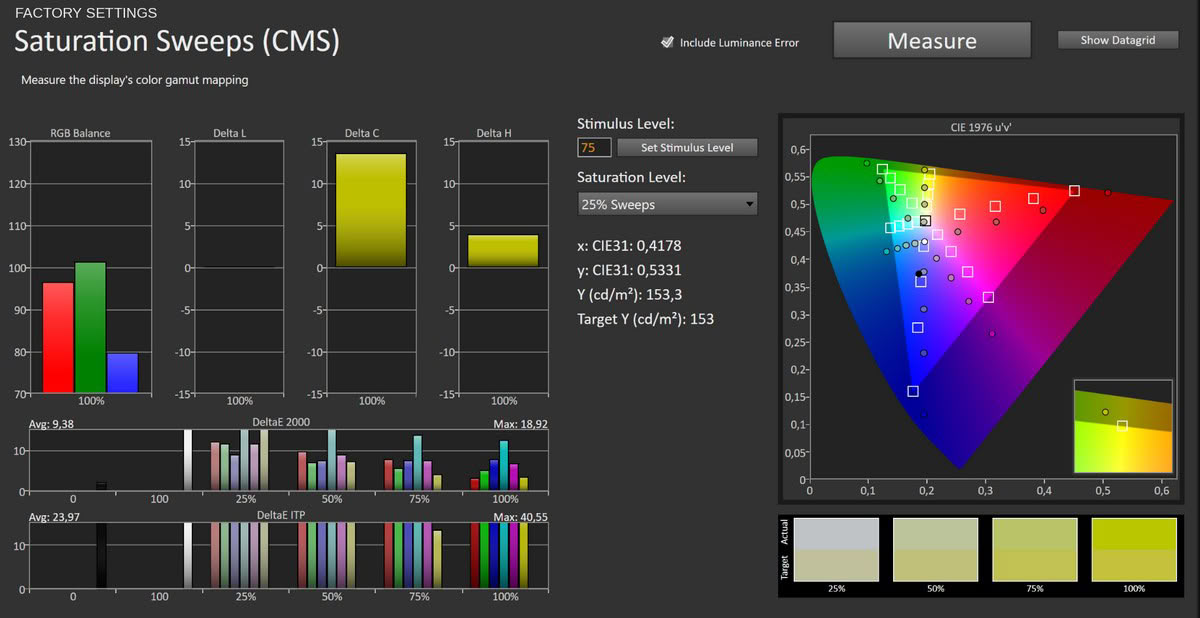
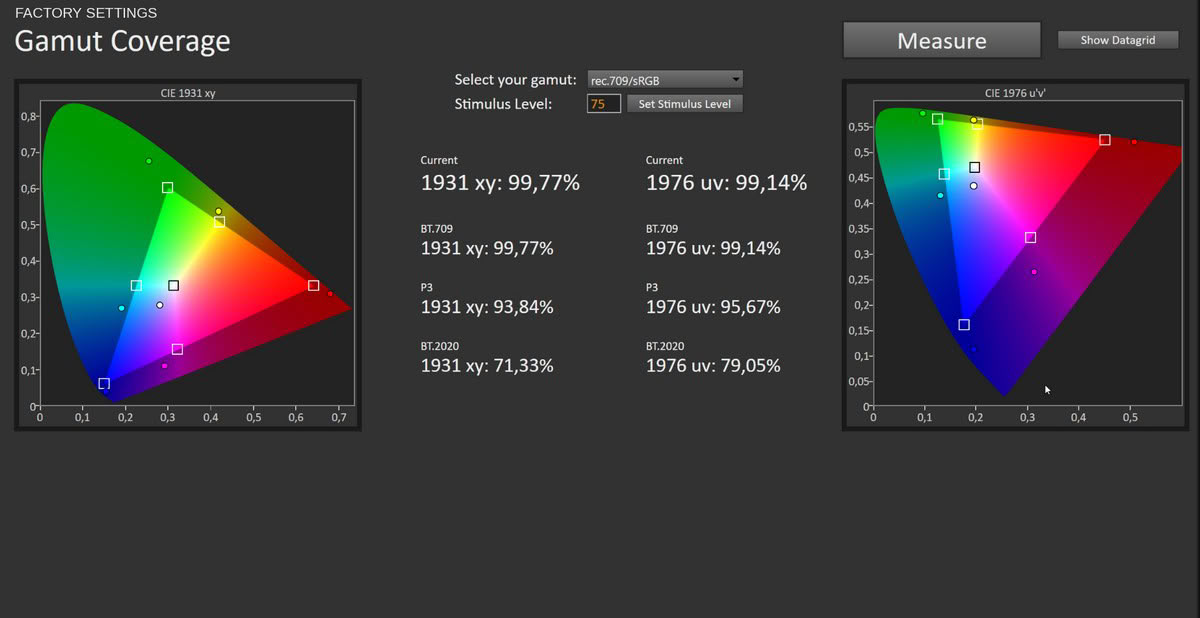
Out of the box the UPERFECT BE22BQ has a strong blue cast that is obvious even before you measure it. Whites look distinctly cool, and the numbers back that up. Grayscale tracking is poor, with an average ΔE of 13.5 and a maximum of 18.9, driven by a blue channel that climbs well above red and green across the entire luminance range. Color accuracy averages a ΔE of 9.31 with a maximum of 18.95, and the saturation sweeps come in at 9.38 average and 18.92 maximum, reflecting both the blue shift and the untamed wide gamut. On the plus side, peak luminance reaches around 311 cd/m², which is bright for a portable and gives you headroom in a well-lit room. As shipped, though, this is not a monitor you would trust for any color-sensitive work.
Picture Quality with sRGB Setting
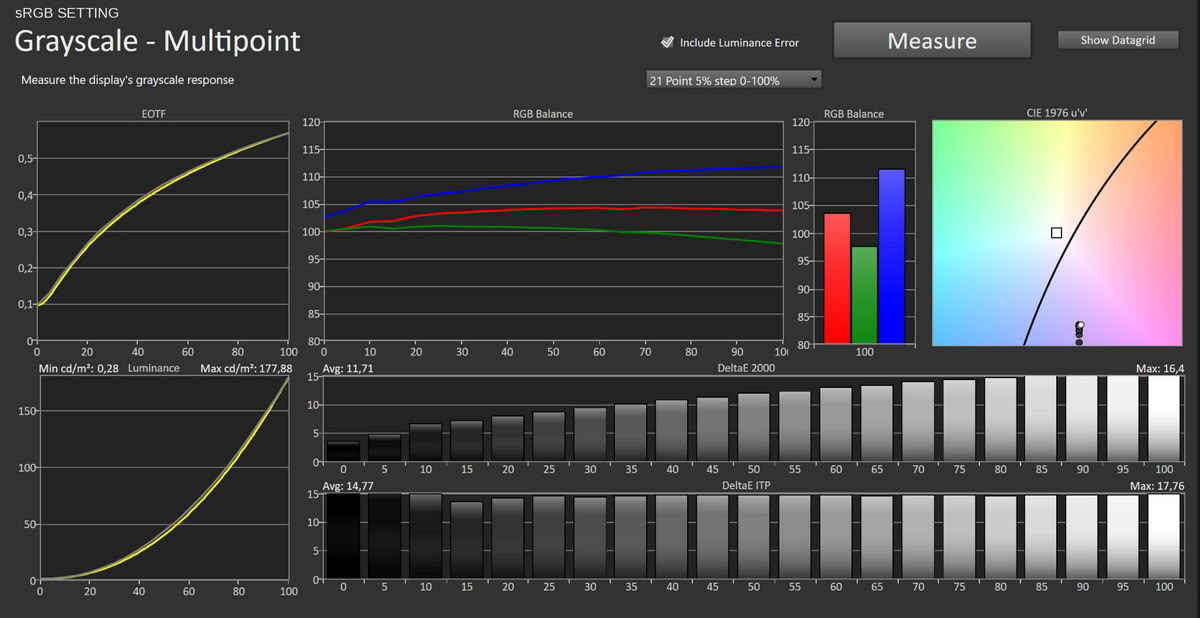
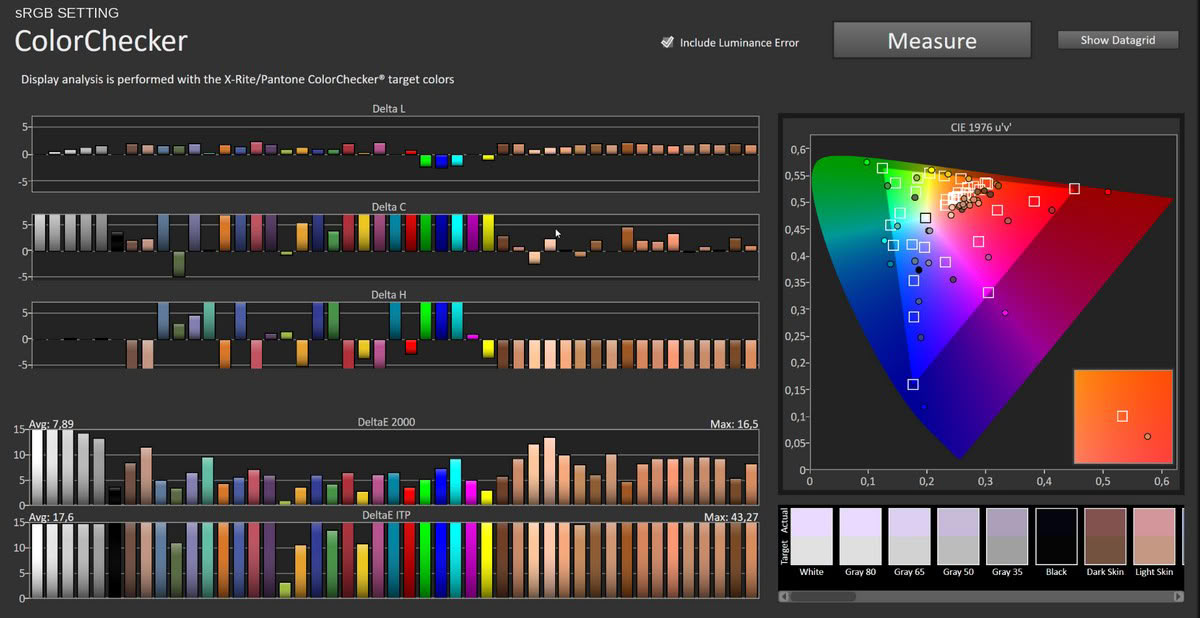
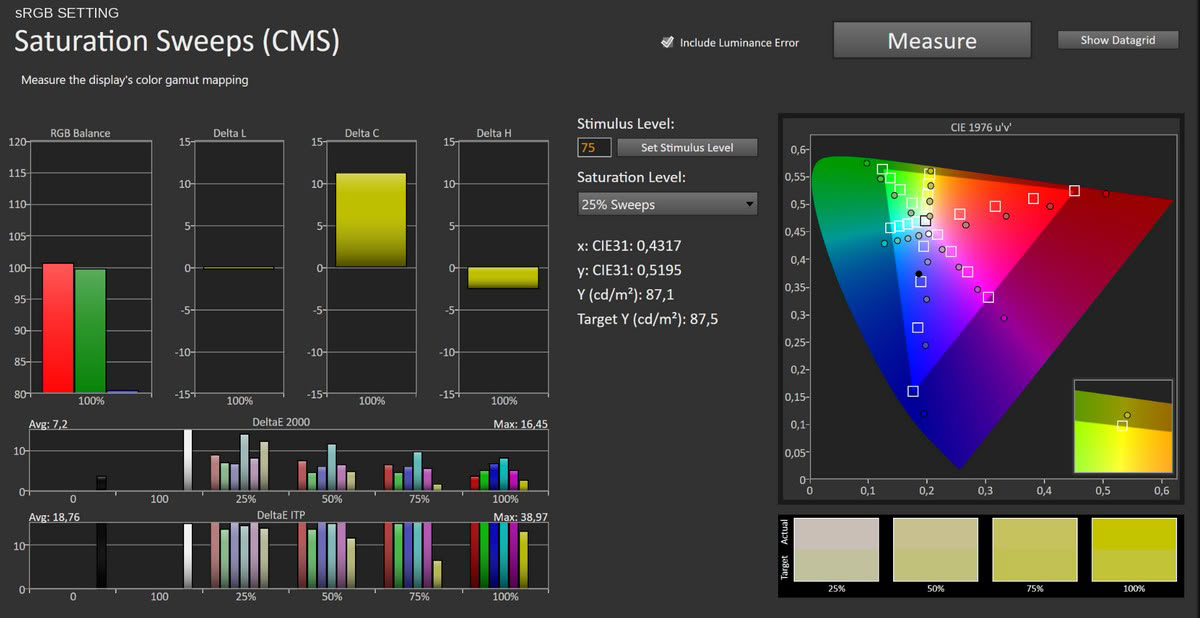
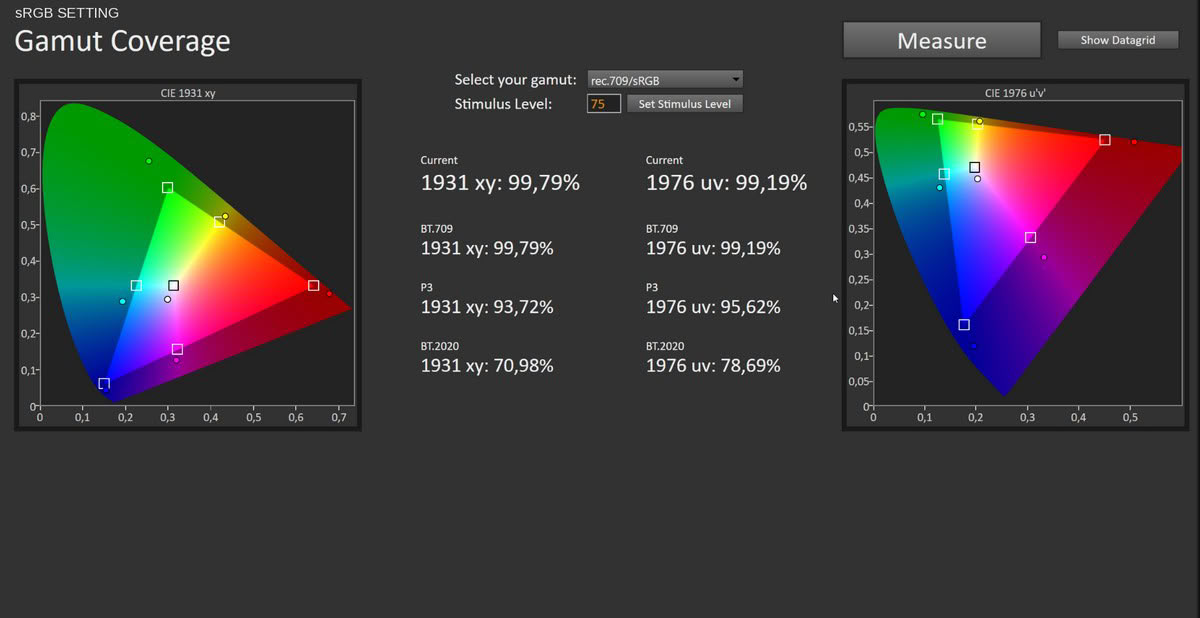
The OSD offers an sRGB entry, but it is not a real sRGB clamp or picture profile. It lives among the color-temperature options and only nudges the white point, so it leaves the wide gamut essentially untouched, still measuring about 94% DCI-P3. Selecting it does improve accuracy a little, with grayscale dropping to an average ΔE of 11.71, color accuracy to 7.89, and saturation to 7.2, but grayscale is still visibly blue and the mode also limits peak luminance to around 178 cd/m², which is adequate in controlled indoor lighting but restrictive in a bright room, especially with the reflective glass surface. In short, it is not a usable accuracy mode, just a somewhat less blue preset that costs you brightness.
Picture Quality with Modified Settings
Since neither default nor the sRGB option is satisfying, I dialed in our review sample manually, although the exact RGB values may vary slightly between units. Two changes were enough to transform it:Color Temperature > Custom > R 50/G 49/B 40
Brightness > 82 (targeting roughly 250 cd/m²)
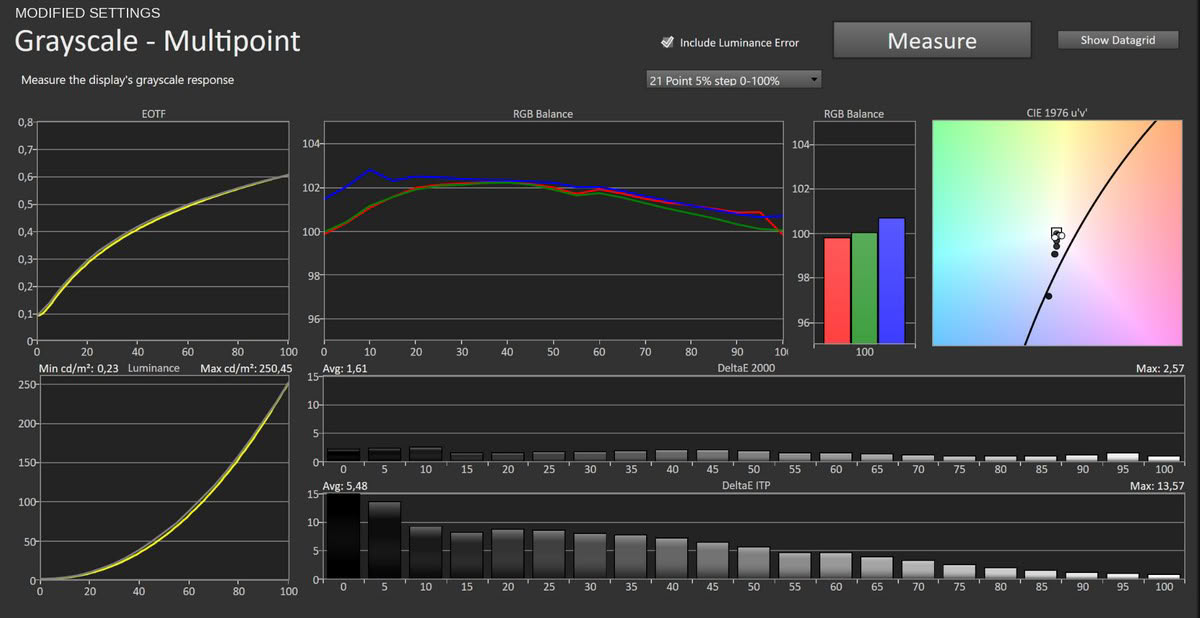
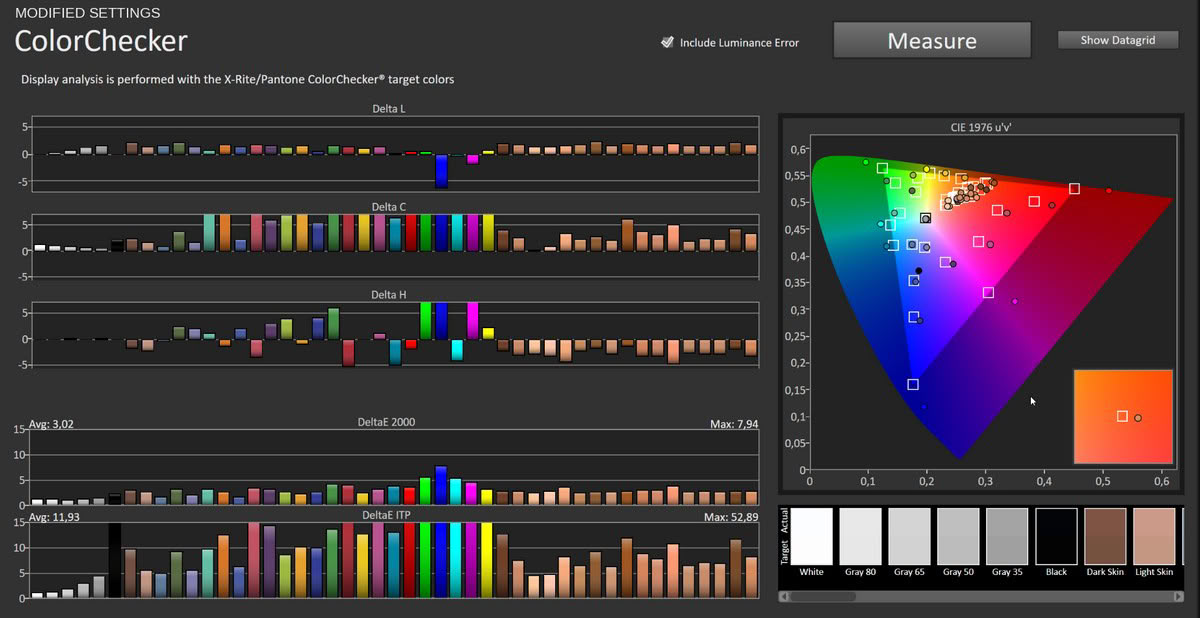
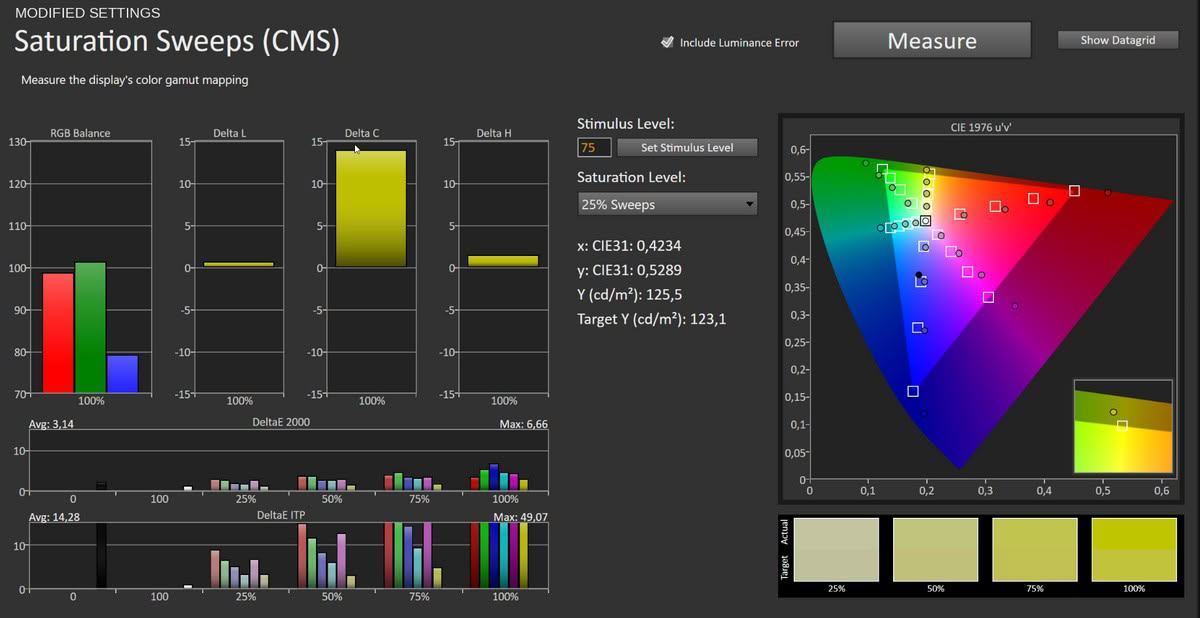
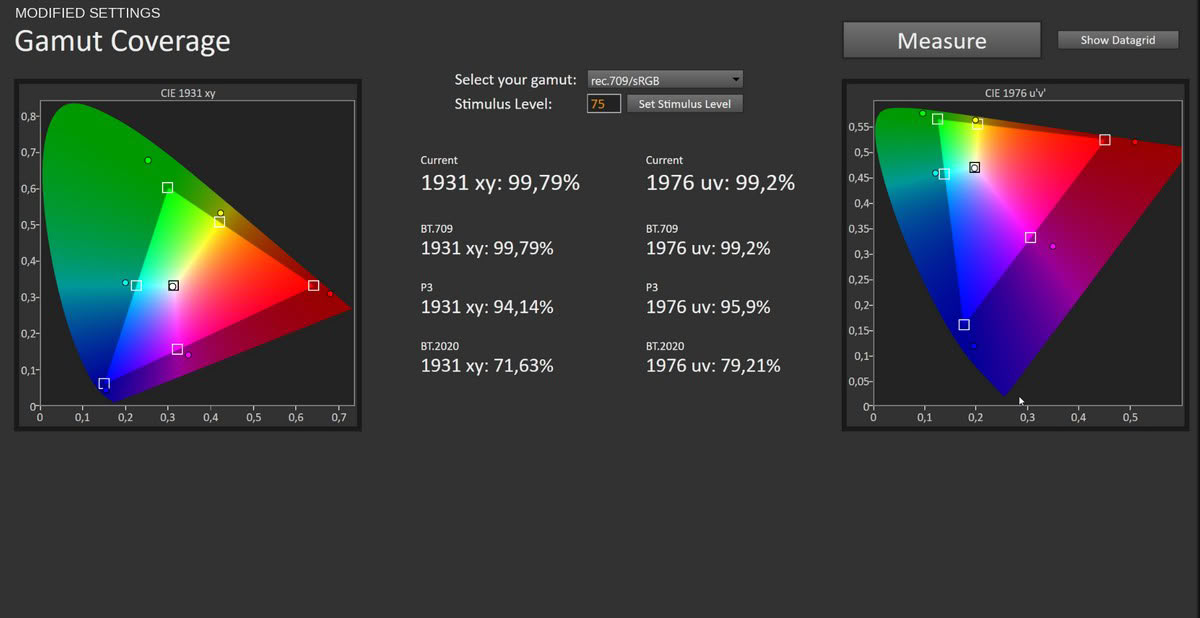
The improvement is dramatic. Pulling the blue gain down to 40 eliminates the cool cast entirely, and grayscale accuracy drops to an average ΔE of 1.61 with a maximum of 2.57, which is excellent for a monitor in this class and price. The white point lands neutral, red, green, and blue track together across the range, and the image immediately looks cleaner and warmer in the good sense. Color accuracy falls to an average ΔE of 3.02 with a maximum of 7.94, and the saturation sweeps average 3.14 with a maximum of 6.66. The remaining errors are largely caused by the panel's unclamped wide gamut: grayscale and less saturated colors track well, but saturated sRGB content will still appear too vivid in applications without color management. Brightness at 82 gives roughly 250 cd/m², a comfortable level for most rooms, while the gamut stays fully intact at about 99.8% sRGB and 94% DCI-P3. For anyone who cares how the panel looks, these two changes are the way to run it.
Luminance, Contrast and Color Uniformity
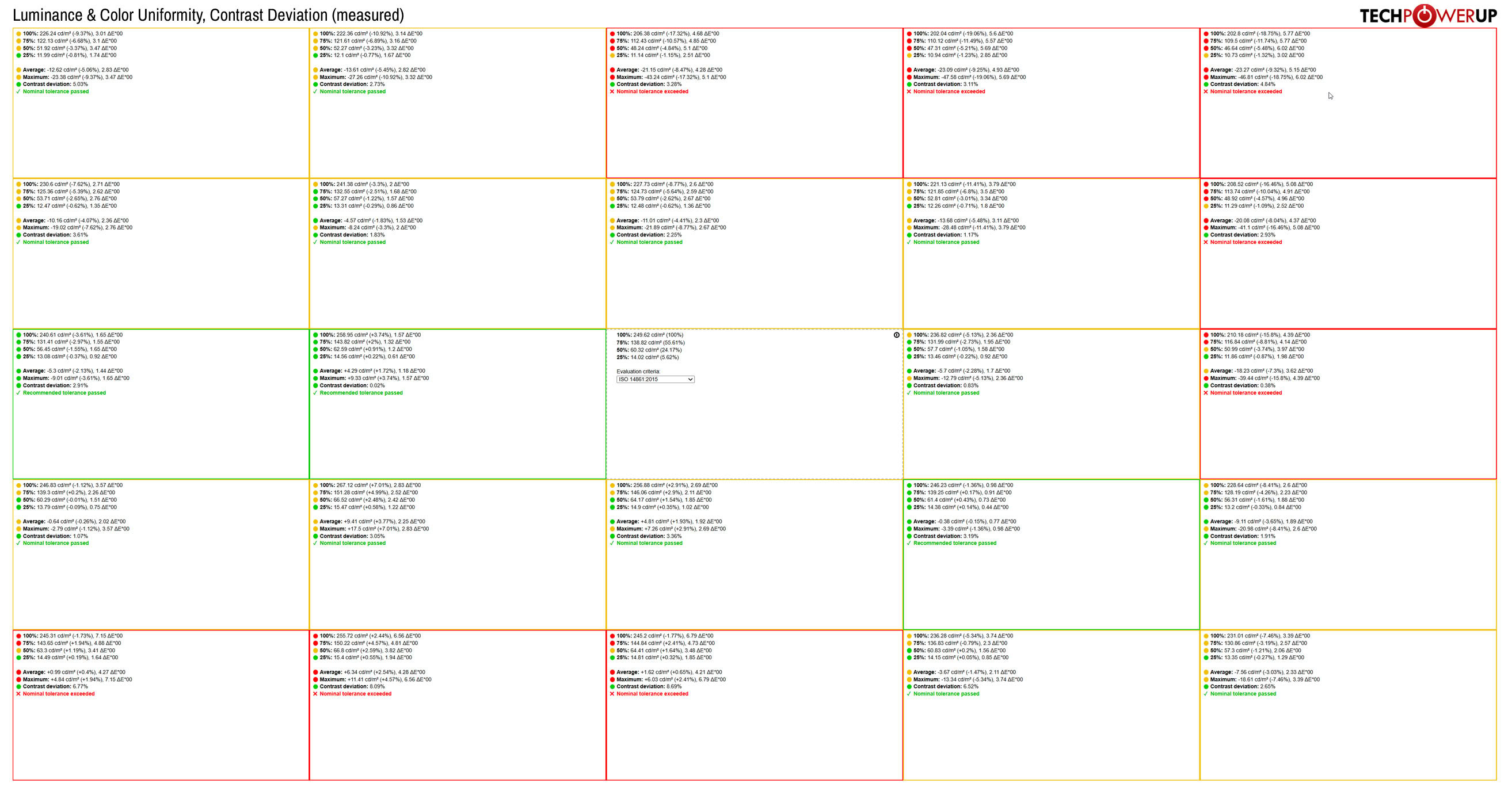
Uniformity is a mixed bag, which is typical for an inexpensive portable IPS. The center of the screen, calibrated here to about 250 cd/m², is excellent, and the surrounding zones hold within a few percent of that reference. Toward the corners things loosen up, with the worst zones dropping roughly 19% in luminance and color error rising to a ΔE of around 7 in the weakest corner. Most zones still pass nominal tolerance, and in mixed content such as video or image-heavy webpages the deviations are generally unobtrusive. They become visible on large uniform gray or white backgrounds, where parts of the upper and right side appear darker and some corners show a mild color shift.
HDR Performance
The BE22BQ carries a HDR toggle in the OSD and will accept an HDR10 signal, so Windows will happily switch it into HDR mode. That is where it ends. With a 300-nit IPS panel, a 1,000:1 contrast ratio, and 8-bit color, the monitor has none of the ingredients needed to actually display high dynamic range, so enabling HDR simply changes how the signal is tone-mapped rather than delivering any real HDR impact. There is nothing to measure here beyond confirming the input works, so treat the feature as a compatibility checkbox and leave it off for the best-looking image.Viewing Angles
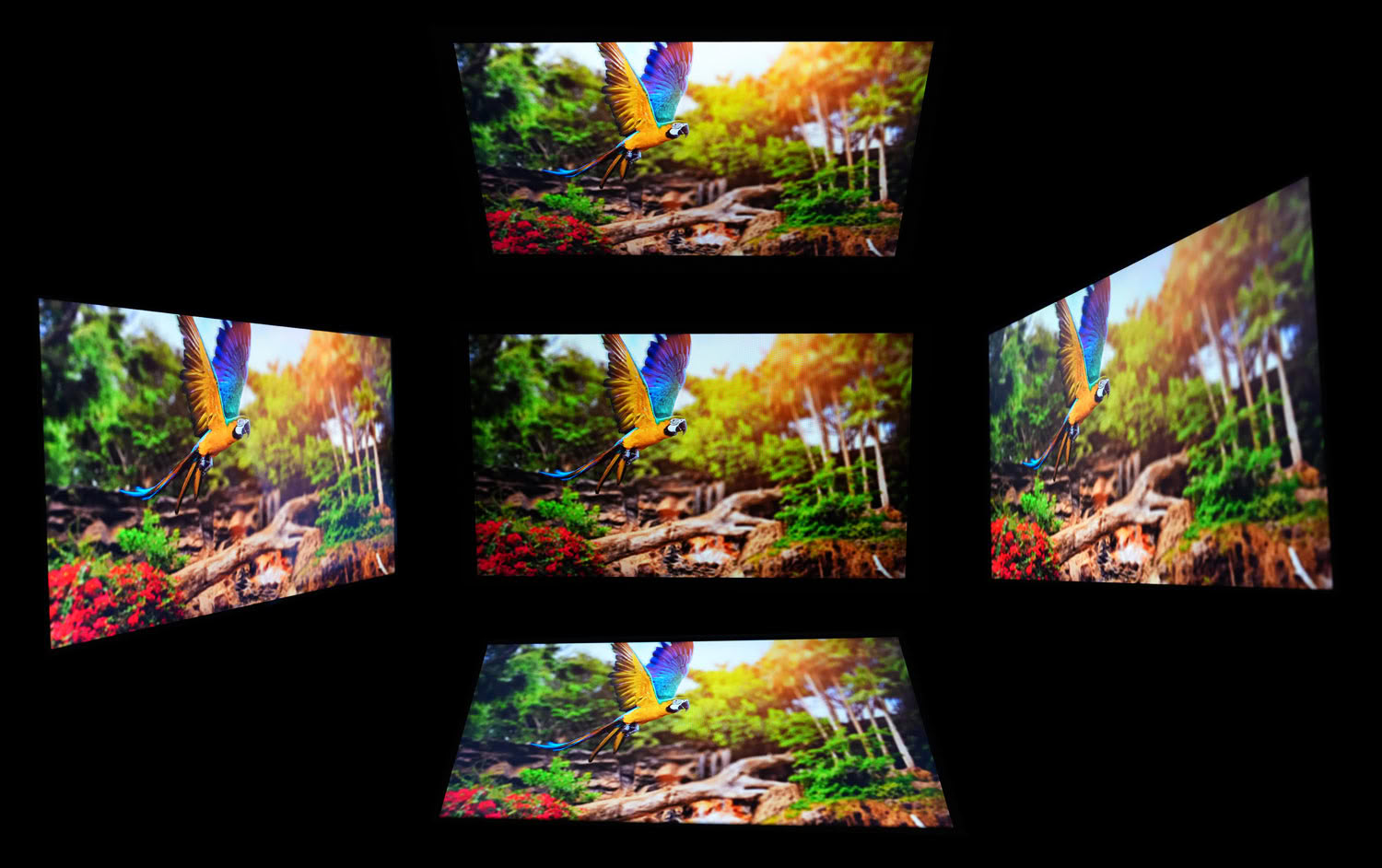
Viewing angles are good, as expected from IPS. Color and contrast hold up well from off-axis positions, with only the mild luminance falloff and slight shift you get from any IPS panel and no dramatic color inversion.
Touch Experience
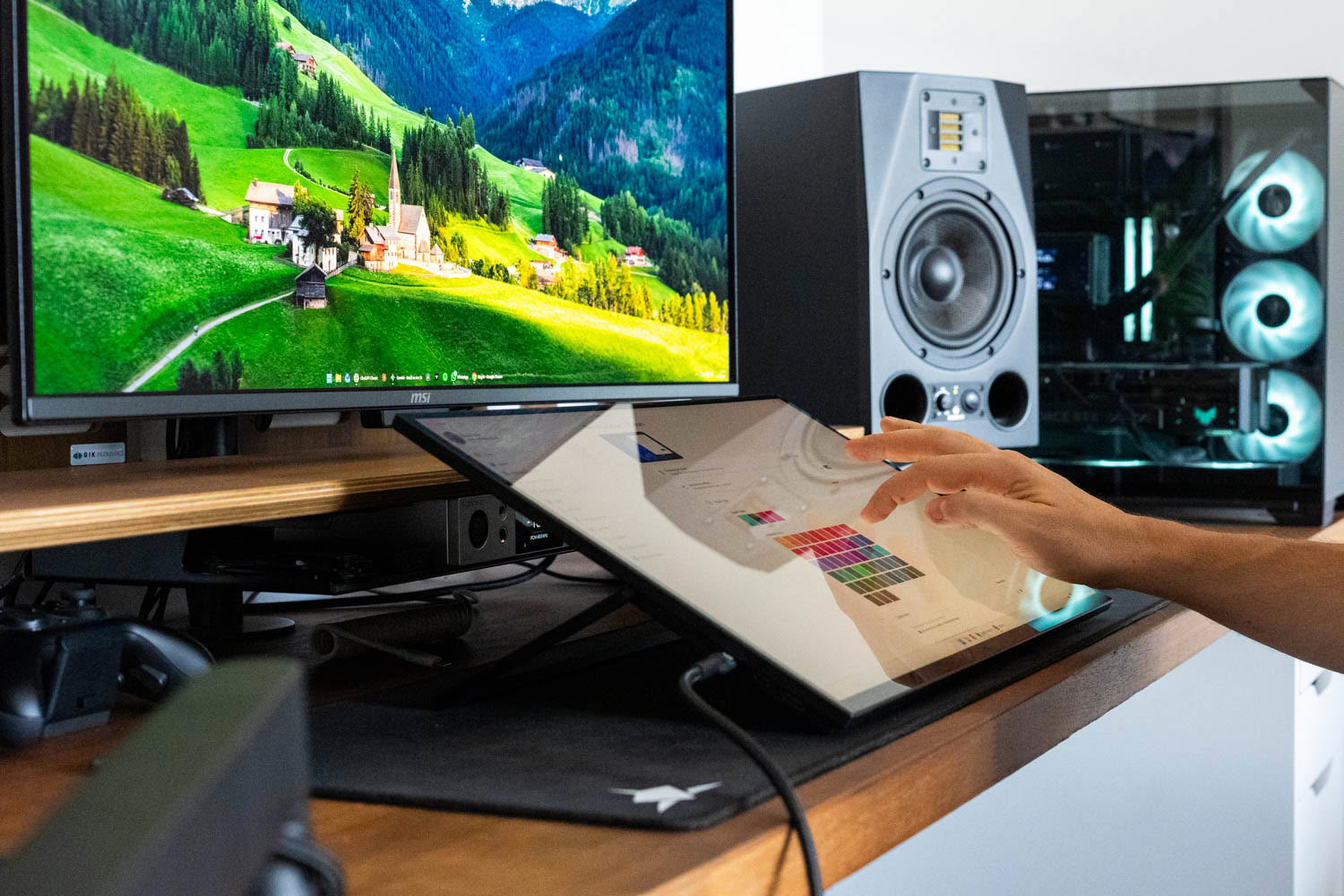
Touch is the headline feature, and it works well. The 10-point capacitive layer is driver-free on Windows and, as covered on the connectivity page, it travels over a single USB-C cable to the monitor's top port, so a USB-C source needs no extra data lead for touch to work. In use, responsiveness is good, with only a minimal, barely perceptible delay between your finger and the cursor. The one practical tip is to bump Windows display scaling to 125%, which makes on-screen targets large enough to hit comfortably with a fingertip rather than a stylus. With that in place, the BE22BQ makes a genuinely nice touch surface for navigation, sketching, and tablet-style use, especially with the kickstand laid down close to flat.
Nov 20th, 2026 14:05 PST
change timezone
Latest GPU Drivers
New Forum Posts
- How to prevent OLED burn damage due to PC freezes or power outtages? (48)
- Honestly, do you care about GTA VI? (208)
- When you could finally run Crysis maxed out? (63)
- WarpCoreBench scores! (80)
- GTA VI (20)
- Anthrophics IPO (25)
- GeekMagic Ultra Smart WiFi Weather Station (8)
- Very unusual two gaming-pc scenarios. (35)
- Can i play GTA 6 now? (Joke) (14)
- Zen 3 IF/IMC degradation (239)
Popular Reviews
- AMD Zen 6 Technical Deep Dive
- Ugreen NASync DXP4800 GT Review
- Microsoft Surface Laptop Ultra Review - The Next-gen Arm Laptop
- Corsair RM1200e (Second Generation) Review
- Acemagic Retro X3 Review
- Upcoming Hardware Launches 2027 (Updated Nov 2026)
- Pulsar Office Tour & First Look at P1 Dual-Sensor Mouse
- Biwin Black Opal NV7400 2 TB Review
- AMD Ryzen 7 9800X3D Memory Performance Scaling
- AMD Ryzen 7 9800X3D Review - The Best Gaming Processor
TPU on YouTube
Controversial News Posts
- NVIDIA Co-Founder and CEO Jensen Huang Officially Resigns (490)
- Report: Jensen Huang Eyes NVIDIA Comeback (255)
- Open Letter Asking NVIDIA to Reinstate Jensen Huang Passes 115,000 Signatures (184)
- OpenAI CEO Argues Home PCs Waste the World's Limited DRAM Supply (152)
- NVIDIA Launches Investigation Into Jensen Huang's Relationship With Suspected Chinese Spy (136)
- Intel "Raptor Lake Next" 16-Core and 20-Core CPUs Surface (130)
- Legendary Game Studio BioWare Shuts Down Following EA Layoffs (104)
- Dell CEO Says the Memory Shortage Will Get Worse in 2027 (95)