 5
UPERFECT UColor O2 Review - A Panel Worth Packing
Response Time, Input Lag & Motion Blur »Picture Quality
The UPERFECT UColor O2 features a 16-inch OLED panel with an unusual native resolution of 2,880x1,800 pixels. It corresponds to 16:10 screen ratio, which is preferred over 16:9 ratio for productivity, as it results in increased vertical screen real estate. This aforementioned combination of the diagonal size and resolution result in a high pixel density of 212.26 PPI, providing excellent image sharpness and effectively removing any traces of fringing—an anomaly that, when present and visible, ruins the experience of working with text and graphics, and forces users to avoid OLED panels altogether. The most effective way to fight against fringing, other than buying the latest generation OLED panels with improved subpixel layouts, is increasing pixel density, so that's exactly why there's none visible on the UColor O2. Its picture is exceptionally sharp and quite a treat to look at in that regard.Windows recommends using the monitor at 200% scaling, which is what I'd also recommend if you have any issues with eyesight. However, definitely do give 150% scaling a try. If you manage to get away with it, you'll have significantly more screen real estate to work with. While I don't consider myself eagle-eyed, I was able to use the 150% scaling comfortably and after trying it for a while, never considered going back to 200%.
Like other OLED monitors, the UPERFECT UColor O2 doesn't use a traditional LED backlight unit. Instead, individual pixels of the panel are self-emitting, which provides many benefits such as infinite contrast, stunning HDR capabilities, perfect blacks, an absence of haloing, and a superb response time.
The screen has a glossy coating, designed to enhance perceived contrast and clarity by delivering more vibrant colors and deeper blacks. It makes the picture pop and captivate from the moment the monitor is turned on. Of course, this comes with a significant drawback—it's much more reflective than a matte panel. In well-lit environments, the screen can act like a mirror, and the darker the content displayed, the more noticeable the reflections become. I'm somewhat surprised that UPERFECT opted for a glossy finish on a portable monitor, considering that the very nature of such a product involves use in unpredictable and often uncontrollable lighting conditions.
All four corners of the panel are rounded, which causes absolutely no issues in Windows. The operating system correctly accounts for the missing pixels in the corners and avoids rendering content there, so you don't have to worry about any interface elements being cut off or unreachable with the mouse cursor.
To assess the picture quality of the UPERFECT UColor O2, I used an X-Rite i1Display Pro along with DisplayCAL—a powerful, free display calibration and profiling tool for supported colorimeters—and Calman, the industry-standard display testing and calibration software suite.
Picture Quality at Factory Settings
I tested the picture quality of the UPERFECT UColor O2 at factory defaults, after plugging the monitor in and allowing it to warm up for about an hour. I used the supplied power brick, as external power is the only way to unlock the monitor's full potential.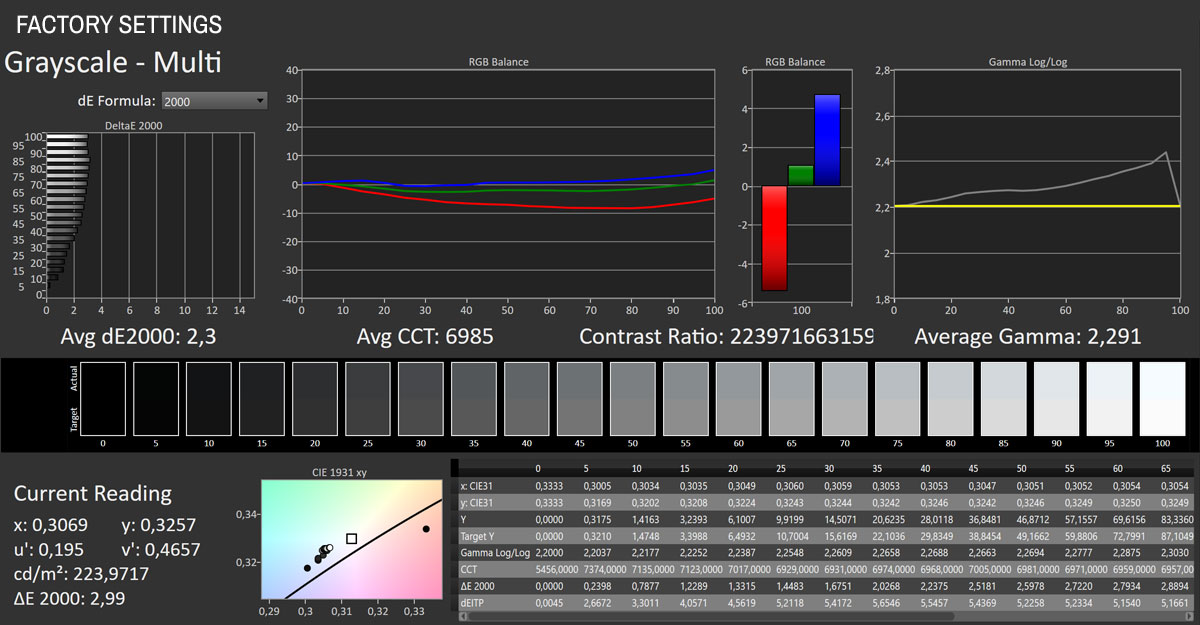
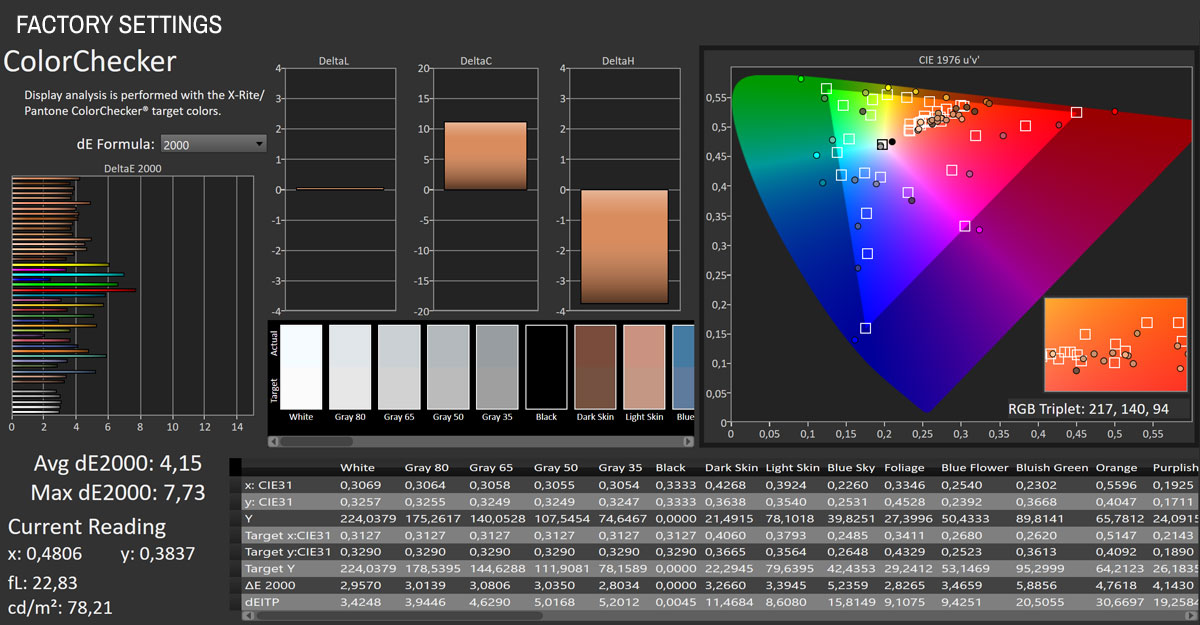
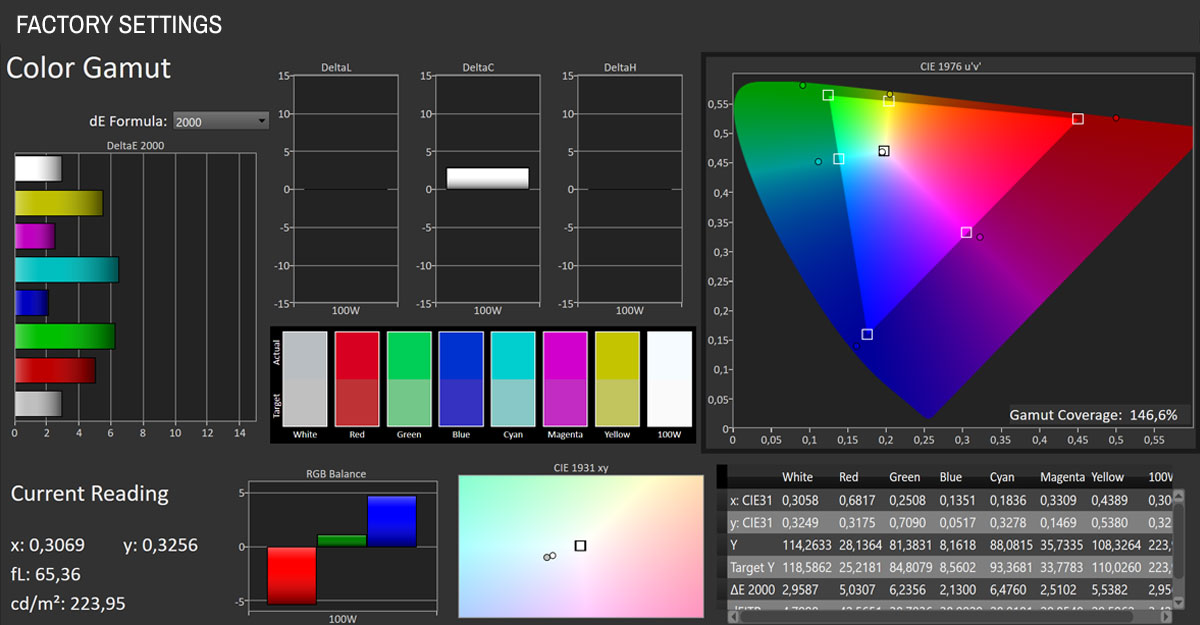
The factory performance of the UPERFECT UColor O2, tested in the sRGB color space, reveals that the panel tuning is generally decent, although not perfect. As expected for an OLED panel, contrast and black levels are stellar. The technical spec sheet claims 100% DCI-P3 color gamut, so it comes as no surprise that the colors are completely oversaturated when measuring within the sRGB color space. We get a 146.6% coverage of the sRGB gamut, which is a double-edged sword—while it gives the image a vivid, punchy appearance that's attractive for multimedia consumption, it leads to oversaturation in standard color-managed workflows, such as web content, unless a proper sRGB clamp is applied. Unfortunately, sRGB clamping is not an option—there's no such profile available within the OSD. As expected, the color accuracy is indicative of this oversaturation. With an average ∆E of 4.15 and a maximum deviation of 7.73, the color accuracy is outside the range of what we'd considered acceptable for color-critical work. These deviations are most pronounced in skin tones and blues, particularly in high-chroma patches. Grayscale tracking is a relative strong point compared to color fidelity. The average ∆E here is 2.3, which is more than sufficient for everyday usage. The RGB balance chart reveals a visible push toward blue in midtones and highlights, accompanied by a deficit in red emissions. As a result, we get a slightly cooler tone to grayscale content (confirmed by the correlated color temperature averaging around 6,985 K). Gamma performance is also respectable, with an average tracking of 2.29. This results in slightly deeper shadow rendering compared to standard 2.2 gamma, but with no major deviations that would raise red flags for regular SDR use.
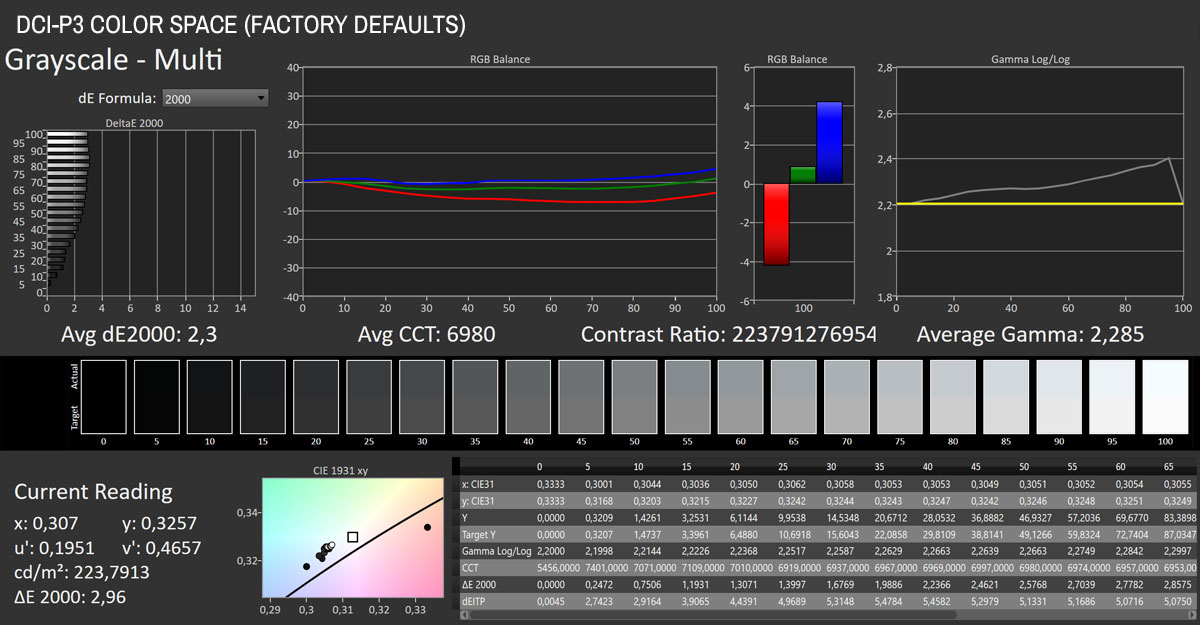
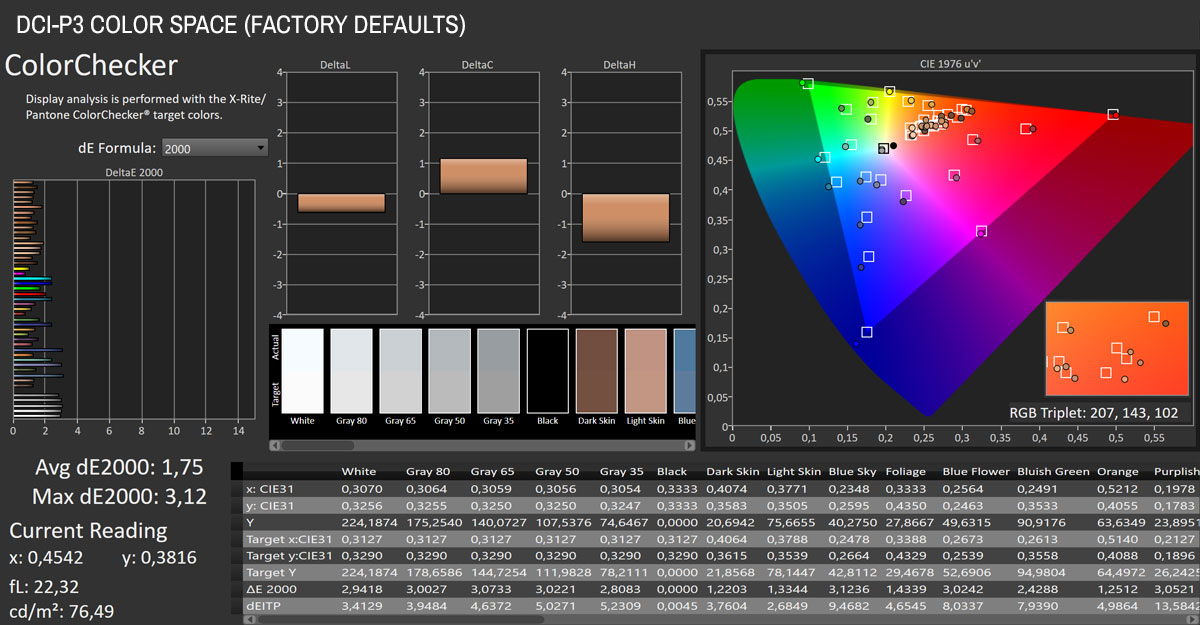
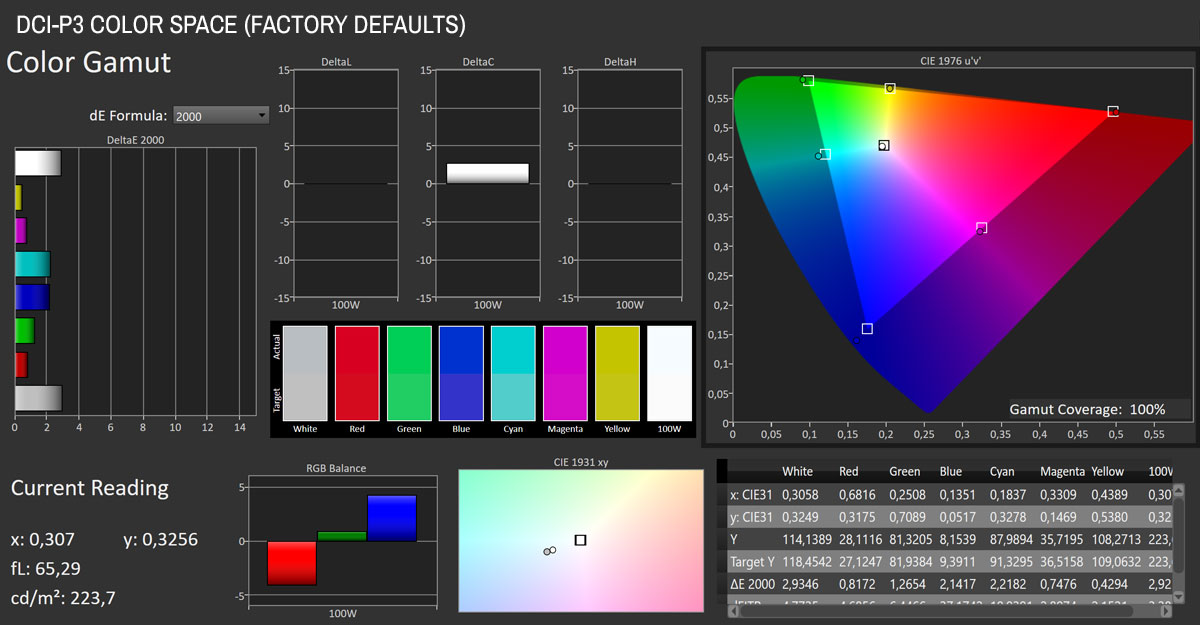
Here's a complete overview of what the UColor O2 is capable of at factory settings, only this time measured within the DCI-P3 color space. The monitor's gamut coverage in DCI-P3 is a perfect 100%, which confirms that UPERFECT is utilizing a wide-gamut panel with solid chromatic capabilities. The CIE diagram reveals precise targeting of the primary red, green, and blue coordinates, with tightly aligned measurements and targets. In terms of color accuracy, we now get a respectable ∆E of 1.75 and a maximum error of 3.12. This is well within the acceptable margin for uncalibrated displays. Only a few tones, such as darker skin tones and deep red shades, exhibit modest oversaturation or hue shift, but none of them cross the critical ΔE threshold of 5, meaning they will not appear off to the naked eye. Most of the measured color points fall within a ΔE of 2—in short, we're getting a generally accurate and natural color presentation. It's clear that UPERFECT applied a reasonably well-tuned factory color profile targeting DCI-P3, minimizing the need for calibration.
Having said that, I wanted to explore the possibility to bringing the color temperature closer to the ideal 6,500 K level, if only to check if the picture quality of the UPERFECT UColor O2 can be pushed even further. While this isn't something you necessarily have to do—its performance is very good straight out of the box—it comes down to changing only a few options in the OSD. Here are the settings that worked best on my sample of the UPERFECT UColor O2. I aimed for a 6,500 K color temperature and 250 cd/m² brightness.
| Modified OSD Settings | |
|---|---|
| Color Temperature (Color Temp. > User) | Red 50 / Green 49 / Blue 48 |
| Brightness (Picture > Brightness) | 60 |
Let's compare the measurements before and after doing the aforementioned OSD tweaks. The numbers shown in the table below are from measuring the panel in the sRGB color space, as these will be more relevant to the majority of users.
| Factory vs Adjusted Settings | ||
|---|---|---|
| Factory Defaults | Adjusted Settings | |
| Measured Luminance | 223.97 cd/m² | 252.54 cd/m² |
| Measured Whitepoint | 6,985 K | 6,496 K |
| Measured Black Luminance | 0.000 cd/m² | 0.000 cd/m² |
| Contrast | Infinite | Infinite |
| Gamma | 2.291 | 2.285 |
| Average Grayscale Accuracy (ΔE) | 2.3 | 1 |
| Average Color Accuracy (ΔE) | 4.15 | 4.46 |
| Maximum Color ΔE | 7.73 | 8.51 |
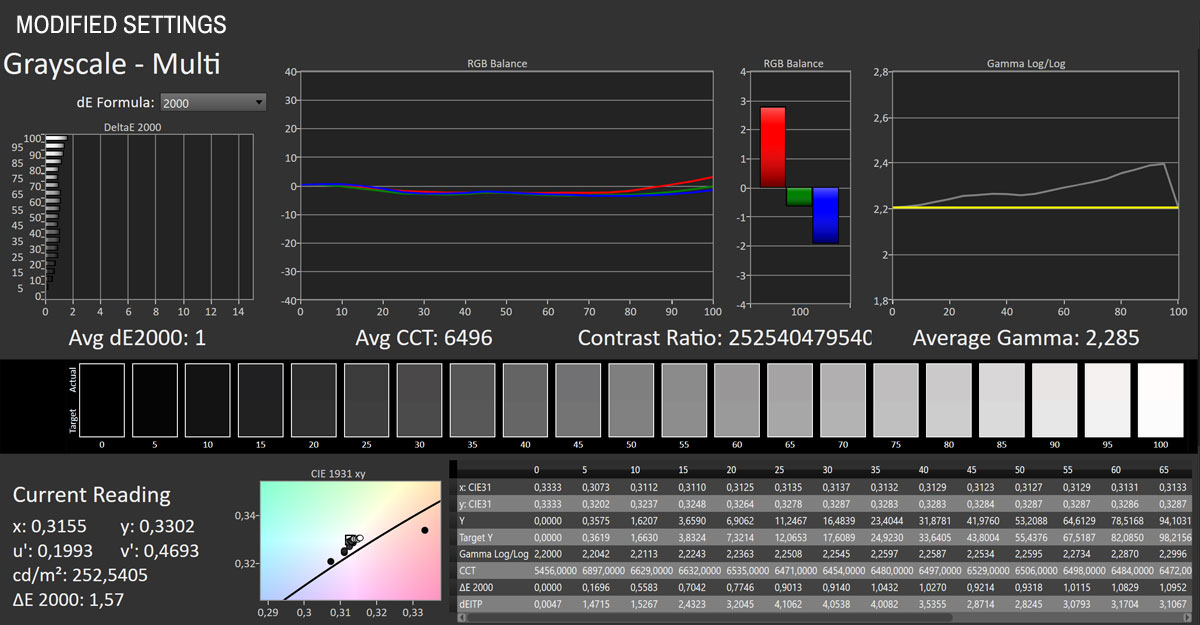
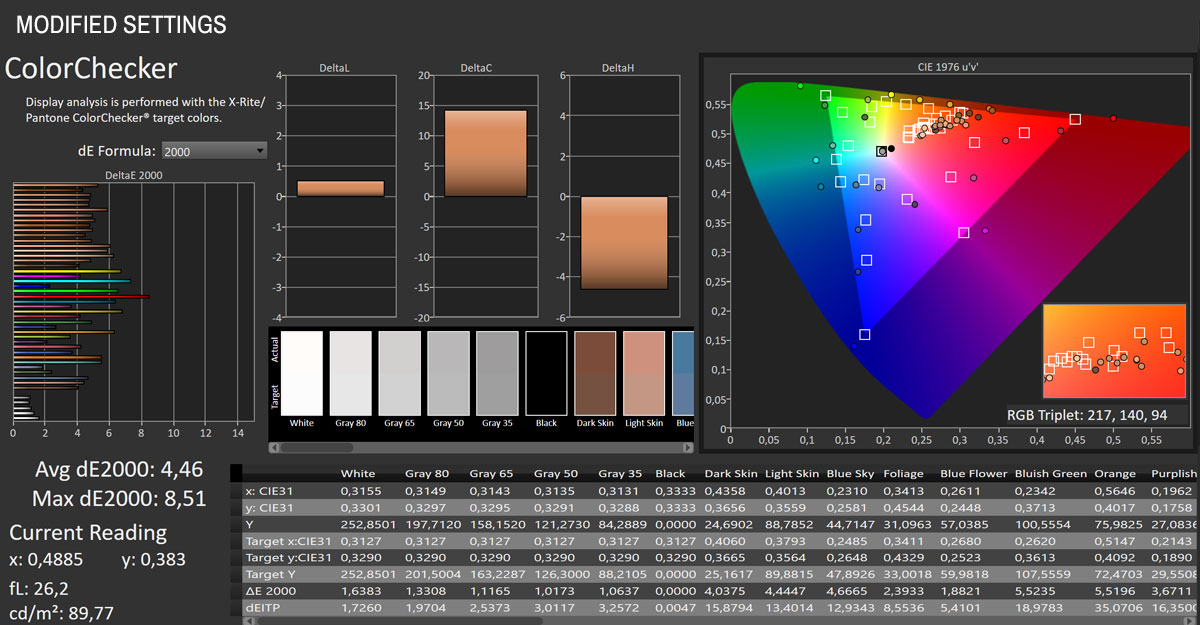
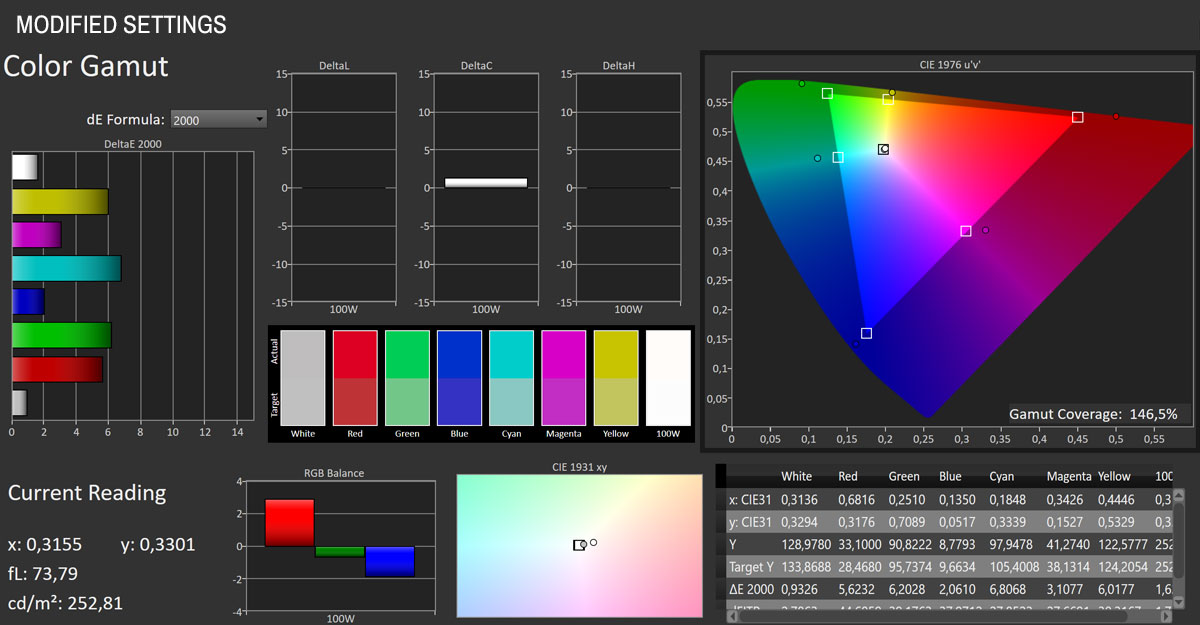
After manually correcting the color temperature through the OSD by adjusting individual RGB channel gains, the UColor O2 shows some significant improvements within the sRGB color space. The average grayscale ∆E dropped from 2.3 in the factory state to just 1. With that comes a substantial reduction in perceived color errors in shades of gray, with improved RGB balance and tighter conformity to the ideal color temperature target of 6,500 K. The gamma tracking remained close to the 2.2 reference, only deviating slightly past 2.4 almost at 100% stimulus (full white). These enhancements translate to a more accurate grayscale rendering with minimal color tinting, while the aforementioned gamma deviation makes near-whites appear dimmer and slightly less distinct than required by the input signal. When it comes to color accuracy measured against the sRGB color space, it remains mediocre at best, for the same reason outlined above—the wide-gamut OLED panel is tuned for DCI-P3 color space, and as such makes the colors oversaturated. As there's no sRGB mode available in the OSD, the only way to make this a viable option for more demanding sRGB work is to go through with a hardware calibration. Having said that, the stock settings UColor O12 is still a great choice for users who want a portable monitor capable of delivering a sharp, bright picture with rich and punchy colors, but don't plan to use it for color-critical work in sRGB color space.
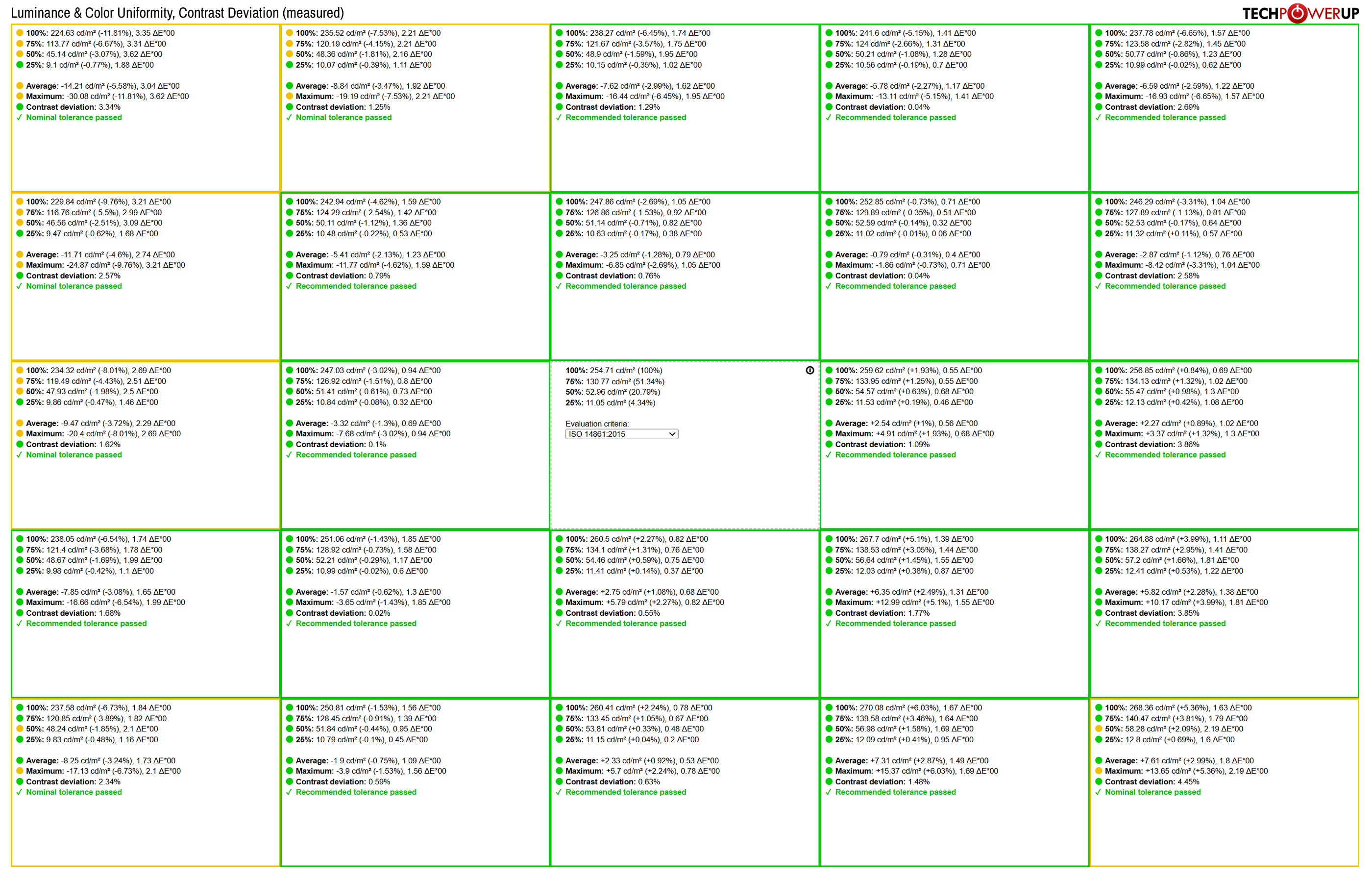
As expected from an OLED panel, the overall luminance, color and contrast uniformity is excellent. Out of 25 measured zones, none of them go over a 6% average luminance deviation, when compared to the reference (center) value. As such, the entire panel looks uniformly lit to the naked eye. Some slight color shifts, measured along the left edge, are visually subtle and essentially imperceptible. With that in mind, the uniformity performance of the UColor O2 is better than expected from a portable OLED panel.
HDR Performance
Because of their technological characteristics, OLED monitors are generally an excellent choice for HDR gaming and content consumption. The UColor O2, however, isn't one of them, primarily because its peak brightness never exceeds 320 cd/m² (at 1% white window size), and its HDR implementation is poor.When you activate HDR in Windows, the monitor doesn't switch to HDR mode by default. To enable it, you have to go to the "Reset" menu in the OSD—hardly the first place you'd think to look for HDR settings—and switch "HDR MODE" from "Off" to "Auto." This activates the HDR profile, but it's poorly configured. If you had previously applied the modified settings outlined earlier in the review, the image will look like it's being viewed through a red filter. You can fix this by manually readjusting the RGB gains (Red 49 / Green 50 / Blue 51 produces decent results), but no sane user is going to do that every time they want to use HDR. Even with a hardware calibrator, it's difficult to find a balanced color temperature, as small changes to individual channels cause dramatic shifts in RGB balance and overall image tone.
Worse still, when you switch back to SDR mode in Windows, the monitor doesn't restore your previous settings. Brightness remains locked until you revisit the "Reset" menu and set "HDR MODE" back from "Auto" to "Off."
It's a proper mess—bad enough that I wouldn't bother with HDR mode at all. Fortunately, the UColor O2 performs well in SDR mode, and you're probably not buying a 16-inch portable monitor for a high-end HDR experience anyway. That makes this more of an annoyance than a dealbreaker, but it's definitely something you should be aware of.
Viewing Angles
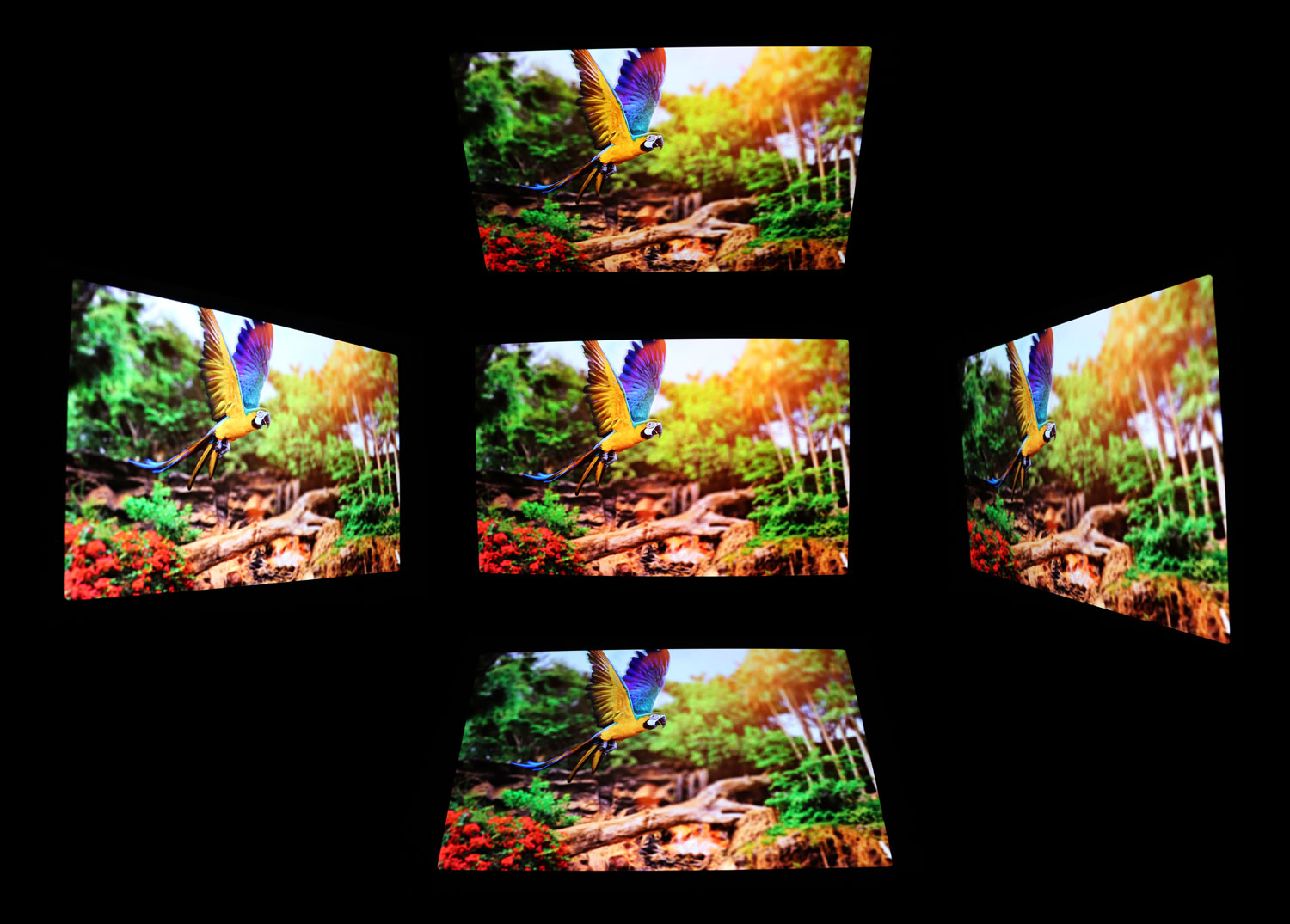
The viewing angles of the OLED panel built into the UPERFECT UColor O2 are excellent. There's no visible shift in colors from any sitting position or when changing positions.
Nov 26th, 2026 06:58 CST
change timezone
Latest GPU Drivers
New Forum Posts
- Wireless Internet sharing between PC and router both-ways, is it possible? (20)
- GTA VI (51)
- Current Sales, Bundles, Giveaways (10451)
- Without Jensen, PC gaming will be (61)
- WarpCoreBench scores! (105)
- Which ryzen am5 cpu ? (220)
- Exploring Local LLMs: Models, Hardware and Setup Experiences (2)
- Radeon driver death (2)
- Claude credits purchased on or after Dec. 7 now have an expiry date (19)
- Smokin Hot Lappy (14)
Popular Reviews
- ASRock X870E Challenger Wi-Fi White Review
- VZMORE AX9 Max Review
- Upcoming Hardware Launches 2027 (Updated Nov 2026)
- Microsoft Surface Laptop Ultra Review - The Next-gen Arm Laptop
- AMD Ryzen 7 9800X3D Review - The Best Gaming Processor
- AMD Zen 6 Technical Deep Dive
- Corsair RM1200e (Second Generation) Review
- Phantom Blade Zero Performance Benchmark Review - 35 GPUs Tested
- Pulsar Office Tour & First Look at P1 Dual-Sensor Mouse
- Montech CyberFlow ARGB 360 Review
TPU on YouTube
Controversial News Posts
- Jensen Huang Reinstated as CEO of NVIDIA (582)
- NVIDIA Co-Founder and CEO Jensen Huang Officially Resigns (492)
- Report: Jensen Huang Eyes NVIDIA Comeback (281)
- Open Letter Asking NVIDIA to Reinstate Jensen Huang Passes 115,000 Signatures (184)
- OpenAI CEO Argues Home PCs Waste the World's Limited DRAM Supply (152)
- NVIDIA Launches Investigation Into Jensen Huang's Relationship With Suspected Chinese Spy (136)
- Intel "Raptor Lake Next" 16-Core and 20-Core CPUs Surface (130)
- Intel Razor Lake Gets a 12 P-Core bLLC Chip With No E-Cores, Per Leak (94)